
MGS-3712F - Network switch ZYXEL - Free user manual and instructions
Find the device manual for free MGS-3712F ZYXEL in PDF.


| Product Type | Managed Network Switch |
| Brand | ZYXEL |
| Model | MGS-3712F |
| Dimensions (L x D x H) | 440 x 250 x 44 mm |
| Weight | 3.5 kg |
| Power Supply | 100-240 V AC, 50/60 Hz |
| Max Power Consumption | 30 W |
| Number of Ports | 12 Gigabit SFP Ports |
| Port Type | SFP (mini-GBIC) |
| Management | L2+/L3 Lite, Web Interface, CLI, SNMP |
| Key Features | VLAN, QoS, STP/RSTP/MSTP, Link Aggregation, IGMP Snooping, ACL |
| Operating Temperature | 0°C to 50°C |
| Operating Humidity | 10% to 90% non-condensing |
| Standards | IEEE 802.3, 802.3u, 802.3ab, 802.3z, 802.1Q, 802.1p, 802.1D, 802.1w, 802.1s |
| Certifications | Class A (NMB-003 Canada) |
| Country of Origin | Taiwan |
| Warranty | 2 years |
| Maintenance and Cleaning | Dust with a soft, dry cloth. Do not use chemicals. |
| Safety | Unplug before maintenance. Use in a dry, temperate environment. |
| Spare Parts and Repairability | No spare parts available. Have it repaired by a certified professional. |
Frequently Asked Questions - MGS-3712F ZYXEL
User questions about MGS-3712F ZYXEL
0 question about this device. Answer the ones you know or ask your own.
Ask a new question about this device
Download the instructions for your Network switch in PDF format for free! Find your manual MGS-3712F - ZYXEL and take your electronic device back in hand. On this page are published all the documents necessary for the use of your device. MGS-3712F by ZYXEL.
USER MANUAL MGS-3712F ZYXEL
IP Address http://192.168.1.1
User Name admin
Password 1234
<h1 id="about-this-users-guide">About This User's Guide</h1>
<h1 id="intended-audience">Intended Audience</h1>
This manual is intended for people who want to configure the Switch using the web configurator. You should have at least a basic knowledge of TCP/IP networking concepts and topology.
<h1 id="related-documentation">Related Documentation</h1>
- Quick Start Guide
The Quick Start Guide is designed to help you get up and running right away. It contains information on setting up your network and configuring for Internet access.
Command Line Interface (CLI) Reference Guide
Line commands offer an alternative to the web configurator and in some cases are necessary to configure advanced features.
Web Configurator Online Help
Embedded web help for descriptions of individual screens and supplementary information.

It is recommended you use the web configurator to configure the Switch.
Supporting Disk
Refer to the included CD for support documents.
ZyXEL Web Site
Please refer to www.zyxel.com for additional support documentation and product certifications.
<h1 id="user-guide-feedback">User Guide Feedback</h1>
Help us help you. Send all User Guide-related comments, questions or suggestions for improvement to the following address, or use e-mail instead. Thank you!
The Technical Writing Team,
ZyXEL Communications Corp.,
6 Innovation Road II,
Science-Based Industrial Park,
Hsinchu, 300, Taiwan.
E-mail: techwriters@zyxel.com.tw
<h1 id="document-conventions">Document Conventions</h1>
<h1 id="warnings-and-notes">Warnings and Notes</h1>
These are how warnings and notes are shown in this User's Guide.

Warnings tell you about things that could harm you or your device.

Notes tell you other important information (for example, other things you may need to configure or helpful tips) or recommendations.
<h1 id="syntax-conventions">Syntax Conventions</h1>
- The MGS-3712 and MGS-3712F models may be referred to as the "Switch", the "device", the "system" or the "product" in this User's Guide.
- Product labels, screen names, field labels and field choices are all in bold font.
- A key stroke is denoted by square brackets and uppercase text, for example, [ENTER] means the "enter" or "return" key on your keyboard.
- “Enter” means for you to type one or more characters and then press the [ENTER] key. "Select" or "choose" means for you to use one of the predefined choices.
- A right angle bracket (>) within a screen name denotes a mouse click. For example, Maintenance > Log > Log Setting means you first click Maintenance in the navigation panel, then the Log sub menu and finally the Log Setting tab to get to that screen.
- Units of measurement may denote the "metric" value or the "scientific" value. For example, "k" for kilo may denote "1000" or "1024", "M" for mega may denote "1000000" or "1048576" and so on.
- "e.g.," is a shorthand for "for instance", and "i.e.," means "that is" or "in other words".
<h1 id="icons-used-in-figures">Icons Used in Figures</h1>
Figures in this User's Guide may use the following generic icons. The Switch icon is not an exact representation of your device.
<table><tr><td>The Switch</td><td>Computer</td><td>Notebook computer</td></tr><tr><td>Server</td><td>DSLAM</td><td>Firewall</td></tr><tr><td>Telephone</td><td>Router</td><td></td></tr></table>
<h1 id="safetywarnings">SafetyWarnings</h1>

<h1 id="for-your-safety-be-sure-to-read-and-follow-all-warning-notices-and-instructions">For your safety, be sure to read and follow all warning notices and instructions.</h1>
- Do NOT use this product near water, for example, in a wet basement or near a swimming pool.
- Do NOT expose your device to dampness, dust or corrosive liquids.
- Do NOT store things on the device.
- Do NOT install, use, or service this device during a thunderstorm. There is a remote risk of electric shock from lightning.
- Connect ONLY suitable accessories to the device.
- Do NOT open the device or unit. Opening or removing covers can expose you to dangerous high voltage points or other risks. ONLY qualified service personnel should service or disassemble this device. Please contact your vendor for further information.
- For continued protection against risk of fire replace only with same type and rating of fuse.
- Make sure to connect the cables to the correct ports.
- Place connecting cables carefully so that no one will step on them or stumble over them.
- Always disconnect all cables from this device before servicing or disassembling.
- Use ONLY an appropriate power adaptor or cord for your device. Connect it to the right supply voltage (for example, 110V AC in North America or 230V AC in Europe).
- Do NOT allow anything to rest on the power adaptor or cord and do NOT place the product where anyone can walk on the power adaptor or cord.
- Do NOT use the device if the power adaptor or cord is damaged as it might cause electrocution.
- If the power adaptor or cord is damaged, remove it from the device and the power source.
- Do NOT attempt to repair the power adaptor or cord. Contact your local vendor to order a new one.
- Do not use the device outside, and make sure all the connections are indoors. There is a remote risk of electric shock from lightning.
- Do NOT obstruct the device ventilation slots, as insufficient airflow may harm your device.
- The length of exposed (bare) power wire should not exceed 7mm .
This product is recyclable. Dispose of it properly.

<h1 id="contents-overview">Contents Overview</h1>
<h1 id="introduction-and-hardware-29">Introduction and Hardware 29</h1>
Getting to Know Your Switch 31
Hardware Installation and Connection 35
Hardware Overview 39
<h1 id="basic-configuration-49">Basic Configuration 49</h1>
The Web Configurator 51
Initial Setup Example 61
System Status and Port Statistics 65
Basic Setting 71
<h1 id="advanced-83">Advanced 83</h1>
VLAN 85
Static MAC Forward Setup 97
Filtering 99
Spanning Tree Protocol 101
Bandwidth Control 119
Broadcast Storm Control 121
Mirroring 123
Link Aggregation 125
Port Authentication 133
Port Security 139
Classifier 143
Policy Rule 149
Queuing Method 155
Multicast 157
Authentication & Accounting 171
IP Source Guard 185
Loop Guard 205
Two Rate Three Color Marker 209
<h1 id="ip-application-215">IP Application 215</h1>
Static Route 217
DHCP 221
<h1 id="management-229">Management 229</h1>
Maintenance 231
Access Control 237
Diagnostic 255
Syslog 257
Cluster Management 261
MAC Table 267
ARP Table 269
Configure Clone 271
<h1 id="troubleshooting-product-specifications-273">Troubleshooting & Product Specifications 273</h1>
Troubleshooting 275
Product Specifications 279
<h1 id="appendices-and-index-285">Appendices and Index 285</h1>
<h1 id="table-of-contents">Table of Contents</h1>
About This User's Guide 3
Document Conventions 4
SafetyWarnings 6
Contents Overview 9
Table of Contents 11
List of Figures 21
List of Tables 25
<h1 id="part-i-introduction-and-hardware-29">Part I: Introduction and Hardware 29</h1>
<h1 id="chapter-1-getting-to-know-your-switch-31">Chapter 1 Getting to Know Your Switch. 31</h1>
1.1 Introduction 31
1.1.1 Backbone Application 31
1.1.2 Bridging Example 32
1.1.3 High Performance Switching Example 32
1.1.4 IEEE 802.1Q VLAN Application Examples 33
1.2 Ways to Manage the Switch 34
1.3 Good Habits for Managing the Switch 34
<h1 id="chapter-2-hardware-installation-and-connection-35">Chapter 2 Hardware Installation and Connection 35</h1>
2.1 Installation Scenarios 35
2.2 Desktop Installation Procedure 35
2.3 Mounting the Switch on a Rack 36
2.3.1 Rack-mounted Installation Requirements 36
2.3.2 Attaching the Mounting Brackets to the Switch 36
2.3.3 Mounting the Switch on a Rack 37
<h1 id="chapter-3-hardware-overview-39">Chapter 3 Hardware Overview. 39</h1>
3.1 Front Panel 39
3.1.1 Console Port 41
3.1.2 Gigabit Ethernet Ports 42
3.1.3 Mini-GBIC Slots 42
3.1.4 Management Port 44
3.1.5 Power Connector 44
3.1.6 ALARM Slot 45
3.2 Rear Panel 47
3.3 LEDs 47
3.4 Configuring the Switch 48
<h1 id="part-ii-basic-configuration-49">Part II: Basic Configuration 49</h1>
<h1 id="chapter-4">Chapter 4</h1>
The Web Configurator 51
4.1 Introduction 51
4.2 System Login 51
4.3 The Status Screen 52
4.3.1 Change Your Password 57
4.4 Saving Your Configuration 58
4.5 Switch Lockout 58
4.6 Resetting the Switch 59
4.6.1 Reload the Configuration File 59
4.7 Logging Out of the Web Configurator 60
4.8 Help 60
<h1 id="chapter-5">Chapter 5</h1>
Initial Setup Example 61
5.1 Overview 61
5.1.1 Creating a VLAN 61
5.1.2 Setting Port VID 62
5.2 Configuring Switch Management IP Address 63
<h1 id="chapter-6">Chapter 6</h1>
System Status and Port Statistics 65
6.1 Overview 65
6.2 Port Status Summary 65
6.2.1 Status: Port Details 66
<h1 id="chapter-7">Chapter 7</h1>
Basic Setting 71
7.1 Overview 71
7.2 System Information 71
7.3 General Setup 72
7.4 Introduction to VLANs 74
7.5 Switch Setup Screen 75
7.6 IP Setup 77
7.6.1 Management IP Addresses 77
7.7 Port Setup 79
<h1 id="part-iii-advanced-83">Part III: Advanced 83</h1>
<h1 id="chapter-8-vlan-85">Chapter 8 VLAN 85</h1>
8.1 Introduction to IEEE 802.1Q Tagged VLANs 85
8.1.1 Forwarding Tagged and Untagged Frames 85
8.2 Automatic VLAN Registration 86
8.2.1 GARP 86
8.2.2 GVRP 86
8.3 Port VLAN Trunking 87
8.4 Select the VLAN Type 87
8.5 Static VLAN 87
8.5.1 Static VLAN Status 88
8.5.2 VLAN Details 88
8.5.3 Configure a Static VLAN 89
8.5.4 Configure VLAN Port Settings 90
8.6 Subnet Based VLANs 92
8.7 Configuring Subnet Based VLAN 93
8.8 Port-based VLAN Setup 94
8.8.1 Configure a Port-based VLAN 95
<h1 id="chapter-9-static-mac-forward-setup-97">Chapter 9 Static MAC Forward Setup 97</h1>
9.1 Overview 97
9.2 Configuring Static MAC Forwarding 97
<h1 id="chapter-10-filtering-99">Chapter 10 Filtering. 99</h1>
10.1 Configure a Filtering Rule 99
<h1 id="chapter-11-spanning-tree-protocol-101">Chapter 11 Spanning Tree Protocol. 101</h1>
11.1 STP/RSTP Overview 101
11.1.1 STP Terminology 101
11.1.2 How STP Works 102
11.1.3 STP Port States 103
11.1.4 Multiple RSTP 103
11.1.5 Multiple STP 104
11.2 Spanning Tree Protocol Status Screen 106
11.3 Spanning Tree Configuration 107
11.4 Configure Rapid Spanning Tree Protocol 108
11.5 Rapid Spanning Tree Protocol Status 109
11.6 Configure Multiple Rapid Spanning Tree Protocol 111
11.7 Multiple Rapid Spanning Tree Protocol Status 112
11.8 Configure Multiple Spanning Tree Protocol 114
11.9 Multiple Spanning Tree Protocol Status 116
<h1 id="chapter-12">Chapter 12</h1>
Bandwidth Control 119
12.1 Bandwidth Control Overview 119
12.1.1 CIR and PIR 119
12.2 Bandwidth Control Setup 119
<h1 id="chapter-13">Chapter 13</h1>
Broadcast Storm Control 121
13.1 Broadcast Storm Control Setup 121
<h1 id="chapter-14">Chapter 14</h1>
Mirroring 123
14.1 Port Mirroring Setup 123
<h1 id="chapter-15">Chapter 15</h1>
Link Aggregation 125
15.1 Link Aggregation Overview 125
15.2 Dynamic Link Aggregation 125
15.2.1 Link Aggregation ID 126
15.3 Link Aggregation Status 126
15.4 Link Aggregation Setting 127
15.5 Link Aggregation Control Protocol 128
15.6 Static Trunking Example 130
<h1 id="chapter-16">Chapter 16</h1>
Port Authentication 133
16.1 Port Authentication Overview 133
16.1.1 IEEE 802.1x Authentication 133
16.1.2 MAC Authentication 134
16.2 Port Authentication Configuration 135
16.2.1 Activate IEEE 802.1x Security 135
16.2.2 Activate MAC Authentication 136
<h1 id="chapter-17">Chapter 17</h1>
<h1 id="port-security-139">Port Security 139</h1>
17.1 About Port Security 139
17.2 Port Security Setup 139
<h1 id="chapter-18">Chapter 18</h1>
<h1 id="classifier-143">Classifier 143</h1>
18.1 About the Classifier and QoS 143
18.2 Configuring the Classifier 143
18.3 Viewing and Editing Classifier Configuration 146
18.4 Classifier Example 147
<h1 id="chapter-19">Chapter 19</h1>
<h1 id="policy-rule-149">Policy Rule 149</h1>
19.1 Policy Rules Overview 149
19.1.1 DiffServ 149
19.1.2 DSCP and Per-Hop Behavior 149
19.2 Configuring Policy Rules 150
19.3 Viewing and Editing Policy Configuration 152
19.4 Policy Example 152
<h1 id="chapter-20">Chapter 20</h1>
<h1 id="queuing-method-155">Queuing Method 155</h1>
20.1 Queuing Method Overview 155
20.1.1 Strictly Priority Queuing 155
20.1.2 Weighted Round Robin Scheduling (WRR) 155
20.2 Configuring Queuing 156
<h1 id="chapter-21">Chapter 21</h1>
<h1 id="multicast-157">Multicast 157</h1>
21.1 Multicast Overview 157
21.1.1 IP Multicast Addresses 157
21.1.2 IGMP Filtering 157
21.1.3IGMP Snooping 157
21.1.4 IGMP Snooping and VLANs 158
21.2 Multicast Status 158
21.3 Multicast Setting 158
21.4 IGMP Snooping VLAN 160
21.5 IGMP Filtering Profile 162
21.6 MVR Overview 163
21.6.1 Types of MVR Ports 163
21.6.2 MVR Modes 164
21.6.3 How MVR Works 164
21.7 General MVR Configuration 164
21.8 MVR Group Configuration 166
21.8.1 MVR Configuration Example 167
<h1 id="chapter-22">Chapter 22</h1>
<h1 id="authentication-accounting-171">Authentication & Accounting 171</h1>
22.1 Authentication, Authorization and Accounting 171
22.1.1 Local User Accounts 171
22.1.2 RADIUS and TACACS+ 172
22.2 Authentication and Accounting Screens 172
22.2.1 RADIUS Server Setup 172
22.2.2 TACACS+ Server Setup 174
22.2.3 Authentication and Accounting Setup 176
22.2.4 Vendor Specific Attribute 179
22.3 Supported RADIUS Attributes 180
22.3.1 Attributes Used for Authentication 181
22.3.2 Attributes Used for Accounting 181
<h1 id="chapter-23">Chapter 23</h1>
<h1 id="ip-source-guard-185">IP Source Guard 185</h1>
23.1 IP Source Guard Overview 185
23.1.1 DHCP Snooping Overview 185
23.1.2 ARP Inspection Overview 187
23.2 IP Source Guard 189
23.3 IP Source Guard Static Binding 189
23.4 DHCP Snooping 191
23.5 DHCP Snooping Configure 194
23.5.1 DHCP Snooping Port Configure 195
23.5.2 DHCP Snooping VLAN Configure 197
23.6 ARP Inspection Status 198
23.6.1 ARP Inspection VLAN Status 198
23.6.2 ARP Inspection Log Status 199
23.7 ARP Inspection Configure 201
23.7.1 ARP Inspection Port Configure 202
23.7.2 ARP Inspection VLAN Configure 203
<h1 id="chapter-24">Chapter 24</h1>
<h1 id="loop-guard-205">Loop Guard 205</h1>
24.1 Loop Guard Overview 205
24.2 Loop Guard Setup 207
<h1 id="chapter-25">Chapter 25</h1>
<h1 id="two-rate-three-color-marker-209">Two Rate Three Color Marker 209</h1>
25.1 DiffServ Overview 209
25.1.1 DSCP and Per-Hop Behavior 209
25.1.2 DiffServ Network Example 210
25.2 Two Rate Three Color Marker Traffic Policing 210
25.2.1 trTCM - Color-blind Mode 211
25.2.2 trTCM - Color-aware Mode 211
25.2.3 Configuring Two Rate Three Color Marker Settings 212
<h1 id="part-iv-ip-application-215">Part IV: IP Application 215</h1>
<h1 id="chapter-26">Chapter 26</h1>
<h1 id="static-route-217">Static Route 217</h1>
26.1 Static Routing Overview 217
26.2 Configuring Static Routing 217
<h1 id="chapter-27">Chapter 27</h1>
<h1 id="dhcp-221">DHCP 221</h1>
27.1 DHCP Overview 221
27.1.1 DHCP Modes 221
27.1.2 DHCP Configuration Options 221
27.2 DHCP Status 221
27.3 DHCP Relay 222
27.3.1 DHCP Relay Agent Information 222
27.3.2 Configuring DHCP Global Relay 223
27.3.3 Global DHCP Relay Configuration Example 224
27.4 Configuring DHCP VLAN Settings 224
27.4.1 Example: DHCP Relay for Two VLANs 226
<h1 id="part-v-management-229">Part V: Management 229</h1>
<h1 id="chapter-28">Chapter 28</h1>
<h1 id="maintenance-231">Maintenance 231</h1>
28.1 The Maintenance Screen 231
2 Load Factory Default 232
3 Save Configuration 232
4Reboot System 233
5 Firmware Upgrade 233
28.6 Restore a Configuration File 234
28.7 Backup a Configuration File 234
28.8 FTP Command Line 235
28.8.1 Filename Conventions 235
28.8.2 FTP Command Line Procedure 235
28.8.3 GUI-based FTP Clients 236
28.8.4 FTP Restrictions 236
<h1 id="chapter-29">Chapter 29</h1>
Access Control 237
29.1 Access Control Overview 237
29.2 The Access Control Main Screen 237
29.3 About SNMP 238
29.3.1 SNMP v3 and Security 239
29.3.2 Supported MIBs 239
29.3.3 SNMP Traps 239
29.3.4 Configuring SNMP 243
29.3.5 Configuring SNMP Trap Group 245
29.3.6 Setting Up Login Accounts 246
29.4 SSH Overview 248
29.5 How SSH works 248
29.6 SSH Implementation on the Switch 249
29.6.1 Requirements for Using SSH 249
29.7 Introduction to HTTPS 250
29.8 HTTPS Example 250
29.8.1 Internet Explorer Warning Messages 251
29.8.2 Netscape Navigator Warning Messages 251
29.8.3 The Main Screen 252
29.9 Service Port Access Control 252
29.10 Remote Management 253
<h1 id="chapter-30">Chapter 30</h1>
Diagnostic 255
30.1 Diagnostic 255
<h1 id="chapter-31">Chapter 31</h1>
Syslog 257
31.1 Syslog Overview 257
31.2 Syslog Setup 257
31.3 Syslog Server Setup 258
<h1 id="chapter-32">Chapter 32</h1>
Cluster Management 261
32.1 Cluster Management Status Overview 261
32.2 Cluster Management Status 262
32.2.1 Cluster Member Switch Management 263
32.3 Clustering Management Configuration 264
<h1 id="chapter-33">Chapter 33</h1>
<h1 id="mac-table-267">MAC Table 267</h1>
33.1 MAC Table Overview 267
33.2 Viewing the MAC Table 268
<h1 id="chapter-34">Chapter 34</h1>
<h1 id="arp-table-269">ARP Table 269</h1>
34.1 ARP Table Overview 269
34.1.1 How ARP Works 269
34.2 Viewing the ARP Table 269
<h1 id="chapter-35">Chapter 35</h1>
<h1 id="configure-clone-271">Configure Clone 271</h1>
35.1 Configure Clone 271
<h1 id="part-vi-troubleshooting-product-specifications-273">Part VI: Troubleshooting & Product Specifications 273</h1>
<h1 id="chapter-36">Chapter 36</h1>
<h1 id="troubleshooting-275">Troubleshooting 275</h1>
36.1 Power, Hardware Connections, and LEDs 275
36.2 Switch Access and Login 276
<h1 id="chapter-37">Chapter 37</h1>
<h1 id="product-specifications-279">Product Specifications 279</h1>
<h1 id="part-vii-appendices-and-index-285">Part VII: Appendices and Index 285</h1>
Appendix A Common Services 287
Appendix B Legal Information 291
Appendix C Customer Support 295
Index 301
<h1 id="list-of-figures">List of Figures</h1>
Figure 1 Backbone Application 32
Figure 2 Bridging Application 32
Figure 3 High Performance Switched Workgroup Application 33
Figure 4 Shared Server Using VLAN Example 34
Figure 5 Attaching Rubber Feet 36
Figure 6 Attaching the Mounting Brackets 37
Figure 7 Mounting the Switch on a Rack 37
Figure 8 Front Panel: MGS-3712 AC/DC version 39
Figure 9 Front Panel: MGS-3712 AC version 39
Figure 10 Front Panel: MGS-3712 DC version 40
Figure 11 Front Panel: MGS-3712F AC/DC version 40
Figure 12 Front Panel: MGS-3712F AC version 40
Figure 13 Front Panel: MGS-3712F DC version 41
Figure 14 Transceiver Installation Example 43
Figure 15 Connecting the Fiber Optic Cables 43
Figure 16 Removing the Fiber Optic Cables 43
Figure 17 Opening the Transceiver's Latch Example 44
Figure 18 Transceiver Removal Example 44
Figure 19 Connecting Sensors to the ALARM connector 45
Figure 20 Connecting a Sensor to the ALARM Slot 46
Figure 21 Daisy-chaining an External Alarm Sensor to Other MGS-3712s 46
Figure 22 Rear Panel: MGS-3712 47
Figure 23 Rear Panel: MGS-3712F 47
Figure 24 Web Configurator: Login 52
Figure 25 Web Configurator Home Screen (Status) 52
Figure 26 Change Administrator Login Password 58
Figure 27 Resetting the Switch: Via the Console Port 60
Figure 28 Web Configurator:Logout Screen 60
Figure 29 Initial Setup Network Example: VLAN 61
Figure 30 Initial Setup Network Example: Port VID 63
Figure 31 Initial Setup Example: Management IP Address 63
Figure 32 Status 65
Figure 33 Status > Port Details 67
Figure 34 Basic Setting > System Info 71
Figure 35 Basic Setting > General Setup 73
Figure 36 Basic Setting > Switch Setup 75
Figure 37 Basic Setting > IP Setup 77
Figure 38 Basic Setting > Port Setup 79
Figure 39 Port VLAN Trunking 87
Figure 40 Switch Setup > Select VLAN Type 87
Figure 41 Advanced Application > VLAN: VLAN Status 88
Figure 42 Advanced Application > VLAN > VLAN Detail 88
Figure 43 Advanced Application > VLAN > Static VLAN 89
Figure 44 Advanced Application > VLAN > VLAN Port Setting 91
Figure 45 Subnet Based VLAN Application Example 92
Figure 46 Advanced Application > VLAN > VLAN Port Setting > Subnet Based VLAN 93
Figure 47 Port Based VLAN Setup (All Connected) 95
Figure 48 Port Based VLAN Setup (Port Isolation) 96
Figure 49 Advanced Application > Static MAC Forwarding 97
Figure 50 Advanced Application > Filtering 99
Figure 51 MRSTP Network Example 103
Figure 52 STP/RSTP Network Example 104
Figure 53 MSTP Network Example 105
Figure 54 MSTIs in Different Regions 106
Figure 55 MSTP and Legacy RSTP Network Example 106
Figure 56 Advanced Application > Spanning Tree Protocol 107
Figure 57 Advanced Application > Spanning Tree Protocol > Configuration 107
Figure 58 Advanced Application > Spanning Tree Protocol > RSTP 108
Figure 59 Advanced Application > Spanning Tree Protocol > Status: RSTP 110
Figure 60 Advanced Application > Spanning Tree Protocol > MRSTP 111
Figure 61 Advanced Application > Spanning Tree Protocol > Status: MRSTP 113
Figure 62 Advanced Application > Spanning Tree Protocol > MSTP 114
Figure 63 Advanced Application > Spanning Tree Protocol > Status: MSTP 117
Figure 64 Advanced Application > Bandwidth Control 120
Figure 65 Advanced Application > Broadcast Storm Control 121
Figure 66 Advanced Application > Mirroring 123
Figure 67 Advanced Application > Link Aggregation Status 126
Figure 68 Advanced Application > Link Aggregation > Link Aggregation Setting 127
Figure 69 Advanced Application > Link Aggregation > Link Aggregation Setting > LACP 129
Figure 70 Trunking Example - Physical Connections 130
Figure 71 Trunking Example - Configuration Screen 131
Figure 72 IEEE 802.1x Authentication Process 134
Figure 73 MAC Authentication Process 134
Figure 74 Advanced Application > Port Authentication 135
Figure 75 Advanced Application > Port Authentication > 802.1x 135
Figure 76 Advanced Application > Port Authentication > MAC Authentication 137
Figure 77 Advanced Application > Port Security 140
Figure 78 Advanced Application > Classifier 144
Figure 79 Advanced Application > Classifier: Summary Table 146
Figure 80 Classifier: Example 148
Figure 81 Advanced Application > Policy Rule 150
Figure 82 Advanced Application > Policy Rule: Summary Table 152
Figure 83 Policy Example 153
Figure 84 Advanced Application > Queuing Method 156
Figure 85 Advanced Application > Multicast 158
Figure 86 Advanced Application > Multicast > Multicast Setting 159
Figure 87 Advanced Application > Multicast > Multicast Setting > IGMP Snooping VLAN 161
Figure 88 Advanced Application > Multicast > Multicast Setting > IGMP Filtering Profile 162
Figure 89 MVR Network Example 163
Figure 90 MVR Multicast Television Example 164
Figure 91 Advanced Application > Multicast > Multicast Setting > MVR 165
Figure 92 Advanced Application > Multicast > Multicast Setting > MVR: Group Configuration 167
Figure 93 MVR Configuration Example 168
Figure 94 MVR Configuration Example 168
Figure 95 MVR Group Configuration Example 168
Figure 96 MVR Group Configuration Example 169
Figure 97 AAA Server 171
Figure 98 Advanced Application >Auth and Acct 172
Figure 99 Advanced Application > Auth and Acct > RADIUS Server Setup 173
Figure 100 Advanced Application > Auth and Acct > TACACS+ Server Setup 175
Figure 101 Advanced Application > Auth and Acct > Auth and Acct Setup 177
Figure 102 DHCP Snooping Database File Format 186
Figure 103 Example: Man-in-the-middle Attack 187
Figure 104 IP Source Guard 189
Figure 105 IP Source Guard Static Binding 190
Figure 106 DHCP Snooping 191
Figure 107 DHCP Snooping Configure 194
Figure 108 DHCP Snooping Port Configure 196
Figure 109 DHCP Snooping VLAN Configure 197
Figure 110 ARP Inspection Status 198
Figure 111 ARP Inspection VLAN Status 199
Figure 112 ARP Inspection Log Status 200
Figure 113 ARP Inspection Configure 201
Figure 114 ARP Inspection Port Configure 202
Figure 115 ARP Inspection VLAN Configure 203
Figure 116 Loop Guard vs STP 205
Figure 117 Switch in Loop State 206
Figure 118 Loop Guard - Probe Packet 206
Figure 119 Loop Guard - Network Loop 206
Figure 120 Advanced Application > Loop Guard 207
Figure 121 DiffServ: Differentiated Service Field 209
Figure 122 DiffServ Network 210
Figure 123 trTCM - Color-blind Mode 211
Figure 124 trTCM - Color-aware Mode 211
Figure 125 Advanced Application > trTCM 212
Figure 126 Static Routing Overview 217
Figure 127 IP Application > Static Routing 218
Figure 128 IP Application > DHCP Status 222
Figure 129 IP Application > DHCP > Global 223
Figure 130 Global DHCP Relay Network Example 224
Figure 131 DHCP Relay Configuration Example 224
Figure 132 IP Application > DHCP > VLAN 225
Figure 133 DHCP Relay for Two VLANs 226
Figure 134 DHCP Relay for Two VLANs Configuration Example 227
Figure 135 Management > Maintenance 231
Figure 136 Load Factory Default: Start 232
Figure 137 Reboot System: Confirmation 233
Figure 138 Management > Maintenance > Firmware Upgrade 233
Figure 139 Management > Maintenance > Restore Configuration 234
Figure 140 Management > Maintenance > Backup Configuration 234
Figure 141 Management > Access Control 237
Figure 142 SNMP Management Model 238
Figure 143 Management > Access Control > SNMP 244
Figure 144 Management > Access Control > SNMP > Trap Group 246
Figure 145 Management > Access Control > Logins 247
Figure 146 SSH Communication Example 248
Figure 147 How SSH Works 249
Figure 148 HTTPS Implementation 250
Figure 149 Security Alert Dialog Box (Internet Explorer) 251
Figure 150 Security Certificate 1 (Netscape) 251
Figure 151 Security Certificate 2 (Netscape) 252
Figure 152 Example: Lock Denoting a Secure Connection 252
Figure 153 Management > Access Control > Service Access Control 253
Figure 154 Management > Access Control > Remote Management 254
Figure 155 Management > Diagnostic 255
Figure 156 Management > Syslog 258
Figure 157 Management > Syslog > Syslog Server Setup 259
Figure 158 Clustering Application Example 262
Figure 159 Management > Cluster Management: Status 262
Figure 160 Cluster Management: Cluster Member Web Configurator Screen 263
Figure 161 Example: Uploading Firmware to a Cluster Member Switch 264
Figure 162 Management > Cluster Management > Configuration 265
Figure 163 MAC Table Flowchart 267
Figure 164 Management > MAC Table 268
Figure 165 Management > ARP Table 270
Figure 166 Management > Configure Clone 271
<h1 id="list-of-tables">List of Tables</h1>
Table 1 Front Panel Connections 41
Table 2 LED Descriptions 47
Table 3 Navigation Panel Sub-links Overview 53
Table 4 Web Configurator Screen Sub-links Details 55
Table 5 Navigation Panel Links 56
Table 6 Status 65
Table 7 Status: Port Details 67
Table 8 Basic Setting > System Info 72
Table 9 Basic Setting > General Setup 73
Table 10 Basic Setting > Switch Setup 75
Table 11 Basic Setting > IP Setup 78
Table 12 Basic Setting > Port Setup 80
Table 13 IEEE 802.1Q VLAN Terminology 86
Table 14 Advanced Application > VLAN: VLAN Status 88
Table 15 Advanced Application > VLAN > VLAN Detail 89
Table 16 Advanced Application > VLAN > Static VLAN 90
Table 17 Advanced Application > VLAN > VLAN Port Setting 91
Table 18 Advanced Application > VLAN > VLAN Port Setting > Subnet Based VLAN Setup 93
Table 19 Port Based VLAN Setup 96
Table 20 Advanced Application > Static MAC Forwarding 98
Table 21 Advanced Application > Filtering 99
Table 22 STP Path Costs 102
Table 23 STP Port States 103
Table 24 Advanced Application > Spanning Tree Protocol > Configuration 107
Table 25 Advanced Application > Spanning Tree Protocol > RSTP 108
Table 26 Advanced Application > Spanning Tree Protocol > Status: RSTP 110
Table 27 Advanced Application > Spanning Tree Protocol > MRSTP 111
Table 28 Advanced Application > Spanning Tree Protocol > Status: MRSTP 113
Table 29 Advanced Application > Spanning Tree Protocol > MSTP 115
Table 30 Advanced Application > Spanning Tree Protocol > Status: MSTP 117
Table 31 Advanced Application > Bandwidth Control 120
Table 32 Advanced Application > Broadcast Storm Control 122
Table 33 Advanced Application > Mirroring 124
Table 34 Link Aggregation ID: Local Switch 126
Table 35 Link Aggregation ID: Peer Switch 126
Table 36 Advanced Application > Link Aggregation Status 126
Table 37 Advanced Application > Link Aggregation > Link Aggregation Setting 128
Table 38 Advanced Application > Link Aggregation > Link Aggregation Setting > LACP 129
Table 39 Advanced Application > Port Authentication > 802.1x 136
Table 40 Advanced Application > Port Authentication > MAC Authentication 137
Table 41 Advanced Application > Port Security 140
Table 42 Advanced Application > Classifier 144
Table 43 Classifier: Summary Table 146
Table 44 Common Ethernet Types and Protocol Numbers 146
Table 45 Common IP Protocol Types and Protocol Numbers 147
Table 46 Common TCP and UDP Port Numbers 147
Table 47 Advanced Application > Policy Rule 151
Table 48 Advanced Application > Policy Rule: Summary Table 152
Table 49 Advanced Application > Queuing Method 156
Table 50 Advanced Application > Multicast Status 158
Table 51 Advanced Application > Multicast > Multicast Setting 159
Table 52 Advanced Application > Multicast > Multicast Setting > IGMP Snooping VLAN 161
Table 53 Advanced Application > Multicast > Multicast Setting > IGMP Filtering Profile 162
Table 54 Advanced Application > Multicast > Multicast Setting > MVR 165
Table 55 Advanced Application > Multicast > Multicast Setting > MVR: Group Configuration 167
Table 56 RADIUS vs TACACS+ 172
Table 57 Advanced Application > Auth and Acct > RADIUS Server Setup 173
Table 58 Advanced Application > Auth and Acct > TACACS+ Server Setup 175
Table 59 Advanced Application > Auth and Acct > Auth and Acct Setup 177
Table 60 Supported VSAs 179
Table 61 Supported Tunnel Protocol Attribute 180
Table 62 RADIUS Attributes - Exec Events via Console 182
Table 63 RADIUS Attributes - Exec Events via Telnet/SSH 182
Table 64 RADIUS Attributes - Exec Events via 802.1x 182
Table 65 IP Source Guard 189
Table 66 IP Source Guard Static Binding 190
Table 67 DHCP Snooping 192
Table 68 DHCP Snooping Configure 194
Table 69 DHCP Snooping Port Configure 196
Table 70 DHCP Snooping VLAN Configure 197
Table 71 ARP Inspection Status 198
Table 72 ARP Inspection VLAN Status 199
Table 73 ARP Inspection Log Status 200
Table 74 ARP Inspection Configure 201
Table 75 ARP Inspection Port Configure 203
Table 76 ARP Inspection VLAN Configure 204
Table 77 Advanced Application > Loop Guard 207
Table 78 Advanced Application > trTCM 212
Table 79 IP Application > Static Routing 218
Table 80 IP Application > DHCP 222
Table 81 Relay Agent Information 222
Table 82 IP Application > DHCP > Global 223
Table 83 IP Application > DHCP > VLAN 225
Table 84 Management > Maintenance 231
Table 85 Filename Conventions 235
Table 86 Access Control Overview 237
Table 87 SNMP Commands 238
Table 88 SNMP System Traps 239
Table 89 SNMP InterfaceTraps 241
Table 90 AAA Traps 242
Table 91 SNMP IP Traps 242
Table 92 SNMP Switch Traps 243
Table 93 Management > Access Control > SNMP 244
Table 94 Management > Access Control > SNMP > Trap Group 246
Table 95 Management > Access Control > Logins 247
Table 96 Management > Access Control > Service Access Control 253
Table 97 Management > Access Control > Remote Management 254
Table 98 Management > Diagnostic 255
Table 99 Syslog Severity Levels 257
Table 100 Management > Syslog 258
Table 101 Management > Syslog > Syslog Server Setup 259
Table 102 ZyXEL Clustering Management Specifications 261
Table 103 Management > Cluster Management: Status 263
Table 104 FTP Upload to Cluster Member Example 264
Table 105 Management > Cluster Management > Configuration 265
Table 106 Management > MAC Table 268
Table 107 Management > ARP Table 270
Table 108 Management > Configure Clone 272
Table 109 Hardware Specifications 279
Table 110 Firmware Specifications 280
Table 111 Feature Specifications 282
Table 112 Standards Supported 283
Table 113 Commonly Used Services 287
<h1 id="part-i">PART I</h1>
<h1 id="introduction-and">Introduction and</h1>
<h1 id="hardware">Hardware</h1>
Getting to Know Your Switch (31)
Hardware Installation and Connection (35)
Hardware Overview (39)
<h1 id="getting-to-know-your-switch">Getting to Know Your Switch</h1>
This chapter introduces the main features and applications of the Switch.
<h1 id="11-introduction">1.1 Introduction</h1>
The MGS-3712 and MGS-3712F are layer 2 stand-alone Gigabit Ethernet (GbE) switches.
The MGS-3712 has four GbE dual personality interfaces with each interface comprising one mini-GBIC slot and one 100/1000 Mbps RJ-45 port, with either port or slot active at a time. In addition, the MGS-3712 has 8 100/1000 Mbps RJ-45 ports.
The MGS-3712F also has four GbE dual personality interfaces with each interface comprising one mini-GBIC slot and one 100/1000 Mbps RJ-45 port, with either port or slot active at a time. In addition, the MGS-3712F has 8 mini-GBIC slots.
There are three versions of the MGS-3712 and MGS-3712F, depending on power requirements. These are the AC/DC, AC and DC versions.
With its built-in web configurator, managing and configuring the Switch is easy. In addition, the Switch can also be managed via Telnet, any terminal emulator program on the console port, or third-party SNMP management.
This section shows a few examples of using the Switch in various network environments.
See Chapter 37 on page 279 for a full list of software features available on the Switch.
<h1 id="111-backbone-application">1.1.1 Backbone Application</h1>
The Switch is an ideal solution for small networks where rapid growth can be expected in the near future. The Switch can be used standalone for a group of heavy traffic users. You can connect computers and servers directly to the Switch's port or connect other switches to the Switch.
In this example, all computers can share high-speed applications on the server. To expand the network, simply add more networking devices such as switches, routers, computers, print servers etc.

Figure 1 Backbone Application
<h1 id="112-bridging-example">1.1.2 Bridging Example</h1>
In this example application the Switch connects different company departments (RD and Sales) to the corporate backbone. It can alleviate bandwidth contention and eliminate server and network bottlenecks. All users that need high bandwidth can connect to high-speed department servers via the Switch. You can provide a super-fast uplink connection by using a Gigabit Ethernet/mini-GBIC port on the Switch.
Moreover, the Switch eases supervision and maintenance by allowing network managers to centralize multiple servers at a single location.

Figure 2 Bridging Application
<h1 id="113-high-performance-switching-example">1.1.3 High Performance Switching Example</h1>
The Switch is ideal for connecting two networks that need high bandwidth. In the following example, use trunking to connect these two networks.
Switching to higher-speed LANs such as ATM (Asynchronous Transmission Mode) is not feasible for most people due to the expense of replacing all existing Ethernet cables and adapter cards, restructuring your network and complex maintenance. The Switch can provide the same bandwidth as ATM at much lower cost while still being able to use existing adapters and switches. Moreover, the current LAN structure can be retained as all ports can freely communicate with each other.

Figure 3 High Performance Switched Workgroup Application
<h1 id="114-ieee-8021q-vlan-application-examples">1.1.4 IEEE 802.1Q VLAN Application Examples</h1>
A VLAN (Virtual Local Area Network) allows a physical network to be partitioned into multiple logical networks. Stations on a logical network belong to one group. A station can belong to more than one group. With VLAN, a station cannot directly talk to or hear from stations that are not in the same group(s) unless such traffic first goes through a router.
For more information on VLANs, refer to Chapter 8 on page 85.
<h1 id="1141-tag-based-vlan-example">1.1.4.1 Tag-based VLAN Example</h1>
Ports in the same VLAN group share the same frame broadcast domain thus increase network performance through reduced broadcast traffic. VLAN groups can be modified at any time by adding, moving or changing ports without any re-cabling.
Shared resources such as a server can be used by all ports in the same VLAN as the server. In the following figure only ports that need access to the server need to be part of VLAN 1. Ports can belong to other VLAN groups too.

Figure 4 Shared Server Using VLAN Example
<h1 id="12-ways-to-manage-the-switch">1.2 Ways to Manage the Switch</h1>
Use any of the following methods to manage the Switch.
- Web Configurator. This is recommended for everyday management of the Switch using a (supported) web browser. See Chapter 4 on page 51.
Command Line Interface. Line commands offer an alternative to the web configurator and in some cases are necessary to configure advanced features. See the CLI Reference Guide.
- FTP. Use FTP for firmware upgrades and configuration backup/restore. See Section 28.8 on page 235.
- SNMP. The Switch can be monitored by an SNMP manager. See Section 29.3 on page 238.
- Cluster Management. Cluster Management allows you to manage multiple switches through one switch, called the cluster manager. See Chapter 32 on page 261.
<h1 id="13-good-habits-for-managing-the-switch">1.3 Good Habits for Managing the Switch</h1>
Do the following things regularly to make the Switch more secure and to manage the Switch more effectively.
- Change the password. Use a password that's not easy to guess and that consists of different types of characters, such as numbers and letters.
- Write down the password and put it in a safe place.
- Back up the configuration (and make sure you know how to restore it). Restoring an earlier working configuration may be useful if the device becomes unstable or even crashes. If you forget your password, you will have to reset the Switch to its factory default settings. If you backed up an earlier configuration file, you would not have to totally reconfigure the Switch. You could simply restore your last configuration.
<h1 id="hardware-installation-and-connection">Hardware Installation and Connection</h1>
This chapter shows you how to install and connect the Switch.
<h1 id="21-installation-scenarios">2.1 Installation Scenarios</h1>
The Switch can be placed on a desktop or rack-mounted on a standard EIA rack. Use the rubber feet in a desktop installation and the brackets in a rack-mounted installation.

For proper ventilation, allow at least 4 inches (10 cm) of clearance at the front and 3.4 inches (8 cm) at the back of the Switch. This is especially important for enclosed rack installations.
<h1 id="22-desktop-installation-procedure">2.2 Desktop Installation Procedure</h1>
1 Make sure the Switch is clean and dry.
2 Set the Switch on a smooth, level surface strong enough to support the weight of the Switch and the connected cables. Make sure there is a power outlet nearby.
3 Make sure there is enough clearance around the Switch to allow air circulation and the attachment of cables and the power cord.
4 Remove the adhesive backing from the rubber feet.
5 Attach the rubber feet to each corner on the bottom of the Switch. These rubber feet help protect the Switch from shock or vibration and ensure space between devices when stacking.

Figure 5 Attaching Rubber Feet
<h1 id="23-mounting-the-switch-on-a-rack">2.3 Mounting the Switch on a Rack</h1>
The Switch can be mounted on an EIA standard size, 19-inch rack or in a wiring closet with other equipment. Follow the steps below to mount your Switch on a standard EIA rack using a rack-mounting kit.
<h1 id="231-rack-mounted-installation-requirements">2.3.1 Rack-mounted Installation Requirements</h1>
- Two mounting brackets.
Eight M3 flat head screws and a #2 Philips screwdriver.
- Four M5 flat head screws and a #2 Philips screwdriver.

Failure to use the proper screws may damage the unit.
<h1 id="2311-precautions">2.3.1.1 Precautions</h1>
- Make sure the rack will safely support the combined weight of all the equipment it contains.
- Make sure the position of the Switch does not make the rack unstable or top-heavy. Take all necessary precautions to anchor the rack securely before installing the unit.
<h1 id="232-attaching-the-mounting-brackets-to-the-switch">2.3.2 Attaching the Mounting Brackets to the Switch</h1>
1 Position a mounting bracket on one side of the Switch, lining up the four screw holes on the bracket with the screw holes on the side of the Switch.

Figure 6 Attaching the Mounting Brackets
2 Using a #2 Philips screwdriver, install the M3 flat head screws through the mounting bracket holes into the Switch.
3 Repeat steps 1 and 2 to install the second mounting bracket on the other side of the Switch.
4 You may now mount the Switch on a rack. Proceed to the next section.
<h1 id="233-mounting-the-switch-on-a-rack">2.3.3 Mounting the Switch on a Rack</h1>
1 Position a mounting bracket (that is already attached to the Switch) on one side of the rack, lining up the two screw holes on the bracket with the screw holes on the side of the rack.

Figure 7 Mounting the Switch on a Rack
2 Using a #2 Philips screwdriver, install the M5 flat head screws through the mounting bracket holes into the rack.
3 Repeat steps 1 and 2 to attach the second mounting bracket on the other side of the rack.
<h1 id="hardware-overview">Hardware Overview</h1>
This chapter describes the front panel and rear panel of the Switch and shows you how to make the hardware connections.
<h1 id="31-front-panel">3.1 Front Panel</h1>
<h1 id="mgs-3712">MGS-3712</h1>
The following figure shows the front panel of the MGS-3712's AC/DC, AC and DC versions. The front panel contains the Switch LEDs, 8 RJ-45 Gigabit Ethernet (GbE) ports, four dual personality interfaces each consisting of a mini-GBIC slot and an RJ-45 GbE port, one console and one management port for local management, and a slot for alarm management.

Figure 8 Front Panel: MGS-3712 AC/DC version

Figure 9 Front Panel: MGS-3712 AC version

Figure 10 Front Panel: MGS-3712 DC version
<h1 id="mgs-3712f">MGS-3712F</h1>
The following figure shows the front panel of the MGS-3712F of the MGS-3712's AC/DC, AC and DC versions. The front panel contains the Switch LEDs, 8 slots for mini-GBIC (Gigabit Interface Converter) transceivers, also known as SFP (Single form-factor Pluggable) transceivers, four dual personality interfaces each consisting of a mini-GBIC slot and an RJ-45 GbE port, one console and one management port for local management, and a slot for alarm management.

Figure 11 Front Panel: MGS-3712F AC/DC version

Figure 12 Front Panel: MGS-3712F AC version

Figure 13 Front Panel: MGS-3712F DC version
The following table describes the port labels on the front panel.
Table 1 Front Panel Connections
<table><tr><td>LABEL</td><td>DESCRIPTION</td></tr><tr><td>8 100/1000 Mbps RJ-45 GbE Ports (MGS-3712)</td><td>Connect these GbE ports to high-bandwidth backbone network Ethernet switches or use them to daisy-chain other switches.</td></tr><tr><td>8 Mini-GBIC Slots (MGS-3712F)</td><td>Use mini-GBIC transceivers in these slots for Gigabit Ethernet fiber-optic or copper connections to backbone Ethernet switches.</td></tr><tr><td rowspan="3">Four Dual Personality Interfaces</td><td>Each interface has one 1000 Base-T copper RJ-45 port and one mini-GBIC slot, with one port active at a time.</td></tr><tr><td>• 4 100/1000 Mbps RJ-45 GbE Ports:
Connect these Gigabit Ethernet ports to high-bandwidth backbone network Ethernet switches.</td></tr><tr><td>• 4 Mini-GBIC Slots:
Use mini-GBIC transceivers in these slots for fiber-optic or copper connections to backbone Ethernet switches.</td></tr><tr><td>Console Port</td><td>The console port is for local configuration of the Switch.</td></tr><tr><td>Management Port</td><td>Connect to a computer using an RJ-45 Ethernet cable for local configuration of the Switch.</td></tr><tr><td>Alarm</td><td>Connect the alarm input pins to alarm output terminals on other pieces of equipment.
Connect the alarm output pins to an alarm input terminal on another piece of equipment.
See Chapter 37 on page 279 for details on the pin assignments required.</td></tr></table>
<h1 id="311-console-port">3.1.1 Console Port</h1>
For local management, you can use a computer with terminal emulation software configured to the following parameters:
- VT100
- Terminal emulation
9600 bps
- No parity, 8 data bits, 1 stop bit
- No flow control
Connect the male 9-pin end of the console cable to the console port of the Switch. Connect the female end to a serial port (COM1, COM2 or other COM port) of your computer.
<h1 id="312-gigabit-ethernet-ports">3.1.2 Gigabit Ethernet Ports</h1>
The Switch has 1000Base-T auto-negotiating, auto-crossover Ethernet ports. In 10/100/1000 Mbps Fast Ethernet, the speed can be 10 Mbps, 100 Mbps or 1000 Mbps and the duplex mode can be half duplex or full duplex.
An auto-negotiating port can detect and adjust to the optimum Ethernet speed (10/100/1000 Mbps) and duplex mode (full duplex or half duplex) of the connected device.
An auto-crossover (auto-MDI/MDI-X) port automatically works with a straight-through or crossover Ethernet cable.
Four of the 1000Base-T Ethernet ports are paired with a mini-GBIC slot to create a dual personality interface. The Switch uses up to one connection for each mini-GBIC and 1000Base-T Ethernet pair. The mini-GBIC slots have priority over the Gigabit ports. This means that if a mini-GBIC slot and the corresponding GbE port are connected at the same time, the GbE port will be disabled.
When auto-negotiation is turned on, a Ethernet port negotiates with the peer automatically to determine the connection speed and duplex mode. If the peer Ethernet port does not support auto-negotiation or turns off this feature, the Switch determines the connection speed by detecting the signal on the cable and using half duplex mode. When the Switch's auto-negotiation is turned off, an Ethernet port uses the pre-configured speed and duplex mode when making a connection, thus requiring you to make sure that the settings of the peer Ethernet port are the same in order to connect.
<h1 id="3121-default-ethernet-negotiation-settings">3.1.2.1 Default Ethernet Negotiation Settings</h1>
The factory default negotiation settings for the Gigabit ports on the Switch are:
- Speed: Auto
- Duplex: Auto
- Flow control: Off
- Link Aggregation: Disabled
<h1 id="3122-auto-crossover">3.1.2.2 Auto-crossover</h1>
All ports are auto-crossover, that is auto-MDIX ports (Media Dependent Interface Crossover), so you may use either a straight-through Ethernet cable or crossover Ethernet cable for all Gigabit port connections. Auto-crossover ports automatically sense whether they need to function as crossover or straight ports, so crossover cables can connect both computers and switches/hubs.
<h1 id="313-mini-gbic-slots">3.1.3 Mini-GBIC Slots</h1>
These are slots for mini-GBIC (Gigabit Interface Converter) transceivers. A transceiver is a single unit that houses a transmitter and a receiver. The Switch does not come with transceivers. You must use transceivers that comply with the Small Form-factor Pluggable (SFP) Transceiver MultiSource Agreement (MSA). See the SFF committee's INF-8074i specification Rev 1.0 for details.
You can change transceivers while the Switch is operating. You can use different transceivers to connect to Ethernet switches with different types of fiber-optic or even copper cable connectors.

To avoid possible eye injury, do not look into an operating fiber-optic module's connectors.
- Type: SFP connection interface
- Connection speed: 1 Gigabit per second (Gbps)
<h1 id="3131-transceiver-installation">3.1.3.1 Transceiver Installation</h1>
Use the following steps to install a mini-GBIC transceiver (SFP module).
1 Insert the transceiver into the slot with the exposed section of PCB board facing down.
2 Press the transceiver firmly until it clicks into place.
3 The Switch automatically detects the installed transceiver. Check the LEDs to verify that it is functioning properly.
4 Close the transceiver's latch (latch styles vary).
5 Connect the fiber optic cables to the transceiver.

Figure 14 Transceiver Installation Example

Figure 15 Connecting the Fiber Optic Cables
<h1 id="3132-transceiver-removal">3.1.3.2 Transceiver Removal</h1>
Use the following steps to remove a mini-GBIC transceiver (SFP module).
1 Remove the fiber optic cables from the transceiver.
2 Open the transceiver's latch (latch styles vary).
3 Pull the transceiver out of the slot.

Figure 16 Removing the Fiber Optic Cables

Figure 17 Opening the Transceiver's Latch Example

Figure 18 Transceiver Removal Example
<h1 id="314-management-port">3.1.4 Management Port</h1>
The MGMT (management) port is used for local management. Connect directly to this port using an Ethernet cable. You can configure the Switch via Telnet or the web configurator.
The default IP address of the management port is 192.168.0.1 with a subnet mask of 255.255.255.0.
<h1 id="315-power-connector">3.1.5 Power Connector</h1>

Make sure you are using the correct power source as shown on the panel.
To connect power to the Switch, insert the female end of power cord to either the AC or DC power receptacle on the front panel, depending on your power source. Connect the other end of the supplied power cord to a power outlet. Make sure that no objects obstruct the airflow of the fans (located on the side of the unit).
The MGS-3712F AC version requires a power supply of 100-240 VAC 50/60Hz , 0.6 A Max. The DC version requires a power supply of -36 VDC -72 VDC, 0.75 A Max. The AC/DC version can be used with either power specifications.
The MGS-3712 AC version requires a power supply of 100-240 VAC 50/60Hz , 0.6 A Max. The DC version requires a power supply of -36 VDC -72 VDC, 0.8 A Max. The AC/DC version can be used with either power specifications.
See Chapter 37 on page 279 for information on the Switch's power supply requirements.
<h1 id="316-alarm-slot">3.1.6 ALARM Slot</h1>
The ALARM slot (fitted with the alarm connector) allows you to connect devices to the Switch, such as smoke or movement detectors, sensors, or even other ZyXEL switches which support the external alarm feature. This feature is in addition to the system alarm, which detects abnormal temperatures, voltage levels and fan speeds on the Switch.
Your Switch can respond to an external alarm in five ways.
- The ALM LED shows an alert.
- The ALARM slot can send an external alarm on to another device such as an alarm bell.
- By daisy-chaining the alarm sensor cables from one Switch to another ZyXEL switch which supports this feature, the external alarm alert (but not the system alarm) is received on each Switch.
- The Switch can also be configured to send an SNMP trap to the SNMP server. See Section 29.3 on page 238 for more information on using SNMP.
- The Switch can be configured to create an error log of the alarm. See Section 31.1 on page 257 for more information on using the system log.
<h1 id="3161-connect-a-sensor-to-the-alarm-slot">3.1.6.1 Connect a Sensor to the ALARM Slot</h1>
This section shows you how to connect up to four sensors to the ALARM slot and to let a bell signal the alarm, as shown in the diagram below.

Figure 19 Connecting Sensors to the ALARM connector
Follow these steps to connect an external sensor device to the Switch.
1 Use a connector to connect wires of the correct gauge to the sensor's power output pins. See Chapter 37 on page 279 for the wire specifications. Check the sensor's documentation to identify its two power output pins.
2 Connect these two wires to any one of the following pairs of power input pins on the Switch's ALARM connector - (4,5) (6,7) (8,9) (10,11). The pin numbers run from the right side of the connector to the left.
2a Connect each of the sensor's two power output wires to the ALARM connector by depressing the spring clip corresponding to the pin you are connecting to.
2b Insert the wire and release the spring clip.
2c Repeat the process for the sensor's other power output wire. A total of four sensors may be connected to the ALARM connector in this way using the remaining power input pins.
3 Insert the alarm connector into the ALARM slot.

Figure 20 Connecting a Sensor to the ALARM Slot
Alarm Input Pins
Alarm Output Pins
4 To connect an output device such as an alarm bell, repeat the previous steps but this time connect to either pins (1,2) or (2,3) on the ALARM connector.
You can also daisy-chain the external alarm to another ZyXEL Switch which supports the external alarm feature. If daisy-chaining to a ZyXEL switch different from the MGS-3712(F), check your switch's documentation for the correct pin assignments.
1 Use wires of the correct gauge to connect either of the power output pin pairs (1-normal close, 2-common) or (2-common, 3-normal open) on the ALARM connector to the input power pin pairs of an ALARM connector on another ZyXEL Switch.
2 When daisy-chaining further Switches ensure that the output power pins you use are the same as those you used when connecting to the first switch, as shown in the diagram below.

Figure 21 Daisy-chaining an External Alarm Sensor to Other MGS-3712s
Pin Assignments
<h1 id="32-rear-panel">3.2 Rear Panel</h1>
The following figures show the rear panels of the MGS-3712 and MGS-3712F models. The rear panel contains a connector for external backup power supply.

Figure 22 Rear Panel: MGS-3712

Figure 23 Rear Panel: MGS-3712F
<h1 id="33-leds">3.3 LEDs</h1>
After you connect the power to the Switch, view the LEDs to ensure proper functioning of the Switch and as an aid in troubleshooting.
Table 2 LED Descriptions
<table><tr><td>LED</td><td>COLOR</td><td>STATUS</td><td>DESCRIPTION</td></tr><tr><td rowspan="3">BPS</td><td rowspan="3">Green</td><td>On</td><td>The backup power supply is connected and active.</td></tr><tr><td>Blinking</td><td>The system is receiving power from the backup power supply.</td></tr><tr><td>Off</td><td>The backup power supply is not ready or not active.</td></tr><tr><td rowspan="2">PWR</td><td>Green</td><td>On</td><td>The system is turned on.</td></tr><tr><td></td><td>Off</td><td>The system is off.</td></tr><tr><td rowspan="3">SYS</td><td rowspan="2">Green</td><td>On</td><td>The system is on and functioning properly.</td></tr><tr><td>Blinking</td><td>The system is rebooting and performing self-diagnostic tests.</td></tr><tr><td></td><td>Off</td><td>The power is off or the system is not ready/malfunctioning.</td></tr><tr><td rowspan="2">ALM</td><td>Red</td><td>On</td><td>A hardware failure is detected or an alarm from the external alarm is received.</td></tr><tr><td></td><td>Off</td><td>The system is functioning normally.</td></tr><tr><td colspan="4">Mini-GBIC Slots</td></tr><tr><td rowspan="2">LNK</td><td>Green</td><td>On</td><td>The link to this port is up.</td></tr><tr><td></td><td>Off</td><td>The link to this port is not connected.</td></tr><tr><td>ACT</td><td>Green</td><td>Blinking</td><td>This port is receiving or transmitting data.</td></tr><tr><td colspan="4">Gigabit Ethernet Ports</td></tr><tr><td rowspan="5">LNK/ACT</td><td rowspan="2">Green</td><td>Blinking</td><td>The system is transmitting/receiving to/from an Ethernet network.</td></tr><tr><td>On</td><td>The link to a 1000 Mbps Ethernet network is up.</td></tr><tr><td rowspan="2">Amber</td><td>Blinking</td><td>The system is transmitting/receiving to/from an Ethernet network.</td></tr><tr><td>On</td><td>The link to a 100 Mbps Ethernet network is up.</td></tr><tr><td></td><td>Off</td><td>The link to an Ethernet network is down.</td></tr><tr><td rowspan="3">FDX</td><td>Amber</td><td>On</td><td>The Gigabit port is negotiating in full-duplex mode.</td></tr><tr><td></td><td>Blinking</td><td>There is congestion in half-duplex mode.</td></tr><tr><td></td><td>Off</td><td>The Gigabit port is negotiating in half-duplex mode.</td></tr><tr><td colspan="4">MGMT</td></tr><tr><td rowspan="3">10</td><td rowspan="2">Green</td><td>Blinking</td><td>The system is transmitting/receiving to/from an Ethernet device.</td></tr><tr><td>On</td><td>The port is connected at 10Mbps.</td></tr><tr><td></td><td>Off</td><td>The port is not connected at 10Mbps or to an Ethernet device.</td></tr><tr><td rowspan="3">100</td><td rowspan="2">Amber</td><td>Blinking</td><td>The system is transmitting/receiving to/from an Ethernet device.</td></tr><tr><td>On</td><td>The port is connected at 100Mbps.</td></tr><tr><td></td><td>Off</td><td>The port is not connected at 100Mbps or to an Ethernet device.</td></tr></table>
<h1 id="34-configuring-the-switch">3.4 Configuring the Switch</h1>
You may use the embedded web configurator or command line interface to configure the Switch. If you're using the web configurator, you need Internet Explorer 5.5 and later or Netscape Navigator 6 and later.
You can access the command line interface using a terminal emulation program on a computer connected to the Switch console port (see Section 3.1.1 on page 41) or access the Switch using Telnet.
The next part of this guide discusses configuring the Switch using the web configurator.
<h1 id="part-ii">PART II</h1>
<h1 id="basic-configuration">Basic Configuration</h1>
The Web Configurator (51)
Initial Setup Example (61)
System Status and Port Statistics (65)
Basic Setting (71)
<h1 id="the-web-configurator">The Web Configurator</h1>
This section introduces the configuration and functions of the web configurator.
<h1 id="41-introduction">4.1 Introduction</h1>
The web configurator is an HTML-based management interface that allows easy Switch setup and management via Internet browser. Use Internet Explorer 6.0 and later or Netscape Navigator 7.0 and later versions. The recommended screen resolution is 1024 by 768 pixels.
In order to use the web configurator you need to allow:
- Web browser pop-up windows from your device. Web pop-up blocking is enabled by default in Windows XP SP (Service Pack) 2.
JavaScript (enabled by default).
- Java permissions (enabled by default).
<h1 id="42-system-login">4.2 System Login</h1>
1 Start your web browser.
2 Type "http://" and the IP address of the Switch (for example, the default is 192.168.1.1) in the Location or Address field. Press [ENTER].
3 The login screen appears. The default username is admin and associated default password is 1234. The date and time display as shown if you have not configured a time server nor manually entered a time and date in the General Setup screen.
Figure 24 Web Configurator: Login

4 Click OK to view the first web configurator screen.
<h1 id="43-the-status-screen">4.3 The Status Screen</h1>
The Status screen is the first screen that displays when you access the web configurator. The following figure shows the navigating components of a web configurator screen.

Figure 25 Web Configurator Home Screen (Status)
A - Click the menu items to open submenu links, and then click on a submenu link to open the screen in the main window.
B, C, D, E - These are quick links which allow you to perform certain tasks no matter which screen you are currently working in.
B - Click this link to save your configuration into the Switch's nonvolatile memory. Nonvolatile memory is the configuration of your Switch that stays the same even if the Switch's power is turned off.
C - Click this link to go to the status page of the Switch.
D - Click this link to logout of the web configurator.
E - Click this link to display web help pages. The help pages provide descriptions for all of the configuration screens.
In the navigation panel, click a main link to reveal a list of submenu links.
Table 3 Navigation Panel Sub-links Overview
<table><tr><td>BASIC SETTING</td><td>ADVANCED APPLICATION</td><td>IP APPLICATION</td><td>MANAGEMENT</td></tr><tr><td>MENUPrimary Data Center</td><td>MENUPrimary Data Center</td><td>MENUPrimary Data Center</td><td>MENUPrimary Data Center</td></tr><tr><td>Advanced Application</td><td>Advanced Application</td><td>Advanced Application</td><td>Advanced Application</td></tr><tr><td>IP Application</td><td>IP Application</td><td>IP Application</td><td>IP Application</td></tr><tr><td>Management</td><td>Management</td><td>Management</td><td>Management</td></tr><tr><td>System Info</td><td>VLAN</td><td>Static Routing</td><td>Maintenance</td></tr><tr><td>General Setup</td><td>Static MAC Forwarding</td><td>DHCP</td><td>Access Control</td></tr><tr><td>Switch Setup</td><td>Filtering</td><td></td><td>Diagnostic</td></tr><tr><td>IP Setup</td><td>Spanning Tree Protocol</td><td></td><td>Syslog</td></tr><tr><td>Port Setup</td><td>Bandwidth Control</td><td></td><td>Cluster Management</td></tr><tr><td></td><td>Broadcast Storm Control</td><td></td><td>MAC Table</td></tr><tr><td></td><td>Mirroring</td><td></td><td>ARP Table</td></tr><tr><td></td><td>Link Aggregation</td><td></td><td>Configure Clone</td></tr><tr><td></td><td>Port Authentication</td><td></td><td></td></tr><tr><td></td><td>Port Security</td><td></td><td></td></tr><tr><td></td><td>Classifier</td><td></td><td></td></tr><tr><td></td><td>Policy Rule</td><td></td><td></td></tr><tr><td></td><td>Queuing Method</td><td></td><td></td></tr><tr><td></td><td>Multicast</td><td></td><td></td></tr><tr><td></td><td>Auth and Acct</td><td></td><td></td></tr><tr><td></td><td>IP Source Guard</td><td></td><td></td></tr><tr><td></td><td>Loop Guard</td><td></td><td></td></tr><tr><td></td><td>trTCM</td><td></td><td></td></tr></table>
The following table lists the various web configurator screens within the sub-links.
Table 4 Web Configurator Screen Sub-links Details
<table><tr><td>BASIC SETTING</td><td>ADVANCED APPLICATION</td><td>IP APPLICATION</td><td>MANAGEMENT</td></tr><tr><td>System Info
General Setup
Switch Setup
IP Setup
Port Setup</td><td>VLAN
VLAN Port Setting
Subnet Based VLAN
Static VLAN
Static MAC Forwarding
Filtering
Spanning Tree Protocol
Configuration
RSTP
MRSTP
MSTP
Bandwidth Control
Broadcast Storm Control
Mirroring
Link Aggregation
Link Aggregation Setting
Ling Aggregation Control Protocol
Port Authentication
802.1x
MAC Authentication
Port Security
Classifier
Policy Rule
Queuing Method
Multicast
Multicast Setting
IGMP Snooping VLAN
IGMP Filtering Profile
MVR
Group Configuration
Authentication and
Accounting
RADIUS Server Setup
TACACS+ Server Setup
Auth and Acct Setup
IP Source Guard
IP Source Guard Static Binding
DHCP Snooping
DHCP Snooping Configure
DHCP Snooping Configure Port
DHCP Snooping Configure VLAN
ARP Inspection Status
ARP Inspection VLAN Status
ARP Inspection Log Status
ARP Inspection Configure
Loop Guard
trTCM</td><td>Static Routing
DHCP Status
DHCP Relay
VLAN Setting</td><td>Maintenance
Firmware Upgrade
Restore Configuration
Backup Configuration
Load Factory Default
Save Configuration
Reboot System
Access Control
SNMP
Trap Group
Logins
Service Access Control
Remote Management
Diagnostic
Syslog
Syslog Server Setup
Cluster Management
Clustering Management
Configuration
MAC Table
ARP Table
Configure Clone</td></tr></table>
The following table describes the links in the navigation panel.
Table 5 Navigation Panel Links
<table><tr><td>LINK</td><td>DESCRIPTION</td></tr><tr><td colspan="2">Basic Settings</td></tr><tr><td>System Info</td><td>This link takes you to a screen that displays general system and hardware monitoring information.</td></tr><tr><td>General Setup</td><td>This link takes you to a screen where you can configure general identification information about the Switch.</td></tr><tr><td>Switch Setup</td><td>This link takes you to a screen where you can set up global Switch parameters such as VLAN type, MAC address learning, GARP and priority queues.</td></tr><tr><td>IP Setup</td><td>This link takes you to a screen where you can configure the IP address, subnet mask (necessary for Switch management) and DNS (domain name server) and set up to 64 IP routing domains.</td></tr><tr><td>Port Setup</td><td>This link takes you to a screen where you can configure settings for individual Switch ports.</td></tr><tr><td colspan="2">Advanced Application</td></tr><tr><td>VLAN</td><td>This link takes you to screens where you can configure port-based or 802.1Q VLAN (depending on what you configured in the Switch Setup menu). You can also configure a subnet based VLAN in these screens.</td></tr><tr><td>Static MAC Forwarding</td><td>This link takes you to a screen where you can configure static MAC addresses for a port. These static MAC addresses do not age out.</td></tr><tr><td>Filtering</td><td>This link takes you to a screen to set up filtering rules.</td></tr><tr><td>Spanning Tree Protocol</td><td>This link takes you to screens where you can configure the RSTP/MRSTP/MSTP to prevent network loops.</td></tr><tr><td>Bandwidth Control</td><td>This link takes you to a screen where you can configure bandwidth limits on the Switch.</td></tr><tr><td>Broadcast Storm Control</td><td>This link takes you to a screen to set up broadcast filters.</td></tr><tr><td>Mirroring</td><td>This link takes you to screens where you can copy traffic from one port or ports to another port in order that you can examine the traffic from the first port without interference.</td></tr><tr><td>Link Aggregation</td><td>This link takes you to a screen where you can logically aggregate physical links to form one logical, higher-bandwidth link.</td></tr><tr><td>Port Authentication</td><td>This link takes you to a screen where you can configure IEEE 802.1x port authentication as well as MAC authentication for clients communicating via the Switch.</td></tr><tr><td>Port Security</td><td>This link takes you to a screen where you can activate MAC address learning and set the maximum number of MAC addresses to learn on a port.</td></tr><tr><td>Classifier</td><td>This link takes you to a screen where you can configure the Switch to group packets based on the specified criteria.</td></tr><tr><td>Policy Rule</td><td>This link takes you to a screen where you can configure the Switch to perform special treatment on the grouped packets.</td></tr><tr><td>Queuing Method</td><td>This link takes you to a screen where you can configure queuing with associated queue weights for each port.</td></tr><tr><td>Multicast</td><td>This link takes you to screens where you can configure various multicast features, IGMP snooping and create multicast VLANs.</td></tr><tr><td>Auth and Acct</td><td>This link takes you to a screen where you can configure authentication and accounting services via external servers. The external servers can be either RADIUS (Remote Authentication Dial-In User Service) or TACACS+ (Terminal Access Controller Access-Control System Plus).</td></tr><tr><td>IP Source Guard</td><td>This link takes you to screens where you can configure filtering of unauthorized DHCP and ARP packets in your network.</td></tr><tr><td>Loop Guard</td><td>This link takes you to a screen where you can configure protection against network loops that occur on the edge of your network.</td></tr><tr><td>trTCM</td><td>This link takes you to a screen where you can configure Two Rate Three Color Marker settings.</td></tr><tr><td colspan="2">IP Application</td></tr><tr><td>Static Routing</td><td>This link takes you to a screen where you can configure static routes. A static route defines how the Switch should forward traffic by configuring the TCP/IP parameters manually.</td></tr><tr><td>DHCP</td><td>This link takes you to screens where you can configure the DHCP settings.</td></tr><tr><td colspan="2">Management</td></tr><tr><td>Maintenance</td><td>This link takes you to screens where you can perform firmware and configuration file maintenance as well as reboot the system.</td></tr><tr><td>Access Control</td><td>This link takes you to screens where you can change the system login password and configure SNMP and remote management.</td></tr><tr><td>Diagnostic</td><td>This link takes you to a screen where you can view system logs and test port(s).</td></tr><tr><td>Syslog</td><td>This link takes you to screens where you can setup system logs and a system log server.</td></tr><tr><td>Cluster Management</td><td>This link takes you to screens where you can configure clustering management and view its status.</td></tr><tr><td>MAC Table</td><td>This link takes you to a screen where you can view the MAC addresses (and types) of devices attached to what ports and VLAN IDs.</td></tr><tr><td>ARP Table</td><td>This link takes you to a screen where you can view the MAC addresses – IP address resolution table.</td></tr><tr><td>Configure Clone</td><td>This link takes you to a screen where you can copy attributes of one port to other ports.</td></tr></table>
<h1 id="431-change-your-password">4.3.1 Change Your Password</h1>
After you log in for the first time, it is recommended you change the default administrator password. Click Management > Access Control > Logins to display the next screen.

Figure 26 Change Administrator Login Password
<h1 id="44-saving-your-configuration">4.4 Saving Your Configuration</h1>
When you are done modifying the settings in a screen, click Apply to save your changes back to the run-time memory. Settings in the run-time memory are lost when the Switch's power is turned off.
Click the Save link in the upper right hand corner of the web configurator to save your configuration to nonvolatile memory. Nonvolatile memory refers to the Switch's storage that remains even if the Switch's power is turned off.

Use the Save link when you are done with a configuration session.
<h1 id="45-switch-lockout">4.5 Switch Lockout</h1>
You could block yourself (and all others) from using in-band-management (managing through the data ports) if you do one of the following:
1 Delete the management VLAN (default is VLAN 1).
2 Delete all port-based VLANs with the CPU port as a member. The "CPU port" is the management port of the Switch.
3 Filter all traffic to the CPU port.
4 Disable all ports.
5 Misconfigure the text configuration file.
6 Forget the password and/or IP address.
7 Prevent all services from accessing the Switch.
8 Change a service port number but forget it.

Be careful not to lock yourself and others out of the Switch. If you do lock yourself out, try using out-of-band management (via the management port) to configure the Switch.
<h1 id="46-resetting-the-switch">4.6 Resetting the Switch</h1>
If you lock yourself (and others) from the Switch or forget the administrator password, you will need to reload the factory-default configuration file or reset the Switch back to the factory defaults.
<h1 id="461-reload-the-configuration-file">4.6.1 Reload the Configuration File</h1>
Uploading the factory-default configuration file replaces the current configuration file with the factory-default configuration file. This means that you will lose all previous configurations and the speed of the console port will be reset to the default of 9600bps with 8 data bit, no parity, one stop bit and flow control set to none. The password will also be reset to "1234" and the IP address to 192.168.1.1.
To upload the configuration file, do the following:
1 Connect to the console port using a computer with terminal emulation software.
2 Disconnect and reconnect the Switch's power to begin a session. When you reconnect the Switch's power, you will see the initial screen.
3 When you see the message "Press any key to enter Debug Mode within 3 seconds ..." press any key to enter debug mode.
4 Type at1c after the "Enter Debug Mode" message.
5 Wait for the "Starting XMODEM upload" message before activating XMODEM upload on your terminal.
6 After a configuration file upload, type atgo to restart the Switch.
Figure 27 Resetting the Switch: Via the Console Port
```txt
Bootbase Version: V0.3 | 11/02/2007 18:36:17
RAM:Size = 64 Mbytes
DRAM POST: Testing: 65536K OK
DRAM Test SUCCESS!
FLASH: Intel 64M
ZyNOS Version: V3.80(BBB.0)b6 | 12/05/2007 20:43:39
Press any key to enter debug mode within 3 seconds....
Enter Debug Mode
MGS-3712F> atlc
Starting XMODEM upload (CRC mode)...
CCCCCCCCCCCCCCCCCC
Total 393216 bytes received.
Erasing..
OK
MGS-3712F> atgo
The Switch is now reinitialized with a default configuration file including the default password of "1234".
4.7 Logging Out of the Web Configurator
Click Logout in a screen to exit the web configurator. You have to log in with your password again after you log out. This is recommended after you finish a management session for security reasons.
Figure 28 Web Configurator:Logout Screen
Thank you for using the Web Configurator. Goodbye!
4.8 Help
The web configurator's online help has descriptions of individual screens and some supplementary information.
Click the Help link from a web configurator screen to view an online help description of that screen.
Initial Setup Example
This chapter shows how to set up the Switch for an example network.
5.1 Overview
The following lists the configuration steps for the initial setup:
Create a VLAN
- Set port VLAN ID
- Configure the Switch IP management address
5.1.1 Creating a VLAN
VLANs confine broadcast frames to the VLAN group in which the port(s) belongs. You can do this with port-based VLAN or tagged static VLAN with fixed port members.
In this example, you want to configure port 1 as a member of VLAN 2.
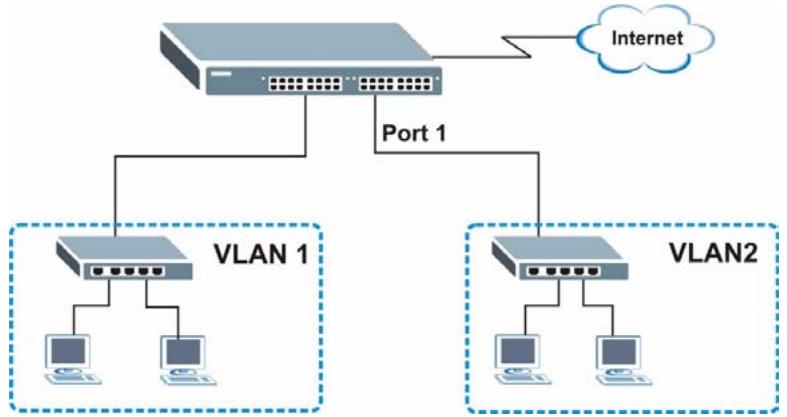
Figure 29 Initial Setup Network Example: VLAN
1 Click Advanced Application > VLAN in the navigation panel and click the Static VLAN link.
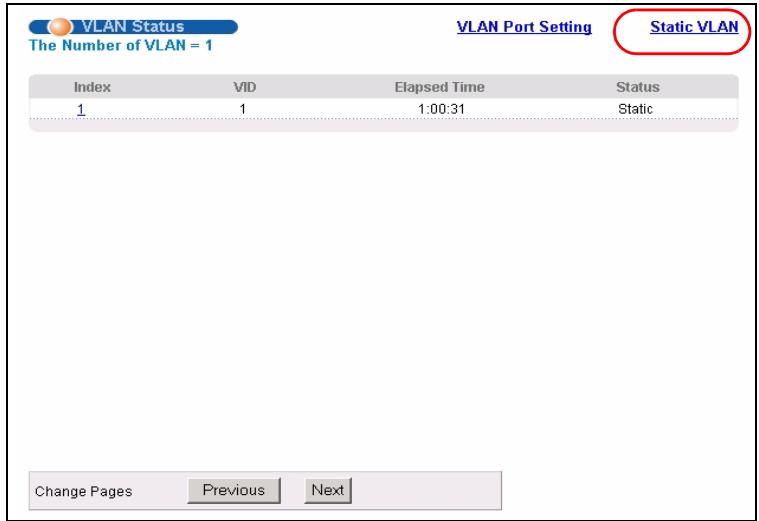
2 In the Static VLAN screen, select ACTIVE, enter a descriptive name in the Name field and enter 2 in the VLAN Group ID field for the VLAN2 network.
Note: The VLAN Group ID field in this screen and the VID field in the IP Setup screen refer to the same VLAN ID.
3 Since the VLAN2 network is connected to port 1 on the Switch, select Fixed to configure port 1 to be a permanent member of the VLAN only.
4 To ensure that VLAN-unaware devices (such as computers and hubs) can receive frames properly, clear the TX Tagging before sending.
5 Click Add to save the settings to the run-time memory. Settings in the run-time memory are lost when the Switch's power is turned off.
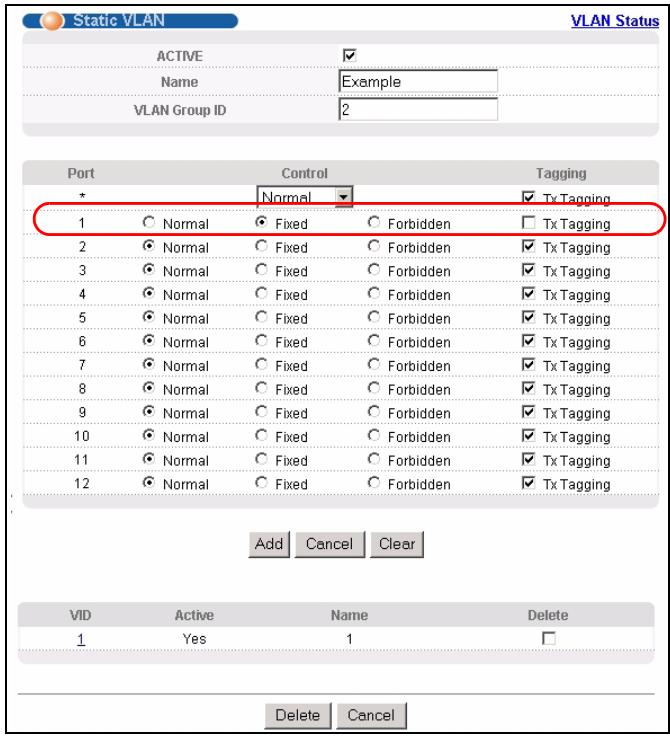
5.1.2 Setting Port VID
Use PVID to add a tag to incoming untagged frames received on that port so that the frames are forwarded to the VLAN group that the tag defines.
In the example network, configure 2 as the port VID on port 1 so that any untagged frames received on that port get sent to VLAN 2.
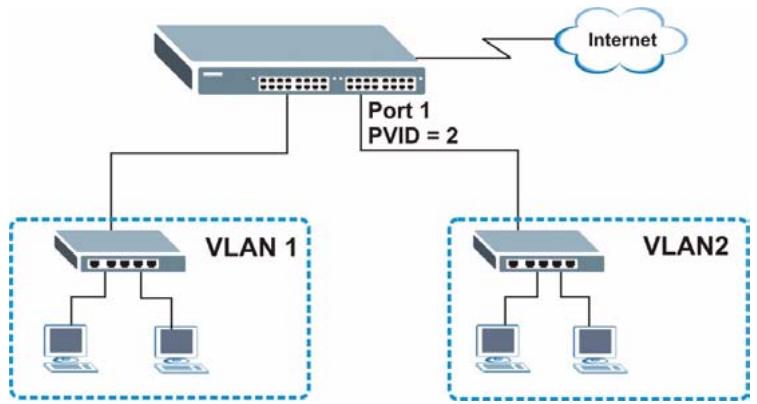
Figure 30 Initial Setup Network Example: Port VID
1 Click Advanced Applications > VLAN in the navigation panel. Then click the VLAN Port Setting link.
2 Enter 2 in the PVID field for port 1 and click Apply to save your changes back to the runtime memory. Settings in the run-time memory are lost when the Switch's power is turned off.
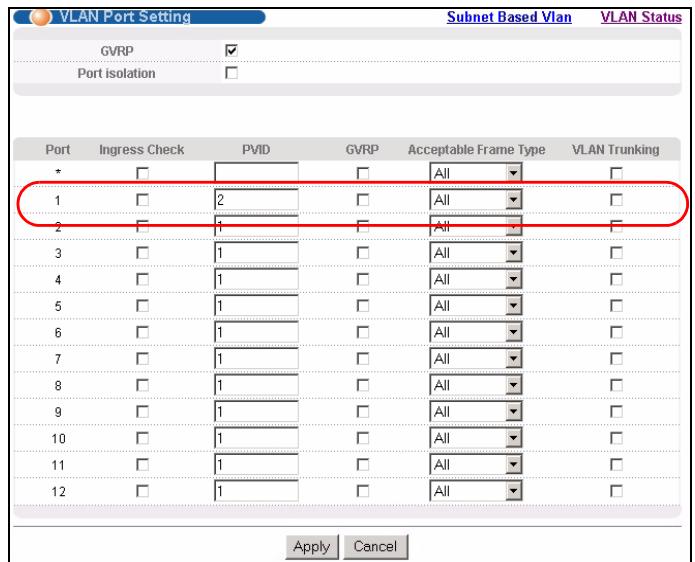
5.2 Configuring Switch Management IP Address
The default management IP address of the Switch is 192.168.1.1. You can configure another IP address in a different subnet for management purposes. The following figure shows an example.
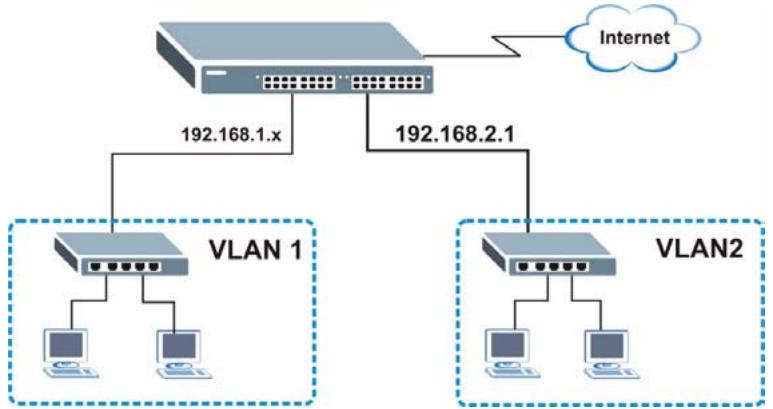
Figure 31 Initial Setup Example: Management IP Address
1 Connect your computer to any Ethernet port on the Switch. Make sure your computer is in the same subnet as the Switch.
2 Open your web browser and enter 192.168.1.1 (the default IP address) in the address bar to access the web configurator. See Section 4.2 on page 51 for more information.
3 Click Basic Setting > IP Setup in the navigation panel.
4 Configure the related fields in the IP Setup screen.
5 For the VLAN2 network, enter 192.168.2.1 as the IP address and 255.255.255.0 as the subnet mask.
6 In the VID field, enter the ID of the VLAN group to which you want this management IP address to belong. This is the same as the VLAN ID you configure in the Static VLAN screen.
7 Click Add to save your changes back to the run-time memory. Settings in the run-time memory are lost when the Switch's power is turned off.
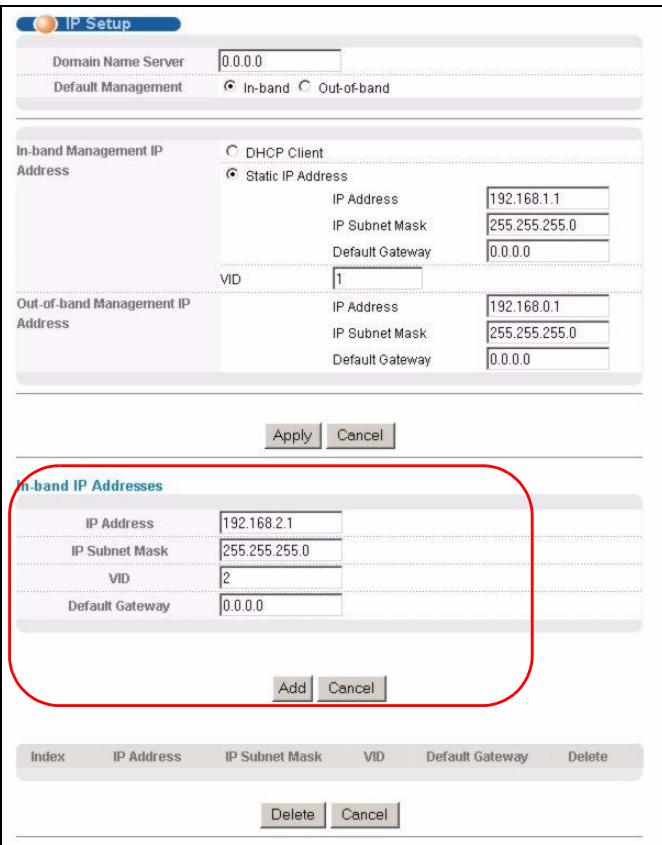
System Status and Port Statistics
This chapter describes the system status (web configurator home page) and port details screens.
6.1 Overview
The home screen of the web configurator displays a port statistical summary with links to each port showing statistical details.
6.2 Port Status Summary
To view the port statistics, click Status in all web configurator screens to display the Status screen as shown next.
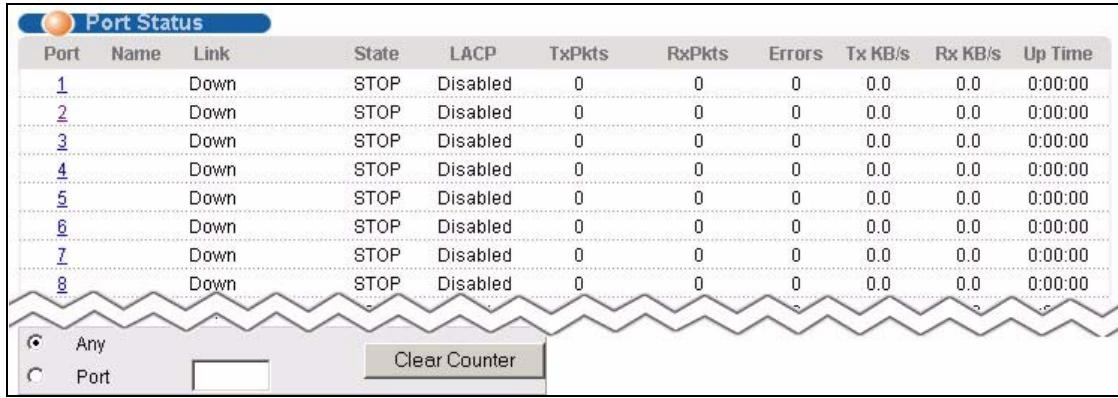
Figure 32 Status
The following table describes the labels in this screen.
Table 6 Status
| LABEL | DESCRIPTION |
| Port | This identifies the Ethernet port. Click a port number to display the Port Details screen (refer to Figure 33 on page 67). |
| Name | This is the name you assigned to this port in the Basic Setting > Port Setup screen. |
| Link | This field displays the speed (either 10M for 10Mbps, 100M for 100Mbps or 1000M for 1000Mbps) and the duplex (F for full duplex or H for half). It also shows the cable type (Copper or Fiber) for the combo ports. |
| State | If STP (Spanning Tree Protocol) is enabled, this field displays the STP state of the port (see Section 11.1 on page 101 for more information). If STP is disabled, this field displays FORWARDING if the link is up, otherwise, it displays STOP. |
| LACP | This fields displays whether LACP (Link Aggregation Control Protocol) has been enabled on the port. |
| TxPkts | This field shows the number of transmitted frames on this port. |
| RxPkts | This field shows the number of received frames on this port. |
| Errors | This field shows the number of received errors on this port. |
| Tx KB/s | This field shows the number of kilobytes per second transmitted on this port. |
| Rx KB/s | This field shows the number of kilobytes per second received on this port. |
| Up Time | This field shows the total amount of time in hours, minutes and seconds the port has been up. |
| Clear Counter | Enter a port number and then click Clear Counter to erase the recorded statistical information for that port, or select Any to clear statistics for all ports. |
6.2.1 Status: Port Details
Click a number in the Port column in the Status screen to display individual port statistics. Use this screen to check status and detailed performance data about an individual port on the Switch.
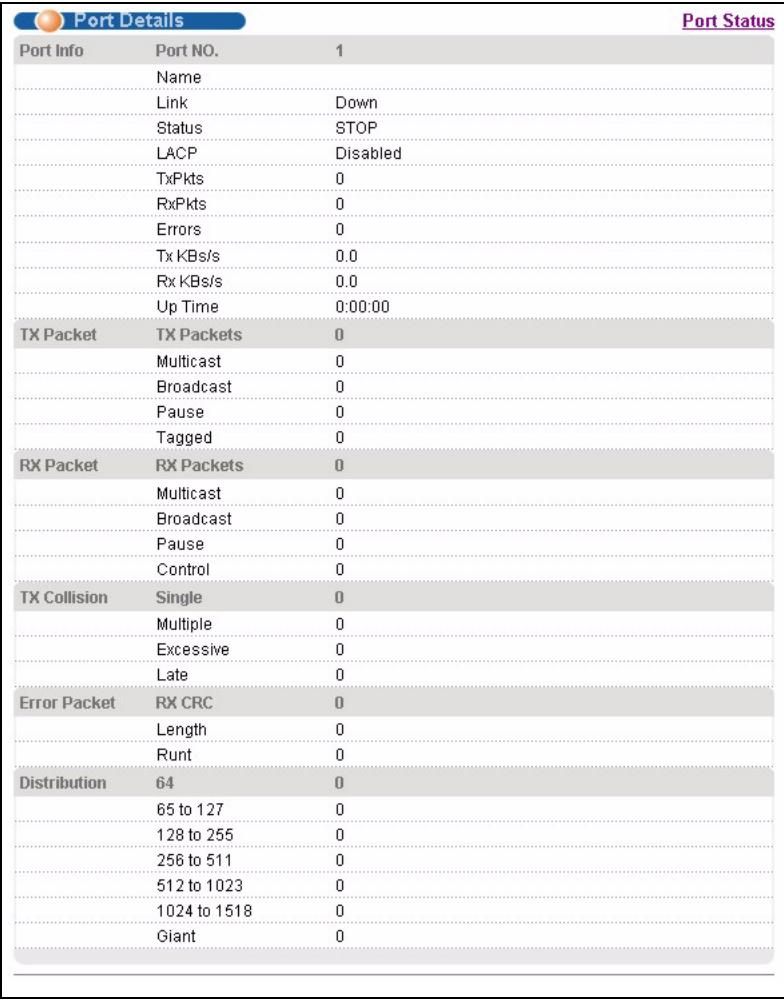
Figure 33 Status > Port Details
The following table describes the labels in this screen.
Table 7 Status: Port Details
| LABEL | DESCRIPTION |
| Port Info | |
| Port NO. | This field displays the port number you are viewing. |
| Name | This field displays the name of the port. |
| Link | This field displays the speed (either 10M for 10Mbps, 100M for 100Mbps or 1000M for 1000Mbps) and the duplex (F for full duplex or H for half duplex). It also shows the cable type (Copper or Fiber). |
| Status | If STP (Spanning Tree Protocol) is enabled, this field displays the STP state of the port (see Section 11.1 on page 101 for more information). If STP is disabled, this field displays FORWARDING if the link is up, otherwise, it displays STOP. |
| LACP | This field shows if LACP is enabled on this port or not. |
| TxPkts | This field shows the number of transmitted frames on this port |
| RxPkts | This field shows the number of received frames on this port |
| Errors | This field shows the number of received errors on this port. |
| Tx KB/s | This field shows the number kilobytes per second transmitted on this port. |
| Rx KB/s | This field shows the number of kilobytes per second received on this port. |
| Up Time | This field shows the total amount of time the connection has been up. |
| Tx PacketThe following fields display detailed information about packets transmitted. | |
| TX Packet | This field shows the number of good packets (unicast, multicast and broadcast) transmitted. |
| Multicast | This field shows the number of good multicast packets transmitted. |
| Broadcast | This field shows the number of good broadcast packets transmitted. |
| Pause | This field shows the number of 802.3x Pause packets transmitted. |
| Tagged | This field shows the number of packets with VLAN tags transmitted. |
| Rx PacketThe following fields display detailed information about packets received. | |
| RX Packet | This field shows the number of good packets (unicast, multicast and broadcast) received. |
| Multicast | This field shows the number of good multicast packets received. |
| Broadcast | This field shows the number of good broadcast packets received. |
| Pause | This field shows the number of 802.3x Pause packets received. |
| Control | This field shows the number of control packets received (including those with CRC error) but it does not include the 802.3x Pause packets. |
| TX CollisionThe following fields display information on collisions while transmitting. | |
| Single | This is a count of successfully transmitted packets for which transmission is inhibited by exactly one collision. |
| Multiple | This is a count of successfully transmitted packets for which transmission was inhibited by more than one collision. |
| Excessive | This is a count of packets for which transmission failed due to excessive collisions. Excessive collision is defined as the number of maximum collisions before the retransmission count is reset. |
| Late | This is the number of times a late collision is detected, that is, after 512 bits of the packets have already been transmitted. |
| Error Packet | The following fields display detailed information about packets received that were in error. |
| RX CRC | This field shows the number of packets received with CRC (Cyclic Redundant Check) error(s). |
| Length | This field shows the number of packets received with a length that was out of range. |
| Runt | This field shows the number of packets received that were too short (shorter than 64 octets), including the ones with CRC errors. |
| Distribution | |
| 64 | This field shows the number of packets (including bad packets) received that were 64 octets in length. |
| 65-127 | This field shows the number of packets (including bad packets) received that were between 65 and 127 octets in length. |
| 128-255 | This field shows the number of packets (including bad packets) received that were between 128 and 255 octets in length. |
| 256-511 | This field shows the number of packets (including bad packets) received that were between 256 and 511 octets in length. |
| 512-1023 | This field shows the number of packets (including bad packets) received that were between 512 and 1023 octets in length. |
| 1024-1518 | This field shows the number of packets (including bad packets) received that were between 1024 and 1518 octets in length. |
| Giant | This field shows the number of packets dropped because they were bigger than the maximum frame size. |
Basic Setting
This chapter describes how to configure the System Info, General Setup, Switch Setup, IP Setup and Port Setup screens.
7.1 Overview
The System Info screen displays general Switch information (such as firmware version number) and hardware polling information (such as fan speeds). The General Setup screen allows you to configure general Switch identification information. The General Setup screen also allows you to set the system time manually or get the current time and date from an external server when you turn on your Switch. The real time is then displayed in the Switch logs. The Switch Setup screen allows you to set up and configure global Switch features. The IP Setup screen allows you to configure a Switch IP address in each routing domain, subnet mask(s) and DNS (domain name server) for management purposes.
7.2 System Information
In the navigation panel, click Basic Setting > System Info to display the screen as shown. You can check the firmware version number and monitor the Switch temperature, fan speeds and voltage in this screen.
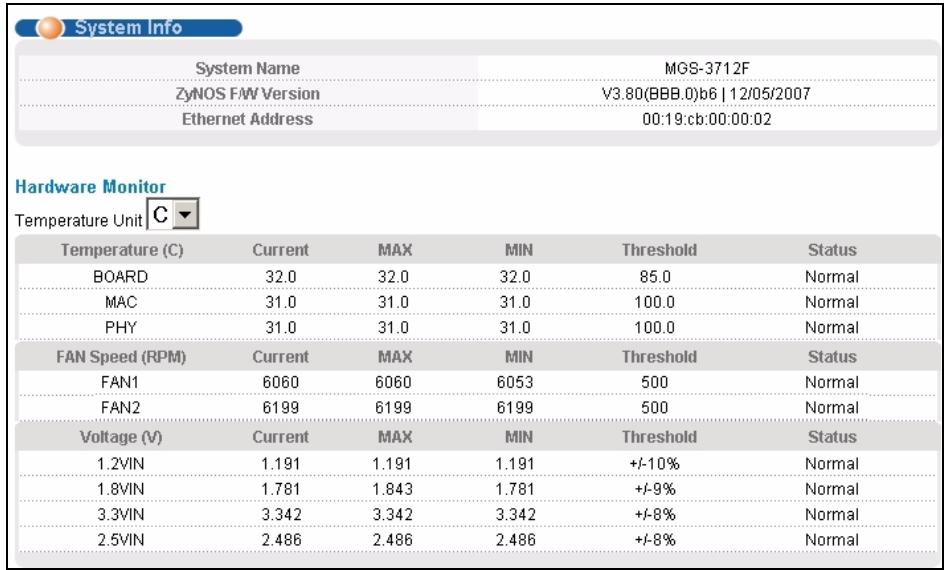
Figure 34 Basic Setting > System Info
The following table describes the labels in this screen.
Table 8 Basic Setting > System Info
| LABEL | DESCRIPTION |
| System Name | This field displays the descriptive name of the Switch for identification purposes. |
| ZyNOS F/W Version | This field displays the version number of the Switch 's current firmware including the date created. |
| Ethernet Address | This field refers to the Ethernet MAC (Media Access Control) address of the Switch. |
| Hardware Monitor | |
| Temperature Unit | The Switch has temperature sensors that are capable of detecting and reporting if the temperature rises above the threshold. You may choose the temperature unit (Centigrade or Fahrenheit) in this field. |
| Temperature | BOARD, MAC and PHY refer to the location of the temperature sensors on the Switch printed circuit board. |
| Current | This shows the current temperature at this sensor. |
| MAX | This field displays the maximum temperature measured at this sensor. |
| MIN | This field displays the minimum temperature measured at this sensor. |
| Threshold | This field displays the upper temperature limit at this sensor. |
| Status | This field displays Normal for temperatures below the threshold and Error for those above. |
| Fan Speed (RPM) | A properly functioning fan is an essential component (along with a sufficiently ventilated, cool operating environment) in order for the device to stay within the temperature threshold. Each fan has a sensor that is capable of detecting and reporting if the fan speed falls below the threshold shown. |
| Current | This field displays this fan's current speed in Revolutions Per Minute (RPM). |
| MAX | This field displays this fan's maximum speed measured in Revolutions Per Minute (RPM). |
| MIN | This field displays this fan's minimum speed measured in Revolutions Per Minute (RPM). "<41" is displayed for speeds too small to measure. |
| Threshold | This field displays the minimum speed at which a normal fan should work. |
| Status | Normal indicates that this fan is functioning above the minimum speed. Error indicates that this fan is functioning below the minimum speed. |
| Voltage(V) | The power supply for each voltage has a sensor that is capable of detecting and reporting if the voltage falls out of the tolerance range. |
| Current | This is the current voltage reading. |
| MAX | This field displays the maximum voltage measured at this point. |
| MIN | This field displays the minimum voltage measured at this point. |
| Threshold | This field displays the percentage tolerance of the voltage with which the Switch still works. |
| Status | Normal indicates that the voltage is within an acceptable operating range at this point; otherwise Error is displayed. |
7.3 General Setup
Use this screen to configure general settings such as the system name and time. Click Basic Setting > General Setup in the navigation panel to display the screen as shown.
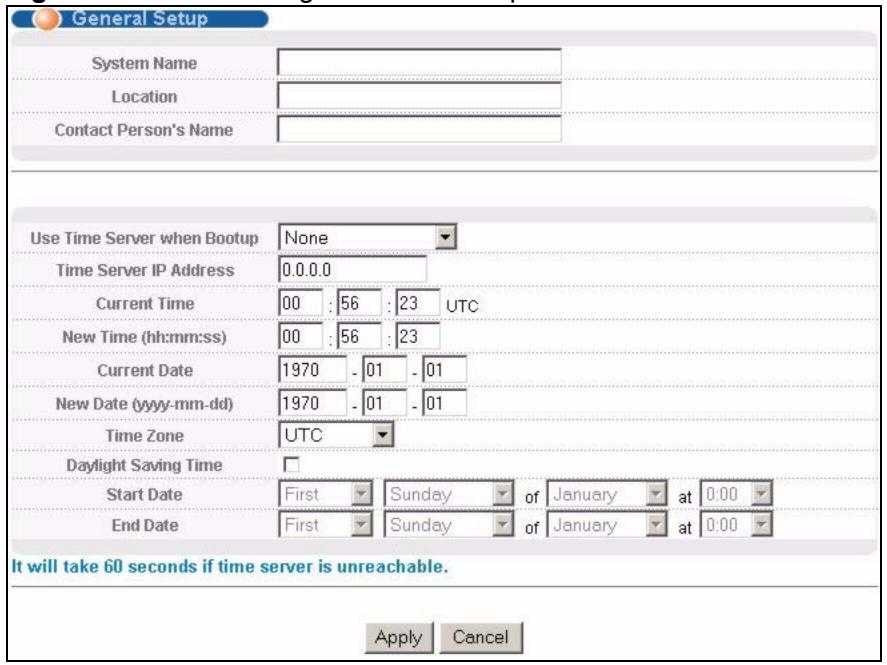
Figure 35 Basic Setting > General Setup
The following table describes the labels in this screen.
Table 9 Basic Setting > General Setup
| LABEL | DESCRIPTION |
| System Name | Choose a descriptive name for identification purposes. This name consists of up to 64 printable characters; spaces are allowed. |
| Location | Enter the geographic location of your Switch. You can use up to 32 printable ASCII characters; spaces are allowed. |
| Contact Person's Name | Enter the name of the person in charge of this Switch. You can use up to 32 printable ASCII characters; spaces are allowed. |
| Use Time Server when Bootup | Enter the time service protocol that your timeserver uses. Not all time servers support all protocols, so you may have to use trial and error to find a protocol that works. The main differences between them are the time format.When you select the Daytime (RFC 867) format, the Switch displays the day, month, year and time with no time zone adjustment. When you use this format it is recommended that you use a Daytime timeserver within your geographical time zone.Time (RFC-868) format displays a 4-byte integer giving the total number of seconds since 1970/1/1 at 0:0:0.NTP (RFC-1305) is similar to Time (RFC-868).None is the default value. Enter the time manually. Each time you turn on the Switch, the time and date will be reset to 1970-1-1 0:0. |
| Time Server IP Address | Enter the IP address of your timeserver. The Switch searches for the timeserver for up to 60 seconds. If you select a timeserver that is unreachable, then this screen will appear locked for 60 seconds. Please wait. |
| Current Time | This field displays the time you open this menu (or refresh the menu). |
| New Time (hh:min:ss) | Enter the new time in hour, minute and second format. The new time then appears in the Current Time field after you click Apply. |
| Current Date | This field displays the date you open this menu. |
| New Date (yyyy-mm-dd) | Enter the new date in year, month and day format. The new date then appears in the Current Date field after you click Apply. |
| Time Zone | Select the time difference between UTC (Universal Time Coordinated, formerly known as GMT, Greenwich Mean Time) and your time zone from the drop-down list box. |
| Daylight Saving Time | Daylight saving is a period from late spring to early fall when many countries set their clocks ahead of normal local time by one hour to give more daytime light in the evening. Select this option if you use Daylight Saving Time. |
| Start Date | Configure the day and time when Daylight Saving Time starts if you selected Daylight Saving Time. The time is displayed in the 24 hour format. Here are a couple of examples: Daylight Saving Time starts in most parts of the United States on the second Sunday of March. Each time zone in the United States starts using Daylight Saving Time at 2 A.M. local time. So in the United States you would select Second, Sunday, March and 2:00. Daylight Saving Time starts in the European Union on the last Sunday of March. All of the time zones in the European Union start using Daylight Saving Time at the same moment (1 A.M. GMT or UTC). So in the European Union you would select Last, Sunday, March and the last field depends on your time zone. In Germany for instance, you would select 2:00 because Germany's time zone is one hour ahead of GMT or UTC (GMT+1). |
| End Date | Configure the day and time when Daylight Saving Time ends if you selected Daylight Saving Time. The time field uses the 24 hour format. Here are a couple of examples: Daylight Saving Time ends in the United States on the first Sunday of November. Each time zone in the United States stops using Daylight Saving Time at 2 A.M. local time. So in the United States you would select First, Sunday, November and 2:00. Daylight Saving Time ends in the European Union on the last Sunday of October. All of the time zones in the European Union stop using Daylight Saving Time at the same moment (1 A.M. GMT or UTC). So in the European Union you would select Last, Sunday, October and the last field depends on your time zone. In Germany for instance, you would select 2:00 because Germany's time zone is one hour ahead of GMT or UTC (GMT+1). |
| Apply | Click Apply to save your changes to the Switch's run-time memory. The Switch loses these changes if it is turned off or loses power, so use the Save link on the top navigation panel to save your changes to the non-volatile memory when you are done configuring. |
| Cancel | Click Cancel to begin configuring this screen afresh. |
7.4 Introduction to VLANs
A VLAN (Virtual Local Area Network) allows a physical network to be partitioned into multiple logical networks. Devices on a logical network belong to one group. A device can belong to more than one group. With VLAN, a device cannot directly talk to or hear from devices that are not in the same group(s); the traffic must first go through a router.
In MTU (Multi-Tenant Unit) applications, VLAN is vital in providing isolation and security among the subscribers. When properly configured, VLAN prevents one subscriber from accessing the network resources of another on the same LAN, thus a user will not see the printers and hard disks of another user in the same building.
VLAN also increases network performance by limiting broadcasts to a smaller and more manageable logical broadcast domain. In traditional switched environments, all broadcast packets go to each and every individual port. With VLAN, all broadcasts are confined to a specific broadcast domain.

VLAN is unidirectional; it only governs outgoing traffic.
See Chapter 8 on page 85 for information on port-based and 802.1Q tagged VLANs.
7.5 Switch Setup Screen
Click Basic Setting > Switch Setup in the navigation panel to display the screen as shown. The VLAN setup screens change depending on whether you choose 802.1Q or Port Based in the VLAN Type field in this screen. Refer to the chapter on VLAN.
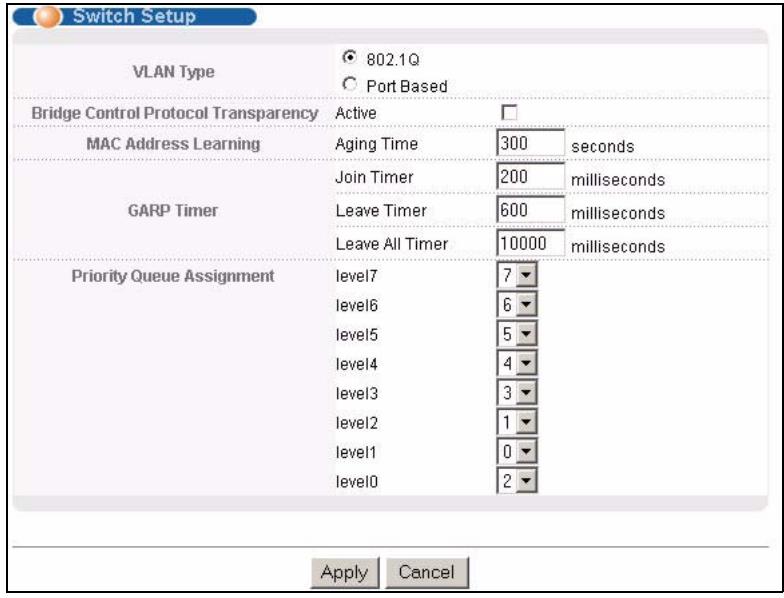
Figure 36 Basic Setting > Switch Setup
The following table describes the labels in this screen.
Table 10 Basic Setting > Switch Setup
| LABEL | DESCRIPTION |
| VLAN Type | Choose 802.1Q or Port Based. The VLAN Setup screen changes depending on whether you choose 802.1Q VLAN type or Port Based VLAN type in this screen. See Chapter 8 on page 85 for more information. |
| Bridge Control Protocol Transparency | Select Active to allow the Switch to handle bridging control protocols (STP for example). You also need to define how to treat a BPDU in the Port Setup screen. |
| MAC Address Learning | MAC address learning reduces outgoing traffic broadcasts. For MAC address learning to occur on a port, the port must be active. |
| Aging Time | Enter a time from 10 to 3000 seconds. This is how long all dynamically learned MAC addresses remain in the MAC address table before they age out (and must be relearned). |
| GARP Timer: Switches join VLANs by making a declaration. A declaration is made by issuing a Join message using GARP. Declarations are withdrawn by issuing a Leave message. A Leave All message terminates all registrations. GARP timers set declaration timeout values. See the chapter on VLAN setup for more background information. | |
| Join Timer | Join Timer sets the duration of the Join Period timer for GVRP in milliseconds. Each port has a Join Period timer. The allowed Join Time range is between 100 and 65535 milliseconds; the default is 200 milliseconds. See the chapter on VLAN setup for more background information. |
| Leave Timer | Leave Time sets the duration of the Leave Period timer for GVRP in milliseconds. Each port has a single Leave Period timer. Leave Time must be two times larger than Join Timer; the default is 600 milliseconds. |
| Leave All Timer | Leave All Timer sets the duration of the Leave All Period timer for GVRP in milliseconds. Each port has a single Leave All Period timer. Leave All Timer must be larger than Leave Timer. |
| Priority Queue Assignment IEEE 802.1p defines up to eight separate traffic types by inserting a tag into a MAC-layer frame that contains bits to define class of service. Frames without an explicit priority tag are given the default priority of the ingress port. Use the next fields to configure the priority level-to-physical queue mapping. The Switch has eight physical queues that you can map to the 8 priority levels. On the Switch, traffic assigned to higher index queues gets through faster while traffic in lower index queues is dropped if the network is congested. | |
| Priority Level (The following descriptions are based on the traffic types defined in the IEEE 802.1d standard (which incorporates the 802.1p). | |
| Level 7 | Typically used for network control traffic such as router configuration messages. |
| Level 6 | Typically used for voice traffic that is especially sensitive to jitter (jitter is the variations in delay). |
| Level 5 | Typically used for video that consumes high bandwidth and is sensitive to jitter. |
| Level 4 | Typically used for controlled load, latency-sensitive traffic such as SNA (Systems Network Architecture) transactions. |
| Level 3 | Typically used for “excellent effort” or better than best effort and would include important business traffic that can tolerate some delay. |
| Level 2 | This is for “spare bandwidth”. |
| Level 1 | This is typically used for non-critical “background” traffic such as bulk transfers that are allowed but that should not affect other applications and users. |
| Level 0 | Typically used for best-effort traffic. |
| Apply | Click Apply to save your changes to the Switch's run-time memory. The Switch loses these changes if it is turned off or loses power, so use the Save link on the top navigation panel to save your changes to the non-volatile memory when you are done configuring. |
| Cancel | Click Cancel to reset the fields. |
7.6 IP Setup
Use the IP Setup screen to configure the Switch IP address, default gateway device, the default domain name server and the management VLAN ID. The default gateway specifies the IP address of the default gateway (next hop) for outgoing traffic.
7.6.1 Management IP Addresses
The Switch needs an IP address for it to be managed over the network. The factory default IP address is 192.168.1.1. The subnet mask specifies the network number portion of an IP address. The factory default subnet mask is 255.255.255.0.
You can configure up to 64 IP addresses which are used to access and manage the Switch from the ports belonging to the pre-defined VLAN(s).

You must configure a VLAN first.
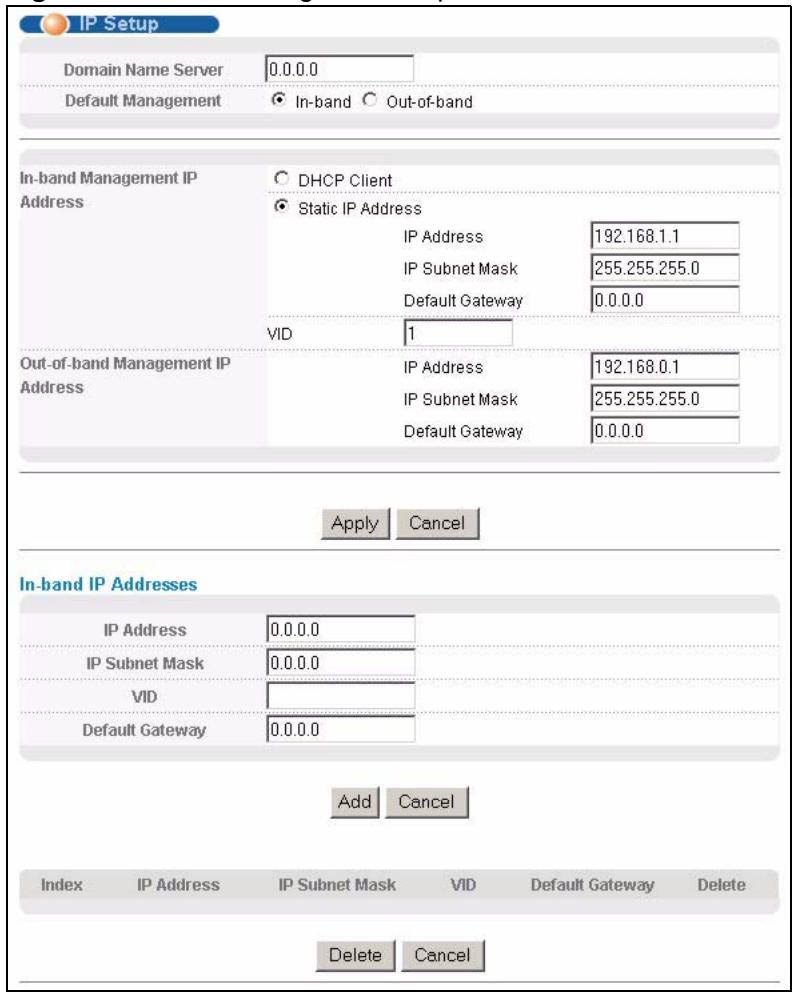
Figure 37 Basic Setting > IP Setup
The following table describes the labels in this screen.
Table 11 Basic Setting > IP Setup
| LABEL | DESCRIPTION |
| Domain Name Server | DNS (Domain Name System) is for mapping a domain name to its corresponding IP address and vice versa. Enter a domain name server IP address in order to be able to use a domain name instead of an IP address. |
| Default Management | Specify which traffic flow (In-Band or Out-of-band) the Switch is to send packets originating from itself (such as SNMP traps) or packets with unknown source. Select Out-of-band to have the Switch send the packets to the out-of-band management port. This means that device(s) connected to the other port(s) do not receive these packets. Select In-Band to have the Switch send the packets to all ports except the out-of-band management port to which connected device(s) do not receive these packets. |
| In-Band Management IP Address | |
| DHCP Client | Select this option if you have a DHCP server that can assign the Switch an IP address, subnet mask, a default gateway IP address and a domain name server IP address automatically. |
| Static IP Address | Select this option if you don't have a DHCP server or if you wish to assign static IP address information to the Switch. You need to fill in the following fields when you select this option. |
| IP Address | Enter the IP address of your Switch in dotted decimal notation for example 192.168.1.1. |
| IP Subnet Mask | Enter the IP subnet mask of your Switch in dotted decimal notation for example 255.255.255.0. |
| Default Gateway | Enter the IP address of the default outgoing gateway in dotted decimal notation, for example 192.168.1.254. |
| VID | Enter the VLAN identification number associated with the Switch IP address. This is the VLAN ID of the CPU and is used for management only. The default is "1". All ports, by default, are fixed members of this "management VLAN" in order to manage the device from any port. If a port is not a member of this VLAN, then users on that port cannot access the device. To access the Switch make sure the port that you are connected to is a member of Management VLAN. |
| Out-of-band Management IP Address | |
| IP Address | Enter the IP address of your Switch in dotted decimal notation for example 192.168.0.1. If you change this IP address, make sure the computer connected to this management port is in the same subnet before accessing the Switch. |
| Subnet Mask | Enter the IP subnet mask of your Switch in dotted decimal notation for example 255.255.255.0. |
| Default Gateway | Enter the IP address of the default outgoing gateway in dotted decimal notation, for example 192.168.0.254. |
| Apply | Click Apply to save your changes to the Switch's run-time memory. The Switch loses these changes if it is turned off or loses power, so use the Save link on the top navigation panel to save your changes to the non-volatile memory when you are done configuring. |
| Cancel | Click Cancel to begin configuring the fields again. |
| In-band IP Addresses You can create up to 64 IP addresses, which are used to access and manage the Switch from the ports belonging to the pre-defined VLAN(s). You must configure a VLAN first. | |
| IP Address | Enter the IP address for managing the Switch by the members of the VLAN specified in the VID field below. |
| IP Subnet Mask | Enter the IP subnet mask in dotted decimal notation. |
| VID | Type the VLAN group identification number. |
| Default Gateway | Enter the IP address of the default outgoing gateway in dotted decimal notation. |
| Add | Click Add to insert the entry to the summary table below and save your changes to the Switch's run-time memory. The Switch loses these changes if it is turned off or loses power, so use the Save link on the top navigation panel to save your changes to the non-volatile memory when you are done configuring. |
| Cancel | Click Cancel to reset the fields to your previous configuration. |
| Index | This field displays the index number of the rule. Click an index number to edit the rule. |
| IP Address | This field displays the IP address. |
| IP Subnet Mask | This field displays the subnet mask. |
| VID | This field displays the ID number of the VLAN group. |
| Default Gateway | This field displays the IP address of the default gateway. |
| Delete | Check the management IP addresses that you want to remove in the Delete column, then click the Delete button. |
| Cancel | Click Cancel to clear the selected checkboxes in the Delete column. |
7.7 Port Setup
Use this screen to configure Switch port settings. Click Basic Setting > Port Setup in the navigation panel to display the configuration screen.
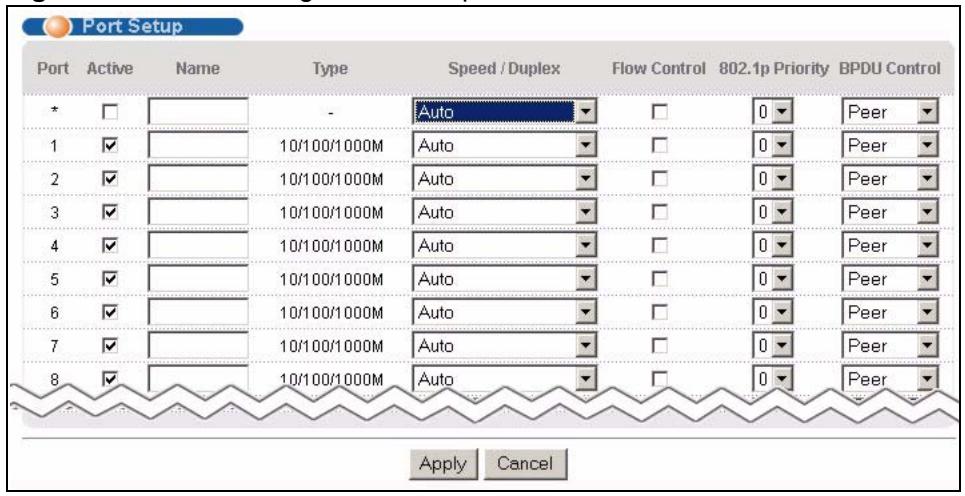
Figure 38 Basic Setting > Port Setup
The following table describes the labels in this screen.
Table 12 Basic Setting > Port Setup
| LABEL | DESCRIPTION |
| Port | This is the port index number. |
| * | Settings in this row apply to all ports.Use this row only if you want to make some settings the same for all ports. Use this row first to set the common settings and then make adjustments on a port-by-port basis.Note: Changes in this row are copied to all the ports as soon as you make them. |
| Active | Select this check box to enable a port. The factory default for all ports is enabled. A port must be enabled for data transmission to occur. |
| Name | Enter a descriptive name that identifies this port. You can enter up to 64 alpha-numerical characters.Note: Due to space limitation, the port name may be truncated in some web configurator screens. |
| Type | This field displays 10/100/1000M for Gigabit connections. |
| Speed/Duplex | Select the speed and the duplex mode of the Ethernet connection on this port.Choices are Auto, 10M/Half Duplex, 10M/Full Duplex, 100M/ Half Duplex, 100M/ Full Duplex and 1000M/Full Duplex SELECT Auto (auto-negotiation) allows one port to negotiate with a peer port automatically to obtain the connection speed and duplex mode that both ends support. When auto-negotiation is turned on, a port on the Switch negotiates with the peer automatically to determine the connection speed and duplex mode. If the peer port does not support auto-negotiation or turns off this feature, the Switch determines the connection speed by detecting the signal on the cable and using half duplex mode. When the Switch's auto-negotiation is turned off, a port uses the pre-configured speed and duplex mode when making a connection, thus requiring you to make sure that the settings of the peer port are the same in order to connect. |
| Flow Control | A concentration of traffic on a port decreases port bandwidth and overflows buffer memory causing packet discards and frame losses. Flow Control is used to regulate transmission of signals to match the bandwidth of the receiving port.The Switch uses IEEE802.3x flow control in full duplex mode and backpressure flow control in half duplex mode.IEEE802.3x flow control is used in full duplex mode to send a pause signal to the sending port, causing it to temporarily stop sending signals when the receiving port memory buffers fill.Back Pressure flow control is typically used in half duplex mode to send a "collision" signal to the sending port (mimicking a state of packet collision) causing the sending port to temporarily stop sending signals and resend later. Select Flow Control to enable it. |
| 802.1p Priority | This priority value is added to incoming frames without a (802.1p) priority queue tag.See Priority Queue Assignment in Table 10 on page 75 for more information. |
| BPDU Control | Configure the way to treat BPDUs received on this port. You must activate bridging control protocol transparency in the Switch Setup screen first.Select Peer to process any BPDU (Bridge Protocol Data Units) received on this port.Select Tunnel to forward BPDUs received on this port.Select Discard to drop any BPDU received on this port.Select Network to process a BPDU with no VLAN tag and forward a tagged BPDU. |
| Apply | Click Apply to save your changes to the Switch's run-time memory. The Switch loses these changes if it is turned off or loses power, so use the Save link on the top navigation panel to save your changes to the non-volatile memory when you are done configuring. |
| Cancel | Click Cancel to begin configuring this screen afresh. |
PART III
Advanced
VLAN (85)
Static MAC Forward Setup (97)
Filtering (99)
Spanning Tree Protocol (101)
Bandwidth Control (119)
Broadcast Storm Control (121)
Mirroring (123)
Link Aggregation (125)
Port Authentication (133)
Port Security (139)
Classifier (143)
Policy Rule (149)
Queuing Method (155)
Multicast (157)
Authentication & Accounting (171)
IP Source Guard (185)
Loop Guard (205)
Two Rate Three Color Marker (209)
The type of screen you see here depends on the VLAN Type you selected in the Switch Setup screen. This chapter shows you how to configure 802.1Q tagged and port-based VLANs.
8.1 Introduction to IEEE 802.1Q Tagged VLANs
A tagged VLAN uses an explicit tag (VLAN ID) in the MAC header to identify the VLAN membership of a frame across bridges - they are not confined to the switch on which they were created. The VLANs can be created statically by hand or dynamically through GVRP. The VLAN ID associates a frame with a specific VLAN and provides the information that switches need to process the frame across the network. A tagged frame is four bytes longer than an untagged frame and contains two bytes of TPID (Tag Protocol Identifier, residing within the type/length field of the Ethernet frame) and two bytes of TCI (Tag Control Information, starts after the source address field of the Ethernet frame).
The CFI (Canonical Format Indicator) is a single-bit flag, always set to zero for Ethernet switches. If a frame received at an Ethernet port has a CFI set to 1, then that frame should not be forwarded as it is to an untagged port. The remaining twelve bits define the VLAN ID, giving a possible maximum number of 4,096 VLANs. Note that user priority and VLAN ID are independent of each other. A frame with VID (VLAN Identifier) of null (0) is called a priority frame, meaning that only the priority level is significant and the default VID of the ingress port is given as the VID of the frame. Of the 4096 possible VIDs, a VID of 0 is used to identify priority frames and value 4095 (FFF) is reserved, so the maximum possible VLAN configurations are 4,094.
| TPID 2 Bytes | User Priority 3 Bits | CFI 1 Bit | VLAN ID 12 bits |
8.1.1 Forwarding Tagged and Untagged Frames
Each port on the Switch is capable of passing tagged or untagged frames. To forward a frame from an 802.1Q VLAN-aware switch to an 802.1Q VLAN-unaware switch, the Switch first decides where to forward the frame and then strips off the VLAN tag. To forward a frame from an 802.1Q VLAN-unaware switch to an 802.1Q VLAN-aware switch, the Switch first decides where to forward the frame, and then inserts a VLAN tag reflecting the ingress port's default VID. The default PVID is VLAN 1 for all ports, but this can be changed.
A broadcast frame (or a multicast frame for a multicast group that is known by the system) is duplicated only on ports that are members of the VID (except the ingress port itself), thus confining the broadcast to a specific domain.
8.2 Automatic VLAN Registration
GARP and GVRP are the protocols used to automatically register VLAN membership across switches.
8.2.1 GARP
GARP (Generic Attribute Registration Protocol) allows network switches to register and de-register attribute values with other GARP participants within a bridged LAN. GARP is a protocol that provides a generic mechanism for protocols that serve a more specific application, for example, GVRP.
8.2.1.1 GARP Timers
Switches join VLANs by making a declaration. A declaration is made by issuing a Join message using GARP. Declarations are withdrawn by issuing a Leave message. A Leave All message terminates all registrations. GARP timers set declaration timeout values.
8.2.2 GVRP
GVRP (GARP VLAN Registration Protocol) is a registration protocol that defines a way for switches to register necessary VLAN members on ports across the network. Enable this function to permit VLAN groups beyond the local Switch.
Please refer to the following table for common IEEE 802.1Q VLAN terminology.
Table 13 IEEE 802.1Q VLAN Terminology
| VLAN PARAMETER | TERM | DESCRIPTION |
| VLAN Type | Permanent VLAN | This is a static VLAN created manually. |
| Dynamic VLAN | This is a VLAN configured by a GVRP registration/deregistration process. | |
| VLAN Administrative Control | Registration Fixed | Fixed registration ports are permanent VLAN members. |
| Registration Forbidden | Ports with registration forbidden are forbidden to join the specified VLAN. | |
| Normal Registration | Ports dynamically join a VLAN using GVRP. | |
| VLAN Tag Control | Tagged | Ports belonging to the specified VLAN tag all outgoing frames transmitted. |
| Untagged | Ports belonging to the specified VLAN don't tag all outgoing frames transmitted. | |
| VLAN Port | Port VID | This is the VLAN ID assigned to untagged frames that this port received. |
| Acceptable Frame Type | You may choose to accept both tagged and untagged incoming frames, just tagged incoming frames or just untagged incoming frames on a port. | |
| Ingress filtering | If set, the Switch discards incoming frames for VLANs that do not have this port as a member |
8.3 Port VLAN Trunking
Enable VLAN Trunking on a port to allow frames belonging to unknown VLAN groups to pass through that port. This is useful if you want to set up VLAN groups on end devices without having to configure the same VLAN groups on intermediary devices.
Refer to the following figure. Suppose you want to create VLAN groups 1 and 2 (V1 and V2) on devices A and B. Without VLAN Trunking, you must configure VLAN groups 1 and 2 on all intermediary switches C, D and E; otherwise they will drop frames with unknown VLAN group tags. However, with VLAN Trunking enabled on a port(s) in each intermediary switch you only need to create VLAN groups in the end devices (A and B). C, D and E automatically allow frames with VLAN group tags 1 and 2 (VLAN groups that are unknown to those switches) to pass through their VLAN trunking port(s).
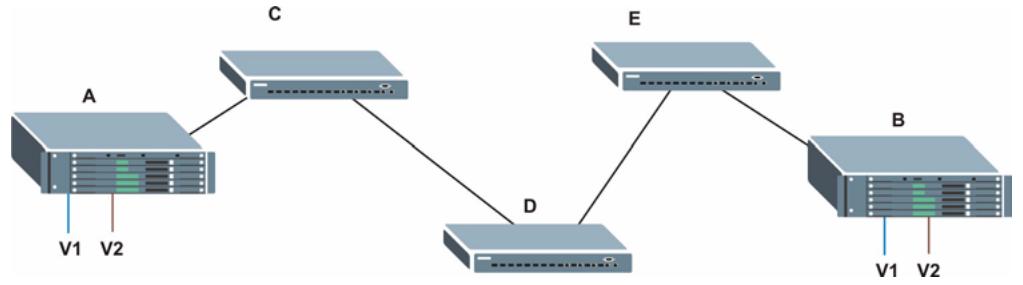
Figure 39 Port VLAN Trunking
8.4 Select the VLAN Type
Select a VLAN type in the Basic Setting > Switch Setup screen.

Figure 40 Switch Setup > Select VLAN Type
8.5 Static VLAN
Use a static VLAN to decide whether an incoming frame on a port should be
- sent to a VLAN group as normal depending on its VLAN tag.
- sent to a group whether it has a VLAN tag or not.
- blocked from a VLAN group regardless of its VLAN tag.
You can also tag all outgoing frames (that were previously untagged) from a port with the specified VID.
8.5.1 Static VLAN Status
See Section 8.1 on page 85 for more information on Static VLAN. Click Advanced Application > VLAN from the navigation panel to display the VLAN Status screen as shown next.
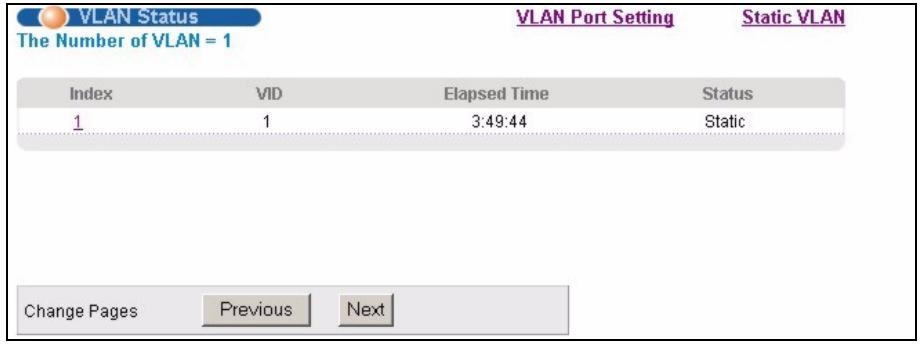
Figure 41 Advanced Application > VLAN: VLAN Status
The following table describes the labels in this screen.
Table 14 Advanced Application > VLAN: VLAN Status
| LABEL | DESCRIPTION |
| The Number of VLAN | This is the number of VLANs configured on the Switch. |
| Index | This is the VLAN index number. Click on an index number to view more VLAN details. |
| VID | This is the VLAN identification number that was configured in the Static VLAN screen. |
| Elapsed Time | This field shows how long it has been since a normal VLAN was registered or a static VLAN was set up. |
| Status | This field shows how this VLAN was added to the Switch; dynamic - using GVRP, static - added as a permanent entry or other - added in another way such as via Multicast VLAN Registration (MVR). |
| Change Pages | Click Previous or Next to show the previous/next screen if all status information cannot be seen in one screen. |
8.5.2 VLAN Details
Use this screen to view detailed port settings and status of the VLAN group. See Section 8.1 on page 85 for more information on static VLAN. Click on an index number in the VLAN Status screen to display VLAN details.
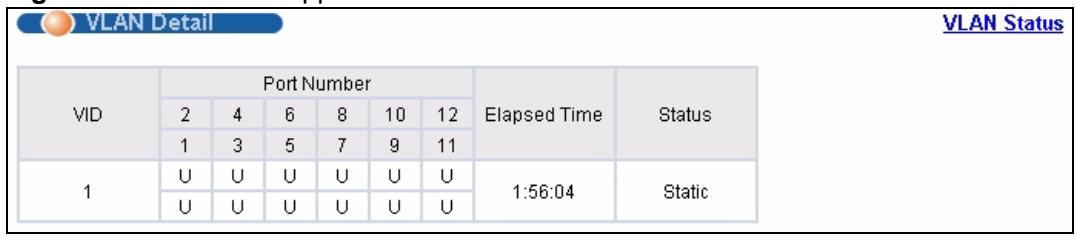
Figure 42 Advanced Application > VLAN > VLAN Detail
The following table describes the labels in this screen.
Table 15 Advanced Application > VLAN > VLAN Detail
| LABEL | DESCRIPTION |
| VLAN Status | Click this to go to the VLAN Status screen. |
| VID | This is the VLAN identification number that was configured in the Static VLAN screen. |
| Port Number | This column displays the ports that are participating in a VLAN. A tagged port is marked as T, an untagged port is marked as U and ports not participating in a VLAN are marked as “-”. |
| Elapsed Time | This field shows how long it has been since a normal VLAN was registered or a static VLAN was set up. |
| Status | This field shows how this VLAN was added to the Switch; dynamic - using GVRP, static - added as a permanent entry or other - added in another way such as via Multicast VLAN Registration (MVR). |
8.5.3 Configure a Static VLAN
Use this screen to configure and view 802.1Q VLAN parameters for the Switch. See Section 8.1 on page 85 for more information on static VLAN. To configure a static VLAN, click Static VLAN in the VLAN Status screen to display the screen as shown next.
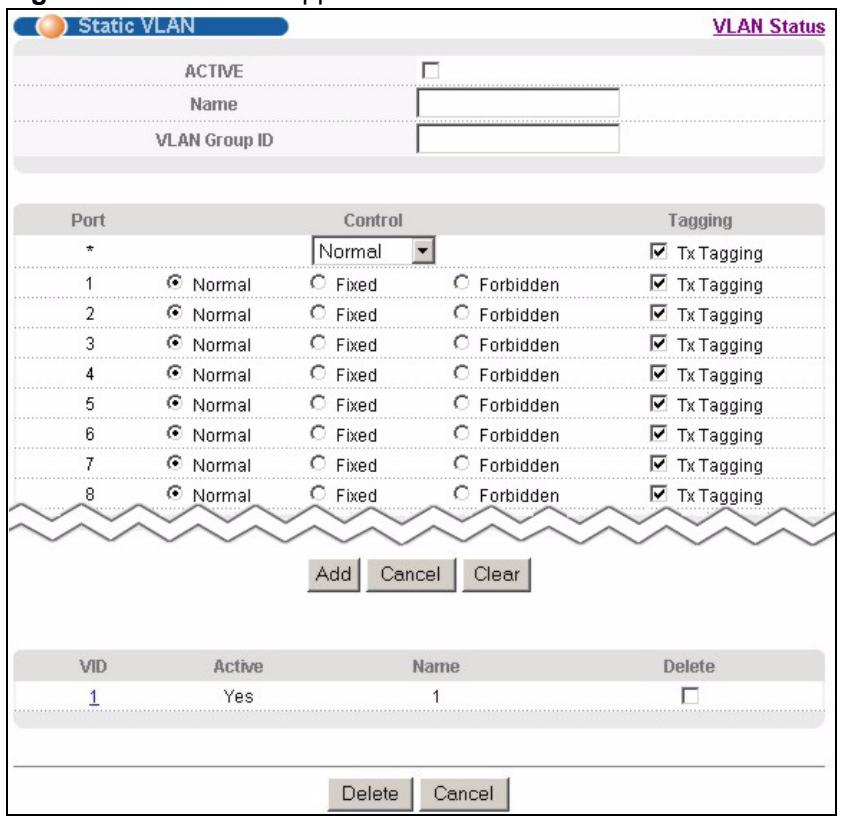
Figure 43 Advanced Application > VLAN > Static VLAN
The following table describes the related labels in this screen.
Table 16 Advanced Application > VLAN > Static VLAN
| LABEL | DESCRIPTION |
| ACTIVE | Select this check box to activate the VLAN settings. |
| Name | Enter a descriptive name for the VLAN group for identification purposes. This name consists of up to 64 printable characters. |
| VLAN Group ID | Enter the VLAN ID for this static entry; the valid range is between 1 and 4094. |
| Port | The port number identifies the port you are configuring. |
| * | Settings in this row apply to all ports.Use this row only if you want to make some settings the same for all ports. Use this row first to set the common settings and then make adjustments on a port-by-port basis.Note: Changes in this row are copied to all the ports as soon as you make them. |
| Control | Select Normal for the port to dynamically join this VLAN group using GVRP. This is the default selection.Select Fixed for the port to be a permanent member of this VLAN group.Select Forbidden if you want to prohibit the port from joining this VLAN group. |
| Tagging | Select TX Tagging if you want the port to tag all outgoing frames transmitted with this VLAN Group ID. |
| Add | Click Add to save your changes to the Switch's run-time memory. The Switch loses these changes if it is turned off or loses power, so use the Save link on the top navigation panel to save your changes to the non-volatile memory when you are done configuring. |
| Cancel | Click Cancel to change the fields back to their last saved values. |
| Clear | Click Clear to start configuring the screen again. |
| VID | This field displays the ID number of the VLAN group. Click the number to edit the VLAN settings. |
| Active | This field indicates whether the VLAN settings are enabled (Yes) or disabled (No). |
| Name | This field displays the descriptive name for this VLAN group. |
| Delete | Click Delete to remove the selected entry from the summary table. |
| Cancel | Click Cancel to clear the Delete check boxes. |
8.5.4 Configure VLAN Port Settings
Use the VLAN Port Setting screen to configure the static VLAN (IEEE 802.1Q) settings on a port. See Section 8.1 on page 85 for more information on static VLAN. Click the VLAN Port Setting link in the VLAN Status screen.
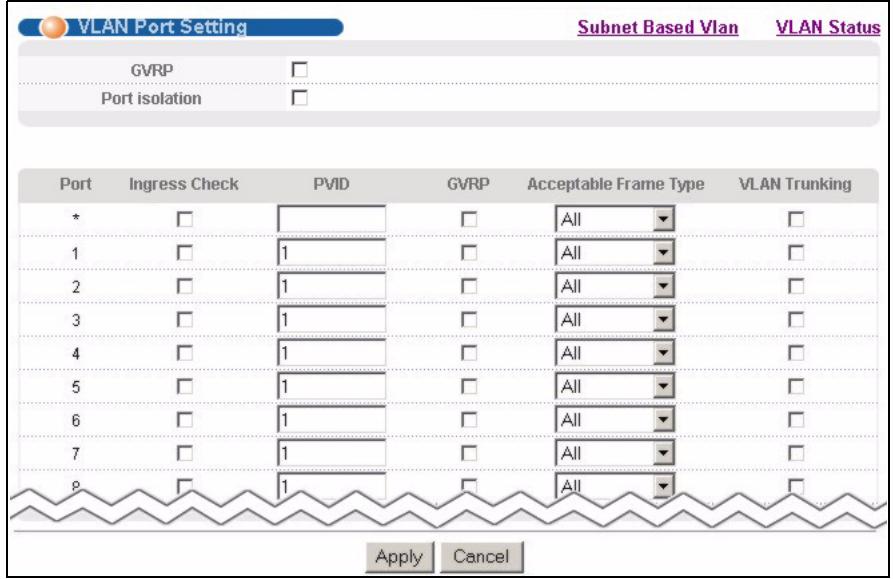
Figure 44 Advanced Application > VLAN > VLAN Port Setting
The following table describes the labels in this screen.
Table 17 Advanced Application > VLAN > VLAN Port Setting
| LABEL | DESCRIPTION |
| GVRP | GVRP (GARP VLAN Registration Protocol) is a registration protocol that defines a way for switches to register necessary VLAN members on ports across the network. Select this check box to permit VLAN groups beyond the local Switch. |
| Port Isolation | Port Isolation allows each port to communicate only with the CPU management port and the dual personality GbE interfaces but not communicate with each other. This option is the most limiting but also the most secure. |
| Port | This field displays the port number. |
| * | Settings in this row apply to all ports. Use this row only if you want to make some settings the same for all ports. Use this row first to set the common settings and then make adjustments on a port-by-port basis. Note: Changes in this row are copied to all the ports as soon as you make them. |
| Ingress Check | If this check box is selected for a port, the Switch discards incoming frames for VLANs that do not include this port in its member set. Clear this check box to disable ingress filtering. |
| PVID | Enter a number between 1 and 4094 as the port VLAN ID. |
| GVRP | Select this check box to allow GVRP on this port. |
| Acceptable Frame Type | Specify the type of frames allowed on a port. Choices are All and Tag Only. Select All from the drop-down list box to accept all untagged or tagged frames on this port. This is the default setting. Select Tag Only to accept only tagged frames on this port. All untagged frames will be dropped. |
| VLAN Trunking | Enable VLAN Trunking on ports connected to other switches or routers (but not ports directly connected to end users) to allow frames belonging to unknown VLAN groups to pass through the Switch. |
| Apply | Click Apply to save your changes to the Switch's run-time memory. The Switch loses these changes if it is turned off or loses power, so use the Save link on the top navigation panel to save your changes to the non-volatile memory when you are done configuring. |
| Cancel | Click Cancel to begin configuring this screen afresh. |
8.6 Subnet Based VLANs
Subnet based VLANs allow you to group traffic into logical VLANs based on the source IP subnet you specify. When a frame is received on a port, the Switch checks if a tag is added already and the IP subnet it came from. The untagged packets from the same IP subnet are then placed in the same subnet based VLAN. One advantage of using subnet based VLANs is that priority can be assigned to traffic from the same IP subnet.
For example, an ISP (Internet Services Provider) may divide different types of services it provides to customers into different IP subnets. Traffic for voice services is designated for IP subnet 172.16.1.0/24, video for 192.168.1.0/24 and data for 10.1.1.0/24. The Switch can then be configured to group incoming traffic based on the source IP subnet of incoming frames.
You configure a subnet based VLAN with priority 6 and VID of 100 for traffic received from IP subnet 172.16.1.0/24 (voice services). You also have a subnet based VLAN with priority 5 and VID of 200 for traffic received from IP subnet 192.168.1.0/24 (video services). Lastly, you configure VLAN with priority 3 and VID of 300 for traffic received from IP subnet 10.1.1.0/24 (data services). All untagged incoming frames will be classified based on their source IP subnet and prioritized accordingly. That is video services receive the highest priority and data the lowest.
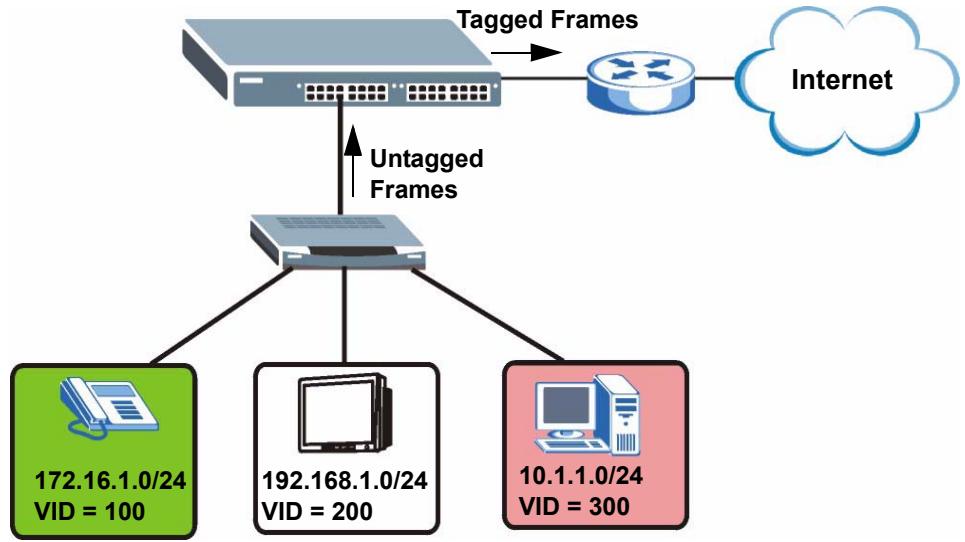
Figure 45 Subnet Based VLAN Application Example
8.7 Configuring Subnet Based VLAN
Click Subnet Based VLAN in the VLAN Port Setting screen to display the configuration screen as shown.

Subnet based VLAN applies to un-tagged packets and is applicable only when you use IEEE 802.1Q tagged VLAN.
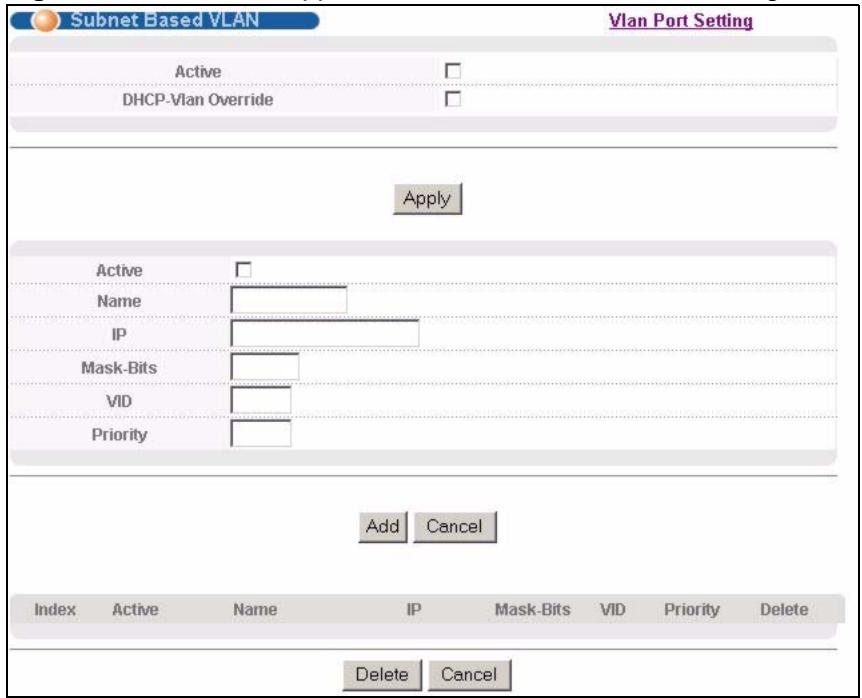
Figure 46 Advanced Application > VLAN > VLAN Port Setting > Subnet Based VLAN
The following table describes the labels in this screen.
Table 18 Advanced Application > VLAN > VLAN Port Setting > Subnet Based VLAN Setup
| LABEL | DESCRIPTION |
| Active | Check this box to activate this subnet based VLANs on the Switch. |
| DHCP-Vlan Override | When DHCP snooping is enabled DHCP clients can renew their IP address through the DHCP VLAN or via another DHCP server on the subnet based VLAN. Select this checkbox to force the DHCP clients in this IP subnet to obtain their IP addresses through the DHCP VLAN. |
| Apply | Click Apply to save your changes to the Switch's run-time memory. The Switch loses these changes if it is turned off or loses power, so use the Save link on the top navigation panel to save your changes to the non-volatile memory when you are done configuring. |
| Active | Check this box to activate the IP subnet VLAN you are creating or editing. |
| Name | Enter up to 32 alpha numeric characters to identify this subnet based VLAN. |
| IP | Enter the IP address of the subnet for which you want to configure this subnet based VLAN. |
Table 18 Advanced Application > VLAN > VLAN Port Setting > Subnet Based VLAN Setup
| LABEL | DESCRIPTION |
| Mask-Bits | Enter the bit number of the subnet mask. To find the bit number, convert the subnet mask to binary format and add all the 1's together. Take “255.255.255.0” for example. 255 converts to eight 1s in binary. There are three 255s, so add three eights together and you get the bit number (24). |
| VID | Enter the ID of a VLAN with which the untagged frames from the IP subnet specified in this subnet based VLAN are tagged. This must be an existing VLAN which you defined in the Advanced Applications, VLAN screens. |
| Priority | Select the priority level that the Switch assigns to frames belonging to this VLAN. |
| Add | Click Add to save your changes to the Switch's run-time memory. The Switch loses these changes if it is turned off or loses power, so use the Save link on the top navigation panel to save your changes to the non-volatile memory when you are done configuring. |
| Cancel | Click Cancel to begin configuring this screen afresh. |
| Index | This is the index number identifying this subnet based VLAN. Click on any of these numbers to edit an existing subnet based VLAN. |
| Active | This field shows whether the subnet based VLAN is active or not. |
| Name | This field shows the name the subnet based VLAN. |
| IP | This field shows the IP address of the subnet for this subnet based VLAN. |
| Mask-Bits | This field shows the subnet mask in bit number format for this subnet based VLAN. |
| VID | This field shows the VLAN ID of the frames which belong to this subnet based VLAN. |
| Priority | This field shows the priority which is assigned to frames belonging to this subnet based VLAN. |
| Delete | Click this to delete the subnet based VLANs which you marked for deletion. |
| Cancel | Click Cancel to begin configuring this screen afresh. |
8.8 Port-based VLAN Setup
Port-based VLANs are VLANs where the packet forwarding decision is based on the destination MAC address and its associated port.
Port-based VLANs require allowed outgoing ports to be defined for each port. Therefore, if you wish to allow two subscriber ports to talk to each other, for example, between conference rooms in a hotel, you must define the egress (an egress port is an outgoing port, that is, a port through which a data packet leaves) for both ports.
Port-based VLANs are specific only to the Switch on which they were created.

When you activate port-based VLAN, the Switch uses a default VLAN ID of 1. You cannot change it.

In screens (such as IP Setup and Filtering) that require a VID, you must enter 1 as the VID.
The port-based VLAN setup screen is shown next. The CPU management port forms a VLAN with all Ethernet ports.
8.8.1 Configure a Port-based VLAN
Select Port Based as the VLAN Type in the Basic Setting > Switch Setup screen and then click Advanced Application > VLAN from the navigation panel to display the next screen.
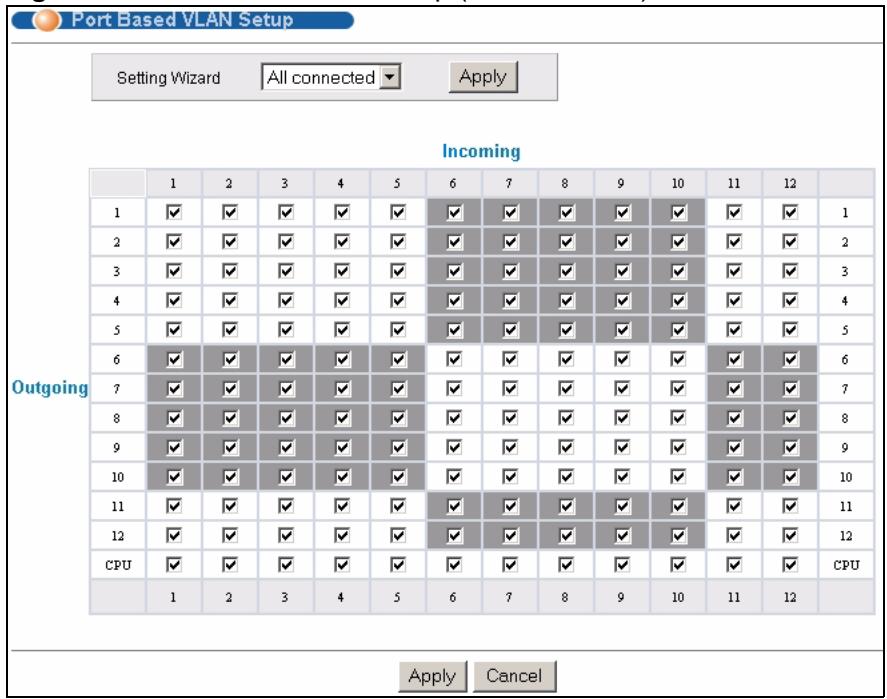
Figure 47 Port Based VLAN Setup (All Connected)
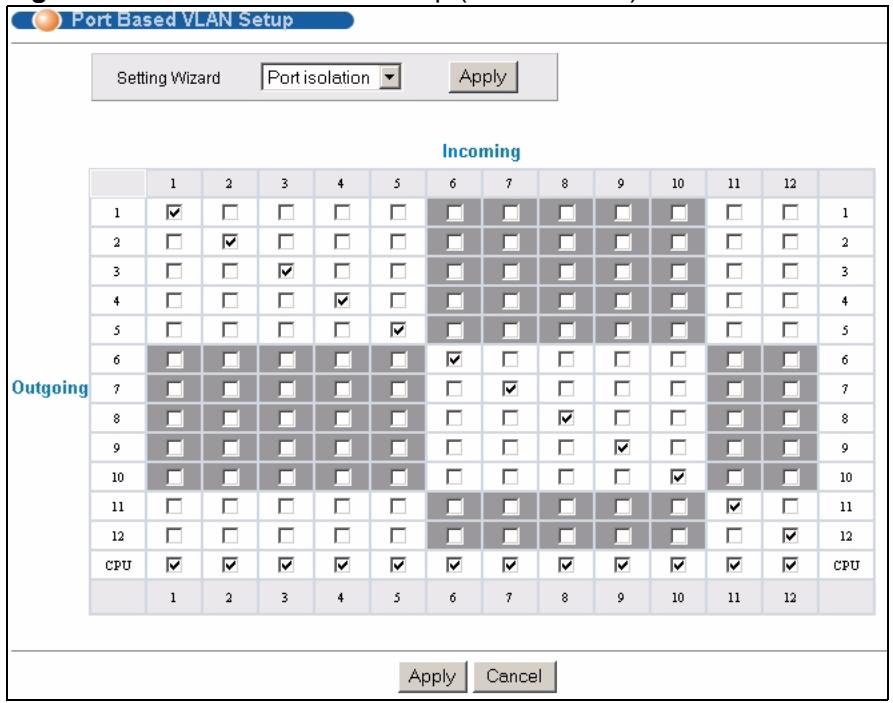
Figure 48 Port Based VLAN Setup (Port Isolation)
The following table describes the labels in this screen.
Table 19 Port Based VLAN Setup
| label | Description |
| Setting Wizard | Choose All connected or Port isolation.All connected means all ports can communicate with each other, that is, there are no virtual LANs. All incoming and outgoing ports are selected. This option is the most flexible but also the least secure.Port isolation means that each port can only communicate with the CPU management port and cannot communicate with each other. All incoming ports are selected while only the CPU outgoing port is selected. This option is the most limiting but also the most secure.After you make your selection, click Apply (top right of screen) to display the screens as mentioned above. You can still customize these settings by adding/deleting incoming or outgoing ports, but you must also click Apply at the bottom of the screen. |
| Incoming | These are the ingress ports; an ingress port is an incoming port, that is, a port through which a data packet enters. If you wish to allow two subscriber ports to talk to each other, you must define the ingress port for both ports. The numbers in the top row denote the incoming port for the corresponding port listed on the left (its outgoing port). CPU refers to the Switch management port. By default it forms a VLAN with all Ethernet ports. If it does not form a VLAN with a particular port then the Switch cannot be managed from that port. |
| Outgoing | These are the egress ports; an egress port is an outgoing port, that is, a port through which a data packet leaves. If you wish to allow two subscriber ports to talk to each other, you must define the egress port for both ports. CPU refers to the Switch management port. By default it forms a VLAN with all Ethernet ports. If it does not form a VLAN with a particular port then the Switch cannot be managed from that port. |
| Apply | Click Apply to save your changes to the Switch's run-time memory. The Switch loses these changes if it is turned off or loses power, so use the Save link on the top navigation panel to save your changes to the non-volatile memory when you are done configuring. |
| Cancel | Click Cancel to begin configuring this screen afresh. |
Static MAC Forward Setup
Use these screens to configure static MAC address forwarding.
9.1 Overview
This chapter discusses how to configure forwarding rules based on MAC addresses of devices on your network.
9.2 Configuring Static MAC Forwarding
A static MAC address is an address that has been manually entered in the MAC address table. Static MAC addresses do not age out. When you set up static MAC address rules, you are setting static MAC addresses for a port. This may reduce the need for broadcasting.
Static MAC address forwarding together with port security allow only computers in the MAC address table on a port to access the Switch. See Chapter 17 on page 139 for more information on port security.
Click Advanced Applications > Static MAC Forwarding in the navigation panel to display the configuration screen as shown.
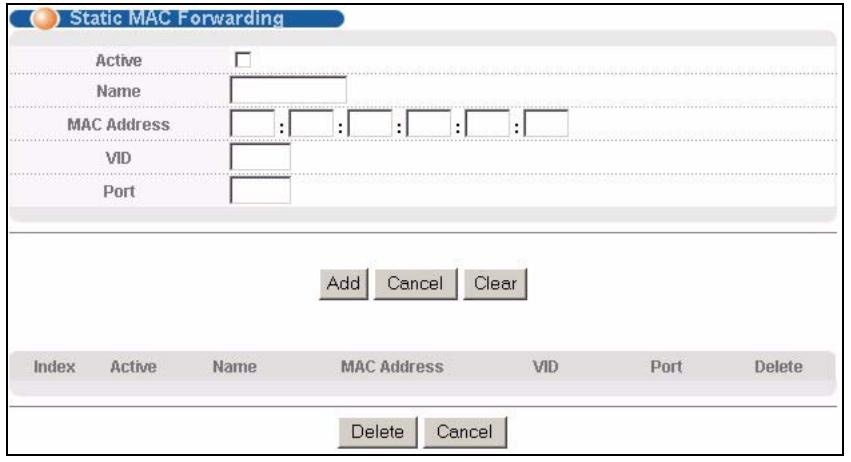
Figure 49 Advanced Application > Static MAC Forwarding
The following table describes the labels in this screen.
Table 20 Advanced Application > Static MAC Forwarding
| LABEL | DESCRIPTION |
| Active | Select this check box to activate your rule. You may temporarily deactivate a rule without deleting it by clearing this check box. |
| Name | Enter a descriptive name for identification purposes for this static MAC address forwarding rule. |
| MAC Address | Enter the MAC address in valid MAC address format, that is, six hexadecimal character pairs.Note: Static MAC addresses do not age out. |
| VID | Enter the VLAN identification number. |
| Port | Enter the port where the MAC address entered in the previous field will be automatically forwarded. |
| Add | Click Add to save your rule to the Switch's run-time memory. The Switch loses this rule if it is turned off or loses power, so use the Save link on the top navigation panel to save your changes to the non-volatile memory when you are done configuring. |
| Cancel | Click Cancel to reset the fields to their last saved values. |
| Clear | Click Clear to begin configuring this screen afresh. |
| Index | Click an index number to modify a static MAC address rule for a port. |
| Active | This field displays whether this static MAC address forwarding rule is active (Yes) or not (No). You may temporarily deactivate a rule without deleting it. |
| Name | This field displays the descriptive name for identification purposes for this static MAC address-forwarding rule. |
| MAC Address | This field displays the MAC address that will be forwarded and the VLAN identification number to which the MAC address belongs. |
| VID | This field displays the ID number of the VLAN group. |
| Port | This field displays the port where the MAC address shown in the next field will be forwarded. |
| Delete | Click Delete to remove the selected entry from the summary table. |
| Cancel | Click Cancel to clear the Delete check boxes. |
This chapter discusses MAC address port filtering.
10.1 Configure a Filtering Rule
Filtering means sifting traffic going through the Switch based on the source and/or destination MAC addresses and VLAN group (ID).
Click Advanced Application > Filtering in the navigation panel to display the screen as shown next.
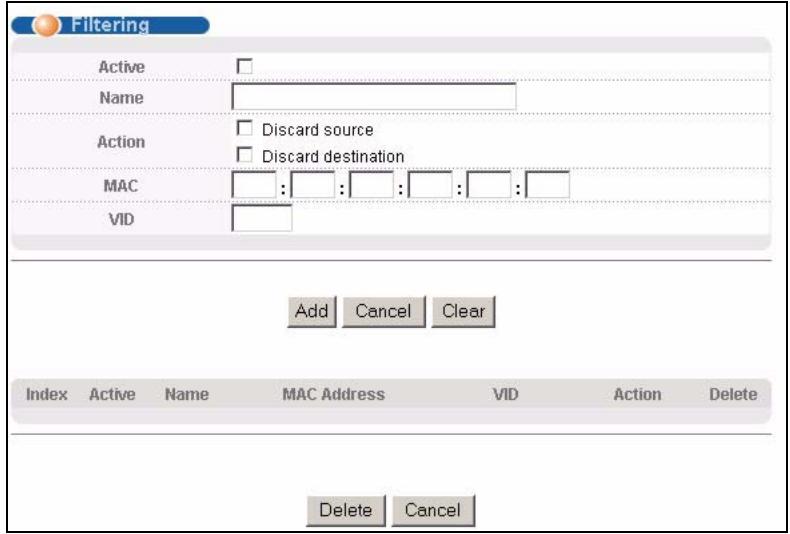
Figure 50 Advanced Application > Filtering
The following table describes the related labels in this screen.
Table 21 Advanced Application > Filtering
| LABEL | DESCRIPTION |
| Active | Make sure to select this check box to activate your rule. You may temporarily deactivate a rule without deleting it by deselecting this check box. |
| Name | Type a descriptive name (up to 32 printable ASCII characters) for this rule. This is for identification only. |
| Action | Select Discard source to drop the frames from the source MAC address (specified in the MAC field). The Switch can still send frames to the MAC address. Select Discard destination to drop the frames to the destination MAC address (specified in the MAC address). The Switch can still receive frames originating from the MAC address. Select Discard source and Discard destination to block traffic to/from the MAC address specified in the MAC field. |
| MAC | Type a MAC address in valid MAC address format, that is, six hexadecimal character pairs. |
| VID | Type the VLAN group identification number. |
| Add | Click Add to save your changes to the Switch's run-time memory. The Switch loses these changes if it is turned off or loses power, so use the Save link on the top navigation panel to save your changes to the non-volatile memory when you are done configuring. |
| Cancel | Click Cancel to reset the fields to your previous configuration. |
| Clear | Click Clear to clear the fields to the factory defaults. |
| Index | This field displays the index number of the rule. Click an index number to change the settings. |
| Active | This field displays Yes when the rule is activated and No when is it deactivated. |
| Name | This field displays the descriptive name for this rule. This is for identification purpose only. |
| MAC Address | This field displays the source/destination MAC address with the VLAN identification number to which the MAC address belongs. |
| VID | This field displays the VLAN group identification number. |
| Delete | Check the rule(s) that you want to remove in the Delete column and then click the Delete button. |
| Cancel | Click Cancel to clear the selected checkbox(es) in the Delete column. |
Spanning Tree Protocol
The Switch supports Spanning Tree Protocol (STP), Rapid Spanning Tree Protocol (RSTP) and Multiple Spanning Tree Protocol (MSTP) as defined in the following standards.
- IEEE 802.1D Spanning Tree Protocol
- IEEE 802.1w Rapid Spanning Tree Protocol
- IEEE 802.1s Multiple Spanning Tree Protocol
The Switch also allows you to set up multiple STP configurations (or trees). Ports can then be assigned to the trees.
11.1 STP/RSTP Overview
(R)STP detects and breaks network loops and provides backup links between switches, bridges or routers. It allows a switch to interact with other (R)STP -compliant switches in your network to ensure that only one path exists between any two stations on the network.
The Switch uses IEEE 802.1w RSTP (Rapid Spanning Tree Protocol) that allows faster convergence of the spanning tree than STP (while also being backwards compatible with STP-only aware bridges). In RSTP, topology change information is directly propagated throughout the network from the device that generates the topology change. In STP, a longer delay is required as the device that causes a topology change first notifies the root bridge that then notifies the network. Both RSTP and STP flush unwanted learned addresses from the filtering database. In RSTP, the port states are Discarding, Learning, and Forwarding.

In this user's guide, "STP" refers to both STP and RSTP.
11.1.1 STP Terminology
The root bridge is the base of the spanning tree.
Path cost is the cost of transmitting a frame onto a LAN through that port. The recommended cost is assigned according to the speed of the link to which a port is attached. The slower the media, the higher the cost.
Table 22 STP Path Costs
| LINK SPEED | RECOMMENDED VALUE | RECOMMENDED RANGE | ALLOWED RANGE | |
| Path Cost | 4Mbps | 250 | 100 to 1000 | 1 to 65535 |
| Path Cost | 10Mbps | 100 | 50 to 600 | 1 to 65535 |
| Path Cost | 16Mbps | 62 | 40 to 400 | 1 to 65535 |
| Path Cost | 100Mbps | 19 | 10 to 60 | 1 to 65535 |
| Path Cost | 1Gbps | 4 | 3 to 10 | 1 to 65535 |
| Path Cost | 10Gbps | 2 | 1 to 5 | 1 to 65535 |
On each bridge, the root port is the port through which this bridge communicates with the root. It is the port on this switch with the lowest path cost to the root (the root path cost). If there is no root port, then this switch has been accepted as the root bridge of the spanning tree network.
For each LAN segment, a designated bridge is selected. This bridge has the lowest cost to the root among the bridges connected to the LAN.
11.1.2 How STP Works
After a bridge determines the lowest cost-spanning tree with STP, it enables the root port and the ports that are the designated ports for connected LANs, and disables all other ports that participate in STP. Network packets are therefore only forwarded between enabled ports, eliminating any possible network loops.
STP-aware switches exchange Bridge Protocol Data Units (BPDUs) periodically. When the bridged LAN topology changes, a new spanning tree is constructed.
Once a stable network topology has been established, all bridges listen for Hello BPDUs (Bridge Protocol Data Units) transmitted from the root bridge. If a bridge does not get a Hello BPDU after a predefined interval (Max Age), the bridge assumes that the link to the root bridge is down. This bridge then initiates negotiations with other bridges to reconfigure the network to re-establish a valid network topology.
11.1.3 STP Port States
STP assigns five port states to eliminate packet looping. A bridge port is not allowed to go directly from blocking state to forwarding state so as to eliminate transient loops.
Table 23 STP Port States
| PORT STATE | DESCRIPTION |
| Disabled | STP is disabled (default). |
| Blocking | Only configuration and management BPDUs are received and processed. |
| Listening | All BPDUs are received and processed. Note: The listening state does not exist in RSTP. |
| Learning | All BPDUs are received and processed. Information frames are submitted to the learning process but not forwarded. |
| Forwarding | All BPDUs are received and processed. All information frames are received and forwarded. |
11.1.4 Multiple RSTP
MRSTP (Multiple RSTP) is ZyXEL's proprietary feature that is compatible with RSTP and STP. With MRSTP, you can have more than one spanning tree on your Switch and assign port(s) to each tree. Each spanning tree operates independently with its own bridge information.
In the following example, there are two RSTP instances (MRSTP 1 and MRSTP2) on switch A.
To set up MRSTP, activate MRSTP on the Switch and specify which port(s) belong to which spanning tree.

Each port can belong to one STP tree only.
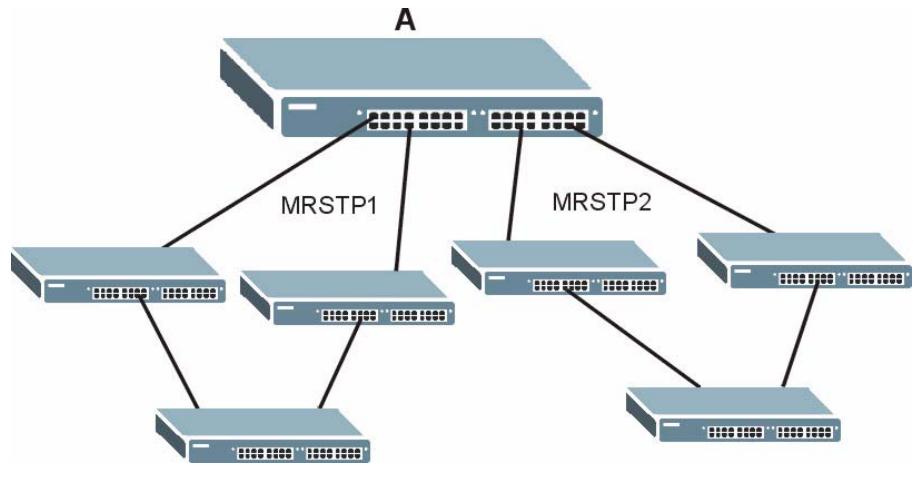
Figure 51 MRSTP Network Example
11.1.5 Multiple STP
Multiple Spanning Tree Protocol (IEEE 802.1s) is backward compatible with STP/RSTP and addresses the limitations of existing spanning tree protocols (STP and RSTP) in networks to include the following features:
- One Common and Internal Spanning Tree (CIST) that represents the entire network's connectivity.
- Grouping of multiple bridges (or switching devices) into regions that appear as one single bridge on the network.
- A VLAN can be mapped to a specific Multiple Spanning Tree Instance (MSTI). MSTI allows multiple VLANs to use the same spanning tree.
- Load-balancing is possible as traffic from different VLANs can use distinct paths in a region.
11.1.5.1 MSTP Network Example
The following figure shows a network example where two VLANs are configured on the two switches. If the switches are using STP or RSTP, the link for VLAN 2 will be blocked as STP and RSTP allow only one link in the network and block the redundant link.
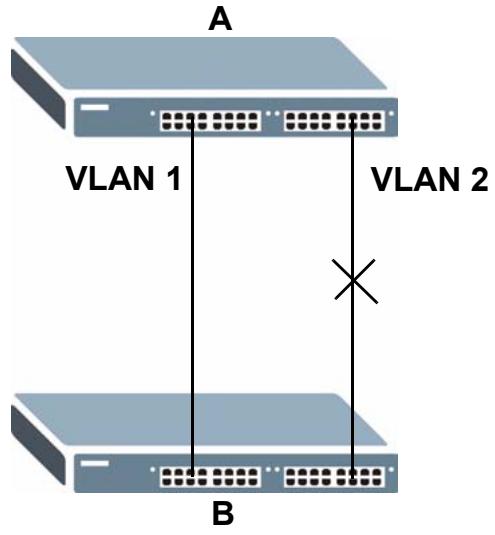
Figure 52 STP/RSTP Network Example
With MSTP, VLANs 1 and 2 are mapped to different spanning trees in the network. Thus traffic from the two VLANs travel on different paths. The following figure shows the network example using MSTP.
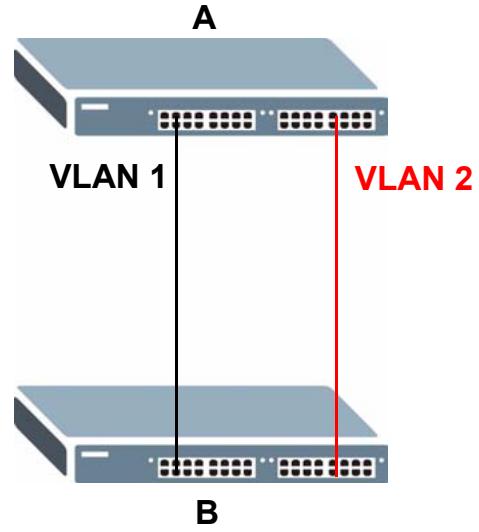
Figure 53 MSTP Network Example
11.1.5.2 MST Region
An MST region is a logical grouping of multiple network devices that appears as a single device to the rest of the network. Each MSTP-enabled device can only belong to one MST region. When BPDUs enter an MST region, external path cost (of paths outside this region) is increased by one. Internal path cost (of paths within this region) is increased by one when BPDUs traverse the region.
Devices that belong to the same MST region are configured to have the same MSTP configuration identification settings. These include the following parameters:
Name of the MST region
- Revision level as the unique number for the MST region
- VLAN-to-MST Instance mapping
11.1.5.3 MST Instance
An MST Instance (MSTI) is a spanning tree instance. VLANs can be configured to run on a specific MSTI. Each created MSTI is identified by a unique number (known as an MST ID) known internally to a region. Thus an MSTI does not span across MST regions.
The following figure shows an example where there are two MST regions. Regions 1 and 2 have 2 spanning tree instances.
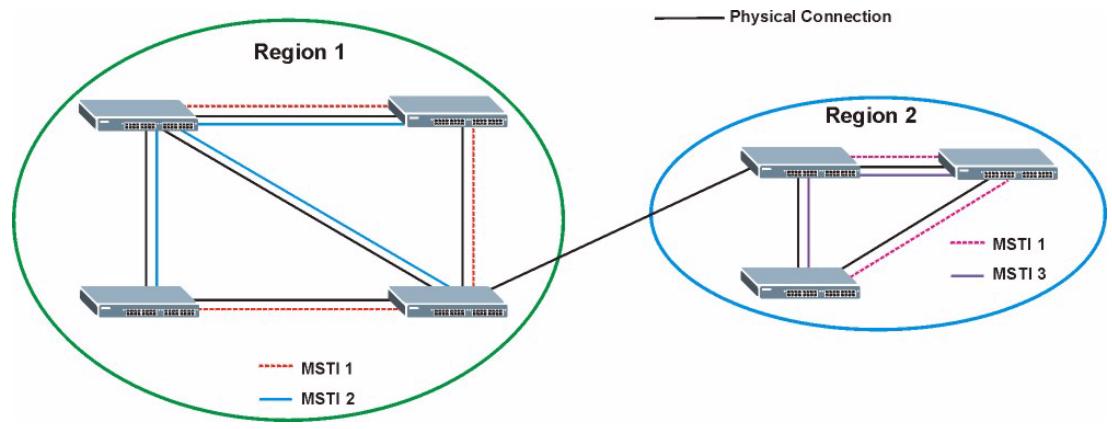
Figure 54 MSTIs in Different Regions
11.1.5.4 Common and Internal Spanning Tree (CIST)
A CIST represents the connectivity of the entire network and it is equivalent to a spanning tree in an STP/RSTP. The CIST is the default MST instance (MSTID 0). Any VLANs that are not members of an MST instance are members of the CIST. In an MSTP-enabled network, there is only one CIST that runs between MST regions and single spanning tree devices. A network may contain multiple MST regions and other network segments running RSTP.
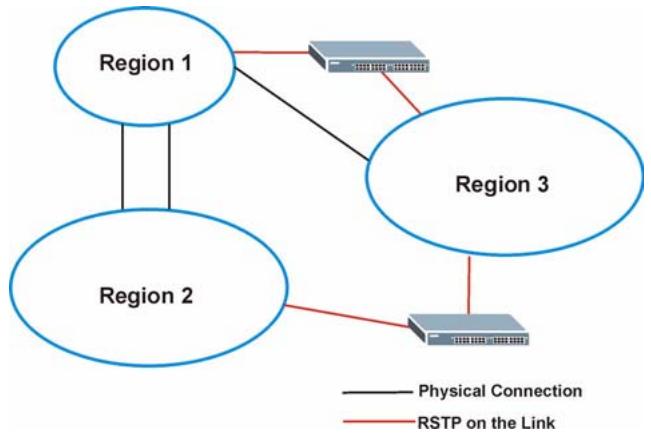
Figure 55 MSTP and Legacy RSTP Network Example
11.2 Spanning Tree Protocol Status Screen
The Spanning Tree Protocol status screen changes depending on what standard you choose to implement on your network. Click Advanced Application > Spanning Tree Protocol to see the screen as shown.
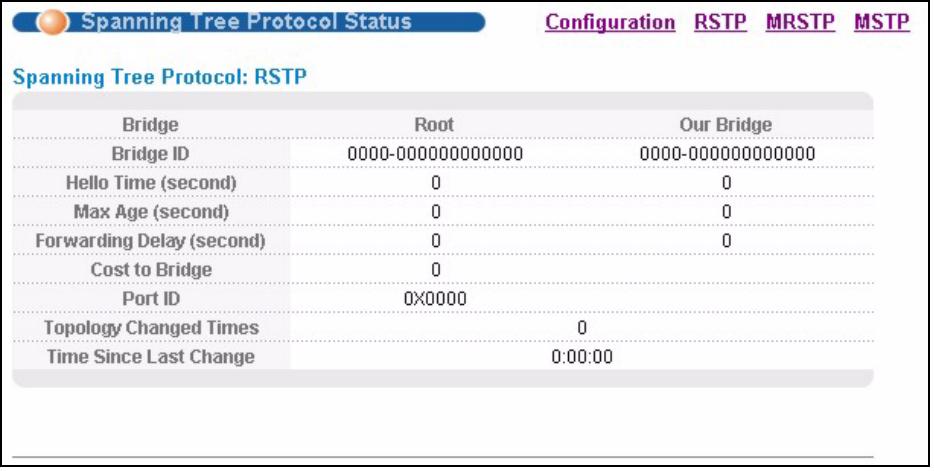
Figure 56 Advanced Application > Spanning Tree Protocol
This screen differs depending on which STP mode (RSTP, MRSTP or MSTP) you configure on the Switch. This screen is described in detail in the section that follows the configuration section for each STP mode. Click Configuration to activate one of the STP standards on the Switch.
11.3 Spanning Tree Configuration
Use the Spanning Tree Configuration screen to activate one of the STP modes on the Switch. Click Configuration in the Advanced Application > Spanning Tree Protocol.
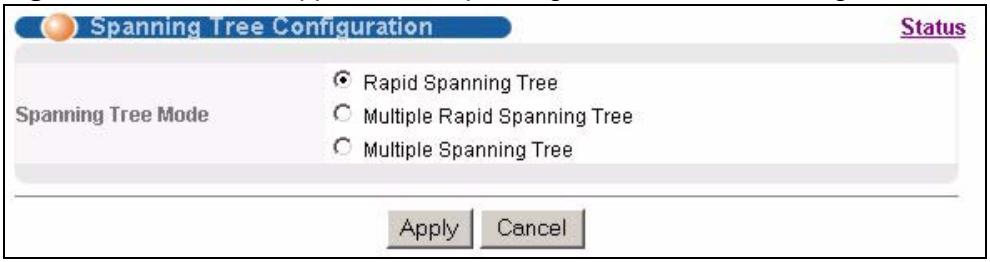
Figure 57 Advanced Application > Spanning Tree Protocol > Configuration
The following table describes the labels in this screen.
Table 24 Advanced Application > Spanning Tree Protocol > Configuration
| LABEL | DESCRIPTION |
| Spanning Tree Mode | You can activate one of the STP modes on the Switch. Select Rapid Spanning Tree, Multiple Rapid Spanning Tree or Multiple Spanning Tree. See Section 11.1 on page 101 for background information on STP. |
| Apply | Click Apply to save your changes to the Switch's run-time memory. The Switch loses these changes if it is turned off or loses power, so use the Save link on the top navigation panel to save your changes to the non-volatile memory when you are done configuring. |
| Cancel | Click Cancel to begin configuring this screen afresh. |
11.4 Configure Rapid Spanning Tree Protocol
Use this screen to configure RSTP settings, see Section 11.1 on page 101 for more information on RSTP. Click RSTP in the Advanced Application > Spanning Tree Protocol screen.
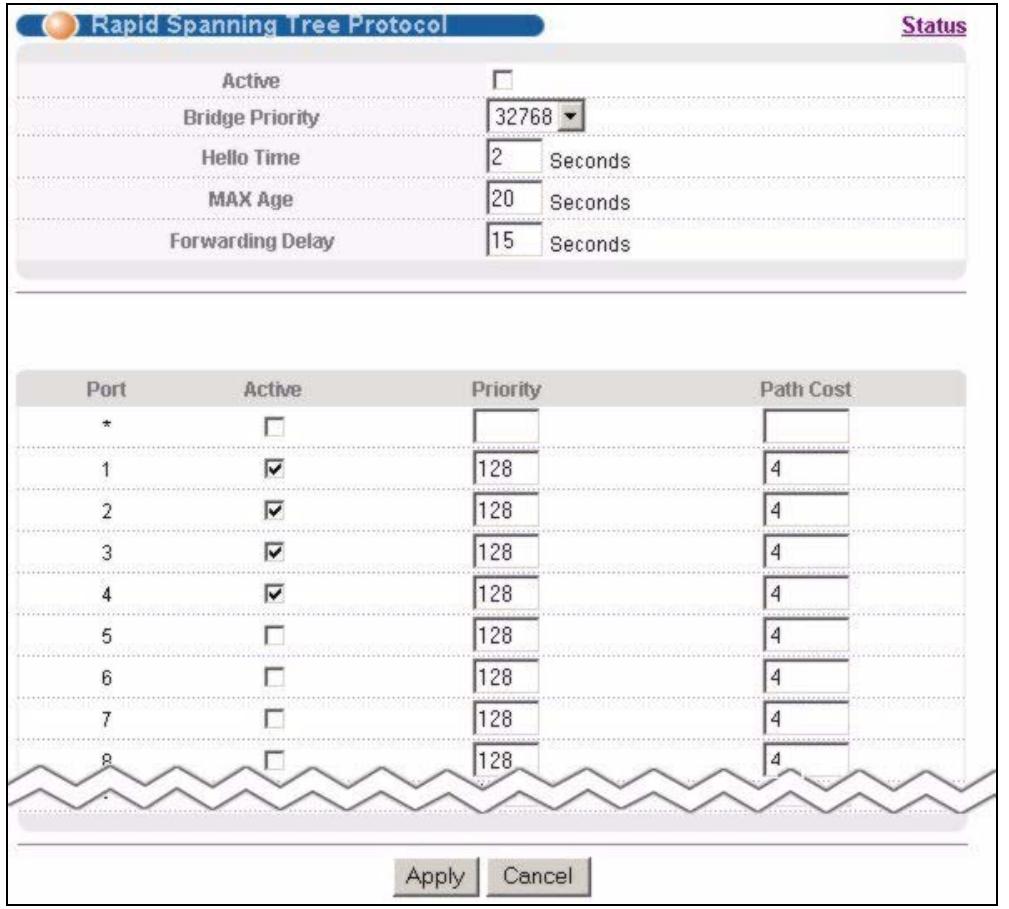
Figure 58 Advanced Application > Spanning Tree Protocol > RSTP
The following table describes the labels in this screen.
Table 25 Advanced Application > Spanning Tree Protocol > RSTP
| LABEL | DESCRIPTION |
| Status | Click Status to display the RSTP Status screen (see Figure 59 on page 110). |
| Active | Select this check box to activate RSTP. Clear this checkbox to disable RSTP.Note: You must also activate Rapid Spanning Tree in the Advanced Application > Spanning Tree Protocol > Configuration screen to enable RSTP on the Switch. |
| Bridge Priority | Bridge priority is used in determining the root switch, root port and designated port. The switch with the highest priority (lowest numeric value) becomes the STP root switch. If all switches have the same priority, the switch with the lowest MAC address will then become the root switch. Select a value from the drop-down list box.The lower the numeric value you assign, the higher the priority for this bridge.Bridge Priority determines the root bridge, which in turn determines Hello Time, Max Age and Forwarding Delay. |
| Hello Time | This is the time interval in seconds between BPDU (Bridge Protocol Data Units) configuration message generations by the root switch. The allowed range is 1 to 10 seconds. |
| Max Age | This is the maximum time (in seconds) the Switch can wait without receiving a BPDU before attempting to reconfigure. All Switch ports (except for designated ports) should receive BPDUs at regular intervals. Any port that ages out STP information (provided in the last BPDU) becomes the designated port for the attached LAN. If it is a root port, a new root port is selected from among the Switch ports attached to the network. The allowed range is 6 to 40 seconds. |
| Forwarding Delay | This is the maximum time (in seconds) the Switch will wait before changing states. This delay is required because every switch must receive information about topology changes before it starts to forward frames. In addition, each port needs time to listen for conflicting information that would make it return to a blocking state; otherwise, temporary data loops might result. The allowed range is 4 to 30 seconds.As a general rule:Note: 2 * (Forward Delay - 1) >= Max Age >= 2 * (Hello Time + 1) |
| Port | This field displays the port number. |
| * | Settings in this row apply to all ports.Use this row only if you want to make some settings the same for all ports. Use this row first to set the common settings and then make adjustments on a port-by-port basis.Note: Changes in this row are copied to all the ports as soon as you make them. |
| Active | Select this check box to activate RSTP on this port. |
| Priority | Configure the priority for each port here.Priority decides which port should be disabled when more than one port forms a loop in a switch. Ports with a higher priority numeric value are disabled first. The allowed range is between 0 and 255 and the default value is 128. |
| Path Cost | Path cost is the cost of transmitting a frame on to a LAN through that port. It is recommended to assign this value according to the speed of the bridge. The slower the media, the higher the cost - see Table 22 on page 102 for more information. |
| Apply | Click Apply to save your changes to the Switch's run-time memory. The Switch loses these changes if it is turned off or loses power, so use the Save link on the top navigation panel to save your changes to the non-volatile memory when you are done configuring. |
| Cancel | Click Cancel to begin configuring this screen afresh. |
11.5 Rapid Spanning Tree Protocol Status
Click Advanced Application > Spanning Tree Protocol in the navigation panel to display the status screen as shown next. See Section 11.1 on page 101 for more information on RSTP.

This screen is only available after you activate RSTP on the Switch.
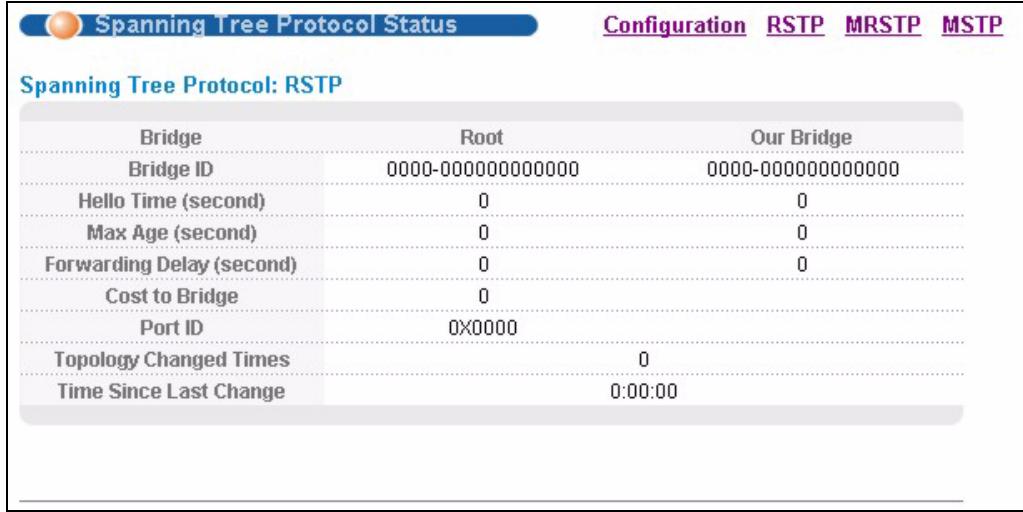
Figure 59 Advanced Application > Spanning Tree Protocol > Status: RSTP
The following table describes the labels in this screen.
Table 26 Advanced Application > Spanning Tree Protocol > Status: RSTP
| LABEL | DESCRIPTION |
| Configuration | Click Configuration to specify which STP mode you want to activate. Click RSTP to edit RSTP settings on the Switch. |
| Bridge | Root refers to the base of the spanning tree (the root bridge). Our Bridge is this switch. This Switch may also be the root bridge. |
| Bridge ID | This is the unique identifier for this bridge, consisting of bridge priority plus MAC address. This ID is the same for Root and Our Bridge if the Switch is the root switch. |
| Hello Time (second) | This is the time interval (in seconds) at which the root switch transmits a configuration message. The root bridge determines Hello Time, Max Age and Forwarding Delay. |
| Max Age (second) | This is the maximum time (in seconds) the Switch can wait without receiving a configuration message before attempting to reconfigure. |
| Forwarding Delay (second) | This is the time (in seconds) the root switch will wait before changing states (that is, listening to learning to forwarding).Note: The listening state does not exist in RSTP. |
| Cost to Bridge | This is the path cost from the root port on this Switch to the root switch. |
| Port ID | This is the priority and number of the port on the Switch through which this Switch must communicate with the root of the Spanning Tree. |
| Topology Changed Times | This is the number of times the spanning tree has been reconfigured. |
| Time Since Last Change | This is the time since the spanning tree was last reconfigured. |
11.6 Configure Multiple Rapid Spanning Tree Protocol
To configure MRSTP, click MRSTP in the Advanced Application > Spanning Tree Protocol screen. See Section 11.1 on page 101 for more information on MRSTP.
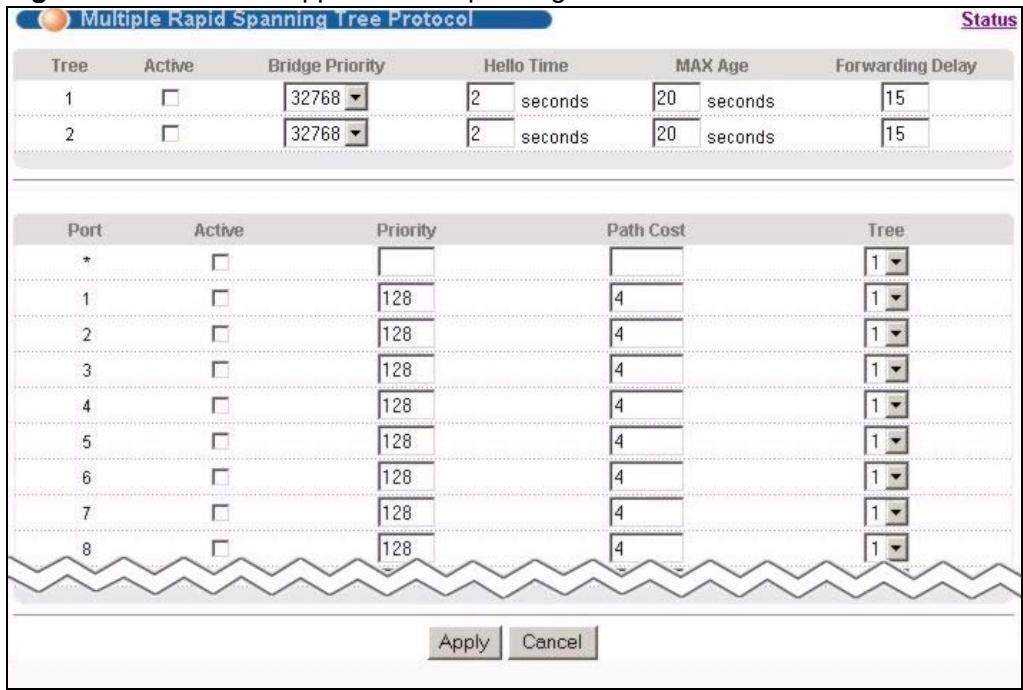
Figure 60 Advanced Application > Spanning Tree Protocol > MRSTP
The following table describes the labels in this screen.
Table 27 Advanced Application > Spanning Tree Protocol > MRSTP
| LABEL | DESCRIPTION |
| Status | Click Status to display the MRSTP Status screen (see Figure 59 on page 110). |
| Tree | This is a read only index number of the STP trees. |
| Active | Select this check box to activate an STP tree. Clear this checkbox to disable an STP tree.Note: You must also activate Multiple Rapid Spanning Tree in the Advanced Application > Spanning Tree Protocol > Configuration screen to enable MRSTP on the Switch. |
| Bridge Priority | Bridge priority is used in determining the root switch, root port and designated port. The switch with the highest priority (lowest numeric value) becomes the STP root switch. If all switches have the same priority, the switch with the lowest MAC address will then become the root switch. Select a value from the drop-down list box.The lower the numeric value you assign, the higher the priority for this bridge.Bridge Priority determines the root bridge, which in turn determines Hello Time, Max Age and Forwarding Delay. |
| Hello Time | This is the time interval in seconds between BPDU (Bridge Protocol Data Units) configuration message generations by the root switch. The allowed range is 1 to 10 seconds. |
| Max Age | This is the maximum time (in seconds) the Switch can wait without receiving a BPDU before attempting to reconfigure. All Switch ports (except for designated ports) should receive BPDUs at regular intervals. Any port that ages out STP information (provided in the last BPDU) becomes the designated port for the attached LAN. If it is a root port, a new root port is selected from among the Switch ports attached to the network. The allowed range is 6 to 40 seconds. |
| Forwarding Delay | This is the maximum time (in seconds) the Switch will wait before changing states. This delay is required because every switch must receive information about topology changes before it starts to forward frames. In addition, each port needs time to listen for conflicting information that would make it return to a blocking state; otherwise, temporary data loops might result. The allowed range is 4 to 30 seconds.As a general rule:Note: 2 * (Forward Delay - 1) >= Max Age >= 2 * (Hello Time + 1) |
| Port | This field displays the port number. |
| * | Settings in this row apply to all ports.Use this row only if you want to make some settings the same for all ports. Use this row first to set the common settings and then make adjustments on a port-by-port basis.Note: Changes in this row are copied to all the ports as soon as you make them. |
| Active | Select this check box to activate STP on this port. |
| Priority | Configure the priority for each port here.Priority decides which port should be disabled when more than one port forms a loop in a switch. Ports with a higher priority numeric value are disabled first. The allowed range is between 0 and 255 and the default value is 128. |
| Path Cost | Path cost is the cost of transmitting a frame on to a LAN through that port. It is recommended to assign this value according to the speed of the bridge. The slower the media, the higher the cost - see Table 22 on page 102 for more information. |
| Tree | Select which STP tree configuration this port should participate in. |
| Apply | Click Apply to save your changes to the Switch's run-time memory. The Switch loses these changes if it is turned off or loses power, so use the Save link on the top navigation panel to save your changes to the non-volatile memory when you are done configuring. |
| Cancel | Click Cancel to begin configuring this screen afresh. |
11.7 Multiple Rapid Spanning Tree Protocol Status
Click Advanced Application > Spanning Tree Protocol in the navigation panel to display the status screen as shown next. See Section 11.1 on page 101 for more information on MRSTP.

This screen is only available after you activate MRSTP on the Switch.
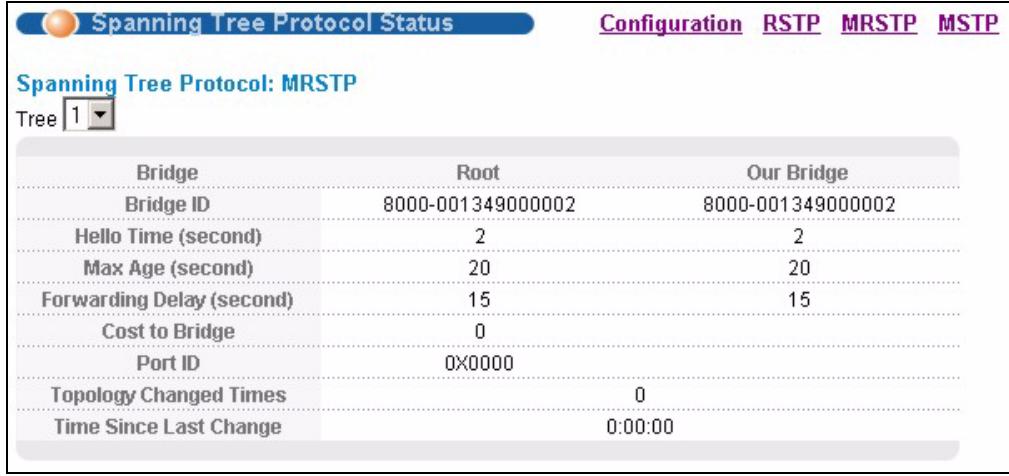
Figure 61 Advanced Application > Spanning Tree Protocol > Status: MRSTP
The following table describes the labels in this screen.
Table 28 Advanced Application > Spanning Tree Protocol > Status: MRSTP
| LABEL | DESCRIPTION |
| Configuration | Click Configuration to specify which STP mode you want to activate. Click MRSTP to edit MRSTP settings on the Switch. |
| Tree | Select which STP tree configuration you want to view. |
| Bridge | Root refers to the base of the spanning tree (the root bridge). Our Bridge is this switch. This Switch may also be the root bridge. |
| Bridge ID | This is the unique identifier for this bridge, consisting of bridge priority plus MAC address. This ID is the same for Root and Our Bridge if the Switch is the root switch. |
| Hello Time (second) | This is the time interval (in seconds) at which the root switch transmits a configuration message. The root bridge determines Hello Time, Max Age and Forwarding Delay. |
| Max Age (second) | This is the maximum time (in seconds) the Switch can wait without receiving a configuration message before attempting to reconfigure. |
| Forwarding Delay (second) | This is the time (in seconds) the root switch will wait before changing states (that is, listening to learning to forwarding).Note: The listening state does not exist in RSTP. |
| Cost to Bridge | This is the path cost from the root port on this Switch to the root switch. |
| Port ID | This is the priority and number of the port on the Switch through which this Switch must communicate with the root of the Spanning Tree. |
| Topology Changed Times | This is the number of times the spanning tree has been reconfigured. |
| Time Since Last Change | This is the time since the spanning tree was last reconfigured. |
11.8 Configure Multiple Spanning Tree Protocol
To configure MSTP, click MSTP in the Advanced Application > Spanning Tree Protocol screen. See Section 11.1.5 on page 104 for more information on MSTP.
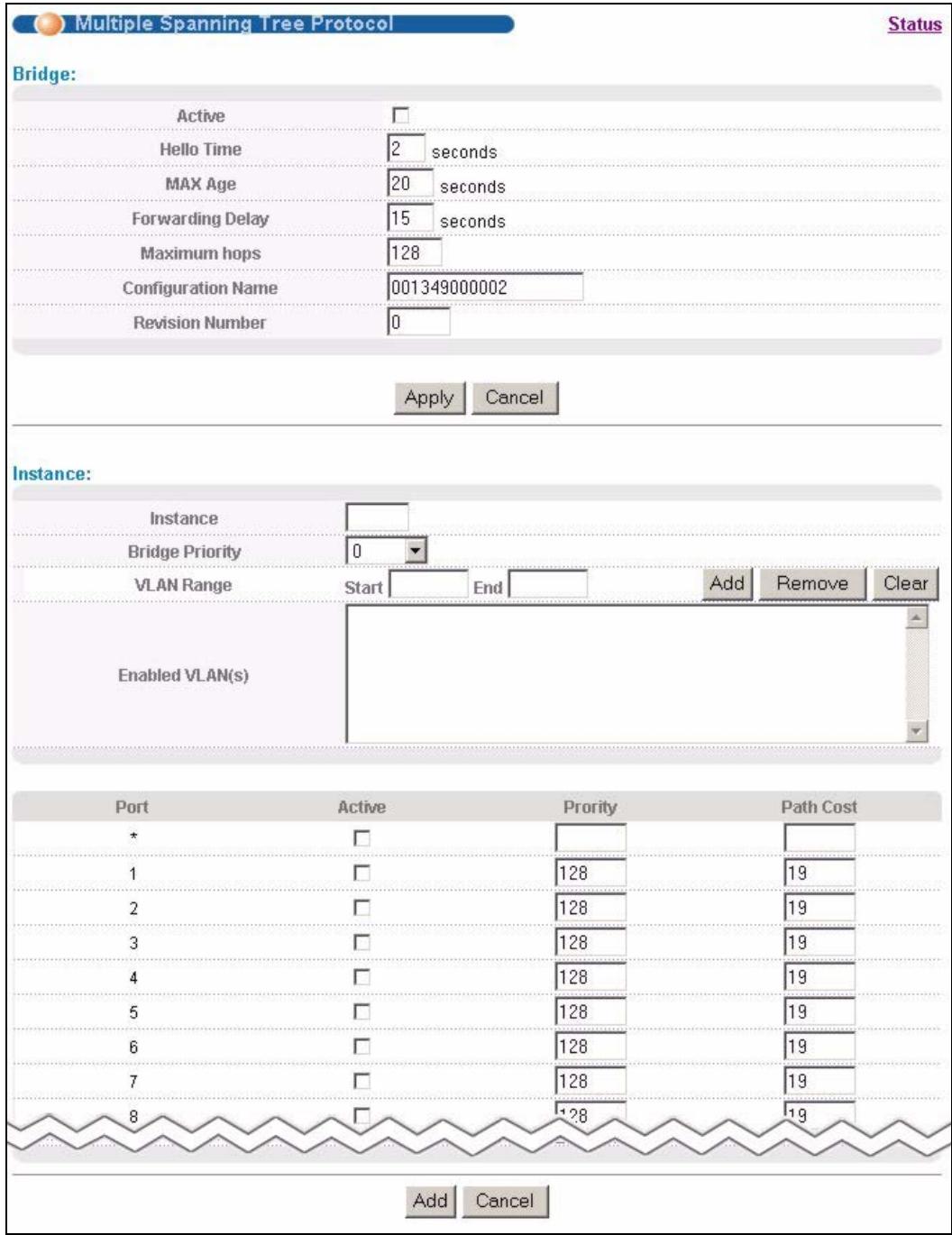
Figure 62 Advanced Application > Spanning Tree Protocol > MSTP
The following table describes the labels in this screen.
Table 29 Advanced Application > Spanning Tree Protocol > MSTP
| LABEL | DESCRIPTION |
| Status | Click Status to display the MSTP Status screen (see Figure 63 on page 117). |
| Active | Select this check box to activate MSTP on the Switch. Clear this checkbox to disable MSTP on the Switch.Note: You must also activate Multiple Spanning Tree in the Advanced Application > Spanning Tree Protocol > Configuration screen to enable MSTP on the Switch. |
| Hello Time | This is the time interval in seconds between BPDU (Bridge Protocol Data Units) configuration message generations by the root switch. The allowed range is 1 to 10 seconds. |
| MaxAge | This is the maximum time (in seconds) the Switch can wait without receiving a BPDU before attempting to reconfigure. All Switch ports (except for designated ports) should receive BPDUs at regular intervals. Any port that ages out STP information (provided in the last BPDU) becomes the designated port for the attached LAN. If it is a root port, a new root port is selected from among the Switch ports attached to the network. The allowed range is 6 to 40 seconds. |
| Forwarding Delay | This is the maximum time (in seconds) the Switch will wait before changing states. This delay is required because every switch must receive information about topology changes before it starts to forward frames. In addition, each port needs time to listen for conflicting information that would make it return to a blocking state; otherwise, temporary data loops might result. The allowed range is 4 to 30 seconds. As a general rule:Note: 2* (Forward Delay - 1) >= Max Age >= 2* (Hello Time + 1) |
| Maximum hops | Enter the number of hops (between 1 and 255) in an MSTP region before the BPDU is discarded and the port information is aged. |
| Configuration Name | Enter a descriptive name (up to 32 characters) of an MST region. |
| Revision Number | Enter a number to identify a region's configuration. Devices must have the same revision number to belong to the same region. |
| Apply | Click Apply to save your changes to the Switch's run-time memory. The Switch loses these changes if it is turned off or loses power, so use the Save link on the top navigation panel to save your changes to the non-volatile memory when you are done configuring. |
| Cancel | Click Cancel to begin configuring this screen afresh. |
| Instance | Use this section to configure MSTI (Multiple Spanning Tree Instance) settings. |
| Instance | Enter the number you want to use to identify this MST instance on the Switch. The Switch supports instance numbers 0-16. |
| Bridge Priority | Set the priority of the Switch for the specific spanning tree instance. The lower the number, the more likely the Switch will be chosen as the root bridge within the spanning tree instance.Enter priority values between 0 and 61440 in increments of 4096 (thus valid values are 4096, 8192, 12288, 16384, 20480, 24576, 28672, 32768, 36864, 40960, 45056, 49152, 53248, 57344 and 61440). |
| VLAN Range | Enter the start of the VLAN ID range that you want to add or remove from the VLAN range edit area in the Start field. Enter the end of the VLAN ID range that you want to add or remove from the VLAN range edit area in the End field. Next click: · Add - to add this range of VLAN(s) to be mapped to the MST instance. · Remove - to remove this range of VLAN(s) from being mapped to the MST instance. · Clear - to remove all VLAN(s) from being mapped to this MST instance. |
| Enabled VLAN(s) | This field displays which VLAN(s) are mapped to this MST instance. |
| Port | This field displays the port number. |
| * | Settings in this row apply to all ports. Use this row only if you want to make some settings the same for all ports. Use this row first to set the common settings and then make adjustments on a port-by-port basis. Note: Changes in this row are copied to all the ports as soon as you make them. |
| Active | Select this check box to add this port to the MST instance. |
| Priority | Configure the priority for each port here. Priority decides which port should be disabled when more than one port forms a loop in a switch. Ports with a higher priority numeric value are disabled first. The allowed range is between 0 and 255 and the default value is 128. |
| Path Cost | Path cost is the cost of transmitting a frame on to a LAN through that port. It is recommended to assign this value according to the speed of the bridge. The slower the media, the higher the cost - see Table 22 on page 102 for more information. |
| Add | Click Add to save this MST instance to the Switch's run-time memory. The Switch loses this change if it is turned off or loses power, so use the Save link on the top navigation panel to save your changes to the non-volatile memory when you are done configuring. |
| Cancel | Click Cancel to begin configuring this screen afresh. |
| Instance | This field displays the ID of an MST instance. |
| VLAN | This field displays the VID (or VID ranges) to which the MST instance is mapped. |
| Active Port | This field display the ports configured to participate in the MST instance. |
| Delete | Check the rule(s) that you want to remove in the Delete column and then click the Delete button. |
| Cancel | Click Cancel to begin configuring this screen afresh. |
11.9 Multiple Spanning Tree Protocol Status
Click Advanced Application > Spanning Tree Protocol in the navigation panel to display the status screen as shown next. See Section 11.1.5 on page 104 for more information on MSTP.

This screen is only available after you activate MSTP on the Switch.
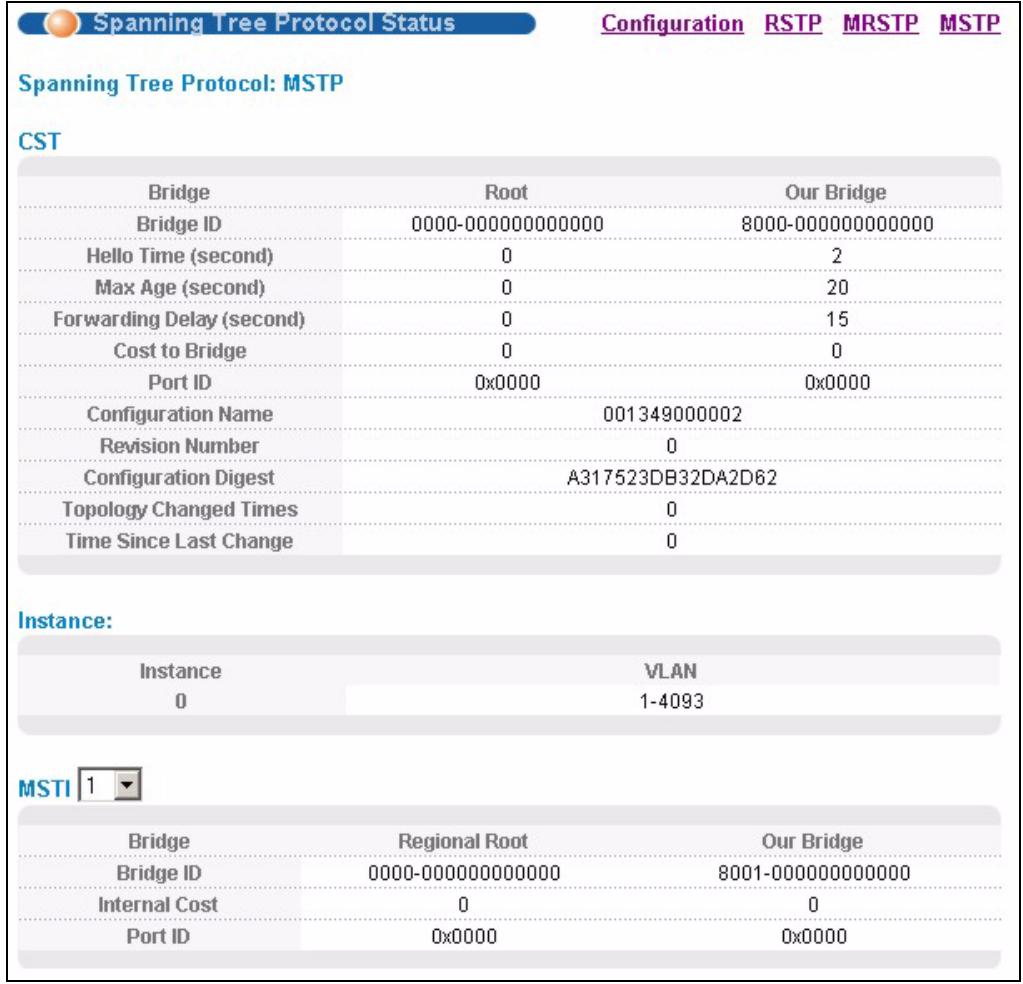
Figure 63 Advanced Application > Spanning Tree Protocol > Status: MSTP
The following table describes the labels in this screen.
Table 30 Advanced Application > Spanning Tree Protocol > Status: MSTP
| LABEL | DESCRIPTION |
| Configuration | Click Configuration to specify which STP mode you want to activate. Click MSTP to edit MSTP settings on the Switch. |
| CST | This section describes the Common Spanning Tree settings. |
| Bridge | Root refers to the base of the spanning tree (the root bridge). Our Bridge is this switch. This Switch may also be the root bridge. |
| Bridge ID | This is the unique identifier for this bridge, consisting of bridge priority plus MAC address. This ID is the same for Root and Our Bridge if the Switch is the root switch. |
| Hello Time (second) | This is the time interval (in seconds) at which the root switch transmits a configuration message. |
| Max Age (second) | This is the maximum time (in seconds) the Switch can wait without receiving a configuration message before attempting to reconfigure. |
| Forwarding Delay (second) | This is the time (in seconds) the root switch will wait before changing states (that is, listening to learning to forwarding). |
| Cost to Bridge | This is the path cost from the root port on this Switch to the root switch. |
| Port ID | This is the priority and number of the port on the Switch through which this Switch must communicate with the root of the Spanning Tree. |
| Configuration Name | This field displays the configuration name for this MST region. |
| Revision Number | This field displays the revision number for this MST region. |
| Configuration Digest | A configuration digest is generated from the VLAN-MSTI mapping information. This field displays the 16-octet signature that is included in an MSTP BPDU. This field displays the digest when MSTP is activated on the system. |
| Topology Changed Times | This is the number of times the spanning tree has been reconfigured. |
| Time Since Last Change | This is the time since the spanning tree was last reconfigured. |
| Instance: | These fields display the MSTI to VLAN mapping. In other words, which VLANs run on each spanning tree instance. |
| Instance | This field displays the MSTI ID. |
| VLAN | This field displays which VLANs are mapped to an MSTI. |
| MSTI | Select the MST instance settings you want to view. |
| Bridge | Root refers to the base of the MST instance. Our Bridge is this switch. This Switch may also be the root bridge. |
| Bridge ID | This is the unique identifier for this bridge, consisting of bridge priority plus MAC address. This ID is the same for Root and Our Bridge if the Switch is the root switch. |
| Internal Cost | This is the path cost from the root port in this MST instance to the regional root switch. |
| Port ID | This is the priority and number of the port on the Switch through which this Switch must communicate with the root of the MST instance. |
Bandwidth Control
This chapter shows you how you can cap the maximum bandwidth using the Bandwidth Control screen.
12.1 Bandwidth Control Overview
Bandwidth control means defining a maximum allowable bandwidth for incoming and/or outgoing traffic flows on a port.
12.1.1 CIR and PIR
The Committed Information Rate (CIR) is the guaranteed bandwidth for the incoming traffic flow on a port. The Peak Information Rate (PIR) is the maximum bandwidth allowed for the incoming traffic flow on a port when there is no network congestion.
The CIR and PIR should be set for all ports that use the same uplink bandwidth. If the CIR is reached, packets are sent at the rate up to the PIR. When network congestion occurs, packets through the ingress port exceeding the CIR will be marked for drop.

The CIR should be less than the PIR. The sum of CIRs cannot be greater than or equal to the uplink bandwidth.
12.2 Bandwidth Control Setup
Click Advanced Application > Bandwidth Control in the navigation panel to bring up the screen as shown next.
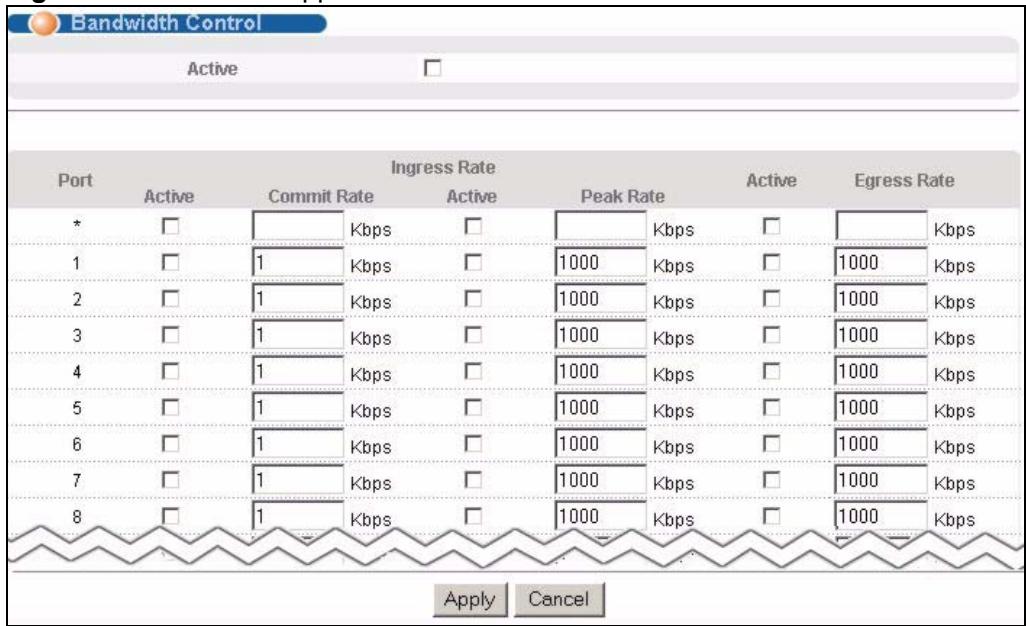
Figure 64 Advanced Application > Bandwidth Control
The following table describes the related labels in this screen.
Table 31 Advanced Application > Bandwidth Control
| LABEL | DESCRIPTION |
| Active | Select this check box to enable bandwidth control on the Switch. |
| Port | This field displays the port number. |
| * | Settings in this row apply to all ports.Use this row only if you want to make some settings the same for all ports. Use this row first to set the common settings and then make adjustments on a port-by-port basis.Note: Changes in this row are copied to all the ports as soon as you make them. |
| Ingress Rate | |
| Active | Select this check box to activate commit rate limits on this port. |
| Commit Rate | Specify the guaranteed bandwidth allowed in kilobits per second (Kbps) for the incoming traffic flow on a port. The commit rate should be less than the peak rate. The sum of commit rates cannot be greater than or equal to the uplink bandwidth. |
| Active | Select this check box to activate peak rate limits on this port. |
| Peak Rate | Specify the maximum bandwidth allowed in kilobits per second (Kbps) for the incoming traffic flow on a port. |
| Active | Select this check box to activate egress rate limits on this port. |
| Egress Rate | Specify the maximum bandwidth allowed in kilobits per second (Kbps) for the out-going traffic flow on a port. |
| Apply | Click Apply to save your changes to the Switch's run-time memory. The Switch loses these changes if it is turned off or loses power, so use the Save link on the top navigation panel to save your changes to the non-volatile memory when you are done configuring. |
| Cancel | Click Cancel to reset the fields. |
Broadcast Storm Control
This chapter introduces and shows you how to configure the broadcast storm control feature.
13.1 Broadcast Storm Control Setup
Broadcast storm control limits the number of broadcast, multicast and destination lookup failure (DLF) packets the Switch receives per second on the ports. When the maximum number of allowable broadcast, multicast and/or DLF packets is reached per second, the subsequent packets are discarded. Enable this feature to reduce broadcast, multicast and/or DLF packets in your network. You can specify limits for each packet type on each port.
Click Advanced Application > Broadcast Storm Control in the navigation panel to display the screen as shown next.
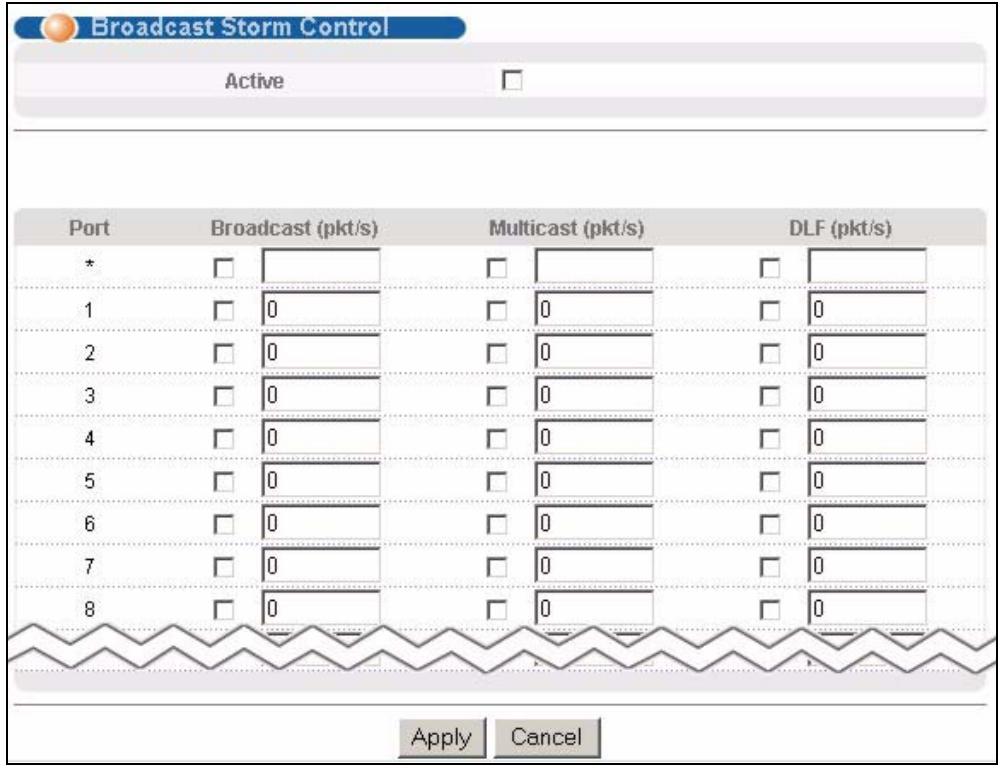
Figure 65 Advanced Application > Broadcast Storm Control
The following table describes the labels in this screen.
Table 32 Advanced Application > Broadcast Storm Control
| LABEL | DESCRIPTION |
| Active | Select this check box to enable traffic storm control on the Switch. Clear this check box to disable this feature. |
| Port | This field displays the port number. |
| * | Settings in this row apply to all ports.Use this row only if you want to make some settings the same for all ports. Use this row first to set the common settings and then make adjustments on a port-by-port basis.Note: Changes in this row are copied to all the ports as soon as you make them. |
| Broadcast (pkt/s) | Select this option and specify how many broadcast packets the port receives per second. |
| Multicast (pkt/s) | Select this option and specify how many multicast packets the port receives per second. |
| DLF (pkt/s) | Select this option and specify how many destination lookup failure (DLF) packets the port receives per second. |
| Apply | Click Apply to save your changes to the Switch's run-time memory. The Switch loses these changes if it is turned off or loses power, so use the Save link on the top navigation panel to save your changes to the non-volatile memory when you are done configuring. |
| Cancel | Click Cancel to reset the fields. |
This chapter discusses port mirroring setup screens.
14.1 Port Mirroring Setup
Port mirroring allows you to copy a traffic flow to a monitor port (the port you copy the traffic to) in order that you can examine the traffic from the monitor port without interference.
Click Advanced Application > Mirroring in the navigation panel to display the Mirroring screen. Use this screen to select a monitor port and specify the traffic flow to be copied to the monitor port.
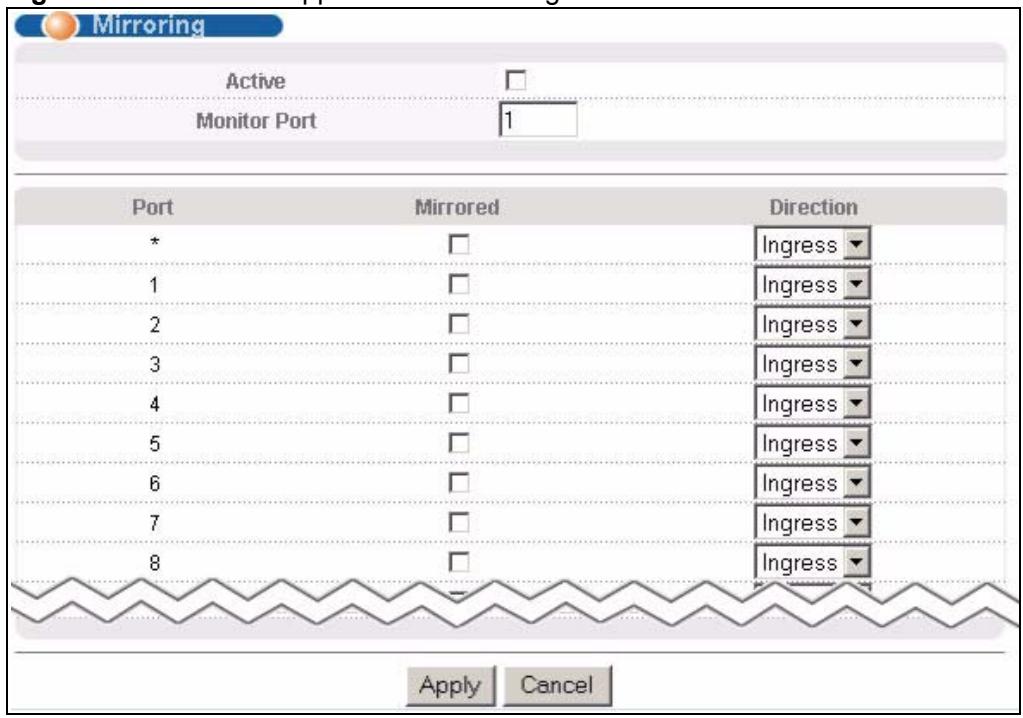
Figure 66 Advanced Application > Mirroring
The following table describes the labels in this screen.
Table 33 Advanced Application > Mirroring
| LABEL | DESCRIPTION |
| Active | Select this check box to activate port mirroring on the Switch. Clear this check box to disable the feature. |
| Monitor Port | The monitor port is the port you copy the traffic to in order to examine it in more detail without interfering with the traffic flow on the original port(s). Enter the port number of the monitor port. |
| Port | This field displays the port number. |
| * | Settings in this row apply to all ports.Use this row only if you want to make some settings the same for all ports. Use this row first to set the common settings and then make adjustments on a port-by-port basis.Note: Changes in this row are copied to all the ports as soon as you make them. |
| Mirrored | Select this option to mirror the traffic on a port. |
| Direction | Specify the direction of the traffic to mirror by selecting from the drop-down list box.Choices are Egress (outgoing), Ingress (incoming) and Both. |
| Apply | Click Apply to save your changes to the Switch's run-time memory. The Switch loses these changes if it is turned off or loses power, so use the Save link on the top navigation panel to save your changes to the non-volatile memory when you are done configuring. |
| Cancel | Click Cancel to reset the fields. |
Link Aggregation
This chapter shows you how to logically aggregate physical links to form one logical, higher-bandwidth link.
15.1 Link Aggregation Overview
Link aggregation (trunking) is the grouping of physical ports into one logical higher-capacity link. You may want to trunk ports if for example, it is cheaper to use multiple lower-speed links than to under-utilize a high-speed, but more costly, single-port link.
However, the more ports you aggregate then the fewer available ports you have. A trunk group is one logical link containing multiple ports.
The beginning port of each trunk group must be physically connected to form a trunk group.
The Switch supports both static and dynamic link aggregation.

In a properly planned network, it is recommended to implement static link aggregation only. This ensures increased network stability and control over the trunk groups on your Switch.
See Section 15.6 on page 130 for a static port trunking example.
15.2 Dynamic Link Aggregation
The Switch adheres to the IEEE 802.3ad standard for static and dynamic (LACP) port trunking.
The Switch supports the link aggregation IEEE802.3ad standard. This standard describes the Link Aggregation Control Protocol (LACP), which is a protocol that dynamically creates and manages trunk groups.
When you enable LACP link aggregation on a port, the port can automatically negotiate with the ports at the remote end of a link to establish trunk groups. LACP also allows port redundancy, that is, if an operational port fails, then one of the "standby" ports become operational without user intervention. Please note that:
- You must connect all ports point-to-point to the same Ethernet switch and configure the ports for LACP trunking.
LACP only works on full-duplex links. - All ports in the same trunk group must have the same media type, speed, duplex mode and flow control settings.
Configure trunk groups or LACP before you connect the Ethernet switch to avoid causing network topology loops.
15.2.1 Link Aggregation ID
LACP aggregation ID consists of the following information1:
Table 34 Link Aggregation ID: Local Switch
| SYSTEM PRIORITY | MAC ADDRESS | KEY | PORT PRIORITY | PORT NUMBER |
| 0000 | 00-00-00-00-00-00 | 0000 | 00 | 0000 |
Table 35 Link Aggregation ID: Peer Switch
| SYSTEM PRIORITY | MAC ADDRESS | KEY | PORT PRIORITY | PORT NUMBER |
| 0000 | 00-00-00-00-00-00 | 0000 | 00 | 0000 |
15.3 Link Aggregation Status
Click Advanced Application > Link Aggregation in the navigation panel. The Link Aggregation Status screen displays by default. See Section 15.1 on page 125 for more information.
Figure 67 Advanced Application > Link Aggregation Status
| Link Aggregation Status | Link Aggregation Setting | |||
| Index | Enabled Ports | Synchronized Ports | Aggregator ID | Status |
| 1 | - | - | - | - |
| 2 | - | - | - | - |
| 3 | - | - | - | - |
| 4 | - | - | - | - |
| 5 | - | - | - | - |
| 6 | - | - | - | - |
The following table describes the labels in this screen.
Table 36 Advanced Application > Link Aggregation Status
| LABEL | DESCRIPTION |
| Index | This field displays the trunk ID to identify a trunk group, that is, one logical link containing multiple ports. |
| Enabled Port | These are the ports you have configured in the Link Aggregation screen to be in the trunk group. |
| Synchronized Ports | These are the ports that are currently transmitting data as one logical link in this trunk group. |
| Aggregator ID | Link Aggregator ID consists of the following: system priority, MAC address, key, port priority and port number. Refer to Section 15.2.1 on page 126 for more information on this field. |
| Status | This field displays how these ports were added to the trunk group. It displays: • Static - if the ports are configured as static members of a trunk group. • LACP - if the ports are configured to join a trunk group via LACP. |
15.4 Link Aggregation Setting
Click Advanced Application > Link Aggregation > Link Aggregation Setting to display the screen shown next. See Section 15.1 on page 125 for more information on link aggregation.
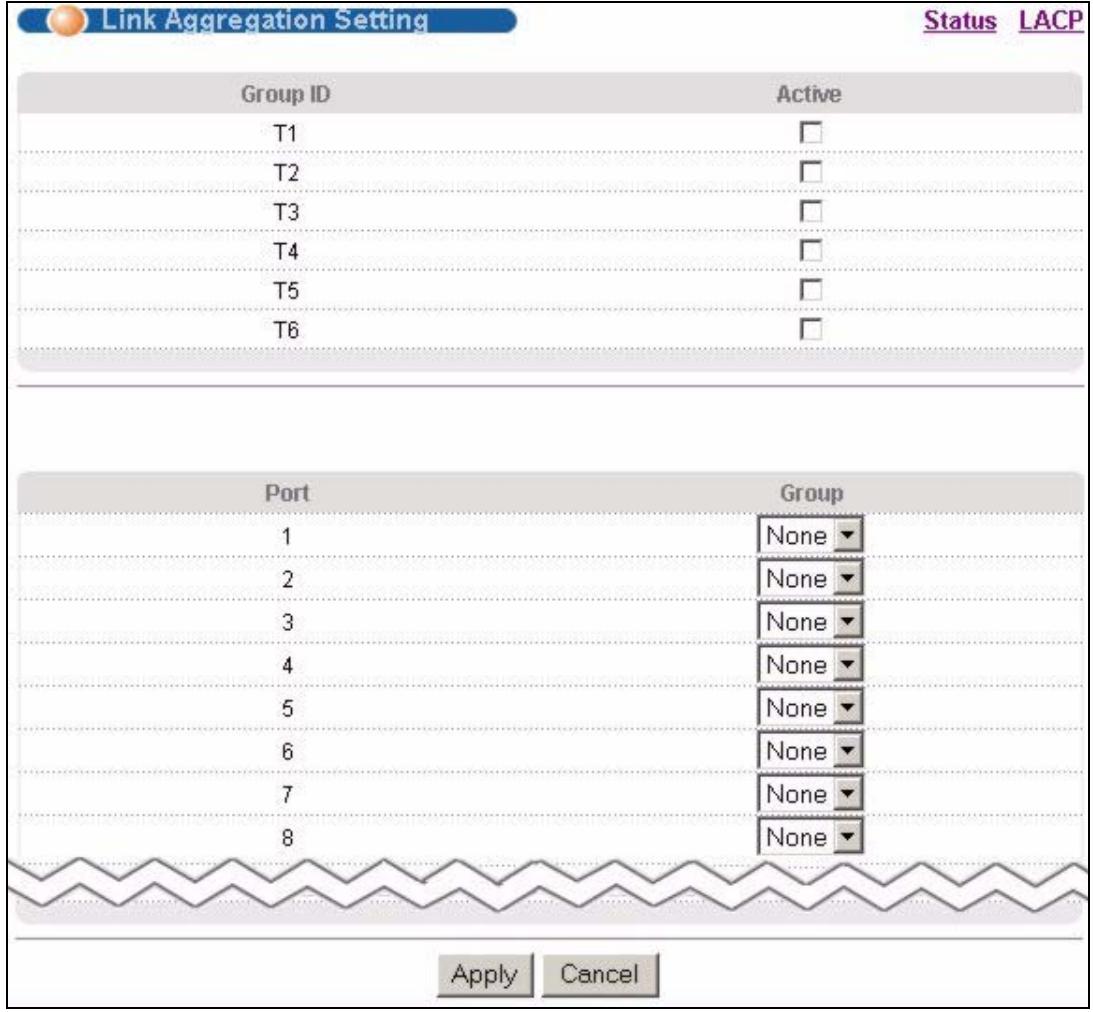
Figure 68 Advanced Application > Link Aggregation > Link Aggregation Setting
The following table describes the labels in this screen.
Table 37 Advanced Application > Link Aggregation > Link Aggregation Setting
| LABEL | DESCRIPTION |
| Link Aggregation Setting | This is the only screen you need to configure to enable static link aggregation. |
| Group ID | The field identifies the link aggregation group, that is, one logical link containing multiple ports. |
| Active | Select this option to activate a trunk group. |
| Port | This field displays the port number. |
| Group | Select the trunk group to which a port belongs. |
| Apply | Click Apply to save your changes to the Switch's run-time memory. The Switch loses these changes if it is turned off or loses power, so use the Save link on the top navigation panel to save your changes to the non-volatile memory when you are done configuring. |
| Cancel | Click Cancel to begin configuring this screen afresh. |
15.5 Link Aggregation Control Protocol
Click Advanced Application > Link Aggregation > Link Aggregation Setting > LACP to display the screen shown next. See Section 15.2 on page 125 for more information on dynamic link aggregation.
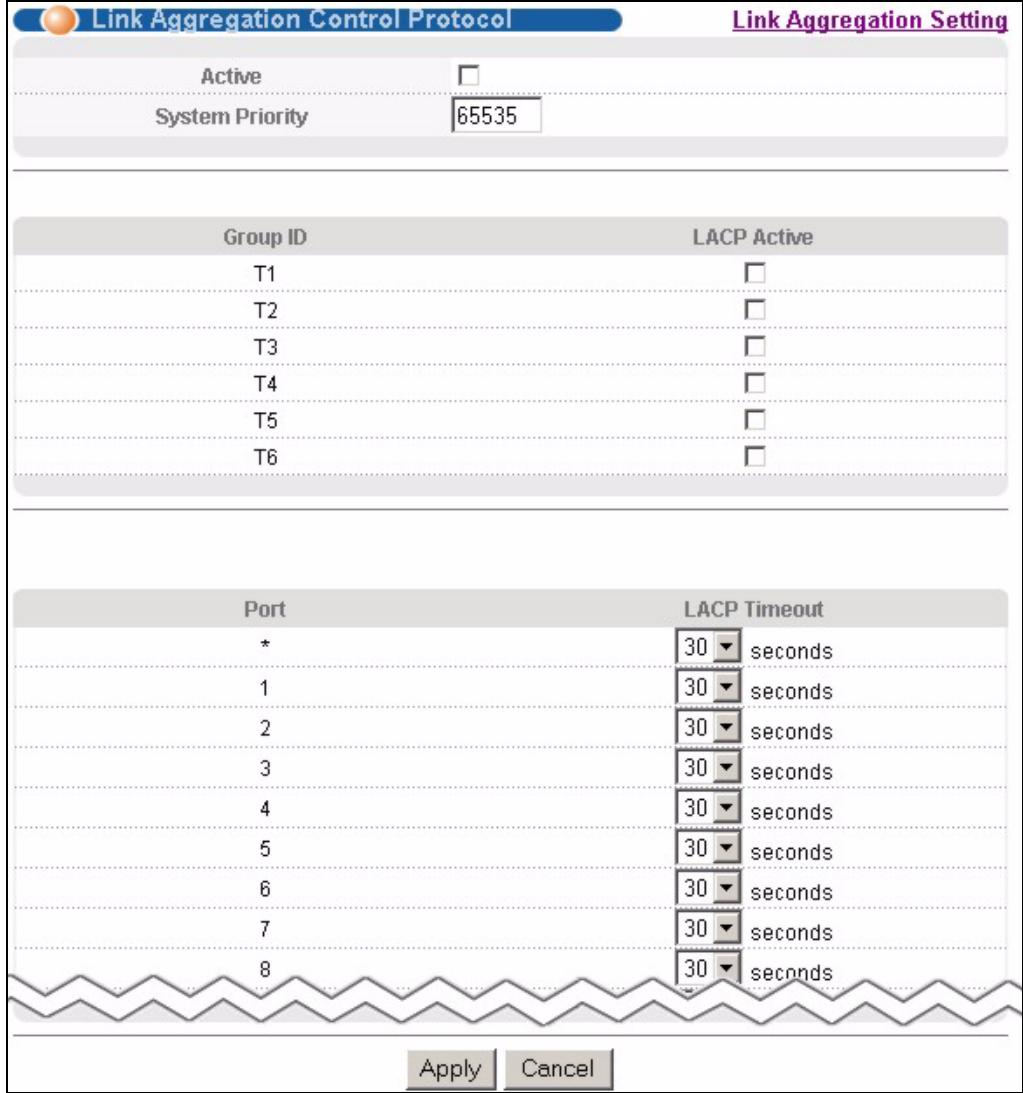
Figure 69 Advanced Application > Link Aggregation > Link Aggregation Setting > LACP
The following table describes the labels in this screen.
Table 38 Advanced Application > Link Aggregation > Link Aggregation Setting > LACP
| LABEL | DESCRIPTION |
| Link Aggregation Control Protocol | Note: Do not configure this screen unless you want to enable dynamic link aggregation. |
| Active | Select this checkbox to enable Link Aggregation Control Protocol (LACP). |
| System Priority | LACP system priority is a number between 1 and 65,535. The switch with the lowest system priority (and lowest port number if system priority is the same) becomes the LACP “server”. The LACP “server” controls the operation of LACP setup. Enter a number to set the priority of an active port using Link Aggregation Control Protocol (LACP). The smaller the number, the higher the priority level. |
| Group ID | The field identifies the link aggregation group, that is, one logical link containing multiple ports. |
| LACP Active | Select this option to enable LACP for a trunk. |
| Port | This field displays the port number. |
Table 38 Advanced Application > Link Aggregation > Link Aggregation Setting > LACP
| LABEL | DESCRIPTION |
| * | Settings in this row apply to all ports.Use this row only if you want to make some settings the same for all ports. Use this row first to set the common settings and then make adjustments on a port-by-port basis.Note: Changes in this row are copied to all the ports as soon as you make them. |
| LACP Timeout | Timeout is the time interval between the individual port exchanges of LACP packets in order to check that the peer port in the trunk group is still up. If a port does not respond after three tries, then it is deemed to be “down” and is removed from the trunk. Set a short timeout (one second) for busy trunked links to ensure that disabled ports are removed from the trunk group as soon as possible.Select either 1 second or 30 seconds. |
| Apply | Click Apply to save your changes to the Switch's run-time memory. The Switch loses these changes if it is turned off or loses power, so use the Save link on the top navigation panel to save your changes to the non-volatile memory when you are done configuring. |
| Cancel | Click Cancel to begin configuring this screen afresh. |
15.6 Static Trunking Example
This example shows you how to create a static port trunk group for ports 2-5.
1 Make your physical connections - make sure that the ports that you want to belong to the trunk group are connected to the same destination. The following figure shows ports 2-5 on switch A connected to switch B.
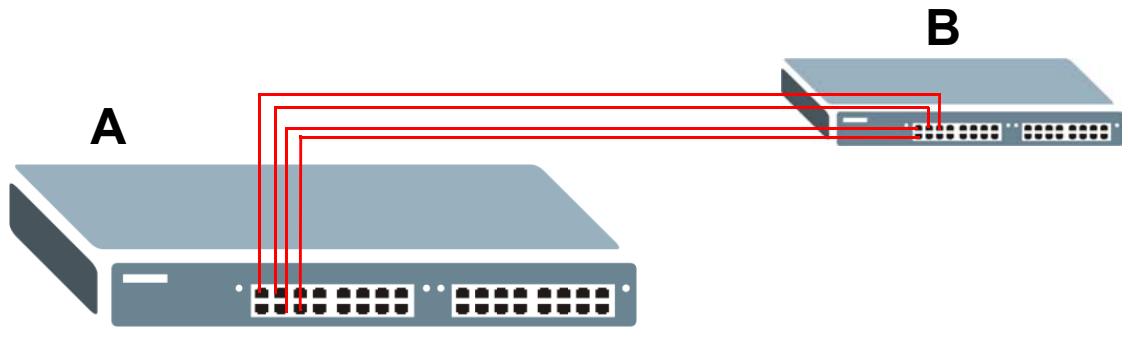
Figure 70 Trunking Example - Physical Connections
2 Configure static trunking - Click Advanced Application > Link Aggregation > Link Aggregation Setting. In this screen activate trunking group T1 and select the ports that should belong to this group as shown in the figure below. Click Apply when you are done.
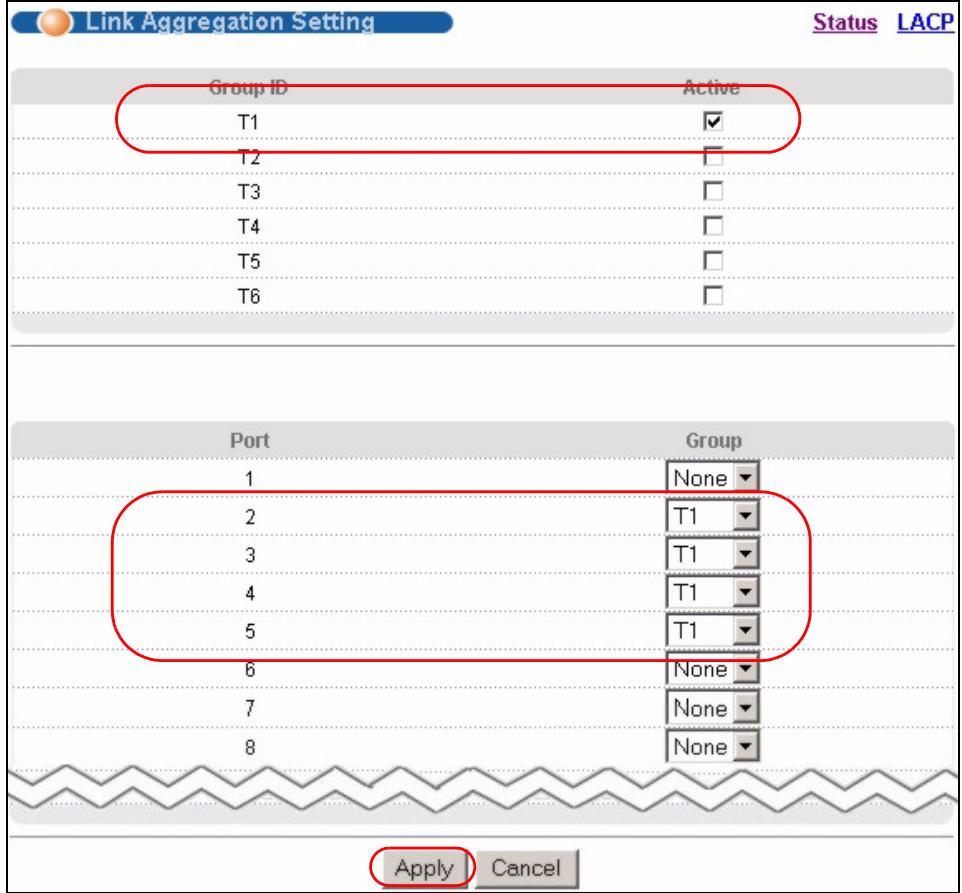
Figure 71 Trunking Example - Configuration Screen
Your trunk group 1 (T1) configuration is now complete; you do not need to go to any additional screens.
Port Authentication
This chapter describes the IEEE 802.1x and MAC authentication methods.
16.1 Port Authentication Overview
Port authentication is a way to validate access to ports on the Switch to clients based on an external server (authentication server). The Switch supports the following methods for port authentication:
- IEEE 802.1x² - An authentication server validates access to a port based on a username and password provided by the user.
- MAC - An authentication server validates access to a port based on the MAC address and password of the client.
Both types of authentication use the RADIUS (Remote Authentication Dial In User Service, RFC 2138, 2139) protocol to validate users. See Section 22.1.2 on page 172 for more information on configuring your RADIUS server settings.

If you enable IEEE 802.1x authentication and MAC authentication on the same port, the Switch performs IEEE 802.1x authentication first. If a user fails to authenticate via the IEEE 802.1x method, then access to the port is denied.
16.1.1 IEEE 802.1x Authentication
The following figure illustrates how a client connecting to a IEEE 802.1x authentication enabled port goes through a validation process. The Switch prompts the client for login information in the form of a user name and password. When the client provides the login credentials, the Switch sends an authentication request to a RADIUS server. The RADIUS server validates whether this client is allowed access to the port.
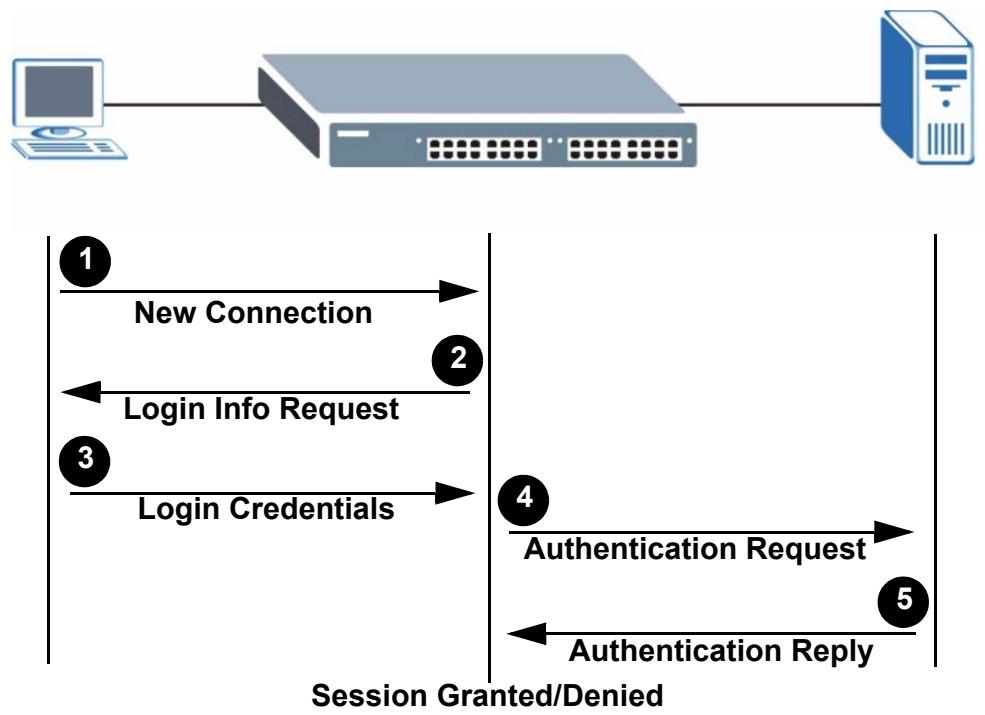
Figure 72 IEEE 802.1x Authentication Process
16.1.2 MAC Authentication
MAC authentication works in a very similar way to IEEE 802.1x authentication. The main difference is that the Switch does not prompt the client for login credentials. The login credentials are based on the source MAC address of the client connecting to a port on the Switch along with a password configured specifically for MAC authentication on the Switch.
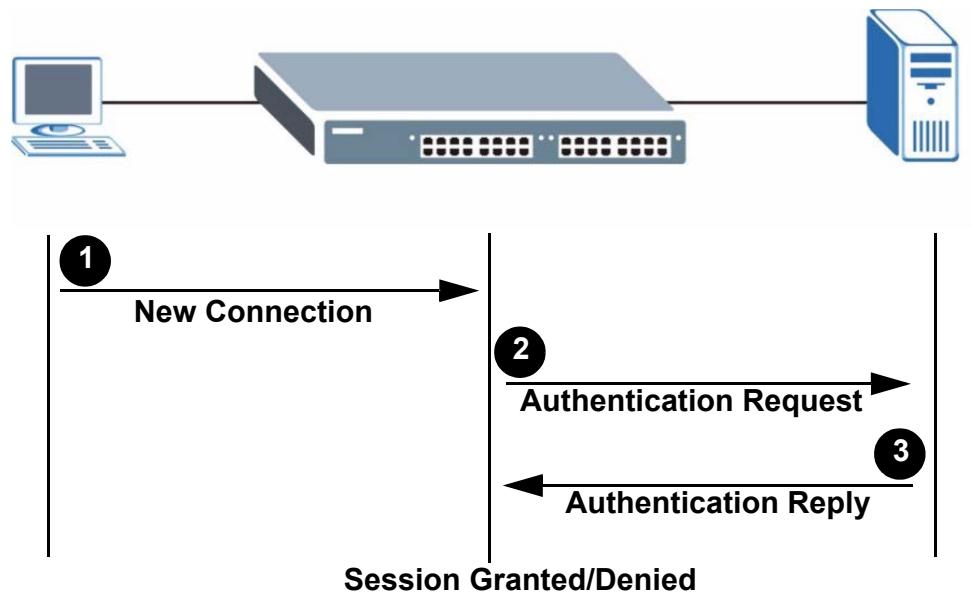
Figure 73 MAC Authentication Process
16.2 Port Authentication Configuration
To enable port authentication, first activate the port authentication method(s) you want to use (both on the Switch and the port(s)) then configure the RADIUS server settings in the Auth and Acct > Radius Server Setup screen.
Click Advanced Application > Port Authentication in the navigation panel to display the screen as shown.

Figure 74 Advanced Application > Port Authentication
16.2.1 Activate IEEE 802.1x Security
Use this screen to activate IEEE 802.1x security. In the Port Authentication screen click 802.1x to display the configuration screen as shown.
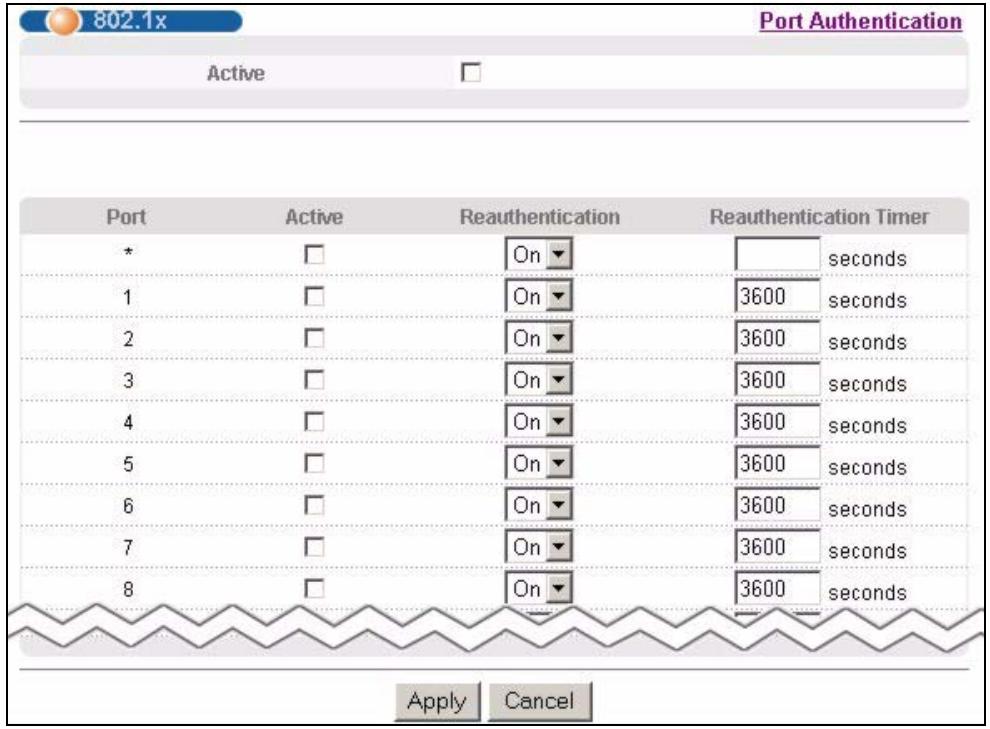
Figure 75 Advanced Application > Port Authentication > 802.1x
The following table describes the labels in this screen.
Table 39 Advanced Application > Port Authentication > 802.1x
| LABEL | DESCRIPTION |
| Active | Select this check box to permit 802.1x authentication on the Switch.Note: You must first enable 802.1x authentication on the Switch before configuring it on each port. |
| Port | This field displays the port number. |
| * | Settings in this row apply to all ports.Use this row only if you want to make some settings the same for all ports. Use this row first to set the common settings and then make adjustments on a port-by-port basis.Note: Changes in this row are copied to all the ports as soon as you make them. |
| Active | Select this checkbox to permit 802.1x authentication on this port. You must first allow 802.1x authentication on the Switch before configuring it on each port. |
| Reauthentication | Specify if a subscriber has to periodically re-enter his or her username and password to stay connected to the port. |
| Reauthentication Timer | Specify how often a client has to re-enter his or her username and password to stay connected to the port. |
| Apply | Click Apply to save your changes to the Switch's run-time memory. The Switch loses these changes if it is turned off or loses power, so use the Save link on the top navigation panel to save your changes to the non-volatile memory when you are done configuring. |
| Cancel | Click Cancel to begin configuring this screen afresh. |
16.2.2 Activate MAC Authentication
Use this screen to activate MAC authentication. In the Port Authentication screen click MAC Authentication to display the configuration screen as shown.
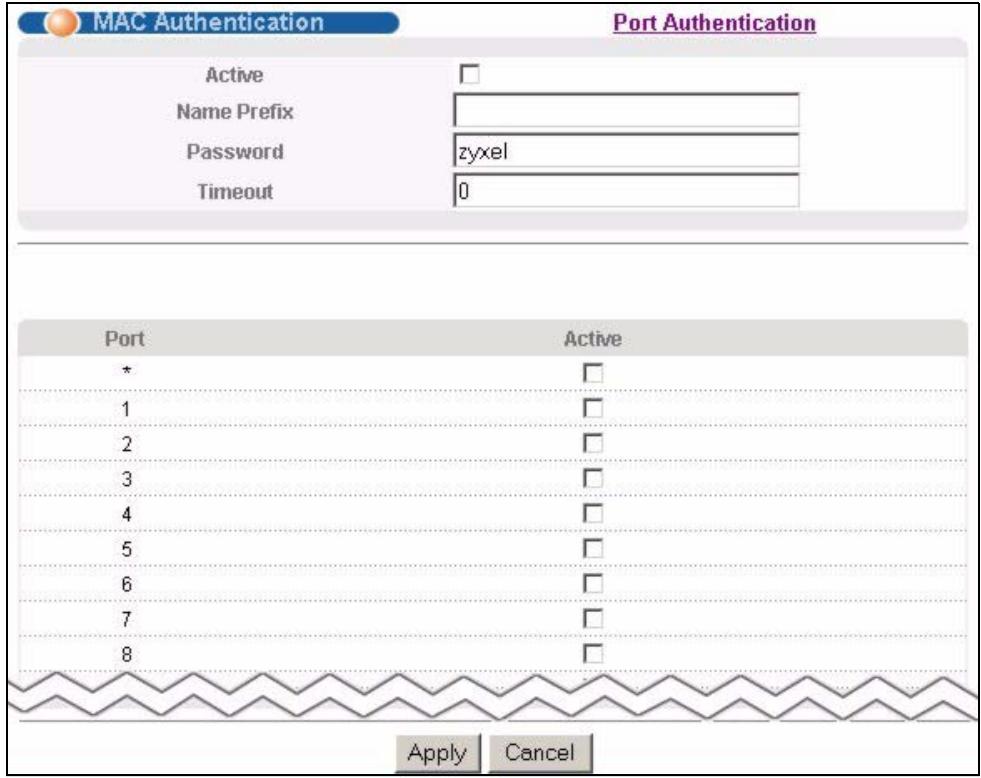
Figure 76 Advanced Application > Port Authentication > MAC Authentication
The following table describes the labels in this screen.
Table 40 Advanced Application > Port Authentication > MAC Authentication
| LABEL | DESCRIPTION |
| Active | Select this check box to permit MAC authentication on the Switch. Note: You must first enable MAC authentication on the Switch before configuring it on each port. |
| Name Prefix | Type the prefix that is appended to all MAC addresses sent to the RADIUS server for authentication. You can enter up to 32 printable ASCII characters. If you leave this field blank, then only the MAC address of the client is forwarded to the RADIUS server. |
| Password | Type the password the Switch sends along with the MAC address of a client for authentication with the RADIUS server. You can enter up to 32 printable ASCII characters. |
| Timeout | Specify the amount of time before the Switch allows a client MAC address that fails authentication to try and authenticate again. Maximum time is 3000 seconds. When a client fails MAC authentication, its MAC address is learned by the MAC address table with a status of denied. The timeout period you specify here is the time the MAC address entry stays in the MAC address table until it is cleared. If you specify 0 for the timeout value, then this entry will not be deleted from the MAC address table. Note: If the Aging Time in the Switch Setup screen is set to a lower value, then it supersedes this setting. See Section 7.5 on page 75. |
| Port | This field displays the port number. |
| * | Use this row to make the setting the same for all ports. Use this row first and then make adjustments on a port-by-port basis.Note: Changes in this row are copied to all the ports as soon as you make them. |
| Active | Select this checkbox to permit MAC authentication on this port. You must first allow MAC authentication on the Switch before configuring it on each port. |
| Apply | Click Apply to save your changes to the Switch's run-time memory. The Switch loses these changes if it is turned off or loses power, so use the Save link on the top navigation panel to save your changes to the non-volatile memory when you are done configuring. |
| Cancel | Click Cancel to begin configuring this screen afresh. |
Port Security
This chapter shows you how to set up port security.
17.1 About Port Security
Port security allows only packets with dynamically learned MAC addresses and/or configured static MAC addresses to pass through a port on the Switch. The Switch can learn up to 16K MAC addresses in total with no limit on individual ports other than the sum cannot exceed 16K.
For maximum port security, enable this feature, disable MAC address learning and configure static MAC address(es) for a port. It is not recommended you disable port security together with MAC address learning as this will result in many broadcasts. By default, MAC address learning is still enabled even though the port security is not activated.
17.2 Port Security Setup
Click Advanced Application > Port Security in the navigation panel to display the screen as shown.
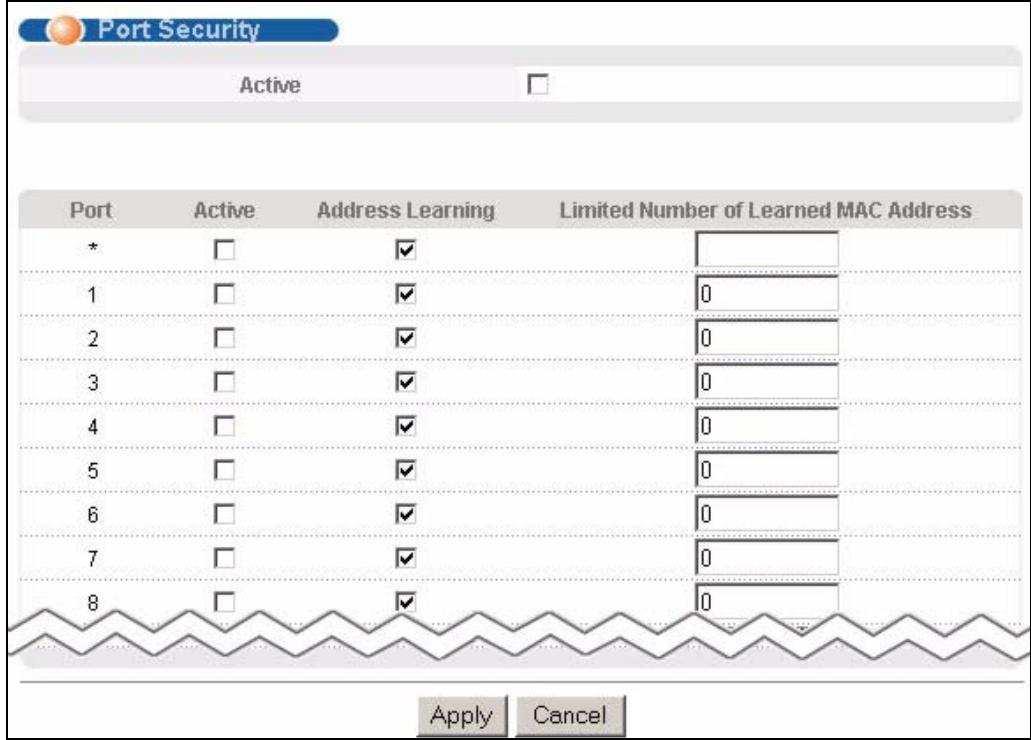
Figure 77 Advanced Application > Port Security
The following table describes the labels in this screen.
Table 41 Advanced Application > Port Security
| LABEL | DESCRIPTION |
| Active | Select this option to enable port security on the Switch. |
| Port | This field displays the port number. |
| * | Settings in this row apply to all ports.Use this row only if you want to make some settings the same for all ports. Use this row first to set the common settings and then make adjustments on a port-by-port basis.Note: Changes in this row are copied to all the ports as soon as you make them. |
| Active | Select this check box to enable the port security feature on this port. The Switch forwards packets whose MAC address(es) is in the MAC address table on this port.Packets with no matching MAC address(es) are dropped.Clear this check box to disable the port security feature. The Switch forwards all packets on this port. |
| Address Learning | MAC address learning reduces outgoing broadcast traffic. For MAC address learning to occur on a port, the port itself must be active with address learning enabled. |
| Limited Number of Learned MAC Address | Use this field to limit the number of (dynamic) MAC addresses that may be learned on a port. For example, if you set this field to "5" on port 2, then only the devices with these five learned MAC addresses may access port 2 at any one time. A sixth device would have to wait until one of the five learned MAC addresses aged out. MAC address aging out time can be set in the Switch Setup screen. The valid range is from "0" to "16384". "0" means this feature is disabled. |
| Apply | Click Apply to save your changes to the Switch's run-time memory. The Switch loses these changes if it is turned off or loses power, so use the Save link on the top navigation panel to save your changes to the non-volatile memory when you are done configuring. |
| Cancel | Click Cancel to begin configuring this screen afresh. |
Classifier
This chapter introduces and shows you how to configure the packet classifier on the Switch.
18.1 About the Classifier and QoS
Quality of Service (QoS) refers to both a network's ability to deliver data with minimum delay, and the networking methods used to control the use of bandwidth. Without QoS, all traffic data is equally likely to be dropped when the network is congested. This can cause a reduction in network performance and make the network inadequate for time-critical application such as video-on-demand.
A classifier groups traffic into data flows according to specific criteria such as the source address, destination address, source port number, destination port number or incoming port number. For example, you can configure a classifier to select traffic from the same protocol port (such as Telnet) to form a flow.
Configure QoS on the Switch to group and prioritize application traffic and fine-tune network performance. Setting up QoS involves two separate steps:
1 Configure classifiers to sort traffic into different flows.
2 Configure policy rules to define actions to be performed on a classified traffic flow (refer to Chapter 19 on page 149 to configure policy rules).
18.2 Configuring the Classifier
Use the Classifier screen to define the classifiers. After you define the classifier, you can specify actions (or policy) to act upon the traffic that matches the rules. To configure policy rules, refer to Chapter 19 on page 149.
Click Advanced Application > Classifier in the navigation panel to display the configuration screen as shown.

Figure 78 Advanced Application > Classifier
The following table describes the labels in this screen.
Table 42 Advanced Application > Classifier
| LABEL | DESCRIPTION |
| Active | Select this option to enable this rule. |
| Name | Enter a descriptive name for this rule for identifying purposes. |
| Packet Format | Specify the format of the packet. Choices are All, 802.3 tagged, 802.3 untagged, Ethernet II tagged and Ethernet II untagged.A value of 802.3 indicates that the packets are formatted according to the IEEE 802.3 standards.A value of Ethernet II indicates that the packets are formatted according to RFC 894, Ethernet II encapsulation. |
| Layer 2Specify the fields below to configure a layer 2 classifier. | |
| VLAN | Select Any to classify traffic from any VLAN or select the second option and specify the source VLAN ID in the field provided. |
| Priority | Select Any to classify traffic from any priority level or select the second option and specify a priority level in the field provided. |
| Ethernet Type | Select an Ethernet type or select Other and enter the Ethernet type number in hexadecimal value. Refer to Table 44 on page 146 for information. |
| Source | |
| MAC Address | Select Any to apply the rule to all MAC addresses. To specify a source, select the second choice and type a MAC address in valid MAC address format (six hexadecimal character pairs). |
| Port | Type the port number to which the rule should be applied. You may choose one port only or all ports (Any). |
| Destination | |
| MAC Address | Select Any to apply the rule to all MAC addresses. To specify a destination, select the second choice and type a MAC address in valid MAC address format (six hexadecimal character pairs). |
| Layer 3 Specify the fields below to configure a layer 3 classifier. | |
| DSCP | Select Any to classify traffic from any DSCP or select the second option and specify a DSCP (DiffServ Code Point) number between 0 and 63 in the field provided. |
| IP Protocol | Select an IP protocol type or select Other and enter the protocol number in decimal value. Refer to Table 45 on page 147 for more information. You may select Establish Only for TCP protocol type. This means that the Switch will pick out the packets that are sent to establish TCP connections. |
| Source | |
| IP Address/Address Prefix | Enter a source IP address in dotted decimal notation. Specify the address prefix by entering the number of ones in the subnet mask. A subnet mask can be represented in a 32-bit notation. For example, the subnet mask “255.255.255.0” can be represented as “11111111.11111111.11111111.00000000”, and counting up the number of ones in this case results in 24. |
| Socket Number | Note: You must select either UDP or TCP in the IP Protocol field before you configure the socket numbers. Select Any to apply the rule to all TCP/UDP protocol port numbers or select the second option and enter a TCP/UDP protocol port number. Refer to Table 46 on page 147 for more information. |
| Destination | |
| IP Address/Address Prefix | Enter a destination IP address in dotted decimal notation. Specify the address prefix by entering the number of ones in the subnet mask. |
| Socket Number | Note: You must select either UDP or TCP in the IP Protocol field before you configure the socket numbers. Select Any to apply the rule to all TCP/UDP protocol port numbers or select the second option and enter a TCP/UDP protocol port number. Refer to Table 46 on page 147 for more information. |
| Add | Click Add to insert the entry in the summary table below and save your changes to the Switch's run-time memory. The Switch loses these changes if it is turned off or loses power, so use the Save link on the top navigation panel to save your changes to the non-volatile memory when you are done configuring. |
| Cancel | Click Cancel to reset the fields back to your previous configuration. |
| Clear | Click Clear to set the above fields back to the factory defaults. |
18.3 Viewing and Editing Classifier Configuration
To view a summary of the classifier configuration, scroll down to the summary table at the bottom of the Classifier screen. To change the settings of a rule, click a number in the Index field.

When two rules conflict with each other, a higher layer rule has priority over lower layer rule.

Figure 79 Advanced Application > Classifier: Summary Table
The following table describes the labels in this screen.
Table 43 Classifier: Summary Table
| LABEL | DESCRIPTION |
| Index | This field displays the index number of the rule. Click an index number to edit the rule. |
| Active | This field displays Yes when the rule is activated and No when it is deactivated. |
| Name | This field displays the descriptive name for this rule. This is for identification purpose only. |
| Rule | This field displays a summary of the classifier rule’s settings. |
| Delete | Click Delete to remove the selected entry from the summary table. |
| Cancel | Click Cancel to clear the Delete check boxes. |
The following table shows some other common Ethernet types and the corresponding protocol number.
Table 44 Common Ethernet Types and Protocol Numbers
| ETHERNET TYPE | PROTOCOL NUMBER |
| IP ETHII | 0800 |
| X.75 Internet | 0801 |
| NBS Internet | 0802 |
| ECMA Internet | 0803 |
| Chaosnet | 0804 |
| X.25 Level 3 | 0805 |
Table 44 Common Ethernet Types and Protocol Numbers
| ETHERNET TYPE | PROTOCOL NUMBER |
| XNS Compat | 0807 |
| Banyan Systems | 0BAD |
| BBN Simnet | 5208 |
| IBM SNA | 80D5 |
| AppleTalk AARP | 80F3 |
In the Internet Protocol there is a field, called "Protocol", to identify the next level protocol. The following table shows some common protocol types and the corresponding protocol number. Refer to http://www.iana.org/assignments/protocol-numbers for a complete list.
Table 45 Common IP Protocol Types and Protocol Numbers
| PROTOCOL TYPE | PROTOCOL NUMBER |
| ICMP | 1 |
| TCP | 6 |
| UDP | 17 |
| EGP | 8 |
| L2TP | 115 |
Some of the most common TCP and UDP port numbers are:
Table 46 Common TCP and UDP Port Numbers
| PROTOCOL NAME | TCP/UDP PORT NUMBER |
| FTP | 21 |
| Telnet | 23 |
| SMTP | 25 |
| DNS | 53 |
| HTTP | 80 |
| POP3 | 110 |
See Appendix A on page 287 for information on commonly used port numbers.
18.4 Classifier Example
The following screen shows an example where you configure a classifier that identifies all traffic from MAC address 00:50:ba:ad:4f:81 on port 2.
After you have configured a classifier, you can configure a policy (in the Policy screen) to define action(s) on the classified traffic flow.
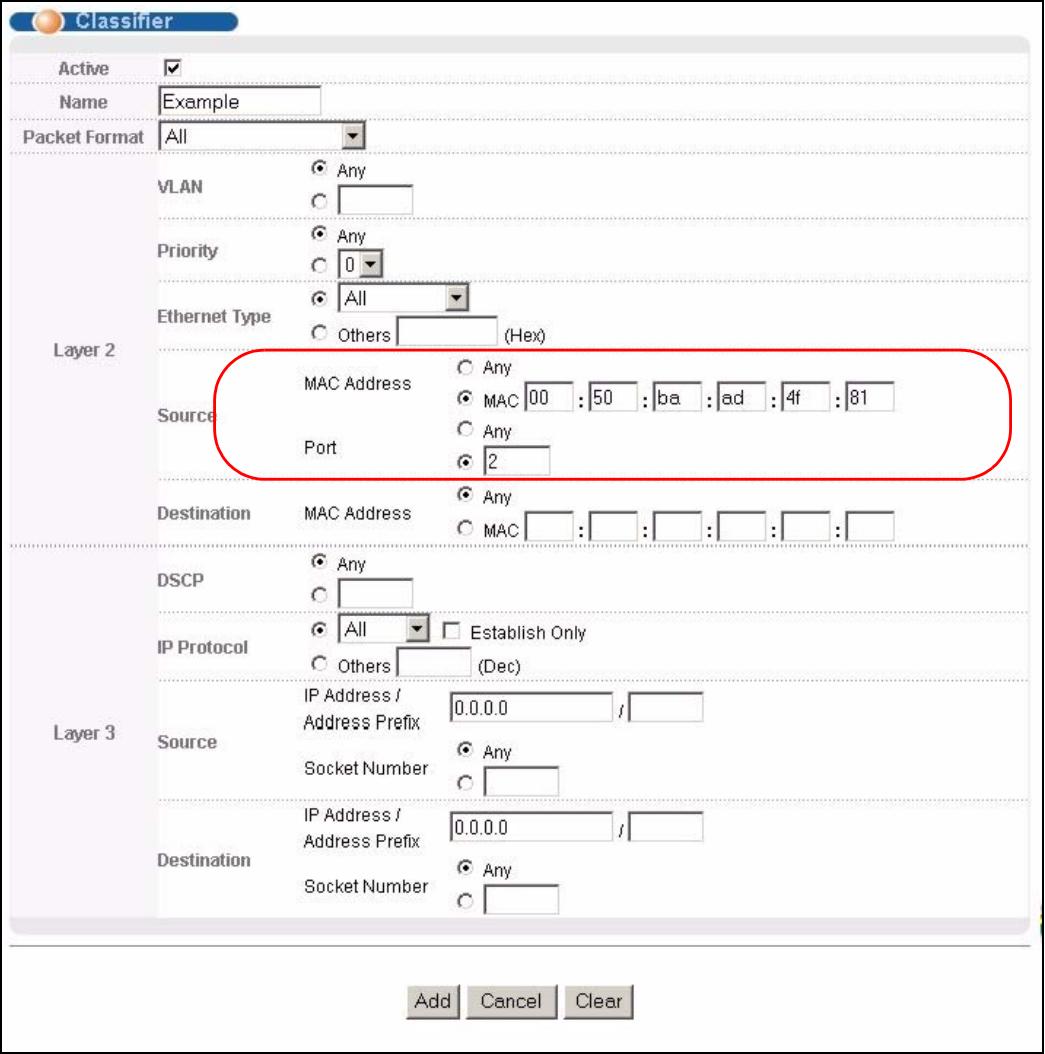
Figure 80 Classifier: Example
This chapter shows you how to configure policy rules.
19.1 Policy Rules Overview
A classifier distinguishes traffic into flows based on the configured criteria (refer to Chapter 18 on page 143 for more information). A policy rule ensures that a traffic flow gets the requested treatment in the network.
19.1.1 DiffServ
DiffServ (Differentiated Services) is a class of service (CoS) model that marks packets so that they receive specific per-hop treatment at DiffServ-compliant network devices along the route based on the application types and traffic flow. Packets are marked with DiffServ Code Points (DSCPs) indicating the level of service desired. This allows the intermediary DiffServ-compliant network devices to handle the packets differently depending on the code points without the need to negotiate paths or remember state information for every flow. In addition, applications do not have to request a particular service or give advanced notice of where the traffic is going.
19.1.2 DSCP and Per-Hop Behavior
DiffServ defines a new DS (Differentiated Services) field to replace the Type of Service (TOS) field in the IP header. The DS field contains a 2-bit unused field and a 6-bit DSCP field which can define up to 64 service levels. The following figure illustrates the DS field.
DSCP is backward compatible with the three precedence bits in the ToS octet so that non-DiffServ compliant, ToS-enabled network device will not conflict with the DSCP mapping.
| DSCP (6 bits) | Unused (2 bits) |
The DSCP value determines the forwarding behavior, the PHB (Per-Hop Behavior), that each packet gets across the DiffServ network. Based on the marking rule, different kinds of traffic can be marked for different kinds of forwarding. Resources can then be allocated according to the DSCP values and the configured policies.
19.2 Configuring Policy Rules
You must first configure a classifier in the Classifier screen. Refer to Section 18.2 on page 143 for more information.
Click Advanced Applications > Policy Rule in the navigation panel to display the screen as shown.

Figure 81 Advanced Application > Policy Rule
The following table describes the labels in this screen.
Table 47 Advanced Application > Policy Rule
| LABEL | DESCRIPTION |
| Active | Select this option to enable the policy. |
| Name | Enter a descriptive name for identification purposes. |
| Classifier(s) | This field displays the active classifier(s) you configure in the Classifier screen. Select the classifier(s) to which this policy rule applies. To select more than one classifier, press [SHIFT] and select the choices at the same time. |
| Parameters Set the fields below for this policy. You only have to set the field(s) that is related to the action(s) you configure in the Action field. | |
| General | |
| Egress Port | Type the number of an outgoing port. |
| Priority | Specify a priority level. |
| DSCP | Specify a DSCP (DiffServ Code Point) number between 0 and 63. |
| TOS | Specify the type of service (TOS) priority level. |
| Metering | You can configure the desired bandwidth available to a traffic flow. Traffic that exceeds the maximum bandwidth allocated (in cases where the network is congested) is called out-of-profile traffic. |
| Bandwidth | Specify the bandwidth in kilobit per second (Kbps). Enter a number between 1 and 1000000. |
| Out-of-ProfileDSCP | Specify a new DSCP number (between 0 and 63) if you want to replace or remark the DSCP number for out-of-profile traffic. |
| Action Specify the action(s) the Switch takes on the associated classified traffic flow. | |
| Forwarding | Select No change to forward the packets. Select Discard the packet to drop the packets. Select Do not drop the matching frame previously marked for dropping to retain the frames that were marked to be dropped before. |
| Priority | Select No change to keep the priority setting of the frames. Select Set the packet's 802.1 priority to replace the packet's 802.1 priority field with the value you set in the Priority field. Select Send the packet to priority queue to put the packets in the designated queue. Select Replace the 802.1 priority field with the IP TOS value to replace the packet's 802.1 priority field with the value you set in the TOS field. |
| Diffserv | Select No change to keep the TOS and/or DSCP fields in the packets. Select Set the packet's TOS field to set the TOS field with the value you configure in the TOS field. Select Replace the IP TOS with the 802.1 priority value to replace the TOS field with the value you configure in the Priority field. Select Set the Diffserv Codepoint field in the frame to set the DSCP field with the value you configure in the DSCP field. |
| Outgoing | Select Send the packet to the mirror port to send the packet to the mirror port. Select Send the packet to the egress port to send the packet to the egress port. Select Set the packet's VLAN ID to set the VLAN ID of the packet with the value you configure in the VLAN ID field. |
| Metering | Select Enable to activate bandwidth limitation on the traffic flow(s) then set the actions to be taken on out-of-profile packets. |
| Out-of-profile action | Select the action(s) to be performed for out-of-profile traffic. Select Drop the packet to discard the out-of-profile traffic. Select Change the DSCP value to replace the DSCP field with the value specified in the Out of profile DSCP field. Select Set Out-Drop Precedence to mark out-of-profile traffic and drop it when network is congested. Select Do not drop the matching frame previously marked for dropping to queue the frames that are marked to be dropped. |
| Add | Click Add to inset the entry to the summary table below and save your changes to the Switch's run-time memory. The Switch loses these changes if it is turned off or loses power, so use the Save link on the top navigation panel to save your changes to the non-volatile memory when you are done configuring. |
| Cancel | Click Cancel to reset the fields back to your previous configuration. |
| Clear | Click Clear to set the above fields back to the factory defaults. |
19.3 Viewing and Editing Policy Configuration
To view a summary of the classifier configuration, scroll down to the summary table at the bottom of the Policy screen. To change the settings of a rule, click a number in the Index field.
Figure 82 Advanced Application > Policy Rule: Summary Table
| Index | Active | Name | Classifier(s) | Delete |
| 1 | Yes | Test | Example; | |
| Delete | Cancel |
The following table describes the labels in this screen.
Table 48 Advanced Application > Policy Rule: Summary Table
| LABEL | DESCRIPTION |
| Index | This field displays the policy index number. Click an index number to edit the policy. |
| Active | This field displays Yes when policy is activated and No when is it deactivated. |
| Name | This field displays the name you have assigned to this policy. |
| Classifier(s) | This field displays the name(s) of the classifier to which this policy applies. |
| Delete | Click Delete to remove the selected entry from the summary table. |
| Cancel | Click Cancel to clear the Delete check boxes. |
19.4 Policy Example
The figure below shows an example Policy screen where you configure a policy to limit bandwidth and discard out-of-profile traffic on a traffic flow classified using the Example classifier (refer to Section 18.4 on page 147).
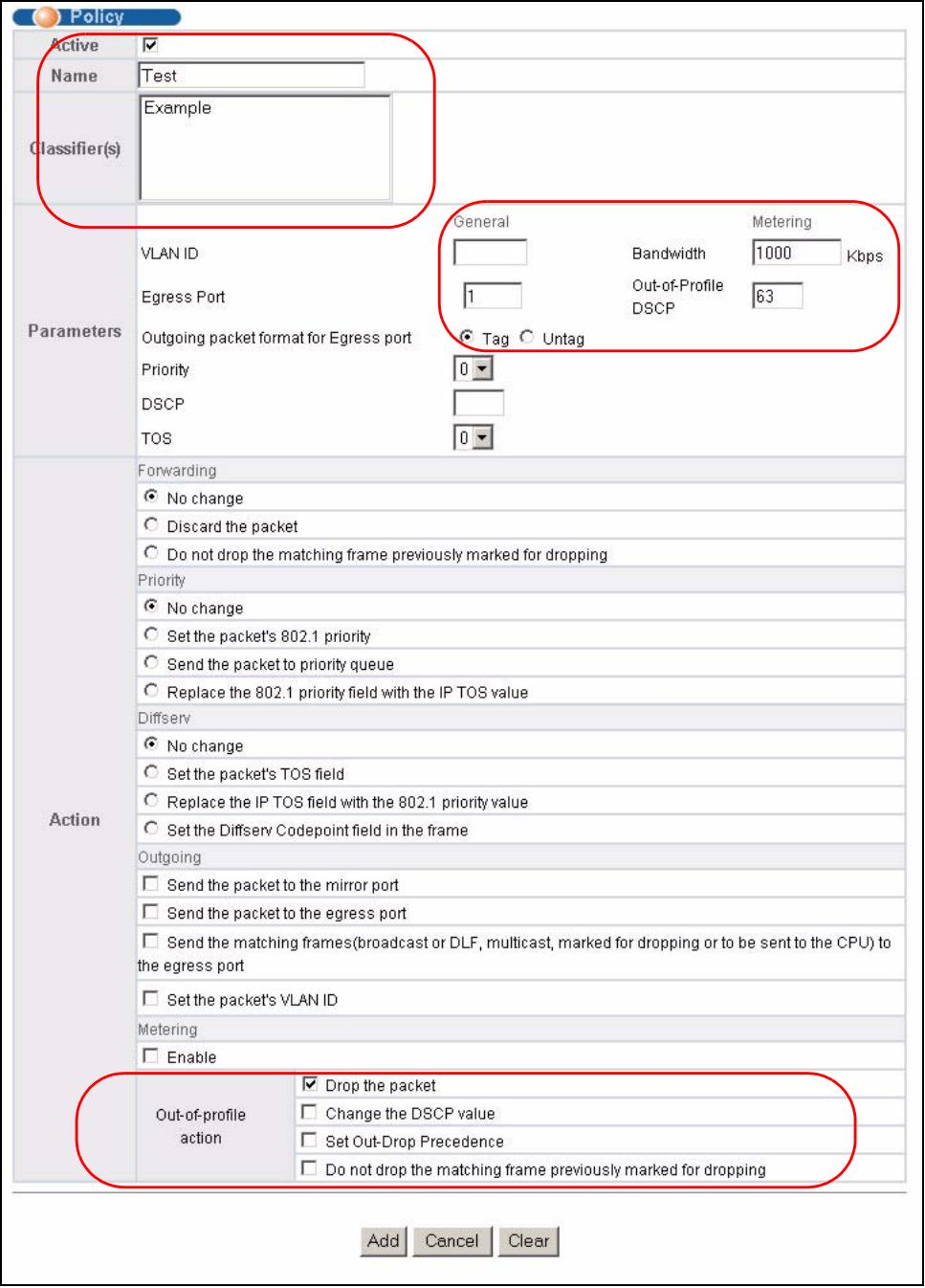
Figure 83 Policy Example
Queuing Method
This chapter introduces the queuing methods supported.
20.1 Queuing Method Overview
Queuing is used to help solve performance degradation when there is network congestion. Use the Queuing Method screen to configure queuing algorithms for outgoing traffic. See also Priority Queue Assignment in Switch Setup and 802.1p Priority in Port Setup for related information.
Queuing algorithms allow switches to maintain separate queues for packets from each individual source or flow and prevent a source from monopolizing the bandwidth.
20.1.1 Strictly Priority Queuing
Strictly Priority Queuing (SPQ) services queues based on priority only. As traffic comes into the Switch, traffic on the highest priority queue, Q7 is transmitted first. When that queue empties, traffic on the next highest-priority queue, Q6 is transmitted until Q6 empties, and then traffic is transmitted on Q5 and so on. If higher priority queues never empty, then traffic on lower priority queues never gets sent. SP does not automatically adapt to changing network requirements.
20.1.2 Weighted Round Robin Scheduling (WRR)
Round Robin Scheduling services queues on a rotating basis and is activated only when a port has more traffic than it can handle. A queue is a given an amount of bandwidth irrespective of the incoming traffic on that port. This queue then moves to the back of the list. The next queue is given an equal amount of bandwidth, and then moves to the end of the list; and so on, depending on the number of queues being used. This works in a looping fashion until a queue is empty.
Weighted Round Robin Scheduling (WRR) uses the same algorithm as round robin scheduling, but services queues based on their priority and queue weight (the number you configure in the queue Weight field) rather than a fixed amount of bandwidth. WRR is activated only when a port has more traffic than it can handle. Queues with larger weights get more service than queues with smaller weights. This queuing mechanism is highly efficient in that it divides any available bandwidth across the different traffic queues and returns to queues that have not yet emptied.
20.2 Configuring Queuing
Click Advanced Application > Queuing Method in the navigation panel.
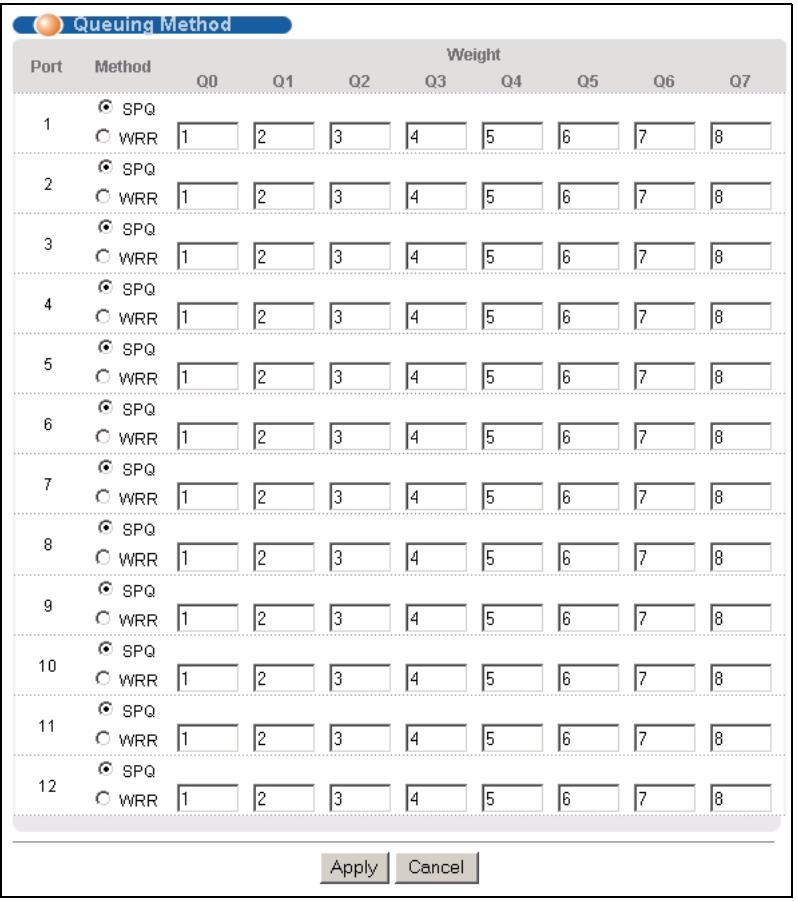
Figure 84 Advanced Application > Queuing Method
The following table describes the labels in this screen.
Table 49 Advanced Application > Queuing Method
| LABEL | DESCRIPTION |
| Port | This label shows the port you are configuring. |
| Method | Select SPQ (Strict Priority Queuing) or WRR (Weighted Round Robin).Strict Priority Queuing (SPQ) services queues based on priority only. When the highest priority queue empties, traffic on the next highest-priority queue begins. Q7 has the highest priority and Q0 the lowest.Weighted Round Robin Scheduling (WRR) services queues on a rotating basis based on their queue weight (the number you configure in the queue Weight field).Queues with larger weights get more service than queues with smaller weights. |
| Q0~Q7 Weight | When you select WRR, enter the queue weight here. Bandwidth is divided across the different traffic queues according to their weights. Queues with larger weights get more service than queues with smaller weights. |
| Apply | Click Apply to save your changes to the Switch's run-time memory. The Switch loses these changes if it is turned off or loses power, so use the Save link on the top navigation panel to save your changes to the non-volatile memory when you are done configuring. |
| Cancel | Click Cancel to begin configuring this screen afresh. |
Multicast
This chapter shows you how to configure various multicast features.
21.1 Multicast Overview
Traditionally, IP packets are transmitted in one of either two ways - Unicast (1 sender to 1 recipient) or Broadcast (1 sender to everybody on the network). Multicast delivers IP packets to just a group of hosts on the network.
IGMP (Internet Group Management Protocol) is a network-layer protocol used to establish membership in a multicast group - it is not used to carry user data. Refer to RFC 1112, RFC 2236 and RFC 3376 for information on IGMP versions 1, 2 and 3 respectively.
21.1.1 IP Multicast Addresses
In IPv4, a multicast address allows a device to send packets to a specific group of hosts (multicast group) in a different subnetwork. A multicast IP address represents a traffic receiving group, not individual receiving devices. IP addresses in the Class D range (224.0.0.0 to 239.255.255.255) are used for IP multicasting. Certain IP multicast numbers are reserved by IANA for special purposes (see the IANA web site for more information).
21.1.2 IGMP Filtering
With the IGMP filtering feature, you can control which IGMP groups a subscriber on a port can join. This allows you to control the distribution of multicast services (such as content information distribution) based on service plans and types of subscription.
You can set the Switch to filter the multicast group join reports on a per-port basis by configuring an IGMP filtering profile and associating the profile to a port.
21.1.3 IGMP Snooping
A Switch can passively snoop on IGMP packets transferred between IP multicast routers/ switches and IP multicast hosts to learn the IP multicast group membership. It checks IGMP packets passing through it, picks out the group registration information, and configures multicast accordingly. IGMP snooping allows the Switch to learn multicast groups without you having to manually configure them.
The Switch forwards multicast traffic destined for multicast groups (that it has learned from IGMP snooping or that you have manually configured) to ports that are members of that group. IGMP snooping generates no additional network traffic, allowing you to significantly reduce multicast traffic passing through your Switch.
21.1.4 IGMP Snooping and VLANs
The Switch can perform IGMP snooping on up to 16 VLANs. You can configure the Switch to automatically learn multicast group membership of any VLANs. The Switch then performs IGMP snooping on the first 16 VLANs that send IGMP packets. This is referred to as auto mode. Alternatively, you can specify the VLANs that IGMP snooping should be performed on. This is referred to as fixed mode. In fixed mode the Switch does not learn multicast group membership of any VLANs other than those explicitly added as an IGMP snooping VLAN.
21.2 Multicast Status
Click Advanced Applications > Multicast to display the screen as shown. This screen shows the multicast group information. See Section 21.1 on page 157 for more information on multicasting.

Figure 85 Advanced Application > Multicast
The following table describes the labels in this screen.
Table 50 Advanced Application > Multicast Status
| LABEL | DESCRIPTION |
| Index | This is the index number of the entry. |
| VID | This field displays the multicast VLAN ID. |
| Port | This field displays the port number that belongs to the multicast group. |
| Multicast Group | This field displays IP multicast group addresses. |
21.3 Multicast Setting
Click Advanced Applications > Multicast > Multicast Setting link to display the screen as shown. See Section 21.1 on page 157 for more information on multicasting.
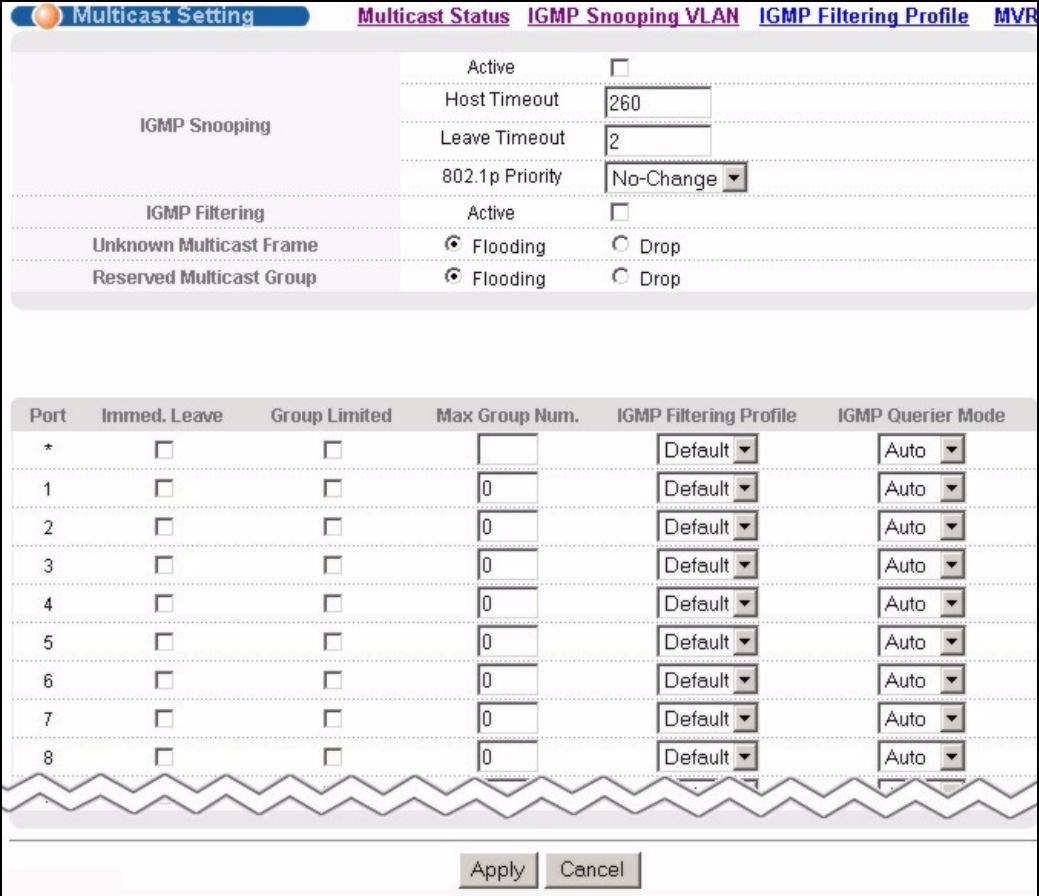
Figure 86 Advanced Application > Multicast > Multicast Setting
The following table describes the labels in this screen.
Table 51 Advanced Application > Multicast > Multicast Setting
| LABEL | DESCRIPTION |
| IGMP Snooping | Use these settings to configure IGMP Snooping. |
| Active | Select Active to enable IGMP Snooping to forward group multicast traffic only to ports that are members of that group. |
| Host Timeout | Specify the time (from 1 to 16,711,450) in seconds that elapses before the Switch removes an IGMP group membership entry if it does not receive report messages from the port. |
| Leave Timeout | Enter an IGMP leave timeout value (from 1 to 16,711,450) in seconds. This defines how many seconds the Switch waits for an IGMP report before removing an IGMP snooping membership entry when an IGMP leave message is received from a host. |
| 802.1p Priority | Select a priority level (0-7) to which the Switch changes the priority in outgoing IGMP control packets. Otherwise, select No-Change to not replace the priority. |
| IGMP Filtering | Select Active to enable IGMP filtering to control which IGMP groups a subscriber on a port can join.Note: If you enable IGMP filtering, you must create and assign IGMP filtering profiles for the ports that you want to allow to join multicast groups. |
| Unknown Multicast Frame | Specify the action to perform when the Switch receives an unknown multicast frame. Select Drop to discard the frame(s). Select Flooding to send the frame(s) to all ports. |
| Reserved Multicast Group | Multicast addresses (224.0.0.0 to 224.0.0.255) are reserved for the local scope. For examples, 224.0.0.1 is for all hosts in this subnet, 224.0.0.2 is for all multicast routers in this subnet, etc. A router will not forward a packet with the destination IP address within this range. See the IANA web site for more information. Specify the action to perform when the Switch receives a frame with a reserved multicast address. Select Drop to discard the frame(s). Select Flooding to send the frame(s) to all ports. |
| Port | This field displays the port number. |
| * | Settings in this row apply to all ports.Use this row only if you want to make some settings the same for all ports. Use this row first to set the common settings and then make adjustments on a port-by-port basis.Note: Changes in this row are copied to all the ports as soon as you make them. |
| Immed. Leave | Select this option to set the Switch to remove this port from the multicast tree when an IGMP version 2 leave message is received on this port.Select this option if there is only one host connected to this port. |
| Group Limited | Select this option to limit the number of multicast groups this port is allowed to join. |
| Max Group Num. | Enter the number of multicast groups this port is allowed to join. Once a port is registered in the specified number of multicast groups, any new IGMP join report frame(s) is dropped on this port. |
| IGMP Filtering Profile | Select the name of the IGMP filtering profile to use for this port. Otherwise, select Default to prohibit the port from joining any multicast group.You can create IGMP filtering profiles in the Multicast > Multicast Setting > IGMP Filtering Profile screen. |
| IGMP Querier Mode | The Switch treats an IGMP query port as being connected to an IGMP multicast router (or server). The Switch forwards IGMP join or leave packets to an IGMP query port SELECT Auto to have the Switch use the port as an IGMP query port if the port receives IGMP query packets. Select Fixed to have the Switch always use the port as an IGMP query port. Select this when you connect an IGMP multicast server to the port. Select Edge to stop the Switch from using the port as an IGMP query port. The Switch will not keep any record of an IGMP router being connected to this port. The Switch does not forward IGMP join or leave packets to this port. |
| Apply | Click Apply to save your changes to the Switch's run-time memory. The Switch loses these changes if it is turned off or loses power, so use the Save link on the top navigation panel to save your changes to the non-volatile memory when you are done configuring. |
| Cancel | Click Cancel to begin configuring this screen afresh. |
21.4 IGMP Snooping VLAN
Click Advanced Applications > Multicast in the navigation panel. Click the Multicast Setting link and then the IGMP Snooping VLAN link to display the screen as shown. See Section 21.1.4 on page 158 for more information on IGMP Snooping VLAN.
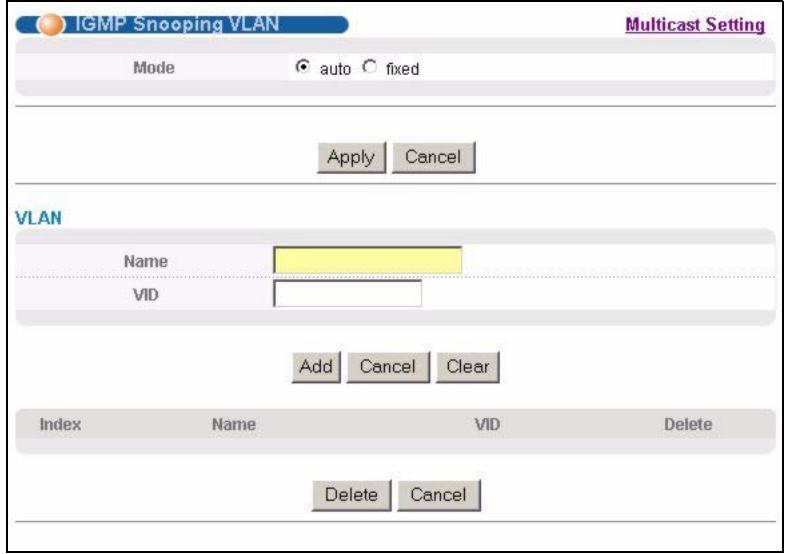
Figure 87 Advanced Application > Multicast > Multicast Setting > IGMP Snooping VLAN
The following table describes the labels in this screen.
Table 52 Advanced Application > Multicast > Multicast Setting > IGMP Snooping VLAN
| LABEL | DESCRIPTION |
| Mode | Select auto to have the Switch learn multicast group membership information of any VLANs automatically. Select fixed to have the Switch only learn multicast group membership information of the VLAN(s) that you specify below. In either auto or fixed mode, the Switch can learn up to 16 VLANs (including up to three VLANs you configured in the MVR screen). For example, if you have configured one multicast VLAN in the MVR screen, you can only specify up to 15 VLANs in this screen. The Switch drops any IGMP control messages which do not belong to these 16 VLANs. Note: You must also enable IGMP snooping in the Multicast Setting screen first. |
| Apply | Click Apply to save your changes to the Switch's run-time memory. The Switch loses these changes if it is turned off or loses power, so use the Save link on the top navigation panel to save your changes to the non-volatile memory when you are done configuring. |
| Cancel | Click Cancel to begin configuring this screen afresh. |
| VLAN | Use this section of the screen to add VLANs upon which the Switch is to perform IGMP snooping. |
| Name | Enter the descriptive name of the VLAN for identification purposes. |
| VID | Enter the ID of a static VLAN; the valid range is between 1 and 4094. Note: You cannot configure the same VLAN ID as in the MVR screen. |
| Add | Click Add to insert the entry in the summary table below and save your changes to the Switch's run-time memory. The Switch loses these changes if it is turned off or loses power, so use the Save link on the top navigation panel to save your changes to the non-volatile memory when you are done configuring. |
| Cancel | Click Cancel to reset the fields to your previous configuration. |
| Clear | Click this to clear the fields. |
Table 52 Advanced Application > Multicast > Multicast Setting > IGMP Snooping VLAN
| LABEL | DESCRIPTION |
| Index | This is the number of the IGMP snooping VLAN entry in the table. |
| Name | This field displays the descriptive name for this VLAN group. |
| VID | This field displays the ID number of the VLAN group. |
| Delete | Check the rule(s) that you want to remove in the Delete column, then click the Delete button. |
| Cancel | Click Cancel to clear the Delete check boxes. |
21.5 IGMP Filtering Profile
An IGMP filtering profile specifies a range of multicast groups that clients connected to the Switch are able to join. A profile contains a range of multicast IP addresses which you want clients to be able to join. Profiles are assigned to ports (in the Multicast Setting screen). Clients connected to those ports are then able to join the multicast groups specified in the profile. Each port can be assigned a single profile. A profile can be assigned to multiple ports.
Click Advanced Applications > Multicast > Multicast Setting > IGMP Filtering Profile link to display the screen as shown.
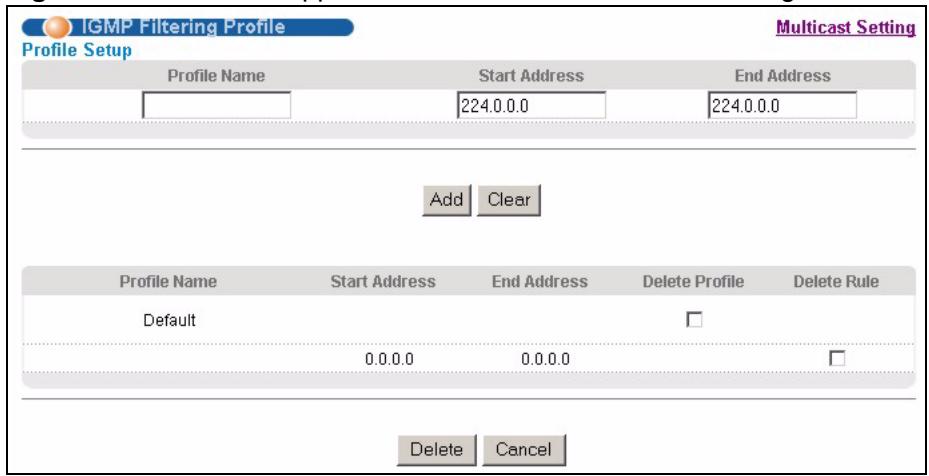
Figure 88 Advanced Application > Multicast > Multicast Setting > IGMP Filtering Profile
The following table describes the labels in this screen.
Table 53 Advanced Application > Multicast > Multicast Setting > IGMP Filtering Profile
| LABEL | DESCRIPTION |
| Profile Name | Enter a descriptive name for the profile for identification purposes. To configure additional rule(s) for a profile that you have already added, enter the profile name and specify a different IP multicast address range. |
| Start Address | Type the starting multicast IP address for a range of multicast IP addresses that you want to belong to the IGMP filter profile. |
| End Address | Type the ending multicast IP address for a range of IP addresses that you want to belong to the IGMP filter profile. If you want to add a single multicast IP address, enter it in both the Start Address and End Address fields. |
Table 53 Advanced Application > Multicast > Multicast Setting > IGMP Filtering Profile
| LABEL | DESCRIPTION |
| Add | Click Add to save the profile to the Switch's run-time memory. The Switch loses these changes if it is turned off or loses power, so use the Save link on the top navigation panel to save your changes to the non-volatile memory when you are done configuring. |
| Clear | Click Clear to clear the fields to the factory defaults. |
| Profile Name | This field displays the descriptive name of the profile. |
| Start Address | This field displays the start of the multicast address range. |
| End Address | This field displays the end of the multicast address range. |
| Delete | To delete the profile(s) and all the accompanying rules, select the profile(s) that you want to remove in the Delete Profile column, then click the Delete button. To delete a rule(s) from a profile, select the rule(s) that you want to remove in the Delete Rule column, then click the Delete button. |
| Cancel | Click Cancel to clear the Delete Profile/Delete Rule check boxes. |
21.6 MVR Overview
Multicast VLAN Registration (MVR) is designed for applications (such as Media-on-Demand (MoD)) that use multicast traffic across an Ethernet ring-based service provider network.
MVR allows one single multicast VLAN to be shared among different subscriber VLANs on the network. While isolated in different subscriber VLANs, connected devices can subscribe to and unsubscribe from the multicast stream in the multicast VLAN. This improves bandwidth utilization with reduced multicast traffic in the subscriber VLANs and simplifies multicast group management.
MVR only responds to IGMP join and leave control messages from multicast groups that are configured under MVR. Join and leave reports from other multicast groups are managed by IGMP snooping.
The following figure shows a network example. The subscriber VLAN (1, 2 and 3) information is hidden from the streaming media server, S. In addition, the multicast VLAN information is only visible to the Switch and S.
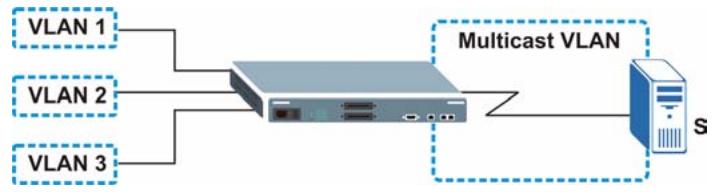
Figure 89 MVR Network Example
21.6.1 Types of MVR Ports
In MVR, a source port is a port on the Switch that can send and receive multicast traffic in a multicast VLAN while a receiver port can only receive multicast traffic. Once configured, the Switch maintains a forwarding table that matches the multicast stream to the associated multicast group.
21.6.2 MVR Modes
You can set your Switch to operate in either dynamic or compatible mode.
In dynamic mode, the Switch sends IGMP leave and join reports to the other multicast devices (such as multicast routers or servers) in the multicast VLAN. This allows the multicast devices to update the multicast forwarding table to forward or not forward multicast traffic to the receiver ports.
In compatible mode, the Switch does not send any IGMP reports. In this case, you must manually configure the forwarding settings on the multicast devices in the multicast VLAN.
21.6.3 How MVR Works
The following figure shows a multicast television example where a subscriber device (such as a computer) in VLAN 1 receives multicast traffic from the streaming media server, S, via the Switch. Multiple subscriber devices can connect through a port configured as the receiver on the Switch.
When the subscriber selects a television channel, computer A sends an IGMP report to the Switch to join the appropriate multicast group. If the IGMP report matches one of the configured MVR multicast group addresses on the Switch, an entry is created in the forwarding table on the Switch. This maps the subscriber VLAN to the list of forwarding destinations for the specified multicast traffic.
When the subscriber changes the channel or turns off the computer, an IGMP leave message is sent to the Switch to leave the multicast group. The Switch sends a query to VLAN 1 on the receiver port (in this case, a DSL port on the Switch). If there is another subscriber device connected to this port in the same subscriber VLAN, the receiving port will still be on the list of forwarding destination for the multicast traffic. Otherwise, the Switch removes the receiver port from the forwarding table.
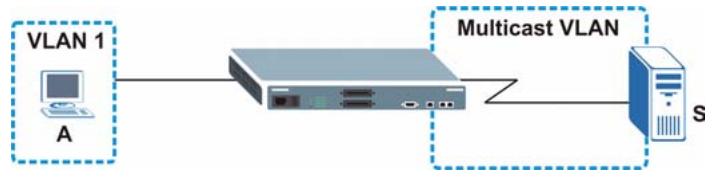
Figure 90 MVR Multicast Television Example
21.7 General MVR Configuration
Use the MVR screen to create multicast VLANs and select the receiver port(s) and a source port for each multicast VLAN. Click Advanced Applications > Multicast > Multicast Setting > MVR link to display the screen as shown next.

You can create up to three multicast VLANs and up to 256 multicast rules on the Switch.

Your Switch automatically creates a static VLAN (with the same VID) when you create a multicast VLAN in this screen.
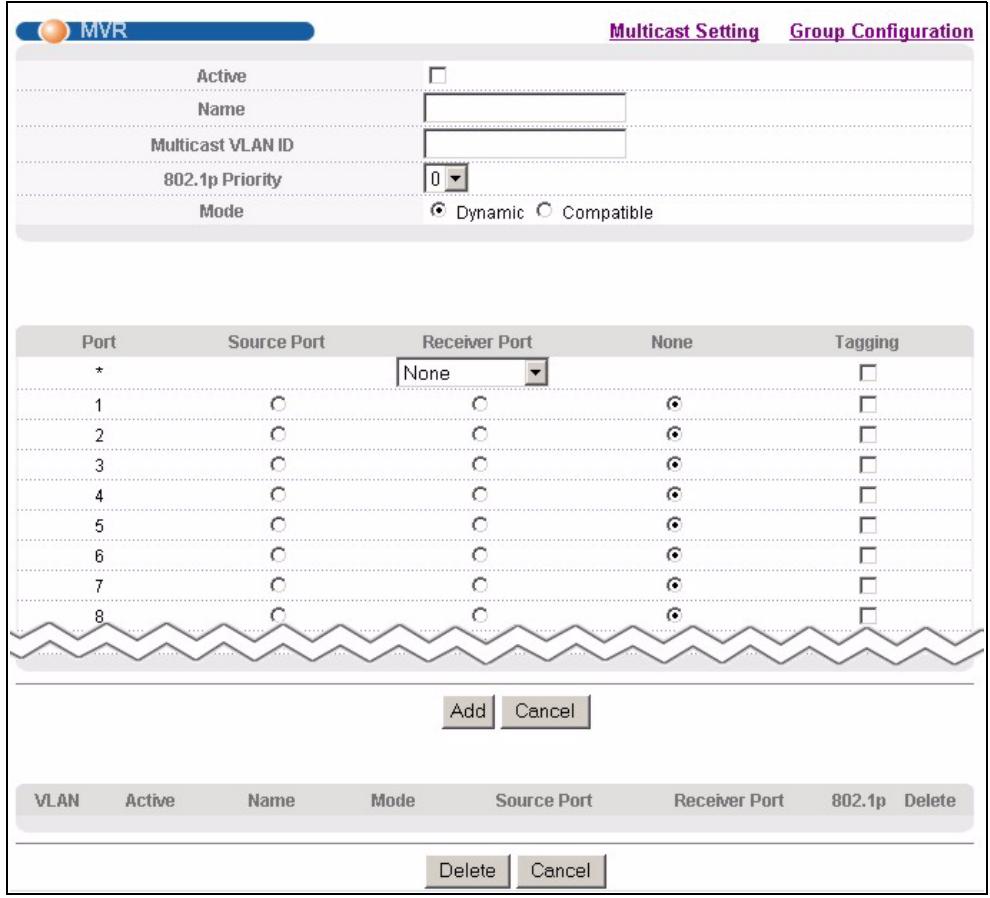
Figure 91 Advanced Application > Multicast > Multicast Setting > MVR
The following table describes the related labels in this screen.
Table 54 Advanced Application > Multicast > Multicast Setting > MVR
| LABEL | DESCRIPTION |
| Active | Select this check box to enable MVR to allow one single multicast VLAN to be shared among different subscriber VLANs on the network. |
| Name | Enter a descriptive name (up to 32 printable ASCII characters) for identification purposes. |
| Multicast VLAN ID | Enter the VLAN ID (1 to 4094) of the multicast VLAN. |
| 802.1p Priority | Select a priority level (0-7) with which the Switch replaces the priority in outgoing IGMP control packets (belonging to this multicast VLAN). |
| Mode | Specify the MVR mode on the Switch. Choices are Dynamic and Compatible. Select Dynamic to send IGMP reports to all MVR source ports in the multicast VLAN. Select Compatible to set the Switch not to send IGMP reports. |
| Port | This field displays the port number on the Switch. |
| * | Settings in this row apply to all ports.Use this row only if you want to make some settings the same for all ports. Use this row first to set the common settings and then make adjustments on a port-by-port basis.Note: Changes in this row are copied to all the ports as soon as you make them. |
| Source Port | Select this option to set this port as the MVR source port that sends and receives multicast traffic. All source ports must belong to a single multicast VLAN. |
| Receiver Port | Select this option to set this port as a receiver port that only receives multicast traffic. |
| None | Select this option to set the port not to participate in MVR. No MVR multicast traffic is sent or received on this port. |
| Tagging | Select this checkbox if you want the port to tag the VLAN ID in all outgoing frames transmitted. |
| Add | Click Add to save your changes to the Switch's run-time memory. The Switch loses these changes if it is turned off or loses power, so use the Save link on the top navigation panel to save your changes to the non-volatile memory when you are done configuring. |
| Cancel | Click Cancel to begin configuring this screen afresh. |
| VLAN | This field displays the multicast VLAN ID. |
| Active | This field displays whether the multicast group is enabled or not. |
| Name | This field displays the descriptive name for this setting. |
| Mode | This field displays the MVR mode. |
| Source Port | This field displays the source port number(s). |
| Receiver Port | This field displays the receiver port number(s). |
| 802.1p | This field displays the priority level. |
| Delete | To delete a multicast VLAN(s), select the rule(s) that you want to remove in the Delete column, then click the Delete button. |
| Cancel | Click Cancel to clear the Delete check boxes. |
21.8 MVR Group Configuration
All source ports and receiver ports belonging to a multicast group can receive multicast data sent to this multicast group.
Configure MVR IP multicast group address(es) in the Group Configuration screen. Click Group Configuration in the MVR screen.

A port can belong to more than one multicast VLAN. However, IP multicast group addresses in different multicast VLANs cannot overlap.
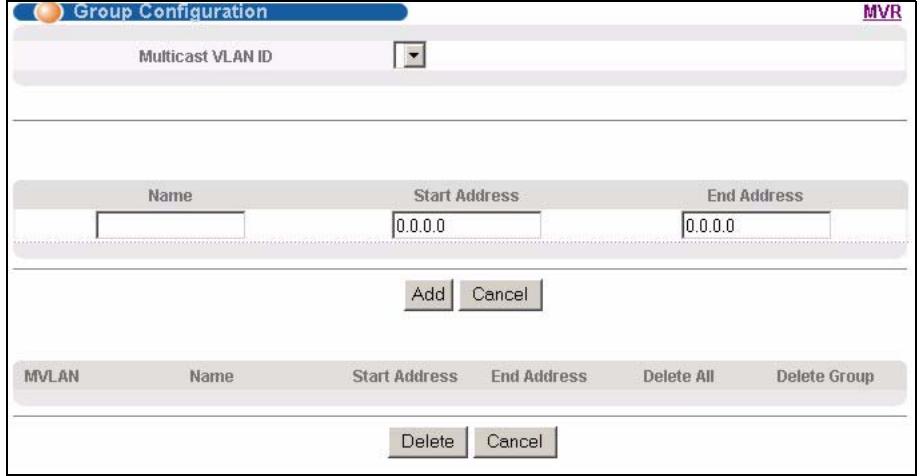
Figure 92 Advanced Application > Multicast > Multicast Setting > MVR: Group Configuration
The following table describes the labels in this screen.
Table 55 Advanced Application > Multicast > Multicast Setting > MVR: Group Configuration
| LABEL | DESCRIPTION |
| Multicast VLAN ID | Select a multicast VLAN ID (that you configured in the MVR screen) from the drop-down list box. |
| Name | Enter a descriptive name for identification purposes. |
| Start Address | Enter the starting IP multicast address of the multicast group in dotted decimal notation.Refer to Section 21.1.1 on page 157 for more information on IP multicast addresses. |
| End Address | Enter the ending IP multicast address of the multicast group in dotted decimal notation.Enter the same IP address as the Start Address field if you want to configure only one IP address for a multicast group.Refer to Section 21.1.1 on page 157 for more information on IP multicast addresses. |
| Add | Click Add to save your changes to the Switch's run-time memory. The Switch loses these changes if it is turned off or loses power, so use the Save link on the top navigation panel to save your changes to the non-volatile memory when you are done configuring. |
| Cancel | Click Cancel to begin configuring this screen afresh. |
| MVLAN | This field displays the multicast VLAN ID. |
| Name | This field displays the descriptive name for this setting. |
| Start Address | This field displays the starting IP address of the multicast group. |
| End Address | This field displays the ending IP address of the multicast group. |
| Delete | Select Delete Group and click Delete to remove the selected entry(ies) from the table. |
| Cancel | Select Cancel to clear the checkbox(es) in the table. |
21.8.1 MVR Configuration Example
The following figure shows a network example where ports 1, 2 and 3 on the Switch belong to VLAN 1. In addition, port 7 belongs to the multicast group with VID 200 to receive multicast traffic (the News and Movie channels) from the remote streaming media server, S. Computers A, B and C in VLAN are able to receive the traffic.
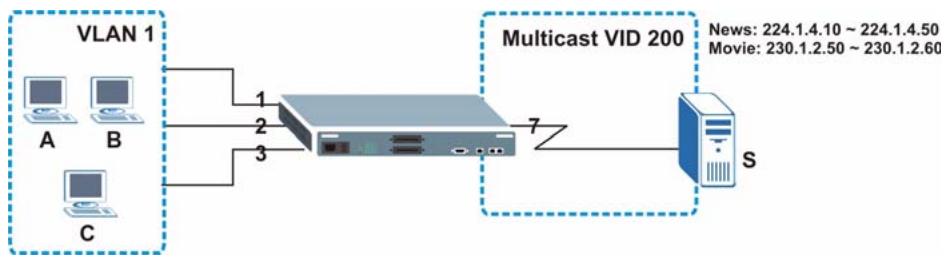
Figure 93 MVR Configuration Example
To configure the MVR settings on the Switch, create a multicast group in the MVR screen and set the receiver and source ports.
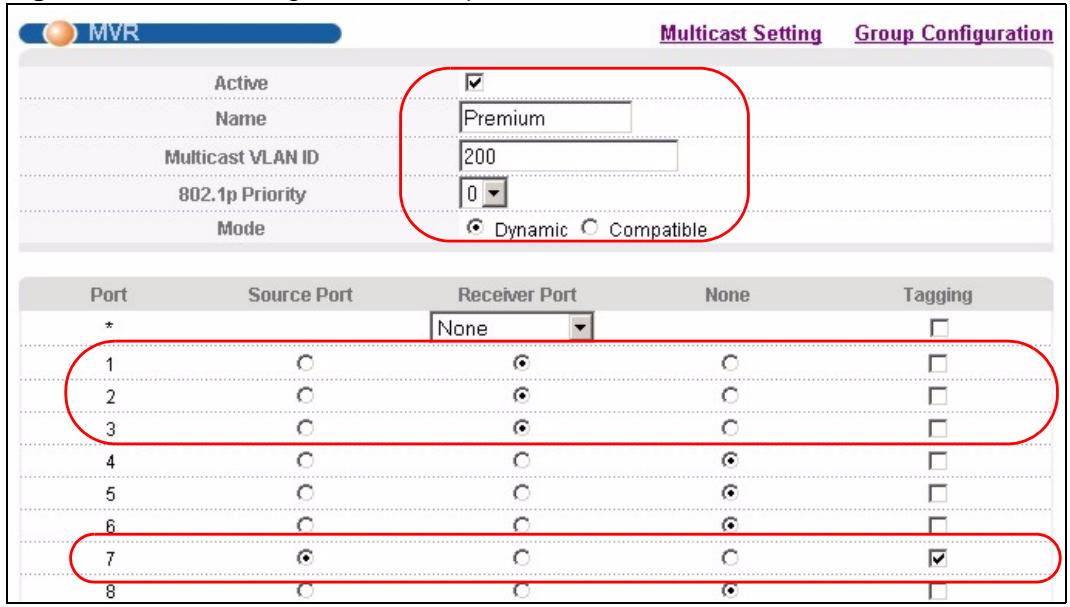
Figure 94 MVR Configuration Example
To set the Switch to forward the multicast group traffic to the subscribers, configure multicast group settings in the Group Configuration screen. The following figure shows an example where two multicast groups (News and Movie) are configured for the multicast VLAN 200.
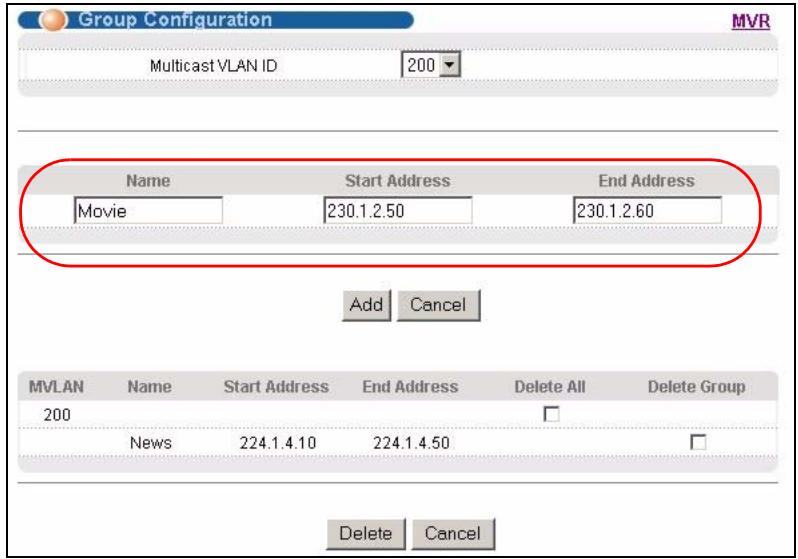
Figure 95 MVR Group Configuration Example

Figure 96 MVR Group Configuration Example
Authentication & Accounting
This chapter describes how to configure authentication and accounting settings on the Switch.
22.1 Authentication, Authorization and Accounting
Authentication is the process of determining who a user is and validating access to the Switch. The Switch can authenticate users who try to log in based on user accounts configured on the Switch itself. The Switch can also use an external authentication server to authenticate a large number of users
Authorization is the process of determining what a user is allowed to do. Different user accounts may have higher or lower privilege levels associated with them. For example, user A may have the right to create new login accounts on the Switch but user B cannot. The Switch can authorize users based on user accounts configured on the Switch itself or it can use an external server to authorize a large number of users.
Accounting is the process of recording what a user is doing. The Switch can use an external server to track when users log in, log out, execute commands and so on. Accounting can also record system related actions such as boot up and shut down times of the Switch.
The external servers that perform authentication, authorization and accounting functions are known as AAA servers. The Switch supports RADIUS (Remote Authentication Dial-In User Service, see Section 22.1.2 on page 172) and TACACS+ (Terminal Access Controller Access-Control System Plus, see Section 22.1.2 on page 172) as external authentication, authorization and accounting servers.
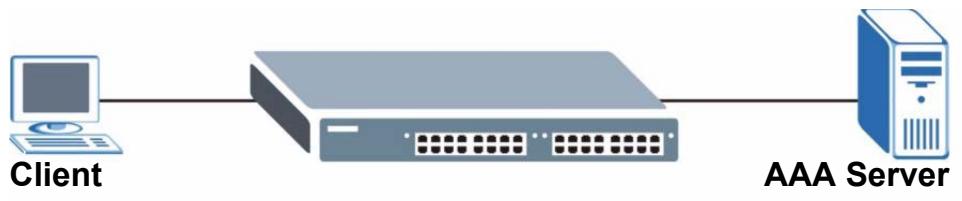
Figure 97 AAA Server
22.1.1 Local User Accounts
By storing user profiles locally on the Switch, your Switch is able to authenticate and authorize users without interacting with a network AAA server. However, there is a limit on the number of users you may authenticate in this way (See Chapter 28 on page 231).
22.1.2 RADIUS and TACACS+
RADIUS and TACACS+ are security protocols used to authenticate users by means of an external server instead of (or in addition to) an internal device user database that is limited to the memory capacity of the device. In essence, RADIUS and TACACS+ authentication both allow you to validate an unlimited number of users from a central location.
The following table describes some key differences between RADIUS and TACACS+.
Table 56 RADIUS vs TACACS+
| RADIUS | TACACS+ | |
| Transport Protocol | UDP (User Datagram Protocol) | TCP (Transmission Control Protocol) |
| Encryption | Encrypted the password sent for authentication. | All communication between the client (the Switch) and the TACACS server is encrypted. |
22.2 Authentication and Accounting Screens
To enable authentication, accounting or both on the Switch. First, configure your authentication server settings (RADIUS, TACACS+ or both) and then set up the authentication priority and accounting settings.
Click Advanced Application > Auth and Acct in the navigation panel to display the screen as shown.
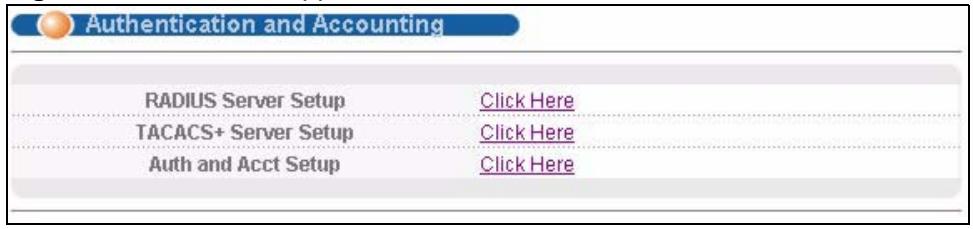
Figure 98 Advanced Application > Auth and Acct
22.2.1 RADIUS Server Setup
Use this screen to configure your RADIUS server settings. See Section 22.1.2 on page 172 for more information on RADIUS servers and Section 22.3 on page 180 for RADIUS attributes utilized by the authentication and accounting features on the Switch. Click on the RADIUS Server Setup link in the Authentication and Accounting screen to view the screen as shown.
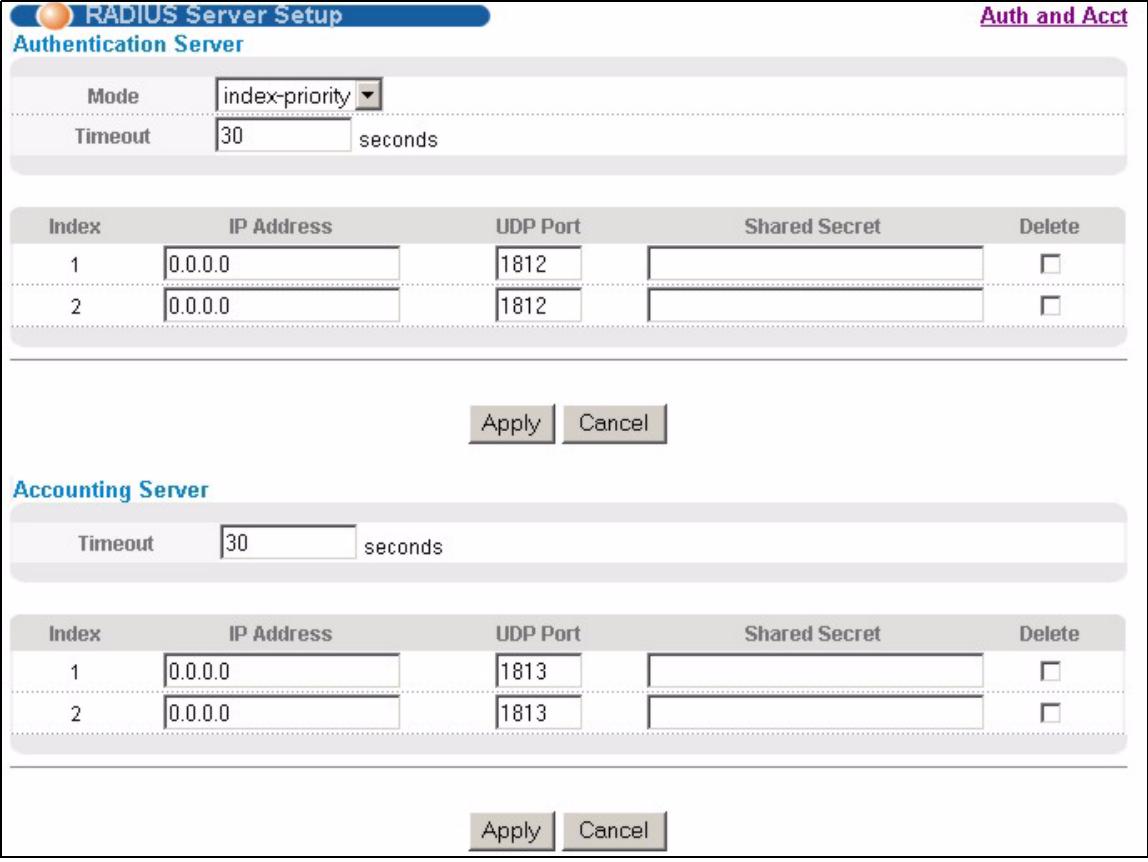
Figure 99 Advanced Application > Auth and Acct > RADIUS Server Setup
The following table describes the labels in this screen.
Table 57 Advanced Application > Auth and Acct > RADIUS Server Setup
| LABEL | DESCRIPTION |
| Authentication Server | Use this section to configure your RADIUS authentication settings. |
| Mode | This field is only valid if you configure multiple RADIUS servers. Select index-priority and the Switch tries to authenticate with the first configured RADIUS server, if the RADIUS server does not respond then the Switch tries to authenticate with the second RADIUS server. Select round-robin to alternate between the RADIUS servers that it sends authentication requests to. |
| Timeout | Specify the amount of time in seconds that the Switch waits for an authentication request response from the RADIUS server. If you are using index-priority for your authentication and you are using two RADIUS servers then the timeout value is divided between the two RADIUS servers. For example, if you set the timeout value to 30 seconds, then the Switch waits for a response from the first RADIUS server for 15 seconds and then tries the second RADIUS server. |
| Index | This is a read-only number representing a RADIUS server entry. |
| IP Address | Enter the IP address of an external RADIUS server in dotted decimal notation. |
| UDP Port | The default port of a RADIUS server for authentication is 1812. You need not change this value unless your network administrator instructs you to do so. |
| Shared Secret | Specify a password (up to 32 alphanumeric characters) as the key to be shared between the external RADIUS server and the Switch. This key is not sent over the network. This key must be the same on the external RADIUS server and the Switch. |
| Delete | Check this box if you want to remove an existing RADIUS server entry from the Switch. This entry is deleted when you click Apply. |
| Apply | Click Apply to save your changes to the Switch's run-time memory. The Switch loses these changes if it is turned off or loses power, so use the Save link on the top navigation panel to save your changes to the non-volatile memory when you are done configuring. |
| Cancel | Click Cancel to begin configuring this screen afresh. |
| Accounting Server | Use this section to configure your RADIUS accounting server settings. |
| Timeout | Specify the amount of time in seconds that the Switch waits for an accounting request response from the RADIUS accounting server. |
| Index | This is a read-only number representing a RADIUS accounting server entry. |
| IP Address | Enter the IP address of an external RADIUS accounting server in dotted decimal notation. |
| UDP Port | The default port of a RADIUS server for accounting is 1813. You need not change this value unless your network administrator instructs you to do so. |
| Shared Secret | Specify a password (up to 32 alphanumeric characters) as the key to be shared between the external RADIUS accounting server and the Switch. This key is not sent over the network. This key must be the same on the external RADIUS accounting server and the Switch. |
| Delete | Check this box if you want to remove an existing RADIUS accounting server entry from the Switch. This entry is deleted when you click Apply. |
| Apply | Click Apply to save your changes to the Switch's run-time memory. The Switch loses these changes if it is turned off or loses power, so use the Save link on the top navigation panel to save your changes to the non-volatile memory when you are done configuring. |
| Cancel | Click Cancel to begin configuring this screen afresh. |
22.2.2 TACACS+ Server Setup
Use this screen to configure your TACACS+ server settings. See Section 22.1.2 on page 172 for more information on TACACS+ servers. Click on the TACACS+ Server Setup link in the Authentication and Accounting screen to view the screen as shown.
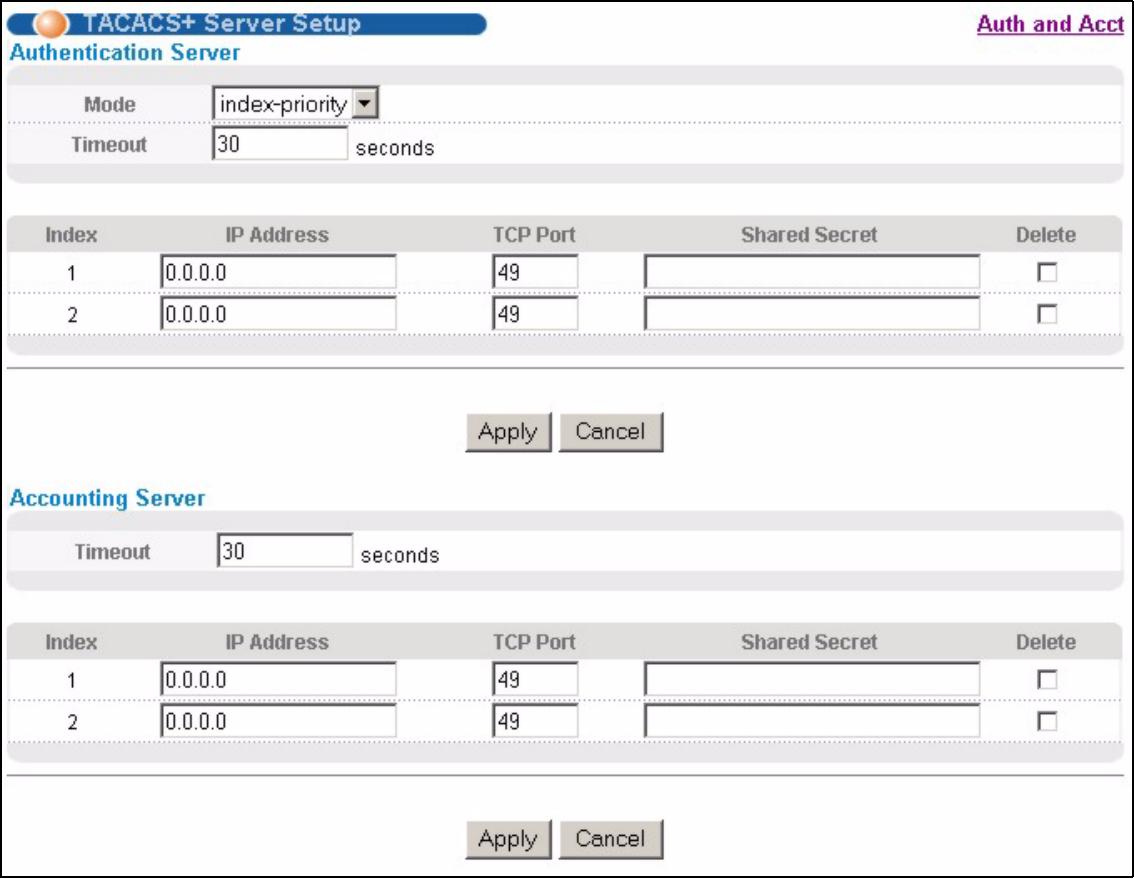
Figure 100 Advanced Application > Auth and Acct > TACACS+ Server Setup
The following table describes the labels in this screen.
Table 58 Advanced Application > Auth and Acct > TACACS+ Server Setup
| LABEL | DESCRIPTION |
| Authentication Server | Use this section to configure your TACACS+ authentication settings. |
| Mode | This field is only valid if you configure multiple TACACS+ servers. Select index-priority and the Switch tries to authenticate with the first configured TACACS+ server, if the TACACS+ server does not respond then the Switch tries to authenticate with the second TACACS+ server. Select round-robin to alternate between the TACACS+ servers that it sends authentication requests to. |
| Timeout | Specify the amount of time in seconds that the Switch waits for an authentication request response from the TACACS+ server. If you are using index-priority for your authentication and you are using two TACACS+ servers then the timeout value is divided between the two TACACS+ servers. For example, if you set the timeout value to 30 seconds, then the Switch waits for a response from the first TACACS+ server for 15 seconds and then tries the second TACACS+ server. |
| Index | This is a read-only number representing a TACACS+ server entry. |
| IP Address | Enter the IP address of an external TACACS+ server in dotted decimal notation. |
| TCP Port | The default port of a TACACS+ server for authentication is 49. You need not change this value unless your network administrator instructs you to do so. |
| Shared Secret | Specify a password (up to 32 alphanumeric characters) as the key to be shared between the external TACACS+ server and the Switch. This key is not sent over the network. This key must be the same on the external TACACS+ server and the Switch. |
| Delete | Check this box if you want to remove an existing TACACS+ server entry from the Switch. This entry is deleted when you click Apply. |
| Apply | Click Apply to save your changes to the Switch's run-time memory. The Switch loses these changes if it is turned off or loses power, so use the Save link on the top navigation panel to save your changes to the non-volatile memory when you are done configuring. |
| Cancel | Click Cancel to begin configuring this screen afresh. |
| Accounting Server | Use this section to configure your TACACS+ accounting settings. |
| Timeout | Specify the amount of time in seconds that the Switch waits for an accounting request response from the TACACS+ server. |
| Index | This is a read-only number representing a TACACS+ accounting server entry. |
| IP Address | Enter the IP address of an external TACACS+ accounting server in dotted decimal notation. |
| TCP Port | The default port of a TACACS+ server for accounting is 49. You need not change this value unless your network administrator instructs you to do so. |
| Shared Secret | Specify a password (up to 32 alphanumeric characters) as the key to be shared between the external TACACS+ accounting server and the Switch. This key is not sent over the network. This key must be the same on the external TACACS+ accounting server and the Switch. |
| Delete | Check this box if you want to remove an existing TACACS+ accounting server entry from the Switch. This entry is deleted when you click Apply. |
| Apply | Click Apply to save your changes to the Switch's run-time memory. The Switch loses these changes if it is turned off or loses power, so use the Save link on the top navigation panel to save your changes to the non-volatile memory when you are done configuring. |
| Cancel | Click Cancel to begin configuring this screen afresh. |
22.2.3 Authentication and Accounting Setup
Use this screen to configure authentication and accounting settings on the Switch. Click on the Auth and Acct Setup link in the Authentication and Accounting screen to view the screen as shown.
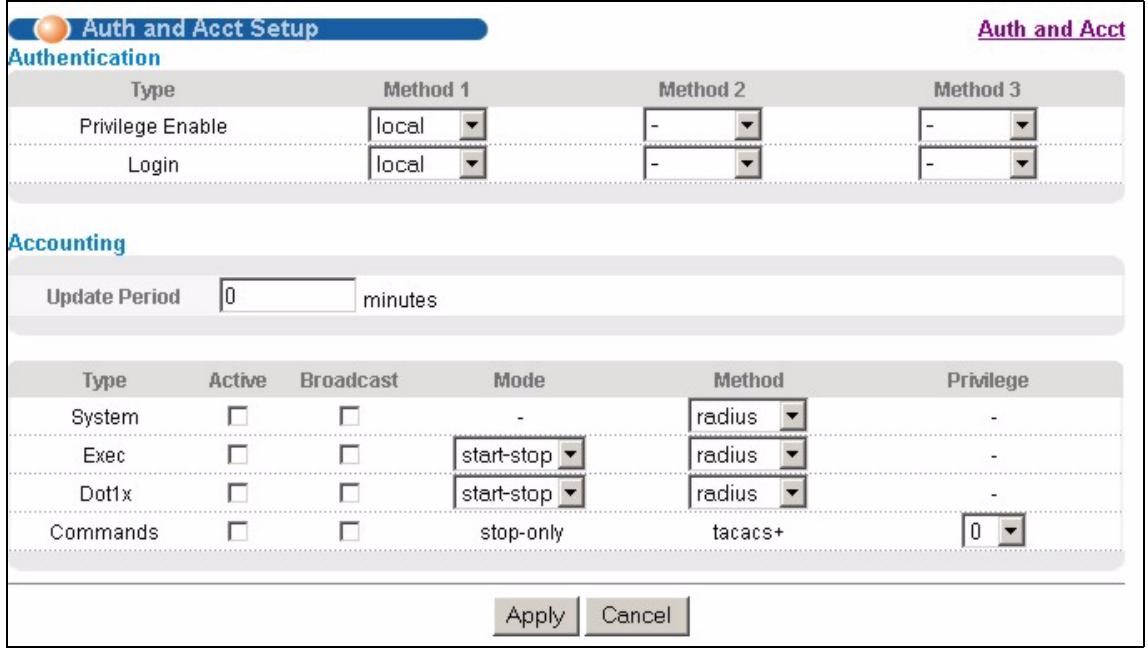
Figure 101 Advanced Application > Auth and Acct > Auth and Acct Setup
The following table describes the labels in this screen.
Table 59 Advanced Application > Auth and Acct > Auth and Acct Setup
| LABEL | DESCRIPTION |
| Authentication | Use this section to specify the methods used to authenticate users accessing the Switch. |
| Privilege Enable | These fields specify which database the Switch should use (first, second and third) to authenticate access privilege level for administrator accounts (users for Switch management).Configure the access privilege of accounts via commands (See the CLI Reference Guide) for local authentication. The TACACS+ and RADIUS are external servers.Before you specify the priority, make sure you have set up the corresponding database correctly first.You can specify up to three methods for the Switch to authenticate the access privilege level of administrators. The Switch checks the methods in the order you configure them (first Method 1, then Method 2 and finally Method 3). You must configure the settings in the Method 1 field. If you want the Switch to check other sources for access privilege level specify them in Method 2 and Method 3 fields SELECT local to have the Switch check the access privilege configured for local authentication.Select radius or tacacs+ to have the Switch check the access privilege via the external servers. |
| Login | These fields specify which database the Switch should use (first, second and third) to authenticate administrator accounts (users for Switch management).Configure the local user accounts in the Access Control > Logins screen. The TACACS+ and RADIUS are external servers. Before you specify the priority, make sure you have set up the corresponding database correctly first.You can specify up to three methods for the Switch to authenticate administrator accounts. The Switch checks the methods in the order you configure them (first Method 1, then Method 2 and finally Method 3). You must configure the settings in the Method 1 field. If you want the Switch to check other sources for administrator accounts, specify them in Method 2 and Method 3 fields SELECT local to have the Switch check the administrator accounts configured in the Access Control > Logins screen.Select radius to have the Switch check the administrator accounts configured via your RADIUS server.Select tacacs+ to have the Switch check the administrator accounts configured via your TACACS+ server. |
| Accounting | Use this section to configure accounting settings on the Switch. |
| Update Period | This is the amount of time in minutes before the Switch sends an update to the accounting server. This is only valid if you select the start-stop option for the Exec or Dot1x entries. |
| Type | The Switch supports the following types of events to be sent to the accounting server(s):· System - Configure the Switch to send information when the following system events occur: system boots up, system shuts down, system accounting is enabled, system accounting is disabled· Exec - Configure the Switch to send information when an administrator logs in and logs out via the console port, telnet or SSH.Dot1x - Configure the Switch to send information when an IEEE 802.1x client begins a session (authenticates via the Switch), ends a session as well as interim updates of a session·· Commands - Configure the Switch to send information when commands of specified privilege level and higher are executed on the Switch. |
| Active | Select this to activate accounting for a specified event types. |
| Broadcast | Select this to have the Switch send accounting information to all configured accounting servers at the same time.If you don't select this and you have two accounting servers set up, then the Switch sends information to the first accounting server and if it doesn't get a response from the accounting server then it tries the second accounting server. |
| Mode | The Switch supports two modes of recording login events. Select:· start-stop - to have the Switch send information to the accounting server when a user begins a session, during a user's session (if it lasts past the Update Period), and when a user ends a session.stop-only - to have the Switch send information to the accounting server only when a user ends a session. |
| Method | Select whether you want to use RADIUS or TACACS+ for accounting of specific types of events.TACACS+ is the only method for recording Commands type of event. |
| Privilege | This field is only configurable for Commands type of event. Select the threshold command privilege level for which the Switch should send accounting information. The Switch will send accounting information when commands at the level you specify and higher are executed on the Switch. |
| Apply | Click Apply to save your changes to the Switch's run-time memory. The Switch loses these changes if it is turned off or loses power, so use the Save link on the top navigation panel to save your changes to the non-volatile memory when you are done configuring. |
| Cancel | Click Cancel to begin configuring this screen afresh. |
22.2.4 Vendor Specific Attribute
RFC 2865 standard specifies a method for sending vendor-specific information between a RADIUS server and a network access device (for example, the Switch). A company can create Vendor Specific Attributes (VSAs) to expand the functionality of a RADIUS server.
The Switch supports VSAs that allow you to perform the following actions based on user authentication:
- Limit bandwidth on incoming or outgoing traffic for the port the user connects to.
- Assign account privilege levels (See Section 36.7 on page 280 for more information on account privilege levels) for the authenticated user.
The VSAs are composed of the following:
- Vendor-ID: An identification number assigned to the company by the IANA (Internet Assigned Numbers Authority). ZyXEL's vendor ID is 890.
- Vendor-Type: A vendor specified attribute, identifying the setting you want to modify.
- Vendor-data: A value you want to assign to the setting.

Refer to the documentation that comes with your RADIUS server on how to configure VSAs for users authenticating via the RADIUS server.
The following table describes the VSAs supported on the Switch.
Table 60 Supported VSAs
| FUNCTION | ATTRIBUTE |
| Ingress Bandwidth Assignment | Vendor-Id = 890 Vendor-Type = 1 Vendor-data = ingress rate (Kbps in decimal format) |
Table 60 Supported VSAs
| FUNCTION | ATTRIBUTE |
| Egress Bandwidth Assignment | Vendor-Id = 890 Vendor-Type = 2 Vendor-data = egress rate (Kbps in decimal format) |
| Privilege Assignment | Vendor-Id = 890 Vendor-Type = 3 Vendor-Data = "shell:priv-lvl=N" or Vendor-Id = 9 (CISCO) Vendor-Type = 1 (CISCO-AVPAIR) Vendor-Data = "shell:priv-lvl=N" where N is a privilege level (from 0 to 14). Note: If you set the privilege level of a login account differently on the RADIUS server(s) and the Switch, the user is assigned a privilege level from the database (RADIUS or local) the Switch uses first for user authentication. |
22.2.4.1 Tunnel Protocol Attribute
You can configure tunnel protocol attributes on the RADIUS server (refer to your RADIUS server documentation) to assign a port on the Switch to a VLAN based on IEEE 802.1x authentication. The port VLAN settings are fixed and untagged. This will also set the port's VID. The following table describes the values you need to configure. Note that the bolded values in the table are fixed values as defined in RFC 3580.
Table 61 Supported Tunnel Protocol Attribute
| FUNCTION | ATTRIBUTE |
| VLAN Assignment | Tunnel-Type = VLAN(13) Tunnel-Medium-Type = 802(6) Tunnel-Private-Group-ID = VLAN ID |
| Note: You must also create a VLAN with the specified VID on the Switch. |
22.3 Supported RADIUS Attributes
Remote Authentication Dial-In User Service (RADIUS) attributes are data used to define specific authentication, and accounting elements in a user profile, which is stored on the RADIUS server. This appendix lists the RADIUS attributes supported by the Switch.
Refer to RFC 2865 for more information about RADIUS attributes used for authentication. Refer to RFC 2866 and RFC 2869 for RADIUS attributes used for accounting.
This section lists the attributes used by authentication and accounting functions on the Switch. In cases where the attribute has a specific format associated with it, the format is specified.
22.3.1 Attributes Used for Authentication
The following sections list the attributes sent from the Switch to the RADIUS server when performing authentication.
22.3.1.1 Attributes Used for Authenticating Privilege Access
User-Name
- The format of the User-Name attribute is $enab#, where # is the privilege level (1-14).
User-Password
NAS-Identifier
NAS-IP-Address
22.3.1.2 Attributes Used to Login Users
User-Name
User-Password
NAS-Identifier
NAS-IP-Address
22.3.1.3 Attributes Used by the IEEE 802.1x Authentication
User-Name
NAS-Identifier
NAS-IP-Address
NAS-Port
NAS-Port-Type - This value is set to Ethernet(15) on the Switch.
Calling-Station-Id
Frame-MTU
EAP-Message
State
Message-Authenticationor
22.3.2 Attributes Used for Accounting
The following sections list the attributes sent from the Switch to the RADIUS server when performing authentication.
22.3.2.1 Attributes Used for Accounting System Events
NAS-IP-Address
NAS-Identifier
Acct-Status-Type
Acct-Session-ID - The format of Acct-Session-Id is date ^+ time ^+ 8-digit sequential number, for example, 2007041917210300000001. (date: 2007/04/19, time: 17:21:03, serial number: 00000001)
Acct-Delay-Time
22.3.2.2 Attributes Used for Accounting Exec Events
The attributes are listed in the following table along with the time that they are sent (the difference between Console and Telnet/SSH Exec events is that the Telnet/SSH events utilize the Calling-Station-Id attribute):
Table 62 RADIUS Attributes - Exec Events via Console
| ATTRIBUTE | START | INTERIM-UPDATE | STOP |
| User-Name | Y | Y | Y |
| NAS-Identifier | Y | Y | Y |
| NAS-IP-Address | Y | Y | Y |
| Service-Type | Y | Y | Y |
| Acct-Status-Type | Y | Y | Y |
| Acct-Delay-Time | Y | Y | Y |
| Acct-Session-Id | Y | Y | Y |
| Acct-Authentic | Y | Y | Y |
| Acct-Session-Time | Y | Y | |
| Acct-Terminate-Cause | Y |
Table 63 RADIUS Attributes - Exec Events via Telnet/SSH
| ATTRIBUTE | START | INTERIM-UPDATE | STOP |
| User-Name | Y | Y | Y |
| NAS-Identifier | Y | Y | Y |
| NAS-IP-Address | Y | Y | Y |
| Service-Type | Y | Y | Y |
| Calling-Station-Id | Y | Y | Y |
| Acct-Status-Type | Y | Y | Y |
| Acct-Delay-Time | Y | Y | Y |
| Acct-Session-Id | Y | Y | Y |
| Acct-Authentic | Y | Y | Y |
| Acct-Session-Time | Y | Y | |
| Acct-Terminate-Cause | Y |
22.3.2.3 Attributes Used for Accounting IEEE 802.1x Events
The attributes are listed in the following table along with the time of the session they are sent:
Table 64 RADIUS Attributes - Exec Events via 802.1x
| ATTRIBUTE | START | INTERIM-UPDATE | STOP |
| User-Name | Y | Y | Y |
| NAS-IP-Address | Y | Y | Y |
| NAS-Port | Y | Y | Y |
| Class | Y | Y | Y |
| Called-Station-Id | Y | Y | Y |
| Calling-Station-Id | Y | Y | Y |
| NAS-Identifier | Y | Y | Y |
Table 64 RADIUS Attributes - Exec Events via 802.1x
| ATTRIBUTE | START | INTERIM-UPDATE | STOP |
| NAS-Port-Type | Y | Y | Y |
| Acct-Status-Type | Y | Y | Y |
| Acct-Delay-Time | Y | Y | Y |
| Acct-Session-Id | Y | Y | Y |
| Acct-Authentic | Y | Y | Y |
| Acct-Input-Octets | Y | Y | |
| Acct-Output-Octets | Y | Y | |
| Acct-Session-Time | Y | Y | |
| Acct-Input-Packets | Y | Y | |
| Acct-Output-Packets | Y | Y | |
| Acct-Terminate-Cause | Y | ||
| Acct-Input-Gigawords | Y | Y | |
| Acct-Output-Gigawords | Y | Y |
IP Source Guard
Use IP source guard to filter unauthorized DHCP and ARP packets in your network.
23.1 IP Source Guard Overview
IP source guard uses a binding table to distinguish between authorized and unauthorized DHCP and ARP packets in your network. A binding contains these key attributes:
- MAC address
- VLAN ID
- IP address
- Port number
When the Switch receives a DHCP or ARP packet, it looks up the appropriate MAC address, VLAN ID, IP address, and port number in the binding table. If there is a binding, the Switch forwards the packet. If there is not a binding, the Switch discards the packet.
The Switch builds the binding table by snooping DHCP packets (dynamic bindings) and from information provided manually by administrators (static bindings).
IP source guard consists of the following features:
- Static bindings. Use this to create static bindings in the binding table.
- DHCP snooping. Use this to filter unauthorized DHCP packets on the network and to build the binding table dynamically.
- ARP inspection. Use this to filter unauthorized ARP packets on the network.
If you want to use dynamic bindings to filter unauthorized ARP packets (typical implementation), you have to enable DHCP snooping before you enable ARP inspection.
23.1.1 DHCP Snooping Overview
Use DHCP snooping to filter unauthorized DHCP packets on the network and to build the binding table dynamically. This can prevent clients from getting IP addresses from unauthorized DHCP servers.
23.1.1.1 Trusted vs. Untrusted Ports
Every port is either a trusted port or an untrusted port for DHCP snooping. This setting is independent of the trusted/untrusted setting for ARP inspection. You can also specify the maximum number for DHCP packets that each port (trusted or untrusted) can receive each second.
Trusted ports are connected to DHCP servers or other switches. The Switch discards DHCP packets from trusted ports only if the rate at which DHCP packets arrive is too high. The Switch learns dynamic bindings from trusted ports.

If DHCP is enabled and there are no trusted ports, DHCP requests will not succeed.
Untrusted ports are connected to subscribers. The Switch discards DHCP packets from untrusted ports in the following situations:
- The packet is a DHCP server packet (for example, OFFER, ACK, or NACK).
- The source MAC address and source IP address in the packet do not match any of the current bindings.
- The packet is a RELEASE or DECLINE packet, and the source MAC address and source port do not match any of the current bindings.
- The rate at which DHCP packets arrive is too high.
23.1.1.2 DHCP Snooping Database
The Switch stores the binding table in volatile memory. If the Switch restarts, it loads static bindings from permanent memory but loses the dynamic bindings, in which case the devices in the network have to send DHCP requests again. As a result, it is recommended you configure the DHCP snooping database.
The DHCP snooping database maintains the dynamic bindings for DHCP snooping and ARP inspection in a file on an external TFTP server. If you set up the DHCP snooping database, the Switch can reload the dynamic bindings from the DHCP snooping database after the Switch restarts.
You can configure the name and location of the file on the external TFTP server. The file has the following format:
Figure 102 DHCP Snooping Database File Format
<initial-checksum>
TYPE DHCP-SNOOPING
VERSION 1
BEGIN
<binding-1> <checksum-1>
<binding-2> <checksum-1-2>
...
...
<binding-n> <checksum-1-2-.-.n>
END
The
23.1.1.3 DHCP Relay Option 82 Information
The Switch can add information to DHCP requests that it does not discard. This provides the DHCP server more information about the source of the requests. The Switch can add the following information:
- Slot ID (1 byte), port ID (1 byte), and source VLAN ID (2 bytes)
- System name (up to 32 bytes)
This information is stored in an Agent Information field in the option 82 field of the DHCP headers of client DHCP request frames. See Chapter 27 on page 221 for more information about DHCP relay option 82.
When the DHCP server responds, the Switch removes the information in the Agent Information field before forwarding the response to the original source.
You can configure this setting for each source VLAN. This setting is independent of the DHCP relay settings (Chapter 27 on page 221).
23.1.1.4 Configuring DHCP Snooping
Follow these steps to configure DHCP snooping on the Switch.
1 Enable DHCP snooping on the Switch.
2 Enable DHCP snooping on each VLAN, and configure DHCP relay option 82.
3 Configure trusted and untrusted ports, and specify the maximum number of DHCP packets that each port can receive per second.
4 Configure static bindings.
23.1.2 ARP Inspection Overview
Use ARP inspection to filter unauthorized ARP packets on the network. This can prevent many kinds of man-in-the-middle attacks, such as the one in the following example.
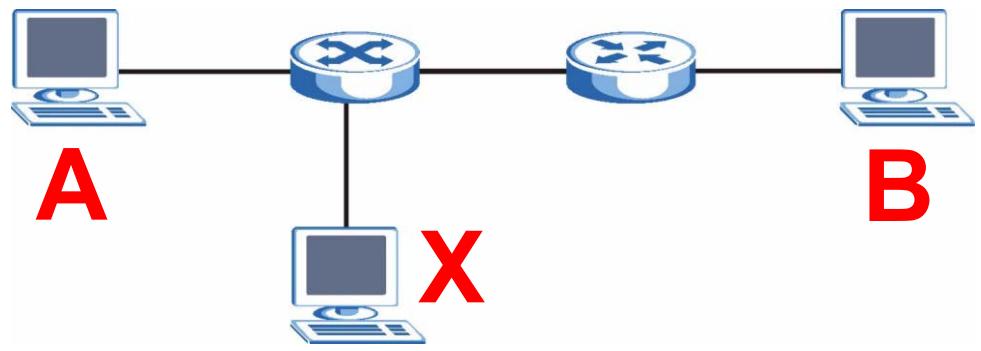
Figure 103 Example: Man-in-the-middle Attack
In this example, computer B tries to establish a connection with computer A. Computer X is in the same broadcast domain as computer A and intercepts the ARP request for computer A. Then, computer X does the following things:
- It pretends to be computer A and responds to computer B.
- It pretends to be computer B and sends a message to computer A.
As a result, all the communication between computer A and computer B passes through computer X. Computer X can read and alter the information passed between them.
23.1.2.1 ARP Inspection and MAC Address Filters
When the Switch identifies an unauthorized ARP packet, it automatically creates a MAC address filter to block traffic from the source MAC address and source VLAN ID of the unauthorized ARP packet. You can configure how long the MAC address filter remains in the Switch.
These MAC address filters are different than regular MAC address filters (Chapter 10 on page 99).
- They are stored only in volatile memory.
- They do not use the same space in memory that regular MAC address filters use.
- They appear only in the ARP Inspection screens and commands, not in the MAC Address Filter screens and commands.
23.1.2.2 Trusted vs. Untrusted Ports
Every port is either a trusted port or an untrusted port for ARP inspection. This setting is independent of the trusted/untrusted setting for DHCP snooping. You can also specify the maximum rate at which the Switch receives ARP packets on untrusted ports.
The Switch does not discard ARP packets on trusted ports for any reason.
The Switch discards ARP packets on untrusted ports in the following situations:
- The sender's information in the ARP packet does not match any of the current bindings.
- The rate at which ARP packets arrive is too high.
23.1.2.3 Syslog
The Switch can send syslog messages to the specified syslog server (Chapter 31 on page 257) when it forwards or discards ARP packets. The Switch can consolidate log messages and send log messages in batches to make this mechanism more efficient.
23.1.2.4 Configuring ARP Inspection
Follow these steps to configure ARP inspection on the Switch.
1 Configure DHCP snooping. See Section 23.1.1.4 on page 187.

It is recommended you enable DHCP snooping at least one day before you enable ARP inspection so that the Switch has enough time to build the binding table.
2 Enable ARP inspection on each VLAN.
3 Configure trusted and untrusted ports, and specify the maximum number of ARP packets that each port can receive per second.
23.2 IP Source Guard
Use this screen to look at the current bindings for DHCP snooping and ARP inspection. Bindings are used by DHCP snooping and ARP inspection to distinguish between authorized and unauthorized packets in the network. The Switch learns the bindings by snooping DHCP packets (dynamic bindings) and from information provided manually by administrators (static bindings). To open this screen, click Advanced Application > IP Source Guard.

Figure 104 IP Source Guard
The following table describes the labels in this screen.
Table 65 IP Source Guard
| LABEL | DESCRIPTION |
| Index | This field displays a sequential number for each binding. |
| Mac Address | This field displays the source MAC address in the binding. |
| IP Address | This field displays the IP address assigned to the MAC address in the binding. |
| Lease | This field displays how many days, hours, minutes, and seconds the binding is valid; for example, 2d3h4m5s means the binding is still valid for 2 days, 3 hours, 4 minutes, and 5 seconds. This field displays infinity if the binding is always valid (for example, a static binding). |
| Type | This field displays how the Switch learned the binding. static: This binding was learned from information provided manually by an administrator. dhcp-snooping: This binding was learned by snooping DHCP packets. |
| VID | This field displays the source VLAN ID in the binding. |
| Port | This field displays the port number in the binding. If this field is blank, the binding applies to all ports. |
23.3 IP Source Guard Static Binding
Use this screen to manage static bindings for DHCP snooping and ARP inspection. Static bindings are uniquely identified by the MAC address and VLAN ID. Each MAC address and VLAN ID can only be in one static binding. If you try to create a static binding with the same MAC address and VLAN ID as an existing static binding, the new static binding replaces the original one. To open this screen, click Advanced Application > IP Source Guard > Static Binding.
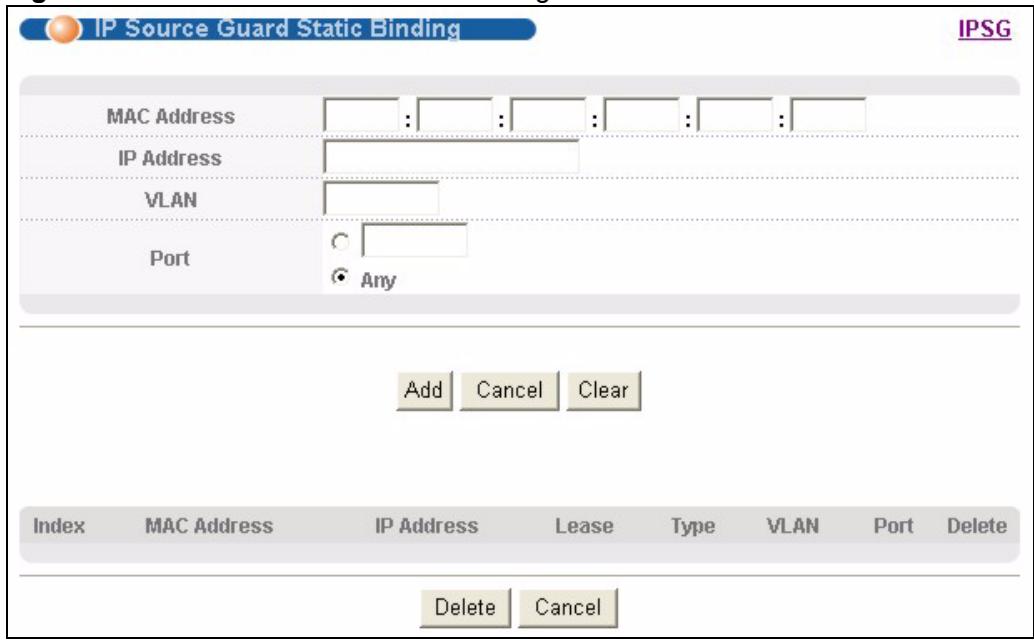
Figure 105 IP Source Guard Static Binding
The following table describes the labels in this screen.
Table 66 IP Source Guard Static Binding
| LABEL | DESCRIPTION |
| MAC Address | Enter the source MAC address in the binding. |
| IP Address | Enter the IP address assigned to the MAC address in the binding. |
| VLAN | Enter the source VLAN ID in the binding. |
| Port | Specify the port(s) in the binding. If this binding has one port, select the first radio button and enter the port number in the field to the right. If this binding applies to all ports, select Any. |
| Add | Click this to create the specified static binding or to update an existing one. |
| Cancel | Click this to reset the values above based on the last selected static binding or, if not applicable, to clear the fields above. |
| Clear | Click this to clear the fields above. |
| Index | This field displays a sequential number for each binding. |
| MAC Address | This field displays the source MAC address in the binding. |
| IP Address | This field displays the IP address assigned to the MAC address in the binding. |
| Lease | This field displays how long the binding is valid. |
| Type | This field displays how the Switch learned the binding. static: This binding was learned from information provided manually by an administrator. |
| VLAN | This field displays the source VLAN ID in the binding. |
| Port | This field displays the port number in the binding. If this field is blank, the binding applies to all ports. |
| Delete | Select this, and click Delete to remove the specified entry. |
| Cancel | Click this to clear the Delete check boxes above. |
23.4 DHCP Snooping
Use this screen to look at various statistics about the DHCP snooping database. To open this screen, click Advanced Application > IP Source Guard > DHCP Snooping.
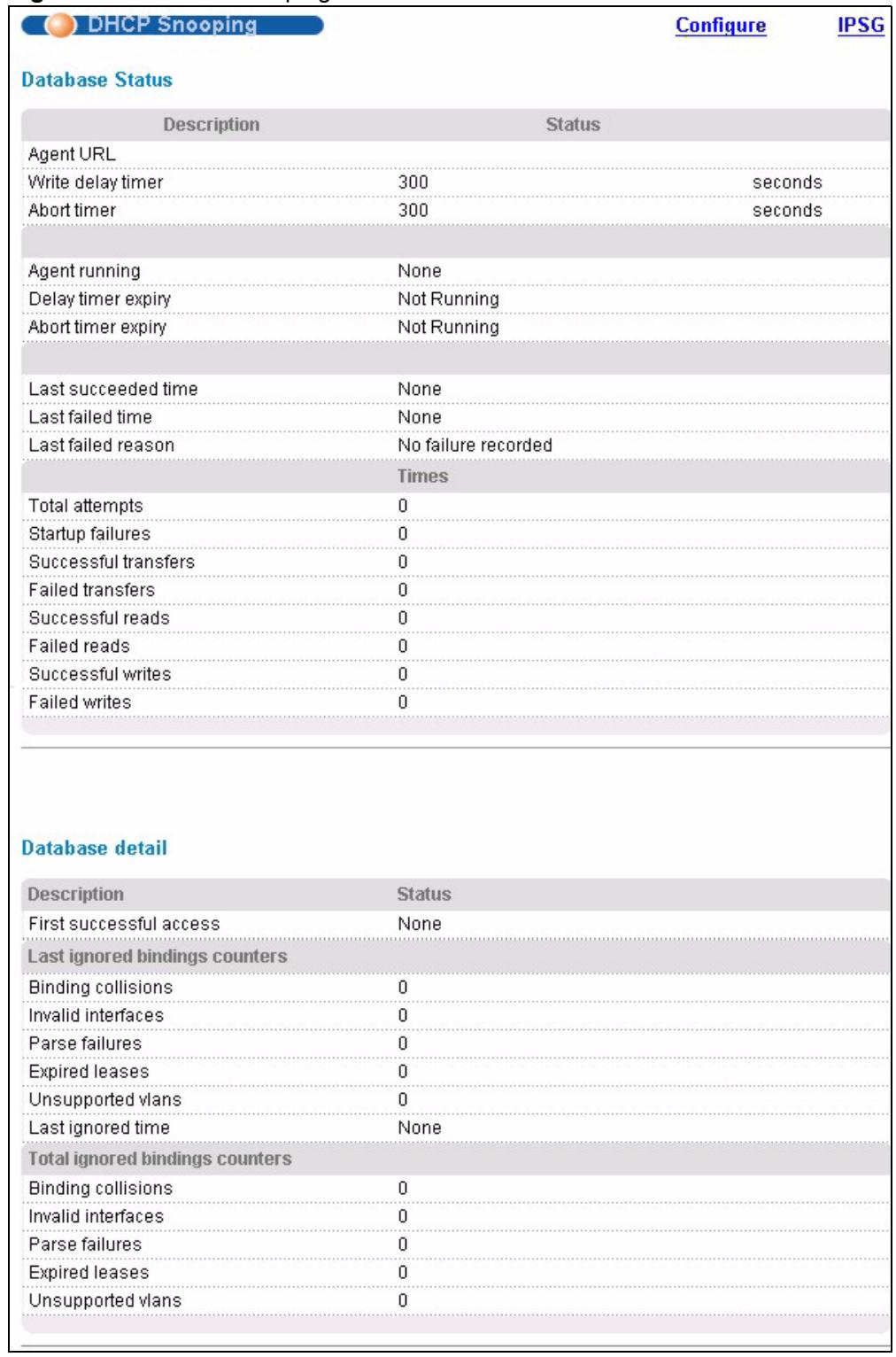
Figure 106 DHCP Snooping
The following table describes the labels in this screen.
Table 67 DHCP Snooping
| LABEL | DESCRIPTION |
| Database Status | This section displays the current settings for the DHCP snooping database. You can configure them in the DHCP Snooping Configure screen. See Section 23.5 on page 194. |
| Agent URL | This field displays the location of the DHCP snooping database. |
| Write delay timer | This field displays how long (in seconds) the Switch tries to complete a specific update in the DHCP snooping database before it gives up. |
| Abort timer | This field displays how long (in seconds) the Switch waits to update the DHCP snooping database after the current bindings change. |
| This section displays information about the current update and the next update of the DHCP snooping database. | |
| Agent running | This field displays the status of the current update or access of the DHCP snooping database. none: The Switch is not accessing the DHCP snooping database. read: The Switch is loading dynamic bindings from the DHCP snooping database. write: The Switch is updating the DHCP snooping database. |
| Delay timer expiry | This field displays how much longer (in seconds) the Switch tries to complete the current update before it gives up. It displays Not Running if the Switch is not updating the DHCP snooping database right now. |
| Abort timer expiry | This field displays when (in seconds) the Switch is going to update the DHCP snooping database again. It displays Not Running if the current bindings have not changed since the last update. |
| This section displays information about the last time the Switch updated the DHCP snooping database. | |
| Last succeeded time | This field displays the last time the Switch updated the DHCP snooping database successfully. |
| Last failed time | This field displays the last time the Switch updated the DHCP snooping database unsuccessfully. |
| Last failed reason | This field displays the reason the Switch updated the DHCP snooping database unsuccessfully. |
| This section displays historical information about the number of times the Switch successfully or unsuccessfully read or updated the DHCP snooping database. | |
| Total attempts | This field displays the number of times the Switch has tried to access the DHCP snooping database for any reason. |
| Startup failures | This field displays the number of times the Switch could not create or read the DHCP snooping database when the Switch started up or a new URL is configured for the DHCP snooping database. |
| Successful transfers | This field displays the number of times the Switch read bindings from or updated the bindings in the DHCP snooping database successfully. |
| Failed transfers | This field displays the number of times the Switch was unable to read bindings from or update the bindings in the DHCP snooping database. |
| Successful reads | This field displays the number of times the Switch read bindings from the DHCP snooping database successfully. |
| Failed reads | This field displays the number of times the Switch was unable to read bindings from the DHCP snooping database. |
| Successful writes | This field displays the number of times the Switch updated the bindings in the DHCP snooping database successfully. |
| Failed writes | This field displays the number of times the Switch was unable to update the bindings in the DHCP snooping database. |
| Database detail | |
| First successful access | This field displays the first time the Switch accessed the DHCP snooping database for any reason. |
| Last ignored bindings counters | This section displays the number of times and the reasons the Switch ignored bindings the last time it read bindings from the DHCP binding database. You can clear these counters by restarting the Switch or using CLI commands. See the CLI Reference Guide. |
| Binding collisions | This field displays the number of bindings the Switch ignored because the Switch already had a binding with the same MAC address and VLAN ID. |
| Invalid interfaces | This field displays the number of bindings the Switch ignored because the port number was a trusted interface or does not exist anymore. |
| Parse failures | This field displays the number of bindings the Switch ignored because the Switch was unable to understand the binding in the DHCP binding database. |
| Expired leases | This field displays the number of bindings the Switch ignored because the lease time had already expired. |
| Unsupported vlans | This field displays the number of bindings the Switch ignored because the VLAN ID does not exist anymore. |
| Last ignored time | This field displays the last time the Switch ignored any bindings for any reason from the DHCP binding database. |
| Total ignored bindings counters | This section displays the reasons the Switch has ignored bindings any time it read bindings from the DHCP binding database. You can clear these counters by restarting the Switch or using CLI commands. See the CLI Reference Guide. |
| Binding collisions | This field displays the number of bindings the Switch has ignored because the Switch already had a binding with the same MAC address and VLAN ID. |
| Invalid interfaces | This field displays the number of bindings the Switch has ignored because the port number was a trusted interface or does not exist anymore. |
| Parse failures | This field displays the number of bindings the Switch has ignored because the Switch was unable to understand the binding in the DHCP binding database. |
| Expired leases | This field displays the number of bindings the Switch has ignored because the lease time had already expired. |
| Unsupported vlans | This field displays the number of bindings the Switch has ignored because the VLAN ID does not exist anymore. |
23.5 DHCP Snooping Configure
Use this screen to enable DHCP snooping on the Switch (not on specific VLAN), specify the VLAN where the default DHCP server is located, and configure the DHCP snooping database. The DHCP snooping database stores the current bindings on a secure, external TFTP server so that they are still available after a restart. To open this screen, click Advanced Application > IP Source Guard > DHCP Snooping > Configure.
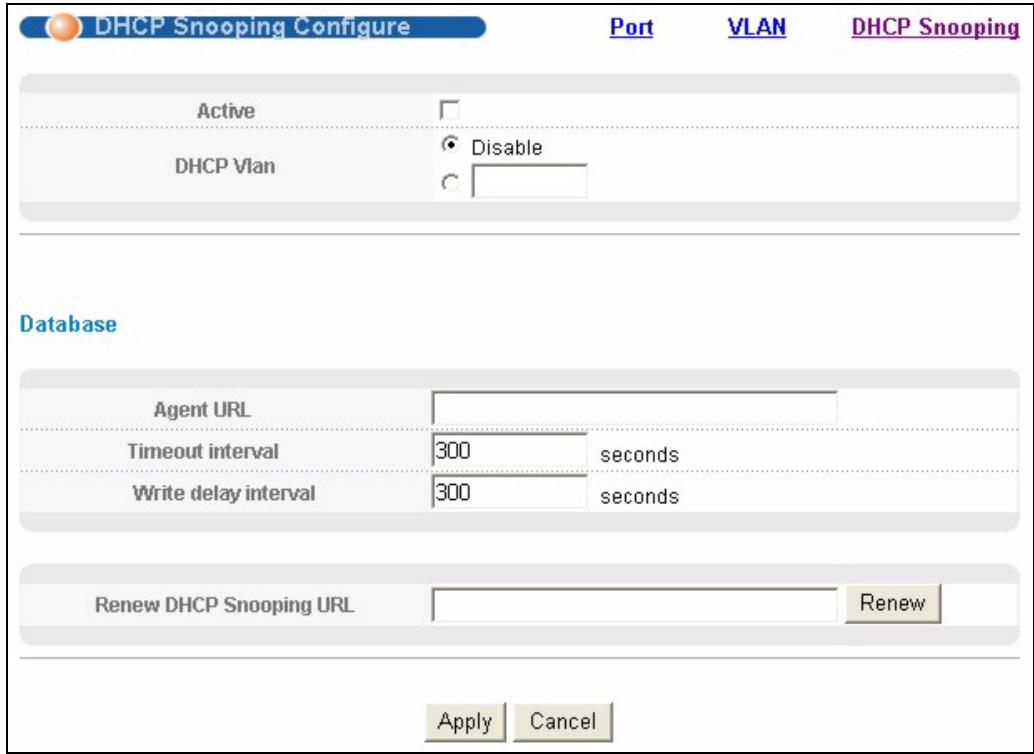
Figure 107 DHCP Snooping Configure
The following table describes the labels in this screen.
Table 68 DHCP Snooping Configure
| LABEL | DESCRIPTION |
| Active | Select this to enable DHCP snooping on the Switch. You still have to enable DHCP snooping on specific VLAN and specify trusted ports.Note: If DHCP is enabled and there are no trusted ports, DHCP requests will not succeed. |
| DHCP Vlan | Select a VLAN ID if you want the Switch to forward DHCP packets to DHCP servers on a specific VLAN.Note: You have to enable DHCP snooping on the DHCP VLAN too.You can enable Option82 in the DHCP Snooping VLAN Configure screen (Section 23.5.2 on page 197) to help the DHCP servers distinguish between DHCP requests from different VLAN.Select Disable if you do not want the Switch to forward DHCP packets to a specific VLAN. |
| Database | If Timeout interval is greater than Write delay interval, it is possible that the next update is scheduled to occur before the current update has finished successfully or timed out. In this case, the Switch waits to start the next update until it completes the current one. |
| Agent URL | Enter the location of the DHCP snooping database. The location should be expressed like this: tftp://{domain name or IP address}/directory, if applicable/file name; for example, tftp://192.168.10.1/database.txt. |
| Timeout interval | Enter how long (10-65535 seconds) the Switch tries to complete a specific update in the DHCP snooping database before it gives up. |
| Write delay interval | Enter how long (10-65535 seconds) the Switch waits to update the DHCP snooping database the first time the current bindings change after an update. Once the next update is scheduled, additional changes in current bindings are automatically included in the next update. |
| Renew DHCP Snooping URL | Enter the location of a DHCP snooping database, and click Renew if you want the Switch to load it. You can use this to load dynamic bindings from a different DHCP snooping database than the one specified in Agent URL. When the Switch loads dynamic bindings from a DHCP snooping database, it does not discard the current dynamic bindings first. If there is a conflict, the Switch keeps the dynamic binding in volatile memory and updates the Binding collisions counter in the DHCP Snooping screen (Section 23.4 on page 191). |
| Apply | Click Apply to save your changes to the Switch's run-time memory. The Switch loses these changes if it is turned off or loses power, so use the Save link on the top navigation panel to save your changes to the non-volatile memory when you are done configuring. |
| Cancel | Click this to reset the values in this screen to their last-saved values. |
23.5.1 DHCP Snooping Port Configure
Use this screen to specify whether ports are trusted or untrusted ports for DHCP snooping.

If DHCP is enabled and there are no trusted ports, DHCP requests will not succeed.
You can also specify the maximum number for DHCP packets that each port (trusted or untrusted) can receive each second. To open this screen, click Advanced Application > IP Source Guard > DHCP Snooping > Configure > Port.
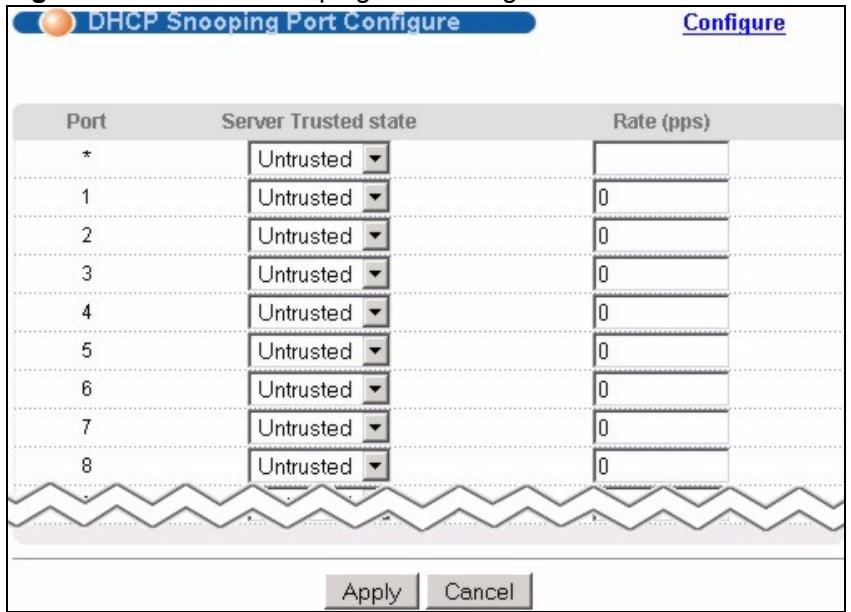
Figure 108 DHCP Snooping Port Configure
The following table describes the labels in this screen.
Table 69 DHCP Snooping Port Configure
| LABEL | DESCRIPTION |
| Port | This field displays the port number. If you configure the * port, the settings are applied to all of the ports. |
| Server Trusted state | Select whether this port is a trusted port (Trusted) or an untrusted port (Untrusted). Trusted ports are connected to DHCP servers or other switches, and the Switch discards DHCP packets from trusted ports only if the rate at which DHCP packets arrive is too high. Untrusted ports are connected to subscribers, and the Switch discs DHCP packets from untrusted ports in the following situations: • The packet is a DHCP server packet (for example, OFFER, ACK, or NACK). • The source MAC address and source IP address in the packet do not match any of the current bindings. • The packet is a RELEASE or DECLINE packet, and the source MAC address and source port do not match any of the current bindings. • The rate at which DHCP packets arrive is too high. |
| Rate (pps) | Specify the maximum number for DHCP packets (1-2048) that the Switch receives from each port each second. The Switch discards any additional DHCP packets. Enter 0 to disable this limit, which is recommended for trusted ports. |
| Apply | Click Apply to save your changes to the Switch's run-time memory. The Switch loses these changes if it is turned off or loses power, so use the Save link on the top navigation panel to save your changes to the non-volatile memory when you are done configuring. |
| Cancel | Click this to reset the values in this screen to their last-saved values. |
23.5.2 DHCP Snooping VLAN Configure
Use this screen to enable DHCP snooping on each VLAN and to specify whether or not the Switch adds DHCP relay agent option 82 information (Chapter 27 on page 221) to DHCP requests that the Switch relays to a DHCP server for each VLAN. To open this screen, click Advanced Application > IP Source Guard > DHCP Snooping > Configure > VLAN.
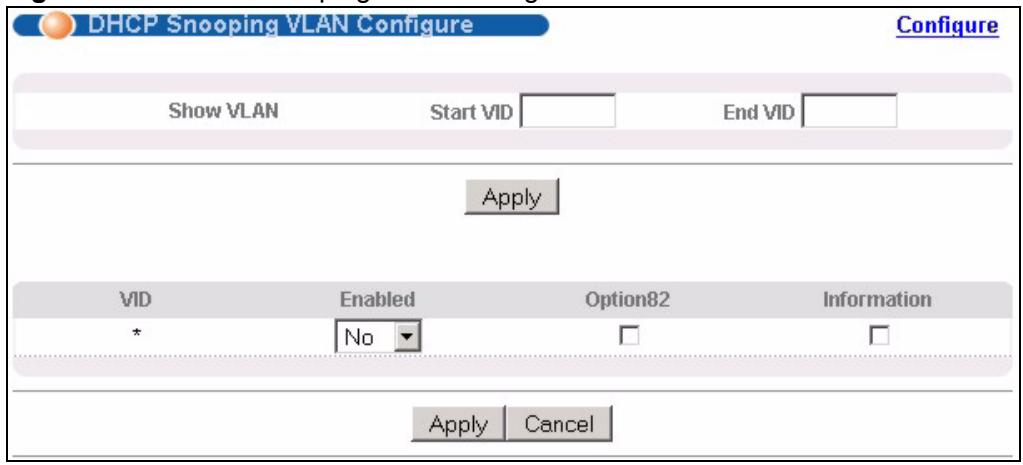
Figure 109 DHCP Snooping VLAN Configure
The following table describes the labels in this screen.
Table 70 DHCP Snooping VLAN Configure
| LABEL | DESCRIPTION |
| Show VLAN | Use this section to specify the VLANs you want to manage in the section below. |
| Start VID | Enter the lowest VLAN ID you want to manage in the section below. |
| End VID | Enter the highest VLAN ID you want to manage in the section below. |
| Apply | Click this to display the specified range of VLANs in the section below. |
| VID | This field displays the VLAN ID of each VLAN in the range specified above. If you configure the * VLAN, the settings are applied to all VLANs. |
| Enabled | Select Yes to enable DHCP snooping on the VLAN. You still have to enable DHCP snooping on the Switch and specify trusted ports.Note: If DHCP is enabled and there are no trusted ports, DHCP requests will not succeed. |
| Option82 | Select this to have the Switch add the slot number, port number and VLAN ID to DHCP requests that it broadcasts to the DHCP VLAN, if specified, or VLAN. You can specify the DHCP VLAN in the DHCP Snooping Configure screen. See Section 23.5 on page 194. |
| Information | Select this to have the Switch add the system name to DHCP requests that it broadcasts to the DHCP VLAN, if specified, or VLAN. You can configure the system name in the General Setup screen. See Chapter 7 on page 71. You can specify the DHCP VLAN in the DHCP Snooping Configure screen. See Section 23.5 on page 194. |
| Apply | Click Apply to save your changes to the Switch's run-time memory. The Switch loses these changes if it is turned off or loses power, so use the Save link on the top navigation panel to save your changes to the non-volatile memory when you are done configuring. |
| Cancel | Click this to reset the values in this screen to their last-saved values. |
23.6 ARP Inspection Status
Use this screen to look at the current list of MAC address filters that were created because the Switch identified an unauthorized ARP packet. When the Switch identifies an unauthorized ARP packet, it automatically creates a MAC address filter to block traffic from the source MAC address and source VLAN ID of the unauthorized ARP packet. To open this screen, click Advanced Application > IP Source Guard > ARP Inspection.
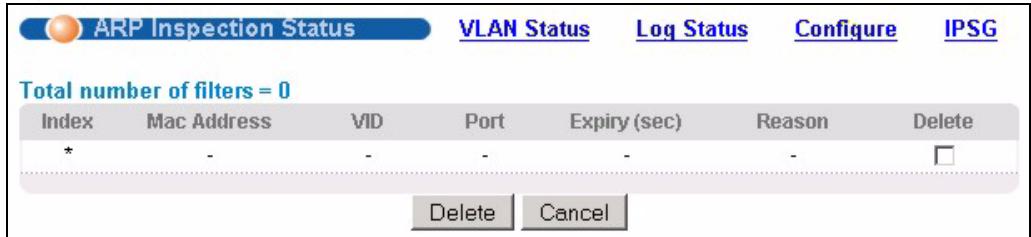
Figure 110 ARP Inspection Status
The following table describes the labels in this screen.
Table 71 ARP Inspection Status
| LABEL | DESCRIPTION |
| Total number of filters | This field displays the current number of MAC address filters that were created because the Switch identified unauthorized ARP packets. |
| Index | This field displays a sequential number for each MAC address filter. |
| Mac Address | This field displays the source MAC address in the MAC address filter. |
| VID | This field displays the source VLAN ID in the MAC address filter. |
| Port | This field displays the source port of the discarded ARP packet. |
| Expiry (sec) | This field displays how long (in seconds) the MAC address filter remains in the Switch. You can also delete the record manually (Delete). |
| Reason | This field displays the reason the ARP packet was discarded.MAC+VLAN: The MAC address and VLAN ID were not in the binding table.IP: The MAC address and VLAN ID were in the binding table, but the IP address was not valid.Port: The MAC address, VLAN ID, and IP address were in the binding table, but the port number was not valid. |
| Delete | Select this, and click Delete to remove the specified entry. |
| Cancel | Click this to clear the Delete check boxes above. |
23.6.1 ARP Inspection VLAN Status
Use this screen to look at various statistics about ARP packets in each VLAN. To open this screen, click Advanced Application > IP Source Guard > ARP Inspection > VLAN Status.
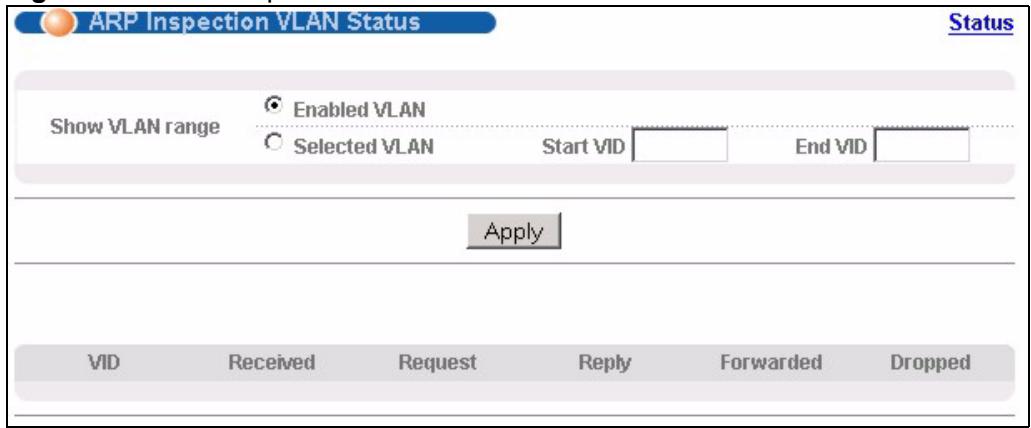
Figure 111 ARP Inspection VLAN Status
The following table describes the labels in this screen.
Table 72 ARP Inspection VLAN Status
| LABEL | DESCRIPTION |
| Show VLAN range | Use this section to specify the VLANs you want to look at in the section below. |
| Enabled VLAN | Select this to look at all the VLANs on which ARP inspection is enabled in the section below. |
| Selected VLAN | Select this to look at all the VLANs in a specific range in the section below. Then, enter the lowest VLAN ID (Start VID) and the highest VLAN ID (End VID) you want to look at. |
| Apply | Click this to display the specified range of VLANs in the section below. |
| VID | This field displays the VLAN ID of each VLAN in the range specified above. |
| Received | This field displays the total number of ARP packets received from the VLAN since the Switch last restarted. |
| Request | This field displays the total number of ARP Request packets received from the VLAN since the Switch last restarted. |
| Reply | This field displays the total number of ARP Reply packets received from the VLAN since the Switch last restarted. |
| Forwarded | This field displays the total number of ARP packets the Switch forwarded for the VLAN since the Switch last restarted. |
| Dropped | This field displays the total number of ARP packets the Switch discarded for the VLAN since the Switch last restarted. |
23.6.2 ARP Inspection Log Status
Use this screen to look at log messages that were generated by ARP packets and that have not been sent to the syslog server yet. To open this screen, click Advanced Application > IP Source Guard > ARP Inspection > Log Status.
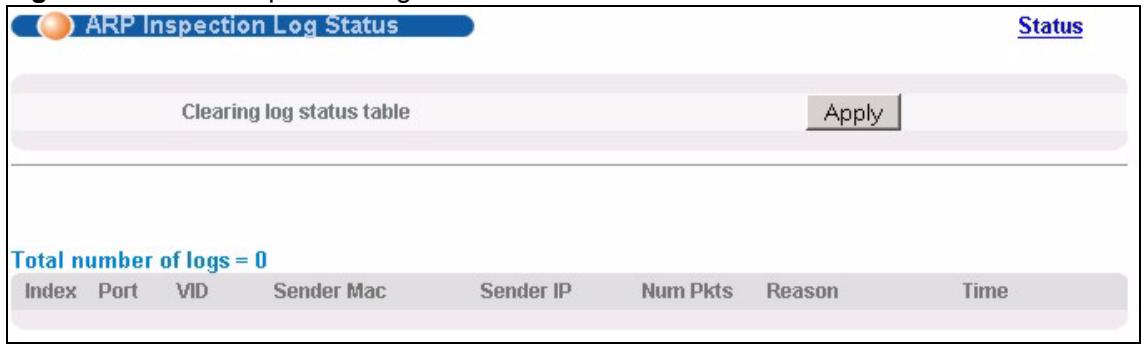
Figure 112 ARP Inspection Log Status
The following table describes the labels in this screen.
Table 73 ARP Inspection Log Status
| LABEL | DESCRIPTION |
| Clearing log status table | Click Apply to remove all the log messages that were generated by ARP packets and that have not been sent to the syslog server yet. |
| Total number of logs | This field displays the number of log messages that were generated by ARP packets and that have not been sent to the syslog server yet. If one or more log messages are dropped due to unavailable buffer, there is an entry called overflow with the current number of dropped log messages. |
| Index | This field displays a sequential number for each log message. |
| Port | This field displays the source port of the ARP packet. |
| VID | This field displays the source VLAN ID of the ARP packet. |
| Sender Mac | This field displays the source MAC address of the ARP packet. |
| Sender IP | This field displays the source IP address of the ARP packet. |
| Num Pkts | This field displays the number of ARP packets that were consolidated into this log message. The Switch consolidates identical log messages generated by ARP packets in the log consolidation interval into one log message. You can configure this interval in the ARP Inspection Configure screen. See Section 23.7 on page 201. |
| Reason | This field displays the reason the log message was generated. dhcp deny: An ARP packet was discarded because it violated a dynamic binding with the same MAC address and VLAN ID. static deny: An ARP packet was discarded because it violated a static binding with the same MAC address and VLAN ID. deny: An ARP packet was discarded because there were no bindings with the same MAC address and VLAN ID. dhcp permit: An ARP packet was forwarded because it matched a dynamic binding. static permit: An ARP packet was forwarded because it matched a static binding. In the ARP Inspection VLAN Configure screen, you can configure the Switch to generate log messages when ARP packets are discarded or forwarded based on the VLAN ID of the ARP packet. See Section 23.7.2 on page 203. |
| Time | This field displays when the log message was generated. |
23.7 ARP Inspection Configure
Use this screen to enable ARP inspection on the Switch. You can also configure the length of time the Switch stores records of discarded ARP packets and global settings for the ARP inspection log. To open this screen, click Advanced Application > IP Source Guard > ARP Inspection > Configure.
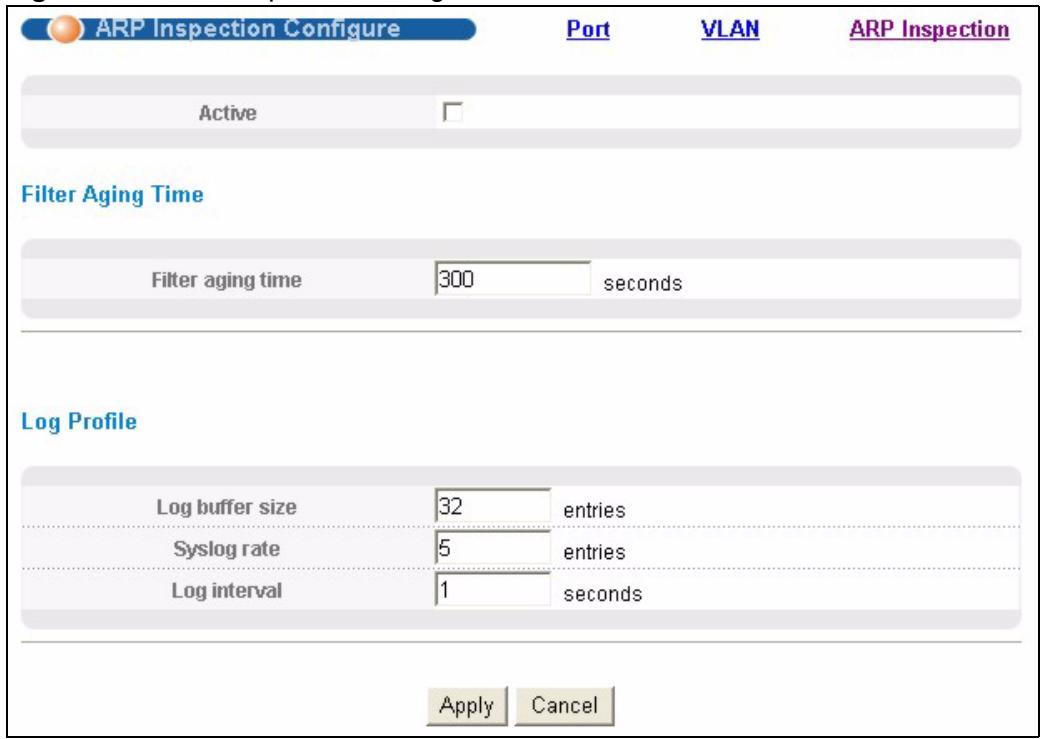
Figure 113 ARP Inspection Configure
The following table describes the labels in this screen.
Table 74 ARP Inspection Configure
| LABEL | DESCRIPTION |
| Active | Select this to enable ARP inspection on the Switch. You still have to enable ARP inspection on specific VLAN and specify trusted ports. |
| Filter Aging Time | |
| Filter aging time | This setting has no effect on existing MAC address filters. Enter how long (1~2147483647 seconds) the MAC address filter remains in the Switch after the Switch identifies an unauthorized ARP packet. The Switch automatically deletes the MAC address filter afterwards. Enter 0 if you want the MAC address filter to be permanent. |
| Log Profile | |
| Log buffer size | Enter the maximum number (1~1024) of log messages that were generated by ARP packets and have not been sent to the syslog server yet. Make sure this number is appropriate for the specified Syslog rate and Log interval. If the number of log messages in the Switch exceeds this number, the Switch stops recording log messages and simply starts counting the number of entries that were dropped due to unavailable buffer. Click Clearing log status table in the ARP Inspection Log Status screen to clear the log and reset this counter. See Section 23.6.2 on page 199. |
| Syslog rate | Enter the maximum number of syslog messages the Switch can send to the syslog server in one batch. This number is expressed as a rate because the batch frequency is determined by the Log Interval. You must configure the syslog server (Chapter 31 on page 257) to use this. Enter 0 if you do not want the Switch to send log messages generated by ARP packets to the syslog server.The relationship between Syslog rate and Log interval is illustrated in the following examples:4 invalid ARP packets per second, Syslog rate is 5, Log interval is 1: the Switch sends 4 syslog messages every second.6 invalid ARP packets per second, Syslog rate is 5, Log interval is 2: the Switch sends 5 syslog messages every 2 seconds. |
| Log interval | Enter how often (1-86400 seconds) the Switch sends a batch of syslog messages to the syslog server. Enter 0 if you want the Switch to send syslog messages immediately. See Syslog rate for an example of the relationship between Syslog rate and Log interval. |
| Apply | Click Apply to save your changes to the Switch's run-time memory. The Switch loses these changes if it is turned off or loses power, so use the Save link on the top navigation panel to save your changes to the non-volatile memory when you are done configuring. |
| Cancel | Click this to reset the values in this screen to their last-saved values. |
23.7.1 ARP Inspection Port Configure
Use this screen to specify whether ports are trusted or untrusted ports for ARP inspection. You can also specify the maximum rate at which the Switch receives ARP packets on each untrusted port. To open this screen, click Advanced Application > IP Source Guard > ARP Inspection > Configure > Port.
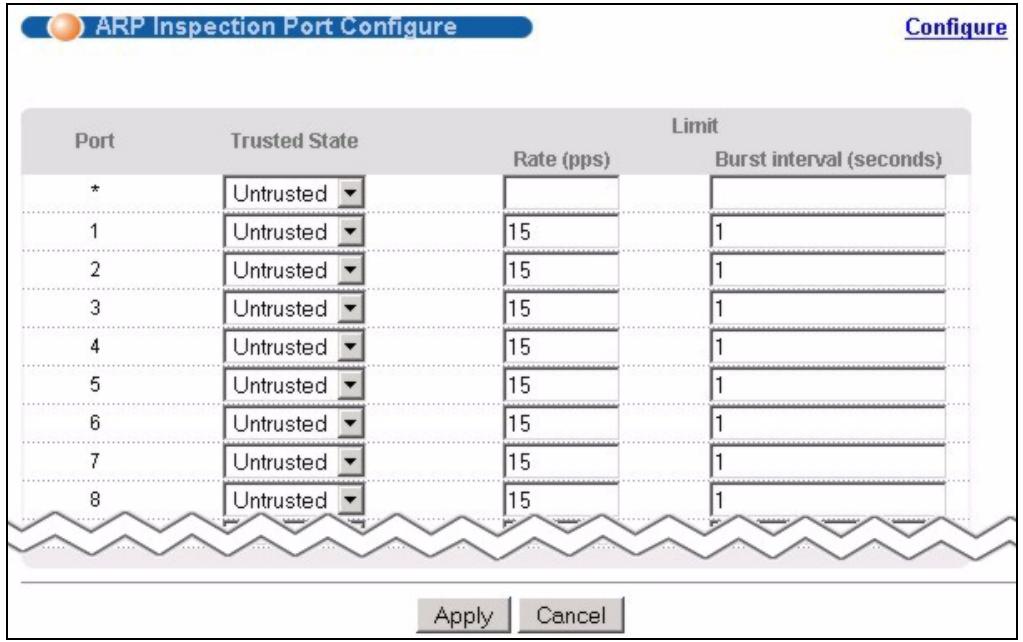
Figure 114 ARP Inspection Port Configure
The following table describes the labels in this screen.
Table 75 ARP Inspection Port Configure
| LABEL | DESCRIPTION |
| Port | This field displays the port number. If you configure the * port, the settings are applied to all of the ports. |
| Trusted State | Select whether this port is a trusted port (Trusted) or an untrusted port (Untrusted).The Switch does not discard ARP packets on trusted ports for any reason.The Switch discards ARP packets on untrusted ports in the following situations:· The sender's information in the ARP packet does not match any of the current bindings.The rate at which ARP packets arrive is too high. You can specify the maximum rate at which ARP packets can arrive on untrusted ports. |
| Limit | These settings have no effect on trusted ports. |
| Rate (pps) | Specify the maximum rate (1-2048 packets per second) at which the Switch receives ARP packets from each port. The Switch discards any additional ARP packets. Enter 0 to disable this limit. |
| Burst interval (seconds) | The burst interval is the length of time over which the rate of ARP packets is monitored for each port. For example, if the Rate is 15 pps and the burst interval is 1 second, then the Switch accepts a maximum of 15 ARP packets in every one-second interval. If the burst interval is 5 seconds, then the Switch accepts a maximum of 75 ARP packets in every five-second interval.Enter the length (1-15 seconds) of the burst interval. |
| Apply | Click Apply to save your changes to the Switch's run-time memory. The Switch loses these changes if it is turned off or loses power, so use the Save link on the top navigation panel to save your changes to the non-volatile memory when you are done configuring. |
| Cancel | Click this to reset the values in this screen to their last-saved values. |
23.7.2 ARP Inspection VLAN Configure
Use this screen to enable ARP inspection on each VLAN and to specify when the Switch generates log messages for receiving ARP packets from each VLAN. To open this screen, click Advanced Application > IP Source Guard > ARP Inspection > Configure > VLAN.
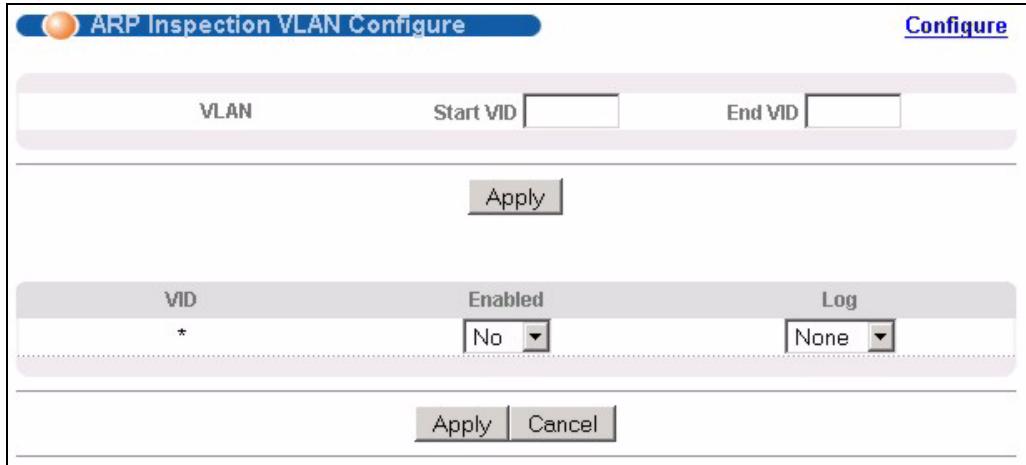
Figure 115 ARP Inspection VLAN Configure
The following table describes the labels in this screen.
Table 76 ARP Inspection VLAN Configure
| LABEL | DESCRIPTION |
| VLAN | Use this section to specify the VLANs you want to manage in the section below. |
| Start VID | Enter the lowest VLAN ID you want to manage in the section below. |
| End VID | Enter the highest VLAN ID you want to manage in the section below. |
| Apply | Click this to display the specified range of VLANs in the section below. |
| VID | This field displays the VLAN ID of each VLAN in the range specified above. If you configure the * VLAN, the settings are applied to all VLANs. |
| Enabled | Select Yes to enable ARP inspection on the VLAN. Select No to disable ARP inspection on the VLAN. |
| Log | Specify when the Switch generates log messages for receiving ARP packets from the VLAN. None: The Switch does not generate any log messages when it receives an ARP packet from the VLAN. Deny: The Switch generates log messages when it discards an ARP packet from the VLAN. Permit: The Switch generates log messages when it forwards an ARP packet from the VLAN. All: The Switch generates log messages every time it receives an ARP packet from the VLAN. |
| Apply | Click Apply to save your changes to the Switch's run-time memory. The Switch loses these changes if it is turned off or loses power, so use the Save link on the top navigation panel to save your changes to the non-volatile memory when you are done configuring. |
| Cancel | Click this to reset the values in this screen to their last-saved values. |
Loop Guard
This chapter shows you how to configure the Switch to guard against loops on the edge of your network.
24.1 Loop Guard Overview
Loop guard allows you to configure the Switch to shut down a port if it detects that packets sent out on that port loop back to the Switch. While you can use Spanning Tree Protocol (STP) to prevent loops in the core of your network. STP cannot prevent loops that occur on the edge of your network.
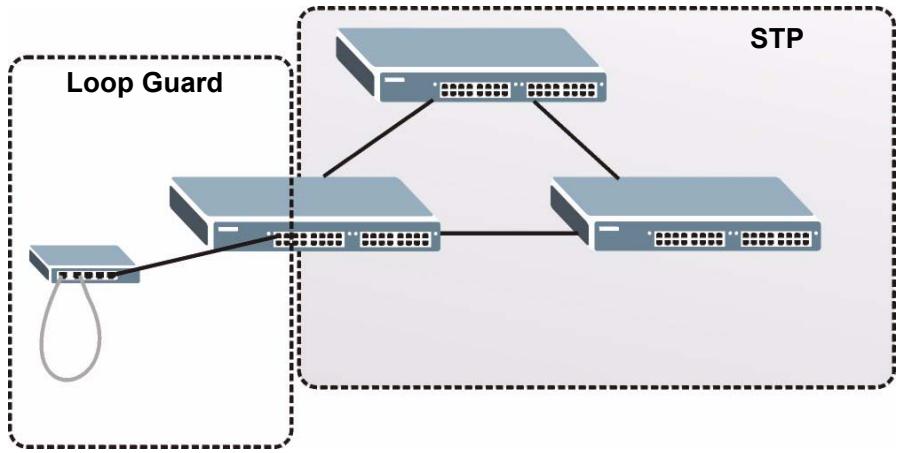
Figure 116 Loop Guard vs STP
Loop guard is designed to handle loop problems on the edge of your network. This can occur when a port is connected to a Switch that is in a loop state. Loop state occurs as a result of human error. It happens when two ports on a switch are connected with the same cable. When a switch in loop state sends out broadcast messages the messages loop back to the switch and are re-broadcast again and again causing a broadcast storm.
If a switch (not in loop state) connects to a switch in loop state, then it will be affected by the switch in loop state in the following way:
- It will receive broadcast messages sent out from the switch in loop state.
- It will receive its own broadcast messages that it sends out as they loop back. It will then re-broadcast those messages again.
The following figure shows port N on switch A connected to switch B. Switch B is in loop state. When broadcast or multicast packets leave port N and reach switch B, they are sent back to port N on A as they are rebroadcast from B.
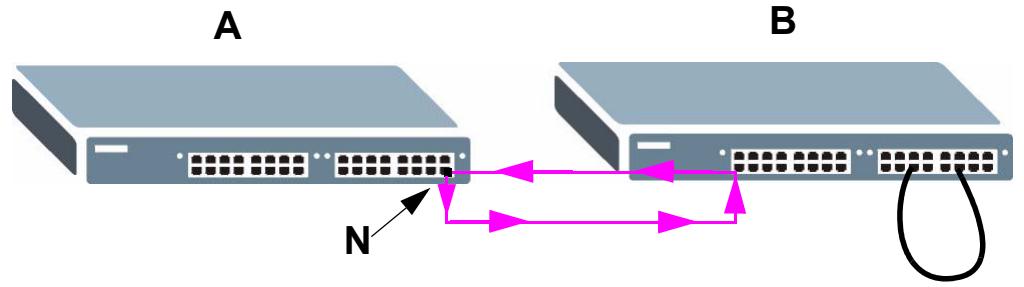
Figure 117 Switch in Loop State
The loop guard feature checks to see if a loop guard enabled port is connected to a switch in loop state. This is accomplished by periodically sending a probe packet and seeing if the packet returns on the same port. If this is the case, the Switch will shut down the port connected to the switch in loop state.
The following figure shows a loop guard enabled port N on switch A sending a probe packet P to switch B. Since switch B is in loop state, the probe packet P returns to port N on A. The Switch then shuts down port N to ensure that the rest of the network is not affected by the switch in loop state.
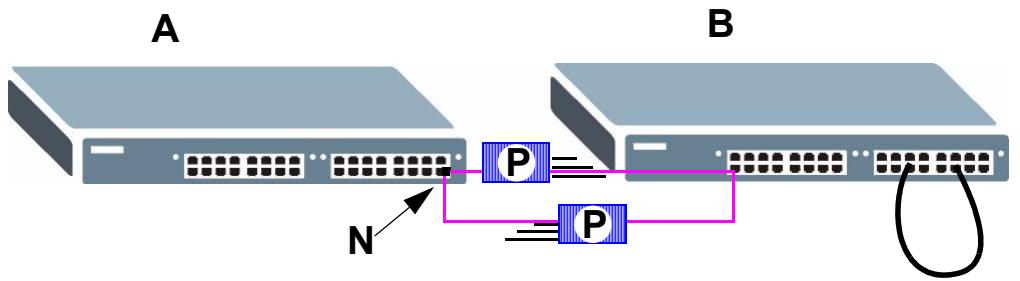
Figure 118 Loop Guard - Probe Packet
The Switch also shuts down port N if the probe packet returns to switch A on any other port. In other words loop guard also protects against standard network loops. The following figure illustrates three switches forming a loop. A sample path of the loop guard probe packet is also shown. In this example, the probe packet is sent from port N and returns on another port. As long as loop guard is enabled on port N. The Switch will shut down port N if it detects that the probe packet has returned to the Switch.
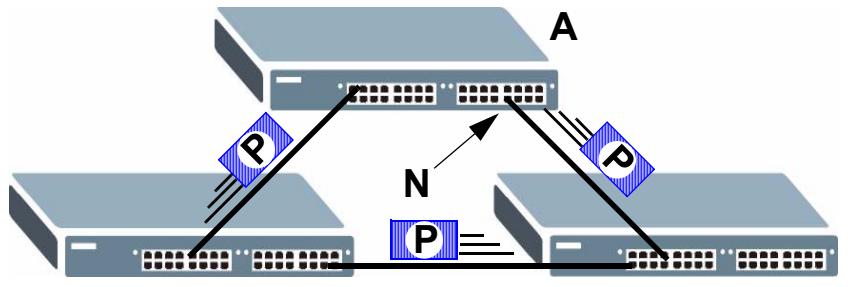
Figure 119 Loop Guard - Network Loop

After resolving the loop problem on your network you can re-activate the disabled port via the web configurator (see Section 7.7 on page 79) or via commands (See the CLI Reference Guide).
24.2 Loop Guard Setup
Click Advanced Application > Loop Guard in the navigation panel to display the screen as shown.

The loop guard feature can not be enabled on the ports that have Spanning Tree Protocol (RSTP, MRSTP or MSTP) enabled.
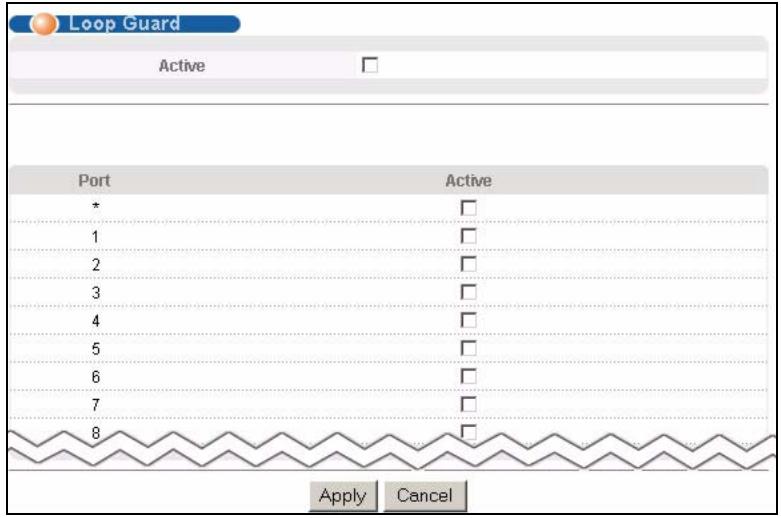
Figure 120 Advanced Application > Loop Guard
The following table describes the labels in this screen.
Table 77 Advanced Application > Loop Guard
| LABEL | DESCRIPTION |
| Active | Select this option to enable loop guard on the Switch.The Switch generates syslog, internal log messages as well as SNMP traps when it shuts down a port via the loop guard feature. |
| Port | This field displays the port number. |
| * | Use this row to make the setting the same for all ports. Use this row first and then make adjustments on a port-by-port basis.Note: Changes in this row are copied to all the ports as soon as you make them. |
| Active | Select this check box to enable the loop guard feature on this port. The Switch sends probe packets from this port to check if the switch it is connected to is in loop state. If the switch that this port is connected is in loop state the Switch will shut down this port.Clear this check box to disable the loop guard feature. |
| Apply | Click Apply to save your changes to the Switch's run-time memory. The Switch loses these changes if it is turned off or loses power, so use the Save link on the top navigation panel to save your changes to the non-volatile memory when you are done configuring. |
| Cancel | Click Cancel to begin configuring this screen afresh. |
Two Rate Three Color Marker
This chapter describes how Differentiated Services (DiffServ) fits into a quality of service strategy and shows you how to configure Two Rate Three Color Marker traffic policing on the Switch.
25.1 DiffServ Overview
Quality of Service (QoS) is used to prioritize source-to-destination traffic flows. All packets in the flow are given the same priority. You can use CoS (class of service) to give different priorities to different packet types.
DiffServ is a class of service (CoS) model that marks packets so that they receive specific per-hop treatment at DiffServ-compliant network devices along the route based on the application types and traffic flow. Packets are marked with DiffServ Code Points (DSCPs) indicating the level of service desired. This allows the intermediary DiffServ-compliant network devices to handle the packets differently depending on the code points without the need to negotiate paths or remember state information for every flow. In addition, applications do not have to request a particular service or give advanced notice of where the traffic is going.
25.1.1 DSCP and Per-Hop Behavior
DiffServ defines a new DS (Differentiated Services) field to replace the Type of Service (ToS) field in the IP header. The DS field contains a 6-bit DSCP field which can define up to 64 service levels and the remaining 2 bits are defined as currently unused (CU). The following figure illustrates the DS field.
Figure 121 DiffServ: Differentiated Service Field
| DSCP (6 bits) | CU (2 bits) |
DSCP is backward compatible with the three precedence bits in the ToS octet so that non-DiffServ compliant, ToS-enabled network device will not conflict with the DSCP mapping.
The DSCP value determines the PHB (Per-Hop Behavior), that each packet gets as it is forwarded across the DiffServ network. Based on the marking rule different kinds of traffic can be marked for different priorities of forwarding. Resources can then be allocated according to the DSCP values and the configured policies.
25.1.2 DiffServ Network Example
The following figure depicts a DiffServ network consisting of a group of directly connected DiffServ-compliant network devices. The boundary node (A in Figure 122) in a DiffServ network classifies (marks with a DSCP value) the incoming packets into different traffic flows (Platinum, Gold, Silver, Bronze) based on the configured marking rules. A network administrator can then apply various traffic policies to the traffic flows. An example traffic policy, is to give higher drop precedence to one traffic flow over others. In our example, packets in the Bronze traffic flow are more likely to be dropped when congestion occurs than the packets in the Platinum traffic flow as they move across the DiffServ network.
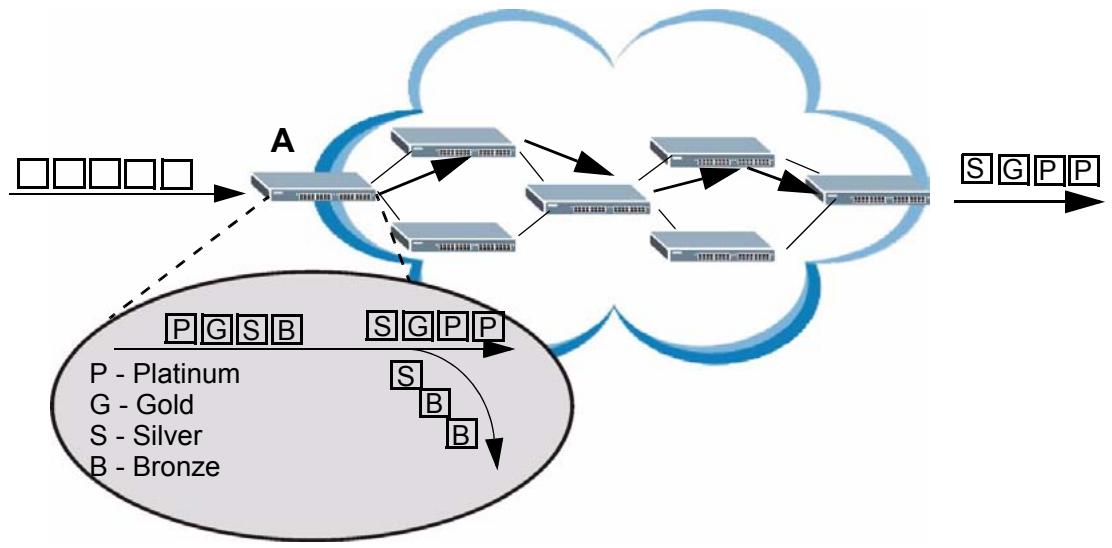
Figure 122 DiffServ Network
25.2 Two Rate Three Color Marker Traffic Policing
Traffic policing is the limiting of the input or output transmission rate of a class of traffic on the basis of user-defined criteria. Traffic policing methods measure traffic flows against user-defined criteria and identify it as either conforming, exceeding or violating the criteria.
Two Rate Three Color Marker trTCM, defined in RFC 2698) is a type of traffic policing that identifies packets by comparing them to two user-defined rates: the Committed Information Rate (CIR) and the Peak Information Rate (PIR). The CIR specifies the average rate at which packets are admitted to the network. The PIR is greater than or equal to the CIR. CIR and PIR values are based on the guaranteed and maximum bandwidth respectively as negotiated between a service provider and client.
Two Rate Three Color Marker evaluates incoming packets and marks them with one of three colors which refer to packet loss priority levels. High packet loss priority level is referred to as red, medium is referred to as yellow and low is referred to as green. After trTCM is configured, the DiffServ compliant devices on your network can perform the following actions on the colored packets:
- Red (high loss priority level) packets are dropped.
-
Yellow (medium loss priority level) packets are dropped if there is congestion on the network.
-
Green (low loss priority level) packets are forwarded.
trTCM operates in one of two modes: color-blind or color-aware. In color-blind mode, packets are marked based on evaluating against the PIR and CIR regardless of if they have previously been marked or not. In the color-aware mode, packets are marked based on both existing color and evaluation against the PIR and CIR. If the packets do not match any of colors, then the packets proceed unchanged.
25.2.1 trTCM - Color-blind Mode
All packets are evaluated against the PIR. If a packet exceeds the PIR it is marked red. Otherwise it is evaluated against the CIR. If it exceeds the CIR then it is marked yellow. Finally, if it is below the CIR then it is marked green.
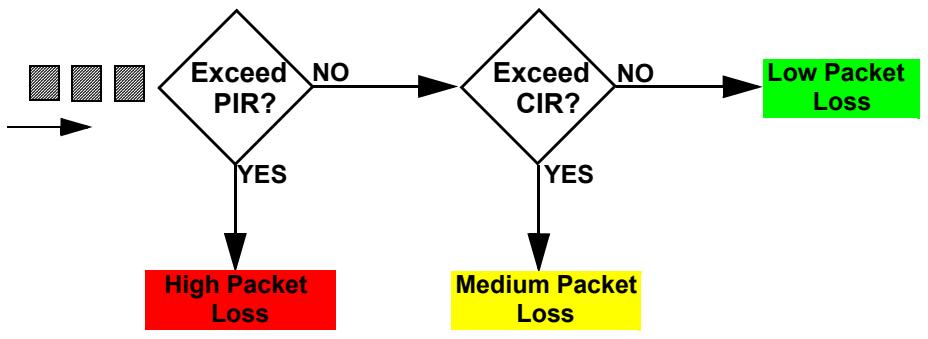
Figure 123 trTCM - Color-blind Mode
25.2.2 trTCM - Color-aware Mode
In color-aware mode the evaluation of the packets uses the existing packet loss priority. trTCM can increase a packet loss priority of a packet but it cannot decrease it. Packets that have been previously marked red or yellow can only be marked with an equal or higher packet loss priority.
Packets marked red (high packet loss priority) continue to be red without evaluation against the PIR or CIR. Packets marked yellow can only be marked red or remain yellow so they are only evaluated against the PIR. Only the packets marked green are first evaluated against the PIR and then if they don't exceed the PIR level are they evaluated against the CIR.
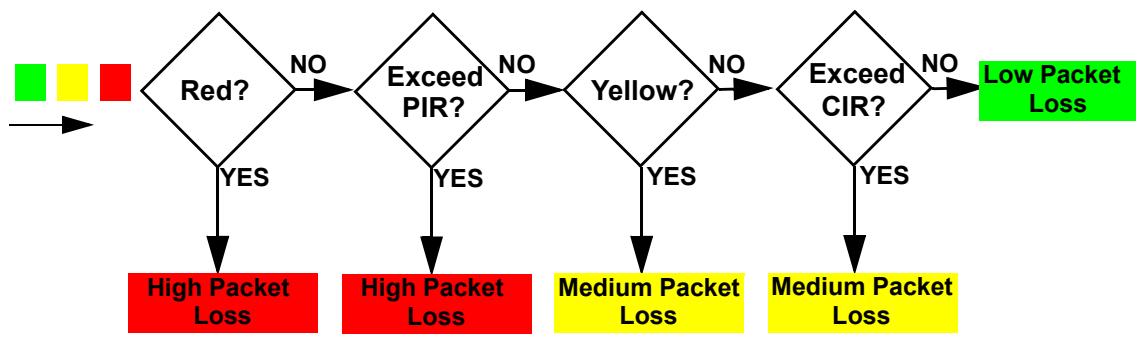
Figure 124 trTCM - Color-aware Mode
25.2.3 Configuring Two Rate Three Color Marker Settings
Use this screen to configure trTCM settings. Click the Advanced Application > trTCM to display the screen as shown next.

You cannot enable both trTCM and Bandwidth Control at the same time.
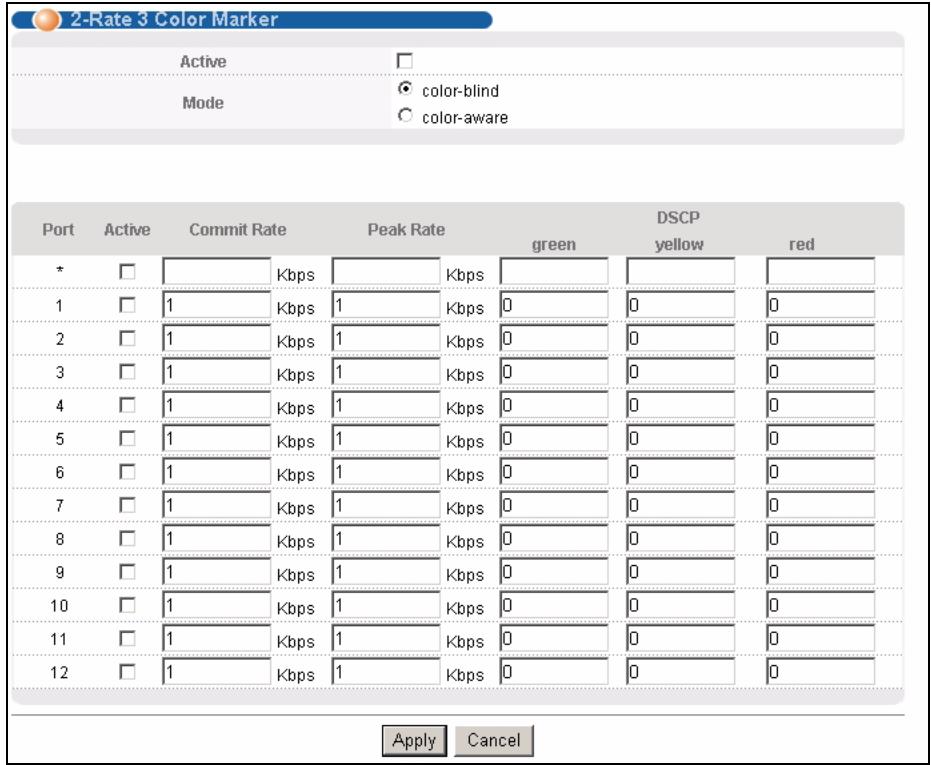
Figure 125 Advanced Application > trTCM
The following table describes the labels in this screen.
Table 78 Advanced Application > trTCM
| LABEL | DESCRIPTION |
| Active | Select this to activate trTCM (Two Rate Three Color Marker) on the Switch. The Switch evaluates and marks the packets based on the trTCM settings. |
| Mode | Select color-blind to have the Switch treat all incoming packets as uncolored. All incoming packets are evaluated against the CIR and PIR. Select color-aware to treat the packets as marked by some preceding entity. Incoming packets are evaluated based on their existing color. Incoming packets that are not marked proceed through the Switch. |
| Port | This field displays the index number of a port on the Switch. |
| * | Settings in this row apply to all ports. Use this row only if you want to make some settings the same for all ports. Use this row first to set the common settings and then make adjustments on a port-by-port basis. Note: Changes in this row are copied to all the ports as soon as you make them. |
| Active | Select this to activate trTCM on the port. |
| Commit Rate | Specify the Commit Information Rate (CIR) for this port. |
| Peak Rate | Specify the Peak Information Rate (PIR) for this port. |
| DSCP | Use this section to specify the DSCP values that you want to assign to packets based on the color they are marked via trTCM. |
| green | Specify the DSCP value to use for packets with low packet loss priority. |
| yellow | Specify the DSCP value to use for packets with medium packet loss priority. |
| red | Specify the DSCP value to use for packets with high packet loss priority. |
| Apply | Click Apply to save your changes to the Switch's run-time memory. The Switch loses these changes if it is turned off or loses power, so use the Save link on the top navigation panel to save your changes to the non-volatile memory when you are done configuring. |
| Cancel | Click Cancel to begin configuring this screen afresh. |
PART IV
IP Application
Static Route (217)
DHCP (221)
This chapter shows you how to configure static routes.
26.1 Static Routing Overview
The Switch uses IP for communication with management computers, for example using HTTP, telnet, SSH, or SNMP. Use IP static routes to have the Switch respond to remote management stations that are not reachable through the default gateway. The Switch can also use static routes to send data to a server or device that is not reachable through the default gateway, for example when sending SNMP traps or using ping to test IP connectivity.
This figure shows a Telnet session coming in from network N1. The Switch sends reply traffic to default gateway R1 which routes it back to the manager's computer. The Switch needs a static route to tell it to use router R2 to send traffic to an SNMP trap server on network N2.
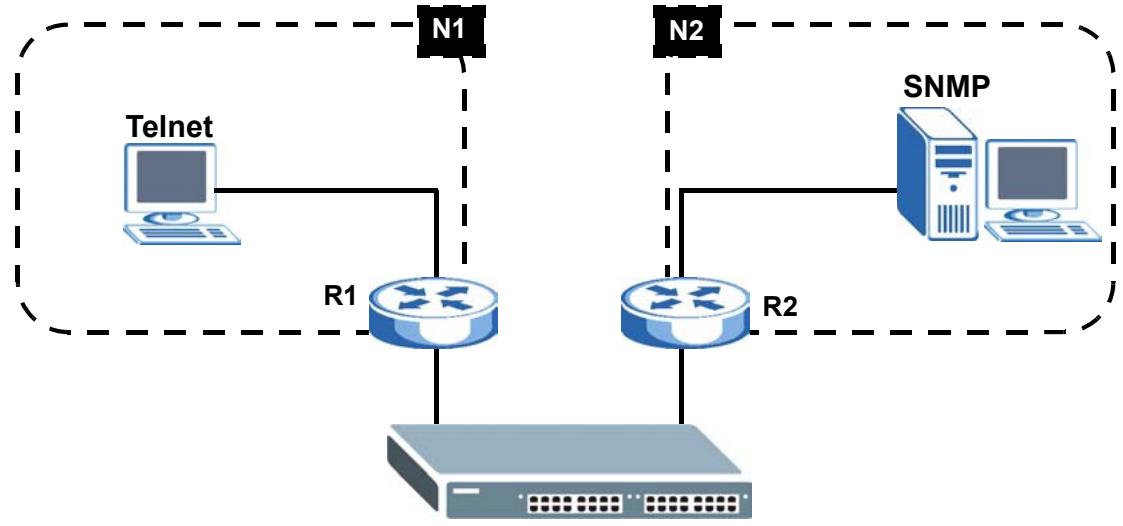
Figure 126 Static Routing Overview
26.2 Configuring Static Routing
Click IP Application > Static Routing in the navigation panel to display the screen as shown.
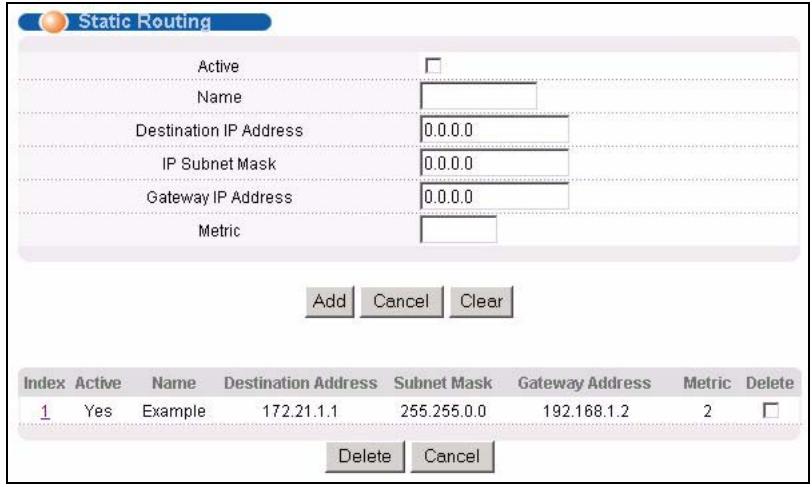
Figure 127 IP Application > Static Routing
The following table describes the related labels you use to create a static route.
Table 79 IP Application > Static Routing
| LABEL | DESCRIPTION |
| Active | This field allows you to activate/deactivate this static route. |
| Name | Enter a descriptive name (up to 10 printable ASCII characters) for identification purposes. |
| Destination IP Address | This parameter specifies the IP network address of the final destination. |
| IP Subnet Mask | Enter the subnet mask for this destination. Routing is always based on network number. If you need to specify a route to a single host, use a subnet mask of 255.255.255.255 in the subnet mask field to force the network number to be identical to the host ID. |
| Gateway IP Address | Enter the IP address of the gateway. The gateway is an immediate neighbor of your Switch that will forward the packet to the destination. The gateway must be a router on the same segment as your Switch. |
| Metric | The metric represents the “cost” of transmission for routing purposes. IP routing uses hop count as the measurement of cost, with a minimum of 1 for directly connected networks. Enter a number that approximates the cost for this link. The number need not be precise, but it must be between 1 and 15. In practice, 2 or 3 is usually a good number. |
| Add | Click Add to insert a new static route to the Switch's run-time memory. The Switch loses these changes if it is turned off or loses power, so use the Save link on the top navigation panel to save your changes to the non-volatile memory when you are done configuring. |
| Cancel | Click Cancel to reset the above fields to your previous configuration. |
| Clear | Click Clear to set the above fields back to the factory defaults. |
| Index | This field displays the index number of the route. Click a number to edit the static route entry. |
| Active | This field displays Yes when the static route is activated and NO when it is deactivated. |
| Name | This field displays the descriptive name for this route. This is for identification purposes only. |
| Destination Address | This field displays the IP network address of the final destination. |
| Subnet Mask | This field displays the subnet mask for this destination. |
| Gateway Address | This field displays the IP address of the gateway. The gateway is an immediate neighbor of your Switch that will forward the packet to the destination. |
| Metric | This field displays the cost of transmission for routing purposes. |
| Delete | Click Delete to remove the selected entry from the summary table. |
| Cancel | Click Cancel to clear the Delete check boxes. |
This chapter shows you how to configure the DHCP feature.
27.1 DHCP Overview
DHCP (Dynamic Host Configuration Protocol RFC 2131 and RFC 2132) allows individual computers to obtain TCP/IP configuration at start-up from a server. You can configure the Switch as a DHCP server or a DHCP relay agent. When configured as a server, the Switch provides the TCP/IP configuration for the clients. If you configure the Switch as a relay agent, then the Switch forwards DHCP requests to DHCP server on your network. If you don't configure the Switch as a DHCP server or relay agent then you must have a DHCP server in the broadcast domain of the client computers or else the client computers must be configured manually.
27.1.1 DHCP Modes
If there is already a DHCP server on your network, then you can configure the Switch as a DHCP relay agent. When the Switch receives a request from a computer on your network, it contacts the DHCP server for the necessary IP information, and then relays the assigned information back to the computer.
27.1.2 DHCP Configuration Options
The DHCP configuration on the Switch is divided into Global and VLAN screens. The screen you should use for configuration depends on the DHCP services you want to offer the DHCP clients on your network. Choose the configuration screen based on the following criteria:
- Global - The Switch forwards all DHCP requests to the same DHCP server.
- VLAN - The Switch is configured on a VLAN by VLAN basis. The Switch can be configured to relay DHCP requests to different DHCP servers for clients in different VLAN.
27.2 DHCP Status
Click IP Application > DHCP in the navigation panel. The DHCP Status screen displays.
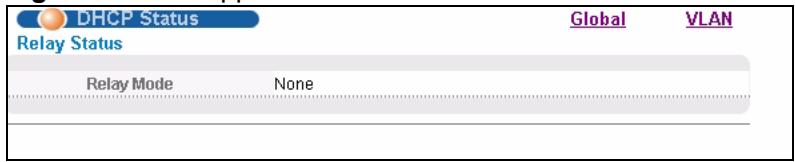
Figure 128 IP Application > DHCP Status
The following table describes the labels in this screen.
Table 80 IP Application > DHCP
| LABEL | DESCRIPTION |
| Relay Mode | This field displays: • None - if the Switch is not configured as a DHCP relay agent. • Global - if the Switch is configured as a DHCP relay agent only. • VLAN - followed by a VLAN ID if it is configured as a relay agent for specific VLAN(s). |
27.3 DHCP Relay
Configure DHCP relay on the Switch if the DHCP clients and the DHCP server are not in the same broadcast domain. During the initial IP address leasing, the Switch helps to relay network information (such as the IP address and subnet mask) between a DHCP client and a DHCP server. Once the DHCP client obtains an IP address and can connect to the network, network information renewal is done between the DHCP client and the DHCP server without the help of the Switch.
The Switch can be configured as a global DHCP relay. This means that the Switch forwards all DHCP requests from all domains to the same DHCP server. You can also configure the Switch to relay DHCP information based on the VLAN membership of the DHCP clients.
27.3.1 DHCP Relay Agent Information
The Switch can add information about the source of client DHCP requests that it relays to a DHCP server by adding Relay Agent Information. This helps provide authentication about the source of the requests. The DHCP server can then provide an IP address based on this information. Please refer to RFC 3046 for more details.
The DHCP Relay Agent Information feature adds an Agent Information field to the Option 82 field. The Option 82 field is in the DHCP headers of client DHCP request frames that the Switch relays to a DHCP server.
Relay Agent Information can include the System Name of the Switch if you select this option. You can change the System Name in Basic Settings > General Setup.
The following describes the DHCP relay information that the Switch sends to the DHCP server:
Table 81 Relay Agent Information
| FIELD LABELS | DESCRIPTION |
| Slot ID | (1 byte) This value is always 0 for stand-alone switches. |
| Port ID | (1 byte) This is the port that the DHCP client is connected to. |
Table 81 Relay Agent Information
| FIELD LABELS | DESCRIPTION |
| VLAN ID | (2 bytes) This is the VLAN that the port belongs to. |
| Information | (up to 64 bytes) This optional, read-only field is set according to system name set in Basic Settings > General Setup. |
27.3.2 Configuring DHCP Global Relay
Configure global DHCP relay in the DHCP Relay screen. Click IP Application > DHCP in the navigation panel and click the Global link to display the screen as shown.
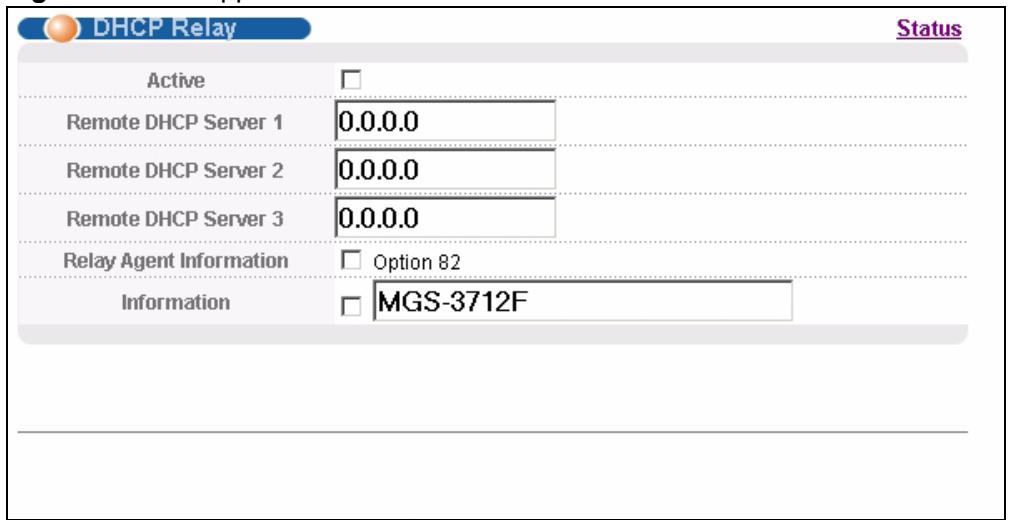
Figure 129 IP Application >DHCP >Global
The following table describes the labels in this screen.
Table 82 IP Application >DHCP >Global
| LABEL | DESCRIPTION |
| Active | Select this check box to enable DHCP relay. |
| Remote DHCP Server 1..3 | Enter the IP address of a DHCP server in dotted decimal notation. |
| Relay Agent Information | Select the Option 82 check box to have the Switch add information (slot number, port number and VLAN ID) to client DHCP requests that it relays to a DHCP server. |
| Information | This read-only field displays the system name you configure in the General Setup screen. Select the check box for the Switch to add the system name to the client DHCP requests that it relays to a DHCP server. |
| Apply | Click Apply to save your changes to the Switch's run-time memory. The Switch loses these changes if it is turned off or loses power, so use the Save link on the top navigation panel to save your changes to the non-volatile memory when you are done configuring. |
| Cancel | Click Cancel to begin configuring this screen afresh. |
27.3.3 Global DHCP Relay Configuration Example
The follow figure shows a network example where the Switch is used to relay DHCP requests for the VLAN1 and VLAN2 domains. There is only one DHCP server that services the DHCP clients in both domains.
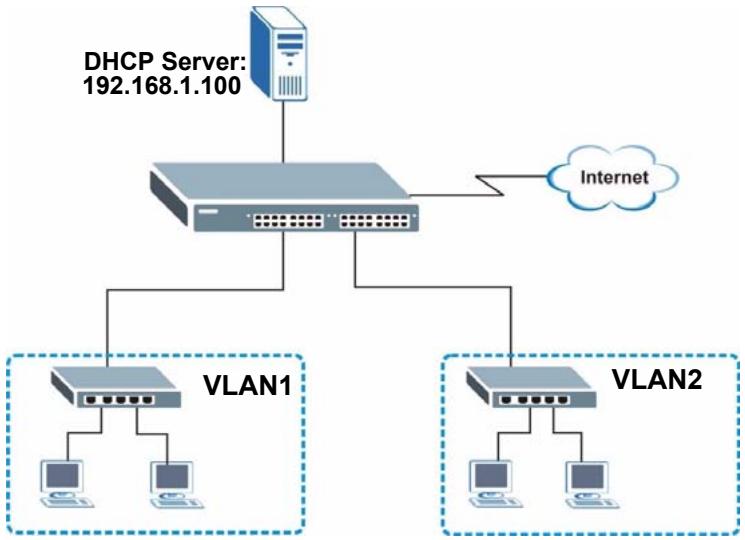
Figure 130 Global DHCP Relay Network Example
Configure the DHCP Relay screen as shown. Make sure you select the Option 82 check box to set the Switch to send additional information (such as the VLAN ID) together with the DHCP requests to the DHCP server. This allows the DHCP server to assign the appropriate IP address according to the VLAN ID.
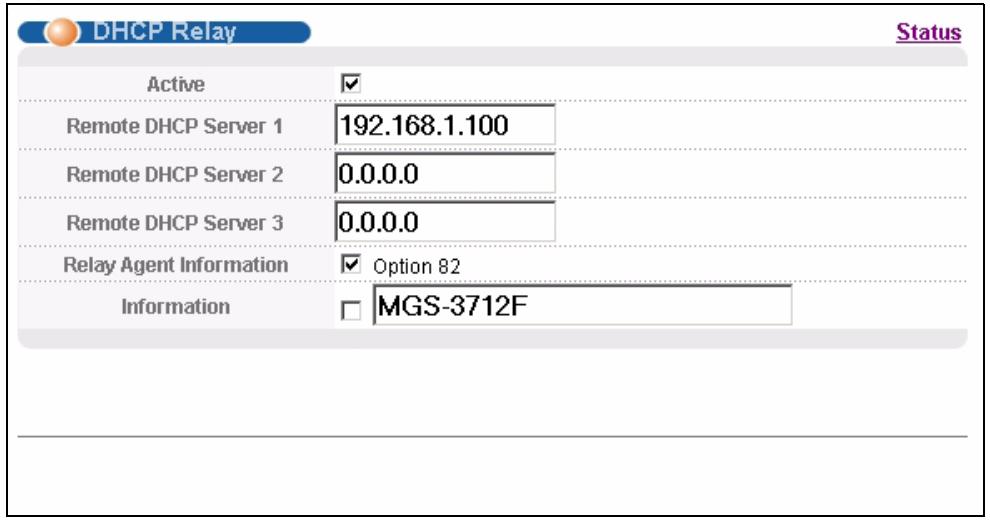
Figure 131 DHCP Relay Configuration Example
27.4 Configuring DHCP VLAN Settings
Use this screen to configure your DHCP settings based on the VLAN domain of the DHCP clients. Click IP Application > DHCP in the navigation panel, then click the VLAN link In the DHCP Status screen that displays.

You must set up a management IP address for each VLAN that you want to configure DHCP settings for on the Switch.
See Section 7.6 on page 77 for information on how to set up management IP addresses for VLANs.
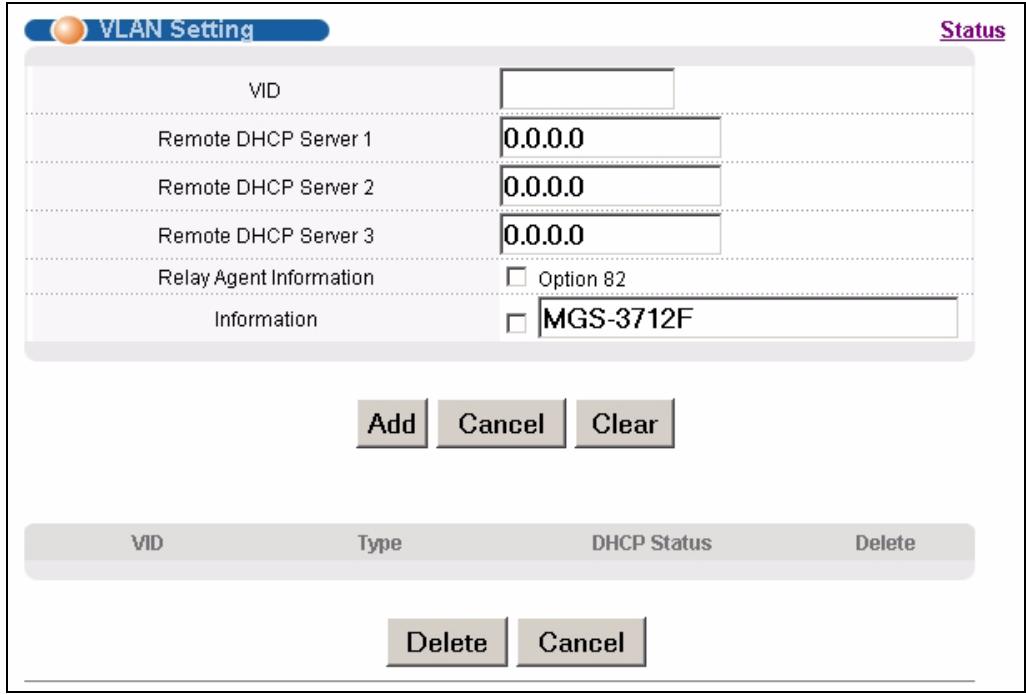
Figure 132 IP Application > DHCP > VLAN
The following table describes the labels in this screen.
Table 83 IP Application > DHCP > VLAN
| LABEL | DESCRIPTION |
| VID | Enter the ID number of the VLAN to which these DHCP settings apply. |
| Remote DHCP Server 1..3 | Enter the IP address of a DHCP server in dotted decimal notation. |
| Relay Agent Information | Select the Option 82 check box to have the Switch add information (slot number, port number and VLAN ID) to client DHCP requests that it relays to a DHCP server. |
| Information | This read-only field displays the system name you configure in the General Setup screen. Select the check box for the Switch to add the system name to the client DHCP requests that it relays to a DHCP server. |
| Add | Click Add to save your changes to the Switch's run-time memory. The Switch loses these changes if it is turned off or loses power, so use the Save link on the top navigation panel to save your changes to the non-volatile memory when you are done configuring. |
| Cancel | Click Cancel to begin configuring this screen afresh. |
| Clear | Click this to clear the fields above. |
| VID | This field displays the ID number of the VLAN group to which this DHCP settings apply. |
| Type | This field displays the DHCP mode (Relay). |
| DHCP Status | For DHCP relay configuration, this field displays the first remote DHCP server IP address. |
| Delete | Select the configuration entries you want to remove and click Delete to remove them. |
| Cancel | Click Cancel to clear the Delete check boxes. |
27.4.1 Example: DHCP Relay for Two VLANs
The following example displays two VLANs (VIDs 1 and 2) for a campus network. Two DHCP servers are installed to serve each VLAN. The system is set up to forward DHCP requests from the dormitory rooms (VLAN 1) to the DHCP server with an IP address of 192.168.1.100. Requests from the academic buildings (VLAN 2) are sent to the other DHCP server with an IP address of 172.23.10.100.
Figure 133 DHCP Relay for Two VLANs
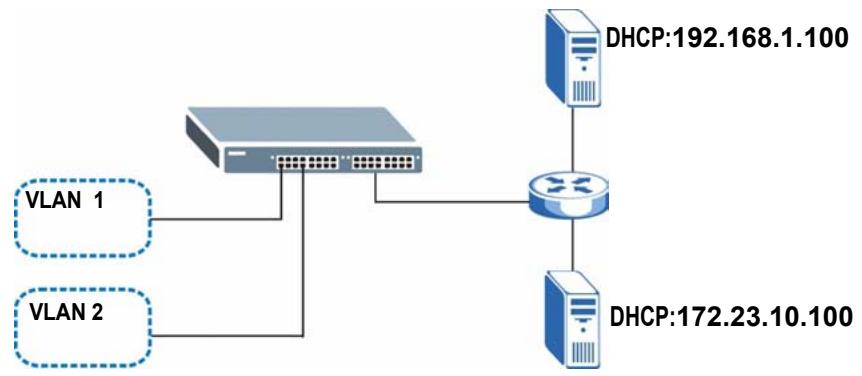
For the example network, configure the VLAN Setting screen as shown.
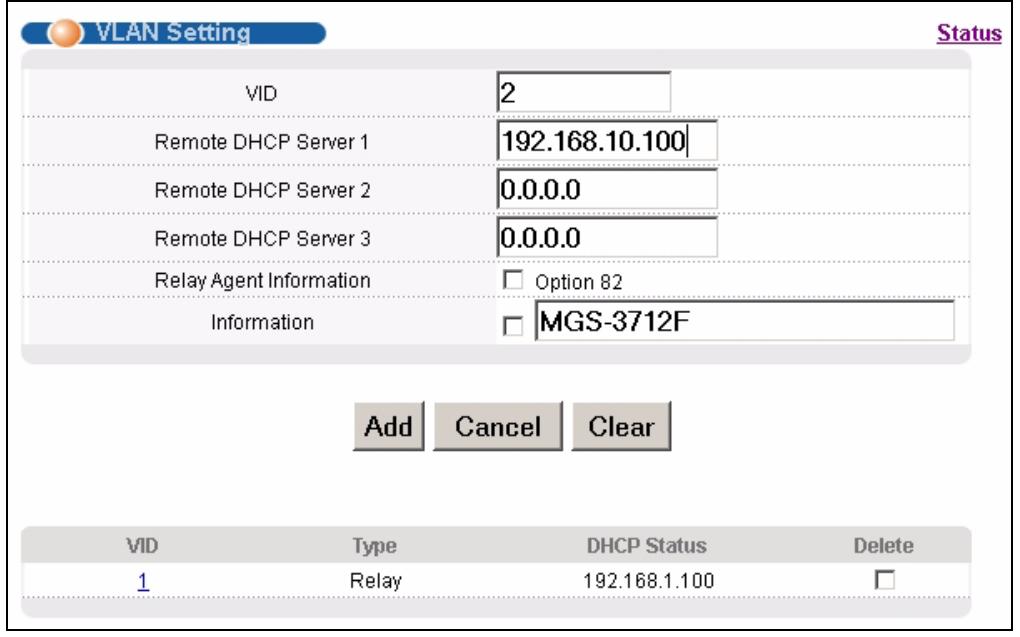
Figure 134 DHCP Relay for Two VLANs Configuration Example
PART V
Management
Maintenance (231)
Access Control (237)
Diagnostic (255)
Syslog (257)
Cluster Management (261)
MAC Table (267)
ARP Table (269)
Configure Clone (271)
This chapter explains how to configure the screens that let you maintain the firmware and configuration files.
28.1 The Maintenance Screen
Use this screen to manage firmware and your configuration files. Click Management > Maintenance in the navigation panel to open the following screen.
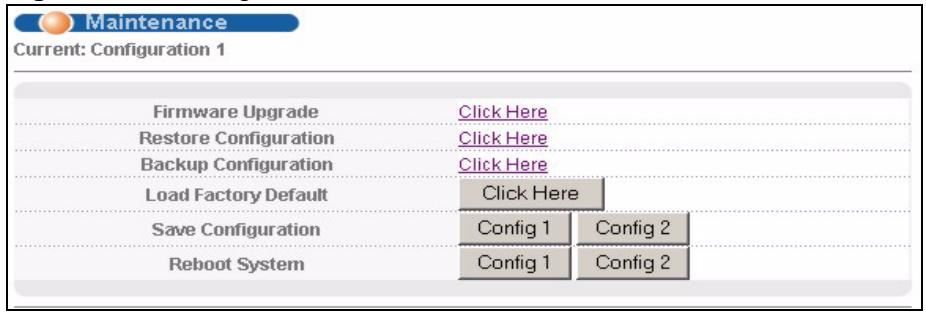
Figure 135 Management > Maintenance
The following table describes the labels in this screen.
Table 84 Management > Maintenance
| LABEL | DESCRIPTION |
| Current | This field displays which configuration (Configuration 1 or Configuration 2) is currently operating on the Switch. |
| Firmware Upgrade | Click Click Here to go to the Firmware Upgrade screen. |
| Restore Configuration | Click Click Here to go to the Restore Configuration screen. |
| Backup Configuration | Click Click Here to go to the Backup Configuration screen. |
| Load Factory Default | Click Click Here to reset the configuration to the factory default settings. |
| Save Configuration | Click Config 1 to save the current configuration settings to Configuration 1 on the Switch. Click Config 2 to save the current configuration settings to Configuration 2 on the Switch. |
| Reboot System | Click Config 1 to reboot the system and load Configuration 1 on the Switch. Click Config 2 to reboot the system and load Configuration 2 on the Switch. Note: Make sure to click the Save button in any screen to save your settings to the current configuration on the Switch. |
28.2 Load Factory Default
Follow the steps below to reset the Switch back to the factory defaults.
1 In the Maintenance screen, click the Click Here button next to Load Factory Default to clear all Switch configuration information you configured and return to the factory defaults.
2 Click OK to reset all Switch configurations to the factory defaults.
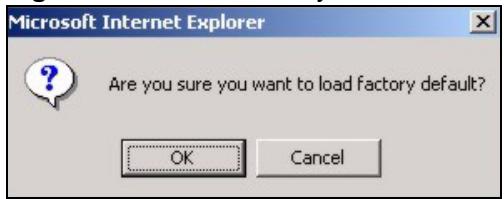
Figure 136 Load Factory Default: Start
3 In the web configurator, click the Save button in the top of the screen to make the changes take effect. If you want to access the Switch web configurator again, you may need to change the IP address of your computer to be in the same subnet as that of the default Switch IP address (192.168.1.1).
28.3 Save Configuration
Click Config 1 to save the current configuration settings permanently to Configuration 1 on the Switch.
Click Config 2 to save the current configuration settings to Configuration 2 on the Switch.
Alternatively, click Save on the top right-hand corner in any screen to save the configuration changes to the current configuration.

Clicking the Apply or Add button does NOT save the changes permanently. All unsaved changes are erased after you reboot the Switch.
28.4 Reboot System
Reboot System allows you to restart the Switch without physically turning the power off. It also allows you to load configuration one (Config 1) or configuration two (Config 2) when you reboot. Follow the steps below to reboot the Switch.
1 In the Maintenance screen, click the Config 1 button next to Reboot System to reboot and load configuration one. The following screen displays.
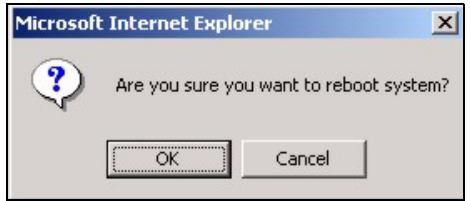
Figure 137 Reboot System: Confirmation
2 Click OK again and then wait for the Switch to restart. This takes up to two minutes. This does not affect the Switch's configuration.
Click Config 2 and follow steps 1 to 2 to reboot and load configuration two on the Switch.
28.5 Firmware Upgrade
Make sure you have downloaded (and unzipped) the correct model firmware and version to your computer before uploading to the device.

Be sure to upload the correct model firmware as uploading the wrong model firmware may damage your device.
Click Management > Maintenance > Firmware Upgrade to view the screen as shown next.
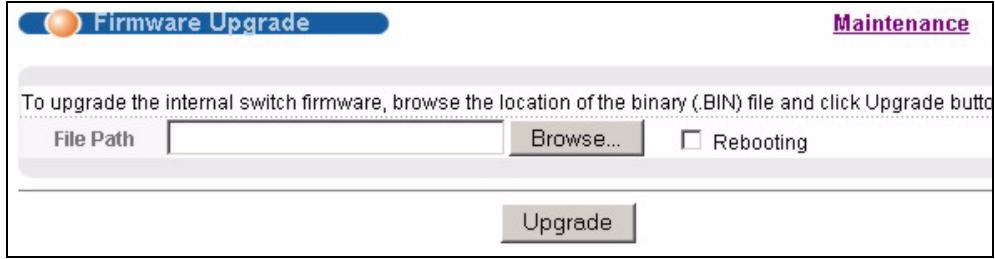
Figure 138 Management > Maintenance > Firmware Upgrade
Type the path and file name of the firmware file you wish to upload to the Switch in the File Path text box or click Browse to locate it. Select the Rebooting checkbox if you want to reboot the Switch and apply the new firmware immediately. (Firmware upgrades are only applied after a reboot). Click Upgrade to load the new firmware.
After the firmware upgrade process is complete, see the System Info screen to verify your current firmware version number.
28.6 Restore a Configuration File
Restore a previously saved configuration from your computer to the Switch using the Restore Configuration screen.
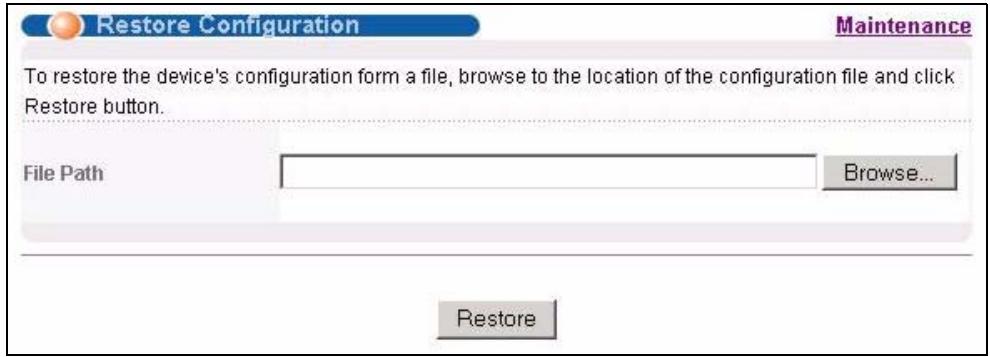
Figure 139 Management > Maintenance > Restore Configuration
Type the path and file name of the configuration file you wish to restore in the File Path text box or click Browse to locate it. After you have specified the file, click Restore. "config" is the name of the configuration file on the Switch, so your backup configuration file is automatically renamed when you restore using this screen.
28.7 Backup a Configuration File
Backing up your Switch configurations allows you to create various "snap shots" of your device from which you may restore at a later date.
Back up your current Switch configuration to a computer using the Backup Configuration screen.
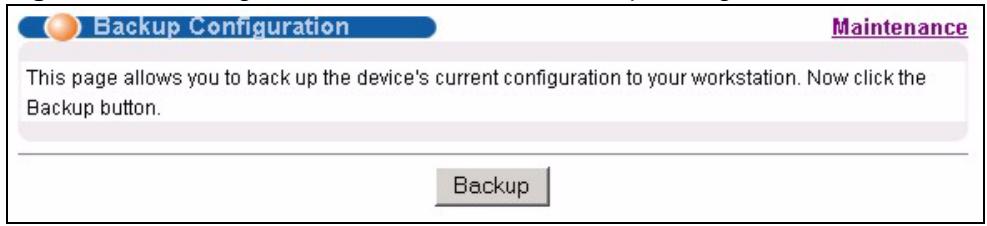
Figure 140 Management > Maintenance > Backup Configuration
Follow the steps below to back up the current Switch configuration to your computer in this screen.
1 Click Backup.
2 Click Save to display the Save As screen.
3 Choose a location to save the file on your computer from the Save in drop-down list box and type a descriptive name for it in the File name list box. Click Save to save the configuration file to your computer.
28.8 FTP Command Line
This section shows some examples of uploading to or downloading files from the Switch using FTP commands. First, understand the filename conventions.
28.8.1 Filename Conventions
The configuration file (also known as the romfile or ROM) contains the factory default settings in the screens such as password, Switch setup, IP Setup, and so on. Once you have customized the Switch's settings, they can be saved back to your computer under a filename of your choosing.
ZyNOS (ZyXEL Network Operating System sometimes referred to as the "ras" file) is the system firmware and has a "bin" filename extension.
Table 85 Filename Conventions
| FILE TYPE | INTERNAL NAME | EXTERNAL NAME | DESCRIPTION |
| Configuration File | config | *.cfg | This is the configuration filename on the Switch. Uploading the config file replaces the specified configuration file system, including your Switch configurations, system-related data (including the default password), the error log and the trace log. |
| Firmware | ras | *.bin | This is the generic name for the ZyNOS firmware on the Switch. |
28.8.1.1 Example FTP Commands
ftp> put firmware.bin ras
This is a sample FTP session showing the transfer of the computer file "firmware.bin" to the Switch.
ftp> get config config.cfg
This is a sample FTP session saving the current configuration to a file called "config.cfg" on your computer.
If your (T)FTP client does not allow you to have a destination filename different than the source, you will need to rename them as the Switch only recognizes "config" and "ras". Be sure you keep unaltered copies of both files for later use.

Be sure to upload the correct model firmware as uploading the wrong model firmware may damage your device.
28.8.2 FTP Command Line Procedure
1 Launch the FTP client on your computer.
2 Enter open, followed by a space and the IP address of your Switch.
3 Press [ENTER] when prompted for a username.
4 Enter your password as requested (the default is "1234").
5 Enter bin to set transfer mode to binary.
6 Use put to transfer files from the computer to the Switch, for example, put firmware.bin ras transfers the firmware on your computer (firmware.bin) to the Switch and renames it to "ras". Similarly, put config.cfg config transfers the configuration file on your computer (config.cfg) to the Switch and renames it to "config". Likewise get config config config transfers the configuration file on the Switch to your computer and renames it to "config.cfg". See Table 85 on page 235 for more information on filename conventions.
7 Enter quit to exit the ftp prompt.
28.8.3 GUI-based FTP Clients
The following table describes some of the commands that you may see in GUI-based FTP clients.
General Commands for GUI-based FTP Clients
| COMMAND | DESCRIPTION |
| Host Address | Enter the address of the host server. |
| Login Type | Anonymous.This is when a user I.D. and password is automatically supplied to the server for anonymous access. Anonymous logins will work only if your ISP or service administrator has enabled this option.Normal.The server requires a unique User ID and Password to login. |
| Transfer Type | Transfer files in either ASCII (plain text format) or in binary mode.Configuration and firmware files should be transferred in binary mode. |
| Initial Remote Directory | Specify the default remote directory (path). |
| Initial Local Directory | Specify the default local directory (path). |
28.8.4 FTP Restrictions
FTP will not work when:
- FTP service is disabled in the Service Access Control screen.
- The IP address(es) in the Remote Management screen does not match the client IP address. If it does not match, the Switch will disconnect the FTP session immediately.
Access Control
This chapter describes how to control access to the Switch.
29.1 Access Control Overview
A console port and FTP are allowed one session each, Telnet and SSH share nine sessions, up to five Web sessions (five different user names and passwords) and/or limitless SNMP access control sessions are allowed.
Table 86 Access Control Overview
| Console Port | SSH | Telnet | FTP | Web | SNMP |
| One session | Share up to nine sessions | One session | Up to five accounts | No limit | |
A console port access control session and Telnet access control session cannot coexist when multi-login is disabled. See Section 36.12.2 on page 286 for more information on disabling multi-login.
29.2 The Access Control Main Screen
Click Management > Access Control in the navigation panel to display the main screen as shown.
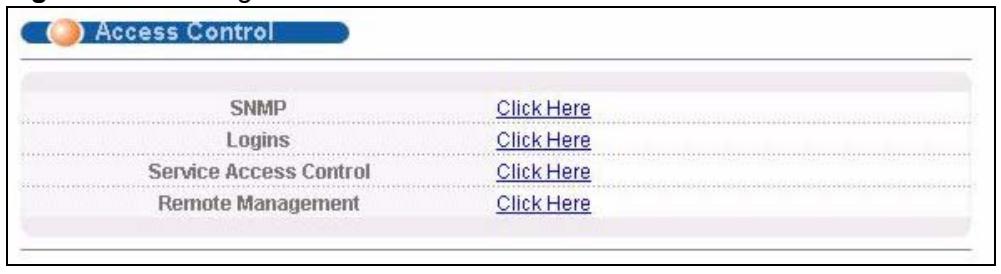
Figure 141 Management > Access Control
29.3 About SNMP
Simple Network Management Protocol (SNMP) is an application layer protocol used to manage and monitor TCP/IP-based devices. SNMP is used to exchange management information between the network management system (NMS) and a network element (NE). A manager station can manage and monitor the Switch through the network via SNMP version one (SNMPv1), SNMP version 2c or SNMP version 3. The next figure illustrates an SNMP management operation. SNMP is only available if TCP/IP is configured.
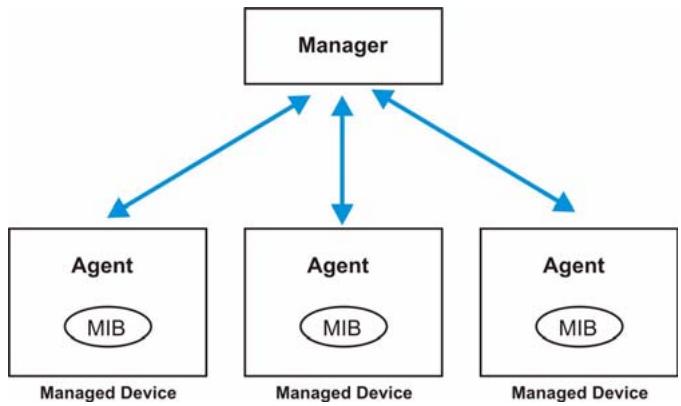
Figure 142 SNMP Management Model
An SNMP managed network consists of two main components: agents and a manager.
An agent is a management software module that resides in a managed switch (the Switch). An agent translates the local management information from the managed switch into a form compatible with SNMP. The manager is the console through which network administrators perform network management functions. It executes applications that control and monitor managed devices.
The managed devices contain object variables/managed objects that define each piece of information to be collected about a switch. Examples of variables include number of packets received, node port status and so on. A Management Information Base (MIB) is a collection of managed objects. SNMP allows a manager and agents to communicate for the purpose of accessing these objects.
SNMP itself is a simple request/response protocol based on the manager/agent model. The manager issues a request and the agent returns responses using the following protocol operations:
Table 87 SNMP Commands
| COMMAND | DESCRIPTION |
| Get | Allows the manager to retrieve an object variable from the agent. |
| GetNext | Allows the manager to retrieve the next object variable from a table or list within an agent. In SNMPv1, when a manager wants to retrieve all elements of a table from an agent, it initiates a Get operation, followed by a series of GetNext operations. |
| Set | Allows the manager to set values for object variables within an agent. |
| Trap | Used by the agent to inform the manager of some events. |
29.3.1 SNMP v3 and Security
SNMP v3 enhances security for SNMP management. SNMP managers can be required to authenticate with agents before conducting SNMP management sessions.
Security can be further enhanced by encrypting the SNMP messages sent from the managers. Encryption protects the contents of the SNMP messages. When the contents of the SNMP messages are encrypted, only the intended recipients can read them.
29.3.2 Supported MIBs
MIBs let administrators collect statistics and monitor status and performance.
The Switch supports the following MIBs:
SNMP MIB II (RFC 1213)
- RFC 1157 SNMP v1
- RFC 1493 Bridge MIBs
RFC 1643 Ethernet MIBs
- RFC 1155 SMI
- RFC 2674 SNMPv2, SNMPv2c
- RFC 1757 RMON
- SNMPv2, SNMPv2c or later version, compliant with RFC 2011 SNMPv2 MIB for IP, RFC 2012 SNMPv2 MIB for TCP, RFC 2013 SNMPv2 MIB for UDP
29.3.3 SNMP Traps
The Switch sends traps to an SNMP manager when an event occurs. The following tables outline the SNMP traps by category.
An OID (Object ID) that begins with "1.3.6.1.4.1.890.1.5.8" is defined in private MIBs. Otherwise, it is a standard MIB OID.
Table 88 SNMP System Traps
| OPTION | OBJECT LABEL | OBJECT ID | DESCRIPTION |
| coldstart | coldStart | 1.3.6.1.6.3.1.1.5.1 | This trap is sent when the Switch is turned on. |
| warmstart | warmStart | 1.3.6.1.6.3.1.1.5.2 | This trap is sent when the Switch restarts. |
| fanspeed | FanSpeedEventOn | MGS-3712F: 1.3.6.1.4.1.890.1.5.8.48.25.2.1 MGS-3712: 1.3.6.1.4.1.890.1.5.8.47.25.2.1 | This trap is sent when the fan speed goes above or below the normal operating range. |
| FanSpeedEventClear | MGS-3712F: 1.3.6.1.4.1.890.1.5.8.48.25.2.2 MGS-3712: 1.3.6.1.4.1.890.1.5.8.47.25.2.2 | This trap is sent when the fan speed returns to the normal operating range. | |
| temperature | TemperatureEventOn | MGS-3712F:1.3.6.1.4.1.890.1.5.8.48.25.2.1MGS-3712:1.3.6.1.4.1.890.1.5.8.47.25.2.1 | This trap is sent when the temperature goes above or below the normal operating range. |
| TemperatureEventClear | MGS-3712F:1.3.6.1.4.1.890.1.5.8.48.25.2.2MGS-3712:1.3.6.1.4.1.890.1.5.8.47.25.2.2 | This trap is sent when the temperature returns to the normal operating range. | |
| voltage | VoltageEventOn | MGS-3712F:1.3.6.1.4.1.890.1.5.8.48.25.2.1MGS-3712:1.3.6.1.4.1.890.1.5.8.47.25.2.1 | This trap is sent when the voltage goes above or below the normal operating range. |
| VoltageEventClear | MGS-3712F:1.3.6.1.4.1.890.1.5.8.48.25.2.2MGS-3712:1.3.6.1.4.1.890.1.5.8.47.25.2.2 | This trap is sent when the voltage returns to the normal operating range. | |
| reset | UncontrolledResetEventOn | MGS-3712F:1.3.6.1.4.1.890.1.5.8.48.25.2.1MGS-3712:1.3.6.1.4.1.890.1.5.8.47.25.2.1 | This trap is sent when the Switch automatically resets. |
| ControlledResetEventOn | MGS-3712F:1.3.6.1.4.1.890.1.5.8.48.25.2.1MGS-3712:1.3.6.1.4.1.890.1.5.8.47.25.2.1 | This trap is sent when the Switch resets by an administrator through a management interface. | |
| RebootEvent | MGS-3712F:1.3.6.1.4.1.890.1.5.0.1MGS-3712:1.3.6.1.4.1.890.1.5.0.1 | This trap is sent when the Switch reboots by an administrator through a management interface. | |
| timesync | RTCNotUpdatedEventOn | MGS-3712F:1.3.6.1.4.1.890.1.5.8.48.25.2.1MGS-3712:1.3.6.1.4.1.890.1.5.8.47.25.2.1 | This trap is sent when the Switch fails to get the time and date from a time server. |
| RTCNotUpdatedEventClear | MGS-3712F:1.3.6.1.4.1.890.1.5.8.48.25.2.2MGS-3712:1.3.6.1.4.1.890.1.5.8.47.25.2.2 | This trap is sent when the Switch gets the time and date from a time server. | |
| intrusionlock | IntrusionLockEventOn | MGS-3712F:1.3.6.1.4.1.890.1.5.8.48.25.2.1MGS-3712:1.3.6.1.4.1.890.1.5.8.47.25.2.1 | This trap is sent when intrusion lock occurs on a port. |
| loopguard | LoopguardEventOn | MGS-3712F:1.3.6.1.4.1.890.1.5.8.48.25.2.1MGS-3712:1.3.6.1.4.1.890.1.5.8.47.25.2.1 | This trap is sent when loopguard shuts down a port. |
| externalarm | ExternalAlarmEventOn | MGS-3712F: 1.3.6.1.4.1.890.1.5.8.48.25.2.1 MGS-3712: 1.3.6.1.4.1.890.1.5.8.47.25.2.1 | This trap is sent when the external alarm is received. |
| ExternalAlarmEventClear | MGS-3712F: 1.3.6.1.4.1.890.1.5.8.48.25.2.2 MGS-3712: 1.3.6.1.4.1.890.1.5.8.47.25.2.2 | This trap is sent when the external alarm is stops sending an alert. |
Table 89 SNMP InterfaceTraps
| OPTION | OBJECT LABEL | OBJECT ID | DESCRIPTION |
| linkup | linkUp | 1.3.6.1.6.3.1.1.5.4 | This trap is sent when the Ethernet link is up. |
| LinkDownEventClear | MGS-3712F: 1.3.6.1.4.1.890.1.5.8.48.25.2.2 MGS-3712: 1.3.6.1.4.1.890.1.5.8.47.25.2.2 | This trap is sent when the Ethernet link is up. | |
| linkdown | linkDown | 1.3.6.1.6.3.1.1.5.3 | This trap is sent when the Ethernet link is down. |
| LinkDownEventOn | MGS-3712F: 1.3.6.1.4.1.890.1.5.8.48.25.2.1 MGS-3712: 1.3.6.1.4.1.890.1.5.8.47.25.2.1 | This trap is sent when the Ethernet link is down. | |
| autonegotiation | AutonegotiationFailedEvent On | MGS-3712F: 1.3.6.1.4.1.890.1.5.8.48.25.2.1 MGS-3712: 1.3.6.1.4.1.890.1.5.8.47.25.2.1 | This trap is sent when an Ethernet interface fails to auto-negotiate with the peer Ethernet interface. |
| AutonegotiationFailedEvent Clear | MGS-3712F: 1.3.6.1.4.1.890.1.5.8.48.25.2.2 MGS-3712: 1.3.6.1.4.1.890.1.5.8.47.25.2.2 | This trap is sent when an Ethernet interface auto-negotiates with the peer Ethernet interface. |
Table 90 AAA Traps
| OPTION | OBJECT LABEL | OBJECT ID | DESCRIPTION |
| authentication | authenticationFailure | 1.3.6.1.6.3.1.1.5.5 | This trap is sent when authentication fails due to incorrect user name and/or password. |
| AuthenticationFailureEventOn | MGS-3712F: 1.3.6.1.4.1.890.1.5.8.48.25.2.1 MGS-3712: 1.3.6.1.4.1.890.1.5.8.47.25.2.1 | This trap is sent when authentication fails due to incorrect user name and/or password. | |
| RADIUSNotReachableEvent On | MGS-3712F: 1.3.6.1.4.1.890.1.5.8.48.25.2.1 MGS-3712: 1.3.6.1.4.1.890.1.5.8.47.25.2.1 | This trap is sent when there is no response message from the RADIUS server. | |
| RADIUSNotReachableEvent Clear | MGS-3712F: 1.3.6.1.4.1.890.1.5.8.48.25.2.2 MGS-3712: 1.3.6.1.4.1.890.1.5.8.47.25.2.2 | This trap is sent when the RADIUS server can be reached. | |
| accounting | RADIUSAccountingNotReach ableEventOn | MGS-3712F: 1.3.6.1.4.1.890.1.5.8.48.25.2.1 MGS-3712: 1.3.6.1.4.1.890.1.5.8.47.25.2.1 | This trap is sent when there is no response message from the RADIUS accounting server. |
| RADIUSAccountingNotReach ableEventClear | MGS-3712F: 1.3.6.1.4.1.890.1.5.8.48.25.2.2 MGS-3712: 1.3.6.1.4.1.890.1.5.8.47.25.2.2 | This trap is sent when the RADIUS accounting server can be reached. |
Table 91 SNMP IP Traps
| OPTION | OBJECT LABEL | OBJECT ID | DESCRIPTION |
| ping | pingProbeFailed | 1.3.6.1.2.1.80.0.1 | This trap is sent when a single ping probe fails. |
| pingTestFailed | 1.3.6.1.2.1.80.0.2 | This trap is sent when a ping test (consisting of a series of ping probes) fails. | |
| pingTestCompleted | 1.3.6.1.2.1.80.0.3 | This trap is sent when a ping test is completed. | |
| traceroute | traceRoutePathChange | 1.3.6.1.2.1.81.0.1 | This trap is sent when path to target has changed from a previously determined path. |
| traceRouteTestFailed | 1.3.6.1.2.1.81.0.2 | This trap is sent when a traceroute test fails. | |
| traceRouteTestCompleted | 1.3.6.1.2.1.81.0.3 | This trap is sent when a traceroute test is completed. |
Table 92 SNMP Switch Traps
| OPTION | OBJECT LABEL | OBJECT ID | DESCRIPTION |
| stp | STPNewRoot | 1.3.6.1.2.1.17.0.1 | This trap is sent when the STP root switch changes. |
| MRSTPNewRoot | MGS-3712F: 1.3.6.1.4.1.890.1.5.8.48.32.2.1 MGS-3712: 1.3.6.1.4.1.890.1.5.8.47.32.2.1 | This trap is sent when the MRSTP root switch changes. | |
| MSTPNewRoot | MGS-3712F: 1.3.6.1.4.1.890.1.5.8.48.107.7 0.1 MGS-3712: 1.3.6.1.4.1.890.1.5.8.47.107.7 0.1 | This trap is sent when the MSTP root switch changes. | |
| STPTopologyChange | 1.3.6.1.2.1.17.0.2 | This trap is sent when the STP topology changes. | |
| MRSTPTopologyChange | MGS-3712F: 1.3.6.1.4.1.890.1.5.8.48.32.2.2 MGS-3712: 1.3.6.1.4.1.890.1.5.8.47.32.2.2 | This trap is sent when the MRSTP topology changes. | |
| MSTPTopologyChange | MGS-3712F: 1.3.6.1.4.1.890.1.5.8.48.107.7 0.2 MGS-3712: 1.3.6.1.4.1.890.1.5.8.47.107.7 0.2 | This trap is sent when the MSTP root switch changes. | |
| mactable | MacTableFullEventOn | MGS-3712F: 1.3.6.1.4.1.890.1.5.8.48.25.2.1 MGS-3712: 1.3.6.1.4.1.890.1.5.8.47.25.2.1 | This trap is sent when more than 99% of the MAC table is used. |
| MacTableFullEventClear | MGS-3712F: 1.3.6.1.4.1.890.1.5.8.48.25.2.2 MGS-3712: 1.3.6.1.4.1.890.1.5.8.47.25.2.2 | This trap is sent when less than 95% of the MAC table is used. | |
| rmon | RmonRisingAlarm | 1.3.6.1.2.1.16.0.1 | This trap is sent when a variable goes over the RMON "rising" threshold. |
| RmonFallingAlarm | 1.3.6.1.2.1.16.0.2 | This trap is sent when the variable falls below the RMON "falling" threshold. |
29.3.4 Configuring SNMP
Click Management > Access Control > SNMP to view the screen as shown. Use this screen to configure your SNMP settings.
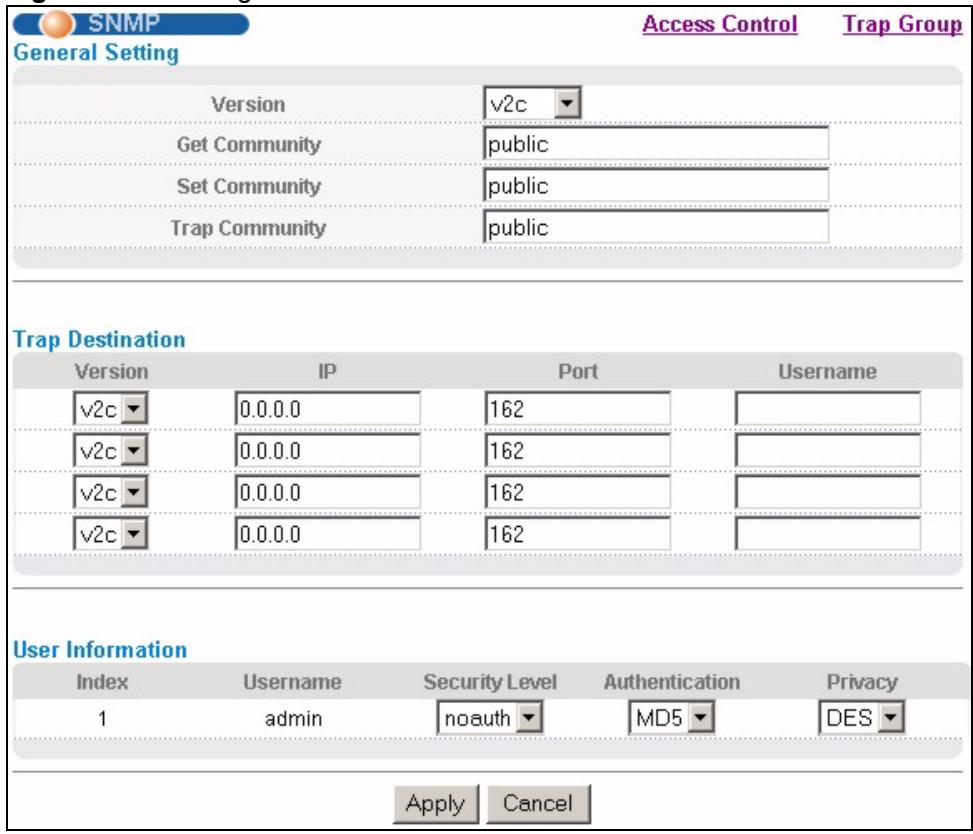
Figure 143 Management > Access Control > SNMP
The following table describes the labels in this screen.
Table 93 Management > Access Control > SNMP
| LABEL | DESCRIPTION |
| General Setting | Use this section to specify the SNMP version and community (password) values. |
| Version | Select the SNMP version for the Switch. The SNMP version on the Switch must match the version on the SNMP manager. Choose SNMP version 2c (v2c), SNMP version 3 (v3) or both (v3v2c).Note: SNMP version 2c is backwards compatible with SNMP version 1. |
| Get Community | Enter the Get Community string, which is the password for the incoming Get- and GetNext- requests from the management station.The Get Community string is only used by SNMP managers using SNMP version 2c or lower. |
| Set Community | Enter the Set Community, which is the password for incoming Set- requests from the management station.The Set Community string is only used by SNMP managers using SNMP version 2c or lower. |
| Trap Community | Enter the Trap Community string, which is the password sent with each trap to the SNMP manager.The Trap Community string is only used by SNMP managers using SNMP version 2c or lower. |
| Trap Destination | Use this section to configure where to send SNMP traps from the Switch. |
| Version | Specify the version of the SNMP trap messages. |
| IP | Enter the IP addresses of up to four managers to send your SNMP traps to. |
| Port | Enter the port number upon which the manager listens for SNMP traps. |
| Username | Enter the username to be sent to the SNMP manager along with the SNMP v3 trap.Note: This username must match an existing account on the Switch (configured in Management > Access Control > Logins screen). |
| User Information | Use this section to configure users for authentication with managers using SNMP v3.Note: Use the username and password of the login accounts you specify in this section to create accounts on the SNMP v3 manager. |
| Index | This is a read-only number identifying a login account on the Switch. |
| Username | This field displays the username of a login account on the Switch. |
| Security Level | Select whether you want to implement authentication and/or encryption for SNMP communication from this user. Choose: · noauth -to use the username as the password string to send to the SNMP manager. This is equivalent to the Get, Set and Trap Community in SNMP v2c. This is the lowest security level. · auth - to implement an authentication algorithm for SNMP messages sent by this user. · priv - to implement authentication and encryption for SNMP messages sent by this user. This is the highest security level.Note: The settings on the SNMP manager must be set at the same security level or higher than the security level settings on the Switch. |
| Authentication | Select an authentication algorithm. MD5 (Message Digest 5) and SHA (Secure Hash Algorithm) are hash algorithms used to authenticate SNMP data. SHA authentication is generally considered stronger than MD5, but is slower. |
| Privacy | Specify the encryption method for SNMP communication from this user. You can choose one of the following: · DES - Data Encryption Standard is a widely used (but breakable) method of data encryption. It applies a 56-bit key to each 64-bit block of data. · AES - Advanced Encryption Standard is another method for data encryption that also uses a secret key. AES applies a 128-bit key to 128-bit blocks of data. |
| Apply | Click Apply to save your changes to the Switch's run-time memory. The Switch loses these changes if it is turned off or loses power, so use the Save link on the top navigation panel to save your changes to the non-volatile memory when you are done configuring. |
| Cancel | Click Cancel to begin configuring this screen afresh. |
29.3.5 Configuring SNMP Trap Group
Click Management > Access Control > SNMP > Trap Group to view the screen as shown. Use the Trap Group screen to specify the types of SNMP traps that should be sent to each SNMP manager.
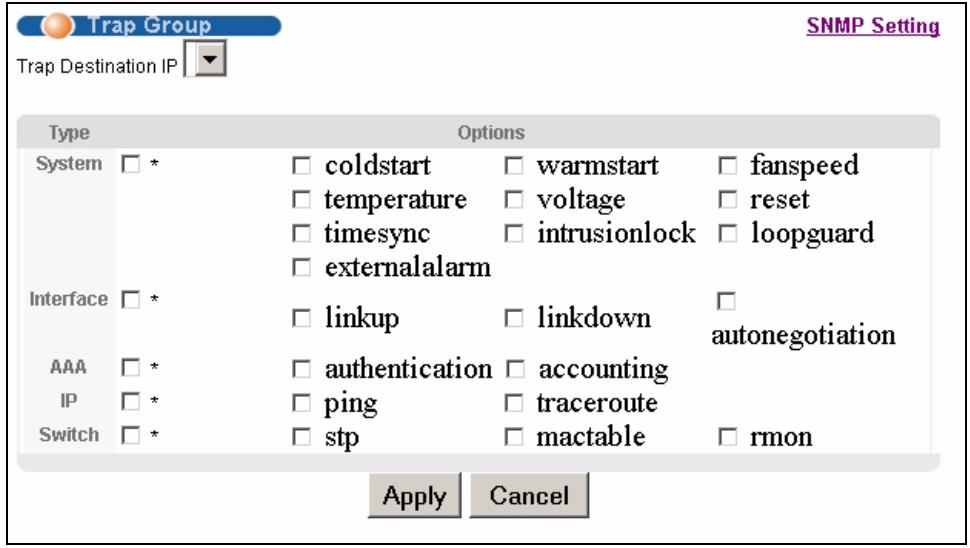
Figure 144 Management > Access Control > SNMP > Trap Group
The following table describes the labels in this screen.
Table 94 Management > Access Control > SNMP > Trap Group
| LABEL | DESCRIPTION |
| Trap Destination IP | Select one of your configured trap destination IP addresses. These are the IP addresses of the SNMP managers. You must first configure a trap destination IP address in the SNMP Setting screen. Use the rest of the screen to select which traps the Switch sends to that SNMP manager. |
| Type | Select the categories of SNMP traps that the Switch is to send to the SNMP manager. |
| Options | Select the individual SNMP traps that the Switch is to send to the SNMP station. See Section 29.3.3 on page 239 for individual trap descriptions. The traps are grouped by category. Selecting a category automatically selects all of the category's traps. Clear the check boxes for individual traps that you do not want the Switch to send to the SNMP station. Clearing a category's check box automatically clears all of the category's trap check boxes (the Switch only sends traps from selected categories). |
| Apply | Click Apply to save your changes to the Switch's run-time memory. The Switch loses these changes if it is turned off or loses power, so use the Save link on the top navigation panel to save your changes to the non-volatile memory when you are done configuring. |
| Cancel | Click Cancel to begin configuring this screen afresh. |
29.3.6 Setting Up Login Accounts
Up to five people (one administrator and four non-administrators) may access the Switch via web configurator at any one time.
- An administrator is someone who can both view and configure Switch changes. The username for the Administrator is always admin. The default administrator password is 1234.

It is highly recommended that you change the default administrator password (1234).
- A non-administrator (username is something other than admin) is someone who can view but not configure Switch settings.
Click Management > Access Control > Logins to view the screen as shown next.
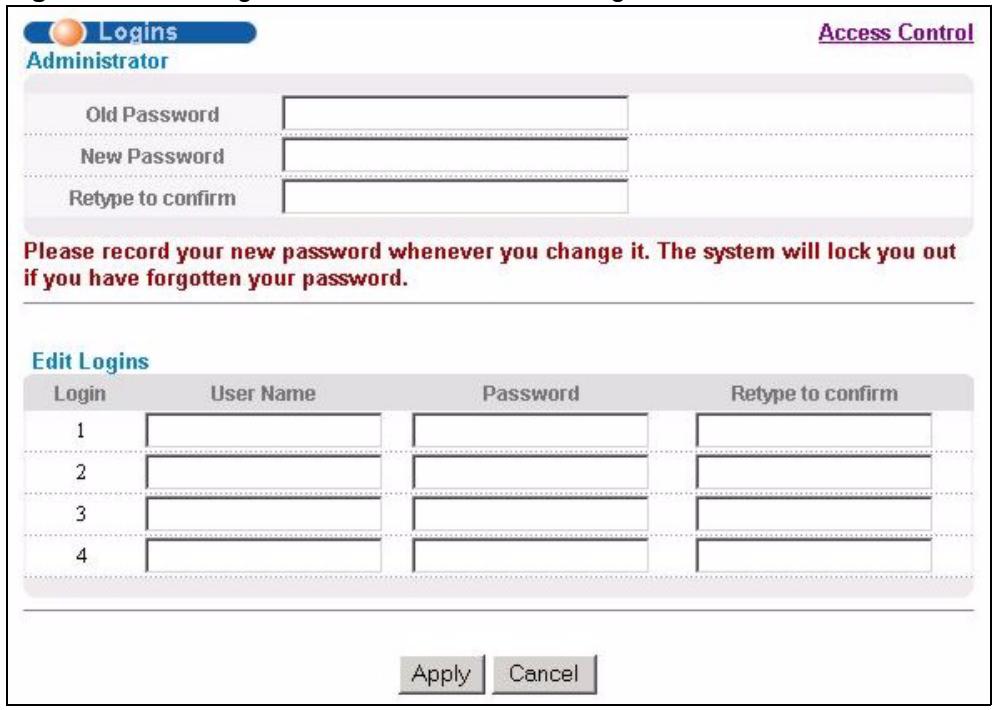
Figure 145 Management > Access Control > Logins
The following table describes the labels in this screen.
Table 95 Management > Access Control > Logins
| LABEL | DESCRIPTION |
| AdministratorThis is the default administrator account with the “admin” user name. You cannot change the default administrator user name. Only the administrator has read/write access. | |
| Old Password | Type the existing system password (1234 is the default password when shipped). |
| New Password | Enter your new system password. |
| Retype to confirm | Retype your new system password for confirmation |
| Edit LoginsYou may configure passwords for up to four users. These users have read-only access. You can give users higher privileges via the CLI. For more information on assigning privileges see Chapter 36 on page 277. | |
| User Name | Set a user name (up to 32 ASCII characters long). |
| Password | Enter your new system password. |
| Retype to confirm | Retype your new system password for confirmation |
| Apply | Click Apply to save your changes to the Switch's run-time memory. The Switch loses these changes if it is turned off or loses power, so use the Save link on the top navigation panel to save your changes to the non-volatile memory when you are done configuring. |
| Cancel | Click Cancel to begin configuring this screen afresh. |
29.4 SSH Overview
Unlike Telnet or FTP, which transmit data in clear text, SSH (Secure Shell) is a secure communication protocol that combines authentication and data encryption to provide secure encrypted communication between two hosts over an unsecured network.

Figure 146 SSH Communication Example
29.5 How SSH works
The following table summarizes how a secure connection is established between two remote hosts.
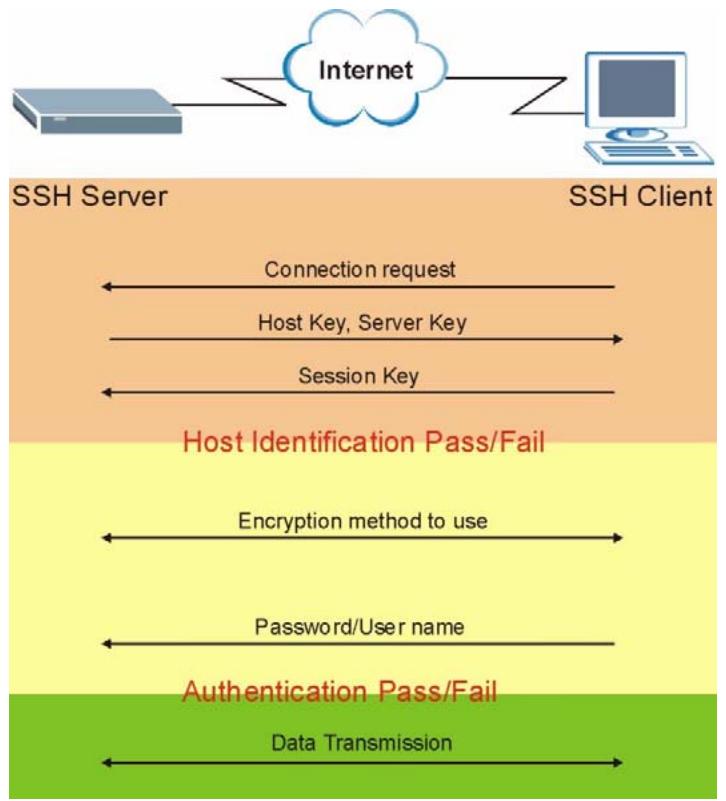
Figure 147 How SSH Works
1 Host Identification
The SSH client sends a connection request to the SSH server. The server identifies itself with a host key. The client encrypts a randomly generated session key with the host key and server key and sends the result back to the server.
The client automatically saves any new server public keys. In subsequent connections, the server public key is checked against the saved version on the client computer.
2 Encryption Method
Once the identification is verified, both the client and server must agree on the type of encryption method to use.
3 Authentication and Data Transmission
After the identification is verified and data encryption activated, a secure tunnel is established between the client and the server. The client then sends its authentication information (user name and password) to the server to log in to the server.
29.6 SSH Implementation on the Switch
Your Switch supports SSH version 2 using RSA authentication and three encryption methods (DES, 3DES and Blowfish). The SSH server is implemented on the Switch for remote management and file transfer on port 22. Only one SSH connection is allowed at a time.
29.6.1 Requirements for Using SSH
You must install an SSH client program on a client computer (Windows or Linux operating system) that is used to connect to the Switch over SSH.
29.7 Introduction to HTTPS
HTTPS (HyperText Transfer Protocol over Secure Socket Layer, or HTTP over SSL) is a web protocol that encrypts and decrypts web pages. Secure Socket Layer (SSL) is an application-level protocol that enables secure transactions of data by ensuring confidentiality (an unauthorized party cannot read the transferred data), authentication (one party can identify the other party) and data integrity (you know if data has been changed).
It relies upon certificates, public keys, and private keys.
HTTPS on the Switch is used so that you may securely access the Switch using the web configurator. The SSL protocol specifies that the SSL server (the Switch) must always authenticate itself to the SSL client (the computer which requests the HTTPS connection with the Switch), whereas the SSL client only should authenticate itself when the SSL server requires it to do so. Authenticating client certificates is optional and if selected means the SSL-client must send the Switch a certificate. You must apply for a certificate for the browser from a CA that is a trusted CA on the Switch.
Please refer to the following figure.
1 HTTPS connection requests from an SSL-aware web browser go to port 443 (by default) on the Switch's WS (web server).
2 HTTP connection requests from a web browser go to port 80 (by default) on the Switch's WS (web server).
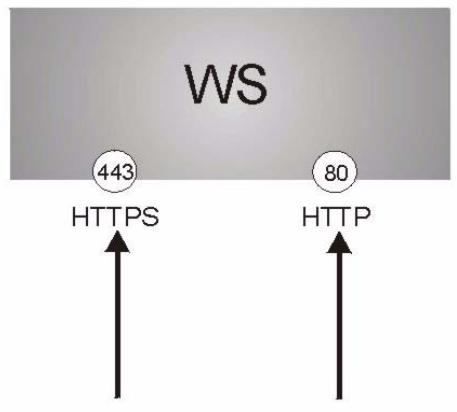
Figure 148 HTTPS Implementation

If you disable HTTP in the Service Access Control screen, then the Switch blocks all HTTP connection attempts.
29.8 HTTPS Example
If you haven't changed the default HTTPS port on the Switch, then in your browser enter "https://Switch IP Address/" as the web site address where "Switch IP Address" is the IP address or domain name of the Switch you wish to access.
29.8.1 Internet Explorer Warning Messages
When you attempt to access the Switch HTTPS server, a Windows dialog box pops up asking if you trust the server certificate. Click View Certificate if you want to verify that the certificate is from the Switch.
You see the following Security Alert screen in Internet Explorer. Select Yes to proceed to the web configurator login screen; if you select No, then web configurator access is blocked.
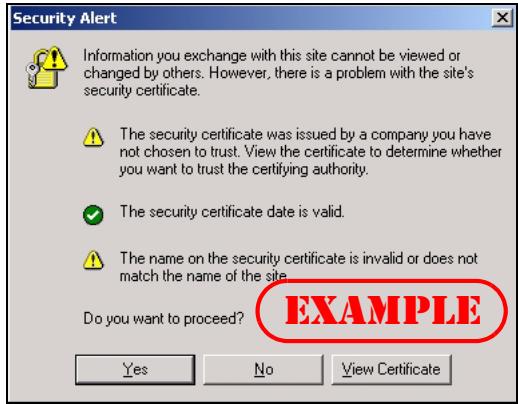
Figure 149 Security Alert Dialog Box (Internet Explorer)
29.8.2 Netscape Navigator Warning Messages
When you attempt to access the Switch HTTPS server, a Website Certified by an Unknown Authority screen pops up asking if you trust the server certificate. Click Examine Certificate if you want to verify that the certificate is from the Switch.
If Accept this certificate temporarily for this session is selected, then click OK to continue in Netscape.
Select Accept this certificate permanently to import the Switch's certificate into the SSL client.
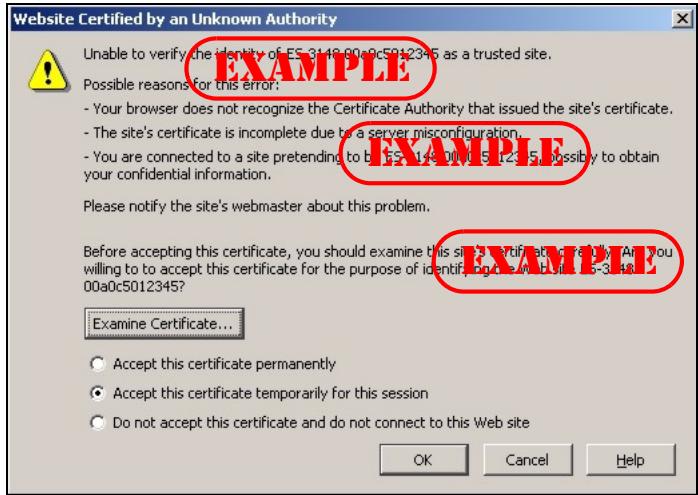
Figure 150 Security Certificate 1 (Netscape)
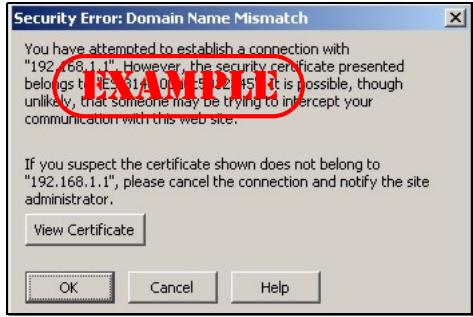
Figure 151 Security Certificate 2 (Netscape)
29.8.3 The Main Screen
After you accept the certificate and enter the login username and password, the Switch main screen appears. The lock displayed in the bottom right of the browser status bar denotes a secure connection.
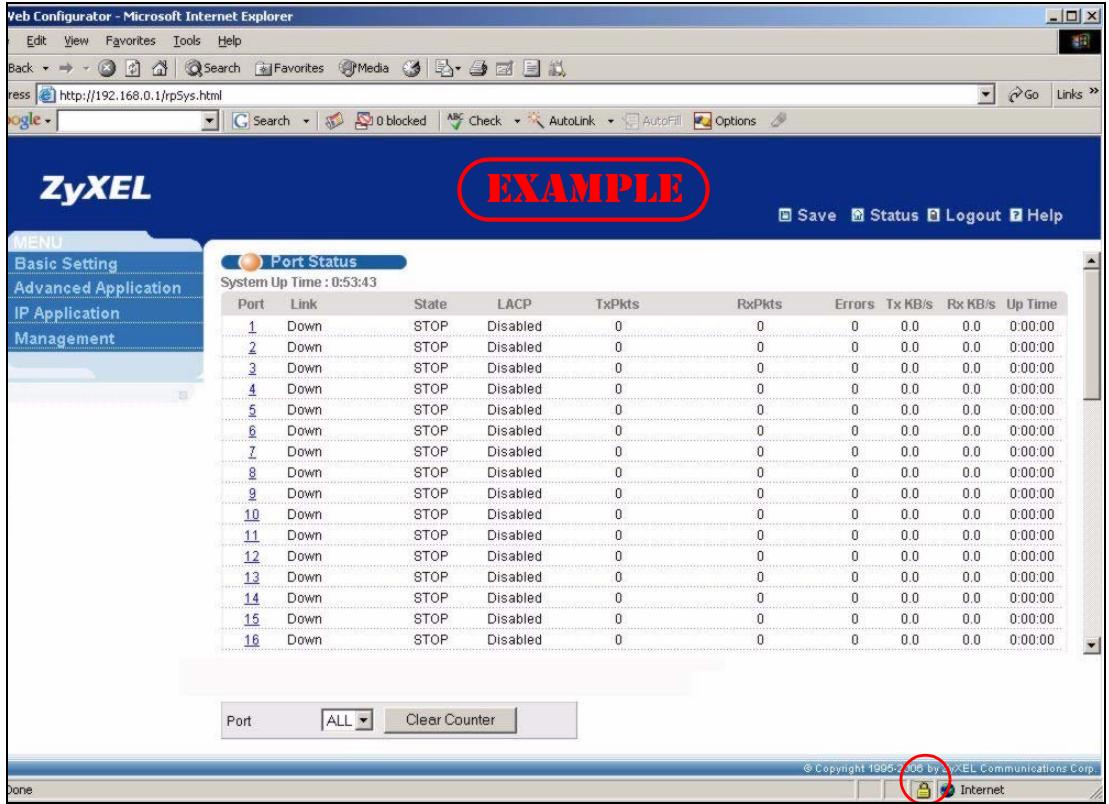
Figure 152 Example: Lock Denoting a Secure Connection
29.9 Service Port Access Control
Service Access Control allows you to decide what services you may use to access the Switch. You may also change the default service port and configure "trusted computer(s)" for each service in the Remote Management screen (discussed later). Click Management > Access Control > Service Access Control to view the screen as shown.
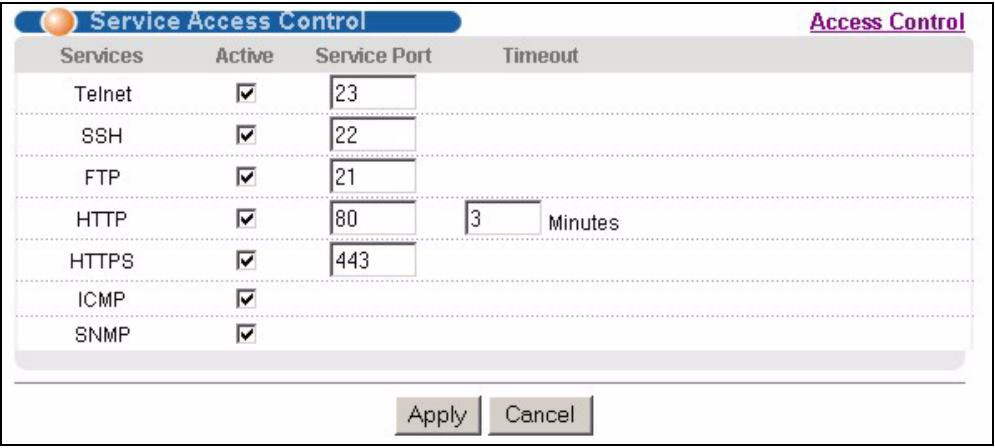
Figure 153 Management > Access Control > Service Access Control
The following table describes the fields in this screen.
Table 96 Management > Access Control > Service Access Control
| LABEL | DESCRIPTION |
| Services | Services you may use to access the Switch are listed here. |
| Active | Select this option for the corresponding services that you want to allow to access the Switch. |
| Service Port | For Telnet, SSH, FTP, HTTP or HTTPS services, you may change the default service port by typing the new port number in the Server Port field. If you change the default port number then you will have to let people (who wish to use the service) know the new port number for that service. |
| Timeout | Type how many minutes a management session (via the web configurator) can be left idle before the session times out. After it times out you have to log in with your password again. Very long idle timeouts may have security risks. |
| Apply | Click Apply to save your changes to the Switch's run-time memory. The Switch loses these changes if it is turned off or loses power, so use the Save link on the top navigation panel to save your changes to the non-volatile memory when you are done configuring. |
| Cancel | Click Cancel to begin configuring this screen afresh. |
29.10 Remote Management
Click Management > Access Control > Remote Management to view the screen as shown next.
You can specify a group of one or more "trusted computers" from which an administrator may use a service to manage the Switch. Click Access Control to return to the Access Control screen.
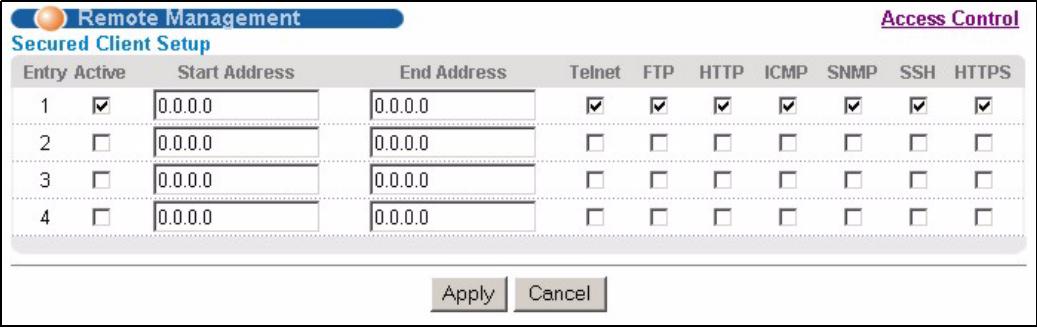
Figure 154 Management > Access Control > Remote Management
The following table describes the labels in this screen.
Table 97 Management > Access Control > Remote Management
| LABEL | DESCRIPTION |
| Entry | This is the client set index number. A “client set” is a group of one or more “trusted computers” from which an administrator may use a service to manage the Switch. |
| Active | Select this check box to activate this secured client set. Clear the check box if you wish to temporarily disable the set without deleting it. |
| Start Address End Address | Configure the IP address range of trusted computers from which you can manage this Switch. The Switch checks if the client IP address of a computer requesting a service or protocol matches the range set here. The Switch immediately disconnects the session if it does not match. |
| Telnet/FTP/ HTTP/ICMP/ SNMP/SSH/ HTTPS | Select services that may be used for managing the Switch from the specified trusted computers. |
| Apply | Click Apply to save your changes to the Switch's run-time memory. The Switch loses these changes if it is turned off or loses power, so use the Save link on the top navigation panel to save your changes to the non-volatile memory when you are done configuring. |
| Cancel | Click Cancel to begin configuring this screen afresh. |
This chapter explains the Diagnostic screen.
30.1 Diagnostic
Click Management > Diagnostic in the navigation panel to open this screen. Use this screen to check system logs, ping IP addresses or perform port tests.
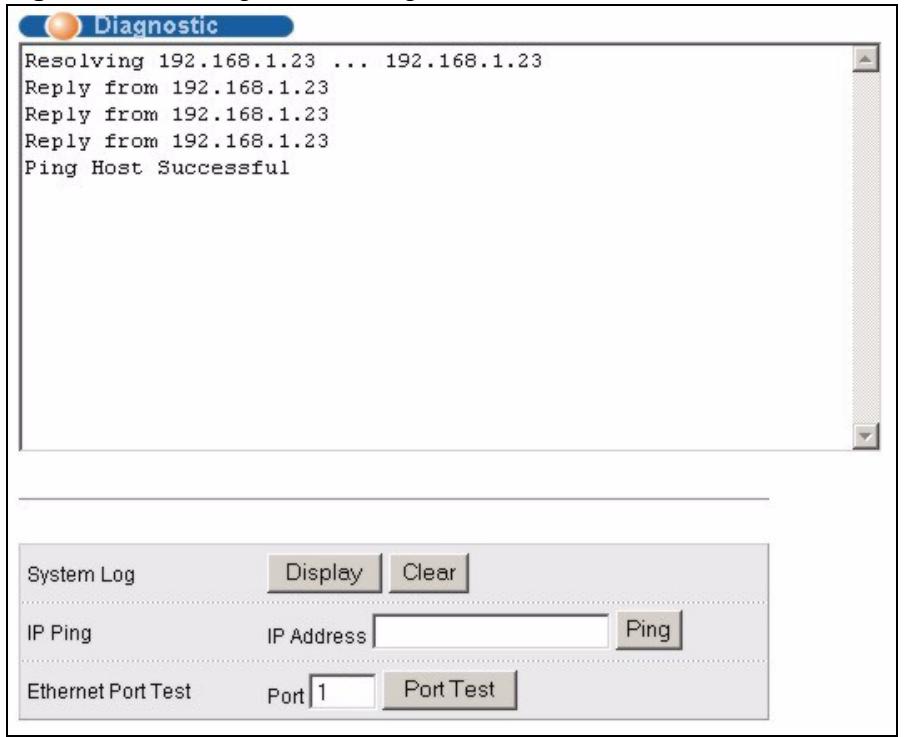
Figure 155 Management > Diagnostic
The following table describes the labels in this screen.
Table 98 Management > Diagnostic
| LABEL | DESCRIPTION |
| System Log | Click Display to display a log of events in the multi-line text box. Click Clear to empty the text box and reset the syslog entry. |
| IP Ping | Type the IP address of a device that you want to ping in order to test a connection. Click Ping to have the Switch ping the IP address (in the field to the left). |
| Ethernet Port Test | Enter a port number and click Port Test to perform an internal loopback test. |
This chapter explains the syslog screens.
31.1 Syslog Overview
The syslog protocol allows devices to send event notification messages across an IP network to syslog servers that collect the event messages. A syslog-enabled device can generate a syslog message and send it to a syslog server.
Syslog is defined in RFC 3164. The RFC defines the packet format, content and system log related information of syslog messages. Each syslog message has a facility and severity level. The syslog facility identifies a file in the syslog server. Refer to the documentation of your syslog program for details. The following table describes the syslog severity levels.
Table 99 Syslog Severity Levels
| CODE | SEVERITY |
| 0 | Emergency: The system is unusable. |
| 1 | Alert: Action must be taken immediately. |
| 2 | Critical: The system condition is critical. |
| 3 | Error: There is an error condition on the system. |
| 4 | Warning: There is a warning condition on the system. |
| 5 | Notice: There is a normal but significant condition on the system. |
| 6 | Informational: The syslog contains an informational message. |
| 7 | Debug: The message is intended for debug-level purposes. |
31.2 Syslog Setup
Click Management > Syslog in the navigation panel to display this screen. The syslog feature sends logs to an external syslog server. Use this screen to configure the device's system logging settings.
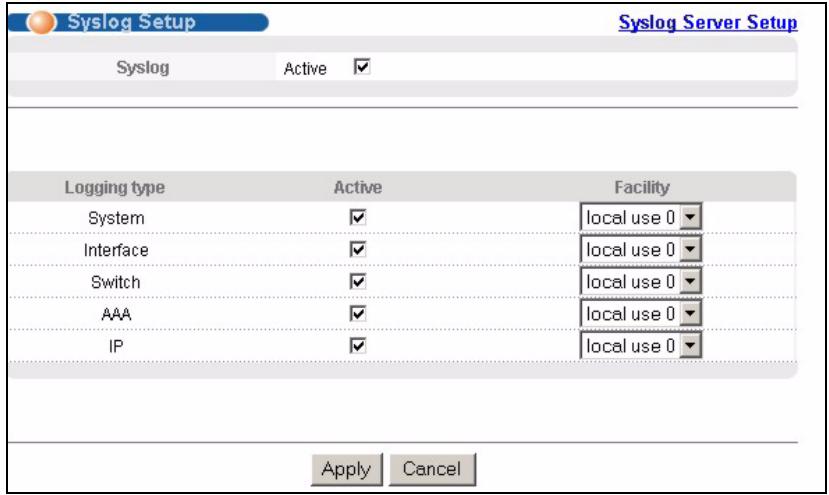
Figure 156 Management > Syslog
The following table describes the labels in this screen.
Table 100 Management > Syslog
| LABEL | DESCRIPTION |
| Syslog | Select Active to turn on syslog (system logging) and then configure the syslog setting |
| Logging Type | This column displays the names of the categories of logs that the device can generate. |
| Active | Select this option to set the device to generate logs for the corresponding category. |
| Facility | The log facility allows you to send logs to different files in the syslog server. Refer to the documentation of your syslog program for more details. |
| Apply | Click Apply to save your changes to the Switch's run-time memory. The Switch loses these changes if it is turned off or loses power, so use the Save link on the top navigation panel to save your changes to the non-volatile memory when you are done configuring. |
| Cancel | Click Cancel to begin configuring this screen afresh. |
31.3 Syslog Server Setup
Click Management > Syslog > Syslog Server Setup to view the screen as shown next. Use this screen to configure a list of external syslog servers.
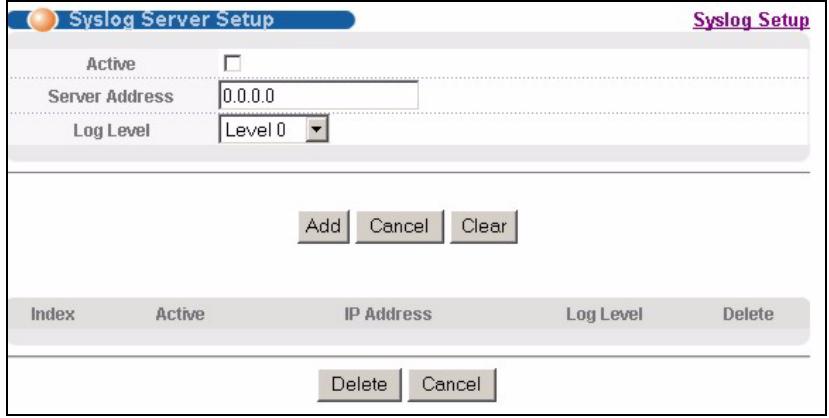
Figure 157 Management > Syslog > Syslog Server Setup
The following table describes the labels in this screen.
Table 101 Management > Syslog > Syslog Server Setup
| LABEL | DESCRIPTION |
| Active | Select this check box to have the device send logs to this syslog server. Clear the check box if you want to create a syslog server entry but not have the device send logs to it (you can edit the entry later). |
| Server Address | Enter the IP address of the syslog server. |
| Log Level | Select the severity level(s) of the logs that you want the device to send to this syslog server. The lower the number, the more critical the logs are. |
| Add | Click Add to save your changes to the Switch's run-time memory. The Switch loses these changes if it is turned off or loses power, so use the Save link on the top navigation panel to save your changes to the non-volatile memory when you are done configuring. |
| Cancel | Click Cancel to begin configuring this screen afresh. |
| Clear | Click Clear to return the fields to the factory defaults. |
| Index | This is the index number of a syslog server entry. Click this number to edit the entry. |
| Active | This field displays Yes if the device is to send logs to the syslog server. No displays if the device is not to send logs to the syslog server. |
| IP Address | This field displays the IP address of the syslog server. |
| Log Level | This field displays the severity level of the logs that the device is to send to this syslog server. |
| Delete | Select an entry's Delete check box and click Delete to remove the entry. |
| Cancel | Click Cancel to begin configuring this screen afresh. |
Cluster Management
This chapter introduces cluster management.
32.1 Cluster Management Status Overview
Cluster Management allows you to manage switches through one Switch, called the cluster manager. The switches must be directly connected and be in the same VLAN group so as to be able to communicate with one another.
Table 102 ZyXEL Clustering Management Specifications
| Maximum number of cluster members | 24 |
| Cluster Member Models | Must be compatible with ZyXEL cluster management implementation. |
| Cluster Manager | The switch through which you manage the cluster member switches. |
| Cluster Members | The switches being managed by the cluster manager switch. |
In the following example, switch A in the basement is the cluster manager and the other switches on the upper floors of the building are cluster members.
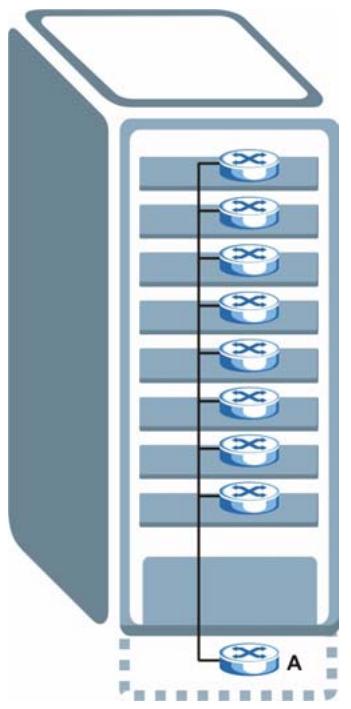
Figure 158 Clustering Application Example
32.2 Cluster Management Status
Click Management > Cluster Management in the navigation panel to display the following screen.

A cluster can only have one manager.
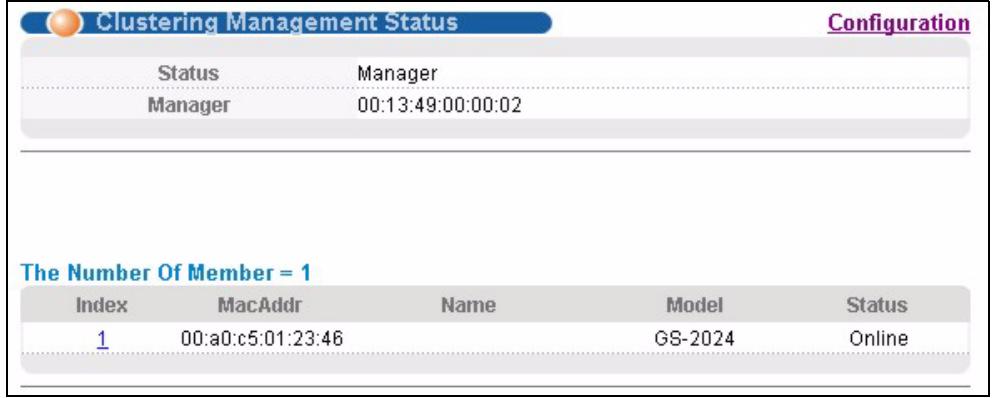
Figure 159 Management > Cluster Management: Status
The following table describes the labels in this screen.
Table 103 Management > Cluster Management: Status
| LABEL | DESCRIPTION |
| Status | This field displays the role of this Switch within the cluster. Manager Member (you see this if you access this screen in the cluster member switch directly and not via the cluster manager) None (neither a manager nor a member of a cluster) |
| Manager | This field displays the cluster manager switch's hardware MAC address. |
| The Number of Member | This field displays the number of switches that make up this cluster. The following fields describe the cluster member switches. |
| Index | You can manage cluster member switches via the cluster manager switch. Each number in the Index column is a hyperlink leading to the cluster member switch's web configurator (see Figure 160 on page 263). |
| MacAddr | This is the cluster member switch's hardware MAC address. |
| Name | This is the cluster member switch's System Name. |
| Model | This field displays the model name. |
| Status | This field displays: Online (the cluster member switch is accessible) Error (for example the cluster member switch password was changed or the switch was set as the manager and so left the member list, etc.) Offline (the switch is disconnected - Offline shows approximately 1.5 minutes after the link between cluster member and manager goes down) |
32.2.1 Cluster Member Switch Management
Go to the Clustering Management Status screen of the cluster manager switch and then select an Index hyperlink from the list of members to go to that cluster member switch's web configurator home page. This cluster member web configurator home page and the home page that you'd see if you accessed it directly are different.
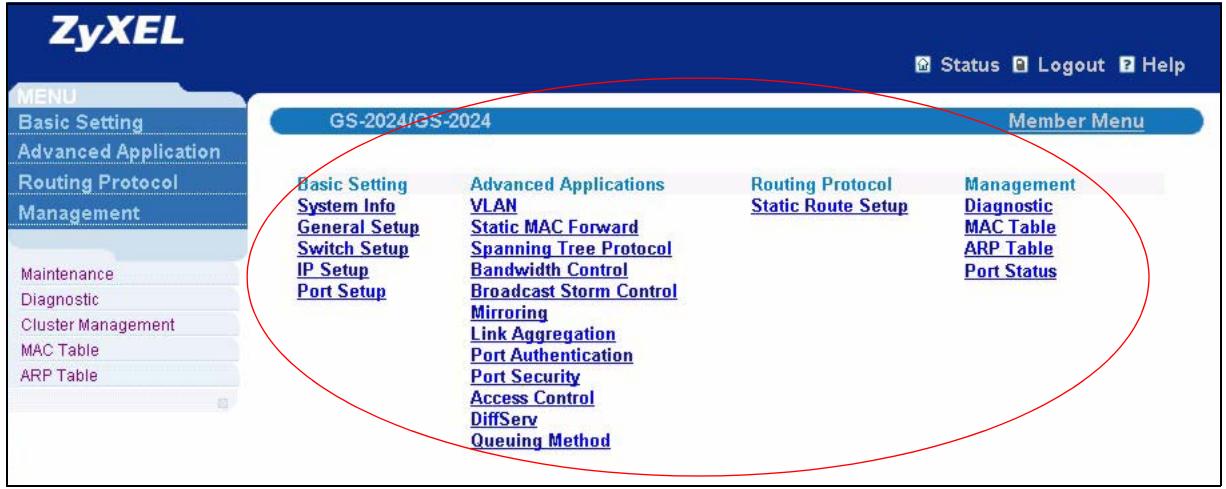
Figure 160 Cluster Management: Cluster Member Web Configurator Screen
32.2.1.1 Uploading Firmware to a Cluster Member Switch
You can use FTP to upload firmware to a cluster member switch through the cluster manager switch as shown in the following example.
Figure 161 Example: Uploading Firmware to a Cluster Member Switch
C:\>ftp 192.168.1.1
Connected to 192.168.1.1.
220 Switch FTP version 1.0 ready at Thu Jan 1 00:58:46 1970
User (192.168.0.1:(none)): admin
331 Enter PASS command
Password:
230 Logged in
ftp> ls
200 Port command okay
150 Opening data connection for LIST
--w--w--w- 1 owner group 3042210 Jul 01 12:00 ras
-rw-rw-rw- 1 owner group 393216 Jul 01 12:00 config
--w--w--w- 1 owner group 0 Jul 01 12:00 fw-00-a0-c5-01-23-46
-rw-rw-rw- 1 owner group 0 Jul 01 12:00 config-00-a0-c5-01-23-46
226 File sent OK
ftp: 297 bytes received in 0.00Seconds 297000.00Kbytes/sec.
ftp> bin
200 Type I OK
ftp> put 3701t0.bin fw-00-a0-c5-01-23-46
200 Port command okay
150 Opening data connection for STOR fw-00-a0-c5-01-23-46
226 File received OK
ftp: 262144 bytes sent in 0.63Seconds 415.44Kbytes/sec.
ftp>
The following table explains some of the FTP parameters.
Table 104 FTP Upload to Cluster Member Example
| FTP PARAMETER | DESCRIPTION |
| User | Enter “admin”. |
| Password | The web configurator password default is 1234. |
| ls | Enter this command to list the name of cluster member switch’s firmware and configuration file. |
| 3601t0.bin | This is the name of the firmware file you want to upload to the cluster member switch. |
| fw-00-a0-c5-01-23-46 | This is the cluster member switch’s firmware name as seen in the cluster manager switch. |
| config-00-a0-c5-01-23-46 | This is the cluster member switch’s configuration file name as seen in the cluster manager switch. |
32.3 Clustering Management Configuration
Use this screen to configure clustering management. Click Management > Cluster Management > Configuration to display the next screen.
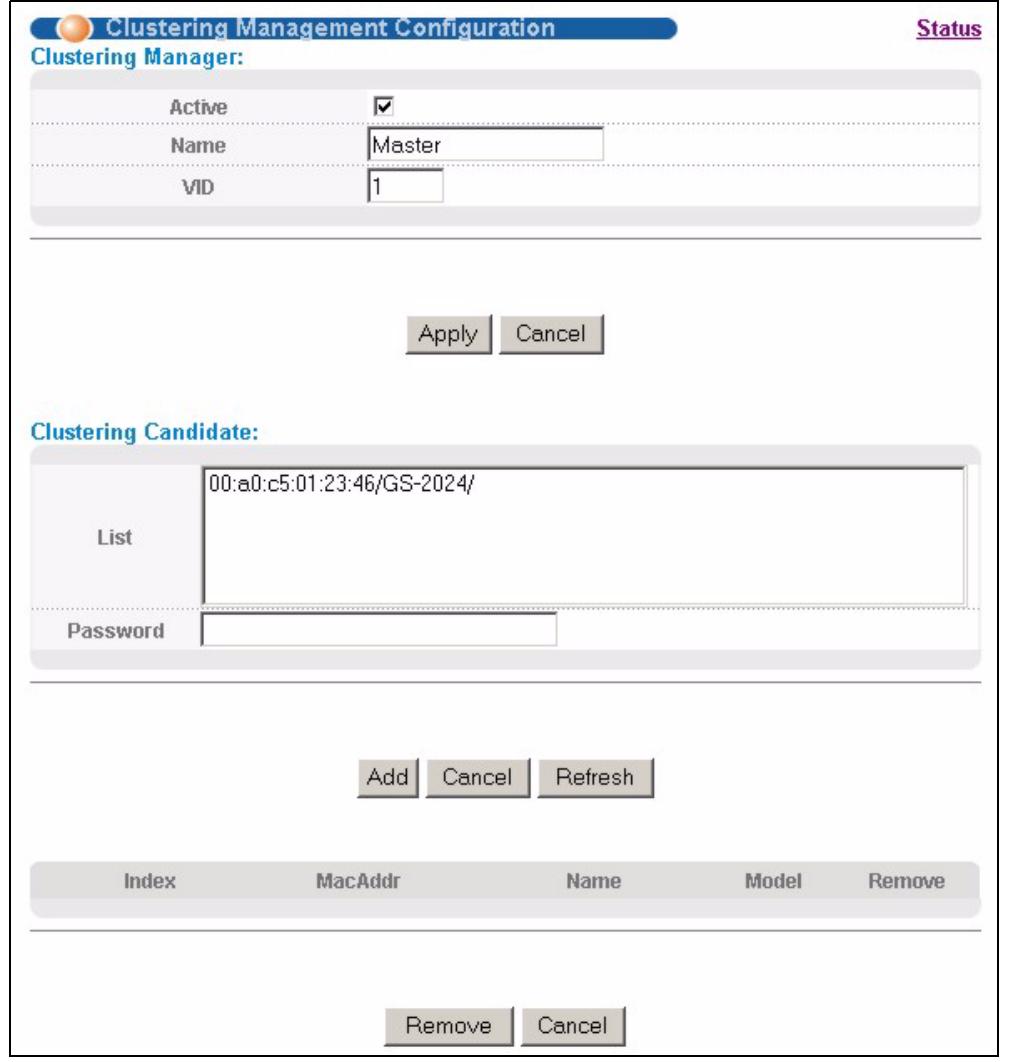
Figure 162 Management > Cluster Management > Configuration
The following table describes the labels in this screen.
Table 105 Management > Cluster Management > Configuration
| LABEL | DESCRIPTION |
| Clustering Manager | |
| Active | Select Active to have this Switch become the cluster manager switch. A cluster can only have one manager. Other (directly connected) switches that are set to be cluster managers will not be visible in the Clustering Candidates list. If a switch that was previously a cluster member is later set to become a cluster manager, then its Status is displayed as Error in the Cluster Management Status screen and a warning icon (▲) appears in the member summary list below. |
| Name | Type a name to identify the Clustering Manager. You may use up to 32 printable characters (spaces are allowed). |
| VID | This is the VLAN ID and is only applicable if the Switch is set to 802.1Q VLAN. All switches must be directly connected and in the same VLAN group to belong to the same cluster. Switches that are not in the same VLAN group are not visible in the Clustering Candidates list. This field is ignored if the Clustering Manager is using Port-based VLAN. |
| Apply | Click Apply to save your changes to the Switch's run-time memory. The Switch loses these changes if it is turned off or loses power, so use the Save link on the top navigation panel to save your changes to the non-volatile memory when you are done configuring. |
| Cancel | Click Cancel to begin configuring this screen afresh. |
| Clustering Candidate | The following fields relate to the switches that are potential cluster members. |
| List | A list of suitable candidates found by auto-discovery is shown here. The switches must be directly connected. Directly connected switches that are set to be cluster managers will not be visible in the Clustering Candidate list. Switches that are not in the same management VLAN group will not be visible in the Clustering Candidate list. |
| Password | Each cluster member's password is its web configurator password. Select a member in the Clustering Candidate list and then enter its web configurator password. If that switch administrator changes the web configurator password afterwards, then it cannot be managed from the Cluster Manager. Its Status is displayed as Error in the Cluster Management Status screen and a warning icon (▲) appears in the member summary list below. If multiple devices have the same password then hold [SHIFT] and click those switches to select them. Then enter their common web configurator password. |
| Add | Click Add to save your changes to the Switch's run-time memory. The Switch loses these changes if it is turned off or loses power, so use the Save link on the top navigation panel to save your changes to the non-volatile memory when you are done configuring. |
| Cancel | Click Cancel to begin configuring this screen afresh. |
| Refresh | Click Refresh to perform auto-discovery again to list potential cluster members. |
| The next summary table shows the information for the clustering members configured. | |
| Index | This is the index number of a cluster member switch. |
| MacAddr | This is the cluster member switch's hardware MAC address. |
| Name | This is the cluster member switch's System Name. |
| Model | This is the cluster member switch's model name. |
| Remove | Select this checkbox and then click the Remove button to remove a cluster member switch from the cluster. |
| Cancel | Click Cancel to begin configuring this screen afresh. |
MAC Table
This chapter introduces the MAC Table screen.
33.1 MAC Table Overview
The MAC Table screen (a MAC table is also known as a filtering database) shows how frames are forwarded or filtered across the Switch's ports. It shows what device MAC address, belonging to what VLAN group (if any) is forwarded to which port(s) and whether the MAC address is dynamic (learned by the Switch) or static (manually entered in the Static MAC
Forwarding screen).
The Switch uses the MAC table to determine how to forward frames. See the following figure.
1 The Switch examines a received frame and learns the port on which this source MAC address came.
2 The Switch checks to see if the frame's destination MAC address matches a source MAC address already learned in the MAC table.
- If the Switch has already learned the port for this MAC address, then it forwards the frame to that port.
- If the Switch has not already learned the port for this MAC address, then the frame is flooded to all ports. Too much port flooding leads to network congestion.
- If the Switch has already learned the port for this MAC address, but the destination port is the same as the port it came in on, then it filters the frame.
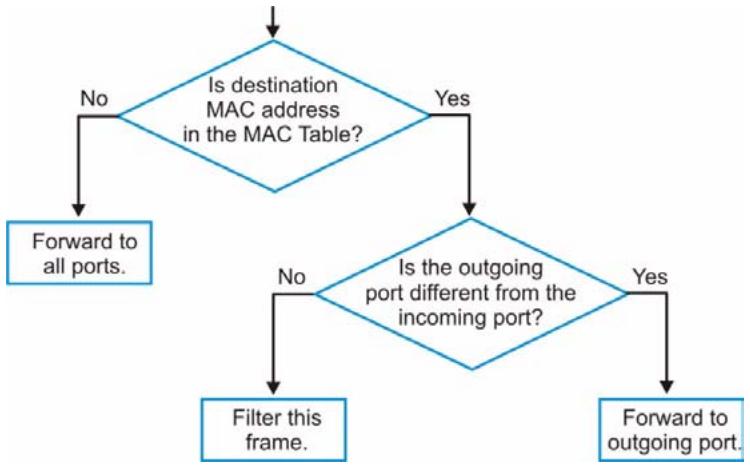
Figure 163 MAC Table Flowchart
33.2 Viewing the MAC Table
Click Management > MAC Table in the navigation panel to display the following screen.
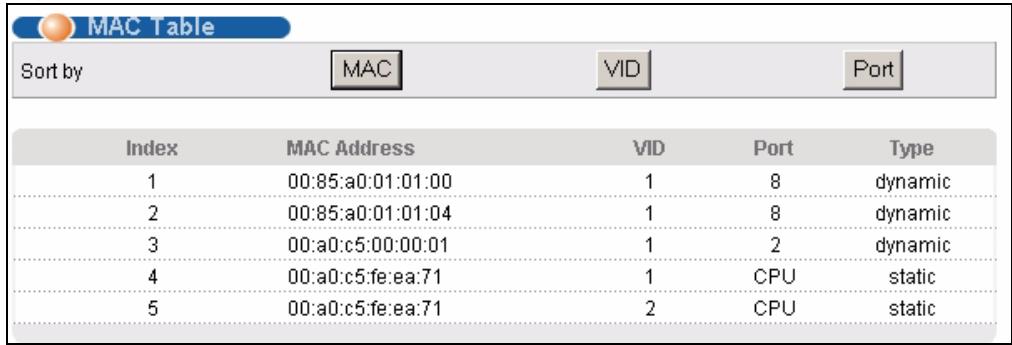
Figure 164 Management > MAC Table
The following table describes the labels in this screen.
Table 106 Management > MAC Table
| LABEL | DESCRIPTION |
| Sort by | Click one of the following buttons to display and arrange the data according to that button type. The information is then displayed in the summary table below. |
| MAC | Click this button to display and arrange the data according to MAC address. |
| VID | Click this button to display and arrange the data according to VLAN group. |
| Port | Click this button to display and arrange the data according to port number. |
| Index | This is the incoming frame index number. |
| MAC Address | This is the MAC address of the device from which this incoming frame came. |
| VID | This is the VLAN group to which this frame belongs. |
| Port | This is the port from which the above MAC address was learned. |
| Type | This shows whether the MAC address is dynamic (learned by the Switch) or static (manually entered in the Static MAC Forwarding screen). |
ARP Table
This chapter introduces ARP Table.
34.1 ARP Table Overview
Address Resolution Protocol (ARP) is a protocol for mapping an Internet Protocol address (IP address) to a physical machine address, also known as a Media Access Control or MAC address, on the local area network.
An IP (version 4) address is 32 bits long. In an Ethernet LAN, MAC addresses are 48 bits long. The ARP Table maintains an association between each MAC address and its corresponding IP address.
34.1.1 How ARP Works
When an incoming packet destined for a host device on a local area network arrives at the Switch, the Switch's ARP program looks in the ARP Table and, if it finds the address, sends it to the device.
If no entry is found for the IP address, ARP broadcasts the request to all the devices on the LAN. The Switch fills in its own MAC and IP address in the sender address fields, and puts the known IP address of the target in the target IP address field. In addition, the Switch puts all ones in the target MAC field (FF.FF.FF.FF.FF.FF is the Ethernet broadcast address). The replying device (which is either the IP address of the device being sought or the router that knows the way) replaces the broadcast address with the target's MAC address, swaps the sender and target pairs, and unicasts the answer directly back to the requesting machine. ARP updates the ARP Table for future reference and then sends the packet to the MAC address that replied.
34.2 Viewing the ARP Table
Click Management > ARP Table in the navigation panel to open the following screen. Use the ARP table to view IP-to-MAC address mapping(s).
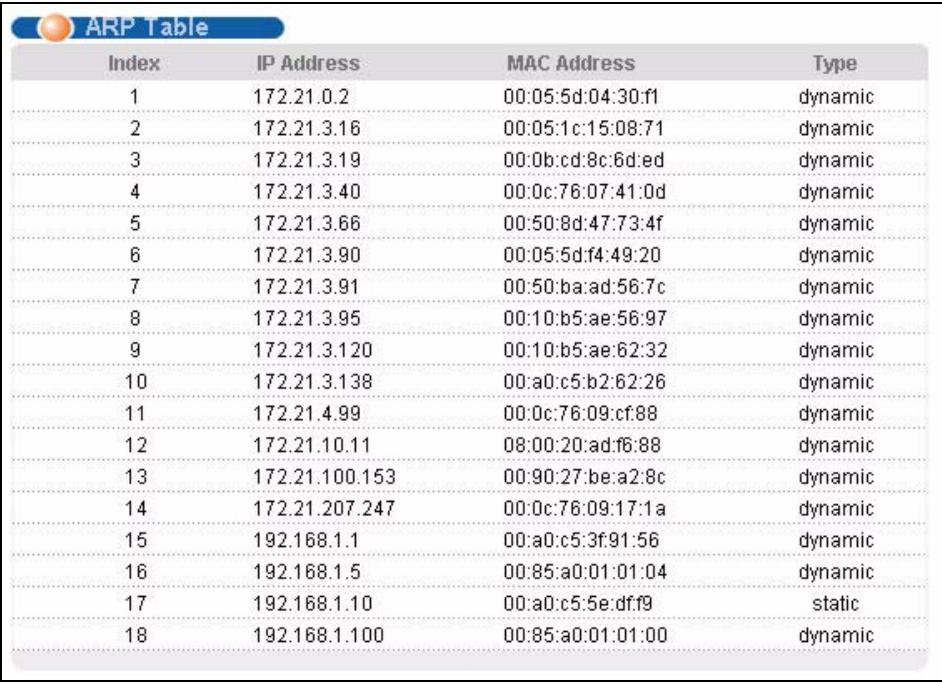
Figure 165 Management > ARP Table
The following table describes the labels in this screen.
Table 107 Management > ARP Table
| LABEL | DESCRIPTION |
| Index | This is the ARP Table entry number. |
| IP Address | This is the learned IP address of a device connected to a Switch port with corresponding MAC address below. |
| MAC Address | This is the MAC address of the device with corresponding IP address above. |
| Type | This shows whether the MAC address is dynamic (learned by the Switch) or static. |
Configure Clone
This chapter shows you how you can copy the settings of one port onto other ports.
35.1 Configure Clone
Cloning allows you to copy the basic and advanced settings from a source port to a destination port or ports. Click Management > Configure Clone to open the following screen.
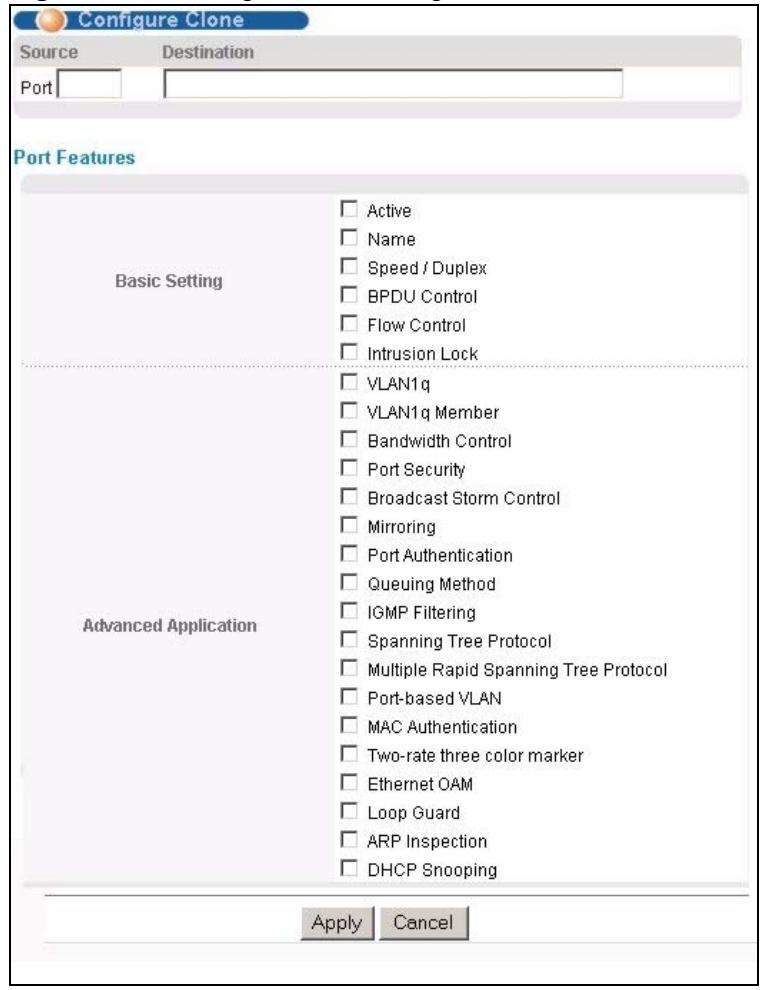
Figure 166 Management > Configure Clone
The following table describes the labels in this screen.
Table 108 Management > Configure Clone
| LABEL | DESCRIPTION |
| Source/ Destination Port | Enter the source port under the Source label. This port's attributes are copied. Enter the destination port or ports under the Destination label. These are the ports which are going to have the same attributes as the source port. You can enter individual ports separated by a comma or a range of ports by using a dash. Example: • 2, 4, 6 indicates that ports 2, 4 and 6 are the destination ports. • 2-6 indicates that ports 2 through 6 are the destination ports. |
| Basic Setting | Select which port settings (you configured in the Basic Setting menus) should be copied to the destination port(s). |
| Advanced Application | Select which port settings (you configured in the Advanced Application menus) should be copied to the destination ports. |
| Apply | Click Apply to save your changes to the Switch's run-time memory. The Switch loses these changes if it is turned off or loses power, so use the Save link on the top navigation panel to save your changes to the non-volatile memory when you are done configuring. |
| Cancel | Click Cancel to begin configuring this screen afresh. |
PART VI
Troubleshooting &
Product
Specifications
Troubleshooting (275)
Product Specifications (279)
Troubleshooting
This chapter offers some suggestions to solve problems you might encounter. The potential problems are divided into the following categories.
- Power, Hardware Connections, and LEDs
- Switch Access and Login
36.1 Power, Hardware Connections, and LEDs

The Switch does not turn on. None of the LEDs turn on.
1 Make sure you are using the power adaptor or cord included with the Switch.
2 Make sure the power adaptor or cord is connected to the Switch and plugged in to an appropriate power source. Make sure the power source is turned on.
3 Disconnect and re-connect the power adaptor or cord to the Switch.
4 If the problem continues, contact the vendor.

The ALM LED is on.
1 Disconnect and re-connect the power adaptor to the Switch.
2 If the problem continues, contact the vendor.

One of the LEDs does not behave as expected.
1 Make sure you understand the normal behavior of the LED. See Section 3.3 on page 47.
2 Check the hardware connections. See the Quick Start Guide and Section 36.1 on page 275.
3 Inspect your cables for damage. Contact the vendor to replace any damaged cables.
4 Disconnect and re-connect the power cord to the Switch.
5 If the problem continues, contact the vendor.
36.2 Switch Access and Login

I forgot the IP address for the Switch.
1 The default IP address is 192.168.1.1.
2 Use the console port to log in to the Switch.
3 Use the MGMT port to log in to the Switch, the default IP address of the MGMT port is 192.168.0.1.
4 If this does not work, you have to reset the device to its factory defaults. See Section 4.6 on page 59.

I forgot the username and/or password.
1 The default username is admin and the default password is 1234.
2 If this does not work, you have to reset the device to its factory defaults. See Section 4.6 on page 59.

I cannot see or access the Login screen in the web configurator.
1 Make sure you are using the correct IP address.
- The default IP address is 192.168.1.1.
- If you changed the IP address, use the new IP address.
- If you changed the IP address and have forgotten it, see the troubleshooting suggestions for I forgot the IP address for the Switch.
2 Check the hardware connections, and make sure the LEDs are behaving as expected. See the Quick Start Guide and Section 3.3 on page 47.
3 Make sure your Internet browser does not block pop-up windows and has JavaScript and Java enabled.
4 Make sure your computer is in the same subnet as the Switch. (If you know that there are routers between your computer and the Switch, skip this step.)
5 Reset the device to its factory defaults, and try to access the Switch with the default IP address. See Section 4.6 on page 59.
6 If the problem continues, contact the vendor, or try one of the advanced suggestions.
Advanced Suggestions
- Try to access the Switch using another service, such as Telnet. If you can access the Switch, check the remote management settings to find out why the Switch does not respond to HTTP.

I can see the Login screen, but I cannot log in to the Switch.
1 Make sure you have entered the user name and password correctly. The default user name is admin, and the default password is 1234. These fields are case-sensitive, so make sure [Caps Lock] is not on.
2 You may have exceeded the maximum number of concurrent Telnet sessions. Close other Telnet session(s) or try connecting again later.
Check that you have enabled logins for HTTP or telnet. If you have configured a secured client IP address, your computer's IP address must match it. Refer to the chapter on access control for details.
3 Turn the Switch off and on.
4 Disconnect and re-connect the cord to the Switch.
5 If this does not work, you have to reset the device to its factory defaults. See Section 4.6 on page 59.

Pop-up Windows, JavaScripts and Java Permissions
In order to use the web configurator you need to allow:
- Web browser pop-up windows from your device.
- JavaScripts (enabled by default).
- Java permissions (enabled by default).
Product Specifications
The following tables summarize the Switch's hardware and firmware features.
Table 109 Hardware Specifications
| SPECIFICATION | DESCRIPTION |
| Dimensions | Standard 19" rack mountable MGS-3712F: 438 mm (W) x 225 mm (D) x 45.45 mm (H) MGS-3712: 438 mm (W) x 225 mm (D) x 45.45 mm (H) |
| Weight | MGS-3712F: 3.4 Kg MGS-3712: 3.4 Kg |
| Power Specification | One Backup Power Supply (BPS) connector MGS-3712F AC: 100-240 VAC 50/60 Hz, 0.6 A Max. DC: -36 VDC ~ -72 VDC, 0.85 A Max. MGS-3712 AC: 100-240 VAC 50/60 Hz, 0.6 A Max. DC: -36 VDC ~ -72 VDC, 0.85 A Max. Note: There is no tolerance for the DC input voltage |
| Power Consumption | MGS-3712 AC unit: 30 W maximum MGS-3712 DC unit: 30 W maximum MGS-3712F AC unit: 30 W maximum MGS-3712F DC unit: 30 W maximum |
| Interfaces | MGS-3712F: 8 mini-GBIC (SFP) slots MGS-3712: 8 100/1000 Base-Tx ports All Models: 4 GbE Dual Personality interfaces (Each interface has one 1000Base-T RJ-45 port and one Small Form-Factor Pluggable (SFP) slot, with one port active at a time.) One local management 100Base-T RJ-45 port Auto-negotiation Auto-MDIV One console port Compliant with IEEE 802.3ad/u/x Back pressure flow control for half duplex Flow control for full duplex (IEEE 802.3x) |
| LEDs | Per switch: BPS, PWR, SYS, ALM Per Gigabit RJ-45 port/Mini-GBIC slot: 100, 1000, LNK, ACT Per mini-GBIC slot: LNK, ACT Per Management port: 10, 100 |
| Operating Environment | Temperature: 0° C ~ 65° C (32° F ~ 149° F) Humidity: 10 ~ 90% (non-condensing) |
Table 109 Hardware Specifications
| Storage Environment | Temperature: -10°C ~ 70°C (14°F ~ 158°F) Humidity: 10 ~ 90% (non-condensing) |
| Ground Wire Gauge | 18 AWG or larger |
| Power Wire Gauge | 18 AWG or larger |
| Fuse Specification | 250 VAC, T2A |
| External Alarm Jack | Supports input from four external alarms or other devices and output to one device. |
| External ALARM connector | Voltage rating: 125 V Stranded Wire Gauge: 20 ~ 28 AWG Wire strip length: 6 ~ 7 mm |
Table 110 Firmware Specifications
| FEATURE | DESCRIPTION |
| Default IP Address | In band: 192.168.1.1 Out of band (Management port): 192.168.0.1 |
| Default Subnet Mask | 255.255.255.0 (24 bits) |
| Administrator User Name | admin |
| Default Password | 1234 |
| Number of Login Accounts Configurable on the Switch | 4 management accounts configured on the Switch. Authentication via RADIUS and TACACS+ also available. |
| VLAN | A VLAN (Virtual Local Area Network) allows a physical network to be partitioned into multiple logical networks. Devices on a logical network belong to one group. A device can belong to more than one group. With VLAN, a device cannot directly talk to or hear from devices that are not in the same group(s); the traffic must first go through a router. |
| MAC Address Filter | Filter traffic based on the source and/or destination MAC address and VLAN group (ID). |
| DHCP (Dynamic Host Configuration Protocol) Relay | Use this feature to have the Switch forward DHCP requests to DHCP servers on your network. |
| IGMP Snooping | The Switch supports IGMP snooping, enabling group multicast traffic to be only forwarded to ports that are members of that group; thus allowing you to significantly reduce multicast traffic passing through your Switch. |
| Classifier and Policy | You can create a policy to define actions to be performed on a traffic flow grouped by a classifier according to specific criteria such as the IP address, port number or protocol type, etc. |
| Queuing | Queuing is used to help solve performance degradation when there is network congestion. The following scheduling services are supported: Strict Priority Queuing (SPQ) and Weighted Round Robin (WRR). This allows the Switch to maintain separate queues for packets from each individual source or flow and prevent a source from monopolizing the bandwidth. |
| Bandwidth Control | Bandwidth control means defining a maximum allowable bandwidth for incoming and/or out-going traffic flows on a port. |
| Broadcast Storm Control | Broadcast storm control limits the number of broadcast, multicast and destination lookup failure (DLF) packets the Switch receives per second on the ports. |
Table 110 Firmware Specifications
| FEATURE | DESCRIPTION |
| Two Rate Three Color Marker | Two Rate Three Color Marker (trTCM, defined in RFC 2698) is a type of traffic policing that identifies packets by comparing them to two user-defined rates: the Committed Information Rate (CIR) and the Peak Information Rate (PIR). |
| Port Mirroring | Port mirroring allows you to copy traffic going from one or all ports to another or all ports in order that you can examine the traffic from the mirror port (the port you copy the traffic to) without interference. |
| Static Route | Static routes allow the Switch to communicate with management stations not reachable via the default gateway. |
| Multicast VLAN Registration (MVR) | Multicast VLAN Registration (MVR) is designed for applications (such as Media-on-Demand (MoD)) using multicast traffic across a network. MVR allows one single multicast VLAN to be shared among different subscriber VLANs on the network. This improves bandwidth utilization by reducing multicast traffic in the subscriber VLANs and simplifies multicast group management. |
| IP Multicast | With IP multicast, the Switch delivers IP packets to a group of hosts on the network - not everybody. In addition, the Switch can send packets to Ethernet devices that are not VLAN-aware by untagging (removing the VLAN tags) IP multicast packets. |
| STP (Spanning Tree Protocol) / RSTP (Rapid STP)/MSTP (Multiple Spanning Tree Protocol) | (M)(R)STP detects and breaks network loops and provides backup links between switches, bridges or routers. It allows a Switch to interact with other (M)(R)STP-compliant switches in your network to ensure that only one path exists between any two stations on the network. |
| Loop Guard | Use the loop guard feature to protect against network loops on the edge of your network. |
| IP Source Guard | Use IP source guard to filter unauthorized DHCP and ARP packets in your network. |
| Link Aggregation | Link aggregation (trunking) is the grouping of physical ports into one logical higher-capacity link. You may want to trunk ports if for example, it is cheaper to use multiple lower-speed links than to under-utilize a high-speed, but more costly, single-port link. |
| Port Authentication and Security | For security, the Switch allows authentication using IEEE 802.1x with an external RADIUS server and port security that allows only packets with dynamically learned MAC addresses and/or configured static MAC addresses to pass through a port on the Switch. |
| Authentication and Accounting | The Switch supports authentication and accounting services via RADIUS and TACACS+ AAA servers. |
| Device Management | Use the web configurator or commands to easily configure the rich range of features on the Switch. |
| Port Cloning | Use the port cloning feature to copy the settings you configure on one port to another port or ports. |
| Syslog | The Switch can generate syslog messages and send it to a syslog server. |
| Firmware Upgrade | Download new firmware (when available) from the ZyXEL web site and use the web configurator, CLI or an FTP/TFTP tool to put it on the Switch.Note: Only upload firmware for your specific model! |
Table 110 Firmware Specifications
| FEATURE | DESCRIPTION |
| Configuration Backup & Restoration | Make a copy of the Switch's configuration and put it back on the Switch later if you decide you want to revert back to an earlier configuration. |
| Cluster Management | Cluster management (also known as iStacking) allows you to manage switches through one switch, called the cluster manager. The switches must be directly connected and be in the same VLAN group so as to be able to communicate with one another. |
Table 111 Feature Specifications
| Layer 2 Features | Bridging | 16K MAC addresses Static MAC address filtering by source/destination Broadcast storm control Static MAC address forwarding |
| Switching | Switching fabric: 24 Gbps, non-blocking Max. Frame size: 9 K bytes Forwarding frame: IEEE 802.3, IEEE 802.1q, Ethernet II, PPPoE Prevent the forwarding of corrupted packets | |
| STP | IEEE 802.1w Rapid Spanning Tree Protocol (RSTP) Multiple Rapid Spanning Tree capability (2 configurable trees) IEEE 802.1s Multiple Spanning Tree Protocol | |
| QoS | IEEE 802.1p Eight priority queues per port Port-based egress traffic shaping Rule-based traffic mirroring Supports IGMP snooping | |
| VLAN | Port-based VLAN setting Tag-based (IEEE 802.1Q) VLAN Number of VLAN: 4K, 2000 static maximum Supports GVRP Subnet Based VLAN | |
| Port Aggregation | Supports IEEE 802.3ad; static and dynamic (LACP) port trunking Six groups (up to 8 ports each) | |
| Port mirroring | All ports support port mirroring Support port mirroring per IP/TCP/UDP | |
| Bandwidth control | Supports rate limiting at 64 Kb increments | |
| Layer 3 Features | IP Capability | IPV4 support 64 Management IPs Wire speed IP forwarding |
| Routing protocols | Static Routing | |
| IP services | DHCP relay; VLAN based DHCP relay DHCP Snooping | |
| Security | IEEE 802.1x port-based authentication Static MAC address filtering Limiting number of dynamic addresses per port | |
The following list, which is not exhaustive, illustrates the standards supported in the Switch.
Table 112 Standards Supported
| STANDARD | DESCRIPTION |
| RFC 826 | Address Resolution Protocol (ARP) |
| RFC 867 | Daytime Protocol |
| RFC 868 | Time Protocol |
| RFC 894 | Ethernet II Encapsulation |
| RFC 1112 | IGMP v1 |
| RFC 1155 | SMI |
| RFC 1157 | SNMPv1: Simple Network Management Protocol version 1 |
| RFC 1213 | SNMP MIB II |
| RFC 1305 | Network Time Protocol (NTP version 3) |
| RFC 1441 | SNMPv2 Simple Network Management Protocol version 2 |
| RFC 1493 | Bridge MIBs |
| RFC 1643 | Ethernet MIBs |
| RFC 1757 | RMON |
| RFC 1901 | SNMPv2c Simple Network Management Protocol version 2c |
| RFC 2138 | RADIUS (Remote Authentication Dial In User Service) |
| RFC 2139 | RADIUS Accounting |
| RFC 2236 | Internet Group Management Protocol, Version 2. |
| RFC 2698 | Two Rate Three Color Marker (trTCM) |
| RFC 2865 | RADIUS - Vendor Specific Attribute |
| RFC 2674 | P-Bridge-MIB, Q-Bridge-MIB |
| RFC 3046 | DHCP Relay |
| RFC 3164 | Syslog |
| RFC 3376 | Internet Group Management Protocol, Version 3 |
| RFC 3414 | User-based Security Model (USM) for version 3 of the Simple Network Management Protocol (SNMP v3) |
| RFC 3580 | RADIUS - Tunnel Protocol Attribute |
| IEEE 802.1x | Port Based Network Access Control |
| IEEE 802.1D | MAC Bridges |
| IEEE 802.1p | Traffic Types - Packet Priority |
| IEEE 802.1Q | Tagged VLAN |
| IEEE 802.1w | Rapid Spanning Tree Protocol (RSTP) |
| IEEE 802.1s | Multiple Spanning Tree Protocol (MSTP) |
| IEEE 802.3 | Packet Format |
| IEEE 802.3ad | Link Aggregation |
| IEEE 802.3ah | Ethernet OAM (Operations, Administration and Maintenance) |
| IEEE 802.3x | Flow Control |
| Safety | UL 60950-1 CSA 60950-1 EN 60950-1 IEC 60950-1 |
| EMC | FCC Part 15 (Class A) CE EMC (Class A) |
PART VII
Appendices and
Index
Common Services (287)
Legal Information (291)
Customer Support (295)
Index (301)
Common Services
The following table lists some commonly-used services and their associated protocols and port numbers. For a comprehensive list of port numbers, ICMP type/code numbers and services, visit the IANA (Internet Assigned Number Authority) web site.
- Name: This is a short, descriptive name for the service. You can use this one or create a different one, if you like.
- Protocol: This is the type of IP protocol used by the service. If this is TCP/UDP, then the service uses the same port number with TCP and UDP. If this is User-Defined, the Port(s) is the IP protocol number, not the port number.
-
Port(s): This value depends on the Protocol. Please refer to RFC 1700 for further information about port numbers.
-
If the Protocol is TCP, UDP, or TCP/UDP, this is the IP port number.
-
If the Protocol is USER, this is the IP protocol number.
-
Description: This is a brief explanation of the applications that use this service or the situations in which this service is used.
Table 113 Commonly Used Services
| NAME | PROTOCOL | PORT(S) | DESCRIPTION |
| AH(IPSEC_TUNNEL) | User-Defined | 51 | The IPSEC AH (Authentication Header) tunneling protocol uses this service. |
| AIM/New-ICQ | TCP | 5190 | AOL's Internet Messenger service. It is also used as a listening port by ICQ. |
| AUTH | TCP | 113 | Authentication protocol used by some servers. |
| BGP | TCP | 179 | Border Gateway Protocol. |
| BOOTP_CLIENT | UDP | 68 | DHCP Client. |
| BOOTP_SERVER | UDP | 67 | DHCP Server. |
| CU-SEEME | TCPUDP | 764824032 | A popular videoconferencing solution from White Pines Software. |
| DNS | TCP/UDP | 53 | Domain Name Server, a service that matches web names (for example www.zyxel.com) to IP numbers. |
| ESP(IPSEC_TUNNEL) | User-Defined | 50 | The IPSEC ESP (Encapsulation Security Protocol) tunneling protocol uses this service. |
| FINGER | TCP | 79 | Finger is a UNIX or Internet related command that can be used to find out if a user is logged on. |
| FTP | TCP | 20 | File Transfer Program, a program to enable fast transfer of files, including large files that may not be possible by e-mail. |
| TCP | 21 | ||
| H.323 | TCP | 1720 | NetMeeting uses this protocol. |
| HTTP | TCP | 80 | Hyper Text Transfer Protocol - a client/server protocol for the world wide web. |
| HTTPS | TCP | 443 | HTTPS is a secured http session often used in e-commerce. |
| ICMP | User-Defined | 1 | Internet Control Message Protocol is often used for diagnostic or routing purposes. |
| ICQ | UDP | 4000 | This is a popular Internet chat program. |
| IGMP (MULTICAST) | User-Defined | 2 | Internet Group Multicast Protocol is used when sending packets to a specific group of hosts. |
| IKE | UDP | 500 | The Internet Key Exchange algorithm is used for key distribution and management. |
| IRC | TCP/UDP | 6667 | This is another popular Internet chat program. |
| MSN Messenger | TCP | 1863 | Microsoft Networks' messenger service uses this protocol. |
| NEW-ICQ | TCP | 5190 | An Internet chat program. |
| NEWS | TCP | 144 | A protocol for news groups. |
| NFS | UDP | 2049 | Network File System - NFS is a client/server distributed file service that provides transparent file sharing for network environments. |
| NNTP | TCP | 119 | Network News Transport Protocol is the delivery mechanism for the USENET newsgroup service. |
| PING | User-Defined | 1 | Packet INternet Groper is a protocol that sends out ICMP echo requests to test whether or not a remote host is reachable. |
| POP3 | TCP | 110 | Post Office Protocol version 3 lets a client computer get e-mail from a POP3 server through a temporary connection (TCP/IP or other). |
| PPTP | TCP | 1723 | Point-to-Point Tunneling Protocol enables secure transfer of data over public networks. This is the control channel. |
| PPTP_TUNNEL (GRE) | User-Defined | 47 | PPTP (Point-to-Point Tunneling Protocol) enables secure transfer of data over public networks. This is the data channel. |
| RCMD | TCP | 512 | Remote Command Service. |
| REAL=AUDIO | TCP | 7070 | A streaming audio service that enables real time sound over the web. |
| REXEC | TCP | 514 | Remote Execution Daemon. |
| RLOGIN | TCP | 513 | Remote Login. |
| RTELNET | TCP | 107 | Remote Telnet. |
| RTSP | TCP/UDP | 554 | The Real Time Streaming (media control) Protocol (RTSP) is a remote control for multimedia on the Internet. |
| SFTP | TCP | 115 | Simple File Transfer Protocol. |
| SMTP | TCP | 25 | Simple Mail Transfer Protocol is the message-exchange standard for the Internet. SMTP enables you to move messages from one e-mail server to another. |
| SNMP | TCP/UDP | 161 | Simple Network Management Program. |
| SNMP-TRAPS | TCP/UDP | 162 | Traps for use with the SNMP (RFC:1215). |
| SQL-NET | TCP | 1521 | Structured Query Language is an interface to access data on many different types of database systems, including mainframes, midrange systems, UNIX systems and network servers. |
| SSH | TCP/UDP | 22 | Secure Shell Remote Login Program. |
| STRM WORKS | UDP | 1558 | Stream Works Protocol. |
| SYSLOG | UDP | 514 | Syslog allows you to send system logs to a UNIX server. |
| TACACS | UDP | 49 | Login Host Protocol used for (Terminal Access Controller Access Control System). |
| TELNET | TCP | 23 | Telnet is the login and terminal emulation protocol common on the Internet and in UNIX environments. It operates over TCP/IP networks. Its primary function is to allow users to log into remote host systems. |
| TFTP | UDP | 69 | Trivial File Transfer Protocol is an Internet file transfer protocol similar to FTP, but uses the UDP (User Datagram Protocol) rather than TCP (Transmission Control Protocol). |
| VDOLIVE | TCP | 7000 | Another videoconferencing solution. |
Legal Information
Copyright
Copyright © 2008 by ZyXEL Communications Corporation.
The contents of this publication may not be reproduced in any part or as a whole, transcribed, stored in a retrieval system, translated into any language, or transmitted in any form or by any means, electronic, mechanical, magnetic, optical, chemical, photocopying, manual, or otherwise, without the prior written permission of ZyXEL Communications Corporation.
Published by ZyXEL Communications Corporation. All rights reserved.
Disclaimer
ZyXEL does not assume any liability arising out of the application or use of any products, or software described herein. Neither does it convey any license under its patent rights nor the patent rights of others. ZyXEL further reserves the right to make changes in any products described herein without notice. This publication is subject to change without notice.
Trademarks
ZyNOS (ZyXEL Network Operating System) is a registered trademark of ZyXEL Communications, Inc. Other trademarks mentioned in this publication are used for identification purposes only and may be properties of their respective owners.
Certifications
Federal Communications Commission (FCC) Interference Statement
This device complies with Part 15 of FCC rules. Operation is subject to the following two conditions:
- This device may not cause harmful interference.
- This device must accept any interference received, including interference that may cause undesired operations.
FCC Warning
This device has been tested and found to comply with the limits for a Class A digital switch, pursuant to Part 15 of the FCC Rules. These limits are designed to provide reasonable protection against harmful interference in a commercial environment. This device generates, uses, and can radiate radio frequency energy and, if not installed and used in accordance with the instruction manual, may cause harmful interference to radio communications. Operation of this device in a residential area is likely to cause harmful interference in which case the user will be required to correct the interference at his own expense.
CE Mark Warning:
This is a class A product. In a domestic environment this product may cause radio interference in which case the user may be required to take adequate measures.
Taiwanese BSMI (Bureau of Standards, Metrology and Inspection) A Warning:
警告使用者
這是甲類的資訊產品,在居住的環境使用時
可能造成射频干扰,在這種情況下,
使用者會被要求採取某些適當的對策
Notices
Changes or modifications not expressly approved by the party responsible for compliance could void the user's authority to operate the equipment.
This Class A digital apparatus complies with Canadian ICES-003.
CLASS 1 LASER PRODUCT
APPAREIL A LASER DE CLASS 1
PRODUCT COMPLIES WITH 21 CFR 1040.10 AND 1040.11.
PRODUIT CONFORME SELON 21 CFR 1040.10 ET 1040.11.
Viewing Certifications
1 Go to http://www.zyxel.com.
2 Select your product on the ZyXEL home page to go to that product's page.
3 Select the certification you wish to view from this page.
ZyXEL Limited Warranty
ZyXEL warrants to the original end user (purchaser) that this product is free from any defects in materials or workmanship for a period of up to two years from the date of purchase. During the warranty period, and upon proof of purchase, should the product have indications of failure due to faulty workmanship and/or materials, ZyXEL will, at its discretion, repair or replace the defective products or components without charge for either parts or labor, and to whatever extent it shall deem necessary to restore the product or components to proper operating
condition. Any replacement will consist of a new or re-manufactured functionally equivalent product of equal or higher value, and will be solely at the discretion of ZyXEL. This warranty shall not apply if the product has been modified, misused, tampered with, damaged by an act of God, or subjected to abnormal working conditions.
Note
Repair or replacement, as provided under this warranty, is the exclusive remedy of the purchaser. This warranty is in lieu of all other warranties, express or implied, including any implied warranty of merchantability or fitness for a particular use or purpose. ZyXEL shall in no event be held liable for indirect or consequential damages of any kind to the purchaser.
To obtain the services of this warranty, contact your vendor. You may also refer to the warranty policy for the region in which you bought the device at http://www.zyxel.com/web/support_warranty_info.php.
Registration
Register your product online to receive e-mail notices of firmware upgrades and information at www.zyxel.com for global products, or at www.us.zyxel.com for North American products.
Customer Support
In the event of problems that cannot be solved by using this manual, you should contact your vendor. If you cannot contact your vendor, then contact a ZyXEL office for the region in which you bought the device. Regional offices are listed below (see also http:// www.zyxel.com/web/contact_us.php). Please have the following information ready when you contact an office.
Required Information
Product model and serial number.
Warranty Information.
- Date that you received your device.
- Brief description of the problem and the steps you took to solve it.
“+” is the (prefix) number you dial to make an international telephone call.
Corporate Headquarters (Worldwide)
- Support E-mail: support@zyxel.com.tw
Sales E-mail: sales@zyxel.com.tw
Telephone: +886-3-578-3942
Fax: +886-3-578-2439
Web: www.zyxel.com - Regular Mail: ZyXEL Communications Corp., 6 Innovation Road II, Science Park, Hsinchu 300, Taiwan
China - ZyXEL Communications (Beijing) Corp.
- Support E-mail: cso.zycn@zyxel.cn
Sales E-mail: sales@zyxel.cn
Telephone: +86-010-82800646
Fax: +86-010-82800587 - Address: 902, Unit B, Horizon Building, No.6, Zhichun Str, Haidian District, Beijing
Web: http://www.zyxel.cn
China - ZyXEL Communications (Shanghai) Corp.
-
Support E-mail: cso.zycn@zyxel.cn
Sales E-mail: sales@zyxel.cn
Telephone: +86-021-61199055
Fax: +86-021-52069033 -
Address: 1005F, ShengGao International Tower, No.137 XianXia Rd., Shanghai
Web: http://www.zyxel.cn
Costa Rica
- Support E-mail: soporte@zyxel.co.cr
Sales E-mail: sales@zyxel.co.cr
Telephone: +506-2017878
Fax: +506-2015098
Web: www.zyxel.co.cr - Regular Mail: ZyXEL Costa Rica, Plaza Roble Escazú, Etapa El Patio, Tercer Piso, San José, Costa Rica
Czech Republic
E-mail: info@cz.zyxel.com
Telephone: +420-241-091-350
Fax: +420-241-091-359
Web: www.zyxel.cz
- Regular Mail: ZyXEL Communications, Czech s.r.o., Modranská 621, 143 01 Praha 4 - Modrany, Ceská Republika
Denmark
- Support E-mail: support@zyxel.dk
Sales E-mail: sales@zyxel.dk
Telephone: +45-39-55-07-00
Fax: +45-39-55-07-07
Web: www.zyxel.dk - Regular Mail: ZyXEL Communications A/S, Columbusvej, 2860 Soeborg, Denmark
Finland
- Support E-mail: support@zyxel.fi
Sales E-mail: sales@zyxel.fi
Telephone: +358-9-4780-8411
Fax: +358-9-4780-8448
Web: www.zyxel.fi
Regular Mail: ZyXEL Communications Oy, Malminkaari 10, 00700 Helsinki, Finland
France
E-mail: info@zyxel.fr
Telephone: +33-4-72-52-97-97
Fax: +33-4-72-52-19-20
Web: www.zyxel.fr
- Regular Mail: ZyXEL France, 1 rue des Vergers, Bat. 1 / C, 69760 Limonest, France
Germany
- Support E-mail: support@zyxel.de
Sales E-mail: sales@zyxel.de
Telephone: +49-2405-6909-69
Fax: +49-2405-6909-99
Web: www.zyxel.de - Regular Mail: ZyXEL Deutschland GmbH., Adenauerstr. 20/A2 D-52146, Wuerselen, Germany
Hungary
- Support E-mail: support@zyxel.hu
Sales E-mail: info@zyxel.hu
Telephone: +36-1-3361649
Fax: +36-1-3259100
Web: www.zyxel.hu
Regular Mail: ZyXEL Hungary, 48, Zoldlomb Str., H-1025, Budapest, Hungary
India
- Support E-mail: support@zyxel.in
Sales E-mail: sales@zyxel.in - Telephone: +91-11-30888144 to +91-11-30888153
Fax: +91-11-30888149, +91-11-26810715
Web: http://www.zyxel.in - Regular Mail: India - ZyXEL Technology India Pvt Ltd., II-Floor, F2/9 Okhra Phase -1, New Delhi 110020, India
Japan
- Support E-mail: support@zyxel.co.jp
Sales E-mail: zyp@zyxel.co.jp
Telephone: +81-3-6847-3700
Fax: +81-3-6847-3705
Web: www.zyxel.co.jp - Regular Mail: ZyXEL Japan, 3F, Office T&U, 1-10-10 Higashi-Gotanda, Shinagawa-ku, Tokyo 141-0022, Japan
Kazakhstan
- Support: http://zyxel.kz/support
Sales E-mail: sales@zyxel.kz
Telephone: +7-3272-590-698
Fax: +7-3272-590-689
Web: www.zyxel.kz - Regular Mail: ZyXEL Kazakhstan, 43 Dostyk Ave., Office 414, Dostyk Business Centre, 050010 Almaty, Republic of Kazakhstan
Malaysia
- Support E-mail: support@zyxel.com.my
Sales E-mail: sales@zyxel.com.my
Telephone: +603-8076-9933
Fax: +603-8076-9833
Web: http://www.zyxel.com.my - Regular Mail: ZyXEL Malaysia Sdn Bhd., 1-02 & 1-03, Jalan Kenari 17F, Bandar Puchong Jaya, 47100 Puchong, Selangor Darul Ehsan, Malaysia
North America
- Support E-mail: support@zyxel.com
Support Telephone: +1-800-978-7222 - Sales E-mail: sales@zyxel.com
Sales Telephone: +1-714-632-0882
Fax: +1-714-632-0858
Web: www.zyxel.com - Regular Mail: ZyXEL Communications Inc., 1130 N. Miller St., Anaheim, CA 92806-2001, U.S.A.
Norway
- Support E-mail: support@zyxel.no
Sales E-mail: sales@zyxel.no
Telephone: +47-22-80-61-80
Fax: +47-22-80-61-81
Web: www.zyxel.no - Regular Mail: ZyXEL Communications A/S, Nils Hansens vei 13, 0667 Oslo, Norway
Poland
E-mail: info@pl.zyxel.com
Telephone: +48-22-333 8250
Fax: +48-22-333 8251
Web: www.pl.zyxel.com
Regular Mail: ZyXEL Communications, ul. Okrzej 1A, 03-715 Warszawa, Poland
Russia
- Support: http://zyxel.ru/support
Sales E-mail: sales@zyxel.ru
Telephone: +7-095-542-89-29
Fax: +7-095-542-89-25
Web: www.zyxel.ru
Regular Mail: ZyXEL Russia, Ostrovityanova 37a Str., Moscow 117279, Russia
Singapore
- Support E-mail: support@zyxel.com.sg
- Sales E-mail: sales@zyxel.com.sg
Telephone: +65-6899-6678
Fax: +65-6899-8887
Web: http://www.zyxel.com.sg - Regular Mail: ZyXEL Singapore Pte Ltd., No. 2 International Business Park, The Strategy #03-28, Singapore 609930
Spain
- Support E-mail: support@zyxel.es
Sales E-mail: sales@zyxel.es
Telephone: +34-902-195-420
Fax: +34-913-005-345
Web: www.zyxel.es - Regular Mail: ZyXEL Communications, Arte, 215^a planta, 28033 Madrid, Spain
Sweden
- Support E-mail: support@zyxel.se
Sales E-mail: sales@zyxel.se
Telephone: +46-31-744-7700
Fax: +46-31-744-7701
Web: www.zyxel.se - Regular Mail: ZyXEL Communications A/S, Sjöporten 4, 41764 Göteborg, Sweden
Taiwan
- Support E-mail: support@zyxel.com.tw
Sales E-mail: sales@zyxel.com.tw
Telephone: +886-2-27399889
Fax: +886-2-27353220
Web: http://www.zyxel.com.tw - Address: Room B, 21F., No.333, Sec. 2, Dunhua S. Rd., Da-an District, Taipei
Thailand
- Support E-mail: support@zyxel.co.th
Sales E-mail: sales@zyxel.co.th
Telephone: +662-831-5315
Fax: +662-831-5395
Web: http://www.zyxel.co.th - Regular Mail: ZyXEL Thailand Co., Ltd., 1/1 Moo 2, Ratchaphruk Road, Bangrak-Noi, Muang, Nonthaburi 11000, Thailand.
Turkey
- Support E-mail: cso@zyxel.com.tr
Telephone: +90 212 222 55 22
Fax: +90-212-220-2526
Web: http://www.zyxel.com.tr - Address: Kaptanpasa Mahallesi Piyalepasa Bulvari Ortadogu Plaza N:14/13 K:6 Okmeydani/Sisli Istanbul/Turkey
Ukraine
- Support E-mail: support@ua.zyxel.com
Sales E-mail: sales@ua.zyxel.com
Telephone: +380-44-247-69-78
Fax: +380-44-494-49-32
Web: www.ua.zyxel.com
Regular Mail: ZyXEL Ukraine, 13, Pimonenko Str., Kiev 04050, Ukraine
United Kingdom
- Support E-mail: support@zyxel.co.uk
Sales E-mail: sales@zyxel.co.uk - Telephone: +44-1344-303044, 0845 122 0301 (UK only)
Fax: +44-1344-303034
Web: www.zyxel.co.uk - Regular Mail: ZyXEL Communications UK Ltd., 11 The Courtyard, Eastern Road, Bracknell, Berkshire RG12 2XB, United Kingdom (UK)
Index
Numerics
802.1P priority 80
auto-crossover 42
automatic VLAN registration 86
A
AAA 171
AAA (Authentication, Authorization and Accounting) 171
access control
limitations 237
login account 246
remote management 253
service port 252
SNMP 238
accounting 171
setup 176
address learning, MAC 93
Address Resolution Protocol (ARP) 269, 271, 272
administrator password 247
age 115
aggregator ID 127, 128
aging time 76
airflow 44
ALM LED 47
applications
backbone 31
bridging 32
IEEE 802.1Q VLAN 33
switched workgroup 32
ARP
how it works 269
viewing 269
ARP (Address Resolution Protocol) 269
ARP inspection 185, 187
and MAC filter 188
configuring 188
syslog messages 188
trusted ports 188
authentication 171
setup 176
Authentication, Authorization and Accounting, see AAA 171
authorization 171
privilege levels 177
B
back up, configuration file 234
Backup Power Supply (BPS) 47
bandwidth control 119, 282
egress rate 120
ingress rate 120
setup 119
bandwidth control and TRTCM 212
basic settings 71
binding 185
binding table 185
building 185
BPDUs (Bridge Protocol Data Units) 102
BPS LED 47
Bridge Protocol Data Units (BPDUs) 102
bridging 282
broadcast storm control 121
C
certifications 291
notices 292
viewing 292
CFI (Canonical Format Indicator) 85
changing the password 57
CIR (Committed Information Rate) 119
CIST 106
Class of Service (CoS) 209
classifier 143, 145
and QoS 143
editing 146
example 147
overview 143
setup 143, 145, 146
viewing 146
cloning a port See port cloning
cluster management 261
and switch passwords 266
cluster manager 261, 265
cluster member 261, 266
cluster member firmware upgrade 264
network example 261
setup 264
specification 261
status 262
switch models 261
VID 265
web configurator 263
cluster manager 261
cluster member 261
Committed Information Rate (CIR) 119
Common and Internal Spanning Tree, See CIST 106
configuration 219
change running config 233
configuration file 59
backup 234
restore 59, 234
saving 232
configuration, saving 58
console port 41
contact information 295
copying port settings, See port cloning
copyright 291
CPU management port 95
current date 73
current time 73
customer support 295
Differentiated Service (DiffServ) 209
DiffServ
and TRTCM 212
DS field 209
DSCP 209
network example 210
PHB 209
dimensions 279
disclaimer 291
DS (Differentiated Services) 209
DSCP
service level 209
what it does 209
DSCP (DiffServ Code Point) 209
dynamic link aggregation 125
E
egress port 96
egress rate, and bandwidth control 120
Ethernet broadcast address 269
Ethernet port test 255
external authentication server 172
F
fan speed 72
FCC interference statement 291
feature summary 54
file transfer using FTP
command example 235
filename convention, configuration
configuration
file names 235
filtering 99
rules 99
filtering database, MAC table 267
firmware 72
upgrade 233, 264
flow control 80
back pressure 80
IEEE802.3x 80
forwarding
delay 115
frames
tagged 91
untagged 91
front panel 39
FTP 235
file transfer procedure 235
restrictions over WAN 236
G
GARP 86
GARP (Generic Attribute Registration Protocol) 86
GARP terminology 86
GARP timer 76,86
general features 282
general setup 72
getting help 60
Gigabit ports 42
GMT (Greenwich Mean Time) 74
GVRP 86,91
and port assignment 91
GVRP (GARP VLAN Registration Protocol) 86
H
hardware installation 35
hardware monitor 72
hardware overview 39
hello time 115
hops 115
HTTPS 250
certificates 250
implementation 250
public keys, private keys 250
HTTPS example 250
humidity 279
1
IEEE 802.1p, priority 76
IEEE 802.1x
activate 135, 136, 174, 176
reauthentication 136
IEEE 802.1x, port authentication 133
IGMP
version 157
IGMP (Internet Group Management Protocol) 157
IGMP filtering 157
profile 162
profiles 159
IGMP snooping 157
and VLANs 158
MVR 163
setup 160
ingress port 96
ingress rate, and bandwidth control 120
installation
desktop 35
precautions 36
rack-mounting 36
transceivers 43
installation scenarios 35
introduction 31
IP
capability 282
services 282
IP address 78
IP interface 77
IP setup 77
IP source guard 185
ARP inspection 185, 187
DHCP snooping 185
static bindings 185
IP subnet mask 78
L
LACP 125
system priority 129
timeout 130
layer 2 features 282
layer 3 features 282
LEDs 47
ALM 47
BPS 47
PWR 47
SYS 47
limit MAC address learning 140
Link Aggregate Control Protocol (LACP) 125
link aggregation 125
dynamic 125
ID information 126
setup 127, 128
status 126
lockout 58
log 255
login 51
password 57
login account
Administrator 246
non-administrator 247
login accounts 246
configuring via web configurator 246
multiple 246
number of 246
login password 247
loop guard 205
examples 206
port shut down 207
setup 207
vs STP 205
M
MAC (Media Access Control) 72
MAC address 72, 269
maximum number per port 140
MAC address learning 75, 93, 97, 140
specifly limit 140
MAC authentication 133
aging time 137
example 134
setup 136
MAC filter
and ARP inspection 188
MAC table 267
how it works 267
viewing 268
maintenance
configuration backup 234
firmware 233
restoring configuration 234
maintenance 231
current configuration 231
main screen 231
Management Information Base (MIB) 238
management port 44, 96
default IP address 44
managing the device
good habits 34
using FTP. See FTP. 34
using Telnet. See command interface. 34
using the command interface. See command
interface. 34
man-in-the-middle attacks 187
max
age 115
hops 115
MDIX (Media Dependent Interface Crossover) 42
MGMT port 44
MIB
and SNMP 238
supported MIBs 239
MIB (Management Information Base) 238
mirroring ports 123
monitor port 123, 124
mounting brackets 36
MRSTP
status 112
MST ID 105
MST Instance, See MSTI 105
MST region 105
MSTI 105
MSTP 101, 104
bridge ID 117, 118
configuration 114
configuration digest 118
forwarding delay 115
Hello Time 117
hello time 115
Max Age 117
max age 115
max hops 115
path cost 116
port priority 116
revision level 115
status 116
MTU (Multi-Tenant Unit) 74
multicast 157
802.1 priority 159
and IGMP 157
IP addresses 157
overview 157
setup 158, 159
multicast group 162
multicast VLAN 166
Multiple Rapid Spanning Tree Protocol 103
Multiple RSTP 103
Multiple Spanning Tree Protocol, See MSTP 101, 104
Multiple STP 104
MVR 163
configuration 164
group configuration 166
network example 163
MVR (Multicast VLAN Registration) 163
N
network applications 31
network management system (NMS) 238
NTP (RFC-1305) 73
P
password 57
administrator 247
Peak Information Rate (PIR) 119
PHB (Per-Hop Behavior) 209
ping, test connection 255
PIR (Peak Information Rate) 119
policy 151, 152
and classifier 151
and DiffServ 149
configuration 151
example 152
overview 149
rules 149, 150
viewing 152
policy configuration 152
port authentication 133
and RADIUS 172
IEEE802.1x 135, 174, 176
MAC authentication 133
port based VLAN type 75
portcloning271,272
advanced settings 271, 272
basic settings 271, 272
port details 66
port isolation 91, 96
port mirroring 123, 124, 282
direction 124
egress 124
ingress 124
port redundancy 125
port security 139
limit MAC address learning 140
MAC address learning 139
overview 139
setup 139, 207
port setup 79
port status 65
port VLAN trunking 87
port-based VLAN 94
all connected 96
port isolation 96
settings wizard 96
ports
standby"125
diagnostics 255
mirroring 123
speed/duplex 80
power
voltage 72
power connector 44
power consumption 279
power specification 279
power status 72
priority level 76
priority, queue assignment 76
product registration 293
PVID 85, 91
PVID (Priority Frame) 85
PWR LED 47
Q
QoS 282
and classifier 143
Queue priority 156
Queue weight 156
queue weight 155
queuing 155
SPQ155
WRR 155
Queuing algorithm 156
Queuing method 156
queuing method 155
R
rack-mounting 36
RADIUS 171, 172
advantages 172
and port authentication 172
and tunnel protocol attribute 180
Network example 171
server 172
settings 172
setup 172
Rapid Spanning Tree Protocol, See RSTP. 101
rear panel 47
rear panel connections 44
reboot
load configuration 233
reboot system 233
registration
product 293
related documentation 3
remote management 253
service 254
trusted computers 254
resetting 59, 232
to factory default settings 232
restoring configuration 59, 234
RFC 3164 257
Round Robin Scheduling 155
routing protocols 282
RSTP 101
rubber feet 35
s
safety certifications 284
safety warnings 6
save configuration 58, 232
screen summary 54
Secure Shell See SSH
security 282
service access control 252
service port 253
Simple Network Management Protocol, see SNMP
Small Form-factor Pluggable (SFP) 42
SNMP 238
agent 238
and MIB 238
and security 239
authentication 245
communities 244
management model 238
manager 238
MIB 239
network components 238
object variables 238
protocol operations 238
security 245
setup 243, 245
version 3 239
versions supported 238
SNMP traps 239, 240, 241, 242, 243 setup 245
Spanning Tree Protocol, See STP. 101
SPQ (Strict Priority Queuing) 155
SSH
encryption methods 249
how it works 248
implementation 249
SSH (Secure Shell) 248
SSL (Secure Socket Layer) 250
standby ports 125
static bindings 185
static link aggregation example 130
static MAC address 97
static MAC forwarding 93, 97
static routes 219
statictrunkingexample130
Static VLAN 89
static VLAN
control 90
tagging 90
status 52, 65
link aggregation 126
MSTP 116
port 65
port details 66
power 72
STP 109, 112
VLAN 88
STP 101,282
bridge ID 110, 113
bridgepriority 108, 111
configuration 108, 111
designated bridge 102
forwarding delay 109, 112
Hello BPDU 102
Hello Time 109, 110, 111, 113
how it works 102
Max Age 109, 110, 112, 113
path cost 102, 109, 112
portpriority109,112
port state 103
root port 102
status 109, 112
terminology 101
vs loop guard 205
subset based VLAN 93
and DHCP VLAN 93
priority 93
setup 93
subset based VLANs 92
switch lockout 58
switch reset 59
switch setup 75
switching 282
syntax conventions 4
SYS LED 47
syslog 188,257
protocol 257
server setup 258
settings 257
setup 257
severity levels 257
system information 71
system log 255
system reboot 233
T
TACACS+ 171, 172
setup 174
TACACS+ (Terminal Access Controller Access
Control System Plus) 171
tagged VLAN 85
temperature 279
temperature indicator 72
terminal emulation 41
time
current 73
time zone 74
Time (RFC-868) 73
time server 73
time service protocol 73
format 73
trademarks 291
transceiver MultiSource Agreement (MSA) 42
transceivers 42
installation 43
removal 43
traps
destination 244
TRTCM
and bandwidth control 212
and DiffServ 212
color-aware mode 211
color-blind mode 211
setup 212
TRTCM (Two Rate Three Color Marker) 210
trunk group 125
trunking 125, 282
example 130
trusted ports
ARP inspection 188
DHCP snooping 186
tunnel protocol attribute, and RADIUS 180
Two Rate Three Color Marker (TRTCM) 210
Type of Service (ToS) 209
U
untrusted ports
ARP inspection 188
DHCP snooping 186
user profiles 171
V
Vendor Specific Attribute See VSA
ventilation 35
ventilation holes 36
VID 85, 88, 89
number of possible VIDs 85
priority frame 85
VID (VLAN Identifier) 85
VLAN 74, 85, 282
acceptable frame type 91
automatic registration 86
ID 85
IGMP snooping 158
ingress filtering 91
introduction 74
number of VLANs 88
port isolation 91
port number 89
port settings 90
port-based VLAN 94
port-based, all connected 96
port-based, isolation 96
port-based, wizard 96
static VLAN 89
status 88, 89
subset based 92
tagged 85
trunking 87, 91
type 75, 87
VLAN (Virtual Local Area Network) 74
VLAN ID 78
VSA 179
VT10041
W
warranty 292
note 293
web configurator 51
getting help 60
home 52
login 51
logout 60
navigation panel 53
screen summary 54
weight,queuing 155
Weighted Round Robin Scheduling (WRR) 155
WRR (Weighted Round Robin Scheduling) 155
Z
ZyNOS (ZyXEL Network Operating System) 235
- Logging Out of the Web Configurator
- Help
- Initial Setup Example
- Overview
- Creating a VLAN
- Setting Port VID
- Configuring Switch Management IP Address
- System Status and Port Statistics
- Overview
- Port Status Summary
- Status: Port Details
- Basic Setting
- Overview
- System Information
- General Setup
- Introduction to VLANs
- Switch Setup Screen
- IP Setup
- Management IP Addresses
- Port Setup
- PART III
- Advanced
- Introduction to IEEE 802.1Q Tagged VLANs
- Forwarding Tagged and Untagged Frames
- Automatic VLAN Registration
- GARP
- GARP Timers
- GVRP
- Port VLAN Trunking
- Select the VLAN Type
- Static VLAN
- Static VLAN Status
- VLAN Details
- Configure a Static VLAN
- Configure VLAN Port Settings
- Subnet Based VLANs
- Configuring Subnet Based VLAN
- Port-based VLAN Setup
- Configure a Port-based VLAN
- Static MAC Forward Setup
- Overview
- Configuring Static MAC Forwarding
- Configure a Filtering Rule
- Spanning Tree Protocol
- STP/RSTP Overview
- STP Terminology
- How STP Works
- STP Port States
- Multiple RSTP
- Multiple STP
- MSTP Network Example
- MST Region
- MST Instance
- Common and Internal Spanning Tree (CIST)
- Spanning Tree Protocol Status Screen
- Spanning Tree Configuration
- Configure Rapid Spanning Tree Protocol
- Rapid Spanning Tree Protocol Status
- Configure Multiple Rapid Spanning Tree Protocol
- Multiple Rapid Spanning Tree Protocol Status
- Configure Multiple Spanning Tree Protocol
- Multiple Spanning Tree Protocol Status
- Bandwidth Control
- Bandwidth Control Overview
- CIR and PIR
- Bandwidth Control Setup
- Broadcast Storm Control
- Broadcast Storm Control Setup
- Port Mirroring Setup
- Link Aggregation
- Link Aggregation Overview
- Dynamic Link Aggregation
- Link Aggregation ID
- Link Aggregation Status
- Link Aggregation Setting
- Link Aggregation Control Protocol
- Static Trunking Example
- Port Authentication
- Port Authentication Overview
- IEEE 802.1x Authentication
- MAC Authentication
- Port Authentication Configuration
- Activate IEEE 802.1x Security
- Activate MAC Authentication
- Port Security
- About Port Security
- Port Security Setup
- Classifier
- About the Classifier and QoS
- Configuring the Classifier
- Viewing and Editing Classifier Configuration
- Classifier Example
- Policy Rules Overview
- DiffServ
- DSCP and Per-Hop Behavior
- Configuring Policy Rules
- Viewing and Editing Policy Configuration
- Policy Example
- Queuing Method
- Queuing Method Overview
- Strictly Priority Queuing
- Weighted Round Robin Scheduling (WRR)
- Configuring Queuing
- Multicast
- Multicast Overview
- IP Multicast Addresses
- IGMP Filtering
- IGMP Snooping
- IGMP Snooping and VLANs
- Multicast Status
- Multicast Setting
- IGMP Snooping VLAN
- IGMP Filtering Profile
- MVR Overview
- Types of MVR Ports
- MVR Modes
- How MVR Works
- General MVR Configuration
- MVR Group Configuration
- MVR Configuration Example
- Authentication & Accounting
- Authentication, Authorization and Accounting
- Local User Accounts
- RADIUS and TACACS+
- Authentication and Accounting Screens
- RADIUS Server Setup
- TACACS+ Server Setup
- Authentication and Accounting Setup
- Vendor Specific Attribute
- Tunnel Protocol Attribute
- Supported RADIUS Attributes
- Attributes Used for Authentication
- Attributes Used for Authenticating Privilege Access
- Attributes Used to Login Users
- Attributes Used by the IEEE 802.1x Authentication
- Attributes Used for Accounting
- Attributes Used for Accounting System Events
- Attributes Used for Accounting Exec Events
- Attributes Used for Accounting IEEE 802.1x Events
- IP Source Guard
- IP Source Guard Overview
- DHCP Snooping Overview
- Trusted vs. Untrusted Ports
- DHCP Snooping Database
- DHCP Relay Option 82 Information
- Configuring DHCP Snooping
- ARP Inspection Overview
- ARP Inspection and MAC Address Filters
- Trusted vs. Untrusted Ports
- Syslog
- Configuring ARP Inspection
- IP Source Guard
- IP Source Guard Static Binding
- DHCP Snooping
- DHCP Snooping Configure
- DHCP Snooping Port Configure
- DHCP Snooping VLAN Configure
- ARP Inspection Status
- ARP Inspection VLAN Status
- ARP Inspection Log Status
- ARP Inspection Configure
- ARP Inspection Port Configure
- ARP Inspection VLAN Configure
- Loop Guard
- Loop Guard Overview
- Loop Guard Setup
- Two Rate Three Color Marker
- DiffServ Overview
- DSCP and Per-Hop Behavior
- DiffServ Network Example
- Two Rate Three Color Marker Traffic Policing
- trTCM - Color-blind Mode
- trTCM - Color-aware Mode
- Configuring Two Rate Three Color Marker Settings
- PART IV
- IP Application
- Static Routing Overview
- Configuring Static Routing
- DHCP Overview
- DHCP Modes
- DHCP Configuration Options
- DHCP Status
- DHCP Relay
- DHCP Relay Agent Information
- Configuring DHCP Global Relay
- Global DHCP Relay Configuration Example
- Configuring DHCP VLAN Settings
- Example: DHCP Relay for Two VLANs
- PART V
- Management
- The Maintenance Screen
- Load Factory Default
- Save Configuration
- Reboot System
- Firmware Upgrade
- Restore a Configuration File
- Backup a Configuration File
- FTP Command Line
- Filename Conventions
- Example FTP Commands
- FTP Command Line Procedure
- GUI-based FTP Clients
- FTP Restrictions
- Access Control
- Access Control Overview
- The Access Control Main Screen
- About SNMP
- SNMP v3 and Security
- Supported MIBs
- SNMP Traps
- Configuring SNMP
- Configuring SNMP Trap Group
- Setting Up Login Accounts
- SSH Overview
- How SSH works
- SSH Implementation on the Switch
- Requirements for Using SSH
- Introduction to HTTPS
- HTTPS Example
- Internet Explorer Warning Messages
- Netscape Navigator Warning Messages
- The Main Screen
- Service Port Access Control
- Remote Management
- Diagnostic
- Syslog Overview
- Syslog Setup
- Syslog Server Setup
- Cluster Management
- Cluster Management Status Overview
- Cluster Management Status
- Cluster Member Switch Management
- Uploading Firmware to a Cluster Member Switch
- Clustering Management Configuration
- MAC Table
- MAC Table Overview
- Forwarding screen).
- Viewing the MAC Table
- ARP Table
- ARP Table Overview
- How ARP Works
- Viewing the ARP Table
- Configure Clone
- Configure Clone
- PART VI
- Troubleshooting &
- Product
- Specifications
- Troubleshooting
- Power, Hardware Connections, and LEDs
- Switch Access and Login
- Advanced Suggestions
- I can see the Login screen, but I cannot log in to the Switch.
- Pop-up Windows, JavaScripts and Java Permissions
- Product Specifications
- PART VII
- Appendices and
- Index
- Common Services
- Legal Information
- Copyright
- Disclaimer
- Trademarks
- Certifications
- Federal Communications Commission (FCC) Interference Statement
- FCC Warning
- CE Mark Warning:
- Taiwanese BSMI (Bureau of Standards, Metrology and Inspection) A Warning:
- Notices
- Viewing Certifications
- ZyXEL Limited Warranty
- Note
- Registration
- Customer Support
- Required Information
- Corporate Headquarters (Worldwide)
- China - ZyXEL Communications (Beijing) Corp.
- China - ZyXEL Communications (Shanghai) Corp.
- Costa Rica
- Czech Republic
- Denmark
- Finland
- France
- Germany
- Hungary
- India
- Japan
- Kazakhstan
- Malaysia
- North America
- Norway
- Poland
- Russia
- Singapore
- Spain
- Sweden
- Taiwan
- Thailand
- Turkey
- Ukraine
- United Kingdom
- Numerics
- A
- B
- C
- E
- F
- G
- H
- 1
- L
- M
- N
- P
- Q
- R
- s
- T
- U
- V
- W
- Z
Brand : ZYXEL
Model : MGS-3712F
Category : Network switch