
ES-3024 - Network switch ZYXEL - Free user manual and instructions
Find the device manual for free ES-3024 ZYXEL in PDF.


| Product type | Managed network switch |
| Brand | ZYXEL |
| Model | ES-3024 |
| Dimensions | 441 x 226 x 66.5 mm (17.3 x 8.9 x 2.6 inches) |
| Weight | 4.3 kg (main unit) |
| Power supply (AC) | 100-240 VAC, 50/60 Hz, 1.5 A max |
| Power supply (DC) | -48 VDC to -60 VDC, 1.84 A max |
| Power consumption | 60 W max |
| Number of ports | 24 ports 10/100 Mbps RJ-45 |
| Expansion modules | 2 slots for uplink modules, 1 slot for stacking module |
| Console port | 1 RJ-45 port (RS-232) |
| Management | Web interface, Telnet, SNMP, CLI (console) |
| Supported standards | IEEE 802.3, 802.3u, 802.3x, 802.1p, 802.1Q, 802.1d, 802.1w, 802.1x, 802.3ad |
| VLAN | 802.1Q tagged (up to 4094 VLANs) and port-based VLAN |
| Security | 802.1x, static MAC filtering, port security, flow control |
| Advanced features | IGMP snooping, bandwidth control, mirroring, link aggregation (LACP), 4 priority queues, STP/RSTP |
| Operating temperature | 0 °C to 45 °C |
| Operating humidity | 10% to 90% (non-condensing) |
| Warranty | 2 years |
| Certifications | FCC Class A, CE, UL 1950, CSA C22.2 No. 950 |
Frequently Asked Questions - ES-3024 ZYXEL
User questions about ES-3024 ZYXEL
0 question about this device. Answer the ones you know or ask your own.
Ask a new question about this device
Download the instructions for your Network switch in PDF format for free! Find your manual ES-3024 - ZYXEL and take your electronic device back in hand. On this page are published all the documents necessary for the use of your device. ES-3024 by ZYXEL.
USER MANUAL ES-3024 ZYXEL
Copyright © 2003 by ZyXEL Communications Corporation
The contents of this publication may not be reproduced in any part or as a whole, transcribed, stored in a retrieval system, translated into any language, or transmitted in any form or by any means, electronic, mechanical, magnetic, optical, chemical, photocopying, manual, or otherwise, without the prior written permission of ZyXEL Communications Corporation.
Published by ZyXEL Communications Corporation. All rights reserved.
Disclaimer
ZyXEL does not assume any liability arising out of the application or use of any products, or software described herein. Neither does it convey any license under its patent rights nor the patents rights of others. ZyXEL further reserves the right to make changes in any products described herein without notice. This publication is subject to change without notice.
Trademarks
Trademarks mentioned in this publication are used for identification purposes only and may be properties of their respective owners.
ZyXEL Limited Warranty
ZyXEL warrants to the original end user (purchaser) that this product is free from any defects in materials or workmanship for a period of up to two (2) years from the date of purchase. During the warranty period and upon proof of purchase, should the product have indications of failure due to faulty workmanship and/or materials, ZyXEL will, at its discretion, repair or replace the defective products or components without charge for either parts or labor and to whatever extent it shall deem necessary to restore the product or components to proper operating condition. Any replacement will consist of a new or re-manufactured functionally equivalent product of equal value, and will be solely at the discretion of ZyXEL. This warranty shall not apply if the product is modified, misused, tampered with, damaged by an act of God, or subjected to abnormal working conditions.
Note
Repair or replacement, as provided under this warranty, is the exclusive remedy of the purchaser. This warranty is in lieu of all other warranties, express or implied, including any implied warranty of merchantability or fitness for a particular use or purpose. ZyXEL shall in no event be held liable for indirect or consequential damages of any kind of character to the purchaser.
To obtain the services of this warranty, contact ZyXEL's Service Center for your Return Material Authorization number (RMA). Products must be returned Postage Prepaid. It is recommended that the unit be insured when shipped. Any returned products without proof of purchase or those with an out-dated warranty will be repaired or replaced (at the discretion of ZyXEL) and the customer will be billed for parts and labor. All repaired or replaced products will be shipped by ZyXEL to the corresponding return address, Postage Paid. This warranty gives you specific legal rights, and you may also have other rights that vary from country to country.
Interference Statements andWarnings
FCC Interference Statement
This switch complies with Part 15 of the FCC rules. Operation is subject to the following two conditions:
(1) This switch may not cause harmful interference.
(2) This switch must accept any interference received, including interference that may cause undesired operations.
FCC Warning
This equipment has been tested and found to comply with the limits for a Class A digital switch, pursuant to Part 15 of the FCC Rules. These limits are designed to provide reasonable protection against harmful interference in a commercial environment. This equipment generates, uses, and can radiate radio frequency energy and, if not installed and used in accordance with the instruction manual, may cause harmful interference to radio communications. Operation of this equipment in a residential area is likely to cause harmful interference in which case the user will be required to correct the interference at his own expense.
CE Mark Warning:
This is a class A product. In a domestic environment this product may cause radio interference in which case the user may be required to take adequate measures.
Taiwanese BSMI (Bureau of Standards, Metrology and Inspection) A Warning:
警告使用者
這是甲類的資訊產品,在居住的環境使用時
可能造成射频干擾,在這種情況下,
使用者會被要求採取某些適當的對策。
Certifications
Go to www.zyxel.com
Select your product from the drop-down list box on the ZyXEL home page to go to that product's page.
Select the certification you wish to view from this page.
Registration
Register your product online for free future product updates and information at www.zyxel.com for global products, or at www.us.zyxel.com for North American products.
Customer Support
If you have questions about your ZyXEL product or desire assistance, contact ZyXEL Communications Corporation offices worldwide, in one of the following ways:
Contacting Customer Support
When you contact your customer support representative, have the following information ready:
Product model and serial number.
Firmware version information.
Warranty information.
Date you received your product.
Brief description of the problem and the steps you took to solve it.
| METHOD LOCATION | E-MAIL SUPPORT/SALES | TELEPHONE/FAX | WEB SITE/ FTP SITE | REGULAR MAIL |
| WORLDWIDE | support@zyxel.com.tw | +886-3-578-3942 | www.zyxel.com www.europe.zyxel.com ftp.zyxel.com | ZyXEL Communications Corp., 6 Innovation Road II, Science-Based Industrial Park, Hsinchu 300, Taiwan |
| sales@zyxel.com.tw | +886-3-578-2439 | ftp.europe.zyxel.com | ||
| NORTH AMERICA | support@zyxel.com | +1-800-255-4101 | www.us.zyxel.com | ZyXEL Communications Inc., 1130 N. Miller St. Anaheim, CA 92806, U.S.A. |
| sales@zyxel.com | ftp.us.zyxel.com | |||
| SCANDINAVIA | support@zyxel.dk | +45-3955-0700 | www.zyxel.dk | ZyXEL Communications A/S, Columbusvej 5, 2860 Soeborg, Denmark |
| sales@zyxel.dk | +45-3955-0707 | ftp.zyxel.dk | ||
| GERMANY | support@zyxel.de | +49-2405-6909-0 | www.zyxel.de | ZyXEL Deutschland GmbH. Adenauerstr. 20/A2 D-52146 Wuerselen, Germany |
| sales@zyxel.de | +49-2405-6909-99 |
Table of Contents
Copyright
ZyXEL Limited Warranty
Interference Statements andWarnings iv
Customer Support V
Preface XViii
Part I
Chapter 1 Getting to Know the ES-3024 1-1
1.1 Features 1-1
1.2 Applications 1-3
Part II
Chapter 2 Hardware Installation 2-1
2.1 Installation Scenarios 2-1
Chapter 3 Hardware Connections 3-1
3.1 SafetyWarnings 3-1
3.2 Front Panel 3-1
3.3 Uplink Modules 3-2
3.4 Rear Panel 3-4
3.5 Front Panel LEDs 3-4
3.6 Stacking Scenario Examples 3-5
3.7 Uplink Scenario Example 3-7
3.8 Configuring the ES-3024 3-8
Part III Ⅲ
Chapter 4 Introducing the Web Configurator 4-1
4.1 Introduction 4-1
4.2 System Login 4-1
4.3 Status Screen 4-1
4.4 Switch Lockout 4-5
4.5 Resetting the Switch 4-6
Chapter 5 System Status and Port Details 5-1
5.1 About System Statistics and Information 5-1
5.2 Port Status Summary 5-1
Chapter 6 Basic Setting. 6-1
6.1 Introducing The Basic Setting Screens 6-1
6.2 System Information 6-1
6.3 General Setup 6-3
6.4 Introduction to VLANs 6-5
6.5 IGMP Snooping 6-6
6.6 Switch Setup Screen 6-6
6.7 IP Setup 6-9
6.8 Port Setup 6-10
Part IV
Chapter 7 VLAN 7-1
7.1 Introduction to IEEE 802.1Q Tagged VLAN 7-1
7.2 802.1Q VLAN. 7-3
7.3 Introduction to Port-based VLANs 7-10
Chapter 8 Static MAC Forward Setup. 8-1
8.1 Introduction to Static MAC Forward Setup 8-1
8.2 Configuring Static MAC Forwarding 8-1
8.3 Viewing and Editing Static MAC Forwarding Rules 8-2
Chapter 9 Filtering. 9-1
9.1 Introduction to Filtering 9-1
9.2 Configuring a Filtering Rule 9-1
9.3 Viewing and Editing Filter Rules 9-3
Chapter 10 Spanning Tree Protocol 10-1
10.1 Introduction to Spanning Tree Protocol (STP). 10-1
10.2 STP Status 10-2
Chapter 11 Bandwidth Control 11-1
11.1 Introduction to Bandwidth Control 11-1
11.2 Viewing and Editing a Bandwidth Control Rule 11-3
Part V
Chapter 12 Broadcast Storm Control 12-1
12.1 Introducing Broadcast Storm Control 12-1
12.2 Configuring Broadcast Storm Control 12-1
Chapter 13 Mirroring. 13-1
13.1 Introduction to Port Mirroring 13-1
13.2 Port Mirroring Configuration 13-1
Chapter 14 Link Aggregation 14-1
14.1 Introduction to Link Aggregation 14-1
14.2 Link Aggregation Protocol Status 14-2
14.3 Link Aggregation Setup 14-4
Chapter 15 Port Authentication. 15-1
15.1 Introduction to Authentication 15-1
15.2 Configuring Port Authentication 15-1
Chapter 16 Port Security 16-1
16.1 About Port Security 16-1
16.2 Port Security Setup 16-1
Chapter 17 Access Control. 17-1
17.1 About Access Control 17-1
17.2 Access Control Overview 17-1
17.3 About SNMP 17-2
17.4 Service Access Control 17-6
17.5 Remote Management 17-6
Chapter 18 Queuing Method 18-1
18.1 Introduction to Queuing 18-1
18.2 Configuring Queuing 18-1
Part VI
Chapter 19 Routing Protocol 19-1
19.1 Static Route 19-1
Chapter 20 Maintenance 20-1
20.1 Maintenance 20-1
20.2 Firmware Upgrade 20-1
20.3 Restore a Configuration File 20-2
20.4 Backing Up a Configuration File 20-2
20.5 LoadFactory Defaults 20-3
20.6 Reboot System 20-3
20.7 Command Line FTP 20-4
Chapter 21 Diagnostic 21-1
21.1 Diagnostic 21-1
Chapter 22 Cluster Management 22-1
22.1 Introduction to Cluster Management 22-1
22.2 Cluster Management Status 22-2
22.3 Configuring Cluster Management 22-4
Chapter 23 Filtering Database 23-1
23.1 Introduction to Filtering Database 23-1
23.2 Viewing Filtering Database 23-2
Chapter 24 ARP Table. 24-1
24.1 Introduction to ARP Table 24-1
24.2 Viewing ARP Table 24-1
Part VII .VII
Chapter 25 Introduction to CLI 25-1
25.1 Command Line Interface Overview 25-1
25.2 Command Summary 25-2
Chapter 26 Command Examples 26-1
26.1 Commonly Used Commands Overview 26-1
26.2 sysCommands 26-1
26.3 sys cluster Commands 26-4
26.4 ipCommands 26-6
26.5 Enabling rstp on the Stacking Module 26-7
Chapter 27 IEEE 802.1Q Tagged VLAN Commands 27-1
27.1 IEEE 802.1Q Tagged VLAN Overview.. 27-1
27.2 Filtering Databases 27-1
27.3 Configuring Tagged VLAN 27-1
27.4 IEEE VLAN1Q Tagged VLAN Configuration Commands 27-3
27.5 vlan1q svlan active 27-8
27.6 vlan1q svlan inactive 27-8
27.7 vlan1q svlan list 27-8
27.8 vlan1q vlan list 27-9
Part VIII VIII
A Product Specifications A-1
B Index B-1
List of Figures
Figure 1-1 Backbone Application. 1-4
Figure 1-2 Bridging Application 1-5
Figure 1-3 High Performance Switched Workgroup Application 1-6
Figure 1-4 VLAN Workgroup Application. 1-7
Figure 1-5 Shared Server Using VLAN Example 1-8
Figure 2-1 Attaching Rubber Feet 2-1
Figure 2-2 Attaching Mounting Brackets and Screws 2-2
Figure 2-3 Mounting the ES to an EIA standard 19-inch rack 2-3
Figure 3-1 ES-3024 Front Panel. 3-1
Figure 3-2 Loosening the Screws and Removing the Cover Plate 3-3
Figure 3-3 Inserting An Example Module 3-3
Figure 3-4 ES-3024 AC Unit Rear Panel 3-4
Figure 3-5 ES-3024 DC Unit Rear Panel 3-4
Figure 3-6 Front Panel LEDs 3-5
Figure 3-7 Stacking Example 1 3-6
Figure 3-8 Stacking Example 2 3-6
Figure 3-9 Stacking Example 3 3-7
Figure 3-10 Uplink Example 3-8
Figure 4-1 Web Configurator: login 4-1
Figure 4-2 Web Configurator Home Screen (Status). 4-2
Figure 4-3 Web Configurator: Change Password at Login. 4-5
Figure 4-4 Resetting the Switch: Via Console Port 4-6
Figure 4-5 Web Configurator:Logout Screen 4-7
Figure 5-1 Port Status Summary 5-1
Figure 5-2 Status: Port Details 5-3
Figure 6-1 System Info. 6-2
Figure 6-2 General Setup 6-4
Figure 6-3 Switch Setup. 6-7
Figure 6-4 Port Setup 6-11
Figure 7-1 Port VLAN Trunking. 7-3
Figure 7-2 Selecting a VLAN Type 7-3
Figure 7-3 802.1Q VLAN Status 7-4
Figure 7-4 802.1Q VLAN Port Settings.. 7-5
Figure 7-5 802.1Q Static VLAN 7-7
Figure 7-6 Static VLAN: Summary Table. 7-8
Figure 7-7 VID1 Example Screen. 7-9
Figure 7-8 Port Based VLAN Setup (All Connected) 7-11
Figure 7-9 Port Based VLAN Setup (Port isolation). 7-12
Figure 8-1 Static MAC Forwarding 8-1
Figure 8-2 Static MAC Forwarding: Summary Table. 8-2
Figure 9-1 Filtering 9-2
Figure 9-2 Filtering: Summary Table. 9-3
Figure 10-1 Spanning Tree Protocol: Status. 10-3
Figure 10-2 Spanning Tree Protocol: Configuring 10-5
Figure 11-1 Bandwidth Control 11-2
Figure 11-2 Bandwidth Control: Summary Table 11-3
Figure 12-1 Broadcast Storm Control. 12-2
Figure 13-1 Mirroring: Mirror Port Setting. 13-1
Figure 13-2 Mirroring: Configuring a Mirroring Rule. 13-2
Figure 13-3 Mirroring: Summary Table. 13-4
Figure 14-1 Aggregation ID. 14-2
Figure 14-2 Link Aggregation: Link Aggregation Protocol Status 14-3
Figure 14-3 Link Aggregation: Configuration 14-4
Figure 15-1 RADIUS Server. 15-1
Figure 15-2 Port Authentication. 15-2
Figure 15-3 Port Authentication: RADIUS. 15-2
Figure 15-4 Port Authentication: 802.1x 15-3
Figure 16-1 Port Security. 16-2
Figure 17-1 Access Control. 17-1
Figure 17-2 Console Port Priority 17-1
Figure 17-3 SNMP Management Model. 17-2
Figure 17-4 Access Control: SNMP 17-4
Figure 17-5 Access Control: Logins 17-5
Figure 17-6 Access Control: Service Access Control 17-6
Figure 17-7 Access Control: Remote Management. 17-7
Figure 18-1 Queuing Method 18-2
Figure 19-1 Static Routing. 19-1
Figure 19-2 Static Routing: Summary Table 19-2
Figure 20-1 Maintenance. 20-1
Figure 20-2 Firmware Upgrade 20-1
Figure 20-3 Restore Configuration 20-2
Figure 20-4 Backup Configuration 20-2
Figure 20-5 Confirm Load factory Defaults. 20-3
Figure 20-6 Restart Switch After Load Factory Defaults 20-3
Figure 20-7 Confirm Restart The Switch 20-3
Figure 21-1 Diagnostic. 21-1
Figure 22-1 Clustering Application Example 22-1
Figure 22-2 Cluster Management Status 22-2
Figure 22-3 Cluster Member Web Configuration Screen 22-3
Figure 22-4 Example: Uploading Firmware to a Cluster Member Switch 22-4
Figure 22-5 Configuring Cluster Management 22-5
Figure 23-1 Filtering Database Flowchart. 23-1
Figure 23-2 Filtering Database 23-2
Figure 24-1 ARP Table 24-2
Figure 25-1 CLI Help: Sample Output 25-2
Figure 26-1 sys log disp Command Example. 26-1
Figure 26-2 sys version Command Example. 26-2
Figure 26-3 sys monitor status Command Example 26-2
Figure 26-4 sys sw vlan1q vlan list Command Example 26-3
Figure 26-5 sys ix2424 pktcnt Command Example. 26-3
Figure 26-6 sys ix2424 dbm ip list Command Example. 26-4
Figure 26-7 sys ix2424 dbm mac list Command Example 26-4
Figure 26-8 sys cluster status Command Example 26-5
Figure 26-9 sys cluster showMember Command Example 26-5
Figure 26-10 sys cluster status Command Example 26-6
Figure 26-11 IP PING Command Example 26-6
Figure 26-12 ip route status Command Example 26-6
Figure 26-13 ip arp status Command Example 26-7
Figure 26-14 ip dhcp Command Examples 26-7
Figure 27-1 Tagged VLAN Configuration and Activation Example 27-2
Figure 27-2 CPU VLAN Configuration and Activation Example 27-2
Figure 27-3 Deleting Default VLAN Example 27-3
Figure 27-4 GARP STATUS Command Example 27-3
Figure 27-5 garp timer Command Example 27-4
Figure 27-6 garp status Command Example 27-4
Figure 27-7 vlan1q port status Command Example 27-5
Figure 27-8 vlan1q port default vid Command Example 27-5
Figure 27-9 vlan1q port accept Command Example 27-6
Figure 27-10 vlan1q port gvrp Command Example. 27-6
Figure 27-11 vlan1q svlan cpu Command Example 27-6
Figure 27-12 Modifying the Static VLAN Example 27-7
Figure 27-13 vlan1q svlan delentry Command Example 27-8
Figure 27-14 vlan1q svlan list Command Example 27-9
Figure 27-15 vlan1q svlan list Command Example 27-9
Figure 27-16 vlan1q vlan status Command Example 27-10
List of Charts
Chart 1 General Product Specifications A-1
Chart 2 Performance and Management Specifications A-1
Chart 3 Physical and Environmental Specifications A-3
List of Tables
Table 3-1 ES-3024: Front Panel Ports. 3-1
Table 3-2 ES-3024 Switches: LED Descriptions. 3-5
Table 4-1 Navigation Panel Sub-links Overview .4-2
Table 4-2 Web Configurator Screen Sub-links Details. 4-3
Table 4-3 Navigation Panel Sub-link Descriptions . 4-3
Table 5-1 Status. 5-2
Table 5-2 Status: Port Details. 5-4
Table 6-1 System Info . 6-2
Table 6-2 General Setup. 6-4
Table 6-3 Switch Setup. 6-7
Table 6-4 IP Setup . 6-9
Table 6-5 Port Setup. 6-12
Table 7-1 GARP Terminology. 7-2
Table 7-2 802.1Q VLAN Status
Table 7-3 802.1Q VLAN Port Settings. 7-6
Table 7-4 802.1Q Static VLAN . 7-8
Table 7-5 Static VLAN: Summary Table. 7-8
Table 7-6 Port Based VLAN Setup . 7-13
Table 8-1 Static MAC Forwarding. 8-1
Table 8-2 Static MAC Forwarding: Summary Table. 8-2
Table 9-1 Filtering. 9-2
Table 9-2 Filtering: Summary Table. 9-4
Table 10-1 STP Path Costs 10-1
Table 10-2 STP Port States. 10-2
Table 10-3 Spanning Tree Protocol: Status 10-3
Table 10-4 Spanning Tree Protocol: Configuring 10-6
Table 11-1 Bandwidth Control 11-2
Table 11-2 Bandwidth Control: Summary Table 11-4
Table 12-1 Broadcast Storm Control 12-3
Table 13-1 Mirroring: Mirror Port Setting 13-2
Table 13-2 Mirroring: Configuring a Mirroring Rule 13-3
Table 13-3 Mirroring: Summary Table 13-4
Table 14-1 Link Aggregation Groups. 14-1
Table 14-2 Link Aggregation: Link Aggregation Protocol Status. 14-3
Table 14-3 Link Aggregation: Configuration 14-4
Table 15-1 Port Authentication: RADIUS. 15-2
Table 15-2 Port Authentication: 802.1x 15-4
Table 16-1 Port Security. 16-3
Table 17-1 Access Control Summary. 17-2
Table 17-2 SNMP Commands. 17-3
Table 17-3 SNMP Traps. 17-3
Table 17-4 Access Control: SNMP 17-4
Table 17-5 Access Control: Logins 17-5
Table 17-6 Access Control: Service Access Control 17-6
Table 17-7 Access Control: Remote Management 17-7
Table 18-1 Physical Queue Priority 18-1
Table 18-2 Queuing Method 18-3
Table 19-1 Static Routing. 19-1
Table 19-2 Static Routing: Summary Table 19-2
Table 20-1 Filename Conventions. 20-4
Table 20-2 General Commands for GUI-based FTP Clients. 20-5
Table 21-1 Diagnostic. 21-1
Table 22-1 ZyXEL Clustering Management Specifications. 22-1
Table 22-2 Cluster Management Status. 22-2
Table 22-3 FTP Upload to Cluster member Example 22-4
Table 22-4 Configuring Cluster Management. 22-5
Table 23-1 Filtering Database 23-2
Table 24-1 ARP Table 24-2
Table 25-1 Command Summary: sys 25-2
Table 25-2 Command Summary: sys sw. 25-7
Table 25-3 Command Summary: exit 25-14
Table 25-4 Command Summary: ip 25-15
Table 25-5 Command Summary: config 25-16
Preface
Congratulations on your purchase from the Dimension series of Ethernet switches.
This preface introduces you to the ES-3024 and discusses the conventions of this User's Guide. It also provides information on other related documentation.
About the ES-3024
There are two ES-3024 models. The ES-3024 DC model requires DC power supply input of -48 VDC to -60 VDC, 1.84A Max. The ES-3024 AC model requires 100~240VAC/1.5A power.
All figures in this guide display the ES-3024 AC model unless specifically noted otherwise.
The ES-3024 Ethernet switch is a managed switch with features ideally suited in any environment with unshielded twisted pair (UTP) wiring. It can deliver broadband IP services to:
Multi-tenant unit (MTU) buildings (hotels, motels, resorts, residential multi-dwelling units, office buildings, educational establishments, etc.)
Public facilities (convention centers, airports, plazas, train stations, etc.)
Enterprises.
It can also be deployed as a mini-POP (point-of-presence) in a building basement delivering 10/100Mbps data service over Category 5 wiring to each customer.
General Syntax Conventions
This guide shows you how to configure the switch using the web configurator and CLI commands. See the online HTML help for information on individual web configurator screens.
Mouse action sequences are denoted using a comma. For example, click Start, Settings, Control Panel, Network means first you click Start, click or move the mouse pointer over Settings, then click or move the mouse pointer over Control Panel and finally click (or double-click) Network.
"Enter" means for you to type one or more characters. "Select" or "Choose" means for you to use one of the predefined choices.
Predefined choices are in Bold Arial font.
Button and field labels. links and screen names in are in Bold Times New Roman font.
For brevity's sake, we will use "e.g." as shorthand for "for instance", and "i.e." as shorthand for "that is" or "in other words" throughout this manual.
Related Documentation
Web Configurator Online HTML help
The online HTML help shows you how to use the web configurator to configure individual screens. More background information can be found in this UG.
ZyXEL Web Site
The ZyXEL download library at www.zyxel.com contains additional support documentation as well as an online glossary of networking terms.
User Guide Feedback
Help us help you. E-mail all User Guide-related comments, questions or suggestions for improvement to techwriters@zyxel.com.tw or send regular mail to The Technical Writing Team, ZyXEL Communications Corp., 6 Innovation Road II, Science-Based Industrial Park, Hsinchu, 300, Taiwan. Thank you.
Part I
Features And Applications
This part acquaints you with the features and applications of the ES-3024.
Chapter 1 Getting to Know the ES-3024
This chapter describes the key features, benefits and applications of the ES-3024.
The ES-3024 is a stand-alone Ethernet switch with 24 10/100Mbps ports, two slots for electrical or optical uplink modules and one slot for a stacking module.
With its built-in web configurator, managing and configuring the switch is easy. From cabinet management to port-level control and monitoring, you can visually configure and manage your network via the web browser. Just click your mouse instead of typing cryptic command strings. In addition, the switch can also be managed via Telnet, the console port, or third-party SNMP management.
1.1 Features
The next two sections describe the hardware and firmware features of the ES-3024.
1.1.1 Hardware Features
Power
The ES-3024 DC model requires DC power supply input of -48 VDC to -60 VDC, 1.84A Max. The ES-3024 AC model requires 100 240VAC / 1.5A power.
24 10/100 Mbps Fast Ethernet Ports
Connect up to 24 computers or switches to the 10/100Mbps auto-negotiating, automatic cable sensing (auto-MDIX) Ethernet RJ-45 ports. All Ethernet ports support:
IEEE 802.3/3u/3z/3ab standards
Back pressure flow control in half duplex mode
IEEE 802.3x flow control in full duplex mode
Two Slots for Uplink Modules
The modules allow the ES-3024 to connect to another WAN switch or daisy-chain to other switches.
One Slot for Stacking Module
Up to eight switches may be stacked using stacking modules.
Console Port
Use the console port for local management of the switch.
Fans
The fans cool the ES-3024 sufficiently to allow reliable operation of the switch in even poorly ventilated rooms or basements.
1.1.2 Firmware Features
IP Protocols
IP Host (No routing)
Telnet for configuration and monitoring
SNMP for management
SNMP MIB II (RFC 1213)
SNMP v1 RFC 1157
SNMPv2, SNMPv2c or later version, compliant with RFC 2011 SNMPv2 MIB for IP, RFC 2012 SNMPv2 MIB for TCP, RFC 2013 SNMPv2 MIB for UDP
Ethernet MIBs RFC 1643
Bridge MIBs RFC 1493
SMIRFC1155
RMON RFC 1757
o SNMPv2, SNMPv2c RFC 2674
Management
Web configurator
Command-line interface locally via console port or remotely via Telnet
SNMP
System Monitoring
- System status (link status, rates, statistics counters)
SNMP - Temperatures, voltage, fan speed reports and alarms
- Port Mirroring allows you to analyze one port's traffic from another.
Security
System management password protection
IEEE 802.1Q VLAN
Limit dynamic port MAC address learning
Port-based VLAN
802.1x Authentication
Static MAC address filtering
Port Link Aggregation
The ES-3024 adheres to the 802.3ad standard for static and dynamic port link aggregation.
Bandwidth Control
The ES-3024 supports rate limiting in 1Kbps increments allowing you to create different service plans
The ES-3024 supports IGMP snooping enabling group multicast traffic to be only forwarded to ports that are members of that group; thus allowing you to significantly reduce multicast traffic passing through your switch.
Broadcast storm control
Quality of Service
Four priority queues so you can ensure mission-critical data gets delivered on time.
Follows the IEEE 802.1p priority setting standard based on source/destination MAC addresses.
STP (Spanning Tree Protocol) / RSTP (Rapid STP)
(R)STP detects and breaks network loops and provides backup links between switches, bridges or routers. It allows a switch to interact with other (R)STP -compliant switches in your network to ensure that only one path exists between any two stations on the network.
Cluster Management
Cluster Management allows you to manage switches through one switch, called the cluster manager. The switches must be directly connected and be in the same VLAN group so as to be able to communicate with one another.
1.2 Applications
This section shows a few examples of using the ES-3024 in various network environments.
1.2.1 Backbone Application
In this application, the switch is an ideal solution for small networks where rapid growth can be expected in the near future.
The switch can be used standalone for a group of heavy traffic users. You can connect computers directly to the switch's port or connect other switches to the ES-3024.
In this example, all computers connected directly or indirectly to the ES-3024 can share super high-speed applications on the Gigabit server.
To expand the network, simply add more networking devices such as switches, routers, firewalls, print servers etc.
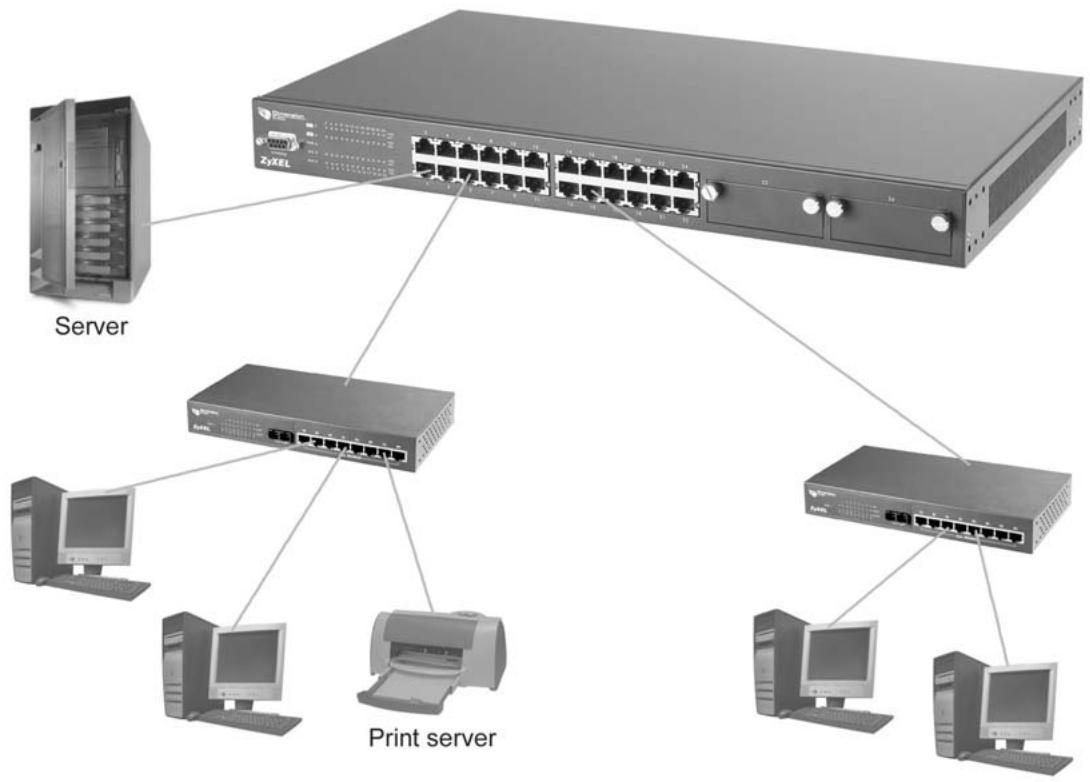
Figure 1-1 Backbone Application
1.2.2 Bridging Example
In this example application the switch is the ideal solution for different company departments to connect to the corporate backbone. It can alleviate bandwidth contention and eliminate server and network bottlenecks. All users that need high bandwidth can connect to high-speed department servers via the switch. You can provide a superfast uplink connection by selecting from an array of uplink modules compatible with the ES-3024.
Moreover, the switch eases supervision and maintenance by allowing network managers to centralize multiple servers at a single location.
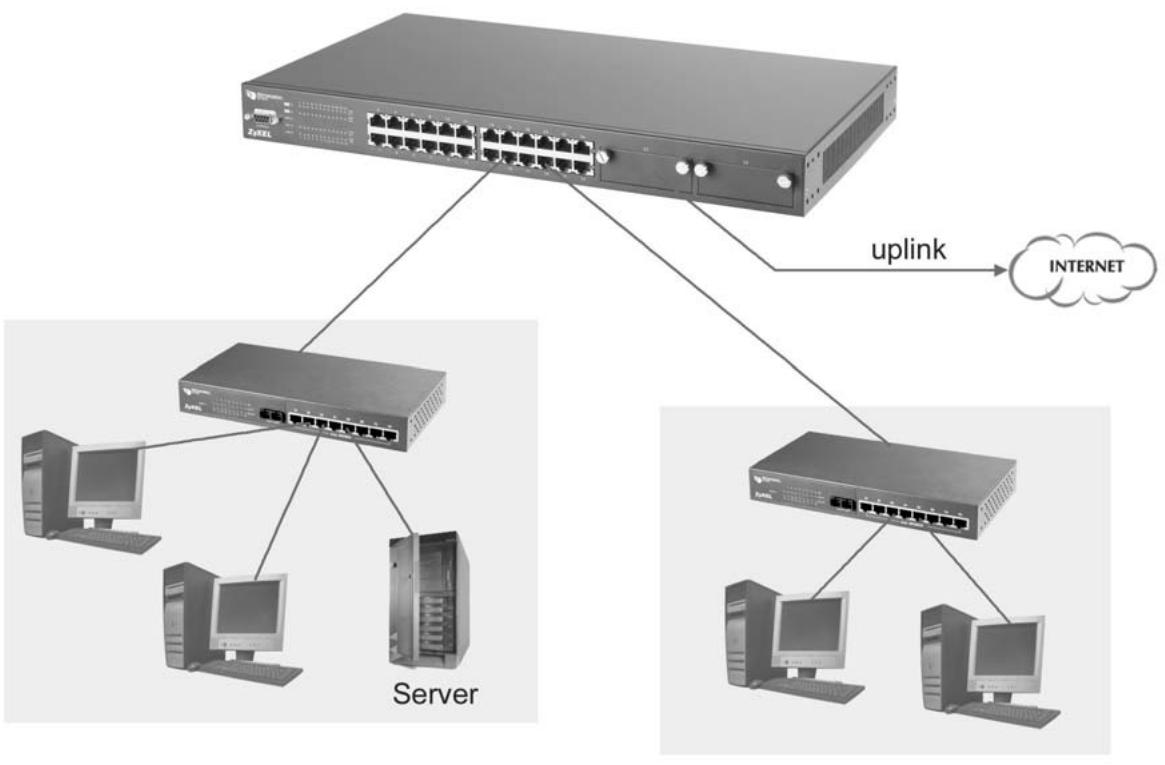
Figure 1-2 Bridging Application
Full-duplex mode operation only applies to point-to-point access (for example, when attaching the switch to a workstation, server, or another switch). When connecting to hubs, use a standard cascaded connection set at half-duplex operation.
1.2.3 High Performance Switched Workgroup Example
The switch is ideal for connecting two power workgroups that need high bandwidth. In the following example, use trunking to connect these two power workgroups.
Switching to higher-speed LANs such as FDDI or ATM is not feasible for most people due to the expense of replacing all existing Ethernet cables and adapter cards, restructuring your network and complex maintenance.
The ES-3024 can provide the same bandwidth as FDDI and ATM at much lower cost while still being able to use existing adapters and switches. Moreover, the current LAN structure can be retained as all ports can freely communicate with each other.
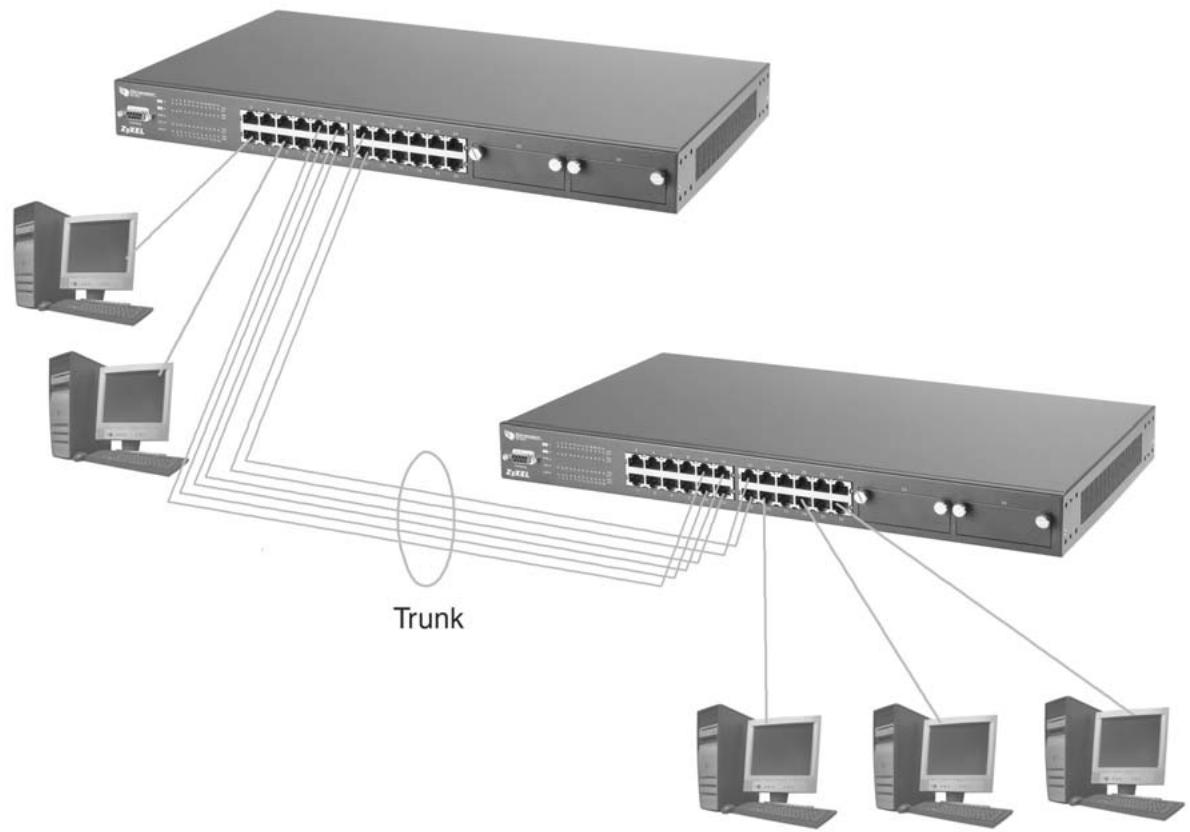
Figure 1-3 High Performance Switched Workgroup Application
1.2.4 IEEE 802.1Q VLAN Application Examples
This section shows a workgroup and a shared server example using 802.1Q tagged VLANs. For more information on VLANs, see the Switch Setup and VLAN Setup chapters in this User's Guide. A VLAN (Virtual Local Area Network) allows a physical network to be partitioned into multiple logical networks. Stations on a logical network belong to one group. A station can belong to more than one group. With VLAN, a station cannot directly talk to or hear from stations that are not in the same group(s) unless such traffic first goes through a router.
Tag-based VLAN Workgroup Example
Ports in the same VLAN group share the same broadcast domain thus increase network performance through reduced broadcast traffic. VLAN groups can be modified at any time by adding, moving or changing ports without any re-cabling.
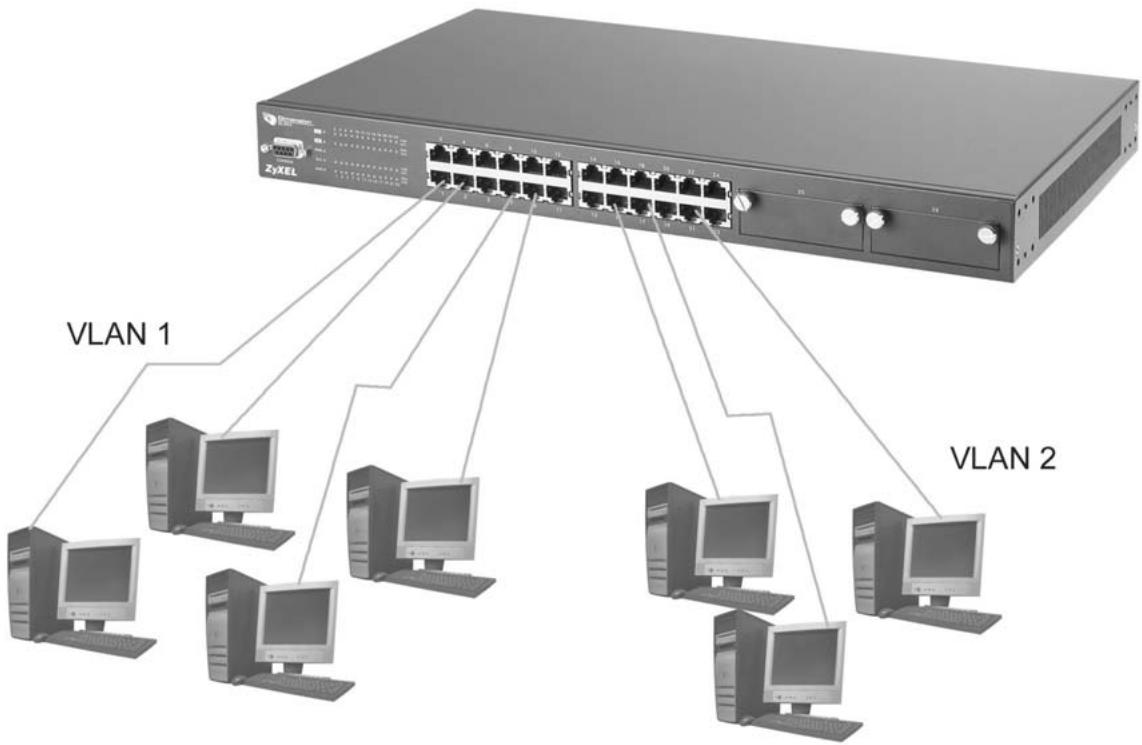
Figure 1-4 VLAN Workgroup Application
VLAN Shared Server Example
Shared resources such as a server can be used by all ports in the same VLAN as the server, as shown in the following example. In this example, only ports that need access to the server need belong to VLAN 3 while they can belong to other VLAN groups too.
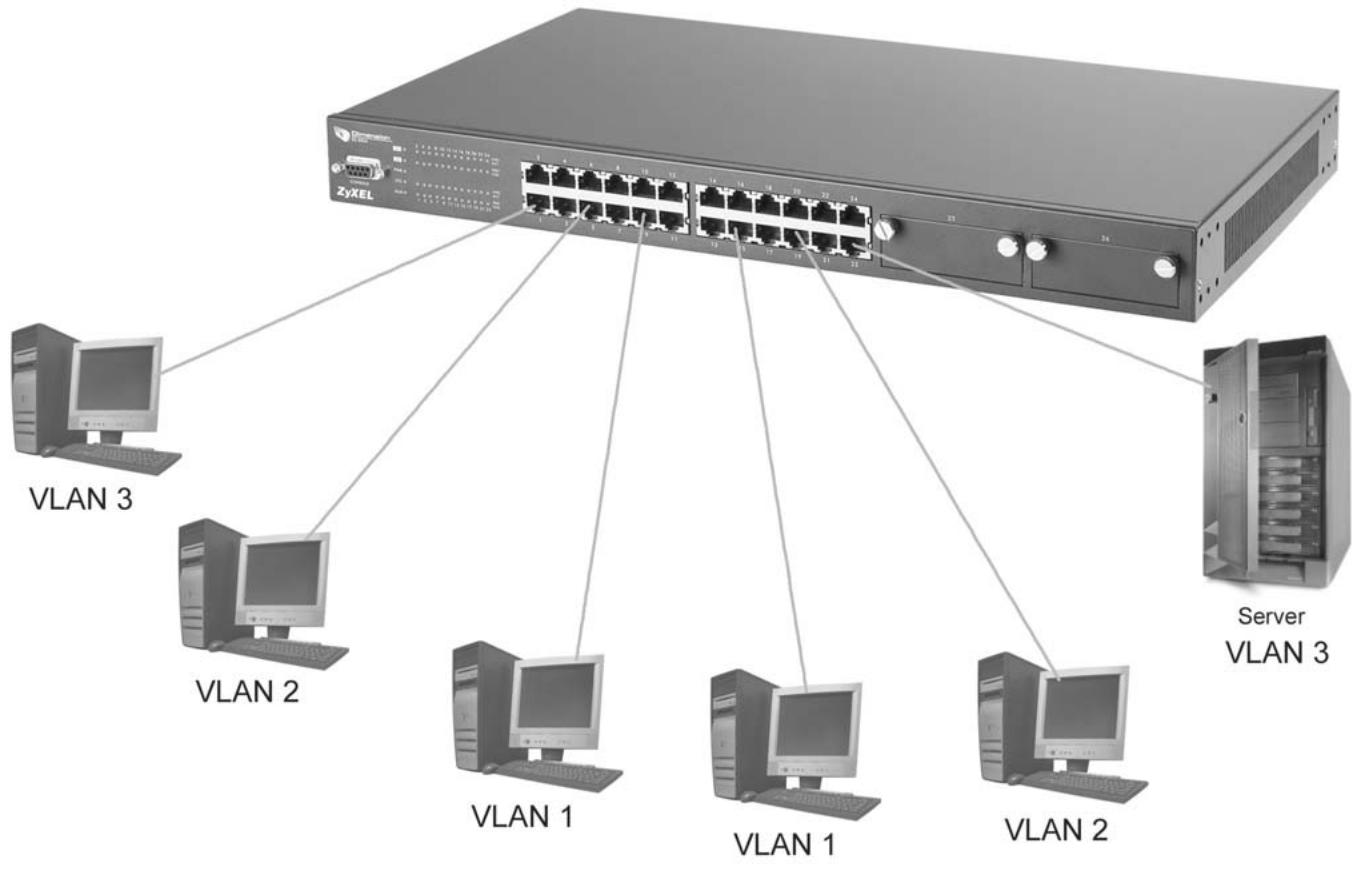
Figure 1-5 Shared Server Using VLAN Example
Part II
Hardware Installation & Connections
This part acquaints you with installation scenarios of the ES-3024, instructs you on how to make the hardware connections including installing/removing modules, shows some stacking/uplink examples and explains the front panel LEDs.
Chapter 2 Hardware Installation
This chapter shows two switch installation scenarios.
2.1 Installation Scenarios
The switch can be placed on a desktop or rack-mounted on a standard EIA rack. Use the rubber feet in a desktop installation and the brackets in a rack-mounted installation.
For proper ventilation, allow at least 4 inches (10 cm) of clearance at the front and 3.4 inches (8 cm) at the back of the switch. This is especially important for enclosed rack installations.
2.1.1 Desktop Installation Procedure
Step 1. Make sure the switch is clean and dry.
Step 2. Set the switch on a smooth, level surface strong enough to support the weight of the switch and the connected cables. Make sure there is a power outlet nearby.
Step 3. Make sure there is enough clearance around the switch to allow air circulation and the attachment of cables and the power cord.
Step 4. Remove the adhesive backing from the rubber feet.
Step 5. Attach the rubber feet to each corner on the bottom of the switch. These rubber feet help protect the switch from shock or vibration and ensure space between switches when stacking.

Figure 2-1 Attaching Rubber Feet
Do not block the ventilation holes. Leave space between switches when stacking.
2.1.2 Rack-Mounted Installation
The switch can be mounted on an EIA standard size, 19-inch rack or in a wiring closet with other equipment. Follow the steps below to mount your switch on a standard EIA rack using a rack-mounting kit.
Step 1. Align one bracket with the holes on one side of the switch and secure it with the bracket screws smaller than the rack-mounting screws.
Step 2. Attach the other bracket in a similar fashion.
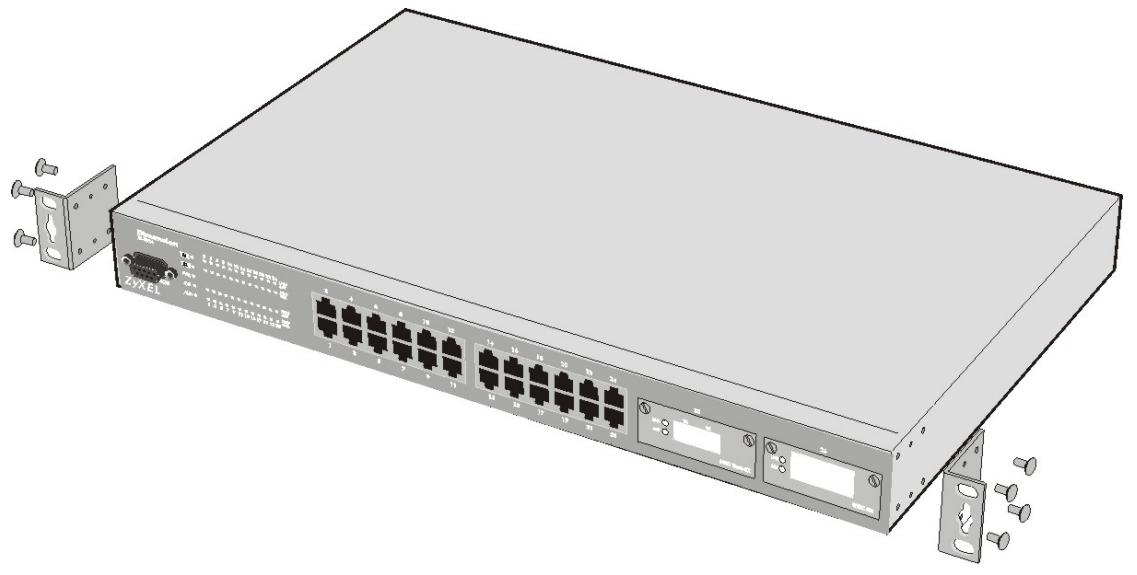
Figure 2-2 Attaching Mounting Brackets and Screws
Step 3. After attaching both mounting brackets, position the switch in the rack by lining up the holes in the brackets with the appropriate holes on the rack. Secure the switch to the rack with the rack-mounting screws.
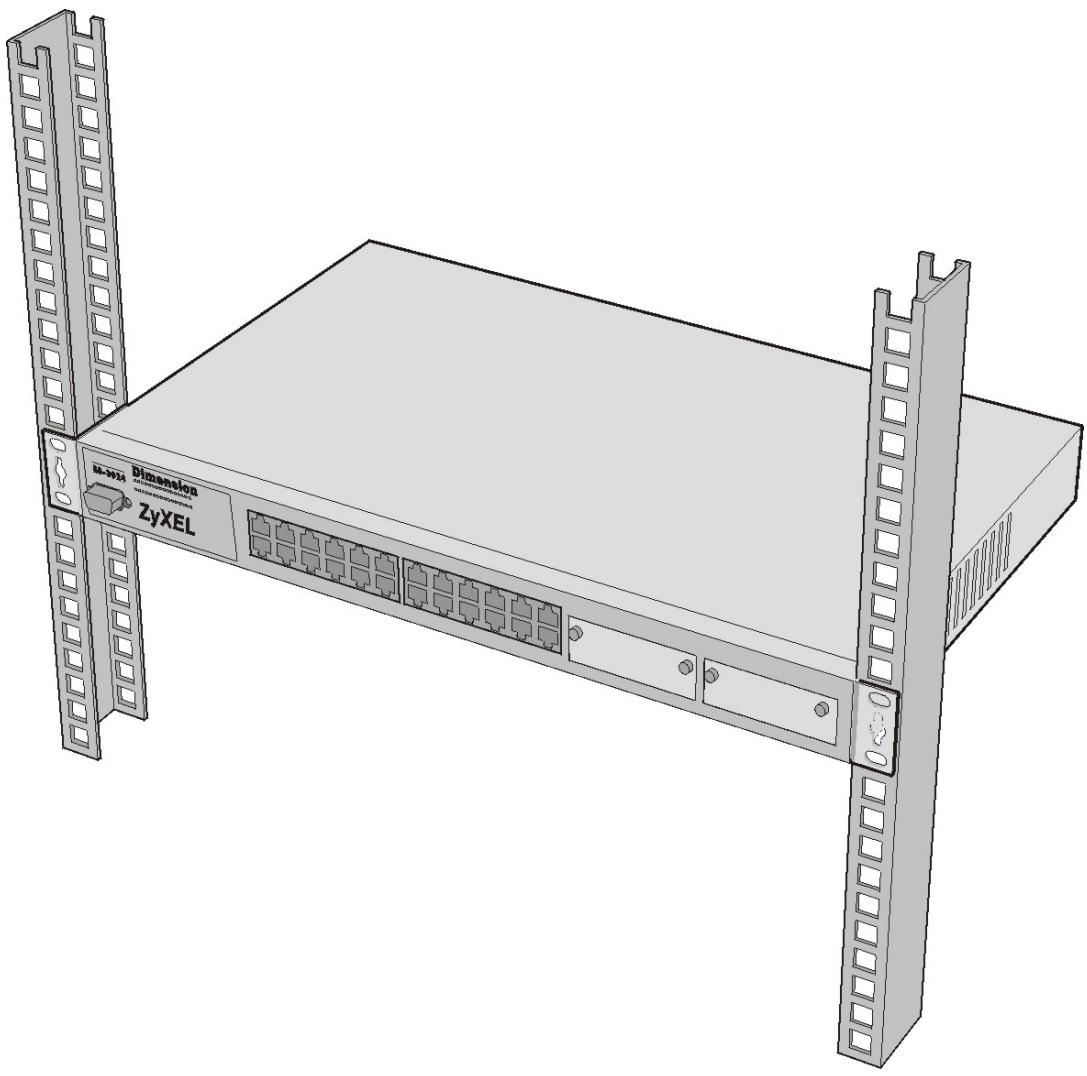
Figure 2-3 Mounting the ES to an EIA standard 19-inch rack
Chapter 3 Hardware Connections
This chapter acquaints you with the front and rear panels, shows you how to make the connections, install/remove (optional) modules and explains the LEDs.
3.1 SafetyWarnings
The length of exposed (bare) power wire should not exceed 7mm .
Do not use this product near water, for example, in a wet basement.
Only a qualified technician should service or disassemble this device.
3.2 Front Panel
The following figure shows the front panel of the ES-3024. The front panel contains a console port for local switch management, switch LEDs, 24 RJ-45 Ethernet ports and two (optional) uplink modules.
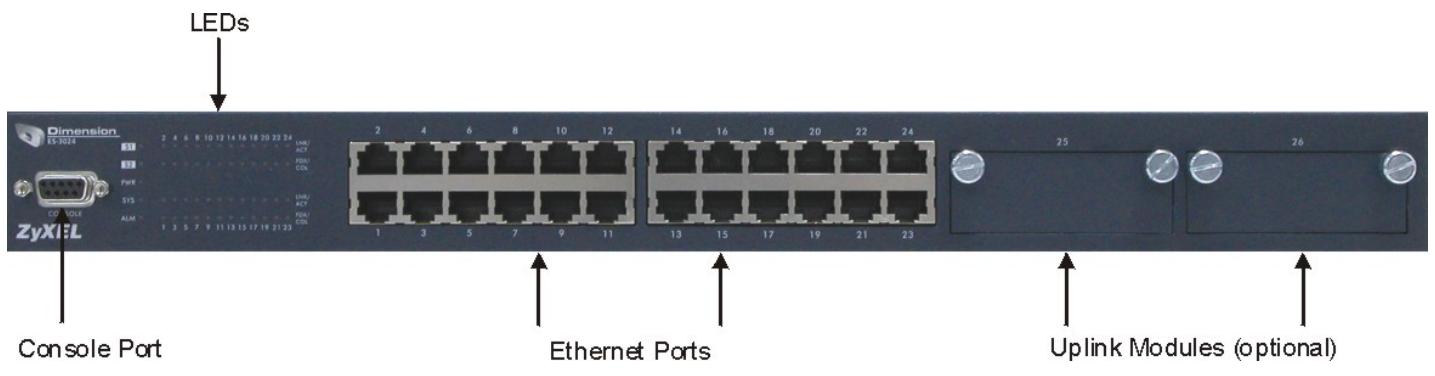
Figure 3-1 ES-3024 Front Panel
Table 3-1 ES-3024: Front Panel Ports
| CONNECTOR | DESCRIPTION |
| Console | The console port is for local configuration of the ES-3024 switch. |
| 24 10/100 Mbps RJ-45 Ethernet connectors | Connect these ports to a computer, a hub, an Ethernet switch or router. |
3.2.1 Console Port
For local management, you can use a computer with terminal emulation software configured to the following parameters:
VT100 terminal emulation
9600 bps
No parity, 8 data bits, 1 stop bit
No flow control
Connect the male 9-pin end of the console cable to the console port of the ES-3024 switch. Connect the female end to a serial port (COM1, COM2 or other COM port) of your computer.
3.2.2 Ethernet Ports
The ES-3024 has 10/100Mbps auto-negotiating, auto-crossover Ethernet ports. In 10/100Mbps Fast Ethernet, the speed can be 10Mbps or 100Mbps and the duplex mode can be half duplex or full duplex (100 Mbps only).
When auto-negotiation is turned on, an Ethernet port on the ES-3024 switch negotiates with the peer automatically to determine the connection speed and duplex mode. If the peer Ethernet port does not support auto-negotiation or turns off this feature, the ES-3024 switch determines the connection speed by detecting the signal on the cable and using half duplex mode. When the ES-3024 switch's auto-negotiation is turned off, an Ethernet port uses the pre-configured speed and duplex mode when making a connection, thus requiring you to make sure that the settings of the peer Ethernet port are the same in order to connect.
Default Ethernet Negotiation Settings
The factory default negotiation settings for the Ethernet ports on the ES-3024 switch are:
Speed: Auto
Duplex: Auto
O Flow control: On
○ Link Aggregation: Disabled
Auto-crossover
All ports are auto-crossover, that is auto-MDIX ports (Media Dependent Interface Crossover), so you may use either a straight through Ethernet cable or crossover Ethernet cable for all Ethernet port connections. Auto-crossover ports automatically sense whether they need to function as crossover or straight ports, so crossover cables can connect both computers and switches/hubs.
3.3 Uplink Modules
LEDs in the (optional) uplink modules are described in the corresponding module manual.
3.3.1 Installing Modules
You can install one stacking module and up to two (optional) uplink modules separately to meet the needs of your network. See your module manual for module specifications.
Modules are NOT hot swappable!
Follow these steps to install the optional modules.
Step 1. Make sure the power cord is not connected to the switch.
Step 2. Loosen the thumbscrews from the cover plate and remove the cover plate from the optional slot. Do not discard the cover plate. You can put the cover plate back on if you remove the new module.
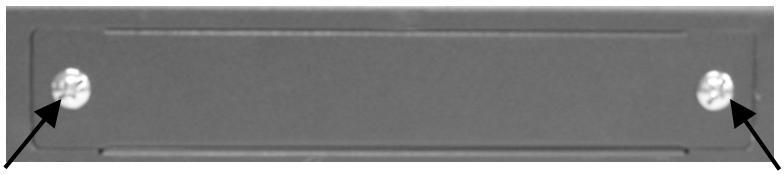
Figure 3-2 Loosening the Screws and Removing the Cover Plate
Step 3. You should wear an anti-static wrist strap or touch any grounded or metal objects to discharge any bodily static electricity before you continue.
Step 4. Remove the optional module from its protective anti-static packaging. Avoid touching the onboard circuit components by holding it by the edge.
Step 5. Insert the optional module into an available expansion slot on the switch. Press it firmly until the optional module snaps into place.
Step 6. Secure it to the switch with the retaining screws.
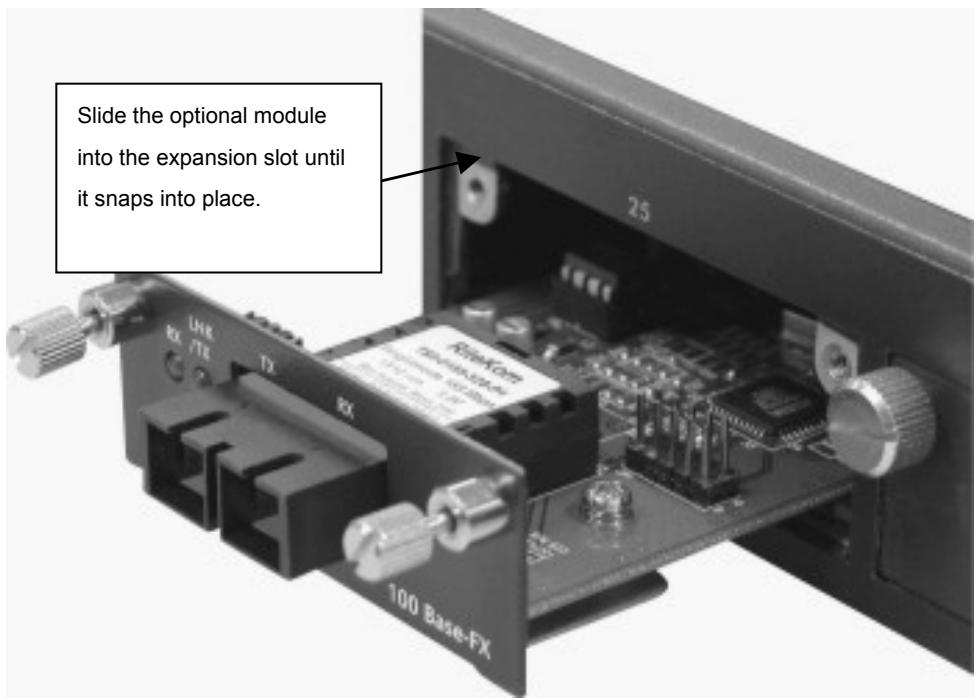
Figure 3-3 Inserting An Example Module1
Never force, bend or twist the optional modules into the expansion slots.
Step 7. See section 3.4.1 for instructions on connecting the power. The switch automatically detects the installed optional module. Connect any necessary network cables to the optional module and check the LEDs to verify that it is functioning properly.
3.4 Rear Panel
The following figure shows the rear panel of the ES-3024. The rear panel contains the slot for the stacking module and the power receptacle. See section 3.3.1 for information on inserting and removing modules.

Figure 3-4 ES-3024 AC Unit Rear Panel

Figure 3-5 ES-3024 DC Unit Rear Panel
3.4.1 Power Connector
Make sure you are using the correct power source as shown on the panel.
To connect the power to the ES-3024 AC unit, insert the female end of power cord to the power receptacle on the rear panel. Connect the other end of the supplied power cord to a 100~240VAC/1.5A power outlet. Make sure that no objects obstruct the airflow of the fans (located on the side of the unit).
The ES-3024 DC unit requires DC power supply input of -48 VDC to -60 VDC, 1.84A Max. To connect the power to the unit, insert the one end of the supplied power cord to the power receptacle on the rear panel and the other end to a power outlet.
3.5 Front Panel LEDs
After you connect the power to the switch, view the LEDs to ensure proper functioning of the switch and as an aid in troubleshooting. The front panel LEDs are as follows.
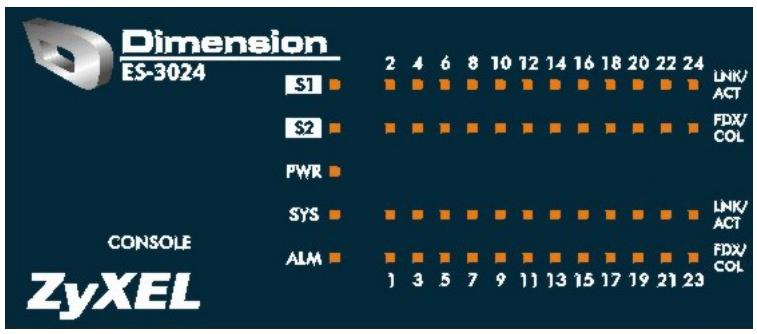
Figure 3-6 Front Panel LEDs
The following table describes the LED indicators on the front panel of an ES-3024 switch.
Table 3-2 ES-3024 Switches: LED Descriptions
| LED | COLOR | STATUS | DESCRIPTION |
| S1 | Green | Blinking | The system is transmitting/receiving through the stacking port. |
| S2 | ON | The link through the stacking port is up. | |
| OFF | The link through the stacking port is down. | ||
| PWR | Green | ON | The system is turned on. |
| OFF | The system is off. | ||
| SYS | Green | Blinking | The system is rebooting and performing self-diagnostic tests. |
| ON | The system is on and functioning properly. | ||
| OFF | The power is off or the system is not ready/malfunctioning. | ||
| ALM | Red | ON | There is a hardware failure. |
| OFF | The system is functioning normally. | ||
| LNK/ACT(Ethernet ports) | Green | Blinking | The system is transmitting/receiving to/from a 10 Mbps Ethernet network. |
| ON | The link to a 10 Mbps Ethernet network is up. | ||
| OFF | The link to a 10 Mbps Ethernet network is down. | ||
| Yellow | Blinking | The system is transmitting/receiving to/from a 100 Mbps Ethernet network. | |
| ON | The link to a 100 Mbps Ethernet network is up. | ||
| OFF | The link to a 100 Mbps Ethernet network is down. | ||
| FDX/COL(Ethernet ports) | Yellow | Blinking | The Ethernet port is negotiating in half-duplex mode and collisions are occurring; the more collisions that occur the faster the LED blinks. |
| ON | The Ethernet port is negotiating in full-duplex mode. | ||
| OFF | The Ethernet port is negotiating in half-duplex mode and no collisions are occurring. |
3.6 Stacking Scenario Examples
Use Ethernet cables when stacking the switches. See the following figures for example stacking scenarios using the stacking module. The switches must form a closed ring in all scenarios.
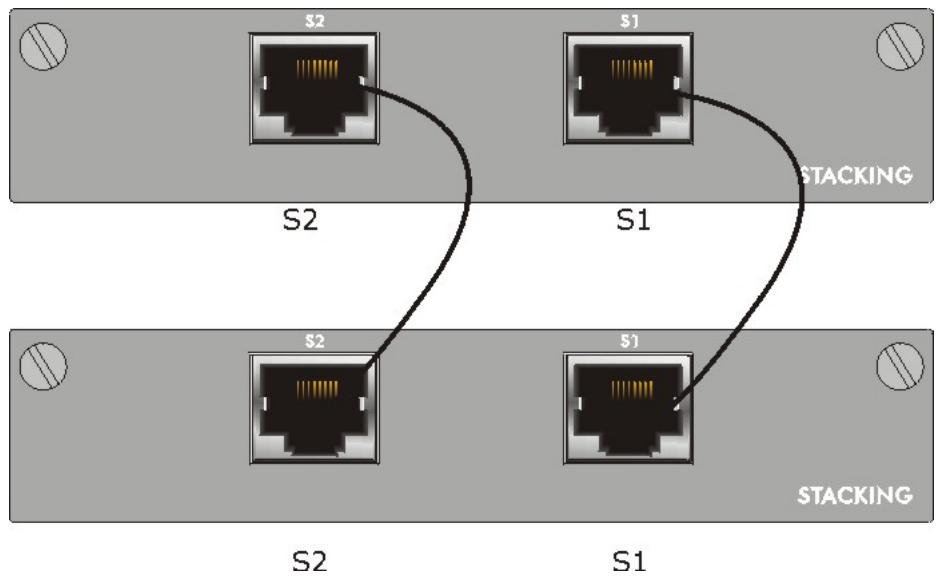
Figure 3-7 Stacking Example 1
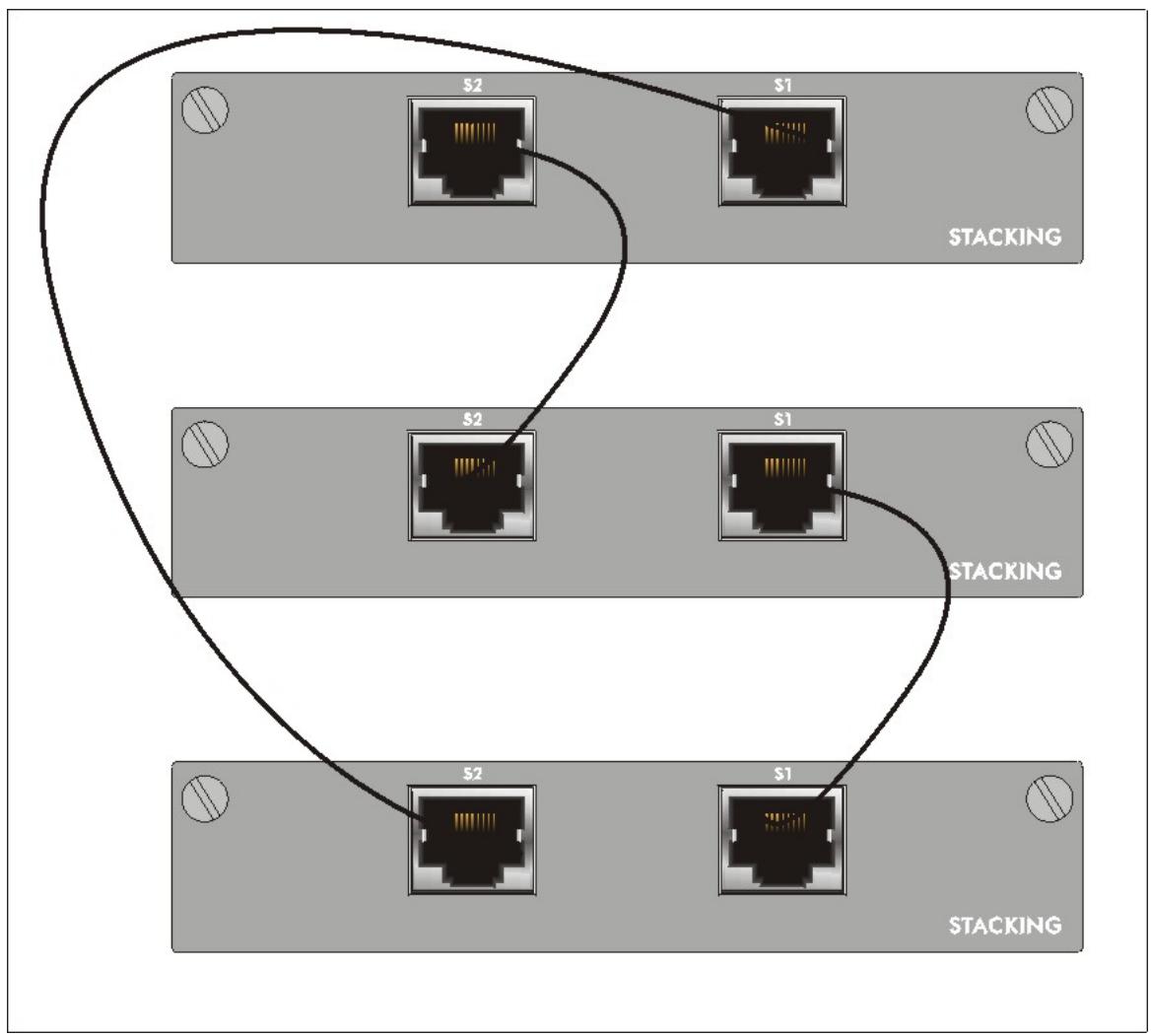
Figure 3-8 Stacking Example 2
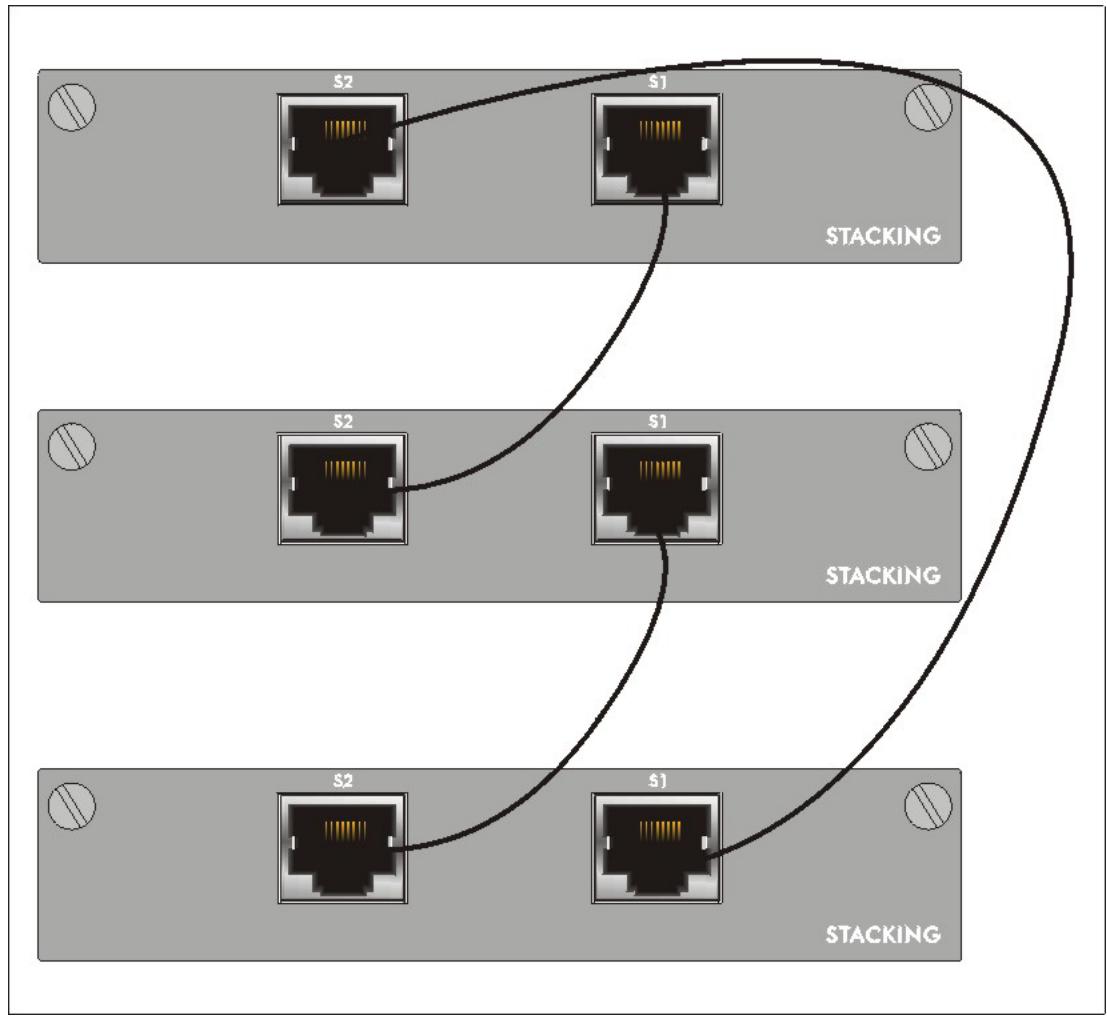
Figure 3-9 Stacking Example 3
See the Commands Introduction and Commonly Used Commands chapters for information on configuring the stacking modules (as well as other ports) using line commands.
3.7 Uplink Scenario Example
Use Ethernet cables when daisy-chaining/uplinking the switches. See the following figure for an example uplink connection using the stacking module. You must uplink to a Gigabit switch when uplinking using the stacking module. Uplink scenarios using an uplink module depend on the uplink module you use.
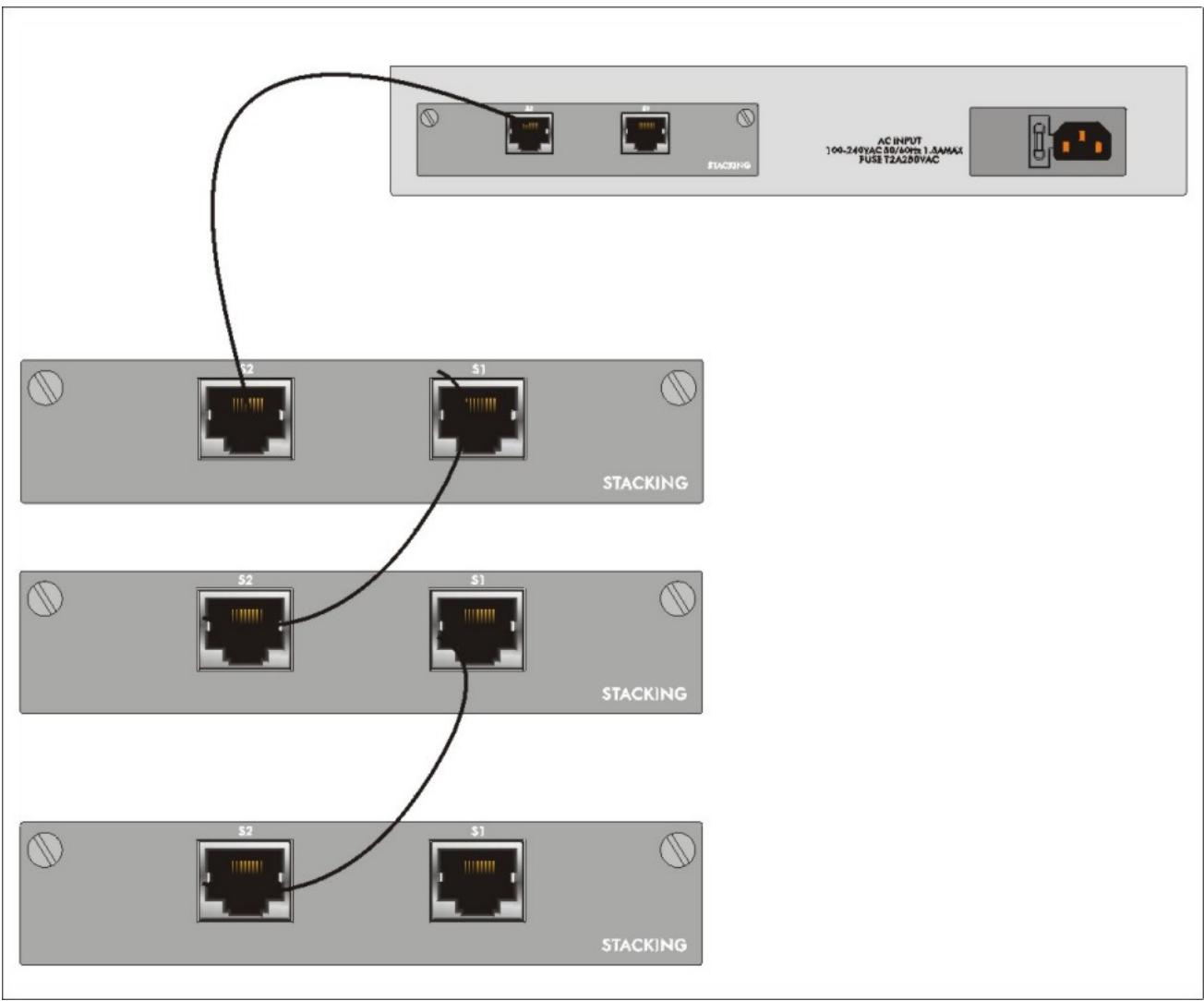
Figure 3-10 Uplink Example
3.8 Configuring the ES-3024
You may use the embedded web configurator or command line interface to configure the ES-3024. If you're using the web configurator, you need Internet Explorer 5.5 and later or Netscape Navigator 6 and later.
You can access the command line interface using a terminal emulation program on a computer connected to the switch console port (see section 3.2.1) or access the switch via an Ethernet port using Telnet.
You can use the "config save" command to save 802.1Q, STP, Cluster and IP configuration changes to non-volatile memory (Flash). These changes are effective after you restart the switch.
However you cannot use "config save" for all other line command configurations. These are saved in volatile memory (DRAM), so are not effective after you restart the switch.
The next part of this guide discusses configuring the ES-3024 using the web configurator.
Part III
Getting Started
This part introduces you to the ES-3024 web configurator, describes the Home and System Info screens and shows you how to configure the Basic Settings menus.
Chapter 4 Introducing the Web Configurator
This section introduces the configuration and functions of the Web Configurator.
4.1 Introduction
The embedded web configurator allows you to manage the switch from anywhere through a standard browser such as Microsoft Internet Explorer or Netscape Navigator.
Use Internet Explorer 5.5 and later or Netscape Navigator 6 and later versions.
4.2 System Login
A local console port connection locks out all other connections. Log out from the console port connection before logging in with the web configurator.
Step 1. Start your Internet Explorer or Netscape Navigator web browser.
Step 2. Type "http://" and the IP address of the switch (for example, the default is 192.168.1.1) in the Location or Address field. Press Enter.
Step 3. The login screen appears. The default username is admin and associated default password is 1234. The date and time display as shown if you have not configured a time server nor manually entered a time and date in the General Setup screen.
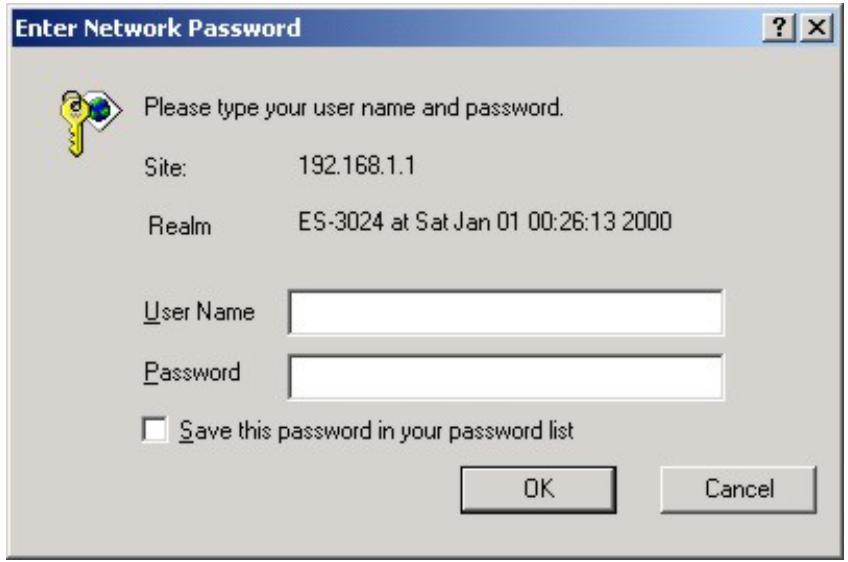
Figure 4-1 Web Configurator: login
Step 4. Click OK to view the first web configurator screen.
4.3 Status Screen
The Status screen is the first web configurator screen you see after you log in. The following figure shows the navigating components of a web configurator screen.
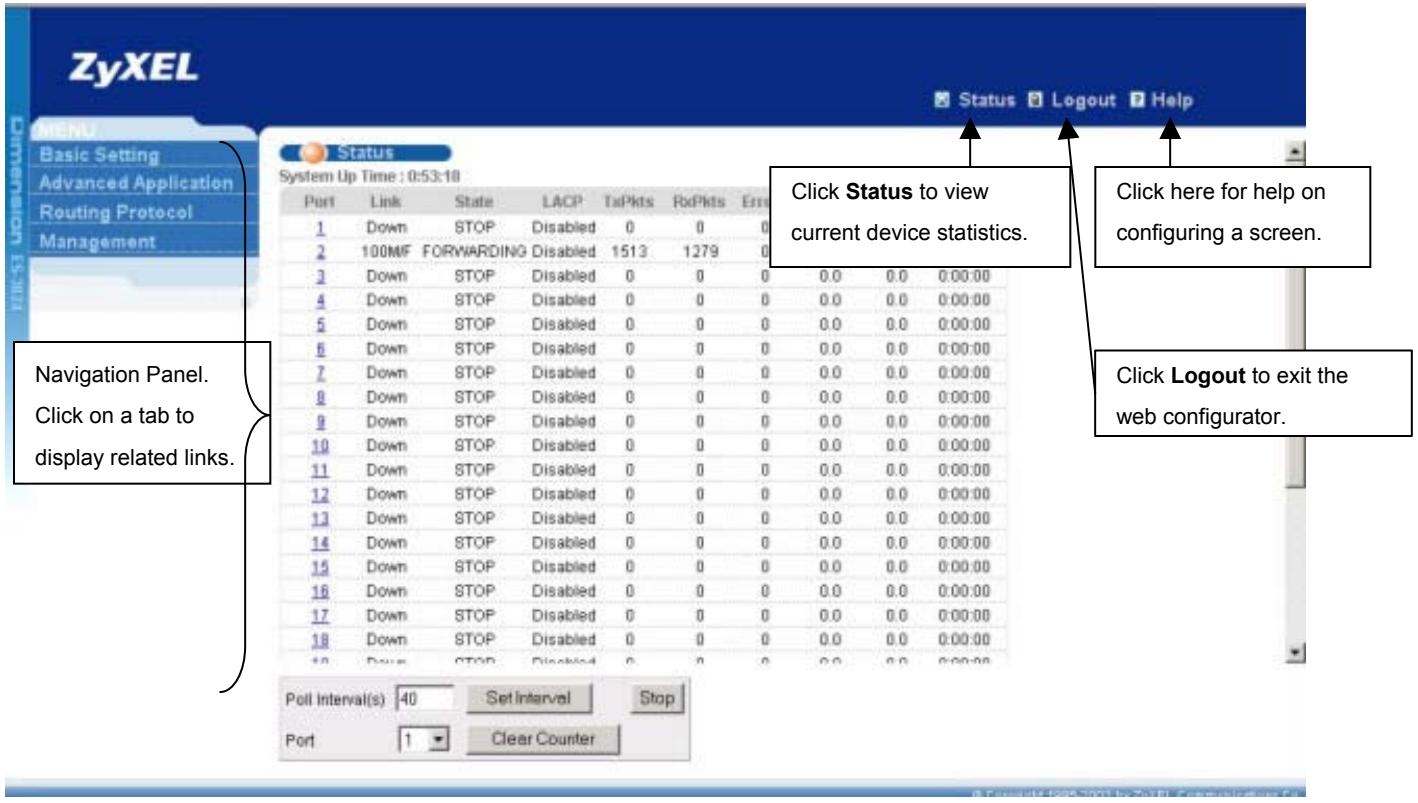
Figure 4-2 Web Configurator Home Screen (Status)
In the navigation panel, click a main link to reveal a list of submenu links.
Table 4-1 Navigation Panel Sub-links Overview
| BASIC SETTING | ADVANCED APPLICATION | ROUTING PROTOCOL | MANAGEMENT |
| MENUPrimary Data Linking | MENUPrimary Data Linking | MENUPrimary Data Linking | MENUPrimary Data Linking |
| Advanced Application | Advanced Application | Advanced Application | Advanced Application |
| Routing Protocol | Routing Protocol | Routing Protocol | Routing Protocol |
| Management | Management | Management | Management |
| System Info | VLAN | Static Routing | Maintenance |
| General Setup | Static MAC Forwarding | Static Routing | Diagnostic |
| Switch Setup | Filtering | Cluster Management | |
| IP Setup | Spanning Tree Protocol | Filtering Database | |
| Port Setup | Bandwidth Control | ARP Table | |
| Broadcast Storm Control | |||
| Mirroring | |||
| Trunking | |||
| Port Authentication | |||
| Port Security | |||
| Access Control | |||
| Queuing Method |
The following table lists the various web configurator screens within the sub-links.
Table 4-2 Web Configurator Screen Sub-links Details
| BASIC SETTING | ADVANCED APPLICATIONS | ROUTING PROTOCOL | MANAGEMENT |
| System Info | VLAN Status | Static Routing | Maintenance |
| General Setup | VLAN Port Setting | Firmware Upgrade | |
| Switch Setup | Static VLAN | Restore Configuration | |
| IP Setup | Static MAC Forwarding | Backup Configuration | |
| Port Setup | Filtering | Load Factory Default | |
| Spanning Tree Protocol | Reboot System | ||
| Status | Diagnostic | ||
| Spanning Tree Protocol Configuration | Cluster Management | ||
| Bandwidth Control | Status | ||
| Broadcast Storm Control | Cluster Management | ||
| Mirroring | Configuration | ||
| Link Aggregation LACP | Filtering Database | ||
| Status | ARP Table | ||
| Link Aggregation Configuration | |||
| Port Authentication | |||
| RADIUS | |||
| 802.1x | |||
| Port Security | |||
| Access Control | |||
| SNMP | |||
| Logins | |||
| Service Access Control | |||
| Remote Management | |||
| Queuing Method |
The following table summarizes these sub-links in the navigation panel.
Table 4-3 Navigation Panel Sub-link Descriptions
| LABEL | DESCRIPTION |
| Basic Setting Screens | |
| System Info | This link takes you to a screen that displays general system and hardware monitoring information. |
| General Setup | This link takes you to a screen where you can configure general identification information about the switch. |
Table 4-3 Navigation Panel Sub-link Descriptions
| LABEL | DESCRIPTION |
| Switch Setup | This link takes you to a screen where you can set up global switch parameters such as VLAN type, MAC address learning, IGMP snooping, GARP and priority queues. |
| IP Setup | This link takes you to a screen where you can configure the IP address, subnet mask (necessary for switch management) and DNS (domain name server). |
| Port Setup | This link takes you to screens where you can configure settings for individual switch ports. |
| Advanced Application | |
| VLAN | This link takes you to screens where you can configure port-based or 802.1Q VLAN (depending on what you configured in the Switch Setup menu). |
| Static MAC Forwarding | This link takes you to screens where you can configure static MAC addresses for a port. These static MAC addresses do not age out. |
| Filtering | This link takes you to a screen to set up filtering rules. |
| Spanning Tree Protocol | This link takes you to screens where you can configure the STP to prevent network loops. |
| Bandwidth Control | This link takes you to screens where you can cap the maximum bandwidth allowed from specified source(s) to specified destination(s). |
| Broadcast Storm Control | This link takes you to a screen to set up broadcast filters. |
| Mirroring | This link takes you to screens where you can copy traffic from one port or ports to another port in order that you can examine the traffic from the first port without interference |
| Link Aggregation | This link takes you to a screen where you can logically trunk physical links to form one logical, higher-bandwidth link. |
| Port Authentication | This link takes you to a screen where you can configure RADIUS (Remote Authentication Dial-In User Service), a protocol for user authentication that allows you to use an external server to validate an unlimited number of users. |
| Port Security | This link takes you to a screen where you can activate MAC address learning and set the maximum number of MAC addresses to learn on a port. |
| Access Control | This link takes you to screens where you can change the system login password and configure SNMP and remote management. |
| Queuing Method | This link takes you to a screen where you can configure SPQ or WFQ with associated queue weights for each port. |
| Routing Protocol | |
| Static Routing | This link takes you to screens where you can configure static routes. A static route defines how the ES-3024 should forward traffic by configuring the TCP/IP parameters manually. |
| Management | |
| Maintenance | This link takes you to screens where you can perform firmware and configuration file maintenance as well as reboot the system. |
| Diagnostic | This link takes you to screens where you can view system logs and test port(s). |
| Cluster Management | This link takes you to a screen where you can configure clustering management and view its status. |
Table 4-3 Navigation Panel Sub-link Descriptions
| LABEL | DESCRIPTION |
| Filtering Database | This link takes you to a screen where you can view the MAC addresses (and types) of devices attached to what ports and VLAN IDs. |
| ARP Table | This link takes you to a screen where you can view the MAC addresses – IP address resolution table. |
4.3.1 Change Your Password
After you log in for the first time, it is recommended you change the default Administrator password in the Logins screen. Click Advanced Application, Access Control and then Logins to display the next screen.
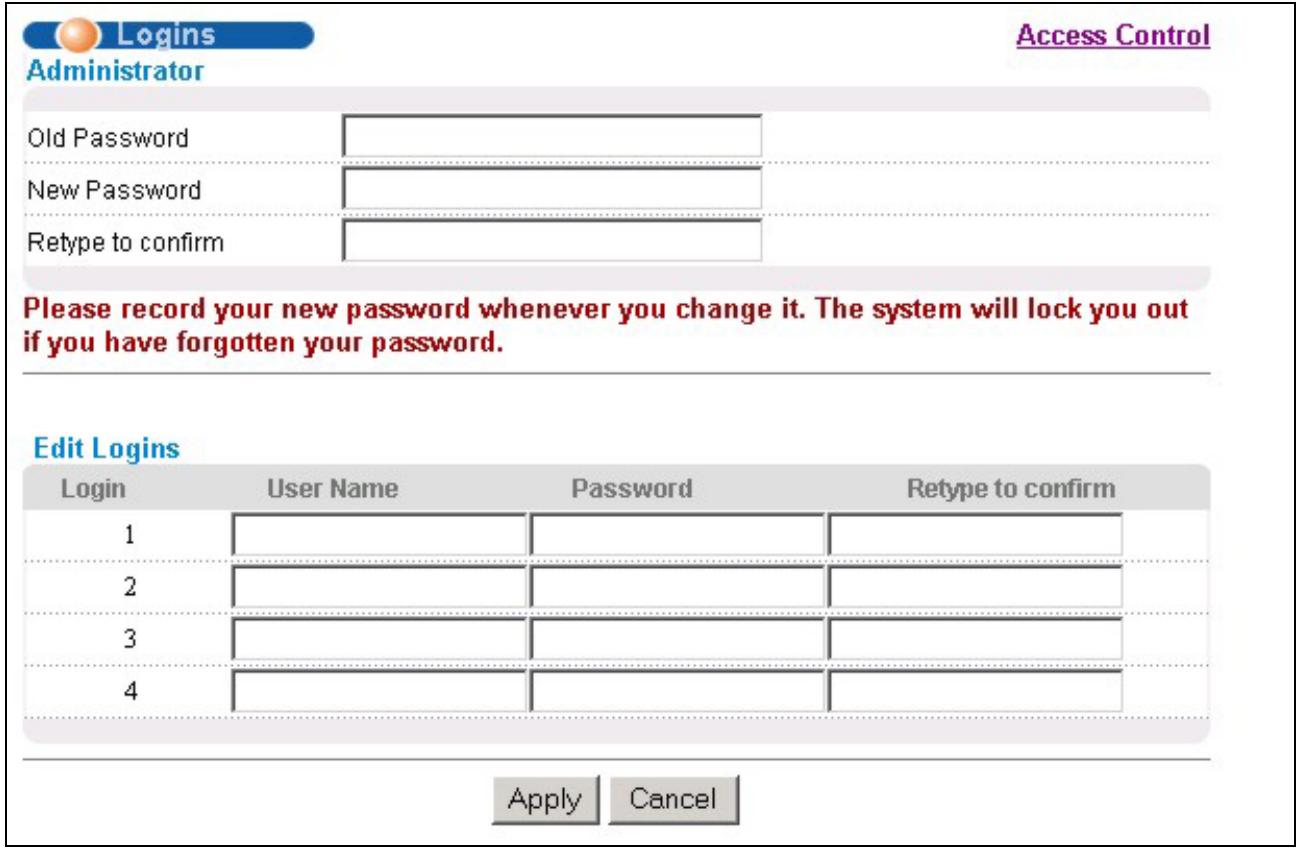
Figure 4-3 Web Configurator: Change Password at Login
4.4 Switch Lockout
You are locked out from managing the switch if another administrator is currently logged in. You must wait until he/she has logged out before you can log in.
Moreover, you could lock yourself (and all others) out from the switch by:
-
Deleting the management VLAN (default is VLAN 1).
-
Deleting all port-based VLANs with the CPU port as a member. The "CPU port" is the management port of the switch.
-
Filtering all traffic to the CPU port.
- Disabling all ports.
- Assigning minimum bandwidth to the CPU port. If you limit bandwidth to the CPU port, you may find that the switch performs negligibly or not at all.
Be careful not to lock yourself and others out of the switch.
4.5 Resetting the Switch
If you lock yourself (and others) from the switch or forget the ES-3024 password, you will need to reload the factory-default configuration file.
Uploading the factory-default configuration file replaces the current configuration file with the factory-default configuration file. This means that you will lose all previous configurations and the speed of the console port will be reset to the default of 9600bps with 8 data bit, no parity, one stop bit and flow control set to none. The password will also be reset to "1234" and the IP address to 192.168.1.1.
To upload the configuration file, do the following:
Step 1. Connect to the console port using a computer with terminal emulation software. See the chapter on hardware connections for details.
Step 2. Disconnect and reconnect the switch's power to begin a session. When you reconnect the switch's power, you will see the initial screen.
Step 3. When you see the message "Press any key to enter Debug Mode within 3 seconds" press any key to enter debug mode.
Step 4. Type atlc after the "Enter Debug Mode" message.
Step 5. Wait for the "Starting XMODEM upload" message before activating XMODEM upload on your terminal.
Step 6. After a successful configuration file upload, type atgo to restart the switch.
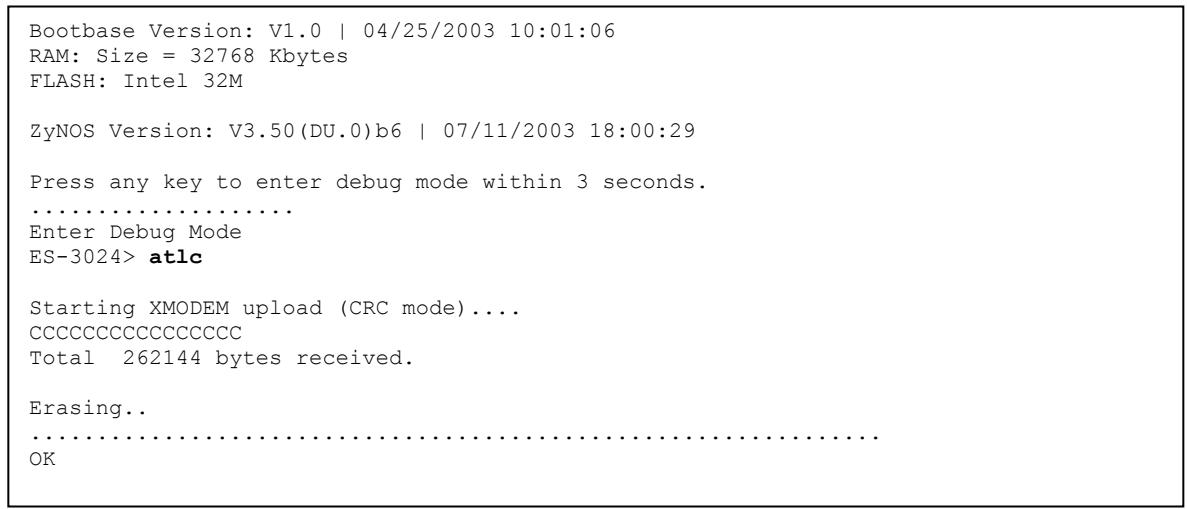
Figure 4-4 Resetting the Switch: Via Console Port
The switch is now reinitialized with a default configuration file including the default password of "1234".
4.5.1 Logging Out of the Web Configurator
Click Logout in a screen to exit the web configurator. You have to log in with your password again after you log out. This is recommended after you finish a management session both for security reasons and so as you don't lock out other switch administrators.
Figure 4-5 Web Configurator:Logout Screen
4.5.2 Help
The web configurator's online help has descriptions of individual screens and some supplementary information. Click the HELP link from a web configurator screen to view an online help description of that screen.
Chapter 5 System Status and Port Details
This chapter describes the system status (web configurator home page) and port details screens.
5.1 About System Statistics and Information
The home screen of the web configurator displays a port statistical summary with links to each port showing statistical details.
5.2 Port Status Summary
To view the port statistics, click Status in all web configurator screens to display the Status screen as shown next.
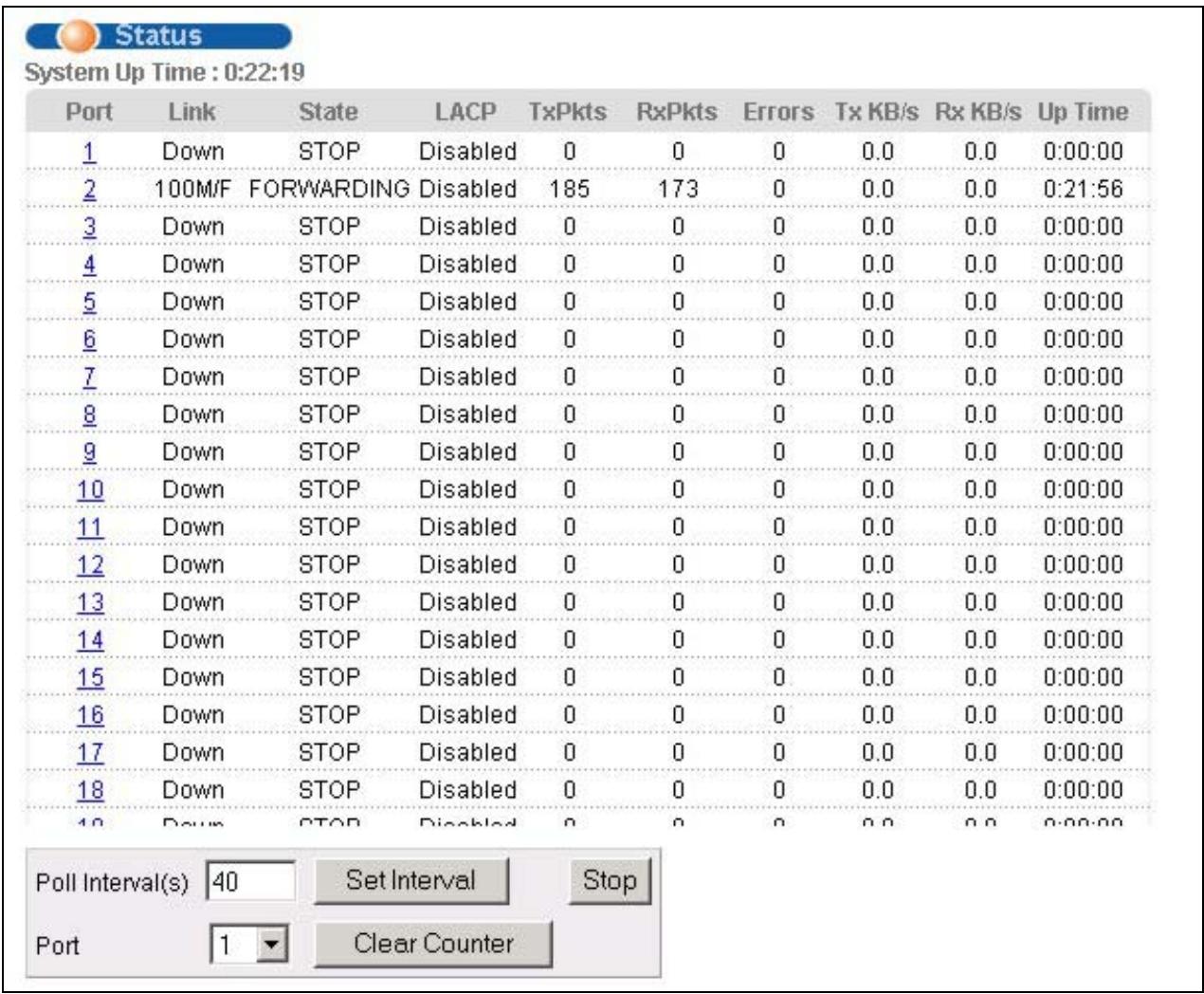
Figure 5-1 Port Status Summary
The following table describes the labels in this screen.
Table 5-1 Status
| LABEL | DESCRIPTION |
| System up Time | This field shows how long the system has been running since the last time it was started. |
| Port | This identifies the Ethernet port. Click a port number to display the Port Details screen (refer to Section 5.2.1). |
| Link | This field displays the speed (either 10M for 10Mbps, 100M for 100Mbps or another value depending on the uplink module being used) and the duplex (F for full duplex or H for half). |
| State | This field displays the STP state of the port. See the Spanning Tree Protocol chapter for details on STP port states. |
| LACP | This fields displays whether the Link Aggregation Control Protocol (LACP) has been enabled on the port. |
| TxPkts | This field shows the number of transmitted frames on this port. |
| RxPkts | This field shows the number of received frames on this port. |
| Errors | This field shows the number of received errors on this port. |
| Tx KB/s | This field shows the number of kilobytes per second transmitted on this port. |
| Rx KB/s | This field shows the number of kilobytes per second received on this port. |
| Up Time | This field shows the total amount of time in hours, minutes and seconds the port has been up. |
| Poll Interval(s) | The text box displays how often (in seconds) this screen refreshes. You may change the refresh interval by typing a new number in the text box and then clicking Set Interval. |
| Stop | Click Stop to halt system statistic polling. |
| Clear Counter | Select a port from the Port drop-down list box and then click Clear Counter to erase the recorded statistical information for that port. |
5.2.1 Port Details
Click a number in the Port column in the Status screen to display individual port statistics. Use this screen to check status and detailed performance data about an individual port on the switch.
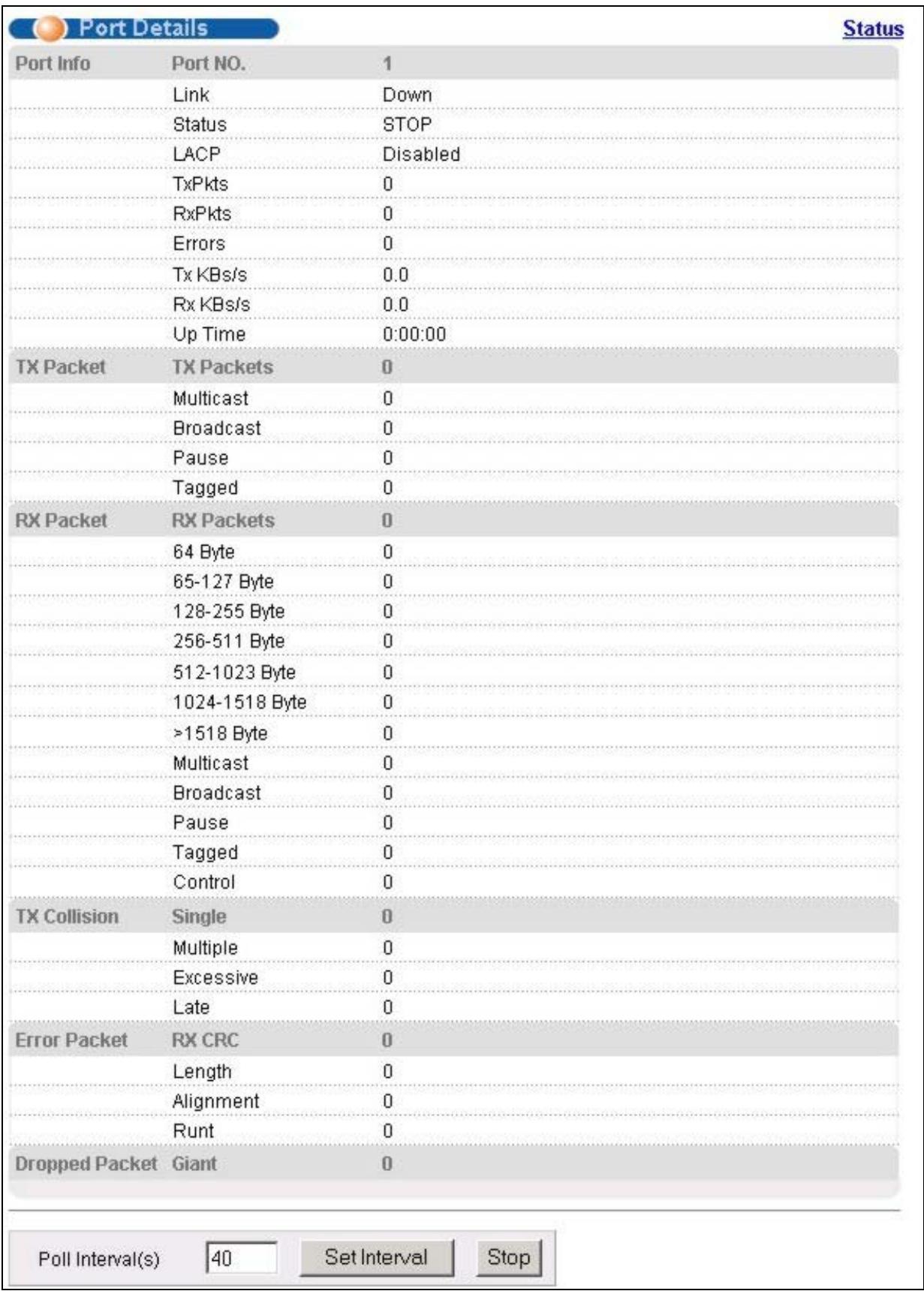
Figure 5-2 Status: Port Details
The following table describes the labels in this screen.
Table 5-2 Status: Port Details
| LABEL | DESCRIPTION |
| Port Info | |
| Port NO. | This field identifies the Ethernet port described in this screen. |
| Link | This field shows whether the Ethernet connection is down, and the speed/duplex mode. |
| Status | This field shows the training state of the ports. The states are FORWARDING (forwarding), which means the link is functioning normally or STOP (the port is stopped to break a loop or duplicate path). |
| LACP | This field shows if LACP is enabled on this port or not. |
| TxPkts | This field shows the number of transmitted frames on this port |
| RxPkts | This field shows the number of received frames on this port |
| Errors | This field shows the number of received errors on this port. |
| Tx KB/s | This field shows the number kilobytes per second transmitted on this port. |
| Rx KB/s | This field shows the number of kilobytes per second received on this port. |
| Up Time | This field shows the total amount of time the connection has been up. |
| Tx PacketThe following fields display detailed information about frames transmitted. | |
| TX Packets | This field shows the number of good frames (unicast, multicast and broadcast) transmitted. |
| Multicast | This field shows the number of good multicast frames transmitted. |
| Broadcast | This field shows the number of good broadcast frames transmitted. |
| Pause | This field shows the number of 802.3x Pause frames transmitted. |
| Tagged | This field shows the number of frames with VLAN tags transmitted. |
| Rx PacketThe following fields display detailed information about frames received. | |
| RX Packets | This field shows the number of good frames (unicast, multicast and broadcast) received. |
| 64 Byte | This field shows the number of frames (including bad frames) received that were 64 octets in length. |
| 65-127 Byte | This field shows the number of frames (including bad frames) received that were between 65 and 127 octets in length. |
| 128-255 Byte | This field shows the number of frames (including bad frames) received that were between 128 and 255 octets in length. |
| 256-511 Byte | This field shows the number of frames (including bad frames) received that were between 256 and 511 octets in length. |
Table 5-2 Status: Port Details
| LABEL | DESCRIPTION |
| 512-1023 Byte | This field shows the number of frames (including bad frames) received that were between 512 and 1023 octets in length. |
| 1024-1518 Byte | This field shows the number of frames (including bad frames) received that were between 1024 and 1518 octets in length. |
| >1518 Byte | This field shows the number of frames (including bad frames) transmitted that were greater than 1518 octets in length. |
| Multicast | This field shows the number of good multicast frames received. |
| Broadcast | This field shows the number of good broadcast frames received. |
| Pause | This field shows the number of 802.3x Pause frames received. |
| Tagged | This field shows the number of frames with VLAN tags received. |
| Control | This field shows the number of control received (including those with CRC error) but it does not include the 802.3x Pause frames. |
| TX CollisionThe following fields display information on collisions while transmitting. | |
| Single | This is a count of successfully transmitted frames for which transmission is inhibited by exactly one collision. |
| Multiple | This is a count of successfully transmitted frames for which transmission was inhibited by more than one collision. |
| Excessive | This is a count of frames for which transmission failed due to excessive collisions. Excessive collision is defined as the number of maximum collisions before the retransmission count is reset. |
| Late | This is the number of times a late collision is detected, that is, after 512 bits of the frame have already been transmitted. |
| Error Packet | The following fields display detailed information about frames received that were in error. |
| RX CRC | This field shows the number of frames received with CRC (Cyclic Redundant Check) error(s). |
| Length | This field shows the number of frames received with a length that was out of range. |
| Alignment | This field shows the number of frames received of proper size but with CRC error(s) and a non-integral number of octets. |
| Runt | This field shows the number of frames received that were too short (shorter than 64 octets), including the ones with CRC errors. |
| Dropped Packet | The following filed indicates why frames were dropped. |
| Giant | This field shows the number of frames dropped because they were bigger than the maximum frame size. |
Table 5-2 Status: Port Details
| LABEL | DESCRIPTION |
| Poll Interval(s) | The text box displays how often (in seconds) this screen refreshes. You may change the refresh interval by typing a new number in the text box and then clicking Set Interval. |
| Stop | Click Stop to stop port statistic polling. |
Chapter 6 Basic Setting
This chapter describes how to configure the System Info, General Setup, Switch Setup, IP Setup and Port Setup screens.
6.1 Introducing The Basic Setting Screens
The System Info screen displays general switch information (such as firmware version number) and hardware polling information (such as fan speeds). The General Setup screen allows you to configure general switch identification information. The General Setup screen also allows you to set the system time manually or get the current time and date from an external server when you turn on your switch. The real time is then displayed in the switch logs. The Switch Setup screen allows you to set up and configure global switch features. The IP Setup screen allows you to configure a switch IP address, subnet mask and DNS (domain name server) for management purposes.
6.2 System Information
In the navigation panel, click Basic Setting and then System Info to display the screen as shown. You can check the firmware version number and monitor the switch temperature, fan speeds and voltage in this screen.
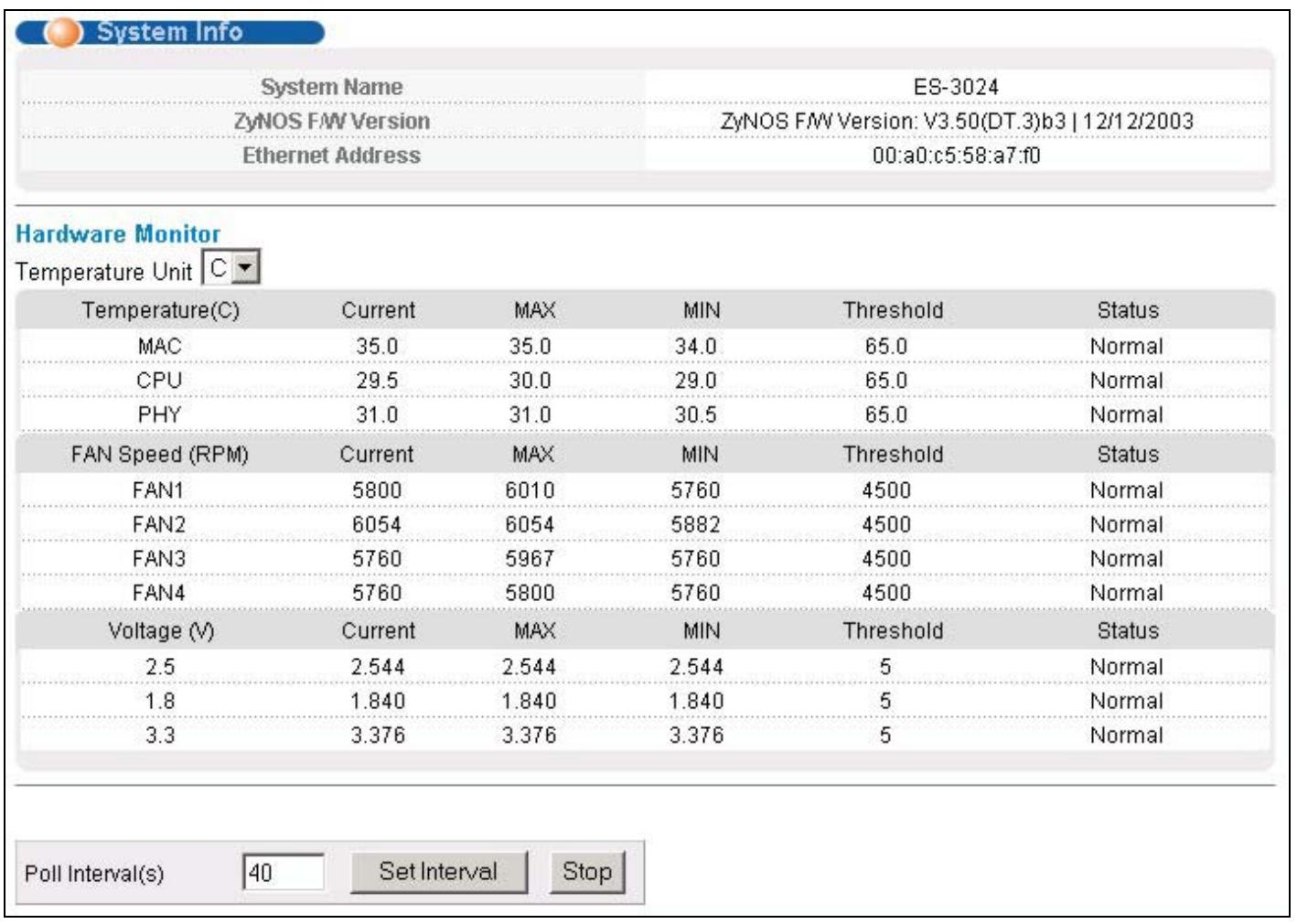
Figure 6-1 System Info
The following table describes the labels in this screen.
Table 6-1 System Info
| LABEL | DESCRIPTION |
| System Name | This field displays the switch 's model name. |
| ZyNOS F/W Version | This field displays the version number of the switch 's current firmware including the date created. |
| Ethernet Address | This field refers to the Ethernet MAC (Media Access Control) address of the switch. |
| Hardware Monitor | |
| Temperature Unit | The switch has temperature sensors that are capable of detecting and reporting if the temperature rises above the threshold. You may choose the temperature unit (Centigrade or Fahrenheit) in this field. |
| Temperature | MAC, CPU and PHY refer to the location of the temperature sensors on the switch printed circuit board. |
| Current | This field displays the current temperature measured at this sensor. |
Table 6-1 System Info
| LABEL | DESCRIPTION |
| MAX | This field displays the maximum temperature measured at this sensor. |
| MIN | This field displays the minimum temperature measured at this sensor. |
| Threshold | This field displays the upper temperature limit at this sensor. |
| Status | This field displays Normal for temperatures below the threshold and Error for those above. |
| Fan speed (RPM) | A properly functioning fan is an essential component (along with a sufficiently ventilated, cool operating environment) in order for the device to stay within the temperature threshold. Each fan has a sensor that is capable of detecting and reporting if the fan speed falls below the threshold shown. |
| Current | This field displays this fan's current speed in Revolutions Per Minute (RPM). |
| MAX | This field displays this fan's maximum speed measured in Revolutions Per Minute (RPM). |
| MIN | This field displays this fan's minimum speed measured in Revolutions Per Minute (RPM)."<41" is displayed for speeds too small to measure (under 2000 RPM). |
| Threshold | This field displays the minimum speed at which a normal fan should work. |
| Status | Normal indicates that this fan is functioning above the minimum speed. Error indicates that this fan is functioning below the minimum speed. |
| Voltage (V) | The power supply for each voltage has a sensor that is capable of detecting and reporting if the voltage falls out of the tolerance range. |
| Current | This is the current voltage reading. |
| MAX | This field displays the maximum voltage measured at this point. |
| MIN | This field displays the minimum voltage measured at this point. |
| Threshold | This field displays the minimum voltage at which the switch should work. |
| Status | Normal indicates that the voltage is within an acceptable operating range at this point; otherwise Error is displayed. |
| Poll Interval(s) | The text box displays how often (in seconds) this screen refreshes. You may change the refresh interval by typing a new number in the text box and then clicking Set Interval. |
| Stop | Click Stop to halt statistic polling. |
6.3 General Setup
Click Basic Setting and General Setup in the navigation panel to display the screen as shown.
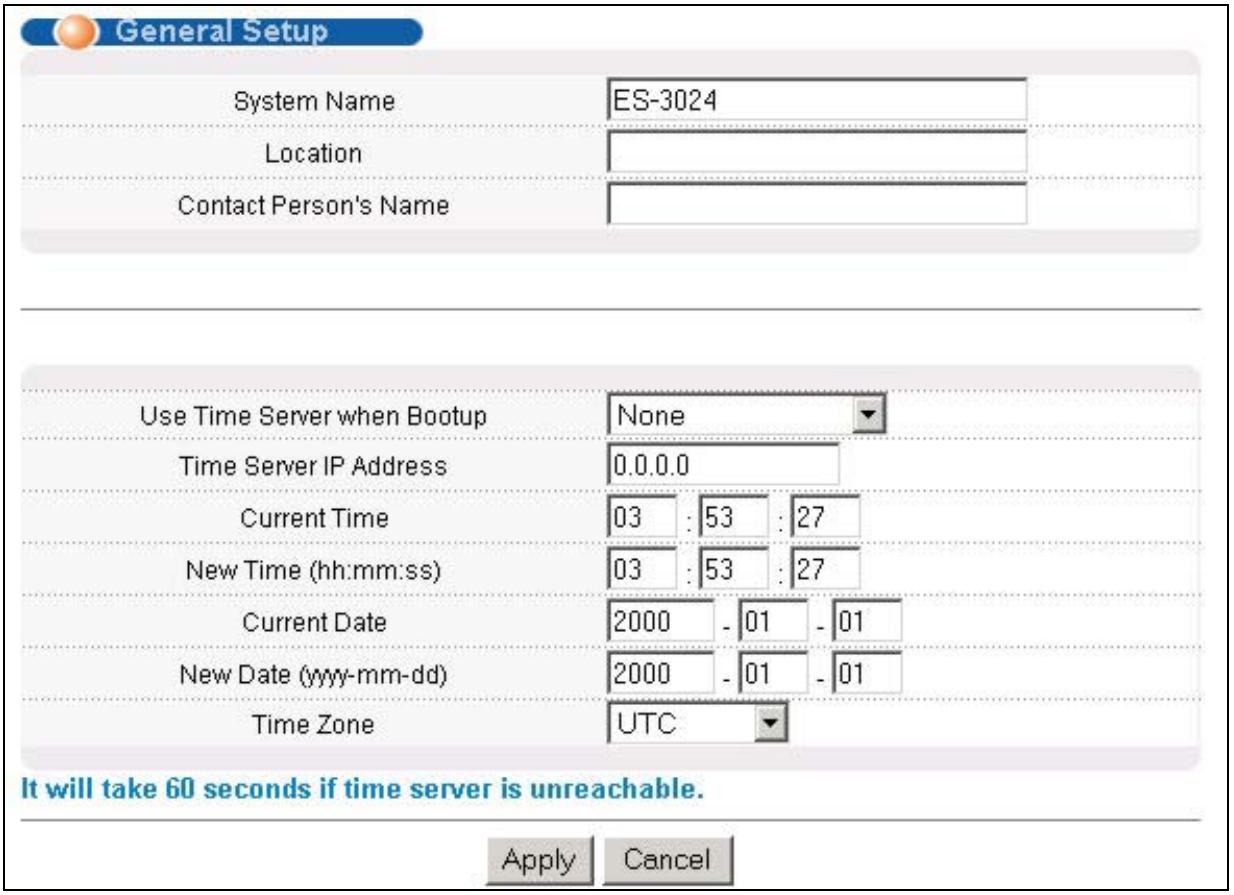
Figure 6-2 General Setup
The following table describes the labels in this screen.
Table 6-2 General Setup
| LABEL | DESCRIPTION |
| System Name | Choose a descriptive name for identification purposes. This name consists of up to 32 printable characters; spaces are not allowed. |
| Location | Enter the geographic location (up to 30 characters) of your switch. |
| Contact Person's Name | Enter the name (up to 30 characters) of the person in charge of this switch. |
Table 6-2 General Setup
| LABEL | DESCRIPTION |
| Use Time Server When Bootup | Enter the time service protocol that a timeserver sends when you turn on the switch. Not all timeservers support all protocols, so you may have to use trial and error to find a protocol that works. The main differences between them are the time format.Daytime (RFC 867) format is day/month/year/time zone of the server.Time (RFC-868) format displays a 4-byte integer giving the total number of seconds since 1970/1/1 at 0:0:0.NTP (RFC-1305) is similar to Time (RFC-868).None is the default value. Enter the time manually. Each time you turn on the switch, the time and date will be reset to 2000-1-1 0:0. |
| Time Server IP Address | Enter the IP address (or URL if you configure a domain name server in the IP Setup screen) of your timeserver. The switch searches for the timeserver for up to 60 seconds. If you select a timeserver that is unreachable, then this screen will appear locked for 60 seconds. Please wait. |
| Current Time | This field displays the time you open this menu (or refresh the menu). |
| New Time (hh:min:ss) | Enter the new time in hour, minute and second format. The new time then appears in the Current Time field after you click Apply. |
| Current Date | This field displays the date you open this menu. |
| New Date (yyyy-mm-dd) | Enter the new date in year, month and day format. The new date then appears in the Current Date field after you click Apply. |
| Time Zone | Select the time difference between UTC (Universal Time Coordinated, formerly known as GMT, Greenwich Mean Time) and your time zone from the drop-down list box. |
| Apply | Click Apply to save the settings. |
| Cancel | Click Cancel to start configuring the screen again. |
6.4 Introduction to VLANs
A VLAN (Virtual Local Area Network) allows a physical network to be partitioned into multiple logical networks. Devices on a logical network belong to one group. A device can belong to more than one group. With VLAN, a device cannot directly talk to or hear from devices that are not in the same group(s); the traffic must first go through a router.
In MTU (Multi-Tenant Unit) applications, VLAN is vital in providing isolation and security among the subscribers. When properly configured, VLAN prevents one subscriber from accessing the network resources of another on the same LAN, thus a user will not see the printers and hard disks of another user in the same building.
VLAN also increases network performance by limiting broadcasts to a smaller and more manageable logical broadcast domain. In traditional switched environments, all broadcast packets go to each and every individual port. With VLAN, all broadcasts are confined to a specific broadcast domain.
Note that VLAN is unidirectional; it only governs outgoing traffic.
See the VLAN chapter for information on port-based and 802.1Q tagged VLANs.
6.5 IGMP Snooping
IGMP (Internet Group Multicast Protocol) is a session-layer protocol used to establish membership in a multicast group - it is not used to carry user data. Refer to RFC 1112 and RFC 2236 for information on IGMP versions 1 and 2 respectively.
A layer-2 switch can passively snoop on IGMP Query, Report and Leave (IGMP version 2) packets transferred between IP multicast routers/switches and IP multicast hosts to learn the IP multicast group membership. It checks IGMP packets passing through it, picks out the group registration information, and configures multicast accordingly.
Without IGMP snooping, multicast traffic is treated in the same manner as broadcast traffic, that is, it is forwarded to all ports. With IGMP snooping, group multicast traffic is only forwarded to ports that are members of that group. IGMP Snooping generates no additional network traffic, allowing you to significantly reduce multicast traffic passing through your switch.
6.6 Switch Setup Screen
Click Basic Setting and then Switch Setup in the navigation panel display the screen as shown. The VLAN setup screens change depending on whether you choose 802.1Q or Port Based in the VLAN Type field in this screen. Refer to the chapter on VLANs.
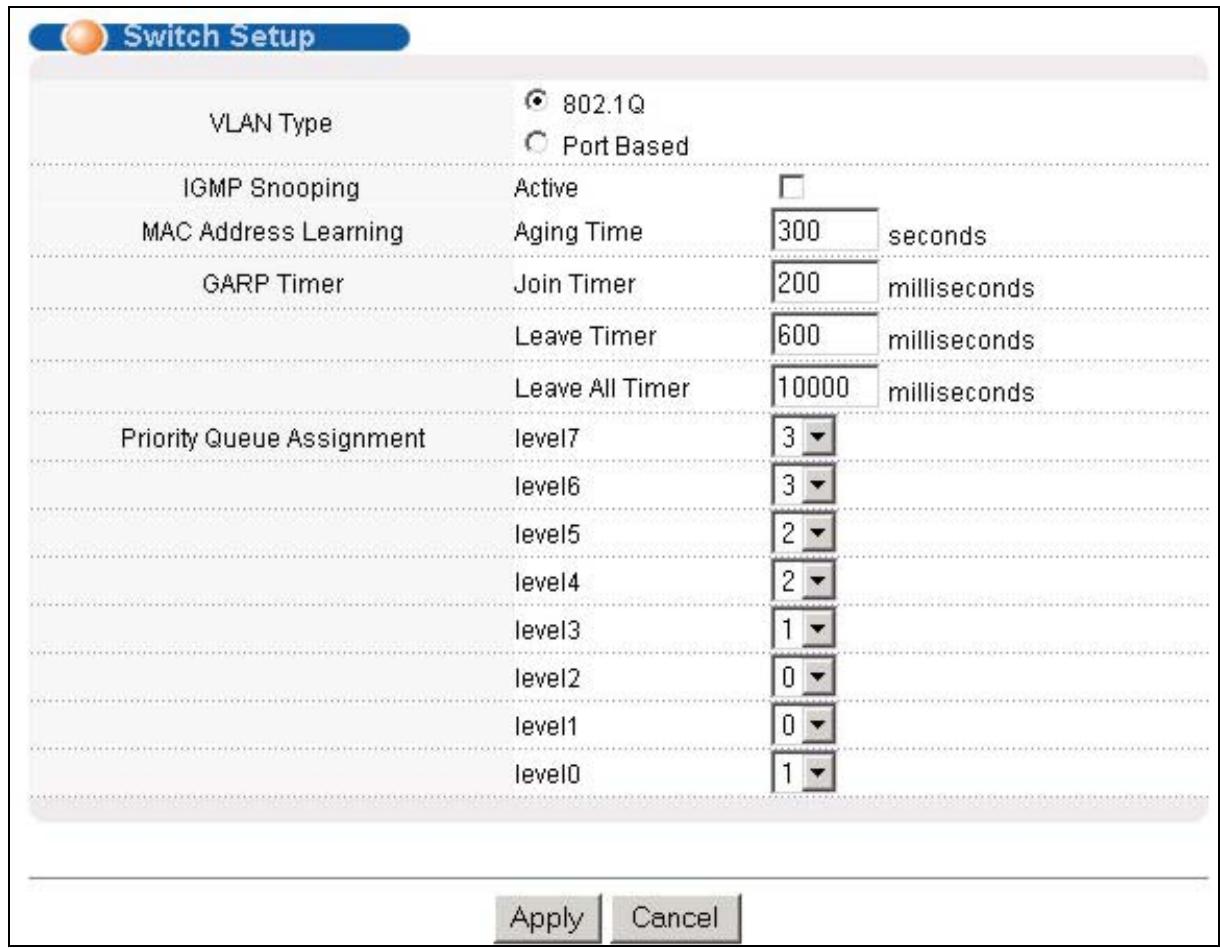
Figure 6-3 Switch Setup
The following table describes the labels in this screen.
Table 6-3 Switch Setup
| LABEL | DESCRIPTION | EXAMPLE |
| VLAN Type | Choose 802.1Q or Port Based from the drop-down list box. The VLAN Setup screen changes depending on whether you choose 802.1Q VLAN Type or Port Based VLAN Type in this screen. See Section 6.4 and the VLAN chapter for more information on VLANs. | 802.1Q |
| IGMP Snooping | Select Active to enable IGMP snooping have group multicast traffic only forwarded to ports that are members of the VLAN specified in the VLAN field, significantly reducing multicast traffic passing through your switch. See Section 6.5 for more information on IGMP snooping. | |
| MAC Address Learning | MAC address learning reduces outgoing traffic broadcasts. For MAC address learning to occur on a port, the port must be active. | |
| Aging Time | Enter a time from 10 to 3000 seconds. This is how long all dynamically learned MAC addresses remain in the MAC address table before they age out (and must be relearned). | 300 |
Table 6-3 Switch Setup
| LABEL | DESCRIPTION | EXAMPLE |
| GARP Timer: Switches join VLANs by making a declaration. A declaration is made by issuing a Join message using GARP. Declarations are withdrawn by issuing a Leave message. A Leave All message terminates all registrations. GARP timers set declaration timeout values. See the chapter on VLAN setup for more background information. | ||
| Join Timer | Join Timer sets the duration of the Join Period timer for GVRP in milliseconds. Each port has a Join Period timer. The allowed Join Time range is between 100 and 65535 milliseconds; the default is 200 milliseconds. See the chapter on VLAN setup for more background information. | 200 milliseconds (default) |
| Leave Timer | Leave Timer sets the duration of the Leave Period timer for GVRP in milliseconds. Each port has a single Leave Period timer. Leave Time must be two times larger than Join Timer; the default is 600 milliseconds. | 600 milliseconds (default) |
| Leave All Timer | Leave All Timer sets the duration of the Leave All Period timer for GVRP in milliseconds. Each port has a single Leave All Period timer. Leave All Timer must be larger than Leave Timer; the default is 1000 milliseconds. | 1000 milliseconds (default) |
| Priority Queue Assignment IEEE 802.1p defines up to 8 separate traffic types by inserting a tag into a MAC-layer frame that contains bits to define class of service. Frames without an explicit priority tag are given the default priority of the ingress port. Use the next two fields to configure the priority level-to-physical queue mapping. The switch has 4 physical queues that you can map to the 8 priority levels. On the switch, traffic assigned to higher index queues gets through faster while traffic in lower index queues is dropped if the network is congested. See also Queuing Method and 802.1p Priority in Port Setup for related information. | ||
| Priority Level (The following descriptions are based on the traffic types defined in the IEEE 802.1d standard (which incorporates the 802.1p). | ||
| Level 7 | Typically used for network control traffic such as router configuration messages. | |
| Level 6 | Typically used for voice traffic that is especially sensitive to jitter (jitter is the variations in delay). | |
| Level 5 | Typically used for video that consumes high bandwidth and is sensitive to jitter. | |
| Level 4 | Typically used for controlled load, latency-sensitive traffic such as SNA (Systems Network Architecture) transactions. | |
| Level 3 | Typically used for “excellent effort” or better than best effort and would include important business traffic that can tolerate some delay. | |
| Level 2 | This is for “spare bandwidth”. | |
| Level 1 | This is typically used for non-critical “background” traffic such as bulk transfers that are allowed but that should not affect other applications and users. | |
| Level 0 | Typically used for best-effort traffic. | |
| Apply | Click Apply to save your changes back to the switch. | |
| Cancel | Click Cancel to begin configuring this screen afresh. | |
6.7 IP Setup
Use the IP Setup screen to configure the default gateway device.
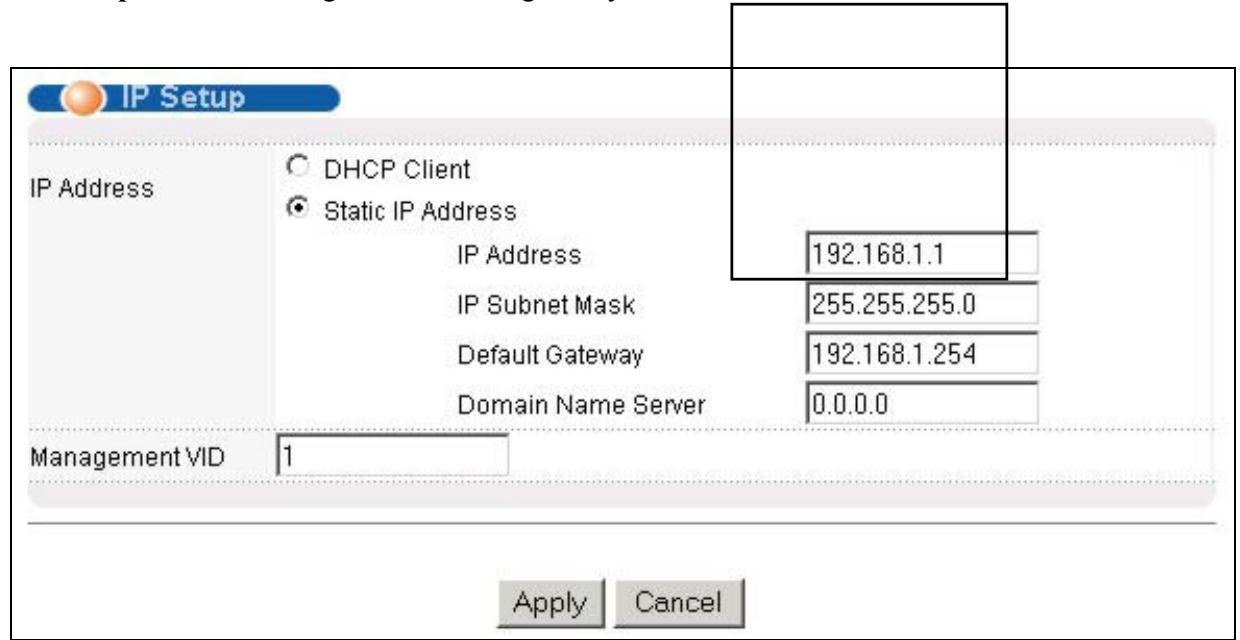
To set the default gateway device and the domain name server on the switch, click IP Setup in the navigation panel and set the related fields. The default gateway specifies the IP address of the default gateway (next hop) for outgoing traffic.
The following table describes the labels in this screen.
Table 6-4 IP Setup
| LABEL | DESCRIPTION |
| DHCP Client | Select this option if you have a DHCP server that can assign the switch an IP address, subnet mask, a default gateway IP address and a domain name server IP address automatically. |
| Static IP Address | Select this option if you don’t have a DHCP server or if you wish to assign static IP address information to the switch. You need to fill in the following fields when you select this option. |
| IP Address | Enter the IP address of your switch in dotted decimal notation for example 192.168.1.1. |
| IP Subnet Mask | Enter the IP subnet mask of your switch in dotted decimal notation for example 255.255.255.0. |
| Default Gateway | Enter the IP address of the default outgoing gateway in dotted decimal notation, for example 192.168.1.254. |
| Domain Name Server | DNS (Domain Name System) is for mapping a domain name to its corresponding IP address and vice versa. Enter a domain name server IP address in order to be able to use a domain name instead of an IP address. |
Table 6-4 IP Setup
| LABEL | DESCRIPTION |
| Management VID | Enter the VLAN identification number associated with the switch IP address. Management VLAN ID is the VLAN ID of the CPU and is used for management only. The default is "1". All ports, by default, are fixed members of this "management VLAN" in order to manage the device from any port. If a port is not a member of this VLAN, then users on that port cannot access the device. To access the switch make sure the port that you are connected to is a member of Management VLAN. |
| Apply | Click Apply to save your changes back to the switch. |
| Cancel | Click Cancel to begin configuring the fields again. |
6.8 Port Setup
Click Basic Setting and then Port Setup in the navigation panel to enter the port configuration screen. You may configure any of the switch ports and module (uplink and stacking) ports.
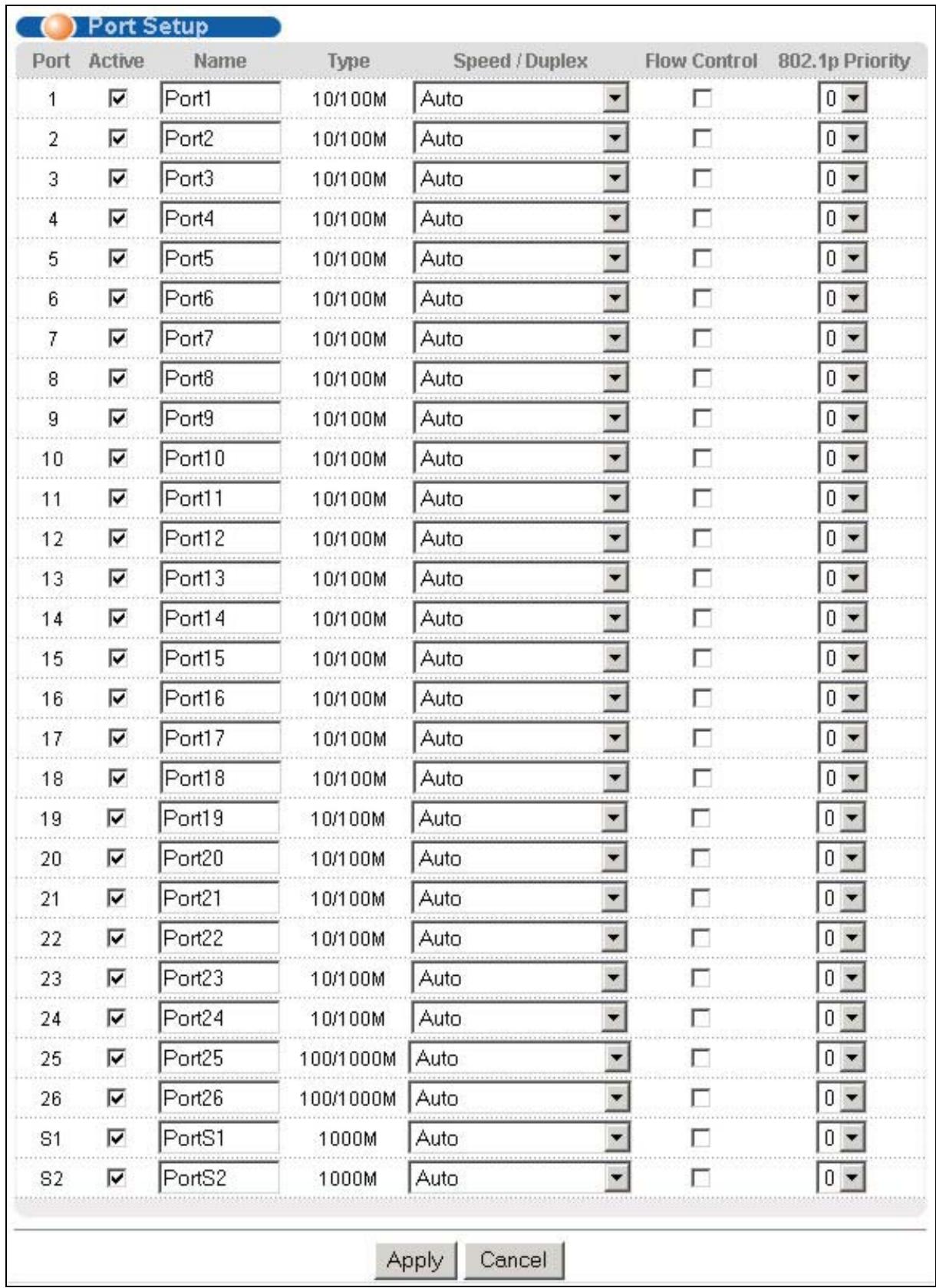
Figure 6-4 Port Setup
The following table describes the fields in this screen.
Table 6-5 Port Setup
| LABEL | DESCRIPTION |
| Port | This is the port index number. |
| Active | Select this check box to enable a port. The factory default for all ports is enabled. A port must be enabled for data transmission to occur. |
| Name | Enter a descriptive name that identifies this port. |
| Type | This field displays 10/100M for an Ethernet/Fast Ethernet connection and 1000M for Gigabit connections. |
| Speed/Duplex | Select the speed and the duplex mode of the Ethernet connection on this port. Choices are Auto, 10M/Half Duplex, 10M/Full Duplex, 100M/Half Duplex, 100M/Full Duplex and 1000M/Full Duplex (for gigabit ports only). Selecting Auto (auto-negotiation) makes one Ethernet port able to negotiate with a peer automatically to obtain the connection speed and duplex mode that both ends support. When auto-negotiation is turned on, an Ethernet port on the switch negotiates with the peer automatically to determine the connection speed and duplex mode. If the peer Ethernet port does not support auto-negotiation or turns off this feature, the switch determines the connection speed by detecting the signal on the cable and using half duplex mode. When the switch's auto-negotiation is turned off, an Ethernet port uses the pre-configured speed and duplex mode when making a connection, thus requiring you to make sure that the settings of the peer Ethernet port are the same in order to connect. |
| Flow Control | A concentration of traffic on a port decreases port bandwidth and overflows buffer memory causing packet discards and frame losses. Flow Control is used to regulate transmission of signals to match the bandwidth of the receiving port. The switch uses IEEE802.3x flow control in full duplex mode and backpressure flow control in half duplex mode. IEEE802.3x flow control is used in full duplex mode to send a pause signal to the sending port, causing it to temporarily stop sending signals when the receiving port memory buffers fill. Back Pressure flow control is typically used in half duplex mode to send a "collision" signal to the sending port (mimicking a state of packet collision) causing the sending port to temporarily stop sending signals and resend later. Select Flow Control to enable it. |
| 802.1P Priority | This priority value is added to incoming frames without a (802.1p) priority queue tag. See Priority Queue Assignment in Table 6-3 for more information. See also Priority Queue Assignment in Switch Setup and Queuing Method for related information. |
| Apply | Click Apply to save your changes back to the switch. |
| Cancel | Click Cancel to begin configuring this screen afresh. |
Part IV
Advanced Application 1
This part shows you how to configure the VLAN, Static MAC Forwarding, Filtering, STP and Bandwidth Control Advanced Application screens.
Chapter 7 VLAN
The type of screen you see here depends on the VLAN Type you selected in the Switch Setup screen. This chapter shows you how to configure 802.1Q tagged and port-based VLANs. See the General, Switch and IP Setup chapter for more information.
7.1 Introduction to IEEE 802.1Q Tagged VLAN
Tagged VLAN uses an explicit tag (VLAN ID) in the MAC header to identify the VLAN membership of a frame across bridges - they are not confined to the switch on which they were created. The VLANs can be created statically by hand or dynamically through GVRP. The VLAN ID associates a frame with a specific VLAN and provides the information that switches need to process the frame across the network. A tagged frame is four bytes longer than an untagged frame and contains two bytes of TPID (Tag Protocol Identifier, residing within the type/length field of the Ethernet frame) and two bytes of TCI (Tag Control Information, starts after the source address field of the Ethernet frame).
The CFI (Canonical Format Indicator) is a single-bit flag, always set to zero for Ethernet switches. If a frame received at an Ethernet port has a CFI set to 1, then that frame should not be forwarded as it is to an untagged port. The remaining twelve bits define the VLAN ID, giving a possible maximum number of 4,096 (212) VLANs. Note that user priority and VLAN ID are independent of each other. A frame with VID (VLAN Identifier) of null (0) is called a priority frame, meaning that only the priority level is significant and the default VID of the ingress port is given as the VID of the frame. Of the 4096 possible VIDs, a VID of 0 is used to identify priority frames and value 4095 (FFF) is reserved, so the maximum possible VLAN configurations are 4,094
| TPID 2 Bytes | User Priority 3 Bits | CFI 1 Bit | VLAN ID 12 bits |
7.1.1 Forwarding Tagged and Untagged Frames
Each port on the switch is capable of passing tagged or untagged frames. To forward a frame from an 802.1Q VLAN-aware switch to an 802.1Q VLAN-unaware switch, the switch first decides where to forward the frame and then strips off the VLAN tag. To forward a frame from an 802.1Q VLAN-unaware switch to an 802.1Q VLAN-aware switch, the switch first decides where to forward the frame, and then inserts a VLAN tag reflecting the ingress port's default VID. The default PVID is VLAN 1 for all ports, but this can be changed.
7.1.2 Automatic VLAN Registration
GARP and GVRP are the protocols used to automatically register VLAN membership across switches.
GARP
GARP (Generic Attribute Registration Protocol) allows network switches to register and de-register attribute values with other GARP participants within a bridged LAN. GARP is a protocol that provides a generic mechanism for protocols that serve a more specific application, for example, GVRP.
GARP Timers
Switches join VLANs by making a declaration. A declaration is made by issuing a Join message using GARP. Declarations are withdrawn by issuing a Leave message. A Leave All message terminates all registrations. GARP timers set declaration timeout values.
GVRP
GVRP (GARP VLAN Registration Protocol) is a registration protocol that defines a way for switches to register necessary VLAN members on ports across the network. Enable this function to permit VLANs groups beyond the local switch.
Please refer to the following table for common GARP terminology.
Table 7-1 GARP Terminology
| VLAN PARAMETER | TERM | DESCRIPTION |
| VLAN Type | Permanent VLAN | This is a static VLAN created manually. |
| Dynamic VLAN | This is a VLAN configured by a GVRP registration/deregistration process. | |
| VLAN Administrative Control | Registration Fixed | Fixed registration ports are permanent VLAN members. |
| Registration Forbidden | Ports with registration forbidden are forbidden to join the specified VLAN. | |
| Normal Registration | Ports dynamically join a VLAN using GVRP. | |
| VLAN Tag Control | Tagged | Ports belonging to the specified VLAN tag all outgoing frames transmitted. |
| Untagged | Ports belonging to the specified don't tag all outgoing frames transmitted. | |
| VLAN Port | Port VID | This is the VLAN ID assigned to untagged frames that this port received. |
| Acceptable frame type | You may choose to accept both tagged and untagged incoming frames or just tagged incoming frames on a port. | |
| Ingress filtering | If set, the switch discards incoming frames for VLANs that do not have this port as a member |
7.1.3 Port VLAN Trunking
Enable VLAN Trunking on a port to allow frames belonging to unknown VLAN groups to pass through that port. This is useful if you want to set up VLAN groups on end devices without having to configure the same VLAN groups on intermediary devices.
Refer to the following figure. Suppose you want to create VLAN groups 1 and 2 (V1 and V2) on devices A and B. Without VLAN Trunking, you must configure VLAN groups 1 and 2 on all intermediary switches C, D and E; otherwise they will drop frames with unknown VLAN group tags. However, with VLAN Trunking enabled on a port(s) in each intermediary switch you only need to create VLAN groups in the end devices (A and B). C, D and E automatically allow frames with VLAN group tags 1 and 2 (VLAN groups that are unknown to those switches) to pass through their VLAN trunking port(s).
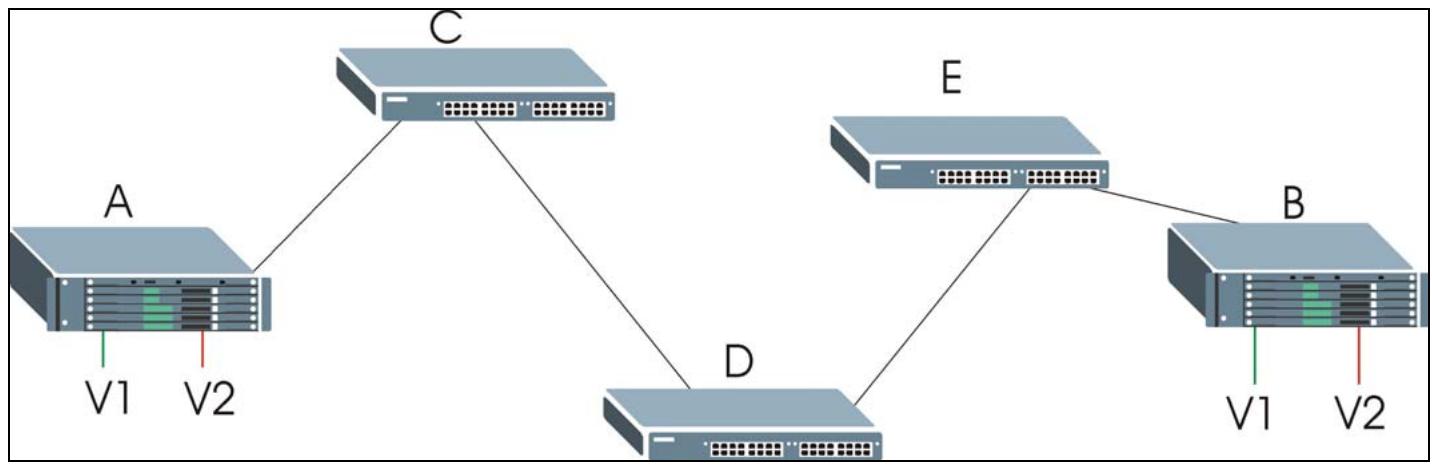
Figure 7-1 Port VLAN Trunking
7.2 802.1Q VLAN
Follow the steps below to set the 802.1Q VLAN Type on the switch.
Step 1. Select 802.1Q as the VLAN Type in the Switch Setup screen (under Basic Setting) and click Apply.

Figure 7-2 Selecting a VLAN Type
Step 2. Click VLAN under Advanced Application to display the VLAN Status screen as shown next.
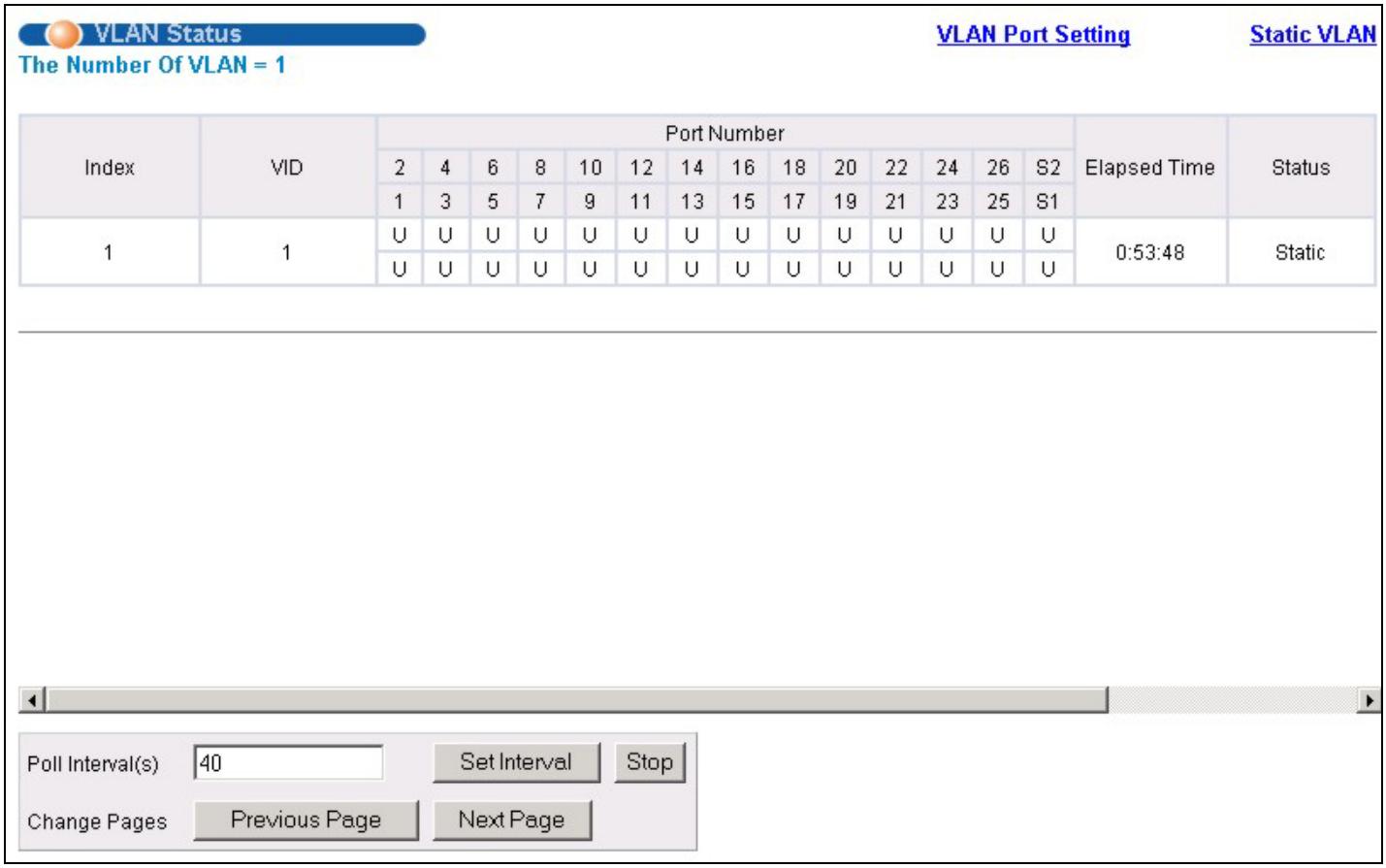
Figure 7-3 802.1Q VLAN Status
The following table describes the labels in this screen.
Table 7-2 802.1Q VLAN Status
| LABEL | DESCRIPTION |
| The Number of VLAN | This is the number of VLANs configured on the switch. |
| Index | This is the VLAN index number. |
| VID | VID is the PVID, the Port VLAN ID assigned to untagged frames or priority-tagged frames received on this port that you configure in the VLAN Port Setting screen. |
| Port Number | This column displays the ports that are participating in a VLAN. A tagged port is marked as T, an untagged port is marked as U and ports not participating in a VLAN in marked as “-”. |
| Elapsed Time | This field shows how long it has been since a normal VLAN was registered or a static VLAN was set up. |
| Status | This field shows how this VLAN was added to the switch; dynamically using GVRP or statically, that is, added as a permanent entry. |
| Poll Interval(s) | The text box displays how often (in seconds) this screen refreshes. You may change the refresh interval by typing a new number in the text box and then clicking Set Interval. |
| Stop | Click Stop to halt polling statistics. |
Table 7-2 802.1Q VLAN Status
| LABEL | DESCRIPTION |
| Previous/Next Page | Click one of these buttons to show the previous/next screen if all status information cannot be seen in one screen. |
7.2.1 802.1Q VLAN Port Settings
To configure the 802.1Q VLAN settings on a port, click the VLAN Port Settings link in the VLAN Status screen.
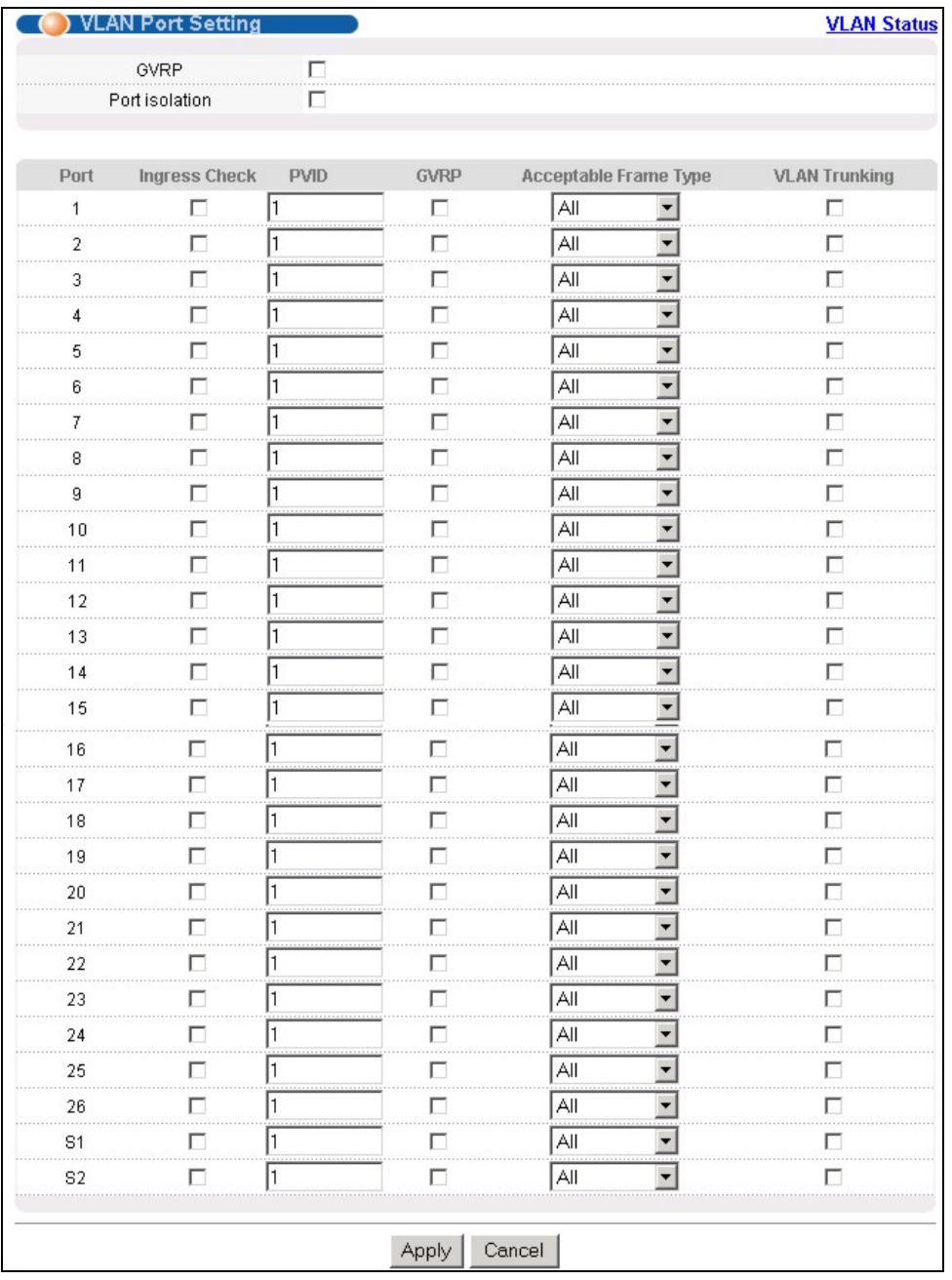
Figure 7-4 802.1Q VLAN Port Settings
The following table describes the labels in this screen.
Table 7-3 802.1Q VLAN Port Settings
| LABEL | DESCRIPTION |
| GVRP | GVRP (GARP VLAN Registration Protocol) is a registration protocol that defines a way for switches to dynamically register necessary VLAN members on ports across the network. Select this check box to permit VLAN groups beyond the local switch. |
| Port Isolation | Port Isolation allows each port (1 to 26) to communicate with the CPU port, uplink ports and stacking ports but not communicate with each other. This option is the most limiting but also the most secure. |
| Port | This field displays the port numbers. |
| Ingress Check | If this check box is selected for a port, the device discards incoming frames for VLANs that do not include this port in its member set. |
| PVID | Each port on the switch is capable of passing tagged or untagged frames. To forward a frame from an 802.1Q VLAN-unaware switch to an 802.1Q VLAN-aware switch, the switch first decides where to forward the frame, and then inserts a VLAN tag reflecting the default ingress port's VLAN ID, the PVID. The default PVID is VLAN 1 for all ports, but this can be changed to any number between 0 and 4094. |
| GVRP | Select this check box to permit VLANs groups beyond the local switch on this port. GVRP (GARP VLAN Registration Protocol) is a registration protocol that defines a way for switches to register necessary VLAN members on ports across the network. |
| Acceptable Frame Type | Specify the type of frames allowed on a port. Choices are All, Tag Only and Untag Only. Select All to accept all frames with untagged or tagged frames on this port. This is the default setting. Select Tag Only to accept only tagged frames on this port. All untagged frames are dropped. Select Untag Only to accept only untagged frames on this port. All tagged frames are dropped. |
| VLAN Trunking | Enable VLAN Trunking on ports connected to other switches or routers (but not ports directly connected to end users) to allow frames belonging to unknown VLAN groups to pass through the switch. |
| Apply | Click Apply to save the changes. |
| Cancel | Click Cancel to start configuring the screen again. |
7.2.2 802.1Q Static VLAN
You can dynamically have a port join a VLAN group using GVRP, permanently assign a port to be a member of a VLAN group or prohibit a port from joining a VLAN group in this screen. Click Static VLAN in the VLAN Status screen to display the screen as shown next.
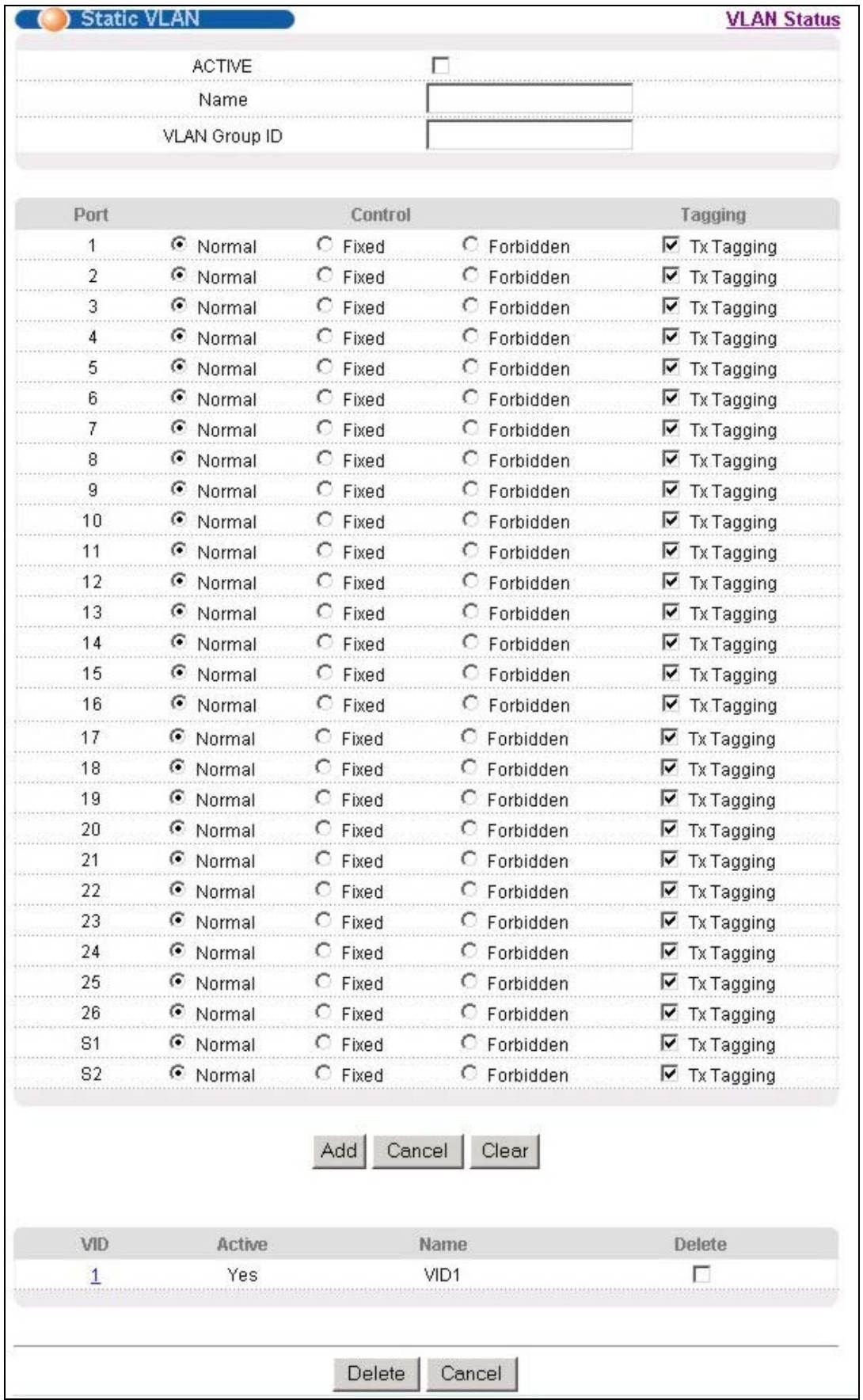
Figure 7-5 802.1Q Static VLAN
The following table describes the labels in this screen.
Table 7-4 802.1Q Static VLAN
| LABEL | DESCRIPTION |
| Active | Select this check box to enable the VLAN. |
| Name | Enter a descriptive name for this VLAN group for identification purposes. |
| VLAN Group ID | Enter the VLAN ID for this static VLAN entry; the valid range is between 1 and 4094. |
| Port | The port number identifies the port you are configuring. Ports 25 and 26 are the uplink ports. S1 and S2 are the stacking ports. |
| Control | Select Normal for the port to dynamically join this VLAN group using GVRP. This is the default selection. Select Fixed for the port to be a permanent member of this VLAN group. Select Forbidden if you want to prohibit the port from joining this VLAN group. |
| Tagging | Select TX Tagging if you want the port to tag all outgoing frames transmitted with this VLAN Group ID. |
| Add | Click Add to save the new rule to the switch. It then displays in the summary table at the bottom of the screen. |
| Cancel | Click Cancel to reset the fields to your previous configuration. |
| Clear | Click Clear to clear the fields to the factory defaults. |
7.2.3 Viewing and Editing VLAN Settings
To view a summary of the VLAN configuration, scroll down to the summary table at the bottom of the Static VLAN screen.
To change the settings of a rule, click a number in the VID field.

Figure 7-6 Static VLAN: Summary Table
The following table describes the labels in this screen.
Table 7-5 Static VLAN: Summary Table
| LABEL | DESCRIPTION |
| VID | This field displays the ID number of the VLAN group. Click the number to edit the VLAN settings. |
| Active | This field indicates whether the VLAN settings are enabled (Yes) or disabled (No). |
| Name | This field displays the descriptive name for this VLAN group. |
| Delete | Click Delete to remove the selected entry from the summary table. |
| Cancel | Click Cancel to clear the Delete check boxes. |
VID1 Example Screen
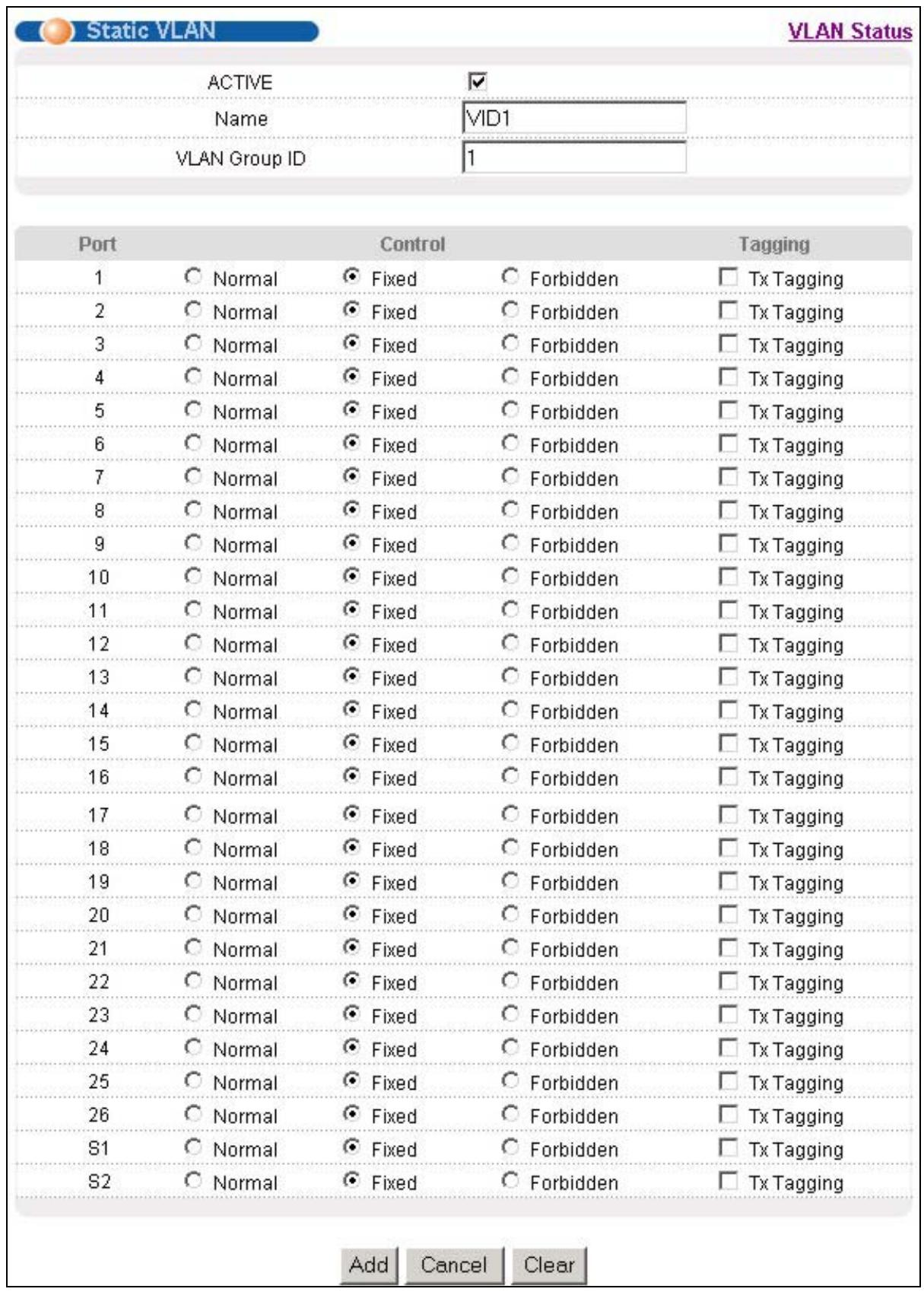
Figure 7-7 VID1 Example Screen
7.3 Introduction to Port-based VLANs
Port-based VLANs are VLANs where the packet forwarding decision is based on the destination MAC address and its associated port.
Port-based VLANs require allowed outgoing ports to be defined for each port. Therefore, if you wish to allow two subscriber ports to talk to each other, for example, between conference rooms in a hotel, you must define the egress (an egress port is an outgoing port, that is, a port through which a data packet leaves) for both ports.
Port-based VLANs are specific only to the switch on which they were created.
The port-based VLAN setup screen is shown next. The CPU management port forms a VLAN with all Ethernet ports.
7.3.1 Configuring a Port-based VLAN
Select Port Based as the VLAN Type in the Switch Setup screen under Basic Setting and then click VLAN under Advanced Application to display the next screen.
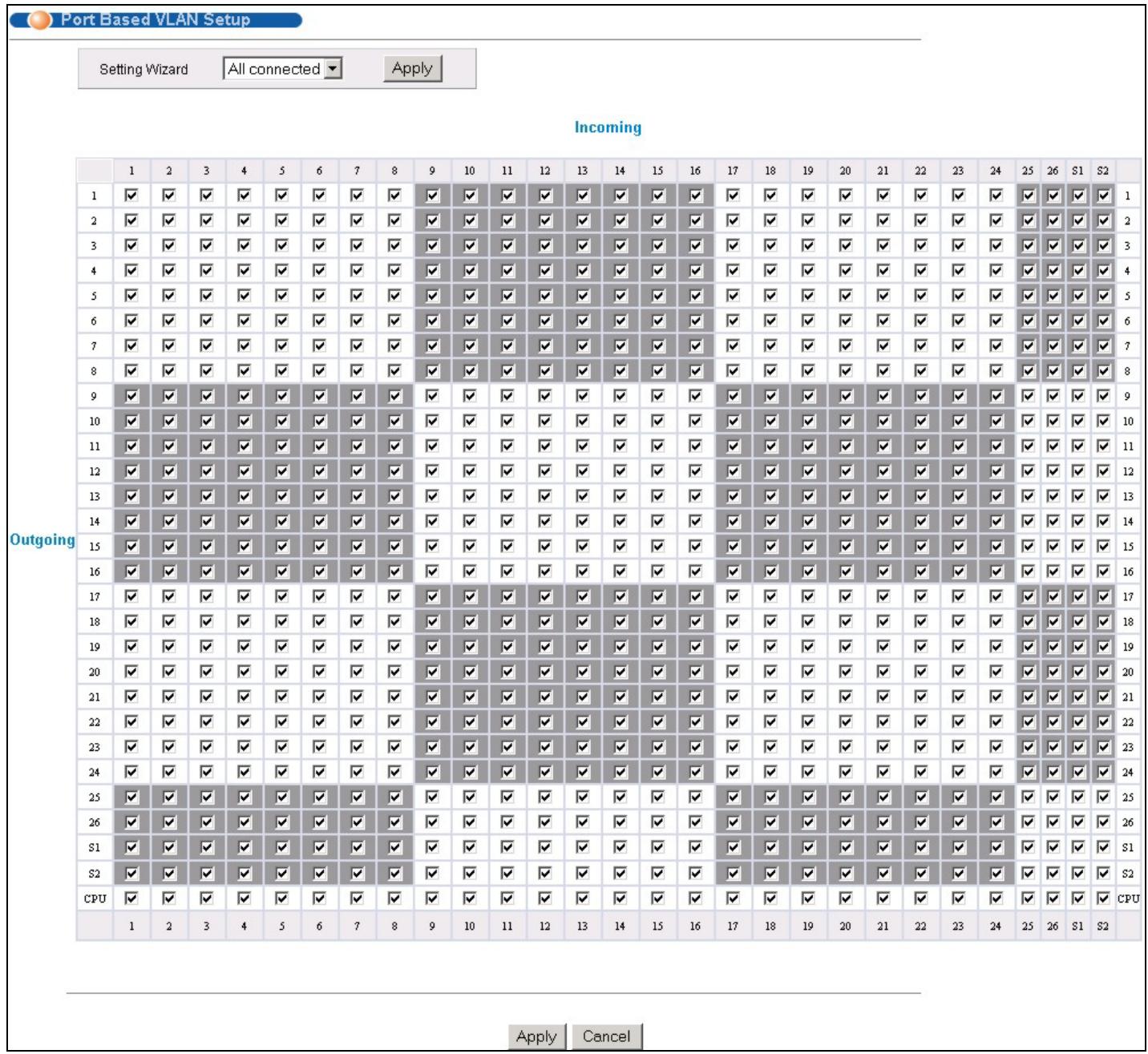
Figure 7-8 Port Based VLAN Setup (All Connected)
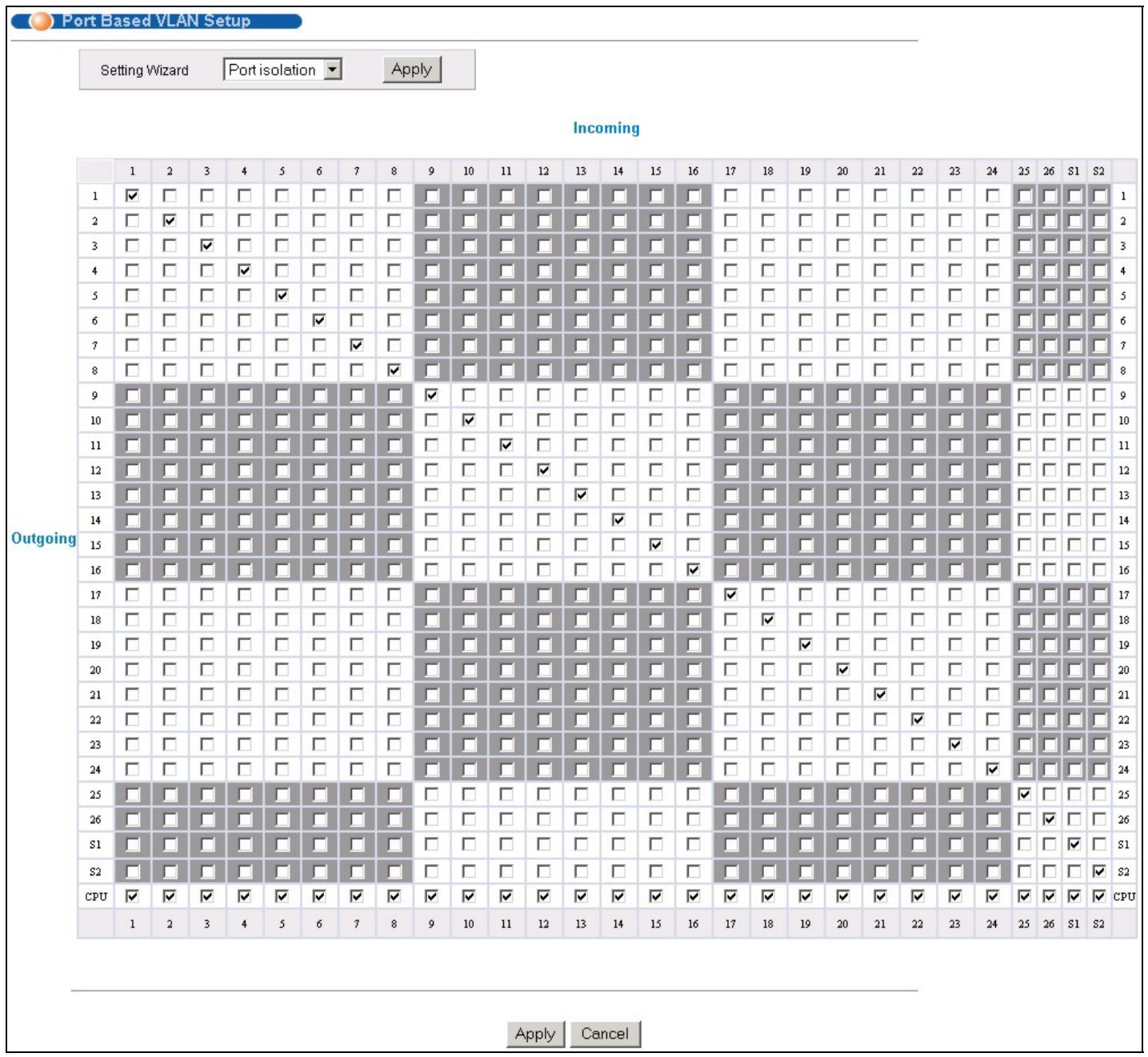
Figure 7-9 Port Based VLAN Setup (Port isolation)
The following table describes the labels in this screen.
Table 7-6 Port Based VLAN Setup
| LABEL | DESCRIPTION |
| Setting Wizard | Choose from All connected or Port isolation.All connected means all ports can communicate with each other, that is, there are no virtual LANs. All incoming and outgoing ports are selected (Figure 7-8). This option is the most flexible but also the least secure.Port isolation means that each port can only communicate with the CPU management port and cannot communicate with each other. All incoming ports are selected while only the CPU outgoing port is selected (Figure 7-9). This option is the most limiting but also the most secure.After you make your selection, click Apply (top right of screen) to display the screens as mentioned above. You can still customize these settings by adding/deleting incoming or outgoing ports, but you must also click Apply at the bottom of the screen. |
| Incoming | These are the ingress ports; an ingress port is an incoming port, that is, a port through which a data packet enters. If you wish to allow two subscriber ports to talk to each other, you must define the ingress port for both ports. The numbers in the top row denote the incoming port for the corresponding port listed on the left (its outgoing port). CPU refers to the switch management port. By default it forms a VLAN with all Ethernet ports. If it does not form a VLAN with a particular port then the switch cannot be managed from that port. |
| Outgoing | These are the egress ports; an egress port is an outgoing port, that is, a port through which a data packet leaves. If you wish to allow two subscriber ports to talk to each other, you must define the egress port for both ports. CPU refers to the switch management port. By default it forms a VLAN with all Ethernet ports. If it does not form a VLAN with a particular port then the switch cannot be managed from that port. |
| Apply | Click Apply to save the changes, including the “wizard settings”. |
| Cancel | Click Cancel to start configuring the screen again. |
Chapter 8 Static MAC Forward Setup
Use these screens to configure static MAC address forwarding.
8.1 Introduction to Static MAC Forward Setup
A static MAC address entry is an address that has been manually entered in the MAC address learning table. Static MAC addresses do not age out. When you set up static MAC address rules, you are setting static MAC addresses for a port. Devices that match static MAC address rules on a port can only receive traffic on that port and cannot receive traffic on other ports. This may reduce unicast flooding.
8.2 Configuring Static MAC Forwarding
Click Static MAC Forwarding to display the configuration screen as shown.
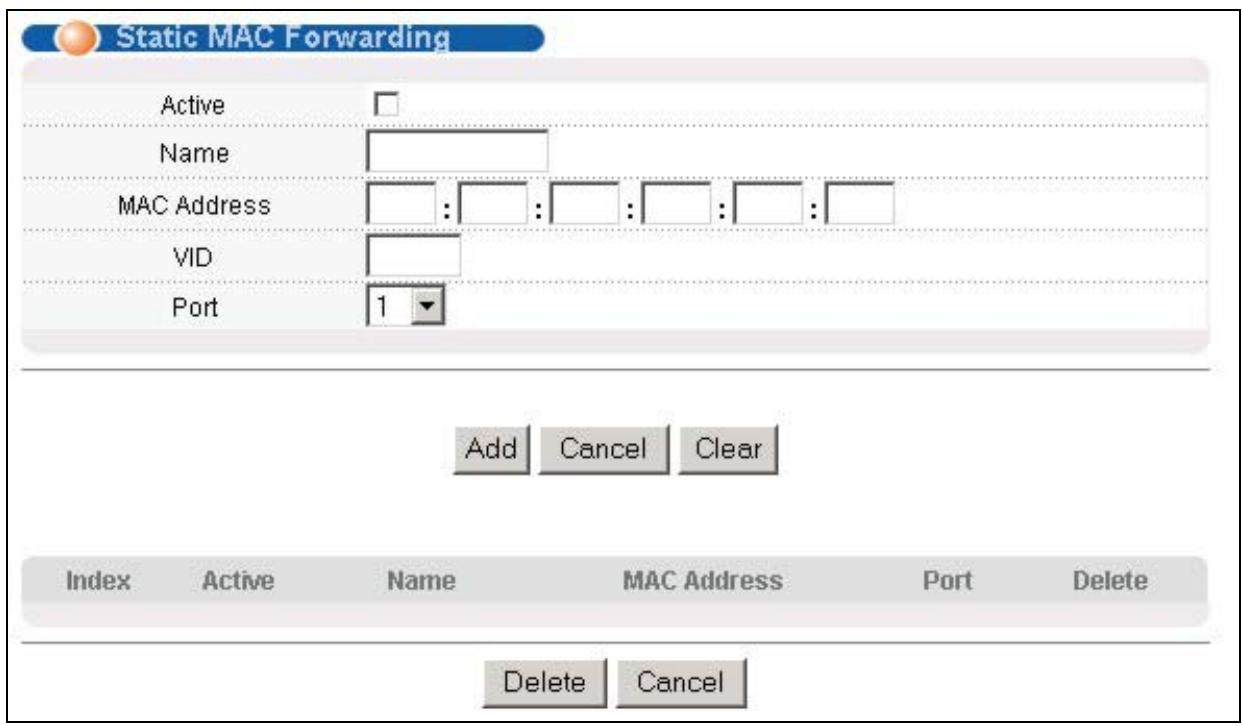
Figure 8-1 Static MAC Forwarding
The following table describes the labels in this screen.
Table 8-1 Static MAC Forwarding
| LABEL | DESCRIPTION |
| Active | Select this check box to activate your rule. You may temporarily deactivate a rule without deleting it by clearing this check box. |
| Name | Enter a descriptive name for identification purposes for this static MAC address forwarding rule. |
Table 8-1 Static MAC Forwarding
| LABEL | DESCRIPTION |
| MAC Address | Enter the MAC address in valid MAC address format, that is, six hexadecimal character pairs. Static MAC addresses do not age out. |
| VID | Enter the VLAN identification number. |
| Port | Select a port where the MAC address entered in the previous field will be automatically forwarded. |
| Add | Click Add to save the new rule to the switch. It then displays in the summary table at the bottom of the screen. |
| Cancel | Click Cancel to reset the fields to your previous configuration. |
| Clear | Click Clear to clear the fields to the factory defaults. |
8.3 Viewing and Editing Static MAC Forwarding Rules
To view a summary of the rule configuration, scroll down to the summary table at the bottom of the Static MAC Forwarding screen.
To change the settings of a rule, click a number in the Index field.

Figure 8-2 Static MAC Forwarding: Summary Table
The following table describes the labels in this screen.
Table 8-2 Static MAC Forwarding: Summary Table
| LABEL | DESCRIPTION |
| Index | Click an index number to modify a static MAC address rule for a port. |
| Active | This field displays whether this static MAC address forwarding rule is active (Yes) or not (No).You may temporarily deactivate a rule without deleting it. |
| Name | This field displays the descriptive name for identification purposes for this static MAC address-forwarding rule. |
| MAC Address | This field displays the MAC address that will be forwarded and the VLAN identification number to which the MAC address belongs. |
| Port | This field displays the port where the MAC address shown in the next field will be forwarded. |
| Delete | Check the rule(s) that you want to remove in the Delete column, then click the Delete button. |
| Cancel | Click Cancel to clear the selected checkboxes in the Delete column. |
Chapter 9 Filtering
This chapter discusses static IP and MAC address port filtering.
9.1 Introduction to Filtering
Port filtering means sifting traffic from one or all ports to one or all ports based on the source and/or destination MAC addresses and VLAN group (ID).
9.1.1 Note About Configuration
The following rules apply when configuring filtering.
- The rule applies to traffic flowing in both directions if both a source and destination are specified.
- The rule applies to traffic flowing in one direction if either a source or destination is specified.
- No any-to-any rules are allowed. That is, you cannot select Ignore for both the source and destination ports.
- No blank rules are allowed. If you do not select Ignore, you must set the related fields.
- You can forward a MAC address to one port or all ports (All Ports) but not two different ports.
9.2 Configuring a Filtering Rule
Click Filtering to display the screen as shown next.
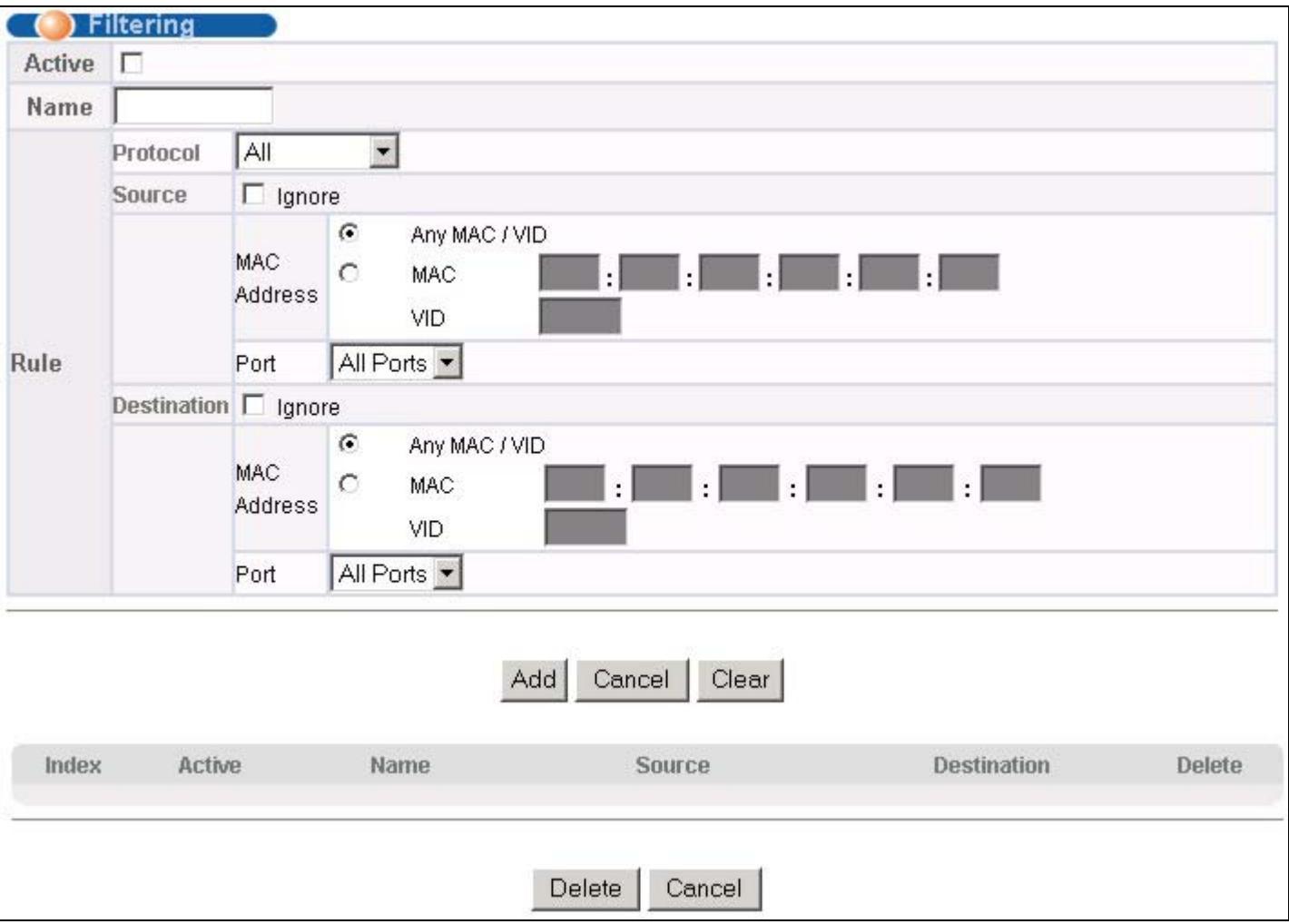
Figure 9-1 Filtering
The following table describes the related labels in this screen.
Table 9-1 Filtering
| LABEL | DESCRIPTION |
| Active | Make sure to select this check box to activate your rule. You may temporarily deactivate a rule without deleting it by deselecting this check box. |
| Name | Type a descriptive name for this filter rule. This is for identification purpose only. |
| Protocol | Select the protocol type to which this rule applies. |
| Source | The next fields pertain to the source MAC address and source port. |
| Ignore | Click this check box to ignore any traffic from all source ports. |
| MAC Address | Type a MAC address in valid MAC address format, that is, six hexadecimal character pairs or click Any MAC /VID to apply the filter rule to all MAC addresses and VLAN groups. |
Table 9-1 Filtering
| LABEL | DESCRIPTION |
| VID | Type the VLAN group identification number. |
| The VID for the source and destination must be the same. | |
| Port | Select the port to which the filter rule should be applied. You may choose one port only or all ports (All Ports). |
| Destination | The next fields pertain to the destination MAC address and destination port. |
| Ignore | Click this check box to ignore any traffic to all destination ports. |
| MAC Address | Type a MAC address in valid MAC address format, that is, six hexadecimal character pairs or click Any MAC/VID to apply the filter rule to all MAC addresses and VLAN groups. |
| VID | Type the VLAN group identification number. |
| Port | Select the port to which the filter rule should be applied. You may choose one port only or all ports (All Ports). |
| Add | Click Add to save the new rule to the switch. It then displays in the summary table at the bottom of the screen. |
| Cancel | Click Cancel to reset the fields to your previous configuration. |
| Clear | Click Clear to clear the fields to the factory defaults. |
9.3 Viewing and Editing Filter Rules
To view a summary of the rule configuration, scroll down to the summary table at the bottom of the Filtering screen.
To change the settings of a rule, click a number in the Index field.

Figure 9-2 Filtering: Summary Table
The following table describes the labels in the summary table.
Table 9-2 Filtering: Summary Table
| LABEL | DESCRIPTION |
| Index | This field displays the index number of the rule. Click an index number to edit the rule. |
| Active | This field displays Yes when the rule is activated and No when is it deactivated. |
| Name | This field displays the descriptive name for this rule. This is for identification purpose only. |
| Source | This field displays the source port number, the source MAC address with the VLAN identification number to which the MAC address belongs or a combination of the two. All Entries means all MAC addresses from all ports. |
| Destination | This field displays the destination port number, the destination MAC address with the VLAN identification number to which the MAC address belongs or a combination of the two. All Entries means all MAC addresses from all ports. |
| Delete | Check the rule(s) that you want to remove in the Delete column and then click the Delete button. |
| Cancel | Click Cancel to clear the selected checkboxes in the Delete column. |
Chapter 10 Spanning Tree Protocol
This chapter introduces the Spanning Tree Protocol (STP).
10.1 Introduction to Spanning Tree Protocol (STP)
STP detects and breaks network loops and provides backup links between switches, bridges or routers. It allows a switch to interact with other STP-compliant switches in your network to ensure that only one route exists between any two stations on the network.
10.1.1 STP Terminology
The root bridge is the base of the spanning tree; it is the bridge with the lowest identifier value (MAC address).
Path cost is the cost of transmitting a frame onto a LAN through that port. It is assigned according to the speed of the link to which a port is attached. The slower the media, the higher the cost - see the next table.
Table 10-1 STP Path Costs
| LINK SPEED | RECOMMENDED VALUE | RECOMMENDED RANGE | ALLOWED RANGE | |
| Path Cost | 4Mbps | 250 | 100 to 1000 | 1 to 65535 |
| Path Cost | 10Mbps | 100 | 50 to 600 | 1 to 65535 |
| Path Cost | 16Mbps | 62 | 40 to 400 | 1 to 65535 |
| Path Cost | 100Mbps | 19 | 10 to 60 | 1 to 65535 |
| Path Cost | 1Gbps | 4 | 3 to 10 | 1 to 65535 |
| Path Cost | 10Gbps | 2 | 1 to 5 | 1 to 65535 |
On each bridge, the root port is the port through which this bridge communicates with the root. It is the port on this switch with the lowest path cost to the root (the root path cost). If there is no root port, then this switch has been accepted as the root bridge of the spanning tree network.
For each LAN segment, a designated bridge is selected. This bridge has the lowest cost to the root among the bridges connected to the LAN.
10.1.2 How STP Works
After a bridge determines the lowest cost-spanning tree with STP, it enables the root port and the ports that are the designated ports for connected LANs, and disables all other ports that participate in STP. Network packets are therefore only forwarded between enabled ports, eliminating any possible network loops.
STP-aware switches exchange Bridge Protocol Data Units (BPDUs) periodically. When the bridged LAN topology changes, a new spanning tree is constructed.
Once a stable network topology has been established, all bridges listen for Hello BPDUs (Bridge Protocol Data Units) transmitted from the root bridge. If a bridge does not get a Hello BPDU after a predefined interval (Max Age), the bridge assumes that the link to the root bridge is down. This bridge then initiates negotiations with other bridges to reconfigure the network to re-establish a valid network topology.
10.1.3 STP Port States
STP assigns five port states (see next table) to eliminate packet looping. A bridge port is not allowed to go directly from blocking state to forwarding state so as to eliminate transient loops.
Table 10-2 STP Port States
| PORT STATE | DESCRIPTION |
| Disabled | STP is disabled (default). |
| Blocking | Only configuration and management BPDUs are received and processed. |
| Listening | All BPDUs are received and processed. |
| Learning | All BPDUs are received and processed. Information frames are submitted to the learning process but not forwarded. |
| Forwarding | All BPDUs are received and processed. All information frames are received and forwarded. |
10.2STP Status
Click Advanced Application and then Spanning Tree Protocol in the navigation panel to display the STP status as shown in the screen next.
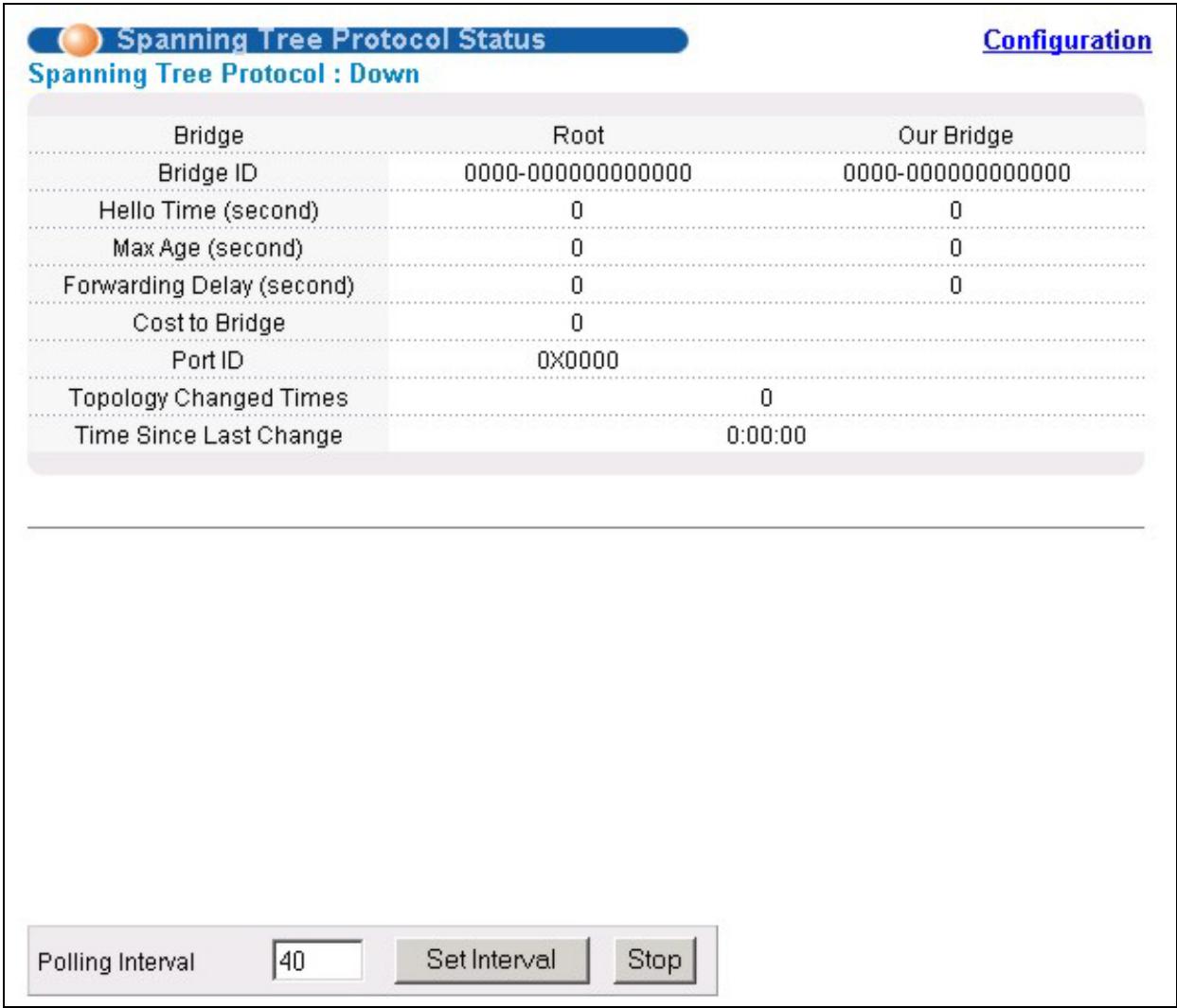
Figure 10-1 Spanning Tree Protocol: Status
The following table describes the labels in this screen.
Table 10-3 Spanning Tree Protocol: Status
| LABEL | DESCRIPTION |
| Spanning Tree Protocol | This field displays Running if STP is activated. Otherwise, it displays Down. |
| Bridge | Root refers to the base of the spanning tree (the root bridge). Our Bridge is this switch. This switch may also be the root bridge. |
| Bridge ID | This is the unique identifier for this bridge, consisting of bridge priority plus MAC address. This ID is the same for Root and Our Bridge if the switch is the root switch. |
| Hello Time (second) | This is the time interval (in seconds) at which the root switch transmits a configuration message. The root bridge determines Hello Time, Max Age and Forwarding Delay |
| Max Age (second) | This is the maximum time (in seconds) a switch can wait without receiving a configuration message before attempting to reconfigure. |
Table 10-3 Spanning Tree Protocol: Status
| LABEL | DESCRIPTION |
| Forwarding Delay (second) | This is the time (in seconds) the root switch will wait before changing states (that is, listening to learning to forwarding). |
| Cost to Bridge | This is the path cost from the root port on this switch to the root switch. |
| Port ID | This is the priority and number of the port on the switch through which this switch must communicate with the root of the Spanning Tree. |
| Topology Changed Times | This is the number of times the spanning tree has been reconfigured. |
| Time Since Last Change | This is the time since the spanning tree was last reconfigured. |
| Poll Interval(s) | The text box displays how often (in seconds) this screen refreshes. You may change the refresh interval by typing a new number in the text box and then clicking Set Interval. |
| Stop | Click Stop to halt STP statistic polling. |
10.2.1 Configuring STP
To configure STP, click the Configuration link in the Spanning Tree Protocol screen as shown next.
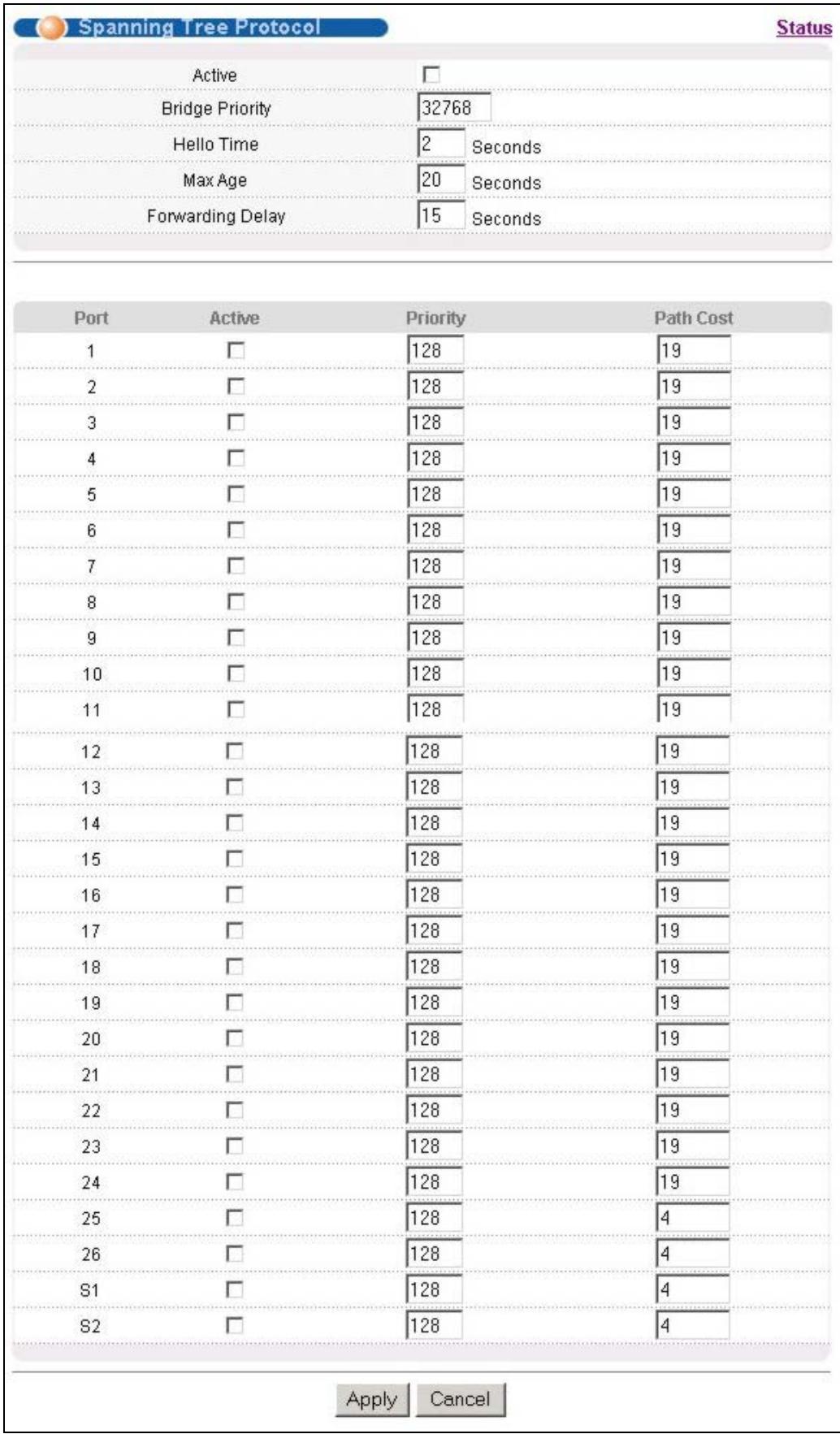
Figure 10-2 Spanning Tree Protocol: Configuring
The following table describes the labels in this screen.
Table 10-4 Spanning Tree Protocol: Configuring
| LABEL | DESCRIPTION |
| Active | Select this check box to activate STP. |
| Bridge Priority | Bridge priority is used in determining the root switch, root port and designated port. The switch with the highest priority (lowest numeric value) becomes the STP root switch. If all switches have the same priority, the switch with the lowest MAC address will then become the root switch. The allowed range is 0 to 65535.The lower the numeric value you assign, the higher the priority for this bridge.Bridge Priority determines the root bridge, which in turn determines Hello Time, Max Age and Forwarding Delay. |
| Hello Time | This is the time interval in seconds between BPDU (Bridge Protocol Data Units) configuration message generations by the root switch. The allowed range is 1 to 10 seconds. |
| Max Age | This is the maximum time (in seconds) a switch can wait without receiving a BPDU before attempting to reconfigure. All switch ports (except for designated ports) should receive BPDUs at regular intervals. Any port that ages out STP information (provided in the last BPDU) becomes the designated port for the attached LAN. If it is a root port, a new root port is selected from among the switch ports attached to the network. The allowed range is 6 to 40 seconds. |
| Forwarding Delay | This is the maximum time (in seconds) a switch will wait before changing states. This delay is required because every switch must receive information about topology changes before it starts to forward frames. In addition, each port needs time to listen for conflicting information that would make it return to a blocking state; otherwise, temporary data loops might result. The allowed range is 4 to 30 seconds.As a general rule: |
| 2* (Forward Delay - 1) >= Max Age >= 2* (Hello Time + 1) | |
| Port | This field displays the port number. |
| Active | Select this check box to activate STP on this port. |
| Priority | Configure the priority for each port here.Priority decides which port should be disabled when more than one port forms a loop in a switch.Ports with a higher priority numeric value are disabled first. The allowed range is between 0 and 255 and default value is 128. |
| Path Cost | Path cost is the cost of transmitting a frame on to a LAN through that port. It is assigned according to the speed of the bridge. The slower the media, the higher the cost - see Table 10-1 for more information. |
| Apply | Click Apply to save your changes back to the switch. |
| Cancel | Click Cancel to begin configuring this screen afresh. |
Chapter 11 Bandwidth Control
This chapter shows you how you can cap the maximum bandwidth allowed from specific source(s) to specified destination(s) using the Bandwidth Control setup screens.
11.1 Introduction to Bandwidth Control
Bandwidth control means defining a maximum allowable bandwidth for traffic flows from specified source(s) to specified destination(s). Click Advanced Application and then Bandwidth Control in the navigation panel to bring up the screen as shown next.
11.1.1 Note About Configuration
The following rules apply when configuring bandwidth control.
- The rule applies to traffic flowing in both directions if both a source and destination are specified.
- The rule applies to traffic flowing in one direction if either a source or destination is specified.
- No any-to-any rules are allowed, that is, you cannot select Ignore for both the source and destination ports.
- No port-to-port rules are allowed, that is, you cannot set the switch to perform bandwidth management between two ports on the same switch.
- No blank rules are allowed. If you do not select Ignore, you must set the related fields.
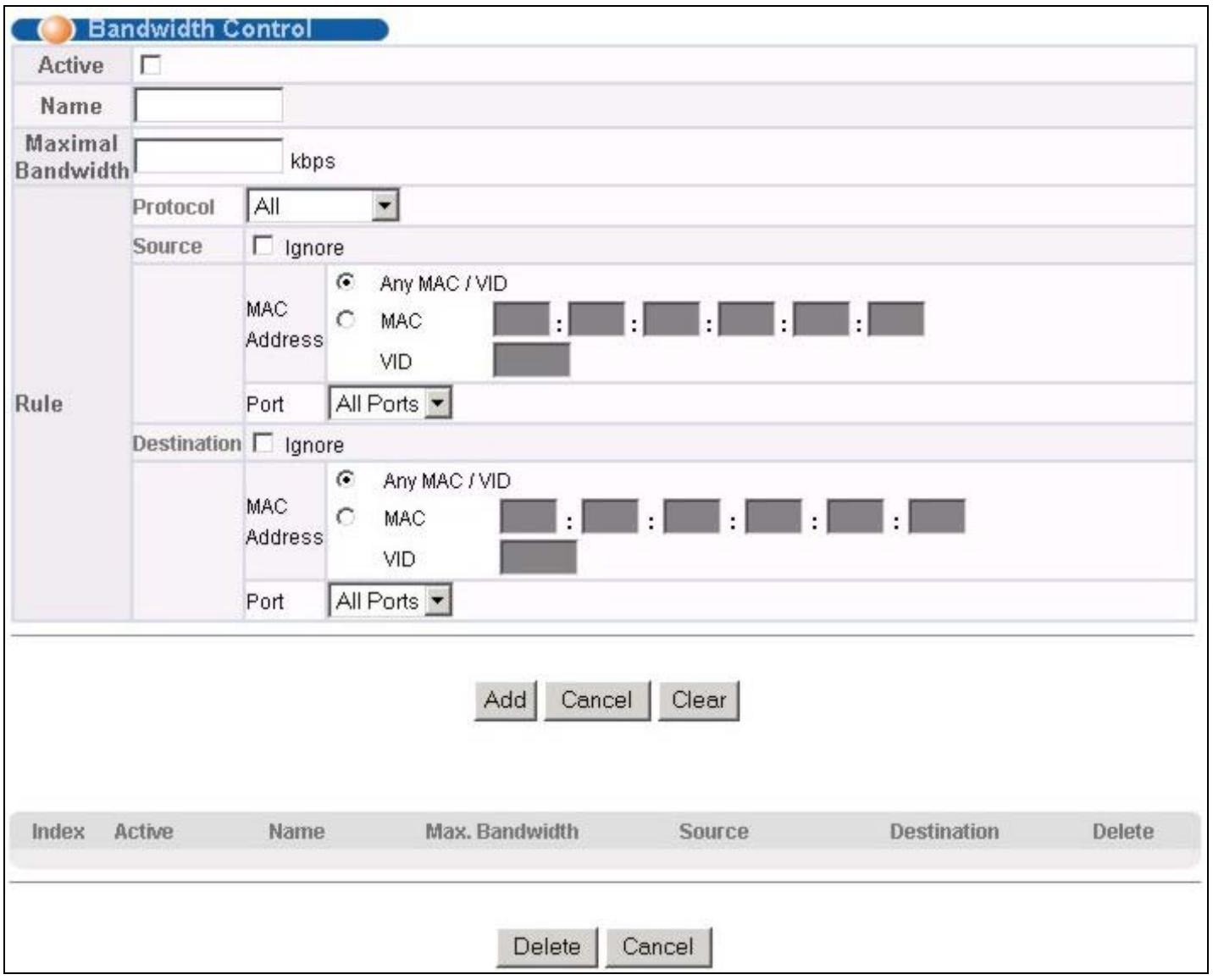
Figure 11-1 Bandwidth Control
The following table describes the labels in this screen.
Table 11-1 Bandwidth Control
| LABEL | DESCRIPTION |
| Active | Make sure to select this check box to activate your rule. You may temporarily deactivate a rule without deleting it by deselecting this check box. |
| Name | Type a descriptive name for this rule. This is for identification purpose only. |
| Maximum Bandwidth | Type the maximum bandwidth allowed in kilobits per second (kbps) for this traffic flow. |
| Protocol | Select the protocol traffic to which this rule applies. |
| Source | The next fields pertain to the source MAC address and source port. |
| Ignore | Click this check box to ignore any traffic from all source ports. |
Table 11-1 Bandwidth Control
| LABEL | DESCRIPTION |
| MAC Address | Select Any MAC/VID to apply the rule to all MAC address and VLAN group identification numbers. To specify a source, select the second choice and type a MAC address in valid MAC address format (six hexadecimal character pairs) and then enter the VLAN group identification number. |
| VID | Type the VLAN group identification number. |
| The VID for the source and destination must be the same. | |
| Port | Select the port to which the rule should be applied. You may choose one port only or all ports (All Ports). |
| Destination | The next fields pertain to the destination MAC address and destination port. |
| Ignore | Click this check box to ignore any traffic to all destination ports. |
| MAC Address | Select Any MAC/VID to apply the rule to all MAC address and VLAN group identification numbers. To specify a destination, select the second choice and type a MAC address in valid MAC address format (six hexadecimal character pairs) and then enter the VLAN group identification number. |
| VID | Type the VLAN group identification number. |
| The VID for the source and destination must be the same. | |
| Port | Select the port to which the rule should be applied. You may choose one port only or all ports (All Ports). |
| Add | Click Add to save the new rule to the switch. It then displays in the summary table at the bottom of the screen. |
| Cancel | Click Cancel to reset the fields to your previous configuration. |
| Clear | Click Clear to clear the fields to the factory defaults. |
11.2 Viewing and Editing a Bandwidth Control Rule
To view a summary of the rule configuration, scroll down to the summary table at the bottom of the Bandwidth Control screen.
To change the settings of a rule, click a number in the Index field.

Figure 11-2 Bandwidth Control: Summary Table
The following table describes the labels in this screen.
Table 11-2 Bandwidth Control: Summary Table
| LABEL | DESCRIPTION |
| Index | This field displays the index number of a bandwidth control rule. Click this number to edit the rule settings. |
| Active | This field indicates whether the bandwidth control rule is enabled (Yes) or disabled (No). |
| Name | This field displays the descriptive name of the rule. |
| Max.Bandwidth | This field displays the maximum bandwidth allowed in kilobits per second (kbps) for the rule. |
| Source | This field displays the source port number, the source MAC address with the VLAN identification number to which the MAC address belongs or a combination of the two.All Entries means all IP/MAC addresses from all ports. |
| Destination | This field displays the destination port number, the destination MAC address with the VLAN identification number to which the MAC address belongs or a combination of the two.All Entries means all IP/MAC addresses from all ports. |
| Delete | Check the rule(s) that you want to remove in the Delete column, and then click the Delete button. |
| Cancel | Click Cancel to clear the selected checkboxes in the Delete column. |
Part V
Advanced Application 2
This part shows you how to configure the Broadcast Storm Control, Mirroring, Link Aggregation, Port Authentication, Port Security, Access Control and Queuing Method Advanced Application screens.
Chapter 12 Broadcast Storm Control
12.1 Introducing Broadcast Storm Control
Broadcast storm control limits the number of broadcast frames that can be stored in the switch buffer or sent out from the switch. Broadcast frames that arrive when the buffer is full are discarded. Enable this feature to reduce broadcast traffic coming into your network.
12.2 Configuring Broadcast Storm Control
Click Broadcast Strom Control in the navigation panel to display the screen as shown next.
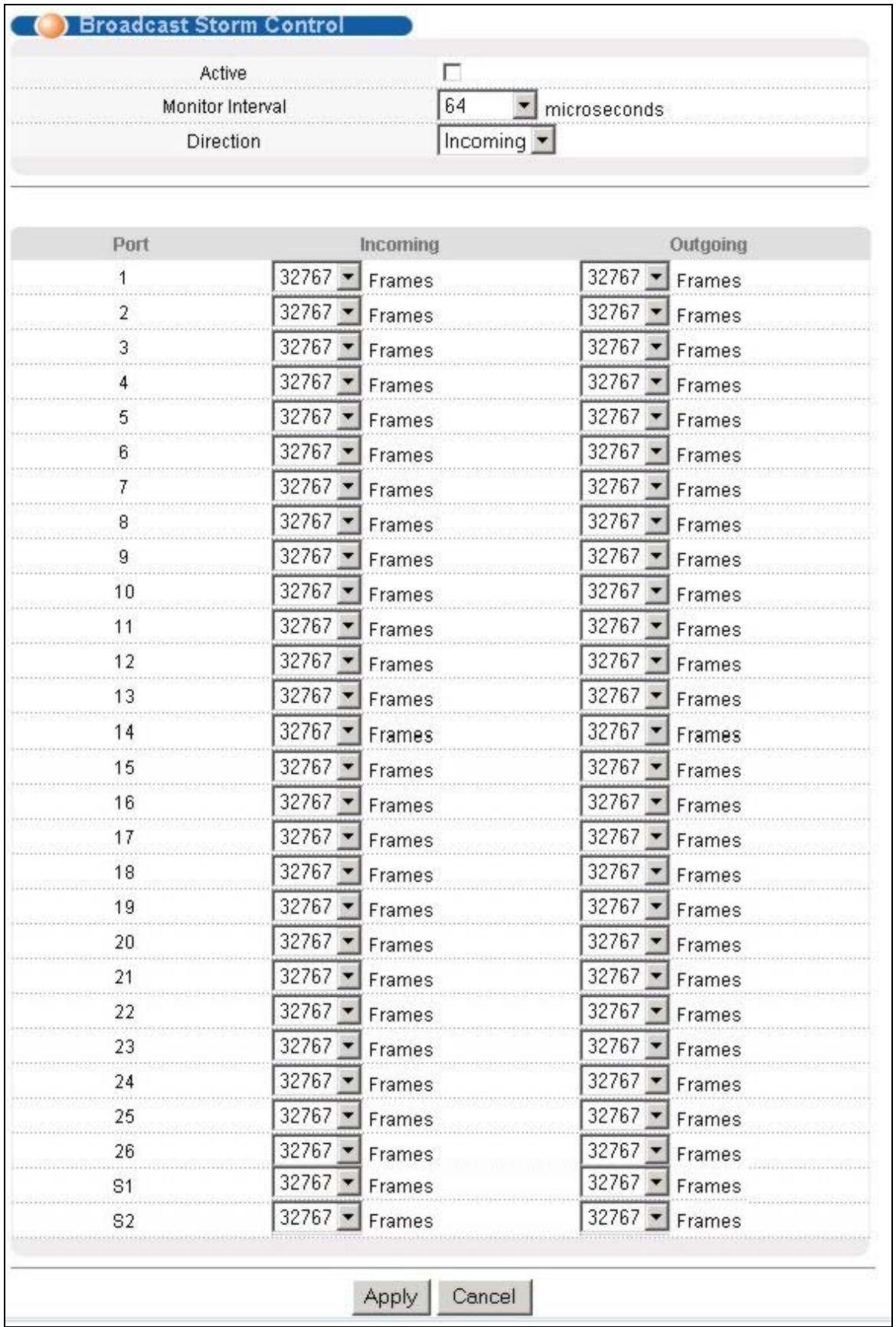
Figure 12-1 Broadcast Storm Control
The following table describes the labels in this screen.
Table 12-1 Broadcast Storm Control
| LABEL | DESCRIPTION |
| Active | Select this check box to enable broadcast storm control on the switch. |
| Monitor Interval | When the Monitor Interval time period expires, each port begins counting broadcast frames allowed in its buffers anew. Select a time period from 64, 1024, 8000, 256000 microseconds from the drop-down list box. |
| Direction | Choose to monitor broadcast packets coming into the switch (Incoming) or going out of the switch (Outgoing). |
| Port | This field displays a port number. |
| Incoming | From the drop-down list box, select how many broadcast frames the port can store in the switch buffer. |
| Outgoing | From the drop-down list box, select how many frames the port will send out |
| Apply | Click Apply to save your changes back to the switch. |
| Cancel | Click Cancel to begin configuring this screen afresh. |
Chapter 13 Mirroring
This chapter discusses the Mirror setup screens.
13.1 Introduction to Port Mirroring
Port mirroring allows you to copy traffic going from one or all ports to another or all ports in order that you can examine the traffic from the mirror port (the port you copy the traffic to) without interference.
13.2Port Mirroring Configuration
Click Advanced Application and then Mirroring in the navigation panel to display the Mirroring screen.
13.2.1 Note About Configuration
The following rules apply when configuring mirroring.
- The rule applies to traffic flowing in both directions if both a source and destination are specified.
- The rule applies to traffic flowing in one direction if either a source or destination is specified.
- No any-to-any rules are allowed. That is, you cannot select Ignore for both the source and destination ports.
- No blank rules are allowed. If you do not select Ignore, you must set the related fields.
13.2.2 Setting Up the Mirror Port
You must first select a mirror port. A mirror port is a port that copies the traffic of another port.
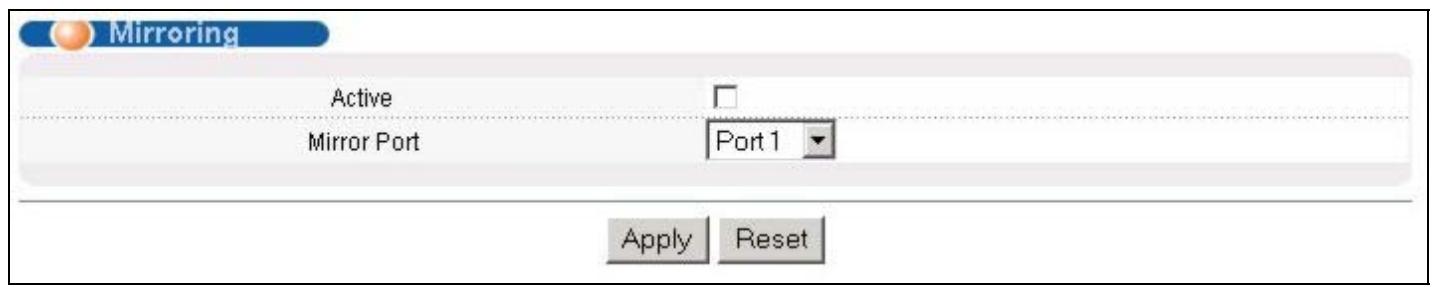
Figure 13-1 Mirroring: Mirror Port Setting
The following table describes the related labels in this screen.
Table 13-1 Mirroring: Mirror Port Setting
| LABEL | DESCRIPTION |
| Active | Clear this check box to deactivate port mirroring on the switch. |
| Mirror Port | The mirror port is the port you copy the traffic to in order to examine it in more detail without interfering with the traffic flow on the original port(s). Select this port from this drop-down list box. |
| Apply | Click Apply to save the changes. |
| Cancel | Click Cancel to start configuring the screen again. |
13.2.3 Configuring a Mirroring Rule
After you select a mirror port, configure a mirroring rule in the related fields in the Mirroring screen.
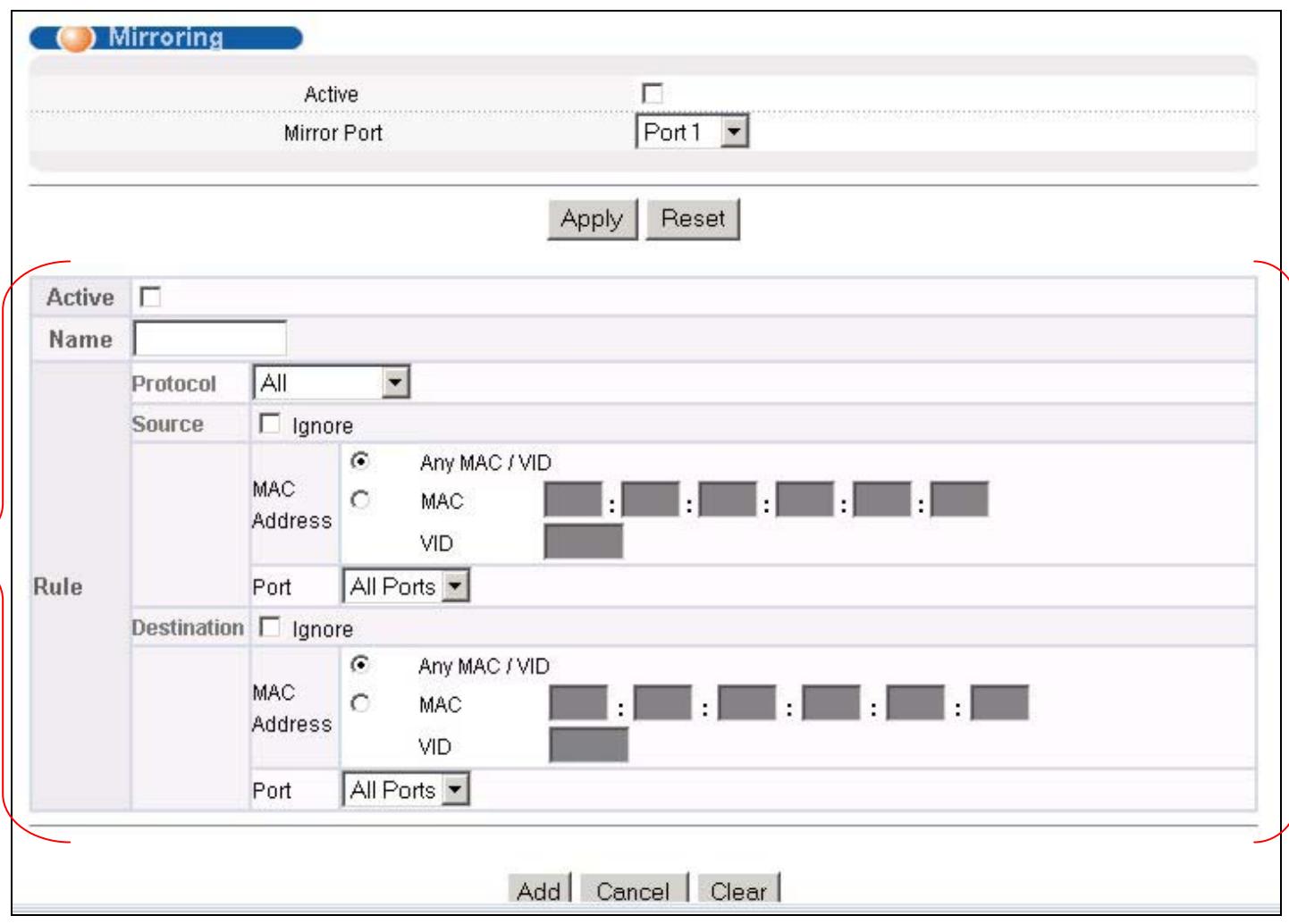
Figure 13-2 Mirroring: Configuring a Mirroring Rule
The following table describes the related labels in this screen.
Table 13-2 Mirroring: Configuring a Mirroring Rule
| LABEL | DESCRIPTION |
| Active | Make sure to select this check box to activate your rule. You may temporarily deactivate a rule without deleting it by deselecting this check box. |
| Name | Type a descriptive name for this rule. This is for identification purpose only. |
| Protocol | Select the protocol traffic to which this rule applies. |
| Source | The next fields pertain to the source MAC address and source port. |
| Ignore | Click this check box to ignore any traffic from all source ports. |
| MAC Address | Select Any MAC/VID to apply the rule to all MAC address and VLAN group identification numbers. To specify a source, select the second choice and type a MAC address in valid MAC address format (six hexadecimal character pairs) and then enter the VLAN group identification number. |
| VID | Type the VLAN group identification number. |
| Port | Select the port to which the rule should be applied. You may choose one port only or all ports (All Ports). |
| Destination | The next three fields pertain to the destination MAC address and destination port. |
| Ignore | Click this check box to ignore any traffic to all destination ports. |
| MAC Address | Select Any MAC/VID to apply the rule to all MAC address and VLAN group identification numbers. To specify a destination, select the second choice and type a MAC address in valid MAC address format (six hexadecimal character pairs) and then enter the VLAN group identification number. |
| VID | Type the VLAN group identification number. |
| Port | Select the port to which the rule should be applied. You may choose one port only or all ports (All Ports). |
| Add | Click Add to inset the entry to the summary table below. |
| Cancel | Click Cancel to reset the fields. |
| Clear | Click Clear to start configuring the screen again. |
13.2.4 Editing and Viewing a Mirroring Rule
To view a summary of the rule configuration, scroll down to the summary table at the bottom of the Mirroring screen.
To change the settings of a rule, click a number in the Index field.

Figure 13-3 Mirroring: Summary Table
The following table describes the related labels in this screen.
Table 13-3 Mirroring: Summary Table
| LABEL | DESCRIPTION |
| Index | This field displays the index number of a rule. Click this number to edit the rule settings. |
| Active | This field indicates whether the rule is enabled (Yes) or disabled (No). |
| Name | This field displays the descriptive name of the rule. |
| Source | This field displays the source port number, the source MAC address with the VLAN identification number to which the MAC address belongs or a combination of the two. All Entries means all IP/MAC addresses from all ports. |
| Destination | This field displays the destination port number, the destination MAC address with the VLAN identification number to which the MAC address belongs or a combination of the two. All Entries means all IP/MAC addresses from all ports. |
| Delete | Check the rule(s) that you want to remove in the Delete column, and then click the Delete button. |
| Cancel | Click Cancel to clear the selected checkboxes in the Delete column. |
Chapter 14 Link Aggregation
This chapter shows you how to logically aggregate physical links to form one logical, higher-bandwidth link.
14.1 Introduction to Link Aggregation
Link aggregation (trunking) is the grouping of physical ports into one logical higher-capacity link. You may want to trunk ports if for example, it is cheaper to use multiple lower-speed links than to under-utilize a high-speed, but more costly, single-port link.
However, the more ports you aggregate then the fewer available ports you have. A link aggregation group is one logical link containing multiple ports.
The first port must be physically connected when forming a trunk group.
Table 14-1 Link Aggregation Groups
| LINK AGGREGATION GROUP | BEGINNING-TO-END PORT RANGE |
| 1 | 1 to 8 |
| 2 | 9 to 16 |
| 3 | 17 to 24 |
| 4 | 25 and 26 (the uplink ports) |
| 5 | S1 and S2 (the stacking ports) |
14.1.1 Dynamic Link Aggregation
The ES-3024 adheres to the 802.3ad standard for static and dynamic (LACP) port trunking.
The ES-3024 supports the link aggregation IEEE802.3ad standard. This standard describes the Link Aggregate Control Protocol (LACP), which is a protocol that dynamically creates and manages trunk groups.
When you enable LACP link aggregation on a port, the port can automatically negotiate with the ports at the remote end of a link to establish trunk groups. LACP also allows port redundancy, that is, if an operational port fails, then one of the "standby" ports become operational without user intervention
Please note that:
You must connect all ports point-to-point to the same Ethernet switch and configure the ports for LACP trunking.
LACP only works on full-duplex links.
All ports in the same trunk group must have the same media type, speed, duplex mode and flow control settings.
Configure trunk groups or LACP before you connect the Ethernet switch to avoid causing network topology loops.
14.1.2 Link Aggregation ID
LACP aggregation ID consists of the following information:
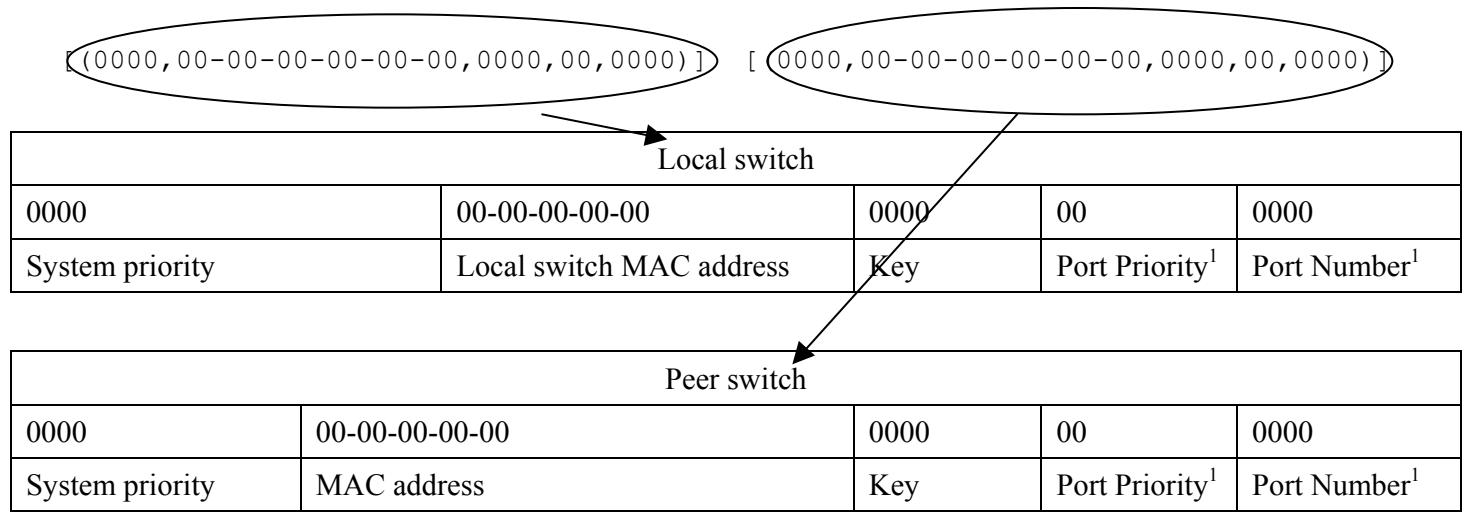
Figure 14-1 Aggregation ID
14.2Link Aggregation Protocol Status
Click Link Aggregation in the navigation panel to display the Link Aggregation Protocol Status screen.
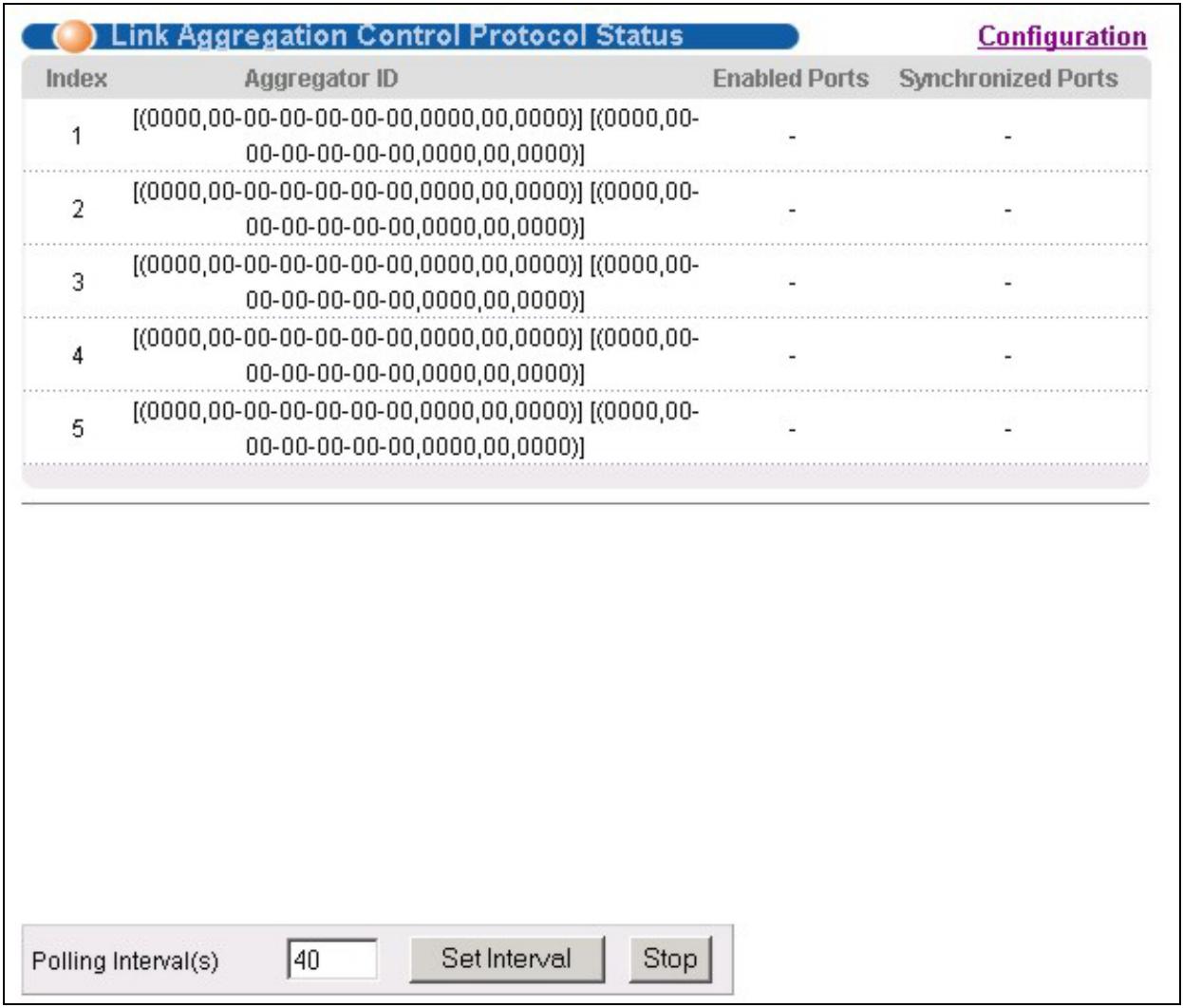
Figure 14-2 Link Aggregation: Link Aggregation Protocol Status
The following table describes the labels in this screen.
Table 14-2 Link Aggregation: Link Aggregation Protocol Status
| LABEL | DESCRIPTION |
| Index | This field displays the trunk ID to identify a trunk group, that is, one logical link containing multiple ports. |
| Aggregator ID | Refer to Figure 14-1 for more information on this field. |
| Enabled Port | These are the ports you have configured in the Link Aggregation screen to be in the trunk group. |
| Synchronized Ports | These are the ports that are currently transmitting data as one logical link in this trunk group. |
| Poll Interval(s) | The text box displays how often (in seconds) this screen refreshes. You may change the refresh interval by typing a new number in the text box and then clicking Set Interval. |
| Stop | Click Stop to halt statistic polling. |
14.3Link Aggregation Setup
Click Configuration in the Link Aggregation Protocol Status screen to display the screen shown next.
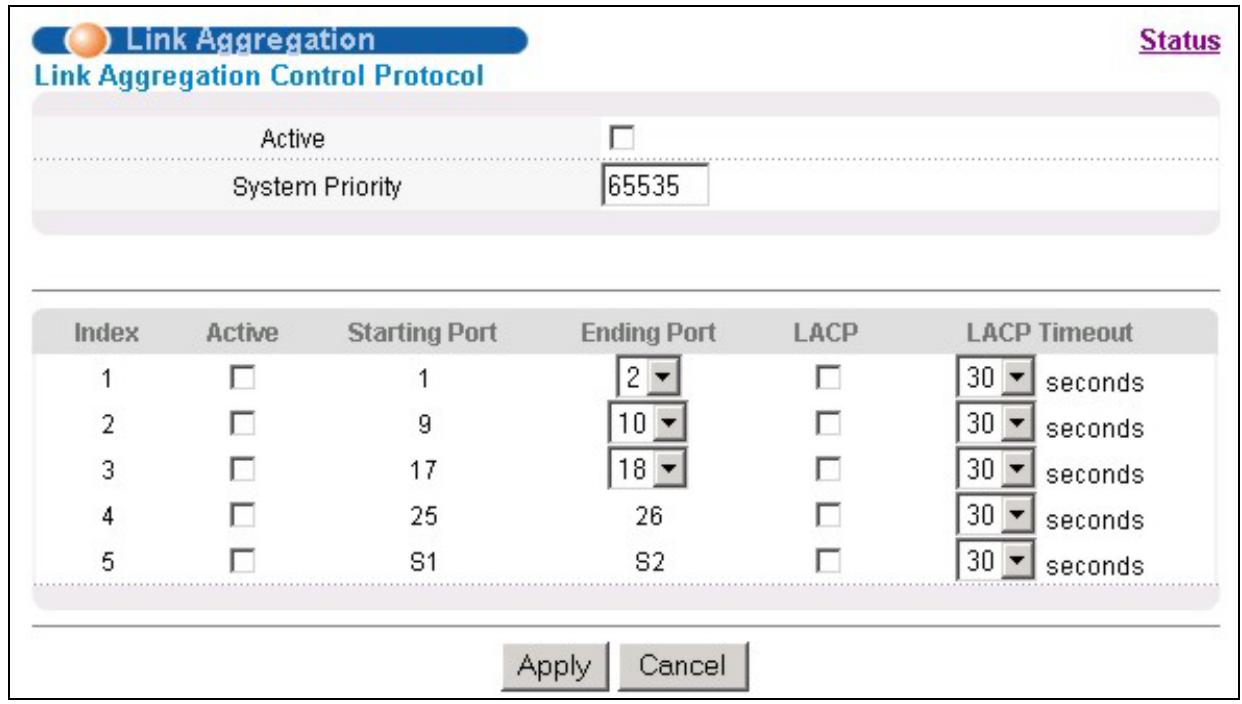
Figure 14-3 Link Aggregation: Configuration
The following table describes the labels in this screen.
Table 14-3 Link Aggregation: Configuration
| LABEL | DESCRIPTION |
| Link Aggregation Control Protocol | |
| Active | Select this checkbox to enable Link Aggregation Control Protocol (LACP). |
| System Priority | LACP system priority is a number between 1 and 65,355. The switch with the lowest system priority (and lowest port number if system priority is the same) becomes the LACP "server". The LACP "server" controls the operation of LACP setup. Enter a number to set the priority of an active port using Link Aggregate Control Protocol (LACP). The smaller the number, the higher the priority level. |
| Index | The index identifies the link aggregation group, that is, one logical link containing multiple ports |
| Active | Make sure to select this check box to activate the trunk group. You may temporarily deactivate a trunk group without deleting it by clearing this check box. |
| Starting Port | This is the beginning port in the trunk group's port range and is not configurable - see Table 14-1. |
| Ending Port | Select the end port in the port range from the drop-down list box – see Table 14-1. |
| LACP | Select this check box to enable LACP for a trunk. |
Table 14-3 Link Aggregation: Configuration
| LABEL | DESCRIPTION |
| LACP Timeout | Timeout is the time interval between the individual port exchanges of LACP packets in order to check that the peer port in the trunk group is still up. If a port does not respond after three tries, then it is deemed to be “down” and is removed from the trunk. Set a short timeout (one second) for busy trunked links to ensure that disabled ports are removed from the trunk group as soon as possible. Select either 1 second or 30 seconds. |
| Apply | Click Apply to save your changes back to the switch. |
| Cancel | Click Cancel to begin configuring this screen afresh. |
Chapter 15 Port Authentication
This chapter describes the 802.1x authentication method and RADIUS server connection setup.
15.1 Introduction to Authentication
IEEE 802.1x is an extended authentication protocol² that allows support of RADIUS (Remote Authentication Dial In User Service, RFC 2138, 2139) for centralized user profile management on a network RADIUS server.
15.1.1 RADIUS
RADIUS (Remote Authentication Dial-In User Service) authentication is a popular protocol used to authenticate users by means of an external server instead of (or in addition to) an internal device user database that is limited to the memory capacity of the device. In essence, RADIUS authentication allows you to validate an unlimited number of users from a central location.
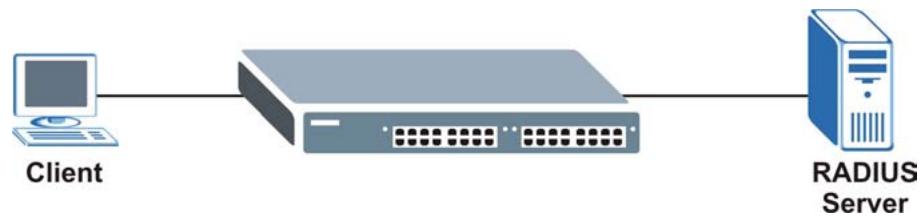
Figure 15-1 RADIUS Server
15.2 Configuring Port Authentication
To enable port authentication, first activate IEEE802.1x security (both on the ES-3024 and the port(s)) then configure the RADIUS server settings.
Click Port Authentication under Advanced Application in the navigation panel to display the screen as shown.
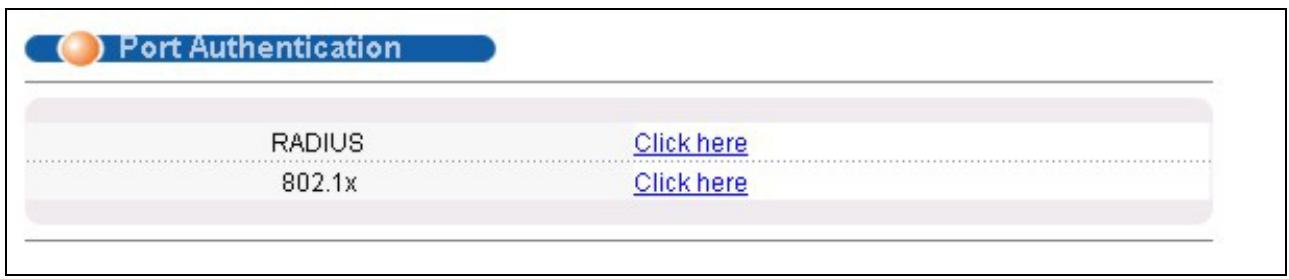
Figure 15-2 Port Authentication
15.2.1 Configuring RADIUS Server Settings
From the Port Authentication screen, click RADIUS to display the configuration screen as shown.
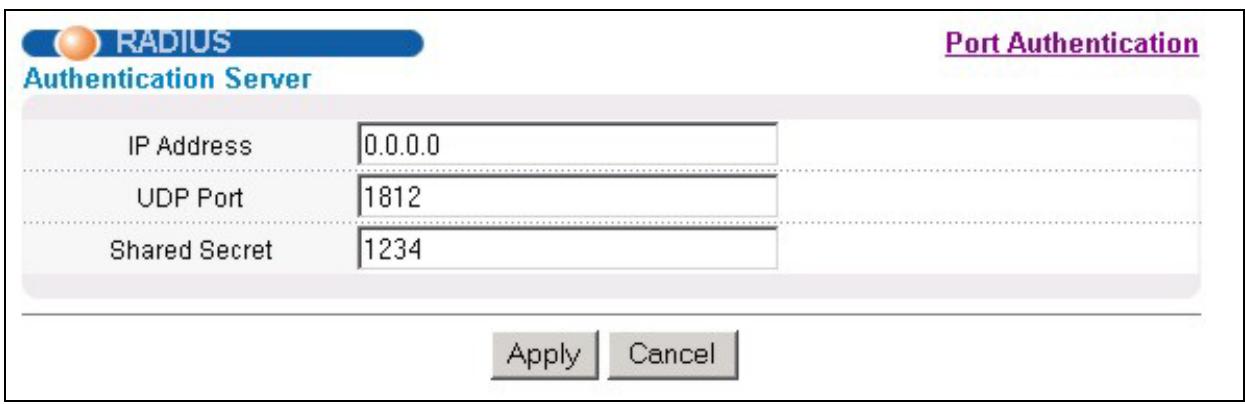
Figure 15-3 Port Authentication: RADIUS
The following table describes the labels in this screen.
Table 15-1 Port Authentication: RADIUS
| LABEL | DESCRIPTION |
| Authentication Server | |
| IP Address | Enter the IP address of the external RADIUS server in dotted decimal notation. |
| UDP Port | The default port of the RADIUS server for authentication is 1812. You need not change this value unless your network administrator instructs you to do so. |
| Shared Secret | Specify a password (up to 31 alphanumeric characters) as the key to be shared between the external RADIUS server and the switch. This key is not sent over the network. This key must be the same on the external RADIUS server and the switch. |
| Apply | Click Apply to save your changes back to the switch. |
| Cancel | Click Cancel to begin configuring this screen afresh. |
15.2.2 Configuring IEEE802.1x
From the Port Authentication screen, click 802.1x to display the configuration screen as shown.
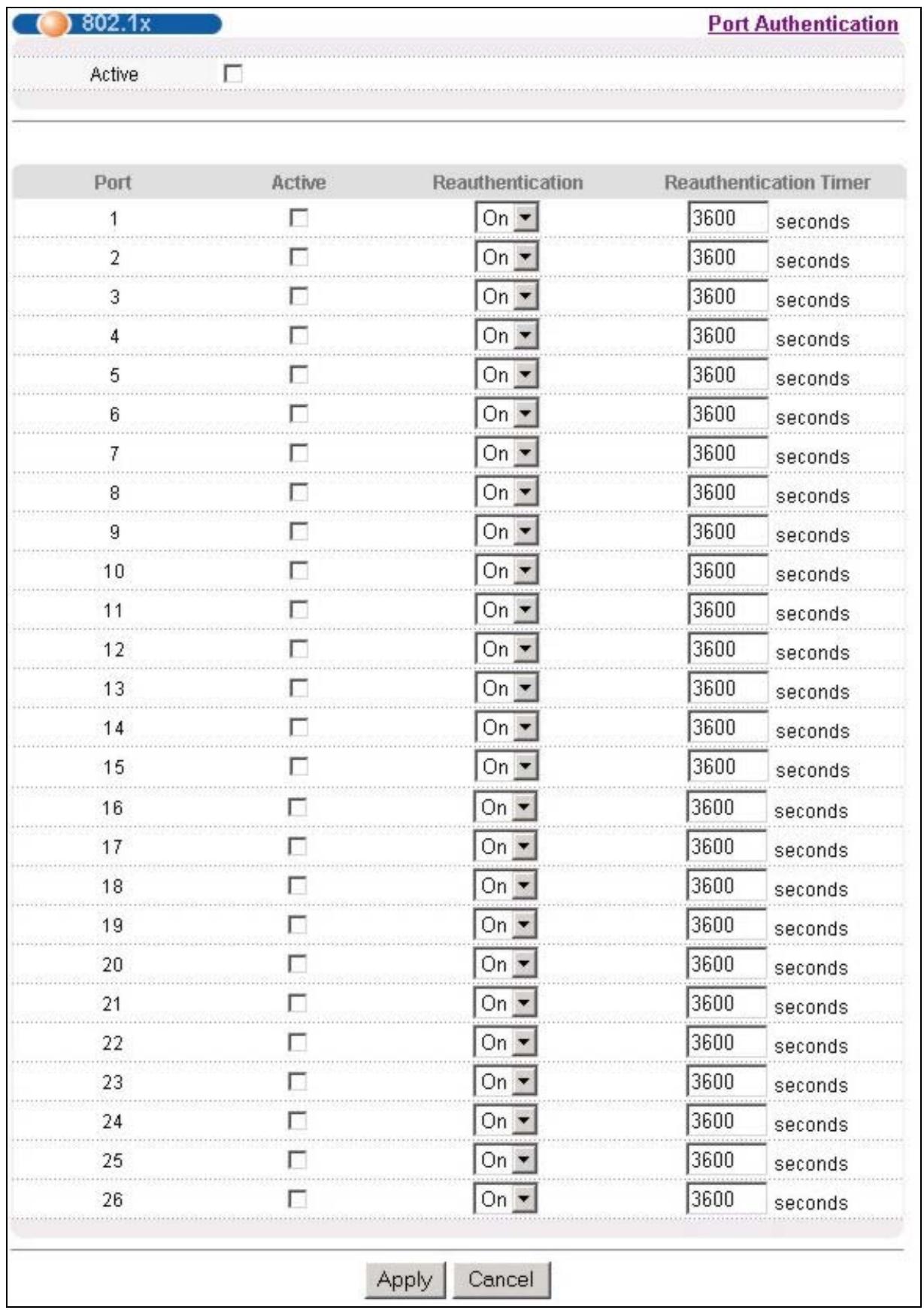
Figure 15-4 Port Authentication: 802.1x
The following table describes the labels in this screen.
Table 15-2 Port Authentication: 802.1x
| LABEL | DESCRIPTION |
| Active | Select this check box to permit 802.1x authentication on the switch. |
| You must first allow 802.1x authentication on the switch before configuring it on each port. | |
| Port | This field displays a port number. |
| Active | Select this checkbox to permit 802.1x authentication on this port. You must first allow 802.1x authentication on the switch before configuring it on each port. |
| Reauthentication | Specify if a subscriber has to periodically re-enter his or her username and password to stay connected to the port. |
| Reauthentication Timer | Specify how often a client has to re-enter his or her username and password to stay connected to the port. |
| Apply | Click Apply to save your changes back to the switch. |
| Cancel | Click Cancel to begin configuring this screen afresh. |
Chapter 16 Port Security
This chapter shows you how to set up port security.
16.1 About Port Security
Port security allows only packets with dynamically learned MAC addresses and/or configured static MAC addresses to pass through a port on the switch. The switch can learn up to 16K MAC addresses in total with no limit on individual ports other than the sum cannot exceed 16K.
For maximum port security, enable this feature, disable MAC address learning and configure static MAC address(es) for a port. It is not recommended you disable Port Security together with MAC address learning as this will result in many broadcasts.
16.2Port Security Setup
Click Port Security in the navigation panel to display the screen as shown.
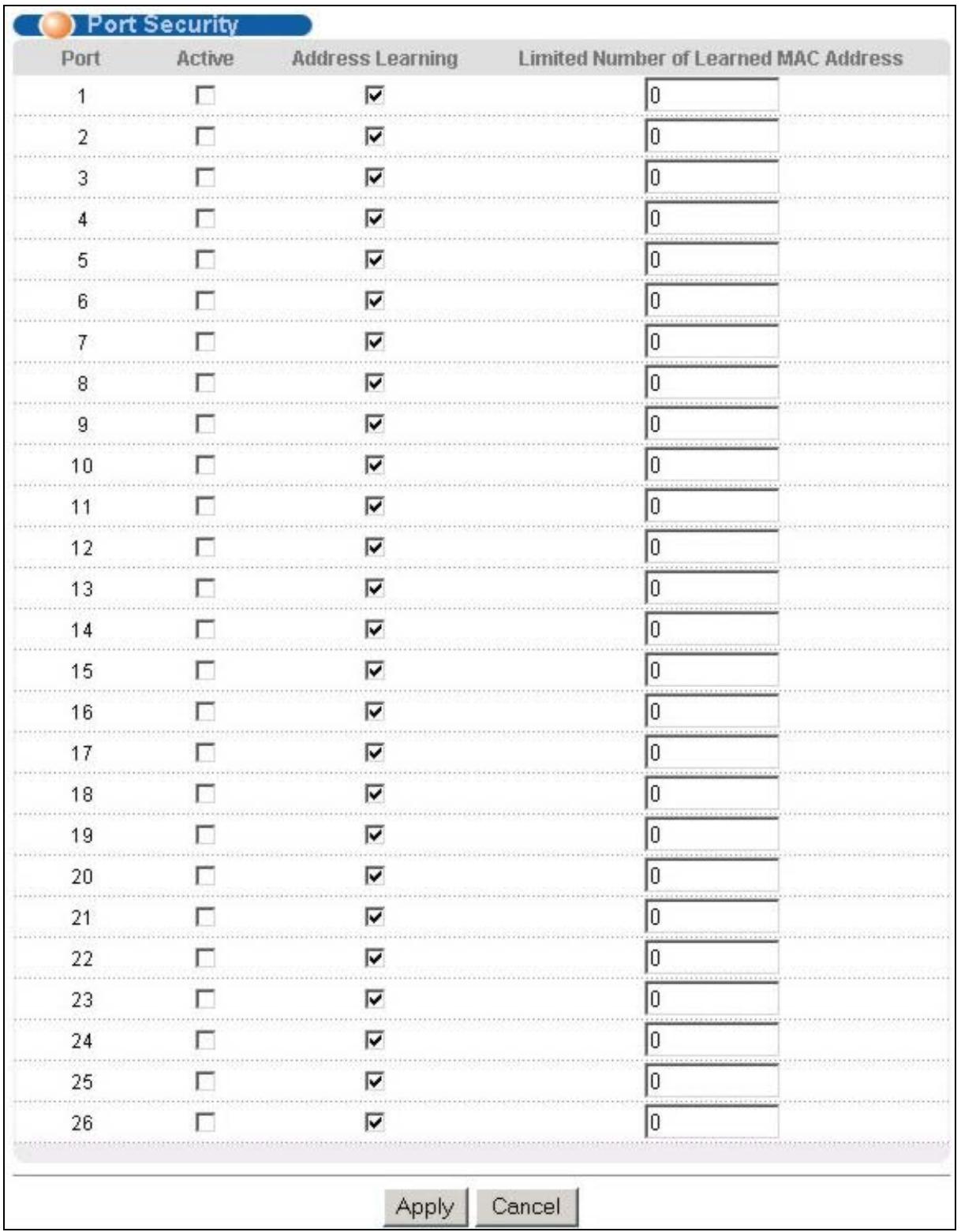
Figure 16-1 Port Security
The following table describes the labels in this screen.
Table 16-1 Port Security
| LABEL | DESCRIPTION |
| Port | This field displays a port number. |
| Active | Select this check box to enable MAC address learning on this port. |
| Address Learning | MAC address learning reduces outgoing broadcast traffic. For MAC address learning to occur on a port, the port itself must be active with address learning enabled. |
| Limited Number of Learned MAC Address | Use this field to limit the number of (dynamic) MAC addresses that may be learned on a port. For example, if you set this field to "5" on port 2, then only the devices with these five learned MAC addresses may access port 2 at any one time. A sixth device would have to wait until one of the five learned MAC addresses aged out. MAC-address aging out time can be set in the Switch Setup screen. The valid range is from "0" to "254". "0" means this feature is disabled, so the switch will learn MAC addresses up to the global limit of 16K. |
| Apply | Click Apply to save your changes back to the switch. |
| Cancel | Click Cancel to begin configuring this screen afresh. |
Chapter 17
Access Control
This chapter describes how to control access to the switch.
17.1 About Access Control
Click Access Control from the navigation panel to display the screen as shown. From this screen you can configure SNMP, up to four web configurator administrators, enable/disable remote service access and configure trusted computers for remote access.
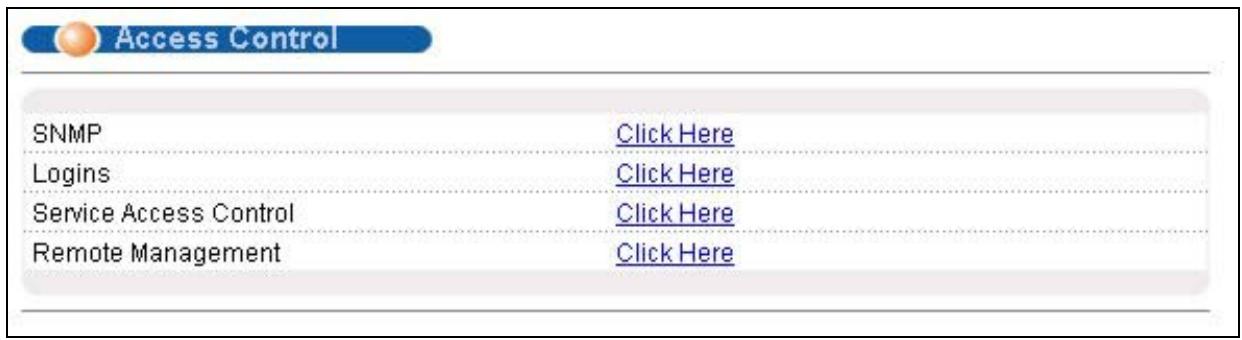
Figure 17-1 Access Control
17.2Access Control Overview
- A console port access control session and Telnet access control session cannot coexist. The console port has higher priority. If you telnet to the switch and someone is already logged in from the console port, then you will see the following message.
"Local administrator is configuring this device now!! Connection to host lost."
Figure 17-2 Console Port Priority
- A console port or Telnet session can coexist with one FTP session, up to five Web sessions (five different usernames and passwords) and/or limitless SNMP access control sessions.
| Table 17-1 Access Control Summary | |||||
| Console port | Telnet | FTP | Web | SNMP | |
| Number of sessions allowed | 1 | 1 | 1 | 5 | No limit |
| Number of concurrent sessions allowed | 1 console port or Telnet. Console port has priority. | 1 | 5 | No limit | |
17.3About SNMP
Simple Network Management Protocol is a protocol used for exchanging management information between network switches. SNMP is a member of TCP/IP protocol suite. A manager station can manage and monitor the ES-3024 through the network via SNMP version one (SNMPv1) and/or SNMP version 2c. The next figure illustrates an SNMP management operation. SNMP is only available if TCP/IP is configured.
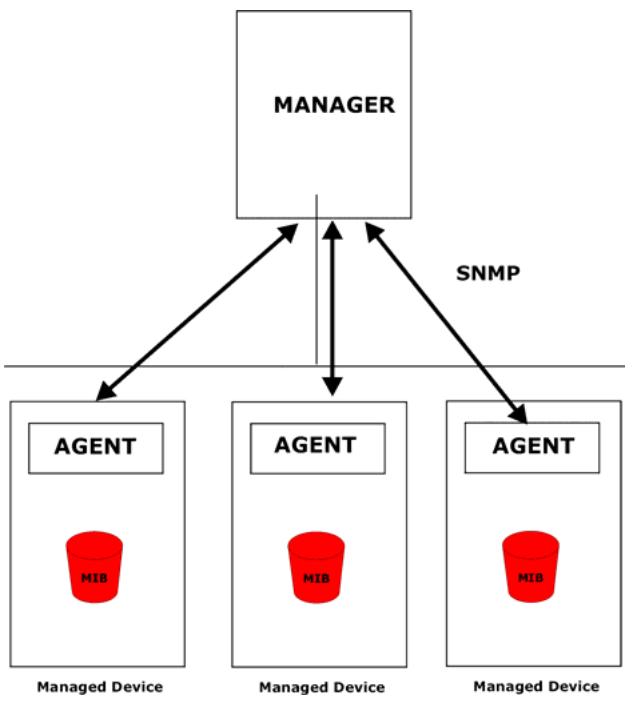
Figure 17-3 SNMP Management Model
An SNMP managed network consists of two main components: agents and a manager.
An agent is a management software module that resides in a managed switch (the ES-3024). An agent translates the local management information from the managed switch into a form compatible with SNMP. The manager is the console through which network administrators perform network management functions. It executes applications that control and monitor managed devices.
The managed devices contain object variables/managed objects that define each piece of information to be collected about a switch. Examples of variables include such as number of packets received, node port status etc. A
Management Information Base (MIB) is a collection of managed objects. SNMP allows a manager and agents to communicate for the purpose of accessing these objects.
SNMP itself is a simple request/response protocol based on the manager/agent model. The manager issues a request and the agent returns responses using the following protocol operations:
Table 17-2 SNMP Commands
| COMMAND | DESCRIPTION |
| Get | Allows the manager to retrieve an object variable from the agent. |
| GetNext | Allows the manager to retrieve the next object variable from a table or list within an agent. In SNMPv1, when a manager wants to retrieve all elements of a table from an agent, it initiates a Get operation, followed by a series of GetNext operations. |
| Set | Allows the manager to set values for object variables within an agent. |
| Trap | Used by the agent to inform the manager of some events. |
17.3.1 Supported MIBs
MIBs let administrators collect statistics and monitor status and performance.
The ES-3024 supports the following MIBs:
SNMP MIB II (RFC 1213)
RFC 1157 SNMP v1
RFC 1493 Bridge MIBs
RFC 1643 Ethernet MIBs
RFC 1155 SMI
RFC 2674 SNMPv2, SNMPv2c
RFC1757RMON
SNMPv2, SNMPv2c or later version, compliant with RFC 2011 SNMPv2 MIB for IP, RFC 2012 SNMPv2 MIB for TCP, RFC 2013 SNMPv2 MIB for UDP
17.3.2 SNMP Traps
The ES-3024 sends traps to an SNMP manager when an event occurs. SNMP traps supported are outlined in the following table.
Table 17-3 SNMP Traps
| GENERIC TRAP | SPECIFIC TRAP | DESCRIPTION |
| 0 (Cold Start) | 0 | This trap is sent when the ES-3024 is turned on. |
| 1 (WarmStart) | 0 | This trap is sent when the ES-3024 restarts. |
| 2 (linkDown) | 0 | This trap is sent when the Ethernet link is down. |
| 3 (linkUp) | 0 | This trap is sent when the Ethernet link is up. |
| 4 (authenticationFailure) | 0 | This trap is sent when an SNMP request comes from non-authenticated hosts. |
17.3.3 Configuring SNMP
From the Access Control screen, display the SNMP screen. You can click Access Control to go back to the Access Control screen.
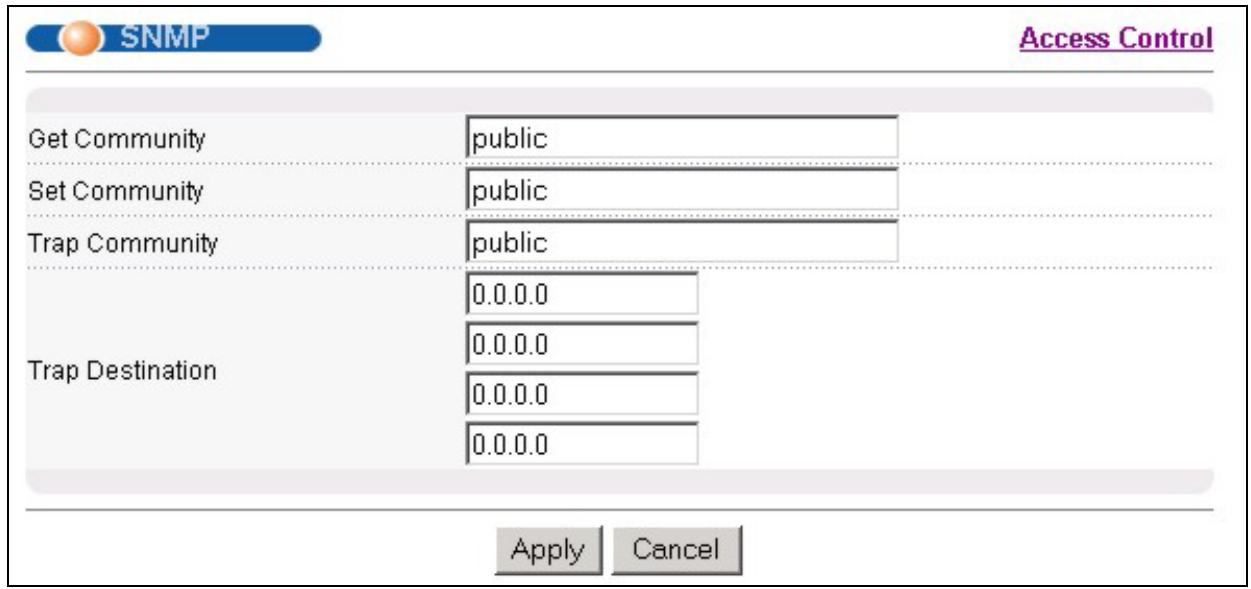
Figure 17-4 Access Control: SNMP
The following table describes the labels in this screen.
Table 17-4 Access Control: SNMP
| LABEL | DESCRIPTION |
| Get Community | Enter the get community, which is the password for the incoming Get- and GetNext- requests from the management station. |
| Set Community | Enter the set community, which is the password for incoming Set- requests from the management station. |
| Trap: Community | Enter the trap community, which is the password sent with each trap to the SNMP manager. |
| Trap: Destination | Enter the IP addresses of up to four stations to send your SNMP traps to. |
| Apply | Click Apply to save your changes back to the switch. |
| Cancel | Click Cancel to begin configuring this screen afresh. |
17.3.4 Setting Up Login Accounts
Up to five people (one administrator and four non-administrators) may access the switch via web configurator at any one time.
- An administrator is someone who can both view and configure switch changes. The username for the Administrator is always admin. The default administrator password is 1234.
It is highly recommended that you change the default administrator password ("1234").
- A non-administrator (username is something other than admin) is someone who can view but not configure switch changes.
Click Access Control from the navigation panel and then click Logins from this screen.
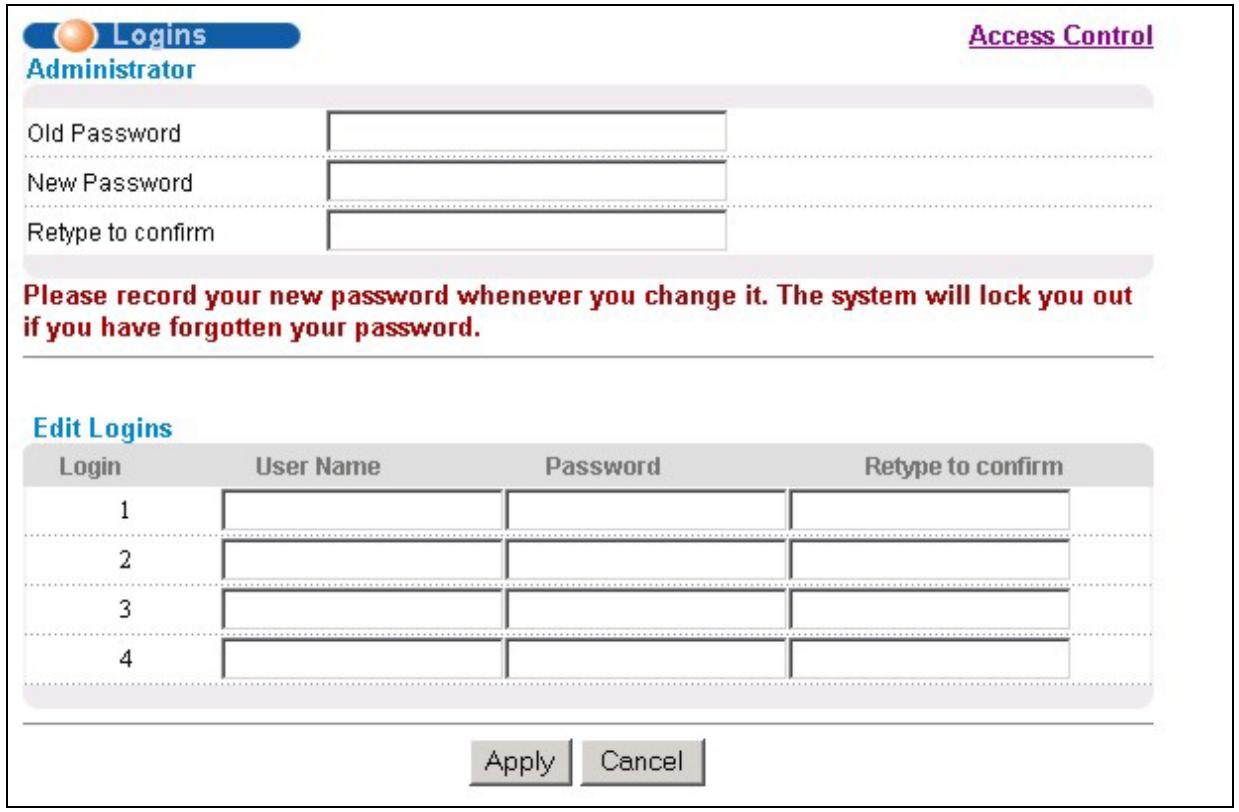
Figure 17-5 Access Control: Logins
The following table describes the labels in this screen.
Table 17-5 Access Control: Logins
| LABEL | DESCRIPTION |
| AdministratorThis is the default administrator account with the "admin" user name. You cannot change the default administrator user name. Only the administrator has read/write access. | |
| Old Password | Type the existing system password ("1234" is the default password when shipped). |
| New Password | Enter your new system password. |
| Retype to confirm | Retype your new system password for confirmation |
| Edit LoginsYou may configure passwords for up to four users. These people have read-only access. | |
| User Name | Set a user name (up to 30 characters long). |
| Password | Enter your new system password. |
| Retype to confirm | Retype your new system password for confirmation |
Table 17-5 Access Control: Logins
| LABEL | DESCRIPTION |
| Apply | Click Apply to save your changes back to the switch. |
| Cancel | Click Cancel to begin configuring this screen afresh. |
17.4 Service Access Control
Service Access Control allows you to decide what services you may use to access the ES-3024. You may also change the default service port and configure "trusted computer(s)" for each service in the Remote Management screen (discussed later). Click Access Control to go back to the Access Control screen.
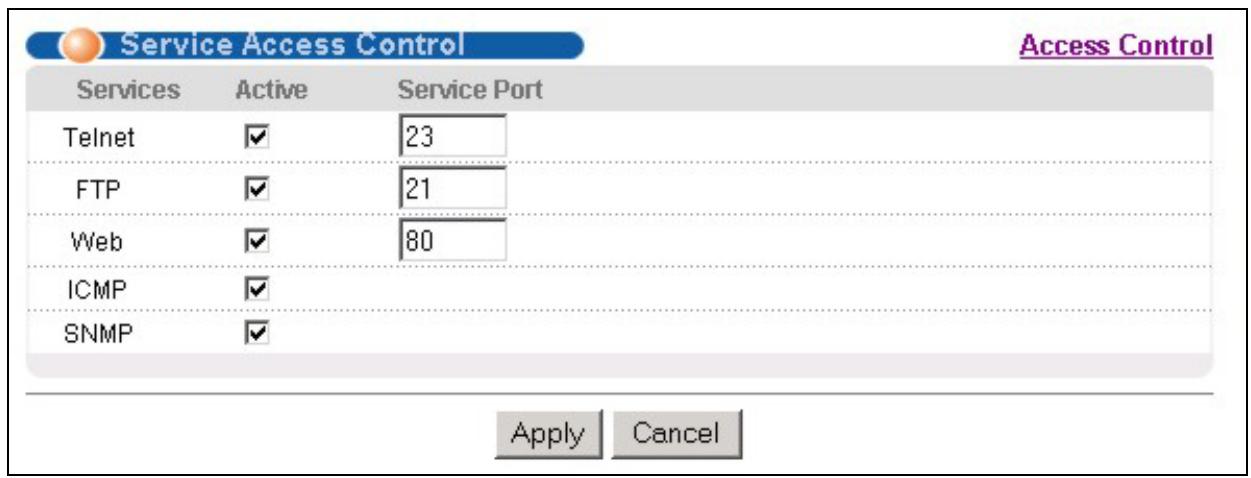
Figure 17-6 Access Control: Service Access Control
The following table describes the fields in this screen.
Table 17-6 Access Control: Service Access Control
| LABEL | DESCRIPTION |
| Services | Services you may use to access the ES-3024 are listed here. |
| Active | Select the check boxes for the corresponding services that you want to allow to access the ES-3024. |
| Server Port | For Telnet, FTP or web services, you may change the default service port by typing the new port number in the Server Port field. If you change the default port number then you will have to let people (who wish to use the service) know the new port number for that service. |
| Apply | Click Apply to save your changes back to the switch. |
| Cancel | Click Cancel to begin configuring this screen afresh. |
17.5Remote Management
From the Access Control screen, display the Remote Management screen as shown next.
You can specify a group of one or more "trusted computers" from which an administrator may use a service to manage the switch. Click Access Control to return to the Access Control screen.
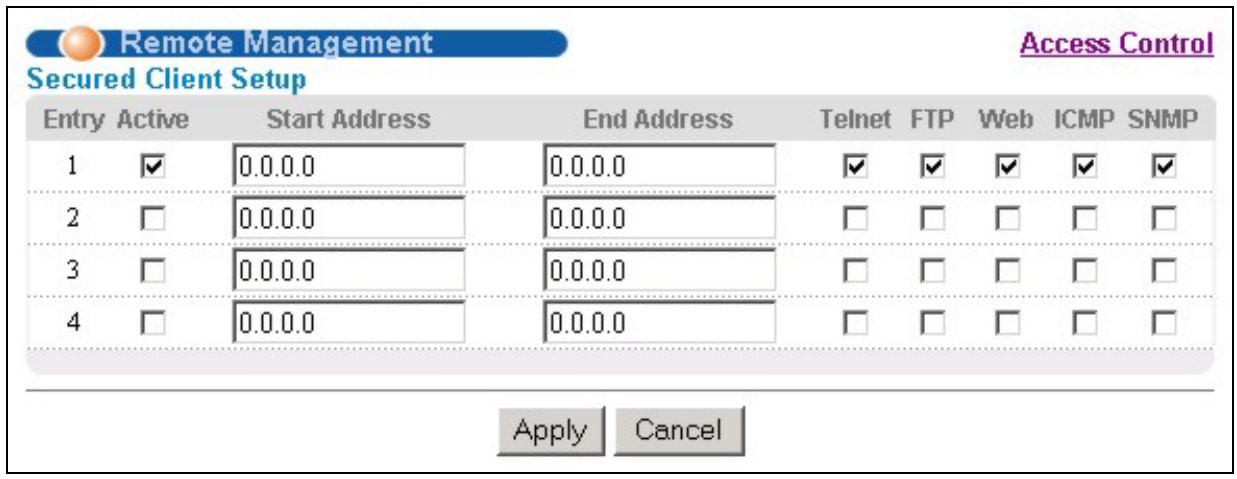
Figure 17-7 Access Control: Remote Management
The following table describes the labels in this screen.
Table 17-7 Access Control: Remote Management
| LABEL | DESCRIPTION |
| Entry | This is the client set index number. A “client set” is a group of one or more “trusted computers” from which an administrator may use a service to manage the switch. |
| Active | Select this check box to activate this secured client set. Clear the check box if you wish to temporarily disable the set without deleting it. |
| Start Address | Configure the IP address range of trusted computers fro which you can manage this switch. |
| End Address | The switch checks if the client IP address of a computer requesting a service or protocol matches the range set here. The switch immediately disconnects the session if it does not match. |
| Telnet/FTP/Web/ICMP/SNMP | Select services that may be used for managing the switch from the specified trusted computers. |
| Apply | Click Apply to save your changes back to the switch. |
| Cancel | Click Cancel to begin configuring this screen afresh. |
Chapter 18
Queuing Method
This chapter introduces SPQ and WFQ.
18.1 Introduction to Queuing
Queuing is used to help solve performance degradation when there is network congestion. Use the Queuing Method screen to configure queuing algorithms for outgoing traffic. See also Priority Queue Assignment in Switch Setup and 802.1p Priority in Port Setup for related information.
Queuing algorithms allow switches to maintain separate queues for packets from each individual source or flow and prevent a source from monopolizing the bandwidth.
The switch has four physical queues, Q0 to Q3. Q3 has the highest priority and Q0 has the lowest.
Table 18-1 Physical Queue Priority
| QUEUE | PRIORITY |
| Q3 | 1 (Highest) |
| Q2 | 2 |
| Q1 | 3 |
| Q0 | 4 (Lowest) |
18.1.1 Strict Priority Queuing (SPQ)
Strict Priority Queuing (SPQ) services queues based on priority only. As traffic comes into the switch, traffic on the highest priority queue, Q3 is transmitted first. When that queue empties, traffic on the next highest-priority queue, Q2 is transmitted until Q2 empties, and then traffic is transmitted on Q1 and so on. If higher priority queues never empty, then traffic on lower priority queues never gets sent. SPQ does not automatically adapt to changing network requirements.
18.1.2 Weighted Fair Queuing (WFQ)
Weighted Fair Queuing (WFQ) services queues based on their priority and queue weight (the number you configure in the % field - see Figure 18-1). WFQ is activated only when a port has more traffic than it can handle. Queues with larger weights get more service than queues with smaller weights. This queuing mechanism is highly efficient in that it divides any available bandwidth across the different traffic queues.
18.2 Configuring Queuing
Click Queuing Method under Advanced Application in the navigation panel.
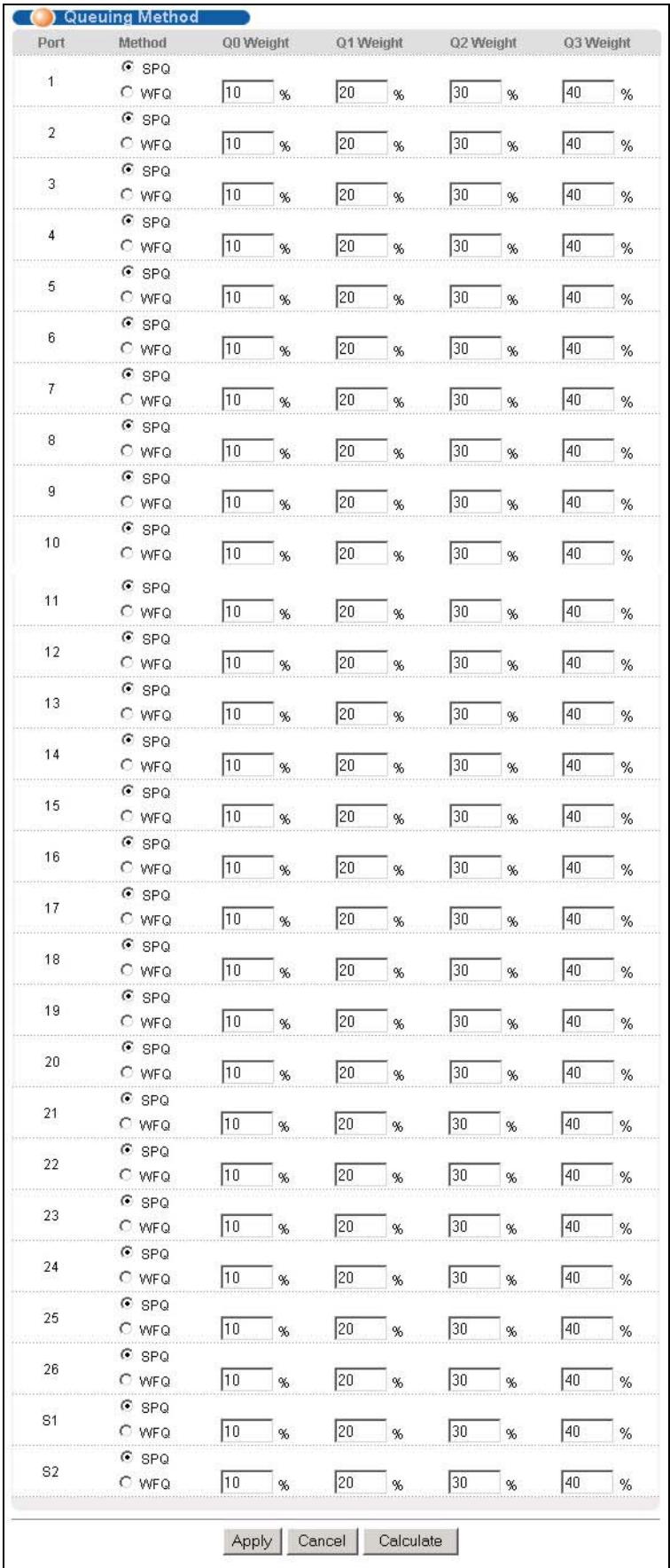
Figure 18-1 Queuing Method
The following table describes the labels in this screen.
Table 18-2 Queuing Method
| LABEL | DESCRIPTION |
| Port | This label shows the port you are configuring. |
| Method | Select SPQ (Strict Priority Queuing) or WFQ (Weighted Fair Queuing).Strict Priority Queuing (SPQ) services queues based on priority only. When the highest priority queue empties, traffic on the next highest-priority queue begins. Q3 has the highest priority and Q0 the lowest.Weighted Fair Queuing (WFQ) services queues based on their priority and queue weight (the number you configure in the queue % field).Queues with larger weights get more service than queues with smaller weights. |
| Q0~Q3 Weight% | When you select WFQ, enter the queue weight here. Bandwidth is divided across the different traffic queues according to their weights. Queues with larger weights get more service than queues with smaller weights. |
| Apply | Click Apply to save your changes back to the switch. |
| Cancel | Click Cancel to begin configuring this screen afresh. |
| Calculate | Click Calculate to make sure the WFQ queuing weights total to 100%; if not an error message is displayed. |
Part VI
Routing Protocol and Management
This part describes the Routing Protocol and Management screens.
Chapter 19
Routing Protocol
This chapter shows you how to configure the routing functions.
19.1 Static Route
Static routes tell the ES-3024 how to forward IP traffic when you configure the TCP/IP parameters manually.
Click Routing Protocol in the navigation panel and then Static Routing to display the screen as shown.
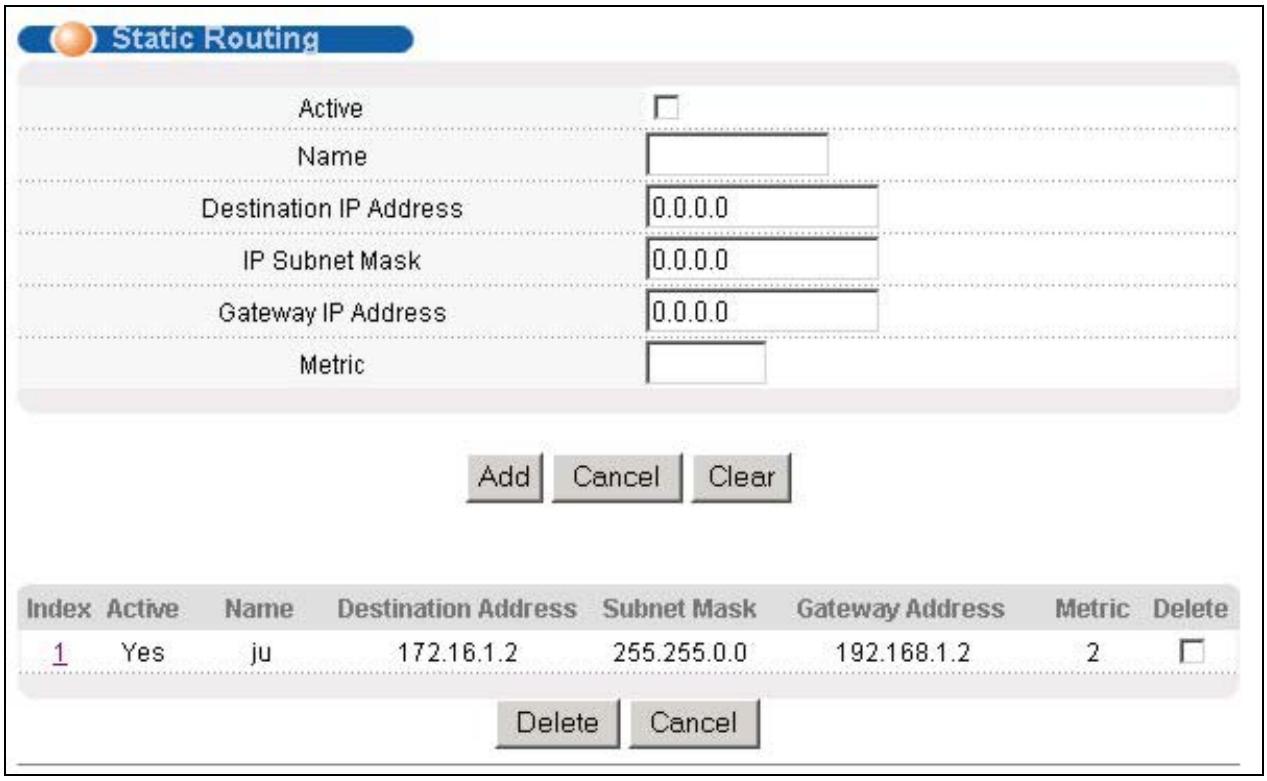
Figure 19-1 Static Routing
The following table describes the related labels you use to create a static route.
Table 19-1 Static Routing
| LABEL | DESCRIPTION |
| Active | This field allows you to activate/deactivate this static route. |
| Name | Enter a descriptive name for this route. This is for identification purpose only. |
Table 19-1 Static Routing
| LABEL | DESCRIPTION |
| Destination IP Address | This parameter specifies the IP network address of the final destination. Routing is always based on network number. If you need to specify a route to a single host, use a subnet mask of 255.255.255.255 in the subnet mask field to force the network number to be identical to the host ID. |
| IP Subnet Mask | Enter the subnet mask for this destination. |
| Gateway IP Address | Enter the IP address of the gateway. The gateway is an immediate neighbor of your switch that will forward the packet to the destination. The gateway must be a router on the same segment as your switch. |
| Metric | The metric represents the “cost” of transmission for routing purposes. IP routing uses hop count as the measurement of cost, with a minimum of 1 for directly connected networks. Enter a number that approximates the cost for this link. The number need not be precise, but it must be between 1 and 15. In practice, 2 or 3 is usually a good number. |
| Add | Click Add to save the new rule to the switch. It then displays in the summary table at the bottom of the screen. |
| Cancel | Click Cancel to reset the fields to your previous configuration. |
| Clear | Click Clear to clear the fields to the factory defaults. |
View the current static routes on the switch in the summary table at the bottom of the screen.

Figure 19-2 Static Routing: Summary Table
The following table describes the labels in the summary table.
Table 19-2 Static Routing: Summary Table
| LABEL | DESCRIPTION |
| Index | This field displays the index number of the route. Click a number to edit the static route entry. |
| Active | This field displays Yes when the static route is activated and NO when is it deactivated. |
| Name | This field displays the descriptive name for this route. This is for identification purpose only. |
| Destination Address | This field displays the IP network address of the final destination. |
| Subnet Mask | This field displays the subnet mask for this destination. |
Table 19-2 Static Routing: Summary Table
| LABEL | DESCRIPTION |
| Gateway Address | This field displays the IP address of the gateway. The gateway is an immediate neighbor of your switch that will forward the packet to the destination. |
| Metric | This field displays the cost of transmission for routing purposes. |
| Delete | Check the rule(s) that you want to remove in the Delete column, and then click the Delete button. |
| Cancel | Click Cancel to clear the selected checkboxes in the Delete column. |
Chapter 20 Maintenance
This chapter explains how to configure the maintenance screens. The links on the upper right of the Maintenance screen lead to different screens that let you maintain the firmware and configuration files.
20.1 Maintenance
Click Management and then Maintenance in the navigation panel to open the following screen.
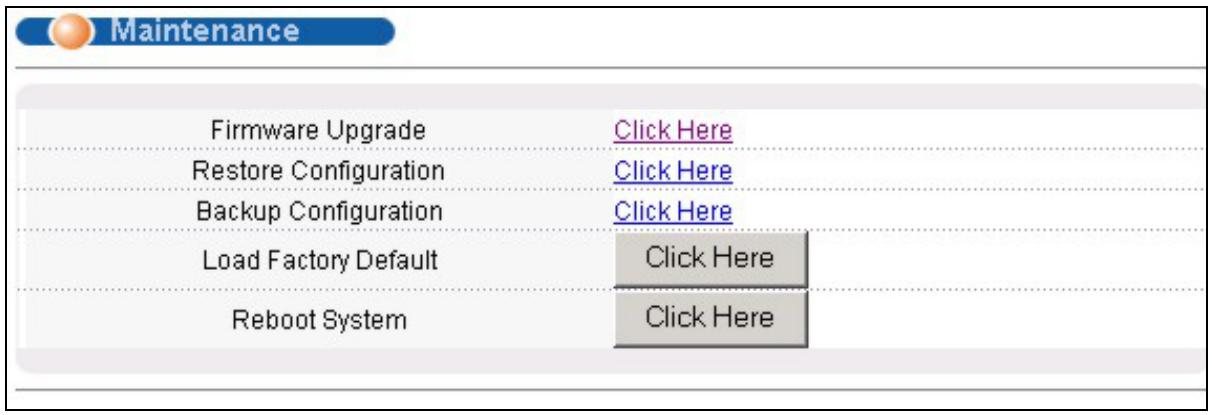
Figure 20-1 Maintenance
20.2 Firmware Upgrade
Click Firmware Upgrade in the Maintenance screen if you want to upgrade your switch firmware. See the System Info screen to verify your current firmware version number. Make sure you have downloaded (and unzipped) the correct model firmware and version to your computer before uploading to the device.
Be sure to upload the correct model firmware as uploading the wrong model firmware may damage your device.
From the Maintenance screen, display the Firmware Upgrade screen as shown next.
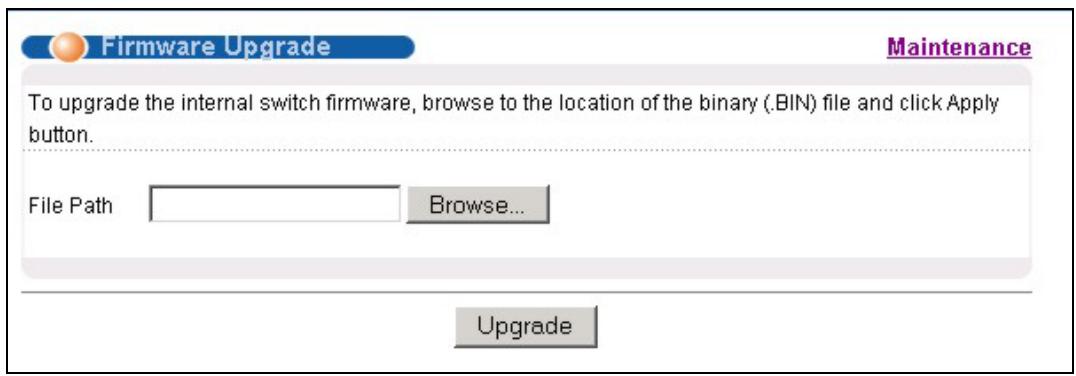
Figure 20-2 Firmware Upgrade
Type the path and file name of the firmware file you wish to upload to the switch in the File Path text box or click Browse to locate it. After you have specified the file, click Upgrade.
20.3Restore a Configuration File
Restore a previously saved configuration from your computer to the switch using the Restore Configuration screen.
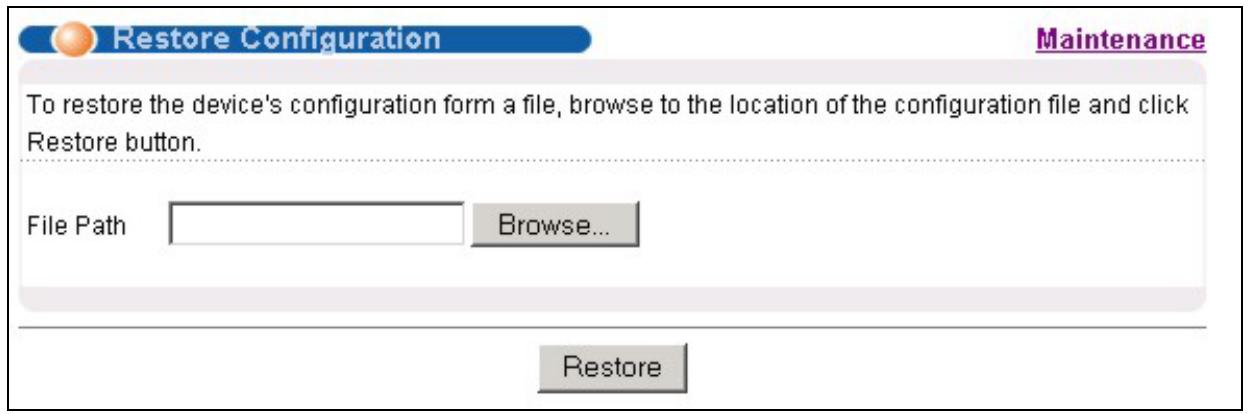
Figure 20-3 Restore Configuration
Type the path and file name of the configuration file you wish to restore in the File Path text box or click Browse to display a Choose File screen from which you can locate it. After you have specified the file, click Restore. "rom-0" is the name of the configuration file on the switch, so your backup configuration file is automatically renamed when you restore using this screen.
20.4Backing Up a Configuration File
Backing up your switch configurations allows you to create various "snap shots" of your device from which you may restore at a later date.
Back up your current switch configuration to a computer using the Configuration Backup screen.
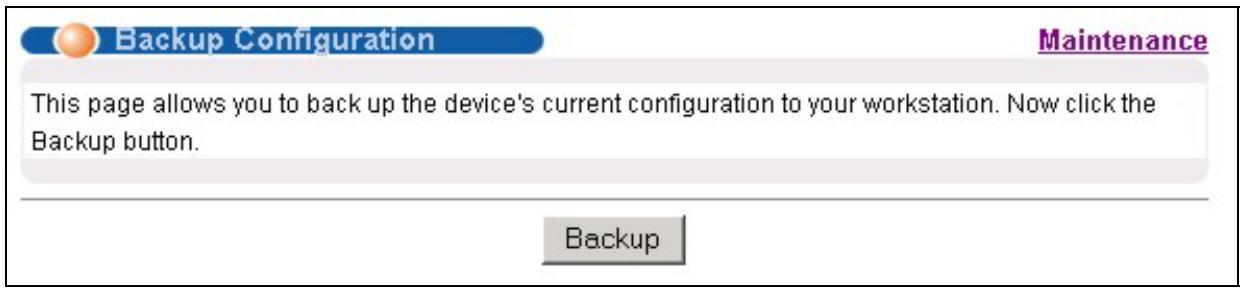
Figure 20-4 Backup Configuration
Follow the steps below to back up the current switch configuration to your computer in this screen.
Step 1. Click Backup.
Step 2. Click Save to display the Save As screen.
Step 3. Choose a location to save the file on your computer from the Save in drop-down list box and type a descriptive name for it in the File name list box. Click Save to save the configuration file to your computer.
20.5Load Factory Defaults
Press the Click Here button next to Load Factory Defaults to clear all switch configuration information you configured and return to the factory defaults. The following message appears.
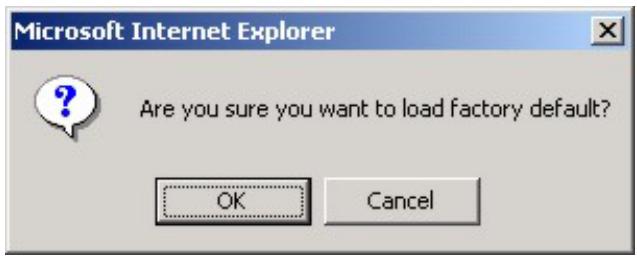
Figure 20-5 Confirm Load factory Defaults
Click OK to go to the next screen.
Figure 20-6 Restart Switch After Load Factory Defaults
Click OK to begin resetting all switch configurations to the factory defaults and then wait for the switch to restart. This takes up to two minutes. If you want to access the switch web configurator again, you may need to change the IP address of your computer to be in the same subnet as that of the default switch IP address (192.168.1.1).
20.6Reboot System
Reboot System allows you to restart the switch without physically turning the power off. Press the Click Here button next to Reboot System to display the next screen.
Figure 20-7 Confirm Restart The Switch
Click OK to see the screen as shown in Figure 20-6. Click OK again and then wait for the switch to restart. This takes up to two minutes. This does not affect the switch's configuration.
20.7 Command Line FTP
This section shows some examples of uploading to or downloading files from the switch using FTP commands. First, understand the filename conventions.
20.7.1 Filename Conventions
The configuration file (often called the romfile or rom-0) contains the factory default settings in the screens such as password, switch setup, IP Setup, etc. It arrives from ZyXEL with a “rom” filename extension. Once you have customized the switch's settings, they can be saved back to your computer under a filename of your choosing.
ZyNOS (ZyXEL Network Operating System sometimes referred to as the "ras" file) is the system firmware and has a "bin" filename extension.
Table 20-1 Filename Conventions
| FILE TYPE | INTERNAL NAME | EXTERNAL NAME | DESCRIPTION |
| Configuration File | Rom-0 | *.rom | This is the configuration filename on the switch. Uploading the rom-0 file replaces the entire ROM file system, including your switch configurations, system-related data (including the default password), the error log and the trace log. |
| Firmware | Ras | *.bin | This is the generic name for the ZyNOS firmware on the switch. |
Example FTP Commands
ftp> put firmware.bin ras
This is a sample FTP session showing the transfer of the computer file " firmware.bin" to the switch .
ftp> get rom-0 config.cfg
This is a sample FTP session saving the current configuration to a file called "config.cfg" on your computer.
If your (T)FTP client does not allow you to have a destination filename different than the source, you will need to rename them as the switch only recognizes “rom-0” and “ras”. Be sure you keep unaltered copies of both files for later use.
Be sure to upload the correct model firmware as uploading the wrong model firmware may damage your device.
20.7.2 FTP Command Line Procedure
Step 1. Launch the FTP client on your computer.
Step 2. Enter "open", followed by a space and the IP address of your switch.
Step 3. Press [ENTER] when prompted for a username.
Step 4. Enter your password as requested (the default is "1234").
Step 5. Enter "bin" to set transfer mode to binary.
Step 6. Use "put" to transfer files from the computer to the switch, for example, "put firmware.bin ras" transfers the firmware on your computer (firmware.bin) to the switch and renames it "ras". Similarly, "put config.rom rom-0" transfers the configuration file on your computer (config.rom) to the switch and renames it "rom-0". Likewise "get rom-0 config.rom" transfers the configuration file on the switch to your computer and renames it "config.rom." See earlier in this chapter for more information on filename conventions.
Step 7. Enter "quit" to exit the ftp prompt.
20.7.3 GUI-based FTP Clients
The following table describes some of the commands that you may see in GUI-based FTP clients.
Table 20-2 General Commands for GUI-based FTP Clients
| COMMAND | DESCRIPTION |
| Host Address | Enter the address of the host server. |
| Login Type | Anonymous.This is when a user I.D. and password is automatically supplied to the server for anonymous access. Anonymous logins will work only if your ISP or service administrator has enabled this option.Normal.The server requires a unique User ID and Password to login. |
| Transfer Type | Transfer files in either ASCII (plain text format) or in binary mode. Configuration and firmware files should be transferred in binary mode. |
| Initial Remote Directory | Specify the default remote directory (path). |
| Initial Local Directory | Specify the default local directory (path). |
20.7.4 FTP over WAN Restrictions
FTP over WAN will not work when:
- Telnet service is disabled in Secured Client Sets.
- The IP address(es) in the Secured Client Sets menu does not match the client IP address. If it does not match, the switch will disconnect the Telnet session immediately.
Chapter 21 Diagnostic
This chapter explains the Diagnostic screens.
21.1 Diagnostic
Click Management and then Diagnostic in the navigation panel to display this screen. Use this screen to check system logs, reset the system or ping IP addresses.
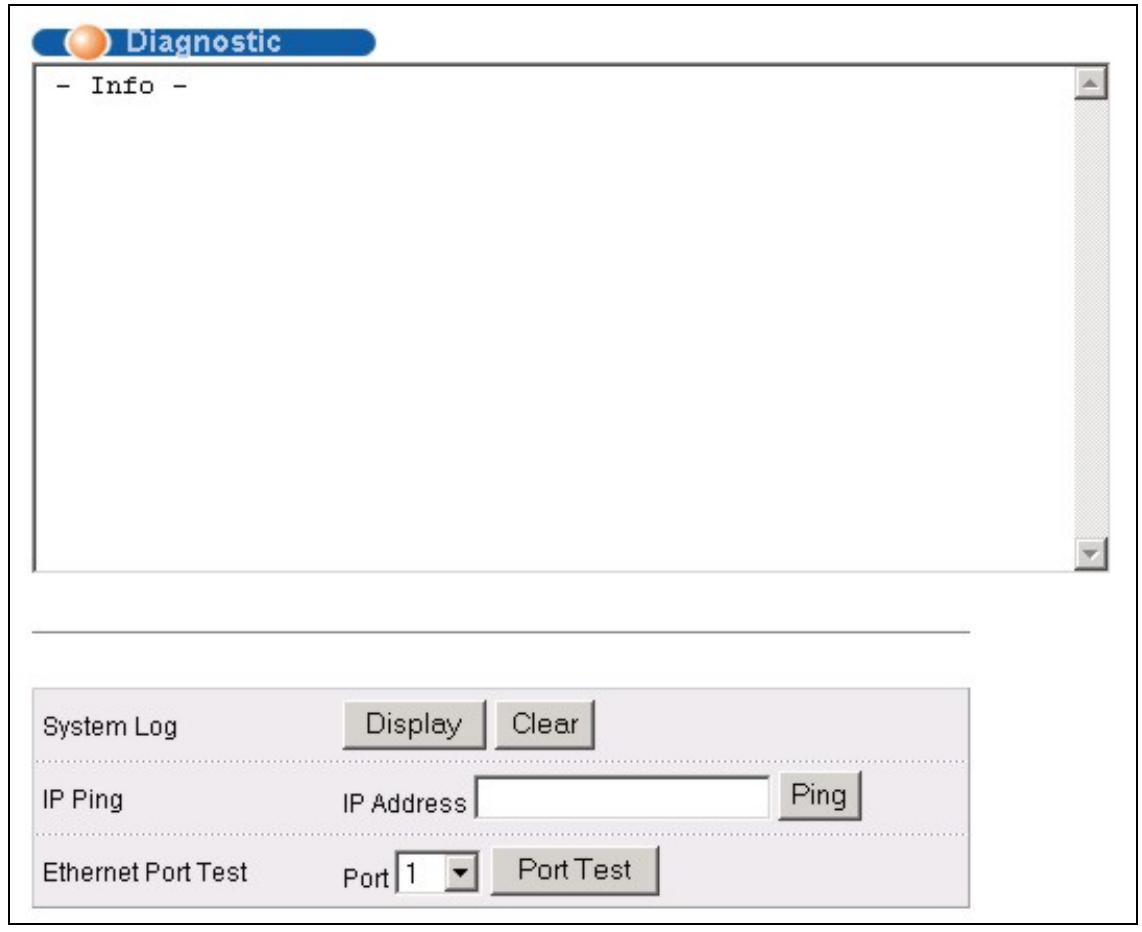
Figure 21-1 Diagnostic
The following table describes the labels in this screen.
Table 21-1 Diagnostic
| LABEL | DESCRIPTION |
| System Log | Click Display to display a log of events in the multi-line text box. Click Clear to empty the text box and reset the syslog entry. |
Table 21-1 Diagnostic
| LABEL | DESCRIPTION |
| IP Ping | Type the IP address of a device that you want to ping in order to test a connection. Click Ping to have the switch ping the IP address (in the field to the left) 5 times |
| Ethernet Port Test | From the Port drop-down list box, select a port number and click Port Test to perform internal loopback test. |
Chapter 22 Cluster Management
This chapter introduces cluster management.
22.1 Introduction to Cluster Management
Cluster Management allows you to manage switches through one switch, called the cluster manager. The switches must be directly connected and be in the same VLAN group so as to be able to communicate with one another.
Table 22-1 ZyXEL Clustering Management Specifications
| Maximum number of cluster members | 8 |
| Cluster Member Models | Must be compatible with ZyXEL cluster management implementation. |
| Cluster Manager | The switch through which you manage the cluster member switches. |
| Cluster Members | The switches being managed by the cluster manager switch. |
In the following example, switch A in the basement is the cluster manager and the other switches on the upper floors of the building are cluster members.
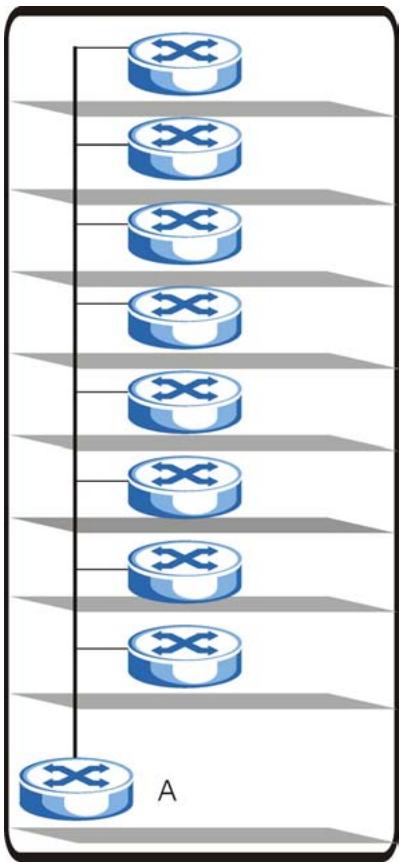
Figure 22-1 Clustering Application Example
22.2 Cluster Management Status
Click Management in the navigation panel and then Cluster Management to display the following screen.
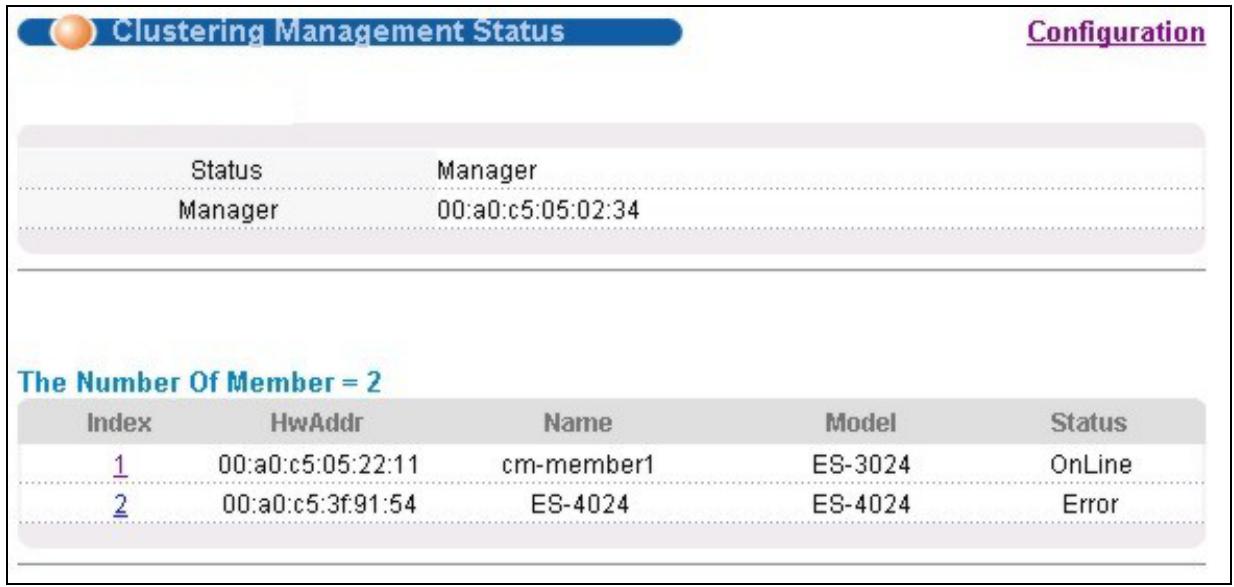
Figure 22-2 Cluster Management Status
The following table describes the labels in this screen.
Table 22-2 Cluster Management Status
| LABEL | DESCRIPTION |
| A cluster can only have one manager. | |
| Status | This field displays the role of this switch within the cluster. o Manager o Member (you see this if you access this screen in the cluster member switch directly and not via the cluster manager) o None (neither a manager nor a member of a cluster) |
| Manager | This field displays the cluster manager switch's hardware MAC Address. |
| The Number of Member | This field displays the number of switches that make up this cluster. The following fields describe the cluster member switches. |
| Index | You can manage cluster member switches via the cluster manager switch. Each number in the Index column is a hyperlink leading to the cluster member switch's web configurator (see Figure 22-3). |
| MAC Address | This is the cluster member switch's hardware MAC Address. |
| Name | This is the cluster member switch's System Name. |
| Model | This field displays the model name. |
Table 22-2 Cluster Management Status
| LABEL | DESCRIPTION |
| Status | This field displays: ○ Online (the cluster member switch is accessible) ○ Error (for example the cluster member switch password was changed or the switch was set as the manager and so left the member list, etc.) ○ Offline (the switch is disconnected - Offline shows approximately 1.5 minutes after the link between cluster member and manager goes down). |
22.2.1 Cluster Member Switch Management
Go to the Clustering Management Status screen of the cluster manager switch and then select an Index hyperlink from the list of members to go to that cluster member switch's web configurator home page. This cluster member web configurator home page and the home page that you'd see if you accessed it directly are different (see Figure 22-3).
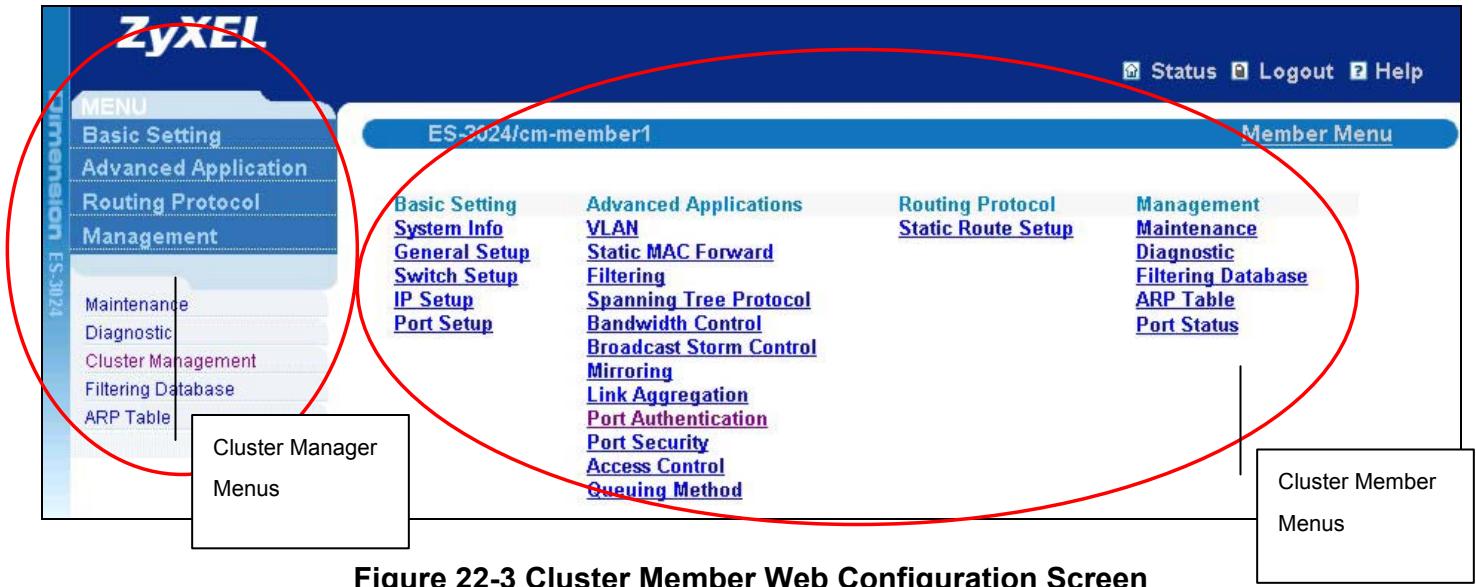
Figure 22-3 Cluster Member Web Configuration Screen
Uploading Firmware to a Cluster Member Switch
You can use FTP to upload firmware to a cluster member switch through the cluster manager switch as shown in the following example.
C:\>ftp <Cluster Manager IP address>
User : <Enter>
Password: 1234 is the default password
230 Logged in
230 Logged in
ftp> 1s
200 Port command okay
150 Opening data connection for LIST
--w--w--w- 1 owner group 1399654 Jul 01 12:00 ras
-rw-rw-rw- 1 owner group 262144 Jul 01 12:00 rom-0
--w--w--w- 1 owner group 0 Jul 01 12:00 fw-00-a0-c5-05-02-34
-rw-rw-rw- 1 owner group 0 Jul 01 12:00 config-00-a0-c5-05-02-34
226 File sent OK
ftp: 462 bytes received in 0.01Seconds 30.80Kbytes/sec.
ftp> put 350DT3b1.bin fw-00-a0-c5-05-02-34
ftp> bye
Figure 22-4 Example: Uploading Firmware to a Cluster Member Switch
The following table explains some of the FTP parameters.
Table 22-3 FTP Upload to Cluster member Example
| FTP PARAMETER | DESCRIPTION |
| User name | Press <Enter> |
| Password | The web configurator password default is 1234. |
| Is | Enter this command to list the name of cluster member switch's firmware and configuration file. |
| 350DT3b1.bin | The name of the firmware file you want to upload to the cluster member switch. |
| fw-00-a0-c5-05-02-34 | The cluster member switch's firmware name as seen in the cluster manager switch. |
| config-00-a0-c5-05-02-34 | The cluster member switch's configuration file name as seen in the cluster manager switch. |
22.3 Configuring Cluster Management
Click Configuration from the Cluster Management screen to display the next screen.
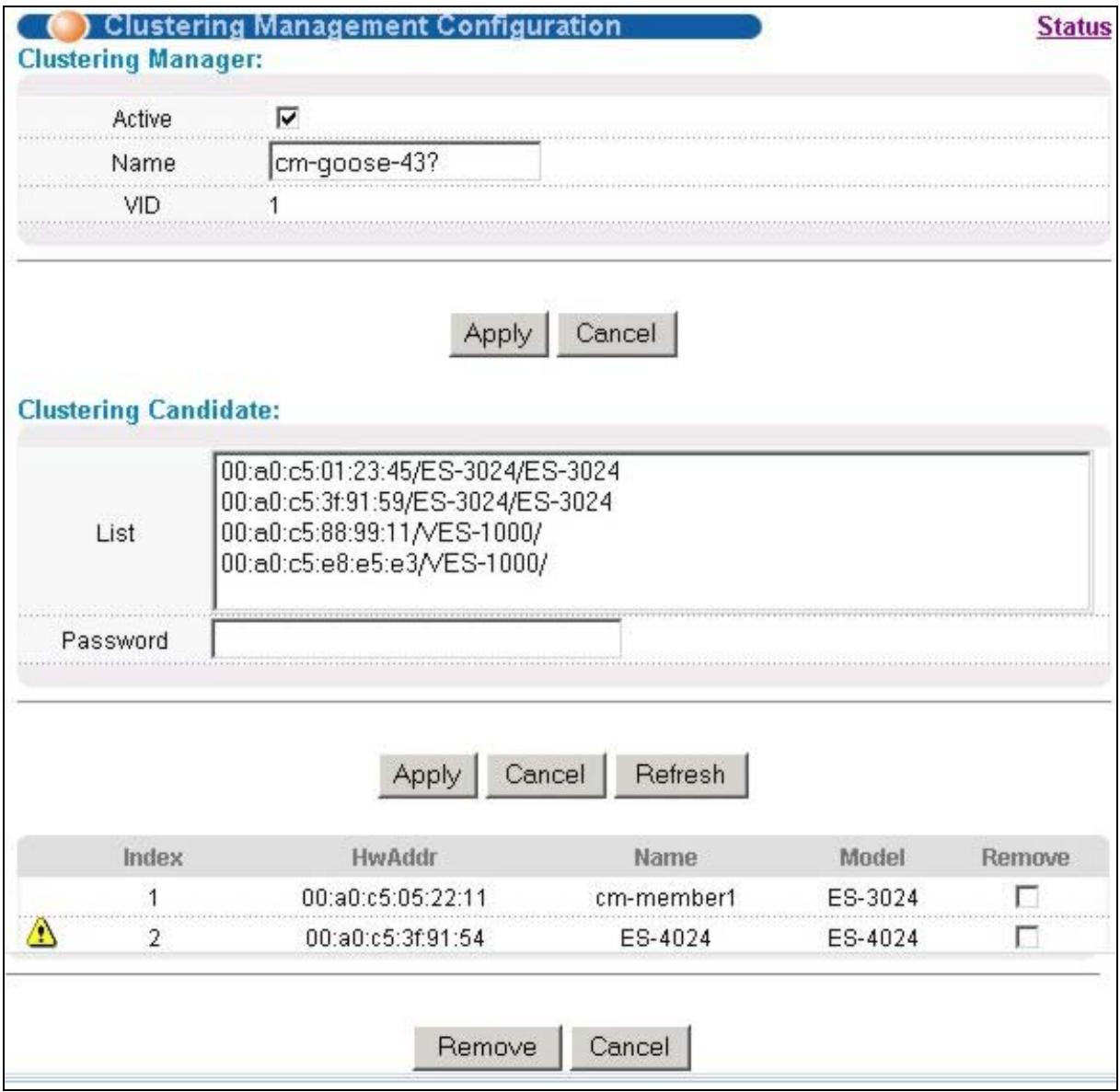
Figure 22-5 Configuring Cluster Management
Table 22-4 Configuring Cluster Management
| LABEL | DESCRIPTION |
| Active | Select Active to have this switch become the cluster manager switch. A cluster can only have one manager. Other (directly connected) switches that are set to be cluster managers will not be visible in the Clustering Candidates list. If a switch that was previously a cluster member is later set to become a cluster manager, then its Status is displayed as Error in the Cluster Management Status screen and a warning icon (▲) appears in the member summary list below. |
| Name | Type a name to identify the Clustering Manager. You may use up to 32 printable characters (no spaces are allowed). |
Table 22-4 Configuring Cluster Management
| LABEL | DESCRIPTION |
| VID | This is the Management VLAN ID and is only applicable if the switch is set to 802.1Q VLAN. All switches must be in the same management VLAN group to belong to the same cluster. Switches that are not in the same management VLAN group are not visible in the Clustering Candidates list. This field is ignored if the Clustering Manager is using Port-based VLAN. |
| Apply | Click Apply to save these changes to the switch. |
| Cancel | Click Cancel to begin configuring this part of the screen afresh. |
| Clustering Candidate | The following fields relate to the switches that are potential cluster members. |
| List | A list of suitable candidates found by auto-discovery is shown here. The switches must be directly connected. Directly connected switches that are set to be cluster managers will not be visible in the Clustering Candidate list. Switches that are not in the same management VLAN group will not be visible in the Clustering Candidate list. |
| Password | Each cluster member's password is its web configurator password. Select a member in the Clustering Candidate list and then enter its web configurator password. If that switch administrator changes the web configurator password afterwards, then it cannot be managed from the Cluster Manager. Its Status is displayed as Error in the Cluster Management Status screen and a warning icon (▲) appears in the member summary list below. If multiple devices have the same password then hold [SHIFT] and click those switches to select them. Then enter their common web configurator password. |
| Apply | Click Apply to save these changes to the switch. |
| Cancel | Click Cancel to begin configuring this part of the screen afresh. |
| Refresh | Click Refresh to perform auto-discovery again to list potential cluster members. |
| The next summary table shows the devices selected for clustering. | |
| Index | This is the index number of a cluster member switch. |
| MAC Address | This is the cluster member switch's hardware MAC address. |
| Name | This is the cluster member switch's System Name. |
| Model | This is the cluster member switch's model name. |
| Remove | Select this checkbox and then click the Remove button to remove a cluster member switch from the cluster. |
| Cancel | Click Cancel to begin configuring this part of the screen afresh. |
Chapter 23 Filtering Database
This chapter introduces Filtering Database.
23.1 Introduction to Filtering Database
The Filtering Database shows how frames are forwarded or filtered across the switch's ports. It shows what device MAC address, belonging to what VLAN group (if any) is forwarded to which port(s) and whether the MAC address is dynamic (learned by the switch) or static (manually entered in Static MAC Forwarding).
The switch uses the Filtering Database to determine how to forward frames. See the following figure.
- The switch examines a received frame and learns the port on which this source MAC address came.
- The switch checks to see if the frame's destination MAC address matches a source MAC address already learned in the Filtering Database.
If the switch has already learned the port for this MAC address, then it forwards the frame to that port.
If the switch has not already learned the port for this MAC address, then the frame is flooded to all ports. Too much port flooding leads to network congestion.
If the switch has already learned the port for this MAC address, but the destination port is the same as the port it came in on, then it filters the frame.
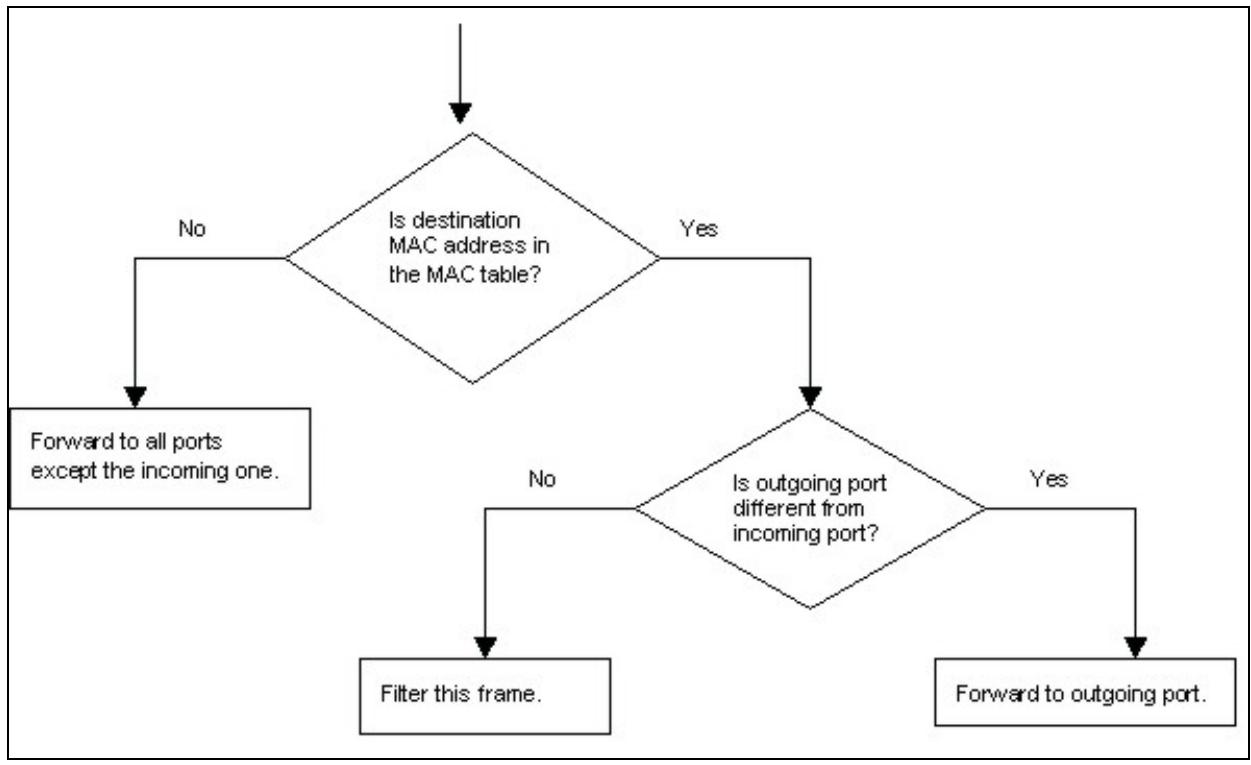
Figure 23-1 Filtering Database Flowchart
23.2Viewing Filtering Database
Click Management in the navigation panel and then Filtering Database to display the following screen. The Filtering Database can hold up to 16K entries.
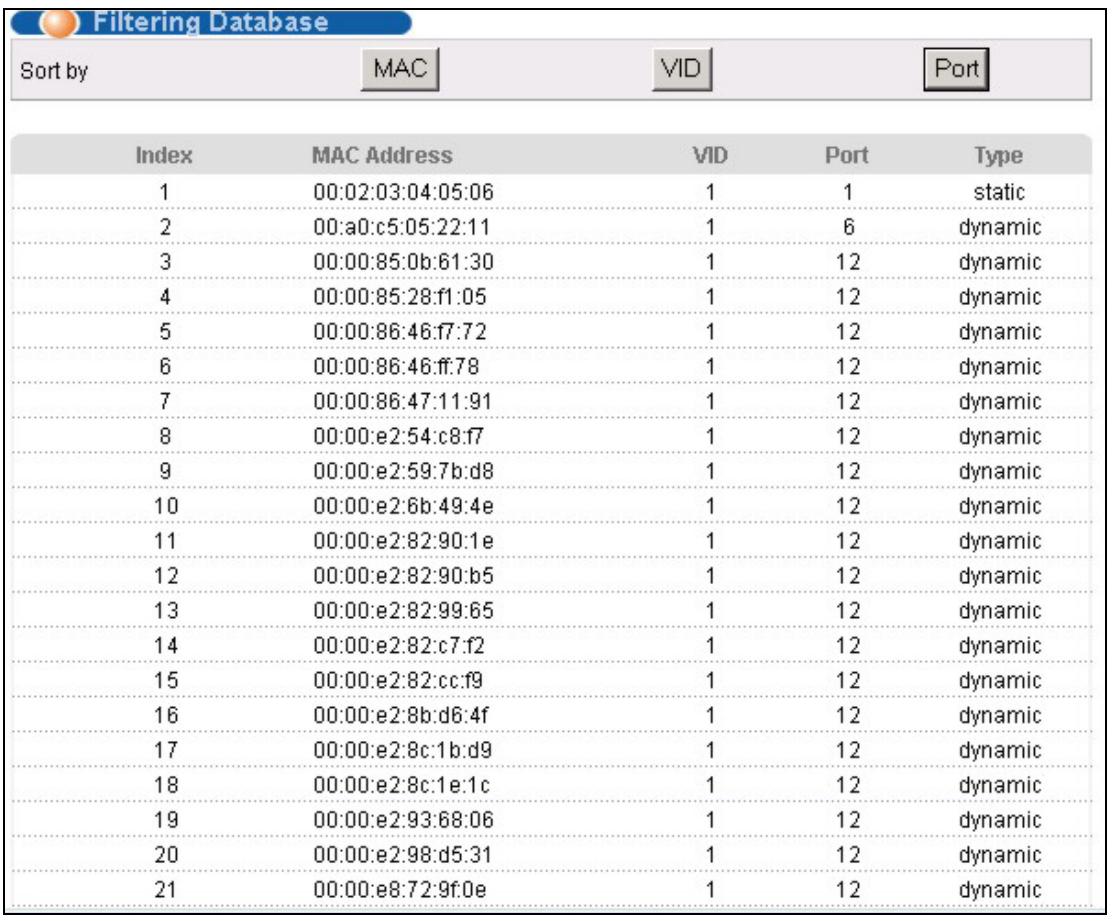
Figure 23-2 Filtering Database
The following table describes the labels in this screen.
Table 23-1 Filtering Database
| LABEL | DESCRIPTION |
| Sort by | Click one of the following buttons to display and arrange the data according to that button type. The information is then displayed in the summary table below. |
| MAC | Click this button to display and arrange the data according to MAC address. |
| VID | Click this button to display and arrange the data according to VLAN group. |
| Port | Click this button to display and arrange the data according to port number. |
| Index | This is the incoming frame index number. |
| MAC Address | This is the MAC address of the device from which this incoming frame came. |
Table 23-1 Filtering Database
| LABEL | DESCRIPTION |
| VID | This is the VLAN group to which this frame belongs. |
| Port | This is the port from which the above MAC address was learned. |
| Type | This shows whether the MAC address is dynamic (learned by the switch) or static (manually entered in Static MAC Forwarding). |
Chapter 24 ARP Table
This chapter introduces ARP Table.
24.1 Introduction to ARP Table
Address Resolution Protocol (ARP) is a protocol for mapping an Internet Protocol address (IP address) to a physical machine address, also known as a Media Access Control or MAC address, on the local area network.
An IP (version 4) address is 32 bits long. In an Ethernet LAN, MAC addresses are 48 bits long. The ARP Table maintains an association between each MAC address and its corresponding IP address.
24.1.1 How ARP Works
When an incoming packet destined for a host device on a local area network arrives at the switch, the switch's ARP program looks in the ARP Table and, if it finds the address, sends it to the device.
If no entry is found for the IP address, ARP broadcasts the request to all the devices on the LAN. The switch fills in its own MAC and IP address in the sender address fields, and puts the known IP address of the target in the target IP address field. In addition, the switch puts all ones in the target MAC field (FF.FF.FF.FF.FF is the Ethernet broadcast address). The replying device (which is either the IP address of the device being sought or the router that knows the way) replaces the broadcast address with the target's MAC address, swaps the sender and target pairs, and unicast the answer directly back to the requesting machine. ARP updates the ARP Table for future reference and then sends the packet to the MAC address that replied.
24.2 Viewing ARP Table
Click Management in the navigation panel and then ARP Table to open the following screen. The ARP table can hold up to 500 entries.
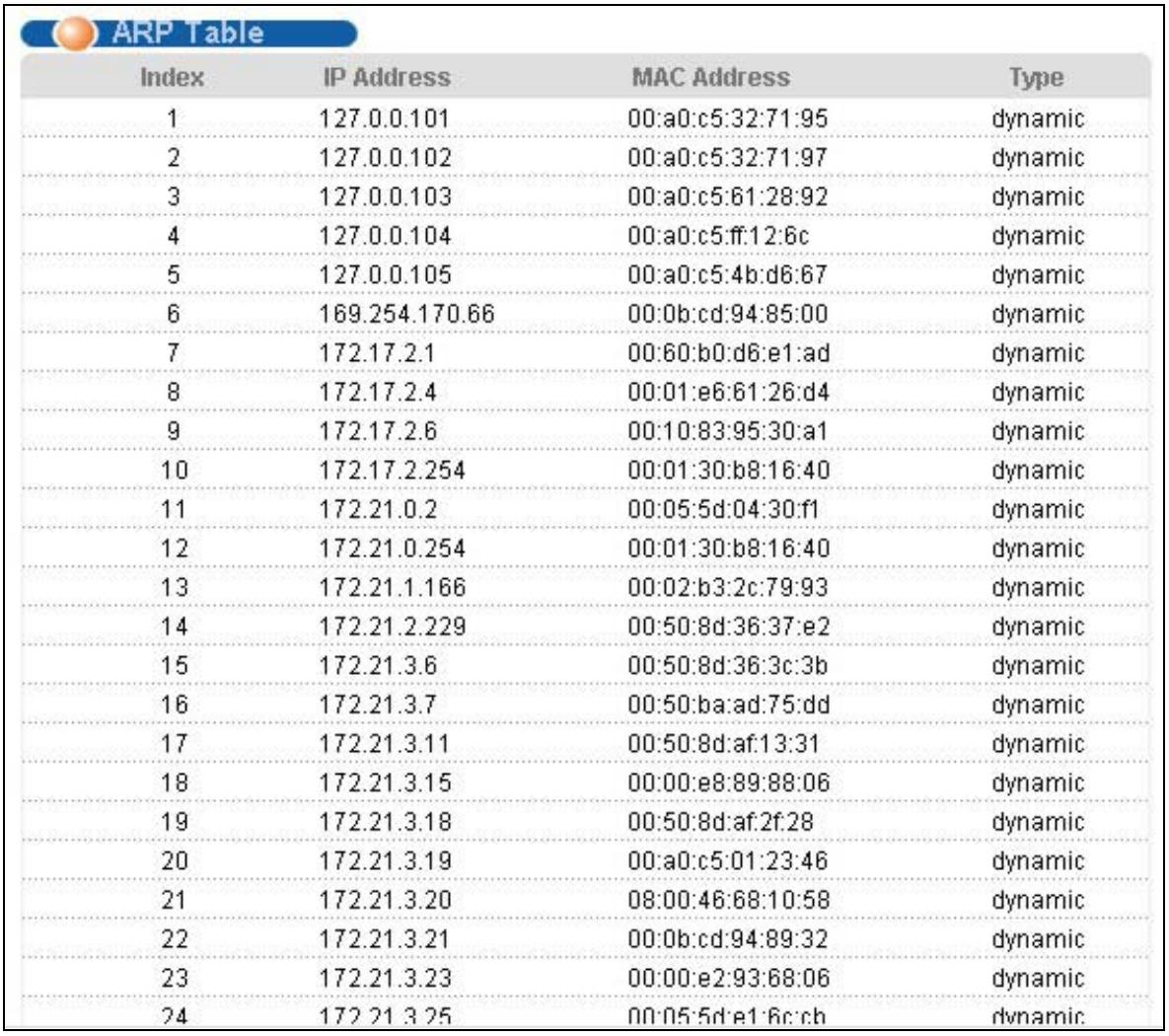
Figure 24-1 ARP Table
The following table describes the labels in this screen.
Table 24-1 ARP Table
| LABEL | DESCRIPTION |
| Index | This is the ARP Table entry number. |
| IP Address | This is the learned IP address of a device connected to a switch port with corresponding MAC address below. |
| MAC Address | This is the MAC address of the device with corresponding IP address above. |
| Type | This shows whether the MAC address is dynamic (learned by the switch) or static (manually entered in Static MAC Forwarding). |
Part VII
Commands
This part gives information on Command Line Interface (CLI) commands for the ES-3024.
Chapter 25 Introduction to CLI
This chapter introduces line commands and gives a summary of commands available.
25.1 Command Line Interface Overview
In addition to the web configurator, you can use line commands to configure the switch. It is recommended that you use the web configurator for everyday management of the switch and that you use line commands for advanced switch diagnosis and troubleshooting. If you have problems with your switch, customer support may request that you issue some of these commands to assist them in troubleshooting.
You can use the "config save" command to save 802.1Q, STP, Cluster and IP configuration changes to non-volatile memory (Flash). These changes are effective after you restart the switch.
However you cannot use "config save" for all other line command configurations. These are saved in volatile memory (DRAM), so are not effective after you restart the switch.
25.1.1 Accessing the Command Line Interface
There are two ways to access the command line interface on the ES-3024:
- Telnet to the switch
- Connect a computer to the console port and use terminal emulation software configured to the following parameters:
VT100 terminal emulation
9600 bps
No parity, 8 data bits, 1 stop bit
No flow control
25.1.2 Command Conventions
The system uses a one-level command structure. You must type the full command every time, as follows.
192.168.1.1>
For instance, the following example shows how to enable GVRP.
192.168.1.1> sys sw gvrp enable
The conventions for typing in most CI commands are shown next.
command
command subcommand [parameter]
Type all commands as displayed on the screen.
25.1.3 Command Syntax Conventions
- Command keywords are in courier new font.
- The | symbol means "or".
- Required fields in a command are enclosed in angle brackets . Use the following command to turn the system monitor on or off.
sys monitor enable
- Optional fields in a command are enclosed in square brackets [ ], for example, year, month and day are optional in the following command. This command just displays the date if you don't specify the year, month and day parameters.
sys date [year month day]
- Commands can be abbreviated to the smallest unique string that differentiates the command. For example the "system date" command could be abbreviated to "s d".
25.1.4 Getting Help
Type "help" or "?" to display a list of valid commands or type a command followed by "help" or "?" to display a list of associated subcommands.
The following figure shows a sample help information.

Figure 25-1 CLI Help: Sample Output
25.2 Command Summary
The following tables are summaries of the commands available in the ES-3024 together with a brief description of each command. See the related section in the User's Guide for more background information.
25.2.1 sys Commands
Table 25-1 Command Summary: sys
| COMMAND | DESCRIPTION | ||
| sys | |||
Table 25-1 Command Summary: sys
| COMMAND | DESCRIPTION | ||
| adjtime | Retrieves the date and time from the time server specified in the web configurator. | ||
| countrycode | Sets or displays the firmware country code. | ||
| cpld | |||
| revision | Show the CPLD (Complex Programmable Logic Device) hardware revision. | ||
| alarm | Turn the ALARM LED on/off manually | ||
| status | Counter of CPLD faults | ||
| cpu | display | Displays the CPU's utilization. | |
| date | [year month day] | Sets or displays the system's current date. | |
| domainname | [domain name] | Sets or displays the system domain name. | |
| edit | Edits the system preset text file such as autoexec.net. | ||
| feature | Displays a list of the device's major features. | ||
| hostname | [hostname] | Sets or displays the system name. | |
| log | |||
| clear | Cleared the error log. | ||
| disp | Shows the error log. | ||
| online [on|off] | Enables/disables the error log to be displayed on screen. | ||
| stdio | [minute] | Sets or displays the management terminal idle timeout value. | |
| syslog | server | Set syslog server IP address | |
| facility | Set syslog facility | ||
| type | Set/display syslog type flag | ||
| mode | Set syslog mode | ||
| time | [hour [min [sec]]] | Sets or displays the system time. | |
| trcdisp | parse, brief, disp | Sets the level of detail that should be displayed. Use "parse" to display the most detail and "disp" to display the least. | |
| trclog | |||
Table 25-1 Command Summary: sys
| COMMAND | DESCRIPTION | ||
| switch [on|off] | Enables/disables/ the system trace log or shows whether it's on or off. | ||
| online [on|off] | Enables/disables the trace log onscreen display (for example in the telnet management window). | ||
| level [level] | Sets the level (1-10) of trace logs (1 shows the least) to display. | ||
| type < bitmap> | Uses hexadecimal characters to set the type of trace logs to record. | ||
| disp | Shows the trace log. | ||
| clear | Erases the trace log. | ||
| call | Shows call events. | ||
| encapmask [mask] | Shows which type of encapsulation the trace log records or sets it if you specify the encapsulation's hexadecimal character. | ||
| trcpacket | |||
| create <entry><size> | Creates a packet trace buffer. | ||
| destroy | Removes the packet trace buffer. | ||
| channel <name>[none|incoming|outgoing|bothway] | Sets the packet trace direction for a given channel. | ||
| string [on|off] | Enables/disables the sending of a log to the trace packet buffer when configuration changes are made or displays the current setting. | ||
| switch [on|off] | Enables/disables packet trace or displays the current setting. | ||
| disp | Displays the trace packets. | ||
| udp | Sends the trace packets to another system using UDP. | ||
| udp switch [on|off] | Enables/disables the sending of the trace packets to another system using UDP or displays the current setting. | ||
| udp addr <addr> | Sets the target IP address for sending trace packets using UDP. | ||
| udp port <port> | Sets the UDP port (should match that of the target IP address) for sending trace packets using UDP. | ||
| parse [[start_idx], end_idx] | Displays detailed packet details of the packet range specified. | ||
Table 25-1 Command Summary: sys
| COMMAND | DESCRIPTION | ||
| brief | Displays a brief listing of packet contents. | ||
| version | Displays the RAS code and driver versions. | ||
| view | view <filename> | Displays the specified text file. | |
| wdog | |||
| switch [on|off] | Turns the watchdog firmware protection feature on or off. | ||
| cnt [value] | Sets (0-34463) or displays the current watchdog count (in 1.6 sec units). | ||
| monitor | status | Displays the status of the hardware monitor. | |
| show | Displays the hardware monitor's statistics. | ||
| vlimit <idx> <high> <low> | Sets the maximum (<high>) or minimum (<low>) voltage at the specified point (<idx>). | ||
| tlimit <idx> <limit> | Sets the maximum (<limit>) temperature at the specified point (<idx>). | ||
| flimit <bank> <idx> [<limit>] | Sets the maximum (<limit>) fan revs per minute (RPM) at the specified fan (<idx>) in the specified bank (<bank>). A "bank" delineates a set of fans. | ||
| fanmask <bank> [<mask>] | Sets the fan detection mask in the specified bank (<bank>). Use the mask to disable monitoring of a fan. | ||
| vclear | Cleans the voltage statistics. | ||
| tclear | Cleans the temperature statistics. | ||
| fclear | Cleans the fan statistics. | ||
| clear | Cleans the hardware monitor statistics. | ||
| enable [<on/off>] | Enables or disables the hardware monitor. | ||
| test | Tests the hardware monitor chip. | ||
| ixe2424 | lbtIntlbt <port|All> [count] | ixe2424 refers to the switch chip. Performs an internal loop back test on a specified port or all ports. | |
| lbt exlbt <port> [count] | Performs an external loop back test on a specified port or all ports. | ||
Table 25-1 Command Summary: sys
| COMMAND | DESCRIPTION | ||
| pktcnt [port 1-28] | Display port statistic counter | ||
| pktcntclear [port 1-28] | Reset port statistic counter | ||
| port [portID] [enable | disable]<Speed><FlowCtrl> | Port setup | ||
| phyread [portID] [<phyAddr>] | Reads PHY register | ||
| phywrite [portID] [<phyAddr><data> | Writes PHY register | ||
| dbm mac count [port] | Displays number of MAC addresses in L2 DBM | ||
| dbm mac list [port] | Displays entries in L2 DBM | ||
| dbm mac flush [port] | Flashes learned MAC addresses in the forwarding table. | ||
| dbm mac search [MAC] [<VID> | Searches the MAC/VID learnt on which port. | ||
| dbm ip list [port] | Displays entries in L3 DBM | ||
| log level [0-4] | Sets the log level. Logs displayed consist of critical, error, warning, debug and informational messages in order of severity. Log level "4" displays all messages; log level "0" just displays critical messages. | ||
| log switch on/off | Outputs messages to the console or telnet screen. | ||
| log list | Lists all IXE log modules. | ||
| log module <module_id><on/off | Enables/disables log on specific IXE module | ||
| log switch < on|off > | Logs all modules to tracerlog. (Current display to console directly) | ||
| memdum <start_addr><length> | Displays the switch chip's memory map for the block specified. | ||
| wreg <value> | Writes to a register. | ||
| rreg <addr> | Reads from a register. | ||
| show_int_count | Displays the interrupt counter. | ||
| clear_int_count | Reset the interrupt counter. | ||
| socket | Displays the system socket's ID#, type, control block address (PCB), IP address and port number of peer device connected to the socket (Remote Socket) and task control block (Owner). | ||
Table 25-1 Command Summary: sys
| COMMAND | DESCRIPTION | ||
| snmp | getCommunity <index>[<community>] | Sets or displays the SNMP GetRequest community. | |
| setCommunity <index>[<community>] | Sets or displays the SNMP SetRequest community. | ||
| trustedHost <index>[<hostt>] | Sets or displays the SNMP trusted host. | ||
| trapCommunity <index>[<community>] | Sets or displays the SNMP Trap community. | ||
| trapDest <index>[<destination>] | Sets or displays the SNMP trap server. | ||
| disp <index|all> | Shows SNMP settings. | ||
| cluster | active <name> | Assign a cluster name and enable clustering it. | |
| inactive <name> | Disable the cluster named. | ||
| add <MAC addr><password> | Add a member switch into the cluster using its web configurator password. | ||
| remove <MAC addr> | Remove a member switch from the cluster. | ||
| showMember | Shows details of member switches in this cluster. | ||
| showCandidate | Shows a list of auto-discovered potential cluster members. | ||
| status | Shows whether this switch is a cluster member, cluster manager or neither and information about members in the cluster. | ||
25.2.2 sys sw Commands
The following commands are system switch commands; all are preceded with sys sw
Table 25-2 Command Summary: sys sw
| COMMAND | DESCRIPTION | ||
| garp | status | Shows the GARP timer status. | |
| timer | Sets the GARP timer's Join Timer, Leave Timer and Leave All Timer. | ||
| gvrp | trace | Sets GVRP trace level. | |
| enable | Enables GVRP. | ||
| disable | Disables GVRP. | ||
Table 25-2 Command Summary: sys sw
| COMMAND | DESCRIPTION | ||
| qos | defpri | port> [<0..7>] | Sets the default ingress User Priority for a port. |
| map | <0..7> [<queue>] | Maps a User Priority to a Traffic Class. | |
| method | <port><strict | wfq weight1 weight2 weight3 weight4 (Sum of all weight should be 100)> | Sets QoS method. For WFQ, the total sum must be 100. | |
| vlan1q | All “sys sw vlan1q” commands relate to IEEE 802.1Q Tagged VLAN configuration. Use “config save” to save your configuration changes. | ||
| port | status <port> | Shows a port's VLAN information. | |
| defaultVID <port><vid> | Sets the default VLAN ID of a port. | ||
| accept <port><all|tagged|untagged> | Sets the type of frames that a port accepts. | ||
| gvrp <port><enable|disable> | Enables/disables GVRP on the specified port. | ||
| protocolVID <port><vid><protocol> | Sets protocol-based pvid for the specific port. | ||
| svlan | cpu <vlan id> | Sets the VLAN ID of the management VLAN (CPU). | |
| setentry{name}<vid><port><adctl><tagctl} | Applies a static VLAN (name, admin control tag, tag control) to a port. | ||
| dexterity <vid> | Deletes the specified (VID) static VLAN. | ||
| active <vid> | Turns on the specified static VLAN. | ||
| inactive <vid> | Turns off the specified static VLAN. | ||
| list | Displays a table of static VLANs. | ||
| vlan | list <all|vid|start VID end VID> | Shows the specified IEEE 802.1Q Tagged VLAN table. | |
| status | Shows the IEEE 802.1Q tagged status. | ||
| driver | config | Shows the switch's settings. | |
| count | disp | Shows the switch Network Driver Interface Specifications (NDIS) level counters (CPU interface). | |
| clear | C clears the switch NDIS level counters (CPU interface). | ||
Table 25-2 Command Summary: sys sw
| COMMAND | DESCRIPTION | ||
| rstop | All "sys sw rstp" commands relate to rapid STP configuration. Refer to IEEE Std 802.1w. Use "config save" to save your configuration changes. | ||
| bridge | |||
| enable | Enables RSTP. | ||
| disable | Disables RSTP. | ||
| priority <priority> | Sets the system priority. | ||
| maxage <Max_Age> | Sets the max age timer | ||
| hellotime <Hello_Time> | Sets the hello timer. | ||
| forwardDelay <Forward_Delay_Time> | Sets the forward delay time | ||
| version <STP:0|RSTP:2> | Displays/enables the STP mode; STP or RSTP. RSTP is the default used when configuring STP via web configurator. | ||
| port | |||
| enable <port_no> | Enables RSTP on this port. | ||
| disable <port_no> | Disables RSTP on this port. | ||
| pathCost <Port_NO> <Cost|0:Auto> | Sets the specified port's path cost. | ||
| priority <Port_NO> <Priority> | Sets the specified port's priority. | ||
| edgeport <port_no> | Displays if this port is an edge port. | ||
| p2pLink <Port_NO> <Auto:2|True:1|False:0> | Sets whether the specified port can connect to one bridge or multiple bridges. | ||
| mcheck <Port_NO> | Enables the Port Protocol Migration state machine (Disabled, Blocking, Listening, Learning, Forwarding) on the specified port. | ||
| lacp | Refer to IEEE 802.3ad for more information on link aggregation control protocol. | ||
| agg | Displays ports trunked using LACP. | ||
| port | |||
| enable <port_no> | Enables LACP on the specified port. | ||
| disable <port_no> | Disables LACP on the specified port. | ||
Table 25-2 Command Summary: sys sw
| COMMAND | DESCRIPTION | ||
| status <port_no> | Displays whether LACP is enabled on the specified port. | ||
| actoradm activity [port_no] [0:passive 1:active] | Allows/disallows the specified local port to engage in trunking. | ||
| actoradm display [port_no] | Shows whether the specified local port is engaged in trunking. | ||
| actoradm key [port_no][key] | Shows the specified local port LACP key. | ||
| actoradm priority [port_no] [priority] | Sets the specified local port LACP priority. | ||
| actoradm timeout [port_no] [0:long_timeout|1:short_timeout] | Enables a short or long timeout on the specified local port. | ||
| status <Port_NO> | Displays LACP status on a port. | ||
| keymgmt [on|off] | Turns LACP key management on or off. | ||
| syspriority <priority> | Sets the LACP system priority. The switch with the lowest priority becomes the LACP "server". | ||
| trace | Sets the LACP debug level. | ||
| dot1x | "sys sw dot1x" commands relate to IEEE 802.1X security. | ||
| enable | Enables 802.1X security on the switch. | ||
| disable | Disables 802.1X security on the switch. | ||
| status | Shows switch 802.1X security status. | ||
| port | |||
| enable <port_no> | Enables 802.1X security on the specified port. | ||
| disable <port_no> | Disables 802.1X security on the specified port. | ||
| reauth <port_no><on|off> | Turns re-authentication on or off on the specified port. | ||
| period <port_no><value> | Configs how often the specified port should be re-authorized. | ||
| status <port_no> | Displays 802.1X security status on the specified port. | ||
| set | |||
Table 25-2 Command Summary: sys sw
| COMMAND | DESCRIPTION | ||
| auth <profile | radius> | Sets whether an external RADIUS server or the internal switch user database performs authentication. | ||
| portcontrol<port-no><auto |auth | unauth> | Sets how the specified port should be authenticated. | ||
| radius | |||
| server <ip> | Sets the external RADIUS server IP address. | ||
| secret <secret> | Sets the external RADIUS server password. | ||
| port <port> | Sets the external RADIUS server port number. | ||
| show | Displays the external RADIUS server settings. | ||
| profile | Internal switch user database. Information in this database is flushed on restarting the switch. | ||
| add <username><passwd> | Creates a username and password profile in the internal switch user database. | ||
| delete <idx> | Deletes a username and password profile in the internal switch user database. | ||
| list | Lists all profiles in the internal switch user database. | ||
| class | A class is the basic rule parameters for a bandwidth control, port mirror or port filter rule. | ||
| display | Displays run-time bandwidth control, port mirror and port filter rule status. | ||
| l2find | Find source/destination port, MAC address and VLAN group information. | ||
| l2set | Sets source/destination port, MAC address, VLAN group and protocol information. | ||
| del | A class is automatically created when you create a bandwidth control, port mirror or port filter rule. This command deletes the specified class. | ||
Table 25-2 Command Summary: sys sw
| COMMAND | DESCRIPTION | ||
| bmstorm | These commands relate to broadcast storm control. | ||
| disable | Clears current run-time settings | ||
| type | <dir (ingress/egress)> <type (broadcast/multicast/both)> | Specifies the type of frames to limit in the switch; broadcast, multicast or both. | |
| display | [index] | Displays broadcast storm control ports' settings | |
| interval | [value] | Sets/displays the monitor interval. | |
| set | <port><threshold><direction> | Specifies the packet threshold and direction (ingress/egress) on the specified port. | |
| del | (index> | Disables broadcast storm control on this port. | |
| mac | static | Displays static MAC addresses. | |
| disable | Cleared current run-time static MAC address settings | ||
| display [<mac><vid>] | Displays current run-time static MAC addresses on the ports. | ||
| set <port><MAC><vid> | Configs a static MAC address on the specified port. | ||
| del <port><MAC><vid> | Deletes a static MAC address on the specified port. | ||
| ageSet | <timeout> | Sets aging timeout. | |
| ageView | Displays the aging timeout period. | ||
| filter | The following commands relate to port filters. Port filtering means sifting traffic from one or all ports to one or all ports based on the source and/or destination MAC addresses and VLAN group. | ||
| applyidx | <class index> | Apply class to a filter. | |
| del | <class idx> | Deletes filter class. | |
| disable | Clears current run-time filters. | ||
| display | Displays current run-time filter status. | ||
| l2set | <src port><src mac><src vid><dest port><dest mac><dest vid> | Creates a filter rule using source/destination port, MAC address and VLAN group information. “*” means “any”. | |
Table 25-2 Command Summary: sys sw
| COMMAND | DESCRIPTION | ||
| mirror | The following commands relate to port mirrors. Port mirroring is copying traffic from one or all ports to another or all ports for external analysis. | ||
| applyidx | <class Idx><MirrorType=input|output|both> | Apply class to mirroring. | |
| del | <class idx> | Delete a mirroring class. | |
| disable | Clears current run-time port mirror settings. | ||
| display | [class idx] | Displays current run-time port mirror settings. | |
| set | <src port><src MAC><src vid><dest port><dest MAC><dest vid> | Creates a mirror rule using source/destination port, MAC address and VLAN group information. **” means “any”. | |
| <input|output|both> | Sets the direction of mirrored traffic. | ||
| port | <port> | Sets the mirror port (the port traffic is copied to for analysis). | |
| bw | The following commands relate to bandwidth control rules. Bandwidth control means defining a maximum allowable bandwidth for traffic flows from specified source(s) to specified destination(s). | ||
| applyidx | <class idx><Max BW> | Apply class to bandwidth control. | |
| del | <class idx> | Delete a bandwidth control class. | |
| disable | Clears current run-time bandwidth control rules. | ||
| display | Displays current run-time bandwidth control rules. | ||
| set | <src port><src mac><src vid><dest port><dest mac><dest vid><max bw> | Creates a bandwidth control rule using source/destination port, MAC address and VLAN group information. **” means “any”. | |
| trunk | The following commands relate to trunking. Trunking is the grouping of physical ports into one logical higher-capacity link. | ||
| del | <id> | Delete a trunk group. | |
| disable | Clears current run-time trunk settings. | ||
Table 25-2 Command Summary: sys sw
| COMMAND | DESCRIPTION | ||
| display | Displays current run-time trunk settings. | ||
| ListView | Displays member list of trunk. | ||
| set | <group><# ports> | Adds ports to a trunk group. | |
| ingress | |||
| set | <port> <enable | disable> | Sets ingress check on a port. | |
| get | <port> | Gets ingress check state on a port. | |
| viewAll | Gets ingress check state on all ports. | ||
| learn | |||
| enable | [port] | Enables address learning on the port. | |
| disable | [port] | Disables address learning on the port. | |
| display | [port] | Displays address learning status. | |
| isolate | |||
| disable | Disables port isolation.(All connected) | ||
| port | <port> <Port-List (in Hex)> | Sets the port-list which can connected to the specific port. | |
| enable | Enables port isolation. | ||
| mc | |||
| set | <addr> <port>... | Sets ports to a specific multicast address | |
| del | <addr> | Deletes a specific multicast address | |
| get | <addr> | Shows settings of the multicast address | |
| vlan | |||
| status | Displays VLAN status | ||
| type | <802.1q | port-based> | Sets VLAN mode | |
25.2.3 exit Command
Table 25-3 Command Summary: exit
| COMMAND | DESCRIPTION |
| exit | Ends the console or telnet session. |
25.2.4 ip Commands
Table 25-4 Command Summary: ip
| COMMAND | DESCRIPTION | ||
| ip | |||
| address | [addr] | Displays the host IP address. | |
| alias | <iface> | Sets an alias for the specified interface. | |
| aliasdis | <0|1> | Disables/enables the alias for the specified interface. | |
| arp | status | Displays all interfaces' IP Address Resolution Protocol status. | |
| httpd | debug [on|off] | Enables or disables the HTTP debug flag. | |
| icmp | |||
| status | Displays the ICMP statistics counter. | ||
| discovery <iface> [on|off] | Sets the ICMP router discovery flag. | ||
| ifconfig | [iface] [ipaddr] [broadcast |mtu |dynamic] | Configures a network interface. | |
| ping | Pings a remote host. | ||
| route | |||
| status | Displays the routing table. | ||
| add <dest addr></bits><gateway></metric] | Adds a route. | ||
| addiface <dest addr></bits><iface></metric] | Adds an entry to the routing table for the specified interface. | ||
| addprivate <dest addr></bits><gateway></metric] | Adds a private route. | ||
| drop <host addr></bits] | Drops a route. | ||
| status | Displays IP statistic counters. | ||
| udp | status | Displays the UDP status. | |
| tcp | |||
| ceiling [value] | Sets the TCP maximum round trip time. | ||
| floor [value] | Sets the TCP minimum round trip time. | ||
| irtt [value] | Sets the TCP default initial round trip time. | ||
Table 25-4 Command Summary: ip
Table 25-5 Command Summary: config
| COMMAND | DESCRIPTION | ||
| kick | drops the TCP connection of the specified TCP Control Block. | ||
| limit [value] | Sets a TCP output window limit. | ||
| mss | Inputs the TCP Maximum Segment Size. | ||
| reset | Reset the TCP connection of the specified TCP Control Block. | ||
| rtt | Sets the round trip time for the TCP control block. | ||
| status | Displays the TCP statistic counters. | ||
| sydata | Turns on/off the option to send data with the SYN packet. | ||
| trace | Turns on/off the trace for debugging. | ||
| telnet | [host] | Telnets to the specified host. | |
| traceroute | [ttl] [wait] [queries] | Sends ICMP packets to trace the route of a remote host. | |
| igmpsnoop | |||
| status | Displays the IGMP group table. | ||
| querier | Displays the port number of the incoming port that received the latest IGMP querier. | ||
| enable | Turns on IGMP snooping. | ||
| disable | Turns off IGMP snooping. | ||
| ip | dhcp | mode | Set an interface to accept information from a DHCP server. |
| dhcp | status | Show whether an interface can accept information from a DHCP server. | |
| dhcp | client release | Release DHCP information such as the IP address from an interface | |
| dhcp | client renew | Renew the IP address on the interface. | |
25.2.5 config Command
| COMMAND | DESCRIPTION | |
| config | save | You can use the “config save” command to save 802.1Q, STP, Cluster and IP configuration changes to non-volatile memory (Flash). These changes are effective after you restart the switch. However you cannot use “config save” for all other line command configurations. These are saved in volatile memory (DRAM), so are not effective after you restart the switch. |
Chapter 26
Command Examples
This chapter describes some commands in more detail.
26.1 Commonly Used Commands Overview
These are commands that you may use frequently in configuring and maintaining your switch. See the following chapter for IEEE 802.1Q Tagged VLAN commands.
26.2sys Commands
These are the commonly used commands that belong to the sys (system) group of commands.
26.2.1 sys log disp
Syntax:
sys log disp
This command displays the system error log. An example is shown next.
ras> sys log disp
1 Wed Feb 12 15:27:45 2003 PP1d ERROR unknown variable
6 Wed Feb 12 15:34:42 2003 PP13 INFO SMT Password pass
9 Wed Feb 12 16:16:46 2003 PP13 INFO SMT Password pass
11 Wed Feb 12 16:26:06 2003 PP1d ERROR unknown variable
12 Wed Feb 12 16:31:18 2003 PP13 INFO SMT Password pass
14 Wed Feb 12 16:42:20 2003 PP13 INFO SMT Password pass
16 Wed Feb 12 16:55:39 2003 PP13 INFO SMT Password pass
18 Wed Feb 12 17:19:30 2003 PP13 INFO SMT Password pass
20 Wed Feb 12 17:43:31 2003 PP13 INFO SMT Password pass
22 Wed Feb 12 17:45:48 2003 PP1d ERROR unknown variable
23 Thu Feb 13 09:08:09 2003 PP14 ERROR Last errorlog repeat 54 Times
26 Thu Feb 13 09:23:53 2003 PP13 INFO SMT Password pass
28 Thu Feb 13 09:36:05 2003 PP13 INFO SMT Password pass
30 Thu Feb 13 09:52:48 2003 PP13 INFO SMT Password pass
34 Thu Feb 13 10:32:02 2003 PP13 INFO SMT Password pass
36 Thu Feb 13 11:51:02 2003 PP1f INFO adjtime task pause 1 day
37 Thu Feb 13 12:06:22 2003 PP13 INFO SMT Password pass
39 Thu Feb 13 12:15:12 2003 PP13 INFO SMT Password pass
42 Thu Feb 13 16:17:25 2003 PP13 INFO SMT Password pass
Figure 26-1 sys log disp Command Example
26.2.2 sys log clear
Syntax:
sys log clear
This command clears the system error log.
If you clear a log (using the sys log clear command), you cannot view it again.
26.2.3 sys version
Syntax:
sys version
This command shows the RAS code, firmware version, system uptime and bootbase version.
An example is shown next.
ES-3024> sys version
ZyNOS version: V3.50(DU.0)b8 | 08/18/2003
romRasSize: 1513458
system up time: 0:03:37 (550d ticks)
bootbase version: V1.0 | 04/25/2003
Figure 26-2 sys version Command Example
26.2.4 sys monitor status
Syntax:
sys monitor status
This command shows the hardware monitor's status.
An example is shown next.

Figure 26-3 sys monitor status Command Example
26.2.5 sys sw vlan1q vlan list
Syntax:
sys sw vlan1q vlan list
where
This command displays the IEEE 802.1Q tagged VLAN table. An example is shown next.
ES-3024> sys sw vlan1q vlan list all
No. VID ElapsedTime Status EgressPort/UntaggedPort
1) 1 0:39:52 Static EEEE|EEE|EEE|EEE|EEE|EEE|UUUU|UUUU|UUUU|UUUU|UUUU|UUUU
Figure 26-4 sys sw vlan1q vlan list Command Example
26.2.6 sys ix e 2424 pktcnt
Syntax:
sys ix2424 pktcnt <port 1-28>
This command displays statistics of a port. An example is shown next.
ES-3024> sys ix e2424 pktcnt 2
DropEvents: 0
Octets: 340532
Pkts: 2053
BroadcastPkts: 263
MulticastPkts: 174
CRAlignErrors: 0
UndersizePkts: 0
OversizePkts: 0
Fragments: 0
Jabbers: 0
Collisions: 0
Pkts64Octets: 739
Pkts65to127Octets: 182
Pkts128to255Octets: 196
Pkts256to511Octets: 32
Pkts512to1023Octets: 16
Pkts1024to1518Octets: 0
TxPkts: 888
TxMulticastPkts: 0
TxBroadcastPkts: 16
TxPausePkts: 0
RxPkts: 1165
RxMulticastPkts: 174
RxBroadcastPkts: 247
RxPausePkts: 0
Alignment: 0
LateCollision: 0
ExcessiveCollision: 0
SingleCollision: 0
MultipleCollision: 0
TxBytes: 216431
RxBytes: 124101
RxCodeViolation: 0
RxRangeError: 1046
RxControl: 0
RxVLANFrame: 0
RxRuntPkts: 0
RxBig: 0
RxCRC: 0
TxCRC: 0
TxDefer: 0
TxControl: 0
TxVLANFrame: 0
Figure 26-5 sys ixe2424 pktcnt Command Example
26.2.7 sys ixe2424 dbm ip list
Syntax:
sys ix2424 dbm ip list
This command displays the IP address(es) stored on the system chip (ixe2424). An example is shown next.
ES-3024> sys ixe2424 dbm ip list Status VlanId IPAddr Port Static 1 10.1.1.1 CPU Static 0 10.255.255.255 Static 1 192.168.1.1 CPU Dynamic 1 192.168.1.10 2 Static 0 192.168.1.255 CPU
Figure 26-6 sys ixe2424 dbm ip list Command Example
26.2.8 sys ixe2424 dbm mac list
Syntax:
sys ix2424 dbm mac list
This command displays the MAC address(es) stored on the system chip (ixe2424). An example is shown next.
ES-3024> sys ixe2424 dbm mac list
Port VlanTag MacAddress
2 1 00:50:ba:ad:4f:81
6 1 00:a0:cf:41:f0:06
Figure 26-7 sys ixe2424 dbm mac list Command Example
26.3sys cluster Commands
These are the commonly used commands that belong to the "sys cluster" group of commands. Use "config save" to save these configurations.
26.3.1 sys cluster status
Syntax:
sys cluster status
This command shows whether this switch is a cluster member, cluster manager or neither and information about members in the cluster. An example is shown next.
Cluster Info.
Status: 1 (0:none, 1:manager, 2:member)
Name: cm-goose-43?
number of members: 3, member_p=80434994
number of discover devices: 0, list_p=80435394
Figure 26-8 sys cluster status Command Example
26.3.2 sys cluster showMember
Syntax:
sys cluster showMember
This command shows details of member switches in this cluster. An example is shown next.
test_mem>sys cluster showMember
No1 ipAddr = 127.0.0.1 mask = 255.255.0.0 hwAddr = 00 :a0:c5:05:02:34
hostname = test_mem
modelName time = 100 status = 4 (0:Invalid,1:waiting,2:Active,3:Inactive,4:static)
No2 ipAddr = 127.0.0.2 mask = 255.255.0.0 hwAddr = 00 a0:c5:05:22:11
hostname = cm-member1
modelName ES-3024
channel = swp05
time = 90 status = 2 (O:Invalid,1:waiting,2:Active,3:Inactive,4:static)
No3 ipAddr = 127.0.0.3 mask = 255.255.0.0 hwAddr = 00 a0:c5:3f:91:54
hostname = ES-3024
modelName ES-3024
channel = swp11
time = 0 status = 1 (O:Invalid,1:waiting,2:Active,3:Inactive,4:static)
Figure 26-9 sys cluster showMember Command Example
26.3.3 sys cluster showCandidate
Syntax:
sys cluster showCandidate
This command shows a list of auto-discovered potential cluster members. An example is shown next.
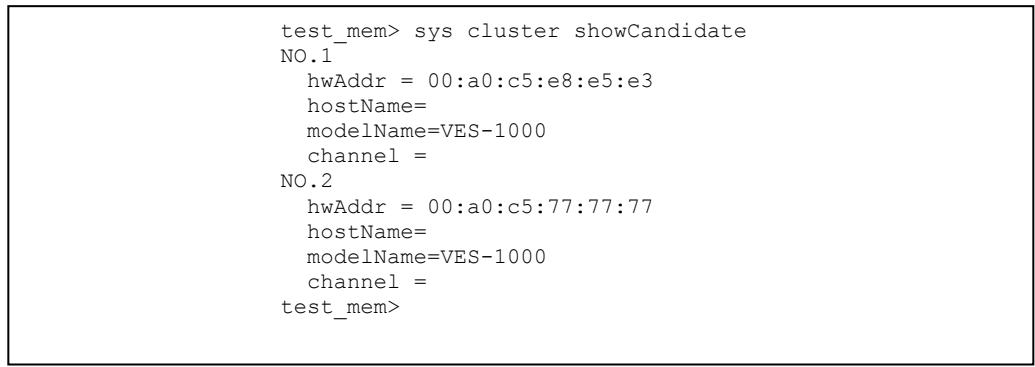
Figure 26-10 sys cluster status Command Example
26.4ip Commands
These are the commonly used commands that belong to the ip group of commands. Use "config save" to save these configurations.
26.4.1 ip ping
Syntax:
ip ping <hostid>
This command pings a remote host. An example is shown next.

Figure 26-11 IP PING Command Example
26.4.2 ip route status
Syntax:
ip route status
This command displays the routing table. An example is shown next.

Figure 26-12 ip route status Command Example
26.4.3 ip arp status
Syntax:
ip arp status
This command displays all interfaces' IP Address Resolution Protocol (ARP) status. An example is shown next.
ES-3024>ip arp status
received 1 badtype 0 bogus addr 0 reqst in 0 replies 1 reqst out 4 bad VID 0 cache hit 29 (0%) ,cache miss8366 (99%) IP-addr Type Time Addr stat iface channel
192.168.1.1 Ethernet 0 00:a0:c5:3f:91:56 43 NULL NULL
num of arp entries=1
Figure 26-13 ip arp status Command Example
26.4.4 ip dhcp Commands
Syntax:
ip dhcp swif0 mode none (This command disables DHCP on the switch interface (swif0))
ip dhcp swif0 status (This command displays the DHCP status on the switch interface)
An example is shown next.
test_mem> ip dhcp swif0 mode none
test_mem> ip dhcp swif0 status
DHCP on interface swif0 is none
Figure 26-14 ip dhcp Command Examples
26.5Enabling rstp on the Stacking Module
Step 1. First enable RSTP
sys sw rstp bridge enable
Step 2. Then enable RSTP on the stacking port.
sys sw rstp port enable 27
sys sw rstp port enable 28
Step 3. Save the configuration
config save
Chapter 27
IEEE 802.1Q Tagged VLAN Commands
This chapter describes the IEEE 802.1Q Tagged VLAN and associated commands. Use the "config
save" command to save configuration changes.
27.1IEEE 802.1Q Tagged VLAN Overview
See the VLAN chapter for more information on VLANs. There are two kinds of tagging:
- Explicit Tagging
A VLAN identifier is added to the frame header that identifies the source VLAN.
- Implicit Tagging
The MAC (Media Access Control) number, the port or other information is used to identify the source of a VLAN frame.
The IEEE 802.1Q Tagged VLAN uses both explicit and implicit tagging.
It is important for the switch to determine what devices are VLAN-aware and VLAN-unaware so that it can decide whether to forward a tagged frame (to a VLAN-aware device) or first strip the tag from a frame and then forward it (to a VLAN-unaware device).
27.2 Filtering Databases
A filtering database stores and organizes VLAN registration information useful for switching frames to and from a switch. A filtering database consists of a static entries (Static VLAN or SVLAN table) and dynamic entries (Dynamic VLAN or DVLAN table).
27.2.1 Static Entries (SVLAN Table)
Static entry registration information is added, modified and removed by administrators only.
27.2.2 Dynamic Entries (DVLAN Table)
Dynamic entries are learned by the switch and cannot be created or updated by administrators. The switch learns this information by observing what port, source address and VLAN ID (or VID) is associated with a frame. Entries are added and deleted using GARP VLAN Registration Protocol (GVRP), where GARP is the Generic Attribute Registration Protocol.
27.3 Configuring Tagged VLAN
The following procedure shows you how to configure tagged VLAN.
Step 1. Use the IEEE 802.1Q tagged VLAN commands to configure tagged VLAN for the switch.
- Use the sys sw vlan1q svlan setentry command to configure a VLAN ID for each port on the switch
- Use the sys sw vlan1q svlan active command when you are finished configuring the VLAN (see the last step).
- Use the sys sw vlan1q port defaultVID command to set the VLAN ID you created for a port to that specific port in the PVID table.
- Use the sys sw vlan1q svlan active command to activate the VLAN IDs.
Example:
ES-3024> sys sw vlan1q svlan setentry up1 2000 24 fixed tag
for newly create VLAN, please use svlan active <VID> to activate this entry
ES-3024> sys sw vlan1q port defaultVID 24 2000
ES-3024> sys sw vlan1q svlan setentry up1 2001 25 fixed untag
for newly create VLAN, please use svlan active <VID> to activate this entry
ES-3024> sys sw vlan1q port defaultVID 25 2001
ES-3024> sys sw vlan1q svlan active 2000
ES-3024> sys sw vlan1q svlan active 2001
Figure 27-1 Tagged VLAN Configuration and Activation Example
Step 2. Configure your management VLAN.
- Use the sys sw vlan1q svlan setentry command to configure a VLAN ID (VID 3 in this example) for managing the switch (the "management" or "CPU" VLAN).
- Use the sys sw vlan1q svlan active command to activate the new management VLAN ID.
Example:
ES-3024> sys sw vlan1q svlan setentry example 3 24 fixed tag
ES-3024> sys sw vlan1q svlan active 3
Figure 27-2 CPU VLAN Configuration and Activation Example
Step 3. Perform the procedure below to complete the VLAN setup.
a. Telnet to the operational IP address of the switch.
b. Use the sys sw vlan1q svlan cpu command to set VID 3 as the management VLAN.
c. Use the sys sw svlan delentry command to remove the default VLAN ID (1).
Example:
ES-3024> sys sw vlan1q svlan cpu 3
ES-3024> sys sw vlan1q svlan delentry 1
Figure 27-3 Deleting Default VLAN Example
27.4IEEE VLAN1Q Tagged VLAN Configuration Commands
These sw (switch) commands allow you to configure and monitor the IEEE 802.1Q Tagged VLAN.
27.4.1 garp status
Syntax:
sys sw garp status
This command shows the switch's GARP timer settings, including the join, leave and leave all timers.
An example is shown next.
ES-3024> sys sw garp status
GARP Timer Status :
    Join Timer = 200 msec
    Leave Timer = 600 msec
    Leave All Timer = 10000 msec
ES-3024>
Figure 27-4 GARP STATUS Command Example
27.4.2 garp timer
Syntax:
sys sw garp timer timer <join timer(ms)> <leave timer(ms)> <leave all timer<ms>
where
<join timer (ms)> This sets the duration of the Join Period timer for GVRP in milliseconds. Each port has a Join Period timer. The allowed Join Time range is between 100 and 32767 milliseconds; the default is 200 milliseconds. <leave timer (ms)> This sets the duration of the Leave Period timer for GVRP in milliseconds. Each port has a single Leave Period timer. Leave Time must be two times larger than Join Timer; the default is 600 milliseconds. <leave all timer<ms>= This sets the duration of the Leave All Period timer for GVRP in milliseconds. Each port has a single Leave All Period timer. Leave All Timer must be larger than Leave Timer; the default is 10000 milliseconds.
This command sets the switch's GARP timer settings, including the join, leave and leave all timers.
Switches join VLANs by making a declaration. A declaration is made by issuing a Join message using GARP. Declarations are withdrawn by issuing a Leave message. A Leave All message terminates all registrations. GARP timers set declaration timeout values.
The following example sets the Join Timer to 300 milliseconds, the Leave Timer to 800 milliseconds and the Leave All Timer to 11000 milliseconds.
ES-3024> sys sw garp timer 300 800 11000
Figure 27-5 garp timer Command Example
27.4.3 gvrp status
Syntax:
sys sw gvrp status
This command shows the switch's GVRP settings.
An example is shown next.
ES-3024> sys sw gvrp status
GVRP control block status:
gvrpEnable = 1
gvrpPortEnable:
0000000000000000000000XXX
Figure 27-6 garp status Command Example
27.4.4 gvrp enable
Syntax:
sys sw gvrp enable
This command turns on GVRP in order to propagate VLAN information beyond the switch.
27.4.5 gvrp disable
Syntax:
sys sw gvrp disable
This command turns off GVRP so that the switch does not propagate VLAN information to other switches.
27.4.6 vlan1q port status
Syntax:
sys sw vlan1q port status <port>
This command shows information about the specified port's VLAN settings.
The following example shows the settings for port 1.
ES-3024> sys sw vlan1q port status 1
Port 1 VLAN Setup :
Default VLAN ID = 1
VLAN Acceptable Type = All
GVRP = DISABLE
Protocol VLAN ID:
IP : none
IPX : none
NETBIOS : none
APPLETALK : none
Figure 27-7 vlan1q port status Command Example
27.4.7 vlan1q port default vid
Syntax:
sys sw vlan1q port defaultVID <port> <VID>
where
<port> = A port number
<VID> = The VLAN ID. Valid parameter range = [1 - 4094].
This command sets a default VLAN ID for all untagged packets that come in through the specified port.
The following example sets the default VID of port 1 to 2000.
ES-3024> sys sw vlan1q port defaultVID 1 2000
Figure 27-8 vlan1q port default vid Command Example
27.4.8 vlan1q port accept
Syntax:
sys sw vlan1q port accept <port> <all|tagged>
where
<port> = A port number
<all|tagged> = Specifies all Ethernet frames (tagged and untagged) or only tagged Ethernet frames.
This command sets the specified port to accept all Ethernet frames or only those with an IEEE 802.1Q VLAN tag.
The following example sets port 2 to accept only tagged frames.
ES-3024> sys sw vlan1q port accept 2 tagged
Figure 27-9 vlan1q port accept Command Example
27.4.9 vlan1q port gvrp
Syntax:
sys sw vlan1q port gvrp <port> <enable|disable>
where
<port> = A port number <enable|disable> = Turn GVRP on or off.
This command turns GVRP on or off for the specified port.
The following example turns off GVRP for port 2.
ES-3024> sys sw vlan1q port gvrp 2 disable
Figure 27-10 vlan1q port gvrp Command Example
27.4.10 vlan1q svlan cpu
Syntax:
sys sw vlan1q svlan cpu <VLAN ID>
where
<VID> = The VLAN ID. Valid parameter range = [1 - 4094].
This command sets the management VLAN (CPU). You can only use ports that are members of this management VLAN in order to manage the switch.
The following example sets VLAN ID 2 to be the CPU (management) VLAN.
ES-3024> sys sw vlan1q svlan cpu 2
Figure 27-11 vlan1q svlan cpu Command Example
27.4.11 vlan1q svlan setentry
Syntax:
sys sw vlan1q svlan setentry <name> <VID> <port> <adctl> <tagctl>
where
<name> A name to identify the SVLAN entry.
<VID> = The VLAN ID [1 - 4094].
<port> = This is the switch port number.
<adct1> This is the registrar administration control flag.
Valid parameters = [fixed, forbidden, normal].
Enter fixed to register a <port #> to the static VLAN table with <vid>.
Enter normal to confirm registration of the <port #> to the static VLAN table with <vid>.
Enter forbidden to block a <port #> from joining the static VLAN table with <vid>.
<tagct1> = This is the tag control flag. Valid parameters = [tag|untag].
Enter tag to tag outgoing frames.
Enter untag to send outgoing frames without a tag.
This command adds or modifies an entry in the static VLAN table. Display your configuration by using the sys sw vlan1q svlan list command. An example of a configuration is shown next.
Modify a Static VLAN Table Example
The following is an example of how to modify a static VLAN table.
1. ras> sys sw vlan1q svlan setentry 2000 1 fixed tag
2. ras> sys sw vlan1q svlan setentry 2001 2 fixed tag
Figure 27-12 Modifying the Static VLAN Example
Forwarding Process Example
Tagged Frames
Step 1. First the switch checks the VLAN ID (VID) of tagged frames or assigns temporary VIDs to untagged frames (see Section 27.4.7).
Step 2. The switch then checks the VID in a frame's tag against the SVLAN table.
Step 3. The switch notes what the SVLAN table says (that is, the SVLAN tells the switch whether or not to forward a frame and if the forwarded frames should have tags).
Step 4. Then the switch applies the port filter to finish the forwarding decision. This means that frames may be dropped even if the SVLAN says to forward them. Frames might also be dropped if they are sent to a CPE (customer premises equipment) DSL device that does not accept tagged frames.
Untagged Frames
Step 1. An untagged frame comes in from the LAN.
Step 2. The switch checks the PVID table and assigns a temporary VID of 1.
Step 3. The switch ignores the port from which the frame came, because the switch does not send a frame to the port from which it came. The switch also does not forward frames to "forbidden" ports.
Step 4. If after looking at the SVLAN, the switch does not have any ports to which it will send the frame, it won't check the port filter.
27.4.12 vlan1q svlan delentry
Syntax:
sys sw vlan1q svlan delentry<VID>
where
<VID> = The VLAN ID [1-4094].
This command deletes the specified VLAN ID entry from the static VLAN table
The following example deletes entry 2 in the static VLAN table.
ES-3024> sys sw vlan1q svlan delentry 2
Figure 27-13 vlan1q svlan delentry Command Example
27.5vlan1q svlan active
Syntax:
sys sw vlan1q svlan active <VID>
This command enables the specified VLAN ID in the SVLAN (Static VLAN) table.
27.6vlan1q svlan inactive
Syntax:
sys sw vlan1q svlan inactive <VID>
This command disables the specified VLAN ID in the SVLAN (Static VLAN) table.
27.7vlan1q svlan list
Syntax:
sys sw vlan1q svlan list
This command shows the IEEE 802.1Q Tagged SVLAN (Static VLAN) table.
An example is shown next.
For the AdCt1 section of the last column, " - is a port set to normal, "x" is a forbidden port and "F" is a fixed port. For the TagCt1 section of the last column, "T" is a tagged port, "U" is an untagged port.
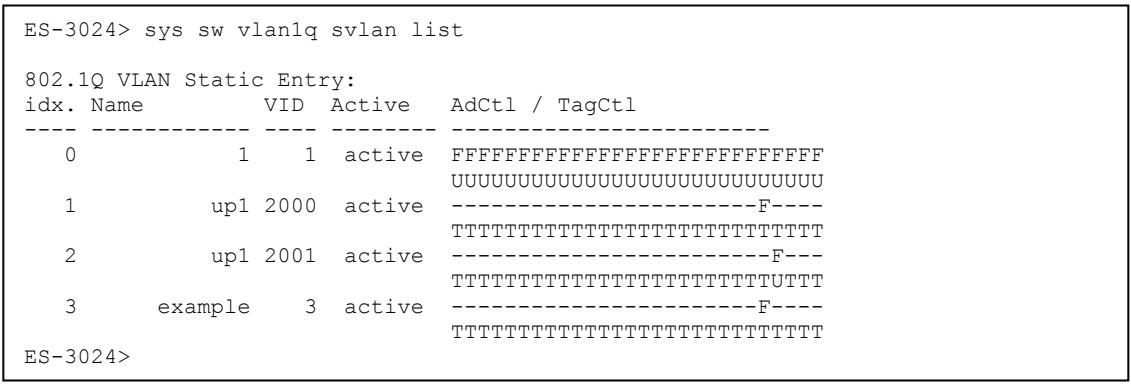
Figure 27-14 vlan1q svlan list Command Example
27.8vlan1q vlan list
Syntax:
sys sw vlan1q vlan list <all|VID|start_VID|end_VID>
where
<all|VID|start Specify either all of the VLAN entries (all), a single VLAN ID (VID) or a _VID|end_VID>= range of VLAN IDs starting from a certain VID (start_VID) or a range of VLAN Ids ending at a specific VID (end_VID).
This command shows the current IEEE 802.1Q Tagged VLAN table or a specific part of it.
An example is shown next.
For the EgressPort section of the last column, "E" is an egress port for this VLAN, "--" is not an egress port for this VLAN.
The UntaggedPort section of the last column displays “-” for a tagged port and “U” for an untagged port.
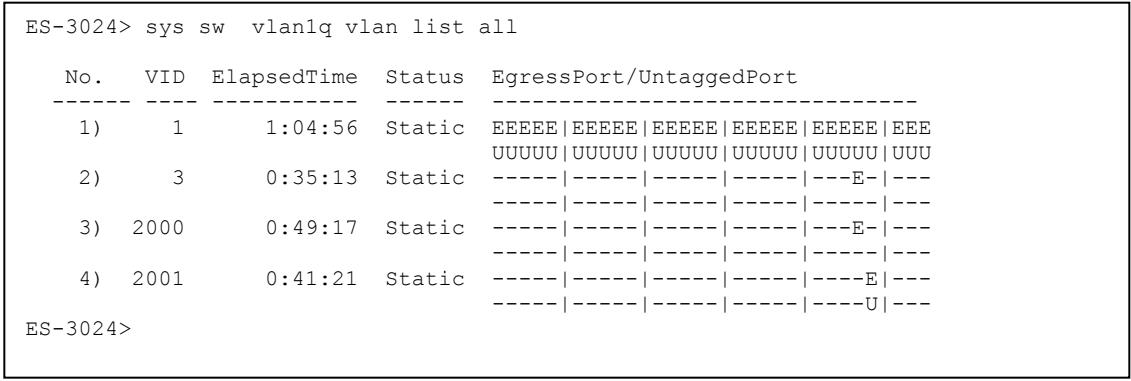
Figure 27-15 vlan1q svlan list Command Example
27.8.1 vlan1q vlan status
Syntax:
sys sw vlan1q vlan status
This command displays the current configuration of the IEEE 802.1Q VLAN.
See the following example shows the default VLAN settings. The default VLAN allows all ports to connect to each other and sets them to send untagged packets.
ES-3024> sys sw vlan1q status
802.1Q VLAN Setup :
GVRP = Enable
Managament VLAN ID = 1
Figure 27-16 vlan1q vlan status Command Example
Part VIII
Appendices and Index
This part contains appendices of advanced background feature information and an Index.
A Product Specifications
These are the ES-3024 product specifications.
Chart 1 General Product Specifications
| Standards | IEEE802.3 10BASE-T Ethernet (twisted-pair copper) IEEE802.3u 100BASE-TX Fast Ethernet (twisted-pair copper) ANSI/IEEE802.3 Auto-negotiation IEEE802.3x Flow Control IEEE802.1p Priority Queues IEEE802.1q VLAN IEEE802.1d Spanning Tree IEEE 802.1x Authentication IEEE 802.3 ad Link Aggregation IEEE 802.1w Rapid reconfiguration |
| Protocol | CSMA/CD |
| Interface | 24 10/100BASE-T Ethernet ports Two expansion slots for uplink modules One expansion slot for stacking module. One console port |
| Data Transfer Rate | Ethernet: 10Mbps (half duplex), 20Mbps (full duplex) Fast Ethernet: 100Mbps (half duplex), 200Mbps(full duplex) Uplink rates depend on the uplink module used (see your module manual) |
| Network Cables | 10BASE-T: 2-pair Unshielded Twisted Pair (UTP) Cat.3, 4, 5 (100 meters) EIA/TIA-586 100-ohm Shielded Twisted Pair (STP) (100 meters) 100BASE-TX, 1000BASE-T: UTP Cat.5 (100 m max.) EIA/TIA-568 100-ohm STP (100 m max.) Uplink cables depend on the uplink module used (see your module manual) |
| Full/Half Duplex | Full/half duplex for 10/100Mbps speeds Full duplex only for Gigabit speeds (see your module manual) |
| Media Interface Exchange | All ports are auto-crossover (auto-MDI-X) and auto-negotiating. |
Chart 2 Performance and Management Specifications
Chart 2 Performance and Management Specifications
| Back plane | 12.8 Gbps |
| Packet Forwarding Rate | 14880 PPS for 10BASE-T 148800 PPS for 100BASE-TX/FX Uplink packet forwarding rate depends on the uplink module used (see your module manual) |
| Switching Method | Store-and-forward |
| MAC Address Table | 16 K entries |
| Data Buffer | 2MB (excluding optional modules) Uplink data buffers depend on the uplink module used (see your module manual) |
| VLAN | IEEE 802.1Q tag-based VLAN, 4095 Max |
| IEEE 802.1p Priority Queues | 4 queues |
| Port Link Aggregation | IEEE802.3ad dynamic port trunking |
| Port Security | Static MAC address filtering MAC address learning limit |
| Multicasting | Support IGMP snooping |
| Broadcast Storm | Support broadcast storm control |
| Port Mirroring | All Ethernet, stacking and uplink ports support port mirroring |
| Management | Web-based management Telnet SNMP |
| Management Security | User ID/Password for Telnet and Web-based management authentication Up to 4 administrators allowed |
| MIBs | SNMP MIB II (RFC 1213) RFC 1157 SNMP v1 SNMPv2, SNMPv2c or later version, compliant with RFC 2011 SNMPv2 MIB for IP, RFC 2012 SNMPv2 MIB for TCP, RFC 2013 SNMPv2 MIB for UDP RFC 1643 Ethernet MIBs RFC 1493 Bridge MIBs RFC 1155 SMI RFC 1757 RMON RFC 2674 SNMPv2, SNMPv2c |
Chart 3 Physical and Environmental Specifications
| Weight | Main switch: 4.3Kg Optional module: 220 ~ 280g |
| LED | Main switch: S1, S2, PWR, 10/100Mbps, SYS, ALM, LNK/ACT, FDX/COL Uplink and stacking LEDs depend on the module used (see your module manual) |
| Dimensions | Main switch: 441(W) x 226(D) x 66.5(H) mm (17.3(W) x 8.9(D) x 2.6(H) inches), 19-inch rack-mount width, 1.5 U height Optional Switch Modules: 178(W) x 152(D) x 25(H) (7(W)x 6(D)x 1(H) inches) |
| Power Supply (AC Unit) | 100 - 240VAC 50/60Hz 1.5A max internal universal power supply |
| Power Supply (DC Unit) | DC input of -48 VDC — -60 VDC, 1.84A Max. |
| Power Consumption | Main switch: 60W maximum |
| Fuse Rating | T2A250VAC Caution: For continued protection against risk of fire, replace only with the same type and fuse rating. |
| Operating Temperature | 0°C ~45°C (32°F to 113°F) |
| Storage Temperature | -25°C ~70°C |
| Operational Humidity | 10% to 90% (Non-condensing) |
| Safety | North America UL 1950 listing CSA C22.2 No. 950 (Canada) European Union EN60950, EN41003 |
| EMC | North America FCC Part15 (Class A) |
| EMI | European Union Conducted/Radiated Emission: EN55022 Class A |
| EMS | European Union |
| Current Harmonic | EN61000-3-2 +A12 |
| Voltage Fluctuation | EN61000-3-3 |
| Electrostatic Discharge (ESD) | IEC 1000-4-2, Level 2 |
| Radiated Susceptibility | IEC 1000-4-3, Level 2 |
| Electrical Fast Transients | IEC 1000-4-4,Level 2 |
| Surge Test | IEC 1000-4-5 |
B Index
1
10/100M Auto-crossover Ethernet, 3-2
8
802.1Q VLAN Type, 6-7
802.3ad, 1-2
A
Acceptable Frame Type, 7-6
Access Control, 17-1
Address Learning, 16-3
Aging Time, 6-7
Airflow, 3-4
All Connected, 7-13
ALM, 3-5
authenticationFailure, 17-3
Auto-crossover, 3-2
B
Back Panel, 3-4
Back plane, A-2
Backup Configuration, 20-2
Bandwidth Control, 1-3
Bandwidth Control Setup, 11-1
Note, 11-1
Basic Setting, 6-1
Bridge ID, 10-3
Bridge MIBs RFC 1493, 1-2
Bridge Priority, 10-6
Bridge Protocol Data Units (BPDUs), 10-1
Broadcast storm control, 1-3
Broadcast Storm Control, 12-1
C
Canonical Format Indicator, 7-1
CE, iv
Certification, iv
CFI. See Canonical Format Indicator
class A, iv
CLI Command, VII
Configure tagged VLAN example, 27-2
Getting help, 25-2
Static VLAN Table example, 27-7
sysCommands,25-2
Cold Start, 17-3
Command
exit command, 25-14
ip commands, 25-15
Summary, 25-2
Command
Command conventions, 25-1
config command, 25-16
Forwarding Process Example, 27-7
IEEE 802.1Q Tagged VLAN commands example, 27-1
Syntaxconventions,25-2
sys sw Commands, 25-7
Command Line Interface, VII
Accessing, 25-1
Introduction, 25-1
config Command, 25-16
config save, 3-8, 25-1, 25-8, 25-9, 25-17
Configuring STP, 10-4
Console Port, 1-1, 3-1
Contact Person's Name, 6-4
Contacting Customer Support, v
Copyright, ii
Cost to Bridge, 10-4
Current Harmonic, A-3
Customer Support, v
D
Data Buffer, A-2
Daytime (RFC 867), 6-5
Default Settings
Ethernet, 3-2
Diagnostic, 21-1
Dimensions, A-3
Disclaimer, ii
Domain Name Server, 6-9
Dropped Packet, 5-5
Duplex, 6-12
DVLAN Table, 27-1
Dynamic Link Aggregation, 14-1
E
egress port, 7-13
Electrical Fast Transients, A-3
EMC, A-3
EMI, A-3
EMS, A-3
Error Packet, 5-5
Ethernet Address, 6-2
Ethernet MIBs RFC 1643, 1-2
Ethernet Port Test, 21-2
exit Command summary, 25
Exposed IES-2000 Power Wire, 3-1
F
Fans, 1-1
FCC, iv
FCC Rules, iv
FCC Warning, iv
Federal Communications Commission (FCC) Interference Statement, iv
File Transfer using FTP, 20-4
command example, 20-4
GUI-based, 20-5
procedure, 20-4
restrictions over WAN, 20-5
Filename Conventions, 20-4
Filter Setup, 9-1
Note, 9-1
Filtering, 9-1
View rules, 9-3
Filtering Databases, 27-1
Firmware Upgrade, 20-1
Flow control, 3-8
Flow Control, 6-12
Forwarding Delay, 10-4, 10-6
Frimware version, 6-2
Front Panel, 3-1
Front Panel LEDs, 3-4
FTP, 20-4
G
GARP, 27-1. See Generic Attribute Registration Protocol
garp status, 27-3
GARP Status Command, 27-3
GARP Terminology, 7-2
garp timer, 27-3
GARP Timer, 6-8
General Setup, 6-1, 6-3, 6-4
Generic Attribute Registration Protocol, 7-2
Get Community, 17-4
GetNext, 17-3
Giant, 5-5
GVRP, 7-6, 27-1
GVRP (GARP VLAN Registration Protocol), 7-2, 7-6
gvrpdisable,27-4
gvrpenable,27-4
gvp status, 27-4
H
Hardware Monitor Fans, 6-3
Temperature, 6-2
Volatge, 6-3
Hello Time, 10-3, 10-6
Help, 4-7
How STP Works, 10-1
HTML help, xvi
I
IEEE 802.1p, 6-8
IEEE 802.1Q. See Tagged VLAN
IEEE 802.1Q Tagged VLAN, 27-1
IEEE 802.1x, 15-1
IGMP snooping, 1-3
IGMP Snooping, 6-6
Ingress Check, 7-6
Ingress filtering, 7-2
Installation
Desktop, 2-1
Rack-Mounted, 2-2
IP Address, 6-9
ip arp status, 26-6
ip Commands
examples, 26-6
summary, 25-15
ip ping, 26-6
IP Protocols, 1-2
ip route status, 26-6
IP Setup, 6-1, 6-9
IP Subnet Mask, 6-9
J
Join Timer, 6-8
L
LACP
Timeout, 14-5
LACP Status, 14-3
Leave All Timer, 6-8
Leave Timer, 6-8
LED Descriptions, 3-5
Link Aggregate Control Protocol (LACP), 14-1
Link Aggregation Groups, 14-1
Link Aggregation ID, 14-2
Link Aggregation Setup, 14-4
linkDown, 17-3
Location, 6-4
Login Accounts, 17-4
M
MAC, 6-2
MAC address, 6-2
MAC address learning, 1-2, 6-7, 8-1
MAC Address Learning, 6-7
MAC Address Table, A-2
Maintenance, 20-1
Management Information Base (MIB), 17-3
Management VLAN ID, 6-10
Max Age, 10-2, 10-3, 10-6
Media Access Control, 6-2
Media Interface Exchange, A-1
MIBs, A-2
Mirror port, 13-1
Mirror Setup, 13-2
Monitor Interval, 12-3
Mounting Brackets, 2-2
Multi-tenant unit (MTU), xvi
N
Navigation Panel Links, 4-3
Network Applications
Bridging, 1-4
Collapsed Backbone, 1-3
High Performance Switched Workgroup, 1-5
VLAN Application, 1-6
VLAN Server, 1-7
VLAN Workgroup, 1-6
Network Cables, A-1
NTP (RFC-1305), 6-5
0
Operating Temperature, A-3
Operational Humidity, A-3
Optional Modules
Installing, 3-2
P
Packet Forwarding Rate, A-2
Password
Default, 4-1
Path cost, 10-1
Ping, 21-2
POP (point-of-presence, xvi
Port Based VLAN Type, 6-7
Port Details, 5-2, 5-3
Port Isolation, 7-6, 7-13
Port Mirroring, 1-2, 13-1, 25-13
Note, 13-1
Port Setup, 6-10, 6-11
Port Statistics. See Port Details
Port Status, 5-1. See Port Details
Port Link Aggregation, 1-2
PortVID,7-2
Default for all ports, 7-1
Port-based VLANs, 7-10
Configure, 7-10
Power Connector, 3-4
Power Consumption, A-3
Power Supply, A-3
Priority, 6-8
Priority Level, 6-8
Priority Queue Assignment, 6-8, 6-12
Product specifications, A-1
PWR, 3-5
Q
Quality of Service, 1-3
R
Radiated Susceptibility, A-3
RADIUS (Remote Authentication Dial-In User Service), 15-1
RADIUS Setup, 15-2
ras, 20-4
Ras, 20-4
Rear Panel, 3-4
Rear Panel Connections Rear Panel, 3-4
Reauthentication, 15-4
Related Documentation, xvi
Remote Management, 17-6
repair, iii
Resetting the Switch, 4-6
Restore Configuration, 20-2
RMON RFC 1757, 1-2
Rom-0, 20-4
Root bridge, 10-1
Rubber Feet, 2-1
Runt, 5-5
Rx KB/s, 5-2, 5-4
Rx Packet, 5-4
RxPkts, 5-2, 5-4
S
Safety, A-3
SafetyWarnings,3-1
Scenarios, 2-1
Screen Overview, 4-5
Secured Client, 20-5
Server Port, 17-6
Service, iii
Service Access Control, 17-6
Set Community, 17-4
Shared Secret, 15-2
Simple Network Management Protocol, 17-2
SMIRFC1155,1-2
SNMP, 17-2
Configuring, 17-3
Trap, 17-4
Get, 17-3
Manager, 17-2
MIBs, 17-3
supported versions, 17-2
Trap, 17-3
SNMPCommands,17-3
SNMP MIB II (RFC 1213), 1-2
SNMP Traps, 17-3
SNMP v1 RFC 1157, 1-2
SNMPv2, SNMPv2c RFC 2674, 1-2
Source MAC Address, 9-2
Spanning Tree Protocol, 10-1
Stacking Module, 1-1
Stacking Scenarios, 3-5
standard browser, 4-1
Standards,A-1
Static MAC Forward Setup, 8-1
Static MAC Forwarding, 8-1
Static Route
Setup, 19-1
Summary table, 19-2
StaticVLAN,7-6
Control, 7-8
Summary Table, 7-8
Tagging, 7-8
Status, 5-1
STP. See Spanning Tree Protocol
STP (Spanning Tree Protocol), 1-3
STP Path Costs, 10-1
STP Port States, 10-2
STP Status, 10-2
STP Terminology, 10-1
Surge Test, A-3
SVLAN Table, 27-1
Switch Lockout, 4-5
Switch Setup, 6-6, 7-3
Switching Method, A-2
SynchronizedPorts,14-3
Syntax Conventions, xvi
SYS, 3-5
sysCommands
examples, 26-1
Summary, 25-2
sysixe2424 dbm ip list, 26-4
sysixe2424 dbm mac list, 26-4
sysixe2424 pktcnt,26-3
sys log clear, 26-1
sys log disp, 26-1
sys monitor status, 26-2
sys sw commands
summary, 25-7
sys sw vlan1q vlan list, 26-2
sys version, 26-2
System Information, 5-1, 6-1
System Log, 21-1
System Monitoring, 1-2
System Name, 6-4
SystemPriority,14-4
System Statistics, 5-1
System time and date, 6-4
System up Time, 5-2
T
Tag Control Information, 7-1
Tag Protocol Identifier, 7-1
Tagged VLAN, 7-1
GARP, 7-2
GVRP, 7-2
Memebership Registration, 7-1
Taiwanese BSMI A Warning, iv
TCI. See Tag Control Information
Terminal emulation, 3-1
Terminal Emulation, 3-2, 25-1
Time (RFC-868), 6-5
Time server protocol supported, 6-5
TPID. See Tag Protocol Identifier
Trademarks, ii
Trap, 17-4
Trunk Setup, 14-4
trusted computers, 17-7
TX Collision, 5-5
Tx KB/s, 5-2, 5-4
Tx Packet, 5-4
TxPkts, 5-2, 5-4
U
Up Time, 5-2
Uplink Modules, 1-1
Uplink Scenario, 3-7
Username
Default, 4-1
V
ventilation, 2-1
ventilation holes, 2-1
VID, 7-4, 7-6, 9-3, 11-3. See VLAN Identifier
VLAN, 7-1
Explicit Tagging, 27-1
Forwarding, 7-1
ID (VID), 27-1
Implicit Tagging, 27-1
Introduction, 6-5
Port-based, 7-10
Priority frame, 7-1
Registration Information, 27-1
Tagged VLAN, 7-1
VLAN Administrative Control, 7-2
VLAN Group, 7-8
VLAN ID, 6-10, 7-1
maximum number of, 7-1
VLAN Identifier, 7-1
VLAN Port Settings, 7-5
VLAN Status, 7-4
VLAN Tag Control, 7-2
VLAN Type, 6-7, 7-3
vlan1q port accept, 27-5
vlan1q port default vid, 27-5
vlan1q port gvrp, 27-6
vlan1q port status, 27-5
vlan1q svlan active, 27-8
vlan1q svlan cpu, 27-6
vlan1q svlan delentry, 27-8
vlan1q svlan inactive, 27-8
vlan1q svlan list, 27-8
vlan1q svlan setentry, 27-6
vlan1q vlan list, 27-9
Voltage Fluctuation, A-3
VT100,3-2,25-1
W
WarmStart, 17-3
Warnings, 3-1
Web Configurator, 4-1
Logging out, 4-7
Login, 4-1
Online help, 4-7
Recommended browsers, 4-1
X
XMODEM upload, 4-6
Z
ZyNOS (ZyXEL Network Operating System), 20-4
ZyNOS Firmware version, 6-2
ZyXEL Limited Warranty, iii
Note, iii
ZyXEL Web Site, xvi
Error! Not a valid document self-reference on page 6
- Copyright © 2003 by ZyXEL Communications Corporation
- Disclaimer
- Trademarks
- ZyXEL Limited Warranty
- Note
- Interference Statements andWarnings
- FCC Interference Statement
- FCC Warning
- CE Mark Warning:
- Certifications
- Registration
- Customer Support
- Contacting Customer Support
- Table of Contents
- Chapter 21 Diagnostic 21-1
- Chapter 22 Cluster Management 22-1
- Chapter 23 Filtering Database 23-1
- Chapter 24 ARP Table. 24-1
- Part VII .VII
- Chapter 25 Introduction to CLI 25-1
- Chapter 26 Command Examples 26-1
- Chapter 27 IEEE 802.1Q Tagged VLAN Commands 27-1
- List of Figures
- List of Charts
- List of Tables
- Preface
- About the ES-3024
- All figures in this guide display the ES-3024 AC model unless specifically noted otherwise.
- General Syntax Conventions
- Related Documentation
- User Guide Feedback
- Part I
- Features And Applications
- Chapter 1 Getting to Know the ES-3024
- Features
- Hardware Features
- Power
- 10/100 Mbps Fast Ethernet Ports
- Two Slots for Uplink Modules
- One Slot for Stacking Module
- Console Port
- Fans
- Firmware Features
- IP Protocols
- Management
- System Monitoring
- Security
- Port Link Aggregation
- Bandwidth Control
- Quality of Service
- STP (Spanning Tree Protocol) / RSTP (Rapid STP)
- Cluster Management
- Applications
- Backbone Application
- Bridging Example
- High Performance Switched Workgroup Example
- IEEE 802.1Q VLAN Application Examples
- Tag-based VLAN Workgroup Example
- VLAN Shared Server Example
- Part II
- Hardware Installation & Connections
- Chapter 2 Hardware Installation
- Installation Scenarios
- Desktop Installation Procedure
- Rack-Mounted Installation
- Chapter 3 Hardware Connections
- SafetyWarnings
- Front Panel
- Console Port
- Ethernet Ports
- Default Ethernet Negotiation Settings
- Auto-crossover
- Uplink Modules
- Installing Modules
- Modules are NOT hot swappable!
- Rear Panel
- Power Connector
- Make sure you are using the correct power source as shown on the panel.
- Front Panel LEDs
- Stacking Scenario Examples
- Uplink Scenario Example
- Configuring the ES-3024
- Part III
- Getting Started
- Chapter 4 Introducing the Web Configurator
- Introduction
- System Login
- Status Screen
- Change Your Password
- Switch Lockout
- Resetting the Switch
- Logging Out of the Web Configurator
- Help
- Chapter 5 System Status and Port Details
- About System Statistics and Information
- Port Status Summary
- Port Details
- Chapter 6 Basic Setting
- Introducing The Basic Setting Screens
- System Information
- General Setup
- Introduction to VLANs
- IGMP Snooping
- Switch Setup Screen
- IP Setup
- Port Setup
- Part IV
- Advanced Application 1
- Chapter 7 VLAN
- Introduction to IEEE 802.1Q Tagged VLAN
- Forwarding Tagged and Untagged Frames
- Automatic VLAN Registration
- GARP
- GARP Timers
- GVRP
- Port VLAN Trunking
- 802.1Q VLAN
- 802.1Q VLAN Port Settings
- 802.1Q Static VLAN
- Viewing and Editing VLAN Settings
- VID1 Example Screen
- Introduction to Port-based VLANs
- Configuring a Port-based VLAN
- Chapter 8 Static MAC Forward Setup
- Introduction to Static MAC Forward Setup
- Configuring Static MAC Forwarding
- Viewing and Editing Static MAC Forwarding Rules
- Chapter 9 Filtering
- Introduction to Filtering
- Note About Configuration
- Configuring a Filtering Rule
- Viewing and Editing Filter Rules
- Chapter 10 Spanning Tree Protocol
- Introduction to Spanning Tree Protocol (STP)
- STP Terminology
- How STP Works
- STP Port States
- 10.2STP Status
- Configuring STP
- Chapter 11 Bandwidth Control
- Introduction to Bandwidth Control
- Note About Configuration
- Viewing and Editing a Bandwidth Control Rule
- Part V
- Advanced Application 2
- Chapter 12 Broadcast Storm Control
- Introducing Broadcast Storm Control
- Configuring Broadcast Storm Control
- Chapter 13 Mirroring
- Introduction to Port Mirroring
- 13.2Port Mirroring Configuration
- Note About Configuration
- Setting Up the Mirror Port
- Configuring a Mirroring Rule
- Editing and Viewing a Mirroring Rule
- Chapter 14 Link Aggregation
- Introduction to Link Aggregation
- Dynamic Link Aggregation
- Please note that:
- Link Aggregation ID
- 14.2Link Aggregation Protocol Status
- 14.3Link Aggregation Setup
- Chapter 15 Port Authentication
- Introduction to Authentication
- RADIUS
- Configuring Port Authentication
- Configuring RADIUS Server Settings
- Configuring IEEE802.1x
- Chapter 16 Port Security
- About Port Security
- 16.2Port Security Setup
- Chapter 17
- Access Control
- About Access Control
- 17.2Access Control Overview
- Figure 17-2 Console Port Priority
- 17.3About SNMP
- Supported MIBs
- SNMP Traps
- Configuring SNMP
- Setting Up Login Accounts
- Service Access Control
- 17.5Remote Management
- Chapter 18
- Queuing Method
- Introduction to Queuing
- Strict Priority Queuing (SPQ)
- Weighted Fair Queuing (WFQ)
- Configuring Queuing
- Part VI
- Routing Protocol and Management
- Chapter 19
- Routing Protocol
- Static Route
- Chapter 20 Maintenance
- Maintenance
- Firmware Upgrade
- Be sure to upload the correct model firmware as uploading the wrong model firmware may damage your device.
- 20.3Restore a Configuration File
- 20.4Backing Up a Configuration File
- 20.5Load Factory Defaults
- 20.6Reboot System
- Command Line FTP
- Filename Conventions
- Example FTP Commands
- FTP Command Line Procedure
- GUI-based FTP Clients
- FTP over WAN Restrictions
- Chapter 21 Diagnostic
- Diagnostic
- Chapter 22 Cluster Management
- Introduction to Cluster Management
- Cluster Management Status
- Cluster Member Switch Management
- Uploading Firmware to a Cluster Member Switch
- Configuring Cluster Management
- Chapter 23 Filtering Database
- Introduction to Filtering Database
- 23.2Viewing Filtering Database
- Chapter 24 ARP Table
- Introduction to ARP Table
- How ARP Works
- Viewing ARP Table
- Part VII
- Commands
- Chapter 25 Introduction to CLI
- Command Line Interface Overview
- Accessing the Command Line Interface
- Command Conventions
- Command Syntax Conventions
- Getting Help
- Command Summary
- sys Commands
- sys sw Commands
- exit Command
- ip Commands
- config Command
- Chapter 26
- Command Examples
- Commonly Used Commands Overview
- 26.2sys Commands
- sys log disp
- sys log clear
- sys version
- sys monitor status
- sys sw vlan1q vlan list
- sys ix e 2424 pktcnt
- sys ixe2424 dbm ip list
- sys ixe2424 dbm mac list
- 26.3sys cluster Commands
- sys cluster status
- sys cluster showMember
- sys cluster showCandidate
- 26.4ip Commands
- ip ping
- ip route status
- ip arp status
- ip dhcp Commands
- 26.5Enabling rstp on the Stacking Module
- Chapter 27
- IEEE 802.1Q Tagged VLAN Commands
- 27.1IEEE 802.1Q Tagged VLAN Overview
- Filtering Databases
- Static Entries (SVLAN Table)
- Dynamic Entries (DVLAN Table)
- Configuring Tagged VLAN
- Example:
- 27.4IEEE VLAN1Q Tagged VLAN Configuration Commands
- garp status
- garp timer
- gvrp status
- gvrp enable
- gvrp disable
- vlan1q port status
- vlan1q port default vid
- vlan1q port accept
- vlan1q port gvrp
- vlan1q svlan cpu
- vlan1q svlan setentry
- Modify a Static VLAN Table Example
- Forwarding Process Example
- Tagged Frames
- Untagged Frames
- vlan1q svlan delentry
- 27.5vlan1q svlan active
- 27.6vlan1q svlan inactive
- 27.7vlan1q svlan list
- 27.8vlan1q vlan list
- vlan1q vlan status
- Part VIII
- Appendices and Index
- A Product Specifications
- Chart 2 Performance and Management Specifications
- B Index
- E
- F
- G
- H
- I
- J
- L
- M
- N
- 0
- P
- T
- U
- V
Brand : ZYXEL
Model : ES-3024
Category : Network switch