
URC 3720 - Universal remote ONE FOR ALL - Free user manual and instructions
Find the device manual for free URC 3720 ONE FOR ALL in PDF.


| Product Type | Universal Remote |
| Brand | ONE FOR ALL |
| Model | URC 3720 |
| Power Source | 4 AAA alkaline batteries (not included) |
| Dimensions (approx.) | 21 x 5 x 3 cm |
| Weight (approx.) | 180 g (with batteries) |
| Compatibility | TV, SAT, CBL, VAC, DVD, PVR and other audio/video devices |
| Main Functions | Universal control, code programming or search, macros, volume lock, Key Magic, key move |
| Programming Methods | Direct code entry, auto search, code readback |
| Number of Device Modes | 4 (TV, SAT, CBL, VAC) + reassignable |
| Infrared Range | Approx. 10 m (depending on conditions) |
| Care and Cleaning | Wipe with a soft, dry cloth. Do not use abrasive products or solvents. |
| Safety | Keep out of reach of children. Do not expose to moisture or extreme temperatures. |
| Spare Parts and Repairability | No spare parts available. In case of defect, contact customer service. |
| Warranty | 1 year from date of purchase (see terms and conditions) |
| Customer Service | Email: ofahelp@uebv.com, Phone: 0173036536 (France) |
Frequently Asked Questions - URC 3720 ONE FOR ALL
User questions about URC 3720 ONE FOR ALL
0 question about this device. Answer the ones you know or ask your own.
Ask a new question about this device
Download the instructions for your Universal remote in PDF format for free! Find your manual URC 3720 - ONE FOR ALL and take your electronic device back in hand. On this page are published all the documents necessary for the use of your device. URC 3720 by ONE FOR ALL.
USER MANUAL URC 3720 ONE FOR ALL
Instruction manual 4
Deutsch
(to find out which code is currently programmed) 10
EXTRA FEATURES
Mode reassignment (Changing a device mode) 11
Volume Lock 12
- Macros (sequence of commands) 13
- Key Magic® (how to program missing functions from your original lost or broken remote) 15
- Key Move (How to move a function to another key 'within a device mode' or towards 'another device mode') 16
PROBLEM & SOLUTION 17
CUSTOMER SERVICE 17
Installing the batteries
Your ONE FOR ALL 2 needs 4 new "AAA/LR6" alkaline batteries.
Press "Battery Unlock" to unlock the battery cover from the back of your ONE FOR ALL 2.
2 Match the batteries to the + and - marks inside the battery case, then insert the batteries.
3 Place the battery cover back into place.
The Keypad
1 OFF To switch off your equipment
2 MAGIC To set up your ONE FOR ALL 2. Additionally the MAGIC key may be used as SHIFT key.
3 ON To switch on your equipment
4 Device keys with mode indication
During operation of the ONE FOR ALL the red LED (Light Emitting Diode) underneath a device key will light up every time a key is pressed to indicate the device mode you are using.
TV Television / LCD / Plasma / Projector / Rear Projector

Satellite Receiver, DVB-T, Cable Conrouger, DSS / Video Accessory (e.g. Media Centres), Personal Video Recorder, Hard Disc Recorder
5 Number Keys
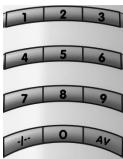
If your original remote has an 20 key, this function can be found under the AV key.
If your original remote has an 10 or - / - key, this function can be found under the - / - key.
6 In TV mode : AV/Input or 20 or C/P

In SAT mode: TV/SAT" or TV/DTV
7 Volume +/- and Mute Keys

If the device you programmed does not have volume functionality, you will obtain the VOL +/- and Mute functionality from your Television.
In TV mode : ★★★★☆ = Colour +/-
8 15NUL
9

Exit the Menu
10

Channel +/- Keys
In TV mode :


= Brightness +/-
11

to navigate in Menu operation and confirm your choice pressing the OK key
12

In TV and/or SAT mode : Guide
13

In TV and/or SAT mode: Recall
In SAT mode :

= Rewind
RECALL
14

In TV mode: = 16:9
In SAT mode: = Options
In SAT mode :


=Play
15

In TV and/or SAT mode: Info or OSD
In SAT mode :


= Pauze
16

In TV and/or SAT mode : PIP
In SAT mode :


= Fast Forward
17

In TV and/or SAT mode : Text On
In TV mode :


= DTV
In SAT mode :


= Skip Reverse
18

In TV and SAT mode : Hold/Stop
In SAT mode :


= Record
19

In TV and/or SAT mode : Text Expand
In SAT mode :


= Stop
20

In TV and/or SAT mode : Text off
In SAT mode: MAGIC =Skip Forward
21

In TV and SAT mode: Red (fastext)
In SAT mode: MAGIC = Favourite
22

In TV and SAT mode: green (fastext)
In SAT mode : MAGIC = TV/Radio or Open/Close
23

In TV and SAT mode : Yellow (fastest)
In SAT mode : MAGIC = Audio or Language
24

In TV and SAT mode : Blue (fastext)
In SAT mode : MAGIC = PVR, List or Subtitle
- Some functions can be reached simply pressing and releasing the MAGIC key before pressing the corresponding function (the MAGIC key will remain shifted for 10 seconds).
Direct code set up
Example: To set up the ONE FOR ALL 2 for your television:
1
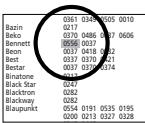
Find the code for your device (e.g. Bennett
Television) in the Code list (page 144 - 155 in the manual). Codes are listed by device type and brand name. The most popular code is listed first.
Make sure your device is switched on (not on standby).
2

Press the TV key on the ONE FOR ALL 2 to select the device you wish to Set-Up.
3

Press and hold down the MAGIC key
(for approximately 3 seconds) until the red LED (underneath the TV key in this example) blinks twice.
The red LED will blink once, then twice.

x2
4
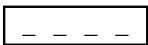
Enter your four-digit device code using the number keys (e.g. Bennett code 0556). The red LED will blink twice to confirm that the code is stored.
5

Now, aim the ONE FOR ALL 2 at your device and press OFF. If your device switches off, the ONE FOR ALL 2 is ready to operate your device.


6.

Next, switch your device back on (pressing ON, a number key or CH+ ) and try all the remote's functions to ensure they are working properly. If the functions do not work properly, repeat steps 1-5 using another code listed under your brand.
If your device does not respond, follow steps 1 to 5 with each code listed for your brand. If none of the codes listed for your brand operate your device OR if you your brand is not listed at all, try the search method described on page 9.
Some codes are quite similar. If your device does not respond or is not functioning properly with one of the codes, try another code listed under your brand.
- Remember to press the correct device key before operating your device. Only one device can be assigned to a device mode. If your original remote operates more than one device, you need to set up each device separately.
Search Method
If your device does not respond to the ONE FOR ALL 2 after you have tried all the codes listed for your brand.
The Search Method may also work if your brand is not listed at all.
The Search Method allows you to find the code for your device by scanning through all the codes contained in the memory of the ONE FOR ALL 2.
Example: To search for your TV code:
1 Switch on your television (not on standby) and aim your ONE FOR ALL at your TV.
2 Press the TV key on your ONE FOR ALL 2.
3 Press and hold down the MAGIC key (for approximately 3 seconds) until the red LED (underneath the TV key in this example) blinks twice. The red LED will blink once, then twice.
4 9 1 Press 9 9 1. The red LED will blink twice.
5 Next, press OFF.
- If you wish you may also search for your code using another function than "OFF". Simply choose between 0, 1, 2, 3, VOL+, PLAY, STOP or MUTE instead.
6 Aim the ONE FOR ALL 2 at your Device. Now press CH+ over and over, until your e.g. Television switches off.
- Everytime you press the CH + key the ONE FOR ALL 2 will send out a POWER signal (the function you chose at step 5) from the next code contained in the memory.
- You may have to press this key many times (up to 150 times) so please be patient.
- If you skip past a code, you can go to the previous code(s) by pressing the CH- key.
- Remember to keep pointing the ONE FOR ALL 2 at your Device while pressing this key.
7 MAGIC As soon as your Device switches off, press the MAGIC key to store the code.
If your Device does not switch on pressing the ON key, simply press the OFF key, a number key or CH+ to switch your e.g. Television back on.
Code Blink out
(To find out which code is currently programmed)
Once you have Set-Up your ONE FOR ALL 2, you can blink back your SET-UP CODE for future reference.
Example: To blink out your Television code:
1 TV Press TV once.
2 MAGIC Press and hold down the MAGIC key (for approximately 3 seconds) until the red LED (underneath the TV key in this example) blinks twice. The red LED will blink once, then twice.

Press 9 9 0. The red LED underneath the TV key will blink twice.
4 For the first digit of your four-digit code, press 1 and count all the red blinks.
5 2 For the second digit, press 2 and count all the red blinks.
For the third digit, press 3 and count all the red blinks.
7 4 For the fourth digit, press 4 and count all the red blinks.
Now you have your four-digit code.
- If there are no blinks, the digit is "0".
- If you are not sure how many times it blinked, simply press the corresponding digit again to repeat the blink-back.
Quick Code Reference
Device Type
- 2.
Code


Extra Features
Mode re-assignment
(Changing a device mode)
It is possible to change the mode of any device key. This is useful if you want to set up two of the same devices on the ONE FOR ALL 2. The code can be set up using "Direct code set up" (pag. 8) or "Search method" (pag. 9).
Example) if you want to program a second TV on the SAT key.
Example:
To program a second Television on the SAT key (for example), you need to change the SAT key into a TV key, so press:

The SAT key has now become a second TV key.
Now enter the Set-Up code for your second TV by pressing:

Resetting a Device key
Example: To reset the SAT key to its original mode, press:

() Press and hold down the MAGIC key until the red LED underneath the last selected device key will blink twice.
(^*) The red LED underneath the last selected device key will blink twice.
Extra Features
Volume Lock
This feature allows you control the volume from a certain device, without having to change to that device mode (e.g. controlling the volume of your TV from any mode).
To punch through to TV volume while in the SAT mode:
- Press and hold down the MAGIC key until the red LED underneath the last selected device key will blink twice. The red LED will blink once, then twice.
- 9 9 3 Press 9 93.
- Then press the TV key and the red light will blink twice.
Result: within every mode, whenever you press the VOL+/- or MUTE keys, this will be send out from TV mode.
To cancel the "Volume Lock" per mode:
Example: to cancel the "Volume Lock" for the SAT mode.
- SAT Press SAT once.
2 MAGIC Press and hold down the MAGIC key until the red LED underneath the SAT key will blink twice. The red LED will blink once, then twice. - 9 9 3 Press 9 93.
- Vol- Then press the Volume (-) key and the red LED will blink four times.
Result: being in SAT mode, you will be able to control VOL+/- or MUTE functions of your PVR (provided it has volume control).
To cancel the „Volume Lock" for all modes:
1 Press and hold down the MAGIC key until the red LED underneath the last selected device key will blink twice. The red LED will blink once, then twice.
2. 9 Press 9 93.
3. Press the Volume (+) key and the red LED will blink four times.
Result: Each device mode will control its own VOL+/- and MUTE again.
Macros (Sequence of commands)
Macros (Direct)
You can program your ONE FOR ALL 2 to issue a sequence of commands at the press of one button. Any sequence of commands you regularly use can be reduced to one key stroke for your convenience.
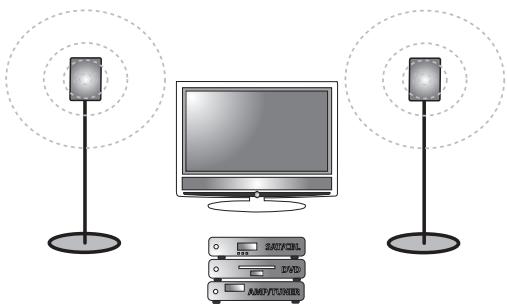

Example: To switch off your Television and Satellite Receiver with one keypress (e.g. red key):
1 Press and hold down the MAGIC key until the red LED underneath the last selected device key will blink twice. The red LED will blink once, then twice.
2 Press 9 95.
3 Then press the Red key to which the Macro will be assigned.
4 Next press TV, OFF, SAT, OFF.
5 To store the Macro, press and hold down the MAGIC key until the red LED underneath the last selected device key will blink twice. The red LED will blink once, then twice.
6 Whenever you press the "Red" key, the ONE FOR ALL 2 will switch off your Television and Satellite Receiver.
- Make sure that you program a Macro on a spare key that you don't use in any mode.
- Once you program a Macro on a specific key, the sequence will work regardless of the mode (TV and SAT) you are using.
Each MACRO can consist of a maximum of 35 key strokes. - If you had to hold down a key for a few seconds on the original remote control to get a function, this function may not work in a macro on your ONE FOR ALL remote.
- To avoid accidental recordings with the ONE FOR ALL 2, you must press the Record key twice to begin recording. Because of this, we recommend you not to assign a Macro or Shifted Macro to the Record key.
If you program a Macro on a key, the original function will become shifted (excluding REW, PLAY, PAUZE, FF, SKIP Forward, SKIP Back, STOP, REC, Red, Green, Yellow and Blue). Press the MAGIC then the key to access it.
To erase the Macro from the Red key, press:
1 Press and hold down the MAGIC key until the red LED underneath the last selected device key will blink twice. The red LED will blink once, then twice.
2 Press 9 95.
3 Then press the Red key.
4 Press and hold down the MAGIC key until the red LED underneath the last selected device key will blink twice. The red LED will blink once, then twice.
Shifted Macros
If you do not want to sacrifice any key it is also possible to install a "Shifted Macro".
If for example, you want to program a shifted Macro on the OFF key, simply press MAGIC once then the OFF key during step 3.
Example: To switch off your Television and Satellite Receiver with one keypress (e.g. pressing MAGIC then OFF):
1 Press and hold down the MAGIC key until the red LED (underneath the TV key in this example) blinks twice. The red LED will blink once, then twice.
2 Press 9 9 5.
3 Then press the OFF key to which the Macro will be assigned.
4 Next press TV, OFF, SAT, OFF.
5 To store the Macro, Press and hold down the MAGIC key until the red LED (underneath the TV key in this example) blinks twice. The red LED will blink once, then twice.
Result: Now every time you press MAGIC, then the OFF key, the ONE FOR ALL will switch off your Television and Satellite Receiver.
To erase the Shifted Macro from the OFF key press:
To erase all Macro and Shifted Macro:
MAGIC* 9 95 MAGIC*
- Here you must press and hold down the MAGIC key until the red LED (underneath the TV key in this example) blinks twice. The red LED will blink once, then twice.
If you place a Macro shifted on a digit key, access the original function by pressing the MAGIC key twice and then the digit key.
Key Magic
how to program missing functions
Key Magic® is an exclusive ONE FOR ALL feature that ensures that many functions of your original remote control can be operated - even those that do not have their own key on the ONE FOR ALL keypad. Frequently used functions can be assigned to a key of your choice using the Key Magic feature of your ONE FOR ALL.
In order to program a certain function with Key Magic you need to know the corresponding function code. As these function codes vary with different types of devices, they cannot be found in the manual. You can request your function codes calling our consumer service or by sending us a fax or e-mail.
Please mention:
- The 4-digit set-up code your device is working with.
- How the function was labelled on your original remote control.
Once you obtain(ed) your function code(s) from customer service, programming the code is easy:
1 Press the device key (TV or SAT).
2 Press and hold down the MAGIC key until the red LED (underneath the TV key in this example) blinks twice. The red LED will blink once, then twice.
3 Press 9 94. The red LED will blink twice.
4 Press the MAGIC key once.
5 Enter the 5-digit function code (provided by customer service).
6 Press the key to which the function will be assigned. The red LED underneath the last selected device key will blink twice.
EXTENDED FUNCTION REFERENCE (first entry is an example):
| DEVICE: TV | SET-UP CODE: 0556 | FUNCTION: 16/9 format | FUNCTION CODE: 00234 |
- To access the function you have programmed, press the corresponding device key first.
- Please note all the extended function codes you obtain from customer service for easy future reference.
Key Move How to copy a function to another key 'within a device mode' or towards 'another device mode'
Key Move allows you to configure the keypad as you wish.
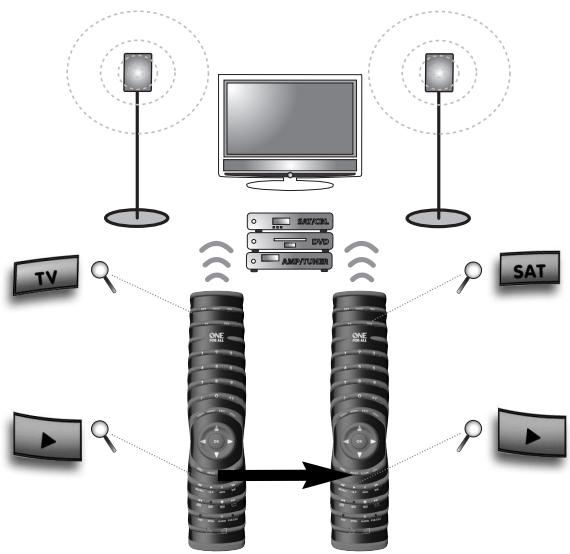
Example: how to Key Move the "Play" function from SAT (PVR) mode towards TV mode.
1 Press and hold down the MAGIC key until the red LED underneath the last selected device key will blink twice. The red LED will blink once, then twice.
2 Press 9 9 4. The red LED underneath the last selected device-mode-key will blink twice.
3 Press the source device mode (e.g. SAT key).
4 Press the key you wish to move (e.g. PLAY key).
5 Select the device mode to which the fuction will be assigned (e.g. TV key).
6 Press the key to which the function will be assigned (e.g. PLAY key). The red LED underneath the last selected device key will blink twice.
Result: now also being in TV mode you will be able to play your SAT (PVR).
To restore the play key in the TV mode to it's original function press:
TV MAGIC** 994 PLAY PLAY (^**)
(**) Press and hold down the MAGIC key until the red LED underneath the last selected device key will blink twice.
Not valid for fuctions obtained through Key Magic.
Problem & Solution
Solution:
Problem:
| Your brand is not listed in the code section? | Try the search method on page 9. |
| The ONE FOR ALL does not operate your device(s)? | A) Try all the codes listed for your brand. B) Try the search method on page 9. |
| The ONE FOR ALL is not performing commands properly? | You may be using the wrong code. Try repeating the Direct Set-Up using another code listed under your brand or start the search method over again to locate the proper code. |
| Problems changing channels? | Enter the programme number exactly as you would on your original remote. |
| PVR not recording? | As a safety feature on your ONE FOR ALL, you must press the Record key twice. |
| The ONE FOR ALL does not respond after pressing a key? | Make sure you are using new batteries and are aiming the ONE FOR ALL at your device. |
| The red LED does not blink when you press a key? | Replace batteries with 4 fresh, new “AAA” alkaline batteries. |
Customer Service
In the UK
E-mail: ofahelp@uebv.com (*5)
Fax :+31534329816
Tel. :0901-5510010 (£ 0,50 per minute)
In Australia
E-mail: ofahelp@uebv.com (*5)
Fax :0396722479
Tel. : 1300888298
In New Zealand
: alexx@ckc.com.ua
Fax : (06) 878 2760
Tel. :0508 ONE 4 ALL (663 4 255)
Slovakia
E-mail: ofa@dsi.sk
Fax :+421556118111
Tel. : +421 55 611 8131
Web. : www.dsi.sk
In Ireland
E-mail : ofahelp@uebv.com (*5)
Fax :+31534329816
Tel. :016015986
In South Africa
E-mail : support@oneforall.co.za
Fax :0114173274
Fax :0114173275
Tel. :0114173074
Tel. :0114173075
CS. :0860 100551
Ukraine
: ofahelp@uebv.com (*5) E-mail
Fax :+380444890187
Tel. :+380444890188
(^*5) Just send a blank message, you'll get auto-reply.
EINLEGENDER BATTERIEN 19
DAS TASTENFELD 19
EINSTELLUNGEN
Universal Electronics BV
Europe & International
P.O.Box 3332
7500 DH, Enschede
The Netherlands
English
UNIVERSAL ELECTRONICS INC./ONE FOR ALL warrants to the original purchaser that this product will be free from defects in materials and workmanship under normal and correct use for a period of one (1) year from the date of original purchase. This product will be replaced free of charge if it has been proven to be defective within the one (1) year warranty period. This warranty does not cover cartons, carrying cases, batteries, broken or marred cabinets or any other item used in connection with the product. Any further obligation than listed above is excluded. To obtain warranty service during the warranty period, please call us at the number mentioned on the Customer Service page. Please notice that we need your purchase receipt so that we may establish your eligibility for service. If you have bought this product for purposes which are not related to your trade, business or profession, please remind that you may have legal rights under your national legislation governing the sale of consumer goods. This guarantee does not affect those rights.
Deutsch
Universal Electronics BV
Europe & International
P.O.Box 3332
7500 DH, Enschede
The Netherlands

URC-3720
INT-Complete
RDN-1121108
- Deutsch
- EXTRA FEATURES
- Installing the batteries
- The Keypad
- Exit the Menu
- Channel +/- Keys
- to navigate in Menu operation and confirm your choice pressing the OK key
- Direct code set up
- Example: To set up the ONE FOR ALL 2 for your television:
- 1
- 2
- 3
- 4
- 5
- 6.
- Search Method
- Example: To search for your TV code:
- Code Blink out
- (To find out which code is currently programmed)
- Example: To blink out your Television code:
- Quick Code Reference
- Mode re-assignment
- (Changing a device mode)
- Example:
- The SAT key has now become a second TV key.
- Resetting a Device key
- Volume Lock
- To punch through to TV volume while in the SAT mode:
- To cancel the "Volume Lock" per mode:
- To cancel the „Volume Lock" for all modes:
- Macros (Sequence of commands)
- Macros (Direct)
- To erase the Macro from the Red key, press:
- Shifted Macros
- To erase the Shifted Macro from the OFF key press:
- To erase all Macro and Shifted Macro:
- MAGIC* 9 95 MAGIC*
- Key Magic
- how to program missing functions
- Please mention:
- Key Move How to copy a function to another key 'within a device mode' or towards 'another device mode'
- Problem & Solution
- Customer Service
- In the UK
- In Australia
- In New Zealand
- Slovakia
- In Ireland
- In South Africa
- Ukraine
- EINSTELLUNGEN
- English
Brand : ONE FOR ALL
Model : URC 3720
Category : Universal remote