
ENZO FERRARI WIRELESS - Game wheel THRUSTMASTER - Free user manual and instructions
Find the device manual for free ENZO FERRARI WIRELESS THRUSTMASTER in PDF.


| Product Type | Wireless Gaming Wheel |
| Brand | Thrustmaster |
| Model | Enzo Ferrari Wireless |
| Compatibility | PC (Windows 98 or higher) with USB port |
| Connectivity | Wireless (radio) with USB receiver |
| Maximum Range | 9 meters |
| Power Supply | 4 AA batteries (LR6) - not included |
| Automatic Standby | After 5 minutes of inactivity |
| Main Functions | Directional cross, 2 analog levers (acceleration/brake), action buttons, pedal set with cable |
| Acceleration Modes | Combined (2 axes) or separate (3 axes, requires patch) |
| Mounting | Lap support or table mount with tightening screw |
| Radio Channels | 2 channels (A and B) for up to 2 simultaneous wheels |
| Calibration | RESET button |
| Box Contents | Steering wheel, pedal set, USB receiver, lap support, screw, connection cable |
| Maintenance | Clean with a dry cloth. Do not use solvents. |
| Safety | Do not overtighten the screw. Respect battery polarities. |
| Warranty | 2 years |
| Manufacturer | Guillemot Corporation S.A. |
| Technical Support | Website: ts.thrustmaster.com, phone according to country |
Frequently Asked Questions - ENZO FERRARI WIRELESS THRUSTMASTER
User questions about ENZO FERRARI WIRELESS THRUSTMASTER
0 question about this device. Answer the ones you know or ask your own.
Ask a new question about this device
Download the instructions for your Game wheel in PDF format for free! Find your manual ENZO FERRARI WIRELESS - THRUSTMASTER and take your electronic device back in hand. On this page are published all the documents necessary for the use of your device. ENZO FERRARI WIRELESS by THRUSTMASTER.
USER MANUAL ENZO FERRARI WIRELESS THRUSTMASTER
① D-pad
2 progressive analog gas and brake levers and action buttons
④ Wheel-to-pedal connector
⑤ Wheel-to-pedal connection cable
⑥ Receiver
③ Pedal
For PCs (Windows 98 or higher) equipped with USB ports
WHEEL SETUP
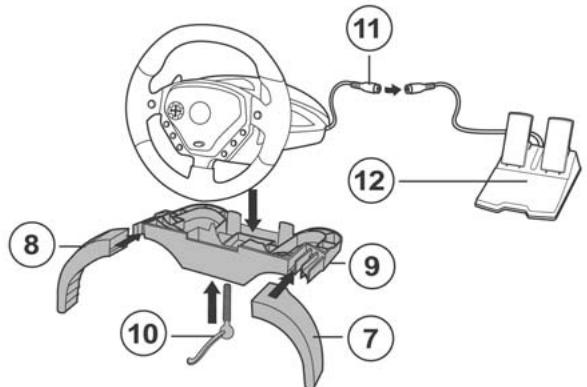
- Insert 4 AA (LR6) batteries into the battery compartment located on the underside of the wheel base, making sure to respect the polarity indicated.
- Slowly slide the removable wings onto both sides of the knee-top piece until firmly fixed into place.
- Place the clamp screw into the hole in the knee-top piece and then screw the unit into the hole on the underside of the wheel until firmly fixed into place.
Note: be careful not to over-tighten the clamp screw to avoid damaging the knee-top piece. Connect the pedal connector cable to the analog pedals 2.
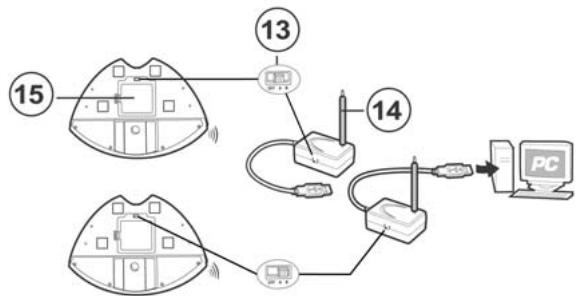
- Set the channel selector switch on the RF base station to the A position.
- Connect the RF base station to your computer's USB port (if you are using a USB hub, your hub must use an independent power supply for your Enzo Wireless wheel to operate properly).
- Switch on the power by setting the channel selector switch on the wheel to the A position.
- Switch on your PC.
WHEEL SETUP
- Place the wheel on a table or flat surface.
- TABLE-TOP SETUP: Place the clamp screw into the clamp and then screw the clamping unit into the hole on the underside of the wheel until firmly fixed into place. Be careful not to over-tighten the clamp to avoid damaging either the clamp or the table.
- KNEE-TOP SETUP: Place the clamp screw into the hole in the knee-top piece and then screw the unit into the hole on the underside of the wheel until firmly fixed into place.
Note: be careful not to over-tighten the clamp screw to avoid damaging the knee-top piece.
- Connect the pedal connector cable 4 to the pedal receptor cable 5.
Note: in the event of malfunction during use due to electrostatic emission, please quit the game and unplug the unit from the computer. Resume normal game play by plugging the unit back in and restarting the game.
USB INSTALLATION
The USB connector allows you to hot-plug your wheel into your computer.
Start your computer up and plug the USB connector ⑥ into one of the USB ports located at the back of your computer. Windows 98/Me/2000/XP will then automatically detect the new peripheral device.
Note: if you are connecting a USB peripheral device for the first time, Windows may ask you for the Windows CD-ROM during installation in order to install the required system files.
- Under Windows 98: the Add New Hardware Wizard will find the appropriate drivers for you. Simply click on Next and then follow the on-screen instructions to complete the installation.
- Under Windows Me/2000/XP: installation of the drivers is carried out automatically.
TIPS FOR USE
The RESET button enables you to recalibrate your wheel.
The radiofrequency's maximum range is 30 feet (9 meters). In order to optimize the quality of radio transmissions and enjoy the maximum range for your product, we recommend that you place your receptor as high up as possible. Example: place your receptor on top of your PC case, as opposed to on the floor.
Your Enzo Wireless wheel automatically switches to standby mode after 5 minutes of not being used. Press the RESET button to resume gameplay.
If you disconnect the analog pedals during a game, your Enzo Wireless wheel may start acting strangely or may not react at all. You should therefore proceed as follows:
- Press START to pause your game.
- Disconnect the analog pedals.
- Press RESET.
- Return to your game.
Make sure to set the channel selector switch on the wheel to the OFF position when the wheel is not in use. This will help to conserve power and extend battery life.
If your Enzo Wireless wheel starts acting strangely:
- Switch off the wheel and then switch it back on again using the channel selector switch located on the underside of the wheel.
- Press RESET Button simultaneously.
PLAYING WITH TWO ENZO WIRELESS WHEELS SIMULTANEOUSLY
Enzo Wireless whee allows up to 2 players to play at once, thanks to the channel selector switches ③ located on the side of the receiver and on the underside of the wheel. Channel A is the default channel, and must always be used by one of the two players. For multiplayer gaming, each player must use a different channel by configuring both his or her receiver and wheel to that channel.
Repeat steps above for the second wheel by setting the channel selector switches on the wheel and the RF base station to the B position.
Important:
- Up to two Enzo Wireless wheels may be used simultaneously. Please note that each wheel must be equipped with its own RF base station.
- This device is only guaranteed to be compatible with other Enzo Wireless wheels.
SELECTING "SEPARATE" (3-AXIS) OR "COMBINED" (2-AXIS) ACCELERATION/BRAKING MODE
By default, the Enzo Wireless 's accelerating and brake controls operate in "combined" 2-axis mode (red diode), i.e. with brake and gas pedals operating on the same axis. An increasing number of new generation racing games offer "separate" (3-axis) mode which can be activated in the game's controller options section. 3-axis mode considerably improves driving precision in races.
To activate this mode on your wireless wheel, you must download the patch named Wheelpatch.exe from the www.thrustmaster.com website (select Support then Download). After installing the patch on your PC, simply press the 9 + 10 button simultaneously on your wheel. The Mode LED will blink red. When Playing games that do not provide 3 axis-mode support, you must revert to the standard 2-axis mode (otherwise, your wheel may not function correctly when playing).
PC TROUBLESHOOTING
My wheel is not detected by my computer
- unplug the USB connector and then plug it back in again.
My wheel is detected by my computer but doesn't work in the game.
- Access your game's options to configure your wheel. Please refer to your game's manual for further information
My Wheel Doesn't work correctly or appears to be incorrectly calibrated:
- Exit the game, then disconnect your wheel for your PC's USB connector and plug it back in again.
Note: Do not turn your wheel or press any of its buttons after reconnecting it to your PC!
- install the patch named Wheelpatch.exe on your PC card and try to reconfigure your wheel in your game's Controller options (if your wheel's 3-axis mode seems incompatible, try activating the 2-axis mode).
TECHNICAL SUPPORT
If you encounter a problem with your product, please go to http://ts.thrustmaster.com and click Technical Support. From there you will be able to access various utilities (Frequently Asked Questions (FAQ), the latest versions of drivers and software) that may help to resolve your problem. If the problem persists, you can contact the Thrustmaster products technical support service ("Technical Support"):
By email:
In order to take advantage of technical support by email, you must first register online. The information you provide will help the agents to resolve your problem more quickly. Click Registration on the left-hand side of the Technical Support page and follow the on-screen instructions. If you have already registered, fill in theUsername and Password fields and then click Login.
By telephone:
| United Kingdom | 020 7216 0047 | price of a national phone call, Monday to Friday, from 12PM to 10PM |
| United States / Canada | 514-279-9911 | price of a long distance phone call, Monday to Friday from 7AM to 5PM (Eastern time) |
| Australia | 1902 262 514 | $1.98/min, Monday to Friday from 9AM to 6PM |
| Denmark | 82 33 28 58 | price of a national phone call, Monday to Friday from 1PM to 10PM |
| Finland | 09 81 71 01 54 | price of a national phone call, Monday to Friday from 2PM to 11PM |
| Norway | 23 50 01 16 | price of a national phone call, Monday to Friday from 1PM to 10PM |
| Sweden | 08-51992032 | price of a national phone call, Monday to Friday from 1PM to 11PM |
COPYRIGHT
© 2004 Guillemot Corporation S.A. All rights reserved. Thrustmaster® is a registered trademark of Guillemot Corporation S.A. Ferrari® is a registered trademark of Ferrari Idea S.p.A. Microsoft® Windows® is a registered trademark of Microsoft Corporation in the United States and/or other countries. All other trademarks and brand names are hereby acknowledged and are property of their respective owners. Illustrations not binding. Contents, designs and specifications are subject to change without notice and may vary from one country to another.
FAQs, tips and drivers available at www.thrustmaster.com
WARRANTY INFORMATION
Worldwide, Guillemot Corporation S.A. ("Guillemot") warrants to the consumer that this Thrustmaster product will be free from material defects and manufacturing flaws for a period of two (2) years from the original date of purchase. Should the product appear to be defective during the warranty period, immediately contact Technical Support, who will indicate the procedure to follow. If the defect is confirmed, the product must be returned to its place of purchase (or any other location indicated by Technical Support).
Within the context of this warranty, the consumer's defective product will, at Technical Support's option, be either repaired or replaced. Where authorized by applicable law, the full liability of Guillemot and its subsidiaries (including for indirect damages) is limited to the repair or replacement of the Thrustmaster product. The consumer's legal rights with respect to legislation applicable to the sale of consumer goods are not affected by this warranty.
This warranty shall not apply: (1) if the product has been modified, opened, altered, or has suffered damage as a result of inappropriate or abusive use, negligence, an accident, normal wear, or any other cause not related to a material defect or manufacturing flaw; (2) in the event of failure to comply with the instructions provided by Technical Support; (3) to software not published by Guillemot, said software being subject to a specific warranty provided by its publisher.
Additional warranty provisions
In the United States of America and in Canada, this warranty is limited to the product's internal mechanism and external housing. Any applicable implied warranties, including warranties of merchantability and fitness for a particular purpose, are hereby limited to two (2) years from the date of purchase and are subject to the conditions set forth in this limited warranty. In no event shall Gulemot Corporation S.A. or its affiliates be liable for consequential or incidental damage resulting from the breach of any express or implied warranties. Some States/Provinces do not allow limitation on how long an implied warranty lasts or exclusion or limitation of incidental/consequential damages, so the above limitation may not apply to you. This warranty gives you specific legal rights, and you may also have other legal rights which vary from State to State or Province to Province.
DECLARATION OF CONFORMITY
EC COMPLIANCE NOTICE: this equipment has been tested and found to comply with the limits of the Council Directive 1999/5/EEC on the approximation of the laws of the Member States relating to electromagnetic compatibility, radio regulation and electrical safety. The radio equipment has been tested and found to comply with EN 300220-3, EN 301489-3, EN 60950. In a domestic environment this product may cause radio interference in which case the user may be required to take adequate measures.
CANADIAN COMPLIANCE NOTICE: this Class B digital apparatus meets all requirements of the Canadian Interference-Causing Equipment Regulations.
This equipment has been tested and found to comply with the limits for a Class B digital device, pursuant to Part 15 of the FCC rules. Operation is subject to the following two conditions:
(1) This device may not cause harmful interference, and
(2) This device must accept any interference received, including interference that may cause undesired operation. These limits are designed to provide reasonable protection against harmful interference in a residential installation. This equipment generates, uses and can radiate radio frequency energy and, if not installed and used in accordance with the instructions, may cause harmful interference to radio communications. However, there is no guarantee that interference will not occur in a particular installation. If this equipment does cause harmful interference to radio or television reception, which can be determined by turning the equipment on and off, the user is encouraged to try to correct the interference by one or more of the following measures:
Reorient or relocate the receiving antenna.
- Increase the separation between the equipment and receiver.
- Connect the equipment into an outlet on a circuit different from that to which the receiver is connected.
- Consult the dealer or an experienced radio/TV technician for help.
INFORMACAO DA GARANTIA

- WHEEL SETUP
- USB INSTALLATION
- TIPS FOR USE
- PLAYING WITH TWO ENZO WIRELESS WHEELS SIMULTANEOUSLY
- Important:
- SELECTING "SEPARATE" (3-AXIS) OR "COMBINED" (2-AXIS) ACCELERATION/BRAKING MODE
- PC TROUBLESHOOTING
- TECHNICAL SUPPORT
- By email:
- COPYRIGHT
- WARRANTY INFORMATION
- Additional warranty provisions
- DECLARATION OF CONFORMITY
- INFORMACAO DA GARANTIA
Brand : THRUSTMASTER
Model : ENZO FERRARI WIRELESS
Category : Game wheel