
HWNR-300 - Game wheel THRUSTMASTER - Free user manual and instructions
Find the device manual for free HWNR-300 THRUSTMASTER in PDF.


| Product Type | Wireless N Router (802.11b/g/n) |
| Model | HWNR-300 |
| Dimensions (approx.) | 200 x 130 x 35 mm |
| Weight (approx.) | 300 g |
| Power Supply | External DC 9V / 1A (input: 200-240V AC, 50/60Hz) |
| Wireless Standards | IEEE 802.11b/g/n (2.4 GHz) |
| Max Wireless Data Rate | Up to 300 Mbps (with 40 MHz channel) |
| Security Protocols | WEP 64/128, WPA-PSK (TKIP), WPA2 (AES), WPA-WPA2 mixed |
| Interfaces | 4 x 10/100 Ethernet LAN ports, 1 x 10/100 WAN port, WPS button |
| Antennas | 3 x removable, adjustable 3 dBi antennas |
| Firewall | SPI firewall, MAC/IP/URL filtering, DoS protection |
| WAN Connection Types | PPPoE, DHCP, Static IP, PPTP, L2TP |
| WiFi Features | WPS (Push Button/PIN), WMM, SSID broadcast, MAC address filtering |
| Operating Systems Supported | Windows 2000/XP/Vista, Linux, Mac OS (via web interface) |
| LED Indicators | Power, WiFi, 4x LAN, WAN |
| Management | Web-based interface (WiFi Manager N) at 192.168.2.1 |
| Temperature Range | 0°C to 40°C (operating) |
| Humidity | 10% to 90% non-condensing |
| Certifications | CE, FCC Part 15 Class B |
Frequently Asked Questions - HWNR-300 THRUSTMASTER
User questions about HWNR-300 THRUSTMASTER
0 question about this device. Answer the ones you know or ask your own.
Ask a new question about this device
Download the instructions for your Game wheel in PDF format for free! Find your manual HWNR-300 - THRUSTMASTER and take your electronic device back in hand. On this page are published all the documents necessary for the use of your device. HWNR-300 by THRUSTMASTER.
USER MANUAL HWNR-300 THRUSTMASTER
Click a title in this table of contents to access the corresponding section
1. YOUR HERCULES WIRELESS N ROUTER....4
1.1. Recommendations....4
1.2. Specifications 4
1.3. Minimum system requirements....5
1.4. Box contents....5
1.5. Front face overview....6
1.6. Connectivity overview ......6
2. INSTALLING YOUR HERCULES WIRELESS N ROUTER....7
2.1. How to position your Hercules Wireless N Router....7
2.2. Uninstalling your modem or disabling the automatic connection to your modem....8
2.3. Getting past the Content Advisor (parental control) 9
2.4. Launching the Hercules Wireless N Router installation Assistant....10
2.5. Installing Hercules Wireless N Router only....11
2.6. Installing the Hercules pack (Hercules Wireless N Router + Wireless N USB Key)....15
2.7. Installing the Wireless N USB key only....19
2.8. Exploring the CD-ROM 19
2.9. Connecting to a network with Wi-Fi Protected Setup™ 19
2.9.1. Connecting to a network in master mode....20
2.9.2. Connecting to a network in client mode 21
3. WIFI MANAGER N, THE VERSATILE UTILITY....22
3.1. Opening the doors of WiFi Manager N 22
3.2. Changing the WiFi Manager N password!......23
3.3. Navigating within the WiFi Manager N interface....24
3.4. Easy customization of your Hercules Wireless N Router 24
3.4.1. Step 1: Change the password for accessing the interface....25
3.4.2. Step 2: Internet (WAN) connection....25
3.4.3. Step 3: Enabling your WiFi network 27
3.4.4. Step 4: Selecting security for your WiFi network....28
3.5. Sharing your Internet connection via the Router 30
3.5.1. Selecting your Internet connection 30
3.5.2. Testing your Internet connection 33
3.5.3. Resolving any difficulties accessing WiFi Manager N or the Internet....33
3.6. Mastering your WiFi network at your fingertips....37
3.6.1. Personalizing your WiFi network 37
3.6.2. Securing your WiFi network....38
3.6.3. Limiting access to your WiFi network to certain WiFi computers or devices 42
3.6.4. Disabling your WiFi network 43
3.6.5. Re-enabling your WiFi network 43
3.7. The firewall: your ultimate protection against Internet attacks 44
4. WELCOME TO THE WIRELESS ATTITUDE TMI 45
4.1. A few important points to bear in mind before getting started....45
4.2. Computers running Windows Vista: Sharing folders, a printer or an ADSL connection .....45
4.2.1. Enabling sharing....45
4.2.2. Windows Vista: Sharing public or personal folders....48
4.2.3. Comput ers running Windows Vista: Accessing shared folders 50
4.2.4. Windows Vista: Sharing a printer 50
4.2.5. Computers running Windows Vista: Accessing the shared printer 52
4.2.6. Windows Vista: Sharing an ADSL connection in an Infrastructure type network..... 54
4.3. Computers running Windows XP: Sharing folders, a printer or an ADSL connection ..... 56
4.3.1. Windows XP: Using the Network Setup Wizard in an Infrastructure network....56
4.3.2. Windows XP: Sharing folders....60
4.3.3. Windows XP: Accessing shared folders 61
4.3.4. Windows XP: Sharing a printer.... 61
4.3.5. Windows XP: Modifying a workgroup name 63
4.3.6. Windows XP: Manually enabling or disabling your adapter's WiFi connection (advanced users).... 64
4.4. Computers running Windows 2000: Sharing folders, a printer or an ADSL connection....64
4.4.1. Creating a workgroup in Windows 2000....64
4.4.2. Windows 2000: Sharing folders 65
4.4.3. Windows 2000: Accessing shared folders....65
4.4.4. Windows 2000: Sharing a printer....65
4.4.5. Windows 2000: Modifying a workgroup name....67
4.4.6. Windows 2000: Sharing an ADSL connection in an Infrastructure network....68
4.4.7. Windows 2000: Manually enabling or disabling your adapter's WiFi connection (advanced users)....69
4.5. Computers running Windows Me: Sharing folders, a printer or an ADSL connection.... 69
4.5.1. Windows Me: Using the Home Networking Wizard in an Infrastructure network...... 69
4.5.2. Windows Me: Sharing folders 71
4.5.3. Windows Me: Accessing shared folders 72
4.5.4. Windows Me: Sharing a printer....72
4.5.5. Windows Me: Modifying a workgroup name 74
4.5.6. Windows Me: Manually enabling or disabling your adapter's WiFi connection (advanced users)....74
4.6. Computers running Windows 98 SE: Sharing folders, a printer or an ADSL connection.....75
4.6.1. Windows 98 SE: Creating a workgroup 75
4.6.2. Windows 98 SE: Sharing folders....75
-
-
- Windows 98SE: Accessing shared folders 76
-
4.6.4. Windows 98 SE: Sharing a printer....76
4.6.5. Windows 98 SE: Sharing an ADSL connection in an Infrastructure network....78
4.6.6. Windows 98 SE: Manually enabling or disabling your adapter's WiFi connection (advanced users)....79
- WIFI MANAGER N FOR ADVANCED USERS....80
5.1. Configuring your WiFi network's advanced options 80
5.2. Configuring your Internet firewall....81
5.2.1. Opening doors in your firewall to put your camera online or authorize access for a computer to certain Internet services....81
5.2.2. Limiting access of one of your network computers to Internet services.... 84
5.2.3. Redirecting Internet requests to a specific computer.... 85
5.2.4. Protecting yourself from Internet attacks with the DOS (Denial Of Service) function....85
5.3. A toolbox with multiple facets 87
5.3.1. Restarting your Hercules Router.... 87
5.3.2. Restoring your original settings.... 87
5.3.3. Updating firmware 88
5.4. Other advanced options 89
5.4.1. Assigning priority to a type of data in the event of an overloaded network....89
5.4.2. Configuring the DHCP server....90
5.4.3. Facilitating connection of devices with the UPnP protocol 91
5.4.4. Selecting a primary and secondary domain name server 91
5.4.5. Linking an IP address to a dynamic domain name server 92
5.4.6. Configuring your Router remotely....92
5.4.7. Setting priorities for types of data according to available bandwidth 93
5.5. Product information 94
- GLOSSARY....95
- TECHNICAL SUPPORT....99
- WARRANTY 99
- ENVIRONMENTAL PROTECTION RECOMMENDATION 100
1. YOUR HERCULES WIRELESS N ROUTER
Your Hercules N Router opens up the doors to a new world of WiFi for you: one of high-speed wireless communications and extended coverage. In keeping with the trend of Web 2.0, your Hercules N Router takes interactivity with users even further and allows you to share your Internet access to watch high-definition videos or transfer large files without any worries. It also allows you to share your devices and your data between several computers, while at the same time doing away with the need for kilometers worth of cables.
Great care has been taken in designing your product. Both simple to operate and user-friendly, it is well suited to beginners and advanced users alike.
And now, it's time to learn about your new product and join in the Wireless Attitude ™!
1.1. Recommendations
- Never open up your Hercules Wireless N Router, as you risk damaging its internal components.
-
In order to avoid the risk of fire or electrical discharge, keep your Router away from:
-
rain or humidity, as well as all fluids (water, chemical products and any other liquids),
- sources of heat such as heaters, stoves and any other heat-producing devices (including amplifiers),
- direct sunlight.
- Do not cover your Router.
- Unplug the Router's power cable if you do not plan on using it again for an extended period of time. To unplug the power cable, take hold of and pull on the plug. Never pull on the cable itself.
- Disconnect the Router before cleaning. Use a soft cloth for cleaning and avoid using aerosol cleaners.
1.2. Specifications
Your Hercules Wireless N Router is equipped with several functionalities: (1) 802.11n wireless WiFi router, (2) 10/100 LAN switch and (3) Internet firewall.
■ Compatible with the following WiFi protocols:
- 802.11b: 1, 2, 5.5 and 11Mbits/s data rates in the 2.4GHz band
- 802.11g: 6, 9, 12, 18, 24, 36, 48 and 54Mbits/s data rates in the 2.4GHz band
- 802.11n draft 1.0 and 2.0: data rates in the 2.4GHz band, varying depending on the bandwidth of the channel used (20 or 40MHz). Values are classified from MCS0 to MCS15 and vary from 7.2 to 144.44Mbits/s for 20MHz and from 15 to 300Mbits/s for 40MHz
■ DSSS/CCK frequency range and OFDM modulation from 2.412GHz to 2.484GHz (13 channels)
■ Compatible with the following security protocols:
- WEP with 64 and 128-bit key length
- WPA-PSK with TKIP or AES encryption (802.11i security protocol)
- WPA2 with TKIP and AES encryption (802.11i security protocol)
■ Filtering by MAC address/IP address, URL blocking
SPI firewall
■ WMM mode support (Wi-Fi MultiMedia™)
■ WPS (Wi-Fi Protected Setup ^TM )
■ WAN mode support (PPPoE, automatic DHCP, static IP)
■ LAN mode support
- Router mode support
■ 802.11n wireless access point
■ RF specification: frequency band = 2.4GHz - 2.484GHz
■ Maximum transmission power: 100mW
■ 3 removable, adjustable 3dBi antennas
■ 4 RJ-45 connectors for a Fast Ethernet 10/100Mbps connection
■ Auto-MDIX support (automatic detection of crossed cabling)
■ Conforms to the IEEE 802.3u specification
■ IEEE 802.3x flow control support in Full Duplex mode
■ External DC power supply. Input: 200\~240V, 50/60 Hz; output: 9V DC/1 A

■ Blue LEDs on front face
■ Software update via Ethernet port
1.3. Minimum system requirements
To access configuration settings:
Intel Pentium III, AMD Athlon/AMD-K6
■ 64MBRAM
- Ethernet 10/100 RJ45 network card
- CD-ROM drive
■ Operating system: Microsoft Windows 2000/XP/Vista
To access the Internet:
■ Active Internet line
■ Internet Explorer 6.0, Netscape Navigator 4.7 or Mozilla Firefox 1.0 or higher
■ ADSL Ethernet modem, cable modem, Internet "Box" (Livebox®, Freebox®, Neufbox®...)
1.4. Box contents
Please verify that the following elements are present in your Hercules Router box:
■ Hercules Wireless N Router
■ CD-ROM containing the installation Assistant and User Manual in PDF format
■ Quick Start Guide in English
- Ethernet cable
■ Power adapter
■ Hercules Wireless N USB Key (optional)
1.5. Front face overview

: WiFi LED: lit up when the WiFi connection is active. Flashes during data transfer.

:4 LEDs corresponding to the 4 Ethernet ports: the LED is li when a device is connected to the corresponding port. The flash during data transfer.

: Internet LED: lit up when the Ethernet cable is connected to the WAN connector. Flashes during data transfer.
1.6. Connectivity overview
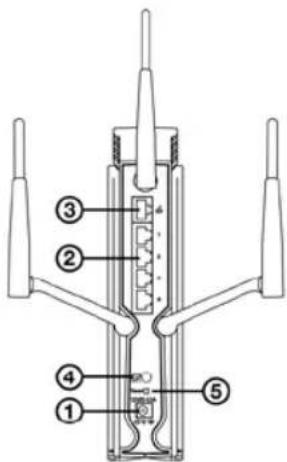
① Power plug to connect the power adapter.
② Four Ethernet ports allowing your Hercules Router to be connected to 4 desktop computers and/or laptop computers and/or game consoles equ with Ethernet (RJ-45) ports and/or devices (webcam...) in order to create a network.
③ RJ-45 WAN port allowing you to connect an ADSL modem, cable modem or Internet "Box" to your Hercules Router.
④ WPS button (Wi-Fi Protected Setup ^TM ).
⑤ Return to factory default settings button.
2. INSTALLING YOUR HERCULES WIRELESS N ROUTER
Your Hercules Wireless N Router has been designed to be simple to use and install. If you are new to working with wireless products, we invite you to first follow the advice presented in chapters 2.1 to 2.3. Otherwise, you can proceed directly to chapter 2.4. Launching the Hercules Wireless N Router installation Assistant, which explains how to install your Hercules Wireless N Router step by step.
2.1. How to position your Hercules Wireless N Router
natural_image
Line drawing of a person working at a desk with a computer, TV, and a potted plant nearby (no text or symbols)Remove the Router and the power adapter from the box.
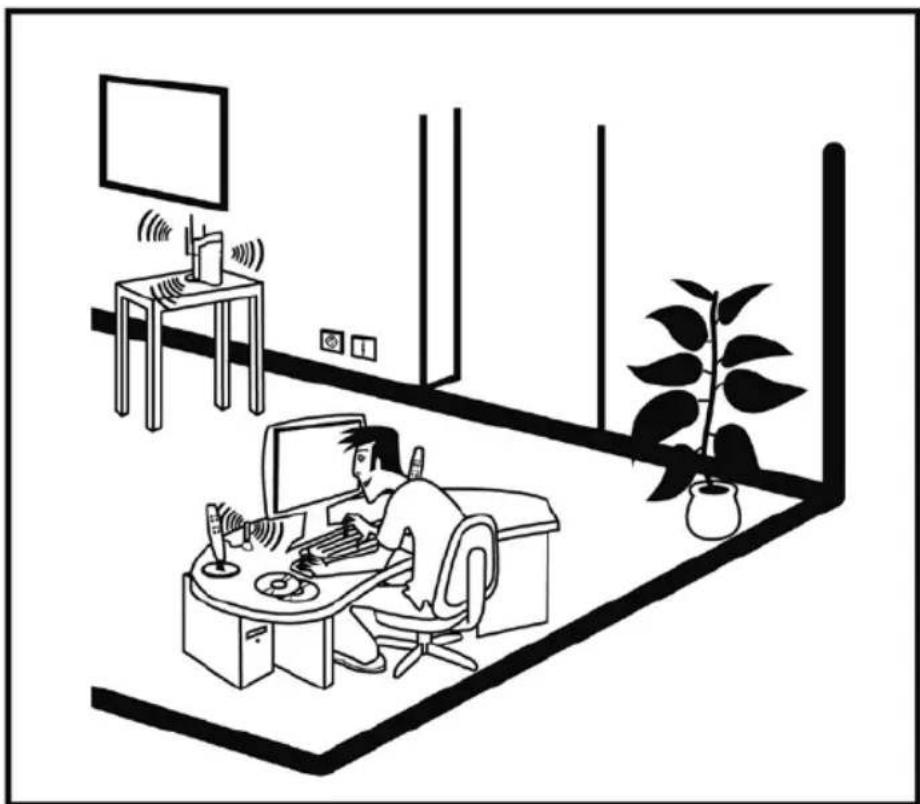
To help you select the best spot to position your Hercules Router, we are pleased to offer you the following tips, which you may adapt according to your environment (the number of rooms, computers, floors in your home, the presence of any obstacles, the locations of power and telephone plugs...).
■ Position the Router near your modem (ADSL, cable or Internet "Box") and a power outlet.
- Try to place your Router in a room centrally located in relation to your other computers and WiFi devices.
- Keep a minimum distance of 2m between the Router and any computers and WiFi devices.
If you have several computers or WiFi devices on different floors in your home (on the ground floor and the second floor, for example), you should ideally try to place your Hercules Router on the ground floor.

Your Router's WiFi performance may be greatly affected by certain obstacles, such as the presence per (a bookcase), metal, water (an aquarium) or a wall made of reinforced concrete between rules Router and any WiFi adapters.
Moreover, do not hesitate to adjust each of the 3 antennas to different positions in order to achieve optimum reception of the WiFi signal.
2.2. Uninstalling your modem or disabling the automatic connection to your modem
If you already have an Internet "Box" or Ethernet modem connected to your computer, we recommend that you uninstall it or disable the automatic connection to this modem. The objective in doing so is to establish the Internet connection via the TCP/IP local area network created by the Hercules Router, and no longer directly via your ADSL modem.

This procedure only applies if you connect to the Internet via an Ethernet modem. If you have a USB modem, you cannot connect the USB modem to your Hercules Router and access the Internet.
If you decide to uninstall the modem's drivers:
- Switch off and then disconnect your modem from your computer's Ethernet port.
- Uninstall the software supplied by your service provider, as well as the modem's drivers. For more information, please refer to your modem's user manual.
- Now connect your modem to the Internet port on your Hercules Router.
If you decide to disable the automatic connection to the modem:
In order to avoid software conflicts, please follow the procedure described below:
- Open your Internet Explorer browser.
- Click Tools/Internet Options.
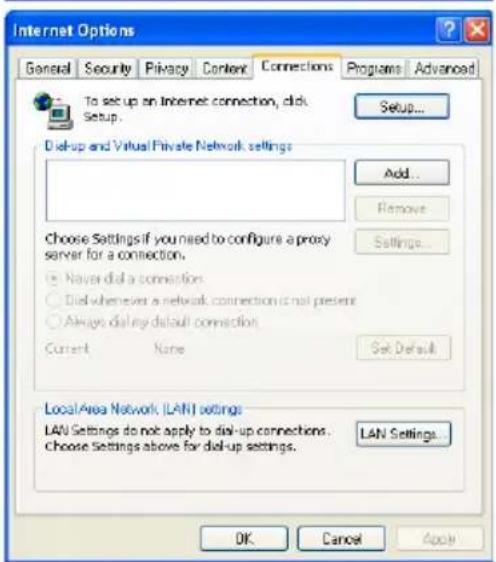
The Internet Options window is displayed.
- Select the Connections tab.
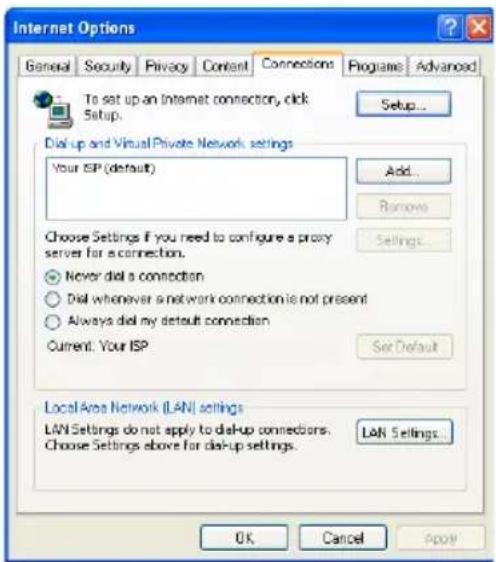
Scenario 1: your ISP appears in the Intel Options window.
- Disable the automatic connection to your mod by selecting the Never dial a connection option.
- Click OK.
Scenario 2: your ISP does not appear in Internet Options window.
The automatic connection is managed directly the software furnished by your ISP.
- Refer to the user manual for your ADSL mode for the software furnished by your ISP for det on how to disable the automatic connecti and/or for the Internet connection to be established via a local area network (TCP/IP).
Reminder: it is the Hercules Router that will create a local area network through which the computer will access the Internet.

You can also find information on our website (FAQs etc.): www.hercules.com.
2.3. Getting past the Content Advisor (parental control)
If you have enabled the Content Advisor in your Internet browser in order to control access to certain sites which may include contents of a violent or otherwise undesirable nature, you will not be able to immediately connect to WiFi Manager N to configure and view the settings for your Hercules Wireless N Router.
After launching QuickAccess, the quick connection utility to WiFi Manager N, the Content Advisor will ask you for authorization to view the site http://192.168.2.1. This site corresponds to the WiFi Manager N interface on your Router. To access the site, simply give your authorization to Always allow this Web site to be viewed. Once you have done so, the Router's address will be stored in your Internet browser and you will then be able to access WiFi Manager N directly.
2.4. Launching the Hercules Wireless N Router installation Assistant
The Assistant, available on the CD-ROM included with the Router, will guide you through the different steps of the installation. To help you with the installation, each of the steps is described below.
- Insert the included CD-ROM into your CD-ROM drive.
The installation Assistant appears automatically.
If the installation menu is not launched automatically:
- Double-click My Computer (Windows 2000/XP) or Computer (Windows Vista).
- Double-click

- Double-click Setup.exe, if necessary.
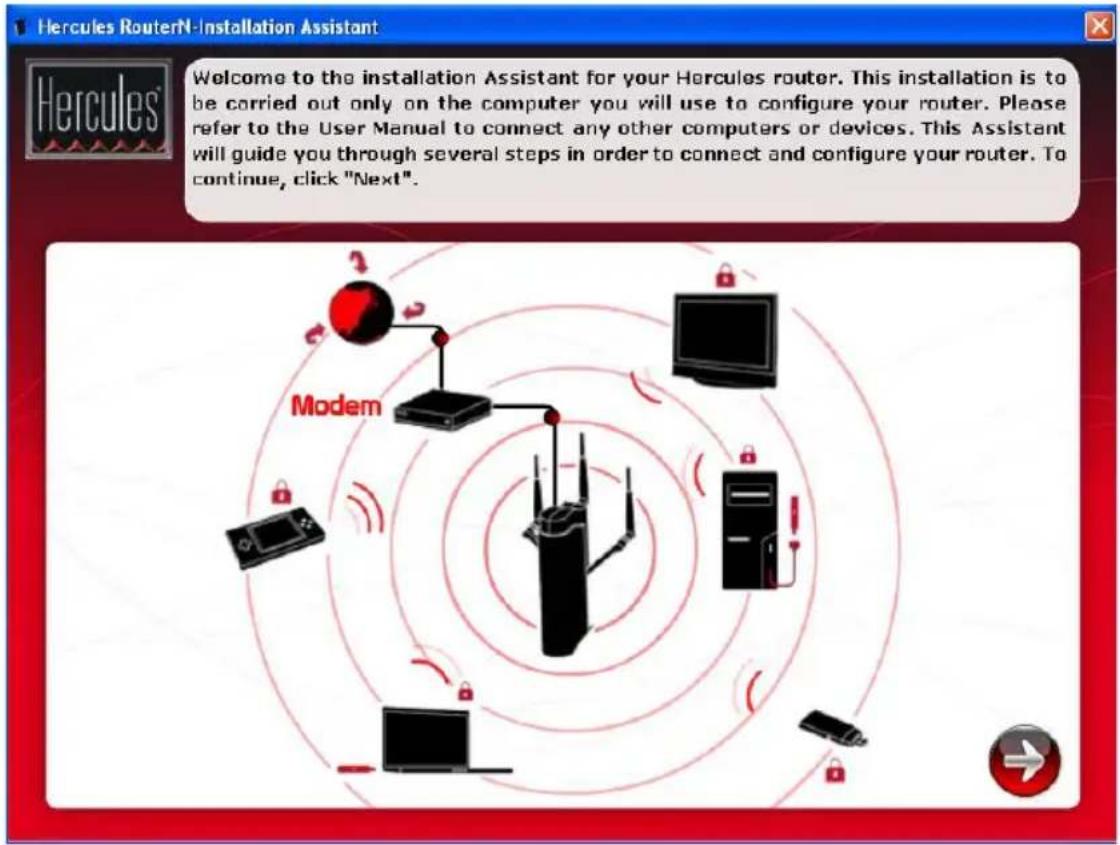
The Welcome page appears. Click Next (the arrow symbol).
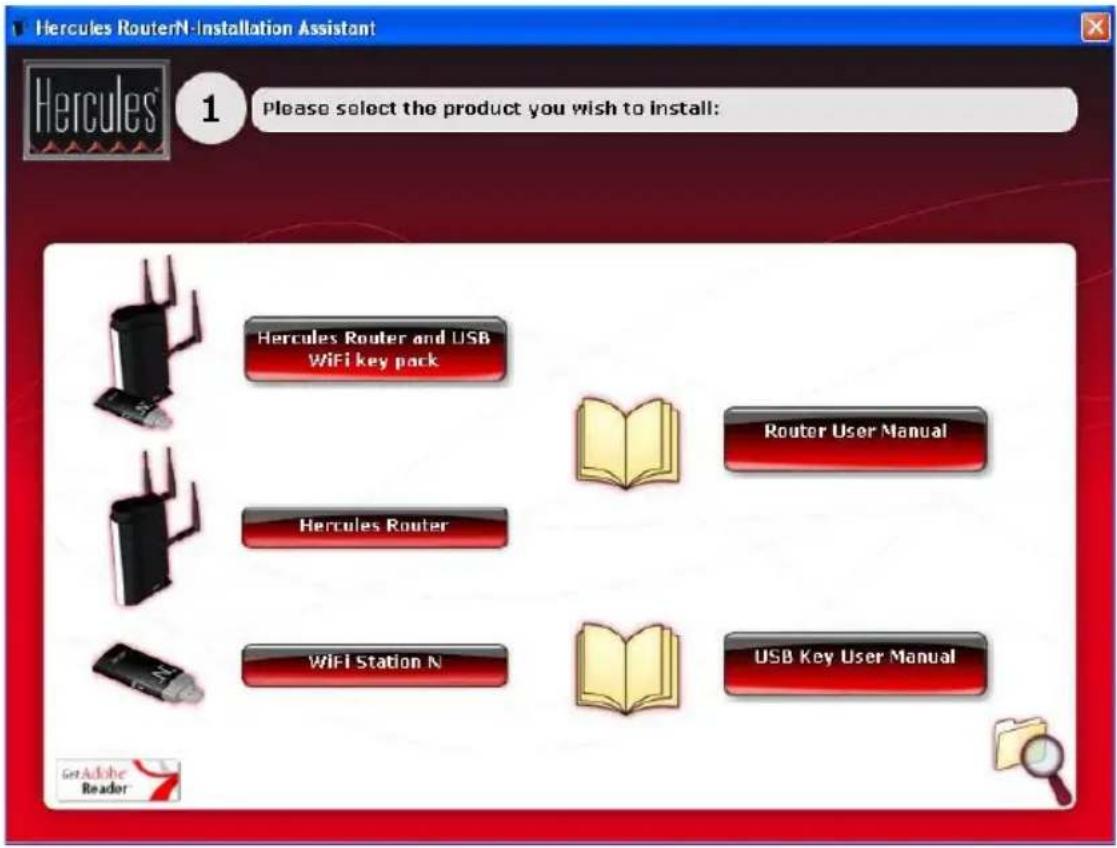
The following page prompts you to install the product of your choice.
You can choose to install the Hercules pack (composed of the Hercules Wireless N Router and the Wireless N USB Key), the Hercules Wireless N Router only or the WiFi Station N software only, which is required for using your Hercules Wireless N Key.
2.5. Installing Hercules Wireless N Router only
Step 1
- Click the
button
Hercules Router

The Assistant will launch the installation procedure for your Router, along with the associated software, WiFi Manager N, specifically developed by Hercules to set, verify and configure all connection and security settings for Hercules Wireless N series devices.
For more information on WiFi Manager N, please refer to section 3. WiFi Manager N, the versatile utility.
Step 2
- Connect the Hercules Router's power adapter to the power plug and plug the power adapter into an electrical outlet.
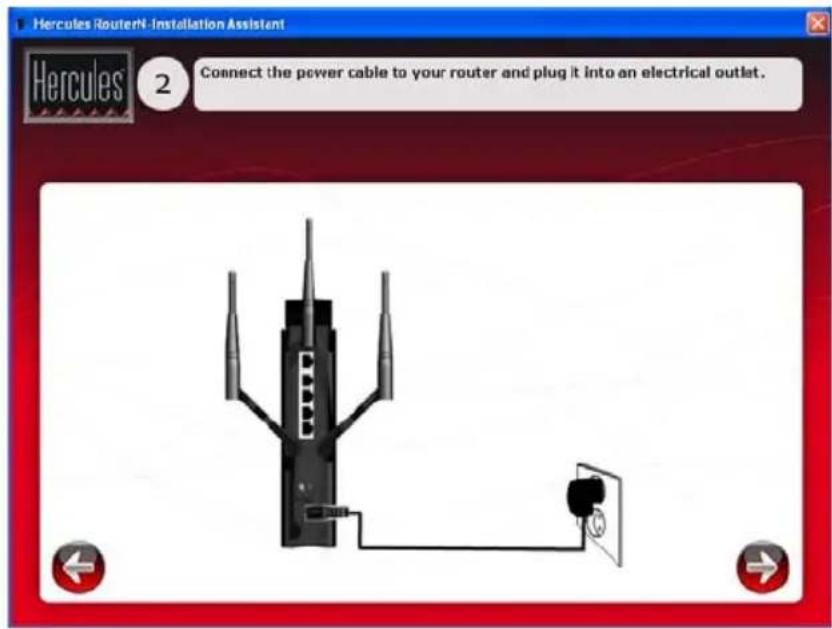
- Click Next (the arrow symbol).
Step 3
- Disconnect the cable connecting your modem to your computer, and connect it to the WAN port on your Hercules Wireless N Router.
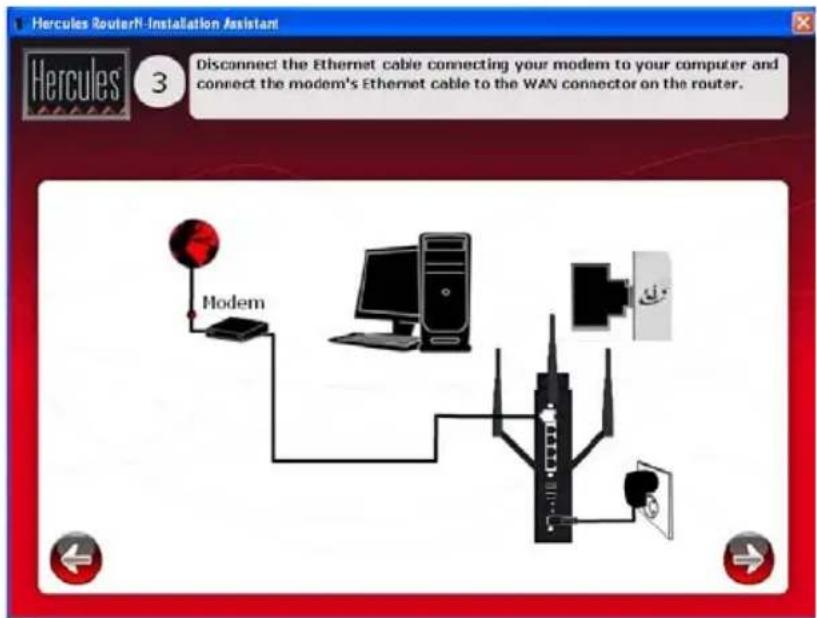
The power LED lights up and the WiFi LED flashes. The Internet (WAN) LED lights up and flashes during data transfer.
- ClickNext (the arrow symbol).
Step 4
- Connect one end of the included Ethernet cable to one of the four Ethernet ports on your Hercules Wireless N Router, and the other end to your computer's Ethernet port.
The LED corresponding to the number of the Ethernet port you have selected lights up.
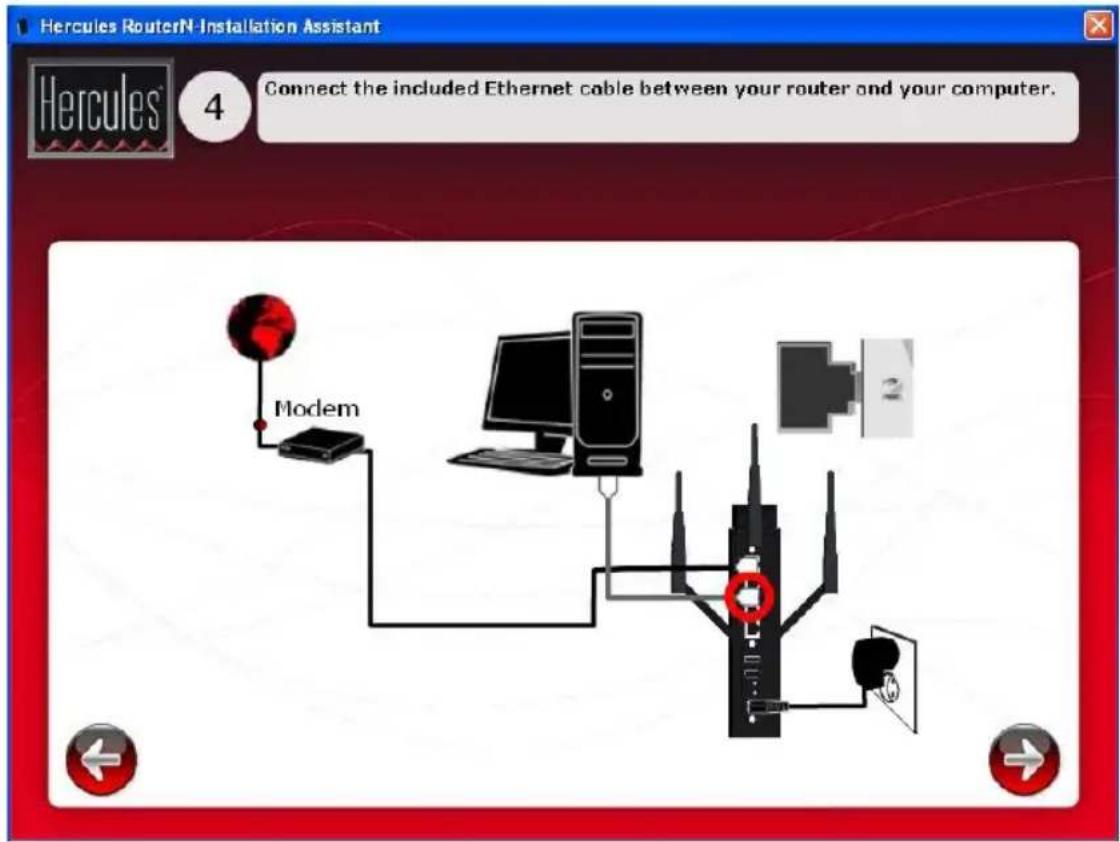
- Click Next (the arrow symbol).
Step 5
The Assistant prompts you to install Hercules QuickAccess, the quick connection utility to WiFi Manager N. Click the Install QuickAccess button if you wish to install this utility.

If you do not wish to install this utility, you will only be able to access your Router by manually ng its address (please see section 3.1 Opening the doors of WiFi Manager N).
Step 6
Once QuickAccess has been installed, the WiFi Manager N installation Assistant is launched, allowing you to automatically configure your Hercules Wireless N Router.

For more information on the WiFi Manager N installation Assistant, please refer to section 3.4. Easy optimization of your Hercules Wireless N Router.
Step 7
- Disconnect the Ethernet cable from your computer, if you have already enabled WiFi in the WiFi Manager N installation Assistant.
End of installation: WPS connection
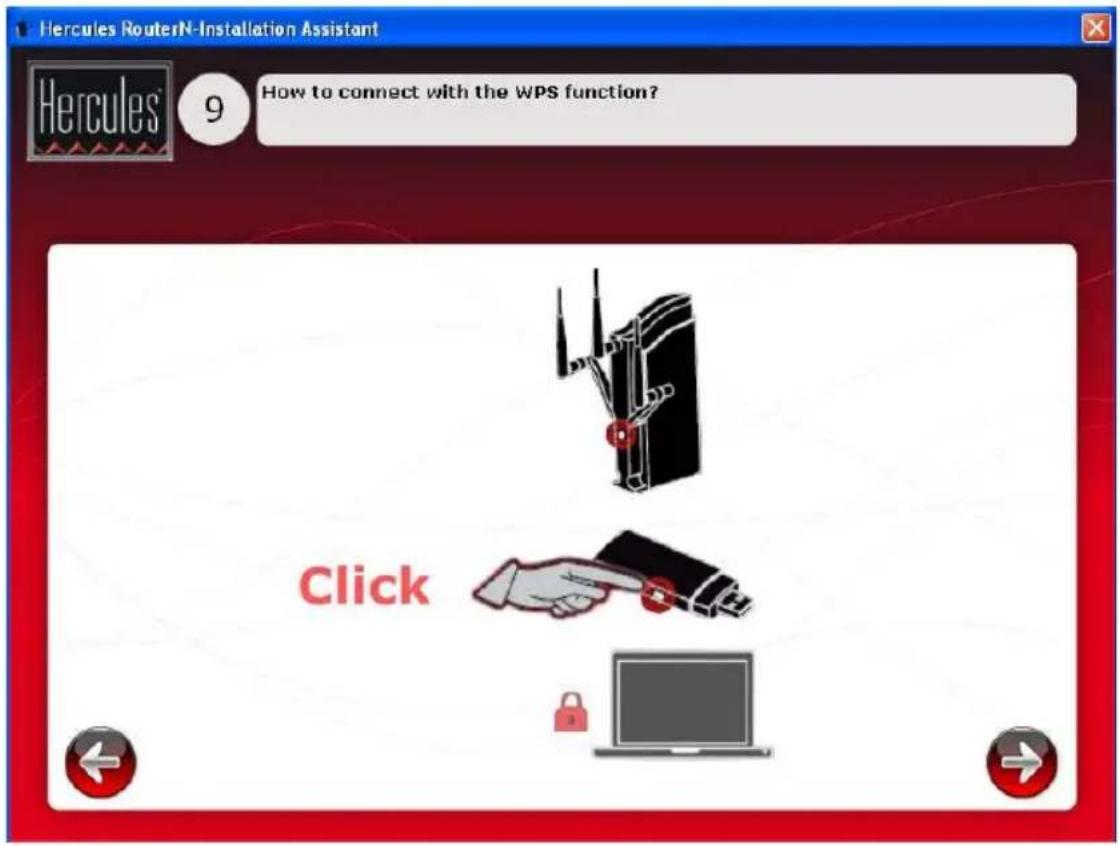
Installation of your Hercules Wireless N Router is now complete. Before learning about advanced functionalities and moving on to practical applications, the screen shown above demonstrates how you can connect very easily using WPS. Click Close to exit this screen, then click Close again to exit the installation Assistant.
For more information on connecting using WPS, please refer to section 2.9. Connecting to a network with Wi-Fi Protected Setup ^TM .
To learn about all of your product's advanced functionalities, please refer to section 3. WiFi Manager N, the versatile utility.
To learn about practical applications for your WiFi devices, please refer to section 4. Welcome to the Wireless Attitude™.
14/102 - User Manual
2.6. Installing the Hercules pack (Hercules Wireless N Router + Wireless N USB Key)
Step 1
- Click the
The Assistant will successively launch installation of your Router and your Key, as well as of the associated software (WiFi Manager N for the Hercules Wireless N Router and WiFi Station N the Hercules Wireless N USB Key), specifically developed by Hercules to set, verify and configure all connection and security settings for Hercules Wireless N series devices.
For more information regarding WiFi Manager N, please refer to section 3. WiFi Manager N, the versatile utility.
For more information regarding WiFi Station N, please refer to the PDF manual for your Hercules Wireless N USB Key.
Step 2
- Connect the Hercules Router's power adapter to the power plug and plug the power adapter into an electrical outlet.
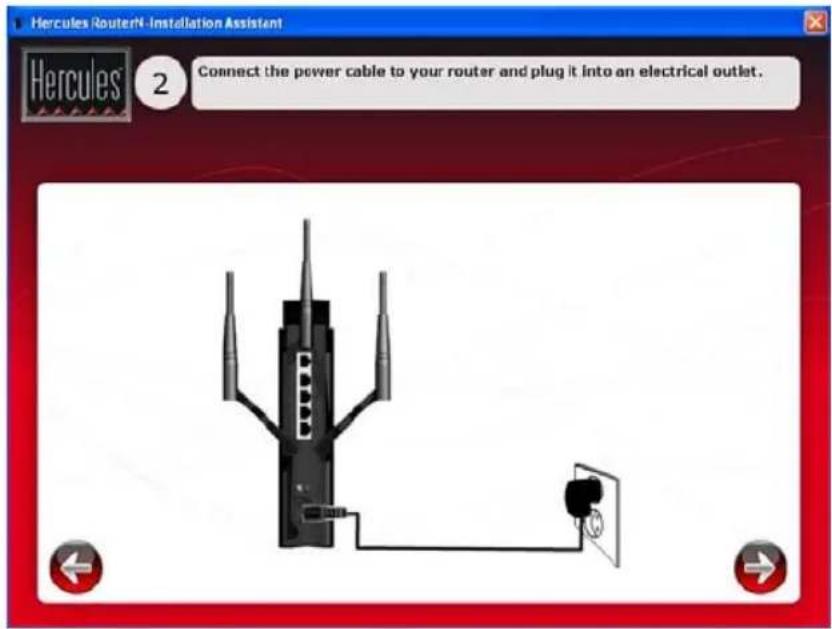
- Click Next (the arrow symbol).
Step 3
- Disconnect the cable connecting your modem to your computer, and connect it to the WAN port on your Hercules Wireless N Router.
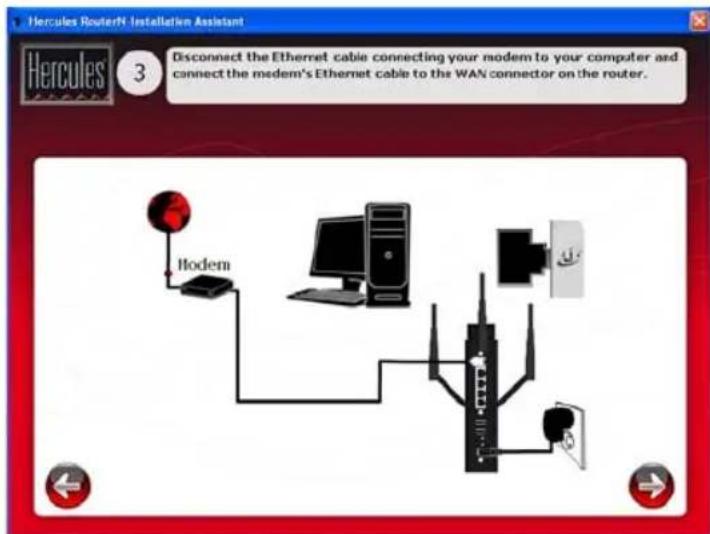
The power LED lights up and the WiFi LED flashes. The Internet (WAN) LED lights up and flashes during data transfer.
- Click Next (the arrow symbol).
Step 4
- Connect one end of the included Ethernet cable to one of the four Ethernet ports on your Hercules Wireless N Router, and the other end to your computer's Ethernet port.
The LED corresponding to the number of the Ethernet port you have selected lights up.
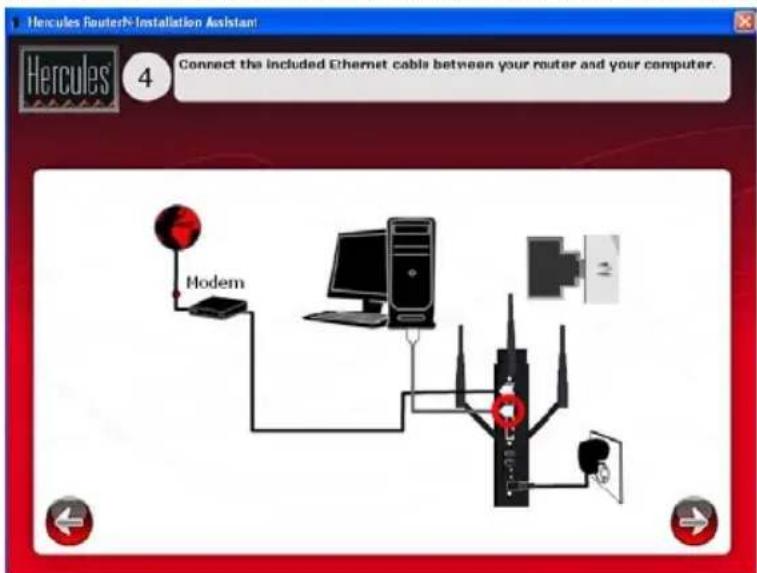
- Click Next (the arrow symbol).
Step 5
The Assistant prompts you to install Hercules QuickAccess, the quick connection utility to WiFi Manager N. Click the Install QuickAccess button if you wish to install this utility.

If you do not wish to install this utility, you will only be able to access your Router by manually ing its address (please see section 3.1 Opening the doors of WiFi Manager N).
Step 6
Once QuickAccess has been installed, the WiFi Manager N installation Assistant is launched, allowing you to automatically configure your Hercules Wireless N Router.

For more information on the WiFi Manager N installation Assistant, please refer to section asy customization of your Hercules Wireless N Router.
Step 7
The WiFi Station N installation Assistant then starts up to launch installation of your Hercules Wireless N USB Key. Follow the on-screen instructions.

For more information on installing WiFi Station N, please refer to the PDF manual for your Hercules less N USB Key.
Step 8
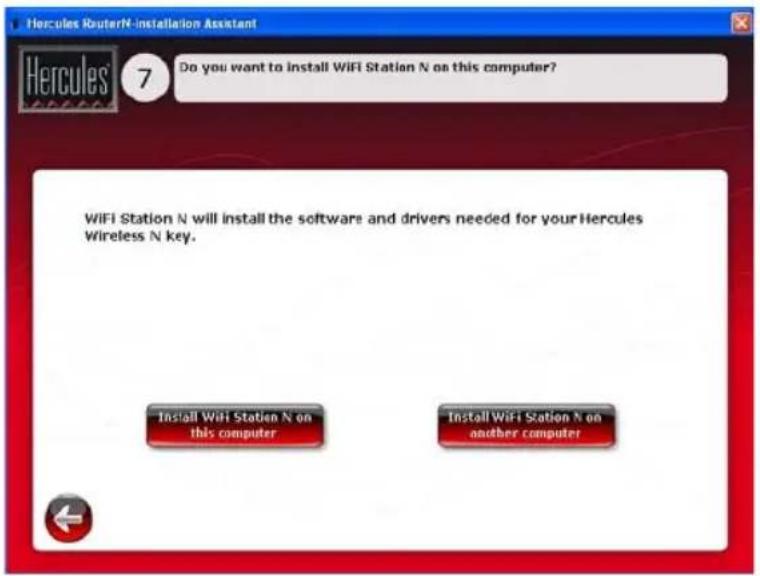
- If you wish to install WiFi Station N on another computer, click Install WiFi Station N on another computer. In that case, remove the CD-ROM from the computer and insert it into the CD-ROM drive of the computer on
which you wish to install WiFi Station N. You should then launch installation of WiFi Station N on that computer. Once installation is complete, remove the CD-ROM to complete installation of your Router.
- Otherwise, click Install WiFi Station N on this computer to launch installation of WiFi Station N.
End of installation: WPS connection
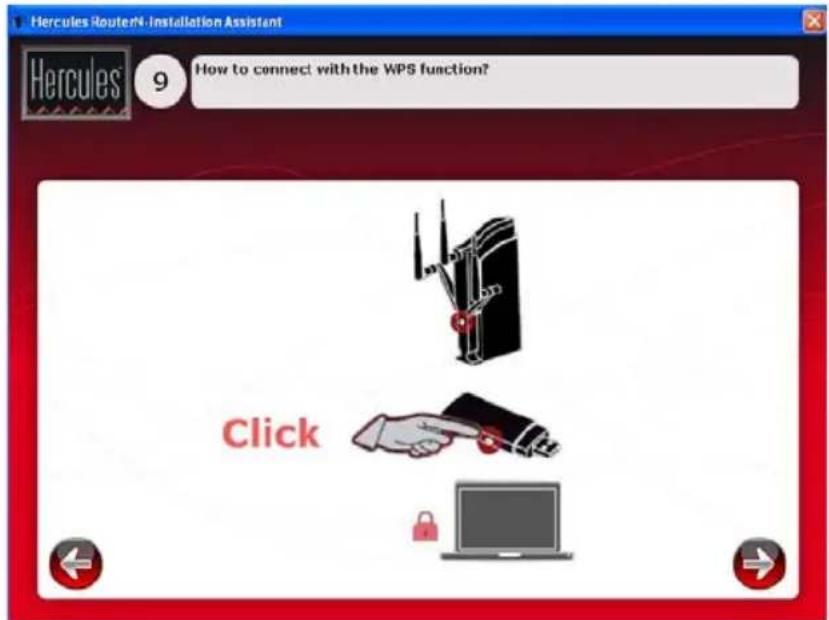
Installation of your Hercules Wireless N Router/Hercules Wireless N USB Key is now complete. Before learning about advanced functionalities and moving on to practical applications, the screen shown above demonstrates how you can connect very easily using WPS.
For more information on connecting using WPS, please refer to section 2.9. Connecting to a network with Wi-Fi Protected Setup ^TM .
To learn about all of your product's advanced functionalities, please refer to section 3. WiFi Manager N, the versatile utility or section 4. The WiFi Station N utility in the PDF manual for your Hercules Wireless N Key.
To learn about practical applications for your WiFi devices, please refer to section 4. Welcome to the Wireless Attitude™.
2.7. Installing the Wireless N USB key only
To install the Wireless N USB Key:
- Click the button. WiFi Station N
The WiFi Station N installation Assistant is launched. Follow the on-screen instructions

For more information on installing WiFi Station N, please refer to the PDF manual for your Hercules ess N USB Key.
2.8. Exploring the CD-ROM
- Click the button.

The CD-ROM's tree structure is displayed in the new window. You can browse through the contents of the different folders.
2.9. Connecting to a network with Wi-Fi Protected Setup™
If connecting to a WiFi network and configuring it seems like too much trouble to you, you can use the integrated WPS (Wi-Fi Protected Setup ^™ ) functionality, indicated on the product or packaging by one of the following logos:

What is WPS (Wi-Fi Protected Setup)?
WPS is a technology which simplifies the connection procedure to a wireless network between a WPS-compatible device (your Hercules Wireless N Key, for example) and your Hercules Wireless N Router. Different connection methods are available to you: simply click a button located on the router or in WiFi Manager N, or enter the PIN code of the device to be connected (your Hercules Wireless N Router or your Hercules Wireless N Key, for example) in the WiFi Manager N interface.
About master and client modes
To get a better understanding of the two connection modes via WPS, it is important to grasp the concepts of master and client. In master mode, the WPS device (your Hercules Wireless N Router, for example) is the access point to which other WPS devices will connect (your Hercules Wireless N Key or another WPS device). In client mode, it is the WPS device (your Hercules Wireless N Key or another WPS device) which connects to the master (your Hercules Wireless N Router).
Note: The procedure detailed hereafter describes connecting your Hercules Wireless N Router with the Hercules Wireless N USB Key; however, you can also connect other WPS devices. Should you wish to do so, please refer to your WPS device's user manual

In order to enjoy using a simplified connection thanks to the WPS (Wi-Fi Protected Setup™) onality, devices which will be connecting to your Router must be WPS-compatible and certified.
2.9.1. Connecting to a network in master mode
Note: by default, your Hercules Wireless N Router is configured to master mode, meaning that it will serve as the access point to which other WPS devices will be able to connect.
1 ^st option: use the WPS button located on the Router
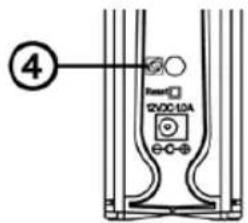
- On your WiFi Router: press the WPS button ④ located on the back of the Router.
You now have two minutes to connect your Hercules Wireless N USB Key to the Router. You will not have to repeat this step the next time you connect.
natural_image
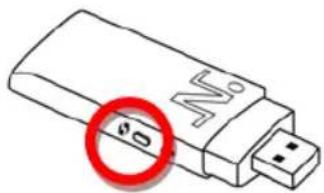
Illustration of a USB flash drive with a red circular highlight (no text or symbols)- Press the WPS button located on the side of the Hercules Wireless N Key or the WPS button on a WPS-compatible device.
2nd option: use the WPS button accessible in WiFi Manager N
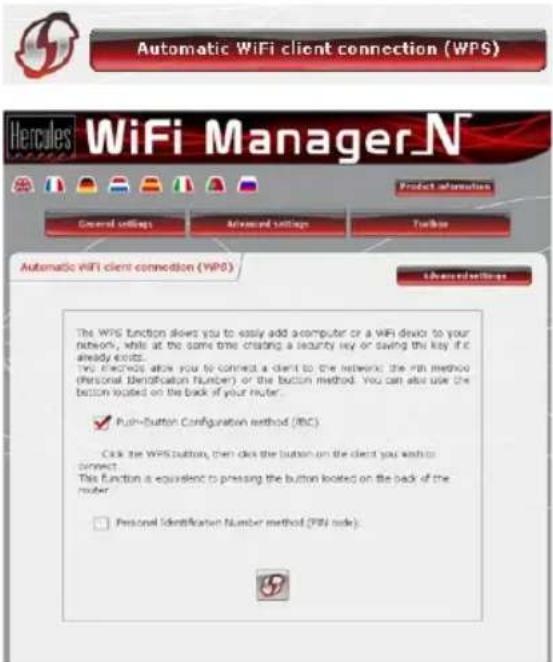
- On the WiFi Manager N home page, press the Automatic WiFi client connection (WPS) button.
Push-Button Configuration method (PBC) is selected by default.
- Click the connection button.
Alternatively:
- Select Personal Identification Number method (PIN code).
- Enter the PIN code of the WPS device you wish to connect.
- Click the connection button.
To find out the PIN code for your WPS device, please refer to section 4.3.3. Connecting to a network with a PIN code in the user manual of your Hercules Wireless N USB Key, or refer to the manual supplied by the manufacturer of WPS device.
You now have two minutes to connect your Hercules Wireless N USB Key or your device via WPS.
If the connection is not secure, a WPA or WPA2 type security key (depending on the client's capabilities) is generated automatically.
For more information on connecting your device via WPS, please refer to the PDF user manual of your Hercules Wireless N USB Key or to the manual supplied by the manufacturer of your WPS device.
2.9.2. Connecting to a network in client mode
Note: by default, your Hercules Wireless N Router is configured to master mode, meaning that it will serve as the access point to which other WPS devices will be able to connect. By switching to client mode, your Router will connect to a master WPS device which will become the access point. You should be aware, however, that your Hercules Wireless N Router, with its router function, is not meant to connect to other WPS devices.
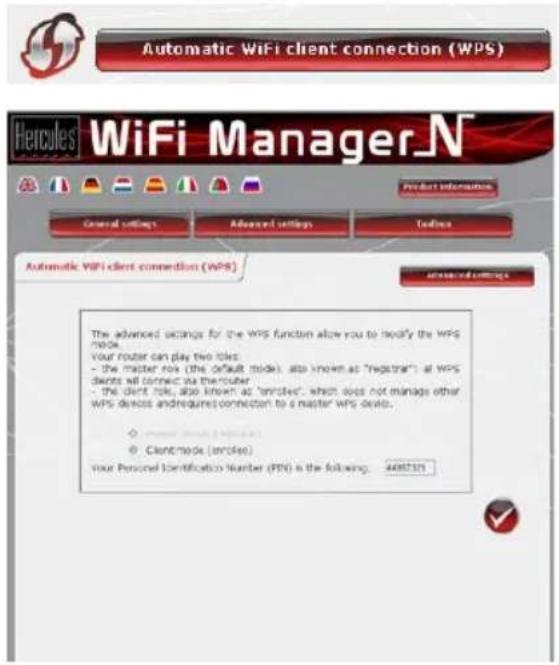
- On the WiFi Manager N home page, press the Automatic WiFi client connection (WPS) button.
- Click the Advanced settings button.
Two options are available to you: Master mode or Client mode.
- Select Client mode.
WiFi Manager N displays the PIN code for your Hercules Wireless N Router. Make a note of this code, as you will have to enter it in the c interface in order to connect your Router to ot devices.
3. WIFI MANAGER N, THE VERSATILE UTILITY
With WiFi Manager N, nothing could be easier than combining your high-speed Internet modem with the Hercules Router, thereby sharing your Internet access with all of the computers in your home or small business, or simply creating a wireless network.
WiFi Manager N is the interface which allows you to communicate with your Hercules Router and configure your wireless network or Internet firewall.
3.1. Opening the doors of WiFi Manager N
The Installation Assistant you have launched from the CD-ROM has installed a connection utility on your Desktop, called "Hercules QuickAccess". This utility will bring you straight to the door (locked with a key, for the moment) to WiFi Manager N.
- To access the door to enter WiFi Manager N, simply double-click the Hercules QuickAccess icon on your Desktop.
The connection window to the Router appears.
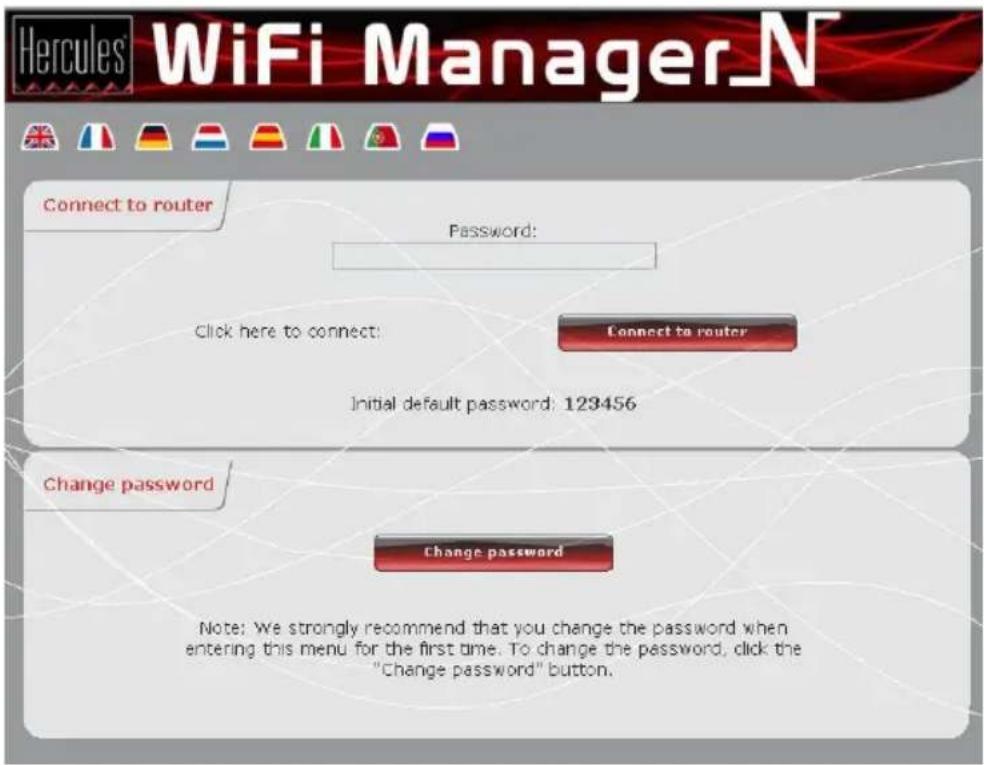
Or, if you have chosen not to install the QuickAccess icon:
- Open up the browser of your choice (Internet Explorer, Mozilla Firefox or Netscape Navigator) and enter the address http://192.168.2.1.
You are now at the door to enter WiFi Manager N, which you must open using a password.
- To open the door, enter the default password or enter your own password if you have already defined one (for information on how to define your own password, please refer to chapter 3.2. Changing the WiFi Manager N password!).
- Click Connection.

The password ensures that you are the only one who can access your WiFi Manager N interface, and therefore your Hercules Router's settings. For this reason, it is important that you change the pa when using WiFi Manager N for the first time (see below).
3.2. Changing the WiFi Manager N password!
When opening the door to WiFi Manager N for the first time, we strongly recommend that you change the default password, 123456, during your first use directly via the Connect to Router window.
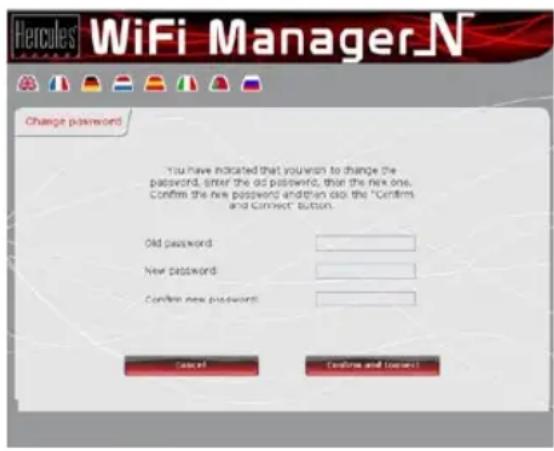
- Click the Change password button.
- Enter the old password (123456, if you are doing this for the first time), the new password, which you will select, and then confirm the new password.
- Click Confirm and Connect to store your new password and connect.
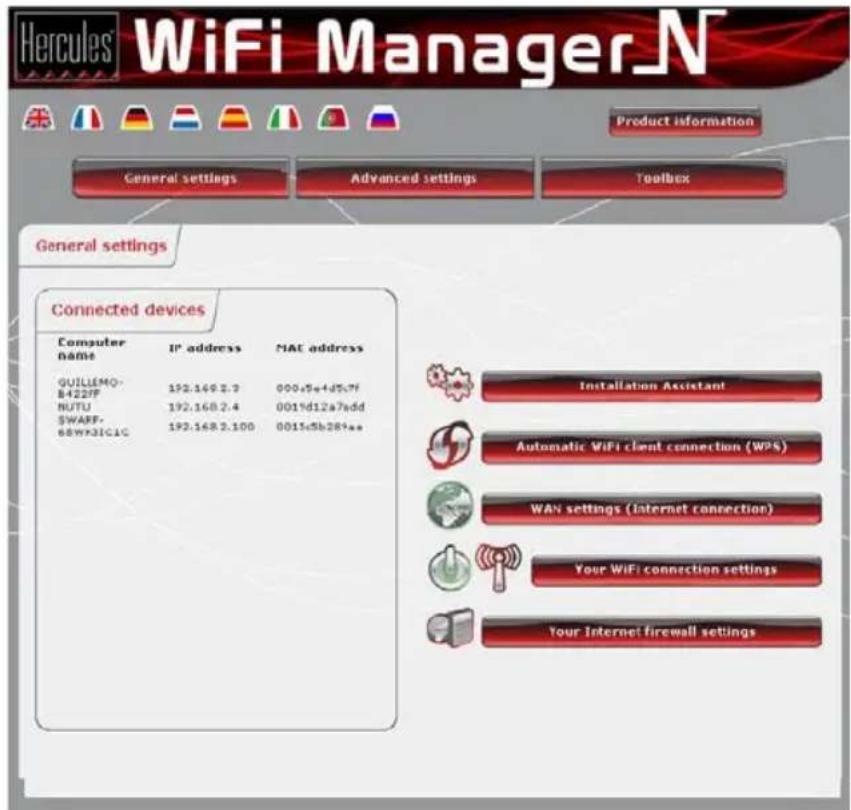
The door to WiFi Manager N opens to the Home page depicted below. You can now explore all of your Hercules Router's functionalities.
3.3. Navigating within the WiFi Manager N interface
The WiFi Manager N interface has been designed to simplify navigation through the different menus. Nevertheless, should you ever feel a bit lost, you can always click the General settings button at any time to return to the Home page, the starting point for all of your Hercules Router's functionalities.
3.4. Easy customization of your Hercules Wireless N Router
Thanks to the Installation Assistant available in WiFi Manager N (launched automatically during the Flash installation), you can very easily configure all of your settings (password, Internet connection, WiFi network, security...) in a few easy steps.
To launch the Installation Assistant

- Click the Installation Assistant button.
- Click Next to move on to step 1: Change the password for accessing the interface.
3.4.1. Step 1: Change the password for accessing the interface
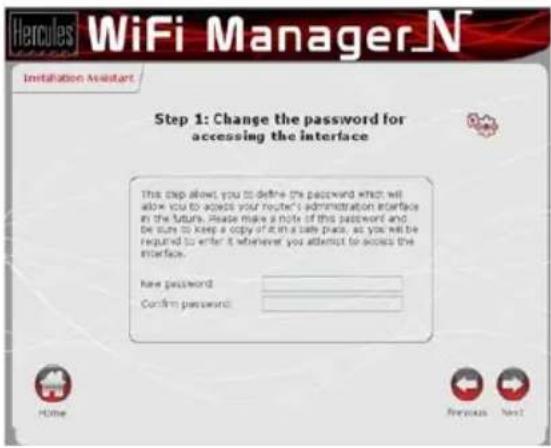
- Enter the new password, and then confirm it.
- Click Next to move on to step 2 : Internet (WAN) connection.
3.4.2. Step 2: Internet (WAN) connection
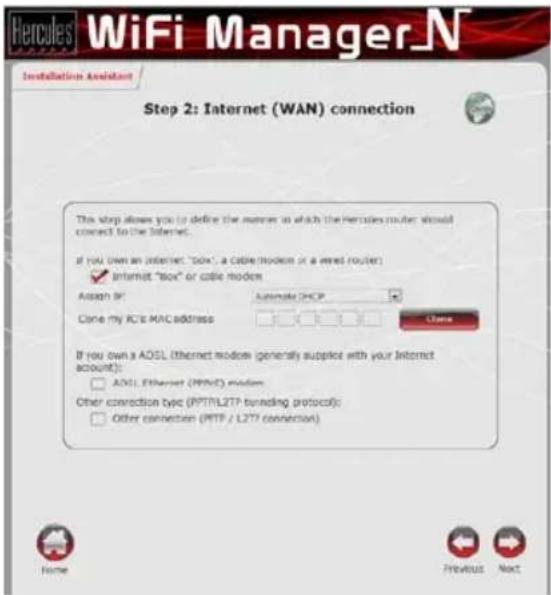
- Indicate how you connect to the Internet: Internet "Box" or cable modem, ADSL Ethernet (PPPoE) modem, or Other connection.
If you connect to the Internet via a "Box", cable modem or Router:
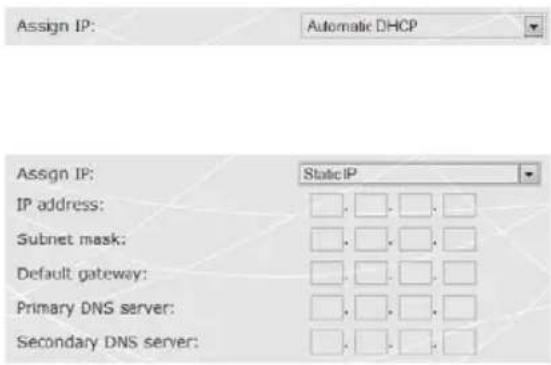
- Select the Assign IP type: Static IP or Automatic DHCP.
- If you select Automatic DHCP, the DHCP server will be responsible for assigning the IP address
- Select Static IP if you have subscribed to an Internet line with a fixed IP address.
This information can be found in the members details sent to you by your ISP.
- Enter the IP address, subnet mask and default gateway.
- Click Next to move on to step 3: Enabling your WiFi network.
If you connect to the Internet via an ADSL Ethernet modem:
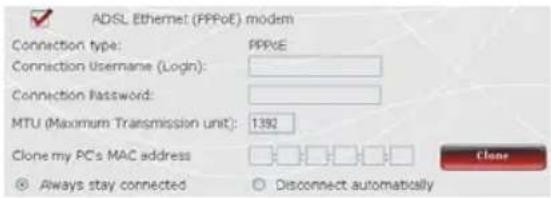
- Select the PPPoE connection type.
- Enter your connection username (login) and password.
This information can be found in the members. details sent to you by your ISP.
- Also enter a valid MTU value.
The MTU value corresponds to the maximum value, in bytes, of transmitted data packet example, 1500 bytes on an ADSL WiFi network).
- If you wish, you can always stay connected, thereby leaving your Internet connection ena all the time; you can also choose to disconnect automatically after a certain length of time.
- Click Next to move on to step 3: Enabling your WiFi network.
If you use another connection mode (PPTP or L2TP)
- For information on your connection mode, please verify your connection information found in the membership details sent to you by your ISP.
- If you select the PPTP connection type:
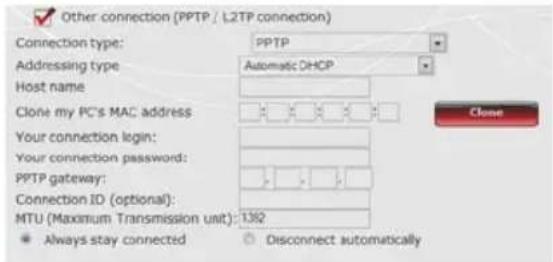
- Select PPTP in the drop-down list.
- Enter the host name supplied when subscribing to the service.
- If necessary, click the Clone button to clone your PC's MAC address.
- Enter your connection username (login) and password.
- Also enter the PPTP gateway and, if you wish, a connection ID for this gateway.
This information can be found in the members details sent to you by your ISP.
- Enter a valid MTU value.
The MTU value corresponds to the maximum value, in bytes, of transmitted data packet example, 1500 bytes on an ADSL WiFi network).
- Click Next to move on to step 3: Enabling your WiFi network.
- If you select the L2TP connection type:
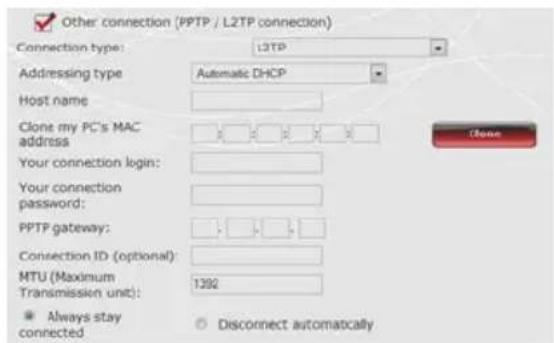
- Select L2TP in the drop-down list.
- Enter the host name supplied when subscribing to the service.
- If necessary, click the Clone button to clone your PC's MAC address.
- Enter your connection username (login) and password.
- Also enter the L2TP gateway and, if you wish, a connection ID for this gateway.
This information can be found in the members details sent to you by your ISP.
- Enter a valid MTU value.
The MTU value corresponds to the maximum value, in bytes, of transmitted data packet example, 1500 bytes on an ADSL WiFi network).
- Click Next to move on to step 3: Enabling your WiFi network.
3.4.3. Step 3: Enabling your WiFi network
If you do not wish to enable your WiFi network:
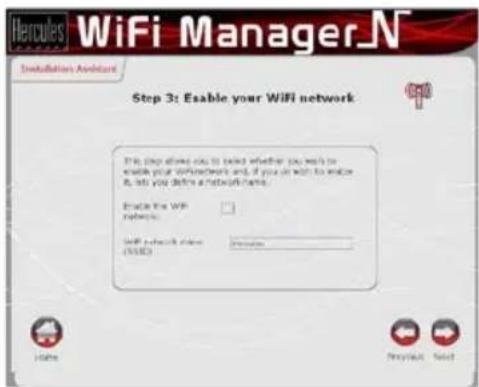
- Deselect the Enable the WiFi network box.
If you wish to enable your WiFi network:
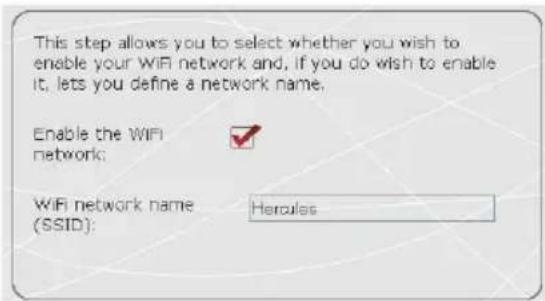
- Leave the Enable the WiFi network box selected.
- Enter the network name.
Once your network has been enabled, it w visible to other WiFi devices.
recommend that you define a security key (please see the following screen).
- Click Next.
3.4.4. Step 4: Selecting security for your WiFi network

- Choose whether to select Automatic or Manual security for your WiFi network.

In WiFi Manager N, you must not select a higher level of security than that supported by your computers or other WiFi devices. For example, if your computers or other devices only support the MEDIUM level (WEP 128), you should not select the HIGH (WPA-PSK) or VERY HIGH (WPA2) levels.
If you wish to automatically define security for your WiFi network:
- Click the Automatic button.
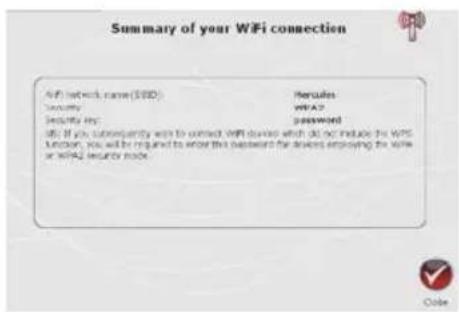
Your network will be automatically protected v WPA2-WPA2 key (TKIP and AES).
- Click Next.
On the page displayed, you can view a summary of your WiFi connection. Make a note of the network name, security type and key used.
- Click Close to exit the Assistant and return to the home page.
Your settings are immediately saved and appli
If you wish to manually define security for your WiFi network:
Select your level of security:
□ Very high (WPA2 type security)
□ High (WPA type security)
Medium (WEP12B type security)
√ None (no security)
- Click the Manual button.
- Read the text explaining the concept of secu
- Select your level of security: MEDIUM (WEP 128), HIGH (WPA), VERY HIGH (WPA2) or None (no security).
- Click Next.
For more information on security levels, p refer to section 3.6.2. Securing your WiFi network.
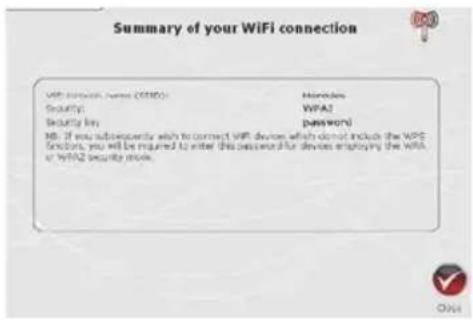
On the page displayed, you can view a summary of your WiFi connection. Make a note of network name, security type and key used.
- Click Close to exit the Assistant and return to the home page.
Your settings are immediately saved and appli
If you select the "HIGH (WPA)" or "VERY HIGH (WPA2)" security type:
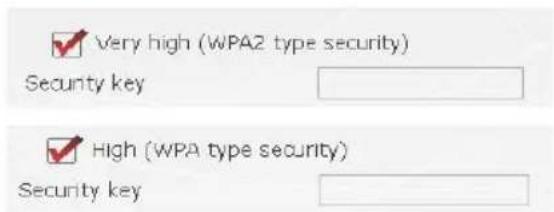
- Enter the password of your choice (8 alphanumeric characters minimum).
An alphanumeric character corresponds either number (0-9), or to a letter (a-z or A-Z).
- ClickNext.
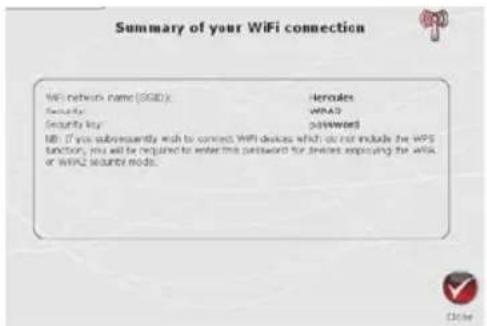
On the page displayed, you can view a summary of your WiFi connection. Make a note of network name, security type and key used.
- Click Close to exit the Assistant and return to the home page.
Your settings are immediately saved and appl
If you select the "MEDIUM (WEP 128)" security type:

- Enter a WEP key composed of 26 hexadecimal or 13 alphanumeric characters.
A hexadecimal key is composed of numbers from 0 to 9 and letters from A to F (example: 123456789ABCD for a 128-bit key).
An alphanumeric character corresponds either number (0-9), or to a letter (a-z or A-Z).
- ClickNext.
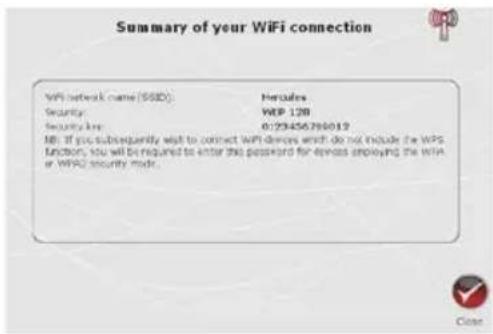
If you select NO SECURITY (not recommended):

None (no security)
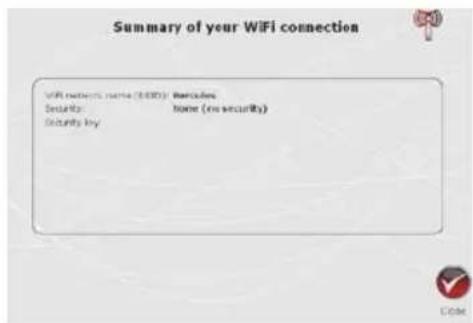
On the page displayed, you can view a summary of your WiFi connection. Make a note of the network name, security type and key used.
- Click Close to exit the Assistant and return to the home page.
Your settings are immediately saved and appli
If you do not apply any security, your network will not be protected. Any user, whether intentions or not, will be able to connect.
- Click Next.
On the page displayed, you can view a summar your WiFi connection. Make a note of the network name, security type and key used.
- Click Close to exit the Assistant and return to the home page.
Your settings are immediately saved and applie

If you have mastered the concept of WiFi security, you can use the (less user-friendly) method of directly entering your security criteria. This method is accessible via the home page, by clicking the Your WiFi connection settings button.
3.5. Sharing your Internet connection via the Router
You can easily pair your Hercules Router with your modem, thereby sharing your Internet connection with your other computers and/or game consoles.
Once installation of your Router is complete, your WiFi connection and firewall are enabled. However, you must still select your type of Internet connection (via Ethernet modem, "Box" or other method) and enter the required information. To do so, simply consult the items of information supplied by your ISP, typically found in the membership details sent to you (connection username (login), connection password...).
3.5.1. Selecting your Internet connection
With WiFi Manager N, you don't have to be a computer expert to share your Internet connection via WiFi with your Router: just get together the information sent to you by your service provider.


Always stay connected ○ Disconnect automatically
- On the home page, click WAN settings (Internet connection).
- Select the Internet connection mode ADSL Ethernet modem or Internet "Box", Cable Modem or Router.
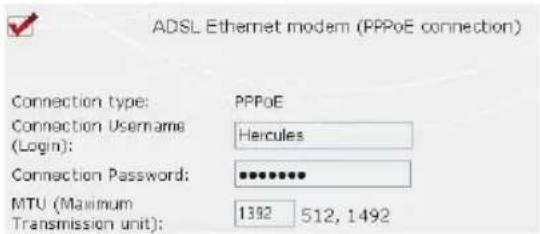
If you select the ADSL Ethernet mode mode:
- Select the PPPoE connection type.
- Enter your connection username (login) and password.
This information can be found in the membership details sent to you by y ISP.
- Also enter a valid MTU value.
The MTU value corresponds to the maximum value, in bytes, of transmit data packets (for example, 1500 bytes an ADSL WiFi network).
- If you wish, you can always stay connected, thereby leaving your Internet connection enabled all the time; you can also choose to disconnect automatically after a certain length of time.
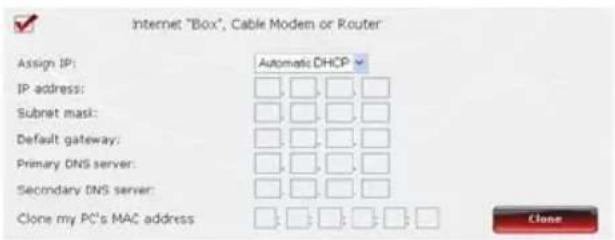
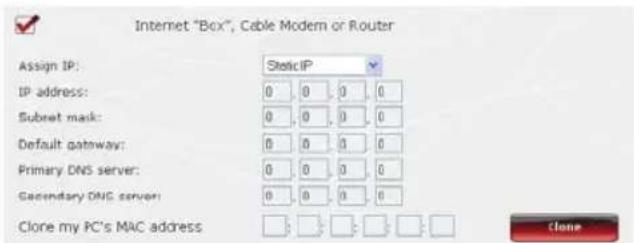
If you select the Internet "Box", C Modem or Router mode
- Select the Assign IP type: Static IP or Automatic DH CP.
- If you select Automatic DHCP, the DHCP server will be responsible for assigning IP address.
- Select Static IP if you have subscribed to an Internet line with a fixed IP address
This information can be found in the membership details sent to you by ISP.
- Enter the IP address, subnet mask, and default gateway.
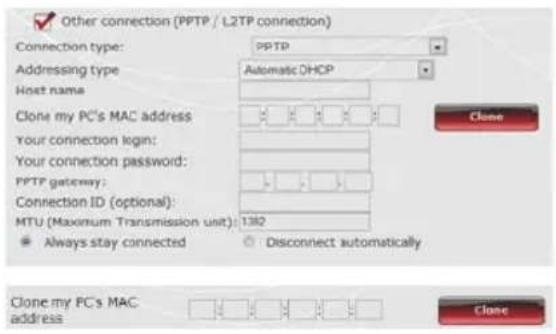
If you select another connection type
- If you select the PPTP connection type:
- Select PPTP in the drop-down list.
-
Enter the host name supplied when subscribing to the service.
-
If necessary, click the Clone button to clone your PC's MAC address.
- Enter your connection username (login) and password.
- Also enter the PPTP gateway and, if you wish, a connection ID for this gateway.
This information can be found in the members details sent to you by your ISP.
- Enter a valid MTU value.
The MTU value corresponds to the maximum value, in bytes, of transmitted data packet example, 1500 bytes on an ADSL WiFi network).
- If you select the L2TP connection type:
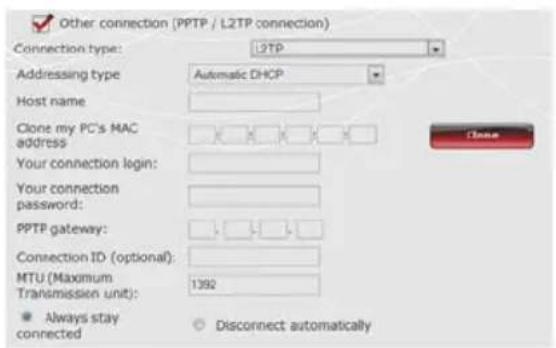
- Select L2TP in the drop-down list.
- Enter the host name supplied when subscribing to the service.
- If necessary, click the Clone button to clone your PC's MAC address.
- Enter your connection username (login) and password.
- Also enter the L2TP gateway and, if you wish, a connection ID for this gateway.
This information can be found in the members details sent to you by your ISP.
- Enter a valid MTU value.
The MTU value corresponds to the maximum value, in bytes, of transmitted data packet example, 1500 bytes on an ADSL WiFi network).

Once you have selected your connection mode, don't forget to click the Apply and Save button to save your settings.
3.5.2. Testing your Internet connection
Once you have selected your Internet connection mode for your Hercules Router, you can carry out a first test and verify that you are able to access the Internet.
On the General settings page, you can also view the Earth icon connected), or red (Router not connected).

to see your status: green (Router

During this test, leave the Ethernet cable connected to your Hercules Router.
- Launch an Internet browser (Internet Explorer, Netscape Navigator or Mozilla Firefox) on your computer.
- Enter the address www.hercules.com.
The Hercules website homepage should appear
If your Internet connection is working properly:
It is now time for you to learn how to master your WiFi network (please see section 3.6. Mastering your WiFi network at your fingertips).

Do not disconnect your Ethernet cable just yet, so long as your WiFi network has not been created; you will need it in order to communicate with your Router.
3.5.3. Resolving any difficulties accessing WiFi Manager N or the Internet
If you have not managed to connect to the WiFi Manager N interface or to the Internet, your computer's settings may not be properly configured. The instructions below will help you to resolve this problem.
Note: the access paths mentioned below may vary slightly if you have modified the default display configuration in Windows XP or Vista (meaning the Start menu properties and Control Panel display).
Windows XP or Vista
LAN or High-Speed Internet

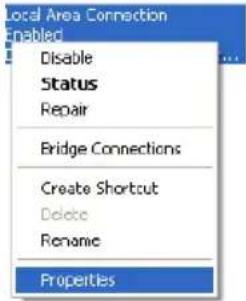
- Click Start/Control Panel. Double-click Network Connections.
- In the LAN or High-Speed Internet section, right-click the icon corresponding to your network adapter (or netw bridge, if you have created one) and select Properties
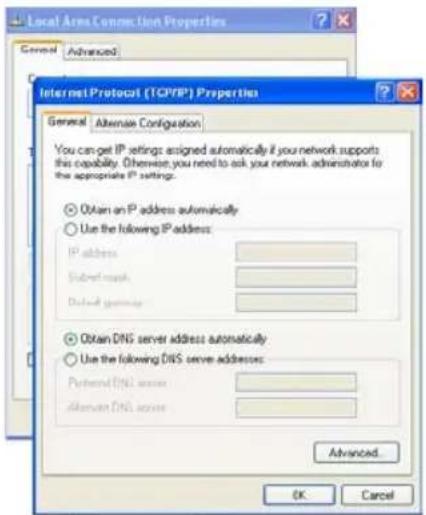
- In the General tab of the Local Area Connection Properties window, scroll through the list and highlight Internet Protocol (TCP/IP).
- Click Properties, select Obtain an IP address automatically and Obtain DNS server address automatically.
- Click OK to close the windows, then exit the Control Panel.
The Hercules Router will now be able to assign an IP to your computer.
An IP address is a unique address assigned by the router to the computer. Each computer has its own identity, via i address, allowing it to be identified within the network.
Windows 2000
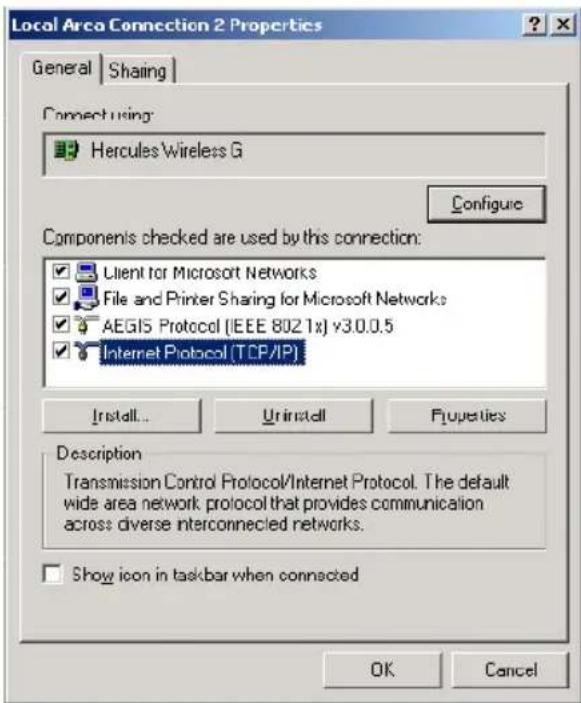
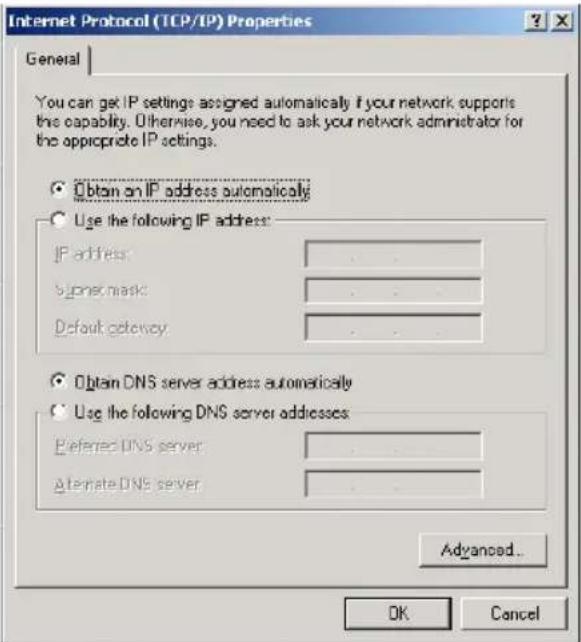
- Click Start/Settings/Control Panel. Double-click Network and Dial-Up Connections.
- Right-click the appropriate connection and select Properties.
-
In the General tab, highlight Internet Protocol (TCP/IP).
-
Click Properties and select Obtain an IP address automatically and Obtain DNS server address automatically.
- Click OK to close the windows, then exit the Control Panel.
The router will now be able to assign an IP address to your computer.
An IP address is a unique address assigned by the router to the computer. Each computer h own identity, via its IP address, allowing it to identified within the network.
Windows 98 SE/Me
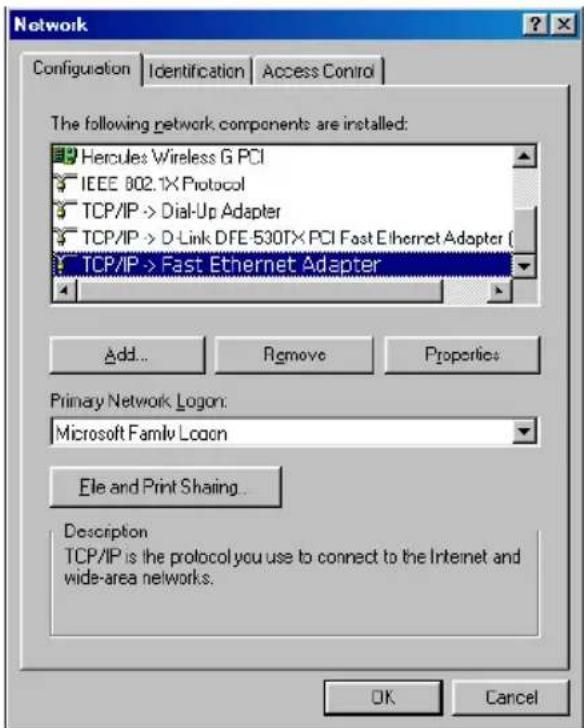
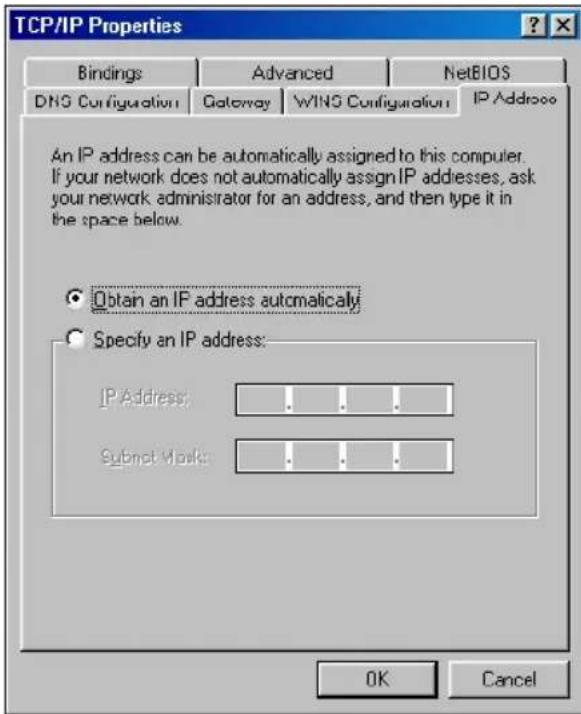
- Click Start/Settings/Control Panel. Double-click Network
-
In the Configuration tab of the Network window, highlight the name of your network adapter.
-
Click Properties and select Obtain an IP address automatically in the IP Address tab.
- Click OK to close the windows, then exit the Control Panel.
The Router will now be able to assign an address to your computer.
An IP address is a unique address assigned by the router to the computer. Each computer h own identity, via its IP address, allowing it to identified within the network.
3.6. Mastering your WiFi network at your fingertips
In this chapter, you will learn how to personalize your WiFi network and secure it against unwelcome intrusion attempts.

Configuration of your network is carried out via the Ethernet cable connecting your Router to your computer. Once you have finished, you can disconnect this cable and explore all the subtleties described in chapter 4. Welcome to the Wireless Attitude™!
3.6.1. Personalizing your WiFi network
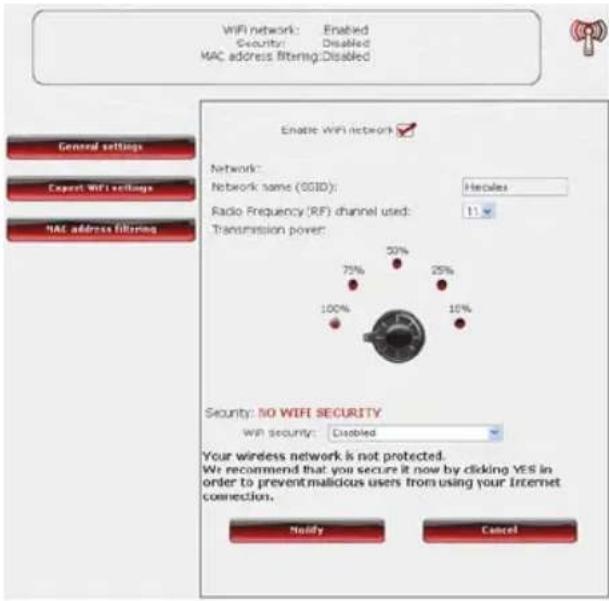
When the wireless access point (your Hercules Router's WiFi function) is enabled, WiFi Manager N displays the name of your network, the Radio Frequency (RF) channel and security type used. These settings may be modified, subject to certain conditions.

Should you decide to modify certain settings, we recommend that you take care to follow the recommendations below.
To personalize your WiFi network:


Your WiFi connection settings
- On the Home page, select Your WiF connection settings.
Various items of information are displayed such as the name of your network and the RF channel used. - Before personalizing your WiFi network verify that the WiFi network enabled box is ticked.
- If you wish, you may personalize the Network name (SSID) (Hercules, by default).
The SSID (Service Set Identifier) is the ur name shared by the WiFi adapters and access point in a wireless network. I sure that you do not lose or forget name, as you will need it to connect your W devices.
- Select the transmission power (100% by default).
- If necessary, change the Radio Frequen (RF) channel used by the local area WiFi network to communicate (from 1 to 13).
Change this setting only if another transn is using the same channel, which may res in a drop in your Router's WiFi performan

Don't forget to protect your network b selecting a security key; otherwise, any user, whether with bad intentions or not, will be to connect to it.
For details on how to protect your net please refer to section 3.6.2. Securing your WiFi network.
- Click the Modify button to validate your settings.
The access point restarts. All computers devices connected via WiFi are disconnected. The ADSL connection, however, remains active.
3.6.2. Securing your WiFi network
Creating a WiFi network is very useful if you have several wireless computers or devices, but how can you avoid having someone on the outside connect to your network without permission or intercept your unencrypted data exchanges? Thanks to the WiFi Manager N, you can define your own security choices. To help you select the best level of security for your network, we invite you to consult the table below, which sums up the 5 types of security supported by WiFi Manager N.
| Type | Level of security | Key used | Authentication |
| WEAK (WEP 64) | The lowest level of security, whereby simple encryption is carried out on exchanged data. Each wireless client in the network must use the same key to decode the transmission. | 64-bit key in hexadecimal format (10 characters), or in alphanumeric format with 5 ASCII characters (e.g.: hello).A hexadecimal key is composed by letters A to F (example A123BCD45E for a 64-bit le).An alphanumeric character corresponds either to a number (0-9), or to a letter (a-z or A-Z). | Open (no authentication), Shared (authentication method via shared key) or Auto (authentication when requested by the device). |
| MEDIUM (WEP 128) | Level of security identical to that of WEP 64. Only the key length is different. | 128-bit key in hexadecimal format (26 characters), or in alphanumeric format with 13 ASCII characters.A hexadecimal key is composed by letters A to F.An alphanumeric character corresponds either to a number (0-9), or to a letter (a-z or A-Z). | Open (no authentication), Shared (authentication method via shared key) or Auto (authentication when requested by the device). |
| HIGH (WPA-PSK) | Latest-generation heightened level of security, specially designed for environments such as a small office or the home, based on a pre-shared key. | Password with a minimum of 8 alphanumeric characters.An alphanumeric character corresponds either to a number (0-9), or to a letter (a-z or A-Z). | TKIP |
| VERY HIGH (WPA2) | Latest-generation very heightened level of security, specially designed for environments such as a small office or the home, based on a pre-shared key. | Password with a minimum of 8 alphanumeric characters.An alphanumeric character corresponds either to a number (0-9), or to a letter (a-z or A-Z). | AES |
| WPA ou WPA2 | Level of security selected by the router depending on the maximum level of security supported by the devices on the network. | Password with a minimum of 8 alphanumeric characters.An alphanumeric character corresponds either to a number (0-9), or to a letter (a-z or A-Z). | TKIP or AES |

You must not select a level of security in WiFi Manager N more advanced than that supported by your computers or other WiFi devices. For example, if your computers or other devices only support the WEAK (WEP 64) or MEDIUM (WEP 128) levels, you should not select the HIGH (WPA-PSK) or VERY HIGH (WPA2) level.

If you have used the WPS function to connect, a WPA or WPA2 type security key has automatically been generated.
To secure your WiFi network:

Your wireless network is not protected. We recommend that you secure it now by clicking YES in order to prevent malicious users from using your Internet connection.
- Before enabling security for your WiFi network, verify that the Enable WiFi network box is ticked.
- Select your level of security: MEDIUM (WEP 128), HIGH (WPA) or VERY HIGH (WPA2).
If you select the "VERY HIGH (WPA2)" security type:
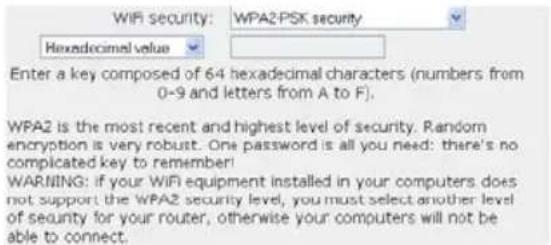
- Select the level of security: WPA2 (AES).
- Enter a password (8 alphanumeric characters minimum) or a key with 64 hexadecimal characters.
An alphanumeric character corresponds either in number (0-9), or to a letter (a-z or A-Z).
A hexadecimal key is composed of numbers 0 to 9 and letters A to F (example: A123BCD45E for a 64-bit key).
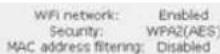
In the status zone, you can consult the overview your WiFi settings. Make a note of the name, security type and key used.
- Click Modify to validate the new settings.
If you select the "VERY HIGH (WPA-WPA2)" security type:
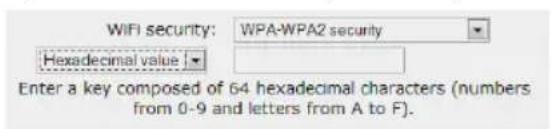
- Select the level of security: WPA-WPA2.
- Enter a password (8 alphanumeric characters minimum) or a key with 64 hexadecimal characters.
An alphanumeric character corresponds either in number (0-9), or to a letter (a-z or A-Z).
A hexadecimal key is composed of numbers 0 to 9 and letters A to F (example: A123BCD45E for a 64-bit key).
In the status zone, you can consult the overview your WiFi settings. Make a note of the name, security type and key used.
- Click Modify to validate the new settings.

If you select the "HIGH (WPA)" security type:
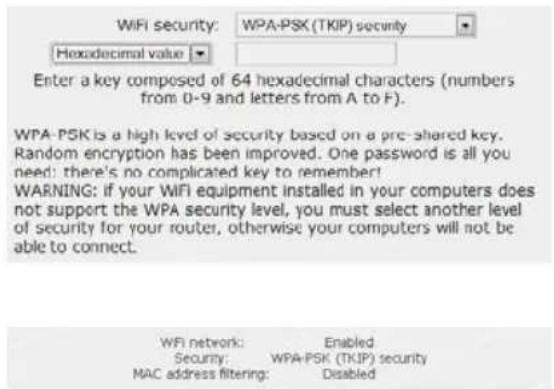
- Enter a password with 8 alphanumeric characters minimum, or a key with 64 hexadecimal characters of your choice.
An alphanumeric character corresponds either in number (0-9), or to a letter (a-z or A-Z).
A hexadecimal key is composed of numbers 0 to 9 and letters A to F (example: A123BCD45E for a 64-bit key).
In the status zone, you can consult the overview your WiFi settings. Make a note of the no name, security type and key used.
- Click Modify to validate the new settings.
If you select the "MEDIUM (WEP 64-WEP 128)" security type:
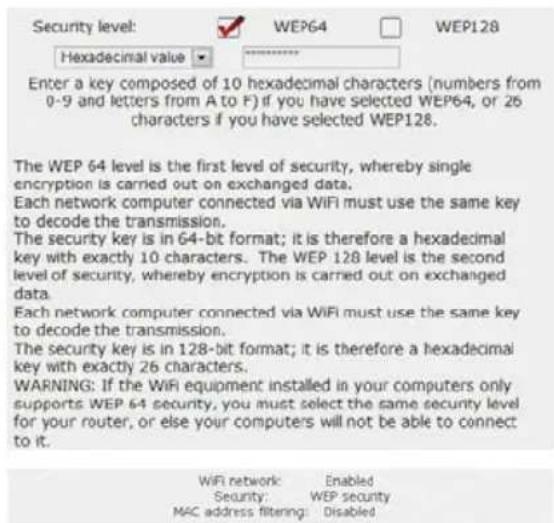
- Enter a key with 10 hexadecimal characters or a password with 5 alphanumeric characters for WEP 64 security, or a key with 26 hexadecimal characters or a password with 13 alphanumeric characters for WEP 128 security.
A hexadecimal key is composed of numbers 0 to 9 and letters A to F (example: A123BCD45E for a 64-to-key).
An alphanumeric character corresponds either number (0-9), or to a letter (a-z or A-Z).
In the status zone, you can consult the overview of your WiFi settings. Make a note of the network name, security type and key used.
- Click Modify to validate the new settings.
If you select NO (Disabled) security (not recommended):
WFi security: Disabled
Your wireless network is not protected. We recommend that you secure it now by clicking YES in order to prevent malicious users from using your Internet connection.
If you don't apply any security, your network will not be protected. Any user, whether with b intentions or not, will be able to connect to it.
WIFI network: Enabled Security: Disabled MAC address filtering: Disabled
In the status zone, you can consult the overview your WiFi settings. Make a note of the name, security type and key used.
- Click Modify to validate the new settings.
3.6.3. Limiting access to your WiFi network to certain WiFi computers or devices
Filtering by MAC address is a complement to your security settings, allowing you to select the wireless computers and devices authorized to connect to your local area WiFi network.
A MAC address is a unique address created by the builder of the network device (WiFi or Ethernet), serving to identify this element within a network.

Before enabling filtering, we recommend that you connect via WiFi all computers you wish to authorize.
To enable filtering by MAC address:
Enable WiFi network

Enable MAC address filtering
Enable MAC address filtering

- Before you can enable filtering by MAC address to verify that the Enable WiFi network box is ticked.
- Click the Enable MAC address filtering button.
- Tick the Enable MAC address filtering box.
To add a WiFi computer or device (webcam, game console or other) to the list:
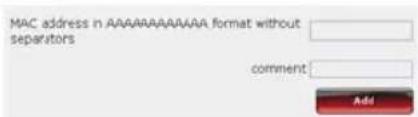
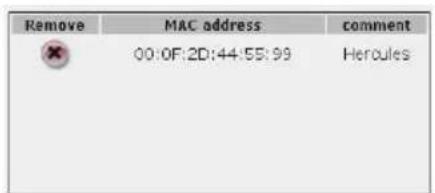

If you are using this function for the first time:
Any new computer or device must be add manually.
- Manually enter its MAC address (in AAAAAAAAAAAAAA format, without separators).
- Click the Add button.
This address has been added to the list of computers and devices authorized to connect.
- If you wish, add a comment in the correspond zone.
- Click the Modify button to validate your settings, or Cancel to cancel the settings you have entered.

Once you have enabled the filtering by MAC address function, only the computers and devices having in this list will be authorized to connect to your Hercules Router.

If your friends visit you with their WiFi computer or device, or if you wish to connect new WiFi devices, forget to add their MAC address to the filtering list, or else they will never be able to connect.
To remove a WiFi computer or device (webcam, game console or other) from the list:
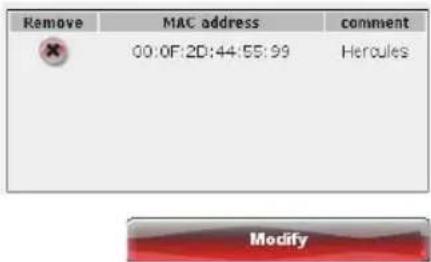
- In the Remove column, click 📄 next to the computers or devices you wish to remove from filtering list.
- Confirm the removal in the dialog box which appears.
- Click the Modify button to validate your settings, or Cancel to cancel the settings you have entered.
3.6.4. Disabling your WiFi network
If you wish to use your Hercules Router as a wired router only (that is to say, connected to the computer via
the Ethernet port and not by WiFi), simply disable your WiFi network by clicking the

button. The
WiFi LED on the router switches off.
3.6.5. Re-enabling your WiFi network
If you wish to re-enable your WiFi network, click the button again or proceed as follows:
Enable WiFi network


Are you sure you wish to disable your WIFI network?
Annuler
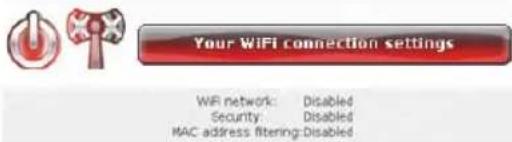
- Click the Your WiFi connection settings button.
You will note that your WiFi network, your security settings and filtering by MAC address disabled.
- Tick the Enable WiFi network box if you wish to re-enable your WiFi network.
- Confirm that you wish to re-enable your WiFi network.
3.7. The firewall: your ultimate protection against Internet attacks
Like a secure fortress, your network is protected by a drawbridge and ramparts that are impossible to scale. On top of this, all of your defenses are in a state of alert to repel any intrusion attempts. It is possible, however, to lower these defenses from time to time, in order to authorize your computers to access specific Internet services (P2P, web/FTP servers, IP or WiFi camera...), to simply limit access on a specific computer to certain Internet services, or to redirect all Internet requests to a designated computer. For more information, please refer to chapters 5.2.1. Opening doors in your firewall to put your camera online or authorize access for a computer to certain Internet services, 5.2.2. Limiting access of one of your network computers to Internet services and 5.2.3. Redirecting Internet requests to a specific computer.

If your computer is equipped with a software firewall (Norton Personal Firewall, Windows Service Pack 2 Firewall, McAfee Personal Firewall...), disable it when you connect to the Router, as your Router's firewall is sufficiently strong on its own, or adopt the same configuration settings as those establish your Router in order to avoid any possible conflicts. If you go somewhere else with your computer, however, and have to connect to other networks, you can re-enable your software firewall.
Be careful not to confuse a firewall with an antivirus program!
An antivirus program analyzes the contents of your computer, your emails, files you have downloaded from the Internet, etc., and detects, blocks and/or removes any viruses, worms and Trojans in order to your computer functions properly.
Your firewall hides your computer on the network, monitors the Internet data arriving at your computer and blocks intrusion attempts to stop computer hackers from stealing your personal information.
4. WELCOME TO THE WIRELESS ATTITUDE TM!
Now that you have mastered the main functionalities of WiFi Manager N, it is time to move on to a few practical applications. In the following chapters, we will show you how wireless computing is closely linked to user-friendliness and ease of use. Sharing your folders, your printer, or letting friends use your ADSL connection for online gaming are some examples of the things we will help you to do. Enter the world of wireless and join in the Wireless Attitude!
4.1. A few important points to bear in mind before getting started
We advise you to follow the instructions provided hereinafter for each of your computers:
- The procedures described in this chapter differ according to the various operating systems discussed. Please ensure that you refer to the chapters corresponding to your operating system.
- These procedures also apply to the computers or devices directly connected to your Router via an Ethernet cable.
- To share an ADSL connection, your Hercules Router and your modem (ADSL Ethernet, cable or Internet "Box") must be switched on and your ADSL line must be active.
Reminder: the WiFi network you have just finished setting up is an Infrastructure type network (as opposed to Ad hoc mode), as it is composed of an access point and one or more computers.
4.2. Computers running Windows Vista: Sharing folders, a printer or an ADSL connection

To create a network of computers, share data, a printer or an ADSL connection between computers running Windows Vista, it is not imperative that the computers belong to the same workgroup. However, if you wish to share between Windows Vista and an earlier operating system, make sure to define the same workgroup on all computers. For information on how to create a workgroup, please refer to the your Hercules product.
Note: The access paths described hereafter may vary slightly if you have modified the default display in Windows Vista (that is to say, the Start menu properties and the Control Panel display).
You have connected your computer to a private network (as opposed to a public network). Therefore, the discovery options (namely, the ability to view outside devices and computers and to be seen by other networks) are enabled, but sharing options are not. You must therefore enable them manually before you can share your folders, your Internet connection or your printer.
4.2.1. Enabling sharing
Before setting up sharing for your folders, your printer or your Internet connection, you must enable sharing in the Network and Sharing Center.

Note: To open the Network and Sharing Center, click the network icon in the Windows taskbar, then the Network and Sharing Center link.
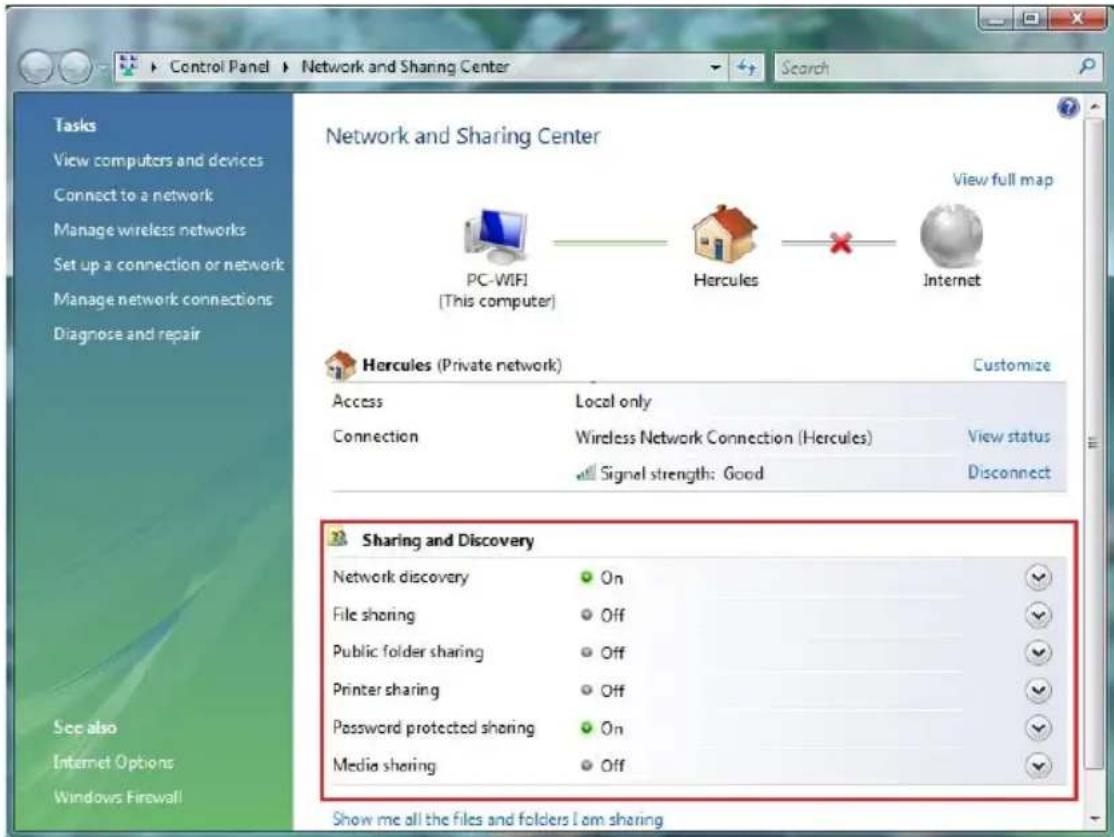
Enabling file sharing
- In the Sharing and Discovery zone, click the Off link or the √ button located opposite File sharing.
- Select the Turn on file sharing radio button.
File sharing
Off

When file sharing is on, files and printers that you have shared from this computer can be accessed by people on the network.
Turn on file sharing
Turn off file sharing

Apply
- Click Apply. In the Windows Vista confirmation window, click Continue.
Enabling public folder sharing
Note: A public folder is a folder which can be shared by other users of the same computer or of the same network.
- In the Sharing and Discovery zone, click the Off link or the button located opposite Public folder sharing.
- Select the Turn on sharing so anyone with network access can open files radio button (they will only be able to consult files) or select Turn on sharing so anyone with network access can open, change, and create files (there will be no limitations on the contents of these folders in terms of viewing, making changes and additions or other actions).
Public folder sharing
Off

When Public folder sharing is on, people on the network can access files in the Public folder. What is the Public folder?
Turn on sharing so anyone with network access can open files
Turn on sharing so anyone with network access can open, change, and create files
Turn off sharing (people logged on to this computer can still access this folder)
Apply
- Click Apply. In the Windows Vista confirmation window, click Continue.
Enabling printer sharing
Note: To enable printer sharing, you must first have installed a printer.
- In the Sharing and Discovery zone, click the Off link or the √ button located opposite Printer sharing.
- Select the Turn on printer sharing radio button.
Printer sharing
Off

When printer sharing is on, people with network access can connect to and use printers attached to this computer.
Turn on printer sharing Turn off printer sharing
Apply
- Click Apply. In the Windows Vista confirmation window, click Continue.
Enabling media file sharing
Note: This option allows you to enable sharing of your music, videos and images.
- In the Sharing and Discovery zone, click the Off link or the √ button located opposite Media sharing.
- Click Change...
When media sharing is on, people and devices on the network can access shared music, pictures, and videos on this computer, and this computer can find those types of shared files on the network.
- In the Media Sharing window that appears, tick the Share my media box.
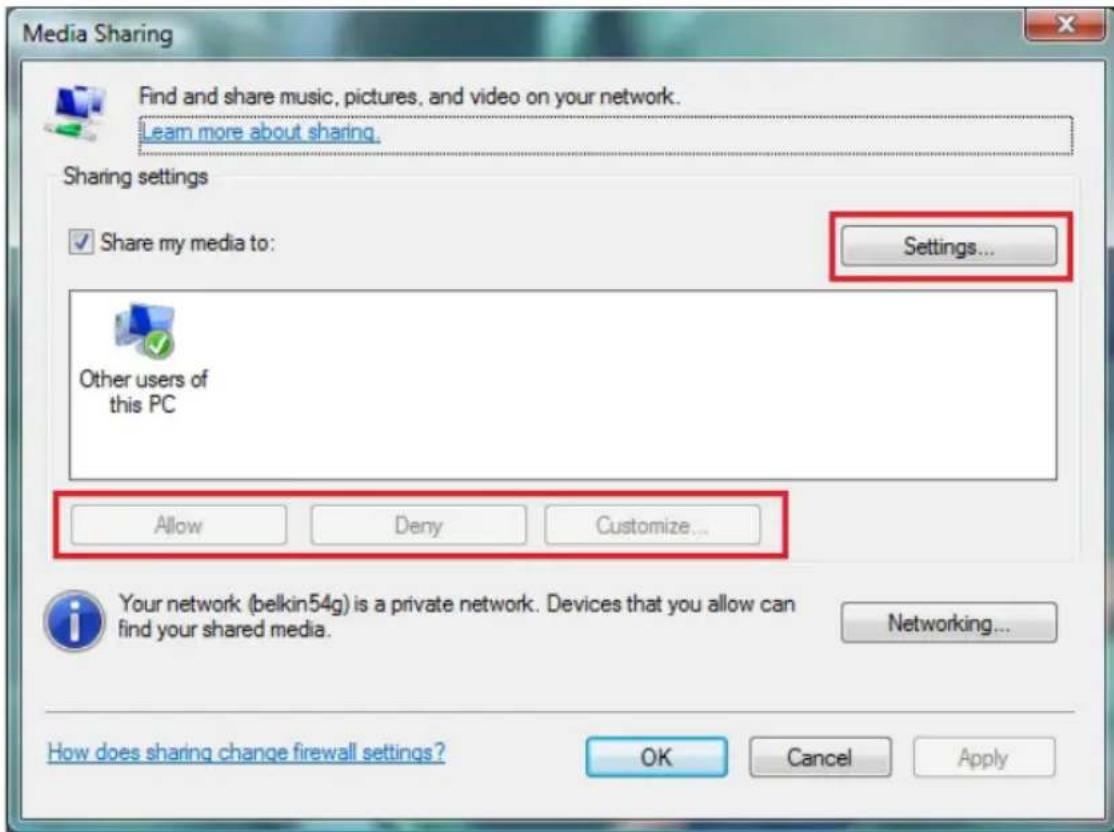
- Click OK. In the Windows Vista confirmation window, click Continue.
- In the following window, you can define the different settings, such as: authorize or refuse groups of users set parental controls, select media types to be shared, and so on.
- When you're done, click Apply, then OK.
4.2.2. Windows Vista: Sharing public or personal folders
Reminder: In Windows Vista, there are two types of folders: personal or local folders and public folders. A personal folder is a folder belonging to a specific user created on the computer, whereas a public folder is a folder that can be shared by any other user of the same computer or the same network. In essence, a public folder is shared, and therefore available to everyone for viewing (minimum authorization level). For sharing personal folders (your folder of your own images, for example), you must select the users who will be able to access their contents and set the authorization level, as indicated in the following procedure.
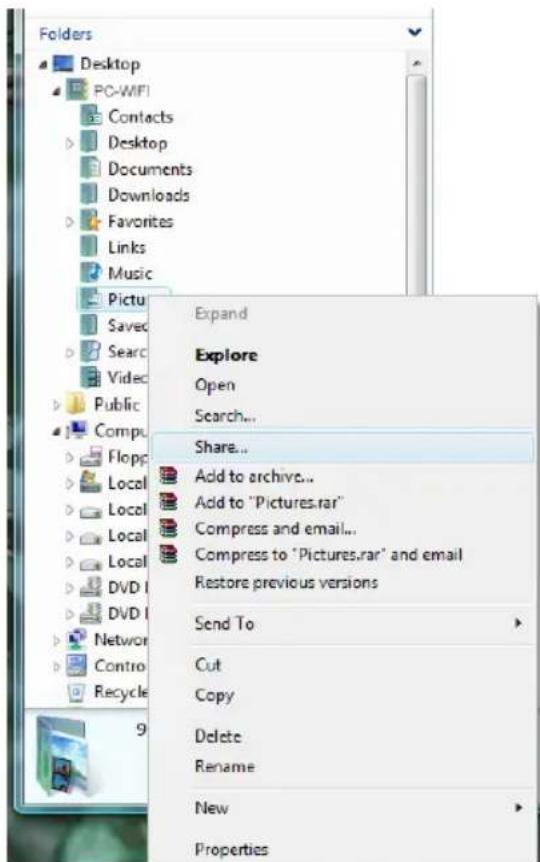
- Select the folder that you wish to share, without opening it. Here, your Pictures folder.
- Right-click the folder. Select Share.
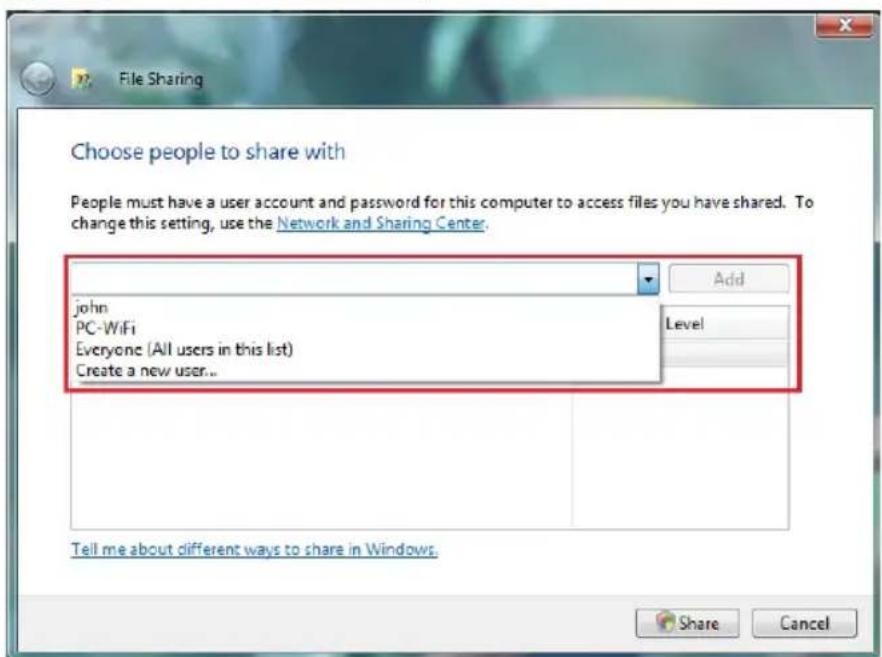
- In the File Sharing window, select the user(s) who will be able to access this folder, then click Add.
Note: You can provide access to all users with no restrictions (Everyone option) or select specific users previously created on your PC. You can also create new users by clicking Create a new user... in the dropdown list.
- Select the Permission Level you wish to assign by clicking on the line for that user: Reader (authorization to view only), Contributor (authorization to view, add and delete) or Co-owner (authorization to view, modify, add and delete).
- Click Share. Be sure to note the path indicated, which will allow for access to the shared folder on the network from another computer. For example: \PC-WIFI\Users\My documents\Shared Pictures Folders.
- Click Done.
The folder is now shared. You can now display all shared folders and files on the computer or the shared files on the network by clicking the links in the Network and Sharing Center.
4.2.3. Computers running Windows Vista: Accessing shared folders
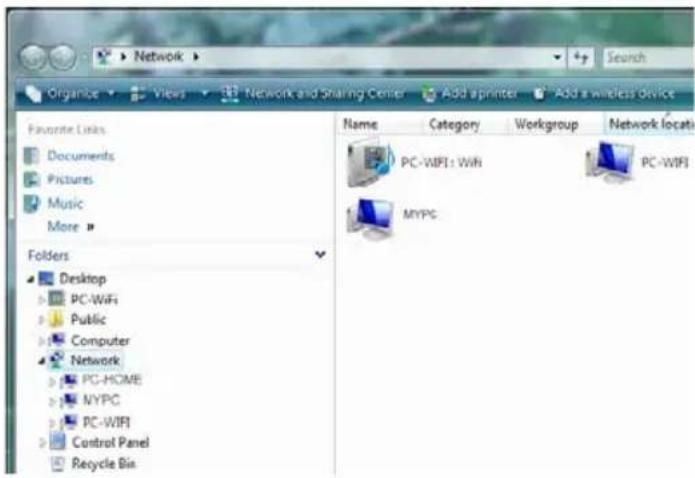
- In the file explorer, accessible v Start/Computer, double-click Network.
You access the list of the computer on the same network. Use the page indicated by Windows when setting sharing (for example: PC-WIFI\Users\My documents\Shared Pictures Folders).
- Double-click the computer sharing the folders you wish to access.
- If a password has been defined, enter your user name and your password.
All shared folders appear. Depend on your authorization level, you display, modify, add and/or delete shared folders and files.
4.2.4. Windows Vista: Sharing a printer
You can put a printer on the network and thereby share it with all computers in your home equipped with a WiFi adapter.
To access a printer on the network, sharing for the printer must first be set up in the Network and Sharing Center (please refer to chapter 4.2.1 Enabling sharing). The printer must then be set up for sharing on the computer to which is connected and on which it is installed.
On the computer connected to the printer:
- Click Start/Control Panel.
- Under the Hardware and Sound heading, click the Printer link.
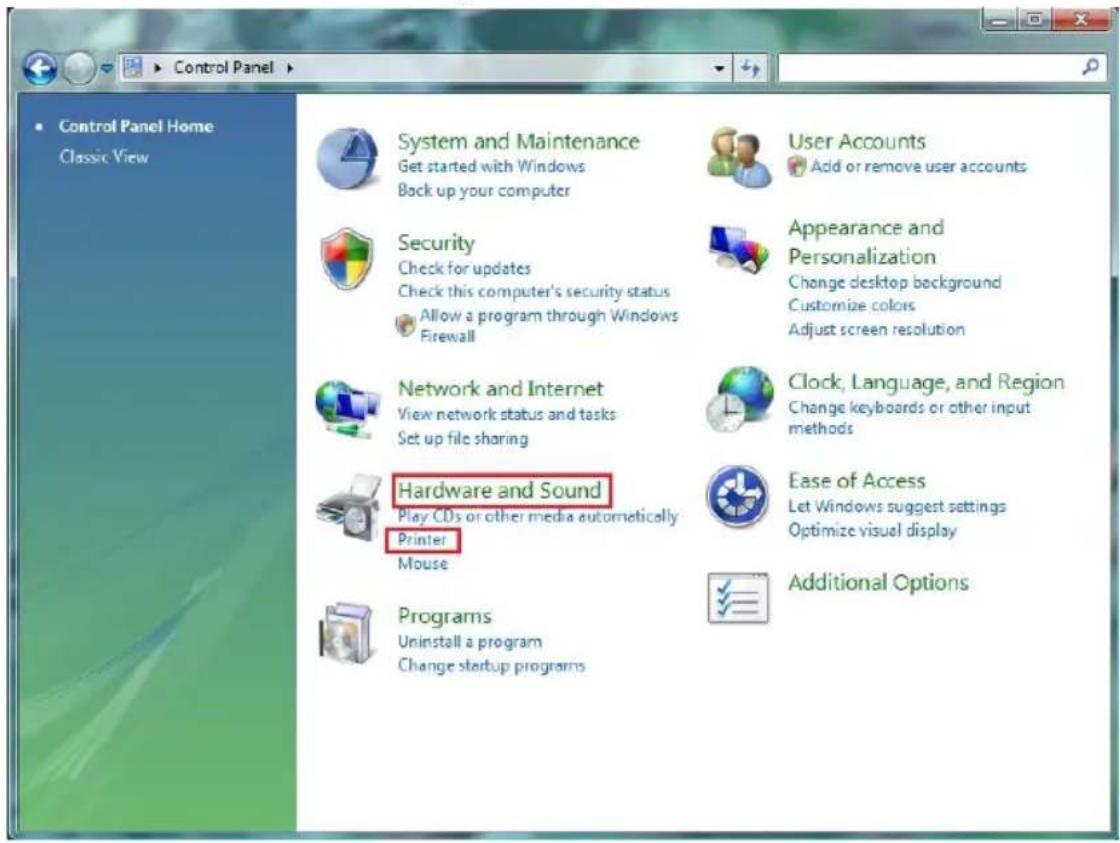
The list of installed printers is displayed.
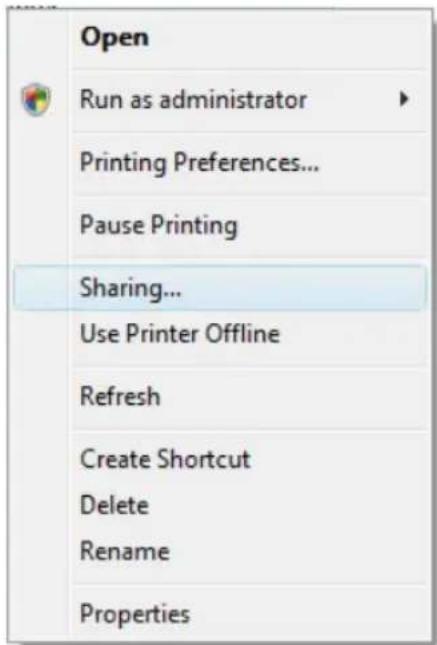
- Right-click the printer and select the Sharing... option.
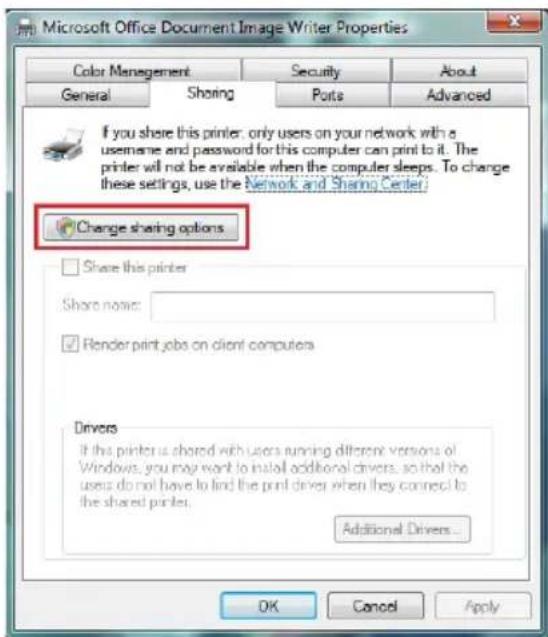
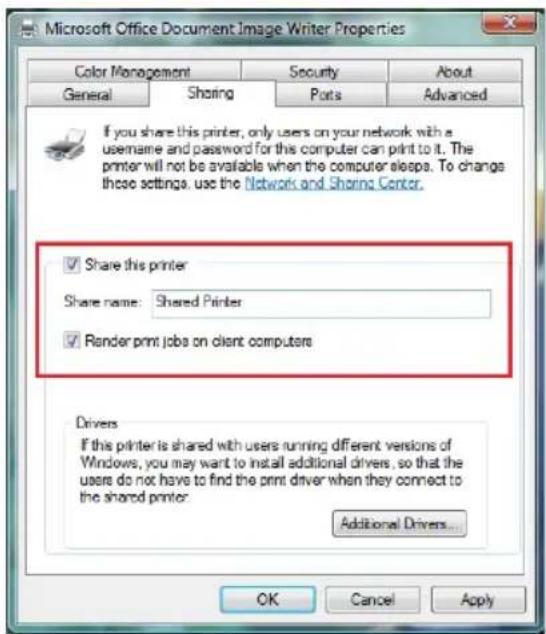
- In the Printer Properties window, click the Change sharing options button.
-
In the Windows Vista confirmation window, cl Continue.
-
Tick the Share this printer box.
- Select the name of the printer which will be displayed on the network under Share name.
- Click Apply, then OK.
4.2.5. Computers running Windows Vista: Accessing the shared printer
On the computers that will use the shared printer:
- Click Start/Control Panel.
- Under the Hardware and Sound heading, click the Printer link.
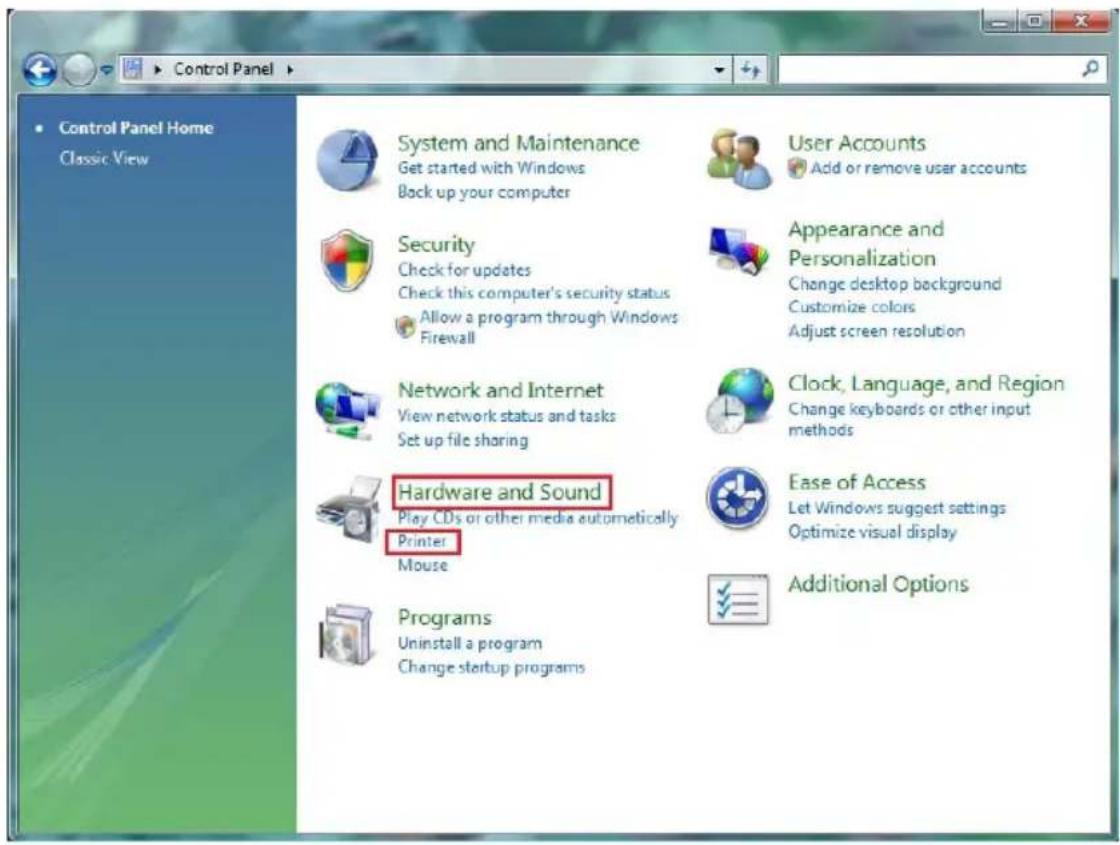
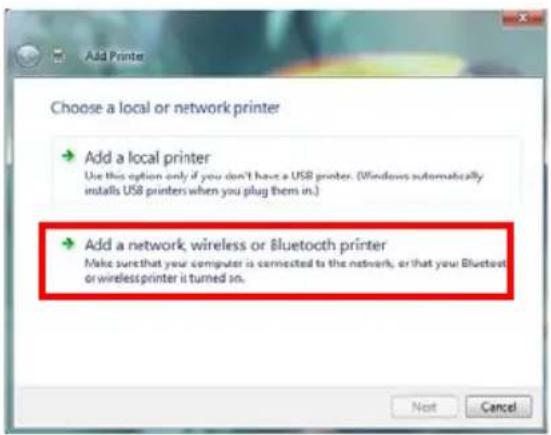
- Click the Add a printer button.
The Add a printer assistant appears.
- Click Add a network, wireless or Bluetooth printer.
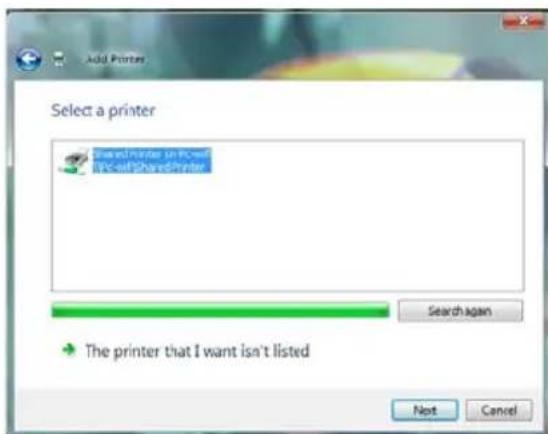
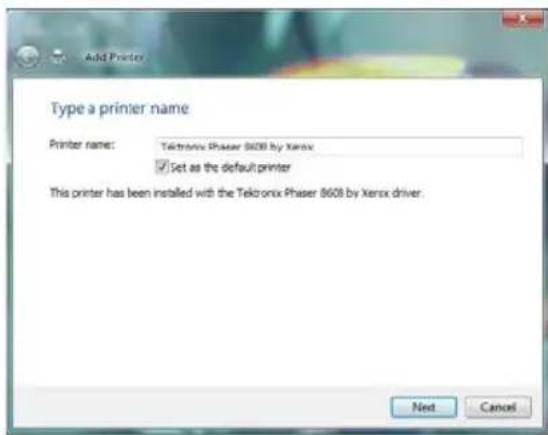
- Windows searches for the shared printers on network. Select the shared printer.
- Click Next.
-
If necessary, accept installation of the printer's drivers when you are being prompted by Windows.
-
Validate the name of your printer, then click Next.
-
Click Finish to close the assistant.
4.2.6. Windows Vista: Sharing an ADSL connection in an Infrastructure type network
Reminder: If you have a Livebox, a modem router or a router connected to a modem and one or more computers, your network will be in Infrastructure mode by default. In this mode, the WiFi adapters are connected to your access point, which might be your Livebox, your Hercules Modem Router or your Hercules Router connected to a modem. Infrastructure mode is ideal for exchanging data, online gaming, and also for sharing an Internet connection and/or printer among several computers. Follow the instructions below to finally free yourself from the cable that connects you to your modem... without cutting the links to your ADSL connection. Viva the Wireless Attitude!
Proceed as follows for each computer that will use the shared Internet connection:
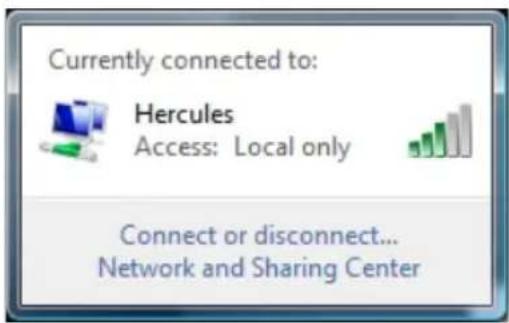
- Connect to your wireless network (Hercula Livebox_AAAA, for example).
- Access the Network and Sharing Center. To do so, click the network icon on the Window taskbar, then click the Network and Sharing Center link.
- Click the View status link.
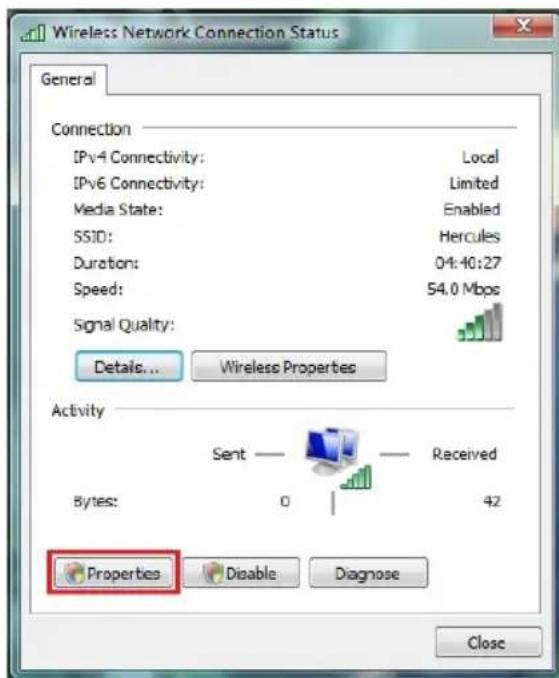
- In the Wireless Network Connection Status window, click Properties.
-
In the Windows Vista confirmation window, cl Continue.
-
In the Wireless Network Connection Properties tab, select Internet Protocol version 4 (TCP/IPv4).
- Click Properties.
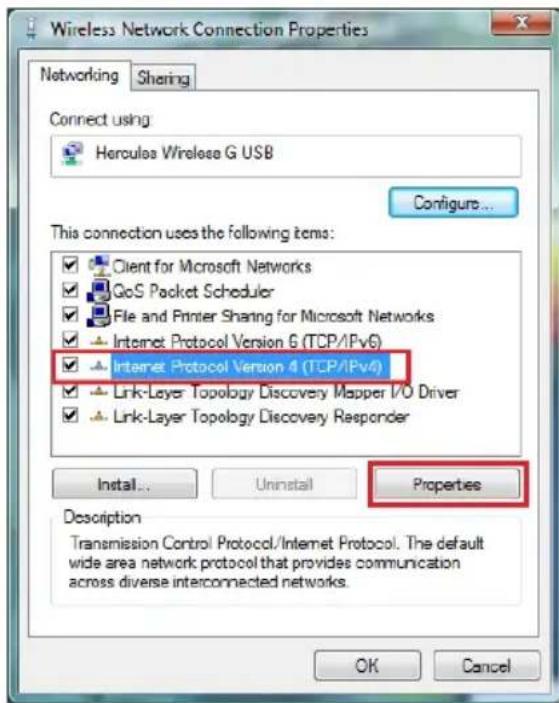
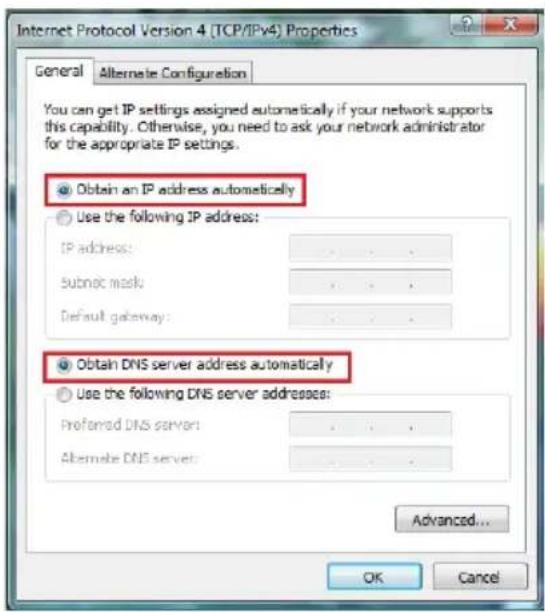
-
In the Internet Protocol version 4 (TCP/IPv4) window, select Obtain an IP address automatically and Obtain DNS server address automatically.
-
Click OK to validate.
-
Do the same for Internet Protocol version 6 (TCP/IPv6).
To access the Internet, simply launch your In browser.
4.3. Computers running Windows XP: Sharing folders, a printer or an ADSL connection
A simple solution for sharing folders, a printer or an ADSL connection in Windows XP is to use the Network Setup Wizard. This Wizard will help you create a real home network.
Note: the access paths mentioned below may vary slightly if you have modified the default display configuration in Windows XP (meaning the Start menu properties and Control Panel display).
4.3.1. Windows XP: Using the Network Setup Wizard in an Infrastructure network
Proceed as follows for each computer:
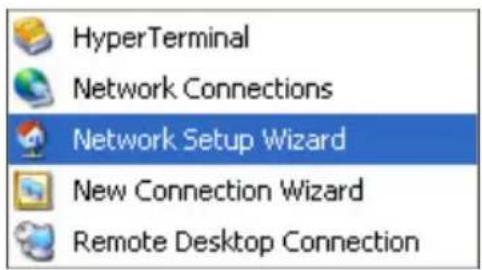
- Click Start/All Programs/Accessories/Communications/Network Setup Wizard.
The Network Setup Wizard is launched.
- Click Next twice.
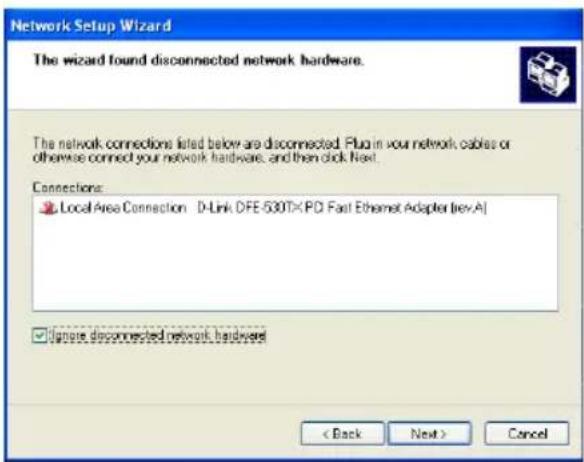
The window opposite may appear if The Wizard found disconnected network hardware.
- If your Hercules Wireless Adapter wireless network connection is not displayed in the tick the Ignore disconnected network hardware box, then click Next. Otherwise, exit the Wizard by clicking Cancel and establish the connection from your net device to your router (if you use a Hercules Wireless G PCI, USB or PCMCIA adapter, please refer to the "The WiFi Station utility" chapter of your User Manual).
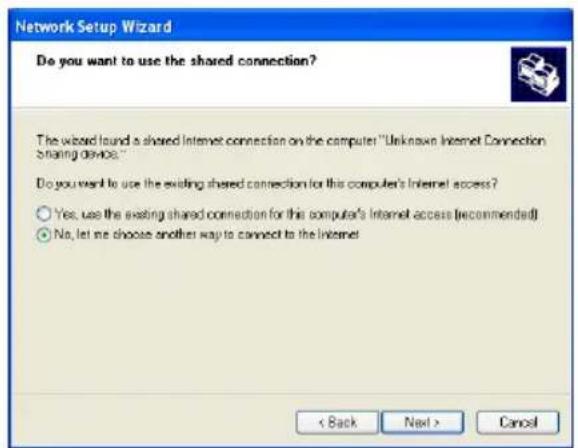
The window opposite may appear if The Wizard found a shared Internet connection on the computer.
-
Select No, let me choose another way to connect to the Internet, then click Next.
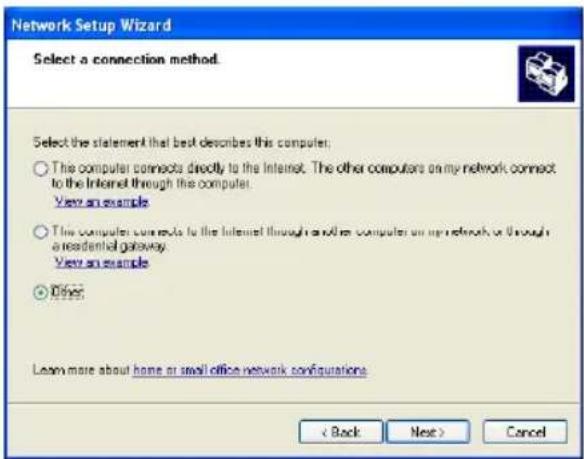
-
In the Select a connection method window, select the Other option.
-
In the following window, select This computer connects to the Internet direct or through a network hub, then click Next.
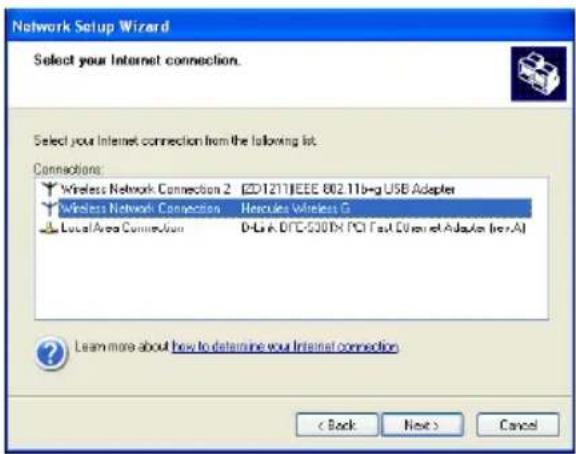
- If the window opposite appears, select the Hercules Wireless network connection, then click Next.
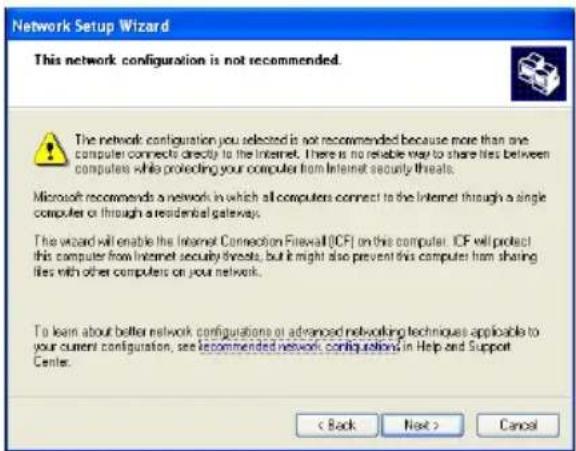
- When this warning screen appears, ignore by clicking Next.
If you are using the Hercules Router, yo computers are already protected by the integ firewall.
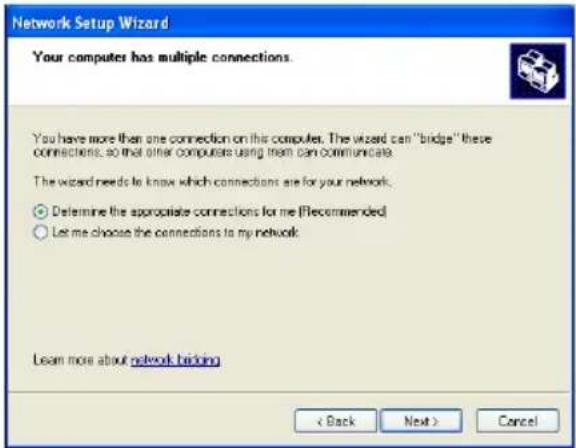
- If your computer has at least three connections (or network devices), the win opposite appears. In this case, let the Wi determine the appropriate connections.
- Click Next.
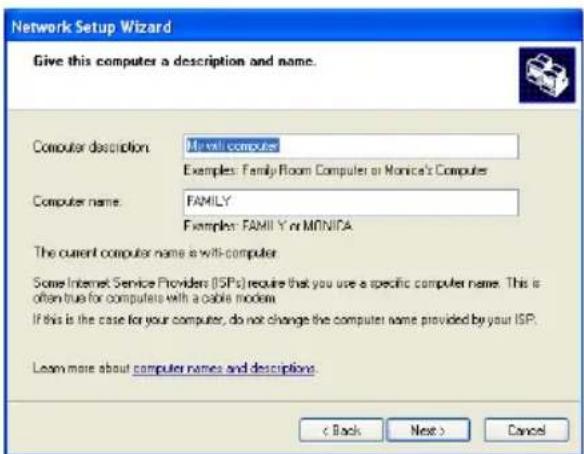
- Enter the computer name and a description required.
Give the computer a name that is unique sufficiently distinctive, making it easy to record on your network (my-computer, wifi-computer or julie, for example).
-
Click Next.
-
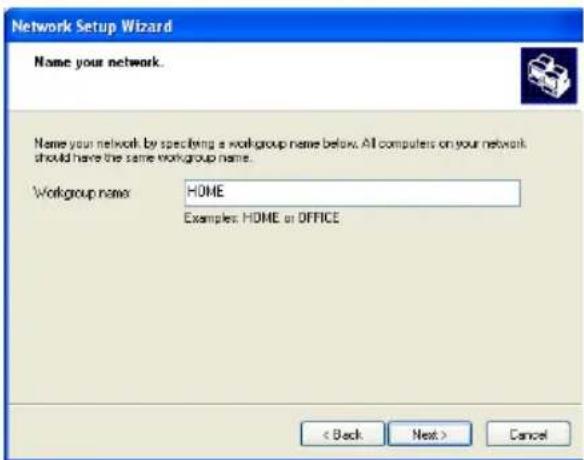
Enter the workgroup name (HOME, OFFICE or HERCULES, for example) and a description, if required.
The workgroup name must be identical (be si respect the case of letters) for all computers wish to link together in a network.
-
Click Next.
-
Verify the configuration settings you h entered in the window that appears, then Next
The Wizard configures the computer for the h network. This may take a few minutes.
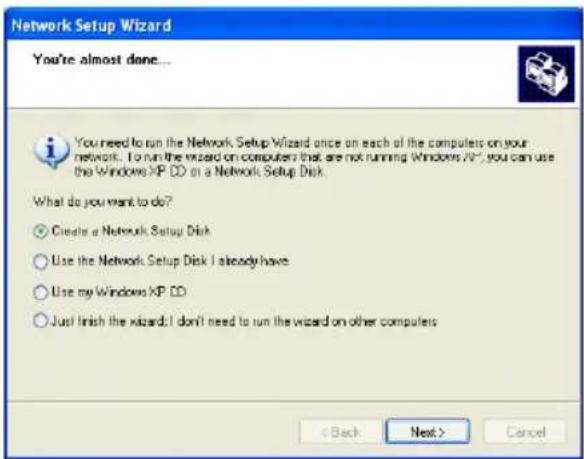
- Before completing the procedure, you may select the Create a Network Setup Disk option. This consists of copying this Wiza onto a storage medium (your choice of flood disk or USB key) so that it can be launched on computers equipped with operating sys other than Windows XP.
This operation is carried out automatically, you have selected a medium for saving 1 Wizard.
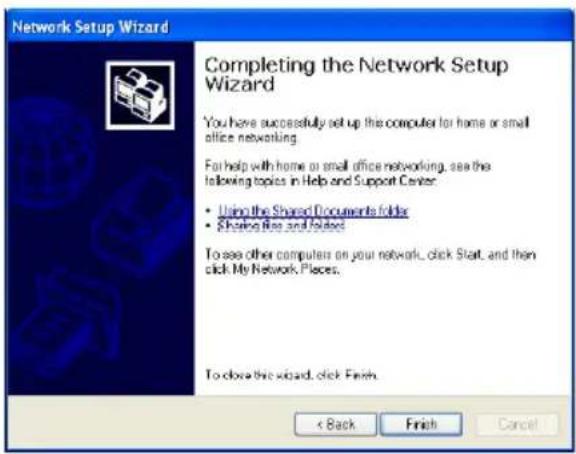
- Click Finish to exit the Wizard.
Once the procedure is finished, Windows XP may prompt you to restart your computer.

The procedures described in this chapter are specific to Windows XP. For all other questions, to sharing folders, a printer or an Internet connection, or on using Windows, please refer to the rows online help utility.
4.3.2. Windows XP: Sharing folders
After having configured all of your computers using the Network Setup Wizard, you can now share data located on different disk drives, as long as the user has authorized access.
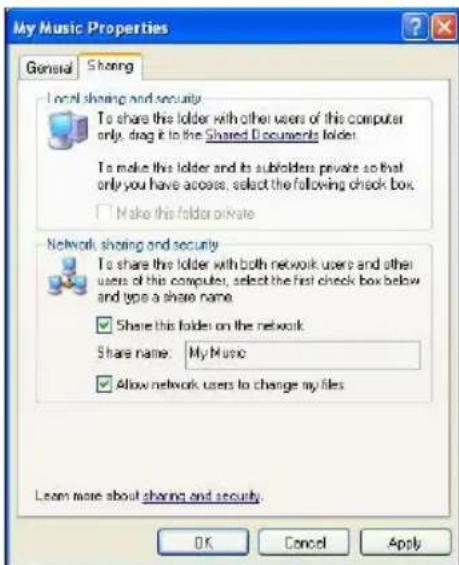
- Select the folder you wish to share, without opening it.

- Right-click the folder. Select Sharing and Security.
- In the Network sharing and security section of the Sharing tab, tick the Share this folder on the network box.
- On the Share name line, enter the folder name as it will be displayed on the network (12 characters maximum ensure compatibility with other operating systems).
You can also tick the Allow network users to change files box. In this case, the user will be able to read files save any changes. If this box is not ticked, the shared can only be read, and not changed.

The [Shared folder name] Properties window is divided into two sections. Local sharing and security only allows for the sharing of files among several users on the same PC. The files are then placed in a Shared Documents folder. Network sharing and security, however, allows for the sharing of files among more than one computer.

My Music
- Click Apply to validate your choices, then click OK to close the window.
An icon representing a hand beneath the folder indicate the folder is now shared.

You can only share the contents of a folder, and not an individual file. We therefore recommend that you create a folder specifically for this purpose where you will put files to be shared.
4.3.3. Windows XP: Accessing shared folders
To easily access folders set up for sharing by several computers, it is preferable that the computers belong to the same workgroup. In Windows XP, the workgroup name has been defined using the Network Setup Wizard.
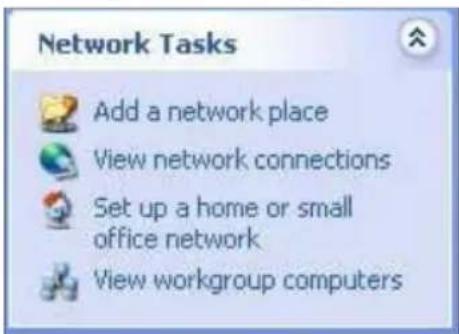
- Click Start/My Computer.
- Click My Network Places, then click View workgroup computers.
You directly access the list of computers in your workgr
- Double-click the computer that is sharing the folders you wish to access.
All shared folders appear.
4.3.4. Windows XP: Sharing a printer
It is possible to put a printer on the network and share it with all computers in the house equipped with a WiFi adapter.

To access a printer on the network, the printer must be set up for sharing on the computer where it is connected and installed.
On the computer connected to the printer:
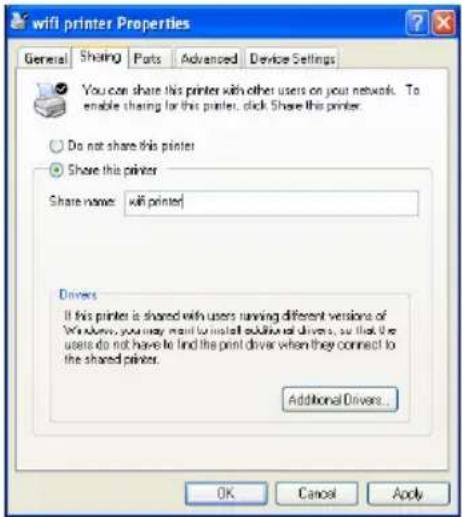
- Click Start/Control Panel/Printers and Other Hardware/Printers and Faxes.
- Right-click the printer and select Sharing.
- In the Sharing tab, select the Share this printer radio button and enter a name for your printer.
Give the printer a name that is unique and sufficiently distinctive, making it easy to recognize (my-printer or his laser printer, for example). If one of your computers is Windows 98 SE, we recommend that the sharing name not exceed 12 characters (without spaces) in order to ensure compatibility with this operating system.
- Click Apply, then OK.
On the computers that will use the shared printer:
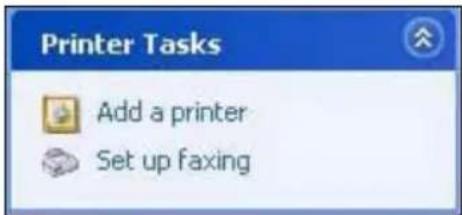
- Click Start/Control Panel/Printers and Other Hardware/Printers and Faxes. In the Printer Tasks section, select Add a printer.
- The Add Printer Wizard is launched. Click Next.
- Select the A network printer, or a printer attached to another computer option, then click Next.
- In the window that appears, click Next to launch the search for shared printers.
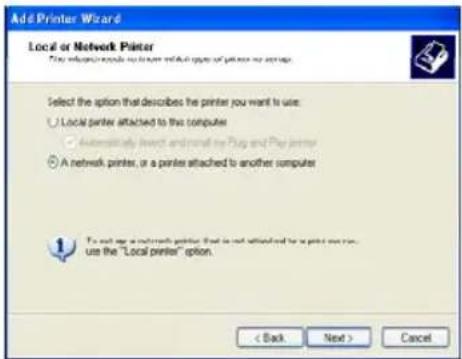
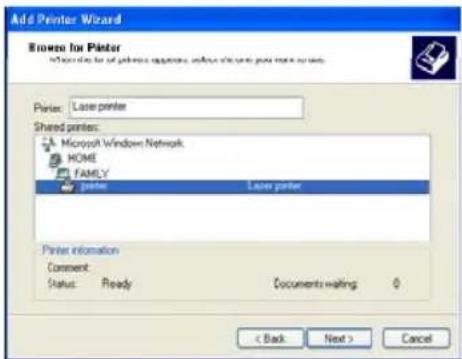
- In the list displayed, double-click the computer connected to the printer.
- Select the shared printer, then click Next.
- If you wish, set the shared printer as the default print then click Next.
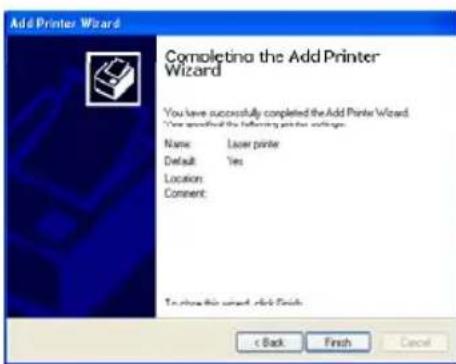
- Click Finish to exit the Wizard.
You can now use the network printer thanks to yo connection. For more information on sharing a printer, refer to your printer's manual.
4.3.5. Windows XP: Modifying a workgroup name
It may happen that you need to change the name of your workgroup (advanced users only). To do so, proceed as follows:
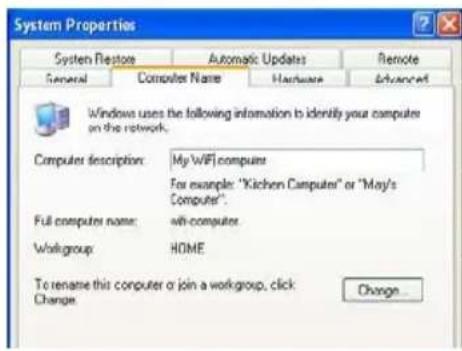
- Click Start/Control Panel/Performance and Maintenance/System.
- In the System Properties window, select the Computer Name tab.
- Click the Change... button.
- In the Computer Name zone, enter a name sufficiently distinctive that it can easily be recognized in the list computers for the workgroup (my-computer, wifi-computer or julie, for example).
- In the Workgroup zone, enter a name for the group (HOME, OFFICE or HERCULES, for example).
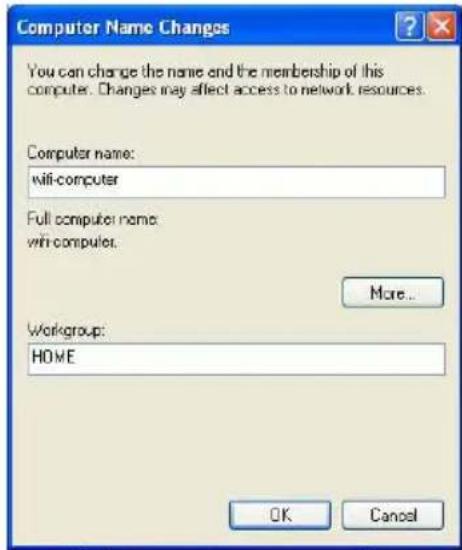
The workgroup name must be identical (be sure to respe case of letters) for all computers you wish to link together network
- A Windows message indicates that the task has carried out successfully and that you must rest a computer.
- Repeat this procedure for each computer.
4.3.6. Windows XP: Manually enabling or disabling your adapter's WiFi connection (advanced users)
You can manually enable or disable your adapter's WiFi connection for a variety of reasons: to temporarily avoid connecting to networks, save battery power, etc.
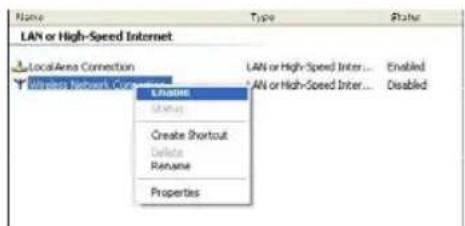
- Click Start/Connections/Show All Connections.
Verify that your Hercules Wireless network connection is listed.
- If its status is Disabled, right-click your Wireless Network Connection and select Enable.
- If its status is Enabled, right-click your Wireless Network Connection and select Disable.
4.4. Computers running Windows 2000: Sharing folders, a printer or an ADSL connection
To create a network of computers, share data, a printer or an ADSL connection in Windows 2000, it is preferable that the computers belong to the same workgroup.
4.4.1. Creating a workgroup in Windows 2000
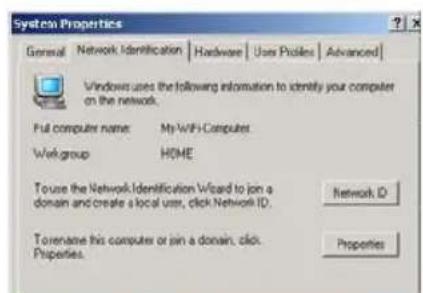
-
Click Start/Settings/Control Panel. Double-click System.
-
In the System Properties window, select the Network Identification tab.
-
Click the Properties button.
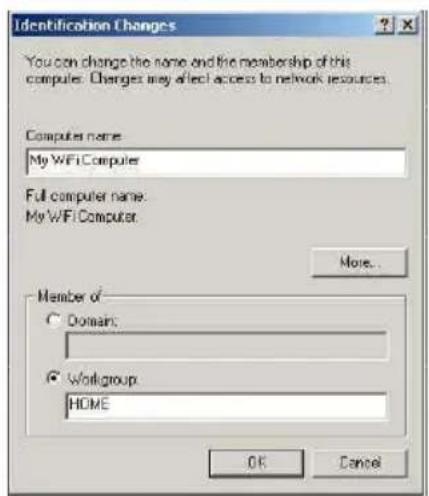
-
In the Computer name zone, enter a name sufficiently distinctive that it can easily be recognized in the list computers for the workgroup (my-computer, wifi-computer or julie, for example).
-
In the Workgroup zone, enter a name for the group (HOME, OFFICE or HERCULES, for example).
The workgroup name must be identical (be sure to resp case of letters) for all computers you wish to link together network.
-
Click OK. A Windows message indicates that the task has been carried out successfully and that you must rest computer.
-
Click OK once more.
4.4.2. Windows 2000: Sharing folders
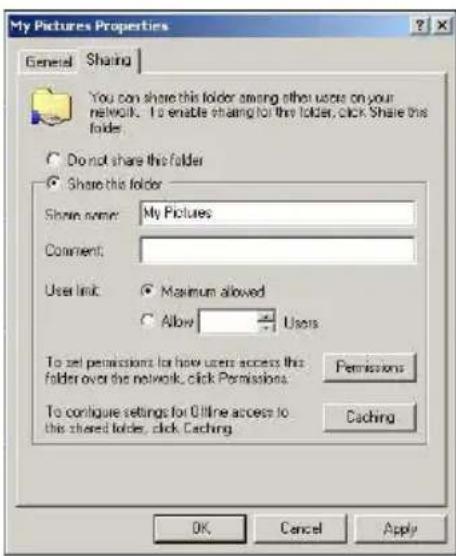
- Select the folder you wish to share, without opening it.
- Right-click the folder. Select Sharing.
- In the Sharing tab, select Share this folder.
- On the Share name line, enter the folder name as it will be displayed on the network (12 characters maximum ensure compatibility with other operating systems).
You can also limit access to the folder by selecting a I number of users and the type of access by clicking the Permissions button.
- Click Apply, then OK.
4. 4. 3. Windows 2000: Accessing shared folders
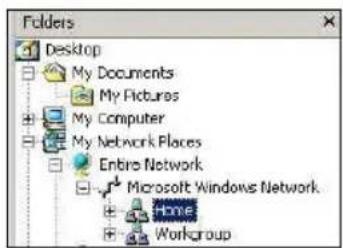
- Click Start/Programs/Accessories/Windows Explorer.
- Double-click My Network Places, Entire Network, then Microsoft Windows Network.
- Double-click your workgroup.
You access the list of the computers in your workgroup
- Double-click the computer that is sharing the folders you wish to access.
All shared folders appear.
4.4.4. Windows 2000: Sharing a printer
It is possible to put a printer on the network and share it with all computers in the house equipped with a WiFi adapter.

To access a printer on the network, the printer must be set up for sharing on the computer where it is connected and installed.
On the computer connected to the printer:
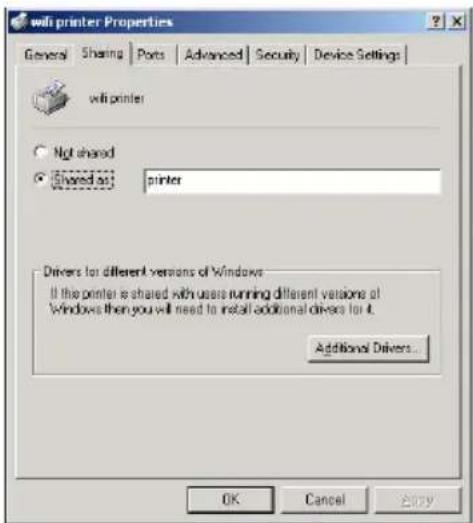
- Click Start/Settings/Printers.
- Right-click the printer and select Sharing....
- In the Sharing tab, select the Shared as: radio button and enter a name for your printer.
Give the printer a name that is unique and sufficiently distinctive, making it easy to recognize (my-printer or home laser printer, for example). If one of your computers is Windows 98 SE, we recommend that the sharing name not exceed 12 characters (without spaces) in order to ensu. compatibility with this operating system.
- Click Apply, then OK.
On the computers that will use the shared printer:
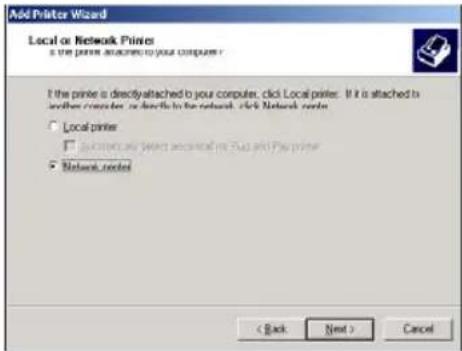
- Click Start/Settings/Printers. Double-click the Add Printer icon.
- The Add Printer Wizard is launched. Click Next.
- Select the Network printer option, then click Next.
- Click Next to locate the shared printer.
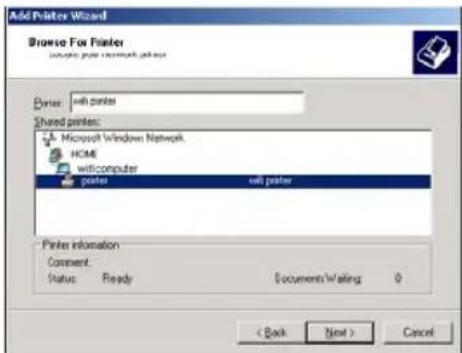
- In the list displayed, double-click the computer connected to the printer.
- Select the shared printer, then click Next.
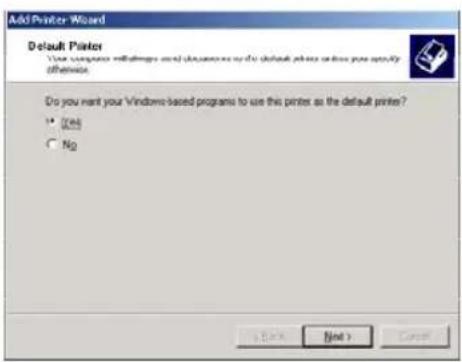
- If you wish, set the shared printer as the default print then click Next.
- Click Finish to close the Wizard.
You can now use the network printer thanks to yo connection. For more information on sharing a printer, refer to your printer's manual.
4.4.5. Windows 2000: Modifying a workgroup name
It may happen that you need to change the name of your workgroup (advanced users only). To do so, proceed as follows:
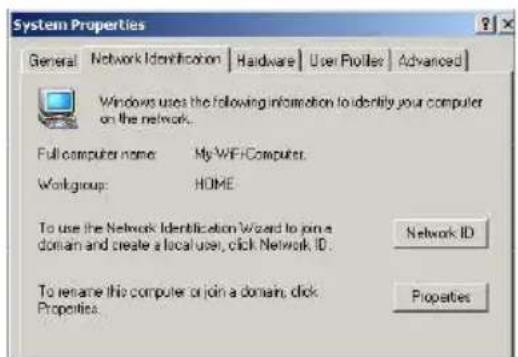
- Click Start/Settings/Control Panel. Double-click System.
- In the System Properties window, select the Network Identification tab.
- Click the Properties button.
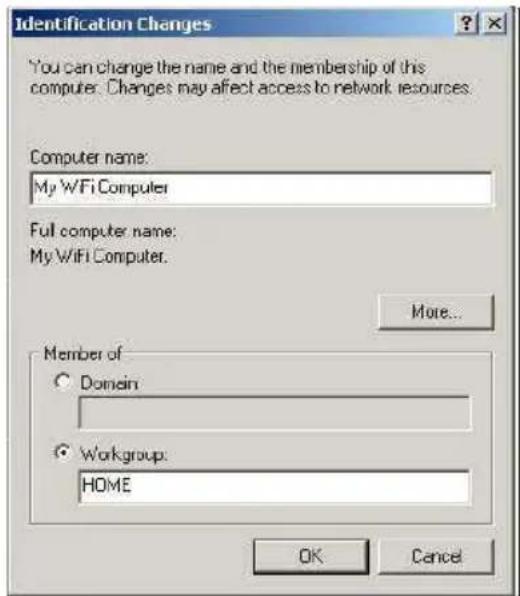
- In the Computer name zone, enter a name sufficiently distinctive that it can easily be recog in the list of computers for the workgroup (my-computer, wifi-computer or julie, for example).
- In the Workgroup zone, enter a name for the group (HOME, OFFICE or HERCULES, for example).
The workgroup name must be identical (be sure to respect the case of letters) for all computers you will link together in a network.
- Click OK. A Windows message indicates that the task has been carried out successfully and that must restart the computer.
- Repeat this procedure for each computer.
4.4.6. Windows 2000: Sharing an ADSL connection in an Infrastructure network
Proceed as follows for each computer that will use the shared Internet connection:
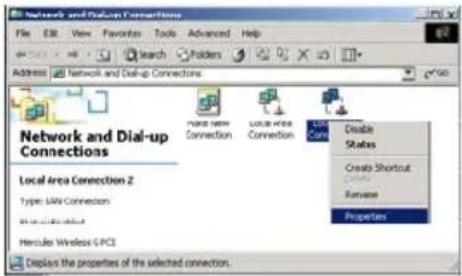
- Click Start/Settings/Network and Dial-up Connections.
- Select the connection to the local area network corresponding to your Hercules Wireless G device.
- Right-click the connection and select Properties.
![Local Area Connection 2 Properties General | Sharing | Connect using: Hertcules Wireless G Configure Components checked are used by this connection Client for Microsoft Networks File and Printer Sharing for Microsoft Networks AEGIS Protocol (IEEE 8021x) v30.05 Internet Protocol [TCP/IP] Install... Uninstall Properties Description Transmission Control Protocol/Internet Protocol. The default wide area network protocol that provides communication across diverse interconnected networks. Show icon in toolbar when connected OK Cancel](/content/2026/05/1141609/images/532439f812d37c7ececc5162fc3b98f08a78741fc2809da4f0e1c3fb6c030417.jpg)
-
In the Local Area Connection Properties window, select Internet Protocol (TCP/IP).
-
Click Properties.
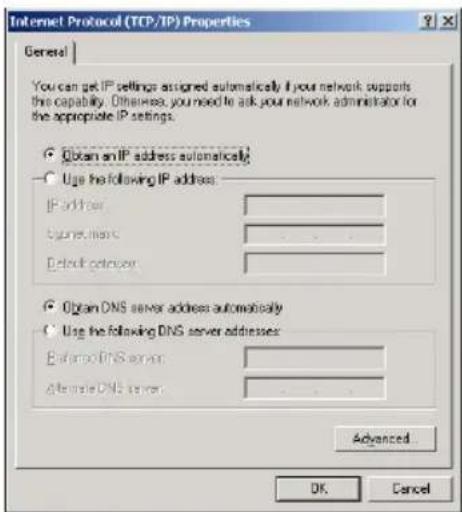
-
In the Internet Protocol (TCP/IP) Properties window, select Obtain an IP address automatically and Obtain DNS server address automatically.
-
Click OK to close the windows.
Windows may prompt you to restart your computer.
To access the Internet, you can now simply launch Internet browser.
4.4.7. Windows 2000: Manually enabling or disabling your adapter's WiFi connection (advanced users)
You can manually enable or disable your adapter's WiFi connection for a variety of reasons: to temporarily avoid connecting to networks, save battery power, etc.
To manually enable or disable your adapter's WiFi connection in Windows 2000:
- Access the Device Manager.
- Select your WiFi adapter in the list of network adapters.
- Right-click your adapter and select Properties.
- To enable your adapter, select Enable. To disable it, select the Disable option.
For more information on manually enabling or disabling the adapter in Windows 2000, please refer to the Windows online help utility.
4.5. Computers running Windows Me: Sharing folders, a printer or an ADSL connection
A simple solution for sharing folders, a printer or an ADSL connection in Windows Me is to use the Home Networking Wizard. This Wizard will help you create a real home network.
4.5.1. Windows Me: Using the Home Networking Wizard in an Infrastructure network
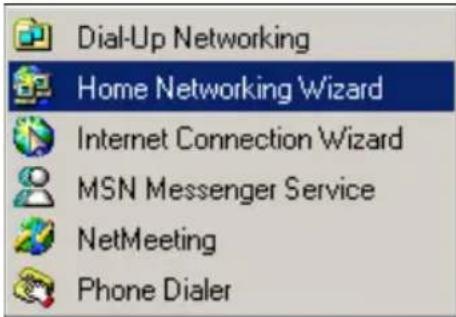
- Click Start/Programs/Accessories/Communications/Home Networking Wizard
The Wizard is launched. - Click Next.
If you have already used this Wizard on this comp the Setup Options panel appears. Select I want to edit my Home Networking settings on this computer, then Next.
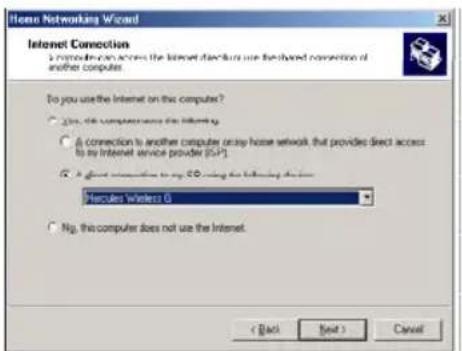
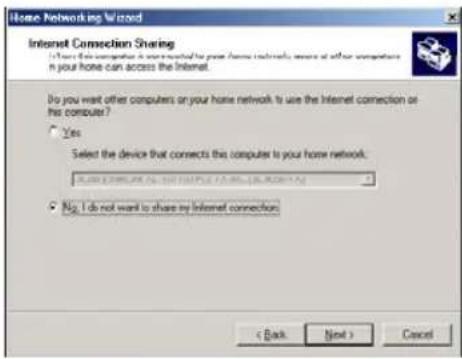
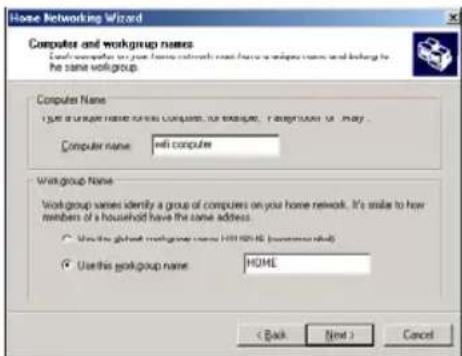
-
In the Internet Connection window, select the A direct connection to my ISP using the following dev option.
-
Select your Hercules Wireless G adapter in the dropdown list, then click Next.
-
If the Internet Connection Sharing window appears, select No, I do not want to share my Internet connection.
-
Click Next.
-
Enter the computer name.
Give the computer a name that is unique and sufficient distinctive, making it easy to recognize in the list of workgroup computers (my-computer, wifi-computer or julie, for example).
- Select the Use this workgroup name option and enter the workgroup name (HOME, OFFICE or HERCULES, for example).
The workgroup name must be identical (be sure to re the case of letters) for all computers you wish together in a network.
-
Click Next.
-
If you wish, you can enable sharing for the Documents folder by ticking the My Documents folder and folders in it box. In this case, the Wizard will prompt you to enter a password.
-
If you wish, you can enable sharing of your printer by selecting it in the list.
-
Click Next.
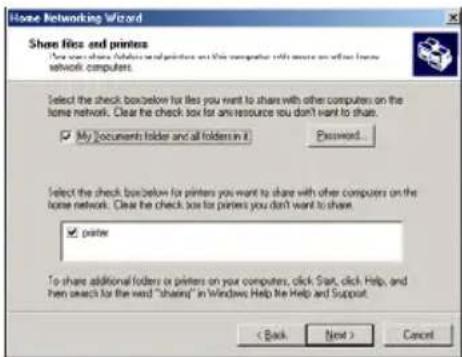
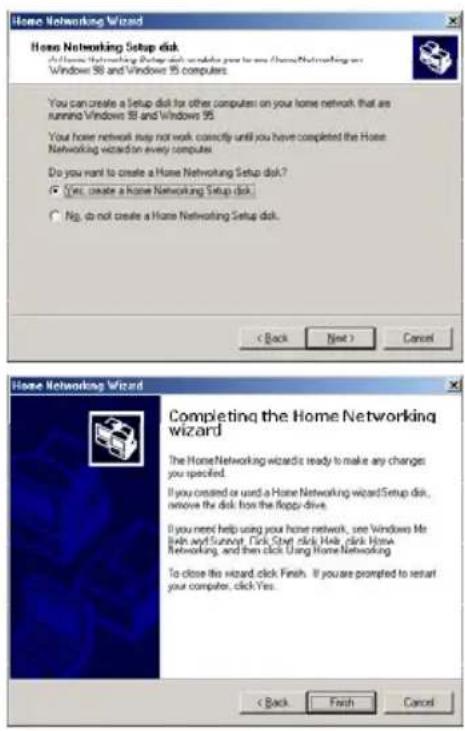
- Before completing the procedure, you may copy t Wizard onto a setup disk so that it can be launched computers equipped with operating systems other Windows Me. In this case, select the Yes, create a Home Networking Setup disk option.
This operation is carried out automatically, once you selected a medium for saving the Wizard.
- Click Finish to exit the Wizard.
Once the procedure is finished, Windows Me prompts you to restart your computer. Once your computer I restarted, a message invites you to configure your computers.
4.5.2. Windows Me: Sharing folders
After having configured all of your computers using the Home Networking Wizard, you can now share data located on different disk drives, as long as the user has authorized access.
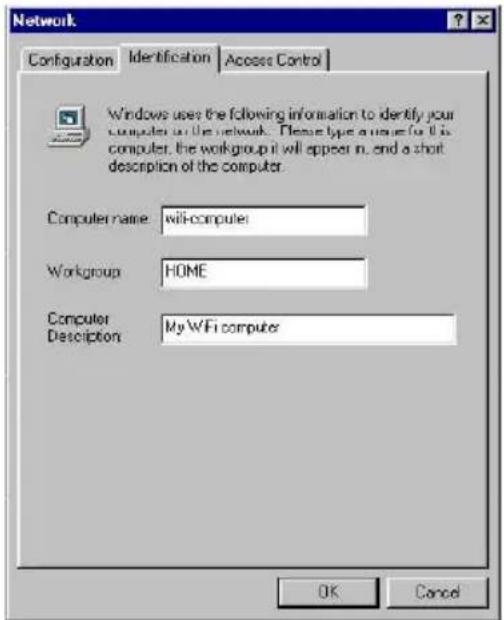
- Select the folder you wish to share, without opening it.
- Right-click the folder. Select Sharing.
- In the Sharing tab, select Shared As.
- On the Share Name line, enter the folder name as it will be displayed on the network (12 charac maximum).
You can also limit access to the folder by selecting type of access and a password.
If the Sharing tab does not appear, you must enable file sharing.
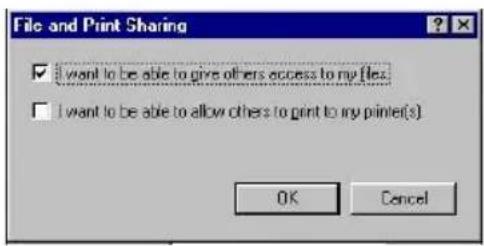
- Click Start/Settings/Control Panel. Double-click Network.
- In the Network window, click the File and Print Sharing... button.
- Tick the I want to be able to give others access to my files box.
Windows may prompt you to insert the installation ROM.
4.5.3. Windows Me: Accessing shared folders
To easily access folders set up for sharing by several computers, it is preferable that the computers belong to the same workgroup. In Windows Me, the workgroup name has been defined using the Home Networking Wizard.
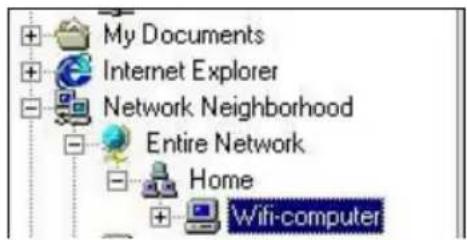
- Click Start/Programs/Windows Explorer.
- Double-click Network Neighborhood and expand it.
You access the list of the computers in your workgroup.
- Double-click the computer that is sharing the folders you wish to access.
All shared folders appear.
4.5.4. Windows Me: Sharing a printer
It is possible to put a printer on the network and share it with all computers in the house equipped with a WiFi adapter.

To access a printer on the network, the printer must be set up for sharing on the computer where it is elected and installed.
On the computer connected to the printer:
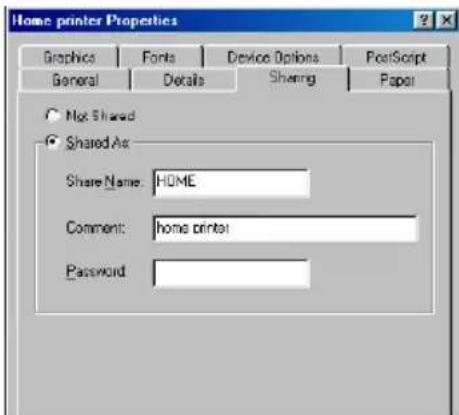
- Click Start/Settings/Printers.
- Right-click the printer and select Sharing.
- In the Sharing tab, select the Shared As radio button and enter a name for your printer.
Give the printer a name that is unique and sufficiently distinctive, making it easy to recognize (printer or wifi p for example).
- Click Apply, then OK.
![File and Print Sharing I want to be able to give others access to my [les] I want to be able to allow others to print to my printer(s) OK Cancel](/content/2026/05/1141609/images/f57784097810042d782e86767089895cc3ebcf721e3a35c765daf507263f4e24.jpg)
If the Sharing tab does not appear, you must enable file sharing.
- Click Start/Settings/Control Panel. Double-click Network.
- In the Network window, click the File and Print Sharing... button.
- Tick the I want to be able to allow others to print to my printer(s) box.
Windows may prompt you to restart your computer.
On the computers that will use the shared printer:
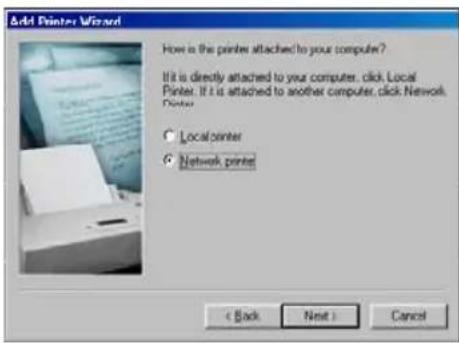
- Click Start/Settings/Printers. Double-click the Add Printer icon.
- The Add Printer Wizard is launched. Click Next.
- Select the Network printer option, then click Next.
- Click Browse... to locate the shared printer.
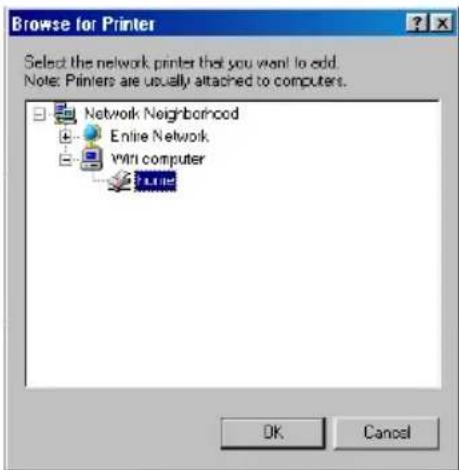
- In the list displayed, double-click the computer connected to the printer.
- Select the shared printer, then click OK.
- Click Next.
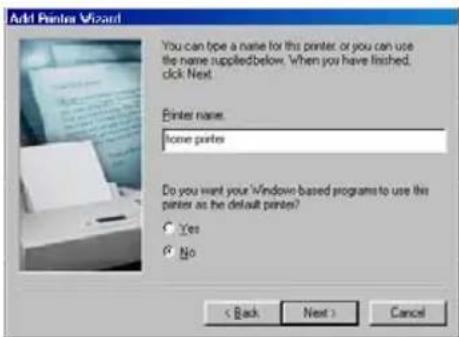
- If you wish, set the shared printer as the default print then click Next.
- Click Finish to close the Wizard.
You can now use the network printer thanks to yo connection. For more information on sharing a printer, refer to your printer's manual.
4.5.5. Windows Me: Modifying a workgroup name
It may happen that you need to change the name of your workgroup (advanced users only). To do so, proceed as follows:
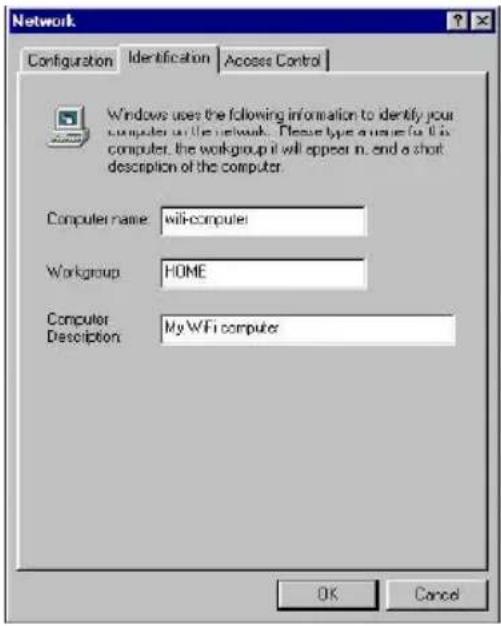
- Click Start/Settings/Control Panel. Double-click Network.
- Select the Identification tab.
- In the Computer name zone, enter a name sufficiently distinctive that it can easily be recog in the list of computers for the workgroup (my-computer, wifi-computer or julie, for example).
- In the Workgroup zone, enter a name for the group (HOME, OFFICE or HERCULES, for example).
The workgroup name must be identical (be sure to respect the case of letters) for all computers you w. link together in a network.
- Click OK. A Windows message indicates that the task has been carried out successfully and that must restart the computer.
- Repeat this procedure for each computer.
4.5.6. Windows Me: Manually enabling or disabling your adapter's WiFi connection (advanced users)
You can manually enable or disable your adapter's WiFi connection for a variety of reasons: to temporarily avoid connecting to networks, save battery power, etc.
To manually enable or disable your adapter's WiFi connection in Windows Me:
- Access the Device Manager.
- Select your WiFi adapter in the list of network adapters.
- Right-click your adapter and select Properties.
- To enable your adapter, select Enable. To disable it, select the Disable option.
For more information on manually enabling or disabling the adapter in Windows Me, please refer to the Windows online help utility.
4.6. Computers running Windows 98 SE: Sharing folders, a printer or an ADSL connection
To create a network of computers, share data, a printer or an ADSL connection in Windows 98 SE, it is preferable that the computers belong to the same workgroup.
4.6.1. Windows 98 SE: Creating a workgroup
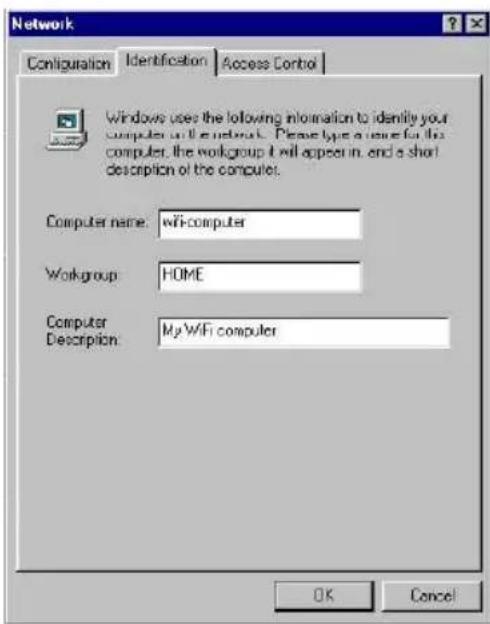
- Click Start/Settings/Control Panel. Double-click Network.
- Select the Identification tab.
- In the Computer name zone, enter a name sufficiently distinctive that it can easily be recognized in the list computers for the workgroup (my-computer, wifi-computer or julie, for example).
- In the Workgroup zone, enter a name for the group (HOME, OFFICE or HERCULES, for example).
The workgroup name must be identical (be sure to res the case of letters) for all computers you wish to link together in a network.
- Click OK. Windows prompts you to restart your computer.
- Repeat this procedure for each computer.
Note: to modify the name of a workgroup, follow the same procedure.
4.6.2. Windows 98 SE: Sharing folders
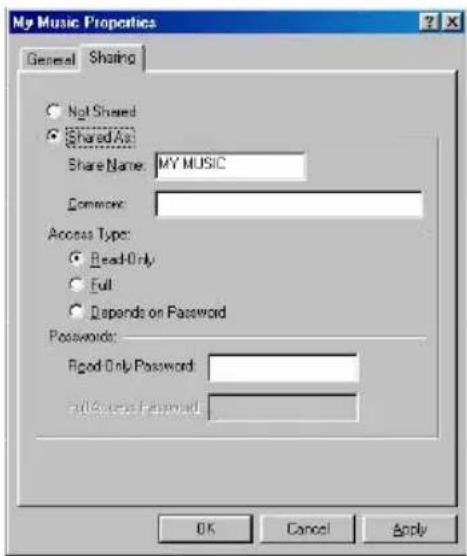
- Select the folder you wish to share, without opening it.
- Right-click the folder. Select Sharing.
- In the Sharing tab, select Shared As.
- On the Share Name line, enter the folder name as it will be displayed on the network (12 character maximum).
You can also limit access to the folder by selecting type of access and a password.

If the sharing tab does not appear, you must e naring.
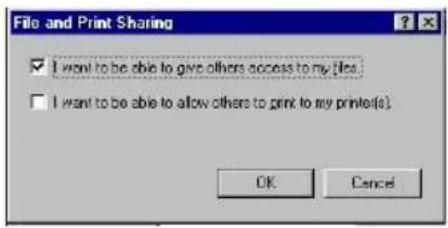
- Click Start/Settings/Control Panel. Double-click Network.
- In the Network window, click the File and Print Sharing... button.
- Tick the I want to be able to give others access to my files box, then click OK.
- Click OK to close the window.
Windows may prompt you to insert the installat ROM and restart the computer.
4. 6. 3. Windows 98 SE: Accessing shared folders
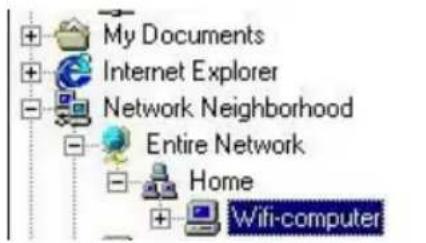
- Click Start/Programs/Windows Explorer.
- Double-click Network Neighborhood and expand it.
You access the list of the computers in your workgroup. - Double-click the computer that is sharing the folders you wish to access.
All shared folders appear.
4.6.4. Windows 98 SE: Sharing a printer
It is possible to put a printer on the network and share it with all computers in the house equipped with a WiFi adapter.
To access a printer on the network, the printer must be set up for sharing on the computer where it is connected and installed.
On the computer connected to the printer:
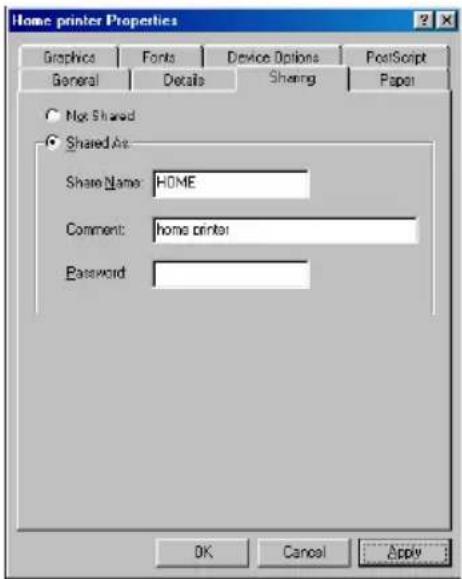
- Click Start/Settings/Printers.
- Right-click the printer and select Sharing.
- In the Sharing tab, select Shared As and enter a name for your printer.
Give the printer a name that is unique and suffi distinctive, making it easy to recognize (printer or wifi printer, for example). - Click Apply, then OK.
If the Sharing tab does not appear, you must enable file sharing.
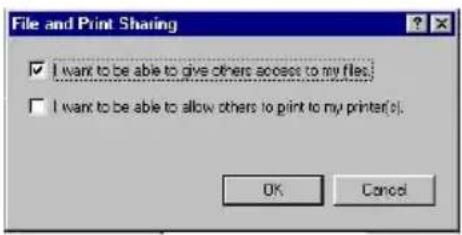
- Click Start/Settings/Control Panel. Double-click Network.
- In the Network window, click the File and Print Sharing... button.
- Tick the I want to be able to allow others to print to my printer(s) box.
Windows prompts you to restart your computer.
On the computers that will use the shared printer:
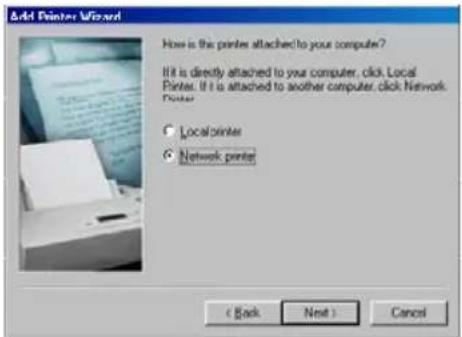
- Click Start/Settings/Printers. Double-click the Add Printer icon.
- The Add Printer Wizard is launched. Click Next.
- Select the Network printer option, then click Next.
- Click Browse... to locate the shared printer.
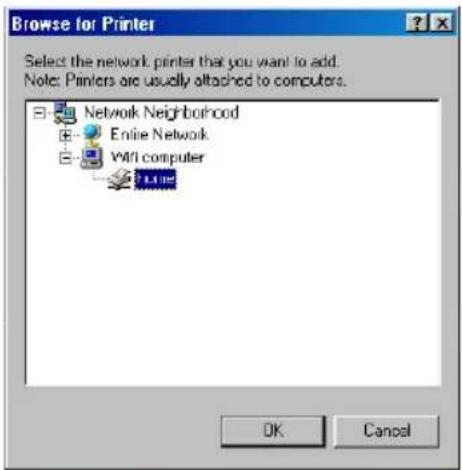
- In the list displayed, double-click the computer connected to the printer.
- Select the shared printer, then click OK.
- Click Next.
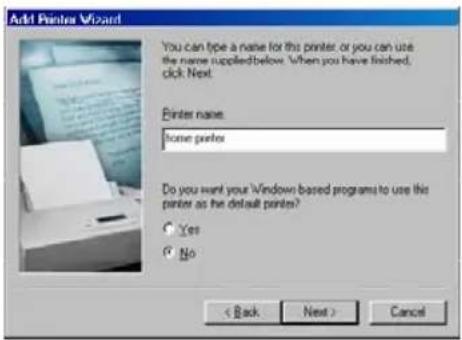
- If you wish, set the shared printer as the default print then click Next.
- Click Finish to close the Wizard.
You can now use the network printer thanks to yo connection. For more information on sharing a printer, refer to your printer's manual.
4.6.5. Windows 98 SE: Sharing an ADSL connection in an Infrastructure network
Proceed as follows for each computer that will use the shared Internet connection:
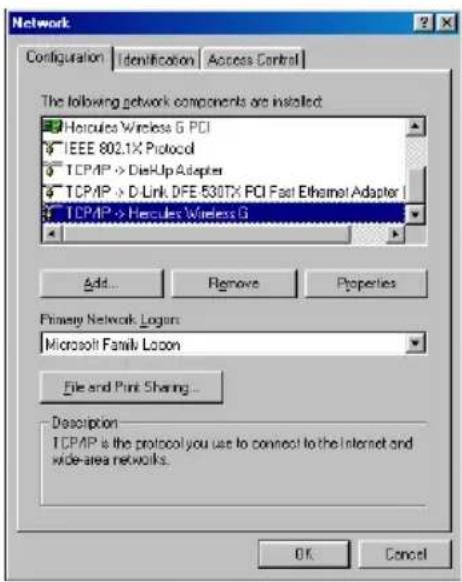
- Click Start/Settings/Control Panel. Double-click Network.
- In the Configuration tab of the Network window, select the TCP/IP -> Hercules Wireless G component.
- Click Properties.
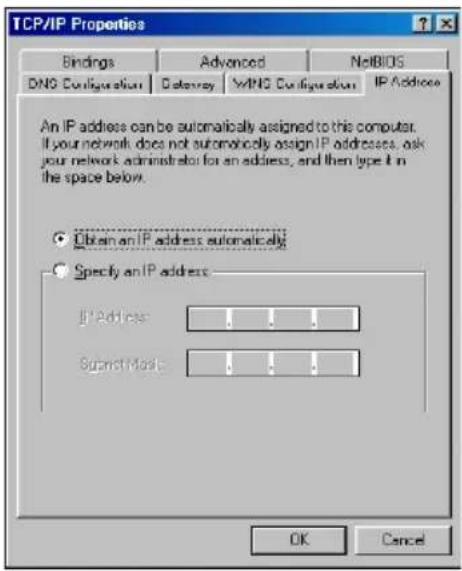
- In the IP Address tab, select Obtain an IP address automatically.
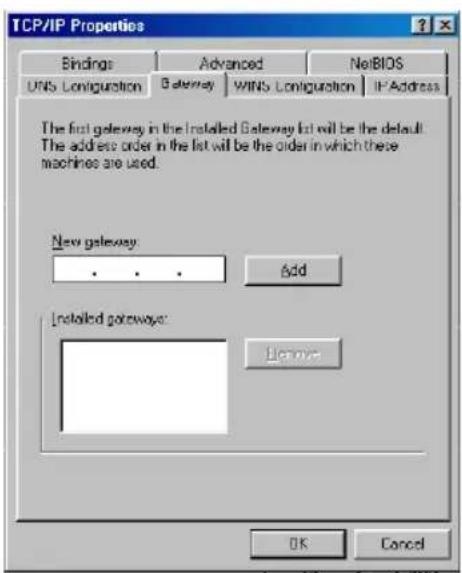
- In the Gateway tab, if there are gateways installed, select them and click Remove.
- Click OK to close the windows.
Windows may prompt you to restart your computer.
To access the Internet, you can now simply launch y Internet browser.
4.6.6. Windows 98 SE: Manually enabling or disabling your adapter's WiFi connection (advanced users)
You can manually enable or disable your adapter's WiFi connection for a variety of reasons: to temporarily avoid connecting to networks, save battery power, etc.
To manually enable or disable your adapter's WiFi connection in Windows 98 SE:
- Access the Device Manager.
- Select your WiFi adapter in the list of network adapters.
- Right-click your adapter and select Properties.
- To enable your adapter, select Enable. To disable it, select the Disable option.
For more information on manually enabling or disabling the adapter in Windows 98 SE, please refer to the Windows online help utility.
5. WIFI MANAGER N FOR ADVANCED USERS
WiFi Manager N has been designed to respond to the needs of the widest cross-section of the public. Thus, after having explained the most useful functionalities in the previous chapters, we dedicate this chapter to users who wish to take advantage of the subtleties of WiFi, and explore their Router's more advanced functionalities. But be careful! Modifying certain settings may have a negative impact on the proper functioning of your network, and therefore on your Router. You should bear in mind, however, that nothing is irreversible, and that you can always return to the original configuration or reload a personalized configuration.

In certain cases, your settings will only be taken into account after WiFi Manager N has restarted.
5.1. Configuring your WiFi network's advanced options

This window contains the settings which affect the functioning of your Hercules Router. If you do not know their functions, we recommend that you keep the default settings.

Expert WiFi settings
Fragmentation threshold: 2346
RTS threshold: 2347
Beacon Period: 100
DTIM: 3
- In the General settings window, click the Your WiFi connection settings button.
- In the Your WiFi connection settings window, click the Expert WiFi settings button.
- The Fragmentation threshold consists of defining the size at which data packets are fragmented. If the size is less than the predefined amount packet is not fragmented. By contrast, if the size greater, the packet is fragmented before being transmitted, then reconstituted at the access point
Fragmentation lets you improve the success of transmissions.
- When an RTS threshold is defined, the wireless device asks the access point for authorization to transmit data, thereby avoiding data arriving simultaneously (risk of collision).
Modifying the RTS threshold may affect your Router's performance.
- The Beacon Period allows you to define the wireless network detection interval.
- The DTIM interval corresponds to the interval between two synchronous frames conta information on the transmission messages.
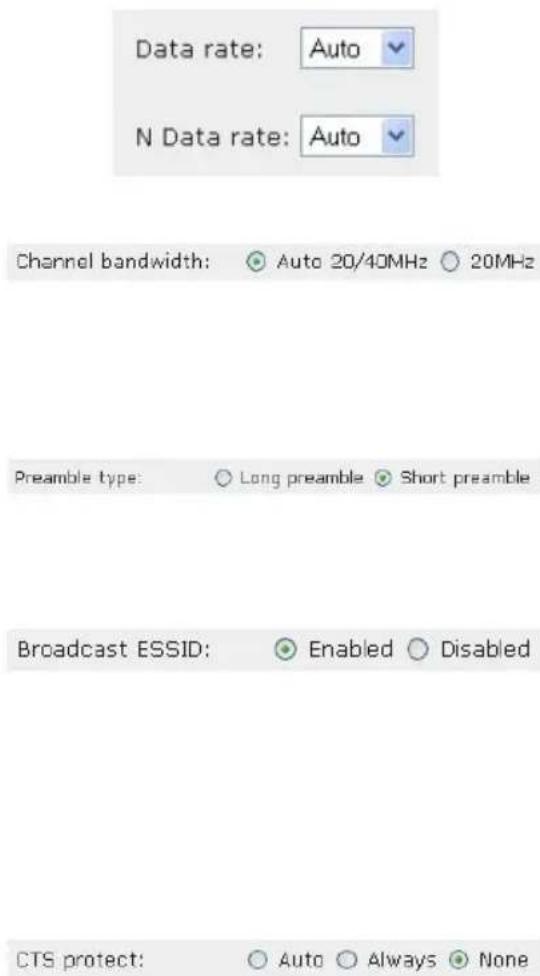
- The Data Rate corresponds to the speed at which data packets are transferred, both being sent a received. It is set to Auto by default, but can be adjusted from 1Mbps (min) to 54Mbps (max).
- The N Data Rate is specific to the transfer of data in the 802.11n standard. The values vary from MCS0 to MCS15.
- Select the channel bandwidth.
Select bandwidth of 20MHz (on one channel) to limit interference, or define a higher bandwidth, 40MHz (two channels), for transmission of your data in total comfort.
- The Preamble type defines the size of WiFi packets. A Short preamble optimizes transfer rates at the expense of WiFi coverage. A Long preamble (selected by default) favors WiFi coverage by way of longer latency times.
- If you do not wish for your network to broadcast its name, select the Disabled radio button.
If the SSID is hidden, the name of the network will not be displayed during detection by a WiFi clie (the Network name (SSID) is empty in Hercules WiFi Station N, for example).
Be sure to remember this name, as you will need it to connect your WiFi devices.
- CTS (Clear-To-Send) protection guarantees the connection of wireless B, G and N devices to the Hercules Wireless N Router when using wireless B, G and N devices at the same time on the network.
Enabling this function may reduce the speed of Hercules Wireless N Router.
5.2. Configuring your Internet firewall
In this chapter, you will learn how to lower certain defenses in order to authorize access to your computers or your IP or WiFi camera for specific Internet services (P2P, web/FTP servers, viewing your camera on the Internet...), or shore up other defenses to limit access on a specific computer to certain remote or Internet services. Finally, you also have the possibility of redirecting all Internet requests to a computer whose address you have specified.
5.2.1. Opening doors in your firewall to put your camera online or authorize access for a computer to certain Internet services
If you wish to put a camera online, or if you would like for your computers to be able to either provide specific Internet services (P2P, web/FTP servers...), or access specific services, you will have to open up mini-drawbridges (referred to as ports) in your firewall using port forwarding.
To put your camera online or authorize access to one or more of your computers for specific Internet services (automatic mode):

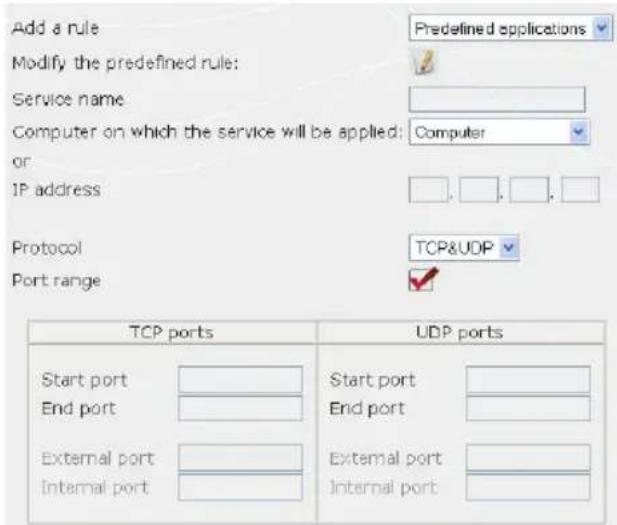
- On the home page, select Your Internal firewall settings.
- Click the Port Forwarding button.
- In the Add a rule list, select a predefined application: Webcam or IP camera, Peer to Peer, Online gaming...
- Select the name of the computer, connected to the Router, on which the service will be applied, or enter its II address.
- The other settings are filled in automatically.
If you wish to modify the default number of ports and save the rule with different values than those predefined, click the icon.
Next, enter the new port numbers.
This procedure does not modify the default values entered in the Router, but rather creates a new rule.
If you subsequently remove this rule, then add it again, the modifications you have made will be lo default values will apply.
- Click the Add button.
The computer is added to the list. You can then modify, remove or view the contents of the list.
To put your camera online or authorize access to one or more of your computers for specific Internet services (manual mode):

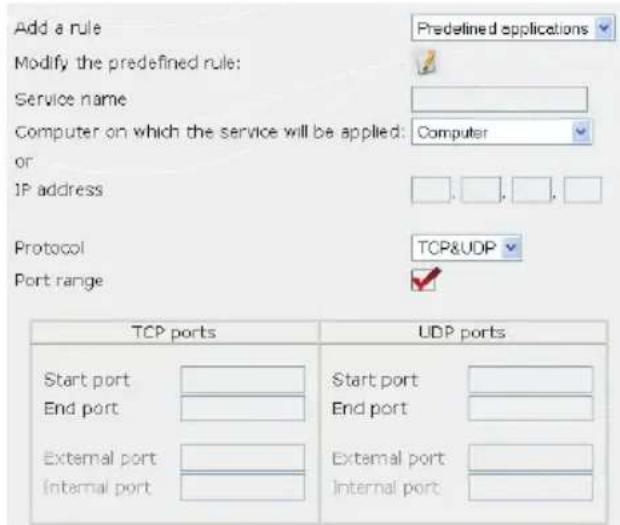
- On the home page, select Your Internal firewall settings.
- Click the Port Forwarding button.
- In the Add a rule list, select Other rules.
- Enter the service name in the dedica zone (for example, peer to peer).
- Select the name of the computer, connected to the Router, on which the service will be applied, or enter its II address.
- Select the protocol (TCP, UDP or TCP and UDP).
Scenario 1: you enable the range of ports:
- Enter a value in the Start port and End port fields (between 1 and 65535).
You can specify a single port by entering same start and end port.
The fields for external and internal ports will be inaccessible and will take on the sa value.
Scenario 2: you disable the range of ports
The fields for start and end ports with inaccessible.
- Enter a value in the External port and Internal port fields.
The external port corresponds to the port the Router at which the request arriv (connection to the Internet, for example). It is supplied by your ISP. The internal port corresponds to the port to which the request is redirected.
You can specify a single port by entering same external and internal ports.
- Click the Add button.
The computer is added to the list. You then modify, remove or view the contents of the list.
- Click the Modify button to validate your settings and return to the homepage.
5.2.2. Limiting access of one of your network computers to Internet services
By default, the computers are able to access all Internet services. If you wish to limit access on one specific computer to certain Internet services, however (Internet access, Peer to Peer sites...), you can use the IP address filtering and website blocking system.
To limit access on a specific computer to an Internet service (filtering method by IP address):
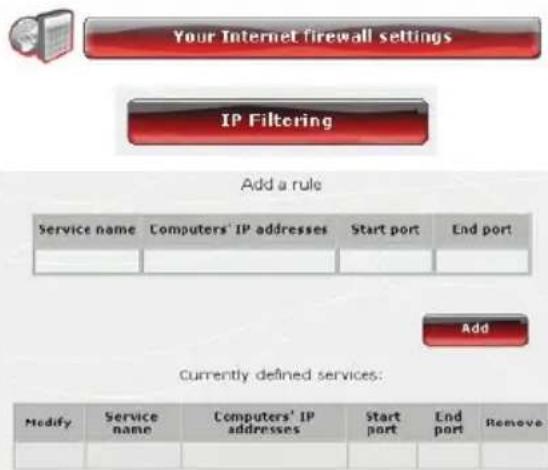
- On the home page, select Your Internet firewall settings.
- Click the IP Filtering button.
- Enter the service name (for example, FTP server).
- Enter the IP address or the range of IP addresses of the computers in question.
- In the drop-down list, select the service type that will be blocked.
- Select the protocol (TCP, UDP or TCP and UDP).
- Enter a value in the Start port and End port fields.
If you only open one port, the Start port and End port (external port) will have the same value.
- Click the Add button.
The service is added to the list. You can then modify, remove or view the contents of the list.
- Click the Modify button to validate your settings and return to the home page.
To limit access on a specific computer to an Internet service (website blocking method):
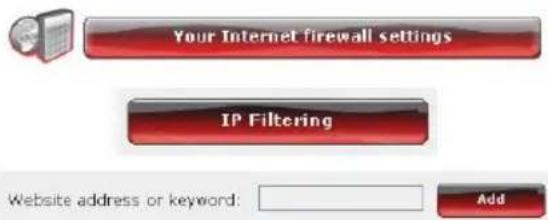
- On the home page, select Your Internet firewall settings.
- Click the IP Filtering button.
- Enter the website you wish to block by entering its URL (www.example.com).
Or:
- Enter a keyword (for example, violence), which will block access to any site containing this wo
| Website address or keyword: | Remove |
- Click the Add button.
The website or keyword is added to the list. You can then remove contents from the list.
- Click the Modify button to validate your settings and return to the home page.
5.2.3. Redirecting Internet requests to a specific computer
To protect the computers on your network from any unwelcome Internet requests, you can create a demilitarized zone (or DMZ) which will redirect these requests, on whatever port, to a specific computer. This computer will process the requests according to the type (game server, FTP server...).

Although this operation allows you to protect the computers on the network, the computer to which the requests are directed itself becomes vulnerable to attacks.
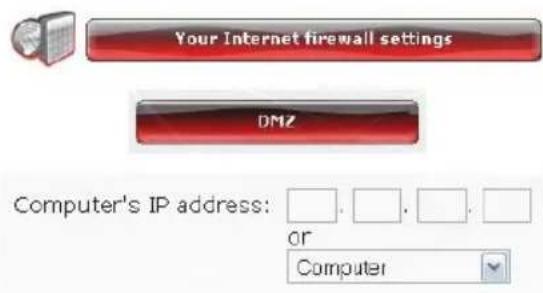
- On the home page, select Your Internet fire settings.
- Select DMZ.
- Enter the IP address of the computer to which Internet requests will be directed or select its name in the drop-down list.
- Deselect the applications you do not wis include.
- Click the Add button.
The table displays the rules applied to the Ro
- Click the Close button to validate your settings and return to the home page.
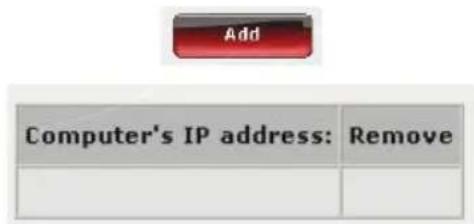
5.2.4. Protecting yourself from Internet attacks with the DOS (Denial Of Service) function
The DOS (Denial of Service) function protects you from external attacks. When this function is enabled, your firewall is able to send large volumes of requests in order to saturate the hacker's bandwidth and prevent the hacker from continuing to send or receive data.
- On the home page, click the Advanced settings button.
- Select Denial Of Service.
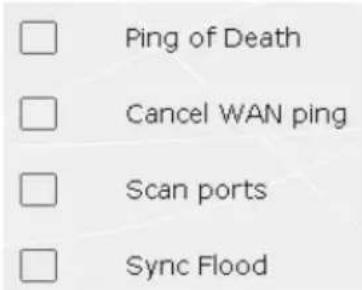
To customize the DOS function:
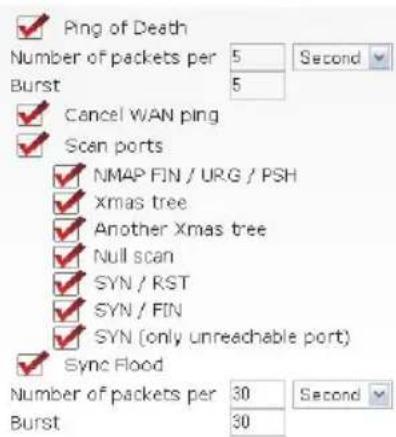
- Ping of Death consists of sending ping packets of more than 65535 bytes.
- Block WAN ping allows you to disable the WAN ping.
- Scan ports consists of detecting possible vulnerabilities on the ports.
- Sync Flood sends a flood of TCP/SYN packets, often accompanied by a false issuing addr with each of these packets being treated as connection request.
- Click the Modify button to validate your choices.
- On the home page, click the Advanced settings button.
- Click the Advanced DOS settings button.
- Select the number of ping packets sent per hour/minute/second.
By default, all entries under Scan ports are enabled, although you can disable those you not wish to use.
- Select the number of ping packets sent per hour/minute/second.
- Click the Modify button to validate your choices.
5.3. A toolbox with multiple facets
WiFi Manager N functions as a toolbox which can help you to correct any mistakes you might make.
5.3.1. Restarting your Hercules Router
The Restart the Router function cuts off all of the Hercules Router's functions (WiFi and ADSL connections, firewall, router) and restarts WiFi Manager N.

All computers or devices connected via WiFi or Ethernet will be disconnected.
To restart the Router:
- On the home page, click the Toolbox button.
- Select Restart the Router.
An explanatory text explains the function of the button.
- Click YES to confirm the restart.

The Router restarts with the last settings saved. No data is lost.
5.3.2. Restoring your original settings
If you have modified certain settings – whether intentionally or not – and wish to restore the original settings, follow the instructions below.

During the restoration, all settings that you have previously modified (Internet connection mode, WiFi key, filtering by MAC address...) will be lost!
To restore the original settings:
- On the home page, click the Toolbox button.
- Select Restore original settings.
- Click YES to confirm restoration of the original settings.
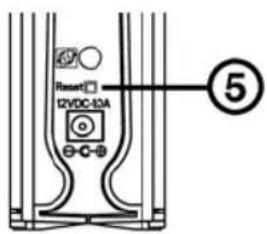
You can also use the Reset button located on the Router:
- Disconnect the Router.
- Press the Reset button ⑤ for 5 seconds using an object with a pointed tip, while at the same reconnecting the Router.
- Release the button, then wait.
Your Router will load its original settings and the restart.
5.3.3. Updating firmware
If you wish to take advantage of new functionalities or improved functionalities for your Hercules Router, we recommend that you regularly visit the www.hercules.com website to check whether any firmware updates are available.

We strongly recommend that you carry out firmware updates while connected by the Ethernet cable (and not via WiFi).

During the update, all settings that you have previously modified (Internet connection settings, WiFi security key...) will be lost!
If a firmware update is available:
- On the www.hercules.com website, click the Support/FAQ link.
- Follow the on-screen instructions provided. Then:


- On the WiFi Manager N homepage, click the Toolbox button.
-
Select Update firmware.
-
Click the Browse button.
- Select your firmware file, then click Open.
- Click Update to import the data.
Your Hercules Router will now use this new firmware version.
5.4. Other advanced options
5.4.1. Assigning priority to a type of data in the event of an overloaded network
WiFi Manager N, using the QOS (Quality of Service) function, allows you to ensure the continuity of data streams, even on an overloaded network, by giving priority to a specific stream in relation to other data streams. To access the QOS function:
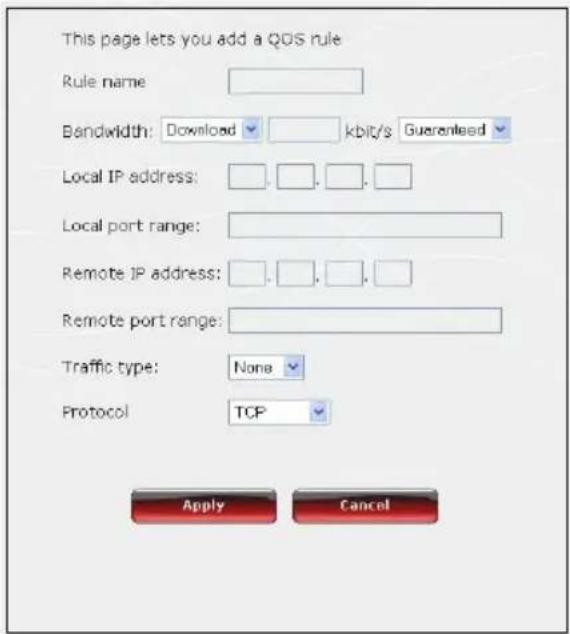
- On the home page, click the Advanced settings button.
- Select QOS.
- Enable the QOS function.
- If you wish, add a priority rule by clicking the Add a rule button.
- In the window which opens, enter the name of the rule.
- Select the transfer type, upstream or downstream.
- Enter the speed you wish to use.
- Select a priority: guaranteed or maximum.
Maximum priority corresponds to the higher level of priority. The principle consists of using the required bandwidth for the immediate train of data.
Guaranteed priority guarantees data traffic according to the availability of bandwidth.
Your network serves as a bridge between networks, the local network (the computers and devices connected at your home) and the Internet network.
- If you wish, enter a local IP address and a local port.
The local IP address and local port correspond to the local network. The QOS rules only apply to the computers communicating within this network.
- If you wish, enter a remote IP address and a remote port.
| Priority | Rule name | Upstream bandwidth | Downstream bandwidth | Modify | Remove |
The remote IP address and remote port correspond to the computers which communicate with the Internet. In this case, the QOS rules only apply to data streams coming from the Internet a computer in the local network.
- Select a traffic type: FTP, HTTP (websites), SMTP and POP3 (email management).
- Select the protocol: TCP, UDP or both.
- Click Apply to validate the new settings.
Rules applied to the Router are displayed in table.
- Click Modify to apply the rule.
5.4.2. Configuring the DHCP server
This chapter will explain how to configure the internal DHCP server which manages the IP addresses of your computers.
IP address:
192,168,2,1
Subnet mask:
255,255,255,0
Enable DHCP

IP address lease time
Forever
Start IP address:
192.168.2.2
End IP address:
192.168.2.254
Domain name

- On the home page, click the Advanced settings button.
- Select Router's IP configuration.
- You can modify the Router's IP address (192.168.2.1, by default) and its subnet mask (255.255.255.0, by default).
Be sure to make a note of this IP addre Without it, you will not be able to reconnect your Router.
- If you enable DHCP, you can modify the start IP address (192.168.2.2, by default), the end IP address (192.168.2.128, by default) and the lease time for these addresses (Forever is the default value).
- If you do not enable DHCP, you decide to set the IP address for each computer yourself.
- You can assign a domain name to this server and a specific IP address according to the computer's MAC address.
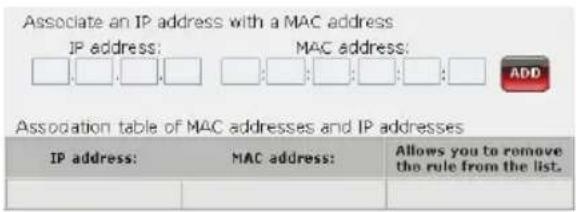
The table displays the list of IP and MA addresses added.
- Click the Modify button to validate your settings.
5.4.3. Facilitating connection of devices with the UPnP protocol
WiFi Manager N's UPnP protocol has the objective of facilitating the connection of devices on the network for the sharing of files or of the Internet connection, for example, by carrying out an automatic identification of the computer's components.
To enable the UPnP protocol:
- On the home page, click the Advanced settings button.
- Select Universal Plug and Play.
- Tick the Enable the UPNP function on the router box.
- Click the Modify button to validate your choice.
5.4.4. Selecting a primary and secondary domain name server
In order for you to access the Internet, your ISP may sometimes require you to enter an IP address corresponding to a primary and/or secondary DNS server.
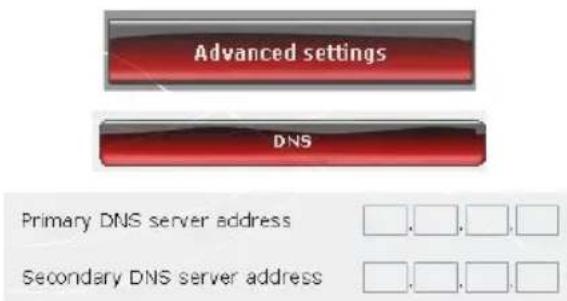
- On the home page, click the Advanced settings button.
- Select DNS.
- Enter the primary DNS server address, along with that of the secondary DNS server, which takes over from the primary DNS server should fail.
This information is included in the memb details sent to you by your ISP.
- Click the Modify button to validate your choice.
5.4.5. Linking an IP address to a dynamic domain name server
Thanks to the Dynamic DNS (or DDNS) function in WiFi Manager N, your IP address is always known to your domain name server. Simply enter the supplied password and username and the Dynamic DNS service takes care of regularly sending your Router's public IP address (that assigned to your Router's Internet connection by your service provider).
Note: You must have subscribed to a Dynamic DNS service.
- On the home page, click the Advanced settings button.
- Select DDNS.

Enable DDNS
Provider
DynDNS
Domain name
User name/Email
Password/Key
Modify
Cancel
- Tick the Enable DDNS box.
- Select the DDNS server to which you have subscribed, then enter the required informa (username and password).
These items of information were supplied w you subscribed to the service.
- Click the Modify button to validate your choice.
5.4.6. Configuring your Router remotely
Thanks to a computer connected to the Internet, WiFi Manager N allows you to remotely control the Router.
Remote management
Enable remote management
IP address
Port



Modify
- On the home page, click the Advanced settings button.
- Select Remote management.
- Enter the IP address and communication port of the computer which can remotely configure Router.
- Click the Modify button to validate your choice.
5.4.7. Setting priorities for types of data according to available bandwidth
WMM allows you to assign priority in relation to the types of data circulating on the network. If this option is ticked, the priorities are assigned as follows:
| Priority | Type |
| 1 | Voice over IP (telephone calls via t Internet) |
| 2 | Video data |
| 3 | Other applications frequently using the network (Web browser...) |
| 4 | Background task applications (printing jobs, downloads, email/messaging...) |
For example, if bandwidth is insufficient to allow for the simultaneous transit of a phone call via the Internet, watching a video, surfing the Internet and a download, the WMM function will hold off on the download, surfing the Internet, and the video. The objective is to guarantee optimal comfort of use for the main task at hand.
You can freely enable or disable this option. Be aware, however, that if you disable this option, bandwidth will be split up between all current tasks, without order of priority, which can be detrimental to your comfort of use (for example, untimely disruptions in your phone calls via the Internet or your videos, or a slowdown in terms of your downloads).

The WMM function is only compatible with other WMM devices.
Enable the WMM function

- On the home page, click the Advanced settings button.
- Select WMM.
By default, the WMM function is enabled. Un-tick this box to disable the function.
5.5. Product information
WiFi Manager N allows you to view all of the information relating to the functioning of your Hercules Router.
To consult product information:
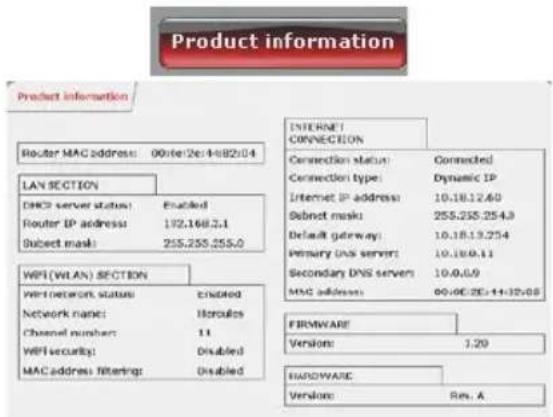
- On the home page, click the Product information button.
The following items of information are displayed MAC address of your Hercules Router, status of the ADSL connection, of the local area network and wireless network, as well as the firmware and hardware versions.
6. GLOSSARY
802.11
Standard established in 1997 by the IEEE (Institute of Electrical and Electronics Engineers, an American organization), defining wireless networks in the 2.4 – 2.48GHz frequency range and offering transfer speeds of between 1 and 2Mbits/s. Revisions have been made to the original standard in order to optimize transfers (this is the case for the 802.11a, 802.11b and 802.11g standards, referred to as physical 802.11 standards) or to ensure better security or improved interoperability of equipment.
802.11b
Standard established by the IEEE (Institute of Electrical and Electronics Engineers, an American organization) in the 802.11 family, allowing for theoretical transfer rates of 11Mbits/s in the 2.4GHz frequency range with a physical range of up to 300m in an environment free from obstructions. The frequency range used is the 2.4GHz band, with 3 radio channels available.
802.11g
Standard established by the IEEE (Institute of Electrical and Electronics Engineers, an American organization) in the 802.11 family, allowing for theoretical transfer rates of 54Mbits/s in the 2.4GHz frequency range with a physical range of up to 300m in an environment free from obstructions. The 802.11g standard offers backwards compatibility with the 802.11b standard, which means that equipment compliant with the 802.11g standard will also work with 802.11b.
802.11i
Standard established by the IEEE (Institute of Electrical and Electronics Engineers, an American organization) in the 802.11 family, whose goal is to improve security by integrating WPA-PSK authentication into AES encryption. This Hercules adapter is compatible with this standard.
802.11n
Standard established by the IEEE (Institute of Electrical and Electronics Engineers, an American organization) in the 802.11 family, allowing for theoretical transfer rates of 300Mbits/s in the 2.4GHz frequency band with a physical range of up to 300m in an environment free from obstructions. The 802.11n standard offers backwards compatibility with the 802.11b and g standards, which means that equipment compliant with the 802.11n standard will also work with 802.11b and/or g.
Access point
The access point is the heart of your local WiFi network. The system access point is a wireless router whose function is to bring several clients together, which is to say link together all computers equipped with WiFi adapters, thanks to its radio antenna.
Ad hoc mode
Mode allowing several computers equipped with WiFi to communicate directly with one another. This mode is also referred to as Peer to Peer.
ADSL (Asymmetric Digital Subscriber Line)
This equipment, connected to a standard telephone line, offers great speed in terms of sending and receiving data.
AES (Advanced Encryption Standard)
A symmetrical block-based encryption standard supporting different key lengths, this is a powerful, quick and efficient encryption method.
ATM (Asynchronous Transfer Mode)
High-speed transfer mode for fixed-size data.
CCK (Complementary Code Keying)
Advanced encoding scheme for radio waves in wireless networks allowing for high transfer speeds.
Client
Computer equipped with a PCI, USB or PCMCIA WiFi adapter.
DHCP (Dynamic Host Configuration Protocol)
Protocol managing the allocation of IP addresses to computers.
DSSS (Direct Sequence Spread Spectrum)
Technique for using radio frequencies in broad-spectrum wireless networks meant to increase the range of transmissions.
ESSID (Service Set Identifier)
8 to 32-character identifier, often abbreviated as SSID, serving as the unique name for a network shared by clients and the access point.
Ethernet port (or RJ-45)
Port allowing for the connection of two devices via a cable, such as a PC and a router, in order to exchange data packets without collision.
Filter
Device placed between the telephone plug and the modem to improve the quality of telephone communications, which are often degraded by ADSL signals.
Firewall
Combination of software and security devices protecting a network connected to the Internet.
Infrastructure mode
Communication mode consisting of grouping together several computers equipped with WiFi in a network via a wireless access point such as the Hercules ADSL router.
IP address
Unique computer address assigned by the router. Each computer has its own IP address, allowing it to be identified within the network.
LEAP(Lightweight Extensible Authentication Protocol)
Security protocol developed by the company Cisco for the world of Windows. The format used is identifier/password.
MAC address (Message Authentication Code)
Unique address created by the builder of the client adapter or router, serving to identify this element within a network.
MIMO technology (Multiple In, Multiple Out)
Technology used in the 802.11n standard, allowing for the WiFi signal to be shared over several antennas with a corresponding increase in terms of signal range and transfer speeds. Transmission can take place on one channel in the 20MHz frequency band (for theoretical maximum transfer speeds of 144.44Mbits/s) or two channels simultaneously (for theoretical maximum transfer speeds of 300Mbits/s) with 40MHz bandwidth. In both cases, the WiFi signal's coverage and range are the same. The choice of one mode or the other (20 or 40MHz) depends solely on the transmitter used. The Hercules Wireless N key will automatically adapt to the signal received.
NAT (Network Address Translation)
Technique allowing for the masking of IP addresses of local area network computers with respect to the Internet.
OFDM (Orthogonal Frequency Division Multiplexing)
Radio transmission technique providing very high transfer speeds widespread within DSL technology, in the wireless terrestrial distribution of television signals and adopted for the high-speed 802.11 wireless communication standard.
PPPoA (Point-to-Point Protocol over ATM)
Protocol allowing for connection to the Internet of computers linked over an ATM network, while still identifying the user.
PPPoE (Point-to-Point Protocol over Ethernet)
Protocol allowing for connection to the Internet of computers linked over an Ethernet network via a high-speed modem.
Static IP
Permanent IP address assigned to a computer by the access provider.
Subnet mask
Part of an IP address indicating the class of the network used (class C, type 255.255.255.0 for a local area network).
TKIP (Temporal Key Integrity Protocol)
The WPA standard uses the TKIP protocol, which consists of regenerating new keys for each data packet, whereas WEP uses a system based on a fixed key.
UPnP (Universal Plug n' Play)
Protocol allowing for the connection to one another of many computers and peripherals available on a network.
WEP (Wired Equivalent Privacy)
Security protocol for wireless networks using encryption based on a 64-bit, 128-bit or 256-bit fixed key used only once, at the start of the decryption phase. To decode a transmission, each wireless network client must use the same 64, 128 or 256-bit key. WEP is part of the 802.11 standard with a view to ensuring authentication (access is only authorized for those who know the WEP key) and confidentiality (encryption). An encryption key is composed of numbers 0 to 9 and letters A to F (example: A123BCD45E).
WiFi (Wireless Fidelity)
An abbreviation of Wireless Fidelity, WiFi is the commercial name adopted by the WECA (Wireless Ethernet Compatibility Alliance), an organization responsible for maintaining the interoperability of equipment in a wireless local area network (WLAN) compliant with the IEEE 802.11 standard. Thus, a WiFi network is actually a 802.11 network. In practice, WiFi allows for the connection of laptop computers, desktop computers or Personal Digital Assistants (PDAs) many tens of meters distant from one another via an access point, allowing them to communicate with one another without any cables and exchange data at high speeds.
WiFi Manager N
Utility developed by Hercules to configure and view settings for the Hercules Wireless N Router.
WMM (Wi-Fi Multimedia)
Functionality certified by the Wi-Fi Alliance, whose goal is to define levels of priority according to available bandwidth. Thus voice over IP (priority 1) will take precedence over transmission of video data (priority 2), which will itself take precedence over applications making use of the network, such as Internet browsing (priority 3), and then lastly come background applications, such as printing jobs or downloads (priority 4).
WiFi Router
Device installed at the heart of a WiFi network, allowing for the connection of several computers equipped with WiFi adapters for the exchange of data.
WiFi Station N
Utility developed by Hercules to define, verify and configure all connection and security settings regarding your WiFi installation.
WLAN (Wireless Local Area Network)
Wireless local area network, generally employing the 802.11b, g or n standards.
Workgroup
Group of computers with which you wish to communicate or share resources such as folders, a printer or an Internet connection. To be part of a workgroup, computers must have the same group name.
WPA (WiFi Protected Access)
Wireless network security standard put in place by manufacturers, employing a data encryption algorithm relying on dynamic key management, which was lacking in WEP, the difference being that once communication is established, the key changes randomly for enhanced security.
WPA2 (WiFi Protected Access 2)
Security standard for wireless networks based on the WPA standard, which adds support for the TKIP or AES encryption algorithm, for heightened security.
WPA-PSK (WiFi Protected Access-Pre-Shared Key)
Latest-generation heightened security protocol specially designed for use in environments such as a small office or the home, based on a pre-shared key (a single password). This key is also used for TKIP or AES data encryption.
WPS (Wi-Fi Protected Setup ^TM )
Technology standardized by the Wi-Fi Alliance, which aims to simplify the connection and configuration of a wireless network while at the same time maintaining a high level of security. This technology allows the user to enable protection of a WiFi network via a single button located on the WiFi client, or via entry of a PIN code in the software supplied with the router.
Log on now to our website (www.hercules.com) to download the latest driver and software versions, consult the list of Frequently Asked Questions (FAQs) relating to your product and access User Manual updates. You can also discover the entire Hercules range and get information on upcoming products.
7. TECHNICAL SUPPORT
If you encounter a problem with your product, please go to http://ts.hercules.com and select your language. From there you will be able to access various utilities (Frequently Asked Questions (FAQ), the latest versions of drivers and software) that may help to resolve your problem. If the problem persists, you can contact the Hercules products technical support service ("Technical Support"):
By email:
In order to take advantage of technical support by email, you must first register online. The information you provide will help the agents to resolve your problem more quickly.
Click Registration on the left-hand side of the Technical Support page and follow the on-screen instructions.
If you have already registered, fill in the Username and Password fields and then click Login.
By telephone:
| United Kingdom | 08450800942Chargesat local rate | Monday to Friday from Noon to 4pm and 5pm to 10pmSaturday from 9am to Noon and 1pm to 7pmSunday from 9am to Noon and 1pm to 4pm |
| United States | 1-866-889-5036Free | Monday to Friday from 7am to 11am and from Noon to 5pmSaturday and Sunday from 7am to Noon(Eastern Standard Time) |
| Canada | 1-866-889-2181Free | Monday to Friday from 7am to 11am and from Noon to 5pmSaturday and Sunday from 7am to Noon(Eastern Standard Time) |
| Denmark | 80887690Free | Monday to Friday from 1pm to 5pm and 6pm to 11pm (English)Saturday from 9am to 1pm and 2pm to 8pmSunday from 10am to 1pm and 2pm to 5pm |
| Sweden | 0200884567Free | Monday to Friday from 1pm to 5pm and 6pm to 11pm (English)Saturday from 9am to 1pm and 2pm to 8pmSunday from 10am to 1pm and 2pm to 5pm |
| Finland | 0800 913060Free | Monday to Friday from 2pm to 6pm and 7pm to Midnight (EngliSaturday from 10am to 2pm and 3pm to 9pmSunday from 11am to 2pm and 3pm to 6pm |
8. WARRANTY
Worldwide, Guillemot Corporation S.A. ("Guillemot") warrants to the consumer that this Hercules product will be free from material defects and manufacturing flaws for a period of two (2) years from the original date of purchase. Should the product appear to be defective during the warranty period, immediately contact Technical Support, who will indicate the procedure to follow. If the defect is confirmed, the product must be returned to its place of purchase (or any other location indicated by Technical Support).
Within the context of this warranty, the consumer's defective product will, at Technical Support's option, be either repaired or replaced. Where authorized by applicable law, the full liability of Guillemot and its subsidiaries (including for indirect damages) is limited to the repair or replacement of the Hercules product. The consumer's legal rights with respect to legislation applicable to the sale of consumer goods are not affected by this warranty.
This warranty shall not apply: (1) if the product has been modified, opened, altered, or has suffered damage as a result of inappropriate or abusive use, negligence, an accident, normal wear, or any other cause not related to a material defect or manufacturing flaw; (2) in the event of failure to comply with the instructions provided by Technical Support; (3) to software not published by Guillemot, said software being subject to a specific warranty provided by its publisher.
9. ENVIRONMENTAL PROTECTION RECOMMENDATION
At the end of its working life, this product should not be disposed of with standard household waste, but rather dropped off at a collection point for the disposal of Waste Electrical and Electronic Equipment (WEEE) for recycling.
This is confirmed by the symbol found on the product, user manual or packaging.
Depending on their characteristics, the materials may be recycled. Through recycling and other forms of processing Waste Electrical and Electronic Equipment, you can make a significant contribution towards helping to protect the environment.
Please contact your local authorities for information on the collection point nearest you.
Trademarks
Hercules® is a registered trademark of Guillemot Corporation S.A. Intel® and Pentium® are registered trademarks of Intel Corporation. Wireless Attitude™! is a trademark of Guillemot Corporation S.A. Microsoft® Windows® 2000, XP and Vista are either trademarks or registered trademarks of Microsoft Corporation in the United States and/or other countries. All other trademarks and brand names are hereby acknowledged and are property of their respective owners. Illustrations not binding.
Declaration of conformity with EU directives
This device can be used in: AT, BE, FR, DE, IE, IT, LU, NL, PL, ES, SE, GB, FI, CH.
Hereby, GUILLEMOT CORPORATION, Carentoir France, declares that this Hercules HWNR 300 is in compliance with the essential requirements and other relevant provisions of Directive 1999/5/EC. The Declaration of Conformity can be consulted at this website address:
ftp://ftp.hercules.com/wiki/DoC/HWNR-300/DoC-eng_Hercules_HWNR-300.pdf
CE 0470 ⚠
Hercules is a division of Guillemot Corporation.
EUROPEAN USERS:
This equipment has been tested and found to comply with Directive 1999/5/EC of the European Parliament and of the Council on radio equipment and telecommunications terminal equipment and the mutual recognition of their conformity. After assessment, the equipment has been found to comply with the following standards: EN 300.328 (radio), EN 301 489-1, EN 301 489-17 (electromagnetic compatibility) and EN 60950 (safety). This equipment may be used in all European Union countries and in all countries applying Directive 1999/5/EC, without restriction, with the exception of the following countries:
FRANCE:
When this equipment is used outdoors, output power is limited to within the frequency bands listed below. For more information, consult the ART website: www.art-telecom.fr.
| Location | Frequency band (MHz) | Power (EIRP) |
| Indoor (no restrictions) | 2400–2483.5 | 100mW (20dBm) |
| Outdoor | 2400–2454 | 100mW (20dBm) |
| 2454–2483.5 | 10mW (10dBm) |
Operation of this equipment in a residential environment may give rise to radio interference; if so, it is incumbent upon the user to rectify the situation.
ITALY:
This device complies with the National Radio Interface and the requirements of the Frequency Allocation Table. Use of this wireless product outside of the boundaries of the owner's property requires a general authorization. For more information, consult the website www.comunicazioni.it.
FC
Federal Communication Commission Interference Statement
This equipment has been tested and found to comply with the limits for a Class B digital device, pursuant to Part 15 of the FCC Rules. These limits are designed to provide reasonable protection against harmful interference in a residential installation. This equipment generates, uses and can radiate radio frequency energy and, if not installed and used in accordance with the instructions, may cause harmful interference to radio communications. However, there is no guarantee that interference will not occur in a particular installation. If this equipment does cause harmful interference to radio or television reception, which can be determined by turning the equipment off and on, the user is encouraged to try to correct the interference by one of the following measures:
- Reorient or relocate the receiving antenna.
- Increase the separation between the equipment and receiver.
- Connect the equipment into an outlet on a circuit different from that to which the receiver is connected.
- Consult the dealer or an experienced radio/TV technician for help.
This device complies with Part 15 of the FCC Rules. Operation is subject to the following two conditions: (1) This device may not cause harmful interference, and (2) this device must accept any interference received, including interference that may cause undesired operation. This device and its antenna(s) must not be co-located or operating in conjunction with any other antenna or transmitter. FCC Caution: Any changes or modifications not expressly approved by the party responsible for compliance could void the user's authority to operate this equipment.
IMPORTANT NOTE:
FCC Radiation Exposure Statement:
This equipment complies with FCC radiation exposure limits set forth for an uncontrolled environment. This equipment should be installed and operated with minimum distance 20cm between the radiator & your body.
Copyright
© Guillemot Corporation S.A. 2008. All rights reserved.
This publication may not be reproduced in whole or in part, summarized, transmitted, transcribed, stored in a retrieval system, or translated into any language or computer language, in any form or by any means, electronic, mechanical, magnetic, photocopying, recording, manual or otherwise, without the prior written permission of Guillemot Corporation S.A.
Disclaimer
Guillemot Corporation S.A. reserves the right to make changes to specifications at any time and without notice. The information provided by this document is believed to be accurate and reliable. However, no responsibility is assumed by Guillemot Corporation S.A. either for its use or for the infringement of patents or other rights of third parties resulting from its use. This product may exist in a light or special version for PC integration or other purposes. Certain functions detailed in this manual may not be available in these versions. Wherever possible, a README.TXT will be included on the installation CD-ROM detailing the differences between the supplied product and the product described in the present documentation.
End-user software license Agreement
IMPORTANT: please read the Agreement carefully prior to opening and installing the Software. By opening the Software package, you agree to be bound by the terms of this Agreement. The Software enclosed in this package is licensed, not sold, and is only available under the terms of the present license Agreement. If you do not agree with the terms hereafter, you must promptly return the Software within 15 days, together with the entire contents of the box, to the place of purchase.
The Guillemot Corporation S.A. Software (hereafter named the "Software") is copyrighted by Guillemot Corporation S.A. All rights are reserved. The term "Software" refers to all documentation and related material, including drivers, executable programs, libraries and data files. The purchaser is granted a license to use the Software only. The licensee also agrees to be bound by the terms and conditions of the present Agreement concerning copyright and all other proprietary rights for any third party Software, documentation and related material included in the Software package.
Guillemot Corporation S.A. reserves the right to terminate this license in the event of failure to comply with any of the terms or conditions laid out in the present Agreement. On termination, all copies of the Software shall immediately be returned to Guillemot Corporation S.A.; the purchaser remaining liable for any and all resulting damages.
License:
- The license is granted to the original purchaser only. Guillemot Corporation S.A. retains all title to and ownership of the Software and reserves all rights not expressly granted. The licensee is not permitted to sub-license or lease any of the rights that are hereby granted. Transfer of the license is permitted, provided that the transferor does not retain any part or copy of the Software and the transferee accepts to be bound by the terms and conditions of the present Agreement.
- The licensee may only use the Software on a single computer at any time. The machine-readable portion of the Software may be transferred to another computer provided it is previously erased from the first machine and there is no possibility that the Software can be used on more than one machine at any one time.
- The licensee acknowledges the copyright protection belonging to Guillemot Corporation S.A. The copyright notice must not be removed from the Software, nor from any copy thereof, nor from any documentation, written or electronic, accompanying the Software.
- The licensee is granted the right to make one back-up copy of the machine-readable portion of the Software on the condition that all copyright and proprietary notices are also reproduced.
- Except where the present Agreement expressly permits, the licensee is strictly prohibited from engaging in, nor may he permit third parties to engage in, the following: providing or disclosing the Software to third parties; providing use of the Software in a network, multiple PCs, multi-user or time-sharing arrangement where the users are not individual licensees; making alterations or copies of any kind of the Software; making any attempt to disassemble, de-compile or reverse engineer the Software in any way or form, or engaging in any activity aimed at obtaining underlying information not visible to the user during normal use of the Software; making copies or translations of the User Manual.

- Click a title in this table of contents to access the corresponding section
- YOUR HERCULES WIRELESS N ROUTER....4
- INSTALLING YOUR HERCULES WIRELESS N ROUTER....7
- WIFI MANAGER N, THE VERSATILE UTILITY....22
- WELCOME TO THE WIRELESS ATTITUDE TMI 45
- Product information 94
- YOUR HERCULES WIRELESS N ROUTER
- Recommendations
- Specifications
- Minimum system requirements
- Box contents
- Front face overview
- Connectivity overview
- INSTALLING YOUR HERCULES WIRELESS N ROUTER
- How to position your Hercules Wireless N Router
- Uninstalling your modem or disabling the automatic connection to your modem
- If you decide to uninstall the modem's drivers:
- If you decide to disable the automatic connection to the modem:
- Scenario 1: your ISP appears in the Intel Options window.
- Scenario 2: your ISP does not appear in Internet Options window.
- Getting past the Content Advisor (parental control)
- Launching the Hercules Wireless N Router installation Assistant
- If the installation menu is not launched automatically:
- Installing Hercules Wireless N Router only
- Step 2
- Step 3
- Step 4
- Step 5
- Step 6
- Step 7
- End of installation: WPS connection
- Installing the Hercules pack (Hercules Wireless N Router + Wireless N USB Key)
- Step 8
- Installing the Wireless N USB key only
- Exploring the CD-ROM
- Connecting to a network with Wi-Fi Protected Setup™
- About master and client modes
- Connecting to a network in master mode
- st option: use the WPS button located on the Router
- 2nd option: use the WPS button accessible in WiFi Manager N
- Alternatively:
- Connecting to a network in client mode
- WIFI MANAGER N, THE VERSATILE UTILITY
- Opening the doors of WiFi Manager N
- Or, if you have chosen not to install the QuickAccess icon:
- Changing the WiFi Manager N password!
- Navigating within the WiFi Manager N interface
- Easy customization of your Hercules Wireless N Router
- To launch the Installation Assistant
- Step 1: Change the password for accessing the interface
- Step 2: Internet (WAN) connection
- If you connect to the Internet via a "Box", cable modem or Router:
- If you connect to the Internet via an ADSL Ethernet modem:
- If you use another connection mode (PPTP or L2TP)
- Step 3: Enabling your WiFi network
- Step 4: Selecting security for your WiFi network
- If you select the "HIGH (WPA)" or "VERY HIGH (WPA2)" security type:
- If you select the "MEDIUM (WEP 128)" security type:
- Sharing your Internet connection via the Router
- Selecting your Internet connection
- If you select the Internet "Box", C Modem or Router mode
- If you select another connection type
- Testing your Internet connection
- If your Internet connection is working properly:
- Resolving any difficulties accessing WiFi Manager N or the Internet
- Windows XP or Vista
- Windows 2000
- Windows 98 SE/Me
- Mastering your WiFi network at your fingertips
- Personalizing your WiFi network
- To personalize your WiFi network:
- Securing your WiFi network
- To secure your WiFi network:
- If you select the "VERY HIGH (WPA2)" security type:
- If you select the "VERY HIGH (WPA-WPA2)" security type:
- If you select the "HIGH (WPA)" security type:
- If you select the "MEDIUM (WEP 64-WEP 128)" security type:
- If you select NO (Disabled) security (not recommended):
- Limiting access to your WiFi network to certain WiFi computers or devices
- To enable filtering by MAC address:
- To add a WiFi computer or device (webcam, game console or other) to the list:
- If you are using this function for the first time:
- To remove a WiFi computer or device (webcam, game console or other) from the list:
- Disabling your WiFi network
- Re-enabling your WiFi network
- The firewall: your ultimate protection against Internet attacks
- Be careful not to confuse a firewall with an antivirus program!
- WELCOME TO THE WIRELESS ATTITUDE TM!
- A few important points to bear in mind before getting started
- Computers running Windows Vista: Sharing folders, a printer or an ADSL connection
- Enabling sharing
- Enabling file sharing
- Enabling public folder sharing
- Enabling printer sharing
- Enabling media file sharing
- Windows Vista: Sharing public or personal folders
- Computers running Windows Vista: Accessing shared folders
- Windows Vista: Sharing a printer
- On the computer connected to the printer:
- Computers running Windows Vista: Accessing the shared printer
- Windows Vista: Sharing an ADSL connection in an Infrastructure type network
- Proceed as follows for each computer that will use the shared Internet connection:
- Computers running Windows XP: Sharing folders, a printer or an ADSL connection
- Windows XP: Using the Network Setup Wizard in an Infrastructure network
- Proceed as follows for each computer:
- Windows XP: Sharing folders
- Windows XP: Accessing shared folders
- Windows XP: Sharing a printer
- On the computers that will use the shared printer:
- Windows XP: Modifying a workgroup name
- Windows XP: Manually enabling or disabling your adapter's WiFi connection (advanced users)
- Computers running Windows 2000: Sharing folders, a printer or an ADSL connection
- Creating a workgroup in Windows 2000
- Windows 2000: Sharing folders
- 4. 3. Windows 2000: Accessing shared folders
- Windows 2000: Sharing a printer
- Windows 2000: Modifying a workgroup name
- Windows 2000: Sharing an ADSL connection in an Infrastructure network
- Windows 2000: Manually enabling or disabling your adapter's WiFi connection (advanced users)
- Computers running Windows Me: Sharing folders, a printer or an ADSL connection
- Windows Me: Using the Home Networking Wizard in an Infrastructure network
- Windows Me: Sharing folders
- Windows Me: Accessing shared folders
- Windows Me: Sharing a printer
- If the Sharing tab does not appear, you must enable file sharing.
- Windows Me: Modifying a workgroup name
- Windows Me: Manually enabling or disabling your adapter's WiFi connection (advanced users)
- Computers running Windows 98 SE: Sharing folders, a printer or an ADSL connection
- Windows 98 SE: Creating a workgroup
- Windows 98 SE: Sharing folders
- 6. 3. Windows 98 SE: Accessing shared folders
- Windows 98 SE: Sharing a printer
- Windows 98 SE: Sharing an ADSL connection in an Infrastructure network
- Windows 98 SE: Manually enabling or disabling your adapter's WiFi connection (advanced users)
- WIFI MANAGER N FOR ADVANCED USERS
- Configuring your WiFi network's advanced options
- Expert WiFi settings
- Configuring your Internet firewall
- Opening doors in your firewall to put your camera online or authorize access for a computer to certain Internet services
- To put your camera online or authorize access to one or more of your computers for specific Internet services (automatic mode):
- To put your camera online or authorize access to one or more of your computers for specific Internet services (manual mode):
- Scenario 1: you enable the range of ports:
- Scenario 2: you disable the range of ports
- Limiting access of one of your network computers to Internet services
- To limit access on a specific computer to an Internet service (filtering method by IP address):
- To limit access on a specific computer to an Internet service (website blocking method):
- Redirecting Internet requests to a specific computer
- Protecting yourself from Internet attacks with the DOS (Denial Of Service) function
- A toolbox with multiple facets
- Restarting your Hercules Router
- To restart the Router:
- Restoring your original settings
- To restore the original settings:
- You can also use the Reset button located on the Router:
- Updating firmware
- If a firmware update is available:
- Other advanced options
- Assigning priority to a type of data in the event of an overloaded network
- Configuring the DHCP server
- Enable DHCP
- Facilitating connection of devices with the UPnP protocol
- To enable the UPnP protocol:
- Selecting a primary and secondary domain name server
- Linking an IP address to a dynamic domain name server
- Configuring your Router remotely
- Setting priorities for types of data according to available bandwidth
- Product information
- To consult product information:
- GLOSSARY
- 802.11
- 802.11b
- 802.11g
- 802.11i
- 802.11n
- Access point
- Ad hoc mode
- ADSL (Asymmetric Digital Subscriber Line)
- AES (Advanced Encryption Standard)
- ATM (Asynchronous Transfer Mode)
- CCK (Complementary Code Keying)
- Client
- DHCP (Dynamic Host Configuration Protocol)
- DSSS (Direct Sequence Spread Spectrum)
- ESSID (Service Set Identifier)
- Ethernet port (or RJ-45)
- Filter
- Firewall
- Infrastructure mode
- IP address
- LEAP(Lightweight Extensible Authentication Protocol)
- MAC address (Message Authentication Code)
- MIMO technology (Multiple In, Multiple Out)
- NAT (Network Address Translation)
- OFDM (Orthogonal Frequency Division Multiplexing)
- PPPoA (Point-to-Point Protocol over ATM)
- PPPoE (Point-to-Point Protocol over Ethernet)
- Static IP
- Subnet mask
- TKIP (Temporal Key Integrity Protocol)
- UPnP (Universal Plug n' Play)
- WEP (Wired Equivalent Privacy)
- WiFi (Wireless Fidelity)
- WiFi Manager N
- WMM (Wi-Fi Multimedia)
- WiFi Router
- WiFi Station N
- WLAN (Wireless Local Area Network)
- Workgroup
- WPA (WiFi Protected Access)
- WPA2 (WiFi Protected Access 2)
- WPA-PSK (WiFi Protected Access-Pre-Shared Key)
- WPS (Wi-Fi Protected Setup TM )
- TECHNICAL SUPPORT
- By email:
- WARRANTY
- ENVIRONMENTAL PROTECTION RECOMMENDATION
- Trademarks
- Declaration of conformity with EU directives
- CE 0470 ⚠
- EUROPEAN USERS:
- FRANCE:
- ITALY:
- FC
- Federal Communication Commission Interference Statement
- IMPORTANT NOTE:
- Copyright
- Disclaimer
- End-user software license Agreement
- License:
Brand : THRUSTMASTER
Model : HWNR-300
Category : Game wheel