ZEN VISION M - Lecteur multimédia portable CREATIVE - Free user manual and instructions

Find the device manual for free ZEN VISION M CREATIVE in PDF.

Page 4
Manual assistant
Powered by ChatGPT
Waiting for your message
Product information

Brand : CREATIVE

Model : ZEN VISION M

Category : Lecteur multimédia portable

Download the instructions for your Lecteur multimédia portable in PDF format for free! Find your manual ZEN VISION M - CREATIVE and take your electronic device back in hand. On this page are published all the documents necessary for the use of your device. ZEN VISION M by CREATIVE.

USER MANUAL ZEN VISION M CREATIVE

Zen Vision Mini PM3.book Page i Friday, October 21, 2005 11:39 AM

Zen Vision Mini PM3.book Page ii Friday, October 21, 2005 11:39 AM

Zen Vision Mini PM3.book Page 1 Friday, October 21, 2005 11:39 AM

Zen Vision:M™ is the new digital player from Creative. Read on to learn how to get started with your new player!

Zen Vision Mini PM3.book Page 2 Friday, October 21, 2005 11:39 AM

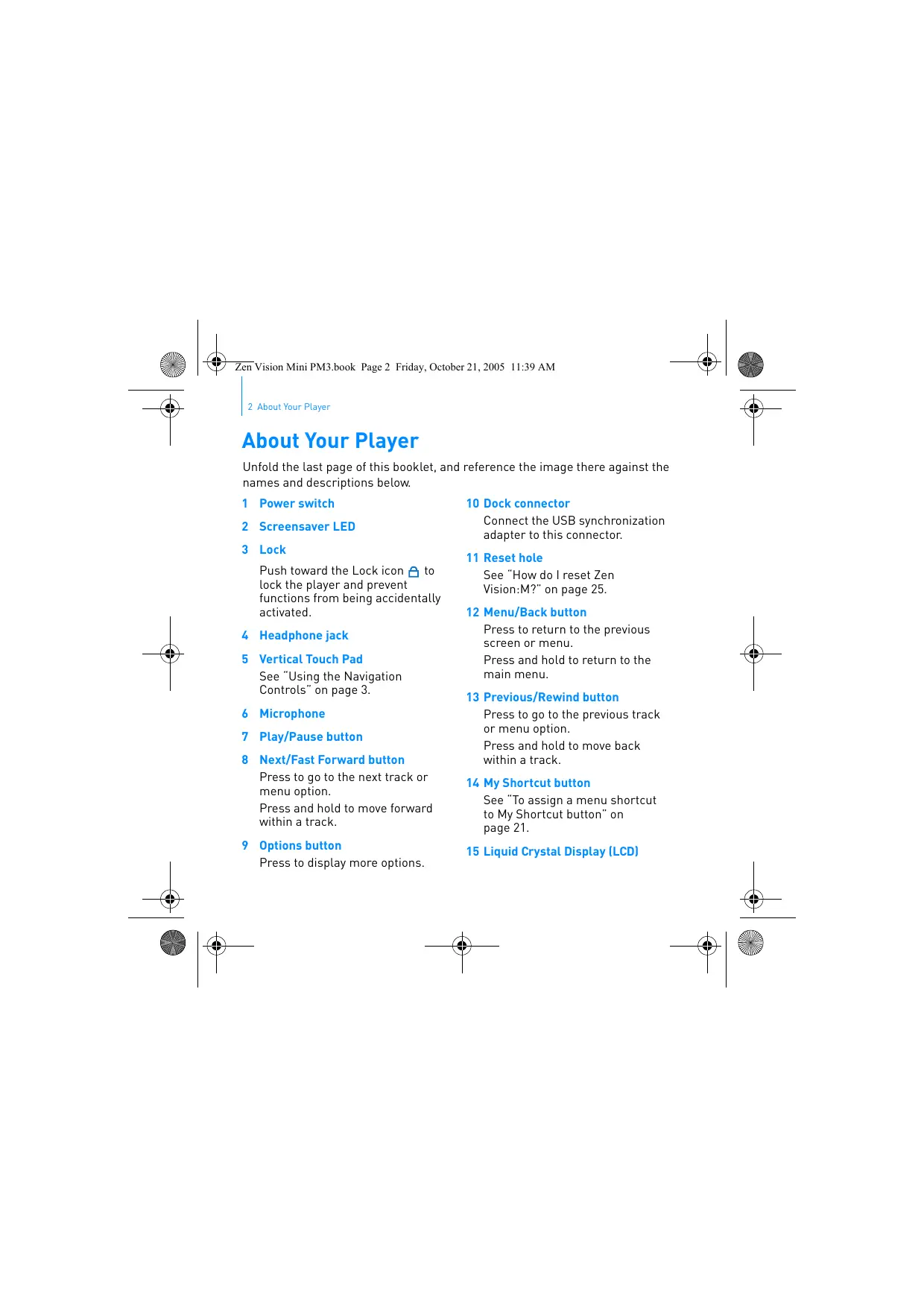
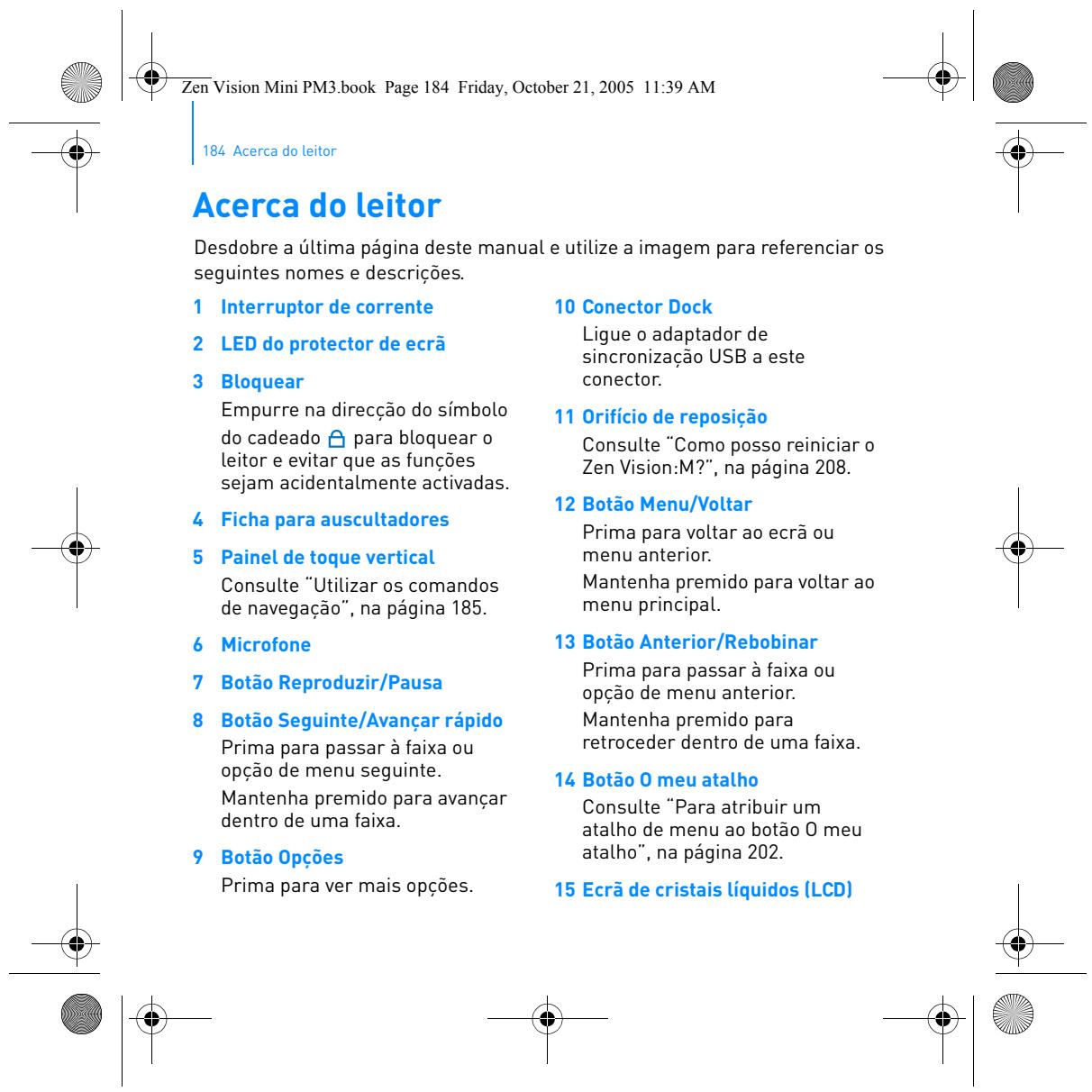
Unfold the last page of this booklet, and reference the image there against the names and descriptions below. 1 Power switch 2 Screensaver LED 3 Lock Push toward the Lock icon to lock the player and prevent functions from being accidentally activated. 4 Headphone jack 5 Vertical Touch Pad See “Using the Navigation Controls” on page 3. 6 Microphone 7 Play/Pause button 8 Next/Fast Forward button Press to go to the next track or menu option. Press and hold to move forward within a track. 9 Options button Press to display more options.

Connect the USB synchronization adapter to this connector. 11 Reset hole See “How do I reset Zen Vision:M?” on page 25. 12 Menu/Back button Press to return to the previous screen or menu. Press and hold to return to the main menu. 13 Previous/Rewind button Press to go to the previous track or menu option. Press and hold to move back within a track. 14 My Shortcut button See “To assign a menu shortcut to My Shortcut button” on page 21. 15 Liquid Crystal Display (LCD)

Zen Vision Mini PM3.book Page 3 Friday, October 21, 2005 11:39 AM Using the Navigation Controls 3

Using the Navigation Controls

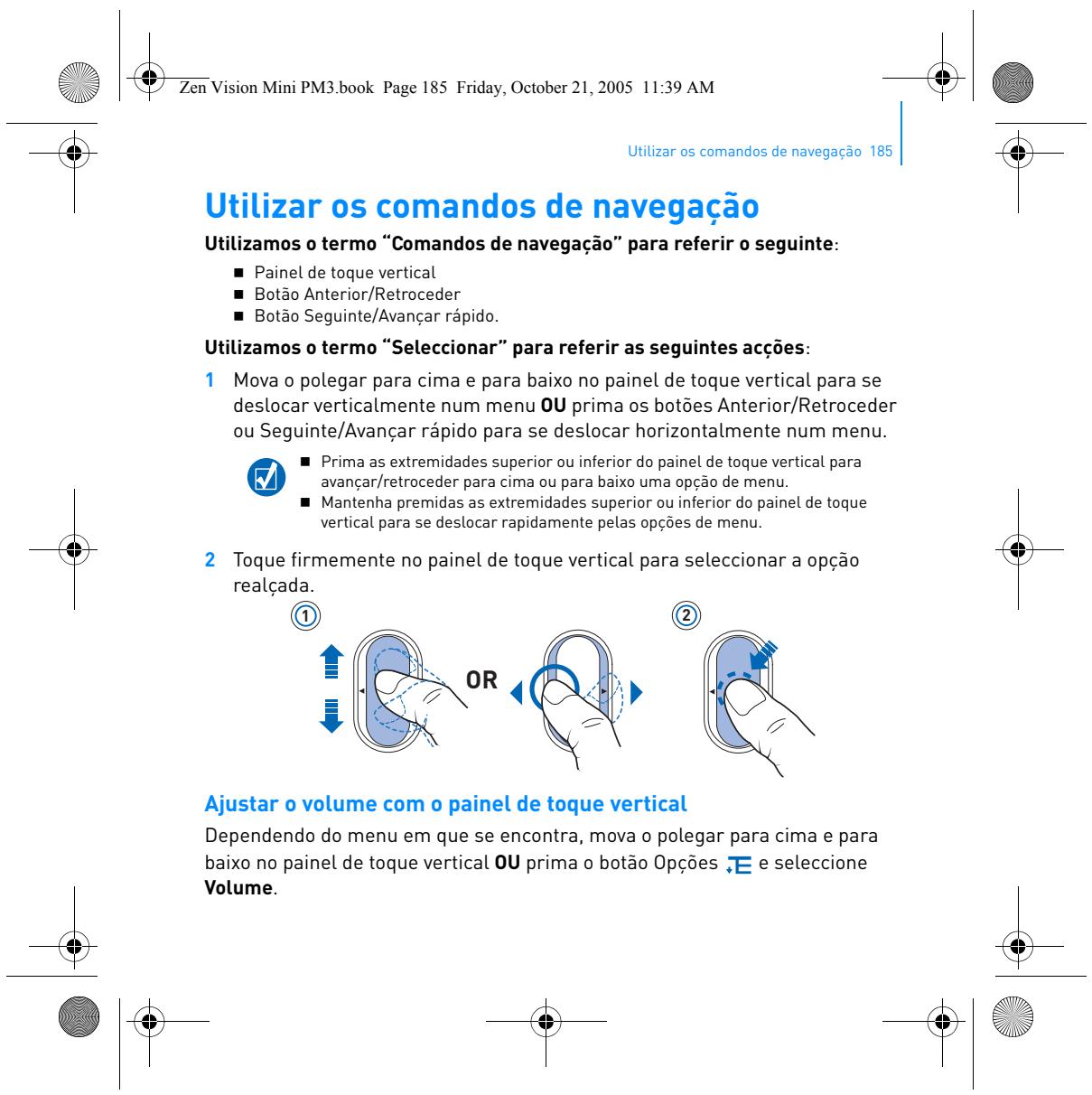
We use the term “Navigation controls” to mean the following: „ Vertical Touch Pad „ Previous/Rewind button „ Next/Fast Forward button.

We use the term “Select” to mean the following actions:

1 Move your thumb up and down the Vertical Touch Pad to move vertically in a menu OR press the Previous/Rewind or Next/Fast Forward button to move horizontally in a menu. „ Press the top or bottom edge of the Vertical Touch Pad to move up or down one

„ Press and hold the top or bottom edge of the Vertical Touch Pad to rapidly scroll

through menu options.

2 Firmly tap the Vertical Touch Pad to select the highlighted option.

OR To adjust volume with the Vertical Touch Pad

Depending on the menu you are in, move your thumb up and down the Vertical Touch Pad OR press the Options button and select Volume.

Zen Vision Mini PM3.book Page 4 Friday, October 21, 2005 11:39 AM

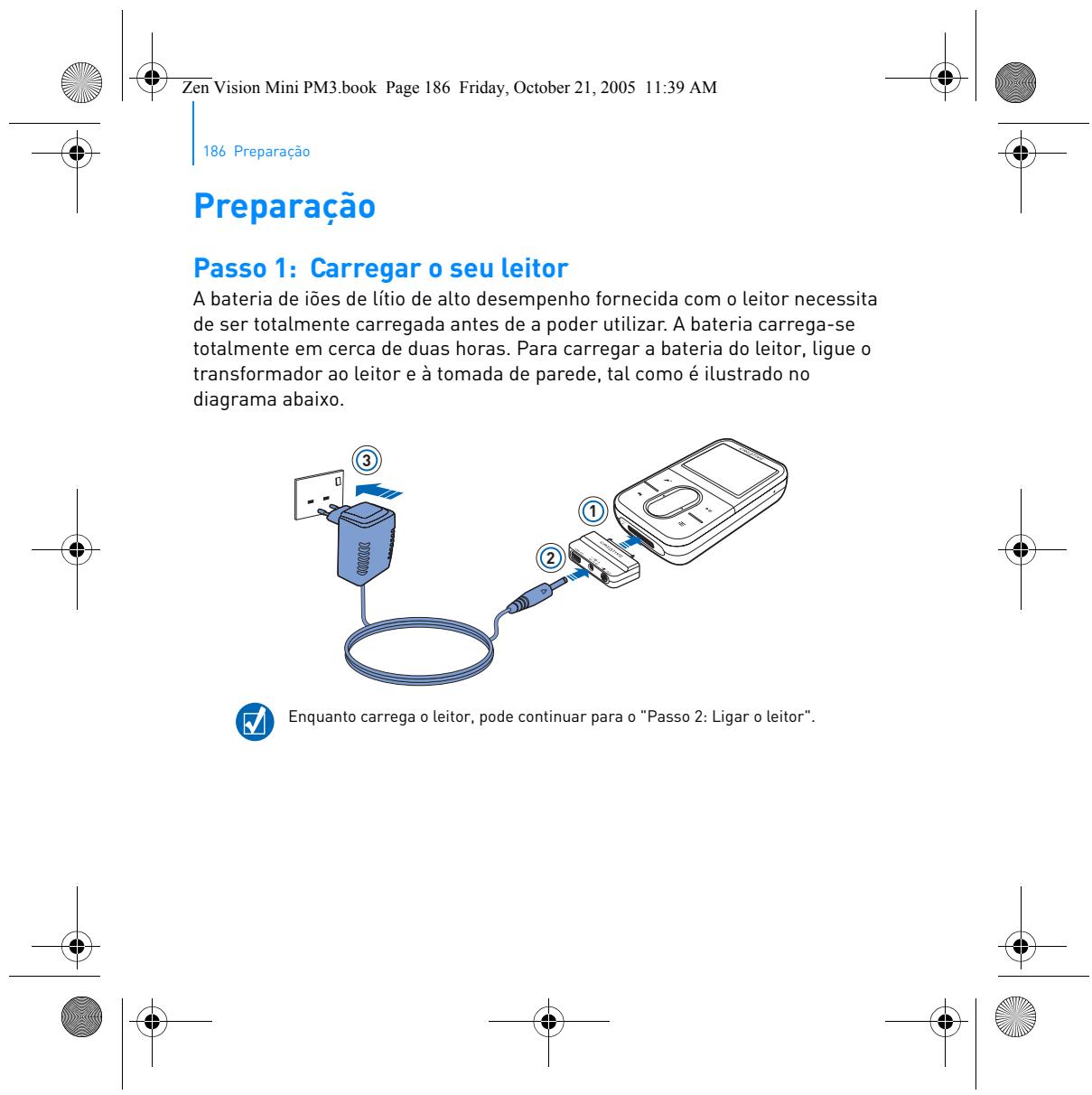
Step 1: Charge Your Player The high performance Lithium Ion battery supplied with your player needs to be fully charged before you use it. The battery is fully charged in approximately two hours. To charge your player's battery, connect the power adapter to your player and wall outlet as shown in the diagram below. 3 1 2

While charging your player, you can proceed to "Step 2: Turn On Your Player".

Zen Vision Mini PM3.book Page 5 Friday, October 21, 2005 11:39 AM Getting Started 5

Step 2: Turn On Your Player

1 Slide the Power switch towards the Power icon LCD lights up.

and hold it there until the

2 When you turn on your player for the first time, the menu is in English. To change the language: i.

Press and hold the Menu/Back button

. The main menu appears.

ii. Select System → Language → language that you want.

3 After you have finished using your player, slide the Power switch towards the Power icon until the Shutting down message appears.

Step 3: Set Up Software

1 Turn on your computer. You must log in as an administrator in Windows® before you can set up the software. For more information, refer to your operating system’s online Help. 2 Insert the Installation CD into your CD-ROM/DVD-ROM drive. Your CD should start automatically. If it does not, follow the steps below: i.

Double-click the My Computer icon.

Alternatively, click Start → My Computer. ii. Right-click the CD-ROM/DVD-ROM drive icon, and then click Autoplay.

3 Follow the instructions on the screen and when prompted, restart your computer.

4 When your computer restarts, follow the product registration instructions on the screen. You will require an Internet connection to register your product.

Zen Vision Mini PM3.book Page 6 Friday, October 21, 2005 11:39 AM

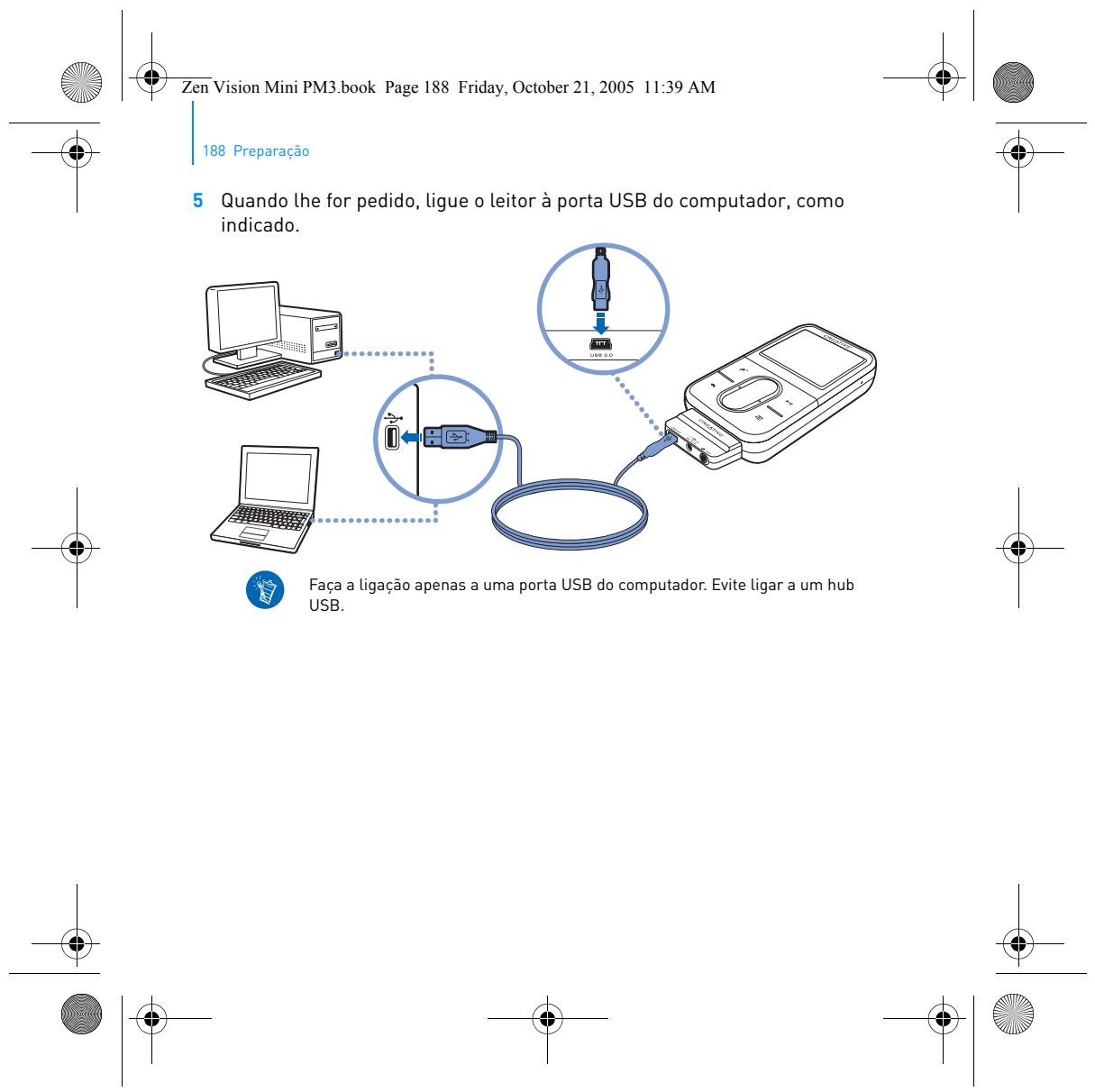
5 When prompted, connect your player to your computer’s USB port as shown.

Connect to a computer USB port only; avoid connecting to a USB hub.

Zen Vision Mini PM3.book Page 7 Friday, October 21, 2005 11:39 AM Getting Started 7

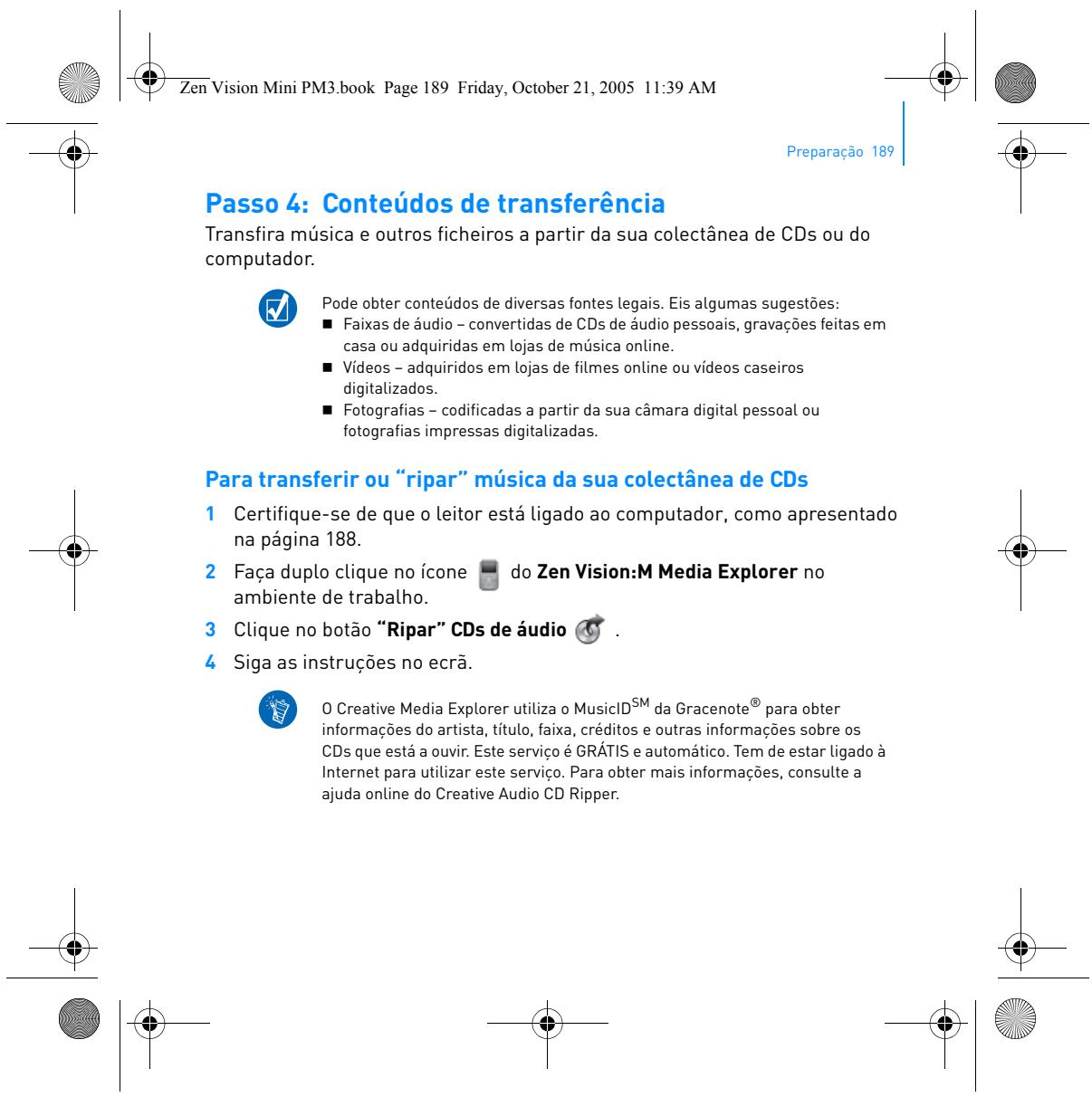
Step 4: Transfer Content

Transfer music and other files from your CD collection or computer. For more details, see “Managing Music and Data” on page 10 You can acquire content from many legal sources. Here are some suggestions: „ Audio tracks - ripped from personal audio CDs, home studio recordings or purchased from online music stores. „ Videos - purchased from online movie stores or digitized home video footage. „ Photos - encoded from your personal digital camera or scanned from printed photos.

To transfer or ‘rip’ music from your CD collection

1 Make sure your player is connected to your computer as shown on page 6. 2 Double-click the Zen Vision:M Media Explorer icon 3 Click the Rip Audio CDs button

4 Follow the instructions on the screen.

Creative Media Explorer uses MusicIDSM from Gracenote® to get artist, title, track, credits, and other information about the CDs you play. This service is FREE and automatic. You must be connected to the Internet when using this service. For more information, refer to the Creative Audio CD Ripper online Help.

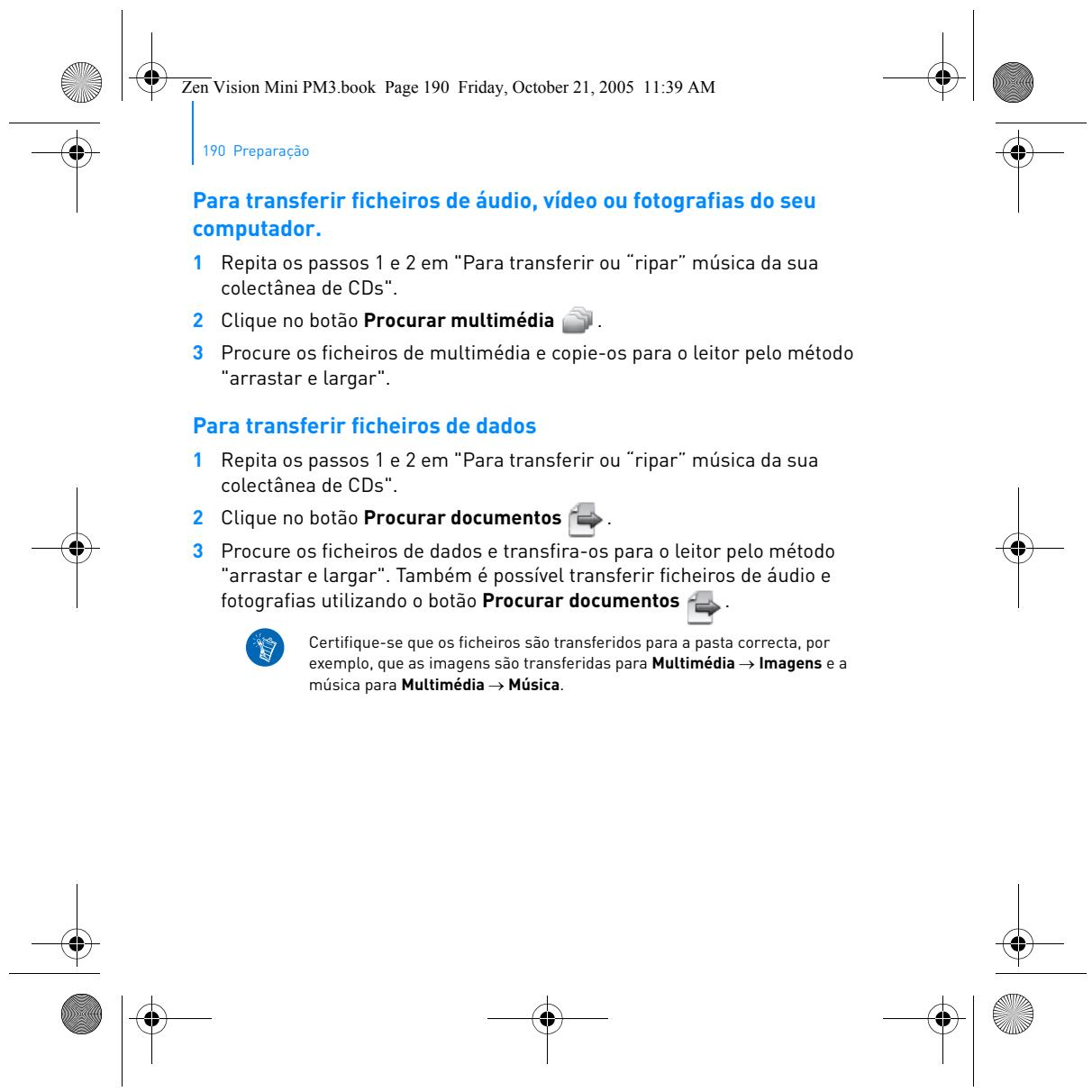
To transfer audio files, videos or pictures from your computer

1 Repeat steps 1 and 2 in "To transfer or ‘rip’ music from your CD collection". 2 Click the Browse Media button

Zen Vision Mini PM3.book Page 8 Friday, October 21, 2005 11:39 AM

3 Locate your media files and copy them to your player using the drag-and-drop method.

To transfer data files

1 Repeat steps 1 and 2 in "To transfer or ‘rip’ music from your CD collection". 2 Click the Browse Documents button

3 Locate your data files and transfer them to your player using the drag-and-drop method. You can also transfer audio files and photos using the Browse Documents button

. Make sure files are transferred to the correct folder, for example pictures are transferred to Media → Pictures and music to Media → Music.

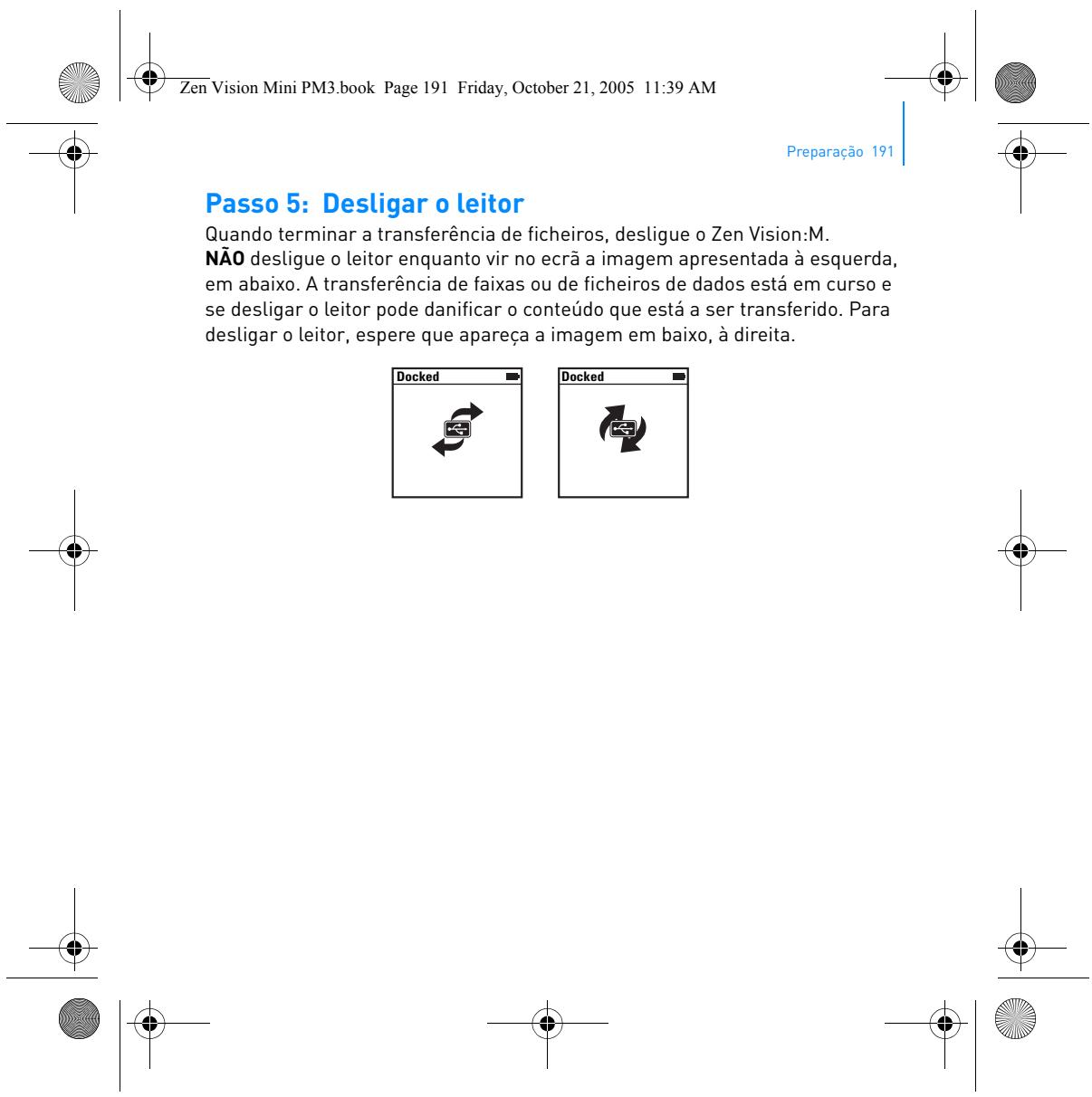
Step 5: Disconnect Your Player

When you have finished transferring files, disconnect Zen Vision:M. DO NOT disconnect your player if you see the left picture below on the display. Track or data file transfer is in progress and disconnecting your player may damage the content being transferred. Wait until you see the right picture below on the display before disconnecting your player. Docked

Zen Vision Mini PM3.book Page 9 Friday, October 21, 2005 11:39 AM Getting Started 9

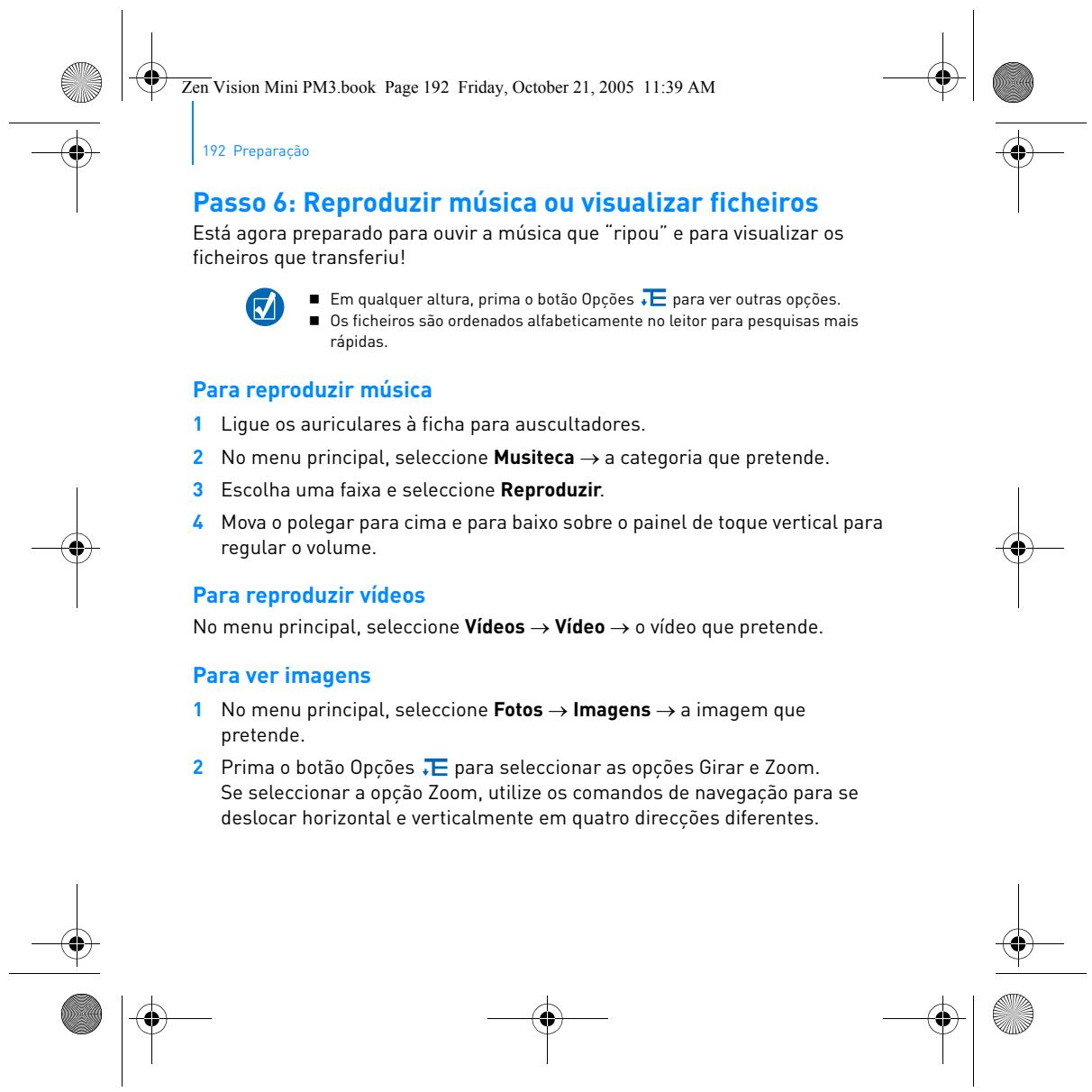
Step 6: Play Music or View Files

You are now ready to play music that you have ripped, and view files you have transferred! „ At any time, press the Options button for more options. „ Files in your player are sorted alphabetically for quicker searches.

1 Connect your earphones to the Headphone jack. 2 In the main menu, select Music Library → category that you want. 3 Select a track and select Play. 4 Move your thumb up and down the Vertical Touch Pad to adjust the volume.

In the main menu, select Videos → Video → video that you want.

1 In the main menu, select Photos → Pictures → picture that you want. to select rotate and zoom options. 2 Press the Options button If you select the zoom option, use the Navigation controls to pan horizontally and vertically in four different directions.

Zen Vision Mini PM3.book Page 10 Friday, October 21, 2005 11:39 AM

10 Managing Music and Data

Managing Music and Data

Creative Media Explorer and Creative MediaSource™ are included with your player. Try out both applications to decide which one is more suitable for your needs.

Creative Media Explorer

Use Creative Media Explorer if: „ you are new to digital music and want to transfer music from your CDs to your

„ you prefer to manage your player in the familiar “Windows Explorer” environment.

To start Creative Media Explorer, double-click the Zen Vision:M Media

under My Computer or on the desktop. For more information

about using Creative Media Explorer, refer to its online Help.

Creative MediaSource

Use Creative MediaSource, a full-featured media organizer/player, if: „ you require additional features such as recording, automatic playlist generation and

audio format conversion

„ you want to manage a music library on your computer.

To start Creative MediaSource, double-click the Creative MediaSource icon on your desktop. For more information about using Creative MediaSource, refer to its online Help.

Zen Vision Mini PM3.book Page 11 Friday, October 21, 2005 11:39 AM Understanding Your Player 11

Understanding Your Player

Navigate through the different menus to find out what your player can do! These are the main menu options on your player:

select to play music and recordings, or to use the DJ function

select to view pictures

select to play videos

select to scan for and listen to FM radio stations

select to make instant recordings

select to use additional features including Organizer and

select to view and customize your player’s settings

Your player’s menu interface, features and operations are controlled by your player’s firmware. Sometimes, improvements are made to your player’s firmware and these firmware upgrades are placed on Creative’s web site for you. To check for upgrades, go to www.creative.com/support/ and click

Zen Vision Mini PM3.book Page 12 Friday, October 21, 2005 11:39 AM

12 Managing Your Player

Managing Your Player

You are now equipped to use your player’s more advanced features! Read on to get the most out of your player. „ „ „ „ „ „

“Managing Audio” on page 12

“Managing Videos” on page 15 “Managing Pictures” on page 16 “Managing Recordings” on page 17 “Managing Data” on page 18 “Managing Organizer Features” on page 19.

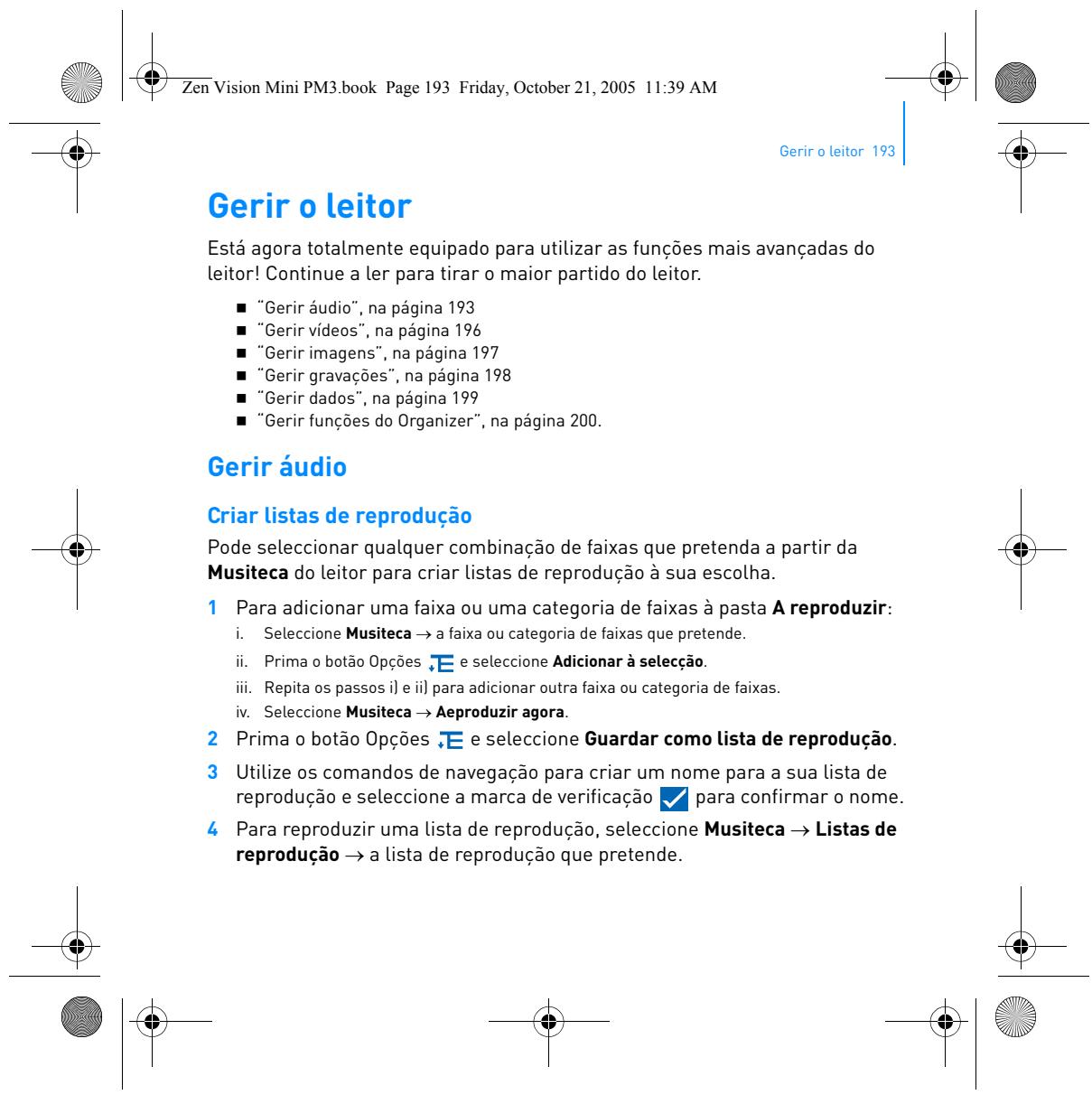
To create playlists You can select any combination of tracks you want from your player’s Music Library to create playlists for convenient playback. 1 To add a track or category of tracks to the Now Playing folder: i.

Select Music Library → track or category of tracks that you want.

ii. Press the Options button

, and select Add to Selected.

iii. Repeat steps i) and ii) to add another track or category of tracks. iv. Select Music Library → Now Playing.

2 Press the Options button

, and select Save As Playlist.

3 Use the Navigation controls to create a name for your playlist and select the check mark to confirm the name.

4 To play a playlist, select Music Library → Playlists → playlist that you want.

Zen Vision Mini PM3.book Page 13 Friday, October 21, 2005 11:39 AM Managing Your Player 13

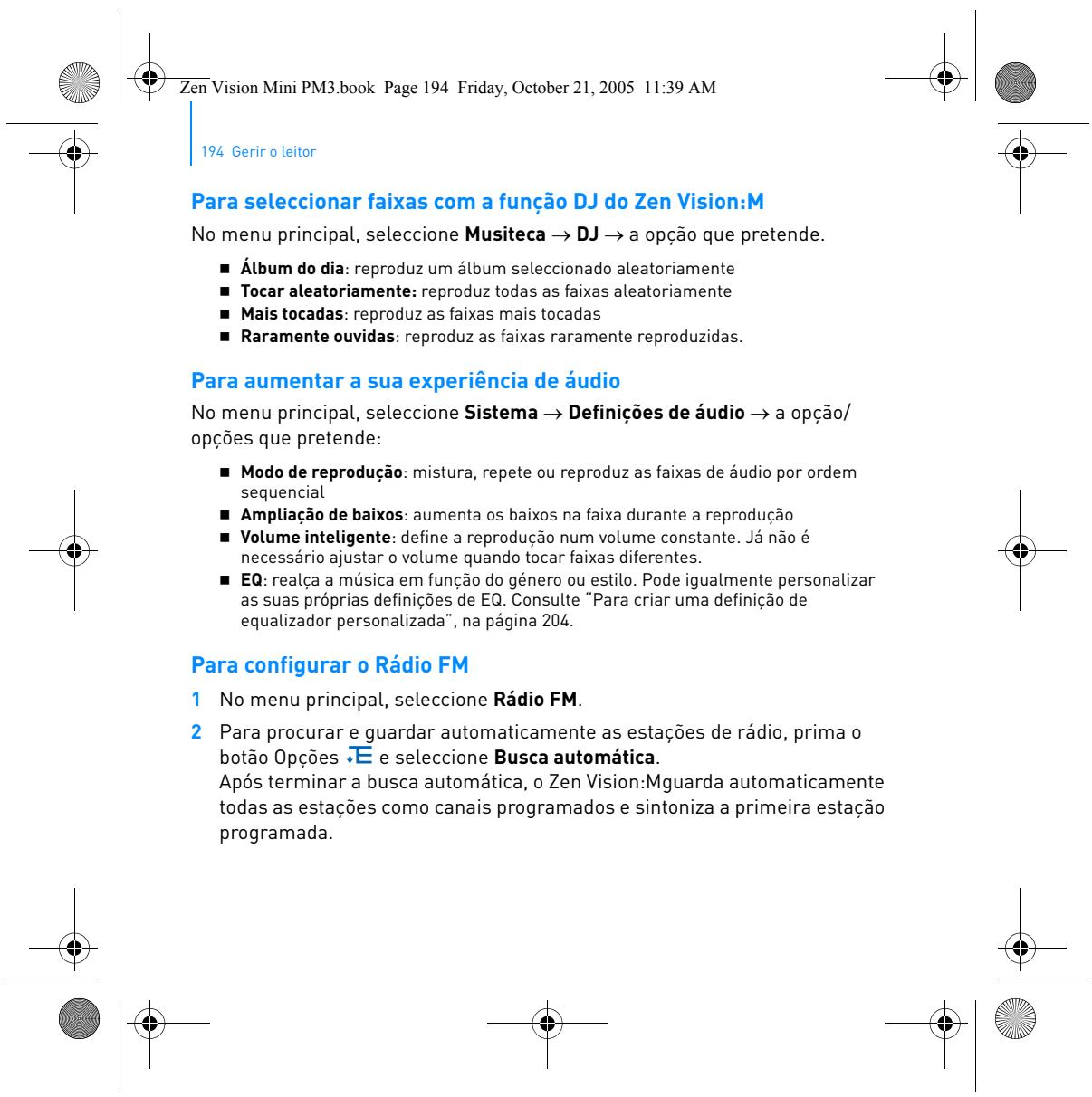
To select tracks with Zen Vision:M’s DJ In the main menu, select Music Library → DJ → option that you want:

„ Album of the Day: plays a randomly selected album „ Random Play All: plays all tracks randomly „ Most Popular: plays the most played tracks „ Rarely Heard: plays rarely played tracks.

To enhance your audio experience

In the main menu, select System → Audio Settings → option/s that you want: „ Play Mode: shuffles, repeats or plays your audio tracks in sequential order „ Bass Boost: enhances the bass in your track during playback „ Smart Volume: sets playback at a constant volume. You no longer need to adjust the

volume when you play different tracks.

„ EQ: enhances your music depending on its genre or style. You can also customize

your own EQ setting. See “To create a customized equalizer setting” on page 23.

1 In the main menu, select FM Radio. , 2 To automatically scan and save radio stations, press the Options button and select Autoscan. At the end of the autoscan, Zen Vision:M automatically saves all stations as preset channels and tunes in to the first preset.

Zen Vision Mini PM3.book Page 14 Friday, October 21, 2005 11:39 AM

14 Managing Your Player

3 To select a different preset, firmly tap the Vertical Touch Pad to display the list of presets, and then move your thumb up and down the Vertical Touch

Pad to select the preset that you want. Hold down the Next/Fast Forward button or Previous/Rewind button one second to scan for the next available radio station.

Zen Vision Mini PM3.book Page 15 Friday, October 21, 2005 11:39 AM Managing Your Player 15

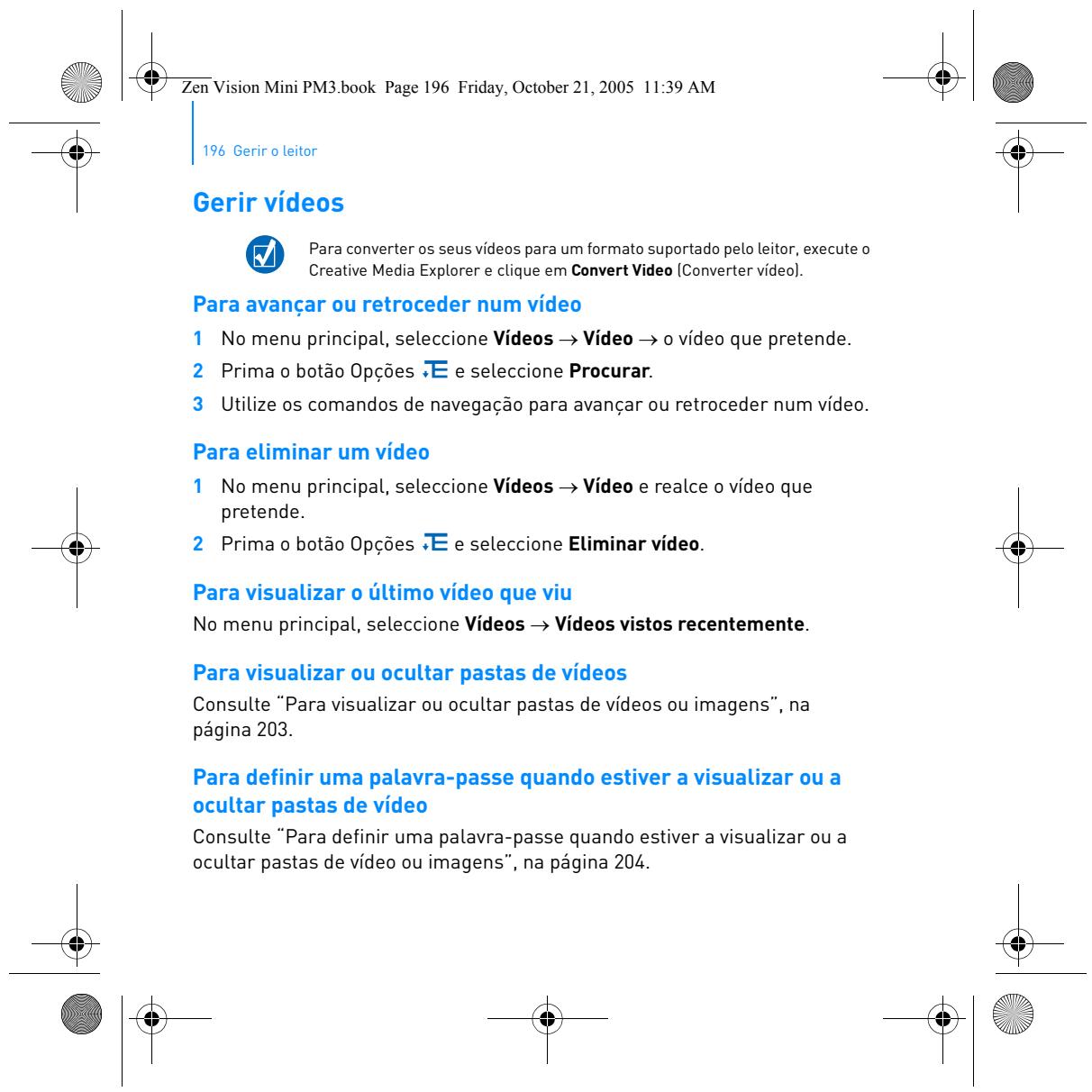
To convert your videos to a format supported by your player, launch Creative Media Explorer and click Convert Video. For information about Creative Media Explorer, see “Managing Music and Data” on page 10.

To go forward or backward in a video

1 In the main menu, select Videos → Video → video that you want. 2 Press the Options button

, and select Seek To.

3 Use the Navigation controls to go forward or backward in a video.

1 In the main menu, select Videos → Video, and highlight the video that you want. 2 Press the Options button

, and select Delete Video.

To display the last viewed video

In the main menu, select Videos → Recently browsed videos.

To display or hide video folders

See “To display or hide video or picture folders” on page 22.

To set a password when displaying or hiding video folders

See “To set a password when displaying or hiding video or picture folders” on page 22.

Zen Vision Mini PM3.book Page 16 Friday, October 21, 2005 11:39 AM

16 Managing Your Player

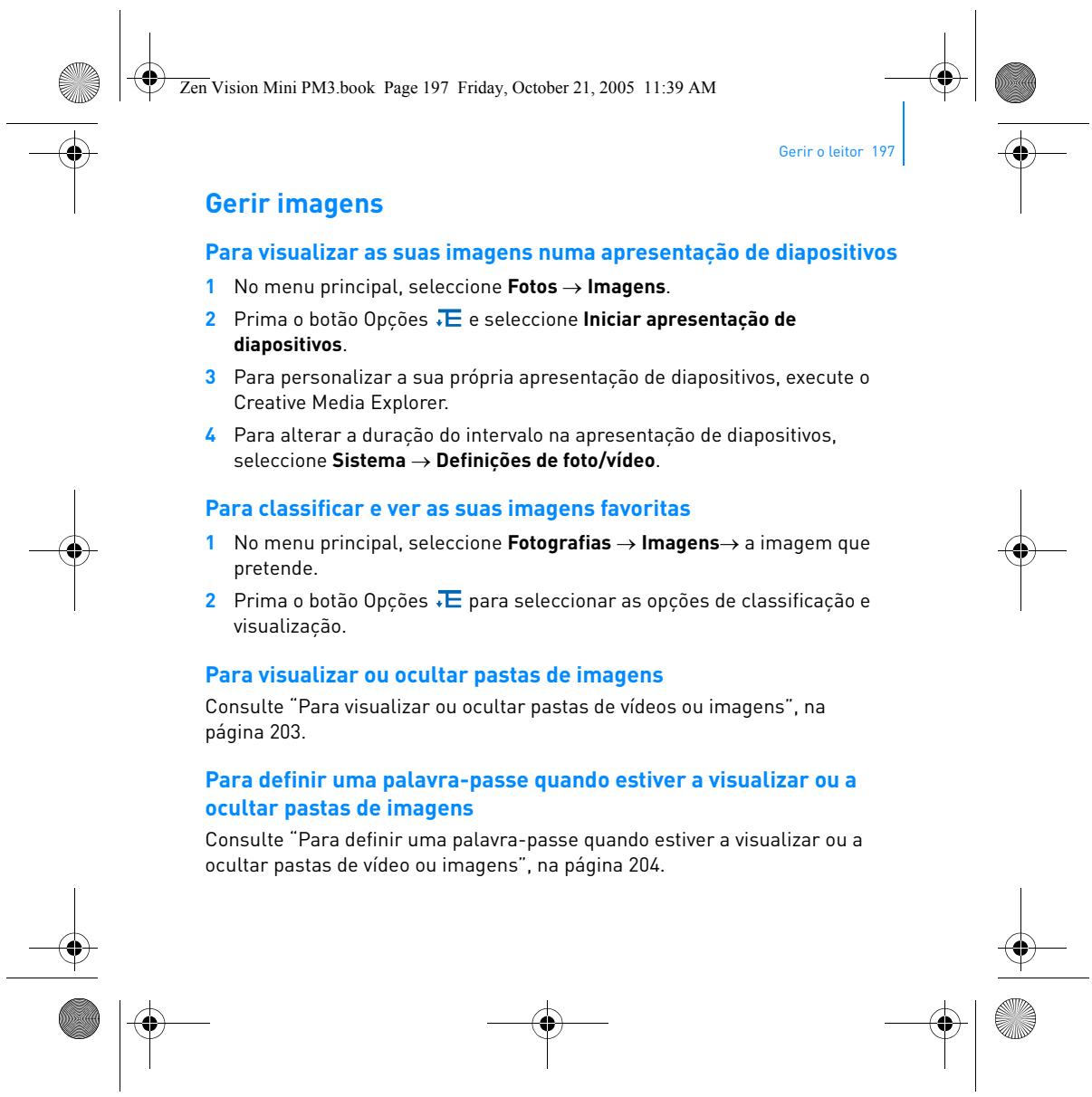
To view your pictures in a slideshow 1 In the main menu, select Photos → Pictures. 2 Press the Options button

, and select Start Slideshow.

3 To customize your own slideshows, launch Creative Media Explorer.

4 To change the slideshow interval duration, select System → Photo/Video Settings.

To rate and view your favorite pictures

1 In the main menu, select Photos → Pictures → picture that you want. 2 Press the Options button

to select rating and viewing options.

To display or hide picture folders

See “To display or hide video or picture folders” on page 22.

To set a password when displaying or hiding picture folders

See “To set a password when displaying or hiding video or picture folders” on page 22.

Zen Vision Mini PM3.book Page 17 Friday, October 21, 2005 11:39 AM Managing Your Player 17

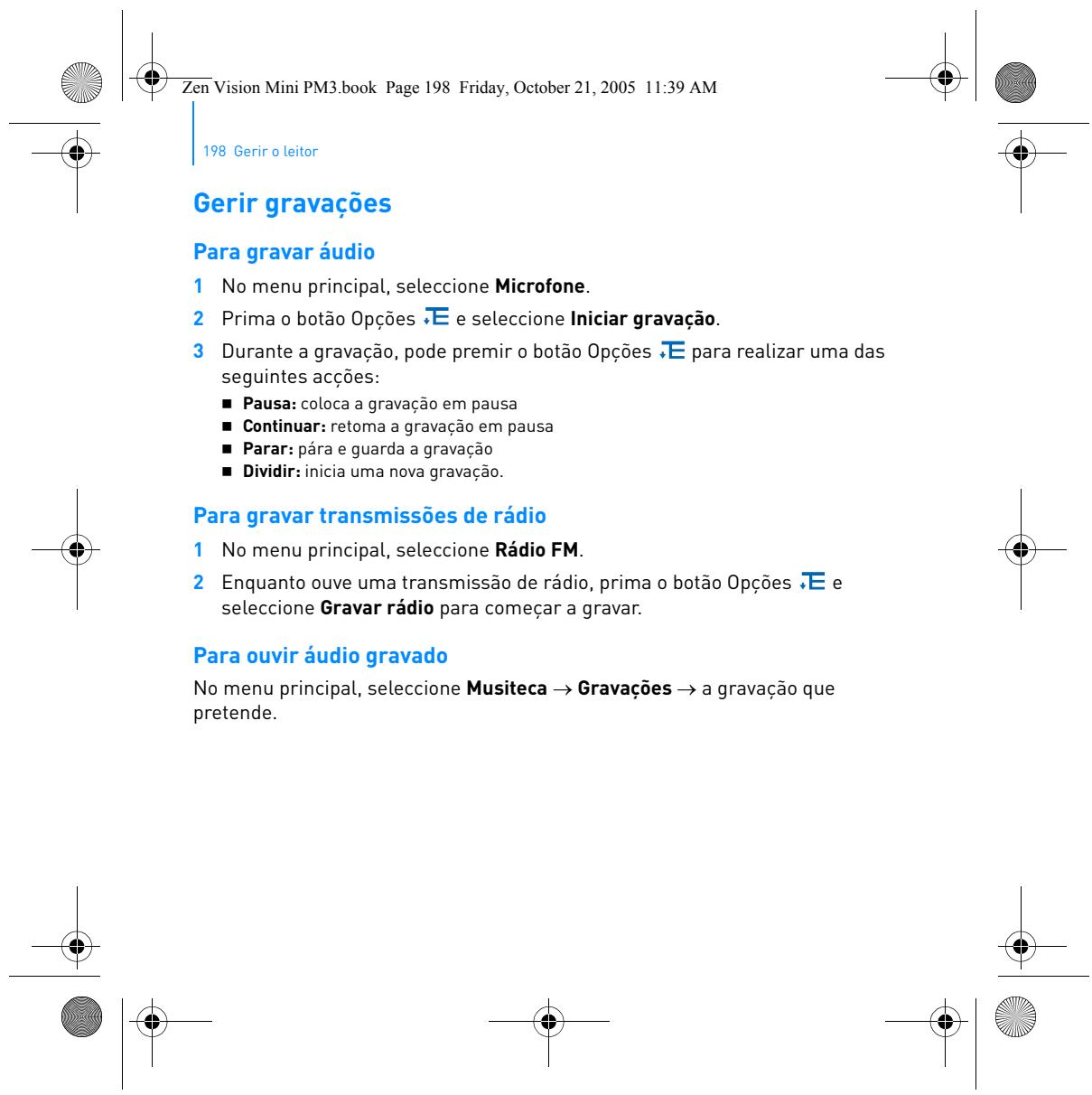
To record audio 1 In the main menu, select Microphone. 2 Press the Options button

, and select Start Recording.

3 While recording, you can press the Options button following:

Pause: pauses the recording

Resume: resumes the paused recording Stop: stops and saves the recording Split: starts a new recording.

To record radio broadcasts

1 In the main menu, select FM Radio. 2 While listening to a radio broadcast, press the Options button select Record Radio to start recording.

To listen to recorded audio

In the main menu, select Music Library → Recordings → recording that you want.

Zen Vision Mini PM3.book Page 18 Friday, October 21, 2005 11:39 AM

18 Managing Your Player

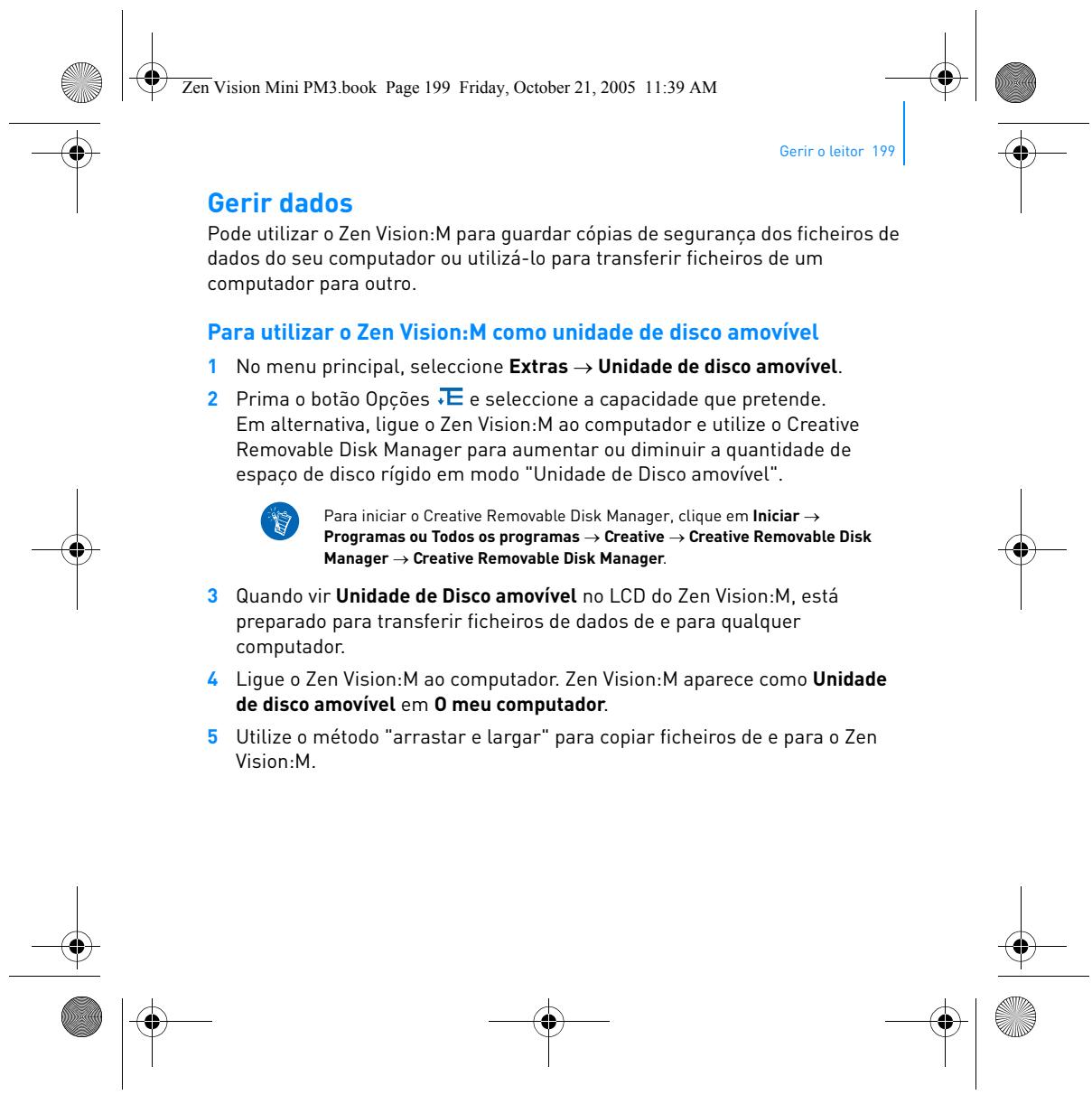
You can use Zen Vision:M to store backup copies of your computer’s data files, or use it to transfer files from one computer to another.

To use Zen Vision:M as a Removable Disk

1 In the main menu, select Extras → Removable Disk. , and select the capacity that you want. 2 Press the Options button Alternatively, connect Zen Vision:M to your computer and use Creative Removable Disk Manager to increase or decrease the amount of hard disk space in Removable Disk mode. To start Creative Removable Disk Manager, click Start → Programs or All Programs → Creative → Creative Removable Disk Manager → Creative Removable Disk Manager.

3 When you see Removable Disk on Zen Vision:M’s LCD, you are ready to transfer data files to and from any computer.

4 Connect Zen Vision:M to your computer. Zen Vision:M appears as a Removable Disk under My Computer. 5 Use the drag-and-drop method to copy files to and from Zen Vision:M. 6 When you have finished copying files, click the Safely Remove Hardware icon on the Taskbar, click Safely remove USB Mass Storage Device, and disconnect your player when you are prompted to do so. To delete all the data files in the Removable Disk hard disk space, press the Options button , and select Format. Go to My Computer if you want to delete individual data files stored in Removable Disk mode.

Zen Vision Mini PM3.book Page 19 Friday, October 21, 2005 11:39 AM Managing Your Player 19

Managing Organizer Features

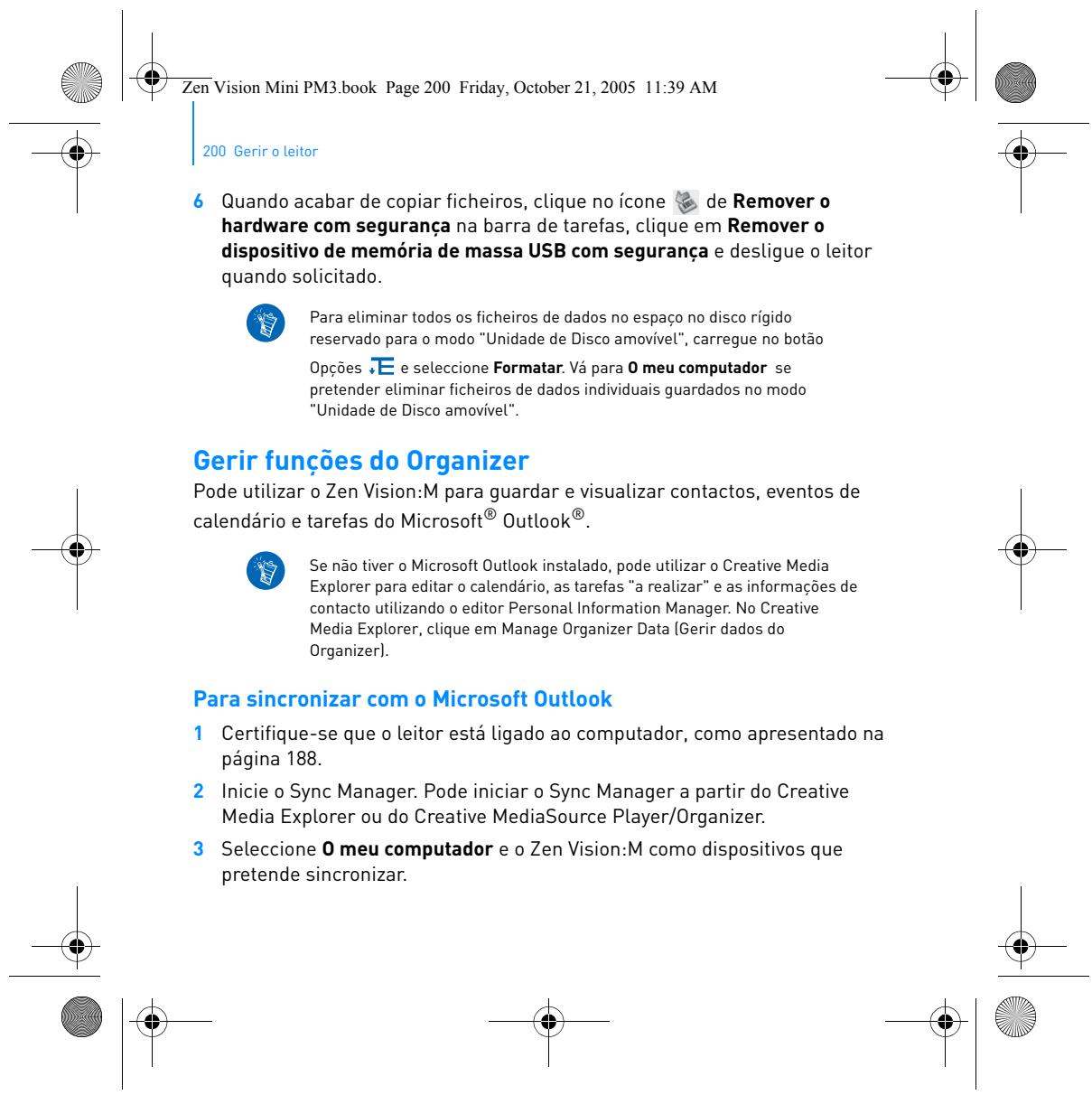
You can use Zen Vision:M to store and display contacts, calendar events and tasks from Microsoft® Outlook®. If you do not have Microsoft Outlook installed, you can use Creative Media Explorer to edit your calendar, "to do" tasks and contact information using the Personal Information Manager editor. In Creative Media Explorer, click Manage Organizer Data.

To synchronize with Microsoft Outlook

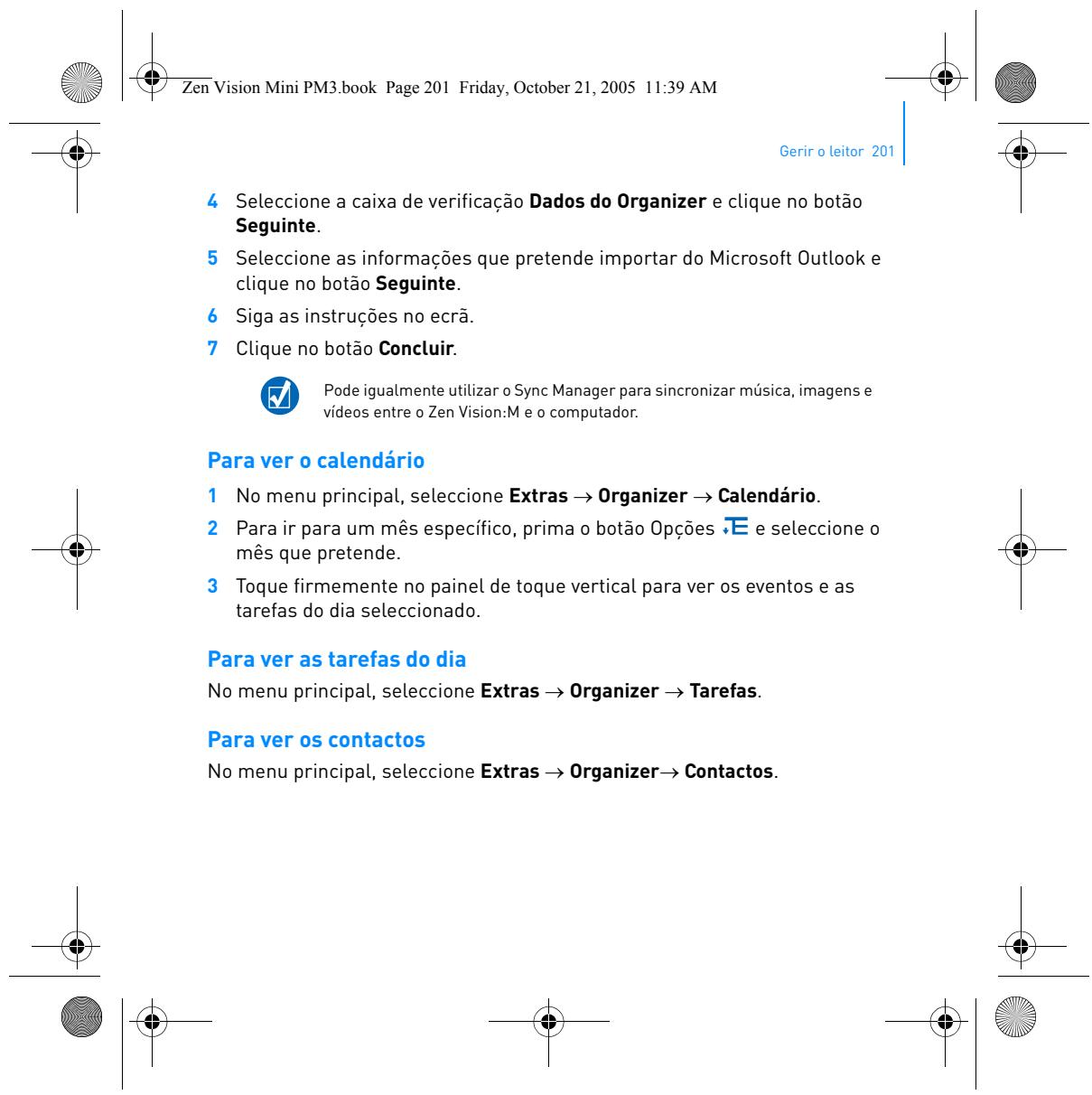
1 Make sure your player is connected to your computer as shown on page 6. 2 Start Sync Manager. You can start Sync Manager from Creative Media Explorer or Creative MediaSource Player/Organizer. See “Managing Music and Data” on page 10. 3 Select My Computer and Zen Vision:M as the devices you want to synchronize. 4 Select the Organizer data check box, and then click the Next button. 5 Select the information you want to import from Microsoft Outlook, and then click the Next button. 6 Follow the instructions on the screen. 7 Click the Finish button. You can also use Sync Manager to synchronize music, pictures and videos between Zen Vision:M and your computer.

Zen Vision Mini PM3.book Page 20 Friday, October 21, 2005 11:39 AM

20 Managing Your Player

To view the calendar

1 In the main menu, select Extras → Organizer → Calendar. 2 To go to a specific month, press the Options button month that you want.

3 Firmly tap the Vertical Touch Pad to view the events and tasks of the selected day.

To view today’s tasks

In the main menu, select Extras → Organizer → Tasks.

In the main menu, select Extras → Organizer → Contacts.

Zen Vision Mini PM3.book Page 21 Friday, October 21, 2005 11:39 AM Personalizing Your Player 21

Personalizing Your Player

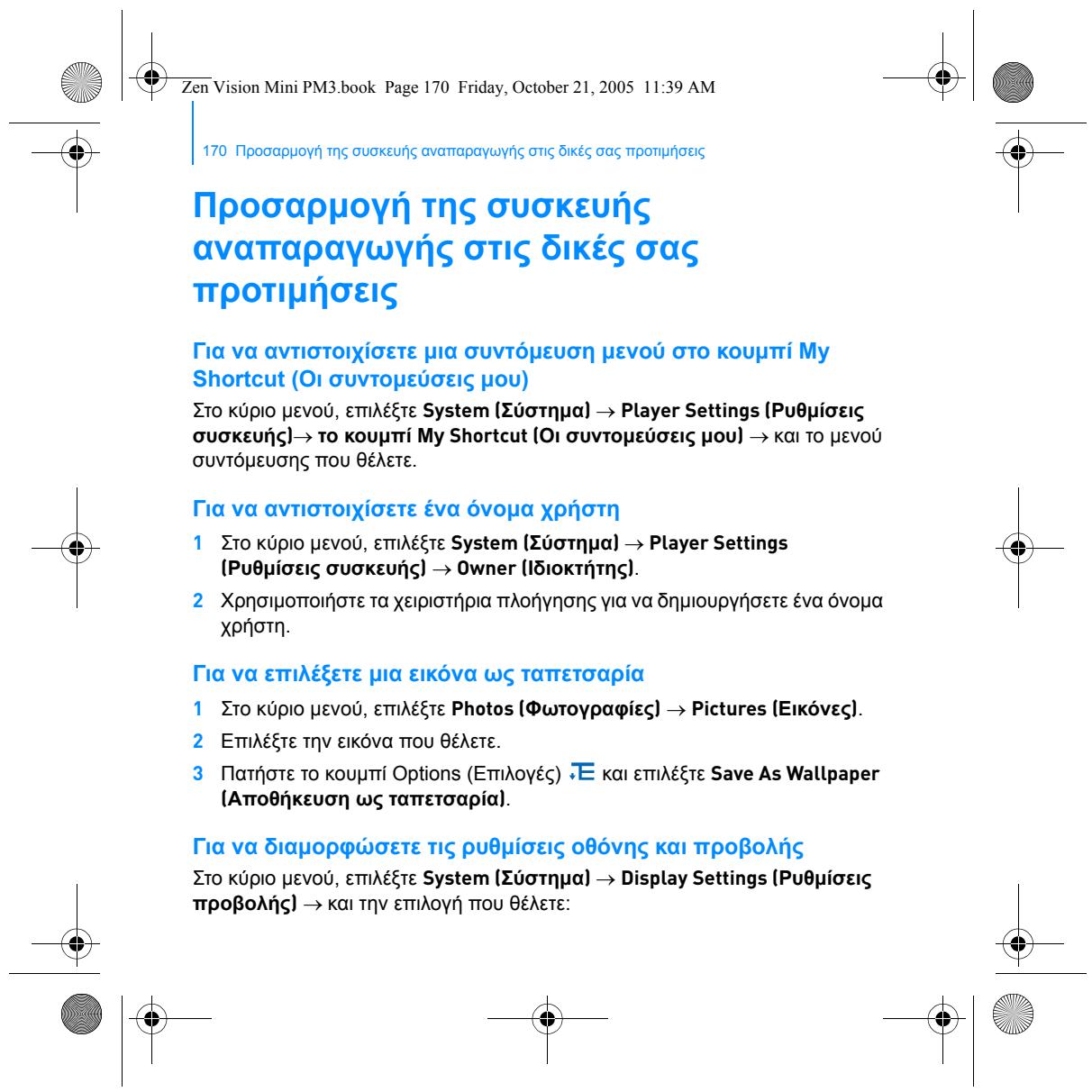
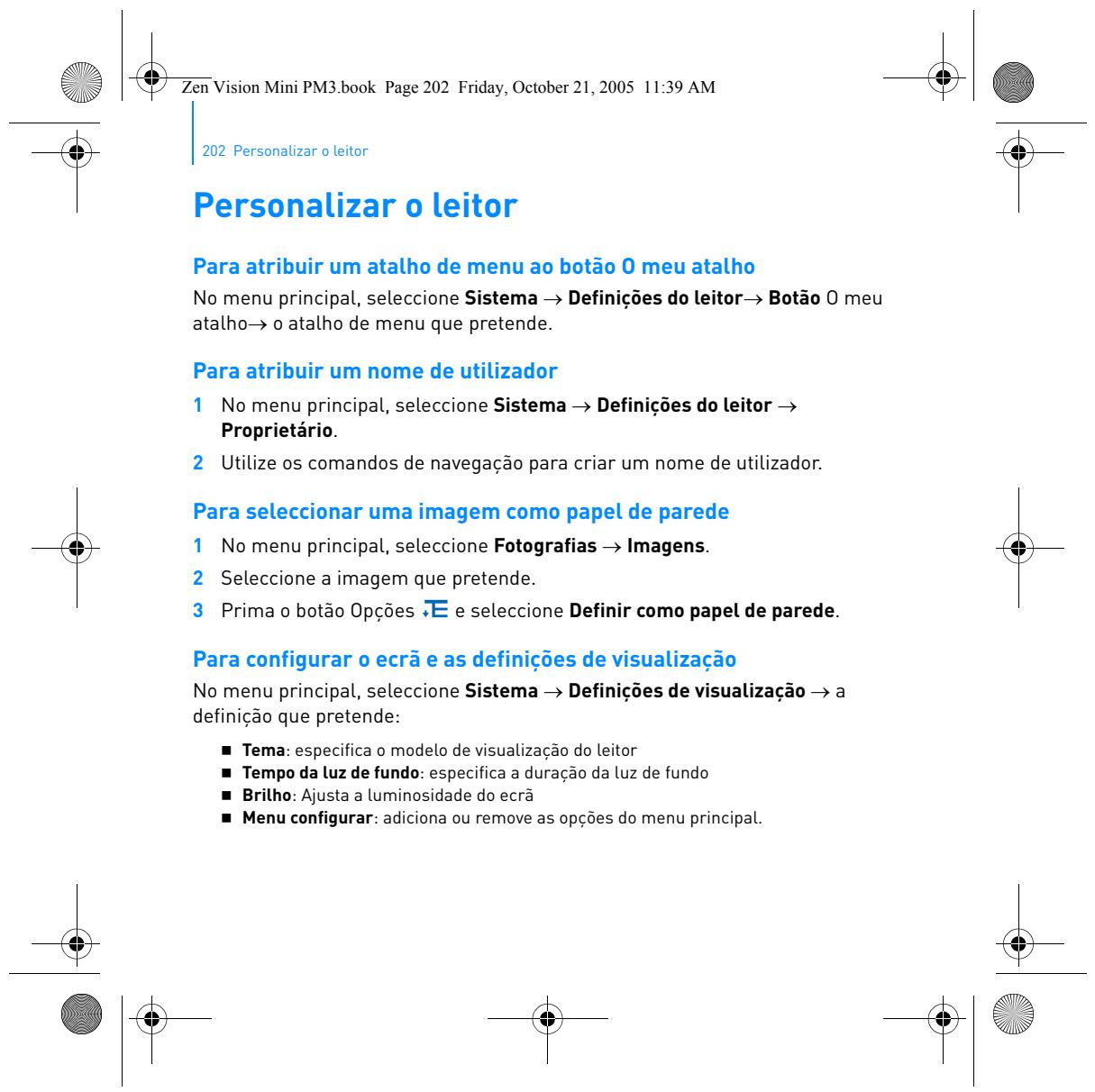
To assign a menu shortcut to My Shortcut button In the main menu, select System → Player Settings → My Shortcut Button → menu shortcut that you want.

To assign a user name

1 In the main menu, select System → Player Settings → Owner. 2 Use the Navigation controls to create a user name.

To select a picture as wallpaper

1 In the main menu, select Photos → Pictures. 2 Select the picture that you want. 3 Press the Options button

, and select Set as Wallpaper.

To configure screen and display settings

In the main menu, select System → Display Settings → setting that you want: „ „ „ „

Theme: specifies your player’s display design

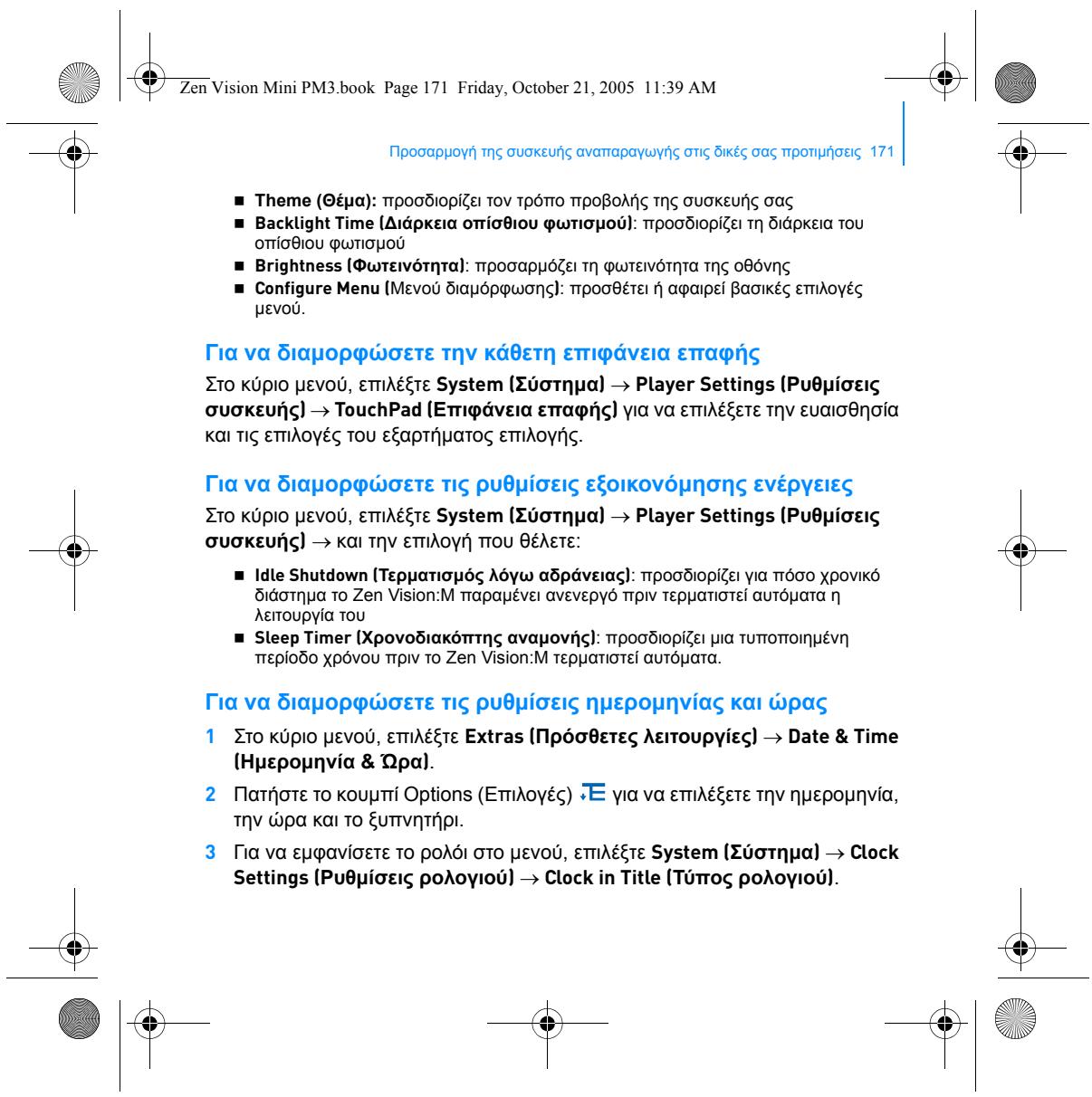
Backlight Time: specifies the backlight duration Brightness: adjusts screen brightness Configure Menu: adds or removes main menu options.

To configure the Vertical Touch Pad

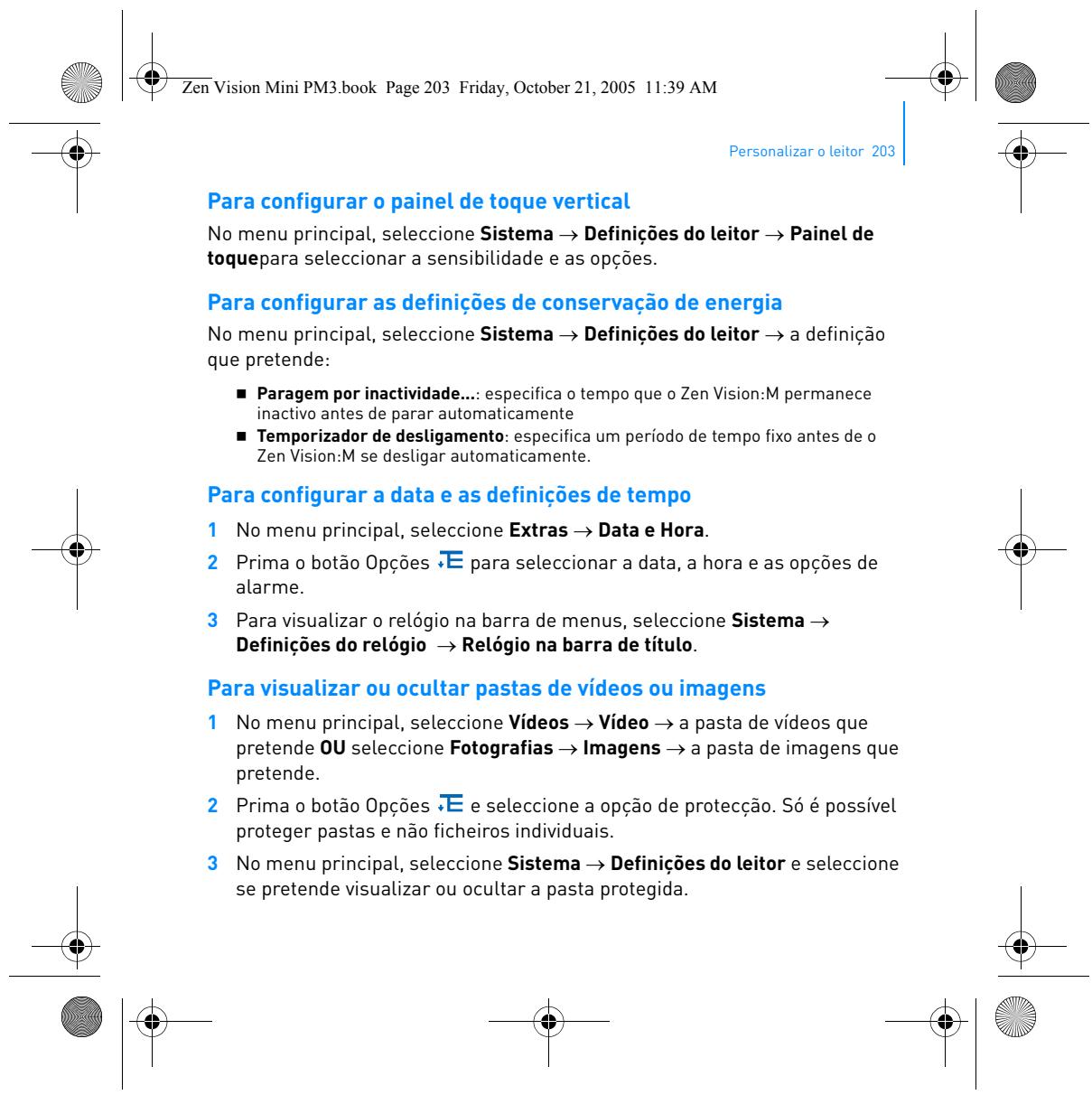
In the main menu, select System → Player Settings → TouchPad to select sensitivity and clicker options.

Zen Vision Mini PM3.book Page 22 Friday, October 21, 2005 11:39 AM

22 Personalizing Your Player

To configure power conservation settings

In the main menu, select System → Player Settings → setting that you want: „ Idle Shutdown: specifies how long Zen Vision:M remains inactive before it

To configure date and time settings

1 In the main menu, select Extras → Date & Time. 2 Press the Options button

to select date, time and alarm options.

3 To display the clock in the menu bar, select System → Clock Settings →

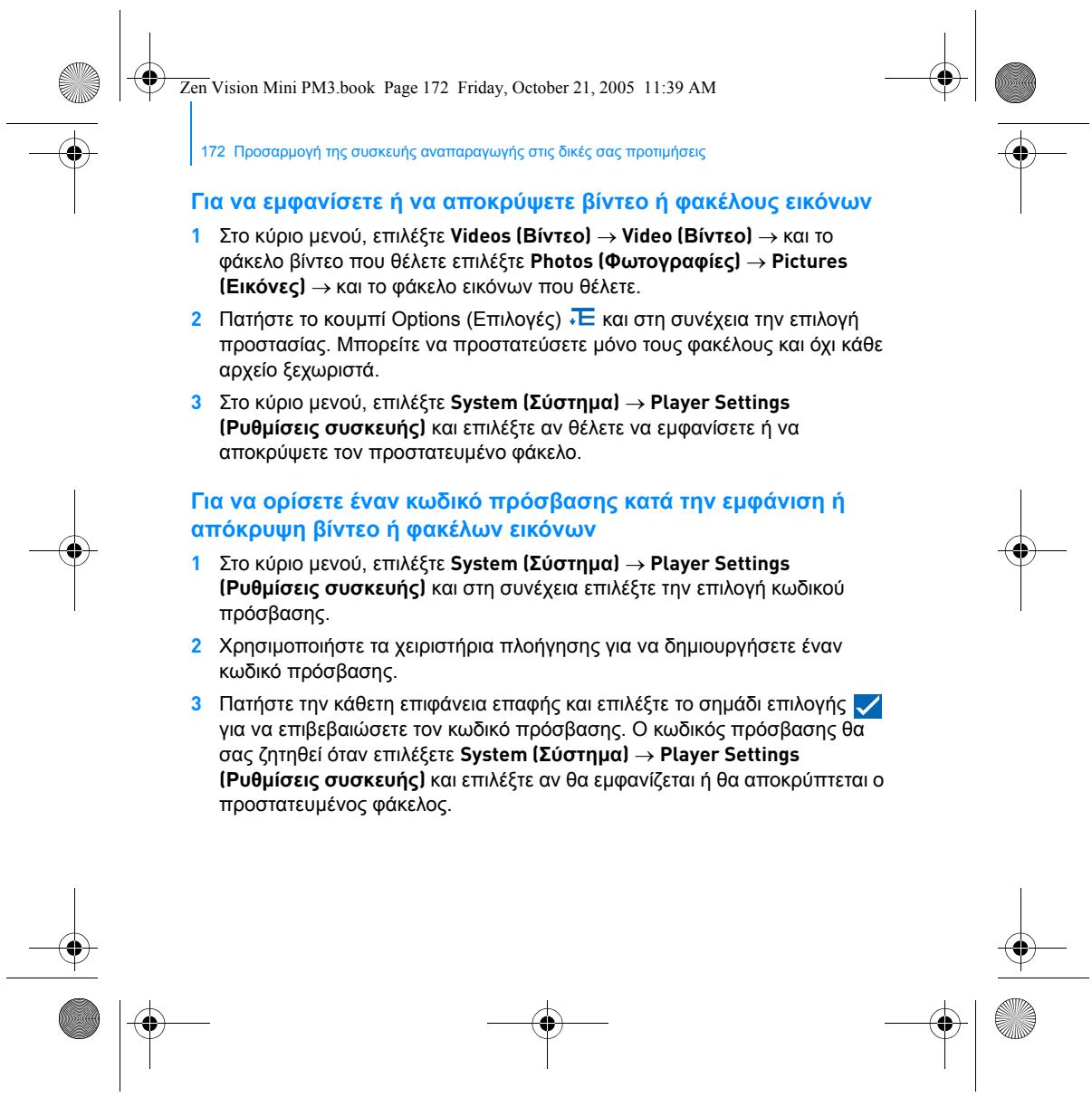
To display or hide video or picture folders

1 In the main menu, select Videos → Video → video folder that you want OR select Photos → Pictures → picture folder that you want. 2 Press the Options button , and select the protect option. You can only protect folders and not individual files. 3 In the main menu, select System → Player Settings and select whether to show or hide the protected folder.

To set a password when displaying or hiding video or picture folders

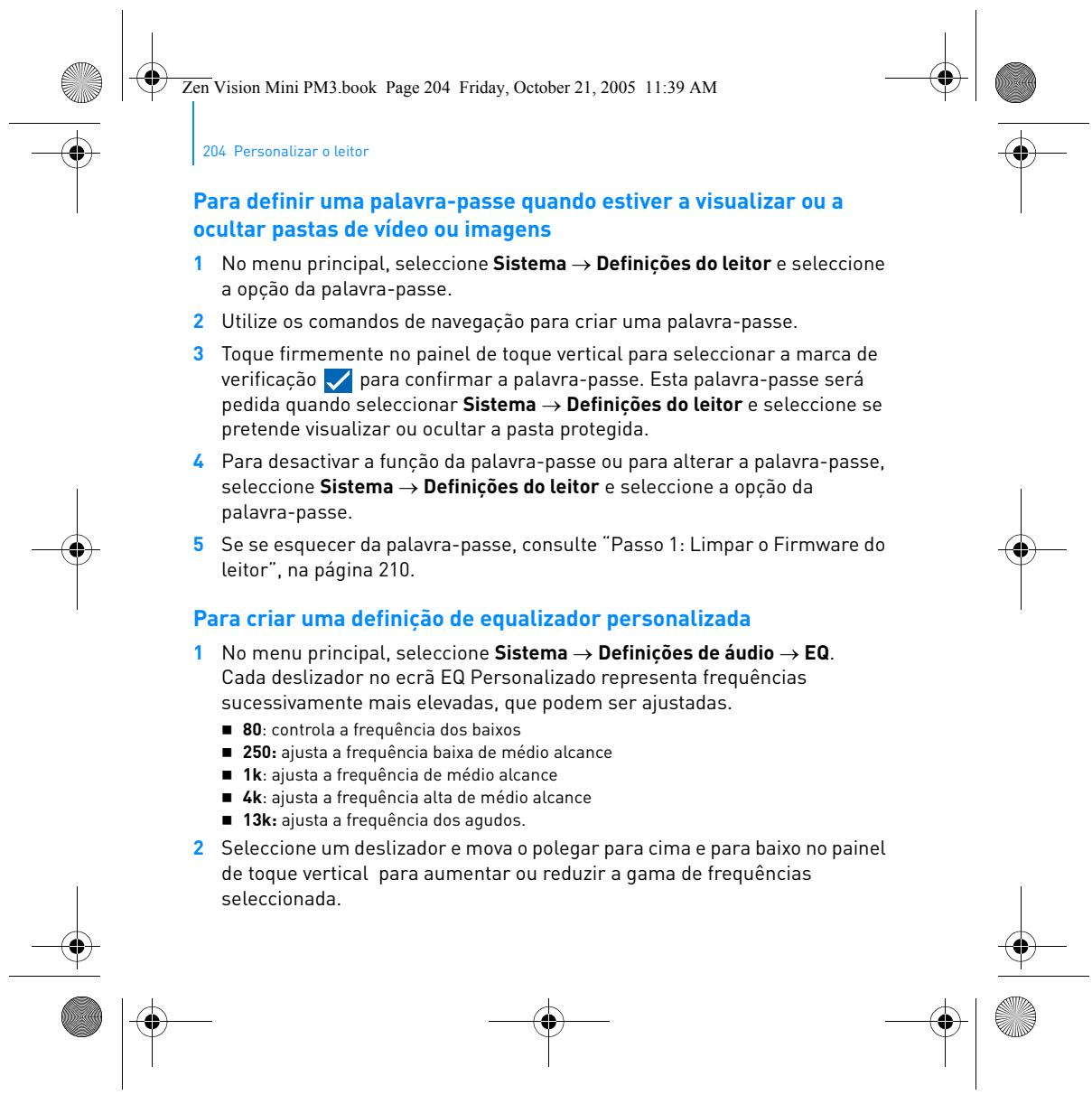
1 In the main menu, select System → Player Settings and select the password option. 2 Use the Navigation controls to create a password.

Zen Vision Mini PM3.book Page 23 Friday, October 21, 2005 11:39 AM Personalizing Your Player 23

3 Firmly tap the Vertical Touch Pad and select the check mark to confirm the password. You will be prompted for this password when you select

System → Player Settings and select whether to show or hide the protected folder. 4 To disable the password feature or change your password, select System → Player Settings and select the password option. 5 If you forget your password, see “Step 1: Clean Up Your Player’s Firmware” on page 27.

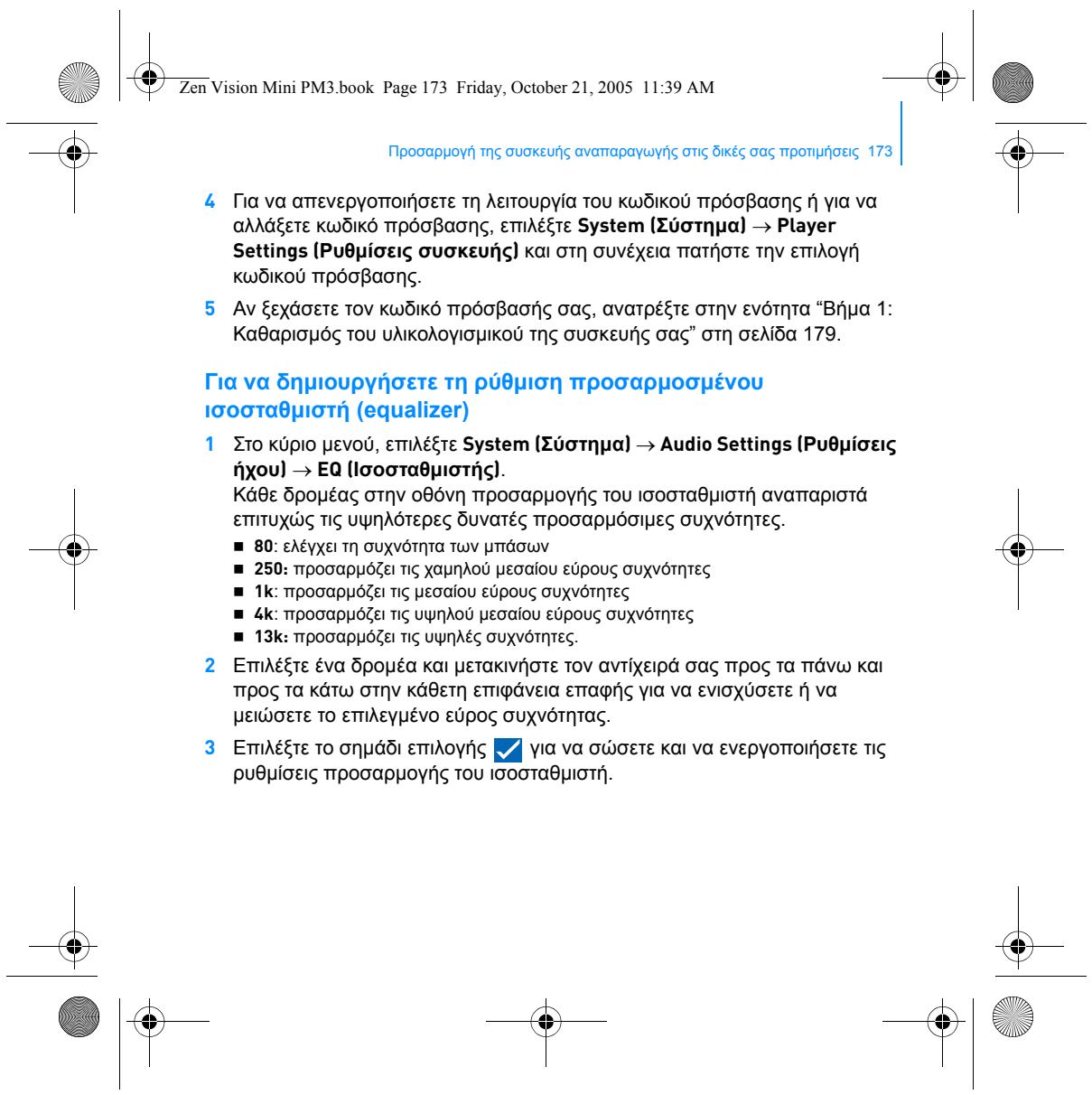
To create a customized equalizer setting

1 In the main menu, select System → Audio Settings → EQ. Each slider on the Custom EQ screen represents successively higher frequencies that can be adjusted. „ „ „ „ „

80: controls bass frequency

250: adjusts the low mid-range frequency 1k: adjusts the mid-range frequency 4k: adjusts the upper mid-range frequency 13k: adjusts the treble frequency.

2 Select a slider, and move your thumb up and down the Vertical Touch Pad to boost or reduce the selected frequency range.

3 Select the check mark

to save and enable the Custom EQ settings.

To reset Zen Vision:M to its original firmware settings

In the main menu, select System → Reset Settings → Yes. When you reset your player’s firmware settings, all your player’s personalized settings will be replaced with default settings.

Zen Vision Mini PM3.book Page 24 Friday, October 21, 2005 11:39 AM

24 Connecting Your Player to a TV (Optional)

Connecting Your Player to a TV (Optional)

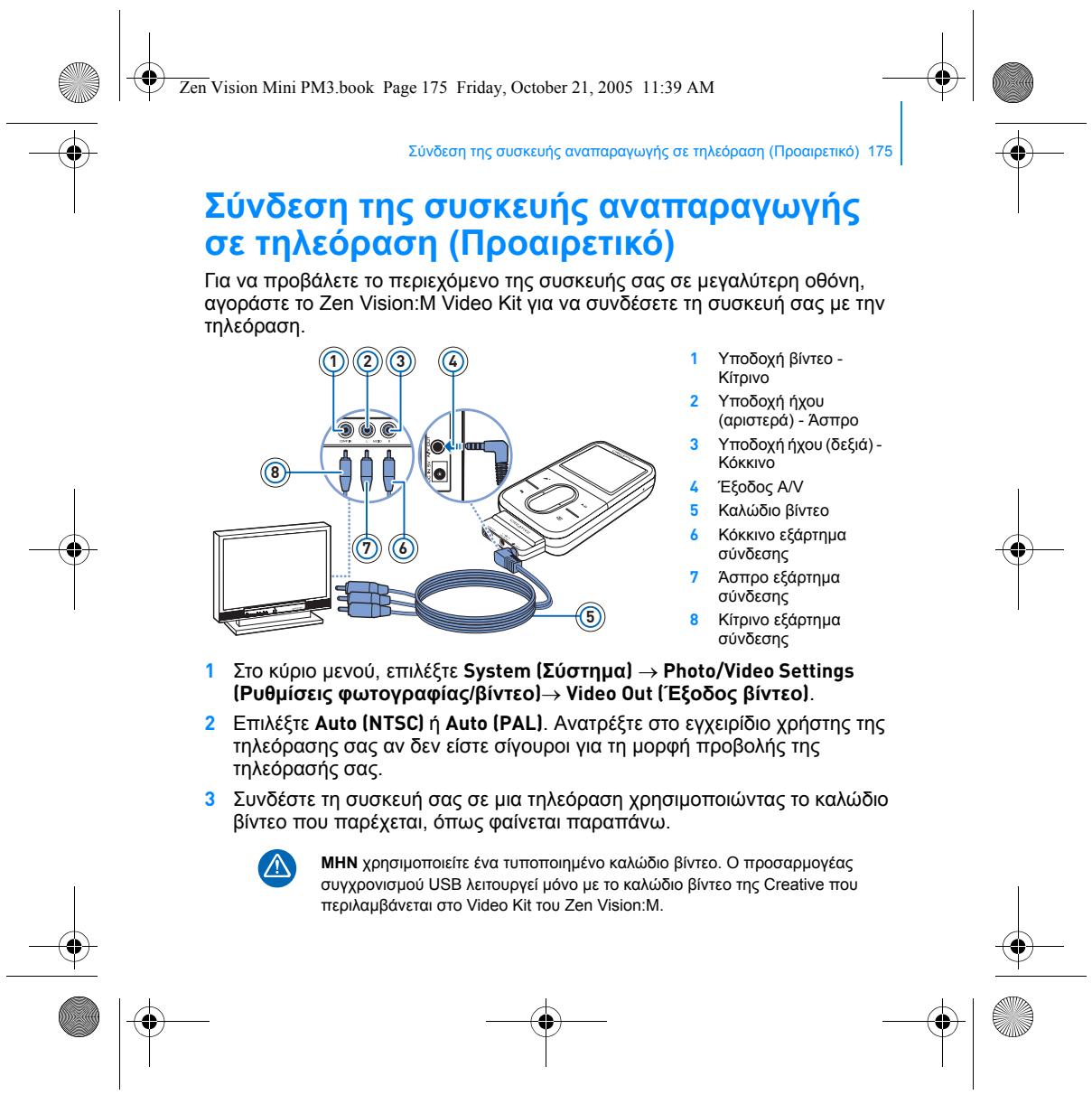
To view your player’s content on a larger screen, purchase the Zen Vision:M Video Kit to connect your player to a TV. 1

Video In jack Yellow

Audio In (Left) jack White

Audio In (Right) jack Red

1 In the main menu, select System → Photo/Video Settings → Video Out.

2 Select Auto (NTSC) or Auto (PAL). See the User’s Guide for your TV if you are not sure about your TV’s display format. 3 Connect your player to a TV with the supplied video cable, as shown above. DO NOT use a standard video cable. The USB synchronization adapter works only with the proprietary Creative Video cable included with the Zen Vision:M Video Kit.

Zen Vision Mini PM3.book Page 25 Friday, October 21, 2005 11:39 AM FAQ 25

FAQ This section covers questions you might have while using your player. For further assistance, you may wish to consult our self-help tool "Knowledge

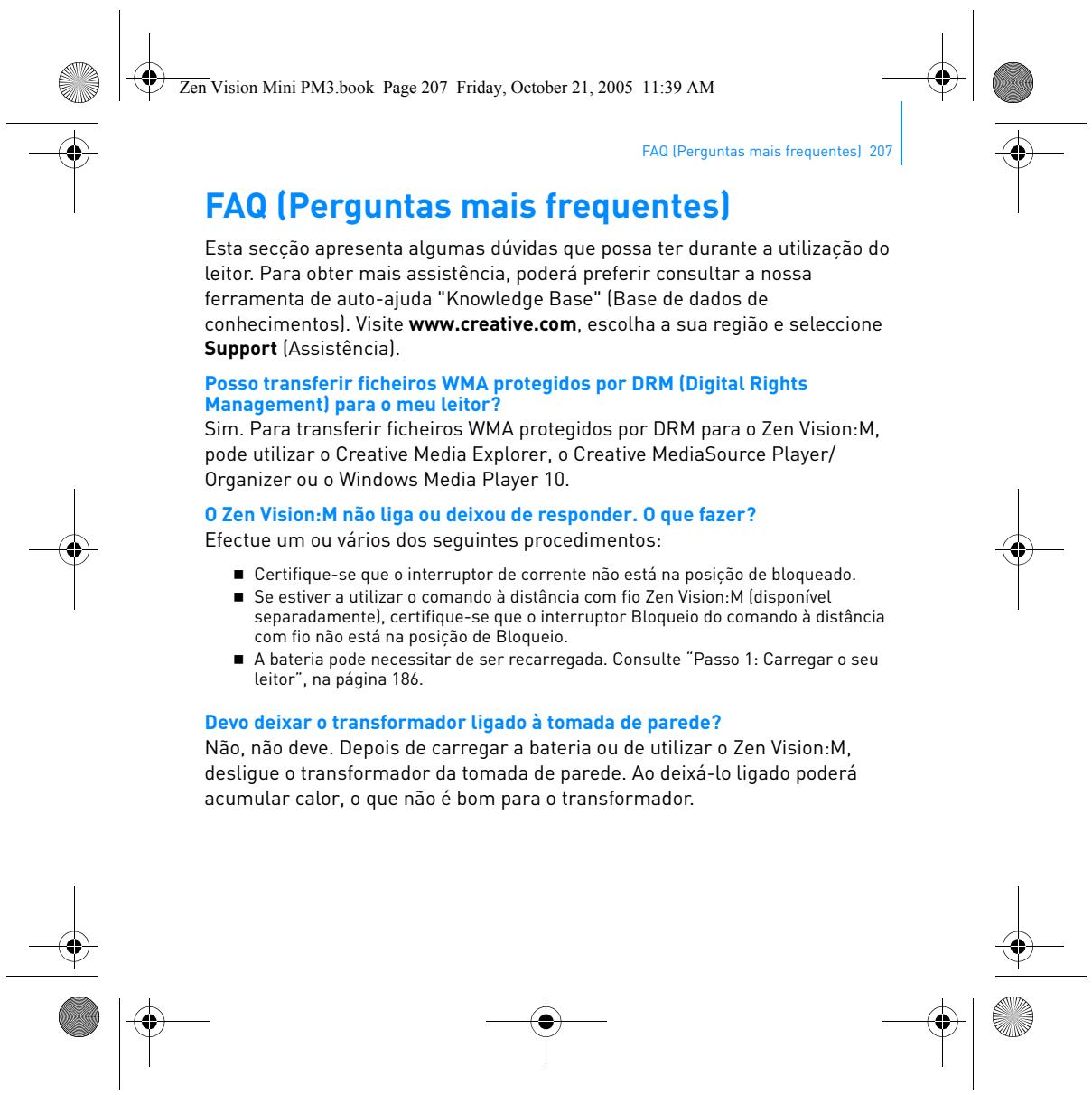
Base". Go to www.creative.com, select your region and then select Support. Can I transfer Digital Rights Management (DRM) protected WMA files to my player? Yes. To transfer DRM protected WMA files to Zen Vision:M, you can use Creative Media Explorer, Creative MediaSource Player/Organizer or Windows Media Player 10. Zen Vision:M does not turn on or stops responding. What do I do? Do one or more of the following: „ Make sure the Power switch is not in the Lock position. „ If you are using the Zen Vision:M wired remote control (available separately), make

sure the wired remote control’s Lock switch is not is the Lock position.

„ Your battery may need to be recharged. See “Step 1: Charge Your Player” on page 4.

Should I leave the power adapter plugged in to the wall outlet?

No, you should not. After charging the battery or using Zen Vision:M, disconnect your power adapter from the wall outlet. Leaving it plugged in leads to heat buildup, which is not good for your power adapter. How do I reset Zen Vision:M? If your player stops responding, reset the player. This should not cause you to lose any data or audio tracks, unless you were in the middle of transferring an audio track. Insert and remove a thin object (for example, a straightened paperclip) from the Reset hole.

Zen Vision Mini PM3.book Page 26 Friday, October 21, 2005 11:39 AM

26 Information Diagrams

Information Diagrams

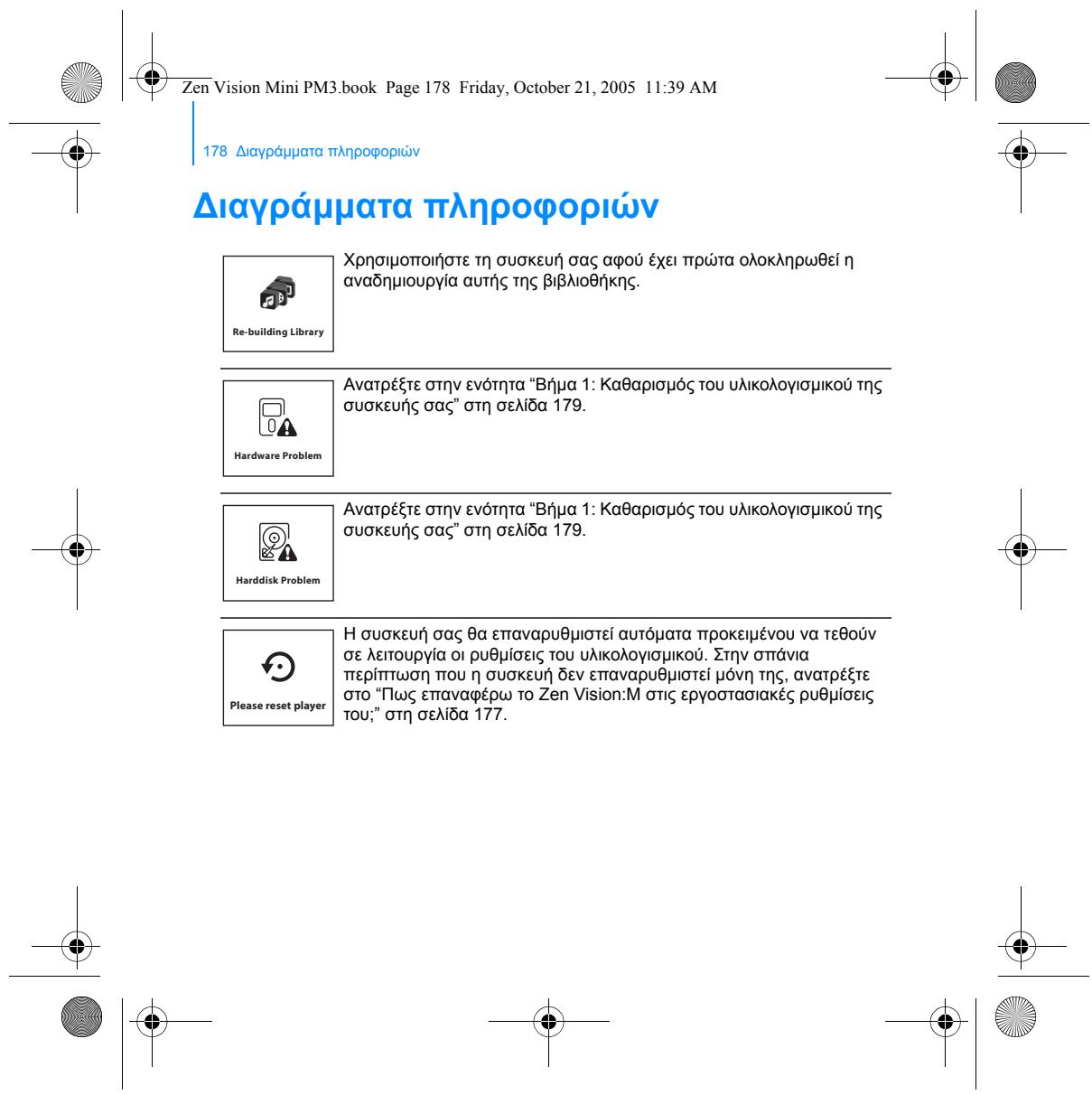
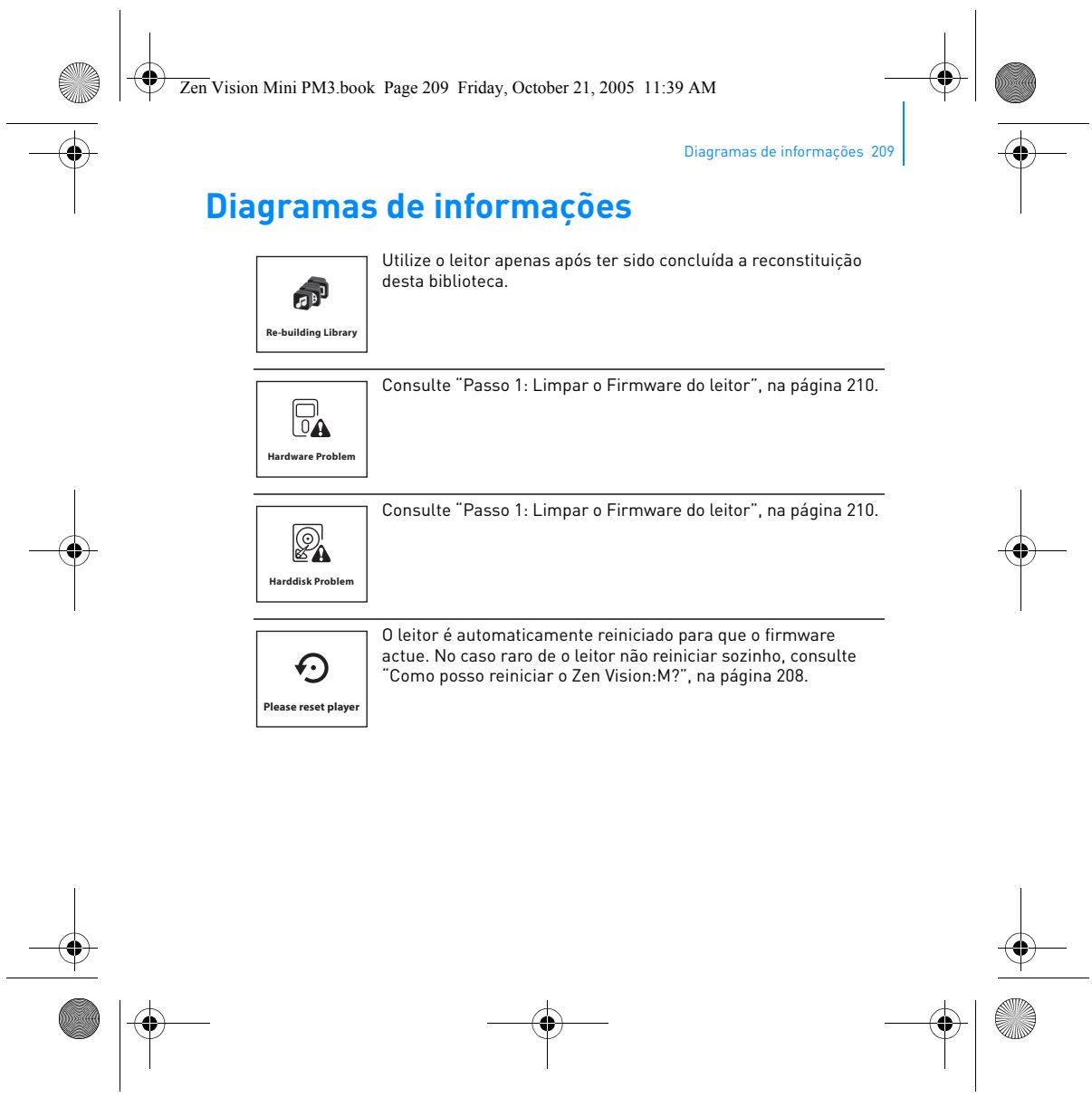
Use your player only after this library rebuilding is completed.

See “Step 1: Clean Up Your Player’s Firmware” on page 27.

See “Step 1: Clean Up Your Player’s Firmware” on page 27.

Your player will be automatically reset for the firmware to take effect. In the rare event that your player does not reset itself, see

“How do I reset Zen Vision:M?” on page 25. Please reset player

Zen Vision Mini PM3.book Page 27 Friday, October 21, 2005 11:39 AM Information Diagrams 27

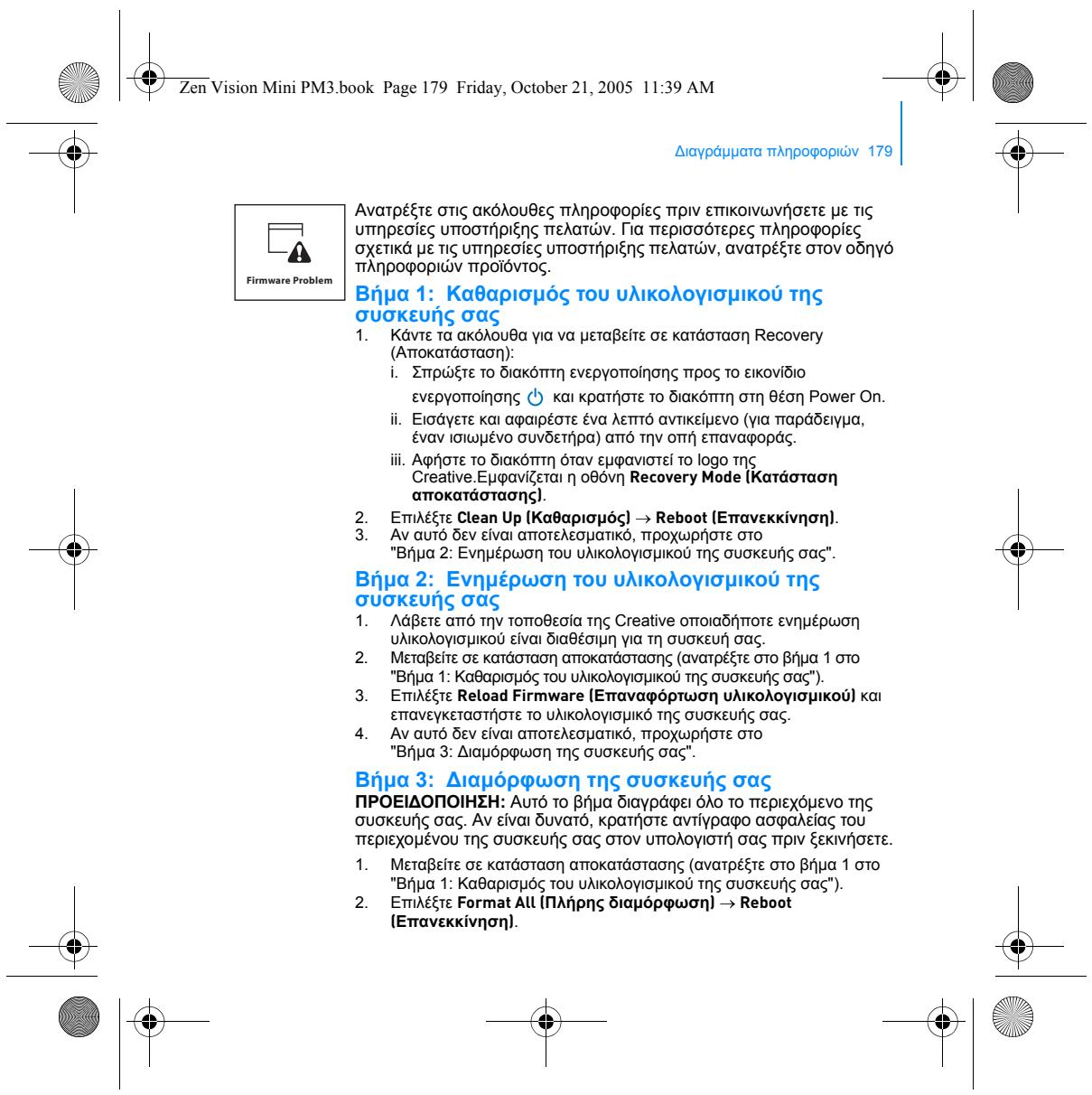
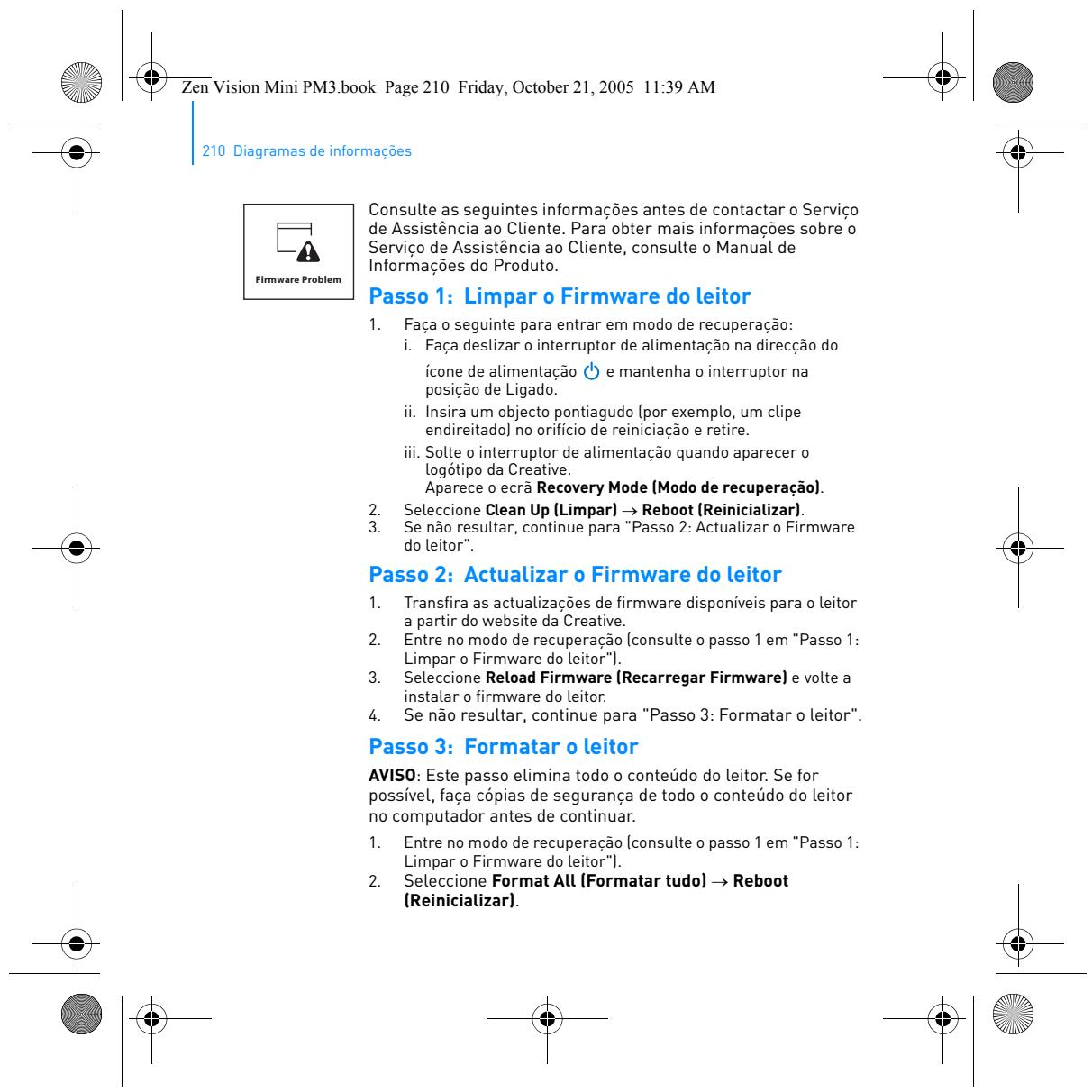
Refer to the following information before contacting Customer

Support Services. For more information about Customer Support Services, see your Product Information Guide. Firmware Problem

Do the following to enter Recovery mode: and hold i. Slide the Power switch toward the Power icon the switch in the Power On position. ii. Insert and remove a thin object (for example, a straightened paperclip) from the Reset hole. iii. Release the Power switch when the Creative logo appears.

The Recovery Mode screen appears. Select Clean Up → Reboot.

If this does not work, proceed to "Step 2: Update Your

Download from the Creative website any firmware update that is available for your player.

Enter Recovery mode (see step 1 in "Step 1: Clean Up Your Player’s Firmware"). Select Reload Firmware and reinstall your player’s firmware.

If this does not work, proceed to "Step 3: Format Your

Step 3: Format Your Player

WARNING: This step deletes all your player’s content. If possible, back up all your player’s content on your computer before proceeding. 1. 2.

Enter Recovery mode (see step 1 in "Step 1: Clean Up Your

Player’s Firmware").

Zen Vision Mini PM3.book Page 28 Friday, October 21, 2005 11:39 AM

28 General Specifications

General Specifications

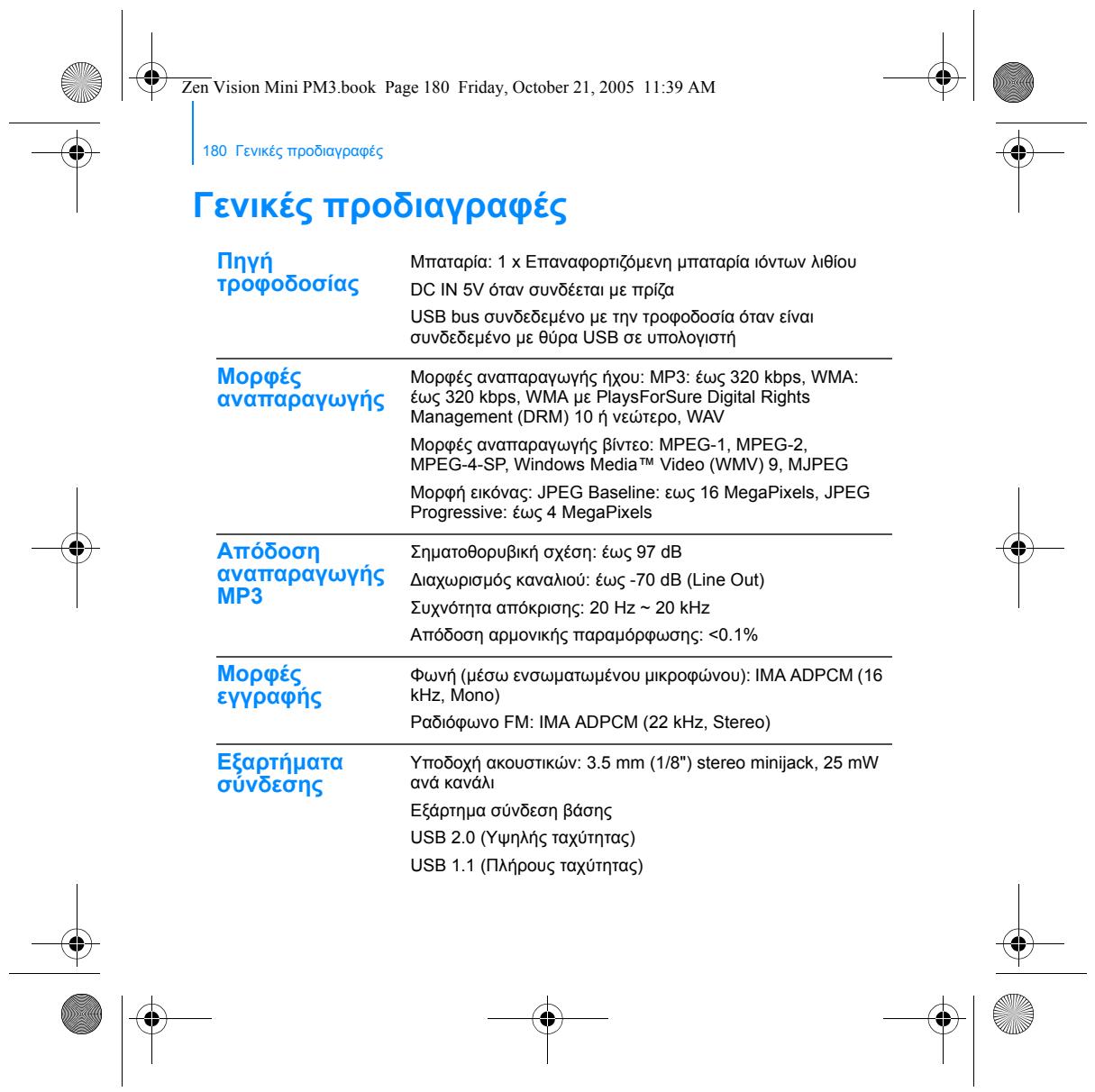
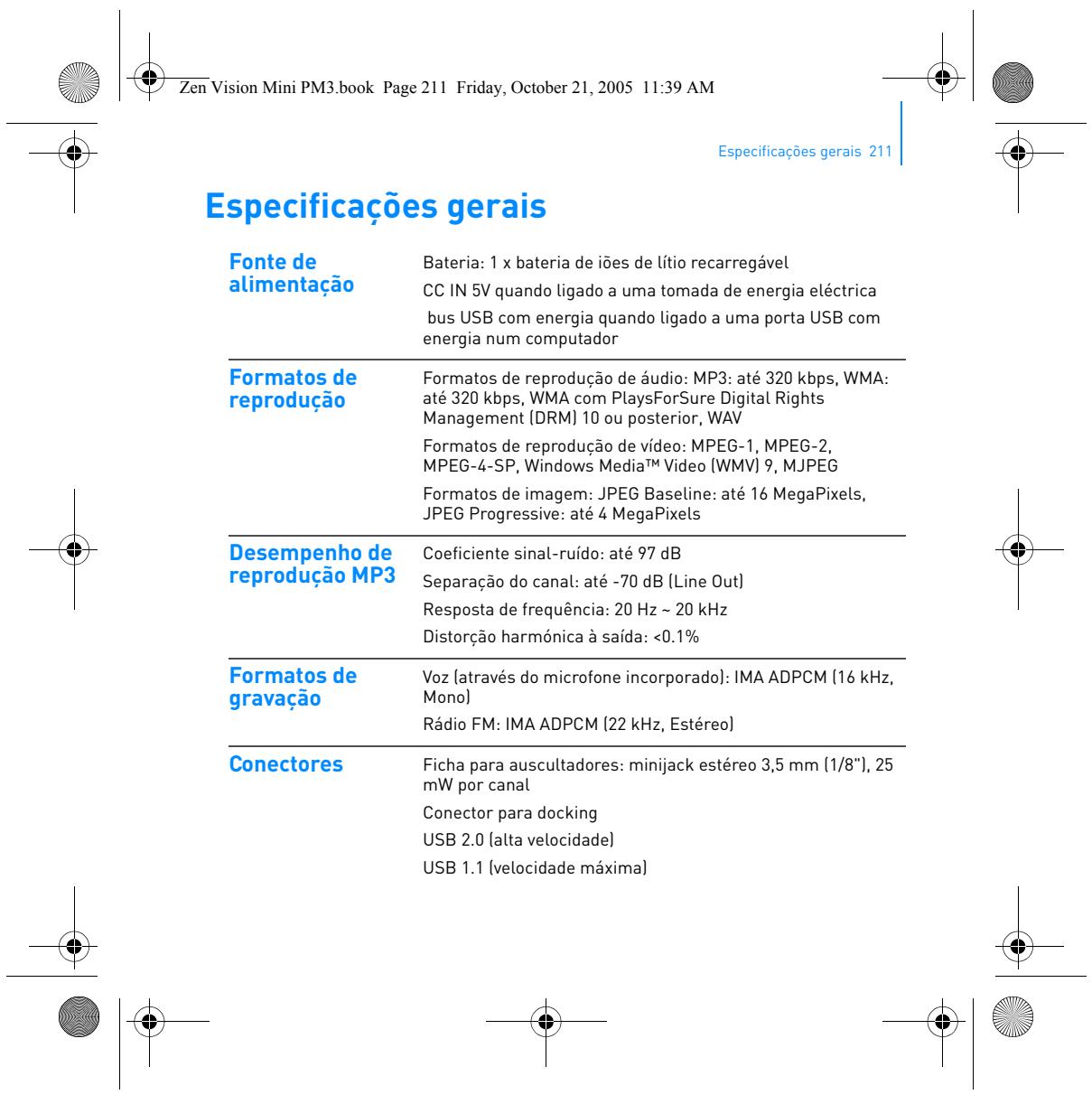
Battery: 1 x Rechargeable Lithium Ion battery

DC IN 5V when connected to a power outlet USB bus powered when connected to a powered USB port on a computer

Audio playback formats: MP3: Up to 320 kbps, WMA: Up to 320 kbps, WMA with PlaysForSure Digital Rights Management

(DRM) 10 or later, WAV Video playback formats: MPEG-1, MPEG-2, MPEG-4-SP, Windows Media™ Video (WMV) 9, MJPEG Picture format: JPEG Baseline: Up to 16 MegaPixels, JPEG Progressive: Up to 4 MegaPixels

Signal-to-Noise Ratio: Up to 97 dB Channel Separation: Up to -70 dB (Line Out)

Frequency Response: 20 Hz ~ 20 kHz Harmonic Distortion Output: <0.1%

Voice (via built-in microphone): IMA ADPCM (16 kHz, Mono)

Headphone jack: 3.5 mm (1/8") stereo minijack, 25 mW per channel

USB 2.0 (High speed) USB 1.1 (Full speed)

Firmware Support Upgradable via USB Zen Vision Mini PM3.book Page 29 Friday, October 21, 2005 11:39 AM General Specifications 29

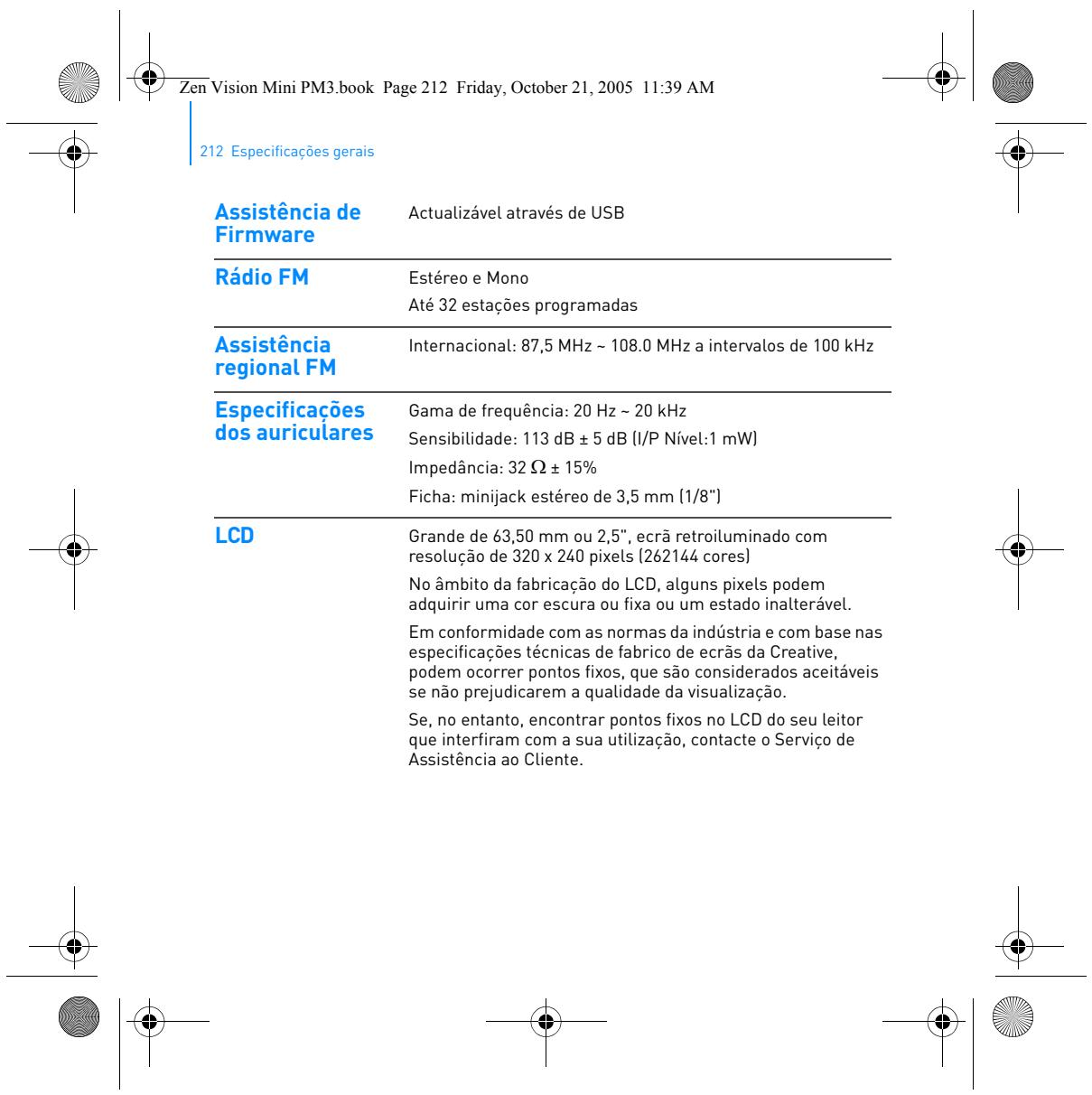
Up to 32 preset stations

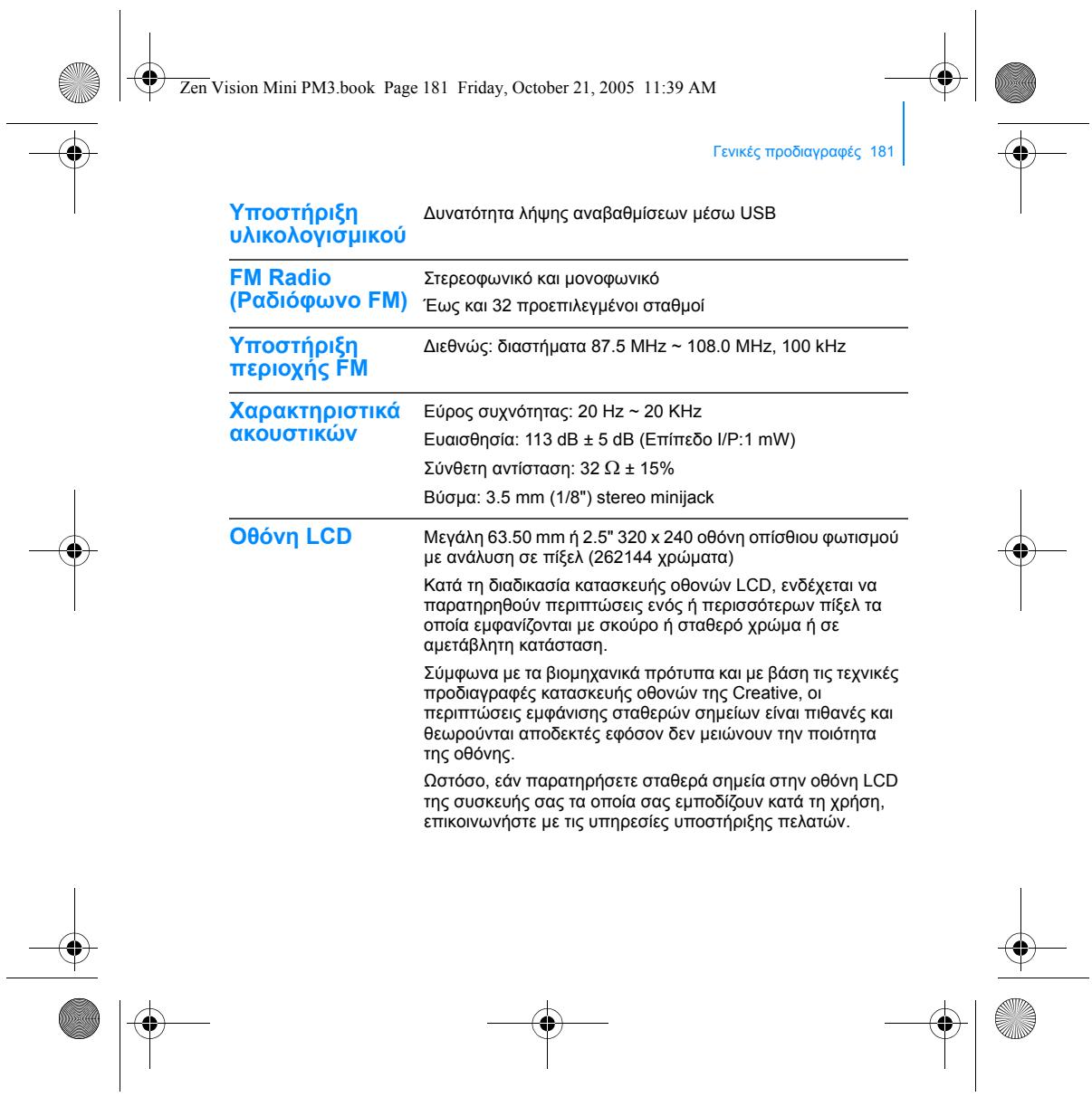
FM region support International: 87.5 MHz ~ 108.0 MHz, 100 kHz intervals

Earphone Specifications

Frequency Range: 20 Hz ~ 20 KHz

Sensitivity: 113 dB ± 5 dB (I/P Level:1 mW) Impedance: 32 Ω ± 15% Plug: 3.5 mm (1/8") stereo minijack

LCD Large 63.50 mm or 2.5" 320 x 240 pixel resolution backlit display (262144 colors)

In the process of LCD manufacturing, instances of one or more pixels appearing in a dark or fixed color, or in an unchanging state, may occur. In line with industry standards and based on Creative's screen manufacturer's technical specifications, occurrences of fixed spots may appear and are considered acceptable if they do not impair display quality. If, however, you notice fixed spots on your player’s LCD display interfering with your use, contact Customer Support Services.

Zen Vision Mini PM3.book Page 30 Friday, October 21, 2005 11:39 AM

30 Copyright and License

Copyright and License

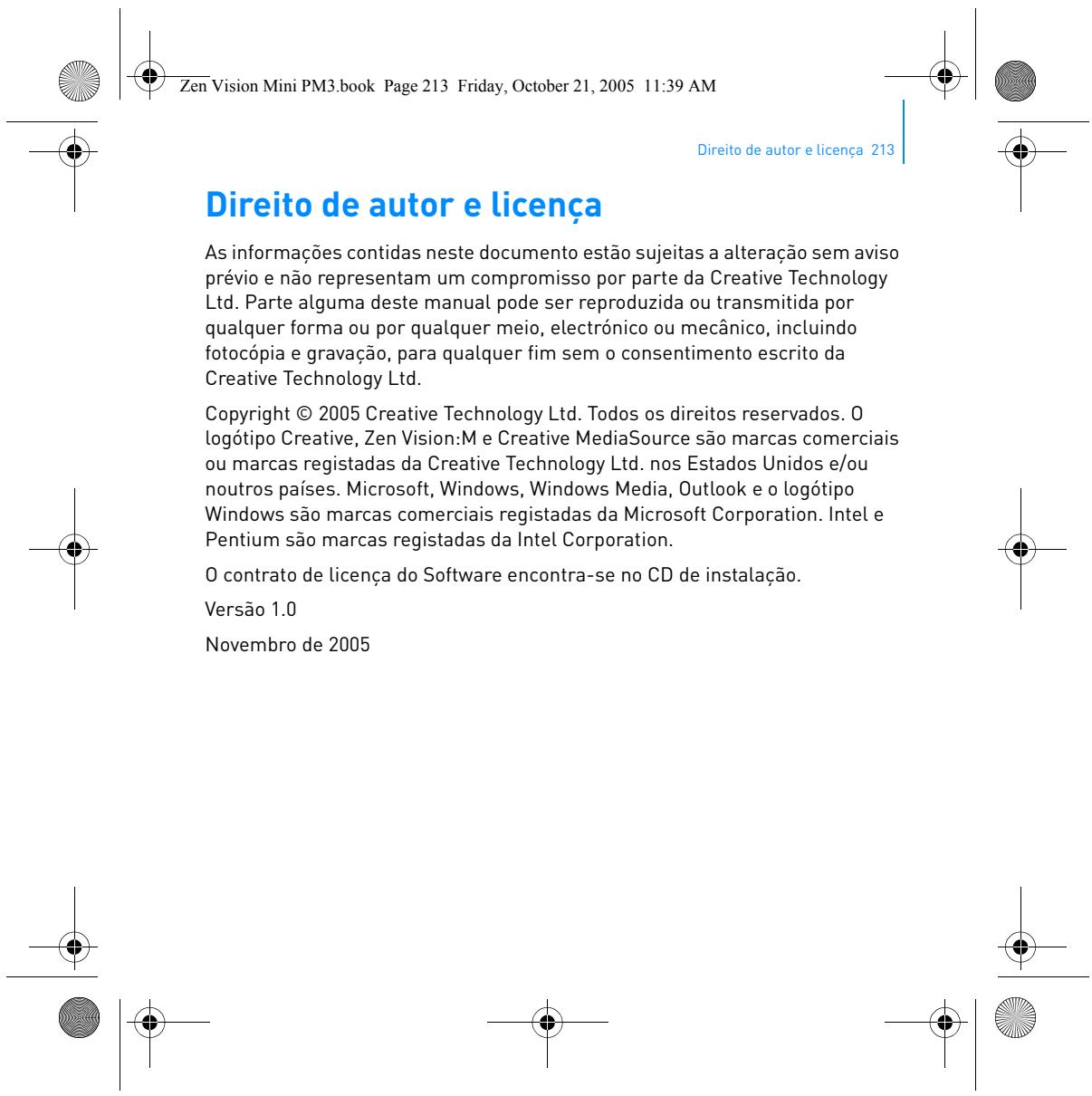
Information in this document is subject to change without notice and does not represent a commitment on the part of Creative Technology Ltd. No part of this manual may be reproduced or transmitted in any form or by any means, electronic or mechanical, including photocopying and recording, for any purpose without the written permission of Creative Technology Ltd. Copyright © 2005 Creative Technology Ltd. All rights reserved. The Creative logo, Zen Vision:M and Creative MediaSource are trademarks or registered trademarks of Creative Technology Ltd. in the United States and/or other countries. Microsoft, Windows, Windows Media, Outlook and the Windows logo are registered trademarks of Microsoft Corporation. Intel and Pentium are registered trademarks of Intel Corporation. The Software License Agreement can be found on the Installation CD. Version 1.0 November 2005

Zen Vision Mini PM3.book Page 31 Friday, October 21, 2005 11:39 AM

Zen Vision Mini PM3.book Page 32 Friday, October 21, 2005 11:39 AM Zen Vision Mini PM3.book Page 33 Friday, October 21, 2005 11:39 AM Zen Vision Mini PM3.book Page 34 Friday, October 21, 2005 11:39 AM

Zen Vision Mini PM3.book Page 35 Friday, October 21, 2005 11:39 AM Prise en main 35

Zen Vision Mini PM3.book Page 36 Friday, October 21, 2005 11:39 AM

Zen Vision Mini PM3.book Page 37 Friday, October 21, 2005 11:39 AM Prise en main 37

Zen Vision Mini PM3.book Page 38 Friday, October 21, 2005 11:39 AM

Zen Vision Mini PM3.book Page 39 Friday, October 21, 2005 11:39 AM Prise en main 39

Zen Vision Mini PM3.book Page 40 Friday, October 21, 2005 11:39 AM

Zen Vision Mini PM3.book Page 41 Friday, October 21, 2005 11:39 AM Zen Vision Mini PM3.book Page 42 Friday, October 21, 2005 11:39 AM Zen Vision Mini PM3.book Page 43 Friday, October 21, 2005 11:39 AM Zen Vision Mini PM3.book Page 44 Friday, October 21, 2005 11:39 AM Zen Vision Mini PM3.book Page 45 Friday, October 21, 2005 11:39 AM Zen Vision Mini PM3.book Page 46 Friday, October 21, 2005 11:39 AM Zen Vision Mini PM3.book Page 47 Friday, October 21, 2005 11:39 AM Zen Vision Mini PM3.book Page 48 Friday, October 21, 2005 11:39 AM Zen Vision Mini PM3.book Page 49 Friday, October 21, 2005 11:39 AM Zen Vision Mini PM3.book Page 50 Friday, October 21, 2005 11:39 AM Zen Vision Mini PM3.book Page 51 Friday, October 21, 2005 11:39 AM Zen Vision Mini PM3.book Page 52 Friday, October 21, 2005 11:39 AM Zen Vision Mini PM3.book Page 53 Friday, October 21, 2005 11:39 AM Zen Vision Mini PM3.book Page 54 Friday, October 21, 2005 11:39 AM Zen Vision Mini PM3.book Page 55 Friday, October 21, 2005 11:39 AM FAQ 55

Zen Vision Mini PM3.book Page 56 Friday, October 21, 2005 11:39 AM

Zen Vision Mini PM3.book Page 57 Friday, October 21, 2005 11:39 AM Pictogrammes 57

Zen Vision Mini PM3.book Page 58 Friday, October 21, 2005 11:39 AM

58 Caractéristiques générales

Performances de lecture MP3

Zen Vision Mini PM3.book Page 59 Friday, October 21, 2005 11:39 AM Caractéristiques générales 59

Zen Vision Mini PM3.book Page 60 Friday, October 21, 2005 11:39 AM Zen Vision Mini PM3.book Page 61 Friday, October 21, 2005 11:39 AM

Zen Vision Mini PM3.book Page 62 Friday, October 21, 2005 11:39 AM Zen Vision Mini PM3.book Page 63 Friday, October 21, 2005 11:39 AM Zen Vision Mini PM3.book Page 64 Friday, October 21, 2005 11:39 AM

Zen Vision Mini PM3.book Page 65 Friday, October 21, 2005 11:39 AM Aan de slag 65

Zen Vision Mini PM3.book Page 66 Friday, October 21, 2005 11:39 AM

Zen Vision Mini PM3.book Page 67 Friday, October 21, 2005 11:39 AM Aan de slag 67

Zen Vision Mini PM3.book Page 68 Friday, October 21, 2005 11:39 AM

Zen Vision Mini PM3.book Page 69 Friday, October 21, 2005 11:39 AM Aan de slag 69

Zen Vision Mini PM3.book Page 70 Friday, October 21, 2005 11:39 AM

Zen Vision Mini PM3.book Page 71 Friday, October 21, 2005 11:39 AM Zen Vision Mini PM3.book Page 72 Friday, October 21, 2005 11:39 AM Zen Vision Mini PM3.book Page 73 Friday, October 21, 2005 11:39 AM Zen Vision Mini PM3.book Page 74 Friday, October 21, 2005 11:39 AM Zen Vision Mini PM3.book Page 75 Friday, October 21, 2005 11:39 AM Zen Vision Mini PM3.book Page 76 Friday, October 21, 2005 11:39 AM Zen Vision Mini PM3.book Page 77 Friday, October 21, 2005 11:39 AM Zen Vision Mini PM3.book Page 78 Friday, October 21, 2005 11:39 AM Zen Vision Mini PM3.book Page 79 Friday, October 21, 2005 11:39 AM Zen Vision Mini PM3.book Page 80 Friday, October 21, 2005 11:39 AM Zen Vision Mini PM3.book Page 81 Friday, October 21, 2005 11:39 AM Zen Vision Mini PM3.book Page 82 Friday, October 21, 2005 11:39 AM Zen Vision Mini PM3.book Page 83 Friday, October 21, 2005 11:39 AM Zen Vision Mini PM3.book Page 84 Friday, October 21, 2005 11:39 AM Zen Vision Mini PM3.book Page 85 Friday, October 21, 2005 11:39 AM Veelgestelde vragen 85

Zen Vision Mini PM3.book Page 86 Friday, October 21, 2005 11:39 AM

86 Informatiediagrammen

Zen Vision Mini PM3.book Page 87 Friday, October 21, 2005 11:39 AM Informatiediagrammen 87

Zen Vision Mini PM3.book Page 88 Friday, October 21, 2005 11:39 AM

88 Algemene specificaties

Zen Vision Mini PM3.book Page 89 Friday, October 21, 2005 11:39 AM Algemene specificaties 89

Firmwareondersteuning

Zen Vision Mini PM3.book Page 90 Friday, October 21, 2005 11:39 AM Zen Vision Mini PM3.book Page 91 Friday, October 21, 2005 11:39 AM

Zen Vision Mini PM3.book Page 92 Friday, October 21, 2005 11:39 AM Zen Vision Mini PM3.book Page 93 Friday, October 21, 2005 11:39 AM Zen Vision Mini PM3.book Page 94 Friday, October 21, 2005 11:39 AM

Zen Vision Mini PM3.book Page 95 Friday, October 21, 2005 11:39 AM Primeros pasos 95

Zen Vision Mini PM3.book Page 96 Friday, October 21, 2005 11:39 AM

Zen Vision Mini PM3.book Page 97 Friday, October 21, 2005 11:39 AM Primeros pasos 97

Zen Vision Mini PM3.book Page 98 Friday, October 21, 2005 11:39 AM

Zen Vision Mini PM3.book Page 99 Friday, October 21, 2005 11:39 AM Primeros pasos 99

Zen Vision Mini PM3.book Page 100 Friday, October 21, 2005 11:39 AM

Zen Vision Mini PM3.book Page 101 Friday, October 21, 2005 11:39 AM Zen Vision Mini PM3.book Page 102 Friday, October 21, 2005 11:39 AM Zen Vision Mini PM3.book Page 103 Friday, October 21, 2005 11:39 AM Zen Vision Mini PM3.book Page 104 Friday, October 21, 2005 11:39 AM Zen Vision Mini PM3.book Page 105 Friday, October 21, 2005 11:39 AM Zen Vision Mini PM3.book Page 106 Friday, October 21, 2005 11:39 AM Zen Vision Mini PM3.book Page 107 Friday, October 21, 2005 11:39 AM Zen Vision Mini PM3.book Page 108 Friday, October 21, 2005 11:39 AM Zen Vision Mini PM3.book Page 109 Friday, October 21, 2005 11:39 AM Zen Vision Mini PM3.book Page 110 Friday, October 21, 2005 11:39 AM Zen Vision Mini PM3.book Page 111 Friday, October 21, 2005 11:39 AM Zen Vision Mini PM3.book Page 112 Friday, October 21, 2005 11:39 AM Zen Vision Mini PM3.book Page 113 Friday, October 21, 2005 11:39 AM Zen Vision Mini PM3.book Page 114 Friday, October 21, 2005 11:39 AM Zen Vision Mini PM3.book Page 115 Friday, October 21, 2005 11:39 AM Zen Vision Mini PM3.book Page 116 Friday, October 21, 2005 11:39 AM Please reset player

Zen Vision Mini PM3.book Page 117 Friday, October 21, 2005 11:39 AM Zen Vision Mini PM3.book Page 118 Friday, October 21, 2005 11:39 AM

118 Especificaciones generales

Zen Vision Mini PM3.book Page 119 Friday, October 21, 2005 11:39 AM Especificaciones generales 119

Zen Vision Mini PM3.book Page 120 Friday, October 21, 2005 11:39 AM Zen Vision Mini PM3.book Page 121 Friday, October 21, 2005 11:39 AM

Zen Vision Mini PM3.book Page 122 Friday, October 21, 2005 11:39 AM Zen Vision Mini PM3.book Page 123 Friday, October 21, 2005 11:39 AM Zen Vision Mini PM3.book Page 124 Friday, October 21, 2005 11:39 AM

Zen Vision Mini PM3.book Page 125 Friday, October 21, 2005 11:39 AM Per iniziare 125

Zen Vision Mini PM3.book Page 126 Friday, October 21, 2005 11:39 AM

Zen Vision Mini PM3.book Page 127 Friday, October 21, 2005 11:39 AM Per iniziare 127

Zen Vision Mini PM3.book Page 128 Friday, October 21, 2005 11:39 AM

Zen Vision Mini PM3.book Page 129 Friday, October 21, 2005 11:39 AM Per iniziare 129

Zen Vision Mini PM3.book Page 130 Friday, October 21, 2005 11:39 AM

Zen Vision Mini PM3.book Page 131 Friday, October 21, 2005 11:39 AM Zen Vision Mini PM3.book Page 132 Friday, October 21, 2005 11:39 AM Zen Vision Mini PM3.book Page 133 Friday, October 21, 2005 11:39 AM Zen Vision Mini PM3.book Page 134 Friday, October 21, 2005 11:39 AM Zen Vision Mini PM3.book Page 135 Friday, October 21, 2005 11:39 AM Zen Vision Mini PM3.book Page 136 Friday, October 21, 2005 11:39 AM Zen Vision Mini PM3.book Page 137 Friday, October 21, 2005 11:39 AM Zen Vision Mini PM3.book Page 138 Friday, October 21, 2005 11:39 AM Zen Vision Mini PM3.book Page 139 Friday, October 21, 2005 11:39 AM Zen Vision Mini PM3.book Page 140 Friday, October 21, 2005 11:39 AM Zen Vision Mini PM3.book Page 141 Friday, October 21, 2005 11:39 AM Zen Vision Mini PM3.book Page 142 Friday, October 21, 2005 11:39 AM Zen Vision Mini PM3.book Page 143 Friday, October 21, 2005 11:39 AM Zen Vision Mini PM3.book Page 144 Friday, October 21, 2005 11:39 AM Zen Vision Mini PM3.book Page 145 Friday, October 21, 2005 11:39 AM Domande frequenti 145

Zen Vision Mini PM3.book Page 146 Friday, October 21, 2005 11:39 AM

146 Grafici informativi

Zen Vision Mini PM3.book Page 147 Friday, October 21, 2005 11:39 AM Grafici informativi 147

Zen Vision Mini PM3.book Page 148 Friday, October 21, 2005 11:39 AM

148 Specifiche generali

Zen Vision Mini PM3.book Page 149 Friday, October 21, 2005 11:39 AM Specifiche generali 149

Zen Vision Mini PM3.book Page 150 Friday, October 21, 2005 11:39 AM Zen Vision Mini PM3.book Page 151 Friday, October 21, 2005 11:39 AM

Zen Vision Mini PM3.book Page 152 Friday, October 21, 2005 11:39 AM Zen Vision Mini PM3.book Page 153 Friday, October 21, 2005 11:39 AM Zen Vision Mini PM3.book Page 154 Friday, October 21, 2005 11:39 AM Zen Vision Mini PM3.book Page 155 Friday, October 21, 2005 11:39 AM

3 After you have finished using your player, slide the Power switch towards the Power icon until the Shutting down message appears.

Zen Vision Mini PM3.book Page 156 Friday, October 21, 2005 11:39 AM Zen Vision Mini PM3.book Page 157 Friday, October 21, 2005 11:39 AM Zen Vision Mini PM3.book Page 158 Friday, October 21, 2005 11:39 AM Zen Vision Mini PM3.book Page 159 Friday, October 21, 2005 11:39 AM Zen Vision Mini PM3.book Page 160 Friday, October 21, 2005 11:39 AM Zen Vision Mini PM3.book Page 161 Friday, October 21, 2005 11:39 AM Zen Vision Mini PM3.book Page 162 Friday, October 21, 2005 11:39 AM Zen Vision Mini PM3.book Page 163 Friday, October 21, 2005 11:39 AM Zen Vision Mini PM3.book Page 164 Friday, October 21, 2005 11:39 AM Zen Vision Mini PM3.book Page 165 Friday, October 21, 2005 11:39 AM Zen Vision Mini PM3.book Page 166 Friday, October 21, 2005 11:39 AM Zen Vision Mini PM3.book Page 167 Friday, October 21, 2005 11:39 AM Zen Vision Mini PM3.book Page 168 Friday, October 21, 2005 11:39 AM Zen Vision Mini PM3.book Page 169 Friday, October 21, 2005 11:39 AM Zen Vision Mini PM3.book Page 170 Friday, October 21, 2005 11:39 AM Zen Vision Mini PM3.book Page 171 Friday, October 21, 2005 11:39 AM Zen Vision Mini PM3.book Page 172 Friday, October 21, 2005 11:39 AM Zen Vision Mini PM3.book Page 173 Friday, October 21, 2005 11:39 AM Zen Vision Mini PM3.book Page 174 Friday, October 21, 2005 11:39 AM Zen Vision Mini PM3.book Page 175 Friday, October 21, 2005 11:39 AM Zen Vision Mini PM3.book Page 176 Friday, October 21, 2005 11:39 AM
176 Συνήθεις ερωτήσεις

Zen Vision Mini PM3.book Page 177 Friday, October 21, 2005 11:39 AM

Συνήθεις ερωτήσεις 177

Zen Vision Mini PM3.book Page 178 Friday, October 21, 2005 11:39 AM

178 ∆ιαγράµµατα πληροφοριών

Zen Vision Mini PM3.book Page 179 Friday, October 21, 2005 11:39 AM

∆ιαγράµµατα πληροφοριών 179

Zen Vision Mini PM3.book Page 180 Friday, October 21, 2005 11:39 AM

180 Γενικές προδιαγραφές

Zen Vision Mini PM3.book Page 181 Friday, October 21, 2005 11:39 AM

Γενικές προδιαγραφές 181

Zen Vision Mini PM3.book Page 182 Friday, October 21, 2005 11:39 AM Zen Vision Mini PM3.book Page 183 Friday, October 21, 2005 11:39 AM

Zen Vision Mini PM3.book Page 184 Friday, October 21, 2005 11:39 AM Zen Vision Mini PM3.book Page 185 Friday, October 21, 2005 11:39 AM Zen Vision Mini PM3.book Page 186 Friday, October 21, 2005 11:39 AM

Zen Vision Mini PM3.book Page 187 Friday, October 21, 2005 11:39 AM Preparação 187

Zen Vision Mini PM3.book Page 188 Friday, October 21, 2005 11:39 AM

Zen Vision Mini PM3.book Page 189 Friday, October 21, 2005 11:39 AM Preparação 189

Zen Vision Mini PM3.book Page 190 Friday, October 21, 2005 11:39 AM

Zen Vision Mini PM3.book Page 191 Friday, October 21, 2005 11:39 AM Preparação 191

Zen Vision Mini PM3.book Page 192 Friday, October 21, 2005 11:39 AM

Zen Vision Mini PM3.book Page 193 Friday, October 21, 2005 11:39 AM Gerir o leitor 193

Zen Vision Mini PM3.book Page 194 Friday, October 21, 2005 11:39 AM

Zen Vision Mini PM3.book Page 195 Friday, October 21, 2005 11:39 AM Gerir o leitor 195

Zen Vision Mini PM3.book Page 196 Friday, October 21, 2005 11:39 AM

Zen Vision Mini PM3.book Page 197 Friday, October 21, 2005 11:39 AM Gerir o leitor 197

Zen Vision Mini PM3.book Page 198 Friday, October 21, 2005 11:39 AM

Zen Vision Mini PM3.book Page 199 Friday, October 21, 2005 11:39 AM Gerir o leitor 199

Zen Vision Mini PM3.book Page 200 Friday, October 21, 2005 11:39 AM

Zen Vision Mini PM3.book Page 201 Friday, October 21, 2005 11:39 AM Gerir o leitor 201

Zen Vision Mini PM3.book Page 202 Friday, October 21, 2005 11:39 AM Zen Vision Mini PM3.book Page 203 Friday, October 21, 2005 11:39 AM Zen Vision Mini PM3.book Page 204 Friday, October 21, 2005 11:39 AM Zen Vision Mini PM3.book Page 205 Friday, October 21, 2005 11:39 AM Zen Vision Mini PM3.book Page 206 Friday, October 21, 2005 11:39 AM Zen Vision Mini PM3.book Page 207 Friday, October 21, 2005 11:39 AM Zen Vision Mini PM3.book Page 208 Friday, October 21, 2005 11:39 AM Zen Vision Mini PM3.book Page 209 Friday, October 21, 2005 11:39 AM Zen Vision Mini PM3.book Page 210 Friday, October 21, 2005 11:39 AM Zen Vision Mini PM3.book Page 211 Friday, October 21, 2005 11:39 AM Especificações gerais 211

Zen Vision Mini PM3.book Page 212 Friday, October 21, 2005 11:39 AM

212 Especificações gerais

Zen Vision Mini PM3.book Page 213 Friday, October 21, 2005 11:39 AM Zen Vision Mini PM3.book Page 214 Friday, October 21, 2005 11:39 AM

NOTES Zen Vision Mini PM3.book Page 215 Friday, October 21, 2005 11:39 AM
NOTES Zen Vision Mini PM3.book Page 216 Friday, October 21, 2005 11:39 AM