
ZEN V - Portable media player CREATIVE - Free user manual and instructions
Find the device manual for free ZEN V CREATIVE in PDF.



| Product Type | Portable media player |
| Brand | Creative |
| Model | ZEN V / ZEN V Plus |
| Internal storage capacity | 512 MB, 1 GB or 2 GB depending on model |
| Screen | OLED (organic light-emitting diode) |
| Connectivity | USB 2.0, 3.5mm headphone jack, line input |
| Supported audio formats | MP3, WMA, Audible, ZENcast |
| Video formats (ZEN V Plus) | Formats converted via Creative MediaSource |
| Image formats | JPEG |
| FM radio | Yes (ZEN V Plus only) |
| Voice recording | Yes (via built-in microphone) |
| Power supply | Rechargeable lithium-ion battery, charges via USB (approx. 6 hours) |
| Compatible operating system | Windows |
| Included software | Creative Media Explorer, Creative MediaSource Player/Organizer, ZENcast Organizer |
| Included accessories | USB cable, earphones, installation and applications CD |
| Maintenance and cleaning | Use a soft, dry cloth. Do not use abrasive cleaners or solvents. |
| Safety | Do not expose to moisture, avoid shocks. Do not listen at high volume to protect hearing. |
| Spare parts and repairability | ZEN power adapter available optionally. See Creative website for accessories. |
| Warranty | Detailed information on the CD (warranty.chm file). Keep proof of purchase. |
| General information | Brand Creative, model ZEN V, category portable media player. Manual available online. |
Frequently Asked Questions - ZEN V CREATIVE
User questions about ZEN V CREATIVE
0 question about this device. Answer the ones you know or ask your own.
Ask a new question about this device
Download the instructions for your Portable media player in PDF format for free! Find your manual ZEN V - CREATIVE and take your electronic device back in hand. On this page are published all the documents necessary for the use of your device. ZEN V by CREATIVE.
USER MANUAL ZEN V CREATIVE
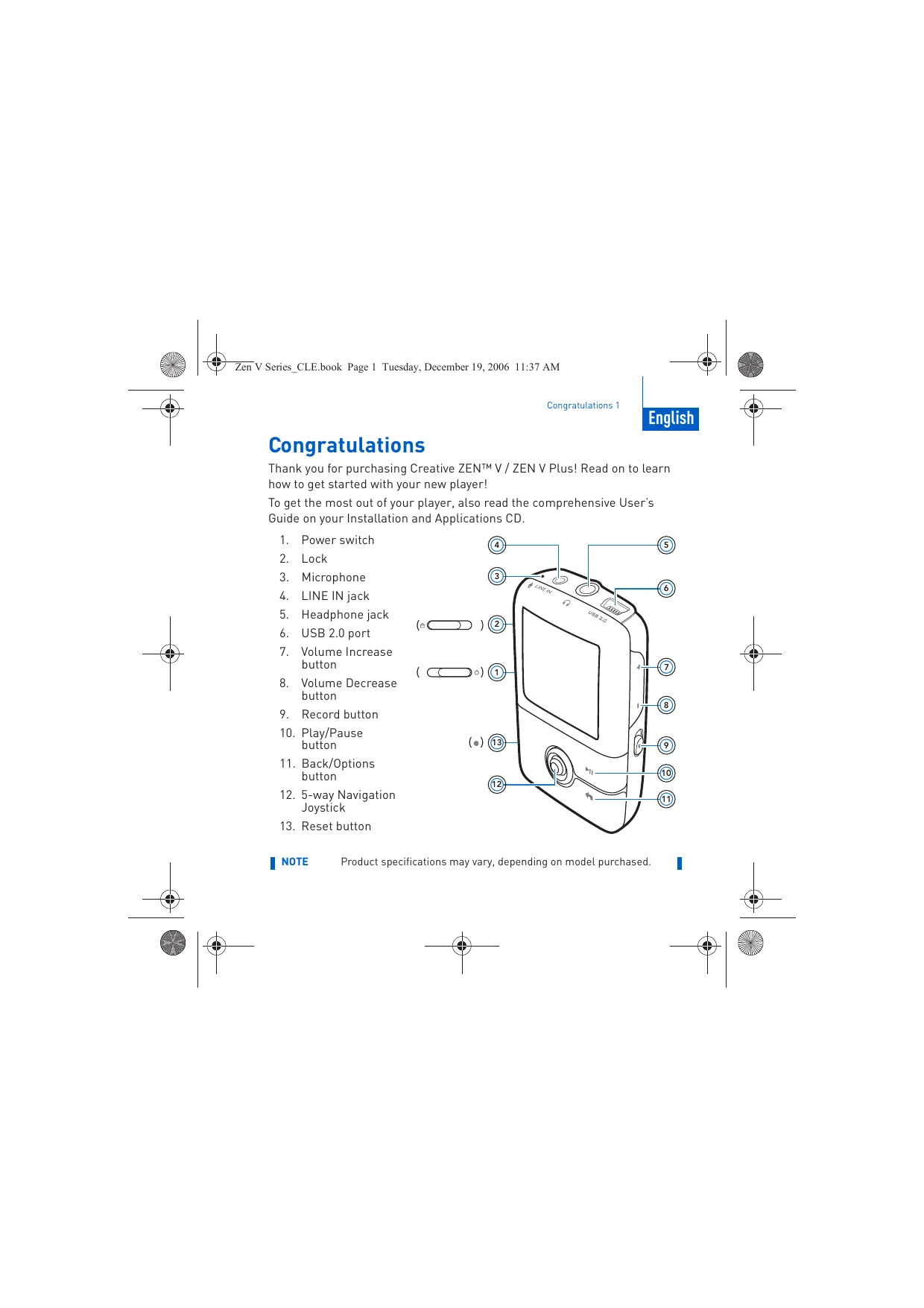
Thank you for purchasing Creative ZENTM V / ZEN V Plus! Read on to learn how to get started with your new player!
To get the most out of your player, also read the comprehensive User's Guide on your Installation and Applications CD.
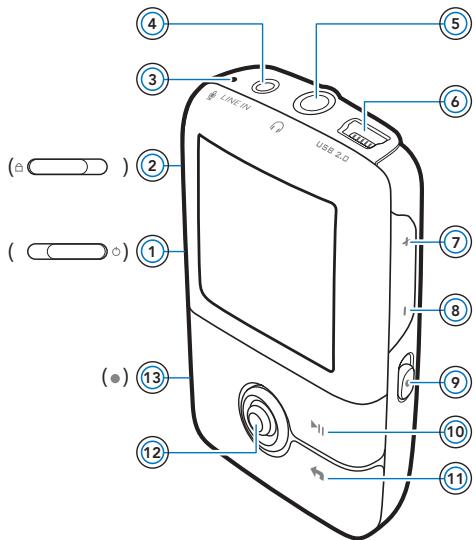
- Power switch
- Lock
- Microphone
- LINE IN jack
- Headphone jack
- USB 2.0 port
- Volume Increase button
- Volume Decrease button
- Record button
- Play/Pause button
- Back/Options button
- 5-way Navigation Joystick
- Reset button
NOTE
Product specifications may vary, depending on model purchased.

2 Using the 5-Way Navigation Joystick
Using the 5-Way Navigation Joystick
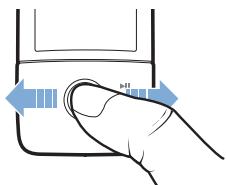
The 5-way Navigation Joystick is one of the most important features of your player. In this document, we will use the term "Select" to mean that you should push the 5-way Navigation Joystick up or down to browse through options, and then select the option by pressing down the 5-way Navigation Joystick.
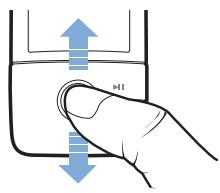
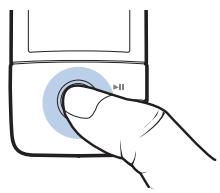
When playing music, you can do the following:
push the joystick left or right to go to the previous or next track.
push and hold the joystick right or left to move forward or backward within a track.
NOTE
At any time, press and hold the Back/Options button for more options.
Getting Started 3
Getting Started
Step 1: Set up the software
WARNING DO NOT connect your player to your computer before setting up the software.
1 Turn on your computer.
You must log in as an administrator before you can set up the software. For more information, refer to your operating system's online Help.
2 Insert the Installation and Applications CD into your CD-ROM/DVD-ROM drive.
Your CD should start automatically. If it does not, follow the steps below:
i. Double-click the My Computer icon.
Alternatively, click Start → My Computer.
ii. Right-click the CD-ROM/DVD-ROM drive icon, and then click Autopy.
3 Follow the instructions on the screen and when prompted, restart your computer.
4 When your computer restarts, follow the product registration instructions on the screen.
NOTE
You will require an Internet connection to register your product.

4 Charge Your Player
Step 2: Charge Your Player
1 If you have not done so, connect your player to your computer's USB port with the supplied USB cable.
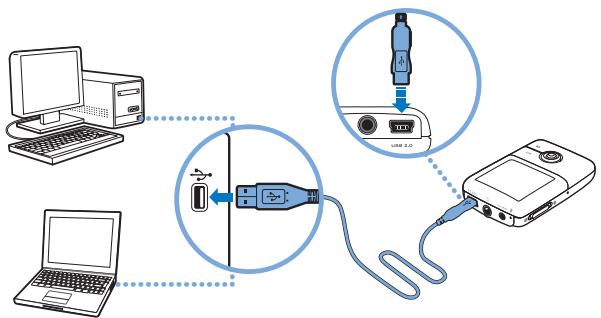
NOTE
- For continuous battery charging using the USB port, make sure your computer is not in power conservation mode. For more information on power conservation modes, refer to your operating system's Help.
- Connect to a computer USB port only; avoid connecting to a USB hub.
For express battery charging without using your computer, purchase the ZEN Power Adapter. For more information on this and other ZEN V Series accessories, visit www.creative.com.
When the battery is charging, the battery charging [4] icon flashes on the Organic Light Emitting Diode (OLED) display.


Select Your Menu Language 5
2 Disconnect your player from your computer when the battery is fully charged and you see → on your player's OLED display. The battery is fully charged in approximately six hours. If your fully charged player remains connected to your computer for a prolonged period, the OLED display blanks out automatically to save battery power.
NOTE
Your player will continue charging even after it turns off, as long as it is connected to a computer or power outlet.
Step 3: Select Your Menu Language
1 If your player is not turned on, slide the Power switch towards the Power icon and hold it there until the OLED display lights up.
2 When you turn on your player for the first time, the menu is in English. To change the language:
i. Press the Back/Options button. The main menu appears.
ii. Select System → Language, and then select the language that you want.
3 After you have finished using your player, slide the Power switch towards the Power icon until the Shutting down message appears.
Step 4: Transfer Content
NOTE
If the low battery graphic before transferring content.

appears, fully charge your player
Transfer music and other files from your CD collection or computer. For more details, see "Managing Music, Videos and Data" on page 10.

6 Transfer Content
To transfer or 'rip' music from your CD collection
1 Make sure your player is connected to your computer as shown on page 4.
2 Double-click the ZEN V Series Media Explorer icon on the desktop.
3 Click the Rip Audio CDs button.
4 Follow the instructions on the screen. If you are connected to the Internet, album information is automatically retrieved.
To transfer music, pictures or videos from your computer
1 Repeat steps 1 and 2 in "To transfer or 'rip' music from your CD collection" above.
2 Click the Browse Media button.
3 Locate your media files, and using the drag-and-drop method, copy them to the following folders in your player:
Media Library\Music folder for audio files
Media Library\Videos folder for videos
Media Library\Pictures folder for pictures.
NOTE
Use Creative Media Explorer, Creative MediaSource Player/ Organizer or Windows Media Player 10 [and above] to transfer files protected by Digital Rights Management (DRM) technology.
The video function is available on ZEN V Plus players only.
- All video formats require conversion before they can be played on your ZEN V Plus. Use Creative Media Explorer or Creative MediaSource Player/Organizer only to convert your videos. Note that if you choose to skip a video file, it will not be transferred to your player.
Transfer Content 7
To transfer data files
1 Repeat steps 1 and 2 in "To transfer or 'rip' music from your CD collection" on page 6.
2 Click the Browse Documents button.
3 Locate your data files, and using the drag-and-drop method, transfer them to the Data folder in your player.
NOTE
- Do not transfer audio files, pictures and videos using the Browse Documents button.
Use your player's Removable Disk mode if you need to transfer and manage data between your player and computers that do not have Creative Media Explorer. For more information, see the User's Guide on your Installation and Applications CD.
To transfer ZENcast audio files
With ZENcast Organizer, you can transfer ZENcast audio podcasts to your player and subscribe to your favorite ZENcast channels. For updated information about your player's support for ZENcast media files, visit www.zencast.com.
1 Double-click the ZENcast Organizer icon on the desktop.
2 Click the Transfer button
3 Follow the instructions on the screen.
4 Click the Done button.
8 Disconnect Your Player
Step 5: Disconnect Your Player
When you have finished transferring files, disconnect your player.
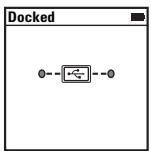
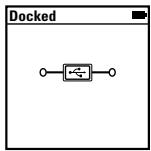
DO NOT disconnect your player if you see the left picture below on the display. Track or data file transfer is in progress and disconnecting your player may damage the content being transferred. When you see the right picture below on the display, disconnect your player.
Step 6: Play Media Files or View Pictures
You are now ready to play or view files, including Audible® and ZENcast audio files.
NOTE
The video function is available on ZEN V Plus players only.
At any time, press and hold the Back/Options button for more options.
- Files in your player are sorted alphabetically for quicker searches.
For updated information about your player's support for ZENcast media files, visit www.zencast.com.
To play music, Audible or ZENcast audio files
1 Connect your earphones to the Headphone jack.
2 In the main menu, select Music Library → category that you want.
3 Select a track and select Play.

Play Media Files or View Pictures 9
4 Press the Volume Increase + and Volume Decrease — buttons to adjust the volume.
NOTE
To manage Audible files, you need to install AudibleManager®.
Audible files are currently available to selected regions only.
If available with a music track, album art will be displayed on your player.
To view pictures
1 In the main menu, select Photos, and select the picture you want.
2 Press and hold the Back/Options button.
3 Select Zoom In, and use the 5-way Navigation Joystick to pan the picture horizontally or vertically.
To play videos
In the main menu, select Videos → Video → video that you want.
NOTE
The video function is available on ZEN V Plus players only.
10 Managing Music, Videos and Data
Managing Music, Videos and Data
Creative Media Explorer and Creative MediaSource Player/Organizer are included with your player. Try out these applications to decide which one is more suitable for your needs.
Creative Media Explorer
Use Creative Media Explorer if:
you are new to digital music and videos, and want to transfer them from your CDs or computer to your player
you want to convert, synchronize, and organize audio and video files
you prefer to manage your player in the familiar "Windows Explorer" environment.
To start Creative Media Explorer, double-click the ZEN V Series Media
Explorer icon under My Computer or on the desktop. For more information about using Creative Media Explorer, refer to its online Help.
NOTE
The video function is available on ZEN V Plus players only.
Creative MediaSource Player/Organizer
Use the full-featured Creative MediaSource Player/Organizer if:
you require additional features such as recording, automatic playlist generation, and audio format conversion
you want to manage a music library on your computer.
To start Creative MediaSource Player/Organizer, double-click the Creative
MediaSource Player/Organizer icon on your desktop.
Creative MediaSource Player/Organizer has a Home page from which you can access common tasks. For more information about using Creative MediaSource Player/Organizer, refer to its online Help.
Managing Your Player
Creating playlists
You can select any combination of tracks you want from your player's Music Library to create playlists for convenient playback.
1 To add a track or category of tracks to the Now Playing folder:
i. Select Music Library → track or category of tracks that you want.
ii. Press and hold the Back/Options button, and select Add to Selected.
iii. Repeat steps i) and ii) to add another track or category of tracks.
iv. Press the Back/Options button.
You may need to do this more than once until the main menu appears
v. In the main menu, select Now Playing.
2 Press and hold the Back/Options button, and select Save As Playlist.
3 Use the 5-way Navigation Joystick to create a name for your playlist and select 0k to confirm the name.
4 To play a playlist, select Music Library → Playlists → playlist that you want. Listening to FM Radio
1 In the main menu, select FM Radio.
2 To automatically scan and save radio stations, press and hold the Back/ Options ← button, and select Autoscan. At the end of the autoscan, your player saves all stations as preset channels and tunes in to the first preset.
3 To select a different preset, push the 5-way Navigation Joystick right or left.
NOTE
The FM radio function is available on ZEN V Plus players only.
To fine tune or manually scan for a radio station, see the User's Guide on your Installation and Applications CD.
12 More Information
More Information
User's Guide
Read the User's Guide found on your Installation and Applications CD to learn about your player's many features. Go to d:\manual\language>manual.chm
(replace d:| with the drive letter of your CD-ROM/DVD-ROM drive, and
Creative Knowledge Base
Resolve and troubleshoot technical queries at Creative's 24-hour self-help Knowledge Base. Go to www.creative.com, select your region and then select Support.
Product Registration
Registering your product ensures you receive the most appropriate service and product support available. You can register your product during installation or at
www.creative.com/register.
Please note that your warranty rights are not dependent on product registration.
Customer Support Services and Warranty
You can find Customer Support Services, Warranty and other information in the CD.
| Customer Support Services | d:\support\region\language\support.chm |
| Warranty | d:\warranty\region\language\warranty.chmPlease keep your Proof of Purchase for the duration of the warranty period. |
| Safety | d:\notices\language\safety.chm |
(replace d:| with the drive letter of your CD-ROM/DVD-ROM drive,
Keep this document for future reference.
More Information 13
WARNING
As with any digital media-based storage device, data should be backed up regularly. We strongly recommend that you observe the usage precautions laid out in this booklet, and also back up the data in your player regularly. In no event will Creative be liable for any indirect, incidental, special or consequential damages to any persons caused by Creative's negligence, or for any lost profits, lost savings, loss of use, lost revenues or lost data arising from or relating to this device, even if Creative has been advised of the possibility of such damages. In no event will Creative's liability or damages to you or any other person ever exceed the amount paid by you for the device, regardless of the form of the claim. Some countries/states do not allow the limitation or exclusion of liability for incidental or consequential damages, so the above limitation or exclusion may not apply to you.
The use of the WEEE Symbol indicates that this product may not be treated as household waste. By ensuring this product is disposed of correctly, you will help protect the environment. For more detailed information about the recycling of this product, please contact your local authority, your household waste disposal service provider or the shop where you purchased the product.
Copyright © 2006 Creative Technology Ltd. All rights reserved. The Creative logo, Creative MediaSource and ZEN are trademarks or registered trademarks of Creative Technology Ltd. in the United States and/or other countries. Microsoft, Windows and the Windows logo are registered trademarks of Microsoft Corporation. Audible and AudibleManager are registered trademarks of Audible, Inc. in the U.S. and/or other countries.

Français
14 Felicitations
Felicitations
Creative Media Explorer
Utilisez Creative Media Explorer si :
Creative MediaSource Player/Organizer
Creative Media Explorer
Creative MediaSource Player/Organizer
Symbol Creative MediaSource Player/Organizer
Creative Knowledge Base
Creative Media Explorer
Lettore/Organizer Creative MediaSource
Creative Knowledge Base
Creative Media Explorer
Utilice Creative Media Explorer si:
Creative MediaSource Player/Organizer
Utilice Creative MediaSource Player/Organizer, con numerosas unidades, si:
Creative Media Explorer
Creative MediaSource Player/Organizer
Creative Kennisdatabasek
Productregistrationie
Creative Media Explorer
Utilize o Creative Media Explorer se:
Creative MediaSource Player/Organizer
Creative Media Explorer
Creative MediaSource Player/Organizer
Använd den komplettta Creative MediaSource Player/Organizer om
Creative Media Explorer
Bruk Creative Media Explorer hvis
Creative MediaSource Player/Organizer
Bruk den komplette Creative MediaSource Player/Organizer hvis
du onsker ekstra funksjoner, som innspilling, automatisk generering av spelilister og konvertering av lydformater.
du vil administrtere et musikkbibliotek pátamaskinen.
Nár du skal starte Creative MediaSource Player/Organizer, dobbeltklikker
du pã akonet Creative MediaSource Player/Organizer Pâ skrivebordet.
Trin 1: Installation of softwares
Creative Media Explorer
Brug Creative Media Explorer, hvis:
Creative MediaSource Player/Organizer
Creative Media Explorer
Creative MediaSource Player/Organizer
Creative Media Explorer
Aplikaci Creative Media Explorer použijte,Pokud:
Creative MediaSource Player/Organizer
Komplexné préhrávac a organízator Médii Creative MediaSource Player/Organizer použijte,Pokud:
Creative Media Explorer
Creative MediaSource Player/Organizer
Aby uruchomic program Creative MediaSource Player/Organizer, kliknij
dwukrotnie ikone Creative MediaSource Player/Organizer znajdujacsi na pulpicie.
www.creative.com/register.
Media Library\Music napiKa dny ayno3ancese
Media Library\Videos nanka dIy BnDeoklnIOB
Media Library\Pictures napiKa IJra N3o6paXeHn.
ПРИМЕЧАНЕ
Для поноа саллов, зашиених Textногиейцфpoboro уравlenия рравам(DRM), Исольштпоррамь Creative Media Explorer, Creative MediaSource Player/Organizer UI Windows Media Player 10 (UII boonee hobyu bercno).
Функць Вдю Достунна Товко B Роогрьвателax ZEN V Plus.
Ipeep npocmptom Ha ZEN V Plus BCE BndeoopopmatbI Heo6xOIMO npoe6pa3OBbIbTa. IIna npoe6pa3OBaHna BndeoopaIOB nOJIb3yITeCb TOnbKO npinIOJeHNEM Creative Media Explorer uIN Creative MediaSource Player/ Organizer. ImeiTe B BVdu, yTO, ecIN Bbl nponycTtE BndeoopaIN, OH He 6ydet nepenecen B BaW npoinpbrBaTeJB.
204 Ipepea a daHbIX
Pepenoc paIIOB daHbIX
1 Повторе Шаги 1 и 2 раздени "П配电они КОпроване Муькальнызапсей с кOMпаКТ-ДИСКOB" наст. 202.
2 Haxmte KhoNky Browse Documents → (O630p dokymeHTOB).
3 HauDnTe Heo6xOumbIe paIbI daHHbIX MeToIOM "pePeTackuBaHnA" nepeMeCTIte Ix B nAnKy npOnIrpbIbATEJia Data (DaHHbIe).
ПРИМЕЧАNH经
He nepenocite aydnocpaai, n06paexhenia BndeocaaIb c pmooub KhoNKn Browse Documents (O63op dokymeHTOB).
PnIb3ycbpeKIMOM cEMHORO ncka npoIrpBbATEJI, MOXHO peHecOuTb DaHHbIe n3 npoIRpbATEJI Ha KOMMbTOEp,Ha KOtOpom HET npUIOKeHINr Creative Media Explorer,N haobopot.
Bocnpoun3BeDeHne BndeofoaIIOB
Creative Media Explorer
Прилwxьене Creative Media Explorer podxoind Дяв ac, ecn
y BAC HET DCCTAOTOHOR OONbTA pa60bTu C NΦpOBoMbUa AUYMo- I BVDEO3aIINcMn, HO BAM HUYKHO KONIpOBaTa My3bky B pOuIrpBbTaTeJIb C KOMNKT-DIMCKOB INJI KOMPbToTEpa,
Pneo6pa30BbBaTb, CnHxpoHm3uPoBaTb uynopraOuHBaTb ayduo- m Bundeocpaaibl,
Pnpi pa6oTe C npOnrpbIbATEJIeM Bbl npEiNoHTaTe 3HaKOMbI INTEppeC npOBODnka Windows.
Creative MediaSource Player/Organizer
MhorodyHKUHOHaJIbHoe npJIOxKeHne Creative MediaSource Player/ Organizer, coeTaIOuIee cyHKuIN oprAHaI3epa n npOurpBbATEJIa, noxDxODIT DnBaBac, ecNI
BAM Tpe6byOTcDIOJONHHTeINbIe FyHKnIi, TaKne KAc 3aInCb, aTOMaTuHcckoe COzDAHHe NcIKoB BOCpOn3BeDeHnI aPnoBaOHaHne ayduOzAnCeI B pazIMHbE fOpMaTbI,
BAM Heo6xOJIMo ynpabTb My3bKaIbHO Bm6JIIOTeKo Ha KOMIIbIOTpe.
TtO6bI 3aNyCTnB npOrpamMy Creative MediaSource Player/Organizer, DBaJxblI ZeJIKNHITe MblsIbI Ho 3HaueKe Creative MediaSource Player/
Organizer Ha pa6o7em cToJe.
C domaunHe CTpaHnCb Creative MediaSource Player/Organizer MoxHo nOJyHTb DoCTyN K cTaNdaprTHbIM 3aDaayam. DnIPOJyEnH IOnoHNtJIbHO INHcOpMaUno pa6Ote C Creative MediaSource Player/ Organizer o6paTeCB K COOTBeTCTByUoJeMy pa3DeJy INHTepaKTINBHO cnpaBKn npOrpaMMbl.
210 YnpabJIeHne npouIrpIbATEJeM
YnpaBHeHne npOnrpbIbATEJIeM
C03dahme cπnckOB BocnpOn3BedeHn
B Music Library (My3bIkaJIbHa8 6n6nIOTeKa) MoKHO BbIbpaT bIIO6bIe KOMIO3NIcIMN I, MCIOJIb3yUx, CO3JaTb CnICKN BOCIPON3BeDEHnIa YDO6CTBa pIocNlUINBaHnI.
1 TTo6bI Do6abNTb KOMnO3nIuIO NII KATEropIO KOMnO3nIuB IpaKy Now Playing (CemacIrpaET), BblOnHInTe yKa3aHHbIe HNKe DeIcTBnI.
i. Bb6epnte Music Library (My3bkaJIbHa 6u6IIOTeKa) → HxHnA KOMP03nUg NJI KATEropN KOMNo3nUg.
ii. Haxmnte KhoNky Bo3BpaTa/Bb6opa napaMeTpOB 1 N Bb6epnte Add to Selected (O6abTb B b6paHHOe).
iii. NOBTOPIE DeIeTbri i) ii), 106bl DoabiHT dpyryIO KOMnO3uIIO NIKA TepoHIO KOMN03uIIO.
iv. Haxmnte KhoNkY BO3Bpata/Bb6opa npaMeTPOB
ДелайтETO,пOKа He OTO6pa3NTcrgIЯBHOe MeHIO
v. B rIaBHom MeHIO BbIbepuTe Now Playing (CeIyac irpaet).
2 Haxmte u ydepKuBaTe KhoNky Bo3BpTa/Bb6opa npaMeTpOB U b6epnte Save As Playlist (CoXpaHtB kak cnncok Bocnpoun3BeDeHn).
3 C NOMOJIbIO 5-No3nIOOHHO KHONKINepeMeUeHnna3aJaTHe HaBaHne cnIcka BOCIpOni3BeDeHnHaHXMITE KHOKNy OkI naoITBepXdHn.
4 TTo6bI BocnpOn3BecTe cnUcOK, BbI6epuTe Music Library (My3bkaJbHna 6n6bnoteKa) → Playlists (CnNCKn BocnpOn3BeDeHnra) → HxKbI CNICOK BOCnpOn3BeDeHnra.

UnpaBneHnpePomrBaTeJeM 211
Послшване радно вданаэон FM
1 B rnaBHom MeHIO BbI6epnte FM Radio (FM-paio).
2Дя abTOMaTnueckOrO nOnCKa n 3aONMHaHnuaCTOTb paAnocTaHnna HaxmTe n UdepXnBaIte KHOKNy Bo3Bpata/Bb6opa npaMeTpOB 念 a NOTOM Bb6epnte Autoscan (ABTOONCK). IIO OKOHauHn ABTONoNcKa npoINrpBtAEnb CoXpaHNT uACTOTb BCEx paAnocTaHn KaK npedBaPnteNoHo yCTaHOBJIeHHbIe KaHaJIbI n HaCTpOnTCra Ha nepBbl KaHaJ.
3ДяВьбopaДpyrOToKaHajIapepeMeCTte5-No3nUOnHHyIOKHOKNyBnpaBO mIN BNEBO.
ПРIMECHEN
Функця радив диаэzoHe FM doctynHa Tolbko B npounpbyBateJax ZEN V Plus.




212 DOnonHnTeIbHbIe CBeDeHn
www.creative.com/register.
Creative Media Explorer
Creative MediaSource Player/Organizer
A Creative MediaSource Player/Organizer programot akkor használa, ha:
Creative Knowledge Base
"Creative Media Explorer"
Programa „Creative Media Explorer“ galite naudoti, jei:
Creative Knowledge Base
Iskilias techniques problemas galite iispresti naudodamiesi 24 valandas per para internete veikianchia "Creative" ziniu baze (Knowledge Base). Eikite i www.creative.com, pasirinkite savo regiana, tada - Support (pagalba).
3 Meta to TELOC TNS XPHGNS TNS OUAKEUNCS AVATAPAYWYN, METAKIVNATE TO BIAKOTTN TPOPOOOSIAGTPOSO T EIKOVIO TPOPOOOIAC 念 EWCOTU EMPAVIOTEI TO MUVUa Shutting down (AIEVEPYOToin).

MeTApOpa TepieXoEvwv 267
Creative Media Explorer
Xpouoiotov Creative Media Explorer, av:
Δ Eviete Eoikeuovoei me tnoouikk aia apxieia bivteo e 1npiak npocn kai oletene vaetapepete ouoknt ato ca CD n totoaoyoi tao snoukeun avattapaywync
EeTe va etatpeyete,va ouyxpovioeTE kai va opyavwoeT apxia hXou kai bivteo
IpnotiAte va diaxepicote n oukeun avattapaywyns oikio TEPiBaalov, otws auto tns "Eepeuvnans twv Windows".
Tia va ekivnoe Tov Creative Media Explorer, kavte oik oto
EIKOVIDZENV Series Media Explorer OTo My Computer
(O UTOLOVIOIOTnC mou) n OTNV EITiAPVEIA EPyAOSIaC. Ia TEPiOIOTepe C TALnpoPOpIEc OXETIKa ME Tn XpHON Tou Creative Media Explorer, avatpeTe OTNV NAEKTPovIKn Tou BoNtEia.
ZHMEIΩ∑H
Creative MediaSource Player/Organizer
XpnoiouoioTo Tlouoio oE duatotntec Creative MediaSource Player/ Organizer, av:
AATAITE EITIPOsOeS DuvatOTnTeC, OTTwS EyypaH, autouatn OIOUIpyia Aiotac avattapaywnc kai eTATpOtn moppov nXou
OeTeV aiaxepiote iua biBIOkNouoIKns oTov UTOLOyioTn OaC.
Creative Knowledge Base
Avzntnote TnV atavtno yia oToiaadntote TEXVIkApwntmuata exete Otnv 24wn Knowledge Base TnC rive (Baoynywoeeuv nC Creative).Metaeite Otnv Totoeia www.create.com, ETIAECTe TnV PEOxH aoc kai otN ouveXeiA eTIIAETE Support.
Anwon tou npoiovtoc
Anawovtac to pioiv Eaaqaliete tn tapoxyn kataaanns egutnpentannc ka Utoatnpiigns via to pioiv tno diartevtai. H noon mptoe i yivei kata nTv ekataataan npayotepa, ato tn dieuovwnwww.creatie.com/register.
- 2 USING THE 5-WAY NAVIGATION JOYSTICK
- USING THE 5-WAY NAVIGATION JOYSTICK
- GETTING STARTED
- STEP 1: SET UP THE SOFTWARE
- 4 CHARGE YOUR PLAYER
- STEP 2: CHARGE YOUR PLAYER
- NOTE
- STEP 3: SELECT YOUR MENU LANGUAGE
- STEP 4: TRANSFER CONTENT
- 6 TRANSFER CONTENT
- TO TRANSFER OR 'RIP' MUSIC FROM YOUR CD COLLECTION
- TO TRANSFER MUSIC, PICTURES OR VIDEOS FROM YOUR COMPUTER
- TO TRANSFER DATA FILES
- TO TRANSFER ZENCAST AUDIO FILES
- 8 DISCONNECT YOUR PLAYER
- STEP 5: DISCONNECT YOUR PLAYER
- STEP 6: PLAY MEDIA FILES OR VIEW PICTURES
- TO PLAY MUSIC, AUDIBLE OR ZENCAST AUDIO FILES
- TO VIEW PICTURES
- TO PLAY VIDEOS
- MANAGING MUSIC, VIDEOS AND DATA
- CREATIVE MEDIA EXPLORER
- CREATIVE MEDIASOURCE PLAYER/ORGANIZER
- MANAGING YOUR PLAYER
- CREATING PLAYLISTS
- 12 MORE INFORMATION
- MORE INFORMATION
- USER'S GUIDE
- CREATIVE KNOWLEDGE BASE
- PRODUCT REGISTRATION
- CUSTOMER SUPPORT SERVICES AND WARRANTY
- WARNING
- FRANÇAIS
- FELICITATIONS
- SYMBOL CREATIVE MEDIASOURCE PLAYER/ORGANIZER
- LETTORE/ORGANIZER CREATIVE MEDIASOURCE
- CREATIVE KENNISDATABASEK
- PRODUCTREGISTRATIONIE
- DU PÃ AKONET CREATIVE MEDIASOURCE PLAYER/ORGANIZER PÂ SKRIVEBORDET
- TRIN 1: INSTALLATION OF SOFTWARES
- ПРИМЕЧАНЕ
- 204 IPEPEA A DAHBIX
- PEPENOC PAIIOB DAHBIX
- ПРИМЕЧАNH经
- BOCNPOUN3BEDEHNE BNDEOFOAIIOB
- 210 YNPABJIEHNE NPOUIRPIBATEJEM
- YNPABHEHNE NPONRPBIBATEJIEM
- C03DAHME CΠNCKOB BOCNPON3BEDEHN
- ПОСЛШВАНЕ РАДНО ВДАНАЭОН FM
- 212 DONONHNTEIBHBIE CBEDEHN
- WWW.CREATIVE.COM/REGISTER
- EIKOVIDZENV SERIES MEDIA EXPLORER OTO MY COMPUTER
- ANWON TOU NPOIOVTOC
Brand : CREATIVE
Model : ZEN V
Category : Portable media player