
IMT 620 - Bluetooth speaker ALTEC LANSING - Free user manual and instructions
Find the device manual for free IMT 620 ALTEC LANSING in PDF.

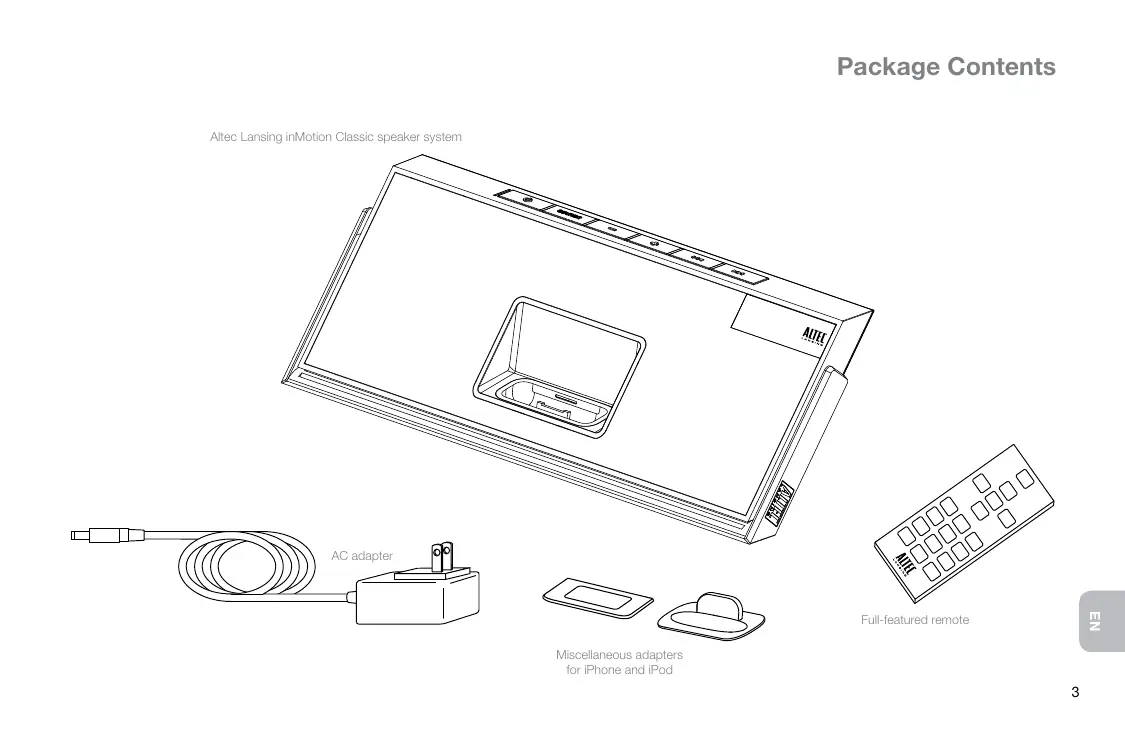


| Product Type | Speaker system for iPod/iPhone, FM radio, auxiliary input |
| Brand | Altec Lansing |
| Model | IMT 620 (inMotion Classic) |
| Power Supply | AC adapter or rechargeable lithium-ion battery 3.7V, 1800mAh |
| Battery Life | Up to 5 hours of continuous playback |
| Charging Time | Approximately 4 hours |
| Audio Sources | Docking station for iPod/iPhone, FM radio, AUX input (3.5mm) |
| Speakers | Built-in stereo |
| Remote Control | Multifunction remote control with CR2025 button cell battery |
| Display | LCD screen |
| Handle | Adjustable handle that also serves as a stand |
| iPod/iPhone Compatibility | iPhone 3G, iPhone, iPod touch (1st and 2nd generation), iPod nano (1st to 4th generation), iPod classic, iPod mini, iPod with video, etc. |
| FM Presets | 4 selectable presets |
| Special Features | Expanded Sound Stage (ESS), shuffle, repeat, alarm/timer via iPod/iPhone |
| Maintenance and Cleaning | Clean with a cloth dampened with mild soapy water; avoid harsh solvents |
| Safety | Do not expose to water, do not open, use only the supplied adapter, follow safety instructions |
| Warranty | 1 year (2 years in the European Union) |
| Spare Parts | Rechargeable lithium-ion battery (type McR18650), remote control battery CR2025, iPod/iPhone adapters available separately |
| Repairability | Removable battery, screw access for replacement; no user-serviceable parts inside |
Frequently Asked Questions - IMT 620 ALTEC LANSING
User questions about IMT 620 ALTEC LANSING
0 question about this device. Answer the ones you know or ask your own.
Ask a new question about this device
Download the instructions for your Bluetooth speaker in PDF format for free! Find your manual IMT 620 - ALTEC LANSING and take your electronic device back in hand. On this page are published all the documents necessary for the use of your device. IMT 620 by ALTEC LANSING.
USER MANUAL IMT 620 ALTEC LANSING
Altec Lansing inMotion Classic Portable Stereo for iPhone™ and iPod®
Enceinte portable pour iPhone™ et iPod® Altec Lansing inMotion Classic Altavoces portátils estéreo Altec Lansing inMotion Classic para iPhone™ e iPod® Sistema estéreo portátil inMotion Classic da Altec Lansing para iPhone™ e iPod®
Sistema stereo portatile Altec Lansing inMotion Classic per iPhone™ e iPod® Mobiler Stereolautsprecher Altec Lansing inMotion Classic für iPhone™ and iPod® Портальные стressesднамки Altec Lansing inMotion Classic对于我们 iPhone™ 和 iPod®
PykoBoDCTBO noIb3ObaTeJia
Käytöopas
Bruksanvising
Welcome
Thank you for purchasing the Altec Lansing inMotion Classic speaker system. Designed specifically to work with your iPhone and iPod, this system provides high-quality audio and radio performance that brings out the best in your music.
This Altec Lansing speaker system is designed to work with:
iPhone 3G
- iPod nano (3rd generation)
iPhone
- iPod nano (2nd generation)
- iPod touch (2nd generation)
- iPod nano (1st generation)
- iPod touch (1st generation)
- iPod with color display
- iPod classic
- iPod mini
- iPod with video
- iPod with Click Wheel
- iPod nano (4th generation)
Please carefully read this User Guide for instructions on setting up and using your inMotion Classic speaker system.
Prior to installing or operating the Altec Lansing inMotion Classic speaker system, refer to the important product safety information.
Getting Assistance
The answers to most setup and performance questions can be found in the Troubleshooting section of this guide. You can also consult the frequently asked questions (FAQ) in the customer support section of our Web site at www.alteclansing.com.
If you live in North America and still can't find the information you need, please call our customer service team for assistance before returning this product to your retailer under their return policy.
Tel: 800-258-3288 (Toll Free in US and Canada)
Email: csupport@alteclansing.com
If you live outside of North America, please visit our Web site at www.alteclansing.com and select your region to locate your country's distributor.
For the most up-to-date information, be sure to check our Web site at www.alteclansing.com.
International Distribution
International customers: For information regarding the distribution of Altec Lansing products in your country, please visit www.alteclansing.com and click on your region.
Registering Your Product
Visit www.alteclansing.com to register your product online, so we can provide you with the best possible service and technical support.
FCC Compliance
Changes or modifications not expressly approved by the party responsible for compliance could void the user's authority to operate this equipment.
This device complies with Part 15 of the FCC Rules. Operation is subject to the following two conditions:
1) This device may not cause harmful interference, and
2) This device must accept any interference received, including interference that may cause undesired operation.

The lightning flash with arrowhead, within an equilateral triangle, is intended to alert the user to the presence of uninsulated "dangerous voltage" within the product's enclosure that may be of sufficient magnitude to constitute a risk of electric shock to persons.
CAUTION
RISK OF ELECTRIC SHOCK DO NOT OPEN
Caution: To prevent the risk of electric shock, do not remove cover (or back). No user-serviceable parts inside. Refer servicing to qualified service personnel.

The exclamation point within an equilateral triangle is intended to alert the user to the presence of important operating and maintenance (servicing) instructions in the literature accompanying the appliance.
CAUTION
To prevent electric shock do not use this (polarized) plug with an extension cord, receptacle or other outlet unless the blades can be fully inserted to prevent blade exposure.
WARNING
To reduce the risk of fire or electric shock, do not expose this appliance to rain or moisture.
IMPORTANT SAFETY INSTRUCTIONS
- Read these instructions.
- Keep these instructions.
- Heed all warnings.
- Follow all instructions.
- Do not use this apparatus near water. This apparatus shall not be exposed to dripping or splashing, and no objects filled with liquids, such as vases, shall be placed on the apparatus.
- Clean only with dry cloth.
- Do not block any ventilation openings. Install in accordance with the manufacturer's instructions.
- Do not install near any heat sources such as radiators, heat registers, stoves, or other apparatus (including amplifiers) that produce heat.
-
Do not defeat the safety purpose of the polarized or grounding-type plug. A polarized plug has two blades with one wider than the other. A grounding type plug has two blades and a third grounding prong. The wide blade or the third prong are provided for your safety. If the provided plug does not fit into your outlet, consult an electrician for the replacement of the obsolete outlet.
-
Protect the power cord from being walked on or pinched particularly at plugs, convenience receptacles, and the point where they exit from the apparatus.
- Only use attachments/accessories specified by the manufacturer.
- Use only with the cart, stand, tripod, bracket, or table specified by the manufacturer or sold with the apparatus. When a cart is used, use caution when moving the cart/apparatus combination to avoid injury from tip-over.
- Unplug this apparatus during lightning storms or when unused for long periods of time.
- Refer all servicing to qualified service personnel. Servicing is required when the apparatus has been damaged in any way, such as power-supply cord or plug is damaged, liquid has been spilled or objects have fallen into the apparatus, the apparatus has been exposed to rain or moisture, does not operate normally, or has been dropped.
- Do not install in an area which impedes the access to the power plug. Disconnecting the power plug is the only way to completely remove power to the product and must be readily accessible at all times.
- Do not install the appliance in a confined space, such as a bookcase or built-in cabinet.
NOTE The lithium-ion battery must be properly recycled or disposed of. Please contact your local recycling center for proper battery handling and disposal instructions.
Please read FCC information and important safety logos at the bottom of the unit.
Contents
Welcome. ii
Safety Information 1
Package Contents 3
Getting Started 4
Placing and Removing Adapters for the iPhone and iPod 6
Speaker Features and Indicators 7
Speaker Controls. 8
Full-featured Remote Details 10
Listening to Your iPhone or iPod 12
Charging your iPhone or iPod 14
Listening to the FM Radio 14
Listening to a Non-docking iPod or Other Portable Audio Device 15
Maintaining Your Speaker System 15
Troubleshooting 16
Warranty 19
Altec Lansing inMotion Classic speaker system
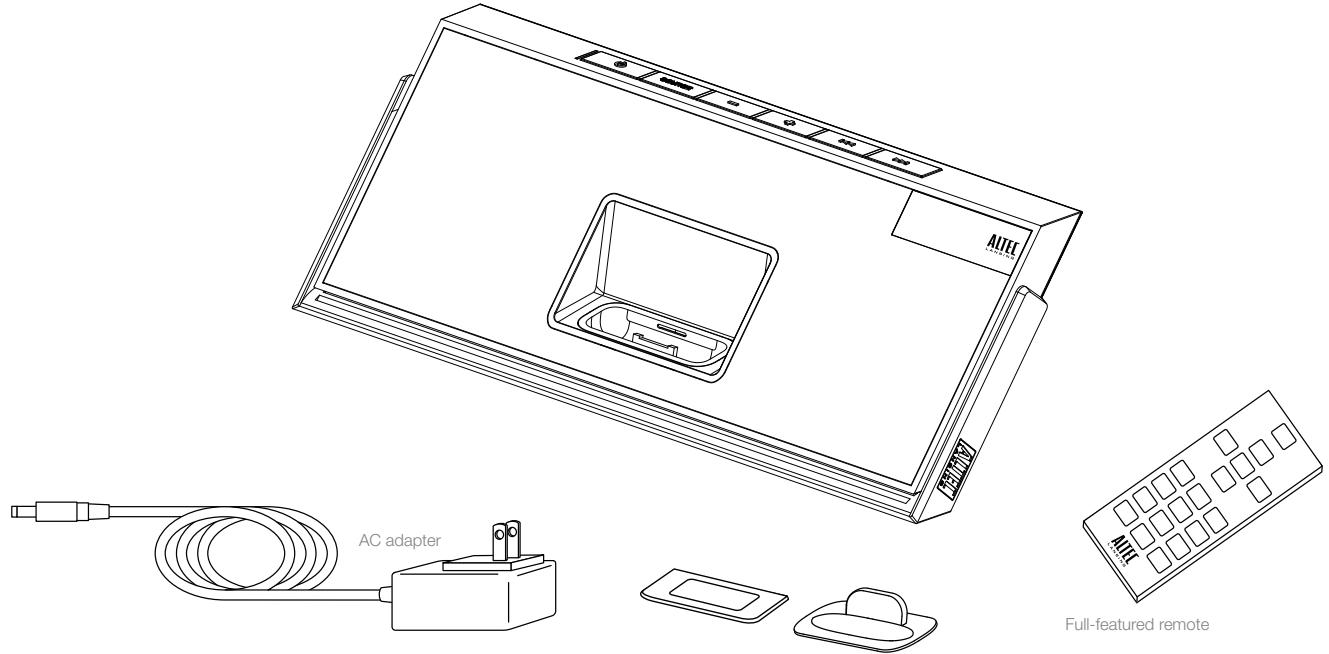
Miscellaneous adapters for iPhone and iPod
Full-featured remote
Getting Started
How to Position the Adjustable Handle
Your Altec Lansing inMotion Classic speaker system is equipped with a unique adjustable handle that doubles as a kick-stand. It provides both an easy way to carry the speaker system as well as a stand to support the speaker system when placed on a flat surface.
| Prop the speaker system on its adjustable handle | The adjustable handle doubles as a stand. Rotate the handle to its rearmost position. Simply grasp and swing the handle backward from either the pack position or carry position. |
| Lift the speaker system handle for carry | Rotate the handle to its top position. Simply grasp and swing the handle backward from the pack position or forward from the kick-stand position. |
| Pack up the speaker system | Rotate the handle to its down point, tucking it snugly under the base of the speaker system. Simply grasp and swing the handle down from either the kick-stand position or carry position. When the handle is in the pack position, the speaker system will automatically turn off. |
WARNING In order to prevent accidentally dropping your iPhone or iPod, be sure to remove it from the docking station before picking up the speaker system by the handle.
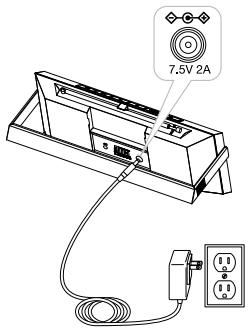
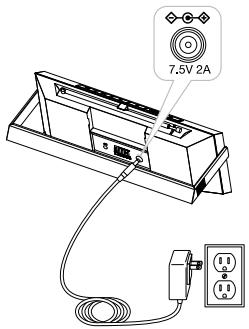
How to Install the AC Adapter
1 Connect the AC adapter cable plug into the speaker system's jack.
The jack is located on the back of the system.
2 Plug the AC adapter into the wall outlet.
WARNING For optimal performance, use only the supplied AC adapter.
How to Charge the Lithium-Ion Battery
Your Altec Lansing inMotion Classic speaker system includes a rechargeable lithium-ion battery. This battery should be fully charged
before initial use of the speaker system. A full charge will provide up to 5 hours of continuous playing time.
When the battery icon on the LCD screen displays a single segment, you should recharge the battery. When the battery icon starts flashing, the speaker system is about to automatically shut down.
1 Connect the speaker system to a wall outlet.
See the How to Install the AC Adapter section. When the speaker system is on, the battery icon on the LCD screen will show the battery is charging.
2 Allow the battery to charge.
Charging time: Approximately 4 hours for a full charge. When the battery is fully recharged, the battery icon is shown as full.
WARNING During the recharging process, it is typical for the battery to become warm. To be safe, keep flammable materials away from the speaker system.
How to Disconnect the Rechargeable Battery
1 Unplug the inMotion Classic from the wall outlet.
2 Remove the rechargeable battery compartment cover at the back of the system by removing the screw.
3 Unplug the battery and remove it.
WARNING There is a danger of explosion if the battery is incorrectly replaced. Replace it only with the same or equivalent type. Do not expose it to excessive heat such as sunshine, fire, etc.
BATTERY DISPOSAL The battery used in this product must be properly recycled or disposed of. Please contact your local recycling center for proper battery handling and disposal instructions.
Rated Voltage: 3.7V Capacity: 1800mAh Type: McR18650
How to Install the Full-featured Remote Battery
The full-featured remote battery (included) is not installed at the factory. To install the battery, follow the steps below:
1 Pull out the battery holder.
The battery door is located on the lower end of the remote. Simply pull the tab to open the battery holder.
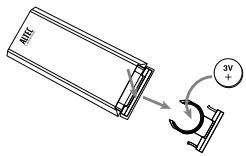
2 Position the included lithium coin battery (CR2025) battery so it sits in the battery holder correctly.
Make sure the polarity (the + and - sides of the battery) is correct.
3 Replace the battery door.
NOTE Please discard used batteries properly.
Placing and Removing Adapters for the iPhone and iPod
Your Altec Lansing inMotion Classic speaker system includes removable adapters for today's popular iPhone and iPod models. These adapters ensure that your iPhone and iPod properly fit in the speaker system's dock. As new iPhone and iPod models are introduced, new adapters will be made available to customers. You may also use the adapter supplied with your iPhone or iPod, or available for purchase at www.apple.com.
How to Place an Adapter
1 Select the correct adapter for your iPhone or iPod.
Using the correct adapter ensures a proper fit for your iPhone or iPod.
2 Gently press the iPhone or iPod adapter into the dock.
Now you can carefully place your iPhone or iPod into the dock.
NOTE Your iPhone or iPod cannot be in a case.
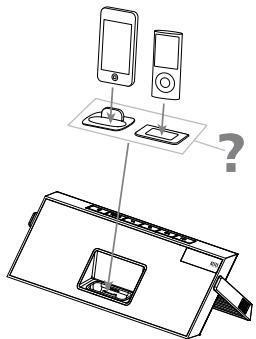
How to Remove an Adapter
1 Remove your iPhone or iPod.
2 Grip the adapter and pull gently upward.
Speaker Features and Indicators
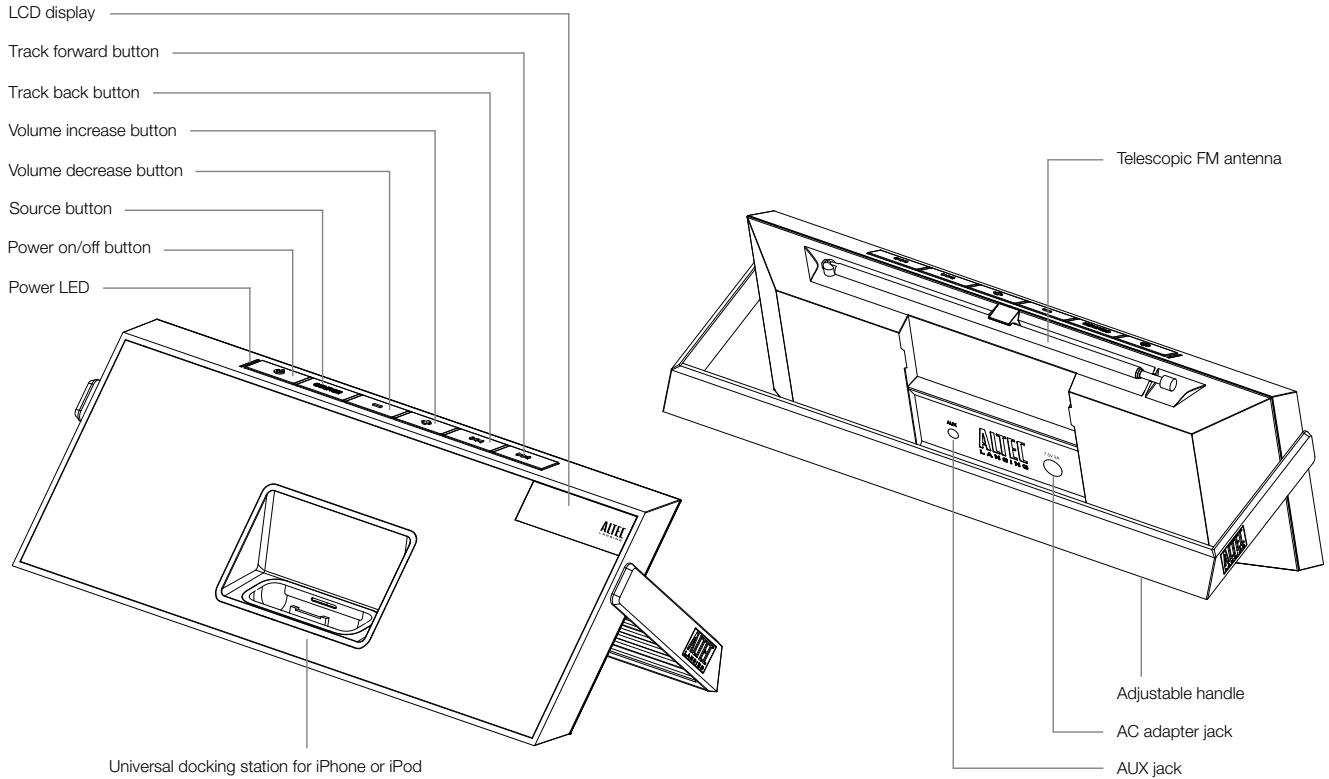
Speaker Controls
| Turn on your speaker system | Ensure the AC adapter is connected to the system and plugged into the wall. See the Getting Started section for more information. Press the Ⓞ button. |
| Turn off your speaker system | Press the Ⓞ button. Whenever you are finished using your speaker system, please remember to turn it and your iPhone, iPod or other MP3 player off to conserve electricity. |
| Change audio source | Press the “SOURCE” button to cycle through and select the audio source: iPod, FM radio or AUX. |
| Turn up the volume | Press the "+" button. |
| Turn down the volume | Press the "-" button. |
| Skip to the beginning of the current song on your iPhone or iPod | In “iPod” mode, press the ↙ button. |
| Rewind the currently playing track on your iPhone or iPod | In “iPod” mode, press and hold the ↙ button. |
| Skip to the beginning of the next song on your iPhone or iPod | In “iPod” mode, press the ↙ button. |
| Fast-forward the currently playing track on your iPhone or iPod | In “iPod” mode, press and hold the ↙ button. |
| Tune radio stations | In “FM” mode, use the ↙ and ↙ buttons. See the Listening to the Radio section for additional information. |
| Scan radio stations | In “FM” mode, press and hold the ↙ or ↙ button. See the Listening to the Radio section for additional information. |
| Listen to a non-docking iPod or MP3 player | See the Listening to a Non-docking iPod or Other Portable Audio Device section for specific information on using devices attached to your speaker system's AUX jack. |
| Reset all settings | With the speaker system on, press the Ⓞ and ↙ buttons simultaneously for a few seconds. Once the word “RESET ?” is displayed on the screen, press the Ⓞ button to reset all settings. |
| Select FM Band region | Reset all settings (see above), and use the "+" and "-" buttons to select the region closest to you ("REGION 1: USA," "REGION 2: EUROPE/ASIA," "REGION 3: JAPAN WIDE" or "REGION 4: JAPAN"). Then, press the Ⓞ button to save your selection. |
Full-featured Remote Details
The full-featured remote lets you operate many functions of your Altec Lansing inMotion Classic speaker system:
| Turn on your speaker system | Press the Ⓞ button. |
| Turn off your speaker system | Press the Ⓞ button. |
| Turn up the volume | Press the “+” button. |
| Turn down the volume | Press the “-” button. |
| Play/pause a song on your iPhone or iPod | In “iPod” mode, press the ➔ button to begin playing a selected track. Press the button again to pause it. |
| Skip to the beginning of the current song on your iPhone or iPod | In “iPod” mode, press the ➔ button. |
| Rewind the currently playing track on your iPhone or iPod | In “iPod” mode, press and hold the ➔ button. |
| Skip to the beginning of the next song on your iPhone or iPod | In “iPod” mode, press the ➔ button. |
| Fast-forward the currently playing track on your iPhone or iPod | In “iPod” mode, press and hold the ➔ button. |
| Tune radio stations | In “FM” mode, use the ➔ and ➔ buttons. See the Listening to the Radio section for additional information. |
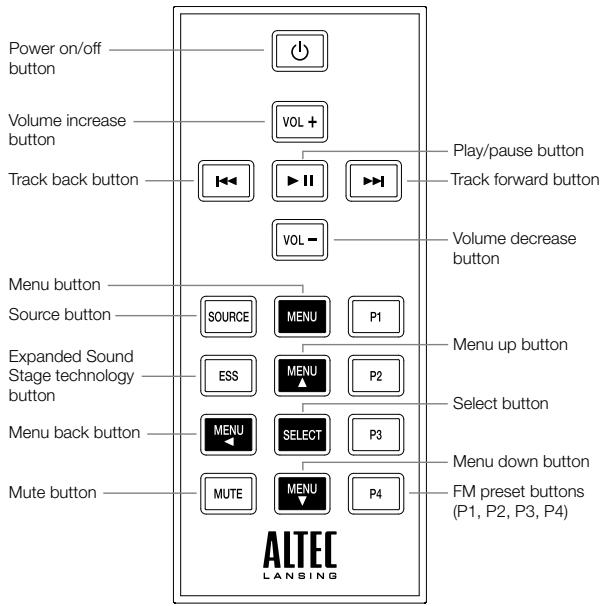
Full-featured Remote Details
| Seek radio stations | In “FM” mode, press and hold the \(\text{串}\) or \(\text{串}\) button. See the Listening to the Radio section for additional information. |
| Store a radio station | In “FM” mode, tune to the station you’d like to store, and then press and hold one of the PRESET buttons (P1, P2, P3 or P4). See the Listening to the Radio section for more information. |
| Select a preset radio station | In “FM” mode, press the PRESET button (P1, P2, P3 or P4) that corresponds to the station you’d like to hear. See the Listening to the Radio section for more information. |
| Change audio source | Press the “SOURCE” button to cycle through and select the audio source: iPod, FM radio or AUX. |
| Enter the menu on the iPod | Press the MENU button to enter the menu on the iPod. |
| Navigate up in the menu | Press the \(\text{串}\) button to scroll up within a menu screen on the iPod. |
| Navigate down in the menu | Press the \(\text{串}\) button to scroll down within a menu screen on the iPod. |
| Navigate back in the menu | Press the \(\text{串}\) button to move back one level within a menu on the iPod. |
| Make a selection in the menu | Press the “SELECT” button to make a selection within a menu on the iPod. |
| Activate Expanded Sound Stage proprietary technology | Press the “ESS” button to widen the stereo image to fill a room with sound. |
| Mute the audio | Press the “MUTE” button to mute the audio. Press the “MUTE” button again to unmute the audio. |
NOTE For best results, aim the full-featured remote toward the inMotion Classic speaker system.
Listening to Your iPhone or iPod
1 Dock your iPhone or iPod in the Altec Lansing inMotion Classic speaker system.
2 Select "iPod" mode.
Press the "SOURCE" button on your speaker system or full-featured remote until "iPod" appears on the LCD.
3 Press the button on your iPhone or iPod.
Music from your iPhone or iPod will start playing. The speaker system and its remote are capable of controlling 3rd-generation iPod models, the iPod touch and iPhone.
4 Adjust the volume.
Use the "+" and "-" buttons on the Altec Lansing speaker system or full-featured remote to adjust the system volume.
5 Find your desired song.
Press the or button on your speaker system or full-featured remote to go to the next or previous track. Press and hold the or button on your speaker system or full-featured remote while track is playing for high-speed forward or reverse music search of the current track.
NOTE To conserve battery power, reduce the speaker system volume level.
NOTE During battery-only operation, the speaker system automatically shuts down if no audio is detected for a few minutes. This is to conserve battery power. Press the button to turn the speaker system back on.
NOTE The speaker system is compatible with the alarm clock and sleep timer features built into select iPhone and iPod models. For these features to work properly, the speaker system must be connected to a wall outlet. When an iPhone or iPod is docked, the speaker system will not shut down automatically, enabling the alarm or sleep timer to play through the speaker system. See the user guide for iPhone or iPod for details on how to access these features.
NOTE During AC operation, if there is no iPhone or iPod docked and no audio input signal is detected for a few minutes, the speaker system automatically shuts down to conserve energy. Press the button to turn the speaker system back on.
How to Access Additional Features on Your iPhone or iPod Using the Full-featured Remote
| Shuffle function | Press the P1 button once on the full- featured remote to advance to the next shuffle mode. SH ALBU is displayed when the system is in album shuffle mode. SH SONG is displayed when the system is in song shuffle mode. SH OFF is displayed when the shuffling function has been turned off. Note: Use the P2 button on some older iPod models. Functionality may vary per iPhone or iPod model. |
| Repeat function | Press the P2 button once on the full- featured remote to advance to the next repeat mode. RPT ONE is displayed when the system is in the repeat one mode. RPT ALL is displayed when the system is the repeat all mode. RPT OFF is displayed when the repeat function has been turned off. Note: Use the P1 button on some older iPod models. Functionality may vary per iPhone or iPod model. |
| Access the previous playlist | Press the P3 button on the full- featured remote. |
| Access the next playlist | Press the P4 button on the full- featured remote. |
Charging Your iPhone or iPod
Whenever your iPhone or iPod is docked and your Altec Lansing inMotion Classic speaker system is plugged into an AC outlet, your iPhone or iPod is charging (until fully charged) - even if the speaker system is switched off.
Listening to the FM Radio
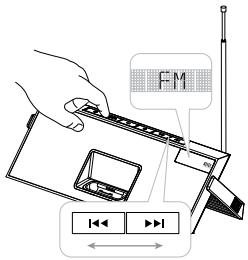
1 Extend the FM antenna fully for best FM reception.
2 Select "FM" mode.
Press the "SOURCE" button on your speaker system or full-featured remote until "FM" appears on the LCD.
3 Tune to the station you want to listen to.
Use the or buttons on your speaker system or full-featured remote to tune in the desired station. Press and hold these same buttons to find the next clear FM station.
4 Adjust the volume.
Use the "+" and "-" buttons on the Altec Lansing speaker system or full-featured remote to adjust the system volume.
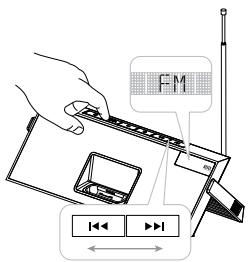
How to Store Preset Stations
Your Altec Lansing speaker system's full-featured remote enables you to program up to 4 FM station presets:
1 Tune to the station you wish to store.
While in "FM" mode, use the and buttons on your speaker system or full-featured remote to tune to the desired station.
2 Store the station.
Press and hold the P1, P2, P3 or P4 button on the full-featured remote for a few seconds. You can store one FM station in each preset.
3 To store other stations, repeat the above steps.
How to Recall Preset Stations
1 Make sure you are in "FM" mode.
If you're not in "FM" mode, press the "SOURCE" button on your speaker system or full-featured remote until "FM" appears on the LCD.
2 Press a PRESET button (P1, P2, P3 or P4) on the full-featured remote.
The radio will tune to your preset station.
3 Adjust the volume.
Use the "+" and "-" buttons on the Altec Lansing speaker system or full-featured remote to adjust the system volume.
Listening to a Non-docking iPod or Other Portable Audio Device
If you have a non-iPod MP3 player or other non-docking portable audio device, you can enjoy it through your Altec Lansing inMotion Classic speaker system as well. Just connect it via the AUX jack. Here's how:
1 Locate a 3.5mm stereo cable (not included).
2 Plug one end of the stereo cable into your device.
Your device should have either a headache or LINE OUT jack for you to plug into.
3 Plug the other end of the stereo cable into your speaker system's AUX jack.
The AUX jack is located on the back of the unit.
4 Select "AUX" mode.
Press the "SOURCE" button on your speaker system or the full-featured remote until "AUX" appears on the speaker system's LCD.
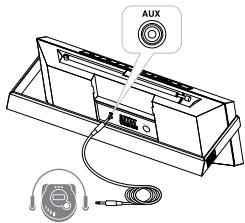
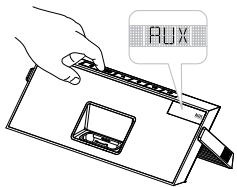
5 Turn on your device and start it playing.
6 Adjust the volume.
Use the "+" and "-" buttons on the speaker system or full-featured remote to adjust the volume.
NOTE You may need to adjust the device volume also. Your device's volume should be set to approximately 34 volume.
7 When you are finished listening to your portable audio device, please remember to turn both it and your speaker system off to conserve electricity.
Maintaining Your Speaker System
Place your speaker system on a level surface away from sources of direct sunlight or excessive heat.
Protect your furniture with a cloth or other protective material when placing your speaker system on a natural wood or lacquered finish.
Clean your speaker system with a soft cloth moistened only with mild soap and water. Stronger cleaning agents, such as benzene, thinner or similar materials, can damage the surface of the unit.
Troubleshooting
| Symptom | Possible Problem | Solution |
| Speaker system doesn’t respond (no power) | AC adapter isn’t plugged into a wall outlet or the connector isn’t plugged into the power supply jack on the back of the speaker system. | Plug the AC adapter into a wall outlet and plug the connector into the power supply jack on the back of the speaker system. |
| Wall outlet is not functioning. | Plug another device into the same outlet to confirm the outlet is working. | |
| The rechargeable battery isn’t charged. | Recharge the battery. (See the Getting Started section for details.) | |
| The power isn’t turned on. | Turn on the speaker system by pressing the Ⓞ button. The indicator light turns on. | |
| iPhone or iPod doesn’t dock properly | Using the wrong adapter for iPhone or iPod, or no adapter. | Make sure the adapter is the proper fit for your iPhone or iPod. |
| iPhone or iPod didn’t install properly. | Remove your iPhone or iPod from the dock and check for obstruction on the connectors in the dock and on your iPhone or iPod. Then reseat it in the dock. |
Troubleshooting
| Symptom | Possible Problem | Solution |
| iPhone or iPod doesn't respond to the speaker system or remote | iPhone or iPod is not installed properly. | Remove your iPhone or iPod from the dock and check for obstructions on the connectors in the dock and on your iPhone or iPod. Then reseat it in the dock. |
| Your iPhone or iPod software is too old. | Upgrade software on your iPhone or iPod. For details visit www.apple.com/ipod/download. | |
| iPhone or iPod is locked up. | Please make sure your iPhone or iPod is working properly before docking into the unit. Please refer to your iPhone or iPod manual for details. | |
| Using 1st- or 2nd- generation iPod, iPod shuffle or other devices. | Your speaker system cannot control those iPod models or other devices. | |
| iPhone or iPod didn't charge | iPhone or iPod is not installed properly. | Remove your iPhone or iPod from the dock and check for obstructions on the connectors in the dock and on your iPhone or iPod. Then reseat it in the dock. |
| iPhone or iPod is locked up. | Please make sure your iPhone or iPod is working properly before docking into the unit. Please refer to your iPhone or iPod manual for details. | |
| AC adapter isn't plugged into a wall outlet, or the connector is not plugged into the power supply jack on the back of the speaker system. | Plug the AC adapter into a wall outlet and plug the connector into the supply jack on the speaker system. |
Troubleshooting
| Symptom | Possible Problem | Solution |
| Sound is distorted | Volume level is set too high. | Decrease the volume. |
| Sound source is distorted. | If the iPhone or iPod original sound source (MP3) is of poor quality, distortion and noise are easily noticed with high-power speakers. Try a different audio source such as a music CD. | |
| Full-featured remote doesn't work | Battery is weak. | Replace current battery with a new battery. |
| Full-featured remote is not pointed toward to the speaker system. | Point the full-featured remote toward the Altec Lansing speaker system and move within 10 feet of the unit. | |
| No sound from the AUX device, such as an MP3 player or CD player connected to the AUX jack | Volume on the device is set too low. | Increase the volume on the device to approximately ¾ full volume. |
| Source selector is not set to AUX. | Set source selector to AUX. | |
| The speaker system exhibits erratic or unexpected behavior; controls do not function | Static electricity, momentary interruption of power or abnormal operating conditions may be responsible. | 1. Disconnect the AC adapter cable plug from the speaker system's jack.2. Place the handle in the pack position.3. Wait 20–30 seconds.4. Place the handle in the kick stand position.Reconnect the AC adapter cable plug to the speaker system's jack.Note: See the How to Position the Adjustable Handle section for handle positions. |
ALTEC LANSING ONE-YEAR LIMITED WARRANTY (TWO-YEAR LIMITED WARRANTY IN THE EUROPEAN UNION)
What Does the Warranty Cover?
Altec Lansing warrants that its products shall be free from defects in materials or workmanship, with the exceptions stated below.
What Is the Period of Coverage?
For units purchased in European Union, this warranty runs for two years from the date of purchase. For units not purchased in Europe, this warranty runs for one year from the date of purchase. The term of any warranties implied by law shall expire when your limited warranty expires. Some states and/or Member States in the European Union do not allow limitations on how long an implied warranty lasts, so the above limitation may not apply to you.
What Does the Warranty Not Cover?
This warranty does not cover any defect, malfunction or failure that occurs as a result of: improper installation; misuse or failure to follow the product directions; abuse; or use with improper, unintended or faulty equipment. (For information on proper installation, operation and use consult the manual supplied with the product. If you require a replacement manual, you may download a manual from www.alteclansing.com.) Also, consequential and incidental damages are not recoverable under this warranty. Some states do not allow the exclusion or limitation of incidental or consequential damages, so the above limitation or exclusion may not apply to you.
What Will Altec Lansing Do to Correct the Problem?
Altec Lansing will, at its option, repair or replace any product that proves to be defective in material or workmanship. If your product is no longer being manufactured, or is out of stock, at its option, Altec Lansing may replace your product with a similar or better Altec Lansing product.
How to Get Warranty Service
To get a covered product repaired or replaced, you must contact Altec Lansing during the warranty period by email (csupport@alteclansing.com). You must include in your email, your name, address, email address, telephone number, date of purchase and a complete description of the problem you are experiencing. In the United States, you may alternatively contact Altec Lansing by telephone at 1-800-ALTEC88 - please be prepared to provide the same information. If the problem appears to be related to a defect in material or workmanship, Altec Lansing will provide you a return authorization and instructions for return shipment. Return shipments shall be at the customer's
expense, and the return must be accompanied by the original proof of purchase. You should insure the shipment as appropriate because you are responsible for the product until it arrives at Altec Lansing.
How Will State Law Affect Your Rights?
This warranty gives you specific legal rights, and you may also have other rights which vary from state to state. Please note that in the European Union, you as a consumer might have other legal rights under national legislation of European Union Member States governing the sale of Altec Lansing's goods. Those rights are not affected by this guarantee.
The above limited warranties and remedies are sole warranties and remedies available to purchaser, if, and to the extent, valid and enforceable under the applicable law.
DISPOSAL OF OLD ELECTRICAL AND ELECTRONIC EQUIPMENT

This symbol on the product or on its packaging indicates that this product shall not be treated as household waste. Instead it shall be handed over to the applicable collection point for the recycling of electrical and electronic equipment. By ensuring this product is disposed of correctly, you will help prevent potential negative consequences for the environment and human
health, which could otherwise be caused by inappropriate waste handling of this product. The recycling of materials will help to conserve natural resources. For more detailed information about recycling of this product, please contact your local city office or your household waste disposal service.
Bienvenue
The radio will tune to your preset station.
3 Ajuste o volume.
The radio will tune to your preset station.
KHTeJI CBeBPOH AMePKN, KOtOpbIe He CMOrI NpOyUHTb Heo6xOdMHyIO HΦOPMAuH, PneEoOpaUeHnEM K pOaDABUY B COOTBETCTBNI C NOITNkoB3PATA npOdykUmOryT oPaTntb3a 3a NOMOULBO B OTDeI CnykbI POndepKKN KNIEHTOB KOMAHN.
Ten.: 800-258-3288 (B CLJIA u KaHaje 3BOHOK 6eCnPaTHbI)
3Jekponha noTu: csupport@alteclansing.com
KInTeI npyHx perHOH MOYr NocETuB Be6-caT KOMNaHn NO aDpeCy www.alteclansing.com n yka3aTb perHOH dny noncKa peHOHaJIbHOro ndctprbIoTopa.
Последно Инфорmaлно см. на Be6-caite Компани по заpecу www.alteclansing.com.
MeknyhapoHoe pacnpoCtpaHeHne
Дяиноctpanhblx nokynatene.Дяи nojnyehma nihopmaun o pacrpoctpaenHHnpojdukm Altec LansingВ baue chpae nocetnte hauc qawthaoleclansingnHnBbIbepitre cboi pernoH.
IaTIO TTObIpeTOBtPbATNTbPNCKOBTOBpHAnI INI NopApkeHN3NEKTPNHECKM TOKOM, HeNIOBpeBaTeYcTOCTPOBHOBOBcEHTNO BDOJI bINI BnAing.
BAKHbIE INHCTPYKUIMI NO TEXHNIKE BE3ONACHOCTN
1.ПочнтагданьгинСТPyкл.
-
2. CoxpaHnte daHbIe nHcTpKUIM.
3.YuHTbIbaiTeBce npedynpeKdEHa.
4.CnedyTe BcEM INHCTpyKUJAM.
5.He nCnOJIb3yIte daHnHOe I3dEInne B HENOpCEpCTBeHHoB 61n3OCTOn OT BoIb. Ha daHnHOe I3dEInne He JIOJXHa KanaTb NIN pOINIBaTcBc BOJa; IIObIe HAnOpHeHHbIe XIKDOKTObI pMeDJIbTa, TaKHe KAK Ba3bI, He DIOJXbIb HAXODITcB C HENOpCEpCTBEHHoB 61n3OCTOn OT I3dEInne.
6. Постапайе Издени Только cyхо.TkaHBIO.
7. 麻巴赫BABTEBEHNTIJIYIOOHIOUOTBEOPCTY,YCTAHABHBAITEN3DEJME B COOTBTETCBN C HHTCPKLYIIMN IIGTOTOBITEJI。
8.He yctahabnBwaiye I3dJIeN B6IImN ITOCHN KOB TcIIa, TaKHX KAK OTONITbHbIE batape, oObrpBeBaTei, neu n dpyTne BlydeJIIOUe N TeIIO YcTPOICTBA (B TOM cIcIe YcUNTIeJI).
9.He npuayIaIte npabIW TEXNIKI 6e3OanocHTIN B OTHOUHEIN NIOJPN30BAHbIX INI 3a3emJIIOUHX INILOK. IPOJIPO3oAHBHe BIIKNI IMEOT DBA KOHTAKTA: y3kN I INI PIOKON. 3a3EMNIHOUe BIINIKI IMEOT DBA O6bHI K KOHTAKTJA OND INA 3a3EMNIHOUIN. IIIOPOKNI KOHTAK NIIPTETNI UTbIP PpNDH3AHAeHbI JDN A6eCneHEnIe 6e3OanocCTOn. EcInn pnpIraaeMaER BIIKA He nOxOJT K PO3eTke, 6OBATNTcB K 3eNKTPKNY JI 3aMeHN CTAPON PO3eTKN.
- He paonolaraite Te huyp nittan H B mectax, fne Ha HrOy MOrT hAcTy nltb, n He donyckaiTe ero 3aueMlenH, B oC6eHNcToB vOblaTn B uNk, 3JeKtPnuHeCKO pOzEKNi M MeCTa BxOda Ouhypa N3 i3dJeIN.
11.ИнользутToTeToPnICNoC6JIeHЯnAkeCCCyapbI,КOTOpByYka3aHbIyNATOBOTBTEJEM. - IcnoJIb3yIte IzIeJIe NToIbKO c TeIeKkoN, NOCTaBKO, UTAITBOM, DEpKaTeIeM IIN CTOLOM, KOTOpBIE Yka3AHI bI rTOBOTeJIeM IIN npOdaIOTcBAMeTc e IzIeJIeM. Ipn nepeBo3Ke IzIeJIIn Ha TeIeJKe CO6HIOdJIte OCTOPoXHOCT Bo Iz6EkaHme TpaBmpoBaHn B pe3yJIbTaTe OIPOKdIbBaHn.
- OTKIIaHaiye IINdJIeN BO BpEMrIgO3bl NnIHa BpEMrIgNIITelbHorO pReKpaUHeNIAIcIOJIbO3BOAHn.
- B cnlyae IIObO HeNoIaKn ObaaTteCb K KBaIINpIuropBaHbIM CneIuaIInCTAm. PeMoHT n3dEYnra Heo6XoDmPn Pn IObOM NOBpeKdEHN, HaprIMeP NOBpeKdEHN Ⅲhypa IITaTHN IIN BUNIK, IONaADHN BHyTp b3dJIyN POCTOPOHHHN PpeMeTOB, BbKOa IV cTPOB V pe3yIbTaTe BO3dJeCTBnB OBoI IN IN BlaRn, pIeHNoIaKaX Bpa6ote.
- He ocyuieCTbIyte yctaHOBky B MeCTax, rge 3atpydHEn DoCTyn K po3eTKe. Pa3bEduHHe MBIKINu PO3eTKN - 3TO EDHCTBEHHb CNOOC6o NIOHOCTbIO PneKpATHTb PINTAHHE IN3dEJIIM, PO3OTOMY OH DINOJXHb 6bITb DOCTYHNb I JIOOeBPEM.
16.He yctahabnlaheyctpoiBTOB O prganuHHeHOMIpOCTPAHCTBE (HAPNIMep, HAKHHKONPJIKe IIN B UkAqdy).
IPMIMEAHAIE.NcNOb3yEMBbBdAnHOMI3eDnIMINITNEBO-IOHbEAKKMyJPTOpBip NoIeKat nepebaOTokeInyTnIaZa.3u InhOpMaJIe6o8yTnIaZaUmN BbIOBeek AKkMyJPTOpOB OgbpaTeB MeCHTbJeHTP nepeBaOTKn.
O3HAKOMbTcBc HINOPDMJIeO6 FCC N BaKHbIMM 3MbEMAMC, CB3AHbIMn C ToxHKIN6Eo3NACHOCTOn, HNAHXHEJACTY cTOYPCTOA8.
OrlaBJIeHne
PpmbetCTBue 120
CbeHnna o texnke bezonaacnoctn 121
KoMJIeKT nOcTaBKn 123
Hauao paobtbl. 124
UcTaHOBka n u3BleHene aadTepoB dIy iPod n iPhone. 126
Функшии И ИнданКаТоры akуctиеско систмbl 127
3JIeMeHTbI ynpabLeHnra 128
Onncanne noHnOyHKmHOaJIbHOro npIbTa Dv 130
IpcnnyuBaanme yctpoiCtba iPhone nii iPod 132
3apka iPhone n iPod 134
IprocnuunBaHne padno 134
IpocnyuBHaHe My3bIKn Ha npyrom npeepi Pod 6e3 npokKluOeHn K doK-CTaHmN Ha npyrrx nopTaTINBbIx ayDnooyctpoiTbax.135
O6cnykBaHne akycTnuecko cnCTembl 135
YcTpaHHe HnOlaDok 136
TapaHTy 139
Akyctuuecka cnctema Altec Lansing inMotion Classic
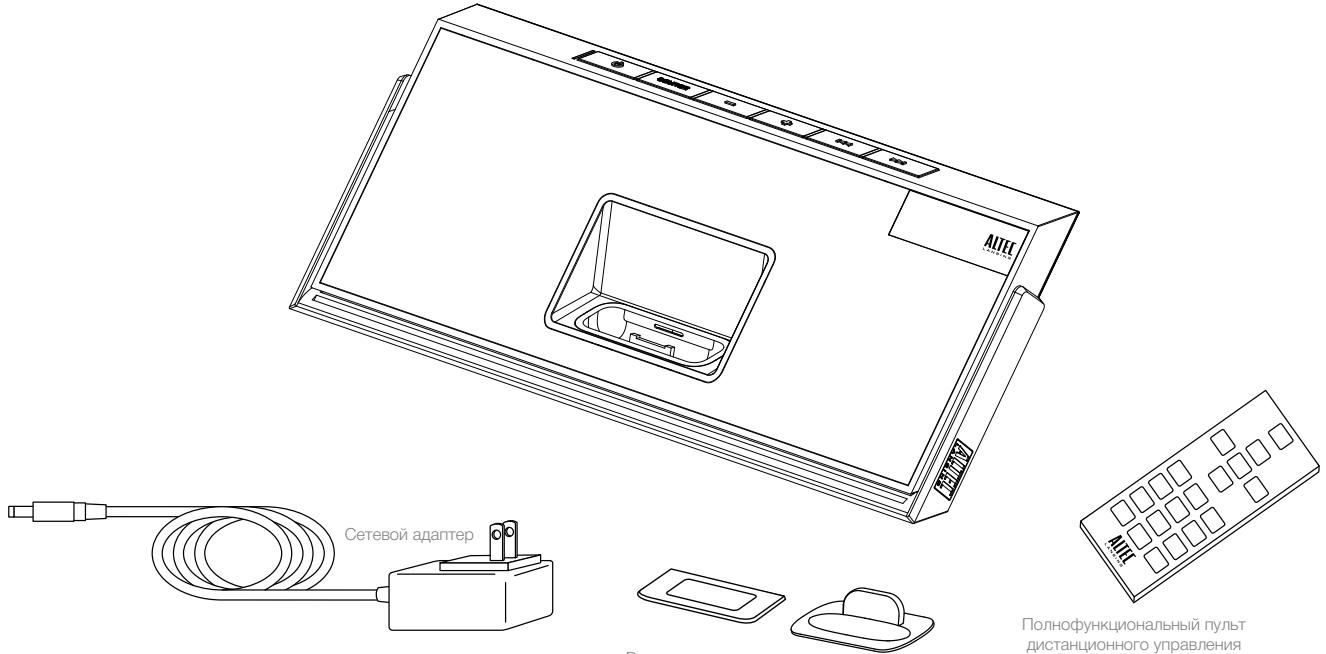
Pa3nHbIe aadTepbl
IoiKIOUOeHnYcTPOINCTB
iPhone u iPod
TIOJIHOOyHKUHOHaJIbHbI NyJBt
ДИСТАЦНОНΗΟΥΝΡΑΒΙΕΝΗ
Haayalopapobtbi
yctahOBka pepyinpyeMo pykoTkn
Akyctupeckara cncTeMa Altec Lansing inMotion Classice ochaueha yHnkaBbOre peryIpyeMoE pyKoRTKO, KOTOPYTO TAKKE MOXHO nCpOJIb30BaTb B KaHeCTBe NOCTaBKn. OHa npEJaHa3NaHeHa dJa nepeHoCKn Akyctupeckara CnCTeMb, a TAKKE Cnyknt NOCTaBKn pnp uycTaHOBe CnCTeMb Ha NIOCKyHO NOBepxHOCTb.
3apnKaIITneBO-NOHHHOrO
akkymyITopa
B KOMPJIeK TIOCTaBkN akCyTneCckO cnCTeMb Altec Lansing inMotion Classic BXoDIT NITTEBEO-NOHHb AKKyMylrTOp. Neped nepBBm INTOJb3OBAHnEM CNCTeMb AKKyMylrTOp HEo6XoDIMO POJHOCTbIO 3apAaNTb. PnI pONHOI 3apJKe AKKyMylrTOp IPOJOxKHTeLBHOCTb HENpepbIbHOI paOToB b PexIMe BOCpON3BeDeHnC OcTaBIAET PnTb YacOB.
AkkymyIaTOp Tpe6yET NOD3apRdKn, KOrda Ha 3HaUKe AkkymyIaTOpa H aNcIeE octaetcOOnH cemMeH. MmraHue 3HaUka AkkymyIaTopa O3HaaeT,HTo AkyCTuHecka CNTema FOToBITcK ABTomATuHeckOMY OTKNUOHeHHIO.
1 Повклочte akyctucheckyo cnctemy K элькtripueckoу po3etke.
Cm. paoen JIoknIOeHne coteBoro aadTepa'. KOrda ayckTHecka CNTcEMa BkLIOue, 3HaOOk akyMylTOpA Ha dncJee yKakET Ha TO, YTO bTape8 zapKaaeTc.
2 DainTe aKKymyTOpTy 3apAunTbcra.
2 BCTaBbTe JIITnEByi aKkyMylrTop CR2025 (B KOMJIeKeT) B DePkaTeIb IpaBnIbHbIM 6pb3Om. Make sure the polarity (the + and - sides of the battery) is correct.
3 3akpoTe KpbIuKy akkymylTOpHOrO oTceKa.
CoxpaHenne npeducTaHOBJIeHHbIX paIIOCTaHm
C NOMOJIbIO NIOHOFyHKUHOHaBHO TpybTa JINCTAHUHOHHO YnpabJIeHnA akyctInecko cNCTeMoi Altec Lansing MoKHO 3aIporpamMPOBaTb Do 4 FM-panochtauHni.
1 Hactpoite paiooctaHIO, KOtOpyo xoHTe coxpaHNTb. BpeKIMe FM hactpoite HuykHyIO paiooctaHIOIO C NOMOIOHO KHOIOK HHa akCTnCeCKoC nCTeMe IJIIN OJIHOyHKUHOHAJBHom pJIbTe D.
2 CoxpaHnte paAnocTaHnIO.
HaKmIte n UyepkmbaTe KhoNky P1, P2, P3 nIi P4 Ha NaOHocHyNKIOHOHbHOM nuIbe NcIaTHUHOr ynpabLeHnB Ta TeueHHe HeckOblKnx cekyHd. B KaXOp mpeYctaHOBHeHOM 3HaNeHm MOHXo CoXPaHTbToNbKO OOny pAdnoCTaHNoI.
3Дя coxpaHnIy dpynx paNocTaHcIy NOBTOpe OINCAHbIe BblIe DeIcTBnIy.
Bb6op npedyctaHOBJIeHHo paHIOCTaHcN
1 BkJIouHtpepeXmFM-npHeMHnka.
Ecnn akCyuecka cnCTema He haoDiTcB Pexmme FM, hKMMaTe KONky «ICTOCHN« HcSnCTe mInn noHocyHKUHOHaJIbMo Nylte nDctaHcuOHO npayBeHnro Do tex nop, noKa he KK-dmcnee He noRbITc3HaOK FM.
2 HaxMMTe KhoNky npedyctaHOBnEHHORo 3HaueHnna (P1, P2, P3) mI N P4) Ha nOJIHOyHKUHOHaIbHOM nIyIbe dNCTAHcUNOHORO ynpabHeHn.
Bpeyltate pao 6ydt HactpoeHO na npeducHOBHeHHyo paiaocTaHIO.
3 HactpoTe ypoBeHb rPOMKOCTN.
| Oire | Mahdollinen ongelma | Ratkaisu |
| Kaiutnjärestelmä ei vastaa (ei sāhköä) | AC adapter isn't plugged into a wall outlet or the connector isn't plugged into the power supply jack on the back of the speaker system. | Plug the AC adapter into a wall outlet and plug the connector into the power supply jack on the back of the speaker system. |
| Wall outlet is not functioning. | Plug another device into the same outlet to confirm the outlet is working. | |
| The rechargeable battery isn't charged. | Recharge the battery. (See the Getting Started section for details.) | |
| The power isn't turned on. | Turn on the speaker system by pressing the Ⓞ button. The indicator light turns on. | |
| iPhone tai iPod ei telakoidu kunnolla | Using the wrong adapter for iPhone or iPod, or no adapter. | Make sure the adapter is the proper fit for your iPhone or iPod. |
| iPhone or iPod didn't install properly. | Remove your iPhone or iPod from the dock and check for obstruction on the connectors in the dock and on your iPhone or iPod. Then reseat it in the dock. | |
| iPhone tai iPod ei vastaa kaiutinjärestelmälle tai kaukosätimelle | iPhone or iPod is not installed properly. | Remove your iPhone or iPod from the dock and check for obstructions on the connectors in the dock and on your iPhone or iPod. Then reseat it in the dock. |
| Your iPhone or iPod software is too old. | Upgrade software on your iPhone or iPod. For details visit www.apple.com/ipod/download. | |
| iPhone or iPod is locked up. | Please make sure your iPhone or iPod is working properly before docking into the unit. Please refer to your iPhone or iPod manual for details. | |
| Using 1st- or 2nd- generation iPod, iPod shuffle or other devices. | Your speaker system cannot control those iPod models or other devices. | |
| iPhone tai iPod ei lataudu | iPhone or iPod is not installed properly. | Remove your iPhone or iPod from the dock and check for obstructions on the connectors in the dock and on your iPhone or iPod. Then reseat it in the dock. |
| iPhone or iPod is locked up. | Please make sure your iPhone or iPod is working properly before docking into the unit. Please refer to your iPhone or iPod manual for details. | |
| AC adapter isn't plugged into a wall outlet, or the connector is not plugged into the power supply jack on the back of the speaker system. | Plug the AC adapter into a wall outlet and plug the connector into the supply jack on the speaker system. |
Vianetsintä
| Oire | Mahdollinen ongelma | Ratkaisu |
| Ääni on vääristynyt | Volume level is set too high. | Decrease the volume. |
| Sound source is distorted. | If the iPhone or iPod original sound source (MP3) is of poor quality, distortion and noise are easily noticed with high-power speakers. Try a different audio source such as a music CD. | |
| Monitoiminen kaukosäädin ei toimi | Battery is weak. | Replace current battery with a new battery. |
| Full-featured remote is not pointed toward to the speaker system. | Point the full-featured remote toward the Altec Lansing speaker system and move within 10 feet of the unit. | |
| Ei äntä AUX-laitteesta, kuten AUX-jakkiin liitetystä MP3- tai CD-soittimesta | Volume on the device is set too low. | Increase the volume on the device to approximately ¾ full volume. |
| Source selector is not set to AUX. | Set source selector to AUX. | |
| Kaiutjärestelmä käytätyvirheellisesti tã odottamattomasti, säätimet eivã tõimi | Static electricity, momentary interruption of power or abnormal operating conditions may be responsible. | 1. Disconnect the AC adapter cable plug from the speaker system's jack.2. Place the handle in the pack position.3. Wait 20-30 seconds.4. Place the handle in the kick stand position.Reconnect the AC adapter cable plug to the speaker system's jack.Note: See the How to Position the Adjustable Handle section for handle positions. |
ALTEC LANSINGIN YHDEN VUODEN RAJOITETTU TAKUU (KAHDEN VUODEN RAJOITETTU TAKUU EUROPOAN UNIONIISSA)
Mitā takuu kattaa?
International distribution
Radion staller in din forinstallda station.
3 Justera volym.
ASIA/PACIFIC 23/F, Office Tower, Shun Hing Square Diwang Commercial Centre, 5002 Shen Nan Dong Road, Shenzhen, China 518008
Made for iPod means that an electronic accessory has been designed to connect specifically to iPod and has been certified by the developer to meet Apple performance standards.
Works with iPhone" means that an electronic accessory has been designed to connect specifically to iPhone and has been certified by the developer to meet Apple performance standards.
Apple is not responsible for the operation of this device or its compliance with safety and regulatory standards.
Patents pending.
© 2009 Plantronics, Inc. All rights reserved.
ALTEC, ALTEC LANSING, the Altec Lansing logo, the horn design, inMotion, and iMT620 are trademarks or registered trademarks of Altec Lansing, a division of Plantronics, Inc.
Plantronics, the logo design and Sound Innovation are trademarks or registered trademarks of Plantronics, Inc.
iPod is a trademark of Apple, Inc., registered in the U.S. and other countries.
iPhone is a trademark of Apple Inc.
All other trademarks appearing herein are the property of their respective owners.
Designed by Altec Lansing in the USA. Made in China.
- Welcome
- Getting Assistance
- International Distribution
- Registering Your Product
- FCC Compliance
- CAUTION
- WARNING
- IMPORTANT SAFETY INSTRUCTIONS
- Contents
- Getting Started
- How to Position the Adjustable Handle
- How to Install the AC Adapter
- Allow the battery to charge.
- How to Disconnect the Rechargeable Battery
- How to Install the Full-featured Remote Battery
- Placing and Removing Adapters for the iPhone and iPod
- How to Place an Adapter
- Speaker Features and Indicators
- Speaker Controls
- Full-featured Remote Details
- Listening to Your iPhone or iPod
- Charging Your iPhone or iPod
- Listening to the FM Radio
- Listening to a Non-docking iPod or Other Portable Audio Device
- Maintaining Your Speaker System
- Troubleshooting
- ALTEC LANSING ONE-YEAR LIMITED WARRANTY (TWO-YEAR LIMITED WARRANTY IN THE EUROPEAN UNION)
- What Does the Warranty Cover?
- What Is the Period of Coverage?
- What Does the Warranty Not Cover?
- What Will Altec Lansing Do to Correct the Problem?
- How to Get Warranty Service
- How Will State Law Affect Your Rights?
- DISPOSAL OF OLD ELECTRICAL AND ELECTRONIC EQUIPMENT
- Bienvenue
- MeknyhapoHoe pacnpoCtpaHeHne
- BAKHbIE INHCTPYKUIMI NO TEXHNIKE BE3ONACHOCTN
- OrlaBJIeHne
- Haayalopapobtbi
- yctahOBka pepyinpyeMo pykoTkn
- DainTe aKKymyTOpTy 3apAunTbcra.
- Bb6op npedyctaHOBJIeHHo paHIOCTaHcN
- Vianetsintä
- ALTEC LANSINGIN YHDEN VUODEN RAJOITETTU TAKUU (KAHDEN VUODEN RAJOITETTU TAKUU EUROPOAN UNIONIISSA)
- Mitā takuu kattaa?
Brand : ALTEC LANSING
Model : IMT 620
Category : Bluetooth speaker