USER MANUAL DPF 15002 TELEFUNKEN
I. Learn about and install your frame 2
1.Box contents 2
2. Frame diagram 2
3. Installation 3
II. Use your frame 3
- Selecting a language 3
- Reading a memory card or a USB key 3
- Copying photos to the internal memory 4
- Deleting photos 4
III. Selecting the type of files to play 5
- Photos 5
- Videos 5
- Music 6
IV. Settings 6
- Photo settings 6
- Music settings 7
- Video settings.. 8
- Calendar settings 8
VI. Safety instructions 9
VII.Warranty 9
VIII. Specifications 11
I. Learn about and install your frame
Thank you for your recent purchase of a TELEFUNKEN DPF 15002 digital photo frame. Before using your device, please consult these operating instructions and keep them so you may refer to them later on.
1. Box contents
- 1 digital photo frame
- 1 AC adaptor
- 1 remote control
- 1 adjustable stand
- 1 dust cloth
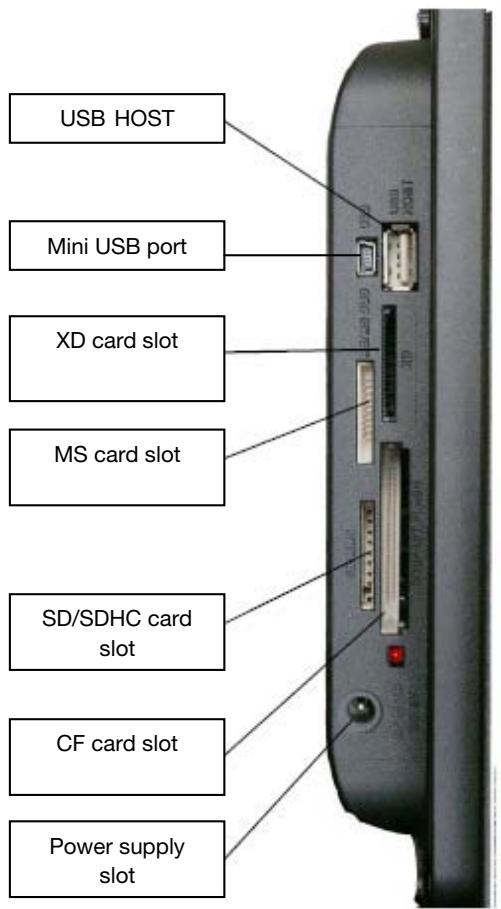
2. Frame diagram
3. Installation
- Take your frame and its accessories out of their packaging.
- Remove the plastic film protecting the front of the frame.
- Pull the plastic tab protecting the contacts in the remote control.
- Install the frame's stand by sliding it into the slot provided on the back of the frame.
- Position the frame in the desired location, pulling the adjustable stand towards you.
- Connect the electrical cord to the frame in the space provided.
- Plug your frame into an outlet. Your frame will start up automatically.
II. Use your frame
1. Selecting a language
Once the slideshow has launched, press the "EXIT" key on the remote to display the main menu screen, then press the "SETUP" button.
Use the "RIGHT/LEFT" keys on the remote to select the "Language" icon, then press "ENTER".
Select your language using the "UP/DOWN" keys on the remote, then press the "SLIDESHOW" key on the remote to restart the slideshow.
2. Reading a memory card or a USB key
If your frame is off:
- Insert your card or USB key in the space provided.
- Switch on your frame: the slideshow will automatically play the contents of your memory card on USB key.
If your frame is on
- Press the "EXIT" key on your remote to display the main menu screen.
- Use the "RIGHT/LEFT" keys on your remote to select the "Card Selection" icon (on the bottom left), then press "ENTER".
- Select the desired card using the "RIGHT/LEFT" keys on your remote and press "ENTER" to confirm your choice. The main menu will appear again; press the "SLIDESHOW" key to launch the slideshow.
your media (card, key or internal memory) contains music, the slideshow will play without it. To activate music during the slideshow, press the "ENTER" key on the remote.
3. Copying photos to the internal memory
There are two ways to copy images from your memory card to the frame's internal memory.
- Copy your files from the file manager
If you use this method, you can select any type of file to copy (photos, audio, video).
From the main menu screen, select the "Folders" icon using the "RIGHT/LEFT" keys on the remote, and press the "ENTER" key. A list of every file on your media will appear. Select the files to copy using the "UP/DOWN" keys on your remote, and confirm the selection of each file by pressing the "Select" key (signified by a checked box on the remote). Press the "SETUP" key on your remote, then use the "RIGHT/LEFT" keys to select the "Copy" icon. Press "ENTER", then select the "Copy selected" option. Press the "ENTER" key. Select "Confirm" or "Cancel", then press "ENTER".
- Copy your photos from the thumbnail mode
Using this method, you can copy a selection of photos, with the ability to resize them to the frame's resolution in order to optimize internal memory capacity.
-
From the main menu, select the "Photo" icon and press "ENTER". The images will display as thumbnails.
-
Select the images to copy using the "RIGHT/LEFT - UP/DOWN" keys and the "Select" key (signified by a checked box on the remote).
-
Press the "SETUP" key, then use the "RIGHT/LEFT" keys to select the "Copy" icon. Press "ENTER" and choose "Copy all" or "Copy selected".
-
Press "ENTER". You can now confirm, cancel or copy the images, resizing them to fit the resolution of your frame. Make your selection, then press the "ENTER" key.
4. Deleting photos
You can delete photos that are in your frame's internal memory.
- Delete your files from the file manager
If you use this method, you can select any type of file to delete (photos, audio, video)
-
From the main menu screen, select the "Folders" icon using the "RIGHT/LEFT" keys on the remote and press the "ENTER" key. The list of every file on your media will appear. Select the files to delete using the "UP/DOWN" keys on your remote, and confirm the selection of each file by pressing the "Select" key (signified by a checked box on the remote). Press the "SETUP" key on your remote, then use the "RIGHT/LEFT" keys to select the "Erase files" icon. Press "ENTER", then select the "Delete selected" option. Press the "ENTER" key. Select "Confirm" or "Cancel", then press "ENTER".
-
Delete your photos from the thumbnail mode With this method, you can delete all or a selection of photos in the internal memory.
-
From the main menu, select the "Photo" icon and press "ENTER". The images will display as thumbnails.
- Select the images to delete using the "RIGHT/LEFT - UP/DOWN" keys and the "Select" key (signified by a checked box on the remote).
- Press the "SETUP" key, then use the "RIGHT/LEFT" keys to select the "Erase files" icon. Press "ENTER" and choose "Delete all" or "Delete selected".
- Press "Enter". You can now confirm or cancel. Make your selection, then press the "ENTER" key.
III. Selecting the type of files to play
1. Photos
- Whatever the current display mode, you can launch the photo slideshow at any time by pressing the "SLIDESHOW" key on the remote.
2. Videos
- Press the "EXIT" key to display the main screen.
Using the "RIGHT/LEFT" keys on the remote, select the "Video" icon.
- Press the "ENTER" key: playback will begin.
3.Music
- Press the "EXIT" key twice to display the main screen.
Using the "RIGHT/LEFT" keys on the remote, select the "Music" icon.
- Press the "ENTER" key: playback will begin.
IV.Settings
In slideshow mode, press the "EXIT" key on the remote to display the main menu, then press the "SETUP" key.
You can now set the following parameters:
- Language
- File order (you can indicate the order in which your photos appear: from most to least recently copied into the internal memory, vice versa, or by file name)
- Frame reset
- Display the version of the frame's internal software
1. Photo settings
When you are in the main menu, select the "Photo" icon and press "ENTER". The thumbnails will display.
Press "SETUP" to display the photo menu. You can now set the following parameters:
- Photo order
- Copying of photos (if you are reading a memory card or a USB key)
- Deletion of photos (if you are reading images from the internal memory. To be safe, it is not possible to delete images from a memory card or a USB key.)
- Frame reset
Selection of type of media to read
- Display dimensions
- Activation of multiple display
TELEFUNKEN
Transition effects
- Image display time
- Screen brightness, contrast, saturation and tint
For these settings, select the desired icon, press "ENTER", choose the setting you want using the "UP/DOWN" keys and press "EXIT".
When you are in slideshow mode, pressing the "SETUP" key will display a menu that lets you access:
- Image rotate
- Zoom
- Copying of photos (if you are reading a memory card or a USB key)
- Deletion of photos (if you are reading images from the internal memory. To be safe, it is not possible to delete images from a memory card or a USB key.)
- Brightness, contrast, saturation and tint settings for the screen
NOTE: You also have direct access to zoom and rotate via two buttons on the remote.
2. Music settings
When you are in the main menu, select the "Music" icon using the "RIGHT/LEFT" keys on your remote, then press "ENTER".
Press "SETUP" to access the settings menu.
You can set:
File order
- Copying of photos (if you are reading a memory card or a USB key)
- Deletion of files (if you are reading files from the internal memory. To be safe, it is not possible to delete files from a memory card or a USB key.)
- Frame reset
Selection of type of media to read
Type of playback
- Selection of a musical piece as an alarm
Select the parameter to adjust using the "RIGHT/LEFT" keys on the remote.
Press "ENTER", then adjust the setting with the "UP/DOWN" keys.
Press "ENTER" to confirm and move on to the next parameter.
3. Video settings
When you are in the main menu, select the "Video" icon using the "RIGHT/LEFT" keys on your remote, then press "ENTER".
Press "SETUP" to access the settings menu.
File order
- Copying of photos (if you are reading a memory card or a USB key)
- Deletion of files (if you are reading files from the internal memory. To be safe, it is not possible to delete files from a memory card or a USB key.)
- Frame reset
Selection of type of media to read
Type of playback
Select the parameter to adjust using the "RIGHT/LEFT" keys on the remote
Press "ENTER", then adjust the setting with the "UP/DOWN" keys.
Press "ENTER" to confirm and move on to the next parameter.
4. Calendar settings
When you are in the main menu, select the "Clock" icon using the "RIGHT/LEFT" keys on the remote to access this menu and press "ENTER".
Press the "SETUP" key to access the settings for
- Standby mode
- Alarm activation
Alarm time
Clock
- Date
一
Select the parameter to adjust using the "RIGHT/LEFT" keys on the remote
Press "ENTER", then adjust the setting with the "UP/DOWN" keys.
Press "ENTER" to confirm and move on to the next parameter.
It is possible to transfer files into the frame by connecting it to your personal computer. For more information, you can download the complete operating instructions at:
http://www.telefunken-digicadre.com
VI. Safety instructions
Handle the digital photo frame with care, and avoid touching the screen; fingerprints are difficult to remove. Always set the digital photo frame on a flat and stable surface to prevent it from falling and being damaged. Avoid exposing the digital photo frame to the sun or high temperatures, as these may damage the frame or reduce its operational life. Do not place it near heat sources like radiators or space heaters. Do not position the frame facing direct sunlight in order to avoid reflections.
Avoid exposing the digital photo frame to rain, water, or moisture. Do not place it in a sink or basin where it may come in contact with water.
Never place heavy or sharp objects on the frame, the screen, or the frame's power supply.
Make sure not to plug the digital photo frame into an outlet or cord with a power supply that is too high. This may cause overheating, a fire, or electrical shock.
Be careful of the location of the power cord; it must not be walked on or come in contact with other objects. Do not place the cord under a rug. Regularly check the condition of the cord to prevent damage. If the cord is damaged, unplug it and replace it.
Ventilation
The openings and spaces for memory cards allow the frame to vent. To ensure optimal use of the frame and to prevent overheating, these openings must not be covered or blocked.
Keep the digital frame at a sufficient distance from the wall to ensure it vents.
Do not place the digital photo frame on a bed or sofa so that it does not overheat. Caution!
Never remove the plastic cover on the back of the frame. The digital photo frame has electrical circuits and you could be hurt if you touch them.
Do not try to repair the digital photo frame by yourself.
VII. Warranty
The warranty does not cover damage caused if you (or any unauthorized person) tried to repair the frame. If the frame is emitting smoke, noise, or an unusual smell, immediately turn it off and unplug it. Contact your store.
If you do not use the digital frame for a while, make sure to unplug the power cord.
The warranty concerns the digital photo frame and does not include the accessories. The following are considered accessories:
The power supply unit,
The remote (according to model).
However, these accessories may be ordered from our technical division:
By email: assistance@sopeg.fr
Warranty period
This digital frame is under warranty for 12 months. The warranty period begins on the date the frame is purchased.
The warranty must be proven by presenting the original invoice or receipt on which the date and model purchased appear.
Coverage
A defective digital frame must be returned complete to your distributor with an explanation
If this digital frame presents a defect during the warranty period, the authorized After-Sales Service will repair any defective component or manufacturing defect. The After-Sales Service will unilaterally decide whether to repair or replace the digital frame, in part or in whole.
The initial purchase date will determine the starting date for the warranty period.
If the digital frame is repaired or exchanged by our After-Sales Service, the warranty period is not extended.
Exclusions
- Damage or defects caused by the improper use or handling of the digital frame, or by the use of accessories, which are not original or not recommended in these instructions, are not covered by the warranty.
The warranty does not cover damage caused by outside elements, like lightning, water, or fire, or any other damage caused during transport.
No warranty coverage may be claimed if the digital frame's serial number has been modified, removed, erased, or made illegible.
No warranty coverage may be claimed if the digital frame has been repaired, altered, or modified by the buyer or any repair personnel not officially qualified and authorized.
The manufacturer does not guarantee the technical properties described in this manual. The hardware and accessories described in this manual are subject to change without advance notice. For this reason, the manufacturer reserves the right to change the related documents, components, options, and characteristics without advance notice.
Compliance with current regulations:
This digital frame complies with current CE marking standards, and is compatible with the RoHS standard
Recycling end-of-life electrical equipment and electronics
. Used electrical and electronic devices must not be discarded with ordinary household refuse
The presence of the symbol on the product or its packaging serves as a reminder of this.
Some materials constituting this product may be recycled if you take them to an appropriate recycling centre. By reusing the components and raw materials of old devices, you contribute significantly to protecting the environment.
For further information on collection sites for used equipment, you can enquire at your city hall, the waste treatment department, or the shop where you purchased the product.
VIII. Specifications
| Characteristic | DPF 15002 |
| Display dimensions | 15" |
| Resolution | 1024 x 768 |
| Image ratio | 4:3 |
| Internal memory | 2 GB |
| Audio/video | YES |
| Compatible cards | SD/MMC, SDHC, MS, XD, CF, USB keys |
| Auto resizing | YES |
| Auto rotation | NO |
| Power input | 100-240V AC 50/60 Hz |
| Power output | 12V DC 2Ah |
| Dimensions | 450 x 340 x 35 mm |
| Weight | 2.950kg |
| System compatibility | Windows XP, Vista, Mac OS 9.0 and later |
MANUAL DE INSTRUCCIONES DEL MARCO DE FOTOS DIGITAL TELEFUNKEN DPF 15002
I. Conocer e instalar el marco 2