
DS3120 - Speaker PARROT - Free user manual and instructions
Find the device manual for free DS3120 PARROT in PDF.



| Product type | Wireless audio speaker |
| Brand | Parrot |
| Model | DS3120 |
| Dimensions (W x H x D) | 150 x 300 x 100 mm |
| Weight | 1.5 kg |
| Power supply | Mains: 100-220 V~, 50-60 Hz (12 Vdc, 2 A adapter) or NiMH C batteries (not rechargeable via the device) |
| Bluetooth | PIN code: 0000; Profiles: A2DP, AVRCP, FTP, OPP, SPP |
| Compatible memory media | SD, microSD, miniSD, SDHC, miniSDHC, MMC, MMC plus, MMC mobile, MMC micro (with adapter) |
| Audio input | 3.5 mm jack socket |
| Radio | FM with extendable antenna |
| Main functions | Bluetooth, USB, SD, Jack playback; FM radio; hands-free telephony; alarm; audio equalizer |
| Alarm | Programmable: ringtone, audio file or FM radio |
| Maintenance and cleaning | Clean with a dry cloth only |
| Safety | Do not expose to moisture; do not block openings; disconnect during storms |
| Spare parts and repairability | Use a qualified service for any intervention; 1-year parts and labor warranty |
| General information | Complete manual available on CD-ROM and Parrot website; CE certification |
Frequently Asked Questions - DS3120 PARROT
User questions about DS3120 PARROT
0 question about this device. Answer the ones you know or ask your own.
Ask a new question about this device
Download the instructions for your Speaker in PDF format for free! Find your manual DS3120 - PARROT and take your electronic device back in hand. On this page are published all the documents necessary for the use of your device. DS3120 by PARROT.
USER MANUAL DS3120 PARROT
Cabo audio Jack/jack
Bir Jack / Jack ses kablosu
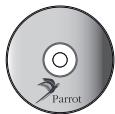
CD-ROM
Parrot DS3120
Diagrams. p.04
English. p.07
Francais. p.17
Espanol. p.29
Deutsch. p.37
Italiano. p.47
Nederlands. p.57
Portugués. p.67
Türkce. p.77
Arabic. p.90
Technical Specification. p.91
Warning / Attention / Atencion / Wichtig / Attenzione / Let op! / Atencion / Uyari
Insert the batteries observing the + and - polarity signs indicated in the batteries compartment.
This simplified guide of the Parrot DS3120 gives you the main instructions to easily use this product. For more information, refer to the user guide available on the provided CD-ROM and on our website www.parrot.com.
Note : The use of some of these functions depends solely on your phone. Visit the Support section on our website at www.parrot.com for more information.
Contents
General Information. 08
Using the Parrot DS3120 for the 1st time. 12
Navigating through the menus. 12
Connecting a Bluetooth device to the Parrot DS3120. 12
Using the music function. 13
Commands. 13
Playing music files stored on a mass storage device / SD Card. 14
Using an audio player with the jack cable.14
Using the radio function. 14
Using the telephony function. 15
Commands. 15
Making a call. 15
Using the alarm function. 16
General Information
Important safety instructions

The lightning flash with arrowhead symbol within an equilateral triangle, is intended
to alert the user to the presence of uninsulated «dangerous voltage « within the product's enclosure that may be of sufficient magnitude to constitute a risk of electric shock to persons.

The exclamation point withinan equilateral triangle is intended to alert the user to the
presence of important operating and maintenance (servicing) instructions in the literature accompanying the product.
WARNING : To reduce the risk of fire or electric shock , do not expose this apparatus to rain or moisture.
- Read these instructions.
- Keep these instructions.
-
Heed all warnings.
-
Follow all instructions.
- Do not use this apparatus near water.
- Clean only with dry cloth.
- Do not block any ventilation openings. Install in accordance with the manufacturer's instructions.
- Do not install near any heat sources such as radiators, heat registers, stoves, or other apparatus (including amplifiers) that produce heat.
- Do not defeat the safety purpose of the polarized or grounding-type plug. A polarized plug has two blades with one wider than the other. A grounding type plug has two blades and a third grounding prong. The wide blade or the third prong are provided for your safety. If the provided plug does not fit into your outlet, consult an electrician for replacement of the obsolete outlet.
- Protect the power cord from being walked on or pinched particularly at plugs, convenience receptacles, and the point where they exit from the apparatus.
- Only use attachments/accessories
specified by the manufacturer.
12. Unplug this apparatus during lightning storms or when unused for long periods of time.
13. Refer all servicing to qualified service personnel. Servicing is required when the apparatus has been damaged in any way, such as power-supply cord or plug is damaged, liquid has been spilled or objects have fallen into the apparatus, the apparatus has been exposed to rain or moisture, does not operate normally, or has been dropped.
14. Do not expose this apparatus to dripping or splashing and ensure that no objects filled with liquids, such as vases, are placed on the apparatus.
15. To completely disconnect this apparatus from the AC Mains, disconnect the power supply cord plug from the AC receptacle.
16. The power cord which provides disconnection from mains supply shall remain readily operable. Unplug this apparatus when unused for long periods of time.
- Do not expose batteries to excessive heat such as sunshine, fire or the like.
Do not expose the Parrot DS3120 system to outside temperatures below 5^ or above 45^ . The system could be damaged or the cabinet warped. Avoid placing the system near a source of heat or exposing it to sunlight (even through a window). Similarly, excessively low temperatures and humidity could damage the device.
Caution: Wireless technology
Interference can be caused by devices that emit waves. Devices such as Wi-Fi routers and microwave ovens can affect audio transmissions with your Parrot DS3120 and also degrade your system's audio quality.
Warranty
Without prejudice of legal warranty, Parrot products are warranted during 1 year from the date of purchase for defects in materials and workmanship, provided that no deterioration to the product has been made, and upon presentation of proof of purchase (date of purchase, location of sale and product serial number) to the retailer or Parrot directly.
Warranty does not cover: upgrading of the software items of the Parrot products with Bluetooth® cell phones for compatibility purpose, data recovery, deterioration of the external aspect due to normal use of the product, any damage caused by accident, misuse, misapplication, or non-Parrot products. Parrot is not responsible for storage, loss or damaged to data during transit or repair.
Any product wrongfully declared to be defective will be returned to sender and inspection, process and carriage costs will be invoiced to him.
Correct disposal of This Product
(Waste Electrical & Electronic Equipment)
(Applicable in the European Union and other European countries with separate collection systems).
This marking shown on the product or its literature, indicates that it should not be disposed with other household wastes at the end of its working life. To prevent possible harm to the environment or human health from uncontrolled waste disposal, please separate this from other types of wastes and recycle it responsibly to promote the sustainable reuse of material resources.
Household users should contact either the retailer where they purchased this product, or their local government office, for details of where and how they can take this item for environmentally safe recycling. Business users should contract their supplier and the terms and conditions of the purchase contract. This product should not be mixed with other commercial wastes

for disposal.
Modifications
The explanations and specifications in this guide are given for information purposes only and may be modified without prior notice. They are deemed to be correct at time of going to press. The utmost care has been taken when writing this guide, as part of the aim to provide you with accurate information. However, Parrot shall not be held responsible for any consequences arising from any errors or omissions in the guide, nor for any damage or accidental loss of data resulting directly or indirectly from the use of the information herein. Parrot reserves the right to amend or improve the product design or user guide without any restrictions and without any obligation to notify users. As part of our ongoing concern to upgrade and improve our products, the product that you have model described in this guide. If so, a later version of this guide might be available in electronic format at Par
rot's website at www.parrot.com.
FCC Compliance Statement
This device complies with part 15 of the FCC rules. Operation is subject to the following two conditions:
(1). this device may not cause harmful interference, and
(2). this device must accept any interference received, including interference that may cause undesired operation.
Note: The manufacturer is not responsible for any radio or tv interference caused by unauthorized modifications to this equipment. Such modifications could void the user's authority to operate the equipment.
This equipment has been tested and found to comply with the limits for a Class B digital device, pursuant to Part 15 of the FCC Rules. These limits are designed to provide reasonable protection against harmful interference
in a residential installation. This equipment generates, uses and can radiate radio frequency energy and, if not installed and used in accordance with the instructions, may cause harmful interference to radio communications. However, there is no guarantee that interference will not occur in a particular installation. If this equipment does cause harmful interference to radio or television reception, which can be determined by turning the equipment off and on, the user is encouraged to try to correct the interference by one or more of the following measures:
- Reorient or relocate the receiving antenna.
- Increase the separation between the equipment and receiver.
- Connect the equipment into an outlet on a circuit different from that to which the receiver is connected.
- Consult the dealer or an experienced radio/TV technician for help.
Copyrights
Copyright © 2007 Parrot. All rights
reserved. The total or even partial reproduction, transmission or storage of this guide in any form or by any process whatsoever (electronic, mechanical, photocopy, recording or otherwise) is strictly prohibited without prior consent from Parrot.
Licences
The Bluetooth® word mark and logos are owned by the Bluetooth SIG, Inc. and any use of such marks by Parrot S.A. is under license.
Bluetooth QDID: B012910, B012423, B012424
This product is protected by certain intellectual property rights of Microsoft. Use or distribution of such technology outside of this product is prohibited without a license from Microsoft.
Windows Media and the Windows logo are trademarks or registered trademarks of Microsoft Corporation in the United States and/or other countries
USB trademark and logo are
trademarks of Universal Serial Bus Implementers FORUM, Inc.
Other trademarks and trade names are those of their respective owners.
Windows Media Digital Rights Management Technology
Content owners use Windows Media Rights management technology (WMDRM) to protect their intellectual property, including copyrights. This device uses WMDRM software to access WMDRM-protected content. If the WMDRM software fails to protect the content, content owners may ask Microsoft to revoke the software's ability to use WMDRM to play or copy protected content. Revocation does not affect unprotected content. When you download licenses for protected content, you agree that Microsoft may include a revocation list with the licenses. Content owners may require you to upgrade WMDRM to access their content. If you decline an upgrade, you will not be able to access content that
requires the upgrade.
Declaration of Conformity
We, Parrot S.A. of 174
quai de Jemmapes, 75010
Paris, France, declare
under our sole responsibility that our
product, the Parrot DS3120 to which
this declaration relates is in conformity
with appropriate standards EN300328
EN301489-1, IEC60065 following
the provision of Radio Equipment
and Telecommunication Equipment
directive, with requirements covering
EMC directive 89/336/EEC and Low
Voltage directive 73/23/EEC.
Identification N. 394 149 496 R.C.S.
PARIS - Parrot S.A.

Using the Parrot DS3120 for the 1st time
- Connect the mains cable or insert the batteries observing the + and - polarity signs indicated in the batteries compartment.

- The Parrot DS3120 does not allow you to reload batteries.
-
Use only NiMH batteries (C type) with the Parrot DS3120.
-
Get the antenna out of the batteries compartment to get the best possible quality of reception. Refer to the diagrams p.5.
- Hold down the button until the screen lights on. Press the same button to turn off the Parrot DS3120.
Navigating through the menus
Note : If the Parrot DS3120 is in stand by mode, press any button to display the main menu.
Buttons Functions


Navigate through the menus

Confirm the selection

Short press: Go back to previous menu
Long press:
- Return to main menu
- Toggle between player and main menu

- Turn on/off the Parrot DS3120
- Return to main menu
- Cancel an action*

Confirm an action*
- if this possibility is proposed through a pop-up.
Connecting a Bluetooth device to the Parrot DS3120
To use the Parrot DS3120 with your cell phone or audio player on which your audio files are stored, you must connect both devices.
Moreover if you are using your cell phone / audio player with the Parrot DS3120 for the first time, you must pair both devices before connecting them. The pairing operation is
only necessary once, except if you reset the device.
- Activate the Bluetooth feature on your device and search for Bluetooth devices (refer to your audio player's user guide for more information).
- Select « Parrot DS3120 »
- Enter the PIN code « 0000 » on your source device once you are prompted to do so.
- Confirm the pairing on the Parrot DS3120 by pressing the green button.
“Pairing OK” is displayed on the Parrot DS3120. You can now connect both devices.
- From the main menu, select Bluetooth.
The list of devices paired with the Parrot DS3120 is displayed.
- Select the device you want to use and press
Depending on your audio player, you may have to confirm the connection between both devices.
Using the music function
Before using the Audio streaming function, you must first connect your audio player to the Parrot DS3120.
Refer to the "Connecting a Bluetooth device to the Parrot DS3120" section for more information.
Commands
| Buttons | Functions |
| ▶ | Pause / Resume playback |
| ← | - Short press: Move to the next track - Long press: Fast forward |
| → | - Short press: Go back to the beginning of the track / get to the previous track - Long press: Fast rewind |
| √ | Enter the context menu |
| Adjust the volume | |
| Toggle between player and main menu |
Note : The Next/Previous Songs functions are not available if the Parrot DS3120 is connected to the audio player via the
jack/jack cable.
Context menu
Use the context menu to:
- enable random playback
- enable the repeat option
- change the audio parameters by using the equaliser or activating/deactivating audio effects.
Playing music files stored on a mass storage device / SD Card
The Parrot DS3120 allows you to read music files stored on different kinds of audio players ( MP3 audio players, USB mass storage devices...). To do so :
- Connect the audio player/mass storage device on which your audio files are stored or insert the SD Card into the appropriate slot. Refer to the diagrams p.6.
The content of the audio player / mass storage device / SD card is automatically displayed.
Note: Depending on the content of your peripheral, the display of its content can take up to 30 seconds.
If you want to get back to the content of your audio player / mass storage device/ SD Card for further uses, select USB/SD from the main menu. Then select your audio player / mass storage device and press
- To visualize the content of your audio player / mass
storage device:
- If the tags of your audio files are correctly defined, select one of the following options: Playlist, Artist, Album, Songs and Genres.
- If the tags of your audio files are not defined:
a. Select the Browse by directory option.
b. Browse the content of your audio player using the up/down arrows.
c. Select the music file and press to start playing it.
Using an audio player with the jack cable
- Use the jack/jack cable to connect your audio player to the Parrot DS3120.
- From the main menu, select Line In and press .
The sound is directly streamed through the speakers of the Parrot DS3120.
Using the radio function
Note : Use the antenna located in the batteries compartment to ensure the best possible quality of reception. Refer to the diagram p.5.
1.From the main menu, select Radio > FM Stations. The list of stations available through RDS is displayed. 2. Press to select a station.
Briefly press the Previous/Next buttons to change manually the radio frequency.
Hold the Previous/Next buttons to perform a quick tuning and get to the previous/next available station.
- Select Save preset and press
-
With the up/down arrows you can:
-
Select the Append to presets option to add a station following the already memorized ones.
- Select an already memorized station if you want to erase it.
Using the telephony function
Before using the telephony function of your Parrot DS3120, you must first connect it to your phone/PDA.
Refer to the "Connecting a Bluetooth device to the Parrot DS3120" section for more information.
Making a call
The phonebook synchronization with the Parrot DS3120 is automatic with numerous phones. If your phone doesn't support the automatic synchronization, you can send your contacts from the phone to the car kit via Object Push. Refer to the complete use guide on the provided CD-ROM for more information.
- From the main menu, select Phone > Phonebook to access the phonebook of the phone which is connected to the Parrot DS3120.
- Select the contact and press to make the call.
Note: From the main menu, select Phone > Call history to use the redial function. You will have access to the 20 last calls (missed, answered and dialled).
Commands
| Buttons | Functions |
| II | Mute / unmute the microphone |
| √ | Enter the context menu |
| Short press: - Answer an incoming call - Initiate a call - Browse the list of the 20 last calls Long press: Activate the voice recognition function / radial function | |
| ① | - Reject an incoming call - End a call |
| Adjust the volume |

Context menu
The context menu allows you to :
- Transfer the current call to your cell phone
- Access the phonebook of the phone connected to the Parrot DS3120
- Browse the list of the 20 last calls (answered, missed and dialled)
Using the alarm function
Make sure the time is correctly set before you program an alarm. To do so :
- use the up/down arrows to adjust time and date
- press to confirm
-
press the Back button to return to the previous digit
-
From the main menu, select Alarm Clock > Alarms > Alarm ou Recurring alarm depending on the alarm you want to activate.
- Select the Enabled option to activate the alarm.
- Select Time and press to set the triggering time of the alarm.
-
Select the type of melody among the following possibilities:
-
For a ringtone, select Buzzer.
For an audio file stored on an SD card or on an USB
peripheral (already connected), select File and select the audio file or the Random File option.
Note : If the audio files are stored on an MP3 player, the audio player must be turned on to enable the playback of the selected audio file as alarm. If the peripheral is not available playback is replaced by a ringtone of the Parrot DS3120.
-
For the radio, select FM Radio.
-
Select the Volume option to adjust the volume of the alarm when it triggers.
- If you have chosen a recurring alarm, check the day or days of the week you wish to repeat the alarm.
Français
Copyright © 2007 Parrot.
Navigation in den Menus
Tescilli ticari markalar
Bluetooth ad ve logosu Bluetooth®
a + b = 1
jiali jaiyai jaiyai jai 1.
Jzj1yj1yj1yj.2
buiol cui/3gpaayiy puiy iue buaai yjai 3
jaii jaii jaii jaii jaii 1.3
ailllll lalil 1 aaii i jai 4
jis (Parrot DS3120 aajai jai jai jai jai jai
aaii pi) USB jg jg SD aaiy g ayiy (laai yaiy)
MP3 algoa aIoo 1e all oag all: aIb0
Lgao jglai jai li Jauos aolssn wigall (jll) Jauo ai
Parrot lc oog ge aei gail lll sJia Jauw DS3120
FM jdi jdi i ci 1a20 aiai Jai
Aii bil iie aiial igua bial iguall jil.5
411111111111111 6
A
Parrot DS3120 6a clll g aalldal aalldal ynnn nol jall gaaan alalal alalal gaaan alalal gnalal alalal gnalal gnalal gnalal gnalal gnalal gnalal gnalal gnalal gnalal gnalal gnalal gnalal gnalal gnalal gnalal gnalal gnalal gnalal gnalal gnalal gnalal gnalal gnalal gnal al
aalaaal aalaaal aalaaal aalaaal aalaaal aalaaal aalaaal aalaaal aalaaal aalaaal aalaaal aalaaal aalaaal aalaaal aalaaal aalaaal aalaaal aalaaal aalaaal aalaaal aalaaal aalaaal aalaaal aalaaal aalaaal aalaaal
aollol jay 1
clll11 a<cll yzj, 4a, aaiyjll aaiyll (yj, aaiyjll)
cll l11 pJI jyjll jzaiyjll aaiyjll plaiyjll
(aaiyjll gaiyjll alwJyjll)
jaiyia
LjJ 100
a. a.c.l.u.j < a.i.l.l j.x.l
.bua lac rj! i3/3g.ogwolglc hio
JJIJIJIJIJIJIJIJIJIJIJIJIJIJI
.3j.law pa jbj 15 20
a100g1 Lao 8oogj yai, jai5 13: aiao
Jie jie Jueyiyue yuyu plu
Our hotline is at your disposal from Monday to Friday between 9 am and 6 pm (GMT + 1)
Hot-line@parrot.com
Italy: [+39] 02 59 90 15 97
Spain : [+34] 902 404 202
UK: [+44] (0)870 112 5872
Germany:09001727768
USA: [+1] (877) 9 Parrot (toll free)
China: [+86] (0)21 6460 1944
Hong Kong: [+852] 2736 1169
France:0148036069
Europe: [+33] 1 48 03 60 69 (Spoken languages: French, English, Spanish and German)


Parrot
move wireless
Parrot S.A. - 174, quai de Jemmapes - 75010 Paris - France
Fax +33 1 48 03 06 66 / Phone +33 1 48 03 60 60
www.parrot.com