
DF7630 - Drone PARROT - Free user manual and instructions
Find the device manual for free DF7630 PARROT in PDF.



| Product type | Digital photo frame |
| Brand | PARROT |
| Model | DF7630 |
| Power supply | Mains via power adapter (power cable with transformer) |
| Connectivity | Bluetooth, USB, memory card (SD) |
| Supported image formats | JPEG, GIF |
| Internal memory | 10 MB |
| Photo display | Automatic rotation based on orientation |
| Navigation | Buttons on the back of the frame |
| Slideshow | 5 modes: default, 3 customizable, SD card |
| Main functions | Sending photos from phone/PDA/PC via Bluetooth, via USB, copying from memory card |
| Care and cleaning | Clean with a dry cloth |
| Safety | Do not expose to moisture, do not block openings, unplug during thunderstorms |
| Included accessories | USB cable, power adapter, metal stand, wall hook (depending on model) |
| Compatibility | Bluetooth phones (pairing code 0000), PC (Windows, Linux, Mac), memory cards |
| Available languages | Multilingual (language selection at startup) |
| Warranty | 1 year parts and labor (except alteration) |
| Installation | On stand (screwed metal rod) or wall-mounted (wall hook) |
| General information | Manual downloadable free in PDF format from PARROT website |
Frequently Asked Questions - DF7630 PARROT
User questions about DF7630 PARROT
0 question about this device. Answer the ones you know or ask your own.
Ask a new question about this device
Download the instructions for your Drone in PDF format for free! Find your manual DF7630 - PARROT and take your electronic device back in hand. On this page are published all the documents necessary for the use of your device. DF7630 by PARROT.
USER MANUAL DF7630 PARROT
Technical Specification. p.61
General Information. p.62
Warning / Attention / Atencion / Wichtig / Attenzione / Let op! / Atencion / Dikkat
In order to avoid any display problem, make sure the power lead connector is fully plugged into the transformer.
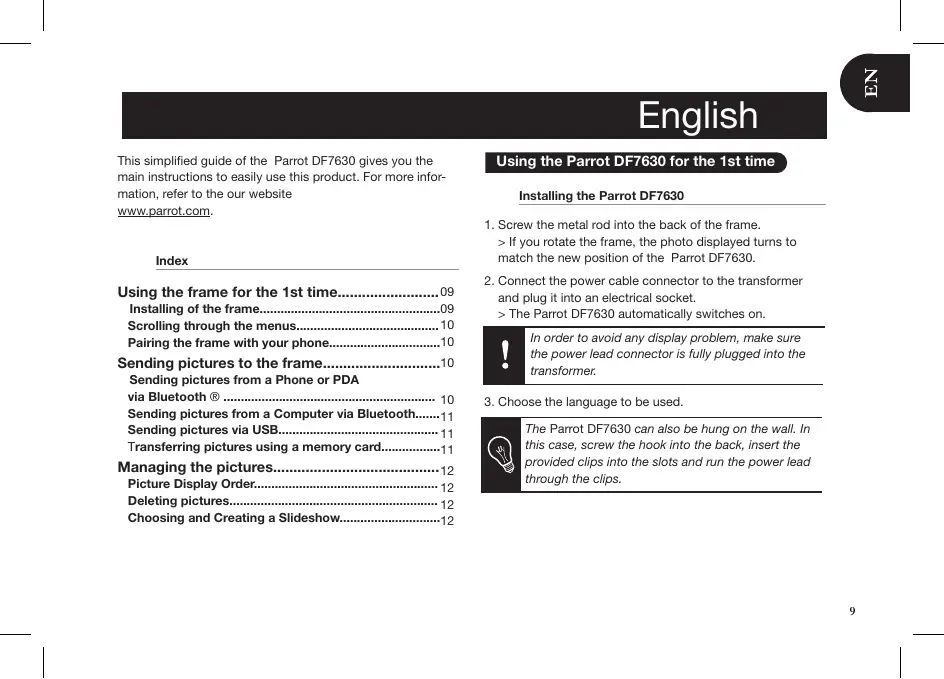
This simplified guide of the Parrot DF7630 gives you the main instructions to easily use this product. For more information, refer to the our website www.parrot.com.
Index
Using the frame for the 1st time. 09
Installing of the frame. 09
Scrolling through the menus. 10
Pairing the frame with your phone. 10
Sending pictures to the frame. 10
Sending pictures from a Phone or PDA via Bluetooth® 10
Sending pictures from a Computer via Bluetooth.....11
Sending pictures via USB 11
Transferring pictures using a memory card. 11
Managing the pictures. 12
Picture Display Order. 12
Deleting pictures. 12
Choosing and Creating a Slideshow. 12
Using the Parrot DF7630 for the 1st time
Installing the Parrot DF7630
- Screw the metal rod into the back of the frame.
If you rotate the frame, the photo displayed turns to match the new position of the Parrot DF7630.
- Connect the power cable connector to the transformer and plug it into an electrical socket.
The Parrot DF7630 automatically switches on.

In order to avoid any display problem, make sure the power lead connector is fully plugged into the transformer.
- Choose the language to be used.

The Parrot DF7630 can also be hung on the wall. In this case, screw the hook into the back, insert the provided clips into the slots and run the power lead through the clips.
Scrolling through the menus
You can scroll through the menus using the buttons on the back of the frame. To access the main menu, press the button on the back of the frame.

: Move left or up, depending on the Parrot DF7630's orientation. It can also be used to select the previous photo.

: Move right or down, depending on the frame's orientation. It can also be used to select the next photo.

: Enters the selected menu or selects a photo.

icon takes you back to the previous menu or menus.
Pairing the Parrot DF7630 with your phone

Depending on the model of your phone / computer, this phase might be optional. However, it will enable you to send your photos to the frame more quickly.
- Ensure that the frame is visible to all Bluetooth® devices. To do so, select Settings > Bluetooth > Visibility.
- Activate the Bluetooth feature on your phone / computer (refer to your phone's or computer's user guide or visit
the Support heading on our website at www.parrot.com for further information).
- Search for Bluetooth devices on your phone / computer.
- Select « Parrot DF7630» in the list of Bluetooth devices pro posed by your phone / computer.
- On your phone / computer, enter the code «0000».
Your two devices are now paired.
Sending pictures to the Parrot DF7630
Sending pictures from a Phone or PDA via Bluetooth
- Ensure that the frame is visible to all Bluetooth devices. To do so, select Settings > Bluetooth > Visibility.
- Make sure the Bluetooth feature is activated on your phone or PDA.
- On your phone/PDA, go to the Pictures menu. Select a picture and choose «Send via Bluetooth». Your device starts searching for Bluetooth peripherals.
- Once the search has finished, select « Parrot DF7630 »
- If your device prompts you to enter a code, type «0000».
The picture is then sent to the Parrot DF7630.
During transmission, the Bluetooth icon appears on the screen and the picture is displayed.

Several pictures can be sent at a time, though this feature will depend on your device.
Sending pictures from a Computer via Bluetooth
(Windows, Linux)
- Ensure that the frame is visible to all Bluetooth devices. To do so, select Settings > Bluetooth > Visibility.
- Activate the Bluetooth feature on your computer.
- Right-click on the picture that you wish to send and choose «Send via Bluetooth».
Your PC will search for any nearby Bluetooth peripherals.
- Select « Parrot DF7630»
- Type «0000» if your PC prompts you to enter a code.
During transmission, the Bluetooth icon appears on the screen and the picture is displayed.

It is also possible to send pictures from a Mac.
Sending pictures via USB
- Connect the frame to your PC with the USB cable.
The computer detects a new device.
- Copy your JPEG or GIF pictures to the frame.
- Disconnect the cable from the frame.
The pictures are automatically saved.
- Repeat the procedure if you wish to transfer new pictures.

The Parrot DF7630 features 10 Mb of storage space: to save space, remember to resize your pictures before copying them to the internal memory. Otherwise transfer your pictures and disconnect the cable when the «memory full» message is displayed. Then reconnect the cable and transfer the remaining pictures.
Transferring pictures using a memory card
- Insert the memory card into the appropriate slot.
The JPEG and GIF pictures stored on the memory card are displayed.
You can now navigate through the memory card content using the buttons.
-
Select the icon. Select one of the following options as required:
-
Copy current picture
- Copy selected pictures (in this case, you must select the pictures that you wish to copy by using the
and buttons, select the icon and then confirm your choice)

-
Copy all pictures
-
Confirm your choice.
The selected photos are resized and copied to the internal memory.

If you wish to switch back to the internal memory,
select the icon.
Managing the pictures
Picture Display Order
- Access the main menu of the Parrot DF7630 and then select the Arrange the pictures menu.
Your pictures are displayed as thumbnails.

The display may run over several pages: holding down one of the buttons will allow you to scroll through the previous and next pages. Simply release the button to stop scrolling.
- Select the picture with the buttons and then press the button on the back of the frame to confirm your choice.
The selected photo is placed at the top of the screen on the frame and a cursor indicates the photo's position in the album.
- Press the buttons to change the photo's position. You can change its position in all the pages of your album.
- Once the cursor is in the position where you want to place the image, press the button.
Deleting pictures
Access the main menu of the frame and then select the icon.

The Delete menu provides you with the following options:
-Delete this picture: deletes the displayed picture.
- Delete these pictures: Deletes the selected images.
- Delete all pictures: Deletes all pictures on the internal memory.
Choosing and Creating a Slideshow
- The Parrot DF7630 features five滑ideshow: a default slideshow with all the photos in the internal memory, three user-definable customised滑ideshow and an SD card slideshow.
- Once the slideshow has been selected, you can enable / disable or configure it.
The following options are available for creating
a slideshow:
- Picture choice: use the and buttons to select the photos for your slides how. The selected photos are marked with a tick (not available for the default slideshow).
- Timer: defines the slideshow display time.
- Picture order: used to define the order in which the photos are displayed in the slideshow (not available for the default slideshow).
- Random: arranges the photos in the slideshow at random.
- Delete slideshow: resets the slideshow (the selected images will no longer be part of the slideshow, but they will not be deleted from the frame's memory).
- Transition: defines the transition effect between the photos in your slideshow.
Français
Navigation in den Menus
Orderar as imagens 48
a12111 85111 g0g0g0g0g0g0g0g0g0g0g0g0g0g0g0g0g0g0g0g0
.5D aIbI yIyIyIyIyIyIyIyIyIy
Auaa a 1433/14.aae eai Saa (gulwll jaojll jy
ylll lalal aln aai sas glalus
jlllally gllllll lrrr rrrr jlll pjjll
Without prejudice of legal warranty, Parrot products are warranted during 1 year from the date of purchase for defects in materials and workmanship, provided that no deterioration to the product has been made, and upon presentation of proof of purchase (date of purchase, location of sale and product serial number) to the retailer. Warranty does not cover: upgrading of the software items of the Parrot products with Bluetooth® cell phones for compatibility purpose, data recovery, deterioration of the external aspect due to normal use of the product, any damage caused by accident, misuse, misapplication, or non-Parrot products. Parrot is not responsible for storage, loss or damaged to data during transit or repair.
Any product wrongfully declared to be defective will be returned to sender and inspection, process and carriage costs will be invoiced to him.
Correct disposal of This Product (Waste Electrical & Electronic Equipment)
This marking shown on the product or its literature, indicates that it should not be disposed with other household wastes at the end of its working life. To prevent possible harm to the environment or human health from uncontrolled waste disposal, please separate this from other types of wastes and recycle it responsibly to promote the sustainable reuse of material resources.
Household users should contact either the retailer where they purchased this product, or their local government office, for details of where and how they can take this item for environmentally safe recycling. Business users should contract their supplier and the terms and conditions of the purchase contract. This product should not be mixed with other commercial wastes for disposal.
Modifications
The explanations and specifications in this guide are given for information purposes only and may be modified without prior notice. They are deemed to be correct at time of going to press. The utmost care has been taken when writing this guide, as part of the aim to provide you with accurate information. However, Parrot shall not be held responsible for any consequences arising from any errors or omissions in the guide, nor for any damage or accidental loss of data resulting directly or indirectly from the use of the information herein. Parrot reserves the right to amend or improve the product design or user guide without any restrictions and without any obligation to notify users. As part of our ongoing concern to upgrade and improve our products, the product that you have purchased may differ slightly from the model described in this guide.
If so, a later version of this guide might be available in electronic format at Parrot's website at www.parrot.com.
FCC Compliance Statement
This device complies with part 15 of the FCC rules. Operation is subject to the following two conditions:
(1). this device may not cause harmful interference, and
(2). this device must accept any interference received, including interference that may cause unde sired operation.
Note: The manufacturer is not responsible for any radio or tv interference caused by unauthorized modifications to this equipment. Such modifications could void the user's authority to operate the equipment.
This equipment has been tested and found to comply with the limits for a Class B digital device, pursuant to Part 15 of the FCC Rules. These limits are designed to provide reasonable protection against harmful interference in a residential installation. This equipment generates, uses and can radiate radio frequency energy and, if not installed and used in accordance with the instructions, may cause harmful interference to radio communications.
However, there is no guarantee that interference will not occur in a particular installation. If this equipment does cause harmful interference to radio or television reception, which can be determined by turning the equipment off and on, the user is encouraged to try to correct the interference by one or more of the following measures:
- Reorient or relocate the receiving antenna.
- Increase the separation between the equipment and receiver.
- Connect the equipment into an outlet on a circuit different from that to which the receiver is connected.
- Consult the dealer or an experienced radio/TV technician for help.
Declaration of Conformity
We, Parrot S.A. of 174 quai de Jemmapes, 75010 Paris, France, declare under our sole responsibility that our product, the Parrot DF7630 to which this declaration relates is in conformity with appropriate standards EN 300328, EN 301489-17, IEC 60950 following the provision of Radio
Equipment and Telecommunication Equipment directive, with requirements covering EMC directive 89/336/EEC and Low Voltage directive 73/23/EEC. Identification N. 394 149 496 R.C.S. PARIS
Parrot S.A.
Protection and personal safety
Carefully read the user guide and follow the indicated procedure when setting up the device. Do not dismantle or open the device and do not touch the electronic components or the drivers. Do not attempt to dismantle or modify either of the speakers.
Never introduce any metal object to avoid the risks of electric shocks, fire, short circuits or dangerous emissions. If your device shows signs of faulty operation, call the approved Parrot technical support centre or an approved retailer. Never leave the frame exposed to rain or chemical products; do not place them in a damp area or where they are likely to be splashed with water. Never place your device on a recipient containing any
type of liquid, which might seep inside the device. Doing so will reduce the risks of electric shocks, short circuits, fire and injury.
Copyrights
Copyright © 2007 Parrot.
Licences
The Bluetooth® word mark and logos are owned by the Bluetooth SIG, Inc. and any use of such marks by Parrot S.A. is under license.
Bluetooth QDID :
B013783,B012423,B013838
Other trademarks and trade names are those of their respective owners.
Important safety instructions

The exclamation point within an equilateral triangle is intended to alert the user to the
presence of important operating and maintenance (servicing) instructions in the literature accompanying the product.
- This apparatus shall not be exposed
to dripping or splashing and no object filled with liquid, such as vases, shall be placed on the apparatus.
-
The AC/DC adaptor which provides disconnection from mains supply shall remain readily operable. Unplug this apparatus when unused for long periods of time.
-
Read these instructions
-
Keep these instructions
-
Heed all warnings
-
Follow all instructions
-
Do not use this apparatus near water.
-
Clean only with dry cloth.
-
Do not block any ventilation openings. Install in accordance with the manufacturer's instructions.
-
Do not install near any heat as radiators. Heat registers, stoves or other apparatus (including amplifiers) that produce heat.
-
Do not defeat the safety purpose of the polarized or grounding type plug. A polarized plug has two blades with one wider than the other. A grounding type plug has two blades and a third grounding prong. The wide blade
or the third prong are provided for your safety. If the provided plug does not fit into your outlet, consult an electrician for replacement of the obsolete outlet.
12. Only use attachments/accessories specified by the manufacturer.
13. Unplug this apparatus during lightning storms or when unused for long periods of time.
14. WARNING: To reduce the risk of fire or electric shock, do not expose this apparatus to rain or moisture and objects filled with liquids, such as vases, should not be placed on this apparatus.. This apparatus is designed for indoor use only.
Do not expose the Parrot DF7630 system to outside temperatures below 5^ or above 55^ . The system could be damaged or the cabinet warped. Avoid placing the system near a source of heat or exposing it to sunlight (even through a window).
Similarly, excessively low temperatures and humidity could damage the device.
Copyright © 2007 Parrot. Tous droits
Copyright © 2007 Parrot.
Tescilli ticari markalar
Our hotline is at your disposal from Monday to Friday between 9 am and 6 pm (GMT + 1)
Hot-line@parrot.com
Italy: [+39] 02 59 90 15 97
Spain: [+34] 902 404 202
UK: [+44] (0)844 472 2360
Germany: 0900 1727768
USA: [+1] (877) 9 Parrot (toll free)
Hong Kong: [+852] 2736 1169
France:0148036069
Europe: [+33] 1 48 03 60 69 (Spoken languages : French, English and Spanish)






FCC ID: RKXCEOS

Parrot
move wireless
Parrot S.A. - 174, quai de Jemmapes - 75010 Paris - France
Fax +33 1 48 03 06 66 / Phone +33 1 48 03 60 60
www.parrot.com
- Warning / Attention / Atencion / Wichtig / Attenzione / Let op! / Atencion / Dikkat
- Index
- Using the Parrot DF7630 for the 1st time
- Installing the Parrot DF7630
- Scrolling through the menus
- Pairing the Parrot DF7630 with your phone
- Sending pictures to the Parrot DF7630
- Sending pictures from a Phone or PDA via Bluetooth
- Sending pictures from a Computer via Bluetooth
- Sending pictures via USB
- Transferring pictures using a memory card
- Managing the pictures
- Picture Display Order
- Deleting pictures
- Choosing and Creating a Slideshow
- a slideshow:
- Français
- Navigation in den Menus
- Modifications
- FCC Compliance Statement
- Declaration of Conformity
- Protection and personal safety
- Copyrights
- Licences
- Important safety instructions
- Tescilli ticari markalar
- Parrot
Brand : PARROT
Model : DF7630
Category : Drone