
SK4000 - Drones PARROT - Free user manual and instructions
Find the device manual for free SK4000 PARROT in PDF.



| Product type | Bluetooth hands-free kit for motorcycle helmet |
| Brand | Parrot |
| Model | SK4000 |
| Category | Audio accessory for helmet |
| Power supply | Rechargeable lithium-ion battery (mains cable included) |
| Battery life | Approximately 8 hours of talk time |
| Weight | Approximately 50 g |
| Main functions | Hands-free calls, music, FM radio, Bluetooth A2DP streaming, voice recognition, multipoint pairing (up to 10 devices) |
| Control | Wired remote control on handlebars + control unit on helmet |
| Connectivity | Bluetooth 2.0+EDR, analog audio jack (mini USB/Jack) |
| Range | Up to 10 meters |
| Compatibility | Bluetooth phones, A2DP audio players |
| Installation | Mounting the control unit in the helmet, remote control on the handlebars |
| Maintenance and cleaning | Clean with a soft, slightly damp cloth. Do not use solvents. |
| Safety | Prolonged listening at full power can damage hearing. Do not use while charging. Follow traffic regulations. |
| Spare parts and repairability | Remote control CR2025 battery, mini USB/Jack cable, adhesive strips, shim. Repair by a professional. |
| General information | 1-year warranty. Manufactured by Parrot SA, France. Compliant with R&TTE and EMC standards. |
Frequently Asked Questions - SK4000 PARROT
User questions about SK4000 PARROT
0 question about this device. Answer the ones you know or ask your own.
Ask a new question about this device
Download the instructions for your Drones in PDF format for free! Find your manual SK4000 - PARROT and take your electronic device back in hand. On this page are published all the documents necessary for the use of your device. SK4000 by PARROT.
USER MANUAL SK4000 PARROT
If the remote control doesn't seem to be associated to the control unit while using the Parrot SK4000 for the first time:
- Reboot the control unit.
The LED turns on during seconds then it turns off.
- As soon as the LED turns off, simultaneously hold down the + / - buttons of the remote control during 3 seconds.
The control unit LED blinks rapidly.
Now you can browse through the Parrot SK4000 menus using the remote control.
- Slide the control unit downwards along the sliding panel until a clicking sound indicates that the control unit is locked in place.
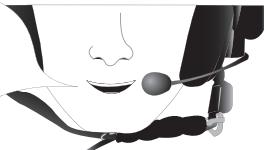
Place the control unit between the protection foam and the external shell of your helmet, making sure of the microphone's proper location.
To ensure an optimal sound quality, the orientation of the microphone is very important. Make sure the microphone is located 2 to 4cm off the corner of the mouth.
Attach the clamp of the Parrot SK4000 to your helmet with the allen key provided.
Note: Before locking the control unit, make sure nothing blocks the insertion of the control unit. If it is not the case, use the extension pad provided with your Parrot SK4000.
Route the cables inside the helmet, between the protection foam and the internal shell of your helmet.
Make sure the speakers are placed in front of the ears.
Warning: If the internal padding of your helmet doesn't allow to fix it correctly, use the adhesive tapes provided.
Slide the remote control on the left grip of the handlebar by opening the clips of the remote control.
Use the power cable supplied to charge the battery of the control unit.
Warning: Do not use your Parrot SK4000 during the charge.
The remote control only works with a 3V CR2025 battery. You have to place it in the lateral specific battery compartment of the remote control. After having placed the battery, screw down the compartment with the provided allen key.
Connect your audio player to the control unit with the mini USB / Jack cable provided.
This simplified guide of the Parrot SK4000 gives you the main instructions to easily use this product. For further information, refer to the user guide available on our website www.parrot.com.
!
The availability of some functionality only depends on your mobile phone.
Refer to our website www.parrot.com, in the Compatibility section, for further information.
Content
Using the Parrot SK4000 for the first time. 27
Installing the Parrot SK4000 27
Operating the Parrot SK4000 27
Pairing your phone with the Parrot SK4000 27
Connecting your phone with the Parrot SK4000 28
Using the Telephony function 28
Commands 28
Recording your contacts in the Parrot SK4000. 29
Making a call 29
Using the voice recognition function 30
Recording voice tags 30
Making a call via voice recognition 30
Receiving a call via voice recognition 31
Using the Music Function 31
Using the FM radio function 32
Using an analogue audio source 32
Using the Audio Streaming function 32
Using the PARROT SK4000 for the first time
Installing the Parrot SK4000
Refer to the diagrams p.6 to install the Parrot SK4000.
Operating the Parrot SK4000
- Press the key of the control unit to turn on the Parrot SK4000.
- Hold down the key of the control unit to turn off the Parrot SK4000.
For further information about charging and inserting the battery of the Parrot SK4000, refer to the diagrams A and B p.20 and 22.

Using this device with both earphones simultaneously may be authorized only out of public traffic conditions. To activate the Stereo mode, enter the vocal menu and select Audio Settings > Stereo Mode.
Pairing your phone with the Parrot SK4000
Before using the Parrot SK4000 with your phone, you have to connect both devices. But if it is the first time you use this
phone with the Parrot SK4000, you first have to pair them. This operation is only required once, except if:
- you reset the device
- the Parrot SK4000 is already paired with 10 devices.

To reset the Parrot SK4000, press simultaneously the
and keys of the control unit.
- Turn on the kit.
- Activate the Bluetooth® functionality on your phone and search for Bluetooth devices. For further information, refer to the user guide of your phone.
- Once the search is complete, select the «Parrot SK4000» in the list of the peripherals detected.
- Enter the pairing code "0000".
Once the pairing is over, your phone connects with the kit.
Connecting your phone with the Parrot SK4000
The connection between the hands-free kit and the phone is automatic. If it is not the case, press the key of the control unit or the key of the remote control to initiate the connection process. If the connection is lost, the kit connects automatically with the last connected phone.

If the last connected phone is not near the kit, the connection will be realized following the order of the last connected phone list.
Using the telephony function
Before using the telephony function of your Parrot SK4000, you first have to connect your phone with it. If it is the first time you use both devices, you first have to pair them.
Refer to the Pairing your phone with the Parrot SK4000 and Connecting your phone with the Parrot SK4000 sections for further information.
Commands
Control unit
| Button | Functions |
| - hang up - reject an incoming call | |
| - answer an incoming call - make a call via the voice recognition feature - transfer a call on the mobile phone (discreet mode) - exit the discreet mode - long press: radial function | |
| adjust the volume |
Remote control
| Button | Functions |
| - answer an incoming call - enter the voice recognition mode - transfer a call on the mobile phone (discreet mode) - exit the discreet mode - long press: radial function | |
| - enter and scroll through the vocal menu - adjust the volume | |
| - end a call - reject an incoming call |
Recording your contacts in the Parrot SK4000
This functionality only depends on your phone. Refer to your phone's user guide for further information about sending contacts via Object Push.
The recording of your contacts in the Parrot SK4000 is made by automatic synchronization or by Object Push.
Automatic synchronization
At the first connection of your phone, the phonebook is automatically synchronized if your phone supports this functionality.
A vocal message informs you that the synchronization is done successfully.
If it is not the case, refer to the Sending contacts via Object Push section.
Only the contacts stored in the phone memory are synchronized. For further information about the recording of your contacts in your phone, refer to the user guide of your device.
-
Sending contacts via Object Push
-
Use the +/- keys to browse the vocal menu.
- Press the key to select Receiving contacts > Waiting for a contact.
-
Refer to your phone's user guide for further information about sending contacts via Object Push.
-
Selecting this functionality disconnects the kit from your phone.
- You may also send several contacts via Object Push.
Making a call
- If the contact is in the phonebook of the kit:
- Press one of the +/- keys of the remote control to enter the vocal menu.
The kit says phonebook.
- Press the key of the remote control.
The letters of the alphabet are enunciated by the kit.
- Use the + / - keys to browse the list.
- Press the key of the remote control to access the names starting with the selected letter.
- Use the + / - keys to browse the list.
- Press the key of the remote control to select the contact you want to call.
If you have recorded a voice tag for this contact, the voice tag is enunciated. Otherwise, the name is enunciated by voice synthesis.
- If this contact has several phone numbers, use the +/- keys to browse the list of the available numbers.
- Press the key to make the call.

Press the key of the control unit or the key of the remote control to get back to the main menu during the process.

- If the contact is not in the phonebook of the kit, stop your vehicle in an appropriate place then dial the number directly on the keypad of your phone.
The call is automatically directed on the hands-free kit.
Using the voice recognition function
Recording voice tags
All your contacts, after synchronization or Object Push process, are directly provided with a voice tag in the Parrot SK4000. Consequently, you don't have to record your own voice tag on each contact to make a call via the voice recognition process. However, if the Parrot SK4000 doesn't understand the name of one of your contacts, you can record a new voice tag.
Refer to the complete user guide of the Parrot SK4000 for further information.
Making a call via voice recognition

This functionality is only available if your contacts have already been recorded in the kit.
- Press the key of the control unit or the key of the remote control to initiate the voice recognition process.
- Say the « Call » keyword and the name of the contact you want to call.
The call is automatically launched if the voice tag is correctly understood. If it is not the case, a confirmation
message is asked by the kit.

You can make a call via voice recognition using several combinations of keywords. For example, « call 'Paul'» or simply « 'Paul' ». You can also associate the type of number you want to call: « call 'Paul' at home», « 'Paul' 'work'», « 'Paul' 'on cell'», etc.
Paul!
Call Paul!
Call Paul at home!
Call Paul office!
Paul mobile!
The call is initiated.
Receiving a call via voice recognition
- The magic word «Accept» allows you to accept an incoming call.
- The magic word "Reject" allows you to reject an incoming call.
To use the magic words, you must activate them.
To do so:
- Press one of the +/- keys of the remote control to
enter the vocal menu and select Magic words.
- Press the button of the remote control to activate/deactivate the magic words.
Using the Music function
Your kit allows listening to the FM radio, a Bluetooth source and an analogue one.

Whatever the audio source is, the calls are priority. At the end of the call, the music file you were listening to gets back on.
Press the SOURCE key to browse through the music files sources. Press it again to select the next available source.
You successively access to the following functions :
- Radio
- Audio Analogue (if available)
- Audio Bluetooth (if available)
A vocal message informs you about the selected source
The remote control allows you to:
| Button | Functions |
| enter and scroll through the available audio sources selection menu | |
| adjust the volume | |
| play next track* / radio station | |
| play previous track* / radio station | |
- These functions are only available with an A2DP device.
- Press the key of the control unit to stop playback or press the SOURCE key to get back to the Phone mode.
Using the FM radio function
- Press the SOURCE key to select the radio function in the audio sources menu.
The last selected station is broadcasted by default.
- Select the radio station with the 14 and 9 keys of the remote control.
A vocal message informs you about the name of the
selected station if it is available.
Using an analogue audio source
Connect your audio player to the control unit with the mini USB / Jack cable provided.
Refer to the diagram C p.24 for further information.
- Press the SOURCE key to browse through the music files sources.
- Press the SOURCE key again to select Audio analogue.
Using the Audio Streaming function
The Parrot SK4000 allows you to play music files stored in a Bluetooth device which supports the A2DP profile. For the first use, pair and connect your device to the Parrot SK4000.
Refer to the Pairing your phone with the Parrot SK4000 and Connecting your phone with the Parrot SK4000 sections for further information, and also the user guide of your audio player.
Press the SOURCE key to select Audio Bluetooth in the music files sources.
The connection process begins automatically with the last connected A2DP device.
Français
spraakherkenning. 70
Without prejudice of legal warranty, Parrot products are warranted during 1 year from the date of purchase for defects in materials and workmanship, provided that no deterioration to the product has been made, and upon presentation of proof of purchase (date of purchase, location of sale and product serial number) to the retailer or Parrot directly.
Warranty does not cover: upgrading of the software items of the Parrot products with Bluetooth® cell phones for compatibility purpose, data recovery, deterioration of the external aspect due to normal use of the product, any damage caused by accident, misuse, misapplication, or non-Parrot products. Parrot is not responsible for storage, loss or damaged to data during transit or repair.
Any product wrongfully declared to be defective will be returned to sender and inspection, process and carriage
costs will be invoiced to him.
Parrot shall not be held responsible of any dysfunction caused by an installation which does not follow the instructions provided in this user guide or an incorrect installation.
Correct disposal of This Product
(Waste Electrical & Electronic Equipment)
(Applicable in the European Union and other European countries with separate collection systems).

This marking shown on the product or its literature, indicates that it should not be disposed with other household wastes at
the end of its working life. To prevent possible harm to the environment or human health from uncontrolled waste disposal, please separate this from other types of wastes and recycle it responsibly to promote the sustainable reuse of material resources.
Household users should contact either the retailer where they purchased this
product, or their local government office, for details of where and how they can take this item for environmentally safe recycling. Business users should contract their supplier and the terms and conditions of the purchase contract. This product should not be mixed with other commercial wastes for disposal.
Modifications
The explanations and specifications in this guide are given for information purposes only and may be modified without prior notice. They are deemed to be correct at time of going to press. The utmost care has been taken when writing this guide, as part of the aim to provide you with accurate information. However, Parrot shall not be held responsible for any consequences arising from any errors or omissions in the guide, nor for any damage or accidental loss of data resulting directly or indirectly from the use of the
information herein. Parrot reserves the right to amend or improve the product design or user guide without any restrictions and without any obligation to notify users. As part of our ongoing concern to upgrade and improve our products, the product that you have purchased may differ slightly from the model described in this guide. If so, a later version of this guide might be available in electronic format at Parrot's website at www.parrot.com.
FCC Compliance Statement
This device complies with part 15 of the FCC rules. Operation is subject to the following two conditions:
(1). this device may not cause harmful interference, and
(2). this device must accept any interference received, including interference that may cause undesired operation.
Note: The manufacturer is not responsible for any radio or tv interference caused by unauthorized modifications
to this equipment. Such modifications could void the user's authority to operate the equipment.
Declaration of Conformity
We, Parrot S.A. 174 quai de Jemmapes, 75010 Paris, France, declare under our sole responsibility that our product, the Parrot SK4000 to which this declaration relates is in conformity with appropriate standards EN 300328 (2004), EN300220-1, for a class II receiver and EN 301 489-17 (2002), EN301489-3, EN60950, following the provision of Radio Equipment and Telecommunication Equipment directive 1999/5/EC R&TTE with requirements covering EMC directive 89/336/EEC and Low Voltage directive 73/23/EEC.
Identification N. 394 149 496 R.C.S.
PARIS - Parrot S.A.
Protection and personal safety Carefully read the user guide and follow the indicated procedure when
setting up the device. Do not dismantle or open the device and do not touch the electronic components or the drivers. Do not attempt to dismantle or modify either of the speakers.
Never introduce any metal object to avoid the risks of electric shocks, fire, short circuits or dangerous emissions. If your device shows signs of faulty operation, call the approved Parrot technical support centre or an approved retailer. Never leave the Parrot SK4000 exposed to rain or chemical products; do not place them in a damp area or where they are likely to be splashed with water. Never place your device on a recipient containing any type of liquid, which might seep inside the device. Doing so will reduce the risks of electric shocks, short circuits, fire and injury.
Copyrights
Copyright © 2008 Parrot. All rights reserved. The total or even partial reproduction, transmission or storage of this guide in any form or by any process whatsoever (electronic,
mechanical, photocopy, recording or otherwise) is strictly prohibited without prior consent from Parrot.
Licences
The Bluetooth® word mark and logos are owned by the Bluetooth SIG, Inc. and any use of such marks by Parrot S.A. is under license.
Bluetooth QDID:
B013328, B012423, B012424
MPEG LAYER-3 audio coding technology licensed from Fraunhauser IIS and Thomson.
Other trademarks and trade names are those of their respective owners.
Warning

Permanent hearing loss may occur if earbuds or headphones are used at high volume.
Blast risks may occur if the battery is replaced with an incorrect battery type.
Throw used batteries in the garbage in compliance with the provided instructions.
Copyright © 2008 Parrot.
Copyright © 2008 Parrot.
Our hotline is at your disposal from Monday to Friday between 9 am and 6 pm (GMT + 1) Hot-line@parrot.com
Italy: [+39] 02 59 90 15 97
Spain: [+34] 902 404 202
UK: [+44] (0)844 472 2360
Germany: 0900 1727768
USA: [+1] (877) 9 Parrot (toll free)
Hong Kong: [+852] 2736 1169
France:0148036069
Europe: [+33] 148036069 (Spoken languages : French, English and Spanish)


Parrot
move wireless
Parrot S.A. - 174, quai de Jemmapes - 75010 Paris - France
Fax +33 148030666/Phone+33148036060
www.parrot.com