
EASYDRIVE - Drones PARROT - Free user manual and instructions
Find the device manual for free EASYDRIVE PARROT in PDF.



| Product type | Bluetooth hands-free car kit |
| Brand | Parrot |
| Model | Easydrive |
| Power supply | 12 V via cigarette lighter |
| Connection | Bluetooth® wireless |
| Main functions | Full duplex hands-free, echo cancellation, noise reduction, voice recognition (up to 150 names), pairing up to 5 phones |
| Display | LED on the keypad |
| Available languages | French, English, Spanish, Italian, German, Dutch |
| Package contents | Speaker, keypad, keypad holder, cable ties, second fascia, user manual |
| Installation | Insert the speaker into the cigarette lighter, stick the holder on the dashboard, place the keypad, secure the cable with ties |
| First use | Pairing required with code 1234, language selection via wheel and buttons |
| Voice recognition | Up to 150 names, activation by magic word "Téléphone" |
| Magic words | "Téléphone" to answer, "Raccrocher" to hang up, can be enabled/disabled |
| Redial function | Redial last number by long pressing green key |
| Discrete mode | Switch between kit and phone by pressing green key during call |
| Software update | Via Bluetooth® from PC and Parrot website |
| Memory erase | Press red and green buttons simultaneously for 3 seconds |
| Care and cleaning | Clean with a soft dry cloth, avoid liquids |
| Safety | Do not use while driving dangerously, obey traffic laws |
| Spare parts / Repairability | Contact Parrot hotline for assistance |
| General information | Hotline available Monday to Friday from 9 am to 6 pm (GMT+1), website www.parrot.biz |
Frequently Asked Questions - EASYDRIVE PARROT
User questions about EASYDRIVE PARROT
0 question about this device. Answer the ones you know or ask your own.
Ask a new question about this device
Download the instructions for your Drones in PDF format for free! Find your manual EASYDRIVE - PARROT and take your electronic device back in hand. On this page are published all the documents necessary for the use of your device. EASYDRIVE by PARROT.
USER MANUAL EASYDRIVE PARROT
The manufacturer Parrott S.A. and its affiliates should not be held liable towards End-Users or third parties for any losses, actions, or claims by misusage of the product, nor for usage that would be in violation of local traffic regulations and laws.
Disclaimer :
The information in this document is subject to change without notice and does not represent a commitment on the part of vendor. No warranty or representation, either expressed or implied, is made with respect of quality, accuracy or fitness for any particular purpose of this document. The associated with it at any time without notice of the use or inability to use this product or documentation will be an indication that the use or inability to use this product or documentation is for direct, indirect, special, incidental or consequential damages arising out of the use or inability to use this product or documentation, even if advised of the possibility of such damages. This document contains materials protected by copyright. All rights are reserved. No part of this manual may be reproduced or transmitted in any form, by any means or for any purpose without express written consent. Product names appearing in this document are registered商标 and trade marks. All trademarks, product names appearing in this document are registered property of their respective owners.
FCC Compliance Statement :
This device complies with part 15 of the FCC rules. Operation is subject to the following two conditions: 1- This device may not cause harmful interference.
2- This device must accept any interference received, including interference that may cause undesired operation.
Declaration of Conformity:
We, Parrot S.A. of 174 Quai de Jemmapes, 75010 Paris, France, declare under our sole responsibility that our product, Parrot EVOLUTION, to which this declaration relates is in conformity with appropriate standards EN300328, EN30148-19. EN 60950 following the provision of Radio Equipment and Telecommunication Act of 1995/EC with requirements covering EMC directive 89/336/EEC and Low Voltage Directive 73/23/EEC.
Bluetooth:
The Bluetooth® word mark and logos are owned by the Bluetooth® SIG, Inc. and any use of such marks by Parrot S.A is under license. Other trademarks and trade names are those of their respective owners.
English François Espanol Italiano Nederlands Portugues
ENGLISH
INTRODUCTION
The Easydrive Car Kit allows you to use your mobile phone in the car with the highest level of comfort and the greatest possible safety.
The Easydrive offers you the following features:
Wireless radio connection with your mobile phone.
Full duplex hands-free conversations with echo cancellation.
Background noise reduction.
Voice recognition (up to 150 names) *.
Registering of up to 5 mobile phones.
KIT CONTENTS
The Easydrive kit contains,
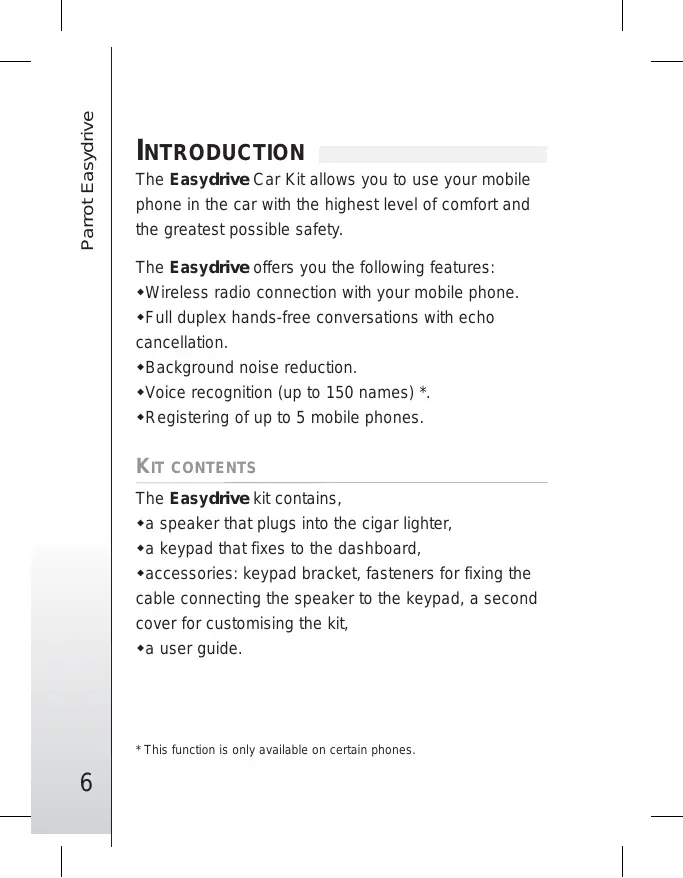
a speaker that plugs into the cigar lighter,
a keypad that fixes to the dashboard,
accessories: keypad bracket, fasteners for fixing the cable connecting the speaker to the keypad, a second cover for customising the kit,
*a user guide.
INSTALLATION
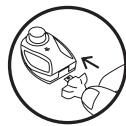
Plug the speaker into the cigar lighter.
Choose an area on your dashboard that is easy to reach and not too far from the driver for fixing the keypad containing the microphone.
Clean the surface.
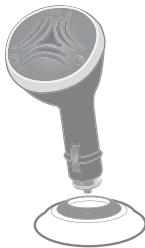
Remove the protective film from the bracket and affix it in the chosen area.
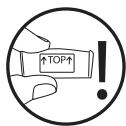
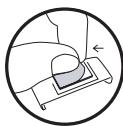
Place the keypad in its bracket.
Choose practical locations for the fasteners, clean the surface, remove the protective film and affix.
Clip the wire in the fasteners and connect it to the keypad.
GETTING STARTED
SWITCHING ON
- Once the kit has been fitted, switch on your phone and start your vehicle's engine.
The leds on the keypad light up. - When used for the first time, the kit says "Please pair device".
- You must therefore pair your Bluetooth® phone and your Easydrive kit.
Enter the link code 1234 when prompted by your phone and then confirm. The Easydrive kit connects to your phone and says "Pairing successful".
Afterwards, the connection between your Bluetooth® phone and your Easydrive kit will be established automatically when both devices are switched on and located within the active Bluetooth® range.
To switch off the Easydrive kit, turn off the vehicle's engine or unplug the speaker from the cigar lighter.
CHOOSING THE LANGUAGE WHEN USING FOR THE 1ST TIME
Click the central button - the kit says
"Language" and then the name of the language currently used by the kit.
- If you are happy with the language, you can exit the menu by pressing the red button or go to the next menu by turning the scroll wheel.
- If you wish to change the language, access the menu by clicking the central button or green button.
- When you turn the scroll wheel, the kit announces the languages available (English, French, Spanish, Italian, German, Dutch).
When you hear the required language, confirm by clicking the central button or green button.
- You will hear a confirmation message.
PAIRING
The first time that you switch the kit on, you must pair your mobile phone with the hands-free kit.
Enable the Bluetooth® mode on your mobile phone.
Search for any peripherals.
Connect to our www.parrot.biz website or go straight to the: www.driveblue.com/guide_chm/easydrive/index.html
On the left of the screen, click on the Bluetooth® phones heading: by choosing the required phone, you can access all the configuration procedures.
-Once detected, "Easy drive" is displayed on your phone.
Select it.
Enter the link code 1234 when prompted by your phone and then confirm. The Easydrive connects to your phone and says "Pairing successful".
All the menus are now available when you click the central button and their name is announced by the hands-free kit when you turn the scroll wheel.
You are now connected to the hands-free kit and can use it to make and receive calls.
MAKING AND RECEIVING CALLS
MAKING A CALL MANUALLY :
Dial the number using the phone's keypad.
- The conversation automatically switches to hands-free mode. Otherwise, press the kit's green button.
RECEIVING A CALL :
Press the kit's green button or say "Phone" (refer to the chapter entitled "Magic Words") to receive the call.
Press the red button on the hands-free kit or say "Hang up" (refer to the chapter entitled "Magic Words") if you wish to reject the call.
ENDING A CALL :
Press the red button on the hands-free kit or say "Hang up" to end the call.
VoICEMAIL:
You can access your voicemail functions from the hands-free kit.
Dial up your voicemail.
- When you hear the messages, click the central scroll wheel. The kit says "Zero".
- Then turn the scroll wheel until you hear the required number (1, 2, 3, ...) or characters (*, #).
Confirm by pressing the scroll wheel.
REDIAL FUNCTION*:
Hold down (long click: +2 sec) the green key on the hands-free kit to radial the last number dialled.
The kit says "Redial".
VOLUME DURING CALLS :
*During the call, adjust the volume by turning the central scroll wheel.
MAKING A CALL VIA VOICE RECOGNITION*:
Press the green button or say "Phone" if the magic words are activated (refer to the chapter entitled "Magic Words").
Wait until you hear the beep.
Say the name of the person that you wish to call. You must have first recorded the voiceprints on your phone or kit (refer to the chapter entitled "Adding Voiceprints").
- If several numbers are associated with the name, say "Home", "Work", "Mobile", "Main" or "Other", after the second beep.
DISCREET MODE :
*During a call, if you wish to switch your call over to your mobile, press the green button. The kit says "Discreet mode".
Press the green button again to switch back to hands-free mode.
ACCESSING THE MENUS
TO ACCESS THE KIT'S MENUS :
Click the central button.
- The kit says "Language" and then the name of the current language.
- When you turn the central scroll wheel, the kit names the different menus.
- You can exit the menus by pressing the red button on the keypad or by not pressing anything for more than 15 seconds.
CHANGING THE LANGUAGE
- Click the central scroll wheel - the kit says "Language" and then the name of the current language.
If you are happy with the language, you can exit the menu by pressing the red button or go to the next menu by turning the scroll wheel.
If you wish to change the language, access the menu by clicking the central button or green button. - When you turn the scroll wheel, the kit announces the languages available (English, French, Spanish, Italian, German, Dutch).
- When you hear the required language, confirm by clicking the central button or green button.
You will hear a confirmation message. "The selected language is..."
ADDING VOICEPRINTS*
Click the central button - the kit says
"Language" and then the name of the language
currently used by the kit.
Turn the scroll wheel until the kit says
"Add voiceprints".
Access the menu by clicking the central button or green button.
- The kit disconnects from the phone and is now ready to receive your contact names.
To send a contact name, refer to your phone's user's guide or connect to the www.parrot.biz website for details on the procedure for your phone.

Connect to our www.parrot.biz website or go straight to the :
www.driveblue.com/guide_chm/easydrive/index.html
On the left of the screen, click on the Bluetooth®
phones heading: by choosing the required phone, you
can access all the configuration procedures.
As soon as the kit receives a contact, it gives you the instructions to be followed.
- This function is only available on certain phones.
MAGIC WORDS
Magic words are used to accept an incoming call or end a call, as well as activate the voice recognition feature without taking your hands off the wheel.
Click the central button - the kit says
"Language" and then the name of the language currently used by the kit.
Turn the scroll wheel until the kit says
"Magic words" and the current status
"Activated" or "De-activated".
If you are happy with the status, you can go to the next menu by turning the scroll wheel or exit the menu by clicking the red button.
- If you wish to change the status, click the central button or green button. The status changes. It changes from "Activated" or "De-activated" or vice-versa. The kit announces the new status.
- If you choose to activate the magic words but have not yet recorded the words "Phone" and/or "Hang up", the kit automatically switches to record mode. The kit guides you through the process for recording the magic words.
- Once the magic words have been successfully recorded, they will be activated.
Recording keywords
- Phone - Hang up - Home - Mobile - Work - General - Others*
Click the central button - the kit says
"Language" and then the name of the language currently used by the kit.
Turn the scroll wheel until the kit says
"Record keywords". Confirm by clicking the central button or green button.
- If one or more keywords have already been recorded, the kit selects the first keyword not to have been recorded.
Press the central button or green button to start recording. Follow the instructions given by the kit.
- When a keyword has been successfully recorded, the kit automatically moves to the next keyword.
- When all keywords have been recorded correctly, the kit automatically activates them.
- You can exit the menu at any time by pressing the red button and record or re-record the keywords at a later stage.
UPDATING THE SOFTWARE BY BLUETOOTH®
You can update your kit from a Bluetooth® PC and the software available on our www.parrot.biz website.
Click the central button - the kit says
"Language" and then the name of the language currently used by the kit.
Turn the scroll wheel until the kit says
"Update software by Bluetooth®". Confirm by pressing the central button or green button.
- The kit says "Waiting for update".
Follow the software's instructions on your PC.
- Once the software has been updated, the kit says "Software updated".
For further information, refer to the www.parrot.biz website.
ERASING THE MEMORY
Hold down both the red and green buttons for three seconds.
HOT-LINE
Our hot-line service is at your disposal. You can contact the hot-line by email or by phone. Service available from Monday to Friday from 9 am to 6 pm (CET).
Connect to our www.parrot.biz website for further information.
Note :
English François Espanol Italiano Nederlands Portugues
FRANÇAIS
INTRODUCTION
L'Easydrive include :
Guardar as palavras chave
- Disclaimer :
- FCC Compliance Statement :
- Declaration of Conformity:
- Bluetooth:
- INTRODUCTION
- KIT CONTENTS
- INSTALLATION
- GETTING STARTED
- CHOOSING THE LANGUAGE WHEN USING FOR THE 1ST TIME
- PAIRING
- MAKING AND RECEIVING CALLS
- MAKING A CALL MANUALLY :
- RECEIVING A CALL :
- ENDING A CALL :
- VoICEMAIL:
- REDIAL FUNCTION*:
- VOLUME DURING CALLS :
- MAKING A CALL VIA VOICE RECOGNITION*:
- DISCREET MODE :
- ACCESSING THE MENUS
- CHANGING THE LANGUAGE
- ADDING VOICEPRINTS*
- MAGIC WORDS
- Recording keywords
- UPDATING THE SOFTWARE BY BLUETOOTH®
- ERASING THE MEMORY
- HOT-LINE
- L'Easydrive include :
- Guardar as palavras chave
Brand : PARROT
Model : EASYDRIVE
Category : Drones