LCG500 - Calculator LEXIBOOK - Free user manual and instructions
Find the device manual for free LCG500 LEXIBOOK in PDF.



| Brand | LEXIBOOK |
| Model | LCG500 (Travel Chess Explorer) |
| Product type | Electronic chess calculator |
| Power supply | 3 LR3 (AAA) 1.5 V alkaline batteries |
| Difficulty levels | 64 levels in 4 styles (normal, aggressive, defensive, random) |
| Beginner levels | 5 levels (1-5) with intentional mistakes |
| Normal levels | 8 levels (6-13) from 5 seconds to 2 hours per move |
| Analysis level | Level 14, analysis up to 24 hours |
| Checkmate level | Level 15, solves checkmates up to 5 moves |
| Multi Move mode | Level 0, allows two-player mode with referee |
| Take Back function | Undoes up to 2 full moves (4 half-moves) |
| Play function | Allows changing color or having the computer play against itself |
| Opening library | 20 different openings |
| Position verification | Indicates the position of each piece by type |
| Audio signal | Can be activated/deactivated via SOUND/COLOR key |
| Game board | Sensitive, records moves by pressing on squares |
| LED indicators | Indicate move coordinates, turn, check, checkmate, draw |
| Endgame detection | Detects stalemate, 50-move rule, and position repetition |
| Thinking during opponent's turn | The computer thinks even when it's not its turn |
| Maintenance | Clean with a slightly damp cloth (water only), avoid detergents |
| Safety | Do not mix new/used batteries, do not recharge, remove if not used for extended periods |
| Warranty | 2 years, covers material defects, excludes non-compliant use |
| Customer service | 0821.23.3000 (€0.12 incl. VAT/min) |
Frequently Asked Questions - LCG500 LEXIBOOK
User questions about LCG500 LEXIBOOK
0 question about this device. Answer the ones you know or ask your own.
Ask a new question about this device
Download the instructions for your Calculator in PDF format for free! Find your manual LCG500 - LEXIBOOK and take your electronic device back in hand. On this page are published all the documents necessary for the use of your device. LCG500 by LEXIBOOK.
USER MANUAL LCG500 LEXIBOOK
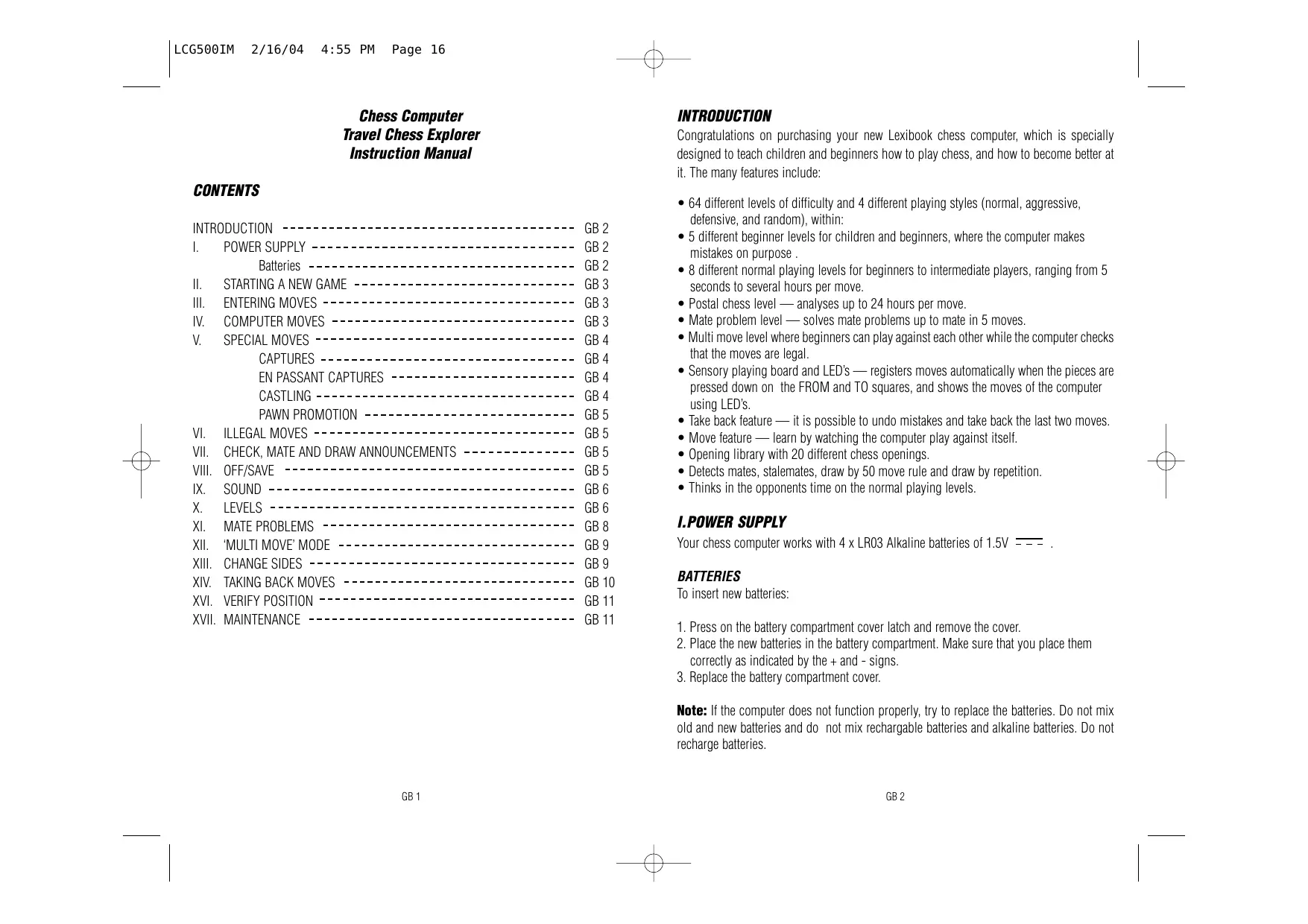
Congratulations on purchasing your new Lexibook chess computer, which is specially designed to teach children and beginners how to play chess, and how to become better at it. The many features include:
- 64 different levels of difficulty and 4 different playing styles (normal, aggressive, defensive, and random), within:
- 5 different beginner levels for children and beginners, where the computer makes mistakes on purpose.
- 8 different normal playing levels for beginners to intermediate players, ranging from 5 seconds to several hours per move.
- Postal chess level — analyses up to 24 hours per move.
- Mate problem level — solves mate problems up to mate in 5 moves.
- Multi move level where beginners can play against each other while the computer checks that the moves are legal.
- Sensory playing board and LED's — registers moves automatically when the pieces are pressed down on the FROM and TO squares, and shows the moves of the computer using LED's.
- Take back feature — it is possible to undo mistakes and take back the last two moves.
- Move feature — learn by watching the computer play against itself.
- Opening library with 20 different chess openings.
- Detects mates, stalemates, draw by 50 move rule and draw by repetition.
- Thinks in the opponents time on the normal playing levels.
I.POWER SUPPLY
Your chess computer works with 4 × LR03 Alkaline batteries of 1.5 ~V = - - -
BATTERIES
To insert new batteries:
- Press on the battery compartment cover latch and remove the cover.
- Place the new batteries in the battery compartment. Make sure that you place them correctly as indicated by the + and - signs.
- Replace the battery compartment cover.
Note: If the computer does not function properly, try to replace the batteries. Do not mix old and new batteries and do not mix rechargeable batteries and alkaline batteries. Do not recharge batteries.
Caution: NEVER leave dead or old batteries in the computer. Remove the batteries if you will not use the computer for several days. Leaving old batteries in the computer could damage the computer.
II. STARTING A NEW GAME
Set up the pieces on the chess board in their starting position and turn on the computer by pressing the ON key. Then press the NEW GAME key. You will hear the characteristic New Game melody, and a red light in the lower left corner comes on, indicating that it is white to move. You can always reset the computer at any time by pressing the NEW GAME key. Pressing the NEW GAME key will reset everything in the computer except the level and playing style.
Note: The computer retains the current position plus the level and playing style in memory even when it is turned off. If you want to start a new game, you must always press the NEW GAME key after turning the computer ON.
III. ENTERING MOVES
To enter a move:
-
Press down gently on the center of the square occupied by the piece you want to move. The most convenient way to do this is to tilt the piece slightly and press down very lightly with the edge of the piece on the center of the square. You can also take up the piece and press on the square with your finger instead. The computer gives a beep, and two red lights come on. These two lights indicate the rank and the file of the FROM square you have just pressed down.
-
Place the piece on the TO square you want to move to, and press down gently on the centre of that square. The computer gives a beep again. It has now registered your move and starts computing its reply.
Caution: Only a very light pressure is necessary, provided that you press exactly at the center of the squares. Pressing down very hard on the squares will in the long run damage the sensory playing board.
IV.COMPUTER MOVES
In the beginning of the game the computer will normally be able to move immediately because of its opening library, which contains 20 different chess openings. Later in the game the computer will flash a red light in the upper left corner while it is thinking, indicating that it is black to move and that the computer is analysing its next move.
When the computer has chosen a move, it gives a characteristic beep:
- Two lights come on, indicating the rank and the file of the FROM square of the piece, the computer wants to move. Press down gently on the square and pick up the piece.
- The lights change to show the TO square that the computer wants to move to. Place the piece on this square, pressing it gently. The red light in the lower left corner comes on again, indicating that it is now your turn to move.
V. SPECIAL MOVES
CAPTURES are performed just like any other move:
- Press the FROM square and pick up the moving piece.
- Press TO square and put down the piece on the new square. Remove the captured piece from the board without pressing any squares.
EN PASSANT CAPTURES are performed in the same way, except that the computer will remind you to remove the captured pawn:
- Press the FROM square and pick up the moving pawn.
- Press the TO square and put down the pawn on the new square.
- The computer will remind you to remove the captured pawn by showing the en passant square. Press down on the square and remove the captured pawn.
CASTLING is performed by first making the king's move in the usual way. When you have pressed the FROM and TO squares of the king, the computer will remind you to move the rook.
To make a king's side castle for white:
- Pick up the white king on E1 and press the square.
- Place the king on G1 and press the square.
- The computer will remind you to move the rook by showing the FROM square of the rook. Pick up the white rook on H1 and press the square.
- The computer will show the TO square of the rook. Place the rook on F1 and press the square.
To make a queen's side castle for white:
- Pick up the white king on E1 and press the square.
- Place the king on C1 and press the square.
- The computer will remind you to move the rook by showing the FROM square of the rook. Pick up the white rook on A1 and press the square.
- The computer will show the TO square of the rook. Place the rook on D1 and press the square.
PAWN PROMOTION is performed automatically by the computer:
- Press the FROM square and pick up the pawn.
- Find a queen of the right colour among the captured pieces (if there are no queens of the right color among the captured pieces, you can use a rook and place it up-side down instead). Press the TO square and put down the queen on the new square in the usual way.
The computer assumes that you always want to promote to a queen. If you want to promote to a rook, bishop, or knight instead, you can do so by changing the position. The computer itself will always promote to a queen.
VI. ILLEGAL MOVES
If you try to make an illegal or impossible move, or try to do something else which is not possible, you will hear the error signal. Whenever you hear this signal, it means that you have done something wrong, and that your last entry has been ignored.
If you try to make an illegal move, or try to move one of the opponent's pieces, you will hear the error signal. You can just continue and make another move instead by pressing the FROM and TO squares.
If you hear the error signal, and the computer is showing a square, it normally means that you must press on this square.
VII. CHECK, MATE AND DRAW ANNouncements
When the computer gives check, it beeps happily and the CHECK light comes on. If the computer checkmates you, or you checkmate the computer, it plays a small melody, and the CHECK and DRAW/MATE lights come on. If you checkmate the computer the lights are steady, if the computer checkmates you the lights are flashing.
If you stalemate the computer, the DRAW/MATE light comes on, indicating that the game is a draw. If the same position occurs 3 times in a row, or if neither player moves a pawn or captures a piece for 50 moves, the DRAW/MATE light also comes on, but you can still continue playing if you want to.
VIII. OFF/SAVE MODE
When a game is over, you can press the NEW GAME and start a new game, or turn the computer OFF by pressing the OFF/SAVE key. The computer is not turned completely off, but instead retains the current chess position and the current level and playing style in its
memory while using a minimum of current. This means that you can stop in the middle of a game, and then switch the computer ON again later on and continue the game.
This also means that you must always press the NEW GAME key after turning the computer ON, if you want to start a new game.
IX. SOUNDS
If you prefer your computer to operate without its audio signals, just press the SOUND/COLOR key when it is your turn to move. The sounds can be switched on again by pressing the SOUND/COLOR key again. The sounds are also turned on again when you press the NEW GAME key.
X.LEVELS
The computer has 64 different levels, which are organized in the following way:
| LEVEL | APPROX. TIME PER MOVE | NORMAL STYLE | AGGRESSIVE STYLE | DEFENSIVE STYLE | RANDOM STYLE |
| NUMBER | |||||
| 1 | BEGINNER 1 | A1 | C1 | E1 | G1 |
| 2 | BEGINNER 2 | A2 | C2 | E2 | G2 |
| 3 | BEGINNER 3 | A3 | C3 | E3 | G3 |
| 4 | BEGINNER 4 | A4 | C4 | E4 | G4 |
| 5 | BEGINNER 5 | A5 | C5 | E5 | G5 |
| 6 | 5 seconds | A6 | C6 | E6 | G6 |
| 7 | 10 seconds | A7 | C7 | E7 | G7 |
| 8 | 30 seconds | A8 | C8 | E8 | G8 |
| 9 | 1 minute | B1 | D1 | F1 | H1 |
| 10 | 3 minutes | B2 | D2 | F2 | H2 |
| 11 | 10 minutes | B3 | D3 | F3 | H3 |
| 12 | 30 minutes | B4 | D4 | F4 | H4 |
| 13 | 2 hours | B5 | D5 | F5 | H5 |
| 14 | 24 hours | B6 | D6 | F6 | H6 |
| 15 | MATE LEVEL | B7 | D7 | F7 | H7 |
| 0 | MULTI MOVE | B8 | D8 | F8 | H8 |
The computer has 13 different levels of difficulty plus 3 special levels:
- Levels 1-5 are special beginner levels for children and beginners, where the computer sometimes makes mistakes on purpose, by overlooking threats or by placing pieces on squares where they can be immediately captured. On level 1 the computer will make lots of mistakes, and even sometimes place a piece on a square where it can be immediately captured by a pawn. Playing on this level is a good way to learn how the pieces move. You can also switch to level 1 if you are losing a game and want the computer to make a few mistakes. On level 2 the computer will also make lots of mistakes, but it will never place a piece on a square where it can be immediately captured by a pawn. On level 3 the computer will make a couple of mistakes per game. On level 4 the computer will on average make only one mistake per game, and it will place the queen on a square where it can be immediately captured. On level 5 the computer will overlook certain forks and mate threats, but it will never place pieces on squares where they can be immediately captured. The computer moves almost instantly on all these levels.
- Levels 6-13 give a range of time settings from 5 seconds per move to 2 hours per move. The playing strength on these levels ranges from beginner to intermediate. Level 6 is for blitz chess (5 seconds per move), level 8 is for fast chess (30 seconds per move), and level 10 is for tournament chess (3 minutes per move). The times are approximate average response times. The computer will spend more time in complicated positions and less time in simple positions and in the endgame. The computer thinks in your time too, so sometimes it will be able to move instantly, because you made the move it had anticipated! The program also moves instantly when it plays a move from the opening library.
- Level 14 is a special analysis level that will analyze the position for around 24 hours or until you terminate the search by pressing the PLAY key (see TERMINATING SEARCH later). This is very useful for analyzing a position or for playing postal chess against the computer.
- Level 15 is a special MATE LEVEL for solving mate problems (see MATE PROBLEMS later).
- Level 0 is a special MULTI MOVE mode that allows two persons to play against each other, while the computer checks that the moves are legal (see MULTI MOVE later).
The computer also has 4 different playing styles:
- On NORMAL playing style the computer will concentrate equally on attacking and defending.
- On AGGRESSIVE playing style the computer will concentrate on attacking the opponent, and will normally avoid exchanging pieces if possible.
- On DEFENSIVE playing style the computer will concentrate on building a solid defensive position, it will make many pawn moves, and it will normally exchange pieces whenever possible.
- On RANDOM playing style the computer will make many pawn moves, and will sometimes make a strange move rather than always playing the best move.
The first time you turn the computer on, the level is level 6 and the playing style is NORMAL. After that the computer retains the current level and playing style, even if you turn the computer off or press the NEW GAME key.
To change the level or the playing style:
- Press the LEVEL key to enter the level setting mode. The computer shows the current level and playing style (A6 for level 6 and NORMAL playing style).
- Look in the table above, and find the square that corresponds to the level and playing style, you want to select. Press that square on the board.
- Press the LEVEL key again to exit from the level setting mode. Then make a move by entering the FROM and TO squares, or press the PLAY key and let the computer make a move.
To check the level number or playing style WITHOUT changing the level:
- Press the LEVEL key to enter the level setting mode. The computer will show the current level (A6 for level 6 and NORMAL playing style).
- Press the LEVEL key again to exit from the level setting mode. You can change or check the level and playing style at any time during the game, when it is your time to move.
XI. MATE PROBLEMS
Level 15 is a special MATE LEVEL for solving mate problems up to mate in 5 moves, if given enough time. To solve a mate problem:
- Set up the position on the board (see SET-UP POSITION later).
- Select level 15 by pressing the LEVEL key and B7, D7, F7, or H7, and the LEVEL key again.
- Press the PLAY key, and the computer will start analyzing.
The computer will think until it has found a mate, and then it will play the first move in the mate sequence. You may then make a move for the opponent, and the computer will find the next move in the mate sequence and so on. If there is no mate in the position the computer will analyze indefinitely. The approximate times for solving a mate problem are:
| Mate in 1 | 1 second |
| Mate in 2 | 1 minute |
| Mate in 3 | 1 hour |
| Mate in 4 | 1 day |
| Mate in 5 | 1 month |
XII. MULTI MOVE
Level 0 is a special MULTI MOVE mode. In this mode the computer will not move itself, so you may enter the moves for both players. You can use this feature to enter a particular opening, or to replay a game to a certain position. You can also use the computer as a normal chess board, playing against another person while the computer checks that all the moves are legal.
To enter the MULTI MOVE mode:
- Select level 0 by pressing the LEVEL key and B8, D8, F8, or H8, and the LEVEL key again.
- Play as many moves as you want, pressing the FROM and TO squares for both players.
- When you are done, exit the MULTI MOVE mode again by pressing the LEVEL key and selecting another level.
XIII. CHANGING SIDES AND TURNING THE BOARD
If you press the PLAY key, the computer will make a move. Thus if you want to change sides with the computer, just press the PLAY key. The computer will make a move, and expect you to move for the other side.
If you press the PLAY key again, the computer will move again, and in this way you can
even let the computer play the whole game by itself!
To play an entire game with the black pieces from the top of the board:
- Press the NEW GAME key, and set up the pieces with the black pieces at the top of the board and the white pieces at the bottom of the board. Remember to place the white queen on a white square and the black queen on a black square.
- Then press the PLAY key. Pressing the PLAY key in the opening position turns the board around. The computer will make a move for white from the top of the board, and expect you to play the black pieces from the bottom of the board.
XIV. TAKING BACK MOVES
If you press down on one of your pieces, but then decide not to move it after all, just press down on the square a second time. The computer will no longer show the square of the piece, and you can make a different move by pressing the FROM and TO squares.
If you have already completed a move, and the computer is thinking about its reply, or has already computed its reply and is showing the FROM square of the reply, then do the following:
- Press the TAKE BACK key.
- The computer stops thinking and instead shows the square of the piece you moved. Press down on the square and pick up the piece.
- The computer will then show the square that the piece came from. Press on this square and move the piece back.
- If the move was a capture or an en passant capture, the computer will remind you to replace the captured piece by showing the square that the piece came from. Press down on the square and replace the piece on the board.
- If you take back a castle, you must first take back the king move and then the rook move, pressing the squares for both the king and the rook.
If you want to take back your move after you have already made the computer's move on the board, you must first press the TAKE BACK key and take back the computer's move in the same way as described above, and then press the TAKE BACK key once more, and take back your own move. If you have already pressed the FROM square of the computer's reply and the computer is showing the TO square, you must first carry out the computer's move in the normal manner, then press the TAKE BACK key and take back the computer's move, and finally press the TAKE BACK key again and take back your own move.
If you want to take back more than one move, press the TAKE BACK key once more, and
take back the computer's second last move. Then press the TAKE BACK key again, and take back your own second last move. If you try to take back more moves, the computer will give an error signal. You must instead take back the moves by changing the position (see SET-UP position later).
XVI. VERIFY POSITION
In case of confusion, for instance if you accidentally upset the board and the pieces, you can make the computer show you where every piece should be according to its memory. Do the following:
- Press the key corresponding to the searched piece. The computer will indicate the place of each piece by lighting the latest position of this piece on the line and range of the board. When the light stays on thuis corresponds to the white side pieces, and when the light flashes it means it's the black side.
- Press this key once more and the computer will indicate the position of those pieces on the other lines.
- When the computer has check all pieces, he will get out of the verify position mode and will light to show which side to play.
XVII. MAINTENANCE
Your chess computer requires very little maintenance. The following tips will help you care for your computer and keep it looking new for years:
- Handle the computer carefully. Do not drop it on the floor. Keep the computer dry. If it gets wet, wipe it dry immediately. Do not leave it in full sun, and don't expose the unit in a warm area. Do not attempt to take in piece the unit.
- Use fresh batteries. Do not leave old or dead batteries in the computer. Take out the batteries if you do not plan to use the computer for several days.
- If the computer is blocked, or displays some incomprehensive symbols, reset the unit by introducing a pencil in the reset hole.
- Wipe the computer with a damp cloth occasionally to keep it looking new. Do not use chemicals, cleaning solvents, or strong detergents.
- If the computer does not function properly, first try to replace the batteries. Then read the instructions carefully to see if there is something you might have misunderstood. Then bring the computer to your dealer. Do not modify the electronics of the computer, as this may damage the computer and invalidate the warranty.
BATTERY PRECAUTION
- Installation of batteries should be done by an adult.
- Non-rechargeable batteries are not to be recharged.
- Accumulators have to be removed from the toy before being recharged.
- Accumulators have to be recharged under adult supervision.
- Do not mix batteries or accumulator of several types, or old and new batteries or accumulator.
- Only batteries or accumulators of the same or equivalent types as recommended are to be used.
- Batteries or accumulators are to be inserted with the correct polarity.
- Exhausted batteries and accumulators are to be removed from the toy.
- The supply terminals are not to be short-circuited.
- Dispose of exhausted batteries in a proper way, protect the environment.
- Do not burn or open the batteries.
Guarantee
This product is covered by our two years warranty.
For any requirement of the warranty or after sale service, please contact your local retailer with your purchase proof. Our warranty covers all manufacturer defaults but doesn't cover deteriorations made by non respect of the Instruction Manual or bad handling of the product (like sun or water exposure or dismantling of the product).
No warranty on the consequences of using another adapter than the one predict by manufacturer or batteries running out.
Warranty: 2 years
© 2004-Lexibook®
Lexibook UK Limited
Unit 10 Petersfield Industrial Estate
Bedford Road, Petersfield
Hampshire, GU32 3QA
United Kingdom
Freephone Helpline: 0808 100 3015
www.lexibook.com
Ref: LCG500IM0074
SCHACHCOMPUTER TRAVEL CHESS EXPLORER GEBRAUCHSANWEISUNG
INHALTSVERZEICHNIS
EINFUHRUNG D2
Lasclerosis has been found in 100% of the cases.
Lexibook Electronic Lda
Quinta dos loios
Praceta Jose Domingos dos Santos, 6B-8A
2835-343 Lavradio-Barreiro
Portugal
www.lexibook.com
Ref: LCG500IM0074