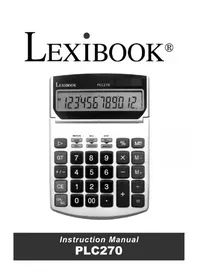
PLC270 - Calculator LEXIBOOK - Free user manual and instructions
Find the device manual for free PLC270 LEXIBOOK in PDF.




| Product type | Desktop calculator (Profit analysis) |
| Brand | Lexibook |
| Model | PLC270 |
| Power supply | 1 AG10/L1131 battery and solar panel |
| Automatic shut-off | After approximately 7 minutes of inactivity |
| Special keys | Percentage (%), Memory (MRC, M+, M-), Profit analysis (MARGIN, COST, SELL), Correction (▶), Hundreds (00), Sign change (+/-), Grand Total (GT) |
| Main functions | Basic calculations, percentages, memory, taxes, profit analysis, corrections |
| Display capacity | Up to 12 digits |
| Dimensions | Approximately 150 x 100 x 20 mm |
| Weight | Approximately 100 g |
| Maintenance | Clean with a soft dry cloth; avoid chemical liquids |
| Material | Plastic |
| Warranty | 2 years |
| Technical support | 0821 23 3000 (€0.12/min) |
| Website | www.lexibook.com |
| Safety | Do not disassemble, avoid shocks, moisture, and high temperatures |
| Display | LCD |
Frequently Asked Questions - PLC270 LEXIBOOK
User questions about PLC270 LEXIBOOK
0 question about this device. Answer the ones you know or ask your own.
Ask a new question about this device
Download the instructions for your Calculator in PDF format for free! Find your manual PLC270 - LEXIBOOK and take your electronic device back in hand. On this page are published all the documents necessary for the use of your device. PLC270 by LEXIBOOK.
USER MANUAL PLC270 LEXIBOOK
Congratulations! You have just acquired the PLC270 desktop calculator with profit feature from Lexibook®.
This calculator will allow you to perform standard calculations as well as advanced functions such as percentage, memory, Tax calculation and quick profit analysis.
In order to get the most out of your PLC270 calculator, read this instruction manual carefully and keep it in a safe place for future reference.
Calculations
The "00" key allows you to quickly enter the hundreds. Example: Press "5", then the "00" key and the calculator will display "500".
The “+/-” key allows you to change a positive number to negative, or vice versa. The “-” sign appears to the left of the screen when the number displayed is negative.
The "▶" key allows you to correct the last numbers entered. Press this key as many times as required.
1. Percentage calculations
| To calculate Press Display | ||
| 20€ + 6% tax = 21.2€ | 20 + 6 % 21.2 | |
| 150€ minus 20% = 120€ | 150 - 20 % 120 | |
Note: If you have pressed the wrong arithmetic function key (addition, subtraction, multiplication, division), press the 'correct function' key immediately to correct the mistake and proceed with the calculation.
2. Calculations using memory
Before saving a new value to the memory, the content must first be deleted by pressing the 'MRC' key twice and then pressing the 'ON/C' key to delete all previous calculations.
To add a value to the memory, enter the chosen number or calculation and then press the 'M+' key. The result of the calculation is worked out and, if applicable, added to the value in the memory.
When 'MEMORY' is displayed, it indicates that a value is stored in the memory.
Todeduct a value from the memory, enter the chosen number or calculation, and then press the "M-" key. The number entered (or the result of the calculation) is deducted from the value stored in the memory.
In order to display the value stored in the memory press "MRC". To delete the memory content, press twice on "MRC", the caption "MEMORY" will disappear.
3. Profit analysis
| To calculate the margin Press Display | ||
| Purchase price: €10Sale price: €15 | MARGIN10 COST15 SELL | MARGIN33.33 |
| To calculate the sale price | Press | Display |
| Purchase price: €175000Margin: 15% | SELL175 000 COST15 MARGIN | SELL205 882 |
| To calculate the purchase price | Press | Display |
| Sale price: €35000Margin: 15% | COST350 00 SELL15 MARGIN | COST297 500 |
4. The "G"T key
The “GT” key allows you to calculate the result of several calculations. Every time you press the “=” key, the result is displayed and “GT” is shown on the right of the screen. Press on “GT” in order to obtain the total of all recorded results.
Press" ON/AC" in order to delete all results stored in the memory.
| Example: calculation of A + B + C Press Display | |
| A = 6 x 7 6 x 7 = | |
| B = 5 + 4 5 + 4 = | |
| C = 22 -5 22 - 5 = | |
| A + B + C GT |
Important notes
The calculator will show the message "ERROR" in the following cases.
- When dividing by zero
- In calculations where the result exceeds the capacity of the calculator.
In order to delete the error message and any other calculations, press "ON/C".
Handling precautions
- Your calculator contains precision components, never attempt to take it apart.
Take care not to drop your calculator or allow it to receive any other impacts.
Do not leave your equipment in areas exposed to dampness, dirt, dust or high temperatures.
Make sure your calculator does not come in contact with water or with any other liquid substance; this could produce a short circuit or a potential risk of fire.
Avoid using chemical fluids or petrol to clean the equipment. Wipe it with a dry, soft cloth, or with a cloth moistened with a solution of water and a neutral detergent.
Under no circumstances will the manufacturer and its suppliers be liable to you or any third party for any damages, expenses, lost of profits, lost of earnings, or any other damages arising from any malfunction, repair, or battery replacement. The user should anticipate copies of physical records and data in order to be protected against any possible loss.
▶ Never dispose of batteries, the liquid crystal panel, or other component in a fire.
Should the calculator be exposed to a high electrostatic discharge, the content of the memory could suffer damage or the keys could stop working.
Before assuming malfunction of the equipment, make sure you have read this instruction manual and check that the problem is not caused by the batteries running out or by calculation errors.
Features
Power source:
1 AG10 (or L1131) battery and solar cell.
Automatic switch off:
If no key is pressed, the calculator will switch itself off automatically after approximately 7 minutes.
Warranty
This product is covered by our 2-year warranty.
To make use of the warranty or after-sales service, please contact your retailer and supply proof of purchase. Our warranty covers material or installation-related defects attributable to the manufacturer, with the exception of wear caused by failure to respect the instructions for use or any unauthorised work on the equipment (such as dismantling, exposure to heat or damp etc).
Note: It is recommended that all packaging be kept for future reference. Keep this instruction manual in a safe place as it contains important information.
In our constant concern for improvement, the colours and details of the product may differ slightly from those shown on the packaging.
Customer Service:
For technical assistance call our freephone helpline: 0808 100 3015
Lexibook UK Limited
Unit 10 Petersfield Industrial Estate
Bedford Road, Petersfield
Hampshire, GU32 3QA
United Kingdom
Web: http://www.lexibook.com
The contents of this manual are subject to change without notice.
▶ No part of this manual may be reproduced in any form without the express written consent of the manufacturer.