
M-LCD7-HDMI-B-CE6 - Monitor MARSHALL - Free user manual and instructions
Find the device manual for free M-LCD7-HDMI-B-CE6 MARSHALL in PDF.


 FR
FR
 BG
BG
 CS
CS
 DA
DA
 DE
DE
 EL
EL
 EN
EN
 ES
ES
 ET
ET
 FI
FI
 HE
HE
 HU
HU
 ID
ID
 IT
IT
 JA
JA
 LT
LT
 LV
LV
 NL
NL
 NO
NO
 PL
PL
 PT
PT
 RO
RO
 RU
RU
 SK
SK
 SL
SL
 SV
SV
 TR
TR
 UK
UK
 VI
VI
 ZH
ZH
| Brand | Marshall |
| Model | M-LCD7-HDMI-B-CE6 |
| Product type | Professional field monitor |
| Screen size | 7 inches (17.78 cm) |
| Resolution | 1920 x 1080 (Full HD) |
| Brightness | 500 cd/m² |
| Contrast ratio | 1000:1 |
| Refresh rate | 60 Hz |
| Connectivity | HDMI, SDI, Composite video input/output, 3.5 mm jack |
| Power supply | 12V DC power adapter (included) or Canon LP-E6 battery |
| Power consumption | 15W maximum |
| Dimensions (W x H x D) | 188 x 135 x 32 mm (without bracket) |
| Weight | 500 g (without battery) |
| Housing material | Die-cast aluminum |
| Main features | Image display, focus assist, zebras, false color, histogram, image markers |
| Care and cleaning | Use a soft dry cloth. Do not use abrasive products or solvents. Clean the protective glass carefully. |
| Safety | Do not expose to moisture or rain. Use only the supplied adapter. Turn off before any connection. |
| Spare parts and repairability | Spare parts available from the manufacturer. Repair by an approved center recommended. |
| General information | Monitor designed for professional video applications, compatible with SD/HD/3G-SDI and HDMI signals |
Frequently Asked Questions - M-LCD7-HDMI-B-CE6 MARSHALL
User questions about M-LCD7-HDMI-B-CE6 MARSHALL
0 question about this device. Answer the ones you know or ask your own.
Ask a new question about this device
Download the instructions for your Monitor in PDF format for free! Find your manual M-LCD7-HDMI-B-CE6 - MARSHALL and take your electronic device back in hand. On this page are published all the documents necessary for the use of your device. M-LCD7-HDMI-B-CE6 by MARSHALL.
USER MANUAL M-LCD7-HDMI-B-CE6 MARSHALL
This is an interactive document. Click on the section you are looking for.
LANGUAGES
English....003
Arabic - العربية 009
Finnish – Suomi....057
French – Français ..... 063
German – Deutsch....069
Greek – Ελληνικά. 075
Hebrew – כְרָה 081
Hungarian – Magyar ..... 087
Italian – Italiano 099
Japanese – 日本語.... 105
Korean-한국 111
Norwegian – Norsk 129
Polish – Polski ..... 135
DEVICE LAYOUT

GENERAL
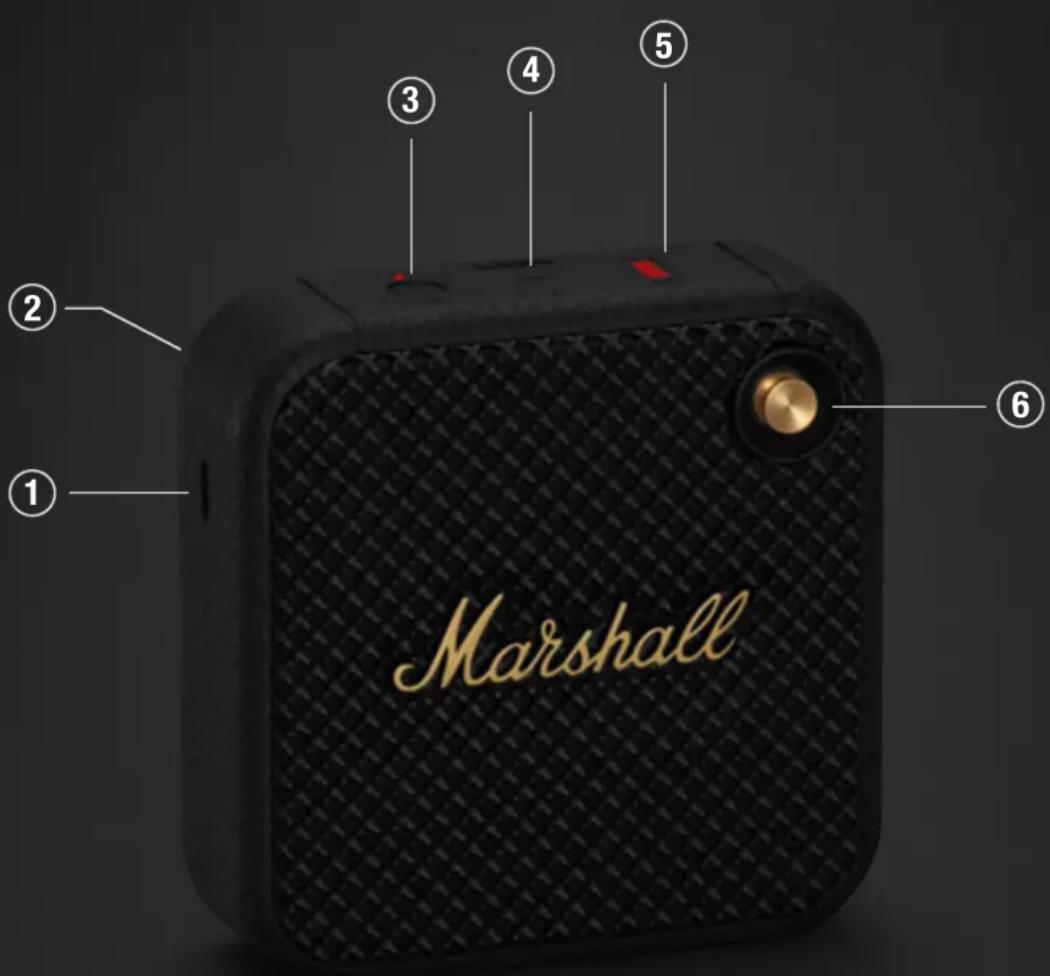
① USB-C POWER INPUT
Charge the speaker by plugging it into a USB power source.
② FASTENING STRAP
Unhook the lower-right side of the strap by stretching it gently.
③ BLUETOOTH BUTTON
Push and hold the Bluetooth® button until the LED turns to a slow red pulse to start pairing mode.
④ MICROPHONE
The microphone lets you use Willen as a speakerphone. While in a call, push the Bluetooth button to toggle between using Willen for the call and your phone.
⑤ BATTERY INDICATOR
The 5 segment Battery indicator shows the battery charge with a steady light and a rising animation indicates charging.
⑥ CONTROL KNOB
I. Push and hold for 2 seconds to turn on/off II. Push once to play/pause III. Push right/left to skip forward/back IV. Hold right/left to fast forward/rewind V. Hold upwards/downwards to adjust the volume VI. Push once to answer or end a call VII. Push twice to reject a call
BLUETOOTH PAIRING
I. Push and hold the control knob until the speaker turns on. II. Push and hold the Bluetooth button until the LED turns to a slow red pulse. III. Select WILLEN from your audio device's Bluetooth list.
PERFORMING A FACTORY RESET
A factory reset will return the speaker to its original settings, excluding any firmware updates.
Note: This will delete all user settings and the speaker will need to be set up again.
I. Ensure that the speaker is on. II. Push and hold the Bluetooth button for 7 seconds. All indicators turn off and the speaker restarts. III. Remove WILLEN from your audio device's Bluetooth list before pairing again.
MARSHALL BLUETOOTH APP
Download the Marshall Bluetooth app to get the most out of your speaker and keep it up to date with the latest software.


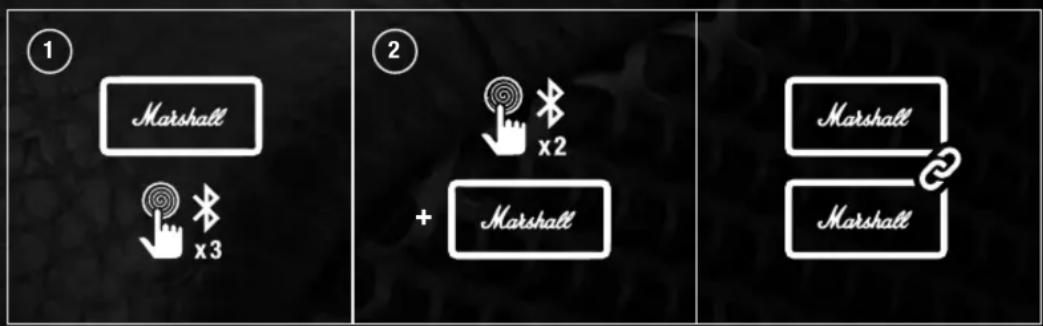
STACK MODE
Connect two or more Willen speakers in a Stack session for a bigger sound. Play anything on the main speaker and all speakers in the session will play in sync. You can adjust the volume on any individual speaker for the perfect balance.
① MAIN SPEAKER
Triple press the Bluetooth button to start or end a Stack session. The LED starts to blink until any other speaker joins the session.
② ADDITIONAL SPEAKER
Double press the Bluetooth button on any speaker you want to add to the session. The LED starts to blink until the speaker has joined a session. While in a session, the speaker will disconnect from any previously connected audio device and will try to reconnect after leaving the session.
To remove a speaker from the session, double press the Bluetooth button on that speaker.
TROUBLESHOOTING
| PROBLEM CAUSE ACTION | ||
| The speaker does not turn on | The battery has no charge. | Plug the speaker into a USB power source to charge it. |
| Cannot connect or pair with a Bluetooth device | Bluetooth is not enabled on your device (smartphone, tablet, computer). | Activate Bluetooth on your audio device. |
| The speaker is not turned on. | Push and hold the control knob for 2 seconds to turn on the speaker before setting it in pairing mode. | |
| Cannot play in Stack mode | The playback device is not connected to the main speaker. | Make sure that your playback device (phone or computer) is paired with the main speaker. |
| Bluetooth connection drops out | The Bluetooth devices are too far apart, or the connection is affected due to obstacles. | Move the devices closer to each other so that they are unobstructed by obstacles such as walls or doors. |
| PROBLEM CAUSE ACTION | |||
| Bluetooth connection drops out | There is a strong electric field surrounding the speaker. Items such as microwave ovens, wireless network adapters, fluorescent lights and gas cookers use the same frequency range as the Bluetooth device. This may lead to electrical disturbances. | Move the speaker to another spot or turn off or move the interfering electronic device. | |
| Erratic behaviour The speaker is not using the latest firmware version. | Download the Marshall Bluetooth app and connect to the speaker. Follow the in-app instructions to ensure that the speaker has the latest firmware version. | ||
| There is a software error. | Perform a factory reset by pressing the Bluetooth button for 7 seconds. The speaker needs to be set up again. | ||

MARSHALL BLUETOOTH APP
MARSHALL BLUETOOTH APP
MARSHALL BLUETOOTH APP
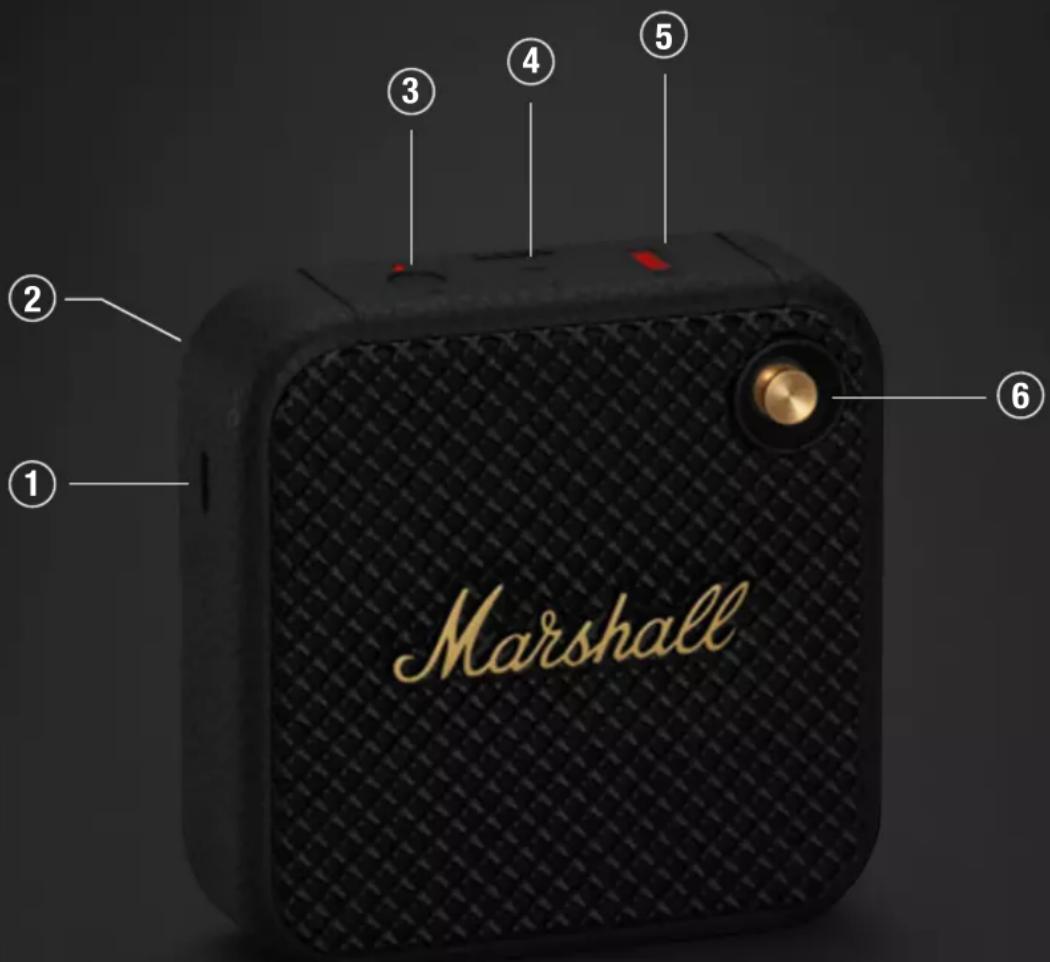
① USB-C CHARGING PORT
MARSHALL BLUETOOTH APP
MARSHALLHEADPHONES.COM
Design of device and packaging are intellectual properties of Zound Industries International AB and Marshall Amplification Plc. © All Rights Reserved. MARSHALL, Marshall Amps, their respective logos, "Marshall" and "Marshall" trade dress are trademarks and intellectual property of Marshall Amplification Plc and may not be used without permission. Permission granted to Zound Industries International AB. The Bluetooth® wordmark and logos are registered trademarks owned by the Bluetooth SIG, Inc. and any use of such marks by Zound Industries International AB is under license. Google Play is a trademark of Google LLC. App Store is a service mark of Apple Inc., registered in the U.S. and other countries. R 1.1
- LANGUAGES
- DEVICE LAYOUT
- GENERAL
- ① USB-C POWER INPUT
- ② FASTENING STRAP
- ③ BLUETOOTH BUTTON
- ④ MICROPHONE
- ⑤ BATTERY INDICATOR
- ⑥ CONTROL KNOB
- BLUETOOTH PAIRING
- PERFORMING A FACTORY RESET
- MARSHALL BLUETOOTH APP
- STACK MODE
- ① MAIN SPEAKER
- ② ADDITIONAL SPEAKER
- TROUBLESHOOTING
- ① USB-C CHARGING PORT
- MARSHALLHEADPHONES.COM
Brand : MARSHALL
Model : M-LCD7-HDMI-B-CE6
Category : Monitor