
F540 - Headphones LOGITECH - Free user manual and instructions
Find the device manual for free F540 LOGITECH in PDF.

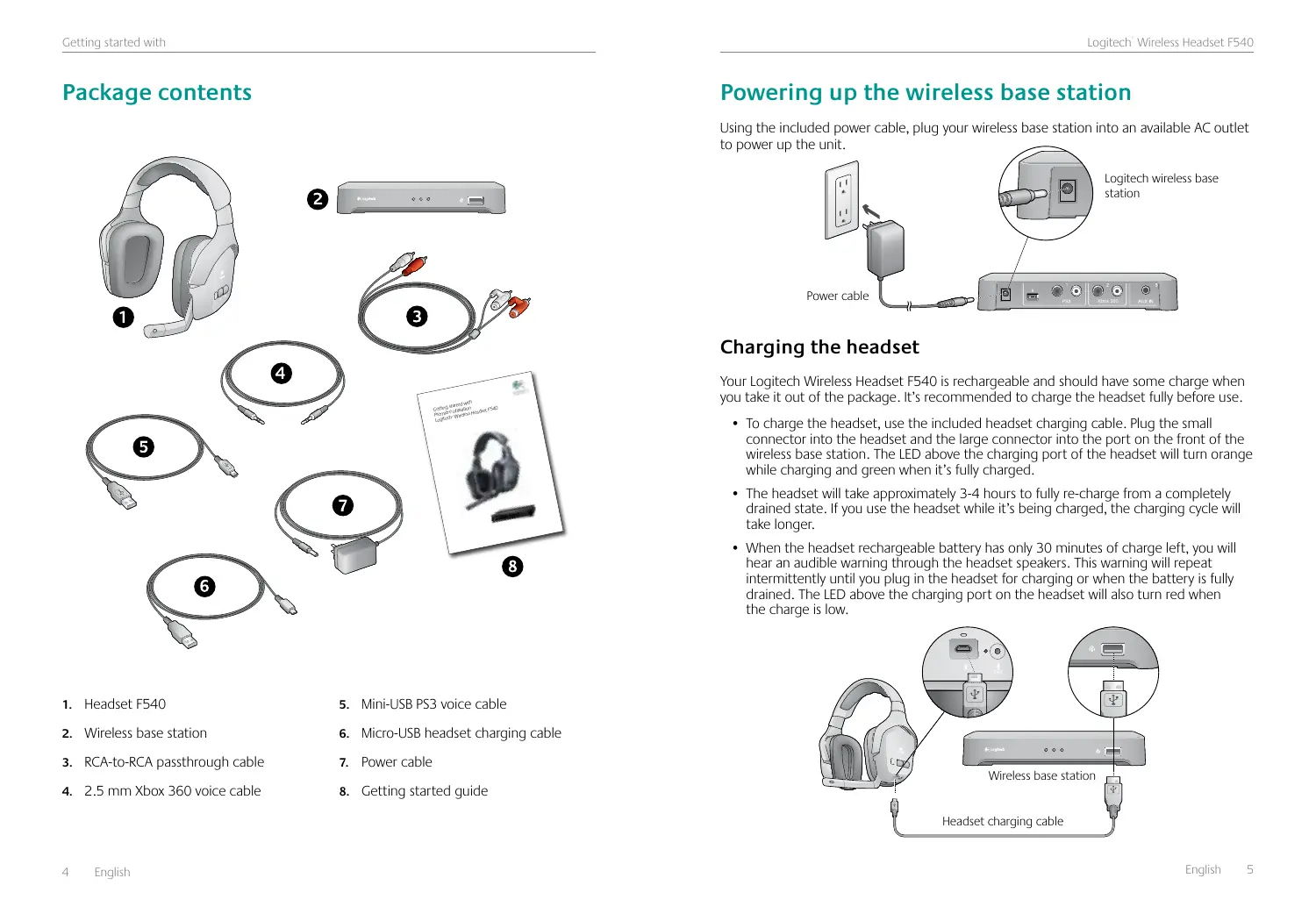


| Product type | Wireless headset |
| Brand | Logitech |
| Model | F540 |
| Headset power | Rechargeable lithium-ion battery (via micro-USB cable) |
| Charging time | 3 to 4 hours |
| Approximate battery life | Up to 8 hours (estimated) |
| Connectivity | Wireless docking station with RCA, 3.5mm AUX, and optical ports (via adapter) |
| Console compatibility | PlayStation 3, Xbox 360 |
| Audio features | Voice chat, independent volumes (game and voice), microphone mute |
| Microphone type | Adjustable noise-canceling microphone |
| Adjustments | Adjustable headband, swiveling ear cups |
| LED indicators | Charging (orange/green), microphone mute (red), wireless connection |
| Package contents | Headset, docking station, RCA cables, Xbox 360 voice cable, PS3 voice cable, charging cable, power adapter, guide |
| Care and cleaning | Wipe with a soft, dry cloth. Do not use chemicals. |
| Safety | Respect listening levels to avoid hearing damage. Do not expose to moisture or heat. |
| Warranty | 1 year (limited, manufacturer) |
| Repairability | Not user-serviceable. Contact Logitech support. |
Frequently Asked Questions - F540 LOGITECH
User questions about F540 LOGITECH
0 question about this device. Answer the ones you know or ask your own.
Ask a new question about this device
Download the instructions for your Headphones in PDF format for free! Find your manual F540 - LOGITECH and take your electronic device back in hand. On this page are published all the documents necessary for the use of your device. F540 by LOGITECH.
USER MANUAL F540 LOGITECH
Getting started with
Powering up the wireless base station 5
Charging the headset . . . . . . . . . . . . . . . . . . . . 5
F540 setup with PS3TM 6
Connecting PS3 game audio . . . . . . . . . . . . . . 6
If you use HDMI or digital optical for PS3 audio 7
If you use PS3 analog AV cable for audio . . . . . . . . . . . 8
Alternative: If you want to use your audio out from your TV or AV receiver. 9
Connecting PS3 voice chat. 10
F540 setup with Xbox 360° 11
Connecting Xbox 360 game audio. 11
If you use HDMI or digital optical for Xbox 360 audio . . . . . . . . 12
If you use the red/white RCA connectors on the Xbox 360 AV cable for audio . 13
Alternative Xbox 360 wireless base station setup . . . . . . . . . . 14
Connecting Xbox 360 voice chat . . . . . . . . . . . . . . . 15
Connecting other AV sources. 16
Using the headset 17
Features 17
Turning on the headset 18
Using the input selector button 18
Using the volume rollers and microphone mute button 19
Turning off the headset 19
Troubleshooting 20
Adjusting the headset fit 20
What do you think? 22
Logitech hardware product limited warranty 24
Logitech support telephone numbers 91
Package contents
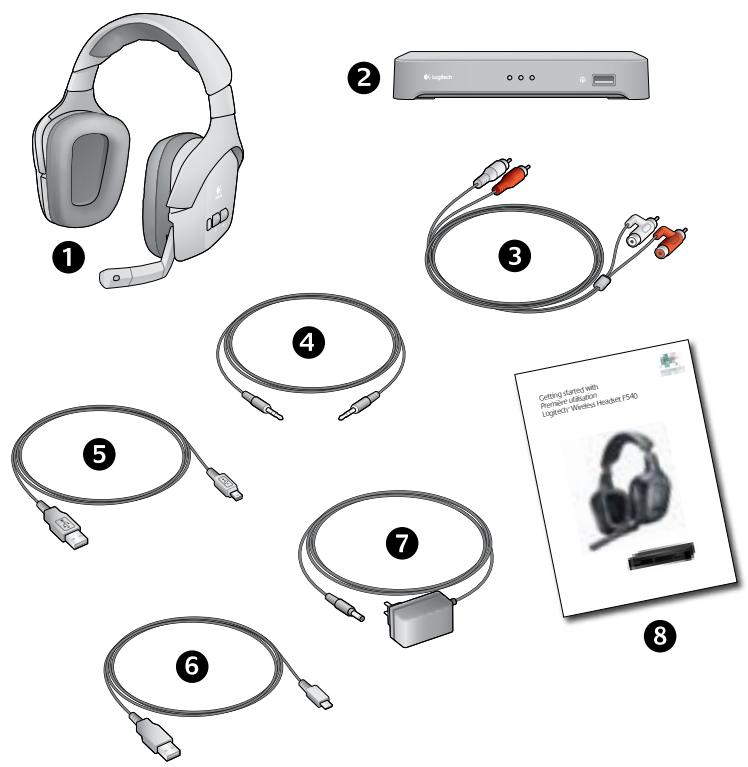
- Headset F540
- Wireless base station
- RCA-to-RCA passthrough cable
-
2.5mm Xbox 360 voice cable
-
Mini-USB PS3 voice cable
- Micro-USB headset charging cable
- Power cable
- Getting started guide
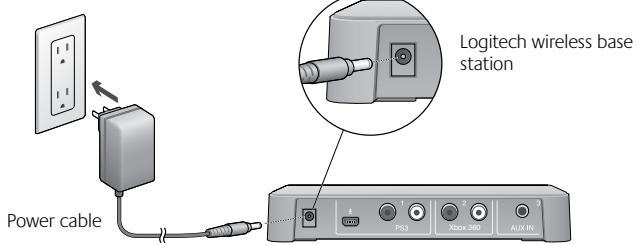
Powering up the wireless base station
Using the included power cable, plug your wireless base station into an available AC outlet to power up the unit.
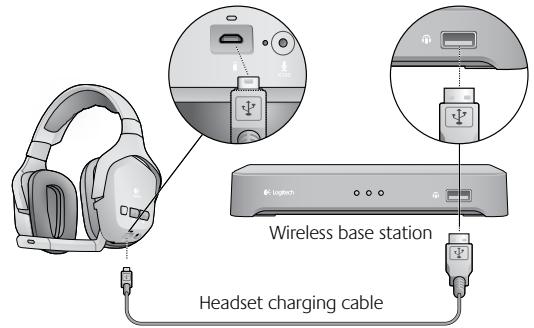
Charging the headset
Your Logitech Wireless Headset F540 is rechargeable and should have some charge when you take it out of the package. It's recommended to charge the headset fully before use.
- To charge the headset, use the included headset charging cable. Plug the small connector into the headset and the large connector into the port on the front of the wireless base station. The LED above the charging port of the headset will turn orange while charging and green when it's fully charged.
- The headset will take approximately 3-4 hours to fully re-charge from a completely drained state. If you use the headset while it's being charged, the charging cycle will take longer.
- When the headset rechargeable battery has only 30 minutes of charge left, you will hear an audible warning through the headset speakers. This warning will repeat intermittently until you plug in the headset for charging or when the battery is fully drained. The LED above the charging port on the headset will also turn red when the charge is low.
F540 setup with PS3™
To use all the features of the Headset F540, you'll need to make two connections: one for game audio and one for voice chat.
You make the game audio connection between the Logitech wireless base station and the PS3. Or you can connect the wireless base station to your primary audio system (television, home theater system, AV receiver, or audio switch).
You make the voice connection between the wireless base station and the PS3 using the Logitech Mini-USB PS3 voice cable.
To make the connections described in this section, you may need the items shown below, which are included with the Headset F540:
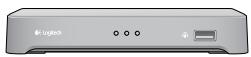
Wireless base station
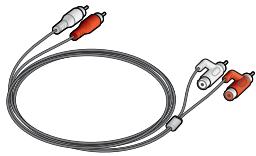
RCA-to-RCA passthrough cable
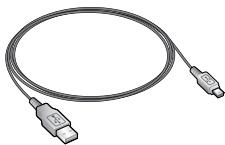
Mini-USB PS3 voice cable
Connecting PS3 game audio
How you make this connection is dependent upon how you have connected your PS3 to your primary audio system. While every home gaming environment may be different, there are two basic ways to hook up your PS3:
- A digital connection using an HDMI or digital optical cable
- An analog connection using the PS3 AV cable
If you use HDMI or digital optical for PS3 audio
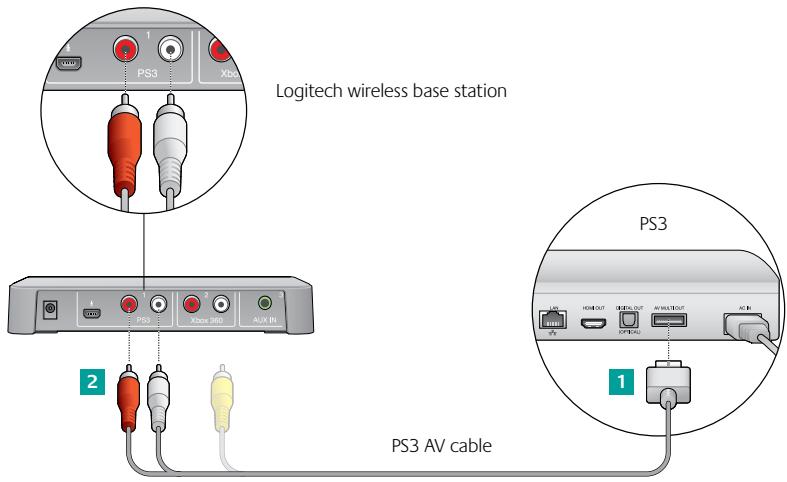
Figure 1
If you are using an HDMI or digital optical cable to connect your PS3 to your primary audio system, use the PS3 AV cable (recommended) setup below or the alternative shown in Figure 3.
Recommended setup for the wireless base station (Fig. 1)
1 Connect the PS3 AV cable (typically included with the PS3) to the back of the PS3.
2 Connect the red and white RCA plugs of the PS3 AV cable to the PS3 ports on the back of the wireless base station.
3 Adjust the audio settings using the PS3™ XMediaBar™. You need to enable multi-output audio in the PS3 system (firmware 3.00 or later) settings for the PS3 to transmit stereo audio to the Headset F540.
Within the XMediaBar, navigate to
- Settings
Sound Settings
Audio Multi-Output
In Audio Multit-Output, select "On" to turn on the Audio Multi-Output feature.
If you use PS3 analog AV cable for audio
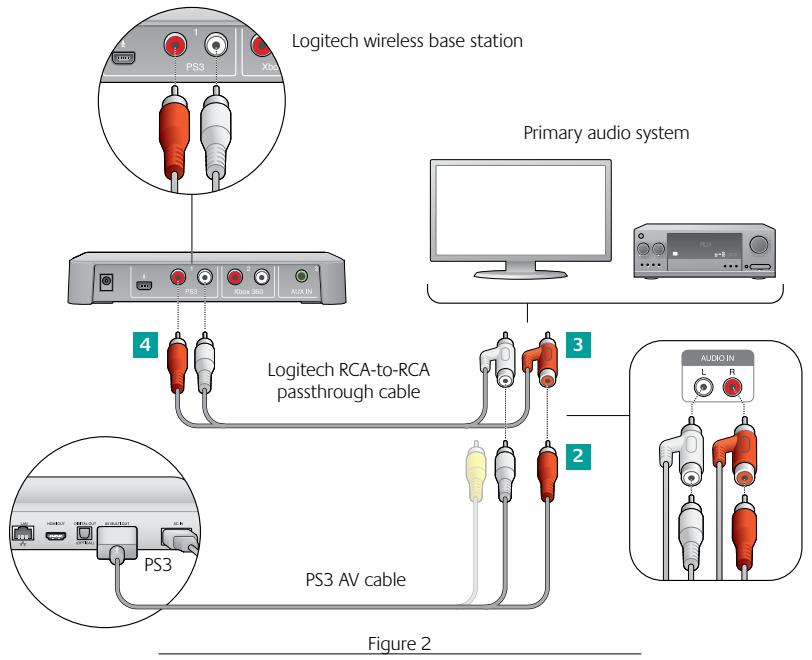
If you are using the red and white stereo connectors of the PS3 AV cable to connect your PS3 to your primary audio system, use the following wireless base station setup or the alternative on page 9.
Recommended setup for the wireless base station (Fig. 2)
1 Unplug the red and white connectors of the PS3 AV cable from your primary audio system.
Plug these red and white connectors directly into the Logitech RCA-to-RCA passthrough cable connectors.
Plug the male connectors of the Logitech RCA-to-RCA passthrough cable to your primary audio system (where the PS3 AV cable was previously connected).
4 On the other end of the Logitech RCA-to-RCA passthrough cable, plug the red and white connectors into the PS3 ports on the back of the wireless base station.
Alternative: If you want to use your audio out from your TV or AV receiver
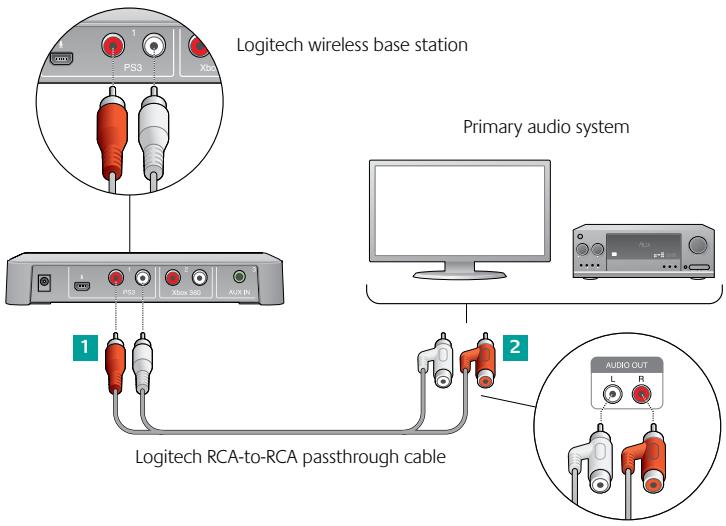
Figure 3
If the recommended steps are inconvenient or don't work on your system setup, please follow the steps below to connect the wireless base station to your primary audio system:
1 Using the Logitech RCA-to-RCA passthrough cable, connect one end to the PS3 ports on the back of the wireless base station.
2 Connect the other end of the cable to the red and white stereo audio-out ports on the back of your primary audio system.
Connecting PS3 voice chat
To experience voice chat in PS3 games, first use the Logitech Mini-USB PS3 voice cable to connect the wireless base station to the PS3, as shown in the picture below.
2 Select the microphone as the active audio input device on PS3. In the PS3 system XMediaBar™, navigate to
- Settings
- Accessory Settings
Audio Device Settings
In the Input device and Output device fields, select Logitech Wireless Headset as the active device.
Optional: You can also adjust the microphone sensitivity in this PS3 system pane.
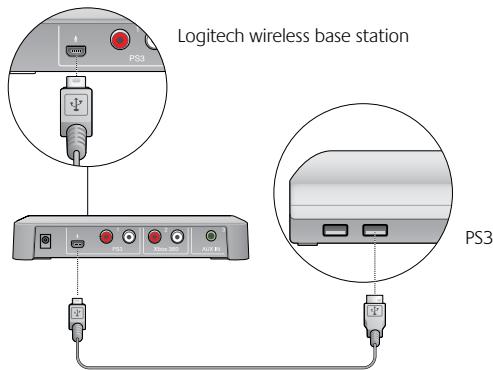
Logitech mini-USB PS3 voice cable
F540 setup with Xbox 360®
To use all the features of the Headset F540, you'll need to make two connections: one for game audio and one for voice chat.
You make the game audio connection between the Logitech® Headset F540 and the Xbox 360. Or you can connect the wireless base station to your primary audio system (television, home theater system, AV receiver, or audio switch).
You make the voice connection between the wireless base station and an Xbox 360 game controller using the Logitech 2.5 mm Xbox 360 voice cable.
To make the connections described in this section, you may need the items shown below, which are included with the Headset F540:
Wireless base station
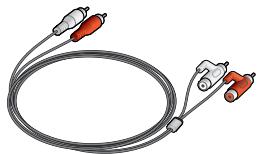
RCA-to-RCA passthrough cable
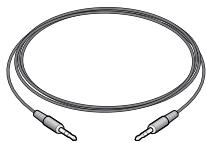
2.5 mm Xbox 360 voice cable
Connecting Xbox 360 game audio
How you make this connection is dependent upon how you have connected your Xbox 360 to your primary audio system. While every home gaming environment may be different, there are two basic ways to hook up your Xbox 360:
- A digital connection using an HDMI or digital optical cable
- An analog connection using the red and white RCA connectors of the Xbox 360 component HD AV cable
If you use HDMI or digital optical for Xbox 360 audio
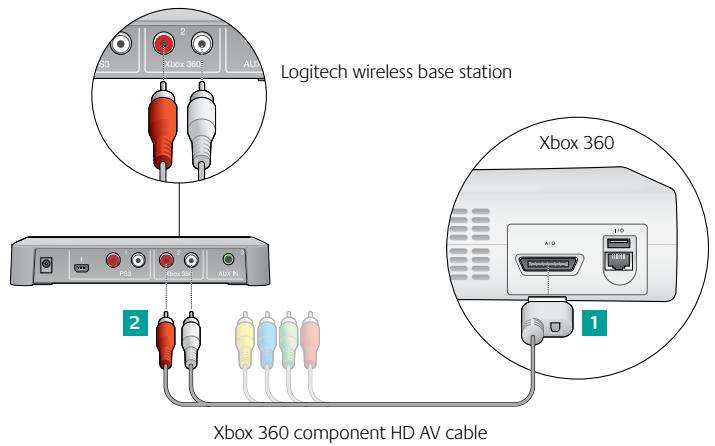
Figure 4
If you are using an HDMI or digital optical cable to connect your Xbox 360 to your primary audio system, use the Xbox 360 component HD AV cable (recommended) to connect the wireless base station to your Xbox 360/primary audio system, or the alternative setup on page 14.
Recommended wireless base station setup (Fig.4)
1 Connect the Xbox 360 component HD AV cable (typically included with the Xbox 360) to the back of the Xbox 360. Note that with some Xbox 360 models, you cannot connect both an HDMI cable and the Xbox 360 component HD AV cable. (If you experience this issue, please use the alternative wireless base station setup shown in Fig. 6)
2 Connect the red and white stereo RCA plugs to the Xbox 360 ports on the Logitech wireless base station.
If you use the red/white RCA connectors on the Xbox 360 AV cable for audio
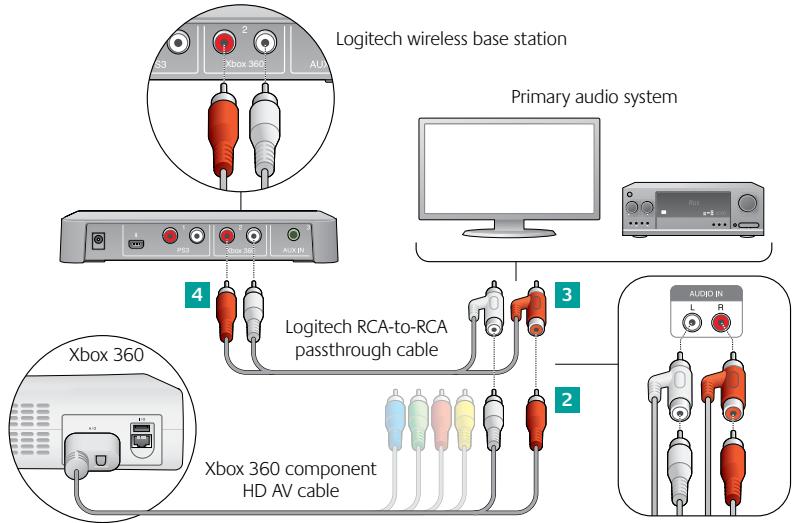
Figure 5
If you are using the red and white RCA analog connectors of the Xbox 360 component HD AV cable to connect your Xbox 360 to your primary audio system, use one of the following wireless base station setups in this section.
Recommended setup for the wireless base station (Fig. 5)
1 Unplug the red and white connectors of the Xbox 360 component HD AV cable from your primary audio system.
Plug these red and white connectors directly into the Logitech RCA-to-RCA passthrough cable connectors.
Plug the male connectors of the Logitech RCA-to-RCA passthrough cable to your primary audio system (where the Xbox 360 component HD AV cable was previously connected).
4 On the other end of the Logitech RCA-to-RCA passthrough cable, plug the red and white connectors into the Xbox 360 ports on the back of the wireless base station.
Alternative Xbox 360 wireless base station setup
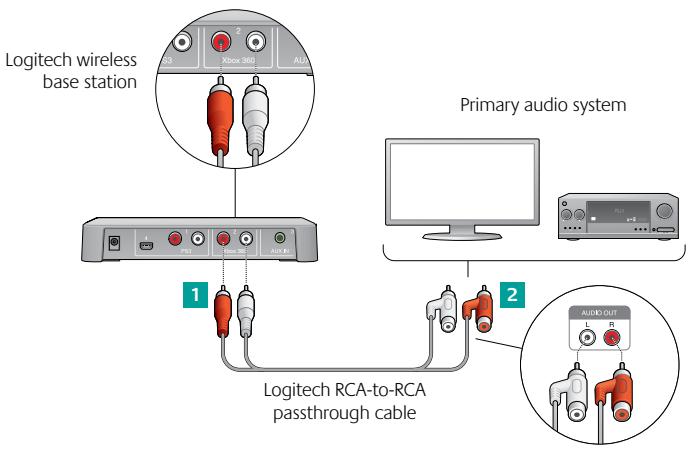
Figure 6
If the previous recommended connections are inconvenient or don't work for your system setup, please follow the steps below to connect the wireless base station to your primary audio system:
1 Using the Logitech RCA-to-RCA passthrough cable, connect one end to the Xbox 360 ports on the back of the wireless base station.
2 Connect the other end of the cable to the red and white stereo audio-out ports on the back of your primary audio system.
Connecting Xbox 360 voice chat
To experience voice chat in Xbox 360 games, connect the Headset F540 directly to an Xbox 360 game controller using the Logitech 2.5 mm Xbox 360 voice cable, as shown in the picture below.
To get the best voice chat performance, including using the voice audio volume roller on the headset, we recommend you adjust your Xbox 360 system settings as described:
Press the Xbox Guide button on the game controller, then navigate to Settings > Preferences > Voice
2 At the top of the screen, set the volume to level 10
3 Select "Play Through Headset" under Voice Output
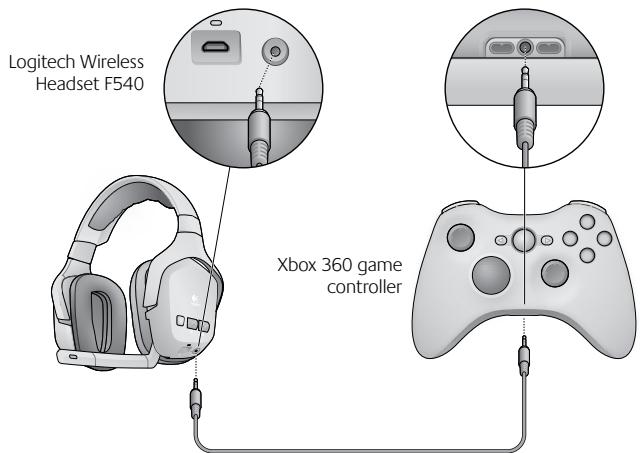
Logitech 2.5 mm Xbox 360 voice cable
Connecting other AV sources
You can use the Headset F540 to listen to a variety of audio-video sources, including TVs, DVD players, MP3 players, and more. To listen to any of these devices, use standard RCA or 3.5mm cables (not included) to connect these devices to the back of the wireless base station.
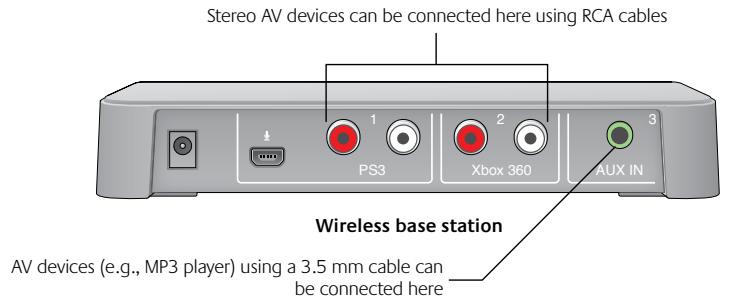
For example, if you have connected the wireless base station to a PS3 game console, (leaving the Xbox 360 ports open), you could connect a DVD player to the wireless base station. To make this connection, use RCA cables to connect the audio-out ports on the DVD player to the open Xbox 360 ports on the back of the wireless base station. If you also have an MP3 player, you could connect it using a 3.5mm cable, which you would plug into the AUX IN port on the back of the wireless base station.
Using the headset
After setting up the wireless base station, you are now ready to use the Headset F540. This section tells you how by covering headset features, controls, and adjustments.
Features
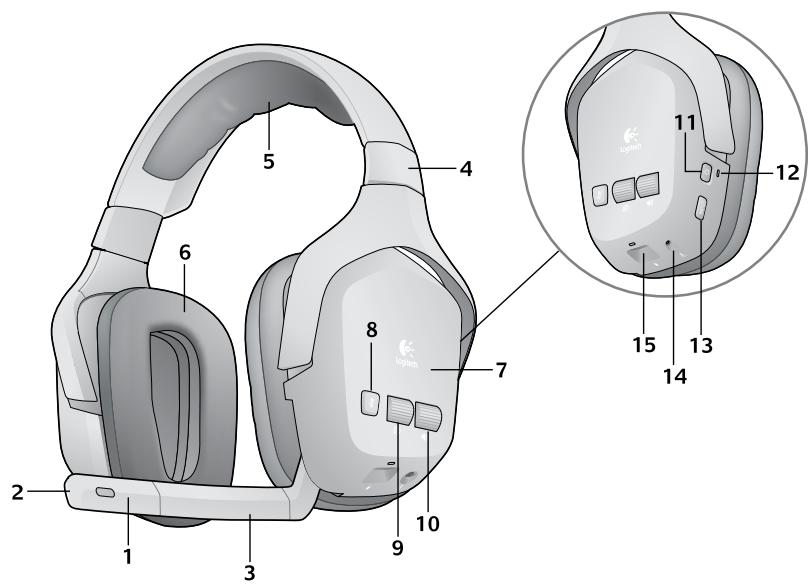
- Noise-canceling microphone
- Microphone mute light
- Flexible, rotating microphone boom
- Precision headband adjustment
- Comfort headband pad
- Plush ear pads
- Closed-back, noise-isolating ear cups
- Microphone mute button
-
Voice audio volume roller
-
Game audio volume roller
- Power button
- Wireless connection status light
- Input selector
- Xbox 360 voice connection port
- Headset charging port
Turning on the headset
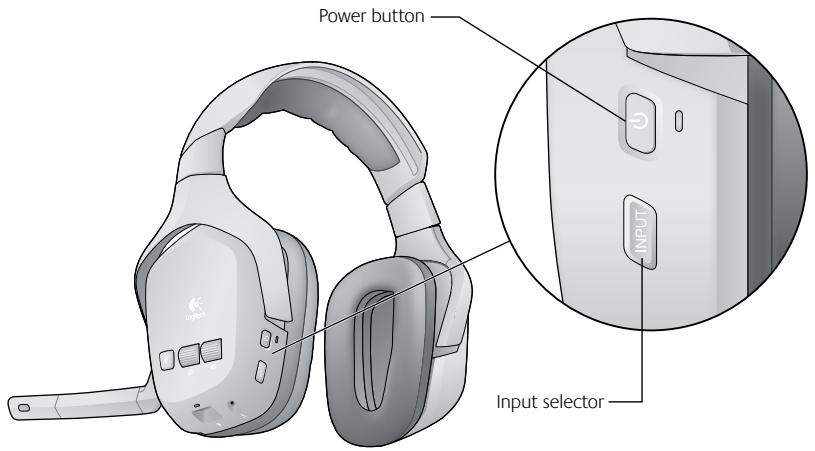
- Press the power button on the headset to turn it on.
- The headset will wirelessly connect with the wireless base station.
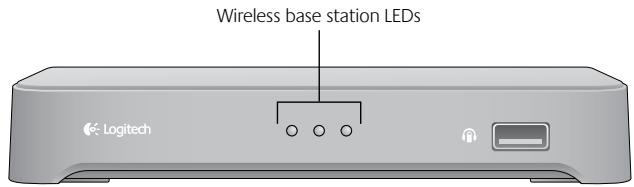
- You will see the three LEDs on the wireless base station turn on, blink briefly, and then one of the LEDs will turn solid.
Using the input selector button
- If you have multiple audio devices connected to the wireless base station, you can press the INPUT button on the headset to toggle through them.
- Press the button to change the audio source. On the front of the wireless base station, the next LED will illuminate, representing the active audio source. (If there is only one audio device connected to the back of the wireless base station, that input will remain active).
Using the volume rollers and microphone mute button
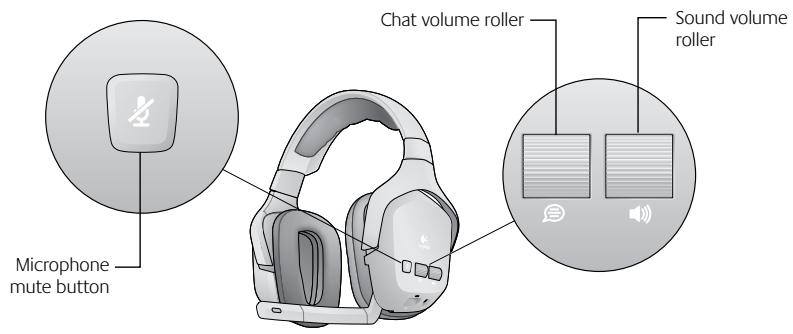
- Use the two rollers on the left ear cup to independently control the volume of the game and voice chat audio.
- You can mute your microphone by pressing the microphone mute button, or by rotating the microphone boom all the way closed (up).
- When your microphone is muted, an LED located at the tip of the microphone will illuminate red.
Turning off the headset
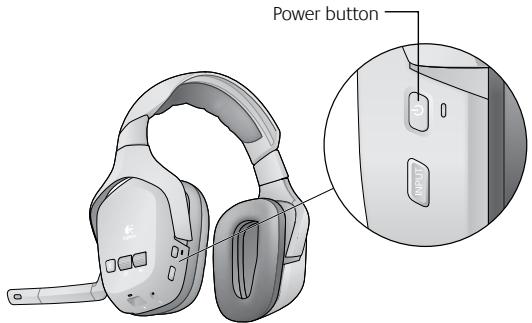
- Press and hold the power button for approximately one second.
- When powering off the headset, the LEDs on the wireless base station will blink briefly and then turn off.
Adjusting the headset fit
The Headset F540 offers flexible adjustment of its ear cups, headband, and microphone boom so you can experience a comfortable fit.

Troubleshooting
www.logitech.com/support
I don't hear anything through my headset
Check the LEDs on the front of the wireless base station.
No LEDs are lit
Check to make sure the wireless base station is plugged into a power outlet. If it is, then do the following:
- Make sure the headset is powered on by pressing the power button for approximately one second. If the headset doesn't turn on, then the battery may be dead and you should recharge it.
- If this doesn't help, then confirm that your audio cables are correctly plugged into the back of the wireless base station.
One LED is lit
If you have multiple devices connected to your wireless base station, check to make sure you have the correct audio system selected. To change the audio system, push the INPUT button on the headset.
If you are using a PS3, refer to Connecting PS3 voice chat to make sure your game system audio output is set up correctly.
Check to make sure your game system is on and a game is active.
All three LEDs are blinking
The headset has not made a wireless connection to the base station. Try re-pairing the headset and the wireless base station by doing the following:
- Press and hold the power button on the headset for 15 seconds to put it into search mode.
- Press the connect button on the bottom of the wireless base station.
My microphone doesn't work
- The microphone will work with any game that supports voice chat on the PS3 and Xbox 360. Please check your game manuals to make sure the game supports voice chat.
- If you're using a PS3
Please check the cable connection between
the wireless base station and the PS3. Use the Mini-USB PS3 voice cable to make this connection. Please refer to Connecting PS3 voice chat for more information.
- If you're using an Xbox 360
Please check the cable connection between the Headset F540 and the Xbox 360 game controller. Use the 2.5mm Xbox 360 voice cable to make this connection. Please refer to Connecting Xbox 360 voice chat for more information.
I'm hearing the wrong audio signal
If you have multiple devices connected to the wireless base station, you can change the active audio system you are hearing. To change the active audio system, push the INPUT button on the headset.
The voice chat volume roller isn't working on my headset
You may need to change the voice chat settings in your PS3 or Xbox 360 system settings.
- For PS3, refer to Connecting PS3 voice chat.
- For Xbox 360, refer to Connecting Xbox 360 voice chat.
What do you think?
Please take a minute to tell us. Thank you for purchasing our product.*
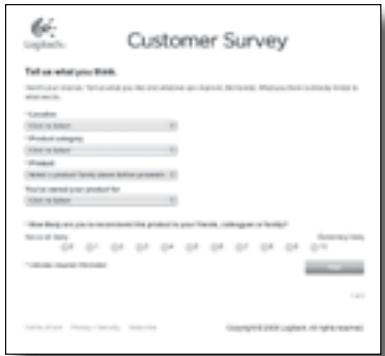
www.logitech.com/ithink
- The sample Customer Survey shown here is in English. Logitech supports many languages on its website.
Protect your hearing: Listening advice to avoid hearing damage
Listening via headphones, earbuds or headsets at a high volume may cause permanent hearing loss to occur. The louder the volume, the less time is required before your hearing could be affected.
To establish a safe volume level:
- Start your equipment with the volume control at its lowest setting.
- Slowly increase the sound until you can hear it comfortably and clearly, and without distortion.
- Avoid setting the volume at a level that prevents you from hearing conversations and other similar noises around you.
Once you have established a comfortable sound level, leave it there. If you experience a ringing in your ears, discomfort or muffled speech, reduce the volume or stop listening and have your hearing checked. See the product support page on the Logitech website www.logitech.com for additional information.
Battery warning
Caution: risk of explosion and personal injury if batteries are replaced by incorrect type. Do not open, mutilate, or expose to conducting materials (metal), moisture, liquid, fire, or heat (above 54^ C or 130^ F). Doing so may cause batteries to leak or explode, resulting in personal injury. Dispos of spent, leaking, or damaged batteries according to manufacturer instructions and local laws. Do not use or charge batteries (lithium-ion rechargeable) if leaking, discolored, or deformed. Do not mix battery types. Do not charge alkaline batteries. Do not leave rechargeable batteries discharged or unused for extended periods. Battery life varies with usage. When replacing, remove all spent batteries, and do not mix old batteries with new. When device is not in use for extended periods, remove batteries to avoid leakage and store away from children in a cool, dry place at room temperature.
AC adapter warning
Caution electric shock hazard! Warning: to reduce risk of electric shock, do not expose AC adapter to rain, moisture, liquid, or heat sources (e.g., radiators, heat registers, stoves, amplifiers, etc.) For indoor use only. Do not use any other AC adapter with product. Do not use a damaged AC adapter or attempt to repair one. Inspect AC adapter regularly for cable, plug, or casing damage.
FCC
This hardware device complies with Part 15 of the FCC Rules. Operation is subject to the following two conditions: 1) this device may not cause harmful interference, and 2) this device must accept any interference received, including interference that may cause undesired operation. Compliance Information Statements: This equipment has been tested and found to comply with the limits for a Class B digital device, pursuant to part 15 of the FCC Rules. These limits are designed to provide reasonable protection against harmful interference in a residential installation. This equipment generates, uses and can radiate radio frequency energy and, if not installed and used in accordance with the instructions, may cause harmful interference to radio communications. However, there is no guarantee that interference will not occur in a particular installation. If this equipment does cause harmful interference to radio or television reception, which can be determined by turning the equipment off and on, the user is encouraged to try to correct the interference by one or more of the following measures: 1) Reorient or relocate the receiving antenna. 2) Increase the separation between the equipment and receiver. 3) Connect the equipment into an outlet on a circuit different from that to which the receiver is connected. 4) Consult the dealer or an experienced radio/TV technician for help. Industries Canada Statement: This device complies with RSS 210 of Industry Canada. (Cet apparéil est conforme à la RSS 210 d'Industrie Canada.)
Logitech hardware product limited warranty
Logitech warrants that your Logitech hardware product shall be free from defects in material and workmanship for one year, beginning from the date of purchase. Except where prohibited by applicable law, this warranty is nontransferable and is limited to the original purchaser. This warranty gives you specific legal rights, and you may also have other rights that vary under local laws.
Remedies
Logitech's entire liability and your exclusive remedy for any breach of warranty shall be, at Logitech's option, (1) to repair or replace the hardware, or (2) to refund the price paid, provided that the hardware is returned to the point of purchase or such other place as Logitech may direct with a copy of the sales receipt or dated itemized receipt. Shipping and handling charges may apply except where prohibited by applicable law. Logitech may, at its option, use new or refurbished or used parts in good working condition to repair or replace any hardware product. Any replacement hardware product will be warranted for the remainder of the original warranty period or thirty (30) days, whichever is longer or for any additional period of time that may be applicable in your jurisdiction.
This warranty does not cover problems or damage resulting from (1) accident, abuse, misapplication, or any unauthorized repair, modification or disassembly; (2) improper operation or maintenance, usage not in accordance with product instructions or connection to improper voltage supply; or (3) use of consumables, such as replacement batteries, not supplied by Logitech except where such restriction is prohibited by applicable law.
How to obtain warranty support
Before submitting a warranty claim, we recommend you visit the support section at www.logitech.com for technical assistance. Valid warranty claims are generally processed through the point of purchase during the first thirty (30) days after purchase; however, this period of time may vary depending on where you purchased your product - please check with Logitech or the retailer where you purchased your product for details. Warranty claims that cannot be processed through the point of purchase and any other product related questions should be addressed directly to Logitech. The addresses and customer service contact information for Logitech can be found in the documentation accompanying your product and on the web at www.logitech.com/support.
Limitation of liability
LOGITECH SHALL NOT BE LIABLE FOR ANY SPECIAL, INDIRECT, INCIDENTAL OR CONSEQUENTIAL DAMAGES WHATSOEVER, INCLUDING BUT NOT LIMITED TO LOSS OF PROFITS, REVENUE OR DATA (WHEHTHER DIRECT OR INDIRECT) OR COMMERCIAL LOSS FOR BREACH OF ANY EXPRESS OR IMPLIED WARRANTY ON YOUR PRODUCT EVEN IF LOGITECH HAS BEEN ADVISED OF THE POSSIBILITY OF SUCH DAMAGES. Some jurisdictions do not allow the exclusion or limitation of special, indirect, incidental or consequential damages, so the above limitation or exclusion may not apply to you.
Duration of implied warranties
EXCEPT TO THE EXTENT PROHIBITED BY APPLICABLE LAW, ANY IMPLIED WARRANTY OR CONDITION OF MERCHANTABILITY OR FITNESS FOR A PARTICULAR PURPOSE ON THIS HARDWARE PRODUCT IS LIMITED IN DURATION TO THE DURATION OF THE APPLICABLE LIMITED WARRANTY PERIOD FOR YOUR PRODUCT. Some jurisdictions do not allow limitations on how long an implied warranty lasts, so the above limitation may not apply to you.
National statutory rights
Consumers have legal rights under applicable national legislation governing the sale of consumer goods. Such rights are not affected by the warranties in this Limited Warranty.
No other warranties
No Logitech dealer, agent, or employee is authorized to make any modification, extension, or addition to this warranty.
Logitech address
Logitech, Inc., 6505 Kaiser Drive, Fremont, California 94555, U.S.A.
Índice
www.logitech.com/support
www.logitech.com/ithink
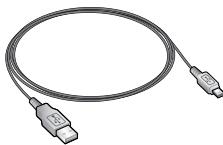
Cable vocal mini-USB PS3
www.logitech.com/ithink
www.logitech.com/support
www.logitech.com/ithink
www.logitech.com/support
| United States | +1 646-454-3200 |
| Argentina | +0800 555 3284 |
| Brasil | +0800 891 4173 |
| Canada | +1-866-934-5644 |
| Chile | 1230 020 5484 |
| Latin America | +55 11 3444 6761 |
| Mexico | 001 800 578 9619 |
www.logitech.com
© 2010 Logitech. All rights reserved, Logitech, the Logitech logo, and other Logitech marks are owned by Logitech and may be registered. All other trademarks are the property of their respective owners. Logitech assumes no responsibility for any errors that may appear in this manual. Information contained herein is subject to change without notice.
"PLAYSTATION" is a registered trademark of Sony Computer Entertainment Inc.
Microsoft, Xbox, Xbox 360, and the Xbox logos are trademarks of the Microsoft group of companies and are used under license from Microsoft.

- Getting started with
- Package contents
- Powering up the wireless base station
- Charging the headset
- F540 setup with PS3™
- Connecting PS3 game audio
- If you use HDMI or digital optical for PS3 audio
- Recommended setup for the wireless base station (Fig. 1)
- If you use PS3 analog AV cable for audio
- Alternative: If you want to use your audio out from your TV or AV receiver
- Connecting PS3 voice chat
- F540 setup with Xbox 360®
- Connecting Xbox 360 game audio
- If you use HDMI or digital optical for Xbox 360 audio
- Recommended wireless base station setup (Fig.4)
- If you use the red/white RCA connectors on the Xbox 360 AV cable for audio
- Recommended setup for the wireless base station (Fig. 5)
- Alternative Xbox 360 wireless base station setup
- Connecting Xbox 360 voice chat
- Connecting other AV sources
- Using the headset
- Features
- Turning on the headset
- Using the input selector button
- Using the volume rollers and microphone mute button
- Turning off the headset
- Adjusting the headset fit
- Troubleshooting
- I don't hear anything through my headset
- No LEDs are lit
- One LED is lit
- All three LEDs are blinking
- My microphone doesn't work
- I'm hearing the wrong audio signal
- The voice chat volume roller isn't working on my headset
- What do you think?
- Please take a minute to tell us. Thank you for purchasing our product.*
- www.logitech.com/ithink
- Protect your hearing: Listening advice to avoid hearing damage
- Battery warning
- AC adapter warning
- FCC
- Logitech hardware product limited warranty
- Remedies
- How to obtain warranty support
- Limitation of liability
- Duration of implied warranties
- National statutory rights
- No other warranties
- Logitech address
- Índice
- www.logitech.com/support
Brand : LOGITECH
Model : F540
Category : Headphones