
UA-1D - Audio Interface ROLAND - Free user manual and instructions
Find the device manual for free UA-1D ROLAND in PDF.


User questions about UA-1D ROLAND
0 question about this device. Answer the ones you know or ask your own.
Ask a new question about this device
Download the instructions for your Audio Interface in PDF format for free! Find your manual UA-1D - ROLAND and take your electronic device back in hand. On this page are published all the documents necessary for the use of your device. UA-1D by ROLAND.
USER MANUAL UA-1D ROLAND
Before using this unit, carefully read the sections entitled: "USING THE UNIT SAFELY" (P. 3, 4) and "IMPORTANT NOTES" (P. 5). These sections provide important information concerning the proper operation of the unit. Additionally, in order to feel assured that you have gained a good grasp of every feature provided by your new unit, this manual should be read in its entirety. The manual should be saved and kept on hand as a convenient reference.
For the USA
FEDERAL COMMUNICATIONS COMMISSION RADIO FREQUENCY INTERFERENCE STATEMENT
This equipment has been tested and found to comply with the limits for a Class B digital device, pursuant to Part 15 of the FCC Rules. These limits are designed to provide reasonable protection against harmful interference in a residential installation. This equipment generates, uses, and can radiate radio frequency energy and, if not installed and used in accordance with the instructions, may cause harmful interference to radio communications. However, there is no guarantee that interference will not occur in a particular installation. If this equipment does cause harmful interference to radio or television reception, which can be determined by turning the equipment off and on, the user is encouraged to try to correct the interference by one or more of the following measures:
Reorient or relocate the receiving antenna.
- Increase the separation between the equipment and receiver.
- Connect the equipment into an outlet on a circuit different from that to which the receiver is connected.
- Consult the dealer or an experienced radio/TV technician for help.
This device complies with Part 15 of the FCC Rules. Operation is subject to the following two conditions:
(1) This device may not cause harmful interference, and
(2) This device must accept any interference received, including interference that may cause undesired operation.
Tested To Comply With FCC Standards
FOR HOME OR OFFICE USE
Unauthorized changes or modification to this system can void the users authority to operate this equipment. This equipment requires shielded interface cables in order to meet FCC class B Limit.
For Canada
NOTICE
This Class B digital apparatus meets all requirements of the Canadian Interference-Caising Equipment Regulations.
AVIS
DECLARATION OF CONFORMITY Compliance Information Statement
Model Name: UA-1D
Type of Equipment
USB Audio Interface
Responsible Party
Edirol Corporation North America
Address: 425 Sequoia Drive, Suite 114, Bellingham, WA 98226
Telephone: (360) 594-4276
USING THE UNIT SAFELY
INSTRUCTIONS FOR THE PREVENTION OF FIRE, ELECTRIC SHOCK, OR INJURY TO PERSONS
About WARNING and CAUTION Notices
| ▲WARNING | Used for instructions intended to alert the user to the risk of death or severe injury should the unit be used improperly. |
| ▲CAUTION | Used for instructions intended to alert the user to the risk of injury or material damage should the unit be used improperly. * Material damage refers to damage or other adverse effects caused with respect to the home and all its furnishings, as well to domestic animals or pets. |
About the Symbols
| A | The △symbol alerts the user to important instructions or warnings. The specific meaning of the symbol is determined by the design contained within the triangle. In the case of the symbol at left, it is used for general cautions, warnings, or alerts to danger. |
| B | The ⊙symbol alerts the user to items that must never be carried out (are forbidden). The specific thing that must not be done is indicated by the design contained within the circle. In the case of the symbol at left, it means that the unit must never be disassembled. |
| C | The ●symbol alerts the user to things that must be carried out. The specific thing that must be done is indicated by the design contained within the circle. In the case of the symbol at left, it means that the power-cord plug must be unplugged from the outlet. |
ALWAYS OBSERVE THE FOLLOWING

WARNING
- Before using this unit, make sure to read the instructions below, and the Owner's Manual.

- Do not open or perform any internal modifications on the unit.

- Do not attempt to repair the unit, or replace parts within it (except when this manual provides specific instructions directing you to do so). Refer all servicing to your retailer, the nearest EDIROL / Roland Service Center, or an authorized EDIROL / Roland distributor, as listed on the "Information" page.


WARNING
-
Never use or store the unit in places that are:
-
Subject to temperature extremes (e.g., direct sunlight in an enclosed vehicle, near a heating duct, on top of heat-generating equipment); or are
- Damp (e.g., baths, washrooms, on wet floors); or are
- Humid; or are
- Exposed to rain; or are
- Dusty; or are
-
Subject to high levels of vibration.
-
Do not excessively twist or bend cable, nor place heavy objects on it. Doing so can damage the cord, producing severed elements and short circuits. Damaged cords are fire and shock hazards!


WARNING
- This unit, either alone or in combination with an amplifier and headphones or speakers, may be capable of producing sound levels that could cause permanent hearing loss. Do not operate for a long period of time at a high volume level, or at a level that is uncomfortable. If you experience any hearing loss or ringing in the ears, you should immediately stop using the unit, and consult an audiologist.
- Do not allow any objects (e.g., flammable material, coins, pins); or liquids of any kind (water, soft drinks, etc.) to penetrate the unit.
-
Immediately turn the power off, and request servicing by your retailer, the nearest EDIROL / Roland Service Center, or an authorized EDIROL / Roland distributor, as listed on the "Information" page when:
-
Objects have fallen into, or liquid has been spilled onto the unit; or
- The unit has been exposed to rain (or otherwise has become wet); or
-
The unit does not appear to operate normally or exhibits a marked change in performance.
-
In households with small children, an adult should provide supervision until the child is capable of following all the rules essential for the safe operation of the unit.
- Protect the unit from strong impact. (Do not drop it!)
- DO NOT play a CD-ROM disc on a conventional audio CD player. The resulting sound may be of a level that could cause permanent hearing loss. Damage to speakers or other system components may result.




CAUTION
- Try to prevent cords and cables from becoming entangled. Also, all cords and cables should be placed so they are out of the reach of children.
- Never climb on top of, nor place heavy objects on the unit.
- Disconnect all cords coming from external devices before moving the unit.
- Should you remove the optical connector caps, make sure to put them in a safe place out of children's reach, so there is no chance of them being swallowed accidentally.


IMPORTANT NOTES
In addition to the items listed under "USING THE UNIT SAFELY" on page 3, please read and observe the following:
Power Supply
- Before connecting this unit to other devices, turn off the power to all units. This will help prevent malfunctions and/or damage to speakers or other devices.
Placement
- Using the unit near power amplifiers (or other equipment containing large power transformers) may induce hum. To alleviate the problem, change the orientation of this unit; or move it farther away from the source of interference.
- This device may interfere with radio and television reception. Do not use this device in the vicinity of such receivers.
- Do not expose the unit to direct sunlight, place it near devices that radiate heat, leave it inside an enclosed vehicle, or otherwise subject it to temperature extremes. Excessive heat can deform or discolor the unit.
- To avoid possible breakdown, do not use the unit in a wet area, such as an area exposed to rain or other moisture.
Maintenance
- For everyday cleaning wipe the unit with a soft, dry cloth or one that has been slightly dampened with water. To remove stubborn dirt, use a cloth impregnated with a mild, non-abrasive detergent. Afterwards, be sure to wipe the unit thoroughly with a soft, dry cloth.
- Never use benzine, thinners, alcohol or solvents of any kind, to avoid the possibility of discoloration and/or deformation.
Additional Precautions
- Use a reasonable amount of care when using the unit's connectors. Rough handling can lead to malfunctions.
- When connecting / disconnecting all cables, grasp the connector itself—never pull on the cable. This way you will avoid causing shorts, or damage to the cable's internal elements.
- When you need to transport the unit, package it in the box (including padding) that it came in, if possible. Otherwise, you will need to use equivalent packaging materials.
-
To prevent damage to your speakers, turn down the volume on any audio devices you may have connected.
-
Use a cable from Roland to make the connection. If using some other make of connection cable, please note the following precautions.
-
Some connection cables contain resistors. Do not use cables that incorporate resistors for connecting to this unit. The use of such cables can cause the sound level to be extremely low, or impossible to hear. For information on cable specifications, contact the manufacturer of the cable.
Handling CD-ROMs
- Avoid touching or scratching the shiny underside (encoded surface) of the disc. Damaged or dirty CD-ROM discs may not be read properly. Keep your discs clean using a commercially available CD cleaner.
Copyright
- Unauthorized recording, distribution, sale, lending, public performance, broadcasting, or the like, in whole or in part, of a work (musical composition, video, broadcast, public performance, or the like) whose copyright is held by a third party is prohibited by law.
-
Do not use this unit for purposes that could infringe on a copyright held by a third party. Roland assumes no responsibility whatsoever with regard to any infringements of third-party copyrights arising through your use of this unit.
-
Microsoft, Windows are registered trademarks of Microsoft Corporation.
- Windows® 98 is known officially as: "Microsoft® Windows® 98 operating system."
- Windows® 2000 is known officially as: "Microsoft® Windows® 2000 operating system."
- Windows® Me is known officially as: "Microsoft® Windows® Millennium Edition operating system."
- Apple, Macintosh and MacOS are registered trademarks of Apple Computer, Inc.
- All product names mentioned in this document are trademarks or registered trademarks of their respective owners.
Table of Contents
USING THE UNIT SAFELY 3
IMPORTANT NOTES 5
Table of Contents 7
Introduction 8
Connections and driver installation (Windows) 10
Installing and Using the D-Out Smoother 19
Connections and driver installation (Macintosh) 22
About the digital input/output of the UA-1D 26
Troubleshooting 28
Contents of the Package
The UA-1D package contains the following items. As soon as you open the package, please verify that all items are present. If any items are missing, please contact the dealer where you purchased the package.
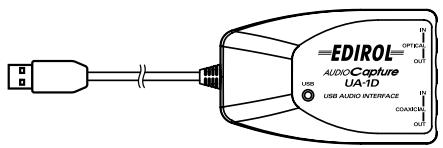
UA-1D USB Audio Interface
UA-1D Owner's Manual (this document)
CD-ROM
Names and Functions
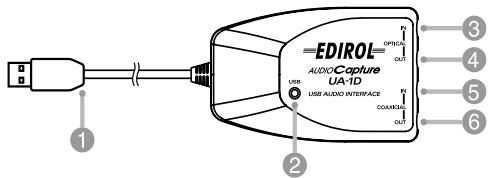
USB Cable
Connect this cable to the USB connector of your computer. (600 mm length.)
2 USB Indicator
This indicator will light when the unit is connected to your computer and is ready to operate.
3 Digital input connector (optical)
Connect an optical cable here when you want to digitally input an audio signal from a device such as a CD/MD/DAT.
Digital output connector (optical)
Connect a coaxial cable here when you want to digitally output an audio signal to a digital recorder such as MD or DAT.
5 Digital input connector (coaxial)
Connect a coaxial cable here when you want to digitally input an audio signal from a device such as a CD/MD/DAT.
6 Digital output connector (coaxial)
Connect a coaxial cable here when you want to digitally output an audio signal to a digital recorder such as an MD or DAT.
Connections and driver installation (Windows)
- If you are a Macintosh user, refer to p. 22.
In order to use the UA-1D, you must first install the USB Composite Device driver, the USB Human Interface driver, and the USB Audio Device driver consecutively. These drivers are included with Windows. If you are using Windows 98, this driver is provided in the Microsoft Windows CD-ROM, so you will need to have the Microsoft Windows CD-ROM ready. If you are using Windows Me or 2000, the CD-ROM is not necessary.
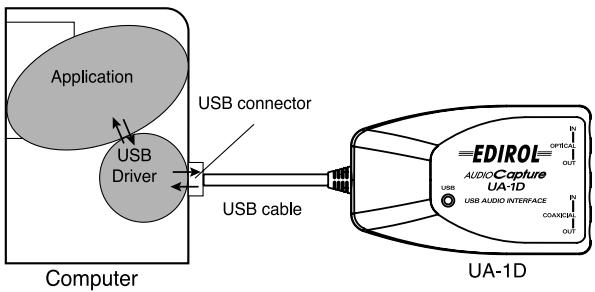
What is a driver?
A driver is software that allows an application program running on your computer to transfer data to and from the UA-1D when it is connected to your computer via a USB cable. The driver passes data from the application to the UA-1D, and passes data from the UA-1D to the application.
Before installing the driver

The UA-1D cannot be used with Windows 95 or Windows NT.

If other Windows programs are running, exit all of them before you continue.

If you will be simultaneously connecting multiple Roland USB devices (for example; the UA-1D and other USB devices such as the UA-100G) to your computer, disconnect the UA-100G or other devices from the USB connector before installing the driver. If you install the driver when the UA-100G or other devices are connected, installation may not occur correctly.
Making connections and installing the driver
Windows Me Users
- If you are using a Windows 2000 machine, refer to p. 12, if Windows 98, refer to p. 12.
1
Turn on the power of your computer and start up Windows, and use a USB cable to connect the UA-1D to your computer.
2
When Windows detects the UA-1D and the Add New Hardware Wizard dialog box appears, make sure "Automatic search for a better driver (Recommended)" is selected, then click [Next].
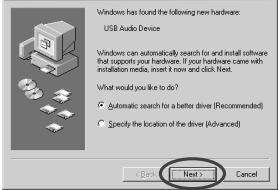
Add New Hardware Wizard

To prevent damage to your speakers, turn down the volume on any audio devices you may have connected.

Some time may be required until this dialog box appears.
3
The search for the driver starts.
4
When the correct driver is found, driver installation starts.
5
When a dialog box informing you that driver installation has finished appears, click [Finish], and restart Windows.
After installing the driver, refer to Specifying the audio input/
output device (p. 15) and select the device Windows uses. After that, refer to Installing and Using the D-Out Smoother (p. 19) to install the D-Out Smoother on your computer.
- Depending on your computing setup, there may be a short wait after the driver is installed until the device is recognized.
Windows 2000 Users
- If you are using a Windows Me machine, refer to p. 11, if Windows 98, refer to p. 12.
1
Turn on the power of your computer and start up Windows.
2
Use a USB cable to connect the UA-1D to your computer. The UA-1D is recognized to the computer and the driver is installed all automatically.
3
After installing the driver, restart Windows.
After installing the driver, refer to Specifying the audio input/output device (p. 15) and select the device Windows uses. After that, refer to Installing and Using the D-Out Smoother (p. 19) to install the D-Out Smoother on your computer.
Windows 98 Users
- If you are using a Windows Me machine, refer to p. 11, if Windows 2000, refer to p. 12.
Installation must be performed in the order of the USB Composite Device driver and then the USB Audio Device driver. Use the following procedure to perform the installation.
1
Turn on the power of your computer and start up Windows. Insert the Microsoft Windows CD-ROM into your CD-ROM drive, and use a USB cable to connect the UA-1D to your computer.

Since some computers are sold with the contents of the Microsoft Windows CD-ROM already in the hard disk, a Microsoft Windows CD-ROM may not have been included. If this is the case, you will be able to install the driver without the Microsoft Windows CD-ROM.

To prevent damage to your speakers, turn down the volume on any audio devices you may have connected.

To prevent damage to your speakers, turn down the volume on any audio devices you may have connected.
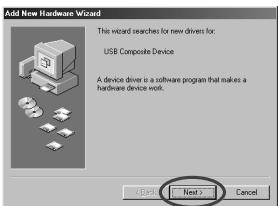
2
A USB Composite Device will be detected automatically, and the Add New Hardware Wizard dialog box will appear. Click [Next].
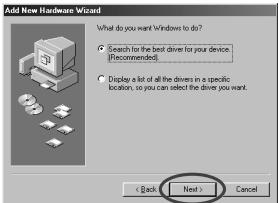
3
When the display asks "What do you want Windows to do?", select "Search for the best driver for your device. (Recommended)." and click [Next].
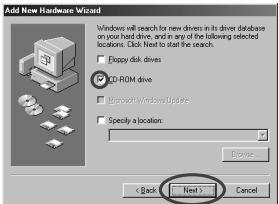
4
The following dialog box will appear. Check CD-ROM drive, and click [Next].
5
The following dialog box will appear. Click [Next].
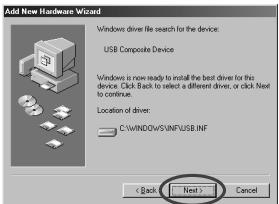
- Depending on your system, the Location of driver may differ from the above illustration, but this is not a problem.
6
Copying of the file (Driver) will begin.
MEMO
If this dialog box does not appear, refer to Problems related to the USB driver (p. 28).
MEMO
In step 4, the screen will indicate "Windows driver file search for the device: USB Audio Device."

If the Microsoft Windows CD-ROM is not inserted in the CD-ROM drive, the following dialog box may appear. If this occurs, insert the Microsoft Windows CD-ROM into the CD-ROM drive, and click [OK].
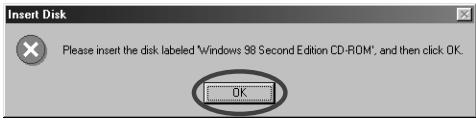
7
When installation of the USB Composite Device driver is finished, the following dialog box will appear. Click [Finish].
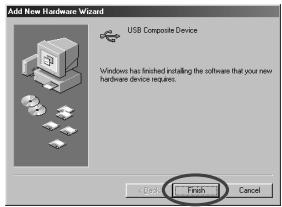
8
Next, a USB Human Interface Device will be detected automatically, and the Add New Hardware Wizard dialog box will appear. Click [Next], and continue the
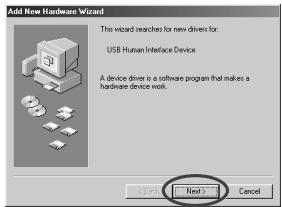
installation using the very same procedure as in steps 3-6 (p. 13).
9
When installation of the USB Human Interface Device driver is finished, the following dialog box will appear. Click [Finish].
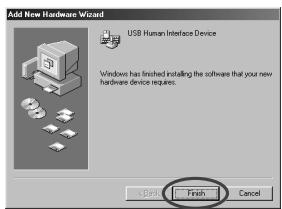
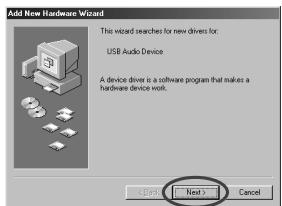
10
Next, a USB Audio Device will be detected automatically, and the Add New Hardware Wizard dialog box will appear. Click [Next], and continue the installation using the
very same procedure as in steps 3 - 6 (p. 13).
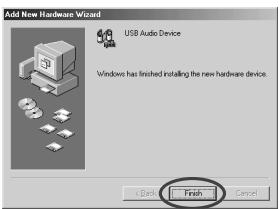
11
When installation of the USB Audio Device driver is finished, the following dialog box will appear. Click [Finish].
This completes installation of the USB Composite Device
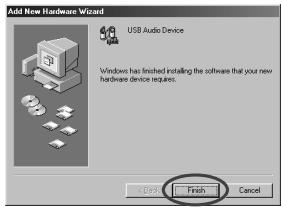
driver and the USB Audio Device driver. Restart Windows. After installing the driver, refer to Specifying the audio input/output device (p. 15) and select the device Windows uses. After that, refer to Installing and Using the D-Out Smoother (p. 19) to install the D-Out Smoother on your computer.
- Specifying the audio input/output device
1
Click the Windows [Start] button, and select [Settings] - [Control Panel].
2
Win 98: In Control Panel, double-click the [Multimedia] icon to open the Multimedia Properties dialog box.
Win 2000 / Me:
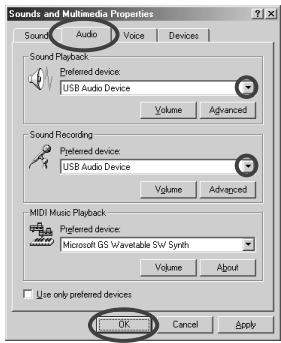
In Control Panel, double-click the [Sounds and Multimedia] icon to open the Sounds and Multimedia Properties dialog box.
- If you don't find a [Sounds and Multimedia] icon, then in Control Panel, click [view all Control Panel options].
3
Click the [Audio] tab.
4
For the Playback item Preferred device, click . In the list that appears, click [USB Audio Device] to select it.
5
For the Recording item Preferred device, click. In the list that appears, click [USB Audio Device] to select it.
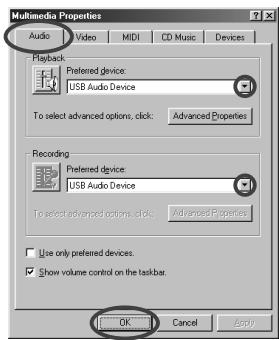
Windows 98
Windows 2000 /Windows Me
6
Click [OK] to complete the settings.

Depending on your system, "USB Audio Device" will be shown a number added, ex. "USB Audio Device (1)."

It will not be possible to press the "Advanced Properties" button for "Recording."
Volume Control settings
The output volume of the UA-1D can be controlled by the Windows Volume Control.
1
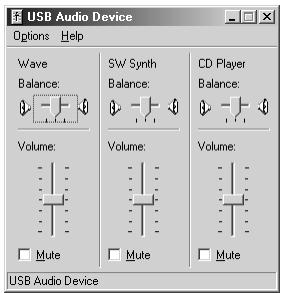
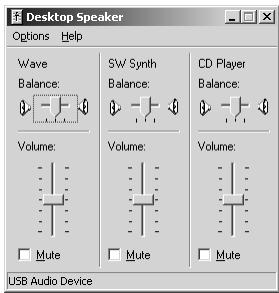
Click the Windows [Start] button, and select [Programs] - [Accessories] - [Entertainment] - [Volume Control] to start it up.
Windows Me
Windows 2000/ Windows 98
2
You can raise or lower the slider to adjust the volume of the UA-1D. The following items can be set.
| WAVE | Adjust the volume that is output from the audio output device “USB Audio Device.” |
| SW Synth | Adjust the volume of the software synthesizer built into Windows. |
| CD Player | Adjust the “CD Music” volume for the CD-ROM drive of your computer.(*1) |
*1 If the playback of the CD does not change when you adjust this volume, change the WAVE volume.

If Volume Control is not installed on your computer, use Add/ Remove Applications in the Control Panel to install it. For details on installation, refer to the Windows owner's manual or Help.

The audio quality of the UA-1D will be better if you raise the Volume Control levels.

If Mute is checked, or if the slider is in the lowest position, no sound will be output from the UA-1D.

If you are using Windows 2000 and "CD Player" does not appear, check the [Digital CD playback] item "Enable digital CD audio for this CD-ROM device," as described in the cautionary note on the following page.

When using your computer's CD-ROM drive to play an audio CD, or when playing background music for games with the UA-1D.
If using Windows Me:
Select [Start] - [Settings] - [Control Panel]. In the [Control Panel], double-click the [System] icon to access the System Properties dialog box. Click the [Device Manager] tab, and double-click the [CDROM] icon. Below it, double-click the CD-ROM drive that you are using and open its Properties. Click the [Properties] tab, and select the check box located beside the Digital CD playback item "Enable digital CD audio for this CD-ROM device."
If using Windows 2000:
In the same way as for Windows Me, open the System Properties dialog box. Click the [Hardware tab], and click the [Device Manager] button to open the Device Manager. From the CD-ROM drives, double-click the CD-ROM drive that you are using to open its Properties. Click the [Properties] tab, and select the check box located beside the Digital CD playback item "Enable digital CD audio for this CD-ROM device."
using Windows 98:
Select [Start] - [Settings] - [Control Panel] - [Multimedia], then click on the [CD Music] tab, then check "Enable CD digital audio for this CD-ROM device."
Depending on your computing environment, playback of these CDs may still be impossible. For details, refer to information provided by your computer's manufacturer. If you are using a PC-card (PCMCIA) type CD-ROM drive, playing back WAVE data or an audio CD on the CD-ROM drive may cause the sound to be interrupted, or no sound may be heard at all.
Installing and Using the D-Out Smoother

When connecting the UA-1D to a Windows machine, you need to install the D-Out Smoother by following the instruction shown below.
What is the D-Out Smoother?
When audio is played back to a digital device such as MD or DAT connected to the digital output of the UA-1D, a certain amount of time is required for the audio output to be locked immediately after audio playback, so that there may be no sound for one or two seconds, or the pitch or tempo may become incorrect. The D-Out Smoother is software that allows the audio to be played smoothly in such situations.
■ Installing the D-Out Smoother
1
Insert the CD-ROM into your CD-ROM drive.
2
Click the Windows [Start] button, and select [Run...].
3
In the Open: text box, input "E:\UA_Util\Setup.exe" and click [OK]. Alternatively, click [Browse], select the file [Setup(.exe)] located in the UA_Utl folder of the CD-ROM drive, and click [Open].
4
The installer will start up, and the Choose Setup Language dialog box will appear. Specify whether you are using the "English (United States)" or "Japanese" version of Windows, and click [OK].
5
Perform the remainder of the installation as directed by the instructions that appear on-screen.
6
When installation is completed, the Setup Complete dialog box will appear. Click [Finish].
This completes installation of the D-Out Smoother.
MEMO
In this explanation we are assuming that your CD-ROM drive is drive E:, but the drive name may be different depending on your computer. If the drive name is different on your computer, input the appropriate drive name. You can check the drive name of your CD-ROM drive by double-clicking the My Computer icon.
Starting the D-Out Smoother
1
Connect the UA-1D to the USB connector of your computer.
2
Click the Windows [Start] button, and in the [Programs] menu, click [D-Out Smoother].
3
The D-Out Smoother will start up.
In some cases it may display "Cannot find USB Audio Device. Check USB cable or select USB Audio Device again." when starting. If this occurs, the computer has not correctly detected the UA-1D. It is possible that the UA-1D is not connected correctly, or that the driver has not been installed correctly. Refer to Installing and Using the D-Out Smoother (p. 19) and check these points.
Using the D-Out Smoother
The D-Out Smoother has an "ON/OFF" switch and a "TEST" button.
"ON/OFF" switch
Normally, you will leave this "ON" when using the digital output of the UA-1D.
Turn this "OFF" when connecting or disconnecting the UA-1D.
"TEST" button
Click the [TEST] button. If the test audio is heard, the D-Out Smoother is operating for that device.
When using two or more USB Audio Devices such as the UA-1D or MA-150U, use this button to select the UA-1D for which the D-Out Smoother will operate.
Use the following procedure to make your selection.
1
From the D-Out Smoother [Control] menu, select [Setting] to access the Setting dialog box. (This dialog box will appear automatically the first time the software is started up.)

The Setting dialog box will appear at the first time when you start up. Make sure that the Wave-Out Device shows "USB Audio Device," and click [OK]. If two or more USB audio devices are displayed, refer to Using the D-Out Smoother (p. 20), and specify the correct device.
2
From the pull-down menu, select "USB Audio Device" and click [OK].
3
Click the [TEST] button, and check whether or not the test audio is heard.
If the audio is heard, the D-Out Smoother is operating for that device. If the audio is not heard, select a different USB Audio Device in step 2, and repeat steps 1 through 3.
Convenient Features
- When [Register to STARTUP] is checked in the Setting dialog, D-Out Smoother will automatically start up when you start up the computer.
- When [Minimize window when starting up] is checked in the Setting dialog, D-Out Smoother will minimize itself immediately after it starts up, allowing you to use your computer's screen more effectively.
- Deleting (uninstalling) the D-Out Smoother
The D-Out Smoother supports the Windows Add/Remove Programs Properties function. You can use the following procedure to remove the program if it becomes unnecessary.
- Click the Windows [Start] button, and select [Settings] - [Control Panel].
- In [Control Panel], double-click [Add/Remove Programs] to open the Add/Remove Programs Properties dialog box.
- Click the [Install/Uninstall] tab.
- From the list in the dialog box, click the name of the application that you wish to delete.
- Click [Add/Remove].
- The application you specified in step 4 will be deleted.

If you uninstall D-Out Smoother, you should firstly uncheck the [Register to STARTUP] in the Setting dialog. You can go to the Setting dialog by selecting [Control] - [Setting].
Connections and driver installation (Macintosh)
- If you are a Windows user, refer to p. 10.
In order to use the UA-1D, you must first install a driver. UA-1D uses a driver included with Mac OS.

What is a driver?
p.10
Known issues: UA-1D
- Some applications such as Cakewalk's Metro Series and TC Work's Spark Series cannot record/playback at 48kHz . Please use the UA-1D at 44.1kHz .
- While the audio application is recording or playing, do not connect/disconnect the USB cable. Doing so may cause the application to freeze.
- You may hear sound hopping and/or noise when you record and play back at the same time due to high load on the CPU. However, the noise should not be in the recording itself. Such noise should only be found in the playback signal.
- The standard driver that comes with Mac OS is not ASIO compatible.
- When you start up your computer with the UA-1D connected, the computer may become unstable. If this occurs, start up your computer before connecting the UA-1D, and connect the UA-1D after start-up.
Making connections and installing the driver
Getting the unit to be recognized
1
Turn on the power of your computer and start up MacOS.
2
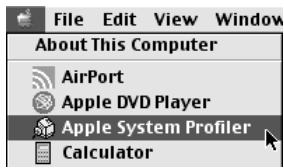
From the Apple menu, select the [Apple System Profiler].
3
Click the [Devices and Volumes] tab control.
4
Use a USB cable to connect the UA-1D to your computer.
5
To make sure it is successfully recognized, select [Update all information] from the [Commands] menu. You should see the following three audio devices in the USB section, as shown below:
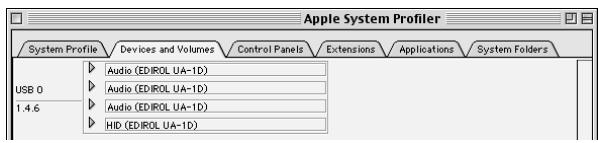
If the indication is correct, the installation of the UA-1D driver is successful. Select [Quit] from the [File] menu to close the Apple System Profiler dialog, then make the sound settings explained below.
If the indication is incorrect, you should try disconnecting the UA-1D from the USB port, and waiting about ten seconds. Then, do the procedure over again, starting from the step 4.

To prevent damage to your speakers, turn down the volume on any audio devices you may have connected.

Make sure to quit all applications that may be running before you make the connection.
Making the sound settings
1
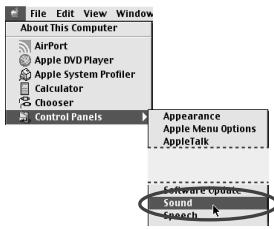
From the Apple menu, select [Control Panels] - [Sound] to open the Sound dialog.
2
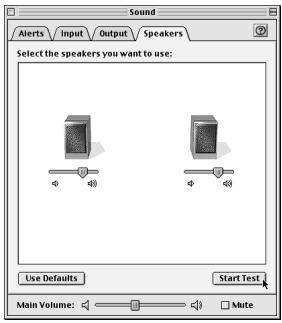
Click the [Speakers] tab.
3
Turn down the volume on the UA-1D, and on your audio equipment, then click [Start Test].
4
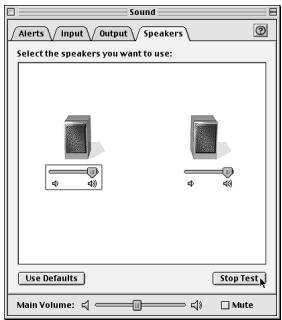
Test sounds are output from left to right, along with what appears on the screen. When you are finished, click [Stop Test].
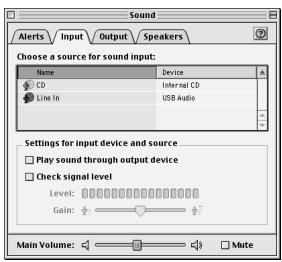
Select [Input] from the Sound dialog. Then, in Choose a source for sound input:, choose USB Audio.
5

6
Do not check [Play sound through output device].
When you have finished making settings, select [Quit] from the [File] menu to close the Sound dialog.

If you don't see USB Audio, you should close the Sound dialog. Then, disconnect the UA-1D, and wait about ten seconds. Then, try doing the procedure over again, starting at number 2.
About the digital input/output of the UA-1D
Input
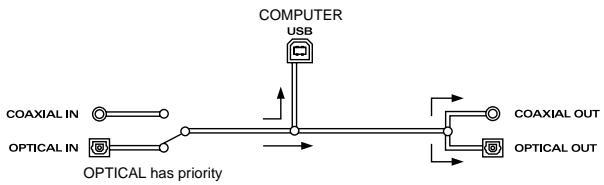
The UA-1D has two digital input connectors: OPTICAL IN and COAXIAL IN. However, it is not possible to use both OPTICAL IN and COAXIAL IN simultaneously. If signals are simultaneously input to both connectors, the signal applied to OPTICAL IN is given priority. If you want to use COAXIAL IN, disconnect the cable from the OPTICAL IN connector.
Output
Output from the UA-1D takes places in one of the following two ways:
- If a signal is being input through the digital input connector The signal being input through the digital input connector will be output to both OPTICAL OUT and COAXIAL OUT. The audio signal from the computer will not be output to OPTICAL OUT or COAXIAL OUT.
- If no signal is being applied at the digital input connector The audio signal from the computer will be output to both OPTICAL OUT and COAXIAL OUT.
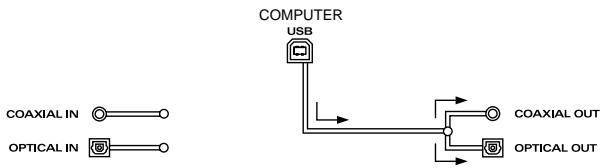

In order to use the UA-1D to play back audio data from your computer, there must be no input signal arriving at the digital input connector. In other words, you must either connect nothing to the digital input connector, or turn off the power of the connected device.
Sampling frequency
Audio data is transferred between the UA-1D and computer at 16-bit resolution and 48kHz sampling rates for output. 16-bit resolution and 32/44.1/48 kHz sampling rates are supported for input.
About SCMS
SCMS (Serial Copy Management System) is a function that protects the rights of the copyright owner by prohibiting second-generation or later copying via a digital connection to a consumer digital audio device such as a DAT recorder or MD recorder. When a recording is made via a digital connection on a digital recorder that has this function, SCMS data will be recorded along with the digital audio signal. A digital audio signal containing this SCMS data cannot be recorded again via a digital connection.
SCMS on the UA-1D
On the UA-1D, SCMS will affect operation only for digital signals input from an external device. If a digital audio signal containing SCMS data is input from a MD or other media that was digitally copied from a commercial music CD, when inputting from the UA-1D's digital input connector, the UA-1D cannot record this signal on your computer.
A note regarding copyright
- Unauthorized recording, public performance, broadcast, sale, or distribution of a work (CD recording, video, broadcast, etc.) whose copyright is owned by a third party is forbidden by law. Any infringement on the rights of a third party you may commit using the UA-1D is solely your own responsibility, and no responsibility shall be born by the manufacturer of the UA-1D. Unauthorized duplication, even for purposes of personal use, of a copyrighted work belonging to a third party by circumventing technical means of protection such as SCMS constitutes infringement of the copyright of that third party, and is forbidden by law.
Troubleshooting
If an unexpected problem occurs while using the UA-1D, please read this chapter first. It provides numerous hints that will help you solve problem
The problems covered in the troubleshooting section are organized according to the operating system on which the problem might be encountered. Use the icon shown at the left of the title to find the information you need.

Problems common to both Windows and Macintosh

Problems that occur only on Windows

Problems that occur only on Macintosh
If you are using computer for the first time, or do not understand the explanation of a procedure, refer to the owner's manuals for your computer or for OS.
If the UA-1D does not operate as you expect, check the following points.
Problems related to the USB driver

"Add New Hardware Wizard" does not start up automatically

"Add New Hardware Wizard" terminates before completion
- When the USB cable is connected or disconnected, approximately 15 seconds (or more) may be required for the UA-1D to be recognized.
Is the USB cable connected correctly?
Make sure that the UA-1D and computer are connected correctly by the USB cable.
- Can USB be used on your computer?
Refer to the owner's manual for your computer, and make sure that it is able to use USB.
- Does your computer or USB hub have sufficient power supply capacity?
The UA-1D cannot be connected if insufficient power is supplied to it. Check whether one of the following cases apply.
If you are using the UA-1D with a notebook computer that is running on its battery, operation may be unreliable with some models of computer. If this is the case, connect the AC adaptor to your notebook computer.
The power conservation mode of your computer may limit the power that is supplied to USB. Check the settings of your computer.
In some cases, the UA-1D cannot be used with a bus-powered hub (a hub that does not contain a power supply). Please use a self-powered hub (a hub that contains a power supply).
- Does your computer meet the USB specifications?
If you are using a computer that does not meet the USB specifications (such as a homemade computer), operation may be unstable. In such cases, you may be able to solve the problem by connecting a USB hub that contains a power supply.
- Is "Unknown Device" displayed for "Other devices" or "Universal Serial Bus controllers"?
Use the following procedure to delete "Unknown Device" from "Other devices" (Universal serial bus controller), and re-start your computer.

In order to check whether or not the "Unknown Device" is the UA-1D, disconnect the USB cable of the UA-1D, and verify that "Unknown Device" has disappeared. Then connect the UA-1D once again, and delete "Unknown Device."
- In the Windows Control Panel, double-click [System] to open the System Properties dialog box.
- Click the [Device Manager] tab.
- Double-click [Other devices] (Universal Serial Bus controllers) to see the list of devices.
- In the list, select Unknown Device and click [Remove].
- In the Confirm Device Removal dialog box, click [OK].
- Make sure that the list does not show Other devices or Unknown Device, and click [Close] to close the dialog box.

The "Add New Hardware Wizard" dialog box appears even though you installed the drivers
If your computer or USB hub has two or more USB connectors, connecting the UA-1D to a USB connector to which the UA-1D has never before been connected may cause the Add New Hardware Wizard dialog box will appear even though the drivers have already been installed. Install the drivers once again as described in Connections and driver installation (Windows) (p. 10). This is not a malfunction.

Drivers are not installed correctly
Use the procedure described in Deleting the USB Audio Device driver (p. 36) to delete the USB Audio Device driver installed in your computer, and install the UA-1D drivers once again as described in Connections and driver installation (Windows) (p. 10). Check whether there is an item named "Unknown Device" in "Other devices" or in "Universal Serial Bus controllers."
If you find "Unknown Device," delete it.

A dialog box saying "Unknown Device found" appears, and I can't install the driver
Depending on your computer, not all of the Windows 98 files required to support audio over USB may have been installed when the computer was shipped.
Please check with the manufacturer of your computer.
Problems when using the UA-1D

OS becomes unstable
- Starting up a computer when the UA-1D is already connected may cause the computer to become unstable.
If this occurs, start up the computer with the UA-1D disconnected, and then connect the UA-1D.
No sound

- Are you attempting to use the CD player of your computer to play an audio CD?
If you wish to play an audio CD on the CD-ROM drive of your computer, refer to When using your computer's CD-ROM drive to play an audio CD, or when playing background music for games with the UA-1D. (p. 18).

- Is a digital device such as an MD connected to the digital output of the UA-1D?
Depending on your application, playing audio with a digital device such as an MD connected to the digital output of the UA-1D may cause a certain amount of time to be required for the digital audio output to be locked immediately after playback, so that there will be no sound for one or two seconds. If this occurs, you can use the D-Out Smoother software from the included CD-ROM to make audio play smoothly. For details, refer to Installing and Using the D-Out Smoother (p. 19).

- Are you running multiple applications?
If multiple applications are running simultaneously, an error message may appear. If this occurs, click [OK], and close the other applications.
Even if an application window is closed, it is still running if it remains in the taskbar, so be sure to quit any unneeded applications shown in the taskbar.

- Have you specified the audio data output destination for OS?
The audio data output destination for a computer must be set to UA-1D. For details on this setting, refer to Specifying the audio input/output device (Windows p. 15) or Making the sound settings (Macintosh p. 24).

- Have you specified the audio data output destination for your playback software?
For some software, you must set the audio data output destination as UA-1D. For details on this setting, refer to the owner's manual for the software.

- Have the drivers been installed correctly?
In order to playback audio data using the UA-1D, the USB Audio Device driver must be installed. For details on installation and settings, refer to Connections and driver installation (Windows p. 10, Macintosh p. 22).

- Are the various Volume Control faders raised?
Adjust the volume of each fader as described in Volume Control settings (Windows p. 17) or Making the sound settings (Macintosh p. 24).
Sound is distorted

- Is the volume level of the instrument connected to LINE IN too high?
Use the Line input adjustment slider of the UA-1D to reduce the input level.
■ Noise is heard when playing back audio

- The graphic accelerator of your computer may cause noise to occur during audio playback.
Use the following procedure to set graphic acceleration to "None."
- In the Windows Control Panel, double-click [Display] to open the Display Properties dialog box, and click the [Settings] tab.
- Click [Advanced] to open properties, and click the [Performance] tab.
- In Graphics, move the Hardware acceleration: slider to None, and click [OK].
- In the Display Properties dialog box, click [OK] to close the dialog box. Then restart your computer.

- Noise may be heard if you record and play back simultaneously. If you record and play back simultaneously, the playback may be interrupted depending on the performance of the system, and this may be heard as noise. However since priority is given to recording, the recorded data will not be lost.

- This problem may be solved by properly grounding the chassis of your computer, or the ground prong of the plug on the AC power cord that was supplied with your computer. Also, make sure that there are no devices nearby that emit a strong magnetic field, such as a television or a microwave oven.

- Are a large number of audio devices connected? If a large number of audio devices are connected, noise may occur. Do not connect audio devices that you are not using.
Sound is interrupted during audio playback

Try increasing the memory
You can increase the processing power of your computer by adding more memory. For details on adding memory, refer to the owner's manual for your computer.

- Does your computer fulfill the USB specifications?
The audio may be interrupted if you are using a computer that does not electrically meet the USB specifications. In this case, the problem may be solved if you connect a USB hub that contains its own power supply.

- Are numerous applications running?
If you use numerous applications during playback, or start up another application, the playback may be interrupted depending on your computer system. Exit all unneeded applications, and try again. If this does not solve the problem, try restarting a computer.

-
Try making the following changes to the disk drive settings.
-
The following settings may not exist on your computer.
-
In the Windows Control Panel, double-click [System] to open the System Properties dialog box, and click the [Device Manager] tab.
- Double-click [Disk drives] to see the list of devices.
-
From the list, select GENERIC IDE DISK TYPExx, and click [Properties] to access the GENERIC IDE DISK TYPExx Properties dialog box.
-
The "xx" in GENERIC IDE DISK TYPExx will be a number that will differ depending on your system.
- Click the [Settings] tab, check the [DMA] check box in the Options, and click [OK] to close the dialog box.
- Depending on your system, a dialog box for DMA settings may appear. After checking the contents, click OK or Cancel.
- In the System Properties dialog box, click [OK] to close the dialog box. Restart your computer so that the above settings will take effect.
Audio playback stops

- On some computers, the Power Management settings in the Control Panel may cause audio playback to stop.
The Power Management Properties that are displayed when you double-click Power Management will differ depending on your computer system. One example is given below, but you should consult the owner's manual for your computer as well. Some computers may not have the following settings.
- In the Windows Control Panel, double-click [System] to open the System Properties dialog box, and click the [Device Manager] tab.
- Double-click [System devices] to see the list of devices.
- From the list, select [Advanced Power Management support], and click [Properties] to access the Advanced Power Management support properties dialog box.
- Click the [Settings] tab, and in Troubleshooting, check the [Disable power status polling] check box. Then click [OK].
- In the System Properties dialog box, click [OK] to close the dialog box.
- Restart Windows.

Noise is present in the playback or recording
Depending on the virtual memory setting or network-related settings, noise may occur. Please make the following settings before use.
- In "Choose" of the Apple menu, set AppleTalk to "Inactive."
(This setting is not changed as a result of turning off AppleTalk, as requested by OMS when sequencer software is started up. You must change the setting yourself using the "Chooser.")
- In the "Memory" Control Panel, set Virtual Memory to "Off."
-
Depending on the way in which you connect to the Internet, use the UA-1D with the following settings.
-
If you connect to the Internet via a LAN cable
Use while the LAN cable is connected.
- If you connect to the Internet via the internal modem port, or are not connected to the Internet
In the "TCP/IP" Control Panel, set "Connect via" to "PPP."
After you have made the settings, restart your Macintosh.
- Do not use software that accesses the network (such as a Web browser) at the same time that you are using sequencer software or audio editing software

Noise is present in the recorded sound
- It has been found that noise tends to be introduced in sound recorded on the iMac series models, which were released after the summer of 2000.
- In the SimpleSound application that is included with MacOS, noise will be heard in the sound if it is played back immediately after being digitally recorded. Save the sound first, then try playing it back.
- Update the USB Audio driver to 1.0.5f4.
If the USB Audio driver, which is provided with the Mac OS, is under 1.0.4, update it to 1.0.5f4.
You can download the driver from the URL below:
http://asu.info.apple.com/swupdates.nsf/artnum/n11703
Checking the USB audio driver's version
- Connect the UA-1D to the computer.
- From the Apple menu, select [Apple System Profiler].
- Click the [Devices and Volumes] tab.
- In the USB section, the screen will indicate "Audio (EDIROL UA-1D)." Click the arrow at the left of this text.
- The number displayed to the right of "Driver version" is the version of the USB audio driver.
A blank (silent) file is created when you record

- Try setting the bit rate to "16bit."
If you are using Windows98 Second Edition, and your recording software is set to a bit rate of 8 bits, a blank file may be created, so that you may not be able to record effectively. If this occurs, you will be able to record correctly by setting the bit rate to "16 bit".

- Data that contains the SCMS flag cannot be recorded digitally. The UA-1D supports SCMS (p. 27), so that if SCMS-flagged data (such as data from an MD that was digitally copied from a commercial music CD) is input to the digital connector, the UA-1D will not be able to record this on the computer.

Cannot record digitally
- Is the application set to the same sampling frequency as that of the digital device connected to the digital input connector?
- Recording will no longer be possible if you switch the sampling frequency (for example, between digital broadcast A mode and B mode) of a device while it remains connected to the digital input connectors.
When switching the sampling frequency, you need to disconnect, then reconnect the digital cable.
- It is not possible to record digital data of a format other than consumer digital audio device format.

Cannot Record Music CD
- The UA-1D cannot record music CDs in the computer's CD-ROM drive.

The volume changed when you resumed from Suspend or Hibernation status
- When Windows 2000 resumes from Suspend or Hibernation, the output volume setting is changed due to a problem of Windows. Start up the Mixer application as described in Volume Control settings (p. 17), and adjust the USB Audio (Speaker) slider.

Game background music does not sound
- Does the game use an audio CD for background music? If an audio CD is used to provide background music for the game, refer to When using your computer's CD-ROM drive to play an audio CD, or when playing background music for games with the UA-1D. (p. 18).
Deleting the USB Audio Device driver
If re-installing the USB Audio Device driver
■ If installation of the USB Audio Device driver was terminated before completion
Use the following procedure to delete the driver that is already installed.
-
The explanation provided here is for an average Windows system. Depending on your computer, some of the folder names may be different.
-
Use a USB cable to connect the UA-1D to your computer.
- To prevent damage to your speakers, turn down the volume on any audio devices you may have connected.
- Click the Windows [Start] button, and select [Settings] - [Control Panel].
- In [Control Panel], double-click [System] to open the System Properties dialog.
- Click the [Device Manager] tab.
- Double-click [Sound, video and game controllers] to see a list of the devices.
- From the list, select USB Audio Device, and click [Remove]. In the Confirm Device Removal dialog box, click [OK]. If USB Audio Device is not displayed, proceed to step 8.
-
Make sure that USB Audio Device is not in the Sound, video and game controllers list, and click [Close] to close the System Properties dialog.
-
If a dialog box suggesting that you restart Windows appears at this point, follow the suggestion and restart your computer.
-
Follow the steps 1. - 4. again, and double-click [Universal Serial Bus controllers] to display the list of devices.
If ① is displayed for the USB-compatible device icon: Select the [USB Composite Device] icon, and click [Remove]. In the Confirm Device Removal dialog box, click [OK]. As in the step 7., close System Properties.
If there is no USB-compatible device icon, or if ① is not displayed: Simply close System Properties.
If you are using Windows Me and ② is displayed: Simply close System Properties.
- Disconnect the USB cable from your computer, and restart Windows.
In Anything, I'll be the first to say it. In what way?
Interruptor "ON/OFF"
Number of Audio Record/Playback Channels
Record: 2 channels (stereo)
Playback: 2 channels (stereo)
Signal Processing
PC interface: 16 bits
Sampling Frequency
Output: 48kHz
Input: 32 / 44.1 / 48kHz^*
- During recording, this device does not support the changes in the sampling frequency that can be invoked by some digital devices (e.g., through the audio mode switching of a satellite receiver). In order to change frequencies, you need to pull out the digital cable, then reconnect it.
Interface
USB (USB Type B)
Digital input/output: Optical type, Coaxial type (conforms to S/P DIF)
Power Supply
Supplied from the computer
Current Draw
140mA
Dimensions
- In the interest of product improvement, the specifications and/or appearance of this unit are subject to change without prior notice.
Information
When you need repair service, call your nearest EDIROL/Roland Service Center or authorized EDIROL/Roland distributor in your country as shown below.
-EDIROL
AUSTRALIA
EDIROL Australia Pty. Ltd.
72 Central Avenue
Oak Flats NSW 2529
AUSTRALIA
TEL: (02) 4257 9091
http://www.edirol.com.au
EUROPE
EDIROL (Europe) Ltd.
Studio 3.4 114 Power Road
London W4 5PY
U.K.
TEL: +44 (0)20 8747 5949
FAX: +44 (0)20 8747 5948
http://www.edirol.com/europe
Deutschland
TEL:070033476520
France
TEL:0810000371
Italia
TEL: 02 93778329
U.S.A./CANADA
EDIROL Corporation North
America
425 Sequoia Drive, Suite 114
Bellingham, WA 98226
U.S.A.
TEL: (360) 594-4276
FAX: (360) 594-4271
http://www.edirol.com/
Roland
AFRICA
EGYPT
Al Fanny Trading Office
P.O.Box 2904
El Horrieh Heliopolos, Cairo
EGYPT
TEL: (02) 4185531
REUNION
That Other Music Shop
(PTY) Ltd.
11 Melle St., Braamfontein,
Johannesbourg
Republic of SOUTH AFRICA
P.O.Box 32918, Braamfontein 2017
Republic of SOUTH AFRICA
TEL: (011) 403 4105
Paul Bothner (PTY) Ltd.
17 Werdmuller Centre Claremont
7700
Republic of SOUTH AFRICA
P.O.Box 23032
Claremont, Cape Town
SOUTH AFRICA. 7735
TEL: (021) 674 4030
ASIA
CHINA
Beijing Xinghai Musical
Instruments Co., Ltd.
6 Huangmuchang Chao Yang
District, Beijing, CHINA
TEL: (010) 6774 7491
Shanghai Xingtong Acoustics
Equipment CO., Ltd.
Rm.1108, No.2240 Pudong South Road Shanghai, CHINA
TEL: (021) 6873 4123
HONG KONG
Tom Lee Music Co., Ltd.
Service Division
22-32 Pun Shan Street, Tsuen
Wan, New Territories.
HONG KONG
TEL: 2415 0911
INDIA
Rivera Digitec (India) Pvt. Ltd.
- Nirman Kendra Mahalaxmi
Flats Compound Off. Dr. Edwin
Moses Road, Mumbai-400011,
INDIA
TEL: (022) 498 3079
INDONESIA
PT Citra IntiRama
J1. Cideng Timur No. 15J-150
Jakarta Pusat
INDONESIA
TEL: (021) 6324170
KOREA
Cosmos Corporation
1461-9, Seocho-Dong.
Seocho Ku, Seoul, KOREA
TEL: (02) 3486-8855
MALAYSIA
G.A. Yupangco & Co. Inc.
339 Gil J. Puyat Avenue
Makati, Metro Manila 1200.
PHILIPPINES
TEL: (02) 899 9801
SINGAPORE
CRISTOFORIMUSIC PTE
LTD
Blk 3014, Bedok Industrial Park E.
02-2148.SINGAPORE 489980
TEL:2439555
TAIWAN
ROLAND TAIWAN
ENTERPRISE CO.,LTD.
Room 5, 9fl. No. 112 Chung Shan
N.Road Sec.2, Taipei, TAIWAN
R.O.C
TEL: (02) 2561 3339
THAILAND
Theera Music Co., Ltd.
330 Verng NakornKasem, Soi 2.
Bangkok 10100, THAILAND
TEL: (02) 2248821
VIETNAM
Saigon Music
138 Tran Quang Khai St.
District 1
Ho Chi Minh City
VIETNAM
TEL: (08) 844-4068
AUSTRALIA/
NEW ZEALAND
NEW ZEALAND
Roland Corporation Ltd.
32 Shaddock Street, Mount Eden,
Auckland, NEW ZEALAND
TEL: (09) 3098 715
CENTRAL/LATIN
AMERICA
ARGENTINA
Instrumentos Musicales S.A.
Florida 656 2nd Floor
Office Number 206A
Buenos Aires
ARGENTINA, CP1005
TEL: (54-11) 4-393-6057
BRAZIL
Roland Brasil Ltda
Rua San Jose, 780 Sala B
Parque Industrial San Jose
Cotia - Sao Paulo - SP, BRAZIL
TEL: (011) 4615 5666
CHILE
Comercial Fancy II S.A.
Avenida Rancagua #0330
155, New National Road
26422 Patras, GREECE
TEL:061-435400
HUNGARY
Intermusica Ltd.
Warehouse Area DEPO'Pf.83
H-2046 Torokbalint, HUNGARY
TEL: (23) 511011
IRELAND
Roland Ireland
Audio House, Belmont Court,
Donnybrook, Dublin 4.
Republic of IRELAND
TEL: (01) 2603501
ITALY
Roland Italy S. p. A.
Danvik Center 28, 2 tr
S-131 30 Nacka SWEDEN
TEL: (08) 702 0020
SWITZERLAND
Roland (Switzerland) AG
Musitronic AG
Atlantic Close, Swansea
Enterprise Park, SWANSEA
SA7 9FJ.
UNITED KINGDOM
TEL: (01792) 700139
MIDDLE EAST
BAHRAIN
Moon Stores
Bab Al Bahrain Road.
P.O.Box 20077
State of BAHRAIN
TEL:211005
CYPRUS
Radex Sound Equipment Ltd.
17 Diagorou St., P.O. Box 2046,
Nicosia CYPRUS
TEL: (02) 453 426
IRAN
MOCO.INC.
No.41 Nike St.Dr.Shariyati Ave.
Roberoye Cerahe Mirdamad
Tehran, IRAN
TEL:2854169
ISRAEL
Halilit P. Greenspoon &
Sons Ltd.
8 Retzif Ha'aliya Hashnya St.
Tel-Aviv-Yabo ISRAEL
TEL: (03) 6823666
JORDAN
AMMAN Trading Agency
Prince Mohammed St. P.O. Box
825 Amman 11118 JORDAN
TEL: (06) 4641200
KUWAIT
Easa Husain Al-Yousifi
Abdullah Salem Street.
Safat KUWAIT
TEL: 5719499
LEBANON
A. Chahine & Fils
P.O.Box 16-5857 Gergi Zeidan St.
Chahine Building, Achrafieh
Beirut,LEBANON
TEL: (01) 335799
QATAR
Badie Studio & Stores
P.O.Box 62
DOHA QATAR
TEL: 423554
SAUDI ARABIA
aDawliah Universal
Electronics APL
Corniche Road, Aldossary Bldg.
1st Floor
SAUDI ARABIA
P.O.Box 2154, Alkhobar 31952
SAUDI ARABIA
TEL: (03) 898 2081
SYRIA
Technical Light & Sound
Center
Khaled Ibn Al Walid St.
P.O.Box 13520
Damascus - SYRIA
TEL: (011) 2235 384
TURKEY
Barkat Muzik alelteri ithalat
ye ihracat Ltd Sti
Siraselviler cad.Guney is hani 84-
86/6, Taksim. Istanbul. TURKEY
TEL: (0212) 2499324
U.A.E.
Zak Electronics & Musical
Instruments Co. L.L.C.
Zabeel Road, Al Sherooq Bldg.
No. 14, Grand Floor DUBAI
U.A.E.
TEL: (04) 3360715