
FA-66 - Audio Interface ROLAND - Free user manual and instructions
Find the device manual for free FA-66 ROLAND in PDF.



| Product type | FireWire audio interface |
| Brand | Roland |
| Model | FA-66 |
| Category | Audio interface |
| Inputs | 6 inputs (2 mic/line with preamps, 4 line) |
| Outputs | 6 outputs (2 balanced, 4 unbalanced) |
| Audio resolution | 24-bit / 96 kHz |
| Conversion | High-quality digital-to-analog and analog-to-digital converters |
| Power supply | Via FireWire cable (bus-powered) or AC adapter (sold separately) |
| Connectivity | FireWire 400 (IEEE 1394a), 2 ports |
| Dimensions | Approximately 220 x 170 x 45 mm |
| Weight | Approximately 1.1 kg |
| Compatibility | Windows XP/Vista/7 (32/64-bit), Mac OS X 10.4 or later |
| Phantom power | 48V switchable per pair of channels (inputs 1-2) |
| Volume control | Monitoring potentiometer, Mono/Stereo switch |
| Main functions | Multitrack recording, latency-free direct monitoring, internal mixing |
| Maintenance and cleaning | Clean with a soft, dry cloth. Do not use solvents. |
| Safety | Avoid shocks and moisture. Disconnect during storms. |
| Spare parts and repairability | Contact an authorized Roland service center for repairs. |
| General information | Portable audio interface ideal for studio recording and live performance. |
Frequently Asked Questions - FA-66 ROLAND
User questions about FA-66 ROLAND
0 question about this device. Answer the ones you know or ask your own.
Ask a new question about this device
Download the instructions for your Audio Interface in PDF format for free! Find your manual FA-66 - ROLAND and take your electronic device back in hand. On this page are published all the documents necessary for the use of your device. FA-66 by ROLAND.
USER MANUAL FA-66 ROLAND
FireWire AudioCapture
FA-66
OWNER'S MANUAL
Before using this unit, carefully read the sections entitled: "USING THE UNIT SAFELY" and "IMPORTANT NOTES" (p. 3–p. 6). These sections provide important information concerning the proper operation of the unit. Additionally, in order to feel assured that you have gained a good grasp of every feature provided by your new unit, OWNER'S MANUAL should be read in its entirety. The manual should be saved and kept on hand as a convenient reference.
IMPORTANT: THE WIRES IN THIS MAINS LEAD ARE COLOURED IN ACCORDANCE WITH THE FOLLOWING CODE.
BLUE: NEUTRAL
BROWN: LIVE
As the colours of the wires in the mains lead of this apparatus may not correspond with the coloured markings identifying the terminals in your plug, proceed as follows:
The wire which is coloured BLUE must be connected to the terminal which is marked with the letter N or coloured BLACK.
The wire which is coloured BROWN must be connected to the terminal which is marked with the letter L or coloured RED.
Under no circumstances must either of the above wires be connected to the earth terminal of a three pin plug.

-For EU Countries
This product complies with the requirements of European Directive 89/336/EEC.
For the USA
FEDERAL COMMUNICATIONS COMMISSION RADIO FREQUENCY INTERFERENCE STATEMENT
This equipment has been tested and found to comply with the limits for a Class B digital device, pursuant to Part 15 of the FCC Rules. These limits are designed to provide reasonable protection against harmful interference in a residential installation. This equipment generates, uses, and can radiate radio frequency energy and, if not installed and used in accordance with the instructions, may cause harmful interference to radio communications. However, there is no guarantee that interference will not occur in a particular installation. If this equipment does cause harmful interference to radio or television reception, which can be determined by turning the equipment off and on, the user is encouraged to try to correct the interference by one or more of the following measures:
Reorient or relocate the receiving antenna.
- Increase the separation between the equipment and receiver.
- Connect the equipment into an outlet on a circuit different from that to which the receiver is connected.
- Consult the dealer or an experienced radio/TV technician for help.
This device complies with Part 15 of the FCC Rules. Operation is subject to the following two conditions:
(1) This device may not cause harmful interference, and
(2) This device must accept any interference received, including interference that may cause undesired operation.
Unauthorized changes or modification to this system can void the users authority to operate this equipment.
This equipment requires shielded interface cables in order to meet FCC class B Limit.
For Canada
NOTICE
This Class B digital apparatus meets all requirements of the Canadian Interference-Causing Equipment Regulations.
AVIS
DECLARATION OF CONFORMITY Compliance Information Statement
Model Name: FA-66
Type of Equipment : FireWire Audio Interface
Responsible Party : Roland Corporation U.S.
Address: 5100 S. Eastern Avenue Los Angeles, CA 90040-2938
Telephone: (323) 890 3700
USING THE UNIT SAFELY
INSTRUCTIONS FOR THE PREVENTION OF FIRE, ELECTRIC SHOCK, OR INJURY TO PERSONS
About WARNING and CAUTION Notices
| ▲WARNING | Used for instructions intended to alert the user to the risk of death or severe injury should the unit be used improperly. |
| ▲CAUTION | Used for instructions intended to alert the user to the risk of injury or material damage should the unit be used improperly. * Material damage refers to damage or other adverse effects caused with respect to the home and all its furnishings, as well to domestic animals or pets. |
About the Symbols
| A | The △symbol alerts the user to important instructions or warnings. The specific meaning of the symbol is determined by the design contained within the triangle. In the case of the symbol at left, it is used for general cautions, warnings, or alerts to danger. |
| ◎ | The ⊙symbol alerts the user to items that must never be carried out (are forbidden). The specific thing that must not be done is indicated by the design contained within the circle. In the case of the symbol at left, it means that the unit must never be disassembled. |
| ● | The ●symbol alerts the user to things that must be carried out. The specific thing that must be done is indicated by the design contained within the circle. In the case of the symbol at left, it means that the power-cord plug must be unplugged from the outlet. |
ALWAYS OBSERVE THE FOLLOWING
WARNING
- Before using this unit, make sure to read the instructions below, and the Owner's Manual.

- Do not open (or modify in any way) the unit or its AC adaptor.

- Do not attempt to repair the unit, or replace parts within it (except when this manual provides specific instructions directing you to do so). Refer all servicing to your retailer, the nearest Roland Service Center, or an authorized Roland distributor, as listed on the "Information" page.

- Never use or store the unit in places that are:

- Subject to temperature extremes (e.g., direct sunlight in an enclosed vehicle, near a heating duct, on top of heat-generating equipment); or are

- Damp (e.g., baths, washrooms, on wet floors); or are
- Humid; or are
- Exposed to rain; or are
- Dusty; or are
-
Subject to high levels of vibration.
-
Make sure you always have the unit placed so it is level and sure to remain stable. Never place it on stands that could wobble, or on inclined surfaces.

- Be sure to use only the AC adaptor supplied with the unit. Also, make sure the line voltage at the installation matches the input voltage specified on the AC adaptor's body. AC adaptors may use a different polarity, or designed for a different voltage, so their use result in damage, malfunction, or electric sh

WARNING
- Use only the attached power-supply cord. Also, the supplied power cord must not be used with any other device.

- Do not excessively twist or bend the power cord, nor place heavy objects on it. Doing so can damage the cord, producing severed elements and short circuits. Damaged cords and shock hazards!

are fire.
This unit, either alone or in combination with an amplifier and headphones or speakers, may be capable of producing sound levels that could cause permanent hearing loss. Do not operate for a long period of time at a high volume level, or at a level that is uncomfortable. If you experience any hearing loss or ringing in the ears, you should immediately stop using the unit, and consult an audiologist.
- Do not allow any objects (e.g., flammable material, coins, pins); or liquids of any kind (water, soft drinks, etc.) to penetrate the unit.

- Immediately turn the power off, remove the AC adaptor from the outlet, and request servicing by your retailer, the nearest Roland Service Center, or an authorized Roland distributor, as listed on the "Information" page when:


- The AC adaptor, the power-supply cord, or the plug has been damaged; or
If smoke or unusual odor occurs - Objects have fallen into, or liquid has been spilled onto the unit; or
The unit has been exposed to rain (or otherwise has become wet); or - The unit does not appear to operate normally or exhibits a marked change in performance.
WARNING
-
Immediately turn the power off, and request servicing by your retailer, the nearest Roland Service Center, or an authorized Roland distributor, as listed on the "Information" page when:
-
If smoke or unusual odor occurs
- Objects have fallen into, or liquid has been spilled onto the unit; or
- The unit has been exposed to rain (or otherwise has become wet); or
-
The unit does not appear to operate normally or exhibits a marked change in performance.
-
In households with small children, an adult should provide supervision until the child is capable of following all the rules essential for the safe operation of the unit.

- Protect the unit from strong impact. (Do not drop it!)

- Do not force the unit's power-supply cord to share an outlet with an unreasonable number of other devices. Be especially careful when using extension cords—the total power used by all devices you have connected to the extension cord's outlet must never exceed the power rating (watts/amperes) for the extension cord. Excessive loads can cause the insulation on the cord to heat up and eventually melt through.
Before using the unit in a foreign country, consult with your retailer, the nearest Roland Service Center, or an authorized Roland distributor, as listed on the "Inform page.

- DO NOT play a CD-ROM disc on a conventional audio CD player. The resulting sound may be of a level that could cause permanent hearing loss. Damage to speaker other system components may result.

CAUTION
- The unit and the AC adaptor should be located so their location or position does not interfere with their proper ventilation.

Always grasp only the plug on the AC adaptor cord when plugging into, or unplugging from, an outlet or this unit.

-
At regular intervals, you should unplug the AC adaptor and clean it by using a dry cloth to wipe all dust and other accumulations away from its prongs. Also, disconnect the power plug from the power outlet whenever the unit is to remain unused for an extended period of time. Any accumulation of dust between the power plug and the power outlet can result in poor insulation and lead to fire.
-
Try to prevent cords and cables from becoming entangled. Also, all cords and cables should be placed so they are out of the reach of children.

- Never climb on top of, nor place heavy objects on the unit.

- Never handle the AC adaptor or its plugs with wet hands when plugging into, or unplugging from, an outlet or this unit.

Before moving the unit, disconnect the AC adaptor and all cords coming from external devices.

- Disconnect all cords coming from external devices before moving the unit.

- Before cleaning the unit, turn off the power and unplug the AC adaptor from the outlet.

- Whenever you suspect the possibility of lightning in your area, disconnect the AC adaptor from the outlet.

- Should you remove the ground terminal screw, keep them in a safe place out of children's reach, so there is no chance of them being swallowed accidentally.

Always turn the phantom power off when connecting any device other than condenser microphones that require phantom power. You risk causing damage if you mistakenly supply phantom power to dynamic microphones, audio playback devices, or other devices that don't require such power. Be sure to check the specifications of any microphone you intend to use by referring to the manual that came with it. (This instrument's phantom power: 48 V DC, 20 mA Max)
In addition to the items listed under "USING THE UNIT SAFELY" on page 3, please read and observe the following:
Power Supply
- Do not connect this unit to same electrical outlet that is being used by an electrical appliance that is controlled by an inverter (such as a refrigerator, washing machine, microwave oven, or air conditioner), or that contains a motor. Depending on the way in which the electrical appliance is used, power supply noise may cause this unit to malfunction or may produce audible noise. If it is not practical to use a separate electrical outlet, connect a power supply noise filter between this unit and the electrical outlet.
- The AC adaptor will begin to generate heat after long hours of consecutive use. This is normal, and is not a cause for concern.
- Before connecting this unit to other devices, turn off the power to all units. This will help prevent malfunctions and/or damage to speakers or other devices.
Placement
- Using the unit near power amplifiers (or other equipment containing large power transformers) may induce hum. To alleviate the problem, change the orientation of this unit; or move it farther away from the source of interference.
- This device may interfere with radio and television reception. Do not use this device in the vicinity of such receivers.
-
Noise may be produced if wireless communications devices, such as cell phones, are operated in the vicinity of this unit. Such noise could occur when receiving or initiating a call, or while conversing. Should you experience such problems, you should relocate such wireless devices so they are at a greater distance from this unit, or switch them off.
-
When moved from one location to another where the temperature and/or humidity is very different, water droplets (condensation) may form inside the unit. Damage or malfunction may result if you attempt to use the unit in this condition. Therefore, before using the unit, you must allow it to stand for several hours, until the condensation has completely evaporated.
Maintenance
- For everyday cleaning wipe the unit with a soft, dry cloth or one that has been slightly dampened with water. To remove stubborn dirt, use a cloth impregnated with a mild, non-abrasive detergent. Afterwards, be sure to wipe the unit thoroughly with a soft, dry cloth.
- Never use benzine, thinners, alcohol or solvents of any kind, to avoid the possibility of discoloration and/or deformation.
Additional Precautions
- Use a reasonable amount of care when using the unit's buttons, sliders, or other controls; and when using its jacks and connectors. Rough handling can lead to malfunctions.
- When connecting / disconnecting all cables, grasp the connector itself—never pull on the cable. This way you will avoid causing shorts, or damage to the cable's internal elements.
- A small amount of heat will radiate from the unit during normal operation.
-
To avoid disturbing your neighbors, try to keep the unit's volume at reasonable levels. You may prefer to use headphones, so you do not need to be concerned about those around you (especially when it is late at night).
-
When you need to transport the unit, package it in the box (including padding) that it came in, if possible. Otherwise, you will need to use equivalent packaging materials.
- Use a cable from Roland to make the connection. If using some other make of connection cable, please note the following precautions.
- Some connection cables contain resistors. Do not use cables that incorporate resistors for connecting to this unit. The use of such cables can cause the sound level to be extremely low, or impossible to hear. For information on cable specifications, contact the manufacturer of the cable.
Handling CD-ROMs
- Avoid touching or scratching the shiny underside (encoded surface) of the disc. Damaged or dirty CD-ROM discs may not be read properly. Keep your discs clean using a commercially available CD cleaner.
Copyright
- Unauthorized recording, distribution, sale, lending, public performance, broadcasting, or the like, in whole or in part, of a work (musical composition, video, broadcast, public performance, or the like) whose copyright is held by a third party is prohibited by law.
- When exchanging audio signals through a digital connection with an external instrument, this unit can perform recording without being subject to the restrictions of the Serial Copy Management System (SCMS). This is because the unit is intended solely for musical production, and is designed not to be subject to restrictions as long as it is used to record works (such as your own compositions) that do not infringe on the copyrights of others. (SCMS is a feature that prohibits second-generation and later copying through a digital connection. It is built into MD recorders and other consumer digital-audio equipment as a copyright-protection feature.)
-
Do not use this unit for purposes that could infringe on a copyright held by a third party. We assume no responsibility whatsoever with regard to any infringements of third-party copyrights arising through your use of this unit.
-
Microsoft and Windows are registered trademarks of Microsoft Corporation.
- The screen shots in this document are used in compliance with the guidelines of the Microsoft Corporation.
- Windows® is known officially as: "Microsoft® Windows® operating system."
- Apple and Macintosh are registered trademarks of Apple Computer, Inc.
- Mac OS is a trademark of Apple Computer, Inc.
- All product names mentioned in this document are trademarks or registered trademarks of their respective owners.
Contents of the package 8
Front and rear panel. 10
Front panel 10
Rear panel 14
Before you begin using the FA-66 with your Macintosh (Mac OS X users) 18
Audio and MIDI settings 19
Software settings 23
Installing the driver (Windows) 24
Giving priority to background services. 29
Driver settings 30
Basic connections and settings 35
Basic connections 35
Recording a mic or guitar 36
Recording a digital signal 38
Connecting various types of equipment 39
Software settings. 40
SONAR 4. 40
Digital Performer 43
Logic 44
Cubase SX/SL 45
FA-66 Driver Settings dialog box (Windows) 46
Troubleshooting 48
Driver-related problems (Windows) 48
No sound. 51
Noise or pops are heard when recording/playing on your computer. 55
Noise or distortion occurs when the FA-66 is not connected to your computer.....59
The sound is too weak. 59
Others 61
Main specifications 62
Index 64
FA-66
AC adaptor
This is the dedicated AC adaptor for the FA-66. Use only the supplied AC adaptor.
FireWire (IEEE 1394) cables
(one 6-pin 6-pin cable, one 6-pin 4-pin cable)
Use one of these cables to connect the FA-66 to the IEEE 1394 connector (FireWire connector, iLink connector, DV connector) of your computer.

The 6-pin 4-pin cable cannot supply bus power.
- Use only the FireWire (IEEE 1394) cables. If the supplied FireWire (IEEE 1394) cable becomes damaged or lost and you need a replacement, please contact the nearest Roland Service Center, or an authorized Roland distributor, as listed on the "Information" page.
Owner's manual
This is the manual you are reading. Please keep it at hand for reference.
CD-ROM
This contains Windows drivers for the FA-66 and demo songs.
- Be careful not to touch or scratch the recorded surface (unprinted surface) of the disc. Doing so may render the disc unreadable. If the disc gets dirty, use a commercially available CD cleaner to clean it.

CAUTION
Do not play back the CD-ROM in a conventional audio CD player. Doing so may produce high-volume sound that can damage your hearing and/or speakers.

You will need to provide these items yourself
An external amp, speakers, headphones, and mic are not included
The external amp, speakers, or headphones you'll need to hear the sound output from the FA-66 and the cables you'll need to connect these items are not included. Nor is a mic included, which you will need to connect to the FA-66 in order to input audio. You will need to obtain these items yourself.
An MD or DAT recorder and digital input/output cables are not included
You can use an MD or DAT digital recorder to record, but the cables needed to connect these devices to the FA-66 are not included. You will need to obtain these items yourself.
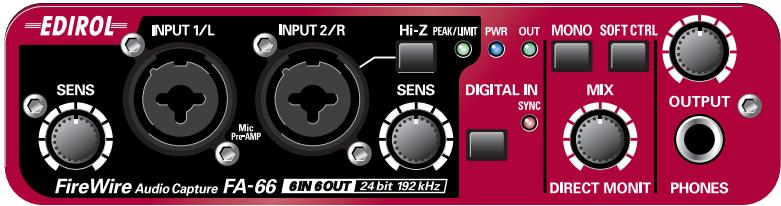
Front panel
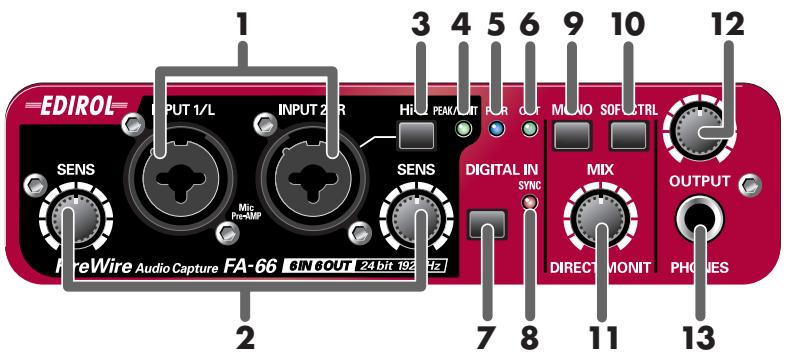
1. Combo input jacks
These are analog audio input jacks with mic preamps. They accommodate either XLR or phone plugs, allowing you to connect a variety of equipment. Either balanced or unbalanced signals may be connected.
Phantom power (48 V) is provided for XLR type connections, allowing you to connect condenser mics that require phantom power. In this case, turn on the phantom power switch (19) located on the rear panel.
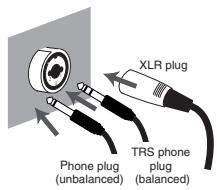
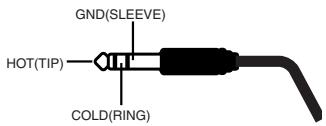
- This instrument is equipped with balanced (XLR/TRS) type input jacks. Wiring diagrams for these jacks are shown on the right. Make connections after first checking the wiring diagrams of other equipment you intend to connect.
2. Input sensitivity knobs
These adjust the input level of the signals input to the front panel combo input jacks (1).
3. Input impedance select switch
This switch selects either high impedance (Hi-Z) or low impedance (Lo-Z) as the type of device connected to the INPUT 2 phone jack of the combo input jacks (1). If you have connected a guitar or bass to this jack, select the high impedance (Hi-Z) setting; if you have connected a mic, select the low impedance (Lo-Z) setting.
- Combo input jack INPUT 1 is fixed at low impedance (Lo-Z).
4. Peak/Limiter indicator
This indicates whether the signal being input via the combo input jacks (1) is distorting, or whether the limiter is operating.
| Limiter switch | Status |
| L Limiter on LIMITER ON. | The indicator will function as a limiter indicator. When the input signal exceeds a certain level, the limiter will operate and the indicator will light green. |
| L Limiter off LIMITER ON. | The indicator will function as a peak indicator. Use the input sensitivity knobs for each input jack to adjust the input level so that the peak indicator does not light red. The red LED will light if the sound distorts. |
5. Power indicator
Lights when the power is on.
6. Output indicator
This will light green if signals are being sent from the computer's audio output ports 1 and 2 (OUT 1/2).
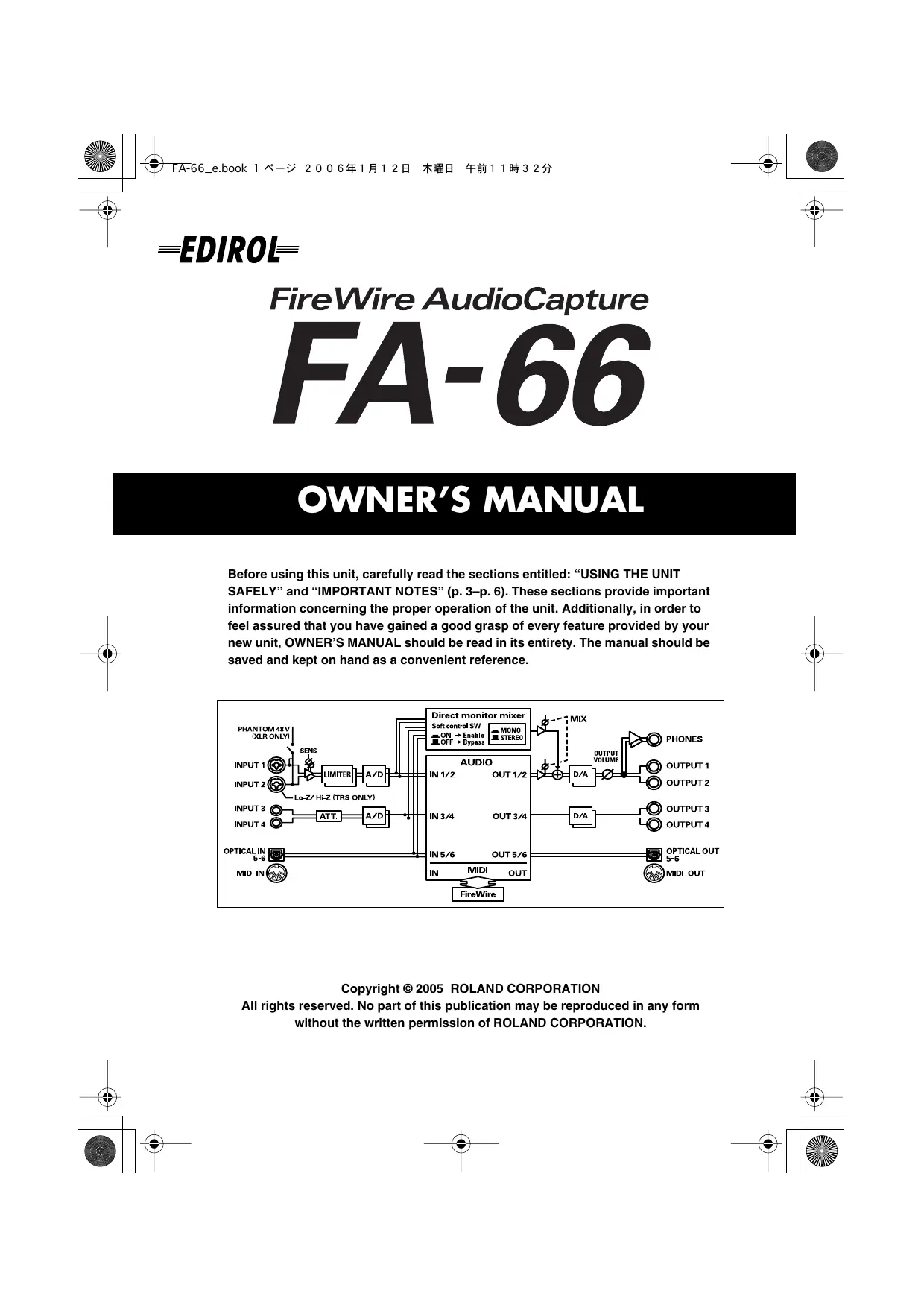
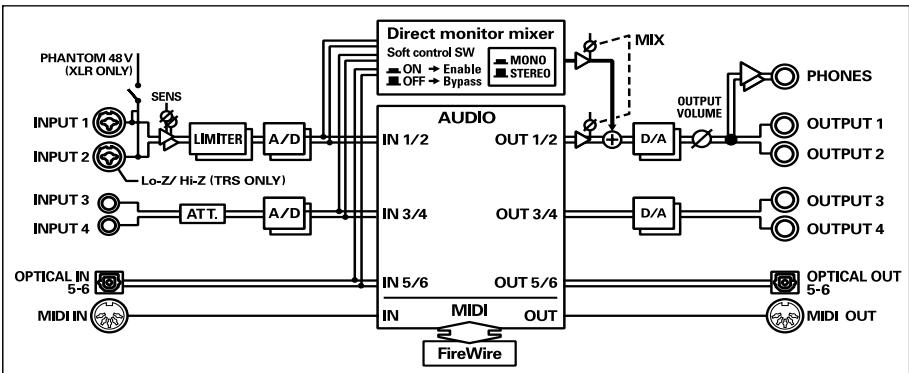
(see block diagram front cover)
7. Digital input switch
If you want to record a digital input, turn this on (pressed inward). This lets the FA-66 synchronize to an external digital device connected to the digital input connector (25)
8. Sync indicator
When the digital input switch (7) is on, this indicator shows the status of synchronization with a digital device connected to the digital input connector (25). (external synchronization mode)
| Lit | Synchronized correctly. |
| Blinking | Not synchronized. Check that your digital device is correctly connected to the digital input connector. Also make sure that the connected digital device is set to the same sampling frequency as that selected by the FA-66's sample rate select switch (18). |
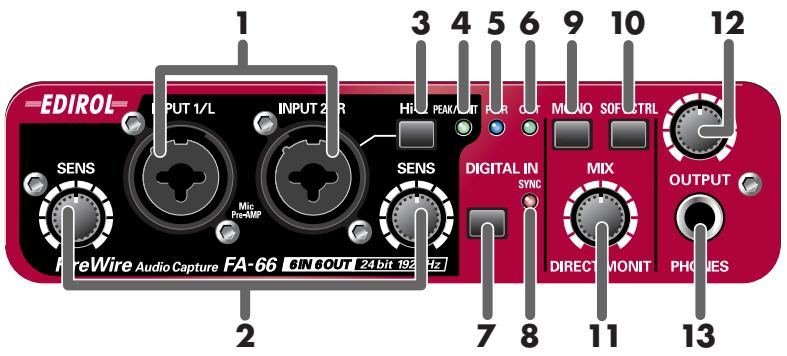
9. STEREO/MONO select switch (direct monitor section)
This selects whether the input signal is to be monitored in stereo (STEREO) or in monaural (MONO). Turn this on (pressed inward) if you want to monitor in monaural.
For example, if you've connected a guitar only to INPUT 2/R, you would use the monaural setting (inward position). Even with the monaural (MONO) setting, the audio signal being sent via FireWire (IEEE 1394) to the computer will be stereo.
10. Direct monitor soft control switch (direct monitor mixer section)
Turn this on (pressed inward) if you want to control the direct monitor mixer (see block diagram front cover) from your ASIO 2.0 compatible software. If this is on, your software will be able to control the monitor volume, pan, and on/off status of each input jack.
If this is off, all settings of the direct monitor mixer will be ignored (= bypassed), allowing you to monitor the input signals from all input jacks. This is convenient if you want to check the connections while temporarily ignoring the software settings.
- This function is available only on Windows.
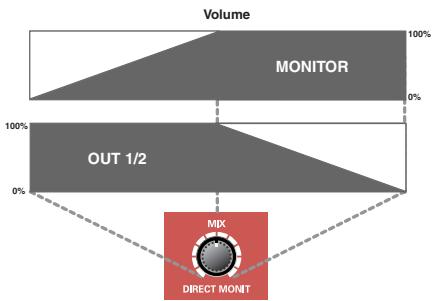
11. Direct monitor volume (direct monitor section)
This adjusts the monitor volume. Turning this knob toward the left (OUT1/2) will decrease the level of the sound being input through the input jacks. Turning the knob toward the right (MONITOR) will decrease the level of the sound being output from your computer. At the center position, the sound being output from your computer and the sound being input via the input jacks will both be at 100% of their level.
12. Output volume
This adjusts the volume that is output from the headphone jack (13) and Main output jacks (22).
13. Headphone jack
This jack outputs the mixed sound being input via the input jacks and the sound being output from the computer (WAVE OUT 1/2 (in the case of WDM, EDIROL FA-66 Out 1 see p. 31)). The balance of these two is adjusted by the direct monitor volume (11).
Even if headphones are connected, the sound being sent from the rear panel's main output jacks (MAIN OUT) (22) will not be cut off.
Rear panel
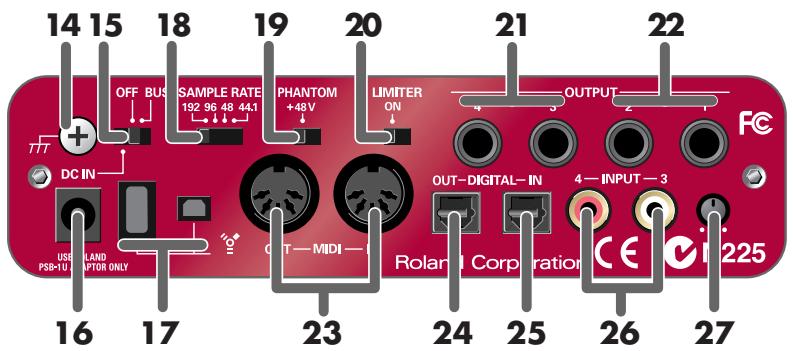
14. Grounding terminal
Depending on the circumstances of a particular setup, you may experience a discomforting sensation, or perceive that the surface feels brittle to the touch when you touch this device, microphones connected to it, or the metal portions of other objects, such as guitars. This is due to an infinitesimal electrical charge, which is absolutely harmless. However, if you are concerned about this, connect the ground terminal (see figure) with an external ground. When the unit is grounded, a slight hum may occur, depending on the particulars of your installation. If you are unsure of the connection method, contact the nearest Roland Service Center, or an authorized Roland distributor, as listed on the "Information" page.
Unsuitable places for connection
Water pipes (may result in shock or electrocution)
Gas pipes (may result in fire or explosion)
- Telephone-line ground or lightning rod (may be dangerous in the event of lightning)
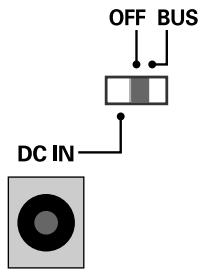
15. Power switch
Used to switch the power on (DC IN) or off (OFF), and for switching to bus power (BUS).
BUS
The FA-66 can operate on bus power if it's connected to your computer via a 6-pin 6-pin FireWire (IEEE 1394) cable. In this case, power is supplied from your computer via the FireWire (IEEE 1394) cable. If you want to use bus power, set the power switch to the BUS position.
6-pin type
You can use bus power if your computer has a 6-pin IEEE 1394 connector (FireWire connector, iLink connector, DV connector).
- With some computers, the FA-66 may not operate on bus power. If so, connect the included AC adaptor to an AC outlet and use it to supply power to the FA-66. In this case, the power will be on when you set the power switch to the DC IN position.
4-pin type
If your computer has a 4-pin FireWire (IEEE 1394) connector, you cannot use bus power. Connect the included AC adaptor to the AC adaptor jack, and set the power switch to DC IN.


16. AC adaptor jack
Connect the included AC adaptor to this jack.
- Never use any AC adaptor other than the supplied unit; doing so may cause malfunction.
17. FireWire (IEEE 1394) connectors
Use a FireWire (IEEE 1394) cable to connect these to your computer.
We recommend that you use a 6-pin cable to connect the FA-66 to your computer, and a 4-pin cable to connect the FA-66 to any peripheral device you may be using.
- 6-pin connector
If the IEEE 1394 connector (FireWire connector, iLink connector, DV connector) of your computer is a 6-pin type, use the included 6-pin 6-pin cable.
The FA-66 will be able to operate on bus power. Normally you should use this method of connection.
If the IEEE 1394 connector (FireWire connector, iLink connector, DV connector) of your computer is a 4-pin type, use the included 6-pin 4-pin cable. However, in this case, the FA-66 will not operate on bus power.
4-pin connector
Normally, the 4-pin connector is used when connecting the FA-66 to a peripheral device.

18. Sample rate select switch
This specifies the sampling frequency at which audio data will be recorded and played back. In order to get this setting to take effect, you must exit all of your software, then cycle the power to the FA-66 (switch it off, then back on again).
- If you are using Macintosh and want to change the sampling frequency, you must first power down the FA-66. Then, access the Mac OS System Preferences -
Sound, and verify that EDIROL FA-66 has disappeared from the Input and Output panes. Then, power up the FA-66 again. For information on how to display the Mac OS System Preferences - Sound, refer to "Audio settings" (p. 19).
You must set the sample rate select switch to match the sampling frequency selected in the software you are using. If you use external synchronization mode (i.e., the DIGITAL IN switch turned on), the external device's sampling frequency must also be the same.
[ Limitations when using the FA-66 at 192 kHz ]
- You will not be able to use the digital input connector or digital output connector.
![ROLAND FA-66 - [ Limitations when using the FA-66 at 192 kHz ] - 1](/content/2025/01/130692/images/503e37840216723342552619b0ffb4a6eb82e70f020644f4c0cabbc87dd396dc.jpg)
19. Phantom power switch
This is an on/off switch for the phantom power supplied to the XLR connectors of the combo input jacks (1) on the front panel.
- You must leave the phantom power turned off (right position) unless condenser mics requiring phantom power are connected to the XLR jacks. Supplying phantom power to a dynamic mic or an audio playback device may cause malfunction. For details on the requirements of your mic, refer to its owner's manual.
(The FA-66's phantom power supply: DC 48 V, 20 mA maximum)
20. Limiter switch
This turns the FA-66's hardware limiter on/off.
If a sudden, high-volume sound is input to the combo input jacks (1), the limiter applies mild compression to prevent clipping from occurring at the AD converter.
- Clipping noise will be heard if the input signal exceeds the capacity of the limiter.
21.Output jacks 3,4 (Nominal output: +4 dBu)
These jacks output analog audio signals. Balanced output is supported.
22. Main output jacks (output jacks 1, 2) (Nominal output: +4 dBu)
These output the mixed sound that is being input via the input jacks and being output from the computer. You can use the output volume control (12) to adjust the volume.
23. MIDI IN/OUT connectors
You can connect these to the MIDI connectors of your MIDI equipment to send and receive MIDI messages.
24. Digital output connector (optical)
Use this when you want to digitally connect an audio device, such as an MD or DAT unit.
The signals sent from OUTPUT 5 and 6 (if using WDM, EDIROL FA-66 OUT 3 see p. 31) are output to the digital output connector.
25. Digital input connector (optical)
Use this when you want to input a digital audio signal from a CD/MD/DAT or similar device.
The signal input to the digital input connector is input as INPUT 5 and 6 (in the case of WDM, EDIROL FA-66 In 3 see p. 31).
If you want to record this digital input signal, turn on the digital input switch (7).
You must input a signal of the same sampling frequency as that selected by the sample rate select switch (18).
26. Input jacks 3-4
Input jacks 3 and 4 are designed with a higher gain so that you can connect them to audio devices that have a lower output level, such as CD players or MIDI sound modules. If you connect these inputs to a device that has a higher output level, such as a mixer, use this input level adjustment knob (27) to adjust the level.
If no device is connected to the Input jacks 3 and 4, turn the input level adjustment knob (27) all the way toward the left.
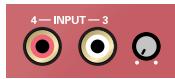
27. Input level adjustment knob
This adjusts the level of the sound that is input at input jacks 3 and 4 (26).
Before you begin using the FA- 66 with your Macintosh (Mac OS X users)
If you are using the FA-66 with Windows, please read "Installing the driver (Windows)" (p. 24).
If you're using the FA-66 with Mac OS X, you don't need to install a driver.
Simply connect the FA-66 to your Macintosh as described below.
1 With the FA-66 disconnected, start up your Macintosh.
2 Use a FireWire (IEEE 1394) cable to connect the FA-66 to your Macintosh.
- With the FA-66's power switch off, connect the power cord to it.
- Plug the AC adaptor cable into an AC outlet.
- Use a FireWire (IEEE 1394) cable to connect the FA-66 to your Macintosh.
3 Turn on the FA-66's power switch.
The driver will be installed automatically.
Next, you need to make audio device and MIDI device settings.

Once the connections have been completed, turn on power to your various devices in the order specified. By turning on devices in the wrong order, you risk causing malfunction and/or damage to speakers and other devices.

This unit is equipped with a protection circuit. A brief interval (a few seconds) after power up is required before the unit will operate normally.

Once the connections have been completed, turn on power to your various devices in the order specified. By turning on devices in the wrong order, you risk causing malfunction and/or damage to speakers and other devices.
Audio and MIDI settings
Audio settings
If you want to use the FA-66 with the iTunes software included with your Macintosh, specify the input/output devices as follows.
The procedure for making device settings differs depending on the software you are using. For details, refer to the owner's manual for your software.
From the Apple menu, choose the System Preferences dialog box, and click Sound.
2 Click the Sound Effects tab, and choose EDIROL FA-66 for the "Play alerts and sound effects through" setting.
3 Click the Output tab, and choose EDIROL FA-66 for the "Choose a device for sound output" setting.
4 If the Input tab is shown, choose EDIROL FA-66 for the "Choose a device for sound output" setting.
MEMO
If you want sound to be played from the internal speakers of your Macintosh, choose "Internal speakers" in the Output tab. If you don't want alerts to be played through the FA-66, choose "Internal speakers" for the "Play alerts and sound effects through" setting.
Cautions for use
Before you use your software with the FA-66, please note the following.
- Before you start up your software, use a FireWire (IEEE 1394) cable to connect the FA-66 with your computer, and turn on the power.
- Do not disconnect the FA-66's FireWire (IEEE 1394) cable or switch off the power to the FA-66 while your software is running.
- Close your software before you switch off the FA-66's power.
- Turn off the Sleep setting of your Macintosh.
- The FA-66 will not work in the Classic environment of Mac OS X. Use it when the Classic environment is not running.
- Turn off the energy conservation settings of your Macintosh.
-
If the Options pane of the Energy Saver preferences on your Macintosh has a Processor Performance setting, choose the "Highest" setting.
-
Depending on the model of Macintosh you are using, starting up the Macintosh when the FA-66 is connected may cause operation to become unstable. In this case, start up the Macintosh and then connect the FA-66.
- If you want to change the FA-66's sample rate, turn the FA-66 off, change the sample rate, and then turn the FA-66 on again. If, in the Mac OS System Preferences - Sound - Output, the EDIROL FA-66 is not shown in the "Choose a device for sound output" setting, this means that the FA-66 is completely powered down.
MIDI settings
1
Open the Applications folder of your Macintosh hard disk. In the Utilities folder, double-click Audio MIDI Setup to open the Audio MIDI Setup.
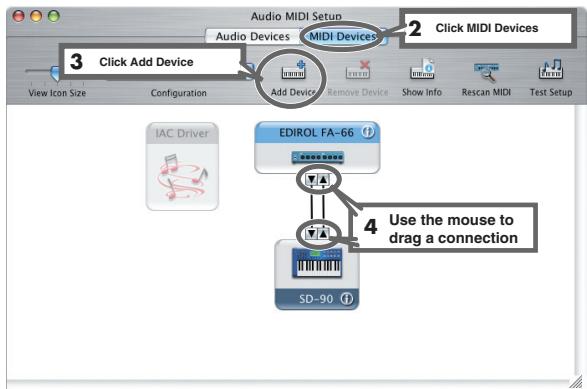
2 Click the MIDI Devices tab.
3 Click Add Device.
New external device will appear.
4 Connect the t and s symbols (which signify the outputs and inputs) of the EDIROL FA-66 icon to those of the New External Device icon by using the mouse to drag between them.
* Change icons and set other items according to the MIDI devices that are connected to the FA-66's MIDI connectors. If you double-click new external device, the new external device Properties dialog box will appear, allowing you to specify a variety of things, such as the device name.
5 Close the Audio MIDI Setup dialog box to complete the procedure.
Checking that you hear sound
Now, let's play back the sample data to verify that the connections and settings are correct. We will use iTunes to play back the sample data provided on the included CD-ROM.
Before you continue, connect headphones or monitor speakers to the FA-66 as described in "Basic connections" (p. 35).
1
Set the FA-66's sample rate select switch to 48kHz . You'll need to cycle the power to the FA-66 after changing the sampling rate.
2
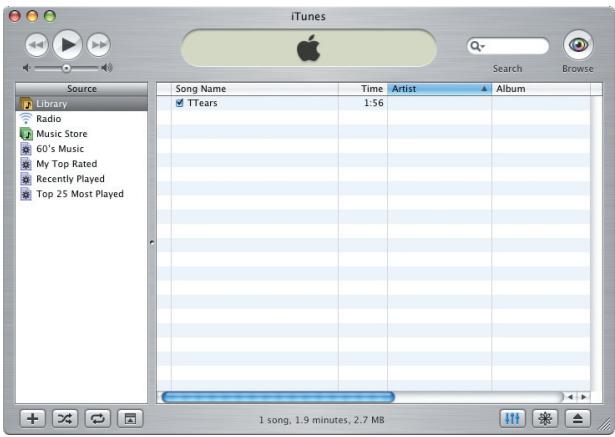
Start up iTunes (included with Mac OS).
iTunes is normally located in the Applications folder on the hard disk.
3
Insert the included CD-ROM into the CD-ROM drive of your Macintosh.
4
From the SampleSong folder of the CD-ROM, drag TTears(.mp3) into the iTunes window.
5
Select T Tears(.mp3) in the song list, and click
Alternatively, you can start playback by pressing the space bar on your computer keyboard.
If the sample data plays correctly, the FA-66 is correctly connected to your Macintosh.

Use of the song data supplied with this product for any purpose other than private, personal enjoyment without the permission of the copyright holder is prohibited by law. Additionally, this data must not be copied, nor used in a secondary copyrighted work without the permission of the copyright holder.

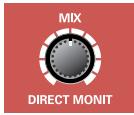
If the volume is too low, or if you don't hear sound at all, try turning the FA-66's direct monitor volume knob (p. 12) so it's positioned to the left of the MIX (center) position.
About the demo songs
The SampleSong folder on the included CD-ROM contains the following demo songs. Please copy the demo songs to the hard disk of your Macintosh before listening to them.
- The demo songs were produced at 48 kHz. You must set the FA-66's sample rate to 48 kHz. You'll need to cycle the power to the FA-66 after changing the sampling rate.
for Cubase folder
This folder contains the demo songs as Cubase VST song files (.all) and Cubase SX project files (.cpr).
If you are using the Cubase SX demo version, the playback will not be correct since some functionality (such as effects) will not be available.
for Logic folder
This folder contains the demo songs as Logic project files (.Iso).
Software settings
Before you start up your software, use a FireWire (IEEE 1394) cable to connect the FA-66 to your computer, and turn on the power of the FA-66.
If your software allows you to specify MIDI and audio input/output settings, choose EDIROL FA-66. For details, refer to the owner's manual for your software. Also refer to "Software settings" (p. 40).
If you have turned on software monitoring in your application, turn the FA-66's hardware monitoring (direct monitor) off to prevent double monitoring and to keep an audio feedback loop from occurring.

For the latest information, please visit http://www.edirol.com/
Installing the driver (Windows)
What is a driver?
A driver is software that allows data to be transferred between the FA-66 and application software running on your computer when the FA-66 is connected to your computer via a FireWire (IEEE 1394) cable.
The driver sends data from your application software to the FA-66, and from the FA-66 to your application software. The driver is required in order for you to use the FA-66 while connected to your computer.
1 With the FA-66 disconnected, start up Windows.
- You must log on to Windows with a user name whose account has administrative privileges (e.g., Administrator).
2 Open the System Properties dialog box.
- From the Windows start menu, choose Control Panel.
- In "Pick a category," click "Performance and Maintenance".
- In "or Pick a Control Panel icon," click the System icon.
3 Click the Hardware tab, and then click [Driver Signing].
The Driver Signing Options dialog box appears.
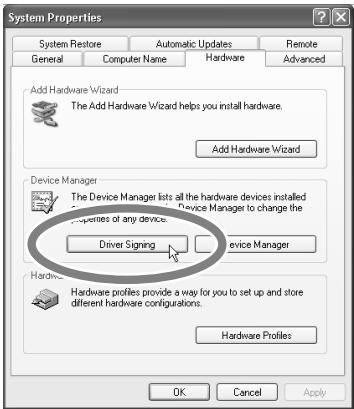
4 In the Driver Signing Options dialog box, make sure that "Ignore" is selected.
If "Ignore" is selected, simply click [OK]. If "Ignore" is not selected, make a note of the current setting (Warn or Block), change the setting to "Ignore", and click [OK].

Depending on your system, the System icon may be displayed directly in the Control Panel (Classic view). If so, double-click the System icon.

If you change the "Driver Signing Options" setting, change it back to the original setting after you've installed the driver.

If the screen indicates "Windows can perform the same action each time you insert a disk or connect a device with this kind of file," click [Cancel].

Click [OK] to close the System Properties dialog box.

Close all currently running software (applications).
Also close all windows that are open. If you are using software such as antivirus programs, be sure to close these programs as well.

Find the included CD-ROM.
Insert the CD-ROM into your computer's CD-ROM drive.

From the Windows start menu, choose "Run..."
The "Run" dialog box will appear.

Input the name into the dialog box as shown, and click [OK].
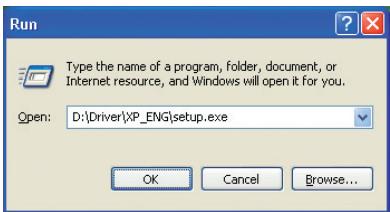
(Drive name): \Driver\XP_ENG\setup.exe
- The drive name is "D:" in the example shown here, but this may be different on your system. Specify the drive name for your CD-ROM drive.

The EDIROL FA-66 Driver Setup dialog box appears. Click [Install].

Checking the name of your drive. From the start menu, choose My Computer. In the window that appears, verify the name of the CD-ROM drive into which you inserted the CD-ROM in step 7. The (D:) or (E:) displayed by the CD-ROM drive icon is the drive name.

If you want to install the driver into a different hard disk, click [Browse] and specify the desired location.
Software Installation

The software you are installing has not passed Windows Logo and is still subject to compatibility with Windows XP. (Tell me if this testing is incorrect.)
Continuing your installation of this software may impair or destabilize the correct operation of your system. The following instructions will help you to understand how you may recommend that you stop this installation now and continue using it for other software that has passed Windows Logo testing.
Continue Anyway
STOP Installation
If the setting in the Driver Signing Options dialog box is not set to "Ignore," a dialog box like the following will appear.
Click [Continue Anyway] to continue driver installation.
11
A dialog box entitled "Setup is now ready to install the drivers" appears.
Use a FireWire (IEEE 1394) cable to connect the FA-66 to your computer.
- With the power switch turned off, connect the AC adaptor to the FA-66.
- Plug the AC adaptor's power cord into an AC outlet.
- Use a FireWire (IEEE 1394) cable to connect the FA-66 to your computer.
12
Turn on the power switch of the FA-66.
The "Found New Hardware" message appears near the taskbar. Please wait.
13
A dialog box entitled Welcome to the Found New Hardware Wizard appears. Make sure that the box indicates "EDIROL FA-66 Sub 1," choose "Install the software automatically (Recommended)," and click [Next].
14
A dialog box entitled "Completing the Found New Hardware Wizard" appears.
Click [Finish].
Once again, the "Found New Hardware" message appears near the taskbar. Please wait.

Once the connections have been completed, turn on power to your various devices in the order specified. By turning on devices in the wrong order, you risk causing malfunction and/or damage to speakers and other devices.

This unit is equipped with a protection circuit. A brief interval (a few seconds) after power up is required before the unit will operate normally.

If the Found New Hardware Wizard asks you whether you want to connect to Windows Update, choose "No" and then click [Next].
15
A dialog box entitled Welcome to the Found New Hardware Wizard appears. Make sure that the box indicates "EDIROL FA-66 Sub 2," choose "Install the software automatically (Recommended)," and click [Next].
16
A dialog box entitled "Completing the Found New Hardware Wizard" appears.
Click [Finish].
The "Found New Hardware" message appears near the taskbar.
17
In the EDIROL FA-66 Driver Setup dialog box that is already displayed, click [I Completed the Above Steps].
The "Found New Hardware" message appears near the taskbar.
18
The Welcome to the Found New Hardware Wizard dialog box appears. Make sure that the box indicates "EDIROL FA-66," choose "Install the software automatically (Recommended)," and click [Next].
A dialog box like the following will appear if "Driver Signing Options" is not set to "Ignore."
If a dialog box with the "!" symbol appears...
- Click [Continue Anyway].
- Continue with the installation.
If a dialog box with the "X" symbol appears...
- Click [OK].
- When the "Found New Hardware Wizard" appears, click [Finish].
- Return to step 1 (p. 24), and re-install the driver from the beginning.
19
A dialog box entitled "Completing the Found New Hardware Wizard" appears. Click [Finish].
Once again, the "Found New Hardware" message appears near the taskbar.
This completes driver installation.
If you changed the "Driver Signing Options" setting (p. 24, step 4), restore the setting to its previous state after restarting Windows.
- Log on to Windows using the same user account as the one used when the driver was installed.
- From the Windows start menu, choose Control Panel.
- In "Pick a category," click Performance and Maintenance.
-
In "or Pick a Control Panel icon," click the System icon. The System Properties dialog box appears.
-
Depending on your system, the System icon may be shown directly in the Control Panel (Classic view). If so, double-click the System icon.
-
Click the Hardware tab, and then click [Driver Signing]. The Driver Signing Options dialog box appears.
- In Driver Signing Options, restore the previous setting ("Warn" or "Block") and click [OK].
- Click [OK]. The System Properties dialog box closes.
Next, you need to set your computer so priority is given to background services, which will help to assure that audio and MIDI processing occur smoothly.
() "Giving priority to background services" (p. 29))
Giving priority to background services
Crackling may occur in the sound if you omit making this setting. To ensure that audio and MIDI are processed smoothly, make the setting as follows.

Open the System Properties dialog box.
- From the Windows start menu, choose Control Panel.
- In "Pick a category," click "Performance and Maintenance".
- In "or Pick a Control Panel icon," click the System icon.

Click the Advanced tab.

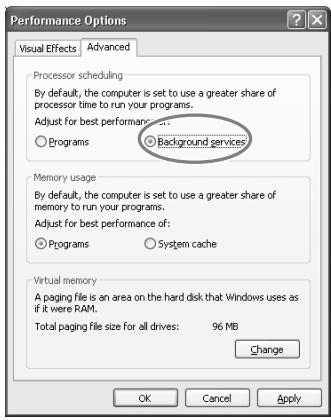
Click [Settings] located at the right of the Performance area.
The Performance Options dialog box appears.

Click the Advanced tab.

In Processor Scheduling, choose "Background services," and click [OK].

In the System Properties dialog box, click [OK]. The System Properties dialog box closes.
Next, you need to make audio device and MIDI device settings.
(-> "Driver settings" (p.30))

Depending on your system, the System icon may be displayed directly in the Control Panel (Classic view). If so, double-click the System icon.
Driver settings
About the input and output devices
In order to get the best performance from the software you are using, you must choose the correct device settings. The FA-66's audio driver supports WDM and ASIO 2.0.
Audio devices
| Audio output device (WDM) | EDIROL FA-66 Out 1-3 | Note 1 |
| Audio input device (WDM) | EDIROL FA-66 In 1-3 | Note 1 |
| ASIO device | EDIROL FA-66 |
Note 1: Refer to "How WDM ports correspond to FA-66 output jacks" (p. 31).
MIDI devices
| MIDI OUT | EDIROL FA-66 MIDI OUT If you specify EDIROL FA-66 as the output port for your sequencer software, etc., messages will be sent from the FA-66's MIDI OUT connector. |
| MIDI IN | EDIROL FA-66 MIDI IN If you specify EDIROL FA-66 as the input port for your sequencer software, etc., messages will be received from the FA-66's MIDI IN connector. |
- For details on how to make settings for your software, you should also refer to the owner's manual for your software, as well as to "Software settings" (p. 40).
- If you are unable to select the FA-66 in the device settings of your software, it is possible that the FA-66 driver was not installed correctly. Please re-install the driver.
WDM
Use this if you are using the FA-66 with the following applications or situations.
- Conventional applications such as Media Player (for the settings, refer to "Input/output device settings" (p. 32))
WDM driver mode compatible applications such as SONAR - DirectX compatible applications
ASIO
Use this if you are using the FA-66 with an ASIO-compatible application such as Cubase. In the ASIO settings of your application, choose "EDIROL FA-66." You will be able to use ten inputs and ten outputs.
- When using the FA-66 with ASIO, we recommend that you not set your application to use the Microsoft GS Wavetable SW Synth. (This will decrease the processing load, and make it easier to change the driver buffer size.)
How WDM ports correspond to FA-66 output jacks
| WDM output port | FA-66 output jacks | WDM input port | FA-66 input jacks | ||||
| EDIROL FA-66 OUT 1 | L | OUTPUT jack 1 | EDIROL FA-66 IN 1 | L | INPUT jack 1 | ||
| R | OUTPUT jack 2 | R | INPUT jack 2 | ||||
| EDIROL FA-66 OUT 2 | L | OUTPUT jack 3 | EDIROL FA-66 IN 2 | L | INPUT jack 3 | ||
| R | OUTPUT jack 4 | R | INPUT jack 4 | ||||
| EDIROL FA-66 OUT 3 * This port is not displayed when operat-ing at 192 kHz. | Digital output connector | EDIROL FA-66 IN 3 * This port is not displayed when operat-ing at 192 kHz. | Digital input connector | ||||
If you have turned on software monitoring in your application, turn the FA-66's hardware monitoring (direct monitor) off to prevent double monitoring and to keep an audio feedback loop from occurring.
Input/output device settings
If you will be using the Windows Media Player application with the FA-66, specify the input/output devices as follows.
The method in which you make device settings will depend on the software you are using. For details, refer to the owner's manual for your software.

Open the Sound, Speech, and Audio Devices Properties dialog box.
- From the Windows start menu, choose Control Panel.
- In "Pick a category," click Sound, Speech, and Audio Devices.
- In "or Pick a Control Panel icon," click the Sounds and Audio Devices icon.

Click the Audio tab.

In the Sound playback, Sound recording, and MIDI music playback areas, click the Default device field. From the list that appears for each field, choose the device shown below.
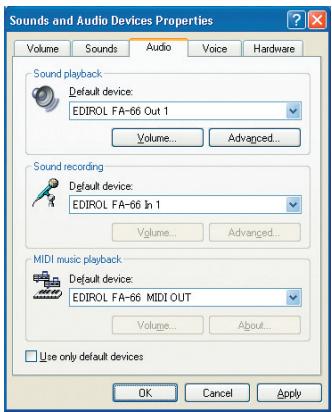
| Sound playback | EDIROL FA-66 Out 1 |
| Sound recording | EDIROL FA-66 In 1 |
| MIDI music playback | EDIROL FA-66 MIDI OUT |

Click [OK] to close the Sounds and Audio Devices Properties dialog box.
This completes the audio and MIDI input/output settings.

Depending on your system, the System icon may be displayed directly in the Control Panel (Classic view). If so, double-click the System icon.

If you are using sequencer software, you will need to make audio and MIDI device settings from within your software. For details, refer to the owner's manual for the software you are using.

If you are using the 192kHz sample rate on Windows XP, the FA-66 may not appear in the Sounds tab of the Sounds and Audio Devices Properties dialog box. If so, please update your system to Windows XP Service Pack 1.

Each input/output device can only be used by one software application at a time; multicontinant usage is not supported.
Checking that you hear sound
Now, let's play back the sample data to verify that the connections and settings are correct. We will use standard Windows functionality to play back the sample data provided on the included CD-ROM. Before you continue, connect headphones or monitor speakers to the FA-66 as described in "Basic connections" (p. 35).
1 Insert the CD-ROM into the CD-ROM drive of your computer.
2 From the SampleSong folder of the CD-ROM, drag TTears(.mp3) onto your desktop.
3 Set the FA-66's sample rate select switch to 48 kHz. You'll need to cycle the power to the FA-66 after changing the sampling rate.
4 Right-click the TTears(.mp3) file you copied, and choose Play from the menu that appears. Playback begins.
If the sample data plays correctly, the FA-66 is correctly connected to your computer, and the driver has also been installed correctly.

Use of the song data supplied with this product for any purpose other than private, personal enjoyment without the permission of the copyright holder is prohibited by law. Additionally, this data must not be copied, nor used in a secondary copyrighted work without the permission of the copyright holder.

The contents of the menu that appears will depend on your system.

If the volume is too low, or if you don't hear sound at all, try turning the FA-66's direct monitor volume knob (p. 12) so it's positioned to the left of the MIX (center) position.
About the demo songs
The SampleSong folder on the included CD-ROM contains the following demo songs. Please copy the demo songs to the hard disk of your computer before listening to them.
- The demo songs were produced at 48 kHz. You must set the FA-66's sample rate to 48 kHz. You'll need to cycle the power to the FA-66 after changing the sampling rate.
for Cubase folder
This folder contains the demo songs as Cubase VST song files (.all) and Cubase SX project files (.mpr). If you are using the Cubase SX demo version, the playback will not be correct since some functionality (such as effects) will not be available.
for SONAR folder
This folder contains the demo songs as SONAR project files (.cwb).
Software settings
Before you start up your software, use a FireWire (IEEE 1394) cable to connect the FA-66 to your computer, and turn on the power of the FA-66.
If your software allows you to specify MIDI and audio input/output settings, choose EDIROL FA-66. For details, refer to the owner's manual for your software. Also refer to "Software settings" (p. 40).
If you have turned on software monitoring in your application, turn the FA-66's hardware monitoring (direct monitor) off to prevent double monitoring and to keep an audio feedback loop from occurring.
MEMO
For the latest information, please visit
http://www.edirol.com/
Basic connections and settings
This section explains basic connections and data flow for the FA-66.
Refer to the block diagram printed on the front cover of the manual as you read this section.
- Before making connections to other equipment, turn down the volume of all your equipment and turn off the power to avoid causing malfunctions or damaging your speakers.
- When connection cables with resistors are used, the volume level of equipment connected to the inputs (Input jacks) may be low. If this happens, use connection cables that do not contain resistors, such as those from the Roland PCS series.
Basic connections
Use a FireWire (IEEE 1394) cable to connect the FA-66 to your computer. MIDI data and audio data are transferred in both directions via the FireWire (IEEE 1394) cable.
By connecting headphones or monitor speakers as shown in the diagram below, you can monitor the playback from your software or the sound from an instrument or audio device connected to the FA-66.
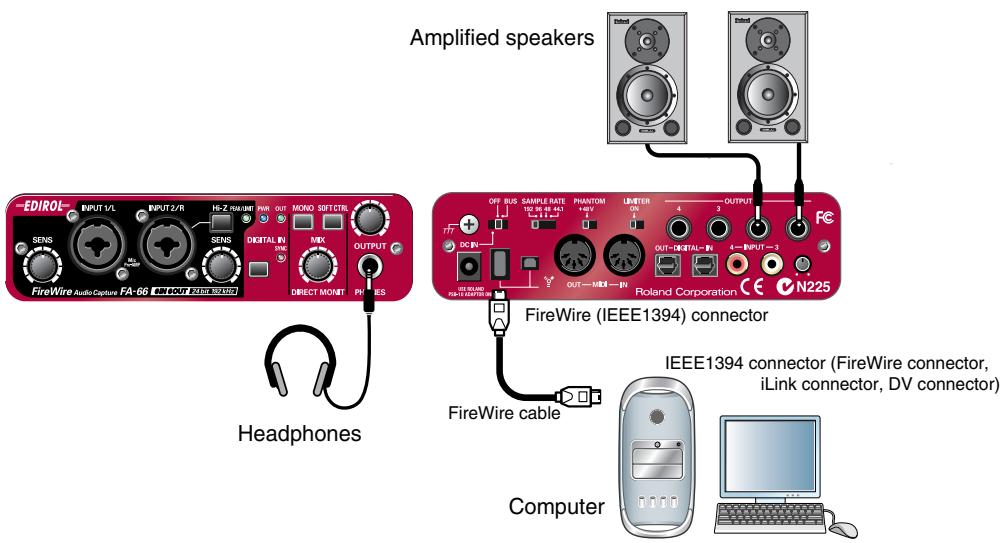
Recording a mic or guitar
Here's how to make connections and settings to let you sing or play your guitar while listening to audio data on your computer, and record just the vocal or guitar into your sequencer.
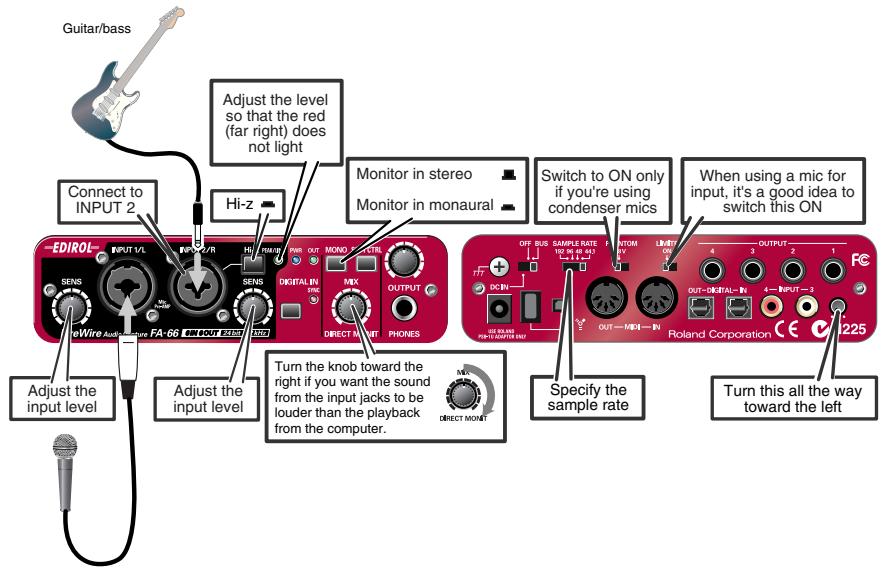
Connections
The sound of the mic connected to INPUT 1 will be recorded in your computer as the left (L) channel. If you connect a source to INPUT 2, it will be recorded on the right (R) channel.
Connect your guitar to INPUT 2.
Sample rate select switch
Set this to the same sample rate as selected in your recording software.
If you switch the FA-66's sample rate, you must turn the power of the FA-66 off, then on again to get the setting to take effect.
Input impedance select switch
If you've connected a mic to INPUT 2
Select Lo-Z.
If you've connected a guitar to INPUT 2
Select Hi-Z.
STEREO/MONO select switch (direct monitor section)
Set this according to whether you want to monitor the input signal in stereo or in monaural.
Direct monitor soft control switch
Turn this on if you want to control input monitoring from ASIO 2.0 compatible software.
Direct monitor volume
This adjusts the balance between the monitor volume and the audio playback volume from your computer. Adjusting the direct monitor volume will not affect the recording level.
Phantom power switch
If you're using a condenser mic, turn the phantom power switch on.
- If a device that does not use phantom power is connected, you must turn off the phantom power switch. Failing to do so may cause malfunction.
Input sensitivity knob
Use the input sensitivity knob to adjust the input level. For the best audio quality, raise the level until it is as high as you can get it without causing the input level indicator to light in red.
Other notes
Don't connect anything to jacks you are not using.
Howling could be produced depending on the location of microphones relative to speakers. This can be remedied by:
- Changing the orientation of the microphone(s).
- Relocating microphone(s) at a greater distance from speakers.
- Lowering volume levels.
Recording a digital signal
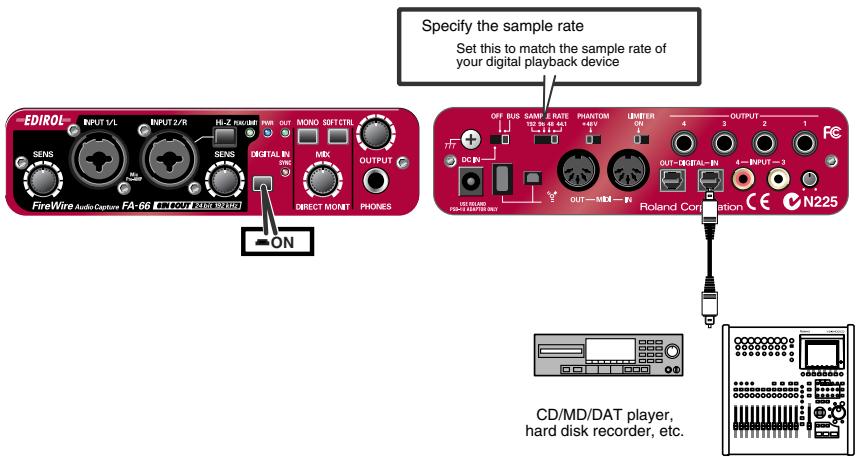
Connections
Connect your digital device to the digital input connector.
Sample rate select switch
Set this to match the sample rate of your digital playback device and the sample rate of your recording software.
If you switch the FA-66's sample rate, you must turn the power of the FA-66 off, then on again to get the setting to take effect.

You cannot record digital signals if the 192kHz setting is selected.
Digital input switch
Turn this on so that the FA-66 will synchronize to the digital signal being input to the digital input connector.
When synchronized correctly, the sync indicator will light green. If this indicator is blinking green, synchronization has not been achieved. In this case, check that the sample rate of the connected digital device matches the sample rate selected by the FA-66's sample rate switch.
Direct monitor volume
This adjusts the monitor volume.
Adjusting the direct monitor volume will not affect the recording level.
Connecting various types of equipment
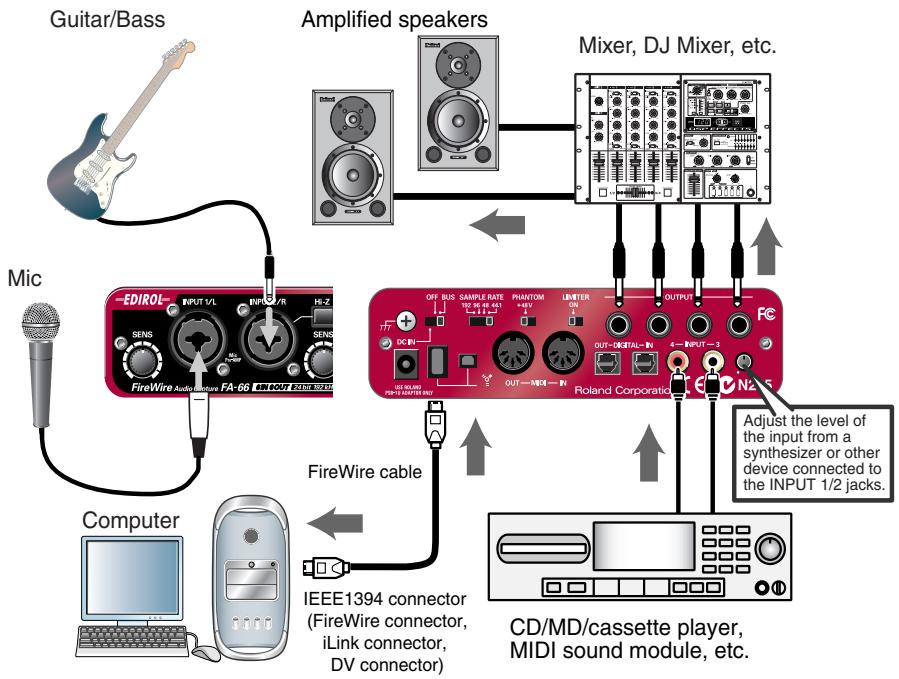
Connections
Connect output jacks 1-4 to your external mixer or other device.
Direct monitor volume
This adjusts the monitor volume.
Adjusting the direct monitor volume will not affect the recording level.
You will need to make audio and MIDI device settings for the software you're using. Here are some examples for typical software applications.
SONAR 4
In this example we are using SONAR 4 Producer Edition.

You must make the following settings if you have switched the FA-66's sample rate or have changed the buffer size in the FA-66 Driver settings dialog box.
- Power up the FA-66, and then start up SONAR.
- From SONAR's Options menu, choose Audio to open the Audio Options dialog box.
- Click the Advanced tab.
In the Playback and Recording area, verify that Driver Mode is set to WDM/KS.
- If you change this setting, click [OK] and restart SONAR.
Restart SONAR, and from the Options menu, choose Audio to open the Audio Options dialog box.
- In the General tab, set Audio Driver Bit Depth to 24.
Set the Sampling Rate to the same setting as the FA-66's sample rate select switch.
If you change this setting, click [OK] and exit SONAR.
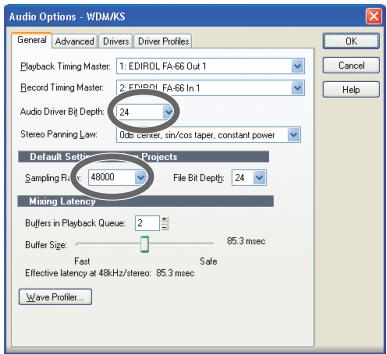
- If the Audio Driver Error dialog box appears, click [Use Anyway]. If you click [Disable], the setting will be discarded.
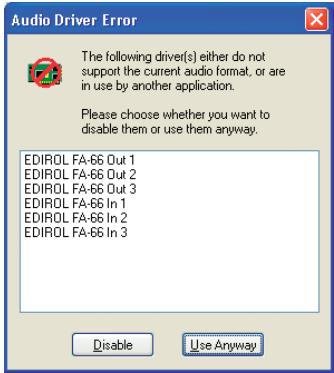
- Restart SONAR, and from SONAR's Options menu, choose Audio to open the Audio Options dialog box.
- In the General tab, click Wave Profiler. When Wave Profiler is finished, click [Close].
- Click the Drivers tab. In the lists of Input Drivers and Output Drivers, click the following devices to highlight them (white characters on blue background), and un-hightlight all other devices. Click [OK].
| Input devices | Output devices |
| EDIROL FA-66 In 1 | EDIROL FA-66 Out 1 |
| EDIROL FA-66 In 2 | EDIROL FA-66 Out 2 |
| EDIROL FA-66 In 3 | EDIROL FA-66 Out 3 |
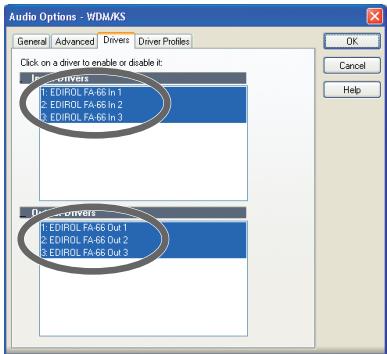
- Restart SONAR, and from SONAR's Options menu, choose Audio to open the Audio Options dialog box.
- In the General tab, make sure that Playback Timing Master is set to EDIROL FA-66 OUT, and Record Timing Master is set to EDIROL FA-66 IN.
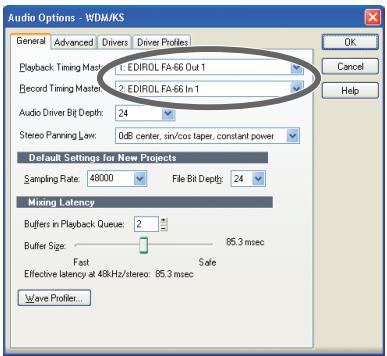
- Click the Driver Profiles tab. Select EDIROL FA-66 (3 in, 3 out) as the setting for "Show Profile for," and then select "32 bit PCM, left-justified" as the setting for "Stream > 16 bit data as."
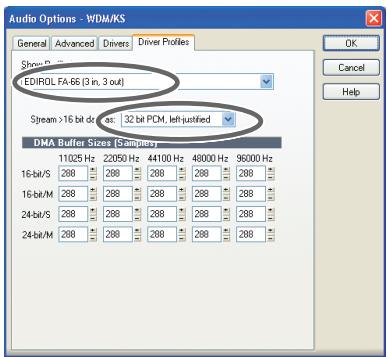
- Click [OK] to close the Audio Options dialog box.
- From SONAR's Options menu, choose MIDI Devices to open the MIDI Devices dialog box.
- In the MIDI Devices dialog box, choose the FA-66 in the Inputs area and the Outputs area.
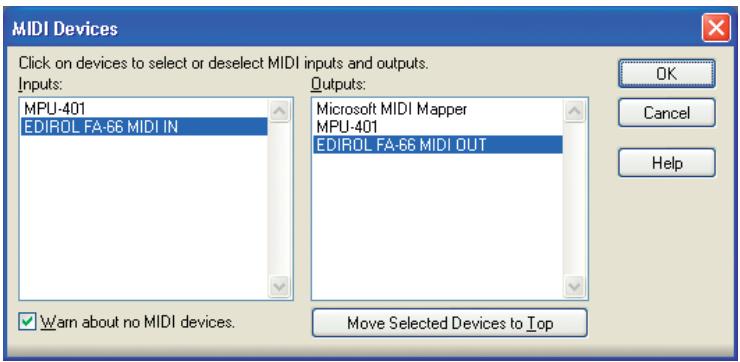
- Restart SONAR.
- Open the Audio Options dialog box once again as described in step 2. Verify that the audio device settings are correct.
Digital Performer
In this example we are using Digital Performer 4.5.
- Power up the FA-66, and then start up Digital Performer.
- From Digital Performer's Setup menu, choose Audio System, and verify that MOTU Audio System is checked.
- From the Setup menu, choose Configure Audio System - Configure Hardware Driver.
The Configure Hardware Driver dialog box will appear.
- In the list, click EDIROL FA-66 to select it, and then click [OK].
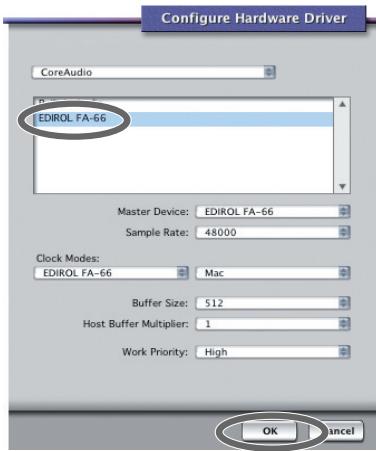
Logic
Here is an example using Logic Pro 7.0.1.
- Power up the FA-66, and then start up Logic.
- From the Logic Pro menu, choose Preferences - Audio to open the Preferences dialog box.
- Click the Drivers tab.
- In the Core Audio section, select (add a check mark to) the checkbox located at the left of Core Audio.
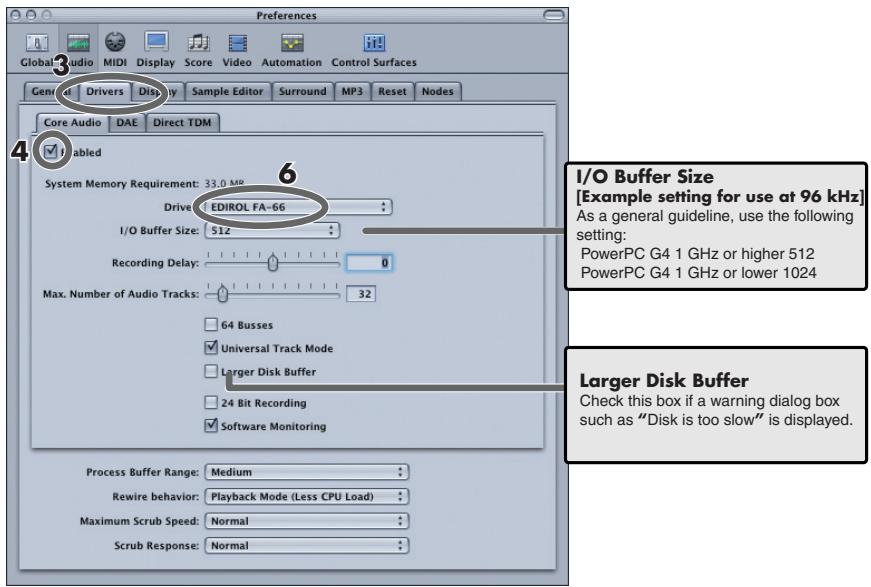
- If a dialog box like the following appears, click [Try (Re)Launch].
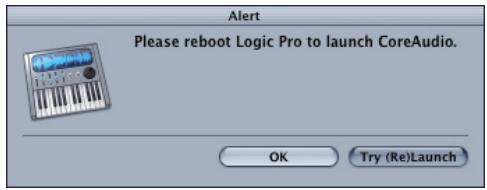
- Set Driver to EDIROL FA-66.
- Close the dialog box.
- If the Aleart dialog box appears, click [Try (Re)Launch].
Cubase SX/SL
In this example we are using the Macintosh version of Cubase SX Version 2.2.
- Power up the FA-66, and then start up Cubase.
- From the Devices menu, choose Device Setup to open the Device Setup dialog box.
- In the Devices list at the left side of the dialog box, choose VST Multitrack.
- Select the Setup tab in the right side of the dialog box.
- From the drop-down list for ASIO Driver, choose EDIROL FA-66.
- Click [OK] to close the Device Setup dialog box.
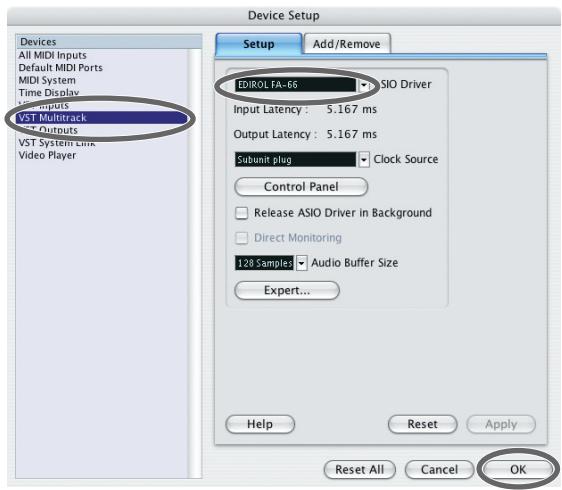
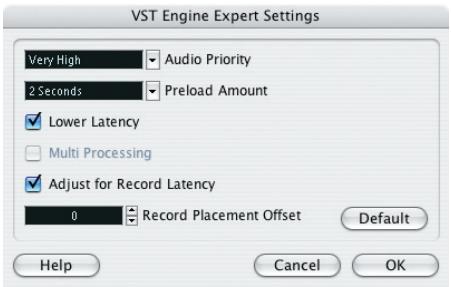
If you experience clicks or pops in the sound, click [Expert] to open the VST Engine Expert Settings dialog box. Setting the Audio Priority to "Very High" may reduce clicks and pops.
FA-66 Driver Settings dialog box (Windows)

There is no FA-66 Driver Settings dialog box on Macintosh. Make settings from within your software.
You can adjust the audio latency by changing the FA-66 driver settings.
Decreasing the buffer size will shorten the latency.
Increasing the buffer size may eliminate problems such as clicks or pops in the sound.
- Latency is the time delay from when the software plays back audio data until sound is actual heard from an audio device such as the FA-66.
Here's how to adjust the buffer size.
- Close any software that is using the FA-66.
- From the Windows start menu, choose Control Panel.
- Click "Switch to Classic View" to select the Classic view.
Depending on your system, the Classic view may already be selected. If so, proceed to the next step.
- In the Control Panel, double-click the EDIROL FA-66 icon.
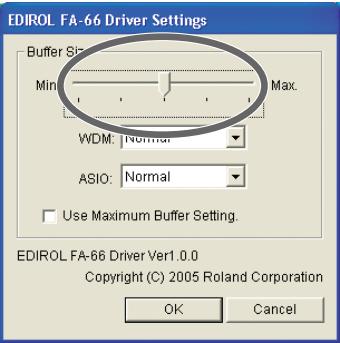
The EDIROL FA-66 Driver settings dialog box will appear.

EDIROL
FA-66
- Set WDM and ASIO to Normal.
- Move the Buffer Size slider to the far left (Min). If clicks or pops occur with the current setting, move the slider one step toward the right from its current value.
- Click [OK] to close the dialog box.
- Turn the power of the FA-66 off, then on again. At this time, be sure to close all software before you turn the FA-66's power off.
9. Re-start the software that is using the FA-66.
If your software includes a function for testing audio devices, execute the test function after re-starting the software.
- Settings are not applied until you restart your software.
10. Play back audio data on your software.
If you hear clicks or pops, close the software, and repeat steps 4-10 until you no longer hear clicks or pops.
This completes the basic settings.
If you are using WDM or ASIO compatible software, and you still experience clicks or pops in the sound even after making the above setting, or if you want to make the latency even shorter, you can change the settings from the pulldown menu.
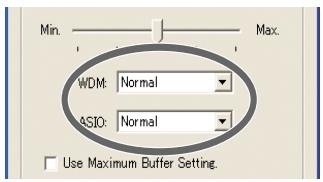
| WDM | |
| When using the FA-66 with the following software | |
| • Conventional software such as Media Player | |
| • When using an application such as SONAR in WDM driver mode | |
| • When using DirectSound software | |
| Normal | normal size |
| Smaller | smaller buffer than Normal (shorter latency) |
| ASIO | |
| When using the FA-66 with ASIO-compatible software such as Cubase | |
| • Conventional software such as Media Player | |
| • When using an application such as SONAR in WDM driver mode | |
| • When using DirectSound software | |
| Normal | normal size |
| Smaller | smaller buffer than Normal (shorter latency) |
| Larger | larger buffer than Normal (if clicks or pops occur) |
If you still experience clicks or pops even though you have specified the largest buffer size, check Use Maximum Buffer Setting. If this item is checked, the slider and the settings of the WDM and ASIO items will be ignored, and an even larger buffer size will be used.
If you still experience clicks or pops even after doing this, the problem may lie elsewhere. Please refer to the Troubleshooting section.
- Depending on your software, there may also be a buffer size and latency adjustment in the audio settings of your software. For details, refer to the owner's manual for your software.
If you experience problems, read this chapter first/ It contains tips for solving most problems.
Driver-related problems (Windows)
Can't install the driver correctly
You attempted to install as described in "Installing the driver," but did not succeed.
Install the FA-66 driver once again as described in "Installing the driver
(Windows)" (p. 24). Also check the Device Manager to see whether "Other device,"
"Unknown device," "?, "!, " or "x" is shown for any device. If you see such a device, delete it.
Does the Device Manager show "Other device," "Unknown device," or any device marked with "?," "!," or "x"?
If driver installation did not end successfully, the installed driver may remain in an incomplete state.
Install the FA-66 driver once again as described in "Installing the driver
(Windows)" (p. 24).
Is the FA-66 connected correctly?
Make sure that you have used a FireWire (IEEE 1394) cable to correctly connect the FA-66 to the FireWire (IEEE 1394) connector of your computer.
Is the FA-66 powered up?
Make sure that the FA-66's power is on. Make sure that the POWER switch is on.
Could the FA-66's power switch be set to BUS?
Even if you normally use the FA-66 on bus power, you should connect the AC adaptor and set the power switch to the DC IN position while installing the driver (so that the power supply does not become unstable).
Could other FireWire (IEEE 1394) devices be connected?
When installing, all FireWire (IEEE 1394) devices other than the FA-66 should be disconnected from your computer.
If you have connected the FA-66 to an external FireWire (IEEE 1394) hard disk, please connect the FA-66 directly to an IEEE 1394 connector (FireWire connector, iLink connector, DV connector) on the computer itself.
Could other applications or resident software (such as an anti-virus program) be running?
Installation may not occur correctly if other programs are running. Be sure to close all other programs before installing.
Are you attempting to install from a networked CD-ROM drive?
You cannot install from a networked CD-ROM drive.
Could the CD-ROM or the lens of your CD-ROM drive be dirty?
If the CD-ROM or the lens of your CD-ROM drive are dirty, the installer may not work correctly. Use a commercially available CD cleaner or lens cleaner to clean the CD-ROM and/or lens.
Are the power conservation settings of your computer turned off?
If power conservation settings are turned on for your computer, disable these settings. (For details on how to disable them, refer to the owner's manual of your computer.)
Is there enough free space on your hard disk?
Delete unneeded files to increase the amount of free space. After deleting the file(s), empty the recycling bin.
Is the FireWire (IEEE 1394) connector enabled on your computer?
Refer to the owner's manual for your computer, and verify that the FireWire (IEEE 1394) connector of your computer is enabled. The driver cannot be installed unless the FireWire (IEEE 1394) connector is enabled.
Does your computer or FireWire (IEEE 1394) repeater hub have a sufficient power supply?
If you are using bus power, the FA-66 cannot be connected if insufficient power is being supplied to it.
Check whether the following cases might apply.
- If you are using a notebook computer running on its battery, operation may be unstable with some computers. If this is the case, connect your computer to its AC adaptor.
- The power conservation mode of your computer may be limiting the power it supplies to the FireWire (IEEE 1394) connector. Re-examine the settings of your computer.
- The FA-66 cannot be used with some bus-powered repeater hubs (hubs that do not have their own power supply). Use a self-powered hub (a repeater hub that has its own power supply).
Does your computer meet the FireWire (IEEE 1394) specification?
Operation may be unstable if you are using a computer that does not electrically meet the FireWire (IEEE 1394) specification. If so, you may be able to solve the problem by connecting a FireWire (IEEE 1394) repeater hub that has its own power supply.
Can't install/uninstall the driver
Did you log onto Windows as a user with administrative privileges?
In order to install/uninstall/reinstall the FA-66 driver in Windows, you must log onto Windows as a user with administrative privileges, such as Administrator.
Did you make the "Driver Signing Options" setting?
You must set "Driver Signing Options" in order to install/reinstall the driver. (p. 24)
Windows displays an "Installing Hardware," "Did not find digital signature" dialog box.
Did you make the "Driver Signing Options" setting?
You must set "Driver Signing Options" in order to install/reinstall the driver. (p. 24)
The "Welcome to the Found New Hardware Wizard" dialog box appears even though you installed the driver.
Did you connect the FA-66 to a different FireWire (IEEE 1394) connector than the one you used when installing the driver?
If your computer or FireWire (IEEE 1394) hub has two or more FireWire (IEEE 1394) connectors, and you connect the FA-66 to a FireWire (IEEE 1394) connector to which you have not previously connected it, this dialog box may appear even though you have already installed the driver. (This is not a malfunction.)
Install the FA-66 driver once again as described in "Installing the driver (Windows)" (p. 24).
No sound
Can't record or play back audio or MIDI No sound
Are the volume controls of the FA-66 set appropriately?
Adjust the output volume knob and direct monitor volume of the FA-66's front panel.
Is your audio playback system (e.g., stereo) connected correctly?
Make sure that the FA-66's output jacks are correctly connected using audio cables to the input jacks of your audio playback system. For details on connections, refer to "Basic connections" (p. 35).
Did you connect/disconnect the FireWire (IEEE 1394) cable or cycle the power to the FA-66 while your software was running?
You must close all software that uses the FA-66 before powering off the FA-66. If you start up your computer with the FA-66 connected, operation may become unstable for some computers.
In this case, connect the FA-66 after starting up your computer.
Could your computer have entered Standby (Suspend) or Sleep mode?
After your computer wakes up, close all software that had been using the FA-66, and then cycle the power to the FA-66.
Have you specified the audio and MIDI data output destination in the operating system?
Depending on the software you are using, you may need to specify the FA-66 as the audio data output destination for your computer. For details on this setting, refer to "Audio and MIDI settings" (p. 19) or "Driver settings" (p. 30).
Is the driver installed correctly?
If you're using Windows, you'll need to install a driver in order to play back audio/ MIDI data via the FA-66. For details on installation and settings, refer to "Installing the driver (Windows)" (p. 24).
Are you running numerous software programs?
An error message may appear if numerous software programs are running simultaneously. If this occurs, close the software you are not using.
In Windows, a program is still running if it remains in the taskbar even after you close its window; close any unneeded software shown in the taskbar.
Is the FA-66's sample rate set to a rate other than 192kHz ?
If the FA-66's sample rate select switch is set to 192kHz , the digital output connector and the digital input connector are not available.
Are your input/output devices connected correctly?
In order to play back audio/MIDI using the FA-66, you must make the appropriate input/output device settings. For details on making these settings, refer to "Audio and MIDI settings" (p. 19) or "Driver settings" (p. 30).
If you are using the 192kHz sample rate on Windows XP, the FA-66 may not appear in the Sounds tab of the Sounds and Audio Devices Properties dialog box. If so, please update your system to Windows XP Service Pack 1.
Could the FA-66 have been connected when you started up the computer?
Start up the computer with the FA-66 disconnected, and then connect the FA-66. Depending on the type of computer you are using, starting up the computer when the FA-66 is already connected may cause operation to be unstable. In this case, start up your computer and then connect the FA-66.
A device connected to the input jacks can't be heard through headphones
Are the input sensitivity knobs and direct monitor volume knob set appropriately?
Turn the knobs toward the right to adjust the volume.
Is the output volume knob raised appropriately?
Turn the knob toward the right to adjust the volume.
Sounds from the computer are not heard from the FA-66
Have you specified the audio data output destination in your playback software?
You need to make settings in your software to select the FA-66 as the destination for the output of audio data. For details on how to make this setting, refer to the owner's manual for the software you are using.
Could your computer have entered Standby (Suspend) mode or Sleep mode?
In this case, after your computer wakes up, close all software that had been using the FA-66, and then cycle the power to the FA-66.
If this does not solve the problem, close your software and then restart your computer.
We also recommend that you set your computer so that it does not enter Sleep mode.
Recording produces a silent file
Did you specify the correct audio data input source within the operating system?
Depending on the software you are using, you may need to specify the FA-66 as the audio data input source for your computer. For details on this setting, refer to "Audio settings" (p. 19) or "Driver settings" (p. 30).
Can't record from a digital connection
When capturing audio data from a CD or MD into your computer, is the digital input switch "on"?
Turn on the digital input switch.
Does the sample rate of your software match the sample rate of the digital audio device connected to the digital in connector?
Set the sample rate to the same setting.
If you switch the FA-66's sample rate, you must turn the power of the FA-66 off, then on again to get the setting to take effect.
Can't play/record 24-bit audio data
Does your software support 24-bit audio data?
You will need to use software that supports 24-bit audio data.
Is your software set to record/play 24-bit audio data?
Set your software to 24-bit.
Noise or pops are heard when recording/ playing on your computer
Noise is heard during audio playback
Pops/ clicks occur during audio playback
Noise is heard in the recorded sound
In Windows, did you make the setting described in "Giving priority to background services"?
In order to ensure that audio/MIDI processing occurs smoothly, make the setting described in "Giving priority to background services."
( "Giving priority to background services" (p. 29))
In Macintosh, check the Energy Saver settings.
In the Mac OS System Setup, set Energy Saver as follows.
Click the Sleep tab.
Set "Put the computer to sleep when it is inactive for:" to Never.
Set "Put the display to sleep when the computer is inactive for:" to Never.
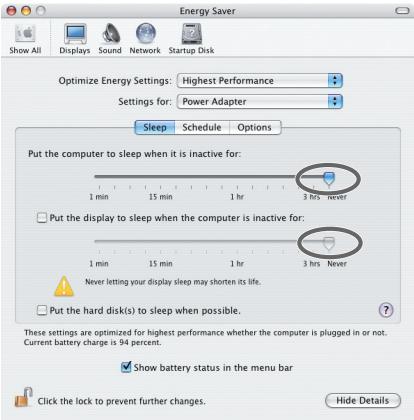
Click the Options tab.
If there is a Processor Performance setting, set it to Highest.
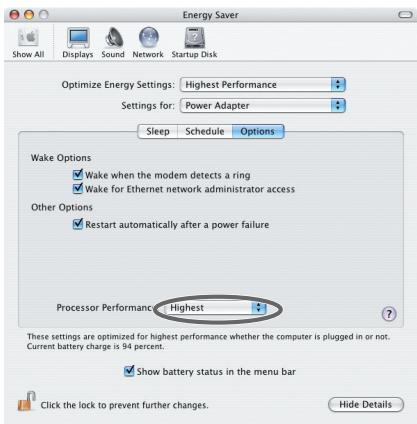
In Windows, Power Management settings in the Control Panel may cause clicks or pops to occur in the audio playback.
The power management properties that appear when you double-click Power Management will differ depending on your computer system. The explanation that follows is for a typical situation, but you should refer to the owner's manual for your computer to verify these settings.
Some computers may not have the following items.
- In the Windows Control Panel, double-click the System icon. The System Properties dialog box will appear.
- Click the Hardware tab.
- Click Device Manager to see the list of devices.
- From the list, choose Advanced Power Management Support, and click Properties.
The Advanced Power Management Support Properties dialog box will appear.
- Click the Settings tab, and in Troubleshooting, check the "Don't Poll Power Supply Status" check box. Then click [OK].
- In the System Properties dialog box, click [OK].
- Restart Windows.
Could two or more computers be connected to the FA-66 or to your mixer or audio devices?
Try connecting the FA-66 to only one computer. Check whether the noise disappears when the FA-66 is connected to only one computer. Connecting numerous audio devices to a computer may produce noise in some situations. If this occurs, connect only the FA-66 to your computer.
Are you using a FireWire (IEEE 1394) device in addition to the FA-66?
Try switching off FireWire (IEEE 1394) audio devices other than the FA-66.
If you have connected the FA-66 to an external FireWire (IEEE 1394) hard disk, please connect the FA-66 directly to an IEEE 1394 connector (FireWire connector, iLink connector, DV connector) on the computer itself.
In Windows, you may be able to solve the problem by adjusting the buffer size in the FA-66 Driver Settings dialog box.
Adjust the buffer size as described in "FA-66 Driver Settings dialog box (Windows)" (p. 46).
After changing the buffer size, you must restart any software that uses the FA-66. If your software has an audio device test function, execute the test function.
Use the Windows Device Manager to disable the 1394 Net Adaptor.
- In the Windows Control Panel, double-click the System icon. The System Properties dialog box will appear.
- Click the Hardware tab.
- Click Device Manager to see the list of devices.
- In the list, double-click Network Adapters. The 1394 Net Adaptor will appear.
- Double-click 1394 Net Adapter. The 1394 Net Adaptor Properties dialog box will appear.
- In Device Usage, choose "Do not use this device (disable)."
- Click [OK].
- Close the Device Manager.
- In the System Properties dialog box, click [OK] to close the dialog box.
Are numerous software programs running?
Playback may be interrupted if numerous software programs are running at the same time, or when you start up another software program. Close any unneeded software, and try again. If this does not solve the problem, try restarting your computer.
Clicks or pops may occur in the sound if a LAN is operating.
Try disabling the LAN in the Device Manager. If this eliminates the clicks or pops, you may be able to solve the problem by updating your LAN driver or BIOS.
Is the sample rate setting in your software the same as the FA-66's sample rate select switch setting?
Set your software and the FA-66 to the same sample rate.
If you switch the FA-66's sample rate, you must turn the power of the FA-66 off, then on again to get the setting to take effect.
Try adding memory.
Adding memory will improve the processing capability of your computer. For details on how to add memory, refer to the owner's manual of your computer.
If you are using a Macintosh, try pressing the FA-66's digital input switch.
Even if you aren't making use of digital input/output, problems with noise and sound dropout can sometimes be alleviated by switching the FA-66's digital input switch on and off.
Did you start up your Macintosh before connecting the FA-66?
If you're using Mac OS, operation may become unstable if you first connected the FA-66 to your Macintosh via a FireWire (IEEE 1394) cable and then started up your Macintosh.
You must start up your Macintosh first, and then connect the FA-66.
Is the FA-66 connected to a FireWire (IEEE 1394) hub?
Try connecting the FA-66 directly to the FireWire (IEEE 1394) connector of your computer itself.
Noise may be entering via the line inputs or mic inputs.
If a MIDI sound module with a FireWire (IEEE 1394) connector is connected via FireWire (IEEE 1394) to the same computer as the FA-66, and the output of the MIDI sound module is connected to the input jacks of the FA-66, noise from the computer may be heard via the MIDI sound module from the FA-66. In this case, you can either connect the MIDI sound module and FA-66 in parallel via a self-powered hub, or connect the MIDI sound module in series or via a MIDI interface.
Playback/recording stops midway, and subsequent playback/recording is not possible
While you were using the FA-66, could your computer have performed a task with a heavy processing load, such as accessing a CD-ROM drive or network?
If a heavy processing load occurs while the FA-66 is being used, it may not work correctly. In this case, stop playback/recording, and then start playback/recording once again. If you are still unable to play/record correctly, close all software that had been using the FA-66, and re-connect the FA-66.
Digitally recorded sound has distortion, the wrong pitch, or contains noise
Is the sample rate setting in your software the same as the sample rate of the digital device connected to the digital input connector?
Set your software and the FA-66 to the same sample rate.
If you switch the FA-66's sample rate, you must turn the power of the FA-66 off, then on again to get the setting to take effect.
Noise or distortion occurs when the FA-66 is not connected to your computer The sound is too weak
Noise is heard in the sound
Has a mic or guitar been left connected?
If a mic or guitar is connected to the FA-66, disconnect the mic or guitar and turn the input sensitivity knob all the way toward the left (lowering the input level).
Have you connected the grounding terminal?
Connecting the chassis of your computer or the grounding terminal of your computer's AC power cord to an electrical ground may solve the problem. Also, make sure that a device that produces a strong magnetic field, such as a television or microwave oven, is not located nearby.
Could numerous audio devices be connected?
Noise may occur if numerous audio devices are connected. Do not connect audio devices you are not using.
Sound is distorted
Is the output level indicator lit red?
If you are inputting sound via the combo input jacks, use the FA-66's input sensitivity knobs to lower the input level.
Sound of a device connected to the input jacks is distorted Insufficient volume from a device connected to the audio input/output. jacks
Is the input level appropriate?
If you are inputting audio via input jacks 3 and 4, use the FA-66's input level adjustment knob (rear panel) to adjust the input level. If you are inputting audio via the combo input jacks, use the input sensitivity knobs (front panel) to adjust the input level.
If you are inputting audio via the INPUT2 combo input jack, check the setting of the input impedance select switch.
Is the direct monitor volume set appropriately?
Adjust the volume as described in Direct Monitor Volume (p. 12).
A substantial amount of noise is present in the guitar sound
Does the noise decrease when you turn down the volume of your guitar?
If the noise decreases when you turn down the volume of your guitar, the guitar pickup may be affected by noise from your computer or display. Try locating the guitar as far away from the computer as possible.
Insufficient volume from your guitar
Are you using the correct jack?
Connect your guitar to the INPUT 2 combo input jack.
Is the input impedance select switch set correctly?
Set the input impedance select switch to Hi-Z.
Insufficient volume from a mic
Is the input level appropriate?
Turn the input sensitivity knob toward the right to adjust the input volume.
Others
Can't start the Cubase
The first time you use the FA-66 with Cubase, turn on the power with the FA-66's sample rate select switch at the 44.1 kHz position.
If this switch is not set to 44.1kHz , it may be impossible to start Cubase.
Main specifications
Number of Audio Record/Playback Channels
<44.1/48/96 kHz>
Record: 6 channels
Playback: 6 channels
(Full duplex)
<192 kHz>
Record: 4 channels
Playback: 4 channels
(Full duplex)
- Depending on the computer you are using, you may be unable to obtain sufficient performance.
Signal Processing
PC interface:24 bits
AD/DA Conversion:24 bits (linear)
Sampling Frequency
Digital output:44.1/48/96 kHz
Digital input:44.1/48/96 kHz
AD/DA Conversion:44.1/48/96/192 kHz
Frequency Response
96.0 kHz: 20 Hz to 40 kHz (+0/-2 dB)
48.0 kHz: 20 Hz to 22 kHz (+0/-2 dB)
44.1 kHz: 20 Hz to 20 kHz (+0/-2 dB)
Nominal Input Level
Input Jack 1-2 (XLR type): -50 to -10 dBu
Input Jack 1-2 (1/4 inch TRS phone type):-35 to +4 dBu
Input Jack 3-4: -10 dBu to +13 dBu (balanced)
- Nominal Output Level
Output Jack 1-4: +4 dBu (balanced)
Residual Noise Level
(input terminated with 1 k ohms, MAIN VOLUME: 0 dB, INPUT SENS: +4 dBU, DIRECT MONITOR VOLUME: OUT1/2 position, IHF-A typ., Balanced)
Output Jack 1-2: -95 dBu
S/N RATIO (Typical)
OUTPUT: 105 dB (typ.)
INPUT: 102 dB (typ.)
- Interface
Firewire (IEEE1394)
Digital input/output
Optical type (conforms to IEC60958)
MIDI IN/OUT
- Connectors
Input Jack 1-2 (XLR type / 1/4 inch TRS phone type)
XLR type (balanced / phantom power +48 V)
1/4 inch TRS phone type (balanced)
- Input jack 2 supports high impedance
Headphones Jack (Stereo 1/4 inch phone type)
Input Jack 3-4 (RCA pin type)
Output Jack 1-4 (1/4 inch TRS phone type (balanced))
Digital In Connector (Optical type)
Digital Out Connector (Optical type)
MIDI Connectors (In, Out)
FireWire Connectors (6 pins type, 4 pins type)
Power Supply
DC 9 V (AC adaptor)
- FireWire Bus Power
Current Draw
650mA
- Dimensions
6-1/2 (W) x 5-7/8 (D) x 1-3/4 (H) inches
Weight
0.65kg / 1lb7oz
- Accessories
Owner's Manual
CD-ROM
AC Adaptor
FireWire cable (6 pins to 6 pins, 6 pins to 4 pins)
(0dBu = 0.775Vrms)
- In the interest of product improvement, the specifications and/or appearance of this unit are subject to change without prior notice.
Numerics
4-pin connector 15
4-pin type 14
6-pin connector 15
6-pin type 14
A
AC adaptor jack 15
ASIO 30-31
Audio input device 30
Audio MIDI Setup 21
Audio output device 30
B
BUS 14
C
Combo input jacks 10
Cubase 45
D
Digital input connector 17
Digital input switch 11,38
Digital output connector 16
Digital Performer 43
direct monitor mixer section 12
direct monitor section 12
Direct monitor soft control switch 12, 37
Direct monitor volume 12,37-39
E
EDIROL FA-66 Driver settings 46
F
FireWire (IEEE 1394) cables 8
FireWire (IEEE 1394) connectors 15
G
Grounding terminal 14
H
Headphone jack 13
1
Input impedance select switch 10,36
Input jacks 17
Input level adjustment knob 17
Input sensitivity knob 37
Input sensitivity knobs 10
L
Limiter switch 16
Logic 44
M
Mac OS 18
Main output jacks 16
MIDI 30
MIDI IN 30
MIDI IN/OUT connectors 16
MIDI music playback 32
MIDI OUT 30
0
optical 16-17
Output indicator 11
Output jacks 16
Output volume 13
P
Peak/Limiter indicator 11
Phantom power switch 16,37
Power indicator 11
Power switch 14
s
Sample rate select switch 15,36,38
SONAR 40
Sound playback 32
Sound recording 32
STEREO/MONO select switch 12,36
Sync indicator 11
W
WDM 30-31
Windows 24
MEMO
MEMO
MEMO
-EDIROL
EUROPE
EDIROL (Europe) Ltd.
Studio 3.4.114 Power Road
London W4 5PY
U.K.
TEL-440(02)87475949 FAX-440(02)87475949
http://www.edirol.com/europe
Deutschland
TEL:070033476520
France
TEL:0810000371
Italy
ITA TEL:02-93778328
TEL:0293778329
Roland
NORTH AMERICA
CANADA
Roland Canada Music Ltd. (Head Office) 5480 Parkwood Way Ricum Street, Edmonton, CANADA TEL: (604) 270 6626
Roland Canada Music Ltd. (Toronto Office)
170 Admiral Boulevard
Mississauga ON LST 2N6
CANADA
TEL: (905) 362 9707
U.S.A.
Roland Corporation U.S. 5100 S. Eastern Avenue Los Angeles, CA 90040-2938, USA TEL: (323) 890 3700
AFRICA
EGYPT
A1 Fanny Trading Office 9, EBN Hagar A1 Akasyan Nagar 1, ARD E1 Golf, Helipolis, Cairo 11341,Egypt 2, EBN Hagar A1 Akasyan Nagar
REUNION
Maison FO-YAM Market 25 Rue Jules Hermann, Chaudron-BTP 979-491 971 St Clotilde Cedex, REUNION ISLAND TEL: (0622)218-429
SOUTH AFRICA
Paul Bothner (PTY) Ltd.
Royal Cape Park, Unit 24
Londonderry Road, Ottery 7800
UK
Tel: (021) 799 4900
TEL: (021) 799 4900
ASIA
CHINA
Roland Shanghai Electronics Co., Ltd.
5F, No.1501 Ringling East Road, Shanghai 20003, China
TEL: (021) 5580-0890
Roland Shanghai Electronics Co., Ltd. (BEijing OFFICE)
107. No. 18 3 Section Anth Chandra, 2nd Street, Beijing 10001 CHINA
TEL: (010) 6426-5050
Roland Shanghai Electronics Co., Ltd.
(GUANGZHOU OFFICE) 2/F, No.30, Si You Nan Er Yi Xiang, Wang Yang Xing Chi TEL: (020) 8736-0428 CHIN: (020) 8736-0428
HONG KONG
Parsons Music Ltd.
8th Floor, Railway Plaza, 39 Chatham Road South, T.S.T., London WC1N 2JX, UK
TEL: 2331 1863
INDIA
Rivera Digitec (India) Pvt. Ltd. 409, Nirman Kendra
Mahalaxmi Flats Compound Off. Dr. Edwin Moses Road, Mumbai-400011, INDIA
TEL: (022) 2493 9051
INDONESIA
PT Cira IntiRama
J1. Cideng Timur Noj. 15J-150
Jakarta Fusat
INDONIA
TEL: (021)6324170
KOREA
Cosmos Corporation
1461-9, Seocho-Dong,
Seono Chu, Seoul, KOREA
TEL: (02) 3486-8855
MALAYSIA/
SINGAPORE
Roland Asia Pacific Sdn. Bhd 45-1, Block C2, Jalan PUIJ 1/39
Dataran Prima, 47031 Petaling Jaya, Selangor, MALAYSIA
TEL: (03) 7805-3263
PHILIPPINES
G.A. Yupangco & Co. Inc. 339 GJ. Puyat Avenue
10000, Manila 120
PHILIPPINES
TEL: (02) 899 9801
TAIWAN
ROLDIAN TAWAN
TAWAN, R.O.C., LTD.
Room 5, 901, No. 12, Chung Shan N.R. Road Sec.2, Taipei,
TAIWAN, R.O.C.
Phone: (86 34) 27 1000
THAILAND
Theera Music Co., Ltd.
330 Soi Verong NakornKasam, New Road, Sumpantawongse, Thailand
(TEL: +82 2241 756 19)
(TEL: 021 2242 841)
VIETNAM
SAIGON MUSIC DISTRIBUTOR (TAN DINH MU) 138 Tran Quang KI Duong, 1. Ho Chi Minh City, Vietnam; TEL: (08) 848-4068
AUSTRALIA/ NEW ZEALAND
AUSTRALIA/
NEW ZEALAND
Roland Corporation Australia Pty., Ltd. 38 Campbell Avenue, The Royal North West, NSW 2009, AUSTRALIA
For Australia
Tel: (02) 9982 8266
Fax: (09) 3098 715
CENTRAL/LATIN AMERICA
ARGENTINA
Instrumentos Musicals S.A.
Avs Santa Fe 20513 (1123) Buenos Aires
ARGEN, Argentina
TEL: (011) 4508-2700
BARBADOS
A&b Music Supplies LTD 12 Webster Industrial Park Wildey, St.Michael, Barbados TEL: (246)430-1100
BRAZIL
Roland Brasil Ltda.
Rua San Jose, 780 Sala B
Parque Industrial San Jose
24-25 Rue de la Régie, 39, BRAZIL
TEL: (011) 4615 5666
CHILE
Commercial JFIS II.
Rut.: 96,919-420-1
Natianien Cox & Co., 4th Floor
Toll: (2) 688-688-307
OTU: (2) 688-685-940
COLOMBIA
Centro Muscia Ltda.
Cra 43 B No 25 A ai Bododega 9 Medellin, Colombia
TEL: (574)83125259
CURACAO
Zeelandia Music Center Inc.
Orionweg 30
Curacao, Netherland Antilles
TEL: (305)9576866
DOMINICAN REPUBLIC
Instrumentos Fernando Giraldze
Colle Proyecto Central No.3
Ers.La Esperilla
Santo Domingo, Dominican Republic
TEL(809) 683 0305
ECUADOR
Mus Musika Rumichaca B22 y Zaruma Guayaquil - Ecuador
GUATEMALA
Casa Instrumental Calzada Roosevelt 34-01-zona 11 Ciudad de Guatemala Guatemala
2007.09.2888
HONDURAS
Almacen Pajaro Azul S.A. de C.V.
BOP Parahonda
3 Ave. 111 Calle S.O.
Mexico Federal District of Honduras
TEL: (504) 552-8949
MARTINIQUE
AMR Ltd
Ground Floor
Maritime Plaza
2000 The Royal Road, Trinidad W.L.
TEL: (86)8636 6385
URUGUAY
Todol Musica S.A.
Francisco Acuna de Figueroa 1771
C.P.: 11,800
Universidad URBUGUAY
TEL: (02) 923-2444
VENEZUELA
Instrumentos Musicals
Allegro, C.A.
Avs.las installes edf Guiu import
Ghana
Eólica Industria de Turi
Caracas, Venezuela
TEL: (212) 244-1122
EUROPE
AUSTRIA
Roland Ireland
G2 Calmport Park, Calmout Avenue, Dublin 11
Avenue, Dublin
UK-60057, UK-ENLAND
TEL: (01) 4294444
ITALY
Roland Italy S.P.A.
Viale delle Industrie 8, 20020 Arese, Milano, ITALY
TEL: (02) 937-78300
NORWAY
Roland Scandinavia Avd. Kontor Norge
Lilleaerkreen 2 Postboks 95
Lilleaker N-0216 Oslo
Nordland
TEL:22730074
POLAND
MIX MUSIC SP.Z.O.O.
UL. Gibraltarska 4
PL-03664 Warsawzia POLAND
TEL: (022) 679 4419
PORTUGAL
Roland Iberia, S.L.
Portugal Office
Cais das Pedras, 8/9-1 Dto
Portoalgo, Portugal
TEL: 22 608 00 60
ROMANIA
FBS LINES
Plata Libertati 1, 355500 Chegherghni, BOCO
TEL: (266) 364 609
RUSSIA
MuTek Dorozhyna ul.3, korp.6 117 545 Moscow, RUSSIA TEL: (095) 981-4967 SPAIN
Roland Iberia, S.L.
Paseo Garcia Faria, 33-45
08005 Barcelona SPAIN
Tel: 93 493 91 00
SWEDEN
Roland Scandinavia A/S
SWEDISH SALES OFFIC
Danish Devic 28, Nr. 3
SAPENBERG 1000-4567
TEL: (08) 702 00 20
SWITZERLAND
Roland (Switzerland) AC Landstrasse 5, Postfach, 4013 Hallein, Switzerland
TEL: (061) 927-8838
UKRAINE
TIC-TAC
Mira Str. 19/1, P.O. Box 180
Kurashiki, Ukraine
TEL: (03131) 414-40
UNITED KINGDOM
Roland (U.K.) Ltd.
Atlantic Close, Swansea
Enterprise Park, SWANSEA
SA7 9F
UNITED KINGDOM
TE1: (0129)702701
MIDDLE EAST
BAHRAIN
Moon Stores
No.16, Bab Al Bahram Avenue, P.O. Box 247, Manama 304, Pakistan
State of Bahrain
TEL: 17:21 0005
CYPRUS
Radex Sound Equipment Ltd. 17, Diagorou Street, Nicosia, CYPRUS. TEL: (022) 66-9426
IRAN
MOOC INC.
No.41 Nike St., Dr.Shariyati Ave,
Boromoera Corheir Mirdamad
Teheran, India
TEL: (021) 285-4169
ISRAEL
Hailitt P. Greemospon & Sons Ltd.
8 Retzaf-Altay Hashinya St.
10 2345 East York Road, AELT
TEL: (03) 68236662
JORDAN
MUSIC HOUSE CO. LTD.
FREDDY FOR MUSIC
P.O. Box 923546
1-2000 BORDAN
TEL: (06) 5092696
KUWAIT
EASA HUSAIN AL-YOSIFI & SONS CO.
Abraham Salim Street, Salat, KIWI, KIWI
TEL: +234-6391
LEBANON
Chahine S.A.L.
Gerge Zeldan, St. Chahine
Agrar, Arafachst, P.O.Box 16-58
Beirut, LEbanON
Tel: +942-307-1022
OMAN
TALENTZ CENTRE L.L.C.
Malatlan House No.1
Al Norr Street, Ruvi
Kurukaya 2, 3, 4, 5, 6, 7, 8, OMAN
TEL: 2478 3443
QATAR
Badie Studio & Stores P.O.Box 62, Doha, QATAR Tel:423554
SAUDI ARABIA
aDawiah Universal Electronics APL Corricle Road, Alda Street, 10005 SAUDI ARABIA
P.O Box 2154, Alkohar 31952 SAUL, CA
SYRIA
Technical Light & Sound Center Rawda, Abdul Qader Jazairi St. Bldg.No.21,P.O.BOX 13520 Damascus, SYRIA Tel: (011)223-5384
TURKEY
ZUHAI DEL DIS TICARET A.S.
Galip Dede Cad. No.37
Beyoglu - Istanbul / TURKEY
TEL: (021) 249 8510
U.A.E.
Zak Electronics & Musical Instruments Co. L.L.C. Zabeed Road, Al Sheroo Bldg., No.14, Grand Floor, Dubai, U.A.E. TEL: (04) 3360715
As of December 10, 2005 (EDIROL-1)
- FireWire AudioCapture
- FA-66
- OWNER'S MANUAL
- FEDERAL COMMUNICATIONS COMMISSION RADIO FREQUENCY INTERFERENCE STATEMENT
- NOTICE
- AVIS
- DECLARATION OF CONFORMITY Compliance Information Statement
- USING THE UNIT SAFELY
- INSTRUCTIONS FOR THE PREVENTION OF FIRE, ELECTRIC SHOCK, OR INJURY TO PERSONS
- ALWAYS OBSERVE THE FOLLOWING
- WARNING
- CAUTION
- Power Supply
- Placement
- Maintenance
- Additional Precautions
- Handling CD-ROMs
- Copyright
- AC adaptor
- FireWire (IEEE 1394) cables
- CD-ROM
- You will need to provide these items yourself
- An external amp, speakers, headphones, and mic are not included
- An MD or DAT recorder and digital input/output cables are not included
- Front panel
- Combo input jacks
- Input sensitivity knobs
- Input impedance select switch
- Peak/Limiter indicator
- Power indicator
- Output indicator
- Digital input switch
- Sync indicator
- STEREO/MONO select switch (direct monitor section)
- Direct monitor soft control switch (direct monitor mixer section)
- Direct monitor volume (direct monitor section)
- Output volume
- Headphone jack
- Rear panel
- Grounding terminal
- Unsuitable places for connection
- Power switch
- BUS
- 6-pin type
- 4-pin type
- AC adaptor jack
- FireWire (IEEE 1394) connectors
- - 6-pin connector
- 4-pin connector
- Sample rate select switch
- [ Limitations when using the FA-66 at 192 kHz ]
- Phantom power switch
- Limiter switch
- 21.Output jacks 3,4 (Nominal output: +4 dBu)
- Main output jacks (output jacks 1, 2) (Nominal output: +4 dBu)
- MIDI IN/OUT connectors
- Digital output connector (optical)
- Digital input connector (optical)
- Input jacks 3-4
- Input level adjustment knob
- Before you begin using the FA- 66 with your Macintosh (Mac OS X users)
- Audio and MIDI settings
- Audio settings
- MEMO
- Cautions for use
- MIDI settings
- 1
- Checking that you hear sound
- About the demo songs
- for Cubase folder
- for Logic folder
- Software settings
- Installing the driver (Windows)
- What is a driver?
- Software Installation
- 11
- 12
- 13
- 14
- 15
- 16
- 17
- 18
- If a dialog box with the "!" symbol appears...
- If a dialog box with the "X" symbol appears...
- 19
- Giving priority to background services
- Driver settings
- About the input and output devices
- Audio devices
- MIDI devices
- WDM
- ASIO
- Input/output device settings
- for SONAR folder
- Basic connections and settings
- Basic connections
- Recording a mic or guitar
- Connections
- Sample rate select switch
- Input impedance select switch
- STEREO/MONO select switch (direct monitor section)
- Direct monitor soft control switch
- Direct monitor volume
- Phantom power switch
- Input sensitivity knob
- Other notes
- Recording a digital signal
- Digital input switch
- Connecting various types of equipment
- SONAR 4
- Digital Performer
- Logic
- Cubase SX/SL
- FA-66 Driver Settings dialog box (Windows)
- Re-start the software that is using the FA-66.
- Play back audio data on your software.
- Driver-related problems (Windows)
- Can't install the driver correctly
- Are you attempting to install from a networked CD-ROM drive?
- Could the CD-ROM or the lens of your CD-ROM drive be dirty?
- Are the power conservation settings of your computer turned off?
- Is there enough free space on your hard disk?
- Is the FireWire (IEEE 1394) connector enabled on your computer?
- Does your computer or FireWire (IEEE 1394) repeater hub have a sufficient power supply?
- Does your computer meet the FireWire (IEEE 1394) specification?
- Can't install/uninstall the driver
- Did you log onto Windows as a user with administrative privileges?
- Did you make the "Driver Signing Options" setting?
- Windows displays an "Installing Hardware," "Did not find digital signature" dialog box.
- The "Welcome to the Found New Hardware Wizard" dialog box appears even though you installed the driver.
- Did you connect the FA-66 to a different FireWire (IEEE 1394) connector than the one you used when installing the driver?
- No sound
- Can't record or play back audio or MIDI No sound
- Are the volume controls of the FA-66 set appropriately?
- Is your audio playback system (e.g., stereo) connected correctly?
- Did you connect/disconnect the FireWire (IEEE 1394) cable or cycle the power to the FA-66 while your software was running?
- Could your computer have entered Standby (Suspend) or Sleep mode?
- Have you specified the audio and MIDI data output destination in the operating system?
- Is the driver installed correctly?
- Are you running numerous software programs?
- Is the FA-66's sample rate set to a rate other than 192kHz ?
- Are your input/output devices connected correctly?
- Could the FA-66 have been connected when you started up the computer?
- A device connected to the input jacks can't be heard through headphones
- Sounds from the computer are not heard from the FA-66
- Recording produces a silent file
- Can't record from a digital connection
- Can't play/record 24-bit audio data
- Noise or pops are heard when recording/ playing on your computer
- In Macintosh, check the Energy Saver settings.
- In Windows, Power Management settings in the Control Panel may cause clicks or pops to occur in the audio playback.
- Could two or more computers be connected to the FA-66 or to your mixer or audio devices?
- Are you using a FireWire (IEEE 1394) device in addition to the FA-66?
- In Windows, you may be able to solve the problem by adjusting the buffer size in the FA-66 Driver Settings dialog box.
- Are numerous software programs running?
- Clicks or pops may occur in the sound if a LAN is operating.
- Is the sample rate setting in your software the same as the FA-66's sample rate select switch setting?
- Try adding memory.
- If you are using a Macintosh, try pressing the FA-66's digital input switch.
- Did you start up your Macintosh before connecting the FA-66?
- Is the FA-66 connected to a FireWire (IEEE 1394) hub?
- Noise may be entering via the line inputs or mic inputs.
- Playback/recording stops midway, and subsequent playback/recording is not possible
- While you were using the FA-66, could your computer have performed a task with a heavy processing load, such as accessing a CD-ROM drive or network?
- Digitally recorded sound has distortion, the wrong pitch, or contains noise
- Is the sample rate setting in your software the same as the sample rate of the digital device connected to the digital input connector?
- Noise or distortion occurs when the FA-66 is not connected to your computer The sound is too weak
- Noise is heard in the sound
- Has a mic or guitar been left connected?
- Have you connected the grounding terminal?
- Could numerous audio devices be connected?
- Sound is distorted
- Is the output level indicator lit red?
- Sound of a device connected to the input jacks is distorted Insufficient volume from a device connected to the audio input/output. jacks
- Is the input level appropriate?
- Is the direct monitor volume set appropriately?
- A substantial amount of noise is present in the guitar sound
- Does the noise decrease when you turn down the volume of your guitar?
- Insufficient volume from your guitar
- Insufficient volume from a mic
- Others
- Can't start the Cubase
- Main specifications
- Number of Audio Record/Playback Channels
- Signal Processing
- Sampling Frequency
- Frequency Response
- Nominal Input Level
- - Nominal Output Level
- Residual Noise Level
- S/N RATIO (Typical)
- - Interface
- - Connectors
- Current Draw
- - Dimensions
- Weight
- - Accessories
- Numerics
- A
- B
- C
- D
- E
- F
- G
- H
- L
- M
- 0
- P
- s
- W
- -EDIROL
- EUROPE
- Roland
- NORTH AMERICA
- CANADA
- U.S.A.
- AFRICA
- EGYPT
- REUNION
- SOUTH AFRICA
- ASIA
- CHINA
- HONG KONG
- INDIA
- INDONESIA
- KOREA
- MALAYSIA/
- PHILIPPINES
- TAIWAN
- THAILAND
- VIETNAM
- AUSTRALIA/ NEW ZEALAND
- AUSTRALIA/
- NEW ZEALAND
- CENTRAL/LATIN AMERICA
- ARGENTINA
- BARBADOS
- BRAZIL
- CHILE
- COLOMBIA
- CURACAO
- DOMINICAN REPUBLIC
- ECUADOR
- GUATEMALA
- HONDURAS
- MARTINIQUE
- URUGUAY
- VENEZUELA
- AUSTRIA
- ITALY
- NORWAY
- POLAND
- PORTUGAL
- ROMANIA
- RUSSIA
- SWEDEN
- SWITZERLAND
- UKRAINE
- UNITED KINGDOM
- MIDDLE EAST
- BAHRAIN
- CYPRUS
- IRAN
- ISRAEL
- JORDAN
- KUWAIT
- LEBANON
- OMAN
- QATAR
- SAUDI ARABIA
- SYRIA
- TURKEY
- U.A.E.
Brand : ROLAND
Model : FA-66
Category : Audio Interface