
UA-3 - Audio Interface ROLAND - Free user manual and instructions
Find the device manual for free UA-3 ROLAND in PDF.



| Product Type | USB Audio Interface |
| Brand | Roland |
| Model | UA-3 |
| Dimensions (approx.) | 200 x 150 x 50 mm |
| Weight (approx.) | 0.5 kg |
| Power Supply | USB bus power (5V, powered by computer) |
| Analog Inputs | 1 x Mic (6.35 mm jack, with dynamic/condenser PIP switching), 2 x Line (RCA jack), 1 x Guitar (6.35 mm jack) |
| Analog Outputs | 2 x Line (RCA jack), 1 x Headphone (6.35 mm stereo jack) |
| Digital Input | 1 x Optical (TOSLINK) |
| Digital Output | 1 x Optical (TOSLINK) |
| Main Functions | Stereo audio recording and playback, partial SCMS support, D-Out Smoother for smooth digital output, input selection (digital or analog) |
| Compatible Operating Systems | Windows 98/Me/2000, Mac OS (drivers built-in) |
| Connection | USB (cable included) |
| Maintenance and Cleaning | Disconnect the device, clean with a dry, soft cloth. Do not use solvents. |
| Safety | Do not open, do not expose to moisture, use only the supplied USB cable, observe volume guidelines. |
| Spare Parts and Repairability | The USB cable is supplied; no other spare parts are listed. Have it repaired by a Roland-authorized technician. |
| General Information | USB 1.0/1.1 audio interface, sampling frequency 44.1/48 kHz, 16-bit resolution, not ASIO compatible on Mac, SCMS copy protection. |
Frequently Asked Questions - UA-3 ROLAND
User questions about UA-3 ROLAND
0 question about this device. Answer the ones you know or ask your own.
Ask a new question about this device
Download the instructions for your Audio Interface in PDF format for free! Find your manual UA-3 - ROLAND and take your electronic device back in hand. On this page are published all the documents necessary for the use of your device. UA-3 by ROLAND.
USER MANUAL UA-3 ROLAND
Owner's Manual page 5
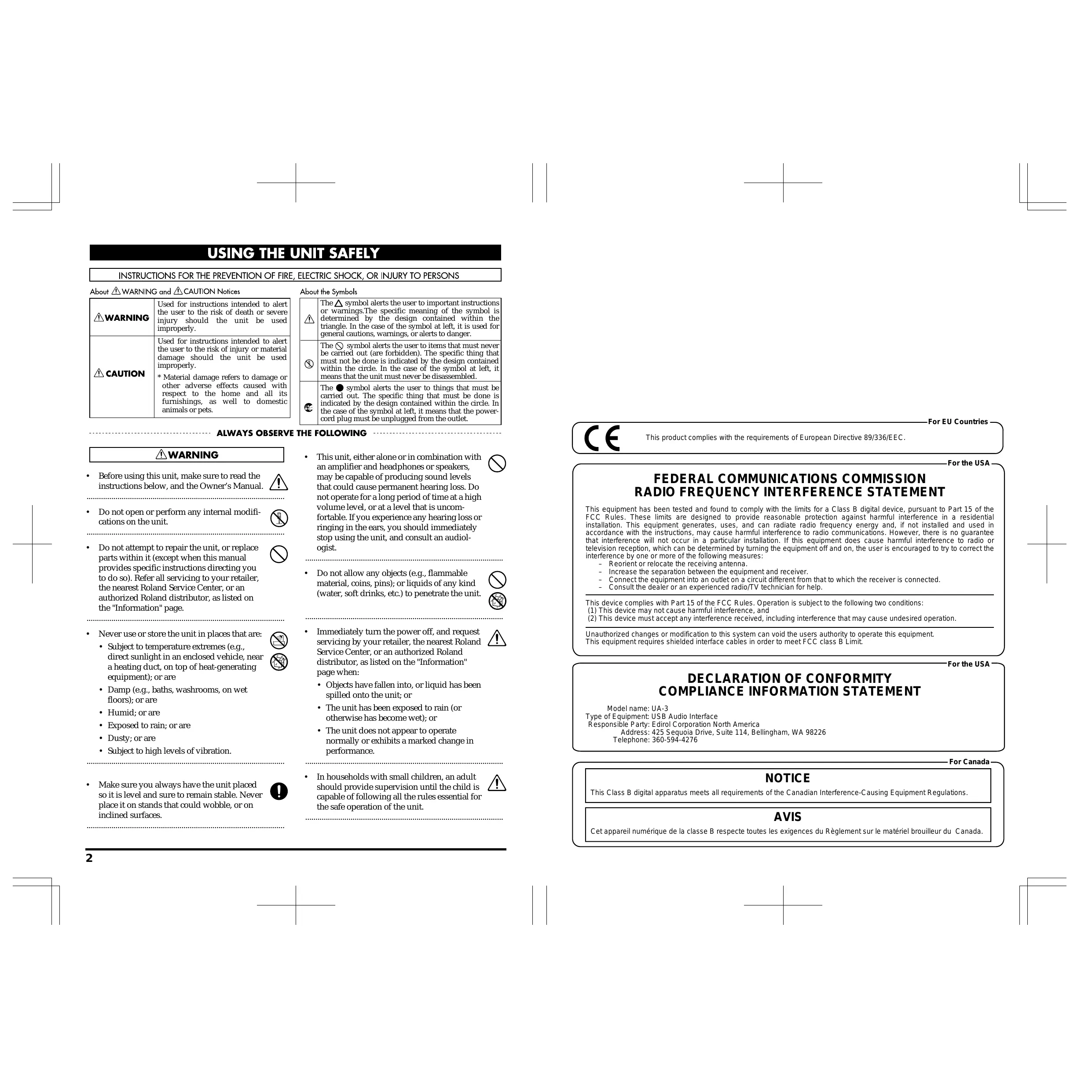
Before using this unit, carefully read the sections entitled: "USING THE UNIT SAFELY" and "IMPORTANT NOTES" (p. 2, p. 4). These sections provide important information concerning the proper operation of the unit. Additionally, in order to feel assured that you have gained a good grasp of every feature provided by your new unit, Getting Started manual should be read in its entirety. The manual should be saved and kept on hand as a convenient reference.
USING THE UNIT SAFELY
INSTRUCTIONS FOR THE PREVENTION OF FIRE, ELECTRIC SHOCK, OR INJURY TO PERSONS
About ⚠️ WARNING and ⚠️ CAUTION Notices
| ⚠ WARNING | Used for instructions intended to alert the user to the risk of death or severe injury should the unit be used improperly. |
| ⚠ CAUTION | Used for instructions intended to alert the user to the risk of injury or material damage should the unit be used improperly.* Material damage refers to damage or other adverse effects caused with respect to the home and all its furnishings, as well to domestic animals or pets. |
About the Symbols
| The △ symbol alerts the user to important instructions or warnings. The specific meaning of the symbol is determined by the design contained within the triangle. In the case of the symbol at left, it is used for general cautions, warnings, or alerts to danger. | |
| The ⊙ symbol alerts the user to items that must never be carried out (are forbidden). The specific thing that must not be done is indicated by the design contained within the circle. In the case of the symbol at left, it means that the unit must never be disassembled. | |
| The ● symbol alerts the user to things that must be carried out. The specific thing that must be done is indicated by the design contained within the circle. In the case of the symbol at left, it means that the power-cord plug must be unplugged from the outlet. |
ALWAYS OBSERVE THE FOLLOWING
! WARNING
- Before using this unit, make sure to read the instructions below, and the Owner's Manual.

- Do not open or perform any internal modifications on the unit.

- Do not attempt to repair the unit, or replace parts within it (except when this manual provides specific instructions directing you to do so). Refer all servicing to your retailer, the nearest Roland Service Center, or an authorized Roland distributor, as listed on the "Information" page.

• Never use or store the unit in places that are:
- Subject to temperature extremes (e.g., direct sunlight in an enclosed vehicle, near a heating duct, on top of heat-generating equipment); or are
- Damp (e.g., baths, washrooms, on wet floors); or are
- Humid; or are
- Exposed to rain; or are
- Dusty; or are
- Subject to high levels of vibration.
- Make sure you always have the unit placed so it is level and sure to remain stable. Never place it on stands that could wobble, or on inclined surfaces.


- This unit, either alone or in combination with an amplifier and headphones or speakers, may be capable of producing sound levels that could cause permanent hearing loss. Do not operate for a long period of time at a high volume level, or at a level that is uncomfortable. If you experience any hearing loss or ringing in the ears, you should immediately stop using the unit, and consult an audiologist.

- Do not allow any objects (e.g., flammable material, coins, pins); or liquids of any kind (water, soft drinks, etc.) to penetrate the unit.

- Immediately turn the power off, and request servicing by your retailer, the nearest Roland Service Center, or an authorized Roland distributor, as listed on the "Information" page when:

- Objects have fallen into, or liquid has been spilled onto the unit; or
- The unit has been exposed to rain (or otherwise has become wet); or
- The unit does not appear to operate normally or exhibits a marked change in performance.
- In households with small children, an adult should provide supervision until the child is capable of following all the rules essential for the safe operation of the unit.

- Protect the unit from strong impact. (Do not drop it!)

- DO NOT play a CD-ROM disc on a conventional audio CD player. The resulting sound may be of a level that could cause permanent hearing loss. Damage to speakers or other system components may result.

CAUTION
- Try to prevent cords and cables from becoming entangled. Also, all cords and cables should be placed so they are out of the reach of children.

- Never climb on top of, nor place heavy objects on the unit.

- Disconnect all cords coming from external devices before moving the unit.

- Should you remove the optical connector caps, make sure to put them in a safe place out of children's reach, so there is no chance of them being swallowed accidentally.

* Microsoft and MS-DOS are registered trademarks of Microsoft Corporation.
* Microsoft, Windows, and Windows NT are registered trademarks of Microsoft Corporation.
* Windows® 95 is known officially as: “Microsoft® Windows® 95 operating system.”
* Windows® 98 is known officially as: “Microsoft® Windows® 98 operating system.”
* Windows NT® is known officially as: “Microsoft® Windows NT® operating system.”
* Windows Me® is known officially as: “Microsoft® Windows ® Millennium version operating system.”
* Screen shots reprinted with permission from Microsoft Corporation.
* Windows® 2000 is known officially as: “Microsoft® Windows® 2000 operating system.”
* Apple is a registered trademark of Apple Computer, Inc.
* Macintosh is a registered trademark of Apple Computer, Inc.
* MacOS is a trademark of Apple Computer, Inc.
* Pentium is a registered trademark of Intel Corporation.
* MMX is a trademark of Intel Corporation.
* All product names mentioned in this document are trademarks or registered trademarks of their respective owners.
- The explanations in this manual include illustrations that depict what should typically be shown by the display. Note, however, that your unit may incorporate a newer, enhanced version of the system (e.g., includes newer sounds), so what you actually see in the display may not always match what appears in the manual.
In addition to the items listed under “USING THE UNIT SAFELY” on page 2, please read and observe the following:
Power Supply
- Before connecting this unit to other devices, turn off the power to all units. This will help prevent malfunctions and/or damage to speakers or other devices. (It is not necessary to turn off the power of your computer.)
Placement
- Using the unit near power amplifiers (or other equipment containing large power transformers) may induce hum. To alleviate the problem, change the orientation of this unit; or move it farther away from the source of interference.
- This device may interfere with radio and television reception. Do not use this device in the vicinity of such receivers.
- Do not expose the unit to direct sunlight, place it near devices that radiate heat, leave it inside an enclosed vehicle, or otherwise subject it to temperature extremes. Excessive heat can deform or discolor the unit.
- To avoid possible breakdown, do not use the unit in a wet area, such as an area exposed to rain or other moisture.
Maintenance
- For everyday cleaning wipe the unit with a soft, dry cloth or one that has been slightly dampened with water. To remove stubborn dirt, use a cloth impregnated with a mild, non-abrasive detergent. Afterwards, be sure to wipe the unit thoroughly with a soft, dry cloth.
- Never use benzine, thinners, alcohol or solvents of any kind, to avoid the possibility of discoloration and/or deformation.
Additional Precautions
- Use a reasonable amount of care when using the unit's buttons, sliders, or other controls; and when using its jacks and connectors. Rough handling can lead to malfunctions.
- When connecting / disconnecting all cables, grasp the connector itself—never pull on the cable. This way you will avoid causing shorts, or damage to the cable's internal elements.
- To avoid disturbing your neighbors, try to keep the unit's volume at reasonable levels. You may prefer to use headphones, so you do not need to be concerned about those around you (especially when it is late at night).
- When you need to transport the unit, package it in the box (including padding) that it came in, if possible. Otherwise, you will need to use equivalent packaging materials.
- Use a cable from Roland to make the connection. If using some other make of connection cable, please note the following precautions.
- Some connection cables contain resistors. Do not use cables that incorporate resistors for connecting to this unit. The use of such cables can cause the sound level to be extremely low, or impossible to hear. For information on cable specifications, contact the manufacturer of the cable.
- Before you open the included CD-ROM, you must read the "license agreement." Opening the CD-ROM will be taken to mean your acceptance of the license agreement.
Handling CD-ROMs
- Avoid touching or scratching the shiny underside (encoded surface) of the disc. Damaged or dirty CD-ROM discs may not be read properly. Keep your discs clean using a commercially available CD cleaner.
Unauthorized recording, distribution, sale, lending, public performance, broadcasting, or the like, in whole or in part, of a work (musical composition, video, broadcast, public performance, or the like) whose copyright is held by a third party is prohibited by law.
When exchanging audio signals through a digital connection with an external instrument, this unit can perform recording without being subjected to some of the restrictions of the Serial Copy Management System (SCMS). This is because the unit is intended solely for musical production, and is designed not to be subject to restrictions as long as it is used to record works (such as your own compositions) that do not infringe on the copyrights of others. (SCMS is a feature that prohibits second-generation and later copying through a digital connection. It is built into MD recorders and other consumer digital-audio equipment as a copyright-protection feature.)
On the UA-3
The UA-3 will function with partial SCMS support only for a digital input signal from an external device. When data containing SCMS flags is input, for example from a MD that was digitally copied from a commercial music CD, the UA-3 will function as follows.
If input from the UA-3's digital input connector:
• The UA-3 cannot record this data to your computer
- The audio will be output from the analog outputs (line output jacks, headphone jack) and digital output connector.
If input from the UA-3's analog inputs (line input jacks):
• Recording can occur normally

Regardless of the presence or absence of the SCMS flag, data that is received at the digital input connector of the UA-3 will be output directly from the digital output connector.
Do not use this unit for purposes that could infringe on a copyright held by a third party. Roland assumes no responsibility whatsoever with regard to any infringements of third-party copyrights arising through your use of this unit.
This device does not support digital audio signals that are formatted for broadcast studio digital audio devices.

The UA-3 operates according to SCMS only for digital input signals from an external device. SCMS flags are not added to the digital audio signals that are output from the UA-3.
Check the contents of the package
The UA-3 includes the following items. When you open the package, first make sure that all items are included. If any are missing, contact the dealer where you purchased the UA-3.
UA-3
USB cable
Use this to connect the UA-3 to the USB connector of your computer. For details on connections, refer to Connections and driver installation (Windows p. 8, Macintosh p. 17).

Use only the included USB cable.
AUDIO Capture CD-ROM
This contains software that you will need in order to use the UA-3.
* Be sure to read the Readme_E.txt file found in the AUDIO Capture CD-ROM. Any updated information will be provided in the Readme_E.txt file.

- Before opening the included CD-ROM, you must read the separate license agreement.
- Do not touch the silver recording surface of the disc, or scratch it. Doing so may make it impossible for data to be read correctly. If the disc becomes soiled, use a commercially available CD cleaner to clean it.
- Do not play back the CD-ROM on a conventional audio CD player. Doing so will produce a high volume that may damage your ears or speakers.
Getting Started
This is the document you are reading. Keep it at hand for reference when needed.
License agreement
This contract describes the terms under which Roland Corporation allows you to use the software. You must read this before opening the CD-ROM package.
You will need to provide these items yourself
External amp, speakers, headphones, and mic are not included
External amp, speakers, or headphones necessary for listening to the sound output via the UA-3 are not included. Nor is a mic included for inputting sound to the UA-3. You will need to provide these items yourself.
Digital input/output cables for connecting the MD or DAT recorder are not included
Although you can use an MD or DAT digital recorder to perform digital recording, the cables for connecting the recorder to the UA-3 are not included. You will need to provide these separately.
Parts of the UA-3 and their function
MEMO
- Condenser Mic
The UA-3 supports small multimedia microphones used for adding narration, and is compatible with plug-in powered monaural microphones.
- If you are recording only from the line inputs, disconnect the cables from the Guitar input jack and the Mic input jack.
NOTE
- The UA-3 is not compatible with the phantom-powered, condenser microphones typically used for music. It is also incompatible with the stereo microphones sometimes supplied with MDs.
- You cannot play back computer audio data when DIGITAL is selected.
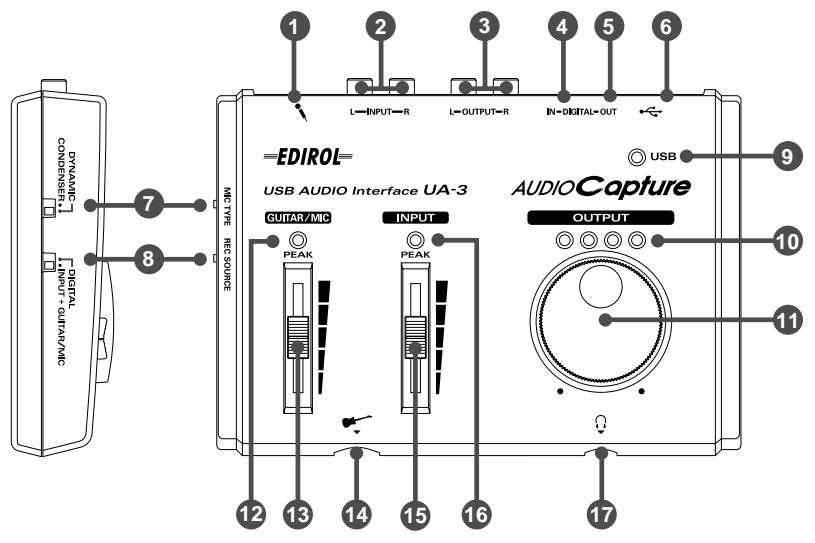
1 Mic input jack
2 Line input jacks
3 Line output jacks
4 Digital input connector (optical)
5 Digital output connector (optical)
6 USB connector
7 Mic type select switch
Set this switch according to a type of mic that is connected to the Mic input jack 1.
When connecting a dynamic mic: “DYNAMIC” When connecting a condenser mic: “CONDENSER”
8 Recording input select switch
This selects the input that will be used for recording.
Digital input connectors ^4 : “DIGITAL”
Mic input jack ① / Line input jacks ② / Guitar input jack ⑭ :“INPUT + GUITAR/MIC”
9 USB indicator
This will light when the UA-3 is connected and recognized to the computer.
10 Output level indicator
The number of LED's that light changes according to the output level from the Headphone jack 17 and the Line output jacks 3. If the red LED lights, use the Line output volume 11 to lower the volume.
11 Line output volume
This adjusts the volume that is output from the Headphone jack 17 and the Line output jacks 3.
12 Guitar/Mic input peak indicator
If the input level from the Guitar input jack ^14 and the Mic input jack ^1 is excessive, it will light red. If it lights red, use the Guitar/Mic input adjustment slider ^13 to lower the input level.
13 Guitar/Mic input adjustment slider
This slider adjusts the input level of the Guitar input jack 14 and the Mic input jack 1.
14 Guitar input jack
15 Line input adjustment slider
This slider adjusts the input level of the Line input jacks ②.
16 Line input peak indicator
If the input level from the Line input jacks ② is excessive, it will light red. If it lights red, use the Line input adjustment slider ⑮ to lower the input level.
17 Headphone jack
A set of headphones can be connected here. Even if headphones are connected, sound will still be output from the Line output jacks 3.
* For details on how each control and connector are actually used, refer to UA-3 Application Guide (p. 110).
* If you are a Macintosh user, refer to p. 17.
In order to use the UA-3, you must first install the USB Composite Device driver, the USB Human Interface driver, and the USB Audio Device driver consecutively. These drivers are included with Windows. If you are using Windows 98, this driver is provided in the Microsoft Windows CD-ROM, so you will need to have the Microsoft Windows CD-ROM ready. If you are using Windows Me or 2000, the CD-ROM is not necessary.
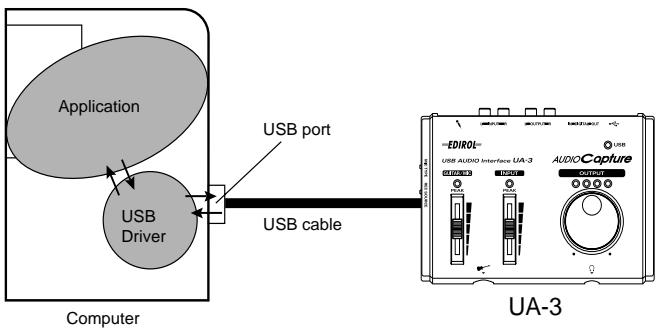
What is a driver?
A driver is software that allows an application program running on your computer to transfer data to and from the UA-3 when it is connected to your computer via a USB cable. The driver passes data from the application to the UA-3, and passes data from the UA-3 to the application.
flowchart
graph LR
    A["Application"] --> B["USB Driver"]
    B --> C["USB port"]
    C --> D["USB cable"]
    D --> E["UA-3"]
    style A fill:#ccc,stroke:#333
    style B fill:#ccc,stroke:#333
    style C fill:#ccc,stroke:#333
    style D fill:#ccc,stroke:#333
    style E fill:#ccc,stroke:#333

Before installing the driver
- The UA-3 cannot be used with Windows 95 or Windows NT.
- If other Windows programs are running, exit all of them before you continue.
- If you will be simultaneously connecting multiple Roland USB devices (for example; the UA-3 and other USB devices such as the UA-100G) to your computer, disconnect the UA-100G or other devices from the USB connector before installing the driver. If you install the driver when the UA-100G or other devices are connected, installation may not occur correctly.
Making connections and installing the driver
■ Making connections
Always make sure to have the volume level turned down before connecting the UA-3. Even with the volume all the way down, you may still hear some sound when the power is switched on, but this is normal, and does not indicate a malfunction.
To prevent malfunction and/or damage to speakers or other devices, always turn down the volume, and turn off the power of all devices before making any connections. (It is not necessary to turn off the power of your computer.) Use a USB cable to connect the UA-3 to your computer before turning on the power of your audio equipment.

flowchart
graph TD
    A["Stereo Set Powered Speaker etc."] -->|LINE IN, AUX IN| B["EDIROL USB AUDIO Interface UA-3"]
    B --> C["Audio Cable"]
    C --> D["Computer USB port"]
    D --> E["USB cable"]
    E --> F["USB port"]
    B --> G["UA-3"]
    G --> H["Stereo Headphones"]
    B --> I["OUTPUT"]
    I --> J["OUTPUT"]
    B --> K["OUTPUT"]
    B --> L["OUTPUT"]
    B --> M["OUTPUT"]
    B --> N["OUTPUT"]
    B --> O["OUTPUT"]
    style B fill:#f9f,stroke:#333
    style D fill:#ccf,stroke:#333
    style E fill:#cfc,stroke:#333
    style F fill:#fcc,stroke:#333
    style G fill:#cff,stroke:#333
    style H fill:#ffc,stroke:#333
    style I fill:#cfc,stroke:#333
    style J fill:#cfc,stroke:#333
    style K fill:#cfc,stroke:#333
    style L fill:#cfc,stroke:#333
    style M fill:#cfc,stroke:#333
    style N fill:#cfc,stroke:#333

- Before disconnecting the USB cable or restarting Windows, please close all applications. You should also turn down the volume of any audio or amp system that is connected.
- This unit is equipped with a protection circuit. A brief interval (a few seconds) after connecting a USB connector is required before the unit will operate normally.
■ Installing the driver (Windows Me)
* If you are using a Windows 2000 machine, refer to p. 9, if Windows 98, refer to p. 9.
1. Turn on the power of your computer and start up Windows, and use a USB cable to connect the UA-3 to your computer.
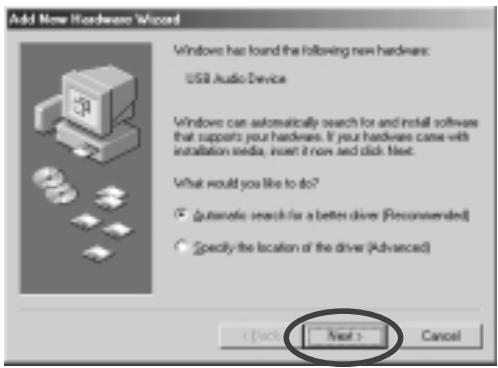
2. When Windows detects the UA-3 and the Add New Hardware Wizard dialog box appears, make sure "Automatic search for a better driver (Recommended)" is selected, then click [Next].

Some time may be required until this dialog box appears
- The search for the driver starts.
- When the correct driver is found, driver installation starts.
- When a dialog box informing you that driver installation has finished appears, click [Finish], and restart Windows.
After installing the driver, refer to Specifying the audio input/output device (p. 12) and select the device Windows uses.
* Depending on your computing setup, there may be a short wait after the driver is installed until the device is recognized.
■ Installing the driver (Windows 2000)
* If you are using a Windows Me machine, refer to p. 9, if Windows 98, refer to p. 9.
- Turn on the power of your computer and start up Windows.
- Use a USB cable to connect the UA-3 to your computer. The UA-3 is recognized to the computer and the driver is installed all automatically.
- After installing the driver, restart Windows.
■ Installing the driver (Windows 98)
* If you are using a Windows Me machine, refer to p. 9, if Windows 2000, refer to p. 9.
Installation must be performed in the order of the USB Composite Device driver, USB Human Interface Device driver, and then the USB Audio Device driver. Use the following procedure to perform the installation.
- Turn on the power of your computer and start up Windows. Insert the Microsoft Windows CD-ROM into your CD-ROM drive, and use a USB cable to connect the UA-3 to your computer (p. 8).

Since some computers are sold with the contents of the Microsoft Windows CD-ROM already in the hard disk, a Microsoft Windows CD-ROM may not have been included. If this is the case, you will be able to install the driver without the Microsoft Windows CD-ROM
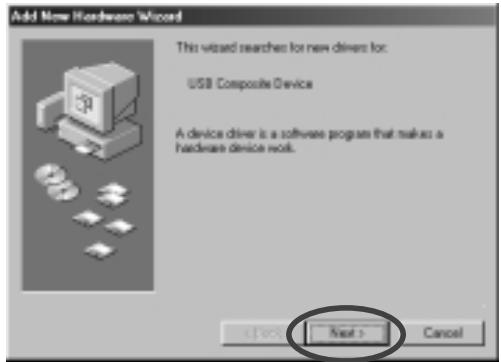
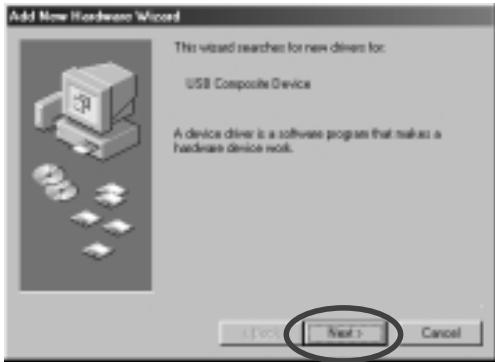
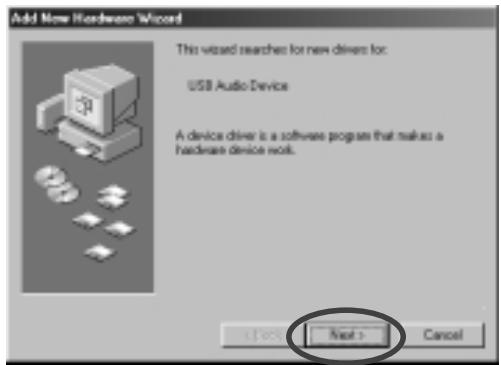
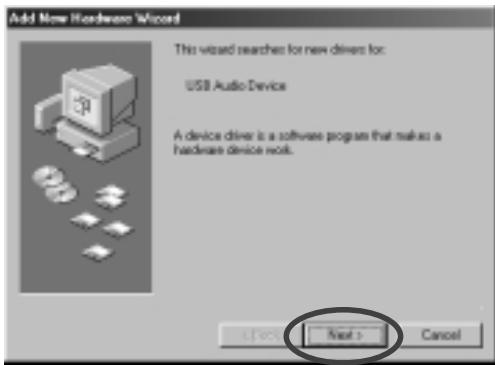
A USB Composite Device will be detected automatically, and the Add New Hardware Wizard dialog box will appear. Click [Next].

If this dialog box does not appear, refer to Problems related to the USB driver (p. 21)
-
When the display asks "What do you want Windows to do?", select "Search for the best driver for your device. (Recommended)." and click [Next].
-
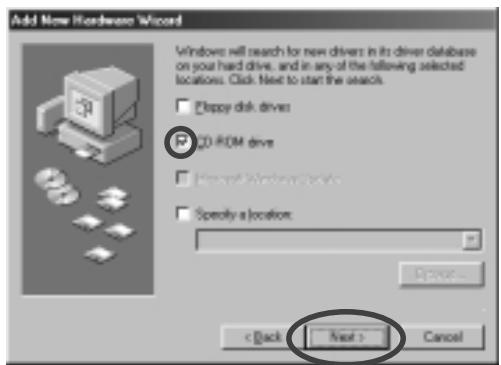
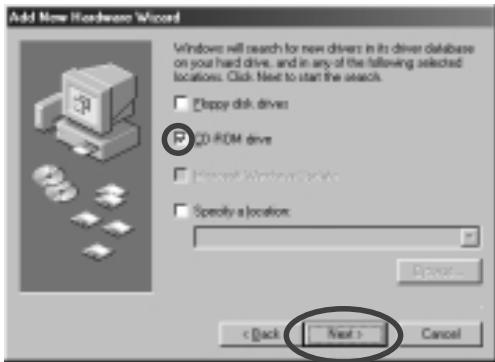
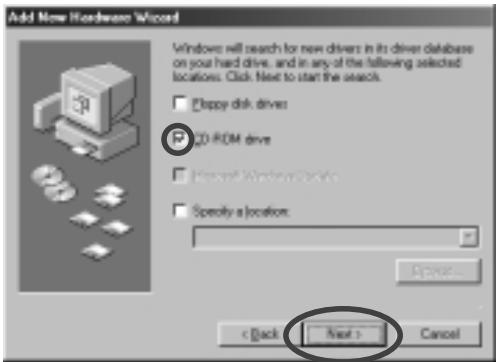
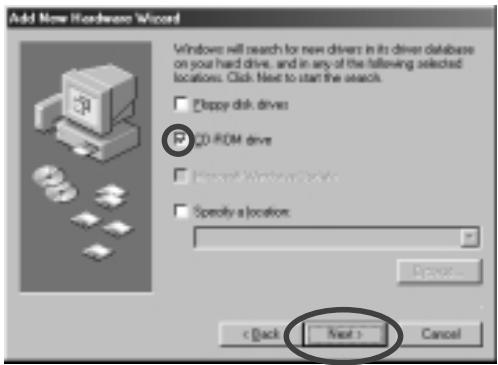
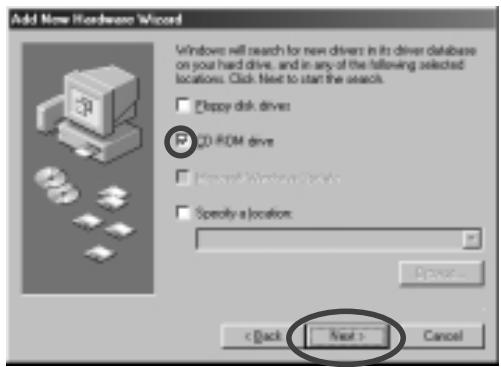
The following dialog box will appear. Check CD-ROM drive, and click [Next].
-
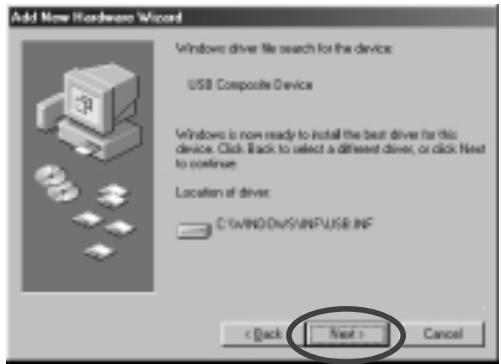
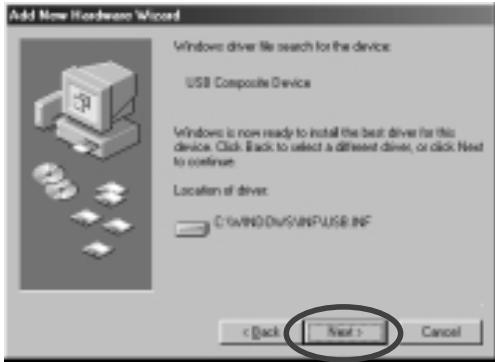
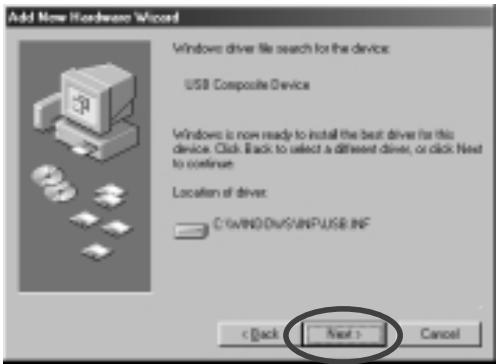
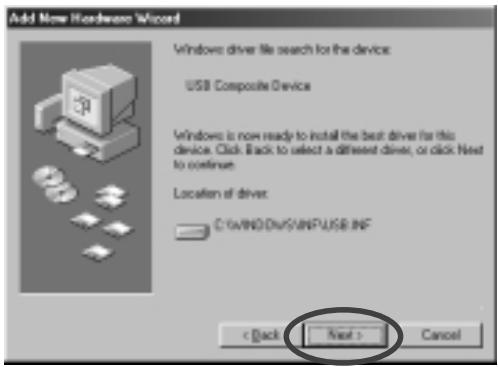
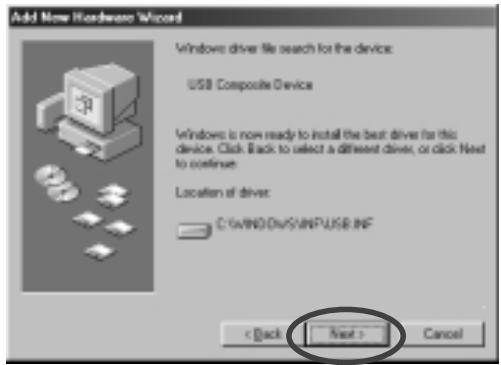
The following dialog box will appear. Click [Next].
* Depending on your system, the Location of driver may differ from the above illustration, but this is not a problem.
- Copying of the file (Driver) will begin.
![Add New Hardware Wizard What do you want Windows to do? ✓ Search for the best drives for your device [Recommended] ✓ Display a lot of all the drivers in a specific location. so you can select the driver you want. < Back Next > Cancel](/content/2024/12/130969/images/5e6945aea5f8ea715c531fdfbd22bb9ce5d277e65a58cd82a59e888fcf8d156b.jpg)

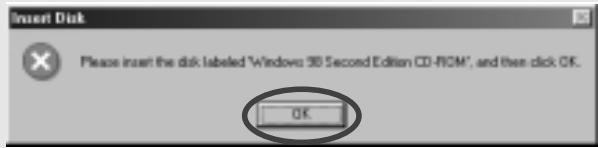
If the Microsoft Windows CD-ROM is not inserted in the CD-ROM drive, the following dialog box may appear. If this occurs, insert the Microsoft Windows CD-ROM into the CD-ROM drive, and click [OK].
-
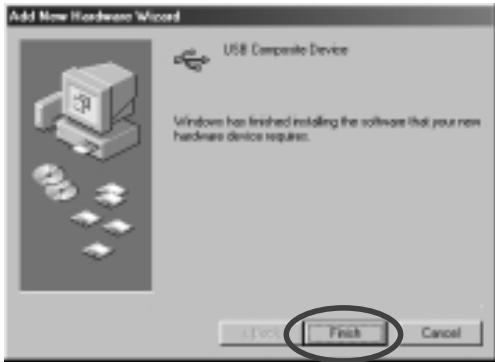
When installation of the USB Composite Device driver is finished, the following dialog box will appear. Click [Finish].
-
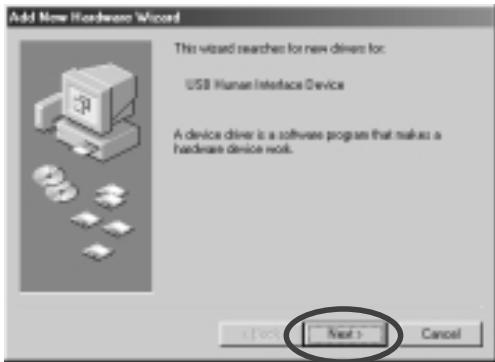
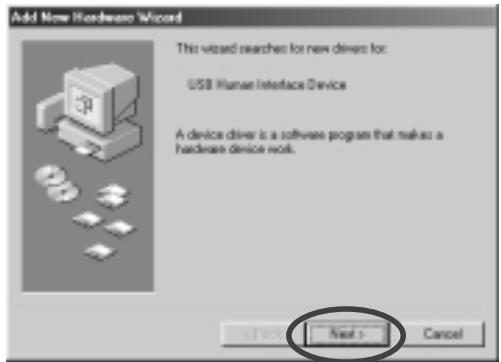
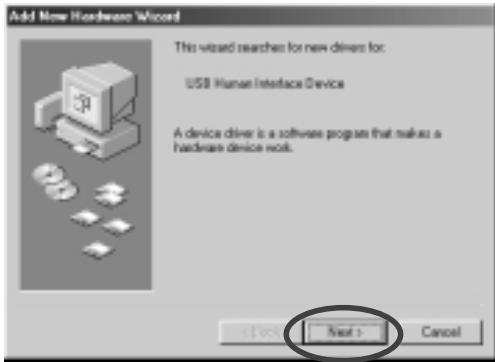
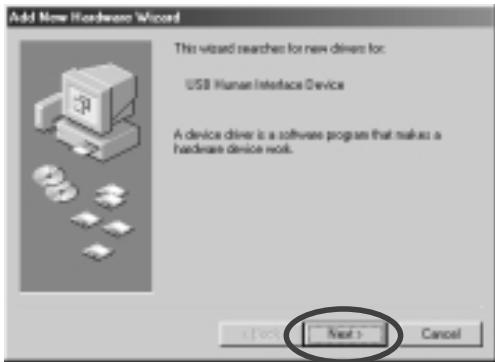
Then, the USB Human Interface Device will automatically be detected, and the Add New Hardware Wizard dialog box will appear. Click [Next], and continue the installation using the very same procedure as steps 2-5 (p. 10-10).

In step 4, the screen will indicate “Windows driver file search for the device : USB Human Interface Device.”
-
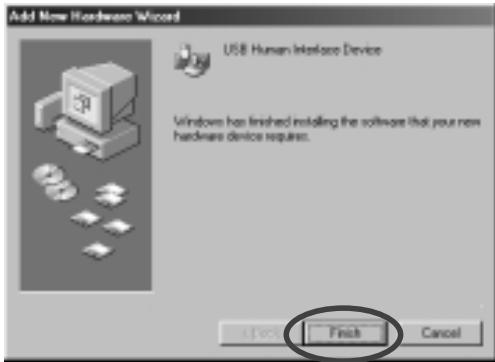
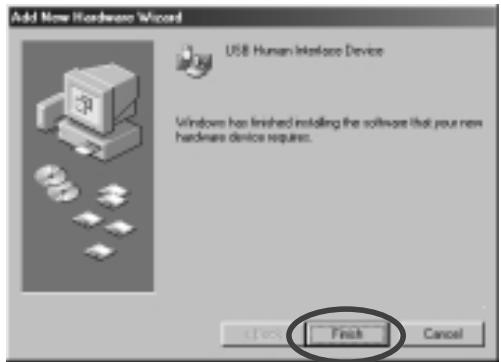
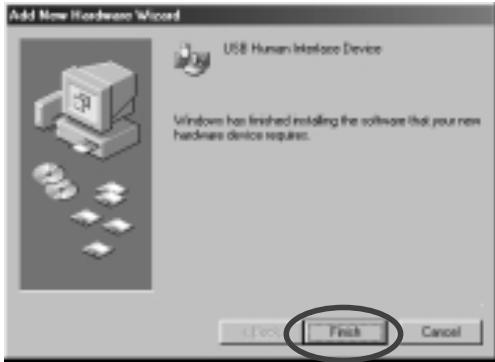
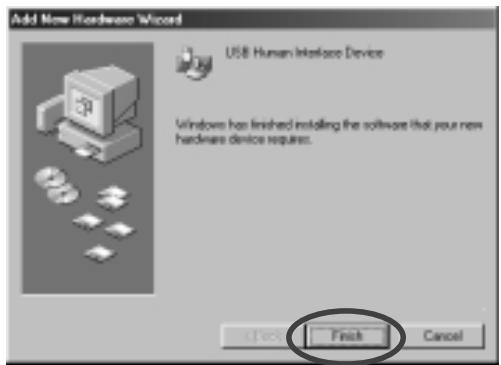
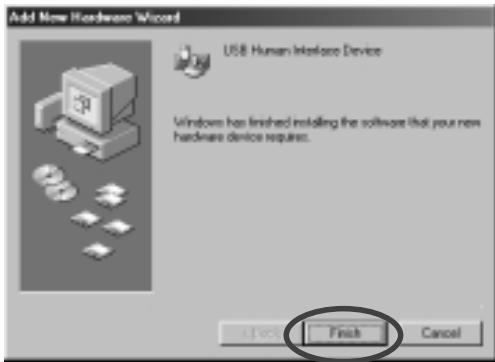
When installation of the USB Human Interface Device driver is finished, the following dialog box will appear. Click [Finish].
-
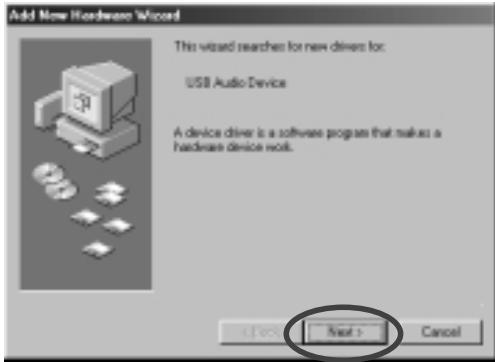
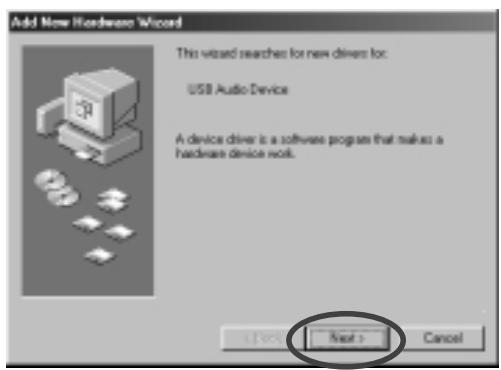
Next, a USB Audio Device will be detected automatically, and the Add New Hardware Wizard dialog box will appear. Click [Next], and continue the installation using the very same procedure as in steps 2-5 (p.10-10).

In step 4, the screen will indicate “Windows driver file search for the device : USB Audio Device.”
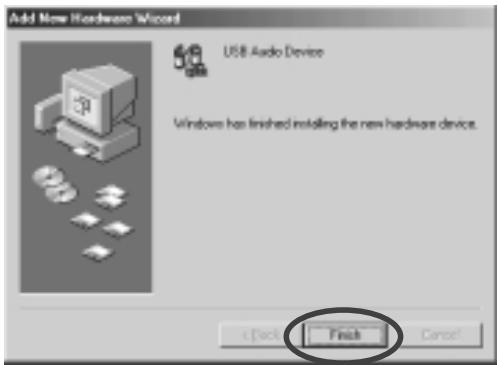
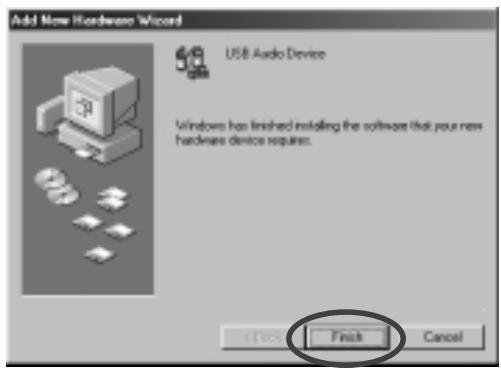
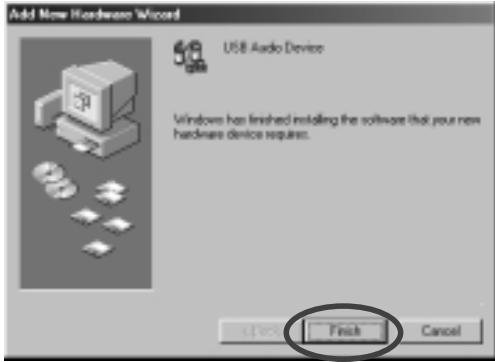
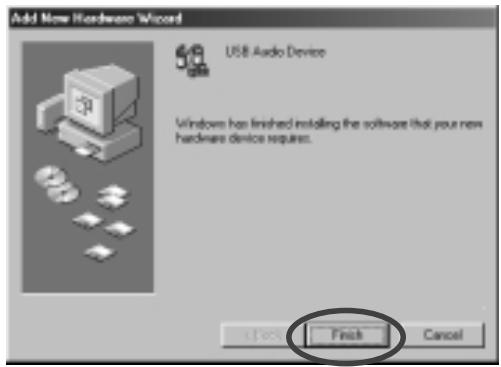
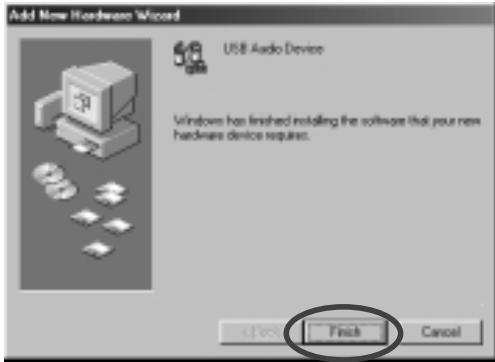
- When installation of the USB Audio Device driver is finished, the following dialog box will appear. Click [Finish].
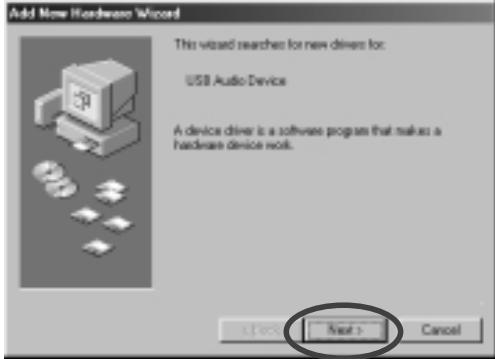
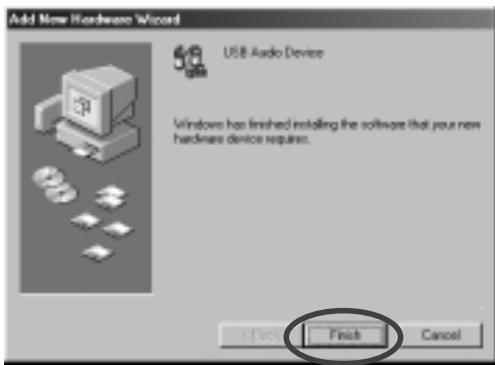
This completes installation of the USB Composite Device driver, the USB Human Interface Device driver, and the USB Audio Device driver. Restart Windows.
After installing the driver, refer to Specifying the audio input/output device (p. 12) and select the device Windows uses.
■ Specifying the audio input/output device
- Click the Windows [Start] button, and select [Settings] - [Control Panel].
- Win 98 / Win 98SE
In Control Panel, double-click the [Multimedia] icon to open the Multimedia Properties dialog box.
Win 2000 / Me
In Control Panel, double-click the [Sounds and Multimedia] icon to open the Sounds and Multimedia Properties dialog box.
* If you don't find a [Sounds and Multimedia] icon, then in Control Panel, click [view all Control Panel options].
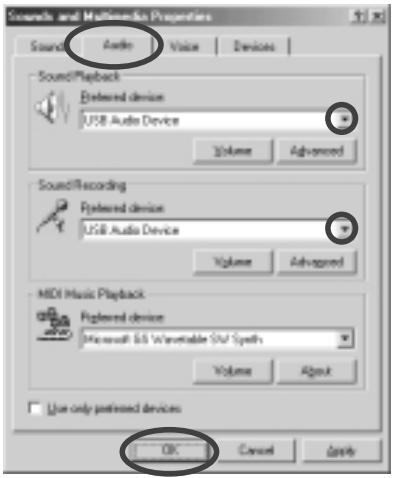
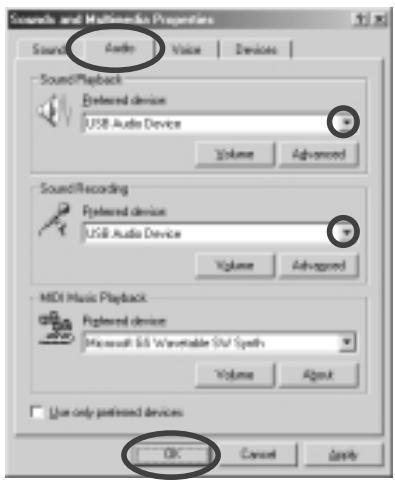
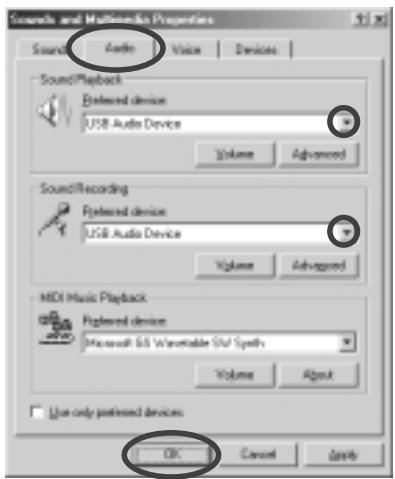
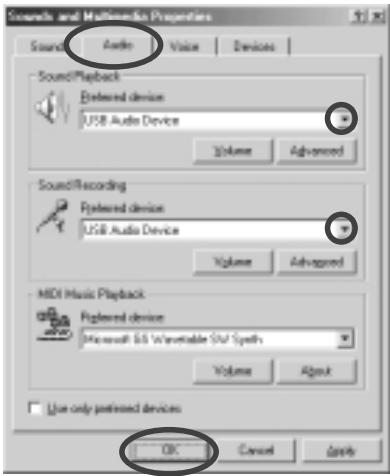
3. Click the [Audio] tab.
4. For the Playback item Preferred device, click 📄. In the list that appears, click [USB Audio Device] to select it.
5. For the Recording item Preferred device, click ☐. In the list that appears, click [USB Audio Device] to select it.
Windows 98 / Windows 98SE
Windows 2000 /Windows Me
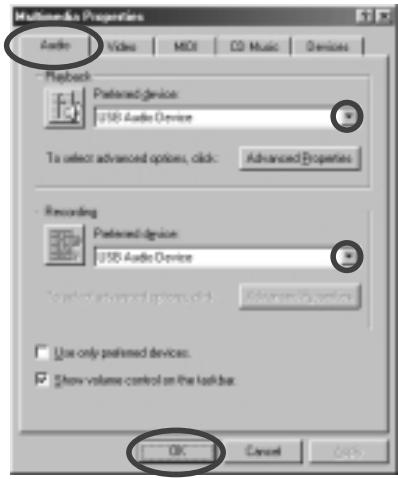
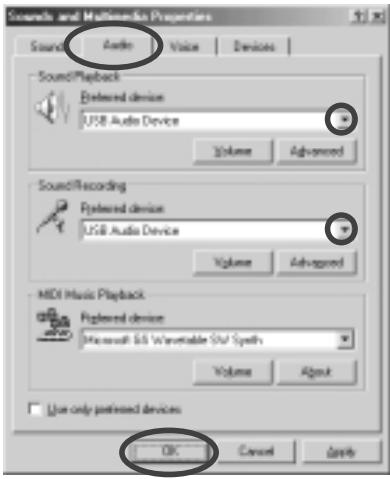
MEMO
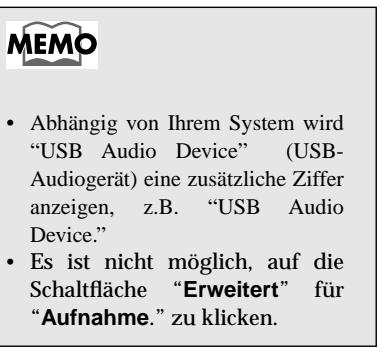
- Depending on your system, “USB Audio Device” will be shown a number added, ex. “USB Audio Device (1).”
-
It will not be possible to press the “Advanced Properties” button for “Recording.”
-
Click [OK] to complete the settings.
Volume Control settings
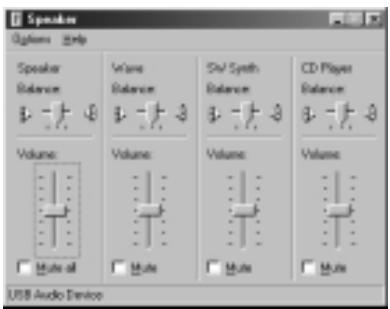
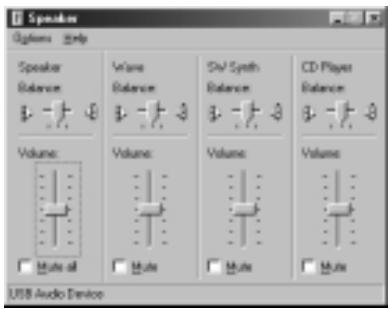
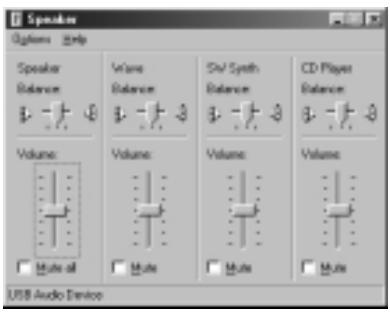
The output volume of the UA-3 can be controlled by the Windows Volume Control.
- Click the Windows [Start] button, and select [Programs] - [Accessories] - [Entertainment] - [Volume Control] to start it up.
Windows Me
Windows 2000/
Windows 98/Windows 98SE
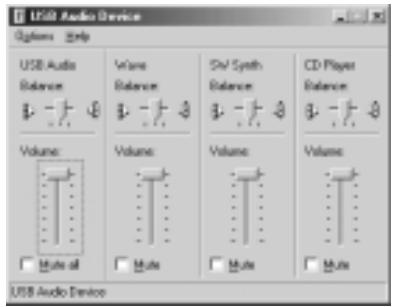
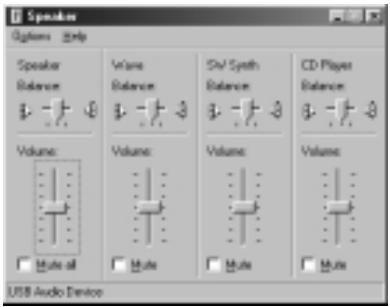
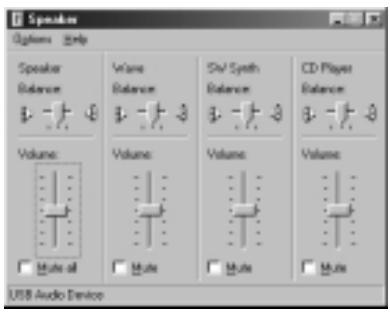
- You can raise or lower the slider to adjust the volume of the UA-3. The following items can be set.
| USB Audio (Speaker) | Adjust the volume of the analog outputs (line output and headphone output). The digital output will not change. ^1 |
| WAVE | Adjust the volume that is output from the audio output device “USB Audio Device.” The digital output and analog output will change. |
| SW Synth | Adjust the volume of the software synthesizer built into Windows. |
| CD Player | Adjust the “CD Music” volume for the CD-ROM drive of your computer. ^2 |
- Depending on the version of Windows, this may be displayed as "Analog connector".
- If the playback of the CD does not change when you adjust this volume, change the WAVE volume.

- If Volume Control is not installed on your computer, use Add/ Remove Applications in the Control Panel to install it. For details on installation, refer to the Windows owner's manual or Help.
- If Mute is checked, or if the slider is in the lowest position, no sound will be output from the UA-3.
- If you are using Windows 2000 and “CD Player” does not appear, check the [Digital CD playback] item “Enable digital CD audio for this CD-ROM device,” as described in the following note.
- When using your computer's CD-ROM drive to play an audio CD, or when playing background music for games with the UA-3
If using Windows Me:
Select [Start]-[Settings]-[Control Panel]. In the [Control Panel], double-click the [System] icon to access the System Properties dialog box. Click the [Device Manager] tab, and double-click the [CDROM] icon. Below it, double-click the CD-ROM drive that you are using and open its Properties. Click the [Properties] tab, and select the check box located beside the Digital CD playback item "Enable digital CD audio for this CD-ROM device."
If using Windows 2000
In the same way as for Windows Me, open the System Properties dialog box. Click the [Hardware tab], and click the [Device Manager] button to open the Device Manager. From the CD-ROM drives, double-click the CD-ROM drive that you are using to open its Properties. Click the [Properties] tab, and select the check box located beside the Digital CD playback item “Enable digital CD audio for this CD-ROM device.”
If using Windows 98 or Windows 98 SE:
Select [Start] - [Settings] - [Control Panel] - [Multimedia], then click on the [CD Music] tab, then check "Enable CD digital audio for this CD-ROM device."
Depending on your computing environment, playback of these CDs may still be impossible. For details, refer to information provided by your computer's manufacturer. If you are using a PC-card (PCMCIA) type CD-ROM drive, playing back WAVE data or an audio CD on the CD-ROM drive may cause the sound to be interrupted, or no sound may be heard at all.

- The audio quality of the UA-3 will be better if you raise the Volume Control levels.
Checking for sound output
After the connections have been made correctly, you can play back the sample data to check your setup.
■ Playing the sample data
Here we will use standard Windows functionality to play the sample data. The sample data is found in the AUDIO Capture CD-ROM. Insert the CD-ROM into the CD-ROM drive of your computer.
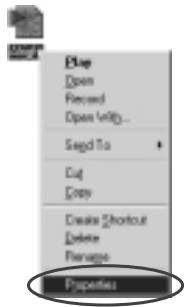
- Copy “Alright(.wav)” to the desktop by dragging it from the “Sample_Data” folder of the CD-ROM.

In order to listen to the sample data, you will need approximately 30MB of free space on the hard disk where Windows installed.
- Right-click the copied file "Alright(.wav)", and select [Play] or [Properties] from the menu that appears.
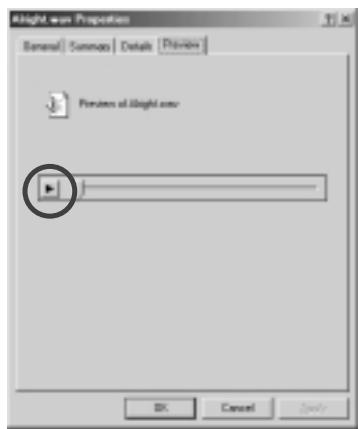
- Click the [Preview] tab, and then click the button. The sample data will begin playing.

When the Recording input select switch is set to DIGITAL, it is not possible to play back audio data from your computer. Set the switch to INPUT + GUITAR/MIC.
Did you hear the sample data?
If the sample data played correctly, your computer and the UA-3 are connected correctly, and the drivers have been installed correctly. If the data did not play correctly, refer to Troubleshooting (p. 21). Troubleshooting contains material to help you find and correct such problems.
This completes all connections and driver installation for the UA-3.
Deleting the USB Audio Device driver

The explanation provided here is for an average Windows system. Depending on your computer, some of the folder names may be different.
■ If re-installing the USB Audio Device driver
■ If installation of the USB Audio Device driver was terminated before completion
Use the following procedure to delete the driver that is already installed.
- Use a USB cable to connect the UA-3 to your computer.
- Click the Windows [Start] button, and select [Settings] - [Control Panel].
- In [Control Panel], double-click [System] to open the System Properties dialog.
- Click the [Device Manager] tab.
- Double-click [Sound, video and game controllers] to see a list of the devices.
- From the list, select USB Audio Device, and click [Remove]. In the Confirm Device Removal dialog box, click [OK]. If USB Audio Device is not displayed, proceed to step 8.
- Make sure that USB Audio Device is not in the Sound, video and game controllers list, and click [Close] to close the System Properties dialog.
- Follow the steps 1. - 4. again, and double-click [Universal Serial Bus controllers] to display the list of devices.
If ⚠ is displayed for the USB-compatible device icon:
Select the [USB Composite Device] icon, and click [Remove]. In the Confirm Device Removal dialog box, click [OK]. As in the step 7., close System Properties.
If there is no USB-compatible device icon, or if ⚠️ is not displayed:
Simply close System Properties.
If you are using Windows Me and Ⓕ is displayed:
Simply close System Properties.
- Disconnect the USB cable from your computer, and restart Windows.

If a dialog box suggesting that you restart Windows appears at this point, follow the suggestion and restart your computer.
Basic operation of the D-Out Smoother
■ What is the D-Out Smoother?
When audio is played back to a digital device such as MD or DAT connected to the digital output of the UA-3, a certain amount of time is required for the audio output to be locked immediately after audio playback, so that there may be no sound for one or two seconds, or the pitch or tempo may become incorrect. The D-Out Smoother is software that allows the audio to be played smoothly in such situations.
■ Installing the D-Out Smoother

In this explanation we are assuming that your CD-ROM drive is drive E:, but the drive name may be different depending on your computer. If the drive name is different on your computer, input the appropriate drive name. You can check the drive name of your CD-ROM drive by double-clicking the My Computer icon.
- Insert the AUDIO Capture CD-ROM into your CD-ROM drive.
- Click the Windows [Start] button, and select [Run...].
- In the Open: text box, input "E:\UA_Util\Setup.exe" and click [OK]. Alternatively, click [Browse], select the file [Setup(.exe)] located in the UA_Util folder of the CD-ROM drive, and click [Open].
- The installer will start up, and the Choose Setup Language dialog box will appear. Specify whether you are using the “English (United States)” or “Japanese” version of Windows, and click [OK].
- Perform the remainder of the installation as directed by the instructions that appear on-screen.
- When installation is completed, the Setup Complete dialog box will appear. Click [Finish].
This completes installation of the D-Out Smoother.
■ Starting the D-Out Smoother

The Setting dialog box will appear at the first time when you start up. Make sure that the Wave-Out Device shows "USB Audio Device," and click [OK]. If two or more USB audio devices are displayed, refer to Using the D-Out Smoother (p. 15), and specify the correct device.
- Connect the UA-3 to the USB connector of your computer.
- Click the Windows [Start] button, and in the [Programs] menu, click [D-Out Smoother].
- The D-Out Smoother will start up.
In some cases it may display “Cannot find USB Audio Device. Check USB cable or select USB Audio Device again.” when starting. If this occurs, the computer has not correctly detected the UA 3. It is possible that the UA-3 is not connected correctly, or that the driver has not been installed correctly. Refer to Connections and driver installation (Windows) (p. 8) and check these points.
■ Using the D-Out Smoother
The D-Out Smoother has an “ON/OFF” switch and a “TEST” button.
"ON/OFF" switch
Normally, you will leave this “ON” when using the digital output of the UA-3. Turn this “OFF” when connecting or disconnecting the UA-3.
"TEST" button
Click the [TEST] button. If the test audio is heard, the D-Out Smoother is operating for that device.
When using two or more USB Audio Devices such as the UA-3 or MA-150U, use this button to select the UA-3 for which the D-Out Smoother will operate.
Use the following procedure to make your selection.
- From the D-Out Smoother [Control] menu, select [Setting] to access the Setting dialog box. (This dialog box will appear automatically the first time the software is started up.)
- From the pull-down menu, select "USB Audio Device" and click [OK].
- Click the [TEST] button, and check whether or not the test audio is heard.
If the audio is heard, the D-Out Smoother is operating for that device. If the audio is not heard, select a different USB Audio Device in step 2, and repeat steps 1 through 3.
Convenient Features
- When [Register to STARTUP] is checked in the Setting dialog, D-Out Smoother will automatically start up when you start up the computer.
- When [Minimize window when starting up] is checked in the Setting dialog, D-Out Smoother will minimize itself immediately after it starts up, allowing you to use your computer's screen more effectively.
■ Deleting (uninstalling) the D-Out Smoother
The D-Out Smoother supports the Windows Add/Remove Programs Properties function. You can use the following procedure to remove the program if it becomes unnecessary.

If you uninstall D-Out Smoother, you should firstly uncheck the [Register to STARTUP] in the Setting dialog. You can go to the Setting dialog by selecting [Control] - [Setting]. (p. 25)
- Click the Windows [Start] button, and select [Settings] - [Control Panel].
- In [Control Panel], double-click [Add/Remove Programs] to open the Add/Remove Programs Properties dialog box.
- Click the [Install/Uninstall] tab.
- From the list in the dialog box, click the name of the application that you wish to delete.
- Click [Add/Remove].
The application you specified in step 4 will be deleted.
* If you are a Windows user, refer to p. 8.
In order to use the UA-3, you must first install a driver. UA-3 uses a driver included with Mac OS.

Making connections and installing the driver
■ Making connections
Always make sure to have the volume level turned down before connecting the UA-3. Even with the volume all the way down, you may still hear some sound when the power is switched on, but this is normal, and does not indicate a malfunction.
To prevent malfunction and/or damage to speakers or other devices, always turn down the volume, and turn off the power of all devices before making any connections. (It is not necessary to turn off the power of your computer.) Use a USB cable to connect the UA-3 to your computer before turning on the power of your audio equipment.

flowchart
graph TD
    A["EDIROL"] -->|LINE IN, AUX IN| B["Line IN"]
    B --> C["Line OUT"]
    C --> D["USB port"]
    D --> E["Computer"]
    E --> F["USB port"]
    G["UA-3"] --> H["Output"]
    I["UA-3"] --> J["Audio Capture"]
    K["Stereo Headphones"] --> L["Line OUT"]
    M["Stereo Set Powered Speaker etc."] --> N["Line IN, AUX IN"]
    O["Connect after starting up the computer"] --> P["USB cable"]
    Q["Audio cable"] --> R["L=OUTPUT=R"]
    S["Line OUT"] --> T["L=OUTPUT=R"]
    U["Line OUT"] --> V["IN=DIGITAL+OUT"]

- Before disconnecting the USB cable or restarting Macintosh, please close all applications. You should also turn down the volume of any audio or amp system that is connected.
- This unit is equipped with a protection circuit. A brief interval (a few seconds) after connecting a USB connector is required before the unit will operate normally.
■ Getting the unit to be recognized
- Turn on the power of your computer and start up Mac OS.
- From the Apple menu, select the [Apple System Profiler].

- To prevent damage to your speakers, turn down the volume on this unit, and on any audio devices you may have connected.
-
Make sure to quit all applications that may be running before you make the connection.
-
Click the [Devices and Volumes] tab control.
- Use a USB cable to connect the UA-3 to your computer.
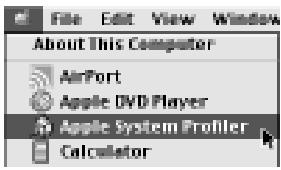
- To make sure it is successfully recognized, select [Update all information] from the [Commands] menu. You should see the following three audio devices in the USB section, as shown below:

If the indication is correct, the installation of the UA-3 driver is successful. Select [Quit] from the [File] menu to close the Apple System Profiler dialog, then make the sound settings explained below.
If the indication is incorrect, you should try disconnecting the UA-3 from the USB port, and waiting about ten seconds. Then, do the procedure over again, starting from the step 4.
■ Making the sound settings
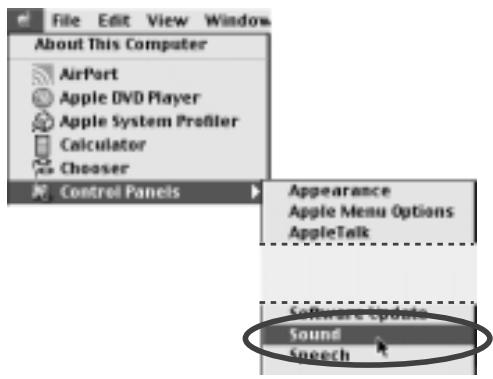
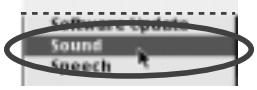
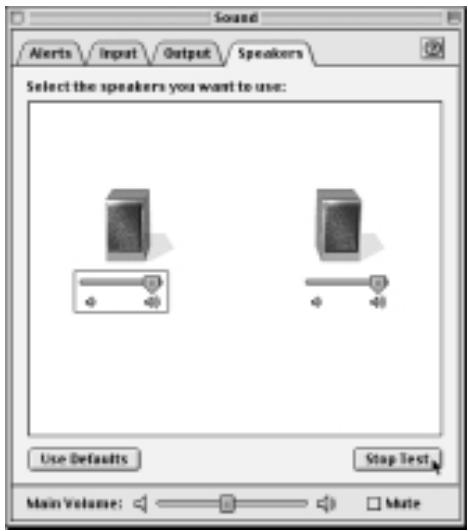
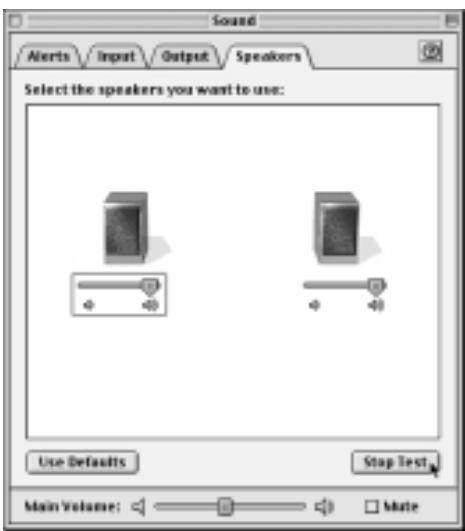
- From the Apple menu, select [Control Panels] - [Sound] to open the Sound dialog.
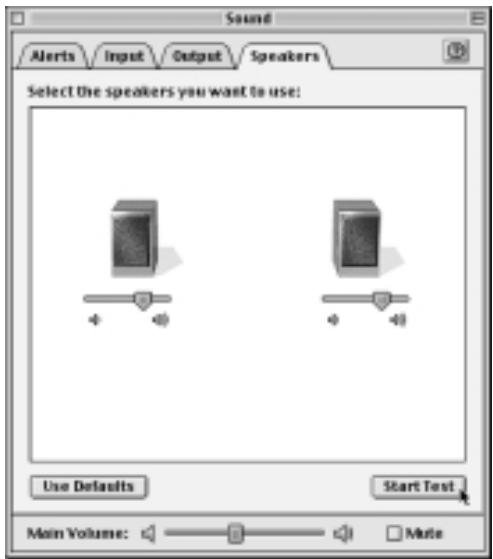
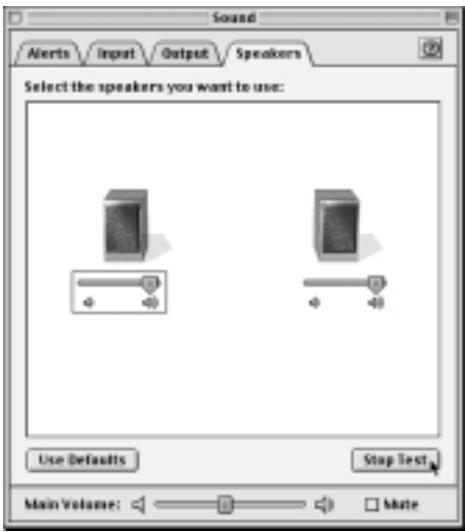
- Click the [Speakers] tab.
-
Turn down the volume on the UA-3, and on your audio equipment, then click [Start Test].
-
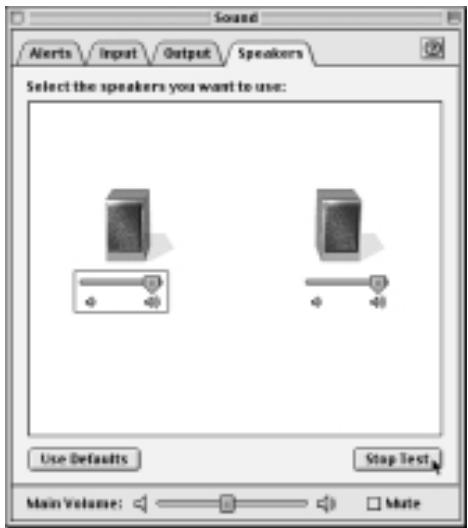
Test sounds are output from left to right, along with what appears on the screen; adjust the volume using the [Main Volume] bar. When you are finished, click [Stop Test].

If the Recording input select switch is set to DIGITAL, it is not possible to play back audio data from your computer. Set the switch to INPUT + GUITAR/MIC.
Depend on the your OS version, there is no [Main Volume] bar. In that case, use the [Volume] bar in the [Output] to adjust the volume.
- Select [Input] from the Sound dialog. Then, in Choose a source for sound input:, choose USB Audio.

- If you don't see USB Audio, you should close the Sound dialog. Then, disconnect the UA-3, and wait about ten seconds. Then, try doing the procedure over again, starting at number 2.
- Do not check [Play sound through output device].
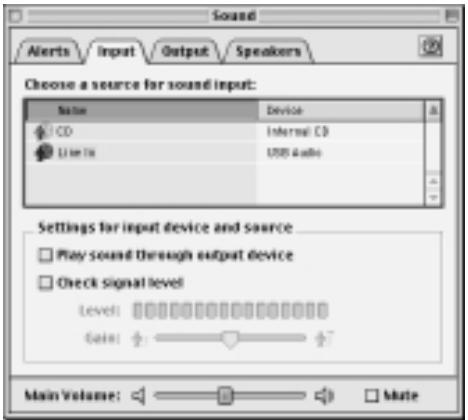
- When you have finished making settings, select [Quit] from the [File] menu to close the Sound dialog.
Known issues: UA-3
- Some applications such as Cakewalk's Metro Series and TC Work's Spark Series cannot record/playback at 48 kHz. Please use the UA-3 at 44.1 kHz.
- While the audio application is recording or playing, do not connect/disconnect the USB cable, or move the Recording input select switch.
Doing so may cause the application to freeze.
- You may hear sound hopping and/or noise when you record and play back at the same time due to high load on the CPU. However, the noise should not be in the recording itself. Such noise should only be found in the playback signal.
- If you are going to use the Virtual Sound Canvas 3, you will need to select [Performance] from the [Setting] menu, and set the Expression Mode to Response Priority.
- The standard driver that comes with Mac OS is not ASIO compatible.
- When you start up your computer with the UA-3 connected, the computer may become unstable. If this occurs, start up your computer before connecting the UA-3, and connect the UA-3 after start-up.
Checking for sound output
After the connections have been made correctly, you can play back the sample data to check your setup.
■ Playing the sample data
Here we will use standard Macintosh functionality to play the sample data. The sample data is found in the AUDIO Capture CD-ROM. Insert the CD-ROM into the CD-ROM drive of your computer.

In order to listen to the sample data, you will need approximately 30MB of free space on the hard disk that contains your system.
- Copy "Alright" to the desktop by dragging it from the "Sample_Data" folder of the CD-ROM.
- Launch QuickTime Player, which is provided with the Mac OS. The QuickTime Player is normally located in the QuickTime folder within the Applications folder of your hard disk.
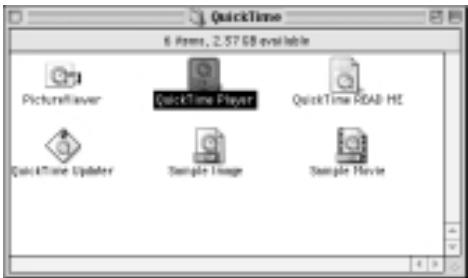
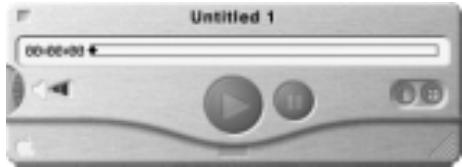
- From the [File] menu, select [Open Movie], select the copied file "Alright," and click [Convert] to open it.

- Click the playback button. The sample data will begin playing.

If the Recording input select switch is set to DIGITAL, it is not possible to play back audio data from your computer. Set the switch to INPUT + GUITAR/MIC.
Did you hear the sample data?
If the sample data played correctly, your computer and the UA-3 are connected correctly, and the drivers have been installed correctly. If the data did not play correctly, refer to Troubleshooting (p. 21). Troubleshooting contains material to help you find and correct such problems.
This completes all connections and driver installation for the UA-3.
If an unexpected problem occurs while using the UA-3, please read this chapter first. It provides numerous hints that will help you solve problems.
The problems covered in the troubleshooting section are organized according to the operating system on which the problem might be encountered. Use the icon shown at the left of the title to find the information you need.
Problems common to both Windows and Macintosh


Problems that occur only on Windows

Problems that occur only on Macintosh
If you are using computer for the first time, or do not understand the explanation of a procedure, refer to the owner's manuals for your computer or for OS.
If the UA-3 does not operate as you expect, check the following points.
Problems related to the USB driver


"Add New Hardware Wizard" does not start up automatically
"Add New Hardware Wizard" terminates before completion
- When the USB cable is connected or disconnected, approximately 15 seconds (or more) may be required for the UA-3 to be recognized.
• Is the USB cable connected correctly?
Make sure that the UA-3 and computer are connected correctly by the USB cable.
• Can USB be used on your computer?
Refer to the owner's manual for your computer, and make sure that it is able to use USB.
- Does your computer or USB hub have sufficient power supply capacity?
The UA-3 cannot be connected if insufficient power is supplied to it. Check whether one of the following cases apply.
If you are using the UA-3 with a notebook computer that is running on its battery, operation may be unreliable with some models of computer. If this is the case, connect the AC adaptor to your notebook computer.
The power conservation mode of your computer may limit the power that is supplied to USB. Check the settings of your computer.
In some cases, the UA-3 cannot be used with a bus-powered hub (a hub that does not contain a power supply). Please use a self-powered hub (a hub that contains a power supply).
• Does your computer meet the USB specifications?
If you are using a computer that does not meet the USB specifications (such as a homemade computer), operation may be unstable. In such cases, you may be able to solve the problem by connecting a USB hub that contains a power supply.
- Is “Unknown Device” displayed for “Other devices” or “Universal Serial Bus controllers”?
Use the following procedure to delete “Unknown Device” from “Other devices” (Universal serial bus controller), and re-start your computer.

In order to check whether or not the “Unknown Device” is the UA-3, disconnect the USB cable of the UA-3, and verify that “Unknown Device” has disappeared. Then connect the UA-3 once again, and delete “Unknown Device.”
- In the Windows Control Panel, double-click [System] to open the System Properties dialog box.
- Click the [Device Manager] tab.
- Double-click [Other devices] (Universal Serial Bus controllers) to see the list of devices.
- In the list, select Unknown Device and click [Remove].
- In the Confirm Device Removal dialog box, click [OK].
- Make sure that the list does not show Other devices or Unknown Device, and click [Close] to close the dialog box.

The "Add New Hardware Wizard" dialog box appears even though you installed the drivers
If your computer or USB hub has two or more USB connectors, connecting the UA-3 to a USB connector to which the UA-3 has never before been connected may cause the Add New Hardware Wizard dialog box will appear even though the drivers have already been installed. Install the drivers once again as described in Connections and driver installation (Windows) (p. 8). This is not a malfunction.

Drivers are not installed correctly
Use the procedure described in Deleting the USB Audio Device driver (p. 14) to delete the USB Audio Device driver installed in your computer, and install the UA-3 drivers once again as described in Connections and driver installation (Windows) (p. 8). Check whether there is an item named “Unknown Device” in “Other devices” or in “Universal Serial Bus controllers.” If you find “Unknown Device,” delete it.

A dialog box saying "Unknown Device found" appears, and I can't install the driver
Depending on your computer, not all of the Windows 98 files required to support audio over USB may have been installed when the computer was shipped.
Please check with the manufacturer of your computer.
Problems when using the UA-3

OS becomes unstable
- Starting up a computer when the UA-3 is already connected may cause the computer to become unstable. If this occurs, start up the computer with the UA-3 disconnected, and then connect the UA-3.
No sound

- Is the UA-3's Recording input select switch set to "INPUT + GUITAR/MIC"?
When the Recording input select switch is set to “DIGITAL,” the audio signals input to the digital Input connector are output. The computer’s audio data is not output.

- Is a digital device such as an MD connected to the digital output of the UA-3?
Depending on your application, playing audio with a digital device such as an MD connected to the digital output of the UA-3 may cause a certain amount of time to be required for the digital audio output to be locked immediately after playback, so that there will be no sound for one or two seconds. If this occurs, you can use the D-Out Smoother software from the included CD-ROM to make audio play smoothly. For details, refer to Basic operation of the D-Out Smoother (p. 15).

- Are you attempting to use the CD player of your computer to play an audio CD?
If you wish to play an audio CD on the CD-ROM drive of your computer, refer to When using your computer's CD-ROM drive to play an audio CD, or when playing background music for games with the UA-3 (p. 13).

- Are you running multiple applications?
If multiple applications are running simultaneously, an error message may appear. If this occurs, click [OK], and close the other applications. Even if an application window is closed, it is still running if it remains in the taskbar, so be sure to quit any unneeded applications shown in the taskbar.

- Have you specified the audio data output destination for OS?
The audio data output destination for a computer must be set to UA-3. For details on this setting, refer to Specifying the audio input/output device (Windows p. 12) or Making the sound settings (Macintosh p. 18).

- Have you specified the audio data output destination for your playback software?
For some software such as Cool Edit Pro LE, you must set the audio data output destination as UA-3. For details on this setting, refer to the owner's manual for the software.

• Have the drivers been installed correctly?
In order to playback audio data using the UA-3, the USB Audio Device driver must be installed. For details on installation and settings, refer to Connections and driver installation (Windows p. 8, Macintosh p. 17).

- Are the various Volume Control faders raised?
Adjust the volume of each fader as described in Volume Control settings (Windows p. 12) or Making the sound settings (Macintosh p. 18).
■ Sound is distorted

- Does the peak indicator light red?
If you are inputting sound from the line input jacks, use the Line input adjustment slider of the UA-3 to reduce the input level. If you are inputting sound from the Guitar or Mic input jacks, use the Guitar/Mic input adjustment slider to reduce the input level. Also, the number of LED's in the output level indicator will change according to the output level of the UA-3. If the red LED lights, use the line output volume to lower the volume.

The volume level of the instrument connected to LINE IN is too low.
• Could you be using a connection cable that contains a resistor?
Use a connection cable that does not contain a resistor.
• Is the Line Input adjustment slider (p. 7) raised appropriately?
■ Noise is heard when playing back audio

• Is a mic still connected?
If a mic is connected to the UA-3, use the Guitar/Mic input adjustment slider to lower the input level.

- The graphic accelerator of your computer may cause noise to occur during audio playback. Use the following procedure to set graphic acceleration to "None."
- In the Windows Control Panel, double-click [Display] to open the Display Properties dialog box, and click the [Settings] tab.
- Click [Advanced] to open properties, and click the [Performance] tab.
- In Graphics, move the Hardware acceleration: slider to None, and click [OK].
- In the Display Properties dialog box, click [OK] to close the dialog box.
Then restart your computer.

- Noise is heard in the line input or mic input
If a MIDI sound module and the UA-3 are connected via USB to the same computer, and the output of the MIDI sound module is connected to the line input jacks of the UA-3, noise from the computer may enter via the MIDI sound module and be heard from the UA-3. In such cases, use a self-powered hub to connect the MIDI sound module and the UA-3 in parallel, or connect the MIDI sound module via the serial interface or MIDI interface.

- Noise may be heard if you record and play back simultaneously.
If you record and play back simultaneously, the playback may be interrupted depending on the performance of the system, and this may be heard as noise. However since priority is given to recording, the recorded data will not be lost.

- This problem may be solved by properly grounding the chassis of your computer, or the ground prong of the plug on the AC power cord that was supplied with your computer. Also, make sure that there are no devices nearby that emit a strong magnetic field, such as a television or a microwave oven.

- Are a large number of audio devices connected?
If a large number of audio devices are connected, noise may occur. Do not connect audio devices that you are not using.
■ Sound is interrupted during audio playback

• Try increasing the memory
You can increase the processing power of your computer by adding more memory. For details on adding memory, refer to the owner's manual for your computer.

- Does your computer fulfill the USB specifications?
The audio may be interrupted if you are using a computer that does not electrically meet the USB specifications. In this case, the problem may be solved if you connect a USB hub that contains its own power supply.

- Are numerous applications running?
If you use numerous applications during playback, or start up another application, the playback may be interrupted depending on your computer system. Exit all unneeded applications, and try again. If this does not solve the problem, try restarting a computer.

- Try making the following changes to the disk drive settings.
* The following settings may not exist on your computer.
- In the Windows Control Panel, double-click [System] to open the System Properties dialog box, and click the [Device Manager] tab.
- Double-click [Disk drives] to see the list of devices.
- From the list, select GENERIC IDE DISK TYPExx, and click [Properties] to access the GENERIC IDE DISK TYPExx Properties dialog box.
* The "xx" in GENERIC IDE DISK TYPExx will be a number that will differ depending on your system.
- Click the [Settings] tab, check the [DMA] check box in the Options, and click [OK] to close the dialog box.
* Depending on your system, a dialog box for DMA settings may appear. After checking the contents, click OK or Cancel.
- In the System Properties dialog box, click [OK] to close the dialog box.
Restart your computer so that the above settings will take effect.
■ Audio playback stops

- On some computers, the Power Management settings in the Control Panel may cause audio playback to stop.
The Power Management Properties that are displayed when you double-click Power Management will differ depending on your computer system. One example is given below, but you should consult the owner's manual for your computer as well. Some computers may not have the following settings.
- In the Windows Control Panel, double-click [System] to open the System Properties dialog box, and click the [Device Manager] tab.
- Double-click [System devices] to see the list of devices.
- From the list, select [Advanced Power Management support], and click [Properties] to access the Advanced Power Management support properties dialog box.
- Click the [Settings] tab, and in Troubleshooting, check the [Disable power status polling] check box. Then click [OK].
- In the System Properties dialog box, click [OK] to close the dialog box.
- Restart Windows.

Digitally recorded sound is distorted, pitch changes or contains noise
- If you are using a long digital cable, noise may occur or the sound may be distorted when it is connected. Use digital cables that are one meter (about a yard) or shorter.
- Does the sampling frequency setting in the application match the sampling frequency of the digital device connected to the digital input connector?
- When using digital recording, it is not possible to record in monaural. Set your recording software to the “stereo” setting.

Noise is present in the recorded sound
- It has been found that noise tends to be introduced in sound recorded on the iMac series models, which were released after the summer of 2000.
- In the SimpleSound application that is included with MacOS, noise will be heard in the sound if it is played back immediately after being digitally recorded. Save the sound first, then try playing it back.
- Update the USB Audio driver to 1.0.5f4.
If the USB Audio driver, which is provided with the Mac OS, is under 1.0.4, update it to 1.0.5f4.
You can download the driver from the URL below:
http://asu.info.apple.com/swupdates.nsf/artnum/n11703
Checking the USB audio driver's version
- Connect the UA-3 to the computer.
- From the Apple menu, select [Apple System Profiler].
- Click the [Devices and Volumes] tab.
- In the USB section, the screen will indicate "Audio (UA-3 USB Audio Device)." Click the arrow at the left of this text.
- The number displayed to the right of "Driver version" is the version of the USB audio driver.
■ A blank (silent) file is created when you record

- Try setting the bit rate to "16bit."
If you are using Windows98 Second Edition, and your recording software is set to a bit rate of 8 bits, a blank file may be created, so that you may not be able to record effectively. If this occurs, you will be able to record correctly by setting the bit rate to "16 bit".

- Data that contains the SCMS flag cannot be recorded digitally.
The UA-3 supports SCMS (p. 5), so that if SCMS-flagged data (such as data from an MD that was digitally copied from a commercial music CD) is input to the digital connector, the UA-3 will not be able to record this on the computer. (The sound will be output from the line output jacks and the headphone jack.)

Cannot record digitally
• Is the Recording input select switch set to “DIGITAL”?
• Is the application set to the same sampling frequency as that of the digital device connected to the digital input connector?
- Recording will no longer be possible if you switch the sampling frequency (for example, between digital broadcast A mode and B mode) of a device while it remains connected to the digital input connectors.
When switching the sampling frequency, you need to disconnect, then reconnect the digital cable.
- It is not possible to record digital data of a format other than consumer digital audio device format.

Cannot Record Music CD
- The UA-3 cannot record music CDs in the computer's CD-ROM drive with CoolEdit Pro LE or other programs.
To record music CDs in the computer's CD-ROM drive, you need to first select your computer's sound card as the audio device (Waveform Record) that is to be used for recording by CoolEdit Pro LE (or the application you are using), then you can proceed with recording. When recording a music CD with a sound card, uncheck “Enable digital CD audio for this CD-ROM device” you checked in When using your computer's CD-ROM drive to play an audio CD, or when playing background music for games with the UA-3 (p. 13).

The volume changed when you resumed from Suspend or Hibernation status
- When Windows 2000 resumes from Suspend or Hibernation, the output volume setting is changed due to a problem of Windows. Start up the Mixer application as described in Volume Control settings (p. 12), and adjust the USB Audio (Speaker) slider.

Game background music does not sound
- Does the game use an audio CD for background music? If an audio CD is used to provide background music for the game, refer to When using your computer's CD-ROM drive to play an audio CD, or when playing background music for games with the UA-3 (p. 13).
Problems common to software in general

Can't install
• Is the included CD-ROM inserted into the CD-ROM drive of your computer?
- During installation, were the CD-ROM drive name and the installation file name input correctly?
• Is there sufficient space on your hard disk?
Increase the free space on your hard disk. Delete unneeded files (move them to the Recycle Bin), and then right-click on the Recycle Bin and select Empty Recycle Bin.
Alternatively, you can add another hard disk to your system.

For details on installing a hard disk, refer to the owner's manuals for your computer and for Windows.
• Were other applications running when you performed the installation?
Exit all applications, and perform the installation again.

Can't start up an application
• Are numerous applications running?
It may be that there is not enough memory to start up another application. Close all unneeded applications, and then start up the new application. If an error is still displayed, try restarting your computer.

An error is displayed when you start up an application
• If multiple applications are started up simultaneously, an error message may appear.
If this occurs, click [OK], and close all unnecessary applications.
Even if an application window has been closed, the application is still running if it remains in the taskbar. Be sure to close any unnecessary application that appears in the taskbar.
• If you are using Cakewalk Pro Audio, you must be sure that the sampling frequency of Cakewalk Pro Audio is set to 44.1kHz.
On Cakewalk ProAudio 7, 8, and 9, the sampling frequency can be set as follows.
[Tools] - [Audio options] - [Settings] - [Default sampling rate]

An Application hangs up
When using digital music software for digital recording with the UA-3's recording input switch set to DIGITAL, be absolutely sure that a digital device is connected.
Although in certain applications, Windows limitations may render the operation of the mouse or other such devices inactive until a digital device is connected, this does not indicate any malfunction.
If no action results from the use of the mouse or other such devices, then reconnect the digital device.
- Confirm occurrence of the above with the following applications
(current as of January, 2001).
•Logic Audio 3.0 or 4.0
During Recording
•Cubase VST 3.7
During Startup/Recording/Playback
•Cubase ASIO Multimedia Setup
During Testing
Confirm that the events or conditions above do not occur with the following applications.
•Cakewalk Pro Audio 7, 8, and 9
•CoolEditProLE
•SoundRecorder (Bundled with Windows98)

A shortcut error appears when starting up Windows
If you uninstall the D-Out Smoother with the Register to STARTUP checked (p. 16), the following error message will appear when you start up Windows. In this case, click [NO] to close the message.

Use the following procedure to delete this message.
- Click the Windows [Start] button, and select [Settings] - [Taskbar & Start Menu].
- Click the [Start Menu Programs] tab, then click [Remove].
- Select [Programs] - [StartUp] - [SmoothDo], and click [Remove].
![Add New Hardware Wizard What do you want Windows to do? ✓ Search for the best drives for your device [Recommended] ✓ Display a lot of all the drivers in a specific location, so you can select this driver you want. < Back Next > Cancel](/content/2024/12/130969/images/9df12821a65a8597ac46474d9c8403b5ea4bf8e80cc53ff59e4ebb1a56147803.jpg)
![Add New Hardware Wizard What do you want Windows to do? ✓ Search for the best drivers for your device [Recommended] ✓ Display a lot of all the drivers in a specific location, so you can select the driver you want. < Back Next > Cancel](/content/2024/12/130969/images/0e8a2645590103b3ce2720b9e9250676c4a1de2bb5889883fba7921501a2150d.jpg)
MEMO
![Add New Hardware Wizard What do you want Windows to do? ✓ Search for the best drives for your device [Recommended] ✓ Display a lot of all the drivers in a specific location, so you can select the driver you want. < Back Next > Cancel](/content/2024/12/130969/images/cc8ce453be766c3357201d9b58dd162026ee773b475216f6312519cd79cbc6b1.jpg)


Windows 2000 /Windows Me
MEMO
Interruptor "ON/OFF"
![Add New Hardware Wizard What do you want Windows to do? ✓ Search for the best drives for your device [Recommended] ✓ Display a lot of all the drivers in a specific location, so you can select the driver you want. < Back Next > Cancel](/content/2024/12/130969/images/2ba2b6afdf6c70cade4c115a1edd646a1faea51ce0ae609da846f378da06663e.jpg)
This section explains various ways in which the UA-3 can be connected and used.
To prevent malfunction and/or damage to speakers or other devices, always turn down the volume, and turn off the power of all devices before making any connections. (It is not necessary to turn off the power of your computer)

Before you perform digital recording, please read the section entitled You must read this before you use digital recording (p. 5).
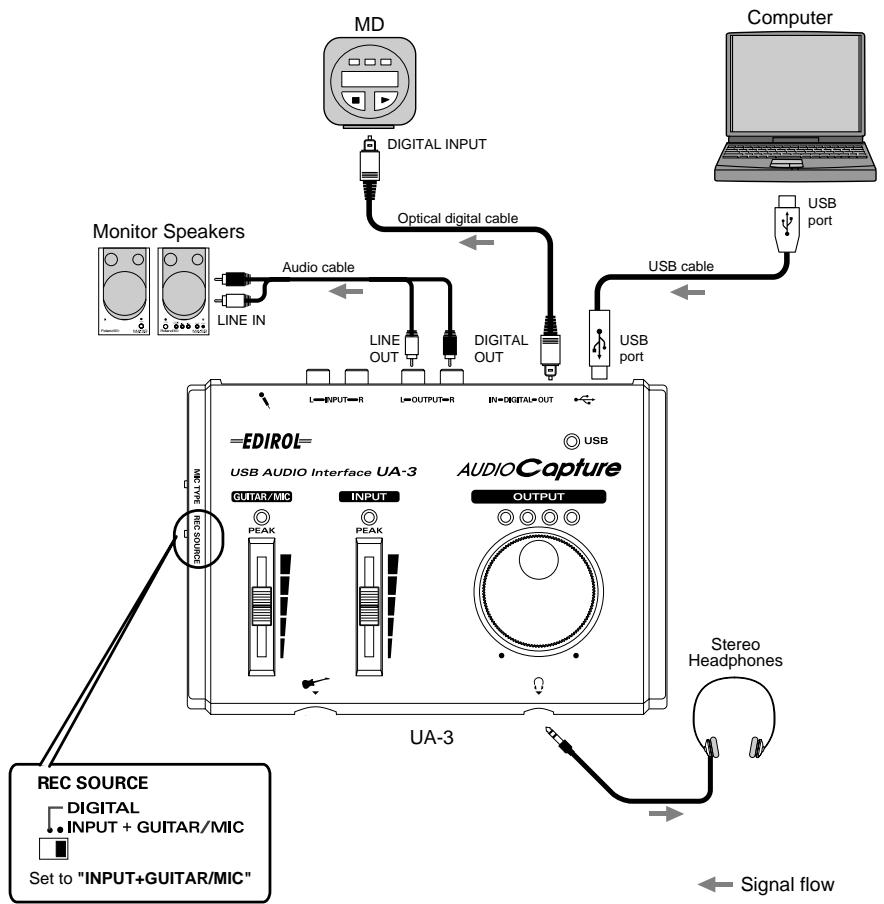
■ Digitally recording the output of the UA-3 on MD
Make the connections shown in the following diagram.
flowchart
graph TD
    MD["MD"] -->|DIGITAL INPUT| MonitorSpeaker["Monitor Speakers"]
    MonitorSpeaker -->|LINE IN| AudioCable["Audio cable"]
    AudioCable -->|OPTICAL digital cable| Computer["Computer"]
    Computer -->|USB port| USBPort["USB port"]
    AudioCable -->|LINE OUT| AudioCapture["Audio Capture"]
    AudioCapture -->|IN-DIGITAL OUT| AudioCapture
    AudioCapture -->|USB cable| MonitorSpeaker
    AudioCapture -->|USB port| MonitorSpeaker
    AudioCapture -->|UW3/16| RECSource["REC SOURCE"]
    RECSource --> DigitalInput["Digital INPUT + GUITAR/MIC"]
    DigitalInput --> SetTo["Set to "INPUT+GUITAR/MIC""]
    SetTo --> SignalFlow["Signal flow"]
    DigitalInput --> UW3/16
    DigitalInput --> UW3/16
    DigitalInput --> UW3/16
    DigitalInput --> UW3/16
    DigitalInput --> UW3/16
    DigitalInput --> UW3/16
    DigitalInput --> UW3/16
    DigitalInput --> UW3/16
    DigitalInput --> UW3/16
    DigitalInput --> UW3/16

    subgraph Legend
    direction LR
    direction LR
    end

- Depending on the application that you are using on a Windows machine, when the digital output of the UA-3 is connected to a digital device such as MD and audio is playing, a certain amount of time may be required immediately after playback ends for the digital audio output to be locked, so that there will be no sound for one or two second, or the tempo or pitch may be wrong. If this occurs, you can use the “D-Out Smoother” software included in the CD-ROM to make the audio sound smoothly. For details refer to Basic operation of the D-Out Smoother (p. 15).
- If you change the position of the Recording input select switch, you should turn down the volume of any monitor speaker system that is connected.
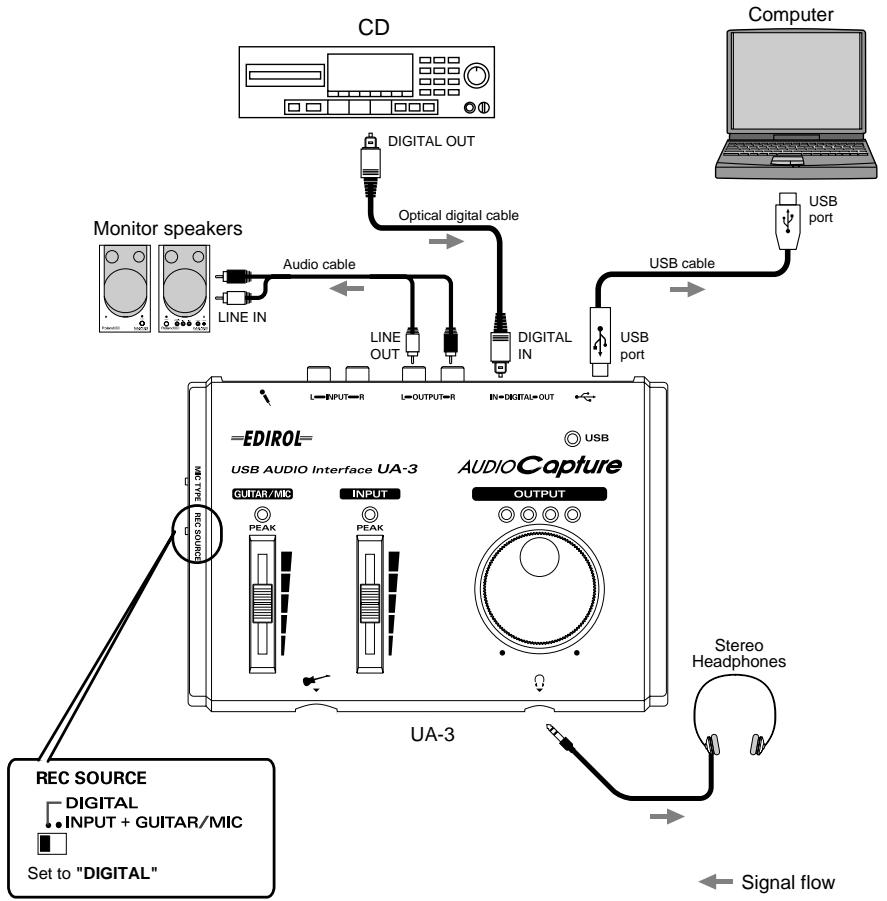
■ Digital transfer from CD/MD/DAT to your computer (digital recording)
Make connections as shown in the following diagram.
flowchart
graph TD
    A["CD"] -->|Digital OUT| B["Monitor speakers"]
    B -->|Audio cable| C["LINE IN"]
    C --> D["LINE OUT"]
    D --> E["IN+DIGITAL+OUT"]
    E --> F["USB port"]
    F --> G["Computer"]
    G -->|USB cable| H["USB Audio Interface UA-3"]
    H --> I["UA-3"]
    I --> J["AudioCapture"]
    J --> K["Output"]
    K --> L["Stereo Headphones"]
    L --> M["REC SOURCE"]
    M --> N["Input + GUITAR/MIC"]
    N --> O["Set to "DIGITAL""]
    style A fill:#f9f,stroke:#333
    style G fill:#ccf,stroke:#333
    style M fill:#cfc,stroke:#333
    style N fill:#fcc,stroke:#333
    style O fill:#ffc,stroke:#333

- Since the UA-3 supports SCMS (p.5), audio data containing copy protected song that is input to the digital connector cannot be recorded by the UA-3 to your computer. (It will be output from the line output jacks and the headphone jack.)
- If you change the position of the Recording input select switch, you should turn down the volume of any monitor speaker system that is connected.
- If the Recording input select switch is set to DIGITAL, audio data from your computer will not be output.

- If you wish to input from the Line input jacks, Mic input jack or Guitar input jack, refer to p.112 -- 115. On the UA-3, it is not possible to mix the signal from these inputs with the signal from the digital input connector and record them together.
* Set the recording sampling frequency of your recording application to 48 kHz if you are using DAT, or to 44.1 kHz if you are using MD or CD. For details refer to your application's manual.
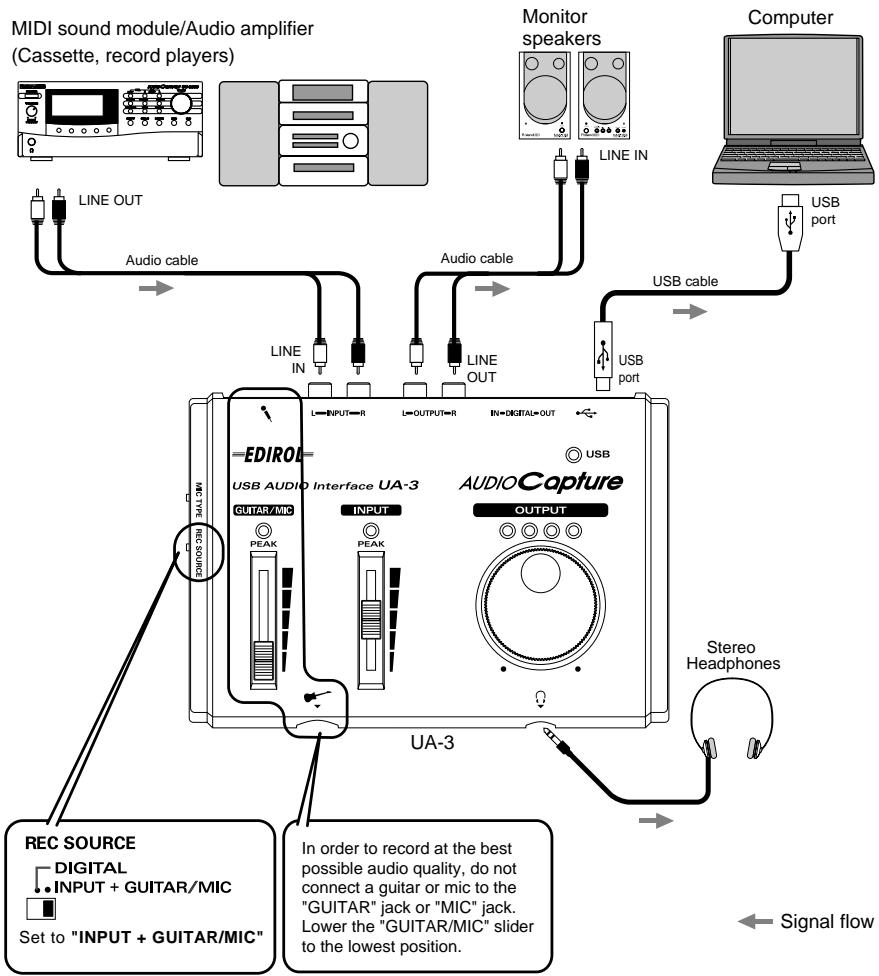
■ Recording the line inputs (analog recording)
Make connections as shown in the following diagram.
flowchart
graph TD
    A["MIDI sound module/Audio amplifier (Cassette, record players)"] -->|LINE OUT| B["Audio cable"]
    A -->|LINE IN| C["Audio cable"]
    D["Monitor speakers"] -->|LINE IN| E["USB cable"]
    F["Computer"] -->|USB port| G["USB cable"]
    H["Rec Source"] --> I["Digital INPUT + Guitar/MIC"]
    H --> J["Set to "INPUT + GUITAR/MIC""]
    K["AUDIO Capture"] --> L["UA-3"]
    M["Stereo Headphones"] --> N["Output"]
    O["Line IN"] --> P["Line OUT"]
    Q["Line IN"] --> R["Line OUT"]
    S["Line IN"] --> T["Line OUT"]
    U["Line IN"] --> V["Line OUT"]
    W["Line IN"] --> X["Line OUT"]
    Y["Line IN"] --> Z["Line OUT"]
    AA["Line IN"] --> AB["Line OUT"]
    AC["Line IN"] --> AD["Line OUT"]
    AE["Line IN"] --> AF["Line OUT"]
    AG["Line IN"] --> AH["Line OUT"]
    AI["Line IN"] --> AJ["Line OUT"]
    AK["Line IN"] --> AL["Line OUT"]
    AM["Line IN"] --> AN["Line OUT"]
    AO["Line IN"] --> AP["Line OUT"]
    AQ["Line IN"] --> AR["Line OUT"]
    AS["Line IN"] --> AT["Line OUT"]
    AU["Line IN"] --> AV["Line OUT"]
    AW["Line IN"] --> AX["Line OUT"]
    AY["Audio cable"] --> AZ["Line IN"]
    BA["Audio cable"] --> BB["Line IN"]
    BC["Audio cable"] --> BD["Line IN"]
    BE["Audio cable"] --> BF["Line IN"]
    BG["Audio cable"] --> BH["Line IN"]
    BI["Audio cable"] --> BJ["Line IN"]
    BK["Audio cable"] --> BL["Line IN"]
    BM["Audio cable"] --> BN["Line IN"]
    BO["Audio cable"] --> BP["Line IN"]
    BQ["Audio cable"] --> BR["Line IN"]
    BS["Audio cable"] --> BT["Line IN"]
    BU["Audio cable"] --> BV["Line IN"]
    BW["Audio cable"] --> BX["Line IN"]
    BY["Audio cable"] --> BZ["Line IN"]
    CA["Audio cable"] --> CB["Line IN"]
    CC["Audio cable"] --> CD["Line IN"]
    CE["Audio cable"] --> CF["Line IN"]
    CG["Audio cable"] --> CH["Line IN"]
    CI["Audio cable"] --> CJ["Line IN"]
    CK["Audio cable"] --> CL["Line IN"]
    CM["Audio cable"] --> CN["Line IN"]
    CO["Audio cable"] --> CP["Line IN"]
    CS["Audio cable"] --> CT["Line IN"]
    CU["Audio cable"] --> CV["Line IN"]
    CW["Audio cable"] --> CX["Line IN"]
    CY["Audio cable"] --> CZ["Line IN"]
    DA["Audio cable"] --> DB["Line IN"]
    DC["Audio cable"] --> DE["Line IN"]
    DF["Audio cable"] --> DG["Line IN"]
    DH["Audio cable"] --> DI["Line IN"]
    DJ["Audio cable"] --> DK["Line IN"]

If you change the position of the Recording input select switch, you should turn down
the volume of any monitor speaker system that is connected.
Use the Line input adjustment slider to adjust the input level. If the LED above the slider lights red, use the slider to lower the input level. You will be able to record with higher audio quality if you use the slider to adjust the level so it is as high as you can get it before causing the LED to light.
■ Recording guitar sounds
When recording guitar sounds with a sequencer or similar device, only the guitar sounds are recorded as you play the guitar along with the sounds of the computer's audio data.
Make connections as shown in the following diagram.
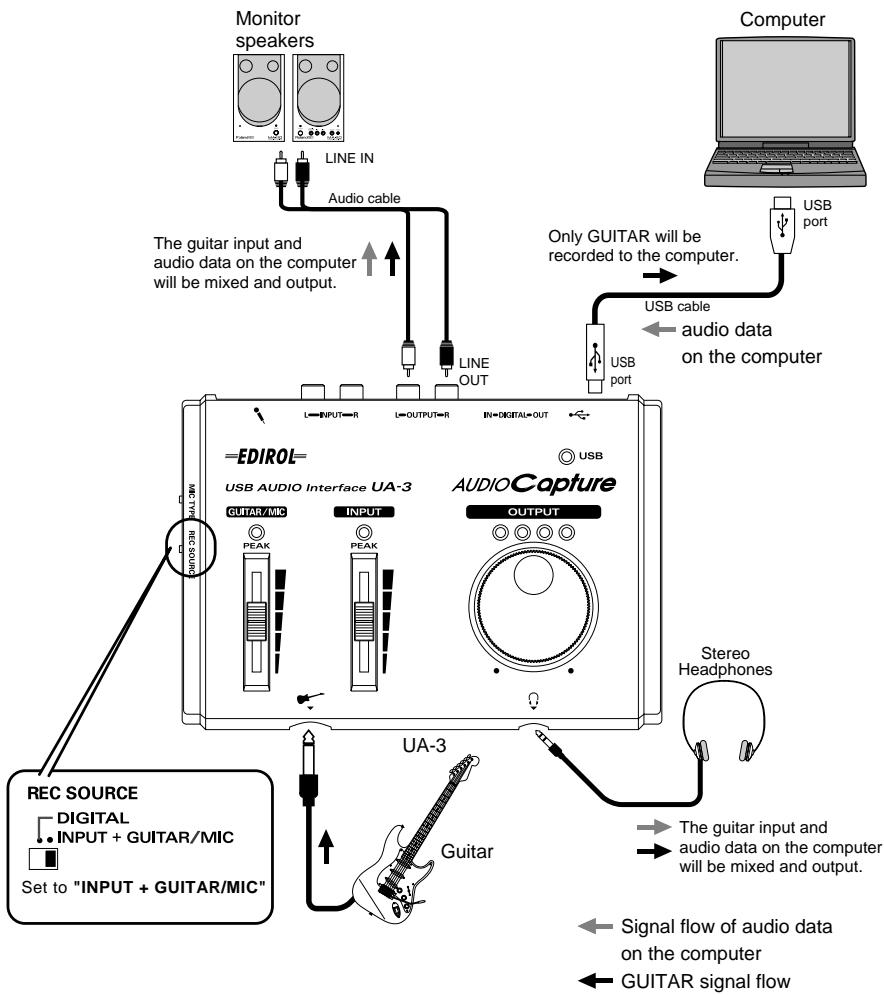
flowchart
graph TD
    A["Monitor speakers"] -->|LINE IN| B["Audio cable"]
    B --> C["Line OUT"]
    C --> D["Only GUITAR will be recorded to the computer"]
    D --> E["USB port"]
    E --> F["Computer"]
    G["REC SOURCE"] --> H["Digital INPUT + GUITAR/MIC"]
    H --> I["Set to "INPUT + GUITAR/MIC""]
    I --> J["Guitar"]
    J --> K["UA-3"]
    K --> L["Output"]
    L --> M["AudioCapture"]
    M --> N["USB port"]
    N --> O["USB cable"]
    O --> P["Audio data on the computer"]
    P --> Q["USB port"]
    Q --> R["Computer"]
    S["Stereo Headphones"] --> T["The guitar input and audio data on the computer will be mixed and output."]
    T --> U["Signal flow of audio data on the computer"]
    U --> V["GUITAR signal flow"]

- The signal input from the Guitar input jack is not directly output to the Digital output connector.
- If you change the position of the Recording input select switch, you should turn down the volume of any monitor speaker system that is connected.
Set the recording sample rate of your recording application to the desired setting. (The available sample rates will depend on your application. For details refer to the owner's manual for your application.) Available sampling frequencies vary depending on the operating system used.
Use the Guitar/Mic input adjustment slider to adjust the input level. If the LED above the slider lights red, use the slider to lower the input level. You will be able to record with higher audio quality if you use the slider to adjust the level so it is as high as you can get it before causing the LED to light.
■ Recording narration or vocal sounds
Make connections as shown in the following diagram.
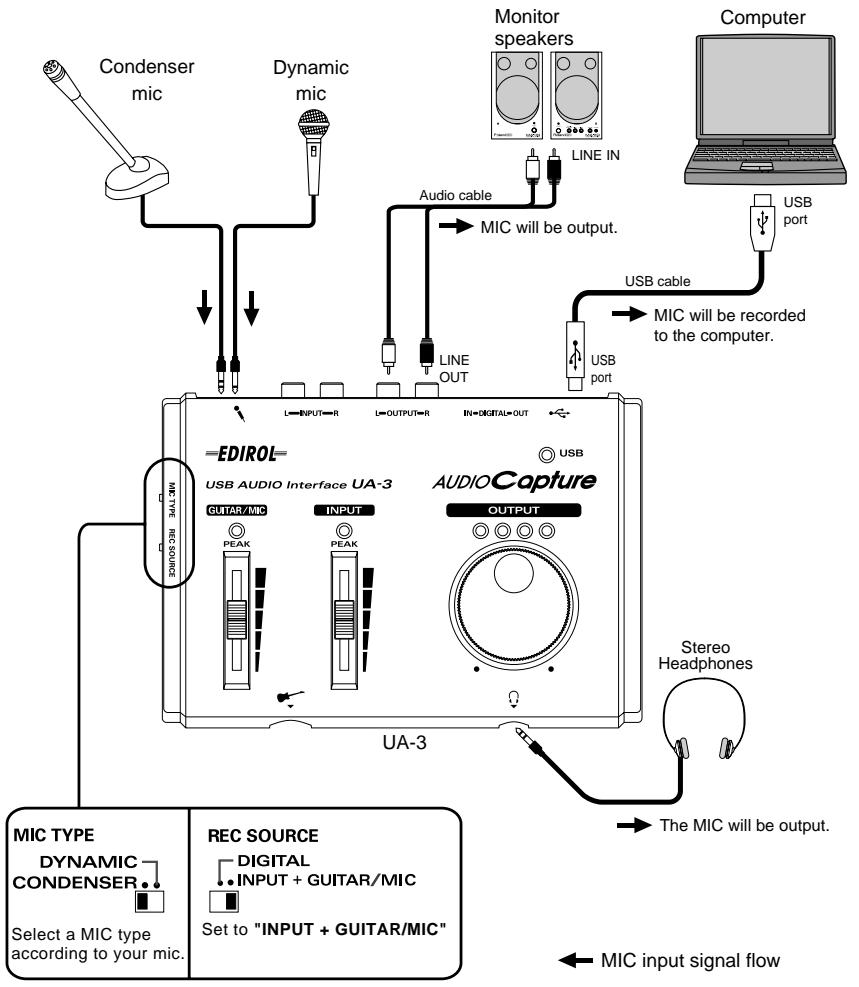
flowchart
graph TD
    A["Condenser mic"] --> B["EDIROL USB AUDIO Interface UA-3"]
    C["Dynamic mic"] --> B
    D["Monitor speakers"] --> E["LINE IN"]
    F["Computer"] --> G["USB port"]
    B --> H["UA-3"]
    I["Audio cable"] --> J["Line OUT"]
    K["USB cable"] --> L["USB port"]
    M["Micro type REC SOURCE"] --> N["MIC TYPE DYNAMIC CONDENSER"]
    O["REC SOURCE"] --> P["DIGITAL INPUT + GUITAR/MIC"]
    Q["The MIC will be output."] --> R["Output"]
    S["Select a MIC type according to your mic."] --> T["Select a MIC type according to your mic."]
    U["The MIC will be output."] --> V["Output"]
    W["The MIC will be recorded to the computer."] --> X["Computer"]
    Y["Select to "INPUT + GUITAR/MIC""] --> Z["Output"]
    AA["The MIC will be output."] --> AB["Output"]
    AC["The MIC will be output."] --> AD["Output"]

• CONDENSER MIC
The UA-3 supports small multimedia microphones used for adding narration, and is compatible with plug-in powered monaural microphones
- Howling could be produced depending on the location of microphones relative to speakers. This can be remedied by: 1. Changing the orientation of the microphones(s). 2. Relocating microphone(s) at a greater distance from speakers. 3. Lowering volume levels.
- If you change the position of the Recording input select switch, you should turn down the volume of any monitor speaker system that is connected.
Set the recording sample rate of your recording application to the desired setting. (The available sample rates will depend on your application. For details refer to the owner's manual for your application.) Available sampling frequencies vary depending on the operating system used.
Use the Guitar/Mic input adjustment slider to adjust the input level. If the LED above the slider lights red, use the slider to lower the input level. Use the Guitar/Mic input adjustment slider to adjust the input level. If the LED above the slider lights red, use the slider to lower the input level. You will be able to record with higher audio quality if you use the slider to adjust the level so it is as high as you can get it before causing the LED to light.
■ Recording guitar mixed with the line inputs
With these settings, the guitar will be mixed with the line inputs and recorded on your computer.
Make connections as shown in the following diagram.
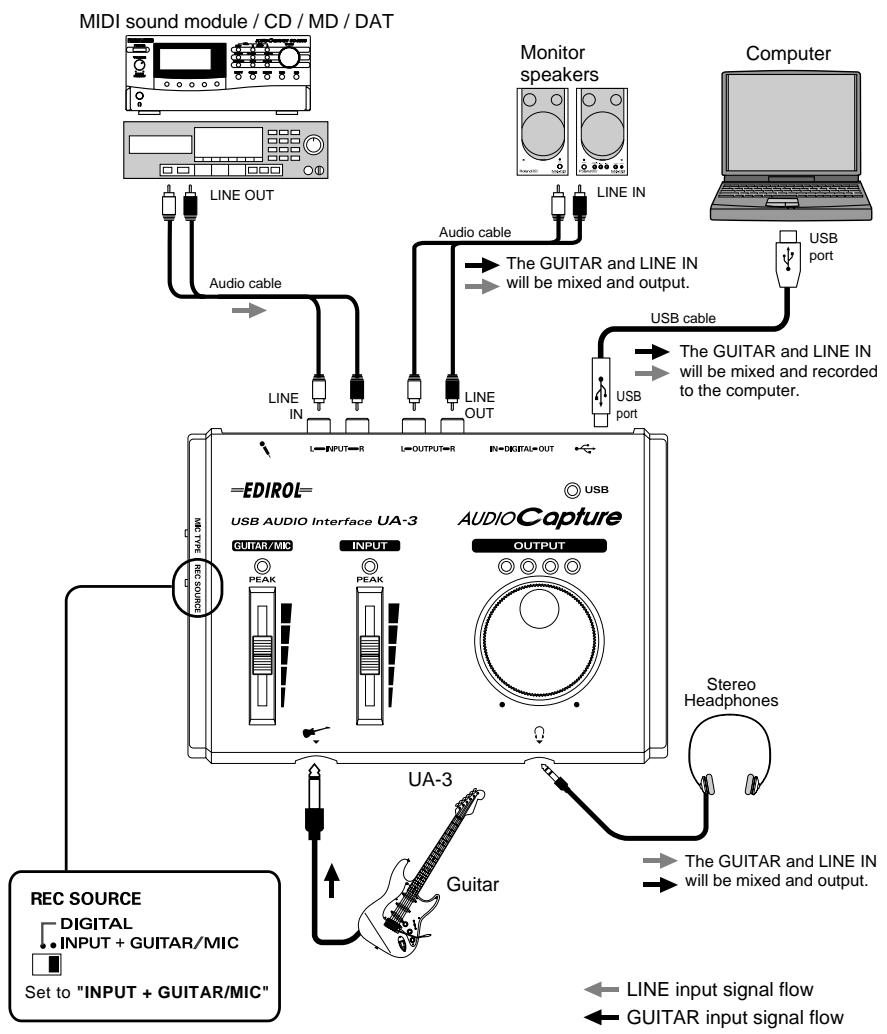
flowchart
graph TD
    A["MIDI sound module / CD / MD / DAT"] --> B["Monitor speakers"]
    B --> C["Computer"]
    A --> D["LINE OUT"]
    A --> E["LINE IN"]
    A --> F["Audio cable"]
    A --> G["Line IN"]
    A --> H["Line OUT"]
    A --> I["Audio cable"]
    I --> J["The GUITAR and LINE IN will be mixed and output."]
    I --> K["USB port"]
    L["REC SOURCE"] --> M["Digital INPUT + GUITAR/MIC"]
    M --> N["Set to "INPUT + GUITAR/MIC""]
    O["Guitar"] --> P["UA-3"]
    Q["Stereo Headphones"] --> R["Output"]
    S["USB capture"] --> T["Line IN"]
    U["LINE OUT"] --> V["Line IN"]
    W["LINE OUT"] --> X["Line IN"]
    Y["LINE IN"] --> Z["Line IN"]
    AA["LINE IN"] --> AB["Line IN"]
    AC["LINE IN"] --> AD["Line IN"]
    AE["LINE IN"] --> AF["Line IN"]
    AG["LINE IN"] --> AH["Line IN"]
    AI["LINE IN"] --> AJ["Line IN"]
    AK["LINE IN"] --> AL["Line IN"]
    AM["LINE IN"] --> AN["Line IN"]
    AO["LINE IN"] --> AP["Line IN"]
    AQ["LINE IN"] --> AR["Line IN"]
    AS["LINE IN"] --> AT["Line IN"]
    AU["LINE IN"] --> AV["Line IN"]
    AW["LINE IN"] --> AX["Line IN"]
    AY["LINE OUT"] --> AZ["Line IN"]
    BA["Line IN"] --> BB["Line IN"]
    BC["Line IN"] --> BD["Line IN"]
    BE["Line IN"] --> BF["Line IN"]
    BG["Line IN"] --> BH["Line IN"]
    BI["Line IN"] --> BJ["Line IN"]
    BK["Line IN"] --> BL["Line IN"]

- It is not possible to simultaneously record both a digital source (such as CD) and an analog source (such as guitar or mic). Either use the included software to record them separately, or record the digital source first and then record the analog source as described in Recording guitar sounds (p. 113).
- If you change the position of the Recording input select switch, you should turn down the volume of any monitor speaker system that is connected.
Set the recording sample rate of your recording application to the desired setting. (The available sample rates will depend on your application. For details, refer to the owner's manual for your application.)
Use the Line input adjustment slider and Guitar/Mic input adjustment slider to adjust the balance. If the LED above the slider lights red, use the slider to lower the input level. If you use the slider to adjust the level so it is as high as you can get it before causing the LED to light.
■ U-3 Block Diagram
UA-3 Block Diagram
[Recording input select switch is set to INPUT + GUITAR/MIC]
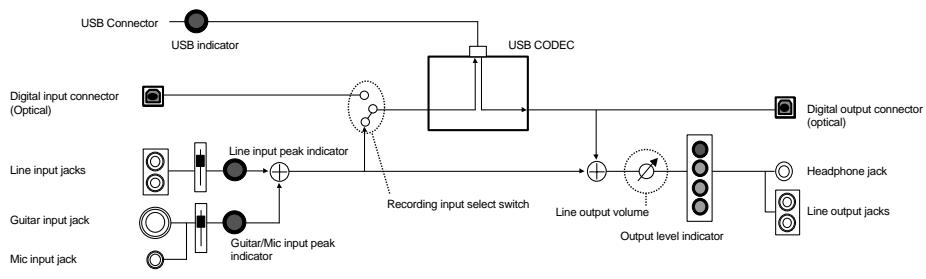
flowchart
graph LR
    A["Micro input jack"] --> B["Guitar/Mic input peak indicator"]
    C["Guitar input jack"] --> D["Guitar/Mic input peak indicator"]
    E["Line input jacks"] --> F["Line input peak indicator"]
    G["Digital input connector (Optical)"] --> H["USB Connector"]
    H --> I["USB indicator"]
    I --> J["USB CODEC"]
    J --> K["Recording input select switch"]
    K --> L["Line output volume"]
    L --> M["Output level indicator"]
    M --> N["Headphone jack"]
    M --> O["Line output jacks"]
    P["Digital output connector (optical)"] --> Q["Digital output connector (optical)"]
[Recording input select switch is set to DIGITAL]
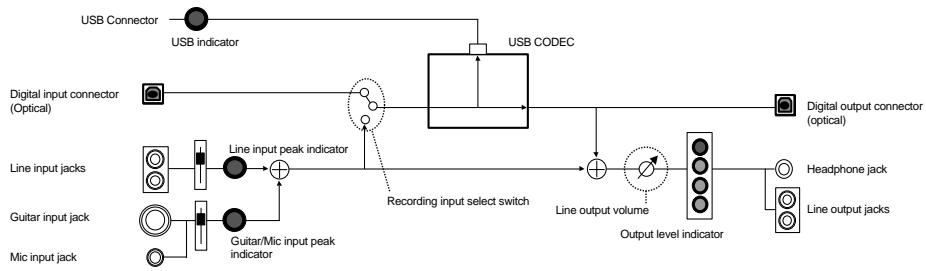
flowchart
graph LR
    A["Micro input jack"] --> B["Guitar/Mic input peak indicator"]
    C["Guitar input jack"] --> D["Guitar/Mic input peak indicator"]
    E["Line input jacks"] --> F["Line input peak indicator"]
    G["Digital input connector (Optical)"] --> H["USB connector"]
    I["USB CODEC"] --> J["Recording input select switch"]
    K["Line output jacks"] --> L["Headphone jack"]
    M["Line output connector (optical)"] --> N["Digital output connector (optical)"]
    O["Line output jacks"] --> P["Output level indicator"]
    Q["Line output jacks"] --> R["Output level indicator"]
UA-3 (USB Audio Interface)
Number of Audio Record/Playback Channels
Record: 1 pair of stereo
Playback: 1 pair of stereo
* When the REC SOURCE switch is at INPUT+GUITAR/MIC, analog recording and audio playback from your PC can occur simultaneously. When the REC SOURCE switch is at DIGITAL, only digital recording is possible.
Signal Processing
PC interface: 16 bit
Sampling Frequency
Output: 44.1 kHz
Input: 32 kHz/44.1 kHz/48 kHz *
* When you record audio digitally from a digital device, UA-3 does not support the switching function of the sampling rate of the digital device. If you want to switch the sampling rate, you have to reconnect the digital cable.
Interface
USB
Digital input/output: Optical type (conforms to S/P DIF)
* Consumer digital audio device format is supported
Power Supply
Supplied from the computer
Current Draw
360 mA
Dimensions
175 (W) x 125.5 (D) x 34 (H) mm
6-15/16 (W) x 5 (D) x 1-3/8 (H) inches
Weight
260 g/ 10 oz
Accessories
Getting Started Manual
USB cable
CD-ROM
* In the interest of product improvement, the specifications and/or appearance of this unit are subject to change without prior notice.

About the included song data
Use of the song data supplied with this product for any purpose other than private, personal enjoyment without the permission of the copyright holder is prohibited by law. Additionally, this data must not be copied, nor used in a secondary copyrighted work without the permission of the copyright holder.
It's gonna be alright
Composed & programmed by Mitsuru Sakaue
Vocal: Tahirih Walker, Humiyo Kawazoe
Guitar: Katsuhisa Fujimoto, Idecs Inc.
Windows
Operating system:
- Microsoft® Windows® 98 (includes Second Edition)
- Microsoft® Windows® Me
- Microsoft® Windows® 2000 Professional
Computer:
Windows® compatible computer with an USB connector.
CPU/Clock:
- Microsoft® Windows® 98 (includes Second Edition) /Microsoft® Windows® Me Pentium II processor 233MHz or higher
- Microsoft® Windows® 2000 Professional Pentium II processor 400MHz or higher Or Celeron processor 400MHz or higher (Pentium III processor 500MHz or higher recommended)
Memory(RAM):
64M bytes or more
Hard Disk:
120M bytes or more
Display/Colors:
800x600 or higher /65,536 colors (16 bit High Color) or more
Macintosh
Operating system:
MacOS 9.0.4 or later
Computer:
Apple Macintosh series with on-board USB. Test Studied on iMac*, Power Mac G4, Power Mac G4 Cube, and iBook.
* If you are using an iMac that are released after the summer of 2000, noise is heard when recording audio.
CPU/Clock:
PowerPC G3/300MHz or higher
Memory(RAM):
96M Bytes or more (128M bytes or more recommended; Application memory 32M bytes or more)
Hard Disk:
120M bytes or more
Display/Colors:
800x600 or higher
* Although Roland has tested numerous configurations, and has determined that on average, a computer system similar to that described above will permit normal operation of the UA-3, Roland cannot guarantee that a given computer can be used satisfactorily with the UA-3 based solely on the fact that it meets the above requirements. This is because there are too many other variables that may influence the processing environment, including differences in motherboard design and the particular combination of other devices involved.

For EU Countries
This product complies with the requirements of European Directive 89/336/EEC.
For the USA
FEDERAL COMMUNICATIONS COMMISSION RADIO FREQUENCY INTERFERENCE STATEMENT
This equipment has been tested and found to comply with the limits for a Class B digital device, pursuant to Part 15 of the FCC Rules. These limits are designed to provide reasonable protection against harmful interference in a residential installation. This equipment generates, uses, and can radiate radio frequency energy and, if not installed and used in accordance with the instructions, may cause harmful interference to radio communications. However, there is no guarantee that interference will not occur in a particular installation. If this equipment does cause harmful interference to radio or television reception, which can be determined by turning the equipment off and on, the user is encouraged to try to correct the interference by one or more of the following measures:
– Reorient or relocate the receiving antenna.
– Increase the separation between the equipment and receiver.
- Connect the equipment into an outlet on a circuit different from that to which the receiver is connected.
- Consult the dealer or an experienced radio/TV technician for help.
This device complies with Part 15 of the FCC Rules. Operation is subject to the following two conditions:
(1) This device may not cause harmful interference, and
(2) This device must accept any interference received, including interference that may cause undesired operation.
Unauthorized changes or modification to this system can void the users authority to operate this equipment. This equipment requires shielded interface cables in order to meet FCC class B Limit.
For the USA
DECLARATION OF CONFORMITY COMPLIANCE INFORMATION STATEMENT
Model name: UA-3
Type of Equipment: USB Audio Interface
Responsible Party: Edirol Corporation North America
Address: 425 Sequoia Drive, Suite 114, Bellingham, WA 98226
Telephone: 360-594-4276
For Canada
NOTICE
This Class B digital apparatus meets all requirements of the Canadian Interference-Causing Equipment Regulations.
AVIS
When you need repair service, call your nearest Roland/EDIROL Service Center or authorized Roland/EDIROL distributor in your country as shown below.
=EDIROL
AUSTRALIA
EDIROL Australia Pty. Ltd.
72 Central Avenue
Oak Flats NSW 2529
AUSTRALIA
TEL: (02) 4257 9091
http://www.edirol.com.au
EUROPE
EDIROL (Europe) Ltd.
Studio 3.4 114 Power Road
London W4 5PY
U. K.
TEL: +44 (0)20 8747 5949
FAX:+44 (0)20 8747 5948
http://www.edirol.com/europe
Deutschland
TEL: 0700 33 47 65 20
France
TEL: 0810 000 371
Italia
TEL: 02 93778329
U. S. A. / CANADA
EDIROL Corporation North
America
425 Sequoia Drive, Suite 114
Bellingham, WA 98226
U. S. A.
TEL: (360)594-4276
FAX: (360)594-4271
http://www.edirol.com/
Roland
AFRICA
EGYPT
Al Fanny Trading Office
P.O. Box 2904,
El Horrieh Heliopolos, Cairo,
EGYPT
TEL: (02) 4185531
REUNION
That Other Music Shop
(PTY) Ltd.
11 Melle St., Braamfontein,
Johannesbourg
Republic of SOUTH AFRICA
P.O.Box 32918, Braamfontein 2017
Republic of SOUTH AFRICA
TEL: (011) 403 4105
Paul Bothner (PTY) Ltd.
17 Wermuller Centre Claremont
7700
Republic of SOUTH AFRICA
P.O. Box 23032
Claremont, Cape Town
SOUTH AFRICA, 7735
TEL: (021) 674 4030
ASIA
CHINA
Beijing Xinghai Musical
Instruments Co., Ltd.
6 Huangmuchang Chao Yang
District, Beijing, CHINA
TEL: (010) 6774 7491
HONG KONG
Tom Lee Music Co., Ltd.
Service Division
22-32 Pun Shan Street, Tsuen
Wan, New Territories,
HONG KONG
TEL: 2415 0911
INDIA
Rivera Digitec (India) Pvt. Ltd.
409, Nirman Kendra Mahalaxmi
Flats Compound Off. Dr. Edw
Moses Road, Mumbai-400011,
INDIA
TEL: (022) 498 3079
INDONESIA
PT Citra IntiRama
J1. Cideng Timur No. 15J-150
Jakarta Pusat
INDONESIA
TEL: (021) 6324170
KOREA
Cosmos Corporation
1461-9, Seocho-Dong,
Seocho Ku, Seoul, KOREA
TEL: (02) 3486-8855
MALAYSIA
Bentley Music SDN BHD
G.A. Yupangco & Co. Inc.
339 Gil J. Puyat Avenue
Makati, Metro Manila 1200,
PHILIPPINES
TEL: (02) 899 9801
SINGAPORE
CRISTOFORI MUSIC PTE
LTD
Blk 3014, Bedok Industrial Park E,
02-2148, SINGAPORE 489980
TEL: 243 9555
TAIWAN
ROLAND TAIWAN
ENTERPRISE CO., LTD
Room 5, 9fl. No. 112 Chung Shan
N.Road Sec.2, Taipei, TAIWAN,
R.O.C.
TEL: (02) 2561 3339
THAILAND
Theera Music Co., Ltd.
330 Verng NakornKasem, Soi 2,
Bangkok 10100, THAILAND
TEL:(02)2248821
VIETNAM
Saigon Music
138 Tran Quang Khai St.,
District 1
Ho Chi Minh City
VIETNAM
TEL: (08) 844-4068
AUSTRALIA/
NEW ZEALAND
NEW ZEALAND
Roland Corporation (NZ) Ltd.
Auckland 3, NEW ZEALAND
TEL: (09) 3098 715
CENTRAL/LATIN AMERICA
ARGENTINA
Instrumentos Musicales S.A.
Florida 656 2nd Floor
Office Number 206A
Buenos Aires
ARGENTINA, CP1005
TEL: (54-11) 4-393-6057
BRAZIL
Roland Brasil Ltda
Rua San Jose, 780 Sala B
Parque Industrial San Jose
Cotia - Sao Paulo - SP, BRAZIL
TEL: (011) 4615 5666
MEXICO
Casa Veerkamp, s.a. de c.v.
Av. Toluca No. 323, Col. Olivar
Boulevard Andrews, Albrook,
Panama City,
REP. DE PANAMA
TEL: (507) 315-0101
URUGUAY
Todo Musica S.A.
Cuareim 1844, Montevideo,
URUGUAY, CP11200
TEL: 5982-924-2335
VENEZUELA
Musicland Digital C.A.
155, New National Road
26422 Patras, GREECE
TEL: 061-435400
HUNGARY
Intermusica Ltd.
Warehouse Area 'DEPO' Pf.83
H-2046 Torokbalint, HUNGARY
TEL: (23) 511011
IRELAND
Roland Ireland
Audio House, Belmont Court,
Donnybrook, Dublin 4.
Republic of IRELAND
TEL: (01) 2603501
ITALY
Roland Italy S. p. A.
Danvik Center 28, 2 tr
S-131 30 Nacka SWEDEN
TEL: (08) 702 0020
SWITZERLAND
Roland (Switzerland) AG
Musitronic AG
Atlantic Close, Swansea
Enterprise Park, SWANSEA
SA7 9FJ,
UNITED KINGDOM
TEL: (01792) 700139
MIDDLE EAST
BAHRAIN
Moon Stores
Bab Al Bahrain Road,
P.O. Box 20077
State of BAHRAIN
TEL: 211 005
CYPRUS
- Owner's Manual page 5
- USING THE UNIT SAFELY
- INSTRUCTIONS FOR THE PREVENTION OF FIRE, ELECTRIC SHOCK, OR INJURY TO PERSONS
- ALWAYS OBSERVE THE FOLLOWING
- ! WARNING
- CAUTION
- Power Supply
- Placement
- Maintenance
- Additional Precautions
- Handling CD-ROMs
- On the UA-3
- If input from the UA-3's digital input connector:
- If input from the UA-3's analog inputs (line input jacks):
- Check the contents of the package
- UA-3
- USB cable
- AUDIO Capture CD-ROM
- Getting Started
- License agreement
- You will need to provide these items yourself
- Parts of the UA-3 and their function
- MEMO
- - Condenser Mic
- NOTE
- What is a driver?
- Before installing the driver
- Making connections and installing the driver
- ■ Making connections
- ■ Installing the driver (Windows Me)
- ■ Installing the driver (Windows 2000)
- ■ Installing the driver (Windows 98)
- ■ Specifying the audio input/output device
- Volume Control settings
- If using Windows Me:
- If using Windows 2000
- If using Windows 98 or Windows 98 SE:
- Checking for sound output
- ■ Playing the sample data
- Did you hear the sample data?
- Deleting the USB Audio Device driver
- ■ If re-installing the USB Audio Device driver
- ■ If installation of the USB Audio Device driver was terminated before completion
- Basic operation of the D-Out Smoother
- ■ What is the D-Out Smoother?
- ■ Installing the D-Out Smoother
- ■ Starting the D-Out Smoother
- ■ Using the D-Out Smoother
- Convenient Features
- ■ Deleting (uninstalling) the D-Out Smoother
- ■ Getting the unit to be recognized
- ■ Making the sound settings
- Known issues: UA-3
- Problems related to the USB driver
- "Add New Hardware Wizard" does not start up automatically
- "Add New Hardware Wizard" terminates before completion
- The "Add New Hardware Wizard" dialog box appears even though you installed the drivers
- Drivers are not installed correctly
- A dialog box saying "Unknown Device found" appears, and I can't install the driver
- Problems when using the UA-3
- OS becomes unstable
- No sound
- ■ Sound is distorted
- The volume level of the instrument connected to LINE IN is too low.
- ■ Noise is heard when playing back audio
- ■ Sound is interrupted during audio playback
- ■ Audio playback stops
- Digitally recorded sound is distorted, pitch changes or contains noise
- Noise is present in the recorded sound
- Checking the USB audio driver's version
- ■ A blank (silent) file is created when you record
- Cannot record digitally
- Cannot Record Music CD
- The volume changed when you resumed from Suspend or Hibernation status
- Game background music does not sound
- Problems common to software in general
- Can't install
- Can't start up an application
- An error is displayed when you start up an application
- An Application hangs up
- A shortcut error appears when starting up Windows
- ■ Digitally recording the output of the UA-3 on MD
- ■ Digital transfer from CD/MD/DAT to your computer (digital recording)
- ■ Recording the line inputs (analog recording)
- ■ Recording guitar sounds
- ■ Recording narration or vocal sounds
- • CONDENSER MIC
- ■ Recording guitar mixed with the line inputs
- ■ U-3 Block Diagram
- UA-3 (USB Audio Interface)
- Number of Audio Record/Playback Channels
- Signal Processing
- Sampling Frequency
- Interface
- Current Draw
- Dimensions
- Weight
- Accessories
- About the included song data
- Windows
- Operating system:
- Computer:
- CPU/Clock:
- Memory(RAM):
- Hard Disk:
- Display/Colors:
- Macintosh
- FEDERAL COMMUNICATIONS COMMISSION RADIO FREQUENCY INTERFERENCE STATEMENT
- DECLARATION OF CONFORMITY COMPLIANCE INFORMATION STATEMENT
- NOTICE
- AVIS
- =EDIROL
- AUSTRALIA
- EUROPE
- S. A. / CANADA
- America
- Roland
- AFRICA
- EGYPT
- REUNION
- Paul Bothner (PTY) Ltd.
- ASIA
- CHINA
- HONG KONG
- INDIA
- INDONESIA
- KOREA
- MALAYSIA
- SINGAPORE
- 02-2148, SINGAPORE 489980
- TAIWAN
- THAILAND
- VIETNAM
- AUSTRALIA/
- NEW ZEALAND
- CENTRAL/LATIN AMERICA
- ARGENTINA
- BRAZIL
- MEXICO
- URUGUAY
- VENEZUELA
- HUNGARY
- IRELAND
- ITALY
- SWITZERLAND
- MIDDLE EAST
- BAHRAIN
- CYPRUS
Brand : ROLAND
Model : UA-3
Category : Audio Interface