Cesium 90 - Tablet ARCHOS - Free user manual and instructions

Find the device manual for free Cesium 90 ARCHOS in PDF.

ARCHOS Cesium 90 - Tablet
📄 182 pages English EN Download 💬 AI Question 10 questions ⚙️ Specs
Notice ARCHOS Cesium 90 - page 5
Pick your language and provide your email: we'll send you a specifically translated version.
Product type Tablet
Brand Archos
Model Cesium 90
Dimensions (W x D x H) 240 x 170 x 9 mm
Weight 500 g
Power supply Rechargeable lithium-ion battery, 6000 mAh
Battery life Approximately 8 hours of Wi-Fi browsing
Operating system Android 4.2 (Jelly Bean)
Screen 9.7-inch capacitive touchscreen, 1024 x 768 pixel resolution
Processor Rockchip RK3066 dual-core 1.6 GHz
RAM 1 GB DDR3
Internal storage 16 GB (expandable via microSD up to 32 GB)
Connectivity Wi-Fi 802.11 b/g/n, Bluetooth 4.0
Rear camera 2 megapixels
Front camera 0.3 megapixels
Ports Micro-USB, 3.5mm headphone jack
Sensors Accelerometer, compass
Main functions Internet browsing, multimedia playback, games, email, Android apps
Care and cleaning Clean with a soft, dry cloth; avoid abrasive products
Security Screen lock, parental controls (via third-party apps)
Spare parts and repairability Non-removable battery; screen and connectors replaceable at an authorized center
General information Indoor use, operating temperature 0°C to 35°C

Frequently Asked Questions - Cesium 90 ARCHOS

How to charge the battery of the Archos Cesium 90?
Connect the provided micro-USB cable to the power adapter (5V/1A) and connect it to the tablet. The indicator light turns on during charging.
The screen is not responding to touch, what should I do?
Try restarting the tablet by holding the power button for 10 seconds. If the problem persists, perform a factory reset (note: your data will be erased).
How to transfer files to the Archos Cesium 90 from a computer?
Connect the tablet to the computer using the micro-USB cable. On the tablet, slide down the notification bar and select 'USB connection' then 'Mass storage'. Your computer will detect the tablet as a removable drive.
What to do if the tablet does not turn on?
Check that the battery is charged. Plug in the charger and wait a few minutes. If nothing happens, press and hold the power button and volume down button simultaneously for 10 seconds for a forced reset.
How to install applications on the Archos Cesium 90?
Open the 'Play Store' app, create a Google account if needed, then search and install the applications of your choice.
Internal memory is full, what to do?
You can insert a microSD card (up to 32 GB) into the designated slot. Also move files (photos, videos) to the SD card via the file manager.
How to take a screenshot?
Simultaneously press the power button and the volume down button. The image will be saved in the gallery.
Wi-Fi connection is unstable, how to improve?
Make sure you are close to the router. Restart the tablet and the router. Forget the network in Wi-Fi settings and reconnect by entering the password.
How to reset the tablet to factory settings?
Go to 'Settings' > 'Backup & reset' > 'Factory data reset'. Confirm the operation. The tablet will restart and erase all personal data.
What to do if the screen freezes?
Press and hold the power button for 10 to 15 seconds until the tablet restarts. If the problem occurs frequently, check for software updates or perform a reset.

User questions about Cesium 90 ARCHOS

0 question about this device. Answer the ones you know or ask your own.

Ask a new question about this device

Your email remains private: it is only used to notify you if someone answers your question.

No questions yet. Be the first to ask one.

Download the instructions for your Tablet in PDF format for free! Find your manual Cesium 90 - ARCHOS and take your electronic device back in hand. On this page are published all the documents necessary for the use of your device. Cesium 90 by ARCHOS.

USER MANUAL Cesium 90 ARCHOS

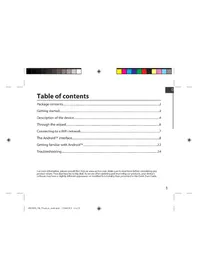
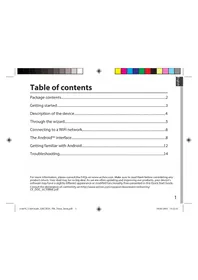
Package contents....2

Getting started....3

Description of the device....4

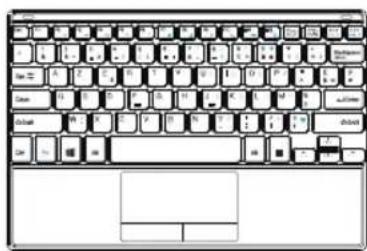
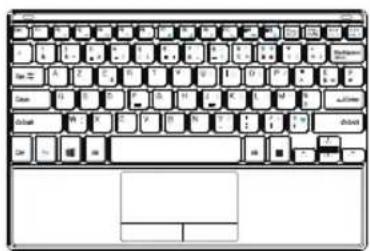
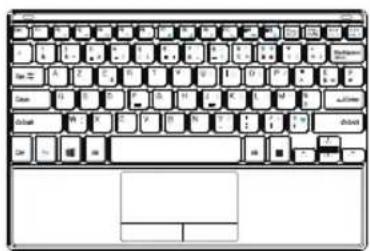
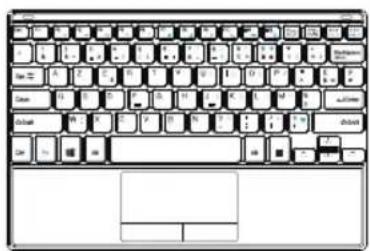
Description of the keyboard....5

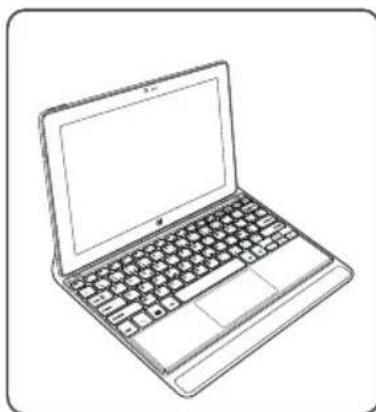
Installing the tablet with the keyboard....6

First steps....8

Connecting to a WiFi network....10

The Windows TM interface....12

Troubleshooting....18

As we are often updating and improving our products, your device's software may have a slightly different appearance or modified functionality than presented in this Quick Start Guide.

For more detailed information about how to use your device, go to the link:

http://windows.microsoft.com/en-gb.

Consult the declaration of conformity on:

http://www.archos.com/products/declaration_conformity.html

ARCHOS Cesium 90 - 1

ARCHOS Cesium 90 - 2

ARCHOS Cesium 90 - 3

Package Content

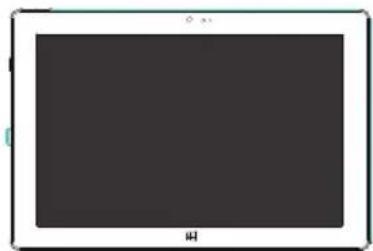
Blank tablet device with no visible text, numbers, or symbols on the screen.

ARCHOS 90 Cesium

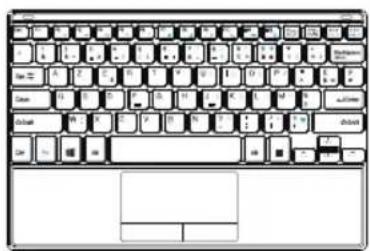
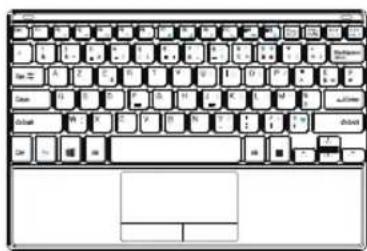
Laptop keyboard layout diagram with standard keys and mouse controls.

Keyboard + Origami pouch

QSG bookletARCHOS Cesium 90 - Package Content - 3

ARCHOS Cesium 90 - Package Content - 4

ChargerARCHOS Cesium 90 - Package Content - 5

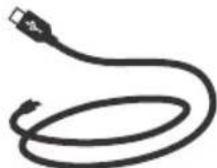
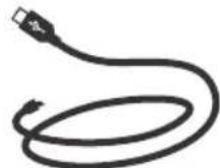
Charging cableARCHOS Cesium 90 - Package Content - 6

Warranty, legal & safety bookletARCHOS Cesium 90 - Package Content - 7

2

ARCHOS Cesium 90 - Package Content - 8

ARCHOS Cesium 90 - Package Content - 9

ARCHOS Cesium 90 - Package Content - 10

ARCHOS Cesium 90 - Package Content - 11

Getting Started

Charging

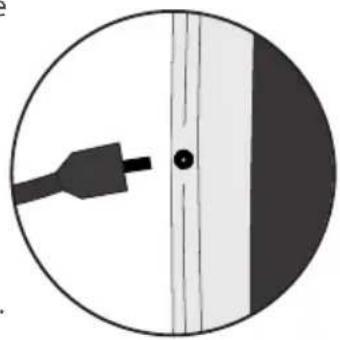
  1. Charge your device by plugging your power cable into the power connector.

The ARCHOS device will start charging.

The charging indicator light is on when the battery is charging.

  1. Press the Power button to turn on the device.

- You can use your ARCHOS whilst it charges.

- Let your device charge completely the first time you use it.

-Use only the supplied charger.

Simple circular diagram with a black plug and a vertical line, no text or symbols present.

TIP:

To receive more complete service, please register your product. From a computer, go to www.archos.com/register.

ARCHOS Cesium 90 - TIP: - 1

ARCHOS Cesium 90 - TIP: - 2

ARCHOS Cesium 90 - TIP: - 3

ARCHOS Cesium 90 - TIP: - 4

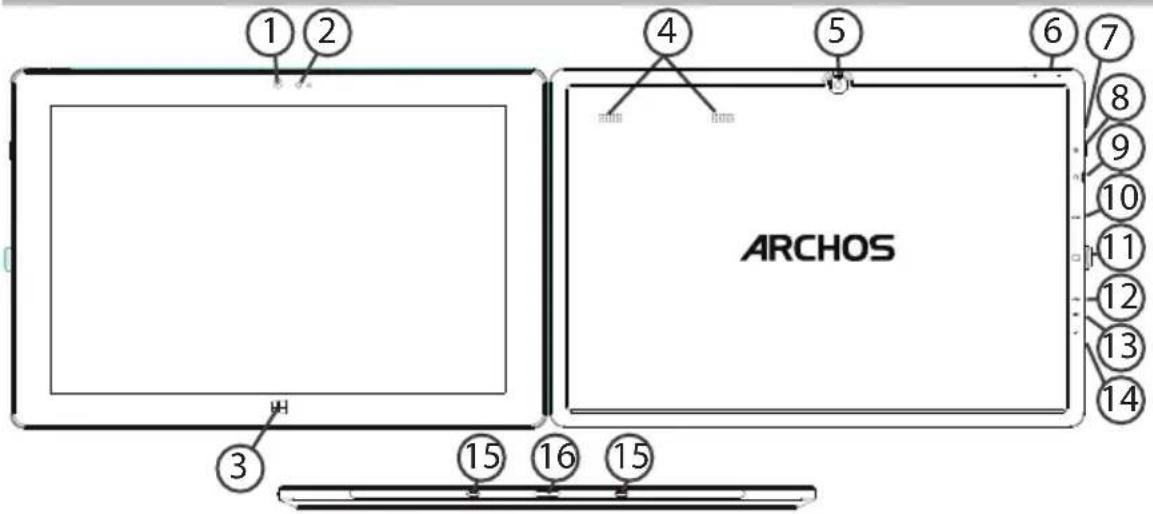
Description of the tablet1 2 4 5 6 7 8 9 10 11 12 13 14 ARCHOS 3 15 16 15

① Front camera ⑥Volume buttons ⑪ Micro-SD card slot ⑯ Keyboard connector ②Light sensor ⑦ Charging indicator ⑫Micro-USB port ③ Windows button ⑧ ON/OFF button ⑬Microphone ④ Loudspeaker ⑨Headphone jack 14 Power connector ⑤Back camera 10 HDMI video output ⑮ Fixation holes *With optional HDMI cable.

ARCHOS Cesium 90 - TIP: - 6

ARCHOS Cesium 90 - TIP: - 7

ARCHOS Cesium 90 - TIP: - 8

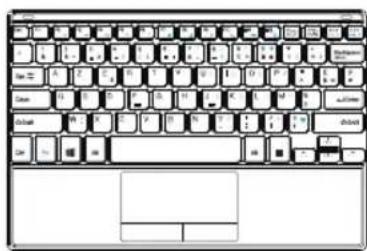
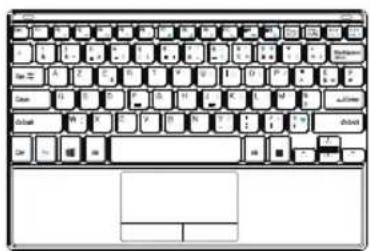
Description of the keyboard

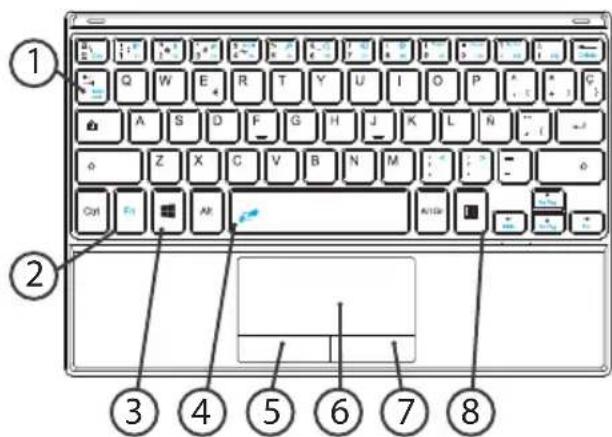
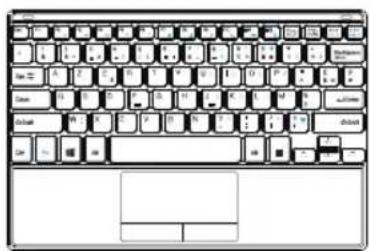
Laptop keyboard diagram with numbered labels pointing to key keys like Q, A, B, and control buttons.

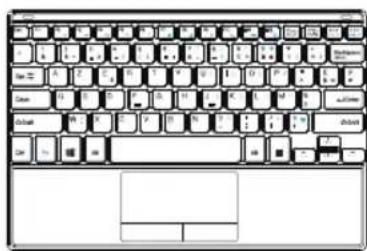
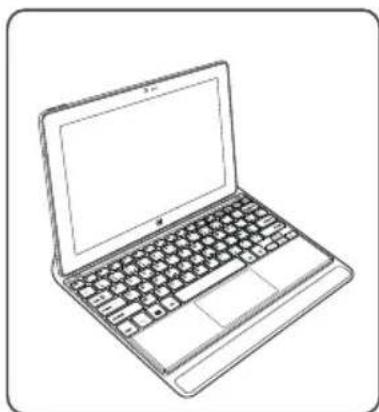
-The keyboard is automatically connected to your tablet through the keyboard connector.

-If the keyboard is not responding when the tablet is installed, make sure the installation is correct.

-The keyboard has the configuration of a standard computer keyboard.

  1. Scroll lock to prevent the screen from scrolling up or down
  2. Fn key to activate the keys having a double function in blue.
  3. Windows key display the homescreen.
  4. Touchpad lock To deactivate the touchpad function
  5. Left-click button to click on an item
  6. Touchpad to move the cursor
  7. Right-click button to display options for an item or menu
  8. Menu key to display the menu options for the corresponding window.

5

ARCHOS Cesium 90 - Description of the keyboard - 2

ARCHOS Cesium 90 - Description of the keyboard - 3

ARCHOS Cesium 90 - Description of the keyboard - 4

ARCHOS Cesium 90 - Description of the keyboard - 5

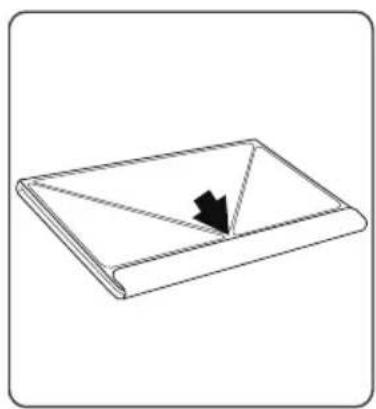
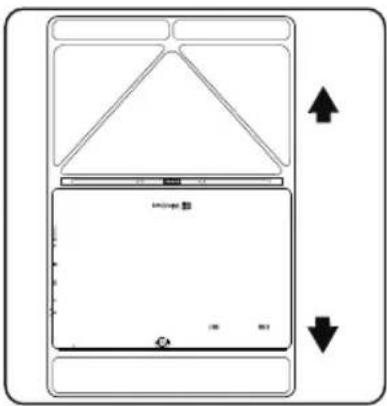
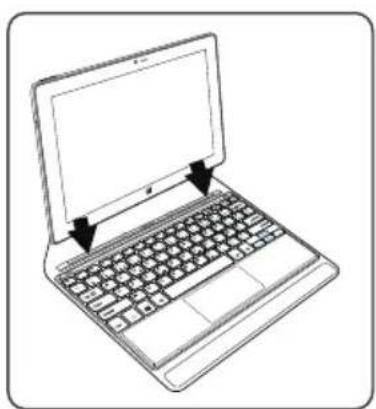
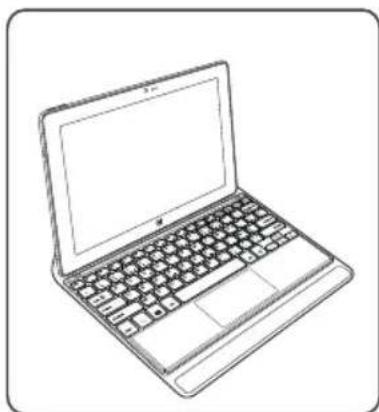
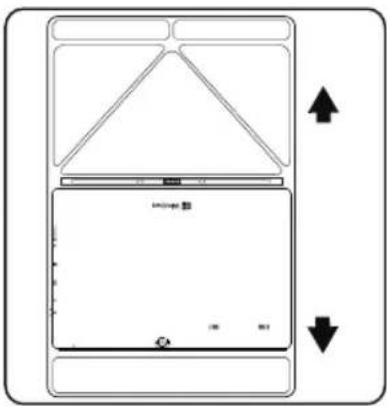
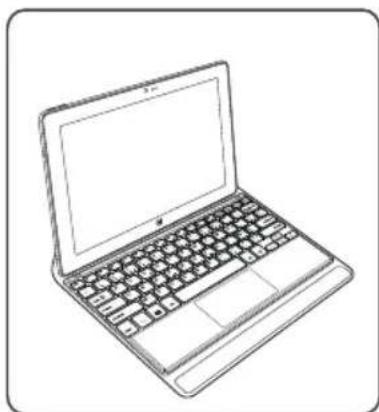
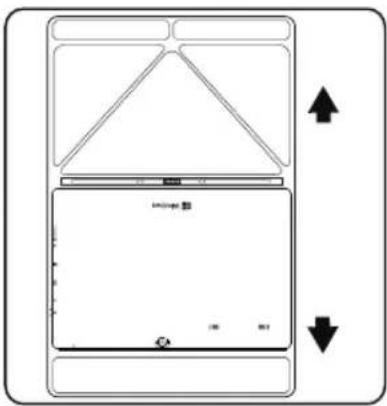
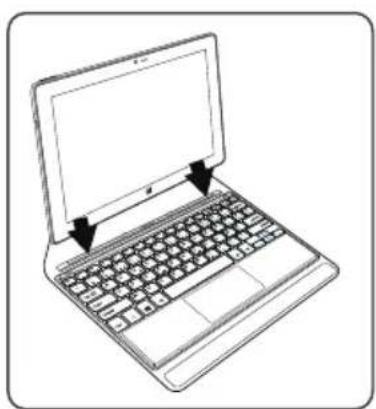
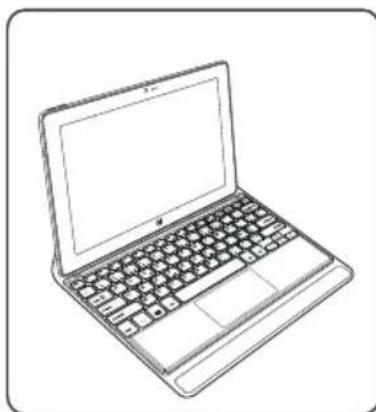
Installing the tablet with the keyboard

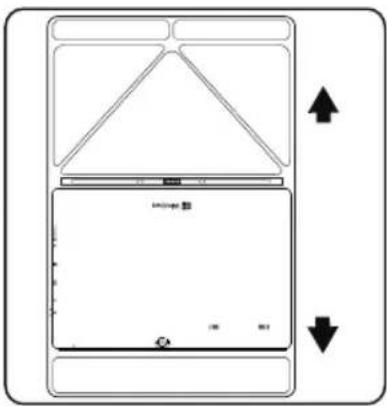
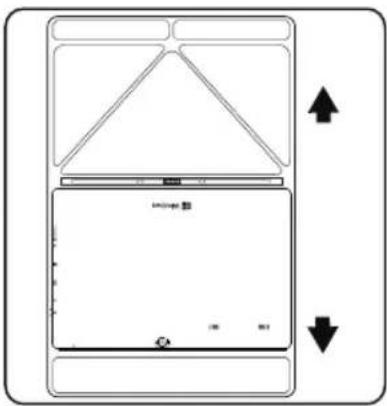
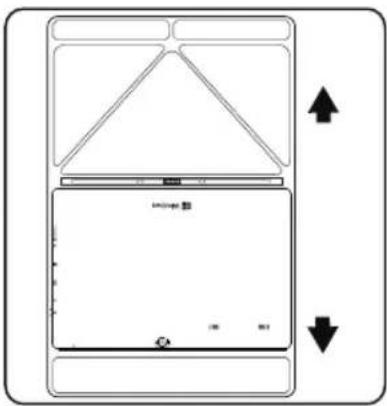
Simple line drawing of a folded paper or document with a triangular cutout and a black arrow pointing to the bottom section (no text or symbols).

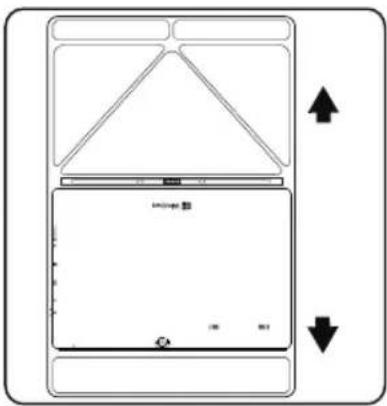
Diagram of a device with two arrows indicating directional movement, no text or symbols present.

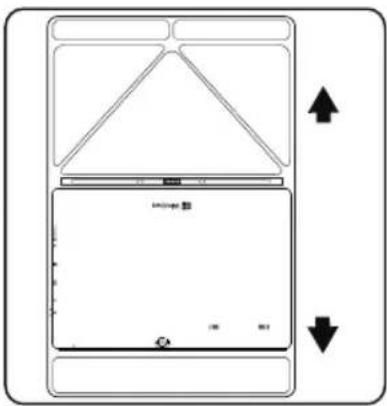
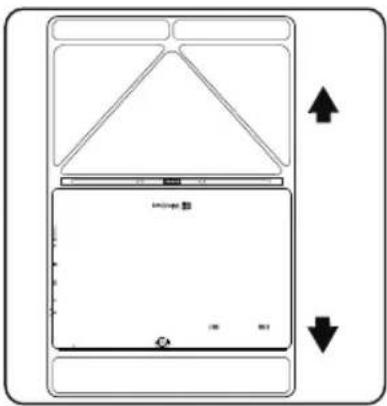
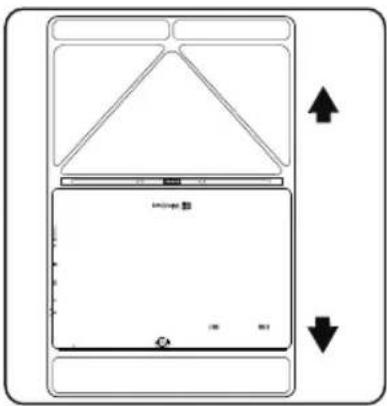
  1. Lift the protective case to open.

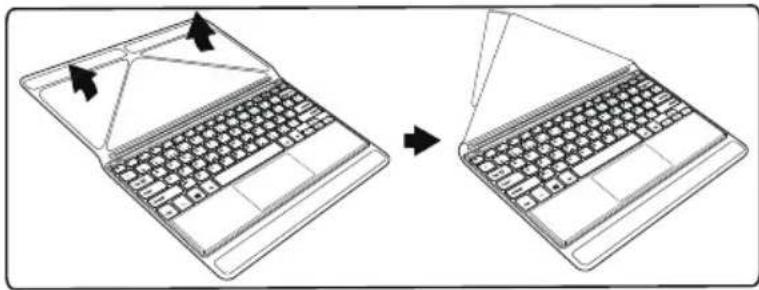
Line drawing of a laptop keyboard before and after assembly, showing the change from open to closed state (no text or symbols).

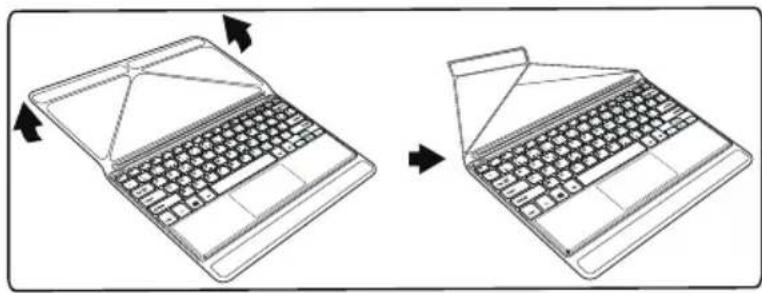
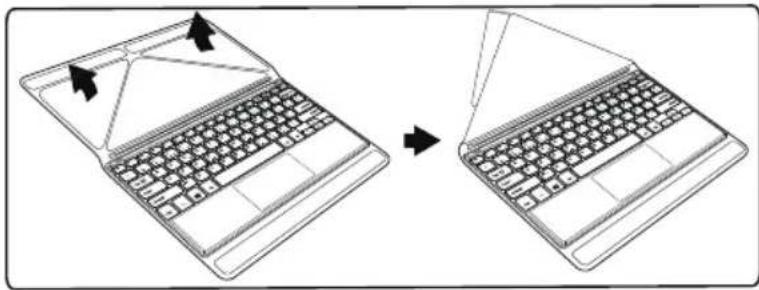
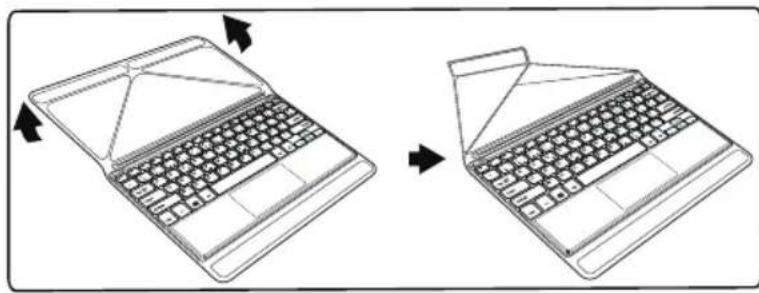
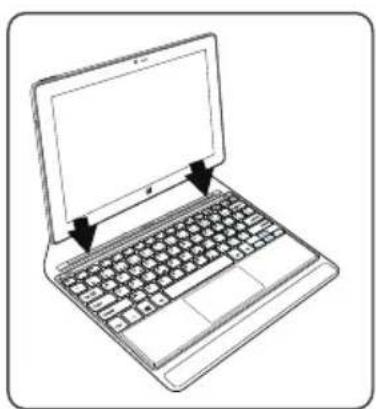
There are two types of view angle:

-First type of view angle

ARCHOS Cesium 90 - Installing the tablet with the keyboard - 4

ARCHOS Cesium 90 - Installing the tablet with the keyboard - 5

ARCHOS Cesium 90 - Installing the tablet with the keyboard - 6

Line drawing of a laptop with folded edges, showing the open and closed states (no text or symbols).

- Second type of view angle

ARCHOS Cesium 90 - Installing the tablet with the keyboard - 8

Line drawing of a laptop with two arrows pointing to the screen (no text or symbols).

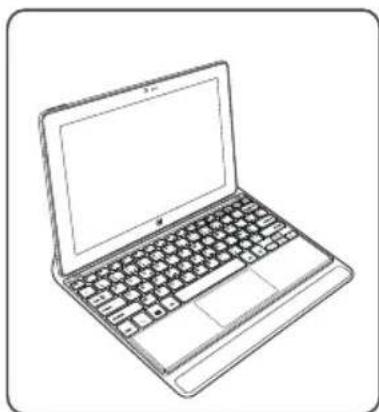
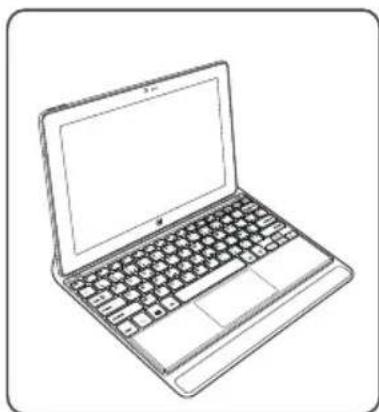
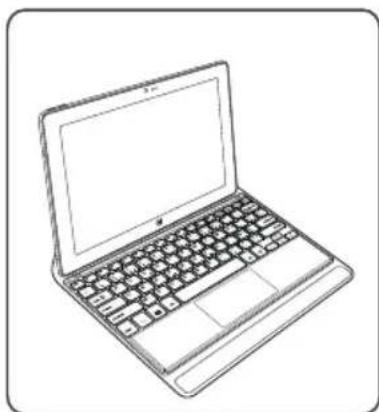
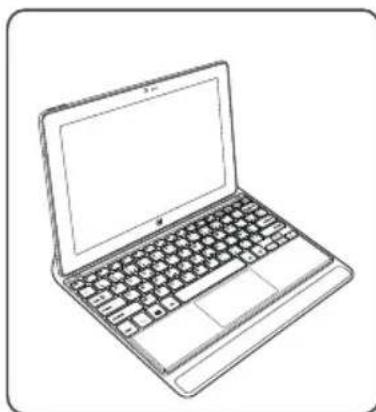
Line drawing of a laptop computer with visible keyboard and front panel (no text or symbols).

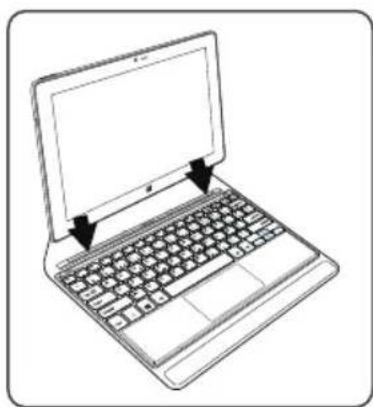
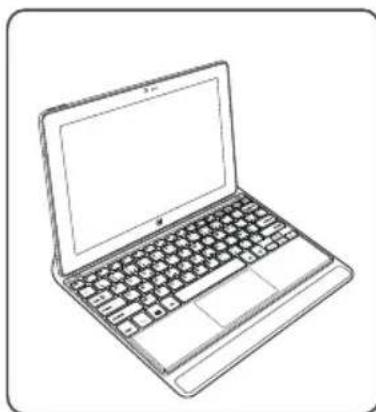
  1. Install the tablet on the keyboard connector and the fixation holes. The connection is automatic. No setup is needed. You tablet can now be used with the keyboard

ARCHOS Cesium 90 - Installing the tablet with the keyboard - 11

ARCHOS Cesium 90 - Installing the tablet with the keyboard - 12

ARCHOS Cesium 90 - Installing the tablet with the keyboard - 13

ARCHOS Cesium 90 - Installing the tablet with the keyboard - 14

First steps

Turning on

Hold the ON/OFF button to turn on the device.

The first time you turn on your device, you will go through different screens for a preliminary setup.

  1. In Region and language, set your Region, the device language and your Time zone and select Next.
  2. Select I accept to agree to the License terms.

Through the wizard

  1. In Personalize, select a color and type in a name in the PC name field.
  2. Select Next.
  3. In Get online, select a WiFi network to connect to Internet and select Next. Private networks require a password.
  4. In Settings, you can choose between Express settings or Customize.
  5. If you are a beginner, we advise you to select Use express settings.
  6. If you are an advanced user, you can select Customize to make your own settings.
  7. In Sign in to your Microsoft account, enter your account details. If you don't have an account, select Create a new account and follow the instructions to choose between options.

ARCHOS Cesium 90 - Through the wizard - 1

ARCHOS Cesium 90 - Through the wizard - 2

ARCHOS Cesium 90 - Through the wizard - 3

ARCHOS Cesium 90 - Through the wizard - 4

Help us protect your info

Microsoft helps you secure your device and your account.

  1. Enter your email address in the required field and select Next.
  2. A code is sent to your email account. Open your account to see the code.
  3. Enter the code you have received. If you can't consult your email account, select I can't do this right now.

At the end of the setup process, the device restarts. The homescreen is displayed. Now you can use your tablet.

ARCHOS Cesium 90 - Help us protect your info - 1

ARCHOS Cesium 90 - Help us protect your info - 2

Activating Microsoft Office

A free license is provided for one year. This license, once activated, allows you to install Microsoft Office on two devices by connecting your Microsoft account.

  1. From the tablet homescreen, select the Microsoft Office application. You are required to activate it.
  2. Enter your Microsoft account to log in. Your license is now linked to your account.

On a second device (computer, tablet or smartphone), you can download Microsoft Office.

!If you restore your device to its default settings without activating your license, you lose the benefit of the free license.

ARCHOS Cesium 90 - Activating Microsoft Office - 1

ARCHOS Cesium 90 - Activating Microsoft Office - 2

ARCHOS Cesium 90 - Activating Microsoft Office - 3

ARCHOS Cesium 90 - Activating Microsoft Office - 4

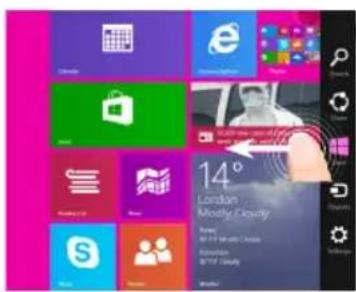
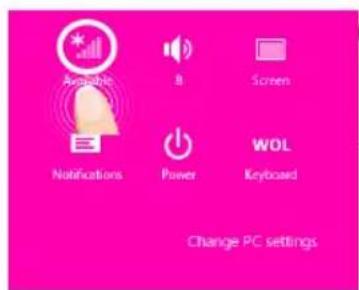
Connecting to a WiFi network

CAUTION: Make sure that you are in a WiFi zone. If you failed to connect to Internet during the first setup, you can follow the process below.

London Mostly Equity 14° London Mostly Equity

① Swipe in from the right edge.

Screenshot of a Windows desktop with app icons and a 14° screen showing 'London Mostly Experity'.

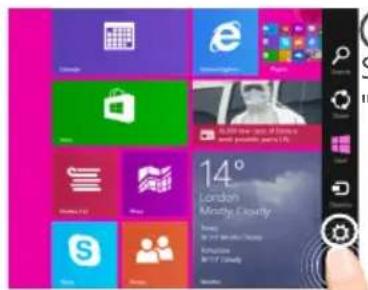
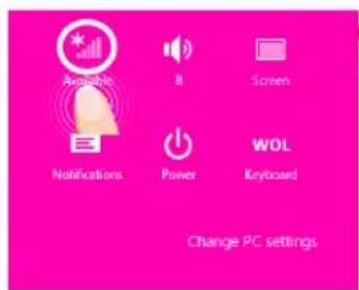
② Select the "Settings" icon.

Available 8 Screen Notifications Power WOL Keyboard Change PC settings.

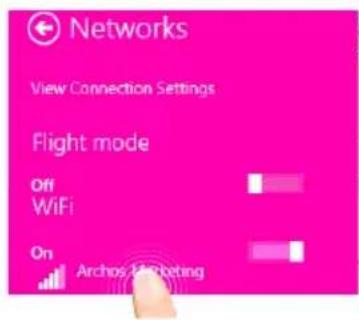
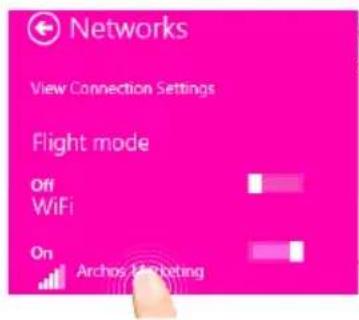
③ Select the "WiFi" icon.

Networks View Connection Settings Flight mode Off WiFi On Archos 12 offering

④ Touch the name of network you want to connect to.

ARCHOS Cesium 90 - Connecting to a WiFi network - 5

ARCHOS Cesium 90 - Connecting to a WiFi network - 6

ARCHOS Cesium 90 - Connecting to a WiFi network - 7

ARCHOS Cesium 90 - Connecting to a WiFi network - 8

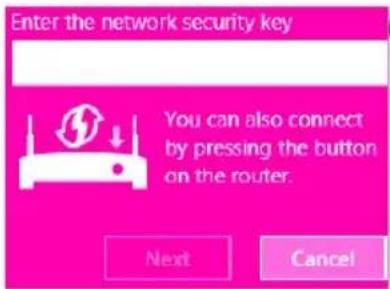
Enter the network security key. You can also connect by pressing the button on the router. Next Cancel

⑤ For a private network, enter the corresponding password.

TIP:

Once you have been connected to a secured network, you can disconnect from it and connect again without entering the password.

ARCHOS Cesium 90 - TIP: - 1

ARCHOS Cesium 90 - TIP: - 2

ARCHOS Cesium 90 - TIP: - 3

ARCHOS Cesium 90 - TIP: - 4

The Windows™ Interface

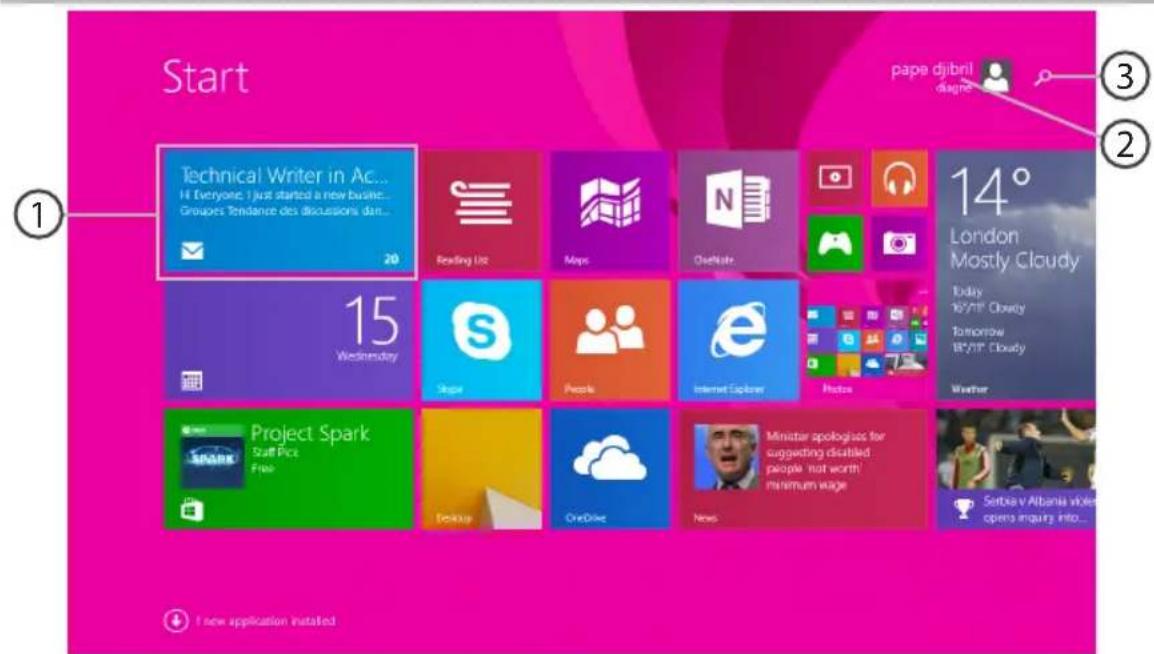
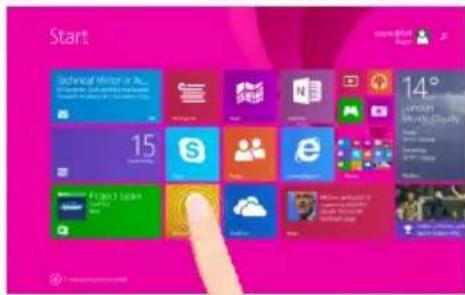
Start. Technical Writer in Ac... Hi Everyone I just started a new busine... Groupes Tendance des discussions dan... 20 Reading List Maps OseKats 14° London Mostly Cloudy Today 16/7/18' Cloudy Tomorrow 18/2/18' Cloudy Weather Wednesday 15 Stage People Internet Explorer Photos Project Spark Staff Pick…

① App icon

Touch to open.

② Search button

Tap the Search button and enter an app name.

② User account

Touch to customize the account.

ARCHOS Cesium 90 - ② User account - 1

ARCHOS Cesium 90 - ② User account - 2

ARCHOS Cesium 90 - ② User account - 3

ARCHOS Cesium 90 - ② User account - 4

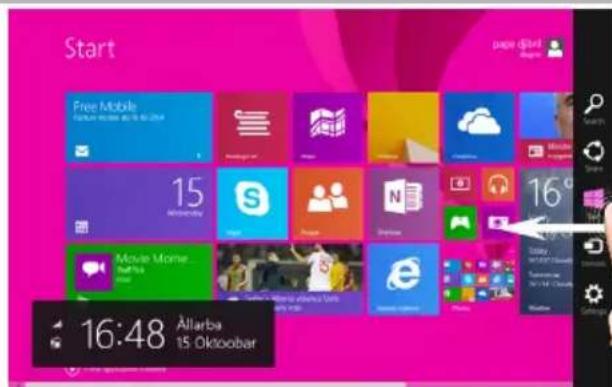
Start. Free Mobile Facebook Mobile 00:16:00:2014 15 Monday Movie Mome... Netflix 16:48 Allarba 15. Oktober

Quick settings

Swipe in from the right edge, and then tap the icon you want.

ARCHOS Cesium 90 - Quick settings - 1

Search: You can use the Search button to find things. If you're on the Start screen, click the Search button next to your account picture.

ARCHOS Cesium 90 - Quick settings - 2

Share: When you're in an app, you can use the Share button to share files, photos, etc.

ARCHOS Cesium 90 - Quick settings - 3

Start: The Start button takes you to the Start screen. Or if you're already on Start, it takes you to the last app you were using.

ARCHOS Cesium 90 - Quick settings - 4

Devices: Use the Devices button to play, project, and print to devices.

ARCHOS Cesium 90 - Quick settings - 5

Settings: Use the Settings button to change settings for the app you are in.

ARCHOS Cesium 90 - Quick settings - 6

ARCHOS Cesium 90 - Quick settings - 7

ARCHOS Cesium 90 - Quick settings - 8

ARCHOS Cesium 90 - Quick settings - 9

The Windows™ Interface

Start. Technical Writer in Ar 15 Project Spark 14° London Mostly Cloudy Rider RVP Clouds Extrave RVP Clouds Product Spark Start Plus Free Start Start

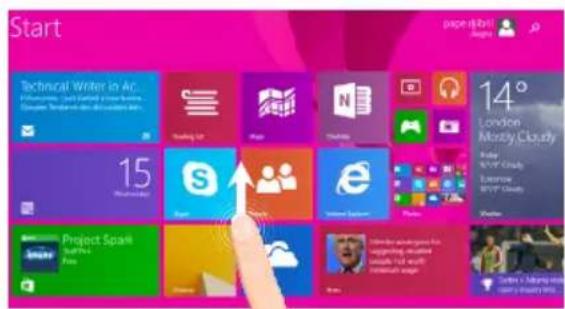
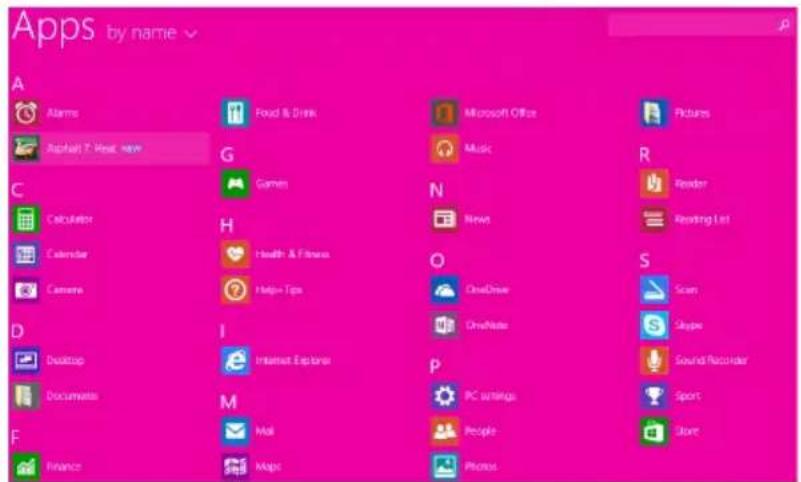
All apps

Swipe up from the center of the Start screen or click the arrow icon in the lower-left corner of the Start screen to display all installed apps.

Apps by name. A Alarms Raphael T: Heat have G Games C Calculator Calendar Camera D Desktop Documents E Finance I Internet Explorer M Mail Maps Foud & Drink Microsoft Office Music N News O ChatDrive ChatNote P PC search People Photos S Scan Skype Sound Recorder Sport Store

ARCHOS Cesium 90 - All apps - 2

ARCHOS Cesium 90 - All apps - 3

ARCHOS Cesium 90 - All apps - 4

ARCHOS Cesium 90 - All apps - 5

art page default Page 1 15° Agree Partly Cloudy 16° Mac OS: NTFS Cloudy Mac OS: NTFS Cloudy Mac OS: NTFS Cloudy Mac OS: NTFS Cloudy Mac OS: NTFS Cloudy Mac OS: NTFS Cloudy Mac OS: NTFS Cloudy Mac OS: NTFS Cloudy Mac OS: NTFS Cloudy Mac OS: NTFS Cloudy Mac OS: NTFS Cloudy Mac OS: NTFS Cloudy Mac OS:…

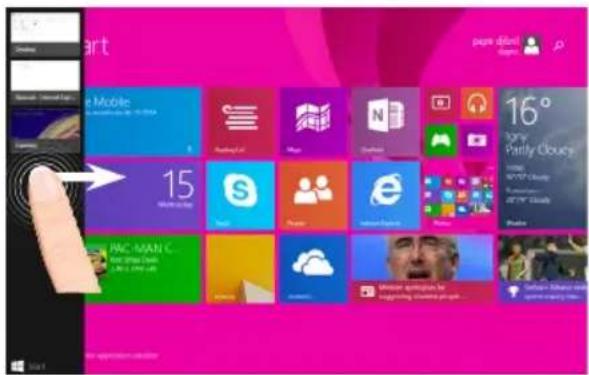
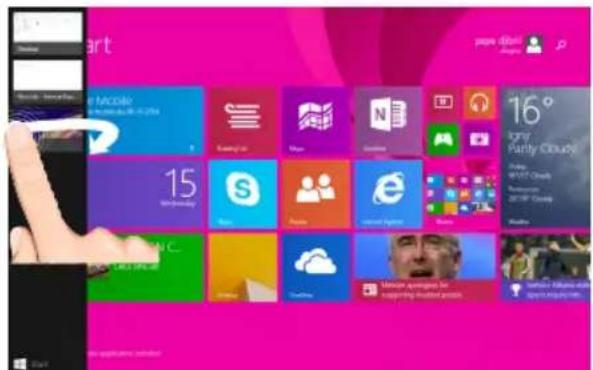
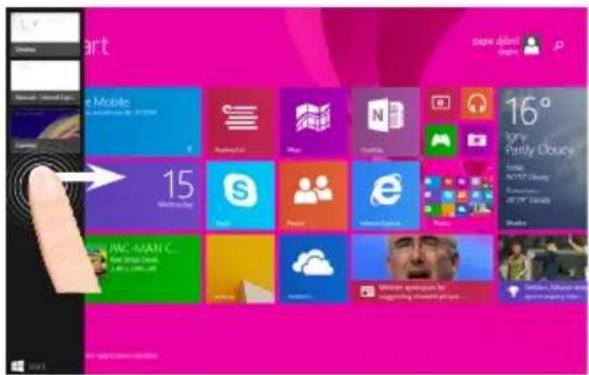
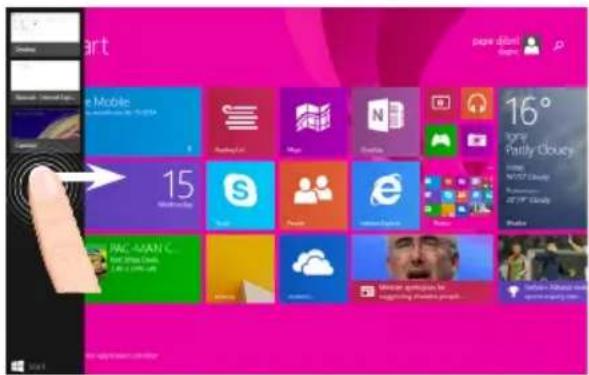
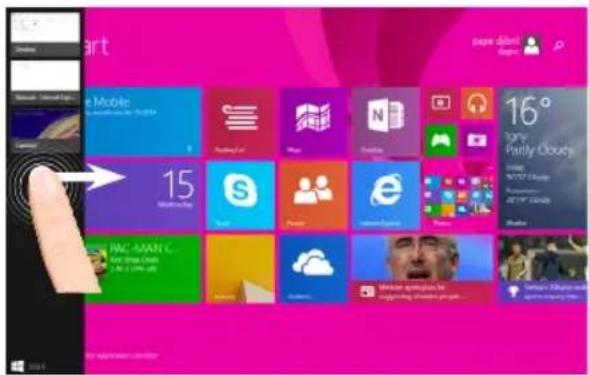
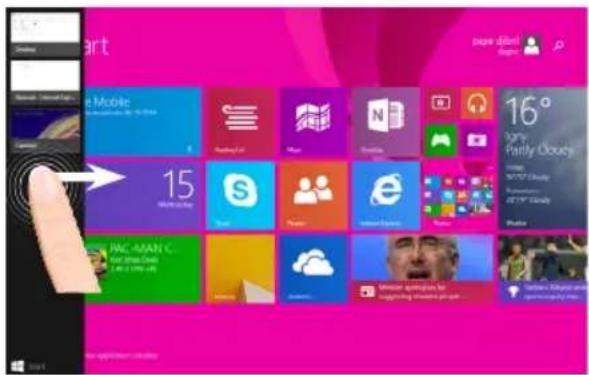
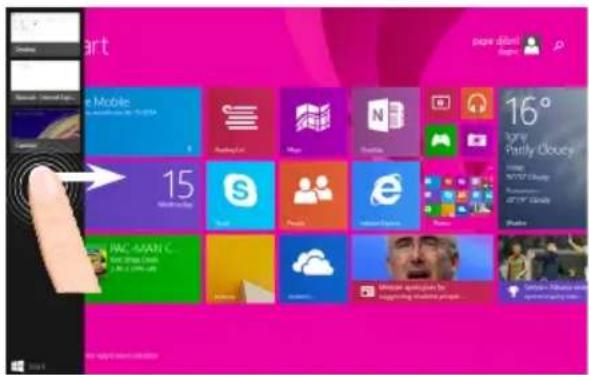
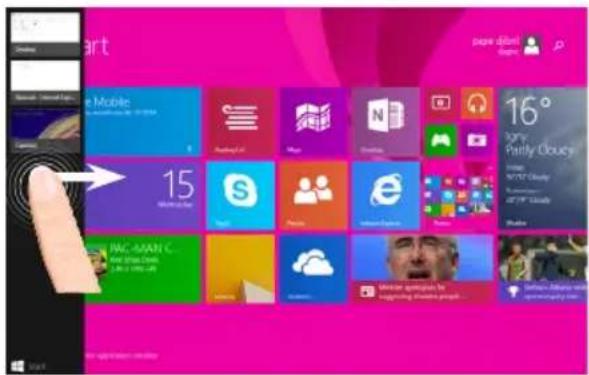
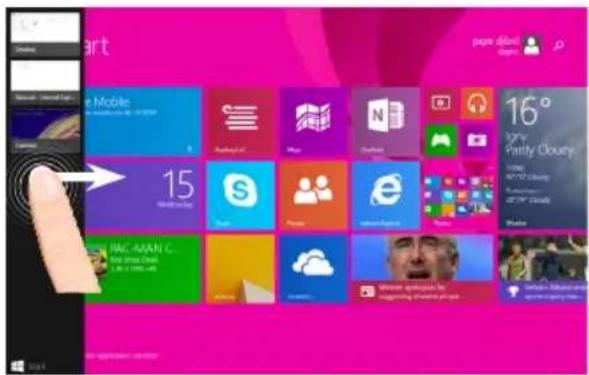
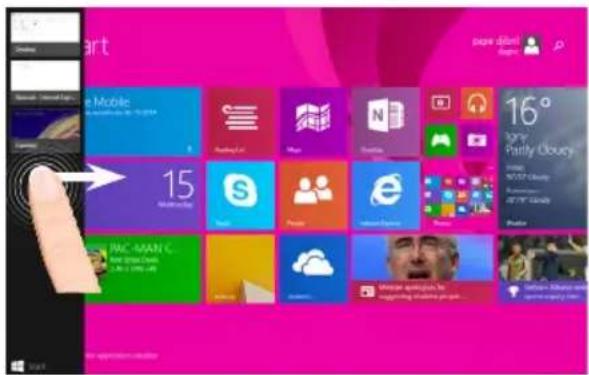
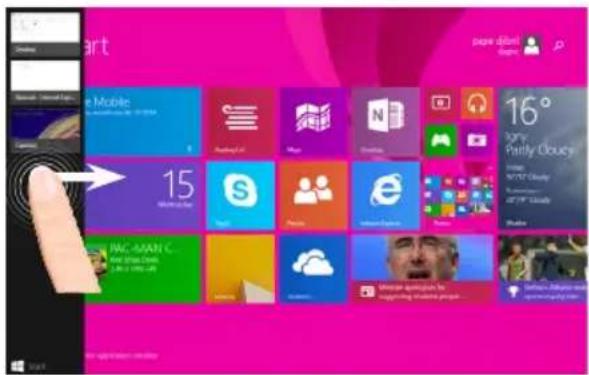
Switch between open apps: Switch between open apps by swiping in from the left edge of the screen.

start page: double My Computer 15 Wednesday S May Monday Saturday Monday 16° angry Partly Cloudy! Please MUST Cloud Tuesday 2017-2018 Alaska 15 Wednesday S May Monday Saturday Monday 16° angry Partly Cloudy! Please MUST Cloud Tuesday 2017-2018 Alaska

Switch to a specific app: Swipe in from the left edge, and with your finger still on the screen, move it back toward the left edge. Tap the app you want.

ARCHOS Cesium 90 - All apps - 8

ARCHOS Cesium 90 - All apps - 9

ARCHOS Cesium 90 - All apps - 10

ARCHOS Cesium 90 - All apps - 11

The Windows™ Interface

Start. Technique of Memory or Web 15 14 London Search Display Page 1.244 15 14 15 15

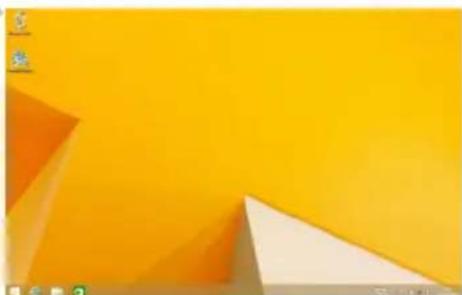
The familiar desktop

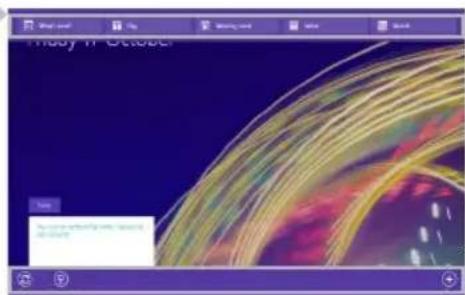
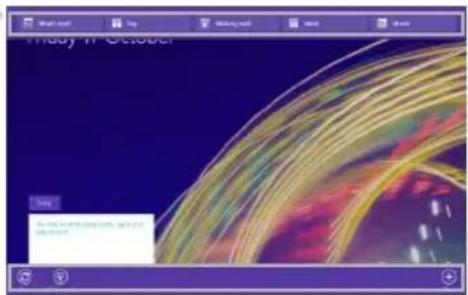
The desktop is where you'll use desktop apps like Office and File Explorer. You can also pin Windows Store apps to the taskbar.

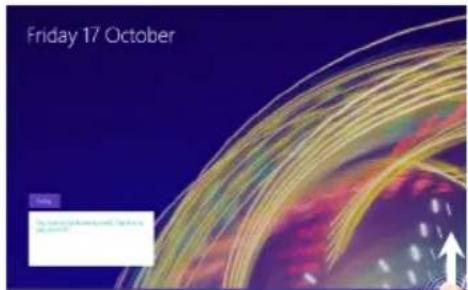
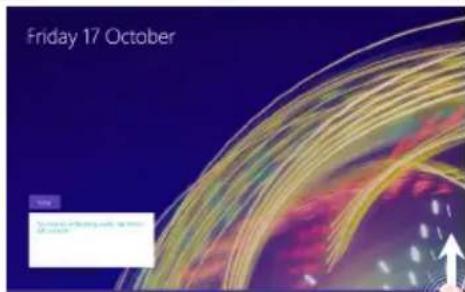
Friday 17 October. New • New York Times: The New York Times, Can't go to the New York Times

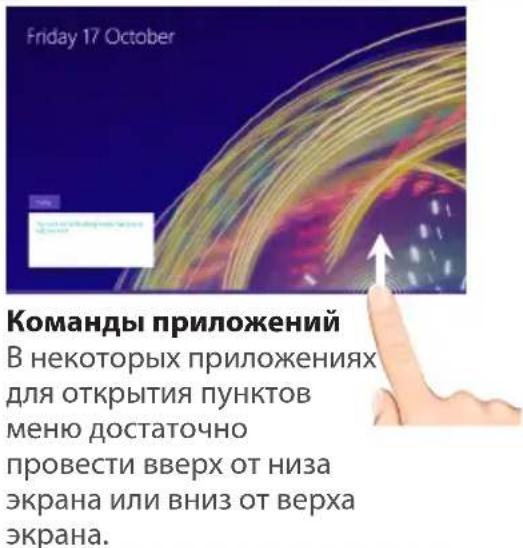
App commands

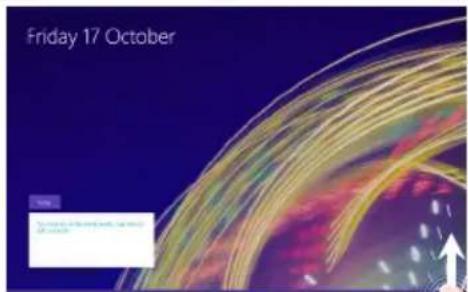
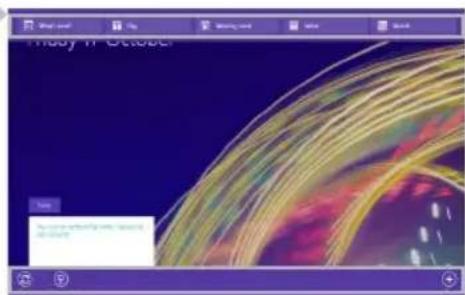
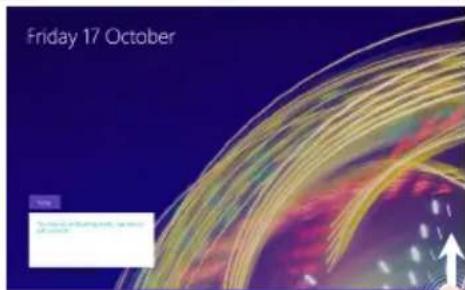
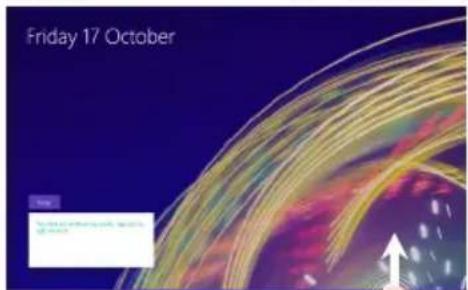
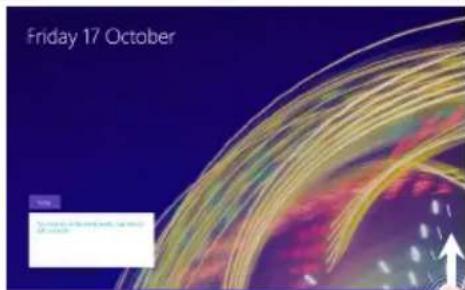
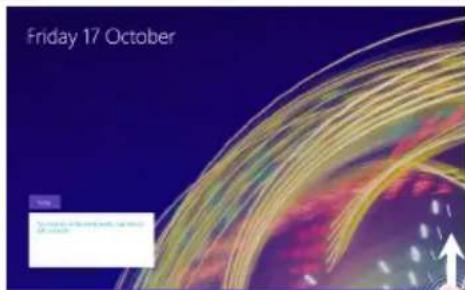
In some apps, swipe up from the bottom edge of the screen, or down from the top edge to display menu options.

Computer desktop wallpaper showing orange and white geometric shapes on a yellow background (no text or symbols)

Study 11 October. http://www.elsevier.com/locate/03468

Commands displaced

ARCHOS Cesium 90 - App commands - 3

ARCHOS Cesium 90 - App commands - 4

ARCHOS Cesium 90 - App commands - 5

ARCHOS Cesium 90 - App commands - 6

To close an app

Swipe down from the top edge of the screen, and drag the app down and off the screen.

To close desktop apps

You can close an Office app by tapping or clicking the Close button in the title bar.

To uninstall an app

From the Start screen or All apps section, tap and hold it for a couple seconds. Tap Uninstall. If the app is a desktop app, choose the app from the list and then tap Uninstall.

To add an email account:

  1. Tap or click Mail from the Start screen.
  2. Open the Settings charm, then tap or click Accounts > Add an account.
  3. Choose the type of account you want to add, and then follow the on-screen instructions. Most accounts can be added with only your user name and password. In some cases, you'll be asked for more details, which you can usually find on your email account provider's website.

ARCHOS Cesium 90 - To add an email account: - 1

ARCHOS Cesium 90 - To add an email account: - 2

ARCHOS Cesium 90 - To add an email account: - 3

Troubleshooting

If your device is frozen:

Press the ON/OFF button for 10 seconds.

If your device doesn't turn on:

  1. Charge your device.
  2. Press the ON/OFF button for 10 seconds. Decrease the screen brightness and turn off the wireless connections if not in use.

If you want to extend the life of your battery:

If your device functioning is too slow:

Close all apps which are not currently used.

If your WiFi reception is too low:

Make sure you are not far from the WiFi hotspot. Update the firmware of the device: http://www.archos.com/support. Reset and redefine your connection parameters. Contact your WiFi connection provider. Windows tablets work in the same way as a standard PC - as such they can't be detected as peripheral devices by other PC. To transfer files to or from your Windows tablet, you will need to connect a USB drive to the device using a USB host cable, or transfer via your Windows home network setup.

Why isn't my Windows tablet detected when it's connected to a computer?

TIP:

For more detailed information about how to use your device, go to the link: http://windows.microsoft.com/en-gb

ARCHOS Cesium 90 - TIP: - 1

ARCHOS Cesium 90 - TIP: - 2

ARCHOS Cesium 90 - TIP: - 3

Table of Contents

ARCHOS 90 Cesium

Laptop keyboard layout diagram with standard keys and control buttons visible

Keyboard + Origami Cover

TIPS:

Diagram of a device with two arrows indicating directional movement, no text or symbols present

  1. Open the cover.

Line drawing of a laptop keyboard before and after assembly, showing the change from open to closed state (no text or symbols)

Line drawing of a laptop computer with visible keyboard and front panel (no text or symbols)

ARCHOS Cesium 90 - TIPS: - 4

ARCHOS Cesium 90 - TIPS: - 5

ARCHOS Cesium 90 - TIPS: - 6

ARCHOS Cesium 90 - TIPS: - 7

start page default Beginn 15° Igms- Partly Obucy 16° NATC Library Microsoft Office JSTM Library Mac PAC MAN C... www.pac-mc.com Microsoft Internet Explorer

Study 11 October. http://www.elsevier.com/locate/03468

ARCHOS 90 Cesium

Laptop keyboard layout diagram with standard keys and control buttons visible.

Diagram of a device with two arrows indicating directional movement, no text or symbols present.

Line drawing of a laptop computer with visible keyboard and screen (no text or symbols).

① App icon

All apps

ARCHOS Cesium 90 - All apps - 1

ARCHOS Cesium 90 - All apps - 2

ARCHOS Cesium 90 - All apps - 3

ARCHOS Cesium 90 - All apps - 4

start page default Beginn 15° Igor Partly Cloudy NATC Cloudy 2023 2024 Cloudy Mac PAC-MAIN C... Get a new cloud 1.86 x 2.99x 3.8 Windows Windows 2023 Windows 2024

Friday 17 October New The New York Times, Chicago, Illinois

App commands

Displayed commands

ARCHOS Cesium 90 - App commands - 1

ARCHOS Cesium 90 - App commands - 2

ARCHOS Cesium 90 - App commands - 3

ARCHOS Cesium 90 - App commands - 4

Close an app

ARCHOS 90 Cesium

Laptop keyboard layout diagram with standard keys and control buttons

TIPS:

Diagram of a device with two arrows indicating directional movement, no text or symbols present.

Line drawing of a laptop computer with visible keyboard and front panel (no text or symbols).

Start Technical Writer in Ac... Hi Everyone, I just started a new busine... Groupes Tendance des discussions dan... 20 Reading List Maps OneNote 14° London Mostly Cloudy Today 16/71" Cloudy Tomorrow 87/71" Cloudy Weather 15 Wednesday Stage People Internet Explorer Photos Project Spark Staff Price Fr…

Applications

ARCHOS Cesium 90 - Applications - 1

ARCHOS Cesium 90 - Applications - 2

ARCHOS Cesium 90 - Applications - 3

ARCHOS Cesium 90 - Applications - 4

Smart page default. Begin. 15° Agri- Partly Cloudy 16° MacOS Microsoft Teams (repeated).

Friday 17 October. Date: The following online address is on the right.

App commands

ARCHOS Cesium 90 - Applications - 7

ARCHOS Cesium 90 - Applications - 8

ARCHOS Cesium 90 - Applications - 9

Blank tablet device with no visible text, numbers, or symbols on the screen

ARCHOS 90 Cesium

Laptop keyboard layout diagram with standard keys and control buttons

Keyboard + Origami pouch

User guideARCHOS Cesium 90 - Applications - 12

ARCHOS Cesium 90 - Applications - 13

ARCHOS Cesium 90 - Applications - 14

Charging cableSimple circular diagram showing a plug inserted into a vertical line, with no text or symbols present.

ARCHOS Cesium 90 - Applications - 16

TIPS:

Diagram of a device with two arrows indicating directional movement, no text or symbols present

Second angle

ARCHOS Cesium 90 - TIPS: - 2

Line drawing of a laptop with two arrows pointing to the screen (no text or symbols)

Line drawing of a laptop computer with visible keyboard and front panel (no text or symbols)

Start Technical Writer in Ac... Hi Everyone, I just started a new busine... Groupes Tendance des discussions dan... 20 Reading List Maps Obituate 14° London Mostly Cloudy Today 16/71" Cloudy Tomorrow 18/71" Cloudy Weather 15 Wednesday Sape People Internet Explorer Photos Project Spark Staff Pick Fre…

ARCHOS Cesium 90 - TIPS: - 6

ARCHOS Cesium 90 - TIPS: - 7

ARCHOS Cesium 90 - TIPS: - 8

ARCHOS Cesium 90 - TIPS: - 9

Start. Page 24/03. Applicator. Macrolle. 15. Wednesday. S. Monday, Friday, Saturday (repeated).

App commands

Friday 17 October. Entry. To start the next session, I can't get end to return.

ARCHOS 90 Cesium

Laptop keyboard layout diagram with standard keys and control buttons.

Keyboard + Origami pouch

TIPS:

Diagram of a device with two arrows indicating directional movement (no text or symbols).

There are two

Viewing angles:

- First type of viewing angle

ARCHOS Cesium 90 - TIPS: - 2

ARCHOS Cesium 90 - TIPS: - 3

ARCHOS Cesium 90 - TIPS: - 4

ARCHOS Cesium 90 - TIPS: - 5

Line drawing of a laptop with folded edges, showing the open and closed states (no text or symbols).

- Second type of viewing angle

ARCHOS Cesium 90 - TIPS: - 7

Line drawing of a laptop computer with two arrows pointing to the screen (no text or symbols).

Line drawing of a laptop computer with visible keyboard and front panel (no text or symbols).

② Tap the "Settings" icon.

Available 8 Screen Notifications Power WOL Keyboard Change PC settings.

Start Technical Writer in Ac... Hi Everyone. I just started a new busne... Groupe Tendance des discussions dan... 20 Reading List Maps Osletate 15 Wednesday Stage People Internet Explorer Photos 14° London Mostly Cloudy Today 16°/17" Cloudy Tomorrow 18°/20" Cloudy Weather Project Spark Staff Pick Fr…

① App icon

All apps

ARCHOS Cesium 90 - All apps - 1

ARCHOS Cesium 90 - All apps - 2

ARCHOS Cesium 90 - All apps - 3

ARCHOS Cesium 90 - All apps - 4

Art page default. Beginning. 15°. Igms Partly Cloudy. NATC Cloudy. Ranomark. 47.19" Cloudy. Apache. PAC-MAN C. 2023-2024: 2023-2024. Internet Explorer. Unique alternatives for suggesting mobile projects. Google Mobile. Microsoft Internet Explorer.

Friday 17 October. New. • New York Times is a new of the world.

Using apps

Display optics

ARCHOS Cesium 90 - Using apps - 1

ARCHOS Cesium 90 - Using apps - 2

ARCHOS Cesium 90 - Using apps - 3

ARCHOS Cesium 90 - Using apps - 4

Closing an app

ARCHOS 90 Cesium

Laptop keyboard layout diagram with standard keys and control buttons.

SUGGESTIONS:

Diagram of a device with two arrows indicating directional movement, no text or symbols present.

Line drawing of a laptop computer with visible keyboard and screen (no text or symbols).

③ Select the "Wi-Fi" icon.

Networks View Connection Settings Flight mode Off WiFi On Archos Marketing

All apps

ARCHOS Cesium 90 - All apps - 1

ARCHOS Cesium 90 - All apps - 2

ARCHOS Cesium 90 - All apps - 3

ARCHOS Cesium 90 - All apps - 4

start page default Beginn 15° 16° Agri- Partly Obuoy Microsoft Office Microsoft Windows Mac OS X (Windows) Windows PAC-MAIN C... Microsoft Windows Microsoft Windows Microsoft Windows Microsoft Windows Microsoft Windows Microsoft Windows Microsoft Windows Microsoft Windows Microsoft Windows Microsoft…

Friday 17 October. New. New Online: www.elsevier.com.

http://windows.microsoft.com/en-us

ARCHOS Cesium 90 - All apps - 7

ARCHOS Cesium 90 - All apps - 8

Blank tablet device with no visible text, numbers, or symbols on the screen.

ARCHOS 90 Cesium

Laptop keyboard layout diagram with standard keys and control buttons.

TIP:

Diagram of a device with two arrows indicating directional movement, no text or symbols present.

Line drawing of a laptop computer with visible keyboard and screen (no text or symbols).

Start. Technical Writer in Ac... Hi Everyone. I just started a new busne... Groupe's Tendance des discussions dan... 20. Reading Uc. Maps. Osletate. 15. Wednesday. Project Spark. Staff Price. Free. Desktops. OneDirect. News. Minister apologists for suggesting disabled people 'not worth' minimum wage…

① App icon

All apps

ARCHOS Cesium 90 - All apps - 1

ARCHOS Cesium 90 - All apps - 2

ARCHOS Cesium 90 - All apps - 3

ARCHOS Cesium 90 - All apps - 4

Art page default. Google. 15° Partly Cloudy. 15°. Mac. Microsoft Windows. Windows. Microsoft Teams (repeated many times).

Blank tablet device with no visible text, numbers, or symbols on the screen.

ARCHOS 90 Cesium

Laptop keyboard layout diagram with standard keys and control buttons.

Keyboards + Origami bag

TIP:

Diagram of a device with two arrows indicating directional movement. No text or symbols present.

Second setting

ARCHOS Cesium 90 - TIP: - 2

Line drawing of a laptop with two arrows pointing to the screen. No text or symbols.

Line drawing of a laptop computer with visible keyboard and screen. No text or symbols.

① App icon

ARCHOS Cesium 90 - ① App icon - 1

ARCHOS Cesium 90 - ① App icon - 2

ARCHOS Cesium 90 - ① App icon - 3

ARCHOS Cesium 90 - ① App icon - 4

art page default Beginn 15° Igms Parity Obuay NOST Cloudy Risikos JST 77" Cloudy P234 PAC MAN C. SAP SAP SAP SAP SAP SAP SAP SAP SAP SAP SAP SAP SAP SAP SAP SAP SAP SAP SAP SAP SAP SAP SAP SAP SAP SAP SAP SAP SAP SAP SAP SAP SAP SAP solarization system

Friday 17 October New The following website can be used for your www.fcd.com

App commands

ARCHOS 90 Cesium

Laptop keyboard layout diagram with standard keys and control buttons

Keyboard + Origami case

TIP:

Diagram of a device with two arrows indicating directional movement, no text or symbols present

Line drawing of a laptop computer with visible keyboard and mouse (no text or labels)

③ ②

① App icon

All apps

ARCHOS Cesium 90 - All apps - 1

ARCHOS Cesium 90 - All apps - 2

ARCHOS Cesium 90 - All apps - 3

art page default Beginn 15° 16° Pain Parity Obuoy NOTE Cloudy 2017" Cloudy Windows PAC-MAN C... Google Cloudy Microsoft Teams Microsoft Teams Microsoft Teams Microsoft Teams Microsoft Teams Microsoft Teams Microsoft Teams Microsoft Teams Microsoft Teams Microsoft Teams Microsoft Teams Microsoft Team…

Friday 17 October New The following website can be used for your www.fcd.com

App commands

Published commands

ARCHOS Cesium 90 - App commands - 1

ARCHOS Cesium 90 - App commands - 2

ARCHOS Cesium 90 - App commands - 3

ARCHOS Cesium 90 - App commands - 4

Close app

National restrictions

This device is intended for home and office use in all EU countries (and other countries following the EU directive 1999/5/EC) without any limitation except for the countries mentioned below:

Country Restriction Reason/remark

Bulgaria None General authorization required for outdoor use and public service

France Outdoor use limited

to 10 mW e.i.r.p.

within the band

2454-2483.5 MHz

Military Radiolocation use. Refarming of the 2.4 GHz band has been ongoing in recent years to allow current relaxed regulation. Full implementation planned 2012

Italy None If used outside of own premises, general authorization is required.

Luxembourg None General authorization required for network and service supply (not for spectrum)

Norway Implemented This subsection does not apply for the geographical area within a radius of 20 km from the centre of Ny-Alesund

Russian Federation None Only for indoor applications

Note: Frequency 2454-2483.5MHZ are restricted to indoor use in France.

Consult the declaration of conformity on http://www.archos.com/products/declaration_conformity.html

ARCHOS Cesium 90 - National restrictions - 1

ARCHOS Cesium 90 - National restrictions - 2

ARCHOS Cesium 90 - National restrictions - 3

Archos company declares that this device is in compliance with the essential requirements and other relevant provisions of Directive 1999/5/EC

ARCHOS Cesium 90 - National restrictions - 4

ARCHOS Cesium 90 - National restrictions - 5

C€1313

182

UserGuide_ARCHOS_90_Cesium_book.indd 182 13/08/2015 10:35:11

ARCHOS Cesium 90 - C€1313 - 1

Manual assistant
Powered by Anthropic
Waiting for your message
Product information

Brand : ARCHOS

Model : Cesium 90

Category : Tablet