
XpertTouch Wireless - Mouse TRUST - Free user manual and instructions
Find the device manual for free XpertTouch Wireless TRUST in PDF.


| Product Type | Wireless Mouse |
| Brand | Trust |
| Model | XpertTouch Wireless |
| Dimensions (approx.) | 10 x 6 x 3 cm |
| Weight (with battery) | Approx. 100 g |
| Power Source | 1 AA battery (not included) |
| Connection Type | 2.4 GHz Wireless |
| Wireless Range | Up to 10 meters |
| Buttons | 3 buttons (left, right, scroll wheel) |
| Sensor | Optical |
| Sensor Resolution | 1000 DPI (estimated) |
| Compatible With | Windows, Mac OS, Linux |
| Care Instructions | Clean with a soft dry cloth |
| Safety | Do not expose to moisture or liquids |
| Spare Parts | No spare parts available, battery replaceable |
| Warranty | 2 years |
Frequently Asked Questions - XpertTouch Wireless TRUST
User questions about XpertTouch Wireless TRUST
0 question about this device. Answer the ones you know or ask your own.
Ask a new question about this device
Download the instructions for your Mouse in PDF format for free! Find your manual XpertTouch Wireless - TRUST and take your electronic device back in hand. On this page are published all the documents necessary for the use of your device. XpertTouch Wireless by TRUST.
USER MANUAL XpertTouch Wireless TRUST

Driver installation


Hardware installation


Using Touch

natural_image
Sequence of hand gestures holding a white object, no text or symbols visibleCustomizing Touch


Index
| Language | Page | ||
| English | 2 | ||
| Deutsch | 6 | ||
| Français | 11 | ||
| Italiano | 16 | ||
| Español | 22 | ||
| Português | 28 | ||
| Nederlands | 33 | ||
| Dansk | 39 | ||
| Suomi | 43 | ||
| Norsk | 48 | ||
| Svenska | 53 | ||
| Polski | 58 | ||
| Česky | 63 | ||
| Slovenčina | 69 | ||
| Magyar | 74 | ||
| Română | 79 | ||
| Български | 84 | ||
| Русский | 90 | ||
| Еллгнікă | 95 | ||
| Türkçe | 100 | ||
Touch Mouse Wireless—User's Manual
Trust
Package contents (Package contents)
| 1 | USB Micro Receiver | |
| ● Touch area | ||
| ● On/Off switch | ||
| 2 | Mouse: | ● Optical sensor |
| ● Battery-cover release button | ||
| ● Battery compartment | ||
| 3 | Batteries (2xAAA) | |
Driver installation (Driver installation)
It is necessary to restart your computer at the end of the driver's installation. It is therefore preferable that you save and close all opened documents and applications before starting the installation.
④ Insert the Trust CD-ROM into your CD drive.
⑤ Click "Run Setup.exe – Published by Trust International BV"
⑥ Click "Install driver"
Welcome to the Trust Touch Driver Setup Wizard: Click Next
Select Destination Location: Click Next (if you want to change the location where files will be copied, click "Browse" to select a new location. Then click Next).
Select Start Menu Folder: Click Next (If you want to change where in the Start menu the programs and icons will be displayed, click "Browse" to select a new folder. Then click Next)
Installshield Wizard Complete: Click "Finish" to restart your computer. (If you have unsaved documents and files, select "No" and click "Finish" to restart your computer later)
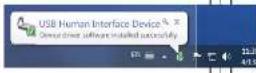
Once the computer has restarted, the driver installation is completed. The Trust Touch driver will automatically be loaded on system startup.
Hardware installation (Hardware installation)
⑦ Press the battery-cover release button.
Remove the battery cover.
Insert the AAA batteries in the mouse's battery compartment.
10 Close the cover, by inserting the two top hooks first.
Connect the USB receiver to one of your computer's USB port.
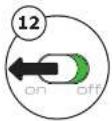
12 Switch On the mouse.
▶ After a few seconds, your Touch mouse is ready to use.
Using the Touch Mouse (default settings)
The Touch mouse detects and recognizes gestures, to which functionalities are assigned. The table below lists the different gestures:
| Left Click | A click on the left half of the top surface |
| Right Click | A click on the right half of the top surface |
| Slide Forward | A sliding movement from bottom to top, with one finger touching the top surface |
| Slide Backward | A sliding movement from top to bottom, with one finger touching the top surface |
| Left Slip | A sliding movement from right to left, with one finger touching the top surface |
| Right Slip | A sliding movement from left to right, with one finger touching the top surface |
| Double Left Slip | A sliding movement from right to left, with two fingers touching the top surface |
| Double Right Slip | A sliding movement from left to right, with two fingers touching the top surface |
The table below lists the functionalities that are, by default, assigned to each gesture
| Left Click | Left Click | Left button mouse click |
| Right Click | Right Click | Right button mouse click |
| Slide Forward | Scroll Up | Scrolls the current page up |
| Slide Backward | Scroll Down | Scrolls the current page down |
| Left Slip | Tilt Left | Scrolls the current page left |
| Right Slip | Tilt Right | Scrolls the current page right |
| Double Left Slip | Zoom out | Makes the current page smaller |
| Double Right Slip | Zoom in | Makes the current page bigger |
Customizing the Touch Mouse (user-defined settings)
Thanks to the Touch driver, the functionality assigned to each gesture can be modified.
To modify and reassign functionalities, right-click on the Trust icon in your System Tray (next to your computer's clock).
If the Trust icon is not visible, click the "Show hidden icons" button first. (Windows 7: / Windows Vista: )
The lower part of the driver's interface allows you to select the gesture you want to modify. ▶ Once a gesture is selected, you can always reset its settings to factory defaults. You can also reset all settings, for all gestures, at once.
When the gesture you want to modify is selected, the upper left part of the driver interface allows you to assign a functionality to it.
The table below lists the functionalities available:
| Left Click | Left mouse-button click |
| Middle Button | Middle mouse-button click |
| Right Click | Right mouse-button click |
| Double Click | Double left mouse-button click |
| Scroll Up | Scrolls the current page up |
| Scroll Down | Scrolls the current page down |
| Tilt Left | Scrolls the current page left |
| Tilt Right | Scrolls the current page right |
| Backward | Previous page (in internet browser) |
| Forward | Next page (in internet browser) |
| Key Combination | Reproduces a user-defined key combination. |
▶ To setup the key combination you want the gesture to perform:
- Click Key Combination.
- Perform the key combination manually, and verify that it is correctly displayed in the capture field.
- Press OK.
| Basic | This section contains the functionalities needed to edit text and files: Cut, Copy, Paste, Select All, Find, New, Print and Save. |
| Advanced | This section contains the Start menu and Windows functionalities: Switch Window, Close Window, Open Explorer, Run, Show Desktop, Lock PC. |
| Media Control | This section contains the multimedia functionalities: Play/Pause, Stop, Previous, Next, Volume Up, Volume Down, Mute. |
The multimedia functionalities are designed for Media Center and Windows Media Player. However, the keys may also work with other media player software.
| Zoom out | Makes the current page smaller |
| Zoom in | Makes the current page bigger |
| Flip 3D | Displays a preview all of your open windows, in a 3-dimensional stack. |
▶ Flip 3D requires that your computer supports Microsoft Aero and that you use the Windows Aero desktop theme.
Touch Mouse Wireless-User's Manual
| Macro | This menu allows you to record, manage and edit macros. |
▶ Macros are used to combine a series of keystrokes and/or mouse clicks under one gesture. Several macros can be recorded, and assigned to different gestures.
▶ To record a macro: Click Macro
c In the Macro Editor, click New, and type the name of the new macro. Press Enter.
- Click the Record button, and perform the desired sequence of keystrokes. Click the Stop button when the sequence is over.
- The Edit Panel allows you to review and eventually modify the sequence.
- You can choose to repeat the macro a specific number of times (Loop Times) or to insert pauses between each step of the macro (Auto Insert Delay), by ticking the corresponding boxes.
- Press OK to close the Macro Editor (if you recorded several macros, make sure that the correct one is selected in the list before clicking OK).
The Macro Editor also allows you to delete unused macros (select a macro and click Del to delete It).
| Disable | This functionality disables the selected gesture. |
The three buttons at the bottom of the window allow you to either save or discard your modifications, as follows:
| OK | Applies all changes, and closes the driver window |
| Cancel | Discards all changes, and closes the driver window |
| Apply | Applies all changes, and leaves the window open |
Touch Mouse Wireless-User's Manual
Trust
Driver installation (Installation des Treibers)
Hardware installation (Installation der Hardware)
Touch Mouse Wireless- User's Manual
Trust
| Left Click | Left Click |
| Right Click | Right Click |
| Slide Forward | Scroll Up |
| Slide Backward | Scroll Down |
| Left Slip | Tilt Left |
| Right Slip | Tilt Right |
| Double Left Slip | Zoom out |
| Double Right Slip | Zoom in |
Touch Mouse Wireless-User's Manual
Touch Mouse Wireless—User's Manual
Trust
Package contents (Contenu de l'emballage)
Touch Mouse Wireless-User's Manual
Touch Mouse Wireless-User's Manual
Touch Mouse Wireless-User's Manual
Trust
Touch Mouse Wireless—User's Manual
Trust
Touch Mouse Wireless-User's Manual
Trust
Touch Mouse Wireless- User's Manual
Trust
Touch Mouse Wireless-User's Manual
Touch Mouse Wireless—User's Manual
Trust
⑤ Haga clic en "Run Setup.exe – Published by Trust International BV" [Ejecutar ...]
⑥ Haga clic en "Install driver" [Instalar el controlador]
Touch Mouse Wireless-User's Manual
Trust
Touch Mouse Wireless-User's Manual
Trust
Touch Mouse Wireless-User's Manual
Trust
Touch Mouse Wireless-User's Manual
Trust
Touch Mouse Wireless-User's Manual
Touch Mouse Wireless—User's Manual
Trust
Touch Mouse Wireless-User's Manual
Trust
Hardware installation (Hardware installeren)
Touch Mouse Wireless- User's Manual
Trust
Touch Mouse Wireless-User's Manual
Touch Mouse Wireless—User's Manual
Trust
Package contents (Pakkens indhold)
Driver installation (Driver installation)
Hardware installation (Hardwareinstallation)
Touch Mouse Wireless-User's Manual
Trust
Touch Mouse Wireless-User's Manual
Touch Mouse Wireless—User's Manual
Trust
Touch Mouse Wireless-User's Manual
Trust
Touch Mouse Wireless-User's Manual
Trust
| Macro | This menu allows you to record, manage and edit macros. |
Touch Mouse Wireless-User's Manual
The three buttons at the bottom of the window allow you to either save or discard your modifications, as follows:
Touch Mouse Wireless-User's Manual
Trust
Package contents (Pakkens innhold)
| 1 | USB Micro-mottaker | |
| BerøringsområdePå/av-knapp | ||
| 2 | Mus: | Optisk sensorAtpningsknapp for batteridekselBatterirom |
| 3 | Batterier (2 x AAA) | |
Touch Mouse Wireless-User's Manual
Trust
Touch Mouse Wireless-User's Manual
| Disable | Denne funksjonen deaktiverer den valgte bevegelsen. |
Trust
Med de tre knappene nederst i vinduet kan du enten lagre eller forkaste dine endringer, som følger:
Touch Mouse Wireless-User's Manual
Trust
Hardware installation (Maskinvaruinstallation)
Touch Mouse Wireless-User's Manual
Touch Mouse Wireless- User's Manual
rörelsen.
Trust
Touch Mouse Wireless-User's Manual
Trust
Touch Mouse Wireless-User's Manual
Touch Mouse Wireless-User's Manual
Touch Mouse Wireless—User's Manual
Trust
Hardware installation (Instalace hardwaru)
Touch Mouse Wireless-User's Manual
Trust
Touch Mouse Wireless-User's Manual
Trust
Touch Mouse Wireless—User's Manual
Trust
Package contents (Obsah balenia)
Touch Mouse Wireless-User's Manual
Trust
Touch Mouse Wireless-User's Manual
Touch Mouse Wireless-User's Manual
Touch Mouse Wireless—User's Manual
Trust
Touch Mouse Wireless-User's Manual
Trust
Touch Mouse Wireless-User's Manual
Touch Mouse Wireless—User's Manual
Trust
Driver installation (Instalarea driver-ului)
⑤ Faceti clic pe "Run Setup.exe – Published by Trust International BV"
⑥ Faceti clic pe "Install driver"
Hardware installation (Instalare hardware)
Touch Mouse Wireless-User's Manual
Trust
Touch Mouse Wireless-User's Manual
Trust
Touch Mouse Wireless-User's Manual
Trust
Touch Mouse Wireless-User's Manual
Trust
Touch Mouse Wireless-User's Manual
Touch Mouse Wireless-User's Manual
Trust
Package contents (Комплект поставки)
Touch Mouse Wireless-User's Manual
Trust
Touch Mouse Wireless-User's Manual
Touch Mouse Wireless-User's Manual
Touch Mouse Wireless—User's Manual
Trust
Touch Mouse Wireless-User's Manual
Trust
Touch Mouse Wireless-User's Manual
Touch Mouse Wireless-User's Manual
Touch Mouse Wireless—User's Manual
Trust
Touch Mouse Wireless-User's Manual
Trust
Touch Mouse Wireless-User's Manual
Trust
Touch Mouse Wireless-User's Manual
- Driver installation (Driver installation)
- Hardware installation (Hardware installation)
- Using the Touch Mouse (default settings)
- Customizing the Touch Mouse (user-defined settings)
- Driver installation (Installation des Treibers)
- Hardware installation (Installation der Hardware)
- Touch Mouse Wireless-User's Manual
- Hardware installation (Hardware installeren)
- Hardware installation (Hardwareinstallation)
- Trust
- Driver installation (Instalarea driver-ului)
- Hardware installation (Instalare hardware)
Brand : TRUST
Model : XpertTouch Wireless
Category : Mouse