
APPMPHDTDT - Media player Approx - Free user manual and instructions
Find the device manual for free APPMPHDTDT Approx in PDF.


| Product type | Media player/recorder |
| Brand | Approx |
| Model | APPMPHDTDT |
| Power supply | DC 12V, 3A (power adapter included) |
| Video outputs | HDMI V1.3, CVBS (AV) with adjustable resolutions (NTSC/PAL, 576p, 720p, 1080i, 1080p) |
| Audio outputs | Analog stereo (RCA), digital coaxial, optical (S/PDIF) |
| Supported video formats | AVI, MKV, TS, TP, M2TS, MPG, MJPG, MP4, MOV, VOB |
| Supported audio formats | MP3, WMA, AAC |
| Supported photo formats | JPEG, BMP, PNG |
| TV tuner | DVB-T (TNT) with EPG guide |
| PVR function | One-touch recording, scheduled (manual or via EPG) |
| Connectivity | 2 USB Host ports, 1 SD card reader, 1 USB Device port |
| Use as external hard drive | Yes, via USB Device |
| Package contents | Player, power adapter, remote control, 2 batteries, AV cable, USB cable, user manual |
| Safety | Do not expose to water, do not disassemble, repair by authorized center only |
| Maintenance | Unplug before cleaning; do not use in dusty or humid environment |
| Repairability | Have it repaired by an official repair center; any attempt to repair voids warranty |
| Firmware update | Via USB drive or SD card, from website www.printyourideas.com |
| Operating temperature | -5°C to +50°C (with commercial hard drive) |
Frequently Asked Questions - APPMPHDTDT Approx
User questions about APPMPHDTDT Approx
0 question about this device. Answer the ones you know or ask your own.
Ask a new question about this device
Download the instructions for your Media player in PDF format for free! Find your manual APPMPHDTDT - Approx and take your electronic device back in hand. On this page are published all the documents necessary for the use of your device. APPMPHDTDT by Approx.
USER MANUAL APPMPHDTDT Approx
HD Multimedia Player&Recorder
VERSION1.1
Guía de usuario User guide Guide de l'utilisateur Gebrauchsanweisung Guida per l'utente Manual do utilizador
Español ....1
English 19
Français ....38
Deutsch....57
Italiano....76
Português....96
1. INTRODUCCIÓN
1.1 Prólogo
Thank you very much for purchasing our APPMPHDTD T Multi-media pla yer a no recorder. We hope you will enjoy using it as a great home entertainment device. This player has the following functionality.
A/V Output
HDMI V1.3 for high-definition video and digital audio
CVBS video and stereo audio for analog audio-visual connection
Coaxial & Optical interface for high-fidelity digital audio
Adjustable video output resolution (NTSC, PAL, 576p, 720p, 1080i, 1080p)
Multimedia Playback
Supports major audio, video and image file formats (1080p HD video decoding)
Movie format: AVI/MKV/TS/TP//M2TS/MPG/MJPG/MP4/MOV/VOB
Music format: MP3 /WMA/AAC
Photo format: JPEG/BMP/PNG
Photo slide show with background music
DVB-T TV Receiver
Supports Digital Video Broadcasting Terrestrial(DVB-T) reception, Electronic Program Guide(EPG)
PVR
Support three recording mode:
EPG Reservation Recording
Manual Reservation Recording
One Button Recording
When the player start to record, a icon will be displayed on the top left corner to show
the recording statues and time.
USB & Memory Card Support
USB HOST port x 2
SD CARD Slot x 1
Device
Can be used as a portable HDD Player.
1.2 Packing list
| PART | QUANTITY |
| Player | 1 |
| Adapter 1 | |
| Remote Control 1 | |
| Remote Control Battery | 2 |
| AV Cable 1 | |
| USB Device cable 1 | |
| User Manual | 1 |
Note:
The actual contents in the package might be different from the packing list in this manual.
We hope that this product will bring you a lot of enjoyment. We are committed to apply multimedia technology in your work, entertainment, family, daily life, care everywhere! Welcome to be with us. Thank you again for choosing our product.
1.3 Cautions
This player's design and manufacture has your safety in mind. In order to safely and effectively use this player, please read the following before usage.
1.3.1 Usage Cautions
User should not modify this player. If commercial hard disk is being used, the environmental temperature should be within +5 to +50.
1.3.2 Power supply
The player's power voltage: DC 12V.
When using this player, please connect the supplied AC adapter to the player's power jack. Please make sure it can no t get damaged or be subject to p ressure. To reduce the risk of electric shock, unplug the adapter first before cleaning it. Never connect the adapter to the pl ayer in a humid or dusty area. Do not replace the adapter or cable's wire or connector.
1.3.3 Radio Interference
If not properly shielded, almost all electronic devices will get radio interference. Under some conditions, your player might get interference.
The design of th is player has f ollowed the FC C/CE standard, an d has follo wed t following rules:
(1) This player may not cause harmful interference;
(2) T his player could accept so me in terference received including interferenc that may cause undesired operation.
1.3.4 Repair
If the player has a problem, you should take it to an appointed repair center and let the specialists do the repair, never repair the player yourself, you might damage the player or endanger yourself or your data.
1.3.5 Others
When using this player:
Do not let the player come into contact with water or other liquid.
Do not disassemble the pla yer, repair the pla yer or change the design of the pla yer, any damage done will not be included in the repair policy.
Do not press the buttons of the player too hard.
Avoid hitting the player with hard object, avoid shaking the player, and stay away from magnetic fields.
During electrostatic discharge and the strong electromagnetic field, the product will malfunction, the n unplug the power cable and the product will return to no performance next time it is powered on.
2. CONNECTION
2.1 Connecting the Power Supply
(1) Connect the AC adaptor to the player's DC IN jack;
(2) Plug in the AC adaptor to the power outlet.
Note: DC 12V, 3A
2.2 Connecting a USB Device
(1) Make sure the player is powered on;
(2) Plug in the USB stick /USB HDD etc. to the USB HOST port of this player.
2.3 Connecting a Memory Card
Memory card can be used by inserting to the card slot
(1) Insert the memory card to the card slot properly;
(2) Insert the card by following the sillscreen pointer above the card slot.
2.4 Connecting to a TV
2.4.1 A/V OUT
(1) Plug in the 3 color connector to the player's A/V OUT jack;
(2) Plug in the 3 color connector to the TV's A/V IN jack.
Also, can use the audio output from the Coaxial/Optical OUT jack while using CVBS Video out.
In this way, you can enjoy the content in the player on TV or other display devices.
2.4.2 HDMI OUT
(1) Plug one connector on your HDMI cable to the player's HDMI jack;
(2) Plug the other connector on your HDMI cable to the TV's HDMI jack.
In this way, you can have the highest quality video and audio via a single cable.
2.4.3 Connecting to an Digital Amplifier
(1) Follow the picture and plug in the RCA connector on your coaxial cable to the player's S/PDIF Coaxial jack. Or if you use optical fiber, please plug in the Toslink connector on your optical fiber to the player's S/PDIF Optical jack;
(2) Plug in the other connector on your coaxial cable or optical fiber to the digital audio device (digital amplifier or decoder).
Note: Optical fiber and coaxial cable are not supplied.
2.5 Connecting to computer
1) Plug one connector on your USB cable to the player's USB device.
2) Plug one connector on your USB cable to the computer USB Host.
3) Switch the power key to on.
In this way, you can use it as a portable HDD Player.
- OPERATION
3.1 Player Introduction
3.1.1 REMOTE CONTROL
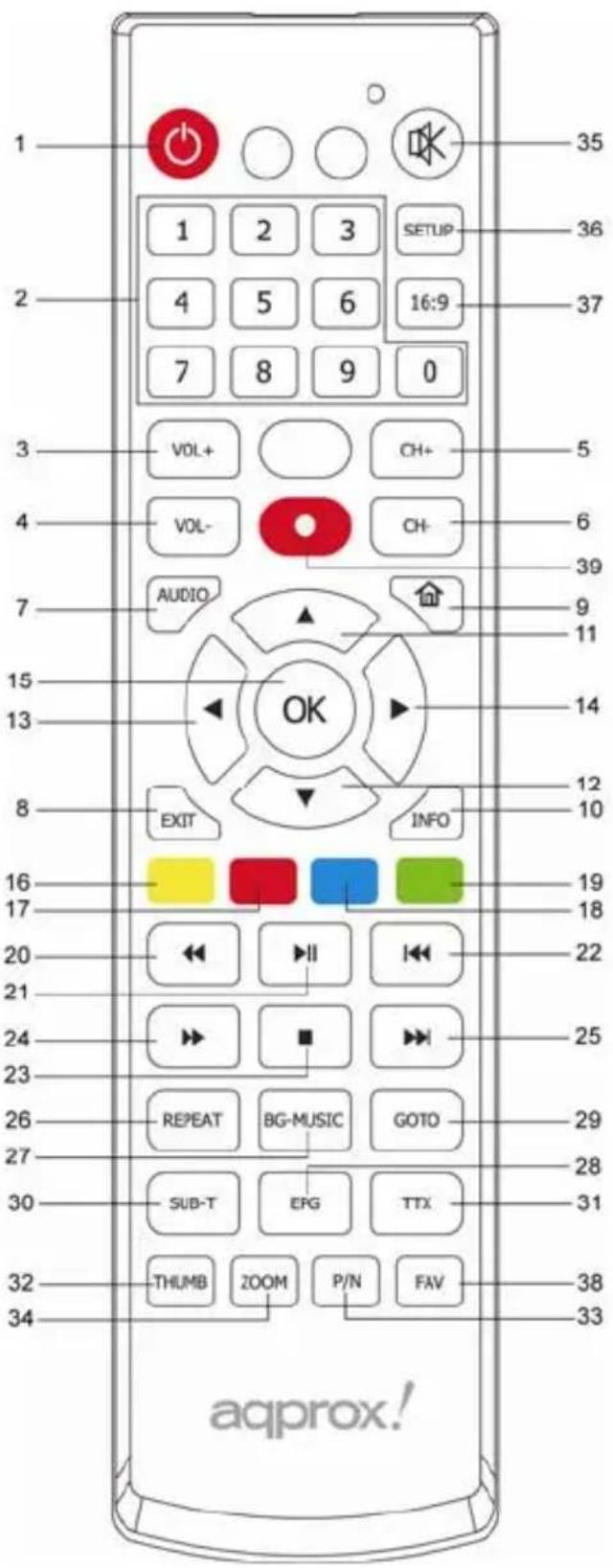
| NO. | NAME FUNCTION | |
| 1 POWER Press to enter standby mode or wake up | ||
| 2 | NUMERIC BUTTONS Press to enter numeric input when changing settings | |
| 3 VOL+Press to increase the volume | ||
| 4 | VOL- | Press to decrease the volume |
| 5 CH+Press to view the previous channel | ||
| 6 CH-Press to view the next previous channel | ||
| 7 AUDIO Press to select an audio track | ||
| 8 EXIT Press to quit some dialogue box | ||
| 9 HOME Press to enter the home screen | ||
| 10 | INFO | Press to show the current file information |
| 11 | UP | Press to move the highlight up while navigation menus |
| 12 | DOWN Press to move the highlight down while navigation | |
| 13 | LEFT | Press to move the highlight left while navigation menus |
| 14 | RIGHT | Press to move the highlight right while navigation menusPress to selected the favorite music |
| 15 | OK | Press to confirm |
| 16 | YELLOW Press to add a recording schedule | |
| 17 | RED | Press to edit the prerecord schedule |
| 18 | BLUE | Press to delete the record book itemPress to select the delete the files under “Browser” and "PVR" |
| 19 | GREEN | Press to enter the timer menu |
| 20 | FR | Press to fast rewind the current playbackPress repeatedly to select speeds |
| 21 | PLAY/PAUSE | Press to begin play or pause the current playback |
| 22 | FF | Press to fast forward the current playbackPress repeatedly to select speeds |
| 23 | STOP Press | to finish your current playback |
| 24 PREVIOUS Press to view the previous file/ page UP | ||
| 25 NEXT Press to play the next file/ page DOWN | ||
| 26 REPEAT Press to set repeat option | ||
| 27 | BG-MUSIC Press to wake up background music | |
| 28 | EPG | Press to enter the Electronic Program Guide which displays an on-screen list of programs for the coming week when watching Digital Terrestrial TV |
| 29 GOTO Press to select the time point | ||
| 30 SUB-T Press to set subtitle options | ||
| 31 TTX Press to enter TTX interface | ||
| 32 THUMB Press to show the 9 pictures on screen. | ||
| 33 P/N Press to choose HDMI/ CVBS | ||
| 34 ZOOM Press to zoom in/out the image (photo or video) | ||
| 35 MUTE Press to mute audio output, press again to resume | ||
| 36 SETUP Press to enter the setting main menu | ||
| 37 16:9 Switch between 16:9 and 4:3 display | ||
| 38 FAV Press to show the music playlist. | ||
| 39 REC Press to start Recording on TV mode | ||
3.1.2 FRONT PANEL
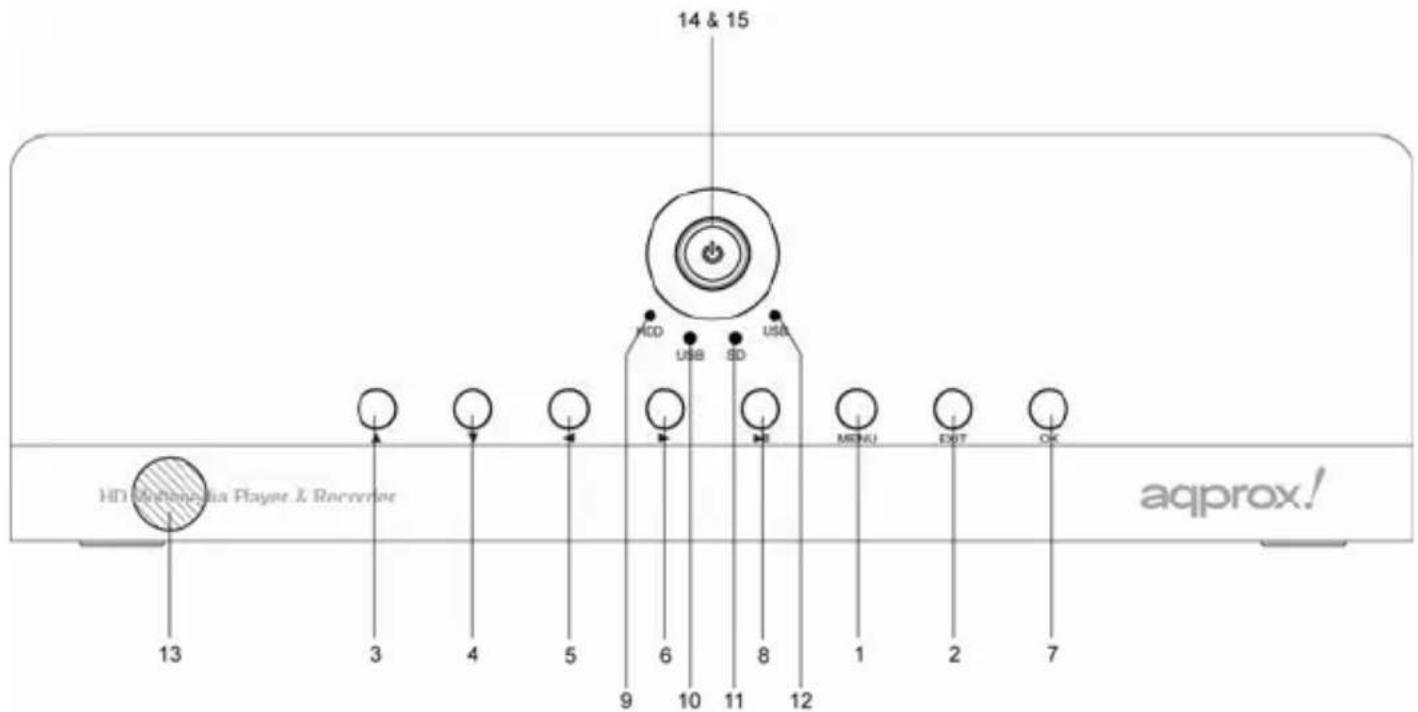
| NO. | NAME FUNCTION | |
| 1 MENU Press to show the setup menu | ||
| 2 | EXIT Exit/Cancel | |
| 3 UP | Move the highlight up | |
| 4 DOWN Move the highlight down | ||
| 5 LEFT Move the highlight left | ||
| 6 RIGHT Move the highlight right | ||
| 7 | OK Enter/ Play | |
| 8 PLAY/ PAUSE Play/ Pause switch | ||
| 9 | HDD INDICATOR | Indicator (Blue) turns on when you read the data in the HDD |
| 10 | USB INDICATOR | Indicator (blue) turn on when you connect the Memory device through USB host ports |
| 11 | SD INDICATOR | Indicator (blue) turn on when you connect the SD Memory card through SD Card port |
| 12 | USB INDICATOR | Indicator (blue) turn on when you connect the Memory device through USB host ports |
| 13 | IR WINDOW | Receiving IR signals from the remote control |
| 14 | STATUS INDICATOR | Indicator (blue) turns on when the system is alive |
| 15 | STANDBY INDICATOR | Indicator (red) turns on when the system is in standby mode |
3.1.3 REAR PANEL

| NAME | FUNCTION |
| DC DC IN jack | |
| USB 2.0 USB device | |
| AUDIO-R Audio OUT jack (Right Channel) | |
| VIDEO Video OUT jack | |
| OPTICAL | Optical jack |
| HDMI | HDMI jack |
| USB HOST USB host port | |
| ANT TV/ RF IN socket | |
| AUDIO-L Audio OUT | jack (Left Channel) |
| COAXIAL SPDIF OUT | jack |
| Power Power on/off | |
| Fan Fan-cooled radiator | |
4. HOW TO PLAY
4.1 Power On/ Off
Power On
After connecting the DC IN jack and press the power button on the rear panel, the player is on the standby mode. After press the “POWER” key on the front panel or on the RC, the power indicator will turn red to blue. The player soon will show the logo, and then enter the home screen.
Power Off
Press the power button on the front panel, the player will soon enter standby mode, and the
power indicator will turn red. Then switch the "power" key on the rear panel on to off to cut off the power cord.
4.2 Multimedia player
1) Setup menu
The Setu p men u allow s you to personalize and configure t he p references f or yc player. To select a Setup option:
There are four Setup options: SYSTEM, MOVIE, PHOTO, FORMAT. Use the LEFT/
RIGHT navigational buttons to select a menu. Press ENTER to confirm. Press EXIT to exit the sub-setup menu.
- Changing System Settings
Use this menu to configure audio settings:
Language:
The system language of this player can be set to English or other languages. Change the language you wish in the setup menu, the selected language will take effect immediately.
Select the language that you want.
Aspect Ratio:
- AUTO: Display picture or movie on original aspect ratio.
- 4:3 Full: Display picture or movie on the full screen.
- Pan Scan 4:3: Display a wide picture on the entire screen and cuts off the redundant portions. Select when a standard 4:3 TV is connected.
- Letter Box 4:3: Display a wide picture with two black borders on the top and bottom of 4:3 screen. Select when a standard 4:3 TV is connected.
- 16:9 Wide Screen: Maximizes the image in the horizontal axis to 16:9.
TV Format: Select to adjust TV model NTSC or PAL
HDMI: Select to adjust video output resolution720P,1080I,1080P
SPIDF: Set PC M/ ROW DA TA when select the optical as audio output, or else set OFF.
PREVIEW: Select to turn on / off movie or music preview in the browser menu.
Factory Default: Select to restore factory defaults.
Firmware version: Show the software INFO.
- Changing movie setting
- SUBTITLE SPECIFIC: Select the subtitle specification : NORMAL/ SMALL/ BIG
- SUBTITLE BG: Select to adjust subtitle background color: TRA NSPARENT/YELLOW & GREEN/WHITE/GRAY
- SUBTITLE FONT COLOR: Select to adjust subtitle font color : RED/ GREEN/ BLUE.
- START RESUME: Select to turn on / off resume playback (auto-bookmarking) feature for movies
- Changing photo setting
- Slide show time: Select to adjust slid show time: 2S/3S/5S/7S.
- Slide mode : there are 46 slid show mo de you can choose : RADOM, 0, 1, .....45.
- Format:
You can format a HDD (FAT32 or NTFS) in a partition whether new or used HDD.
2) Photo menu
In this mode, all folders and supported photos in current directory will be displayed. Please set the preview item is "on" in setup.
3) Music menu
In this mode, this player supports the playlist function, which allows you to add your favorite audio files on local HDD / Memory Card to the playlist, and enjoy them at any time. The playlist will be saved on the current partition.
Adding files to the playlist :
Select the favorite file you wish to add, press the "Right" direction key, and the file will be ticked. Press the FAV button to confirm, and then an PIAYLIST MODE will be show.
Delete files from the playlist:
Select the destination file, press the RIGHT button, and the file will be marked ×, and then press ENTER to delete them immediately, or will be delete when you exit the playlist.
4) Movie menu
In this mode, all folders and supported videos in current directory will be displayed.
5) Browser menu
In this mode, all folders and supported c onents (music, photos, and movies) w ill be displayed.
4.3 TV
4.3.1 DVB-T TV Player Setting
When you get into the TV first time, the sy stem will show the “Installation Guide” dialog box for you to auto searching TV information as below :
Installation Guide
OSD Language: you can choose the language;
Country: you need choose the country first before you start search channel;
Channel search: start to auto search
Also you can choose “manual search” for channel searching in Setup menu, so you can press “setup” key to enter setup menu for setting:
Option
Subtitle language: Press left/right key to choose the tv subtitle language;
Audio language: Press left/ right key to choose t audio language;
Digital audio: press left/ right key to choose digital audio output: PCM/ DATA RAM.
Channel search
Auto Search: press right key start to auto scan all frequency.
Manual Search: press right key start to manual search setting.
Country: press left/right key to choose the country.
Antenna power: press left/right key to choose the antenna type.
Program
Program edit: press right key to enter program edit sub-menu, the enter password: 88888
In this mode the four color keys will be used under this mode:
Move: yellow Skip: Green Edit: Red Delete: Blue
EPG: press EN TER to show seven days program information for the current channel.
LCN: Press left /right key to switch LCN ON /OFF
Sort: Press right key to choose how to sort the channel :by LCN
Time
Time offset : Press right/left key to switch time offset.
Country region: Press right left key to choose the country.
Time zone: Press left/right key to adjust the Greenwich time.
System
Parental Guidance: press left/right key to set the program level.
Set password: Press right key to enter the passw ord setting sub menu, then use the numeric key on the RC to set the password.
Factory default: press right key to restore the default setting t he enter password: 888888.
Information: Press right key to show the system information (model NO., SW Version, HW Version).
USB
PVR configure: press right key to choose the PVR target disk (SD Memory card, USB Host or SATA HDD).
4.3.2 TV Play/ Recording mode
| BUTTON | FUNCTION |
| CH+/CH- | Press to view preview/ next channel. |
| INFO | Press to show the channel information. If you want view detail information such as frequency, ban width Just press info key twice. |
| SUB-T | Press to choose the subtitle you like, this is only available if the channel has multi-subtitle; |
| AUDIO | Press to choose the audio you like, this is only available if the channel has multi-tracks; |
| TTX | Press to start review TTX. You can find the four color key simple directions under the bottom line. |
| EPG | press to show the seven days program information of the current channel. |
| OK | Press ok key to show “all TV list”, then press left key switch to “all Radio list”. |
| YELLOW | Press to add a recording schedule. Press to start EPG reservation recording under EP menu. |
| RED | Press to edit the recording schedule. |
| BLUE | Press to start recording directly. Press to delete a recording schedule under re-cording schedule menu. |
| GREEN | Press to enter the PVR booking menu. |
| SETUP | Press to enter to setup menu. |
| LEFT/Right or Vol+/Vol- | Press to adjust volume. |
| EXIT | Press to return to main menu. |
| NUMERIC BUTTONS | Press to put into the number when you manu al search channel. |
4.3.2.1 TV Recording
The system support two recording mode as bello ws. And you can read the files you had recorded in "PVR" interface.
Note:
1) Don't forget to set the PVR target disk from setup menu USB/ PVR configure before you start add a record booking list.
2) Different recording tasks can not be set at the same time.
One button recording:
While w atching TV, press "REC" button to st art recording t he program, and press
"stop" button to exit.
Schedule recording:
1) Manual Reservation Recording
Press "Blue" key to enter the Sch edule mode. then press "yellow", "Red", "Green" key to add, edit, delete the recording task.
2) EPG Reservation Recording
Press EPG to s how the TV programs, and cho ose the pr ogram you want to record, then press "yellow", "Red", "Green" key to add ,edit ,delete it.
Note:
1) If the EPG r record and manu al record are in use, y ou can't st art to one butt c recording task.
2) If the system recording channel A (one button recording mod e), and channel recording task is coming up, the system will show a dialog windows, then you can choose to continue recording channel A or change to channel B to start recording schedule task. When the recording is finishes the device will return to channel A.
3) If you are watching channel A, the system will show you a dia log windows when timing up, then you can choose to cancel or change to start the schedule recording task. When the recording is finishes the device will return to channel A.
4) if you are on multimedia play mode, the system will show you a dialog windows when timing up, then you can choose to cancel or change to start the schedule recording task. When the recording is finishes the device will return to channel A.
5) If you set the device on st and by mode, the de vice will auto wake up and st art the recording tasks, when timing up. When the recording is finished the device will turn to stand by mode after recording.
6) Don't forget to closed the Schedule menu to save the setting, before you start next step.
4.4 Delete
The system support deleted files under "Bro wser" and "PVR". You can select the files that you want to delete by "Blue" key in the remote unite, then press "Enter" to start delete.
5. SYSTEM UPDATE
Download the updated firmware from Approx's website: www.printyourideas.com.
Select to update the firmware from via a USB stick.
1) Copy the firmware file to the root directory of a USB stick, and connect it to the USB HOST port of the player.
2) Enter “BROWSER” icon and then move cursor to select the firmware file, then press “OK” key to start upgrade software. Keep Stabilized Power Supply till “100%” show on screen.
1. INTRODUCTION
1.1 Préface
4.1 Allumage/Extinction
Allumage
4.2 Multimedia Player
1) Einstellungsmenü

- HD Multimedia Player&Recorder
- Guía de usuario User guide Guide de l'utilisateur Gebrauchsanweisung Guida per l'utente Manual do utilizador
- INTRODUCCIÓN
- Prólogo
- A/V Output
- Multimedia Playback
- DVB-T TV Receiver
- PVR
- USB & Memory Card Support
- Device
- Packing list
- Note:
- Cautions
- Usage Cautions
- Power supply
- Radio Interference
- Repair
- Others
- CONNECTION
- Connecting the Power Supply
- Connecting a USB Device
- Connecting a Memory Card
- Connecting to a TV
- A/V OUT
- HDMI OUT
- Connecting to an Digital Amplifier
- Connecting to computer
- FRONT PANEL
- REAR PANEL
- HOW TO PLAY
- Power On/ Off
- Power On
- Power Off
- Multimedia player
- 1) Setup menu
- - Changing System Settings
- Language:
- Aspect Ratio:
- 3) Music menu
- Adding files to the playlist :
- Delete files from the playlist:
- 4) Movie menu
- 5) Browser menu
- TV
- DVB-T TV Player Setting
- Installation Guide
- Option
- Channel search
- Program
- Time
- System
- USB
- TV Play/ Recording mode
- TV Recording
- One button recording:
- Schedule recording:
- 1) Manual Reservation Recording
- 2) EPG Reservation Recording
- Delete
- SYSTEM UPDATE
- INTRODUCTION
- Préface
- Allumage/Extinction
- Allumage
- 1) Einstellungsmenü
Brand : Approx
Model : APPMPHDTDT
Category : Media player