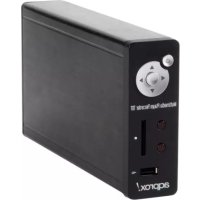
APPMPR1TDT - Media player Approx - Free user manual and instructions
Find the device manual for free APPMPR1TDT Approx in PDF.



| Product type | HDD media player with DTT tuner |
| Brand | Approx |
| Model | APPMPR1TDT |
| Power supply | DC 12 V / 3 A (power adapter included) |
| Supported hard disk capacity | Up to 1 TB |
| Hard disk formats | FAT32, NTFS |
| Supported video formats | MPEG4, DVD, VCD, MP3, JPG, etc. |
| Video outputs | CVBS (AV), HDMI |
| Audio output | Optical (SPDIF) |
| Connectivity | USB 2.0 (device), USB host (front), SD/MMC reader |
| DTT tuner | Automatic and manual search, EPG, teletext |
| Recording | One Key REC, Timer REC, EPG REC (up to 5 tasks) |
| Playback functions | Repeat, fast forward/rewind, pause, subtitles, image rotation, slideshow with background music |
| Remote control | Range: 6 m, angle < 60°, battery CR-2025 3V |
| Operating temperature | Avoid direct sunlight, humidity, heat |
| Safety | Do not open, keep away from liquids and magnetic fields, good ventilation |
| Maintenance | Clean with a dry cloth, do not use chemical products |
| Included accessories | Remote control, AV cable, HDMI cable, power adapter |
Frequently Asked Questions - APPMPR1TDT Approx
User questions about APPMPR1TDT Approx
0 question about this device. Answer the ones you know or ask your own.
Ask a new question about this device
Download the instructions for your Media player in PDF format for free! Find your manual APPMPR1TDT - Approx and take your electronic device back in hand. On this page are published all the documents necessary for the use of your device. APPMPR1TDT by Approx.
USER MANUAL APPMPR1TDT Approx
Work environment. 20
Ports & Buttons 21
- Front Panel 21
- Rear Panel 21
Remote control definition 22
Getting Started. 24
HDD Media Player Operation 25
SETUP 25
DTV 25
HOME 26
DISK 26
NEXT/Prev. 26
FF.&REW 26
PAUSE 26
STOP 26
MUTE 26
Numeric key 26
Repeat. 26
INFO 26
Volume + / - 26
COPY 27
DVD 27
EDIT 27
AUDIO 27
SUBTITLE 27
FAV 27
Rotating 27
Fileedit 27
Copy 27
Delete 28
New folder/Rename 28
Properties 28
Cancel 28
DVB-T Mode Operation 28
SEARCH 28
EPG 28
TV/RADIO 28
INFO 28
TELETEXT 29
SUBTITLE 29
AUDIO 29
Some related Settings of FAV 29
Record Mode Operation 29
ONE KEY REC. 29
TIMERREC. 29
EPGREC 29
Troubleshooting 30
MAIN FEATURES
- Multi-functional AV HDD player, with the features of volume delicate and easy to use. It's a good helper for your study, work, entertainment and a good companion for your life.
- Removable hard disk function: USB2.0 interface WINDOWS management
- Playback function: play AV programs, such as: MPEG4, DVD, VCD, MP3, etc. and JPG pictures;
DVB-T function: supports auto and manual search, EPG, TTX - Record: ONE KEY REC, TIME REC, EPG REC
- Support capacity: Max. 1TB
HDD format: FAT32/NTFS - Support multi-disk partition HDD program playback.
- Subtitle optional for DVD program: multi language optional.
- Search playback for video, repeat playback for video/audio/picture, etc.
- Slide playback function for the picture, at same time, can choose joined background music.
- With CVBS and HDMI video output, can be connected to TV display.
- TV format: PAL/NTSC/AUTO;
- Multi-function control keys on unit and full functional enhanced Remote Control, which is convenient for your use.
SAFETY NOTES
This unit is an electronic product that need to be treated with more care than typical consumer electronic products, please read the below safety methods before you use this unit.
1. CABLE PROTECTION
To avoid unit works improperly, electric shock, fire, disaster or body hurt, please follow up the below operations:
- Cable far away from hot sources;
- Don't press heavy articles on cable or place heavy articles on cables across;
- If smoke, odor or noise rises, please cut off power supply, consult professional or factory directly.
2. DO NOT TOUCH, NO SUNDRIES IN THE UNIT
- It's dangerous to touch inner components of the unit, it will lead to serious destroy, don't try to take apart the unit;
- Don't stuff sundries in the unit.
3. REPAIR
Don't make bold to repair the unit by yourself, because it's dangerous to open or remove unit cover, such as: voltage dangerous or other dangerous.
Please consult professional or factory directly.
4. FAR AWAY FROM VAPOR AND MAGNETISM
- Don't place water, drink or other liquid near to unit, if the liquid dropped on inner unit, it will lead to serious destroy.
- Don't place magnetism near to unit, such as amplifier.
5. VENTILATION
To keep good ventilation around unit, ensure unit release hot normally.
If ventilation is not good, unit accumulates too much heat, it will lead to serious destroy.
WORK ENVIRONMENT
When unit playing, please avoid the situations below:
- Sunlight directly or high temperature place;
- Humidity place:
- Easy to spatter water or chemical place;
- Dirty place;
- Poor ventilation place;
- Unstable or shock place;
- Don't place heavy articles on unit.
PORTS & BUTTONS
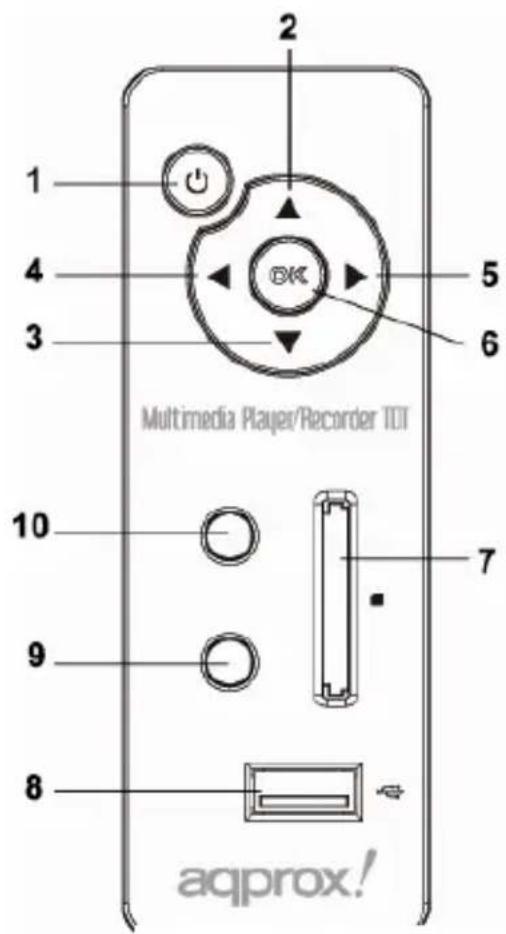
1. FRONT PANEL
- POWER button
- Navigation button: UP
- Navigation button: DOWN
- Navigation button: LEFT
- Navigation button: RIGHT
- OK button
- SD/MMC Socket
- USB Host
- Power/Standby LED
- IR Window
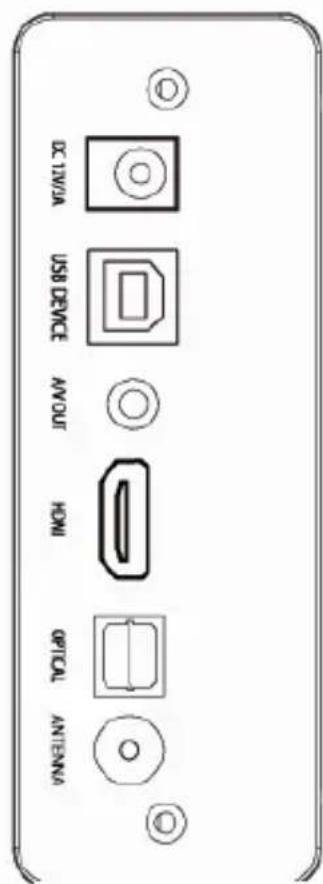
2. REAR PANEL
- DC IN: 12 V/3 A
- USB DEVICE: connect to your PC for document transmission.
- A/V Output : CVBS signal output socket
HDMI Output: connect to the HDMI port on TV SET - OPTICAL output: connect to optical audio appliance ANTENNA: TV/ RF IN socket
REAR PANELFRON
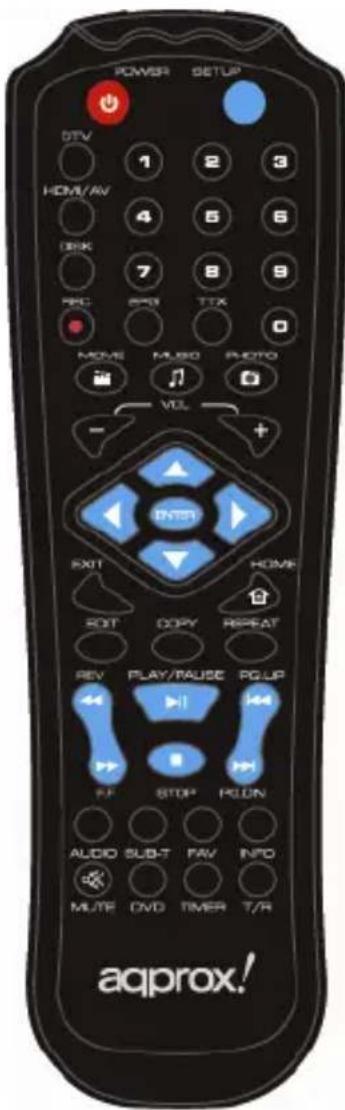
REMOTE CONTROL DEFINITION
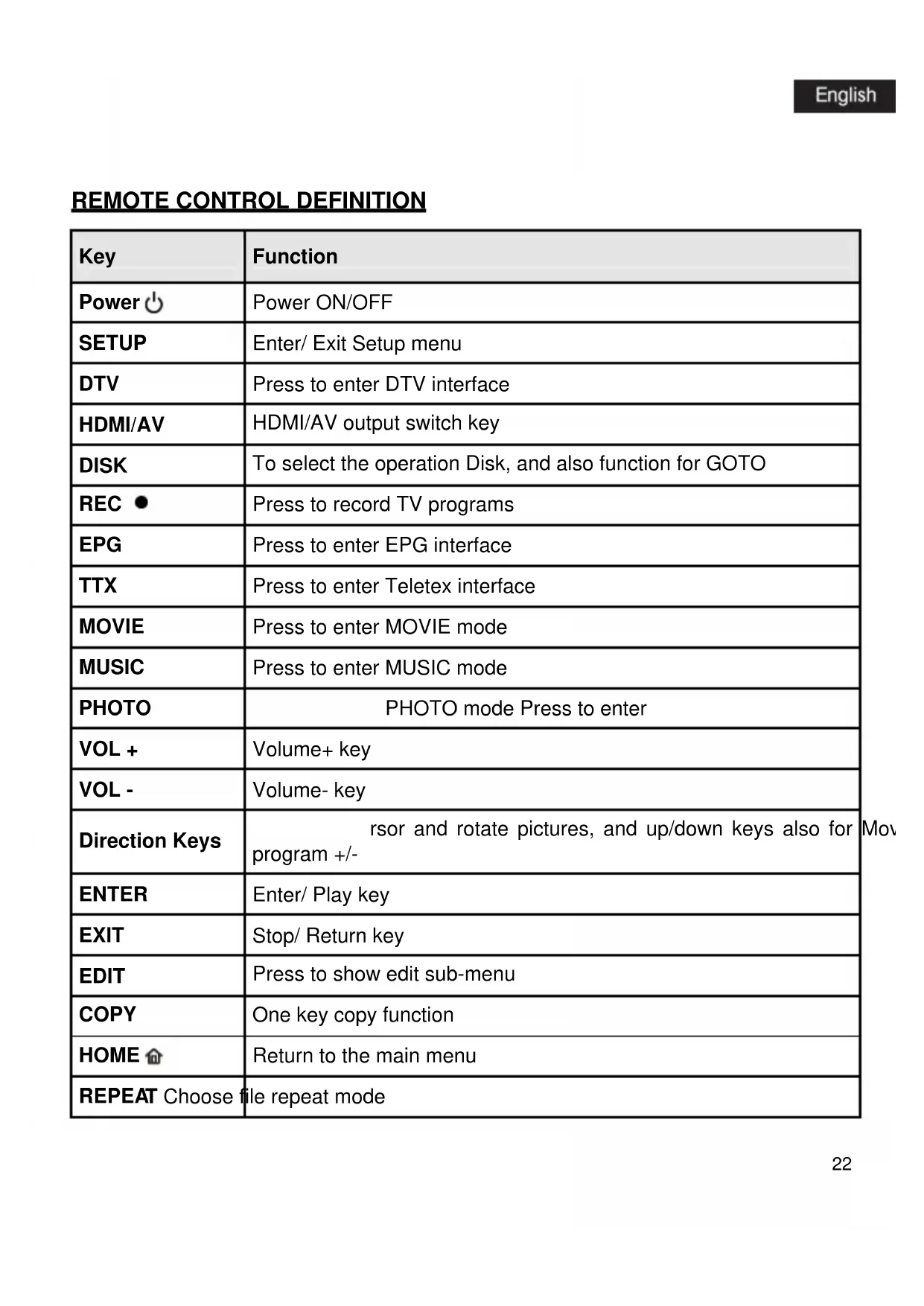
| Key | Function |
| Power | Power ON/OFF |
| SETUP | Enter/ Exit Setup menu |
| DTV | Press to enter DTV interface |
| HDMI/AV | HDMI/AV output switch key |
| DISK | To select the operation Disk, and also function for GOTO |
| REC | Press to record TV programs |
| EPG | Press to enter EPG interface |
| TTX | Press to enter Teletex interface |
| MOVIE | Press to enter MOVIE mode |
| MUSIC | Press to enter MUSIC mode |
| PHOTO | PHOTO mode Press to enter |
| VOL + | Volume+ key |
| VOL - | Volume- key |
| Direction Keys | rsor and rotate pictures, and up/down keys also for program +/- |
| ENTER | Enter/ Play key |
| EXIT | Stop/ Return key |
| EDIT | Press to show edit sub-menu |
| COPY | One key copy function |
| HOME | Return to the main menu |
| REPEAT Choose file repeat mode | |
| REW | Fast rewind key |
| FF | Fast forward key |
| PL Y/PAUSE A | Press to play or pause |
| STOP | Stop key |
| PG. UP | Back to previous title key |
| PG.DN | Skip to next title key |
| AUDIO | Choose audio track in DVD playback mode |
| SUB-T | Choose subtitle in DVD play mode |
| FAV | Press to switch favorite channels, and for pictures preview function |
| INFO | Display the file info |
| MUTE | Mute on/off |
| DVD | Play DVD folder like a common DVD player |
| TIMER | ks Press this key to show th |
| T/R | Press to display Radio/TV channel list |
Notes:
- Remote control operation range: Within 6m from front panel, angel: < 60^
- Effective distance of remote control will be difference according to different lightness of environment.
GETTING STARTED
1. HOW TO CONNECT TO COMPUTER
Connect HDD media player USB DEVICE output with computer by USB connection cable, HDD media player becomes computer local HDD, you can edit the file and the folder like a USB storage disk. HDD supportable systems: WINDOWS XP /WINDOWS ME / WINDOWS 2000/Vista/Linux etc.
Warning: do not simply pull out USB cable at any time, please properly remove unit from your computer, otherwise, would cause the data losing or your computer freezing. Please click on the system tray icon, the unit will give your message that you can put out the USB cable safely. For the flash driver or SD card, please also do so.
2. HOW TO CONNECT TO TV
Connect HDD player to TV by AV/HDMI cable.
Warming: confirm the Video output setting is the same with your TV mode. Press the R/C HDMI/AV button to set up the output mode on you HDD media player.
3. HOW TO CONNECT THE POWER SUPPLY
- Connect the AC adapter cable plug in the unit system's jack.
- Plug the AC adapter into wall outlet.
Warning:
Power supply must be DC 12V/3A; don't connect the unit with wrong adapter,
Set up the unit on "STANDBY" mode before cut off power supply to avoid the hard disk leads to irreparable destroy.
3. HOW TO CHANGE R/C BATTERY
- Put out the Battery door, the battery door is located on the rear housing. Simply pull the tab to open the battery door.
- Position the battery (including) so it sits in the battery holder correctly, make sure the polarity (the + and the - sides of battery) is correct.
Notes:
- Remote control operation range: Within 6m from front panel, angle: < 60^
- Effective distance of remote control will be difference according to different lightness of environment.
Turn on the unit, HDD media player reads hard disk information, screen displays the main menu, press the R/C direction button to select title or submenu, then press Enter button to confirm the highlight item.
1. SETUP
Press SETUP key on the RC to enter setup interface, there are 6 icons in it. Press RIGHT/LEFT keys to choose the icon, after you choose an icon, use UP/DOWN keys to choose the selections, press RIGHT/LEFT to choose the sub-selection, then press UP/DOWN to highlight the sub-selection, use ENTER key to confirm. The TV SEARCH selection only function in DVB-T mode.
2. DTV
Press the DTV Icon on the main menu to enter the DTV mode.
3. HOME
During playing, press R/C HOME button to main menu.
4. DISK
Press R/C DISK button, screen showing root catalogue under non-playback status. While playback movie files, you can press this key to set the time when you like to start.
5. NEXT/PREV
During playing, press NEXT key "☑" to skip to the NEXT title forward accordingly. During unit playback, press PREVIOUS key "☑" to skip to the PREV title accordingly.
6. FF& REW
During playing, press FF key “→” to adjust Forward speed, press PLAY key to return normal playback speed. Press Rev “←” key, fast backward function is contrary with the above function.
7. PAUSE
Press Pause button "[] in the playing mode, the units will be paused immediately, press Play button to return to normal playback.
8. STOP
Press STOP key "□" to exit playback mode during playing.
9. MUTE
Press MUTE key "to mute on/off during playing.
10. NUMERIC KEY
Press numeric keys to do the related set, and also use these keys to choose the TV program that you like.
11. REPEAT
Press REPEAT key on remote control, select playback mode: Repeat one / Folder repeat / Disc/ Disc Repeat/ single/ Folder.
12. INFO
Press INFO key, screen showing current file information (such as file size, total time, type), press it again to cancel information display.
13. VOLUME +/-
Press VOL+/- key to increase/decrease the volume.
14. COPY
Press COPY key to copy all the files in SD card or USB disk to HDD. It works as one key copy function.
Note: The HDD files can't be copied to SD card or U disk.
15.DVD
If you have stored VIDEO_TS folders in your HDD, you can press DVD key to DVD navigation.
16.EDIT
To show edit sub-menu. While playback video files, press this button will show the time.
Note: the "edit" button is only effective under "File" directory, and HDD format must be FAT32.
17. AUDIO
During play DVD, press AUDIO key to select audio channel
18. SUBTITLE
When you press DVD key to start play the DVD which with multi-subtitle (only under DVD mode), you can press SUBTITLE key to switch the subtitles.
19. FAV
If you have set the favourite programs, you can press this key to change between those channels. Press FAV key, Digest will be on, you can enter the 15-picture preview mode.
20. ROTATING
When show a picture in full-screen, you can press LEFT/RIGHT to rotate the picture in horizontal direction, and press UP/DOWN to rotate the picture in vertical direction.
FILEEDIT
In the state of "SIGNAL MENU", press EDIT key, showing edit menu.
Press UP/DOWN direction keys to select operation, press ENTER key, make the corresponding operation to the selected file.
Note: only function under FAT32 of HDD, U disk, under SD card you can only copy content from it.
1. COPY
Choose the file you want to copy, and select "copy" sub-selection.
2. PASTE
Choose the device or folder you want to put the file you copied, and select "paste" sub-selection.
3. DELETE
Select "DELETE" sub-selection, press ENTER key, screen display a reminding dialog window, select "YES" to delete the item or "NO" to cancel this operation.
4. NEW FOLDER/RENAME
Select the file, press EDIT key to show edit menu, select "New folder/Rename" subselection, press ENTER key, will show the rename windows.
Remove HIGHLIGHT to aim alphabets by direction keys, press STOP key when you finished
Press EXIT key to cancel operation; press FAV key to cancel the current inputting alphabet.
5. PROPERTIES
Select this sub-selection, screen showing the properties of the file.
6. CANCEL
Select Cancel Sub-Selection to cancel edit operation.
Enter DVB-T interface, press SETUP to enter the setup interface, you can choose AUTO SEARCH or MANUAL SEARCH to search TV programs.
2. EPG
Press EPG to enter EPG list, press LEFT/RIGHT key to choose the date, UP/DOWN key to choose the program, and choose Intro to check the details of the program.
3. TV/RADIO
Press SETUP key, choose channels Edit key to enter TV-RADIO channels list, you can modify the order of the program and delete programs. Press T-R key to switch TV/RADIO channel list
4. INFO
While playback TV programs, press INFO key to show the information of the program.
5. TELETEXT
Press TTX to show the contents, use navigation keys to choose the content you want to watch.
6. SUBTITLE
Press SUBTITLE to turn on/off subtitles.
7. AUDIO
Press AUDIO to switch audio channels.
8. SOME RELATED SETTINGS OF FAV
Press T-R key to choose Radio or TV channels, no matter you choose TV or Radio, it will appear a channels list interface, choose FAV, then press up/down key to choose the channel which you want to add to FAV, press enter to confirm, then quit the interface. If you have set FAV, when you watching TV, press FAV key, the channels will be switched just among your favourite channels.
Press REC button to record TV programs while watching TV, a red button will be displayed at the left upper corner, and the program will be saved in the first FAT32 partition. If there is no FAT32 partition in your HDD, system will remind you.
2. TIMER REC
While watching TV, press TIMER key to enter Timer REC list, you can see all the information about RECORD STATUS in this list. Modify the related settings by using EDIT function. It also supports auto power on record. For this function, you have to set the task 3 minutes earlier than the program start.
3. EPG REC
Press EPG key to enter EPG list, choose one program, then press REC key, the player will add this program to pre-record list.
Note: The total record tasks is 5.
TROUBLESHOOTING
Please read the following guide before repairing unit.
| Symptom Possible reasons Resolutions | ||
| No power Power cable destroyed | DC power cable if connected correctly | |
| Power on, but unit doesn't work Properly. | Restart player | Plug in power supply and press "Power" button on front panel or "Power" button on remote control |
| No picture | Unit not connected properly | Connect Player as per Manual operation |
| Unit video output not comply with display equipment | Press "HDMI/AV" key on remote control | |
| Display input not setup as receive unit signal | Select proper video input format, usually is video or AV | |
| Video cable not connected effectively | Connect video cable effectively | |
| No volume | Volume display 0 (TV or unit) | Adjust volume |
| Audio cable not connected effectively | Connect audio cable effectively | |
| Playing pictures rolling up, poor quality pictures | Reset up TV format such NTSC, PAL. | Power off first, select correct TV or display format. |
| Programs sources not good. | Select good programs sources | |
| Remote control doesn't work. | Battery with no power energy or not enough power energy | Install new batteries, ensure using same size of batteries: CR-2025, 3V (Remote A) |
| Battery not installed properly. | Install batteries as per correct operation | |
| Remote control not point at remote sensor | Remote control point at remote sensor | |
| Too long distance or too big angle | Distance: Within 7m from the front panel remote sensor; angle: +30' | |
| Remote control route malfunction | Remove obstacle | |
Files not play right away
The number of encoding and compression schemes currently used to create video file is very extensive and seems to change on a weekly basis. There are so many standards and formats that it is very possible that the video file you download form the internet will not play right away on you device, Due to certain "variation". Even when video files are attend in MPEG4 they may not play right away.
If you have video files of these or other types that you would like to view on it, they will have to be converted first, to re-encode them into the proper XviD or Divx MPEG4 format.
Defragment the unit hard disk
Defragment the unit hard disk may be useful after reading or writing to your computer via the USB connection. Make sure no other program is running while using the Windows defragmenter utility.
If we find new file names or folder names that we never created, the unit FAT has been corrupted. This due to the unit shutting down while reading or writing to your computer via the USB connection. You should use the Error Checking utility or the Check Disk utility in he Widows.
Tableu de matieres
- Copy 43
2.Paste. 43 - Delete 43
- New folder/Rename 43
- Properties 43
- Cancel 43
- Copy 75
2.Paste. 75 - Delete 75
- New folder/Rename 75
- Properties 75
- Cancel 75
Pressione SUBTITLE para ligar/desligar as legends.
7. AUDIO


- Fileedit 27
- DVB-T Mode Operation 28
- Record Mode Operation 29
- Troubleshooting 30
- MAIN FEATURES
- SAFETY NOTES
- CABLE PROTECTION
- DO NOT TOUCH, NO SUNDRIES IN THE UNIT
- REPAIR
- FAR AWAY FROM VAPOR AND MAGNETISM
- VENTILATION
- WORK ENVIRONMENT
- PORTS & BUTTONS
- FRONT PANEL
- REAR PANEL
- Notes:
- GETTING STARTED
- HOW TO CONNECT TO COMPUTER
- HOW TO CONNECT TO TV
- HOW TO CONNECT THE POWER SUPPLY
- Warning:
- HOW TO CHANGE R/C BATTERY
- SETUP
- DTV
- HOME
- DISK
- NEXT/PREV
- FF& REW
- PAUSE
- STOP
- MUTE
- NUMERIC KEY
- REPEAT
- INFO
- VOLUME +/-
- COPY
- 15.DVD
- 16.EDIT
- AUDIO
- SUBTITLE
- FAV
- ROTATING
- FILEEDIT
- COPY
- PASTE
- DELETE
- NEW FOLDER/RENAME
- PROPERTIES
- CANCEL
- EPG
- TV/RADIO
- INFO
- TELETEXT
- SUBTITLE
- AUDIO
- SOME RELATED SETTINGS OF FAV
- TIMER REC
- EPG REC
- TROUBLESHOOTING
- Files not play right away
- Defragment the unit hard disk
- Tableu de matieres
Brand : Approx
Model : APPMPR1TDT
Category : Media player