
LZ-702W - Touchscreen KENWOOD - Free user manual and instructions
Find the device manual for free LZ-702W KENWOOD in PDF.



| Product type | KENWOOD LZ-702W Touchscreen |
| Screen size | 6.95 inches wide, diagonal 176 mm (156.2 x 82.4 mm) |
| Display system | Transparent TN LCD panel, active matrix TFT, 336960 pixels (480x234xRGB), effective pixels 99.99% |
| Dimensions (monitor) | 177 x 121.5 x 34 mm (7 x 4-6/8 x 1-5/16 inches) |
| Dimensions (concealed unit) | 143 x 37 x 99 mm (5-5/8 x 1-7/16 x 4-7/8 inches) |
| Weight (monitor) | 460 g (1.01 lbs) |
| Weight (concealed unit) | 390 g (0.86 lbs) |
| Power supply | 14.4 V DC (11-16 V), 1.5 A, 14 W |
| Color system | NTSC/PAL |
| Video inputs | 2 RCA inputs (AV1, AV2), 1 RGB input (13 pins) |
| Video outputs | 1 RCA output (AV OUT) |
| Audio inputs/outputs | RCA input: 1 V/55 kΩ; RCA output: 1 V/1 kΩ |
| Built-in speaker | 0.5 W (40 x 20 mm) |
| Main functions | Video display (full screen, zoom, cinema, justified, normal), navigation (compatible with KNA-DV3100, etc.), rear view camera, image settings (brightness, hue, color, contrast, black), AV output, speaker mode |
| Screen settings | Auto brightness (Auto DIM), settings BRT, TIN, COL, CONT, BLK |
| Care and cleaning | Wipe with a soft dry cloth; for stains, use a cloth moistened with mild detergent then wipe; do not use solvent or alcohol |
| Safety | Do not insert metal objects; do not look at screen while driving; installation by professional; use provided screws; disconnect battery before installation; same rating fuse |
| Operating temperature | -10°C to +60°C |
| Storage temperature | -30°C to +85°C |
| Spare parts and repairability | Fuse 1.5A (same rating); provided screws; optional accessories: KNA-RC300 (remote control), brackets; contact Kenwood dealer for parts |
| General information | Negative 12V DC ground power supply; compliant with NMB-003 (Canada); class B |
Frequently Asked Questions - LZ-702W KENWOOD
User questions about LZ-702W KENWOOD
0 question about this device. Answer the ones you know or ask your own.
Ask a new question about this device
Download the instructions for your Touchscreen in PDF format for free! Find your manual LZ-702W - KENWOOD and take your electronic device back in hand. On this page are published all the documents necessary for the use of your device. LZ-702W by KENWOOD.
USER MANUAL LZ-702W KENWOOD
To prevent injury or fire, take the following precautions:
- To prevent a short circuit, never put or leave any metallic objects (such as coins or metal tools) inside the unit.
- Do not watch or fix your eyes on the unit's display when you are driving for any extended period.
- Mounting and wiring this product requires skills and experience. For safety's sake, leave the mounting and wiring work to professionals.
- Do not touch the liquid crystal fluid if the LCD is damaged or broken due to shock. The liquid crystal fluid may be dangerous to your health or even fatal.
If the liquid crystal fluid from the LCD contacts your body or clothing, wash it off with soap immediately.
CAUTION
To prevent damage to the machine, take the following precautions:
Make sure to ground the unit to a negative 12V DC power supply.
- Do not install the unit in a spot exposed to direct sunlight or excessive heat or humidity. Also avoid places with too much dust or the possibility of water splashing.
- When replacing a fuse, only use a new fuse with the prescribed rating. Using a fuse with the wrong rating may cause your unit to malfunction.
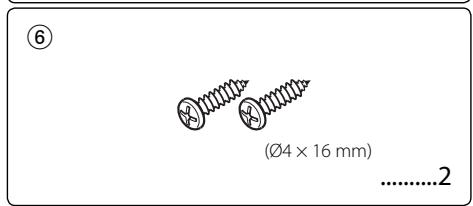
- Do not use your own screws. Use only the screws provided. If you use the wrong screws, you could damage the unit.
- You cannot view video pictures whilst the vehicle is moving. To enjoy video pictures, find a safe place to park and engage the parking brake.
- If you experience problems during installation, consult your Kenwood dealer.
- When you purchase optional accessories, check with your Kenwood dealer to make sure that they work with your model and in your area.
- If the unit fails to operate properly, press the Reset button. The unit returns to factory settings when the Reset button is pressed.
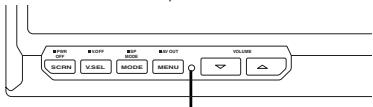
Reset button
- Even if the Reset button is pressed, values set for individual items are not cleared. To initialize set values, perform the operation mentioned in
(page 9). - The illustrations of the display and the panel appearing in this manual are examples used to explain more clearly how the controls are used. Therefore, what appears on the display in the illustrations may differ from what appears on the display on the actual equipment, and some of the illustrations on the display may represent something impossible in actual operation.
Cleaning the Unit
If the faceplate of this unit is stained, wipe it with a dry soft cloth such as a silicon cloth. If the faceplate is stained badly, wipe the stain off with a cloth moistened with neutral cleaner, then wipe it again with a clean soft dry cloth.

- Applying spray cleaner directly to the unit may affect its mechanical parts. Wiping the faceplate with a hard cloth or using a volatile liquid such as thinner or alcohol may scratch the surface or erases characters.
Screen brightness during low temperatures
When the temperature of the unit falls such as during winter, the liquid crystal panel's screen will become darker than usual. Normal brightness will return after using the monitor for a while.
Navigation units you can control from the LZ-702W (As of March, 2006):
KNA-DV3100, KNA-DV2100, KNA-DV4100, KNA-G510
KNA-DV3200, KNA-DV2200, KNA-G520
LZ-702W you can control from the Remote controller (As of March, 2006):
KNA-RC300
Information on Disposal of Old Electrical and Electronic Equipment (applicable for EU countries that have adopted separate waste collection systems)

Products with the symbol (crossed-out wheeled bin) cannot be disposed as household waste.
Old electrical and electronic equipment should be recycled at a facility capable of handling these items and their waste byproducts. Contact your local authority for details in locating a recycle facility nearest to you. Proper recycling and waste disposal will help conserve resources whilst preventing detrimental effects on our health and the environment.
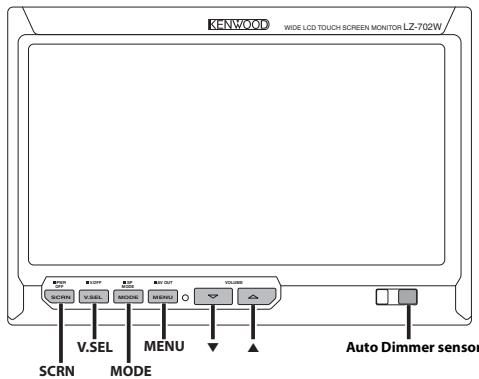
Power
Turning ON the Power
Press the [SCRN] button.
Turning OFF the Power
Press the [SCRN] button for at least 1 second.
Video Source Selection
Press the [V.SEL] button.
Each time the button is pressed, the video source switches as follows:
| Display | Setting |
| "Video 1" | Video 1 ("NAV" setting during "RGB" or "Off") |
| "Video 2"/"R-Cam" | Video 2 ("AV-IN2" setting during "Video 2" or "R-Cam") |
| "NAV" | Navigation ("NAV" setting during "RGB" or "AV-IN1") |
![KENWOOD LZ-702W - Press the [V.SEL] button. - 1](/content/2025/01/124414/images/e698caea168f98eeebd89fbed08946b0039a20046edad30d2fdc10d1fa7c1f1f.jpg)
- For "NAV" and "AV-IN2" setting, refer to
(page 8) or (page 8). - You cannot view video pictures whilst the vehicle is moving. To enjoy video pictures, find a safe place to park and engage the parking brake.
Volume
Increasing Volume:
Press the [▲] button.
Decreasing Volume:
Press the [▼] button.

- You can not control this function when
(page 5) is set to "Off".
Swithing the Display off mode
You can set the display off mode for the monitor. Press the [V.SEL] button for at least 1 second.
Exit the Display off mode
Press any button.
Press the button other than the [▲] and [▼] buttons.
Switching Screen Mode
Press the [MODE] button.
Each time the button is pressed, the screen mode switches as follows:
| Display | Setting |
| "Full" | Full picture mode |
| "Just" | Justify picture mode |
| "Cinema" | Cinema picture mode |
| "Zoom" | Zoom picture mode |
| "Normal" | Normal picture mode |
![KENWOOD LZ-702W - Press the [MODE] button. - 1](/content/2025/01/124414/images/f61dc09074be7b47dd2a3f39cf02bf124b80ef349fc48eba94223f62c4254c5b.jpg)
- You cannot operate when the navigation picture is displayed.
Display information
When you press the [V.SEL] button, the status of the monitor is displayed.
| 1 Mode FULI |
| 2 VOL 12 3 S P Normal A V Video1 |
1 Screen mode Display
Volume Display
3 Speaker mode Display
4 Video source Display
[5] AV output Display
![KENWOOD LZ-702W - [5] AV output Display - 1](/content/2025/01/124414/images/2dd33e176e105298f6ec675a5b4113893e91b08c198202b8b819711d655627aa.jpg)
- When
(page 8) is set to "Mirror" and the display is showing rear view camera pictures, display information is not displayed. - The information display is cleared automatically after approximately 5 seconds.
Setting the Speaker Mode
You can select the built-in speaker mode you wish.
Press the [MODE] button for at least 1 second.
Each time the button is pressed for at least 1 second, the built-in speaker mode switches as follows:
| Display | Setting |
| "Normal" | Sound with monitor picture. |
| "NAV" | Sound of navigation. |
| "Video1" | Sound of video 1. |
| "Video2"/"R-Cam" | Sound of video 2. |
| "Off" | Built-in speaker is turned off. |
Setting the AV Output
Selects an AV source to be output at the "AV OUTPUT" terminals.
Press the [MENU] button for at least 1 second.
Each time the button is pressed for at least 1 second, the AV output switches as follows:
| Display | Setting |
| "Video1"/"NAV" | Select the AV IN1 source. |
| "Video2"/"R-Cam" | Select the AV IN2 source. |
| "Off" | No output to the "AV OUTPUT" terminals. |
Adjusting the Screen Control
You can adjust the picture quality and Auto dimmer control of the monitor.
1 Enter the Screen Control mode Press the [SCRN] button.
![KENWOOD LZ-702W - Enter the Screen Control mode Press the [SCRN] button. - 1](/content/2025/01/124414/images/be711629bf9c21b328bfd04329927bec6da84b56a643a43497ca062c332ad520.jpg)
2 Adjusting the Picture Quality
Each time you touch the button, the setting alternates between the settings shown in the table below.
| Item | Touch | Setting |
| "BRT" | [▲] | Brighter screen |
| [▲] | Darker screen | |
| "TIN" | [▲] | Stronger red level |
| [▲] | Stronger green level | |
| "COL" | [▲] | Deeper color |
| [▲] | Paler color | |
| "CONT" | [▲] | Stronger contrast |
| [▲] | Less contrast | |
| "BLK" | [▲] | Less black level |
| [▲] | Stronger black level |
Auto Dimmer
| Item | Touch | Setting |
| "Auto DIM" | [■On] | When it gets dark, the brightness of display lowers automatically. |
| [■Off] | The display doesn't dim. |

- The "BRT" can be adjusted when "Auto DIM" is set to "Off".
- The "TIN" can be adjusted when NTSC video signal is input.
- The "TIN" and "COL" cannot be adjusted for the navigation picture (RGB) or the control screen.
3 Exit the Screen Control mode Touch the [OK] button.
![KENWOOD LZ-702W - Exit the Screen Control mode Touch the [OK] button. - 1](/content/2025/01/124414/images/162cf57c64f9000f13f40c424dce856e0b799f18d0c145a022b353526fb4dd94.jpg)
- Separate picture quality settings can be stored for the video, control screens and navigation picture.
- The Screen Control is displayed only when you have applied the parking brake.
- If you make no operation for 15 seconds, this mode is automatically canceled.
![KENWOOD LZ-702W - Exit the Screen Control mode Touch the [OK] button. - 2](/content/2025/01/124414/images/ffaa8e6070bd5d6c8de2bb252f8ab78e78df7faa53308ac990332606ee9b7f5e.jpg)
Setup Menu
The Setup menu operation method is explained here. The reference for the Menu items and their setting content is after this operation explanation.
1 Enter Setup Menu
Press the [MENU] button.
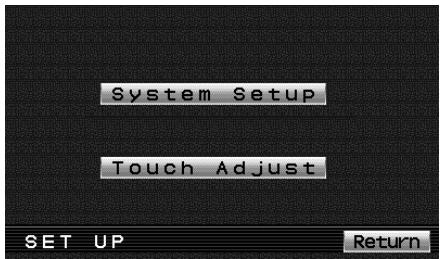
2 Select the Setup item
Touch the [System Setup] or [Touch Adjust] button.
| Touch | Setting |
| [System Setup] | Displays the System Setup-1. (page 8) |
| [Touch Adjust] | Displays the Touch Panel Adjust. (page 10) |
| [Return] | Exit the Setup Menu. |
3 Exit Setup Menu
Press the [MENU] button.

- If you cannot select a setup menu item, press the [MENU] button, the touch panel position settings are reset to the factory defaults.
- If you make no operation for 15 seconds, this mode is automatically canceled.
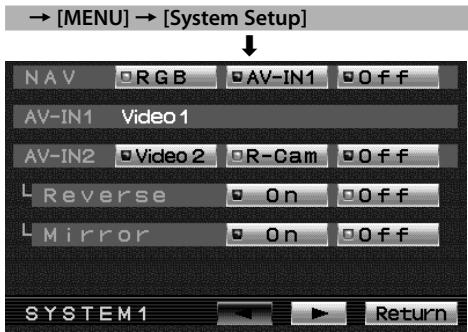

Setting the NAV input
Setup input and switch method of the navigation picture.
"NAV"
| Touch | Setting |
| ■RGB | It becomes the RGB mode setting. Operate the [V.SEL] button when the image from the navigation unit connected to "TO NAVIGATION" terminal is shown on the monitor. |
| ■AV-IN1 | It becomes the AV-IN1 mode setting. Operate the [V.SEL] button when the image from the navigation unit connected to "AV1 INPUT" terminal is shown on the monitor. |
| ■Off | It becomes the Off mode setting. Use this setting when there's nothing connected to the navigation unit. |
Display the AV-IN1 input
Setting status of "AV1 INPUT" terminal is displayed.
"AV-IN1"
| Display | Setting |
| "Video 1" | Video 1 mode is selected. |
| "NAV" | Navigation mode is selected. |
Setting the AV-IN2 input
Setup switch method of the picture input to "AV2 INPUT" terminal.
"AV-IN2"
| Touch | Setting |
| [■Video 2] | It becomes the video mode setting. Operate the [VSEL] button when the image from the device connected to "AV2 INPUT" terminal is shown on the monitor. |
| [■R-Cam] | It becomes the Rear view camera mode setting. refer to <Setting the Rear view camera> (page 8). |
| [■Off] | It becomes the Off mode setting. Use this setting when there's nothing connected to the "AV2 INPUT" terminal. |
Setting the Rear view camera
Setting the display when this device is switched to internal "AV2 INPUT" terminal input source.
1 Touch the [R-Cam] button of "AV-IN2".
2 Setting the Rear view camera.
| Item | Touch | Setting |
| "Reverse" | [■On] | Switches to the rear view camera video display when engaging the shift knob of car to "Reverse". |
| [■Off] | Switches to the rear view camera video display when engaging the shift knob of car to "Reverse" and then pressing the [V.SEL] switch several times. | |
| "Mirror" | [■On] | The image which appears in the camera is turned left-side right and displayed. |
| [■Off] | The image which appears in the camera is displayed as it is. |
Switching the Screen
"SYSTEM1"
| Touch | Setting |
| [▶] | Displays the System Setup-2. |
| [Return] | Return to the setup menu. |
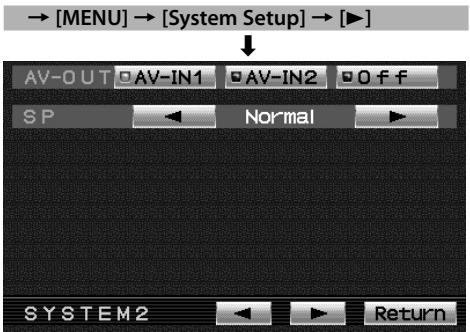

Setting the AV Output
Selects an AV source to be output at the "AV OUTPUT" terminals.
"AV-OUT"
| Touch | Setting |
| [■AV-IN1] | Select the AV IN1 source. |
| [■AV-IN2] | Select the AV IN2 source. |
| [■Off] | No output to the "AV OUTPUT" terminals. |
Setting the Speaker Mode
You can select the built-in speaker mode you wish.
Touch the [] or [] button of "SP".
| Display | Setting |
| "Normal" | Sound with monitor picture. |
| "NAV" | Sound of navigation. |
| "Video1" | Sound of video 1. |
| "Video2"/ "R-Cam" | Sound of video 2. |
| "Off" | Built-in speaker is turned off. |
Switching the Screen
"SYSTEM2"
| Touch | Setting |
| [▲] | Displays the System Setup-1. |
| [►] | Displays the System Setup-3. |
| [Return] | Return to the setup menu. |
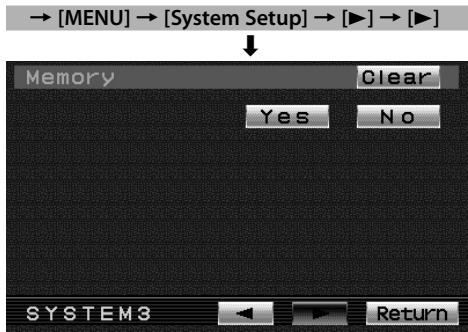

Initializing the User Settings
The setting value is set to the initial state of factory.
1 Touch the [Clear] button of "Memory".
2 Touch the [Yes] button.
Touch the [Yes] button, restores the factory set default values for individual items from those set by the user.
"System Settings were Initialized" is displayed.
Initialization is cancelled.
Touch the [No] button.
Switching the Screen
"SYSTEM3"
| Touch | Setting |
| [←] | Displays the System Setup-2. |
| [Return] | Return to the setup menu. |
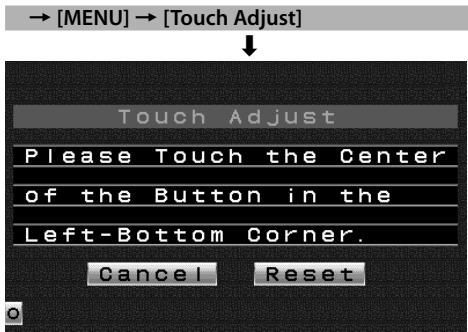

Adjusting the Touch Position
The touch panel can be adjusted if the position touched and the operation performed do not match.
1 Accurately touch the mark at the lower left.
2 Accurately touch the mark at the upper right.
When the mark at the upper right is touched, the adjustment is completed and the system setup menu screen reappears.

- If the [Cancel] button is touched without touching the button at the lower left, the adjustment is canceled and the screen goes back to the Setup Menu Screen.
- If the [Cancel] button is touched after touching the button at the lower left, the button at the lower left reappears.
- If the [Reset] button is touched, the settings are reset to the factory defaults and the setup menu screen reappears.
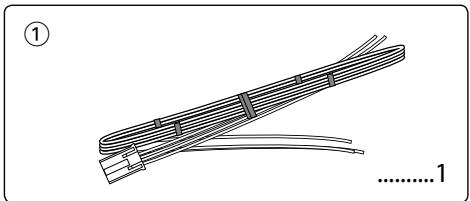
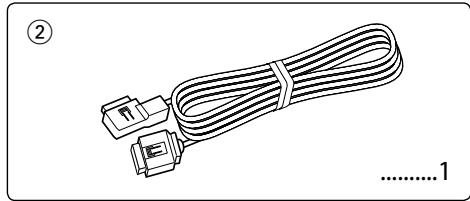
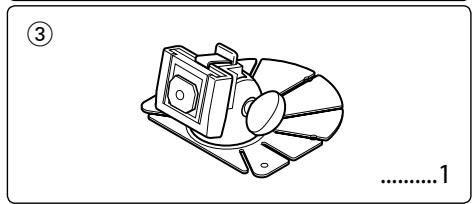
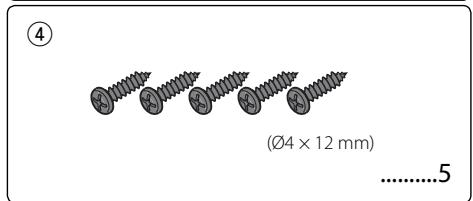
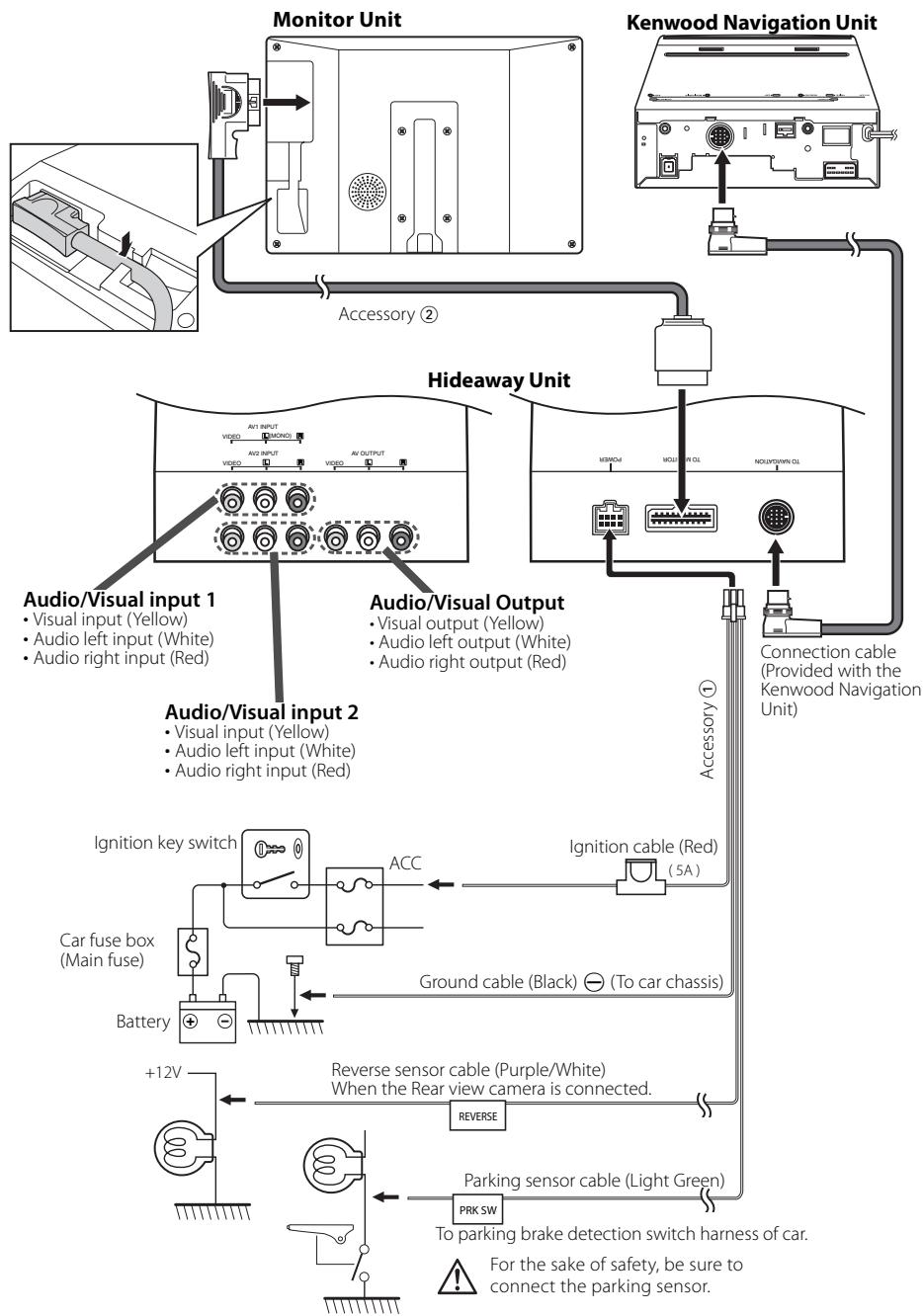
- To prevent short circuits, remove the key from the ignition and disconnect the terminal of the battery.
- Make the proper input and output cable connections for each unit.
- Connect the wiring harness wires in the following order: ground, ignition.
- Connect the wiring harness connector to the unit.
- Install the unit in your car.
- Reconnect the terminal of the battery.
- Press the reset button. (page 3)
WARNING
- This product is intended for use with 12V DC negative ground power only. Do not connect it to any other power supply.
- To prevent shorting, disconnect the battery cable from the negative terminal of the battery during installation.
- Be sure to firmly stabilise this product. Do not install it in a location which is not stable.
-
Follow the installation and wiring procedures described in this manual. Improper wiring or modified installation can not only result in malfunction or damage to the unit but may also result in an accident.
-
Do not install the unit in the following locations.
-
A location which interferes with the operation of the air bag system.
- A location which is not made of plastic.
→ Installing on leather, wood or cloth may damage the surface.
-
A location subject to direct sunlight, subject to the air from the air conditioner, or subject to moisture or high temperature.
This may cause deformation of the monitor unit. -
If you are not going to install the unit using the supplied monitor stand, be sure to use a commercially available monitor stand. (Mounting holes for such a stand are located on the bottom of the monitor unit.)
!
- If your car's ignition does not come with an ACC position, connect the ignition wires to a power source that can be turned on and off with the ignition key. If you connect the ignition wire to a power source that receives a constant voltage supply, as with battery wires, the battery may die.
- If the fuse blows, first make sure that the wires have not caused a short circuit, then replace the old fuse with one with the same rating.
- Do not let unconnected wires or terminals touch metal on the car or anything else conducting electricity. To prevent short circuits do not remove the caps from unused terminals or from the ends of the unconnected wires.
- After the unit is installed, check whether the brake lamps, blinkers, wipers, etc. on the car are working properly.
- Insulate unconnected wires with vinyl tape or other similar material.
- Thoroughly wipe away oil and other dirt from the installation surface.
Please avoid installation on uneven surfaces.
- Do not install the Hideaway unit under the carpet. Otherwise heat build-up occurs and the unit may be damaged.
Installation for Monitor Unit
Installation location and cleaning
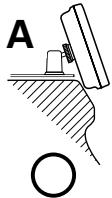
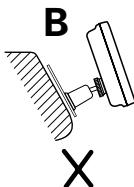
Select for installation a location where the stand can be placed completely horizontal or where the front edge of the support (petal-shaped part) can be attached horizontally as shown in Figure A.
Do not install in locations where the entire support is at a diagonal such as in Figure B or where the monitor unit is facing down such as in Figure C.
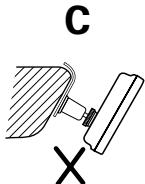

- Thoroughly wipe away and dust or grease from the installation location using a cloth which has been soaked in a neutral cleaning agent and wrung out. Attach the stand after allowing the installation location to dry.
Installation for Monitor Unit
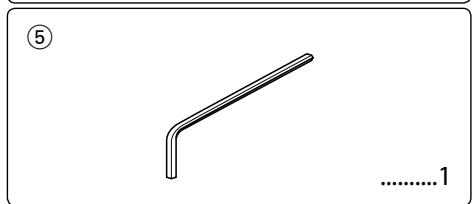
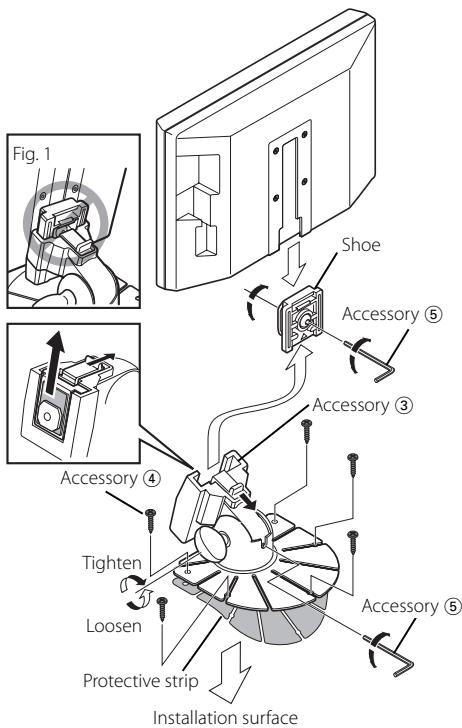
1 Install the shoe on the rear of the TV monitor temporarily using the supplied hexagon wrench (Accessory 5).

- When adjusting the fixing screw of the shoe, use the hexagon wrench (Accessory 5) that came with the product. Using other hexagon wrenches may damage the screw.
2 Bend the stand support to conform to the shape of the installation location.
3 Adjust the shape of the support so that there is no rattling or gap when the stand is placed on the support.
4 Peel off the protective strip from the double-sided tape on the bottom of the stand and securely attach the stand.

- Do not attach the double-sided tape more than once or touch the adhesive with your fingers as this will weaken its adhesive strength.
- If the temperature of the surface of the installation location is low, warm it up using a heater or other means before attaching the stand. Low temperature may weaken the adhesive strength of the tape.
- The supplied stand is specially intended for this product.
Do not use it with another monitor.
5 Secure the stand using the supplied tapping screw (Accessory 4).
6 After attaching the stand, allow it to sit undisturbed for 24 hours. Take care not to apply any force to the stand during this time.
7 Insert the shoe of the monitor unit into the bracket (Accessory ③).

- Insert the shoe into the bracket (Accessory ③) as far as it goes. (Fig. 1)
8 Adjust the height, horizontal and vertical angle of the monitor unit, and securely tighten the installation screws using the supplied hexagon wrench (Accessory ⑤).
You can also adjust the monitor unit's forward position by loosening the angle adjustment knobs and adjusting the angle of the monitor unit's installation stand.
Installation for Monitor Unit (For Headrest)
Mounting and wiring this product requires skills and experience. For safety's sake, leave the mounting and wiring work to professionals.
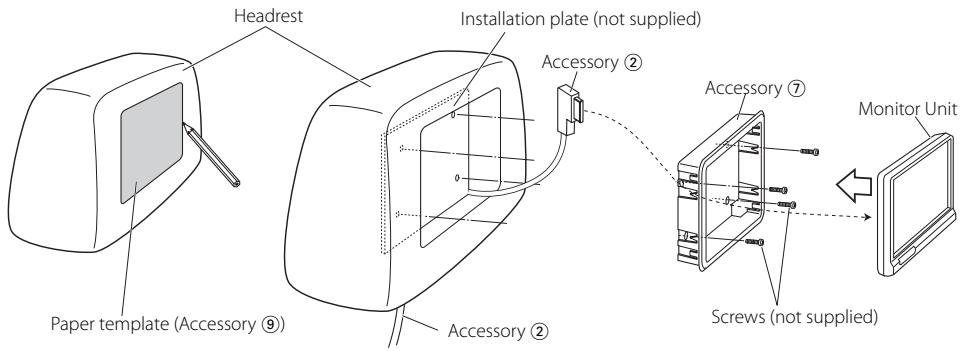
Before mounting the monitor to the headrest:
- Perform the required external connections first (Accessory ②).
- Using the supplied paper pattern, mark the area to be cut out of the headrest, then carefully cut it.
1 Connect Monitor and system cord (Accessory ②).
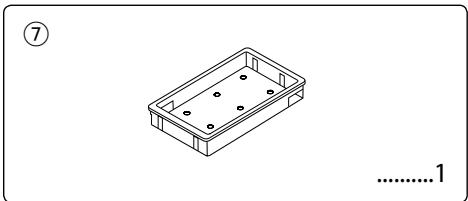
2 Install the monitor unit in the bracket (Accessory ⑦).
Installation for Hideaway Unit
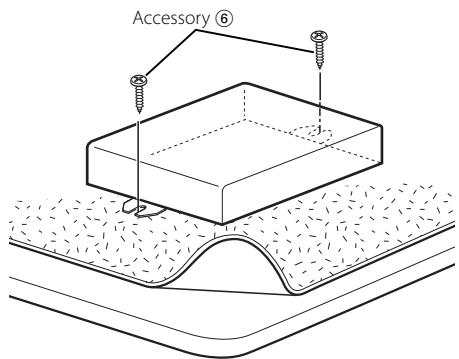
Use screws (Accessory 6) to fix Hideaway Unit onto an audio board or another.
Removing the Monitor Unit (For Headrest)
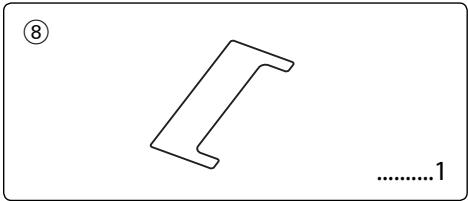
1 Insert the removal tool (Accessory ⑧) deeply into the slots on each side, as shown.
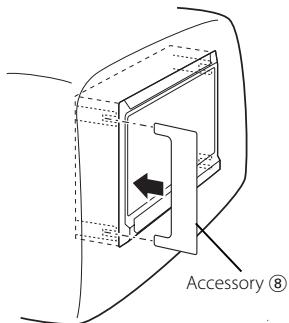
2 Pull the monitor unit all the way out with your hands, being careful not to drop it.
What might seem to be a malfunction in your unit may just be the result of slight misoperation or miswiring. Before calling service, first check the following table for possible problems.
? The power does not turn ON.
The fuse has blown.
After checking for short circuits in the wires, replace the fuse with one with the same rating.
The motor is not attached to the bracket securely.
Attach the motor to the bracket until it clicks.
? Nothing happens when the buttons are pressed.
The computer chip in the unit is not functioning normally.
Press the reset button on the unit (page 3).
? The screen is dark.
The unit is in a location where temperature is low.
If the temperature of the monitor unit drops, the screen may appear darker when power is first turned on due to the characteristics of a liquid crystal panel. Wait a while after turning power on for the temperature to rise. Normal brightness will return.
The "BRT", "BLK", "CONT", and other screen control levels are too low.
Adjust the"BRT","BLK","CONT",and other screen controls to obtain appropriate illumination, or restore them to factory-set levels with reference to<Initializing the User Settings page 10.
Specifications subject to change without notice.
Monitor Unit
Screen size
: 6.95 inches wide
156.2(W) × 82.4(H) × 176.0(Diagonal) mm
6-1/8(W) × 3-1/4(H) inches
Display system
: Transparent TN LCD panel
Drive system
: TFT active matrix system
Number of pixels
: 336,960 pixels (480 H × 234 V × RGB)
Effective pixels
:99.99%
Pixel arrangement
: RGB striped arrangement
Back lighting
: Cold cathode tube
Speaker power
: 0.5 W (40 × 20 mm)
Hideaway Unit
Colour system
: NTSC/ PAL
Video input level (RCA jacks)
: 1 ± 0.1 Vp-p/ 75 Ω
Audio input level (RCA jacks)
:1V/55KΩ
Video output level (RCA jacks)
: 1 ± 0.1 Vp-p/ 75 Ω
Audio output level (RCA jacks)
: 1 V/ 1 KΩ
Analog RGB input (13P)
: 0.7 Vp-p/ 75 Ω
General
Operating voltage
: 14.4 V DC (11 - 16 V)
Consumed Power
:14W
Current consumption
:1.5A
Operational temperature range
: -10°C to +60°C
Storage temperature range
: -30°C to +85°C
Dimensions (W× H× D)
Monitor unit: 177× 121.5× 34mm
7 × 4 - 6 / 8 × 1 - 5 / 16 inch
Hideaway unit : 143 × 37 × 99 mm
5-5/8 × 1-7/16 × 4-7/8 inch
Weight
Monitor unit: 460g (1.01 lbs)
Hideaway unit: 390g (0.86 lbs)
Although the effective pixels for the liquid crystal panel is given as 99.99% or more, 0.01% of pixels may not light or may light incorrectly.
FCC WARNING
This equipment may generate or use radio frequency energy. Changes or modifications to this equipment may cause harmful interference unless the modifications are expressly approved in the instruction manual. The user could lose the authority to operate this equipment if an unauthorized change or modification is made.
NOTE
This Class B digital apparatus complies with Canadian ICES-003.
Avertissement
"System Settings were Initialized" s'affiche.
"System Settings were Initialized" wordt getoond.
To prevent injury and/or fire, take the following precautions:
Viene visualizzato "System Settings were Initialized".
Aparece el mensaje "System Settings were Initialized".
: 156,2(L)×82,4(A)176,0(diagonal) mm
Sistema do visor
: Painel transparente TN LCD
Sistema de impulso
: Sistema de commando de MATRIX activa TFT
Número de pixels
: 336.960 pixels (480 H × 234 V × RGB)
Pixels efectivos
:99,99%
Disposicao de pixels
顯示"System Settings were Initialized"(系統設定已被初始化)。
取消初始化。
觸按[No]按鈕。
切换屏幕
"SYSTEM3"
- To prevent injury or fire, take the following precautions:
- CAUTION
- To prevent damage to the machine, take the following precautions:
- Cleaning the Unit
- Screen brightness during low temperatures
- Navigation units you can control from the LZ-702W (As of March, 2006):
- LZ-702W you can control from the Remote controller (As of March, 2006):
- Information on Disposal of Old Electrical and Electronic Equipment (applicable for EU countries that have adopted separate waste collection systems)
- Power
- Video Source Selection
- Press the [V.SEL] button.
- Volume
- Swithing the Display off mode
- Exit the Display off mode
- Switching Screen Mode
- Press the [MODE] button.
- Display information
- [5] AV output Display
- Setting the Speaker Mode
- Press the [MODE] button for at least 1 second.
- Setting the AV Output
- Press the [MENU] button for at least 1 second.
- Adjusting the Screen Control
- Enter the Screen Control mode Press the [SCRN] button.
- Adjusting the Picture Quality
- Exit the Screen Control mode Touch the [OK] button.
- Setup Menu
- Enter Setup Menu
- Select the Setup item
- Exit Setup Menu
- Setting the NAV input
- Display the AV-IN1 input
- Setting the AV-IN2 input
- Setting the Rear view camera
- Switching the Screen
- Initializing the User Settings
- Adjusting the Touch Position
- WARNING
- !
- Installation for Monitor Unit
- Installation location and cleaning
- Installation for Monitor Unit (For Headrest)
- Before mounting the monitor to the headrest:
- Installation for Hideaway Unit
- Removing the Monitor Unit (For Headrest)
- ? The power does not turn ON.
- ? Nothing happens when the buttons are pressed.
- ? The screen is dark.
- Monitor Unit
- Hideaway Unit
- General
- FCC WARNING
- NOTE
- Avertissement
- To prevent injury and/or fire, take the following precautions:
- 切换屏幕
Brand : KENWOOD
Model : LZ-702W
Category : Touchscreen