TravelPilot 40 - GPS Navigator BLAUPUNKT - Free user manual and instructions
Find the device manual for free TravelPilot 40 BLAUPUNKT in PDF.


| Brand | Blaupunkt |
| Model | TravelPilot 40 |
| Product type | Portable GPS navigator |
| Power supply | Built-in rechargeable battery, charging via mini USB port or cigarette lighter charger |
| Ports | Mini USB, 3.5 mm stereo headphone jack, micro SD card slot |
| Main functions | GPS navigation with preloaded maps, TMC reception (via charger), route calculation, points of interest, BluPoints display for economical driving |
| Light sensor | Yes, automatic backlight adjustment |
| Speaker | Built-in |
| Reset button | Yes |
| Screen | Touch screen, use finger or rounded tip stylus |
| Care and cleaning | Clean with a soft dry cloth; do not use sharp objects or long fingernails on the screen |
| Safety | Do not use controls while driving; do not leave the device exposed to sunlight on the dashboard; use a suitable car mount; obey traffic laws |
| Spare parts and repairability | Use only Blaupunkt accessories; for any repairs, contact the after-sales service center |
| Warranty | 36 months from the date of purchase, subject to presentation of proof of purchase |
| General information | Software and map updates via blaupunkt.de; telephone support on the website |
Frequently Asked Questions - TravelPilot 40 BLAUPUNKT
User questions about TravelPilot 40 BLAUPUNKT
0 question about this device. Answer the ones you know or ask your own.
Ask a new question about this device
Download the instructions for your GPS Navigator in PDF format for free! Find your manual TravelPilot 40 - BLAUPUNKT and take your electronic device back in hand. On this page are published all the documents necessary for the use of your device. TravelPilot 40 by BLAUPUNKT.
USER MANUAL TravelPilot 40 BLAUPUNKT
First Service Center
Kleine Düwelstr. 21
DE-30171 Hannover
Thank you for buying the Blaupunkt navigation system.
A good choice. We wish you a lot of fun and congestion-free kilometres with your new Blaupunkt navigation system.
In the worst case we will help you.
For technical questions and / or problems, please contact us by phone at +49 (0)511 / 123 83 506 or via E-Mail to support@first-servicecenter.de
The complete manuals for the hardware and software and manuals for other languages can be downloaded as well from www.blaupunkt.de
Please register your product as soon as possible on our website. This will give you benefits such as latest software and the latest map data, etc. - Most of it, of course, free.
Updates and additional maps, you can also order over our website www.blaupunkt.de
Dear Customer,
Thanks for using a navigation system of Blaupunkt.
- Blaupunkt reserves the rights of final interpretation of the manual.
- The product is subject change without notice. Please accept our apology for your inconvenience.
- Please back up your data and information in the GPS navigator. Blaupunkt assumes no responsibility for any loss caused by material loss.
- The manual might contain a few mistakes though it has been checked. If any mistake is found, please contact the Blaupunkt customer service center. Please read the instructions in this manual and use only accessories of Blaupunkt to avoid unpredicted damage. Failure to follow the instructions will invalidate warranty and might endanger personnel safety, for which Blaupunkt assumes no responsibility.
- Data of navigation electronic maps might be inconsistent with actual traffic signals due to transportation development. Please follow traffic regulations and signs and drive according to road situation. Operating the GPS navigator device while driving might cause serious accidents. Blaupunkt assumes no responsibility for accidents and loss due to improper use.
- For information of software update and upgrade, please go to our website www.blaupunkt.de
The pictures in the manual are subject to the material object.
In case that your navigation-system contains a built-in TMC-receiver for reception of traffic-information, its antenna is integrated into car-charge-cable. For correct reception of traffic-information, the car-charger needs to be connected to the USB-port of the navigation-system!
Please use only a blunt stylus or fingertips to operate your device. The screen surface is easily scratched. Do not use objects with sharp edges or long fingernails.
For your own safety, do not operate the controls of the product while driving. Use this product prudently. The product is intend to be used only as a navigation aid. It is not for precise measurement of direction, distance, location or topography.
The calculated route is for reference only. It is the user's responsibility to follow the traffic signs and local regulations along the road.
When you get off the car, do not leave your device on the dashboard that is subject to direct sunlight. The overheating of the battery can cause malfunction and /or danger.
GPS is operated by the United States government, which is solely responsible for the performance of GPS. Any change to the GPS system can affect the accuracy of all GPS equipments.
GPS satellite signal can not pass through solid materials (except glass). When you are inside a tunnel or building, GPS positioning is not available.
A minimum of 4 GPS satellite signal is needed to determine current GPS position. Signal reception can be affected by situations such as bad weather or dense overhead obstacles (e.g. trees and tall buildings).
Other wireless devices in the vehicle might interface with the reception of satellite signals and cause the reception to be unstable.
A car holder id needed when using the device in a car. Be sure to place the device in an appropriate place, so as not to obstruct the driver's view or deployment of air bag.
Components

| SN | Component | Explanation |
| 1 | Power key | Powering on/ off the device or enter sleep mode |
| 2 | Earphone jack | Connected with the stereophone (not supplied) |
| 3 | AV-IN port Only TravelPilot 70 | Use an AV-In cable to connect the navigator to an optimal rear view camera via this port while backing the vehicle. |
| 4 | Mini USB port | Communicating with PC via Micro USB cable and used as the charging port |
| 5 | Micro-SD-card slot | For inserting an optional flash-memory-card |
| 6 | Indicator light | Indicating the operating state of external power supply |
| 7 | Reset key Only TravelPilot 70 | Restart the system |
| 8 | Light sensor Only TravelPilot 40&50 | For automatic backlight adjustment |
| 9 | Reset key Only TravelPilot 40&50 | Restart the system |
| 10 | Speaker Only TravelPilot 40&50 | Playing sounds (such as navigation prompt tones, music, etc.) |
| 11 | Speaker Only TravelPilot 70 | Playing sounds (such as navigation prompt tones, music, etc.) |
Quick-Start
To enter a destination immediately, click the bottom left below the Menu button:
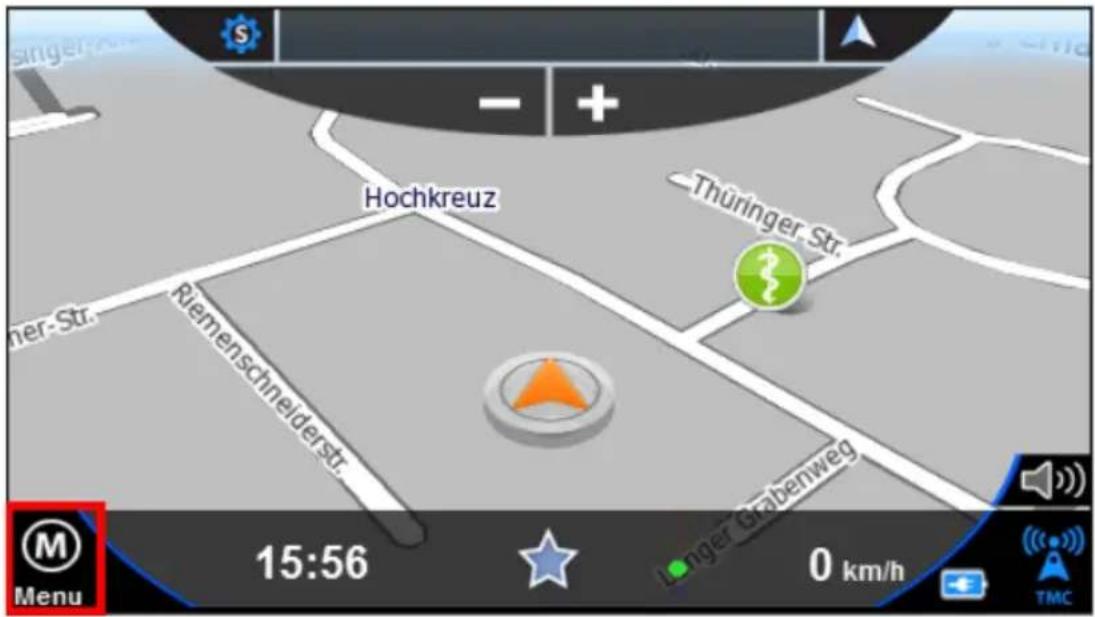
Now click the menu item "New Destination":

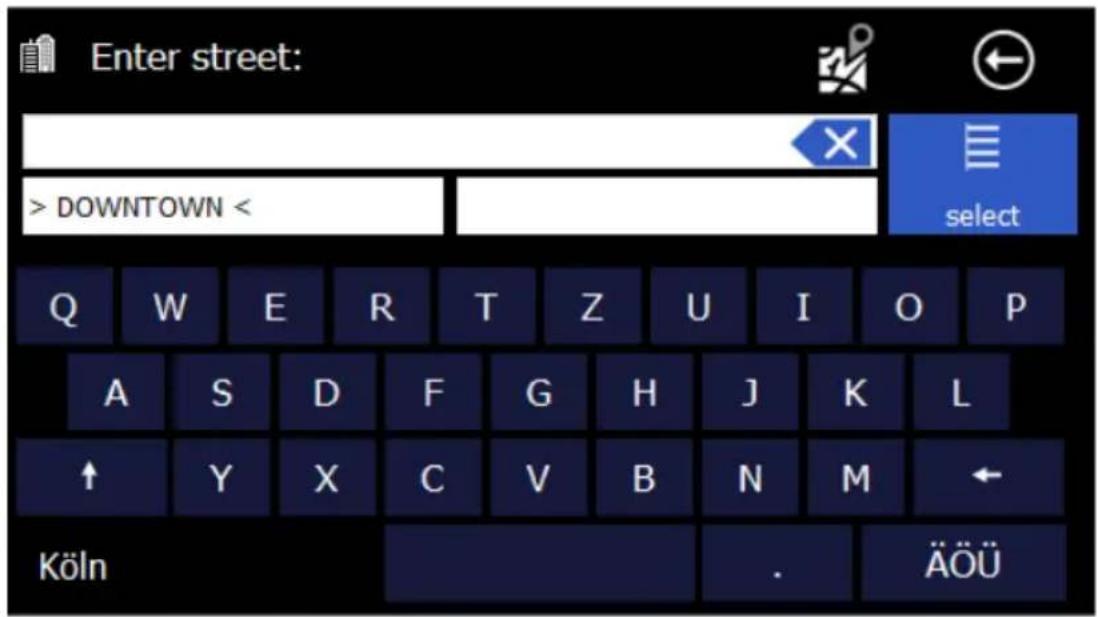
Over the "address" Button you can enter addresses.
All inputs are easy. Just using the onscreen keyboard, which is automatically added when needed.

You do not need to enter special characters. In place of an „Ä“ simply enter „A“, instead of „Ö“ enter „O“, instead of „Ü“ enter „U“. For example, if your destination is located in „Köln,” Germany, just enter „K O L N”.
You do also not need to enter spaces and hyphens. Instead, simply click the empty field to the left of the white triangle (at the bottom, third button from the right). If you make a mistake, click the backspace key to delete the wrong entry.
Depending on the version of your software and depending on the map material you may see the pre-select for the country at the left below. The last settings will be saved. If you select "All Countries", you can enter places without knowing the country. This is helpful in border areas sometimes. You need not to pre-select a specific country first. You can search over all countries as well.

After selection of the cities you get to the road selection.
You can enter any part of the name. E.G. finds the entry "pool", the "pool road / square" - "The Pool" - to the pool", etc.
Alternatively, you can also choose „TOWN CENTRE" if you want to drive into the center of each city.
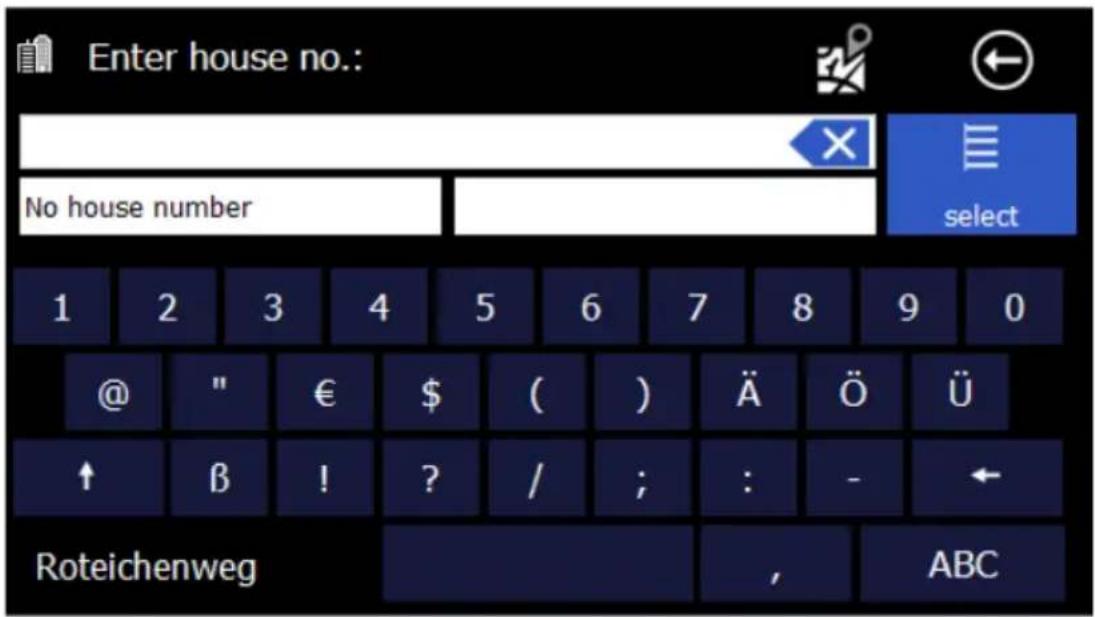
Now you can enter the house number. If the house number in the database should not be present, your navigation software suggests an alternative in the vicinity. If you do not know the house number, you can right click on "Without a house number." Your navigation system will then guide you to the center of the chosen road. Use "back" at the bottom left to return back to street search.
After destination input you will see an overview over the route.
Please commit the route on the button in the upper left corner.

If you want you can calculate an alternative route, just click on the button on the right side.
If no alternative was calculated the navigation starts automatically if you start driving.
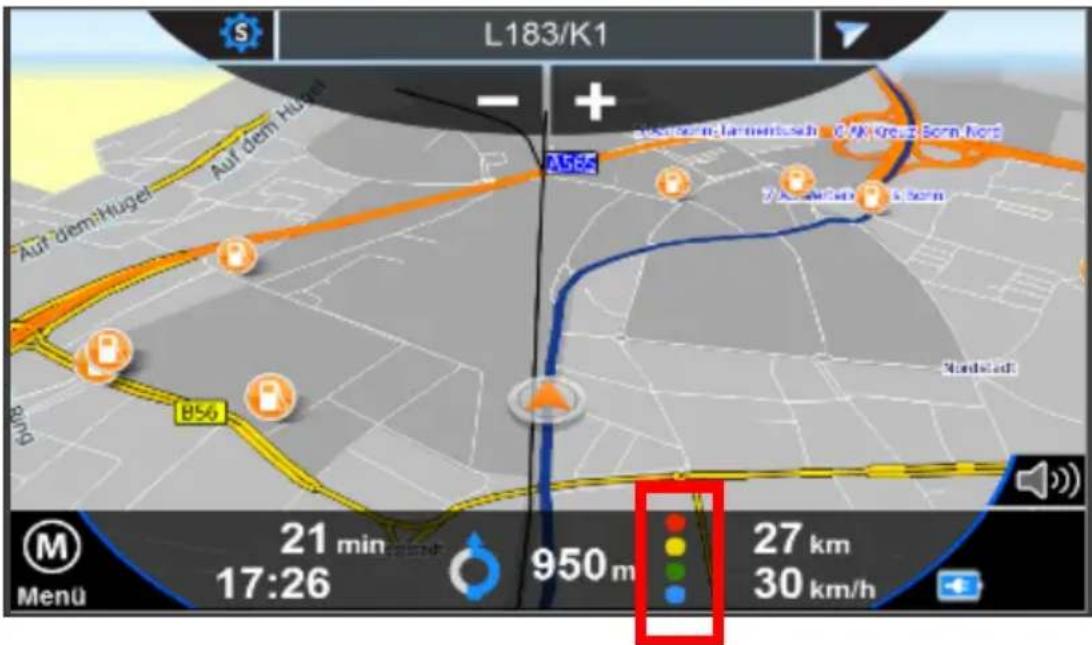
Economic driving - BluPoints
With your Blaupunkt TravelPilot you will not only reach your destination quickly and safely - you can optimize your driving style to use less fuel and reduce wear. This could save possibly additional costs for maintenance and spare parts. The environment and your wallet will thank you.
The Blue Dot will help you. The Blaupunkt BluPoints display, refer to the form of a "traffic light" with 4 colors is located in the info line on the bottom of the screen at the beginning of the third right (see illustration above). A colored dot shows you how economically you are driving.
The meaning of each color displayed:
RED: Your driving style is very uneconomical. You're driving very uneven.
YELLOW: Your driving style can be greatly improved.
GREEN: Your driving style is balanced and largely economic. However, there is still room for improvement.
BLUE: Very good! Your driving style is very proactive and balanced. Proceed responsibly with Gas and Brake pedals.
Declaration of Conformity
Hereby Baros GmbH, Blaupunkt Mobility Division declares, that the device Blaupunkt TravelPilot 41/51/71 is in compliance with the essential requirements and other relevant regulations of Directive 1999/5/EC. The Declaration of Conformity can be found at: www.blaupunkt.de
Guarantee
Please keep the proof of purchase for this device for the entire duration of the guarantee period, as it must be produced in the event of any claim.
You (as the end user) receive a 36-month guarantee from the date of sale. The article has been manufactured using the most modern production methods and subjected to strict quality controls. Please contact only the manufacturer (not the dealer where you purchased it) in the event of any defects during the guarantee period.
Hotline: +49 (0)511 - 123 83 506 or: support@first-servicecenter.de
The guarantee does not cover damage caused by improper use or external influence (water, falling, sunlight, breakage or impact).
Userinformation/Contact
If your device has a defect or you have problems with it, please contact our Service & Support Centre. If you need to send your device to us, please attend to the following points:
- Use only the original packaging
- Add a detailed error description
- Add your full name and address and a copy of your purchase receipt
- Stamp and send the package to us (sufficient postage)
Address of our Service Center:
First Service Center
Kleine Düwelstr 21
DE-30171 Hannover/Germany
You can call also our hotline: +49 (0)511 - 123 83 506 or you can send a
Fax to: +49 (0) 511-161253 6 or you can contact us by support@first-servicecenter.de

BLAUPUNKT
Klantenservice/Contact

Brand : BLAUPUNKT
Model : TravelPilot 40
Category : GPS Navigator