JVC CU-VD3E - DVD player

CU-VD3E - DVD player JVC - Free user manual and instructions

Find the device manual for free CU-VD3E JVC in PDF.

📄 64 pages English EN Download 💬 AI Question 10 questions ⚙️ Specs
Notice JVC CU-VD3E - page 62
View the manual : Français FR Deutsch DE English EN Nederlands NL
Pick your language and provide your email: we'll send you a specifically translated version.
Product Type DVD Recorder
Brand JVC
Model CU-VD3E
Dimensions (L x H x D) 141 x 23 x 166 mm
Weight Approximately 380 g (without adapter or cables)
Power Supply AC adapter AP-V3U: input 110-240 V AC, 50/60 Hz; output 5.2 V DC, 2 A
Power Consumption 0.9 A
Interface USB 2.0
Compatible Discs (Write) DVD-R, DVD-R DL, DVD-RW
Compatible Discs (Read) DVD-R, DVD-R DL, DVD-RW, DVD-ROM, DVD-Video, CD-ROM, CD-DA, CD Extra, CD Video, Mixed CD, CD-R, CD-RW
Operating Temperature 5°C to 35°C
Storage Temperature -20°C to 60°C
Main Functions Direct copy from Everio camera, DVD burning, playback
Supplied Accessories Power cord, USB cable for Everio, USB cable for PC, instruction manual, 1 blank DVD-R, 1 CD-ROM (Power2Go 5.5 Lite software)
Safety Class 1 laser product; safety measures included
Maintenance and Cleaning Clean the exterior with a dry cloth; use a vacuum cleaner for the lens; wipe for disc
Region Code Changeable up to 5 times; final code after 5th change

Frequently Asked Questions - CU-VD3E JVC

What types of discs can I use for burning?
You can use DVD-R, DVD-R DL (dual layer) and DVD-RW. DVD+R, DVD+RW and DVD-RAM are not compatible. For playback, the recorder also supports DVD-ROM, DVD-Video and most CDs.
How do I copy videos from my Everio camera to a DVD?
Connect the CU-VD3E recorder to the Everio camera using the supplied USB cable. Turn on the camera, press the DIRECT DVD button, select 'EXECUTE' and confirm. Copying starts automatically. You can also choose to copy by date or by event.
What should I do if the disc tray does not open?
Make sure no writing is in progress. If the tray remains stuck, unplug and replug the AC adapter, then press the eject button. If that doesn't work, insert a thin rod about 5 cm into the forced ejection hole (to the right of the eject button) to open manually.
Can I use this recorder with a Mac computer?
No, the CU-VD3E recorder does not support Macintosh. It is compatible only with Windows XP, Windows Vista (32-bit) preinstalled.
How do I install the Power2Go 5.5 Lite software?
Insert the supplied CD-ROM into the computer. Select the language, accept the license agreement, enter the customer information, then follow the on-screen instructions. The computer will restart after installation.
What is the copying time for a DVD?
Copying time varies depending on conditions. For video in fine mode, approximately 90 minutes of video can be stored on a 4.7 GB DVD-R. The copying itself takes about 30 minutes including finalization.
Can I change the region code of the recorder?
Yes, the region code can be changed up to 5 times. After the 5th change, it becomes permanent. To change, insert a DVD with a different code and follow the on-screen instructions.
How to clean the recorder and discs?
Unplug the recorder before any cleaning. Wipe the exterior with a dry cloth. For the lens, use a special vacuum cleaner (no cleaning disc). Clean discs with a soft wipe, from the inside out.
Which discs are recommended for optimal compatibility?
Recommended discs are from JVC, TDK, Verbatim and SONY for DVD-R; JVC and Verbatim for DVD-R DL; JVC for DVD-RW.
What should I do if the recorder is not recognized by the computer?
Check that the USB cable is properly connected. Unplug and replug the cable. If the problem persists, unplug the AC adapter from the recorder and plug it back in. Make sure Power2Go software is installed.

User questions about CU-VD3E JVC

0 question about this device. Answer the ones you know or ask your own.

Ask a new question about this device

The email remains private: it is only used to notify you if someone responds to your question.

No questions yet. Be the first to ask one.

Download the instructions for your DVD player in PDF format for free! Find your manual CU-VD3E - JVC and take your electronic device back in hand. On this page are published all the documents necessary for the use of your device. CU-VD3E by JVC.

USER MANUAL CU-VD3E JVC

CAUTION CLASS 38 VISIBLE AND INVISIBLE LASER RADIATION WHEN OPEN. AVOID EXPOSURE TO THE BEAM.

ATTENTION CLASSE 38 RAYONNEMENT LASER VISIBLE ET INVISIBLE EN CAS D'OUVERTURE. EXPRESSION DANGERESEUR, ALIENFELL.

EXPOIT DANGEREOSE AU FAISCAED. 12020UT 16456-88 SIGHTS AND UNGHTS/TTAD

VONSlicht KLASSE 38 SICHTBADE UND UNSICHTBADE LASERSTRAHUNG, WEN ABDECKUNG GEOFFNET. NICTT DEM STRAHL AUSSETZEN.

ADVARSEL KLASSE 38 SYNLIG DG USYNLIG LASERSTRALING VED ABNING, UNDGUA UDSEETTALSE FOR STRALING.

ADVARSEL KLASSE 3B SYNLG OG USYNLIG LASERSTRALING NAR DEKSEL APNES. UNNGA EKSPONERING FOR STRALEN

VARNING KLASS 38 SYNLIG OCH OSYNLIG LASERSTRALING NAR DENNA DEL AR OPPNAD. STRALEN AR FARLIG.

VARCI AVATTAESSA OLET ALTTINA LUOKAN 3B NAKYVALLE JA NAKYMATTOMALLE LASERSATEILYLE.

ALAKATSO SATEESEEN

JVC CU-VD3E - 1
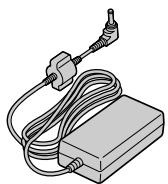
Adaptateur c.a. (AP-V3U)

Manual assistant
Powered by Anthropic
Waiting for your message
Product information

Brand : JVC

Model : CU-VD3E

Category : DVD player