
RC-EX30BE - Bluetooth speaker JVC - Free user manual and instructions
Find the device manual for free RC-EX30BE JVC in PDF.
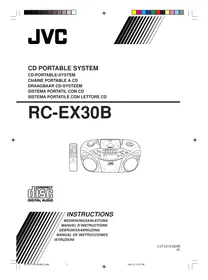


| Product type | Portable stereo system with CD player, FM/AM radio, cassette deck |
| Brand | JVC |
| Model | RC-EX30BE |
| Dimensions (L x H x D) | 420 mm x 178 mm x 250 mm |
| Weight | Approximately 3.2 kg (without batteries) |
| Power supply | AC 230 V ~, 50 Hz; batteries R20 (SUM-1)/D (13D) x 6 |
| Power consumption | 18 W (operating), 3 W (standby) |
| Output power | 4 W (2 W + 2 W) into 4 Ω (10% THD) |
| Speakers | Cone 9 cm x 2, impedance 4 Ω |
| CD player | 1 CD, compatible with CD audio, CD-R, CD-RW, MP3 |
| Radio | FM 87.5 – 108.0 MHz; AM 522 – 1629 kHz |
| Cassette deck | Type I (normal), recording and playback |
| Main functions | CD/MP3 playback, FM/AM radio, cassette deck, CD synchro recording, track programming, random/repeat playback, Hyper-Bass effect, preset sound modes |
| Connectivity | PHONES jack (3.5 mm mini-jack) |
| Remote control | Yes, with AAA batteries supplied |
| Display | LCD screen with blue backlight |
| Care and cleaning | Clean the cabinet with a soft dry cloth. Clean the cassette heads and capstan every 10 hours of use. Clean the CD lens with a blower. |
| Safety | Disconnect during thunderstorms; do not expose to moisture; do not block ventilation; do not open the cabinet (class 1 laser risk) |
| Supplied accessories | Power cord x1, remote control x1, batteries for remote control (AAA/UM-4/R03) x2 |
Frequently Asked Questions - RC-EX30BE JVC
User questions about RC-EX30BE JVC
0 question about this device. Answer the ones you know or ask your own.
Ask a new question about this device
Download the instructions for your Bluetooth speaker in PDF format for free! Find your manual RC-EX30BE - JVC and take your electronic device back in hand. On this page are published all the documents necessary for the use of your device. RC-EX30BE by JVC.
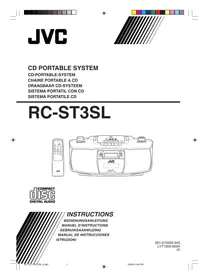
USER MANUAL RC-EX30BE JVC
INSTRUCTION MANUAL
INSTRUCTION MANUAL
Disconnect the mains plug to shut the power off completely. The STANDBY/ON button in any position does not disconnect the mains line.
To reduce the risk of electrical shocks, fire, etc.:
- Do not remove screws, covers or cabinet.
- Do not expose this appliance to rain or moisture.
CAUTION
- Do not block the ventilation openings or holes. (If the ventilation openings or holes are blocked by a newspaper or cloth, etc., the heat may not be able to get out.)
- Do not place any naked flame sources, such as lighted candles, on the apparatus.
- When discarding batteries, environmental problems must be considered and local rules or laws governing the disposal of these batteries must be followed strictly.
- Do not expose this apparatus to rain, moisture, dripping or splashing and that no objects filled with liquids, such as vases, shall be placed on the apparatus.
CAUTION
- CLASS 1 LASER PRODUCT
- CAUTION: Do not open the top cover. There are no user serviceable parts inside the unit; leave all servicing to qualified service personnel.
- CAUTION: Visible and invisible laser radiation when open and interlock failed or defeated. Avoid direct exposure to beam.
- REPRODUCTION OF LABEL: CAUTION LABEL, PLACED INSIDE THE UNIT.
IMPORTANT FOR LASER PRODUCTS
Caution: Proper Ventilation
To avoid risk of electric shock and fire, and to prevent damage, locate the apparatus as follows:
1 Front: No obstructions and open spacing. 2 Sides/ Top/ Back: No obstructions should be placed in the areas shown by the dimensions below. 3 Bottom: Place on the level surface. Maintain an adequate air path for ventilation by placing on a stand with a height of 10 cm or more.
SAFETY PRECAUTIONS .... 1
HANDLING PRECAUTIONS 2
POWER SUPPLY 3
NAMES OF PARTS AND CONTROLS .... 4
REMOTE CONTROL UNIT 5
1 Portable system incorporating CD player
- CD functions can be operated with the remote control unit as well as on the main unit.
• 8-cm CD playback capability
2 Digital LCD (Liquid Crystal Display) indicates general playback status.
3 Synchronized recording with CD playback
4 MP3 playback capability
5 Hyper-Bass Sound effect
SAFETY PRECAUTIONS
Prevention of Electric Shocks, Fire Hazards and Damages
- Even when the STANDBY/ON button is set to STANDBY, a very small current will flow. When the unit is turned on, the display window lights in blue. When the unit is in standby mode, the display window turns off. (Note, however, that the display window does not light even when the unit is turned on if the unit is operated on batteries.) To save power and for safety when not using the unit for an extended period of time, disconnect the power cord from the household AC outlet.
- Do not handle the power cord with wet hands.
- When unplugging from the wall outlet, always grasp and pull the plug, not the power cord.
- Consult your nearest dealer when damage, disconnection, or contact failure is found with the cord.
- Do not bend the cord sharply, or pull or twist it.
- Rating label is placed on the exterior of the bottom.
- Do not modify the power cord in any manner.
- Do not remove screws to disassemble the unit and do not touch anything inside the unit to avoid accidents.
- Do not insert any metallic objects into the unit.
- Unplug the power cord when there is a possibility of lightning.
- If water gets inside the unit, unplug the power cord from the outlet and consult your dealer.
- Do not block the ventilation holes of the unit so that heat can escape.
- Do not install the unit in a badly ventilated place.
HANDLING PRECAUTIONS
Do not use this unit in direct sunlight or leave the unit in a closed automobile (or yacht, etc.) where it would be exposed to high temperatures above 40°C.
1 Avoid using the unit in the following places:
- Where the temperature may become excessively high or low; the recommended temperature range is 5°C to 35°C.
- Where it could be subject to vibrations.
- Where it is excessively humid, such as in a bathroom.
- Where it could be magnetized by a magnet or speaker.
2 Pay attention to dust.
Be sure to close the disc door so that the lens is not contaminated by dust. Do not touch the lens.
3 Condensation
Condensation may occur in the following cases, in which the unit may not operate correctly:
- The unit is in a room where a heater has just been switched on.
- The unit is in a place where there is smoke or high humidity.
- The unit has just moved from a cold place to a warm room.
In these cases, set the STANDBY/ON button to ON and wait one or two hours before use.
4 Volume control
Compact discs produce very little noise compared with analog records. If you adjust the volume by listening to the noise as you do with analog records, the speakers could be damaged by a sudden blast of sound when playback starts. Therefore, turn down the volume before starting and adjust it as required while playing a CD.
5 Safety mechanism
The unit incorporates a safety interlock mechanism which switches off the laser beam when the disc door is opened.
6 Do not place magnetic objects such as cassette tapes near the speakers.
Since the speakers contain magnets inside, do not place cassette tapes or magnetic cards nearby as recorded data could be erased.
7 Keep the unit away from the TV.
When the unit is used near a TV, the TV picture could be distorted. If this happens, move the unit away from the TV. If this does not correct the situation, avoid using the unit when the TV is turned on.
8 Cleaning the cabinet
If the cabinet gets dirty, wipe it with a soft, dry cloth. Never use benzine or thinner as these could damage the surface finish.
9 When listening with headphones
- Do not listen at high volumes as it could damage your hearing.
- For safety, do not drive while listening with headphones.
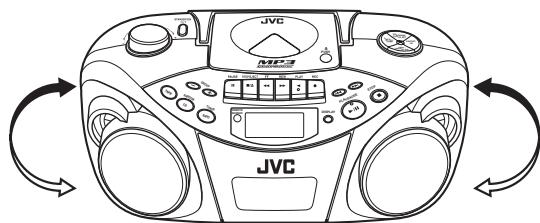
10 Carrying handle
Do not raise or lower the carrying handle with the telescopic antenna extended, to avoid damaging the antenna. Position the carrying handle so that it does not interfere with operation.
Operation on household AC
Connect the AC power cord.

CAUTIONS:
- Use only with the JVC power cord provided with this unit to avoid malfunction or damage to the unit. Remove batteries when using the power cord.
- Be sure to unplug the power cord from the outlet when going out or when the unit is not in use for an extended period of time.
Operation on batteries Loading batteries
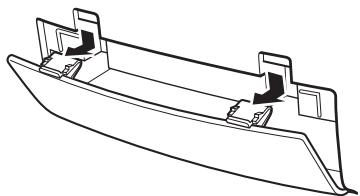
1 Open the battery cover.
Pull the battery cover toward you while pressing the sections marked by the arrows.
2 Insert six R20 (SUM-1)/D (13D)-size batteries.
Be sure to insert the batteries with the and terminals positioned correctly.
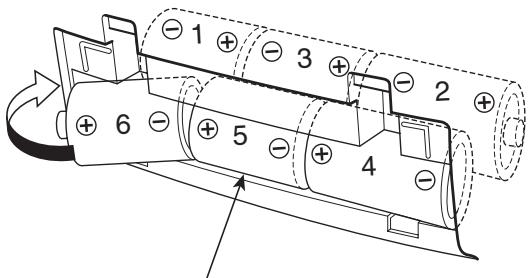
R20 (SUM-1)/D (13D)-size batteries
3 Replace the cover.
Checking batteries
When the tape speed or output sound level decreases, or CD playback becomes intermittent, replace all batteries with fresh ones.
When making an important recording, use new batteries (preferably alkaline batteries for a longer service life) to avoid any possible failure.
For better battery usage
- Continuous operation of the unit causes the battery power to be consumed more quickly than noncontinuous operation.
- Operation of the unit in a cold place causes the battery power to be consumed more quickly than in a warm place.
CAUTIONS:
- When not using the unit for a long time (more than two weeks) or when using the household AC, remove the batteries to avoid a malfunction or damage to the unit.
- When the JVC power cord provided with this unit is connected, the power is automatically switched from the batteries to the household AC even when the batteries are loaded.
However, remove the batteries when using the power cord.
CAUTIONS WHEN USING BATTERIES:
When batteries are used incorrectly, it may result in the leakage of chemicals from the batteries or they may explode. The following care should be taken:
- Check that the positive (+) and negative (-) terminals of the batteries are positioned correctly and load them as shown in the figure on the left.
- Do not mix new and old batteries together, or mix different types of batteries.
- Do not try to recharge non-rechargeable batteries.
- Remove the batteries when the unit is not to be used for an extended period of time.
If chemicals from the batteries come in contact with your skin, wash them off immediately with water. If chemicals leak onto the unit, clean the unit completely.
Top and front sides
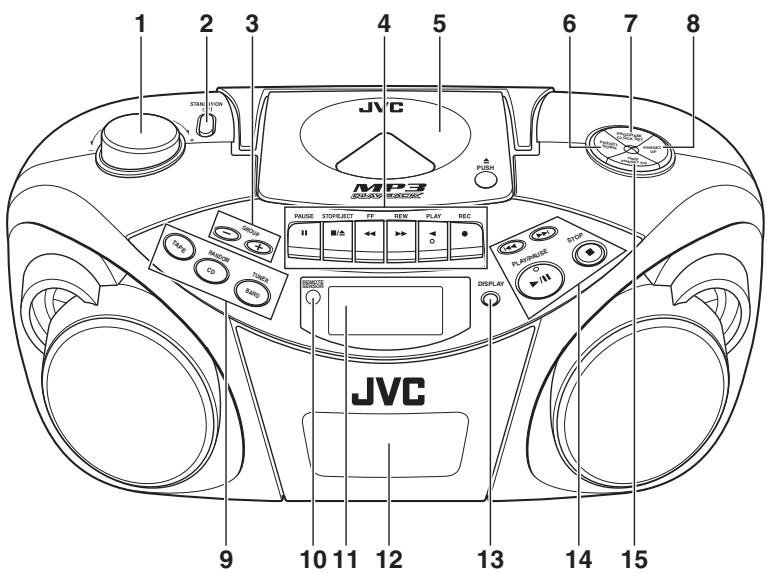
1 VOLUME knob 2 STANDBY/ON ⏻/I button 3 GROUP – button GROUP + button 4 Tape operation buttons PAUSE II button STOP/EJECT ■/▲ button FF ◀ button REW ▶▶ button PLAY ◀ button REC ● button 5 Disc door 6 PRESET DOWN button 7 PROGRAM/CLOCK SET button
8 PRESET UP button 9 TAPE button CD/RANDOM button BAND/TUNER button 10 REMOTE SENSOR 11 Display window 12 Casette deck 13 DISPLAY button 14 ◀◀ button ▶▶| button PLAY/PAUSE ▶/II button STOP ■ button
15 HBS/PRESET EQ button
Rear side
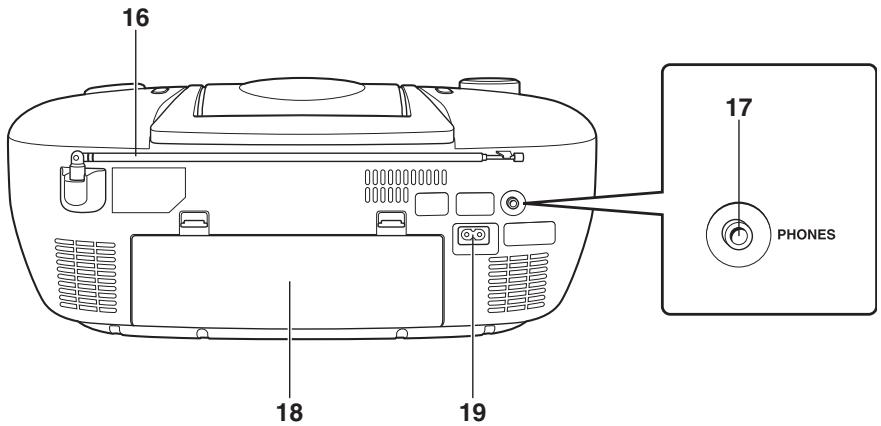
16 Telescopic antenna
17 PHONES jack
Connect stereo mini headphones (3.5-mm diameters, impedance of 16 Ω to 32 Ω) to this jack. The speaker output is switched off with headphones connected.
18 Battery compartment cover
19 AC IN (AC input) jack
REMOTE CONTROL UNIT
Installing batteries
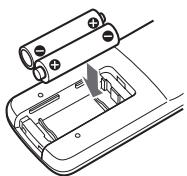
1 Remove the battery cover from the back of the remote control unit.

2 Insert two AAA (UM-4)/R03-size batteries (supplied).
Insert the batteries with the ⊕ and ⊖ terminals matching the indication inside the battery compartment. Insert the ⊖ ends first.
AAA (UM-4)/R03-size batteries
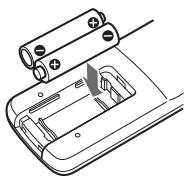
3 Replace the battery cover.
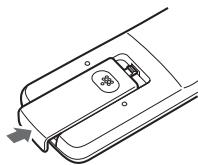
Battery replacement
The maximum operating distance between the remote control unit and the remote sensor section of the unit is approximately 7 meters. When the operating range decreases or remote control operation becomes unstable, replace the batteries with new ones.
Notes on using the remote control unit
- Point the top of the remote control unit toward the remote sensor section of the unit as directly as possible. The operable distance from the main unit decreases if you point the remote control unit at an angle.
- Press the buttons gently and firmly.
- Do not expose the remote sensor section of the unit to strong light (direct sunlight or artificial lighting) and make sure that there are no obstacles between the remote sensor section and the remote control unit.
Names of buttons
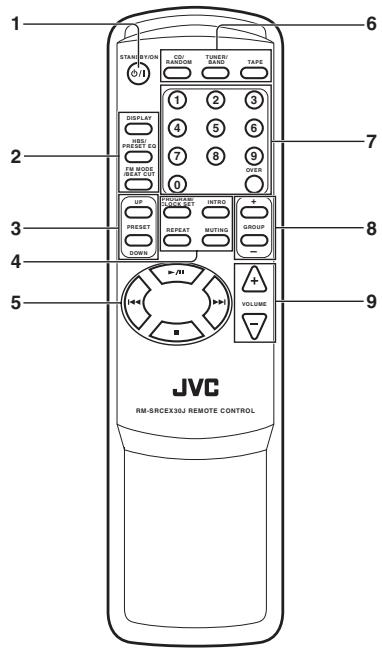
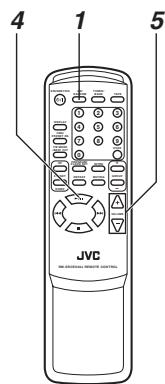
1 STANDBY/ON ⏻/I button 2 DISPLAY button HBS/PRESET EQ button FM MODE/BEAT CUT button 3 PRESET UP/DOWN buttons 4 PROGRAM/CLOCK SET button INTRO button REPEAT button MUTING button
5 ▶/II button button ▶▶| button ■ button
6 CD/RANDOM button TUNER/BAND button TAPE button
7 Number buttons
8 GROUP +/- buttons
9 VOLUME +/- buttons
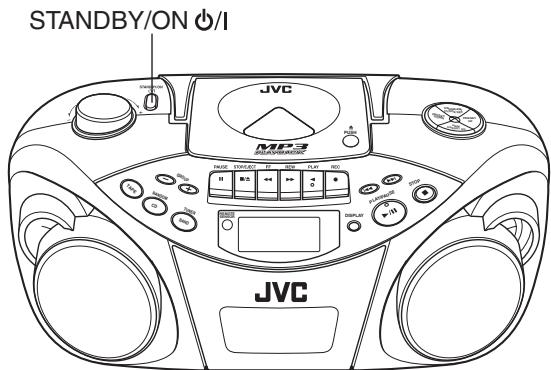
Press the STANDBY/ON ⏻/l button on the unit to turn on and off the unit.
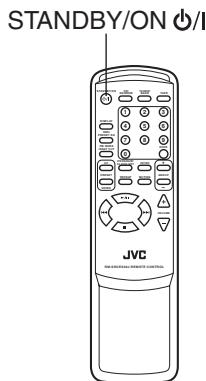
You can also press the STANDBY/ON ⏻/1 button on the remote control unit.
The display window lights up when the unit is turned on. (Note, however, that the display window does not light even when the unit is turned on if the unit is operated on batteries.) The unit comes on ready to play the source selected when the unit was last turned off.
To switch off the power supply completely
Unplug the AC power cord from the AC outlet. If the batteries are inserted in the unit, take them out.
Notes:
- When you unplug the AC power cord or if a power failure occurs, the clock is reset to “0:00” right away, while the tuner preset stations (see page 16) will be erased in a few days. The clock indication will keep flashing until you set the clock again.
- Remove the batteries when carrying the unit by hand or in the trunk of a car. This prevents the power from being accidentally turned on, thus avoiding wasteful battery consumption.
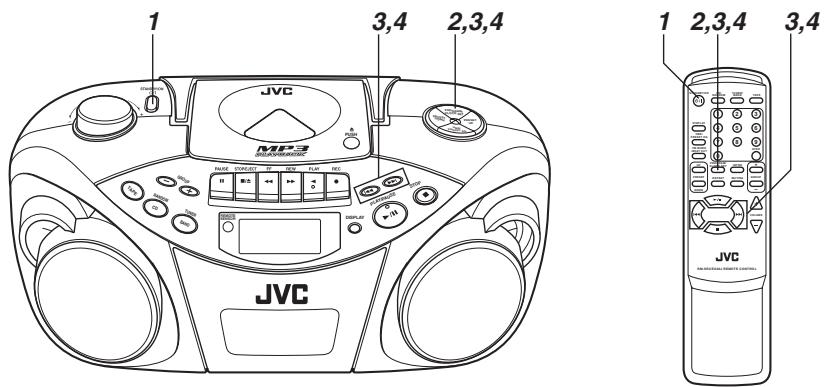
Before operating the unit any further, first set the clock built in this unit.
The clock uses 24-hour indication.
1 Press STANDBY/ON Ⓗ/| to turn off the unit, if it is turned on.
The clock flashes on the display window.
2 Press and hold PROGRAM/CLOCK SET for more than 2 seconds.
The hour digits start flashing.
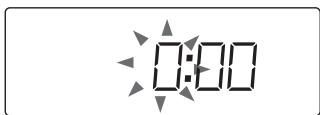
3 Press |◀◀ or ▶▶| to adjust the hour, then press PROGRAM/CLOCK SET.
The minute digits start flashing.
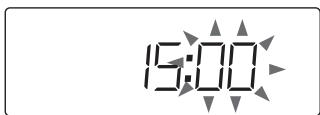
4 Press |◀◀ or ▶▶| to adjust the minutes, then press PROGRAM/CLOCK SET.
Note:
If there is a power failure, the clock loses the setting and is reset to “0:00.” The clock indication will keep flashing until you set the clock again.
To show the clock when the unit is on
Press DISPLAY.
Each time you press the button, the display changes the clock indication and the normal indication alternately.
DISPLAY Main unit
DISPLAY Remote
Note:
Operating the unit while clock indication is displayed changes the display to the normal indication.
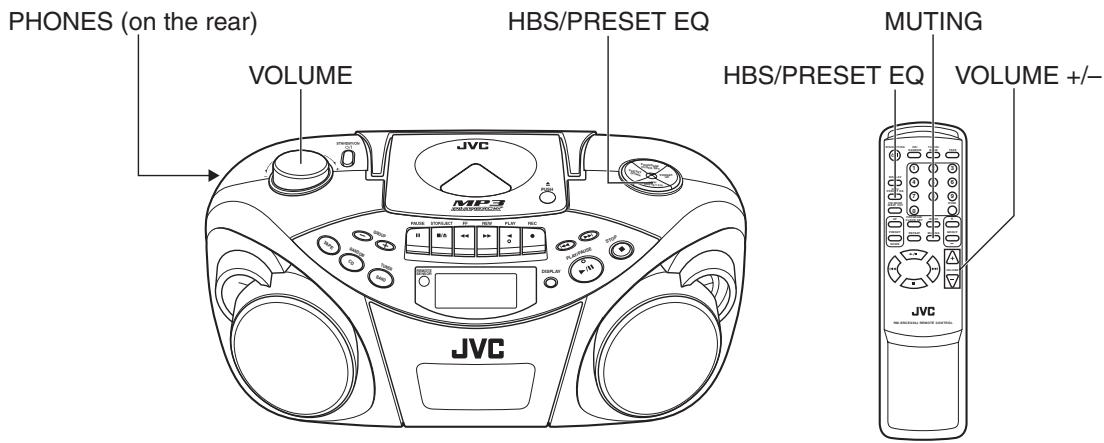
Adjusting the volume
Turn VOLUME clockwise to increase the volume or counterclockwise to decrease it.
You can press VOLUME + or VOLUME – on the remote control unit to increase or decrease the volume respectively.
The volume level can be adjusted in 31 steps (MIN, 1, 2, ... 29, MAX).
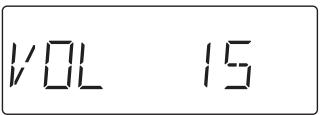
Caution:
DO NOT turn off the unit with the volume set to an extremely high level; otherwise a sudden blast of sound could damage your hearing and/or the speakers and headphones, when you turn on the unit or start playing another source next time.
REMEMBER you cannot adjust the volume unless the unit is turned on.
Turning off the sound temporarily
During playback, press MUTING on the remote control unit.
The sound is turned off and “MUTING” appears in the display window.
To restore the sound, press MUTING again.
Listening through headphones
Connect a pair of headphones to the PHONES jack.
No sound comes out of the speakers anymore. Be sure to turn down the volume before connecting headphones.
Reinforcing the bass sound
You can enjoy powerful bass sound with the Hyper-Bass Sound effect.
Press and hold HBS/PRESET EQ so that the HBS indicator lights up in the display window.
To turn off the effect, press and hold the button again so that the HBS indicator goes off.
Selecting the sound mode
You can select one of the 5 preset sound modes.
CLASSIC: Good for classical music.
ROCK: Boosts low and high frequency. Good for acoustic music.
POP: Good for vocal music.
JAZZ: Good for jazz music.
FLAT: Normal sound.
To select the sound mode
Press HBS/PRESET EQ repeatedly until the indicator for the sound mode you want appears in the display window.
Each time you press the button, the sound mode changes as follows:
![graph TD A["CLASSIC"] --> B["ROCK"] B --> C["POP"] C --> D["JAZZ"] D --> E["FLAT"] E --> A](/content/2025/01/123400/images/b277a42d99d8245972969f63e9b59d8357769d66a1391d77ff7690b8feacb2dd.jpg)
Notes on compact discs
This unit has been designed only to play back the following CDs.
- Digital audio CD • Recordable digital audio CD (CD-R)
- Rewritable digital audio CD (CD-RW)



When playing a CD-R or CD-RW
You can play back finalized CD-R or CD-RW recorded in music CD format or in MP3 format. (If a CD-RW has been recorded in a different format, erase all the data on the CD-RW completely before recording on it.)
- You can play back CD-R or CD-RW in music CD format like an audio CD.
- Some CD-R or CD-RW may not be played back on this unit because of their disc characteristics, damage or stain on them, or if the player lens is dirty.
- The reflection factor of CD-RW is lower than that of other CDs, possibly causing CD-RW to take longer time to read.
Notes for MP3 files
- The unit can only recognize files with “MP3” or “mp3” as the extensions, which can be in any combination of upper and lower cases. The file name needs to be up to 20 characters.
- This unit recognizes files and folders on a disc in the following conditions:
– up to 640 MP3 files, - up to 256 folders (including the root folder), - up to 8th layers (including the root folder).
- It is recommended that you record your material at a 44.1-kHz sampling rate, using the 128-kbps data transfer rate.
- Some MP3 files or discs may not be played back because of their characteristics or recording conditions.
- MP3 discs require a longer readout time than normal discs because of the complexity of the folder/file configuration.
- MP3i and MP3 Pro are not available.
- The title, artist name and album name can be displayed as the ID3 TAG (ID3v1/1.1) information.
Handling discs
Since dirty, damaged or warped discs could damage the unit, care should be taken of the following:
- Do not touch the reflective recorded surface.
- Do not stick or write anything on the label side.
- Do not bend discs.
Storage
• After removing a disc from the unit, be sure to put it back in its case. - Do not expose discs to direct sunlight, high temperatures from a heater, etc., high humidity or dust.
Cleaning discs
Before loading a disc, wipe off any dust, dirt or fingerprints with a soft, dry cloth. Discs should be cleaned by wiping radially, from the center to edge.
Never use thinner, benzine, record cleaner or antistatic spray.
- Removing the disc from its storage case and replacing it
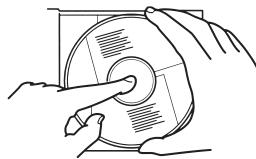
Press the center and lift out.
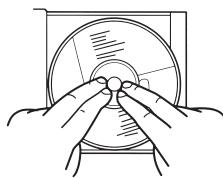
Press to secure the disc.
- Handling
Incorrect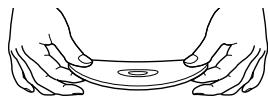
- Cleaning
Correct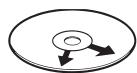
Incorrect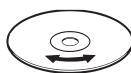
Basic operation
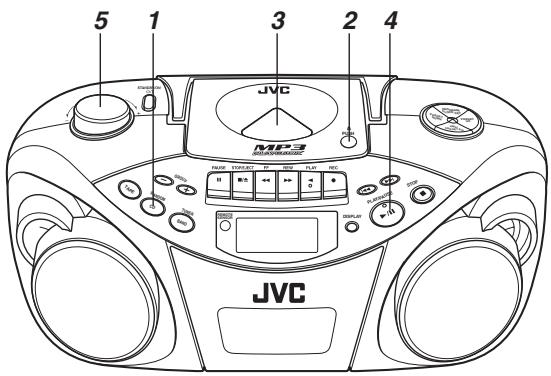
1 Press CD/RANDOM to enter CD mode, if the unit is in TUNER or TAPE mode.
You can press CD/RANDOM on the remote control unit to enter CD mode.
2 Press △ PUSH to open the disc door. 3 Load a disc with the label side facing up and close the disc door.
- 8-cm CD can be played on the unit without an adapter.
- When loading an MP3 disc, the MP3 indicator lights up, and the total number of groups (albums) and total number of tracks appear in the display window.
Total number of groups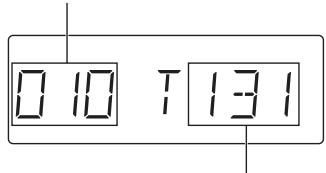
Total number of tracks
4 Press PLAY/PAUSE ▶/II to start playback.
You can start playback by pressing ▶/Ⅱ on the remote control unit.
The current track number and elapsed playing time are displayed during playback.
Current track number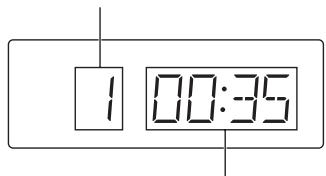
Elapsed playing time
When an MP3 disc is loaded, after the current track number and elapsed playing time have been displayed for 5 seconds, the ID3 TAG information (title, artist name and album name) scrolls through the display window once, if the MP3 disc has ID3 TAG information. For displaying the disc information, see page 11.
5 Adjust the volume.
Notes:
- When an MP3 disc is loaded, it may take more than 30 seconds to be read in, depending on the amount of information compiled on the disc.
- The following indication may be displayed when the disc is loaded upside down. Reload the disc correctly.
NO Ⅱ15C
- If mistracking occurs during playback, lower the volume.
- Mistracking may occur if a strong shock is applied to the unit or if it is used in a place subject to vibrations (e.g. in a car travelling on a rough road).
- If you press CD/RANDOM while in CD mode, the unit enters the random playback mode.
To stop playback
Press STOP ■.
You can press ■ on the remote control unit to stop playback.
Main unit
Remote
Caution:
Stop playback before opening the disc door. Check that the disc has completely stopped rotating before unloading the disc.
To pause playback
Press PLAY/PAUSE ▶/II during playback.
You can press ▶/Ⅱ on the remote control unit to pause playback.
To resume playback, press the button again.
PLAY/PAUSE Main unit
Remote
Skipping
• To skip back to the previous track
During playback, press ◀◀◀ once to return to the beginning of the current track, press twice to skip back to the beginning of the previous track.
• To skip to the next track
During playback, press ▶▶▶ to skip to the beginning of the next track.
Main unit
Remote
Selecting a desired track directly
Use the number buttons on the remote control unit.
In case of an audio CD:
Example:
To select track 8, press 8.
To select track 21, press OVER, 2, then 1.
Playback starts from the specified track.
In case of an MP3 disc:
Example:
To select track 8, press 8.
To select track 21, press OVER, 0, 2, then 1.
To select track 115, press OVER, 1, 1, then 5.
Search – locating a desired position on the disc (audio CD only)
Press and hold |◀◀ or ▶▶| during playback.
Monitor the sound and release the button when the desired position is located.
Main unit
Remote
Selecting a desired group (album) and track (MP3 disc only)
1 In stop mode, press GROUP + or GROUP - (on either the main unit or the remote control unit) repeatedly until the desired group (album) number is displayed. 2 Press |◀◀ or ▶▶| (on either the main unit or the remote control unit) to select a desired track from the current group (album). 3 Press PLAY/PAUSE ▶/Ⅱ (or ▶/Ⅱ on the remote control unit) to start playback.
Note:
During playback, if you press GROUP + or GROUP -, playback skips to the first track of the next or previous group (album), and the track number is shown in the display window.
Checking the remaining time (audio CD only)
Press and hold DISPLAY (on either the main unit or the remote control unit) for more than 1 second.
Each time you press and hold the button, the display changes in the following order:
![graph TD A["Track number being played and elapsed playing time"] --> B["Track number being played and remaining time of the track ("TRACK" and "REMAIN" light up.)"] B --> C["Track number being played and remaining time of the disc ("TOTAL" and "REMAIN" light u…](/content/2025/01/123400/images/7de780ed9a060494e9a2c6dc88392ad0eab005ec82f8b31c1a255e9b49fe8f5d.jpg)
Displaying the disc information (MP3 disc only)
In stop mode:
When you press |◀◀ or ▶▶| to select a track, the group (album) number and group name\file name scroll through the display window twice, and then the current group (album) number and track number are displayed again.
During playback:
When you press and hold DISPLAY for more than 1 second, the title, artist name and album name* scroll through the display window once, and then the track number being played and elapsed playing time are displayed again.
* If the track has no text information, “NO INFO” appears instead.
Repeat/Random playback
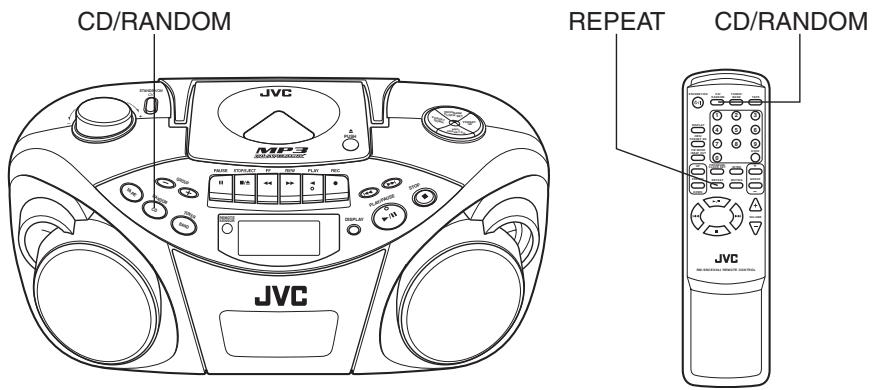
Repeat playback
Press REPEAT on the remote control unit during playback.
Each time you press the button, the repeat mode changes in the following order:
In case of an audio CD:
![graph TD A["Repeat playback of all tracks on the disc ("REPEAT" and "ALL" light up.)"] --> B["Repeat playback of a single track ("REPEAT" and "1" light up.)"] B --> C["Repeat playback is canceled."]](/content/2025/01/123400/images/ae7eec05c212b6e180fba8be27940aa450f5da4b6f7b38db536ee6cbc7c5ab9a.jpg)
In case of an MP3 disc:
![graph TD A["Repeat playback of all tracks on the disc ("REPEAT" and "ALL" light up.)"] --> B["Repeat playback of a group (album) ("REPEAT" and "GROUP" light up.)"] B --> C["Repeat playback of a single track ("REPEAT" and "1" light up.)"] C…](/content/2025/01/123400/images/dcfaffab63092dea5bd708e35fafe70c2d514ebde17250b252ac291327663856.jpg)
Random playback
Press CD/RANDOM in CD mode so that the RANDOM indicator lights up in the display window.
You can press CD/RANDOM on the remote control unit to select random playback.
Tracks are played in random order.
To cancel random playback, press the button again so that the RANDOM indicator goes off.
Programmed playback
Up to 40 tracks can be programmed to play in any desired order.
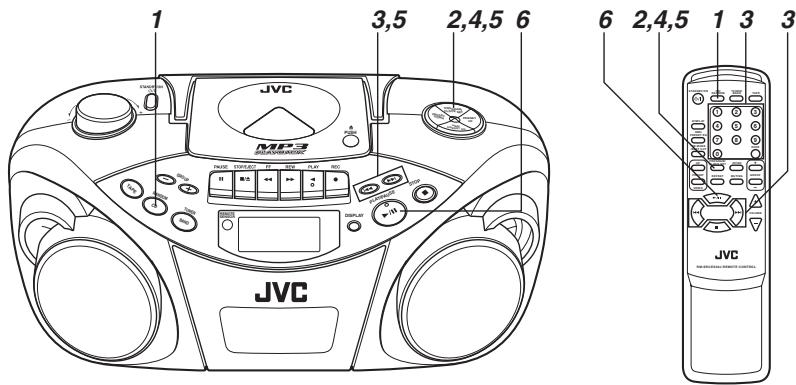
1 Press CD/RANDOM to enter CD mode, if the unit is in TUNER or TAPE mode.
You can press CD/RANDOM on the remote control unit to enter CD mode.
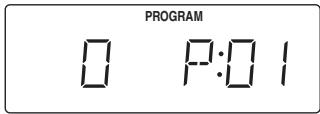
2 Press PROGRAM/CLOCK SET in stop mode.
The PROGRAM indicator appears in the display window.
3 Press |◀◀ or ▶▶| to select a desired track to be programmed.
You can use the number buttons on the remote control unit to select a desired track.
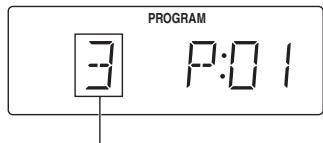
Track to be programmed
4 Press PROGRAM/CLOCK SET. 5 Repeat steps 3 and 4 to program other tracks. 6 Press PLAY/PAUSE ▶/II.
The tracks are played in the order you have programmed.
You can press ▶/Ⅱ on the remote control unit to start programmed playback.
Note:
If you press CD/RANDOM while in CD mode, the unit enters the random playback mode.
To check the program contents
Press PROGRAM/CLOCK SET repeatedly in stop mode when “PROGRAM” is displayed.
Each time you press the button, the program number and the corresponding track number are shown in the display window.
To add tracks in the program
1 Press PROGRAM/CLOCK SET repeatedly in stop mode when “PROGRAM” is displayed so that the track number “0” is shown. 2 Press |◀◀ or ▶▶| (or use the number buttons on the remote control unit) to select the track number to be added, then press PROGRAM/CLOCK SET.
To edit the program
1. Press PROGRAM/CLOCK SET in stop mode when “PROGRAM” is displayed so that the program number you want to edit is shown. 2. Press |◀◀ or ▶▶| (or use the number buttons on the remote control unit) to select a new track number, then press PROGRAM/CLOCK SET.
To repeat programmed playback
Press REPEAT on the remote control unit after starting programmed playback.
To erase the entire program in the memory
Press STOP ■ (or ■ on the remote control unit) in stop mode when “PROGRAM” is displayed.
The program is cleared, and the PROGRAM indicator goes off.
The program is also cleared when you open the disc door, turn off the unit, or change to other audio sources.
Note:
You cannot program more than 40 tracks.
“--FULL--” is displayed when you try to program the 41st track.
Programmed playback of an MP3 disc
Up to 40 tracks can be programmed to play in any desired order.
1. Press PROGRAM/CLOCK SET in stop mode.
The PROGRAM indicator appears in the display window.
2 Press GROUP + or GROUP - to select a desired group (album).
The first track number in the selected group (album) is shown.
3 Press |◀◀ or ▶▶| to select a desired track in the group (album).
You can use the number buttons on the remote control unit to select a desired track.
4 Press PROGRAM/CLOCK SET.
5 Repeat steps 2 to 4 to program other tracks.
6 Press PLAY/PAUSE ▶/II.
The tracks are played in the order you have programmed.
You can press ▶/Ⅱ on the remote control unit to start programmed playback.
To check the program contents
Press PROGRAM/CLOCK SET repeatedly in stop mode.
Each time you press the button, the program number and the corresponding track number are shown in the display window.
To change the program
You can add tracks in the program or edit the program in the same manner as for an audio CD. See the previous page.
To erase the entire program in the memory
Press STOP ■ (or ■ on the remote control unit) in stop mode.
The program is cleared, and the PROGRAM indicator goes off.
The program is also cleared when you open the disc door or turn off the unit.
Note:
You cannot program more than 40 tracks.
“--FULL--” is displayed when you try to program the 41st track.
Playing back introductions – Intro playback
Every track of a CD can be played for the beginning 10 seconds.
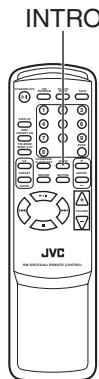
Press INTRO.
The INTRO indicator appears in the display window and intro playback starts.
To use intro playback for programmed and random playback, press the button after starting playback.
To stop during playback
Press STOP ■ (or ■ on the remote control unit).
The INTRO indicator goes off and the unit exits from the intro playback.
To cancel intro playback without stopping
Press INTRO during playback.
The INTRO indicator goes off and the unit continues playback.
Tuning in a station
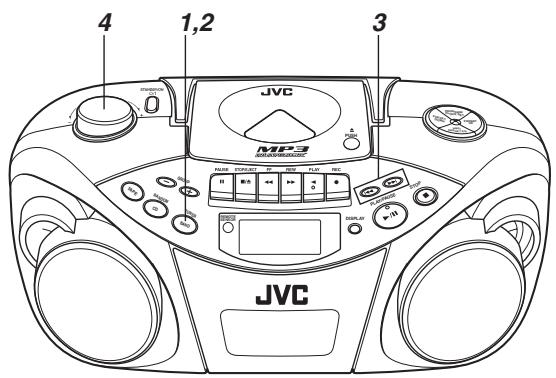
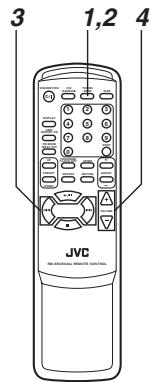
1 Press BAND/TUNER to enter the tuner mode. 2 Press BAND/TUNER to select the band, FM or AM. 3 Press and hold |◀◀ or ▶▶| for more than 1 second.
The unit starts searching and stops when a station of sufficient signal strength is tuned in.
If you press ◀◀◀ or ▶▶◀ briefly and repeatedly, the frequency changes step by step.
4 Adjust the volume.
Changing the FM reception mode
When an FM stereo broadcast is hard to receive or noisy, reception improves in monaural reception.
Press FM MODE/BEAT CUT on the remote control unit so that the MONO indicator appears in the display window.
To restore the stereo effect, press the button again so that the MONO indicator goes off.
FM MODE /BEAT CUT
Note:
The FM reception mode setting will be canceled when you tune in another station.
Using the antennas
FM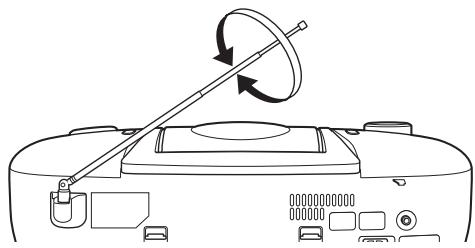
AM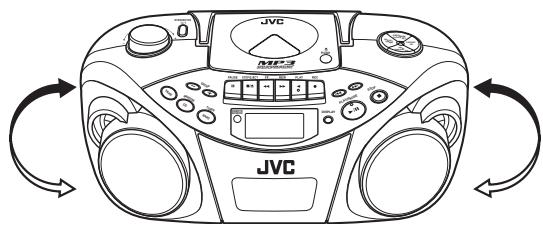
Note:
The built-in ferrite core antenna may pick up interference from television receivers in the neighborhood, disturbing AM reception.
Presetting stations
You can preset 20 FM and 10 AM stations.
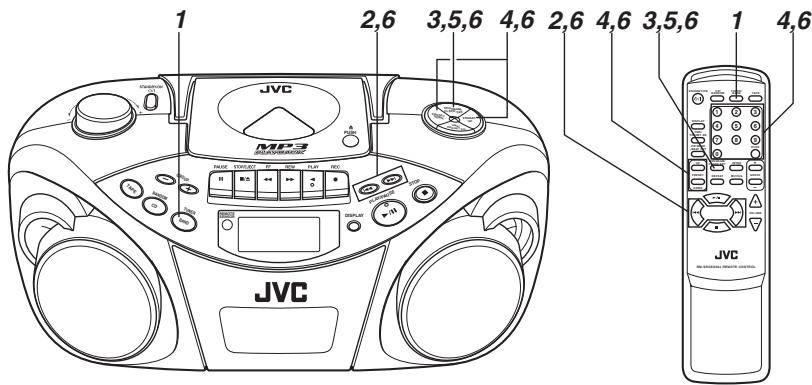
There is a time limit in doing the following steps. If the setting is canceled before you finish, start from step 3 again.
Note:
In some cases, test frequencies have been already memorized for the tuner since the factory examined the tuner preset function before shipment. This is not a malfunction. You can preset the stations you want into memory by following the presetting method.
1 Press BAND/TUNER to select the band, FM or AM. 2 Press |◀◀ or ▶▶| to tune in the station you want to preset. 3 Press PROGRAM/CLOCK SET.
The PROGRAM indicator and the preset number start blinking in the display window.
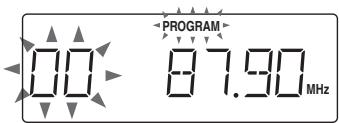
4 Press PRESET UP or PRESET DOWN to select the preset number.
You can use the number buttons on the remote control unit to select the preset number directly.
Example:
To select preset number 5, press 5.
To select preset number 15, press OVER, 1, then 5.
To select preset number 20, press OVER, 2, then 0.
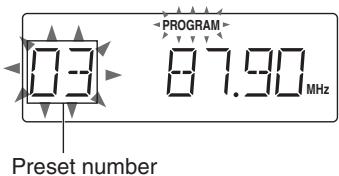
5 Press PROGRAM/CLOCK SET.
The tuned station in step 2 is stored in the preset number selected in step 4.
Storing a new station on a used number erases the previously stored one.
If you used the number buttons to select the preset number in step 4, pressing PROGRAM/CLOCK SET is not necessary in this step.
6 Repeat steps 2 to 5 to preset other stations, using different preset numbers.
Tuning in a preset station
1 Press BAND/TUNER to select the band, FM or AM. 2 Press PRESET UP or PRESET DOWN repeatedly until the desired preset number appears.
You can use the number buttons on the remote control unit to select the preset number directly.
Example:
To select preset number 5, press 5.
To select preset number 15, press OVER, 1, then 5.
To select preset number 20, press OVER, 2, then 0.
Note:
If you unplug the AC power cord or if a power failure occurs, the preset stations will be erased in a few days. If this happens, preset the stations again.
Notes on cassette tapes
- Use only type-I normal tapes. The recording/playback characteristics of this unit are those for normal tapes, which have different characteristics from CrO2 and metal tapes.
- The use of tapes longer than 120 minutes is not recommended, since characteristic deterioration may occur and these tapes easily jam in the pinch roller and the capstan.
- Loose tape may cause trouble. Gently tighten the tape with a pencil as shown in the figure below.
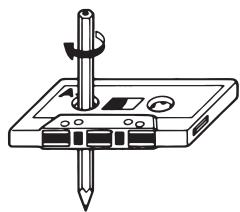
Turn the pencil to take up the slack.
- To prevent recordings from being accidentally erased, remove the tab(s) with a screwdriver. After the tabs have been broken off, reseal the slots with adhesive tape to erase or re-record.
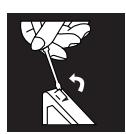
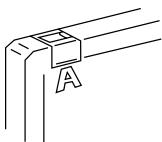
Loading a cassette
1 Press STOP/EJECT ■/▲ to open the cassette holder. 2 Load a cassette with the open side up and the playback side facing out as shown in the figure below.
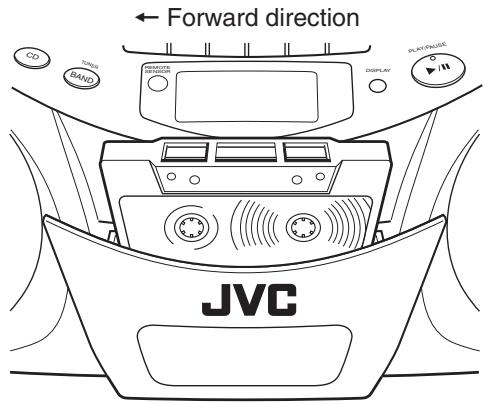
3 Close the cassette holder by pressing it gently and firmly.
The cassette holder clicks back into position.
Basic operation
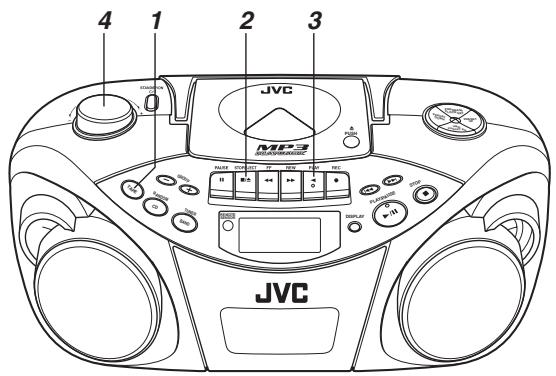
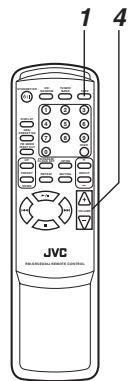
1 Press TAPE to enter the tape mode. 2 Load a cassette.
Use only a type-I normal tape.
3 Press PLAY ◀ to start playback. 4 Adjust the volume.
To stop playback
Press STOP/EJECT ■/▲.
The tape also stops when it reaches the end.
Fast-winding a tape
Press REW ▶▶ or FF ◀◀.
When the tape reaches the end, press STOP/EJECT ■/▲ to release REW ▶▶ or FF ◀◀.
Basic operation
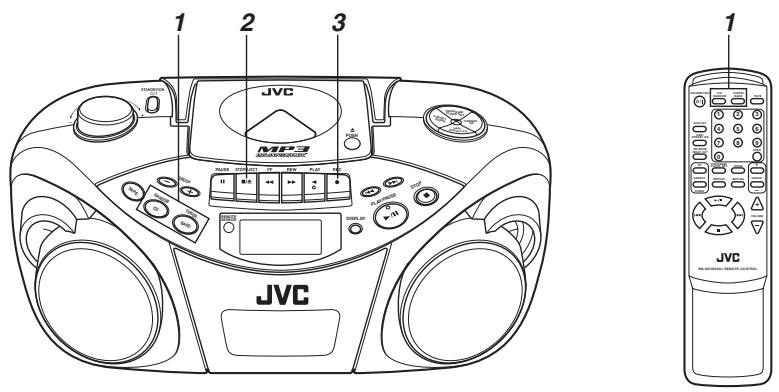
Standard recording
1 Prepare the recording source.
- When recording from the radio: Set to the tuner mode and tune in a desired station.
- When recording from a CD: Set to the CD mode and load a CD.
2 Load a blank or erasable cassette.
Use only a type-I normal tape.
3 Press REC ●.
PLAY ◀ is also depressed, and recording starts.
To stop recording
Press STOP/EJECT ■/▲.
The tape also stops when it reaches the end.
Notes:
- It should be noted that it may be unlawful to re-record pre-recorded tapes, records, or discs without the consent of the owner of copyright in the sound or video recording, broadcast or cable program and in any literary, dramatic, musical, or artistic work embodied therein.
- The recording level is automatically set correctly, so it is not affected by VOLUME. Thus, during recording you can adjust the sound you are actually listening to without affecting the recording level.
- If a recording you made has excessive noise or static, the unit may have been too close to a TV which was on during the recording. Either turn off the TV or increase the distance between the TV and the unit.
Using the beat-cut function
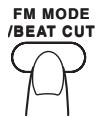
When recording an AM broadcast, beats may occur. If this happens while recording an AM broadcast, press FM MODE/BEAT CUT on the remote control unit to select the better beat-cut setting, “CUT-1” or “CUT-2.”
To start recording at the exact moment
1 Press PAUSE II first, then press REC ●, thus entering the record-pause (standby) mode. 2 Press PAUSE II to release the tape at the exact moment you want to start recording.
Note:
Do not leave the unit in pause mode for more than a few minutes. Instead, press STOP/EJECT ■/▲ to stop the tape.
Synchronized recording with CD playback
You can make the CD player to start playback when the tape deck enters the recording mode.
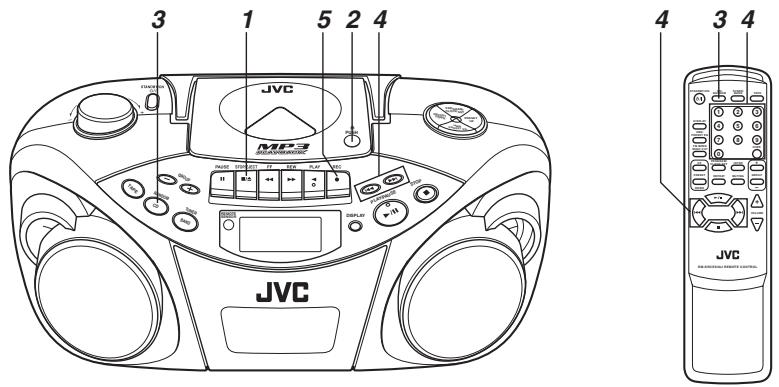
1 Load a cassette. Use only a type-I normal tape. 2 Load a CD. 3 Press CD/RANDOM to enter CD mode.
You can press CD/RANDOM on the remote control unit to enter CD mode.
4 To start recording from the desired track, select the track by pressing |◀◀ or ▶▶| in stop mode.
You can use the number buttons on the remote control unit to select the track.
5 Press REC ●.
PLAY ◀ is also depressed, and synchronized recording starts.
- The CD SYNC indicator appears in the display window during synchronized recording.
When the tape reaches the end first, the CD player enters the pause mode. Press PLAY/PAUSE ▶/■ (or ▶/■ on the remote control unit) to continue playback, or press STOP ■ (or ■ on the remote control unit) to stop playback.
When the CD player stops first, the tape continues running. In this case, press STOP/EJECT ■/▲ to stop the tape.
Erasing
When recording on a pre-recorded tape, the previous recording is erased and only the new recording is heard next time the tape is played back.
To erase a tape without making a new recording
1 Press TAPE on the unit to enter the tape mode. 2 Press REC ●.
Cleaning the heads, capstan and pinch roller
Cleaning is important!
When the tape is running, magnetic powder and dust naturally accumulate on the heads, capstan and pinch roller. When they become too dirty:
• Sound quality deteriorates. • The sound output level drops. • The previous recording is not completely erased. • Recording is not performed satisfactorily.
To avoid these, clean the heads, capstan and pinch roller every 10 hours of use.
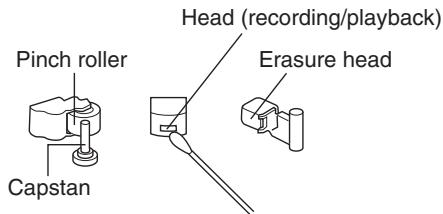
Open the cassette holder. Clean the heads, capstan and pinch roller.
For effective cleaning, use a cleaning kit available at an audio store.
After cleaning, make sure that the cleaning fluid has dried completely before loading a cassette.
Cautions:
- Keep magnets and metallic objects away from the head. If the head becomes magnetized, noise will increase and the sound will deteriorate.
- Demagnetize the recording/playback head every 20 to 30 hours of use with a head demagnetizer available at an audio store. When demagnetizing the head, the unit should be turned off. As the erasure head of the unit is of magnetic type, do not demagnetize it.
- Do not use anything other than alcohol for cleaning. Thinner and benzine will damage the rubber pinch roller.
Cleaning the CD pickup lens
If the CD pickup lens is dirty, the sound may be degraded.
Open the disc door and clean the lens.
Use a blower (available at a camera store, etc.) to blow off dust on the lens.
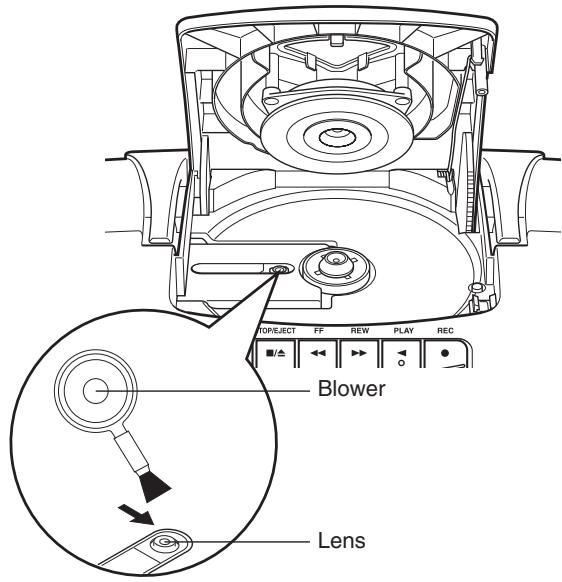
TROUBLESHOOTING
- If you are having a problem with your unit, check this list for a possible solution before calling for service.
- If you cannot solve the problem from the hints given here, or the unit has been physically damaged, call a qualified person, such as your dealer, for service.
| Symptom | Possible cause | Action |
| Power cannot be turned on. | The power cord is unplugged. | Connect the power cord. |
| When PLAY ◀ is pressed, tape does not move. | PAUSE II is pressed. | Press PAUSE II again to release it. |
| Playback sound is at a very low level. | Batteries are run down.The head is dirty. | Replace the batteries with new ones.Clean the head. |
| REC ● does not function. | The safety tabs of the cassette have been broken off.No cassette is loaded. | Reseal the slots with adhesive tape.Load a cassette. |
| The disc is loaded but does not play. | The disc is upside down.The disc is dirty.The disc is damaged or warped.The lens is dirty.There is moisture condensation. | Load the disc with the label side facing up.Clean the disc.Replace the disc with a playable one.Clean the lens.Turn the unit on and wait one or two hours before use. |
| No sound from the speakers. | Headphones are connected. | Disconnect the headphones. |
| Since the tape speed is irregular, wow and flutter occur. | The pinch roller or capstan is dirty.Batteries are run down. | Clean the pinch roller and capstan.Replace the batteries with new ones. |
| Radio reception is poor and there is much static. | The antenna is not properly adjusted. | Adjust the antenna correctly. |
| Remote control is impossible. | Batteries in the remote control unit are run down.The remote sensor section is exposed to bright light (direct sunlight, etc.) | Replace the batteries with new ones.Try not to operate the unit under direct sunlight, etc. |
Note:
When the unit is moved from a cold place of around 0°C to a warm place, it may not operate normally, because moisture has formed inside the unit. Normal operation will be restored after waiting one or two hours.
CD player
| CD capacity | : 1 CD |
| Signal-to-noise ratio | : 75 dB |
| Dynamic range | : 60 dB |
Tuner
| Frequency range | : FM 87.5 – 108.0 MHzAM 522 – 1 629 kHz |
| Antennas | : Telescopic antenna for FMFerrite core antenna for AM |
Cassette deck
| Frequency response | : 60 Hz – 10 000 Hz |
| Wow & flutter | : 0.15% (WRMS) |
| Fast wind time | : Approx. 150 sec.(C-60 cassette) |
General
| Speakers | : 9 cm cone × 2 |
| Speaker impedance | : 4 Ω |
| Output power | : 4 W (2 W + 2 W) at 4 Ω(10% THD) |
| Output terminals | : PHONES × 1 |
| Power supply | : AC 230 V ∼, 50 HzDC 9 V (R20 (SUM-1)/D(13D)-size batteries × 6) |
| Power consumption | : 18 W (at operation)3 W (on standby) |
| Dimensions | : 420 mm × 178 mm ×250 mm (W/H/D) |
| Mass | : Approx. 3.2 kg(without batteries) |
| Accessories provided | : AC power cord × 1Remote control unit × 1Batteries for the remotecontrol unit (AAA/UM-4/R03) × 2 |
Design and specifications are subject to change without notice.
INHALT
AM (MW)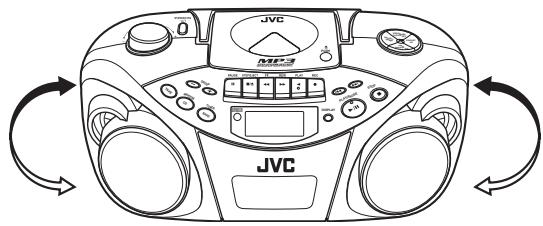
Hinweis:
AM
Remarque:
HET APPARAAT AAN/UIT ZETTEN 6
SETTING THE CLOCK 7
CASSETTE PLAYBACK 17
RECORDING 19
MAINTENANCE 21
TROUBLESHOOTING 22
Replacing the batteries
TURNING THE UNIT ON/OFF
STANDBY/ON

STANDBY/ON ⏻/I button
Notes on compact discs
AM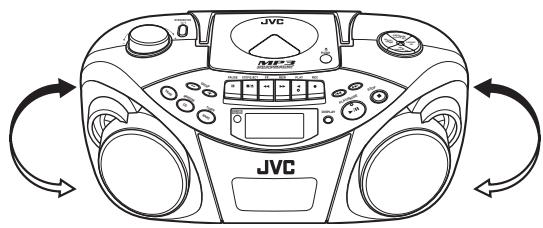
Note:
Press REW ▶▶ or FF ◀◀.
2 Insert six R20 (SUM-1)/D (13D) batteries.
2 Insert two AAA (UM-4)/R03 batteries (supplied).
AAA (UM-4)/R03 batteries
Battery replacement
Note:
Note on compact discs
Note:

- CAUTION
- IMPORTANT FOR LASER PRODUCTS
- CAUTION: PROPER VENTILATION
- SAFETY PRECAUTIONS
- PREVENTION OF ELECTRIC SHOCKS, FIRE HAZARDS AND DAMAGES
- HANDLING PRECAUTIONS
- AVOID USING THE UNIT IN THE FOLLOWING PLACES
- PAY ATTENTION TO DUST
- CONDENSATION
- VOLUME CONTROL
- SAFETY MECHANISM
- DO NOT PLACE MAGNETIC OBJECTS SUCH AS CASSETTE TAPES NEAR THE SPEAKERS
- KEEP THE UNIT AWAY FROM THE TV
- CLEANING THE CABINET
- WHEN LISTENING WITH HEADPHONES
- CARRYING HANDLE
- OPERATION ON HOUSEHOLD AC
- CAUTIONS
- OPERATION ON BATTERIES LOADING BATTERIES
- OPEN THE BATTERY COVER
- INSERT SIX R20 (SUM-1)/D (13D)-SIZE BATTERIES
- REPLACE THE COVER
- CHECKING BATTERIES
- FOR BETTER BATTERY USAGE
- CAUTIONS WHEN USING BATTERIES
- TOP AND FRONT SIDES
- REAR SIDE
- TELESCOPIC ANTENNA
- PHONES JACK
- BATTERY COMPARTMENT COVER
- AC IN (AC INPUT) JACK
- REMOTE CONTROL UNIT
- INSTALLING BATTERIES
- BATTERY REPLACEMENT
- NOTES ON USING THE REMOTE CONTROL UNIT
- NAMES OF BUTTONS
- TO SWITCH OFF THE POWER SUPPLY COMPLETELY
- NOTES
- NOTE
- TO SHOW THE CLOCK WHEN THE UNIT IS ON
- ADJUSTING THE VOLUME
- TURNING OFF THE SOUND TEMPORARILY
- LISTENING THROUGH HEADPHONES
- REINFORCING THE BASS SOUND
- SELECTING THE SOUND MODE
- TO SELECT THE SOUND MODE
- NOTES ON COMPACT DISCS
- WHEN PLAYING A CD-R OR CD-RW
- NOTES FOR MP3 FILES
- HANDLING DISCS
- STORAGE
- CLEANING DISCS
- BASIC OPERATION
- ADJUST THE VOLUME
- TO STOP PLAYBACK
- PRESS STOP
- TO PAUSE PLAYBACK
- SKIPPING
- SELECTING A DESIRED TRACK DIRECTLY
- SEARCH – LOCATING A DESIRED POSITION ON THE DISC (AUDIO CD ONLY)
- SELECTING A DESIRED GROUP (ALBUM) AND TRACK (MP3 DISC ONLY)
- CHECKING THE REMAINING TIME (AUDIO CD ONLY)
- DISPLAYING THE DISC INFORMATION (MP3 DISC ONLY)
- IN STOP MODE
- DURING PLAYBACK
- REPEAT/RANDOM PLAYBACK
- REPEAT PLAYBACK
- IN CASE OF AN AUDIO CD
- IN CASE OF AN MP3 DISC
- RANDOM PLAYBACK
- PROGRAMMED PLAYBACK
- TO CHECK THE PROGRAM CONTENTS
- TO ADD TRACKS IN THE PROGRAM
- TO EDIT THE PROGRAM
- TO REPEAT PROGRAMMED PLAYBACK
- TO ERASE THE ENTIRE PROGRAM IN THE MEMORY
- PROGRAMMED PLAYBACK OF AN MP3 DISC
- TO CHANGE THE PROGRAM
- PLAYING BACK INTRODUCTIONS – INTRO PLAYBACK
- PRESS INTRO
- TO STOP DURING PLAYBACK
- TO CANCEL INTRO PLAYBACK WITHOUT STOPPING
- TUNING IN A STATION
- CHANGING THE FM RECEPTION MODE
- USING THE ANTENNAS
- PRESETTING STATIONS
- TUNING IN A PRESET STATION
- NOTES ON CASSETTE TAPES
- LOADING A CASSETTE
- FAST-WINDING A TAPE
- STANDARD RECORDING
- PREPARE THE RECORDING SOURCE
- LOAD A BLANK OR ERASABLE CASSETTE
- PRESS REC ●
- TO STOP RECORDING
- USING THE BEAT-CUT FUNCTION
- TO START RECORDING AT THE EXACT MOMENT
- SYNCHRONIZED RECORDING WITH CD PLAYBACK
- ERASING
- TO ERASE A TAPE WITHOUT MAKING A NEW RECORDING
- CLEANING THE HEADS, CAPSTAN AND PINCH ROLLER
- CLEANING IS IMPORTANT
- OPEN THE CASSETTE HOLDER. CLEAN THE HEADS, CAPSTAN AND PINCH ROLLER
- CLEANING THE CD PICKUP LENS
- OPEN THE DISC DOOR AND CLEAN THE LENS
- TROUBLESHOOTING
- INHALT
- HINWEIS
- REMARQUE
- REPLACING THE BATTERIES
- TURNING THE UNIT ON/OFF
- STANDBY/ON ⏻/I BUTTON
- INSERT SIX R20 (SUM-1)/D (13D) BATTERIES
- NOTE ON COMPACT DISCS
Brand : JVC
Model : RC-EX30BE
Category : Bluetooth speaker