
C1320PTVD - Tablet LEXIBOOK - Free user manual and instructions
Find the device manual for free C1320PTVD LEXIBOOK in PDF.


| Product Type | Television with built-in DVD/CD player |
| Brand | LEXIBOOK |
| Model | C1320PTVD |
| Screen Size | 14 inches (approx. 36 cm) |
| Dimensions (L x D x H) | 488 x 444 x 435 mm |
| Net Weight | 11.9 kg |
| Power Supply | AC 220-240 V~50 Hz |
| Power Consumption | 74 W |
| Speakers | 2 x 3 inches (78 mm), 8 ohms, power 1.5 W + 1.5 W |
| TV Reception | 250 channels, VHF-L/H, UHF 21-69 |
| Color System | PAL / NTSC (compatible) |
| Laser Type | Semiconductor laser 655 nm, Class 1 |
| Compatible Disc Formats | DVD, Audio CD, CD-R, CD-RW, Photo CD |
| Digital Audio Output | Coaxial (RCA plug) |
| Connectors | SCART (AV1), front AV input (audio/video), headphones jack, 75 ohm antenna |
| Main Functions | TV, DVD, CD, automatic/manual channel search, parental control, image zoom, subtitles, multilingual |
| Care and Cleaning | Clean the screen and chassis with a soft dry cloth; unplug before cleaning. Do not use chemical products. |
| Safety | Invisible laser radiation inside; do not open the housing. Dangerous voltage inside. Refer all repairs to qualified personnel. |
| Spare Parts and Repairability | No user-serviceable parts. Contact an authorized after-sales service. |
| Environmental Instructions | Do not dispose of with household waste. Deposit at a collection point for recycling of electrical and electronic equipment. |
Frequently Asked Questions - C1320PTVD LEXIBOOK
User questions about C1320PTVD LEXIBOOK
0 question about this device. Answer the ones you know or ask your own.
Ask a new question about this device
Download the instructions for your Tablet in PDF format for free! Find your manual C1320PTVD - LEXIBOOK and take your electronic device back in hand. On this page are published all the documents necessary for the use of your device. C1320PTVD by LEXIBOOK.
USER MANUAL C1320PTVD LEXIBOOK
Starlight R&D Limited
ENGINEERING SAMPLE EVALUATION REPORT
物料評估報告
文件編號:
REF.NO: EBZ07-3497M
| Model No.型號:C1320PTVD | Part No.物料編號:0211-12093-20B | Part Name物料名稱:(R)I/B"DISNEY"C1320PTVD ENG/FRE/SPAN LANG (FORPH.LUOC IC+MTK1389) FOR EUROPE 78 PAGES(REV.B-P.23&24)共78页. | ||||||
| Date Submitted樣品提交日期: | Vendor廠家:SHANN MEEI | |||||||
| Hand Made Sample手辦: | Off-Tool Sample模辦:N | sample Quantity樣品數量:X | ||||||
| Comments建議: | ||||||||
| ROSH(環保):YES □ NO L下宽斜立内联网上02H-S5H2H-Shann Mees#Manual -2B | ||||||||
| Final Disposition | 1conditionally Approved有條件接受: | 2.Approved合格:Y | 3.Rejected不合格: | |||||
| Re-submission Sample再提交樣品 | Modification before delivery更改后交貨: | |||||||
| Disposition | Dimensional | Electrical | Visual | Approval Signature | Date | |||
| Approved | Y | ELEC.DES.ELEC.SECT HEAD | ||||||
| Conditionally approved | MECH.DES.MECH.SECT HEAD Y | 陈红娥 | ||||||
| Rejected: | DEPT.MGR.Y | |||||||
FM-C0P730-003-B
User's Guide
14" Colour TV/DVD
Manual del Nombre
TV/DVD 14" Color
Guide d'utilisation
The graphic symbols on the back cover of the set mean the following:
The lightning flash with arrowhead symbol within an equilateral triangle is intended to alert the user to the presence of uninsulated "dangerous voltage" within the product's enclosure that may be of sufficient magnitude to constitute a risk of electric shock to persons.

The exclamation point within an equilateral triangle is intended to alert the user to the presence of important operating and maintenance (servicing) instructions in the literature accompanying the appliance.
WARNING :
- To reduce the risk of fire or electric shock, do not expose this appliance to rain or moisture.
- The apparatus shall not be exposed to dripping or splashing and that no objects filled with liquids, such as vases, shall be placed on the apparatus.
- The mains plug is used as the disconnect device, the disconnect device shall remain readily operable.
- In order to disconnect the apparatus from the mains completely, the mains plug should be disconnected from the mains socket outlet completely.
INSTALLATION
LOCATE the receiver in the room where direct light does not strike the screen. Total darkness or a reflection on the picture screen can cause eyestrain. Soft and indirect lighting is recommended for comfortable viewing.
ALLOW enough space between the receiver and the wall to permit proper ventilation.
AVOID excessive warm locations to prevent possible damage to the cabinet or component failure.
CONNECTION
This TV receiver can be connected to AC: 220-240V~ 50Hz .
AUTOMATICDEGAUSSING
All colour television receivers are sensitive to magnetic influences, usually caused by either moving the receiver from one place to another or using certain electrical appliances near the receiver. This residual magnetism as it is called, sometimes causes distortion which gives rise to "blotchy" areas of colour in the picture. To avoid these effects the receiver incorporates an automatic degaussing circuit which operates for a short while immediately each time the receiver is switched on using the mains switch. This circuit removes any residual magnetism in the metal parts of the picture tube and therefore ensures that each time the receiver is switched lifelike. If the set is moved or faced in a different direction, the mains switch must be switched off at least 10 minutes in order that the automatic degaussing circuit operates properly.
CAUTION
Never tamper with any components inside your set, or any other adjustment controls not mentioned in this manual. All television receivers are high voltage instruments. Your PICTURE TUBE is a highly vacuum. If broken, glass fragments will be violently expelled. Scratching, Chipping or undue pressure is dangerous and should be avoided. When you clean the PICTURE TUBE FACE or CABINET, the power cord should be removed from the wall socket then wipe the receiver with a dry soft cloth. All "inside work" on your receiver must only be performed only by the Professional Service Personnel.
DANGER

Invisible laser radiation when open and interlock failed or defeated. avoid direct exposure to laser beam.
LASER SAFETY
This unit employs an optical laser beam system in the CD mechanism, designed with built in safeguards. Do not attempt to disassemble, refer to qualified service personnel. Exposure to this invisible laser light light beam may be harmful to the human eye.
THIS IS A CLASS-1 LASER PRODUCT. USE OF CONTROLS, ORADJUSTMENTS OR PROCEDURES OTHERWISE THOSE SPECIFIED HEREIN, MAY RESULT IN HAZARDOUS LA-SER LIGHT BEAM EXPOSURE.
CLASS 1
LASER PRODUCT
Manufactured under license from Dolby Laboratories "Dolby", "Pro Logic" and the double-D symbol are trademarks of Dolby Laboratories. Confidential unpublished works ©1992-1997 Dolby Laboratories, Inc. All rights reserved.
This product incorporates copyright protection technology that is protected by U.S. patents and other intellectual property rights. Use of this copyright protection technology must be authorized by Macrovision, and is intended for home and other limited viewing uses only unless otherwise authorized by Macrovision. Reverse engineering or disassembly is prohibited."
Instructions on environment protection
Do not dispose of this product in the usual household garbage at the end of its life cycle; hand it over at a collection point for the recycling of electrical and electronic appliances. The symbol on the product, the instructions for use or the packing will inform about the methods for disposal.
The materials are recyclable as mentioned in its marking. By recycling, material recycling or other forms of re-utilization of old appliances, you are making an important contribution to protect our environment.
Please inquire at the community administration for the authorized disposal location.
LOCATION OF CONTROLS
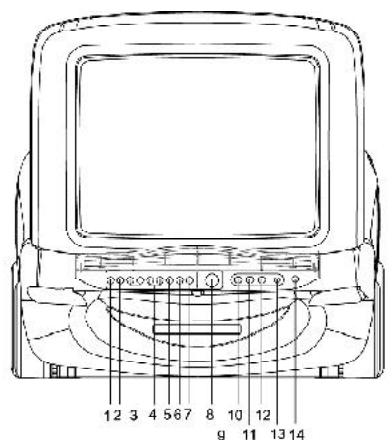
- TV/AV/DVD Button
- Menu Button
- Volume +/- Button
- ChannelUp/Down Button
- Play Button
- Stop Button
7.Eject Button - Power Button
9.DVD Tray - Front Audio (R) Input (AV 2)
- Front Audio (L) Input (AV 2)
- Front Video Input (AV 2)
- Earphone Jack
- Remote Sensor
- Speaker
- 75 ohm Antenna Socket
- Scart connector (AV1)
-
Audio digital Out Socket (For DVD only)
-
Insert the holes
- Push toward the direction.
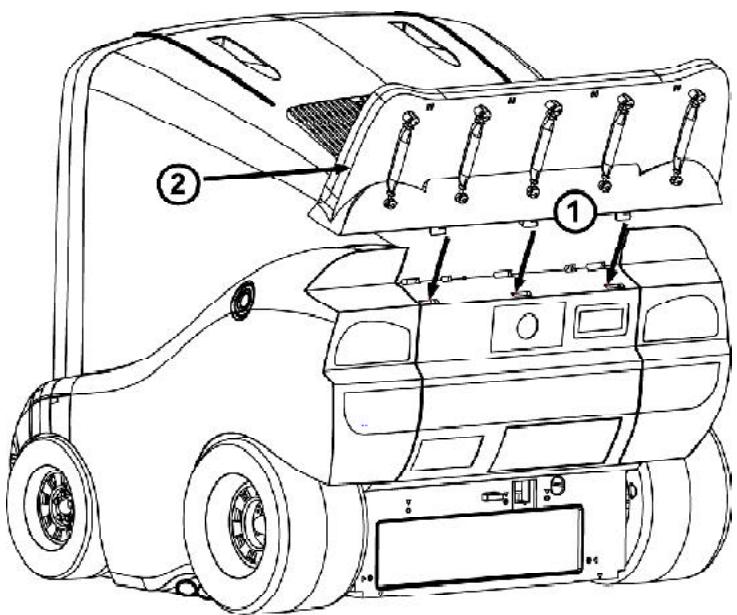
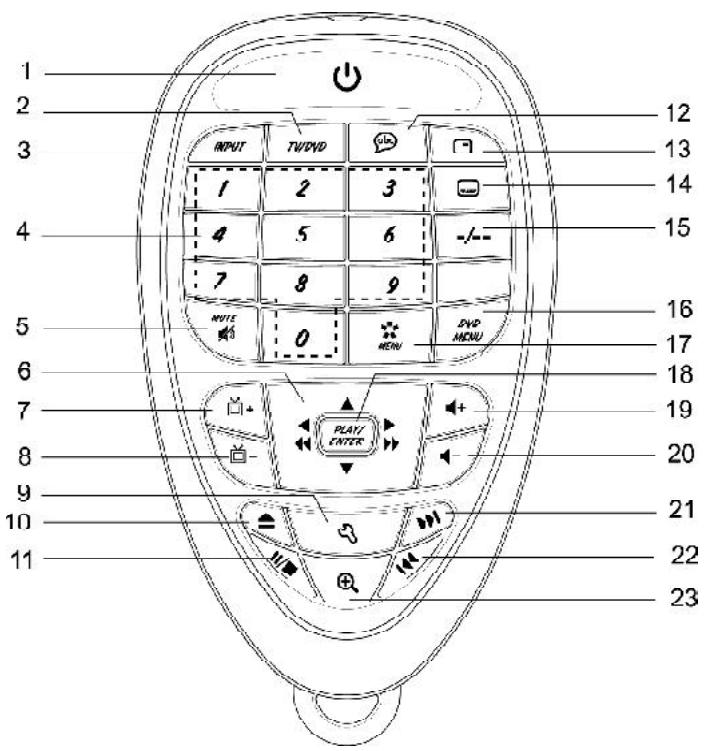
- Power ( b ) Button
- TV/DVD Button
- INPUT Button
- Numeric (0~9) Buttons
- Mute ( ) Button
- Navigation (▲, ▲, ▼, ▶) / Search (◁, ▷) Button
- Channel + ( ) Button
- Channel - ( ) Button
- Set up ( ) Button
-
Open/Close (▲) Button
-
Pause / Stop ( II / ■ ) Button
- Language (cb) Button
- Display ( ) Button
- Subtitle ( ) Button
- Two or Three Digital program Button
- DVD MENU Button
- Menu ( 喜 ) Button
- Play Enter Button
- Volume+ (▶ +) Button
- Volume- ( ) Button
- Skip () Button
- Skip (K) Button
- Zoom ( ⊕ ) Button.
REMOTE CONTROL
Before using the remote control, batteries must first be installed.
HOWTOINSTALL BATTERIES
- Loosen the screw to open the battery compartment cover.
- Install two (2) "AAA" batteries (not included) into each remote, paying attention to the polarity diagram in the battery compartment.
- Screw the battery compartment cover on the battery compartment.
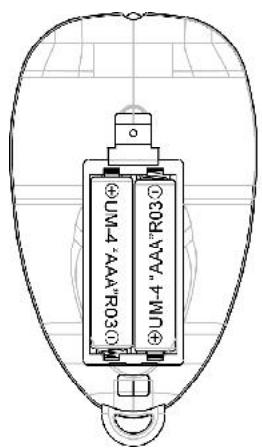
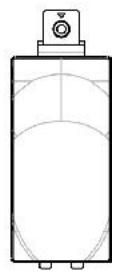
CAUTION:
- Only adults should replace batteries.
- Do not mix old and new batteries.
- Do not mix different types of batteries. Do not mix alkaline, standard (carbon-zinc), or rechargeable (nickel-cadmium) batteries.
- Use only fresh batteries of the required size and recommended type.
- Dispose of old batteries promptly and properly. Do not burn or bury them.
- If you do not plan to use your unit for a prolonged period, remove the batteries. Batteries can leak chemicals than can harm electronic parts.
- Replace the batteries when the unit stops operating properly.
- To avoid damage caused by leakage of the battery fluid, replace the batteries once every two years regardless of how much the unit has been used during that time.
- Old batteries can cause damage to the unit and will void the warranty.
- Be sure to observe polarity as indicated in the battery compartment. Improper placement of batteries may damage the unit.
Connect your TV aerial to the aerial input socket located on the back of the TV.
Push the Main Power Switch, Power Indicator will be illuminated. After a few seconds the TV screen will light up. Should white dots appear on the screen the TV will require tuning into the available TV stations in your area.
Pre-setting the TV stations into the Memory
(Note: Preset tuning can only be carried out in TV Mode)
1.TUNE
- Press the MENU (×) button four times to select the TUNE mode as show in FIG.1
- Press the "+" button to select the SOUND then press "+" button to change the desired sound system BG or L.
FIG.1
TUNE
AUTO SEARCH
SEARCH
BAND VHF-L
FINE TUNE
COLOUR AUTO
SOUND L
SKIP OFF
PROGRAM 1
AUTO SEARCH
- Press the “ +/-” button to select the AUTO SEARCH as shown in FIG. 2
- Press the "+" button to start the automatic scanning processes, the scanning starting from VHF to UHF and the TV stations will automatic store into memory as shown in FIG. 3
- When scanning is completed, the set will tune to lowest program and show lowest program number on the screen.
- If want to stop auto search function to press MENU (%) button.
FIG.2
FIG.3
TUNE
AUTO SEARCH
SEARCH
BAND VHF-L
FINE TUNE
COLOUR AUTO
SOUND L
SKIP OFF
PROGRAM 1
AUTO SEARCH
VHF-L

4) Press the +/- button to select the SOUND then press +/- button to change the desired sound system BG or L.
5) Press the +/- button to select the SEARCH then press the +/- button to start the station search. The TV screen will show the tuning and when the first station received is located, the tuning will stop and stored automatically. Repeat steps 1,2,3,4 to search the next TV station. as shown in FIG.4, FIG.5.
- If want to stop searchmanual) funtion to press MENU ( 喜 ) button.
Notes:
- If ghost / noisy stations have been stored when using the AUTO SEARCH method these stations can be removed from the channel list by entering the SKIP Mode shown in the TUNE menu. Press the "+" button and change the OFF state to ON. Press the MENU button to return to normal viewing. The unwanted station will be removed from the channel list when you change TV channels and cannot be viewed.
- The SKIPPED station can be restored by re entering the TUNE menu and changing the SKIP ON status to OFF.
- To exit the TUNE mode press MENU ( 喜 ) button two times.
2. PICTURE
- Press the MENU (×) button to select the PICTURE mode as show in FIG.6.
- Press the “+/-” button to select the BRIGHTNESS/ COLOUR/CONTRAST/SHARPNESS/HUE
- Press the . + / - button to adjust the desired level, The steps can be adjust from 0~63 .
- HUE item for NTSC system only, the level setting can be adjust from "-31" to "+"31".
- To exit the PICTURE mode press the MENU (↑) button five times.
FIG.6
PICTURE
BRIGHTNESS 32
COLOUR 32
CONTRAST 32
SHARPNESS 32
HUE 0
3. SOUND
- Press the MENU (↑) button two times to select the SOUND mode as show in FIG.7
- Press the “+/-” button to adjust the level of the Volume. The level setting can be adjusted from “0” to “63”.
- To exit the SOUND mode press the MENU (√) button four times.
FIG.7
SOUND
VOLUME 10
4. SETUP
LANG.
- Press the MENU (÷) button three times to select the SETUP mode, as shown in FIG.8
- Press the "+" button to select the LANGUAGE ENGLISH, RUSSIAN, DUTCH, ITALIAN, GERMAN, FRENCH, SPANISH, PORTUGUESE, ARABIC, FARSI, or TURKISH.
FIG.8
SETUP
LANG. ENGLISH
BLUE BACK ON
BLUE BACK
- Press the +/- button to select the BLUE BACK and press the +/- button to adjust the blue Back-ground ON or OFF.
- To exit the SETUP mode press the MENU (×) button three times.
After stored TV stations by AUTO SEARCH or MANUAL SEARCH, the position of TV program can be exchange by the following method:
- Press the MENU (×) button five times to select the PROG.EXCHANG mode as shown in FIG.9
- Press the "+" button to select PROG I then press the "+" button or numeric button to select the desired program number to be exchange.
- Press the "+" button to select the PROG II then press the "+" button or numeric button to select the disired program number to be exchange.
- Press the “ +/- ” button to select the EXCHANG then press the “ +/- ” button. the position of PROG I program number and PROG II program number will be exchanged.
- To exit the PROG. EXCHANGE mode press the MENU (×) button.
FIG.9
PROG. EXCHANGE
PROG. I 1
PROG II 5
EXCHANGE
CHANNEL SELECT AND VOLUME CONTROL
1) Press +/ buttons to select TV station. (TV Mode Only)
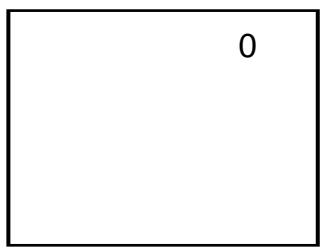
Press CHANNEL." on the main unit, the program no. will appear on the top right corner and change from higher no. to lower no.
2) Press + / - button to adjust sound level.
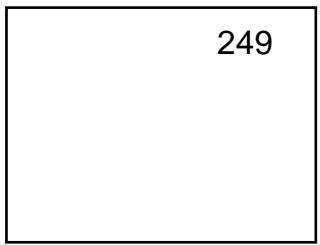
Press CHANNEL. " 当 +"on the main unit, the program no. will change from lower no. to higher no.
VOLUME

OPERATING WITH REMOTE CONTROL
TO SELECT TV STATION USING THE PROGRAM NUMBERS:
Program Number Up and Down
Press the "☑ + " or "☑ - " button to select a higher or lower program number.
- 0 - 9 Digital Button
To select TV stations using program numbers 0 - 9, selecting program number will be shown in the right corner of the top of screen in green colour.
For example:
Press "9" digit button to select program "9".
- Two Digital Program Number
To select TV station using program numbers "10" - "99".
For example: selecting program "12"
- Press the button "-/--", on screen will show "--".
*Then press the number "1" button, on screen will show "1-"
- Then press the number "2" button, channel "12" will show.
Three Digital Program Number
To select TV station using program numbers "100" - "249".
For example: selecting program "123"
-
Press the button "-/--" twice, on screen will show "---".
-
Then press the number "1" button, on screen will show "1--"
-
Then press the number "2" button, channel "12-" will show.
-
Then press the number "3" button, channel "123" will show.
POWER Button
- Press the "U" button to switch the picture and sound ON/OFF the picture and sound.
MUTE Button
- Press the Mute button to switch OFF the sound,press once again to switch ON the sound.
INPUT Button
- Press the INPUT Button to select AV mode,Press again back to TV mode.
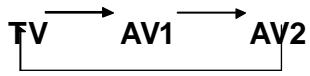
TV/DVD Button
- Press the TV/DVD mode button to select DVD mode. Press again to go back to TV mode. (There will be a few seconds delay before entering the DVD mode).
AUTO POWER-OFF FUNCTION
- When the TV is in TV or AV(video) mode and it's without a signal for about 8 minutes, it will automatically power off(standby mode) to save the energy.
OPERATING YOUR DVD
BASICOPERATION
- Press "TV/AV/DVD" button on the unit or press the TV/DVD direct key on the remote handset to turn ONDVD.
- Press "OPEN/CLOSE (EJECT)" (▲) button to load disc in disc tray.
- Press "OPEN / CLOSE" (▲) button to close the tray.
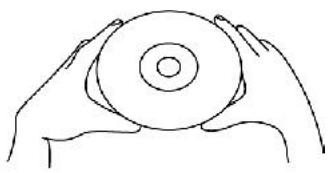
- Hold the disc without touching either of its surfaces, position it with the printed title side facing up.
Play Discs
- Press the OPEN/CLOSE (▲) button on the front panel and load the Disc on the tray. The label side should be facing upwards. For a Double-sided DVD Disc, put the disc with label A/1 up.
- Press the OPEN/CLOSE (▲) button again to close the tray and the disc will be loaded.
-
The Disc will be played automatically.
-
If it is a DVD disc, it will show the Menu/Title Page on the screen.
If it is a CD, it will play from the first. -
Press the STOP button, if you want to stop the Disc playback You can resume playback by pressing the PLAY button and it will start at the location where you have pressed stopped (Resume Play).
- Press the STOP Button twice to stop playback completely and return to the start.
TO ACCESS THE QUICK START MENUS:
To access the Quick Start menus, which will allow you to change the three most popular settings, perform the following:
- While in the DVD is in Stop mode, press the SETUP button to enter the Setup Menu.
- Press the PLAY/ENTER button to select Quick setup().
- Continue with steps 4-5 in the next section.
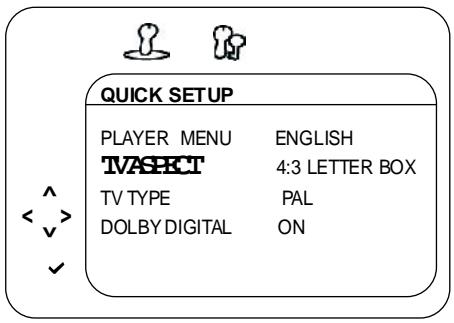
QUICK START MENU
OPERATING YOUR DVD
TO ACCESS THE MAIN MENUS:
To access the four main menus, perform the following:
- While in the DVD Stop mode, press the SETUP button to enter the Setup Menu.
- Press the Navigation (▶) button to select the Main menus (▲), then press the PLAY/ENTER button.
- Select one of the Setup icons at the top of the screen using the Navigation (▲,▶) buttons, then press the PLAY/ENTER button to select it.
- Use the Navigation (, ) buttons to select one of the setup options, then press the PLAY/ENTER button to select it or change the setting. If there are more options, use the Navigation (, ) buttons to select the desired option and press PLAY/ENTER button to confirm.
- Press the SETUP button to exit setup.
TO RETURN TO THE PREVIOUS MENU,
simply press the Navigation ( ) button.
MAIN MENU
OPERATING YOUR DVD
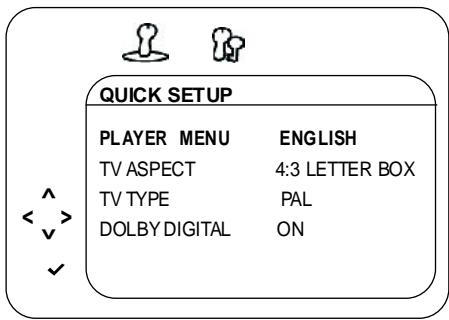
QUICK START MENU:
Access the Quick Start menu as described on page 15, then select/change the setup option as described on page 16.
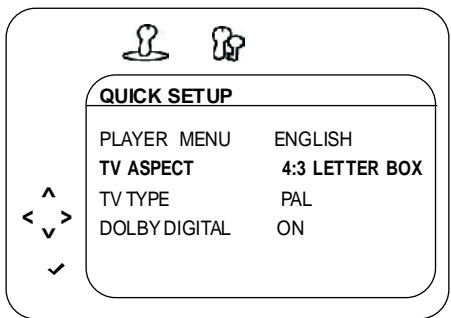
PLAYER MENU OPTION:
Select the PLAYER MENU to choose the desired language(English, French, Spanish, German, Italian, Portuguese, Nederland).
TV ASPECT OPTION:
Select 4:3 PS (Panscan), 4:3 Letterbox or 16:9 wide. See page 18 for details.
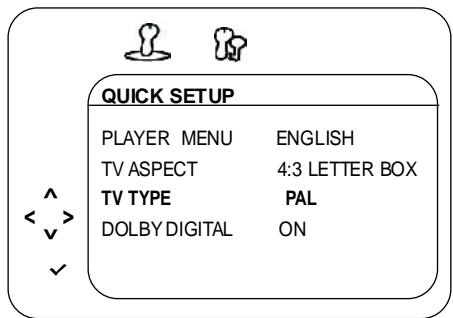
TV TYPE OPTION:
Select the TV TYPE to choose the desired PAL or NTSC system.
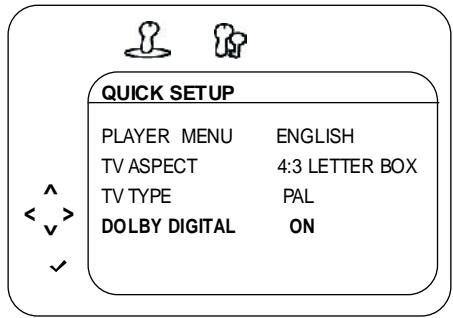
DOLBY DIGITAL OPTION:
When using the coaxial digital output, select ON to turn the Dolby Digital ON or OFF to turn Dolby Digital off.
OPERATING YOUR DVD
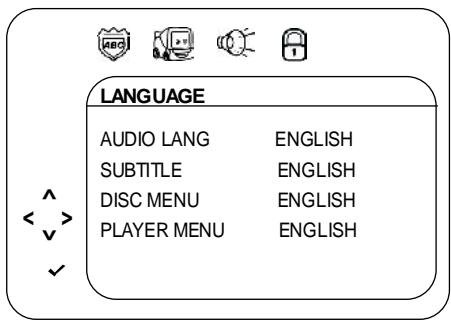
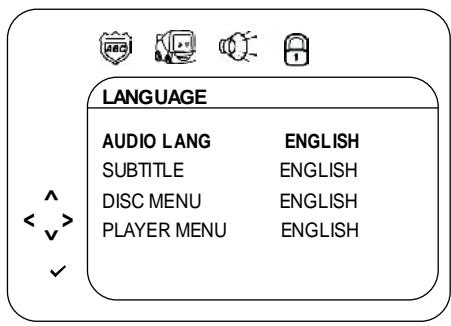
LANGUAGESETUPMENU:
Select the Language icon using the Navigation (▶) buttons, press the PLAY/ENTER button and then select/change the setup option as described on page 17.
AUDIO LANG
Select the language the DVD will be played back in. The DVD must be recorded in the selected language, otherwise the default language of the DVD will be played.
SUBTITLE
Select the language the Subtitle will be in. The DVD must be recorded in the selected language, otherwise the default language of the DVD will be shown. Select Off to turn off the subtitle.
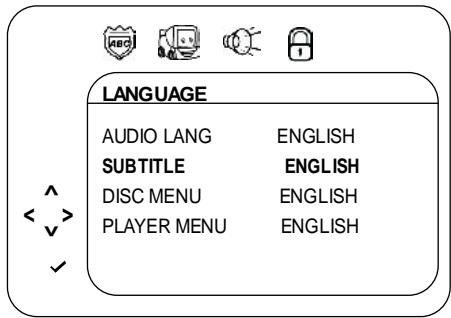
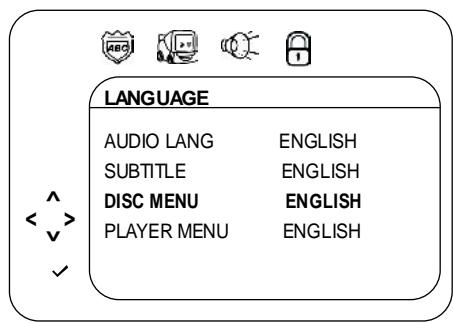
DISC MENU
Select the language the DISC MENU will be in. The DVD's DISC MENU must be made in the selected language, otherwise the default language of the DVD will be shown.
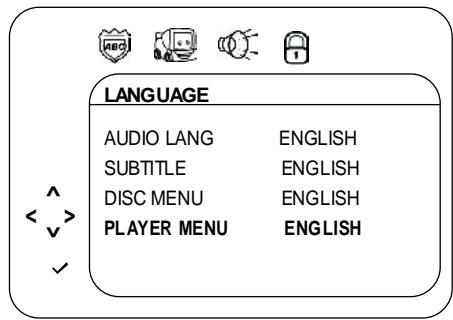
PLAYER MENU
Select the language for the PLAYER MENU will be in (English, French, Spanish, German, Italian, Portuguese, Nederland).
OPERATING YOUR DVD
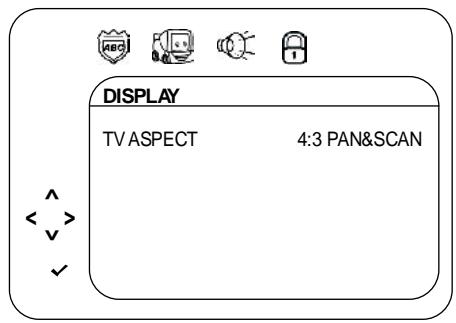
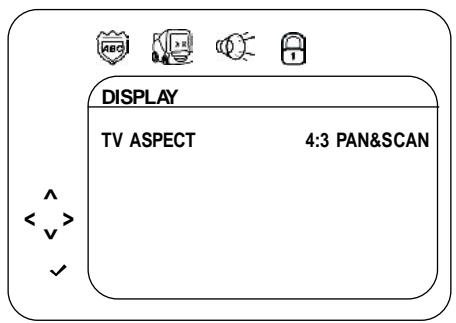
DISPLAY SETUP MENU:
Select the Display icon using the Navigation (▲,▶) buttons, then select/change the setup option as described on page 18.
TV ASPECT
4:3PS: Select when the unit is connected to a conventional TV. Video material formatted in the Pan Scan style is played back in that style (the left and right edges are cut off).
4:3 LETTERBOX: Select when the unit is connected to a normal TV. Wide-screen images are shown on the screen with a black band at the top or bottom.
16:9 WIDE: Select when the unit is connected to a widescreen TV.
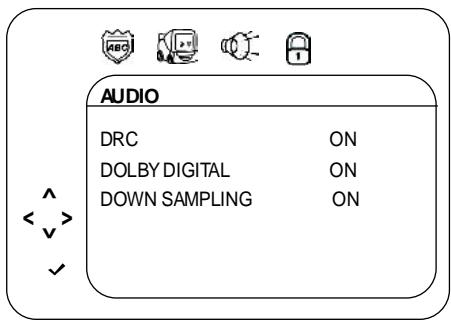
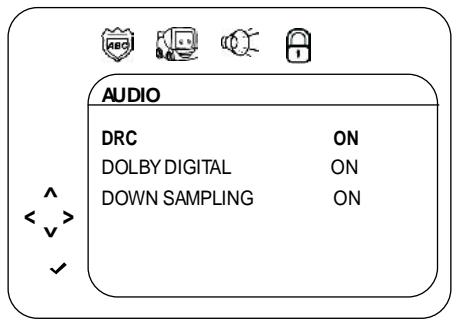
AUDIO SETUP MENU:
Select the Audio icon using the Navigation (▲,▶) buttons, then select/change the setup option as described on page 18.
DRC
Select ON to turn the DRC (Dynamic Range
Compression) on or OFF to turn DRC off. Dynamic
Range Compression will compress the dynamic range of the DVD's audio track.
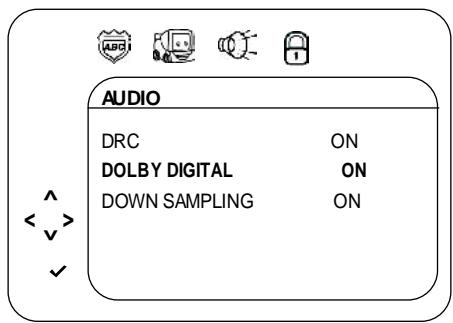
DOLBY DIGITAL AND DOWN SAMPLING
When using the coaxial digital output, select ON to turn the Dolby Digital on or OFF to turn Dolby Digital off.
When using the coaxial digital output, select ON to turn the Down Sampling on or OFF to turn Down Sampling off.
When downsampling is ON, the digital output will be sampling at 48K even if the original audio is encoding in 96K for DVD.
PARENTAL
The Parental option enables parents to prevent their children from watching inappropriate material on a DVD. It reads the ratings for programming, then denies access to programming if the program's rating meets the limitations you selected. In this case, the user will have to enter a 4-digits security password, then press ENTER button (password 1369).
DVD BASIC OPERATION
IMPORTANT NOTES:
- A symbol will appear at the upper right corner on the TV screen during operation if you try to access a function that is not available on the disc.
Some discs may take a few seconds to load. - Always hold the disc without touching either of its surfaces. When inserting a disc, position it with the printed title side facing up, align it with the guides and place it in its proper position.
- It is important that you read the manual that accompanies the DVD disc as there are features that are on this DVD player that cannot be used with certain DVDs. There are also extra features that are different for each DVD disc, so they are not explained in this owner's manual
PLAYBACK OF A DVD
- Press "TV/AV/DVD" button on the unit or press the TV/DVD direct key on the remote handset to turn ON DVD.
- Press the OPEN/CLOSE (▲) button to open the disc tray. Insert a disc with the label side facing up on the disc tray.
- Press the OPEN/CLOSE (▲) button to close the disc tray. After loading, the menu screen of the DVD should appear. Use the Navigation (▲, ▲, ▼) buttons to select the desired option and the PLAY/ENTER button to select it; playback will start immediately.
- To stop playback, press the STOP (■) button. Because the unit will remember where you stopped, simply press the PLAY/ENTER button to resume playback where you left off. If the STOP (■) button is pressed twice, the unit will stop completely.
NOTES:
- If a MENU appears on the TV screen, press the Navigation (▲, ▲, ▼) buttons to select the desired option/item, then press the PLAY/ENTER button. Please make sure to refer to the disc's jacket or case for additional information.
- Resuming playback may not work on all discs.
CHAPTER SEARCH
Use this feature to directly go to a specific chapter.
Press the DISPLAY button twice, followed by the Number buttons (i.e. for number 12, press "1", "2") to directly go to a chapter; playback will start immediately.
DVD MENU
Press the MENU button, and the Main Menu of the disc will appear. Use the Navigation (▲, ▲, ▼) buttons to select the desired option, and then press the PLAY/ENTER button. This is not available on all discs.
DVD BASIC OPERATION(CONTINUED)
SKIP
Press the SKIP (▶) button to advance the DVD to the beginning of the next chapter. Press the SKIP (▶) button to move the DVD to the beginning of the previous chapters.
SEARCH
During playback, press either the SEARCH (▶) button or SEARCH (←) button to move the DVD forward or backward at double (x2) speed to locate a specific section. Repeatedly press these buttons and the speed will increase to x4, x8, x16 and resume normal playback.
The DVD will move forward or backward at high speed until the PLAY/ENTER button is pressed again; normal playback will resume at that point.
DISPLAY
While playing a DVD, press the DISPLAY button once to view the title, elapsed title time and remaining title time. Press a second time to view the chapter, elapsed chapter time and remaining chapter time. Press a third time to view the layer setting ("L0" for layer 0, "L1" for layer 1). Press a fourth time to turn the display off.
PAUSE/STOP(II/■)
Press the PAUSE/STOP (■/■) button once to pause the picture. Press the PLAY/ENTER button again to resume normal playback.
Press the PAUSE/STOP (■/■) button twice to stop the playback. Press the PLAY/ENTER button again to start playback from the beginning.
SUBTITLE
Press the SUBTITLE button to change the subtitle language.
Note: Number of subtitle available depends on the DVD disc.
LANGUAGE(AUDIO)
Press LANGUAGE button to change the Audio channel. This function is applicable for DVD and CD audio but with different effects.
ZOOM
This function is applicable for DVD. user can enlarge a static picture or a moving picture by pressing the ZOOM button. there are 3 levels of zooming(2x,3x and 4x) and they can be achieved one by one through subsequent key press on the zoom key.
Note: user can select the portion of the picture to be enlarged by using the direction button

CD BASIC OPERATION
PLAYBACK OF A CD
- Press "TV/AV/DVD" button on the unit or press the TV/DVD direct key on the remote handset to turn ONDVD.
- Press the OPEN/CLOSE button to open the disc tray. Insert a disc with the label side facing up on the disc tray.
- Press the OPEN/CLOSE button to close the disc tray. After loading, playback will start automatically.
- Press the STOP (■) button on main unit or press PAUSE/STOP (II/■) button on remote control twice to stop playback.
FORWARD(▶)/REVERSE(▲)
- Each press of the Search (▶) or (▲) button will increase the search as follows: x 2 → x 4 → x 8 → x16 → Resume Normal Playback
- Press the PLAY/ENTER button to resume normal playback.
DISPLAY
While playing a CD, press the DISPLAY button once to view the track, elapsed track time and remaining track time. Press a second time to view the disc elapsed time and remaining time. Press a third time to turn the display off.
SELECTING TRACKS USING THE NUMBER BUTTONS
Press the Number buttons corresponding to the track number you would like to play, and the unit will playback the desired track automatically.
SELECTING TRACKS USING THE SKIP BUTTONS
During playback, press the SKIP(▶) or (▶) button to select a track to be played.
- Press "TV/AV/DVD" button on the unit or press the TV/DVD direct key on the remote handset to turn DVD.
- Press the Open/Close button to open the disc tray. Insert a picture CD with the label side facing up on the disc tray.
- Press the OPEN/CLOSE button to close the disc tray. After loading, the FOLDER/PICTURE menu will appear on the TV screen. Press the Navigation (▲,▼) buttons to select the desired folder/track.
- Press the PLAY/ENTER button to confirm. Press the Navigation (▲,▼) buttons to select the desired picture; the image preview of the picture will appear in the image preview area. Press the PLAY/ENTER button to play the picture. You can also use the number button to enter a 3-digit number to select the desired picture, playback will start automatically. Press the STOP (■) button on main unit or press PAUSE/STOP (■/■) button on remote control twice to stop playback.
- To select other folders, press Navigation (▲,▼) button to select “- -” followed by press the PLAY/ENTER button to go back to select the folders and use the Navigation (▲,▼) button to select the desired folder again.
Caring for Discs
- Treat the disc carefully. Handle the disc only by its edges. Never allow your fingers to come in contact with the shiny, unprinted side of the disc.
- Do not attach adhesive tape, stickers, etc. to the disc label.
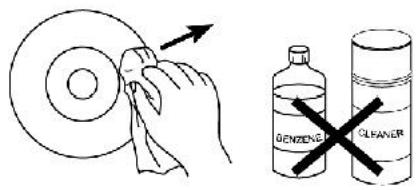
- Clean the disc periodically with a soft, lint-free, dry cloth. Never use detergents or abrasive cleaners to clean the disc. If necessary, use a CD cleaning kit.
If a disc skips or gets stuck on a section of the disc, it is probably dirty or damaged (scratched). - When cleaning the disc, wipe in straight lines from the center of the disc to the outer edge of the disc. Never wipe in circular motions.
- Discs should be stored in their cases after each use to avoid damage.
- Do not expose discs to direct sunlight, high humidity, high temperatures or dust, etc. Prolonged exposure or extreme temperatures can warp the disc.
- Do not stick or write anything on either side of the disc. Sharp writing instruments, or the ink, may damage the surface.
ABOUT DISCS
The region number for this DVD Player is :
See the following page for information regarding region numbers.

PLAYABLE DISCS:
The following discs can be played back on this DVD player:
DISC TYPES:
DVD
Data on most DVDs is divided into sections called "titles" and then into subsections called "chapters", each of which is given a title or chapter number. Some features of this DVD player will not operate with some DVD discs as they are preset. If a function you selected does not run as desired, refer to the manual accompanying the DVD disc.
AUIDO CD
Data on an audio CD is divided into sections called "tracks", each of which is given a track number.



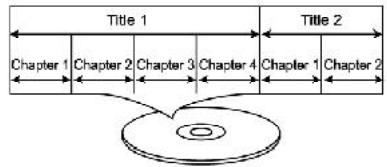
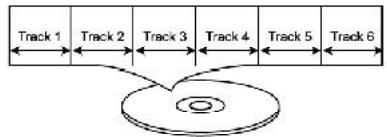
IMPORTANT:
It is important that you read the manual that accompanies the DVD discs, as there are features that are on the DVD player that cannot be used with certain DVDs. There are also extra features on the DVD disc that are different for each DVD disc, so they are not explained in this owner's manual. This player conforms to the NTSC and PAL color systems. However, if you are in the USA, leave this setting on NTSC. If incorrectly set to PAL, the TV picture will roll vertically. In this case, simply turn the DVD off, and then back on.
Notes on Copyright:
It is forbidden by law to copy, broadcast, show, broadcast on cable, play in public and rent copyrighted material without permission. DVD video discs are copy protected, and any recordings made from these discs will be distorted. This product incorporates copyright protection technology that is protected by method claims of certain U.S. patents and other intellectual property rights owners. Use of this copyright protection technology must be authorized by Macrovision Corporation, and is intended for home and other limited viewing uses only unless otherwise authorized by Macrovision Corporation. Reverse engineering or disassembly is prohibited.
Region Management Information:
This DVD Player is designed and manufactured to respond to the Region Management Information that is recorded on a DVD disc. If the Region number described on the DVD disc does not correspond to the Region number of this DVD player, this DVD player cannot play that disc. You may not be able to play back some DVD video on this player if they are purchased from outside your geographic area or made for business purposes. When you try to playback an unauthorized disc, "Region Error" appears on the TV screen.
TROUBLESHOOTING
Your television is designed to give you trouble-free performance for many years. If you have a problem with your TV, try the solutions listed below.
There is no picture or sound, or the TV doesn't turn on.
Make sure the TV is plugged in.
Make sure the MUTE is not set.
Make sure the POWER is on.
Make sure a headache is not inserted.
- If there is neither picture nor sound, unplug the TV for 30 seconds, then plug it in and try again.
There is no picture or sound on some UHF channels.
- Try another station. If the other stations are OK, it may be a station problem.
- Check that the antenna is connected & adjusted correctly, in good working order and has no broken wires.
See if anything is interfering with the antenna signal.
Make sure the AIR/CABLE setting is correct.
The sound is OK, but the picture is poor.
- Try another station. If the other stations are OK, it may be a station problem.
- Check that the antenna is connected & adjusted correctly, in good working order and has no broken wires.
There is poor reception on some channels.
- Try another station. If the other stations are OK, it may be a station problem.
- Check that the antenna is connected & adjusted correctly, in good working order and has no broken wires.
Cannot tune to a cable channel.
- Make sure the AIR/CABLE setting is correct.
The channel may not be programmed into memory.
The picture rolls, slants, shows lines, is grainy, has poor color, or has ghosts.
- Try another station. If the other stations are OK, it may be a station problem.
- Check that the antenna is connected & adjusted correctly, in good working order and has no broken wires.
See if anything is interfering with the antenna signal.
The remote control does not work.
Make sure the TV is plugged in.
- Make sure there are fresh batteries in the remote control.
- Make sure there is nothing blocking the remote control signal.
CARE & MAINTENANCE
This television receiver represents a fine example of electronic engineering and construction. As such it should be treated with care. We offer the following suggestions so you will enjoy this product for the years to come.

Keep it dry. If water should get on it, wipe if off immediately. Water contains minerals that can corrode electronic circuits.

Do not store in hot areas. High temperatures can shorten the life of electronic devices, damage batteries, and can even distort or melt certain plastics.
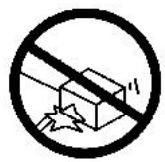
Do not drop your product. This will likely result in failure to operate. Circuit boards can crack and the cases may not survive the impact. Handling your product roughly will shorten its useful life.
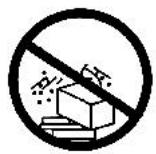
Do not use or store in areas of high level of dirt or dust. The electronic parts may be contaminated or will wear prematurely.
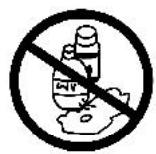
Do not use harsh chemicals or strong cleaning solvents to clean your unit. You need only wipe it with a slightly moist, never wet cloth.
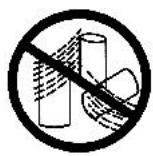
Always make sure any batteries used are fresh and are of the correct type. Old or almost-dead batteries are also dangerous.
A worn out battery can leak chemicals which will damage the electronic circuits.
SPECIFICATIONS
TV SECTION
Receiving Channels
VHF CH2-4
VHF CH5-12
UHF CH21-69
Tuner Type 250 Channel, VS TUNING
DVD SECTION
Laser Wave length 655nm
Laser power : Class 1
Signal System PAL/NTSC output
Digital audio output Coaxial digital output; pin jack
Headphone Stereo in DVD mode
Mono in TV mode
GENERAL SECTION
AC Power Input AC 220-240V~ 50 Hz
AC Power Consumption 74W
Speaker 3" 78mm 8ohm x 2
Audio Output 1.5 W + 1.5 W
Dimensions L488 x W444 x H435 (mm_
Net Weight 11.9 kg
Design and specifications are subject to change without notice.
It is not a toy and not for children under 8 years old

PRECAUCION RIESGO DE ELECTROCUCION NO ABRIR

CÓMRePRODUCIR UN DVD
Salida digital coaxial, pin jack
Estéreo en modo DVD
Mono en modo TV