
Quattor 10 - Tablet Overmax - Free user manual and instructions
Find the device manual for free Quattor 10 Overmax in PDF.


| Product Type | Tablet |
| Brand | Overmax |
| Model | Quattor 10 |
| Display Size | 10.1 inches |
| Display Resolution | 1280 x 800 pixels |
| Processor | Quad-core, 1.5 GHz |
| RAM | 2 GB |
| Internal Storage | 32 GB |
| Operating System | Android 12 |
| Battery Capacity | 5000 mAh |
| Dimensions (W x D x H) | 240 x 160 x 9 mm |
| Weight | 500 g |
| Connectivity | WiFi 802.11 b/g/n, Bluetooth 5.0 |
| Rear Camera | 5 MP |
| Front Camera | 2 MP |
| Audio | Built-in speaker, 3.5mm headphone jack |
| Ports | Micro USB, microSD card slot |
| Sensors | Accelerometer, G-sensor |
| Power Supply | 5V/2A via micro USB |
| Maintenance | Clean with a soft, dry cloth. Do not use liquid cleaners. |
| Safety Warnings | Keep away from water and extreme heat. Do not disassemble. |
| Spare Parts & Repairability | Battery and screen can be replaced by authorized service centers. |
Frequently Asked Questions - Quattor 10 Overmax
User questions about Quattor 10 Overmax
0 question about this device. Answer the ones you know or ask your own.
Ask a new question about this device
Download the instructions for your Tablet in PDF format for free! Find your manual Quattor 10 - Overmax and take your electronic device back in hand. On this page are published all the documents necessary for the use of your device. Quattor 10 by Overmax.
USER MANUAL Quattor 10 Overmax
natural_image
Black tablet with blue abstract geometric design on black screen (no text or symbols)Instrukcja obstugi
User Manual
PL/EN/CZ/SK/RO/HU
OVERMAX
Your electronic world
Deklaracja
natural_image
Digital tablet displaying a blue abstract geometric design with a glowing 'Q' icon (no text or symbols on the graphic itself)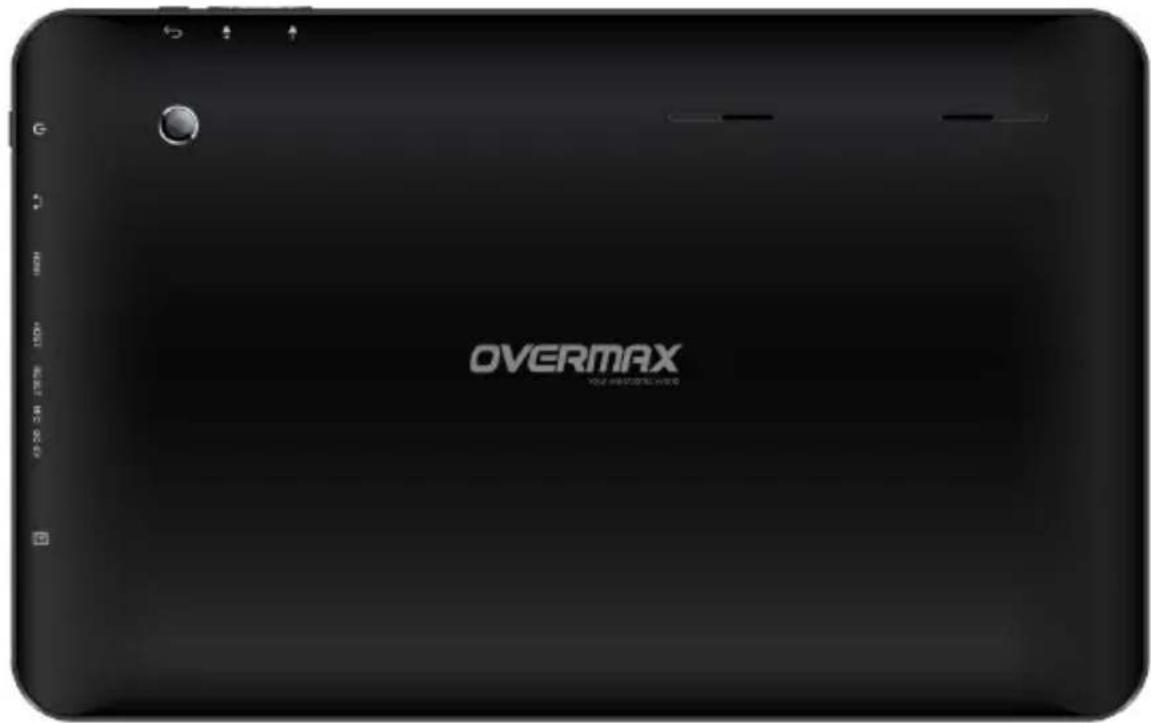
Akcesoria
natural_image
Digital illustration of a green leafy background with a camera icon and status bar (no readable text or symbols)Wi-Fi
natural_image
Digital photo of a green leaf with visible vein patterns and a camera icon, no readable text or symbols.Dźwięk
Aplikacje
Data i godzina
-
The informaon in this manual may not, except under wrien license by The Company, be copied, transmied, distributed, or stored.
-
Although eorts have been made for correctness and completeness during the preparaon of the manual, there is no guarantee that this manual is free from any error or omission. The Company assumes no reliability regarding the errors or omissions that might exist in the manual.
-
For sustainable development, The Company reserves the right to modify and improve any product described in this manual without prior noce.
-
Under no circumstance shall the Company assume any liability, direct or indirect, related to data or income loss, or any special, accidental, incidental or indirect losses.
Precauons
For the correct use and good performance of the player, the user must fully understand the manual as well as strictly follow the instrucons provided.
- Please avoid high temperature (over 35°C) or low temperature (below -5°C).
● Never knock the main machine violently.
● Never contact with chemicals such as benzene, thinner etc. - Do not close to strong magnec eld, electric eld etc.
- Keep away from direct sunlight or heang appliances.
● Never privately dissemble, repair or modify the player. - Using the player and the earpiece during bicycling, car and motorcycle driving is likely to cause danger.
- Never use higher volume, which may damage your hearing ability.
- Divide scraped packing, baeries, old electronic products and dispose them properly.
Overview
Basic Funcons
- Music play: support MP3, WAV, WMA, OGG, APE, AMR, AC3, DTS, MIDI and AAC (including AAC-LC、AAC +V1/V2) format
- Video play: full format video supports RM,RMVB,AVI,MKV,WMV,VOB,ASF,M2TS,QT,MOV,FLV,MP4,3GP,MPG,MPEG,VOB,DAT.
- Online Video: support Tudou, Youku, QiYi, Tencent and etc.
- Picture browse: support JPEG, BMP, GIF, PNG formats.
- Internet chat tool: support QQ、MSN, SKYPE, Wechat and etc.
- Browser: Google browser, support Chrome label style, Google search etc.
- Game: support JAVA game, G-sensor game, large 3D game.
- TV OUT: Support HDMI synchronous display.
- Input: Support Android Pinyin input and other mainstream hand input, soware.
- Seng funcon: support display and seng of each funcon's property.
- File system: support FAT/FAT32/ NTFS and exFAT.
- Support more than 4GB le access, and mulstage catalogues.
-
USB driver: support host/OTG/slave
-
Support peripheral with USB port of mouse, keyboard, Ethernet and etc.
Appearance
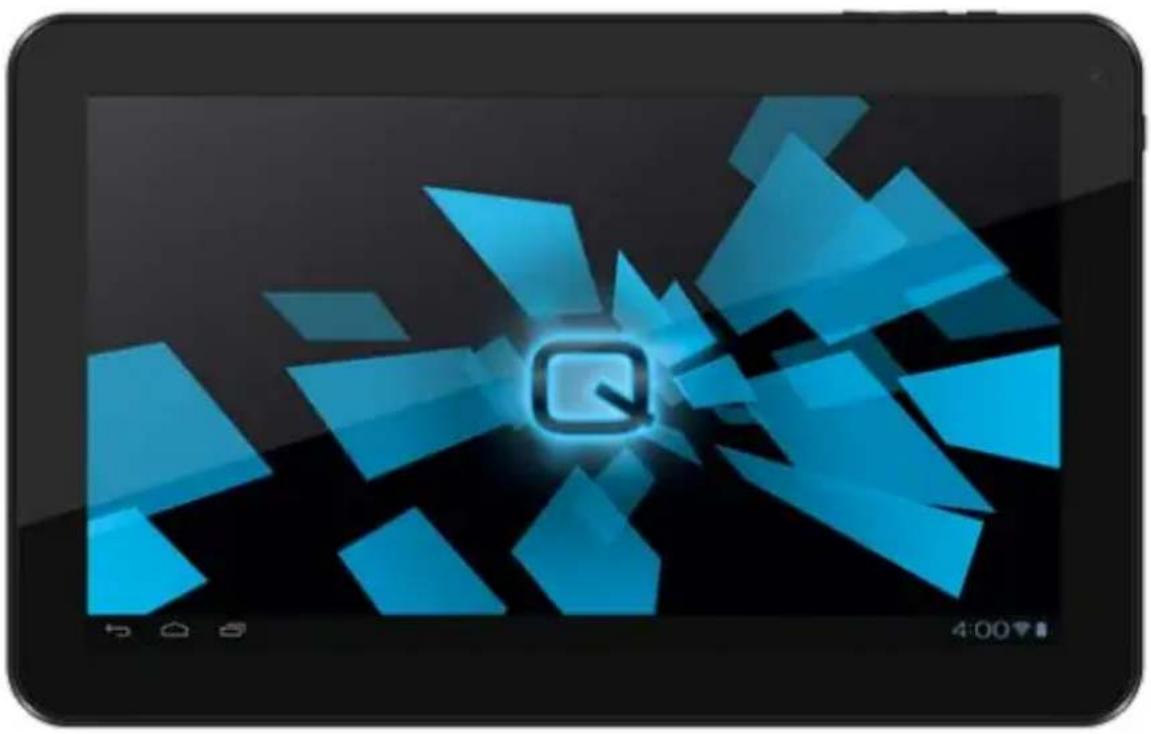
natural_image
Digital tablet displaying a blue abstract geometric design with a glowing 'Q' icon (no text or symbols on the graphic itself)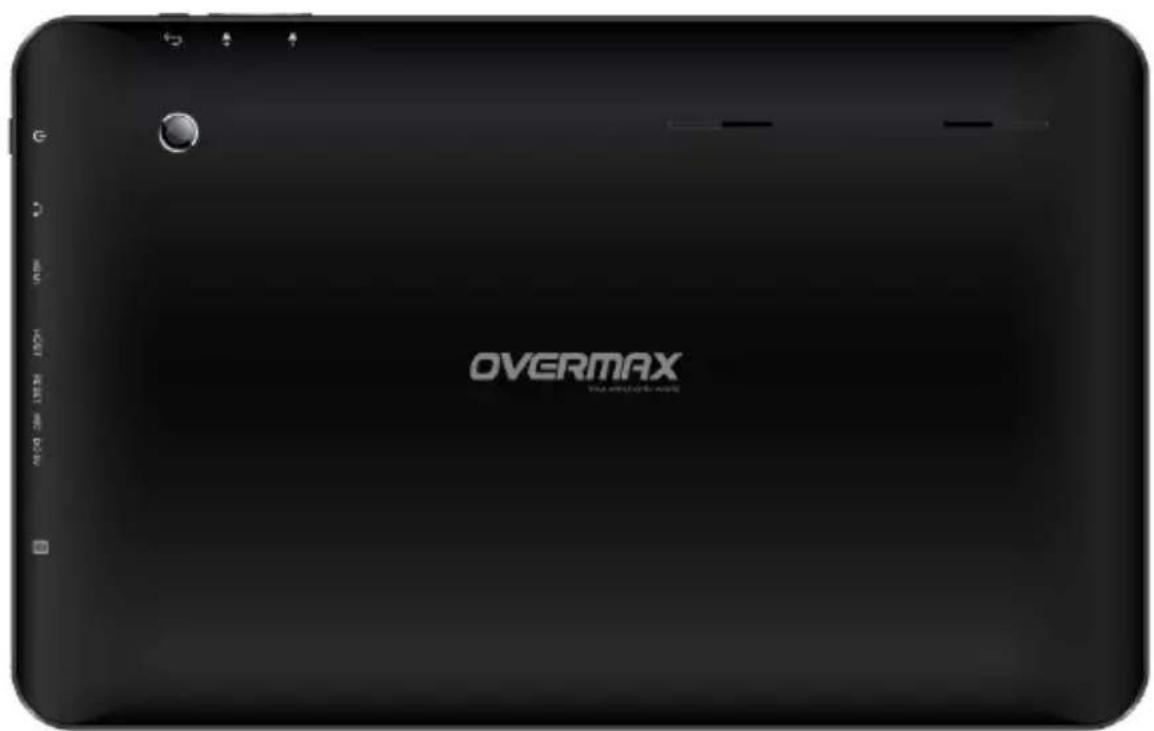
Accessories
Tablet aaches the following accessories:
| Accessories | Funcons |
| Adaptor | Charging for MID |
| MID connects to USB cable | Using in connecng MID and PC to transmit data |
Key
- Key
| No. | Name | Funcon Denion |
| 1 | Power | (1) long press to turn on/turn o the player (entering power o interface prompt)(2) long press it over 8s to reset player(3) short press to turn on/turn o the screen, entering lock screen standby mode. |
| 2 | Vol+/ Vol- | Increase/decrease volume short-cut key,short press to increase/decrease one frame volume; long press to increase/decrease volume connuously. |
| 3 | Home | Back to main interface |
2. Touch operaon
| No. | Name | Funcon Denion |
| 1 | Short press | It indicates the press me shorter than 1.2s, it mainly used in selecng menu, conrm and etc. |
| 2 | Long press | It indicates the press me longer than 1.2s. |
| 3 | Slide/Drag operaon | It belongs to ideny the touch trace direcon. Mainly used in picture/page turning/drag and etc. |
| 4 | Handwring idencaon | It mainly used in inpung characters/symbol. |
| 5 | Virtual key | It belongs to virtual keyboard. |
State Icons
Status bar menu are as follows:
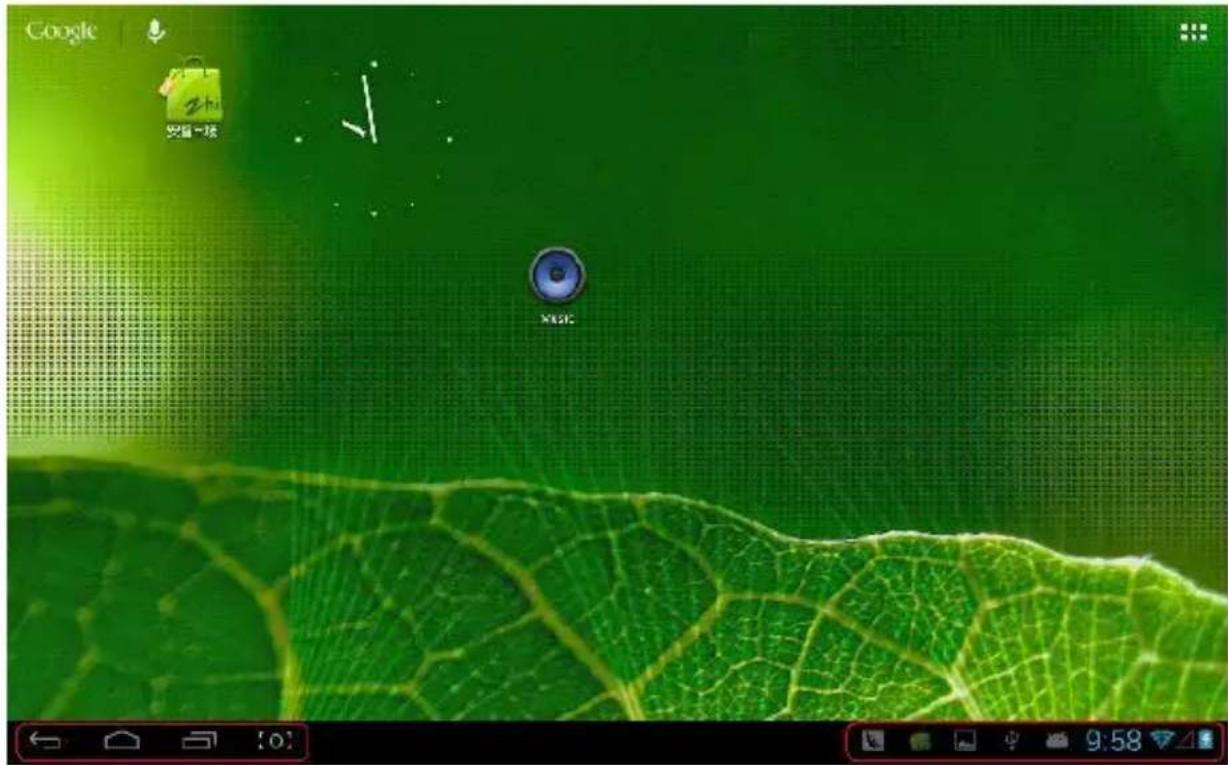
On the boom of screen status bar, there are four operaon icons on the le side:
| Icons | Implicaons | ||
| Back so key |  | Turn back to previous interface, its funcon is similar to BACK key | |
| Home so key |  | Back to main interface, its funcon is the same as HOME key. | |
| Shortcut key |  | List the common applicaons and its thumbnail, then click to enter directly. | |
| Screenshot key |  | Full screenshot | |
The icons on the right side display the current state informaon of MID:
| Icons | Implicaons | |
| USB connecng state |  | Display the USB connecng status |
| USB debugging state |  | Display whether it connected the USB debugger. |
SD card connecng state | It prompts when SD card was pulled out. | |
| Time |  | Display current me |
| wi |  | MID has join up the internet via Wi-Fi. the more the signal, the stronger the signal is. |
| Baery |  | Showing the volume of baery or charging state. |
Preparaon
ON/OFF/Standby
ON: Pressing Power key, the player displays startup picture and then enters to main interface
OFF: Long pressing Power buon 5s on main interface, system will prompt whether to power o, then click "YES", the MID will power o normally.
power saving standby: on power on state, press Power key to enter lock power saving standby state, then press Power key again to lighten the screen, unlock the screen according to the indicaon.
Power Reset
Press RESET over 8s to restart the player in case the player is crashed during playback.
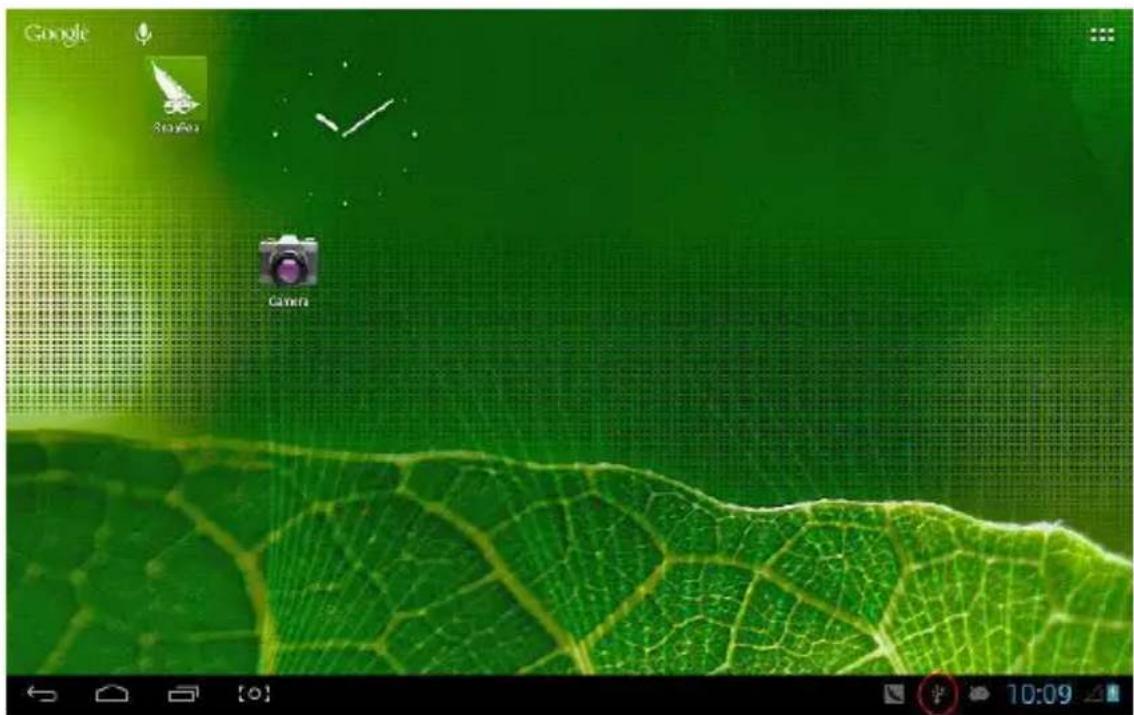
Connecng PC and Data Transmission
Connecng PC and MID by using USB cable, USB icon

appeared on the lower right side of status bar, it refers to USB has been connected. As follows:
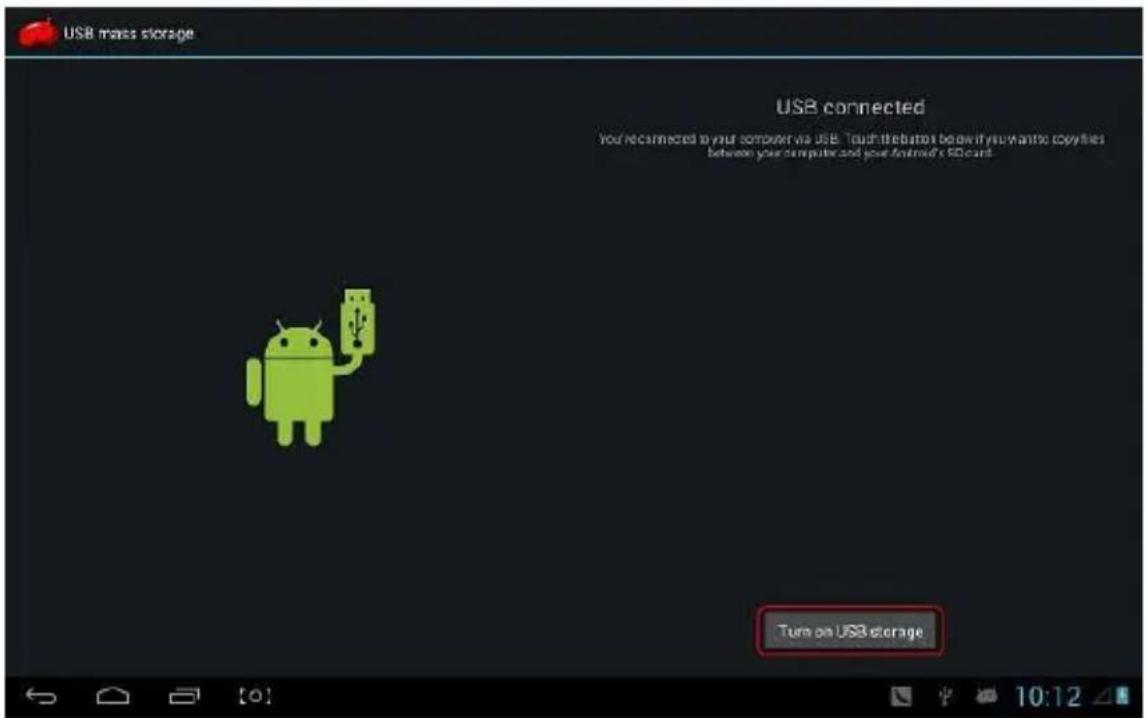
When the operaon menu appeared, click "USB connected":
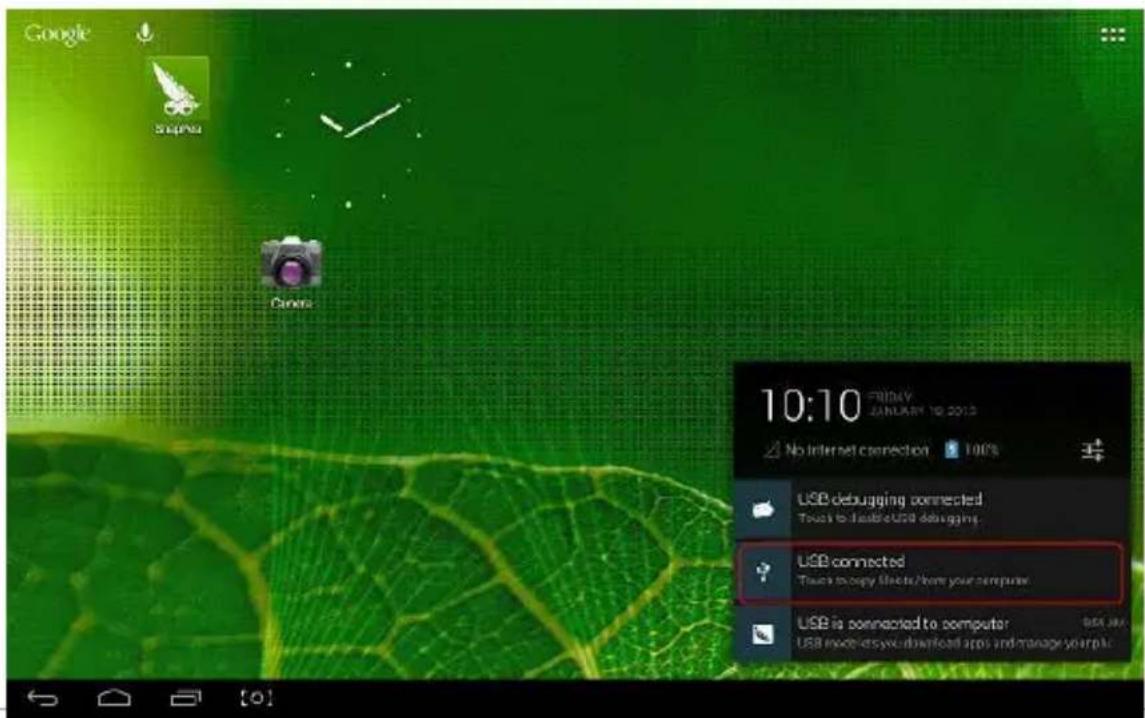
click "Turn on USB storage" on prompted window:
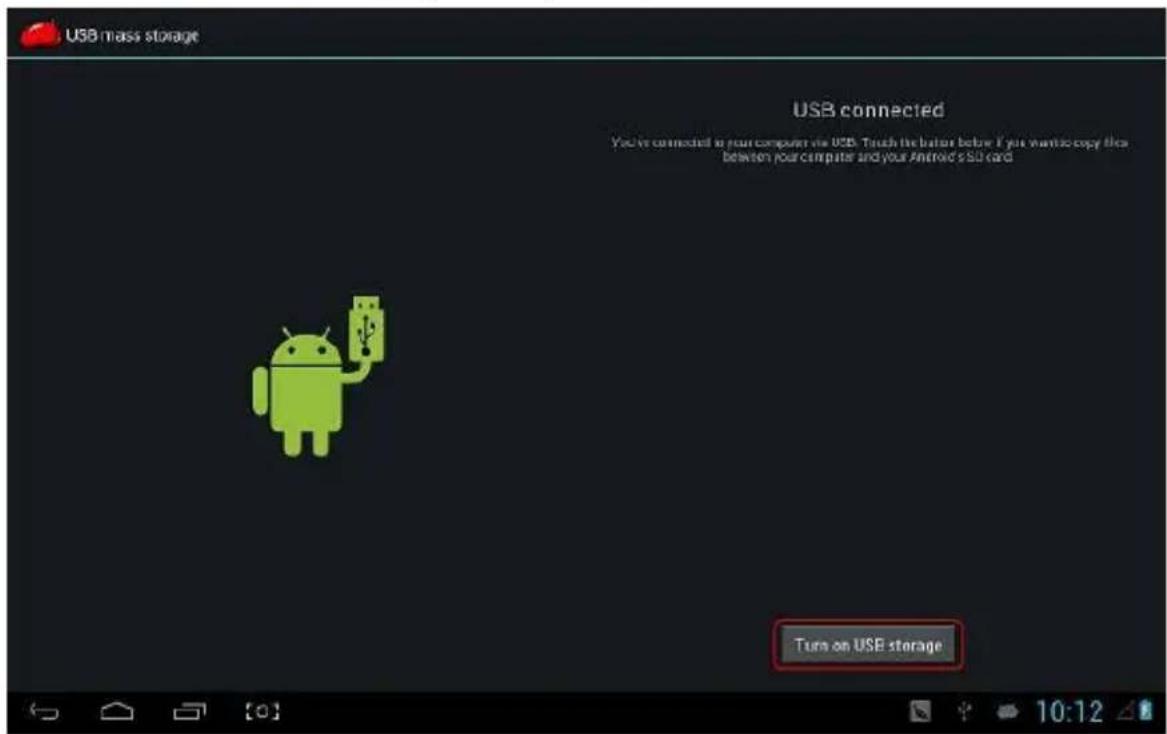
Then enter the data transmission state:
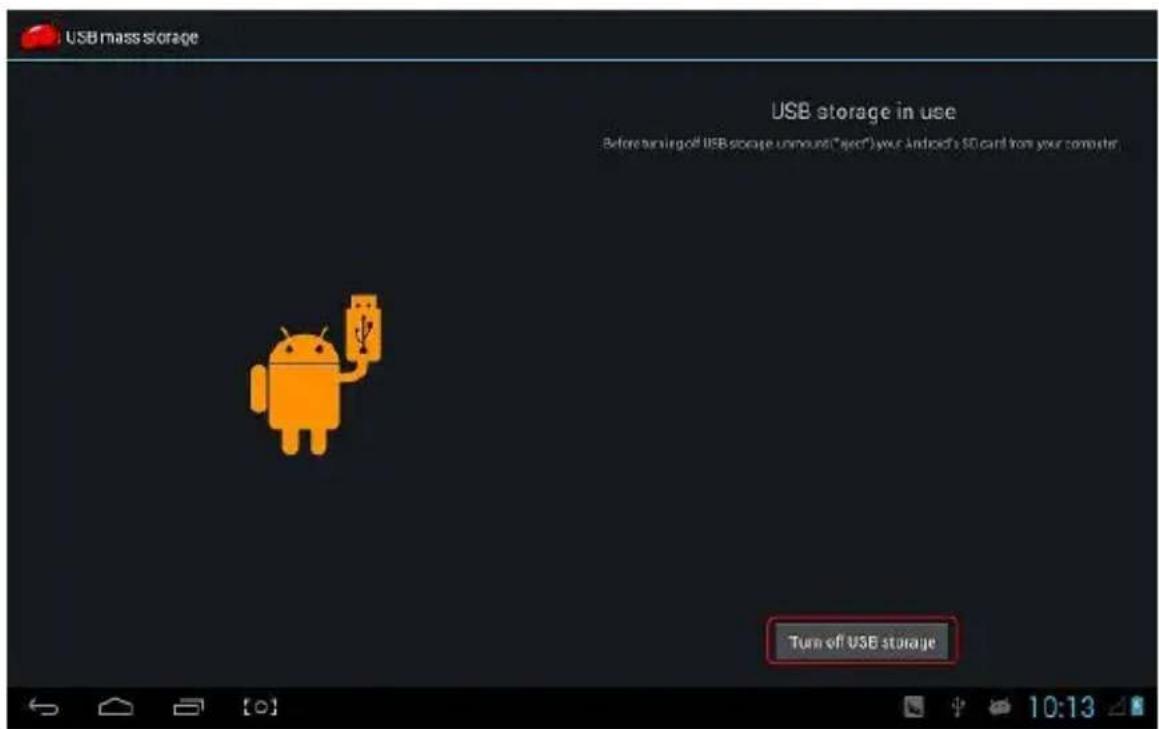
At this me, you can nd out MID storage card and SD card (if the card has been plugged in) in my computer list.
Aer data transmission, click “Turn o USB storage”, and then it will quit the data transmission state.
Charge
The player uses high volume Lilon. You can connect MID and aached adaptor in charging.
When the baery is low electricity, MID will appear prompted window, at this me, charge it mely.
Please charging half an hours at the rst use.
Use Micro SD card
Aer connecng the player and PC, you will nd two removable disks, the front one is the built-in-memory disk, the other one is Micro SD card disk. If there is no card plugged in, the second disk cannot be opened. The player supports up to 32GB Micro SD card expansion.
Plug-in: face the front side (the side with prints) Micro SD card upwards (the direcon in which the machine's display screen faces) and connect it with the machine by plugging it with slight force into the card slot of the machine. Now the machine can play the les in the card.
Plug-out: push Micro SD card inwards slightly, it will spring back for certain length, and then take it out.
Basic Funcon
Main screen
The default is lock; drag the lock icon to unlock according to indicaon.
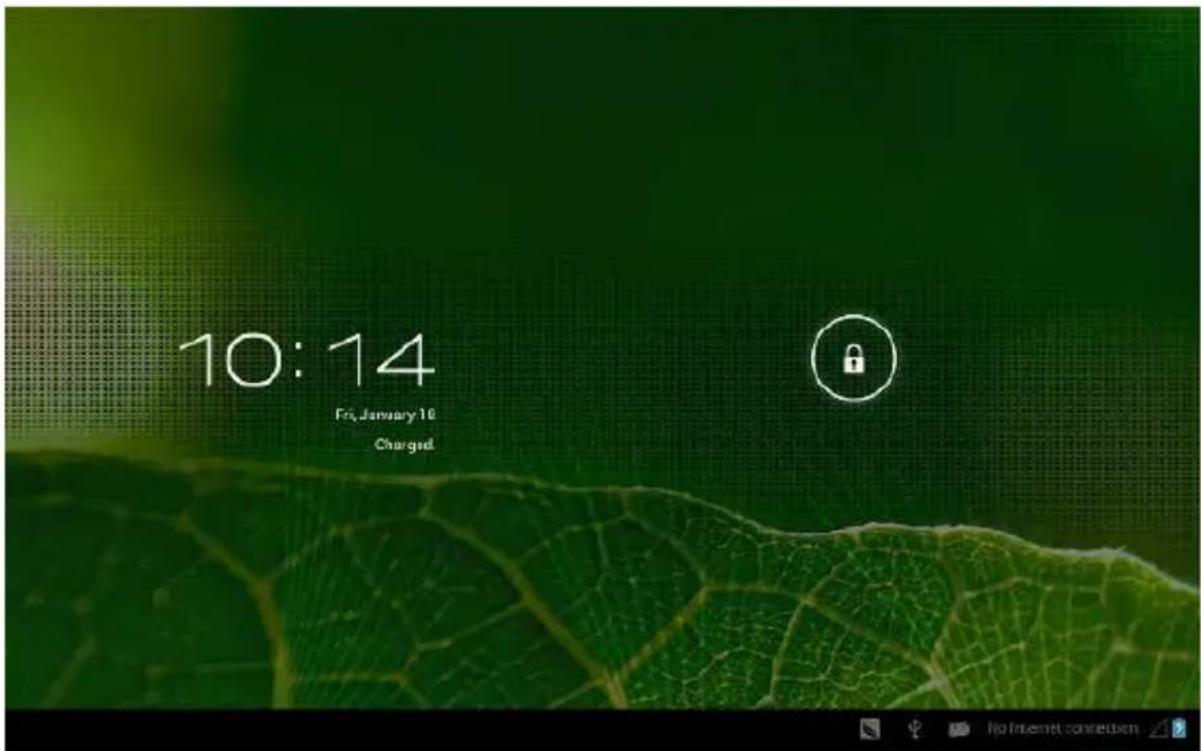
Switch to other main screen: slide the screen leward/rightward fast, it supports ve main screens altogether.
Switch to the first main screen: click the HOME icon on the status bar or HOME key on the player
Main menu
Click the icon on the upper right side of main screen, and the main menu popped up. All the applicaons listed on the main menu, you can drag the screen leward or rightward to check.
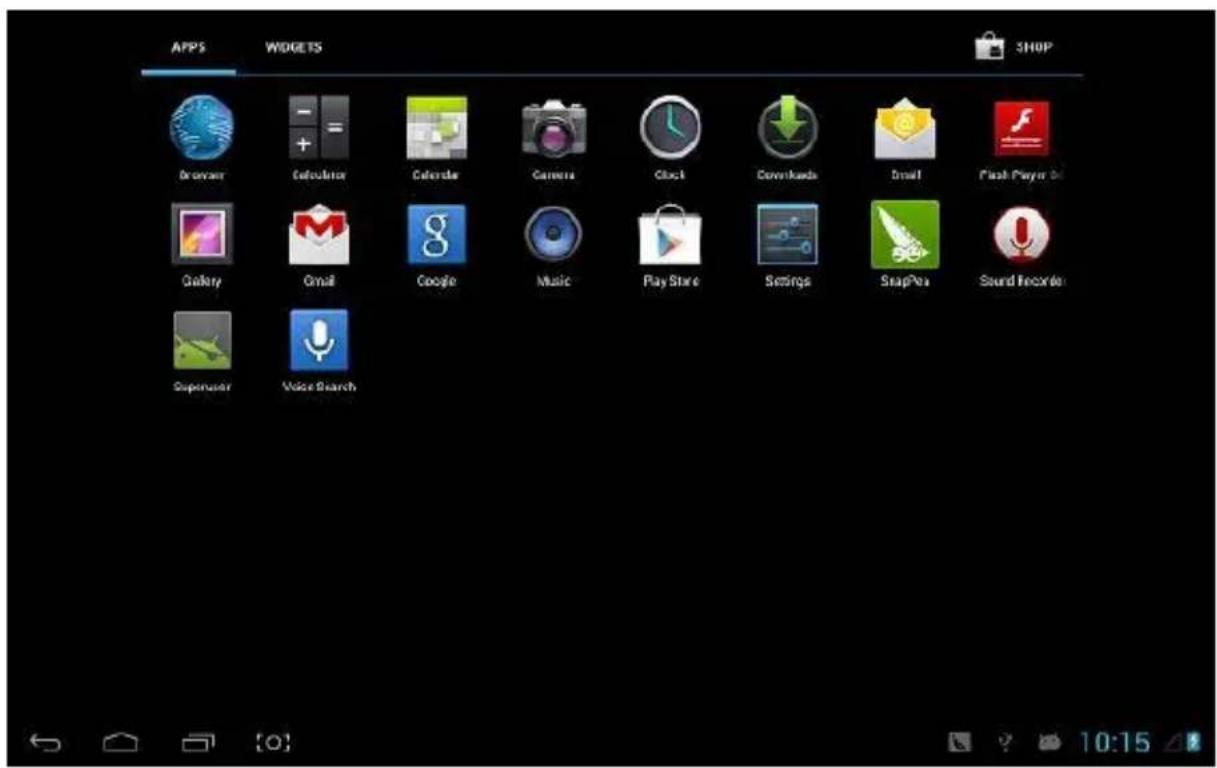
Open or switch the applicaons
Select a program, click its icon to open the applicaon. Click the HOME icon or HOME key on pad to return to the main screen.
User dened screen (main screen manage)
Long press a certain applicaon icon, it can realize the main screen funcon of adding shortcut to it.
Zoom in or zoom out
When you view the pictures、webpage、emails or maps, zoom in or zoom out the frame by the gesture is supported.
Watch the MID horizontal or vercal
MID supports to watch the screen horizontal or vercal when you turn it. And the contents will be changed, while turning, to adapt the display screen.
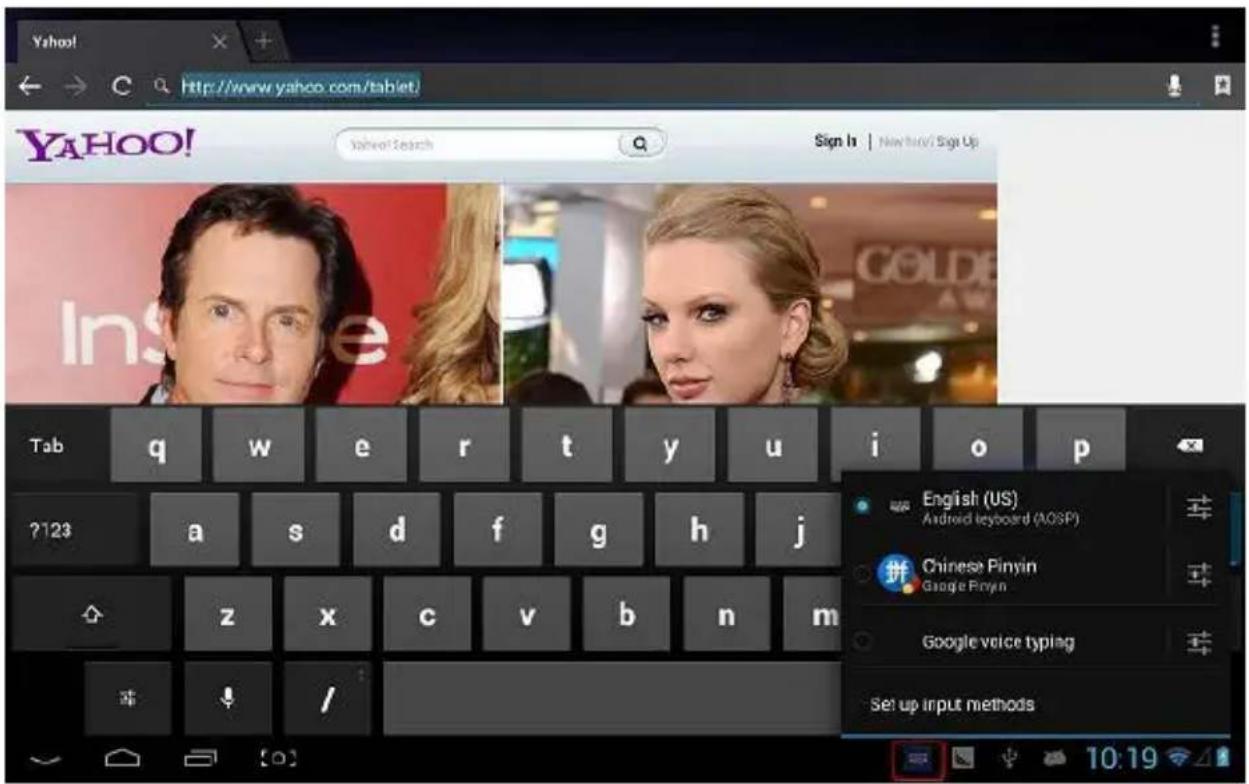
Input TXT
When you need to input, the keyboard will be appeared. And in this
me, on the lower right side of screen, so keyboard icon will appeared. When you click it, the selecng menu of input will appear.
As following gure:
Seng
Set applicaons, date and me, conguraon network conneccon and etc.
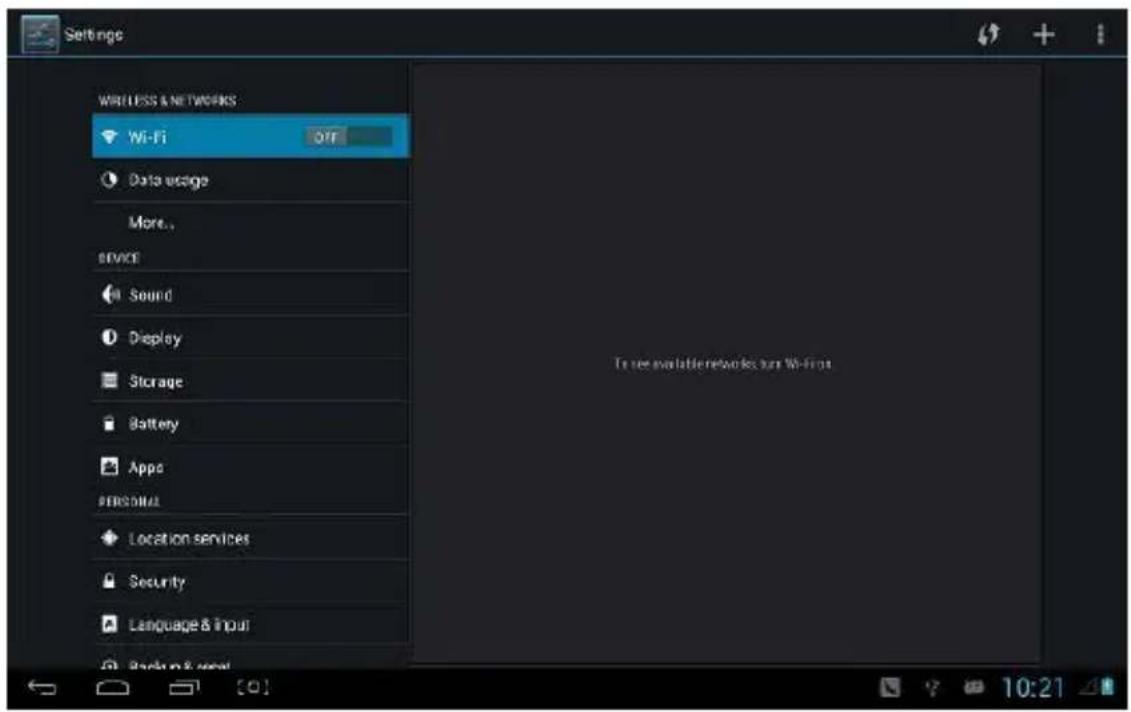
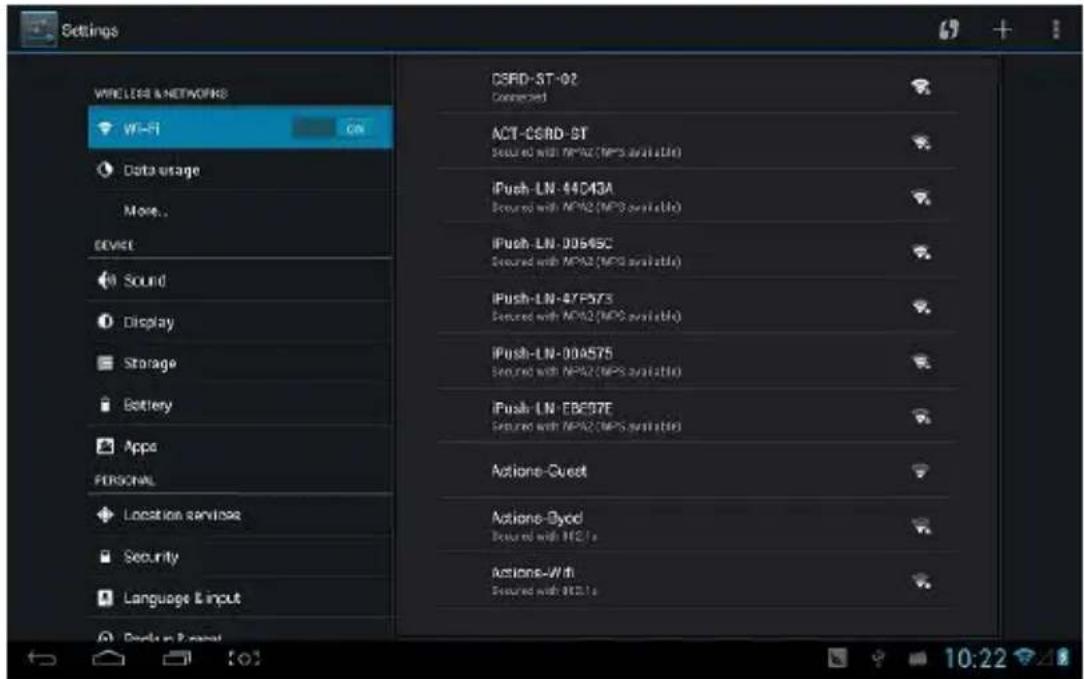
Wi
It determines whether you connect internet by Wi-Fi.
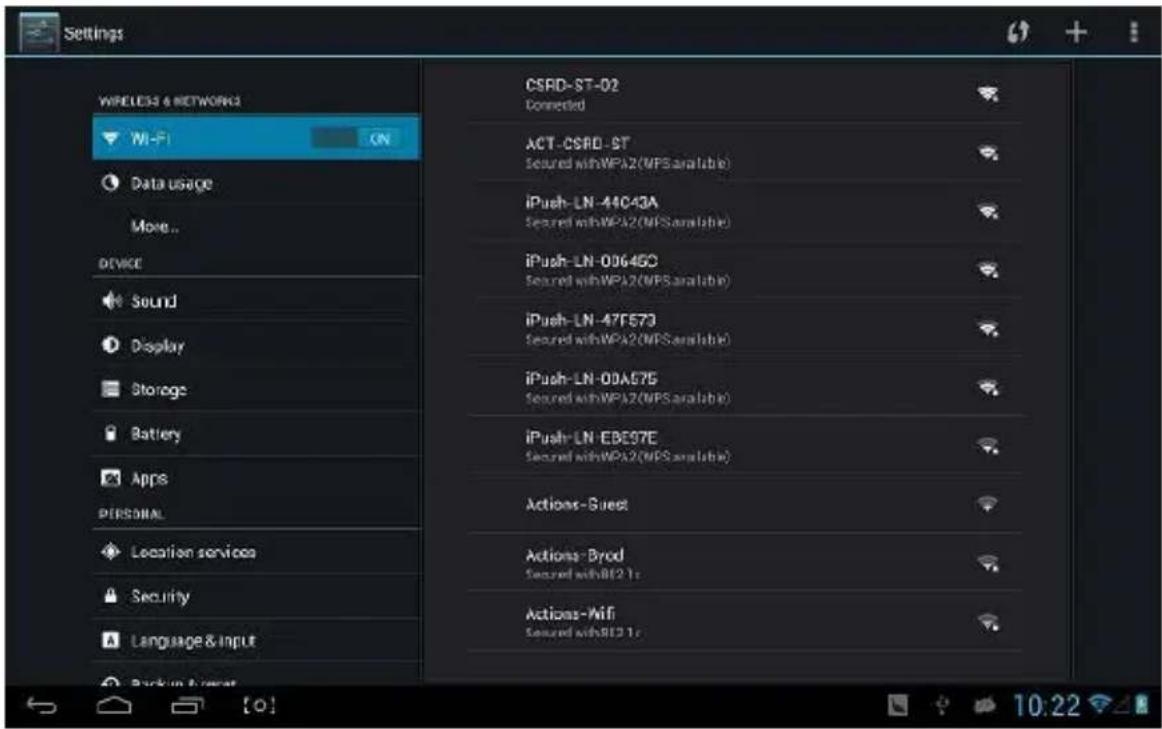
Wi Introducon:
(1) Join Wi-Fi network: Click “open”, MID detects the network within communicaon range for a while, then choosing a network, if it needs, inpung password.
(2) Aer MID connects to some Wi-Fi network, the right side of
screen status bar signal vii display intensity, the more the cell is, the stronger the signal is.
(3) Once joining a Wi-Fi network manually, when the network is within communicaon range, MID will join this network automacally.
(4) If there are mulple networks used before are within communicaon range, then MID will join the last used network.
(5) click "OFF" to turn o the Wi-Fi.
Wi advanced seng:

Click the icon upper right side, choose "Advanced" on the popped up menu:
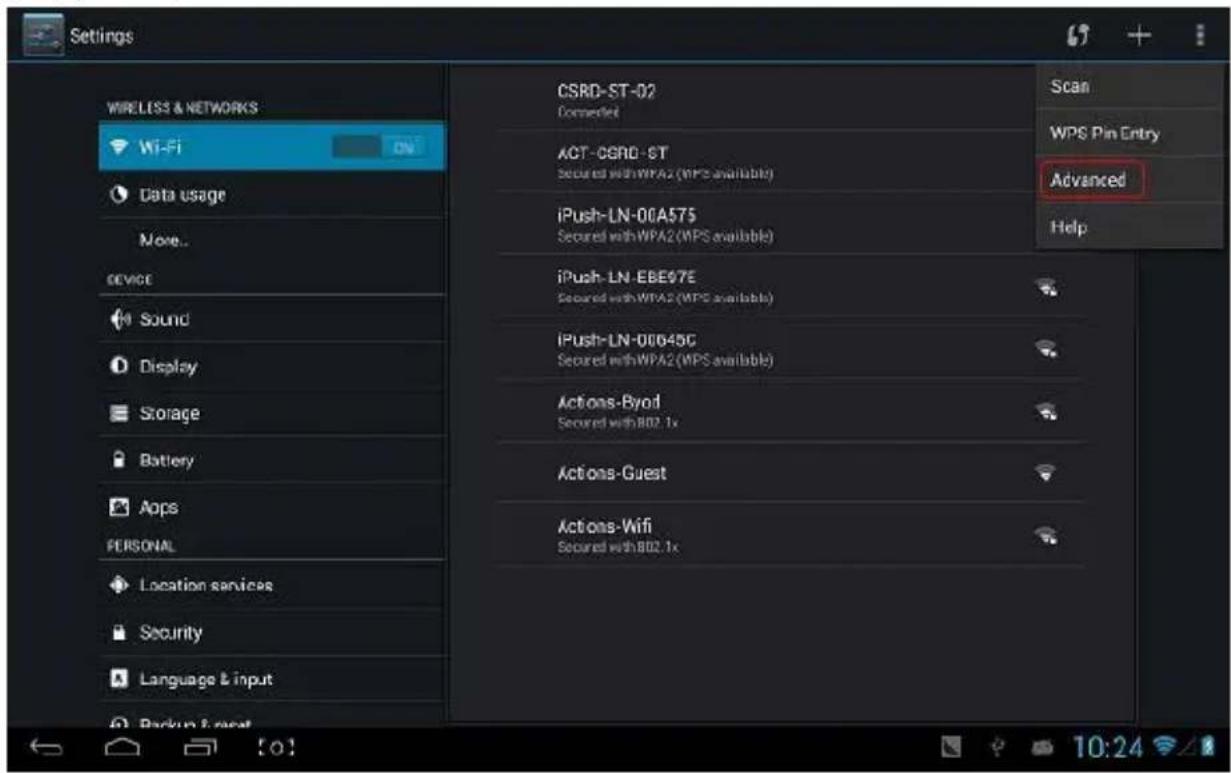
Enter the following interface:
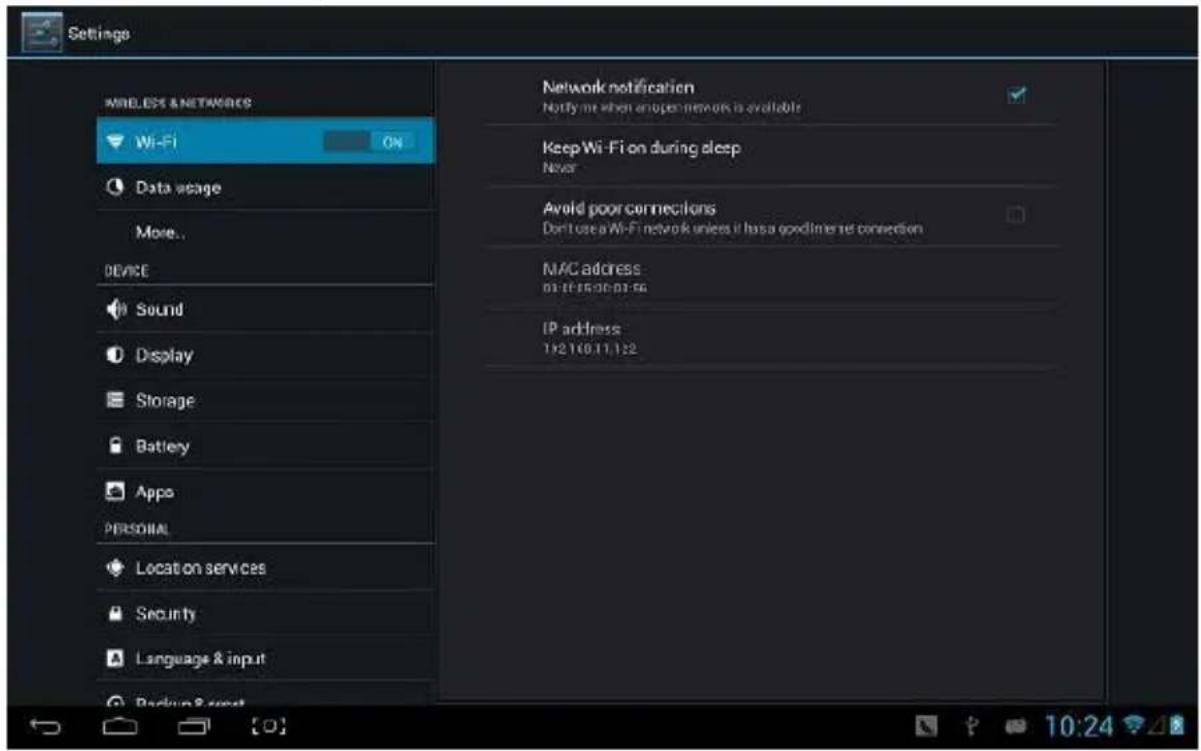
Keep the wi connected during sleep:
1) always: It means the wi is sll on during sleep.
2) only when plugged in: It means only for charging state during sleep, the wi will keep on, otherwise it will shutdown automacally.
3) never: It means during sleep, wi will open all the me, it won't shutdown automacally.
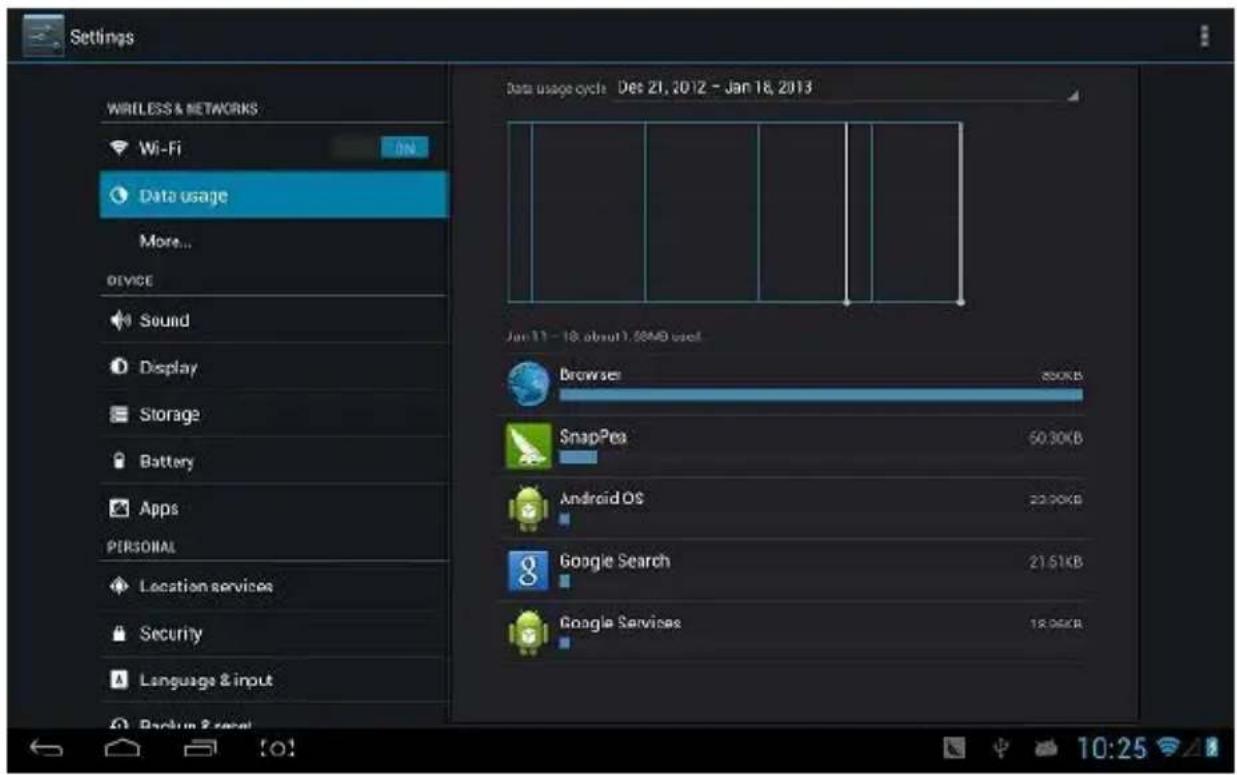
Trac Usage Informaon
Display network trac informaon.
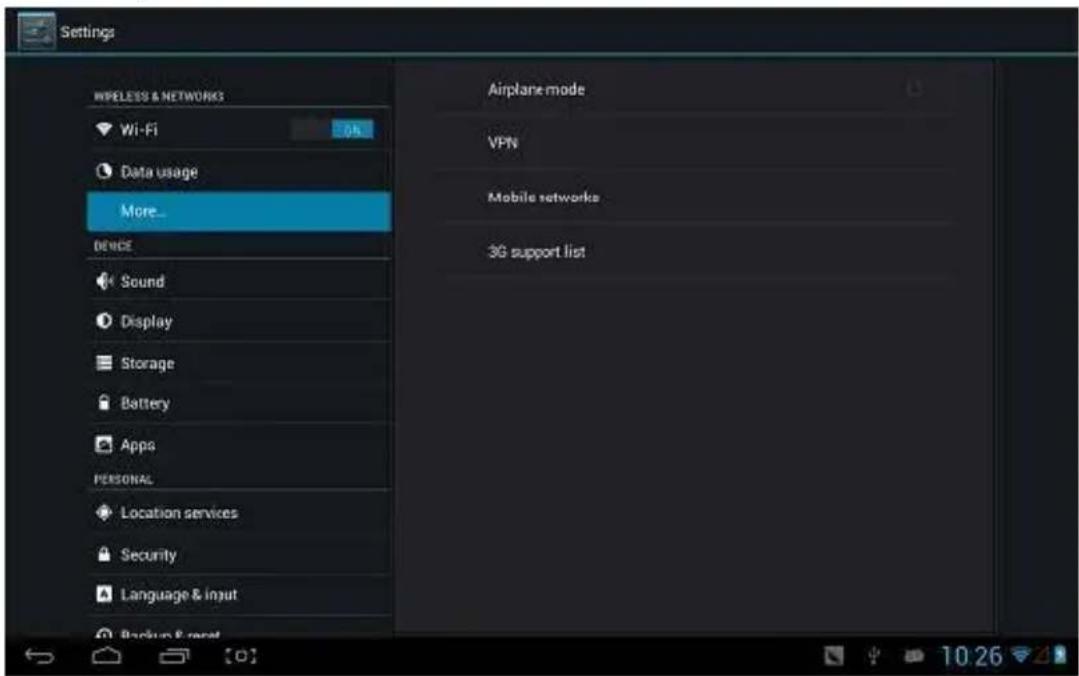
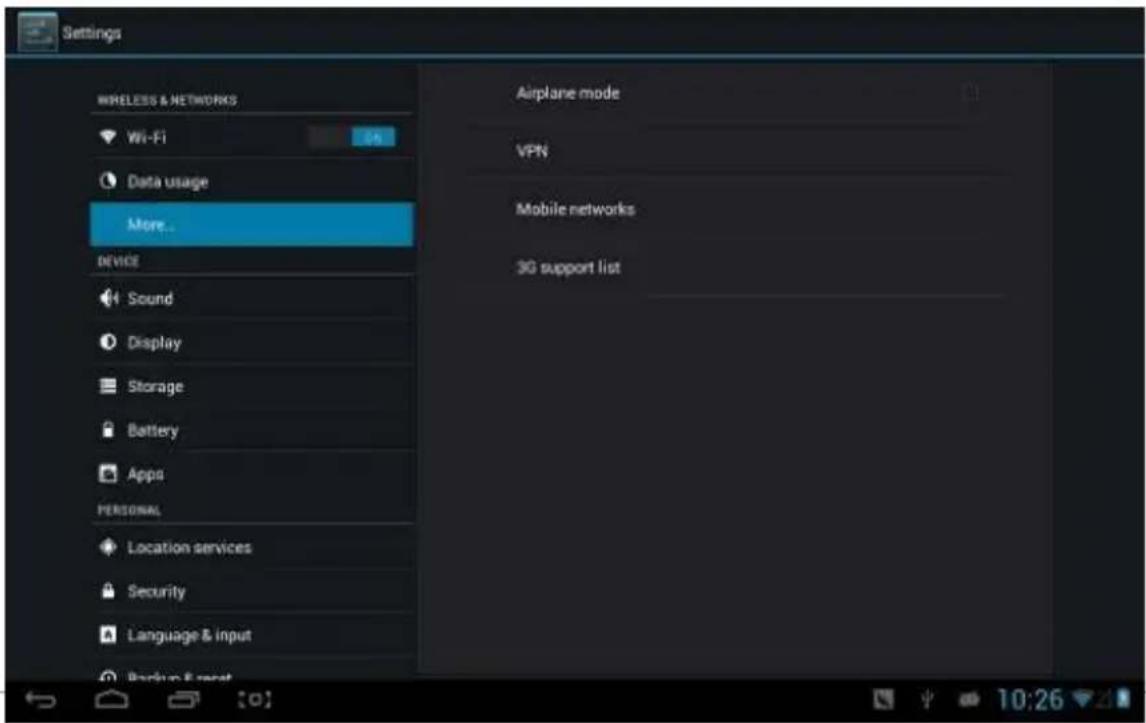
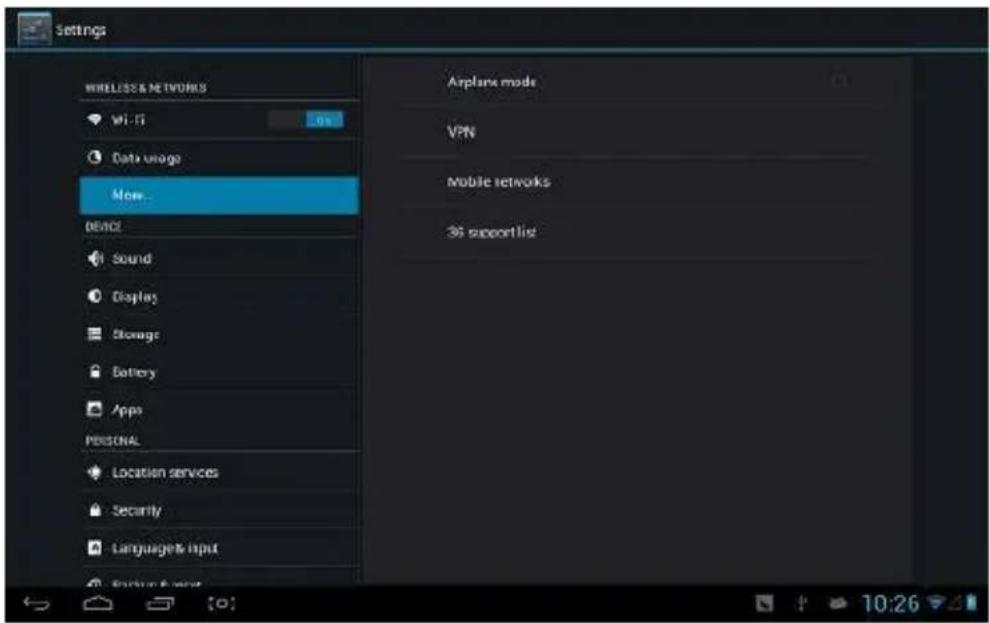
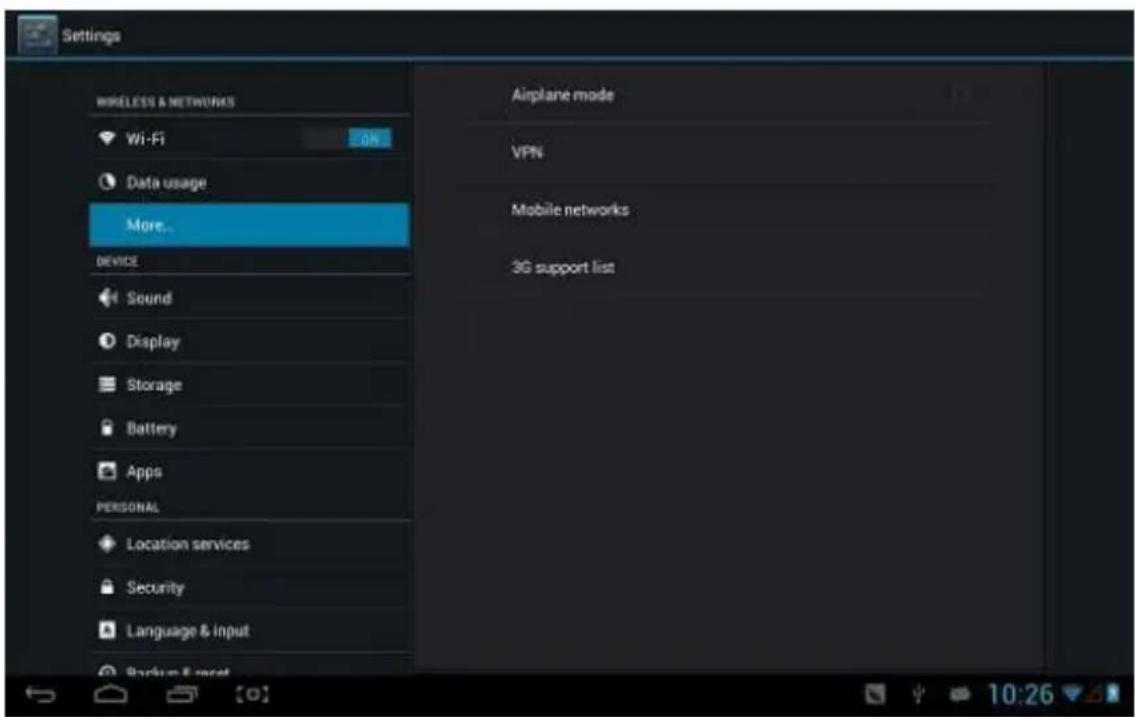
More
Set "Airplane Mode"、"VPN"、"Mobile network" and etc.
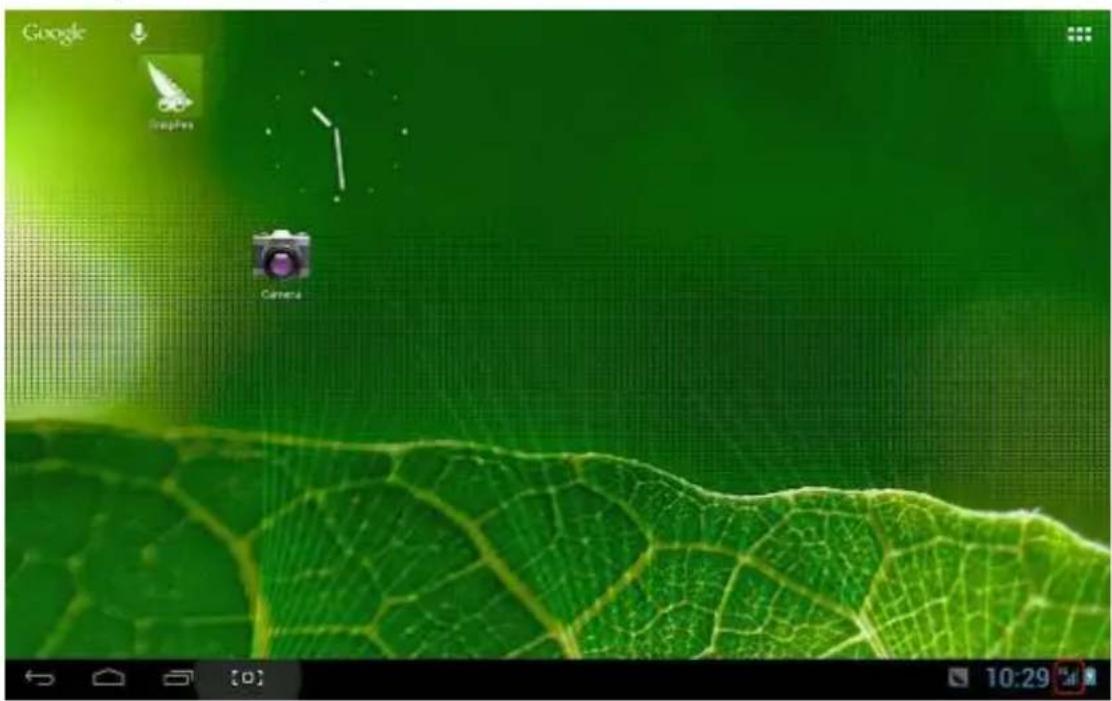
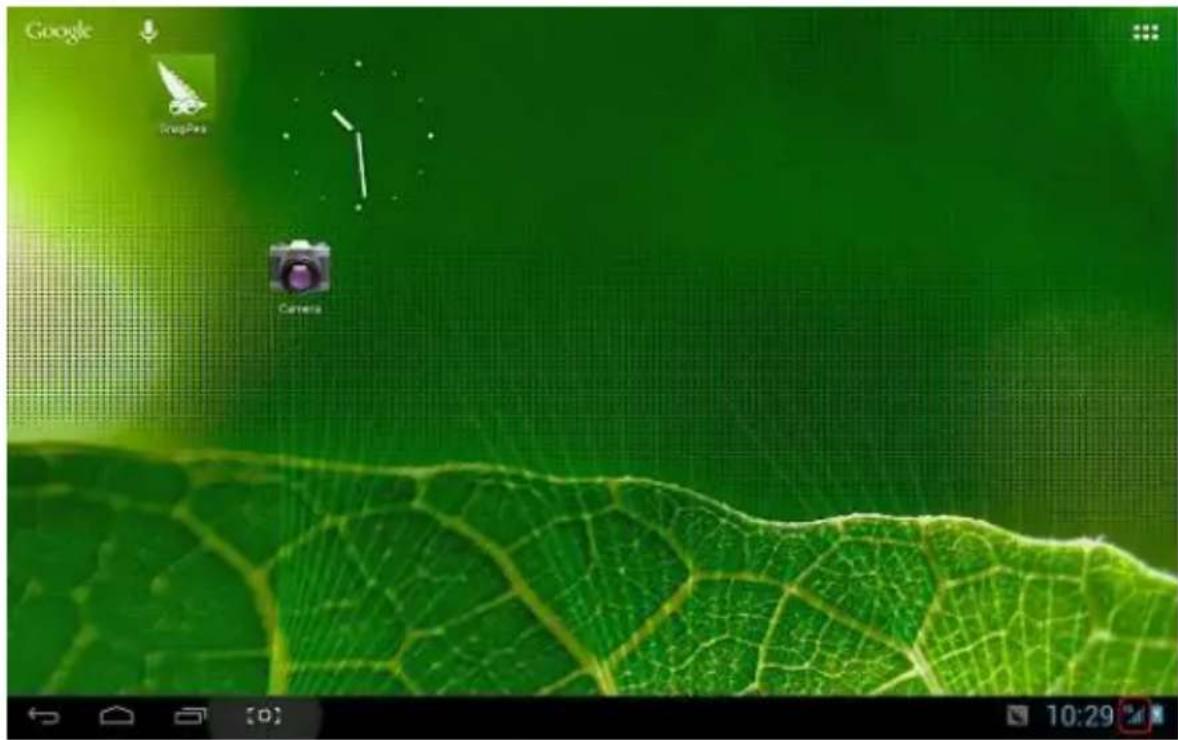
If you need to surf the Internet by 3G, rst you need to shuto WIFI and Ethernet (if it opened), then plug the 3G dongle with SIM card to MID's USB port. The MID will link network automacally, aer linked, the 3G logo(as follow screenshot) will appear on system menu, all linked process may last 1min.
natural_image
Digital photo of a green leaf with visible vein patterns and a camera icon, no text or symbols present.Sound
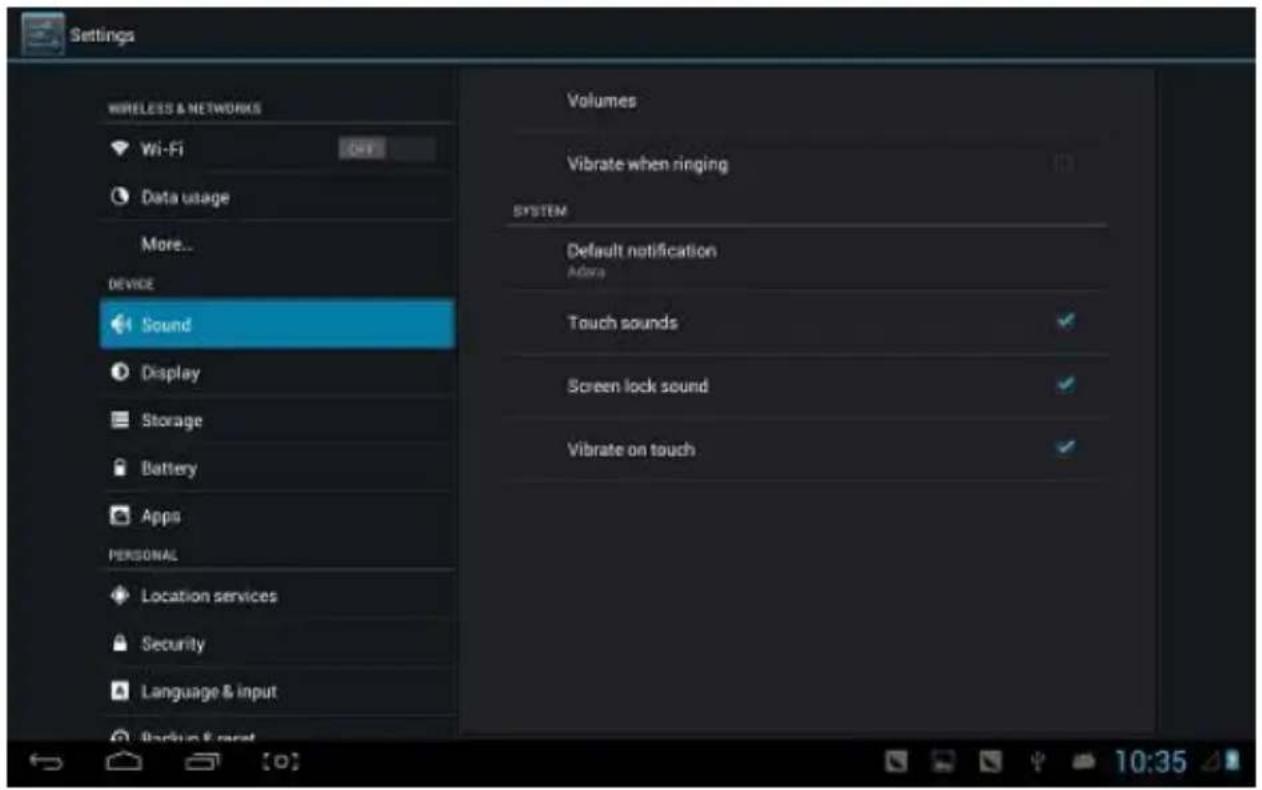
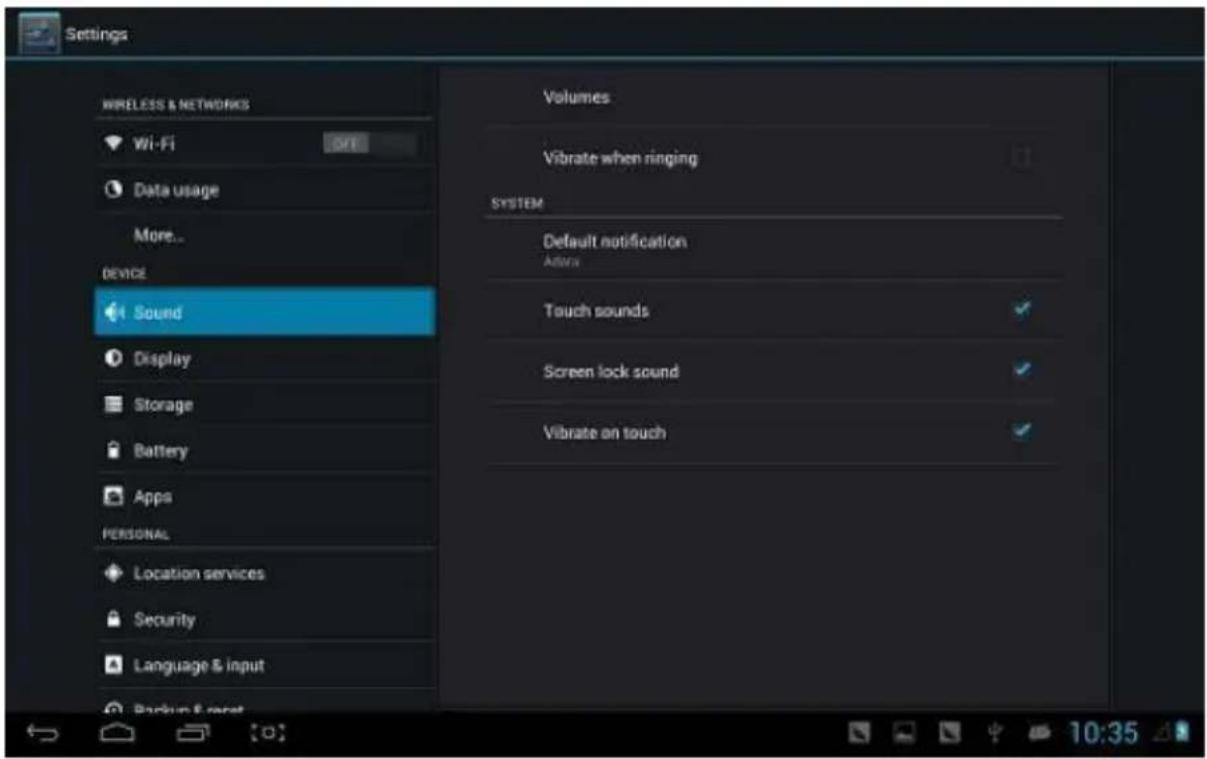
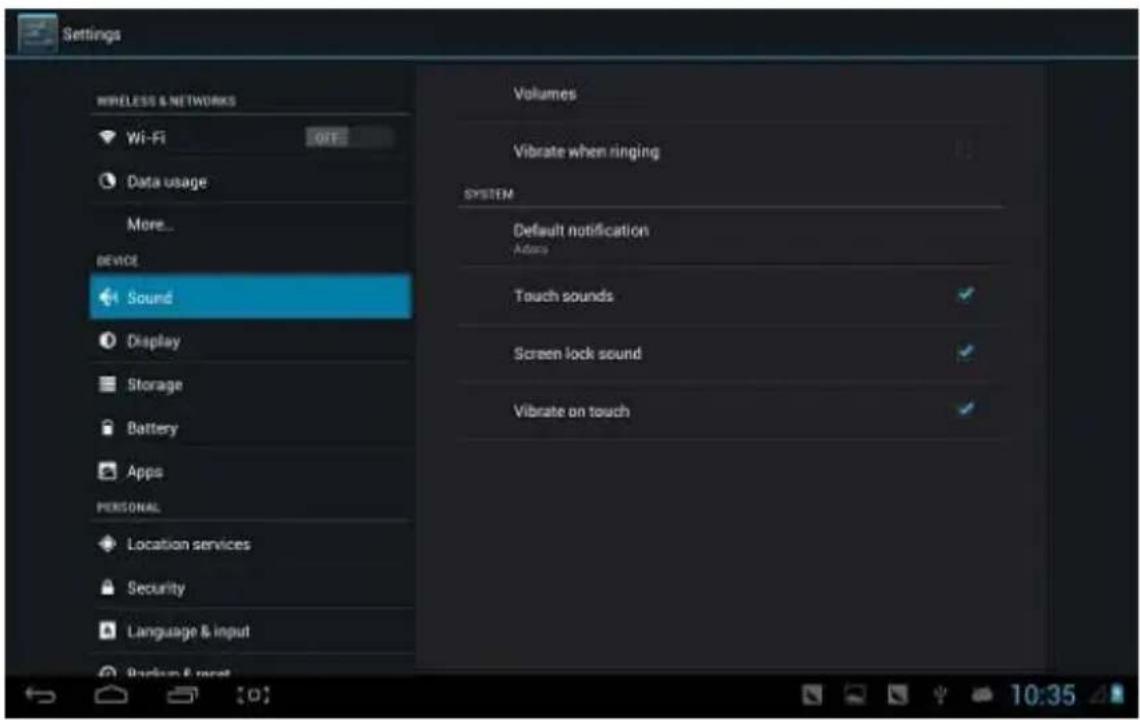
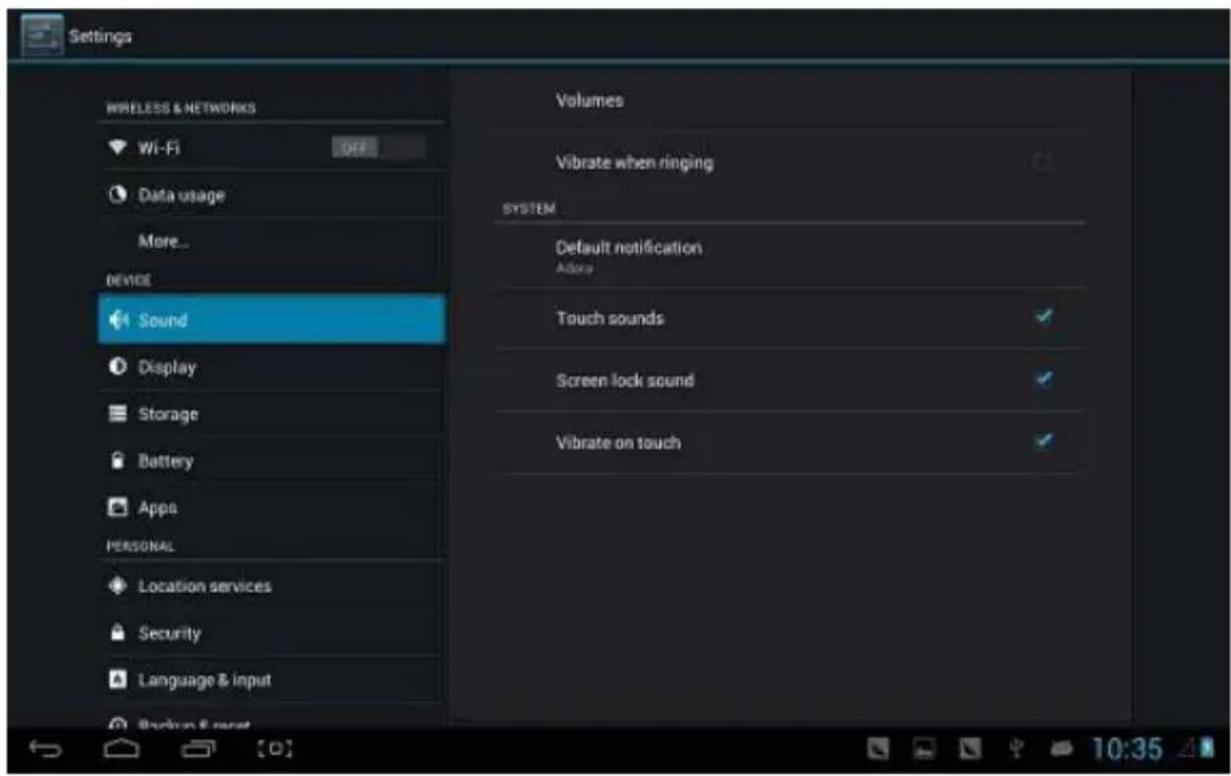
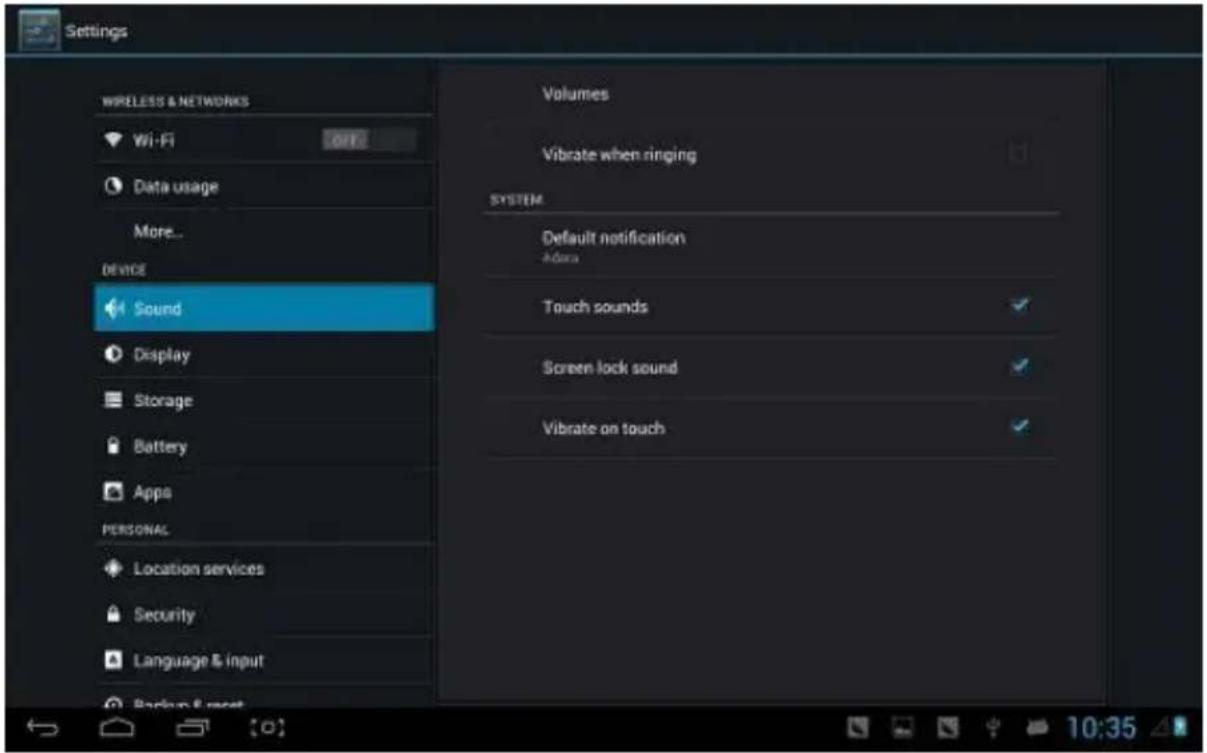
Volume: set the volume of music、video、game and other medias. And also the volume of seng nocaons、alarm clock.
Ringtone and nocaon: choose the ringtone and nocaon warning tone (prompt tone of sending system nocaon、operaon dial、plugging in or out the SD card).
【Note】: nocaon sound 、 operaon selecon、SD card nocaon and etc are used in mobile phone system, but in MID device, they are default.
Touch sounds: Whether sending out prompt tone when you touch it.
Screen lock sound: Whether sending out prompt tone when you lock the screen.
Display
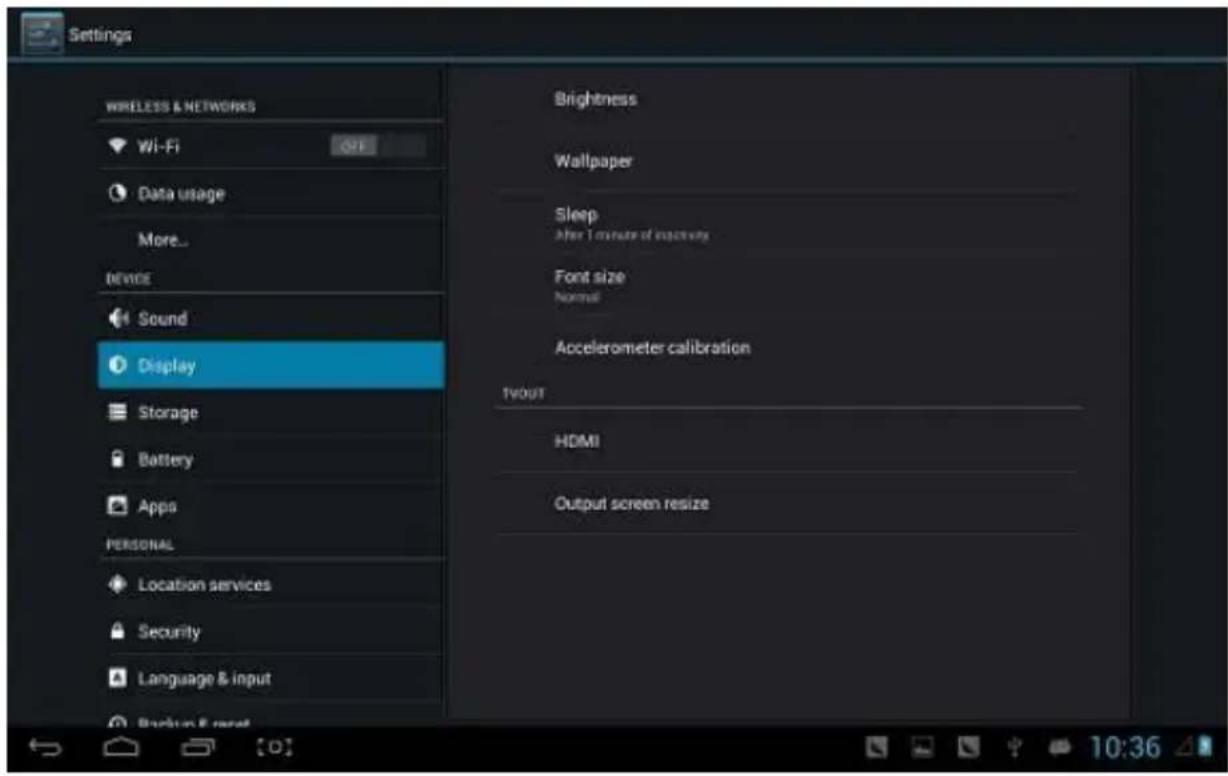
Brightness: set the brightness of screen.
Wallpaper: we can choose wallpaper from the live wallpaper、picture library and normal wallpaper.
Sleep: Seng that if there is no operaon in a span (15s/30s/1min/2min/5min/10min/30min), MID will sleep automacally, and the display backlight will be auto o to save baery.
Font size: seng displayed font size(small/normal/big/oversize).
Accelerometer calibraon: if you nd the accelerometer has some deviaon, you can calibrate it from here.
【Note】: Some games which are related to accelerometer, if you and out the accelerometer become invalid, you can check whether
there is 📄 on the le lower side of screen. If there is, then click it, popped up two opons “stretch to ll in the screen” and “zoom to ll in the screen”. Then you can choose the mode adapt to game.
Baery
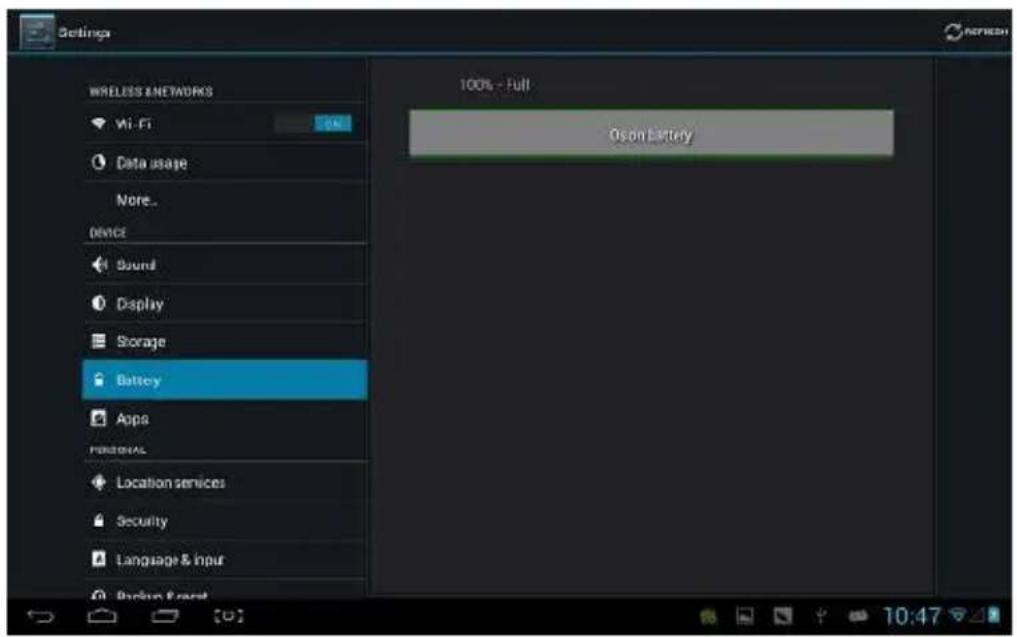
Showing the informaon about spare capacity of baery
Applicaons
You can check and take operaon in intrasystem applicaons.
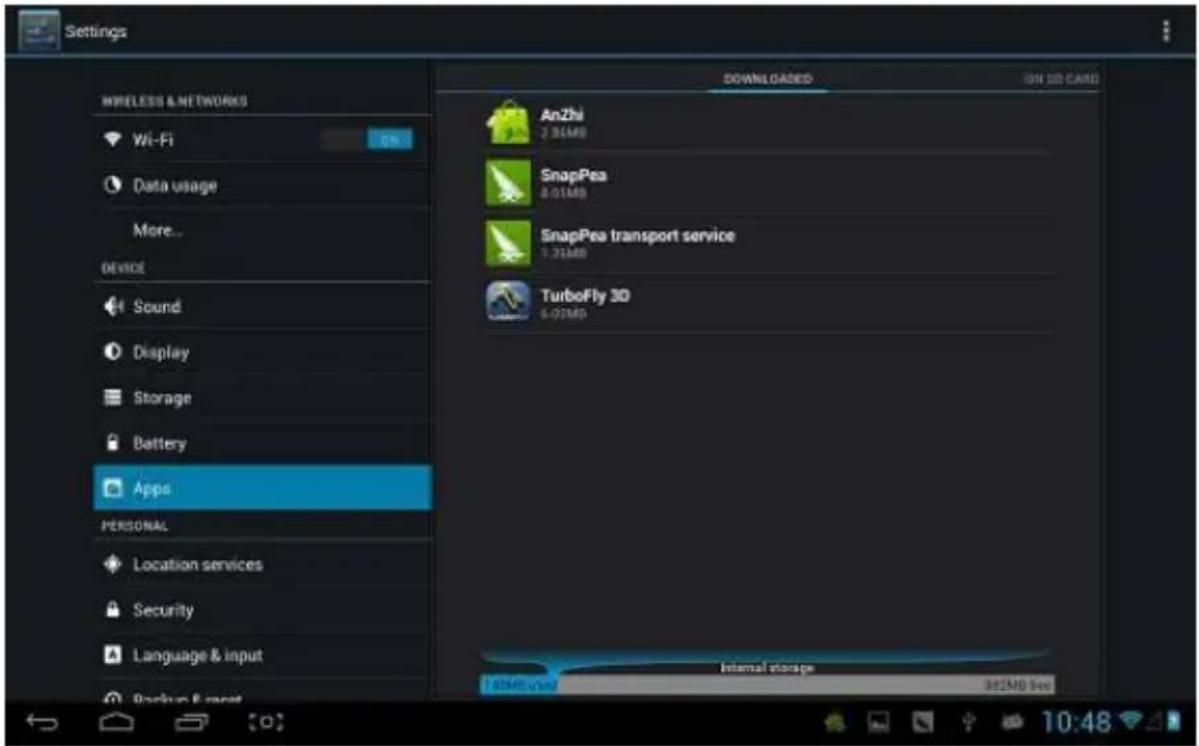
Downloaded: List the informaon of downloaded applicaons
On SD card: List the storage apps informaon of SD card.
Running: List the running apps informaon. Clicking some running program, you can check its progress and service further.
All: List all applicaon informaon of android. Click a certain program, then you can check informaon of its version number、storage space、cache size、access right and etc.
Locaon services
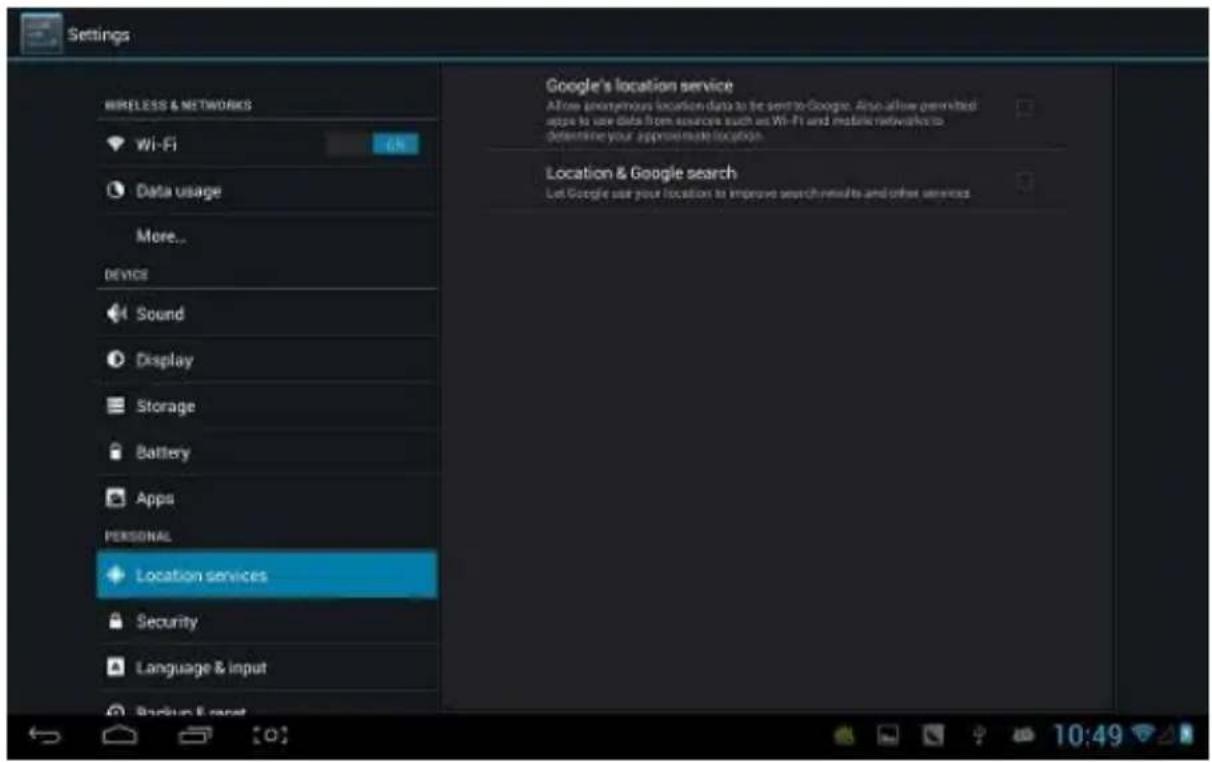
Google's locaon service: Let apps use data from sources such as Wi-Fi and mobile networks to determine your approximate locaon.
Locaon and Google search: Let Google use your locaon to improve search results and other services.
Security
![Settings WIRELESS & NETWORKS Wi-Fi Data usage More... DEVICE Sound Display Storage Battery Apps PERSONAL Location services Security Language & input Back menu reset SCREEN SECURITY Screen lock Slide Owner info SIM CARD LOCK Use up SIM card lock PASSWORDS Make passwords visible DEVICE ADMINISTRATION Device administrators View or deactivate device administrators Unknown sources Allow installation of apps from unknown sources CREDENTIAL STORAGE Trusted credentials Display trusted CA certificates Install from SD card Install certificates from SD card [0] 10:49](/content/2026/05/1003923/images/184ff4dd774ed83541cf7587467590dcf6b44661add1fc2300ac849159fc13ca.jpg)
Screen security:
(1) screen lock: Choose the unlock mode when screen lock.
(2) owner informaon: Set the owner informaon which displayed when the screen lock.
(3) passwords: Whether display the characters when inpung password.
Device administraon:
(1) Device administrator: View or deacvate device administrators.
(2) Unknown sources: Whether this opon seng permits installing the applicaons which don't purchase from Android market.
Credenal storage:
(1) Trusted credenals: Display condenal CA cercaon.
(2) Install from SD card: Install cercaon from SD card.
(3) Clear evidence: Delete all cercaons.
Language and input
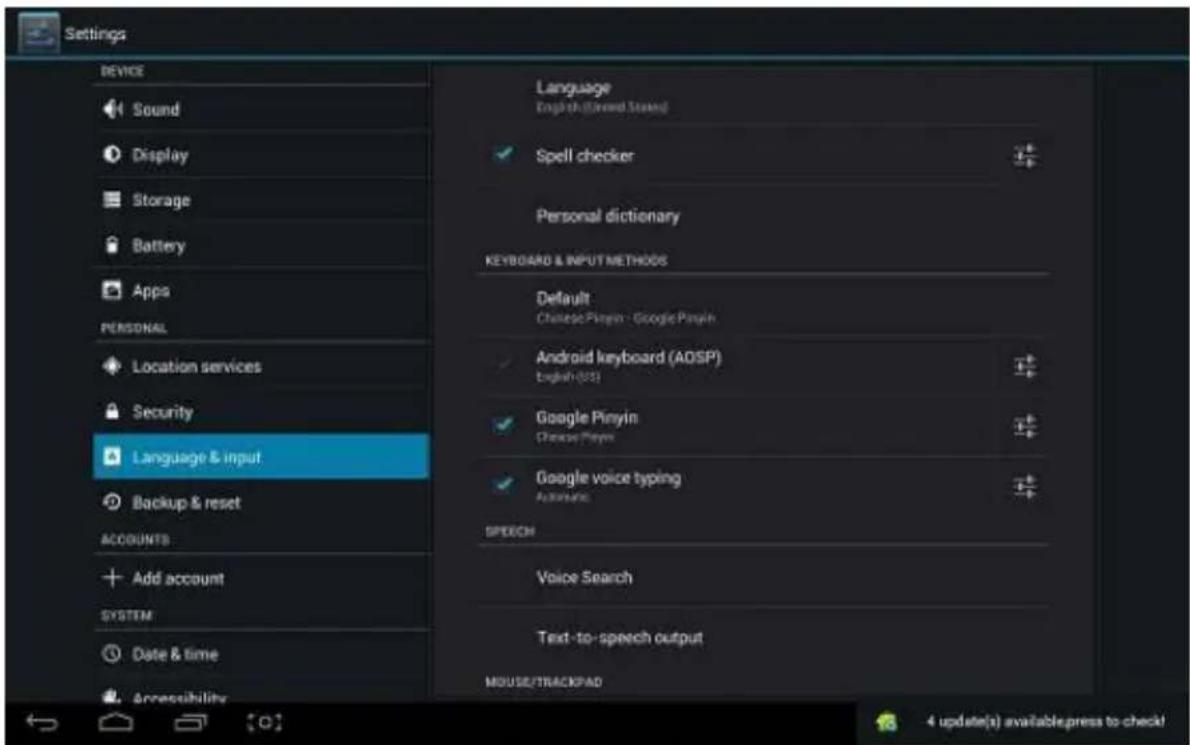
Language: Choose the language which screen displayed.
Spelling checker: Input characters whether open correcon.
Personal diconary: Click the “ADD” buon on the upper right side of screen; you can add vocabularies to create your own diconary.
Keyboard and input: this opon list the input installed in MID, you can do some related sengs to each input.
Backup and reset
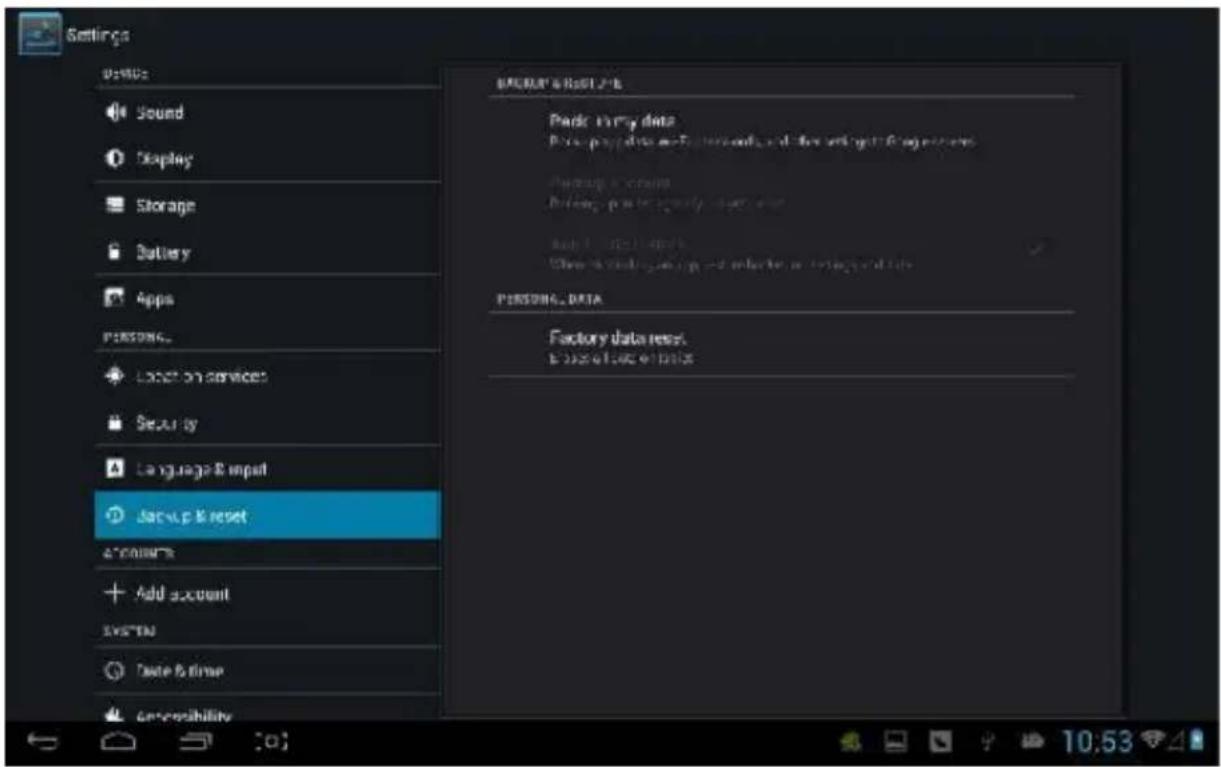
Backup and reset:
(1) Backup my data: Back up app data, Wi-Fi passwords, and other sengs to Google servers.
(2) Backup account: Back up to debug-only private cache.
(3) Automac restore: When reinstalling an app, restore backed up sengs and data.
Personal data:
Factory data reset: Erase all data paron; clear all user data in tablet.
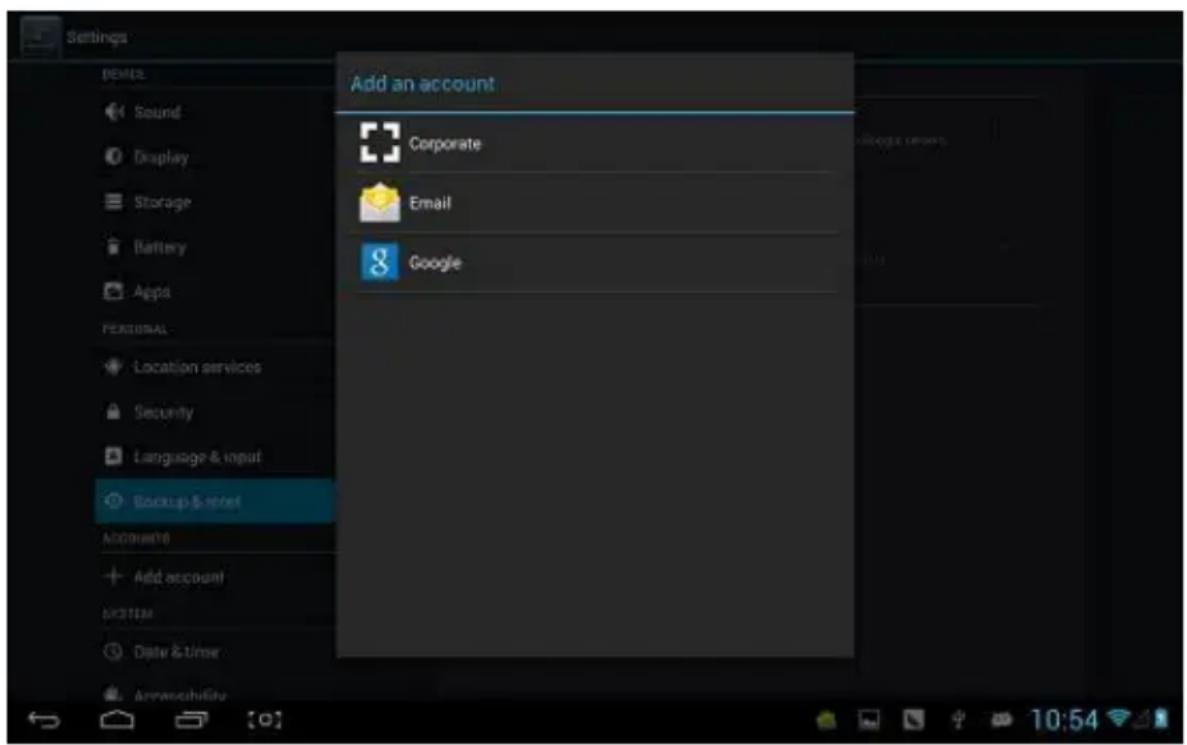
Add accounts
Manage accounts and synchronize informaon. Clicking “ADD an ACCOUNT” on the upper right side of screen, you can add Google account、company account、or email account.
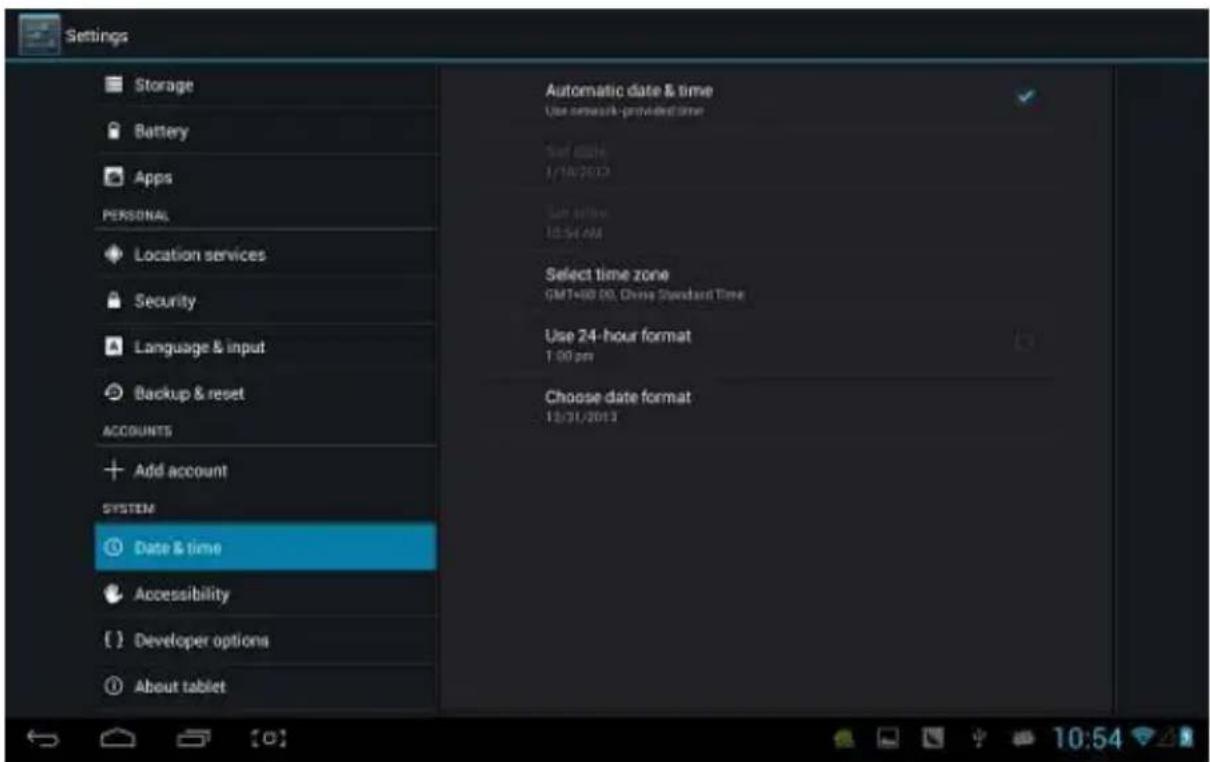
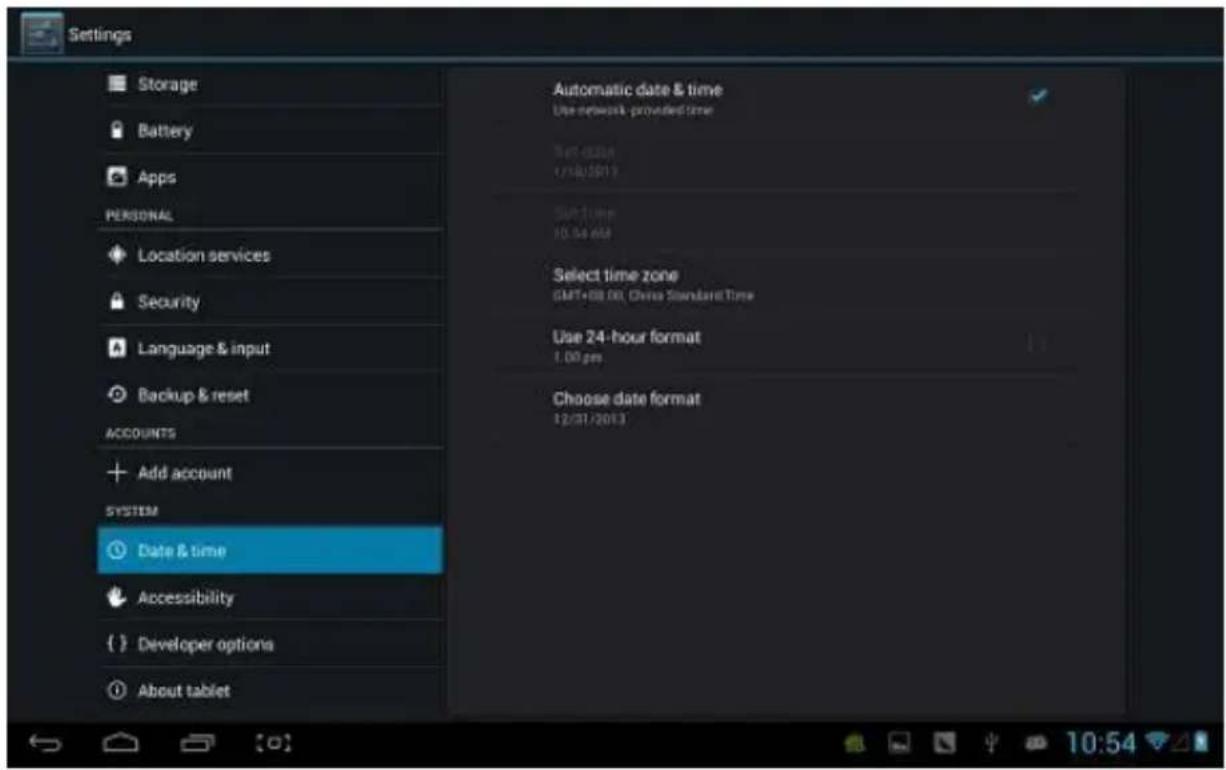
Date and me
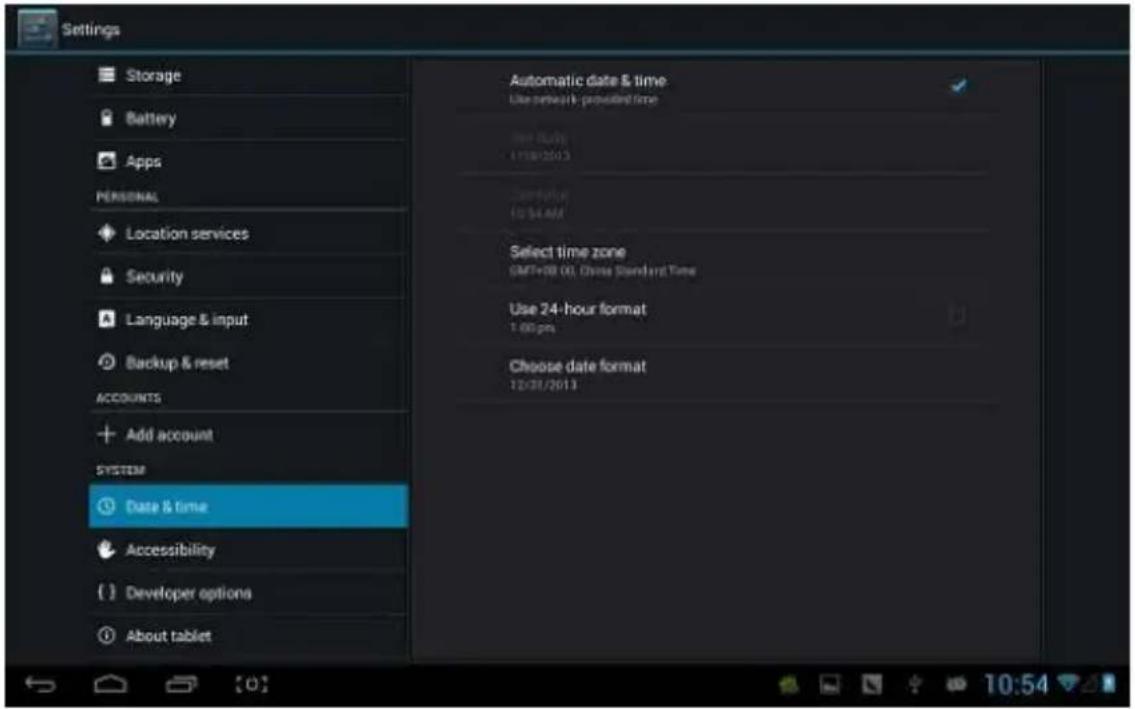
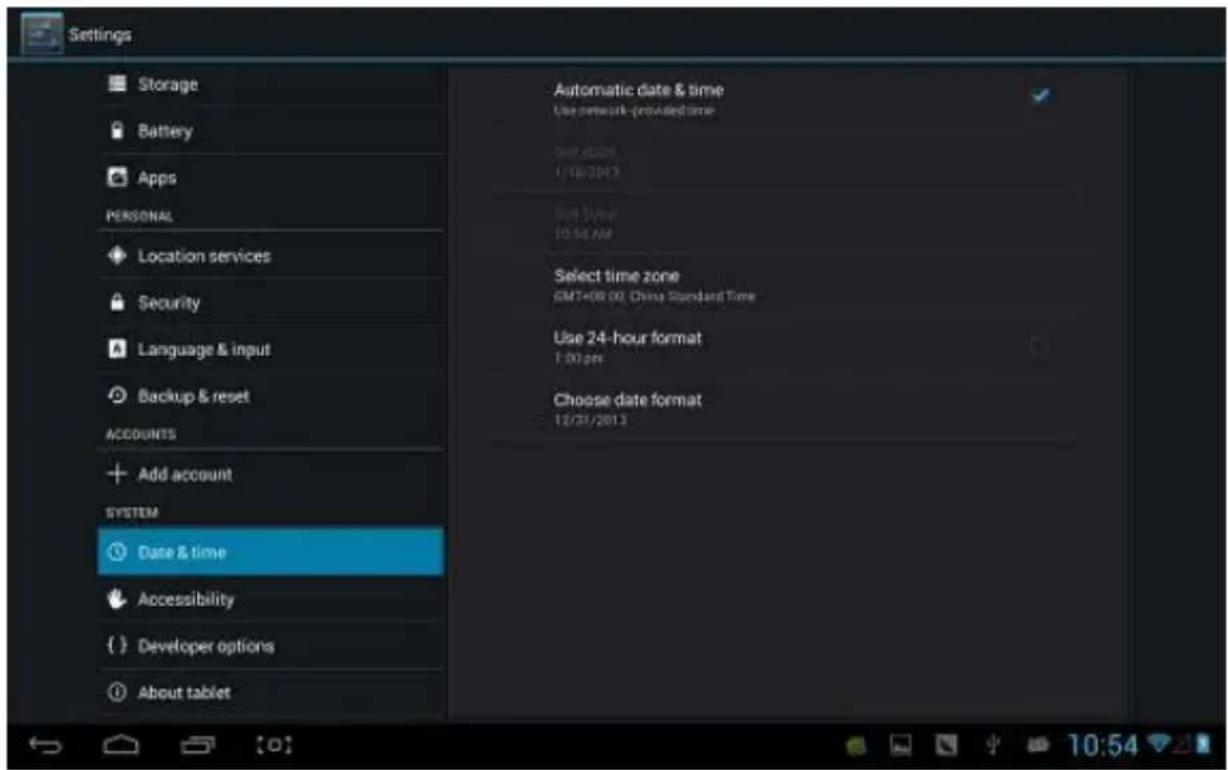
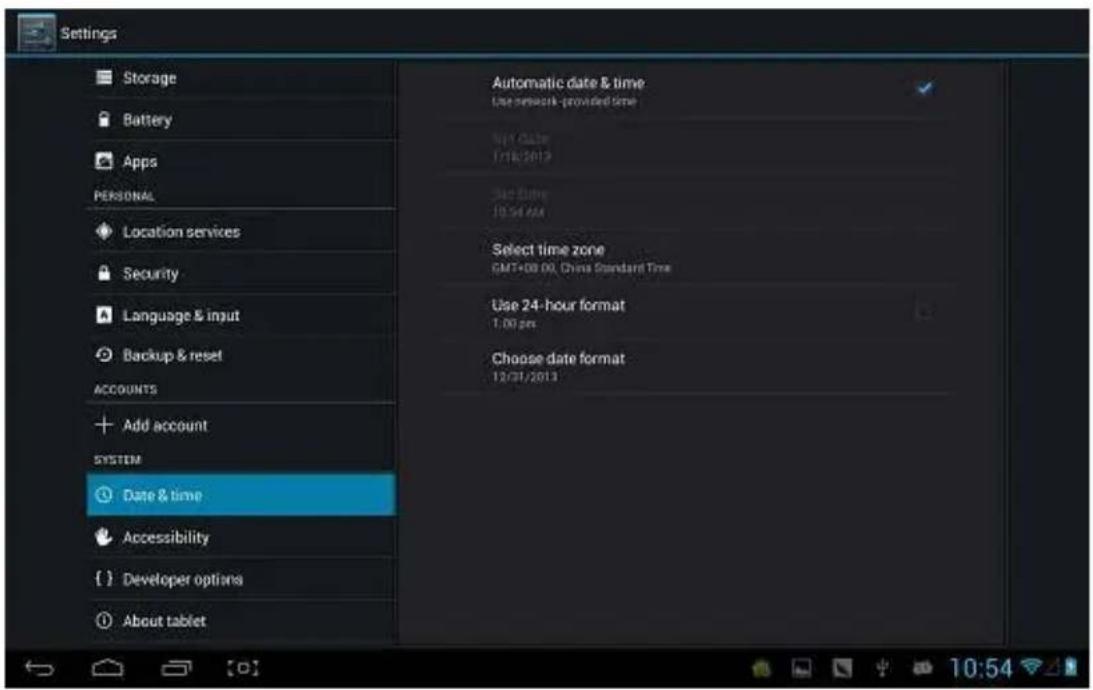
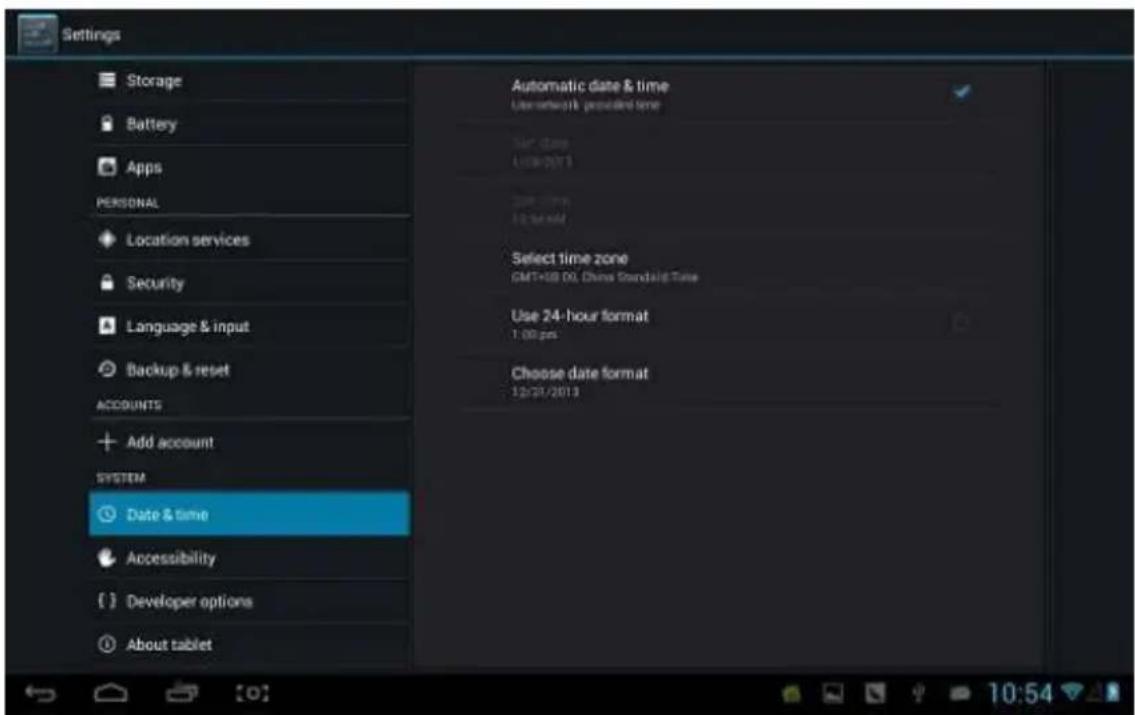
Automac date and me: the me keeps pace with network.
Automacally ensure me zone: it keeps pace with network.
Set date.
Set me.
Select me zone.
Use 24-hour format.
Select date format
Accessibility
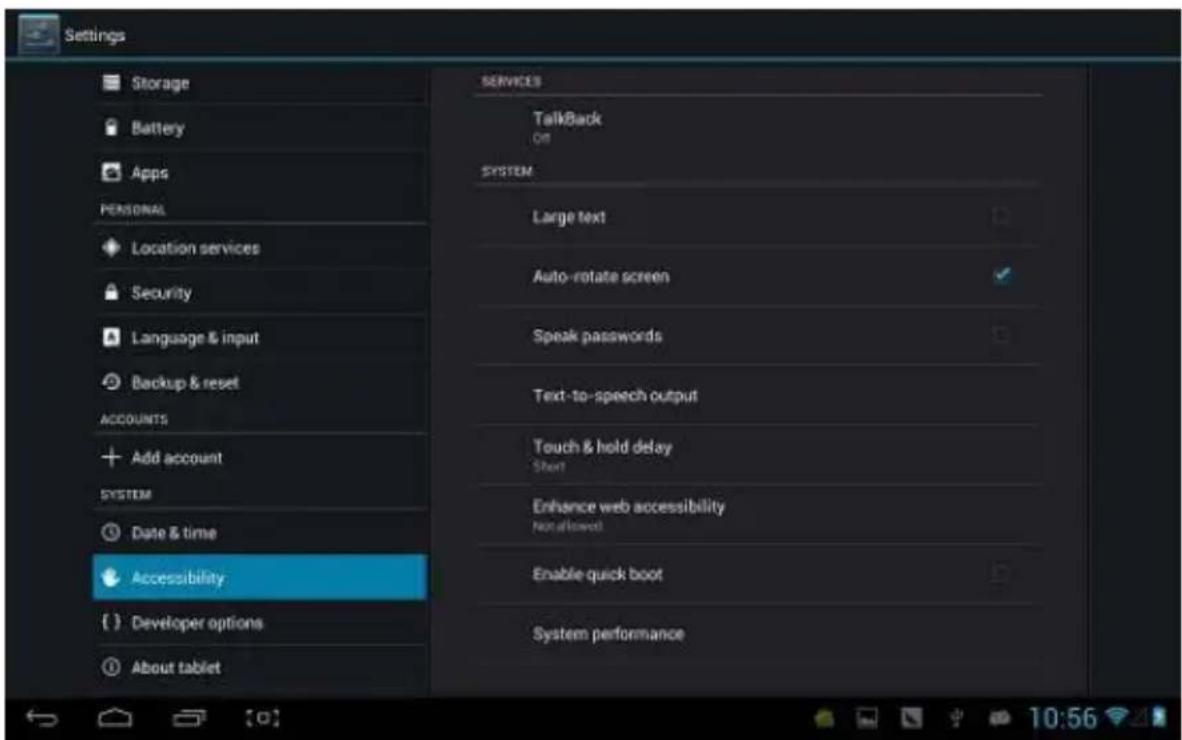
Large font: Select whether need to enlarge font
Autorotaon screen: when rotate the MID, whether the image rotate at the same me to adapt watching.
Quick boot: cking this will speed up boong.
Running mode: there are three opons, including “performance balanced”、“power saving prior” and “performance prior”.
1) performance balanced: MID will adjust power consumption and performance to make both of that balance. Suggest you to use this option.
2) power saving prior: The power consumpon of MID is relatively small, so it saves power, but it will lead some scene, which power consumpon is large, can not use normally. Not suggest users to use.
3) performance prior: If you choose this opon, the performance of MID will be the best, but because of the large power consumpon, the power will be consume easily.
About tablet
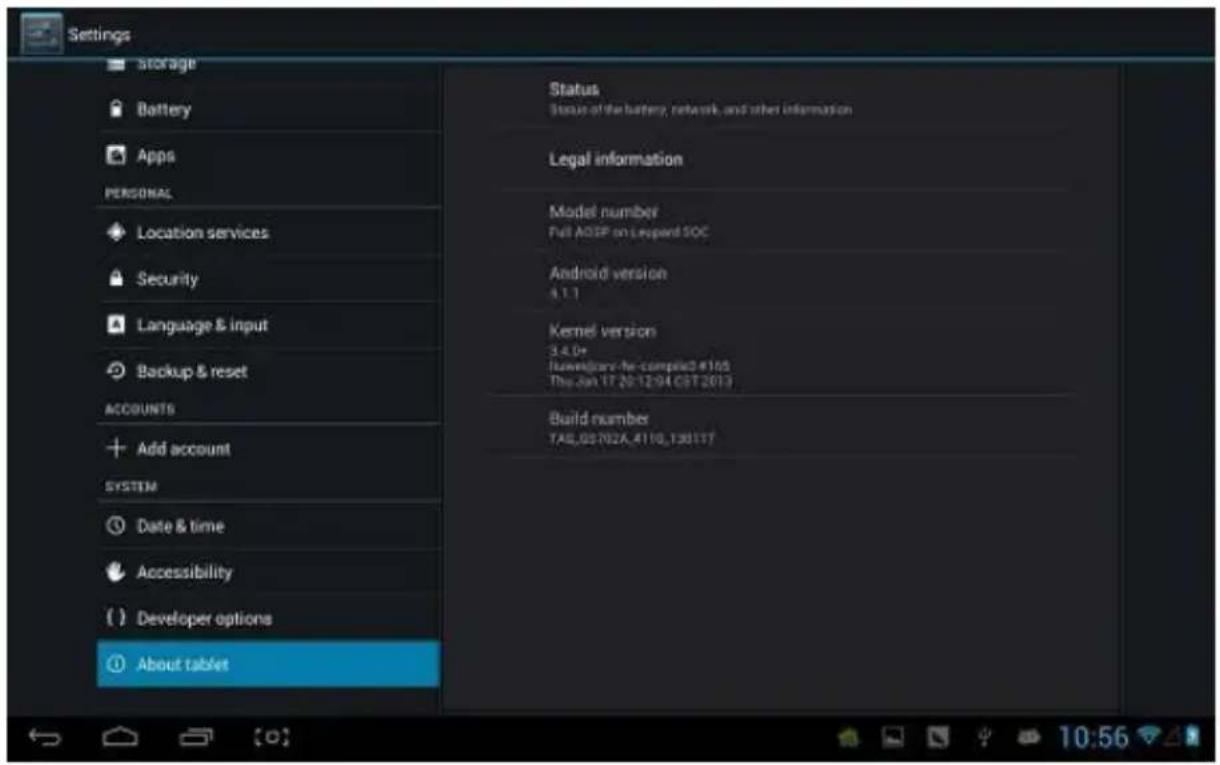
On this opon, you can check status of MID、legal informaon、MID model number、Android version, kernel version and build number.
Quattor10
User Manual
CZ
Prohlášení
natural_image
Digital tablet displaying a blue abstract geometric design with a glowing 'Q' logo (no text or symbols on the graphic itself)
Příslušenství
natural_image
Digital illustration of a green leaf with visible vein patterns and a camera icon, no text or symbols present.Wi
Představení Wi:
Více
Nastavte "Airplane Mode", "VPN", "Mobile network" atd.
natural_image
Digital photo of a green leafy background with a camera icon and status bar (no readable text or symbols)Zvuk
Aplikace
Datum a čas
natural_image
Digital tablet displaying a blue abstract geometric design with a glowing 'Q' logo (no text or symbols on the graphic itself)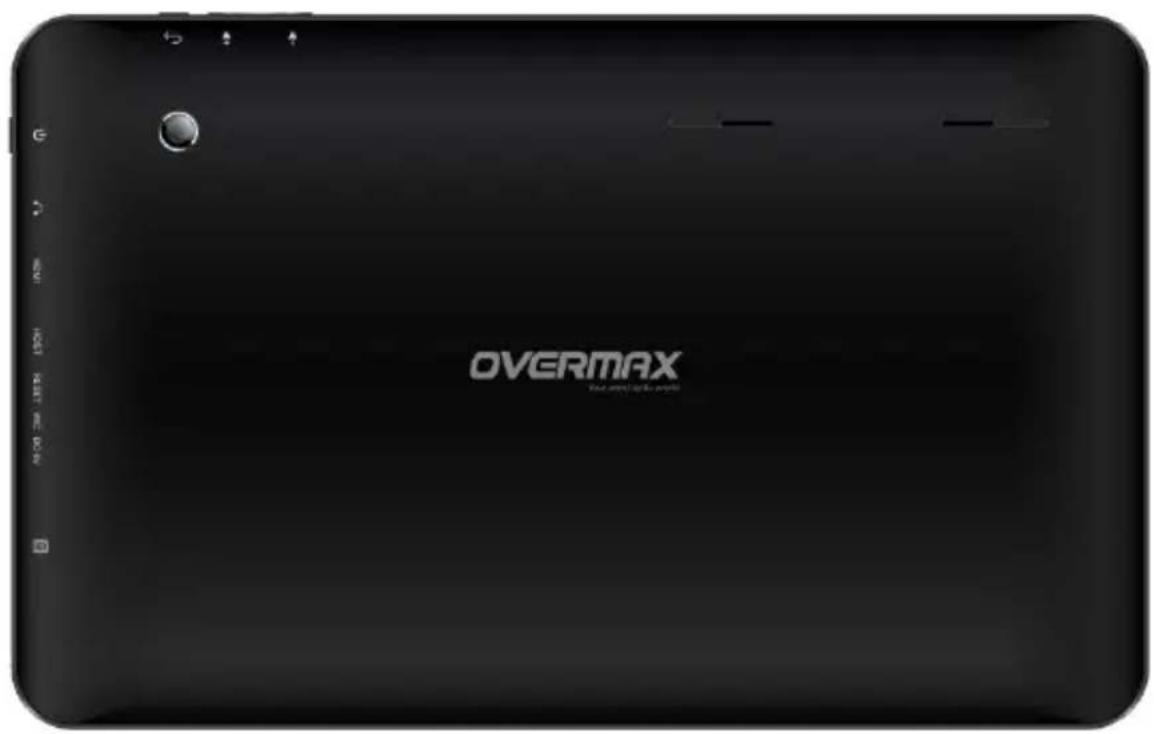
Príslušenstvo
natural_image
Computer desktop wallpaper showing a green leaf pattern and a blue camera icon (no readable text or symbols)natural_image
Green-tinted digital photo of a desktop with a leaf pattern and a camera icon, no readable text or symbols.Kliknite na "Turn on USB storage" v zobrazenom okne.
Wi
Predstavenie Wi:
(1) Pripojenie k Wi-Fi sie: Kliknite na “open”, MID behom chvíľky zis dostupné siete. Vyberte siet, a ak je to nutné, zadajte heslo.
(2) Potom čo sa MID pripojí k Wi-Fi sie, na pravej strane
Udržanie wi pripojenia počas spánku:
Viac
Nastavte "Airplane Mode", "VPN", "Mobile network" atd'.
V prípade surfovania po Internete na 3G sie, najskôr vypnite WiFi a Ethernet, potom zasuňte 3G klúč so SIM kartou do USB portu v MID.
natural_image
Digital photo of a green leaf with visible vein patterns and a camera icon, no text or symbols present.Zvuk
Aplikácie
Záloha a reset:
Dátum a čas
natural_image
Digital tablet displaying a blue abstract geometric design with a glowing 'Q' icon (no text or symbols on the graphic itself)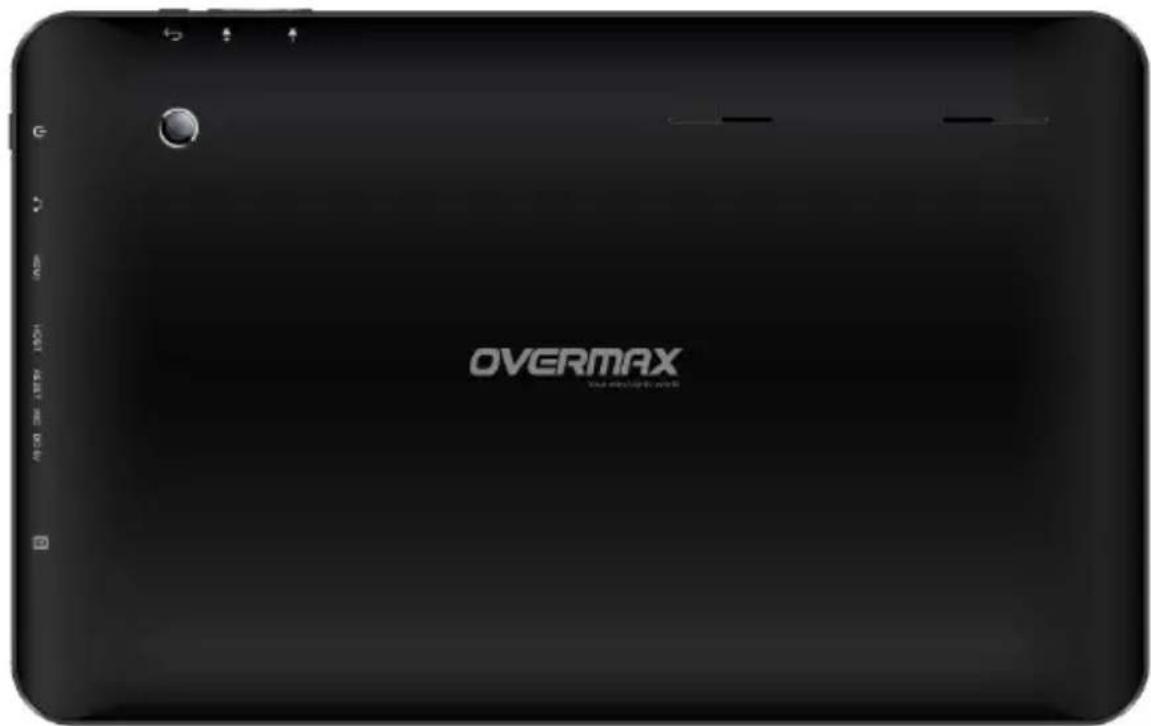
Accesorii
Tableta are atasate urmatoarele accesorii:
natural_image
Green leafy background with a small camera icon and a 'Google' logo in the corner (no readable text or symbols)Wi
Va ve conecta la Internet prin Wi-Fi.
Introducere Wi:
Pastra WiFi conectat in mpul repausului:
Informai ulizare trac
Mai mult
Seta "Modul avion"、"VPN"、"Retea mobil" etc.
Daca dori sa folosi internet 3G, mai intai trebuie sa opriWIFI si Ethernet (daca sunt deschise), apoi conecta 3G dongle cu cartela SIM la portul USB al MID. MID va asa reteaua imediat si, logo-ul 3G (precum in imaginea de mai jos) va aparea in meniul sistemului, intreg procesul durand 1 minut.
natural_image
Digital photo of a green leafy background with a camera icon and Google logo (no readable text or symbols)Sunet
Descarcate: Lista cu aplicaile descarcate
Pe cardul SD: Lista stocul aplicailor si informaile de pe cardul SD .
Securitate ecran :
Backup si resetare:
(1) Copie de rezerva al datelor mele: Copiaza date, parole Wi-Fi, si alte setari la serviciile Google.
(2) Cont Backup: Copii de rezervă la depanare numai cache privat.
(3) Restabilire automata: Cand reinstala o aplicae, restaura setarile si datele copiate ca rezerva
Date personale:
Data si ora
Data si ora automata: mpul ne pasul cu reteaua.
natural_image
Digital tablet displaying a blue abstract geometric design with a glowing 'Q' icon (no text or symbols on the graphic itself)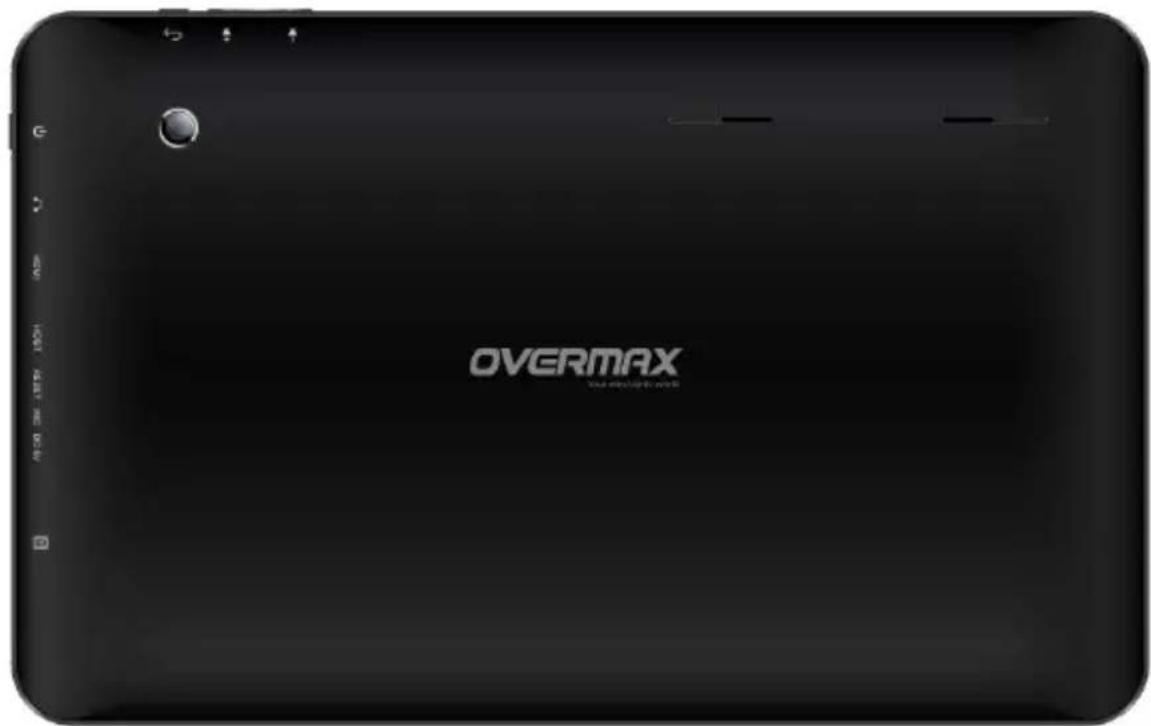
Tartozékok
natural_image
Green leafy background with a camera icon and a calendar, no readable text or symbols present.Wi
A Wi bemutatása:
Továbbiak
natural_image
Green-tinted digital photo of a smartphone with a camera icon and 'SnapFun' logo, overlaid on a leaf pattern (no readable text or symbols)Hang
Alkalmazások
Képernyő biztonság:
Dátum és idő
Declaraon of Conformity
We, the undersigned:
Declare the following apparatus:
| Products name: | Tablet 10,1” |
| Brand and Model name: | OV-Quaor10 |
Hereby we conrm above product compliance with the European directive of CE:
| EMC : | 2004/108/EC |
| LVD : | 2006/95/EC |
| R&TTE : | 1999/5/EC |
| ROHS : | 2011/65/EU |
| WE : | 1275/2008 |
Below standards were tested and passed:
| EMC : | ETSI EN 301 489-1 V1.8.1 (2008-04) |
| ETSI EN 301 489-17 V2.1.1 (2009-05) | |
| LVD : | EN 60950-1:2006 + A11:2009 + A1:2010 + A12:2011 |
| R&TTE : | EN 300328 V1.7.1:2006 |
| EN 62311:2008 |
Release date: 21.09.2012
OVERMAX
Your electronic world
OV-Quaor10
- Instrukcja obstugi
- Deklaracja
- Akcesoria
- Wi-Fi
- Dźwięk
- Aplikacje
- Data i godzina
- Precauons
- Overview
- Basic Funcons
- Appearance
- Accessories
- Key
- Touch operaon
- State Icons
- Preparaon
- ON/OFF/Standby
- Power Reset
- Connecng PC and Data Transmission
- Charge
- Basic Funcon
- Main screen
- Main menu
- Seng
- Wi
- Wi Introducon:
- Wi advanced seng:
- Keep the wi connected during sleep:
- Trac Usage Informaon
- More
- Sound
- Display
- Baery
- Applicaons
- Locaon services
- Security
- Device administraon:
- Language and input
- Backup and reset
- Add accounts
- Date and me
- Accessibility
- About tablet
- Quattor10
- User Manual
- Prohlášení
- Příslušenství
- Představení Wi:
- Více
- Zvuk
- Aplikace
- Datum a čas
- Príslušenstvo
- Predstavenie Wi:
- Udržanie wi pripojenia počas spánku:
- Viac
- Aplikácie
- Záloha a reset:
- Dátum a čas
- Accesorii
- Informai ulizare trac
- Mai mult
- Sunet
- Tartozékok
- A Wi bemutatása:
- Továbbiak
- Hang
- Alkalmazások
- Dátum és idő
- Declaraon of Conformity
- OVERMAX
Brand : Overmax
Model : Quattor 10
Category : Tablet