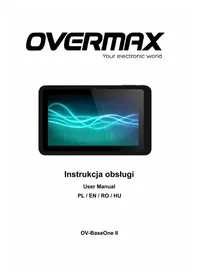
BaseOne 2 - Tablet Overmax - Free user manual and instructions
Find the device manual for free BaseOne 2 Overmax in PDF.


| Product Type | Tablet |
| Brand | Overmax |
| Model | BaseOne 2 (OV-BaseOneII) |
| Screen Size | 7 inches |
| Internal Storage | 8 GB |
| Operating System | Android |
| Connectivity | WiFi 802.11 b/g/n |
| Power Button | Long press 2-3 seconds to power on/off; short press to enter standby |
| Reset Button | Located on right side; press to restart and reset |
| USB Interface | Micro USB for PC connection and USB storage |
| Expansion Slot | MicroSD card slot (SD Card support) |
| Battery | Rechargeable Li-ion, typical 3000 mAh |
| Charging | Via USB, shutdown state shows charging feature |
| Standby Time | Adjustable via display settings |
| Audio | Built-in speaker, 3.5mm headphone jack |
| Camera | Front camera (spec unspecified) |
| Care and Cleaning | Wipe with a soft, dry cloth; avoid liquids |
| Safety | CE certified, complies with EMC, LVD, R&TTE, RoHS directives |
| Spare Parts | Not specified; contact manufacturer |
| Repairability | Hardware reset button available; no user-serviceable parts |
| Included Accessories | USB cable, charger (assumed), user manual |
| Language Support | Multiple languages including EN, PL, RO, HU |
Frequently Asked Questions - BaseOne 2 Overmax
User questions about BaseOne 2 Overmax
0 question about this device. Answer the ones you know or ask your own.
Ask a new question about this device
Download the instructions for your Tablet in PDF format for free! Find your manual BaseOne 2 - Overmax and take your electronic device back in hand. On this page are published all the documents necessary for the use of your device. BaseOne 2 by Overmax.
USER MANUAL BaseOne 2 Overmax
Your electronic world

Instrukcja obsługi
User Manual
PL / EN / RO / HU
OV-BaseOne II
Your electronic world
User Manual
EN
OV-BaseOne II
Chapter One: Overview
1.1 Appearance

1.2 Buttons
Power button
Long press the power buon 2-3 seconds to open the screen When open the tablet, short press this buon to enter the o-screen state and short press again to light up the screen.
1.3 Open and shut down
Open
Long press the power buon (see the appearance) 2-3 seconds, pictures will show up unl to the interface.
Shut down
Long press the power buon, then the screen shows would you like to shut down, press OK to shut down in charging state, when the tablet is o, press the power buon, it will shows charging feature, once again to click power buon, the tablet will be opened.
1.4 Open and close standby mode
Open the standby mode
In boot mode, you can tap the power buon, the system will into the standby mode which can save power.
Close the standby mode
In the standby mode, light tap of the power buon of the device, enter the normal state.
1.5 Lock and unlock the screen
Lock
You can set the sleep me in the system of display.
The system will sleep automacally and lock the screen to the standby mode if without any inactivity when reaches the preset of standby me.
Unlock
Move the sign 🔒 unlock, show as below.
Drag this to ☐hlock the screen and enter the applicaon interface.
1.6 Homepage Information Column

1.7 Text Input
When use the tablet, you can use the virtual keyboard to enter text, number, symbols directly by touching screen. Aer selecng the Android input method, the default keyboard show as below:

To switch the numbers and leers, please press this
To switch the capital and lowercase leer, please press

1.8 Reset
Press the reset buon on the right side of the device, then you device will restart and reset.
1.9 USB connect
Please connect PC with in-box USB cable for your tablet and you will see your tablet, click this sign and turn on USB storage to connect your device.
Turn o USB storage to disconnect your device with PC.
Chapter two: Internet
2.1 Browser
Require network support before using a web browser, if there are network supporting problems, please contact your network operator or the service provider.
Tablet's web browser can connect to the Internet, via WIFI to sasfy your business and individual network needs.
Please touch 📄 (sings) to set up the WIFI so that can use the browser normally.
Touch here (Browser) in the applicaon list to enter the browser pages; the default homepage is the Recently Viewed showing recently viewed pages.
Browser supports the following features.

Enter the URL-touch the input area to get the so keyboard, then text the UPL.
Bookmark search click this to add into the bookmark
Touch this to read the favorite website that collected
Touch this to search the internet
Touch this to+dd new browser
Touch this to close the browser
Chapter three: Application
3.1 Explorer
Touch here (File manager) in the application list, it supports the files mutual copy in this two places SD Card, internal memory and USB.
3.2 Downloads
Click here in the applicaon list; you can preview the downloading or done document contents.
Click download le to stop or delete the download contents
Chapter Four: System setting
Click here

(Sengs) to enter the system seng interface.
4.1 Wireless networks setting
This seng module includes: the wireless and network Sengs The wireless local area network Sengs
Open wireless LAN switches, the system will scan available wireless network automacally and display the wireless local area network in the list
Among them, if the local area networks have the sign behind it, it represents the network has been encrypon, it needs to enter the password to conneccon.
The sign 📁 presents the networks do not need a password can be connected directly
You can choose the network from the list you want click it to connect directly, also you can click the advanced, then click connected to network; you can also select add wireless local area network to add by hand
Network noce: open the switch, it will noce if there any open networks
The wireless local area network cercate: the wireless local area network loading and management
4.2 Sound setting
In Sound seng, you can choose mute switch which can get more detailed sengs if you need. Click the volume seng can set up the noce, the media and the disk boot switch voice alarm of volume and choose the prompt operaon sound and the bell and soware.
4.3 Display setting
Display sengs contains: Brightness, Wallpapers Sengs,
Automac rotang Sengs, Dormancy me and Font size.
Brightness
The user can adjust brightness manually to get the lightness you want.
Wallpaper Settings
In the wallpaper seng, you can set up the wall paper and dynamic wallpaper; the wallpaper can be chosen from gallery.
Dormancy time
When the screens in light state a period of me, it will automacally lock to save the power if without any operaons.
Font size
You can set up the font size according to individual's favorite, there were respectively:small, normal, large, huge.
4.4 Application setting
In the applicaon seng, you can manage the running services and access rights management and development but only for developer.
Application management
In this seng, it is easy to manage and delete some applicaons that have been installed.
First, get into the applicaon list, click the according to name sort buons to order the alphabet and number; click the all menu to scan the running program or programs that provide by a third party soware developers.
Click on an applicaon, you can see the applicaon's relevant informaon to clear
The cache, unload programs, clear the default value or forced to stop operaon, etc
Running services
In this seng, you can end and set up some programs that are running
Access management
In this seng, by using the opening or prohibition to manage the applicaons to access content permissions
4.5 Date & Time setting
In this seng interface, you can set up your system me and series opons.
Time setting
You can use automat me from the network, to choose the me zone, to set specic date and me and display format in me seng.
4.6 Language and input Setting
In this seng interface, you can choose the language you want Input method
In here the input methods can be set by users, you can add the words in the dictionary or to delete.
Android keyboard
You can set up automac capital funcon of opening or closing.
OVERMAX
Your electronic world
User Manual
RO
OV-BaseOne II
1.7 Introducere text
Your electronic world
User Manual
HU
OV-BaseOne II
Your electronic world
Declaraon of Conformity
We, the undersigned:
Declare the following apparatus:
| Products name: | Tablet 7” 8GB |
| Brand and Model name: | OV-BaseOneII |
Hereby we conrm above product compliance with the European direcve of CE :
| EMC : | 2004/108/EC |
| LVD : | 2006/95/EC |
| R&TTE : | 1999/5/EC |
| ROHS : | 2011/65/EU |
| WE : | 1275/2008 |
Below standards were tested and passed :
| EMC : | ETSI EN 301 489-1 V1.8.1 (2008-04)ETSI EN 301 489-17 V2.1.1 (2009-05) |
| LVD : | EN 60950-1:2006 + A11:2009 + A1:2010 +A12:2011 |
| R&TTE : | EN 300328 V1.7.1:2006EN 62311:2008 |
Release date: 21.09.2012
CE!
Your electronic world
OV-BaseOnell

- INSTRUKCJA OBSŁUGI
- CHAPTER ONE: OVERVIEW
- 1.1 APPEARANCE
- 1.2 BUTTONS
- POWER BUTTON
- 1.3 OPEN AND SHUT DOWN
- OPEN
- SHUT DOWN
- 1.4 OPEN AND CLOSE STANDBY MODE
- 1.5 LOCK AND UNLOCK THE SCREEN
- LOCK
- UNLOCK
- 1.6 HOMEPAGE INFORMATION COLUMN
- 1.7 TEXT INPUT
- 1.8 RESET
- 1.9 USB CONNECT
- CHAPTER TWO: INTERNET
- 2.1 BROWSER
- CHAPTER THREE: APPLICATION
- 3.1 EXPLORER
- 3.2 DOWNLOADS
- CHAPTER FOUR: SYSTEM SETTING
- 4.1 WIRELESS NETWORKS SETTING
- 4.2 SOUND SETTING
- 4.3 DISPLAY SETTING
- BRIGHTNESS
- DORMANCY TIME
- FONT SIZE
- 4.4 APPLICATION SETTING
- APPLICATION MANAGEMENT
- ACCESS MANAGEMENT
- 4.5 DATE & TIME SETTING
- TIME SETTING
- 4.6 LANGUAGE AND INPUT SETTING
- ANDROID KEYBOARD
- OVERMAX
- 1.7 INTRODUCERE TEXT
- DECLARAON OF CONFORMITY
Brand : Overmax
Model : BaseOne 2
Category : Tablet