NewBase 2 - Tablet Overmax - Free user manual and instructions
Find the device manual for free NewBase 2 Overmax in PDF.


| Type | Tablet |
| Brand | Overmax |
| Model | NewBase 2 |
| Screen Size | 10.1 inches |
| Screen Resolution | 1280 x 800 pixels |
| Processor | Quad-core 1.3 GHz |
| RAM | 1 GB |
| Internal Storage | 16 GB |
| Battery Capacity | 4000 mAh |
| Operating System | Android |
| Connectivity | Wi-Fi, Bluetooth |
| Front Camera | 2 MP |
| Rear Camera | 5 MP |
| Dimensions | 240 x 170 x 9 mm |
| Weight | 500 g |
| Charging Port | Micro USB |
| Headphone Jack | Yes |
| Speaker | Built-in |
| Box Contents | Tablet, Charging Cable, Manual |
| Cleaning | Use a soft, dry cloth |
| Warranty | Refer to included manual |
Frequently Asked Questions - NewBase 2 Overmax
User questions about NewBase 2 Overmax
0 question about this device. Answer the ones you know or ask your own.
Ask a new question about this device
Download the instructions for your Tablet in PDF format for free! Find your manual NewBase 2 - Overmax and take your electronic device back in hand. On this page are published all the documents necessary for the use of your device. NewBase 2 by Overmax.
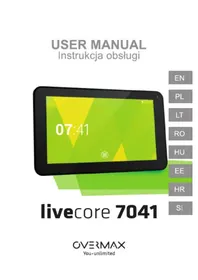
USER MANUAL NewBase 2 Overmax
Your electronic world

Accessories
Wi-Fi
More
Battery indicator
Applications
Date and time
Video and photo files

Owl Player
Internet
App store
User Manual
EN
OV-NewBase2
Declaration
- The information in this manual may not, except under written license by The Company, be copied, transmitted,
distributed, or stored.
- Although efforts have been made for correctness and completeness during the preparation of the manual, there is no guarantee that this manual is free from any error or omission. The Company assumes no reliability regarding the errors or omissions that might exist in the manual.
- For sustainable development, The Company reserves the right to modify and improve any product described in this manual without prior notice.
- In any case, we are not liable for any loss of data or income or any special, incidental, consequential, or indirect damages whatsoever, whether that loss howsoever caused.
Precautions
For the correct use and good performance of the device, the user must fully understand the manual as well as strictly follow the instructions provided.
- Please avoid high temperature (over 35°C) or low temperature (below -5°C). ● Never knock the main machine violently. ● Never contact with chemicals such as benzene, thinner etc.
- Do not close to strong magnetic field, electric field etc.
- Keep away from direct sunlight or heating appliances. ● Never privately dissemble, repair or modify the device.
- Using the device and the earpiece during bicycling, car and motorcycle driving is likely to cause danger.
- Never use higher volume, which may damage your hearing ability.
- Separate scraped packing, batteries, old electronic products and dispose them properly.
Overview
Basic Functions
- Music play: supports MP3, WMA, CBR, VBR, OGG, APE, FLAC, WAC, AAC, AC3, DTS, AMR, AIFF, MPC formats.
- Video play: full format video supports AVI, WMV, MOV, MKV, RM, RMVB, MP4, M4V, DIVX, XVID, FLV, 3GP, DAT, VOB, MPG, MPEG, AVS, ASF, TP, TRP, MITS, MTS.
- Online Video: supports Tudou, Youku, QiYi, Tencent, etc.
- Picture browse: supports JPEG, BMP, GIF, PNG formats.
- Internet chat tool: supports QQ, MSN, SKYPE, Wechat, etc.
- Browser: Google browser, supports Chrome label style, Google search, etc.
- Game: supports JAVA games, G-sensor games, large 3D games.
- TV OUT: Supports HDMI synchronous display.
- Input: Supports Android Pinyin input and other mainstream handwriting input software.
- Setting function: supports display and setting of each function's property.
- File system: supports FAT/FAT32/NTFS and exFAT.
- Support more than 4GB file access, and multistage catalogues.
- USB driver: support host/OTG/slave
- Support peripheral with USB port of mouse, keyboard and etc.
- Support Ethernet and Wifi.
Appearance

Accessories
M721 attaches the following accessories:
| Accessories Functions | |
| Adaptor Charging for MID | |
| MID connects to USB cable | Using in connecting MID and PC to transmit data |
Key
- Key
| No. | Name | Function Definition |
| 1 | Power |
2. Touch operation
| No. | Name Function Definition | |
| 1 | Short press | It indicates the press time shorter than 1.2s, it mainly used in selecting menu, confirm and etc. |
| 2 | Long press | It indicates the press time longer than 1.2s. |
| 3 | Slide/Drag operation | It belongs to identify the touch trace direction. Mainly used in picture/page turning/drag and etc. |
| 4 | Handwriting identification | It mainly used in inputting characters/symbol. |
| 5 | Virtual key | It belongs to virtual keyboard. |
MID Applications
Some applications can custom-make according to users' need. The following list is the common basic applications:


State Icons
The status bar menu is as follows:

At the bottom of the screen, on the status bar, there are four operation icons on the left side:
| Icons Implications | |
Back up soft key | Turn back to previous interface, its function is similar to BACK key |
Home soft key | Back to main interface, its function is the same as HOME key. |
Shortcut key | List the common applications and its thumbnail, then click to enter directly. |
| Screenshot key[O] | Full screenshot |
The icons on the right side display the current state information of the MID:
| Icons Implications | ||
USB connecting state | Display the USB connecting status | |
USB debugging state | Display whether it connected the USB debugger. | |
SD card connecting state  | It prompts when SD card was pulled out. | |
Time  | Display current time | |
wifi  | MID has join up the internet via Wi-Fi. the more the signal, the stronger the signal is. | |
Battery  | Showing the volume of battery or charging state. | |
Preparation
System Configurations
Operating system: Windows 7/Vista/XP/2K/ME/98 (needs to install driver)/Ubuntu 9.0 and above/Mac OS 10
CPU: At least Pentium-133MHz
RAM: At least 32MB
Hard disk free space: At least 100MB
Video card: 640*480 above mode, at least enhanced color (16 bit)
ON/OFF/Standby
ON: Pressing the Power key, the MID displays the startup picture and then enters the main interface.
OFF: Long pressing the Power button for 5 seconds on the main interface, the system will prompt whether to power off, then click "YES", and the MID will power off normally.
Power saving standby: In the power-on state, press the Power key to enter the lock power-saving standby state, then press the Power key
again to lighten the screen, and unlock the screen according to the indication.
Power Reset
Press RESET for over 8 seconds to restart the player in case it crashes during playback.
Connecting PC and Data Transmission
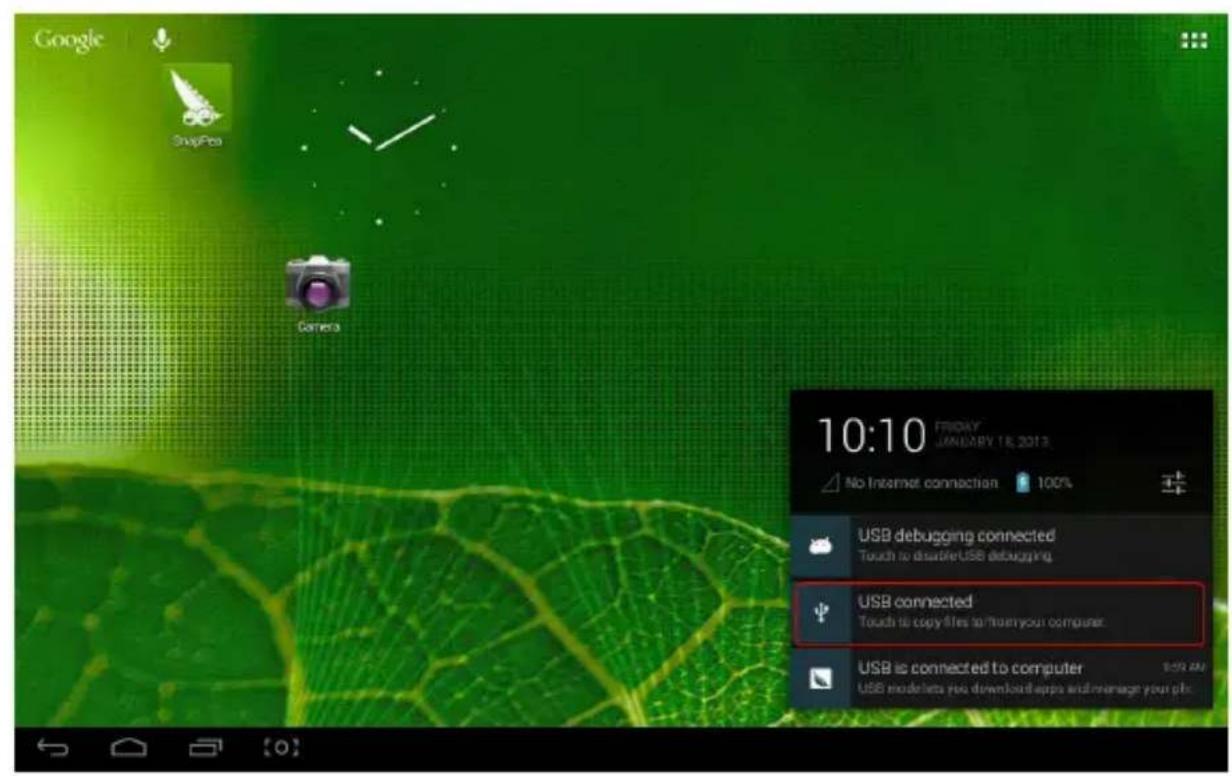
Connect the PC and MID using a USB cable. A USB icon will appear on the lower right side of the status bar, indicating that the USB connection has been established. As follows:

When the operation menu appears, click "USB connected":

Click "Turn on USB storage" on the prompted window:
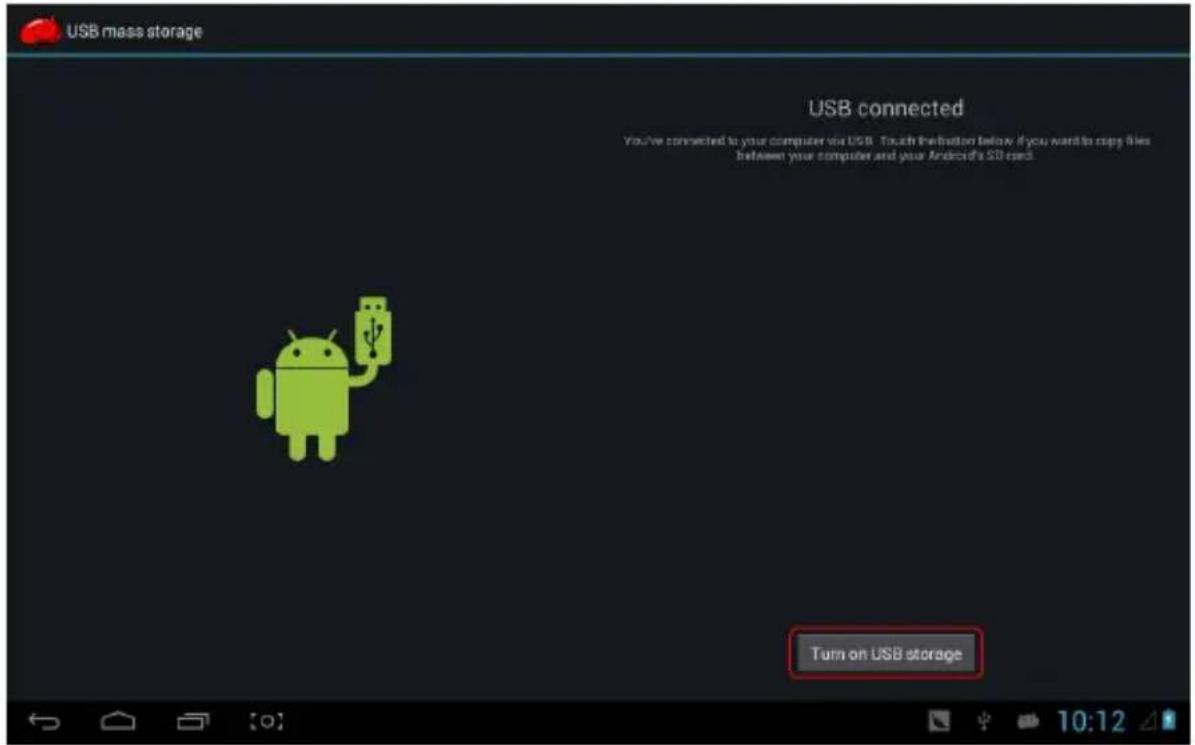
Then enter the data transmission state:

At this time, you can find the MID storage card and SD card (if the card has been plugged in) in the My Computer list.
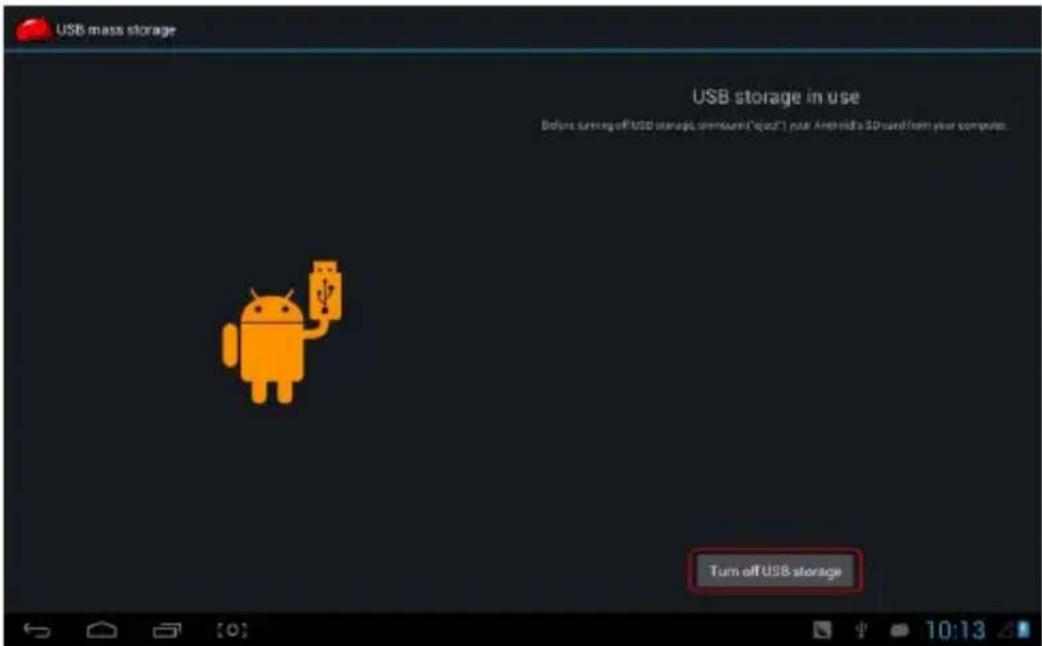
After data transmission, click "Turn off USB storage", and then it will exit the data transmission state.
【Note】: Before exiting the data transmission state, if the file system of the USB drive or card is NTFS, please safely remove them on the PC, then click "Close USB storage device", otherwise files may be lost, as shown in the following screenshot:
Charge
The player uses a high-capacity Li-ion battery. You can connect the MID and the attached adapter for charging.
When the battery is low, the MID will display a prompt window; at this time, charge it promptly.
Please charge for half an hour at the first use.
Use Micro SD card
After connecting the MID and PC, you will find two removable disks: the front one is the built-in memory disk, and the other is the Micro SD card disk. If no card is plugged in, the second disk cannot be opened. The MID supports Micro SD card expansion up to 32GB.
Plug-in: Face the front side (the side with prints) of the Micro SD card upwards (in the direction the machine's display screen faces) and connect it to the machine by plugging it with slight force into the card slot. Now the machine can play the files on the card.
Plug-out: Push the Micro SD card inwards slightly; it will spring back a certain length, and then take it out.
Use Micro HDMI
Connect the MID and HD TV with a Micro HDMI cable (suggested version 1.4). Audio and video can be transmitted and displayed on the HD TV. It supports 1080P video and 8-channel audio.
Basic Functions
Main Screen
The default is locked; drag the lock icon to unlock according to the indication.

Switch to other main screens: slide the screen leftward/rightward quickly; it supports five main screens in total.
Switch to the first main screen: click the HOME icon on the status bar.
Main Menu
Click the icon on the upper right side of the main screen, and the main menu pops up. All applications are listed on the main menu; you can drag the screen leftward or rightward to check them.


Open or Switch Applications
Select a program, click its icon to open the application. Click the HOME icon to return to the main screen.
User-Defined Screen (Main Screen Management)
Long press a certain application icon to add a shortcut to it on the main screen.
Zoom in or zoom out
When viewing pictures, webpages, emails, or maps, you can zoom in or zoom out the frame by using gestures.
Watch the MID horizontally or vertically
The MID supports watching the screen horizontally or vertically when you turn it. The contents will change while turning to adapt to the display screen.
Input TXT
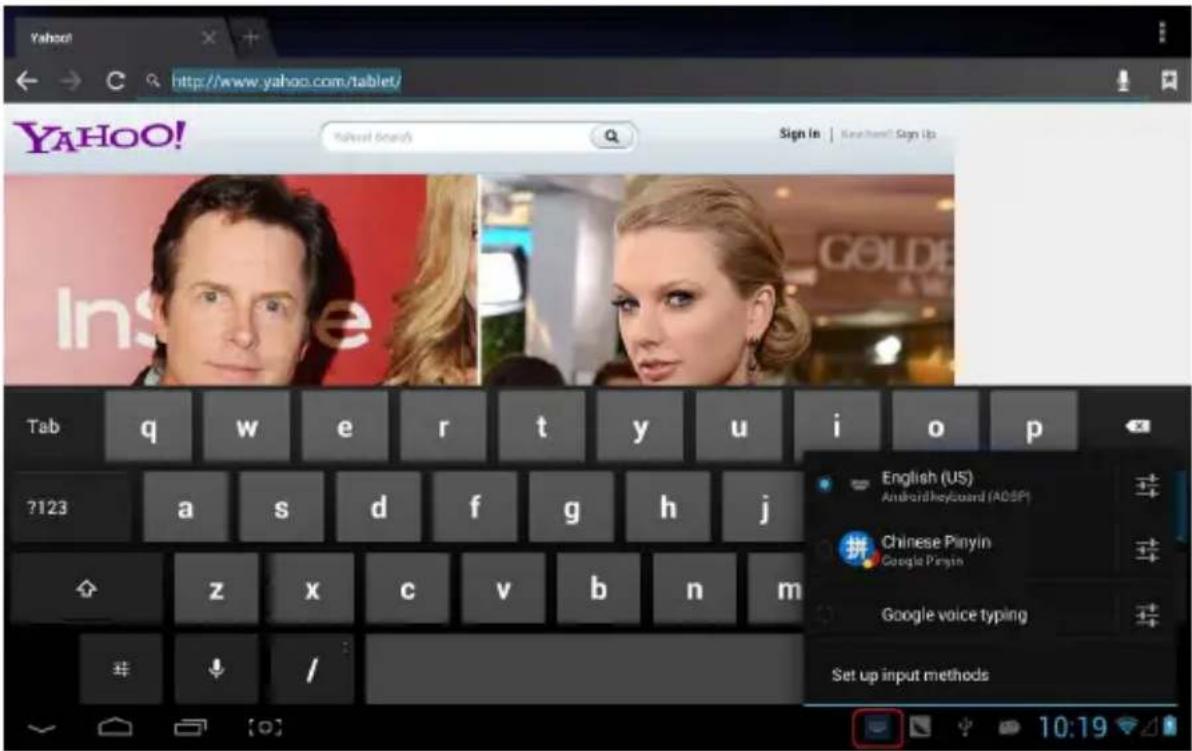
When you need to input, the keyboard will appear. At this time, on the lower side of the screen, a soft keyboard
icon will appear. When you click it, the selecting menu of input will appear, as shown in the following figure:
Setting
Set applications, date and time, configure network connection, etc.

It determines whether you connect to the internet via Wi-Fi.
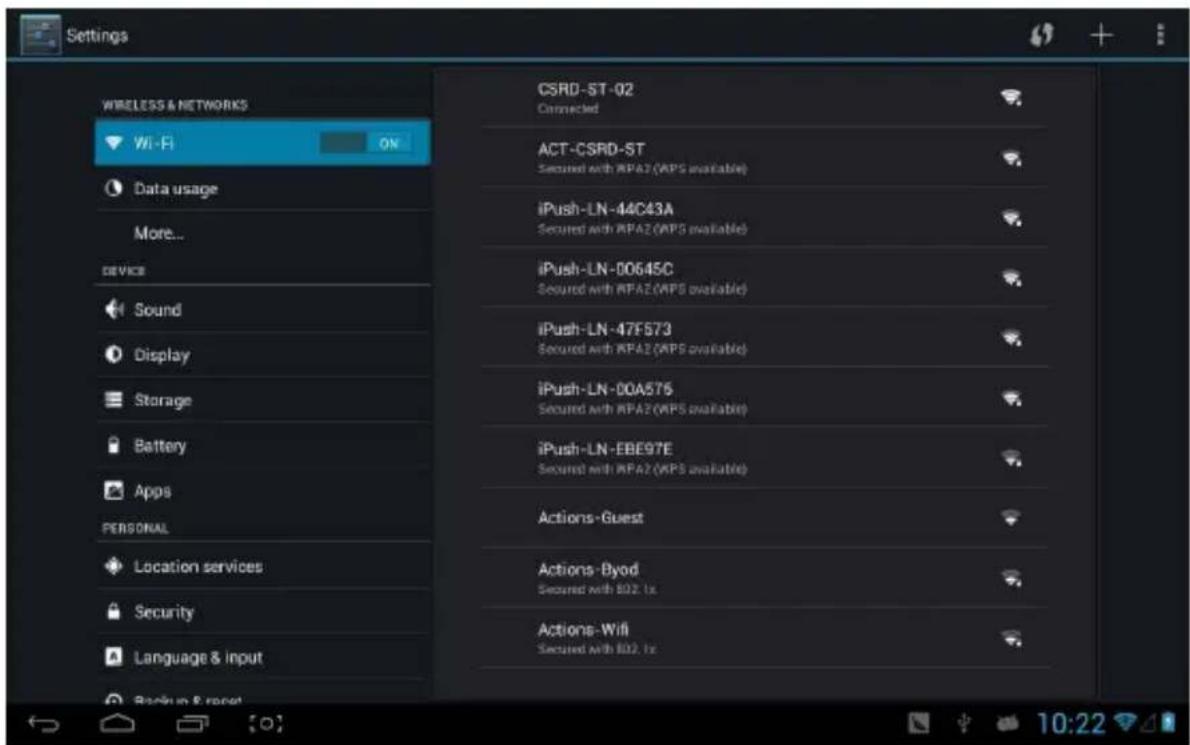
Wi-Fi Introduction:
(1) Join Wi-Fi network: Click "Open", MID detects the network within communication range for a while, then choose a network, and if needed, input the password.
(2) After MID connects to a Wi-Fi network, the right
side of the screen status bar signal ▲ displays intensity; the more cells, the stronger the signal.
(3) Once you manually join a Wi-Fi network, the MID will automatically join that network whenever it is within range. (4) If multiple previously used networks are within range, the MID will join the most recently used one. (5) Click "OFF" to turn off the Wi-Fi.
Wi-Fi advanced settings:
Click the icon in the upper right corner, then choose "Advanced" from the pop-up menu:
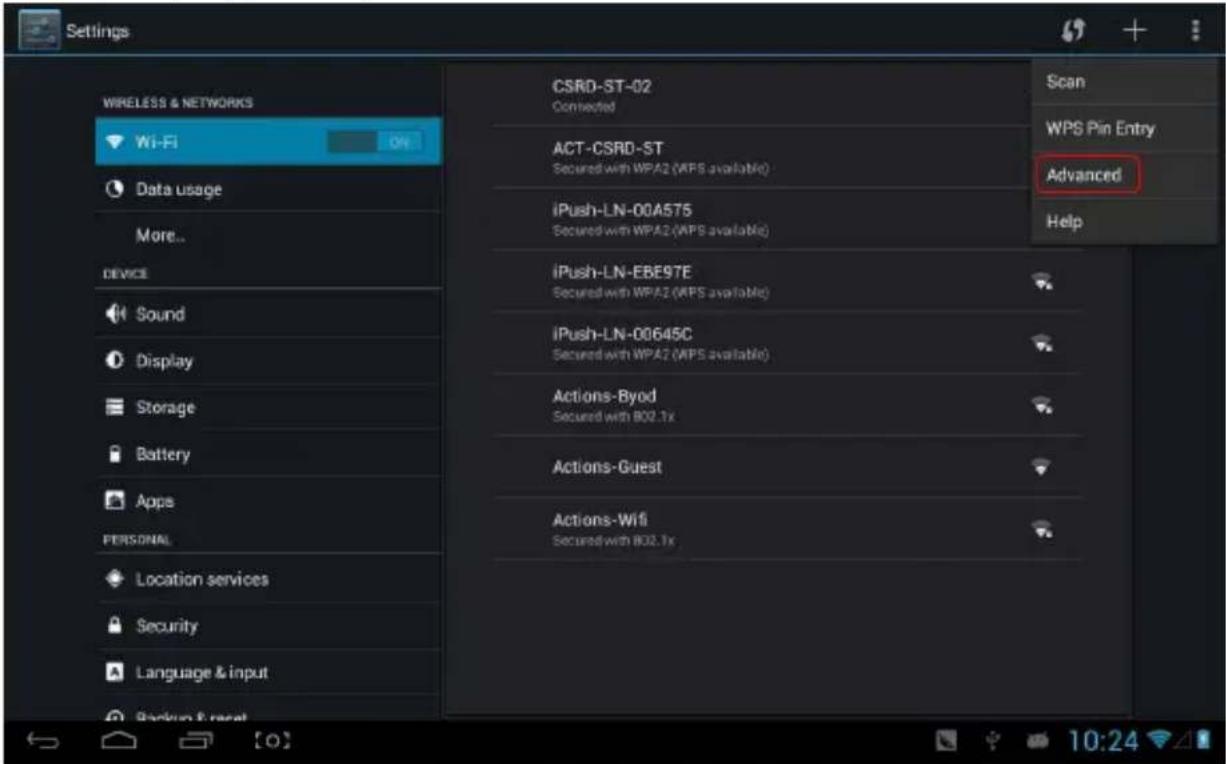
The following interface will appear:
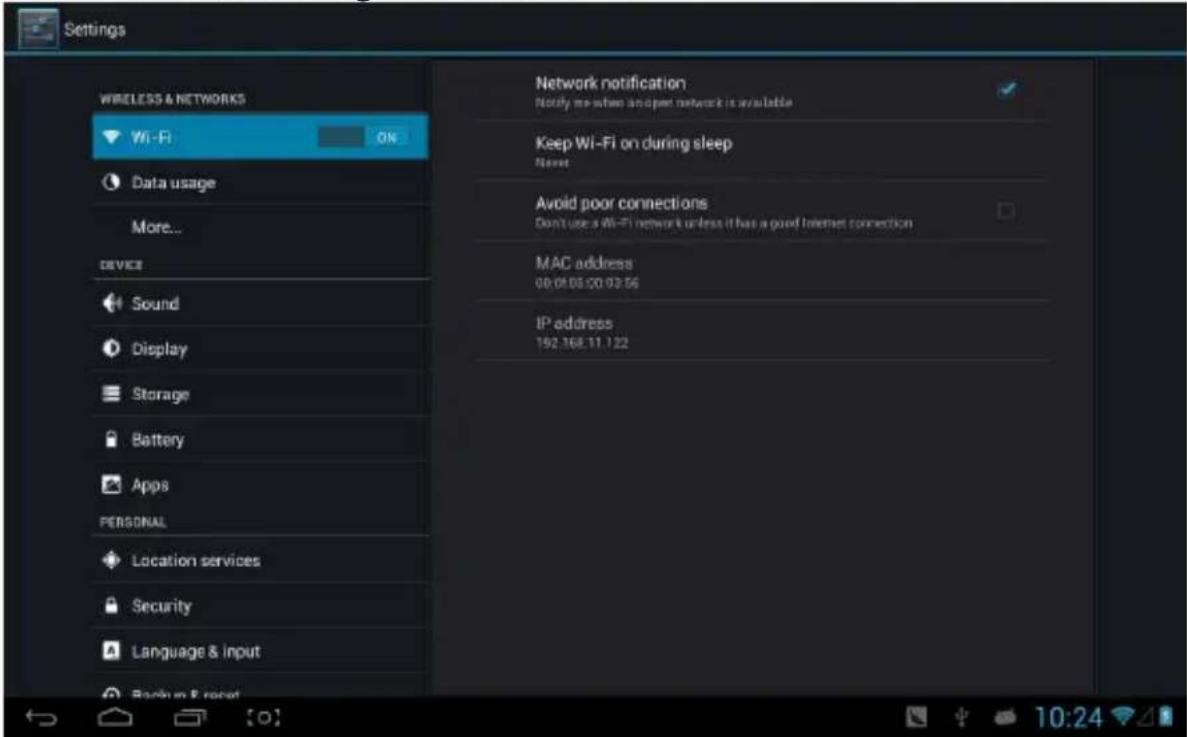
Keep Wi-Fi connected during sleep:
1) Always: The Wi-Fi remains on during sleep.
2) Only when plugged in: The Wi-Fi stays on during sleep only when the device is charging; otherwise, it will shut down automatically. 3) Never: The Wi-Fi stays on during sleep and will not shut down automatically.
Note: If you need the Wi-Fi to keep working during sleep, select "Never", as shown below: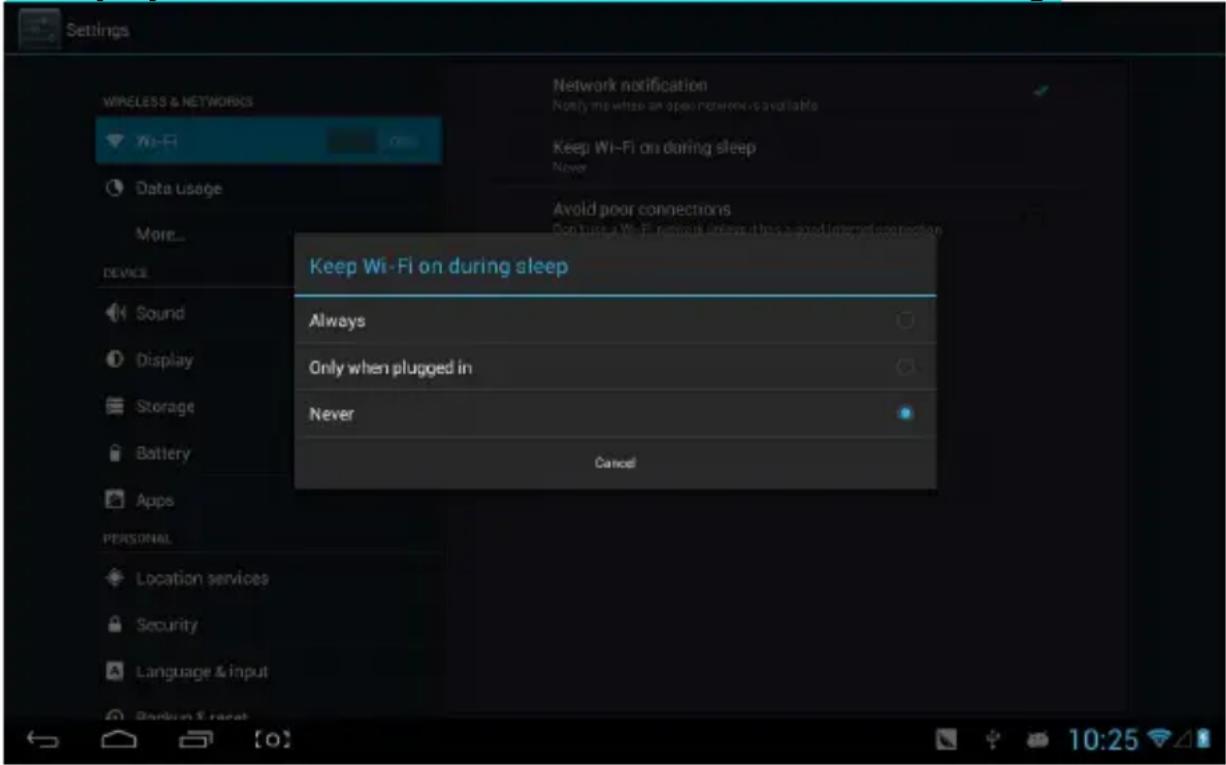
Traffic Usage Information
Displays network traffic information.
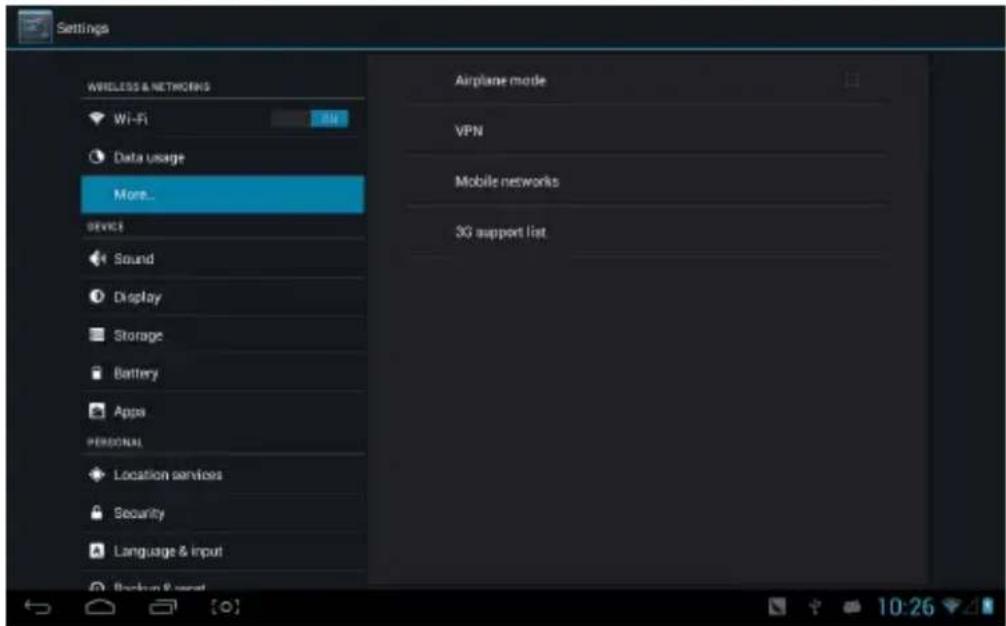
More
Set "Airplane Mode", "VPN", "Mobile Network", etc.
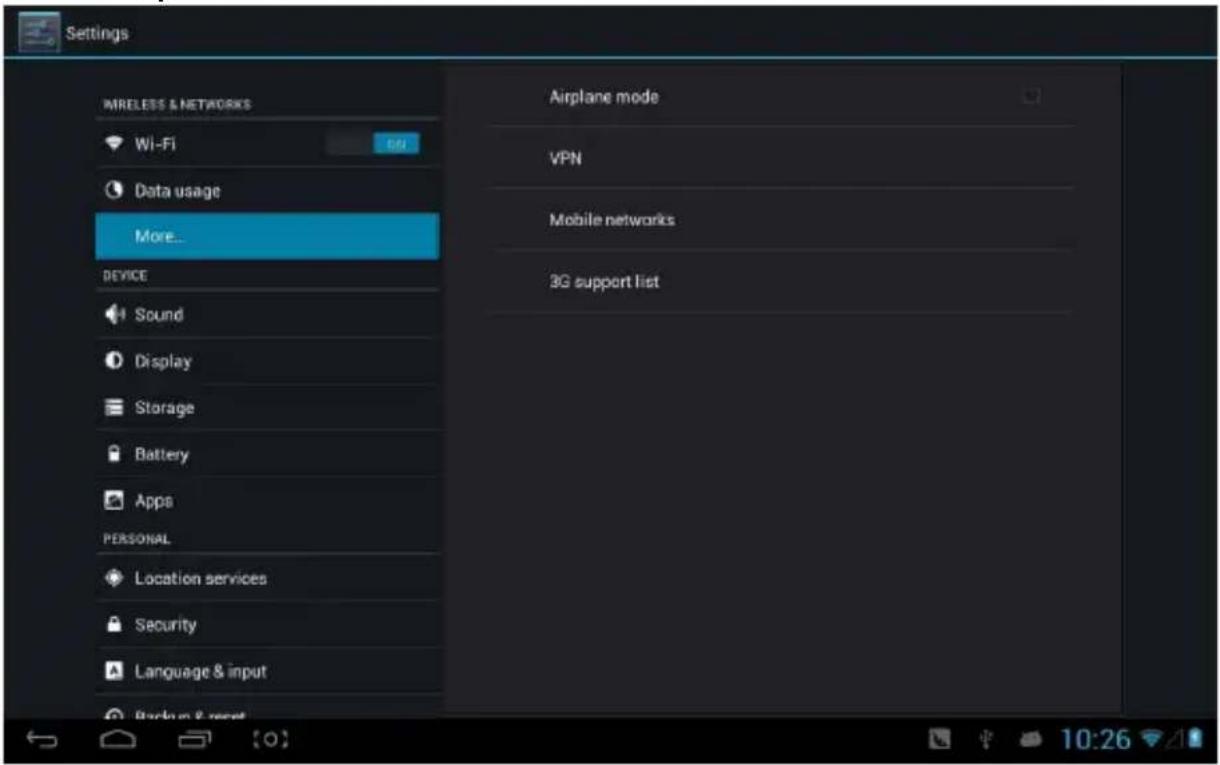
To access the internet via 3G, first turn off Wi-Fi and Ethernet (if enabled), then plug the 3G dongle with a SIM card into the MID's USB port. The MID will connect to the network automatically; once connected, the 3G icon (as shown in the screenshot) will appear in the system menu. The entire connection process may take up to 1 minute.

Sound
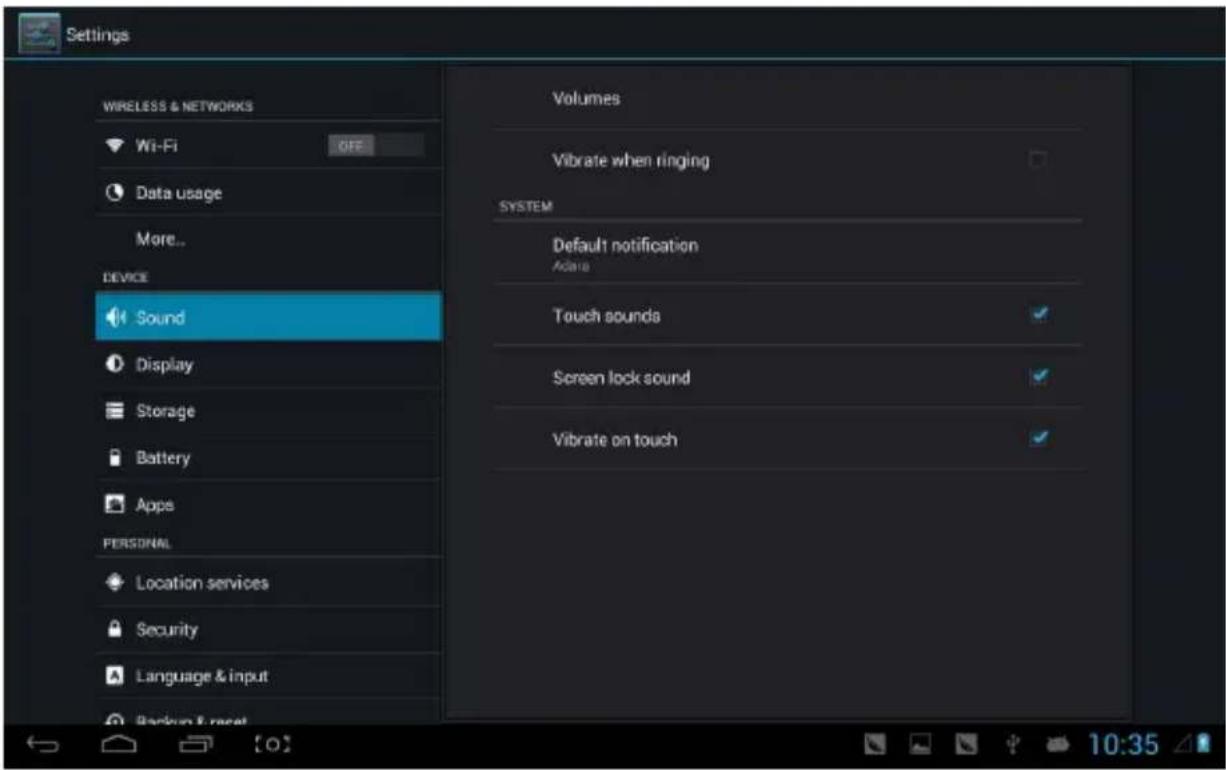
Volume: Set the volume for music, video, games, and other media, as well as for notifications and alarm sounds.
Ringtone and notification: choose the ringtone and notification warning tone (prompt tone for sending system notifications, operation dial, plugging in or out the SD card).
Note: Notification sound, operation selection, SD card notification, etc. are used in mobile phone systems, but in MID devices, they are set by default.
Touch sounds: Whether to emit a prompt tone when you touch it.
Screen lock sound: Whether to emit a prompt tone when you lock the screen.
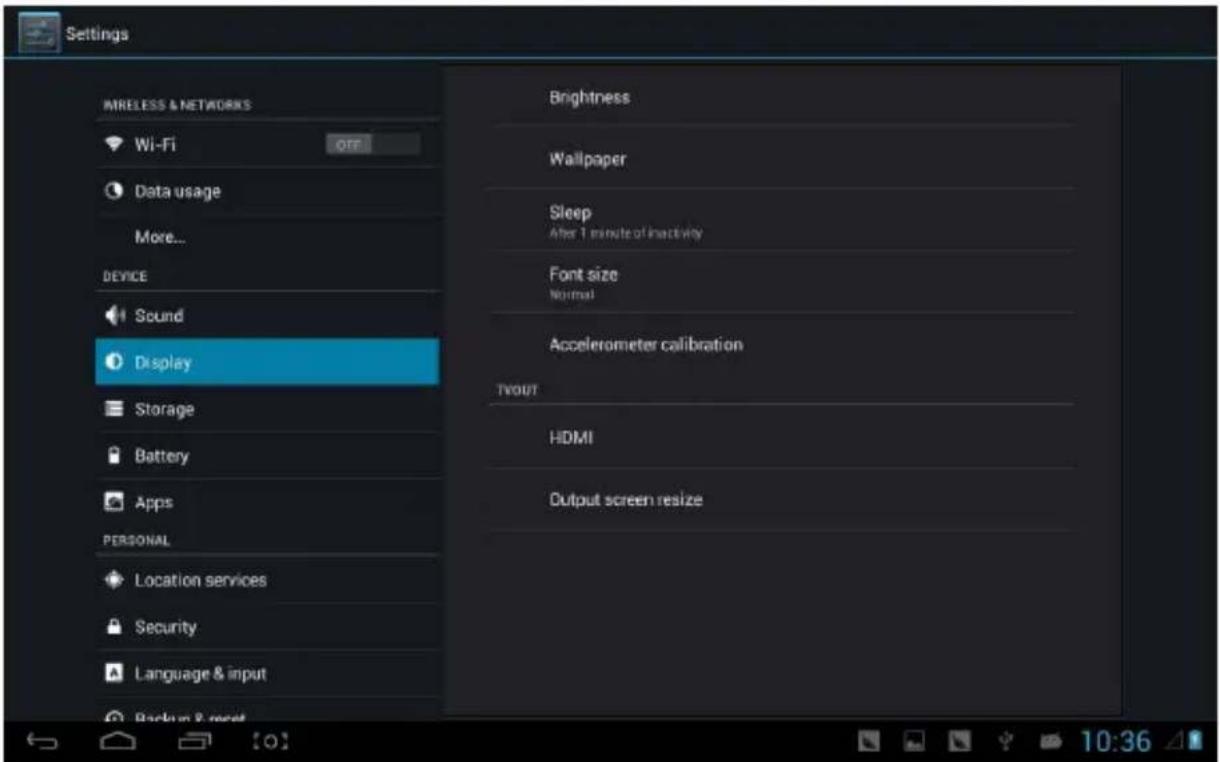
Display
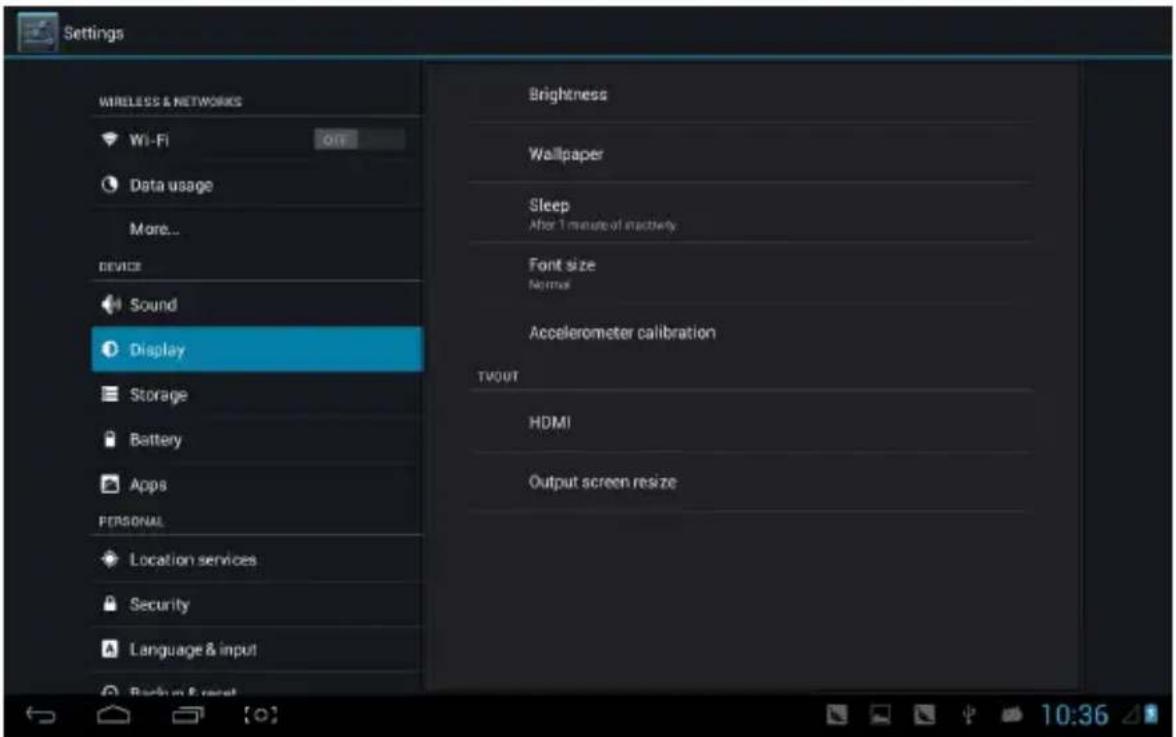
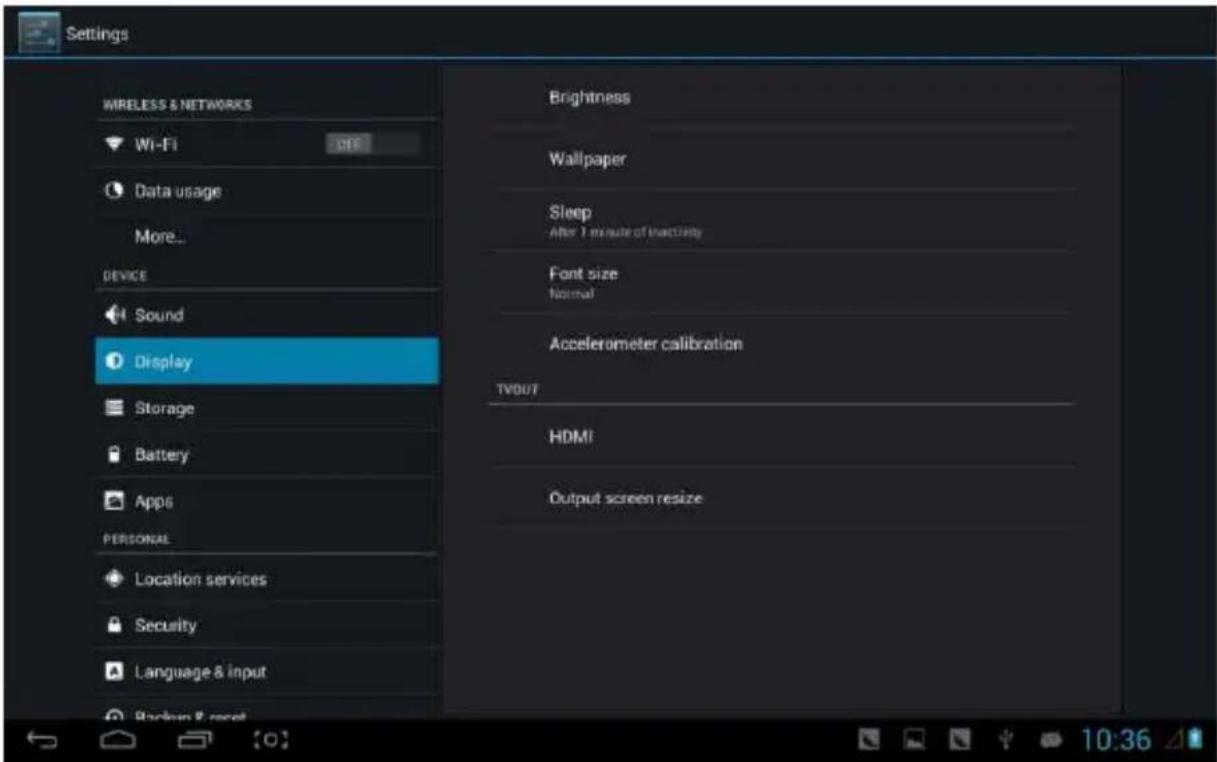
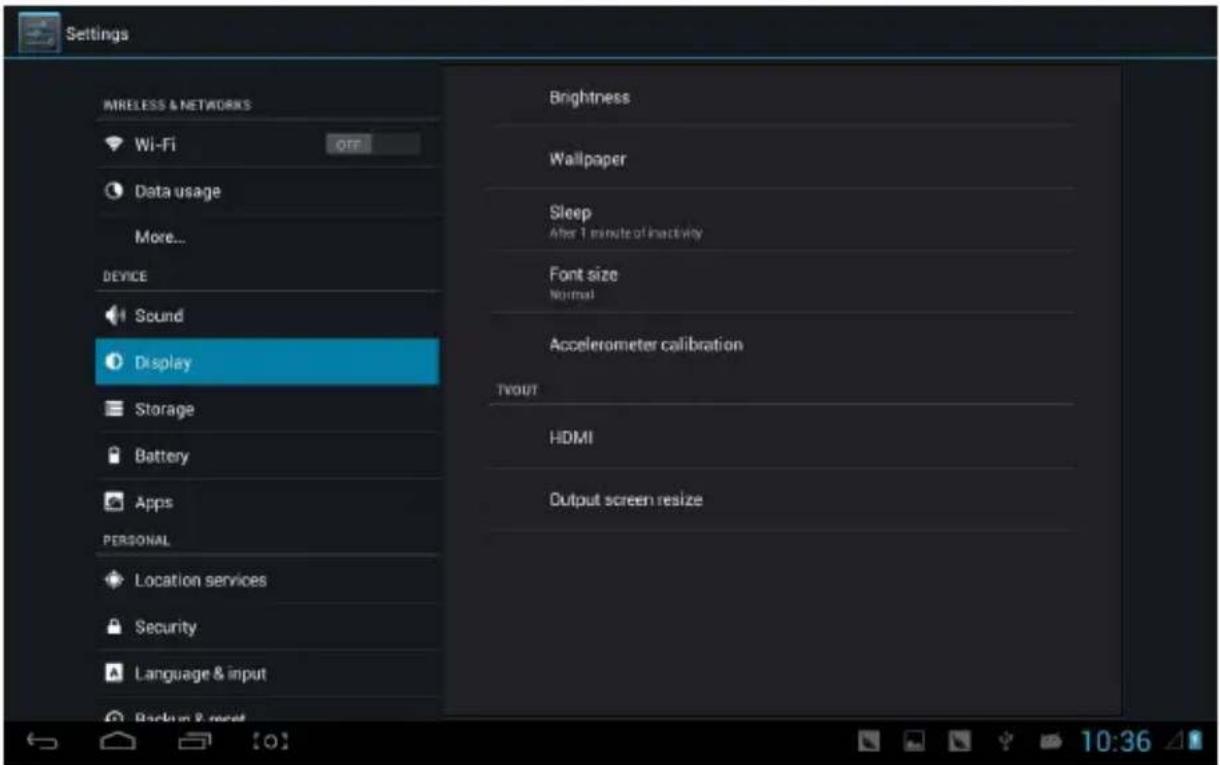
Brightness: Set the brightness of the screen.
Wallpaper: You can choose wallpaper from live wallpaper, picture library, and normal wallpaper.
Sleep: Set that if there is no operation within a span (15s/30s/1min/2min/5min/10min/30min), the MID will sleep automatically, and the display backlight will turn off automatically to save battery.
Font size: Set the displayed font size (small/normal/big/oversize).
Accelerometer calibration: If you find the accelerometer has some deviation, you can calibrate it from here.
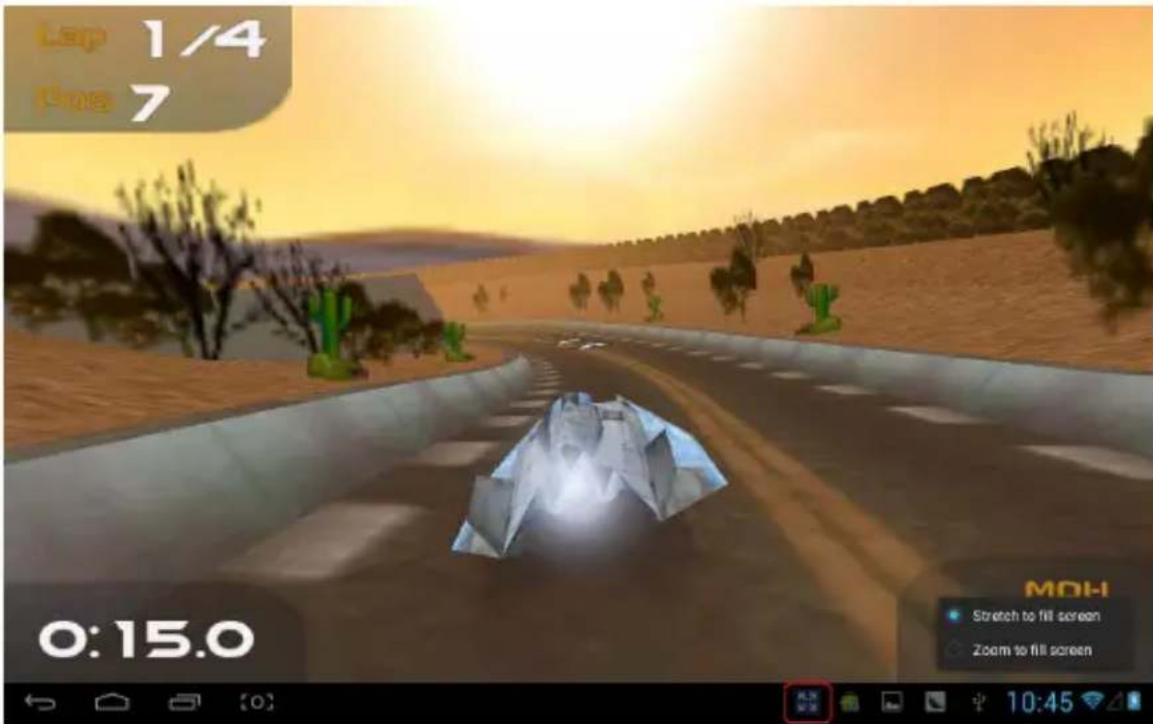
Note: For some games related to the accelerometer, if you find the accelerometer becomes invalid, you can check whether there is a "con" icon on the lower left side of the screen. If there is, click it, and two options will pop up: "stretch to fill in the screen" and "zoom to fill in the screen". Then you can choose the mode that adapts to the game.
Storage
Send out related information about MID storage space.


Battery
Show information about the spare capacity of the battery.
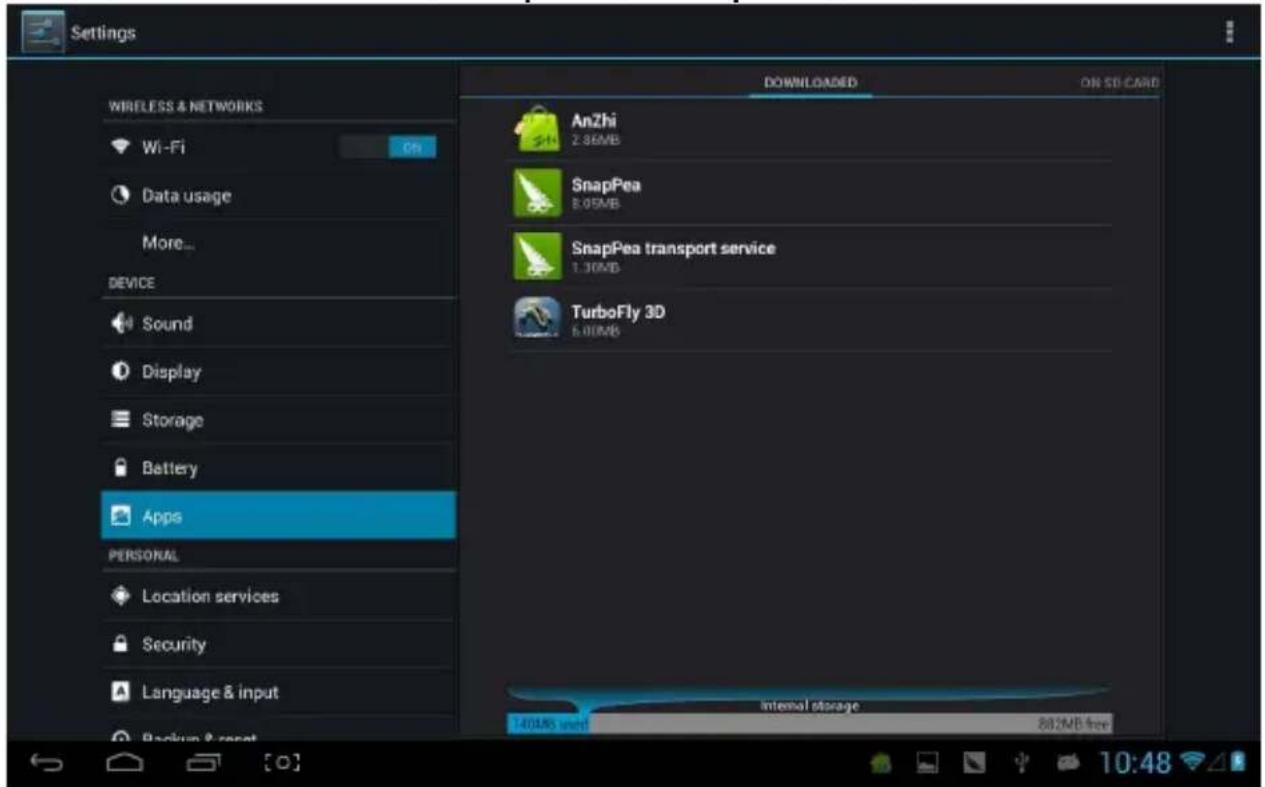
Applications
You can check and operate within intrasystem applications.

Downloaded: Lists the information of downloaded applications.
On SD card: Lists the storage apps information of the SD card.
Running: Lists the running apps information. Clicking on a running program, you can check its progress and services further.
All: Lists all application information of Android. Clicking on a certain program, you can check information such as its version number, storage space, cache size, access rights, etc.
Location services
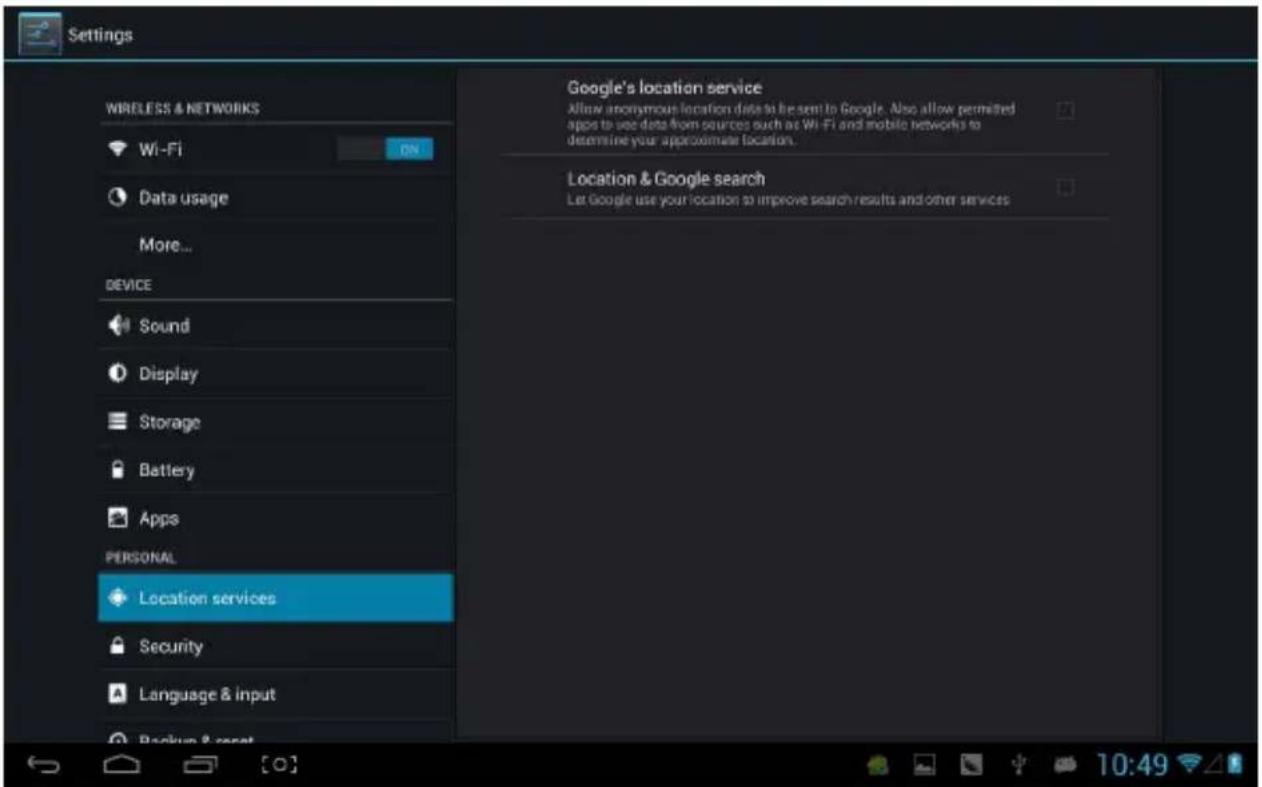
Google's location service: Lets apps use data from sources such as Wi-Fi and mobile networks to determine your approximate location.
Location and Google search: Lets Google use your location to improve search results and other services.
Security
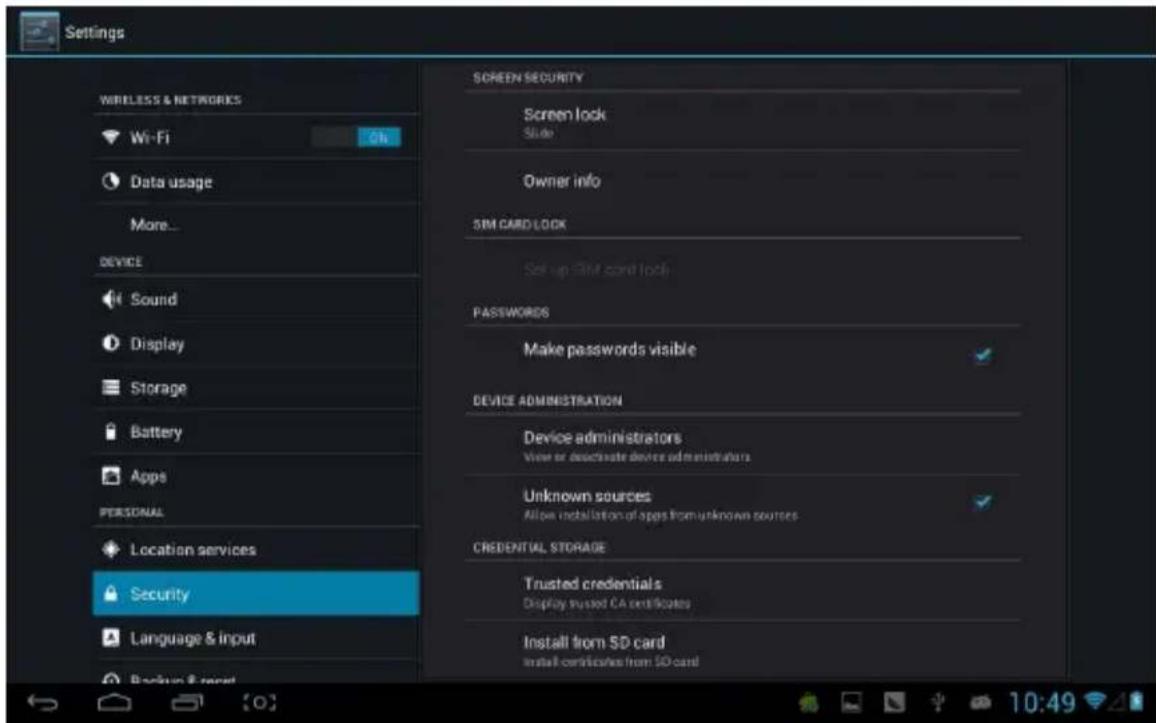
Screen security:
(1) Screen lock: Choose the unlock mode when the screen is locked. (2) Owner information: Set the owner information displayed when the screen is locked. (3) Passwords: Whether to display characters when inputting passwords.
Device administration:
(1) Device administrator: View or deactivate device administrators. (2) Unknown sources: Whether this option setting permits installing applications that are not purchased from the Android market.
Credential storage:
(1) Trusted credentials: Display confidential CA certification. (2) Install from SD card: Install certification from SD card.
(3) Clear evidence: Delete all certifications.
Language and input
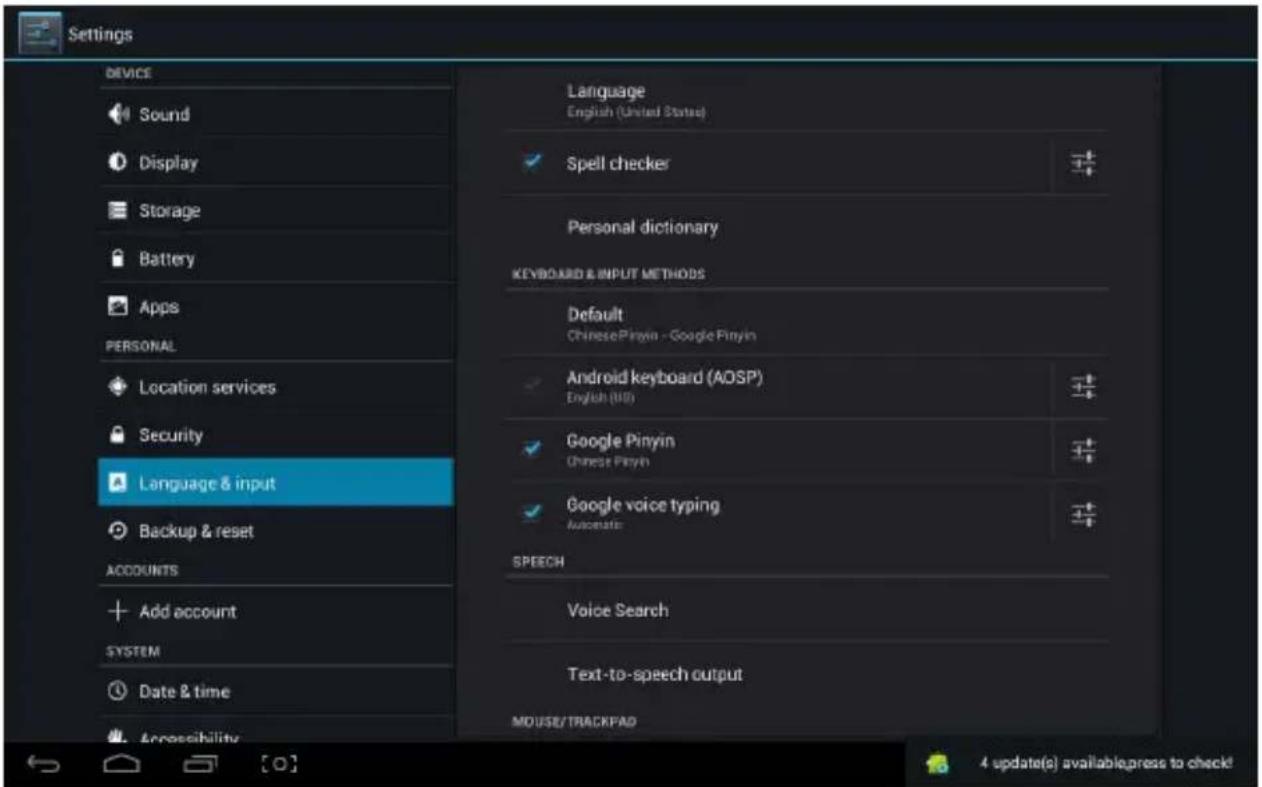
Language: Choose the language which screen displayed.
Spelling checker: Input characters whether open correction.
Personal dictionary: Click the "ADD" button on the upper right side of screen; you can add vocabularies to create your own dictionary.
Keyboard and input: this option list the input installed in MID, you can do some related settings to each input.
Backup and reset

Backup and reset:
(1) Backup my data: Back up app data, Wi-Fi passwords, and other settings to Google servers. (2) Backup account: Back up to debug-only private cache. (3) Automatic restore: When reinstalling an app, restore backed up settings and data.
Personal data:
Factory data reset: Erase all data partition; clear all user data in tablet.
Add accounts
Manage accounts and synchronize information. Clicking "ADD an ACCOUNT" on the upper right side of screen, you can add Google account, company account, or email account.

Date and time

Automatic date and time: the time stays in sync with the network. Automatically ensure time zone: it stays in sync with the network.
Set date.
Set time.
Select time zone.
Use 24-hour format.
Select date format.
Accessibility

Large font: Select whether to enlarge the font.
Autorotation screen: when rotating the MID, whether the image rotates at the same time to adapt to viewing.
Quick boot: ticking this will speed up booting.
Running mode: there are three options, including "performance balanced", "power saving prior", and "performance prior".
1) Performance balanced: The MID will adjust power consumption and performance to balance both. It is suggested that you use this option.
2) Power saving prior: The power consumption of the MID is relatively small, so it saves power, but it may lead to some
scenes where power consumption is large, and it cannot be used normally. It is not suggested that users use this option.
3) Performance prior: If you choose this option, the performance of the MID will be the best, but because of the large power consumption, the power will be consumed easily.

Note: When running some applications or games, rotation may be disabled to ensure proper display.
Developer options

This option is intended for developers only, such as automatically enabling debug mode when USB is connected.
About tablet

In this option, you can check the MID status, legal information, MID model number, Android version, kernel version, and build number.
Music

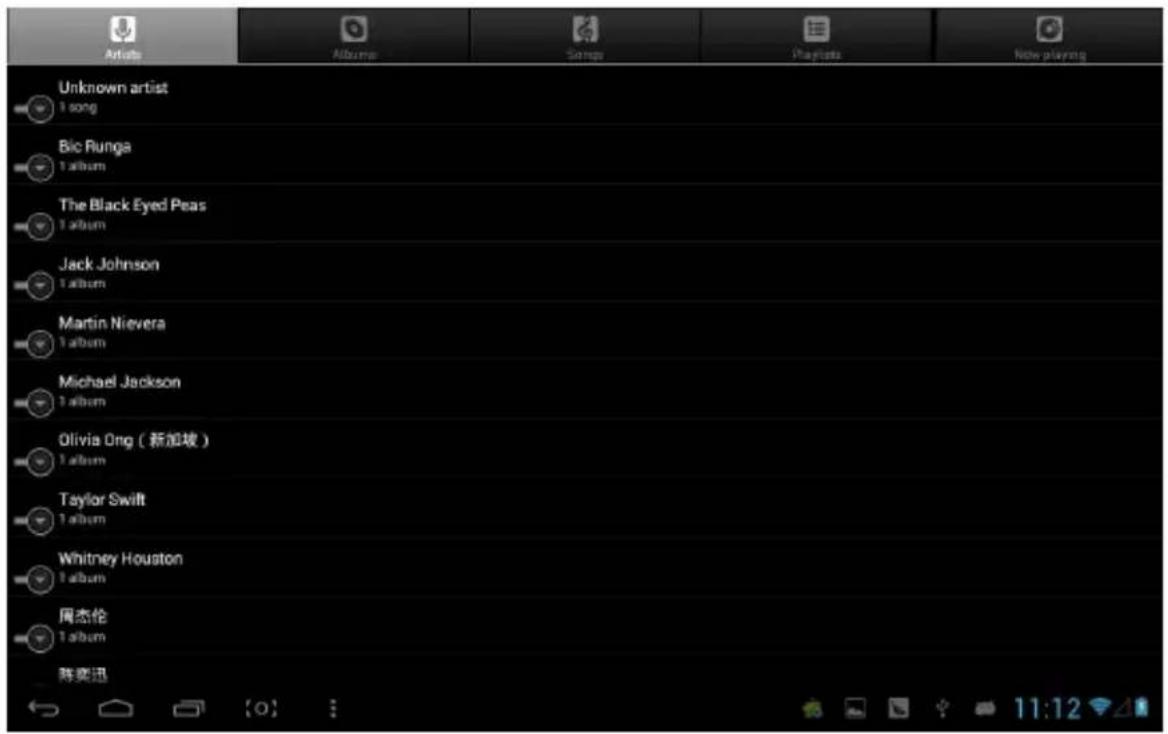
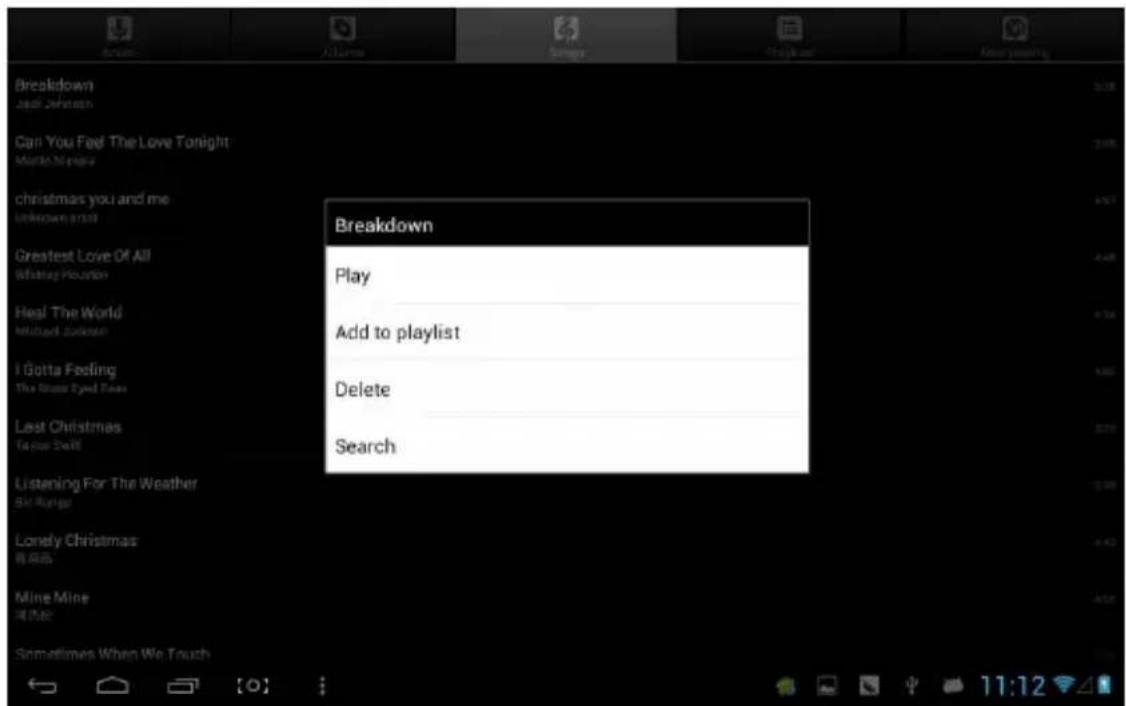
Tap to enter the music library. All music files are listed separately under 'Artists', 'Albums', 'Songs', 'Playlists', and 'Now Playing'. Tap any category to view its list.
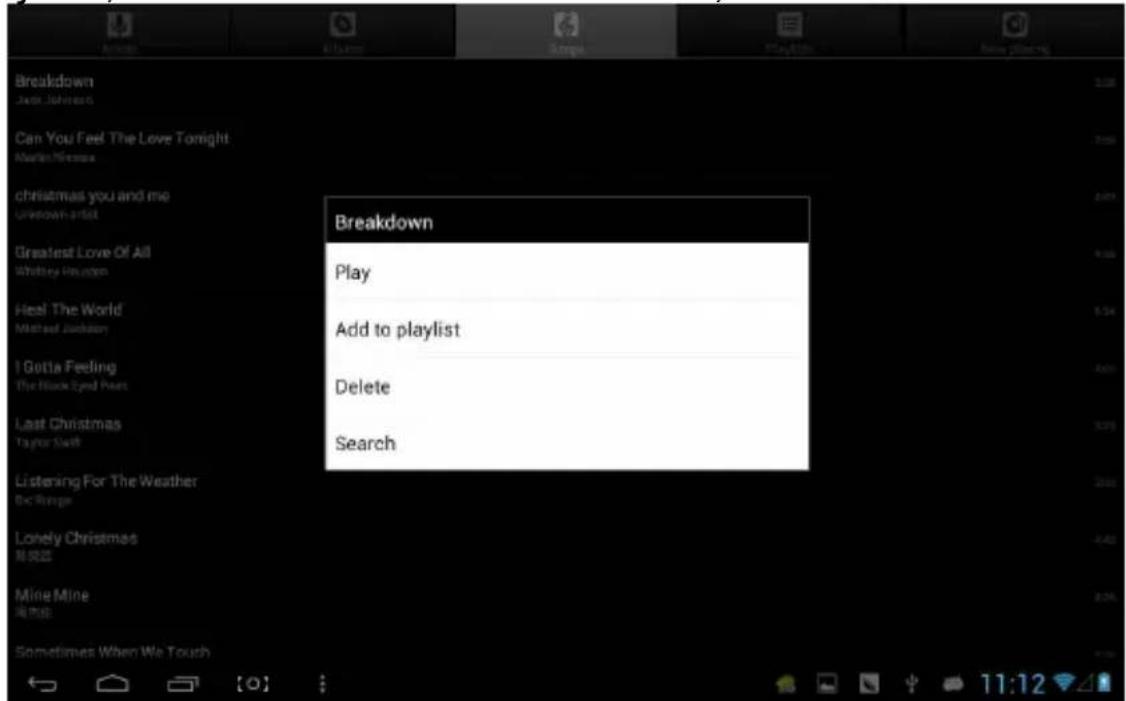
Long-press any song or folder name to add it to a playlist, delete it, or search for it, as shown below:
You can play music while using other applications, such as browsing pictures, reading text, or surfing the internet. When music is playing in the background, the status bar at the top left displays an icon. Press and drag downward to see the following screen. Tap the music to return to the music playback interface.

Video & Pictures
Tap the picture library to enter:

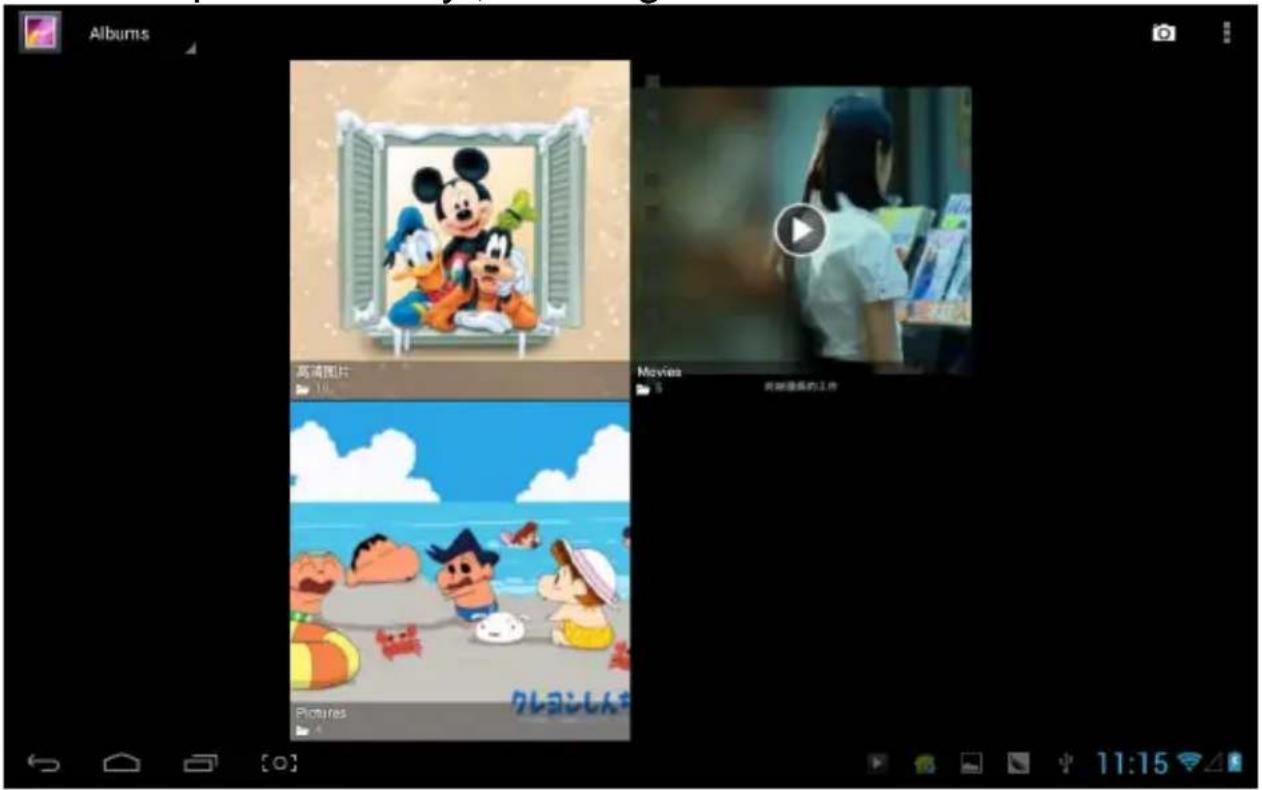
Tap the video folder and wait a moment. After analysis, tap to start playback, as shown below:

Choose the picture folder, as shown in the following screenshot:

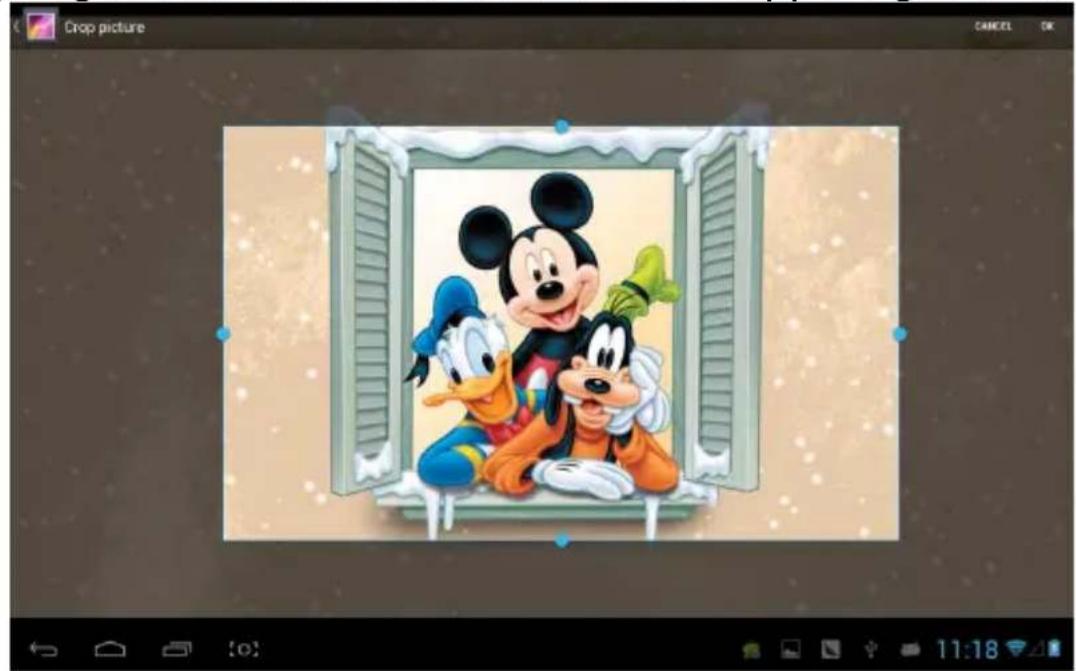
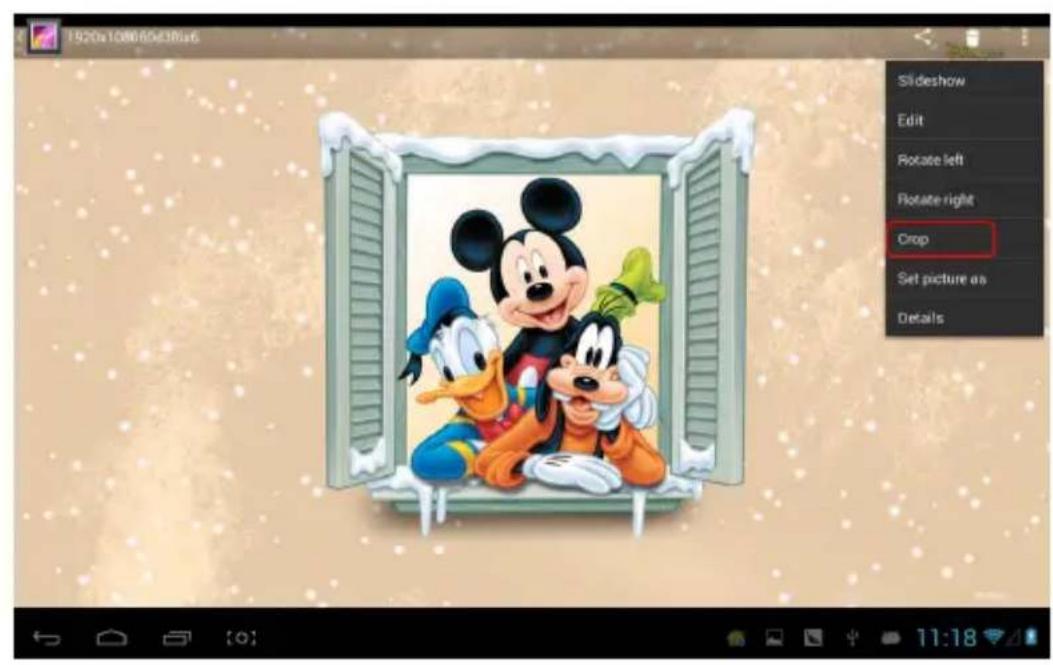
Tap the icon in the upper right corner to choose options such as playing a slideshow, editing, rotating left, rotating right, cropping, and more.

Choose 'Crop' to cut the picture. After selecting the crop region, tap the 'OK' button in the upper right corner:
Owl player
Owl player is a featured video player, and it supplies a brand new window play mode—playback simultaneous of multi-window.
Click the icon, enter the owl player:

![OWL Player [58] Battery Directory Favorite Played 1080P 720P Memory card Settings Resume Clear 118_WMV3-NP_1200x720_150ps_2048kbps_WMI 00:02:25/00:04:16 1080P 1080P 1080P 1080P 1080P 1080P 1080P 1080P 1080P 1080P 1080P 1080P 1080P 1080P 1080P 720P 720P 1080P 1080P 1080P 1080P 1080P 1080P 1080P 1080P…](/content/2026/06/1315475/images/afde044796f6182cba82944a3442b4633a567bf4db778ecbdaa36deaaf14e596.jpg)
There are four modes in list: Gallery, Directory, Favorite and Played. Users can play different file by entering different mode. Playback interface as follows:
![105685_DIVX_1920x1080_25fps_13487kbps_MP3_1920kbps_DIVX4_AVI [1920 X 1080] [12.5Mbps & 25.00] fps / 奥里沃·微信试.avi 1920x1080 00:00-14 / 00:02:03 2015-7-21 下午12:34:00 2005/04/06 奥海 达 HRLOVE.ORG 清我琴台](/content/2026/06/1315475/images/52f1e002d506b4e65ccefe06a88593344e723a437af99f268670424da5e54dee.jpg)
Users can modify the window's size automatically. In the case of no progress bar on interface, long press the lower right side of the playing window, you can modify window's size on your own willing:

![OWL Player [58] Gallery Directory Favorite Played 10482_H264-HP_1280x80fps_24fps 00:01:52 / 00:02:39 720P 104847_RV48_1120x840_30fps_137F 00:00:00 / 00:00:5T 105566_MPEG2_720x576_25fps_400kbps_MP2 00:00:00 / 00:04:13 720P 105566_DIVX_1920x1080_25fps_13497kbps_MP 00:01:09 / 00:02:03 720P 105660_H264-…](/content/2026/06/1315475/images/5cc5f7a745b12c2f5ddd2b8106cdcc4154072b8c85d505972f312b908305c8d2.jpg)
You can open several windows to play at the same time:
![OWL Player D1视频 [10] WUAR 1 2 3 4 5 7 8 9 10 11 12 14 15 16 17 6_30fps... 10 16 露天就是K 30fps 13:04 9:42](/content/2026/06/1315475/images/83da740aa9daeaee95a50cfd11fe936ff59d794eeabb084d5332a8761b07a4bb.jpg)
Click the upper right side icon

![OWL Player [58] Gallery Directory Favorite Software Decoder Search Open URL Sort Order Settings 1080P 720P 1080P 103353_WMV3-AP_1920x1080_24fps_15981kbps_00:00:30 / 00:00:00 103418_WMV3-MP_1200x720_15fps_2048kbps_00:02:35 / 00:04:02 103720_H264-HP_1920x1080_24fps_7500kbps_00:04:23 / 00:05:35 104028_…](/content/2026/06/1315475/images/da323cb26b1df67e6e5c13b3a72c72daa3a7ec23564179dd97db1516c5d3d75e.jpg)
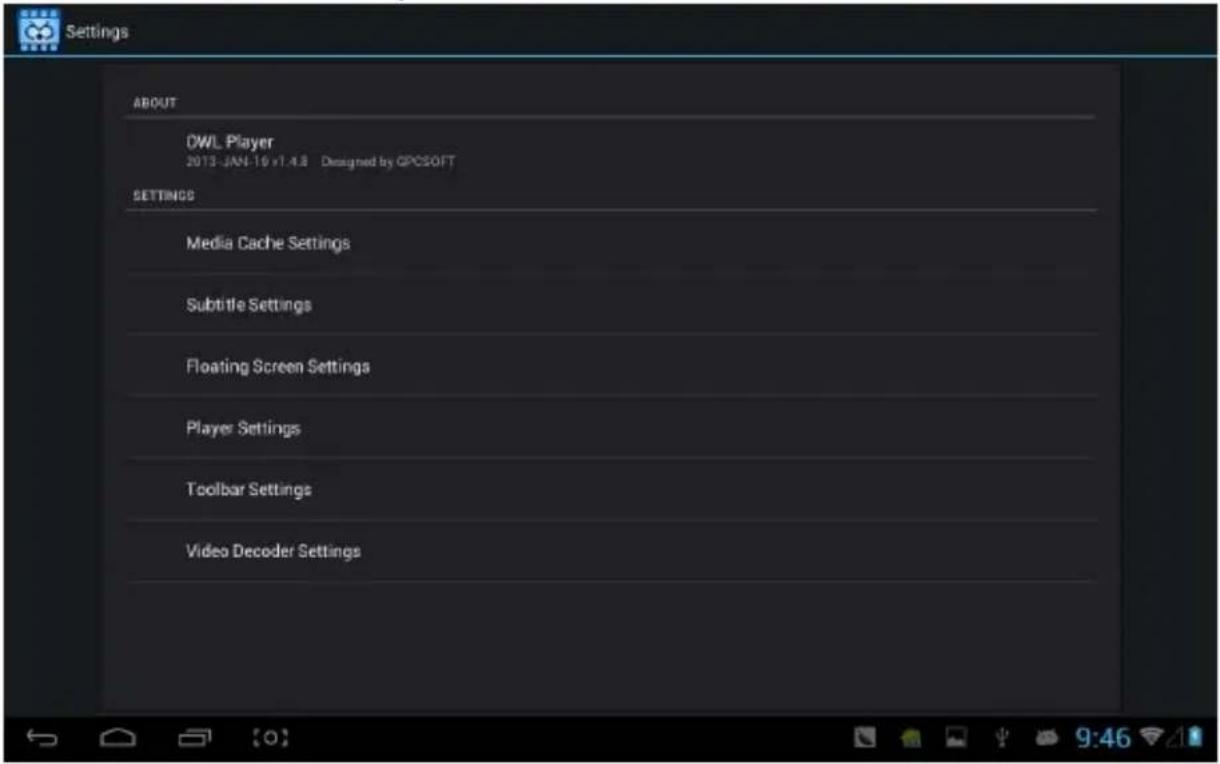
Selecting "setting" on popped up menu, you can enter setting interface to set all options:
Online

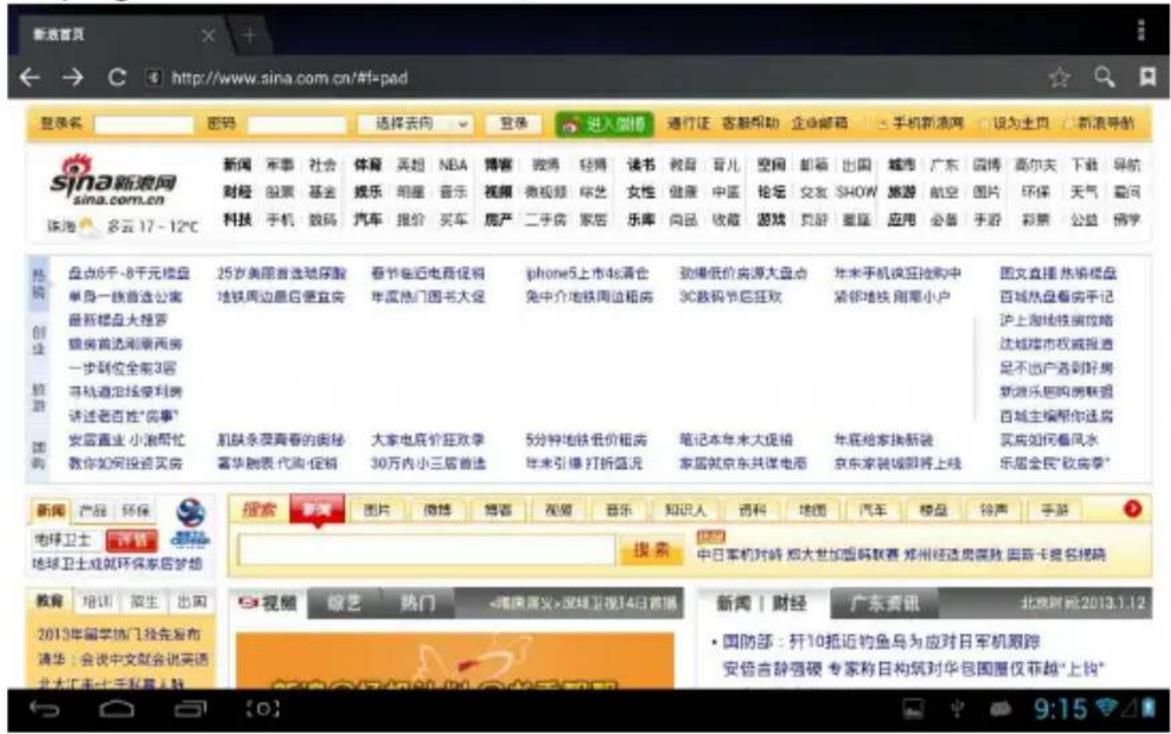
Open the browser, state webpage. Before surfing the Internet, ensuring your MID has been linked the Wifi, 3G or Ethernet.
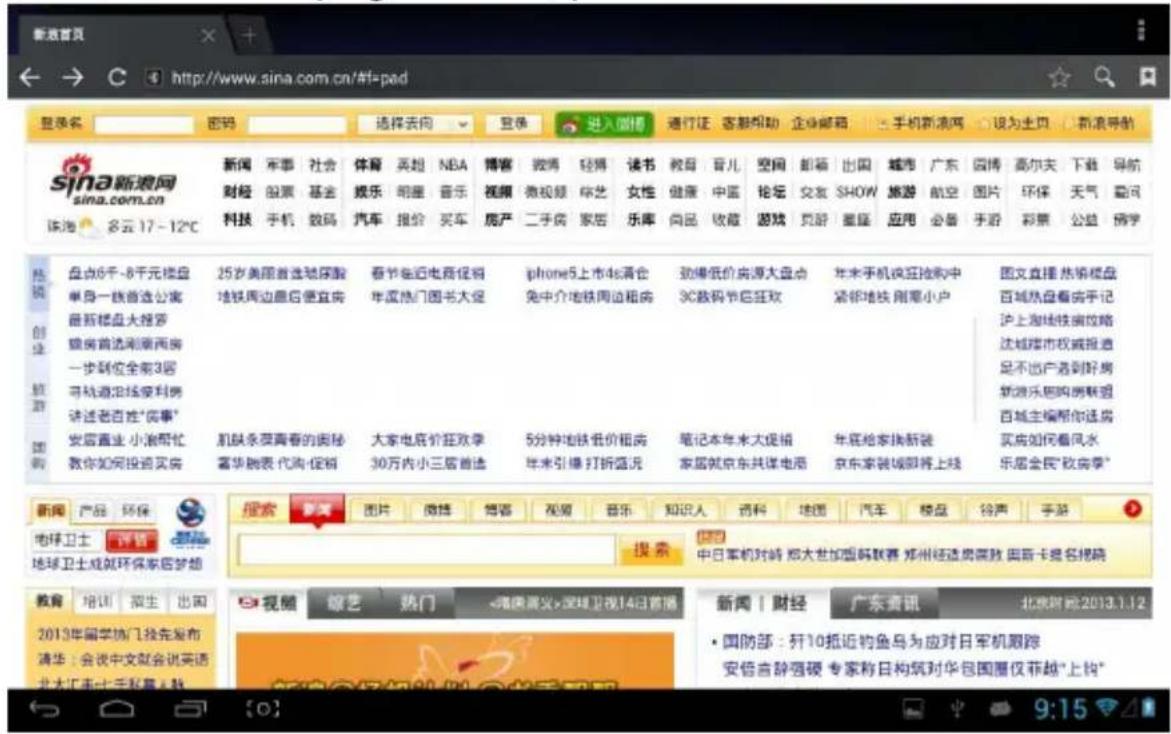
Webpage browser interface, such as visit sina:
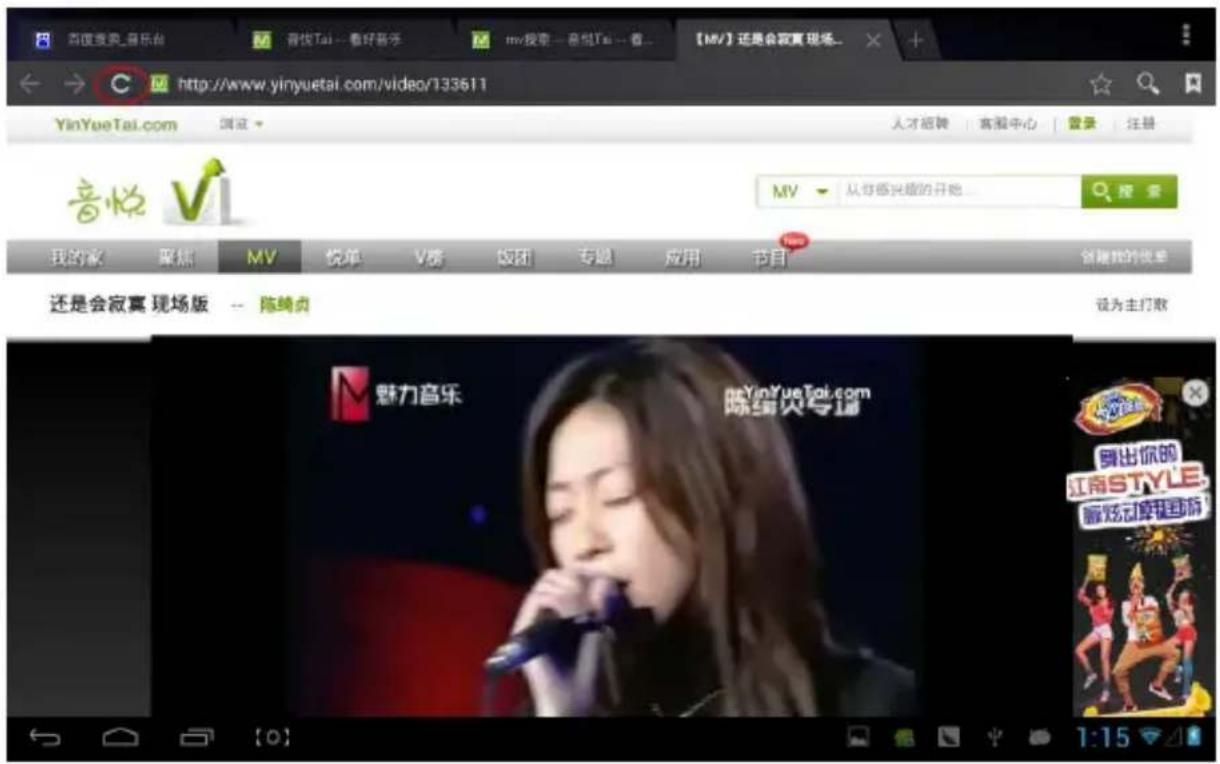
Online play interface, such as play video in Youku:
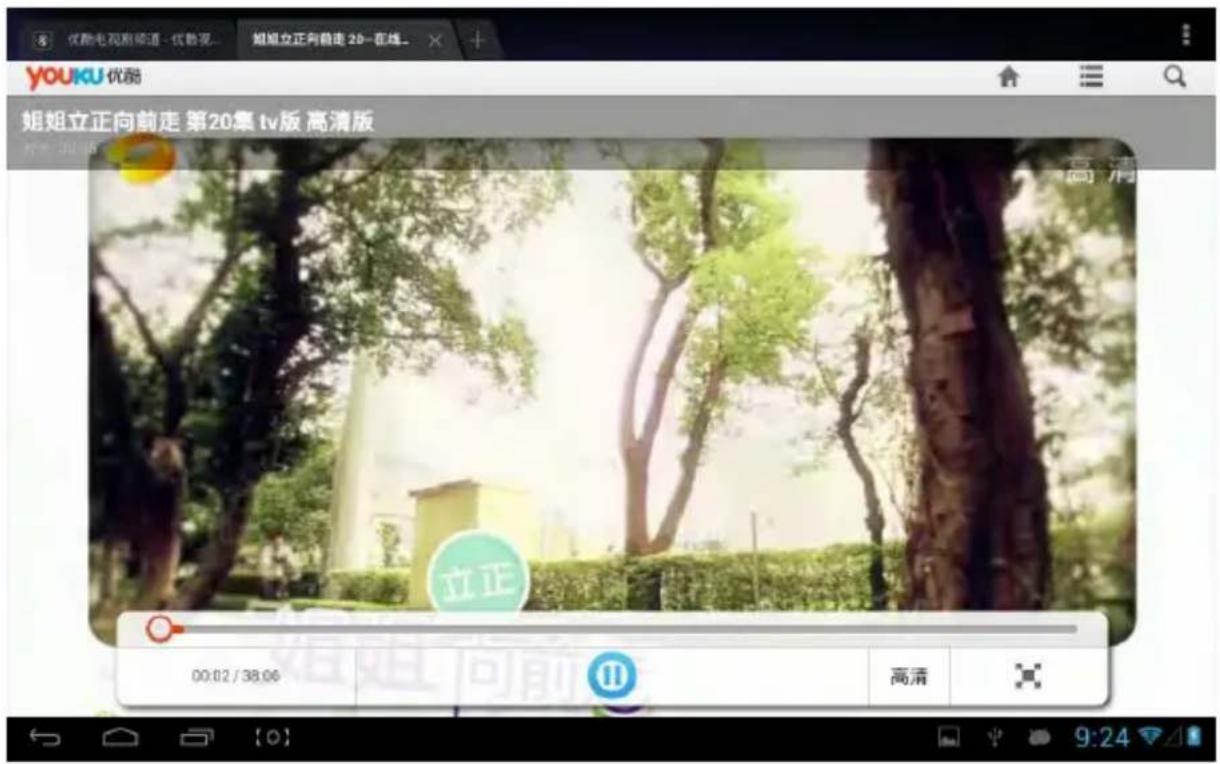
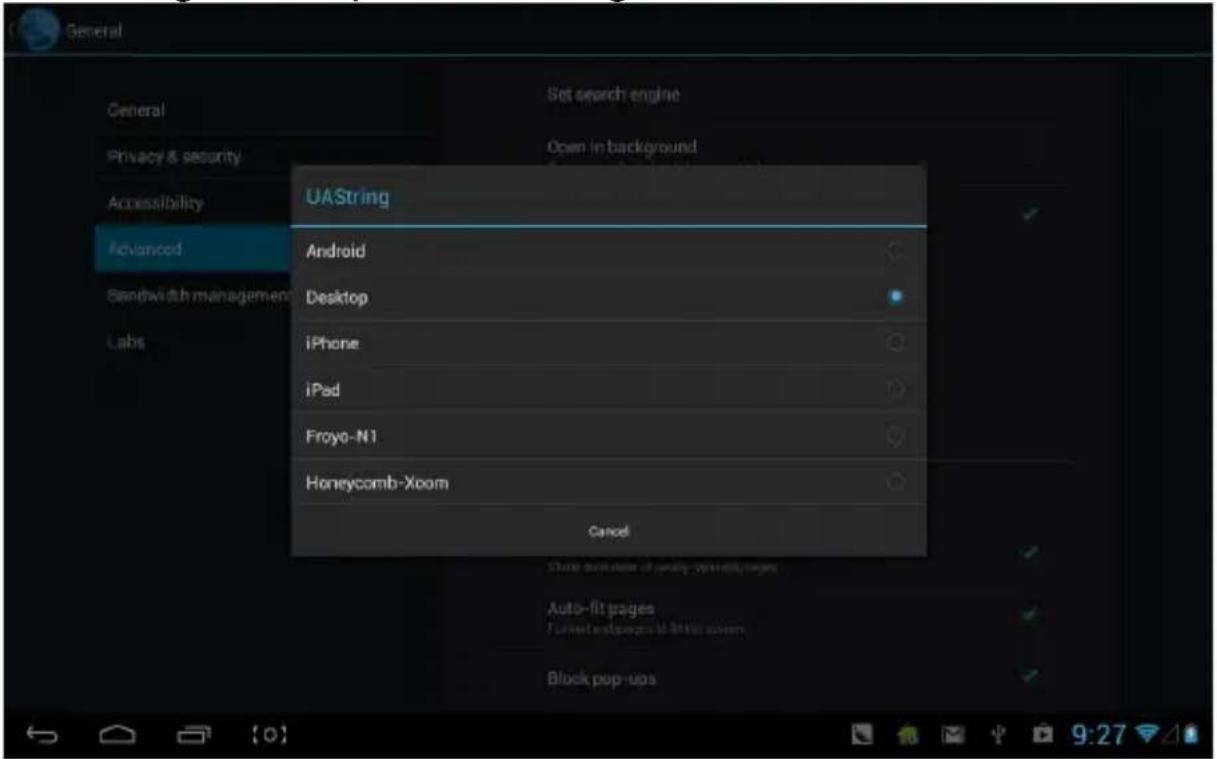
Webpage browser is divided into two parts, including desktop and ipad, if you want to visit the webpage of PC (most contents of web give priority to flash), then you need to modify the UAstring settings, methods as following:
Click the button, the upper right side of web, choosing "setting" on the last option of popped up menu:

Selecting "Advanced":

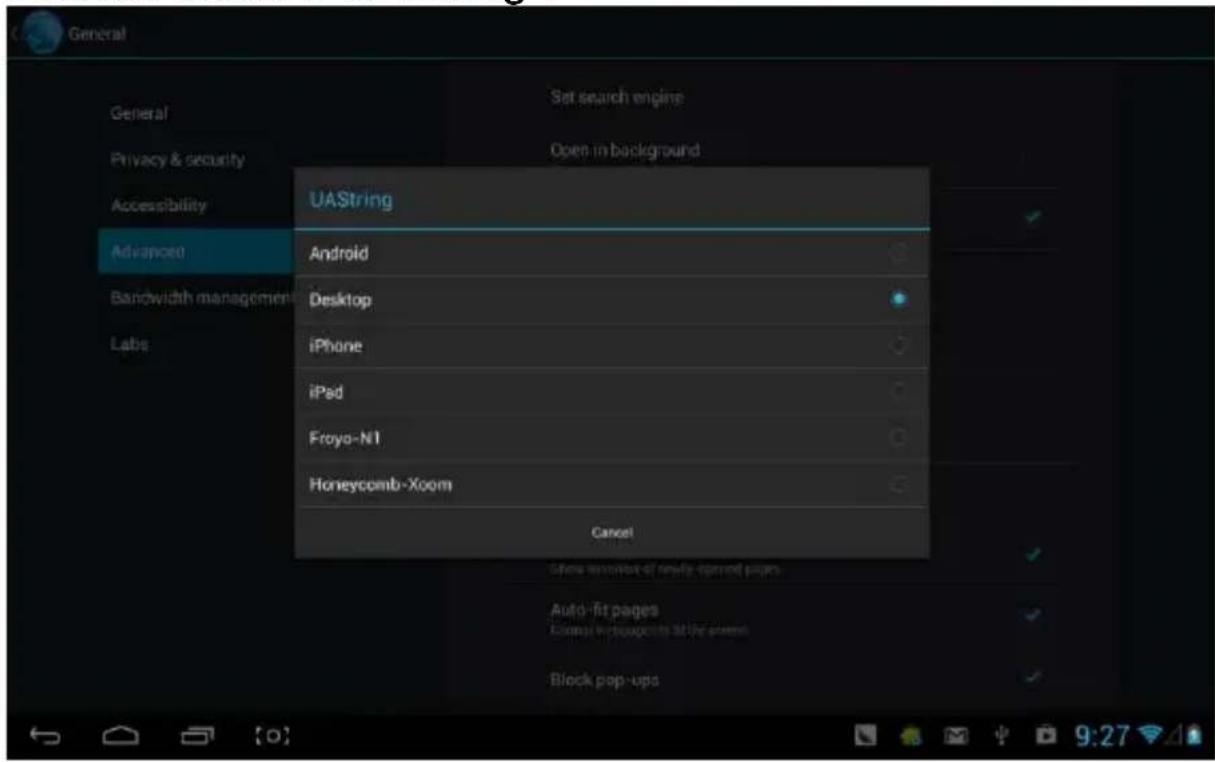
Choosing Desktop in "UASTstring":
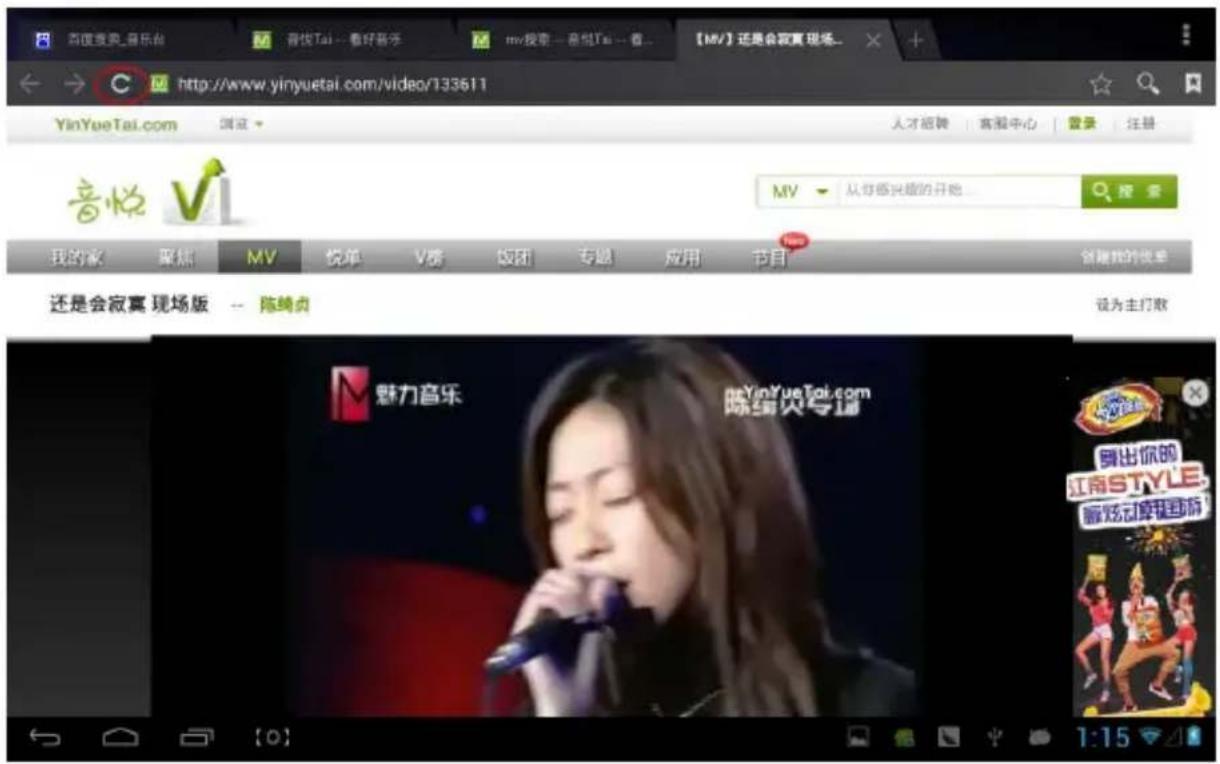
Then come back to web playing interface and refresh:
If you need to visit webpage of MID(most contents give priority to HTML5), then you need to change “UString” to ipad:

Camera
click, you can enter the DC application:
select pan-shot, click photograph key, move the lens leftward or rightward slowly to take photos:

Pan-shot's effect picture:
You can send or receive emails in MID.

Click Email, and login your account and password, then you can send emails.

Play store
You can download applications from play store and then install them on your MID.

When the WIFI is linked, click play store icon , file 8店 can enter the main interface of play store:
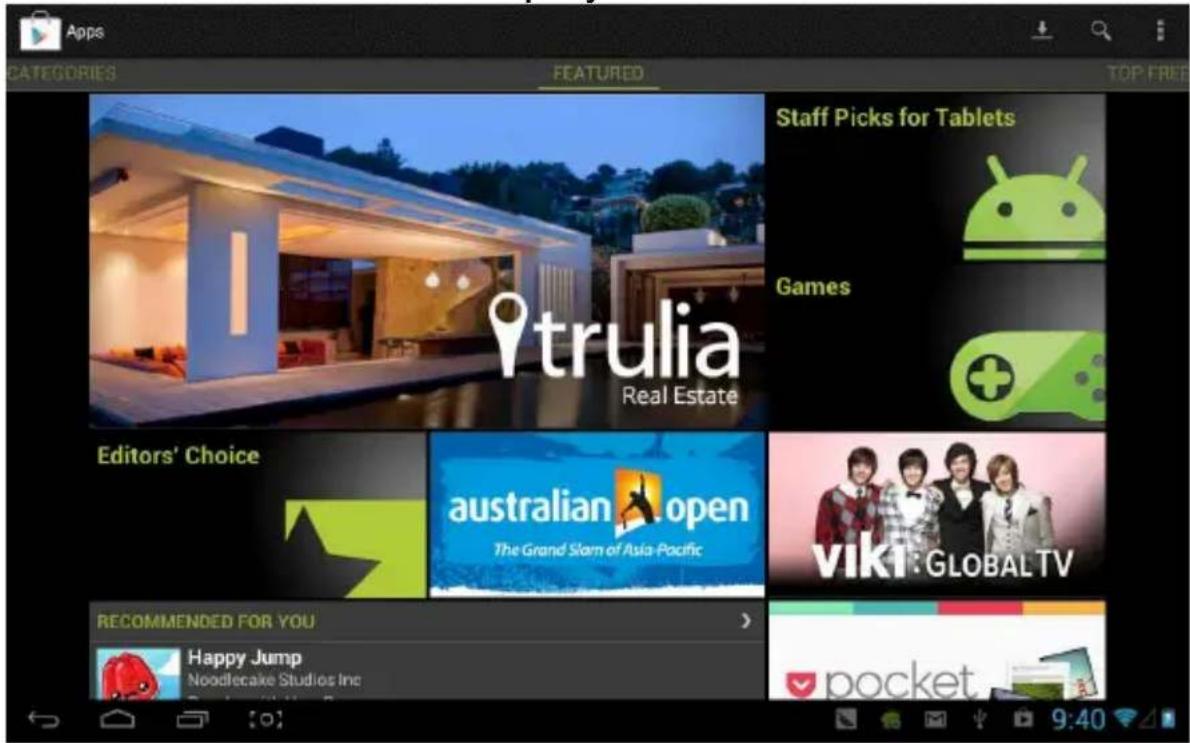
There are five sections on Play Store for users to download, they are Categories、Featured、Top Free、Top Grossing and Trend.
If you choose "Map" in "Top Free" to download:
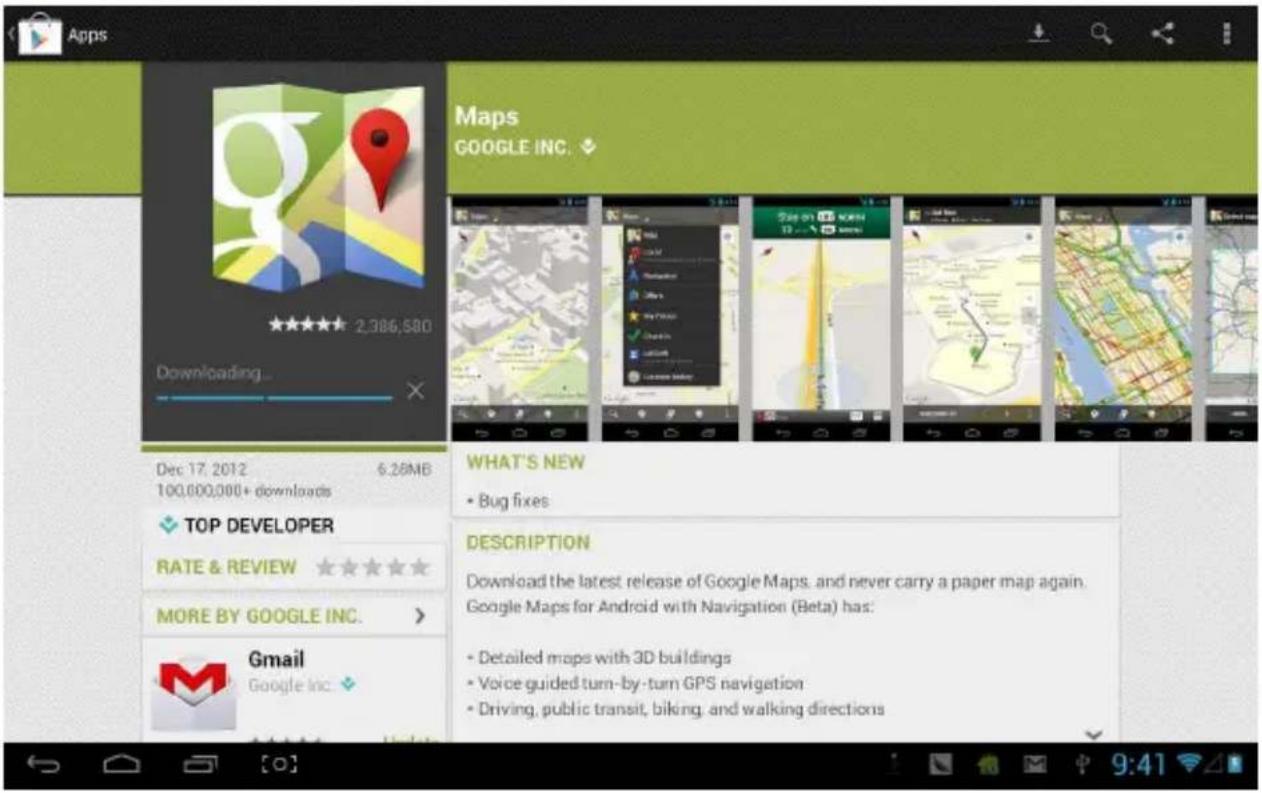
Open to use after installing: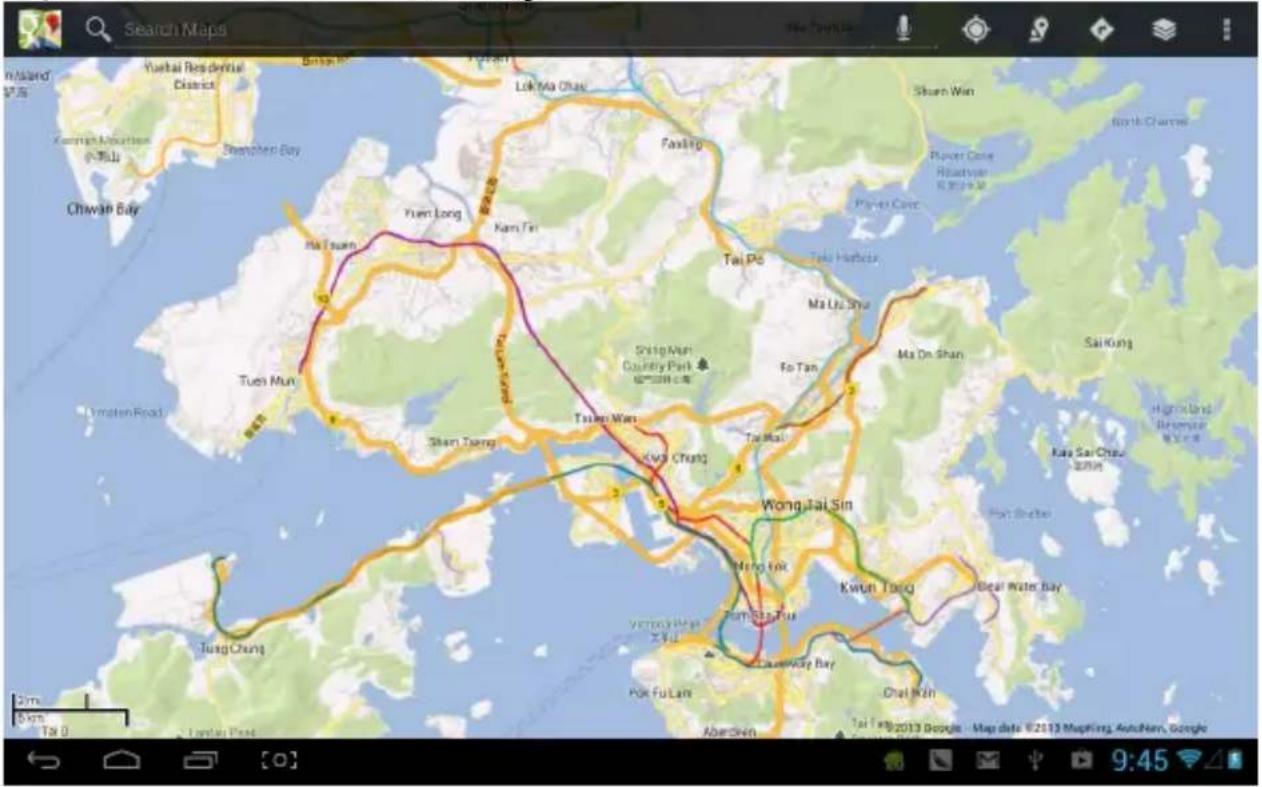
Calendar
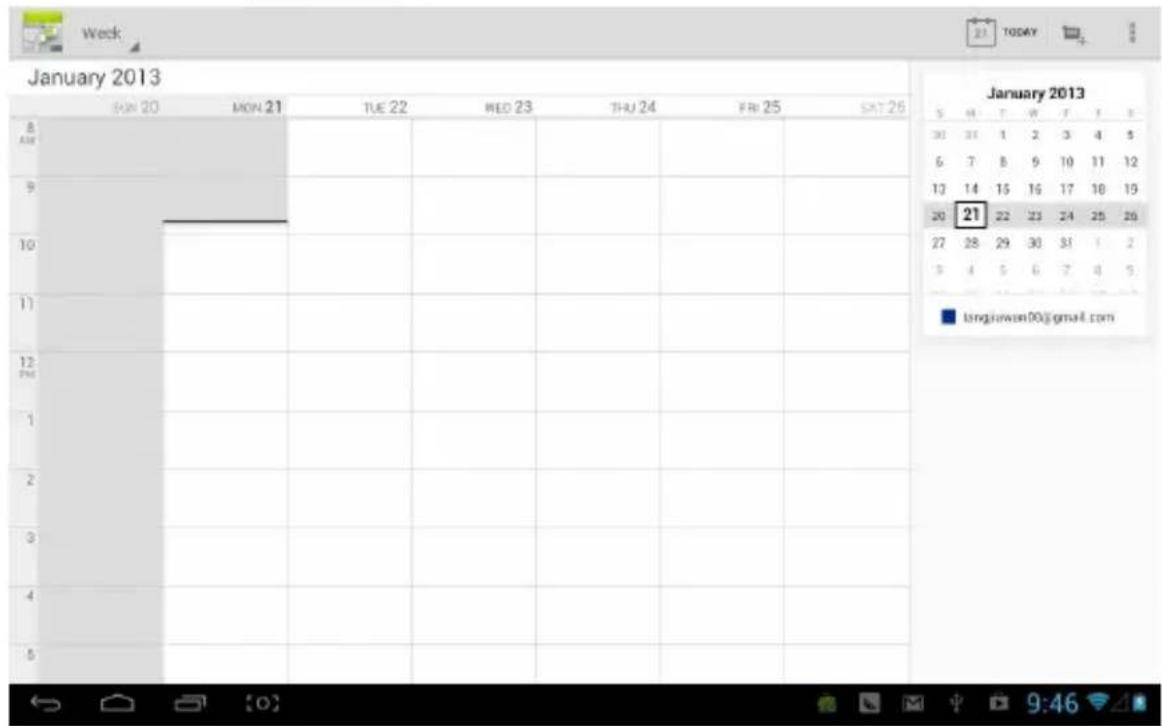
Click calendar order Calendar:
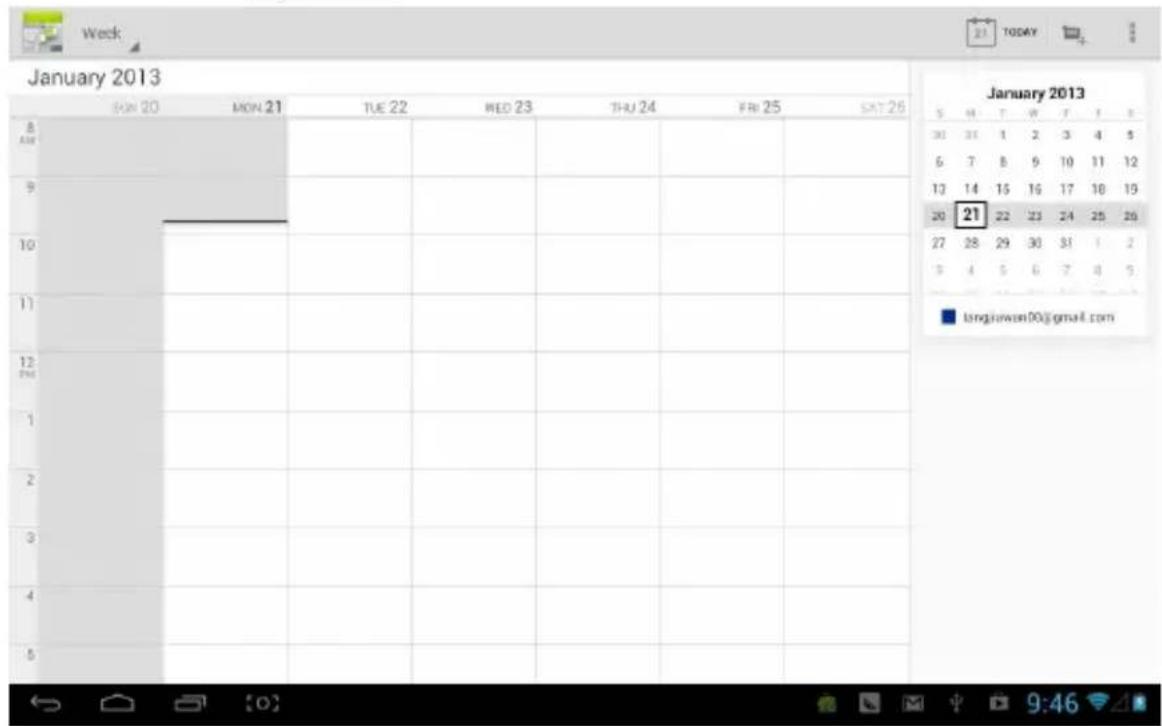
You can set calendar remind tone and other related settings via
Add agenda: start to set agenda by , the option you can set including: event name、time、location、description、repeat time and remind. At this time, screen display as follows:
![New event Calendar tangjiawan00@gmail.com tangjiawan00@gmail.com What Event name Where Location From Mon, Jan 21, 2013 9:00am To Mon, Jan 21, 2013 10:00am All day 中 En q w e r t y u i o p 1 2 3 4 5 6 7 8 9 0 a s d f g h j k l @ - + - + - ? - ? - ? - ? - ? - '调 z x c v b n m ← 123 @-) , Next [O] 9:46](/content/2026/06/1315475/images/0ef5d566b35424feb9d135443a626a4098355819fb96ab80a4853b5b3039a1c1.jpg)
Clock
Click clock

k interface will appear:
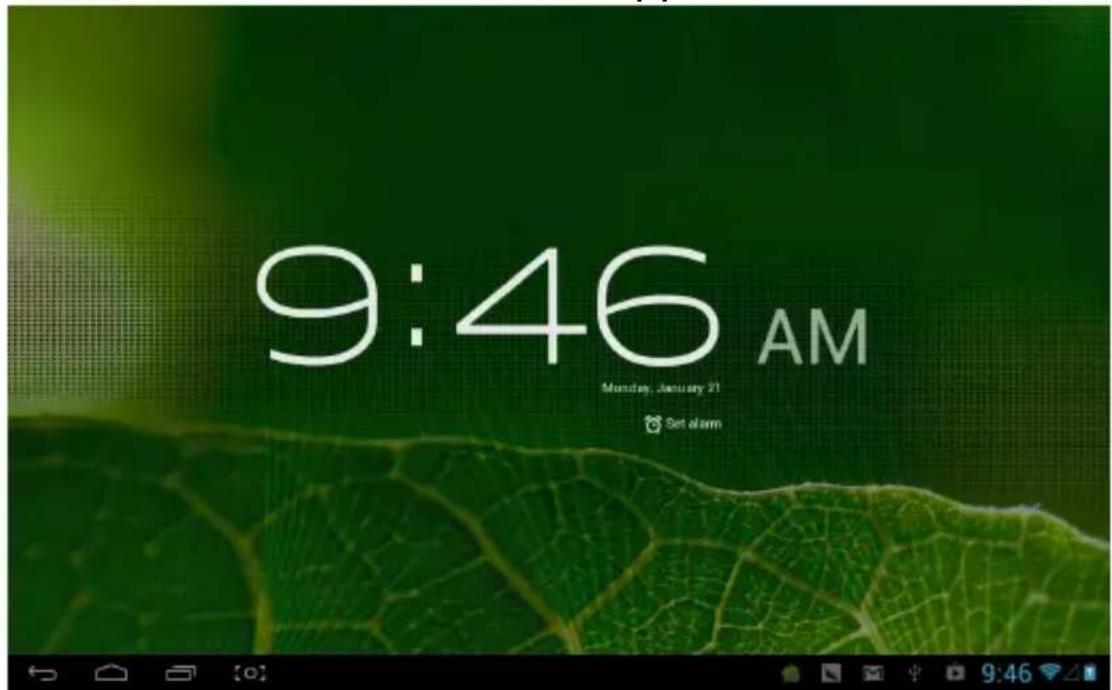
Click to set clock:

User Manual cz
OV-NewBase2
Prohlášení
Příslušenství
Přejdete k prěnosu dat:

Wifi
Wi-Fi settings:

Battery
Applications
Backup and reset
Date and time

Owl player
Online

Select Desktop in "UASString":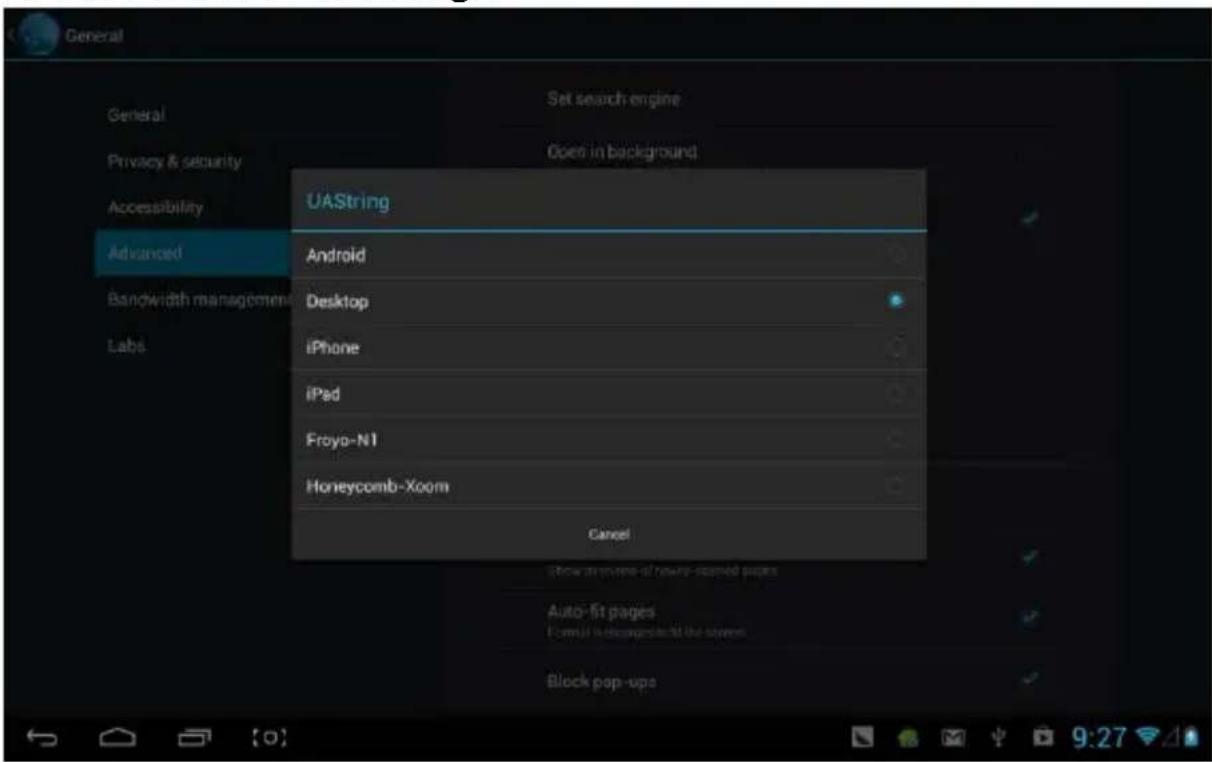
Camera

Play Store
Accessories
The following accessories can be connected to the M721:
| Príslušenstvo Funkcie | |
| Adaptér Dobíjanie MID | |
| MID pripojenie pre USB kábel | Použitie pri prenose dát prepojením MID a PC |
Keyboards
- Keys
Click on "Turn on USB storage" in the displayed window:

Proceed to data transfer:
Wi-Fi
Introduction to Wi-Fi:
(1) Connecting to a Wi-Fi network: Click on "open", the MID will detect available networks in a moment. Select a network and, if necessary, enter the password. (2) After the MID connects to the Wi-Fi network, on the right

Battery
Applications
Backup and reset
Date and time

Owl Player
Online

Select Home in "UASString":
Camera
Play Store
Accessories
click "Start USB storage" in the displayed window:
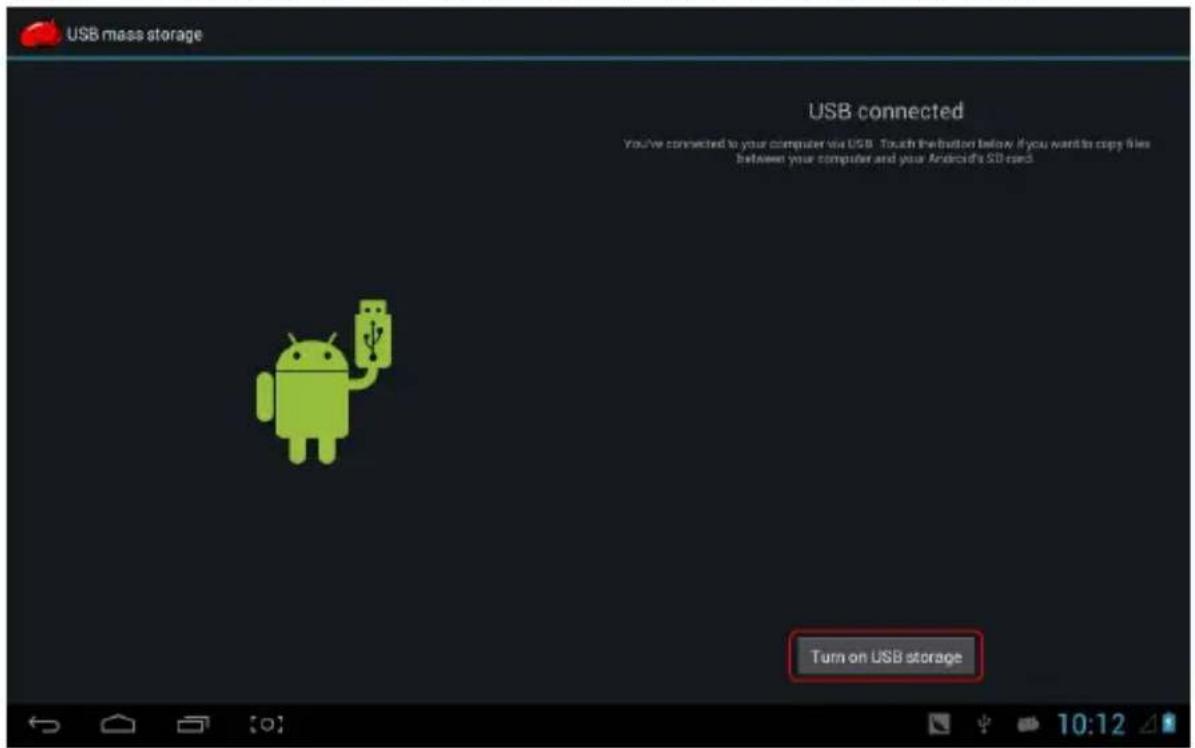
Then enter the data transfer status:

Open or switch applications
Connecting to the Internet via Wi-Fi.
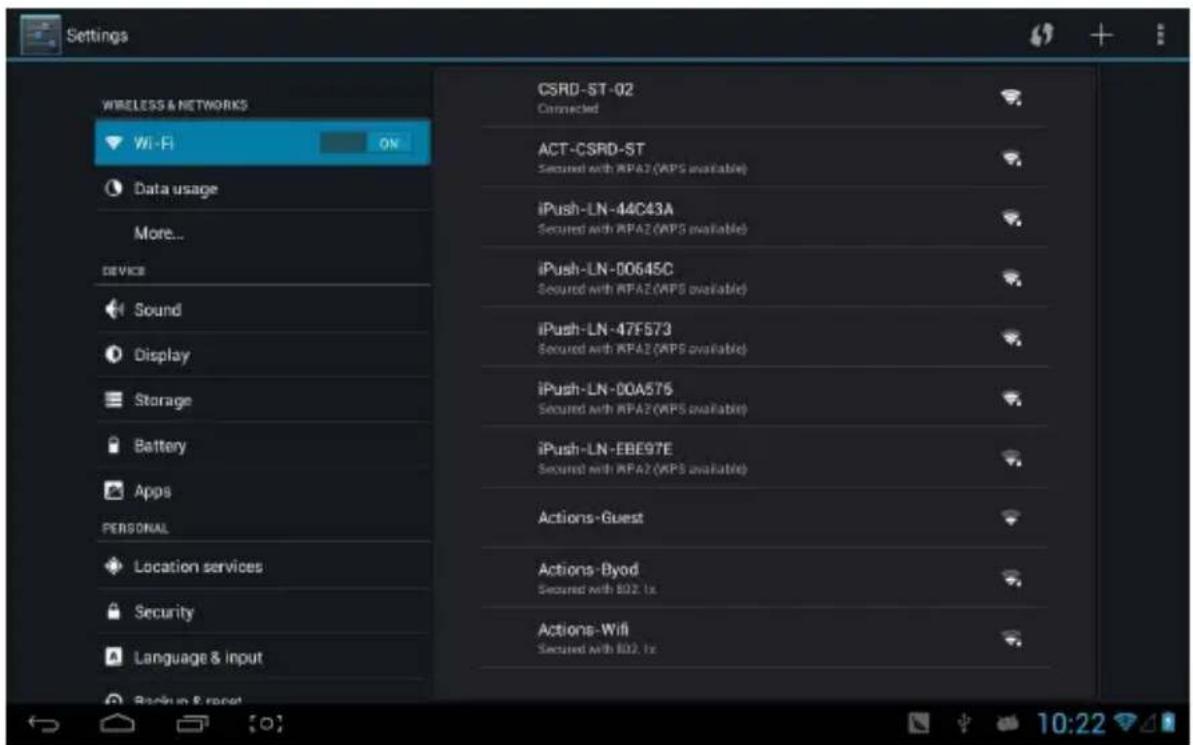
Wi-Fi introduction:
Keep Wi-Fi connected during sleep:
Traffic Information Usage
Display network traffic information.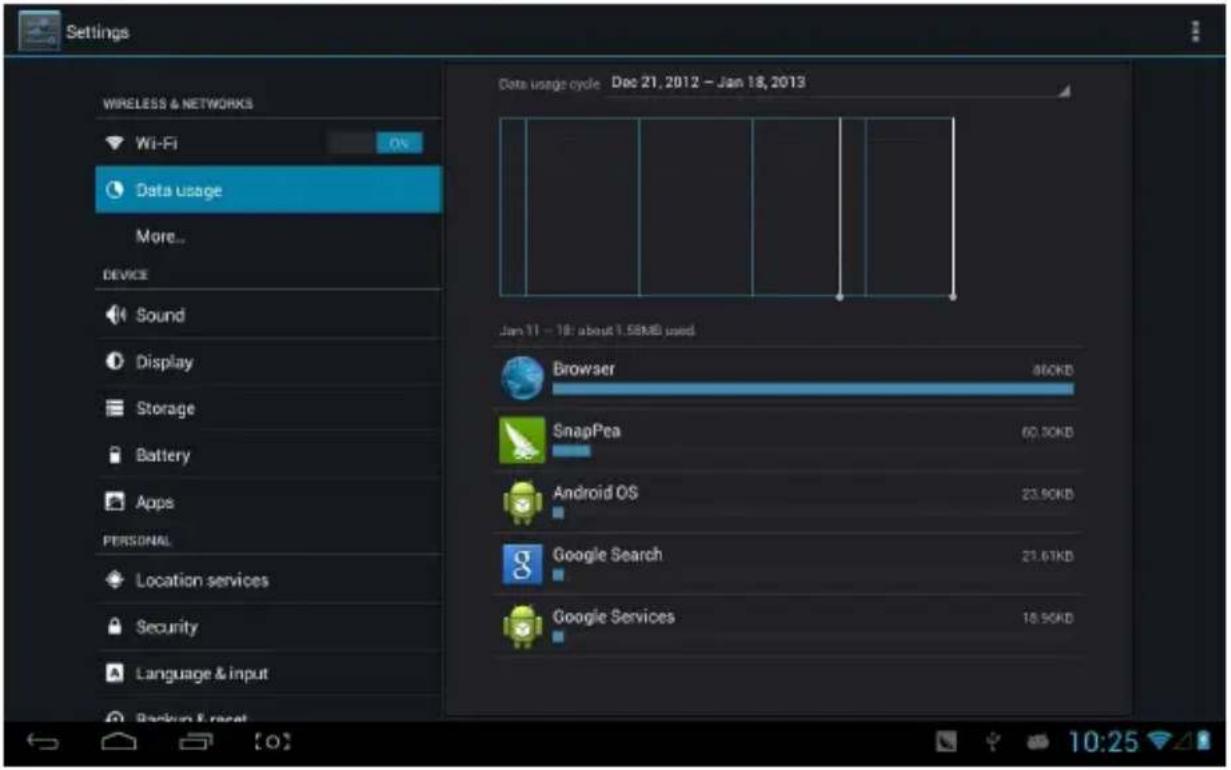
More
Set "Airplane mode", "VPN", "Mobile network", etc.
Sound

Volume: set the volume of music, video, games and other media, as well as the volume of notifications and alarm clock.
Battery
Applications
You can check and perform operations in intra-system applications.
Downloaded: Lists information about downloaded applications
On SD card: Lists information about applications stored on the SD card
Running: Lists information about active applications. By tapping on a running program, you can check its progress and additional services.
Screen security:
Backup and reset:
(1) Back up my data: Back up application data,
Date and time

Automatic date and time: time keeps pace with the network. Ensure automatic time zone: keeps pace with the network. Set date.
Set time.
Select time zone
Use 24-hour format.
Select date format.
Accessibility

Large font: Select if you want to enlarge the font.
Note: When running some applications or games, in order to display efficiently, rotation may be disabled.
Long press on any song or folder name to add it to the playlist, delete it, or search for it, as shown below:
Video and Image
Click the image library.

Click the icon in the upper right corner and choose the playback option: slideshow, edit, rotate left, rotate right, crop, etc.
Choose “crop”, you can cut the picture. After selecting the crop region, click the “OK” button on the upper right side:

Player Owl
Click the icon to enter the owl player:
![OWL Player [58] Battery Directory Fanstrate Played 10800P 720P 記憶像大喊 設定千點上清 118_WMV3-MP_1200x720_15fps_2048kbps_WMI 00:02:26 / 00:02:05 10800P 10800P 10800P 10800P 10800P 10800P 10800P 10800P 10800P 10800P 10800P 10800P 10800P 10800P 10800P 720P 720P 1080P 1080P 1080P 1080P 1080P 1080P 1080P 1080P 1…](/content/2026/06/1315475/images/08326c38c42b28b7881f11f90a42b5286684516dd4383dfe1a2670c52e320476.jpg)
You can open multiple windows and play at the same time:
![OWL Player D1 video [10] WUAR 1 2 3 4 5 7 8 9 10 11 12 14 15 16 17 6_30fps_ 9:06:50 10 20fps 30fps 9:42](/content/2026/06/1315475/images/40b83d244d2266d039294ffa54fdc48ba35c7b0d4bf25381a8bfc381bf8c9c6c.jpg)
Online

Open the browser and enter a web page. Before browsing the internet, make sure the MID has Wi-Fi, 3G, or Ethernet turned on.
Browser web page interface, as shown:
Selecting Desktop in "UAString":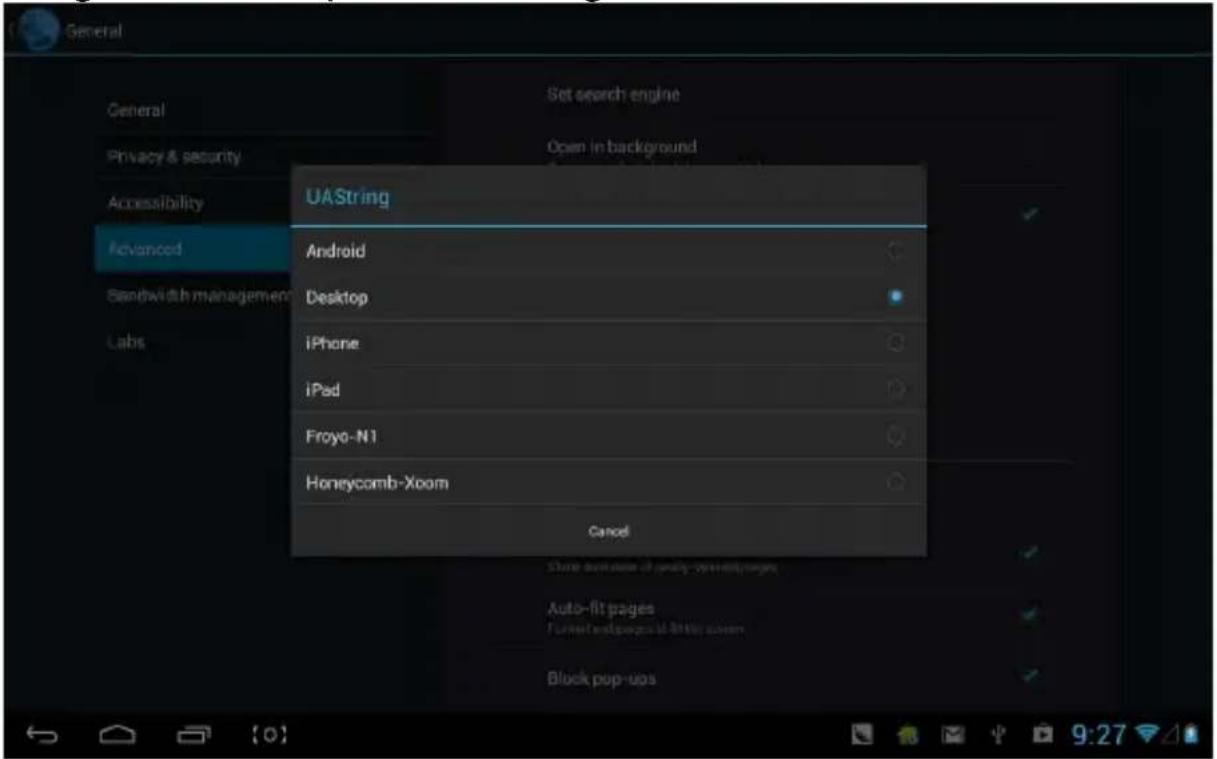
Then return to the web playback interface and refresh:
Camera
Click and enter the DC application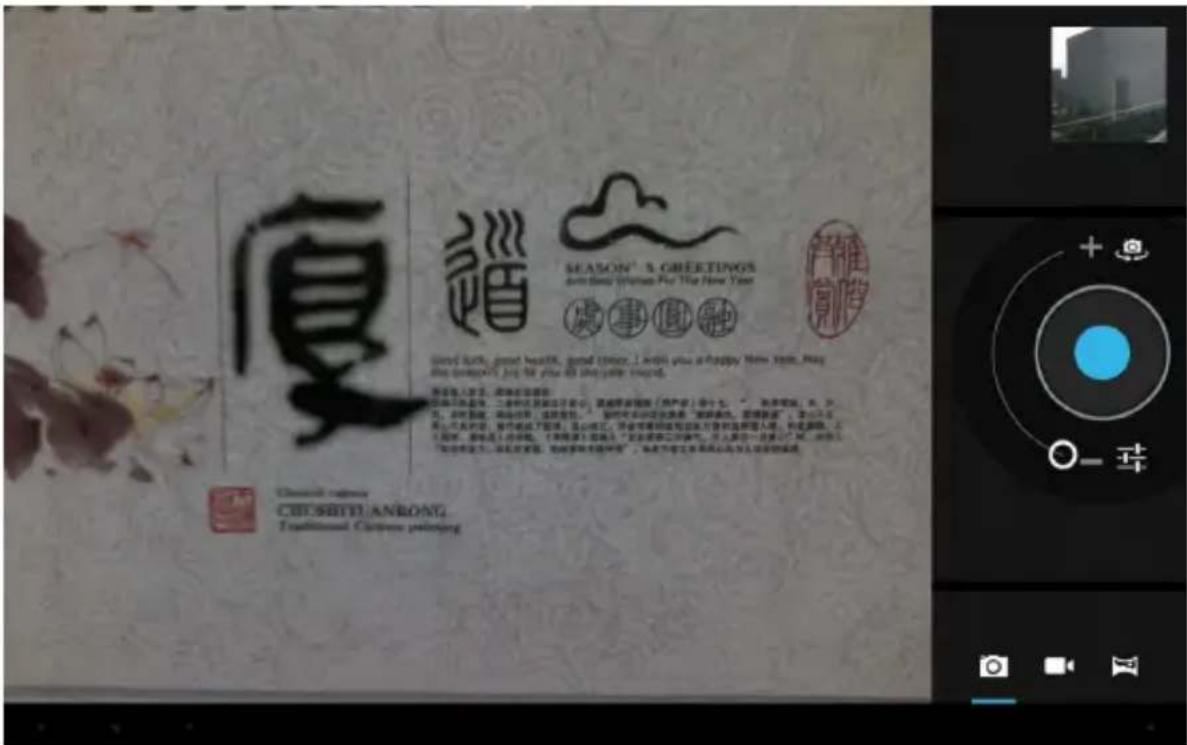
Effect image Pan-shot:
Play store
Click calendar and enter Calendar:
User Manual HU
OV-NewBase2
Declaration
Accessories
WiFi
WiFi Introduction:
More
Battery
Applications
Screen security:
Date and time

Video & Photo

Owl player
Online

Camera
Play store
Declaration of Conformity
We, the undersigned:
Declare the following apparatus:
| Products name: Tablet 7” BaseCore | |
| Brand and Model name: OV-BaseCore | 7(Z) |
Hereby we confirm above product compliance with the European directive of CE:
| EMC : 2004/108/EC | |
| LVD : 2006/95/EC | |
| R&TTE : 1999/5/EC | |
| ROHS : 2011/65/EU | |
| WE : 1275/2008 |
Below standards were tested and passed:
| EMC : | ETSI EN 301 489-1 V1.8.1 (2008-04)ETSI EN 301 489-17 V2.1.1 (2009-05) |
| LVD : | EN 60950-1:2006 + A11:2009 + A1:2010 + A12:2011 |
| R&TTE : | EN 300328 V1.7.1:2006EN 62311:2008 |
Release date: 21.09.2012


Your electronic world
OV-NewBase2
- ACCESSORIES
- WI-FI
- MORE
- BATTERY INDICATOR
- APPLICATIONS
- VIDEO AND PHOTO FILES
- OWL PLAYER
- INTERNET
- APP STORE
- USER MANUAL
- EN
- OV-NEWBASE2
- DECLARATION
- PRECAUTIONS
- OVERVIEW
- BASIC FUNCTIONS
- APPEARANCE
- KEY
- TOUCH OPERATION
- MID APPLICATIONS
- STATE ICONS
- PREPARATION
- SYSTEM CONFIGURATIONS
- ON/OFF/STANDBY
- POWER RESET
- CONNECTING PC AND DATA TRANSMISSION
- CHARGE
- USE MICRO SD CARD
- USE MICRO HDMI
- MAIN SCREEN
- MAIN MENU
- OPEN OR SWITCH APPLICATIONS
- USER-DEFINED SCREEN (MAIN SCREEN MANAGEMENT)
- ZOOM IN OR ZOOM OUT
- WATCH THE MID HORIZONTALLY OR VERTICALLY
- INPUT TXT
- SETTING
- WI-FI INTRODUCTION
- WI-FI ADVANCED SETTINGS
- KEEP WI-FI CONNECTED DURING SLEEP
- TRAFFIC USAGE INFORMATION
- SOUND
- DISPLAY
- STORAGE
- BATTERY
- LOCATION SERVICES
- SECURITY
- SCREEN SECURITY
- DEVICE ADMINISTRATION
- CREDENTIAL STORAGE
- LANGUAGE AND INPUT
- BACKUP AND RESET
- PERSONAL DATA
- ADD ACCOUNTS
- DATE AND TIME
- ACCESSIBILITY
- DEVELOPER OPTIONS
- ABOUT TABLET
- MUSIC
- VIDEO & PICTURES
- ONLINE
- SELECTING "ADVANCED
- CHOOSING DESKTOP IN "UASTSTRING
- CAMERA
- PLAY STORE
- CLICK CALENDAR ORDER CALENDAR
- CLOCK
- USER MANUAL CZ
- PROHLÁŠENÍ
- PŘÍSLUŠENSTVÍ
- WIFI
- WI-FI SETTINGS
- KEYBOARDS
- INTRODUCTION TO WI-FI
- TRAFFIC INFORMATION USAGE
- SET TIME
- SELECT TIME ZONE
- USE 24-HOUR FORMAT
- SELECT DATE FORMAT
- VIDEO AND IMAGE
- CLICK THE IMAGE LIBRARY
- PLAYER OWL
- CLICK CALENDAR AND ENTER CALENDAR
- USER MANUAL HU
- WIFI INTRODUCTION
- VIDEO & PHOTO
- DECLARATION OF CONFORMITY
Brand : Overmax
Model : NewBase 2
Category : Tablet