BEDIENUNGSANLEITUNG SMT1921N SAMSUNG
TFT-LCD-MONITOR
SMT-1721 / SMT-1921
Benutzerhandbuch
TFT-LCD-MONITOR
SMT-1721 / SMT-1921
WICHTIGE SICHERHEITSHINWEISE
VORSICHT
STROMSCHLAGRISIKO
NICHT ÖFFNEN

VORSICHT: UM DAS RISIKO EINES STROMSCHLAGS ZU VERRINGERN, ENTFERNEN SIE NICHT DIE RÜCKABDECKUNG. IM INNEREN BEFINDEN SICH KEINE VOM BENUTZER WARTBAREN TEILE. WENDEN SIE SICH AN QUALIFIZIERTES SERVICEPERSONAL.
Erklärung der grafischen Symbole
Das Blitzsymbol mit Pfeilspitze in einem gleichseitigen Dreieck soll den Benutzer auf das Vorhandensein von nicht isolierter 'gefährlicher Spannung' im Inneren des Produkts aufmerksam machen, die ausreichend stark sein kann, um ein Risiko eines elektrischen Schlags für Personen darzustellen.

Das Ausrufezeichen in einem gleichseitigen Dreieck soll den Benutzer auf wichtige Betriebs- und Wartungsanweisungen in der dem Gerät beiliegenden Literatur aufmerksam machen.

Warnung - Um Brand- oder Stromschlaggefahr zu vermeiden, setzen Sie diesen Monitor nicht Regen oder Feuchtigkeit aus.
- Anweisungen lesen: Alle Sicherheits- und Betriebsanweisungen sollten vor dem Betrieb des Geräts gelesen werden.
- Anweisungen aufbewahren: Die Sicherheits- und Betriebsanweisungen sollten für spätere Referenz aufbewahrt werden.
- Warnhinweise beachten: Alle Warnhinweise am Monitor und in der Bedienungsanleitung sind zu beachten.
- Anweisungen befolgen: Alle Bedienungs- und Benutzerhinweise sind zu befolgen.
- Reinigung: Ziehen Sie den Netzstecker des Monitors aus der Steckdose, bevor Sie ihn reinigen. Verwenden Sie keine flüssigen Reinigungsmittel oder Aerosolreiniger. Verwenden Sie ein feuchtes Tuch zur Reinigung. Ausnahme: Ein Monitor, der für den Dauerbetrieb vorgesehen ist und aus bestimmten Gründen, wie z. B. der Möglichkeit des Verlusts eines Autorisierungscodes für einen Kabelkonverter, nicht vom Benutzer zum Reinigen oder für andere Zwecke abgesteckt werden soll, kann den Hinweis auf das Abstecken des Monitors in der Reinigungsbeschreibung, die sonst in Punkt 5 gefordert wird, ausschließen.
- Zubehör: Verwenden Sie kein Zubehör, das nicht von Samsung empfohlen wird, da dies Gefahren verursachen kann.
- Wasser und Feuchtigkeit: Verwenden Sie diesen Monitor nicht in der Nähe von Wasser, z. B. in der Nähe einer Badewanne, eines Waschbeckens, einer Küchenspüle oder eines Waschbeckens, im feuchten Keller oder in der Nähe eines Schwimmbeckens und dergleichen.
- Zubehör: Stellen Sie diesen Monitor nicht auf einen instabilen Wagen, Ständer, Stativ, eine Halterung oder einen Tisch. Der Monitor könnte herunterfallen und schwere Verletzungen bei Kindern oder Erwachsenen sowie schwere Schäden am Gerät verursachen. Verwenden Sie nur einen Wagen, Ständer, ein Stativ, eine Halterung oder einen Tisch, die von Samsung empfohlen oder mit dem Monitor verkauft werden.
Jede Montage des Monitors sollte gemäß den Anweisungen von Samsung erfolgen und ein von Samsung empfohlenes Montagezubehör verwenden.
- Belüftung: Schlitze und Öffnungen im Gehäuse dienen der Belüftung, um einen zuverlässigen Betrieb des Monitors zu gewährleisten und ihn vor Überhitzung zu schützen. Diese Öffnungen sollten niemals blockiert werden, indem der Monitor auf ein Bett, Sofa, einen Teppich oder eine ähnliche Oberfläche gestellt wird. Dieser Monitor sollte niemals in der Nähe von oder über einem Heizkörper oder einer Wärmequelle aufgestellt werden. Dieser Monitor sollte nicht in einem Einbau, wie z. B. einem Bücherregal oder einem Regal, aufgestellt werden, es sei denn, es ist für ausreichende Belüftung gesorgt oder die Anweisungen von Samsung wurden befolgt.
- Installation: Nicht in der Nähe von Wärmequellen wie Heizkörpern, Heizregistern, Öfen oder anderen Geräten (einschließlich Verstärkern) installieren, die Wärme erzeugen.
- Stromquellen: Dieser Monitor sollte nur mit der Art von Stromquelle betrieben werden, die auf dem Typenschild angegeben ist. Wenn Sie sich nicht sicher sind, welche Art von Stromversorgung an Ihrem Standort vorhanden ist, wenden Sie sich an Ihren Samsung-Händler oder Ihr örtliches Energieversorgungsunternehmen.
- Erdung oder Polarisation: Für Monitore mit einem dreipoligen Stecker mit Erdungskontakt (dritter Stift). Dieser Stecker passt nur in eine geerdete Steckdose. Dies ist ein Sicherheitsmerkmal. Wenn Sie den Stecker nicht in die Steckdose stecken können, wenden Sie sich an Ihren Elektriker, um Ihre veraltete Steckdose ersetzen zu lassen. Setzen Sie den Sicherheitszweck des Erdungssteckers nicht außer Kraft.
- Stromkabel: Netzkabel sollten so verlegt werden, dass sie nicht betreten oder durch darauf oder dagegen platzierte Gegenstände gequetscht werden können. Achten Sie besonders auf die Kabel an den Steckern, den Steckdosen und der Stelle, an der sie den Monitor verlassen.
- Blitzschutz: Zum zusätzlichen Schutz dieses Monitors bei Gewittern oder wenn er über längere Zeit unbeaufsichtigt und ungenutzt bleibt, ziehen Sie den Netzstecker aus der Steckdose und trennen Sie das Kabelsystem. Dies verhindert Schäden am Monitor durch Blitzschlag und Überspannungen im Stromnetz.
- Überlastung: Überlasten Sie keine Wandsteckdosen und Verlängerungskabel, da dies zu einem Brand- oder Stromschlagrisiko führen kann. 16. Eindringen von Gegenständen und Flüssigkeiten: Führen Sie niemals Gegenstände jeglicher Art durch Öffnungen in diesen Monitor ein, da diese gefährliche Spannungspunkte berühren oder Teile kurzschließen könnten, was zu einem Brand oder Stromschlag führen kann. Verschütten Sie niemals Flüssigkeiten jeglicher Art auf dem Monitor.
- Wartung: Versuchen Sie nicht, diesen Monitor selbst zu warten, da das Öffnen oder Entfernen der Abdeckung Sie gefährlichen Spannungen oder anderen Gefahren aussetzen kann. Überlassen Sie alle Wartungsarbeiten qualifiziertem Servicepersonal.
- Schäden, die eine Wartung erfordern: Ziehen Sie den Netzstecker dieses Monitors aus der Steckdose und überlassen Sie die Wartung qualifiziertem Servicepersonal unter den folgenden Bedingungen.
a. Wenn das Netzkabel oder der Stecker beschädigt ist.
b. Wenn Flüssigkeit verschüttet wurde oder Gegenstände in den Monitor gefallen sind.
c. Wenn der Monitor Regen oder Wasser ausgesetzt war.
d. Wenn der Monitor nicht normal funktioniert, obwohl Sie die Bedienungsanleitung befolgt haben. Stellen Sie nur die Bedienelemente ein, die in der Bedienungsanleitung beschrieben sind, da eine falsche Einstellung anderer Bedienelemente zu Schäden führen kann und umfangreiche Arbeiten durch einen qualifizierten Techniker erforderlich machen kann, um den Monitor wieder in seinen normalen Betriebszustand zu versetzen.
e. Wenn der Monitor fallen gelassen wurde oder das Gehäuse beschädigt ist.
f. Wenn der Monitor eine deutliche Leistungsänderung aufweist – dies weist auf einen Wartungsbedarf hin.
- Ersatzteile: Wenn Ersatzteile erforderlich sind, stellen Sie sicher, dass der Servicetechniker Ersatzteile verwendet hat, die von Samsung angegeben sind oder die gleichen Eigenschaften wie die Originalteile aufweisen.
Nicht autorisierte Ersatzteile können zu Bränden, Stromschlägen oder anderen Gefahren führen.
- Sicherheitsprüfung: Nach Abschluss von Wartungs- oder Reparaturarbeiten an diesem Monitor bitten Sie den Servicetechniker, Sicherheitsprüfungen durchzuführen, um festzustellen, dass sich der Monitor in einem ordnungsgemäßen Betriebszustand befindet.
Hg (im Kreis) LAMPEN IN DIESEM PRODUKT ENTHALTEN QUECKSILBER UND MÜSSEN GEMÄSS LOKALEN, STAATLICHEN ODER BUNDESGESETZEN RECYCELT ODER ENTSORGT WERDEN. Weitere Informationen finden Sie unter lamprecycle.org, eire.org, oder rufen Sie 1-1800-Samsung an.
Warnung
Dieses Gerät wurde getestet und entspricht den Grenzwerten für ein digitales Gerät der Klasse A gemäß Teil 15 der FCC-Bestimmungen und ICES-003 von Industry Canada.
Diese Grenzwerte sollen einen angemessenen Schutz vor schädlichen Störungen bieten, wenn das Gerät in einer gewerblichen Umgebung betrieben wird. Dieses Gerät erzeugt, verwendet und kann Hochfrequenzenergie abstrahlen und kann, wenn es nicht gemäß der Bedienungsanleitung installiert und verwendet wird, schädliche Störungen des Funkverkehrs verursachen.
Der Betrieb dieses Geräts in einem Wohngebiet kann schädliche Störungen verursachen; in diesem Fall muss der Benutzer die Störungen auf eigene Kosten beheben.
Vorsicht für Benutzer und Installateur
Ihre Berechtigung zum Betrieb dieses FCC-verifizierten Geräts könnte erlöschen, wenn Sie Änderungen oder Modifikationen vornehmen, die nicht ausdrücklich von der für die Einhaltung von Teil 15 der FCC-Bestimmungen verantwortlichen Partei genehmigt wurden.
Änderungen oder Modifikationen, die nicht ausdrücklich von der für die Einhaltung verantwortlichen Partei genehmigt wurden, könnten die Berechtigung des Benutzers zum Betrieb des Geräts aufheben.
HINWEIS: Dieses Gerät wurde getestet und entspricht den Grenzwerten für ein digitales Gerät der Klasse A gemäß Teil 15 der FCC-Bestimmungen.
Diese Grenzwerte sollen einen angemessenen Schutz vor schädlichen Störungen bieten, wenn das Gerät in einer gewerblichen Umgebung betrieben wird.
Dieses Gerät erzeugt, verwendet und kann Hochfrequenzenergie abstrahlen und kann, wenn es nicht gemäß der Bedienungsanleitung installiert und verwendet wird, schädliche Störungen des Funkverkehrs verursachen.
Der Betrieb dieses Geräts in einem Wohngebiet kann schädliche Störungen verursachen; in diesem Fall muss der Benutzer die Störungen auf eigene Kosten beheben.
Dieses Gerät entspricht Teil 15 der FCC-Bestimmungen.
Der Betrieb ist unter den folgenden zwei Bedingungen zulässig: (1) Dieses Gerät darf keine schädlichen Störungen verursachen, und (2) dieses Gerät muss alle empfangenen Störungen akzeptieren, einschließlich Störungen, die einen unerwünschten Betrieb verursachen können.
Änderungen oder Modifikationen, die nicht ausdrücklich von der für die Konformität verantwortlichen Partei genehmigt wurden, können die Berechtigung des Benutzers zum Betrieb des Geräts erlöschen lassen.
Falls erforderlich, wenden Sie sich an Ihren Händler oder einen erfahrenen Radio-/Fernsehtechniker für weitere Vorschläge.
Möglicherweise finden Sie die Broschüre mit dem Titel "So identifizieren und beheben Sie Radio-/TV-Störprobleme" hilfreich.
Diese Broschüre wurde von der Federal Communications Commission erstellt.
Sie ist erhältlich bei der U.S. Government Printing Office,
Washington, DC 20402, Bestellnummer 004-000-00345-4.
IC-Konformitätshinweis
Dieses digitale Gerät der Klasse (A) erfüllt alle Anforderungen der kanadischen Vorschriften zur Vermeidung von Störungen.
Dieses digitale Gerät der Klasse A entspricht der kanadischen ICES-003.
Warnung
Dies ist ein Produkt der Klasse A. In einer häuslichen Umgebung kann dieses Produkt Funkstörungen verursachen, in diesem Fall kann der Benutzer angemessene Maßnahmen ergreifen müssen.
NUR KALIFORNIEN, USA
Diese Perchlorat-Warnung gilt nur für primäre CR-Lithium-Knopfzellen (Mangandioxid) im Produkt, das NUR in Kalifornien, USA, verkauft oder vertrieben wird.
*Perchlorat-Material - besondere Handhabung kann erforderlich sein,
Siehe www.dtsc.ca.gov/hazardouswaste/perchlorate.
Inhalt
Wichtige Sicherheitshinweise 2
Auspacken 5
Bedienfeldansicht 5
Vorderansicht....5
Rück- und Seitenansicht....6
Fernbedienung 7
Anschluss externer Geräte. 8
OSD-Menükonfigurationen 9
Kein Signal....9
OSD-Menüauswahl....9
A. Eingabemenü....9
B. Bildmenü.... 11
C. Tonmenü 14
D. Setup-Menü 15
Technische Daten.... 17
Auspacken
Entfernen Sie die Verpackungsabdeckung und stellen Sie das Produkt auf eine ebene und sichere Oberfläche oder an den Installationsort. Prüfen Sie, ob alle folgenden Geräte und Zubehörteile im Lieferumfang enthalten sind.
TFT-LCD-MONITOR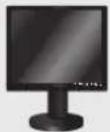
FERNBEDIENUNG UND BATTERIEN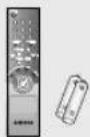
VGA-SIGNALKABEL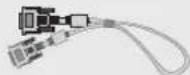
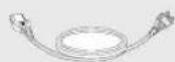
NETZKABEL BENUTZERHANDBUCH BENUTZERHANDBUCH CD
Bedienfelder anzeigen
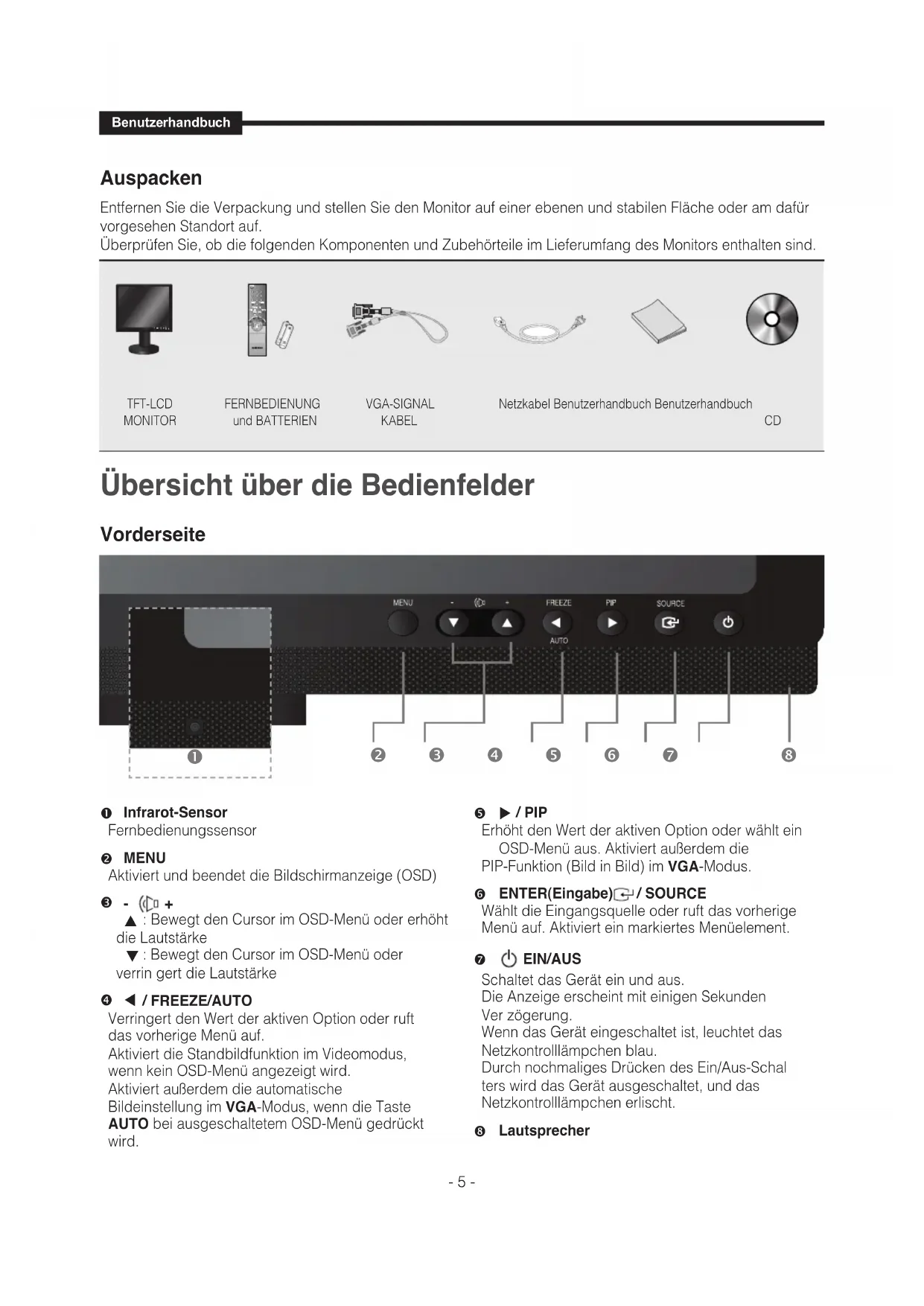
Vorderansicht
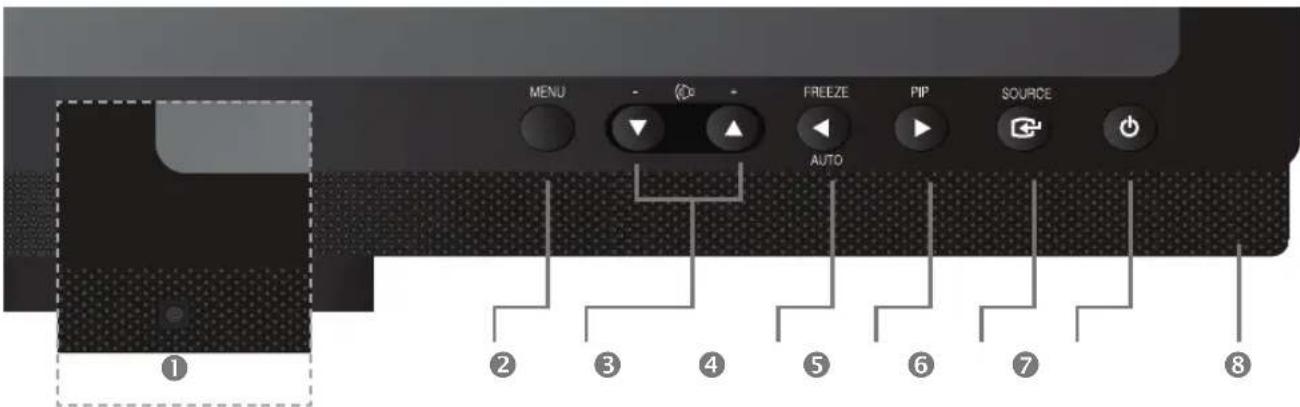
① IR-Sensor
Sensor der Fernbedienung.
Aktiviert und beendet das Bildschirmmenü.
③ - (□ +
▲ : Bewegt das OSD-Menü oder erhöht die Lautstärke. ▼ : Bewegt das OSD-Menü oder verringert die Lautstärke.
4 / FREEZE/AUTO
Verringert den Wert der aktiven Funktion und wechselt zum vorherigen Menü.
Standbildfunktion im Videomodus, wenn kein OSD-Menü auf dem Bildschirm angezeigt wird.
Aktiviert außerdem die automatische Einstellfunktion im VGA-Modus, wenn Sie die Auto-Taste bei ausgeschaltetem OSD-Menü drücken.
5 ▶ / PIP
Erhöht den Wert der aktiven Funktion und wählt das OSD-Menü aus. Aktiviert außerdem die PIP-Funktion im VGA-Modus.
⑥ ENTER←/SOURCE
Wählt die Eingangsquelle aus und aktiviert einen hervorgehobenen Menüpunkt.
⑦ ⏻(POWER) ON/OFF
Schaltet das Gerät ein oder aus.
Es kann einige Sekunden dauern, bis das Bild erscheint.
Die Betriebs-LED leuchtet blau, wenn das Gerät eingeschaltet ist. Durch erneutes Drücken des Netzschalters wird das Gerät ausgeschaltet und die Betriebs-LED erlischt.
⑧ Lautsprecher
Rück- und linke Seitenansicht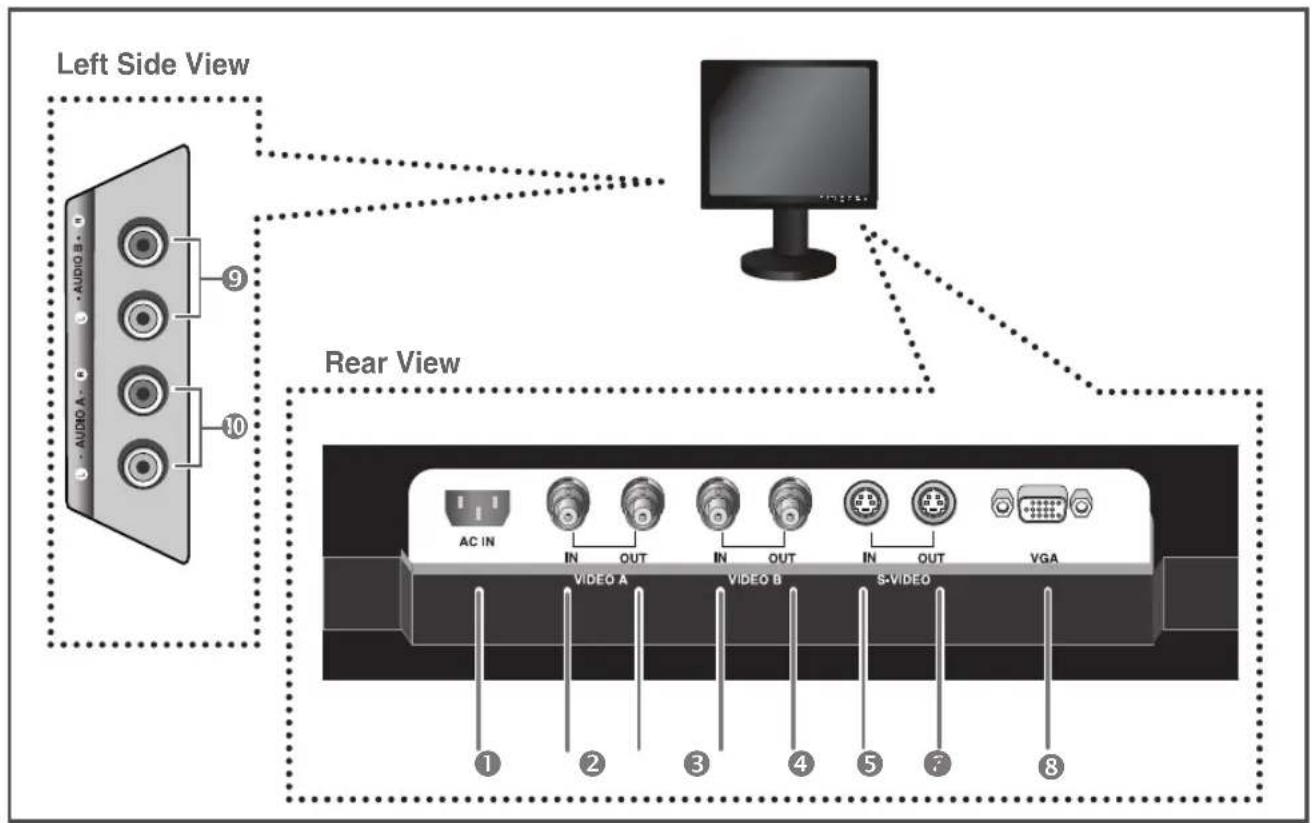
Rückansicht
① AC IN
Netzanschluss.
② VIDEO-A IN
Zusammengesetzter Signaleingang für VIDEO A.
③ VIDEO-A OUT
Video-Schleifenausgang für VIDEO A.
④ VIDEO-B IN
Zusammengesetzter Signaleingang für VIDEO B.
⑤ VIDEO-B OUT
Video-Schleifenausgang für VIDEO B.
⑥ S-VIDEO IN
Y/C-getrennter Signaleingang.
⑦ S-VIDEO OUT
Y/C-getrennter Signal-Schleifenausgang.
⑧ VGA
VGA-Signaleingang
Ansicht von links
⑨ AUDIO-B
Audio-B-Eingang: Rechts (ROT), Links (WEISS)
10 AUDIO-A/S-VIDEO
Audio-A (S-Video)-Eingang: Rechts (ROT), Links (WEISS)
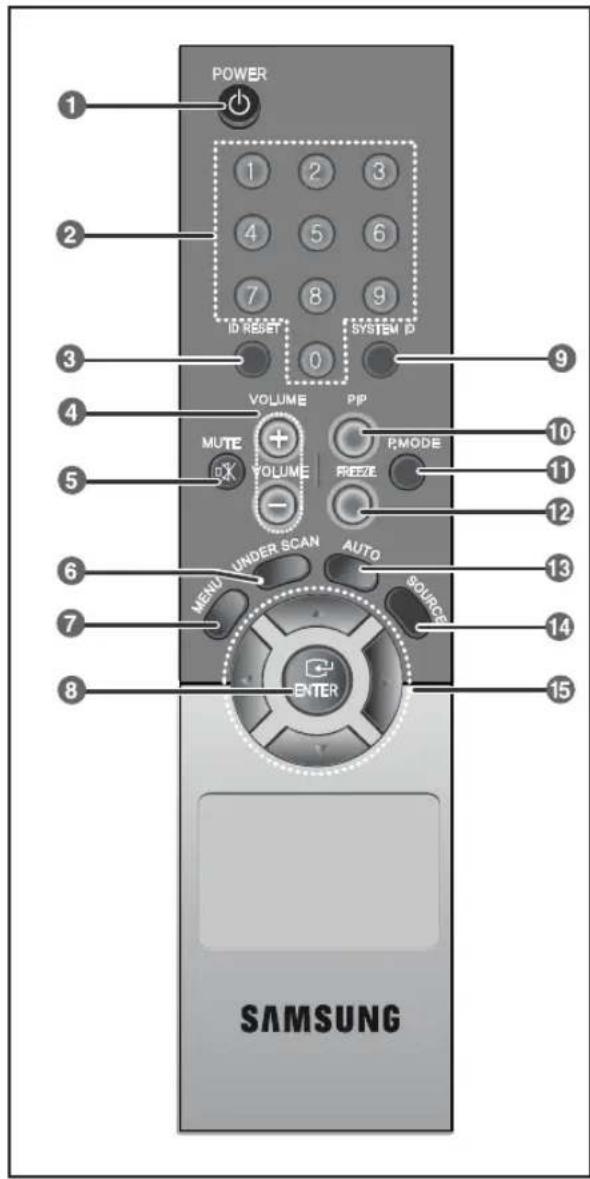
Fernbedienung
1 NETZSCHALTER
Schaltet das Gerät ein oder aus.
Es kann einige Sekunden dauern, bis das Bild erscheint.
Ändert die SYSTEM-ID für die Fernbedienung. Halten Sie die SYSTEM-ID-Taste gedrückt und geben Sie die gewünschte Nummer durch Drücken der entsprechenden Taste (0\~9) ein, um die Fernbedienungs-ID einzustellen.
③ ID-RESET
Setzt die Fernbedienungs-ID auf 01 (Standardwert) zurück.
④ LAUTSTÄRKE +, -
Stellt die Lautstärke ein.
⑤ MUTE
Drücken Sie die Taste, um den Ton vorübergehend stummzuschalten.
Die Anzeige erscheint unten links auf dem Bildschirm.
Drücken Sie die MUTE-Taste erneut, um die Stummschaltung aufzuheben. Alternativ können Sie die Taste - oder + drücken, um die Stummschaltung aufzuheben.
6 UNDER SCAN
Zeigt das gesamte Videosignal auf dem Bildschirm an.
Öffnet das Bildschirmmenü und beendet das Menü oder schließt das Bildschirm-Einstellungsmenü.
8 EINGABE
Aktiviert einen hervorgehobenen Menüpunkt.
9 SYSTEM-ID
Einstellung der SYSTEM-ID der Fernbedienung.
Siehe Nummerntaste.
10 PIP – Verfügbar im VGA-Modus
Drücken Sie die PIP-Taste, um das PIP-Bild ein- oder auszuschalten.
11 P.MODE – Verfügbar im Video-A/B-, S-Video-Modus
Drücken Sie die Taste, um einen vordefinierten Bildmodus des Monitors auszuwählen oder die Bildatmosphäre nach Bedarf zu ändern. Wenn Sie diese Taste drücken, wird der aktuelle Modus unten in der Mitte des Bildschirms angezeigt.
Der Monitor verfügt über vier automatische Bildeinstellungen, die werkseitig voreingestellt sind. Drücken Sie dann erneut die Taste, um durch die verfügbaren neu konfigurierten Modi zu blättern.
( Dynamisch, Standard, Film, Benutzerdefiniert )
12 FREEZE - Verfügbar im Video A/B-, S-Video-Modus
Drücken Sie die Taste einmal, um das Bild einzufrieren. Drücken Sie sie erneut, um das Einfrieren aufzuheben.
13 AUTO - Nur im VGA-Modus verfügbar
Passt die Bildschirmanzeige automatisch an.
14 QUELLE
Drücken Sie die Taste 'QUELLE', um die Eingangssignalquelle zu ändern.
Das Ändern der Quelle ist nur bei externen Geräten möglich, die zum Zeitpunkt der Änderung an den Monitor angeschlossen sind.
Bewegt sich horizontal oder vertikal von einem Menüpunkt zum anderen oder passt ausgewählte Menüwerte an.
Anschluss externer Geräte.
Das Produkt kann an ein externes Gerät wie Kamera, DVR, VCR, externen Monitor usw. angeschlossen werden.
![graph TD A["CAMERA"] -->|AC IN| B["VIDEO A"] A -->|IN| C["VIDEO B"] A -->|OUT| D["VIDEO C"] E["DVR"] -->|AC IN| B E -->|IN| F["VIDEO B"] E -->|OUT| G["VIDEO C"] E -->|IN| H["VIDEO B"] E -->|OUT| I["VIDEO C"] E -->|VGA| J["S-VIDEO"] K["External MONITOR"] --> B K --> F K --> G K --> H K --> I L["VCR"]…](/content/2026/03/478744/images/b8175397d634fd7d687c29f921776497c58c9a7d6316a3e2e2e23f4dade08f63.jpg)
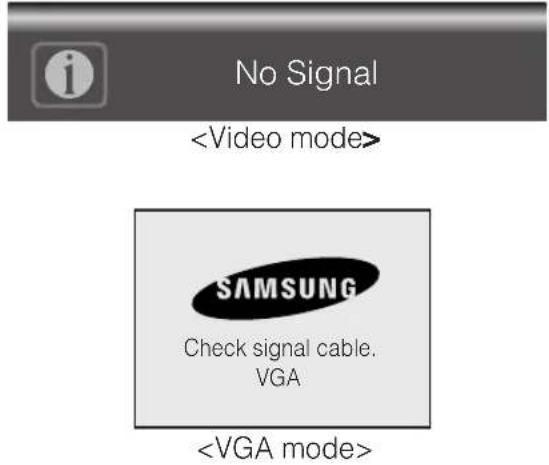
Anzeige bei fehlendem Signal
Wenn keine Verbindung an den VGA- und Videoeingängen besteht, zeigt das Bildschirmmenü diese Meldung an.
- Drücken Sie die MENU-Taste, um das Hauptmenü anzuzeigen.
- Drücken Sie ▼/▲ und die ENTER-Taste, um das Hauptmenü auszuwählen.
- Drücken Sie ▼/▲ und die ENTER-Taste (oder ▶), um das Untermenü auszuwählen.
- Drücken Sie ▼/▲ und die ENTER-Taste (oder ▶), um die Einstellung auszuwählen. (Oder drücken Sie ◀/▶, um die Einstellung auszuwählen.)
- Drücken Sie wiederholt die MENU- oder ◀-Taste, um zu beenden.
HINWEIS 1: Drücken Sie die MENU- oder ◀-Taste, um zum vorherigen Bildschirm zurückzukehren.
HINWEIS 2: Die OSD-Anzeige verschwindet nach 2 Minuten, wenn keine Taste gedrückt wird.
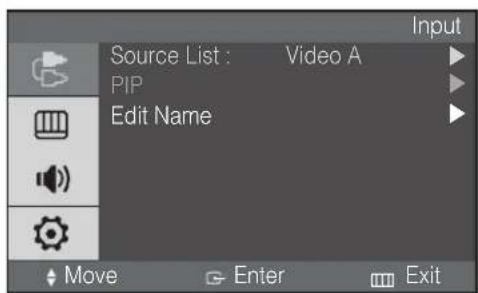
Die Eingänge können auf Video A, Video B, S-Video oder VGA-Modus eingestellt werden.
- Drücken Sie die MENU- und ENTER-Taste.
- Drücken Sie die ENTER- oder ▶-Taste und dann die ▼/▲-Taste, um das Eingabemenü auszuwählen.
- Drücken Sie die ENTER- oder ▶-Taste, um die Einstellung zu speichern und zu beenden.
▶ PIP EIN (nur VGA-Modus)
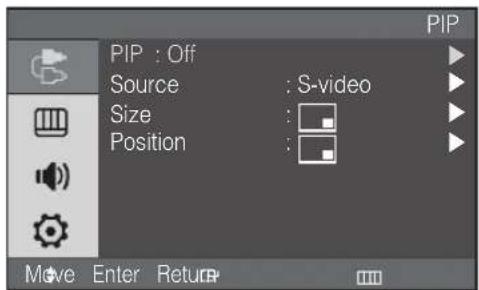
Wenn Sie nicht den VGA-Eingang ausgewählt haben, ist dieses Menü nicht verfügbar.
- Drücken Sie die MENU- und ENTER-Taste.
- Drücken Sie die ▼/▲- und ENTER-Taste, um das PIP-Menü auszuwählen.
- Drücken Sie die ENTER- oder ▶-Taste, um das Untermenü zu sehen.
- Drücken Sie die ▼/▲- und ENTER-Taste, um On auszuwählen.
- Drücken Sie die MENU- oder ◀-Taste wiederholt, um zu beenden.
▶ PIP-Quellenauswahl (nur VGA-Modus)
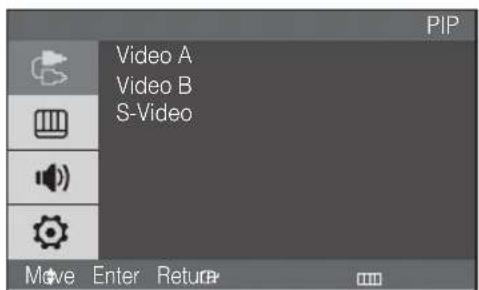
Wenn Sie PIP nicht auf On gesetzt haben, ist dieses Menü nicht verfügbar.
- Drücken Sie die MENU- und ENTER-Taste.
- Drücken Sie die ▼/▲- und ENTER-Taste, um das PIP-Menü auszuwählen.
- Drücken Sie die ▼/▲- und ENTER-Taste, um die Quelle auszuwählen.
- Drücken Sie die ▼/▲- und ENTER-Taste, um die gewünschte PIP-Quelle auszuwählen.
- Drücken Sie die MENU- oder ◀-Taste wiederholt, um zu beenden.
▶ PIP-Größenauswahl (nur VGA-Modus)
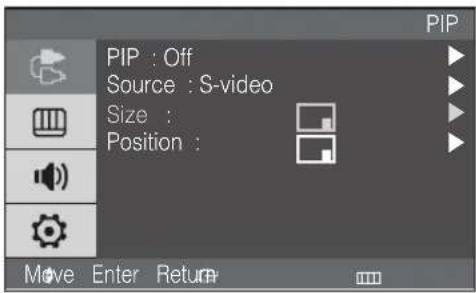
Wenn Sie PIP nicht auf On gesetzt haben, ist dieses Menü nicht verfügbar.
- Drücken Sie die MENU- und ENTER-Taste.
- Drücken Sie die Tasten ▼/▲ und ENTER, um das PIP-Menü auszuwählen.
- Drücken Sie die Tasten ▼/▲ und ENTER, um die Größe auszuwählen.
- Drücken Sie die Tasten ▼/▲ und ENTER, um die Einstellung auszuwählen. ( [QR] )
- Drücken Sie wiederholt die Taste MENU oder ◀, um zu beenden.
▶ PIP-Position auswählen (nur VGA-Modus)
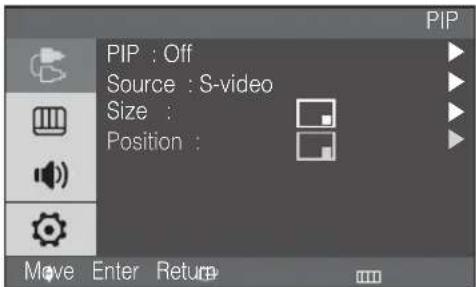
Wenn Sie PIP nicht auf Ein gesetzt haben, ist dieses Menü nicht verfügbar.
- Drücken Sie die Tasten MENU und ENTER.
- Drücken Sie die Tasten ▼/▲ und ENTER, um das PIP-Menü auszuwählen.
- Drücken Sie die Tasten ▼/▲ und ENTER, um die Position auszuwählen.
- Drücken Sie die Tasten ▼/▲ und ENTER, um die Einstellung auszuwählen. (
- Drücken Sie wiederholt die Taste MENU oder ▶, um zu beenden.
▶ PIP AUS (nur VGA-Modus)
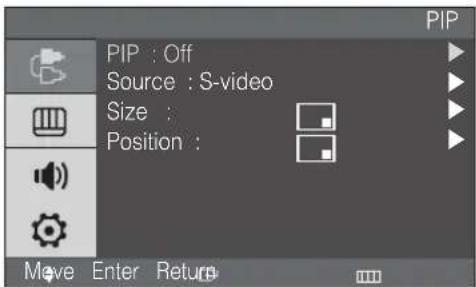
Wenn Sie keinen VGA-Eingang ausgewählt haben, ist dieses Menü nicht verfügbar.
- Drücken Sie die Tasten MENU und ENTER.
- Drücken Sie die Tasten ▼/▲ und ENTER, um das PIP-Menü auszuwählen.
- Drücken Sie die ENTER- oder ▶-Taste, um das Untermenü anzuzeigen.
- Drücken Sie die ▼/▲- und ENTER-Taste, um „Aus“ auszuwählen.
- Drücken Sie wiederholt die MENU- oder ◀-Taste, um das Menü zu verlassen.
▶ Name bearbeiten
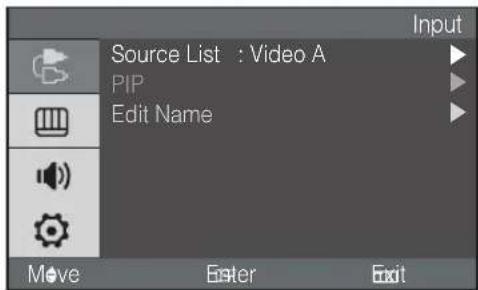
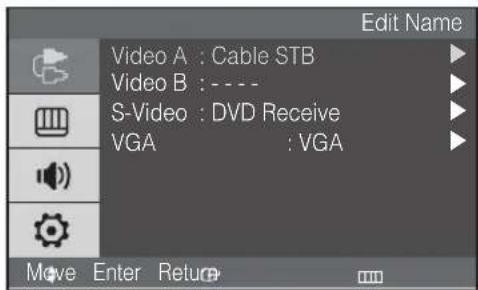
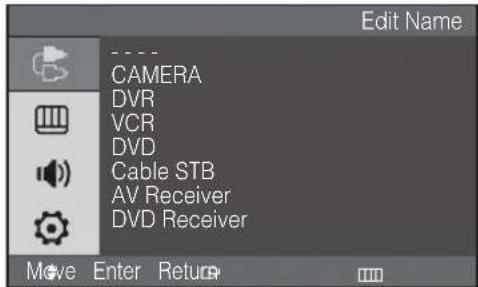
- Drücken Sie die MENU- und ENTER-Taste.
- Drücken Sie die ▼/▲- und ENTER-Taste, um das Menü „Bearbeiten“ auszuwählen.
- Drücken Sie die ▼/▲- und ENTER-Taste, um die Eingabe auszuwählen.
- Drücken Sie die ▼/▲- und ENTER-Taste, um den gewünschten Namen auszuwählen.
- Drücken Sie wiederholt die MENU- oder ◀-Taste, um das Menü zu verlassen.
■ Videomodus
▶ Modus: Dynamisch, Standard, Film, Benutzerdefiniert
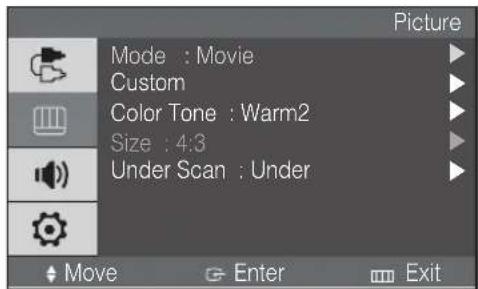
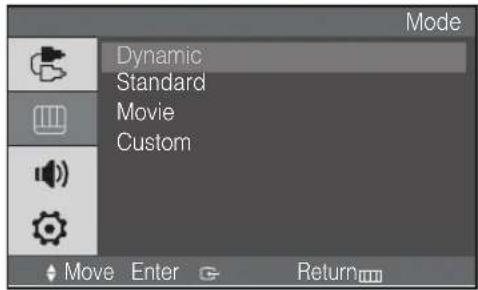
- Drücken Sie die MENU- und ▼/▲-Taste, um das Bildmenü auszuwählen.
- Drücken Sie die ENTER- oder ▶-Taste, um das Menü „Modus“ auszuwählen.
- Drücken Sie die ENTER- oder ▶-Taste.
- Drücken Sie die Taste ▼/▲, um den gewünschten Modus auszuwählen. (Dynamisch, Standard, Film, Benutzerdefiniert)
- Drücken Sie wiederholt die Taste MENU oder ◀, um das Menü zu verlassen.
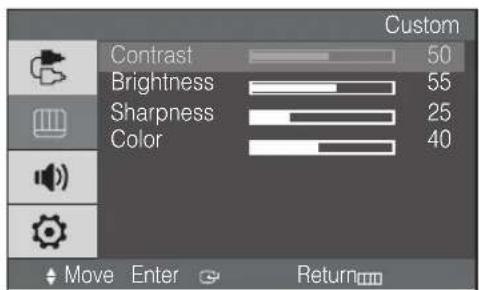
▶ Benutzerdefiniert
Videomodus: Kontrast, Helligkeit, Schärfe, Farbe
※ Die Farbton-Funktion ist aktiviert, während das Eingangssignal im NTSC-Modus ist.