사용 설명서 SMT1721P SAMSUNG
TFT-LCD MONITOR
SMT-1721 / SMT-1921
User Guide
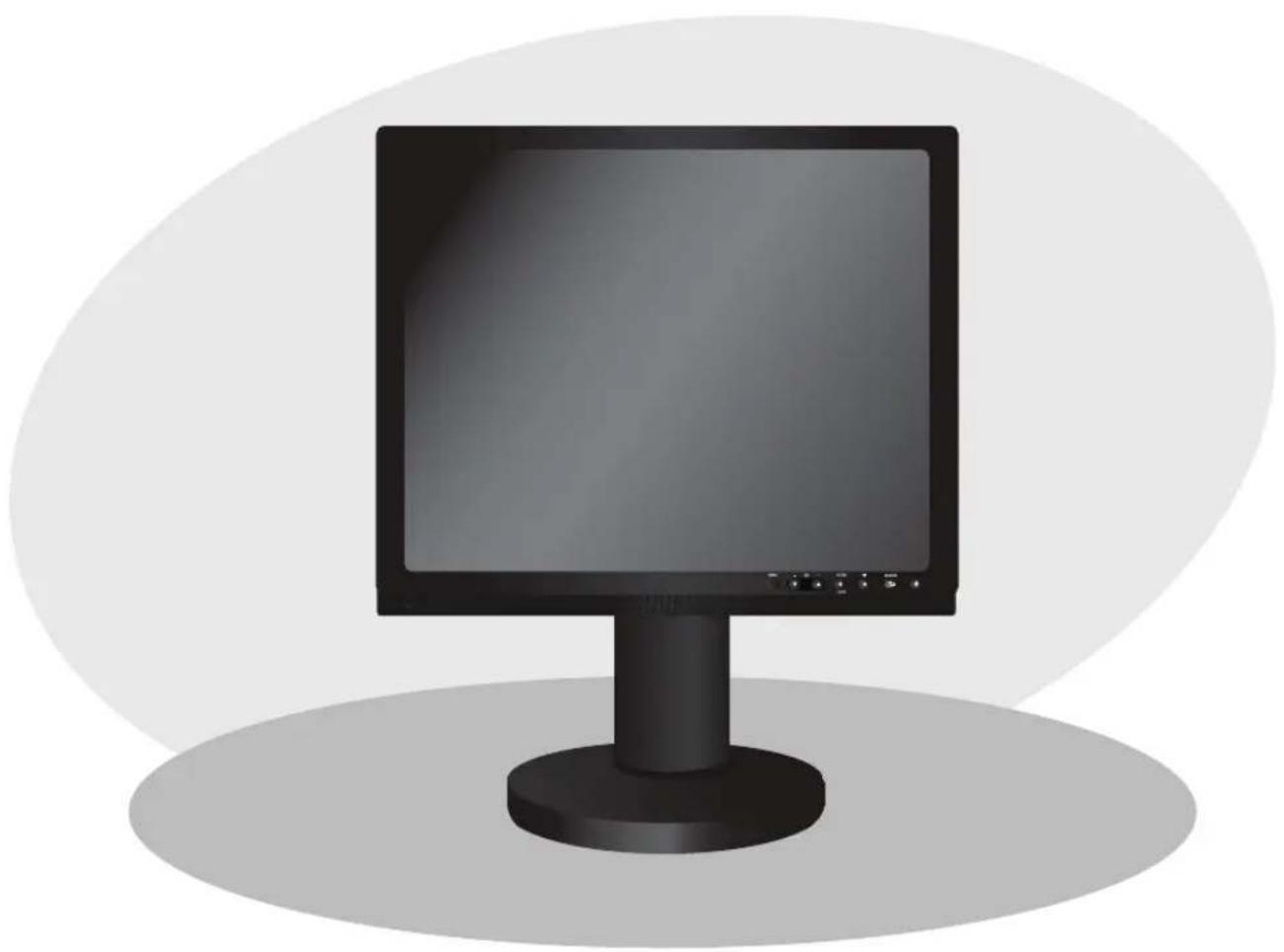
TFT-LCD MONITOR SMT-1721 / SMT-1921
IMPORTANT SAFETY INSTRUCTIONS

CAUTION
RISK OF ELECTRIC SHOCK DO NOT OPEN
CAUTION: TO REDUCE THE RISK OF ELECTRIC SHOCK, DO NOT REMOVE REAR COVER. NO USER SERVICEABLE PARTS INSIDE. REFER TO QUALIFIED SERVICE PERSONNEL.
Graphic Symbol Explanation
The lightning flash with arrowhead symbol, within an equilateral triangle, is intended to alert the user to the presence of uninsulated 'dangerous voltage' within the product's enclosure that may be of sufficient magnitude to constitute a risk of electric shock to p
The exclamation point within an equilateral triangle is intended to alert the user to the presence of important operating and maintenance (servicing) instructions in the literature accompanying the appliance.

Warning - To Prevent Fire or Shock Hazard, Do Not Expose This Monitor To Rain or Moisture.
- Read Instructions : All the safety and operating instructions should be read before the appliance is operated.
- Retain Instructions : The safety and operating instructions should be retained for future reference.
- HeedWarnings : All warnings on the monitor and in the operating instructions should be adhered to.
- Follow Instructions : All operating and user instructions should be followed.
- Cleaning: Unplug this monitor from the wall outlet before cleaning. Do not use liquid cleaners or aerosol cleaners. Use a damp cloth for cleaning. Exception. A monitor that is meant for uninterrupted service and that for some specific reason, such as the possibility of the loss of an authorization code for a CATV converter, is not intended to be unplugged by the user for cleaning or any other purpose may exclude the reference to unplugging the monitor in the cleaning description otherwise required in Item 5.
- Attachments : Do not use attachments not recommended by Samsung as they may cause hazards.
- Water and Moisture: Do not use this monitor near water for example, near a bathtub, wash bowl, kitchen sink or laundry tub, in a wet basement or near a swimming pool and the like wet basement or near a swimming pool and the like.
- Accessories : Do not place this monitor on an unstable cart, stand, tripod, bracket or table. The monitor may fall, causing serious injury to a child or adult and serious damage to the appliance. Use only with a cart, stand, tripod, bracket or table
recommended by Samsung, or sold with the monitor. Any mounting of the monitor should follow Samsung's instructions and should use a mounting accessory recommended by Samsung.
- Ventilation: Slots and openings in the cabinet are provided for ventilation and to ensure reliable operation of the monitor and to protect it from overheating and these openings should never be blocked by placing the monitor on a bed, sofa, rug or other similar surface. This monitor should never be placed near or over a radiator or heat register. This monitor should not be placed in a built-in installation such as a bookcase or rack unless proper ventilation is provided or Samsung's instructions have been adhered to.
10.Installation : Do not install near any heat sources such as radiators, heat registers,stoves, or other appliances (including amplifiers) that produce heat.
11.Power Sources : This monitor should be operated only from the type of power source indicated on the making label. If you are not sure of the type of power supply to your installation site, consult your Samsung dealer or local power company.
- Grounding or Polarization : For monitors equipped with a 3-wire grounding-type plug having a third(grounding) pin. This plug will only fit into a grounding type power outlet. This is a safety feature. If you are unable to insert the plug into the outlet, contact your electrician to replace your obsolete outlet. Do not defeat the safety purpose of the grounding-type plug.
13.Power : Cord Protection-Power supply cords should be routed so that they are not likely to be walked on or pinched by items placed upon or against them, paying particular attention to cords at plugs, convenience receptacles, and the point where they exit from the monitor.
14.Lightning: For added protection for this monitor during a lightning storm or when it is left unattended and unused for long periods of time, unplug it from the wall outlet and disconnect the cable system. This will prevent damage to the monitor due to lightning and power-line surges.
15.Overloading : Do not overload wall outlets and extension cords as this can result in a risk of fire of electric shock.
16.Object and liquid Entry: Never push objects of any kind into this monitor through openings as they may touch dangerous voltage points or short-out parts that could result in a fire or electric shock. Never spill liquid of any kind on the monitor.
17.Servicing : Do not attempt to service this monitor yourself as opening or removing cover may expose you to dangerous voltage or other hazards. Refer all servicing to qualified service personnel.
18.Damage Requiring Service : Unplug this monitor from the wall outlet and refer servicing to qualified service personnel under the following conditions.
a. When the power-supply cord or plug is damaged.
b. If liquid has been spilled or objects have fallen into the monitor.
c. If the monitor has been exposed to rain or water.
d. If the monitor does not operate normally by following the operating instructions. Adjust only those controls that are covered by the operating instructions as an improper adjustment of other controls may result in damage and require extensive work by a qualified technician to restore the monitor to its normal operation.
e. If the monitor has been dropped or the cabinet has been damaged.
f. When the monitor exhibits a distinct change in performance, this indicates a need for service.
19.Replacement Parts : When replacement parts are required, be sure the service technician has used replacement parts specified by Samsung or have the same characteristics as the original parts.
Unauthorized substitutions may result in fire, electric shock or other hazards.
- Safety Check : Upon completion of any service or repairs to this monitor, ask the service technician to preform safety checks to determine that the monitor is in proper operating condition.
NOTICE
Hg(Within a circle) LAMP(S) INSIDE THIS PRODUCT CONTAIN MERCURY AND BE RECYCLED OR DISPOSED OF ACCORDING TO LOCAL, STATE OR FEDERAL LAWS
For details see lamprecycle.org,eire.org,or call 1-1800-Samsung
Warning
This equipment has been tested and found to comply the limits for a class A digital device, pursuant to part 15 of the FCC Rules and ICES-003 of Industry Canada.
These limits are designed to provide reasonable protection against harmful interference when the equipment is operated in a commercial environment. This equipment generate, uses and can radiate radio frequency energy and, if not installed and used in accordance with the instruction manual, may cause harmful interference to radio communications.
Operation of this equipment in a residential area is likely to cause harmful interference in which case the user will be required to correct the interference at his own expense.
User-Installer Caution
Your authority to operate this FCC verified equipment could be voided if you make changes or modifications not expressly approved by the party responsible for compliance to part 15 of the FCC Rules.
Changes or modifications not expressly approved by the party responsible for compliance could void the user's authority to operate the equipment.
NOTE: This equipment has been tested and found to comply with the limits for a Class A digital device, pursuant to Part 15 of the FCC Rules.
These limits are designed to provide reasonable protection against harmful interference when the equipment is operated in a commercial environment.
This equipment generates, uses and can radiate radio frequency energy and, if not installed and used in accordance with the instruction manual, may cause harmful interference to radio communications.
Operation of this equipment in a residential area is likely to cause harmful interference in which case the user will be required to correct the interference at his own expense.
This device complies with Part 15 of the FCC Rules.
Operation is subject to the following two conditions: (1) this device may not cause harmful interference and (2) this device must accept any interference received, including interference that may cause undesired operation.
Changes or modifications not expressly approved by the party responsible for compliance could void the user's authority to operate the equipment.
If necessary, consult your dealer or an experienced radio/ television technician for additional suggestions.
You may find the booklet called how to Identify and Resolve Radio/TV Interference Problems helpful.
This booklet was prepared by the Federal Communications Commission.
It is available from the U.S. Government Printing Office,
Washington, DC 20402, Stock Number 004-000-00345-4.
IC Compliance Notice
This Class (A) digital apparatus meets all requirements of the Canadian Interference-Caising Equipment Regulations.
This Class A digital apparatus complies with Canadian ICES-003.
Warning
This is a class A product. In a domestic environment this product may cause radio interference in which case the user may be required to take adequate measures.
CALIFORNIA USA ONLY
This perchlorate warning applies only to primary CR (Manganese Dioxide) Lithium coin cells in the product sold or distributed ONLY in California USA.
*Perchlorate Material - special handling may apply,
See www.dtsc.ca.gov/hazardouswaste/perchiorate."
Contents
Important Safety Instructions 2
Unpacking 5
Viewing the Control Panels 5
Front View. 5
Rear & Left Side View. 6
Remote Controller 7
Connecting to External Devices. 8
OSD Menu Configurations 9
No Signal Display 9
OSD Menu Selection 9
A. Input Menu 9
B.Picture Menu. 11
C. Sound Menu 14
D. Setup Menu 15
Specifications 17
Unpacking
Remove the package cover and place the product on a flat and secure surface or in the installation location. Check whether all the following devices and accessories are included with the main system.
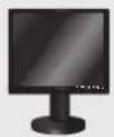
TFT-LCD MONITOR
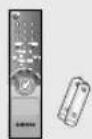
REMOTE & BATTERIES
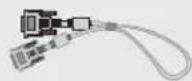
VGA SIGNAL CABLE
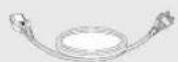
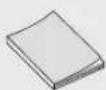

POWER CORD USER'S MANUAL USER'S MANUAL
CD
Viewing the Control Panels
Front View
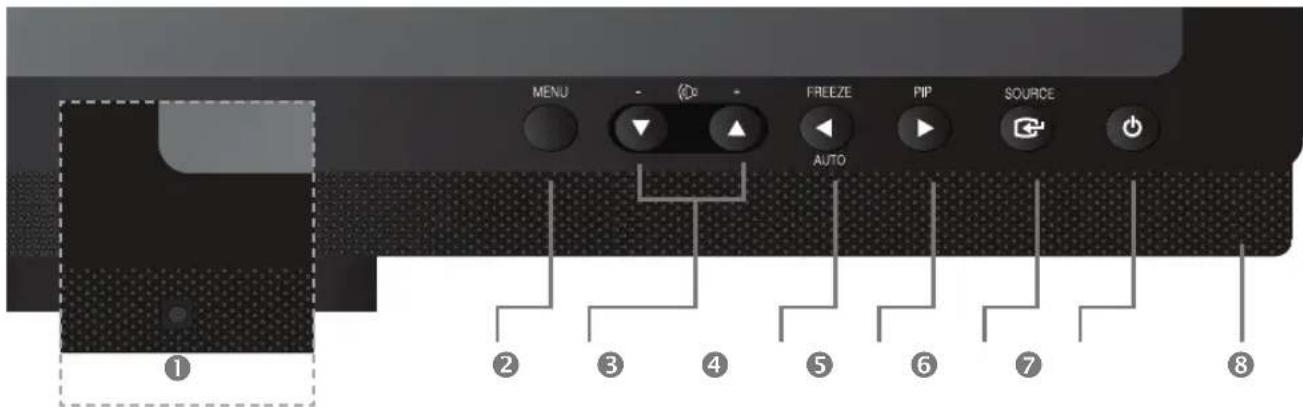
IR Sensor
Remote controller sensor.
Activates and exits the On Screen Display
:Moves the OSD menu or increases the volume level.
- Moves the OSD menu or decreases the volume level.
4 / FREEZE/AUTO
Decrease the level of active function and move to the previous menu.
Still picture function in Video mode when there is no OSD menu on the screen.
Also, activates Auto adjustment function in the VGA mode when you press the Auto button with the OSD Menu off.
6 PIP
Increases the level of active function, and selects OSD menu. Also, Activates PIP function in the VGA Mode.
ENTERSOURCE
Selects input source, activates a highlighted menu item.
(POWER) ON/OFF
Turns the power on or off. There will be a few seconds delay before the display appears.
The power LED lights with blue when the power is turned on. The power is turned off by pressing the power switch again and the power LED goes off.
Speaker
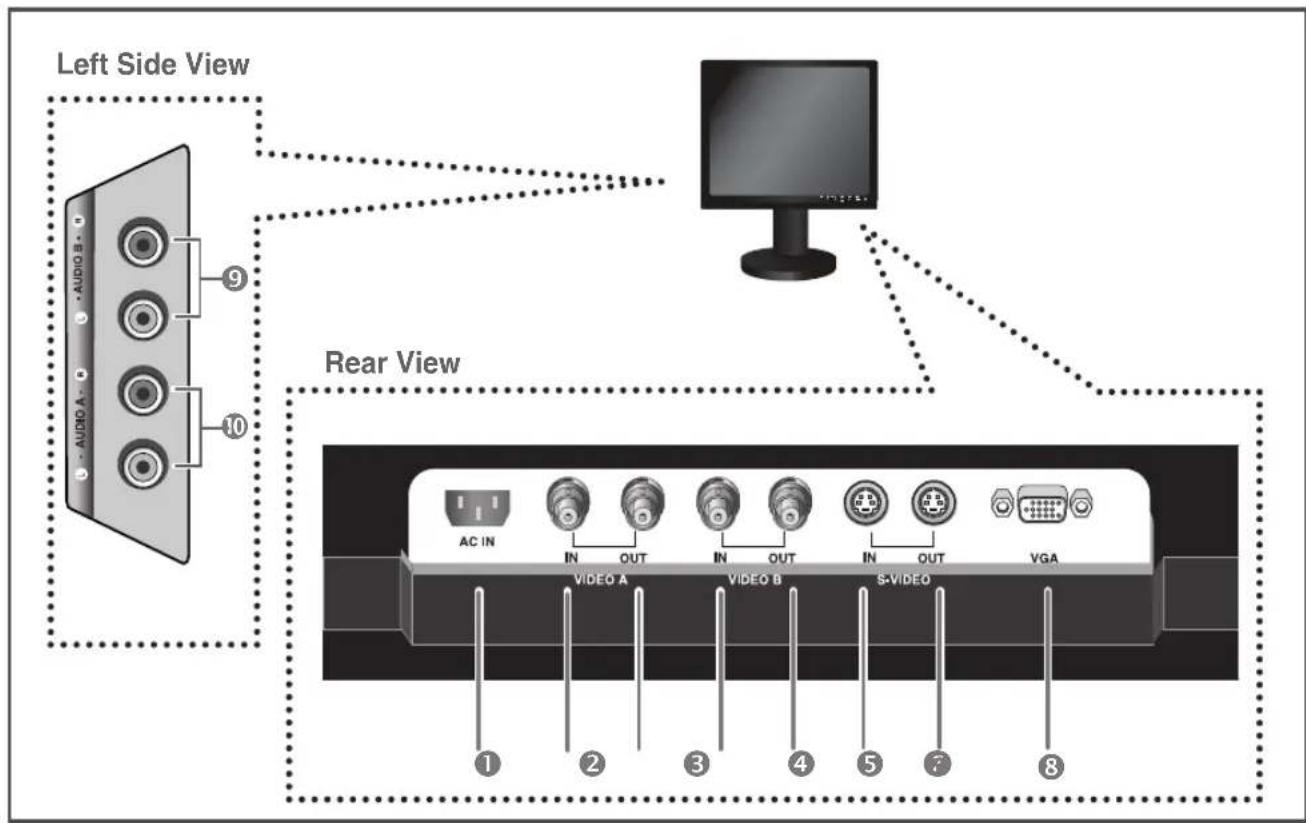
Rear & Left Side View
Rear View

AC IN
AC power in put.
VIDEO-A IN
Composite signal input forVIDEO A.
VIDEO-A OUT
Video looping output forVIDEO A.
VIDEO-B IN
Composite signal input for VIDEO B.
VIDEO-B OUT
Video looping output forVIDEO B.
S-VIDEO IN
Y/C separated signal input.
S-VIDEO OUT
Y/C separated signal looping output.
VGA
VGA signal input
Left Side View
AUDIO-B
Audio-B input: Right (RED), Left (White)
AUDIO-A/S-VIDEO
Audio-A (S-Video) input : Right (RED), Left (White)
Remote Controller
1 POWER
Turns the Power On or Off. There will be a few seconds delay before display appears.
Changes the SYSTEM ID for remote controller. With the SYSTEM ID button pressed, entered the desired NUMBER by pressing the corresponding button(0~9) to set up the Remote Controller ID
3 ID RESET
Reset s01(default value) for the remote control ID.
4 VOLUME+, -
Adjusts the audio volume.
5 MUTE
Press to mute the sound temporarily.
Displayed on the bottom left of the screen.
Press the MUTE button again to cancel the Mute function. Alternatively press the - or + button to cancel the Mute function.
6 UNDER SCAN
Displays the entire video signal on the screen.
Open the on-screen menu and exit from the menu screen or close screen adjustment menu.
8 ENTER
Activates a highlighted menu item.
SYSTEMID
Setting the SYSTEM ID of remote controller.
Refer to Number button.
10 PIP - Available in VGA Mode
Push the PIP button to turn PIP screen On/Off.
P.MODE - Available in Video A/B, S-Video Mode
Press to select a pre-defined Picture Mode of the monitor or to change the picture atmosphere as required. When you press this button, current mode is displayed on the lower center of the screen.
The monitor has four auto matic picture settings that are preset at the factory. Then push button again to circle through available reconfigured modes.
(Dynamic, Standard, Movie, Custom)
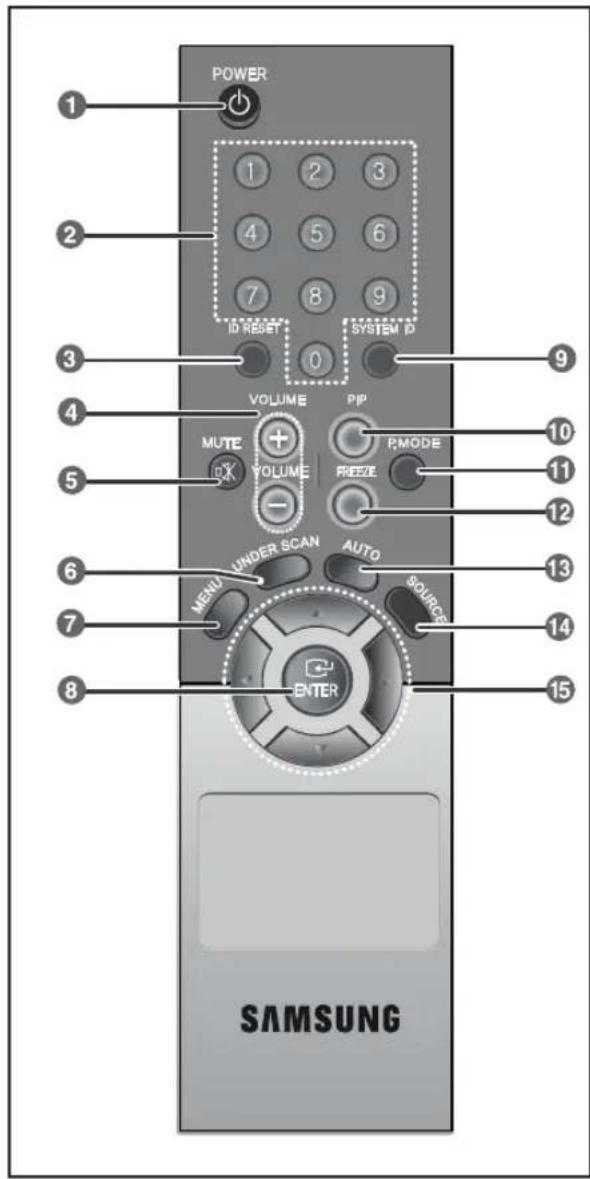
FREEZE - Available in Video A/B, S-Video Mode
Press the button once to freeze the screen. Press it again to unfreeze.
13 AUTO - Available In VGA mode Only
Adjusts the screen display automatically.
14 SOURCE
Press the 'SOURCE' button to change the input signal source. Changing the source is allowed only in external devices that are connected to the monitor at the time.
15 ▼▲/▲按钮
Moves from one menu item to another horizontally, vertically or adjusts selected menu values.
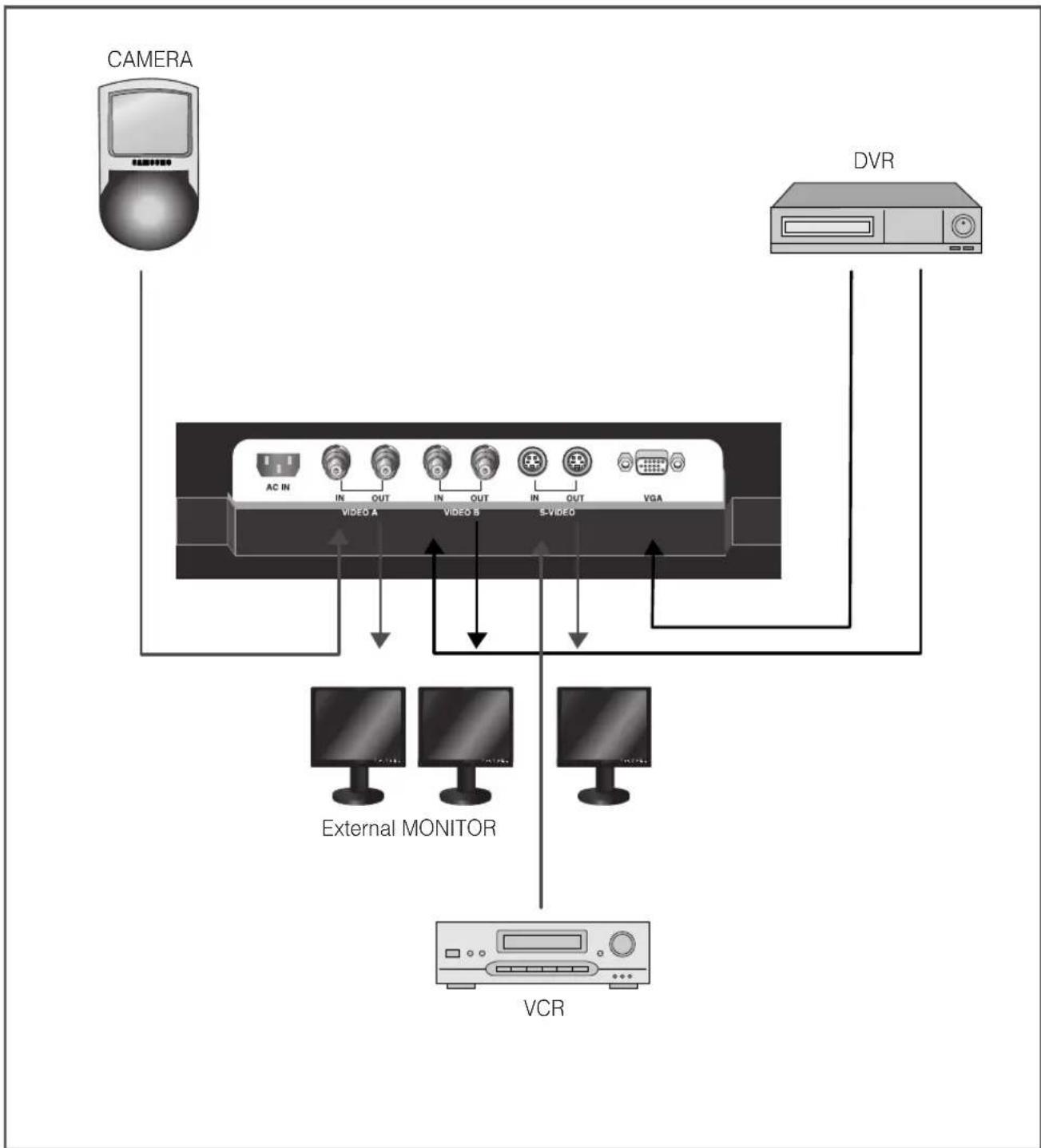
Connecting to External Devices.
The product can be connected to an external device such as Camera, DVR,VCR, External Monitor, etc.
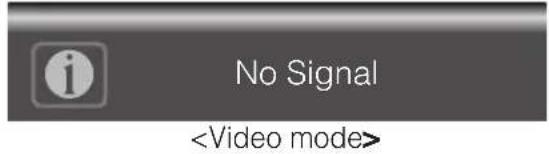
No Signal Display
When there is no connection at the VGA and Video input, the On Screen Display will show this message.
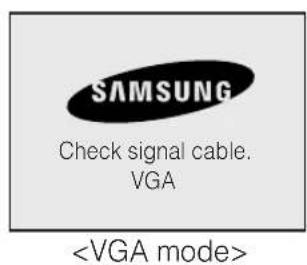
- Press the MENU button to see the main menu.
- Press / and ENTER button to select the main menu.
- Press / and ENTER (or ) button to select the sub menu.
- Press / and ENTER (or ) button to select setting. (Or press button to select setting)
- Press the MENU or button repeatedly to exit.
NOTE1: Press the MENU or button to return to the previous screen.
NOTE2: The OSD display will be disappear after 2 minutes if there is no button input.
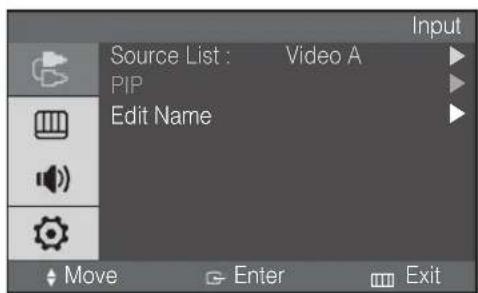
Inputs can be set to Video A, Video B, S-Video, VGA mode.
- Press the MENU and ENTER button.
- Press the ENTER or button and then / button to select input menu.
- Press the ENTER or button to save the setting and exit.
PIP ON (VGA mode only)
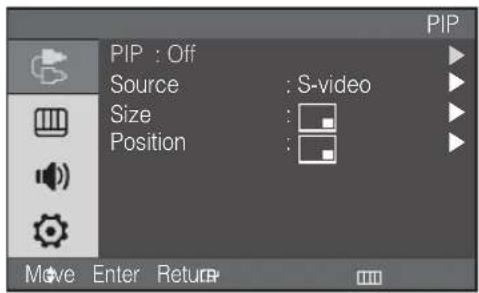
If you didn't select VGA input, this menu is not available.
- Press the MENU and ENTER button.
- Press the / and ENTER button to select the PIP menu.
- Press the ENTER or button to see the sub menu.
- Press the / and ENTER button to select On.
- Press the MENU or button repeatedly to exit.
PIP Source select (VGA mode only)
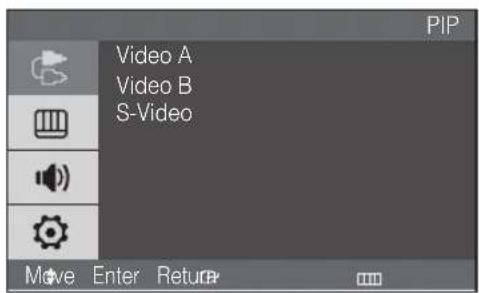
If you didn't select PIP On, this menu is not available.
- Press the MENU and ENTER button.
- Press the / and ENTER button to select the PIP menu.
- Press the / and ENTER button to select the Source.
- Press the / and ENTER button to select desired PIP source.
- Press the MENU or button repeatedly to exit.
PIP Size select (VGA mode only)
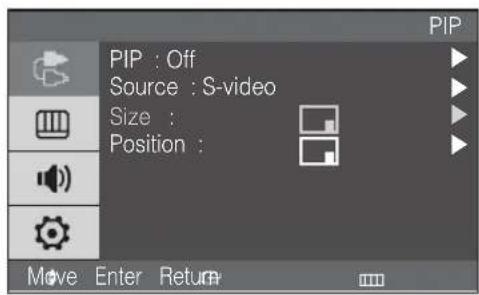
If you didn't select PIP On, this menu is not available.
- Press the MENU and ENTER button.
- Press the / and ENTER button to select the PIP menu.
- Press the / and ENTER button to select the Size.
- Press the / and ENTER button to select setting. ( )
- Press the MENU or button repeatedly to exit.
PIP Position select (VGA mode only)
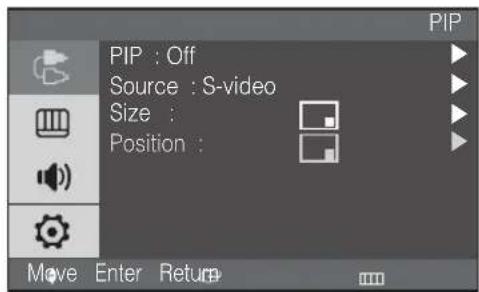
If you didn't select PIP On, this menu is not available.
- Press the MENU and ENTER button.
- Press the / and ENTER button to select the PIP menu.
- Press the / and ENTER button to select the Position.
- Press the / and ENTER button to select setting. (
- Press the MENU or button repeatedly to exit.
PIP OFF (VGA mode only)
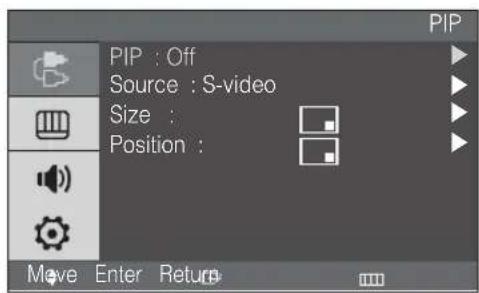
If you didn't select VGA input, this menu is not available.
- Press the MENU and ENTER button.
- Press the / and ENTER button to select the PIP menu.
- Press the ENTER or button to see sub menu.
- Press the / and ENTER button to select the Off.
- Press the MENU or button repeatedly to exit.
Edit Name
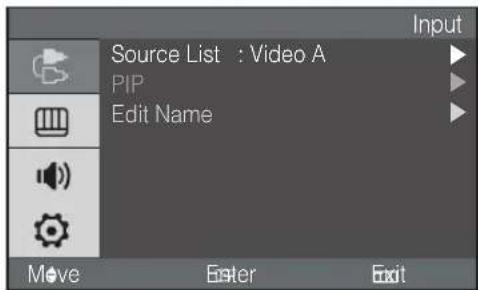
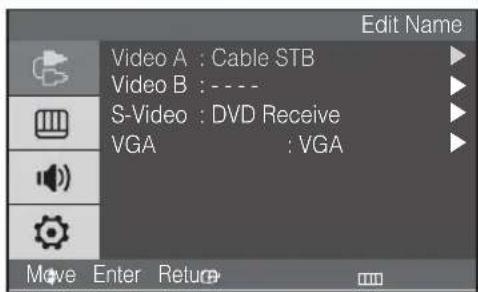
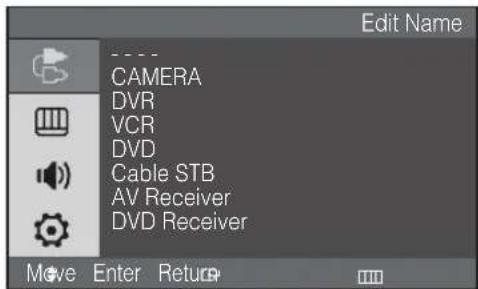
- Press the MENU and ENTER button.
- Press the / and ENTER button to select the Edit menu.
- Press the / and ENTER button to select input.
- Press the / and ENTER button to select the Name you want.
- Press the MENU or button repeatedly to exit.
Video mode
Mode:Dynamic,Standard,Movie, Custom

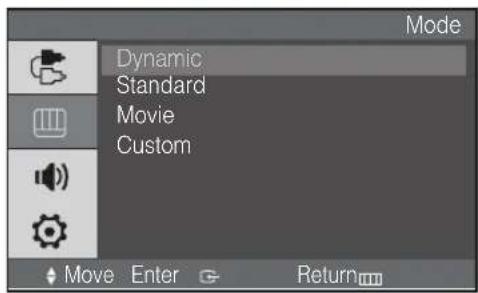
- Press the MENU and / button to select the Picture menu.
- Press the ENTER or button to select the Mode menu.
- Press the ENTER or button.
- Press the / button to select the mode you want. (Dynamic, Standard, Movie, Custom)
- Press the MENU or button repeatedly to exit.
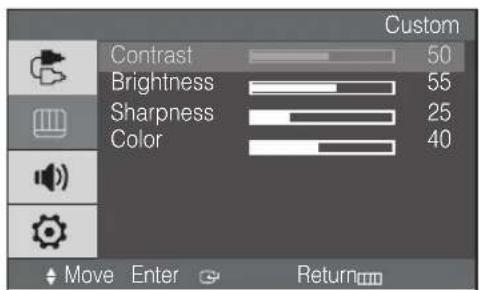
Custom
Video mode : Contrast, Brightness, Sharpness, Color
Tint feature is enabled while input signal is NTSC mode.