
Smartpen N2 - Voice recorder NEO - Free user manual and instructions
Find the device manual for free Smartpen N2 NEO in PDF.


| Product Type | Voice Recorder / Smart Digital Pen |
| Brand | Neo |
| Model | Smartpen N2 (NWP-F121) |
| Dimensions (without cap) | Length: 156 mm, Thickness: 11.5 to 11.8 mm |
| Weight (without cap) | 22 g |
| Power Source | Rechargeable lithium-polymer battery 3.7 V / 300 mAh |
| Charging Time | About 2 hours |
| Battery Life (continuous use) | About 5 hours |
| Standby Time | About 125 days |
| Connectivity | Bluetooth 4.2 (Classic and BLE), micro USB 2.0 |
| Internal Memory | 90 MB |
| Main Functions | Handwriting, digital capture, voice recording, text transcription, sharing (PNG, PDF, TXT, SVG), note locking |
| Associated App | Neo Notes (iOS and Android) |
| Paper Support | Compatible Neo notebooks |
| Ink Cartridges | Type D1, refillable (commercially available) |
| LED Lighting | Status indicator: charging, low battery, Bluetooth connection, storage, update |
| Maintenance and Cleaning | Clean the optical sensor with a soft, dry cloth; avoid dirt on paper |
| Safety Precautions | Do not expose to direct sunlight (may affect recognition); use in temperature range 10–35°C |
| Spare Parts and Repairability | D1 refills available; for any repairs, contact the point of sale or NeoLAB Convergence |
| Certifications | CE, FCC, KCC, MIC, NCC, BSMI |
Frequently Asked Questions - Smartpen N2 NEO
User questions about Smartpen N2 NEO
0 question about this device. Answer the ones you know or ask your own.
Ask a new question about this device
Download the instructions for your Voice recorder in PDF format for free! Find your manual Smartpen N2 - NEO and take your electronic device back in hand. On this page are published all the documents necessary for the use of your device. Smartpen N2 by NEO.
USER MANUAL Smartpen N2 NEO
Product features and specifications in this user guide are subject to change without prior notice for performance improvement purpose.
(1) Charging the pen
• Make sure to charge the product after the purchase as it may have low battery.
- The LED lamp will turn red while the battery is being charged. Once charging is complete, it'll change back to green.(If the battery is being charged with PC, PC will recognize the pen as a removable disk an the LED light turns violet.)
(2) Power ON/OFF
- If you press the power button or put the pen tip on the paper, the pen will be activated with LED lights on within a second.(The Auto Power function is enabled when the pen is first connected to the App. You can change the setting in the App.)
- When the power is on, hold the power button for more than 2 seconds, and the power will turn off with flashing LED lights.
- If there is no action taken for more than 20 minutes, the power will be turned off automatically. (You can change the auto-power-off time in the setting. The longer auto-power-off time is set, the shorter pen usage time is available.)
- If you do not use this product for more than 10 seconds, it will automatically change to standby (low power consumption) mode to reduce battery power consumption.
(3) How to grip
The recognition rate is heavily affected by the direction of the optical sensor's angle. Sensor(oval shaped part adjacent to the pen tip) should face downwards. Deviating from the appropriate degree, or holding the pen in the wrong direction could cause difficulties with capturing your writing or drawing.

natural_image
Hand holding a pen writing on paper with a dotted circular line (no text or symbols)Usage Angle
Hold the pen that does not cause pressure on the wrist and maintain a natural writing angle.

Allowable Recognition Angle
Product's acceptable recognition angle is -20^ +40^ . (90° vertical standard)
(4) LED color status display
| Status LED Color | |||
| Power ON illuminating |  | ||
| Power OFF |  |  | (1) Dimming |
| Being charged illuminating |  | ||
| Fully charged |  |  | and thenturned OFF |
| Low battery power notification Flashing |  | ||
| During USB connection Illuminated |  | ||
| Bluetooth connection standby Flashing |  | ||
| During App connection |  | (1)Dimming | |
| Low storage notification Flashing |  | ||
| During firmware update |  | (1)Dimming | |
| Firmware update failure Flashing |  | ||
| (2)Verify optical sensor or usage environment |  | lminated (with alarms) | |
(1) Dimming : Indicates slowly getting dark and then bright while flashing.
^12 Check if there's any dirt around optical sensor or on papers.
2. Neo Notes App


Neo Notes
• Smartpen works in tandem with mobile app "Neo Notes"
• The app can be downloaded from Google play or Applie app store.
- Please search for 'Neo Notes', 'Neo smartpen' in the search bar to find the App
3. Registering Smartpen to mobile app
STEP 04.STEP 01.STEP 02.STEP 03.
![Step 1 Press the power button for 3 seconds and the second step following Press [Heart Drop] buttons. Next Step](/content/2026/05/971512/images/4af1037f8eb9b1c3c7332ff4d96607be0fd3f9d8f2735b53570aec76d01d18a1.jpg)


STEP 01.
Enable the Bluetooth function of the smart device.
STEP 02.
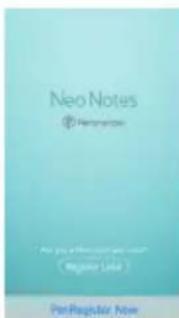
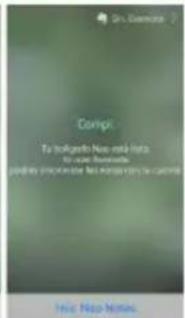
Run Neo Notes and tap the 'Pen Register Now' button below.
STEP 03.
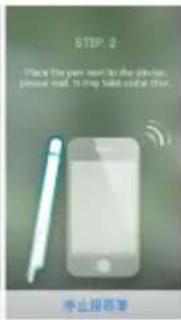
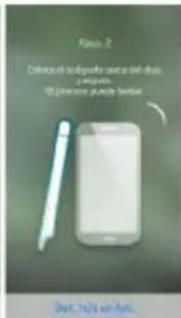
Please follow the instructions as shown in the app.
STEP 04.
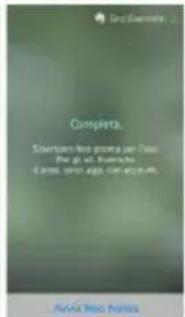
If the pen has been successfully registered, the Pen Registration screen appears in the App. Now, press 'Start Neo Notes' button and start writing on N notebooks.
4. Using without app connection
- Neo smartpen can be used when the mobile app is not running.
- The content that you write while the mobile app is off will be transferred later when the app and Neo smartpen are connected
5. How to use Neo Notes
(1)NoteBox
- Use notebook "Lock" function if you want to use the same type of notebooks for multiple times.
STEP 01. STEP 02. STEP 03.
STEP 01.
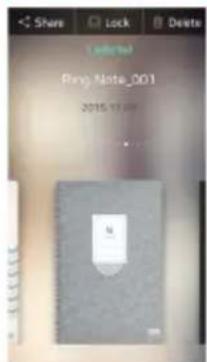
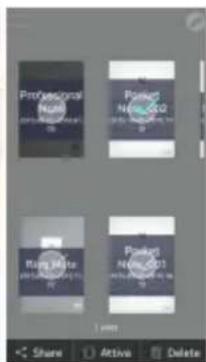
Place long tap on the notebook that you wish to lock, then 'Share', 'Lock' & 'Delete' button will appear
STEP 02.
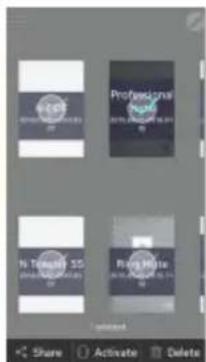
Select 'Lock' button to move your notebook to NoteBox
STEP 03.
You can unlock the notebooks anytime.
QUICK USER GUIDE_05
(2) Using button
- Press button on your note page to see.
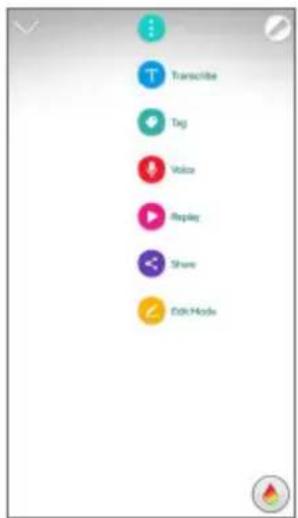

Transcribe
Transcribe your handwritten notes into digital text

Tag
Tag your notes to organize and search them

Recording
Record voice while writing notes

Replay
Replay your written notes and/with voice

Share
Share the notes in PNG, PDF, TEXT & SVG format

Edit Mode
Edit, erase, change color/thickness or highlight your writing in the notebooks
(3) Pen preference settings
- Press button to see pen setting menu.
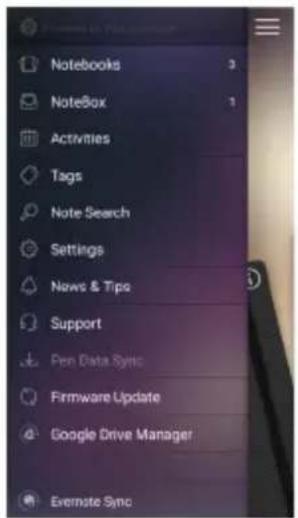

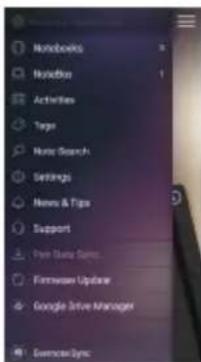
Notebooks
Check your current notebooks

Notebox
Check Your locked notebooks to NoteBox

Activities
Check your writing by date

Tags
Search tagged pages

Note Search
Search transcribed text

Settings
Select your pen & app settings

News & Tips
Check latest news & updated tips

Pen Data Sync
Transfer stored writing data to the app

Firmware Update
Update pen's firmware to the latest version
(4) Color & Thickness change
- You have various pen colors and thickness settings to choose from in the app.
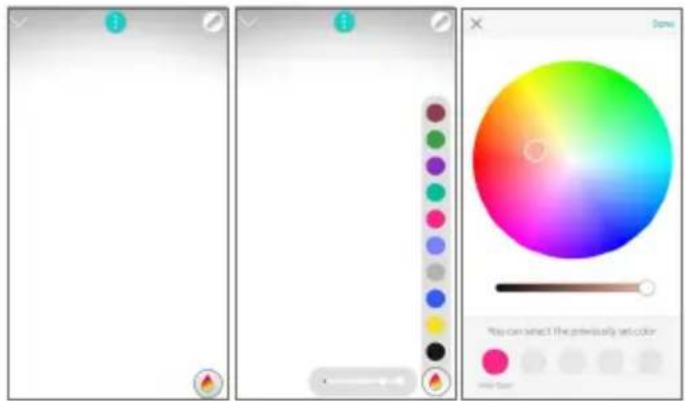
- Tap on icon, then a color palette will open and select a thickness and color (while the smartpen is connected to the app)
- Tap anywhere outside the palette to make it disappear.
6. Notebooks & Stores
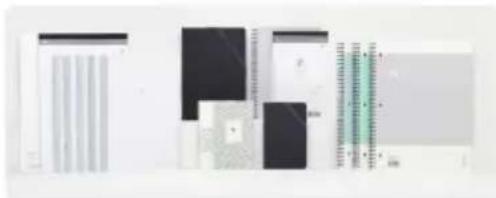
Find the perfect fit for among our wide range of notebooks.
natural_image
Abstract composition of layered rectangular blocks and a vertical grid pattern (no text or symbols)* Pentips are D1 type which you can buy from any online or stationery store
World
shop.neosmartpen.com
(except Latin America and Africa)
Product specification table
Model Name NWP-F121
Support Supported OS / Bluetooth Specification
| OS version | Bluetooth version | |
| Android | Kitkat 4.4 or higher 2.1 or higher | |
| iOS | iOS 8.1[iPhone 5 / iPad 3 / iPad mini / iPad Air 1] or higher | 4.0 LE |
Wireless Connection Bluetooth 4.2 (CLASSIC / BLE)
Receiving / Transmitting Frequency 2402 \~ 2480MHz
Antenna Output 3mW / Class 2
Storage Media 90MB of internal memory
Battery Rechargeable Lithium Polymer Battery 3.7V / 300mAh
Charging Time About 2 hours
Rated Input DC 5V / 300mA
Usage Time
Size and Weight
125 days in standby mode, 5 hours for continuous writing
Length: 156mm (without a pen cap),
thickness: 11.5\~11.8mm / 22g (without a pen cap)
PC Connection Method USB2.0HS (microUSB)
Usage Environment
Temperature: 10\~35℃ / humidity: \~95%
Ink refills D1 multi pen ink refills
Direct sunshine or any strong light may cause the loss of recognition of writing.

KCC: MSIP-CRM-NCV-NWP-F121
FCC ID: 2AALG-NWP-F121
MIC: 007-AF0079
CMIIT ID: 2017DJ3496
BSMI: R3B232
NCC: CCAH17LP1950T6

R3B232 CCAH17LP1950TB



QUICK USER GUIDE_07
1.스마트펜 사용하기
(1)배터리 총전
natural_image
Hand holding a pen writing on a document (no text or symbols visible)올바른 파지 방법
인식 허용 각도

natural_image
Product display panel with various electronic components and connectors (no visible text or labels)World
한국 공식 판매처
storefarm.naver.com/neosmartpen
공식 홈페이지
www.neosmartpen.com/kr
글로벌 공식 판매처
shop.neosmartpen.com
(남아메리카 및 아프리카 제외)
제품 상세 정보
모델명 NWP-F121
지원 OS / Bluetooth
사양
natural_image
Hand holding a pen writing on a paper (no text or symbols visible)使用角度
認識可能な角度
認識が可能な角度は
natural_image
Collection of printed materials and sheets with no visible text or symbolsJapan
http://www.amazon.co.jp/shops/A1FHJMBBXJCT3N
natural_image
Hand holding a pen writing on a document (no visible text or symbols)(1) Dimming : Indicates slowly getting dark and then bright while flashing.
natural_image
Abstract composition of layered rectangular shapes and geometric patterns (no text or symbols)World
shop.neosmartpen.com
(except Latin America and Africa)
natural_image
Hand holding a pen writing on a document (no visible text or symbols)(1) Dimming : Indicates slowly getting dark and then bright while flashing.

natural_image
Pure electrical circuit lines without any symbolsWorld
shop.neosmartpen.com
(except Latin America and Africa)
natural_image
Abstract geometric shapes and patterns with no visible text or symbolsLe Magasin Officiel
shop.neosmartpen.com
natural_image
Hand holding a pen writing on a paper (no text or symbols visible)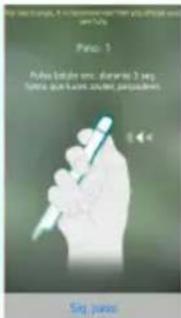
PASO 01.

Transcrib

Libretas
natural_image
Abstract composition of layered rectangular shapes and colored squares (no text or symbols)La tienda oficial
shop.neosmartpen.com
natural_image
Hand holding a pen with a dotted circular line, poised to write on a document (no text or symbols visible)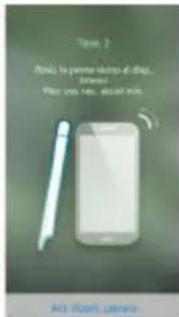

STEP 01.
natural_image
Abstract geometric pattern with layered rectangular blocks and diagonal lines (no text or symbols)Output Antenna 3mW / Class 2
Download on the App Store

Google Play
Neo Notes


Schritt 01.
natural_image
Abstract geometric shapes and textures with no visible text or symbolsGlobal
shop.neosmartpen.com
Please contact the store where you purchased the product or NeoLAB Convergence for customer service/support.
Neo smartpen provides guaranteed warranty in accordance with relevant laws of the specified country
Product Warranty
| Product Name | Neo smartpen N_2 |
| Product No. (Serial No.) | |
| Purchase Date | |
| Seller | |
| Purchase Price |
- Keep the product no. (serial no.) in a safe place as it is required for checking the product warranty period when requesting customer service / support.
- The product no. is attached on the surface of the product package.
FCC Information to User
This equipment has been tested and found to comply with the limits for a Class B digital device, pursuant to Part 15 of the FCC Rules. These limits are designed to provide reasonable protection against harmful interference in a residential installation. This equipment generates, uses and can radiate radio frequency energy and, if not installed and used in accordance with the instructions, may cause harmful interference to radio communications. However, there is no guarantee that interference will not occur in a particular installation. If this equipment does cause harmful interference to radio or television reception, which can be determined by turning the equipment off and on, the user is encouraged to try to correct the interference by one of the following measures: - Reorient or relocate the receiving antenna.
- Increase the separation between the equipment and receiver.
- Connect the equipment into an outlet on a circuit different from that to which the receiver is connected. - Consult the dealer or an experienced radio/TV technician for help.
Caution
Modifications not expressly approved by the party responsible for compliance could void the user's authority to operate the equipment.
IMPORTANT NOTE : FCC RF Radiation Exposure Statement
This equipment complies with FCC RF radiation exposure limits set forth for an uncontrolled environment.
This equipment should be installed and operated with a minimum distance of 20 centimeters between the radiator and your body. This transmitter must not be co-located or operating in conjunction with any other antenna or transmitter.
NOTE - THE GRANTEE IS NOT RESPONSIBLE FOR ANY CHANGES OR MODIFICATIONS NOT EXPRESSLY APPROVED BY THE PARTY RESPONSIBLE FOR COMPLIANCE. SUCH MODIFICATIONS COULD VOID THE USER'S AUTHORITY TO OPERATE THE EQUIPMENT. THIS DEVICE COMPLIES WITH PART 15 OF THE FCC RULES. OPERATION IS SUBJECT TO THE FOLLOWING TWO CONDITIONS: (1) THIS DEVICE MAY NOT CAUSE HARMFUL INTERFERENCE, AND (2) THIS DEVICE MUST ACCEPT ANY INTERFERENCE RECEIVED, INCLUDING INTERFERENCE THAT MAY CAUSE UNDESIGNED OPERATION.
CE Information to User
Hereby, NeoLAB Convergence Declares that this NWP-F110 is in compliance with the essential requirements and other relevant provisions of directive 1999/5/EC/
R1: Any dangerous activities with the pen tip are prohibited.
R2: Stop the usage when the product gets heated.
R5: Do not store the product after the usage where room temperature is possibly high, such as interior of vehicle.
R7: Ink or any dirt in the product may cause illness in case of putting it one's mouth during usage.

Industry Canada
IC:21452-NWPF110
IC Information to User
This device complies with Industry Canada's licence-exempt RSSs. Operation is subject to the following two conditions:
(1) This device may not cause interference; and (2) This device must accept any interference, including interference that may cause undesired operation of the device


- Charging the pen
- Power ON/OFF
- How to grip
- LED color status display
- Neo Notes App
- Neo Notes
- Registering Smartpen to mobile app
- Using without app connection
- How to use Neo Notes
- (1)NoteBox
- Color & Thickness change
- Notebooks & Stores
- World
- Product specification table
- 1.스마트펜 사용하기
- (1)배터리 총전
- 제품 상세 정보
- Japan
- Transcrib
- Libretas
- Global
- shop.neosmartpen.com
- Please contact the store where you purchased the product or NeoLAB Convergence for customer service/support.
- FCC Information to User
- Caution
- IMPORTANT NOTE : FCC RF Radiation Exposure Statement
- CE Information to User
- Industry Canada
- IC Information to User
Brand : NEO
Model : Smartpen N2
Category : Voice recorder