Allbook M - Tablet Allview - Free user manual and instructions
Find the device manual for free Allbook M Allview in PDF.


| Product Type | Tablet |
| Brand | Allview |
| Model | Allbook M |
| Display Size | 10.1 inches |
| Display Resolution | 1280 x 800 pixels |
| Processor | Quad-core 1.3 GHz |
| RAM | 1 GB |
| Internal Storage | 16 GB |
| Expandable Storage | microSD, up to 32 GB |
| Operating System | Android 8.1 (Oreo) |
| Battery Capacity | 5000 mAh |
| Front Camera | 2 MP |
| Rear Camera | 5 MP |
| Wi-Fi | 802.11 b/g/n |
| Bluetooth | 4.0 |
| Ports | Micro USB, 3.5mm audio |
| Dimensions | 240 x 165 x 8.5 mm |
| Weight | 520 g |
| Power Supply | 5V/2A USB charger |
| Cleaning | Wipe with dry soft cloth |
| Safety Precautions | Do not expose to water or extreme temperatures |
| Repairability | Spare parts available from authorized service centers |
Frequently Asked Questions - Allbook M Allview
User questions about Allbook M Allview
0 question about this device. Answer the ones you know or ask your own.
Ask a new question about this device
Download the instructions for your Tablet in PDF format for free! Find your manual Allbook M - Allview and take your electronic device back in hand. On this page are published all the documents necessary for the use of your device. Allbook M by Allview.
USER MANUAL Allbook M Allview
natural_image
Black laptop with open screen displaying blue Windows logo (no visible text or symbols)USER MANUAL....2
MANUAL DE UTILIZARE.....19
MANUAL DE USUARIO.....36
INSTRUKCJA OBSŁUGI.....54
I. Precautions before Use
-
This product is suitable for use in non-tropic areas below 2,000 meters.
-
Prevent the Notebook PC from falling to the ground or being strongly impacted otherwise.
-
Do not use it in the long term in any environment where the air is too cold, too hot, too much humidity or with too much dust. Do not expose the Notebook PC to direct sunlight.
-
Avoid using it in the strong magnetic and strong static environment as much as possible.
-
Once any water or other liquid splashes onto the Notebook PC, close it immediately and do not use it until it dries out.
-
For your own safety it is recommended not to keep the device close to your body during charging and to place it on a non flammable surface.
-
Do not clean the Notebook PC with any detergent containing chemical element or other liquid to avoid causing damage due to corrosion and becoming damp. If cleaning is really necessary, clean it with dry soft cloth tissue paper.
-
Our company shall not bear any and all responsibilities for loss or deletion of material inside the machine caused due to abnormal software and hardware operation, maintenance of any other resident.
-
Please back up your important material at any time to avoid loss.
-
Please do not disassemble the Notebook PC by yourself; otherwise you will lose the right to warranty.
-
User manual and the relevant software shall be updated at any time. For updated software version, visit www.allviewmobile.com to download by yourself, and no notice shall be given otherwise. If any anything is found to be inconsistent with the User Manual, the online version shall prevail.
-
Replacement with incorrect type batteries may cause explosion. Make sure to use original batteries.
To be taken into consideration:
In order to avoid any issues that may appear with services that are no longer accepted by S.C. Visual Fan S.R.L. (because S.C. Visual Fan S.R.L. reserves its right to cease collaboration with any formerly-accepted service, existent on the warranty certificate on the launching date of the product lot), before taking a product to the service, please consult the updated list of the existent accepted services from the Allview website at the "Support & Service – Authorized Service" section.
We do not take responsibility for the situation in which the product is used in any way other that the one specified in the manual. Our company reserves its right to bring modifications in the content of the guide, without public announcement. These modifications will be listed on the company's website (www.allviewmobile.com) in the section dedicated to the product.
The content of this guide may be different from the one in electronic format, from the website. In this case, the latter will be taken into consideration.
The applications destined for the product usage, and provided by third parties, may be stopped or interrupted at any moment. S.C. Visual Fan S.R.L. explicitly denies any responsibility or any accountability regarding the modification, stopping or suspension of the services/content made available by third parties, through this device. For more details about the product, go to www.allviewmobile.com.
In the following cases, the product stops benefiting from warranty:
- Lack of tag or warranty seals;
- Unauthorized interventions, including repairs executed by people or firms that are unauthorized by the producer;
- The buyer not following the handling, transportation, maintenance, installation, staffing and usage conditions;
- Thermic, mechanic and plastic deteriorations of the products caused by hits, exposure to heat sources, fires, accidents, vibrations, weather conditions or neglect in usage;
- Usage of batteries, power sources or other accessories other than those approved by the producer;
- In the case in which the product has traces of food or evidence of contact with any type of liquid (water, solvents, oils, paints, acids and others) and this contact is proven through traces of oxidation or through the presence of liquids on any part of the product;
- No match between the serial number written on the warranty certificate and the one on the product;
- Using it with other purposes other than those for which it was conceived;
- Usage in inadequate conditions (wrong power tension, higher level of humidity than the accepted one, dust);
- The seller is not accountable for the possible issues of compatibility with the accessories purchased from other companies and does not take any responsibility for the sub-ensembles used on the systems, which do not correspond, performance wise, with the specs of the producer.
Ⅱ. Key Layout and Definitions
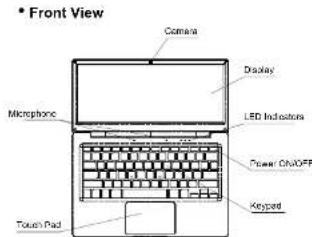
- Camera: Built-in web cam that allows you to capture video, chat Online, and more.
- LED Indicators: Power on, Caps Lock and Touch pad Lock indicator
- Microphone: Built-in microphone that help you for Online Audio/Video calling, and more.
- Keypad: 78 keys keypad including Internet and MM short keys
- Touch Pad : Touch Pad with multi-touch functionality
- Display: High quality IPS screen allows you to watch
movies, Play Games and more
- Power ON/OFF: Long press to Power ON/OFF.
- Left Side View
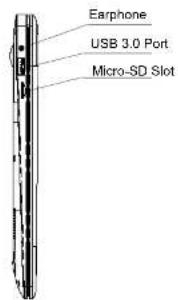
- USB Port: You can connect any devices (like Mouse,
Keyboard, Extn. HDD / SSD, etc.) - Headphone out Jack: Single/Combo jack for Headset &
MIC - Micro-SD slot: expandable up to 128GB
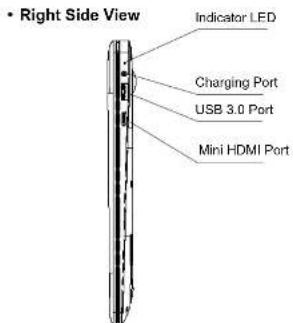
- LED Indication: Red LED Indication for charging.
- Charging port: 3.5mm power connector to charge your Notebook. Use only Adapter that is provided along with the box.
- USB 3.0 Port: you can connect any devices (like Mouse, Keyboard, Extn. HDD/SSD etc.)
-
Mini HDMI port: it allows you to connect any external display device, Like Projector, LCD Monitor. a.s.o. (Cable not included)
-
Bottom Side View
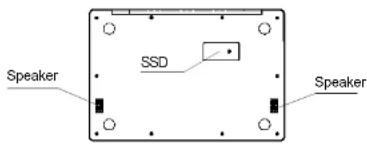
- Speaker: Speakers with high quality sound allow you to listen music, watch video, play games, and more.
- Slot to connect SSD: You may expand your storage capacity.
III. Descriptions of Keys
Attention: Keyboard is configured according to the specific type of the Notebook PC you have bought.
IV. Introduction to Desktop
1. Image Slide Application
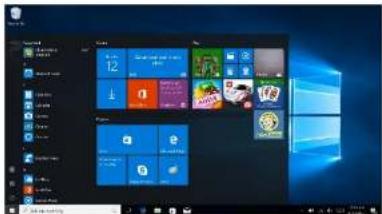
Windows 10 start image: On the start screen, you can see many programs fixed in the image.
These application programs are displayed in the form of "magnet". As you click them, you can easily access them. You need to log on your Microsoft account before the application program completely runs.
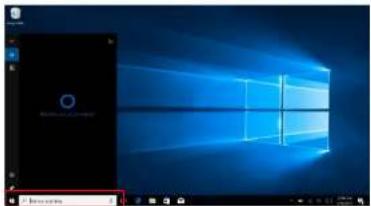
2. Cortana (optional)
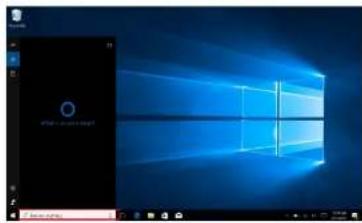
You may use Cortana assistant for fast smart searching.
3. Introduction to app Interface
Besides the application programs already fixed on the "start" screen, you can also fix other applications, programs, folders, a.s.n. to the "start" screen.
3.1. If you want to fix more application programs on the start interface, see the operation in the figure below.
In the start menu, right-click the application you want to fix and select "Pin to Start". You can also drag the application onto the "start" screen, as follows:
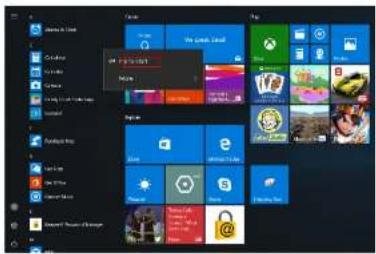
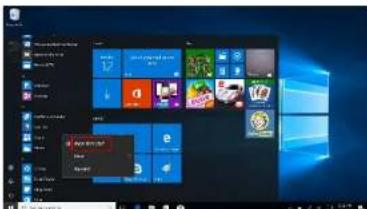
Conversely, if you want to cancel or delete a certain application in the start screen, (1) Right-Click the application, (2) Click the "Unpin from Start".
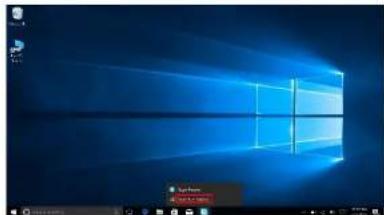
3.2. If you want to fix more application programs on the taskbar, see the operation in the figure below.
In the start menu, right-click the application you want to fix and select "More" and then select "Pin to taskbar".
You can also drag the application onto the taskbar, as follows:
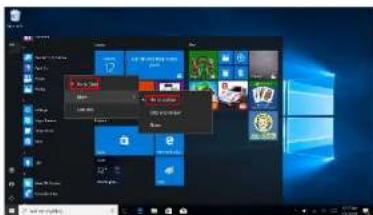
Conversely, if you want to cancel or delete a certain application in the taskbar, (1) Right-Click the application, (2) Click the "Unpin this program from taskbar".
natural_image
Windows XP desktop wallpaper showing the classic Windows logo and application icons (no readable text or symbols)4. Start Menu
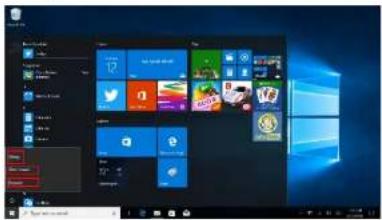
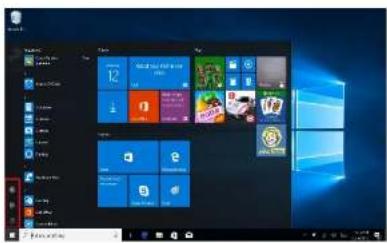
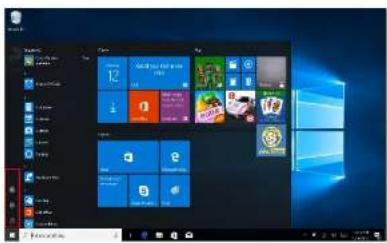
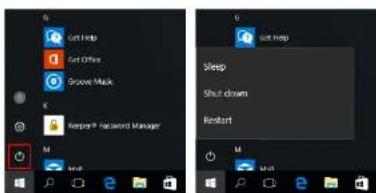
Under PC mode, press Start icon, Start Menu will display including: Start, Device, Setup, Share, and Search.
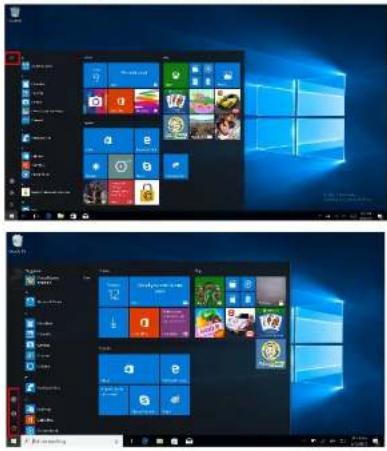
Usually: Power, Settings and Account.

Change account setting/Lock/Sign out.

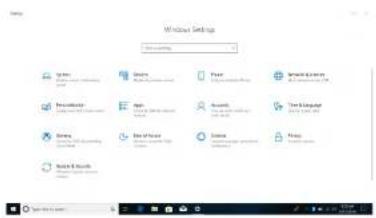
Let you set up the Table PC.

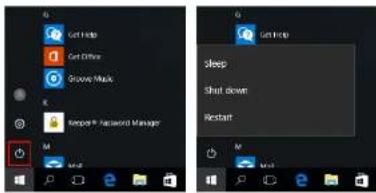
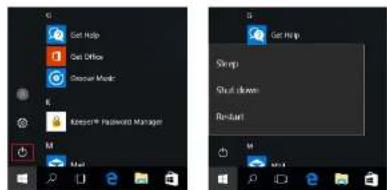
Sleep/Shut down/Restart the Notebook PC
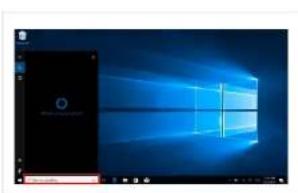
Search
menu
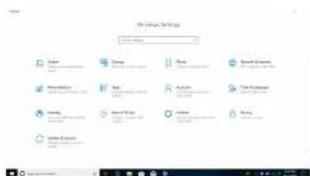
Setup
menu
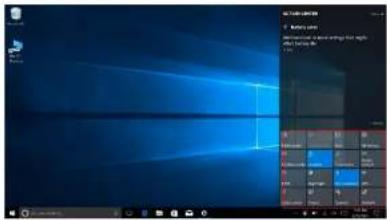
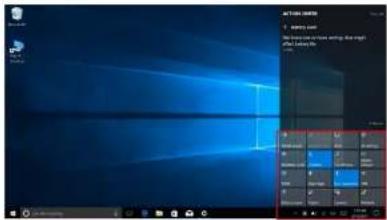
Action Center
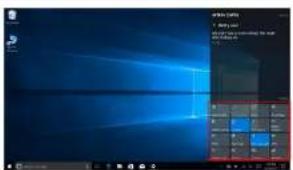
Action Center is a notification center which also allows quick settings like Tablet / PC mode, Wi-Fi, BT a.s.o.
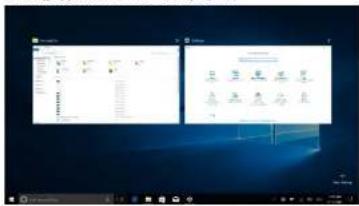
5. Multitasking operating interface
If you Click the Task View (or press the icon).

running applications will be displayed.
V. Basic Operations
- Sleep, Shut down and Restart
2. Cortana (optional)
- Meniul de Start
Sleep/Slut down/Restart Notebook PC
Meniu de căutare
Meniu de setare
Centru de Actiuni
V. Operatiuni de Bazà
I. Antes de utilizar
4. Menú de Inicio
Suspender/Apagar/Reiniciar Notebook PC
Menú buscar
Action center
5. Interfaz de multitarea
2. Cortana (optional)
natural_image
Windows XP desktop wallpaper showing the classic Blue Date '19:30' with no visible text or symbols on the screen.4. Menu start
| AllBook M | ||
| Languages / Lamb / Idiomas / Jedzyki | EN, RO, EX. PL | |
| Dimensions / Dimensions / Dimensions / Wymary | 315 x 212 x 18.5 mm | |
| Weight / Grotus / Peso / Waga | 1240g | |
| Display / Ecran / Pantalla / Ekran | Type / Tip / Type / Typ | TPS I CD |
| Dimensions / Dimensions / Dimensions / Wymary | 13.3" | |
| Resolution / Resolution / Resolution / Rozidad / | 1920x1900px | |
| Characteristics / Characteristic / Characteristics / Cachy | Operating system / System dc operate / Service operation / System operating jny | Windows 10 Home |
| CPU | Intel® Ceramic TM Dual-Core X3350 1.1 GHz up to 2.2 GHz (min) | |
| GPU | Intel HD 500 Gen B LP | |
| Flash memory / Memote Flash / Pamieć hlykova / Memania flash | 64GB | |
| RAM Memory / Memote RAM / Memania RAM / Pamieć flash | 4G8 | |
| Micro SD <128 GB | ||
| Color / Culture / Color / Kolor Grey Oil / Gris / Szym | ||
| Widget Yes / Da / Si / Tak | ||
| Multasking Yes / Da / Si / Tak | ||
| WLAN 802.11 aslab/igh | ||
| Bluetooth Yes / Da / Si / Tak 4.2 | ||
| PC Connectivity / Connectivity PC :Conectividad PC / Lepunistic PC | Yes / Da / Si / Tak, USB3.0 | |
| Multimedia | Camera / Camera / Camera /Kamera | VGA |
| Sound / Sound / Sonar / Dlawix | Speaker / Difuzor / Alvaroz/Grosnik | |
| Video | Multiple tomatoes / Formato multiple / Multiple formatos / Weiu formatlow / Video resolution / Razmulta Video / Resolución de Video / Razdárkazó o ydes Full-ID 1920X1060p | |
| Radio / Reclare / Jugar / Greé FullHD 1920X1060p | ||
| Internat | Social networking / Role de socializane / Las roles sociales / Spolezureściiowe | Yes / Da / Si / Tak |
| Record file / Fisier uśrąjstate / Archion de tregna / Piła tregna i pi | Yes / Da / Si / Tak | |
| Yes / Da / Si / Tak | ||
| Applications / Aplicazioni / Aplicazioni / Apliciarto | Yes / Da / Si / Tak | |
| Call by Wi-Fi / Apiel pria Wi-Fi / Inser / travers de Wi-Fi / devoró procera Wi-Fi | Yes / Da / Si / TakSupports vidrocall /Suprafa vidrocall / Suprafa vidrocall / Obstoguja vidrocall | |
| Sockets / Porturi / Puertos / Porty | Audio output / ICSI audio / Si/ Dia de audio / wyjcie audio | Jack, 3,5 mm |
| Card reader / Customer card / Customer de turgna / Cayinak iun | Mini-SD | |
| Mini HDMI | Yes / Da / Si / Tak | |
| USB | 2 x USB 3.0 | |
| Support / Support / Accepta / Obstoguja SSD | Yes / Da / Si / Tak120 / 250 / 512 GB | |
| Battery / Baterie / | Charging type / Tip motorizer / Tipo | DC 12v / 2A |
| Bateria / Bateria | cargador / Typ ladowarki | |
| Bateria que / Typ Bateria / tipo de bateria / typ bazerti | 7.6V 1.4-Polymer | |
| Cuparity / Cuparity / Capis idut / Pojemnoló | 36.1 W/s | |
| Liaje period / Temp utilizate / Pencido de una / Otras uzykowana | Up to 7h / Fanta le 7h? pata 7h / da 7h | |
| Package content :Continut pachet /El contenido del pesqueta /Zawartość pakietu | Nolebock, machet, == manual, == multi, certificade Nolebock, machet, == manual utiliste, certific potenteNolebock, manual de unitario, certificade de granolaNolebook, instrukcja obstugi, karta gwarantcyjna | |
- Precautions before Use
- To be taken into consideration:
- In the following cases, the product stops benefiting from warranty:
- Descriptions of Keys
- Introduction to Desktop
- Image Slide Application
- Cortana (optional)
- Introduction to app Interface
- If you want to fix more application programs on the start interface, see the operation in the figure below.
- Start Menu
- Multitasking operating interface
- Basic Operations
- Antes de utilizar
- Menú de Inicio
- Interfaz de multitarea
- Menu start
Brand : Allview
Model : Allbook M
Category : Tablet