
Allbook Y - Tablet Allview - Free user manual and instructions
Find the device manual for free Allbook Y Allview in PDF.


| Product Type | Tablet |
| Brand | Allview |
| Model | Allbook Y |
| Display Size | 10.1 inches |
| Display Resolution | 1280 x 800 pixels |
| Operating System | Android (likely 9.0 or later) |
| Processor | Quad-core Cortex-A7 (approx. 1.3 GHz) |
| RAM | 2 GB |
| Internal Storage | 32 GB |
| Battery Capacity | 6000 mAh |
| Dimensions (W x D x H) | 240 x 170 x 9 mm |
| Weight | 550 g |
| USB Connector | Micro USB 2.0 |
| Camera (Rear) | 5 MP |
| Camera (Front) | 2 MP |
| Wireless Connectivity | Wi-Fi 802.11 b/g/n, Bluetooth 4.0 |
| Main Functions | Web browsing, media playback, e-reading, light productivity |
| Cleaning and Maintenance | Wipe with a soft, dry cloth; avoid liquids |
| Safety Instructions | Do not expose to extreme temperatures or moisture |
| Spare Parts Availability | Battery, charging cable, and screen protector available online |
| Repair Information | Contact Allview support or authorized service centers |
Frequently Asked Questions - Allbook Y Allview
User questions about Allbook Y Allview
0 question about this device. Answer the ones you know or ask your own.
Ask a new question about this device
Download the instructions for your Tablet in PDF format for free! Find your manual Allbook Y - Allview and take your electronic device back in hand. On this page are published all the documents necessary for the use of your device. Allbook Y by Allview.
USER MANUAL Allbook Y Allview
USER MANUAL......2
MANUAL DE UTILIZARE.....19
MANUAL DE USUARIO......36
INSTRUKCJA OBSŁUGI......54
I. Precautions before Use
- This product is suitable for use in non-tropic areas below 2,000 meters.
- Prevent the Notebook PC from falling to the ground or being strongly impacted otherwise.
- Do not use it in the long term in any environment where the air is too cold, too hot, too much humidity or with too much dust. Do not expose the Notebook PC to direct sunlight.
- Avoid using it in the strong magnetic and strong static environment as much as possible.
- Once any water or other liquid splashes onto the Notebook PC, close it immediately and do not use it until it dries out.
- For your own safety it is recommended not to keep the device close to your body during charging and to place it on a non flammable surface.
- Do not clean the Notebook PC with any detergent containing chemical element or other liquid to avoid causing damage due to corrosion and becoming damp. If cleaning is really necessary, clean it with dry soft cloth tissue paper.
- Our company shall not bear any and all responsibilities for loss or deletion of material inside the machine caused due to abnormal software and hardware operation, maintenance or any other accident.
- Please back up your important material at any time to avoid loss.
- Please do not disassemble the Notebook PC by yourself; otherwise you will lose the right to warranty.
- User manual and the relevant software shall be updated at any time. For updated software version, visit www.allviewmobile.com to download by yourself, and no notice shall be given otherwise. If any anything is found to
be inconsistent with the User Manual, the online version shall prevail.
- Replacement with incorrect type batteries may cause explosion. Make sure to use original batteries.
To be taken into consideration:
In order to avoid any issues that may appear with services that are no longer accepted by S.C. Visual Fan S.R.L.
(because S.C. Visual Fan S.R.L. reserves its right to cease collaboration with any formerly-accepted service, existent on the warranty certificate on the launching date of the product lot), before taking a product to the service, please consult the updated list of the existent accepted services from the Allview website at the “Support & Service – Authorized Service” section.
We do not take responsibility for the situation in which the product is used in any way other that the one specified in the manual. Our company reserves its right to bring modifications in the content of the guide, without public announcement.
These modifications will be listed on the company's website (www.allviewmobile.com) in the section dedicated to the product.
The content of this guide may be different from the one in electronic format, from the website. In this case, the latter will be taken into consideration.
The applications destined for the product usage, and provided by third parties, may be stopped or interrupted at any moment. S.C. Visual Fan S.R.L. explicitly denies any responsibility or any accountability regarding the modification, stopping or suspension of the services/content made available by third parties, through this device. For more details about the product, go to www.allviewmobile.com.
In the following cases, the product stops benefiting from warranty:
- Lack of tag or warranty seals;
- Unauthorized interventions, including repairs executed by people or firms that are unauthorized by the producer;
- The buyer not following the handling, transportation, maintenance, installation, starting and usage conditions;
- Thermic, mechanic and plastic deteriorations of the products caused by hits, exposure to heat sources, fires, accidents, vibrations, weather conditions or neglect in usage;
- Usage of batteries, power sources or other accessories other than those approved by the producer;
- In the case in which the product has traces of food or evidence of contact with any type of liquid (water, solvents, oils, paints, acids and others) and this contact is proven through traces of oxidation or through the presence of liquids on any part of the product;
- No match between the serial number written on the warranty certificate and the one on the product;
- Using it with other purposes other than those for which it was conceived;
- Usage in inadequate conditions (wrong power tension, higher level of humidity than the accepted one, dust);
- The seller is not accountable for the possible issues of compatibility with the accessories purchased from other companies and does not take any responsibility for the sub-ensembles used on the systems, which do not correspond, performance wise, with the specs of the producer.
Ⅱ . Key Layout and Definitions
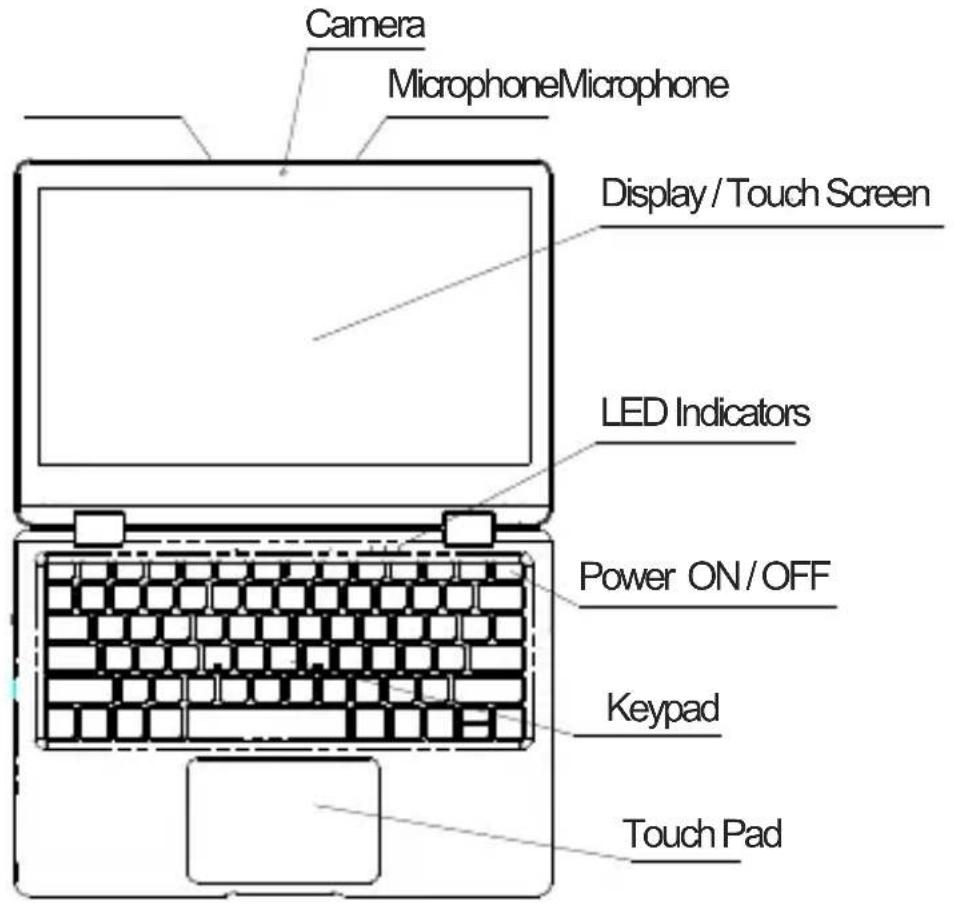
- Front View
-
Camera: Built-in web cam that allows you to capture video, chat Online, and more.
-
LED Indicators: Power on, Caps Lock and Touch pad Lock indicator
-
Microphone: Built-in microphone that help you for Online Audio/Video calling, and more.
-
Keypad: Multiple keys keypad including Internet and MM short keys.
-
Touch Pad : Touch Pad with multi-touch functionality
-
Display: High quality IPS screen allows you to watch movies, Play Games and more
-
Power ON/OFF: Long press to Power ON/OFF.
-
Left Side View
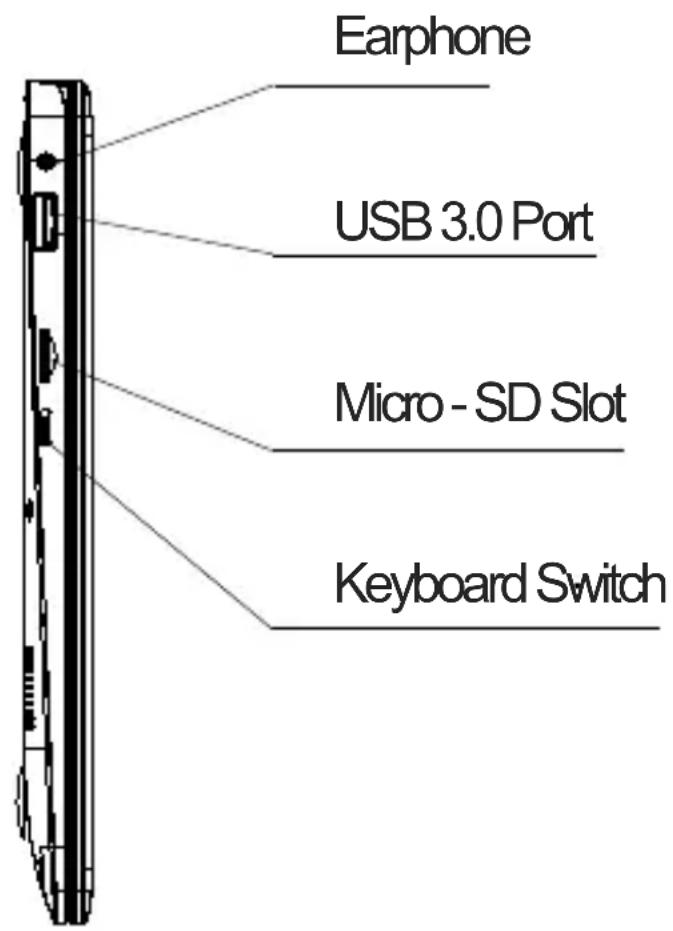
- USB Port: You can connect any devices (like Mouse, Keyboard, Extn. HDD / SSD, etc.)
- Headphone out Jack: Single/Combo jack for Headset&MIC
- Micro-SD slot: expandable up to 128GB
- Right Side View
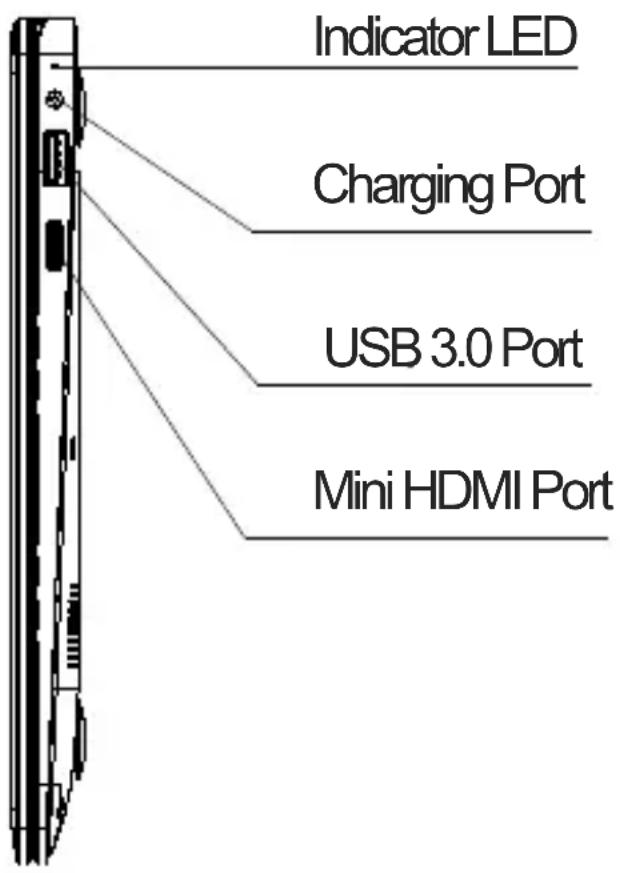
- LED Indication: Red LED indication for charging.
- Charging port: 3.5mm power connector to charge your Notebook. Use only Adapter that is provided along with the box.
- USB 3.0 Port: you can connect any devices (like Mouse, Keyboard Extn. HDD/SSD aso.)
- Mini HDMI port: it allows you to connect an external
display device, Like Projector, LCD Monitor, aso. (Cable not included)
- Bottom Side View
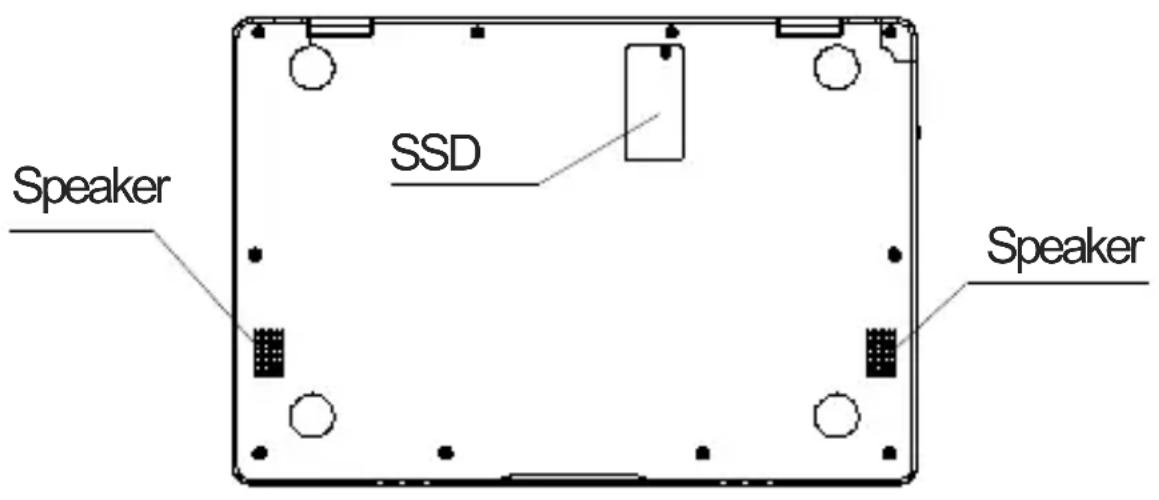
- Speaker: Speakers with high quality sound allow you to listen music, watch video, play games, and more.
- Slot to connect SSD: You may expand your storage capacity.
Ⅲ. Descriptions of Keys
Attention: Keyboard is configured according to the specific type of the Notebook PC you have bought.
IV. Introduction to Desktop
1. Image Slide Application
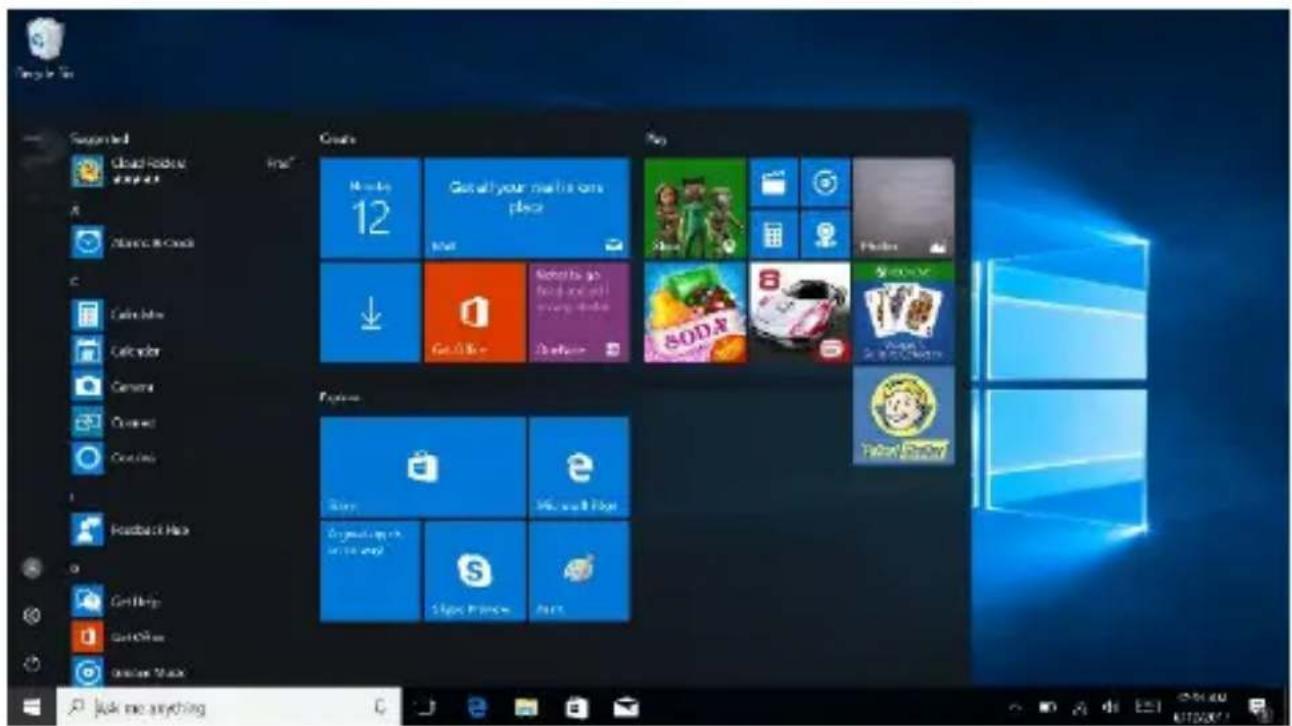
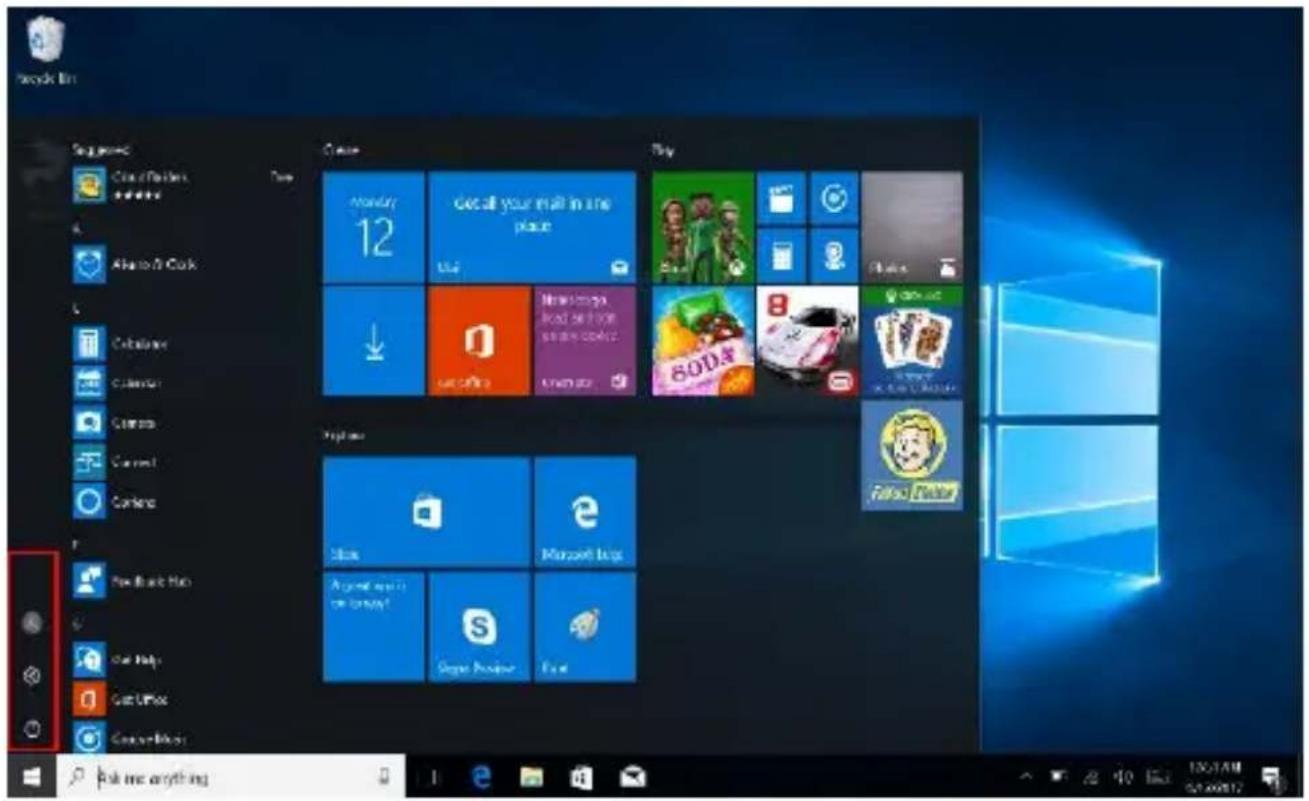
Windows 10 start image: On the start screen, you can see many programs fixed in the image.
These application programs are displayed in the form of “magnet”. As you click them, you can easily access them. You need to log on your Microsoft account before the application program completely runs.
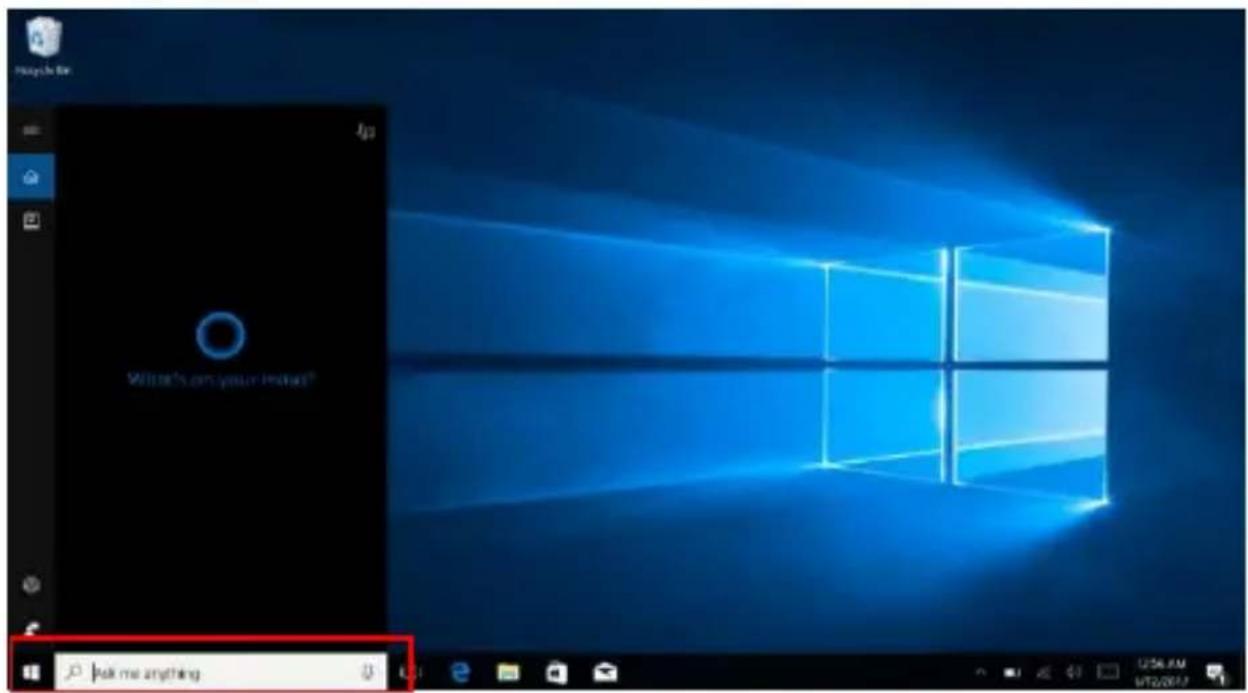
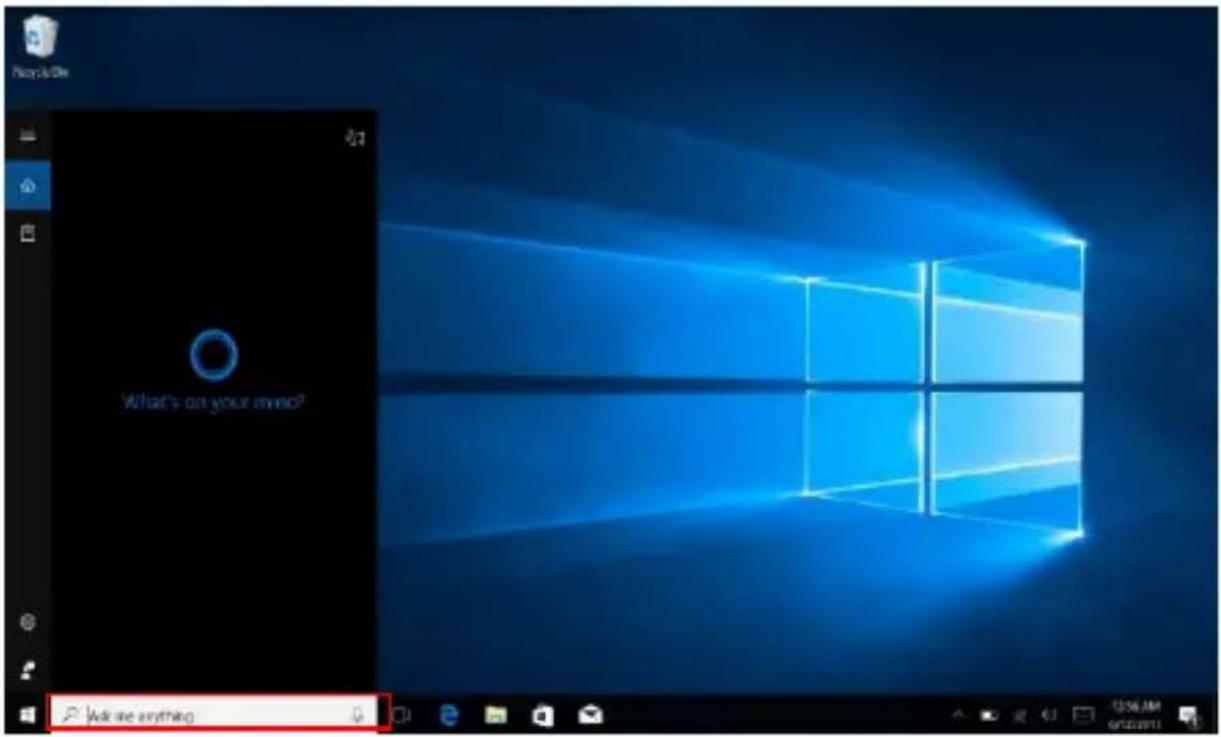
2. Cortana (optional)
You may use Cortana assistant for fast smart searching.
3. Introduction to app Interface
Besides the application programs already fixed on the "start" screen, you can also fix other applications, programs, folders, a.s.o. to the "start" screen.
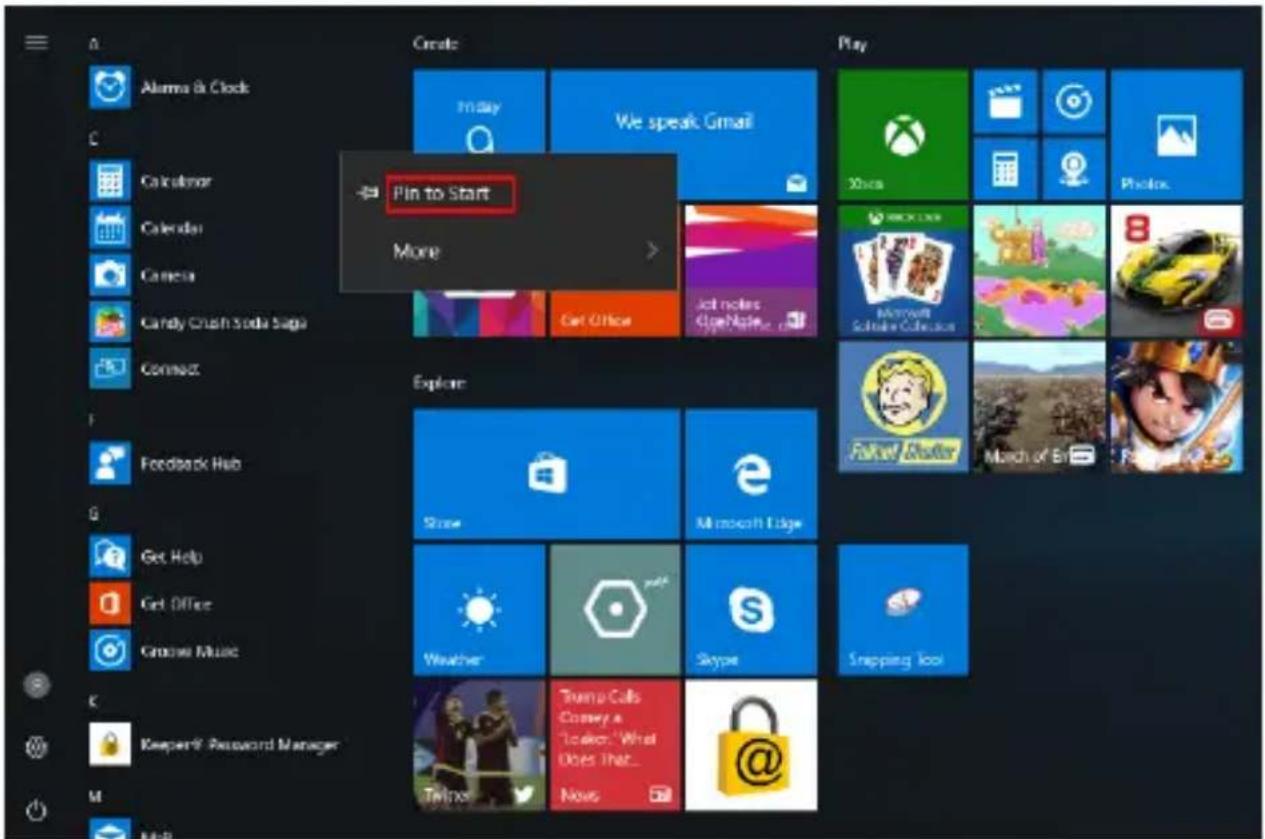
3.1. If you want to fix more application programs on the start interface, see the operation in the figure below.
In the start menu, right-click the application you want to fix and select "Pin to Start". You can also drag the application onto the "start" screen, as follows:
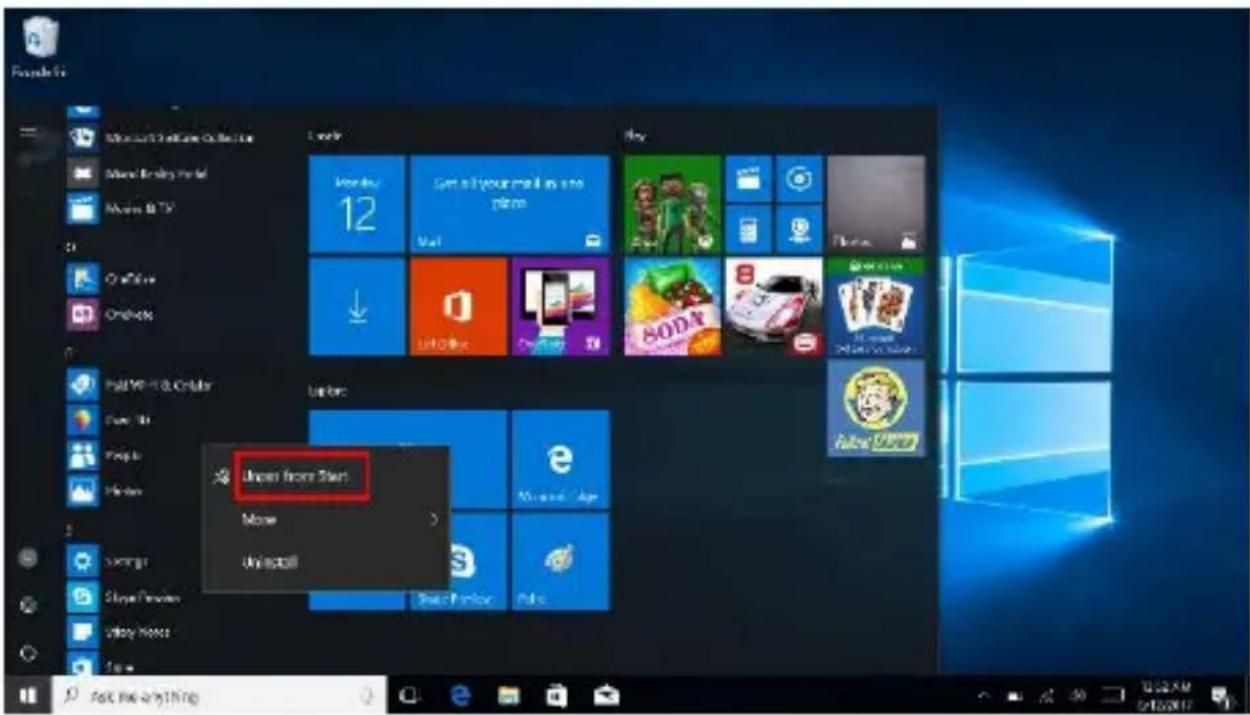
Conversely, if you want to cancel or delete a certain application in the start screen, (1) Right-Click the application, (2) Click the “Unpin from Start”.
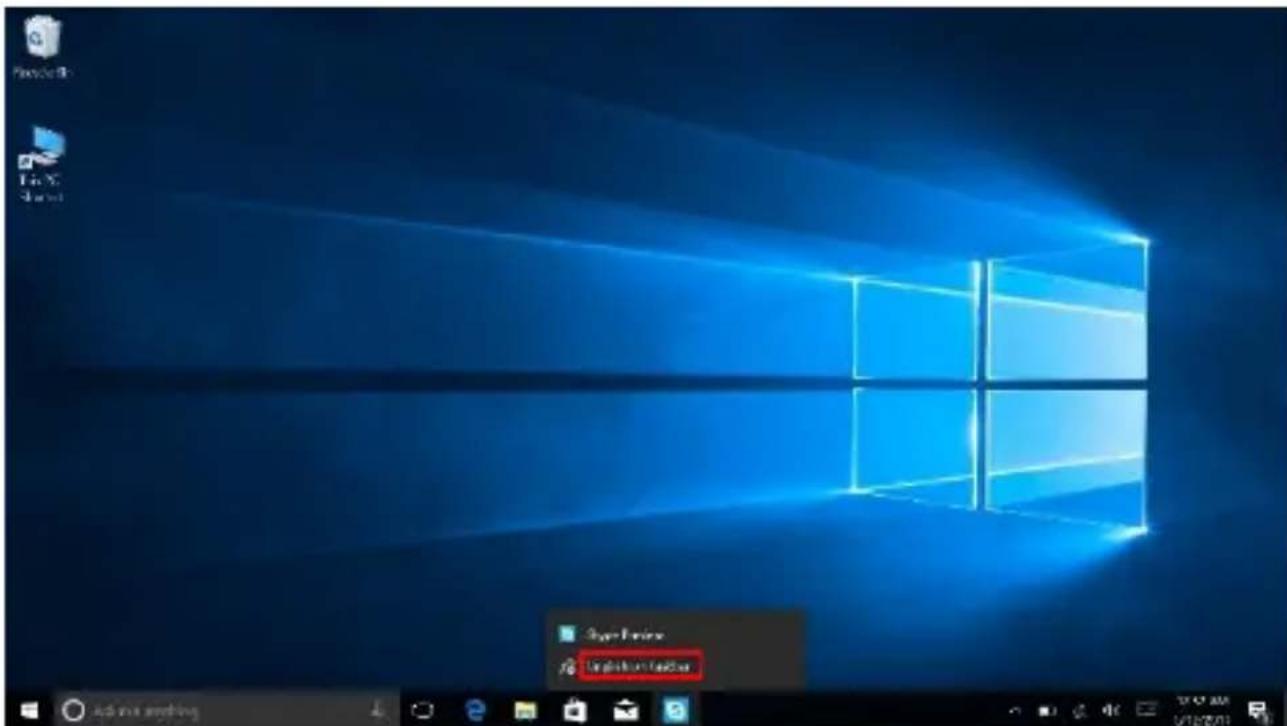
3.2. If you want to fix more application programs on the taskbar, see the operation in the figure below.
In the start menu, right-click the application you want to fix and select "More" and then select "Pin to taskbar". You can also drag the application onto the taskbar, as follows:
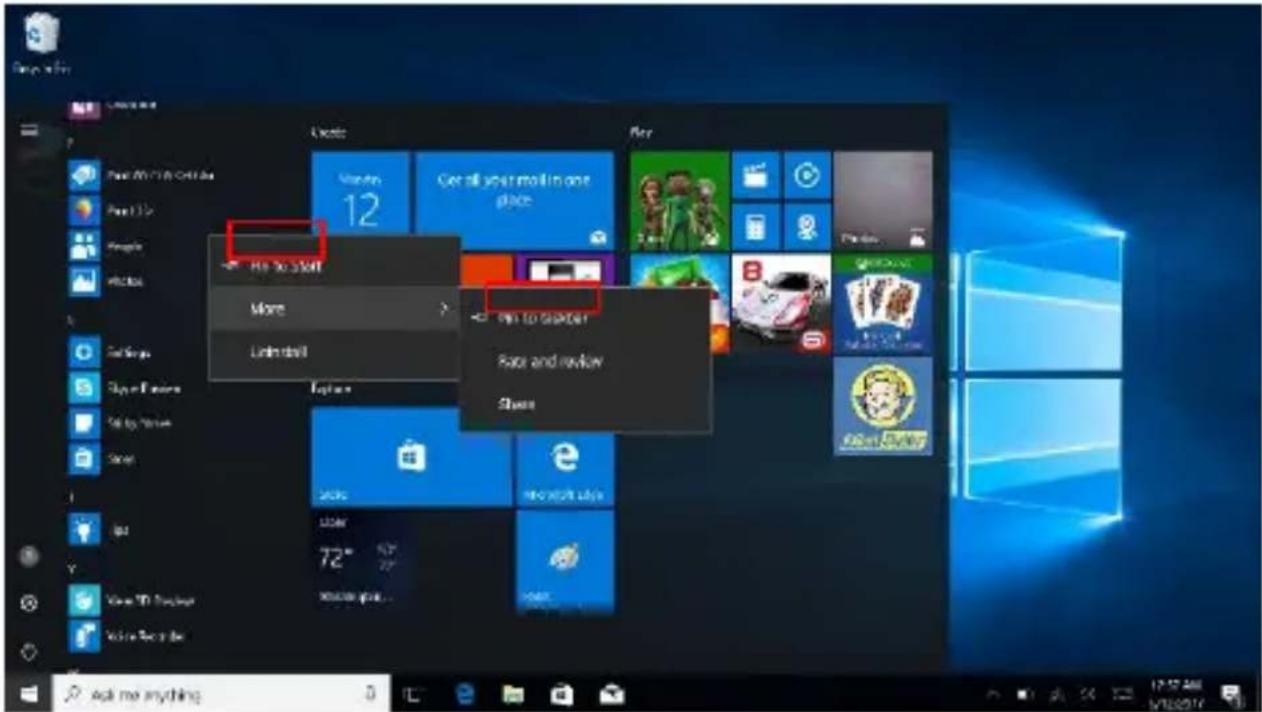
Conversely, if you want to cancel or delete a certain application in the taskbar, (1) Right-Click the application, (2) Click the “Unpin this program from taskbar”.
4. Start Menu
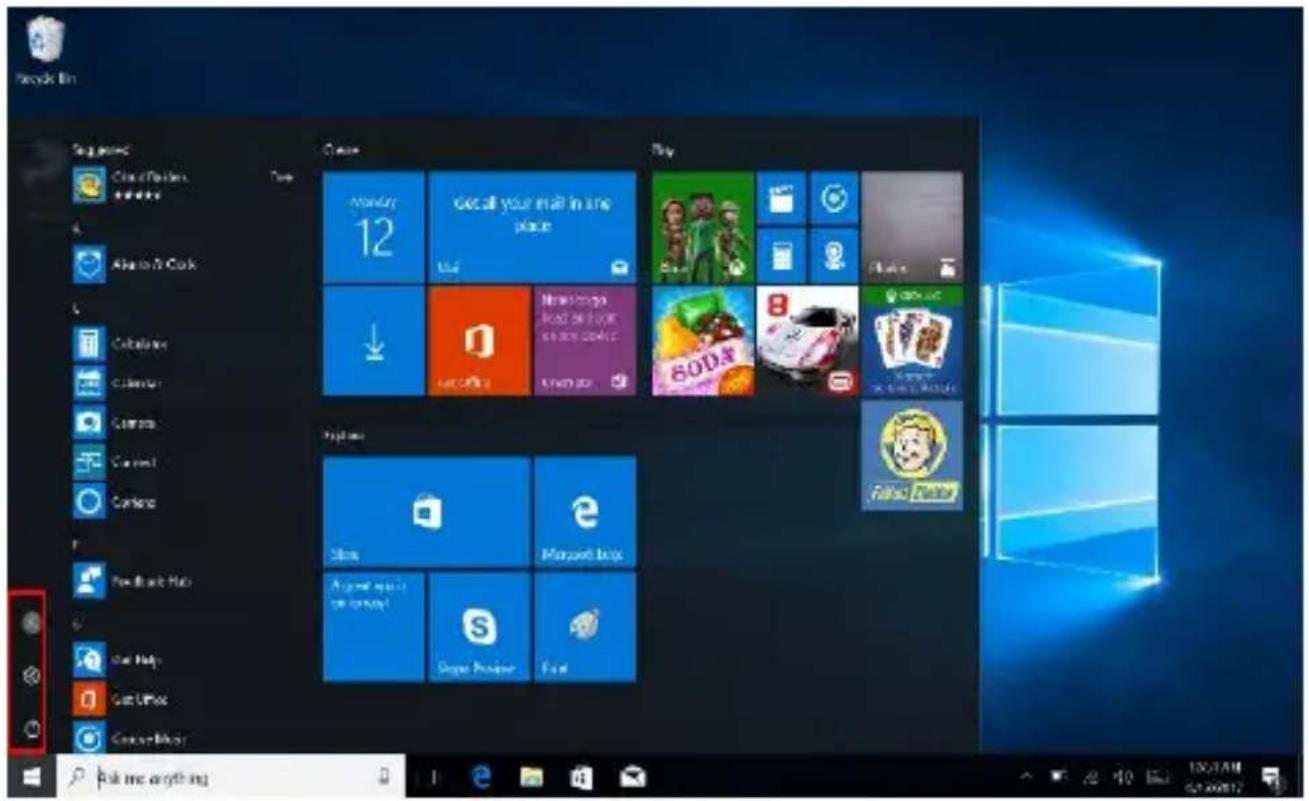
Under PC mode, press Start icon, Start Menu will display including: Start, Device, Setup, Share, and Search.

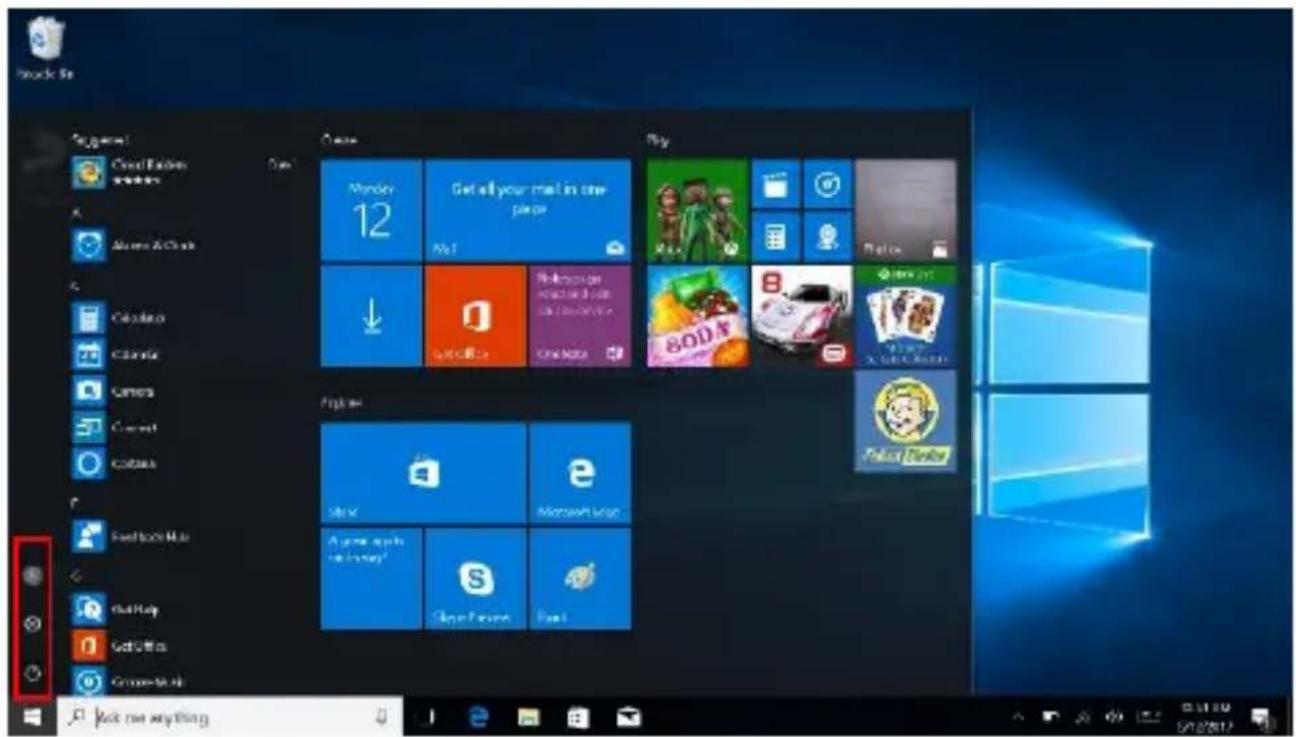
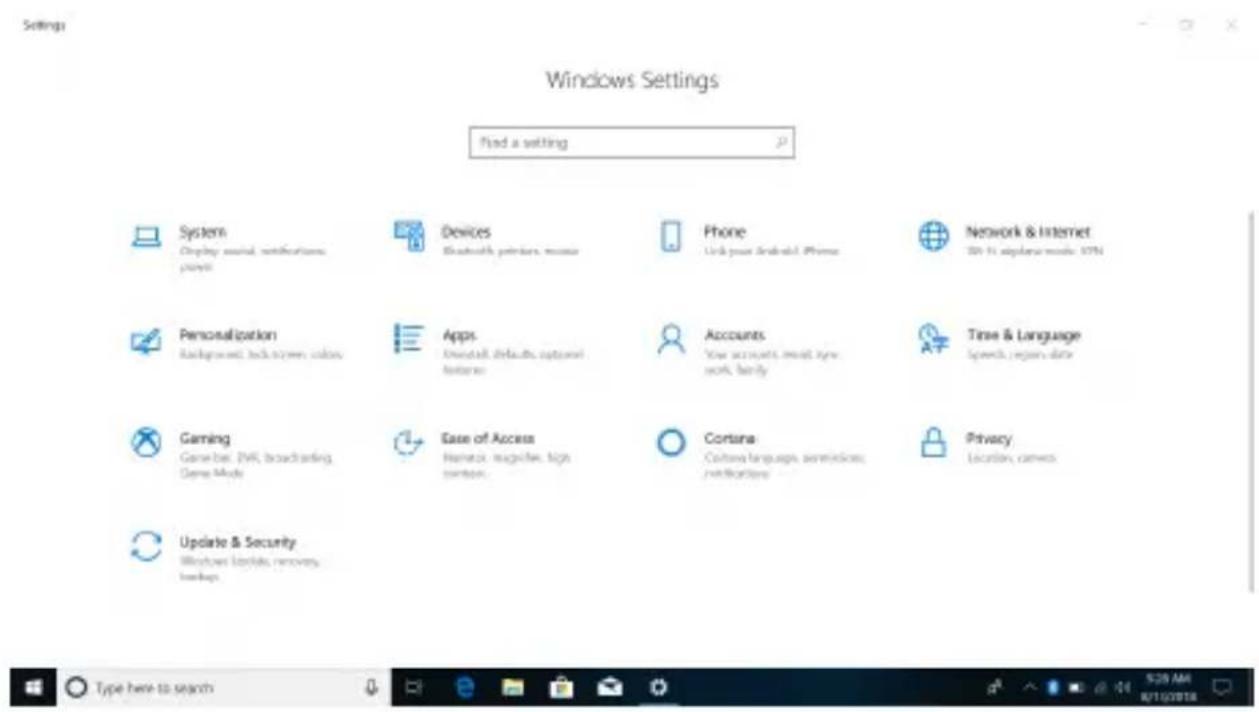
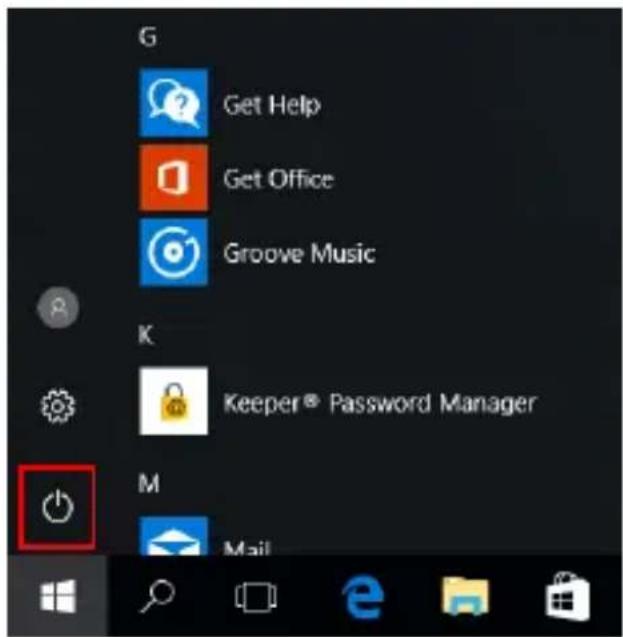
Usually: Power, Settings and Account.
Change account setting/Lock/Sign out.

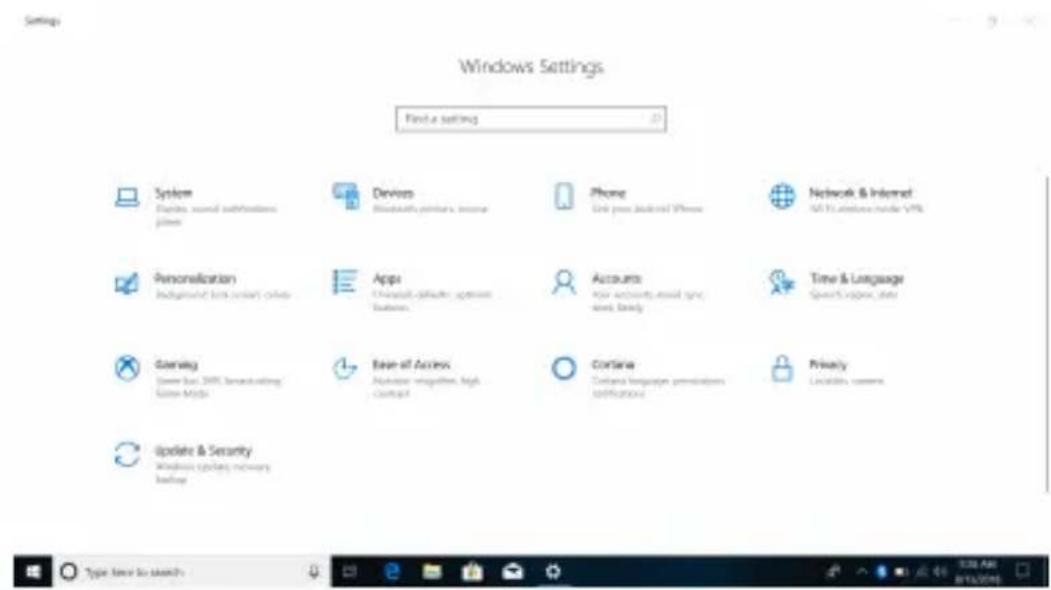
Let you set up the Table PC.
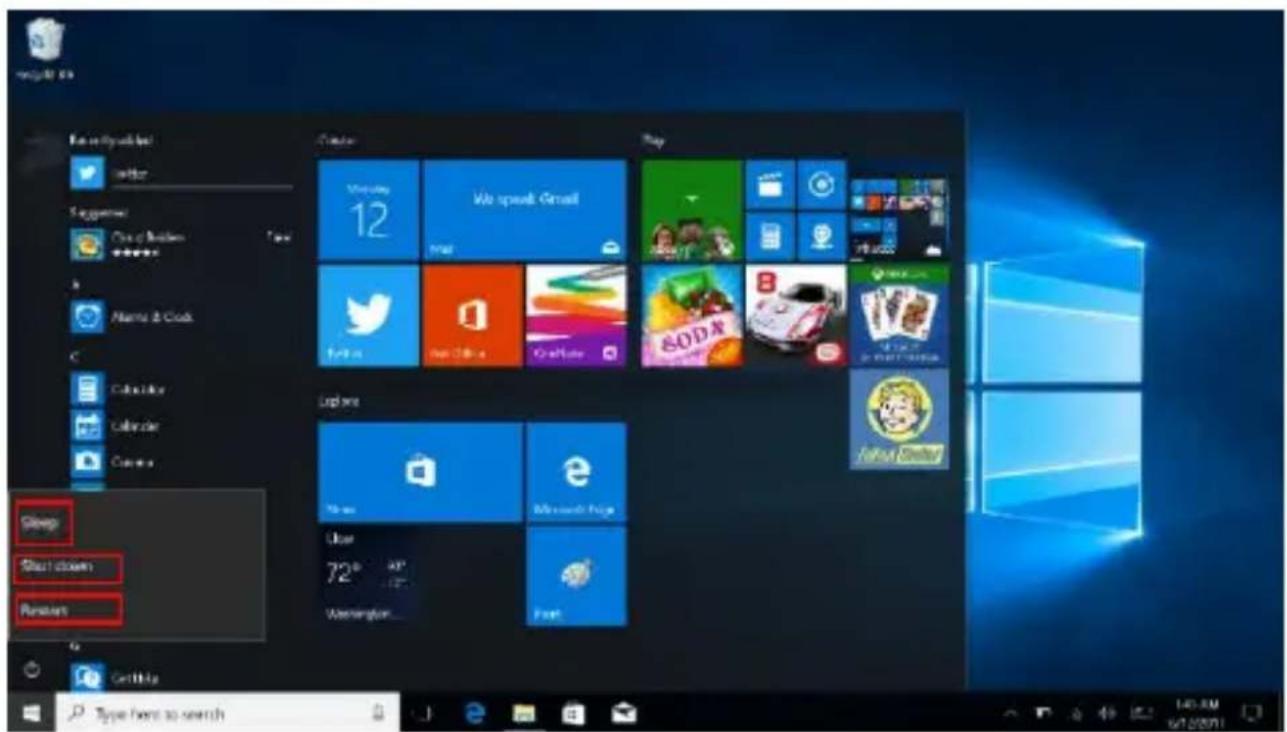
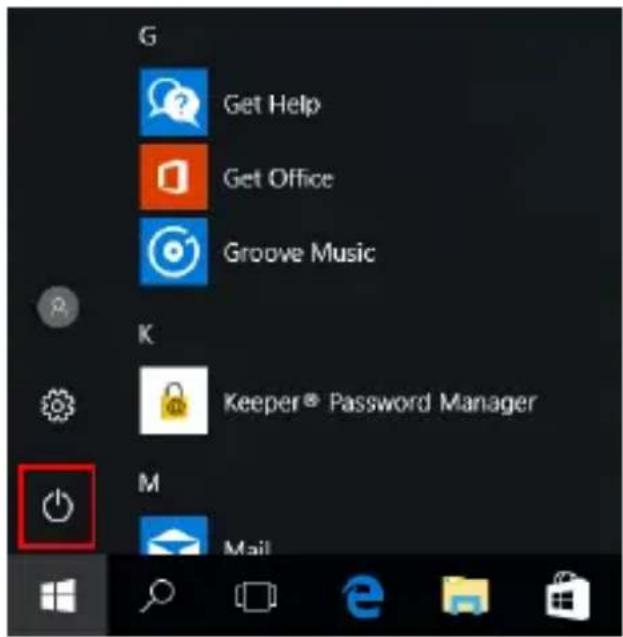
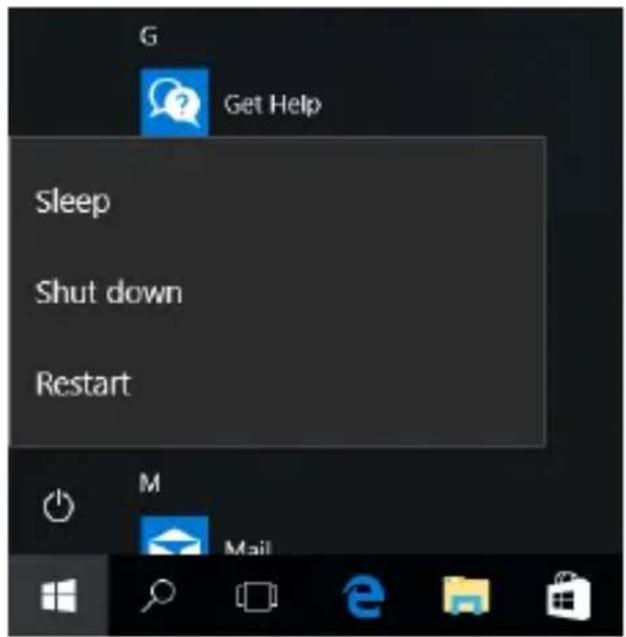
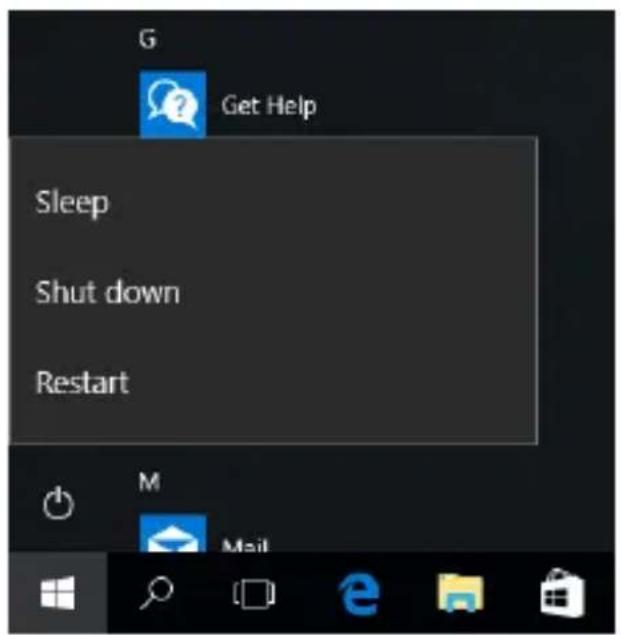
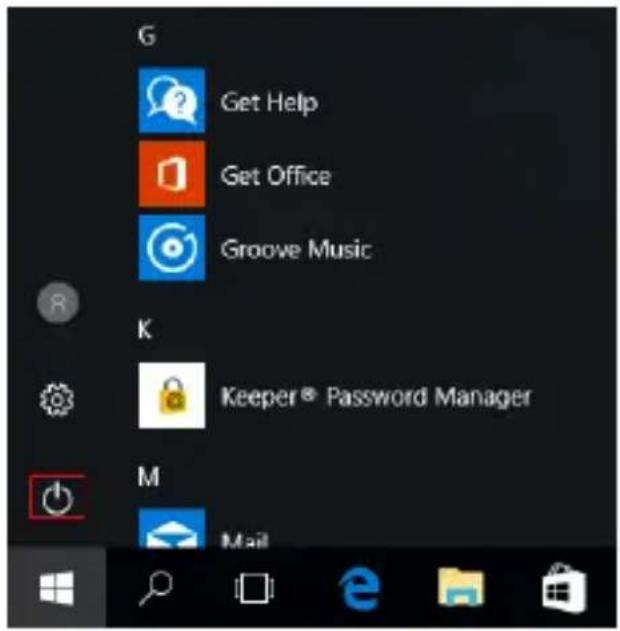
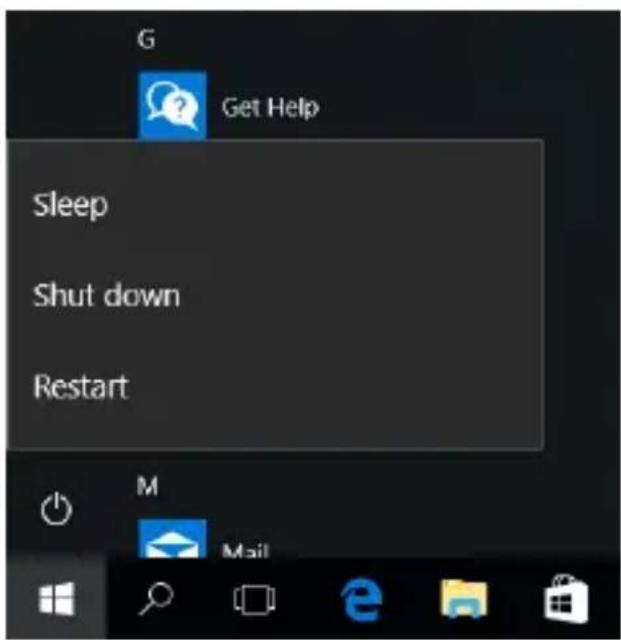
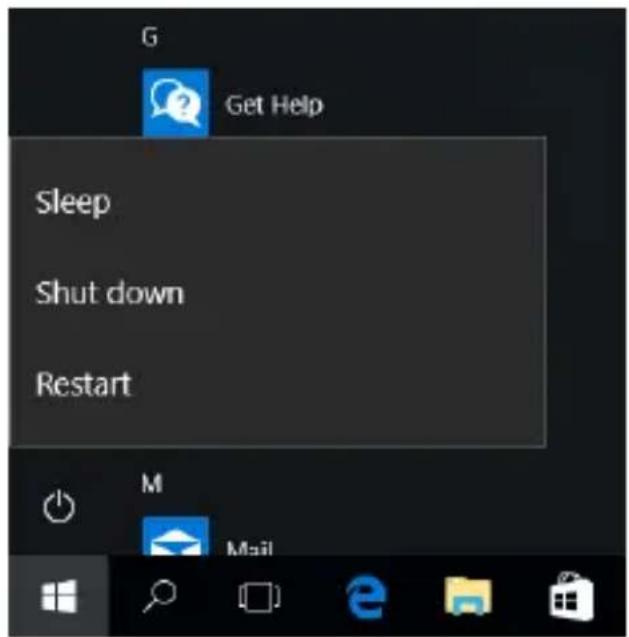
Sleep/Shut down/Restart the Notebook PC
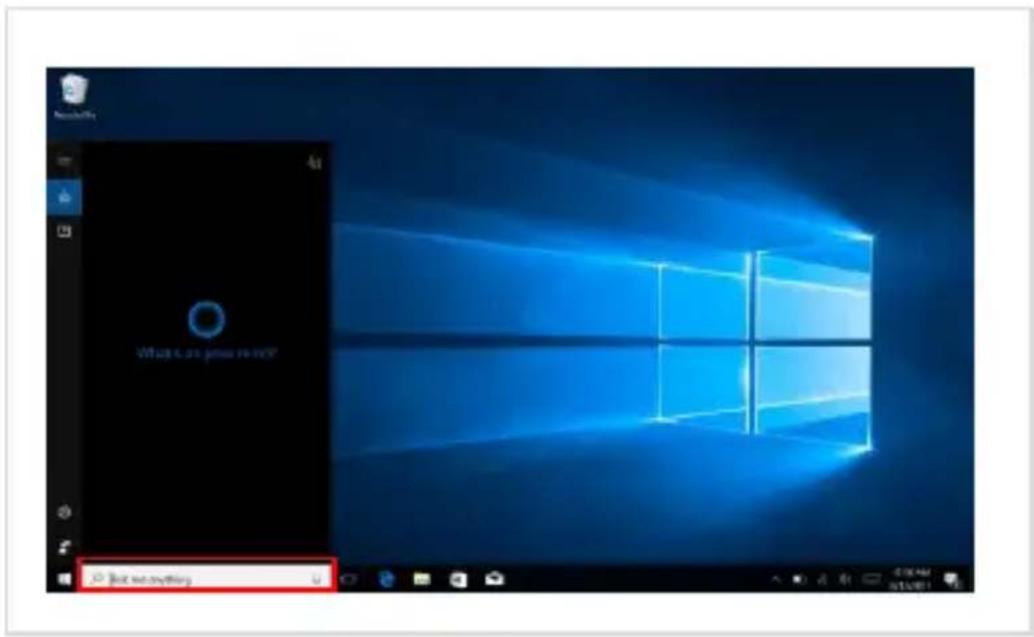
Search menu
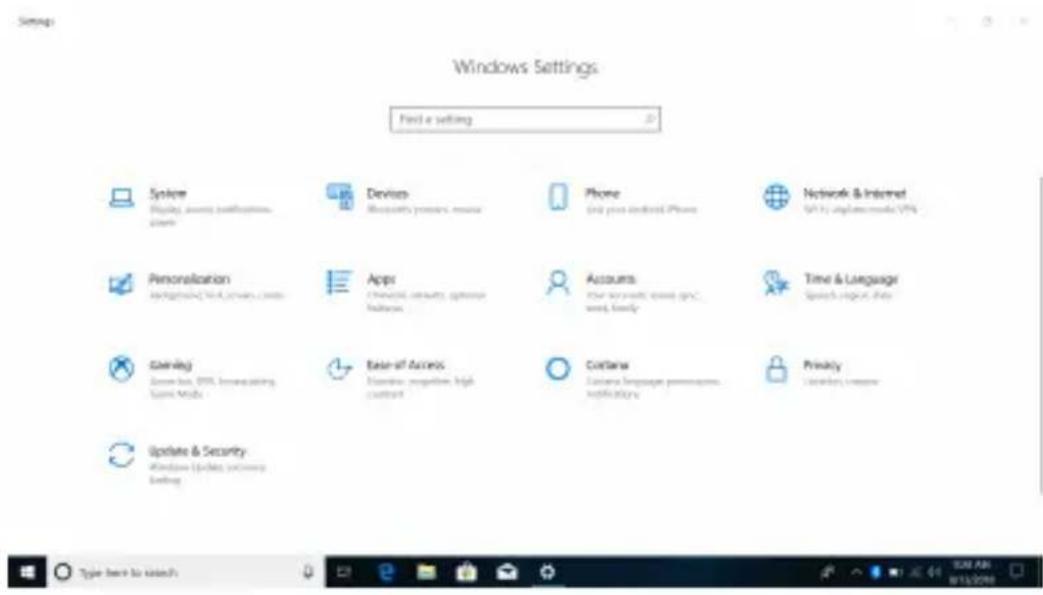
Setup menu
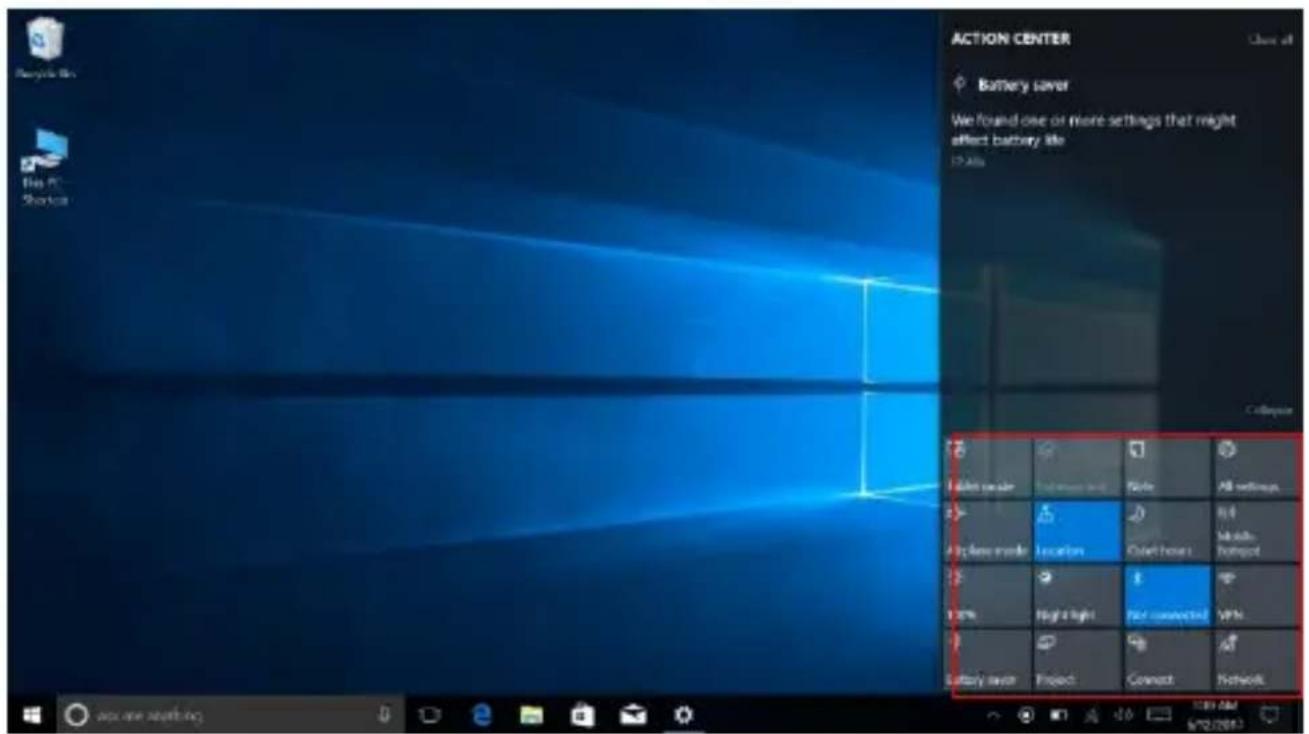
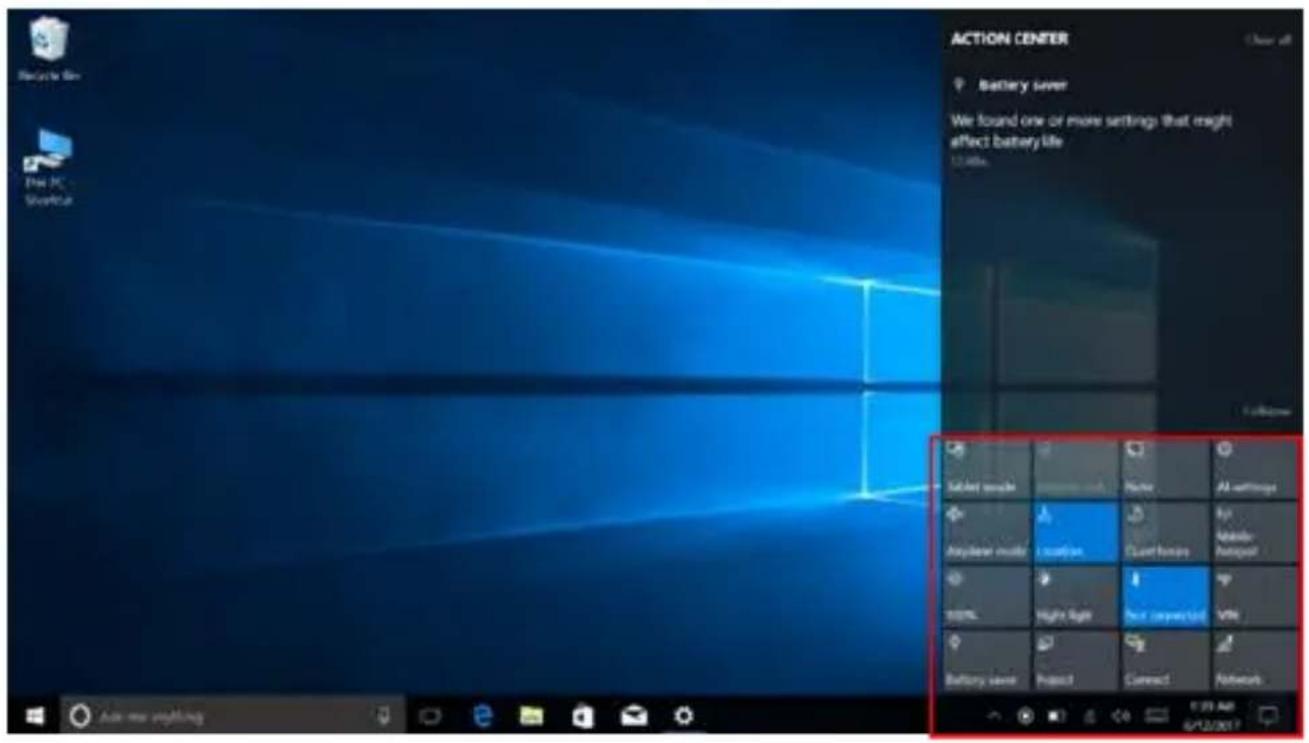
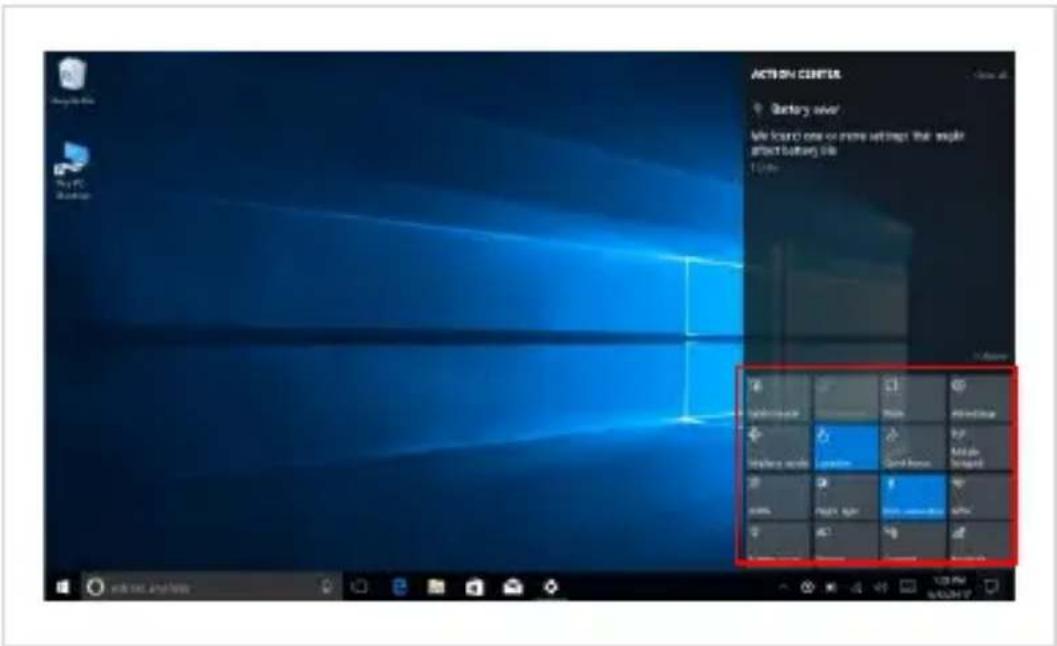
Action Center
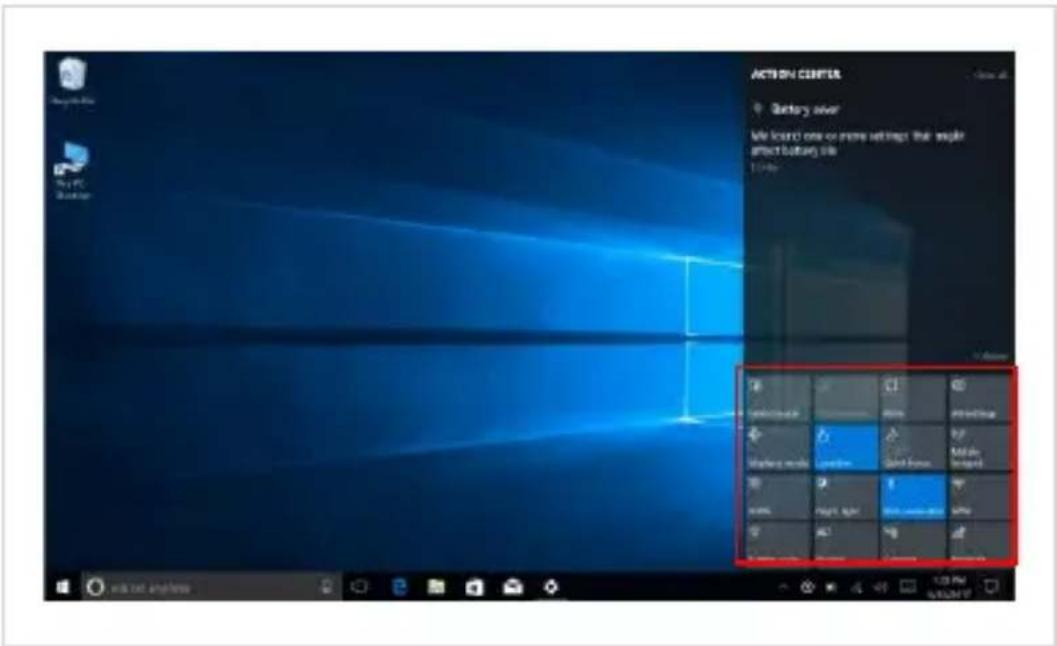
Action Center is a notification center which also allows quick settings like Tablet / PC mode, Wi-Fi, BT a.s.o.
5. Multitasking operating interface
If you Click the Task View (or press the icon ), the running applications will be displayed.
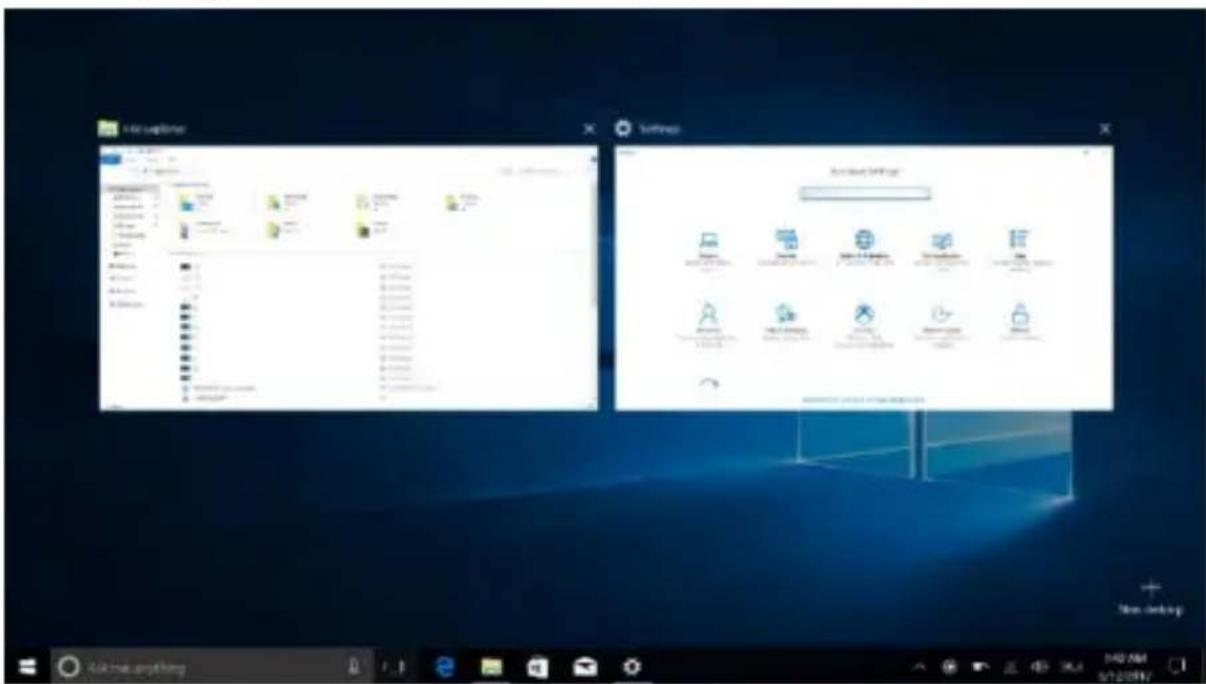
V. Basic Operations
- Sleep, Shut down and Restart
2. Cortana (optional)
4. Meniul de Start
Sleep/Shut down/Restart Notebook PC
Meniu de căutare
Meniu de setare
Centru de Actiuni
I. Antes de utilizar
Suspender/Apagar/Reiniciar Notebook PC
Menú buscar
Action center
5. Interfaz de multitarea
2. Cortana (optional)
4. Menu start
Menu wyszukiwani
Menu konfiguracji
Action Center
| AllBook Y | ||
| Languages / Limbi / Idiomas / Języki | EN, RO, ES, PL | |
| Dimensions / Dimensiuni /Dimensiones / Wymiary | 281.4 x 192.7 x 15.5mm | |
| Weight / Greutate / Peso / Waga | 1230g | |
| Display / Ecran /Pantalla / Ekran | Type / Tip / Tipo / Typ | IPS LCD |
| Dimensions / Dimensiuni /Dimensiones / Wymiary | 11.6" | |
| Resolution / Rezolutie / Resolución /Rozkład / | 1920x1080px | |
| Touchscreen / Touchscreen /Pantalla táctil / Ekran dotykowy | Yes / Da / Sí / Tak | |
| Characteristics /Caracteristici /Características /Cechy | Operating system / Sistem de operare/ Sistema operative / Systemoperacyjny | Windows 10 Home |
| CPU | Intel ® Celeron TMDual-Core N3350 1.1GHz up to 2.2 GHz(burst) | |
| GPU | Intel HD 500 Gen 9 LP | |
| Flash memory / Memorie Flash / | 64GB | |
| Pamięć błyskowa / Memoria flash | ||
| RAM Memory / Memorie RAM /Memoria RAM / Pamięć flash | 4GB | |
| Micro SD | <128 GB | |
| Color / Culoare / Color / Kolor | Grey / Gri / Gris / Szary | |
| Widget | Yes / Da / Sí / Tak | |
| Multitasking | Yes / Da / Sí / Tak | |
| WLAN | 802.11 ac/a/b/g/n | |
| Bluetooth | Yes / Da / Sí / Tak 4.2 | |
| PC Conectivity / Conectivitate PC /Conectividad PC / Lączność PC | Yes / Da / Sí / Tak, USB3.0 | |
| Multimedia | Camera / Camera / Cámara / Kamera | 2MP |
| Sound / Sunet / Sonar / Dźwięk | Speaker / Difuzor /Altavoz / Głośnik | |
| Video | Multiple formats /Formate multiple /Múltiples formatos/Wielu formatów / Videoresolution / RezolutieVideo / Resolución devídeo / Rozdzielczośćwideo FullHD | |
| 1920X1080p | ||
| Redo / Redare / Jugar / Grać FullHD 1920X1080p | ||
| Internet | Social networking / Retele de socializare / Las redes sociales / Społecznościowa | Yes / Da / Sí / Tak |
| Record file / Fisier inregistrare / Archivo de registro / Plik rejestracji | Yes / Da / Sí / Tak | |
| Yes / Da / Sí / Tak | ||
| Applications / Aplicatii / Aplicaciones / Aplikacje | Yes / Da / Sí / Tak | |
| Call by Wi-Fi / Apel prin Wi-Fi / llamar a través de Wi-Fi / dzwonić poprzez Wi-Fi | Yes / Da / Sí / Tak.Supports videocall / Suporta videocall / Soporta videollamada / Obsługuje videocall | |
| Sockets / Porturi / Puertos / Porty | Audio output / Iesire audio / Salida de audio / wyjście audio | Jack, 3,5 mm |
| Card reader / Cititor card / Lector de tarjetas / Czytnik kart | MicroSD | |
| Mini HDMI Yes / Da / Sí / Tak | ||
| USB 2 x USB 3.0 | ||
| Suportă / Support / Acepta / Obsługuje SSD | Yes / Da / Sí / Tak120 / 250 / 512 GB | |
| Battery / Baterie /Batería / Bateria | Charging type / Tip incarcator / Tipo cargador / Typ ładowarki | DC 12V / 2A |
| Battery type / Tip Baterie / tipo de batería / typ baterii | 7.6V Li-Polymer | |
| Capacity / Capacitate / Capacidad /Pojemność | 26.6 Wh | |
| Usage period / Timp utilizare / Periodode uso / Okres użytkowania | Up to 7h / Pana la 7h /para 7h / do 7h | |
| Package content /Continut pachet /El contenido delpaquete /Zawartość pakietu | Notebook , charger, user manual , warranty certificateNotebook, incarcator, manual utilizare, certificat garantieNotebook ,manual de usuario, certificado de garantíaNotebook, instrukcja obsługi, karta gwarancyjna | |



- PRECAUTIONS BEFORE USE
- TO BE TAKEN INTO CONSIDERATION
- IN THE FOLLOWING CASES, THE PRODUCT STOPS BENEFITING FROM WARRANTY
- Ⅱ . KEY LAYOUT AND DEFINITIONS
- FRONT VIEW
- RIGHT SIDE VIEW
- BOTTOM SIDE VIEW
- Ⅲ. DESCRIPTIONS OF KEYS
- INTRODUCTION TO DESKTOP
- IMAGE SLIDE APPLICATION
- CORTANA (OPTIONAL)
- INTRODUCTION TO APP INTERFACE
- START MENU
- ACTION CENTER
- MULTITASKING OPERATING INTERFACE
- BASIC OPERATIONS
- MENIUL DE START
- CENTRU DE ACTIUNI
- ANTES DE UTILIZAR
- INTERFAZ DE MULTITAREA
- MENU START
Brand : Allview
Model : Allbook Y
Category : Tablet