Wi10N Pro - Tablet Allview - Free user manual and instructions
Find the device manual for free Wi10N Pro Allview in PDF.


| Product Type | Tablet |
| Brand | Allview |
| Model | Wi10N Pro |
| Display Size | 10.1 inches |
| Display Resolution | 1280 x 800 pixels |
| Processor | Intel Atom Z3735F Quad-core 1.33 GHz |
| RAM | 2 GB |
| Internal Storage | 32 GB |
| Operating System | Windows 10 Pro |
| Battery Capacity | 6000 mAh |
| Dimensions (W x D x H) | 259.2 x 172.8 x 9.8 mm |
| Weight | 580 g |
| Input Power | 5 V DC, 2 A via micro USB |
| Main Functions | Web browsing, media playback, productivity apps, Wi-Fi connectivity, Bluetooth, front/rear cameras |
| Care and Cleaning | Wipe with a soft, dry cloth. Do not use liquids or abrasive cleaners. |
| Safety Precautions | Avoid exposure to moisture, extreme temperatures, and physical shock. Use only approved charger. |
| Spare Parts and Repairability | Battery and display are non-user-replaceable. Contact authorized service center for repairs. |
| General Information | Includes USB OTG support, microSD card slot up to 128 GB, 3.5 mm headphone jack. |
Frequently Asked Questions - Wi10N Pro Allview
User questions about Wi10N Pro Allview
0 question about this device. Answer the ones you know or ask your own.
Ask a new question about this device
Download the instructions for your Tablet in PDF format for free! Find your manual Wi10N Pro - Allview and take your electronic device back in hand. On this page are published all the documents necessary for the use of your device. Wi10N Pro by Allview.
USER MANUAL Wi10N Pro Allview
ALLVIEW®
WI10N PRO User manual
Foreword
Thank you for purchasing our product.
These operational guidelines for the user, to ensure you a quick and convenient use, read the instructions carefully.
This device is a specialized top quality portable table product with a series of remarkable functions. There will be no separate notice in the case of any change in content of this text.
This company will continue to provide new functions for the development of the product, and there will be no separate notice in the case of any change in the product's performance and functions. While this unit is used as a mobile storage device, this company will not be held liable for the security of files saved in the disk.
If the actual setup and the application methods are not identical to those as set forth in this manual, please access the latest product information of this company's website.
Contents
Foreword 2
Contents 3
Points for Attention 4
Shapes and Keys 5
Buttons description and application 6
Desktop introduction 7
App interface introduction....9
Declaration of conformity....13
Specifications 57
Points for Attention
- Do not use the tablet in exceptionally cold or hot, dusty, damp or dry environments.
- Do not allow the tablet to fall down while using it.
- Please charge your battery when:
A. Battery symbol shows an empty icon;
B. The system automatically shuts down and the power is soon off when you switch on the unit once again;
C. There is no response if you operate on any key
4. Please do not disconnect power when the tablet is being formatted or in the process of uploading or downloading. Otherwise it may lead to the error in the program.
5. When this unit is used as a moving disk, the user shall store or export files in the proper file management operation method. Any improper operation method may lead to the loss of files, for which this Company will be held no liable.
6. Please do not disassemble this unit by yourself. If you encounter any malfunction, please contact the dealer.
7. There will be no separate notice in the case of any change in the functions and performance of this product.
To avoid the problems that might occur with the service shops approved by Visual Fan Ltd. (because Visual Fan reserves the right to stop the collaboration with any service shop which was previously approved and mentioned in the warranty card on the date on which the product batch was sold on the market), before taking a product to the service shop, please check the updated list of approved service shops
on Allview website at the section: "Support&Service – Approved service".
We do not assume the responsibility in case the product is used other way than stated in the user guide. Our company reserves the right to bring modifications in the content of the user guide without making this fact public.
All the modifications will be listed on the company website
(www.allviewmobile.com) in the section dedicated to the specific product which is subject to modifications. The content of this guide may vary from the one existing in electronic format within the product. In such case the latter one will be taken into consideration.
For more product details visit www.allviewmobile.com. Do not cover the antenna with your hand or other objects Failure to comply resulting in connectivity issues and rapid discharge of the battery.
All applications provided by third parties and installed in this device, may be modified and/or stopped at any moment. Visual Fan Ltd will not be responsible in any way for modifications of the services or content of these applications. Any request or question regarding third party applications may be addressed to owners of these applications.
Shapes and Keys
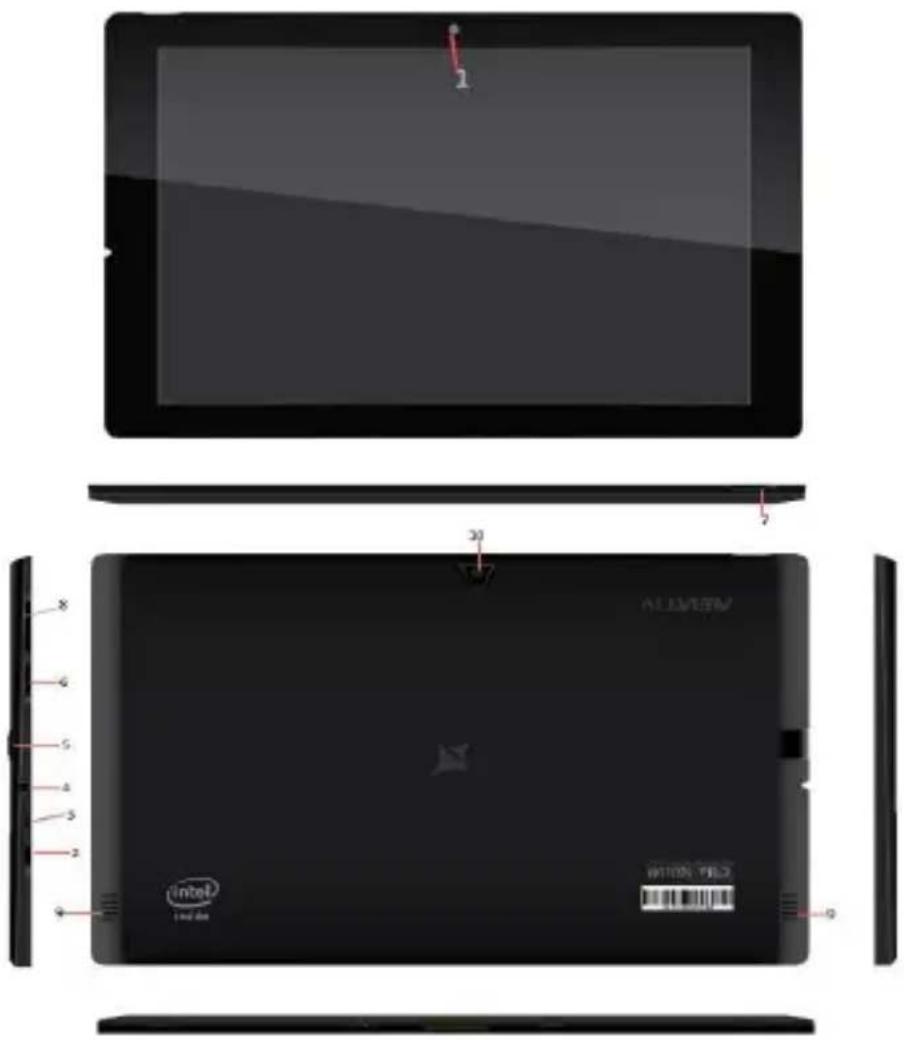
-
Front camera
-
Earphone socket
-
Power switch
-
Rear camera
-
USB socket
-
SD card socket
-
Volume key
-
HDMI socket
-
Home Key
-
Loudspeaker
Buttons description and application
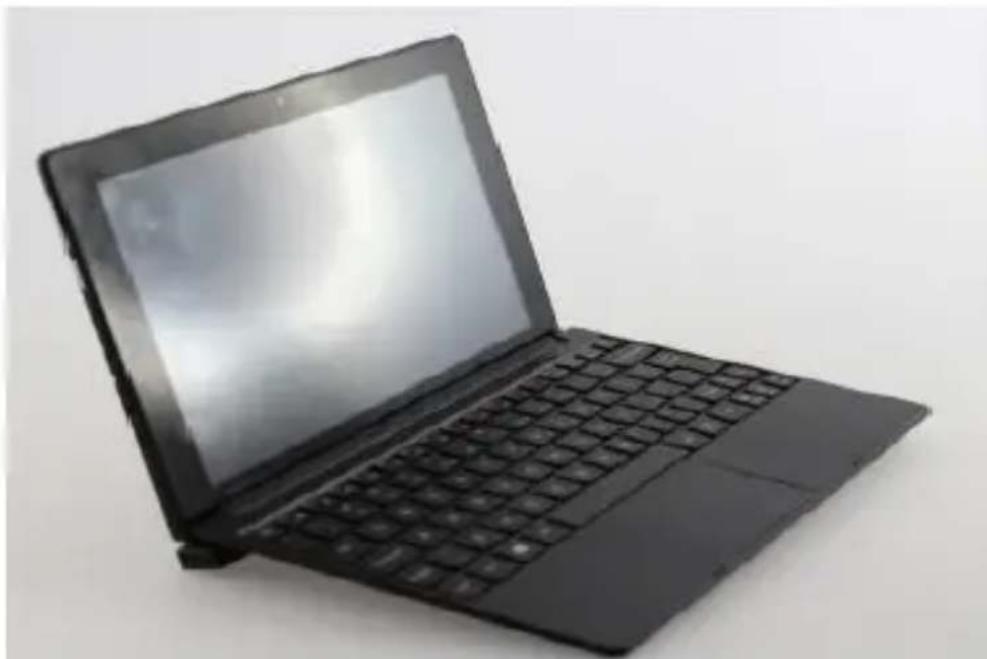
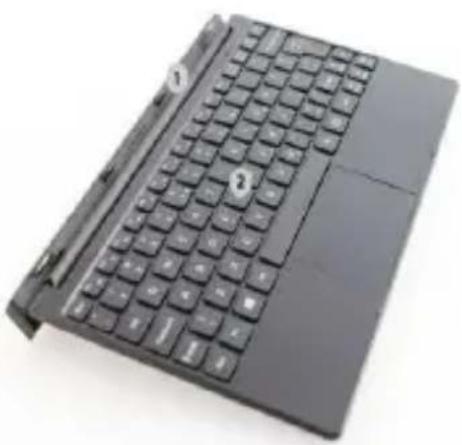
Note: The keyboard will be used according to product configuration.

1、Base: folding base of the tablet
2、Keyboard form: provide a QWERTY
keyboard set of buttons and
provide excellent typing
comfort.
The use of tablet with the keyboard
Desktop
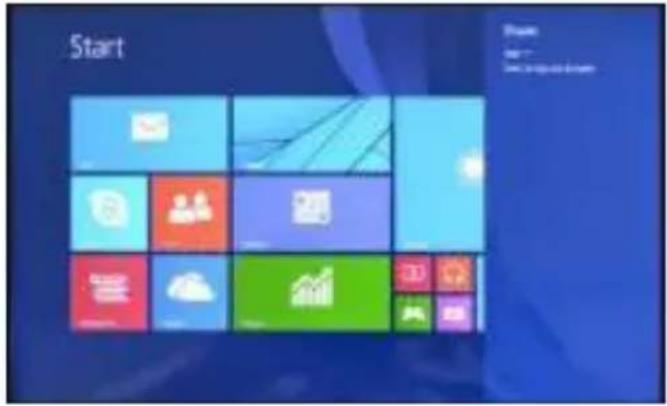
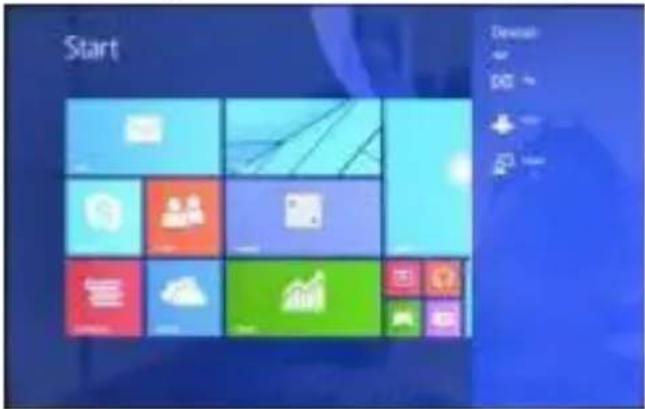
1、The desktop is introduced: In Windows 8.1 start screen you can see many applications in fixed positions as in the picture that will display in form of "magnet", with easy access of one click.
Before using applications in full need to login to your Microsoft account first

2、Picture slide application
Slide to the right

Slide from the left side to the right side of the screen in order to open the running application screen.
Slide to the left

Slide from the right side to the left side of the screen to open the menu bar.
Zoom Out

Two fingers together on the touch screen to shrink.
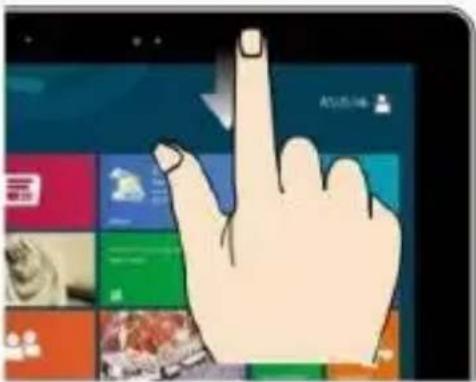
Slide down sliding

In the start screen, slide down from the top to display customization options.
Zoom In

Separate two fingers on the touch screen to zoom in.
Fingers sliding

Slide from the center of the screen to the left or to the right to mode around the screens.
Slide down sliding
At the start of the screen, from underneath the screen sliding upwards to show the application or screen options.
App interface introduce
In start screen you can also expand to see all applications available if slide upwards.

If you want to fix more applications in start screen, please light touch as in (1) and hold the application magnet for about 1 second, let go, select (2) and now application
is fixed to the start screen.
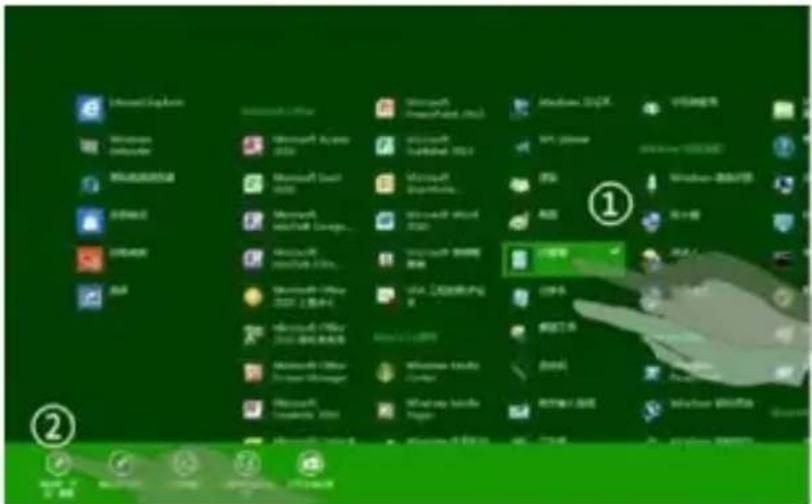
In start screen if you want to remove, or delete an application, (1) light touch and hold the application magnet for

about 1 second, and then let go run, select (2) attribute column, remove fixed, delete, etc. The application can be completed.
Charm menu bar
Slide from the right side of the screen to the left, to unlock Charm menu bar including: start, equipment, share, search program.


Allows you to search for files or applications in tablet.

Allows you to share through social networks or email program.

Can return to the start screen; From the start screen you can also use this function to return to recently opened applications.

Allows you to connect to the tablet devices to read and write and share files, an external screen or printer.

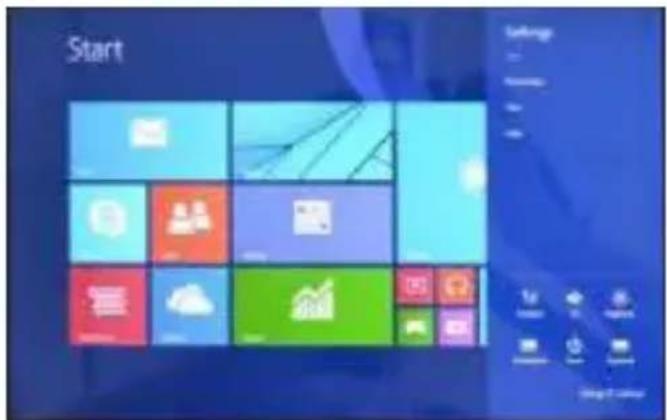
Allows you to enter tablet PC Settings.
Search menu

Share menu
Equipment menu

Settings menu

Double screen app
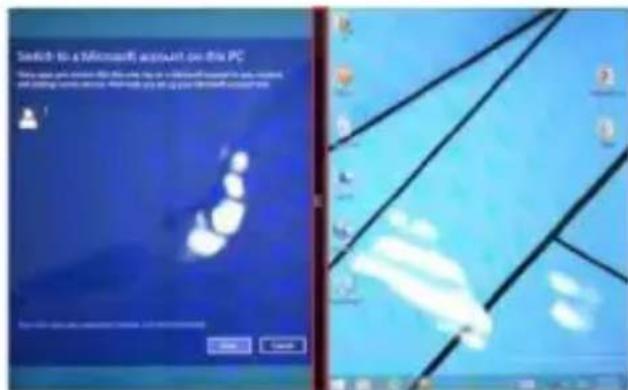
1、As in (figure 1) in the left picture, from the left side of the screen if stall in sliding you can open double interface.
2、As in (Figure 2), press and hold the middle button dividing line and split, drag, and dual display scale can be divided.

(Figure 1)

(Figure 2)
Basic operation
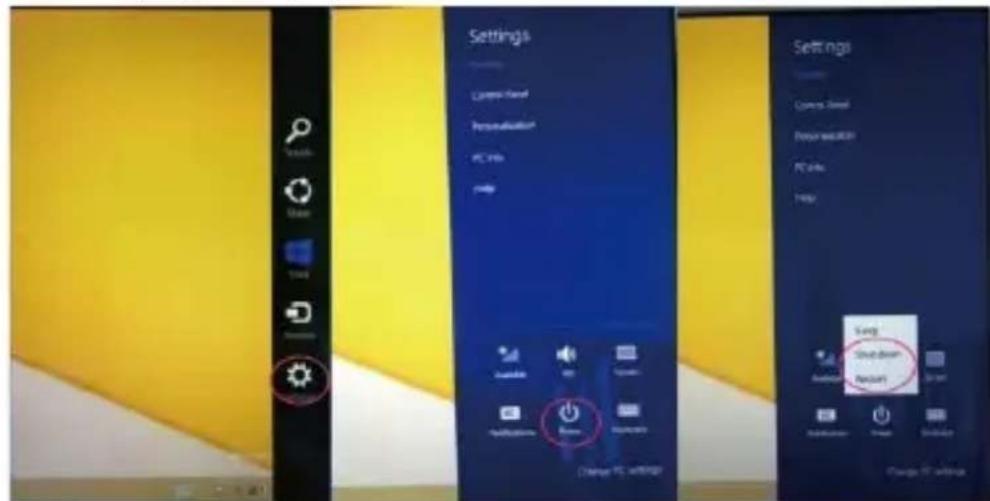
1、Standby, restart, turning off

2、Safety management User and password

Fast method Settings:
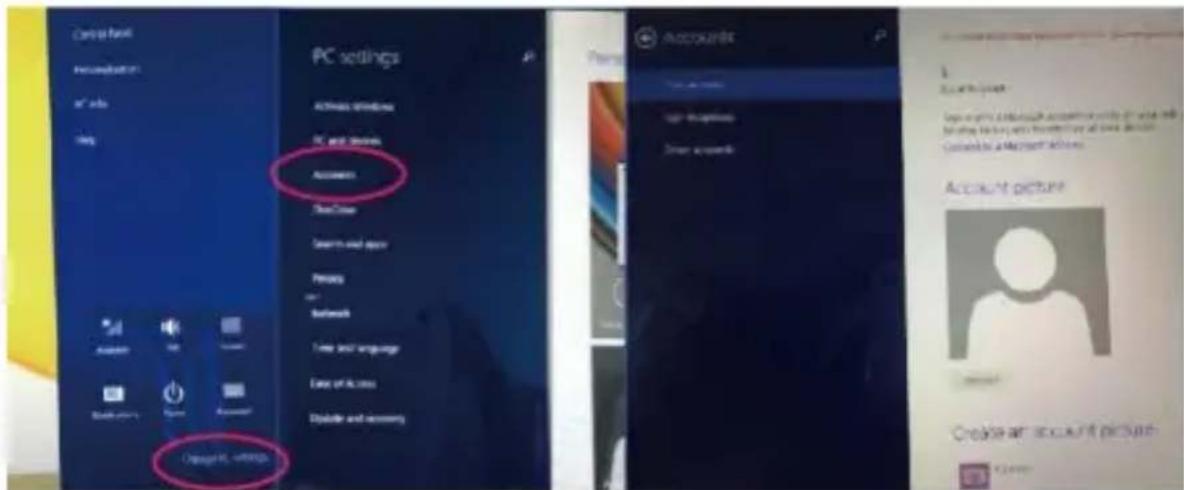
Click on the "Charm" set the "set" button, select "more PC Settings". Choose "user" on the left of the Settings, and click the "your account" on the right side of "create the local account". After input complete Windows live ID account password, enter the user name, password and confirm password.
DECLARATION OF CONFORMITY
No 1356
We, S.C. Visual Fan S.R.L, with the social headquarters in Brasov, 61st Brazilor Street, post code 500313 Romania, registered at the Register of Commerce Brasov under nr. J08/818/2002, CUI RO14724950, as importer, ensure, guarantee and declare on own responsibility according to Art. 4 HG nr.1.022/2002 regarding the products and services regime, which could put in danger the life and health, security and labour protection, that the ALLVIEW product WI10N PRO does not put in danger the life, safety of labour, does cause adverse environmental impacts and is according to:
-The 2011/65/UE Directive regarding the usage restrictions of some dangerous substances ]n the electronic and electrical equipments.
-The Directive regarding the radio and telecommunications equipments R&TTE 1999/5/CEE (HG 88/2003)
-The Directive regarding the assurance of low voltage equipment users 73/32/CEE, modified by the 93/68/CEE (HG457/2003) Directive.
-The Directive regarding the electromagnetic compatibility 89/336/CEE, modified by the 92/31/CEE si 93/68/CEE (HG982/2007); RoHS Directive: EN50581:2012
-The safety requirements of the European Directive 2001/95/EC and of the EN 60065:2002/A12:2011 si EN 60950-1:2006/ A1:2010 /A11:2009/A12:2011 standards, regarding the decibel level limit of the commercialized devices.
The product had been evaluated according to the following standards:
-Health: EN 50360:2001, EN 50361; EN 62209-1 : 2006
-Safety: EN 60950-1:2001+A11:2004; EMC EN 301 489-01 V1.6.1 (09-2005) EN 301 489-07 V1.3.1 (11-2005); EN 301 489-17 V1.2.1 (08-2002)
-Radio spectrum: EN 301 511 V9.0.2 (03-2003); EN 300 328 V1.7.1 (10-2006)
The conformity assessment procedure was done according to the 1999/5/CEE Directive (of the Annex II of HG nr. 88/2003) the documentation being at S.C. Visual Fan S.R.L., Brasov, 61st Brazilor Street, post code 500313, Romania at it will be put at disposal on demand.
The conformity declaration is available at www.allviewmobile.com.
Brasov
04.05.2015
Director
Cotuna Gheorghe

ALLVIEW®
WI10N PRO
Manual de utilizare

Cuvânt înainte
Desktop
Glisare cu degetele

Bara de meniu charm

Meniu echipament

Meniu de setări

(Figura 1)

(Figura 2)
Operatiuni de bază
1、Hibernare, repornire, oprire

WI10N PRO
Predgovor
- Prednja kamera 2. USB Ulaz 3. HDMI Ulaz
- ulaz za slušalice
- Ulaz za memorijsku karticu
- HOME
- Dugme za paljenje/gašenje 8. Tipka za podešavanje glasnoće zvuka 9. Zvučnik
- Stražnja kamera
Tastatura, opis i upotreba
Napomena: Tastatura koristiće se prema konfiguraciji proizvoda.
Radna površina
1、Prezentacija radne površine: U početnom ekranu Windows 8.1 možete vidjeti mnoge aplikacije u fiksiranim pozicijama kao na slici koje će se pojaviti u formi magneta, kojima se može lako pristupiti jednim klikom. Prije upotrebe aplikacija u potpunsti potrebno je da se ulogujete na vaš Microsoft korisnički nalog.

Iskoristite dva prsta na ekranu kao na slici da umanjite isti.
Prevlačenje na dole
Na početnom ekranu, prevucite prema dole za prikaz opcija za
prilagođavanje.
Prevlačenje na gore
Na početnom ekranu, prevucite sa dna ekrana prema gore za prikaz aplikacije ili opcija vezanih za ekran.
Uvećajte

Iskoristite dva prsta na ekranu kao na slici da uvećate isti.
Prevlačenje prstima

Ukoliko želite da postavite više aplikacija na početni ekran, potrebno je da lakim dodirom kao na slici (1) pritisnete i držite magnet aplikacije jednu sekundu, pustite,
izaberete opciju prikazanu na slici (2) i nakon toga magnet aplikacije će biti fiksiran na početnom ekranu.

Ukoliko želite da odstranite ili obrišete aplikaciju sa početnog ekrana, laganim dodirom na (1) na slici izaberite aplikaciju, držite jednu sekundu te odaberite

nakon puštanja jednu od opcija kao što su odstraniti, izbrisati, itd. na liniji (2) na slici.
Aplikacija može biti kopmletirana.
„Charm“ meni

Omogućuje vam pretragu za podacima i aplikacijama u uređaju.

Meni opreme
Meni postavki

Dvostruki displej
1、Kao što je prikazano na slici 1, sa lijeve strane ekrana ako sporije prevlačite prstom možete otvoriti dvostruki interfejs.
(Slika 1)

(Slika 2)
Osnovne operacije
2、 Upravljanje bezbjednosnim postavkama
Korisničko ime i lozinka
Brza podešavanja:
Kliknite na „Charm“ dugme, postavite „set“ (postavi) dugme, izaberite „više PC podešavanja“. Izaberite „korisnik“ na lijevoj strani opcija, i kliknite „vaš nalog“ na dsnoj strani od „kreiraj lokalni nalog“. Nakon toga, unesite Windows live ID lozinku, unesite korisničko ime i lozinku, koju treba dva puta unijeti radi potvrđivanja iste.
Deklaracija konformiteta Br.1356
Mi, SC Visual Fan SRL, sa sedištem u društvenom Brasov, 61st Brazilor ulica, poštanski broj 500313 Rumunija, registrovan je u Registru Commerce Brasov pod br. J08 / 818/2002, CUI RO14724950, kao uvoznik, osigurati, garanciju i proglasi na sopstvenu odgovornost u skladu sa čl. 4 HG nr.1.022 / 2002 u vezi režima proizvoda i usluga, što bi moglo da ugrozi zdravlje život i zdravlje, bezbednost i zaštitu rada, da WI10N PRO, ALLVIEW proizvod ne ugrozi život, bezbednost rada, ne izaziva neželjena uticaji na životnu sredinu i se prema:
Wstep

Menu ustawień
Podwójny ekran
(Rys. 1)
(Rys. 2)
2. Bezpieczeństwo


- ALLVIEW®
- WI10N PRO USER MANUAL
- FOREWORD
- CONTENTS
- POINTS FOR ATTENTION
- SHAPES AND KEYS
- BUTTONS DESCRIPTION AND APPLICATION
- THE USE OF TABLET WITH THE KEYBOARD
- DESKTOP
- 2、PICTURE SLIDE APPLICATION
- SLIDE DOWN SLIDING
- APP INTERFACE INTRODUCE
- CHARM MENU BAR
- DOUBLE SCREEN APP
- BASIC OPERATION
- FAST METHOD SETTINGS
- DECLARATION OF CONFORMITY
- WI10N PRO
- MANUAL DE UTILIZARE
- CUVÂNT ÎNAINTE
- BARA DE MENIU CHARM
- OPERATIUNI DE BAZĂ
- PREDGOVOR
- TASTATURA, OPIS I UPOTREBA
- RADNA POVRŠINA
- PREVLAČENJE NA GORE
- APLIKACIJA MOŽE BITI KOPMLETIRANA
- „CHARM“ MENI
- DVOSTRUKI DISPLEJ
- OSNOVNE OPERACIJE
- 2、 UPRAVLJANJE BEZBJEDNOSNIM POSTAVKAMA
- BRZA PODEŠAVANJA
- DEKLARACIJA KONFORMITETA BR.1356
- WSTEP
- PODWÓJNY EKRAN
- BEZPIECZEŃSTWO
Brand : Allview
Model : Wi10N Pro
Category : Tablet