ManualGo.com
NEW JERSEY MP68 - Car stereo BLAUPUNKT - Free user manual and instructions
Find the device manual for free NEW JERSEY MP68 BLAUPUNKT in PDF.



Download the instructions for your Car stereo in PDF format for free! Find your manual NEW JERSEY MP68 - BLAUPUNKT and take your electronic device back in hand. On this page are published all the documents necessary for the use of your device. NEW JERSEY MP68 by BLAUPUNKT.
USER MANUAL NEW JERSEY MP68 BLAUPUNKT
History (Bluetooth®) 48
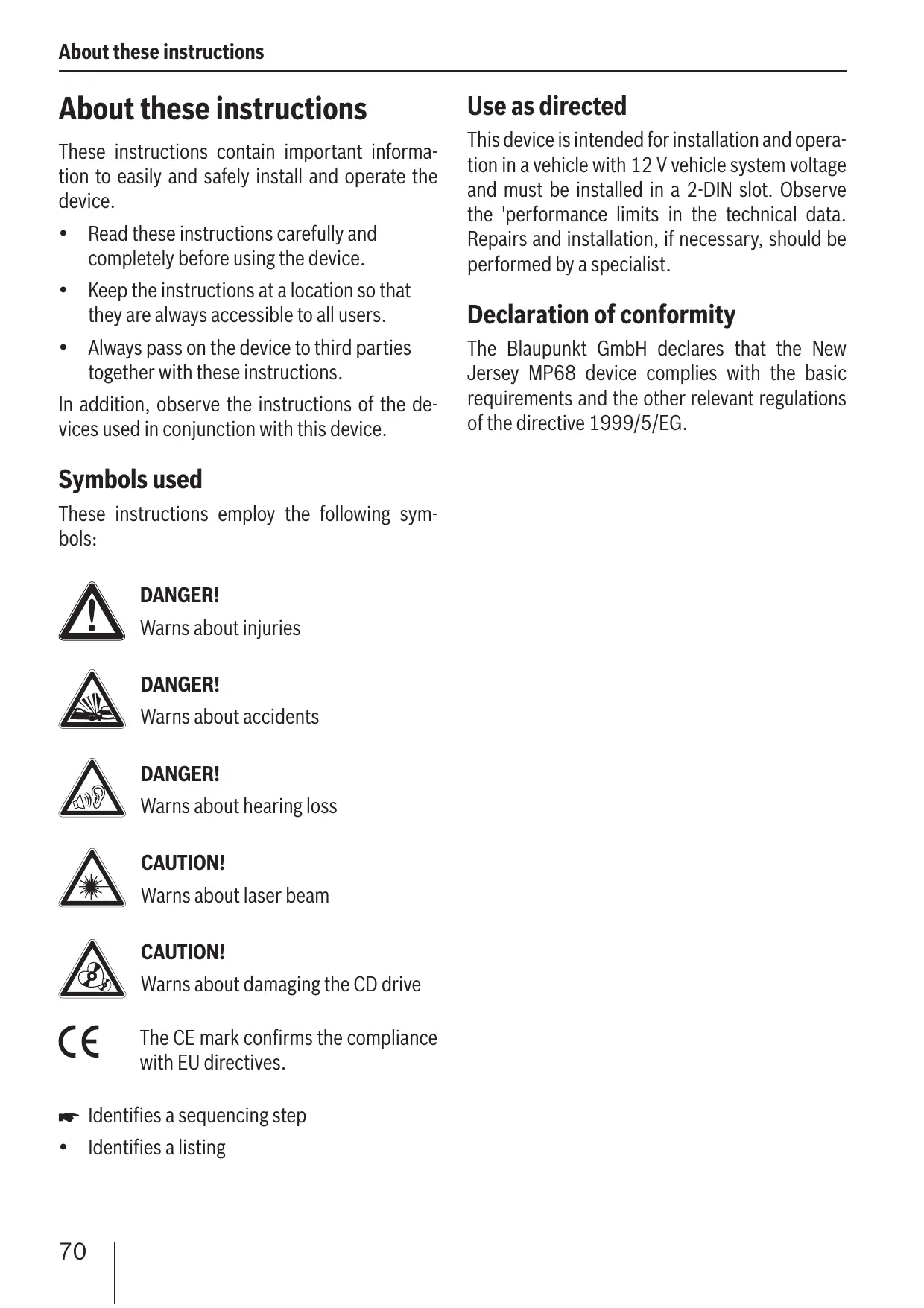
ENGLISH Contents About these instructions About these instructions These instructions contain important information to easily and safely install and operate the device.
- Read these instructions carefully and completely before using the device. Use as directed This device is intended for installation and operation in a vehicle with 12 V vehicle system voltage and must be installed in a 2-DIN slot. Observe the 'performance limits in the technical data. Repairs and installation, if necessary, should be performed by a specialist.
- Keep the instructions at a location so that they are always accessible to all users.
- Always pass on the device to third parties together with these instructions. In addition, observe the instructions of the devices used in conjunction with this device. Symbols used These instructions employ the following symbols: DANGER! Warns about injuries DANGER! Warns about accidents DANGER! Warns about hearing loss CAUTION! Warns about laser beam CAUTION! Warns about damaging the CD drive The CE mark confirms the compliance with EU directives. W Identifies a sequencing step
Declaration of conformity The Blaupunkt GmbH declares that the New Jersey MP68 device complies with the basic requirements and the other relevant regulations of the directive 1999/5/EG. Safety notes The device was manufactured according to the state of the art and established safety guidelines. Even so, dangers may occur if you do not observe the safety notes in these instructions. If you are installing device yourself You may only install the device yourself if you are experienced in installing car sound systems and are very familiar with the electrical system of the vehicle. For this purpose, observe the installation instructions at the end of these instructions. Observe the following! Cleaning notes Solvents, cleaning and scouring agents as well as dashboard spray and plastics care product may contain ingredients that will damage the surface of the device.
- Use only a dry or slightly moistened cloth for cleaning the device. Disposal note Do not dispose of your old unit in the household trash! Use the return and collection systems available to dispose of the old device. CAUTION! The device contains a Class 1 laser that can cause injuries to your eyes. Do not open the device and do not perform any modifications. In operation
- For the front AUX-IN socket, use only the angled jack plug from Blaupunkt (7 607 001 535). All protruding parts, incl. straight plugs or adapters, lead to an increased injury risk in case of an accident.
- Operate the device only if traffic situation permits it! Stop at a suitable location to perform extensive settings.
- To protect your hearing, always listen at a moderate volume. During mute phases (e.g. when changing Travelstore, CD changer), changing the volume is not audible until after the mute phase. Do not increase the volume during this mute phase.
- Always listen at a moderate volume so that you can always hear acoustic warning signals (e.g. police).
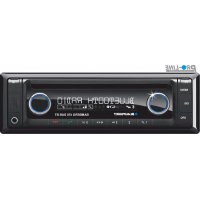
ENGLISH Safety Notes Scope of delivery Scope of delivery The scope of delivery includes: 1 New Jersey MP68 1 Operating/installation instructions 1 Support frame 2 Disassembly tools 1 USB connecting cable 1 Microphone for Bluetooth® phone calls 1 Microphone connecting cable 1 Plug housing 1 Set of small parts
- C'n'C-ready Blaupunkt interfaces via the rear What can the device do?
- Either a CD changer or an external audio source, e.g. MiniDisc or MP3 player, via the rear AUX socket (REAR AUX-IN socket only if no C'n'C-ready Blaupunkt interface is connected) In addition to the tuner, the device features an integrated CD player for playing audio CDs and MP3/WMA CDs. Your device is equipped with an RDS receiving unit to conveniently listening to the radio. For example, you can use the RDS functions TA and EON for the priority of traffic information stations or PTY for searching for stations with your preferred programme type. The built-in Bluetooth® module and the microphone connector allow the hands-free use of a phone via the car sound system. In addition, the following external audio sources can be connected and used:
- An additional external audio source via the FRONT-AUX-IN socket
- USB medium (player, stick or disk) with MP3 or WMA files
- Navigation device or telephone (Tel/Navi Line-In) For further details, please read the installation instructions. Controls
button Ejecting CD from CD drive 2 CD drive 3 Display
button (Reject button) Rejecting/ending an incoming call button (Answer button) Making/answering a phone call 6 Front AUX-IN socket 7 USB port 8 SOURCE button Selecting an audio source 9 MENU button Calling up a menu : OK button In menus: Calling up menu items and confirming settings (press short) Scanning tracks/radio stations (SCAN function; press for longer than 2 seconds) ; DIS•ESC button Exiting the menu and changing to the display of the audio source, selecting the display mode (e.g. MP3 browse mode in MP3 display) < AUDIO button Calling up the audio menu for sound settings = TUNER button Changing to radio mode Radio mode: Opens menu for selecting the waveband/memory bank > Volume control ? On/Off button Switch-on, muting sound (press short) Switch-off (press for longer than 2 seconds)
@ Rocker switches and as well as and In menus and in radio mode: Selecting submenus and menu items/functions In other operating modes (e.g. CD or MP3 mode): Selecting track, CD and directory A Alphanumeric keys Radio mode (0 - 9): Selecting stored stations (press short), storing stations (press for longer than 2 seconds) Bluetooth® speed dial (0 - 9): Calling stored phone number (press for longer than 2 seconds) In menus: Entering, for example, PIN codes, phone numbers and names Theft protection W Enter the code by pressing the corresponding buttons of the A keys. Device code W Press the OK button : to confirm the code entered. You can protect this device against theft with an individual, four-digit code number. If the code query is activated, the code number must be entered after every interruption of the power supply from the vehicle battery. Without this code number, the device is useless to a thief. You can activate and deactivate the code query: If you set the code number to "0000", the code query is automatically deactivated. As soon as you enter a different code number than "0000", the code query is automatically activated (see the section "Adjusting the code"). The code number is factory set to "0000", so that the code query is deactivated. It is recommended to set an individual code number and thereby activate the code query. Your device is then useless to a thief and protected against abuse. Note: Record your individual code number and store it in a safe place. For example, enter the individual code number in the device card and store the device card separate from the device outside of the vehicle! After entering the correct code, "CODE OK!!" briefly appears on the display and the device starts with the last used audio source. After entering an incorrect code, "INCORRECT CODE!!" PLEASE TRY AGAIN!!" briefly appears on the display. You can repeat the code entry five more times. After the fourth incorrect entry, the display shows
"2 TRIALS LEFT!! RADIO WILL BE BLOCKED
AFTER THAT! PRESS OK". W Press the OK button : to reach the code entry again. After the fifth incorrect entry, the display shows "1 TRIAL LEFT!! RADIO WILL BE BLOCKED AFTER THAT! PRESS OK". W Press the OK button : to reach the code entry again. After the sixth incorrect entry, the display shows
"THE RADIO IS BLOCKED!! PLEASE CONTACT
THE SERVICE CENTER". Contact your Blaupunkt specialised dealer or the Blaupunkt customer service. Entering the code Adjusting the code If a different code number than "0000" is set and the device has been disconnected from the vehicle's electrical system (e.g. removal of the battery in case of repairs), the display shows "PLEASE ENTER CODE" and "_ _ _ _" after switchon, and you can enter the code. Adjust an individual code number to automatically activate the code query, or set the code number to "0000" to deactivate the code query. The code number is factory set to "0000", so that the code query is deactivated. Notes:
- You have 6 attempts to enter the correct code before the device is blocked and can only be enabled with the master code.
- You can switch off the device again without having entered the code.
ENGLISH Theft protection Theft protection | Startup Note: Your individual code number is not reset when restoring the factory settings, but retained. W Press the MENU button 9. W Press the rocker switch "Syst" system menu. @ to open the The "CODE" menu item is selected. W Press the OK button to call up the menu item. W If the code query is activated, enter the current code number by pressing the corresponding buttons of the A keys. W Press the OK button : to confirm the current code number. W Enter the new code number by pressing the corresponding buttons of the A keys. W Press the OK button : to save the new code number. You are returned to the system menu. Device card In case of a theft, the device card on the back of these instructions together with the purchase receipt is your proof of ownership. Enter the serial number and the code number of the device. The serial number is located on the side of the device and poss. also on the original box. Startup This chapter contains information about switching the device on and off, adjusting the volume, performing menu settings, and resetting the device to the factory settings. It also provides information about connecting a USB medium and correctly inserting a CD in the device. Switching the device on/off The device is switched on or off with the ignition. The introductory animation starts and can be cancelled with the OK button :. The device plays the audio source you previously listened to. To manually switch on the device, W press the On/Off button ?. To switch off the device, W press and hold the On/Off button ? for approx. 2 seconds. Note: To protect the vehicle battery if the ignition is switched off, the device automatically switches off after one hour. Adjusting the volume DANGER! High volume Excessive volume can damage your hearing and you may fail to hear acoustic warning signals! The devices mutes itself while it changes the CD in the CD changer or the audio source. During this mute phase, the volume may be changed, but it is not audible. Do not increase the volume during a mute phase. Always set the device to a moderate volume. W Turn the volume control >. The current volume is shown on the display and used for all audio sources.
Startup Note: The volume can also be changed during a traffic announcement/phone call/navigation announcement using the volume control > for the duration of the phone call or the announcement. Note: You cannot call up the menu if the device is muted ("MUTE").
Muting the device W Briefly press the On/Off button ?. "MUTE" appears on the display. To cancel the mute function, W briefly press the On/Off button ? again. OR: W Turn the volume control >. Overview of the menu operation The different basic settings of the device and many functions of the different operating modes are available via menus:
- In the System menu, you perform the basic settings for the device (e.g. display brightness and colour, power-on volume and volume for traffic announcements, telephone calls and more, time, scan time and settings for C'n'C and AUX mode).
- In the Audio menu, you perform sound settings (e.g. bass, treble, volume distribution, equalizer).
- In the menu of the respective operating mode (e.g. tuner or CD mode), you can perform settings for the current operating mode and select functions. To open a menu, W press the MENU button 9. By default, the menu of the current operating mode is opened, e.g. the tuner menu, if the device is in tuner mode when you press the MENU button 9.
Option of the selected menu item Selected menu item Menu items of the selected menu Arrows indicate in which direction you can scroll in the menu E Menu selection To select a different menu, W press the rocker switch
It switches from the menu of the current operating mode to the System or Audio menu. The Tuner menu is also available in all other operating modes, e.g. to switch the priority for traffic information on or off. To select and call up a menu item in the current menu, W press the rocker switch
W Press the OK button :. You can exit a menu as follows:
- You confirm a setting with the OK button : and go back one higher menu level. Text input (e.g. your personal welcome text) should always be confirmed with the OK button : to save the text change.
Startup Text inputs are not automatically saved. Pressing the DIS•ESC button ; cancels the text input without saving it. All other settings are saved.
- Every menu contains the "EXIT" menu item. If you select "EXIT" and press the OK button :, you return to the higher-level menu. If no selection or setting is performed in a menu for approx. 8 seconds, the display automatically returns to the display of the audio source (in the Bluetooth® menu, this time is approx. 30 seconds). Your settings – with the exception of text inputs – are saved. Setting the Menu Language You can also set German as the menu language instead of English. Many important menu entries and messages, particularly in the Bluetooth® menu, are then displayed in German. W Press the MENU button 9. W Press the rocker switch "Syst" system menu. @ to open the W Press the rocker switch or the "LANGUAGE" function. @ to select W Press the OK button :. W Press the rocker switch or @ to select the desired setting "ENGLISH" or "DEUTSCH". W Press the OK button : to select a different function, or press the DIS•ESC button ; to exit the menu. Resetting the device (NORMSET) You can reset the device to the factory settings (see appendix A1). Your personal settings. e.g. your welcome text, will be deleted in the process. W Press the MENU button 9. W Press the rocker switch "Syst" system menu. @ to open the W Press the rocker switch or the "NORMSET" function. @ to select W Press and hold the OK button : for longer than 4 seconds. The display briefly shows "NORM ON". The factory settings are restored. The radio briefly switches off and automatically on again during the process. Note: If you press and hold the OK button : for less than 4 seconds, "NORM OFF" is displayed. Your personal settings are retained. Press the OK button : to select a different function, or press the DIS•ESC button ; to exit the menu. USB port You can connect the following USB media to the device and use them as audio source:
- MP3 player with USB port The device can play MP3 or WMA formats (WMA version 9, without DRM copy protection only). Note: Blaupunkt cannot guarantee the proper functioning of all USB media available on the market! Connecting the USB cable Plug the supplied USB cable into the USB port on the front side of the device. For further details, please read the installation instructions.
The USB cable can then be routed, for example, to the glove compartment or a suitable place of the center console. Connecting the USB medium Note: Always switch off the device before connecting or disconnecting your USB medium! The USB medium is correctly registered/unregistered only with switching on/off. W Switch off the car sound system by holding the On/Off button ? pressed for longer than 2 seconds. W Connect the USB medium with the USB cable. What characteristics do USB media have to have? The device recognises the USB medium only if it is a mass storage with the following features: Under Windows 2000/XP, the FAT32 formatting creates a maximum partition size of 32 GB. If you are using a USB medium with more than 32 GB, it may result in read errors for additional partitions. If a large number of files is stored on your USB medium, the speed of the file search may be reduced. Selecting the USB as audio source W Press the SOURCE button 8 repeatedly until "USB" appears on the display. "READING" briefly appears on the display. The playback starts. If USB is selected as audio source, the MP3 display is shown. For further details, please read the chapter "CD/USB mode (MP3/WMA)". Handling CDs The device can play the following CD formats:
- Audio CD with the CompactDisc logo (some File system FAT16 or FAT32, no NTFS! ID3 tags Version 1 or 2 Format Only MP3 or WMA files, folders, playlists
- CD-R or CD-RW with MP3 or WMA files Number Max. 1,500 files (folders and tracks) per folder (WMA version 9, without DRM copy protection only) Naming of files File extension ".wma"/ ".mp3" Max. 24 characters (more characters are possible, but they reduce the max. number of files) No special characters or umlauts Bit rate MP3: 8 to 320 kbps WMA: 8 to 192 kbps CDs with copy protection cannot be played) Note Blaupunkt cannot guarantee the proper functioning of copy-protected CDs! Note: The quality of self-burnt CDs fluctuates due to different CD blanks, burner software, and burn speeds. For this reason, it is possible that the device cannot play some self-burnt CDs. If you cannot play a CD-R/CD-RW:
- Use blanks from a different manufacturer or a different colour.
- Reduce the burn speed.
ENGLISH Startup Startup What features do MP3 or WMA CDs have to have? The device can only play and display MP3 or WMA CDs with the following features: CD format ISO 9660 (Level 1 or 2) or Joliet Note: Label CDs only by using a marker since it does not contain any caustic materials. Permanent markers can damage CDs. W If a CD is in the drive, press the
button The CD is ejected. ID3 tags Version 1 or 2 Format Only MP3 or WMA files, folders, playlists If you do not remove the CD, it is automatically pulled in again after a few seconds. Number Max. 999 tracks in 99 folders Naming of files File extension ".wma"/ ".mp3" W Insert the CD with its printed side uppermost into the CD drive 2 until you feel some resistance. Bit rate The CD is automatically drawn in. Max. 16 characters (more characters are possible, but they reduce the max. number of files) "READING" briefly appears on the display. Next, the following appears: No special characters or umlauts
- The MP3 display if an MP3 or WMA CD is MP3: 8 to 320 kbps WMA: 8 to 192 kbps Inserting and removing a CD CAUTION! Damaging the CD drive Labelled or shaped CDs can damage the CD drive.
- The audio CD display if an audio CD is inserted. inserted. The CD starts playing. Selecting the CD as audio source You can select an inserted CD as audio source: W Press the SOURCE button 8 repeatedly until "CD" (for audio CD) or "MP3" (for MP3 CD) appears on the display. Note: The CD mode can be selected only if a readable CD is inserted. Do not insert any mini CDs (8 cm diameter) or shape CDs damage. To operate the audio CD display, please read the chapter "CD mode (audio)". Insert only circular CDs with a 12-cm diameter. To operate the MP3 display, please read the chapter "CD/USB mode (MP3/WMA)". Do not attach labels to CDs since the label may detach during operation.
W Remove the CD. Tuner mode The tuner display Tuner mode This device can receive radio stations in the FM frequency ranges as well as MW and LW.
The device is set to the frequency ranges and station technologies of the region in which it was purchased. You can adjust this setting to the different frequency ranges and station technologies of Europe, the United States, South America or Thailand. To do so, the device must be switched off: W Simultaneously press the AUDIO < and button A while switching on the device.
The display shows "TUNER AREA" and the current setting as well as a list of available options. W Press the rocker switch or @ to switch between the regions EUROPE, USA, SAMERICA and THAILAND. W Confirm the setting with the OK button :. Note: The tuner functions described in these operating instructions refer to the region Europe (tuner setting "EUROPE"). ENGLISH Set the device to the region Europe, USA, South America or Thailand
A Waveband/memory bank B Memory location of the current station (if stored) C Traffic information priority D Bluetooth® status E Display area for frequency, time, station name and radio text F Menu selection In tuner mode, you can adjust and store stations in the current waveband and select stored stations (for further details, please read the section "Adjusting stations" or "Storing stations manually" in this chapter). Starting tuner mode All other functions are available in the following 3 menus in menu mode: W Press the SOURCE button 8 repeatedly until "TUNER" appears on the display.
- List: In the List menu, the frequencies/ OR: stations stored on the station buttons are displayed in a list and can be selected. W Press the TUNER button =.
- Tune: The Tune menu provides functions for The playback starts immediately with the previously played station if the vehicle is within the reception area of this station.
- Band: The Band menu allows selecting the scanning stations and automatic station storage. waveband or the memory bank.
Tuner mode In regular tuner mode, "Norm" is displayed on the left side in the menu selection F. To change from regular tuner mode to menu mode and back, W press the DIS•ESC button ;. In menu mode, "List" is displayed in the menu selection F instead of "Norm". The "List" menu (list of stored stations) is selected. The options of the "List" G menu are displayed The desired waveband or memory bank is adjusted. After a short period of time, the display automatically returns to the regular tuner mode. You can now perform the following actions in this waveband/memory bank:
- Storing stations Adjusting stations There are 3 ways of tuning into a station:
- Tuning into stations automatically (station seek tuning)
- Tuning into stations manually
- Selecting stored stations
Station seek tuning W Press the rocker switch
F Menu selection G Options of the current menu If you press and hold the rocker switch @ automatic seek tuning skips the stations found until you release the rocker switch again. You can switch between the menus with the rocker switch or @. The options of the respective G menu are displayed. The tuner searches for the next receivable station in the current waveband. The adjusted sensitivity of the station seek tuning (section "Changing the seek tuning sensitivity") and the following settings are taken into consideration: Setting the waveband/memory bank You can adjust and set radio stations of the FM, MW and LW wavebands. The wavebands MW and LW each provide one memory bank with 10 memory locations each. The FM waveband features 2 memory banks each with 10 memory locations each: FM and FMT. W Press the TUNER button =. OR: W To change to the menu mode, press the DIS•ESC button ;. W Press the rocker switch the "Band" menu. @ twice to open W Press the rocker switch or @ to select the desired waveband or memory bank. W Press the OK button :.
- The "PTY TYPE" (programme type) setting in the "TUNER" menu: The tuner searches for stations that are broadcasting the defined programme type.
- The "TRAFFIC" (traffic information) setting in the "TUNER" menu: With priority for traffic announcements, the tuner exclusively adjusts traffic information stations. Note: These settings are available only for FM. An exact description of these settings can be found in the following sections of this chapter. Tuner mode Notes:
- Tuning into stations manually is possible only if the RDS functions and PTY are deactivated.
- If the RDS function is activated, you can scroll in the broadcasting networks in whose reception area you are located. W Press the rocker switch or @ to change the frequency quickly (press and hold) or in 100-kHz increments (press short). Selecting stored stations W Select the desired waveband or memory bank. W Press one of the station buttons 0 - 9 A. Storing stations There are 2 ways of storing a station:
- Storing stations manually
- Searching and storing stations automatically (Travelstore) Storing stations manually After tuning into a station, it can be stored as follows: W Press one of the station buttons 0 - 9 A for approx. 2 seconds to which you want to assign the station. Or in the List menu: W To change to the menu mode, press the DIS•ESC button ;. @ to select Or in the List menu: W Press the rocker switch or a memory location in the list. W To change to the menu mode, press the DIS•ESC button ;. W Press and hold the OK button : for approx. 2 seconds. W Press the rocker switch or @ to select a frequency or station from the list. W Press the OK button :. The stored station is called up, provided that it can be received at the current vehicle position. The frequency of the station or the station name appears on the display. The list displays the frequency or the name of the station at the selected memory location. The station was stored. Searching and storing stations automatically (FM only: TRAVEL STORE) You can automatically search for and store the ten FM stations offering the strongest reception in the region in the FMT memory bank, Stations that were previously stored in the FMT memory bank are automatically deleted. W To change to the menu mode, press the DIS•ESC button ;. W Press the rocker switch @ to open the "Tune" (adjusting stations) menu. W Press the rocker switch the "T-STORE" function.
@ to select "TRAVEL STORE" appears on the display. W Press the OK button :. The tuner starts with the automatic seek tuning. After the storing is completed, the radio plays the station at memory location 1 of the FMT level.
ENGLISH Tuning into stations manually Tuner mode Changing the seek tuning sensitivity (SENS) The seek tuning sensitivity determines whether the automatic station seek tuning locates only strong stations or also weaker stations. You can adjust the seek tuning sensitivity separately for the FM and MW/LW wavebands. W Select the waveband for which you want to set the seek tuning sensitivity. W Press the MENU button 9. The Tuner menu opens. W Press the rocker switch the "SENS" function.
@ to select To continue listening to the currently scanned station, W Press the OK button :. After a complete search of the frequency band, scanning stops. The previously set station is played. Displaying radio text In addition to your programme, stations can broadcast text news (radio text) that can be shown on the display. To switch the display of radio text on/off: W Press the MENU button 9. W Press the OK button :. The Tuner menu opens. W Press the rocker switch or @ to adjust the sensitivity between "SENS LOW 1" (lowest sensitivity) and "SENS HIGH 6" (highest sensitivity. W Press the rocker switch the "R-TEXT" function. W Press the OK button : to select a different function, or press the DIS•ESC button ; to exit the menu. Scanning all receivable stations (BANDSCAN) You can scan all receivable stations of a waveband. The scan time can be set as described in the chapter "User settings". W Select the waveband (FM, MW, LW) whose receivable stations you want to scan. W To change to the menu mode, press the DIS•ESC button ;, if necessary. W Press the rocker switch @ to open the "Tune" (adjusting stations) menu. The "BANDSCAN" function is selected. W Press the OK button :. "SCAN" and the current frequency or the station name appear on the display. The tuner is searching for stations. As soon as the tuner has located a station, it is played.
@ to select W Press the OK button :. W Switch between the settings with the rocker switch or @.
"RADIO TEXT" : Radio text on. "RADIO TEXT" : Radio text off. W Press the OK button : to select a different function, or press the DIS•ESC button ; to exit the menu. Receiving traffic announcements If you switch on the priority for traffic announcements, the device uses the RDS services TA (Traffic Announcement) and EON (Enhanced Other Network). TA switches traffic reports even if you are currently listening to a different audio source. The volume for the traffic announcement can be adjusted (see the chapter "User settings", section "Changing volume presettings"). If no traffic information station is currently defined, the RDS service EON ensures that the device automatically changes to a traffic information station of the same broadcasting network for the duration of a traffic announcement. Switching the priority of traffic reports on/off Receiving an alternative frequency of a station The priority of traffic reports is switched on if the symbol appears on the display. This setting limits the station search and scanning (SCAN) for traffic information stations. The device can automatically switch to the best alternative frequency of the same station if the reception becomes poor. To switch the traffic report priority on/off, Allowing/preventing alternative frequencies (RDS) W press the MENU button 9. To switch RDS on/off, The Tuner menu opens. W Press the rocker switch the "TRAFFIC" function.
@ to select W Press the OK button :. W Switch between the settings with the rocker switch or @.
"TRAFFIC" : Priority on. "TRAFFIC" : Priority off. W Press the OK button : to select a different function, or press the DIS•ESC button ; to exit the menu. Note: For the device to switch through traffic reports, a station must be defined that supports TA or belongs to a broadcasting network with traffic information stations. A signal tone appears every 30 seconds if you leave the broadcast area of the traffic information station or switch to a station that does not support the traffic information priority. In this case, switch off the priority or tune into a traffic information station. If a different audio source than the tuner is active, the device automatically searches for a traffic information station. Skipping a traffic announcement To cancel a traffic announcement without switching off the priority of traffic announcements, W press the DIS•ESC button ;. The previously active audio source is played again. If a traffic announcement is broadcast again, the device automatically switches it through again. W press the MENU button 9. The Tuner menu opens, the "RDS" function is selected. W Press the OK button :. W Switch between the settings with the rocker switch or @.
"RDS" : RDS on, allowing alternative frequencies.
"RDS" : RDS off, preventing alternative frequencies. W Press the OK button : to select a different function, or press the DIS•ESC button ; to exit the menu. Note: For the device to switch to an alternative frequency (AF) in case of poor reception, the station must also support the RDS function Alternative frequency (AF). Allow/prevent changing to other regional programmes (REGIONAL) Some stations divide their programmes into regional programmes with different contents at certain times. You can use the REG function to prevent the device from switching to alternative frequencies that are transmitting different programme content. To switch the regional function on/off, W press the MENU button 9. The Tuner menu opens. W Press the rocker switch or the "REGIONAL" function. @ to select
ENGLISH Tuner mode Tuner mode W Press the OK button :. W Switch between the settings with the rocker switch or @.
"REGIONAL" : Regional function on. The tuner only changes to alternative frequencies of the set stations that broadcast the same regional programme. "REGIONAL" : Regional function off. The tuner also changes to alternative frequencies that broadcast another regional programme. W Press the OK button : to select a different function, or press the DIS•ESC button ; to exit the menu. Receiving the programme type You can select a programme type (PTY) to purposefully search for stations, for example, that broadcast rock music or sport events. Selecting a programme type or switching off PTY (PTY TYPE) W Press the MENU button 9. The Tuner menu opens. W Press the rocker switch or the "PTY TYPE" function. @ to select W Press the OK button :. A list with available programme types and the setting "NO PTY" (PTY off) are displayed. W Press the rocker switch or @ to select the desired programme type or the "NO PTY" setting. W Press the OK button : to select a different function, or press the DIS•ESC button ; to exit the menu.
You can locate a station that broadcasts the selected programme type by using the automatic station seek tuning. For instructions, please read the section "Station seek tuning" in this chapter. If no station with the correct programme type is found, the display briefly shows "NO PTY FOUND" and the original frequency is adjusted again. Selecting the programme type language (PTY LANG) You can select the language in which the programme types should be displayed. Available are "DEUTSCH", "ENGLISH" and "FRANÇAIS". W Press the MENU button 9. The Tuner menu opens. W Press the rocker switch or the "PTY LANG" function. @ to select W Press the OK button :. @ to select W Press the rocker switch the desired language.
W Press the rocker switch the selected language. @ to switch on W Press the OK button : to select a different function, or press the DIS•ESC button ; to exit the menu. CD mode (audio) The CD menu Audio CDs are played in the CD mode (audio). How to insert and remove CDs is described in the chapter "Startup". The CD menu provides functions such as MIX and REPEAT (see the lower table on the next page). To select a function and its desired option in the CD menu, Starting the audio CD mode W press the MENU button 9. You can select an inserted CD as audio source: The CD menu opens. W Press the SOURCE button 8 repeatedly until "CD" appears on the display. W To select the desired function, press the rocker switch or @. The playback starts. W Press the OK button :. Note: As long as the CD is in the drive, the device stores track and playing time of the previously played CD. After calling up the audio source, the playback starts at the point where it was interrupted. ENGLISH CD mode (audio) W Press the rocker switch @ to switch on the selected option, or the rocker switch @ to switch it off. W Press the OK button : to select a different function, or press the DIS•ESC button ; to exit the menu. The audio CD display
CD mode (audio) Functions in the CD mode (audio) The functions of the following table can be called directly on the CD display by touching a button. Function Selecting tracks Action Press the rocker switch or @. Display/description : Playing the next track : Repeats the track. Press again: Plays the previous track Fast search Press and hold the rocker switch or @. Audibly scanning a track forward or back Scanning tracks Press the OK button : for longer than 2 seconds. "SCAN": Scans all tracks on the CD (scan time can be adjusted: chapter "User settings"). Press again briefly: Switches scan off Playing time/ time Press the DIS•ESC button ;. Change between display of playing time and time. The functions of the following table can be called up in the CD menu. For further details, please read the preceding section "The CD menu". Function Menu item Random playback MIX Repeating tracks REPEAT Display CD text CD-TEXT Options "MIX CD" : Mixing the tracks on the CD. "MIX CD" : Regular playback. "REPEAT TRACK" : Repeat the current track. "REPEAT TRACK" : Regular playback. : The display shows CD text. : The display does not show CD text. Switching scrolling text on/off
SCROLL : The track information appears as scrolling text. : The track information does not appear as scrolling text. CD/USB mode (MP3/WMA) CD/USB mode (MP3/WMA) The MP3 display
In CD/USB mode, you can play CD-Rs or CD-RWs or a USB medium with MP3 or WMA tracks. ENGLISH The chapter "Startup" describes what you must observe when connecting and disconnecting USB media. It also contains information about inserting and removing CDs. Starting the CD/USB mode You can select an already inserted CD-R or CDRW or a connected USB data carrier as audio source: W Press the SOURCE button 8 repeatedly until "CD" or "MP3" or "USB" appears on the display. The playback starts. Note: The USB mode can be selected only if a valid USB medium is connected.
MP3 source ("CD MP3" or "USB") Traffic information priority Bluetooth® status Current directory Display area for the file names as well as artist, album or track1 F Random playback (MIX) or repeat function (RPT) G Playing time You can switch between the following modes with the DIS•ESC button ;:
- Playlist mode (if playlist is available on USB/CD) 1 Album and artist can be displayed only if they are stored in the ID3 tags of the MP3 track.
CD/USB mode (MP3/WMA) Functions in the CD/USB mode (MP3/WMA) The functions of the following table can be called directly on the MP3 display by touching a button. Function Selecting folders Selecting tracks Action Response Press the rocker switch or @. : Selecting the next folder Press the rocker switch or @. : Playing the next track : Selecting the previous folder : Repeats the track. Press again: Plays the previous track Fast search Press and hold the rocker switch or @. Audibly scanning a track forward or back Scanning tracks Press the OK button : for longer than 2 seconds. "SCAN": Scans all tracks on the CD/USB (scan time can be adjusted: chapter "User settings"). Press again briefly: Switches scan off The functions of the following table can be called up in the MP3 menu. For further details, please read the following section, "The MP3 menu". Function Menu item Random playback MIX Repeating tracks REPEAT Options "MIX FOLDER": Mix tracks of the current folder. "MIX ALL": Mix all the tracks. "REPEAT TRACK": Repeat the current track. "REPEAT FOLDER": Repeat the current folder. Displaying track information DISPLAY "ARTIST": Display the artist. "ALBUM": Display the album. "SONG": Display the track names. Switching scrolling text on/off
SCROLL : The track information appears as scrolling text. : The track information does not appear as scrolling text. CD/USB mode (MP3/WMA) A Marked directory or track To select a function and its desired option in the MP3 menu, W press the MENU button 9. The MP3 menu opens. W To select the desired function, press the rocker switch or @. W Press the OK button :. (open or playback with rocker switch
B Directory C Up and down arrows indicate in which direction you can scroll ENGLISH The MP3 menu D Currently playing track E Track W To select the desired option among several options, press the rocker switch or @. Selecting tracks in Browse mode W Press the rocker switch @ to switch on the selected option, or the rocker switch @ to switch it off. W During MP3/WMA playback, press the DIS•ESC button ; repeatedly until the Browse mode is displayed. W Press the OK button : to select a different function, or press the DIS•ESC button ; to exit the menu. It shows all folders and tracks stored on the data carrier. To select a track or folder, W press the rocker switch or @ to scroll through the tracks and folders. The Browse mode In the Browse mode, tracks and directories are displayed the same way they are stored on the MP3 data carrier. This allows you to purposefully search for and open a specific directory and select a track stored in that directory without having to interrupt the current playback. Fast scrolling is achieved by pressing the rocker switches for a longer time. The browse display The files are played back in the order in which they were physically stored on the data carrier. This order is also displayed in the Browse mode.
W Press the rocker switch to a higher-level folder. @ to change up W Press the rocker switch @ to open a folder or to play a track. Note: Fast searching is not available in Browse mode.
CD/USB mode (MP3/WMA) The Playlist mode The device can play playlists that were created with an MP3 manager, such as WinAmp or Microsoft Media Player. The playlists must be stored in the root folder of the data carrier. The following playlist formats are valid: M3U, PLS, WPL, ASX and RMP. The Playlist display
A Playlist B Up and down arrows indicate in which direction you can scroll C Marked playlist
(open with rocker switch Selecting tracks in Playlist mode W During MP3/WMA playback, press the DIS•ESC button ; repeatedly until Playlist mode is displayed. It shows all playlists stored in the root folder of the data carrier. To select a track from a playlist, W press the rocker switch through the playlists.
@ to scroll Fast scrolling is achieved by pressing the rocker switches for a longer time. W Press the rocker switch playlist. @ to open a W Press the rocker switch or @ to scroll through the tracks of the playlist. W Press the rocker switch
@ to play a track. The tracks are played in the order in which they are stored in the playlist. This order is also displayed in the Playlist mode. Note: Fast searching is not available in Playlist mode. C'n'C mode C'n'C mode The C'n'C display
In C'n'C mode (C'n'C = Command and Control), you access devices that are connected via a C'n'C-ready interface.
ENGLISH Note: For details about connecting a C'n'C-ready interface and the required settings, please read the chapter "AUX mode". Starting C'n'C mode W Press the SOURCE button 8 repeatedly until the name of the device connected via C'n'C appears on the display. The playback starts. Note: The C'n'C mode can be selected only if a suitable device is connected via a C'n'Cready interface.
Name of audio source Traffic information priority Bluetooth® status Name of current directory Directory and track number Display area for the track names as well as artist and album G Random playback (MIX) or repeat function (RPT) H Playing time You can switch between the following modes with the DIS•ESC button ;:
- C'n'C display with time
- Browse mode Note In the C'n'C mode, you can select tracks and directories as well as playlists in Browse mode. Playlist can be selected as directories in Browse mode and opened. For further details, please read the section "The Browse mode" in the chapter "CD/USB mode (MP3/ WMA)".
C'n'C mode Functions in C'n'C mode The functions of the following table can be called directly on the C'n'C display by touching a button. Function Selecting folders Selecting tracks Action Response Press the rocker switch or @. : Selecting the next folder Press the rocker switch or @. : Playing the next track : Selecting the previous folder : Repeats the track. Press again: Plays the previous track Fast search Press and hold the rocker switch or @. Audibly scanning a track forward or back Scanning tracks Press the OK button : for longer than 2 seconds. "SCAN": Scans all tracks on the device (scan time can be adjusted: chapter "User settings"). Press again briefly: Switches scan off The functions of the following table can be called up in the C'n'C menu. For further details, please read the following section, "The C'n'C menu". Function Random playback Menu item MIX Options "MIX FOLDER": Mix tracks of the current folder. "MIX ALL": Mix all the tracks. "MIX MAG"1: Mix the tracks of all CDs in the CD changer. "MIX SONG"2: Mix all the tracks with the same track name. "MIX ALBUM"2: Mixx all the tracks with the same album name. Repeating tracks REPEAT "REPEAT TRACK": Repeat the current track. "REPEAT FOLDER": Repeat the current folder. "REPEAT DISC"1: Repeat the current CD. Displaying track information DISPLAY "ARTIST": Display the artist. "ALBUM": Display the album. "SONG": Display the track names. Switching scrolling text on/off SCROLL : The track information appears as scrolling text. : The track information does not appear as scrolling text. 1 Option is only available if CD changer is connected via C'n'C interface. 2 Option is only available if iPod® is connected via C'n'C interface.
C'n'C mode The C'n'C menu To select a function and its desired option in the C'n'C menu, W press the MENU button 9. ENGLISH The C'n'C menu opens. W To select the desired function, press the rocker switch or @. W Press the OK button :. W To select the desired option among several options, press the rocker switch or @. W Press the rocker switch @ to switch on the selected option, or the rocker switch @ to switch it off. W Press the OK button : to select a different function, or press the DIS•ESC button ; to exit the menu.
You can connect the following CD changers to the device.
- Blaupunkt IDC A09 How to insert CDs in the CD changer magazine is described in the instructions of your CD changer. Note: For details about connecting a CD changer and the required settings, please read the chapter "AUX mode". Switching to CD changer mode Note: To be able to select the CD changer as audio source, at least one CD must be in the magazine. To select a connected CD changer as audio source, W press the SOURCE button 1 repeatedly until "CDC" appears on the display. If you select a CD changer as audio source for the first time, "MAG SCAN" appears on the display until the CD changer is operational. The CD changer display appears. The playback starts. Selecting a CD W To select a CD, press the rocker switch
"LOADING CD" briefly appears on the display. The selected CD starts playing.
Traffic information priority Bluetooth® status Track number CD number Random playback (MIX) or repeat function (RPT) F Playing time or time CD changer mode Functions in the CD changer mode Selecting tracks Action Press the rocker switch or @. Display/response : Playing the next track : Repeats the track. Press again: Plays the previous track ENGLISH Function Fast search Press and hold the rocker switch or @. Audibly scanning a track forward or back Scanning tracks Press the OK button : for longer than 2 seconds. "SCAN": Scans all tracks of all CDs (scan time can be adjusted: chapter "User settings"). Press again briefly: Switches scan off Playing time/ time Press the DIS•ESC button ;. Change between display of playing time and time. The functions of the following table can be called up in the CD changer menu. For further details, please read the following section "The CD changer menu". Function Menu item Random playback MIX Repeating tracks REPEAT Options "MIX CD": Mix the tracks on the current CD. "MIX ALL": Mix all the tracks. "REPEAT TRACK": Repeat the current track. "REPEAT DISC": Repeat the current CD. The CD changer menu To select a function and its desired option in the CD changer menu, W press the MENU button 9. The CD changer menu opens. W To select the desired function, press the rocker switch or @. W Press the rocker switch @ to switch on the selected option, or the rocker switch @ to switch it off. W Press the OK button : to select a different function, or press the DIS•ESC button ; to exit the menu. W Press the OK button :. W To select the desired option, press the rocker switch or @.
Bluetooth® streaming mode Bluetooth® streaming mode Devices such as MP3 players can also be connected to the device via Bluetooth® if they feature the corresponding equipment. The transfer of audio contents, such as music, via Bluetooth® is referred to as Bluetooth® streaming. For additional information about Bluetooth® technology, please refer to the chapter "Bluetooth® phone call". Registering Bluetooth® players The device can be registered with up to 5 Bluetooth®-ready cell phones or other devices such as MP3 players. If you register a sixth one, the Bluetooth® device registered first is unregistered. For additional information about managing more registered Bluetooth® devices, see the chapter "Bluetooth® phone call", section "Managing registered Bluetooth® devices". After entering one digit, the device automatically switches to the next one. To correct any entry errors, select the corresponding digit by pressing the rocker switch or @ again. After entering the complete PIN number, W press the OK button :. The display briefly shows "START PAIRING". Note: Entering the PIN of the device (default "1234") may be required in the Bluetooth® player to be registered. To do so, follow the instructions of the Bluetooth® player. If the connection is established, "DEVICE CONNECTED" briefly appears on the display. If no connection could be established, then "CONNECTION FAILED" is briefly displayed. Note: The time required for the connection is dependent upon the Bluetooth® player and can differ from device to device. To register a Bluetooth® player, W press the MENU button 9. W Press the rocker switch "Syst" system menu. @ to open the W Press the rocker switch or "BT" menu item is selected. @ until the W Press the OK button : to call up the menu item. The "PAIR" menu item is selected. W Press the OK button : to call up the menu item. W Press the rocker switch or @ until the "OTHER" menu item is selected. W Press the OK button :. If necessary – the display shows "ENTER PIN" – you can enter the PIN number of the Bluetooth® player: W Enter the number sequence by pressing the corresponding buttons of the A keys.
Automatic connection of the Bluetooth® player During switch-on, the car sound system automatically attempts to establish a Bluetooth® connection to the Bluetooth® player connected last or to the first device in the list of registered devices. If the connection has been established, "DEVICE CONNECTED" is briefly shown on the display, and you can select the connected Bluetooth® player as audio source. If the car sound system was in Bluetooth® streaming mode during switchoff, the connected Bluetooth® player is automatically selected as current audio source after the connection is established. Bluetooth® streaming mode If the connection cannot be established, the display shows a corresponding message: Starting the Bluetooth® streaming mode
- CONNECTION FAILED – DEVICE NOT W Press the SOURCE button 8 repeatedly until "STREAMING" appears on the display. The playback starts. Notes:
- The Bluetooth® streaming mode can be selected only if a suitable Bluetooth® device is connected.
- CONNECTION FAILED: The car sound system finds the Bluetooth® player, but the connection cannot be established due to a Bluetooth® error. In these two cases, the car sound system continues to attempt the connection in the background. If you attempt to call up a Bluetooth® function on the car sound system, "BLUETOOTH LINK BUSY – PRESS REJECT KEY TO CANCEL" is displayed. If you want to cancel the connection attempt, press the button 4. If necessary, attempt to manually establish the connection to the Bluetooth® player in the device list (see the section "Managing registered Bluetooth® devices in the device list" in the chapter "Bluetooth® phone call").
- If the phone book of a connected cell phone is being transferred in the Bluetooth® streaming mode, the audio transfer is interrupted for the duration of the phone book download. The Bluetooth® streaming display
- CONNECTION FAILED – PLAY FROM THE DEVICE VIA BLUETOOTH: The car sound system can establish a Bluetooth® connection to the Bluetooth® player, but the Bluetooth® player can transfer audio data, e. g. since you currently have a menu open on the Bluetooth® player. If the transfer of audio data fails, you can select on the Bluetooth® player (or the streaming-ready cell phone) whether you want to allow or disallow the audio streaming to the car sound system. If necessary, please read the instructions of your Bluetooth® player for further details.
ENGLISH FOUND: The car sound system cannot find the Bluetooth® player, e.g. because the Bluetooth® player is switched off or its Bluetooth® function is deactivated. Bluetooth® streaming mode Functions in the Bluetooth® streaming mode Function Selecting tracks
Action Press the rocker switch or @. Display/response : Playing the next track : Repeats the track. Press again: Plays the previous track AUX mode FRONT-AUX-IN socket and rear AUX input Front AUX-IN socket DANGER! Increased risk of injury from connector. In case of an accident, the protruding connector in the front AUX-IN socket may cause injuries. The use of straight plugs or adapters leads to an increased risk of injury.
- Other external audio sources, such as portable CD players, MiniDisc players, MP3 players or a non-C'n'C-ready Blaupunkt interface. The C'n'C interface from Blaupunkt (C'n'C = Command and Control) allows an even more convenient control of devices and data carriers that are connected to the car sound system via a C'n'C-ready Blaupunkt interface. This device is factory set for the connection of C'n'C-ready Blaupunkt accessory devices. If you want to connect a non-C'n'C-ready device, such as a CD changer or another external audio source, please perform the settings described in the following sections. For this reason, we recommend using angled jack plugs, e.g. the Blaupunkt accessories cable (7 607 001 535). Adjusting the rear AUX input mode As soon as an external audio source, such as a portable CD/MiniDisc or MP3 player is connected to the FRONT-AUX-IN socket, it can be selected with the SOURCE button 8. "FRONT AUX" then appears on the display.
- C'n'C mode for C'n'C-ready Blaupunkt Note: You can individually name the audio source connected via the FRONT-AUX-IN socket and mix it with another audio source. For further details, please read the sections "Naming external audio sources (AUX EDIT)" and "Mixing an external audio source with another audio source (MIX AUX)" in this chapter. Rear AUX input You can connect different external audio sources to the device via the rear AUX input:
- C'n'C-ready devices from the Blaupunkt accessories programme (e.g. an iPod®/USB interface).
- CD changer You can select between these modes for the rear AUX input: interfaces.
- Non-C'n'C mode for non-C'n'C-ready Blaupunkt interfaces, CD changers and other external audio sources. The C'n'C mode is activated by default. To switch between C'n'C mode and non-C'n'C mode, W press the MENU button 9. W Press the rocker switch "Syst" system menu. @ to open the W Press the rocker switch or "CDC" menu item is selected. @ until the W Press the OK button : to call up the menu item. W Switch between the settings with the rocker switch or @.
"CDC ON" : Non-C'n'C mode. "CDC ON" : C'n'C mode. As soon as you change the setting, the device briefly switches off and back on again with the selected setting (Reset).
ENGLISH AUX mode AUX mode Connecting other external audio sources to the rear AUX input Switching the external audio source on/off and selecting it If no C'n'C Blaupunkt accessory device and no CD changer is connected to the device, you can connect other external audio sources via the rear AUX input, such as portable CD players, MiniDisc players or MP3 players. If you connected an external audio source to the rear AUX input, you must activate the AUX input in the menu. Then you can select the external audio source with the SOURCE button 8. "AUX" then appears on the display. Note: An adapter cable is needed to connect an external audio source via the rear AUX input. You can obtain this cable (Blaupunkt no.: 7 607 897 093) from your Blaupunkt dealer. If you want to connect such an external audio source, proceed as follows:
1. Check whether the non-C'n'C mode is set for
the rear AUX input. For further details, please read the section "Adjusting the rear AUX input mode" in this chapter.
2. Connect the external audio source to the
rear AUX input while the device is switched off.
3. In the menu of the device, switch on the
external audio source. For further details, please read the following section, "Switching the external audio source on/off and selecting it".
4. If necessary, make additional settings for the
external audio source. For further details, please read the sections "Naming external audio sources (AUX EDIT)" and "Mixing an external audio source with another audio source (MIX AUX)" in this chapter.
W Press the MENU button 9. W Press the rocker switch "Syst" system menu. @ to open the W Press the rocker switch or "AUX" menu item is selected. @ until the W Press the OK button : to call up the menu item. W Switch between the settings with the rocker switch or @.
"REAR AUX" : AUX input on. "REAR AUX" : AUX input off. W Press the OK button : to select a different function, or press the DIS•ESC button ; to exit the menu. AUX mode For the two rear AUX inputs, you can enter a separate name that is shown on the display if you select the connected audio source. W Press the MENU button 9. W Press the rocker switch "Syst" system menu. @ to open the W Press the rocker switch or @ until the "AUXEDIT" menu item is selected. W Press the OK button : to call up the menu item. The current name is displayed. The position digit flashes and can be changed. You can now enter your own name with up to 12 characters: W Enter the name by pressing the corresponding buttons of the A keys. Select the desired letter, if necessary by pressing a button several times. After entering one letter, the device automatically switches to the next one. To correct any entry errors, select the corresponding digit by pressing the rocker switch or @ again. After entering the complete name, W press the OK button : to store the name entered. Notes:
- To quit the text input without changing the name, press the DIS•ESC button ;.
- If the text entry is interrupted, e.g. by a traffic announcement, the previous changes are not stored. Mixing an external audio source with another audio source (MIX AUX) You can play an external audio source simultaneously with any other audio source of the radio (radio, CD, USB or Bluetooth® streaming). This function allows you, e.g. to connect a mobile Blaupunkt navigation device as external audio source and to play the navigation announcements via the radio loudspeakers while listening to one of the other audio sources. Note that the other audio source is not muted in this case if a navigation announcement is broadcast. Note: The volume of the external audio source and the volume of the audio source of the radio are adjusted separately:
- Adjust the volume for the radio, CD, USB or Bluetooth® streaming playback with the volume control >.
- Use an output on the connected device whose volume you can adjust (e.g. the headphones output), and adjust the volume of the external audio source with the corresponding controller of the device. The simultaneous playback must be activated in the menu. If "MIX AUX" is activated for the FRONT-AUX-IN socket or for the rear AUX input, the corresponding audio source is played back together with the currently selected audio source (e.g. radio or CD). If "MIX AUX" is deactivated for both AUX inputs, only the selected audio source is played back. To switch "MIX AUX" on/off, W press the MENU button 9. W Press the rocker switch "Syst" system menu. @ to open the W Press the rocker switch or @ until the "MIX AUX" menu item is selected.
ENGLISH Naming external audio sources (AUX EDIT) AUX mode W Press the OK button : to call up the menu item. W Selected the desired option with the rocker switch or @:
- "FRONT AUX" (FRONT-AUX-IN socket)
- "REAR AUX" (rear AUX input) W Switch between the settings for the selected option with the rocker switch or @
: Off. W Press the OK button : to select a different function, or press the DIS•ESC button ; to exit the menu. Managing several C'n'C-ready devices When using suitable adapter cables, you can connect up to 3 C'n'C-ready Blaupunkt interfaces to the device. For the device to distinguish the different interfaces, you can assign them individual device numbers. W Press the MENU button 9. W Press the rocker switch "Syst" system menu. @ to open the W Press the rocker switch or @ until the "CNC EDIT" menu item is selected. W Press the OK button : to call up the menu item. The menu displays the 3 C'n'C devices "DEVICE 1" to "DEVICE 3". W Select a device with the rocker switch
W Press the OK button :. You can now enter the four-digit PIN number of the device: W Enter the number sequence by pressing the corresponding buttons of the A keys.
Note: The PIN of a C'n'C device consists of 4 hexadecimal digits. Every digit can take on 16 different values from 0 to 9 and A to F. To enter the values from A to F for a digit, press the "2" or "3" button of the keys as often as required. After entering one digit, the device automatically switches to the next one. To correct any entry errors, select the corresponding digit by pressing the rocker switch or @ again. After entering the complete PIN number, W press the OK button :. Besides cell phones, you can also connect Bluetooth®-ready MP3 players with the device and play back audio contents via Bluetooth® streaming. For further details, please read the chapter "Bluetooth® streaming mode". If you want to connect another registered cell phone with the car sound system, you can do so manually (please read the section "Managing registered Bluetooth® devices" in this chapter). If the device is switched off and on again, it automatically attempts to establish a connection with the master telephone (see the section "Determining the master telephone"). If the master telephone is not within range or switched off, the device attempts to establish a connection with another registered cell phone, and in the order in which the telephones were connected last. Bluetooth® preparation Opening the Bluetooth® menu Prerequisites for Bluetooth® phone calls are a Bluetooth®-ready cell phone and the installation of the supplied microphone (see the installation instructions). The Bluetooth® menu contains all the required settings and functions. Bluetooth® phone call The integrated Bluetooth® module in your device allows the hands-free use of a phone via a Bluetooth® connection. The cell phone can remain in the bag or the glove compartment – you have both hands free for steering. Note: Use only the supplied Blaupunkt microphone. Conventional microphones are not suitable for a connection to this device. The cell phones that are compatible with the car sound system can be found under www. blaupunkt.com or at your Blaupunkt specialised dealer. The Bluetooth® technology is a wireless connection with a short range. That is, the cell phone must be close to the car sound system (in the vehicle). How is a Bluetooth® connection established? First, the cell phone and the car sound system have to "become acquainted" with each other, i.e. they must be registered. When you register the devices, a Bluetooth® connection is subsequently established. This connection remains in effect as long as the cell phone is within range. If the connection is interrupted, e.g. because you moved the cell phone outside the range, the connection is automatically re-established as soon as you are back within range. To open the Bluetooth® menu, W press the MENU button 9. W Press the rocker switch "Syst" system menu. @ to open the W Press the rocker switch or "BT" menu item is selected. @ until the W Press the OK button : to call up the menu item. The Bluetooth® menu opens. Note: If a Bluetooth® process is currently taking place (e.g. registering a device or downloading a phone book), you cannot open the Bluetooth® menu. A corresponding message appears on the display. To return to the current audio source, press the DIS•ESC button ;. To cancel the Bluetooth® process and open the Bluetooth® menu, press the button 4.
ENGLISH Bluetooth® phone call Bluetooth® phone call Registering the cell phone Determining the master telephone The device can be registered with up to 5 Bluetooth®-ready cell phones or other devices such as MP3 players. If you register a sixth one, the Bluetooth® device registered first is unregistered. If you register several telephones with the device, you can determine a master telephone. The master telephone has a higher priority than the other registered telephones: To register a cell phone, W open the Bluetooth® menu. The "PAIR" menu item is selected. W Press the OK button : to call up the menu item. The Device menu opens. The "PHONE" menu item is selected. W Press the OK button :. The display shows the PIN number for the Bluetooth® connection. The Bluetooth® cell phone can now be registered. W If requested, enter the PIN displayed in your cell phone. The car sound system automatically establishes a Bluetooth® connection with the cell phone. If the connection has been established, "DEVICE CONNECTED" is briefly shown on the display, and the symbol for the Bluetooth® signal strength appears. If no connection could be established, then "CONNECTION FAILED" is briefly displayed. Notes:
- The time required for the connection is dependent upon the cell phone and can differ from cell phone to cell phone.
- If the car sound system is switched off and on again, it automatically attempts to establish a connection with the master telephone (see the next section) or the cell phone that was connected last. If the cell phone is not available, the display briefly shows "NO DEVICE FOUND – BLUETOOTH CONNECTION FAILED".
- If the device is switched on, it first attempts to establish a connection with the master telephone. Only if the master telephone is not available, does the device attempt to establish a connection with the telephone registered last.
- If you register a sixth Bluetooth® device, the one registered first is unregistered. During the process, the master telephone always remains registered, even if it is the first registered Bluetooth® device in the list. Instead, the next Bluetooth® device in the list is unregistered. W Open the Bluetooth® menu. W Press the rocker switch or @ until the "MASTER" menu item is selected. W Press the OK button : to call up the menu item. A list of the registered cell phones is displayed. W Press the rocker switch a telephone.
@ to select W Press the OK button :. The selected telephone is defined as master telephone and identified by an "M". To delete the master telephone, W select the master telephone in the list with the rocker switch or @. W Press the OK button :. The "DELETE" option is selected in the submenu. W Press the OK button :. Bluetooth® phone call W Press the rocker switch the Bluetooth® menu. @ to return to Managing registered Bluetooth® devices In the Bluetooth® menu, you can manage the registered Bluetooth® devices (cell phones and devices such as MP3 player). The "DEL ALL" function allows deleting all registered Bluetooth® devices. The registered devices are displayed on the "DEV LIST" device list. You can do the following:
- Unregister the connection to the currently connected Bluetooth® device (DISCON)
- Establish a connection to one of the registered Bluetooth® devices (CONNECT)
- Unregister a Bluetooth® device (DELETE) Unregister all registered Bluetooth® devices W Open the Bluetooth® menu. Managing registered Bluetooth® devices in the device list To mange the registered Bluetooth® devices in the device list, W open the Bluetooth® menu. W Press the rocker switch or @ until the "DEV LIST" menu item is selected. W Press the OK button : to call up the menu item. W Use the rocker switch or @ to select whether cell phones (PHONE) or devices such as MP3 players (OTHER) should be managed. W Press the OK button :. W Select the desired Bluetooth® device with the rocker switch or @. W Press the OK button :. W Select one of the following functions with the rocker switch or @:
- "CONNECT": The selected Bluetooth® device is being connected.
- "DISCON": The connection to the selected Bluetooth® device is disconnected. W Press the rocker switch or @ until the "DEL ALL" menu item is selected.
- "DELETE": The selected Bluetooth® W Press the OK button : to call up the menu item. Note: The "DISCON" function is available only to the currently connected Bluetooth® device, the "CONNECT" function only for the other registered, but not connected Bluetooth® devices. The "YES" menu item is selected. W Press the OK button : to unregister all registered Bluetooth® devices and return to the Bluetooth® menu. device is being unregistered. OR: W Use the rocker switch or @ to select the menu item "NO" or "EXIT". W Press the OK button : to retain all registered Bluetooth® devices and return to the Bluetooth® menu.
ENGLISH Note: After the deletion, no telephone is defined as master telephone. However, the former master telephone remains registered. Bluetooth® phone call Answering/rejecting a phone call
- Selecting a phone number from the history If you are receiving a call, the display shows "INCOMING CALL" and the phone number of the caller or his entry in the phone book. The active audio source is muted and the ring tone is sent to the loudspeakers. To enter a phone number and make a call or to save it, (see the section "Calling a phone number from the history") W open the Bluetooth® menu. In case of an incoming call, you must answer or reject the call. At this time, it is not possible to perform another operation using the car sound system. W Press the rocker switch or @ until the "DIAL NEW" menu item is selected. To reject the call, Now you can enter a phone number: W press the button 4. The display shows "CALL ENDED". To answer the call, W press the button 5. The display shows "IN CALL–HANDSFREE". Your caller's voice is broadcast via the loudspeakers. During the phone call, you can change the volume by means of the volume control >. Note: During the Bluetooth® phone call, no traffic or navigation announcements are switched through. Making a phone call (DIAL NEW) There are several ways of making a phone call via the car sound system:
- Entering a phone number and dialing or storing it under a button of the keys
- Dialing a number stored under a button of the keys (section "Speed dial")
- Selecting a phone number stored in the phone book of the device (see the section "Storing and calling a phone number in the phone book of the device")
- Selecting a phone number stored in the phone book of the connected cell phone (see the section "The phone book of the cell phone")
W Press the OK button : to call up the menu item. W Enter the number sequence by pressing the corresponding buttons of the A keys. After entering one digit, the device automatically switches to the next one. To correct any entry errors, select the corresponding digit by pressing the rocker switch or @ again. To call the number entered, W press the button 5. The display shows "CALLING" and the dialed phone number or its entry in the phone book. If the number is invalid or the call cannot be made for some other reasons, the display briefly shows "CALL FAILED". To store the phone number entered under a button of the keys A, W Press the OK button :. The display shows "Press Number Key to Store OR Press Accept to Call". W Press the desired key 0 - 9 of the keys A. The display briefly shows "Number Saved". The number is stored under the selected button and you are returned to the number entry. Ending a call To end a call, W press the button 4. The display shows "CALL ENDED". You can also end the phone call by switching off the device. Redirecting an ongoing phone call to the cell phone You can now enter your the name of the entry with up to 20 characters: By default, the voice of the person calling you is played back via the loudspeakers of the vehicle during a phone call. You can also redirect a phone call to your cell phone: W Enter the name by pressing the corresponding buttons of the A keys. Select the desired letter, if necessary by pressing a button several times. W Briefly press the button 5. The loudspeakers in the vehicle are muted and your calling partner is switched to your cell phone; the display shows "IN CALL–HANDSET". button again plays the sound Pressing the via the loudspeakers in the vehicle; the display shows "IN CALL–HANDSFREE" again. W Press the On/Off button ? for longer than 2 seconds. The car sound system is switched off and your caller is redirected to your cell phone. Storing and calling a phone number in the phone book of the device The device features its own phone book in which you can store 10 entries. Every entry consists of a name and a phone number. The numbers stored in the phone book of the device are available independent of the currently connected cell phone. After entering one letter, the device automatically switches to the next one. To correct any entry errors, select the corresponding digit by pressing the rocker switch or @ again. After entering the complete name, W press the OK button :. Now you can enter the phone number: W Enter the number sequence by pressing the corresponding buttons of the A keys. After entering the complete phone number, W press the OK button :. The new entry is stored. Calling a phone number To call a number stored in the phone book of the device, W open the Bluetooth® menu. W Press the rocker switch or @ until the " RADIO" menu item (phone book of the device) is selected. Storing phone numbers W Press the OK button : to call up the menu item. To store an entry in the phone book of the device, W Press the rocker switch or @ until the "VIEW PBK" menu item is selected. W open the Bluetooth® menu. W Press the OK button :. W Press the rocker switch or @ until the " RADIO" menu item (phone book of the device) is selected. W Press the OK button : to call up the menu item. The "ADD NEW" menu item is selected. W Press the OK button :. The entries of the phone book of the device are displayed. W Select the desired entry with the rocker switch or @. W Press the button 5 to make the call. The display shows "CALLING" and the selected entry in the phone book.
ENGLISH Bluetooth® phone call Bluetooth® phone call Editing an entry To edit an existing entry in the phone book of the device, W open the Bluetooth® menu. W Press the rocker switch or @ until the " RADIO" menu item (phone book of the device) is selected. W Press the OK button : to call up the menu item. W Press the rocker switch or @ until the "EDIT PBK" menu item is selected. W Press the rocker switch or @ until the " RADIO" menu item (phone book of the device) is selected. W Press the OK button : to call up the menu item. W Press the rocker switch or @ until the "DELETE" menu item is selected. W Press the OK button :. The entries of the phone book of the device are displayed. W Press the OK button :. W Select the desired entry with the rocker switch or @. The entries of the phone book of the device are displayed. The selected entry is deleted. W Select the desired entry with the rocker switch or @. W Press the OK button :. You can now edit the name of the entry: W If necessary, press the rocker switch @ to select a position.
W Enter the desired character by pressing the corresponding button of the keys A once or several times. After editing the complete name, W press the OK button :. Now you can edit the phone number: W If necessary, press the rocker switch @ to select a position.
W Enter the desired digit by pressing the corresponding button of the keys A. After editing the complete phone number, W press the OK button :. The modified entry is stored. Deleting entries To delete an existing entry in the phone book of the device, W open the Bluetooth® menu.
W Press the OK button :. Note: To delete all the entries of the phone book, select the menu item "DEL ALL" instead of "DELETE" and press the OK button :. The phone book of the cell phone You can upload the phone book of the connected cell phone to the device and then select and call entries from the phone book via the device. Note: Downloading the phone book means that the entries are copied from the cell phone to the device. The phone book of the cell phone is not deleted in the process. The device stores phone book entries of up to 3 cell phones with up to 500 entries each. Each entry may contain up to 4 different phone numbers, e.g. for private and office numbers of a person. Downloading a phone book To download the phone book, W open the Bluetooth® menu. W Press the rocker switch or @ until the "PBK DNL" menu item is selected. W Press the OK button : to call up the menu item. Bluetooth® phone call Note: If the device is currently in the Bluetooth® streaming mode when the phone book is being downloaded, the audio transfer is interrupted for the duration of the phone book download. Calling an entry in the phone book Note: Only the phone book of the currently connected cell phone is available (if this phone book has already been downloaded to the device). To call a different number of the entry, W Press the OK button :. All numbers stored under this entry are displayed. W Select the desired number with the rocker switch or @. W Press the button 5. The call is being made. "CALLING" and the name of the entry are shown on the display. Calling a phone number from the history The history of the cell phone is automatically downloaded after establishing the Bluetooth® connection. The following phone numbers are stored in the history of the cell phone: To call an entry in the phone book of the cell phone,
- The numbers of received calls
- The numbers of missed calls W open the Bluetooth® menu. To call one of these numbers, W Press the rocker switch or @ until the " MOBILE" menu item is selected. W open the Bluetooth® menu. W Press the OK button : to call up the menu item. W Press the rocker switch or @ until the "CALL LOG" menu item is selected. The entries of the phone book are displayed. W Press the OK button : to call up the menu item. W Select the desired entry with the rocker switch or @. W Press the rocker switch or @ to select one of the following menu items: Note: To reach the desired entry faster, press the button of the alphanumeric keys A with the corresponding starting letter. In each case, the first available number for the currently selected entry is displayed. If additional numbers are available under the entry, e.g. an office or cell phone number, it is indicated by means of corresponding symbols on the display. To call the first number of the entry, W press the button 5.
- RECEIVED: Calls received
- MISSED: Unanswered calls
- DIALED: Numbers dialed W Press the OK button : to call up the menu item. The entries of the corresponding list are displayed. The date and time are displayed for the selected entry, if available. W Select the desired entry with the rocker switch or @. W Press the button 5 to make the call.
ENGLISH The download of the phone book from the cell phone to the device starts. The display shows "PHONEBOOK DOWNLOADING – Please Wait ...".After the transfer is complete, "DOWNLOAD COMPLETE" is shown; if the transfer was not successful, "DOWNLOAD FAILED" appears. Bluetooth® phone call Speed dial The speed dial function allows direct access to the phone book of the device, the phone book transferred from the cell phone, the history lists, the voice dialing function and the phone numbers saved under the buttons of the keys. To use the speed dial, W press the operation. button 5 during regular Note: A long press of the button 5 brings you directly to the menu of the device-specific phone book. A menu with the following menu items is displayed:
MOBILE: Phone book transferred from the cell phone RADIO: Phone book of the device RECEIVED: Received calls MISSED: Missed calls DIALED: Numbers dialed VR DIAL: Voice dialing To dial a number from one of the phone books or one of the lists of the history, W select the desired menu item with the rocker switch or @. W Press the OK button :. W Select the desired entry or the number with the rocker switch or @. W Press the button 5 to make the call. To enter a phone number and make a call, W enter the number as described in the section "Making a phone call (DIAL NEW)" by briefly pressing the corresponding buttons of the keys A. The menu for the number entry is automatically opened with the first button pressed.
To call a number stored under a number key, W press and hold the corresponding button of the keys A for approx. 2 seconds. To use voice dialing, W use the rocker switch or the "VR DIAL" menu item. @ to select W Press the OK button :. The voice recognition is activated. The display shows "SPEAK NOW". W Say the name for the desired phone number. Notes:
- The duration for which the voice recognition activated depends on the connected cell phone.
- To cancel voice recognition and return to the last audio source, press the button 4.
- If your speech input is not recognised or the voice dialing on the cell phone is not switched on, the display briefly shows " VOICE RECOGNITION LINK NOT ACTIVE".
- If no Bluetooth® connection is established, the display briefly shows "VOICE DIAL FAILED – NO Bluetooth® CONNECTION".
- To use voice dialing, this function must be supported by your cell phone and activated in the cell phone. The call is being made. Changing the PIN (PIN NUM) If you want to register a cell phone with the car sound system, you must enter PIN "1234". This PIN can also be changed: W Open the Bluetooth® menu. W Press the rocker switch or @ until the "PIN NUM" menu item is selected. W Press the OK button : to call up the menu item. Bluetooth® phone call | Sound settings W Enter the number sequence by pressing the corresponding buttons of the A keys. After entering one digit, the device automatically switches to the next one. To correct any entry errors, select the corresponding digit by pressing the rocker switch or @ again. After entering the complete new PIN number, Sound settings The following sound settings can be changed in the Audio menu:
- Adjusting bass, treble and volume distribution ENGLISH Now you can enter the new PIN:
- Selecting the sound presetting
- Changing equalizer settings W press the OK button :. The new entry is stored. Changing the Bluetooth® name of the device (RAD NAME) The Bluetooth® name of the device under which it is displayed by other Bluetooth® devices is set to "BLAUPUNKT BT" at the factory. To change this name, W open the Bluetooth® menu. W Press the rocker switch or @ until the "RAD NAME" menu item is selected. Note: The settings for bass (BASS), middle (MIDDLE) and treble (TREBLE) are each stored for the current audio source. Opening the Audio menu To call up the Audio menu, W press the AUDIO button <. OR: W Press the MENU button 9. @ until the Audio W Press the OK button : to call up the menu item. W Press the rocker switch menu is displayed. You can now enter a new Bluetooth® name: Adjusting bass, treble and volume distribution W Enter the name by pressing the corresponding buttons of the A keys. Select the desired letter, if necessary by pressing a button several times. After entering one letter, the device automatically switches to the next one. To correct any entry errors, select the corresponding digit by pressing the rocker switch or @ again. After entering the complete name, W press the OK button :. The new Bluetooth® name is stored. To perform settings, W in the Audio menu, press the rocker switch or @ to select one of these menu items:
- "BASS": Bass level between -7 and +7
- "TREBLE": Treble between -7 and +7
- "BALANCE": Volume distribution left/right between -9 and +9
- "FADER": Volume distribution front/rear between -9 and +9
- "X-BASS": Increasing the bass at low volume from 0 (off) to 3 The currently active setting is represented by a bar display.
Sound settings W Press the OK button : to call up the menu item. W To change the setting, press the rocker switch or @. W Press the OK button : to select a different function, or press the DIS•ESC button ; to exit the menu. Selecting a sound presetting (PRESETS) You can select sound presets for Pop, Rock and Classical. A sound preset allows adjusting a suitable combination of bass and treble for the type of music. W In the Audio menu, press the rocker switch or @ repeatedly until the "EN AUDIO" (Enhanced menu) menu item is selected. W Press the OK button : to call up the menu item. The Enhanced menu opens. W In the Enhanced menu, press the rocker switch or @ repeatedly until the "PRESETS" menu item is selected. W Press the OK button : to call up the menu item. W Select one of the following sound presets with the rocker switch or @:
- "CLASSIC" W Switch the selected sound preset off with the rocker switch @ or on with the rocker switch @. W Press the OK button : to select a different function, or press the DIS•ESC button ; to exit the menu.
- Only one sound preset can be switched on at any time. To activate no sound preset, switch off the currently switchedon sound preset.
- To obtain a perfect sound, the presettings can be supplemented further by the equalizer settings according to personal preferences. If you change the level setting for bass, treble or middle, the selected sound preset is switched off in the menu; but the other level settings of the sound preset are retained. Equalizer settings Your device features a digital 3-band equalizer. It allows you to adjust the sound to your vehicle and your personal preferences and eliminate problems, such as droning or poor voice comprehension. Which equalizer setting is the correct one? Measure Sound impression Frequency Level (Hz) Unclean bass, 100–200 approx. –4 droning, unpleasant pressure Very transparent, 1000– approx. –4 aggressive sound, to –6 no stereo effect Muffled sound, 10000– approx. +4 low transparency, to +6 instruments do not excel Insufficient bass 60–80 approx. +4 to +6 Sound settings The table shows the expanded setting options for bass (EBASS), treble (ETREBLE), middle (EMIDDLE) and X-Bass (EXBASS) that can be performed in the Enhanced menu. Note: The table does not contain all the settings that are possible in the Enhanced menu. W Press the OK button : to call up the menu item. The Enhanced menu appears. W in the Enhanced menu, press the rocker switch or @ to select one of these menu items:
"EBASS": Bass "ETREBLE": Treble "EMIDDLE": Middle "EXBASS": Increasing bass at low volume W Press the OK button : to call up the menu item. W Press the rocker switch or @ to switch between the available menu items (see the table):
- "QUAL" Changing equalizer settings (EBASS, ETREBLE, EMIDDLE, EXBASS) In the Enhanced menu, you can change these settings:
- "QUAL" (quality factor) W Press the rocker switch the setting.
@ to change After you performed the settings for all menu items, To adjust the equalizer, W In the Audio menu, press the rocker switch or @ repeatedly until the "EN AUDIO" (Enhanced menu) menu item is selected. W Press the OK button : to select a different function, or press the DIS•ESC button ; to exit the menu. AUDIO (Audio menu) EN AUDIO (Enhanced menu) EBASS ETREBLE EMIDDLE EXBASS Level (GAIN)
ENGLISH Tip: Insert a CD which you know very well if you want to adjust the equalizer. First, set the bass, treble, balance, and fader to zero. For equalizer settings, first change the settings of the mid-frequencies, followed by those for treble and finally bass. User settings User settings In the System menu, you can adjust these presettings to your preferences:
- If the text entry is interrupted, e.g. by a Clock settings traffic announcement, the previous changes are not stored. Volume settings Display settings Changing time settings Scan time Opening the System menu W Press the MENU button 9. W Press the rocker switch "Syst" System menu. @ to open the Changing the welcome text (ON MSG) When you switch on the device, an animation appears. It contains the factory set welcome text "THE ADVANTAGE IN YOUR CAR". To change this text, W in the System menu, press the rocker switch or @ until the "ON MSG" menu item is selected. W Press the OK button : to call up the menu item. The current welcome text is displayed. The position digit flashes and can be changed. You can now enter your own welcome text with up to 35 characters: W Enter the text by pressing the corresponding buttons of the A keys. Select the desired letter, if necessary by pressing a button several times. After entering one letter, the device automatically switches to the next one. To correct any entry errors, select the corresponding digit by pressing the rocker switch or @ again. After entering the complete welcome text, W press the OK button : to store the welcome text entered.
The following settings can be changed in the System menu:
- Setting the time (CLK SET) Switching time display on/off (OFF CLK) The time can be displayed while the device is switched off, if the vehicle ignition is switched on. To switch this time display on/off, W in the System menu, press the rocker switch or @ repeatedly until the "OFF CLK" menu item is selected. W Press the OK button : to call up the menu item. W Switch between the settings with the rocker switch or @.
"OFF CLK" : Time display is on. "OFF CLK" : Time display is off. W Press the OK button : to select a different function, or press the DIS•ESC button ; to exit the menu. Selecting 12h/24h time display (CLK MODE) The time can be displayed using the 12-hour or 24-hour format. W In the System menu, press the rocker switch or @ repeatedly until the "CLK MODE" menu item is selected. W Press the OK button : to call up the menu item. User settings W Press the rocker switch the selected setting. @ to switch on W Press the OK button : to select a different function, or press the DIS•ESC button ; to exit the menu. Adjusting power-on volume (ON VOL/LAST VOL) To adjust the power-on volume, W in the System menu, press the rocker switch or @ repeatedly until the "ON VOL" menu item is selected. W Press the OK button : to call up the menu item. Setting the time (CLK SET) The current power-on volume is displayed. W In the System menu, press the rocker switch or @ repeatedly until the "CLK SET" menu item is selected. W Set the power-on volume with the rocker switch or @. W Press the OK button : to call up the menu item. The time is displayed. W Select the hours or minutes with the rocker switch or @. W Enter the desired digit by pressing the corresponding button of the keys A. After entering the complete time, W press the OK button : to store the time entered. Note: To finish the entry without changing the time, press the DIS•ESC button ;. Changing volume presettings The following presettings can be changed in the System menu:
- Power-on volume (ON VOL / LAST VOL)
- Volume presettings of traffic announcement (TA VOL), telephone/navigation announcement (TEL VOL) and volume reduction (MUTE VOL)
- Signal tone (BEEP ON)
- Speed-dependent volume increase (AUTO SND) W Press the OK button : to select a different function, or press the DIS•ESC button ; to exit the menu. You can also select the setting "LAST VOL". This sets the volume at power-on to the volume at the last switch-off: W In the System menu, press the rocker switch or @ repeatedly until the "LAST VOL" menu item is selected. W Press the OK button : to call up the menu item. W Switch between the settings with the rocker switch or @.
"LAST VOL" : On. "LAST VOL" : Off. W Press the OK button : to select a different function, or press the DIS•ESC button ; to exit the menu. Note: If "LAST VOL" is switched off, the device is switched on with the volume adjusted under "ON VOL". Changing volume presettings for TA, TEL and MUTE If the device switches a traffic announcement, phone call or navigation announcement, it always starts with the volume preset here.
ENGLISH W Use the rocker switch or @ to select the setting "12 HR – AM", "12 HR – PM" or "24 HR MODE". User settings In addition, you can assign a lower volume up to the value 0 (mute) to the volume reduction (MUTE). W In the System menu, press the rocker switch or @ repeatedly until one of these menu items is displayed:
- "MUTE VOL": Presets the volume of the volume reduction
- "TEL VOL": Presetting the volume of the phone call/navigation announcement
- "TA VOL": Presetting the volume of the traffic announcement W Press the OK button : to call up the menu item. The currently set volume is displayed. W Set the volume with the rocker switch
- if the volume currently listened to is lower than the set mute level. The device continues playing with the volume listened to.
- if the volume currently listened to is higher than the set TEL volume. In this case, phone calls/navigation announcements are reproduced with the volume listened to.
- if the volume currently listened to is higher than the set TA volume. In this case, traffic announcements are reproduced with the volume listened to. Activating/deactivating the signal tone (BEEP ON) You can deactivate the signal tone that sounds as a confirmation in the menus or when storing the stations on the station buttons. W in the System menu, press the rocker switch or @ repeatedly until the "BEEP ON" menu item is selected. W Press the OK button : to call up the menu item. W Switch between the settings with the rocker switch or @.
"BEEP ON" : Signal tone on. "BEEP ON" : Signal tone off. W Press the OK button : to select a different function, or press the DIS•ESC button ; to exit the menu. Setting the speed-dependent volume increase (AUTO SND) When you are driving faster, the device can automatically increase the volume to compensate for the driving noise. The volume is increased depending upon the speed. In order for this to work, the speedometer signal must be connected as described in the installation instructions. The optimum setting for this volume increase depends on how noise levels develop in your particular vehicle. Try the setting that is perfect for your vehicle. You can select a value between OFF (no increase) and 5 (maximum increase). W In the System menu, press the rocker switch or @ repeatedly until the "AUTO SND" menu item is selected. W Press the OK button : to call up the menu item. The current setting is displayed. W Select the desired setting with the rocker switch or @.
User settings Changing display settings The following display settings can be changed in the System menu:
- Day/night brightness (D-DAY / D-NIGHT)
- Adjusting the display color (DISP COL, COL SCAN, CON SCAN) Adjusting the display viewing angle (ANGLE) The angle at which the driver looks at the display is dependent upon, among other things, the installation position of the device, the seating position, and the physical size of the driver. You can optimise the display contrast for your viewing angle: W In the System menu, press the rocker switch or @ repeatedly until the "ANGLE" menu item is selected. (day brightness) or "D-NIGHT" (night brightness) menu item is selected. W Press the OK button : to call up the menu item. The current setting is displayed. W Use the rocker switch or @ to select the desired setting between 1 and 16. W Press the OK button : to select a different function, or press the DIS•ESC button ; to exit the menu. Mixing the color for the display illumination (DISP COL) To customise the display illumination to suit your tastes you can mix a colour yourself using the three primary colours red, green and blue (RGB). W In the System menu, press the rocker switch or @ repeatedly until the "DISP COL" menu item is selected. W Press the OK button : to call up the menu item. W Press the OK button : to call up the menu item. The current settings for "GREEN", "RED" and "BLUE" are displayed. The current setting is displayed. W Select a colour with the rocker switch
W Use the rocker switch or @ to select the desired setting between –6 and +6. W Press the OK button : to select a different function, or press the DIS•ESC button ; to exit the menu. Changing the day/night brightness (D-DAY/D-NIGHT) The device automatically switching to night mode if you turn on the light of your vehicle. For this purpose, the device must be connected with your vehicle via a corresponding connection as described in the installation instructions. You can adjust the display brightness separately for day and night.
W Adjust the value for the selected colour with the rocker switch or @ between 0 and After you adjusted all colours as desired, W press the OK button : to select a different function, or press the DIS•ESC button ; to exit the menu. Selecting the colour of the display illumination from the colour scan (COL SCAN) During the colour seek, the colour of the display illumination changes continuously, and you can select the current colour. W In the System menu, press the rocker switch or @ repeatedly until the "D-DAY"
ENGLISH W Press the OK button : to select a different function, or press the DIS•ESC button ; to exit the menu. User settings W In the System menu, press the rocker switch or @ repeatedly until the "COL SCAN" menu item is selected. W Press the OK button : to call up the menu item. The colour seek is started. The display intermittently shows "PRESS OK" and "SCANNING". W Press the OK button : to select the current colour, or press the DIS•ESC button ; to cancel the colour seek without selecting a new colour. Switching the constant colour change for the display illumination on/off (CONTSCAN) You can select a constant colour change as the colour of the display illumination. If the colour change is activated, the display colour changes constantly. The colour change is switched on or off in the system menu. W In the System menu, press the rocker switch or @ repeatedly until the "CONTSCAN" menu item is selected. W Press the OK button : to call up the menu item. W Switch between the settings with the rocker switch or @.
"CONTINUOUS COLSCAN" change is on. : Colour
"CONTINUOUS COLSCAN" change is off. : Colour W Press the OK button : to select a different function, or press the DIS•ESC button ; to exit the menu.
Changing the scan time (SCANTIME) The scan time of the SCAN function can be adjusted in the System menu for all audio sources between 5 and 30 seconds. W In the System menu, press the rocker switch or @ repeatedly until the "SCANTIME" menu item is selected. W Press the OK button : to call up the menu item. The current setting is displayed. W Use the rocker switch or @ to select the desired setting in 5-second increments between 5 and 30. W Press the OK button : to select a different function, or press the DIS•ESC button ; to exit the menu. Additional settings After you performed the settings for all menu items, You can perform additional settings: W Press the OK button : to select a different function, or press the DIS•ESC button ; to exit the menu.
- Configuring the preamplifier output for the subwoofer
- Activating/deactivating demo mode
- Displaying the version number of device Activating/deactivating demo mode The Demo mode uses animations to show you which functions the device offers. components
- Updating the device software To switch the demo mode on or off, Configuring the preamplifier output for the subwoofer (SUBOUT) If you want to use an additional subwoofer via an external amplifier, it can be adjusted to the other loudspeakers. You can adjust the level of the Subout preamplifier output for a selected cut-off frequency. You adjust the following settings in the Enhanced menu for this purpose:
- "FREQ" (cut-off frequency) W Press the rocker switch or @ repeatedly until the "EN AUDIO" menu item is selected. W Press the OK button : to call up the menu item. The Enhanced menu appears. W In the Enhanced menu, press the rocker switch or @ repeatedly until the "SUBOUT" menu item is selected. W Press the OK button : to call up the menu item. W Press the rocker switch or @ to change between these menu items:
- "GAIN" (from 0 to +7)
- "FREQ" (80 Hz, 120 Hz or 160 Hz)
W Simultaneously press the MENU button 9 and the 0 button of the alphanumeric keys A while switching on the device. The device switches on with activated or deactivated demo mode. By pressing any button, the demo mode is interrupted and you can operate the device. Displaying version numbers You can display the version numbers of the different device components. W Press the AUDIO button <. W Press the rocker switch the setting. W switch off the device. W Switch off the device. W Simultaneously press the MENU button 9 and the # button of the alphanumeric keys A while switching on the device. The version display with information about the software appears. W Press the rocker switch or @ to change between device components. To exit the version display, W use the rocker switch the "EXIT" menu item.
@ to select W press the OK button :. The display of the audio source previously listened to is displayed. @ to change
ENGLISH Additional settings Additional settings Updating the device software You can update the software of this device without removing it. New software versions can be found on the Internet under www.blaupunkt. com. The software is transferred to the device with a USB data carrier. Notes:
- Ensure that the files and directories of the USB data carrier are named according to ISO 9660 Level 1 ("8.3" format).
- The download File must have the file extension .EDL. The file name may feature capital letters (A-Z), numbers (0-9) and the underscore character (_).
- Since the device must be supplied with a stable voltage during the installation, do not disconnect the device from the battery during the installation, do not start the vehicle and do not switch on any other consumers, such as the headlights or the fan. Please also observe the information obtained at www.blaupunkt.com for handling the downloaded file and for installing the software on your device. Note: If the code query is activated, you must enter the current device code prior to installing the new software. To start the installation, W connect the USB data carrier with the new software to the device. W Press the MENU button 9. W Press the rocker switch "Syst" System menu. @ to open the W Press the rocker switch or @ to select the "SW DNL" (software download) function. W Press the OK button : to start the installation of the new software.
Note: If a USB data carrier is not connected, the display briefly shows "Insert USB" and you are returned to the menu. First, connect the USB data carrier. The device reads the data of the data carrier; while the display shows "USB READING". As soon as the data have been read, the files of the data carrier are displayed in a list. W Select the download file with the rocker switch or @. W Press the OK button :. Note: If the file is damaged or you selected an incorrect file, the display briefly shows "INVALID FILE". The display shows the current software version of the device and the version of the download file. W Press the OK button : to start the installation of the download file. The display shows "UPDATING SOFTWARE". The installation progress is indicated by a progress bar. After the installation is complete, the device automatically switches off and on again with the new software. Technical data Technical data Weight approx. 1.79 kg Voltage supply ENGLISH 10.5–14.4 V Operating voltage: Current consumption In operation: max. 10 A 10 seconds after switch-off: < 3.5 mA Amplifier output power acc. to DIN 45324: 4 x 25 W sine max. power: 4 x 50 W at 14.4 V Preamplifier output (Preamp Out)
5 channels: Input sensitivity Rear AUX-IN: 2 V / 6 kΩ Front AUX-IN: 500 mV / 6 kΩ Tel./Navi input: 10 V / 1 kΩ Tuner Wavebands in Europe and Thailand FM: 87.5–108 MHz AM / MW: 531–1602 kHz LW (Europe only): Wavebands in the US Wavebands in South America FM frequency response: 153–279 kHz FM: 87.7–107.9 MHz AM: 530–1710 kHz FM: 87.5–107.9 MHz AM: 530–1710 kHz 35–16,000 Hz CD player Frequency response: 20–20,000 Hz USB port Current load max. 800 mA Subject to technical changes!
Service | Warranty | Glossary Service Glossary In some countries Blaupunkt offers a specific repair service including a pick-up service. AF – Alternative frequency If you want to use this service, you may request a pick-up service for your device via the Internet. Refer to www.blaupunkt.com to check if this service is available in your country. Warranty We provide a manufacturer's warranty for products bought within the European Union. For devices purchased outside the European Union, the warranty terms issued by our respective responsible domestic agency are valid. The warranty terms can be called up under www.blaupunkt.com or requested directly from: Blaupunkt GmbH Hotline Robert-Bosch-Str. 200 D-31139 Hildesheim The range of FM stations is limited. For this reason, FM programmes are distributed to different frequencies. The AF RDS service sends these frequencies to the tuner. If the vehicle leaves the reception area of a frequency, the tuner can automatically change to the best receivable alternative frequency of the programme you listened to. Bluetooth® Bluetooth® is a wireless radio communication for short distances. This technology allows for transmitting voice and data between devices, e.g. car sound system and cell phone. Broadcasting network A broadcasting network is the offer of several stations with different programmes of a broadcasting station. EON – Enhanced Other Network In case of a traffic announcement, the device switches over from a non-traffic information station to a traffic information station of the same station chain. After the traffic announcement, the system switches back to the previously heard programme. ID3 tags ID3 tags contain additional information for MP3 files (e.g. artist, title, album, genre, year). Mass storage device Format for storage media that can permanently store large amounts of data, such as USB removable storage devices (USB stick or USB hard disk). MP3, WMA MP3 and WMA are audio data formats that allow for high compression with little loss in quality.
Playlist Subwoofer, Subout Playback list for MP3 or WMA files In playlists, you determine the order in which certain titles should be played. They are created with an MP3 manager, such as WinAmp or Windows Media Player. Separate low-bass loudspeaker. The device has a Subout preamplifier output. You can connect either an active subwoofer or a separate power amplifier with subwoofer. PTY – Program Type The device searches only for stations with the previously selected programme content (e.g. news, rock, pop, sports, etc.). The device switches traffic announcements at a preset volume. Even if you are currently listening to another audio source (e.g. CD, AUX) or the radio is muted. RDS – Radio Data System TRAVEL STORE RDS is a service of the radio stations. Besides the conventional music and voice contributions, additional information is broadcast in the form of encrypted digital signals which can be analysed by the device (e.g. station name). The RDS services are not supported by all radio stations. Automatic searching and storing of the 10 strongest radio stations received of the region. REG – Regional USB is an interface for connecting external removable storage devices to the device. Some radio stations divide their programmes into regional programmes with different contents at certain times. With the RDS function Regional, the tuner only changes to alternative frequencies of the set stations that broadcast the same regional programme. Root folder TA – Traffic Announcement Tuner Receiving unit of the radio. USB – Universal Serial Bus X-BASS X-BASS allows for boosting the bass at low volume levels. This renders the sound richer even at a low volume. Main folder of a data carrier. The root folder contains all other folders. Quality factor – QUALITY It determines the filter quality of the equalizer, i.e. the edge steepness and filter bandwidth, dependent upon the characteristic frequency. Shape CDs A shape CD is a CD whose form deviates from the usual circular shape. It can be cornered or contoured. The non-circular form does not allow the device to correctly center and read the CD in the drive. This results in damage to the CD drive.
ENGLISH Glossary Index Index Note: Keywords in capital letters refer to menu items.
PAIR: See Registering (Bluetooth®) Phone book of the cell phone 110 Phone book of the device 109 PIN NUM 112 Playlist 92, 125 ENGLISH Index
TA VOL 118 TEL VOL 118 Traffic announcements 124, 125 Skip 85 Switching the priority on/off 85 TRAVEL STORE 83, 125 TREBLE 113 Tuner 81, 125 Adjusting stations, storing 82 Alternative frequency (AF) 85 Seek tuning sensitivity 84 Selecting a programme type 86 Selecting a region 81 Selecting a waveband 82
USB medium 125 Connecting 78 Requirements 79 Selecting 79, 89
- When restoring the factory settings, your individual device code and the adjusted tuner region settings are retained and not reset.
- Some of the factory settings listed here apply only to the tuner region Europe (EU), USA (US) or South America (S-AM). TA VOL (EU only)
- "FREQ" (80 Hz, 120 Hz of 160 Hz)
When carrying out installation work and making connections please observe the following safety instructions:
- Minuspol der Batterie abklemmen! Dabei die
- Disconnect the negative terminal of the bat- Sicherheitshinweise des Kfz- Herstellers beachten. tery! When doing so, please observe the vehicle manufacturer’s safety instructions.
- Beim Bohren von Löchern darauf achten,
- Make sure you do not damage vehicle compo-
- The cross sections of the positive and negative cables must not be less than 1.5 mm².
- Do not connect the vehicle’s plug connectors to the radio! You can obtain the adapter cable required for your vehicle type from any BLAUPUNKT dealer.
© 2008 All rights reserved by Blaupunkt. This material may be reproduced, copied or distributed for personal use only. This product is protected by certain intellectual property rights of Microsoft. Use or distribution of such technology outside of this product is prohibited without a license from Microsoft.
Germany Austria Denmark Finland Great Britain Greece Ireland Italy Luxembourg Norway Portugal Spain Sweden Switzerland Czech. Rep. Hungary Poland Turkey USA Brasil (Mercosur) Malaysia (Asia Pacific) Phone: Fax: WWW: (D) (A) (DK) (FIN) (GB) (GR) (IRL) (I) (L) (N) (P) (E) (S) (CH) (CZ) (H) (PL) (TR) (USA) 0180-5000225 01-610 39 0 09-435 991 01-89583 8880 01-46 66 700 02-369 62331 +47 64 87 89 60