
IF BLUETOOTH/ USB C'N'C - Audio accessory BLAUPUNKT - Free user manual and instructions
Find the device manual for free IF BLUETOOTH/ USB C'N'C BLAUPUNKT in PDF.
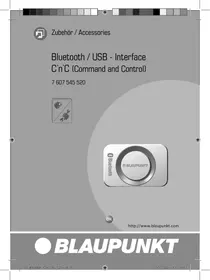



| Type de produit | Interface Bluetooth/USB for C'N'C compatible car radio |
| Marque | Blaupunkt |
| Modèle | IF BLUETOOTH/ USB C'N'C |
| Catégorie | Audio accessory |
| Fonctions principales | Bluetooth hands-free telephony, Bluetooth audio streaming, MP3 playback via USB, control via C'N'C car radio, PTT button, built-in microphone |
| Alimentation | 12 V DC via car radio |
| Dimensions approximatives | 50 x 30 x 10 mm (without cables) |
| Poids approximatif | 50 g |
| Compatibilité Bluetooth | Bluetooth devices with hands-free profile (HFP) and audio streaming (A2DP) |
| Nombre d'appareils couplables | Up to 5 |
| Code PIN par défaut | 1234 |
| Connectique | USB cable for data storage, dedicated connector for Blaupunkt C'N'C car radio |
| Formats de fichiers USB pris en charge | MP3 |
| Mise à jour du firmware | Via USB key (FAT16/32, minimum 4 MB), download at www.blaupunkt.de |
| Entretien et nettoyage | Clean with a soft, dry cloth; do not use harsh products |
| Sécurité | Do not install in airbag deployment zone; disconnect the battery before installation; follow the vehicle manufacturer's instructions |
| Pièces détachées et réparabilité | Not applicable (integrated product); contact Blaupunkt customer service in case of malfunction |
| Température de fonctionnement | From -20 °C to +60 °C (estimated) |
| Informations générales | User manual available for download at notice-facile.com; CE declaration of conformity available on request |
Frequently Asked Questions - IF BLUETOOTH/ USB C'N'C BLAUPUNKT
User questions about IF BLUETOOTH/ USB C'N'C BLAUPUNKT
0 question about this device. Answer the ones you know or ask your own.
Ask a new question about this device
Download the instructions for your Audio accessory in PDF format for free! Find your manual IF BLUETOOTH/ USB C'N'C - BLAUPUNKT and take your electronic device back in hand. On this page are published all the documents necessary for the use of your device. IF BLUETOOTH/ USB C'N'C by BLAUPUNKT.
USER MANUAL IF BLUETOOTH/ USB C'N'C BLAUPUNKT
Bluetooth / USB - Interface C`C (Command and Control)
7607545520
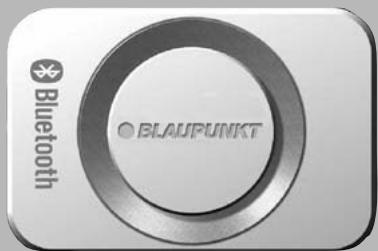

http://www.blaupunkt.com
①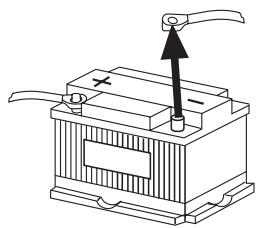
(2)
About these instructions 11
Safety notes. 11
Recycling and disposal 11
Declaration of conformity. 11
About this device. 11
Operation of the car sound system ... 12
Basic settings. 12
Pairing the Bluetooth device with the interface 12
Unpairing Bluetooth devices. 12
Calling 13
Incoming call. 13
Outgoing call. 13
Redial 14
Number memory. 14
Audio streaming via Bluetooth. 14
MP3 playback via USB. 15
Software update 15
About these instructions
We provide a manufacturer's warranty for our products purchased within the European Union. You can view the warranty terms at www.blaupunkt.de or request them directly from:
Blaupunkt GmbH
Hotline
Robert Bosch Str. 200
D-31139 Hildesheim
Germany
Safety notes
Before drilling holes for mounting, ensure that no routed cables or vehicle components are damaged!
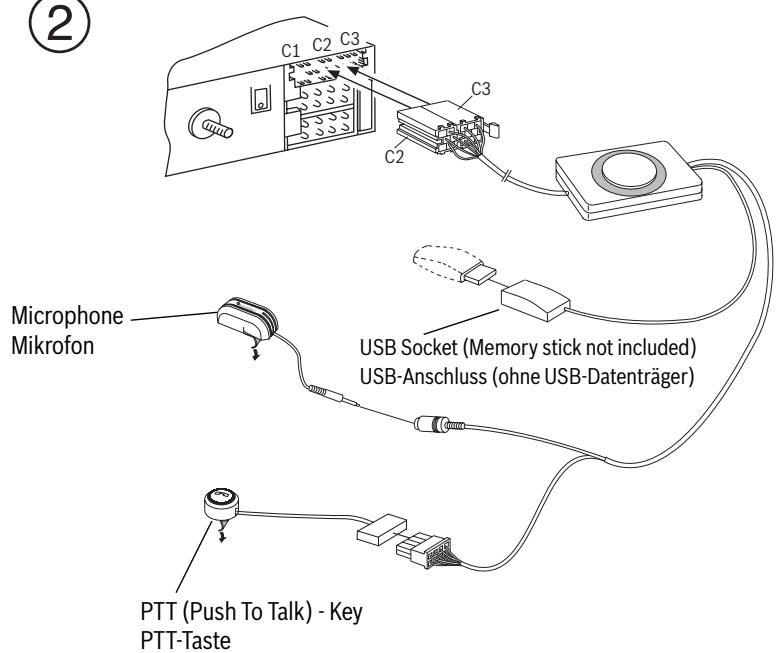
Do not install the USB socket, microphone and PTT button in the deployment area of the airbag, and ensure that the tray is safe and solid so that passengers in the vehicle are not at risk during emergency braking. Use cable glands for holes with sharp edges.

The negative terminal on the battery must be disconnected while the device is being installed and connected.
Observe the safety notes from the vehicle manufacturer (airbag, alarm systems, onboard computers, immobilisers).
Recycling and disposal
Please use the return and collection systems available to dispose of the product.
Declaration of conformity
The Blaupunkt GmbH declares that the Bluetooth/USB Interface device complies with the basic requirements and the other relevant regulations of the directive 1999/5/EG.
About this device
This interface allows you to expand the performance spectrum of your Blaupunkt car sound system. You can connect Bluetooth cell phones and other Bluetooth-ready devices, such as MP3 player, with the car sound system via Bluetooth. This enables Bluetooth applications, such as wireless
hands-free calling and Bluetooth streaming. In addition, this interface provides an additional USB connection.
This interface supports the command-and-control interface (C'n'C) of Blaupunkt. The C'n'C interface allows you an even more convenient control of devices and data carriers that are connected to the car sound system via this C'n'C-ready interface.
Operation of the car sound system
After connecting this interface to a C'n'C-ready Blaupunkt car sound system, you can control the functions and settings via the car sound system. For some functions, you also have access to the PTT button of this interface.
These instructions also describe the operation via your car sound system. Please also observe the operating instructions of your car sound system, if the operation described in these instructions deviates from that of your Blaupunkt car sound system.
Basic settings
Pairing the Bluetooth device with the interface
Use your Bluetooth device (e.g., a cell phone or MP3 player) to search for other Bluetooth devices.
Note:
For further details, please read the instructions of your Bluetooth device (keyword "Registering" or "Pairing").
Press the PTT button for approximately 4 seconds until it starts flashing.
OR:
On the car sound system, press the MENU-OK button.
Press the X or π button repeatedly until "BLUETOOTH" appears on the display. Press the → button to open the menu. Press the A or ν button repeatedly until "PAIR" appears. Press the → button to select the "PAIR" menu item.
Your Bluetooth device can now be paired.
Upon request, enter the PIN 1234 in your Bluetooth device.
You can pair up to 5 Bluetooth devices with the interface. If additional devices are paired, the data of the device paired first are deleted from the list in each case.
Unpairing Bluetooth devices
You can unpair selected individual Bluetooth devices or all currently paired devices.
To unpair a single Bluetooth device,
On the car sound system, press the MENU-OK button. Press the v or π button repeatedly until "BLUETOOTH" appears on the display. Press the > button to open the menu. Press the A or V button repeatedly until "UNPAIR" appears. Press the > button to select the "UNPAIR" menu item.
The display of the car sound system shows the list of paired Bluetooth devices.
- Select the desired device using the Λ or ν button. Press the > button to unpair the selected device.
The selected device is being unpaired. If the device is connected with the interface during unpairing, the Bluetooth connection is automatically disconnected.
To unpair all paired devices,
on the car sound system, press the MENU-OK button. Press the X or π button repeatedly until "BLUETOOTH" appears on the display. Press the > button to open the menu. Press the A or ν button repeatedly until "UNPAIRALL" appears. Press the > button to select the "UNPAIRALL" menu item.
OR:
Press and hold the PTT button for at least 30 seconds.
Calling
If you connected a Bluetooth cell phone with the interface, you can accept and make calls via the car sound system. The microphone of the interface and the loudspeakers of the car sound system then allow hands-free calling.
Incoming call
Answering an incoming call
Briefly press the PTT button.
OR:
On the car sound system, press the MENU-OK button.
The incoming call is being answered. You can use the microphone and the loudspeakers of the car sound system to make
a phone call. The volume can be adjusted via the car sound system.
Rejecting an incoming call
Press the PTT button for a longer period of time.
OR: On the car sound system, press the ESCAPE button.
The incoming call is being rejected.
Ending an ongoing call
Briefly press the PTT button. OR: On the car sound system, press the ESCAPE button.
The current call is being ended.
Outgoing call
To make a phone call,
on the car sound system, press the MENU-OK button. Press the X or Λ button repeatedly until "BLUETOOTH" appears on the display. Press the → button to open the menu. Press the Λ or ν button repeatedly until "DIAL NEW" appears. Press the → button to select the "DIAL NEW" menu item.
If you already made calls, the display shows the number dialed last.
Press the Λ or ν button to select the first digit of the phone number. Change to the next digit in each case using the → button and select the next digit with the Λ or ν button.
After entering the complete number,
Press the MENU-OK button to make the call.
The display shows "CALL" and the duration of the call.
Notes:
- If you entered an invalid number, the display shows "INVALID NUMBER".
- If the call could not be placed, the display shows "CALL ERROR".
- With an existing connection with the interface, many cell phones allow you to enter the number directly on the phone and to place the call (pick up). The interface then takes over the call.
Redial
To call the number dialed last,
press the DIS button on the car sound system for longer than 2 seconds.
The number dialed last is displayed.
Press the MENU-OK button.
The call is being made.
Number memory
You can store and call up phone numbers using the memory buttons of the car sound system.
Storing numbers
To store a number,
enter the number as described in the chapter "Outgoing call".
After entering the complete number,
press the desired memory button for longer than 2 seconds.
The number is being stored under the selected memory button.
Calling a stored number
To call a stored number,
press the DIS button on the car sound system for longer than 2 seconds. Press the memory button with the desired number.
The number appears on the display. Press the MENU-OK button.
The call is being made.
Audio streaming via Bluetooth
To transfer audio files to the car sound system via Bluetooth, you must activate this function in your Bluetooth device. To do so, the Bluetooth device must be connected with the interface and support this function (for further details, please read the instructions of your Bluetooth device).
To select Bluetooth audio streaming as audio source,
press the SRC button on the car sound system repeatedly until "BT-STREAM" (or the name of the connected device) appears on the display.
Note:
You can control the playback of tracks via Bluetooth audio streaming from the car sound system if your Bluetooth device supports it.
The functions track selection, playback interruption (pause) and fast searching forward and reverse are available to control the audio streaming. Please read the instructions of your Blaupunkt
car sound system for information about selecting these functions, e.g. in MP3 mode.
Please note that not all Bluetooth devices allow a remote control or support all functions listed.
MP3 playback via USB
You can connect a USB data carrier with MP3 files with the interface to play back the MP3 files via the car sound system. The car sound system must be switched on.
Note
Always switch off the device before connecting or disconnecting the USB data carrier so that the data carrier is correctly registered and unregistered.
Connect the USB device with the USB cable of the interface. Press the SRC button on the car sound system repeatedly until "USB" (or the name of the connected device) appears on the display.
Notes:
- If your car sound system features a separate USB connection, an audio source connected to it may also appear as "USB" on the display.
- Control the playback via the car sound system. For further details, please read the chapter about MP3 mode in the instructions of your Blaupunkt car sound system.
- Please note that car sound systems with MP3 browse mode require information about the directories of the data carrier and the files stored in them. If these data cannot be trans
ferred quickly enough to the car sound system, e.g. in case of a large number of directories and files, the car sound system automatically returns to normal display from the MP3 browse mode.
Software update
You can update the software of the interface yourself to make it compatible with newer cell phones.
Note:
If you update the software, these operating instructions may no longer be current. Please download a current version of the instructions from www.blaupunkt.de.
The following are required to update the software:
- USB data carrier (e.g., USB stick) with FAT16 or FAT32 formatting and at least 4 MB of free memory capacity. Computer with Internet access. ZIP software.
Updating
On the USB device, create the "Blaupunkt" directory at the top level. Example: "W:\Blaupunkt". Load the software of the Bluetooth/USB interface from www.blaupunkt.de and store it in a directory on your computer. Unzip the ZIP file and copy the unzipped files to the Blaupunkt directory on the USB device.
- Deactivate the USB device at the computer. Connect the USB device with the USB cable of the interface. Turn on the car sound system. In the menu of the car sound system, select the "CDC ON" setting (for further details, please read the following chapter, "Adjusting the rear AUX input mode"). Press and hold the PTT button while switching the car sound system off and on again. Release the PTT button.
The loading process starts.
Select CD Changer (CDC) at the car sound system as the audio source.
The display shows the progress of the load process. At the same time, the title numbers "1" through "5" are shown in ascending order and the current time for every title number. After the load process has completed, the display shows the track number "99" and the time "59:59".
Notes:
- If the progress indicator stops before the end of the loading process, disconnect the USB data carrier and reconnect it to the USB cable of the interface. If this is not successful, repeat the update process.
- If the time "00:00" is displayed at the end of the loading process, an error occurred. In this case, repeat the update process.
- Select the "CDC OFF" setting in the menu. Switch the car sound system off and on again.
The new software is now activated.
Note:
During the update, two files with information about the interface and the update process are created in the "Blaupunkt" directory of the USB data carrier. Both files can be opened and read on a computer using a plain text editor:
- The "id.txt" file contains information about the status of the interface, e.g. the current hardware and software version as well as the Bluetooth ID of the interface.
- The "setup.log" file contains information about the process of the update, e.g. the message about a successful installation or any errors that occurred.
Adjusting the rear AUX input mode
To toggle between "CDC OFF" and "CDC ON",
press the MENU-OK button of the car sound system.
The display shows "MENU".
Press the × or ¯x button repeatedly until "VARIOUS MENU" appears on the display. Press the ⇁ button to open the menu. Press the 𝒜 or ν button repeatedly until "CDC OFF" or " CDC ON" is displayed.
Press the < or > button to toggle between "CDC OFF" and "CDC ON".
If you change the setting, the device briefly switches off and back on again with the selected setting (Reset).
More information about the Bluetooth interface can be found at:
www.blaupunkt.de
Subject to changes!
Software update. 37
We inform you about the recycling of this product in the usual ways of recycling.
Declaration of conformity
Hereby, Blaupunkt GmbH declares that the Bluetooth/USB connection equipment is compliant with the essential requirements and other relevant provisions of Directive 1999/5/EC.
For this device
With this connection you can expand the possibilities of your car radio. Via Bluetooth you can connect mobile phones and other devices
with Bluetooth such as MP3 players to the car radio. In this way, you have the possibility to make hands-free calls and Bluetooth streaming. In addition, this connection provides an additional USB port.
This connection supports the Command-and-Control interface (C'n'C) of Blaupunkt. The C'n'C interface allows you an even more comfortable control of devices and sources that are connected via the C'n'C interface to the car radio.
Connecting Bluetooth devices with interface 106
Deleting paired Bluetooth devices 107
Calls via telephone. 107
Call waiting 107
Incoming call 108
Repeat call 108
Phone book 109
Audio streaming via Bluetooth..109
MP3 playback via USB... 109
Software update... 110
Customer service instructions
For devices purchased in the European Union, the manufacturer's warranty applies. You can view the warranty conditions at www.blaupunkt.de or request them from:
Blaupunkt GmbH
Hotline
Robert Bosch Str. 200
D-31139 Hildesheim
Safety instructions
Before drilling holes, make sure that no cables or vehicle parts will be damaged. Do not install the USB socket, microphone, or PTT button in the deployment zone of airbags. Ensure that they are installed in a safe location so that in the event of emergency braking, no danger is created for vehicle occupants. Use cable grommets in holes with sharp edges.

Disconnect the negative terminal of the battery before starting work.
Follow the safety instructions of the vehicle manufacturer (safety instructions, airbags, on-board computer, mobile phone).
Disposal and recycling
For the disposal of old devices, use the available collection points and recycling centers.
Declaration of conformity
The company Blaupunkt GmbH hereby declares that the device "Bluetooth/USB interface" complies with the essential requirements and other relevant provisions of Directive 1999/5/EC.
About the device
Thanks to the Bluetooth interface, you can expand the capabilities of your Blaupunkt car radio. With Bluetooth, you can connect
your car radio to mobile phones with Bluetooth support, as well as other devices supporting Bluetooth technology, such as MP3 players. This gives you the opportunity to use Bluetooth features, for example, wireless hands-free calling or streaming audio via Bluetooth. In addition, it provides an additional USB port.
This interface supports the Command-and-Control (C'n'C) interface from Blaupunkt. The C'n'C interface allows you to control even more conveniently the devices and data carriers connected to the car radio that support the C'n'C interface standard.
Control via the car radio
After connecting the interface to a Blaupunkt car radio that supports the C'n'C standard, you can control functions and settings using the car radio. For some functions, you can also use the buttons on the interface.
This manual also describes control via your car radio. Please also follow the operating instructions for your car radio, if the control described in this manual differs from that described in the instructions for your Blaupunkt car radio.
Basic settings Pairing Bluetooth devices with the interface
Start the Bluetooth search on your Bluetooth device (e.g., mobile phone or MP3 player) and follow the Bluetooth connection process.
Pairing:
Pairing with your Bluetooth device (see "Connecting" or "Pairing").
Press and hold the PTT button for 4 seconds until it starts blinking.
Menu:
Press the MENU·OK button. Press the ▲ or ▼ button until "BLUETOOTH" appears on the display. Press the > button to open the menu. Press the ▲ or ▼ button until "PAIR" (pairing) appears on the display. Press the > button to open the "PAIR" menu item.
You can now pair your Bluetooth device.
After the request, enter the PIN code 1234 on your Bluetooth device.
You can pair up to 5 Bluetooth devices with the intercom. When pairing more devices, the data of the previously paired device is deleted from the list.
Deleting paired Bluetooth devices
You can delete the pairing with individual Bluetooth devices or with all currently paired devices.
To delete the pairing with an individual Bluetooth device:
Press the MENU·OK button. Press the ▲ or ▼ button until "BLUETOOTH" appears on the display. Press the > button to open the menu. Press the ▲ or ▼ button until "UNPAIR" (deleting pairing) appears on the display. Press the > button to open the "UNPAIR" menu item.
The display automatically shows a list of paired Bluetooth devices.
Select the device to be deleted with the ▲ or ▼ button. Press the > button to delete the pairing with the selected device.
The pairing with the selected device is deleted. If your device is connected to the intercom during the deletion, the Bluetooth connection is automatically disconnected.
Press the MENU·OK button on the car radio.
Press the button A until the display shows "BLUETOOTH". Press the button > to open the menu. Press the button Y until the display shows "UNPAIRALL" (deleting all pairings). Press the button > to open the submenu "UNPAIRALL".
VAN: Press and hold the PTT button for at least 30 seconds.
Phone calls
If you connect a mobile phone with Bluetooth support to the car radio, you can make and receive calls using the car radio. You can make calls via hands-free using the microphone of the car radio and the speakers of the car radio.
Incoming call
Incoming call
Press the PTT button briefly. Or: Press the MENU·OK button on the car radio.
The incoming call is being accepted. You can conduct a telephone conversation using the microphone and speakers of the car radio. The volume can be adjusted on the car radio.
Reject incoming call
Press the PTT button briefly.
Or:
Press the ESCAPE button on the car radio.
The incoming call is being rejected.
End the current call
Briefly press the PTT button.
M
Press the ESCAPE button on the base station.
The current call ends.
Outgoing call
To make a call,
Press the MENU·OK button on the base station. Press the navigation button until "BLUETOOTH" appears on the display. Press the button to open the menu. Press the navigation button until "DIAL NEW" appears on the display. Press the button to open the "DIAL NEW" menu item.
If you have already made calls, the last dialed number will be displayed on the screen.
Press the navigation button to select the first digit of the phone number.
Move to the next digit with the navigation button and select the next digit with the navigation button.
After you have completely entered the number,
Press the MENU·OK button to make the call.
The display shows "CALL" and the call duration.
Note:
- If you enter an invalid number, the display will show "INVALID NUMBER".
- If the call cannot be made, the display will show "CALL ERROR". - When connecting with the interface, many modern phones allow you to enter numbers directly on the phone and make (or reject) calls. In this case, the interface accepts the call.
Redial
To call the last dialed number,
press the automatic DIS button and hold it for more than 2 seconds.
The last dialed number will be displayed.
Press the MENU·OK button.
The call will be made.
Phonebook
You can use the automatic dialing buttons to memorize and call phone numbers.
To store a number
To save a number,
enter the number as described in the "Outgoing Call" section.
After you have fully entered the number,
press the desired memory button and hold it for more than 2 seconds.
The number is stored under the selected speed dial.
Dialing a number from the memory
To dial a number from the memory,
Press the DIS button on the car radio and hold it for more than 2 seconds. Press the memory button with the desired number.
The number is displayed briefly.
Press the MENU·OK button.
The call is being made.
Streaming audio via Bluetooth
To play audio files via Bluetooth on the car radio, you must activate this function on your Bluetooth device. For this, the Bluetooth device must be connected to the phone and must support this function (to find out, please read the instructions for your Bluetooth device).
To select streaming audio via Bluetooth as the audio source,
Press the SRC button on the car radio until "BT-STREAM" appears on the display (the name of the paired device).
Note:
You can control the playback of tracks using the streaming audio function, if your Bluetooth device supports it.
For controlling streaming audio, the following functions are available: track selection, pause, and fast forward/rewind. Please read the instructions for your Blaupunkt car radio to see how these functions are selected, for example, in MP3 file playback mode.
Please note that not all Bluetooth devices allow remote control or support all functions.
Playing MP3 via USB
Connect a USB storage device with MP3 files to the USB interface to play MP3 files using the car radio. The car radio must be switched on.
Note
Always switch off the device before connecting or disconnecting
the USB storage device, for its correct recognition and removal.
Connect the USB storage device to the USB interface cable. Press the SRC button on the car radio until "USB" (name of the connected device) appears on the display.
Note:
If your car radio has its own USB port, a device connected through it may also be displayed as "USB". Playback can be controlled using the car radio. For this, follow the instructions in your Blaupunkt car radio manual regarding MP3 file playback mode. Please note that the car radio with MP3 browser requires information about the directories on the storage device and the files stored in them. If this data, for example, due to a large number of directories and files, cannot be transmitted to the car radio quickly enough, it automatically returns from MP3 browser mode to standard display.
Software update
You can update the interface software yourself to make it compatible with new models of mobile phones.
Note:
When you update the software, this operating manual may no longer be current. Download the current manual from the Internet at www.blaupunkt.de.
Software update requires:
A USB storage device (e.g., USB stick) formatted with FAT16 or FAT32, having at least 4 MB of free space, a computer with Internet access, and a ZIP archiver.
Update
Create a root directory on the USB drive named "Blaupunkt". Example: "W:\Blaupunkt". Download the Bluetooth/USB interface software from www.blaupunkt.de and save it in a directory on your computer. Unzip the ZIP file and copy the data contained therein to the "Blaupunkt" directory on the USB drive. Activate the USB data carrier.
Connect the USB data carrier to the USB cable of the interface. Switch on the car radio. Select in the menu of your car radio the setting "CDC ON" (please read the following chapter "Setting the AUX input mode on the rear"). Press and hold the PTT button, then switch the car radio off and on again. Release the PTT button.
The upload starts. Select the CD changer (CDC) as the audio source on the car radio.
The progress of the upload process is displayed on the display. During this, the track numbers are displayed in ascending order from "1" to "5", as well as the current time of each track. After the upload process is completed, the track number "99" and the time "59:59" are displayed on the display.
If the progress indicator stops before the upload process is finished, remove the USB drive and reconnect it to the USB cable of the interface. If this does not bring any result, repeat the activation operation. If after the upload process the time "00:00" is displayed, this indicates an error. In this case, repeat the activation operation.
Select the setting "CDC OFF" in the menu.
Switch the car radio off and on again.
The new software is now active.
Note:
During activation, files with information about the interface and the activation operation are created in the "Blaupunkt" directory on the USB drive. Both files can be opened and read on a computer with a simple text editor:
The file "id.txt" contains information about the status of the interface, for example, the current version of the device software and the identification (ID) of the Bluetooth interface. The file "setup.log" contains information about the course of the activation, for example, a message about successful installation or any errors that occurred.
Setting the AUX input mode on the rear
All following FCC statements are valid for the Industry Canada Standard (IC) as well.
1. General
Interference Warning: (according to FCC part 15.19)
This device complies with Part 15 of the FCC Rules. Operation is subject to the following two conditions:
(1) this device may not cause harmful interference, and (2) this device must accept any interference received, including interference that may cause undesired operation.
Caution: (pertaining to FCC part 15.21)
Modifications not expressly approved by this company could void the user's authority to operate the equipment.
2. Specific Part 15.105
Information to the user:
2.1 For Class A digital device
(A digital device that is marketed for use in a commercial, industrial or business environment, exclusive of a device which is marketed for use by the general public or is intended to be used in the home.)
Note: This equipment has been tested and found to comply with the limits for a Class A digital device, pursuant to part 15 of the FCC Rules. These limits are designed to provide reasonable protection against
harmful interference when the equipment is operated in a commercial environment. This equipment generates, uses, and can radiate radio frequency energy and, if not installed and used in accordance with the instruction manual, may cause harmful interference to radio communications. Operation of this equipment in a residential area is likely to cause harmful interference in which case the user will be required to correct the interference at his own expense.
RF Radiation Exposure
This equipment complies with FCC RF radiation exposure limits set forth for an uncontrolled environment. This equipment should be installed and operated with a minimum distance of 20 centimeters between the radiator and your body.
This transmitter must not be co-located or operating in conjunction with any other antenna or transmitter.

Service numbers
| Country: | Phone: | Fax: | |
| Germany | (D) | 01805000225 | 05121-49 4002 |
| Austria | (A) | 01-610 39 0 | 01-610 393 91 |
| Belgium | (B) | 02-525 5444 | 02-525 5263 |
| Denmark | (DK) | 44 898 360 | 44-898 644 |
| Finland | (FIN) | 09-435 991 | 09-435 99236 |
| France | (F) | 01-4010 7007 | 01-4010 7320 |
| Great Britain | (GB) | 01-89583 8880 | 01-89583 8394 |
| Greece | (GR) | 210 94 27 337 | 210 94 12 711 |
| Ireland | (IRL) | 01-46 66 700 | 01-46 66 706 |
| Italy | (I) | 02-369 2331 | 02-369 62464 |
| Luxembourg | (L) | 40 4078 | 40 2085 |
| Netherlands | (NL) | 00 31 24 35 91 338 | 00 31 24 35 91 336 |
| Norway | (N) | +47 64 87 89 60 | +47 64 87 89 02 |
| Portugal | (P) | 2185 00144 | 2185 00165 |
| Spain | (E) | 902 52 77 70 | 91 410 4078 |
| Sweden | (S) | 08-75018 50 | 08-75018 10 |
| Switzerland | (CH) | 01-8471644 | 01-8471650 |
| Czech. Rep. | (CZ) | 02-6130 0446 | 02-6130 0514 |
| Hungary | (H) | 76 5889 704 | - |
| Poland | (PL) | 0800-118922 | 022-8771260 |
| Turkey | (TR) | 0212-335 07 23 | 0212-3460040 |
| USA | (USA) | 800-950-2528 | 708-6817188 |
| Brasil (Mercosur) | (BR) | 0800 7045446 | +55-19 3745 2773 |
| Malaysia (Asia Pacific) | (MAL) | +604-6382 474 | +604-6413 640 |
Blaupunkt GmbH
Robert-Bosch-Str. 200
D-31139 Hildesheim


- BLUETOOTH / USB - INTERFACE C`C (COMMAND AND CONTROL)
- ABOUT THESE INSTRUCTIONS
- SAFETY NOTES
- RECYCLING AND DISPOSAL
- DECLARATION OF CONFORMITY
- ABOUT THIS DEVICE
- OPERATION OF THE CAR SOUND SYSTEM
- BASIC SETTINGS
- PAIRING THE BLUETOOTH DEVICE WITH THE INTERFACE
- NOTE
- UNPAIRING BLUETOOTH DEVICES
- CALLING
- INCOMING CALL
- ANSWERING AN INCOMING CALL
- REJECTING AN INCOMING CALL
- ENDING AN ONGOING CALL
- OUTGOING CALL
- NOTES
- REDIAL
- NUMBER MEMORY
- STORING NUMBERS
- CALLING A STORED NUMBER
- AUDIO STREAMING VIA BLUETOOTH
- MP3 PLAYBACK VIA USB
- SOFTWARE UPDATE
- UPDATING
- ADJUSTING THE REAR AUX INPUT MODE
- FOR THIS DEVICE
- CUSTOMER SERVICE INSTRUCTIONS
- SAFETY INSTRUCTIONS
- DISPOSAL AND RECYCLING
- ABOUT THE DEVICE
- CONTROL VIA THE CAR RADIO
- BASIC SETTINGS PAIRING BLUETOOTH DEVICES WITH THE INTERFACE
- PAIRING
- MENU
- DELETING PAIRED BLUETOOTH DEVICES
- PHONE CALLS
- REJECT INCOMING CALL
- END THE CURRENT CALL
- PHONEBOOK
- TO STORE A NUMBER
- DIALING A NUMBER FROM THE MEMORY
- STREAMING AUDIO VIA BLUETOOTH
- PLAYING MP3 VIA USB
- UPDATE
- SETTING THE AUX INPUT MODE ON THE REAR
- ALL FOLLOWING FCC STATEMENTS ARE VALID FOR THE INDUSTRY CANADA STANDARD (IC) AS WELL
- GENERAL
- SPECIFIC PART
- INFORMATION TO THE USER
- FOR CLASS A DIGITAL DEVICE
- RF RADIATION EXPOSURE
- SERVICE NUMBERS
Brand : BLAUPUNKT
Model : IF BLUETOOTH/ USB C'N'C
Category : Audio accessory