
MPG-4054NRC - Mp3 player DENVER - Free user manual and instructions
Find the device manual for free MPG-4054NRC DENVER in PDF.


| Product Type | MP3/MP4 Media Player |
| Brand | Denver |
| Model | MPG-4054NRC |
| Power Supply | Rechargeable battery via USB 2.0 (charging time: 3 to 5 hours) |
| Supported Audio Formats | MP3, WMA |
| Supported Video Formats | Conversion via included software (common formats) |
| Supported Photo Formats | JPG, BMP |
| Supported E-book Formats | TXT |
| Main Functions | Music, video, photos, e-book, voice recording |
| Connectivity | USB 2.0 |
| Package Contents | Player, USB 2.0 cable, earphones |
| Minimum System Requirements | Windows XP or later, USB 2.0 port, Windows Media Player |
| Care and Cleaning | Clean with a soft, dry cloth. Do not use chemicals. |
| Safety | Do not expose to moisture or extreme temperatures. Recycle used batteries at collection points. |
| Recycling | Electronic device: do not dispose with household waste (crossed-out wheelie bin symbol). |
Frequently Asked Questions - MPG-4054NRC DENVER
User questions about MPG-4054NRC DENVER
0 question about this device. Answer the ones you know or ask your own.
Ask a new question about this device
Download the instructions for your Mp3 player in PDF format for free! Find your manual MPG-4054NRC - DENVER and take your electronic device back in hand. On this page are published all the documents necessary for the use of your device. MPG-4054NRC by DENVER.
USER MANUAL MPG-4054NRC DENVER
mp3/mp4 movie player 4gb microSD card slot
DENVER®
www.facebook.com/denverelectronics
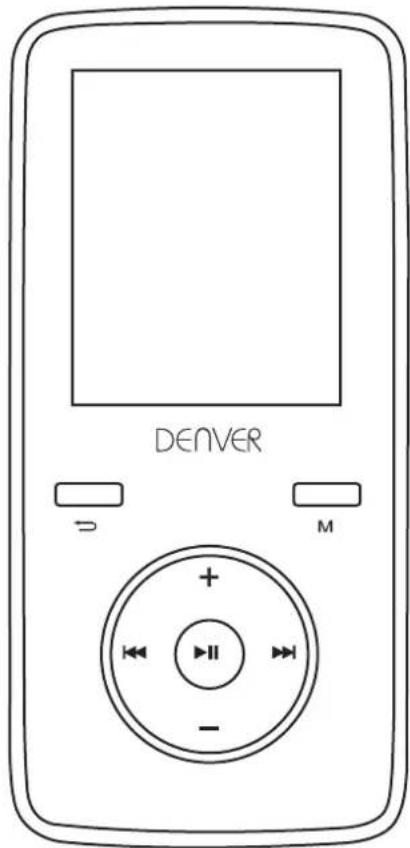
User's Manual
ALL RIGHTS RESERVED, COPYRIGHT DENVER ELECTRONICS A/S.
www.facebook.com/denverelectronics
Imported by:
DENVER ELECTRONICS A/S
Stavneagervej 22
DK-8250 EGAA
DENMARK



Contents
from to English 1 5
German 6 11
Danish 12 17
Swedish 18 22
Finnish 23 27
Spanish 28 32
Portuguese 33 37
Dutch 38 42
Polish 43 47
Croatian 48 52
Italian 53 57
French 58 63
USER'S MANUAL
DENVER MPG-4054 NR
Media Player
The Video MP4 Player is a full multimedia player. That means it will display photos and text e-books, record and playback live audio and will play music and video files. These files must first be located on your computer, before they can be moved to your player.
Music files are generally in the form of "MP3" or "WMA" files. MP3 is the most common audio format and the format recommended for your player. You can purchase MP3 or WMA files of your favorite songs on the internet.
Video files are slightly more complicated, because there are so many different ways, a video can be encoded. Your player comes with a video software, that will convert the most common forms of video into a format that can be displayed on your player.
Photos need to be in the JPG or BMP format. Don't worry—it's very likely that all or most of the photos you currently have on your computer, are already in one of these two formats.
E-book should be text(or.txt)documents.
Your player
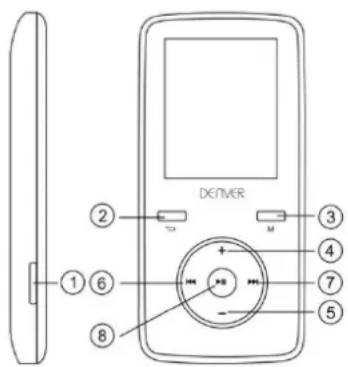
| Item | Description | Item | Description |
| 1 | POWER ON/OFF | 5 | VOLUME DOWN |
| 2 | RETURN | 6 | PREVIOUS |
| 3 | MENU | 7 | NEXT |
| 4 | Volume UP | 8 | PLAY / PAUSE / ON - OFF |
Start here!
Charging:
To charge your player you need to connect it to your personal computer via the supplied USB cable. A full charge will typically take 3-5 hours.
First, make sure your player is in the ON position. This is the button at the side of the player. If you are looking at the front of the player move the button to the left.
You will see the welcome video and the player will turn on.
Once the player is turned on, plug the small end of the USB cable into the USB port on your player, as shown below.
Next, plug the larger end of the cord into an available USB port on your computer.
Make sure your port is a high-speed USB 2.0 port.
The screen of your player will flash and show an icon showing a player connected to a computer. This means your player is charging correctly.
Moving files from your computer to your player.
If your player is not already connected to your computer, connect it now using your USB cable.
You may see a window popup on your computer, asking what you want to do with your new device (if you don't see it, don't worry). Close this window down.
Open the my computer window (computer in Vista). This is often located on your desktop. You can also go to Start/Computer to open this window. In this window you will see various drives that are connected to your computer. "C:" is your computer's hard drive. "D:" and sometimes "E:" will be your CD or DVD drives.
When you connect your player to your PC, your computer will automatically assign it a "drive letter". This can be any letter, but is most likely to be F, G or H. the photo below shows an example of what you might see in you're my Computer window.
If you are not sure which drive is your player, you can test by double clicking on the drive you think is your MP3 player to see what is inside. Your computer will have the following folders: music, video, photos, e-book. If you don't see these photos in your drive you've opened-it is not your player. Try another drive, once you know which drive belong to your MP3 player, you can begin to move files from your computer to your player.
If you still not sure which drive is your player try the following: with the window open, disconnect the player from your computer and reconnect it again. When you reconnect you will see a new drive appear in My Computer window, this should be your MP4 player.
As you can see, there are folders for each media type already, created for you on the player. MP3 files go into "music". Video files go into "video". Pictures into "photos" and your text documents into the "e-books".
Leave this window open and find the location of your MP3 or other media files.
Most people will have them in My Documents/My music. But you may have them stored elsewhere. You MUST know where your files are stored before they can be
moved to your player. If you have downloaded from music.com the songs will be typically saved in a folder on your desktop named "emusic".
To move files from your PC to your player, simply move them from one window to the other. For example, if your MP3 files are in My Music, move them from my Music to the music folder founded in the MP3 drive window.
Or if you prefer, you can copy and paste files from one window to the other. To copy a file, right-click on the files and choose "copy". Then in the MP3 window, right-click and choose "paste". This will copy the file to your player.
These files are now on your players. Move video, photos and documents the same way. Just make sure you put them into the correct folders! Once you've moved all your media files over, simply unplug your player from the computer, turn it on and you're ready to go!
If you prefer to use Window Player to sync your files, your Video MP3 player is compatible with windows media player and will sync to transfer songs.
Using your player
To turn your player on, move the on/off switch on the top of your player to the ON position.
You will see a quick welcome video. You will then see the main menu. The default screen is the music mode.
To navigate between modes, press the forward or back buttons. When you see the mode, you want to use, press the Menu button to enter that mode.
Music mode
From the main menu, use the forward button to navigate Music mode and press the Menu button.
You will see the main MP3 play menu. This screen displays the song title and the son timer other icons indicate song options.
To play a song, press the PLAY button.
To pause a song, press the PLAY button while song is playing. To resume play., press the PLAY button again.
To advance to the next song, press the FORWARD button.
To return to the main menu, Press and hold the return button for 2 seconds.
Video Mode
From the main menu, navigate to VIDEO mode and press the Menu button.
You will see the a list of the folders you have on your players, as well as all videos you have loaded onto your player.
Use the forward button to scroll down to the video you want to play. Press the PLAY button to play the video.
To return to the video menu, press the Menu button.
To return to the main menu, press and hold the return button for 2 seconds.
Photos mode
From the main menu, navigate to PHOTOS mode and press the Menu button.
You will see a list of the folders you have on your player, as well as all the photos you have loaded onto you player.
Use the forward button to scroll down until you see the photo you would like to view.
Press the PLAY button to view the photo.
Press the FORWARD or BACK buttons to move between photos.
To return to the PHOTOS menu, press the Menu button.
To return to the main menu, press the hold the Menu button for 2 seconds
Record mode
From the main menu, navigate to the RECORD mode and press Menu.
You will see the RECORD mode screen. Press PLAY to begin recording.
Press PLAY button to pause recording.
If you want to continue recording, press PLAY again. This will start recording within the same file. Press PLAY when finished.
To save file, Press the Menu button. This will save the file and return you to the main menu.
E-book Mode
To read e-books that you have loaded onto your player, navigate to the E-book mode and press the Menu button.
You will see a list of folders as well as all e-books you have loaded onto your player.
Use the FORWARD button to navigate to the file you wish to read. Press the Menu button to open the file.
Use the FORWARD and BACK buttons to scroll within the file
Press M to return to the E-book menu.
Press and hold the Menu button for 2 seconds to return to the main menu.
Adjusting Volume:
You can adjust volume while a song is playing by press the VOL button.
Press the forward or back buttons to increase or decrease volume. As you do so you will see the volume numbers go up or down accordingly.
Minimum System Requirements:
Windows XP and higher. Older operating system will work with this player as long as your computer has USB 2.0
Windows Media Player(to create playlists)
USB2.0
Package contents:
Video MP3 Player
USB 2.0 transfer cable
Earphone
Electric and electronic equipment and included batteries contains materials, components and substances that can be hazardous to your health and the environment, if the waste material (discarded electric and electronic equipment and batteries) is not handled correctly.
Electric and electronic equipment and batteries is marked with the crossed out trash can symbol, seen below. This symbol signifies that electric and electronic equipment and batteries should not be disposed of with other household waste, but should be disposed of separately.
As the end user it is important that you submit your used batteries to the appropriate and designated facility. In this manner you make sure that the batteries are recycled in accordance with legislature and will not harm the environment.
All cities have established collection points, where electric and electronic equipment and batteries can either be submitted free of charge at recycling stations and other collection sites, or be collected from the households. Additional information is available at the technical department of your city.
natural_image
Symbol of a trash bin with crossed lines and a blank rectangular base (no text or labels)
ALL RIGHTS RESERVED COPYRIGHT DENVER ELECTRONICS A/S WWW.DENVER-ELECTRONICS.COM www.facebook.com/denverelectronics
Importer:
DENVER ELECTRONICS A/S
Stavneagervej 22
DK-8250 EGAA
DENMARK
BEDIENUNGSANLEITUNG
DENVER MPG-4054 NR
Mediaplayer
natural_image
Symbol of a trash bin with crossed lines indicating no waste, and a solid black rectangle below (no text or labels)CE
natural_image
Symbol of a trash bin with crossed lines indicating no waste, and a solid black rectangle below (no text or labels)
ALLE RETTIGHEDER RESERVERET COPYRIGHT DENVER ELECTRONICS A/S WWW.DENVER-ELECTRONICS.COM www.facebook.com/denverelectronics
Importør:
DENVER ELECTRONICS A/S
Stavneagervej 22
DK-8250 EGAA
DANMARK
BRUKSANVISNING
DENVER MPG-4054 NR Mediaspelare
natural_image
Symbol of a trash bin with crossed lines indicating no waste, and a solid black rectangle below (no text or labels)
MED ENSAMRÄ TT UPPHOVSRÄ TT DENVER ELECTRONICS A/S WWW.DENVER-ELECTRONICS.COM www.facebook.com/denverelectronics
Importör:
DENVER ELECTRONICS A/S
Stavneagervej 22
DK-8250 EGAA
DANMARK
KÄYTTÖOHJE
DENVER MPG-4054 NR
Mediasoitin
natural_image
Symbol of a trash bin with crossed lines indicating no waste, and a solid black rectangle below (no text or labels)
KAIKKI OIKEUDET PIDÄ TETÄ Ä N TEKIJÄ NOIKEUS: DENVER ELECTRONICS A/S WWW.DENVER-ELECTRONICS.COM www.facebook.com/denverelectronics
Maahantuoja/Importer: DENVER ELECTRONICS A/S Stavneagervej 22 DK-8250 EGAA TANSKA / DENMARK
MANUAL DE USUARIO
DENVER MPG-4054 NR
natural_image
Symbol of a trash bin with crossed lines indicating no waste, and a solid black rectangle below (no text or labels)
TODOS LOS DERECHOS RESERVADOS COPYRIGHT DENVER ELECTRONICS A/S WWW.DENVER-ELECTRONICS.COM www.facebook.com/denverelectronics
Importador: DENVER ELECTRONICS A/S Stavneagervej 22 DK-8250 EGAA DINAMARCA
MANUAL DO UTILIZADOR
DENVER MPG-4054 NR LEITOR DE MULTIMÉDIA
natural_image
Symbol of a trash bin with no text or numbers present
TODOS OS DIREITOS RESERVADOS COPYRIGHT DENVER ELECTRONICS A/S WWW.DENVER-ELECTRONICS.COM www.facebook.com/denverelectronics
Importador:
DENVER ELECTRONICS A/S
Stavneagervej 22
DK-8250 EGAA
DINAMARCA
GEBRUIKSHANDLEIDING
DENVER MPG-4054 NR
Mediaspeler
natural_image
Symbol of a trash bin with crossed lines indicating no waste, and a solid black rectangle below (no text or labels)
ALLE RECHTEN VOORBEHOUDEN AUTEURSRECHT DENVER ELECTRONICS A/S WWW.DENVER-ELECTRONICS.COM www.facebook.com/denverelectronics
Importeur: DENVER ELECTRONICS A/S Stavneagervej 22 DK-8250 EGAA DENEMARKEN
PODREÇZNIK OBSŁUGI
DENVER MPG-4054 NR
Odtwarzacz medialny
natural_image
Symbol of a trash bin with crossed lines indicating no waste or discharge (no text or labels)WSZYSTKIE PRAWA ZASTRZEŻONE PRAWA AUTORSKIE DENVER ELECTRONICS A/S
CE
WWW.DENVER-ELECTRONICS.COM www.facebook.com/denverelectronics
Importer:
DENVER ELECTRONICS A/S
Stavneagervej 22
DK-8250 EGAA
DANIA
KORISNIČKI PRIRUČNIK
DENVER MPG-4054 NR
Medijski player
natural_image
Symbol of a trash bin with crossed lines indicating no waste, and a solid black rectangle below (no text or labels)CE
SVA PRAVA SU ZADRŽANA:
AUTORSKA PRAVA DENVER ELECTRONICS A/S
www.denver-electronics.com
www.facebook.com/denverelectronics
Uvoznik:
TEHNOCENTAR D.O.O
PRILAZ IVANA VISINA 7
10020 ZAGREB
MANUALE D'USO
DENVER MPG-4054 NR
Windows Media Player (per creare playlist)
USB 2.0
natural_image
Symbol of a trash bin with crossed lines indicating no waste, and a solid black rectangle below (no text or labels)
TOUS DROITS RÉSERVÉS,
COPYRIGHT DENVER ELECTRONICS A/S
WWW.DENVER-ELECTRONICS.COM
www.facebook.com/denverelectronics
Importateur :
DENVER ELECTRONICS A/S
Stavneagervej 22
DK-8250 Egaa
Danemark

- mp3/mp4 movie player 4gb microSD card slot
- User's Manual
- Contents
- DENVER MPG-4054 NR
- Media Player
- Your player
- Start here!
- Charging:
- Using your player
- Music mode
- Video Mode
- Photos mode
- Record mode
- E-book Mode
- Adjusting Volume:
- BEDIENUNGSANLEITUNG
- Mediaplayer
- BRUKSANVISNING
- DENVER MPG-4054 NR Mediaspelare
- KÄYTTÖOHJE
- Mediasoitin
- MANUAL DE USUARIO
- MANUAL DO UTILIZADOR
- DENVER MPG-4054 NR LEITOR DE MULTIMÉDIA
- GEBRUIKSHANDLEIDING
- Mediaspeler
- PODREÇZNIK OBSŁUGI
- Odtwarzacz medialny
- WSZYSTKIE PRAWA ZASTRZEŻONE PRAWA AUTORSKIE DENVER ELECTRONICS A/S
- KORISNIČKI PRIRUČNIK
- Medijski player
- MANUALE D'USO
Brand : DENVER
Model : MPG-4054NRC
Category : Mp3 player