
GAMEPAD - Handheld game console ARCHOS - Free user manual and instructions
Find the device manual for free GAMEPAD ARCHOS in PDF.


| Product type | Portable gaming console |
| Brand | ARCHOS |
| Model | GAMEPAD |
| Operating system | Android |
| Screen | Capacitive touch |
| Power supply | Rechargeable battery via micro-USB port, charger included |
| Connectivity | WiFi 802.11 |
| Audio | Built-in speakers, 3.5 mm jack input |
| Video | Mini-HDMI output |
| Camera | Built-in webcam |
| Storage | micro-SD card reader |
| Box content | GamePad, quick start guide, warranty, USB cable, charger |
| Main functions | Mapping physical keys to virtual buttons, startup assistant, Android settings |
| Maintenance and cleaning | Clean with a soft, dry cloth |
| Security | Screen lock by pattern, PIN code or password |
Frequently Asked Questions - GAMEPAD ARCHOS
User questions about GAMEPAD ARCHOS
0 question about this device. Answer the ones you know or ask your own.
Ask a new question about this device
Download the instructions for your Handheld game console in PDF format for free! Find your manual GAMEPAD - ARCHOS and take your electronic device back in hand. On this page are published all the documents necessary for the use of your device. GAMEPAD by ARCHOS.
USER MANUAL GAMEPAD ARCHOS
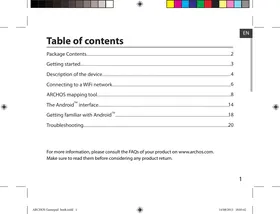
Description of the device. 4
Through the wizard. 6
Connecting to a WiFi network. 7
ARCHOS mapping tool. 8
AndroidTM interface. 14
Getting familiar with AndroidTM 18
Troubleshooting 20
For more information, please consult the FAQs on www.archos.com. Make sure to read them before considering any product return. Your deal may be no big deal. As we are often updating and improving our products, your device's software may have a slightly different appearance or modified functionality than presented in this quick start guide.
Package Contents
ARCHOS GamePad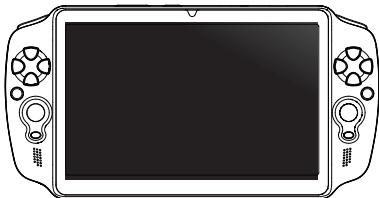
QSG booklet
Warranty legal & safety booklet
USB cable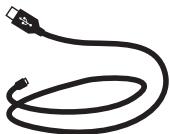
Charger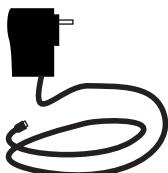
Getting Started
Charging
Charge your device by plugging your power cable into the micro-USB port. The GamePad will turn on and start charging.
You can use your GamePad while it charges.

TIPS:
- Let your device charge completely the first time you use it.
- Use only the supplied charger.
- To receive more complete service, please register your product on www.archos.com/register.
Description of the device
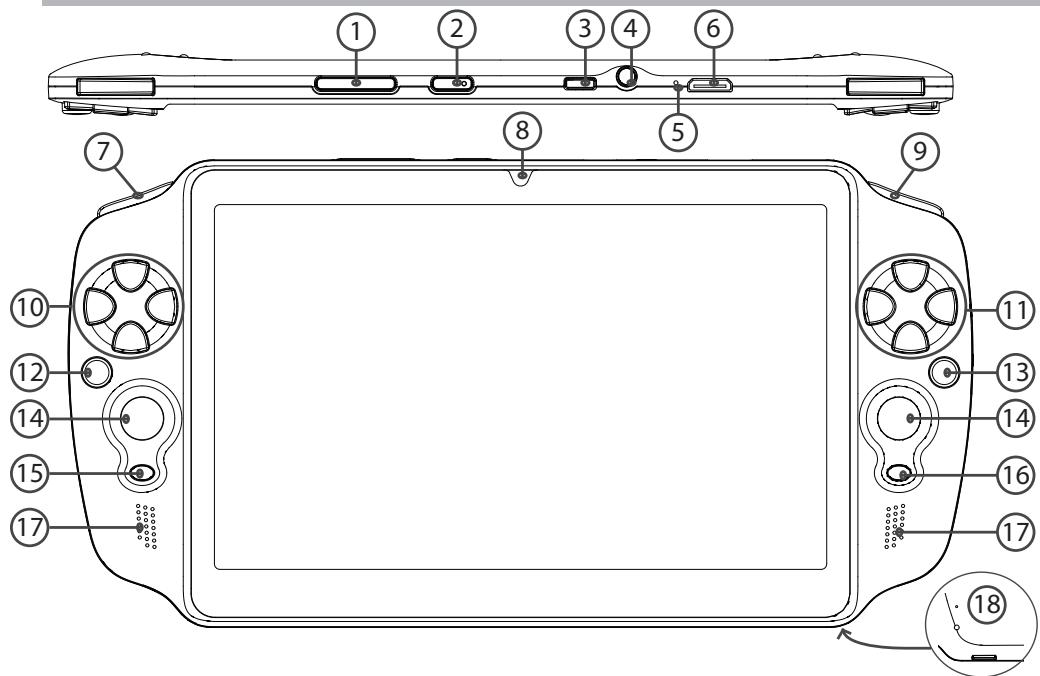
Volume buttons, ON/OFF button, 3 Micro-USB port, 4 Headphone jack, 5 Microphone, 6 Mini-HDMI video output*, 7 L1 button, 8 Camera, 9 R1 button
10 Directional pad, 11 A, B, Y, X buttons, 12 L2 button, 13 R2 button, 14 Analog sticks, 15 SELECT button, 16 START button, 17 Loudspeakers, 18 Micro-SD card slot
Through the Wizard
The first time you start up your GamePad, the installation wizard will help you set up your device:
- Touch-screen calibration
- Language
- Date & time
- WiFi connection
- Location service options
- 3rd party apps
TIP:
We recommend that you set up your GamePad in the WiFi zone of the network that you will regularly be using.
Connecting to a WiFi Network
WARNING: Make sure that you are in a WiFi zone.
- Touch the time in the status bar. The status dashboard is displayed.
- Touch the time a second time in the status dashboard.
The quick settings will be displayed.
- Touch "WiFi" to open the WiFi settings menu.
- If the WiFi is off, slide the WiFi switch to the "ON" position.
Once the WiFi is on, the GamePad will scan for WiFi networks in range. 5. Touch the name of network you want to connect to.
Private networks are shown with a lock icon and will require you to enter a password.
TIPS:
- When entering a WiFi password, we recommend that you select "Show password" so you can see the characters you are typing.
- To get the correct WiFi password (or settings) for the network, contact the WiFi network provider.
- If your WiFi is on and you are in range of a network that you previously connected to, your GamePad will automatically attempt to connect to it.
ARCHOS mapping tool
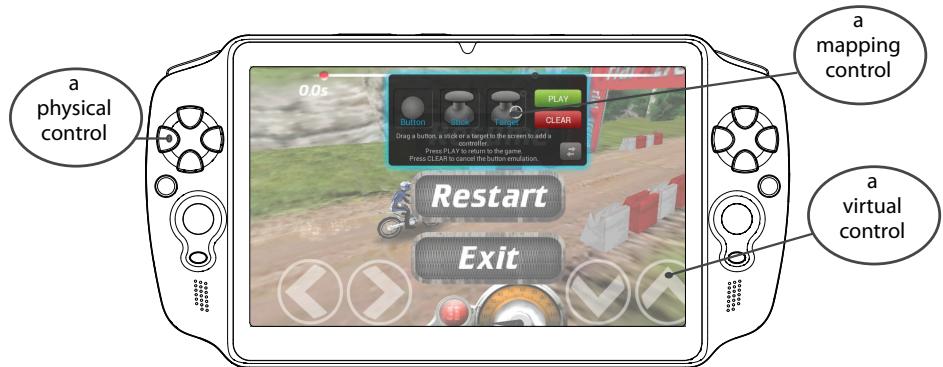
ARCHOS mapping tool is an application installed in your GamePad. It allows you to link the virtual controls of games to the physical controls of the GamePad by using mapping controls.
Tip 1:
Within ARCHOS mapping tool, there are already mapping profiles for over 100 games. Also, many games function automatically with physical buttons.
Tip 2:
Whenever you launch a game whose virtual controls are mapped, the right mapping profile will automatically be selected.
Starting ARCHOS mapping tool
- Launch a game. When you reach the starting screen, the virtual controls are displayed.
- Select the ARCHOS mapping tool icon from the system bar.

ARCHOS mapping tool icon
The mapping overlay is displayed with the mapping tool interface.
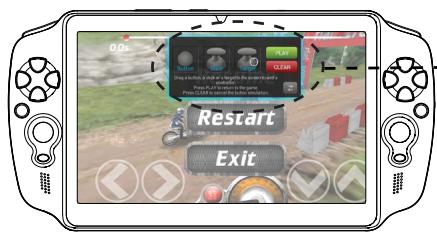
ARCHOS mapping tool interface
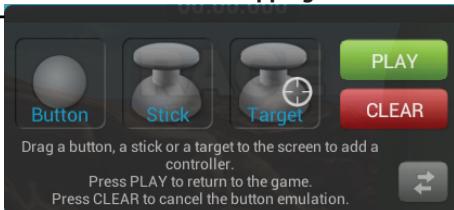
ARCHOS mapping tool
Positioning a mapping control
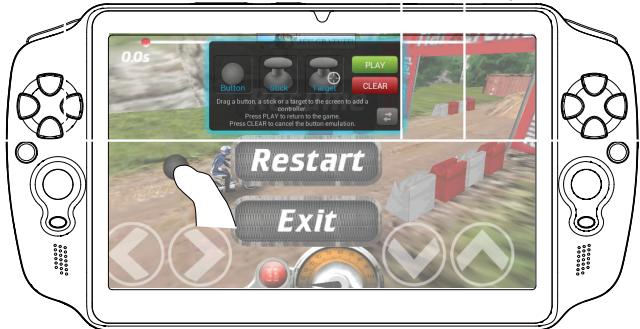
Hold and drag a type of mapping control to the desired virtual button. There are three types of mapping control

Button
It is for the directional pad < >, V, A, X, Y, B, A buttons and the L1, R1, L2, R2, Start, Select buttons.

Stick
It is for the analog directional sticks.

Target
It is for analog stick targeting. It is placed normally in the central area of the screen on shooting games.
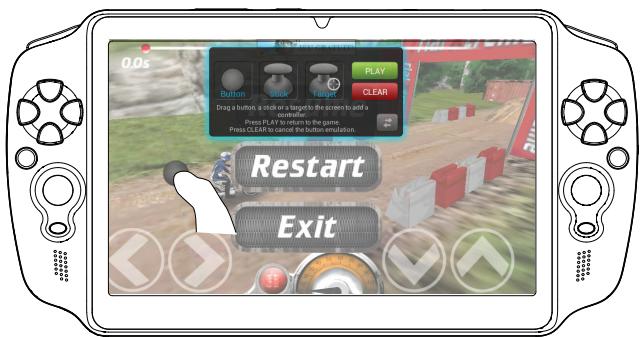
Linking a mapping control to a physical control
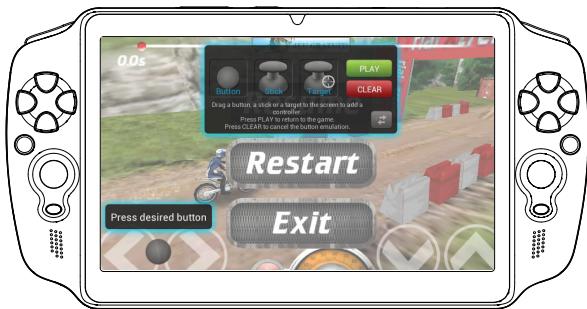
- When a mapping control is placed on a virtual control, you are asked to select the desired physical control you want to associate with it.
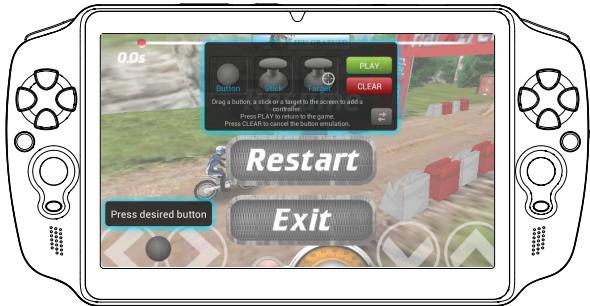
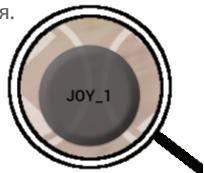
- Once a physical control is associated to the mapping control, the name of the physical control is displayed on the mapping control.
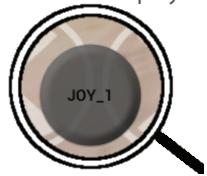
ARCHOS mapping tool
Enlarging a mapping control
Some virtual controls are larger than the mapping controls.
Enlarge the mapping control so that it is tailored to the virtual control.
Resize with right analog stick
Press button A when done
Saving your parameters
When you have mapped the virtual controls of a game, select "Play" to validate.
The profile is saved and associated with that game.
The mapping overlay disappears and you can play.
Whenever you start the game, you are informed that the emulation of virtual controls is running.
Press the notification to display the mapping profile of the game. You can either modify it, or delete it.
Tips:
- You can only enlarge the mapping controls Stick and Target. Each mapping is specific to a game.
Q&A about the mapping
You placed a mapping control on a virtual control but no option is available?
- Hold your finger on the mapping control.
A menu box is displayed
- Select the icon to set up the mapping control.
You want to remove a mapping control that you set?
- Hold your finger on the mapping control.
A menu box is displayed.
- Select the X icon to remove the mapping control.
You want to remove a mapping profile set for a game?
1. From ARCHOS mapping tool, select "Clear". 2. Select "OK" to confirm.
Displaying options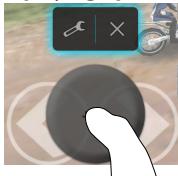
Removing a mapping profile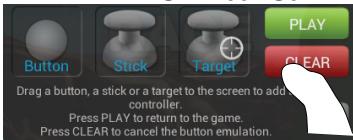
The button emulation will be canceled.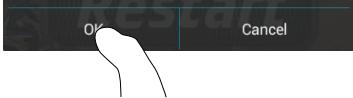
The Android™ Interface
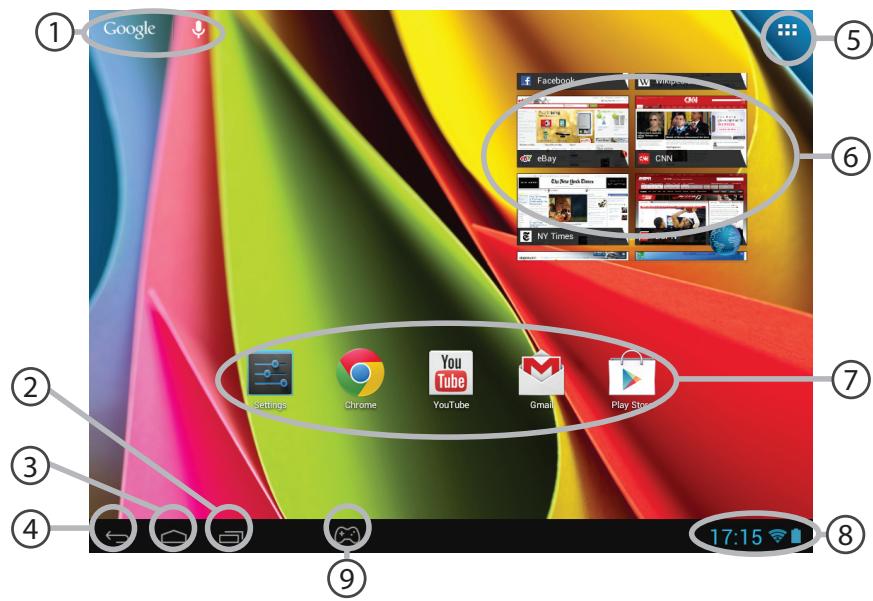
Google™ Search
Touch "Google" for text search or touch the microphone icon for voice search.
"Recent apps" button, "Home" button, "Back" button, "All Apps" button.
Touch this icon to show all the applications and widgets installed on your ARCHOS. All your downloaded applications are here.
⑥ Widget 7 AndroidTM apps shortcuts Touch to start an application. The status bar Displays notifications and quick settings 9 ARCHOS mapping tool icon
The Android™ Interface
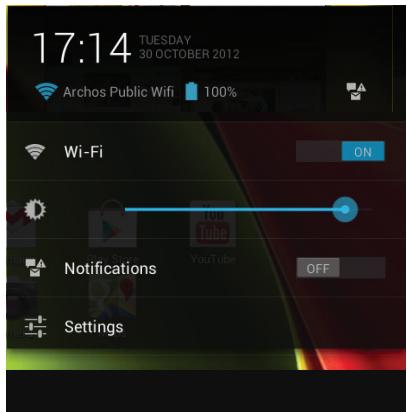
The Quick settings
WiFi:
To turn on/off your WiFi connection.
Brightness:
To adjust the screen brightness.
Notifications:
To activate or deactivate incoming notifications.
Settings:
To access all your settings.
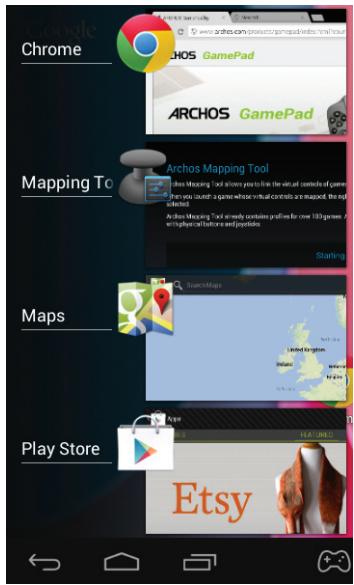
The Recent Apps
You can open a list of thumbnail images of apps you've worked with recently:
- To open an app, touch it.
- To close an app, swipe it left or right.
Getting familiar with Android™
Google account
A Google account lets you take full advantage of any Google apps and services.
- Go to "Settings" > "Personal" > "Accounts & sync".
- Select "Add account".
- Select "Google".
- Follow the onscreen instructions.
The extended home screen:
Navigate between different home screen panels by swiping left and right.
Moving a home screen item:
Touch and hold your finger onto it, then slide it to the desired location, and release your finger.
Removing a home screen item:
Touch and hold it, then slide your finger towards the top of the screen and drop it over the "Remove" icon.
Uninstalling an item:
From the "All apps" screens, touch and hold it, then slide your finger towards the top of the screen and drop it over the "Uninstall" bin.
Creating application folders:
Drop one app icon over another on a home screen and the two icons will be combined.
Widgets:
Touch the "All Apps" icon on your home screen. Touch "Widgets" at the top of the screen. From the main widgets screen, you can move around widgets just as you do for app icons.
Changing your wallpaper:
Hold your finger on a home screen at an empty location, then choose from the list.
Locking the touchscreen:
From the quick settings dashboard in the status bar, touch "Settings". In settings, scroll down and touch "Security". Touch "Screen lock". Touch the type of lock you would like to use. After you set a lock, a lock screen is displayed whenever your screen wakes up, requesting the pattern, PIN or other specified key.
Troubleshooting
If a new software is available for your device
You can download it from www.archos.com/support in the page Downloads > Firmware.
If your device is frozen:
Press the ON/OFF button for 10 seconds.
If your device doesn't turn on:
- Charge your device.
- Press the ON/OFF button for 10 seconds.
If you want to extend the life of your battery:
Decrease the screen brightness and turn off the wireless connections if not in use.
If your device functioning is too slow:
Close all apps which are not currently used.
If your WiFi reception is too low:
Make sure you are not far from the WiFi hotspot.
Update the firmware of the device by downloading from http://www.archos.com/support.
Reset and redefine your connection parameters.
Contact your WiFi connection provider.
The button emulation will be canceled

Cancel
The Android™ interface
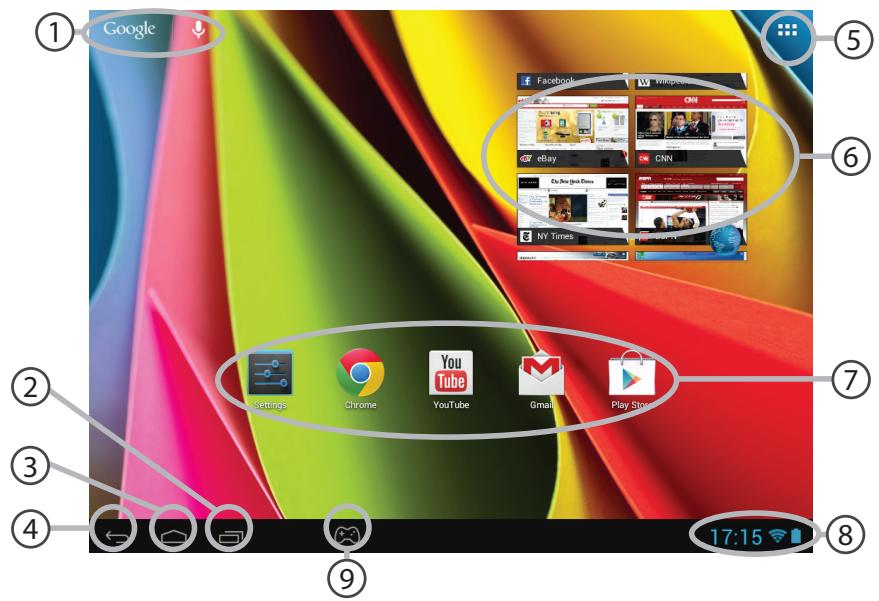
Google™ Search
Resize with right analog stick
Press button A when done
Resize with right analog stick. Press button A when done.
Resize with right analog stick. Press button A when done.
Wi-Fi network connection
Resize with right analog stick
Press button A when done
Save parameters
ARCHOS mapping tool. 128
A interface AndroidTM 134
Resize with right analog stick. Press button A when done.
Mapping tool

Icon
This is a mapping tool
Direction of movement
X,Y,B,A,aTaKxKeJnKHONoK L1,
R1, L2, R2, Start, Select

Joystick
This tool
COMPARISON
Designed
For analog
Joystick
Directions.

Purpose
This tool
Comparison
Designed
For joystick
principle. Ka
npaBnlo, B nIrpax
CTpeJnKax OH
pa3MeaetcB ceHTpe
3KpaHa.
3aahanne cBmMekdy cpeCTBOM coNocTbIeHnI n HnIuYeCKIM cpeCTBOM npaBHeHn
1.ПисOBMeSeHnCpeDCTBa CONOCTaBLeHn C BnPtyaIbHbIM CpeDCTBOM ynpaBLeHn NpeDnaTaeTcBbIbPaTb Tpe6yEmoeФm3NueeCKoe CpeDCTBO ynpaBLeHn, KOTOpoe 6yIET CONOCTaBHeo C BnPtyaIbHbIM.
- KaK ToIbKO 6yTeY cTaHOBHeNA CBa3b MeJxdy Φn3UeCKIM CpeDCTBOM ynpaBHeNHa n CpeDCTBOM COIOCTaBHeNHa, cpa3y Je HaMeHOBaHne Φn3UeCKO rpeDCTBa ynpaBHeNHa OTO6pa3ntcHa cpeDCTBe
CONOCTaBHeHnI.
ARCHOS mapping tool
MacstTa6upobAHne cpeCTB conoctabNeHnA
Pa3mep HeKOTOpbIX BnPtyaIbHbIX cpeIcTB ynpaBneHn
60nbpepa3mepa cpeCTB coIOCTabHeHn.3axMnte cpeCTBO
Resize with right analog stick
Press button A when done
cnoocTaBLeHnry, yTObI yBeIuHTb erO pa3Mep I NOIOrHaTb IOD pa3Mep BnrtyalbHoro cpeDCTBa ynpaBHeHnry.
Saving parameters
After completing the comparison of physical and virtual controls,
select Play to confirm. The profile will be saved and linked to
this one.
Questions and answers about comparison
What to do if after combining the device
with a virtual control
the comparison option does not appear?
- Hold your finger on the comparison device.
Display the menu
- Select the program to assign the device
for comparison.
Do you want to delete a previously configured device
for comparison?
- Hold your finger on the comparison device.
National restrictions
This device is intended for home and office use in all EU countries (and other countries following the EU directive 1999/5/EC) without any limitation except for the countries mentioned below:
| Country | Restriction | Reason/remark |
| Bulgaria | None | General authorization required for outdoor use and public service |
| France | Outdoor use limited to 10 mW e.i.r.p. within the band 2454-2483.5 MHz | Military Radiolocation use. Refarming of the 2.4 GHz band has been ongoing in recent years to allow current relaxed regulation. Full implementation planned 2012 |
| Italy | None | If used outside of own premises, general authorization is required. |
| Luxembourg | None | General authorization required for network and service supply (not for spectrum) |
| Norway | Implemented | This subsection does not apply for the geographical aera within a radius of 20 km from the centre of Ny-Alesund |
| Russian Federation | None | Only for indoor applications |
Note: Frequency 2454-2483.5 MHz is restricted to indoor use in France.
Consult the declaration of conformity at http://www.archos.com/products/declaration_conformity.html
Open Source Software Offer
The software bundled with this product includes software files subject to certain open source license requirements. Such open source software files are subject solely to the terms of the relevant open source software license. Such open source software is provided on an "AS IS" basis to the maximum extent permitted by applicable law.
For the open source files contained herein, please access the "Open source license" section located at: Settings\About tablet\Legal information on the device for the relevant copyright and licensing terms. You may obtain a copy of the Apache License, Version 2.0 at http://www.apache.org/licenses/License-2.0. You may also obtain a copy of the GNU General Public License, Version 2 at the Free Software Foundation, Inc., 51 Franklin Street, Fifth Floor, Boston, MA 02110-1301, USA.
Until the date that is three years after our last shipment of this product, you may obtain a copy of the source code corresponding to the binaries for any GPL-licensed file by contacting ARCHOS customer service at http://www.archos.com and ARCHOS will send you a link to such source code or will provide instructions to get the source on a physical medium.
This offer is valid to anyone in receipt of this information.

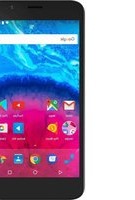
- PACKAGE CONTENTS
- GETTING STARTED
- CHARGING
- TIPS
- DESCRIPTION OF THE DEVICE
- THROUGH THE WIZARD
- TIP
- CONNECTING TO A WIFI NETWORK
- WARNING: MAKE SURE THAT YOU ARE IN A WIFI ZONE
- ARCHOS MAPPING TOOL
- STARTING ARCHOS MAPPING TOOL
- POSITIONING A MAPPING CONTROL
- LINKING A MAPPING CONTROL TO A PHYSICAL CONTROL
- ENLARGING A MAPPING CONTROL
- SAVING YOUR PARAMETERS
- Q&A ABOUT THE MAPPING
- THE ANDROID™ INTERFACE
- THE QUICK SETTINGS
- WIFI
- BRIGHTNESS
- NOTIFICATIONS
- SETTINGS
- THE RECENT APPS
- GETTING FAMILIAR WITH ANDROID™
- GOOGLE ACCOUNT
- THE EXTENDED HOME SCREEN
- MOVING A HOME SCREEN ITEM
- REMOVING A HOME SCREEN ITEM
- UNINSTALLING AN ITEM
- CREATING APPLICATION FOLDERS
- WIDGETS
- CHANGING YOUR WALLPAPER
- LOCKING THE TOUCHSCREEN
- TROUBLESHOOTING
- WI-FI NETWORK CONNECTION
- SAVE PARAMETERS
- AAHANNE CBMMEKDY CPECTBOM CONOCTBIEHNI N HNIUYECKIM CPECTBOM NPABHEHN
- MACSTTA6UPOBAHNE CPECTB CONOCTABNEHNA
- SAVING PARAMETERS
- QUESTIONS AND ANSWERS ABOUT COMPARISON
- NATIONAL RESTRICTIONS
- OPEN SOURCE SOFTWARE OFFER
Brand : ARCHOS
Model : GAMEPAD
Category : Handheld game console