
59 XENON - Smartphone ARCHOS - Free user manual and instructions
Find the device manual for free 59 XENON ARCHOS in PDF.



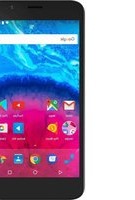
| Product type | Smartphone |
| Brand | ARCHOS |
| Model | 59 XENON |
| Operating system | Android |
| Screen | 5.5 inches (estimated) |
| Rear camera | LED Flash |
| Front camera | Webcam |
| Battery | Removable, lithium-ion (estimated 2000-2500 mAh) |
| Standby time | Up to 400 hours (estimated) |
| Talk time | Up to 10 hours (estimated) |
| Connectivity | 3G, Wi-Fi 802.11 b/g/n, Bluetooth 4.0, GPS |
| SIM card type | Micro-SIM (dual SIM) |
| Memory card slot | microSD (up to 32 GB) |
| Connector | Micro-USB |
| Headphone jack | 3.5 mm jack |
| Sensors | Accelerometer, proximity |
| Weight | Approximately 150 g (estimated) |
| Dimensions | Approximately 155 x 78 x 9 mm (estimated) |
| Care and cleaning | Wipe with a soft, dry cloth. Do not use abrasive products. |
| Security | Screen lock with PIN, pattern, or password. |
| Spare parts and repairability | Removable battery, other parts available from ARCHOS after-sales service. |
| General information | User manual available for download on the ARCHOS website. |
Frequently Asked Questions - 59 XENON ARCHOS
User questions about 59 XENON ARCHOS
0 question about this device. Answer the ones you know or ask your own.
Ask a new question about this device
Download the instructions for your Smartphone in PDF format for free! Find your manual 59 XENON - ARCHOS and take your electronic device back in hand. On this page are published all the documents necessary for the use of your device. 59 XENON by ARCHOS.
USER MANUAL 59 XENON ARCHOS
Description of the phone. 3
Assembling. 6
Getting started. 8
3G & WiFi connection. 10
Google account & Contacts. 12
Hints & tips for AndroidTM 14
Troubleshooting. 16
For more information, please consult the FAQs on www.archos.com. Make sure to read them before considering any product return. As we are often updating and improving our products, your device's software may have a slightly different appearance or modified functionality than presented in this Quick Start Guide.
Consult the declaration of conformity on http://www.archos.com/products/declaration_conformity.html
1

Package Contents
Check your product box for the following items:
- ARCHOS 59 Titanium
- Battery
- Headset
- Micro SIM adaptor
- USB cable
- Charger
- Quick start guide
Warranty Legal & Safety notices
The items supplied with your device and available accessories may vary depending on your region or service provider.
The supplied items are designed only for your device and may not be compatible with other devices.
Unapproved accessories may cause your device to malfunction.
2


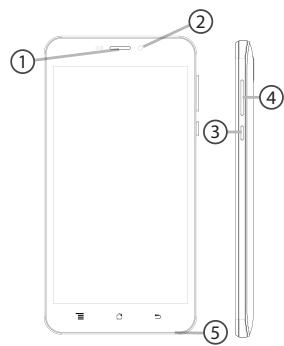
Description of the phone
① Loudspeaker
② Webcam
③ ON/OFF button
Volume buttons
⑤ Microphone
EN
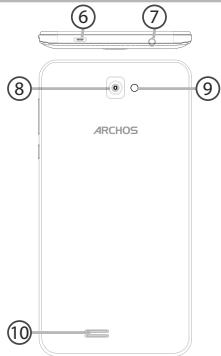
Description of the phone
⑥ Micro-USB port
⑦ Headset jack
Camera
⑨ Flash
10 Loudspeaker
4


EN
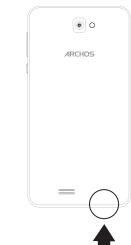
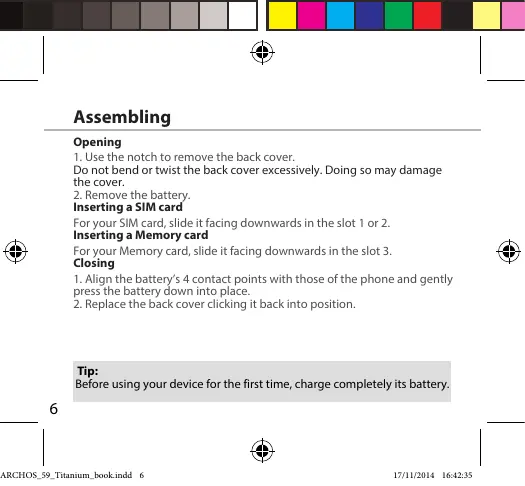
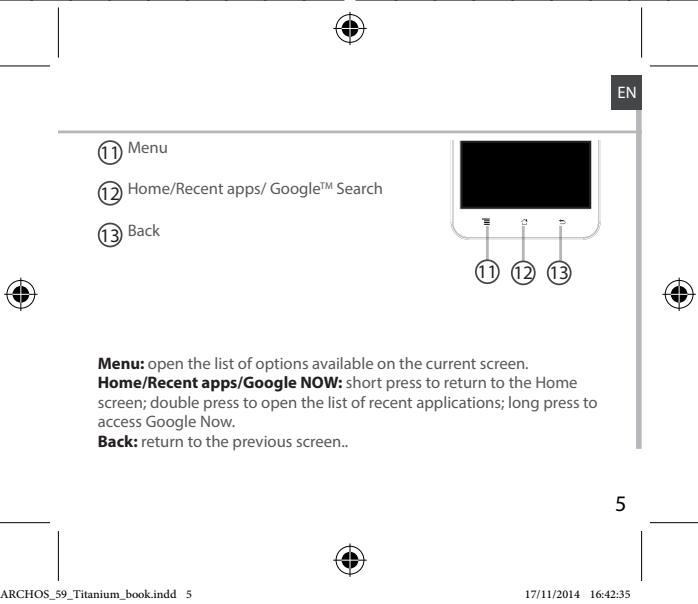
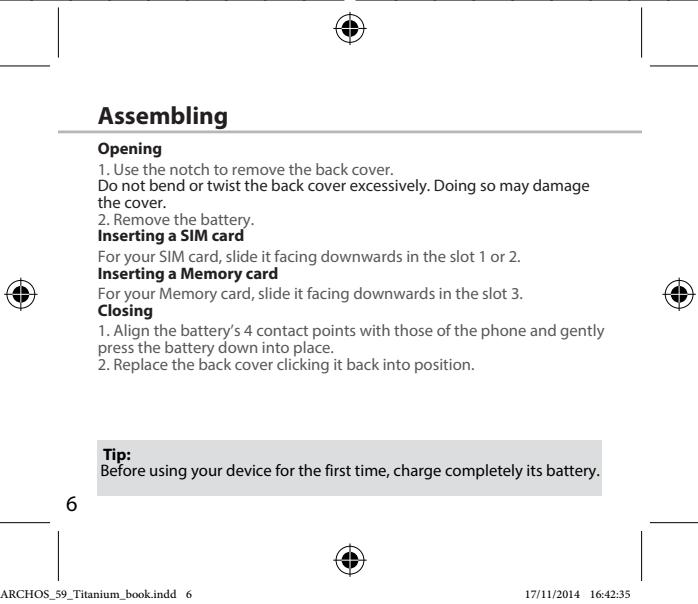
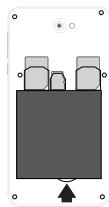
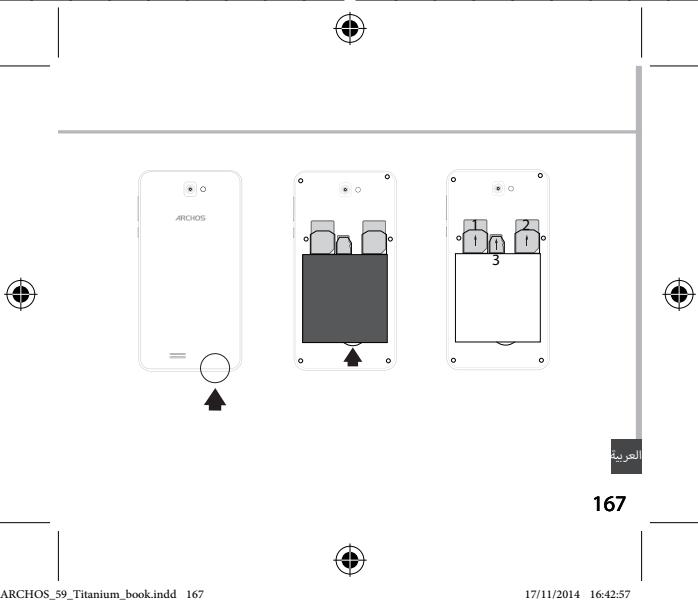
" Lift the back cover using the notch
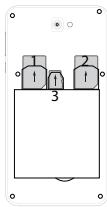


Getting started
Turn ON
- Press and hold the ON/OFF button to turn on the device.
When you turn on your device, a PIN code may be requested. - Type the PIN code supplied with your SIM card.
Beware of typing a wrong PIN code.
3. Select OK
Through the wizard
The first time you start up your ARCHOS, the installation wizard will help you set up your device:
- Language
- Date & time
WiFi connection - Location service options
Turn OFF
To turn off your device, press and hold the ON/OFF button, and then select Power off > OK.
8

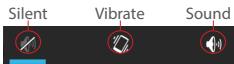
Sound & Notification profiles
- When the device is turned on, press and hold the ON/OFF button.
- Select an option.
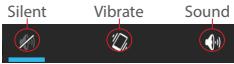
Touch screen actions:
Tap: touch once to select or launch a menu, option, or application.
Tap and hold: tap an item and hold it for more than 2 seconds.
Drag: tap an item and move it to a new location.
Double-tap: tap an item twice quickly.
Flick: briskly scroll up, down, left, or right to move through lists or screens.
Pinch in/out: place two of your fingers far apart, and then pinch them together.
Tip:
Your device goes in standby mode when you do not use it for a specified period of time. To wake up your device, press the ON/OFF button. To set the duration, go to Settings > Display > Sleep.


3G & WiFi connection
3G connection
With your SIM card, you should be connected to the Internet without any further setup. The ARCHOS will only have signal if you are in an area covered by your provider's 3G network. When connected to the 3G network, the 3G icon is displayed in the status bar.
Activating the mobile data
To be able to access Internet, the mobile data icon must be activated.
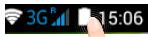
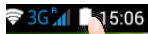
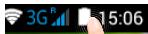
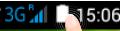
- Touch and hold the time & battery icons to reveal the status bar.
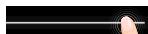
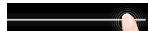
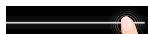
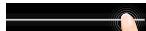
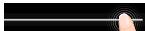
- Pull the white line down to display the status dashboard.

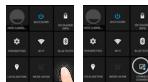
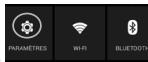
- Touch the status dashboard icon
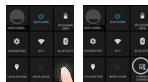
- Touch the mobile data icon to activate it.
Tip:
If you encounter connection problem's, see the FAQs on www.archos.com or contact your 3G network connection provider.

WiFi connection
WARNING: Make sure that you are in a WiFi zone. You can access the WiFi settings quickly from the status bar.
- Touch and hold the time & battery icons to reveal the status bar.
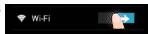
2.Pull the blue line down to display the status dashboard. - Touch the status dashboard icon
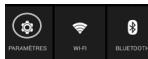
- Touch the "Settings" icon to open the settings menu.
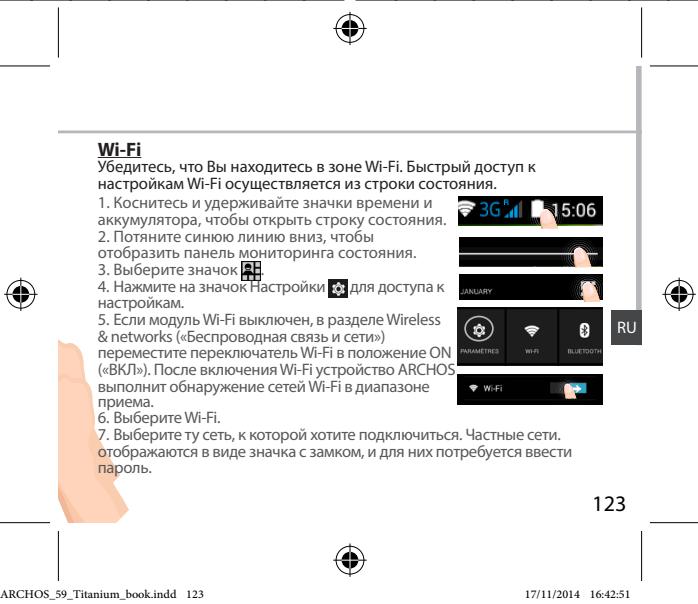
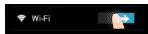
- In the "Wireless & networks" section, if the WiFi is off, slide the WiFi switch to the "ON" position. Once the WiFi is on, the ARCHOS will scan for WiFi networks in range.
- Touch "WiFi" to display available networks.
- Touch the name of network you want to connect to.
Private networks are shown with a lock icon and will require you to enter your password.



Google & Contacts
Adding a Google account
A Google account lets you take full advantage of any Google apps and services that you may want to use.
- Go to "Settings" > "Accounts" > "Add account".
- Select the account type "Google" to add.
- Follow the onscreen instructions to enter information about the account. Once the account is created, you can access Play Store, Gmail, Hangouts, Maps and many other apps.
Synchronizing info
Information must be sync to be saved. Your data is backed up on Google servers.
- Go to "Settings" > "Accounts" > "Google".
- Select your account.
The list of information that can be sync are displayed.
Automatic sync should be activated. To launch the sync, press the Menu button, then Sync now. You can get them back in case of loss of your device or SIM card. When your Google account is added to a new device, all your saved information is transferred.
12


Saving your contacts
When your contacts are saved, they are always available on the web and can be syncsed to any Android phone that's set up with your Google account.
- Install the SIM card with your contacts in your phone.
- From a Home or All Apps screen, select the People app
- Touch the Menu button > "Import/Export".
- In Import/export contacts, select "Import from SIM card".
- Select your Google account.
- Check contacts to be imported and validate.
- Once the contacts are imported in the Google account, go to "Settings" > "Accounts"> "Google".
- Select you Google account.
- Select the Menu button, then "Sync now".
Your contacts are saved to via your Google account.




Troubleshooting
My phone is frozen or cannot switch on
Check the battery contacts, remove and reinstall your battery, then turn your phone on. Check the battery power level, charge for at least 20 minutes.
My phone cannot connect to a network or "No service" is displayed
Try connecting in another location. Verify the network coverage with your operator.
Unable to make outgoing calls
Make sure your phone is connected to a network, and the network is not overloaded or unavailable.
Unable to receive incoming calls
Make sure your phone is switched on and connected to a network (check for overloaded or unavailable network).
SIM card PIN locked
Contact your network operator to obtain the PUK code (Personal Unblocking Key).
To configure a new 3G network:
On your device, tap Settings.
Select Wireless & networks > More... > Mobile networks.
Select Network settings. In Network operators, select your operator.
In Access Point Names, select the correct access point name and enter the exact connection parameters provided by your 3G provider.
Table des matieres
Be33Byka Bn6paun Co 3BykOM

Kacahneu undepkhanne: KocHTeCb 3JIeMeHtA uYdepKJBaIte erO He MeHee 2 CekyHd.
PepetackmBAnHe: KOnHTeCB 3nEMeNTa N IpeMeCTITE erO B HOBoe MECTO.
Двоьhoe kacahne: bICTpo dBaXkDbl KCHNTecb элemeHTa.
PnoebedHeM: bIcTpo npObeDnTo NO KApHNaIbnBmE BEpXb, BHN3, BNEo IINBpAoB, TQbBi NpOKpynttB CnICOK INCOpDEXKIMOE kPAna.
Czathne:Pa38eDInTe Dba nlaBua, a 3aTeM CBeDInTe IX uINIOKBOBIM DnVIXEHNEM.
ПОДСКАМ.ЕСИ N'TCYPOSTIСТУ И СЮЛБЕТУВЕЧЕТС.ТУБОЛВВКЛЮЧТБ.KAPAN.HAKMITEKKNIOYBKKIOUCHENHIMBKKIOUCHENH.MTOKSb3a4abJNITIELNOCTB,NEPEJDMTEKMEHNO SETTINGS|Display Sleep(NotchpOy DicnJIEN PekmKma).
RU


Поdklio ueHne 3G &Wi-Fi
IopKnIOueHne K cetram 3G
Nocle yctahOBKs SIM-KaptbIy IaIIOKJIIOHcEN K INItePHTy DaJIbHNeiAa HacTPOKHa THeTepeYbCT. UcPOJcTBO ARCHOS TcAnAHBbIAeT coEINHHe MToIbKO pIn haxoJdeHN B 30NE Okoptyra cetn 3G bVbIpaHOrO ToNtABUcHbCysIg MOIOJIbHO CBsI. PIn oIOKJIIOHcEN K cETn 3G B CtpKeO cOToTHN OTObpBaTaETc 3NaOHc 3G.
AKTINBaunMo6nBbHbIX daHHbIX
TcOb6 IMMeTb BO3MOXHOCTb DOctyna K INtHePHTy, HEOxODIMo AKTNIBPOBaTB PnKTOrpaMMy MOuBnBhix DaHHbIX.
- KONCHETBcIy dEKPbIXa3NauKu BPEMENI aKKyUMYIITOPA, YTOb6IOTKpBtIb CTPOKY COCTOBHNA
- IITOHNHTTE CINHIOI HINHO BNHI, TQDBI OTOBAP3N PAHNEJI MOHITOPINHA COCTOHNIA.
3.Bb6epTe3HaQOK 17
4.IJNAKTIBAUNI KOGNTIEcB3aHkaMO6INbHBIX DAHNBHIX

Cobet:
EcnB03NkHcyTpO6NEmbIc CoeINHeHNEM, Cm, YaCTo 3aDaabaMeIbe BONPCbIy NOBtBe Iha HxN ha Be6-CaIte Ww. archos.com nn CBKJTeCeC BOcmn NOctaBUNKOM yCJIT cETn 3G.



Uyehha 3anncb Google u KOHTAKtbl
Dobablenhe yuetho3annc Google
YuThaHa3nCb Google nO3BolNeT nO3B0Batc pNEmyUeCTBaMIA IIO6bX pIyoJXoHnE uNcyr Google, KOTOBbe yBu XaTOtme IcNO3bO3BaT.
- Пекгдук ра阵地 Settings > Accounts > Add account (Hactroyи >Учтуные заимп >Добавиты Учтую заимп).
- BbI6epnte TnDIOabAemMy uyeTHo3aHcN Goagle.
- BbvIOHnJIe HInCTpyKUINa HkPaeI NHE BVOA INHΦOPMaUNo 0b YcHTHOI 3aNtnc. KAn ToTbKOyEtTHa 3aNtbc 6bET co3aDa, Bb OyETe IMTeB doCTyn K Play Store, Gmaji, Hangouts, Maps I MhONM dpyrIM npINOJXENHAM.
CnHxpoHn3auny HhOpMaun
IoxoopaehnHMHOΦmaUaH CnHxPOHN3yPee ee.PeRbHOe KONpOBaHme Baunx daHbNt BbINOnHReTca h cepBepb Google
- Пекешисту к раздency Settings > Accounts > Google (Hастрики >Четпьные заимп > Google).
- BbEgepnty ehyTHNO 3aNcBc. OTo6paBaKCTCnCNCK cBedeNen, KOtporite MoKHO CInHXPOHINOBATBoB.CneJyET BKNIOUYtB yHNKIOYABTOMATUHECKO CInHXPOHINAZIaDN. 3aIyNcSA CINHXPOHINAZIaDN HAKMITE KHONKY Menu (MeHo) n 3aTeM BbEgePnty NHYKT Sync now (CInHXPOHINZIaDN bAeHBe CnMOIooBHyKnHcNIOuCINHXPOHINAZIaDN MOKHO BCoSTAHOBHTb DAHNBE BcNpyae Uteyr EytpoCTbBA TIN SIM-Kaptb. Prrn Perinctpaun Bauey eYthnoi 3aNcNIOo Google Na HOBOm YCTpoINCTBe BvIOnlNHETcB 6cbOP BcN COxPAHENHNa HEMnHOFPMaUNs.




3HaKOMCTBOcAndroidTM
Khonka Home:
YB aecbnoMOnaHnOIO dmDAmouHHNkAepH, Bm MoKETe Co3dABTcBtBNO p6o0xH CTOBN, KOtOPbE bBy XOTIe. Bb6epTe 3NaOHpNpIoXeH N CdBnHbTe ee BnPABo. HObbDMOMHn 3KpaH 6yEdC03dAn. Bb6pabT DpyroTH 3NaOHKn pRIOJeHNr HCBnHbTe ee BnPABO IcO3DAHn TptBew DMOMHH 3KpaH.
IpepeueHne 3JeMeHTa DomaHrero 3KpaHa:
PfHKoCNHTeBc KJIeMeHrty U ydepKbVAte naneu, NOKa He NOBaIHTc cTeKa nO3nIOHOHPOBAHNA, 3aTe MpeMeCtne Iero B Tpe6yEmoe NIOJOKeHne, IOTYCTTE naneu.
YdaJIeHHe 3IeMeHTa DomauHero 3KpaHa:
He ydaetcBbIIOJIHrTb IxOJaIe Bbl30Bbl
Y6eHNTcB, YTO TeneoH NOdkIouen K Cetn, IN TO CeT DOCTynHa IN He nepeRpyKeHa.
He ydaetc npHMMb BXOJIe Bb13OBbl
U6yIeTbc.OTYEloEoH KIOIOHO INOIOHOHOK C cTe (IPOBoeBte, OTO cTe bOCTOHTNA Hne pepeyKHe).
3a6loKoPobAH PIN-KoD SIM-KapTbI
Obapitmeck K onopatry Mobwblb CzBnI por Nanyenpa PUK-Koda (Personal Unlocking Key — percoNahb nnabpoknjiyou kodo).
Дянстори HOBOI cTe 3G
Ha 3Kpahe yCTpoiCTBa KOCHNTecb nyHkTa Settings (HaCTpoiKn).
BuaBePurte Wireless & networks (BeCnPoBDoHna CBaBn H cTeN) > More... (BoIbue...)> Mobile networks (MoBiNbHe bTeN).
Bb6epebiyNKT network Settings (CeteBueh NactoHoi), B p3aedz Network Operators (Onepatopby cetn) Bb6epebiy Cbe0rno NoctabwUc h y Bp3aedz Access Point Names (Imha Toek DCtoTy) npA1bWnB 0BBeDme IMR TOKHI DcToTHa nTOHHe bnpAamTBy CoeINHnH, npDECTABNHe ly NoCTABuWmOcN Tcyte C3G.


Spis tresci
aaii aai iaiy gai alal alal alal alal alal alal
aJbWgJy
aJb
aalal alalal alalal gagg aag, alalal glaal
∴ 4ab > y0
. 1
166




glggygall
jol jolal aayjol baoi gao joi
aegjoo
. 1111111111111111111111111111111111111
. 100000000000000000000000000000000000000
∴ ab > la
gao 100000000000000000000000000000000000000000
<0000<0000<0000<0000



3Gdd
olalg uol g 3G 4x20 x10 x8 x5 x4 x3 x2 x10 x7 x6 x4 x3 x2 x10 x8 x6 x4 x3 x2 x10 x7 x6 x4 x3 x2 x10 x8 x6 x4 x3 x2 x10
.
lll l

3GAn

5:06
ygl cullag aas kaaa cayc ygul aea kaaa aalak aalak gaaal gaaal gaaal gaaal gaaal
.1jlll 10g lgl jol 10000000000000000000000000
1Jssalgagalb0a1.3
aaii jia jia jia jia jia jia jia jia jia 4



∴ 4b > 3a
www.archos.com cuiyjIg gao jc aiaiwl alw wll jc agbly jy jy, uaiy jd akw g g
. aai jia jui yiy gl,




aSLwUJ aS.JI & 3G aS.
aLwUdU
1 11111111111111111111111111
. 1111111111111111
. aIbI bJgJU JgJU g aJbU g aJgJ Uc dJbU bJgJ .1

10 2
B 10
. clllalll 11 jg 11 11

aSLWUdJg, aSLWUdJgJgJgJgJgJgJg
aalllk
.1011 1
Gmail, jzall aluwrj kow, gll Google wuw cuiy eliy dwl lalai y 3
. 1

lagoljolji
Google aoucuiuocucll bao, lqboollogal joiy
.1wJj1.2
LgocjSsGdcloglallao jy a
.1j jolji lac aai w gll clogalall no Stily
jGGoogle 1a> aIb j, clll oia slaal pssuall kagll gl aill
.


clawyI &Google
glawll kbi jie 1j jai jao jay g,Google ulw aoi ciuoo jia oio jgi elwii bi xi jg si
. 1
. 日 _ 1 日 _ 2 日 _ 3 .
Google 山 _ 1 ^ 出 jisl .5
.6
. Google <cllalll <cllalll l l jdujy ,Google
.10jbi baiol ,aiiall tao baiol .9
. Google aouc ocuoc laowll bao ay c

173



aaijll aai jy
jgl jall aai jll alal lal jy jai jai ai aai jay
:aaai jaiai jia
.4auiyjllolil jdoagai oJg Jb
.1goluswai jyll oj yll clalabll aill jgwl gdoa bdo
a 431y jll gl jnall gubill yai
:aaai jia aie
g j 10000000000000000000000000000000000000000000000
. cleowl
aaiyll aalw jaoaic
a"ddal lall kall gdo yd a calixg uy daiy
.
:aaic
400000000000000000000000000000000000000000000
.
Jusyll
:
a 100g abdfo 3 loo aabull oao w g yol gubdi agal lc gubdi agal gogy
: widgetsjolic
. widgets ralic jlll g nnll aill l y , "clalll J" aill Ugul
:laIJI
aaiall no jai, aaiyll aaii 10k
:a

j<allll jy jy jy jy jy jy jy jy jy jy jy jy jy jy jy jy jy jy jy jy jy jy jy jy jy jy jy jy jy
joll lalw galea glgao g aalwal gcl jay, aasall aalll jgsjglj
. j, PIN jəj, "JaaU 3gω" jk alg aJaaU Jaa


[ \Leftrightarrow \frac{1 - k}{x} > \frac{\ln x}{x\left( {1 + u}\right) }]
ailll jzj zj 10d
jy,aiilll jdyddyddyds ydo ydo ydo ydo ydo ydo ydo ydo ydo ydo ydo
.42220jLaiyolJxwlly,aJblljxwSgws
a a y y g a y jy Jy
a aaaa aaaa 2g> g no slll y, y| o k (s y | d y d y
aJbckcJzJd
.4to g Josai 4s wll o g, 4s wll wll jwll no s wll
alkkjlaaoljdo
.(aio g Jao ai aai o jg),aaiu Jao g Jao ciai all i jn sall
aIPIN jao
.PUK joo Jgauu uuuu Juaa Juaaui
3G
jol, jogaoal dlgl lckw < wjoll < cksll & slswl 4kwl jol , cldscyl jgds
aouall clogleoll g aouall jgssll abai joi ai, ai, ai, ai, ai, ai
.3GdoJjaoJlJoJluu
1J 100000000000000000000000000000000000000000
.
![ARCHOS 59 XENON - [ \Leftrightarrow \frac{1 - k}{x} > \frac{\ln x}{x\left( {1 + u}\right) }] - 1](/content/2025/01/87041/images/1326a5dc6d45a4f81ee8b6c7f711235e4a4ff7f0792ecc87a1759054a94c6895.jpg)
![ARCHOS 59 XENON - [ \Leftrightarrow \frac{1 - k}{x} > \frac{\ln x}{x\left( {1 + u}\right) }] - 2](/content/2025/01/87041/images/3fa1beb4adb0135a50719dfbb70db4dce1132e236a2212abf6512e7322f291ad.jpg)
![ARCHOS 59 XENON - [ \Leftrightarrow \frac{1 - k}{x} > \frac{\ln x}{x\left( {1 + u}\right) }] - 3](/content/2025/01/87041/images/02c996338ab30390b5b27761dc2e77915de1075981a66be2936d807172973740.jpg)
![ARCHOS 59 XENON - [ \Leftrightarrow \frac{1 - k}{x} > \frac{\ln x}{x\left( {1 + u}\right) }] - 4](/content/2025/01/87041/images/cb4aa3bb3c8972bb1315bd93a3f2a584ccba5c44ed4f79bb853203c1b9bba921.jpg)
yIgJgJgJgJgJgJgJgJgJgJgJgJgJgJgJgJgJgJgJgJgJgJgJgJgJgJgJgJgJgJgJgJgJgJgJgJgJgJgJgJgJgJgJgJgJgJgJgJgJgJg
oJal all
L L L L L L L L L L L L L L L L L L L L L L L L L L L L L L L L L L L L L L L L L L L L L L L L L L L L L L L L L L L L L L L L L L L L L L L L L L L L L L L L L L L L L L L L L L
0j
150000000000000000000000000000000000000000000
auiw
a aaeaaeaaeeaaeeaaeeaaeeaaeeaaeeaaeeaaeeaaeeaaeeaaeeaaeeaaeeaaeeaaeeaaeeaaeeaaeeaaeeaaeeaaeeaaeeaaeeaaeeaaeeaaeeaaeeaaeeaaeeaaeeaaeeaaeeaaeeaaeeaaeeaaeeaaeeaaeeaaeeaaeeaaeeaaeeaaeeaaeeaaeeaaeeaaeeaaeeaaeeaaeeaa
a

aJgoooUyauogooUu19:oo
a.oqioJl
JU 100
b0
aJUaJQaJQaJUWo:
ARCHOS
Entertainment your way
U
wJg oJy a 9
...oljio


Uni-Group

www.uni-grp.com

/ArchosEgypt

/ArchosEgypt





raafoaalaoa oogollllloa aaiu
.juUJUuuu
Uuulugulaljgulagauuulagulagulagulagulagulag
jduoJUolooJouuuejUeauuJUoJUoJUa
Jg
:JgUullaiuUauoallugouuulljaoauiuogwglq:Jgi
auiu uo 5uug uogoujul jua o o ygall uol
Ugulll Jluiu rui uolal ojio g lao jglil auiu uuiu uuiu uuiu
y
000000000000000000000000000000000000000
ylll llll 10000000000000000000000000000000000000
Jooall jooaiy aayu oui 0018 1e aaii
aJUoljooJUoJUwJcOuUgugUogUoUeU()
J 1
Uo auiu uoc
Joo
00gJlJUJUJUJUJUJUJUJUJUJUJUJUJUJUJUJU
auiyjai jia jlgicg100raojgaofofofofofofofofofofofofofofofofofofofofofofofofofofofofofofofofofofofofofofofofofofofofofofofofofofofofofofofofofofofo
info@ntra.gov.eg jgj1ylllglpE ooojjglllq
:JjwUwUu
L
oogg (e aagaaa aaln o jy jy jy jy g
Jaa0d 1
aillgaioiu jraealljauuuguiubiuiaiguiiaiue
auiuuljoljoljolq0a
UoOdla
1 1
∴ SΔOBC = 1/2 · BO · CD = 1/2 × CD × 5
:Jluuolra
aull ojgl uclgul ggl jlll 1u
joo juaauiu
.aoacilIugc daiyuloljgawP Uoaldo
: auiuui uuaauiuuiuuiuuiuuiuuiuuiuuiuuiuuiuuiuuiuuiuuiuuiuuiuuiuuiuuiuuiuuiuuiuuiuuiuuiuuiuuiuuiuuiuuiuuiuuiuuiuuiuuiuuiuuiuuiuuiuuiuuiuuiuuiuuiuuiuui
aalalalagglll 10
aas aas uusuusuusuuusuuusuuusuuusuuusuuusuuusuuusuuusuuusuuusuuusuuusuuusuuusuuusuuusuuusuuusuuusuuusuuusuuusuuusuuusuuusuuusuuusuuusuuusuuusuuusuuusuuusuuusuuusuuusuuusuuusuuusuu
Looucuqiuu
uol polyll lloe ooeofoe oooofoofofofofofofofofofofofofofofofofofofofofofofofofofofofofofofofofofofofofofofofofofofofofofofofofofofofofofofofofofofofofofo
aactllugcagjlljuljuljuljul
JUJIJIJUJI-JUOLJI-0JUWJUQW)UCauiuucuuiu
JUJI JIgJollljglil
uOglo-oojogolgiio-o0o oocogololol
LgagaluloluyllojiofoofoocuIgwwslroasglaas
aaioll uill gihgulal
.1g0llnai g auiuui rai 29g 8o Uauu u


Open Source Software Offer
The software bundled with this product includes software files subject to certain open source license requirements. Such open source software files are subject solely to the terms of the relevant open source software license. Such open source software is provided on an "AS IS" basis to the maximum extent permitted by applicable law.
For the open source files contained herein, please access "Open source license" section located at: Settings\About phone\Legal information on the device for the relevant copyright and licensing terms. You may obtain a copy of Apache License, Version 2.0 at http://www.apache.org/licenses/License-2.0. You may also obtain a copy of GNU General Public License, Version 2 at the Free Software Foundation, INC, 51 Franklin Street, Fifth Floor, Boston, MA 02110-1301, USA.
Until the date that is three years after our last shipment of this product, you may obtain a copy of the source code corresponding to the binaries for any GPL-Licensed file by contacting ARCHOS customer service at http://www.archos.com and ARCHOS will send you a link to such source code or will provide instructions to get the source on a physical medium.
This offer is valid to anyone in receipt of this information.
National restrictions
This device is intended for home and office use in all EU countries (and other countries following the EU directive 1999/5/EC) without any limitation except for the countries mentioned below:
Country
Restriction
ReasonRemark
Bulgaria
None
General authorization required for outdoor use and public service
France
Outdoor use
Military Radiolocation use. Refarming of the 2.4 GHz band has been ongoing in recent years to allow current relaxed regulation. Ful implementation planned 2012
Italy
None
If used outside of own premises, general authorization is required.
Luxembourg
None
General authorization required for network and service supply (not for spectrum)
Norway Implemented This subsection does not apply for the geographical aera within a radius of 20km from the centre of Ny-Alesund
Russian None Only for indoor applications Federation
Note: Frequency 2454-2483.5MHZ are restricted to indoor use in France.
Consult the declaration of conformity on http://www.archos.com/products/ declaration_conformity.html
SAR
After the laboratory measurement, this mobile phone SAR value is: Head SAR: 0.207 W/kg Body SAR: 1.489 W/kg
Archos company declares that this device is in compliance with the essential requirements and other relevant provisions of Directive 1999/5/EC
€1313


- PACKAGE CONTENTS
- DESCRIPTION OF THE PHONE
- GETTING STARTED
- TURN ON
- THROUGH THE WIZARD
- TURN OFF
- SOUND & NOTIFICATION PROFILES
- TOUCH SCREEN ACTIONS
- TIP
- G & WIFI CONNECTION
- G CONNECTION
- ACTIVATING THE MOBILE DATA
- WIFI CONNECTION
- GOOGLE & CONTACTS
- ADDING A GOOGLE ACCOUNT
- SYNCHRONIZING INFO
- SAVING YOUR CONTACTS
- TROUBLESHOOTING
- MY PHONE IS FROZEN OR CANNOT SWITCH ON
- MY PHONE CANNOT CONNECT TO A NETWORK OR "NO SERVICE" IS DISPLAYED
- UNABLE TO MAKE OUTGOING CALLS
- UNABLE TO RECEIVE INCOMING CALLS
- SIM CARD PIN LOCKED
- TO CONFIGURE A NEW 3G NETWORK
- TABLE DES MATIERES
- ПОDKLIO UEHNE 3G &WI-FI
- IOPKNIOUEHNE K CETRAM 3G
- AKTINBAUNMO6NBBHBIX DAHHBIX
- COBET
- UYEHHA 3ANNCB GOOGLE U KOHTAKTBL
- DOBABLENHE YUETHO3ANNC GOOGLE
- CNHXPOHN3AUNY HHOPMAUN
- HAKOMCTBOCANDROIDTM
- KHONKA HOME
- IPEPEUEHNE 3JEMEHTA DOMAHRERO 3KPAHA
- YDAJIEHHE 3IEMEHTA DOMAUHERO 3KPAHA
- SPIS TRESCI
- GLGGYGALL
- GDD
- ASLWUJ AS.JI & 3G AS
- LAGOLJOLJI
- JUSYLL
- [ \LEFTRIGHTARROW \FRAC{1 - K}{X} > \FRAC{\LN X}{X\LEFT( {1 + U}\RIGHT) }]
- YIGJGJGJGJGJGJGJGJGJGJGJGJGJGJGJGJGJGJGJGJGJGJGJGJGJGJGJGJGJGJGJGJGJGJGJGJGJGJGJGJGJGJGJGJGJGJGJGJGJGJG
- ARCHOS
- JG
- UOODLA
- OPEN SOURCE SOFTWARE OFFER
- NATIONAL RESTRICTIONS
- SAR
Brand : ARCHOS
Model : 59 XENON
Category : Smartphone