
DoorPhone W7 - Home Automation Evolveo - Free user manual and instructions
Find the device manual for free DoorPhone W7 Evolveo in PDF.


| Type of Product | Wireless Video Door Phone with Touch Screen Monitor and Outdoor Camera |
| Brand / Model | Evolveo / DoorPhone W7 |
| Category | Home Automation |
| Monitor Display | 7 inch TFT LCD, 1024 x 600 pixels |
| Monitor Power Supply | USB-C, DC 5V / 2A; Built-in 2000 mAh rechargeable battery |
| Outdoor Camera Resolution | 1080p (1920 x 1080), 1/3 inch CMOS sensor, f2.8 |
| Camera Viewing Angle | 151° (horizontal 123°, vertical 70°) |
| Night Vision | Infrared LEDs (850 nm) |
| Outdoor Camera Power | DC 8-36V / AC 8-24V, 2A; Built-in 5000 mAh rechargeable lithium battery |
| Motion Detection | PIR sensor with adjustable sensitivity |
| Communication | Full-duplex two-way audio intercom |
| Wireless Connectivity | Wi-Fi 2.4 GHz / 5 GHz (802.11 b/g/n/ac); 868 MHz for monitor-camera link |
| Storage | Micro SD card slot up to 128 GB (Class 10) on monitor; Cloud recording via Tuya app |
| Smart Integration | Compatible with Tuya Smart app; Works with Alexa, Google Assistant, SmartThings |
| Dimensions (Monitor) | 20.1 x 12.5 x 1.6 cm |
| Dimensions (Outdoor Bell) | 14.4 x 5.1 x 3.5 cm |
| Operating Temperature | -20°C to 60°C |
| Care & Cleaning | Use a dry cloth; do not use chemical solvents or water; avoid direct sunlight |
| Safety | Do not disassemble; keep away from strong magnetic fields and heat sources; use only supplied accessories |
Frequently Asked Questions - DoorPhone W7 Evolveo
Step 2: Open Tuya app, tap '+' in top right, scan the QR code displayed on monitor (press QR icon on monitor).
Step 3: Follow app instructions to complete pairing. The monitor must be on the same Wi-Fi network as your phone.
User questions about DoorPhone W7 Evolveo
0 question about this device. Answer the ones you know or ask your own.
Ask a new question about this device
Download the instructions for your Home Automation in PDF format for free! Find your manual DoorPhone W7 - Evolveo and take your electronic device back in hand. On this page are published all the documents necessary for the use of your device. DoorPhone W7 by Evolveo.
USER MANUAL DoorPhone W7 Evolveo
natural_image
Simple line drawing of a rectangular frame with a label '1' at the bottom (no text or symbols within the frame)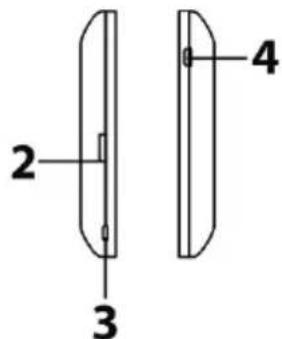
1) Mikrofon
2) Slot pro micro SD kartu až 128GB
natural_image
Illustration of a flat-screen television displaying a cityscape with two people and a phone, no text or symbols present.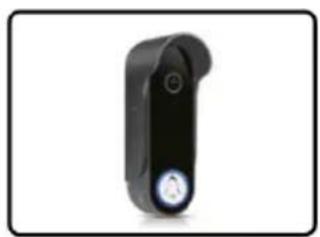
natural_image
Black handheld device with a circular button and a white circular icon on the side (no text or symbols visible)
natural_image
Illustration of a person wearing a green helmet and holding an object, with no visible text or symbols.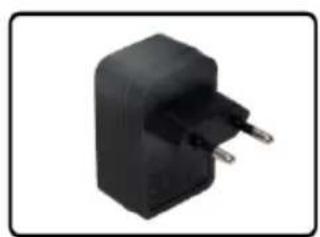
natural_image
Black rectangular electronic component with two metallic pins, isolated on white background (no text or symbols)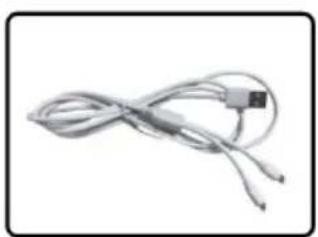
natural_image
Coiled cable with a small connector (no text or symbols visible)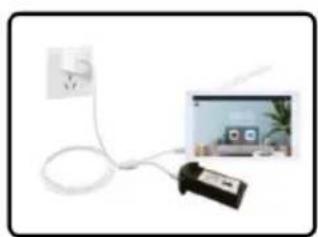
natural_image
Illustration of a white cable with a power outlet connected to a device, next to a small screen showing a home screen (no visible text or symbols)Vertical camera view
Horizontal camera view
natural_image
Two black and red electronic components with circular features, shown against a light grid background (no text or symbols visible)1
natural_image
Simple diagram showing a black object on the left and light blue background with vertical lines (no text or symbols)2
natural_image
Pure electrical circuit lines without any symbols3
natural_image
Pure electrical circuit lines without any symbols4
2) PŘIDAT ČLENY RODINY
6) NÁVOD K OBSLUZE VÝROBKU
NASTAVENÍ JAZYKA MONITORU
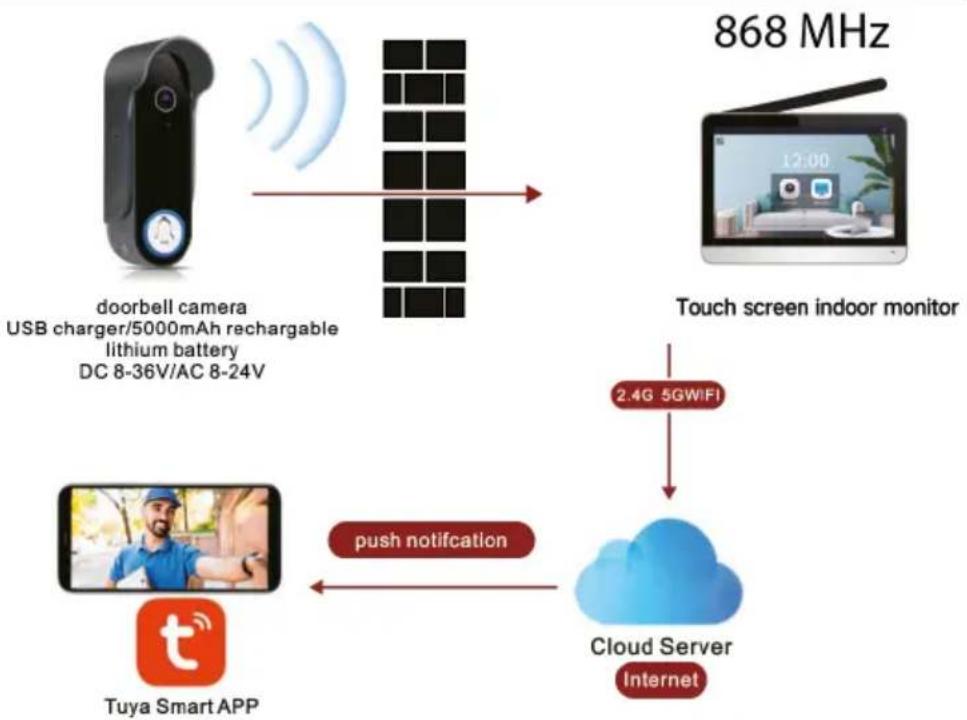
PRINCIP FUNGOVÁNÍ
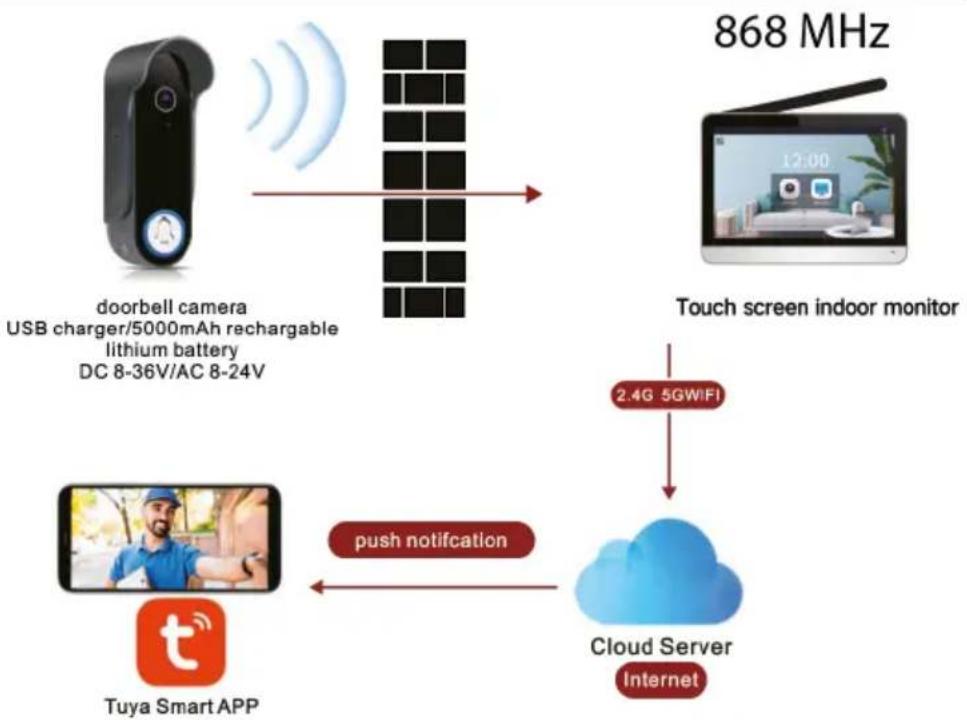
flowchart
graph TD
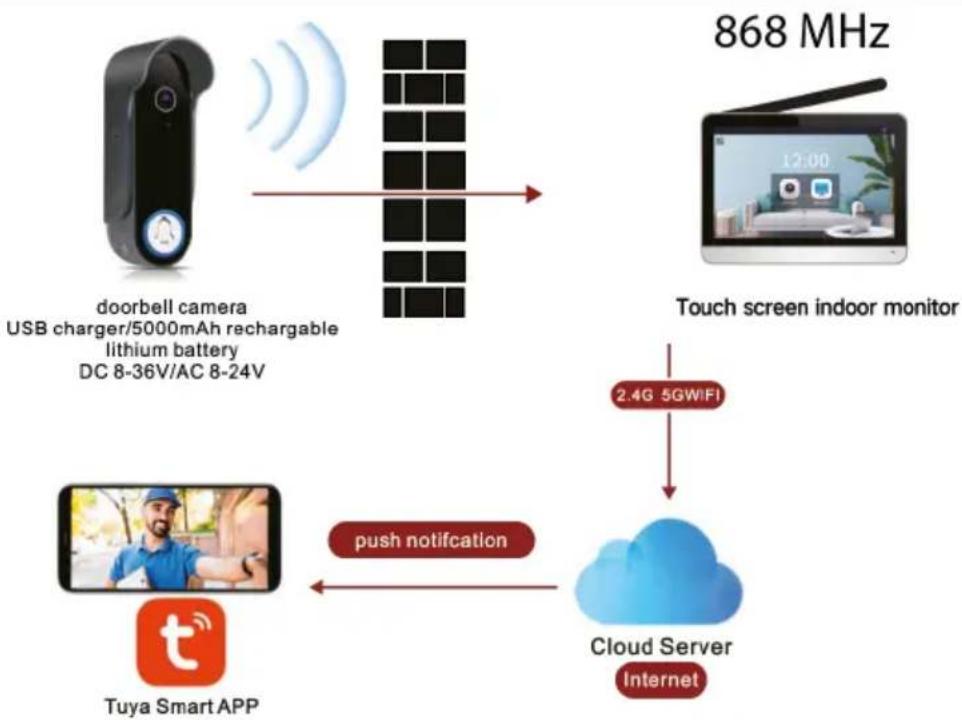
    A["doorbell camera\nUSB charger/5000mAh rechargeable\nlithium battery\nDC 8-36V/AC 8-24V"] --> B["Grid"]
    C["Touch screen indoor monitor"] --> D["2.4G 5GWIFI"]
    D --> E["Cloud Server\nInternet"]
    F["Tuya Smart APP"] -->|push notification| E
7) ZPROVOZNĚNÍ
1) ÚVODNÍ STRÁNKA APLIKACE
Povolení oznámení
1
2
3
4
1
natural_image
Exterior view of a modern house with glass facade and surrounding landscape (no signage or text visible)2

3
4
natural_image
Exterior view of a modern house with glass facade and surrounding greenery (no signage or text visible)2

4
3
natural_image
Exterior view of a modern house with glass facade and roof, captured in an outdoor setting (no signage or text visible)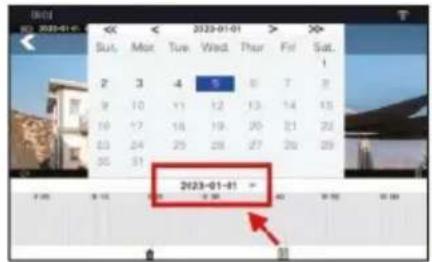
1
natural_image
Exterior view of a modern house with glass facade and curved roof, captured in a photo editing interface (no signage or text on building)2

3
4
natural_image
Exterior view of a modern house with glass roof and outdoor furniture (no signage or text visible)2
3
4
1
natural_image
Exterior view of a modern house with glass windows and a curved roof, captured in an outdoor setting (no visible text or symbols)2
3
4
1
natural_image
Exterior view of a modern house with glass facade and curved roof, captured in a photo editing interface (no signage or text on building)2
3
4
1
natural_image
Exterior view of a modern house with glass facade and surrounding landscape (no signage or text visible)2
3
3
natural_image
Close-up of a black oval-shaped electronic component with a small central component and two red wires attached (no visible text or symbols)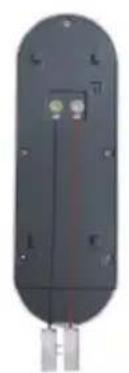
natural_image
Close-up of a black cylindrical electronic device with a small internal component and metallic connectors (no visible text or symbols)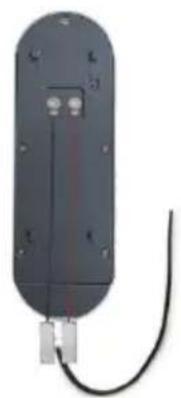
natural_image
Exterior view of a black rectangular electronic device with a cable and connector (no text or symbols visible)natural_image
Simple diagram of a device emitting signal waves, no text or symbols present12) ODSTRAŇOVÁNÍ PROBLÉMŮ
Copyright © Abacus Electric, s.r.o.
www.evolveo.com
www.facebook.com/EvolveoCZ
natural_image
Simple line drawing of a rectangular frame with a label '1' on the side (no text or symbols within the frame)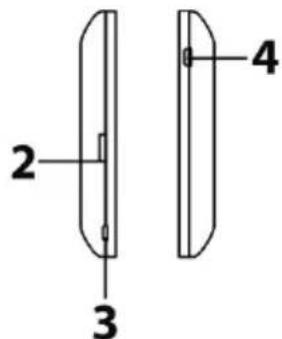
1) Mikrofon
2) Slot na kartu Micro SD s kapacitou až 128 GB
natural_image
Illustration of a flat-screen television displaying a cartoon character with blue eyes and a green leaf (no text or symbols)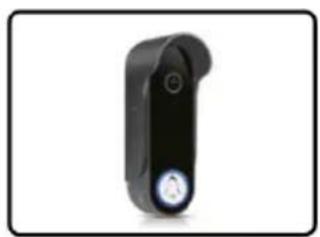
natural_image
Black handheld device with a circular button and a white circular icon on the side (no text or symbols visible)
natural_image
Two green objects resembling cars or vehicles, possibly a vehicle or machine, with no visible text or symbols.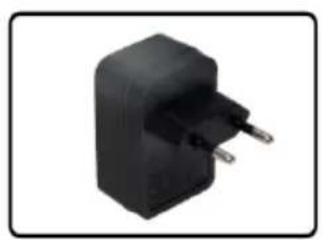
natural_image
Black rectangular electronic component with two metallic pins, isolated on white background (no text or symbols)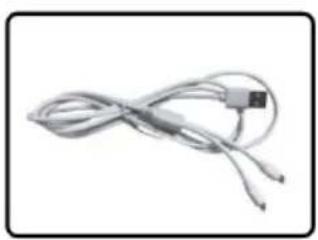
natural_image
Coiled cable with a small USB port, no visible text or symbols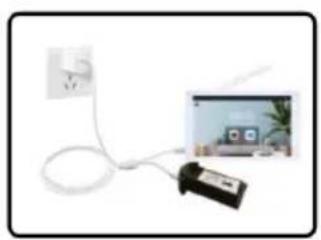
natural_image
Illustration of a white cable with a plug and connector, connected to a wall-mounted device (no text or symbols visible)Vertical camera view
Horizontal camera view
natural_image
Two black and red electronic components with circular features, displayed against a light blue grid background (no text or symbols visible)1
natural_image
Simple diagram showing a black object on the left and light blue background with vertical lines (no text or symbols)2
natural_image
Pure electrical circuit lines without any symbols3
natural_image
Pure electrical circuit lines without any symbols4
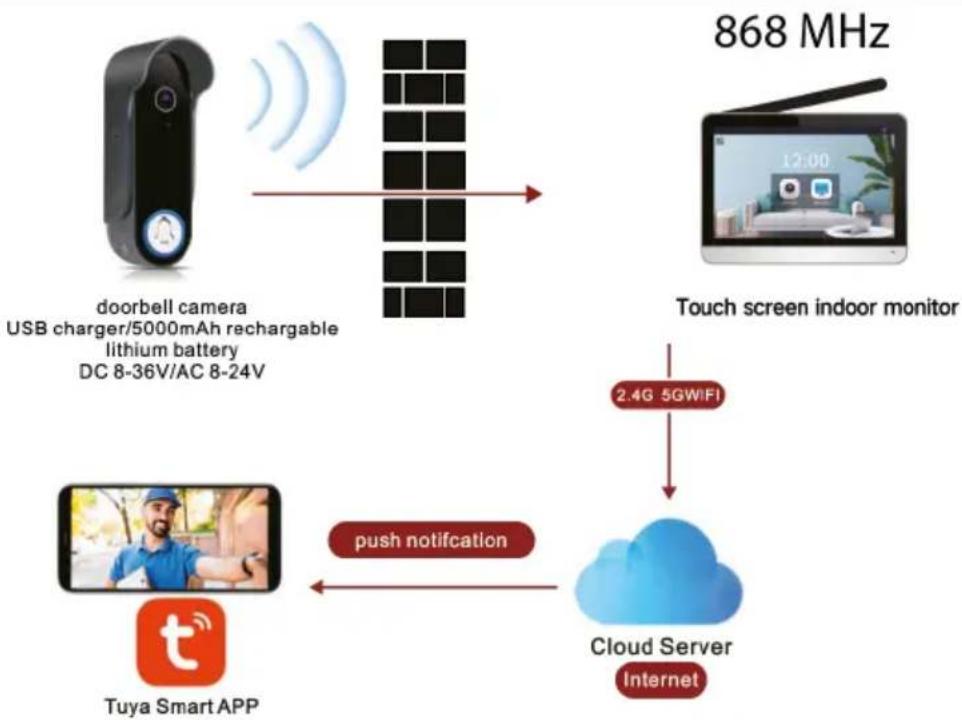
flowchart
graph TD
    A["doorbell camera\nUSB charger/5000mAh rechargeable\nlithium battery\nDC 8-36V/AC 8-24V"] --> B["Grid"]
    C["Touch screen indoor monitor"] --> D["2.4G 5GWIFI"]
    D --> E["Cloud Server\nInternet"]
    F["Tuya Smart APP"] --> G["push notification"]
    G --> E
7) OZNÁMENIE
1) DOMOVSKÁ STRÁNKA APLIKÁCIE
Kliknite na Upozornenia APP
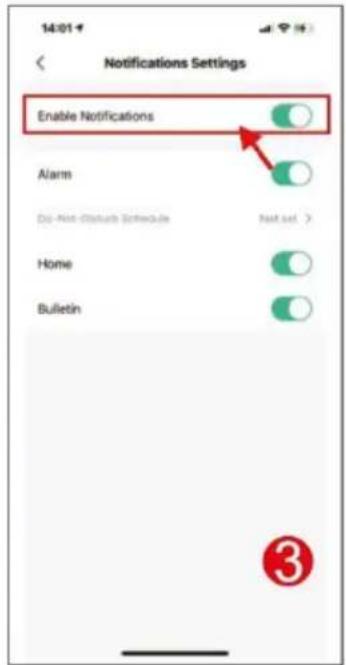
Povolenie oznámení
1
2
3
4
1
natural_image
Exterior view of a modern house with glass facade and surrounding landscape (no signage or text visible)2

3
4
natural_image
Exterior view of a modern house with glass facade and surrounding greenery (no signage or text visible)2

4
3
natural_image
Exterior view of a modern house with glass facade and surrounding landscape (no signage)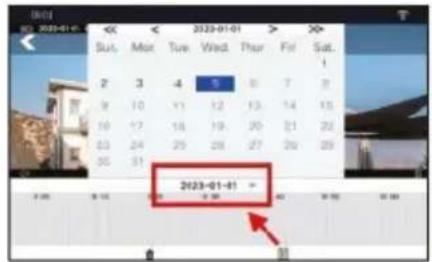
1
natural_image
Exterior view of a modern building with glass facade and curved roof, captured in an image editing interface (no readable text or symbols on the building itself)2

3
4
natural_image
Exterior view of a modern house with glass roof and surrounding landscape (no signage or text visible)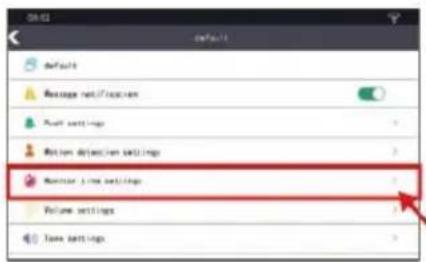
3
4
natural_image
Exterior view of a modern house with glass facade and roof, captured in an image editing interface (no visible text or symbols on the building itself)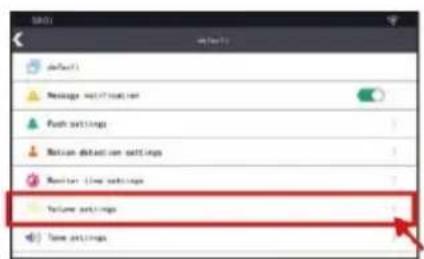
3
4
1
natural_image
Exterior view of a modern house with glass facade and curved roof, captured in a photo editing interface (no signage or text on building)2
3
4
1) Stlačením tlačidla "Camera" vstúpte do rozhrania kamery
2) Stlačte tlačidlo "Nastavenia" a prejdite do rozhrania nastavení.
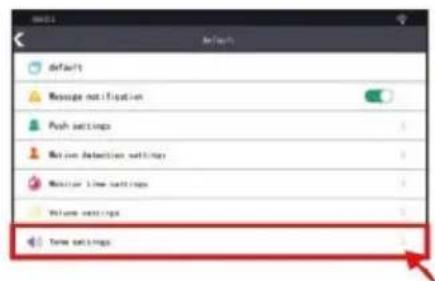
3) Stlačte "Push setttings".
4) Podl'a potreby zapnite alebo vypnite upozornenia PIR alebo CALL.
8) NASTAVENIE TÓNU
1
natural_image
Exterior view of a modern house with glass facade and surrounding landscape (no signage or text visible)2
3
1) Stlačením tlačidla "Camera" vstúpte do rozhrania kamery
2) Stlačte tlačidlo "Nastavenia" a prejdite do rozhrania nastavení.
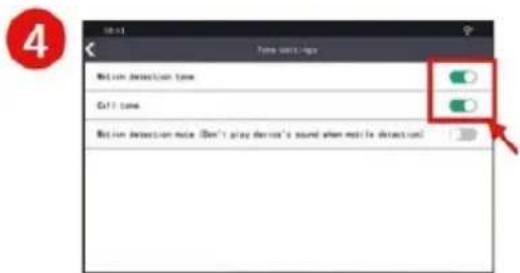
3) Stlačte tlačidlo "Tone settings".
4) Podl'a potreby zapnite alebo vypnite detekciu pohybu a tón hovoru.
9) NASTAVENIE ZVONENIA NA VNÚTORNEJ OBRAZOVKE
1
3
natural_image
Exterior view of a black oval-shaped electronic component with mounting holes and a central connector (no text or symbols visible)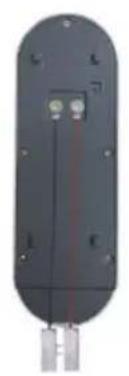
natural_image
Back view of a black cylindrical electronic device with mounting holes and a small metallic connector at the bottom (no visible text or symbols)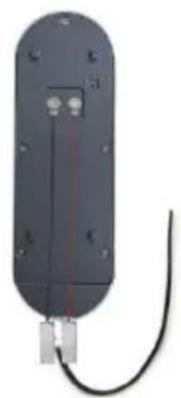
natural_image
Exterior view of a black rectangular electronic device with a cable and connector (no visible text or symbols)natural_image
Simple diagram of a device emitting signals with a blue arrow indicating rotation (no text or symbols)Copyright © Abacus Electric, s.r.o.
www.evolveo.com
www.facebook.com/EvolveoCZ
SAFETY WARNINGS AND INSTRUCTIONS....50
1) PRODUCT DESCRIPTION....51
2) TUYA - SMART LIFE APP DOWNLOAD....52
3) INSTALLATION PREPARATION....52
3) INSTALLATION OF AN OUTDOOR BELL 53
5) HOUSEHOLD MANAGEMENT AND DEVICE SHARING.... 54
6) PRODUCT OPERATING INSTRUCTIONS....56
7) NOTIFICATION....58
8) BASIC ICONS AND RELATED SETTINGS ON THE MONITOR SCREEN ...... 61
10) AC/DC WIRING INSTRUCTIONS....67
11) NOTICE....67
12) TROUBLESHOOTING 68
13) TECHNICAL PARAMETERS....70
EN
SAFETY WARNINGS AND INSTRUCTIONS
1) Before using the wireless video telephone for the first time, carefully read the instruction manual and follow all the instructions given.
2) Make sure that the cordless videophone is placed on a stable and level surface to prevent falls or damage.
3) Do not use the wireless videophone near water, such as in the bathroom, and avoid contact with liquids.
4) Check the condition of the batteries regularly and charge them only with the supplied charger or recommended charging devices.
5) Do not use damaged or bulging batteries and replace them immediately if in doubt.
6) When charging the batteries, monitor their temperature and immediately stop charging if they become too hot.
7) Do not place the videophone on flammable surfaces or near flammable materials such as curtains or drapes.
8) Do not attempt to open or repair the videophone yourself unless you are a qualified technician.
9) When handling batteries, follow the manufacturer's instructions for storage, charging and disposal of old batteries.
10) Avoid placing the videophone in areas with extreme temperatures, such as outside a window in hot weather.
11) Do not allow children to play with the videophone, especially if they are not familiar with its safe use.
12) When handling the charger cable, avoid bending, kinking or any physical damage to the cable.
13) Make sure the videophone is not exposed to direct sunlight or other heat sources that could adversely affect its performance or battery life.
14) Do not attempt to insert foreign objects into the videophone or insert any objects into the device that are not intended for that model.
15) When transferring the videophone from one location to another, avoid drops or bumps that could damage the equipment.
16) In case you notice any anomalies in the behaviour of the videophone, such as unusual sounds, smells or behaviour, disconnect it from the power supply immediately and consult our service team: servis@evolveo.com
1) PRODUCT DESCRIPTION
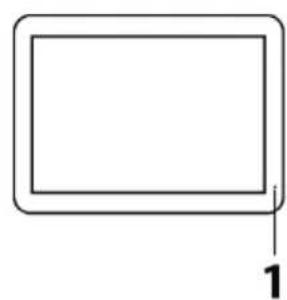
MONITOR
natural_image
Simple line drawing of a rectangular frame with a label '1' at the bottom (no text or symbols within the frame)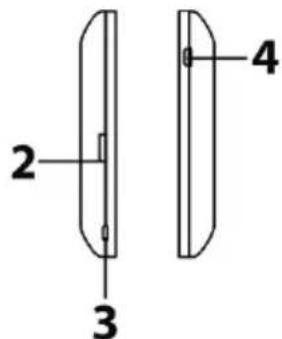
1) Microphone
2) Micro SD card slot up to 128GB
3) Type C charging port
4) ON/OFF Button
OUTDOOR DOORBELL
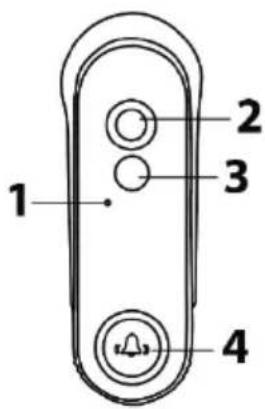
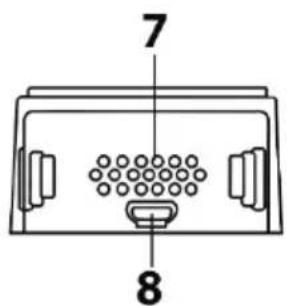
1) Microphone
2) Camera lens
3) PIR motion sensor
4) Doorbell button
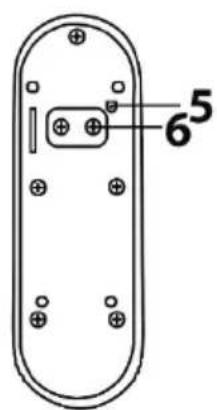
5) Pairing button
6) AC/DC clamps
7) Reproduktor
8) Type C charging port
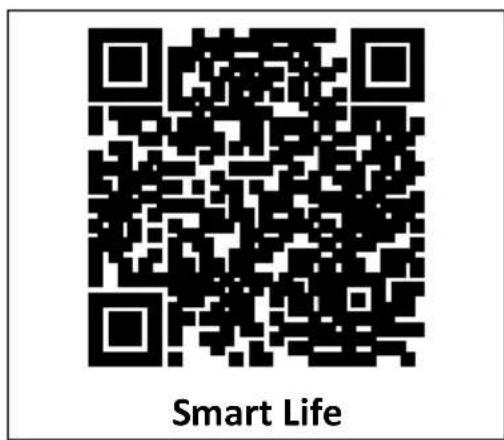
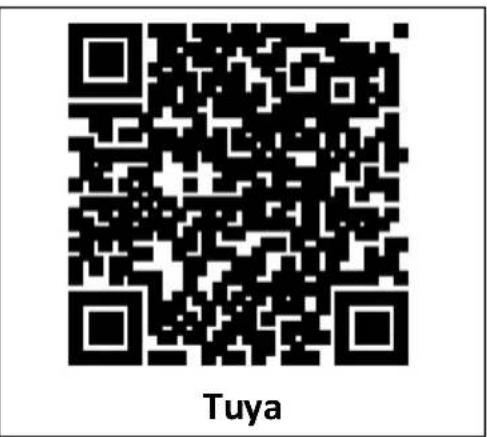
1) Search for the Tuya or SMART LIFE app in the smartphone app store and download and install.
2) Register: Once you have selected a location, register using your email address or phone number. Users can also log in using a third-party social media account.
* If you can't find the Tuya or SMART LIFE app in the app store, please use the QR code below:
3) INSTALLATION PREPARATION
natural_image
Illustration of a flat-screen TV displaying a cartoon scene with a lamp and flowers (no text or symbols)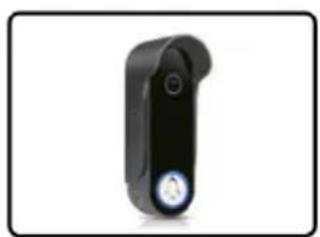
natural_image
Black handheld device with a circular button and a small white icon on the side (no text or symbols visible)
natural_image
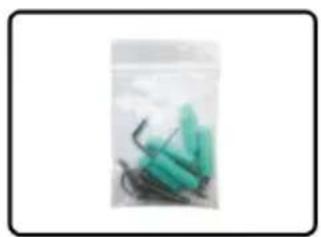
Green and black abstract shapes on a light background (no text or symbols)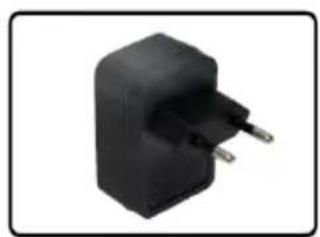
natural_image
Black rectangular electronic component with two metallic pins, isolated on white background (no text or symbols)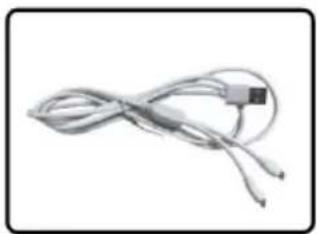
natural_image
Coiled cable with a small connector (no text or symbols visible)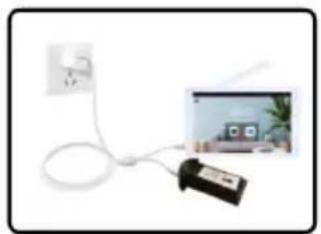
natural_image
Illustration of a white cable with a plug and a black handheld device connected to a wall-mounted device (no text or symbols visible)As shown in the picture above, connect one end of the cable to the internal monitor for long term power supply, the other end can charge the doorbell battery.
3) INSTALLATION OF AN OUTDOOR BELL
INSTALLATION POSITION
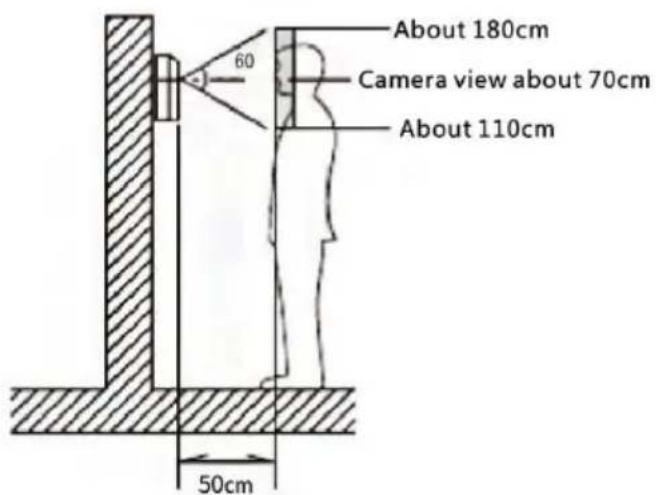
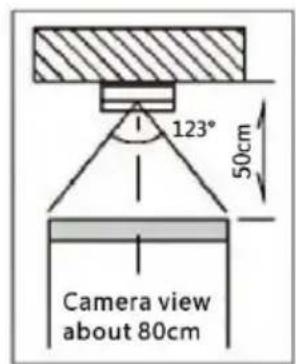
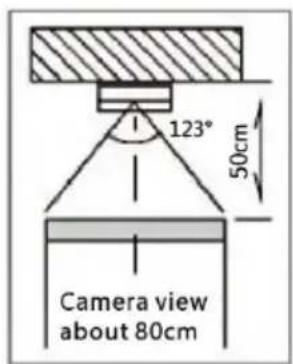
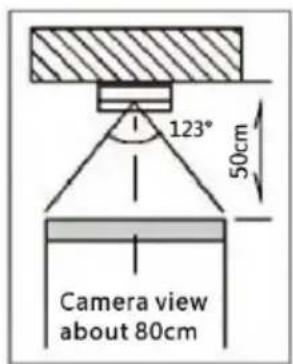
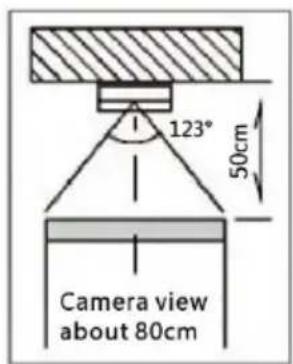
Vertical camera view
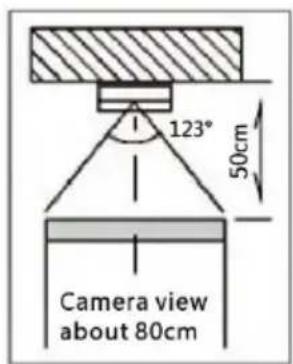
Horizontal camera view
Warning: Protect the camera lens from direct sunlight. If the camera is intensively illuminated by street lights or a light object in the dark, it is necessary to install a lamp near the bell to improve the camera's sensing!
INSTALLATION OF THE DOORBELL
natural_image
Two black and red electronic components with mounting holes, shown against a light grid background (no text or symbols visible)1
natural_image
Simple diagram showing a black curved shape with vertical lines and a light blue background (no text or symbols)2
natural_image
Close-up of a black mechanical component with metallic pins, against a light blue background (no text or symbols visible)3
natural_image
Pure electrical circuit lines without any symbols4
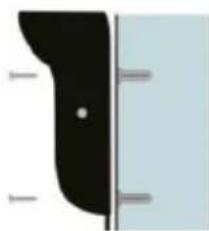
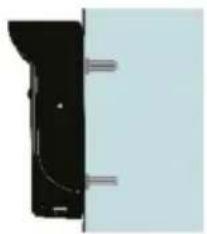
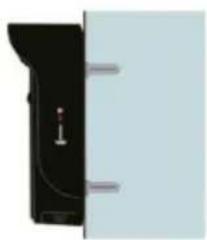
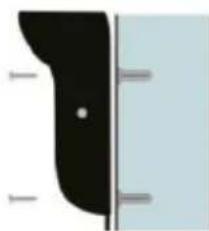
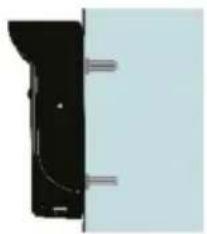
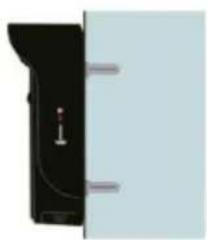
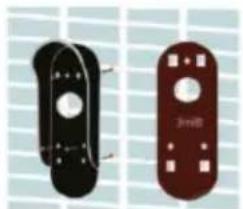
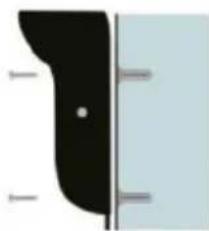
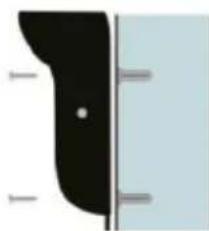
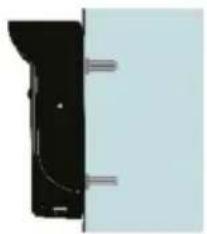
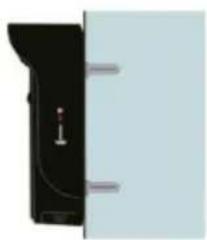
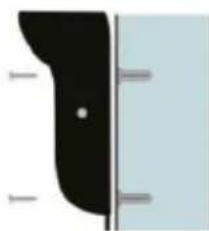
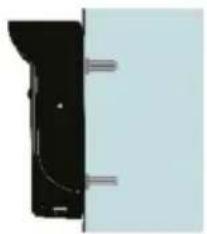
1) Drill 4 holes in the wall for mounting the bracket. (Or use the prepared 3M adhesive tape to fix the holder)
2) Fix the bracket to the wall with screws or 3M tape
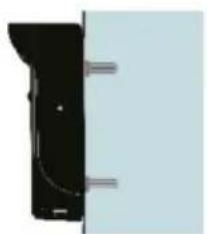
3) Attach the bell to the bracket
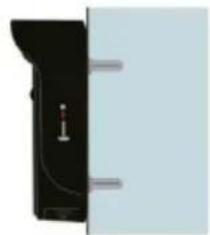
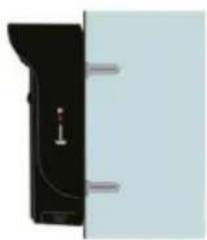
4) Screw the screw on the left side to secure the Bell and Battery!
Warning: After installing the doorbell, use the side screw to secure the doorbell battery as shown in Figure 4 to prevent misconnection of the battery power supply.
5) HOUSEHOLD MANAGEMENT AND DEVICE SHARING
1) HOME MANAGEMENT
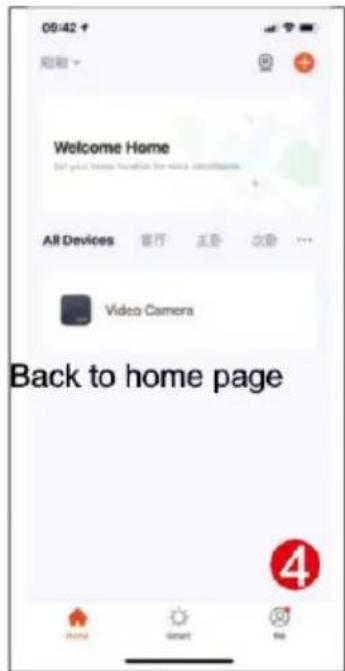
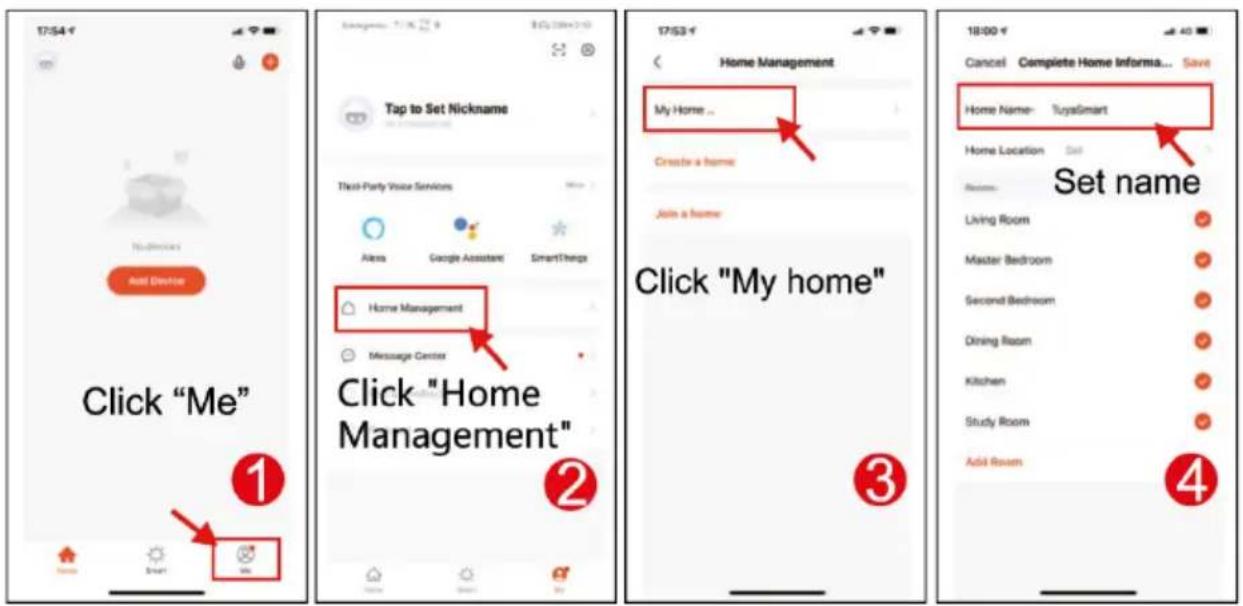
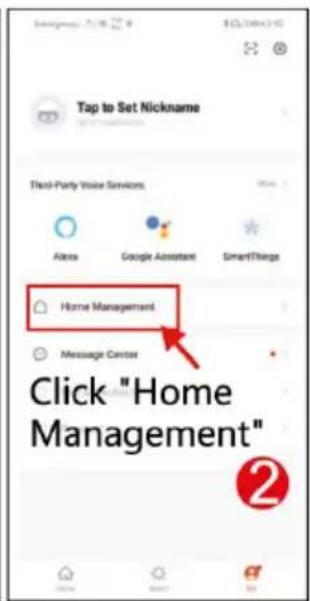
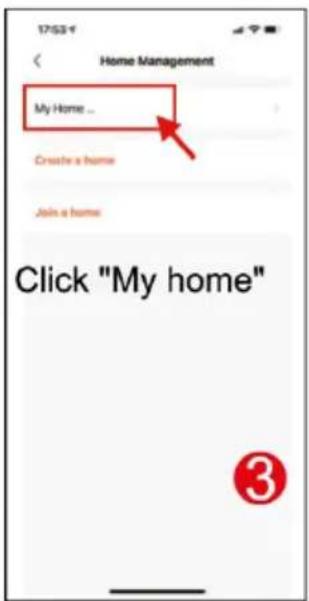
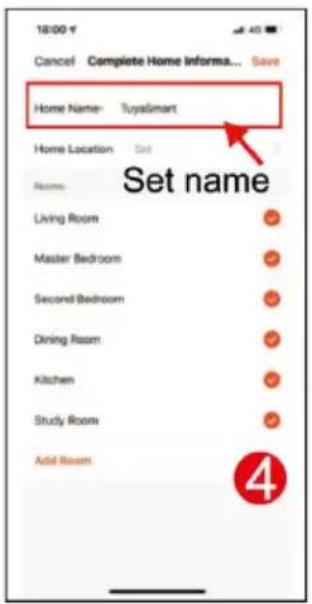
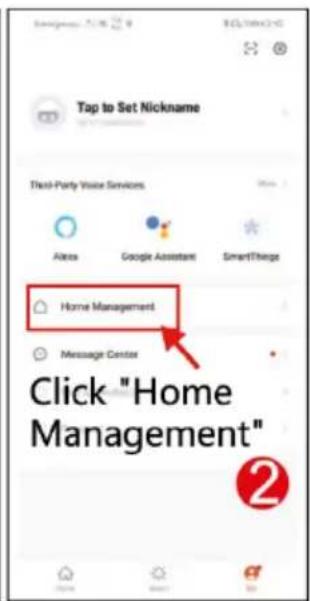
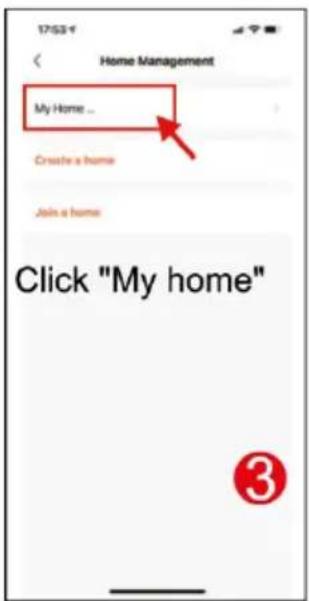
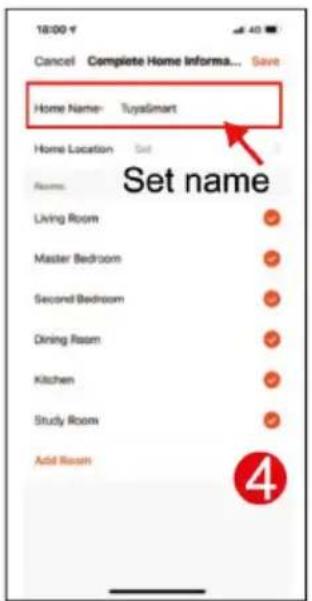
The new user will register and login (Fig.1), click on "I" Manage Home" (Fig.2), click on "My Home" (Fig.3), "Home Name "you can set the name of your home as you like, a maximum of 25 characters can be entered (Fig.4).
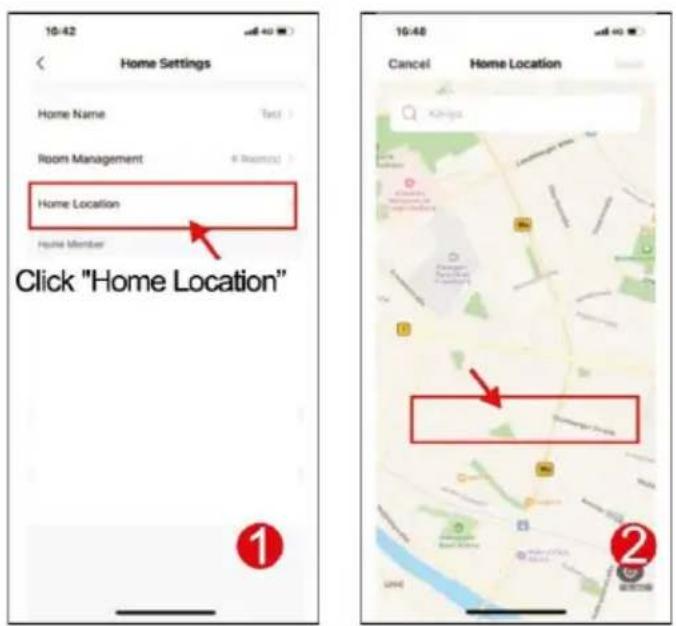
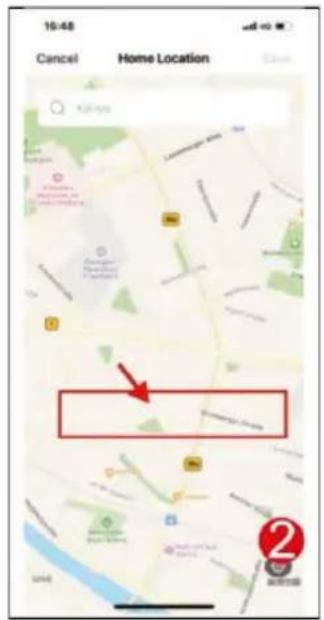
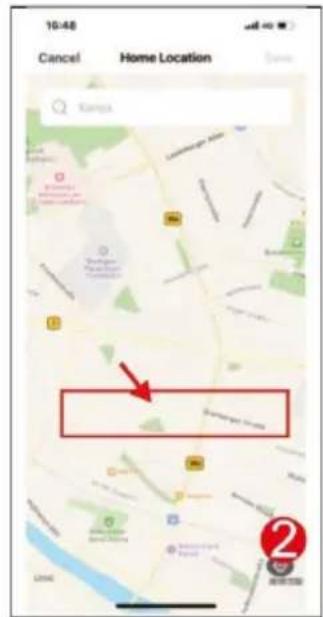
"Location" will be set according to your mobile phone's location or you can set it according to your actual location (Fig.1), then click "OK" to confirm (Fig.2)
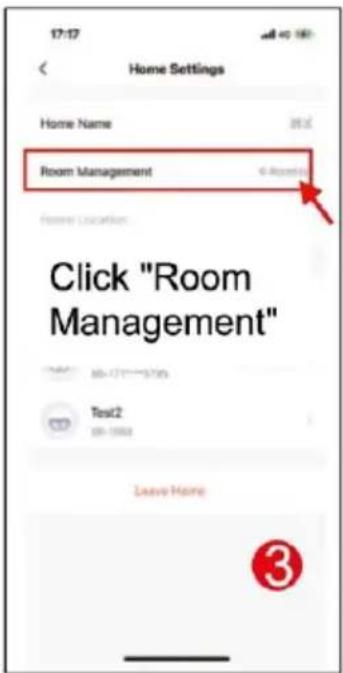
You can use the default room name, you can also click on "Room management" and set the room name, a maximum of 25 characters can be entered (Fig. 3). When you
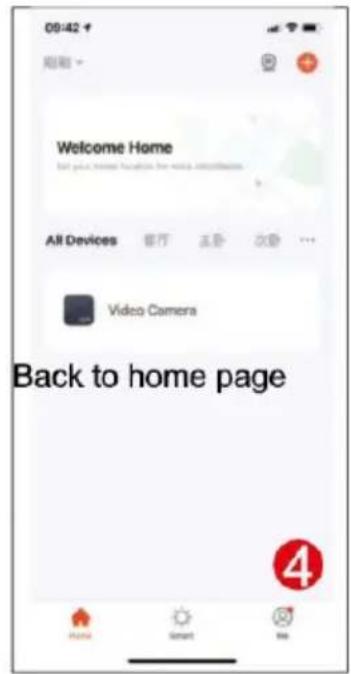
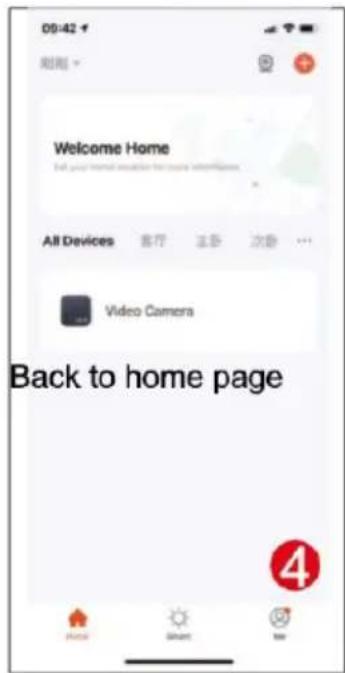
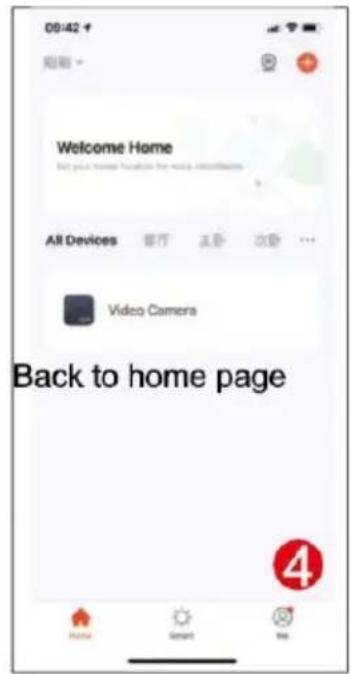
have finished setting up your home management, return to the home page. Home page showing "Weather, temperature, home name etc".
2) ADD FAMILY MEMBERS
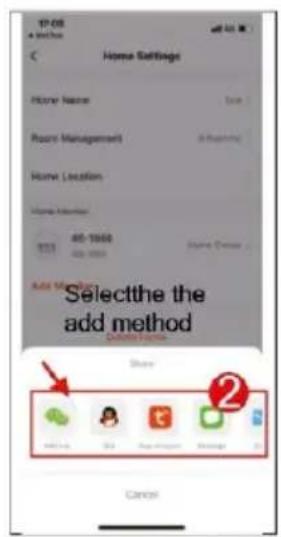
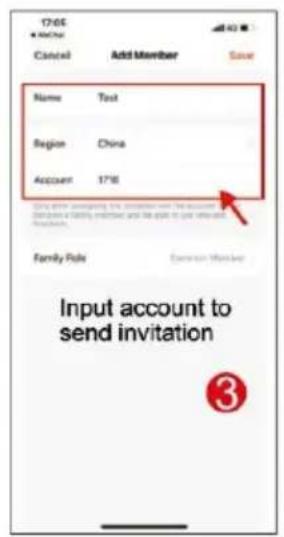
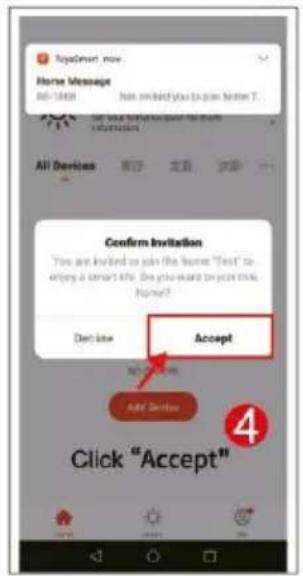
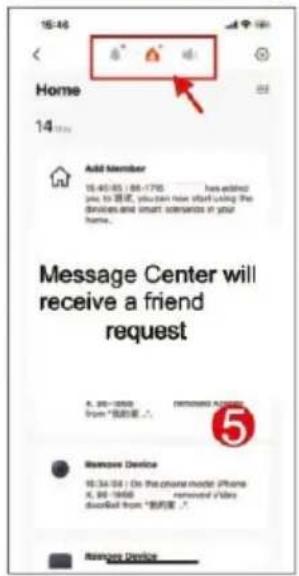
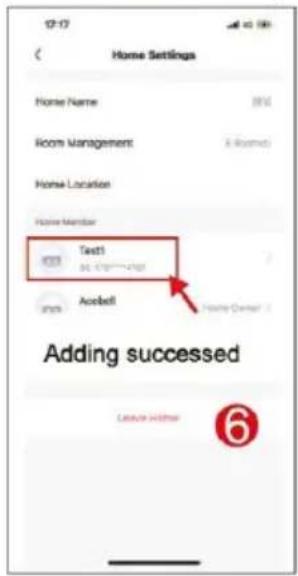
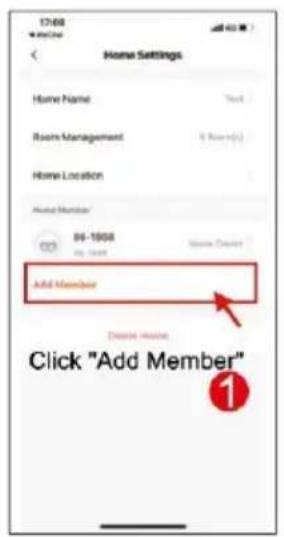
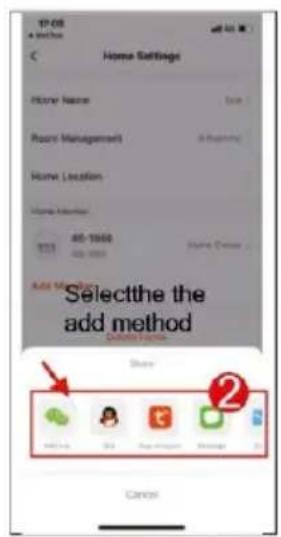
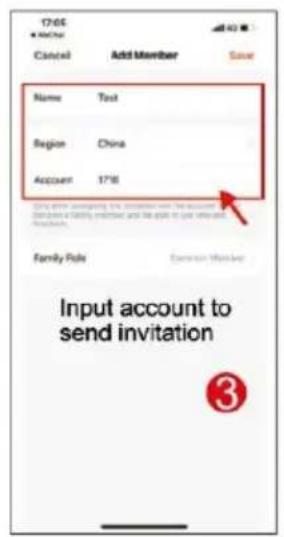
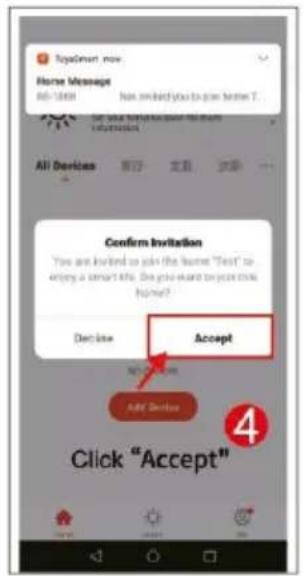
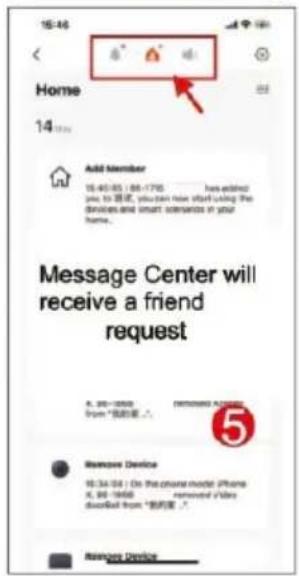
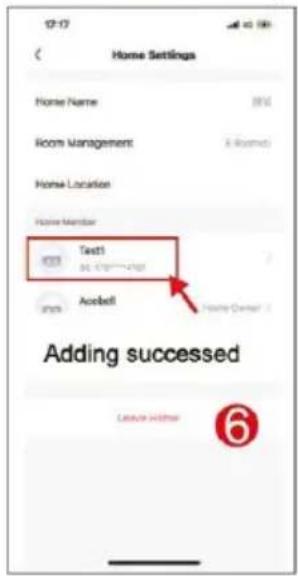
Go to the Manage Home page, select the home you created, click on "Add Member" (Fig. 1), select "Tuya application account" (Fig. 2), enter the account of the member you want to add. The invited member's Tuya application will receive an invitation message, which you can check in the "Message Center" (Fig. 5), then open the app, click on "Me" and go to "Manage Homes", and click on "Accept" to connect (Fig. 4), the connected home will appear on the "Manage Homes" page. And the administrator settings home page showing the account of the added Tuya member (Fig. 6).
6) PRODUCT OPERATING INSTRUCTIONS
MONITOR LANGUAGE SETTING
You can set the language of your choice in the Monitor menu below:
- Czech
- Slovak
- English
- Italian
- German
- French
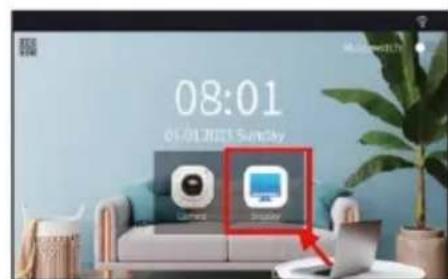
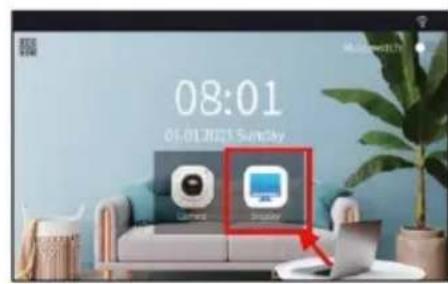
English is set as the base language in the monitor. To set a different language, select the "Display" icon on the main monitor screen and then select "Language". Select a language by clicking, the language will change automatically and you can exit the menu by clicking the back arrow in the top left corner.
PAIRING THE TOUCH SCREEN WITH AN APP
1) Power on the indoor screen monitor, it will turn on automatically.
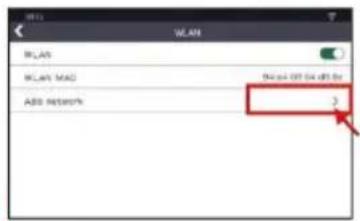
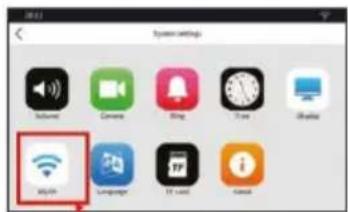
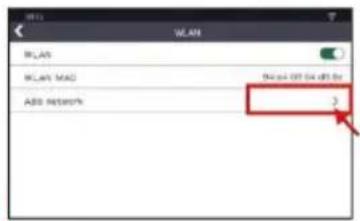
2) Select Go to WIFI Settings Interface.
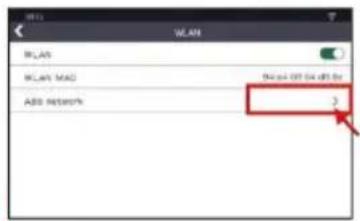
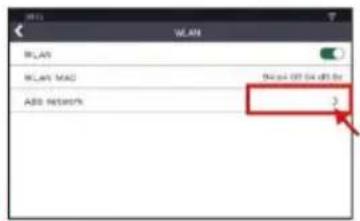
3) Open "WLAN", click on *add network' to go to the WIFI search interface.
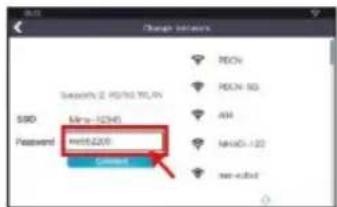
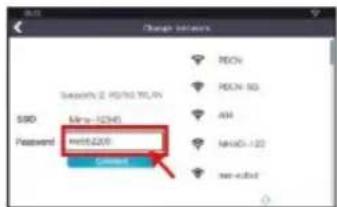
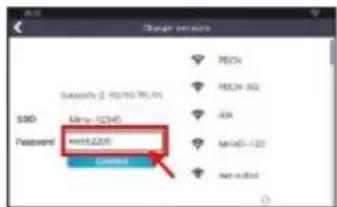
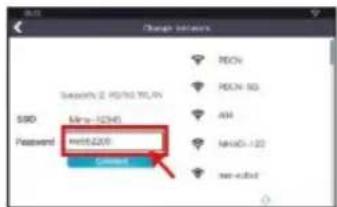
4) Select the 2.4G/5G WIFI you use at home, enter the password and press the *Connect" button.
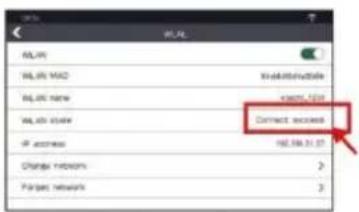
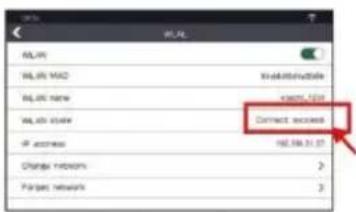
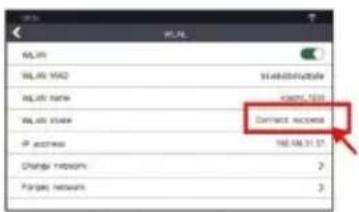
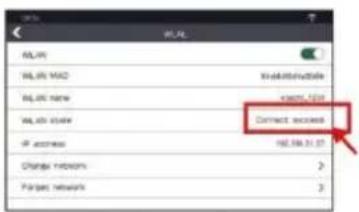
5) After successfully setting back to the WIFI setup interface, it will get the IP address.
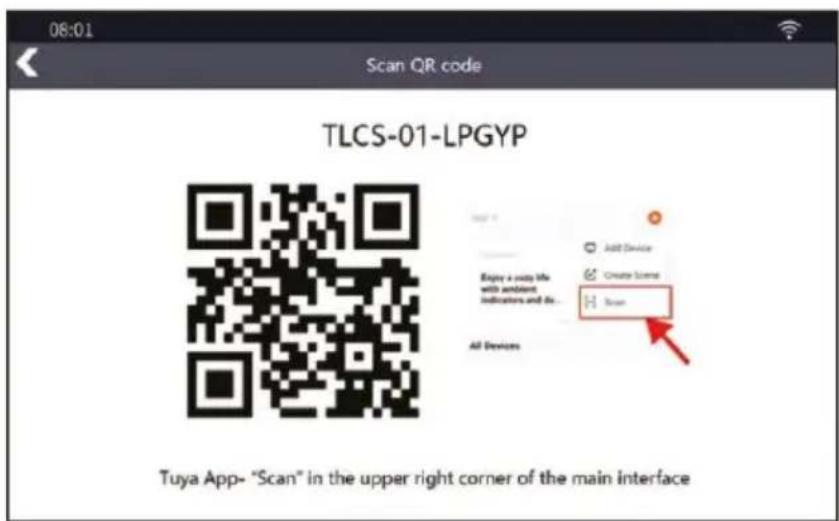
6) Open the Tuya app on your mobile phone and click on the "+" in the top right corner and then click on *Scann
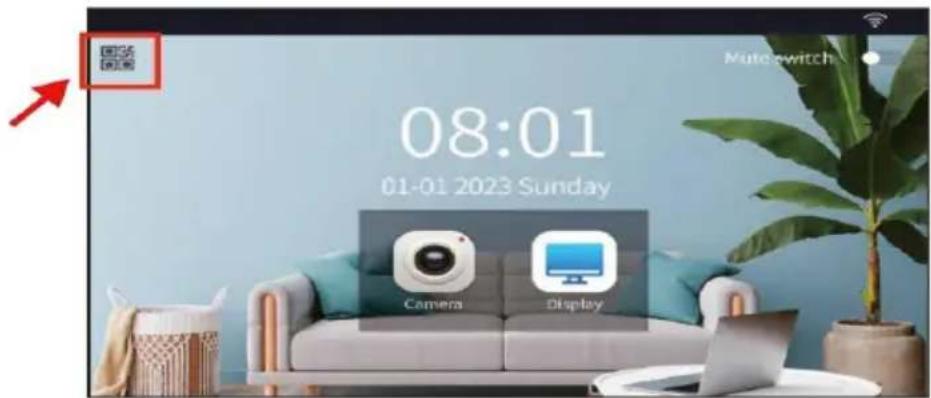
7) Scan the QR code you get by clicking on the QR icon in the top left corner of the monitor and add the device.
8) Press the "Done" button in the app, adding the device is complete.
1) Press the QR code in the top left corner of the screen
2) Scan the QR code using the Tuya app
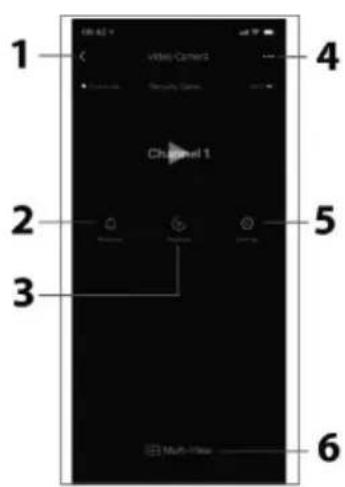
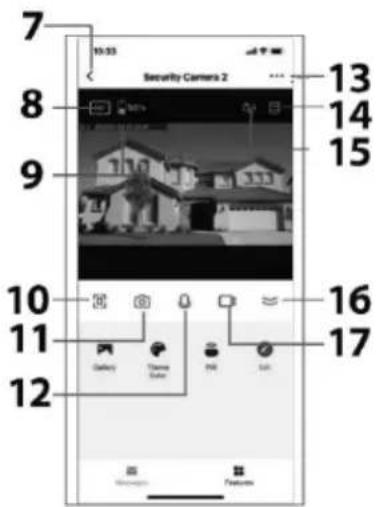
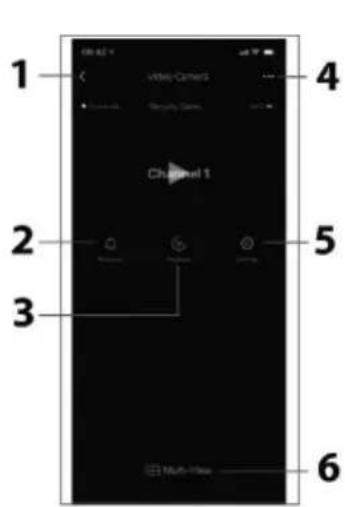
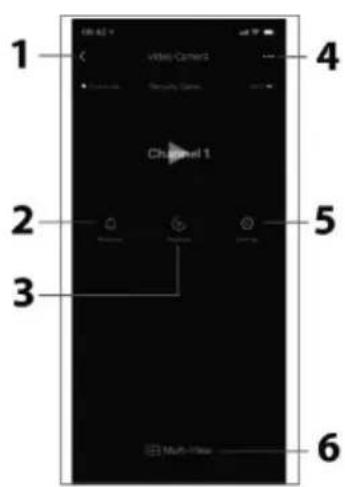
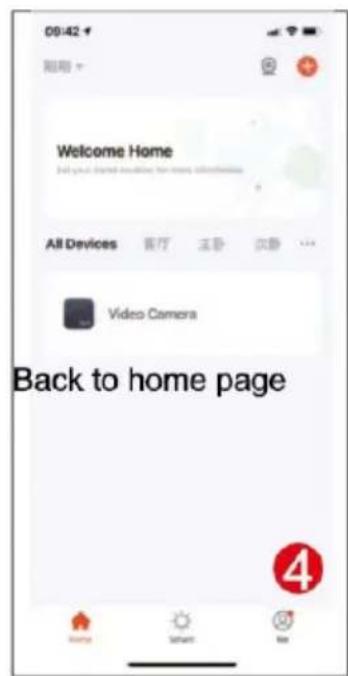
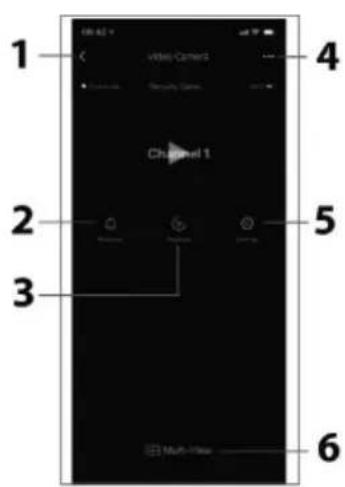
1) APPLICATION HOMEPAGE
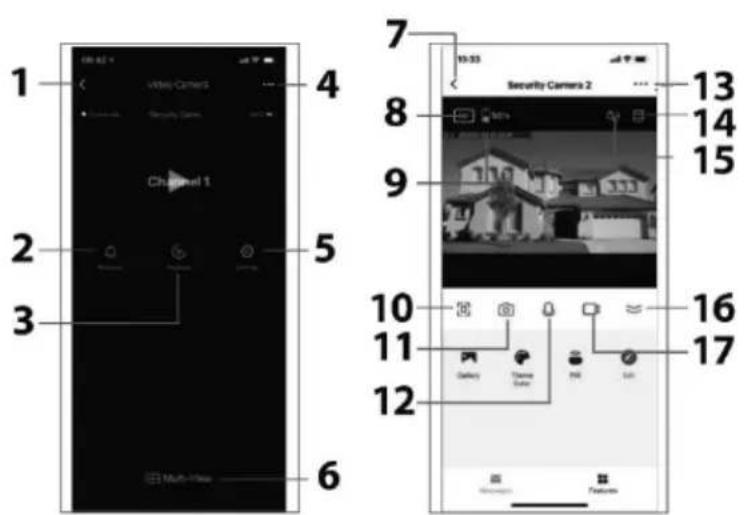
1) Return
2) Message Centre
3) Playback
4) Settings
5) Doorbell settings
6) Multiple views
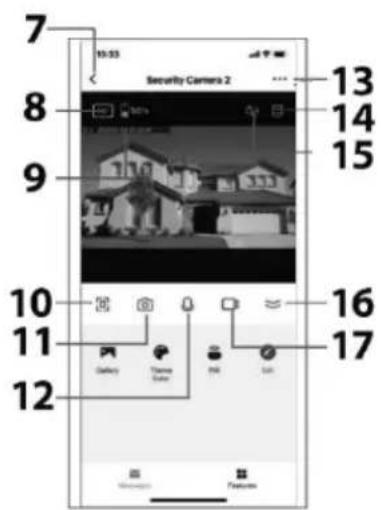
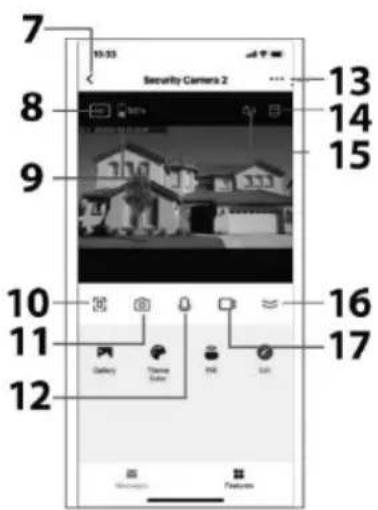
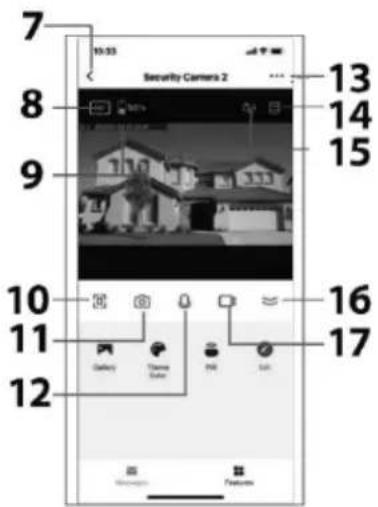
7) Return
8) Image quality
9) Battery capacity
10) Full screen
11) Photography
12) Intercom button
13) Settings
14) Aspect ratio
15) Intercom gateway
16) Other features
17) Video recording
2) NOTIFICATION SETTINGS
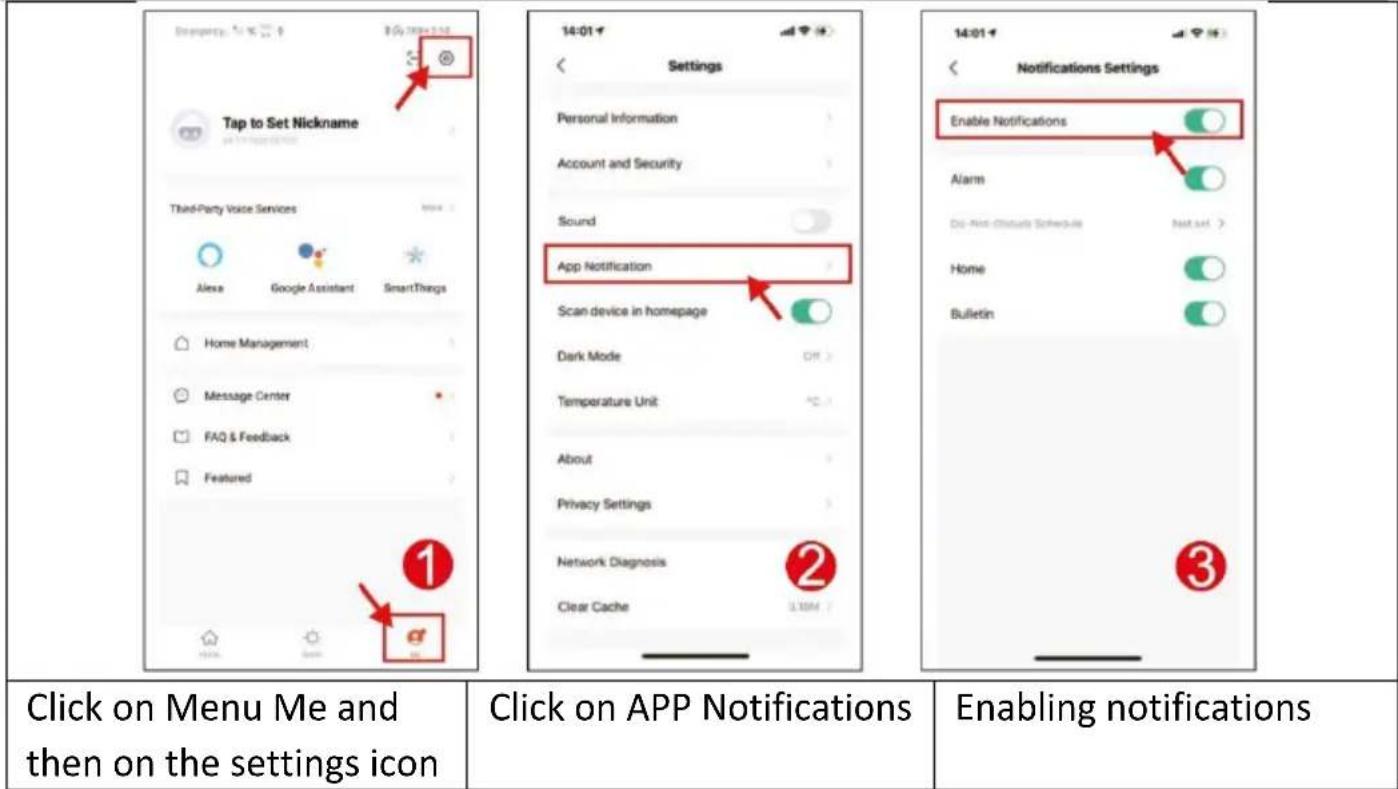
Visitor call (doorbell)
If a visitor calls from the Bell, the Tuya app on the smartphone receives a notification of the call, you can answer the call and the video is saved to the SD card. If you do not answer the call, it will automatically end after 30 seconds.
Real-time monitoring
If you want to know the outdoor situation, you can open the app and activate the monitoring function to see the video from outside. During monitoring, you can control shooting, video recording, full screen display, video image quality setting, communication with outdoor unit, lock opening, etc.
Storage function
A micro SD card of up to 128GB can be installed on the indoor screen to store all videos, such as motion detection video, call video, monitoring video, and all videos can be displayed via playback or in the message center on the indoor Monitor. View videos through the Playback app and download the videos you need. You can check the capacity of the micro SD card in the "Display-SD card" menu of the Monitor.
Share a device
You can add friends and relatives in Manage your household. Once successfully added, all members can use the device.
Other operations
"Camera-Setting-Tone settings" can mute the microphone for the motion detection function.
"Camera-setting-Power management setting", the button's LED ring opens under "Camera-setting-Power management setting".
and when motion detection is active, the LED - the ring around the doorbell button lights up, if you close it, the LED will only light up when the visitor presses the call button.
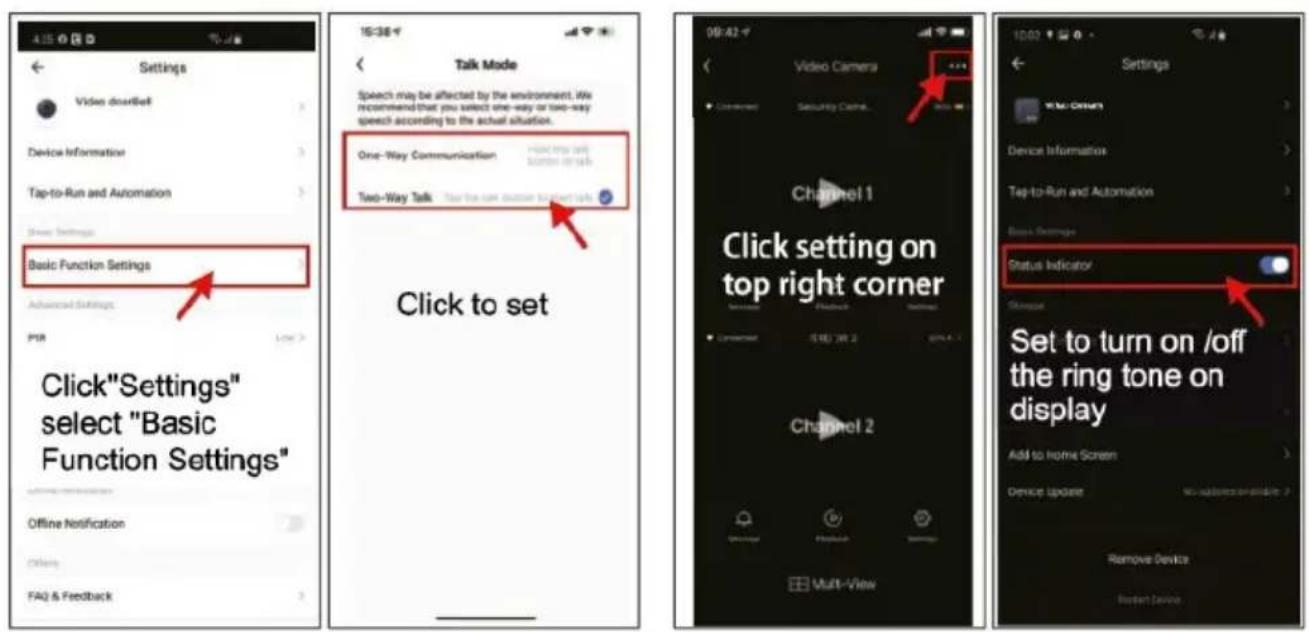
Setting the gateway audio for one-way communication with two wav files
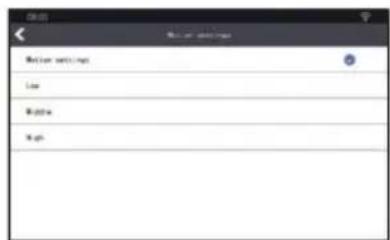
When the outdoor camera detects movement using the PIR sensor, it sends a message to
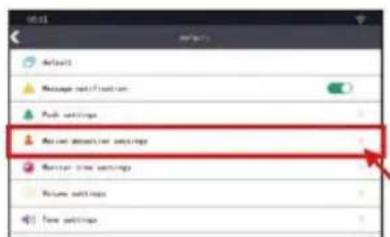
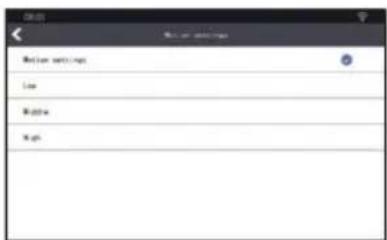
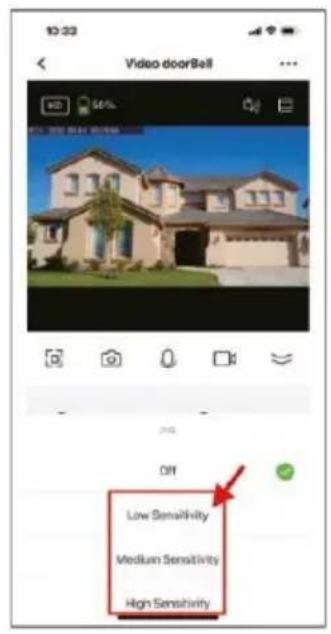
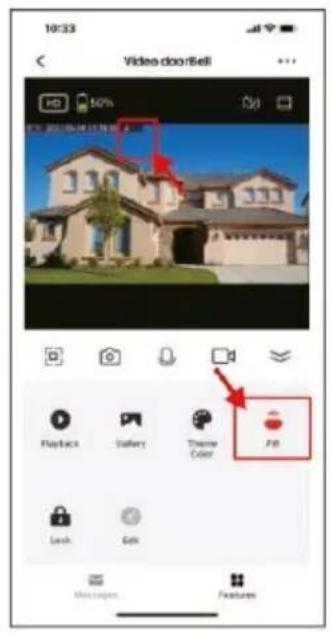
Tuya smartphone app and record a video. You can view the videos in the Monitor in the playback menu. You can adjust the sensitivity of the PIR detector in the app.
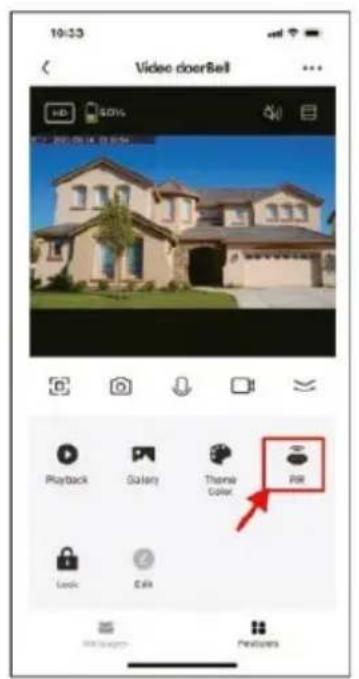
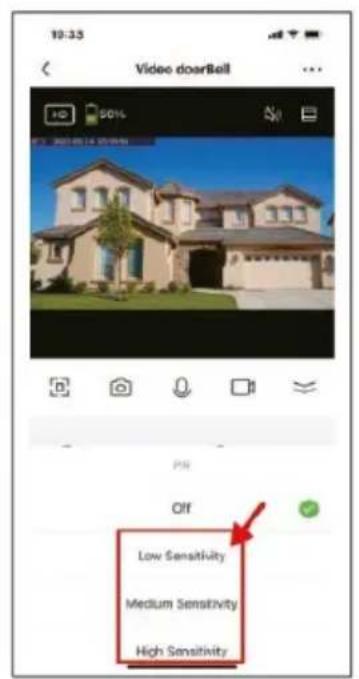
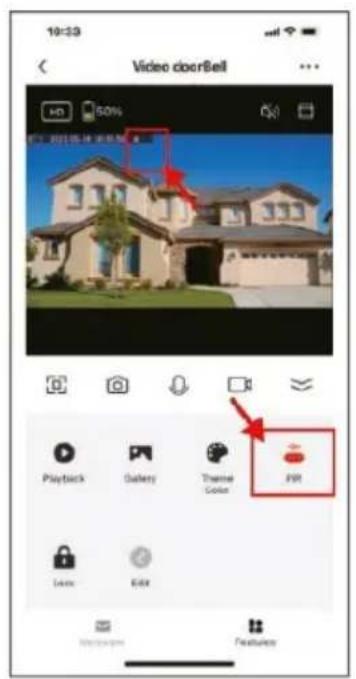
1) Go to the monitoring page
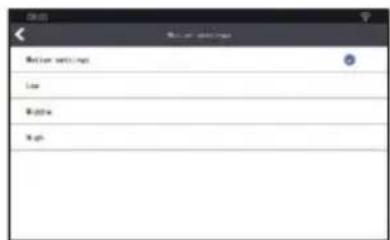
2) Select PIR motion detection sensitivity
3) Screen showing sensitivity after setting
8) BASIC ICONS AND RELATED SETTINGS ON THE MONITOR SCREEN
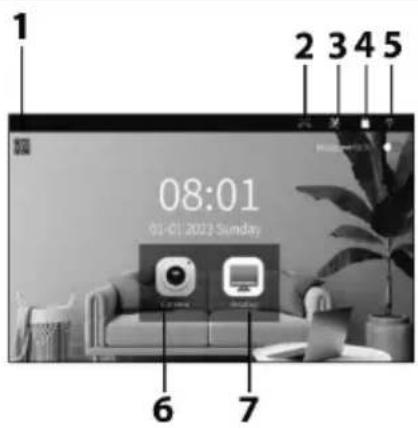
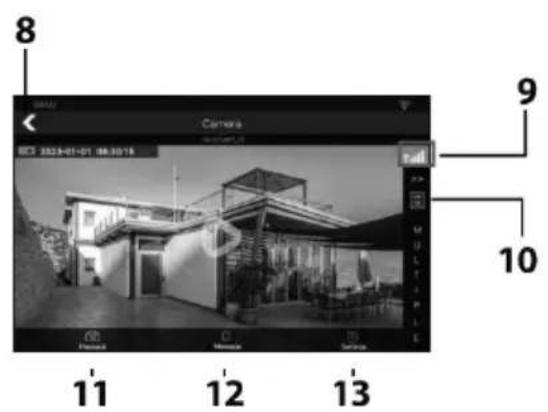
| System area | List of doorbell cameras |
| 1) QR code to add to the app2) Missed call3) Motion detection4) SD card5) Wifi signal6) Camera - outdoor doorbell7) Monitor menu | 8) Back9) Signal outside10) Preview in multiple ways11) Playback12) Report13) Settings |
1) PRIDAT WIFI
1
2
4
3
1) "Press "Display" and select "WLAN".
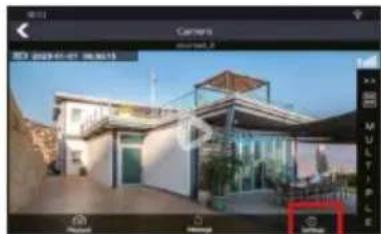
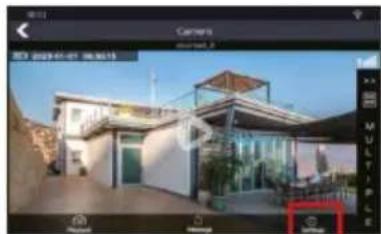
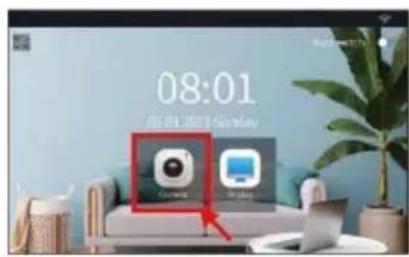
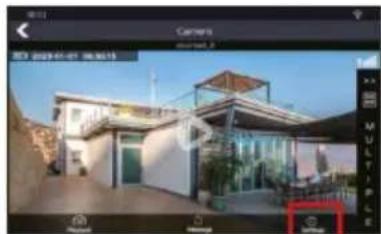
2) Press the "Camera" button to enter the camera interface
3) Select the WIFI you want to use, enter the WIFI password and press "connect"
Select the same WiFi network you use on your mobile phone with the Tuya app.
4) Successful connection
2) MOTION DETECTION SETTINGS
1
natural_image
Exterior view of a modern house with glass facade and surrounding landscape (no signage or text visible)2
3
4
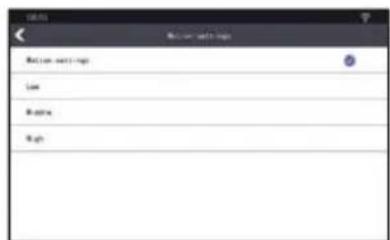
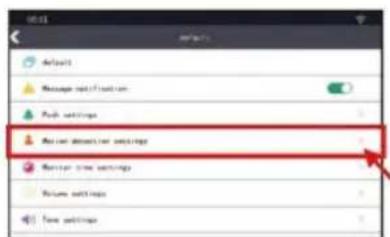
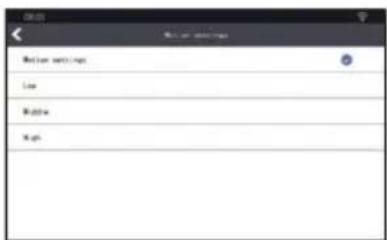
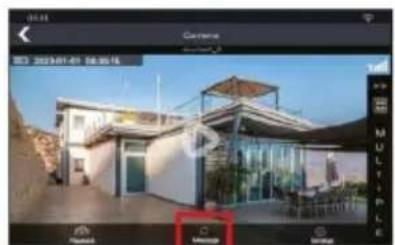
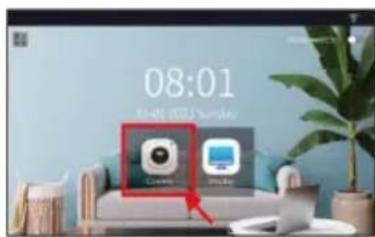
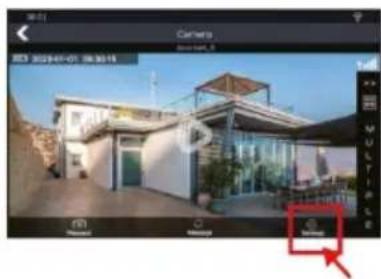
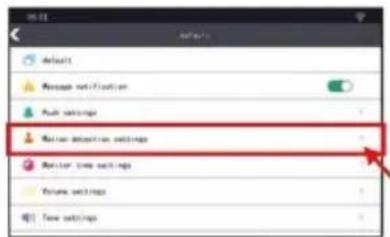
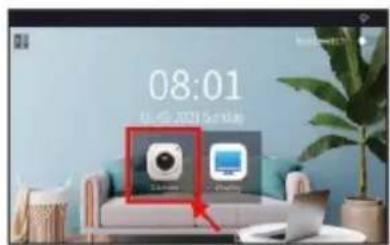
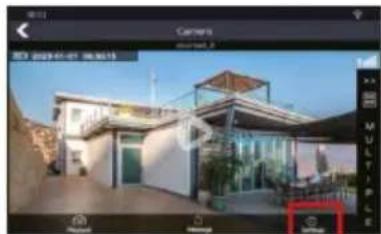
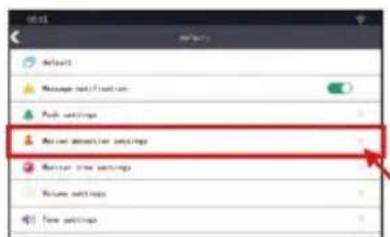
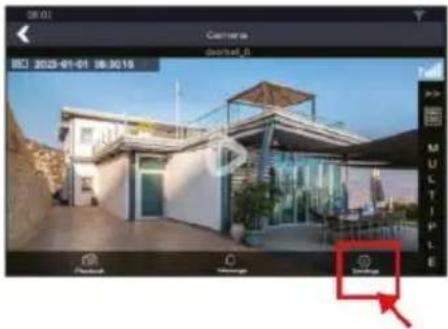
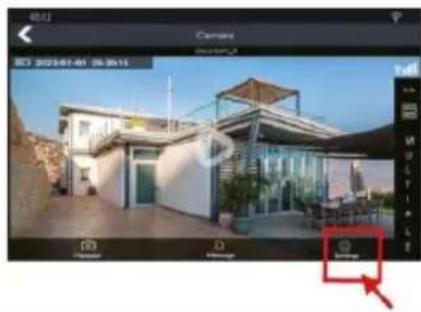
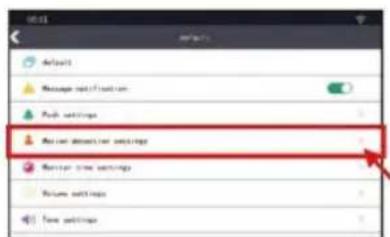
1) Press the "Camera" button to enter the camera interface
2) Press the "Setting" button.
3) Select "Motion Detection Settings"
4) Successful connection
3) PLAYBACK
1
natural_image
Exterior view of a modern house with glass facade and surrounding greenery (no signage or text visible)2

4
3
natural_image
Exterior view of a modern house with glass facade and mountain background (no signage)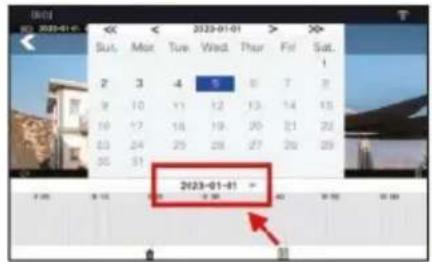
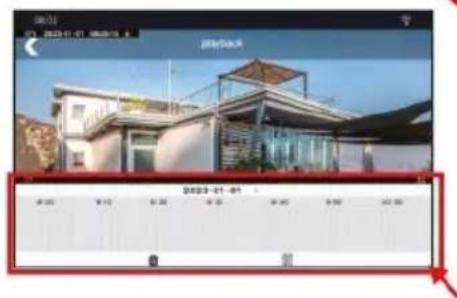
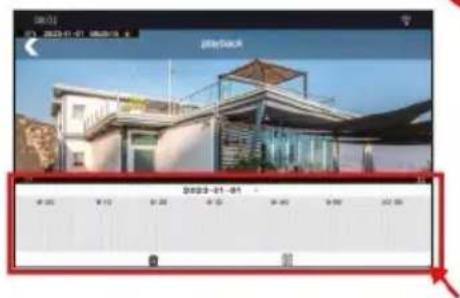
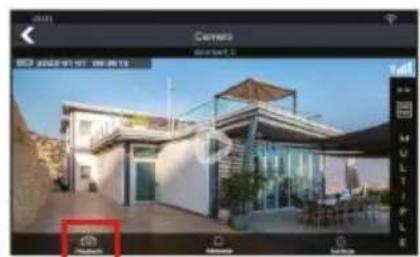
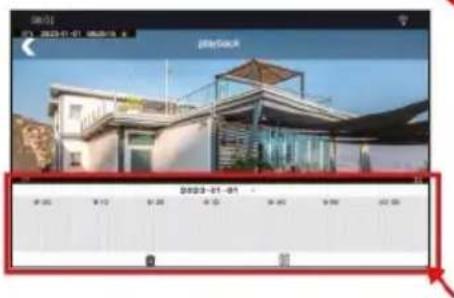
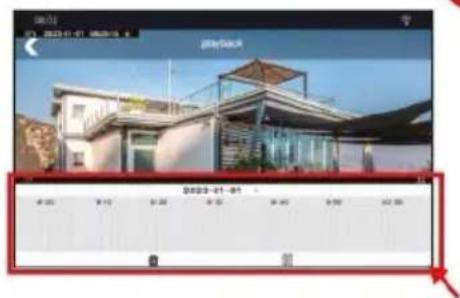
1) Press the "Camera" button to enter the camera interface
2) Press the "Playback" button to enter the playback interface
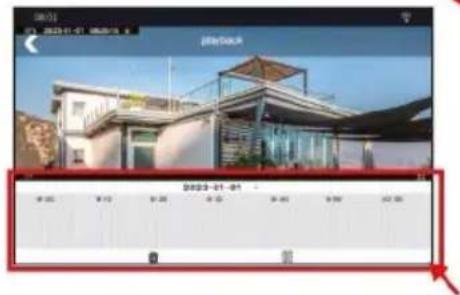
3) Drag the timeline to view the video.
4) Select the time to view the video
4) NEWS
1
natural_image
Exterior view of a modern building with glass facade and curved roof, captured in an image editing interface (no readable text or symbols on the building itself)2
3
4
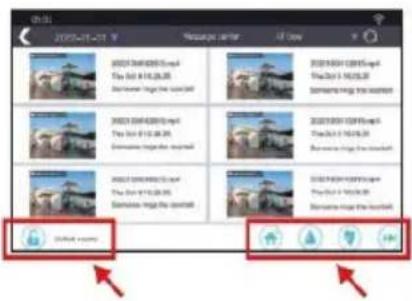
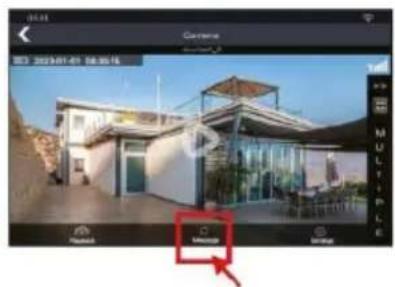
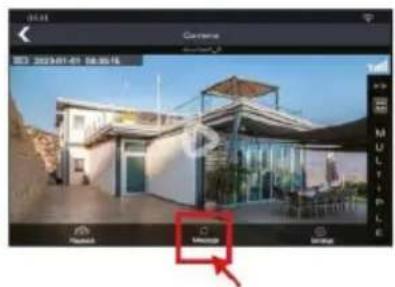
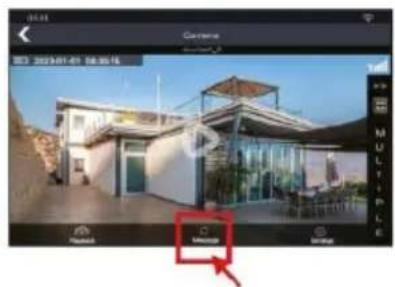
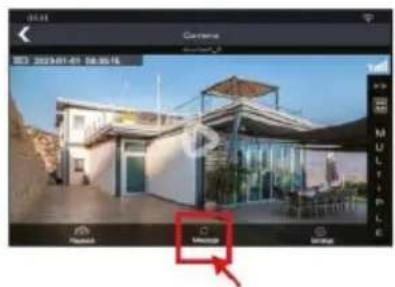
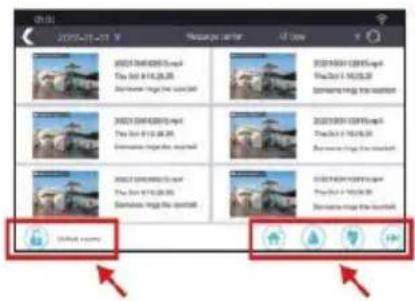
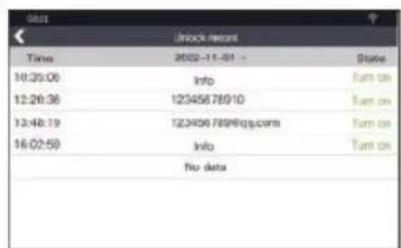
1) Press the "Camera" button to enter the camera interface
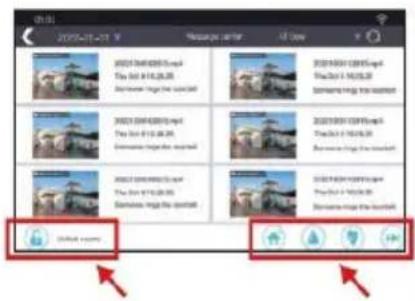
2) Press the "Message" button to enter the message interface
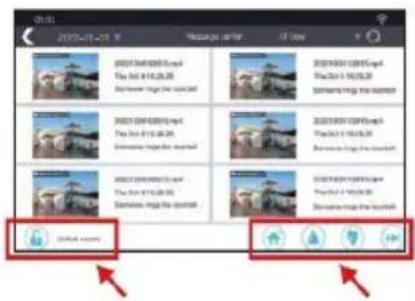
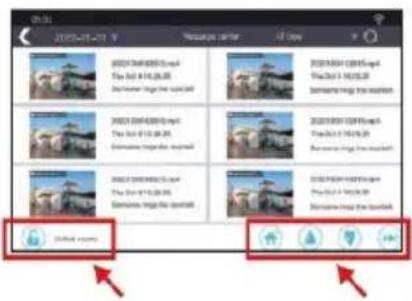
3) Video Control Panel
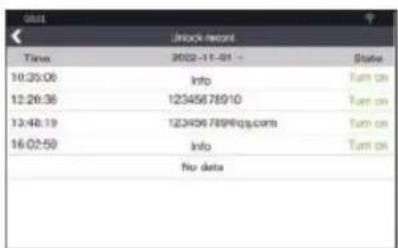
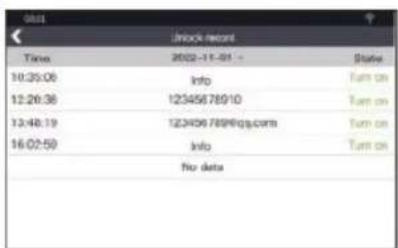
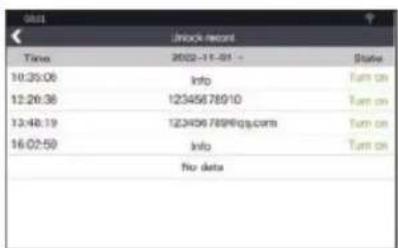
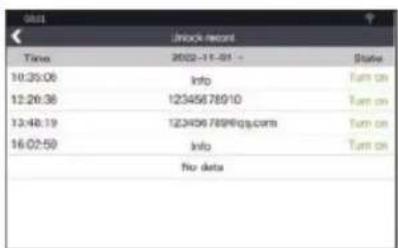
4) Press the "Unlock Record" button to check the unlocked records.
5) SETTING THE LENGTH OF TRACKING
1
natural_image
Exterior view of a modern house with glass roof and surrounding greenery (no signage or text visible)
3
2
4
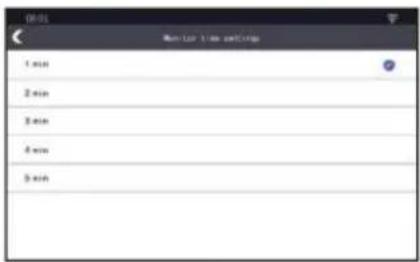
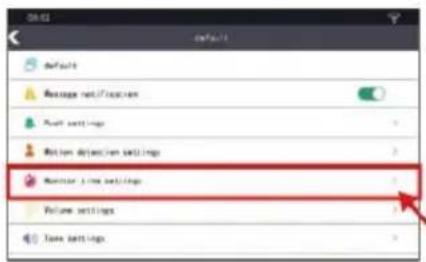
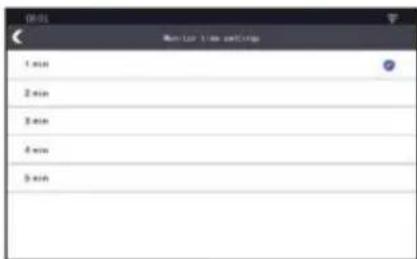
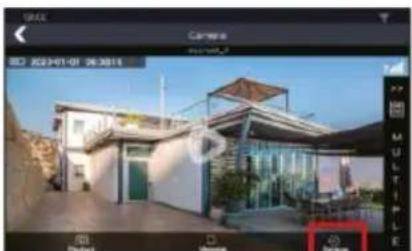
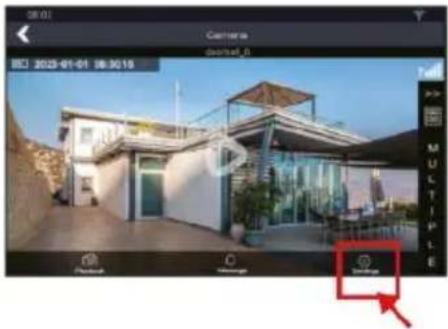
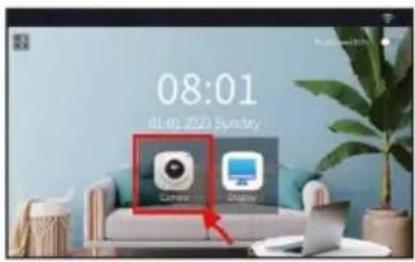
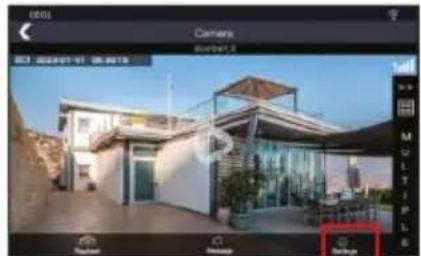
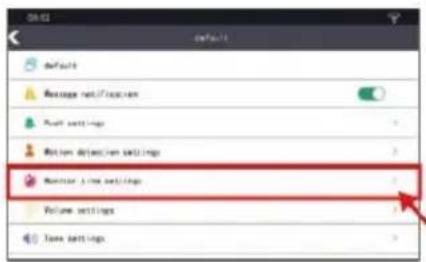
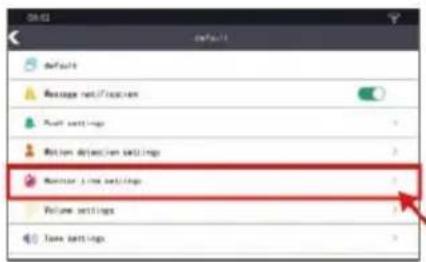
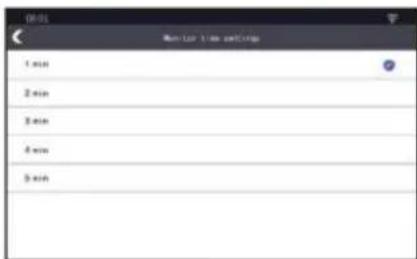
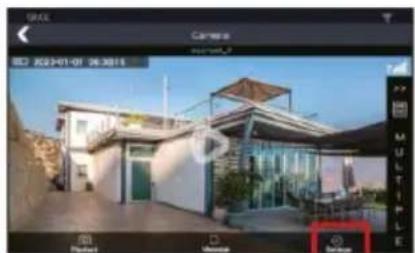
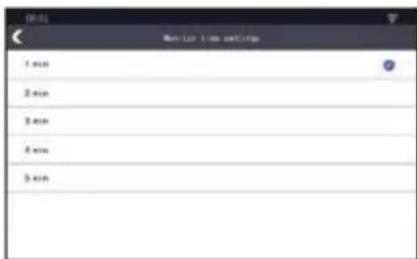
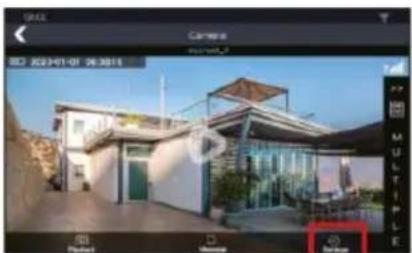
1) Press the "Camera" button to enter the camera interface
2) Press the "Settings" button to enter the settings interface
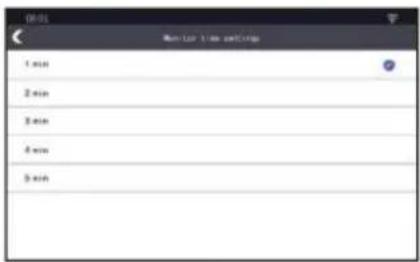
3) Select the setting" "Time tracking
4) Set the tracking time according to your needs
6.1) RINGER VOLUME SETTING
1
natural_image
Exterior view of a modern house with glass facade and green window (no signage or text visible)
3
2
4
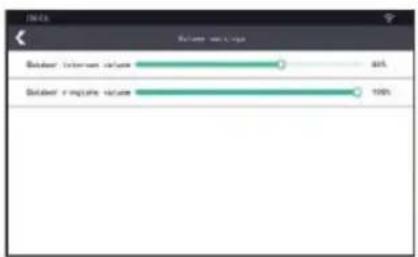
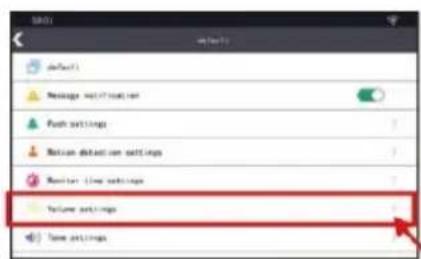
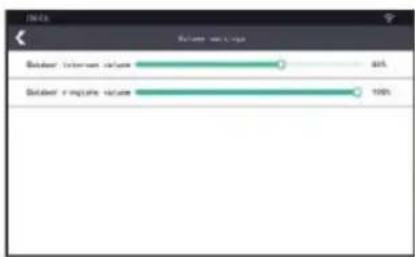
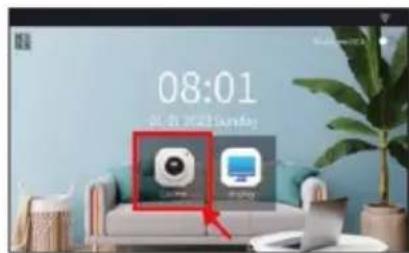
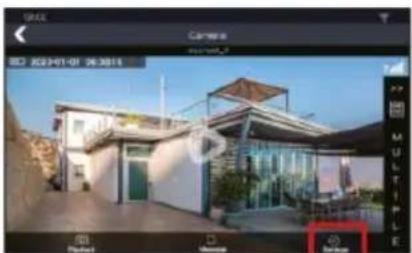
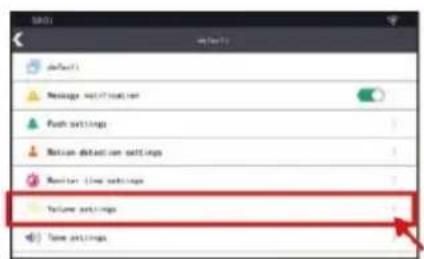
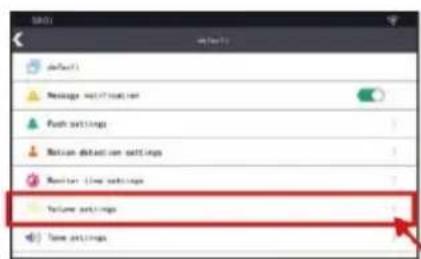
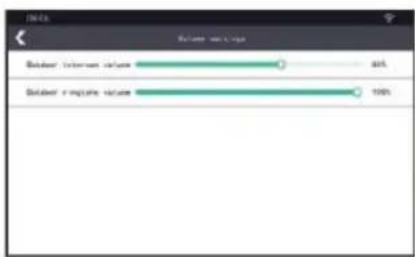
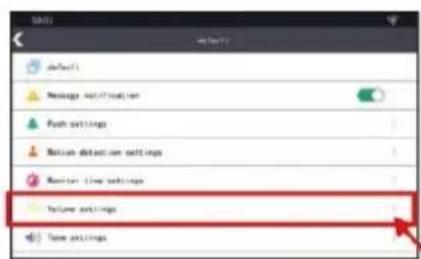
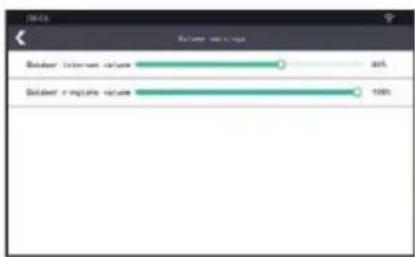
1) Press the "Camera" button to enter the camera interface
2) Press the "Settings" button to enter the settings interface
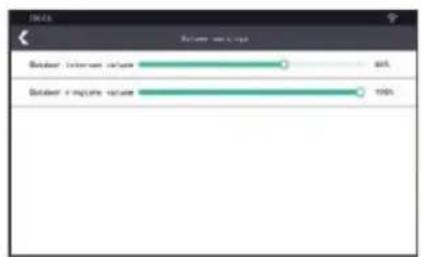
3) Press the "Volume adjustment" button.
4) Adjust the intercom volume and ringer volume as required
7) NOTIFICATION SETTINGS
1
natural_image
Exterior view of a modern house with glass facade and curved roof, captured in a photo editing interface (no signage or text on building)2
3
4
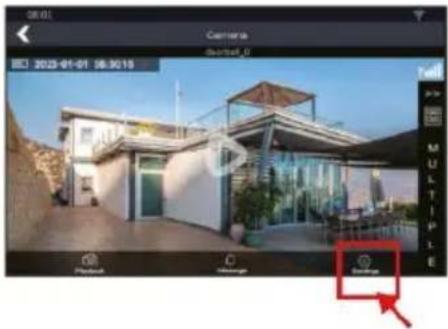
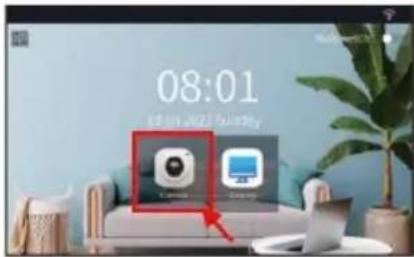
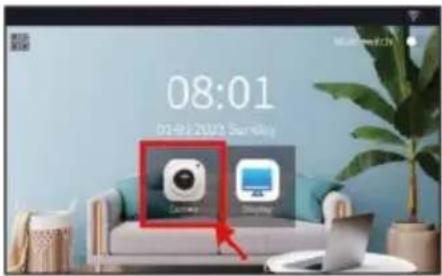
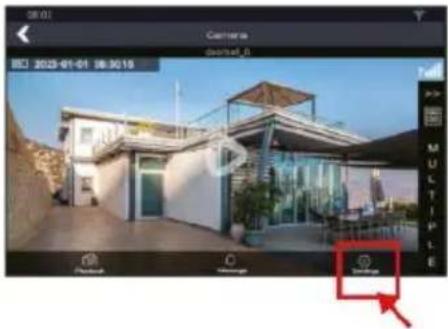
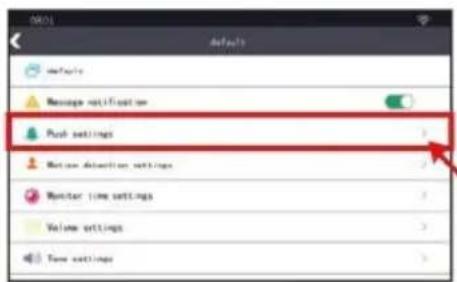
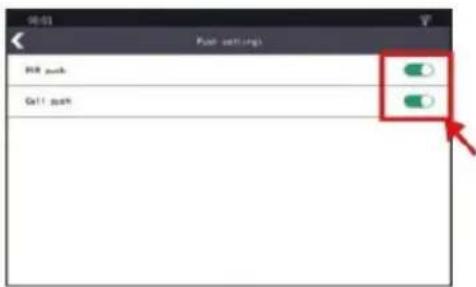
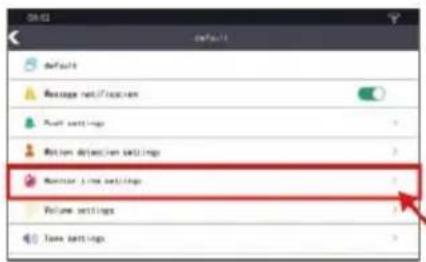
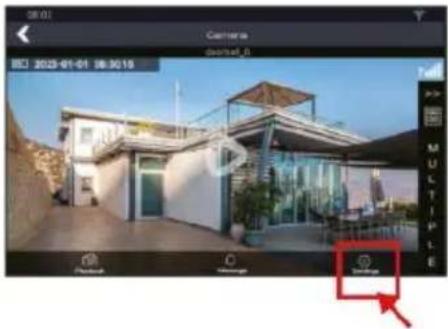
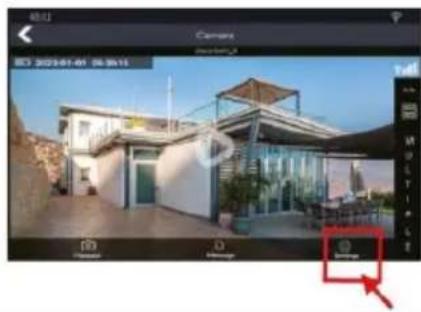
1) Press the "Camera" button to enter the camera interface
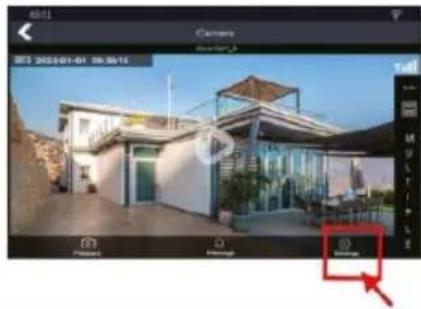
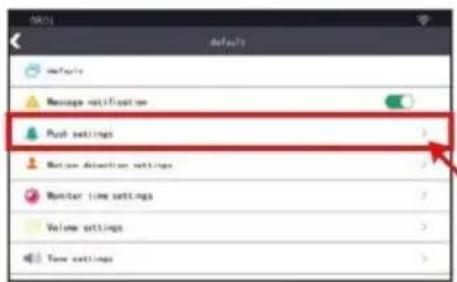
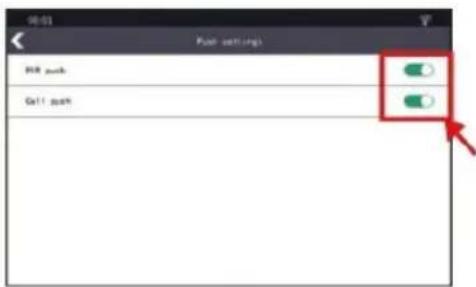
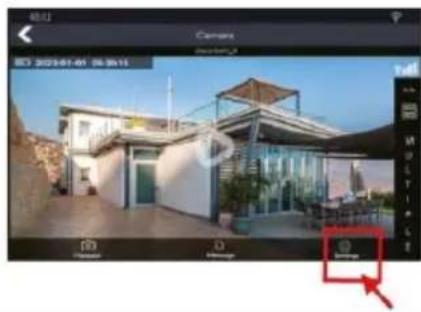
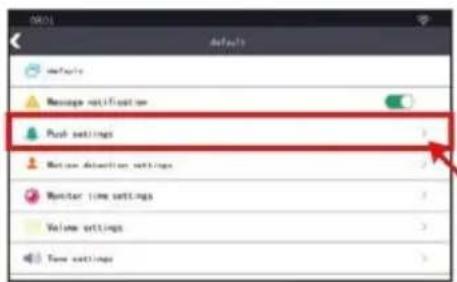
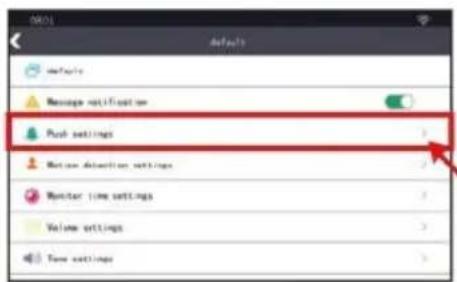
2) Press the "Settings" button and go to the settings interface.
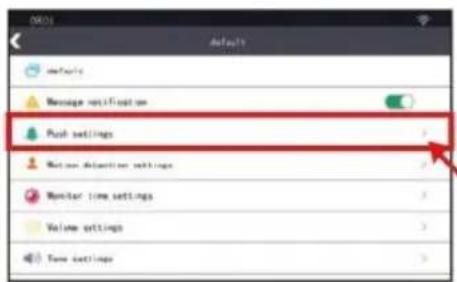
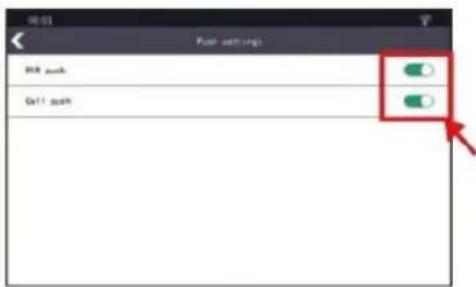
3) Press "Push setttings".
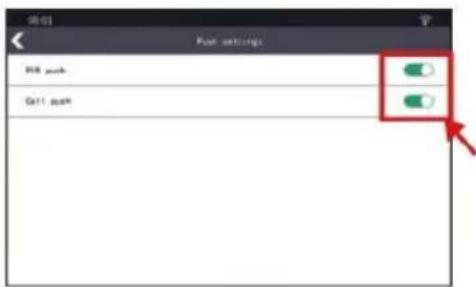
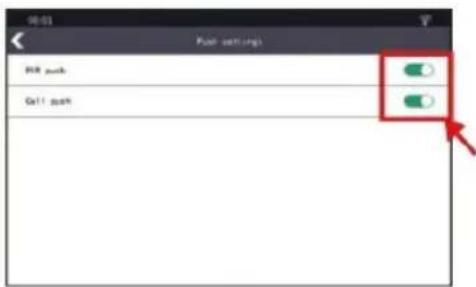
4) Turn on or close PIR or CALL notifications as required.
8) TONE SETTING
1
natural_image
Exterior view of a modern house with glass facade and surrounding landscape (no signage or text visible)2
3
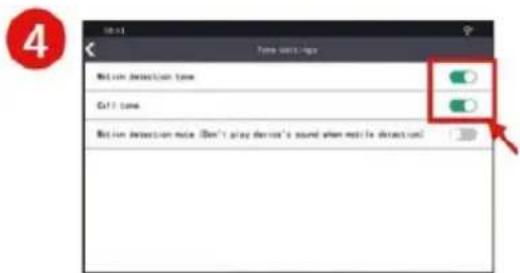
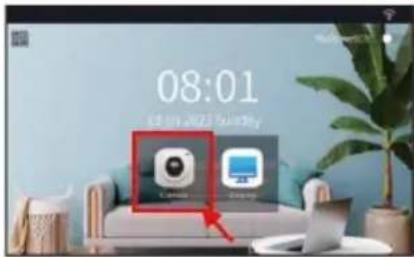
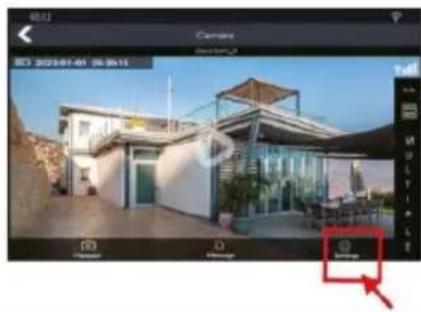
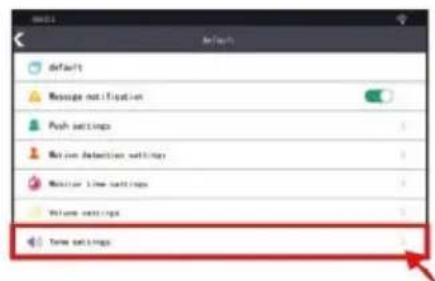
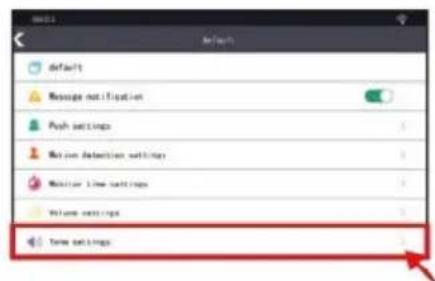
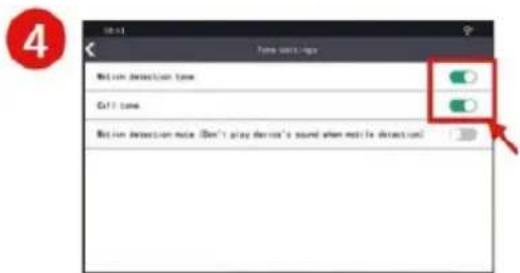
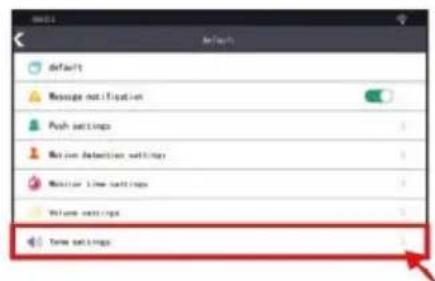
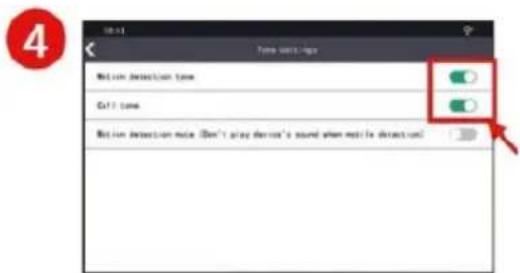
1) Press the "Camera" button to enter the camera interface
2) Press the "Settings" button and go to the settings interface.
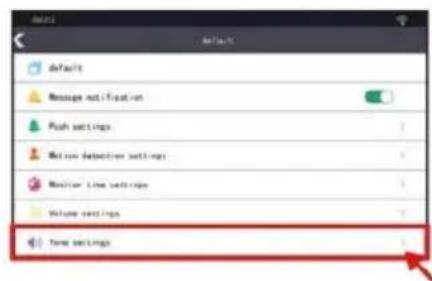
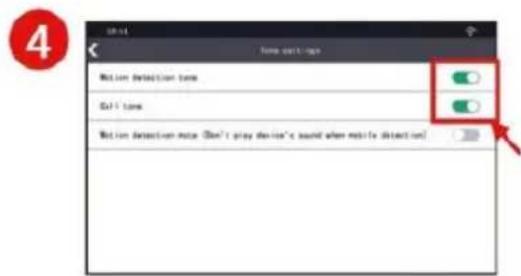
3) Press the "Tone settings" button.
4) Turn the motion detection and call tone on or off as needed.
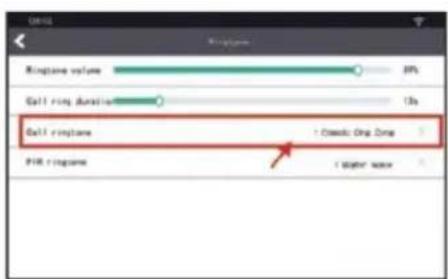
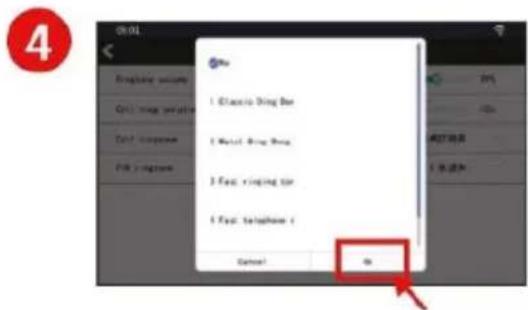
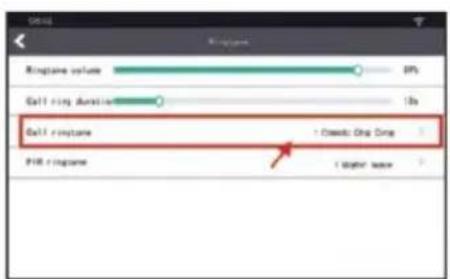
9) SETTING THE RINGTONE ON THE INTERNAL SCREEN
1
3
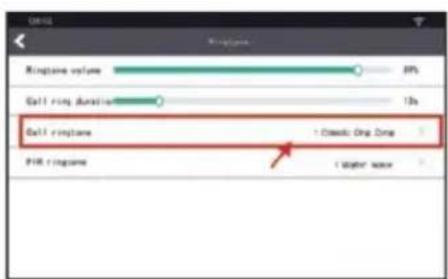
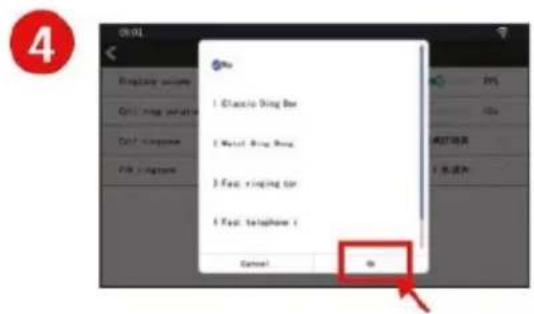
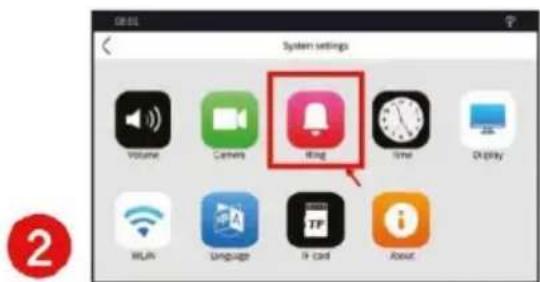
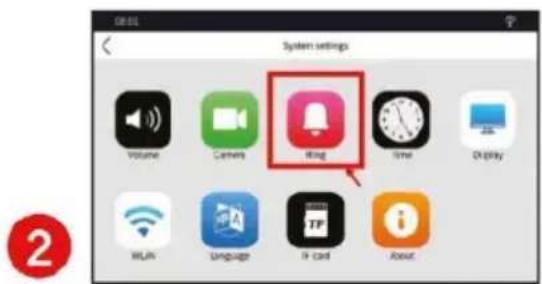
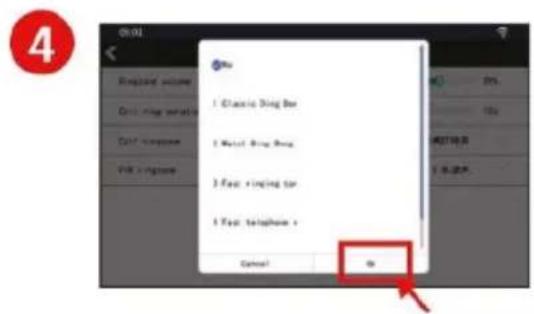
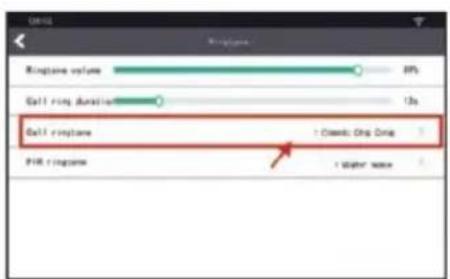
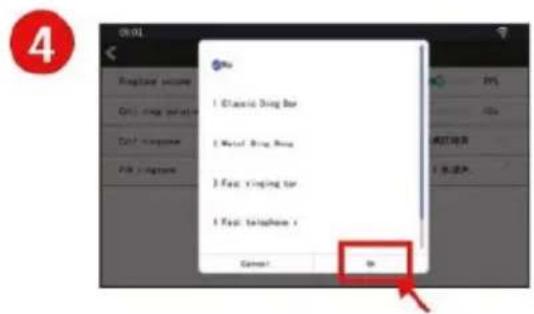
1) Press the "Display" button to access the display setup interface.
2) Press the "Ring" button to enter the ring tone setting interface
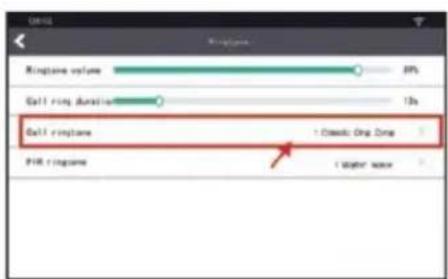
3) Setting the volume and length of call ringtones and PIR
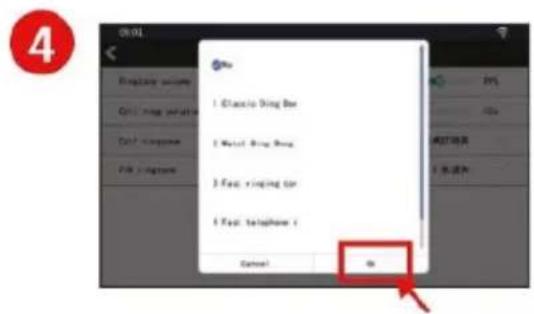
4) Select a ringtone as required
10) INTERKOM MEZI MONITOREM A ZVONKEM
Press the screen to go to the camera interface, then press the PLAY icon to see live video from the outdoor environment. Press the ANSWER button to activate the microphone and speak to the person in front of the Bell.
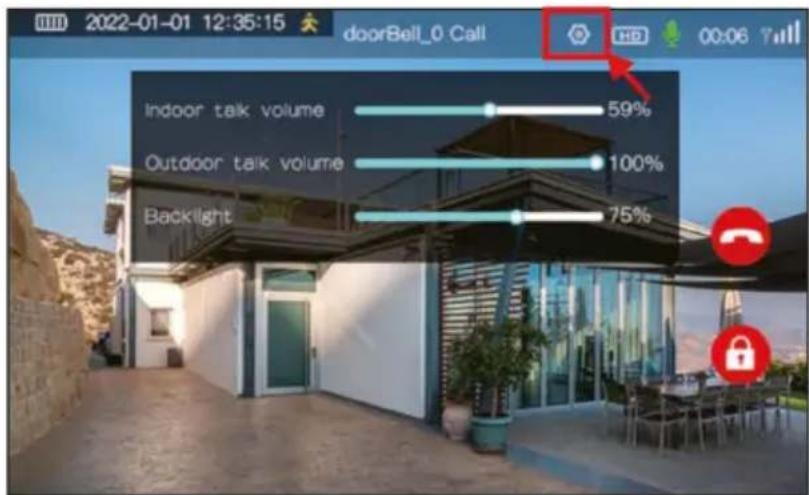
If a visitor calls from the outdoor camera, the indoor screen rings and displays a live image. When the call is answered, the microphone icon appears on the top screen and you can talk to the visitor.
10) AC/DC WIRING INSTRUCTIONS
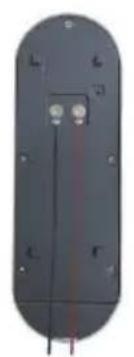
Note: The external power supply must meet the following parameters: AC: 8-24V/2A, DC: 8-36V/2A
natural_image
Close-up of a black oval-shaped electronic component with mounting holes and a central vertical rod (no visible text or symbols)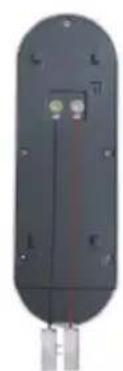
natural_image
Close-up of a black cylindrical electronic device with two small green components and metallic pins (no visible text or symbols)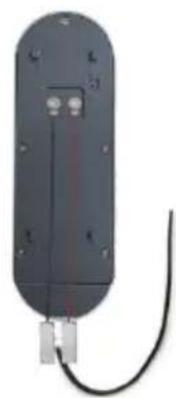
natural_image
Exterior view of a black rectangular electronic device with a cable and connector (no text or symbols visible)Screw the eyelets of the attached wires to the terminal
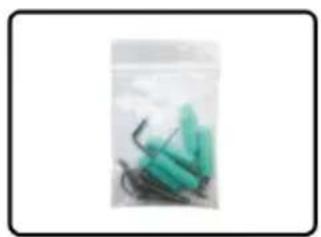
Add clamps to the attached wires, ideally lever clamps, so as not to damage the wires.
Connect a power supply with the correct polarity in the case of DC to the terminals.
11) NOTICE
1) Do not place the monitor near areas with a strong magnetic field.
2) Do not directly spray water or other liquids on the monitor.
3) Do not hit the display or the bell hard.
4) Do not expose it to sunlight or place it under strong reflected light.
5) Do not install the monitor near ammonia and toxic gases.
6) There is high voltage inside the system. Do not disassemble this device randomly.
7) Do not use detergents or other chemical solvents to wipe the bell and display, only a dry cloth.
8) It is recommended to place the screen at a height greater than one metre.
9) If the machine breaks down, do not disassemble it yourself. Instead, send it to your local service centre for maintenance or contact our company directly:
servis@evolveo.com
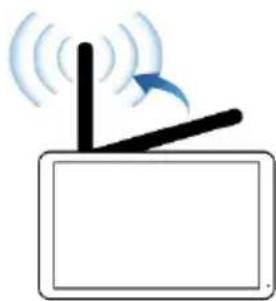
TIP: If the antenna is erected during use, it will reach its longest range.
natural_image
Simple diagram of a device emitting signal waves, no text or symbols present12) TROUBLESHOOTING
1) No notification to the phone app when a call is made
(a) Check that the indoor screen is paired with the outdoor camera and that it is paired with the app.
(b) Make sure APP notifications are enabled in your phone's settings.
(c) Check that the notification has been opened in the APP settings.
2) Smartphone has no sound in intercom mode
(a) Check that the mobile phone allows the APP to access the microphone and record. And whether the phone is in silent mode.
(b) Check that the microphone of the doorbell camera is blocked.
3) The application displays EVOLVEO DoorPhone W7 off-line
(a) Check if the monitor is connected to WIFI or restart it.
4) Monitor with no response or no ringing after a call is made
(a) Check the "Display-Camera" box if the indoor screen is paired with an outdoor camera.
(b) Check "Display-Ring" if the ringtone is on.
(c) Check that the signal between the indoor screen and the outdoor camera is not interfered with or has not exceeded the appropriate distance.
(d) Check that the call tone is turned off in "Camera -Tone setting".
(e) Make sure the "Mute switch" on the screen monitor is on.
5) No sound on the monitor during communication
(a) Check that the microphone of the internal display is blocked.
(b) Check that the microphone of the outdoor camera is blocked.
(c) Make sure the volume setting is turned off.
6) Pairing the touch screen with an outdoor camera
Please note: the outdoor camera and indoor screen were paired at the factory, no need to re-pair. If the device is not paired, please contact after-sales service before performing the operation below.
Re-pairing the Monitor and doorbell
1) Turn on the indoor display and the outdoor camera.
2) Reset the display to factory settings.
3) Press the "Display-Camera-Add Device" button on the display.
4) Quickly press the Pair hole button on the outdoor camera three times.
5) Both devices emit a "Duan" beep to indicate successful pairing.
Attention:
1) One screen can only pair with one app account, but the main user can create a home and invite members to the home and share so they can use the device.
2) If you need to reset the internal monitor, go to "Device Information" in the TUYA app and then press "Factory Reset". After factory reset, the connection is lost and must be re-paired.
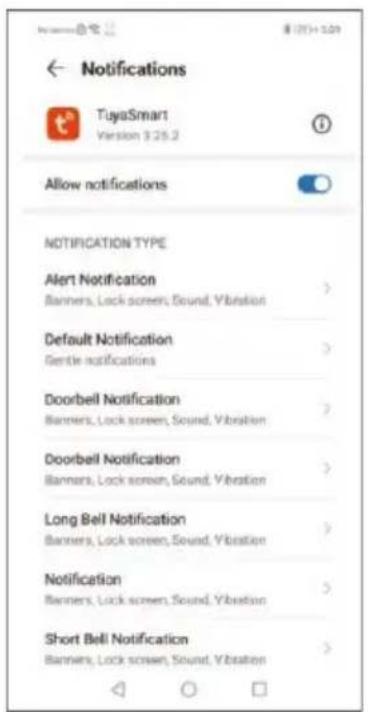
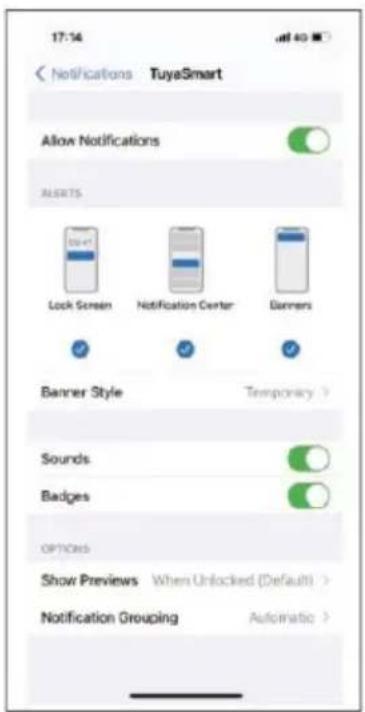
7) No notifications on smartphone
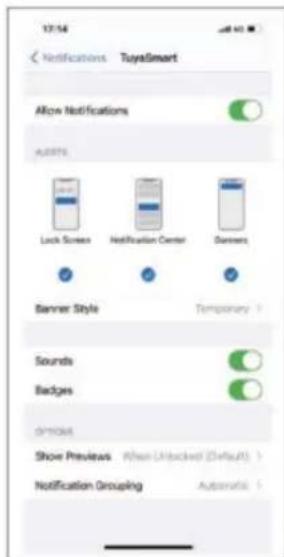
(a) Please enable all permissions for notifications.
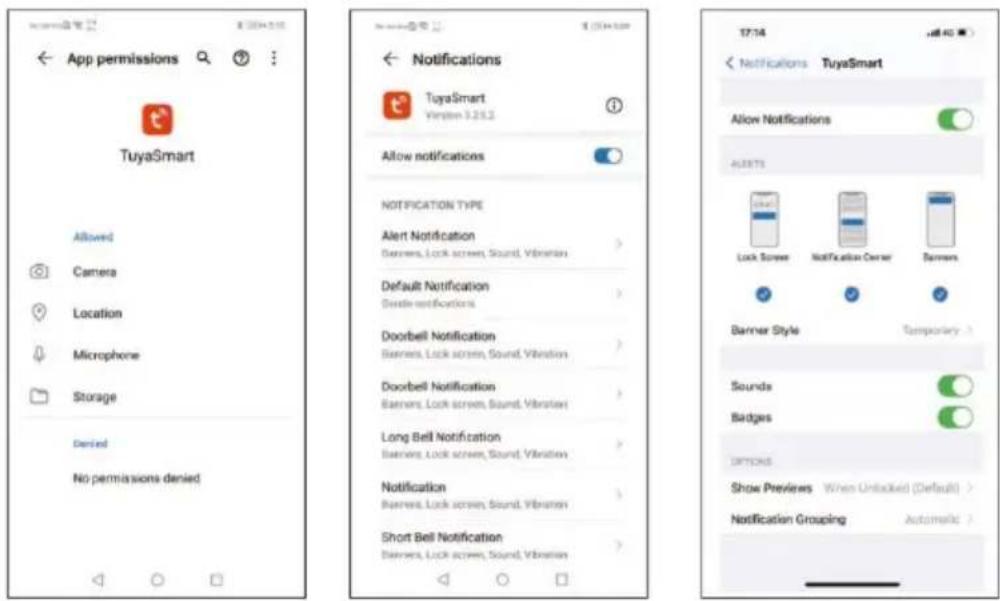
1) Application permissions
2) Android notification settings
3) iOS notification settings
13) TECHNICAL PARAMETERS
MONITOR
| Battery charging voltage | DC5V |
| Battery capacity | 2000mAh |
| Display size | 7" - 1024 x 600 |
| Working current | 500mAh |
| Full duplex intercom | Yes |
| Automatic video recording | Yes |
| Video playback | Yes |
| Screen resolution | 1024x600 |
| Working temperature | -20 °C ~ 60 °C |
| Size | 20,1x12,5x1,6cm |
| WiFi | 802.11n、802.11ac/ 2.400GHz-2.484GHz、5.15~5.85GHz |
| Connector/Power supply | USB-C / Vstup: 5V/2A |
| Micro SD card | Up to 128GB Class 10 |
BELL
| Battery charging voltage | DC 5V |
| External power supply | DC 8-36V 2/A AC 8-24V/2A |
| Energy consumption | Standby mode: 285uA Working: 240mA |
| Battery capacity | 5000mAh |
| Pixel | 1080P |
| Camera angle | 151° |
| Light for night vision | infrared LED 850 nm |
| Full duplex intercom | Yes |
| PIR motion detection | Yes |
| Working temperature | -20 °C ~ 60 °C |
| Size | 14,4x5,1x3,5cm |
| Frequency for communication with the monitor | 868MHz |
| Sensor | 1/3 inch Color CMOS; 1080*1920Pixel, f2.8mm/F2.8 |
This manual serves only as a guide for the use of the product. Abacus Electric s.r.o. continues to optimize the product and modify technical parameters without prior notice. If you have any questions, please contact customer service.
SERVIS@EVOLVEO.COM
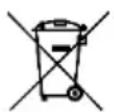
Disposal: The crossed-out container symbol on the product, in the accompanying documentation or on the packaging means that in the European Union, all electrical and electronic equipment, batteries and accumulators must be disposed of separately at the end of their useful life as part of sorted waste. Do not dispose of these products in unsorted municipal waste.
CE DECLARATION OF CONFORMITY
The company Abacus Electric, s.r.o. hereby declares that the EVOLVEO DoorPhone W7 meets the requirements of the standards and regulations that are relevant for this type of device. Including the Radio Equipment Directive RED 2014/53/EU.
The full text of the Declaration of Conformity can be found at
http://ftp.evolveo.com/ce/
Importer / Manufacturer
Abacus Electric, s.r.o.
Planá 2, 370 01, Czech Republic
Made in China
Copyright © Abacus Electric, s.r.o.
www.evolveo.com
www.facebook.com/EvolveoCZ
All rights reserved. The appearance and technical specifications of the product are subject to change without notice.
Tartalomjegyzék
natural_image
Simple line drawing of a rectangular frame with a numbered label '1' pointing to the bottom right corner (no text or symbols within the frame)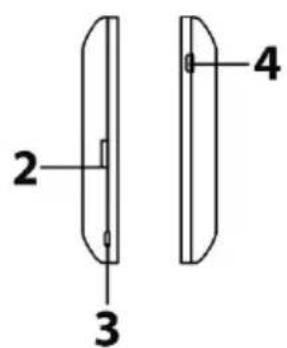
1) Mikrofon
natural_image
Illustration of a flat-screen television displaying a cartoon character with blue eyes and a green plant (no text or symbols)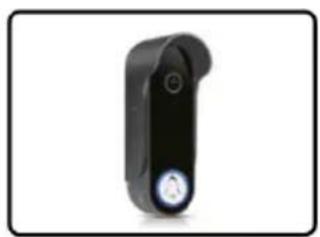
natural_image
Black handheld device with a circular button and a white circular icon on the side (no text or symbols visible)
natural_image
Illustration of a person wearing a green helmet and black boots, with no visible text or symbols.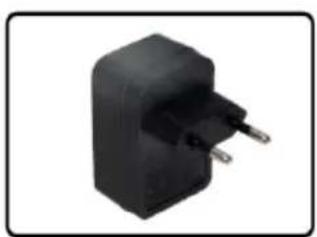
natural_image
Black rectangular electronic component with two metallic pins, isolated on white background (no text or symbols)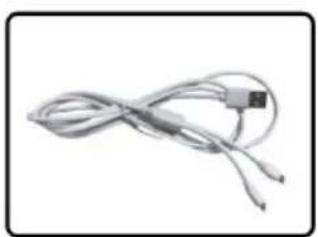
natural_image
Coiled cable with a small connector (no text or symbols visible)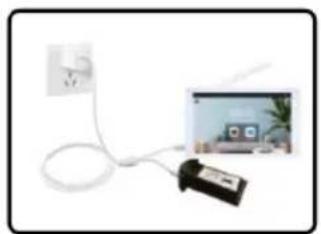
natural_image
Illustration of a white electrical plug connected to a black electronic device, with an inset photo showing a home screen (no text or symbols visible)Vertical camera view
natural_image
Two black and red electronic components with circular features, shown against a light blue grid background (no text or symbols visible)1
natural_image
Simple diagram showing a black object on the left and light blue background with vertical lines (no text or symbols)2
natural_image
Close-up of a black mechanical component with two metallic pins, against a light blue background (no text or symbols visible)3
natural_image
Pure electrical circuit lines without any symbols4
2) CSALÁDTAGOK HOZZÁADÁSA
flowchart
graph TD
    A["doorbell camera\nUSB charger/5000mAh rechargeable\nlithium battery\nDC 8-36V/AC 8-24V"] --> B["Grid"]
    C["Touch screen indoor monitor"] --> D["2.4G 5GWIFI"]
    D --> E["Cloud Server\nInternet"]
    F["Tuya Smart APP"] --> G["push notification"]
    G --> E
7) ÉRTESÍTÉS
1) AZ ALKALMAZÁS HONLAPJA
1
natural_image
Exterior view of a modern house with glass facade and surrounding landscape (no signage or text visible)2

3
4
natural_image
Exterior view of a modern house with glass facade and curved roof, captured in a photo editing interface (no signage or text on building itself)2

4
3
natural_image
Exterior view of a modern building with glass facade and surrounding landscape (no signage)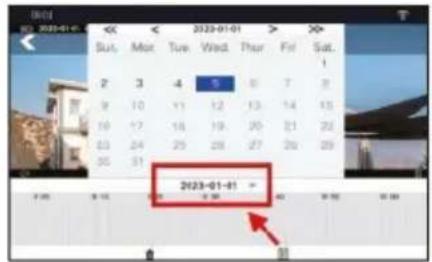
1
natural_image
Exterior view of a modern building with glass facade and curved roof, captured in an image editing interface (no readable text or symbols on the building itself)2

3
4
natural_image
Exterior view of a modern house with glass roof and outdoor furniture (no signage or text visible)
3
4
1
natural_image
Exterior view of a modern house with glass facade and green window (no signage or text visible)
3
4
1
natural_image
Exterior view of a modern house with glass facade and curved roof, captured in a photo editing interface (no signage or text on building)2
3
4
1
natural_image
Exterior view of a modern house with glass facade and surrounding landscape (no signage or text visible)2
3
3
natural_image
Exterior view of a black oval-shaped electronic device with internal components and mounting holes (no text or symbols visible)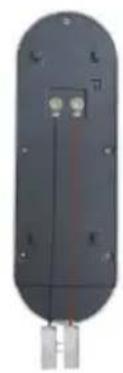
natural_image
Back view of a black electronic device with two small components and mounting holes (no visible text or symbols)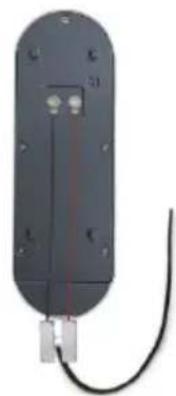
natural_image
Electronic component with black housing and cable, no visible text or symbolsnatural_image
Simple diagram of a device emitting wireless signals, no text or symbols present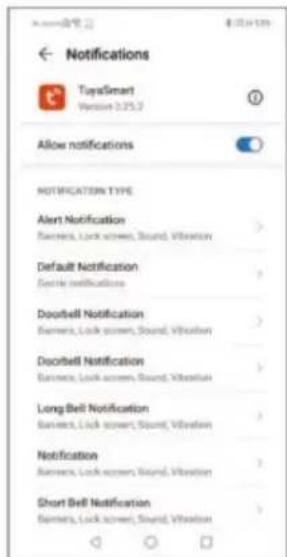
Copyright © Abacus Electric, s.r.o.
www.evolveo.com
www.facebook.com/EvolveoCZ
natural_image
Simple line drawing of a rectangular frame with a label '1' at the bottom (no text or symbols within the frame)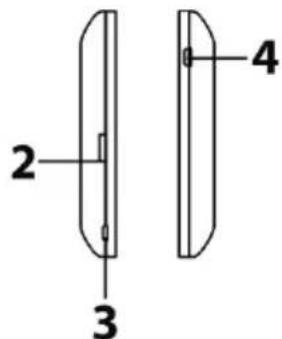
1) Microfon
natural_image
Illustration of a flat-screen TV with a cartoon scene on the screen (no text or symbols)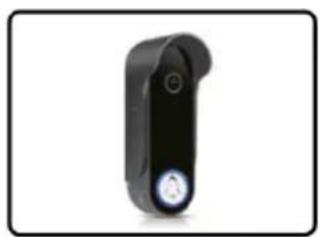
natural_image
Black handheld device with a circular button and a white circular icon on the side (no text or symbols visible)
natural_image
Two green objects resembling cars or vehicles, possibly a vehicle or aircraft, with no visible text or symbols.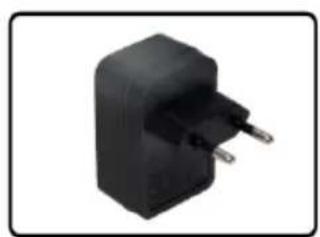
natural_image
Black rectangular electronic component with two metallic pins, isolated on white background (no text or symbols)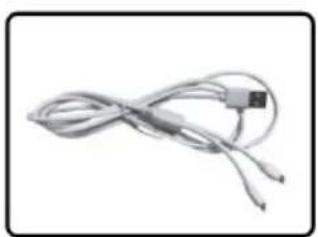
natural_image
Coiled cable with a small connector (no text or symbols visible)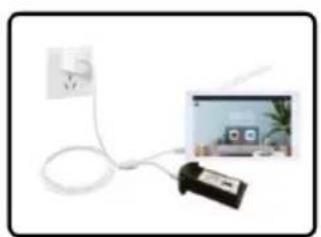
natural_image
Illustration of a white cable with a power outlet connected to a black electronic device, next to a small screen showing a home screen (no visible text or symbols)Vertical camera view
Horizontal camera view
natural_image
Two black and red electronic components with circular features, shown against a light grid background (no text or symbols visible)1
natural_image
Simple diagram showing a black object on the left and light blue background with vertical lines (no text or symbols)2
natural_image
Close-up of a black mechanical component with two metallic pins, against a light blue background (no text or symbols visible)3
natural_image
Pure electrical circuit lines without any symbols4
PRINCIPIUL DE FUNCTIONARE
flowchart
graph TD
    A["doorbell camera\nUSB charger/5000mAh rechargeable\nlithium battery\nDC 8-36V/AC 8-24V"] --> B["Grid"]
    C["Touch screen indoor monitor"] --> D["2.4G 5GWIFI"]
    D --> E["Cloud Server\nInternet"]
    F["Tuya Smart APP"] -->|push notification| E
7) NOTIFICARE
1) PAGINA DE START A APLICATIEI
1
2
3
4
1
natural_image
Exterior view of a modern house with glass facade and surrounding landscape (no signage or text visible)2

3
4
natural_image
Exterior view of a modern house with glass facade and surrounding greenery (no signage or text visible)2

4
3
natural_image
Exterior view of a modern house with glass facade and surrounding landscape (no signage)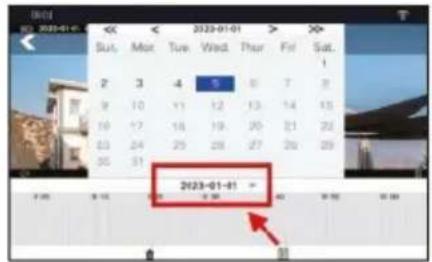
1
natural_image
Exterior view of a modern building with glass facade and curved roof, captured in an image editing interface (no readable text or symbols on the building itself)2
3
4
natural_image
Exterior view of a modern house with glass roof and surrounding greenery (no signage or text visible)2

3
4
1
natural_image
Exterior view of a modern house with glass facade and green window (no signage or text visible)2

3
4
1
natural_image
Exterior view of a modern house with glass facade and curved roof, captured in a photo editing interface (no signage or text on building)2
3
4
1
natural_image
Exterior view of a modern house with glass facade and surrounding landscape (no signage or text visible)2
3
3
natural_image
Exterior view of a black rectangular electronic device with a coiled cable and two connectors (no text or symbols visible)natural_image
Simple line drawing of a device emitting signal waves (no text or symbols)12) DEPANARE
Copyright © Abacus Electric, s.r.o.
www.evolveo.com
www.facebook.com/EvolveoCZ


- 2) PŘIDAT ČLENY RODINY
- 6) NÁVOD K OBSLUZE VÝROBKU
- NASTAVENÍ JAZYKA MONITORU
- PRINCIP FUNGOVÁNÍ
- 7) ZPROVOZNĚNÍ
- 1) ÚVODNÍ STRÁNKA APLIKACE
- 12) ODSTRAŇOVÁNÍ PROBLÉMŮ
- 7) OZNÁMENIE
- 1) DOMOVSKÁ STRÁNKA APLIKÁCIE
- 8) NASTAVENIE TÓNU
- 9) NASTAVENIE ZVONENIA NA VNÚTORNEJ OBRAZOVKE
- SAFETY WARNINGS AND INSTRUCTIONS
- 1) PRODUCT DESCRIPTION
- MONITOR
- OUTDOOR DOORBELL
- 3) INSTALLATION PREPARATION
- 3) INSTALLATION OF AN OUTDOOR BELL
- INSTALLATION POSITION
- INSTALLATION OF THE DOORBELL
- 5) HOUSEHOLD MANAGEMENT AND DEVICE SHARING
- 1) HOME MANAGEMENT
- 2) ADD FAMILY MEMBERS
- 6) PRODUCT OPERATING INSTRUCTIONS
- MONITOR LANGUAGE SETTING
- PAIRING THE TOUCH SCREEN WITH AN APP
- 2) NOTIFICATION SETTINGS
- Visitor call (doorbell)
- Real-time monitoring
- Storage function
- Share a device
- Other operations
- 8) BASIC ICONS AND RELATED SETTINGS ON THE MONITOR SCREEN
- 1) PRIDAT WIFI
- 2) MOTION DETECTION SETTINGS
- 3) PLAYBACK
- 4) NEWS
- 5) SETTING THE LENGTH OF TRACKING
- 6.1) RINGER VOLUME SETTING
- 7) NOTIFICATION SETTINGS
- 8) TONE SETTING
- 9) SETTING THE RINGTONE ON THE INTERNAL SCREEN
- 10) INTERKOM MEZI MONITOREM A ZVONKEM
- 10) AC/DC WIRING INSTRUCTIONS
- 11) NOTICE
- 12) TROUBLESHOOTING
- Re-pairing the Monitor and doorbell
- Attention:
- 7) No notifications on smartphone
- 13) TECHNICAL PARAMETERS
- CE DECLARATION OF CONFORMITY
- Tartalomjegyzék
- 2) CSALÁDTAGOK HOZZÁADÁSA
- 7) ÉRTESÍTÉS
- 1) AZ ALKALMAZÁS HONLAPJA
- PRINCIPIUL DE FUNCTIONARE
- 7) NOTIFICARE
- 1) PAGINA DE START A APLICATIEI
- 12) DEPANARE
Brand : Evolveo
Model : DoorPhone W7
Category : Home Automation