
EasyPhone XO - Phone Evolveo - Free user manual and instructions
Find the device manual for free EasyPhone XO Evolveo in PDF.


| Product Type | Feature Phone (Dual SIM) |
| Display | 2.8-inch TFT, 320x240 pixels |
| Network | GSM 850/900/1800/1900 MHz |
| Chipset | MediaTek MTK6261D |
| Memory | 32 MB RAM + 32 MB ROM |
| Memory Expansion | microSDHC up to 32 GB |
| Camera | 0.3 MP (VGA) |
| Battery | 1700 mAh Li-ion, replaceable |
| Charging | USB Type-C (5V 0.5A) and charging cradle |
| SIM Card | Dual Mini SIM |
| Dimensions | 143 x 58 x 13.6 mm |
| Headphone Jack | 3.5 mm |
| Phonebook Capacity | 500 contacts (expandable by 300 with memory card) |
| SMS Capacity | 100 messages |
| Protection Class | Class II (double insulation) |
| Special Features | SOS button, flashlight, FM radio, audio/video player, speed dial |
| Packaging Contents | Battery, charger with USB-C cable, charging cradle, manual, headphones |
| Cleaning Instructions | Use soft cloth with soapy water; avoid chemicals |
| Safety | Keep away from water, high temperatures, and children; use only approved accessories |
Frequently Asked Questions - EasyPhone XO Evolveo
User questions about EasyPhone XO Evolveo
0 question about this device. Answer the ones you know or ask your own.
Ask a new question about this device
Download the instructions for your Phone in PDF format for free! Find your manual EasyPhone XO - Evolveo and take your electronic device back in hand. On this page are published all the documents necessary for the use of your device. EasyPhone XO by Evolveo.
USER MANUAL EasyPhone XO Evolveo
BEZPEČNOSTNÍ UPOZORNĚNÍ A POKYNY
BEZPEČNOSTNÉ UPOZORNENIA A POKYNY
INTRODUCTION......66
SAFETY WARNINGS......67
ENVIRONMENT......70
MEDICAL EQUIPMENT......71
PACEMAKER....71
BATTERY CHARGING .....73
BATTERY USE....74
PACKAGING CONTENT .....75
SPECIFICATIONS....75
DESCRIPTION OF PARTS .....77
PHONE STATUS ICONS......80
BEFORE FIRST USE......81
SERVICE....82
BATTERY CHARGE......82
SWITCHING PHONE ON/OFF 82
UNLOCKING THE KEYPAD ....83
CALLING 83
MENU 83
CONTACTS 83
PHOTO CONTACTS......85
NEWS......86
CALL LOGS......87
MULTIMEDIA......87
SETTINGS......88
TOOLS....90
CLEANING AND
MAINTENANCE....91
INTRODUCTION
WELCOME TO THE EVOLVEO FAMILY OF PRODUCTS
- Before putting this product into operation, please read this entire user manual carefully through to the end, even if you are familiar with the use of a similar type of product in the past.
- Keep this user manual for future reference - it is an integral part of the product and may contain important instructions on commissioning, operation and care of the product.
- Make sure that other people who will be using this appliance read this user manual.
- If you give, donate or sell this appliance to others, please give them this user manual together with this product and remind them to read it.
- During the warranty period, we recommend keeping the original packaging of the product - this will protect the appliance in the best possible way during transport.
THE MOST UP-TO-DATE VERSION OF THE USER MANUAL
Due to the ongoing innovation of EVOLVEO products and changes in legislation, you can always find the most up-to-date version of this user
manual on the website
www.evolveo.cz or by simply scanning the QR code shown below with your mobile phone:
SAFETY WARNINGS AND INSTRUCTIONS
- Place the mobile phone and its accessories out of the reach of children.
- Keep your mobile phone dry. Rain, moisture or water can damage the circuit board. If your mobile phone is accidentally dropped in water, remove the battery in time and send it to a local authorised repairer immediately.
- Do not place your mobile phone in places covered with dust or normal use will be impaired.
- The liquid crystal display is an easily vulnerable part of the mobile phone, avoid dropping it or shaking it violently; it is forbidden to touch the display with a sharp object.
- Do not place your mobile phone in a
place where the temperature is too high. High temperatures will shorten the life of the electrical equipment, damage the battery, deform or melt its plastic cover.
- Please do not place the mobile phone in a place where the temperature is too low, otherwise moisture will come out of the mobile phone when the temperature rises to normal temperature, which will damage the circuit board of the mobile phone.
- Do not throw, knock or shake the mobile phone to avoid damaging its internal circuitry and precise design.
- Don't burn or treat mobile phone batteries as ordinary waste. To avoid potential risks to life and damage to the environment, follow the environmental guidelines set by your local authorities and treat and recycle batteries in a timely manner.
- If a mobile phone, battery or other charging device is carelessly dropped into water, do not dry it in any heating device (e.g. dryer, microwave oven). The mobile phone or other products may cause a malfunction, and the mobile phone, battery or other charger may burn, expand the bomb.
- Dispose of the abandoned used battery according to the relevant provisions.
- Attention to the use of accessories
- Keep all accessories (e.g. SIM card, memory card, battery) out of the reach of children to avoid danger.
- Before removing the mobile phone battery, make sure the mobile phone is switched off and disconnect the connection between the mobile phone and the charger.
- Mobile phone accessories are not waterproof, keep all accessories dry.
- When disconnecting power from any accessory, remove the plug properly, do not pull the power cord.
- If the mobile phone, battery and charger do not work normally, contact the nearest qualified maintenance department.
- When you are not using your mobile phone, you'd better turn it off and remove the battery to save energy and eliminate mobile phone radiation.
- When using your mobile phone, do not set the volume too high or your hearing will be damaged.
- A non-expert must not remove the terminal and the mobile phone battery himself.
- Do not use a leather case with a magnetic button to avoid the magnet if possible, which may cause signal interference when turning the mobile phone on or off, and its hard iron button may damage the liquid crystal display; the plastic case may cause
unsmooth evaporation of steam, erosion of components inside the mobile phone, and oxidation and discoloration of its cover.
ENVIRONMENT
- Make sure you use your mobile phone sensibly and that it does not affect you or the environment, and be aware of the relevant rules and regulations that must be followed in all places where you use your mobile phone.
- In places where explosions can occur, such as petrol stations, fuel tanks, chemical factories or bomb works, turn off your mobile phone and follow all safety signs and instructions. Any violation of the relevant regulations can lead to an explosion and cause casualties.
- Using a mobile phone on an aircraft can disrupt the operation of the aircraft and cause danger. Therefore, please switch off your mobile phone before boarding and make sure it is switched off for the duration of the flight.
- When driving, place your mobile phone on the special stand, and do not place it on the seat or anywhere it could slide off during a collision or hard braking. To ensure safe driving and to avoid accidents, do not use your mobile phone while driving. If you have to use your mobile phone, stop first before using it.
- Keep your mobile phone away from high temperature environments to prevent explosion due to elevated battery temperature.
MEDICAL EQUIPMENT
- It is explicitly stated in writing that you must switch off your mobile phone near electrical medical devices (such as pacemakers and hearing aids). Most medical devices have a function to block the radio frequency signal emitted by a mobile phone, but some electronic devices do not. If you have any doubts or uncertainty about whether medical devices have a radio frequency signal blocking feature, contact your doctor or the manufacturer of the medical device.
PACEMAKER
- The pacemaker manufacturer recommends that you keep a distance of at least 15.3 cm between the mobile phone and the pacemaker so that the mobile phone does not interfere with the pacemaker.
- When the mobile phone is switched on, ensure that the distance between the mobile phone and the pacemaker is at least 15.3 cm.
- Do not put your mobile phone in your pocket in front of your chest.
- Answer calls with the ear on the other side of the pacemaker.
Remark: If you suspect any interference, turn off your mobile phone and consult medical staff in good time.
Hearing aids
Your mobile phone may interfere with some hearing aids, if interference is occurring, please contact the hearing aid manufacturer immediately.
Emergency call
Like other mobile phones, this type of mobile phone uses radio signal, wireless and terrestrial communication network. It cannot guarantee that it can be successfully contacted in any situation.
Dialing an emergency call
- If your mobile phone is switched off, switch it on and check that the network signal is strong enough.
- Enter the correct local emergency number (e.g. 112 emergency centre), the number varies from district to district.
- To make a call, press the call button.
Note...: In the event of an emergency call, try to give all relevant information. A mobile phone may be at the scene of the accident. It is the only tool for conversation, please do not end the call without consent.
BATTERY CHARGING
- This kind of mobile phone uses the energy of a lithium-ion battery. The system environment, mobile phone settings, and more affect mobile phone wait and talk times.
- Please use the standard battery and charger supplied by the company, otherwise the company is not responsible for any damage caused by the battery or charger not authorized by the company.
- When you switch on your mobile phone, the battery indicator appears on the display.
Remark: If the battery is charged, it needs to be installed in the place where it is located:
-
If the battery is not powered at all, the battery indicator will appear after 2 to 3 minutes of charging. Generally, depending on the current state of the mobile phone (on, in call, etc.), the charging time is between 2 and 5 hours.
-
Complete two to three charge and discharge cycles for the new battery to achieve perfect performance. The new battery must be continuously charged for more than 10 hours for the first time.
- To avoid danger, do not touch the battery or charger with a wet hand while charging your mobile phone.
- When your mobile phone is charged, do not use it as much as possible.
- When the battery is fully charged, the power indicator will stop illuminating, then remove the mobile phone from its adapter port.
BATTERY USE
- Battery life depends on network, mobile phone settings, mobile phone usage.
- Do not use a damaged charged battery.
- When the mobile phone is used near the power base, the battery consumes little power. Therefore, talk time and standby time are largely influenced by the signal strength of the mobile network and the parameter set by the network operator.
- The charging time of the battery depends on the residual capacity, the type of battery and the type of electronic device. When the battery life is obviously reduced, it is better to replace the battery to guarantee the performance of the mobile phone.
-
Use the standard battery and charger supplied by Abacus, otherwise an explosion may occur. If you are not using the charger, disconnect the power supply. Do not leave the battery plugged into the charger for more than one week, overcharging shortens the battery life.
-
Do not install the battery by inverting its cathode and anode.
- Do not place the battery in a place where the temperature is too hot or too cold, otherwise the capacity and life of the battery will be reduced. Use the battery at home temperature if possible.
- Do not short-circuit the battery or damage will occur to the battery core or the protection circuitry inside the battery. If you put an unused battery in your pocket or bag, metal objects (coins, pins, etc.) can connect the two ends of the battery and cause the battery to short out, so place the battery separately and securely.
PACKAGING CONTENT
- Battery
- Charger with USB-C cable
- Charging cradle
- Manual
- Headphones
SPECIFICATIONS
- Display: 2,8", 320*240
- Network: GSM
850/900/1800/1900MHz - Chipset: MTK6261D
- Memory: 32 MB RAM + 32 MB ROM
- Memory expansion: microSDHC
memory card max. capacity 32 GB
- Camera: 0.3MP
- Batteries: 1700 mAh
- The charger: USB Type-C with cable, 5 V 0.5 A
- Charging cradle: Yes
- SIM card: Dual SIM (Mini size)
- Dimensions: 143*58*13.6 mm
- Charging port: USB Type-C
- Headphone port: 3.5 mm Jack
- Phonebook capacity: 500 + expandable by 300 when a memory card is inserted
- SMS capacity: 100
Degree of protection against electric shock:
Class II - Protection against electric shock is provided by double or reinforced insulation.
DESCRIPTION OF INDIVIDUAL PARTS
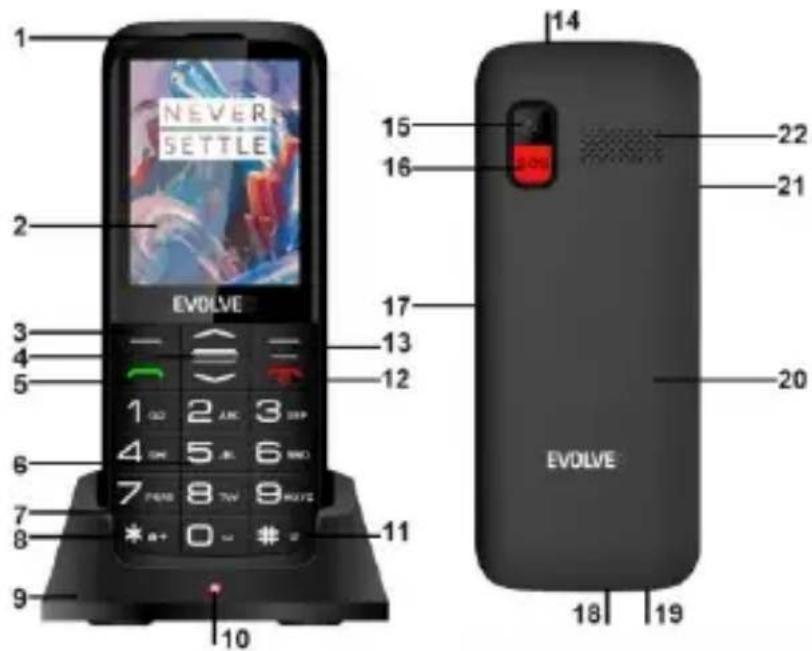
1) Receiver
2) Display
3) Left button
4) Middle
(Navigation) button
5) Call button
6) Alphanumeric buttons
7) Microphone
8) * button
9) Charging cradle
10) Cradle light
11) # button
12) Hang button
13) Right button
14) Flashlight
15) Camera
16) SOS button
19) Headphone connector
20) Battery cover
21) Volume button ±
22) Loudspeaker
| PUSHBUTTON | FEATURES |
| Left function button (3) | Press the button to enter the Menu. Press the button to start the function that appears in the bottom left corner of the display. |
| Middle navigation button (4) | Press the button to confirm the current selection |
| Call button (5) | Press this button to start a call to the selected phone number. Press to answer an incoming call. Press in standby mode to view your call history. |
| Right function button (13) | Press this button to go to the contact list. Press this button to go back to the previous menu. |
| On/Off button (12) | Switching off the phone: Hold the button longer to switch the phone off. Switching on your phone: Press and hold the button for alonger time to switch the phone back on.Press this button to return to standby mode.Press this button to end the call. |
| Up/Down button | Press to scroll through the options in the function list.In standby mode, press the 'Down' button to enter SMS and press the 'Up' button to call up the Shortcuts function.In 'FM Radio' mode, use the 'Up' and 'Down' buttons to adjust the frequency. |
| * button (8) Press the | button while typing text to call up special characters. In selected functions, it is used to scroll left. Press the * button twice to enter the "+" symbol for international calls. |
| Button # (11) Press the button to change the way you enter text. To change ringtone profiles (long press). In selected functions, it is used to scroll to the right. |
| Side buttons Volume button(21): Adjust the volume for calls, videos and FM radio.Flashlight button (17): switches the flashlight on/off. |
PHONE STATUS ICONS
| Icon | Description |
 | Activated alarm clock |
 | Bluetooth on |
 | Connected headphones |
 | GPRS data transmission |
 | Missed calls |
 | Unread SMS message |
 | Full SMS capacity |
 | Full MMS capacity |
 | Unread MMS message |
 | USB cable connected |
 | Roaming activated |
 | GSM signal strength |
 | Battery charge status |
 | Silent mode activated |
 | Set to ring only |
 | Only vibrations are set |
 | Vibration and ringtones on |
 | Vibrate on first then ringtone |
BEFORE FIRST USE
1) Check the product for protective stickers, films or other materials intended only for transport to the
customer to protect the appliance from scratches or other damage. Remove such before use.
2) Before connecting to the mains, ensure by visual inspection that the appliance is intact and no damage has occurred during transportation.
SERVICE
PUTTING YOUR PHONE INTO SERVICE
Insert your fingernail into the slot under the back cover of the phone, remove the cover and remove the battery. Insert the SIM card and, if applicable, the memory card if you have purchased one. Insert the battery. The metal contacts of the battery must face the contacts in the phone. Replace the rear battery cover.
BATTERY CHARGE
Plug the charger into the USB-C connector on your mobile phone or insert your phone into the charging stand. Charging starts automatically. The phone can be charged both on and off. The battery level is indicated on the phone screen.
SWITCHING YOUR PHONE ON/OFF
To switch on, hold down the red button (12) until the phone switches on. (You may be prompted to enter your PIN if
PIN protection is enabled). The first time you switch on, you will be asked to select the language of your phone.
To switch off, press and hold the red button (12) until the phone switches off.
UNLOCKING/LOCKING THE KEYPAD
To unlock, press the Left function button (3) and then the * button (8). To lock the keyboard, press the red Button (12).
CALLING
In standby mode, enter the phone number and press the Call button (5) to start the call.
Press the red button (12) to end or reject the call.
MENU
Press the Left function key (3) to enter.
CONTACTS
To enter, select Menu/ Contacts
Add a new contact
Select Menu/Contacts or via the Right button (13) and then select Add new contact. Select the storage location (on the SIM card, on your phone or on a memory card). After entering the name and phone number, press the Middle button (4) to save the contact.
Find a saved contact/call
Select Menu/Contacts. Enter the contact's name or use the up/down button to scroll through the list. After locating the contact, press the Call button (5) to make a call or the Left function key (3) for the following options:
View - displays the detail of the selected contact and allows you to edit the selected contact
Sending a text message - allows you to write and send an SMS to a selected contact
Edit - allows you to edit the selected contact
Delete - deletes the selected contact
Copy - allows you to copy a contact/contacts between SIM and phone memory and import/export contacts.
Send business card - allows you to send a business card to a contact
Add to blacklist - allows you to add a contact to the blacklist
Add to whitelist - allows you to add a contact to the whitelist
Tag multiple - allows you to send text messages and business cards to multiple contacts, also allows you to delete multiple contacts
Contact Settings - allows you to view
memory status, preferred storage, as well as delete, move, or copy all saved contacts and also serves to select to save a contact under speed dial
Speed dial - Select Menu/Contacts or via the Right button (13). Select any contact, press the Left button (3) and select Options/Contact settings/Speed dial/Number settings. Switch the function on and set the numbers. It is possible to set and store 8 speed dial numbers corresponding to numbers 2-9.
After activating Speed Dial in standby mode, press and hold one of the 8 alphanumeric buttons and the phone will dial the corresponding phone number.
PHOTO CONTACTS
Eight contacts can be assigned a photo of the caller and use speed dials to call them.
Add new Photo contact
Select Menu/Contacts or via the Right button (13) select Photo contact and the edit option. Enter the caller's name, number and picture from the file or camera and save.
Calling Photo Contact
Select Menu/Contacts or select Photo contact via the Right button (13).
Select one of the eight contacts and use the call button (5) to make a call.
NEWS
Your phone can receive and send SMS text messages. When you enter the menu via Menu/Messages:
Write a message - create and send a new SMS
Inbox - messages received
Proposals - messages saved for later dispatch
Outgoing - messages to send
Sent - sent messages
Delete messages - used to delete messages
Message settings - special settings, requires operator support
SMS templates - preset list of messages
SMS settings - allows you to set the preferred storage, memory status, etc.
Write a message - Select
Menu/Messages/Write a message. Enter the text of the message. Using the # button (11), you can toggle lower case/upper case/numbers, using the * button (8), you can then enter special symbols. Press the Left button (3), select Send to address and then enter the phone number manually or select it from the contact list and use the Middle navigation button (4) to send the message.
Read message - To read messages
Select Menu/ Messages/ Inbox, select the relevant message and press the Middle navigation button (4) to view.
CALL LOGS
To enter, select Menu/Call logs
Call history - Select Menu/Call logs/Call history. From the main menu, you can access Call History, which shows missed calls, dialed numbers and incoming calls.
Call Settings - Allows you to forward and block calls, switch lines. Blacklist and whitelist management.
MULTIMEDIA
To enter, select Menu/Multimedia
1. Image viewer
Select Menu/ Multimedia/ Image Viewer. View, send, rename, delete, etc.
2. Video recorder
Select Menu/ Multimedia/ VCR. Used to record videos.
3. Video player
The phone can play video files such as 3gp, mp4 and avi.
4. Sound recording
Select Menu/ Multimedia/ Sound recording. Use the left button (3) to start recording or change the recording quality.
5. Camera
Press the "down" button on the home screen or Menu/Multimedia/Camera to switch on the built-in camera. Press the Middle navigation button (4) to take a picture.
6. Audio player
Your phone can play MP3 music files.
7. FM radio
Select Menu/ Multimedia/ FM radio.
Use the Up/Down buttons to scroll through the frequencies.
Press the left function key (3) to display the following options:
Channel list: displays a list of manually or automatically searched stations.
Manual entry: stations can be listened to by manually entering the frequency. To insert 89.9 just press "89 # 9".
Auto. search: Automatically search for stations. The station is stored under keys 1-9.
Settings: background playback option. Use the # or * buttons to select the selection.
SETTINGS
Select Menu/Settings to enter.
1. Profiles
Select Menu/User profiles. There are
four profiles to choose from: General, Silent, Meeting, Outdoor. You can tailor the settings to specific events or environments.
2. Phone settings
Select Menu/ Settings/ Phone settings. This function allows you to set/change the following parameters:
Time & Date, Language, Typing Language, Display, Dedicated Keys, Automatic Time Update, On/Off Scheduling
3. Security settings
Select Menu/Settings/Security settings
To protect your personal data, you can set the security of your SIM card or phone
4. Two card setup
Select Menu/Settings/Two card setup
You can use this function to change the use of both SIM cards or to activate the use of only one of the SIM cards. There is also an option to enable/disable flight mode.
5. Connecting
Select Menu/Settings/Connection
Bluetooth
You can turn it on and then find another Bluetooth device, pair your phone with another device and use it together. You can also set up external storage, access audio files, etc. via
Bluetooth. Select Menu/Services/Bluetooth.
Network settings
Select a network by SIM card
6. SOS settings
Select Menu/Settings/SOS Settings
Here you can enable/disable SOS status, set 5 SOS numbers, edit and send SOS SMS content and enable/disable SOS alert settings.
7. Restore factory settings
Allows you to restore factory settings by entering the preset password "0000".
TOOLS
Select Menu/Tools to enter.
1. File Manager
Allows you to preview files stored on your phone memory and memory card.
2. E-book reader
Allows you to preview eBook files and then view them.
3. Calendar
Allows you to preview the calendar. Through "Options" you can view, add or remove an event, you can also search for a specific date and view the weekly calendar layout.
4. Alarm
Allows you to set 5 different alarms.
5. Calculator
For normal calculations.
6. STK
Operator Services.
CLEANING AND MAINTENANCE
A mobile phone is a complex electronic product, so take good care of it. The following suggestions will help you preserve it and extend its life:
- Do not clean your mobile phone with chemicals, cleaning solvents or strong cleaning agents, instead clean it lightly with a soft cloth and soapy water.
- Do not cover the mobile phone with painting material to avoid jamming its removable parts, which would affect its normal operation.
- To clean the camera lens, use a soft cleaning cloth.
Technical support
Contact EVOLVEO Technical Support www.evolveo.com/helpdesk/
The warranty does NOT cover:
- using the equipment for other purposes
- installing frimware other than that which is installed or can be downloaded manually or
automatically from the application.
- electromechanical or mechanical damage caused by improper use.
- damage caused by natural elements such as fire, water, static electricity, surges, etc.
- damage caused by unauthorised repair
Disposal
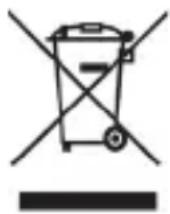
The crossed-out container symbol on the product, in literature or on the packaging means that in the EU, all electrical and electronic equipment, batteries and accumulators must be put into separate waste at the end of their useful life. Do not dispose of these products in unsorted municipal waste.


DECLARATION OF CONFORMITY
Abacus Electric, s.r.o. hereby declares that the EVOLVEO EasyPhone XO meets the requirements of the notes and regulations applicable to this type of device.
The full text of the Declaration of Conformity can be found at http://ftp.evolveo.com/CE/.
Copyright © Abacus Electric, s.r.o.
www.evolveo.com
www.facebook.com/EvolveoCZ
Importer / Manufacturer
Abacus Electric, s.r.o.
Planá 2, 370 01, Czech Republic
Made in China
All rights reserved.
Design and specifications are subject to change without notice.
Tartalomjegyzék
BEVEZETÉS......95
BIZTONSÁGI
FIGYELMEZTETÉSEK ÉS
UTASÍTÁSOK....96
KÖRNYEZET....99
ORVOSI FELSZERELÉS...... 100
PACEMAKER.... 101
AKKUMULÁTORTÖLTÉS ..... 102
AKKUMULÁTOR
HASZNÁLAT.... 103
CSOMAGOLÁSI TARTALOM105
SPECIFIKÁCIÓK...... 105
AZ EGYES ALKATRÉSZEK
LEÍRÁSA 107
TELEFON ÁLLAPOT
IKONOK....110
AZ ELSŐ HASZNÁLAT
ELÖTT 112
SZOLGÁLTATÁS...... 112
AKKUMULÁTORTÖLTÉS ..... 113
HÍVÁS 114
MENÜ 114
KAPCSOLATOK 114
FOTÓ KAPCSOLATOK ..... 116
HÍREK....117
HÍVÁSNAPLÓK...... 118
MULTIMEDIA.... 118
BEÁLLÍTÁSOK 120
SZERSZEREK...... 122
TISZTÍTÁS ÉS
KARBANTARTÁS...... 124
BEVEZETÉS
ÜDVÖZÖLJÜK AZ EVOLVEO TERMÉKCSALÁDBAN
Copyright © Abacus Electric, s.r.o.
www.evolveo.com
www.facebook.com/EvolveoCZ
Importör / gyártó
Abacus Electric, s.r.o.
AVERTISMENTE ŞI INSTRUCTIUNI DE SIGURANTĂ
Selectați Meniu/ Multimedia/ Radio FM.
LOGI KLICEV......215
MULTIMEDIJA...... 215
NASTAVITVE 217
ORODJA 219
ČIŠČENJE IN
VZDRŽEVANJE 219
UVOD
DOBRODOŠLI V DRUŽINI IZDELKOV EVOLVEO
VARNOSTNA OPOZORILA IN NAVODILA
Copyright © Abacus Electric, s.r.o.
www.evolveo.com
www.facebook.com/EvolveoCZ
- BEZPEČNOSTNÍ UPOZORNĚNÍ A POKYNY
- BEZPEČNOSTNÉ UPOZORNENIA A POKYNY
- INTRODUCTION
- WELCOME TO THE EVOLVEO FAMILY OF PRODUCTS
- THE MOST UP-TO-DATE VERSION OF THE USER MANUAL
- SAFETY WARNINGS AND INSTRUCTIONS
- ENVIRONMENT
- MEDICAL EQUIPMENT
- PACEMAKER
- Hearing aids
- Emergency call
- Dialing an emergency call
- BATTERY CHARGING
- BATTERY USE
- PACKAGING CONTENT
- SPECIFICATIONS
- Degree of protection against electric shock:
- DESCRIPTION OF INDIVIDUAL PARTS
- BEFORE FIRST USE
- SERVICE
- PUTTING YOUR PHONE INTO SERVICE
- BATTERY CHARGE
- SWITCHING YOUR PHONE ON/OFF
- UNLOCKING/LOCKING THE KEYPAD
- CALLING
- MENU
- CONTACTS
- Add a new contact
- Find a saved contact/call
- PHOTO CONTACTS
- Add new Photo contact
- Calling Photo Contact
- NEWS
- CALL LOGS
- MULTIMEDIA
- Image viewer
- Video recorder
- Video player
- Sound recording
- Camera
- Audio player
- FM radio
- SETTINGS
- Profiles
- Phone settings
- Security settings
- Two card setup
- Connecting
- Bluetooth
- Network settings
- SOS settings
- Restore factory settings
- TOOLS
- File Manager
- E-book reader
- Calendar
- Alarm
- Calculator
- STK
- CLEANING AND MAINTENANCE
- Technical support
- The warranty does NOT cover:
- Disposal
- DECLARATION OF CONFORMITY
- Tartalomjegyzék
- BEVEZETÉS
- ÜDVÖZÖLJÜK AZ EVOLVEO TERMÉKCSALÁDBAN
- AVERTISMENTE ŞI INSTRUCTIUNI DE SIGURANTĂ
- UVOD
- DOBRODOŠLI V DRUŽINI IZDELKOV EVOLVEO
- VARNOSTNA OPOZORILA IN NAVODILA
Brand : Evolveo
Model : EasyPhone XO
Category : Phone