
CMOS-210 - Rear Camera KENWOOD - Free user manual and instructions
Find the device manual for free CMOS-210 KENWOOD in PDF.

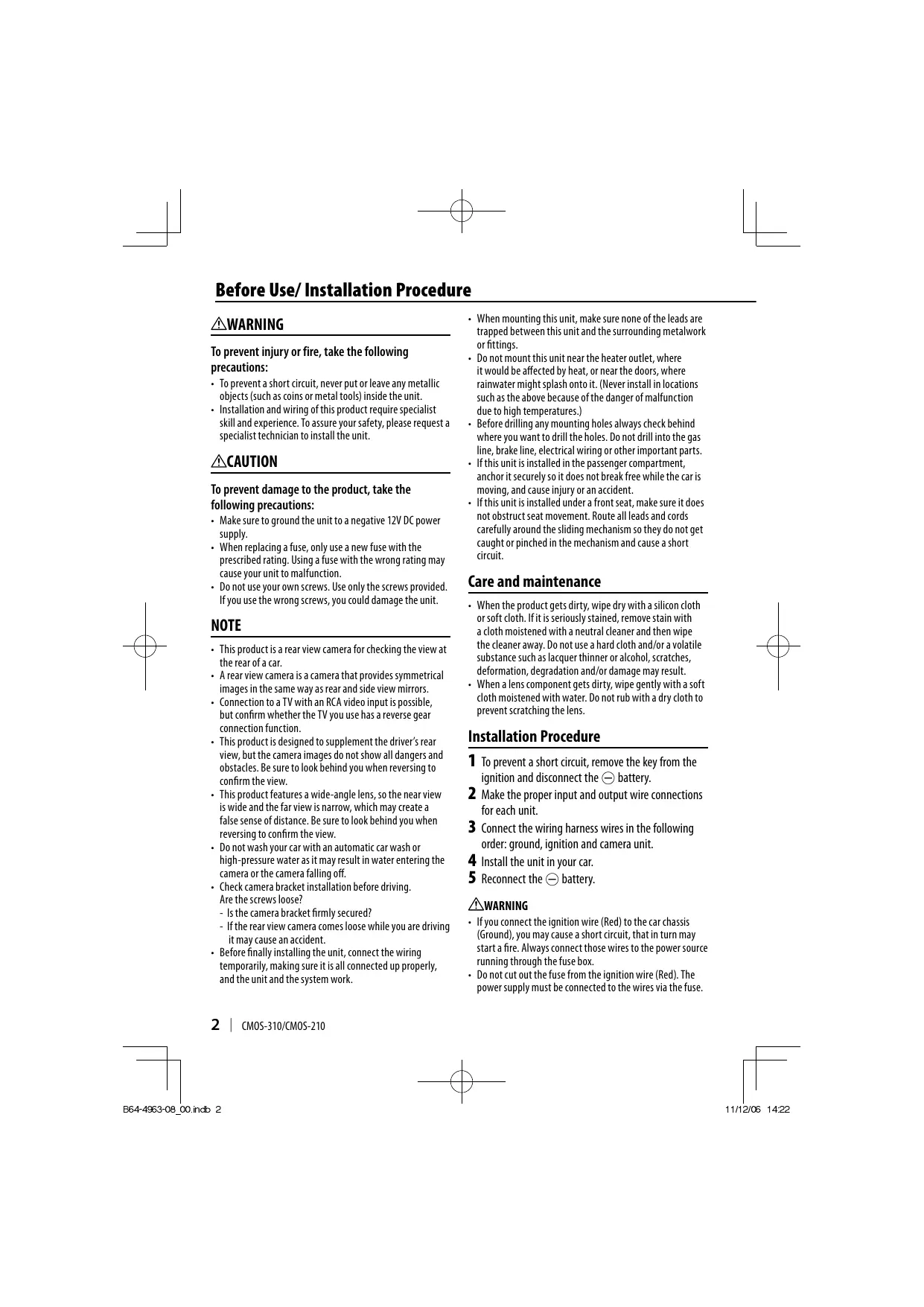


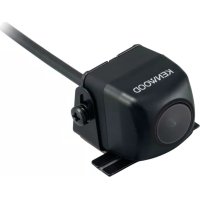
| Product Type | Rear View Camera |
| Brand | KENWOOD |
| Model | CMOS-210 |
| Dimensions (L x H x D) | 24 x 24 x 24.9 mm |
| Weight (without cable) | Approx. 34 g |
| Operating Voltage | 14.4 V (9.0 – 16.0 V) |
| Max. Power Consumption | 60 mA |
| Sensor | 1/4" Color CMOS |
| Number of Pixels | Approx. 310,000 pixels |
| Lens | Wide angle, focal length f = 1.41 mm, F number 2.3 |
| Viewing Angles | Horizontal: approx. 130°, Vertical: approx. 101° |
| Video Output | 1 Vp-p / 75 Ω |
| Illumination Value | Approx. 0.9 to 100,000 lux |
| Image Type | Wide-angle mirror image (rear view) |
| Maintenance and Cleaning | Clean the lens with a soft cloth dampened with water; do not use solvents or rough cloth |
| Safety | Installation by a professional; check the mount before each use; do not use high-pressure jet |
| Supplied Parts | Camera with mounting bracket, waterproof cover, bracket tightening screw |
| Repairability | Replace the fuse with a new one of the same rating; have installation done by a specialist |
| General Information | Complies with EMC directive 2004/108/EC; Class B (Canada) |
Frequently Asked Questions - CMOS-210 KENWOOD
User questions about CMOS-210 KENWOOD
0 question about this device. Answer the ones you know or ask your own.
Ask a new question about this device
Download the instructions for your Rear Camera in PDF format for free! Find your manual CMOS-210 - KENWOOD and take your electronic device back in hand. On this page are published all the documents necessary for the use of your device. CMOS-210 by KENWOOD.
USER MANUAL CMOS-210 KENWOOD
Take the time to read through this instruction manual.
Familiarity with installation and operation procedures will help you obtain the best performance from your new Universal Camera.
For your records
Record the serial number, found on the back of the unit, in the spaces designated on the warranty card, and in the space provided below. Refer to the model and serial numbers whenever you call upon your Kenwood dealer for information or service on the product.
Model CMOS-310/CMOS-210 Serial number ____
US Residence Only
Register Online
Register your Kenwood product at www.Kenwoodusa.com
⚠ WARNING
To prevent injury or fire, take the following precautions:
- To prevent a short circuit, never put or leave any metallic objects (such as coins or metal tools) inside the unit.
- Installation and wiring of this product require specialist skill and experience. To assure your safety, please request a specialist technician to install the unit.
CAUTION
To prevent damage to the product, take the following precautions:
- Make sure to ground the unit to a negative 12V DC power supply.
- When replacing a fuse, only use a new fuse with the prescribed rating. Using a fuse with the wrong rating may cause your unit to malfunction.
- Do not use your own screws. Use only the screws provided. If you use the wrong screws, you could damage the unit.
NOTE
- This product is a rear view camera for checking the view at the rear of a car.
- A rear view camera is a camera that provides symmetrical images in the same way as rear and side view mirrors.
- Connection to a TV with an RCA video input is possible, but confirm whether the TV you use has a reverse gear connection function.
- This product is designed to supplement the driver's rear view, but the camera images do not show all dangers and obstacles. Be sure to look behind you when reversing to confirm the view.
- This product features a wide-angle lens, so the near view is wide and the far view is narrow, which may create a false sense of distance. Be sure to look behind you when reversing to confirm the view.
- Do not wash your car with an automatic car wash or high-pressure water as it may result in water entering the camera or the camera falling off.
- Check camera bracket installation before driving. Are the screws loose?
- Is the camera bracket firmly secured?
- If the rear view camera comes loose while you are driving it may cause an accident.
-
Before finally installing the unit, connect the wiring temporarily, making sure it is all connected up properly, and the unit and the system work.
-
When mounting this unit, make sure none of the leads are trapped between this unit and the surrounding metalwork or fittings.
- Do not mount this unit near the heater outlet, where it would be affected by heat, or near the doors, where rainwater might splash onto it. (Never install in locations such as the above because of the danger of malfunction due to high temperatures.)
- Before drilling any mounting holes always check behind where you want to drill the holes. Do not drill into the gas line, brake line, electrical wiring or other important parts.
- If this unit is installed in the passenger compartment, anchor it securely so it does not break free while the car is moving, and cause injury or an accident.
- If this unit is installed under a front seat, make sure it does not obstruct seat movement. Route all leads and cords carefully around the sliding mechanism so they do not get caught or pinched in the mechanism and cause a short circuit.
Care and maintenance
- When the product gets dirty, wipe dry with a silicon cloth or soft cloth. If it is seriously stained, remove stain with a cloth moistened with a neutral cleaner and then wipe the cleaner away. Do not use a hard cloth and/or a volatile substance such as lacquer thinner or alcohol, scratches, deformation, degradation and/or damage may result.
- When a lens component gets dirty, wipe gently with a soft cloth moistened with water. Do not rub with a dry cloth to prevent scratching the lens.
Installation Procedure
1 To prevent a short circuit, remove the key from the ignition and disconnect the battery.
2 Make the proper input and output wire connections for each unit.
3 Connect the wiring harness wires in the following order: ground, ignition and camera unit.
4 Install the unit in your car.
5 Reconnect the ⊖ battery.
WARNING
- If you connect the ignition wire (Red) to the car chassis (Ground), you may cause a short circuit, that in turn may start a fire. Always connect those wires to the power source running through the fuse box.
- Do not cut out the fuse from the ignition wire (Red). The power supply must be connected to the wires via the fuse.
CAUTION
- If your car's ignition does not have an ACC position, connect the ignition wires to a power source that can be turned on and off with the ignition key. If you connect the ignition wire to a power source with a constant voltage supply, as with battery wires, the battery may die.
- If the fuse blows, first make sure the wires aren't touching to cause a short circuit, then replace the old fuse with one with the same rating.
- Insulate unconnected wires with vinyl tape or other similar material. To prevent a short circuit, do not remove the caps on the ends of the unconnected wires or the terminals.
- After the unit is installed, check whether the brake lamps, blinkers, wipers, etc. on the car are working properly.
• Install so that it does not obstruct the rear field of view.
• Install so that it does not protrude from the side of the car.
- Do not perform installation in rain or fog.
- When humidity is high, dry the surface to which the unit is to be attached before installing.
- Moisture on the attachment surface reduces adhesive strength, which may lead to the unit coming off.
- Do not attach the camera bracket to areas on the car body treated with fluorocarbon resin, or glass.
- May result in the rear view camera falling off.
- Do not apply water to the unit.
- Do not expose the unit to rain.
- Do not subject the camera to unnecessary force.
- Thoroughly clean where tape is used for sticking on the unit.
- Refer to the Instruction's manual for details on connecting the other units, then make connections correctly.
- Secure the wiring with cable clamps or adhesive tape. To protect the wiring, wrap adhesive tape around them where they lie against metal parts.
- Route and secure all wiring so it cannot touch any moving parts, such as the gear shift, handbrake and seat rails.
- Do not route wiring in places that get hot, such as near the heater outlet. If the insulation of the wiring melts or gets torn, there is a danger of the wiring short-circuiting to the vehicle body.
- When replacing the fuse, be sure to use only fuse of the rating prescribed on the fuse holder.
- To minimize noise locate the TV antenna cable, radio antenna cable and RCA cable as far away from each other as possible.
- Do not install the power supply box unit in places where it may become subject to high temperatures or humidity, such as:
- Places close to a heater, vent or air conditioner.
- Places exposed to direct sunlight, such as on top of the dashboard or the rear shelf.
- Places that may be splashed by rain, for example close to the door.
- Lay the cords by avoiding high-temperature areas. Use corrugated tubes for wiring inside the engine room. If a cord contacts a high-temperature area of the vehicle, the coating may melt and cause short-circuiting, which may lead to a fire or electric shock hazard.
Accessories
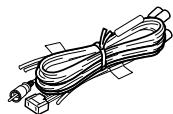
Camera (with camera bracket) .....1
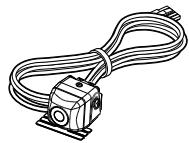
natural_image
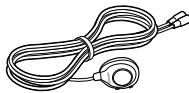
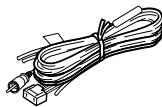
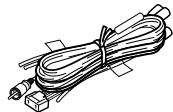
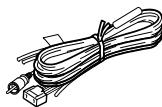
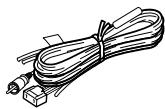
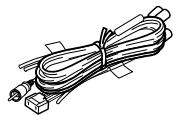
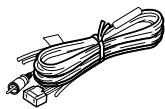
Line drawing of a coiled cable or wire component with no visible text or symbolsPower cord ......1
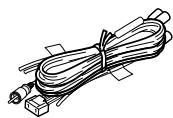
natural_image
Line drawing of a coiled cable with connectors and a terminal block (no text or symbols)CMOS-310
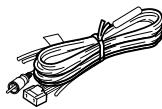
natural_image
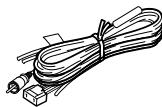
Line drawing of a coiled cable with connectors and a terminal block (no text or symbols)CMOS-210
Waterproof packing .....1
Camera bracket clamping screw......1
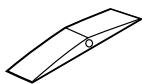

CMOS-310 only
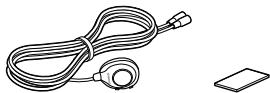
Switch unit......1
Double-side adhesive tape .....1
natural_image
Line drawing of a coiled cable with connectors and a separate circular connector (no text or symbols)
CAUTION
- The adjustments during camera setting may be hindered depending on the camera installation position. Do not install the camera securely but attach it only temporarily until the camera setting has completed.
Recommended Installation Position
Examples of correct camera installation
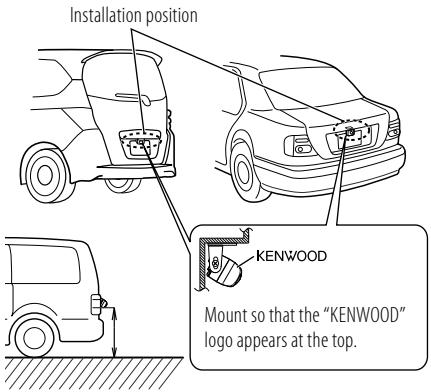
The CMOS-310 should be installed at a height of 55 cm (1.8 feet) or more.
Installing the Camera/Adjusting its angle
1 Decide the camera installation position.
2 Clean the camera installation surface.
Using a commercially available cleaner, wipe dirt, moisture and oil away from the surface on which the camera bracket is to be attached.
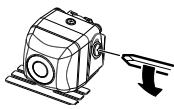
3 Loosen the camera bracket retaining screws.
natural_image
Technical line drawing of a mechanical device with a downward arrow indicating motion (no text or symbols)Using a commercially available Phillips screwdriver, loosen the two retaining screws.
Perform steps 4 and 5 only when they are required.
4 If required, separate the camera bracket from the camera and adjust the shape according to the surface on which it will be attached.
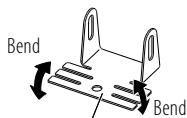
Camera bracket
Adjust the camera bracket shape so that it fits the camera installation position.
5 Mount the camera on the camera bracket.
Mount so that the "KENWOOD" logo appears at the top.
6 Fix the camera temporarily with tape, etc.
Using a piece of tape, etc., fix the camera temporarily and adjust the angles so that the rear end of the vehicle can be viewed.
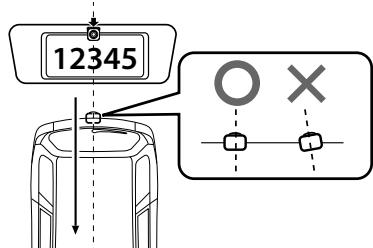
Attach the camera on the rear center position of the vehicle taking care not to hide the license plate. Make sure that the camera points straight toward the rear of the vehicle travel direction. Be careful not to lean the camera toward other directions of the vehicle, etc.
7 Complete all of the required connections.
8 Display the camera video.
Some video monitors may switch automatically to the external video input function. For details, read the instruction manual for your video monitor.
9 Change the shift lever to the R (Reverse) range to view the image of the rear of the vehicle.
Before viewing the camera, apply the parking brake and chock the wheels so that the vehicle will not move. Otherwise, an unexpected accident may result.
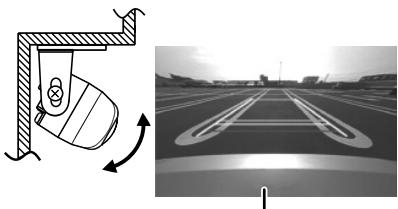
10 Adjust the camera angle so that the rear part of the vehicle or the rear bumper is visible at the bottom of the monitor screen.
natural_image
Diagram showing a vehicle detection bounding box and its side view of a road with lane markings (no text or symbols present)Vehicle rear part or bumper
When adjusting the camera angle, be careful not to stretch the camera cord.
11 After adjusting the camera angle, tighten the retaining screws firmly.
Inspect the retaining screws at times. If they are loose, tighten them firmly.
12 Perform the operations in "Camera Setting" (page 8). (CMOS-310 only)
If an adjustment is not possible in the currently available range, change the camera position before retrying.
13 Fix the camera firmly in position.
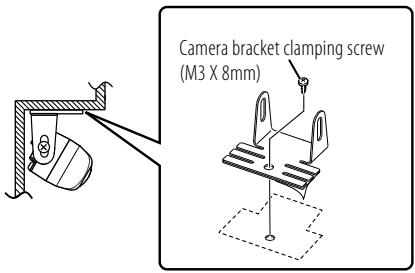
Peel off the paper liner from the double-side adhesive tape on the camera bracket and attach it. After attaching, push the camera bracket with your finger to ensure close adhesion. Do not touch the adhesive surface with your hand or peel and reattach an attached tape, as these will degrade the adhesive force and may cause the camera bracket to be detached. If required, secure the bracket on the vehicle body using the camera bracket clamping screw.
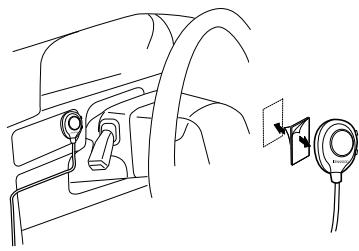
Installing the Switch Unit (CMOS-310 only)
1 Clean the switch unit installation surface.
Using a commercially available cleaner, wipe dirt, moisture and oil away from the surface on which the switch unit is to be attached.
2 Attach double-side adhesive tape on the bottom of the switch unit and then attach it in an easy-to-operate position, for example near the dashboard on the driver seat side.
natural_image
Line drawing of a car interior showing steering wheel and rearview-mounted sensor (no text or symbols)Basic Connections

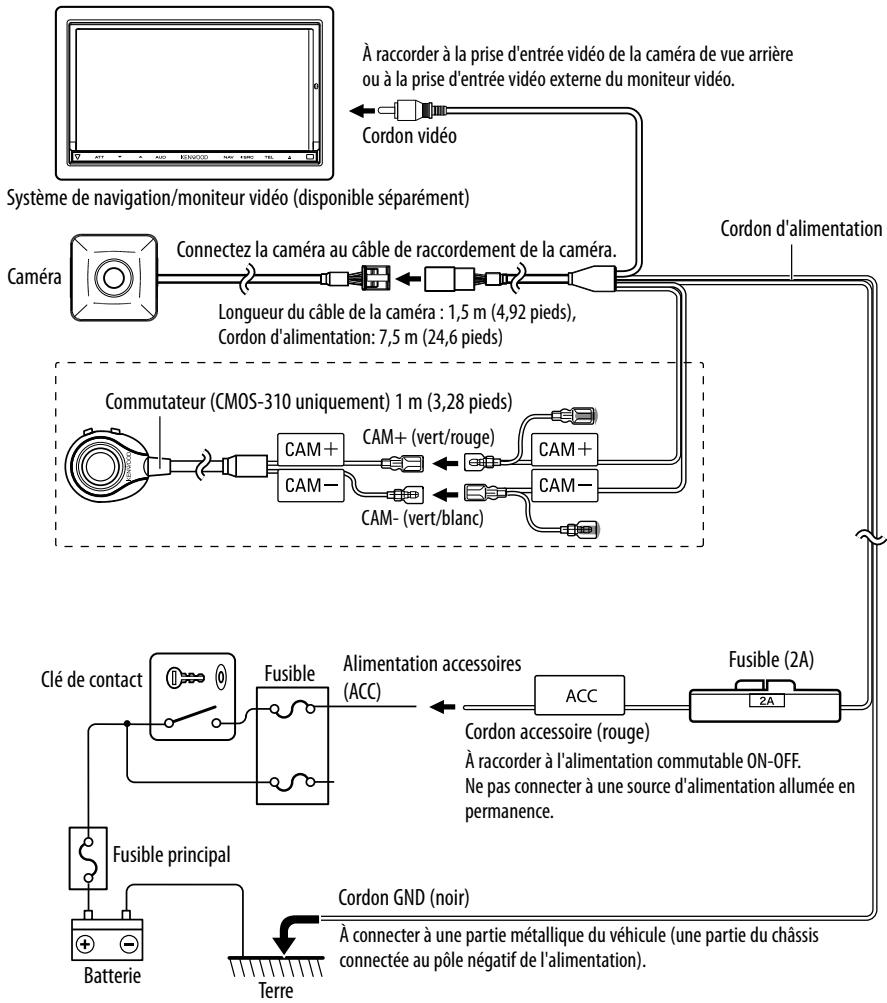
flowchart
graph TD
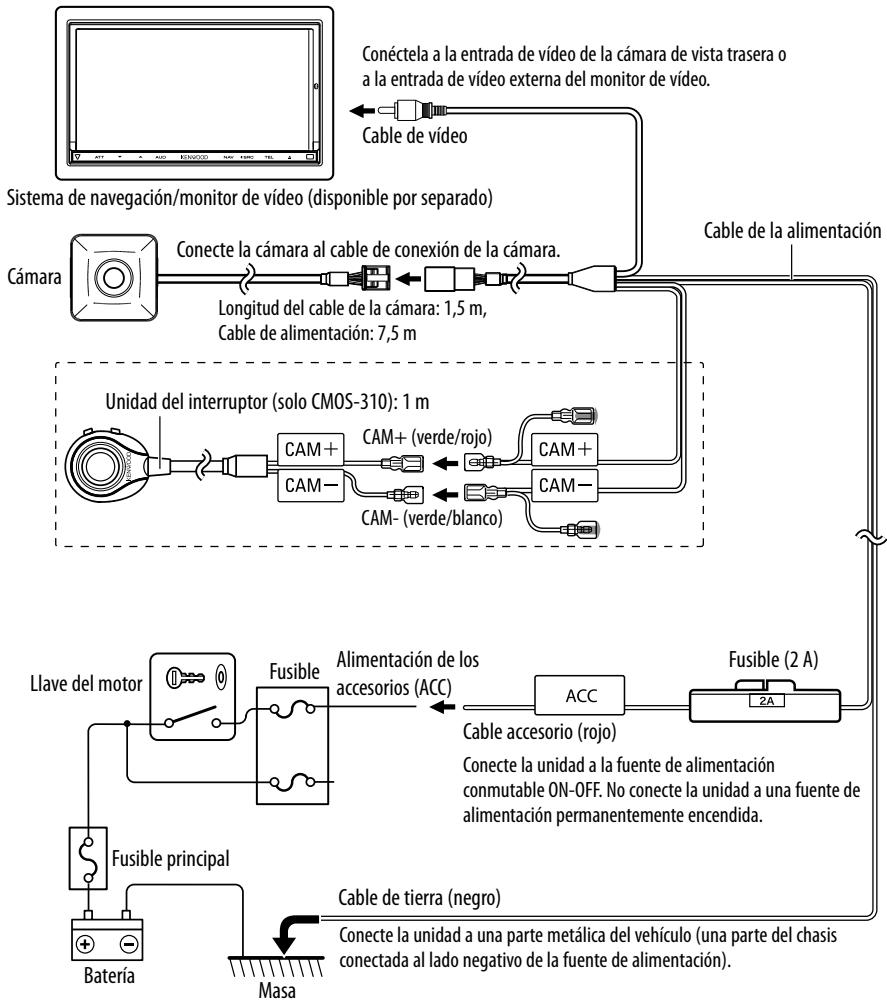
    A["Navigation system/video monitor (separately available)"] --> B["Camera"]
    B --> C["Connect the camera to the camera connection cord."]
    C --> D["Switch unit (CMOS-310 only): 1 m (3.28 feet)"]
    D --> E["Engine key"]
    E --> F["Fuse"]
    F --> G["Accessory power (ACC)"]
    G --> H["ACC"]
    H --> I["Fuse (2A)"]
    I --> J["2A"]
    J --> K["GND"]
    K --> L["Battery"]
    L --> M["Main fuse"]
    M --> N["GND"]
    N --> O["Connect to a metallic part of vehicle (a part of chassis connected to the negative side of power supply)."]
    style A fill:#f9f,stroke:#333
    style B fill:#ccf,stroke:#333
    style C fill:#cfc,stroke:#333
    style D fill:#fcc,stroke:#333
    style E fill:#cff,stroke:#333
    style F fill:#ffc,stroke:#333
    style G fill:#fcf,stroke:#333
    style H fill:#cff,stroke:#333
    style I fill:#ffc,stroke:#333
    style J fill:#cfc,stroke:#333
    style K fill:#fcc,stroke:#333
    style L fill:#ffc,stroke:#333
    style M fill:#cff,stroke:#333
    style N fill:#ffc,stroke:#333
CAUTION
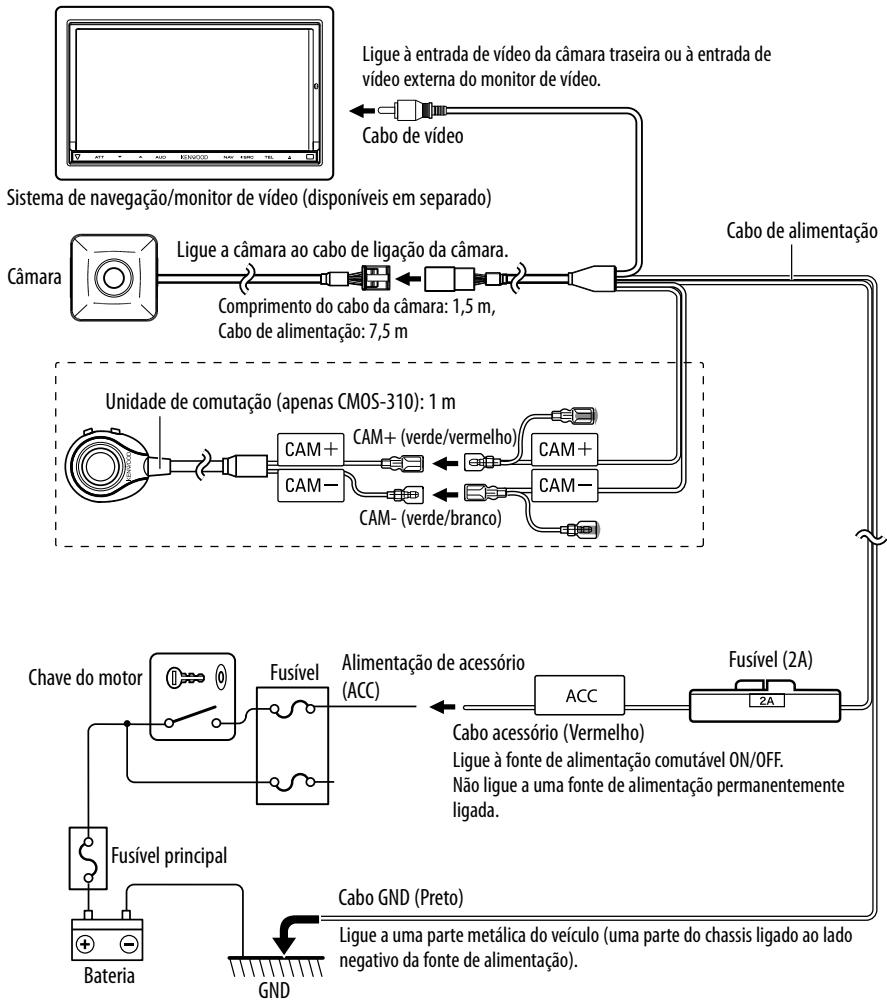
- If the engine key of your vehicle does not have the ACC position, branch the wire energized when the engine key is ON and connect it to the accessory power cord.
- Before proceeding to connections, make sure that the engine key is not inserted and disconnect the () terminal of the battery to prevent the short-circuiting incident.
System Connection (CMOS-310 only)
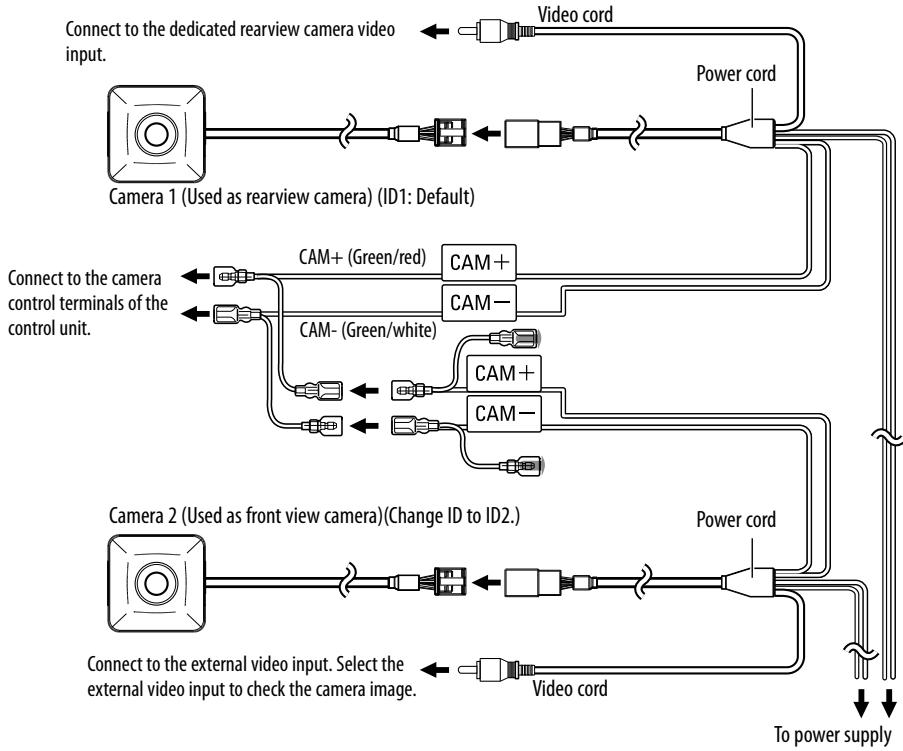
- When connecting the camera to a Kenwood navigation system etc, (Control unit) equipped with the camera control function, use the provided control unit connection cord. This allows the control unit to switch the display view and adjust the camera as well on touch the control unit screen.
- When using two CMOS-310 units (for the front and rear), it is required to set an ID for the front camera. For details, see "Camera ID Setting" (page 13).
- Connect the power supply in the same way as "Basic Connections".
- The provided switch unit is not used in the system connection.
Connection of 2 Cameras
flowchart
graph TD
    A["Camera 1 (Used as rearview camera) (ID1: Default)"] --> B["Connect to the dedicated rearview camera video input."]
    B --> C["Video cord"]
    C --> D["Power cord"]
    D --> E["Cam+ (Green/red)"]
    D --> F["CAM-"]
    E --> G["Cam+ (Green/red)"]
    F --> H["CAM-"]
    G --> I["Cam+ (Green/white)"]
    H --> J["Cam-"]
    I --> K["Cam+ (Green/white)"]
    J --> L["Cam-"]
    K --> M["Cam+ (Green/white)"]
    L --> N["Cam-"]
    M --> O["Power cord"]
    N --> P["Power cord"]
    O --> Q["To power supply"]
    P --> Q
    R["Camera 2 (Used as front view camera) (Change ID to ID2.)"] --> S["Connect to the external video input. Select the external video input to check the camera image."]
    S --> T["Video cord"]
    T --> U["Power cord"]
    U --> V["Power cord"]
Switch Unit Operation
The switch unit can be used to switch the image display mode, view/hide the guideline display and adjust the camera.
View button
- Switches the image display mode.
- Select an item in the setting mode.
- Press and hold to display or hide the guidelines.
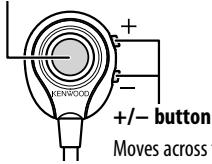
Moves across the setting mode items or sets an adjustment value.
Preparation Before Camera Setting
1 Stop the vehicle.
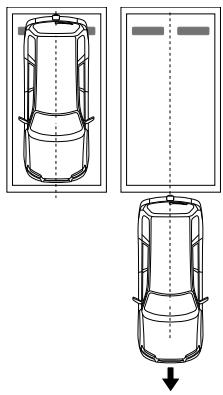
In a parking space with white lines and tire stoppers, park the vehicle in the center of the white line frame.
2 Advance the vehicle.
- Move the vehicle forward until the entire parking space can be viewed in the camera image.
- Be sure to apply the parking brake and push the brake pedal so that the vehicle is completely stationary. Perform the setting in a place that will not cause nuisance to other people.
natural_image
Top-down line drawing of a car showing front, side, and perspective views (no text or symbols)Camera Setting Procedure
1 Complete all of the required connections in advance.
2 Display the camera video.
Some video monitors may switch automatically to the external video input function. For details, read the instruction manual for your video monitor.
3 Press and hold the view and + buttons of the switch unit simultaneously to enter the camera adjustment mode.
4 First select the positioning of the camera.
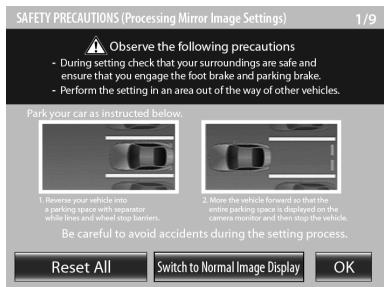
Use the + or - button to select an item and press the view button to enter the selection.
- When using the camera as the rearview camera, select [OK].
- When using the camera as the front camera, select [Switch to Normal Image Display] and then select [OK].
- Selecting [Reset All] resets all of the camera settings to the defaults.
5 Select a camera adjustment item and adjust it.
The following items are available for camera adjustment.
-
Overhead view image adjustments (Centering, Right-and-Left angle, Up-and-Down Angle)
-
Wide view guideline adjustments
(Size, Horizontal direction, Vertical direction, Red Line Position Setting)
To select an item:
Press the + or - button to select an item and press the view button to enter the selection. When an adjustment item is selected, the frame of its icon turns from blue to red.
To adjust the item:
After selecting the item, press the + or - button to adjust it and press the view button to enter the adjusted value.
6 End the setting.
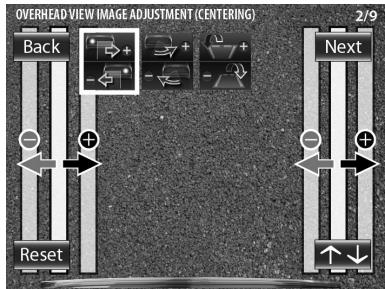
Overhead View Image Adjustment (Centering)
This item adjusts the center of the camera installation position.
1 Select "OVERHEAD VIEW IMAGE ADJUSTMENT (CENTERING)".
2 Press the + or - button of the switch unit so that the two white lines appear on the position corresponding to the center line of the vehicle.
flowchart
graph TD
    A["Back"] --> B["+"]
    C["Reset"] --> D["-"]
    E["Next"] --> F["+"]
    G["+"] --> H["-"]
    I["+"] --> J["-"]
    K["+"] --> L["-"]
    M["+"] --> N["2/9"]
Adjustment is possible by one step to the left and right. If the adjustment is not possible in the currently available range, change the camera position before retry.
- Select [Back] to go back to the previous adjustment item.
- Select [Next] to advance to the next adjustment item.
- Selecting [Reset] in an individual adjustment item resets the camera setting of that item to the default.
- Select [↑↓] to invert the icon upside down.
3 After completing the adjustment, press the view button.
Advances to "OVERHEAD VIEW IMAGE ADJUSTMENT (Right-and-Left ANGLE)".
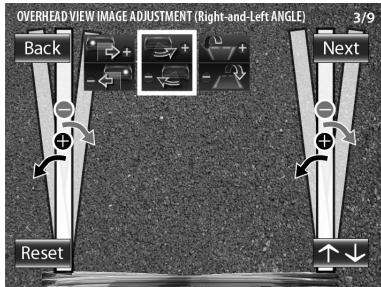
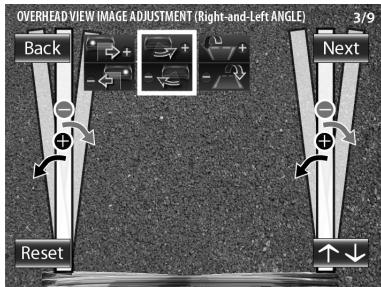
Overhead View Image Adjustment (Right-and-Left Angle)
This item adjusts the horizontal angle (in the rotary direction) of the camera installation position.
1 Select "OVERHEAD VIEW IMAGE ADJUSTMENT (Right-and-Left ANGLE)".
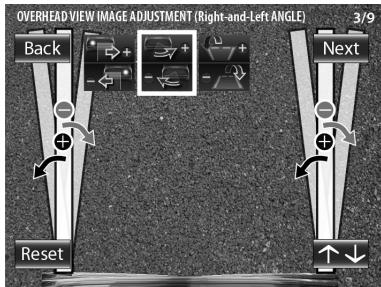
2 Press the + or - button of the switch unit so that the center of the parking space is displayed vertically.
Adjustment is possible by one step to the left and right. If the adjustment is not possible in the currently available range, change the camera position before retrying.
3 After completing the adjustment, press the view button.
↓ Advances to "OVERHEAD VIEW IMAGE ADJUSTMENT (Up-and-Down ANGLE)".
Overhead View Image Adjustment (Up-and-Down Angle)
This item adjusts the vertical angle (inclination) of the camera installation position.
1 Select "OVERHEAD VIEW IMAGE ADJUSTMENT (Up-and-Down ANGLE)".
2 Press the + or – button of the switch unit so that the lines indicating the vehicle width are shown vertical.
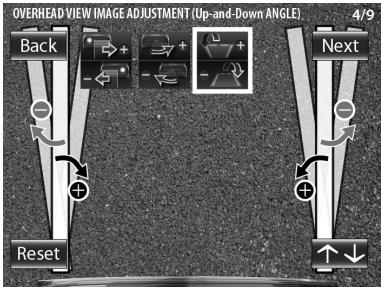
Adjustment is possible by one step up and down. If the adjustment is not possible in the currently available range, change the camera position before retrying.
3 After completing the adjustment, press the view button.
4 Select [Next].
↓ Advances to "WIDE VIEW GUIDELINE ADJUSTMENT (Size)".
For Guideline Adjustment
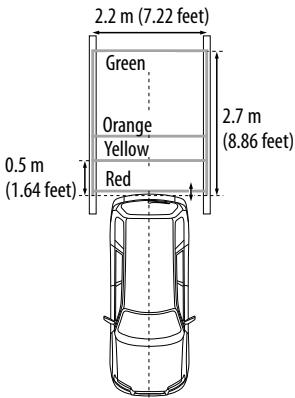
- The subsequent adjustments adjust the sizes, lengths and positions of the guidelines displayed in the wide view and overhead view. By default, three guidelines shown below (green, yellow and red) are displayed assuming that the camera installation height is 80 cm (2.62 feet) and that the distance between the left and right lines of the parking space is 2.2 meters (7.22 feet). Adjusting the wide view or overhead guidelines alters the interval between the corresponding guidelines. As the interval between each set of guidelines varies depending on the camera installation height, check the actual settings after all of the following adjustments are completed.
- Once the interval between guidelines has been adjusted according to your parking space, the displayed guidelines do no longer indicate the width of the vehicle. Note that the sizes of parking space are greatly variable and confirm the actual size of each parking space before attempting to park in it.
- The orange line indicates the position of the overhead view (area on the near side of the orange line) and of the wide view (area beyond the orange line) in the PinP view (page 14). When the orange line displayed in the wide view exceeds the parking line, slow down the vehicle and move until the red line (parking position) by checking it in the overhead view.
- The red line is used to indicate the parking position and can set it independently from other guide lines.
Wide View Guideline Adjustment (Size)
This item adjusts the overall size of guidelines displayed in the wide view.
1 Select "WIDE VIEW GUIDELINE ADJUSTMENT (Size)".
2 Press the + or - button of the switch unit to adjust the size.
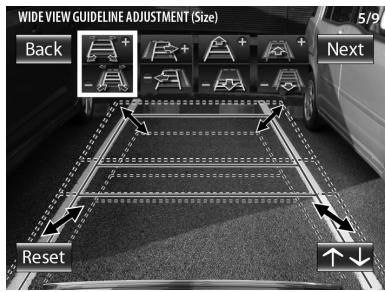
3 After completing the adjustment, press the view button.
Advances to "WIDE VIEW GUIDELINE ADJUSTMENT (Horizontal direction)".
Wide View Guideline Adjustment (Horizontal Direction)
This item adjusts the left-right positioning of the guidelines displayed in the wide view.
1 Select "WIDE VIEW GUIDELINE ADJUSTMENT (Horizontal direction)".
2 Press the + or - button of the switch unit to adjust the left-right positioning.
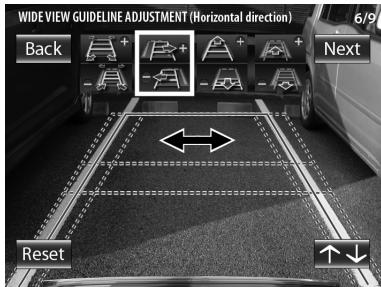
3 After completing the adjustment, press the view button.
↓ Advances to "WIDE VIEW GUIDELINE ADJUSTMENT (Vertical direction)".
Wide View Guideline Adjustment (Vertical Direction)
This item adjusts the length of the guidelines displayed in the wide view.
1 Select "WIDE VIEW GUIDELINE ADJUSTMENT (Vertical direction)".
2 Press the + or - button of the switch unit to adjust the length.
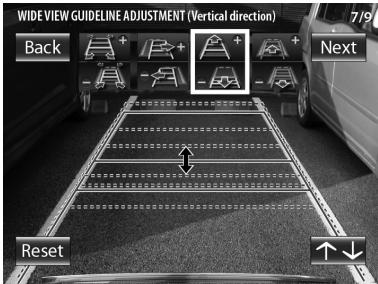
3 After completing the adjustment, press the view button.
↓ Advances to "WIDE VIEW GUIDELINE ADJUSTMENT (Red Line Position Setting)."
Wide View Guideline Adjustment (Red Line Position Setting)
This item adjusts the position of the red line displayed in the wide view. The red line can be used independently to set the reference line for the vehicle parking position.
1 Select "WIDE VIEW GUIDELINE ADJUSTMENT (Red Line Position Setting)".
2 Press the + or - button of the switch unit to adjust the position of the red line.
By default, the red line is superimposed with the yellow line that is closest to the vehicle. Move the red line until the edge of your vehicle's bumper.
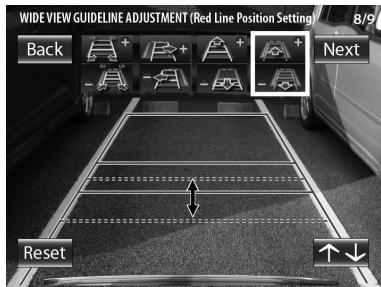
3 After completing the adjustment, press the view button.
4 Select [Next].
Advances to "SETTING COMPLETE".
Finishing the Camera Setting
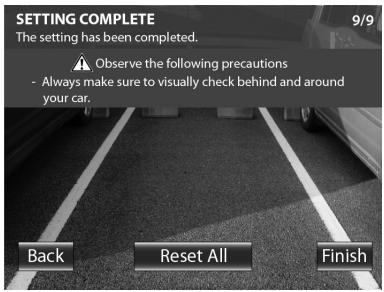
1 Press the + or - button of the switch unit to select [Finish] and press the view button.
Camera ID Setting
When connecting two CMOS-310 units to a Kenwood navigation system etc. equipped with the camera control function, it is required to assign different camera IDs to the 2 cameras. The camera IDs of both cameras have been set to ID1 at the factory.
1 Press and hold the + button of the switch unit for more than 2 seconds, and then press and hold the - button for more than 2 seconds.
2 Press the + or - button of the switch unit to select the camera ID, and press the view button.
![ID SETTING When connecting two CMOS-310 cameras to a head unit, that supports this feature, using the supplied cable it is necessary to register separate IDs for each camera. Select an ID and Press [Finish] ID 1 ID 2 Finish](/content/2020/04/83084/images/ac9449295e47748f8f81ac826991bc1f0d3ebfcf79c5e2a4a732e357b56dfa65.jpg)
3 After setting, press the + or - button of the switch unit to select [Finish] and press the view button.
Display View Switching
The CMOS-310 camera system can display 5 kinds of camera images.
1 With an image displayed on the monitor, press the view button of the switch unit.
Each press switches the image display mode in the following order.
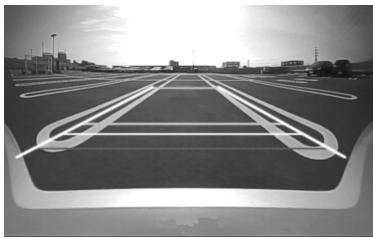
Super Wide View
Wide-angle image covering a horizontal angle of about 190irc .
natural_image
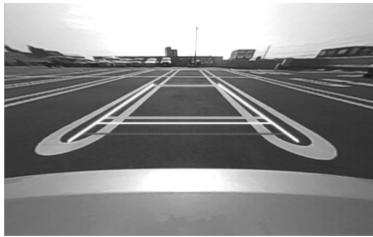
Exterior view of a large road with lane markings and surrounding buildings (no signage or text visible)Wide View
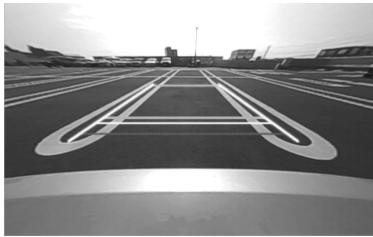
Camera image covering a horizontal angle of about 135irc .
natural_image
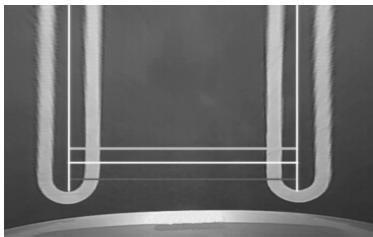
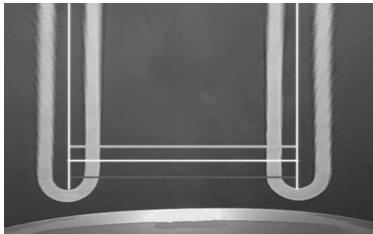
Black and white photo of a large road with lane markings, no visible text or symbolsOverhead View
Image seen from the viewpoint straight up above the vehicle.
natural_image
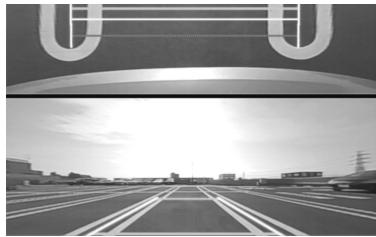
Close-up of a U-shaped tube or tube with white insulation, no visible text or symbolsPinP View
The overhead view is displayed on the upper half of the screen while the wide view is displayed on the lower half. The overhead view in the upper half of the screen shows the area on the nearer side of the orange line shown in the wide view in the lower half.
natural_image
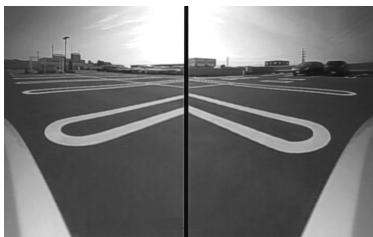
Black and white photo of a highway with overhead power lines and buildings (no visible text or symbols)Corner View
The views seen from the two corners of vehicle are displayed on the left and right halves of the screen.
natural_image
Exterior view of a parking lot with curved road markings and distant buildings (no signage)
When connecting the camera to a Kenwood navigation system etc, (Control unit) equipped with the camera control function, use the provided control unit connection cord. This allows the control unit to switch the display view as well on touch the control unit screen (page 7).
Camera Unit (CMOS-310)
Output video
: Wide-angle mirror image (for rearview)/wide-angle normal image (for front view)
Sensor: 1/4-inch color CMOS sensor
Number of pixels: Approx. 310,000 pixels
Lens
: Wide angle, Focal length f=0.82 mm, F value 2.4
Angles of view
: Horizontal: Approx. 190°
: Vertical: Approx. 151°
Video output: 1.0 Vp-p/75Ω
Illumination range: Approx. 0.9 to 100,000 lux
Iris system: Electronic iris
Scanning system: Interlace
Synchronizing system: Internal synchronization
Dimensions (WxHxD): 24 x 24 x 24.9 mm
Weight: Approx. 36 g (without cable)
Camera Unit (CMOS-210)
Output video
: Wide-angle mirror image (for rearview)
Sensor: 1/4-inch color CMOS sensor
Number of pixels: Approx. 310,000 pixels
Lens
: Wide angle, Focal length f=1.41 mm, F value 2.3
Angles of view
: Horizontal: Approx. 130°
: Vertical: Approx. 101°
Video output: 1.0 Vp-p/75Ω
Illumination range: Approx. 0.9 to 100,000 lux
Iris system: Electronic iris
Scanning system: Interlace
Synchronizing system: Internal synchronization
Dimensions (WxHxD): 24 x 24 x 24.9 mm
Weight: Approx. 34 g (without cable)
Switch Unit (CMOS-310 only)
Dimensions (WxHxD): 27.5 x 32.8 x 12 mm
Weight: Approx. 10 g (without cable)
General
Operating voltage: 14.4V (9.0 V - 16.0 V)
Max. current consumption (CMOS-310): 80 mA
Max. current consumption (CMOS-210): 60 mA
- Mirror image means that the video image inverts the left and right just like the image seen on the rearview mirror or a side mirror.
- Specifications subject to change without notice.
This Product is not installed by the manufacturer of a vehicle on the production line, nor by the professional importer of a vehicle into an EU Member State.
Information on Disposal of Old Electrical and Electronic Equipment and Batteries (applicable for EU countries that have adopted separate waste collection systems)

Products and batteries with the symbol (crossed-out wheeled bin) cannot be disposed as household waste.
Old electrical and electronic equipment and batteries should be recycled at a facility capable of handling these items and their waste byproducts.
Contact your local authority for details in locating a recycle facility nearest to you.
Proper recycling and waste disposal will help conserve resources whilst preventing detrimental effects on our health and the environment.
Notice: The sign "Pb" below the symbol for batteries indicates that this battery contains lead.
⚠️ AVERTISSEMENT
natural_image
Line drawing of a coiled cable or wire connector with mounting base (no text or symbols)Cordon d'alimentation .....1
natural_image
Illustration of a coiled cable with connectors and a terminal connector (no text or symbols)CMOS-310
natural_image
Line drawing of a coiled cable with connectors and a small terminal (no text or symbols)CMOS-210
natural_image
Line drawing of a coiled cable with connectors (no text or symbols)
ATTENTION
natural_image
Technical line drawing of a mechanical device with a downward arrow indicating motion (no text or symbols)natural_image
Diagram showing a vehicle detection bounding box and its side view of a road with lane markings (no text or symbols)natural_image
Line drawing of a car interior showing steering wheel and attached air vent (no text or symbols)Raccordements de base
natural_image
Top-down line drawing of a car showing front, side, and perspective views (no text or symbols)natural_image
Black-and-white photo of a multi-lane highway with lane markings and distant buildings (no visible text or symbols)Grand angle
Image couvrant un angle horizontal d'environ 135°.
natural_image
Black and white photo of a highway with lane markings, no visible text or symbolsVue de dessus
natural_image
Close-up of a U-shaped metal frame with vertical wire, no text or symbols visibleVue PinP
natural_image
Black and white photo of a highway with overhead structures and a large 'U' logo (no readable text or symbols)Vue d'angle
natural_image
Exterior view of a parking lot with curved road markings and distant buildings (no signage)
natural_image
Line drawing of a coiled cable or wire connector with mounting base (no text or symbols)Stromversorgungskabel ......1
natural_image
Illustration of a coiled cable with connectors and a terminal block (no text or symbols)CMOS-310
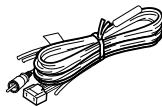
natural_image
Line drawing of a coiled cable with connectors (no text or symbols)CMOS-210
natural_image
Line drawing of a coiled cable with connectors and a small circular connector (no text or symbols)
⚠️ACHTUNG
natural_image
Technical line drawing of a mechanical device with a downward arrow indicating motion (no text or symbols)natural_image
Diagram showing a vehicle detection bounding box and its side view of a road with lane markings (no text or symbols)natural_image
Line drawing of a car interior showing steering wheel and attached air vent (no text or symbols)Grundanschlüsse
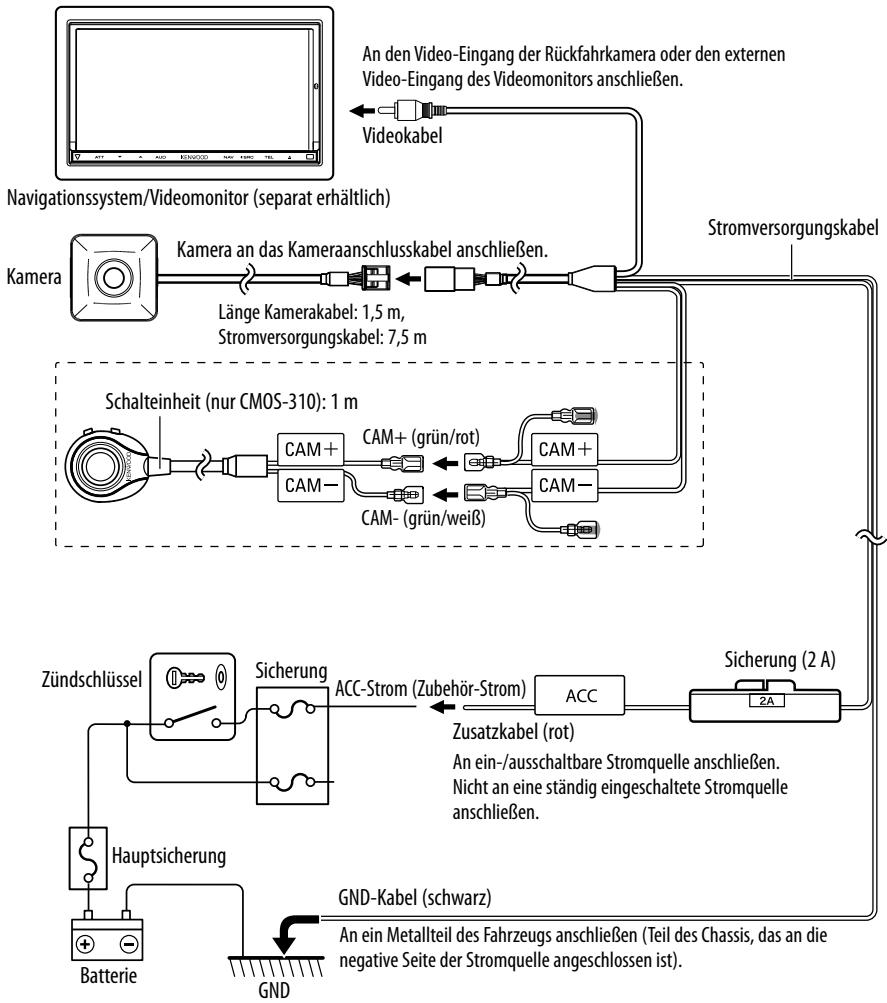
natural_image
Diagram showing three views of a car with dashed lines indicating top, front, and side views (no text or symbols)natural_image
Black-and-white photo of a highway with lane markings and distant buildings (no visible text or symbols)Weite Ansicht
natural_image
Black and white photo of an airport runway with lane markings and distant buildings (no visible text or symbols)Über-Kopf-Ansicht
natural_image
Close-up of a U-shaped tube with white filter bands, no text or symbols visiblePinP-Ansicht
natural_image
Black and white photo of a highway with lane markings and distant buildings under a clear sky (no visible text or symbols)Eckansicht
natural_image
Exterior view of a road with curved parking markings and distant buildings (no signage or text visible)
natural_image
Line drawing of a coiled cable with a small mechanical component (no text or symbols)natural_image
Illustration of a coiled cable with connectors and a terminal connector (no text or symbols)CMOS-310
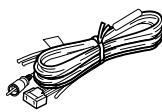
natural_image
Line drawing of a coiled cable with connectors and a small component (no text or symbols)CMOS-210
Waterdichte behuizing......1
Klemschroef camerabeugel......1
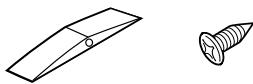
natural_image
Simple line drawing of a flat plate and a screw (no text or symbols)natural_image
Line drawing of a coiled cable with a separate flat base (no text or symbols)⚠ OPGELET
natural_image
Technical line drawing of a mechanical device with a downward arrow indicating motion (no text or symbols)natural_image
Diagram showing a vehicle detection bounding box and its side view of a road with lane markings (no text or symbols)natural_image
Line drawing of a car interior showing a hand valve and a close-up of the right-hand side panel (no text or symbols)Basisaansluitingen
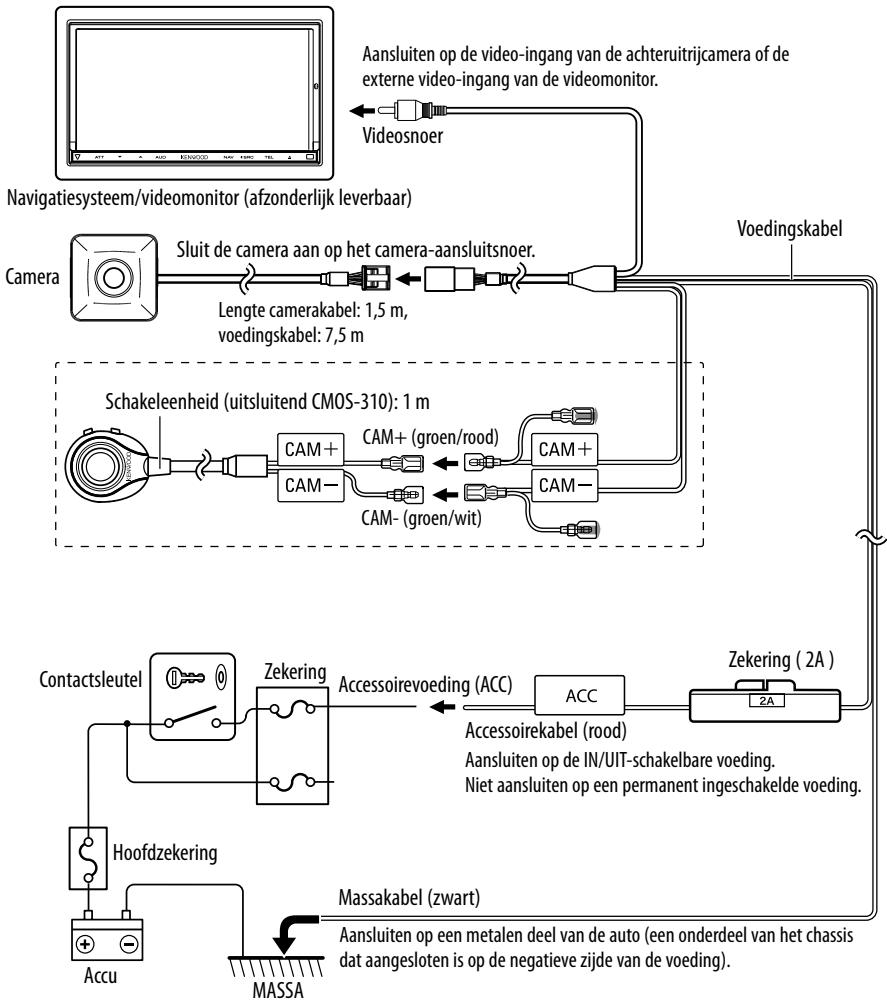
natural_image
Top-down line drawing of a car showing front, side, and side views (no text or symbols)CMOS-310/CMOS-210
Camera-instellingsprocedure
SAFETY PRECAUTIONS (Processing Mirror Image Settings)
1/9

Observe the following precautions
- During setting check that your surroundings are safe and ensure that you engage the foot brake and parking brake.
- Perform the setting in an area out of the way of other vehicles.
Park your car as instructed below.
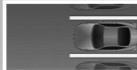
- Reverse your vehicle into a parking space with separator while lines and wheel stop barriers.
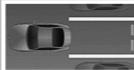
- More the vehicle forward so that the entire parking space is displayed on the camera monitor and then stop the vehicle.
Be careful to avoid accidents during the setting process.
Reset All
Switch to Normal Image Display
OK
1 Selecteer "OVERHEAD VIEW IMAGE ADJUSTMENT (Right-and-Left ANGLE)".
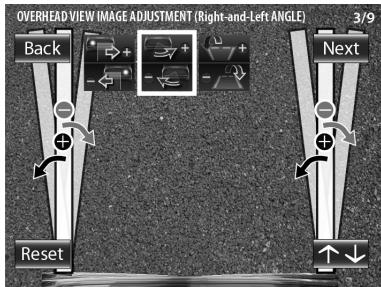
flowchart
graph TD
    A["Back"] --> B["+"]
    B --> C["Reset"]
    C --> D["Next"]
    style A fill:#f9f,stroke:#333
    style B fill:#ccf,stroke:#333
    style C fill:#cfc,stroke:#333
    style D fill:#fcc,stroke:#333
natural_image
Exterior view of a modern airport runway with lane markings and parked vehicles (no signage or text visible)Groothoekbeeld
natural_image
Black and white photo of an airport runway with lane markings, no visible text or symbolsBovenaanzicht
natural_image
Close-up of a U-shaped tube or U-shaped tube with a metallic base, against a dark background (no text or symbols visible)PinP-weergave
natural_image
Black and white photo of a highway with overhead power lines and distant buildings (no visible text or symbols)Hoekweergave
natural_image
Exterior view of a parking lot with curved road markings and distant buildings (no signage)
natural_image
Line drawing of a coiled cable or wire component with a rectangular base and mounting bracket (no text or symbols)natural_image
Illustration of a coiled cable with connectors and a terminal pin (no text or symbols)CMOS-310
natural_image
Line drawing of a coiled cable with connectors and a terminal block (no text or symbols)CMOS-210
natural_image
Line drawing of a coiled cable with connectors and a small circular component (no text or symbols)
ATTENZIONE
natural_image
Technical line drawing of a mechanical device with a downward arrow indicating motion (no text or symbols)natural_image
Diagram showing a surveillance camera mounted on a vertical structure and a road view with lane markings (no text or symbols)natural_image
Line drawing of a car interior showing steering wheel and attached air vent (no text or symbols)natural_image
Top-down line drawing of a car showing front, side, and side views with no text or symbolsSi passa a "OVERHEAD VIEW IMAGE ADJUSTMENT (Right-and-Left ANGLE)".
1 Selezionare "OVERHEAD VIEW IMAGE ADJUSTMENT (Right-and-Left ANGLE)".
flowchart
graph TD
    A["Back"] --> B["+"]
    B --> C["Reset"]
    C --> D["Next"]
    style A fill:#f9f,stroke:#333
    style B fill:#ccf,stroke:#333
    style C fill:#cfc,stroke:#333
    style D fill:#fcc,stroke:#333
Si passa a "OVERHEAD VIEW IMAGE ADJUSTMENT (Up-and-Down ANGLE)".
Si passa a "WIDE VIEW GUIDELINE ADJUSTMENT (Size)".
Si passa a "WIDE VIEW GUIDELINE ADJUSTMENT (Red Line Position Setting)."
natural_image
Black-and-white photo of a highway with lane markings and distant buildings (no visible text or symbols)natural_image
Black and white photo of an airport runway with lane markings, no visible text or symbolsnatural_image
Close-up of a U-shaped tube with vertical wire, no text or symbols visiblenatural_image
Black and white photo of a highway with lane markings and distant buildings under a clear sky (no visible text or symbols)natural_image
Exterior view of a parking lot with curved road markings and distant buildings (no signage)
natural_image
Line drawing of a coiled cable or wire connector with a small rectangular base (no text or symbols)natural_image
Illustration of a coiled cable with connectors and connectors (no text or symbols)CMOS-310
natural_image
Line drawing of a coiled cable with connectors (no text or symbols)CMOS-210
Envasado resistente al agua......1
natural_image
Line drawing of a coiled medical or electrical device with connectors (no text or symbols)
⚠️PRECAUCIÓN
natural_image
Technical line drawing of a mechanical device with a downward arrow indicating motion (no text or symbols)natural_image
Diagram showing a surveillance camera mounted on a vertical structure and a road view with lane markings (no text or symbols)natural_image
Line drawing of a car interior showing steering wheel and attached air vent (no text or symbols)Conexiones básicas
flowchart
graph TD
    A["Sistema de navegación/monitor de vídeo (disponible por separado)"] --> B["Cámara"]
    B --> C["Conecte la cámara al cable de conexión de la cámara."]
    C --> D["Cable de vídeo"]
    D --> E["Cable de alimentación"]
    E --> F["Unidad del interruptor (solo CMOS-310): 1 m"]
    F --> G["Llave del motor"]
    G --> H["Fusible"]
    H --> I["Alimentación de los accesorios (ACC)"]
    I --> J["ACC"]
    J --> K["Fusible (2 A)"]
    K --> L["Cable accesorio (rojo)"]
    L --> M["Cable de tierra (negro)"]
    M --> N["Cable de tierra (negro)"]
    N --> O["Batería"]
    O --> P["Fusible principal"]
    P --> Q["Masa"]
    Q --> R["Cable de tierra (negro)"]
    R --> S["Cable de tierra (negro)"]
    S --> T["Cable de tierra (negro)"]
    T --> U["Cable de tierra (negro)"]
    U --> V["Cable de tierra (negro)"]
    V --> W["Cable de tierra (negro)"]
    W --> X["Cable de tierra (negro)"]
    X --> Y["Cable de tierra (negro)"]
    Y --> Z["Cable de tierra (negro)"]
    Z --> AA["Cable de tierra (negro)"]
    AA --> AB["Cable de tierra (negro)"]
    AB --> AC["Cable de tierra (negro)"]
    AC --> AD["Cable de tierra (negro)"]
    AD --> AE["Cable de tierra (negro)"]
    AE --> AF["Cable de tierra (negro)"]
    AF --> AG["Cable de tierra (negro)"]
    AG --> AH["Cable de tierra (negro)"]
    AH --> AI["Cable de tierra (negro)"]
    AI --> AJ["Cable de tierra (negro)"]
    AJ --> AK["Cable de tierra (negro)"]
    AK --> AL["Cable de tierra (negro)"]
    AL --> AM["Cable de tierra (negro)"]
    AM --> AN["Cable de tierra (negro)"]
    AN --> AO["Cable de tierra (negro)"]
    AO --> AP["Cable de tierra (negro)"]
    AP --> AQ["Cable de tierra (negro)"]
    AQ --> AR["Cable de tierra (negro)"]
    AR --> AS["Cable de tierra (negro)"]
    AS --> AT["Cable de tierra (negro)"]
    AT --> AU["Cable de tierra (negro)"]
    AU --> AV["Cable de tierra (negro)"]
    AV --> AW["Cable de tierra (negro)"]
    AW --> AX["Cable de tierra (negro)"]
    AX --> AY["Cable de tierra (negro)"]
    AY --> AZ["Cable de tierra (negro)"]
    AZ --> BA["Cable de tierra (negro)"]
    BA --> BB["Cable de tierra (negro)"]
    BB --> BC["Cable de tierra (negro)"]
    BC --> BD["Cable de tierra (negro)"]
    BD --> BE["Cable de tierra (negro)"]
    BE --> BF["Cable de tierra (negro)"]
    BF --> BG["Cable de tierra (negro)"]
    BG --> BH["Cable de tierra (negro)"]
    BH --> BI["Cable de tierra (negro)"]
    BI --> BJ["Cable de tierra (negro)"]
    BJ --> BK["Cable de tierra (negro)"]
    BK --> BL["Cable de tierra (negro)"]
    BL --> BM["Cable de tierra (negro)"]
    BM --> BN["Cable de tierra (negro)"]
    BN --> BO["Cable de tierra (negro)"]
    BO --> BP["Cable de tierra (negro)"]
    BP --> BQ["Cable de tierra (negro)"]
    BQ --> BR["Cable de tierra (negro)"]
    BR --> BS["Cable de tierra (negro)"]
    BS --> BT["Cable de tierra (negro)"]
    BT --> BU["Cable de tierra (negro)"]
    BU --> BV["Cable de tierra (negro)"]
    BV --> BW["Cable de tierra (negro)"]
    BW --> BX["Cable de tierra (negro)"]
    BX --> BY["Cable de tierra (negro)"]
    BY --> BZ["Cable de tierra (negro)"]
⚠️PRECAUCIÓN
natural_image
Top-down line drawing of a car with structural components and a directional arrow (no text or symbols)natural_image
Exterior view of a modern airport terminal with lane markings and distant buildings (no signage)Vista amplia
natural_image
Exterior view of a modern airport tarmac with curved road markings and adjacent buildings (no signage)Vista aérea
natural_image
Close-up of a U-shaped tube with two vertical rods extending downward (no text or symbols visible)Vista PinP
natural_image
Black and white photo of a highway with overhead power lines and distant buildings (no visible text or symbols)Vista de la esquina
natural_image
Exterior view of a parking lot with curved road markings and parked vehicles (no signage or text visible)
natural_image
Line drawing of a coiled cable or wire connector with a central hub (no text or symbols)natural_image
Illustration of a coiled cable with connectors and a terminal connector (no text or symbols)CMOS-310
natural_image
Line drawing of a coiled cable with connectors and a small terminal (no text or symbols)CMOS-210
natural_image
Technical drawing of a flat plate and a screw (no text or symbols)Apenas CMOS-310
natural_image
Line drawing of a coiled cable with a connector and a separate flat strip (no text or symbols)! CUIDADO
natural_image
Technical line drawing of a mechanical device with a downward arrow indicating motion (no text or symbols)natural_image
Diagram showing a surveillance camera mounted on a vertical structure and a road view with lane markings (no text or symbols)natural_image
Line drawing of a car interior showing the steering wheel and dashboard, with a close-up of the dashboard cable (no text or symbols)Ligações básicas
natural_image
Top-down line drawing of a car showing front, side, and side views with no text or symbols1 Seleccione "OVERHEAD VIEW IMAGE ADJUSTMENT (Right-and-Left ANGLE)".
flowchart
graph TD
    A["Back"] --> B["+"]
    B --> C["Reset"]
    C --> D["Next"]
    D --> E["↑"]
    style A fill:#f9f,stroke:#333
    style B fill:#ccf,stroke:#333
    style C fill:#cfc,stroke:#333
    style D fill:#fcc,stroke:#333
    style E fill:#ffc,stroke:#333
natural_image
Black-and-white photo of a highway with lane markings and distant buildings (no visible text or symbols)Visualização ampla
natural_image
Black and white photo of a highway with lane markings, no visible text or symbolsVisualização aérea
natural_image
Pure diagram of a U-shaped tube or tube with internal vertical lines, no text or symbols presentVisualização PinP
natural_image
Black and white photo of a highway with overhead power lines and buildings (no visible text or symbols)Vista do canto
natural_image
Exterior view of a parking lot with curved road markings and distant buildings (no signage)
natural_image
Line drawing of a coiled cable with a small mechanical component (no text or symbols)电源线……1
natural_image
Illustration of a coiled cable with connectors and a terminal block (no text or symbols)CMOS-310
natural_image
Line drawing of a coiled cable with connectors and a small component (no text or symbols)CMOS-210
natural_image
Simple line drawing of a rectangular object with a circular hole and a separate screw (no text or symbols)仅限CMOS-310
切换装置……1
双面胶带……1
natural_image
Illustration of a coiled cable with a connector and a separate flat plate (no text or symbols)⚠️小心
natural_image
Diagram of a mechanical device with a downward arrow indicating force or direction (no text or symbols present)natural_image
Diagram showing a camera mounted on a bracket with an arrow indicating rotation, alongside a grayscale photo of a road with lane markings (no text or symbols)汽车的后侧部分或后保险杠
natural_image
Line drawing of a car interior showing the steering wheel and dashboard (no text or symbols)基本连接
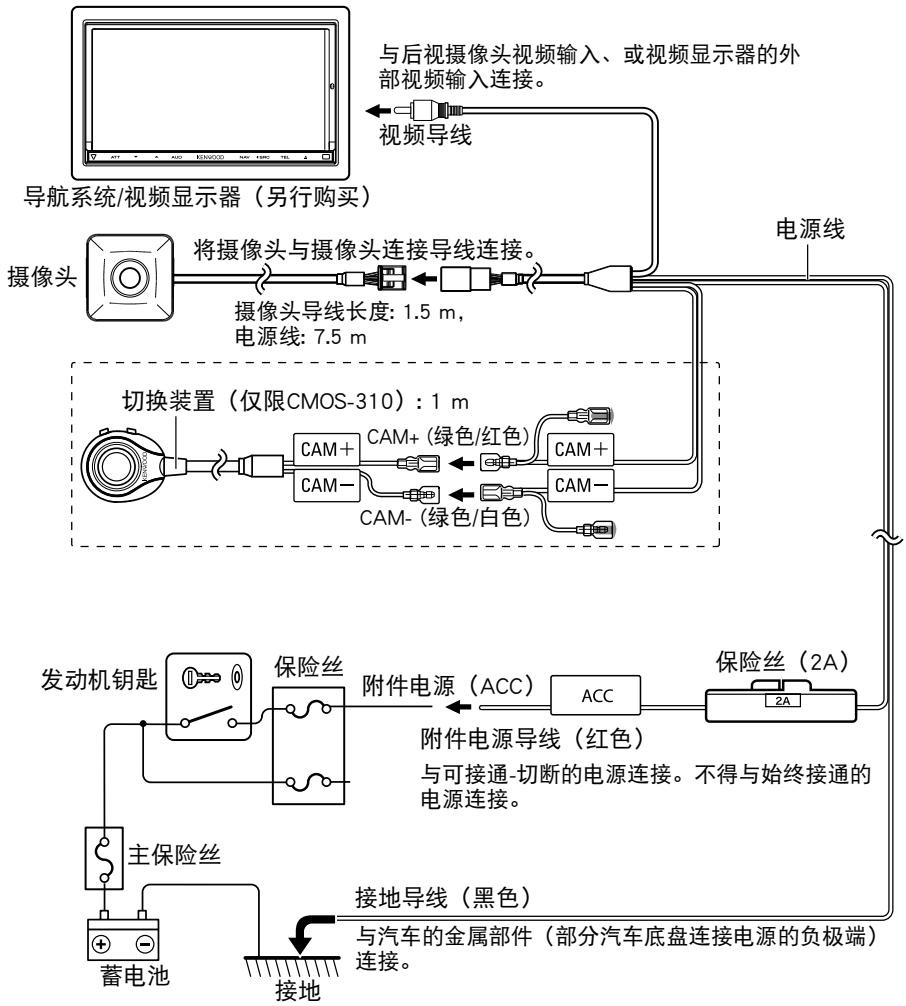
flowchart
graph TD
    A["导航系统/视频显示器(另行购买)"] --> B["摄像头"]
    B --> C["将摄像头与摄像头连接导线连接。"]
    C --> D["摄像头导线长度: 1.5 m, 电源线: 7.5 m"]
    D --> E["切换装置(仅限CMOS-310): 1 m"]
    E --> F["CAM+ (绿色/红色)"]
    E --> G["CAM- (绿色/白色)"]
    F --> H["与后视摄像头视频输入、或视频显示器的外部视频输入连接。"]
    G --> I["与汽车的金属部件(部分汽车底盘连接电源的负极端)连接。"]
    H --> J["与主机设备"]
    I --> K["接地导线(黑色)"]
    J --> L["蓄电池"]
    K --> M["接地"]
    L --> N["蓄电池"]
    M --> O["蓄电池"]
    N --> P["蓄电池"]
    O --> Q["蓄电池"]
    P --> R["蓄电池"]
    Q --> S["蓄电池"]
    R --> T["电源线"]
    S --> U["电源线"]
    T --> V["与主保险丝"]
    U --> W["与保险丝"]
    V --> X["与发动机钥匙"]
    W --> Y["与保险丝"]
    X --> Z["与主保险丝"]
    Y --> AA["与保险丝"]
    Z --> AB["与主保险丝"]
    AA --> AC["与保险丝"]
    AB --> AD["与保险丝"]
    AC --> AE["与保险丝"]
    AD --> AF["与保险丝"]
    AE --> AG["与保险丝"]
    AF --> AH["与保险丝"]
    AG --> AI["与保险丝"]
    AH --> AJ["与保险丝"]
    AI --> AK["与保险丝"]
    AJ --> AL["与保险丝"]
    AK --> AM["与保险丝"]
    AL --> AN["与保险丝"]
⚠️小心
natural_image
Top-down diagram of a car showing front, side, and perspective views with no text or symbols摄像头的设定步骤
3 完成调节后, 按下图像按钮。
3 完成调节后, 按下图像按钮
↓ 进入“WIDE VIEW GUIDELINE ADJUSTMENT (Red Line Position Setting)”(宽视标线调节(红线位置设定))
宽视标线调节(红线位置设定)
natural_image
Exterior view of a road with lane markings and surrounding buildings (no signage or text visible)宽视图像
natural_image
Black and white photo of an airport tarmac with curved road markings and distant buildings (no visible text or symbols)俯视图像
来自位于汽车正上方视点的图像。
natural_image
Close-up of a U-shaped tube or tube with vertical flanges, no visible text or symbols画中画图像
natural_image
Black and white photo of a highway with overhead power lines and distant buildings (no visible text or symbols)角部图像
natural_image
Black-and-white photo of a road with curved white markings, viewed from a vertical split (no text or symbols visible)
Declaration of Conformity with regard to the EMC Directive 2004/108/EC
Manufacturer:
JVC KENWOOD Corporation
3-12 Moriya-cho, Kanagawa-ku, Yokohama-shi, Kanagawa, 221-0022, Japan
EU Representative's:
Kenwood Electronics Europe BV
Amsterdamseweg 37, 1422 AC UITHOORN, The Netherlands
Français
NOTICE: This Class B digital apparatus complies with Canadian ICES-003.
THIS DEVICE COMPLIES WITH PART 15 OF THE FCC RULES. OPERATION IS SUBJECT TO THE FOLLOWING TWO CONDITIONS:
(1) THIS DEVICE MAY NOT CAUSE HARMFUL INTERFERENCE, AND (2) THIS DEVICE MUST ACCEPT ANY INTERFERENCE RECEIVED, INCLUDING INTERFERENCE THAT MAY CAUSE UNDESIRED OPERATION.
FCC CAUTION
This equipment may generate or use radio frequency energy. Changes or modifications to this equipment may cause harmful interference unless the modifications are expressly approved in the instruction manual. The user could lose the authority to operate this equipment if an unauthorized change or modification is made.
FCC NOTE
This equipment has been tested and found to comply with the limits for a Class B digital device, pursuant to Part 15 of the FCC Rules. These limits are designed to provide reasonable protection against harmful interference in a residential installation. This equipment may cause harmful interference to radio communications, if it is not installed and used in accordance with the instructions. However, there is no guarantee that interference will not occur in a particular installation. If this equipment does cause harmful interference to radio or television reception, which can be determined by turning the equipment off and on, the user is encouraged to try to correct the interference by one or more of the following measures:
- Reorient or relocate the receiving antenna.
- Increase the separation between the equipment and receiver.
- Connect the equipment into an outlet on a circuit different from that to which the receiver is connected.
- Consult the dealer or an experienced radio/TV technician for help.
For Turkey
This product complies with Directive, Number 26891 regarding "REGULATION ON THE RESTRICTION OF THE USE OF CERTAIN HAZARDOUS SUBSTANCES IN ELECTRICAL AND ELECTRONIC EQUIPMENT".
KENWOOD
- For your records
- ⚠ WARNING
- To prevent injury or fire, take the following precautions:
- CAUTION
- To prevent damage to the product, take the following precautions:
- NOTE
- Care and maintenance
- Installation Procedure
- WARNING
- Accessories
- Waterproof packing .....1
- CMOS-310 only
- Recommended Installation Position
- Installing the Camera/Adjusting its angle
- Installing the Switch Unit (CMOS-310 only)
- Basic Connections
- System Connection (CMOS-310 only)
- Switch Unit Operation
- View button
- Preparation Before Camera Setting
- Stop the vehicle.
- Advance the vehicle.
- Camera Setting Procedure
- To select an item:
- To adjust the item:
- Overhead View Image Adjustment (Centering)
- Overhead View Image Adjustment (Right-and-Left Angle)
- Overhead View Image Adjustment (Up-and-Down Angle)
- For Guideline Adjustment
- Wide View Guideline Adjustment (Size)
- Wide View Guideline Adjustment (Horizontal Direction)
- Wide View Guideline Adjustment (Vertical Direction)
- Wide View Guideline Adjustment (Red Line Position Setting)
- Finishing the Camera Setting
- Camera ID Setting
- Display View Switching
- With an image displayed on the monitor, press the view button of the switch unit.
- Super Wide View
- Wide View
- Overhead View
- PinP View
- Corner View
- Camera Unit (CMOS-310)
- Output video
- Lens
- Angles of view
- Camera Unit (CMOS-210)
- Switch Unit (CMOS-310 only)
- General
- Information on Disposal of Old Electrical and Electronic Equipment and Batteries (applicable for EU countries that have adopted separate waste collection systems)
- ⚠️ AVERTISSEMENT
- ATTENTION
- Raccordements de base
- Grand angle
- Vue de dessus
- Vue PinP
- Vue d'angle
- ⚠️ACHTUNG
- Grundanschlüsse
- Weite Ansicht
- Über-Kopf-Ansicht
- PinP-Ansicht
- Eckansicht
- ⚠ OPGELET
- Basisaansluitingen
- Camera-instellingsprocedure
- Selecteer "OVERHEAD VIEW IMAGE ADJUSTMENT (Right-and-Left ANGLE)".
- Groothoekbeeld
- Bovenaanzicht
- PinP-weergave
- Hoekweergave
- ATTENZIONE
- Selezionare "OVERHEAD VIEW IMAGE ADJUSTMENT (Right-and-Left ANGLE)".
- Si passa a "OVERHEAD VIEW IMAGE ADJUSTMENT (Up-and-Down ANGLE)".
- Envasado resistente al agua......1
- ⚠️PRECAUCIÓN
- Conexiones básicas
- Vista amplia
- Vista aérea
- Vista PinP
- Vista de la esquina
- Apenas CMOS-310
- ! CUIDADO
- Ligações básicas
- Seleccione "OVERHEAD VIEW IMAGE ADJUSTMENT (Right-and-Left ANGLE)".
- Visualização ampla
- Visualização aérea
- Visualização PinP
- Vista do canto
- ⚠️小心
- 基本连接
- 摄像头的设定步骤
- 完成调节后, 按下图像按钮
- 宽视标线调节(红线位置设定)
- 宽视图像
- 俯视图像
- 画中画图像
- 角部图像
- Français
- FCC CAUTION
- FCC NOTE
- KENWOOD
Brand : KENWOOD
Model : CMOS-210
Category : Rear Camera