
40T319SFS - TV TESLA - Free user manual and instructions
Find the device manual for free 40T319SFS TESLA in PDF.


| Product Type | LED TV |
| Screen Size | 40 inches (102 cm diagonal) |
| Resolution | Full HD (1920 x 1080) |
| Dimensions (without stand) | Approx. 90.2 x 52.4 x 7.8 cm |
| Dimensions (with stand) | Approx. 90.2 x 57.5 x 21.0 cm |
| Weight (without stand) | Approx. 6.5 kg |
| Weight (with stand) | Approx. 7.0 kg |
| Power Supply | AC 100-240V, 50/60Hz |
| Power Consumption (max) | 75 W |
| Standby Power Consumption | < 0.5 W |
| Connectivity | 2x HDMI, 1x USB, 1x AV, 1x VGA, 1x TV (RF), 1x Headphone |
| Tuner | DVB-T/T2/C (MPEG4) |
| Sound Output | 2 x 8 W |
| Smart Features | No (basic TV) |
| Adjustable Stand | Yes (tilt not available) |
| VESA Mount | 200 x 200 mm |
| Remote Control | IR remote included |
| Main Functions | TV, USB media playback, EPG, teletext |
| Cleaning Instructions | Wipe with a soft, dry cloth; avoid solvents |
| Safety Features | Automatic switch-off after 4 hours of inactivity (optional) |
| Spare Parts Availability | Remote, stand, power cord available from service centers |
| Repairability Index | 5.5/10 (common components, moderate disassembly) |
Frequently Asked Questions - 40T319SFS TESLA
User questions about 40T319SFS TESLA
0 question about this device. Answer the ones you know or ask your own.
Ask a new question about this device
Download the instructions for your TV in PDF format for free! Find your manual 40T319SFS - TESLA and take your electronic device back in hand. On this page are published all the documents necessary for the use of your device. 40T319SFS by TESLA.
USER MANUAL 40T319SFS TESLA
Please read these instructions before operating your set and retain them for future reference.
BG
Please read these instructions before operating your set and retain them for future reference.
DE
BETRIEBSANLEITUNGEN
Please read these instructions before operating your set and retain them for future reference.
HR
UPUTE ZA KORIŠTENJE
Please read these instructions before operating your set and retain them for future reference.
INTRODUCTION
Precautions
Read all of the instructions before operating the set. Keep these instructions well for future use.
Product
- Do not block or cover the ventilation openings on the back cover.
- Do not push objects of any kind into this unit through the cabinet slots as they could touch the current carrying parts or short-circuit parts, resulting in fire, electric shock, or damage to the unit.
- Do not attempt to open the cabinet as this may cause damage. There are no parts inside you can service by yourself. Refer all servicing to qualified personnel.
- Do not touch the screen surface with fingers as this may scratch or mar the TV screen.
- Do not impact the TV screen with hard pressure as this may damage the TV screen severely.
Power and Plug
Unplug the set under the following conditions:
- If the set will not be used for a long period of time.
- If the power cord or the power outlet/plug is damaged.
- Follow the instructions to install and adjust the product. Adjust those controls that are covered in this operating instructions as improper adjustment of other controls may result in damage. If this happens, unplug the set and refer to the service personnel.
- If the set is subject to impact or has been dropped to have the cabinet damaged.
Power Cord and Signal Cable
- Do not allow anything to rest on or roll over the power cord and the signal cable.
- Protect the power cord and the signal cable from being trampled.
- Do not overload the power cord or the power outlet.
- Do not expose the power cord and the signal cable to moisture.
Use Environment
- Do not place the set on an unstable cart, stand, or table.
- Place the set on a place that allows good ventilation.
- Do not use the set near damp, and cold areas. Protect the set from overheating.
- Keep the set away from direct sunlight.
- Apparatus shall not be exposed to dripping or splashing and no objects filled with liquids, such as vases, shall be placed on the apparatus.
- Do not use the set near dust place.
Cleaning
- Dust the set by wiping the screen and the cabinet with a soft, clean cloth or some special liquid cleaner.
- Do not apply excessive force to the screen when cleaning.
- Do not use water or other chemical cleaner to clean the screen as this may damage the surface of the TV screen.
Hanging the TV Set on the Wall
Warning: This operation requires two people.
To ensure a safe installation, observe the following safety notes:
- Check that the wall can support the weight of the TV set and wall mount assembly.
- Follow the mounting instructions provided with the wall mount.
- The TV set must be installed on a vertical wall.
- Make sure to use only screws suitable for the material of the wall.
Make sure that the TV set cables are placed so that there is not danger of tripping over them.
All other safety instructions about our TV sets are also applicable here.
- This equipment is a Class II or double insulated electrical appliance. It has been designed in such a way that it does not require a safety connection to electrical earth.
- Where the MAINS plug or an appliance coupler is used as the disconnect device, the disconnect device shall remain readily operable.
- The apparatus shall not be exposed to dripping or splashing and that no objects filled with liquids, such as vases, shall be placed on the apparatus.
- A warning that batteries (battery pack or batteries installed) shall not be exposed to excessive heat such as sunshine, fire or the like.
- No naked flame sources, such as lighted candles, should be placed on the apparatus;
- Attention should be drawn to the environmental aspects of battery disposal;
Note: Illustrations within this publication are provided for reference only.
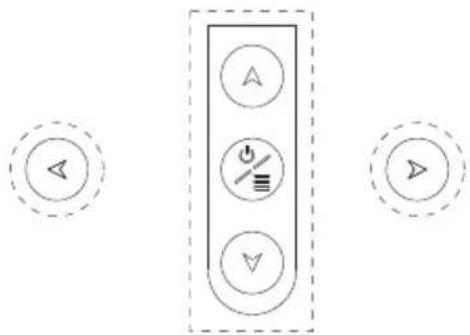
Buttons on the TV
Take a certain model for an example:
flowchart
graph TD
    A["Start"] --> B["Control Box"]
    B --> C["Arrow Up/Down/Check/Help/Feedback"]
    B --> D["Arrow Down/Up/Down"]
1. AIV button
Scans up/down through the channel list. In the menu system, they act like the up/down direction buttons on the remote and adjust menu controls.
2. ◀1> button
Increases/decreases the volume. In the menu system, they act like the right/left direction buttons on the remote and adjust menu controls.
3. ⏻/≡ button
Turns the TV on. The TV is on, short press it to display Source Select, long press it for 3 seconds to display NAV menu.
Note: The location and names of the function buttons and power button on the TV may vary according to TV model.
Sockets
Note: The location and names of the sockets on the TV may vary according to TV model, and some sockets may not available for some models.
ETHERNET

ETHERNET
SPDIF(coax.)

This socket can be used to connect to external modem or network access equipment.
SPDIF(coax.) socket (output)
This socket can be used to connect a compatible digital audio receiver.
HDMI 1 or HDMI 2
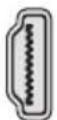
HDMI 1/HDMI 2 socket (input)
The HDMI (High-Definition Multimedia Interface) socket lets you connect a device, such as a Blu-ray player, with a HDMI output for best picture quality. It also provides an uncompressed digital connection that carries both video and audio data by way of an integrated mini-plug cable.
USB 2.0

USB 2.0 socket (input)
This socket can be used to connect a USB device.
(Note: Please don't turn on the unit when USB 3.0 drive is inserted, as it might cause compatibility problems.)
SAT IN

SAT in - IN socket (input)
This socket can be used to connect the satellite receiver port.
ANT/CABLE IN

ANT/CABLE IN socket (input)
This socket can be used to connect the outside aerial or cable network.
MINI AV IN

MINI AV IN socket (input)
The MINI AV IN sockets can be used to connect a range of equipment, including video recorders, camcorders, decoders, satellite receivers, DVD players, or games consoles. The VIDEO IN socket provides composite video connection.
Cl+
Cl+ socket
This CI socket can be used to put the CI card in to accept the Scrambled programs.
HEADPHONE

HEADPHONE socket (output)
Allow you to connect earphones to listen to the sound coming from the TV.
Note: Excessive sound pressure from earphones can cause hearing loss.
Remote Control Functions
Most of your television's functions are available on the menu that appear on the screen. The remote control supplied with your set can be used to navigate through the menus and to configure all the general settings.
Note: The location and names of the buttons on the remote control may vary according to TV model, and not all buttons available on all models.
-
⏻ (POWER button) Turns the TV on or standby.
-
✗ (MUTE button) Turns the volume off or on.
3.0 \~ 9 (Numeric buttons) Enters channel numbers.
-
SUBTITLE Press to display the Subtitle Language menu.
-
YouTube Goes to the YouTube homepage.
-
VOL +/(VOLUME UP/DOWN) Increases or decreases the TV's volume.
-
TV In the other sources, presses to back TV.
-
SOURCE Brings up the SOURCE menu.
-
USB Goes to the multimedia files in USB.
-
CH ^/√ (CHANNEL UP/DOWN) Scans up or down through the current channel list.
-
≡ To display the option menu.
-
i To display program information, if available.
-
ECO To select desired power saving mode.
-
⚙ (SETTING button) Brings up the main menu.
-
(HOME button) Goes to the smart TV homepage.
-
▲▼◀▶ (Up, down, left and right direction buttons) High lights different items in the menu system and adjusts the menu controls.
-
OK When in the menu system, confirms your selection or changes settings.
-
(BACK button) In menu mode, goes back to the previous menu or interface.
-
EXIT Exits the menu system.
-
NETFLIX Goes to the Netflix homepage.
-
COLOURED (Red/Green/Yelbw/Blue) Selects tasks.
BUTTONS
-
SLEEP Press to set the TV to turn off after a given amount of time. To cancel the sleep timer, press until off appears.
-
ZOOM-/ZOOM+ Press to select the desired screen format. Note: This function is not available in USB mode.
![POWER 1 2 3 4 5 6 7 8 9 SUTTER 0 Yes + TV VOL SOURCE CH - USB ≡ [i] ECO OK EXIT NETFLIX R G Y B PLAY STEM - LOGM CHUBT TBD GPS FRECH PREY OK TESLA](/content/2026/05/801065/images/b03b7211bc7991be9a076ba02783928d6bb689c996168c5b74a0340403abe316.jpg)
-
CH LIST Displays the channel list menu.
-
TEXT Turn On/Off Teletext. Press to turn on/off the teletext function.
-
GUIDE Toggles the Electronic Programme Guide between on and off.
Note: This function is only available in DTV mode.
-
PRE-CH To return to the previous channel.
-
FAV Brings up your favorite channel list.
29.◀ Searches backward.
30.▶ Searches forward.
-
(Previous) Goes to the previous chapter.
-
■ (Stop) Stops viewing.
-
▶II (Play/Pause) Starts, pauses or resumes viewing.
-
▶ (Next) Goes to the next chapter.
Note: The above six buttons can be used for playing music, pictures and videos in the USB menu.
-
No function.
-
① Lang (LANG) display audio language list.
GENERAL OPERATION
Switching on
Follow the instructions on this page on how to switch on your TV set and the remote control before going on to following pages describing how to use the channel set-up procedure.
- To fix the double support base on the unit by screws, the installation is completed.
- To bring you better visual experience, please remove all labels, if any, from TV front panel and screen before use.
- Figures and illustrations in this User Manual are provided for reference only and may differ from actual product appearance.Product design and specifications may be changed without notice.
- Insert two AAA batteries in the remote control.
Precautions on using batteries:
Only use the battery types specified.
Make sure you use the correct polarity.
Do not mix new and used batteries.
Do not use rechargeable batteries.
Do not expose batteries to excessive heat such as sunshine, fire or the like, throw them in a fire, recharge them or try to open them, as this could cause them to leak or explode.
Remove the batteries from the remote control if you are not using it for a long period of time.
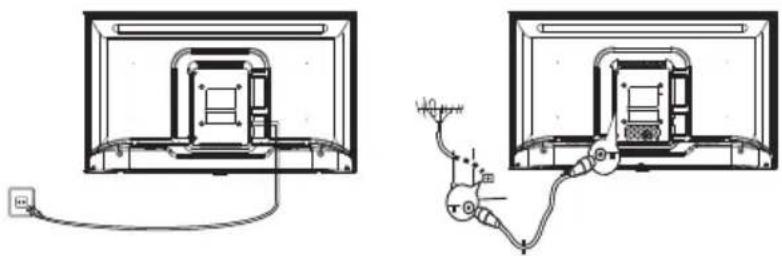
natural_image
Diagram showing two views of a computer monitor with cable and wiring, no text or symbols present- Connect the power cable FIRST to the television, THEN to a mains socket.
(Note: If the power cable is connected to the television, please only connect the power cable to the mains socket.)
Your TV set should only be connected to an AC supply. It must not be connected to a DC supply. If the plug is detached from the cable, do not, under any circumstances, connect it to a mains socket, as there is a risk of electric shock.
Note: The figures are for representation only. The location of the power socket at the back of the television might differ depending on the model.
-
Connect an outside aerial to the ANT/CABLE IN or SAT IN socket at the back of the TV set. The aerial socket (75 OHM - VHF / UHF / cable) can be used for connecting an external aerial or other equipment fitted.
-
When powered on, the TV will be turned on directly or be in standby.
Note: For some models, switch the TV on by pressing the power button.
If the power indicator lights up, the TV set is in standby mode. Press the button on the remote control or on the TV set to turn on the TV.
Switching off
To put the TV set into standby mode, press the button on the remote control or on the TV, the TV set remains powered up, but with low energy consumption.
To switch off the TV set, unplug the mains socket from the mains outlet.
Note: For some models, press the power button to switch off the TV set.
Network Connection
To access the Internet, you must subscribe to high speed broadband Internet service with your Internet service provider (ISP).
Your TV can be connected to your home network in two ways:
- Wired, using the RJ45 (LAN) connector on the back panel.
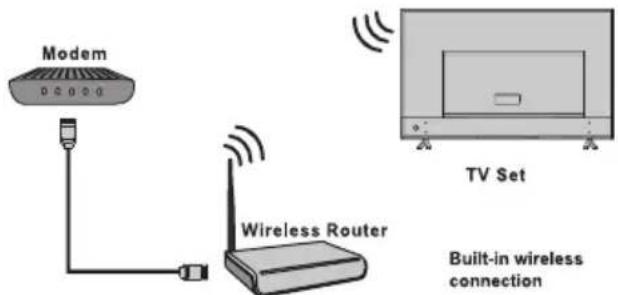
- Wireless, using the internal wireless and your home wireless network.
Note: Instructions below are just the usual ways to connect your TV to the wired or wireless network. The connection method may be different depending on your actual network configuration. If you have any questions about your home network, please refer to your ISP.
Connecting to a wired network
To connect to a wired network:
- Ensure you have:
• An Ethernet cable long enough to reach your TV
• A router or modem with an available Ethernet port
• A high-speed Internet connection
• An Ethernet (LAN) port on the back of the TV
-
Connect your Ethernet cable to the router and to the Ethernet port on the back of the TV.
-
Use the Network menu to configure the TV.
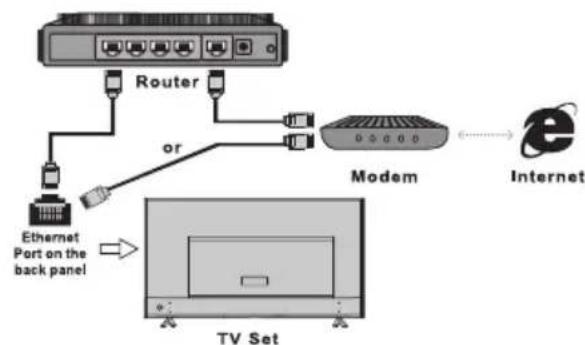
flowchart
graph TD
    A["Router"] --> B["Modem"]
    B --> C["Internet"]
    D["Ethernet Port on the back panel"] --> E["TV Set"]
    style A fill:#f9f,stroke:#333
    style B fill:#ccf,stroke:#333
    style C fill:#cfc,stroke:#333
    style D fill:#fcc,stroke:#333
    style E fill:#ffc,stroke:#333
Connecting to a wireless network
To connect to a wireless network:
- Ensure you have:
- A router broadcasting a high-speed wireless signal
• A high-speed Internet connection
- Use the Network menu to configure the TV.
Using Homepage
Note: This manual is for common use. Figures and illustrations in this User Manual are provided for reference only and may differ from actual product appearance. And for some models, certain options are not available.
You can select all the features from homepage.
- Press 🔔 to display homepage.
- Press ▲/▼/◄/► to select icons from the screen list.
- Press OK to enter each option.
- To exit the menu, press EXIT.
WARNING:
- Configure the network settings before using Smart TV.
- Slow responses and/or interruptions may occur, depending on your network conditions.
- If you experience a problem using an application, please contact the content provider.
- According to circumstances of the contents provider, an application's updates or the application itself may be discontinued.
- Depending on your country's regulations, some applications may have limited service or not be supported.
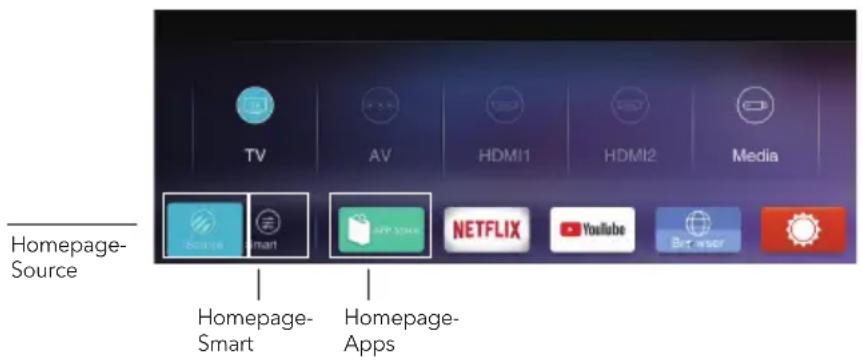
Homepage-Source
Source: Select the input source from devices connected to TV through different ports.
Homepage-Smart
Smart: Displays the smart menu.
Homepage-Apps
Many useful and entertaining apps for using. After entering the Apps Store, you will see the recommendations. Press ▲/▼/◄/► to select, press OK to enter.
MENU OPERATION
Menu Function
This section explores the system settings menu of your TV. Each menu is outlined and detailed to help you get the most from your TV. Please note that some function might be unavailable in certain input source. To access the menu system:
- Press ⚙ on remote control to display the main menu.
- Press ▲/▼ to select Picture, Sound, Channel, Smart TV, Network, System or Support, then press OK or ▶ to enter the submenu.
- In the submenu, press ▲/▼ to select options, press OK or ▶ to set functions or change values, press OK to open the corresponding submenu or activate a setting.
- To return the previous menu, press ➕. To close the menu, press EXIT.
Picture Sound
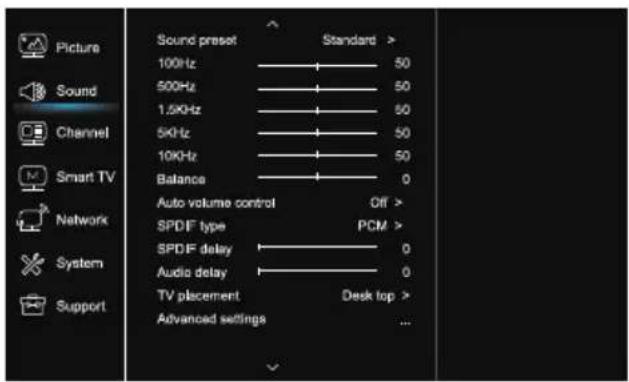
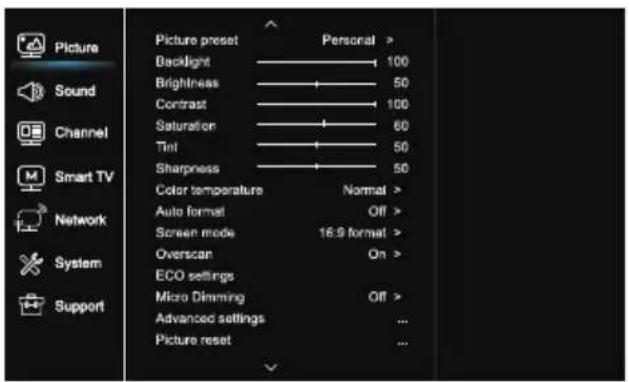
- Press to display the main menu.
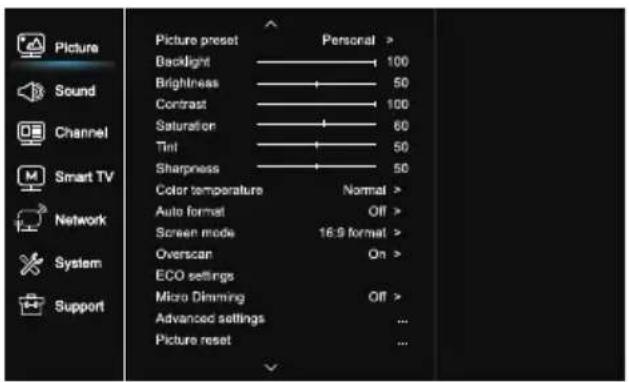
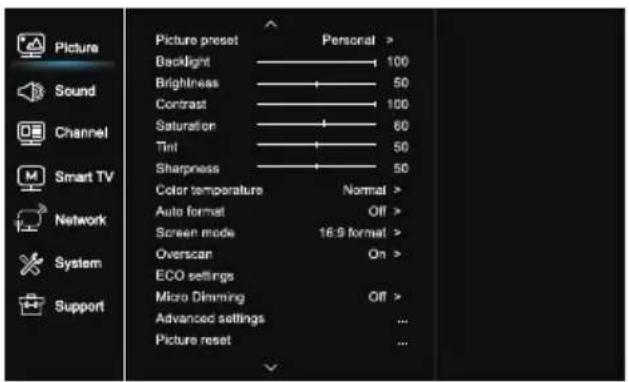
- Press ▲/▼ to select Picture, then press OK or ▶ to enter the submenu.
Picture preset
Adjusts the picture setting that best suits your viewing environment.
Backlight
Adjusts the backlight levels of the picture.
Brightness
Adjusts the brightness of the picture.
Contrast
Adjusts the difference between the light and dark areas of the picture.
Saturation
Adjusts the richness of color.
Tint
Adjusts the balance between the red and green levels.
Sharpness
Adjusts the crispness of the edges in the picture.
Color temperature
Adjusts the color temperature of the picture.
Auto format
Enables/disables the aspect ratio selection automatically.
Screen mode
Selects the picture size.
Overscan
Selects On or Off to turn on/off this option.
ECO settings
Configures engergy saving options.
Micro Dimming
Selects On or Off to turn on/off micro dimming.
Advanced Settings
Selects more picture advanced settings.
Picture reset
Restores the current picture settings to default.
- Press 🔒 to display the main menu.
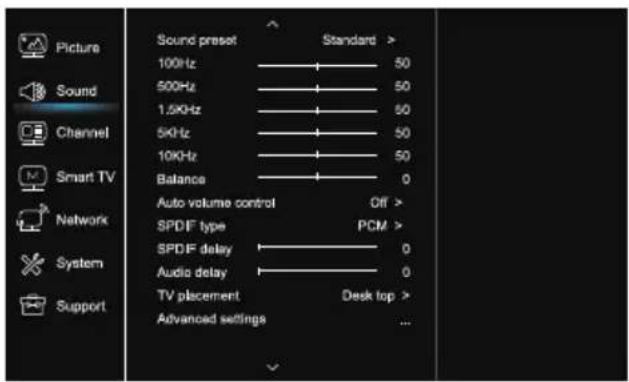
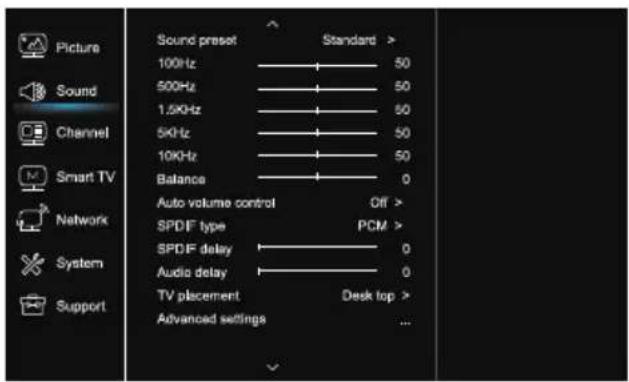
- Press ▲/▼ to select Sound, then press OK or ▶ to enter the submenu.
Sound preset
Selects a preset audio option optimized for different sounding conditions.
Note: When Sound preset is set to different mode, five Sound options (100 Hz, 500 Hz, 1.5 KHz, 5 KHz, and 10 KHz) will be adjusted, which enable you to adjust the frequency levels desired. You can also set the options to your desired levels.
Balance
Adjusts the amount of audio sent to the left and right speakers.
Auto volume control
Selects On to reduce the annoying blasts in volume during commercial breaks and also amplifies softer sounds in program material. Eliminates the need to constantly adjust the volume.
SPDIF type
This option is used to control the type of audio stream sent to the Digital Audio Output (SPDIF) socket.
SPDIF delay
This option is used to synchronize the sound with the picture. If the sound is slower/quicker than the action of the picture, you can press ◀/▶ to adjust the numerical value.
Audio delay
if the sound output does not match the picture, press ◀/▶ to adjust the delay time to synchronize the sound with the picture.
TV placement
Selects Desk top or Wall mount mode.
Advanced Settings
Selects more sound advanced settings.
Channel
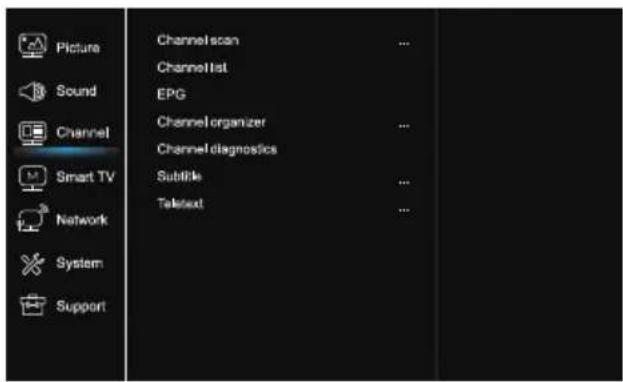
Smart TV
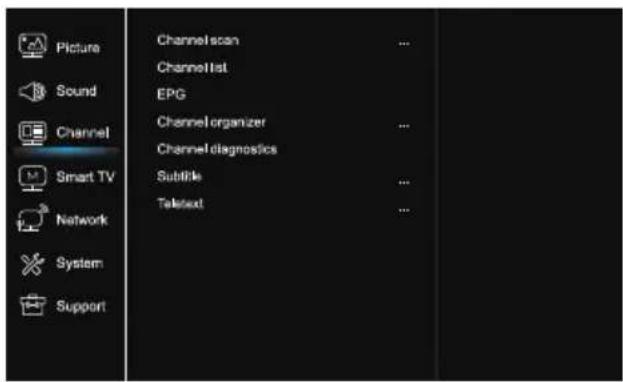
- Press to display the main menu.
- Press ▲/▼ to select Channel, then press OK or ▶ to enter the submenu.
Note: This function is only available in TV mode.
Channel scan
Allows you to scan for all available analog and digital channels.
Channel List
Shows all the searched channel in a list.
EPG
Press OK/▶ to enter the Program Guide menu.
Channel organiser
This option allows you to organise channels.
Channel diagnostics (on digital TV channels)
Press OK/▶ to display some signal information on current digital channel, such as signal strength, Frequency, etc.
Subtitle
press OK/▶ to enter, press ▲/▼ to turn On or Off the subtitles. When Subtitle is set to On, you can enable subtitle languages on digital TV channels.
-Digital subtitle language:
Press ▲/▼ to select Digital subtitle language. Press OK/▶ to enter, press ▲/▼ to select a subtitle language as your preferred language.
-Digital subtitle language 2nd:
Press ▲/▼ to select Digital subtitle language 2nd. Press OK/▶ to enter, press ▲/▼ to select a secondary subtitle language. Press ➤ to return to previous menu.
-Subtitle type:
Press OK/▶ to enter, press ▲/▼ to select a subtitle type. You can select Hearing impaired to display the hearing impaired subtitle with your selected language.
Teletext
Press OK/▶ to display its submenu.
Decoding page language:select a proper type of language in which Teletext will display.
Digital teletext language: for digital TV channels, your TV could zap to a service with multiple initial Teletext pages in different languages. This function allows you to select an available language as primary language which relates to different initial Teletext page.
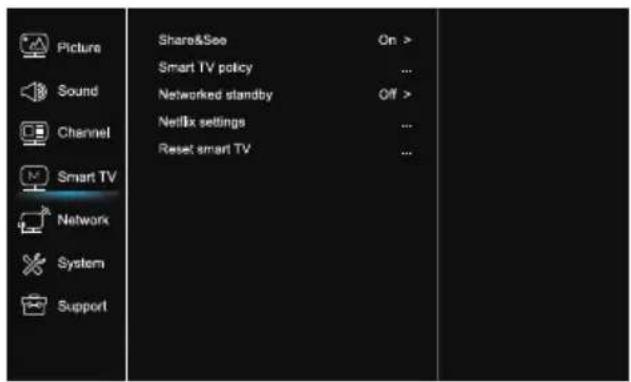
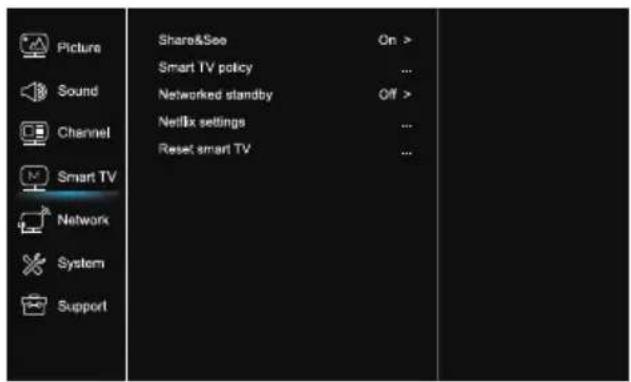
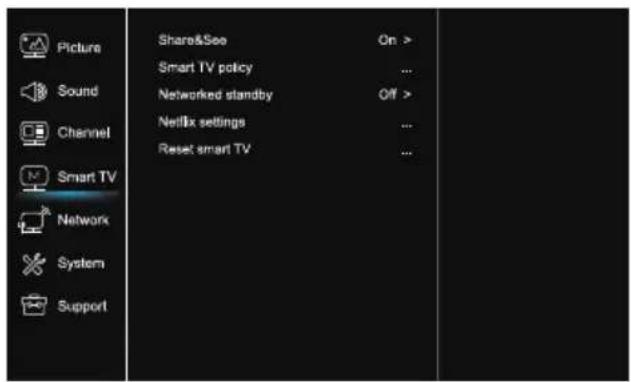
- Press ⚙ to display the main menu.
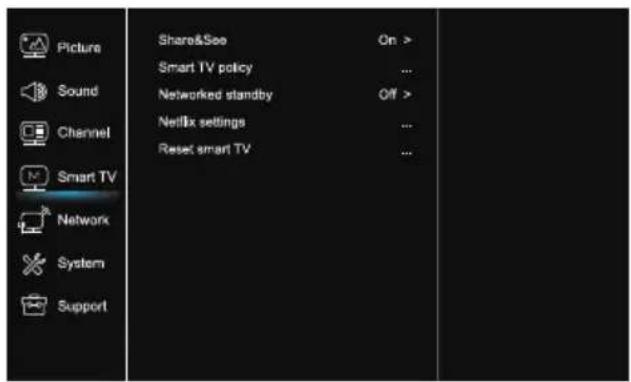
- Press ▲/▼ to select SmartTV, then press OK or ▶ to enter the submenu.
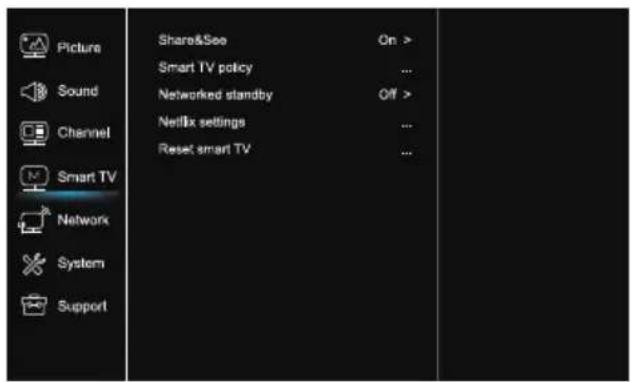
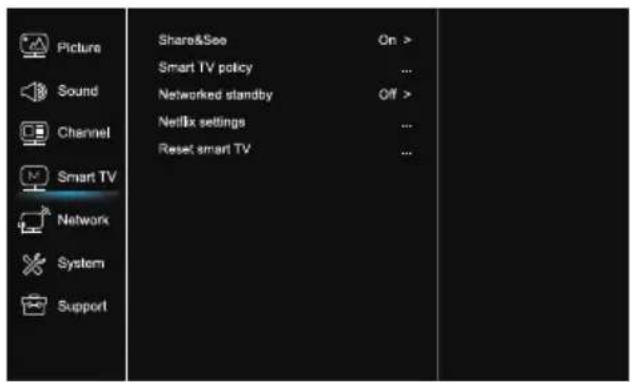
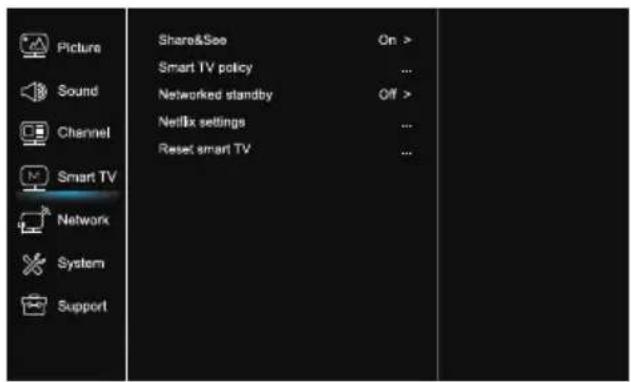
Share&See
With Share&See, you can enjoy recorded video, picture, music saved on your PC.
Smart TV policy
Press OK or ▶ to read the Smart TV policy.
Networked standby
Press OK or ▶ to select off or on.
Netflix settings
In Netflix Setting menu, Netflix Deactivation can deactivate your device form Netflix.
Reset smart TV
Reset the settings of smart TV.
Network
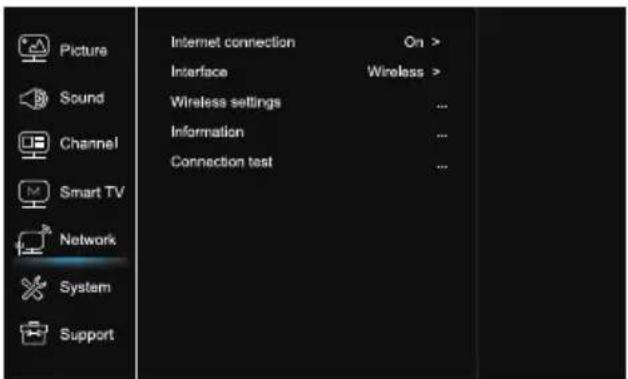
- Press 🔒 to display the main menu.
- Press ▲/▼ to select Network, then press OK or ▶ to enter the submenu.
Internet connection
Press OK or ▶ to select On, then you can adjust the options below.
Interface
Press OK or ▶ to select Ethernet or Wireless.
Ethernet
Connects your ethernet cable to the router and to the Ethernet port on the back of the TV.
Wireless
Wireless, using the internal wireless and your home wireless network.
IP setting
Sets Address type to Auto, it will acquire and enter the needed IP address automatically.
Information
Press OK/▶ to display the information on current connection.
Connection test
Press OK/▶ to test the internect connection.
System
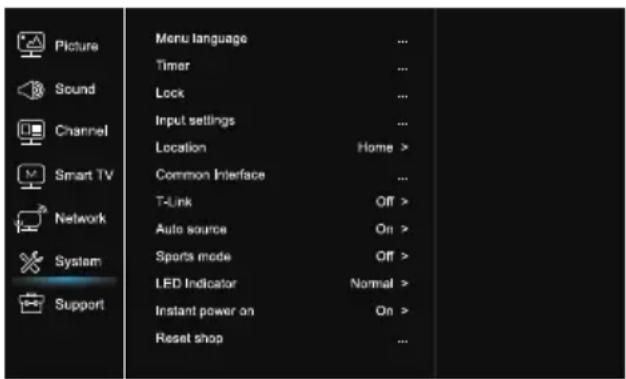
- Press 📄 to display the main menu.
- Press ▲/▼ to select System, then press OK or ▶ to enter the submenu.
Language
Press OK/▶ to display the language list and use ▲/▼ to select a language.
Timer
Press OK or ▶ to enter the submenu.
-Time zone
Selects the local time zone.
-Clock
Select on to turn on the Auto synchronization, the TV will get the time automatically from DTV signals, and the Time item cannot be adjusted. If you select off, you should set the options manually.
-Sleep timer
Sets a period of time after which the TV set goes into standby mode.
-Auto standby
When Auto Standby is set to your desired time, TV and device will be in standby mode at the same time.
Note: Without any operation in TV interface when the Auto standby mode is on, the set will be entering standby mode automatically.
Lock
This menu can control the special function for TV. The factory default code is 1234. And the super password is 0423. If you forget your code, enter it to override any existing codes.
Input Settings
User can select the device name of the input source here, easy to identify the source.
Location
Selects Home or Shop or Shop with demo depending on
your viewing environment.
Common Interface
Press OK or ▶ to enter the Common Interface.
T-Link
Use this function to turn on the ARC function and search for CEC devices connected to the HDMI sockets in your TV.
Auto source
Press OK or ▶ to select On or Off.
Note: This function is only available in HDMI Source.
Sports mode
Press OK or ▶ to select On or Off.
LED Indicator
Press OK or ▶ to select Flashing, Normal or Off.
Instant power on
Press OK or ▶ to select On or Off.
Reset shop
Press OK or ▶ to enter password.
Support
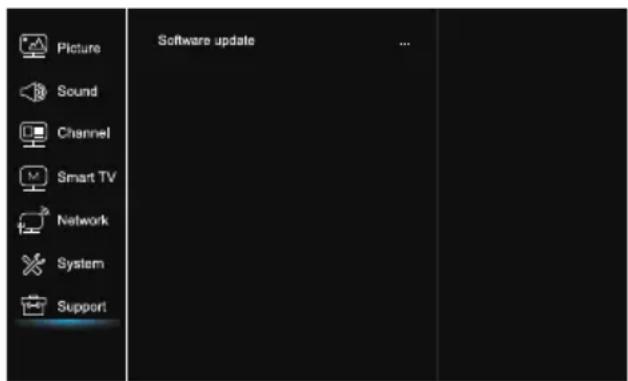
- Press ⚙ to display the main menu.
- Press ▲/▼ to select Support,, then press OK or ▶ to enter the submenu.
Software update
You can update software by USB, network or channel.
-By USB
Enables you to install the latest version of the software from your USB ports.
-By network
Enables you to download and install the latest software version from the Internet. Make sure to set up a wired or wireless network connection first. Press OK/▶ to enter.
Follow the on-screen instructions to continue.
-By channel
Enables you to update a new software on the air.
USB Function Frequently Asked Questions
You can enjoy viewing pictures from your USB storage device.
Note: Some options may unavailable in some models. In USB state, if USB device didn't connected, the USB interface will be not displayed.
How to enter USB mode
- Connect the USB storage device into the USB Input terminal.
- Press USB button to enter USB mode.
- Select your USB device to enter.
All
To browse picture or video or music if available.
- Press OK or ▶ to enter, then press ▲/▼ to select the folder, press OK to enter.
- Press ▲/▼ to select your desired file, then press OK to play.
Picture
To browse pictures if available.
- Press OK or ▶ to enter, then press ▲/▼ to select the folder, press OK to enter.
- Press ▲/▼/◄/► to select your desired file, then press OK to play.
Video
To watch video if available.
- Press OK or ▶ to enter, then press ▲/▼ to select the folder, press OK to enter.
- Press ▲/▼/◄/► to select your desired file, then press OK to play.
Music
To playback music if available.
- Press OK or ▶ to enter, then press ▲/▼ to select the folder, press OK to enter.
-
Press ▲/▼ to select your desired file, then press OK to play.
-
Some non-standard mobile storage device may not be recognized. Please change to use the standard device.
- This system supports the following file formats:
Picture format: JPEG, BMP, PNG etc..
Video format: H.264, MPEG4, MPEG2, MPEG1, etc..
Audio format: MP3 etc..
Note: For coding files, there are many kinds
nonstandard coding method, so this system can not be guaranteed to support the file formats using any coding method.
- Under the following conditions, this system cannot decode the file and the file cannot be play normally:
-The parameters of file, such as the pixel of picture, code rate of audio and video file, sampling rate of audio file, exceed the limit of the system; -The format of file is not matched or the file is harmed. - Hot plug: Do not disconnection when the system is reading or transmitting data, avoid damaging the system or the device.
- Pay attention to the power supply of the device when you are using a mobile hard disk or a digital camera. If the power supply is not sufficient or not stable, you may encounter problems during operating or can not operate at all. In this case, please restart the device, or unplug the device and plug it again, and ensure that its power supply is normal.
- The system supports standard USB1.1 and USB2.0 devices, such as standard U-disks, MP3 players, mobile hard disks, etc..
- For obtaining better audio and video quality, suggests to use the external device which accords with USB2.0 standard.
- When playing the video with high compression ratio, these phenomenons, such as picture standstill and menu long time response, are normal.
- For some USB device with power supply, such as large size hard disk, MP4, etc., suggests using it with power to avoid electric power shortage.

* Do not touch or be close to the ANT/CABLE IN, HDMI, USB, SPDIF terminals, and prevent electrostatic discharge to disturb these terminals while in USB, WIFI and LAN operation mode, or it will cause the TV to stop working or abnormal status.
OTHER INFORMATION
Troubleshooting
Most problems you encounter with your TV can be corrected by consulting the following troubleshooting list.
No picture, no sound
- Check if the fuse or circuit breaker is working.
- Plug another electrical device into the outlet to make sure it is working or turned on.
- Power plug is in a bad contact with the outlet.
- Check the signal source.
No color
- Change the color system.
- Ad just the saturation.
- Try another channel. Black-white program may be received.
Remote control does not work
- Change the batteries.
- Batteries are not installed correctly.
- Main power is not connected.
No picture, normal sound
- Adjust the brightness and contrast.
- Broadcasting failure may happen.
Normal picture, no sound
- Press the Vol+ button to increase volume.
- Volume is set to mute, press the mute button to restore sound.
- Change the sound system.
- Broadcasting failure may happen.
Unorderly ripples on the picture
It is usually caused by local interference, such as cars, daylight lamps and hair driers. Adjust the antenna to minimize the interference.
Snowy dots and interference
If the antenna is located in the fringe area of a television signal where the signal is weak, the picture may be marred by dots. When the signal is extremely weak, it may be necessary to install a special antenna to improve the reception.
- Adjust the position and orientation of the indoor/outdoor antenna.
- Check the connection of antenna.
- Fine tune the channel.
- Try another channel. Broadcasting failure may happen.
Ignition
Black spots or horizontal streaks appear, or the picture flutters or drifts. This is usually caused by interference from car ignition system, neon lamps, electric drills, or other electrical appliance.
Ghost
Ghosts are caused by the television signal following two paths. One is the direct path, the other is reflected from tall buildings, hills, or other objects. Changing the direction or position of the antenna may improve the reception.
Radio frequency interference
This interference produces moving ripples or diagonal streaks, and in some case, loss of contrast in the picture. Find out and remove the radio interference source.
LICENSES
THIS PRODUCT IS LICENSED UNDER THE AVC PATENT PORTFOLIO LICENSE FOR THE PERSONAL AND NONCOMMERCIAL USE OF A CONSUMER TO (i) ENCODE VIDEO IN COMPLIANCE WITH THE AVC STANDARD ("AVC VIDEO") AND/OR (ii) DECODE AVC VIDEO THAT WAS ENCODED BY A CONSUMER ENGAGED IN A PERSONAL AND NON-COMMERCIAL ACTIVITY AND/OR WAS OBTAINED FROM A VIDEO PROVIDER LICENSED TO PROVIDE AVC VIDEO. NO LICENSE IS GRANTED OR SHALL BE IMPLIED FOR ANY OTHER USE. ADDITIONAL INFORMATION MAY BE OBTAINED FROM MPEG LA, L.L.C. SEE HTTP://WWW.MPEGLA.COM
This product contains one or more programs protected under international and U.S. copyright laws as unpublished works. They are confidential and proprietary to Dolby Laboratories. Their reproduction or disclosure, in whole or in part, or the production of derivative works therefrom without the express permission of Dolby Laboratories is prohibited. Copyright 2003-2009 by Dolby Laboratories. All rights reserved.
THIS PRODUCT IS SOLD WITH A LIMITED LICENSE AND IS AUTHORIZED TO BE USED ONLY IN CONNECTION WITH HEVC CONTENT THAT MEETS EACH OF THE THREE FOLLOWING QUALIFICATIONS:
(1) HEVC CONTENT ONLY FOR PERSONAL USE;
(2) HEVC CONTENT THAT IS NOT OFFERED FOR SALE; AND
(3) HEVC CONTENT THAT IS CREATED BY THE OWNER OF THE PRODUCT. THIS PRODUCT MAY NOT BE USED IN CONNECTION WITH HEVC ENCODED CONTENT CREATED BY A THIRD PARTY, WHICH THE USER HAS ORDERED OR PURCHASED FROM A THIRD PARTY, UNLESS THE USER IS SEPARATELY GRANTED RIGHTS TO USE THE PRODUCT WITH SUCH CONTENT BY A LICENSED SELLER OF THE CONTENT. YOUR USE OF THIS PRODUCT IN CONNECTION WITH HEVC ENCODED CONTENT IS DEEMED ACCEPTANCE OF THE LIMITED AUTHORITY TO USE AS NOTED ABOVE.
Tesla declares that the equipment complies with the European Directive 2014/30/EU (EMC) and the Low Voltage Directive 2014/35/EU (LVD) and the ErP Directive 2009/125/EC and Radio Equipment Directive 2014/53/EU and the RoHS Directive 2011/65/EU in accordance with the following technical standards:
ELECTROMAGNETIC COMPATIBILITY
EN55032:2015;EN55035:2017;EN 61000-3-2:2014;EN 61000-3-3:2013
LOW VOLTAGE
EN60065:2014
ENERGY RELATED PRODUCTS
Commission regulation (EC) No 642/2009; 801/2013; EN 50564:2011; IEC 62087:2011
RED
EN 303 340 V1.1.2(2016-09); EN 303 372-2 V1.1.1(2016-04); EN 300 328 V2.1.1(2016-11);
EN 301 489 -1 V2.1.1 (2017-02); EN 301 489 -17 V3.1.1 (2017-02);
EN 62311:2008; EN 62479:2010
RoHS
EN50581:2012
Subject to alterations. In consequence of continuous research and development technical specifications, design and appearance of products may change. Manufactured under license from Dolby Laboratories. Dolby Audio and the double-D symbol are trademarks of Dolby Laboratories. HDMI, the HDMI logo and High-De nition Multimedia Interface are trademarks or registered trademarks of HDMI Licensing LLC in the United States and other countries. All product names are trademarks or registered trademarks of their respective owners.
© Tesla 2018. All rights reserved.
ВЪВЕДЕНИЕ
Предпазни мерки
natural_image
Diagram of a device mounted on a screen with a cable, no text or symbols present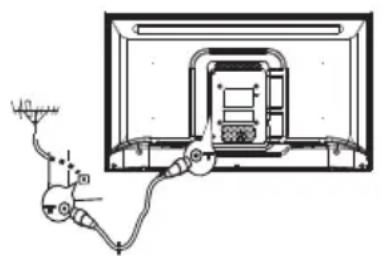
natural_image
Diagram of a cable or electrical connector connected to a control panel inside a device (no text or symbols visible)SPDIF забавяне (SPDIF delay)
Smart TV
This product contains one or more programs protected under international and U.S. copyright laws as unpublished works. They are confidential and proprietary to Dolby Laboratories. Their reproduction or disclosure, in whole or in part, or the production of derivative works therefrom without the express permission of Dolby Laboratories is prohibited. Copyright 2003-2009 by Dolby Laboratories. All rights reserved.
THIS PRODUCT IS SOLD WITH A LIMITED LICENSE AND IS AUTHORIZED TO BE USED ONLY IN CONNECTION WITH HEVC CONTENT THAT MEETS EACH OF THE THREE FOLLOWING QUALIFICATIONS:
(1) HEVC CONTENT ONLY FOR PERSONAL USE;
(2) HEVC CONTENT THAT IS NOT OFFERED FOR SALE; AND
(3) HEVC CONTENT THAT IS CREATED BY THE OWNER OF THE PRODUCT. THIS PRODUCT MAY NOT BE USED IN CONNECTION WITH HEVC ENCODED CONTENT CREATED BY A THIRD PARTY, WHICH THE USER HAS ORDERED OR PURCHASED FROM A THIRD PARTY, UNLESS THE USER IS SEPARATELY GRANTED RIGHTS TO USE THE PRODUCT WITH SUCH CONTENT BY A LICENSED SELLER OF THE CONTENT. YOUR USE OF THIS PRODUCT IN CONNECTION WITH HEVC ENCODED CONTENT IS DEEMED ACCEPTANCE OF THE LIMITED AUTHORITY TO USE AS NOTED ABOVE.

1. Tlačítko AIV
natural_image
Pure technical diagram of a mechanical or electrical component with no visible text, numbers, or symbols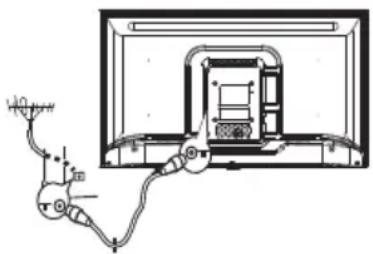
natural_image
Technical line drawing of a cable or wire connection to an electrical panel (no text or symbols present)Smart TV
This product contains one or more programs protected under international and U.S. copyright laws as unpublished works. They are confidential and proprietary to Dolby Laboratories. Their reproduction or disclosure, in whole or in part, or the production of derivative works therefrom without the express permission of Dolby Laboratories is prohibited. Copyright 2003-2009 by Dolby Laboratories. All rights reserved.
THIS PRODUCT IS SOLD WITH A LIMITED LICENSE AND IS AUTHORIZED TO BE USED ONLY IN CONNECTION WITH HEVC CONTENT THAT MEETS EACH OF THE THREE FOLLOWING QUALIFICATIONS:
(1) HEVC CONTENT ONLY FOR PERSONAL USE;
(2) HEVC CONTENT THAT IS NOT OFFERED FOR SALE; AND
(3) HEVC CONTENT THAT IS CREATED BY THE OWNER OF THE PRODUCT. THIS PRODUCT MAY NOT BE USED IN CONNECTION WITH HEVC ENCODED CONTENT CREATED BY A THIRD PARTY, WHICH THE USER HAS ORDERED OR PURCHASED FROM A THIRD PARTY, UNLESS THE USER IS SEPARATELY GRANTED RIGHTS TO USE THE PRODUCT WITH SUCH CONTENT BY A LICENSED SELLER OF THE CONTENT. YOUR USE OF THIS PRODUCT IN CONNECTION WITH HEVC ENCODED CONTENT IS DEEMED ACCEPTANCE OF THE LIMITED AUTHORITY TO USE AS POZNÁMKAD ABOVE.
natural_image
Diagram showing two views of a TV mounted on screens with cable and power cord connections (no text or symbols)Startseite
Smart TV
This product contains one or more programs protected under international and U.S. copyright laws as unpublished works. They are confidential and proprietary to Dolby Laboratories. Their reproduction or disclosure, in whole or in part, or the production of derivative works therefrom without the express permission of Dolby Laboratories is prohibited. Copyright 2003-2009 by Dolby Laboratories. All rights reserved.
THIS PRODUCT IS SOLD WITH A LIMITED LICENSE AND IS AUTHORIZED TO BE USED ONLY IN CONNECTION WITH HEVC CONTENT THAT MEETS EACH OF THE THREE FOLLOWING QUALIFICATIONS:
(1) HEVC CONTENT ONLY FOR PERSONAL USE;
(2) HEVC CONTENT THAT IS NOT OFFERED FOR SALE; AND
(3) HEVC CONTENT THAT IS CREATED BY THE OWNER OF THE PRODUCT. THIS PRODUCT MAY NOT BE USED IN CONNECTION WITH HEVC ENCODED CONTENT CREATED BY A THIRD PARTY, WHICH THE USER HAS ORDERED OR PURCHASED FROM A THIRD PARTY, UNLESS THE USER IS SEPARATELY GRANTED RIGHTS TO USE THE PRODUCT WITH SUCH CONTENT BY A LICENSED SELLER OF THE CONTENT. YOUR USE OF THIS PRODUCT IN CONNECTION WITH HEVC ENCODED CONTENT IS DEEMED ACCEPTANCE OF THE LIMITED AUTHORITY TO USE AS HINWEISD ABOVE.

1. ΑΙ∀ κουμπί
natural_image
Diagram showing two views of a TV mounted on a wall, connected to cables and a plug (no text or symbols present)'Εξυπνη τηλεόραση
This product contains one or more programs protected under international and U.S. copyright laws as unpublished works. They are confidential and proprietary to Dolby Laboratories. Their reproduction or disclosure, in whole or in part, or the production of derivative works therefrom without the express permission of Dolby Laboratories is prohibited. Copyright 2003-2009 by Dolby Laboratories. All rights reserved.
THIS PRODUCT IS SOLD WITH A LIMITED LICENSE AND IS AUTHORIZED TO BE USED ONLY IN CONNECTION WITH HEVC CONTENT THAT MEETS EACH OF THE THREE FOLLOWING QUALIFICATIONS:
(1) HEVC CONTENT ONLY FOR PERSONAL USE;
(2) HEVC CONTENT THAT IS NOT OFFERED FOR SALE; AND
(3) HEVC CONTENT THAT IS CREATED BY THE OWNER OF THE PRODUCT. THIS PRODUCT MAY NOT BE USED IN CONNECTION WITH HEVC ENCODED CONTENT CREATED BY A THIRD PARTY, WHICH THE USER HAS ORDERED OR PURCHASED FROM A THIRD PARTY, UNLESS THE USER IS SEPARATELY GRANTED RIGHTS TO USE THE PRODUCT WITH SUCH CONTENT BY A LICENSED SELLER OF THE CONTENT. YOUR USE OF THIS PRODUCT IN CONNECTION WITH HEVC ENCODED CONTENT IS DEEMED ACCEPTANCE OF THE LIMITED AUTHORITY TO USE AS ΣΗΜΕΙΩΣΗD ABOVE.

- AIVgumb
- GUIDE (De)aktiviranje elektronskog programskog vodiča.
natural_image
Diagram showing two views of a device with cable and power plug, no text or symbols present- Uključite kabel za napajanje PRVO u televizor, a ZATIM u utičnicu. (Napomena: Ukoliko je kabel za napajanje povezan sa televizorom, molimo povežite samo kabel sa utičnicom).
Vaša TV naprava treba da bude priključen isključivo na naizmjeničnu struju. Ne smije biti povezan na jednosmjernu struju. Ukoliko je utikač odvojen od kabla, ni u kom slučaju ga nemojte ubacivati u utičnicu zbog postojanja rizika od strujnog udara.
Slika (Picture) Zvuk (Sound)
- Birajte 🍻a biste prikazali glavni izbornik.
- Pritisnite ▲/▼da biste odabrali Sliku, zatim pritisnite OK ili ▶ da biste ušli u podizbornik.
Zasićenje (Saturation)
EKO postavke (ECO settings)
Audio odlaganje (Audio delay)
Kanal (Channel) Smart TV
- Pritisnite 📣 da biste prikazali glavni izbornik.
- Pritisnite ▲/▼ da biste odabrali Kanal, zatim pritisnite OK ili ▶ da biste ušli u podizbornik.
Napomena: Ova funkcija je dostupna samo u TV režimu.
Skeniranje kanala (Channel scan)
Omogućava Vam da skenirate sve dostupne analogne i digitalne kanale.
Lista kanala (Channel List)
Prikazuje sve odabrane kanale kao listu.
EPG
Pritisnite OK/▶ da biste ušli u izbornik programskog vodiča.
Organizator kanala (Channel organiser)
Ova opcija Vam omogućuje da organizirate kanale.
Dijagnostika kanala (Channel diagnostics) (na digitalnim TV kanalima)
Pritisnite OK/▶ da biste prikazali signalne informacije o trenutačnim digitalnim kanalima, kao što su snaga signala, frekvencija itd.
Titl (Subtitle)
Pritisnite OK/▶ da biste ušli, pritisnite ▲/▼ da biste uključili/isključili titlove. Kada su titlovi uključeni, možete omogućiti biranje jezika titlova na digitalnim TV kanalima.
-Jezik digitalnih titlova (Digital subtitle language):
Pritisnite ▲/▼ da biste odabrali jezik digitalnih titlova.
Pritisnite OK/▶ da biste ušli, pritisnite ▲/▼ da biste odabrali jezik titlova kao omiljeni jezik.
- 2. jezik digitalnih titlova (Digital subtitle language 2nd): Pritisnite ▲/▼ da odaberete 2. jezik digitalnih titlova.
Pritisnite OK/▶ da udete, pritisnite ▲/▼ da odaberete 2. jezik. Pritisnite da biste se vratili na prethodni izbornik.
-Tip titlova (Subtitle type):
Pritisnite OK/▶ da udete, pritisnite ▲/▼ da odaberete tip titlova. Možete odabrati titl za oštećen sluh da prikažete titl za osobe sa oštećenih sluhom na odabranom jeziku.
Teletekst (Teletext)
Pritisnite OK/▶ da prikažete podizbornik.
- Birajte da biste prikazali glavni izbornik.
- Pritisnite ▲/▼ da biste odabrali Mrežu, zatim pritisnite OK ili ▶ da biste ušli u podizbornik.
Internet konekcija (Internet connection)
Pritisnite OK ili ▶ za biranje, zatim možete postaviti dolje navedene opcije.
Interfejs (Interface)
Pritisnite OK ili ▶ da biste odabrali Ethernet ili Bežično.
Eternet (Ethernet)
Povežite Ethernet kabel na ruter i na Ethernet priključak sa stražnje strane televizora.
Bežično (Wireless)
- Birajte gla biste prikazali glavni izbornik.
- Pritisnite ▲/▼ da biste odabrali Sustav, zatim pritisnite OK ili ▶ da biste ušli u podizbornik.
Jezik (Language)
Pritisnite OK/▶ da biste prikazali listu jezika i koristite ▲/▼ Da biste odabrali jezik.
Tajmer (Timer)
Pritisnite OK ili ▶ da biste ušli u podizbornik.
-Vremenska zona (Time zone)
Bira lokalnu vremensku zonu.
-Sat (Clock)
Odaberite On da biste uključili automatsku sinkronizaciju, TV automatski preuzima vrijeme od DTV signala, i vrijeme se ne može ručno postaviti. Ukoliko izaberete Off, vrijeme se postavlja ručno.
-Tajmer mirovanja (Sleep timer)
Postavlja period vremena nakon kog TV ulazi u režim pripravnosti.
LED indikator (LED Indicator)
Pritisnite OK ili ▶ da biste odabrali Svjetleće (Flashing), Normal ili Isključeno (Off).
- Pritisnite da biste prikazali glavni izbornik.
- Pritisnite ▲/▼ da biste odabrali Podršku, zatim pritisnite OK ili ▶ da biste ušli u podizbornik.
Ažuriranje softvera (Software update)
Možete ažurirati softver putem USB-a, mreže ili kanala.
-Putem USB-a
This product contains one or more programs protected under international and U.S. copyright laws as unpublished works. They are confidential and proprietary to Dolby Laboratories. Their reproduction or disclosure, in whole or in part, or the production of derivative works therefrom without the express permission of Dolby Laboratories is prohibited. Copyright 2003-2009 by Dolby Laboratories. All rights reserved.
THIS PRODUCT IS SOLD WITH A LIMITED LICENSE AND IS AUTHORIZED TO BE USED ONLY IN CONNECTION WITH HEVC CONTENT THAT MEETS EACH OF THE THREE FOLLOWING QUALIFICATIONS:
(1) HEVC CONTENT ONLY FOR PERSONAL USE;
(2) HEVC CONTENT THAT IS NOT OFFERED FOR SALE; AND
(3) HEVC CONTENT THAT IS CREATED BY THE OWNER OF THE PRODUCT. THIS PRODUCT MAY NOT BE USED IN CONNECTION WITH HEVC ENCODED CONTENT CREATED BY A THIRD PARTY, WHICH THE USER HAS ORDERED OR PURCHASED FROM A THIRD PARTY, UNLESS THE USER IS SEPARATELY GRANTED RIGHTS TO USE THE PRODUCT WITH SUCH CONTENT BY A LICENSED SELLER OF THE CONTENT. YOUR USE OF THIS PRODUCT IN CONNECTION WITH HEVC ENCODED CONTENT IS DEEMED ACCEPTANCE OF THE LIMITED AUTHORITY TO USE AS NOTED ABOVE.

1. AIV gombok
(HOME button) Goes to the smart TV homepage.
- ▲▼◀▶
natural_image
Diagram showing two views of a device with cable and wiring, no text or symbols presentThis product contains one or more programs protected under international and U.S. copyright laws as unpublished works. They are confidential and proprietary to Dolby Laboratories. Their reproduction or disclosure, in whole or in part, or the production of derivative works therefrom without the express permission of Dolby Laboratories is prohibited. Copyright 2003-2009 by Dolby Laboratories. All rights reserved.
THIS PRODUCT IS SOLD WITH A LIMITED LICENSE AND IS AUTHORIZED TO BE USED ONLY IN CONNECTION WITH HEVC CONTENT THAT MEETS EACH OF THE THREE FOLLOWING QUALIFICATIONS:
(1) HEVC CONTENT ONLY FOR PERSONAL USE;
(2) HEVC CONTENT THAT IS NOT OFFERED FOR SALE; AND
(3) HEVC CONTENT THAT IS CREATED BY THE OWNER OF THE PRODUCT. THIS PRODUCT MAY NOT BE USED IN CONNECTION WITH HEVC ENCODED CONTENT CREATED BY A THIRD PARTY, WHICH THE USER HAS ORDERED OR PURCHASED FROM A THIRD PARTY, UNLESS THE USER IS SEPARATELY GRANTED RIGHTS TO USE THE PRODUCT WITH SUCH CONTENT BY A LICENSED SELLER OF THE CONTENT. YOUR USE OF THIS PRODUCT IN CONNECTION WITH HEVC ENCODED CONTENT IS DEEMED ACCEPTANCE OF THE LIMITED AUTHORITY TO USE AS MEGJEGYZÉSD ABOVE.

- AIV Butonul
SAT IN conector (intrare)
ANT/CABLEIN conector (intrare)
natural_image
Diagram showing two views of a TV mounted on screens, connected to a cable and connected to a power plug (no text or symbols present)Imagine (Picture) Sound
Luminozitate (Brightness)
Acuitate (Sharpness)
Microscopic (MicroDimming)
Smart TV
Politica Smart TV (Smart TV Policy)
This product contains one or more programs protected under international and U.S. copyright laws as unpublished works. They are confidential and proprietary to Dolby Laboratories. Their reproduction or disclosure, in whole or in part, or the production of derivative works therefrom without the express permission of Dolby Laboratories is prohibited. Copyright 2003-2009 by Dolby Laboratories. All rights reserved.
THIS PRODUCT IS SOLD WITH A LIMITED LICENSE AND IS AUTHORIZED TO BE USED ONLY IN CONNECTION WITH HEVC CONTENT THAT MEETS EACH OF THE THREE FOLLOWING QUALIFICATIONS: (1) HEVC CONTENT ONLY FOR PERSONAL USE; (2) HEVC CONTENT THAT IS NOT OFFERED FOR SALE; AND (3) HEVC CONTENT THAT IS CREATED BY THE OWNER OF THE PRODUCT. THIS PRODUCT MAY NOT BE USED IN CONNECTION WITH HEVC ENCODED CONTENT CREATED BY A THIRD PARTY, WHICH THE USER HAS ORDERED OR PURCHASED FROM A THIRD PARTY, UNLESS THE USER IS SEPARATELY GRANTED RIGHTS TO USE THE PRODUCT WITH SUCH CONTENT BY A LICENSED SELLER OF THE CONTENT. YOUR USE OF THIS PRODUCT IN CONNECTION WITH HEVC ENCODED CONTENT IS DEEMED ACCEPTANCE OF THE LIMITED AUTHORITY TO USE AS NOTÄD ABOVE.

1. AIV gumba
SAT in - IN socket (input)
This socket can be used to connect the satellite receiver port.
ANT/CABLE IN

This socket can be used to connect the outside aerial or cable network.
MINI AV IN

The MINI AV IN sockets can be used to connect a range of equipment, including video recorders, camcorders, decoders, satellite receivers, DVD players, or games consoles. The VIDEO IN socket provides composite video connection.
Cl+
Cl+ vtičnica
- OK When in the menu system, confirms your selection or changes settings.
18.
natural_image
Diagram showing two views of a TV mounted on screens, connected by wires to a cable (no text or symbols present)- Za prikaz glavnega menija na daljinskem upravljalniku pritisnite 🌐.
- Pritisnite ▲/▼ za izbiro kanala in potem pritisnite OK ali ▶ Mreža za dostop do podmenija.
Opomba: Ta funkcija ni na voljo v načinu TV.
Skeniranje kanalov
- Za prikaz glavnega menija pritisnite
- Pritisnite ▲/▼za izbiro Smart TV in potem pritisnite OK ali ▶za dostop do podmenija.
Deli in glej
- Za prikaz glavnega menija pritisnite
- Pritisnite ▲/▼ za izbiro mreže in potem pritisnite OK ali ▶ za dostop do podmenija.
Internetna povezava
- Za prikaz glavnega menija pritisnite
- Pritisnite ▲/▼ za izbiro sistem in potem pritisnite OK ali ▶ za dostop do podmenija.
Jezik
- Za prikaz glavnega menija pritisnite 🙏️.
- Pritisnite ▲/▼ za izbiro podpore in potem pritisnite OK ali ▶ za dostop do podmenija.
This product contains one or more programs protected under international and U.S. copyright laws as unpublished works. They are confidential and proprietary to Dolby Laboratories. Their reproduction or disclosure, in whole or in part, or the production of derivative works therefrom without the express permission of Dolby Laboratories is prohibited. Copyright 2003-2009 by Dolby Laboratories. All rights reserved.
THIS PRODUCT IS SOLD WITH A LIMITED LICENSE AND IS AUTHORIZED TO BE USED ONLY IN CONNECTION WITH HEVC CONTENT THAT MEETS EACH OF THE THREE FOLLOWING QUALIFICATIONS:
(1) HEVC CONTENT ONLY FOR PERSONAL USE;
(2) HEVC CONTENT THAT IS NOT OFFERED FOR SALE; AND
(3) HEVC CONTENT THAT IS CREATED BY THE OWNER OF THE PRODUCT. THIS PRODUCT MAY NOT BE USED IN CONNECTION WITH HEVC ENCODED CONTENT CREATED BY A THIRD PARTY, WHICH THE USER HAS ORDERED OR PURCHASED FROM A THIRD PARTY, UNLESS THE USER IS SEPARATELY GRANTED RIGHTS TO USE THE PRODUCT WITH SUCH CONTENT BY A LICENSED SELLER OF THE CONTENT. YOUR USE OF THIS PRODUCT IN CONNECTION WITH HEVC ENCODED CONTENT IS DEEMED ACCEPTANCE OF THE LIMITED AUTHORITY TO USE AS NOTED ABOVE.

natural_image
Diagram showing two views of a device with connected cable and wiring (no text or symbols)Smart TV
This product contains one or more programs protected under international and U.S. copyright laws as unpublished works. They are confidential and proprietary to Dolby Laboratories. Their reproduction or disclosure, in whole or in part, or the production of derivative works therefrom without the express permission of Dolby Laboratories is prohibited. Copyright 2003-2009 by Dolby Laboratories. All rights reserved.
THIS PRODUCT IS SOLD WITH A LIMITED LICENSE AND IS AUTHORIZED TO BE USED ONLY IN CONNECTION WITH HEVC CONTENT THAT MEETS EACH OF THE THREE FOLLOWING QUALIFICATIONS:
(1) HEVC CONTENT ONLY FOR PERSONAL USE;
(2) HEVC CONTENT THAT IS NOT OFFERED FOR SALE; AND
(3) HEVC CONTENT THAT IS CREATED BY THE OWNER OF THE PRODUCT. THIS PRODUCT MAY NOT BE USED IN CONNECTION WITH HEVC ENCODED CONTENT CREATED BY A THIRD PARTY, WHICH THE USER HAS ORDERED OR PURCHASED FROM A THIRD PARTY, UNLESS THE USER IS SEPARATELY GRANTED RIGHTS TO USE THE PRODUCT WITH SUCH CONTENT BY A LICENSED SELLER OF THE CONTENT. YOUR USE OF THIS PRODUCT IN CONNECTION WITH HEVC ENCODED CONTENT IS DEEMED ACCEPTANCE OF THE LIMITED AUTHORITY TO USE AS POZNÁMKAD ABOVE.
- BETRIEBSANLEITUNGEN
- UPUTE ZA KORIŠTENJE
- INTRODUCTION
- Precautions
- Product
- Power and Plug
- Power Cord and Signal Cable
- Use Environment
- Cleaning
- Hanging the TV Set on the Wall
- Warning: This operation requires two people.
- Buttons on the TV
- AIV button
- ◀1> button
- ⏻/≡ button
- Sockets
- ETHERNET
- SPDIF(coax.)
- SPDIF(coax.) socket (output)
- HDMI 1 or HDMI 2
- HDMI 1/HDMI 2 socket (input)
- USB 2.0
- USB 2.0 socket (input)
- SAT IN
- SAT in - IN socket (input)
- ANT/CABLE IN
- ANT/CABLE IN socket (input)
- MINI AV IN
- MINI AV IN socket (input)
- Cl+
- Cl+ socket
- HEADPHONE
- HEADPHONE socket (output)
- Remote Control Functions
- BUTTONS
- GENERAL OPERATION
- Switching on
- Switching off
- Network Connection
- Connecting to a wired network
- Connecting to a wireless network
- Using Homepage
- WARNING:
- Homepage-Source
- Homepage-Smart
- Homepage-Apps
- MENU OPERATION
- Menu Function
- Picture Sound
- Picture preset
- Backlight
- Brightness
- Contrast
- Saturation
- Tint
- Sharpness
- Color temperature
- Auto format
- Screen mode
- Overscan
- ECO settings
- Micro Dimming
- Advanced Settings
- Picture reset
- Sound preset
- Balance
- Auto volume control
- SPDIF type
- SPDIF delay
- Audio delay
- TV placement
- Channel
- Smart TV
- Channel scan
- Channel List
- EPG
- Channel organiser
- Channel diagnostics (on digital TV channels)
- Subtitle
- Teletext
- Share&See
- Smart TV policy
- Networked standby
- Netflix settings
- Reset smart TV
- Network
- Internet connection
- Interface
- Wireless
- IP setting
- Information
- Connection test
- System
- Language
- Timer
- Lock
- Input Settings
- Location
- Common Interface
- T-Link
- Auto source
- Sports mode
- LED Indicator
- Instant power on
- Reset shop
- Support
- Software update
- USB Function Frequently Asked Questions
- How to enter USB mode
- All
- Picture
- Video
- Music
- OTHER INFORMATION
- Troubleshooting
- No picture, no sound
- No color
- Remote control does not work
- No picture, normal sound
- Normal picture, no sound
- Unorderly ripples on the picture
- Snowy dots and interference
- Ignition
- Ghost
- Radio frequency interference
- LICENSES
- ВЪВЕДЕНИЕ
- Предпазни мерки
- SPDIF забавяне (SPDIF delay)
- Tlačítko AIV
- Startseite
- ΑΙ∀ κουμπί
- 'Εξυπνη τηλεόραση
- Slika (Picture) Zvuk (Sound)
- Zasićenje (Saturation)
- EKO postavke (ECO settings)
- Audio odlaganje (Audio delay)
- Kanal (Channel) Smart TV
- Skeniranje kanala (Channel scan)
- Lista kanala (Channel List)
- Organizator kanala (Channel organiser)
- Dijagnostika kanala (Channel diagnostics) (na digitalnim TV kanalima)
- Titl (Subtitle)
- Teletekst (Teletext)
- Internet konekcija (Internet connection)
- Interfejs (Interface)
- Eternet (Ethernet)
- Bežično (Wireless)
- Jezik (Language)
- Tajmer (Timer)
- LED indikator (LED Indicator)
- Ažuriranje softvera (Software update)
- AIV gombok
- SAT IN conector (intrare)
- ANT/CABLEIN conector (intrare)
- Imagine (Picture) Sound
- Luminozitate (Brightness)
- Acuitate (Sharpness)
- Microscopic (MicroDimming)
- Politica Smart TV (Smart TV Policy)
- AIV gumba
- Cl+ vtičnica
- Skeniranje kanalov
- Deli in glej
- Internetna povezava
- Jezik
Brand : TESLA
Model : 40T319SFS
Category : TV