
EL-1801C - Calculator SHARP - Free user manual and instructions
Find the device manual for free EL-1801C SHARP in PDF.




| Product type | Printing calculator |
| Brand | SHARP |
| Model | EL-1801C |
| Dimensions | 170 mm (L) × 231 mm (D) × 57.5 mm (H) |
| Weight | Approx. 580 g (with batteries) |
| Power supply | 6 V DC (4 AA R6 batteries) or AC adapter EA-28A (optional) |
| Capacity | 12 digits |
| Main functions | Four arithmetic operations, multiplication and division by constant, power raising, mark-up, tax calculation, memory, item count |
| Print type | Mechanical printer |
| Print speed | Approx. 2.1 lines/s (at 25°C) |
| Printing paper | Width 57-58 mm, max diameter 80 mm |
| Operating temperature | 0 °C - 40 °C |
| Power consumption | 2.2 W (DC) |
| Battery life | Approx. 5,000 hours (without printing, displaying 555'555 at 25°C) |
| Ink roller | Type EA-781R-BK (black) or EA-781R-RD (red) |
| Included accessories | 1 paper roll, 2 ink rollers, 4 batteries, instruction manual |
| Cleaning | Print wheel cleanable with a small brush |
| Battery replacement | Remove the cover, observe polarity, replace all 4 batteries at the same time |
| Repairability | Contact a SHARP authorized distributor or service center |
| Precautions | Do not use in humid or dusty places, avoid strong impacts |
Frequently Asked Questions - EL-1801C SHARP
User questions about EL-1801C SHARP
0 question about this device. Answer the ones you know or ask your own.
Ask a new question about this device
Download the instructions for your Calculator in PDF format for free! Find your manual EL-1801C - SHARP and take your electronic device back in hand. On this page are published all the documents necessary for the use of your device. EL-1801C by SHARP.
USER MANUAL EL-1801C SHARP
Thank you for your purchase of the SHARP electronic calculator, model EL-1801C. Your SHARP calculator is specially designed to save work and increase efficiency in all business applications and general office calculations. Careful reading of this manual will enable you to use your new SHARP calculator to its fullest capability.
CONTENTS
Page
OPERATING CONTROLS 1 - INK ROLLER REPLACEMENT 2 PAPER ROLL REPLACEMENT 3 BATTERY REPLACEMENT 3 HOW TO CONNECT THE AC ADAPTOR (OPTION) 4 - ERRORS 4 SPECIFICATIONS 4 CALCULATION EXAMPLES 30 · TAX RATE CALCULATIONS 38
OPERATIONAL NOTES
To insure trouble-free operation of your SHARP calculator, we recommend the following:
- The calculator should be kept in areas free from extreme temperature changes, moisture, and dust.
- A soft, dry cloth should be used to clean the calculator. Do not use solvents or a wet cloth.
- Since this product is not waterproof, do not use it or store it where fluids, for example water, can splash onto it. Raindrops, water spray, juice, coffee, steam, perspiration, etc. will also cause malfunction.
- If service should be required, use only a SHARP servicing dealer, a SHARP approved service facility or SHARP repair service.
- If you pull out the power cord to cut electricity completely or replace the batteries, the presently stored tax rate will be cleared.
SHARP will not be liable nor responsible for any incidental or consequential economic or property damage caused by misuse and/or malfunctions of this product and its peripherals, unless such liability is acknowledged by law.
OPERATING CONTROLS
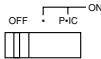
POWER SWITCH; PRINT / ITEM COUNT MODE SELECTOR:
"OFF": Power OFF
Power ON. Set to the non-print mode. "P·IC": Power ON. Set to the print and item count mode.
For addition or subtraction, each time + is pressed, 1 is added to the item counter, and each time - is pressed, 1 is subtracted.
- The count is printed when the calculated result is obtained.
- Pressing of *, 9CE, 9CE clears the counter.
Note: The counter has a maximum capacity of 3 digits (up to ±999). If the count exceeds the maximum, the counter will recount from zero.

DECIMAL / ADD MODE SELECTOR:
"F": The answer is displayed in the floating decimal system. "2,0": Presets the number of decimal places in the answer. "A": The decimal point in addition and subtraction entries is automatically positioned to the 2nd digit from the lowest digit of entry number. Use of the add mode permits addition and subtraction of numbers without entry of the decimal point. Use of •, × and ÷ will automatically override the add mode and decimally correct answers will be printed.
ROUNDING SELECTOR:
Example: Set Decimal Selector to 2.
4 ÷ 9 = 0.444..., 5 ÷ 9 = 0.555...
| 4÷9= | 5÷9= | |
| 5/4 | 0.44 | 0.56 |
| ↓ | 0.44 | 0.55 |
Note: The decimal point floats during successive calculation by the use of × or ÷.
If the decimal selector is set to "F" then the answer is always rounded down (↓).

PAPER FEED KEY
NON-ADD / SUBTOTAL KEY:
Non-add — When this key is pressed right after an entry of a number in the Print mode, the entry is printed on the left-hand side with "#". This key is used to print out numbers not subjects to calculation such as code, date, etc.
Subtotal - Used to get subtotal(s) of additions and/or subtractions. When pressed following + or -, the subtotal is printed with "◇" and the calculation may be continued.

CLEAR / CLEAR ENTRY KEY:
Clear — This key also serves as a clear key for the calculation register and resets an error condition.
Clear entry — When pressed after a number and before a function, clear the number.

TOTAL KEY:
When pressed after + or -, prints the total of addition and subtraction with "※".

EQUAL KEY:
Gives the results of multiplication and division and performs repeat calculation with a constant.
Multiplication:
The calculator will automatically remember the first number entered (the multiplicand) and × instruction.
Division:
The calculator will automatically remember the second number entered (the divisor) and instruction.

CHANGE SIGN KEY:
Changes the algebraic sign of a number (i.e., positive to negative or negative to positive).

MARKUP KEY:
Used to perform mark-ups, percent change and automatic add-on/discount.

RECALL AND CLEAR MEMORY KEY

RECALL MEMORY KEY

STORE KEY:
This key is used to store the tax rate.
- A maximum of 4 digits can be stored (decimal point is not counted as a digit).
- Only one rate can be stored. If you enter a new rate, the previous rate will be cleared.

TAX-INCLUDING KEY

PRE-TAX KEY
DISPLAY SYMBOLS:
M : Memory symbol
Appears when a number is in the memory.
- :Minus symbol
Appears when a number is negative.
E : Error symbol
Appears when an overflow or other error is detected.
TAX + : Tax-including symbol
Appears when the total calculated includes tax.
TAX- : Pre-tax symbol
Appears when the total calculated excludes tax.
TAX : Tax rate symbol
Appears when the tax rate is set.
INK ROLLER REPLACEMENT
If printing is blurry even when the ink roller is in the proper position, replace the roller.
Ink roller: Type EA-781R-BK (Black)
Type EA-781R-RD (Red)
WARNING
APPLYING INK TO WORN INK ROLLER OR USE OF UNAPPROVED INK ROLLER MAY CAUSE SERIOUS DAMAGE TO PRINTER.
1) Set the power switch to OFF.
2) Remove the printer cover. (Fig. 1) 3) Remove the ink roller by turning it counterclockwise and pulling it upward (Fig. 2) 4) Install the correct color new ink roller and press it in the correct position. Make sure that the ink roller is securely in place. (Fig. 3) 5) Put back the printer cover.
Fig. 1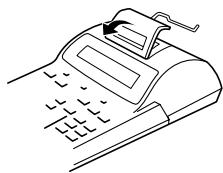
Fig. 2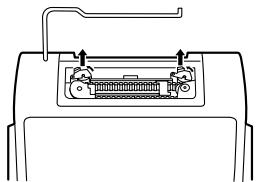
Fig. 3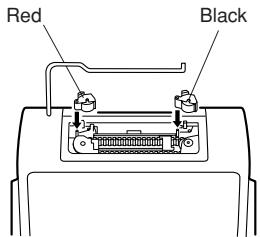
Cleaning the printing mechanism
If the print becomes dull after long time usage, clean the printing wheel according to the following procedures:
1) Remove the printer cover and the ink roller. 2) Install the paper roll and feed it until it comes out of the front of the printing mechanism. 3) Put a small brush (like a tooth brush) lightly to the printing wheel and clean it by pressing □(4). 4) Put back the ink roller and the printer cover.
Notes: Do not rotate the printing mechanism manually, this may damage the printer.
- Never attempt to turn the printing belt or restrict its movement while printing. This may cause incorrect printing.
PAPER ROLL REPLACEMENT
Never insert paper roll if torn. Doing so will cause paper to jam. Always cut leading edge with scissors first.
1) Insert the leading edge of the paper roll into the opening. (Fig. 1) 2) Turn the power on and feed the paper by pressing □(4). (Fig. 2) 3) Lift the attached metal paper holder up and insert the paper roll to the paper holder.
(Fig. 3)

Fig. 1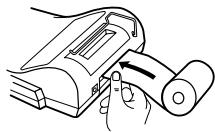
Fig. 2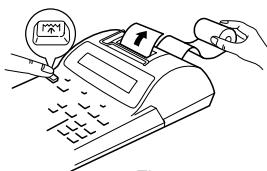
Fig. 3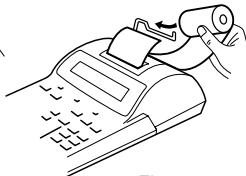
DO NOT PULL PAPER BACKWARDS AS THIS MAY CAUSE DAMAGE TO PRINTING MECHANISM.
BATTERY REPLACEMENT
To Install or Replace Batteries — When the batteries become weak, the display will work but not the printer.
This indicates that you should replace the batteries.
- Set the power switch to OFF.
- Remove the battery cover by sliding it in the direction of the arrow on the cover.
- Replace the batteries. Be sure that the "+" and "-" marks on the battery correspond to the "+" and "-" marks in the calculator. Always put back the 4 batteries at the same time.
- Put back the battery cover.
Battery: Heavy-duty manganese battery, size AA (or R6) × 4
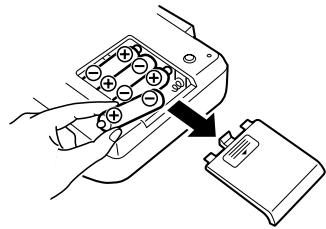
Note: When the batteries are replaced, the calculator may fail to function correctly. If this occurs, remove the batteries, wait at least two minutes, then reinstall them. Also, if the calculator is subjected to a strong impact or noise during a calculation, it may not print correctly or the calculation may be lost. If this happens, the calculation must be performed again.
HOW TO CONNECT THE AC ADAPTOR (OPTION)
This machine can also be operated on AC power by use of AC Adaptor. When the AC adaptor is connected to the calculator, the power source is automatically switched over from dry batteries to AC power source.
AC adaptor: Model EA-28A (Never use any other AC adaptor except EA-28A.)
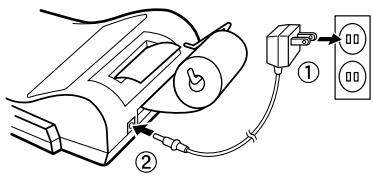
Note: Make sure that you turn the calculator's power off when connecting or disconnecting the AC adaptor.
To connect the AC adaptor, follow steps ① and ②.
To disconnect the AC adaptor, simply reverse the procedure.
CAUTION
Use of other than the AC adaptor EA-28A may apply improper voltage to your SHARP calculator and will cause damage.
ERRORS
There are several situations which will cause an overflow or an error condition. When this occurs, "E" will be displayed. The contents of the memory at the time of the error are retained.
If "0·E" is displayed at the time of the error, "- - - - - - " will be printed in red and the [9%] key must be used to clear the calculator.
Error conditions:
- When the integer portion of an answer exceeds 12 digits.
- When the integer portion of the contents of the memory exceeds 12 digits. (Ex. [M] 999999999999 [M+] 1 [M+])
- When any number is divided by zero. (Ex. 5 [÷] 0)
SPECIFICATIONS
Operating capacity: 12 digits
Power supply: 6V(DC): Heavy-duty manganese battery, size AA (or R6) ×4
AC: Local voltage with AC adaptor EA-28A (Option)
Calculations: Four arithmetic, constant multiplication and division, power, add-on, repeat addition and subtraction, reciprocal, item count calculation, markup, memory, tax, etc.
PRINTING SECTION
Printer: Mechanical printer
Printing speed: Heavy-duty manganese battery, size AA (or R6)
Approx. 2.1 lines/sec. (At temperature 25°C (77°F), when "951 · + " is printed. Printing speed will vary with the number of rows, different figure types to be printed, and the charge level of the batteries.)
Printing paper: 57 mm (2-1/4") - 58 mm (2-9/32") wide
80 mm (3-5/32") in diameter (max.)
Operating temperature: 0°C - 40°C (32°F - 104°F)
Power consumption: 6V(DC):2.2 W
Operating time
using battery:
Heavy-duty manganese battery, size AA (or R6)
Approx. 5,000 hours (in non-print mode, displaying 555'555 at 25°C (77°F) ambient temperature)
Operating time depends on the type of battery and type of use.
Dimensions: 170mm (W) × 231mm (D) × 57.5mm (H)
(6-11/16" (W) × 9-3/32" (D) × 2-1/4" (H))
Weight: Approx. 580 g (1.28 lb.) (with batteries)
Accessories: 1 paper roll, 2 ink rollers (installed), dry battery x 4 and operation manual
INTRODUCTION
"OFF": Power off.
BATTERY REPLACEMENT
MULTIPLE USE KEY:
REPLACING THE BATTERIES
- Set the decimal selector as specified in each example.
The rounding selector should be in the "5/4" position unless otherwise specified.
- The print / item count mode selector should be in the "P·IC" position unless otherwise specified.
- Press [96E] prior to beginning any calculation.
- If an error is made while entering a number, press [%CE] and enter the correct number.
- Example procedures are listed in the following manner unless otherwise specified.
| Operation | Display | |
CALCULATION EXAMPLES
B. 11.11 ÷ 77.77 = ①
22.22÷77.77=②
F 20 A

| 11.11 | 11.11 | 11·11 ÷ |
| 77.77 | 0.14285714285 | 77·77 = |
| 22.22 | 0.28571428571 | 0·14285714285 * ① |
| 22·22 = | ||
| 0·28571428571 * ② |
POWER / POTENZBERECHNUNGEN / PUISSANCE / POTENCIA CALCOLI DELLE POTENZE / HATVÁNYOZÁS
| 53= | ||
| 5 | 5. | 5·× |
| 5·= | ||
| 25. | 25·* | |
| 25·= | ||
| 125. | 125·* | |
| F 2 0 A | ||
| 5 | 5. | 5·× |
| 25. | 5·× | |
| 5·= | ||
| 125. | 125·* | |
PERCENT / PROZENT / POURCENTAGE / PORCENTAJES / PERCENTUALI / SZÁZALEKSZÁMITÁS
| 100×25%= | ||
| 100 | 100. | 100·× |
| 25 | 25.00 | 25·% |
| 25·00* | ||
RECIPROCAL / REZIPROKRECHNUNGEN / INVERSES / RECIPROCOS / RECIPROCI / RECIPROKSÁMÍTÁS
| 1/7 = | F 2 0 A 5/4 | |
| 7 | 7. | 7·÷ |
| 1. | 7·÷ | |
| 7·= | ||
| 0.14285714285 | 0.14285714285 * | |
ADD-ON AND DISCOUNT / AUFSCHLAG UND ABSCHLAG / MAJORATION ET RABAIS / RECARGOS Y DESCUMENTOS / MAGGIORAZIONE E SCONTO / AREMELES ES ARENGEDMÉNY
A. 5% add-on to 100. / Ein Aufschlag von 5% zu 100. / Majoration de 5% de 100. / Un 5% de recargo sobre 100. / Una maggiorazione del 5% su 100. / 5% -kal novelje meg a 100 egységárat.
| 100 × 5 MU | 100. | 100·× 5·% | Increased amount Zusatzbetrag Majoration Incremento Maggiorazione Növekmény |
| 5·00 | |||
| 105.00 | 105·00 * | New amount Neuer Betrag Total majoré Nueva cantidad Nuovo totale Üj ertekt |
B. 10% discount on 100. / Abschlag von 10% von 100. / Rabais de 10% sur 100. / Un 10% de descuento sobre 100. / Uno sconto del 10% su 100. / Számoljön ki 10% arengedményt 100 egységárra.

| 100 × 10 +/- MU | 100. | 100·× -10·% | Discount Abschlag Remise Descuento Sconto Árengedmény |
| -10·00 | |||
MARKUP AND MARGIN
Markup and Profit Margin are both ways of calculating percent profit.
Profit margin is percent profit vs. selling price. - Markup is percent profit vs. cost. Cost is the cost. - Sell is the selling price. - GP is the gross profit. - Mkup is the percent profit based on cost. - Mrgn is the percent profit based on selling price.
| Cost | 200 |
| Sell | 250 |
| GP | $50 |
| Mkup | 25% |
| Mrgn | 20% |
| 200 MU | 200. | 200·÷Cost |
| 20·%M Mrgn | ||
| 250·00 * Sell | ||
| 50.00 | 50·00 GP |
F 20 A

PERCENT CHANGE / PROZENTUALE VERÄNDERUNG / VARIATION EN POUR CENT / CAMBIO PORCENTUAL / CAMBIO DI PERCENTUALE / SZÁZALEKOS VÁLTOZÁS SZÁMÍTÁSA
- Calculate the dollar difference (a) and the percent change (b) between two yearly sales figures 1,500 in one year and 1,300 in the previous.
- Berechnung der Dollardifferenz (a) und der prozentualen Veränderung b) zwischen den beiden Jahresumsatzzahlen 1.500 in einem Jahr und 1.300 im vorherigen Jahr.
- Calculate the difference in dollars (a) and the percentage change (b) between two prices: 1,500 for this year and1,300 for the previous year.
- Calculate the difference in dollars (a) and the percentage change (b) between two annual sales figures, 1,500 in one year and1,300 in the previous year.
- Calculate the difference in dollars (a) and the percentage change (b) between two annual sales figures of 1,500 in one year and1,300 in the previous year.
- Calculate the difference (a) and the percentage change (b) when the annual sales increase from 1,300 Ft to 1,500 Ft!

| 1500 | 1'500.00 | 1,500.00 | + | |
| 1300 | 200.00 | 1,300.00 | - | |
| MU | 200.00 | * | (a) | |
| 15.38 | 15.38 | % | (b) |
PERCENT PRORATION / PROZENTUALES VERHÄLTNIS / DISTRIBUTION PROPORTIONNELLE EN POURCENTAGE / DISTRIBUTION PROPORICIONAL DE PORCENTAJE / DISTRIBUTIONE PERCENTUALE / SZÁZALEKOS ARÁNY
Calculate the percentage of each of the parts to the whole. - Determine the percentage of expense to total expense. - Calculate the percentage that each item represents relative to the whole. - Calculate the percentage of each item. - Calculate the percentage of each individual part relative to the total. - Calculate the ratio of the components to the whole!
| ExpensesAufwandDépensesGastosCostiKöltsegek | % |
| $123456789(D) | (a)(b)(c)(d) |
| *M*2 | ||||
| 123 | + | 123.00 | 123·00 + | |
| 456 | + | 579.00 | 456·00 + | |
| 789 | + | 1'368.00 | 789·00 + | |
| 123 | MU | 003 | ||
| 1·368·00 * (D) | ||||
| 123· = | ||||
| 8.99 | 8·99 % (a) | |||
| M+ | 8.99 M | 8·99 +M | ||
| 456 | MU | 456· = | ||
| 33.33 M | 33·33 % (b) | |||
| M+ | 33.33 M | 33·33 +M | ||
| 789 | MU | 789· = | ||
| 57.68 M | 57·68 % (c) | |||
| M+ | 57.68 M | 57·68 +M | ||
| ◇M | 100·00 ◆M (d) | |||
| 100.00 M | ||||
2: Press M to clear the memory before starting a memory calculation. 2: To clear all previous entries in memory, press M. 2: Clear the memory (M) before proceeding with a memory calculation. 2: Press M to cancel the memory before starting a calculation with memory. 2: Before performing a calculation with memory, press M to reset it. *2: Before starting a calculation with memory, press the [M] button to clear the memory.
ITEM COUNT CALCULATION / RECHNEN MIT POSTENZÄHLER / CALCUL DE COMPTE D'ARTICLES / CÁLCULO DE CUENTA DE ARTICULOS / CALCOLI CON FUNZIONE/CONTADDENDI / SZÁMITÁS A TÉTELSZÁMLÁLÓVAL
| Bill No. Rechnungs-Nr. Facture n° N.° de factura Fattura No. Számlaszám | Number of bills Anzahl der Rechnungen Nbre de factures Cántidad de facturasNumero di fatture A számlák száma | Amount Betrag Montant Importe Ammontare Összeg |
| 1 | 1 | 100.55 |
| 2 | 1 | 200.00 |
| 3 | 1 | 200.00 |
| 4 | 1 | 400.55 |
| 5 | 1 | $500.65 |
| Total Total Total Total Totale Összesen | (a) | (b) |
| F 2 0 A | ||
| 100.55 | %CE | 100.55 |
| 200 | + | 300.55 |
| + | 500.55 | |
| 400.55 | + | 901.10 |
| 500.65 | + | 1'401.75 |
| * | ||
| 005 | ||
| (a) | ||
| 1'401.75 | ||
| (b) | ||
MEMORY / SPEICHERRECHNUNG / MÉMOIRE / MEMORIA / MEMORIA / MEMÓRIA
A. 46 × 78 = 1 +) 125 ÷ 5 = ② -) 72 × 8 = ③ ① + ② - ③ = ④

| * M * 2 → oldal 36) | ||
| 46 × | 46. | 46· × |
| 78 M+ | 78· = | |
| 3'588. M | 3·588· +M ① | |
| 125 ∙ | 125. M | 125· ÷ |
| 5 M+ | 5· = | |
| 25. M | 25· +M ② | |
| 72 × | 72. M | 72· × |
| 8 M- | 8· = | |
| 576. M | 576· -M ③ | |
| ◇ M | 3·037· ◇M ④ | |
| 3'037. M | ||
| B. (123 + 45) × (456 - 89) = | ||
| * M * 2 → page 36 / → Seite 36 / → page 36 / → páginia 36 / → pagina 36 / → oldal 36) | ||
| 123 M+ | 123. M | 123· +M |
| 45 M+ | 45. M | 45· +M |
| 456 + | 456. M | 456· + |
| 89 - | 367. M | 89· - |
| X | 367. M | 367· × |
| ◇M | 168· ◆M | |
| = | 168. M | |
| 168· = | ||
| 61'656. M | 61·656· * | |
TAX RATE CALCULATIONS / STEUER-BERECHNUNGEN / CALCULS DE TAXE / CÁLCULOS CON EL TIPO DE IMPUESTO / CALCOLI DEL TASSO DI TASSAZIONE / ADOSZÁMITÁSOK
EXAMPLE 1: Set a 5% tax rate.
Attention: Your product is marked with this symbol. It means that used electrical and electronic products should not be mixed with general household waste. There is a separate collection system for these products.
A. Information on Disposal for Users (private households)
1. In the European Union
Attention: If you want to dispose of this equipment, please do not use the ordinary dust bin!
Used electrical and electronic equipment must be treated separately and in accordance with legislation that requires proper treatment, recovery and recycling of used electrical and electronic equipment.
Following the implementation by member states, private households within the EU states may return their used electrical and electronic equipment to designated collection facilities free of charge*. In some countries your local retailer may also take back your old product free of charge if you purchase a similar new one.
Please contact your local authority for further details.
If your used electrical or electronic equipment has batteries or accumulators, please dispose of these separately beforehand according to local requirements.
By disposing of this product correctly you will help ensure that the waste undergoes the necessary treatment, recovery and recycling and thus prevent potential negative effects on the environment and human health which could otherwise arise due to inappropriate waste handling.
2. In other Countries outside the EU
If you wish to discard this product, please contact your local authorities and ask for the correct method of disposal.
For Switzerland: Used electrical or electronic equipment can be returned free of charge to the dealer, even if you don't purchase a new product. Further collection facilities are listed on the homepage of www.swico.ch or www.sens.ch.
B. Information on Disposal for Business Users.
1. In the European Union
If the product is used for business purposes and you want to discard it:
Please contact your SHARP dealer who will inform you about the take-back of the product. You might be charged for the costs arising from take-back and recycling. Small products (and small amounts) might be taken back by your local collection facilities
For Spain: Please contact the established collection system or your local authority for take-back of your used products.
2. In other Countries outside the EU
If you wish to discard of this product, please contact your local authorities and ask for the correct method of disposal.


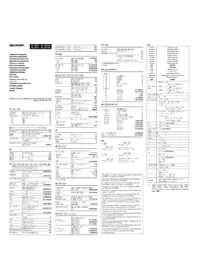
- CONTENTS
- OPERATIONAL NOTES
- OPERATING CONTROLS
- POWER SWITCH; PRINT / ITEM COUNT MODE SELECTOR
- DECIMAL / ADD MODE SELECTOR
- ROUNDING SELECTOR
- PAPER FEED KEY
- NON-ADD / SUBTOTAL KEY
- CLEAR / CLEAR ENTRY KEY
- TOTAL KEY
- EQUAL KEY
- MULTIPLICATION
- DIVISION
- CHANGE SIGN KEY
- MARKUP KEY
- RECALL AND CLEAR MEMORY KEY
- RECALL MEMORY KEY
- STORE KEY
- TAX-INCLUDING KEY
- PRE-TAX KEY
- DISPLAY SYMBOLS
- INK ROLLER REPLACEMENT
- WARNING
- CLEANING THE PRINTING MECHANISM
- IF THE PRINT BECOMES DULL AFTER LONG TIME USAGE, CLEAN THE PRINTING WHEEL ACCORDING TO THE FOLLOWING PROCEDURES
- PAPER ROLL REPLACEMENT
- NEVER INSERT PAPER ROLL IF TORN. DOING SO WILL CAUSE PAPER TO JAM. ALWAYS CUT LEADING EDGE WITH SCISSORS FIRST
- BATTERY REPLACEMENT
- HOW TO CONNECT THE AC ADAPTOR (OPTION)
- CAUTION
- ERRORS
- ERROR CONDITIONS
- SPECIFICATIONS
- PRINTING SECTION
- INTRODUCTION
- MULTIPLE USE KEY
- REPLACING THE BATTERIES
- CALCULATION EXAMPLES
- POWER / POTENZBERECHNUNGEN / PUISSANCE / POTENCIA CALCOLI DELLE POTENZE / HATVÁNYOZÁS
- PERCENT / PROZENT / POURCENTAGE / PORCENTAJES / PERCENTUALI / SZÁZALEKSZÁMITÁS
- RECIPROCAL / REZIPROKRECHNUNGEN / INVERSES / RECIPROCOS / RECIPROCI / RECIPROKSÁMÍTÁS
- ADD-ON AND DISCOUNT / AUFSCHLAG UND ABSCHLAG / MAJORATION ET RABAIS / RECARGOS Y DESCUMENTOS / MAGGIORAZIONE E SCONTO / AREMELES ES ARENGEDMÉNY
- MARKUP AND MARGIN
- PERCENT CHANGE / PROZENTUALE VERÄNDERUNG / VARIATION EN POUR CENT / CAMBIO PORCENTUAL / CAMBIO DI PERCENTUALE / SZÁZALEKOS VÁLTOZÁS SZÁMÍTÁSA
- PERCENT PRORATION / PROZENTUALES VERHÄLTNIS / DISTRIBUTION PROPORTIONNELLE EN POURCENTAGE / DISTRIBUTION PROPORICIONAL DE PORCENTAJE / DISTRIBUTIONE PERCENTUALE / SZÁZALEKOS ARÁNY
- TAX RATE CALCULATIONS / STEUER-BERECHNUNGEN / CALCULS DE TAXE / CÁLCULOS CON EL TIPO DE IMPUESTO / CALCOLI DEL TASSO DI TASSAZIONE / ADOSZÁMITÁSOK
- INFORMATION ON DISPOSAL FOR USERS (PRIVATE HOUSEHOLDS)
- IN THE EUROPEAN UNION
- IN OTHER COUNTRIES OUTSIDE THE EU
- INFORMATION ON DISPOSAL FOR BUSINESS USERS
Brand : SHARP
Model : EL-1801C
Category : Calculator