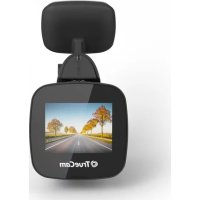
M5 WiFi - Caméra auto TrueCam - Free user manual and instructions
Find the device manual for free M5 WiFi TrueCam in PDF.


| Product Type | Dashboard Camera (Dashcam) |
| Brand | TrueCam |
| Model | M5 WiFi |
| Video Resolution | Full HD 1920x1080 @ 30 fps; HD 1280x720 @ 60/30 fps |
| Angle of View | 150° wide-angle lens |
| Video Format | MP4, H.264 |
| Photo Resolution | Up to 12 Mpx |
| Photo Format | JPEG |
| Display | 2.0" LCD, 320x240 |
| Memory | MicroSD up to 64 GB (Class 10 or higher recommended) |
| Connectivity | WiFi |
| Power Supply | Supercapacitor (runs only when connected to power; no battery) |
| Dimensions | 69 × 45 × 34 mm |
| Weight | Approx. 70 g (estimated) |
| Mounting | Magnetic holder with 3M adhesive pad |
| Key Features | Loop recording, G-Sensor, motion detection, parking mode, file protection, WDR, WiFi app (Antscam), optional GPS module with speed camera alerts |
| Audio | Built-in microphone (mutable) |
| Menu Languages | English, Czech, German, Slovak, Polish, Hungarian |
| Care & Maintenance | Keep away from moisture and extreme temperatures; clean with soft lint-free cloth when powered off; format SD card monthly in camera |
| Safety Precautions | Do not operate while driving; use only supplied charger; avoid direct sunlight; ensure legal use in your country |
| Spare Parts & Repairability | Spare adhesive pads included; no user-replaceable parts; do not disassemble; contact dealer for service |
| General Information | EU Declaration of Conformity available at www.truecam.com/support/doc; two-year warranty (battery 24 months, capacity 6 months) |
Frequently Asked Questions - M5 WiFi TrueCam
User questions about M5 WiFi TrueCam
0 question about this device. Answer the ones you know or ask your own.
Ask a new question about this device
Download the instructions for your Caméra auto in PDF format for free! Find your manual M5 WiFi - TrueCam and take your electronic device back in hand. On this page are published all the documents necessary for the use of your device. M5 WiFi by TrueCam.
USER MANUAL M5 WiFi TrueCam
A dashboard camera with WiFi and a magnetic design
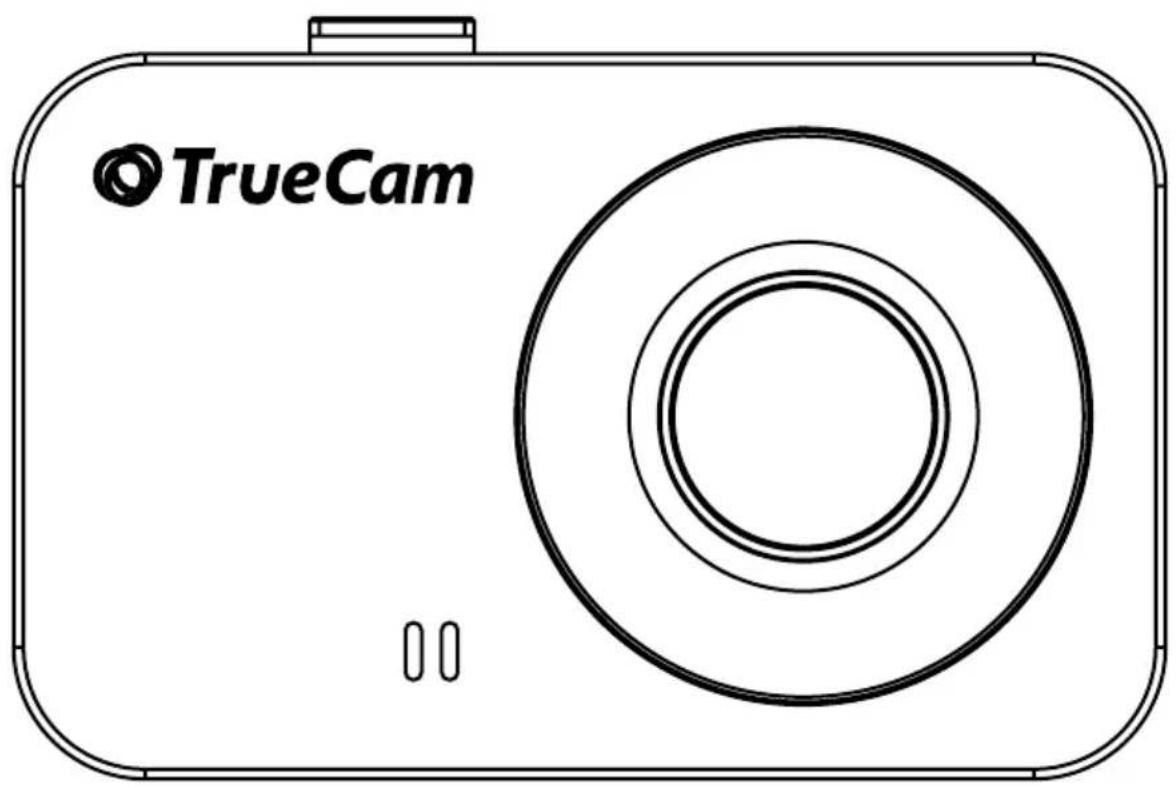
text_image
TrueCamCONTENTS
- Pack contents ....2
- Getting to know the camera....3
- Controls....3
- Ikons and display .... 4
- First usage....4
- Basic features....5
- Placement on glass....5
- WiFi application....6
- Recording onto a PC....7
- Complete settings....8
- Specifications....9
- Safety precautions ....9
1. PACK CONTENTS
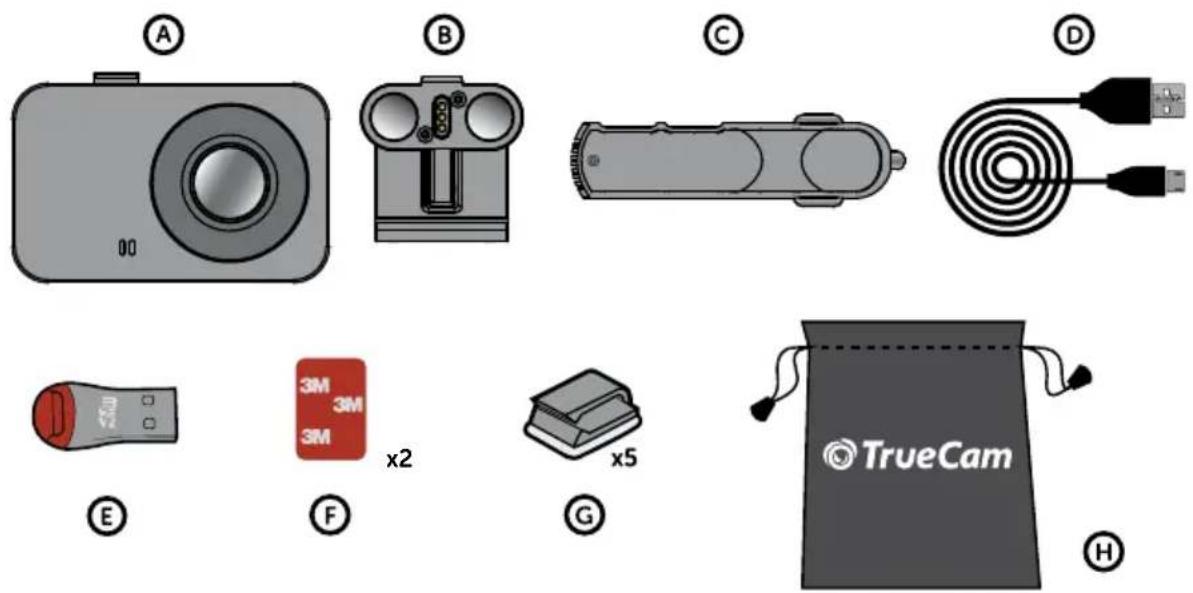
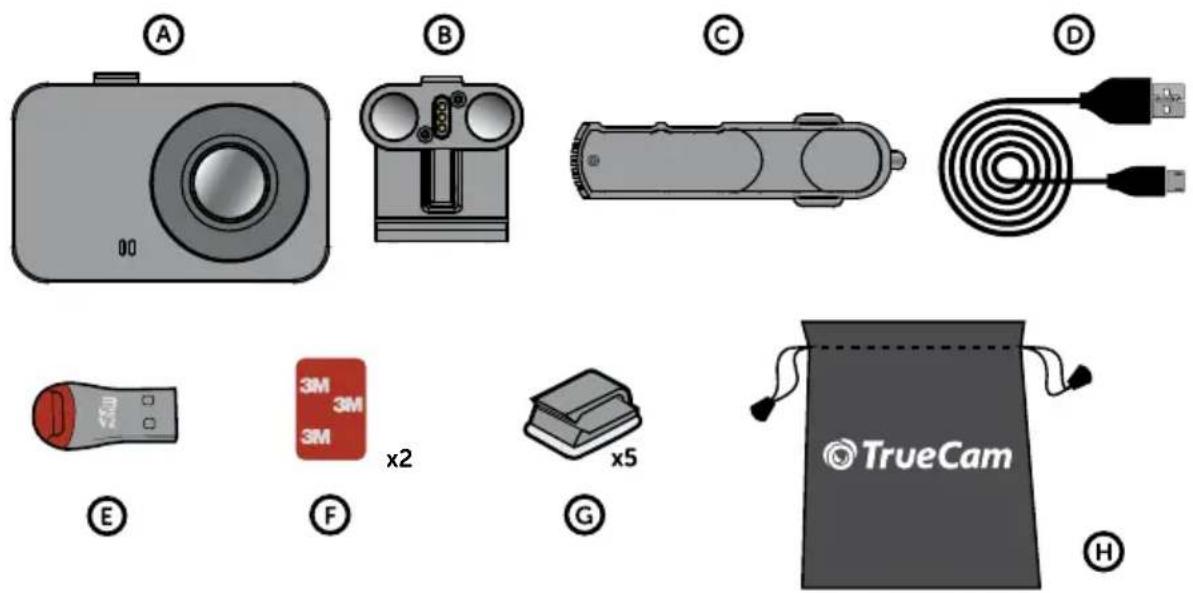
(A) TrueCam M5 Wi-Fi Dashcam
B Magnetic holder with 3M adhesive pad
© Cigarette lighter adapter with two USB outputs
D 3-metre micro USB charging cable
E Micro SD/USB adapter to transfer files to PC
F Spare 3M adhesive pads to attach holder to glass (2×)
© 3M adhesive power cable clips (5×)
H Protective carry bag
2. GETTING TO KNOW THE CAMERA
text_image
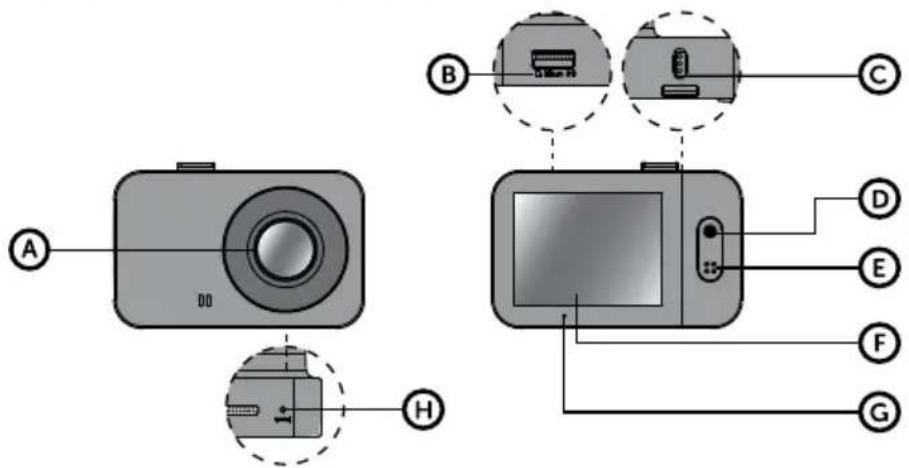
Diagram of a digital camera with labeled parts including front, top, and side views(A) Wide-angle lens
B Memory card slot
© Magnetic holder input
D OK / POWER button
E MENU / MODE button
F 2.0" display
© Status LED
(lit = camera on, blinking = recording)
(H) RESET button
3. CONTROLS
| VIDEO MODE | OK / POWER | Press Start/stop recording | |
| Hold Turn camera on/off | |||
| MENU / MODE | Press | Open menuWhilst recording- protect recording | |
| Hold | Switch modeWhilst recording- mute/unmute audio recording | ||
| PHOTO MODE | OK / POWER | Press Take photo | |
| Hold Turn camera on/off | |||
| MENU / MODE | Press Open menu | ||
| Hold Switch mode | |||
| PLAYBACK MODE | OK / POWER | Press | Start/stop playbackEnd fast playback |
| Hold | Turn camera on/offChange playback speed during playback | ||
| MENU / MODE | Press Open menu | ||
| Hold | Switch modeReturn to video selection during playback | ||
| MENU | OK / POWER | Press | ConfirmWhen entering characters- Up |
| Hold | Switch mode menu/camera menuWhen entering characters- Confirm | ||
| MENU / MODE | Press Down | ||
| Hold Back | |||
| ANYTIME | RESET | Press with paperclip | Restart camera |
4. ICONS AND DISPLAY
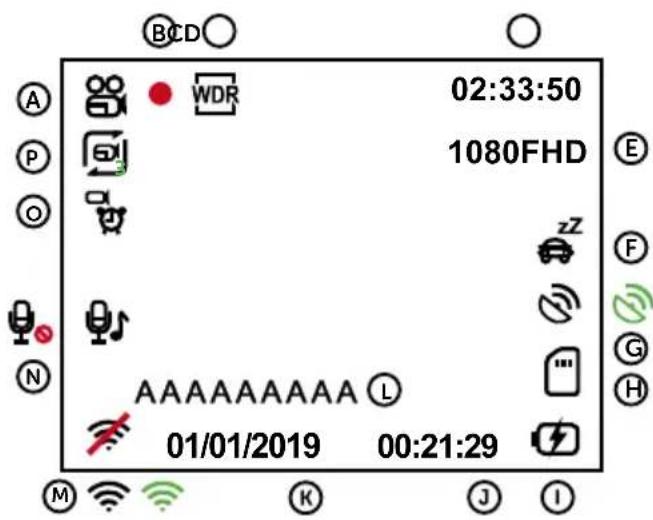
text_image
BCD A WDR 02:33:50 P 1080FHD O zZ N A A A A A A A L 01/01/2019 00:21:29 M K J IA Mode
B Recording started
© WDR (wide dynamic range)
(D) Remaining recording time / length of current recording
E Resolution
⑤ Parking mode
© GPS module (optional) connected to camera / connected to satellites
(H) Memory card inserted
① Power supply
① Time
© Date
L Driver name
M WiFi off / on / connected
N Sound recording on / off
© Motion detection
P Loop recording length
5. FIRST USAGE
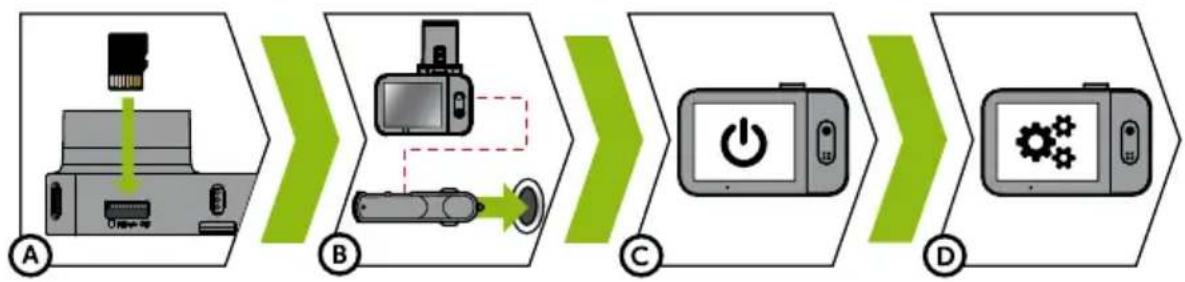
flowchart
graph LR
    A["Printer"] --> B["Camera"]
    B --> C["Digital Display"]
    C --> D["Power Control Icon"]
    D --> E["Digital Display with Gear Icon"]
(A) Insert the microSD card as shown into the camera (card connectors facing the display)
Use Class 10 and higher branded cards up to 64 GB
Only remove the card, when the camera is turned off
When using the card for the first time, format it directly in the camera and repeat the formatting at least once a month to ensure proper camera operation
B Insert the adapter into the car cigarette lighter and connect it to the camera holder using the USB cable
The camera is designed to operate only when connected to a power supply
Instead of a battery, the camera contains a supercapacitor that provides power which has several times the lifespan of a conventional battery
© Camera turns on automatically and begins recording
For some vehicles, the ignition key must be turned first
D Perform basic camera settings before sticking the holder to the glass
For maximum convenience, we recommend using the Wi-Fi application for settings – see section 8
6. BASIC FEATURES
LOOP RECORDING
Camera automatically splits the video into shorter files and overwrites the oldest unprotected files when the SD card is full.
This means you don't have to worry about free space on the card
FILE PROTECTION
To protect the file from being overwritten, press MENU / MODE while recording or select Protect from the playback mode menu
G-SENSOR
If the G-Sensor detects an impact, it automatically protects the video currently being captured against being overwritten
Attention, when the settings are set to high sensitivity and you are driving over uneven surfaces this can cause files to be automatically protected and the filling up of the SD card
MOTION DETECTION
The camera automatically starts recording when it detects movement in the lens field of view and stops recording after about 10 seconds.
If you stop recording manually or turn off the camera, motion detection is disabled
The function is for monitoring a parked vehicle, do not use whilst driving
To use the motion detection function, the camera must be turned on and connected to the power supply
PARKING MODE
The camera will start recording automatically when it detects a jolt to the vehicle and if it does not happen again, after about 30 seconds it stops recording and turns off
To use the parking mode function, the camera should be turned off and connected to the power supply
7. PLACEMENT ON GLASS
text_image
Diagram illustrating car interior and thermal management, showing dashboard, steering wheel, and thermometer with directional arrows and labeled parts A and B.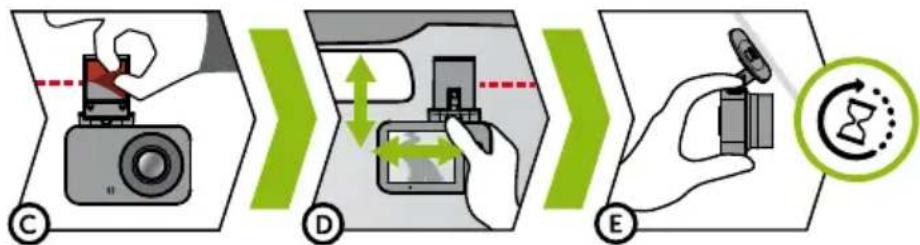
flowchart
graph LR
    A["Recording"] --> B["Scan"]
    B --> C["Timing Control"]
    C --> D["Display"]
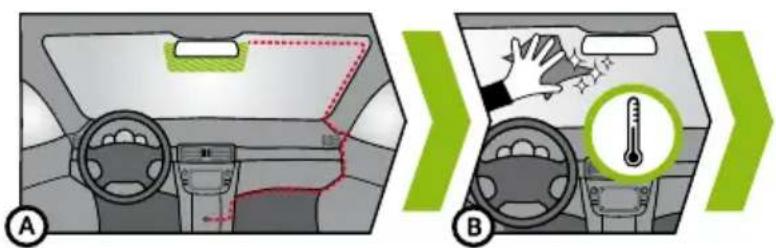
A The ideal place to mount your camera is the space between the windscreen and the rear-view mirror so as not to obstruct the driver's view
⑧ Make sure that the glass is clean and dry at the attachment point
The ideal bonding temperature is 20°C - 40°C
© Remove the film from 3M adhesive pad on the camera holder
(D) Before attaching it to the glass, point the camera to capture best view
⑤ Press the 3M adhesive pad onto the glass and hold it for a while
8. WIFI APPLICATION

flowchart
graph LR
    A["Antscam"] --> B["QR code"]
    B --> C["Mobile phone with download icon"]
    C --> D["Wi-Fi recording device"]
    D --> E["Hand gesture pointing to Wi-Fi symbol"]
Ⓐ Scan the QR code or search for Antscam on the App Store/Google Play
(B) Install the app on your smartphone or tablet
© Turn on Wi-Fi on the camera - Camera menu -> Wi-Fi -> On -> Network Name (SSID) and Password (PWD) will appear on the camera display
On the phone/tablet, connect to the Wi-Fi network with the camera name, enter the password (factory setting- 12345678), start the Antscam app and click the „+“ button to connect the camera
ANTSCAM APP CONTROLS:
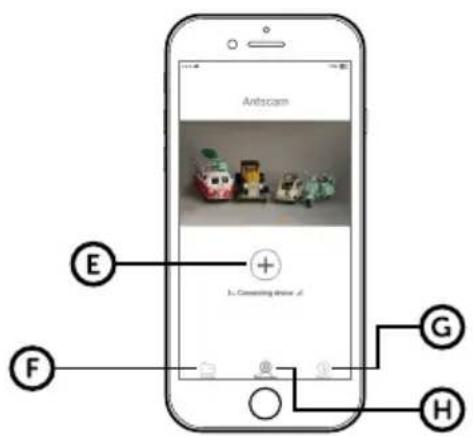
text_image
Antiscam E + 3. Connecting arrow, d F G HWITHOUT CONNECTION
E Connect the camera
F Files dragged to your phone
© Information
H Camera
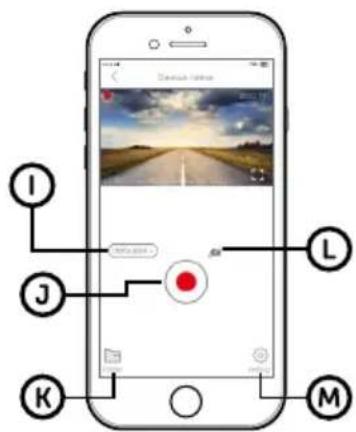
text_image
I J K M LWITH CONNECTION
① Change resolution
① Start/stop recording
© Files in the camera
Take photo
M Camera settings
CAMERA SETTINGS IN ANTSCAM APP
| Zádná SIM 11:30 49% | |
| < Settings | |
| Wi-Fi connection password | |
| Sound recording | [K353] |
| WDR |  |
| Camera watermark time | [Y278] |
| Cycle record time |  |
| G-Sensor sensitivity |  |
| When the vehicle collides, the video is not covered automatically when it is hit, it is used to provide the basis for the accident | |
| Video resolution 1920x1080P30 | |
| Image size 2M | |
| Format TFCard | |
| Firmware version M1C-N20190626-V1 | |
| Restore factory settings | |
Ⓐ WiFi password
B Record audio
© WDR (wide dynamic range)
D Date stamp
E Loop recording
F G-sensor sensitivity
© Video resolution
(H) Photo resolution
① Format memory card
J Firmware version
(K) Default settings
9. RECORDING ONTO A PC
(A) Remove the Micro SD card when the camera is off and insert it into the computer
Depending on the computer equipment, either directly, using a Micro SD/SD adapter or a Micro SD/USB adapter (included)
(B) Open the removable disk folder and play a file
Any regular video player can be used
© Use a special player to play videos, including data, from the optional GPS module
At the same time as the video, you can view the speed travelled, the GPS coordinates and directions on the map
The app is available at http://truecam.com/download/M5W_player.zip
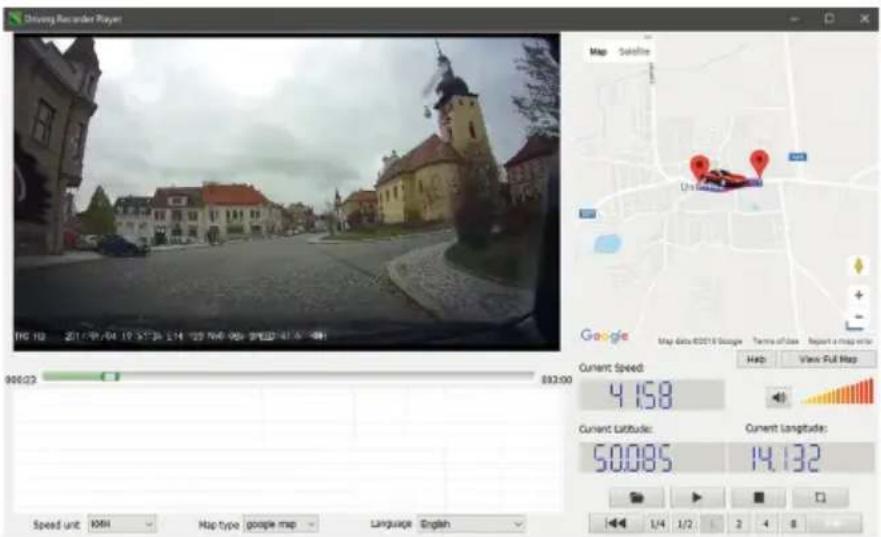
text_image
Driving Recorder Player Map Satellite Unifinal Map Data: 80216 Storage Terms of Use Report a map error Help View Full Map Current Speed: 4.158 Current Latitude: 50.085 Current Longitude: 14.132 Speed unit: KIMI Map type: google map Language: English10. COMPLETE SETTINGS
SETTINGS DESCRIPTION
| Resolution Sets the video / photo resolutionHigher resolution = more detail and larger file60 fps = 60 frames per second = smoother video | |
| Loop recording Sets the length of each loopLonger loop = larger fileLoop recording can also be turned off and recording will end if the SD card is full | |
| WDR When turned on, the camera compensates for luminance when there are very bright and very dark areas in the picture | |
| Brightness Sets the overall brightness of the recordingAt the same time, the camera automatically adjusts the brightness of the recording depending on the light | |
| Motion detection Turns motion detection on / offMore about this feature in Section 6 | |
| Parking mode Turns parking mode on / offMore about this feature in Section 6 | |
| Record audio Turns the microphone on / offAlso possible to switch by holding down the MENU / MODE button while recording | |
| G-Sensor sensitivity Sets the sensitivity of the G-SensorMore about this feature in Section 6 | |
| Date stamp Displays time and date in video | |
| WiFi Turns WiFi on / off | |
| GPS stamp* Displays the GPS coordinates in the video | |
| Speed stamp* Displays the speed in the video | |
| Date / time Sets date and timeHold OK / POWER button = confirmHold MENU / MODE = cancelThe time and date are set automatically when pairing a camera with a smart device via WiFi | |
| Driver name | Sets the text in the videoHold OK / POWER button = confirmHold MENU / MODE = cancel |
| Screensaver | The camera continues to record during screen saverPress any key to exit the screen saver |
| Speed camera detection* | Visually and audibly alerts you to approaching fixed speed cameras |
| Speed units* | Switches between kilometres / miles when using speed stamp, speed camera detection and the screensaver |
| Time zone* With the GPS module connected, the time and date are adjusted automatically, just set the appropriate time zone | |
| Summer time Adds 1 hour to the set time | |
| Volume | Adjusts the volume of all camera sounds |
| System sounds | Turns sound on / off for buttons and on / off status |
| Language | Sets the camera menu language |
| Format | Formats data on memory card |
| Default settings Sets camera to factory settings | |
| Firmware version | Displays the installed FW version |
*These functions can only be used with the optional GPS module and the current firmware.
11. SPECIFICATIONS
| Video Resolution Full HD (1920×1080) @ 30 fpsHD (1280×720) @ 60 fpsHD (1280×720) @ 30 fps |
| Angle of view 150° |
| Video format MP4, H.264 |
| Image resolution Up to 12 Mpx |
| Photo format JPEG |
| Audio Built-in microphone that can be muted |
| LCD display 2" 320×240 |
| Memory MicroSD up to 64 GB |
| Connectivity WiFi |
| Features Magnetic holder, WDR, parking mode, motion detection, G-Sensor,loop recording, file protection, auto-start, magnetic GPS module withspeed camera detection (optional), magnetic CPL filter (optional) |
| Menu languages English, Czech, German, Slovak, Polish, Hungarian |
| Power supply Supercapacitor |
| Dimensions 69 × 45 × 34 mm |
12. SAFETY PRECAUTIONS
Do not operate the camera whilst driving.
A film-coated or heated windscreen can reduce recording quality and interfere with the GPS module (optional) signal.
Do not expose the camera to extreme temperatures – especially avoid direct sunlight.
Make sure that the legislation of the country where you operate the vehicle allows the use of dashcams.
To prevent injury, the camera must always be fitted in the holder whilst driving and must not hinder the use of safety features - especially airbags.
SAFETY PRECAUTIONS
Use only the charger supplied with your device. Use of another type of charger may result in malfunction and/or danger.
Do not use the charger in high moister environment. Never touch the charger when your hands or feet are wet.
Allow adequate ventilation around the charger when using it to operate the device or to charge the battery. Do not cover the charger with paper or other objects that will reduce cooling. Do not use the charger while it is inside a carrying case.
Connect the charger to a proper power source. The voltage requirements are found on the product case and/or on the packaging.
Do not use the charger if it is visibly damaged. In case of damage, do not repair the equipment yourself!
In case of device overheating, immediately disconnect the power source.
Charge the device under supervision only.
Packaging contains small pieces, that can be dangerous for children. Store the product always out of reach of children. Bags or many of the pieces containing may cause suffocation after swallowing.
SAFETY NOTICES FOR POWER SUPPLY
For charging only use chargers, that is specified for this camera.
Use standard cables for charging, otherwise it could damage the device.
Do not use any damaged adapter or charger.
Power at room temperature, never charge at a temperature below 0^ C or at a temperature higher than 40^ C.
Do not expose the charger to moisture, water, rain, snow or any kind of various liquids.
Never leave the camera unattended during power-up, short-circuiting or accidental overcharging can cause aggressive chemicals to leak, explode, or cause a fire!
In the case of excessive heating of the camera, immediately disconnect it from the power supply.
Do not place charger on or near flammable objects. Beware of curtains, carpets, tablecloths etc.
CARING FOR YOUR DEVICE
Taking good care of your device will ensure trouble-free operation and reduce the risk of damage.
Keep your device away from excessive moisture and extreme temperatures and avoid exposing your device to direct sunlight or strong ultraviolet light for extended periods of time.
Do not drop your device or subject it to severe shock.
Do not subject your device to sudden and severe temperature changes. This could cause moisture condensation inside the unit, which could damage your device. In the event of moisture condensation, allow the device to dry out completely before use.
The screen surface can easily be scratched. Avoid touching it with sharp objects.
Never clean your device when it is powered on. Use a soft, lint-free cloth to wipe the screen and the exterior of your device. Do not use paper towels to clean the screen.
Never attempt to disassemble, repair or make any modifications to your device. Disassembly, modification or any attempt at repair could cause damage to your device and even bodily injury or property damage and will void any warranty.
Do not store or carry flammable liquids, gases or explosive materials in the same compartment as your device, its parts or accessories.
To discourage theft, do not leave the device and accessories in plain view in an unattended vehicle.
Overheating may damage the device.
OTHER INFORMATION
1) For households: This marking indicates that this product should not be disposed with other household wastes throughout the EU. To prevent possible harm to the environment or human health from uncontrolled waste disposal, recycle it responsibly to promote the sustainable reuse of material resources. To return your used device, please use the return and collection systems or contact the retailer where the product was purchased. They can take this product for environmental safe recycling. In case of incorrect disposal of this kind of wastes user can be fined according to national laws. User information for disposal of electric and electronic devices in countries outside the EU: The symbol stated above (crossed recycle bin) is valid only in countries in European Union. For correct disposal of electric and electronic devices ask your city hall or distributor of these devices. Everything is expressed by the symbol of crossed recycle bin on product, cover or printed materials.
2) You can determine a warranty service at the place of purchase. In case of technical problems or queries contact your dealer who will inform you about the following procedure. Follow the rules for work with electric devices. User is not allowed to disassembly the device neither replace any of its components. To reduce the risk of electric shock, do not remove or open the cover. In case of incorrect setup and plug in of device you will expose yourself risk of electric shock.
Products are covered by a two year warranty, unless otherwise stated. The warranty period of the battery is 24 months and 6 months for its capacity.
DECLARATION OF CONFORMITY
Hereby, elem6 s.r.o., declares that all TrueCam M5 products are in compliance with the essential re-quirements and other relevant provisions of Directive 2014/53/EU and 2014/30/EU. Products are intended for sale without any restriction in Germany, Czech Republic, Slovak Republic, Poland, Hungary and other EU countries. You can download the Declaration of Conformity from the website: www.truecam.com/support/doc.
Frequency band(s) in which the radio equipment operates: 2.400–2.4835 GHz
Maximum radio-frequency power transmitted in the frequency band(s) in which the radio equipment operates: 10,2 dBm
MANUFACTURER
TrueCam® brand is a registered trademark and our products are protected by patent.
All rights reserved.
text_image
Diagram of a digital camera with labeled components including camera, display screen, and various ports (A-H)text_image
BCD A WDR 02:33:50 P 1080FHD O N zZ G H AAAAAAAA L 01/01/2019 00:21:29 M K J Iflowchart
graph LR
    A["Printer"] --> B["Camera"]
    B --> C["Power Controller"]
    C --> D["Computer with Gear Icon"]
text_image
Diagram illustrating car interior and hand gesture with temperature indicator, labeled A and B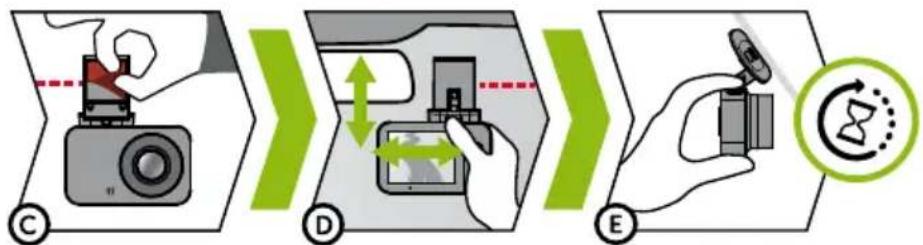
flowchart
graph LR
    A["Person recording camera"] --> B["Scan scanning"]
    B --> C["Hand holding device"]
    C --> D["Timing control with clock icon"]
flowchart
graph LR
    A["Antscam"] --> B["QR code"]
    B --> C["Mobile phone with download icon"]
    C --> D["Wi-Fi recording device"]
    D --> E["Hand gesture pointing to Wi-Fi symbol"]
text_image
Antiscam E + 3. Connecting arrow, d F G HBEZ PŘIPOJENÍ
text_image
I J K M L Davon VatemanPO PŘIPOJENÍ
| Zadrá SIM 11:30 49% | |
| < Settings | |
| Wi-Fi connection password | |
| Sound recording | [ZDY] |
| WDR |  |
| Camera watermark time |  |
| Cycle record time | [702H] |
| G-Sensor sensitivity |  |
| Video resolution 1920x1080P30 | |
| Image size 2M | |
| Format TFCard | |
| Firmware version M1C-N20190626-V1 | |
| Restore factory settings | |
text_image
Diagram of a digital camera with labeled components including front, top, and side viewstext_image
BCD A WDR 02:33:50 P 1080FHD O zZ F G H N AAAAAAAAA L 01/01/2019 00:21:29 M K J Iflowchart
graph LR
    A["Printer Receipt"] --> B["Device Display"]
    B --> C["Power Control Unit"]
    C --> D["Display Control Unit with Gear Mechanisms"]
text_image
Diagram illustrating car interior and thermal management, showing dashboard, steering wheel, and temperature sensor placement with green arrows and labels A and B.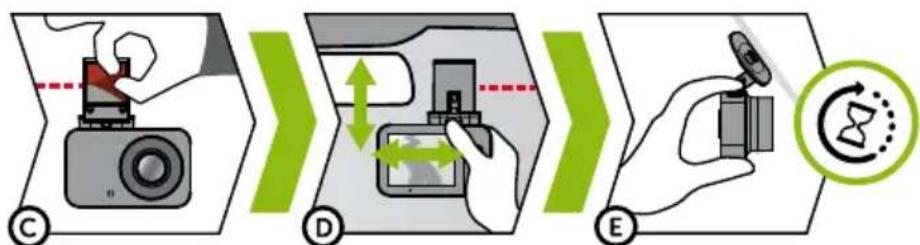
flowchart
graph LR
    A["Camera"] --> B["Tablet"]
    B --> C["Smart Speaker"]
    style A fill:#f9f,stroke:#333
    style B fill:#ccf,stroke:#333
    style C fill:#cfc,stroke:#333
text_image
Ants.com E + 5. Commenting video of F G HOHNE ANSCHLUSS
text_image
I J K M L Census NameNACH DEM ANSCHLUSS
text_image
Zádná SIM 11:30 49 % Settings Wi-Fi connection password Sound recording WDR Camera watermark time Cycle record time 3MIN > G-Sensor sensitivity LOW > When the vehicle collides, the video is not covered automatically when it is hit. It is used to provide the basis for the accident. Video resolution 1920x1080P30 > Image size 2M > Format TFCard Firmware version M1C-N20190626-V1 Restore factory settingstext_image
Diagram of a digital camera with labeled parts including front, top, and side viewsA Širokouhlý objektív
B Slot pre pamätovú kartu
© Magnetický vstup držiaku
D Tlačidlo OK / POWER
E Tlačidlo MENU / MODE
text_image
BCD A WDR 02:33:50 P 1080FHD O N AAAAAAAAA L 01/01/2019 00:21:29 M K J Iflowchart
graph LR
    A["Printer"] --> B["Device with USB port"]
    B --> C["Image sensor connected via red dashed line"]
    C --> D["Digital Device with power button icon"]
    D --> E["Digital Display with gear icons"]
text_image
Diagram illustrating car interior and dashboard control with temperature sensor placement and directional arrows labeled A and B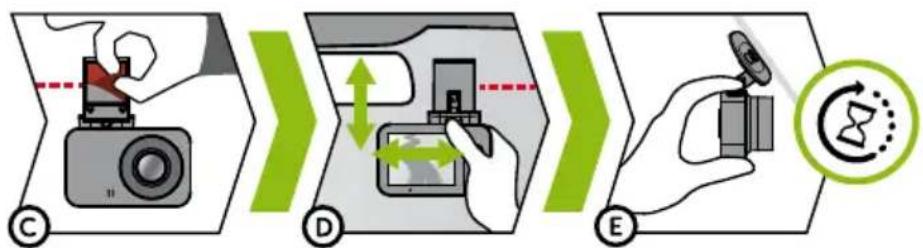
flowchart
graph LR
    A["Camera"] --> B["Tablet"]
    B --> C["Hand Tool"]
    style A fill:#f9f,stroke:#333
    style B fill:#ccf,stroke:#333
    style C fill:#cfc,stroke:#333
text_image
Aniscam E + By: Connecting device.4 F G HBEZ PRIPOJENIA
text_image
I J K M LPO PRIPOJENÍ
text_image
Zádná SIM 11:30 49 % Settings Wi-Fi connection password Sound recording WDR Camera watermark time Cycle record time 3MIN > G-Sensor sensitivity LOW > When the vehicle collides, the video is not covered automatically when it is hit. It is used to provide the basis for the accident Video resolution 1920x1080P30 > Image size 2M > Format TFCard Firmware version M1C-N20190626-V1 Restore factory settingstext_image
Diagram of a digital camera with labeled parts including front, top, and side viewstext_image
BCD A WDR 02:33:50 P 1080FHD E O N zz F G H A A A A A A A A L 01/01/2019 00:21:29 M K J Iflowchart
graph LR
    A["Printer with USB port"] --> B["Device with lens and sensor"]
    B --> C["Digital Device with power button icon"]
    C --> D["Digital Device with gear icons"]
text_image
Diagram showing car interior and dashboard control with temperature indicator and directional arrows labeled A and B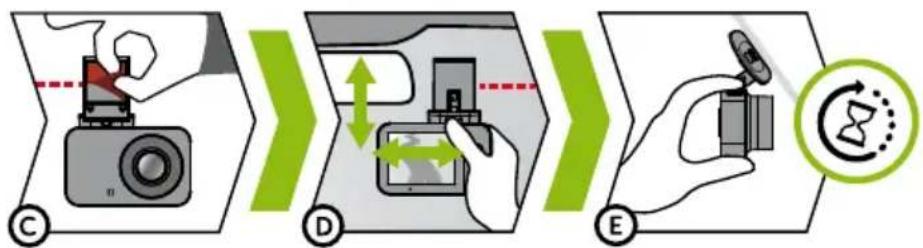
flowchart
graph LR
    A["Recording"] --> B["Scan"]
    B --> C["Timing Control Icon"]
    C --> D["Display"]
flowchart
graph LR
    A["Antscam"] --> B["QR code"]
    B --> C["Mobile phone with download icon"]
    C --> D["Wi-Fi recording device"]
    D --> E["Hand gesture pointing to Wi-Fi symbol"]
text_image
Antiscam E + 3. Connecting arrow, d F G HBEZ PODŁĄCZENIA
text_image
I J K M LPO PODŁĄCZENIU
text_image
Zádná SIM 11:30 49 % Settings Wi-Fi connection password Sound recording WDR Camera watermark time Cycle record time 3MIN > G-Sensor sensitivity LOW > When the vehicle collides, the video is not covered automatically when it is hit. It is used to provide the basis for the accident Video resolution 1920x1080P30 > Image size 2M > Format TFCard Firmware version M1C-N20190626-V1 Restore factory settings1. A CSOMAG TARTALMA
text_image
Diagram of a digital camera with labeled parts including front, top, and side viewstext_image
BCD A WDR 02:33:50 P 1080FHD O N zz G H A A A A A A A A L 01/01/2019 00:21:29 M K J Iflowchart
graph LR
    A["Printer"] --> B["Camera"]
    B --> C["Power Controller"]
    C --> D["Computer with Gear Icon"]
text_image
Diagram showing car interior and dashboard control with labeled parts A and B, including a thermometer indicator.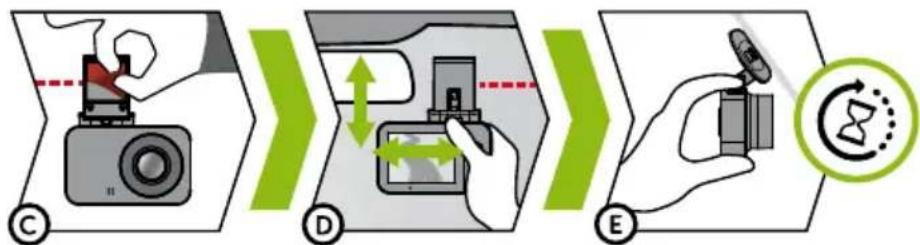
flowchart
graph LR
    A["Camera Reading"] --> B["Device Scan"]
    B --> C["Timing Control Icon"]
    C --> D["Digital Display"]
text_image
Artscam E + 3. Connecting video 21 F G HHA NINCS KAPCSOLAT
text_image
I J K M L Camelar's Camelar's Camelar's Camelar's Camelar's Camelar's Camelar's Camelar's Camelar'sHA VAN KAPCSOLAT
| Zádrá SIM 11:30 49% | ||
| < Settings | ||
| Wi-Fi connection password |  | |
| Sound recording |  |  |
| WDR |  | [ABHH] |
| Camera watermark time | [HK7S] |  |
| Cycle record time |  > > |  |
| G-Sensor sensitivity |  > > | [84BY] |
| When the vehicle collides, the video is not covered automatically when it is hit. It is used to provide the basis for the accident | ||
| Video resolution 1920x1080P30 > |  | |
| Image size 2M > |  | |
| Format TFCard | [H3GB] | |
| Firmware version M1C-N20190626-V1 |  | |
| Restore factory settings | [62DB] | |