
DEH-1020E - Car stereo PIONEER - Free user manual and instructions
Find the device manual for free DEH-1020E PIONEER in PDF.


User questions about DEH-1020E PIONEER
0 question about this device. Answer the ones you know or ask your own.
Ask a new question about this device
Download the instructions for your Car stereo in PDF format for free! Find your manual DEH-1020E - PIONEER and take your electronic device back in hand. On this page are published all the documents necessary for the use of your device. DEH-1020E by PIONEER.
USER MANUAL DEH-1020E PIONEER
Thank you for buying this Pioneer product.
Please read through these operating instructions so you will know how to operate your model properly. After you have finished reading the instructions, keep this manual in a safe place for future reference.
01 Before You Start
About this unit 3
Visit our website 3
Protecting your unit from theft 3
- Removing the front panel 4
- Attaching the front panel 4
02 Operating this unit
What's What 5
- Head unit 5
- LCD display 5
Basic Operations 6
- Turning the unit on and selecting a source 6
- Adjusting the volume 6
- Turning the unit off 6
Tuner 6
- Listening to the radio 6
- Storing and recalling broadcast frequencies 7
- Tuning in strong signals 7
- Storing the strongest broadcast frequencies 7
- Switching the RDS display 7
- Receiving PTY alarm broadcasts 8
- Selecting alternative frequencies 8
- Receiving traffic announcements 9
Built-in Player 9
- Playing a disc 9
- Repeating play 9
- Playing tracks in random order 9
- Scanning tracks of a CD 10
- Pausing disc playback 10
Audio Adjustments 10
- Using balance adjustment 10
- Using the equalizer 10
- Adjusting equalizer curves 10
- Adjusting loudness 10
- Adjusting source levels 11
Other Functions 11
- Adjusting initial settings 11
- Setting the FM tuning step 11
- Switching Auto PI Seek 11
- Switching the auxiliary setting 11
- Saving the battery consumption 11
- Sound muting 12
Additional Information
Error messages 13
Handling guideline of discs and player 13
Dual Discs 13
Specifications 15

If you want to dispose this product, do not mix it with general household waste. There is a separate collection system for used electronic products in accordance with legislation that requires proper treatment, recovery and recycling.
Private households in the member states of the EU, in Switzerland and Norway may return their used electronic products free of charge to designated collection facilities or to a retailer (if you purchase a similar new one).
For countries not mentioned above, please contact your local authorities for the correct method of disposal.
By doing so you will ensure that your disposed product undergoes the necessary treatment, recovery and recycling and thus prevent potential negative effects on the environment and human health.
About this unit
The tuner frequencies on this unit are allocated for use in Western Europe, Asia, the Middle East, Africa and Oceania. Use in other areas may result in poor reception. The RDS (radio data system) function operates only in areas with FM stations broadcasting RDS signals.

CAUTION
- Do not allow this unit to come into contact with liquids. Electrical shock could result. Also, damage to this unit, smoke, and overheating could result from contact with liquids.
- "CLASS 1 LASER PRODUCT" This product contains a laser diode of higher class than 1. To ensure continued safety, do
not remove any covers or attempt to gain access to the inside of the product. Refer all servicing to qualified personnel.
- The Pioneer CarStereo-Pass is for use only in Germany.
- Keep this manual handy as a reference for operating procedures and precautions.
- Always keep the volume low enough so that you can hear sounds from outside the vehicle.
- Protect this unit from moisture.
- If the battery is disconnected or discharged, the preset memory will be erased and must be reprogrammed.
- Should this product fail to operate properly, contact your dealer or nearest authorized Pioneer Service Station.
Visit our website
Visit us at the following site:
http://www.pioneer.co.uk
- Register your product. We will keep the details of your purchase on file to help you refer to this information in the event of an insurance claim such as loss or theft.
• We offer the latest information about Pioneer Corporation on our website.
Protecting your unit from theft
The front panel can be detached to deter theft.

Important
- Handle gently when removing or attaching the front panel.
- Avoid subjecting the front panel to excessive shocks.
- Keep the front panel out of direct sunlight and high temperatures.
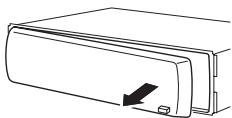
Removing the front panel
1 Press DETACH to release the front panel.
2 Grab the front panel and remove.
natural_image
Line drawing of a rectangular electronic component with a black arrow pointing to its side (no text or symbols)3 Put the front panel into provided protective case for safe keeping.
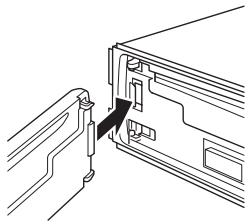
Attaching the front panel
1 Slide the front panel to the left until it clicks.
Front panel and the head unit are jointed on the left side. Make sure that the front panel has been jointed to the head unit.
natural_image
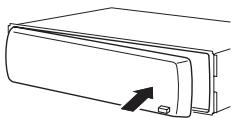
Line drawing of a device with a connector inserted into a folder (no text or symbols)2 Press the right side of the front panel until it is firmly seated.
If you can't attach the front panel to the head unit successfully, try again. Front panel may be damaged if you attach the front panel forcedly.
natural_image
Line drawing of a mechanical component with an arrow indicating direction (no text or symbols)
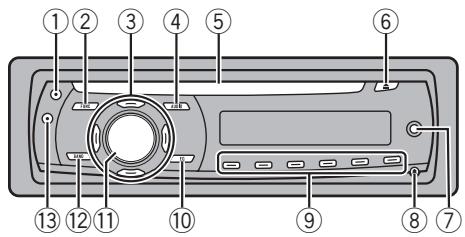
What's What Head unit
text_image
Diagram of a CD-ROM drive with numbered labels pointing to key components① TA button
Press to turn TA function on or off. Press and hold to turn AF function on or off.
② FUNCTION button
Press to recall the function menu when operating a source.
③ ▲/▼/◄/► buttons
Press to perform manual seek tuning, fast forward, reverse and track search controls. Also used for controlling functions.
④ AUDIO button
Press to select various sound quality controls.
⑤ CD loading slot
Insert a disc to play.
⑥ EJECT button
Press to eject a CD from your built-in CD player.
⑦ AUX input jack (3.5 mm stereo jack)
Use to connect an auxiliary equipment.
⑧ DETACH button
Press to remove the front panel from the head unit.
⑨ 1 to 6 buttons
Press for preset tuning.
⑩ EQ button
Press to select various equalizer curves. Press and hold to turn loudness on or off.
⑪ SOURCE button, VOLUME
This unit is turned on by selecting a source. Press to cycle through all the available sources.
Press and hold to recall the initial setting menu when the sources are off.
Rotate it to increase or decrease the volume.
⑫ BAND button
Press to select among MW/LW and two FM bands and cancel the control mode of functions.
⑬ DISPLAY button
Press to select different displays.
LCD display
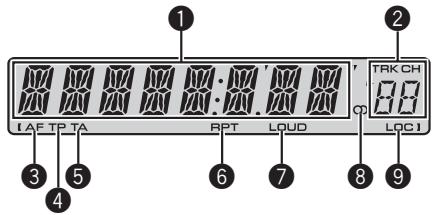
text_image
1 2 TRK CH LAF TP TA RPT LOUD LOC1 3 5 6 7 8 9① Main display section
Shows the various information such as band, play time, and other setting.
- Tuner Band and frequency are displayed.
- RDS
Program service name, PTY information or frequency is displayed.
• Built-in CD Player Elapsed play time is displayed. - Audio and initial setup Function names and setup status are displayed.
② Preset number/track number indicator
Shows the track number or preset number.
③ AF indicator
Shows when AF (alternative frequencies search) function is on.
Operating this unit
4 TP indicator
Shows when a TP station is tuned in.
⑤ TA indicator
Shows when TA (traffic announcement standby) function is on.
6 RPT indicator
Shows when repeat play is turned on.
⑦ LOUD indicator
Appears in the display when loudness is turned on.
8 Stereo (○) indicator
Shows when the selected frequency is being broadcast in stereo.
⑨ LOC indicator
Shows when local seek tuning is on.
Basic Operations
Turning the unit on and selecting a source
You can select a source you want to listen to. To switch to the built-in CD player, load a disc in the unit (refer to page 9).
- Press SOURCE to select a source.
Press SOURCE repeatedly to switch between the following sources:
Tuner—Built-in CD player—AUX

Notes
- In the following cases, the sound source will not change:
— When there is no disc in the unit.
— When AUX (auxiliary input) is set to off (refer to page 11).
- AUX is set to on by default. Turn off the AUX when not in use (refer to Switching the auxiliary setting on page 11).
- When this unit's blue/white lead is connected to the vehicle's auto-antenna relay control terminal, the vehicle's antenna extends when
this unit's source is turned on. To retract the antenna, turn the source off.
Adjusting the volume
● Use VOLUME to adjust the sound level.
Turning the unit off
- Press SOURCE and hold until the unit turns off.
Tuner
Listening to the radio
1 Press SOURCE to select the tuner.
2 Press BAND to select a band.
Press BAND until the desired band (F1, F2 for FM or MW/LW) is displayed.
3 To perform manual tuning, briefly press ◀ or ▶.
4 To perform seek tuning, press and hold ◀ or ▶ for about one second and release.
The tuner will scan the frequencies until a broadcast strong enough for good reception is found.
- You can cancel seek tuning by briefly pressing ◀ or ▶.
- If you press and hold ◀ or ▶ you can skip stations. Seek tuning starts as soon as you release the button.
Storing and recalling broadcast frequencies
- When you find a frequency that you want to store in memory, press one of preset tuning buttons 1 to 6 and hold until the preset number stops flashing.
Memorized radio station frequency can be recalled by pressing the preset tuning button.
■ Up to 12 FM stations, 6 for each of the two FM bands, and 6 MW/LW stations can be stored in memory.
- Press ▲ or ▼ to recall radio station frequencies.
Tuning in strong signals
Local seek tuning lets you tune in only those radio stations with sufficiently strong signals for good reception.
1 Press FUNCTION to select LOCAL.
2 Press ▲ or ▼ to turn local seek tuning on or off.
3 Press ◀ or ▶ to set the sensitivity.
The LOCAL 4 setting allows reception of only the strongest stations, while lower settings let you receive progressively weaker stations.
Storing the strongest broadcast frequencies
BSM (best stations memory) lets you automatically store the six strongest broadcast frequencies under preset tuning buttons 1 to 6. Once stored you can tune in to those frequencies with the touch of button.
- Storing broadcast frequencies with BSM may replace broadcast frequencies you have saved using buttons 1 to 6.
1 Press FUNCTION to select BSM.
2 Press ▲ to turn BSM on.
Six strongest broadcast frequencies will be stored in the order of their signal strength.
■ To cancel the storage process, press ▼.
Switching the RDS display
RDS (radio data system) contains inaudible informations that helps searching of the radio stations.
- RDS service may not be provided by all stations.
- RDS functions such as AF and TA are only active when your radio is tuned to an RDS station.
- Press DISPLAY.
Press DISPLAY repeatedly to switch between the following settings:
Program service name—PTY information—Frequency
■ PTY information and the frequency appear on the display for eight seconds.
PTY list
| Specific | Type of program |
| NEWS | News |
| AFFAIRS | Current affairs |
| INFO | General information and advice |
| SPORT | Sports |
| WEATHER | Weather reports/meteorological information |
| FINANCE | Stock market reports, commerce, trading, etc. |
| POP MUS | Popular music |
| ROCK MUS | Contemporary modern music |
| EASY MUS | Easy listening music |
| OTH MUS | Non-categorized music |
| JAZZ | Jazz |
| COUNTRY | Country music |
| NAT MUS | National music |
| OLDIES | Oldies, golden oldies |
| FOLK MUS | Folk music |
| L.CLASS | Light classical music |
| CLASSIC | Classical music |
| EDUCATE | Educational programs |
| DRAMA | Radio plays and serials |
| CULTURE | National or regional culture |
| SCIENCE | Nature, science and technology |
| VARIED | Light entertainment |
Operating this unit
CHILDREN Children's
SOCIAL Social affairs
RELIGION Religious affairs or services
PHONE IN Phone in
TOURING Travel programs; not for traffic announcements
LEISURE Hobbies and recreational activities
DOCUMENT Documentaries
Receiving PTY alarm broadcasts
When the emergency PTY code broadcasts, the unit receives it automatically (ALARM appears). When the broadcasting ends, the system returns to the previous source.
- An emergency announcement can be canceled by pressing TA.
Selecting alternative frequencies
When the tuner can't get good reception, the unit automatically search for a different station in a same network.
- Press and hold TA repeatedly to turn AF (alternative frequency search) on or off.

Notes
- You can also turn the AF function on or off in the menu that appears with the pressing of FUNCTION.
- Only RDS stations are tuned in during seek tuning or BSM when AF is on.
- When you recall a preset station, the tuner may update the preset station with a new frequency from the station's AF list. (This is only available when using presets on the F1 or F2 bands.) No preset number appears on the display if the RDS data for the station received differs from that for the originally stored station.
- Sound may be temporarily interrupted by another program during an AF frequency search.
- AF can be turned on or off independently for each FM band.
Using PI Seek
If the tuner can't find a suitable station, or reception status becomes bad, the unit will automatically search for a different station with a same programming. During the search,
PI SEEK is displayed and the output is muted.
Using Auto PI Seek for preset stations
When preset stations cannot be recalled, as when travelling long distances, the unit can be set to perform PI Seek during preset recall.
- The default setting for Auto PI Seek is off. See Switching Auto PI Seek on page 11.
Limiting stations to regional programming
When AF is used, the regional function limits the selection of stations broadcasting regional programs.
1 Press FUNCTION to select REG.
2 Press ▲ or ▼ to turn the regional function on or off.

Notes
- Regional programming and regional networks are organized differently depending on the country (i.e., they may change according to the hour, state or broadcast area).
- The preset number may disappear from the display if the tuner tunes in a regional station which differs from the originally set station.
- The regional function can be turned on or off independently for each FM band.
Receiving traffic announcements
TA (traffic announcement standby) lets you receive traffic announcements automatically, no matter what source you are listening to. TA can be activated for both a TP station (a station that broadcasts traffic information) or an enhanced other network's TP station (a station carrying information which cross-references TP stations).
1 Tune in a TP or enhanced other network's TP station.
TP indicator will light.
2 Press TA to turn traffic announcement standby on.
■ To turn traffic announcements standby off, press TA again.
3 Use VOLUME to adjust the TA volume when a traffic announcement begins.
The newly set volume is stored in memory and recalled for subsequent traffic announcements.
4 Press TA while a traffic announcement is being received to cancel the announcement.
The tuner returns to the original source but remains in the standby mode until TA is pressed again.

Notes
- You can also turn the TA function on or off in the menu that appears with the pressing of FUNCTION.
- The system switches back to the original source following traffic announcement reception.
- Only TP and enhanced other network's TP stations are tuned in during seek tuning or BSM when TA is on.
Built-in Player
Playing a disc
1 Insert a CD into the CD loading slot.
Playback will automatically start.
■ Be sure to turn up the label side of a disc.
■ After a CD has been inserted, press SOURCE to select the built-in CD player.
■ You can eject a CD by pressing EJECT.
2 To perform fast forward or reverse, press and hold ◀ or ▶.
3 To skip back or forward to another track, press ◀ or ▶.

Notes
- Read the precautions with discs and player on page 13.
- If an error message such as ERROR-11 is displayed, refer to Error messages on page 13.
Repeating play
Repeat play lets you hear the same track over again.
1 Press FUNCTION to select RPT.
2 Press ◀ or ▶ to select the repeat range.
DSC – Repeat all tracks
TRK – Repeat just the current track
■ If you perform track search or fast forward/reverse, repeat play is automatically cancelled.
■ To return to the normal display, press BAND.
Playing tracks in random order
Random play lets you play back tracks on the CD in a random order.
1 Press FUNCTION to select RDM.
2 Press ▲ or ▼ to turn random play on or off.
When random play is on, RDM appears in the display.
■ To return to the normal display, press BAND.
Scanning tracks of a CD
Scan play lets you hear the first 10 seconds of each track on the CD.
1 Press FUNCTION to select SCAN.
2 Press ▲ to turn scan play on.
SCAN appears in the display. The first 10 seconds of each track is played.
3 When you find the desired track press ▼ to turn scan play off.
■ If the display has automatically returned to the playback display, select SCAN again by pressing FUNCTION.
■ After scanning of a CD is finished, normal playback of the tracks will begin again.
Pausing disc playback
Pause lets you temporarily stop playback of the disc.
1 Press FUNCTION to select PAUSE.
2 Press ▲ or ▼ to turn pause on or off.
■ To return to the normal display, press
BAND.
Audio Adjustments
Using balance adjustment
Fader/balance setting creates an ideal listening environment in all occupied seats.
1 Press AUDIO to select FAD.
2 Press ▲ or ▼ to adjust front/rear speaker balance.
FAD F15 to FAD R15 is displayed.
■ FAD 0 is the proper setting when only two speakers are used.
3 Press ◀ or ▶ to adjust left/right speaker balance.
BAL L15 to BAL R15 is displayed.
■ To return to the normal display, press BAND.
Using the equalizer
There are six stored equalizer settings such as DYNAMIC, VOCAL, NATURAL, CUSTOM,
FLAT and POWERFUL that can easily be recalled at any time.
- CUSTOM is an adjusted equalizer curve that you create.
- When FLAT is selected no supplement or correction is made to the sound.
- Press EQ to select the equalizer.
Press EQ repeatedly to switch between the following equalizers:
DYNAMIC—VOCAL—NATURAL—CUSTOM —FLAT—POWERFUL
Adjusting equalizer curves
You can adjust the currently selected equalizer curve setting as desired. Adjusted equalizer curve settings are memorized in CUSTOM.
Adjusting bass/mid/treble
You can adjust the bass/mid/treble level.
1 Press AUDIO to select BASS/MID/TREBLE.
2 Press ▲ or ▼ to adjust the level.
+6 to -6 is displayed as the level is increased or decreased.
■ To return to the normal display, press BAND.
Adjusting loudness
Loudness compensates for deficiencies in the low- and high-sound ranges at low volume.
1 Press AUDIO to select LOUD.
2 Press ▲ or ▼ to turn loudness on or off.
■ You can also turn loudness on or off by pressing and holding EQ.
3 Press ◀ or ▶ to select a desired level. LOW (low)—HI (high)
■ To return to the normal display, press BAND.
Adjusting source levels
SLA (source level adjustment) lets you adjust the volume level of each source to prevent radical changes in volume when switching between sources.
- Settings are based on the FM volume level, which remains unchanged.
- The MW/LW volume level can also be adjusted with source level adjustments.
1 Compare the FM volume level with the level of the source you wish to adjust.
2 Press AUDIO to select SLA.
3 Press ▲ or ▼ to adjust the source volume.
SLA +4 to SLA -4 is displayed as the source volume is increased or decreased.
■ To return to the normal display, press
BAND.
Other Functions
Adjusting initial settings
Using the initial settings, you can customize various system settings to achieve optimal performance from this unit.
1 Press SOURCE and hold until the unit turns off.
2 Press SOURCE and hold until function name appears in the display.
3 Press FUNCTION to select one of the initial settings.
Press FUNCTION repeatedly to switch between the following settings:
FM (FM tuning step)—A-PI (auto PI Seek)—AUX (auxiliary input)—SAVE (power save)
Use the following instructions to operate each particular setting.
■ To cancel initial settings, press BAND.
- You can also cancel initial settings by holding down SOURCE until the unit turns off.
Setting the FM tuning step
Normally the FM tuning step employed by seek tuning is 50 kHz. When AF or TA is on, the tuning step automatically changes to 100 kHz. It may be preferable to set the tuning step to 50 kHz when AF is on.
- The tuning step remains at 50 kHz during manual tuning.
1 Press FUNCTION to select FM.
2 Press ◀ or ▶ to select the FM tuning step.
Press ◀ to select 50 (50 kHz). Press ▶ to select 100 (100 kHz).
Switching Auto PI Seek
The unit can automatically search for a different station with the same programming, even during preset recall.
1 Press FUNCTION to select A-PI.
2 Press ▲ or ▼ to turn the Auto PI seek on or off.
Switching the auxiliary setting
It is possible to use auxiliary equipment with this unit. Activate the auxiliary setting when using auxiliary equipment connected to this unit.
1 Press FUNCTION to select AUX.
2 Press ▲ or ▼ to turn the auxiliary setting on or off.
Saving the battery consumption
Switching this function on enables you to save the consumption of battery power.
- Operations other than turning on the source are not allowed when this function is on.

Important
If the battery in your vehicle is disconnected the Power Save mode is canceled. Turn on Power Save again once the battery has been reconnected. If the ignition switch in your vehicle doesn't have an ACC (accessory) position, it is possible depending on the connection method that when Power Save is off, the unit will draw power from the battery.
1 Press FUNCTION to select SAVE.
2 Press ▲ or ▼ to turn the power save on or off.
Sound muting
Sound from this unit is muted automatically in the following cases:
- When a call is made or received using a cellular telephone connected to this unit.
- When the voice guidance is output from a Pioneer navigation unit connected to this unit.
The sound is turned off, MUTE is displayed and no audio adjustments, except volume control, are possible. Operation returns to normal when the phone connection or the voice guidance is ended.
Additional Information
Error messages
When you contact your dealer or your nearest Pioneer Service Center, be sure to record the error message.
| Message | Cause | Action |
| ERROR-11, 12, 17, 30 | Dirty disc | Clean disc. |
| ERROR-11, 12, 17, 30 | Scratched disc | Replace disc. |
| ERROR-10, 11, 12, 15, 17, 30, A0 | Electrical or mechanical | Switch the ignition key, or switch to a different source, then back to the CD player. |
| ERROR-15 | The inserted disc does not contain any data | Replace disc. |
| ERROR-22, 23 | The CD format cannot be played back | Replace disc. |
| CD-ROM | CD-ROM is inserted | Replace disc. |

Handling guideline of discs and player
- Use only discs featuring following logo.

- Use only conventional, fully circular discs. Do not use shaped discs.


- Use 12-cm or 8-cm CD. Do not use an adapter when playing 8-cm CDs.
-
Do not insert anything other than a CD into the CD loading slot.
-
Do not use cracked, chipped, warped, or otherwise damaged discs as they may damage the player.
- Unfinalized CD-R/CD-RW disc playback is not possible.
- Do not touch the recorded surface of the discs.
- Store discs in their cases when not in use.
- Avoid leaving discs in excessively hot environments including under direct sunlight.
- Do not attach labels, write on or apply chemicals to the surface of the discs.
- To clean a CD, wipe the disc with a soft cloth outward from the center.
- Condensation may temporarily impair the player's performance. Leave it to adjust to the warmer temperature for about one hour. Also, wipe any dump discs with a soft cloth.
- Playback of discs may not be possible because of disc characteristics, disc format, recorded application, playback environment, storage conditions and so on.
- Text information may not be correctly displayed depending on the recorded environment.
• Road shocks may interrupt disc playback. - Read the precautions with discs before using them.
Dual Discs
- Dual Discs are two-sided discs that have a recordable CD for audio on one side and a recordable DVD for video on the other.
- Since the CD side of Dual Discs is not physically compatible with the general CD standard, it may not be possible to play the CD side with this unit.
Additional Information
- Frequent loading and ejecting of a Dual Disc may result in scratches on the disc. Serious scratches can lead to playback problems on this unit. In some cases, a Dual Disc may become stuck in the disc loading slot and will not eject. To prevent this, we recommend you refrain from using Dual Disc with this unit.
- Please refer to the information from the disc manufacturer for more detailed information about Dual Discs.
Additional Information
Specifications
General
Power source .... 14.4 V DC (10.8 V to 15.1 V allowable)
Grounding system ...... Negative type
Max. current consumption 10.0 A
Dimensions (W × H × D):
DIN
Chassis 178 × 50 × 162 mm
Nose 188 × 58 × 15 mm
D
Chassis 178 × 50 × 162 mm
Nose 170 × 48 × 15 mm
Weight 1.3 kg
Audio
Maximum power output ..... 50 W × 4
Continuous power output ... 22 W × 4 (50 Hz to 15 000 Hz, 5% THD, 4 Ω load, both channels driven)
Load impedance .... 4 Ω (4 Ω to 8 Ω allowable)
Tone controls:
Bass
Frequency 100 Hz
Gain .... ±13dB
Mid
Frequency 1 kHz
Gain .... ±12 dB
Treble
Frequency 10 kHz
Gain .... ±12 dB
CD player
System .... Compact disc audio system
Usable discs .... Compact disc
Signal-to-noise ratio ...... 94 dB (1 kHz) (IEC-A network)
Number of channels ...... 2 (stereo)
FM tuner
Frequency range 87.5 MHz to 108.0 MHz
Usable sensitivity .... 8 dBf (0.7 μV/75 Ω, mono, S/N: 30 dB)
Signal-to-noise ratio ..... 75 dB (IEC-A network)
MW tuner
Frequency range 531 kHz to 1602 kHz (9 kHz)
Usable sensitivity .... 18 μV (S/N: 20 dB)
Signal-to-noise ratio ...... 65 dB (IEC-A network)
LW tuner
Frequency range ...... 153 kHz to 281 kHz
Usable sensitivity .... 30 μV (S/N: 20 dB)
Signal-to-noise ratio ...... 65 dB (IEC-A network)

Note
Specifications and the design are subject to modifications without notice due to improvements.
natural_image
Line drawing of a rectangular electronic component with a button and arrow indicating direction (no text or symbols)natural_image
Pure technical line drawing of a connector or connector assembly without any text, numbers, or symbolsnatural_image
Line drawing of a mechanical component with an arrow indicating direction (no text or symbols)
text_image
Diagram of a CD-ROM drive with numbered labels pointing to key components① Botón TA
DYNAMIC—VOCAL—NATURAL—CUSTOM —FLAT—POWERFUL
natural_image
Line drawing of a rectangular electronic device with a button and arrow indicating direction (no text or symbols)natural_image
Line drawing of a mechanical component with a pin inserted, showing internal structure without any text or symbolsnatural_image
Line drawing of a rectangular device with an arrow pointing to its side (no text or symbols)
text_image
Diagram of a device rear panel with numbered labels pointing to key components① Taste TA
⑪ Taste SOURCE, VOLUME
text_image
1 2 TRK CH L A F T P T A R P T L O U D LOC 1 3 5 6 7 8 9DYNAMIC—VOCAL—NATURAL—CUSTOM —FLAT—POWERFUL
Abmessungen (B × H × T):
DIN
natural_image
Line drawing of a rectangular electronic device with a button and arrow indicating direction (no text or symbols)natural_image
Diagram of a device with cable connectors and a highlighted connector (no text or symbols)natural_image
Line drawing of a mechanical component with an arrow indicating direction (no text or symbols)
text_image
Diagram of a CD-ROM drive with numbered parts for identification① Touche TA
⑪ Touche SOURCE, VOLUME
text_image
1 2 TRK CH 1 A F T P T A R P T L O U D LOC 1 3 5 6 7 8 9DYNAMIC—VOCAL—NATURAL—CUSTOM —FLAT—POWERFUL
Dimensions (L × H × P):
DIN
Châssis ...... 178 × 50 × 162 mm
natural_image
Simple line drawing of a rectangular device with an arrow pointing to its side (no text or symbols)
natural_image
Line drawing of a rectangular electronic component with a black arrow pointing to a small button (no text or symbols)natural_image
Line drawing of a device with a cable inserted into a connector (no text or symbols)text_image
Diagram of a device rear panel with numbered labels pointing to key components① Tasto TA
text_image
1 2 TRK CH L A F T P T A R P T L O U D LOC I 3 5 6 7 8 9DYNAMIC—VOCAL—NATURAL—CUSTOM —FLAT—POWERFUL
Consumo massimo ..... 10,0 A
Dimensioni (L × A × P):
DIN
natural_image
Line drawing of a rectangular device with an arrow pointing to its side (no text or symbols)
natural_image
Line drawing of a rectangular electronic device with a button and arrow indicating direction (no text or symbols)natural_image
Diagram of a connector or cable assembly with a black arrow pointing to a component (no text or symbols present)text_image
Diagram of a CD-ROM front panel with numbered labels pointing to key components① TA-toets
⑪ SOURCE-toets, VOLUME
⑧ Stereo-indicator (○)
Hz, 5% THD, 4 Ω belasting,
beide kanalen)
natural_image
Line drawing of a rectangular device with a black arrow pointing to its side (no text or symbols)natural_image
Diagram of a device's internal structure showing a connector inserted into a folder (no text or symbols present)natural_image
Line drawing of a mechanical component with an arrow indicating direction (no text or symbols)
text_image
Diagram of a device rear panel with numbered labels pointing to key components① Кнопка ТА
Visit www.pioneer.co.uk (or www.pioneer.eu) to register your product.
4-1, MEGURO 1-CHOME, MEGURO-KU
PIONEER ELECTRONICS (USA) INC.
P.O. Box 1540, Long Beach, California 90801-1540, U.S.A.
TEL: (800) 421-1404
PIONEER EUROPE NV
Haven 1087, Keetberglaan 1, B-9120 Melsele, Belgium
TEL: (0) 3/570.05.11
PIONEER ELECTRONICS ASIACENTRE PTE. LTD.
253 Alexandra Road, #04-01, Singapore 159936
TEL: 65-6472-7555
PIONEER ELECTRONICS AUSTRALIA PTY. LTD.
178-184 Boundary Road, Braeside, Victoria 3195, Australia
TEL: (03) 9586-6300
PIONEER ELECTRONICS OF CANADA, INC.
300 Allstate Parkway, Markham, Ontario L3R 0P2, Canada
TEL: 1-877-283-5901
PIONEER ELECTRONICS DE MEXICO, S.A. de C.V.
Blvd.Manuel Avila Camacho 138 10 piso
Col.Lomas de Chapultepec, Mexico, D.F. 11000
TEL: 55-9178-4270
先鋒股份有限公司
總公司:台北市中山北路二段44號13樓
電話:(02) 2521-3588
先鋒電子(香港)有限公司
香港九龍尖沙咀海港城世界商業中心
9樓901-6室
電話:(0852) 2848-6488
Pioneer CarStereo-Pass
Please fill out immediately after purchase.
Published by Pioneer Corporation.
Copyright © 2007 by Pioneer Corporation.
All rights reserved.